
ES5473MFP - Multifunction Printer OKI - Free user manual and instructions
Find the device manual for free ES5473MFP OKI in PDF.


| Product type | Color LED multifunction printer |
| Brand | OKI |
| Model | ES5473MFP |
| Dimensions (W x D x H) | 430 x 379 x 442 mm |
| Weight | 24 kg |
| Power supply | 220-240 V AC, 50/60 Hz |
| Power consumption (max) | 1300 W (printing), 20 W (standby) |
| Main functions | Print, copy, scan, fax |
| Color printing | Yes |
| Print speed | Up to 30 ppm (black and color) |
| Print resolution | 600 x 600 dpi |
| Scanning | Yes, up to 600 x 600 dpi |
| Copying | Yes, up to 30 cpm |
| Fax | Yes, 33.6 kbps modem |
| Paper capacity (main tray) | 250 sheets |
| Paper capacity (multi-purpose tray) | 100 sheets |
| Display | 10.9 cm (4.3 inch) color touch screen |
| Connectivity | Ethernet, USB 2.0, Wi-Fi (optional) |
| Maintenance and cleaning | Clean the exterior surfaces with a soft, dry cloth. Do not use solvents. |
| Safety | Complies with FCC Part 15 and Industry Canada RSS. Maintain a distance of at least 20 cm between the body and the device. |
| Compliance | Class B (Canada NMB-003), indoor use restriction for 5150-5250 MHz band |
| Noise level (printing) | Approx. 55 dB(A) |
| Operating temperature | 10 to 32 °C |
| Warranty | 2 years (parts and labor) |
| Spare parts and repairability | Toners, drum, transfer belt, fuser unit, feed rollers |
Frequently Asked Questions - ES5473MFP OKI
User questions about ES5473MFP OKI
0 question about this device. Answer the ones you know or ask your own.
Ask a new question about this device
Download the instructions for your Multifunction Printer in PDF format for free! Find your manual ES5473MFP - OKI and take your electronic device back in hand. On this page are published all the documents necessary for the use of your device. ES5473MFP by OKI.
USER MANUAL ES5473MFP OKI
Cautions Related to Safety 6
General Cautions 7
About This Manual 9
About Descriptions 9
Trademarks and Other Information 11
License 13
2 Setting Up 14
Installation Requirements 15
Installation Environment 15
Installation Space 16
Checking the Accessories 18
Unpacking and Installing the Machine 19
Installing the Optional Equipment 23
Installing the Wireless LAN module 23
Installing the Additional Tray Unit 24
Setting the Printer Driver 26
Connecting a Telephone Line 28
Connecting to the Public Line (If Using Only for Faxes) 28
Connecting to the Public Line (If Connecting a Telephone to the Machine) 29
Connecting the Optical IP telephone 30
Connecting to the ADSL Environment 31
Connecting PBX, Home Telephone or Business Phone 32
Connecting as an Extension Telephone 32
Connecting a CS Tuner or Digital Television 33
Connecting the Power Code 34
Connecting a LAN Cable/USB Cable 36
Connecting a LAN Cable 36
Connecting a USB Cable 38
Loading Paper in the Tray 40
Checking the Setting Information 42
Setting Up This Machine 43
Language Setup 43
Setting Date and Time 45
Setting the Administrator Password 47
Fax Setup 48
Network Settings 50
E-mail Setting 51
Test Print 54
Connecting to a Wireless LAN (Only When the Wireless LAN Module is Mounted) 56
Before Connecting to a Wireless LAN 56
Enabling Wireless LAN Connection 57
Connecting to an Access Point (Infrastructure) 59
Setting up [Enabling Default Gateway] 72
Connecting to the Machine Directly (AP mode) 74
Installing a Driver and Software to a Computer 78
For Windows 78
For Mac OS X 81
3 Basic Operations 85
Names of Components 86
Front View 86
Rear View 87
Inside of the machine 88
Basic Operations on the Operator Panel 89
Names and Functions 89
Name and Functions on the Touch Panel 90
92
Adjusting the Angle of the Operator Panel 93
Turning On or Off the Machine 94
Turning On the Machine 94
Turning Off the Machine 95
Loading Paper 97
About Paper Types That Can be Loaded 97
Loading Paper in Tray 1/2/3 100
Loading Paper in the MP Tray 101
Paper Storage 103
Setting a Document 104
About Documents That Can be Set 104
Setting in the ADF 105
Setting on the Document Glass 107
4 Copy 108
Copying 109
Cancelling Copying 110
Specifying the Number of Copies 111
Descriptions of Screens for Copy 112
5 Scan 115
Sending Scanned Data as an E-mail Attachment 116
Before Using Scan To E-mail 116
Entering E-mail Address to Send E-mail 117
Saving Scanned Data in a Shared Folder 119
Creating a Shared Folder in a Computer 119
Registering a Destination (Profile) 120
How to Use Scan To Shared Folder 121
Cancelling Scanning 122
Descriptions of Screens for Scan 123
Scan To E-mail Screen 123
Scan To Shared Folder Screen 126
6 Print 129
Printing from a Computer (Windows) 130
For Windows PCL Printer Driver 130
For Windows PS Printer Driver 131
Printing from a Computer (Mac OS X) 133
Cancelling a Print Job 134
About Screens and Functions of Each Printer Driver 135
Windows PCL Printer Driver 135
Windows PS Printer Driver 137
Mac OS X PS Printer Driver 139
Descriptions of Screens for Print 144
7 Fax 145
Basic Operations of Fax Functions 146
Entering Fax Number to Send a Fax 146
Cancelling a Fax Transmission 147
Setting for Receptions 149
Setting the Reception Mode 149
DRD 151
Setting the Waiting Time from When an Incoming Call Arrives to When Reception Starts (Response Waiting Time) 152
Receiving Operation 152
Descriptions of Screens for Fax 154
Fax Screen 154
8 Maintenance 157
Replacing Consumables 158
Cautions When Replacing Consumables 158
Replacing the Toner Cartridges 159
Replacing the Image Drum 163
Replacing the Image Drum and Toner Cartridge at the Same Time 167
Cleaning Each Part of the Machine 171
Cleaning the Document Glass 171
Cleaning the LED Head 172
9 Troubleshooting 174
If Paper Jams Occur 175
If the Error Code is "370", "371", "372" 175
If the Error Code is "380", "381", "382", "385", "389" 180
If the Error Code is "390" 184
If the Error Code is "391", "392", "393" 187
If the Error Code is "409" 189
If a Document Jam Occurs 194
If a Document is Visible in the Paper Path 194
If a Document is Invisible in the Paper Path 195
Copy Problems 197
Unable to Copy 197
Scan Problems 199
Unable to Scan 199
Print Problems 200
Unable to Print 200
Fax Problems 202
Unable to Send a Fax 202
Unable to Receive a Fax 204
If an Error Message is Displayed on the Operator Panel 205
Error Message List 205
10 Operating Management/ Specifications 215
Changing the Administrator Password 216
Saving Power Consumption with the Power Save Function 217
Setting the Length of Idle Time Before Entering Power Save Mode 217
Setting the Length of Idle Time Before Entering Sleep Mode 218
Restrictions in Power Saving Function 218
Automatically Turning Off the Machine (Auto Power Off) 219
Setting the Length of Idle Time Before Auto Power Off Works 220
Specifications 221
General Specifications 221
Copier Specifications 222
Fax Specifications 222
Scanner Specifications 223
Printing Specifications 223
Network Specifications 224
Wireless LAN Specifications (Option) 225
Contact Us 226
1 Before starting
Cautions Related to Safety
General Cautions
About This Manual
Trademarks and Other Information
License
Cautions Related to Safety
| WARNING | Indicates additional information which, if ignored or not followed, may result in personal injury or death. |
| CAUTION | Indicates additional information which, if ignored, may result in personal injury. |
General Cautions
| WARNING | |
| Do not touch the safety switch inside this machine. High voltage may occur, resulting in electric shock. Also, a gear may rotate, resulting in injury. | |
| Do not use a highly combustible spray near this machine. Some parts inside the machine become very hot, possibly resulting in fire. | |
| If the cover becomes extremely hot, the machine emits smoke or odor, or you hear a strange sound, unplug the power plug from the outlet, and contact your dealer. Fire may result. | |
| If liquid such as water gets inside the machine, unplug the power plug from the outlet, and contact your dealer. Fire may result. | |
| If you drop a clip or other foreign objects into the machine, unplug the power plug from the outlet, and take the foreign objects out. Electric shock, fire, or injury may result. | |
| Do not perform any operation or disassembly other than instructed in the user manual. Electric shock, fire, or injury may result. | |
| If the machine is dropped or the cover is damaged, unplug the power plug from the outlet, and contact your dealer. Electric shock, fire, or injury may result. | |
| Unplug the power plug regularly, and clean the bases of and in between the plug blades. If the power plug is left plugged into the outlet for an extended period of time, dust adheres on the bases of the plug blades, and a short may occur, possibly resulting in fire. | |
| WARNING | |
| Do not vacuum spilled toner with an electric vacuum cleaner. Vacuuming spilled toner with an electric vacuum cleaner may result in ignition due to sparks from electric contacts or other reasons. If toner spills on the floor or other places, wipe the toner gently with a damp rag or other cloth while using care not to scatter the toner. | |
| Do not insert any object into a vent hole. Electric shock, fire, or injury may result. | |
| Do not place a cup filled with water or other objects on the machine. Electric shock or fire may result. | |
| Do not let pet urine or other liquid get inside this machine, or allow this machine to get wet. Electric shock or fire may result. | |
| When the machine cover is opened, do not touch the fuser unit. Burns may result. | |
| Do not throw the toner cartridge or image drum into a fire. The toner may ignite, resulting in burns. | |
| Do not connect the power cord, cables, or the ground wire in any way other than instructed in the user manual. Fire may result. | |
| Operation using an UPS (uninterruptible power supply) or inverter is not guaranteed. Do not use an uninterruptible power supply or inverter. Fire may result. | |
| CAUTION | |
| Do not go near the paper output part when you turn the power on or when printing is in progress. Injury may result. | |
| Do not touch a broken liquid crystal display. Injury may result. If you get liquid (liquid crystal) spilled from the liquid crystal display into your eyes or mouth, immediately rinse with a large amount of water. Seek medical advice if necessary. | |
| Do not disassemble the image drum or toner cartridge, or force them open. You may inhale the scattered toner, or the toner may land on your hands or clothes, making them dirty. | |
NOTE!
This product is not intended for use in the immediate visual field on the display work place. To avoid disturbing reflections on the display work place, this product shall not be placed in the immediate field of vision.
About This Manual
Various information about this manual is provided here. Read these sections before using this manual.
Disclaimer
Every effort has been made to ensure that the information in this document is complete, accurate, and up-to-date. The manufacturer assumes no responsibility for the result of errors beyond its control. The manufacturer also cannot guarantee that changes in software and equipment made by other manufacturers and referred to in this manual will not affect the applicability of the information in it. Mention of software products manufactured by other companies does not necessarily constitute endorsement by the manufacturer.
While all reasonable efforts have been made to make this document as accurate and helpful as possible, we make no warranty of any kind, expressed or implied, as to the accuracy or completeness of the information contained herein.
Copyright of the manual
All rights reserved by Oki Electric Industry Co., Ltd. No part of this document may be reproduced in any form or by any means without prior written permission from Oki Electric Industry Co., Ltd.
© 2016 Oki Electric Industry Co., Ltd.
- Manual Composition
- User's Manual (PDF) ---- Stored in the DVD-ROM which comes with the machine.
- Advanced Manual (PDF) ---- Download this manual from the web site and refer to it.
-
Online Manual ---- Can be browsed on the web site.
-
About Descriptions
How to Use This Manual (Advanced Manual)
About Descriptions
Marks, symbols, illustrations, and other descriptions are provided.
- About Marks
- About Symbols
- About Illustrations

Unless otherwise specified, this manual uses screenshots of the following screens.
For Windows:Windows 7
For Mac OS X: Mac OS X 10.9
[OKI MFP] may be written as the model name.
Depending on your OS, model or version, the description on this document may be different.
About Marks
This manual uses the following marks.
| Symbol | Meaning |
| ! | Indicates the cautions and restrictions for operating this machine correctly. Be sure to read to ensure that you can operate the machine correctly. |
| Indicates information that is useful for using this machine. It is recommended to read. | |
| Indicates a reference topic. Read when you need more information. | |
| Indicates a related topic. Read when you need related information. |
About Symbols
This section describes symbols and their meaning in this manual.
| Symbol | Meaning |
| Illustration (button name) | Indicates a button (button name) on the operator panel of the machine. |
| [ ] | Indicates a menu name, item name, option, or other items that are displayed on the display screen on the operator panel. Indicates a menu, window, or dialog name that is displayed on the screen on a computer. They can be clearly distinguished in descriptions or illustrations in procedures. |
| '' '' | Indicates a message on the display screen or entered text. Indicates a file name on a computer. Indicates the topic title of a link destination. |
| < > | Indicates a key on the computer keyboard. |
| > | Indicates how to display the required menu of the machine or computer. |
About Illustrations
The illustrations of MC573 are used in this manual as examples.
Illustrations of the display screen on the operator panel used in this manual are with the factory default settings.

The descriptions in this manual may vary depending on your model.
Trademarks and Other Information
OKI is a registered trademark of Oki Electric Industry Co., Ltd.
ENERGY STAR is a trademark of the United States Environmental Protection Agency.
Microsoft, Windows, Windows Server, Windows Vista and Internet Explorer are registered trademarks of Microsoft Corporation.
Apple, Macintosh, Mac and Mac OS are the registered trademarks of Apple Inc.
iPad, iPhone, iPod, iPod touch and Safari are trademarks registered to Apple Inc. in the United States and other countries.

Works with
Apple AirPrint
AirPrint and the AirPrint logo are trademarks of Apple Inc.
Google, Google Docs, Android, and Gmail are trademarks of Google Inc.
Google Cloud Print is a trademark of Google Inc.
Adobe, Illustrator, Photoshop, PostScript and Reader are trademarks or trademarks of Adobe Systems Incorporated in the United States and other countries.
FeliCa is a registered trademark of Sony Corporation.
MIFARE is a trademark of NXP Semiconductors.
Other product names and brand names are registered trademarks or trademarks of their proprietors.

This product complies with the requirements of the Council Directives 2014/30/EU (EMC), 2014/35/EU (LVD), 2014/53/EU (RED), 2009/125/EC (ErP) and 2011/65/EU(RoHS), as amended where applicable, on the approximation of the laws of the member states relating to Electromagnetic Compatibility, Low Voltage, Radio & Telecommunications Terminal Equipment, Energy related Products and Restriction on the use of certain Hazardous Substances in electrical and electronic equipment.
The following cables were used to evaluate this product for EMC directive 2014/30/EU compliance, and configurations other than this may affect that compliance.
| CABLE TYPE | LENGTH (METER) | CORE | SHIELD |
| Power | 1.8 | × | × |
| USB | 5.0 | × | ✓ |
| LAN | 10.0 | × | × |
| Telephone | 3.0 | × | × |
- ENERGY STAR
Target countries of the ENERGY STAR program are the United States, Canada and Japan.
It is not applicable to other countries.
This product is compliant with ENERGY STAR v2.0 only.
- EMERGENCY FIRST AID
Take care with toner powder:

If swallowed, give small amounts of cold water and seek medical attention. DO NOT attempt to induce vomiting.
If inhaled, move the person to an open area for fresh air. Seek medical attention. If it gets into the eyes, flush with large amounts of water for at least 15 minutes keeping eyelids open. Seek medical attention.
Spillages should be treated with cold water and soap to help reduce risk of staining skin or clothing.
ENVIRONMENTAL INFORMATION

License
This product contains software developed by the Heimdal Project.
Copyright (c) 1995 - 2008 Kungliga Tekniska Hogskolan
(Royal Institute of Technology, Stockholm, Sweden).
All rights reserved.
Redistribution and use in source and binary forms, with or without modification, are permitted provided that the following conditions are met:
- Redistributions of source code must retain the above copyright notice, this list of conditions and the following disclaimer.
2 Redistributions in binary form must reproduce the above copyright notice, this list of conditions and the following disclaimer in the documentation and/or other materials provided with the distribution.
3 Neither the name of the Institute nor the names of its contributors may be used to endorse or promote products derived from this software without specific prior written permission.
THIS SOFTWARE IS PROVIDED BY THE INSTITUTE AND COLLECTORS "AS IS" AND ANY EXPRESS OR IMPLIED WARRANTY, INCLUDING, BUT NOT LIMITED TO, THE IMPLIED WARRANTY OF MERCHANTABILITY AND FITNESS FOR A PARTICULAR PURPOSE ARE DISCLAIMED. IN NO EVENT SHALL THE INSTITUTE OR COLLECTORS BE LIABLE FOR ANY DIRECT, INDIRECT, INCIDENTAL, SPECIAL, EXEMPLARY, OR CONSEQUENTIAL DAMAGES (INCLUDING, BUT NOT LIMITED TO, PROCUREMENT OF SUBSTITUTE GOODS OR SERVICES; LOSS OF USE, DATA, OR PROFITS; OR BUSINESS INTERRUPTION) HOWEVER CAUSED AND ON ANY THEORY OF LIABILITY, WHETHER IN CONTRACT, STRICT LIABILITY, OR TORT (INCLUDING NEGLIGENCE OR OTHERWISE) ARISING IN ANY WAY OUT OF THE USE OF THIS SOFTWARE, EVEN IF ADVISED OF THE POSSIBILITY OF SUCH DAMAGE.
- Open Source License Disclosure
The following open source software is included to use Google Cloud Print. The descriptions about the open source license are as follows.
json-c
| Copyright (c) 2009-2012 Eric Haszlakiewicz |
| Permission is hereby granted, free of charge, to any person obtaining a copy of this software and associated documentation files (the "Software"), to deal in the Software without restriction, including without limitation the rights to use, copy, modify, merge, publish, distribute, sublicense, and/or sell copies of the Software, and to permit persons to whom the Software is furnished to do so, subject to the following conditions: |
| The above copyright notice and this permission notice shall be included in all copies or substantial portions of the Software. |
| THE SOFTWARE IS PROVIDED "AS IS", WITHOUT WARRANTY OF ANY KIND, EXPRESS OR IMPLIED, INCLUDING BUT NOT LIMITED TO THE WARRANTYES OF MERCHANTABILITY, FITNESS FOR A PARTICULAR PURPOSE AND NON INFRINGEMENT. IN NO EVENT SHALL THE AUTHORS OR COPYRIGHT HOLDERS BE LIABLE FOR ANY CLAIM, DAMAGES OR OTHER LIABILITY, WHETHER IN AN ACTION OF CONTRACT, TORT OR OTHERWISE, ARISING FROM, OUT OF OR IN CONNECTION WITH THE SOFTWARE OR THE USE OR OTHER DEALINGS IN THE SOFTWARE. |
| Copyright (c) 2004, 2005 Metaparadigm Pte Ltd |
| Permission is hereby granted, free of charge, to any person obtaining a copy of this software and associated documentation files (the "Software"), to deal in the Software without restriction, including without limitation the rights to use, copy, modify, merge, publish, distribute, sublicense, and/or sell copies of the Software, and to permit persons to whom the Software is furnished to do so, subject to the following conditions: |
| The above copyright notice and this permission notice shall be included in all copies or substantial portions of the Software. |
| THE SOFTWARE IS PROVIDED "AS IS", WITHOUT WARRANTY OF ANY KIND, EXPRESS OR IMPLIED, INCLUDING BUT NOT LIMITED TO THE WARRANTYES OF MERCHANTABILITY, FITNESS FOR A PARTICULAR PURPOSE AND NON INFRINGEMENT. IN NO EVENT SHALL THE AUTHORS OR COPYRIGHT HOLDERS BE LIABLE FOR ANY CLAIM, DAMAGES OR OTHER LIABILITY, WHETHER IN AN ACTION OF CONTRACT, TORT OR OTHERWISE, ARISING FROM, OUT OF OR IN CONNECTION With THE SOFTWARE OR THE USE OR OTHER DEALINGS IN THE SOFTWARE. |
2
Setting Up
Installation Requirements
Checking the Accessories
Unpacking and Installing the Machine
Installing the Optional Equipment
Connecting a Telephone Line
Connecting the Power Code
Connecting a LAN Cable/USB Cable
Loading Paper in the Tray
Checking the Setting Information
Setting Up This Machine
Connecting to a Wireless LAN (Only When the Wireless LAN Module is Mounted)
Installing a Driver and Software to a Computer
Installation Requirements
Installation Environment
Installation Space
Installation Environment
Install the machine in the following environment.
Ambient temperature: 10^ to 32^
Ambient humidity: 20% to 80% RH (relative humidity)
Maximum wet bulb temperature: 25^
1
- Use care to prevent condensation. It may cause a malfunction.
If installing your machine where the ambient humidity is 30% RH or below, use a humidifier or antistatic mat. - Depending on the installation environment, the operation noise may be louder. If the noise bothers you, we suggest you to install the machine in the place away from you or in another room.
WARNING
- Do not install the machine in a location subject to high temperatures or in a location near fire.
- Do not install the machine in a location where chemical reactions may occur (such as a laboratory).
- Do not install the machine near alcohol, thinners, or other flammable solvents.
- Do not install the machine in a location within the reach of small children.
- Do not install the machine in an unstable location (such as on an unsteady stand or slanted location).
- Do not install the machine in a location with high level of humidity or dust, or in a location where the machine is exposed to direct sunlight.
- Do not install the machine in an environment where it is exposed to salty air or corrosive gas.
- Do not install the machine in a location where it is exposed to a high level of vibration.
- Do not install the machine in a location where its vent hole is blocked.

CAUTION
- Do not install this machine directly on a thick rug or carpet.
- Do not install this machine in a closed room or other locations with bad circulation and ventilation.
- If you use this machine in a small room continuously for an extended period of time, make sure to ventilate the room.
- Install this machine away from a source that emits strong magnetic fields or noise.
- Install this machine away from a monitor or television.
- Carry this machine by holding both its sides and slightly slanting its rear side down.
Installation Space
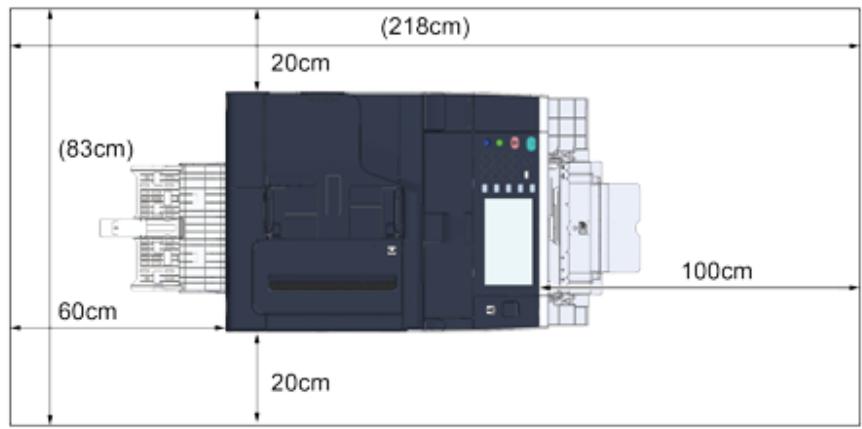
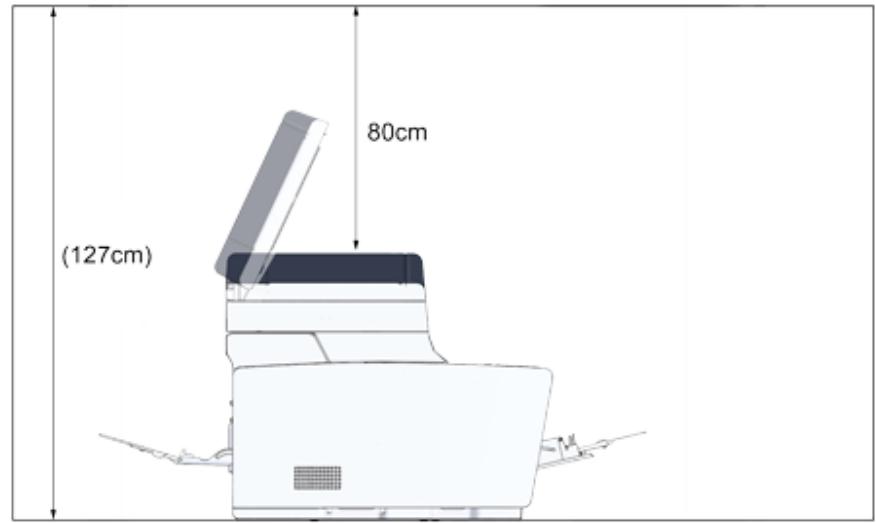
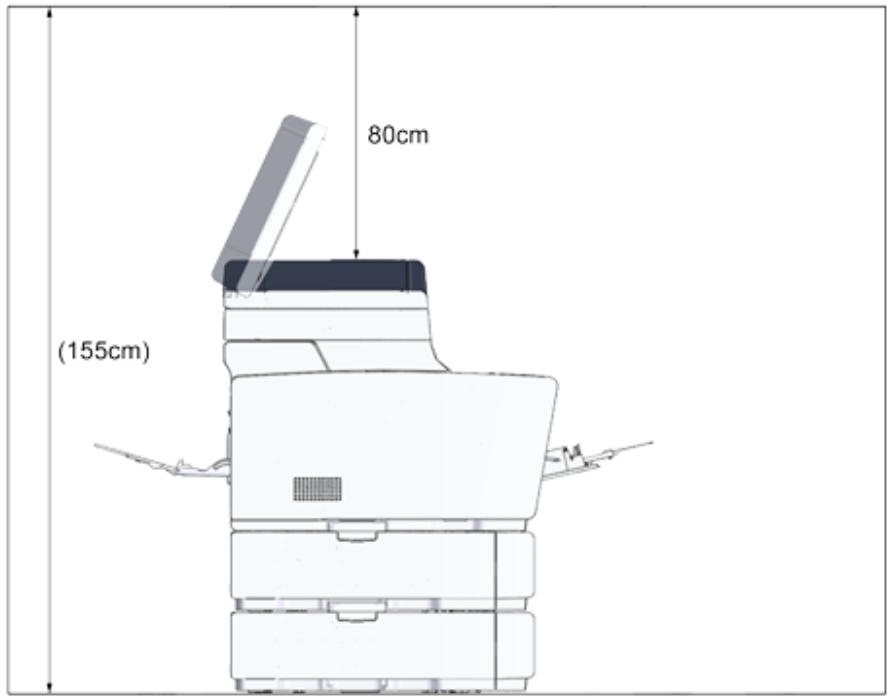
Install the machine on a flat surface that is wide enough to accommodate the legs of the machine.
Allow for enough room around the machine as shown in the following figures.
- Top view
- Side view
- Side view (when the additional tray unit is installed)
Checking the Accessories
Check that you have everything shown below.
| CAUTION | Injury may result. | ! |
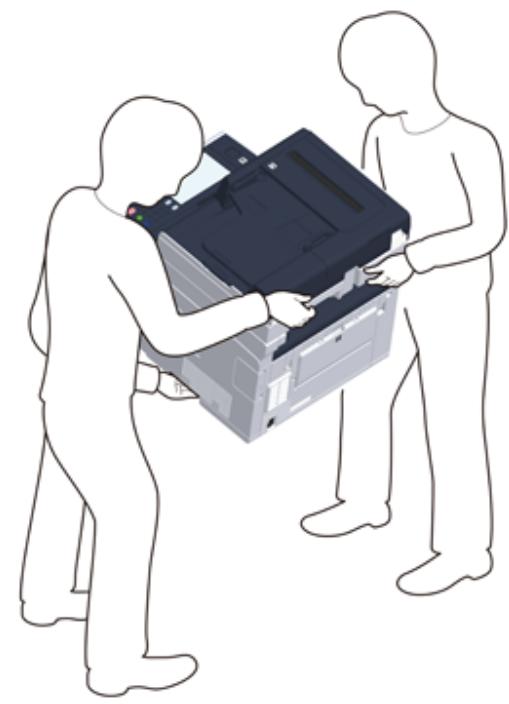
| Lift this machine by 2 persons, because it weighs approximately 31 kg. | ||
!
Be sure to use the supplied consumables first. If other consumables are used first, the life time may not be shown correctly or supplied consumables may not be applied.
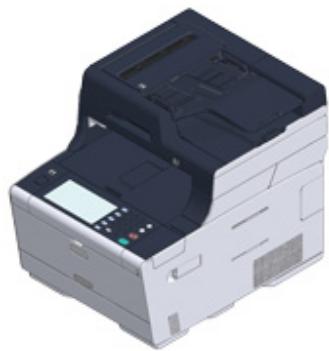
- Main body
- Four image drums (black, cyan, magenta and yellow)
- Four starter toner cartridges (black, cyan, magenta and yellow)
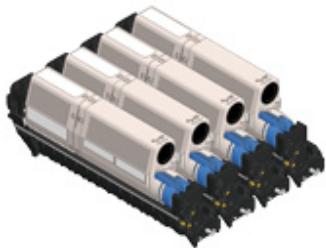
For the MC model, the starter toner cartridges are installed in the image drums, which are installed in the machine before shipment.
!
The starter toner cartridge is not installed in the ES model. Install the toner cartridge that is included in this machine. Refer to "Replacing the Image Drum".
- Software DVD-ROM
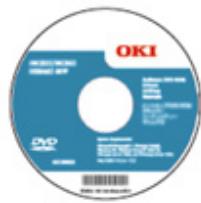
Power cord
- Telephone cable
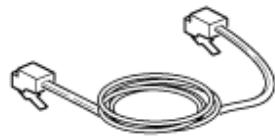
- Envelope lever
The envelope lever is attached to the MP tray. Use the envelope lever if envelopes wrinkle after being printed.
For instructions, refer to "Printing on Envelopes (Advanced Manual)".
#
- LAN cables or USB cables are not included in the package. Prepare the cable that suits your connection environment separately.
- Packaging and cushioning materials are used when transporting the machine. Do not dispose packaging materials as they may be used in the future.
Unpacking and Installing the Machine
This section describes how to unpack and install the machine.
| CAUTION | Injury may result. | |
| Lift this machine by 2 persons, because it weighs approximately 31 kg. | ||
1
- Use extra care when handling the image drum (the green cylinder), because it is fragile.
- Do not expose the image drum to direct sunlight or strong light (approximately 1,500 lux or more). Even under room lighting, do not leave the image drum for 5 minutes or more.
- Packaging and cushioning materials are required for transporting the machine. Do not dispose of it, and keep it for future use.
1 Remove the machine from the box, and then remove accessories, cushioning materials and the plastic bag from the machine.
2 Lift the machine, and then place it where it is to be installed.
1
Do not open the scanner unit until step 4.
3 Remove the cushioning materials, protection tapes, protective sheet, and desiccant packs.
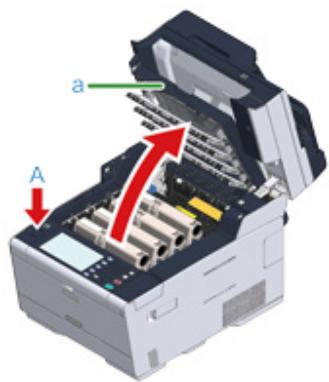
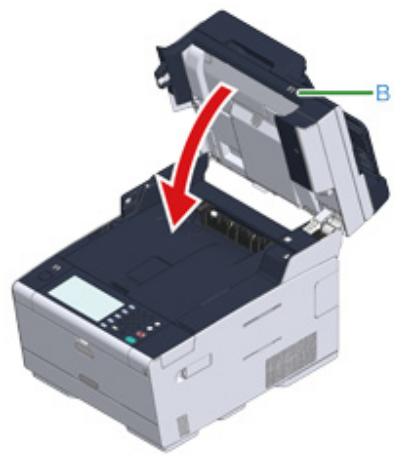
4 Hold the handle (B) to open the scanner unit.
Press the button (A) and open the output tray (a) until it stops.
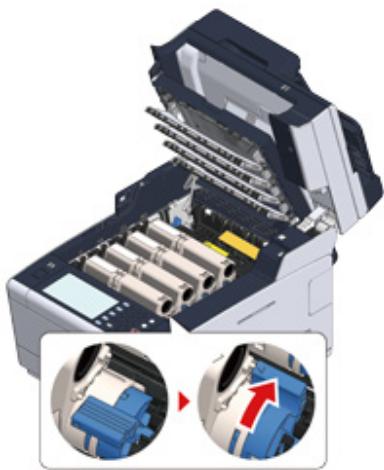
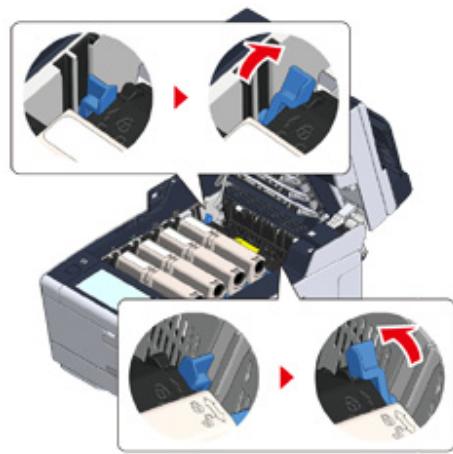
6 Pinch the tip of blue lever of the toner cartridge and turn forward until the tip aligns on the lug of the cartridge.
Turn the levers of all 4 toner cartridges.
!
If you close the output tray without turning the blue lever, it may cause a malfunction. Be sure to turn the blue lever until its top aligns on the lug in the back of the toner cartridge.
Pull the locking levers on the fuser unit toward you to unlock.
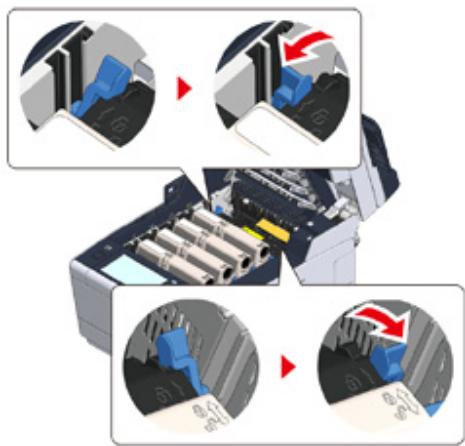
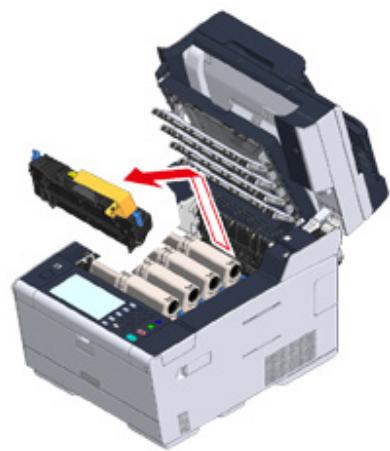
Hold the fuser unit handle and lift the fuser unit out of the machine.
1
While removing the fuser unit, be careful not to hit it to the LED head.
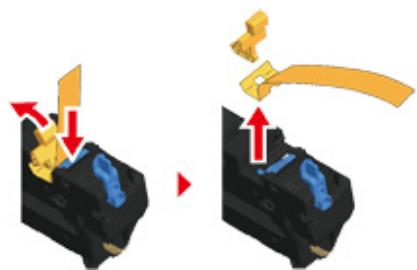
9 Push the blue lever on the fuser unit and remove the orange safety stopper and film.
Hold the fuser unit handle and aligning the fuser unit to the grooves behind the toner cartridges, place the fuser unit into the machine.
1
While setting the fuser unit, be careful not to hit it to the LED head.
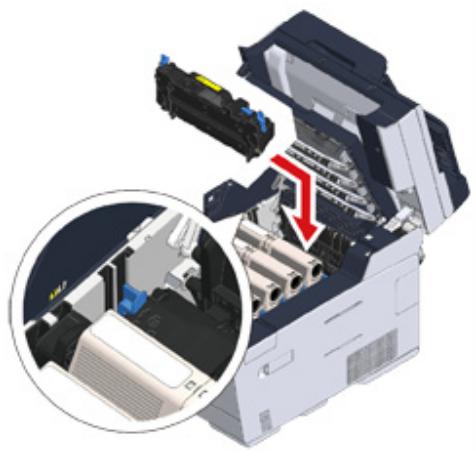
Push the levers on the fuser unit to lock.
12 Close the output tray (a) slowly and push the center of the output tray for confirmation.
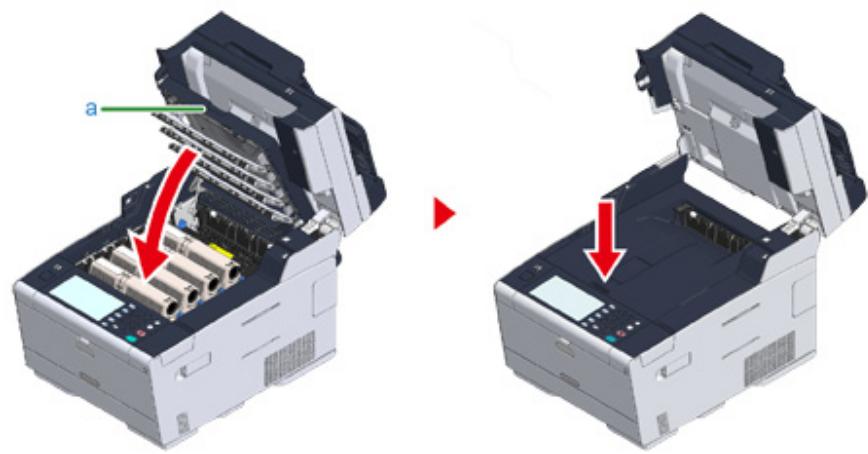
1
If the error message that the output tray is open does not disappear, make sure that the output tray is closed securely.
13 Hold the handle (B) to close the scanner unit.
Installing the Optional Equipment
This section describes how to install optional equipment.
- Installing the Wireless LAN module
- Installing the Additional Tray Unit
- Setting the Printer Driver
Installing the Wireless LAN module
Install the wireless LAN module when you want to use a wireless connection.
After installing, be sure to change the wireless LAN setting from [DISABLE] to [ENABLE] on the operator panel.
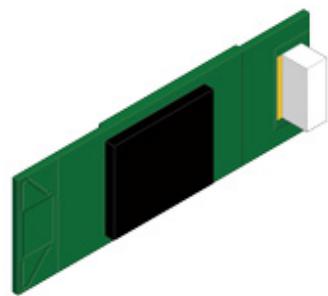
1 Check that the machine is turned off and power cord and all the cables are unplugged.

Installing the wireless LAN module with the machine turned on may cause the machine and wireless LAN module to malfunction.
2 Open the wireless LAN module cover.
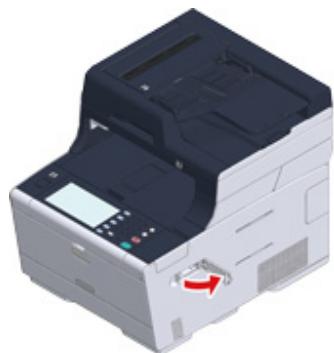
3 Eject the connector from the cover and connect with the wireless LAN module.
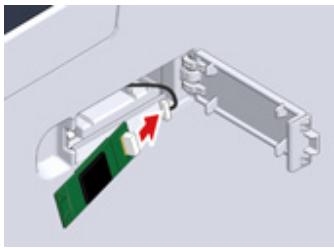
4 Install the wireless LAN module to the machine.
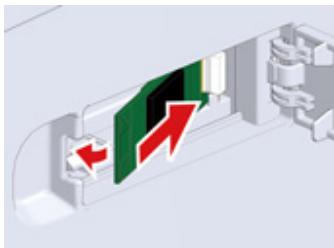
5 Close the wireless LAN module cover.
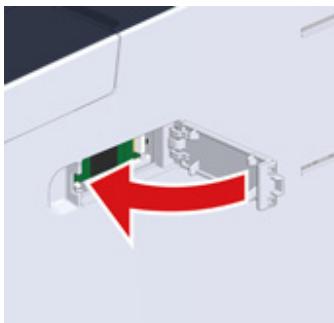
Go to "Connecting the Power Code".
!
Attaching the wireless module cannot connect the machine to the wireless LAN.
Enable the wireless setting in the steps in "Connecting to a Wireless LAN (Only When the Wireless LAN Module is Mounted)".
Installing the Additional Tray Unit
Attach the additional tray unit when increasing the number of sheets or paper to be set is needed.
Up to 2 trays can be installed.
Set the number of trays on the printer driver after installing them.
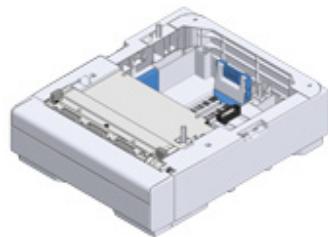
Model Number N36501

CAUTION
Injury may result.

Lift this machine by 2 persons, because it weighs approximately 31kg .
1 Check that the machine is turned off and power cord and all the cables are unplugged.
!
Installing the additional tray unit with the machine turned on may cause the machine and additional tray unit to malfunction.
2 If you want to install two additional trays, fix them together with the lock pieces.
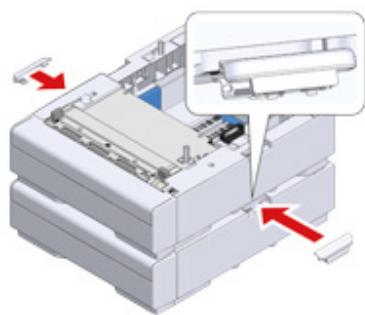
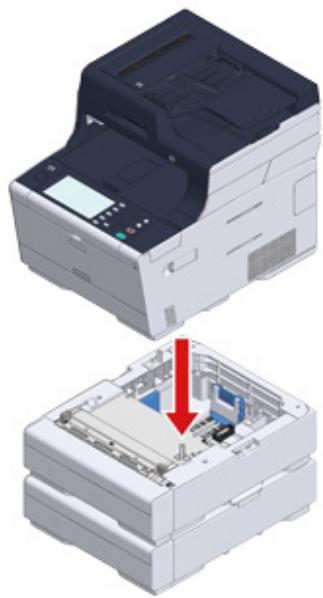
3 Slowly stack the machine on the additional tray unit aligning their back sides and right sides.
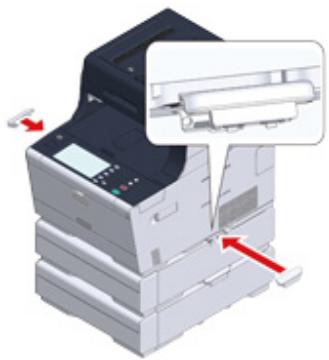
4 Screw the machine and additional tray unit with the lock pieces.
Setting the Printer Driver
When the additional tray unit is installed, be sure to set the number of trays after the printer driver is installed.
For the information of installing the printer driver, see "Installing a Driver and Software to a Computer".
1
- To follow this procedure, you must log in to a computer as the administrator.
-
If your Mac OS applies to the following conditions, the information about the installed option is automatically obtained, not requiring you to set the printer driver.
-
When the optional equipment is installed before the printer driver is installed
- When the machine is connected to a network over Bonjour
-
When the machine is connected via USB interface
-
Setting Additional Tray(s) to the Windows PCL Printer Driver
1 Click [Start], and then select [Devices and Printers].
2 Right-click [OKI MC573], and then select [OKI MC573 PCL6] from [Printer properties].
3 Select the [Device Options] tab.
4 Enter the total number of trays and then click [OK].
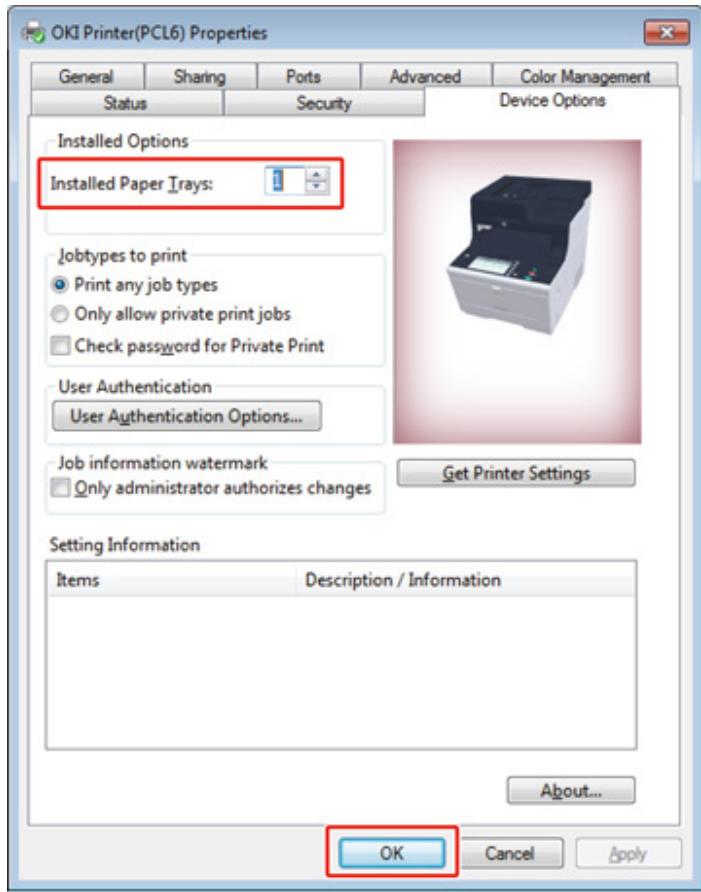

If a TCP/IP network connection is used, click [Get Printer Settings] to set the number of trays automatically.
- Setting Additional Tray(s) to the Windows PS Printer Driver
1 Click [Start], and then select [Devices and Printers].
2 Right-click [OKI MC573], and then select [OKI MC573 PS] from [Printer properties].
3 Select the [Device Settings] tab.
4 Select [Get installed options automatically] for [Installable Options], and then click [Setup].
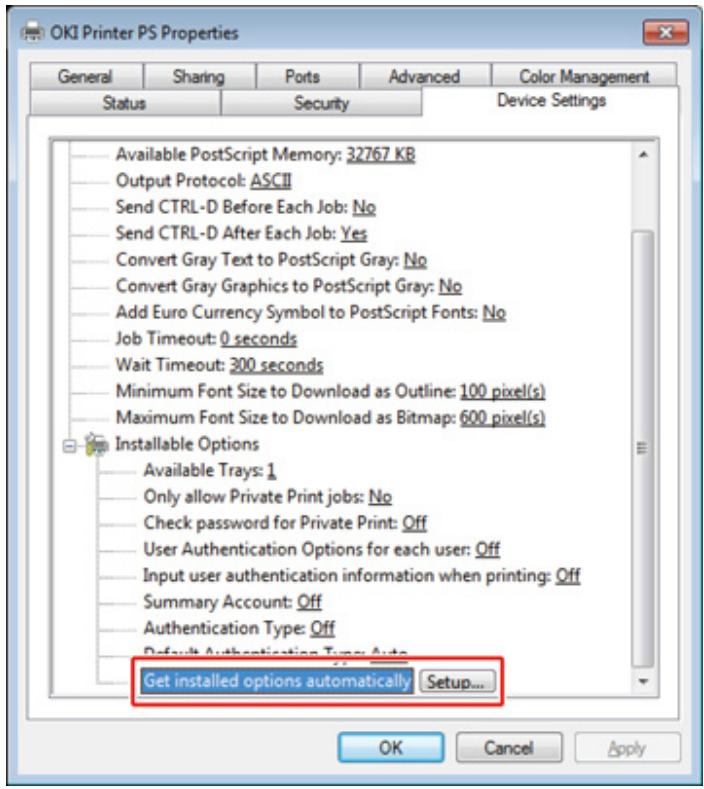

When using a USB connection, select the total number of trays for [Available Trays] in [Installable Options].
5 Click [OK].
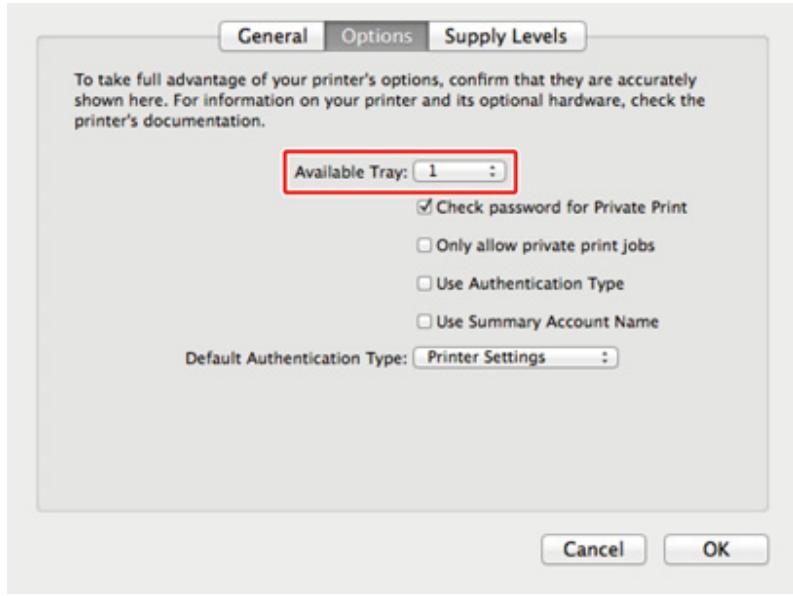
- Setting Additional Tray(s) to the Mac OS X Printer Driver
1 Select [System Preferences] from the Apple menu.
2 Click [Printers & Scanners].
3 Select the machine, and then click [Options & Supplies].
4 Select the [Options] tab.
5 Select the total number of trays for [Available Tray], and then click [OK].
Connecting a Telephone Line
This section describes how to connect a telephone cable for fax transmissions.
The telephone line connection method varies depending on your environment. Connect the telephone cable that suits your environment by referring to the illustrations in this manual.
Set the telephone cable in the recess of the machine so that it is not to be loose.
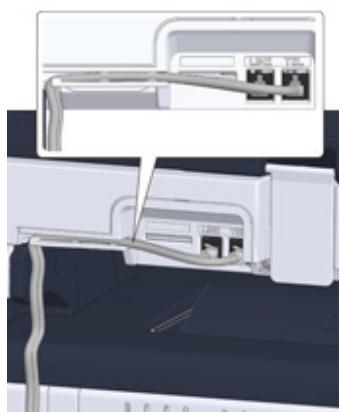
1
- Always use the telephone cable which comes with the machine. Using another telephone cable may cause a malfunction.
- If a fax transmission or reception fails, set [Super G3] to [OFF].
-
You cannot connect an ISDN line directly. To connect, use a terminal adapter (TA) and connect to the LINE connector of the machine.
-
Connecting to the Public Line (If Using Only for Faxes)
- Connecting to the Public Line (If Connecting a Telephone to the Machine)
- Connecting the Optical IP telephone
- Connecting to the ADSL Environment
- Connecting PBX, Home Telephone or Business Phone
- Connecting as an Extension Telephone
- Connecting a CS Tuner or Digital Television
Connecting to the Public Line (If Using Only for Faxes)
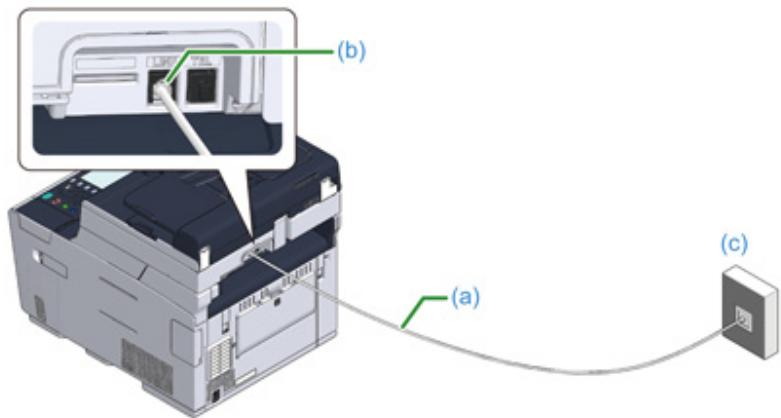
Plug one end of the included telephone cable (a) into the LINE connector (b) of the machine and the other end into a public line (analog) (c).
1
Keep the cover of the "TEL connector" inserted.
Connecting to the Public Line (If Connecting a Telephone to the Machine)
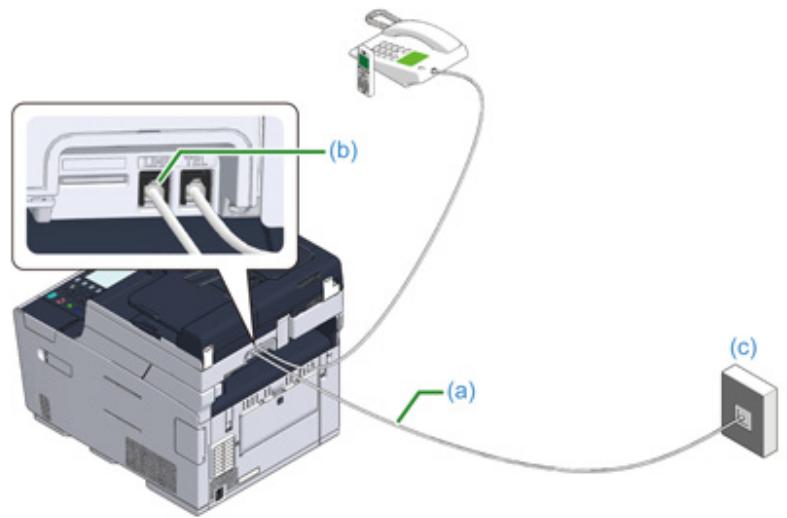
Plug one end of the included telephone cable (a) into the LINE connector (b) of the machine and the other end into a public line (analog) (c).
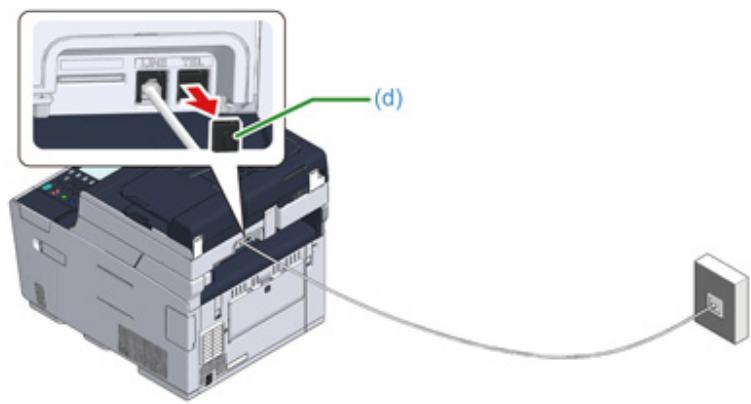
2 Remove the telephone connector cover (d).
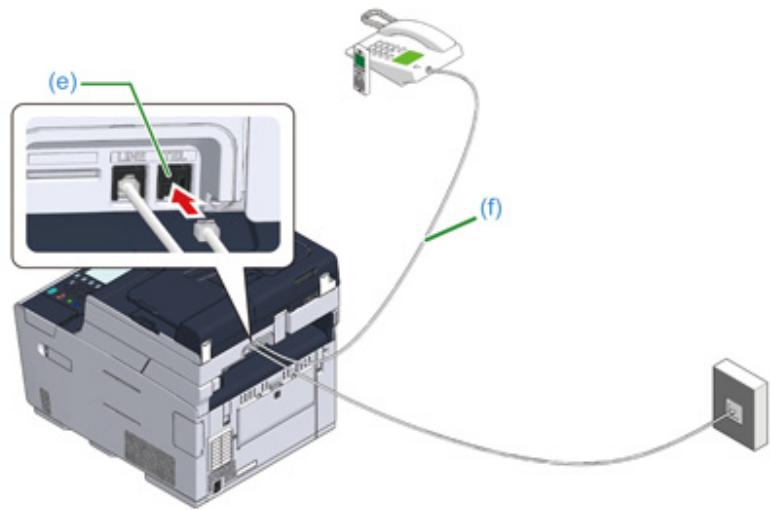
3 Plug the telephone cable (f) that is connected to the external telephone into the TEL connector (e) of the machine.
A telephone that is connected to the machine is called an external telephone.
!
- Only one telephone can be connected to the machine.
- Do not connect the telephone to the machine in parallel. If you connect the telephone to the machine in parallel, the following problems occur, resulting in the machine not functioning correctly.
- If you pick up the handset of the telephone that is connected in parallel while the machine is sending or receiving a fax, the fax image may be corrupted or a communication error may occur.
- If the incoming call is a voice call, the telephone may ring late or stop halfway, and if the incoming call is a fax, the machine may not be able to receive the fax.
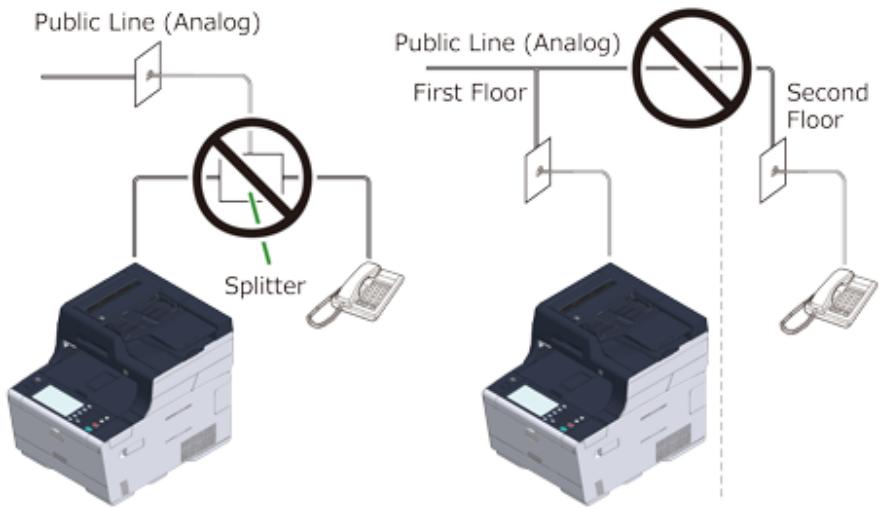
- If you connect a telephone with the fax function, disable the fax function of the telephone (disable fax reception) before using.

In the case of direct interconnection, separate construction work is required. Contact your telephone company.
Connecting the Optical IP telephone
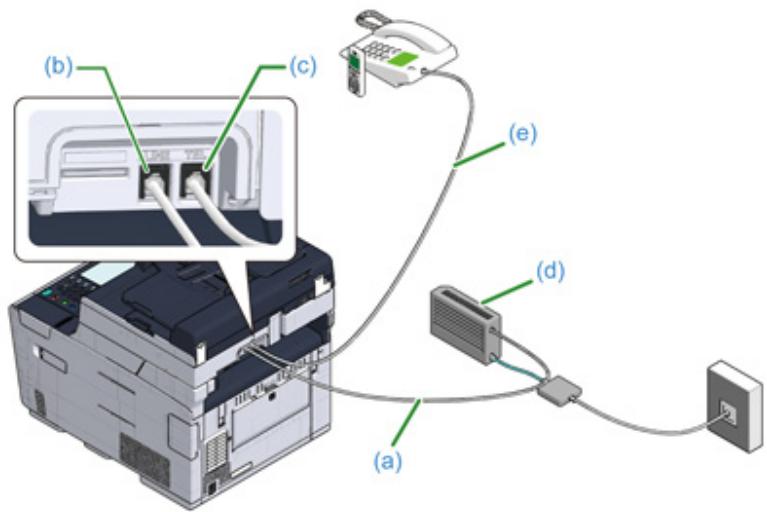
Plug the included telephone cable (a) that is connected to the Optical device (IP telephone) (d) into the LINE connector (b) of the machine.
2 Remove the telephone connector cover.
Plug the telephone cable (e) that is connected to an external telephone into the TEL connector (c) of the machine.

If a fax dial fails, set the PBX line to [ON].
User Install (Advanced Manual)
- If a fax transmission or reception fails, set [Super G3] to [OFF].
User Install (Advanced Manual)
Connecting to the ADSL Environment
Besides the included telephone cable, a telephone cable of the same type is needed.
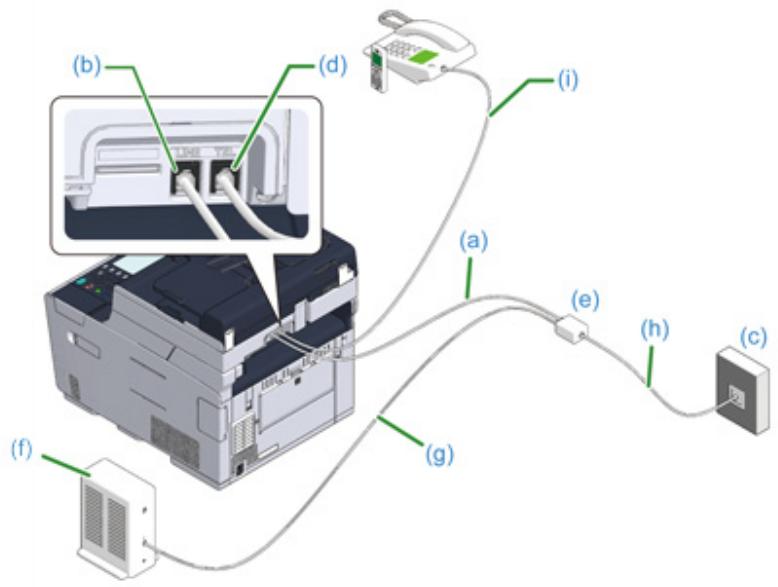
Plug one end of the included telephone cable (a) into the LINE connector (b) of the machine and the other end into a phone line splitter (e).
If you use a phone-line-splitter-built-in type ADSL modem, plug the included telephone cable (a) that is connected to the ADSL modem (f) into the LINE connector (b) of the machine.
2 Connect the phone line splitter (e) to the ADSL modem (f) with a telephone cable (g), and then plug another telephone cable (h) into the public line (analog) (c).
3 Remove the telephone connector cover.
Plug the telephone cable (i) that is connected to an external telephone into the TEL connector (d) of the machine.

If a fax dial fails, set the PBX line to [ON].
User Install (Advanced Manual)
- If a fax transmission or reception fails, set [Super G3] to [OFF].
User Install (Advanced Manual)
Connecting PBX, Home Telephone or Business Phone
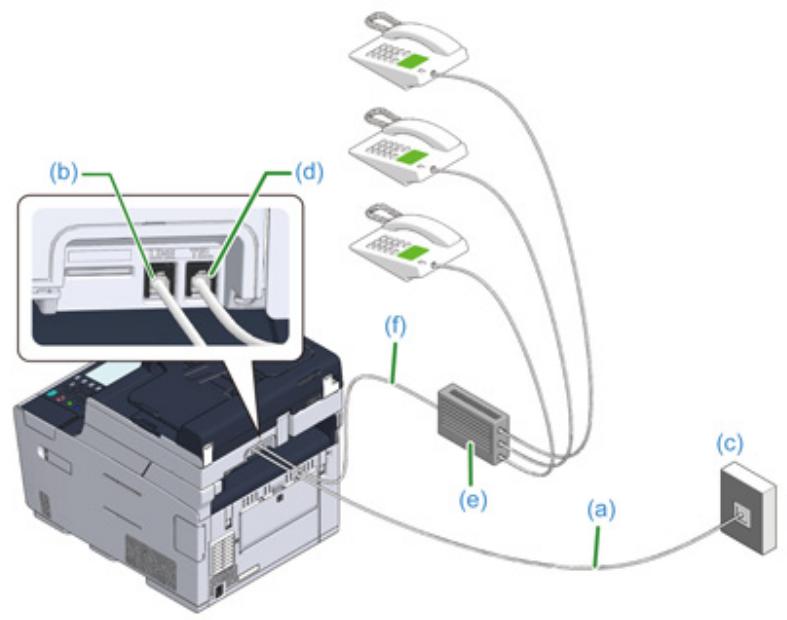
Plug the included telephone cable (a) that is connected to the public line (analog) (c) into the LINE connector (b) of the machine.
2 Plug the telephone cable (f) that is connected to a control device such as PBX (e) into the TEL connector (d) of the machine.

- Home Telephone is a simple switcher for home use, which connects multiple telephones with one or two telephone lines, enabling you to use extension and door phones.
- Business Phone is a simple switcher, which accommodates three or more telephone lines, with which many telephones can be shared, allowing for extension phones or other usage.
Connecting as an Extension Telephone
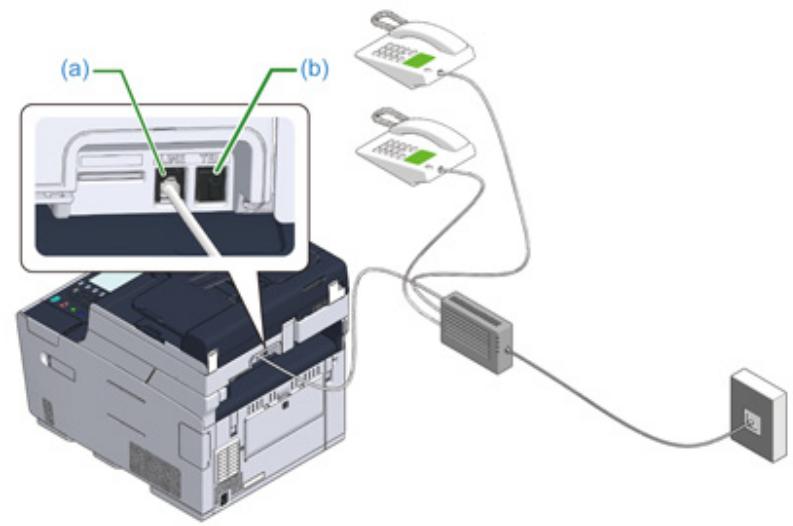
Plug the telephone cable that is connected to a control device such as PBX into the LINE connector (a) of the machine.
2 If you use a telephone line for both fax and phone, plug the telephone cable of the external telephone into the TEL connector (b).

If you connect to a PBX (private branch exchange), set the PBX line to [ON].

Fax Setup (Advanced Manual)
Connecting a CS Tuner or Digital Television
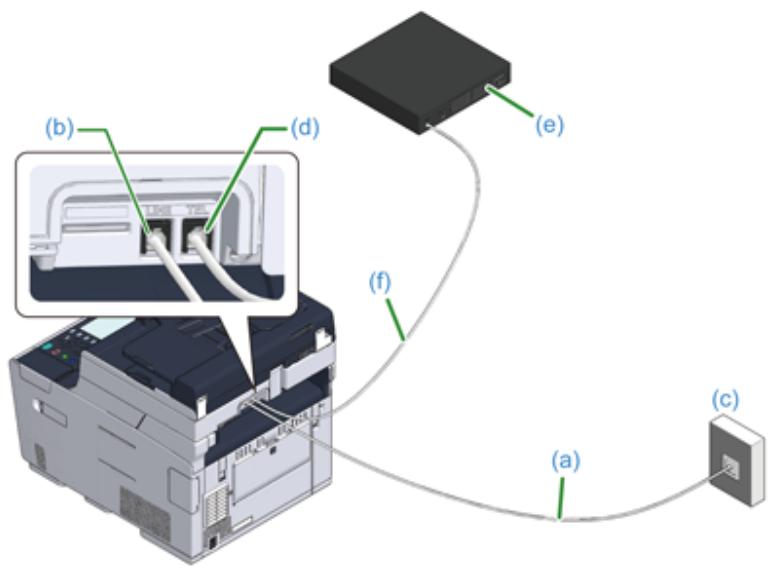
Plug the included telephone cable (a) that is connected to the public line (analog) (c) into the LINE connector (b) of the machine
2 Remove the telephone connector cover.
3 Plug the telephone cable (f) that is connected to the CS tuner or digital television (e) into the TEL connector (d) of the machine.
Connecting the Power Code
The power supply must meet the following conditions.
AC: 110 to 127V AC (Range 99 to 140V AC) / 220 to 240V AC (Range 198 to 264V AC)
Frequency: 50/60 Hz ± 2%
1
- If the power supply is unstable, use a voltage regulator.
- The maximum power consumption of the machine is 1240 W (120V AC) / 1270 W (230V AC). Check that the power supply is sufficient.
- The operation that uses an uninterruptible power supply (UPS) or inverter is not guaranteed. Do not use an uninterruptible power supply (UPS) or inverter.
| WARNING | Fire or electric shock may result. | A4 |
| ·Be sure to turn this machine off before connecting and disconnecting the power cord and the ground wire. ·Be sure to connect the ground wire to the designated ground terminal. If this machine cannot be grounded, contact your dealer. ·Be sure not to connect the ground wire to the ground of a water pipe, gas pipe or telephone line, or to a lightning rod. ·Be sure to connect the ground wire before connecting the power cord to the outlet. Also, be sure to unplug the power cord from the outlet before disconnecting the ground wire. ·Be sure to plug or unplug the power cord by holding its power plug. ·Securely plug the power cord into the outlet. ·Do not plug or unplug the power cord with wet hands. ·Install the power cord in a location where users cannot step on it, and do not place any object on the power cord. ·Do not bundle or tie the power cord. ·Do not use a damaged power cord. ·Do not overload the outlet. ·Do not connect the power cords of this machine and other electric products to the same outlet. If the power cord of this machine is connected to the same outlet as other electric products, especially an air conditioning machine, copier, or shredder, this machine may malfunction due to electrical noise. If you have to connect the power cord of this machine to the same outlet as other products, use a commercially available noise filter or noise cut transformer. ·Use the power cord included in this machine, and plug the cord directly into the outlet. Do not use the power cords of other products for this machine. ·Do not use an extension cord. If you have to use an extension cord, use a cord rated 15A or higher. ·Use of an extension cord may result in this machine malfunctioning due to AC voltage drop. ·Do not turn this machine off or unplug the power cord during printing. ·If you do not use this machine for an extended period of time due to holidays, trips, or other reasons, unplug the power cord. ·Do not use the power cord included in this machine for other products. | ||
Plug the power cord into the power connector.
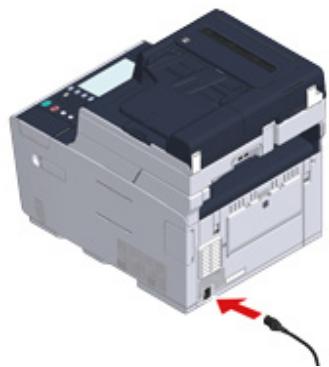
2 Plug the power cord into the outlet.
Connecting a LAN Cable/USB Cable
When using the machine in a wired network connection or connecting to a computer via a USB cable, connect the cable in the following steps.
- Connecting a LAN Cable
- Connecting a USB Cable
Connecting a LAN Cable

A LAN cable is not supplied.
Prepare a LAN cable (category 5e or higher, twist pair, straight) and hub.
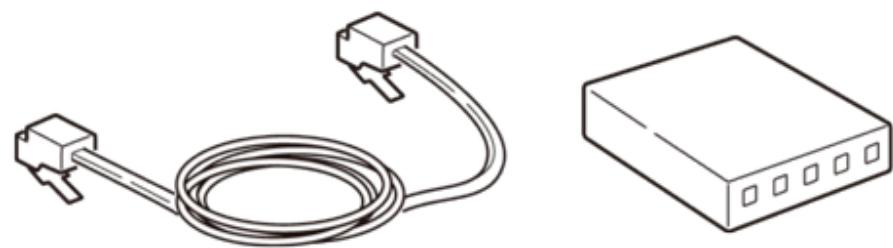
2 Check that the machine and computer are turned off.
3 Open the interface cover on the back side of the machine pressing the center part of it.
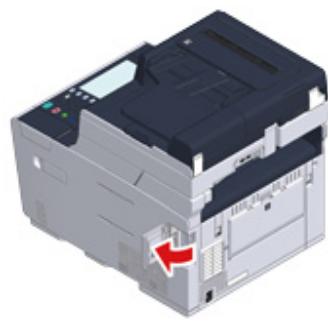
4 Insert one end of the LAN cable into the network interface connector.
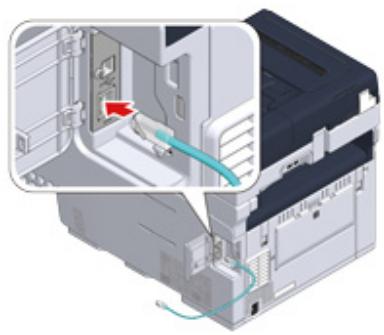
5 Pass the LAN cable under the tab, and then close the interface cover.
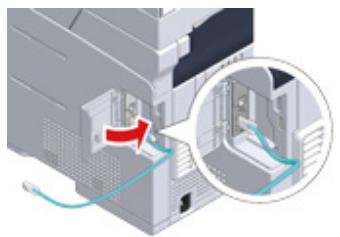
6 Insert the other end of the LAN cable into the hub.
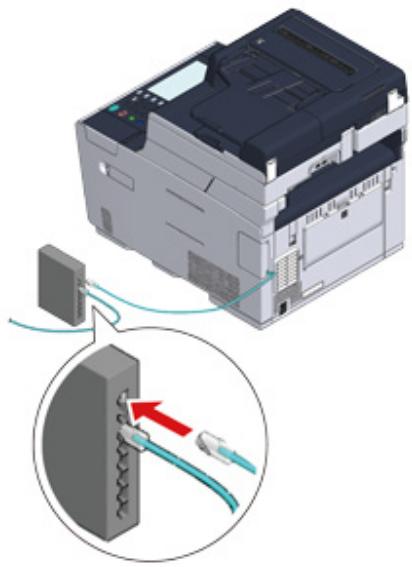
Go to the procedure to "Loading Paper in the Tray".
Connecting a USB Cable
!
A USB cable is not supplied.
Prepare a USB cable.

If you want to connect in USB 2.0 Hi-Speed mode, use a Hi-Speed USB 2.0 USB cable.
1
This machine does not support USB 3.0.
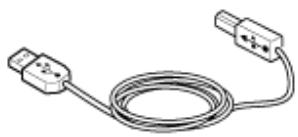
2 Check that the machine and computer are turned off.
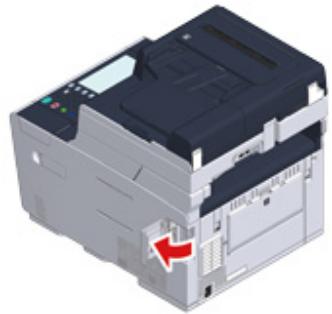
3 Open the interface cover on the back side of the machine pressing the center part of it.
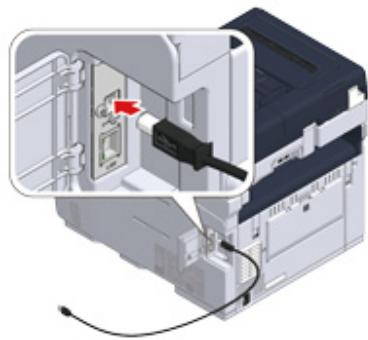
4 Insert one end of the USB cable into the USB interface connector on the machine.
!
Do not insert the USB cable into the network interface connector. It may cause a malfunction.
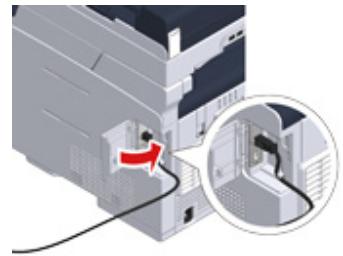
Pass the USB cable under the tab, and then close the interface cover.
6 Insert the other end of the USB cable into the USB interface connector on the computer.

For Windows, do not insert the other end of the USB cable into the computer until the instruction is displayed on the screen when the driver installation is in progress.
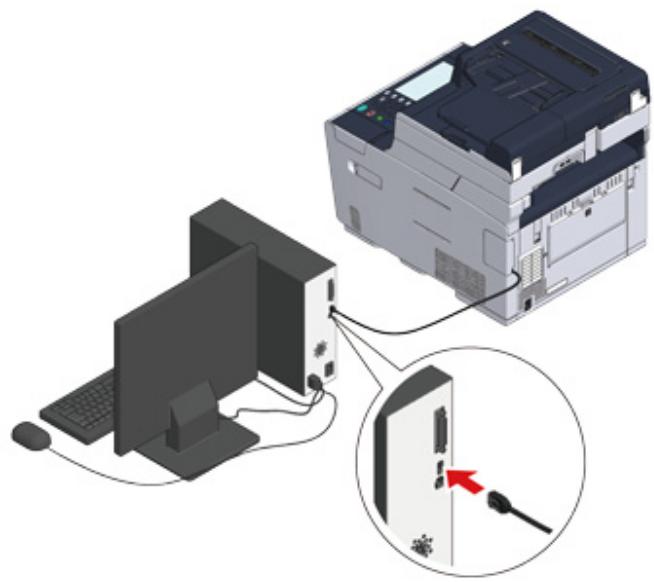
Go to the procedure to "Loading Paper in the Tray".
Loading Paper in the Tray
The procedure when loading paper in Tray 1 is used as an example.
The same procedure applies to Tray 2/3 (optional).
For details on available paper, see "About Paper Types That Can be Loaded".
Pull the paper cassette out.
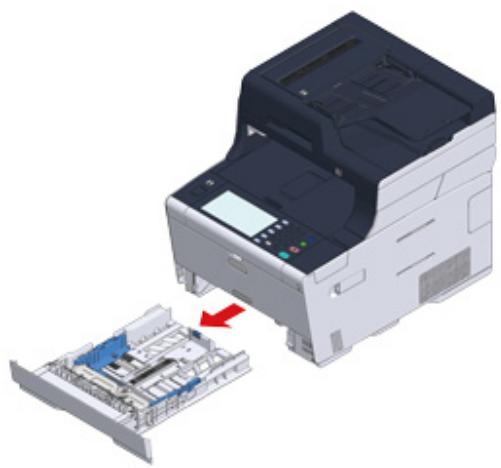
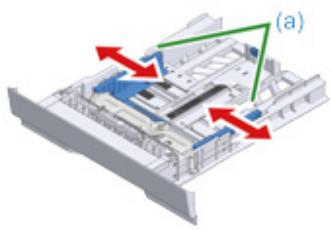
2 Slide the paper guide (a) to the width of paper to be loaded.
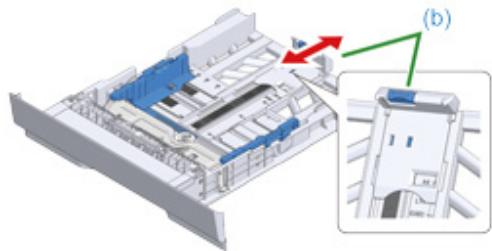
3 Slide the paper stopper (b) to the length of paper to be loaded.
Fan a stack of paper well, and then align the edges of the paper.
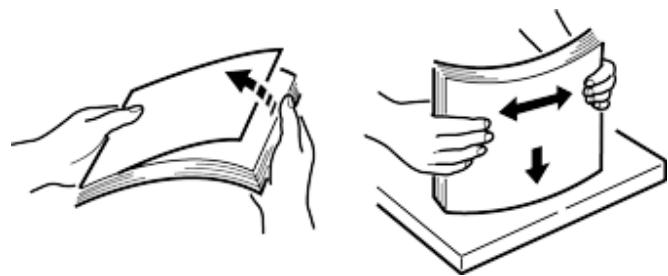
5 Load paper with the print side face down.
1
Do not load paper above the " " mark on the paper guide.
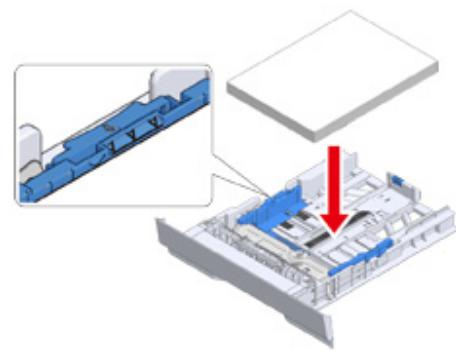
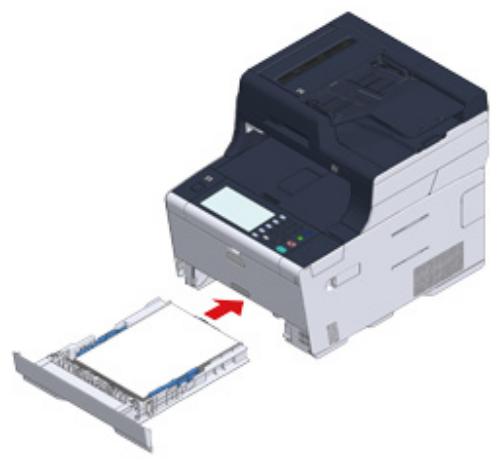
6 Secure the loaded paper with the paper guide.
7 Replace the paper cassette into the machine.
Push the paper cassette until it stops.
Checking the Setting Information
The first time the machine is turned on, "Easy Setup" is displayed.
The screen prompts you to enter the information. Check the required information on the setting information sheet below beforehand.
If you skip these settings at the first time the machine is turned on, you can set the information later on the operator panel or computer.
- Admin Password
"999999" is set by factory default. It is recommended to change the administrator password to protect your security.
| Item | Description | Setting Value |
| Admin Password | The administrator password for the machine. 6 to 12 characters can be used. Be careful not to forget the set password. |
- Fax Setting
To use the fax function, the following information is needed.
| Item | Description | Setting Value |
| Fax Number | Set the fax number of this machine. You can enter up to 20 digits. | |
| Sender ID | Set the sender's information. You can enter up to 22 characters. |
Network Setting
To connect the machine to a network using a LAN cable, the following information is needed.
| Item | Description | Setting Value |
| IP Address | Set the IP address of the machine. | |
| Subnet Mask | Set a subnet mask. | |
| Default Gateway | Set a gateway address. | |
| DNS Server (Primary) | Set the IP address for a Primary DNS server. | |
| DNS Server (Secondary) | Set the IP address for a Secondary DNS server. | |
| WINS Server (Primary) | Set the IP address for the Primary WINS server. | |
| WINS Server (Secondary) | Set the IP address for the Secondary WINS server. |
E-mail Setting
To use functions which require sending and receiving E-mail such as the Scan To E-mail and Internet Fax functions, the following information is needed.
| Item | Description | Setting Value |
| Mail Server Address | Set the IP address or host name for the SMTP server. You can enter up to 64 characters. | |
| SMTP Port | Set the SMTP port number. | |
| SMTP Encryption | Set [None], [SMTP], or [STARTTLS]. | |
| Set Sender's Address (From) | It appears when sending E-mail. | |
| Receive Setting | Set [POP3], [SMTP], or [Disable]. If [POP3] is selected, check the POP3 server address. | |
| Authentication Method | Set [No Authentication], [SMTP Auth], or [POP Before SMTP]. If [SMTP Auth] or [POP Before SMTP] is selected, check the user name and password. | |
| (SMTP-Auth / POP Before SMTP) Authentication Method:User Name | Set a user name for authentication. Up to 64 characters can be registered. | |
| (SMTP Auth / POP Before SMTP) Authentication Method:Password | Set a password for authentication. Up to 64 characters can be registered. |
Setting Up This Machine
The first time the machine is turned on or when the settings are initialized, [Easy Setup] is displayed. Follow the on-screen instructions to set required information. You can skip the setting pressing [Skip>>].

The simplest steps are shown here.
Language Setup
Setting Date and Time
- Setting the Administrator Password
- Fax Setup
Network Settings
E-mail Setting
Test Print
Language Setup
Press the power switch on the operator panel for a second to turn on the machine.
When the machine is turned on, the power switch LED lamp turns on.
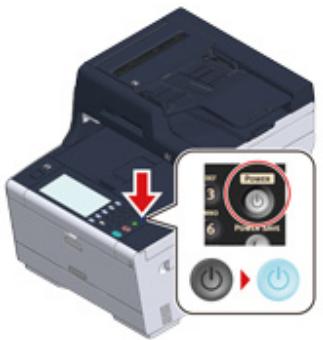
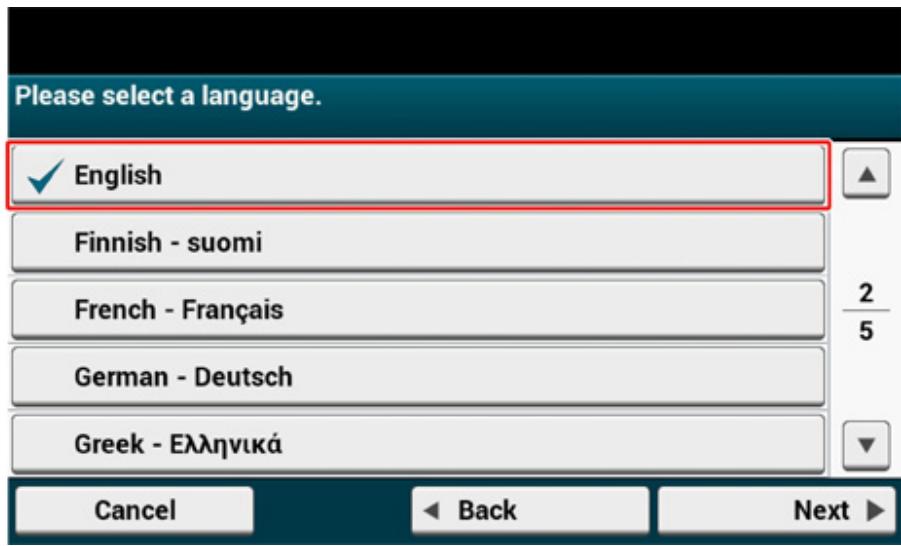
2 When the language selection screen in [Easy Setup] is displayed, press the language you want to use.

Press [][] to switch screens.
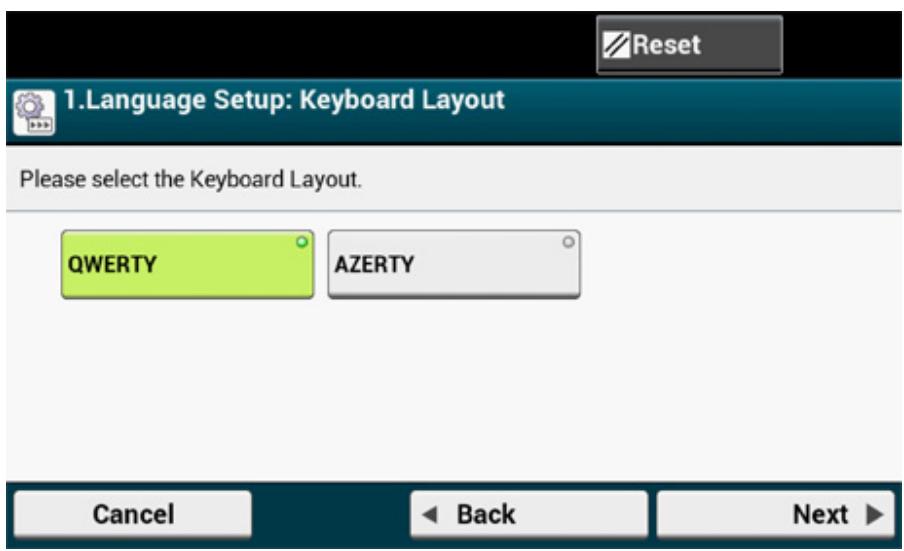
3 Select the desired keyboard layout.
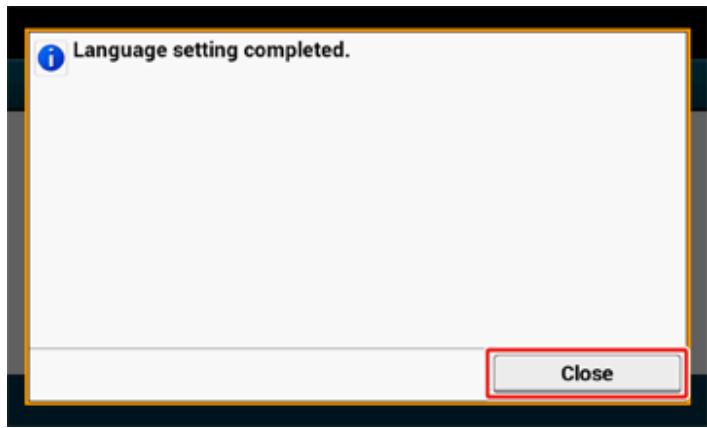
4 Press [Close].

The screen switches automatically in about 7 seconds without pressing [Close].
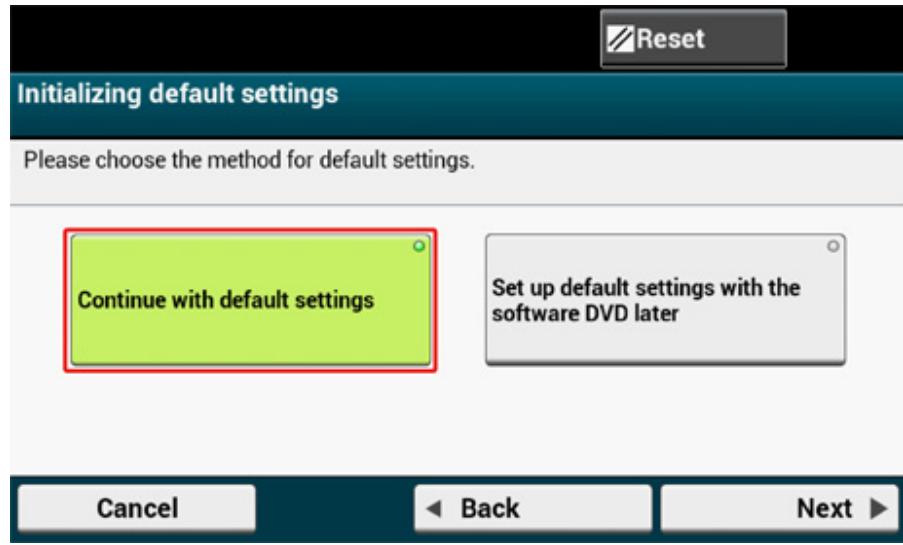
5 Press [Continue with default settings].
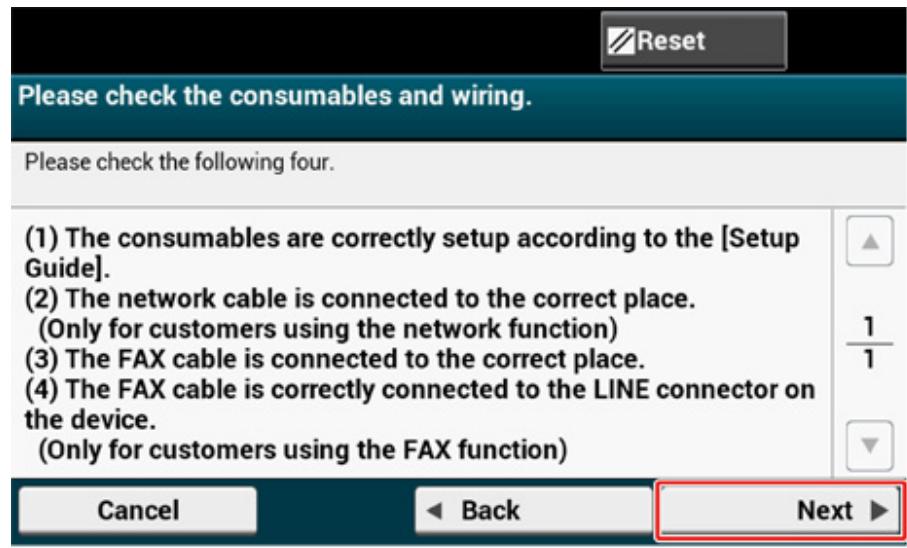
6 Check that the consumables and wiring are set up, and then press [Next].
Setting Date and Time
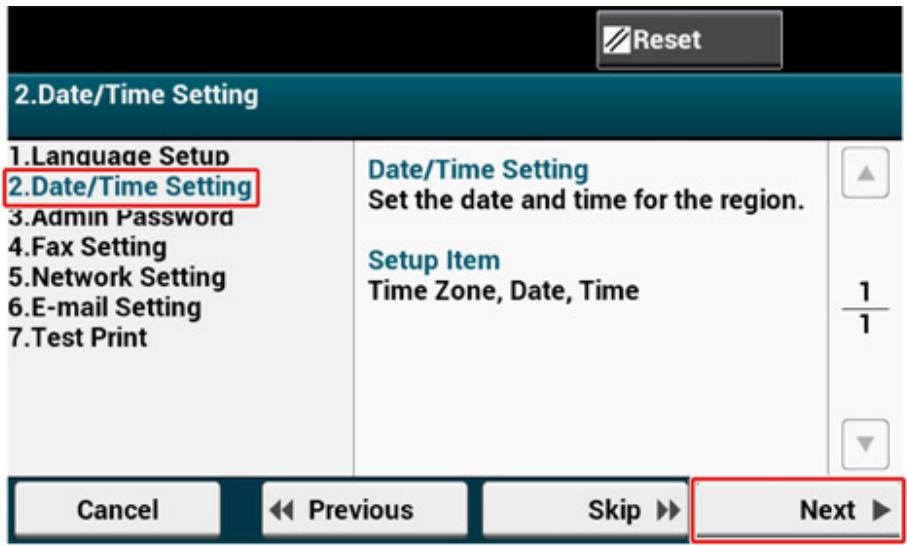
1 Check that the [2. Date/Time Setting] screen is displayed, and then press [Next].
The time zone setting screen appears.
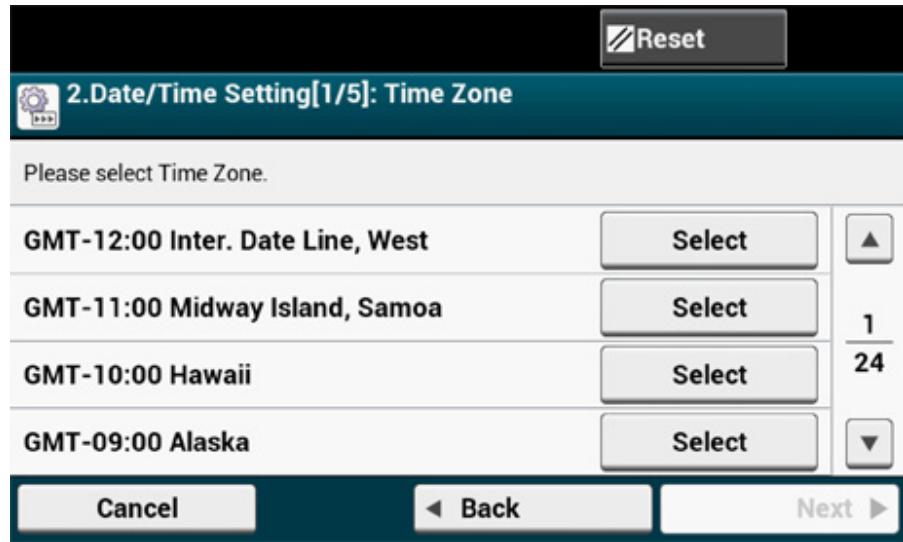
2 Press [Select] for the time zone you want to use.

Press [][] to switch screens.
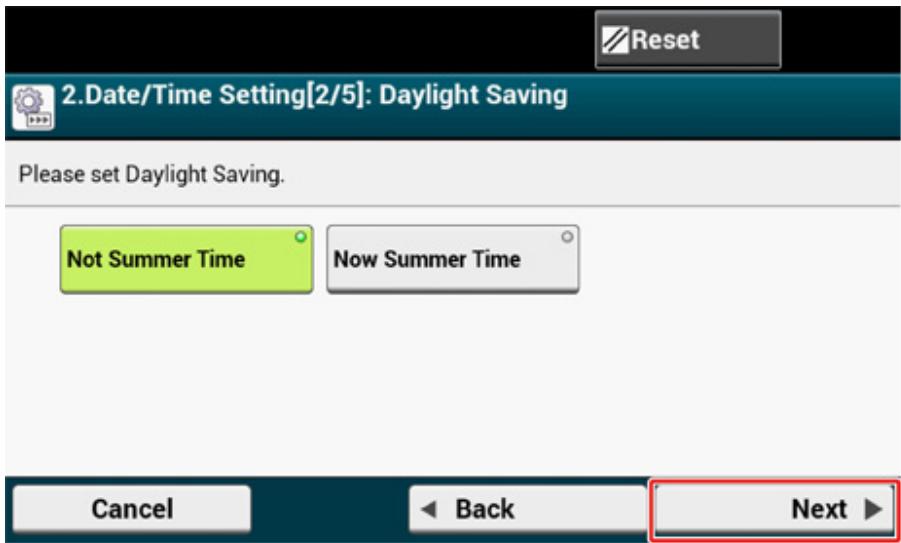
3 Set daylight saving time.
Select a setting suitable to your environment, and then press [Next].
4 Press [Manual].
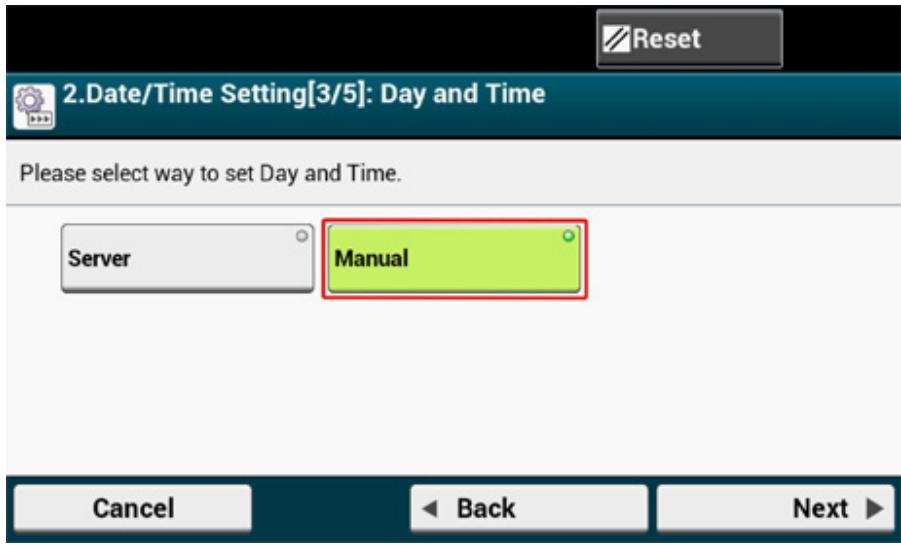
5 Enter the month using [ ][ ] or the numeric keypad on the operator panel. Use the numeric keypad on the operator panel to enter a value in the field with the (numeric keypad) icon.
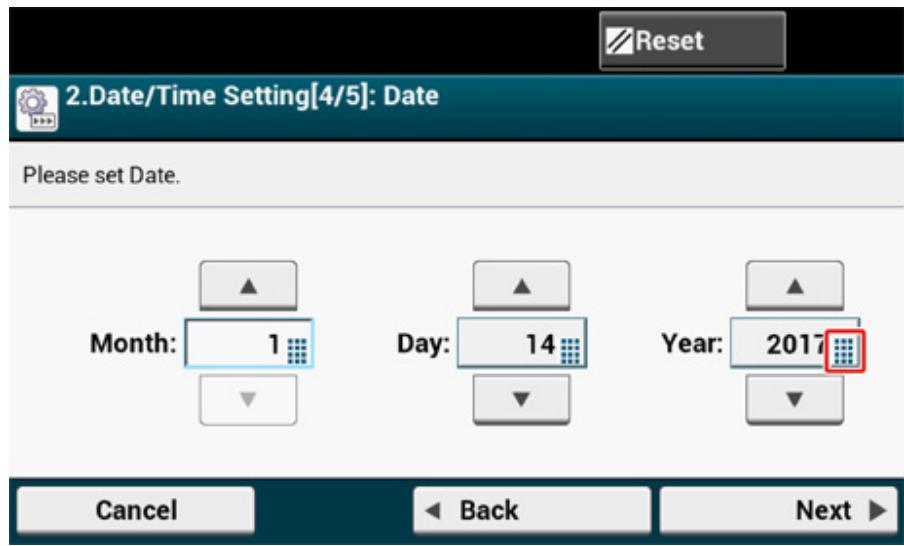
6 Press the [Day] entry box once to enter the day.
7 Press the [Year] entry box once to enter the year, and then press [Next].
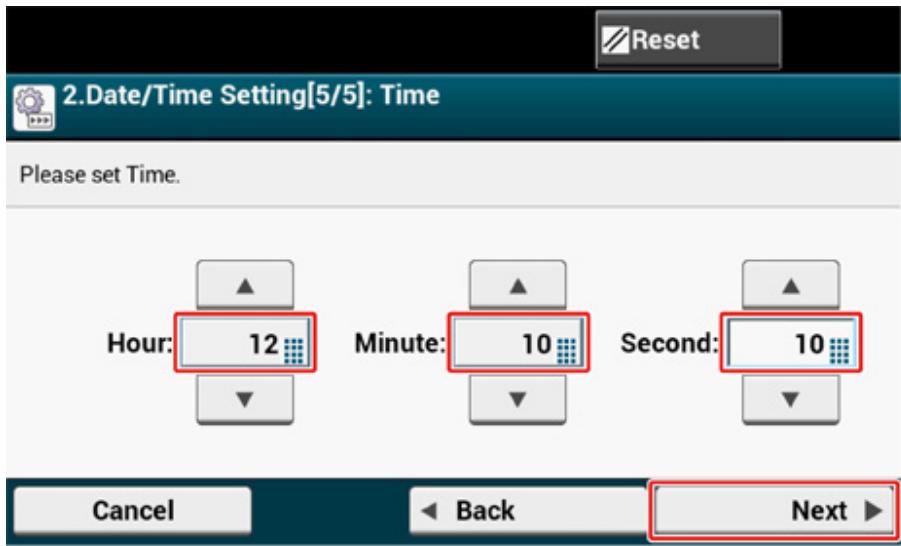
Use [ ][ ] or the numeric keypad on the operator panel to enter the current time in the same manner as the date entry, and then press [Next]. The setting values are updated.
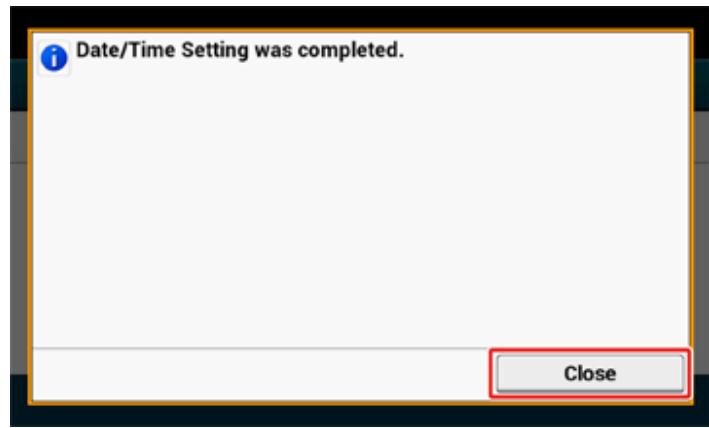
9 Press [Close].

The screen switches automatically in about 7 seconds without pressing [Close].
Setting the Administrator Password

The factory default administrator password is "999999", however, we highly recommend you to set your own administrator password to prevent unauthorised access to the "admin setup" menu.
1 Check that the [3. Admin Password] screen is displayed, and then press [Next].
The setting a new administrator password screen appears.
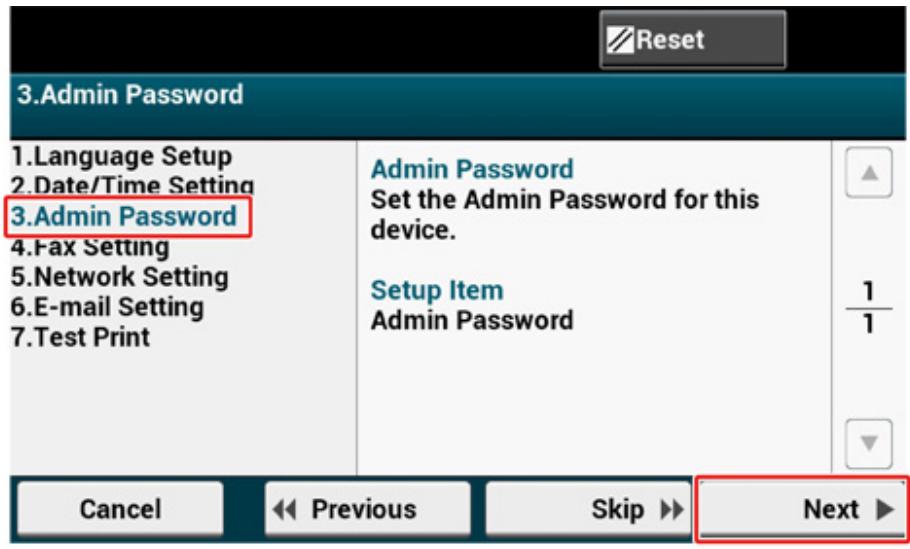
2 Enter a new administrator password and press [Next].

- We suggest you to write down the set password not to forget it.
- The administrator password is required when changing the settings, etc.
Note that if you forgot or lost your administrator password, you could not change the [Admin Setup] or [Easy Setup] settings.

- Set the administrator password using from 6 to 12 alphanumeric characters.
- The password is case sensitive.
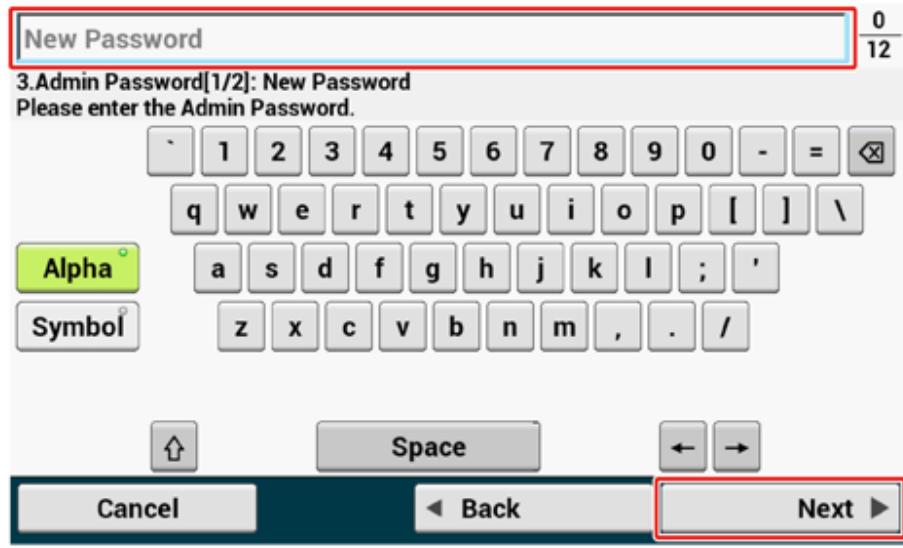
3 Enter the password again to confirm.
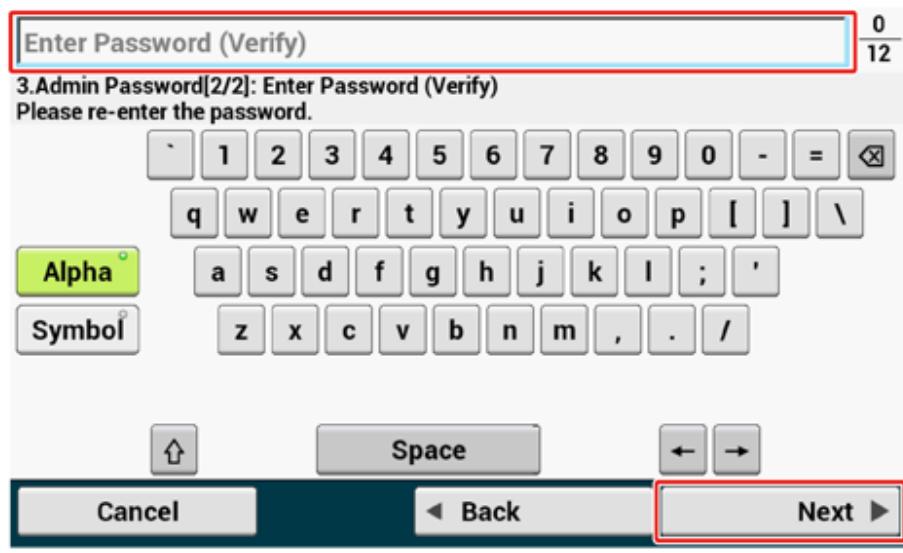
4 Press [Next].
The setting values are updated.
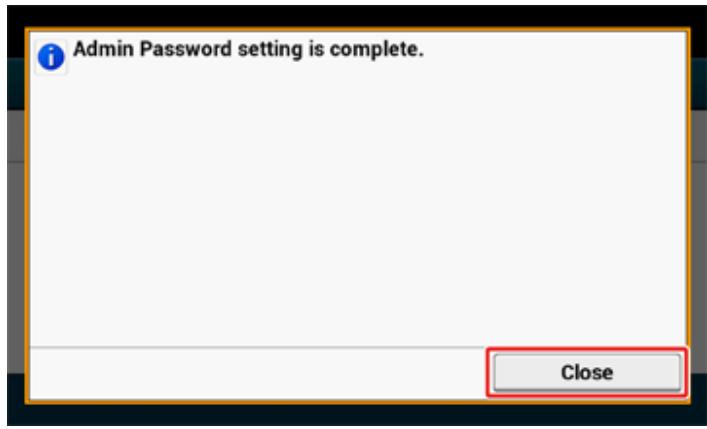
5 Press [Close].

The screen switches automatically in about 7 seconds without pressing [Close].
Fax Setup

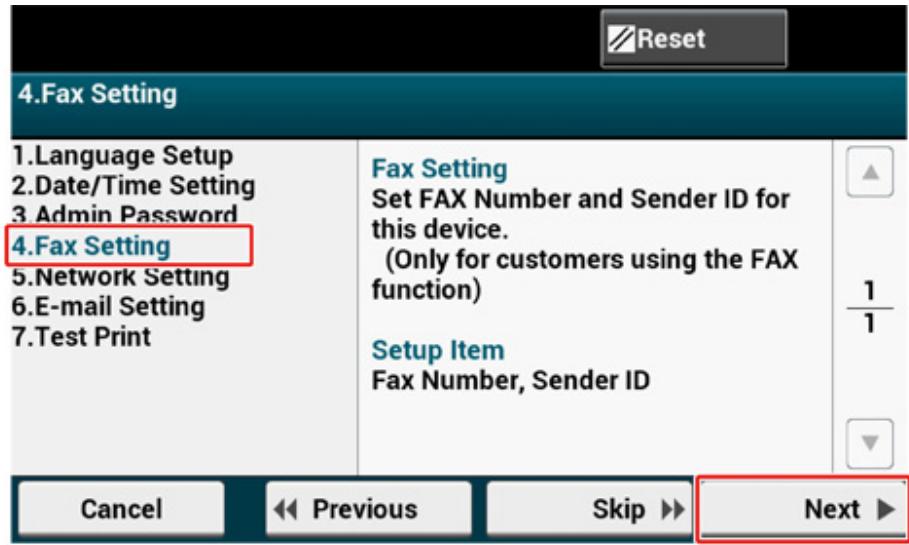
If you do not want to use the fax function, press [Skip>>] to go to Network Settings.
1 Check that the [4. Fax Setting] screen is displayed, and then press [Next]. The screen prompting you to enter the fax number appears.
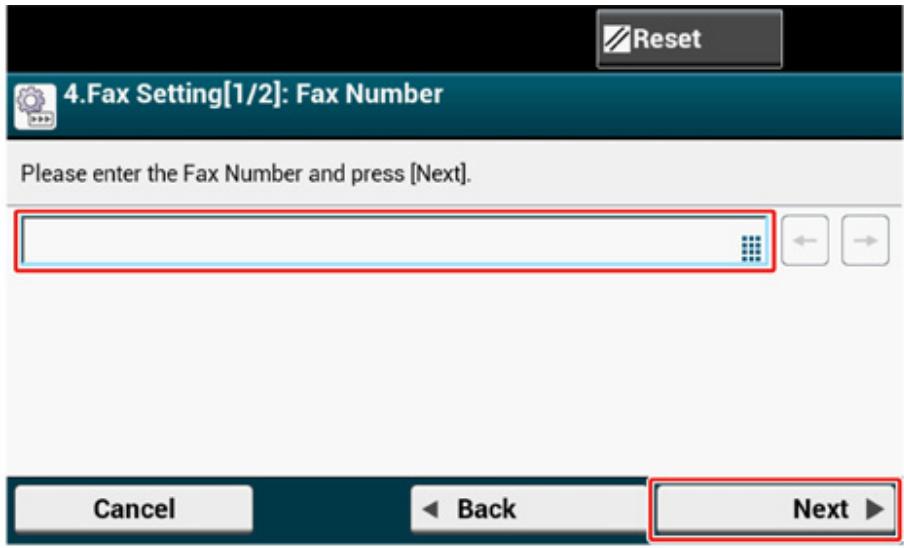
2 Use the numeric keypad on the operator panel to enter the fax number and press [Next].
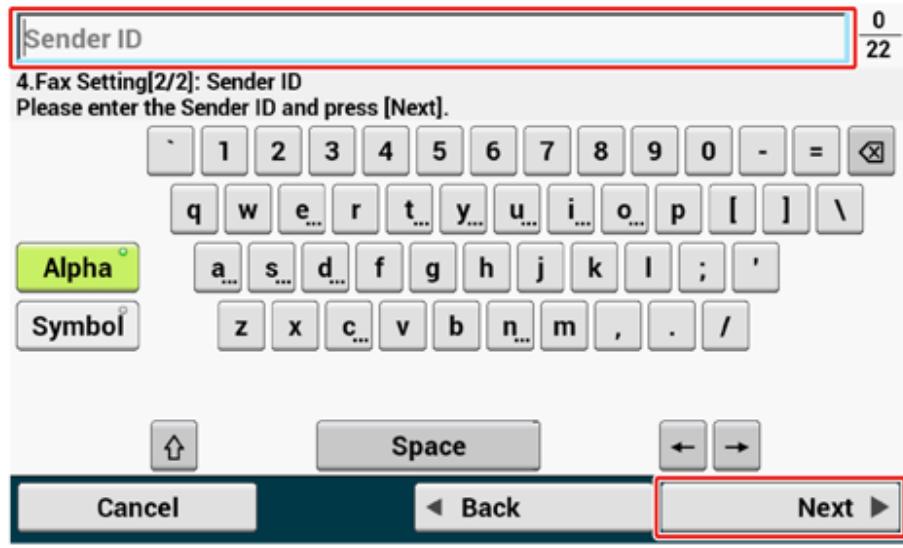
3 Enter the sender's information (sender's name) and press [Next] on the touch panel. The setting values are updated.

The information set here is sent to the other party who receives your fax.
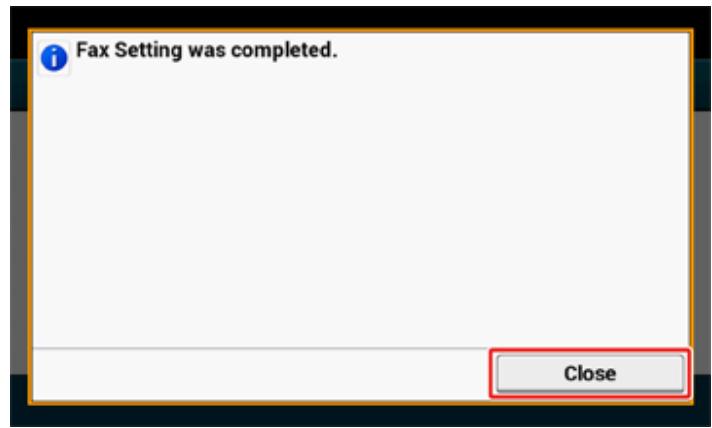
4 Press [Close].

The screen switches automatically in about 7 seconds without pressing [Close].
Network Settings

Since the network settings are required when using the print function, fax function, and scan function, you are supposed to make the network setting here. (Only for customers using the network function)
1 Check that the [5. Network Setting] screen is displayed, and then press [Next] for the connection with a LAN cable.
For the wireless connection, you do not need to make the network settings here. Press [Skip>>] twice and go to Test Print. The wireless connection settings are to be performed after [Easy Setup] is finished.
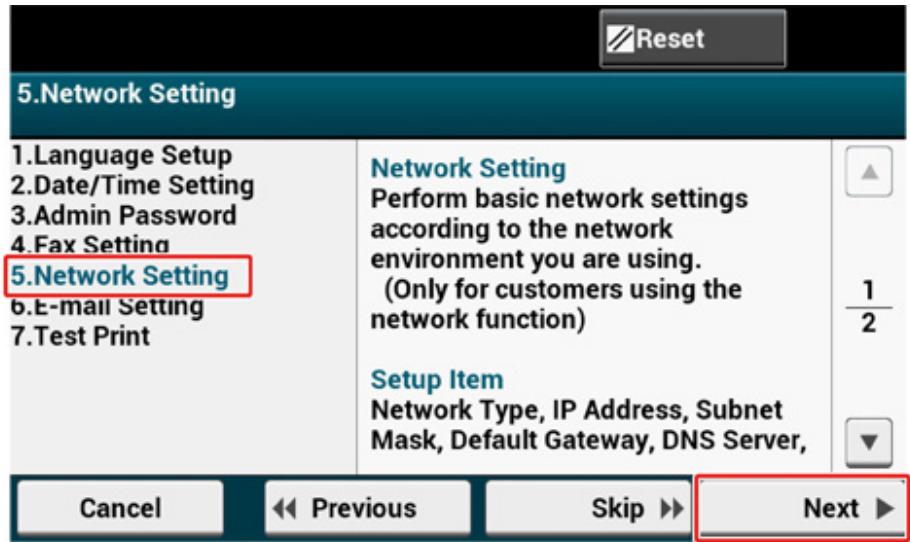
2 Check that the wiring has correctly been finished.

Set an IP address. Press [Auto].
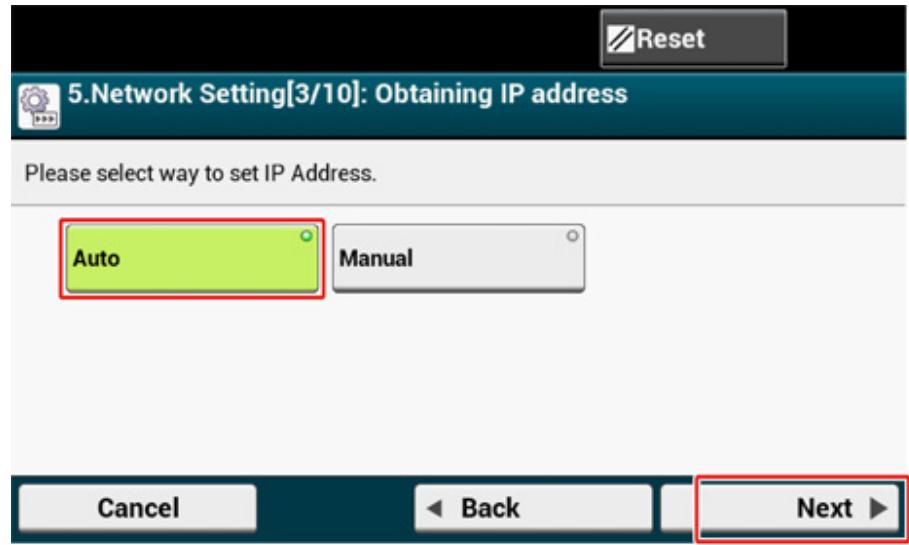

When setting manually, check the following values specified by your provider or network administrator.
- IP Address
- Subnet Mask
- Default Gateway
DNS Server (Primary)
DNS Server (Secondary)
WINS Server (Primary)
WINS Server (Secondary)
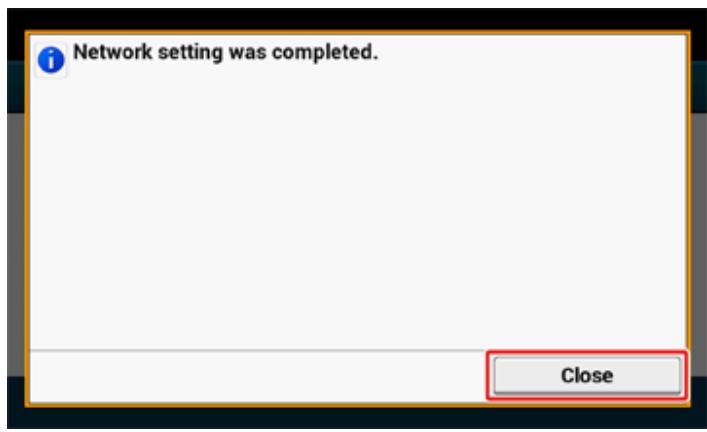
4 Press [Close] on the following screen which is displayed after the setting is updated.

- Wait until updating the setting is complete.
- The screen switches automatically in about 7 seconds without pressing [Close].
E-mail Setting
E-mail setting is required when using "Scan To E-mail", "Internet Fax", and "Scan To Fax Server".
Before setting, fill in the "Checking the Setting Information" with the required information.

- Prepare an e-mail address specified for this machine. If you do not have an e-mail address that this machine uses, obtain the e-mail address by making a contract with a provider or using other ways.
- Make "Network Settings" before using this function.
- If you want to receive and print e-mail attachment files that are sent to the machine, select [POP3] or [SMTP] to suit your e-mail setting environment.
- If you do not want to use functions which require e-mail settings, press [Skip>>] and go to Test Print.
1 Check that the [6. E-mail Setting] screen is displayed, and then press [Next]. The screen prompting you to enter the mail server address is displayed.
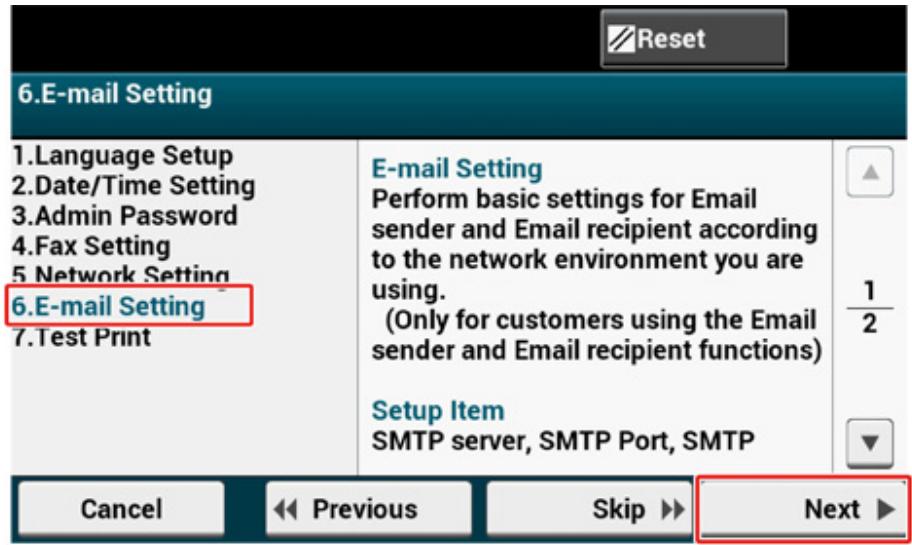
2 Enter the mail server address and press [Next] on the touch panel.
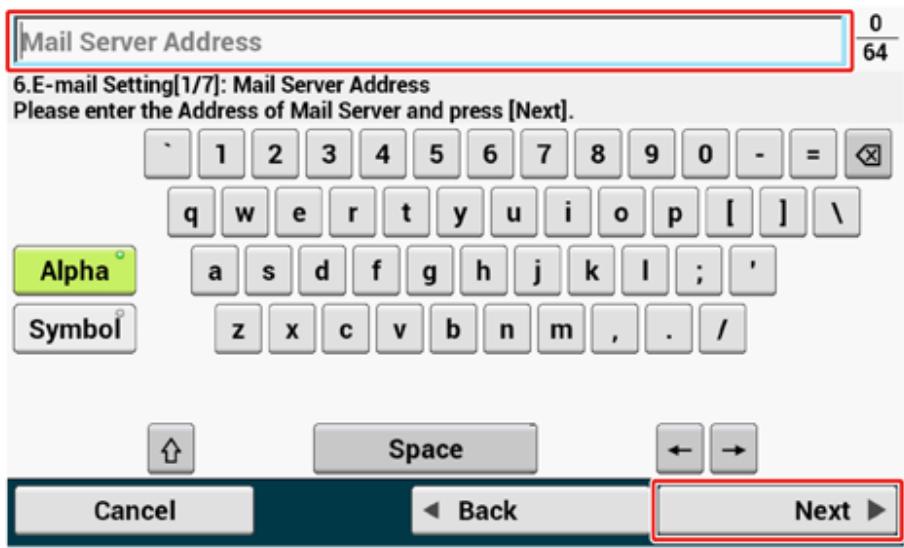
3 Use the numeric keypad on the operator panel to enter the SMTP port and press [Next].
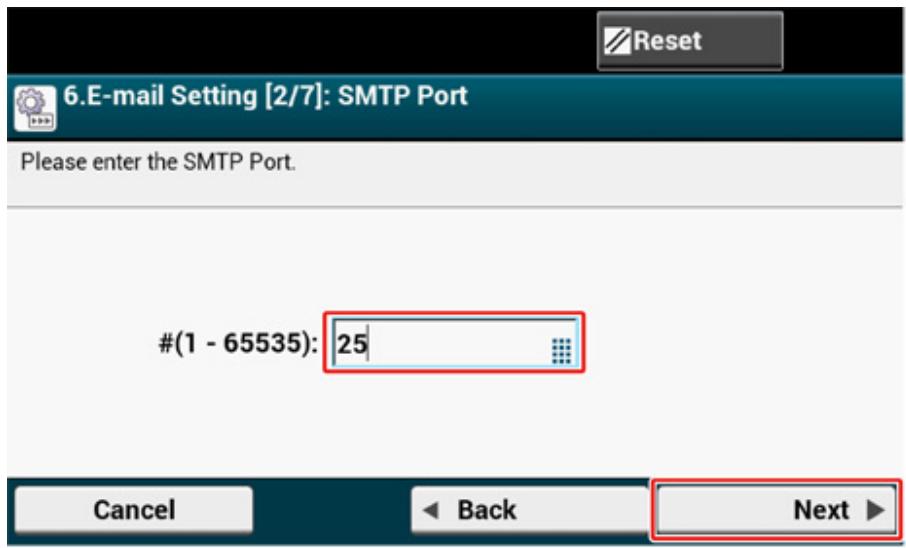
4 Select SMTP Encryption.
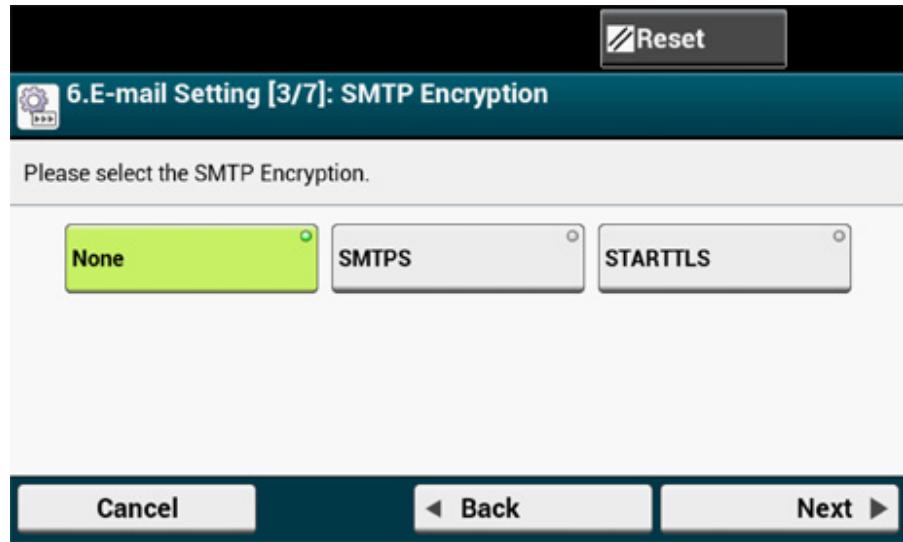
5 Enter the sender's address and press [Next] on the touch panel.
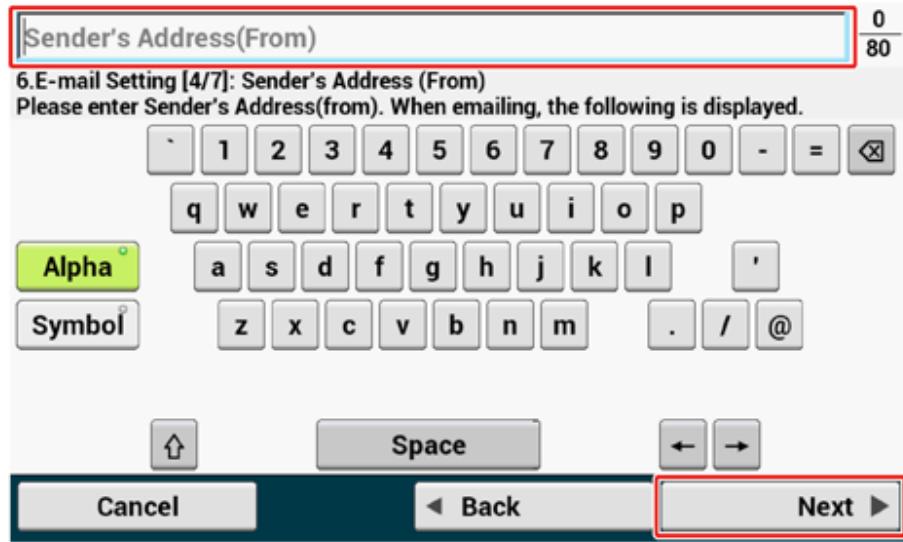
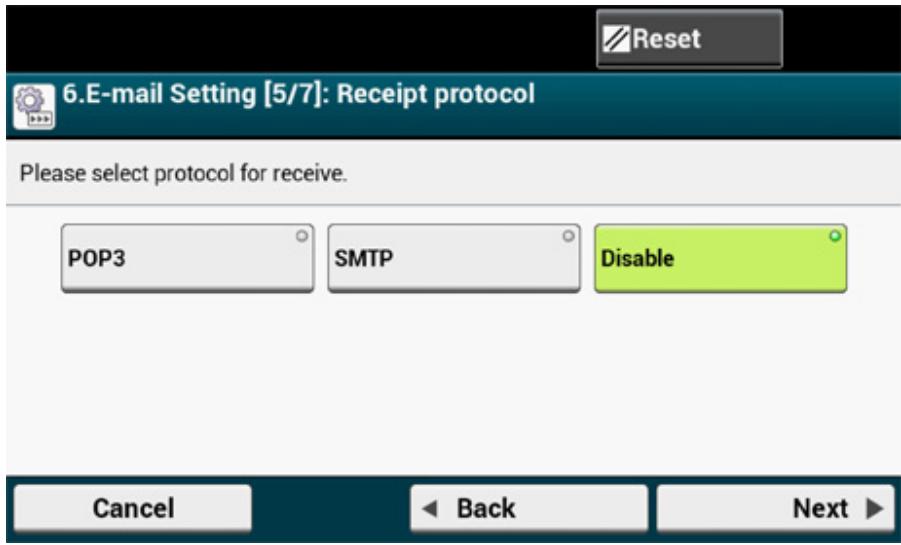
6 Set the Reception Protocol.

If [POP3] is selected, enter the POP3 server address.
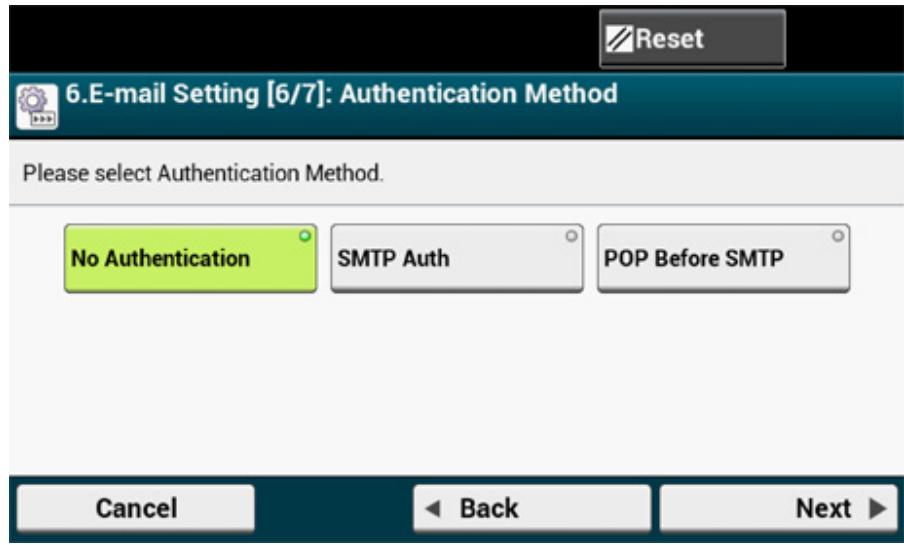
7 Select Authentication method.

If [SMTP Auth] or [POP Before SMTP] is selected, enter the user name and password, and then press [Next].
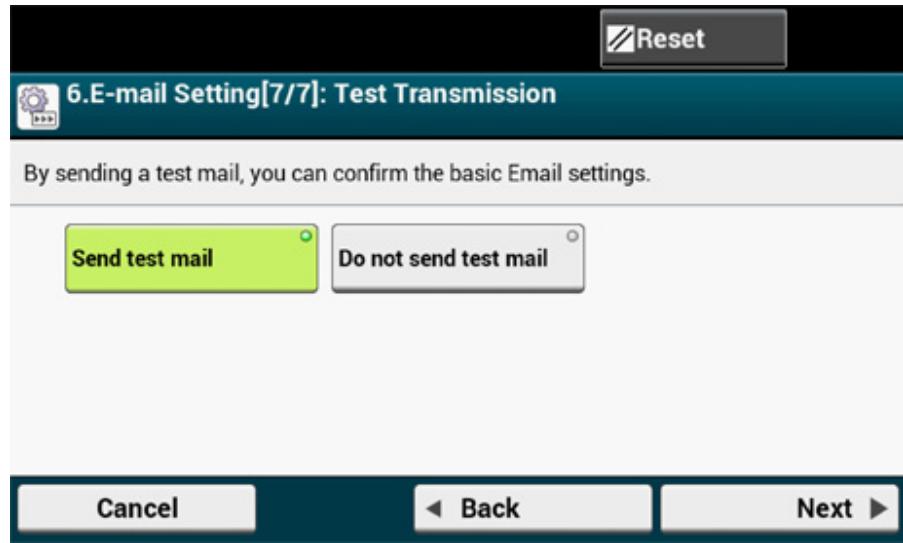
8 Set whether to send a test mail.

To send a test mail, enter a destination address capable of receiving.
9 After updating the settings, press [Close].
![OKI ES5473MFP - After updating the settings, press [Close]. - 1](/content/2024/11/223446/images/c15c54fdb5697aee682ff5f2b608412f9474c928abce85c03b59ddc548e85417.jpg)
The screen switches automatically in about 7 seconds without pressing [Close].
![OKI ES5473MFP - After updating the settings, press [Close]. - 2](/content/2024/11/223446/images/127c1089ef4e6b0ee79761b11a79c29cacdc62943fc7bded2d120b2acac7b24c.jpg)
Test Print

If you do not want to print test page, press [Skip>>]. The Easy Setup is complete and the home screen appears.
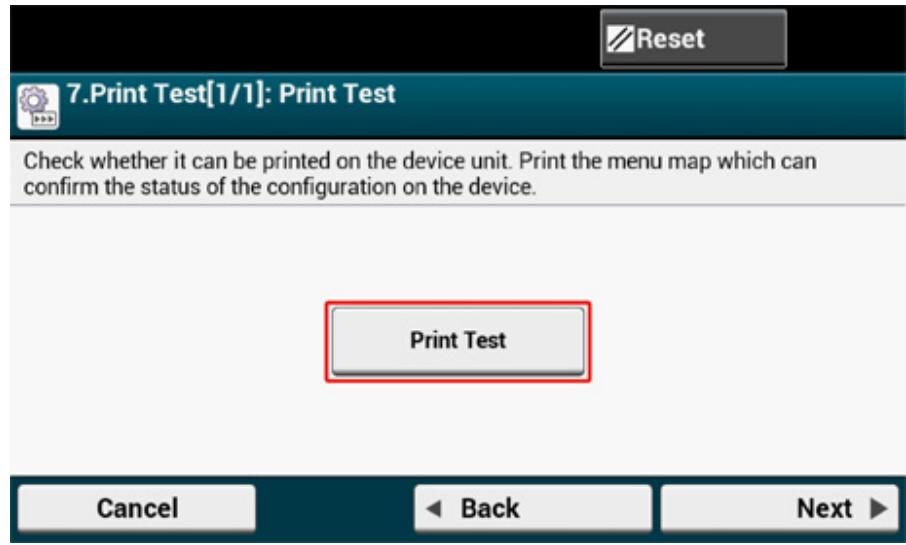
1 Check that the [7. Print Test] screen is displayed, and then press [Next]. The Print Test screen is displayed.
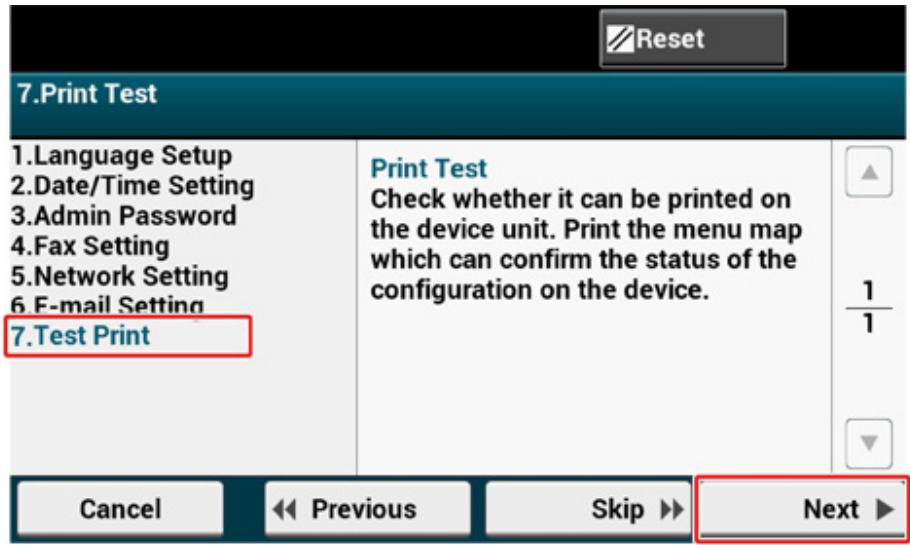

Click [Print Test].

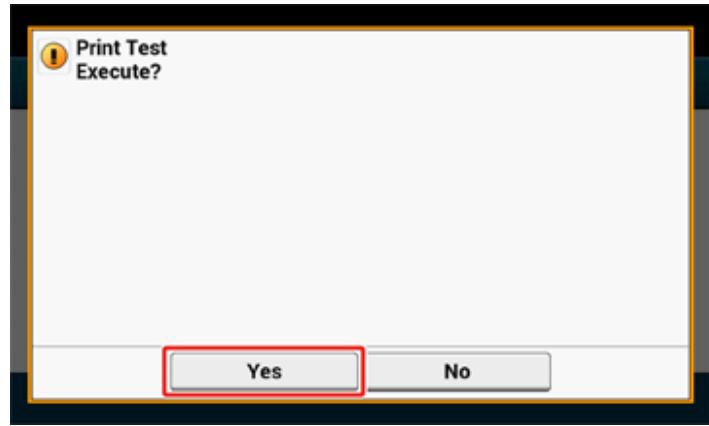
Press [Yes].
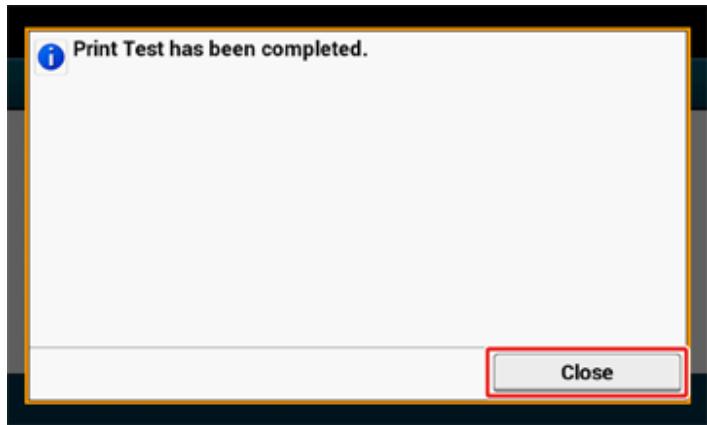
4 Check that the menu map is printed, and then press [Close].
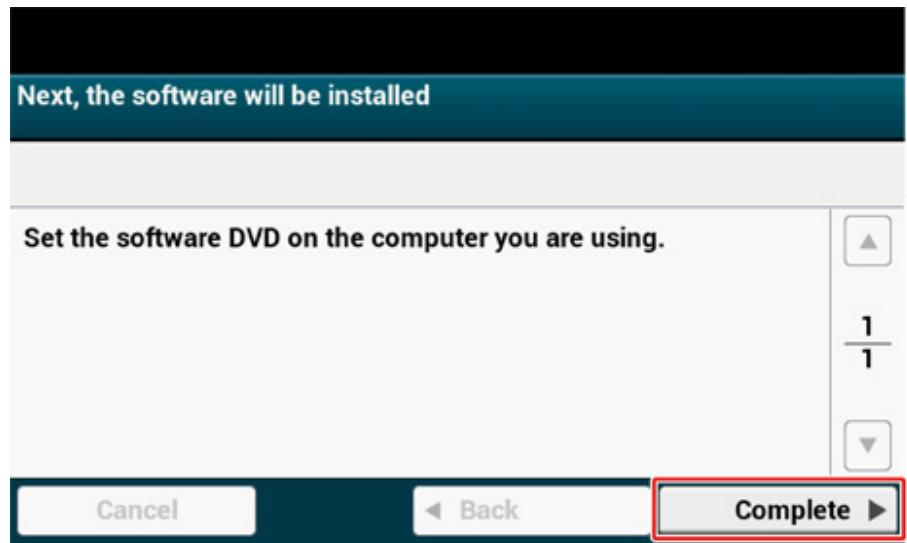
Press [Complete].
The Easy Setup is complete and the home screen appears.

You can change the settings from [Device Settings] > [Easy Setup] at the top of the home screen whenever you want.
Connecting to a Wireless LAN (Only When the Wireless LAN Module is Mounted)
Wireless LAN connection is disabled by default. To use the wireless LAN connection, enable Wireless in the Admin Setup.
- Before Connecting to a Wireless LAN
- Enabling Wireless LAN Connection
- Connecting to an Access Point (Infrastructure)
- Setting up [Enabling Default Gateway]
- Connecting to the Machine Directly (AP mode)
Before Connecting to a Wireless LAN
!
- Wireless(Infrastructure) and Wireless(AP Mode) cannot be enabled at the same time.
- If the machine is used in a wireless network environment, the machine does not enter Deep Sleep mode but enters Sleep mode.
- Do not place any electric products that emit weak radio waves (such as microwaves or digital cordless telephones) close to the machine.
- The communication speed of a wireless LAN connection may be slower than that of a wired LAN or USB connection depending on the environment. If you want to print big data such as a photo, it is recommended to print with a wired LAN or USB connection.
Connecting to an Access Point
Before connecting this machine to a wireless LAN access point, check the following.
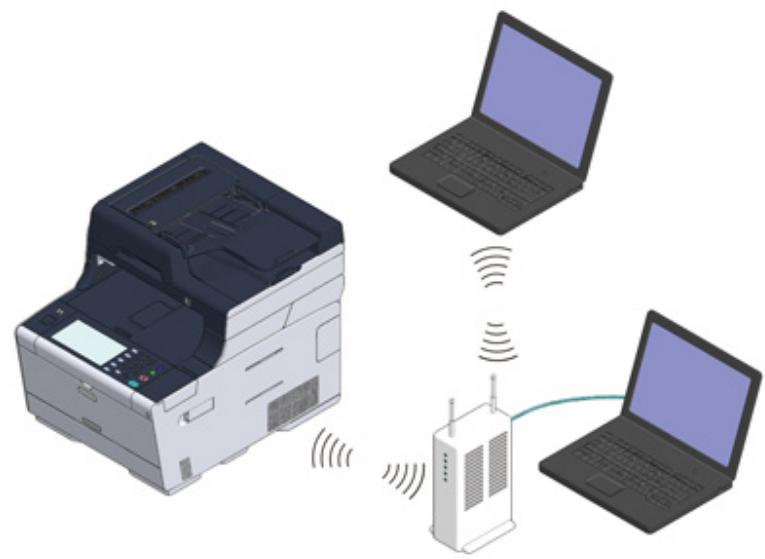
1 Check if your wireless LAN access point matches the following requirements.
Standards: IEEE 802.11 a/b/g/n
Access method: Infrastructure mode
2 Check if the wireless LAN access point supports WPS.
If it does not support WPS, check the SSID and encryption key by referring to the instruction manual that is included in the wireless LAN access point or other documents.

- An SSID is also called a network name, ESSID or ESS-ID.
- An encryption key is also called a network key, security key, password, or Pre-shared Key.
Connecting to the Machine Directly
You can use the machine as a wireless access point to directly connect wireless devices (computers, tablets, smartphones, etc.). Check the following.
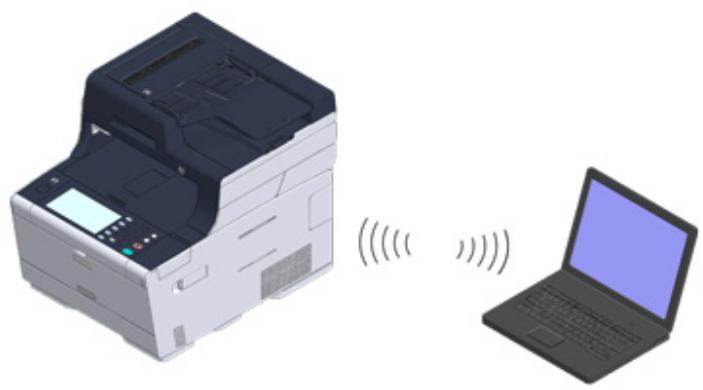
1 Check if your wireless devices match the following requirements.
Standards: IEEE 802.11 b/g/n
Security: WPA2-PSK(AES)
2 Check if your wireless devices support WPS-PBC (push button).

If you are not sure that the device supports WPS-PBC, connect manually after turning on the machine.
Enabling Wireless LAN Connection
1 Check that the machine is turned on.
Press [Device Settings] at the top of the home screen.
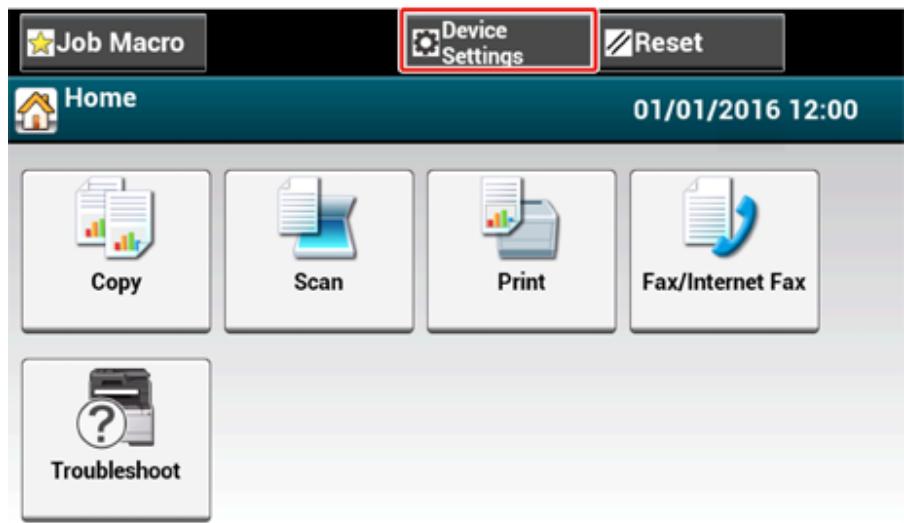
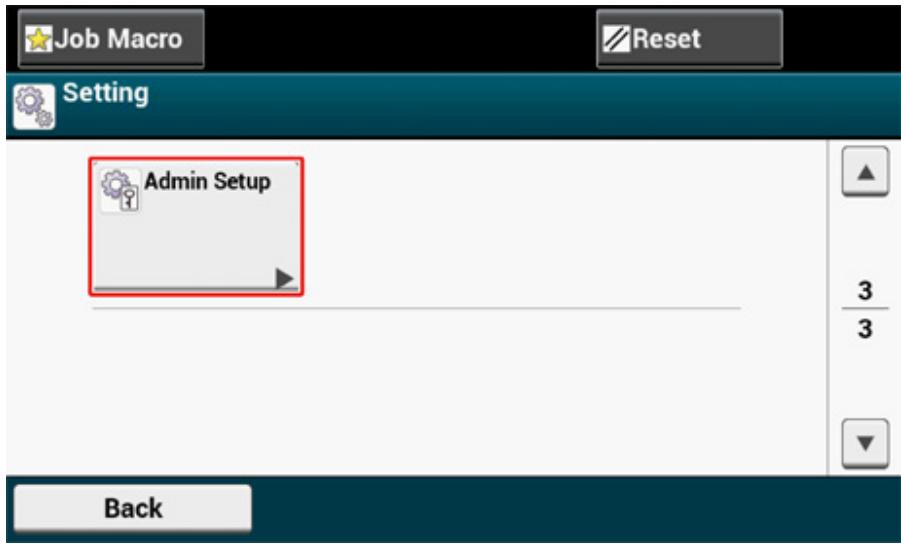
3 Press [▲] once and press [Admin Setup].
4 Enter the administrator password, and then press [OK].

The factory default administrator name and password are "admin" and "999999" respectively. If the administrator password is changed in Easy Setup, enter the updated password.
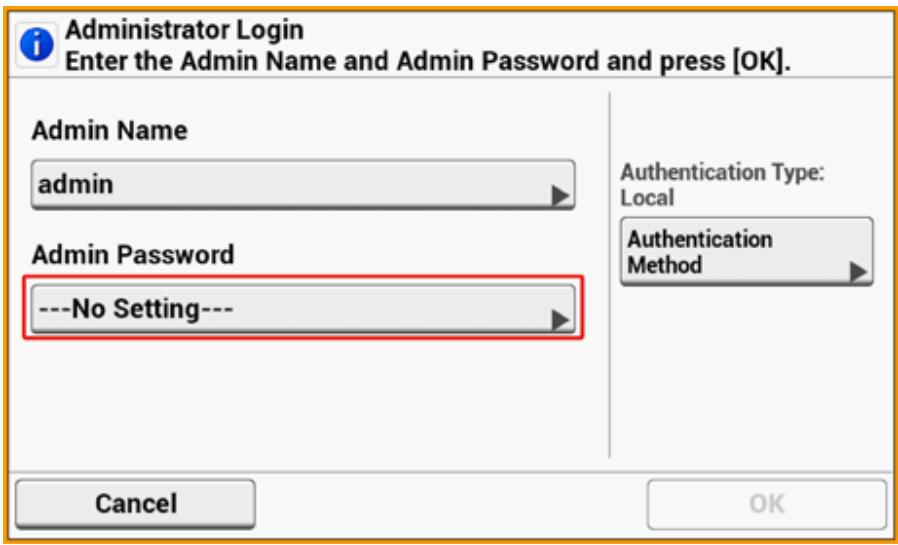
5 On the administrator login screen, press [OK].
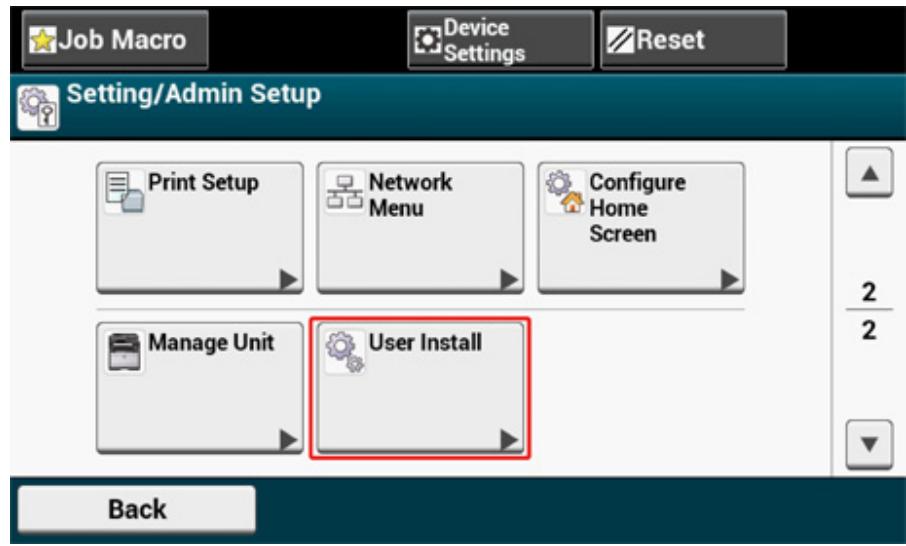
6 Press [▲] once and press [User Install].
Press [▲] or [▼] several times, and press [Wireless Module].
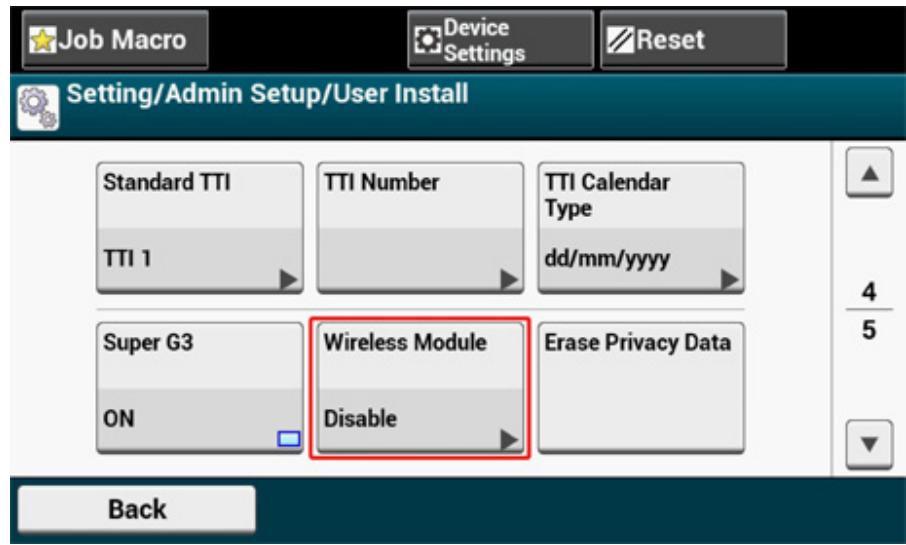
8 Press [Enable].
![OKI ES5473MFP - Press [Enable]. - 1](/content/2024/11/223446/images/1b10237ef9f603e30462f822a671919713f52eff8a9a4e9bdcabd9a7273839cf.jpg)
9 Press [Back] until the home screen is displayed.
10 Press the power button to turn off the machine.
11 Press the power button to turn on the machine.
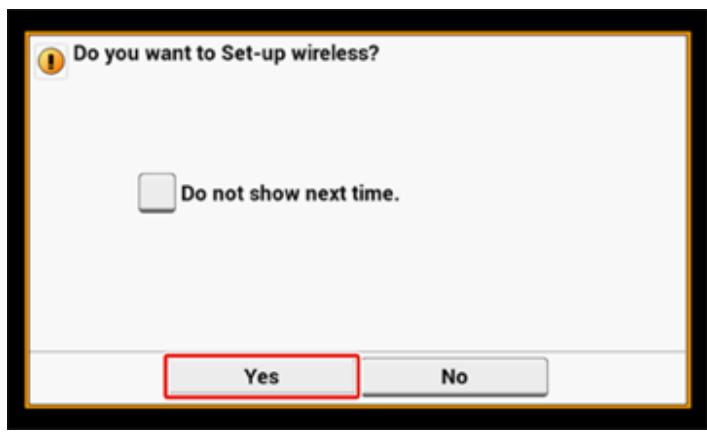
12 Press "Yes" if "Do you want to Set-up wireless?" is displayed on the touch panel.
![OKI ES5473MFP - Press [Enable]. - 2](/content/2024/11/223446/images/6c0665bd9ac38e5a92dee8780eb70b3ea23e86d3fbbd0ee8ef91e88cc4342bf6.jpg)
And then go to "Connecting to an Access Point (Infrastructure)".
Connecting to an Access Point (Infrastructure)
!
- Install this machine in a place with a good view and near a wireless access point. (We suggest that the distance between the machine and the wireless device be 30m or less.)
- If there is metal, aluminum sash, or a reinforced concrete wall between the machine and wireless LAN access points, connections may be harder to be established.
- Outdoor use of IEEE802.11a (W52/W53) is prohibited by the Radio Law. Use IEEE802.11a (W52/W53) only indoors.
- Connecting with WPS
If a wireless LAN access point supports WPS, you can connect to the wireless LAN with the WPS button.
- Selecting a Wireless LAN Access Point from the Operator Panel to Connect
If a wireless access point does not support WPS, you can specify a wireless LAN access point you want to use from the wireless LAN access points that the printer detects to establish a connection.
- Setting from the Operator Panel Manually to Connect
Set the wireless LAN access point information (the SSID, encryption method, and encryption key) manually to connect to the wireless LAN.
Connecting with WPS
If a wireless LAN access point supports WPS, you can easily connect to the wireless LAN with the easy setup button (WPS button).
Connect by following the procedure below.
1 Check the position of the WPS button by referring to the instruction manual that is included in a wireless LAN access point or other document.
2 Check that the wireless LAN access point starts and is operating properly.
3 Turn on the machine.

If the following screen is displayed, press [Yes], and then proceed to step 6.
4 Press [Device Settings] on the touch panel.
Press [▲] once and press [Wireless(Infrastructure) Setting].
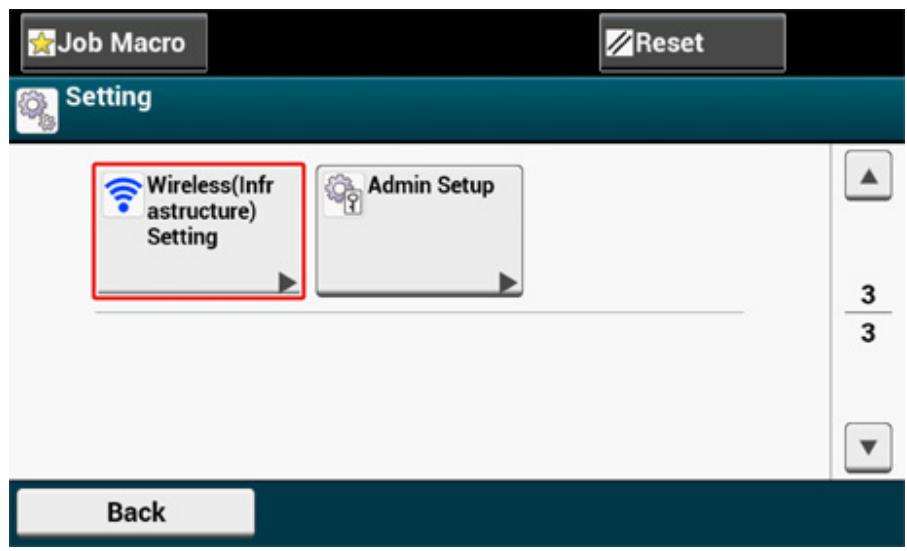
6 Enter the administrator name and password and press [OK].
The factory default administrator name and password are "admin" and "999999" respectively.
The following message is displayed for approximately 5 seconds.
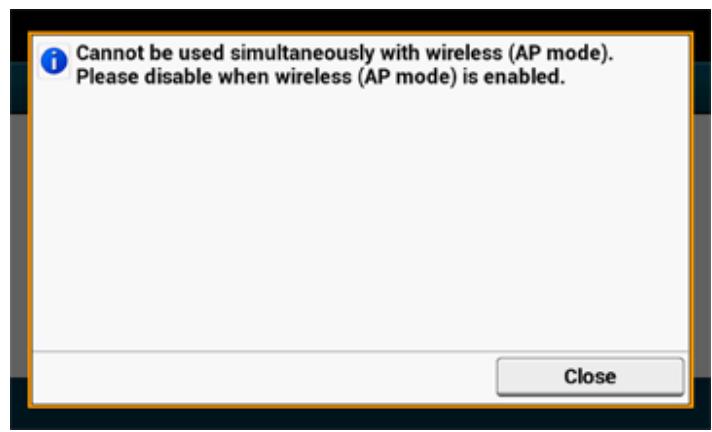
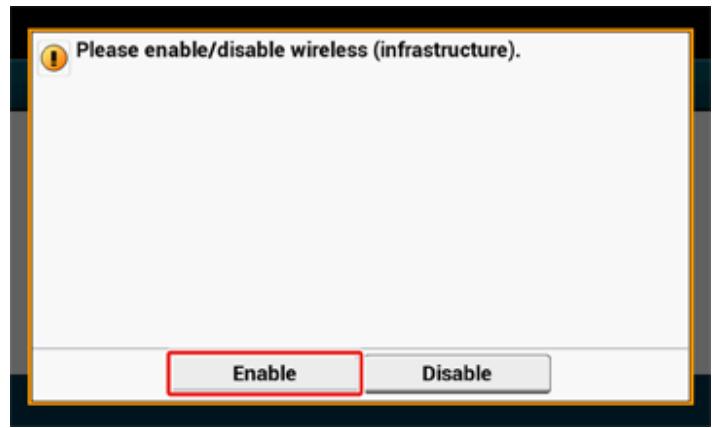
7 Press [Enable].
If your environment requires to set IP address, etc. manually, press [Network Setting]. If you do not need to set manually, go to step 12.
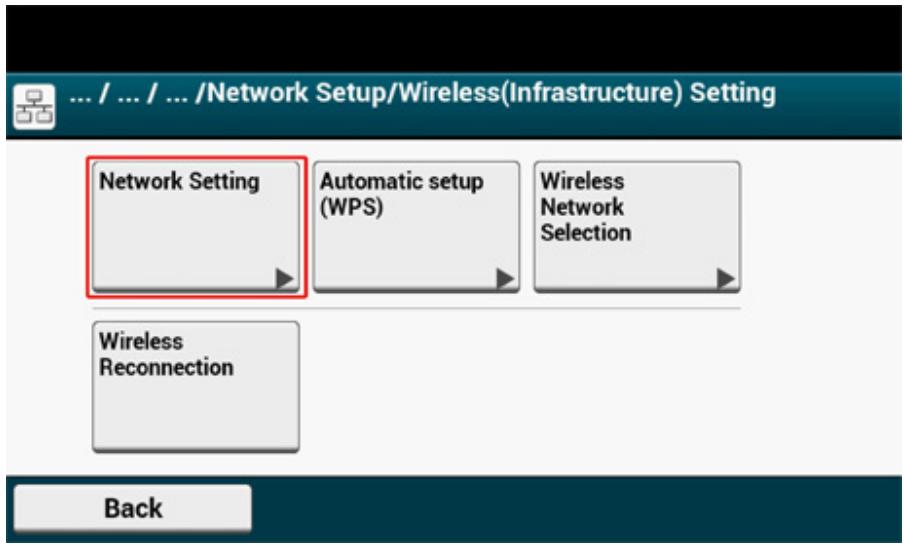
9 Press [Manual] on the [Wireless (infrastructure) settings] screen.
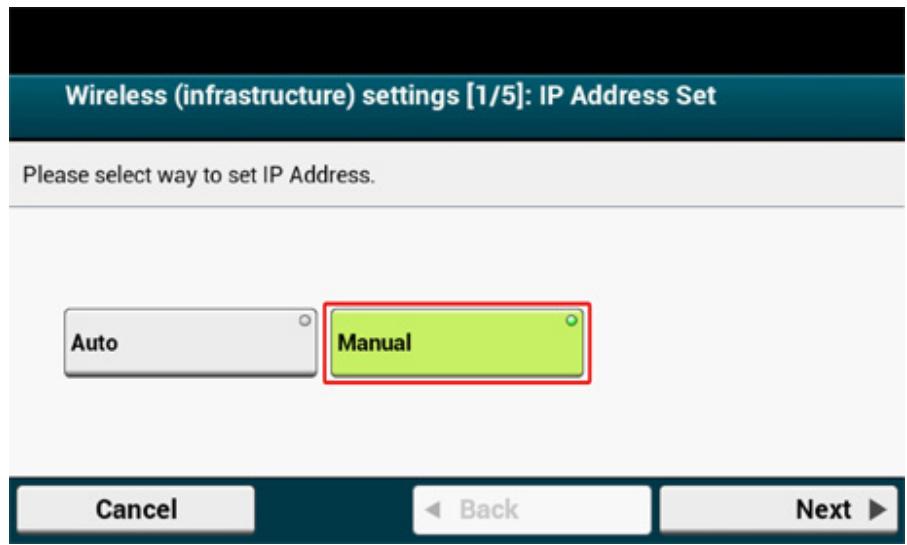
10 Follow the onscreen instructions to set the IP address, subnet mask, default gateway, and DHCP v6.

Ask your provider or network administrator about the setting value.
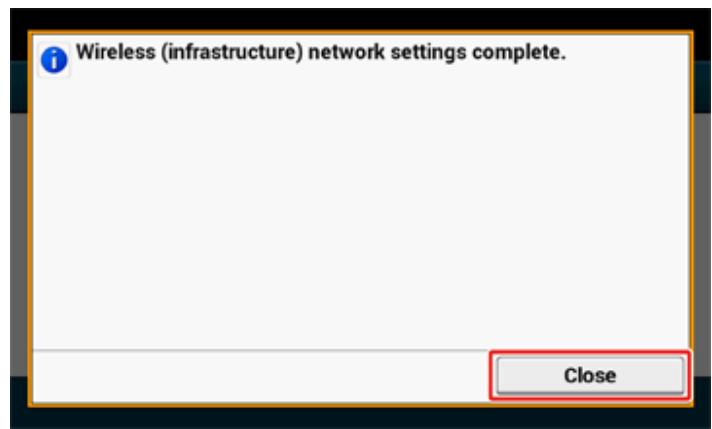
Press [Close] when the Wireless (infrastructure) settings are complete.

The screen switches automatically in a while without pressing [Close].
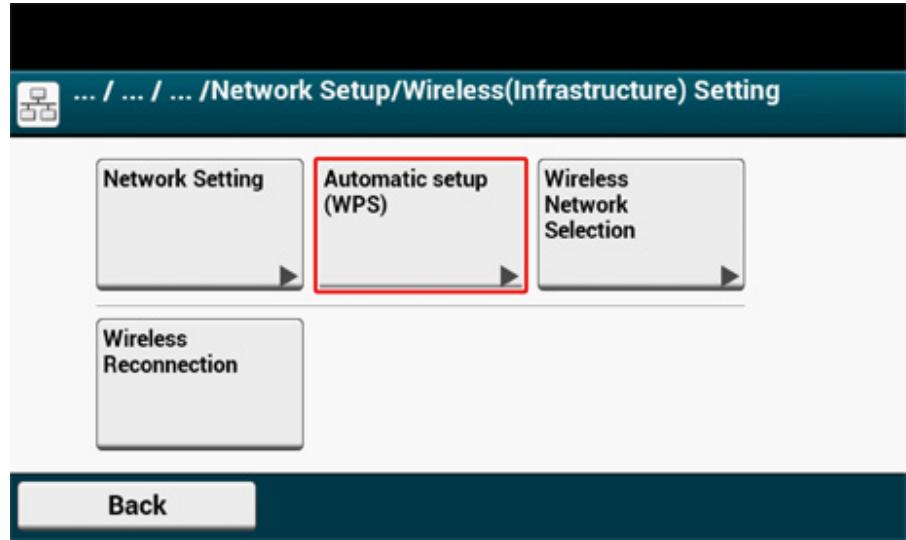
12 Press [Automatic setup (WPS)].
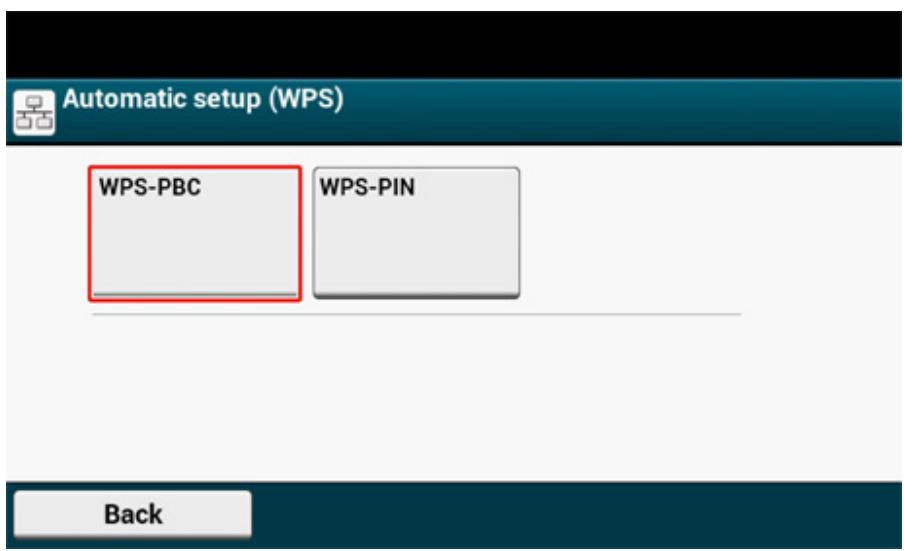
13 Press [WPS-PBC].
14 Press [Yes].
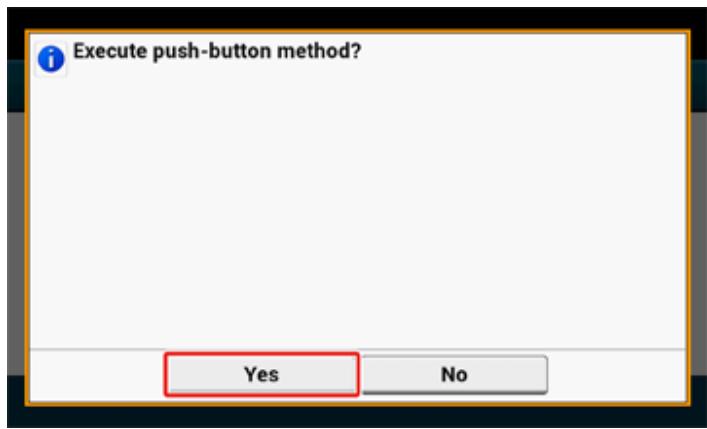
The machine starts searching for wireless LAN access points. The following screen is displayed for approximately 2 minutes, during which press and hold the WPS button for the wireless LAN access point for a few seconds.
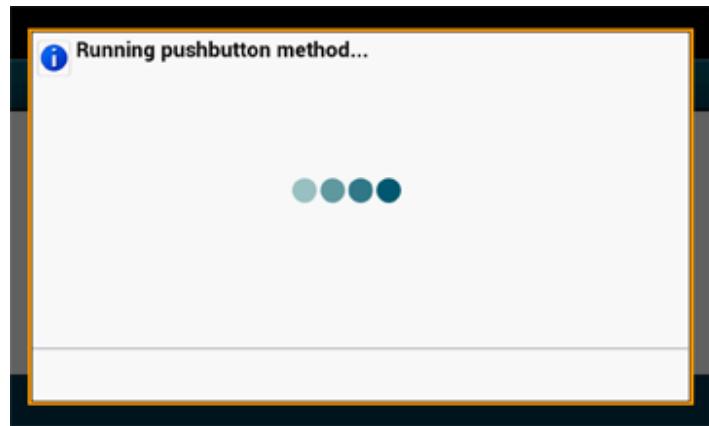
1
You cannot operate the panel when WPS is in progress.
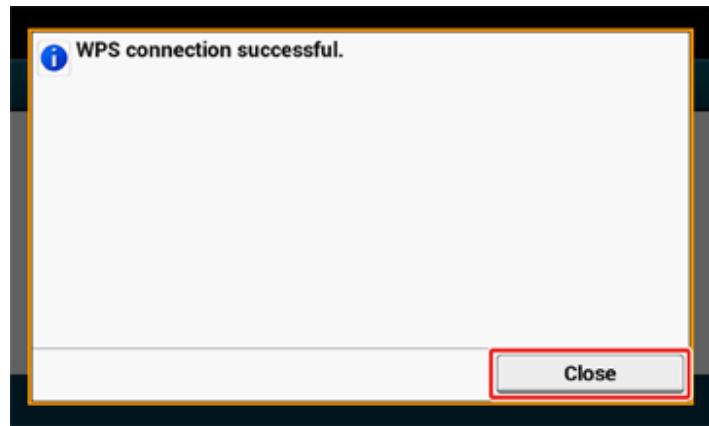
When the following screen is displayed, press [Close].

- If the following screen is displayed, repeat the procedure from step 13.
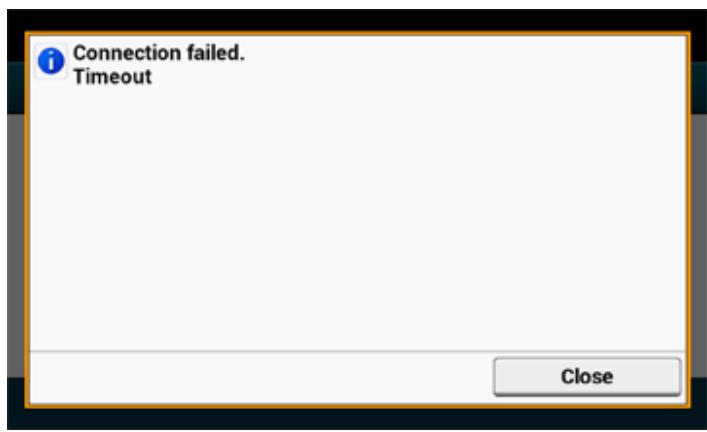
- [Overlap] is displayed when multiple WPS push buttons are pressed almost at the same time at two or more wireless LAN access points and connection is not established. Wait for a while, and then try again.
15 If the antenna mark is displayed at the top right of the home screen, the connection is established correctly.
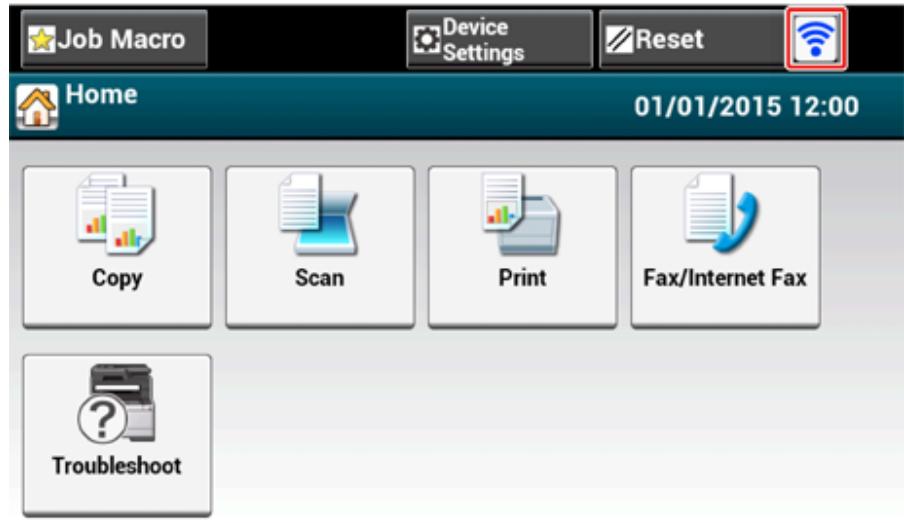

The antenna mark may not be displayed on some screens such as the copy top screen.
Selecting a Wireless LAN Access Point from the Operator Panel to Connect
If a wireless LAN access point does not support WPS, you can specify a wireless LAN access point you want to use from the wireless LAN access points that the machine detects to establish a connection. In such a case, you must enter an encryption key.
1 Check the SSID and encryption key by referring to the instruction manual that is included in a wireless LAN access point or other documents, and write the information down.

WPA-EAP and WPA2-EAP cannot be set on the touch panel. Set them from the Web page of this machine.

Open the Web Page of This Machine (Advanced Manual)

- An SSID is also called a network name, ESSID or ESS-ID.
- An encryption key is also called a network key, security key, password or Pre-shared Key.
2 Check that the wireless LAN access point starts and is operating properly.
3 Turn on the machine.

If the following screen is displayed, press [Yes], and then proceed to step 6.
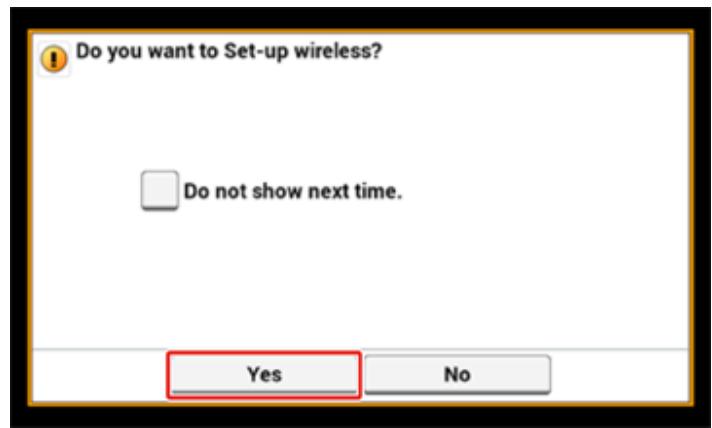
Press [Device Settings] on the touch panel.
Press [▲] once and press [Wireless(Infrastructure) Setting].
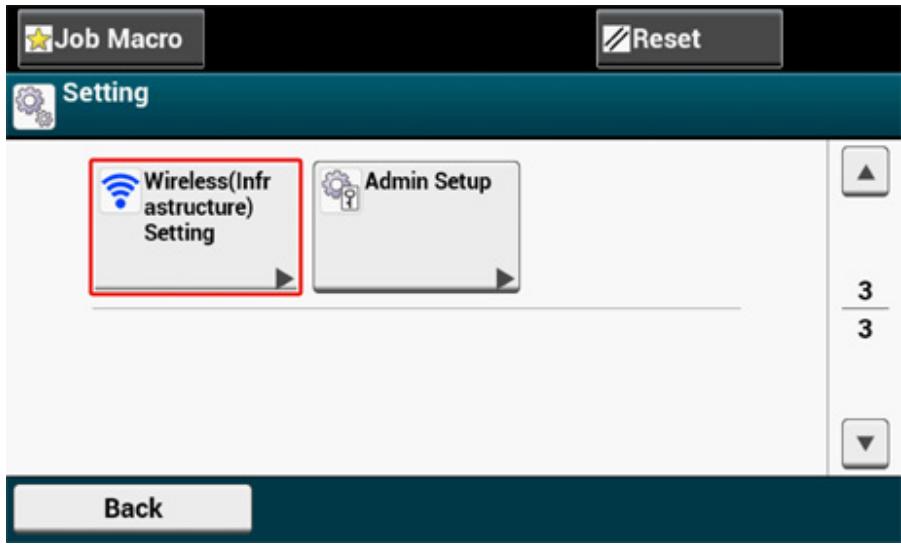
6 Enter the administrator name and password and press [OK].
The factory default administrator name and password are "admin" and "999999" respectively.
The following message is displayed for approximately 5 seconds.
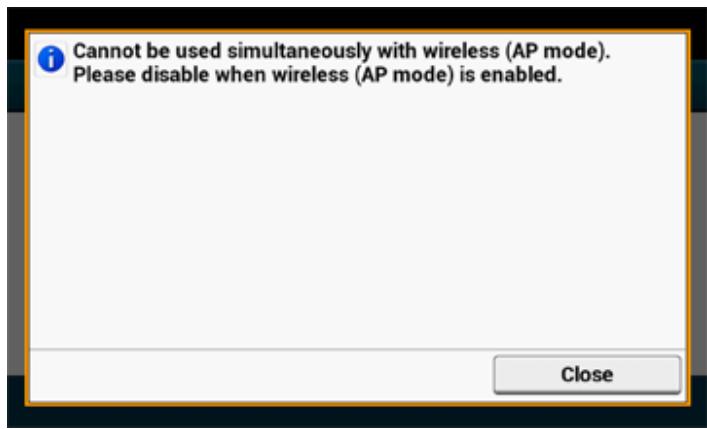
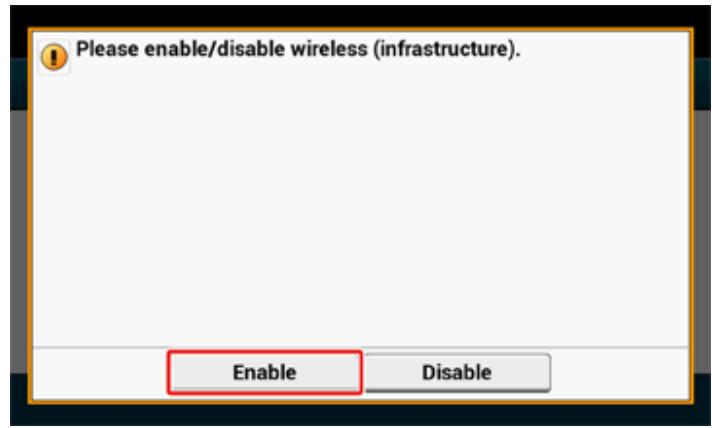
7 Press [Enable].
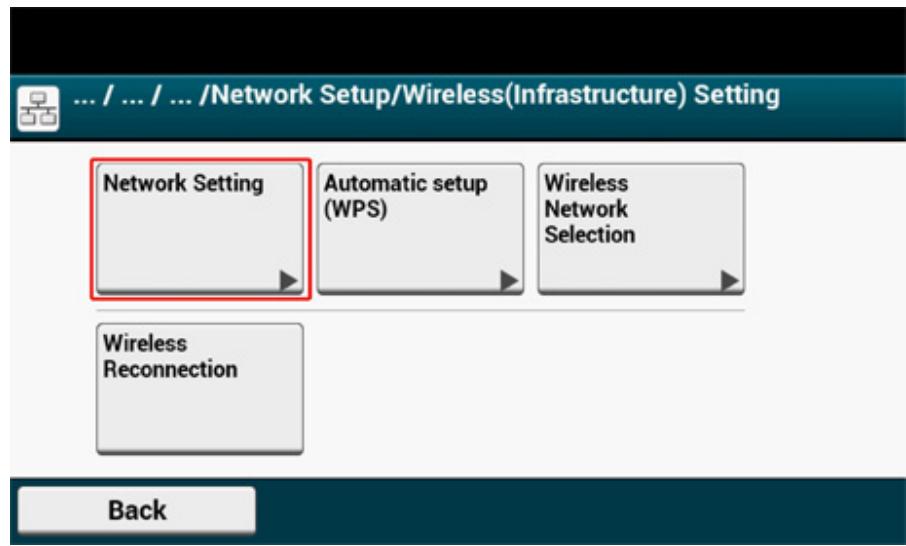
If your environment requires to set IP address, etc. manually, press [Network Setting]. If you do not need to set manually, go to step 12.
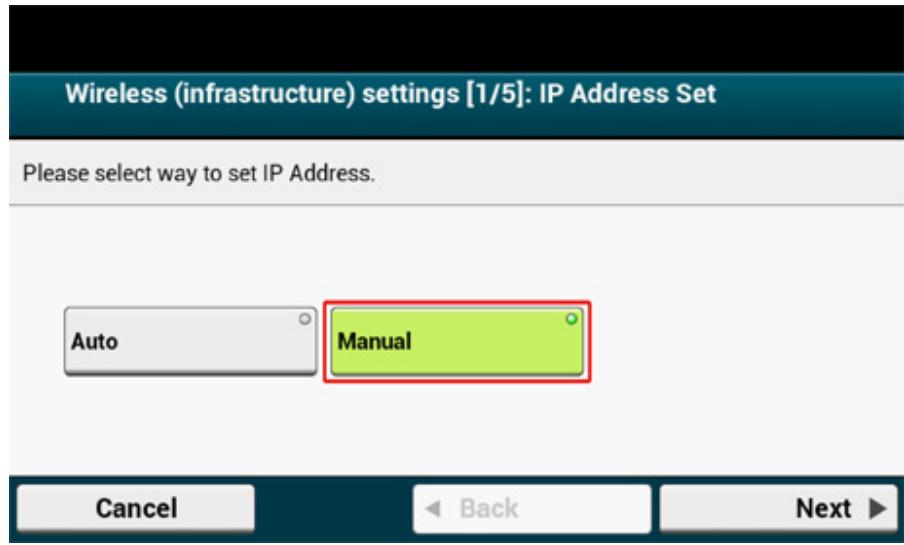
9 Press [Manual] on the [Wireless (infrastructure) settings] screen.
10 Follow the onscreen instructions to set the IP address, subnet mask, default gateway, and DHCP v6.

Ask your provider or network administrator about the setting value.
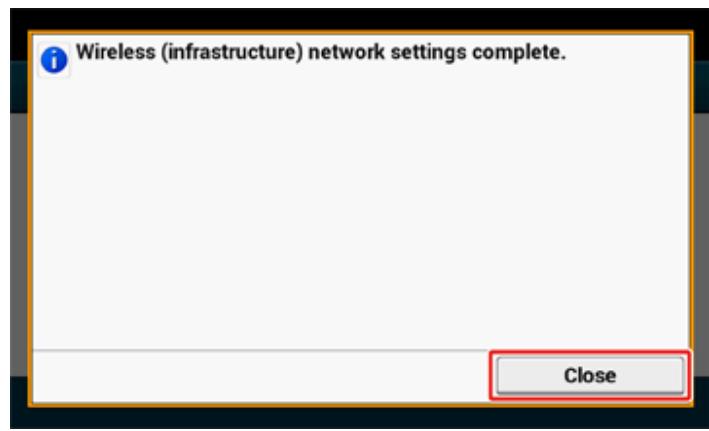
11 Press [Close] when the Wireless (infrastructure) settings are complete.

The screen switches automatically in a while without pressing [Close].
12 Press [Wireless Network Selection].
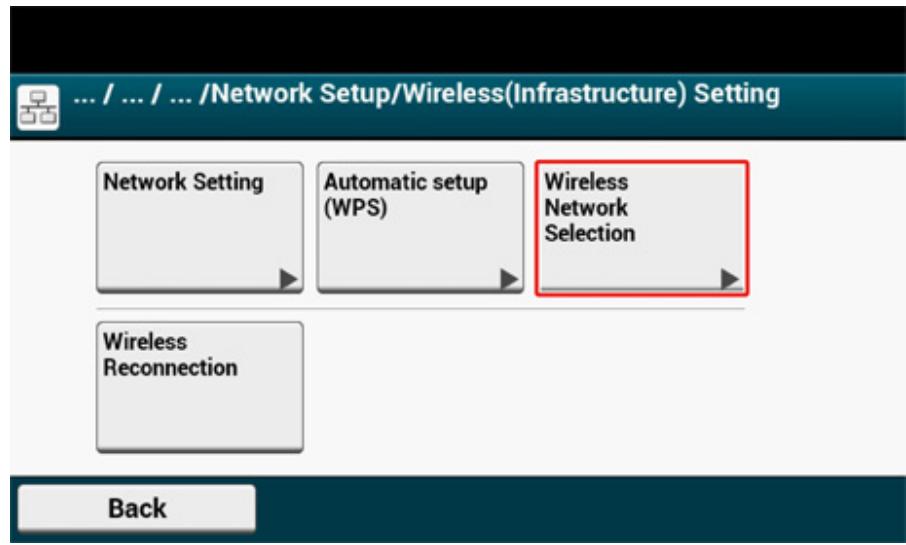
The machine starts searching for wireless LAN access points. Wait for a while.
13 Select a wireless LAN access point to connect, and then press [Select].
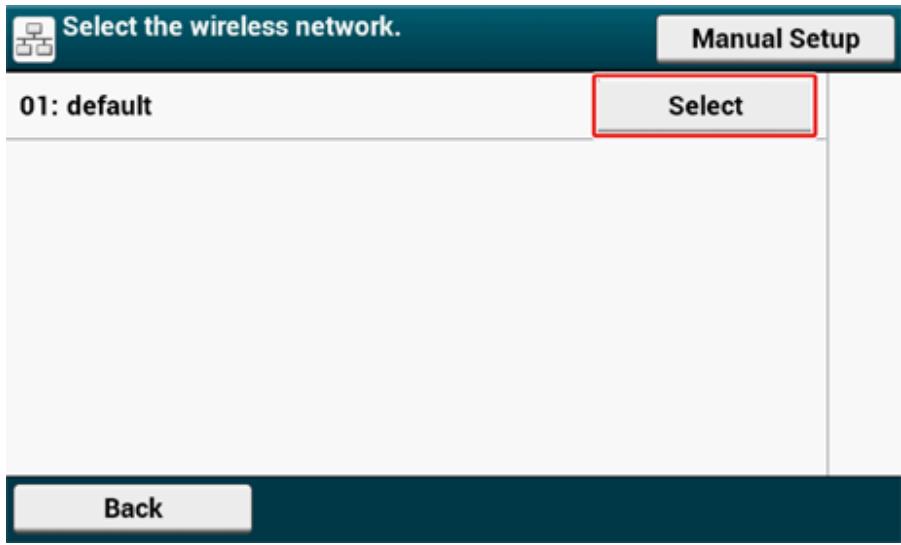
!
If only [Manual Setup] is displayed, or the SSID of the wireless LAN access point you want to use is not included in the list, set by following the procedure in "Setting from the Operator Panel Manually to Connect".
The encryption key entry screen that is suitable for the encryption method of the selected wireless LAN access point is displayed.
14 Enter the encryption key that you checked in step 1, and then press [OK].
A
The encryption key varies depending on the wireless LAN access point or security.
- If the [WPA Pre-shared Key] is displayed
| Item | Description |
| Security | WPA/WPA2-PSK |
| Encryption key | Enter the Pre-shared Key. |
- If [WEP Key] is displayed
| Item | Description |
| Security | WEP |
| Encryption key | Enter the WEP key. |
- If neither of the above two cases is applied
| Item | Description |
| Security | Disable |
| Encryption key | No entry is required. |
15 If the displayed SSID is the same as the SSID that you checked in step 1, press [Yes].
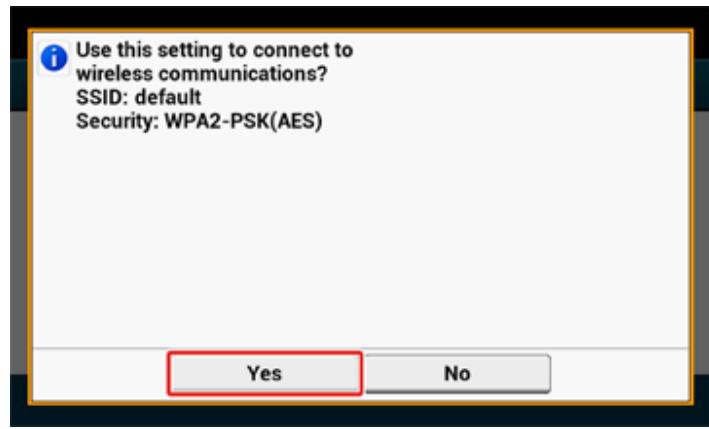
When "Connection successful." is displayed, press [Close].
If "Connection failed." is displayed, repeat the procedure from step 5.
16 If the antenna mark is displayed at the top right of the touch panel, the connection is established correctly.
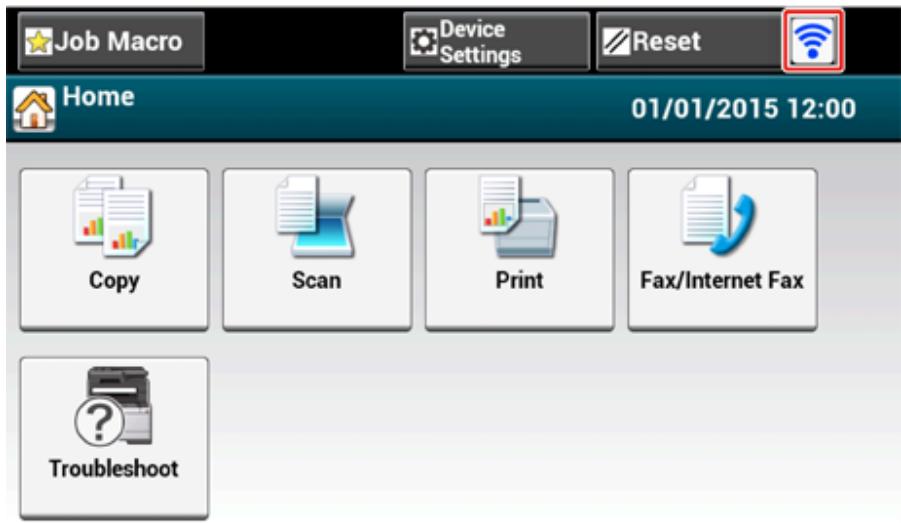

The antenna mark may not be displayed on some screens such as the copy top screen.
Setting from the Operator Panel Manually to Connect
Set the wireless LAN access point information (the SSID, encryption method and encryption key) manually to connect to the wireless LAN.
1 Check the SSID, encryption key, and security by referring to the instruction manual that is included in a wireless LAN access point or other documents, and write the information down.

If the encryption method is WPA-EAP and WPA2-EAP, set from the Web page of this machine.
For details, open the Web page of this machine and click [Admin Setup] > [Network] > [Wireless Setting] > [Manual Setup].

Open the Web Page of This Machine (Advanced Manual)

- An SSID is also called a network name, ESSID, or ESS-ID.
- An encryption key is also called a network key, security key, password, or Pre-shared Key.
2 Check that the wireless LAN access point starts and is operating properly.
3 Turn on the machine.

If the following screen is displayed, press [Yes], and then proceed to step 6.
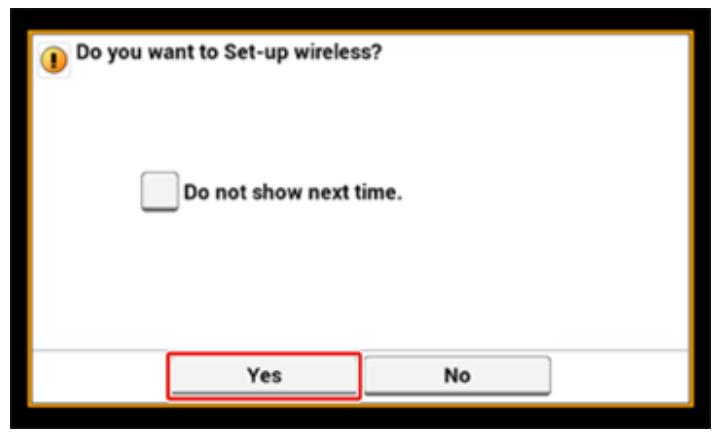
Press [Device Settings] on the touch panel.
Press [▲] once and press [Wireless(Infrastructure) Setting].
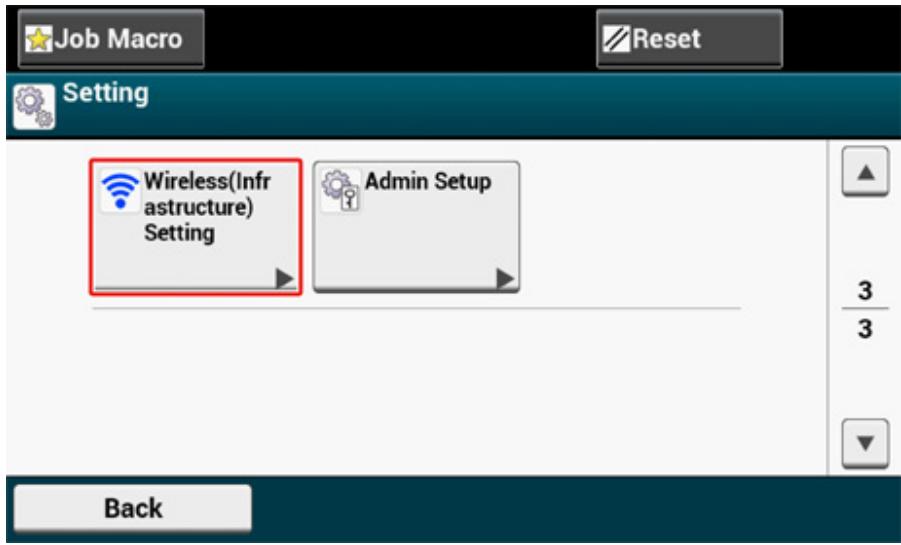
6 Enter the administrator name and password and press [OK].
The factory default administrator name and password are "admin" and "999999" respectively.
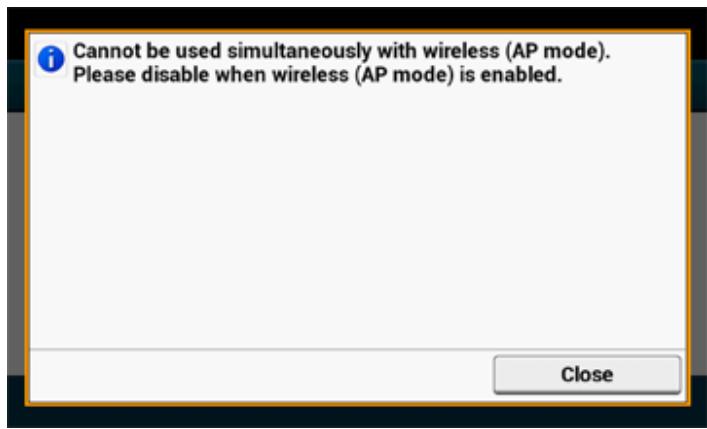
The following message is displayed for approximately 5 seconds.
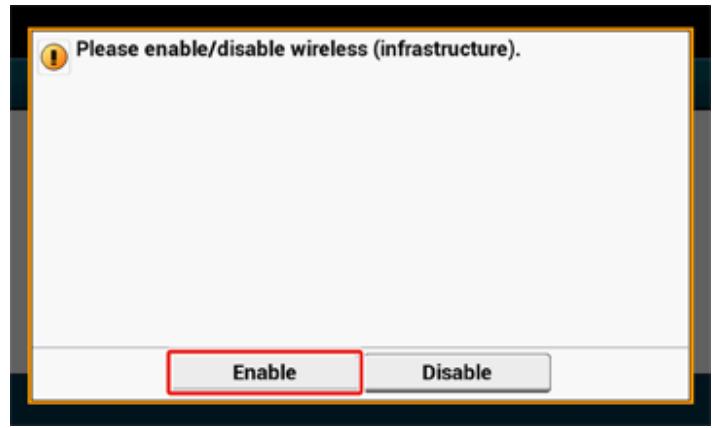
7 Press [Enable].
If your environment requires to set IP address, etc. manually, press [Network Setting]. If you do not need to set manually, go to step 12.
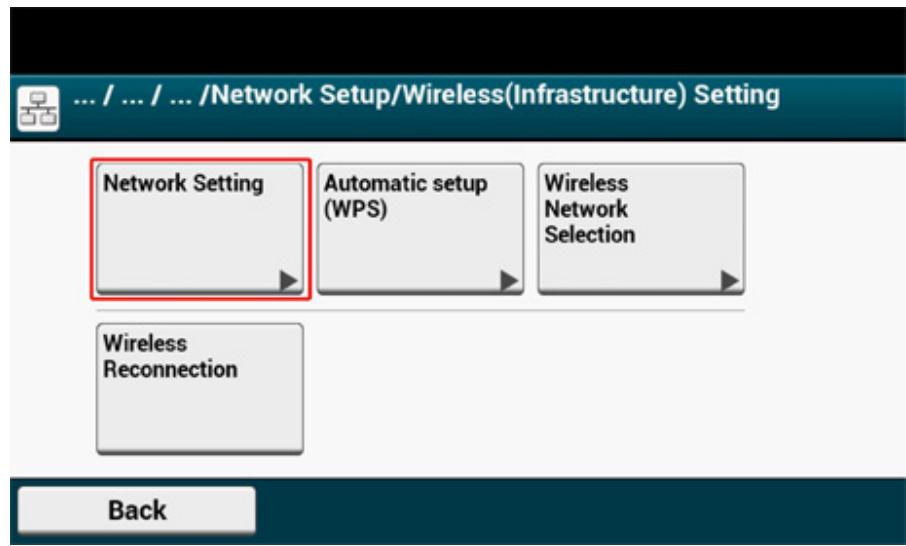
9 Press [Manual] on the [Wireless (infrastructure) settings] screen.
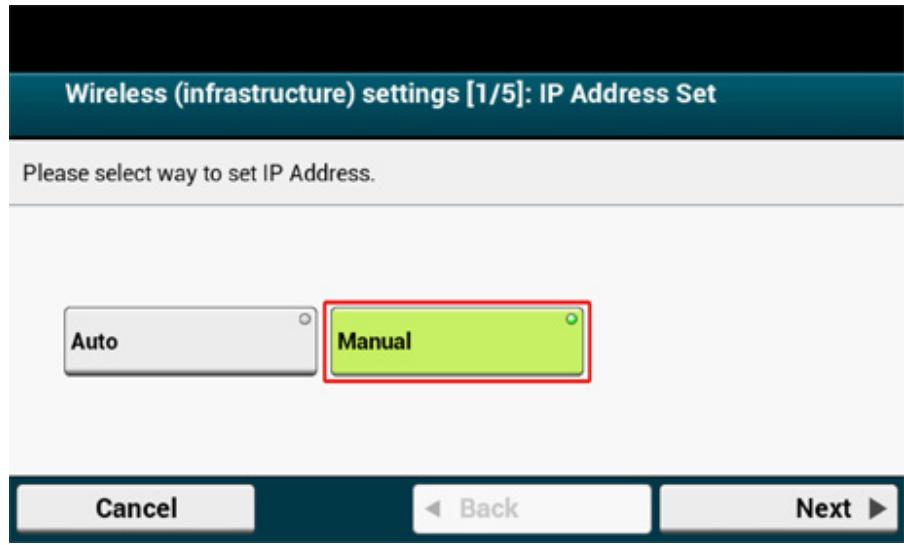
10 Follow the onscreen instructions to set the IP address, subnet mask, default gateway, and DHCP v6.

Ask your provider or network administrator about the setting value.
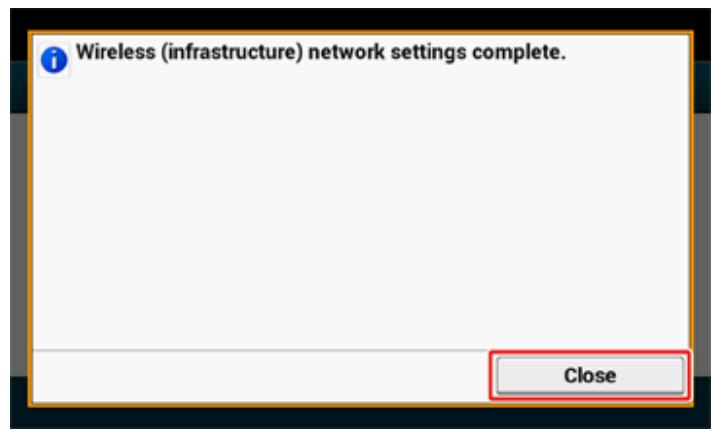
11 Press [Close] when the Wireless (infrastructure) settings are complete.

The screen switches automatically in a while without pressing [Close].
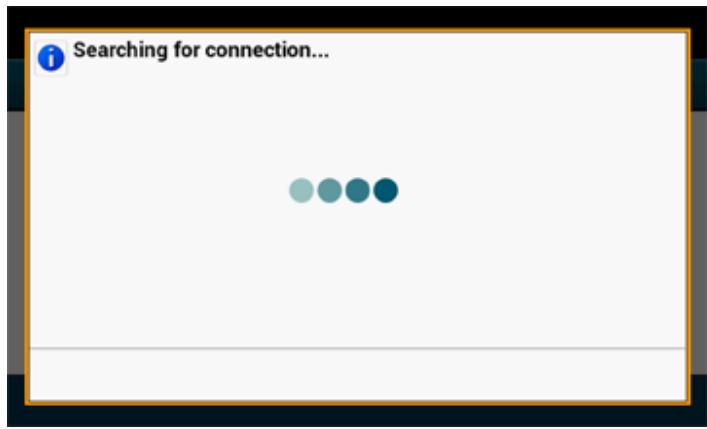
12 Press [Wireless Network Selection].
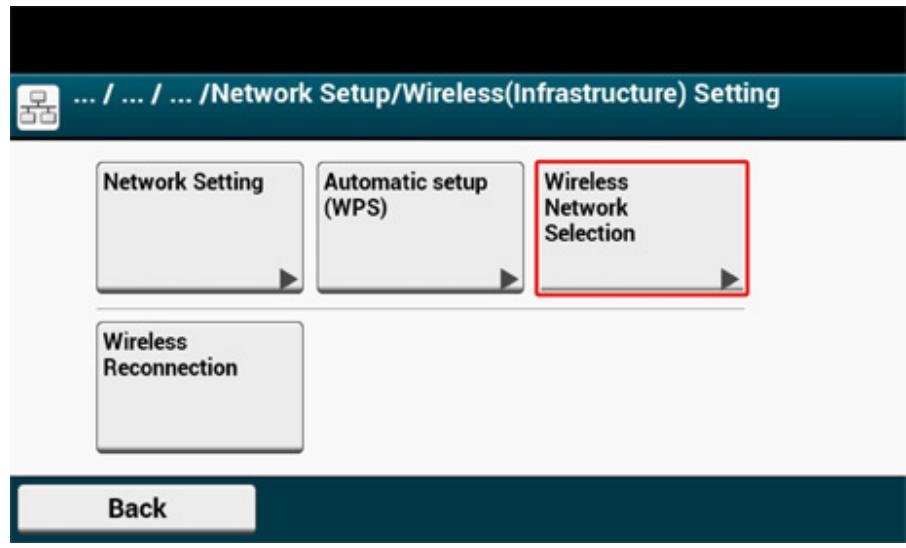
The machine starts searching for wireless LAN access points. Wait for a while.
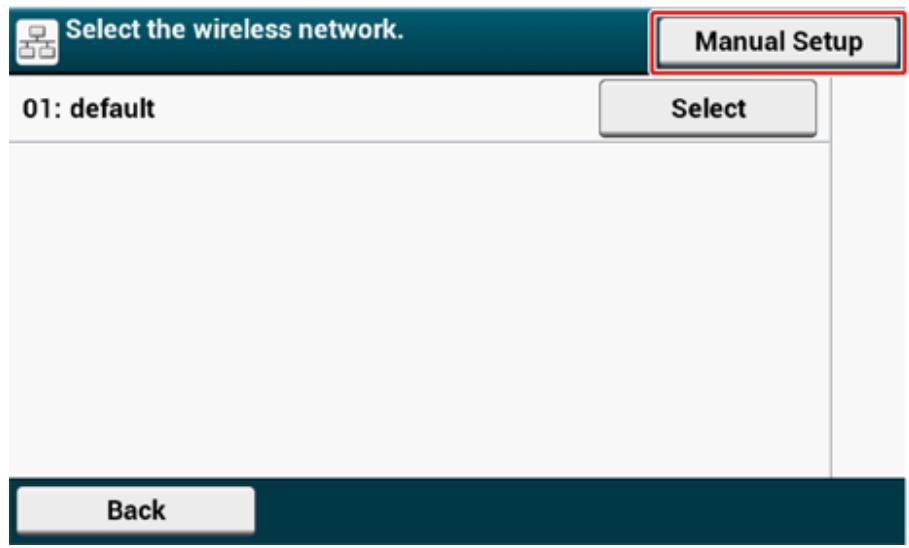
13 Press [Manual Setup].
14 Enter the SSID that you checked in step 1, and then press [Next].
!
The SSID is case sensitive. Enter the SSID correctly.
15 Select the encryption method that you checked in step 1, and then press [Next].
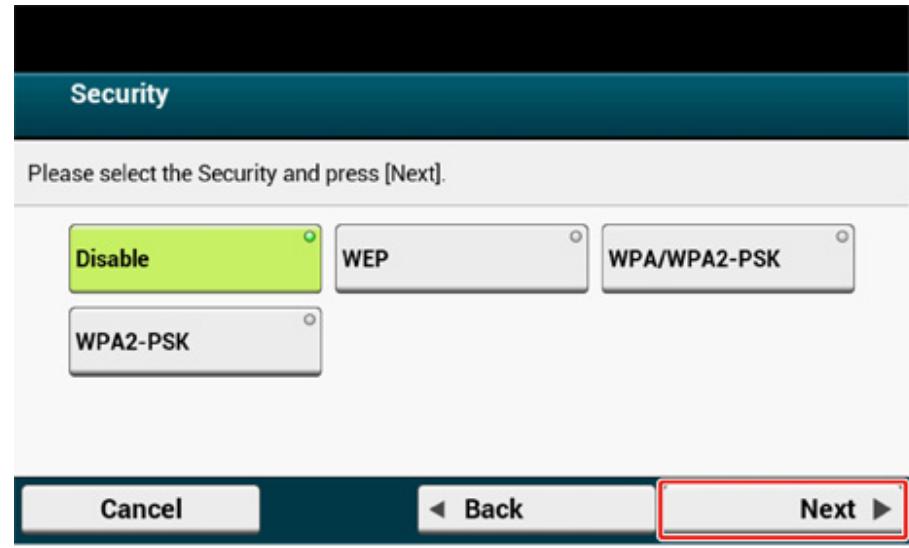

The encryption key varies depending on the wireless LAN access point or security.
16 The procedure depends on the encryption method you selected in step 15. If you selected [WPA/WPA2-PSK], select [TKIPAES], and then press [Next]. Enter the Pre-shared Key afterward and select [Next].
If you selected [WPA2-PSK], select [AES], and then press [Next]. Enter the Pre-shared Key afterward and select [Next].
If you selected [WEP], enter the WEP Key, and press [Next].
17 If the displayed content is the same as that you checked in step 1, press [Yes].
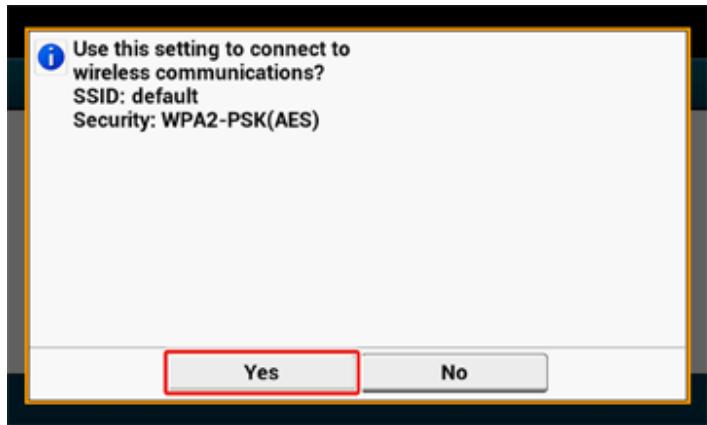

It takes approximately 30 seconds for the machine to detect the wireless LAN access point.
When the screen indicates that connection is established, press [Close].
If the screen indicates that connection failed, press [Close] and go back to step 5.
18 If the antenna mark is displayed at the top right of the touch panel, the connection is established correctly.
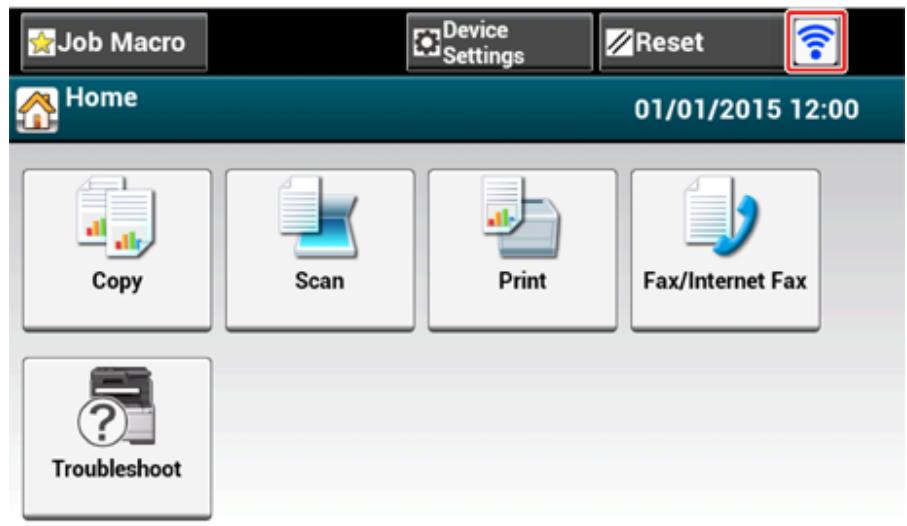

The antenna mark may not be displayed on some screens such as the copy top screen.
- If the wireless LAN connection is unstable
If the wireless LAN connection is unstable, read the cautions in "Before Connecting to a Wireless LAN", and then change the positions of the machine and wireless LAN access point. If you cannot find a solution even after reading the cautions, bring the machine and the wireless LAN access point close to each other.
Setting up [Enabling Default Gateway]
To use a wired LAN and wireless LAN simultaneously, only interfaces whose default gateway is enabled can communicate with devices out of the segment.
Set only when communicating with the device outside of the segment using a wireless LAN.
![OKI ES5473MFP - Setting up [Enabling Default Gateway] - 1](/content/2024/11/223446/images/32bbfe1a14e5c902ec828c3dbeb2e89c3fae0b6fb12a32f8b17966b75bbcf2f2.jpg)
[Enabling Default Gateway] is set to [Wired] by the factory default. If the machine is connected to the network using a LAN cable, you do not need this operation.
1 Check that the machine is turned on.
2 Press [Device Settings] at the top of the home screen.
![OKI ES5473MFP - Setting up [Enabling Default Gateway] - 2](/content/2024/11/223446/images/399f6bb2bcf43fd725c5963f6335845d674d3fc7b817f957cec747d3a42af416.jpg)
Press [▲] once and press [Admin Setup].
![OKI ES5473MFP - Setting up [Enabling Default Gateway] - 3](/content/2024/11/223446/images/a8b85a3a7b8565d6f3925f9b77788c3df7c840cf49fd47b0af1870731c5d4ae9.jpg)
4 Enter the administrator password, and then press [OK].
![OKI ES5473MFP - Setting up [Enabling Default Gateway] - 4](/content/2024/11/223446/images/421aa7f049831e54c0f310d2d2cce417cc6e1c91e97f76da5e5ccbc66f329af1.jpg)
The factory default administrator name and password are "admin" and "999999" respectively. If the administrator password is changed in Easy Setup, enter the updated password.
![OKI ES5473MFP - Setting up [Enabling Default Gateway] - 5](/content/2024/11/223446/images/0f8375d3c1901bbe40b9d0df1067ff943e07784e008b8c62c00c9b7fbee79392.jpg)
5 On the administrator login screen, press [OK].
6 Press [▲] once and press [Network Menu].
![OKI ES5473MFP - Setting up [Enabling Default Gateway] - 6](/content/2024/11/223446/images/324a6dc62f8f9b99dcbbd5bc9aefa60e928535fde6ad5a0b9ff41f94b04165d2.jpg)
7 Press [Network Setup].
![OKI ES5473MFP - Setting up [Enabling Default Gateway] - 7](/content/2024/11/223446/images/03bfcfc622182b6be0fa0a12d4c3d68c3fe80e4eb1e7a484a3e18555ad0216f1.jpg)
8 Press [Network Setting].
![OKI ES5473MFP - Setting up [Enabling Default Gateway] - 8](/content/2024/11/223446/images/4b5d4fa4140fe33a0cd6619e2cad827365e0cd40cc4be3e9b508caeb0174c25e.jpg)
9 Press [Enabling Default Gateway]. [Enabling Default Gateway] is set to [Wireless(Infrastructure)].
![OKI ES5473MFP - Setting up [Enabling Default Gateway] - 9](/content/2024/11/223446/images/1d2b369e4df6b7991b8597d93ea92bca39233610a0e9dfb148ce3fd598e844b7.jpg)
![OKI ES5473MFP - Setting up [Enabling Default Gateway] - 10](/content/2024/11/223446/images/31897a8249bc88be34316007080b51180781039ebd6e88bd5cdbca1227edf52e.jpg)
Pressing [Enabling Default Gateway] switches between [Wired] and [Wireless(Infrastructure)].
10 Press [Back] until the home screen is displayed.
Connecting to the Machine Directly (AP mode)
Wireless LAN (AP mode) directly connects wireless devices (computers, tablets, smartphones, etc.) to the machine without using a wireless LAN access point.
1
- If there is metal, aluminum sash, or a reinforced concrete wall between the machine and wireless devices, connections may be harder to be established.
- Up to four devices can be connected to the machine via the wireless LAN (AP mode). The fifth device will be rejected.
Automatic connection (push-button)
If your wireless devices support WPS-PBC (push button), you can connect them to the machine with the WPS button.
- Manual Setup
If your wireless devices do not support WPS-PBC (push button), you can enter [SSID] and [Password] of the machine in your wireless devices to connect to the wireless LAN (AP mode).
Automatic connection (push-button)
If your wireless devices support WPS-PBC (push button), you can connect them to the machine with the WPS button.
1 Confirm the position of the WPS button on your wireless device by the manual attached to the device.
2 Turn on the machine.
!
If the "Do you want to Set-up wireless?" message appears, select the [Do not show next time.] check box, and then press [No].
Press [Device Settings] on the touch panel.
4 Press [Admin Setup].
5 Enter the administrator name and password and press [OK]. The factory default administrator name and password are "admin" and "999999" respectively.
6 Press [Network Menu].
7 Press [Network Setup].
8 Press [Wireless(AP Mode) Setting].
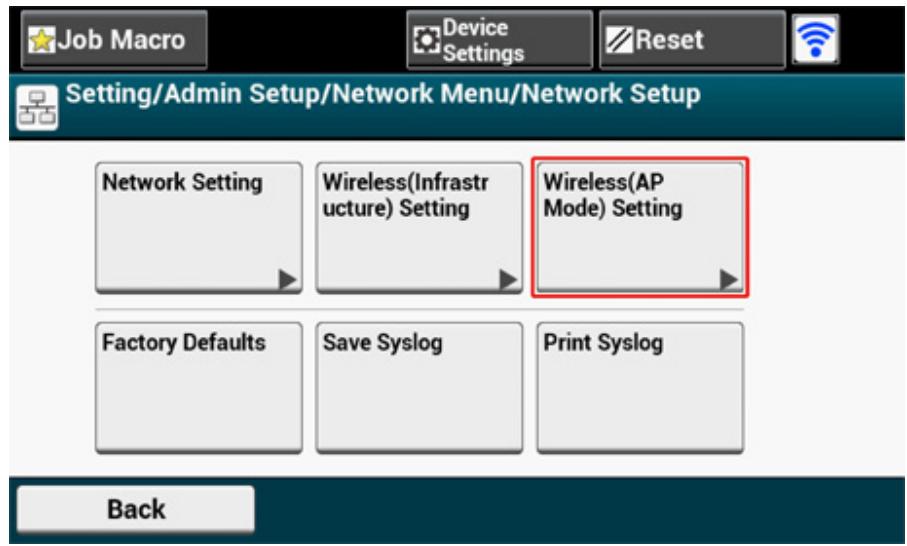
The message below is displayed for about five seconds.
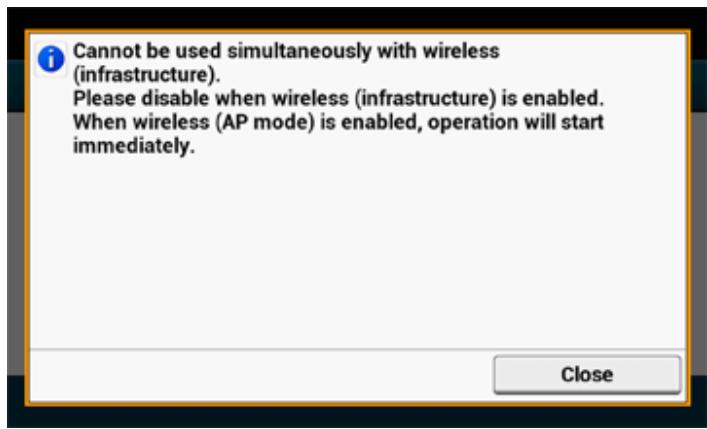
9 Press [Enable].
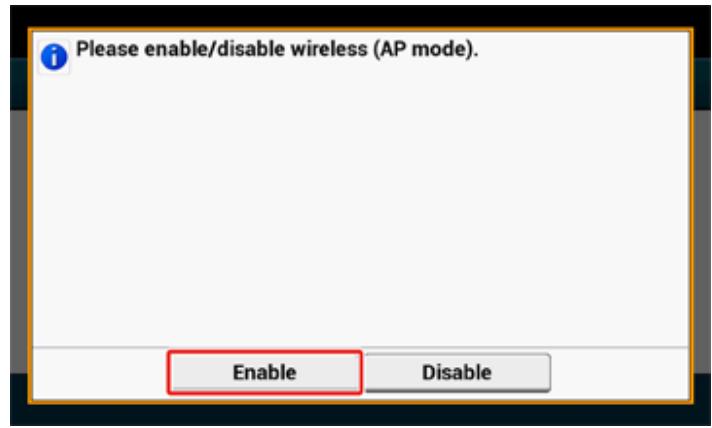
10 Press [Automatic connection (push-button)].
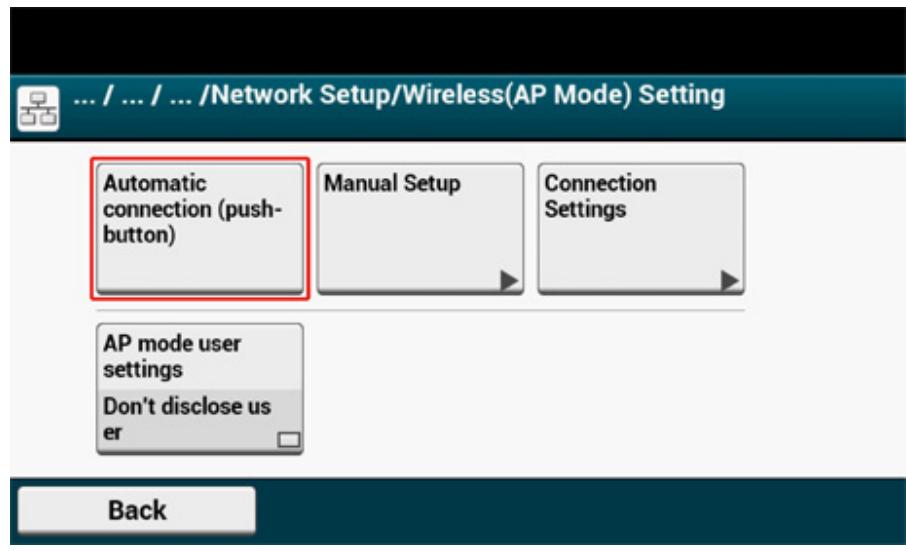
11 Press [Yes].
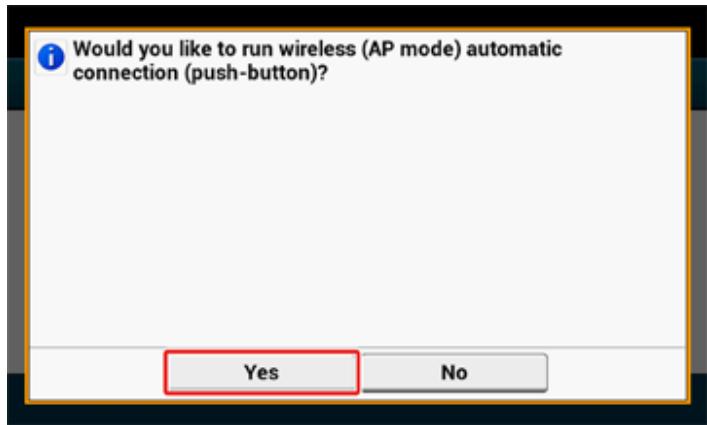
12 Start the WPS-PBC (push button) operation on your wireless device to connect to the machine.
When the following screen appears, the setup of the wireless LAN is completed.
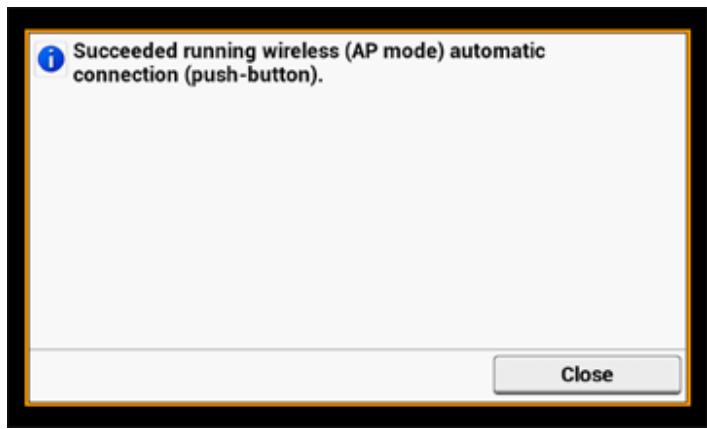
In case of connection failure, follow the steps in "Manual Setup" to try again.
Manual Setup
If your wireless devices do not support WPS-PBC (push button), you can enter [SSID] and [Password] of the machine in your wireless devices to connect to the wireless LAN.
1 Turn on the machine.

If the "Do you want to Set-up wireless?" message appears, select the [Do not show next time.] check box, and then press [No].
2 Press [Device Settings] on the touch panel.
Press [Admin Setup] on the touch panel.
4 Enter the administrator name and password and press [OK]. The factory default administrator name and password are "admin" and "999999" respectively.
5 Press [Network Menu].
6 Press [Network Setup].
7 Press [Wireless(AP Mode) Setting].
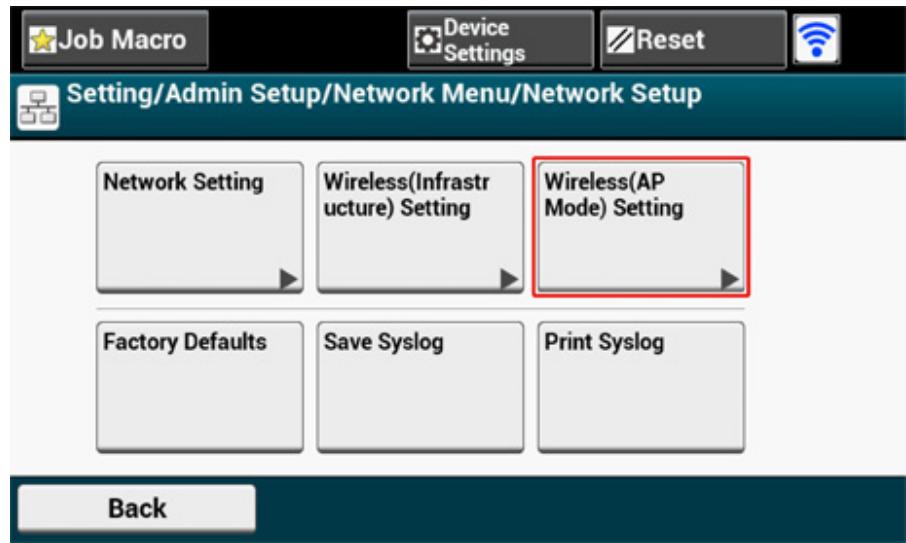
The message below is displayed for about five seconds.
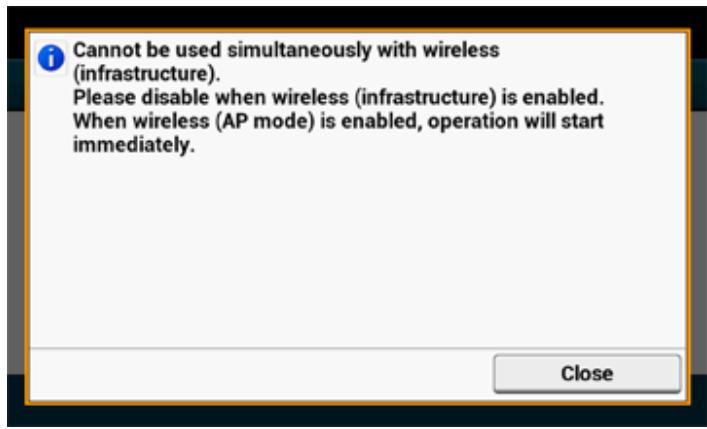
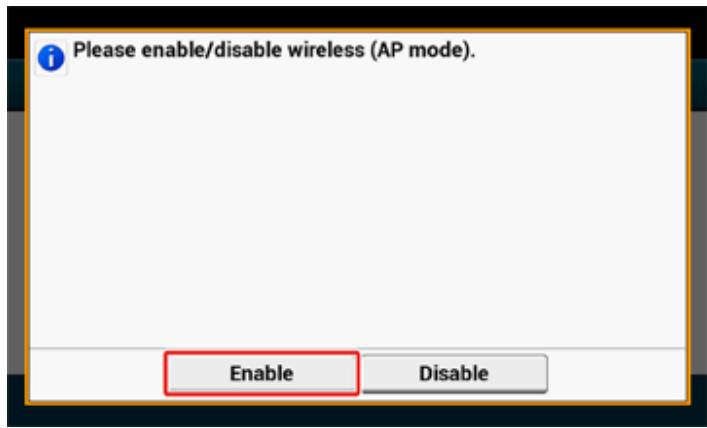
Press [Enable].
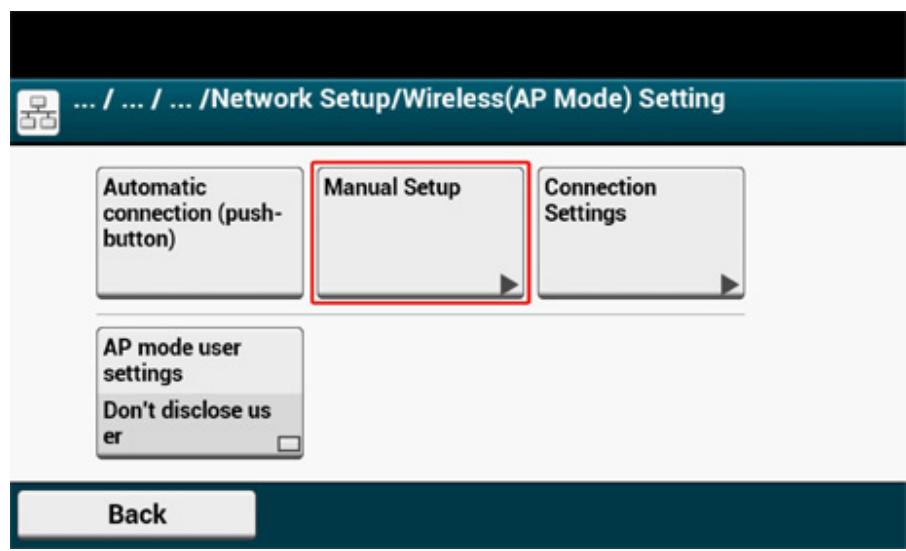
9 Press [Manual Setup].
10 Check the [SSID] and [Password] of the machine.
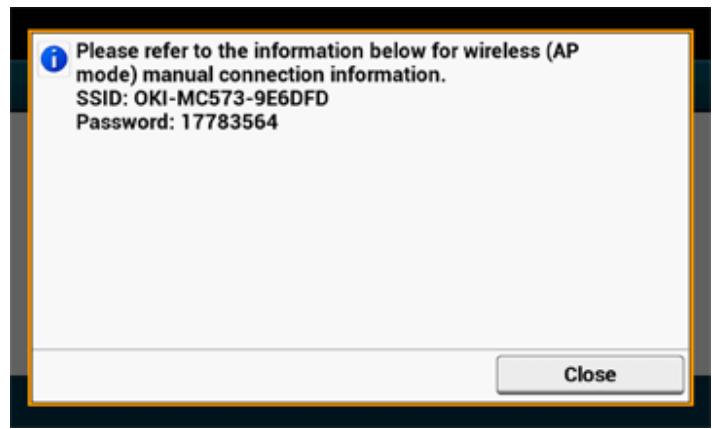
11 Enter the [SSID] and [Password] that you checked in step 10 to connect the machine and your wireless device.
Installing a Driver and Software to a Computer
Install the printer driver, scanner driver, fax driver, etc. from the "Software DVD-ROM" to the computer.
Other utility software can be installed at the same time.
For Windows
For Mac OS X
For Windows
Connect the machine and computer via a network or USB cable and start installing.

Check the status of this machine before installing.
This machine is turned on.
- For network connection, this machine is connected to the network via a LAN cable and required information such as IP address is already set.
1 Insert the included "Software DVD-ROM" into a computer.
2 When [Auto Play] is displayed, click [Run setup.exe].
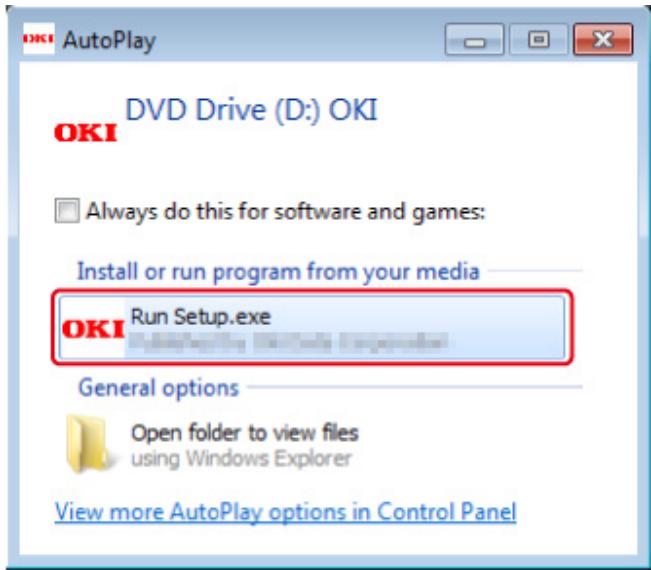

If the [User Account Control] dialog is displayed, click [Yes].
3 Select a language from the drop-down list.
4 Read the license agreement, and then click [Accept].
5 Read [Environment advice], and then click [Next].
6 Select [Network] or [USB connection] in accordance to the connection method of the machine and computer, and then click [Next].
If the [Windows Security Alert] dialog is displayed, click [Allow access].
7 Select the model name of the machine, and then click [Next].
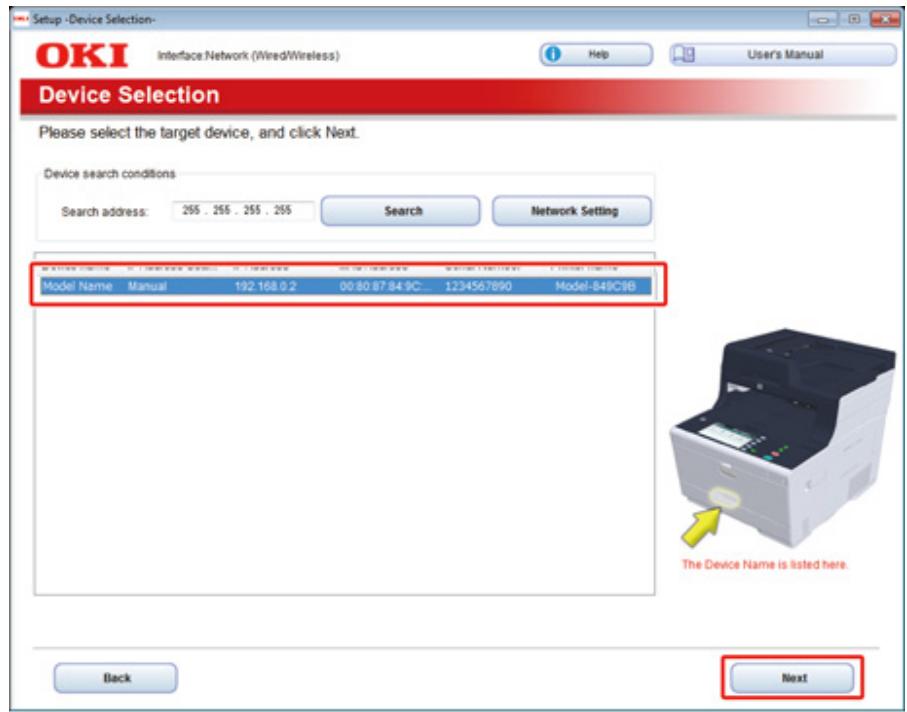
8 Click [Install Optional Software].
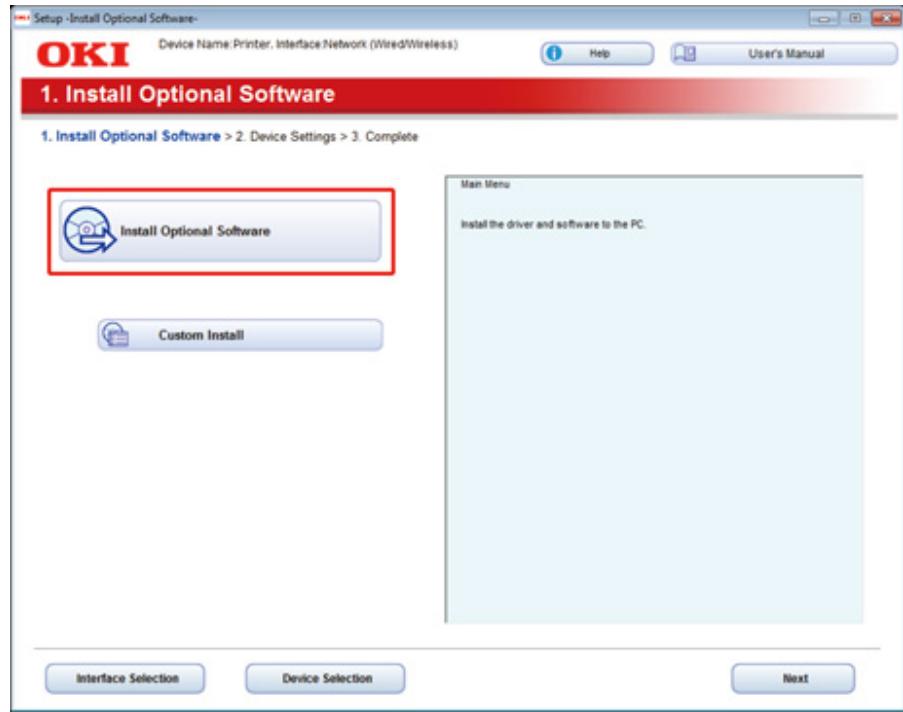
Installation starts.

The following software is installed.
- PCL6 Printer Driver (Including Network Extension and Color Swatch Utility)
- Scanner Driver
- ActKey
- FAQ
Install other software from Custom Install.

1 Installing Software (Advanced Manual)
9 Make sure that the software is successfully installed, and then click [Printing Test].
Select the printer for test printing, and the click [Printing Test].
Make sure that the test printing was successful, and then click [OK].
10 Click [Complete].
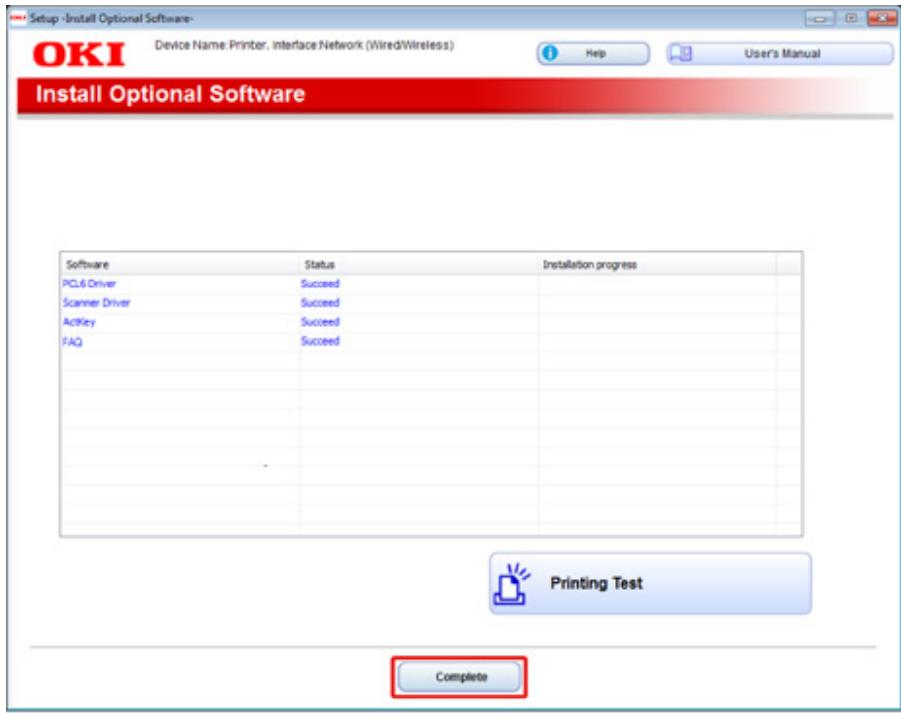
11 Click [Next].
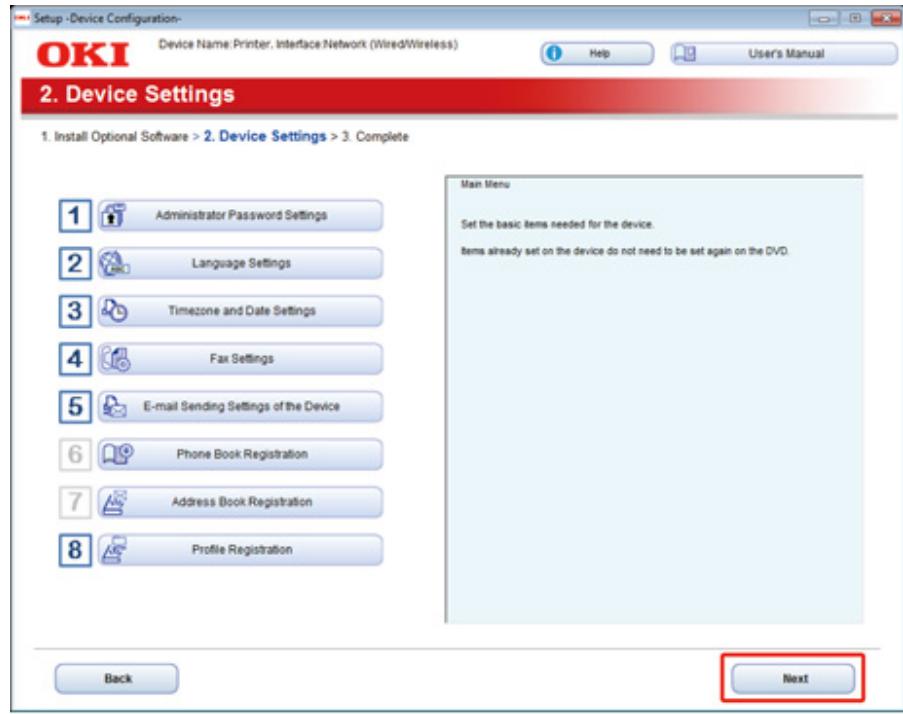
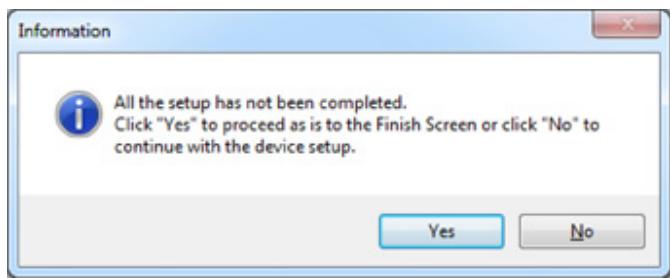
If the following dialog is displayed, click [Yes].
12 Click [Exit].
![OKI ES5473MFP - Click [Exit]. - 1](/content/2024/11/223446/images/879b4fe5d588dbf3e7c14ee22154c730d269306865ee79b83ff5e2ad9e63603c.jpg)
For Mac OS X
This section describes how to install the PS printer driver and scanner driver.
For installation of utilities, see the following.
Installing Software (Advanced Manual)
Install the Mac OS X scanner driver
1 Make sure that the machine and a computer are connected and the machine is turned on, and then insert the included "Software DVD-ROM" into the computer.
2 Double-click the [OKI] icon on the desktop.
[Drivers] > [Scanner] > Double-click [Installer for OSX].
4 Click [Continue].
5 Check that the displayed content, and then click [Continue].
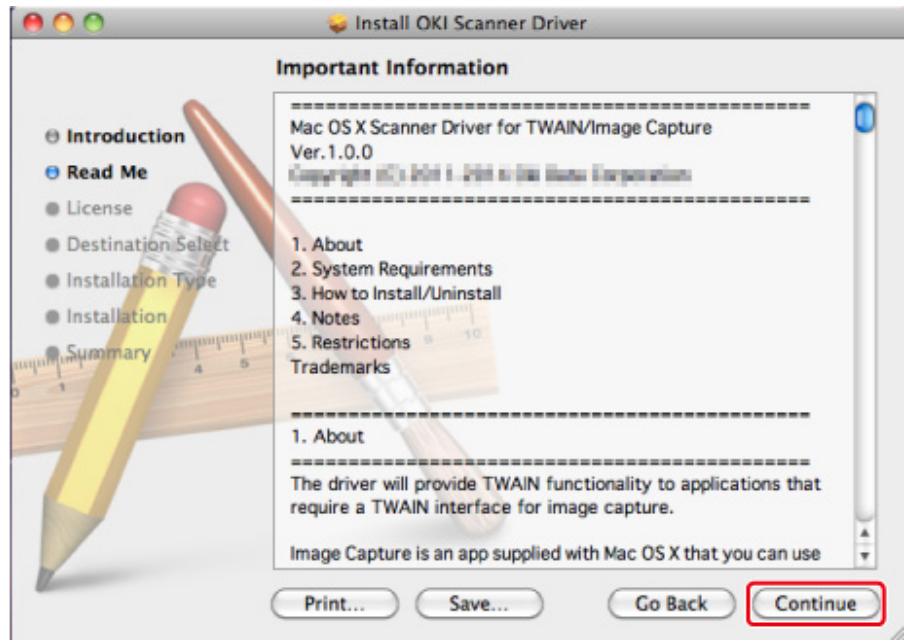
Read the license agreement, and then click [Continue].
7 Click [Agree].
8 Click [Install]. To change the driver installation location, click [Change Install Location].
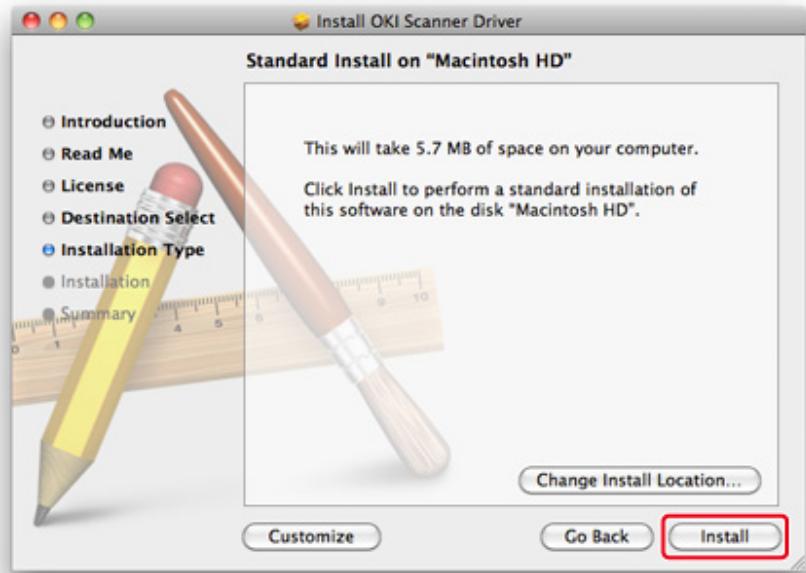
9 Enter the administrator name and password, and then click [Install Software].
10 Click [Continue Installation].
11 Click [Restart].
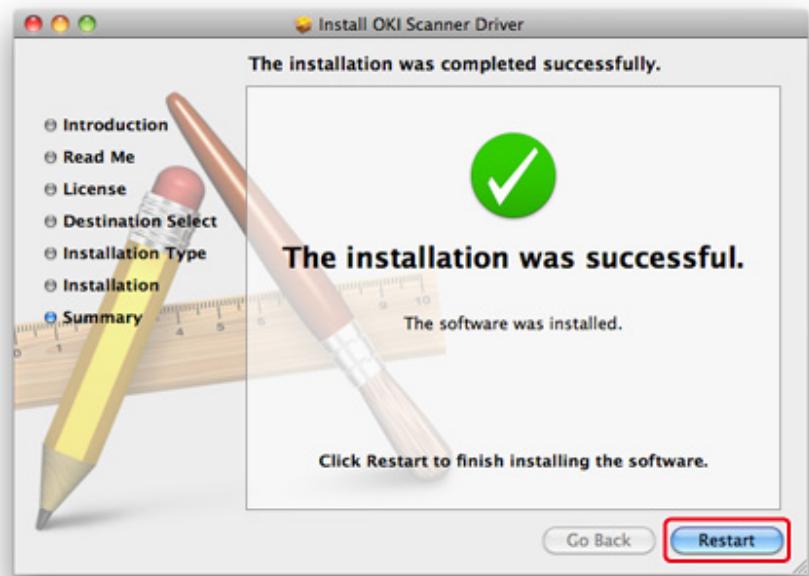
Install the Mac OS X PS printer driver
When the installation is complete, print a test page in step 15.
1 Make sure that the machine and a computer are connected and the machine is turned on.
2 Insert the "Software DVD-ROM" into a computer.
3 Double-click the [OKI] icon on the desktop.
[Drivers] > [PS] > Double-click [Installer for OSX].
5 Enter the administrator password, and then click [OK]. Follow the on-screen instructions to complete the installation.
6 Select [System Preferences] from the Apple menu.
7 Click [Printers & Scanners].
8 Click [+]
Select [Add Printer or Scanner...] when the menu is displayed.
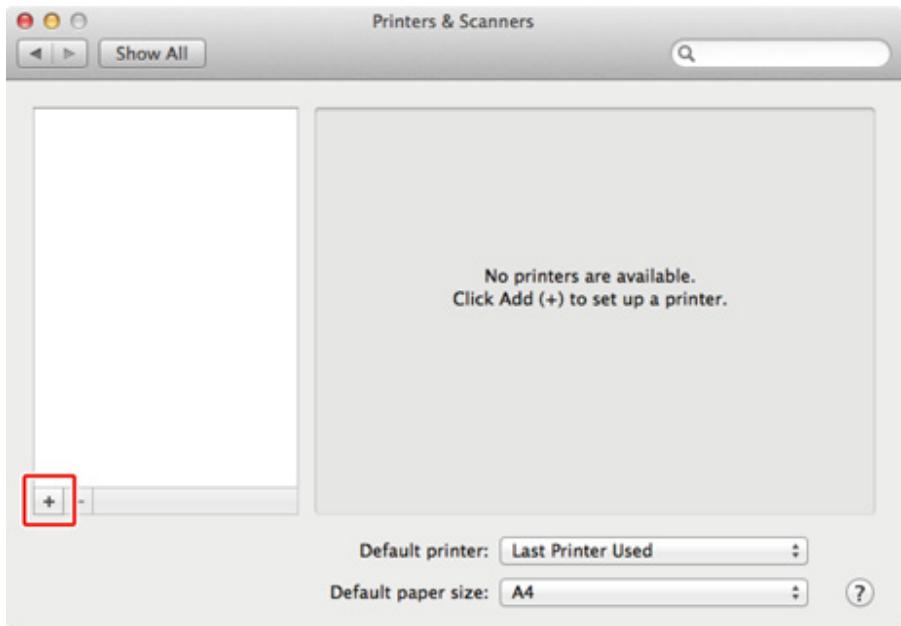
9 Click [Default].
10 Select the machine, and then select [OKI MC573 PS] in [Use].
| Types of Names | Displayed in the Connection | Methods List |
| Network | OKI-MC573 (last 6 digits of MAC address) | Bonjour |
| USB | OKI DATA CORP MC573 | USB |

To change the name, enter a new name into [Name:].
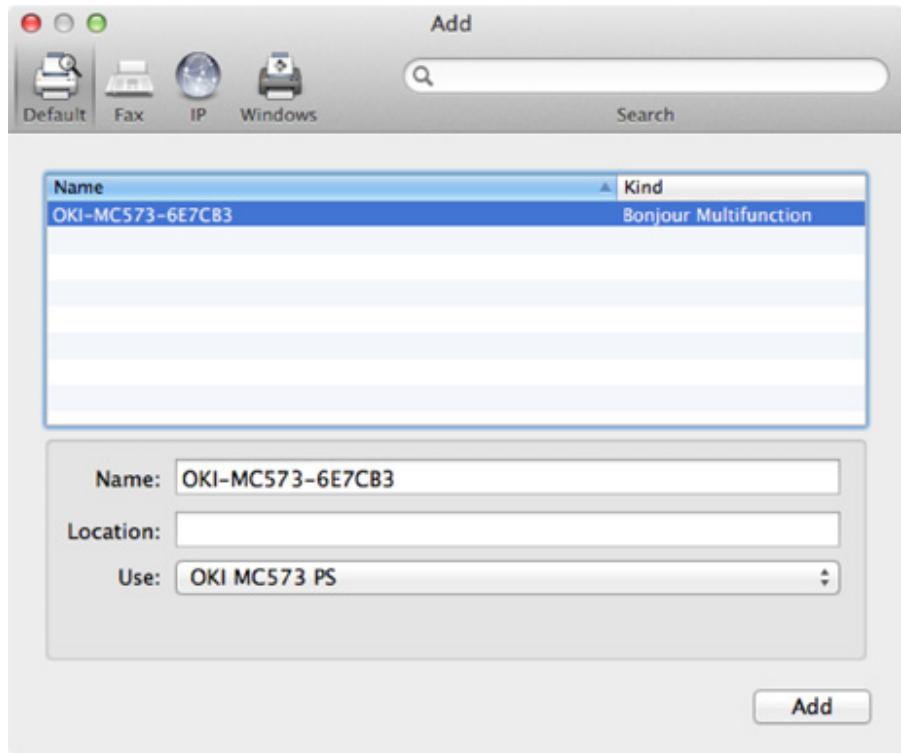
11 Click [Add].
12 If the confirmation screen for optional equipment appears, click [OK].
13 Make sure that the machine is added to [Printers] and [OKI MC573 PS] is displayed for [Kind].
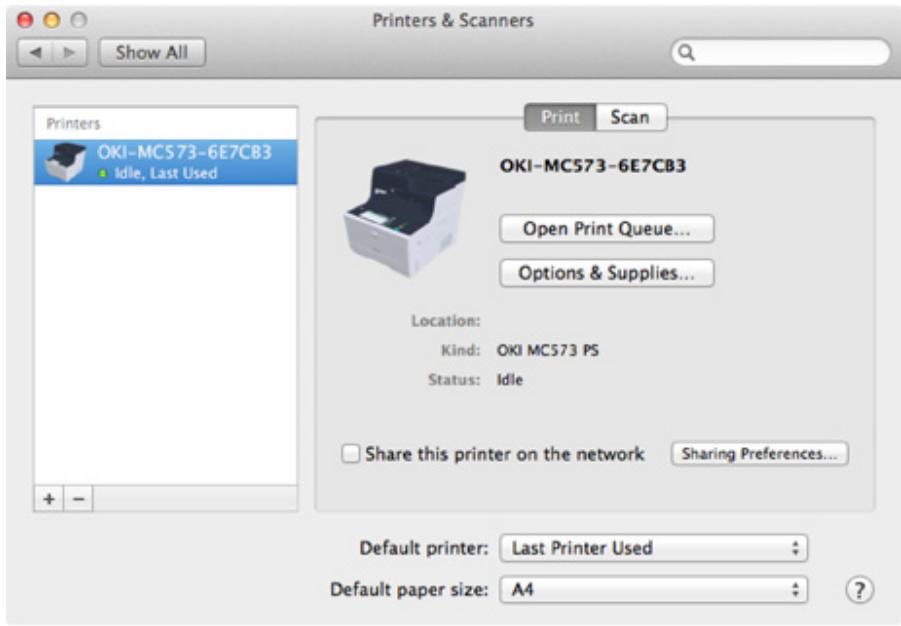
!
If [OKI MC573 PS] is not displayed for [Kind] correctly, click [-], delete the machine from [Printers], and then newly perform steps 8 to 12.
14 Click [Open Print Queue...].
15 Select [Print Test Page] from the [Printer] menu.
3
Basic Operations
Names of Components
Basic Operations on the Operator Panel
Turning On or Off the Machine
Loading Paper
Setting a Document
This section describes basic operations of this machine.
Names of Components
The chapter describes the name of each component.
- Front View
Rear View - Inside of the machine
Front View
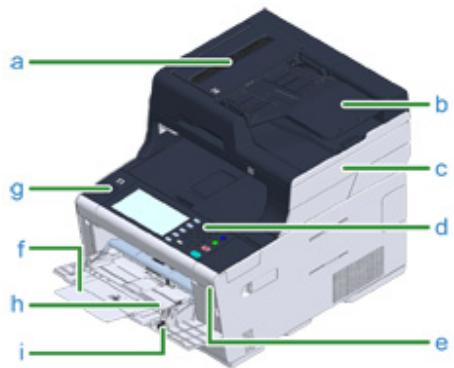
| Symbol | Name | Description |
| a | Auto document feeder (ADF) | Automatically feed document on the document tray to the scanner unit. |
| b | Document tray | Use this to read several sheets of document automatically. |
| c | Scanner unit | Scans document automatically. |
| d | Operator panelBasic Operations on the Operator Panel | This is the panel to operate the printer.You can find touch panel and operation buttons on the panel. |
| e | USB port | Port to insert a USB memory. |
| f | MP tray (Multipurpose tray) | Envelopes and various sizes and thicknesses of paper can be printed. |
| g | Open button | Press this button to unlock when opening the output tray. |
| h | Paper supporter | Draw this supporter when setting long size paper in the MP tray. |
| i | Envelope lever | Use this when printing on envelopes. For instructions, refer to "Printing on Envelopes(Advanced Manual)". |
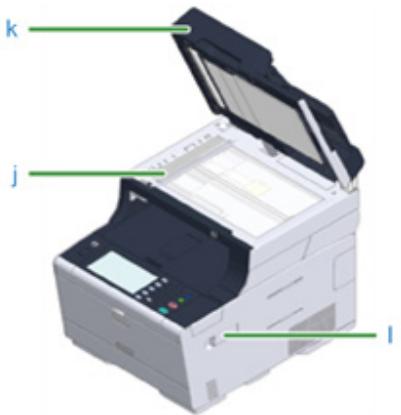
| Symbol | Name | Description |
| j | Document glass | Load document unable to set on the document tray. |
| k | Document glass cover | Cover which holds document set on the document glass. |
| l | Wireless LAN module cover | Cover for installation part of the wireless LAN module. |
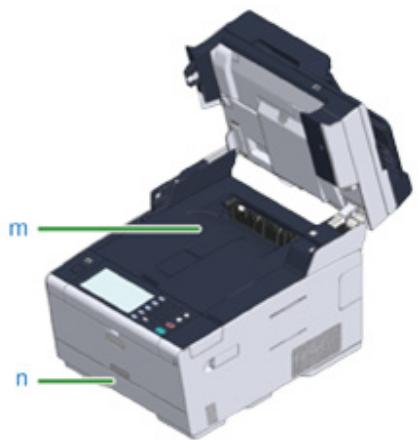
| Symbol | Name | Description |
| m | Output tray | Printouts are stocked here. Open when changing consumables. |
| n | Tray 1 | Load paper to be printed on. |
Rear View
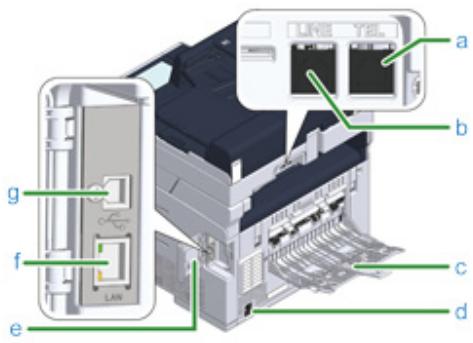
| Symbol | Name | Description |
| a | Telephone connector | Insert the cable of the external telephone when using the fax. |
| b | LINE connector | Insert the supplied telephone cable when using the fax. |
| c | Rear output tray | Open this when printing on thick paper, envelopes, etc. Paper will be output with the printed side up. |
| d | Power connector | Insert the supplied power code. |
| e | Interface connector cover | Covers the interface area. |
| f | Network interface connector | Insert a LAN cable when the machine is connected to a computer using the LAN cable. |
| g | USB interface connector | Insert a USB cable when the machine is connected to a computer using the USB cable. |
Inside of the machine
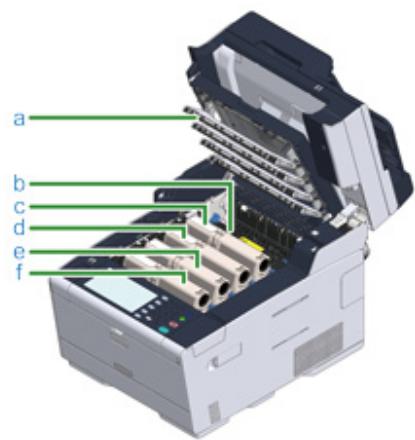
| Symbol | Name | Description |
| a | LED head | LED which exposes printing part to light. If printouts have vertical stripes or blurs around letters, clean the LED head. |
| b | Fuser unit | Fix toner on paper. |
| c | Toner cartridge / Image drum (Y: yellow) | Toner cartridges contain toner which is used for printing. |
| d | Toner cartridge / Image drum (M: magenta) | Image drum shapes letters and images. |
| e | Toner cartridge / Image drum (C: cyan) | Toner cartridges and image drums are consumables. |
| f | Toner cartridge / Image drum (K: black) | When the message on the LCD panel prompting you to change, please replace them accordingly. |
Basic Operations on the Operator Panel
This section describes the operator panel of the machine.
- Names and Functions
- Name and Functions on the Touch Panel
- Entering Characters
- Adjusting the Angle of the Operator Panel
Names and Functions
This section describes the names and functions of components on the operator panel.
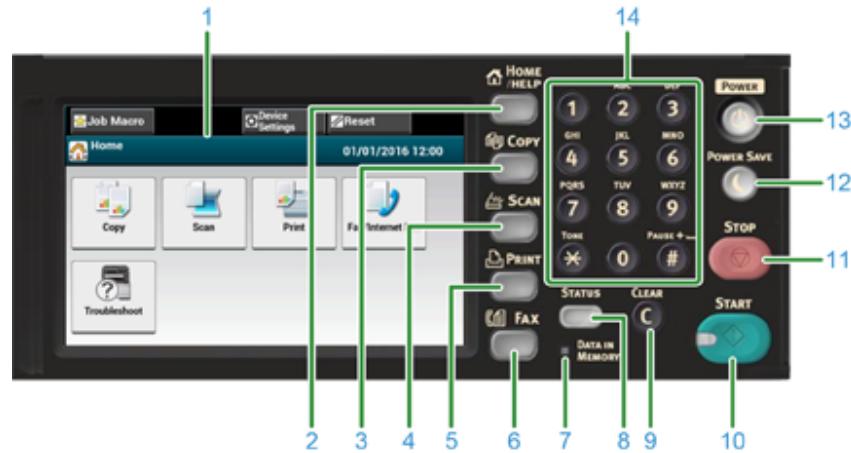
| No. | Name | Function |
| 1 | Touch panel | Allows you to select or set an item by pressing a displayed icon. |
| 2 | HOME/HELP button | Displays the home screen. |
| 3 | COPY button | Displays the copy function screen. |
| 4 | SCAN button | Displays the scan function screen. |
| 5 | PRINT button | Displays the print function screen. |
| 6 | FAX button | Displays the fax function screen. |
| 7 | DATA IN MEMORY indicator | Lights up when data remains in memory. |
| 8 | STATUS button | Displays the status menu. Flashes/lights up if there is an error status. You can check the remaining amount of consumables and fax communication status. |
| 9 | CLEAR button | Clear the entered value. |
| 10 | START button | Starts copying, scanning, faxing, or printing from USB Memory. |
| 11 | STOP button | Cancela copies, fax transmissions, or other jobs. |
| 12 | POWER SAVE button | Enters or exits the power saving mode. In Power Save mode, lights up in green; In Sleep mode, flashes in green (every 3 seconds); In Deep Sleep mode, flashes in green (every 6 seconds). |
| 13 | POWER button | Turns on or off this machine. |
| 14 | Numeric keypad | Enters numbers and symbols. |
!
- When changing the angle of the operator panel, use care not to let your hands be caught between this machine and the operator panel. Injury may result.
- Do not press the touch panel hard or poke it with a pointed object. It may damage the touch panel and cause malfunction.
Name and Functions on the Touch Panel
When this machine turns on, the home screen is displayed on the touch panel.
Home Screen
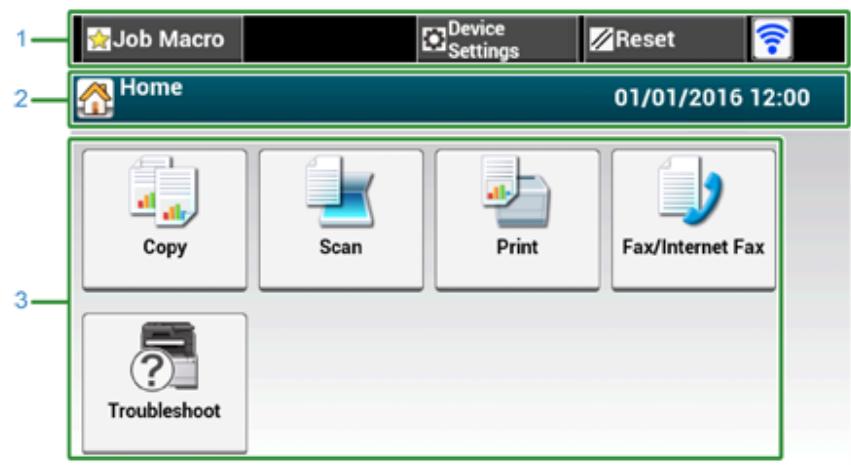

The screen image shows the factory default setting. The screen that appears when the machine is turned on and gets ready to be used can be changed from [Device Settings] > [Admin Setup] > [Manage Unit] > [Default Mode] on the touch panel.
| Item | Description | ||
| 1 | Stationary button area | Displays buttons that appear on the screen at all times. Displays the following items. • [Job Macro] • [Function Settings] • [Device Settings] • [RESET] • [Logout] • Antenna mark: appears when the wireless LAN is enabled. • Only available buttons are displayed on the selected menu. | |
| 2 | Title and operation guide area | Displays the title of the current screen and provides guide for possible operations. | |
| Item | Description | ||
| 3 | Main area | Copy | Press to use the copy functions. |
| Scan | Press to use the scan functions. | ||
| Press to use the print functions. | |||
| Fax/Internet Fax | Press to use the fax functions. | ||
| Troubleshooting | The following steps and functions are displayed. • Change Consumable & Maintain (Toner cartridges, Image drums, Belt units, Fuser units) • Maintain and Care for the Unit (Feeder Rollers, LED head, Scanner reader) | ||
- How to View the Screen of Each Function
The following descriptions use the [Basic] tab of the copy function as an example.
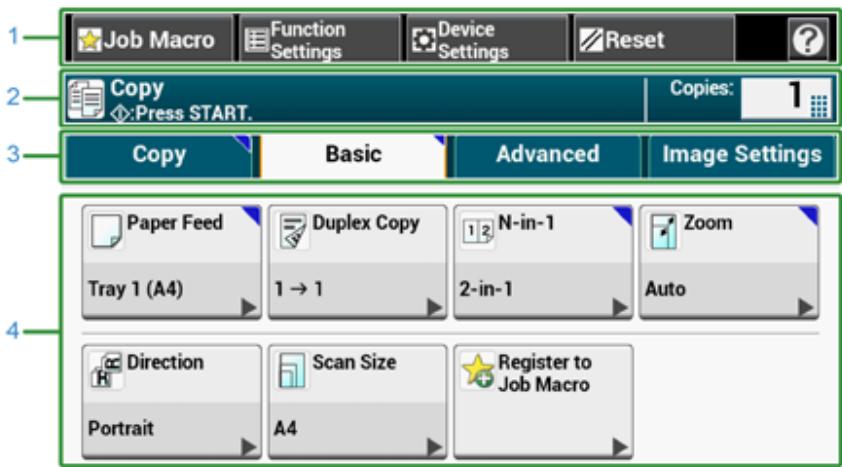
| Item | Description | |
| 1 | Stationary button area | Displays buttons that appear on the screen at all times. Only available buttons are displayed on the selected menu. |
| 2 | Title and operation guide area | Displays the title of the current screen and provides guide for possible operations. |
| Item | Description | |
| 3 | Tab labels | Displays labels for tabs. Press a label to switch between tabs. If any setting is changed from its default setting, ▼is displayed. |
| 4 | Main area | Displays a preview of copy output that will be produced with the current settings. The current setting is displayed on each button. <About marks on a button> ■: Indicates that the setting is changed from its default setting. ▲: Indicates that the next page exists. □/□: Indicates that the setting is turned on or off. |

You can enter a value in the field with displayed by using the numeric keypad.

Descriptions of Screens for Copy
Descriptions of Screens for Scan
Descriptions of Screens for Print
Descriptions of Screens for Fax
Entering Characters
- Entering with the Touch Panel
- Entering with the Numeric Keypad
Entering with the Touch Panel
When you need to enter characters while you are setting an item, the following entry screen is displayed.
You can enter uppercase and lowercase alphabets, numbers, and symbols.
- About the entry screen
The number of buttons in the entry screen differs depending on the input.
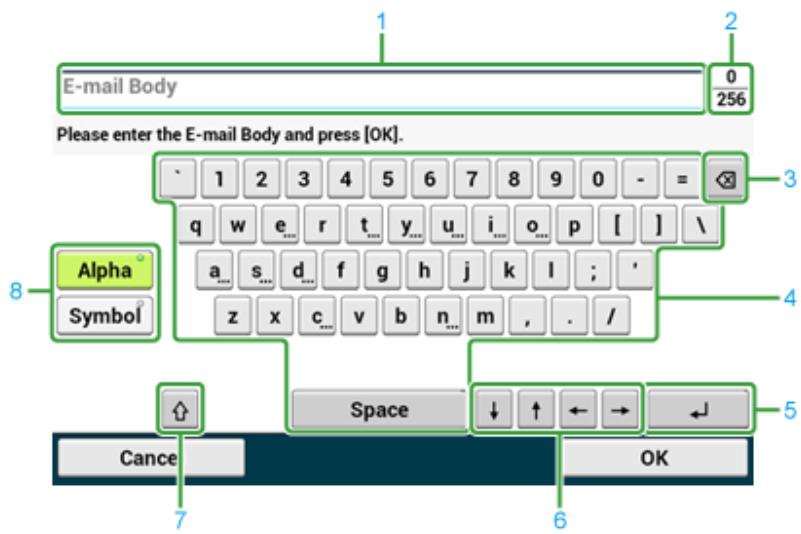
| Item | Description | |
| 1 | Text entry field | Displays the entered characters. |
| 2 | The number of entered characters/the maximum number of characters that can be entered | Indicates the maximum number of characters that can be entered and the number of entered characters. |
| 3 | Back Space button | Deletes a character just before the cursor. |
| 4 | Character panel | Enters characters. The character type switches depending on the entry mode. |
| Item | Description | |
| 5 | Return button | Puts a line break. This button appears when entering body text of an E-mail. |
| 6 | Left button/right button/up button/down button | Moves the cursor left, right, up, or down. |
| 7 | Capital Lock | Switches between the uppercase and lowercase characters. |
| 8 | Entry mode button | Switches the entry mode (types of characters) for entering text. |

The QWERTY keyboard set by default can be switched to the AZERTY keyboard. To switch to the AZERTY keyboard, select [Manage Unit] > [Keyboard Layout] > [AZERTY] on the touch panel.
- Entering Characters
Press the touch panel.
2 When the entry is complete, press [OK] or [Next].

To enter a diacritical mark, press and hold a character button with [...] shown. When a diacritical mark appears, press the character you want to enter.
The screen below shows an image when holding down the "a" button.
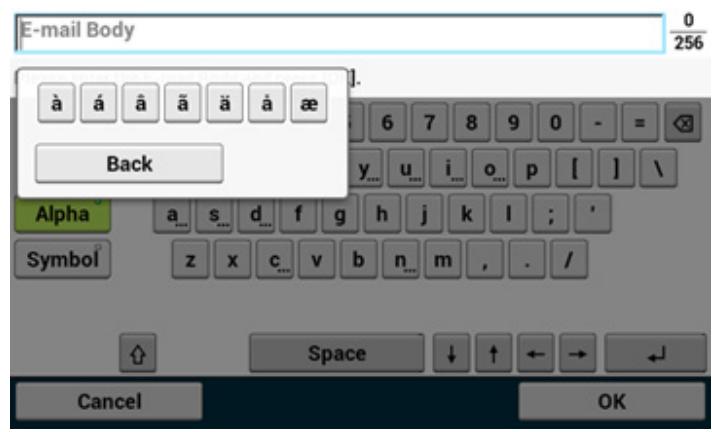
- Switching the Entry Mode (Numbers Alphabetic Characters)
Press [Alpha] or [Symbol].

[RU] may be shown in case of Russian, and [EL] in case of Greek. In case of other languages, only [Alpha] and [Symbol] may be shown.
- Switching the Entry Mode (Uppercase Lowercase)
Press the button to switch between the uppercase and lowercase characters. - Deleting an Entered Character
1 Use the (back space) button on the touch panel or the (CLEAR) button on the operator panel.
The character before the cursor (I) is deleted.

- To delete an entered character, move the cursor to the right of the character. To move the cursor, press [←], [→], [↑], or [↓].
- To clear characters you entered in a row, press and hold the (back space) button or (CLEAR) button.
Entering with the Numeric Keypad
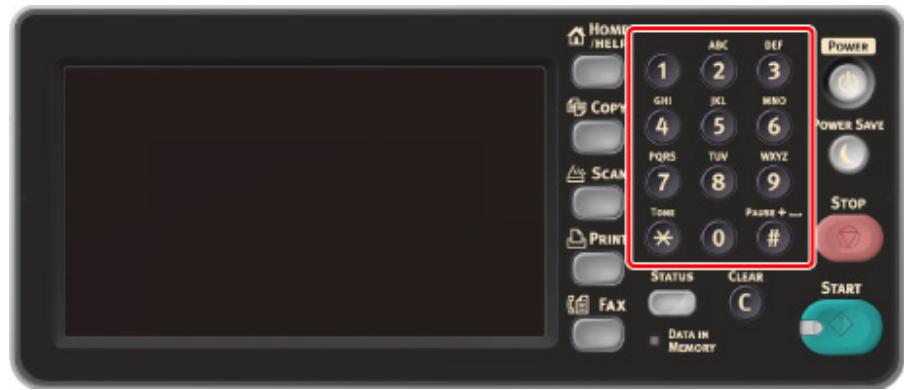
You can enter the numbers labeled on each key.

It is impossible to enter the alphabet.
Please enter the alphabet from the touch panel.
Adjusting the Angle of the Operator Panel
The operator panel can be tilted to improve the visibility.
1 Hold the upper center of the operator panel and pull it forward.
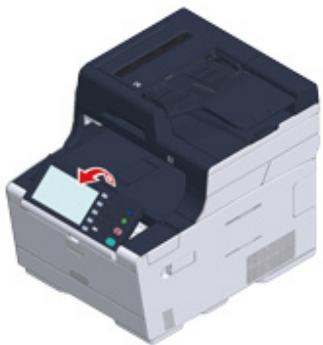
To set the operator panel back to the original position, pull the operator panel forward until it stops and then push slowly.
Turning On or Off the Machine
This section describes how to turn on and off the machine.
- Turning On the Machine
- Turning Off the Machine
Turning On the Machine
1 Check that no documents are set on the document glass or in the ADF, and the ADF cover is closed.
2 Press the power switch for approximately a second.
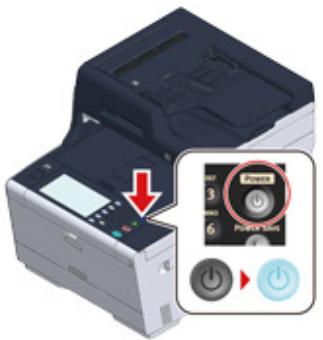
When the machine is turned on, the power switch LED lamp is lit.

3 The home screen appears when the machine is ready.
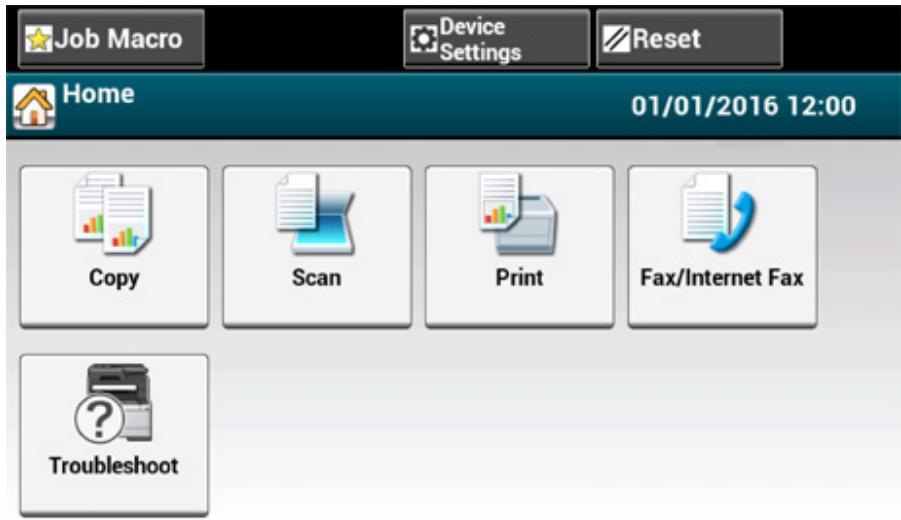
Turning Off the Machine

- Check that the machine is not receiving data before shutting down.
- Press and hold the power switch for 5 seconds or more to force shut down the machine. Use this method only if a problem occurs.
For troubleshooting of this machine, see "Troubleshooting".
Press the power switch for approximately a second.
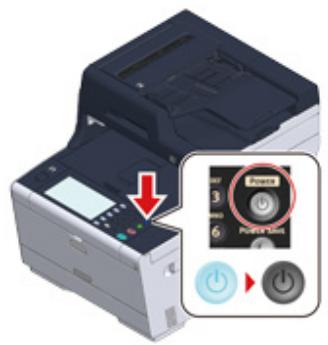
The "System moves to shutdown. Please confirm status when status LED is blinking." message is displayed on the touch panel, and the power switch LED lamp flashes at approximately one-second intervals.
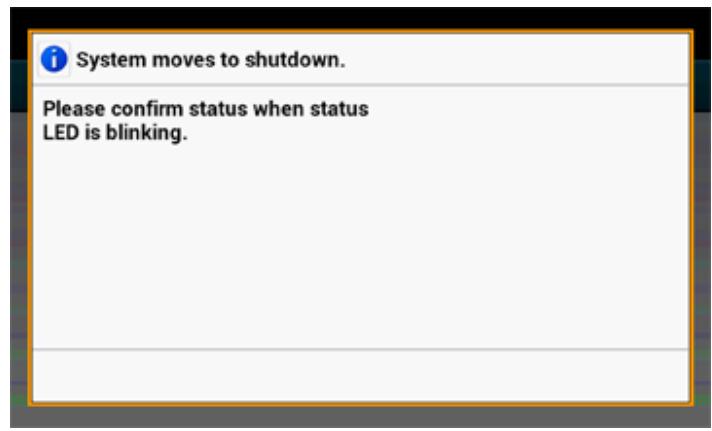
After a while, the machine automatically turns off, and the power switch LED lamp goes out.

What You Should Do If You Do Not Use This Machine for an Extended Period of Time
If you do not use this machine for an extended period of time due to holidays, trips, or other reasons, unplug the power cord from the outlet.

This machine does not have functional failures if the power cord is unplugged for an extended period of time (four weeks or more).
Loading Paper
This chapter describes various information about paper that can be loaded in a paper tray of this machine.
To set paper type and weight, press [Device Settings] > [Paper Setup] and press the tray you want to use, and then select [Media Type] or [Media Weight].
- About Paper Types That Can be Loaded
- Loading Paper in Tray 1/2/3
- Loading Paper in the MP Tray
- Paper Storage
About Paper Types That Can be Loaded
Available paper types
- About Paper Sizes, Weight, and Number of Sheets That Can be Loaded
Recommended paper
Available paper types
To perform high-quality printing, be sure to use the supported paper types that satisfy requirements, such as material, weight, or paper surface finishing. Use digital photo print paper.
If you print on paper that is not recommended by OKI, check the print quality and the movement of the paper thoroughly in advance to ensure that there are no problems.
Plain paper
| Paper type | Paper size (mm) (Values in brackets are inch sizes.) | Paper weight |
| A4 | 210 x 297 | 64 to 220 g/m2(17 to 58 lb) For duplex printing, 64 to 176 g/m2(17 to 47 lb) |
| A5 | 148 x 210 | |
| A6 | 105 x 148 | |
| B5 | 182 x 257 | If you set paper that is 148 mm (5.8 inches) wide or narrower, printing becomes slower. |
| B6 | 128 x 182 | |
| B6 Half | 64 x 182 | |
| Letter | 215.9 x 279.4 (8.5 x 11) | |
| Legal 13 | 215.9 x 330.2 (8.5 x 13) | |
| Legal 13.5 | 215.9 x 342.9 (8.5 x 13.5) | |
| Legal 14 | 215.9 x 355.6 (8.5 x 14) | |
| Executive | 184.2 x 266.7 (7.25 x 10.5) | |
| Statement | (5.5 x 8.5) | |
| 8.5" SQ | (8.5 x 8.5) | |
| Folio (210 x 330 mm) | 210 x 330 | |
| 16K (184 x 260 mm) | 184 x 260 | |
| 16K (195 x 270 mm) | 195 x 270 | |
| 16K (197 x 273 mm) | 197 x 273 | |
| Index Card | (3 x 5) | |
| 4x6inch | (4 x 6) | |
| 5x7inch | (5 x 7) | |
| Custom size | Width: 64 to 216 Length: 90 to 1321 | 64 to 220 g/m² (17 to 58 lb) |
- Envelope
| Paper type | Paper size (mm) (Values in brackets are inch sizes.) | Paper weight |
| Monarch | 98.4 x 190.5 (3.875 x 7.5) | Envelopes must be made of paper of 85 g/m2(24 lb), and their flaps must be folded. |
| Com-9 | 98.4 x 225.4 (3.875 x 8.875) | |
| Com-10 | 104.8 x 241.3 (4.125 x 9.5) | |
| DL | 110 x 220 (4.33 x 8.66) | |
| C5 | 162 x 229 (6.4 x 9) |
Label
| Paper type | Paper size (mm) (Values in brackets are inch sizes.) | Paper weight |
| A4 | 210 x 297 | 0.1 to 0.2 mm |
| Letter | 215.9 x 279.4 (8.5 x 11) |
- Other type of paper
| Paper type | Paper size (mm) (Values in brackets are inch sizes.) | Paper weight |
| Partly-printing paper | Subject to plain paper | 64 to 220 g/m2(17 to 58 lb) |
| Color paper | Subject to plain paper | 64 to 220 g/m2(17 to 58 lb) |
About Paper Sizes, Weight, and Number of Sheets That Can be Loaded
Available paper sizes and types, and tray capacity are as follows.
- Tray 1
| Available paper size | Tray capacity | Paper weight |
| A4 | 250 sheets | Light |
| A5 | (if paper weight is 80 g/m2) | (64 to 74 g/m2) |
| A6*1 | Medium Light | |
| B5 | (75 to 82 g/m2) | |
| B6*1 | Medium | |
| Letter | (83 to 90 g/m2) | |
| Legal (13 inches) | Medium Heavy | |
| Legal (13.5 inches) | (91 to 104 g/m2) | |
| Legal (14 inches) | Heavy | |
| Executive | (105 to 120 g/m2) | |
| Statement*1 | Ultra Heavy1 | |
| 8.5" SQ (8.5 x 8.5 inches) | (121 to 176 g/m2) | |
| Folio (210 x 330 mm) | ||
| 16K (184 x 260 mm) | ||
| 16K (195 x 270 mm) | ||
| 16K (197 x 273 mm) | ||
| Custom size*2 |
1 Paper cannot be used for duplex printing.
2 Width: 100 to 216 mm (3.9 to 8.5 inches), Length: 148 to 356 mm (5.8 to 14 inches)
- Tray 2/3 (Optional)
| Available paper size | Tray capacity | Paper weight |
| A4 | 530 sheets | Light |
| A5 | (if paper weight is 80 g/m2) | (64 to 74 g/m2) |
| B5 | Medium Light | |
| Letter | (75 to 82 g/m2) | |
| Legal (13 inches) | Medium | |
| Legal (13.5 inches) | (83 to 90 g/m2) | |
| Legal (14 inches) | Medium Heavy | |
| Executive | (91 to 104 g/m2) | |
| 8.5 SQ (8.5 x 8.5 inches) | Heavy | |
| Folio (210 x 330 mm) | (105 to 120 g/m2) | |
| 16K (184 x 260 mm) | Ultra Heavy 1 | |
| 16K (195 x 270 mm) | (121 to 176 g/m2) | |
| 16K (197 x 273 mm) | ||
| Custom size*1 |
*1 Width: 148 to 216 mm (5.8 to 8.5 inches), Length: 210 to 356 mm (8.3 to 14 inches)
- MP Tray
| Available paper size | Tray capacity | Paper weight |
| A4 | 100 sheets | Light |
| A5 | (if paper weight is 80 g/m2) | (64 to 74 g/m2) |
| A6*1 | 10 sheets (envelopes) | Medium Light |
| B5 | (75 to 82 g/m2) | |
| B6*1 | Medium | |
| B6 Half*1 | (83 to 90 g/m2) | |
| Letter | Medium Heavy | |
| Legal (13 inches) | (91 to 104 g/m2) | |
| Legal (13.5 inches) | Heavy | |
| Legal (14 inches) | (105 to 120 g/m2) | |
| Executive | Ultra Heavy1 | |
| Statement*1 | (121 to 176 g/m2) | |
| 8.5 SQ (8.5 x 8.5 inches) | Ultra Heavy2 | |
| Folio (210 x 330 mm) | (177 to 220 g/m2) | |
| 16K (184 x 260 mm) | ||
| 16K (195 x 270 mm) | ||
| 16K (197 x 273 mm) | ||
| Index card (3x5 inches)*1 | ||
| 4x6inch*1 | ||
| 5x7inch*1 | ||
| Custom size*2 | ||
| Com-9*1 | ||
| Com-10*1 | ||
| Monarch*1 | ||
| DL*1 | ||
| C5*1 |
1 Paper cannot be used for duplex printing.
2 Width: 64 to 216 mm (2.5 to 8.5 inches), Length: 90 to 1,321 mm (3.5 to 52 inches)
Recommended paper
The machine supports a variety of print media, including a range of paper weights and sizes. This section describes how to choose and use media. To obtain the best performance, use 75 to 90g / m^2 plain paper that is designed for use in copiers and laser printers. Use of heavily embossed or very rough textured paper is not recommended. Pre-printed stationery can be used, but the ink must not offset when exposed to the high fuser temperatures used in the printing process.
- Envelopes
Envelopes must be free from twists, curls or other deformations. The envelopes must also be of the rectangular flap type, with glue that remains intact when subjected to hot roll pressure fusing in the machine. Window envelopes are not suitable.
- Labels
Labels must be of the type recommended for use in copiers and laser printers, in which the base carrier page is entirely covered by labels. Other types of label stocks may damage the machine due to the labels peeling off during the printing process.
Loading Paper in Tray 1/2/3
The procedure when loading paper in Tray 1 is used as an example, and the same procedure applies to Tray 2/3 (optional).
Pull the paper cassette out.
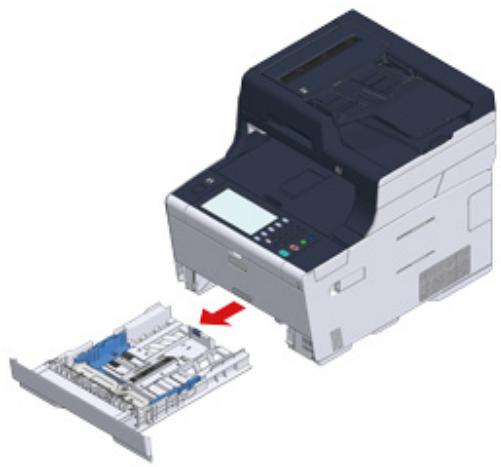
2 Slide the paper guide (a) to the width of paper to be loaded.
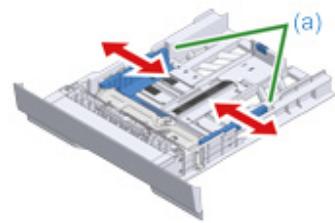
3 Slide the paper stopper (b) to the length of paper to be loaded.
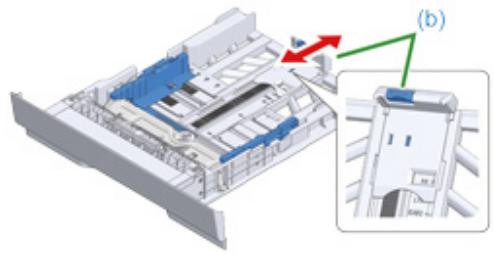
Fan a stack of paper well, and then align the edges of the paper.
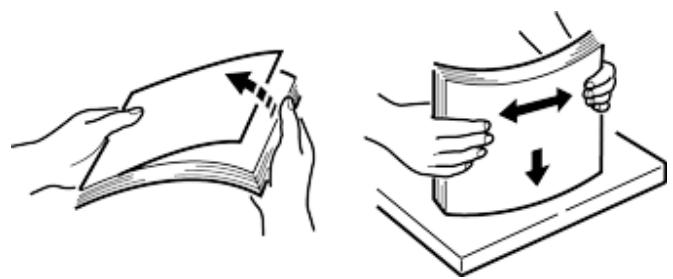
5 Load paper with the print side face down.
1
Do not load paper above the " " mark on the paper guide.
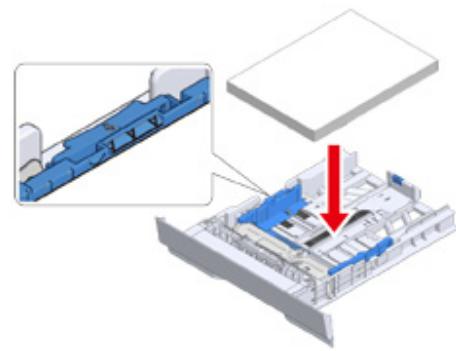
6 Secure the loaded paper with the paper guide.
7 Push the paper cassette until it stops.
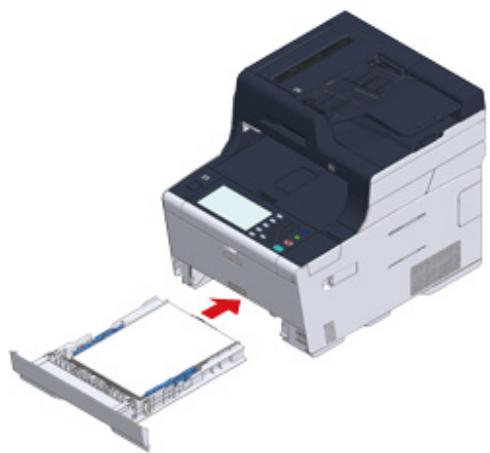
Press [Device Settings] on the touch panel.
9 Press [Paper Setup].
10 Press the tray in which paper is loaded.
11 Set [Paper Size], [Media Type], and [Media Weight].
12 Press [Back] until the home screen is displayed.
Loading Paper in the MP Tray
!
- Do not press down the paper or hold the paper to pull while printing on the paper fed from the MP tray. To stop printing, open the output tray.
For instructions on how to remove paper, see "If Paper Jams Occur". - If you open and close the MP tray vigorously, the paper feed roller of MP tray may fall and get in the way of loading paper. If the paper feed roller of MP tray has fallen, raise the paper feed roller of MP tray before loading paper.
1 Open the MP tray forward by inserting your finger into the front recess.
2 Pull out the paper support by holding the center part of it.
3 Open the sub support.
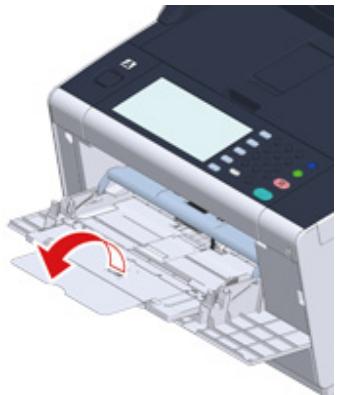
4 Adjust the manual feeding paper guide to the width of paper to be loaded.
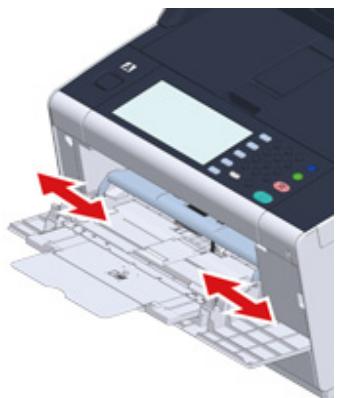
5 Make sure that the paper feed roller stays in the proper position. If the paper feed roller has fallen, push it upward and fix it.
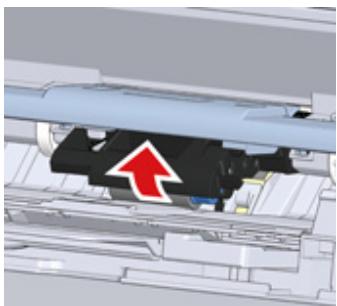
6 Insert the paper with the print side up until its edge touches the paper feed entrance.

Do not load paper above the " " mark.
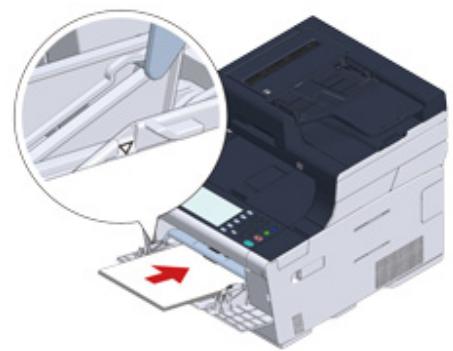

When a printer is in the power saving mode, press the (Power Save) button to restore from the mode.
7 Set [Paper Size], [Media Type], and [Media Weight] on the paper setup screen.
8 Press [Close].

- Do not load paper in different sizes, types, or weights.
- When adding sheets of paper, remove paper loaded in the MP tray, bundle the whole batch of sheets, and align edges of sheets to load them.
- Do not insert objects other than paper in the MP tray.
Paper Storage
Store paper under the following conditions to maintain quality.
- Inside a cabinet or other dry and dark place
- On a flat surface
Temperature: 20^ - Humidity: 50% RH (relative humidity)
Do not store paper in the places as shown below:
- Directly on the floor
Where paper is exposed to direct sunlight
Near the inside of an exterior wall - On an uneven surface
- Where static electricity may be generated
- Where temperature excessively rises high and temperature rapidly changes
- Near this machine, an air conditioner, a heater, or duct
1
- Do not unwrap paper until just before you use.
- Do not leave paper unwrapped for a long period. Doing so may result in printing problems.
Depending on the print media, environment, storage conditions, the print quality may deteriorate or printout may get curled
Setting a Document
This chapter describes how to set the document on this machine.
- About Documents That Can be Set
- Setting in the ADF
- Setting on the Document Glass
About Documents That Can be Set
- About Where to Set a Document
Set a document in the ADF or on the document glass when copying, scanning, or faxing.
- ADF
| Scannable size | A4, A5, A6, B5, B6, Letter, Legal 13/13.5/14, Executive, Statement, 8.5 SQ, Folio |
| Paper capacity | 50 sheets (80 g/m2) or maximum rise of 5 mm (0.2 inches) |
| Paper weight | 60 to 105 g/m2(16 to 28 lb) |
- Document glass
| Scannable size | A4, A5, A6, B5, B6, Letter, Executive, Statement, 8.5 SQ |
| Document thickness | Up to 20 mm |

Duplex scan is not available for A6.

For documents on which adhesives, ink, or correction fluid is used, make sure that they have completely dried before setting.
- About Documents That Cannot be Set in the ADF
You cannot set the following documents in the ADF. Set the document on the document glass.
- Documents with holes or tears
- Documents folded or damaged
- Documents with fold lines or badly curled, or rolled documents
Damp documents - Documents that are stuck together due to static electricity
- Carbon-backed documents
- Cloth, metal sheets, OHP films
- Stapled, clipped, taped documents or documents with sticky notes
- Documents that are pasted each other, or documents with glue
Glossy documents -
Coated documents
-
Documents still wet with ink or correction fluid
Observe the following to avoid damaging the document glass.
- When copying a thick document, do not press on it on the document glass.
- Place a hard document gently.
- Do not set a document that has sharp protrusions.
- About the Scannable Area
Texts or images within the 2 mm area from the edges of standard paper cannot be scanned.
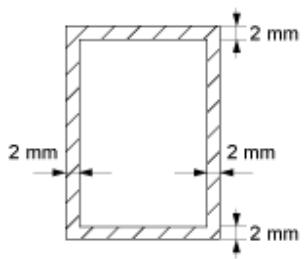
Setting in the ADF
1
Do not jog a document stack on the ADF cover.
It may cause the document feed roller of ADF to fall and get in the way of loading documents.
1 Open the ADF cover.
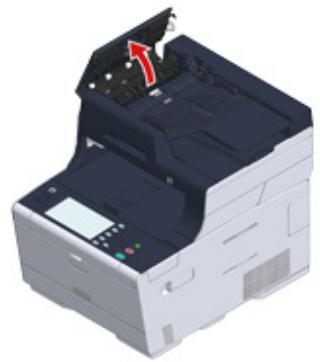
2 Push the document feed roller into the ADF cover.
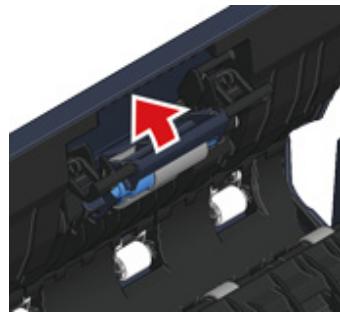
3 Close the ADF cover.
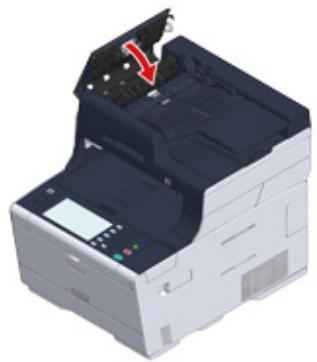
4 Set a document face up in the ADF.
If [Direction] is set to [Landscape], set the document so that its left edge is pulled into the ADF first.
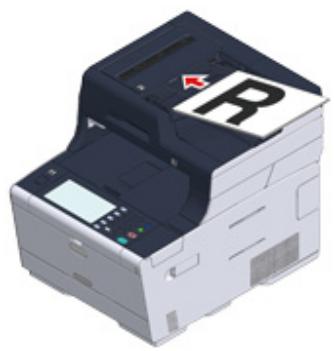
If [Direction] is set to [Portrait], set the document so that its top edge is pulled into the ADF first.
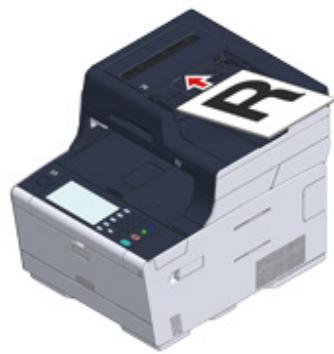
5 Align the document guide to the document width.
1
- If document feed problems often occur when documents are sent from the ADF, reduce the number of document pages to set.
- Documents of up to 50 sheets (80g / m^2) and 5mm high can be loaded regardless of the size.
- If documents to be set on the ADF are curled, adjust the document guides to fit the document width.
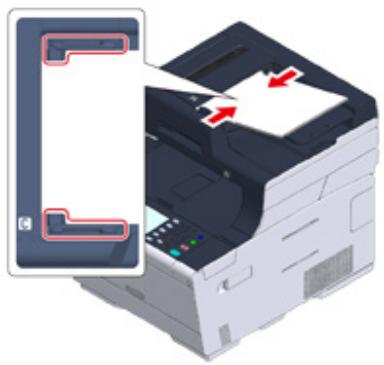
Setting on the Document Glass
1 Open the document glass cover.
2 Set a document face down on the document glass.
If [Direction] is set to [Portrait], align the top edge of the document with the upper-left corner of the glass.
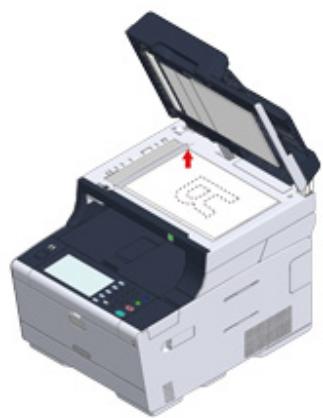
If [Direction] is set to [Landscape], align the right edge of the document with the upper-left corner of the glass.
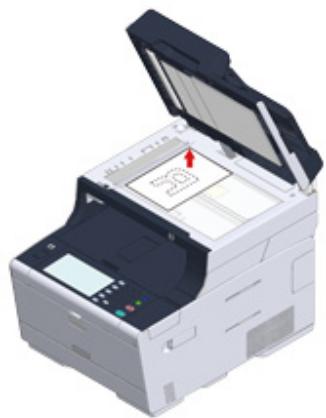

Do not press the document glass forcefully.
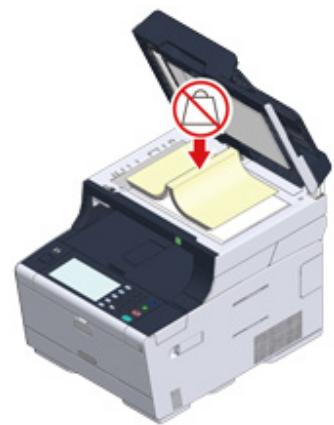

Close the document glass cover gently.

Do not close the document cover vigorously.
It may cause the document feed roller of ADF to fall and get in the way of loading documents.
If the document feed roller of ADF has fallen, open and close the ADF cover.
4 Copy
Copying
Cancelling Copying
Specifying the Number of Copies
Descriptions of Screens for Copy
Copying
Press [Copy] on the touch panel or the (COPY) button on the operator panel.
The touch panel display switches to the copy top screen.
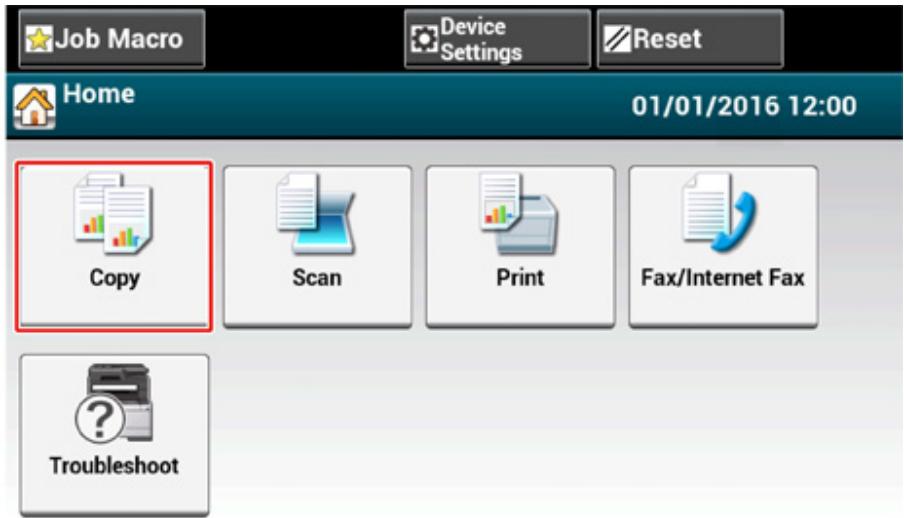
2 Set a document in the ADF or on the document glass.
3 Set the copy setting if necessary.
Useful Functions (Advanced Manual)
For a Better Finish (Advanced Manual)
Color Settings (Advanced Manual)
Advanced Copy Settings (Advanced Manual)
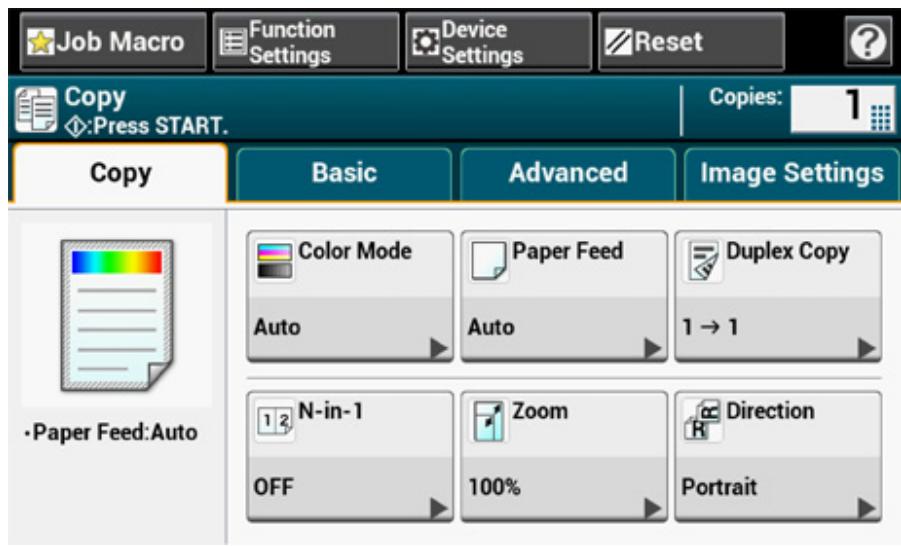
Press the (START) button.
Cancelling Copying
You can cancel copying before a message is displayed to inform you that copying is complete.
Press the (STOP) button when scanning the document.
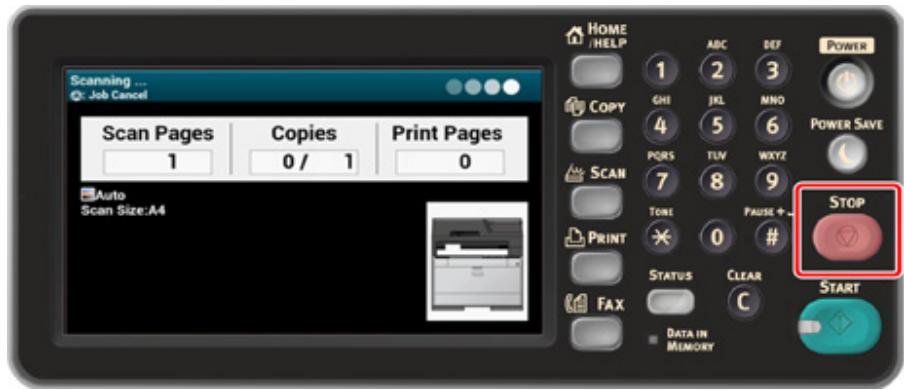
Specifying the Number of Copies
Press [Copy] on the touch panel or the (COPY) button on the operator panel.
2 Set a document in the ADF or on the document glass.
Press the numeric part of Copies on the touch panel.
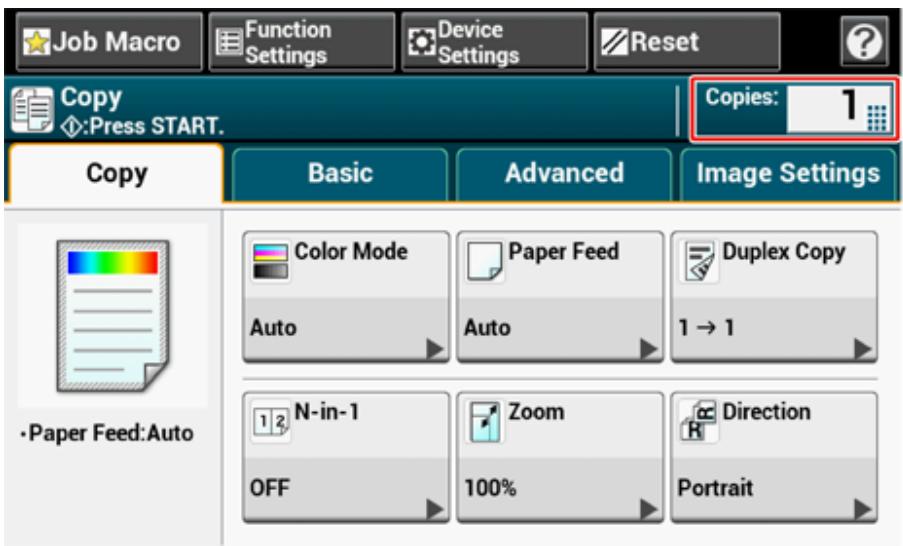
4 Enter the number of copies by using the numeric keypad or the numeric buttons.
If you entered with the touch panel, press [OK].
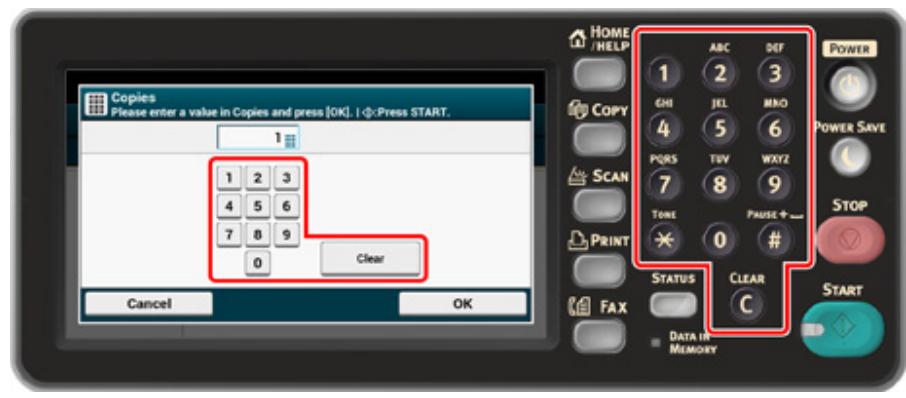

- You can enter the number of copies from 1 to 999.
- If you enter an incorrect value, press [Clear] on the touch panel or the (CLEAR) button on the operator panel, and then enter the correct value.
Press the (START) button.

Sorting Each Set in Page Order (Sort) (Advanced Manual)
Descriptions of Screens for Copy
- [Copy] Tab
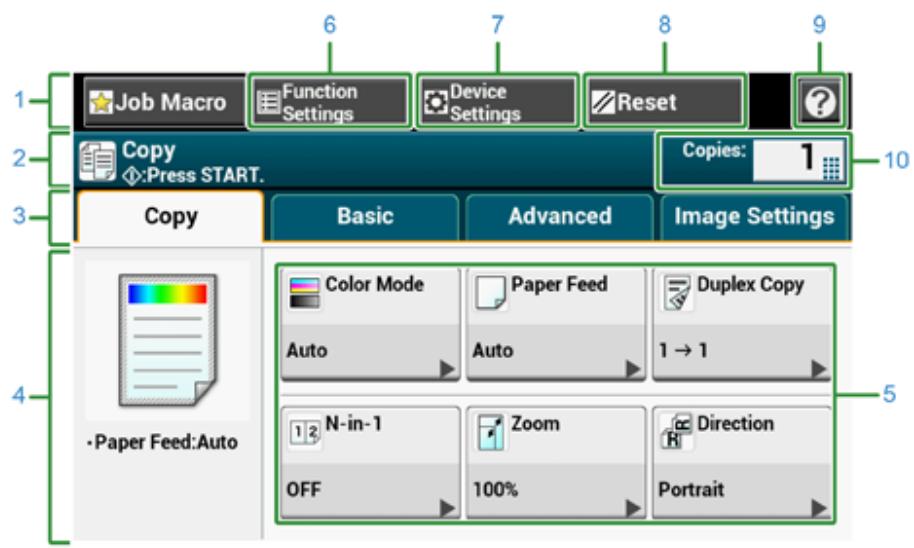
| Item | Description | |
| 1 | Stationary button area | Displays buttons that appear on the screen at all times. |
| 2 | Title and operation guide area | Displays the title of the current screen and provides guide for possible operations. |
| 3 | Tab labels | Displays labels for tabs. Press a label to switch between tabs. |
| 4 | Main area | Displays a preview of copy output that will be produced with the current settings. |
| 5 | Shortcut buttons | Displays shortcut buttons for using certain copy functions. The screen image shows the factory default setting. Shortcut buttons on the screen can be customized to fit your needs. Refer to "How to Customize the Touch Panel (Advanced Manual)". |
| 6 | Function Settings | Displays the current settings. The setting can be changed for certain functions. |
| 7 | Device Settings | Specifies various settings such as Administrator Setting. |
| 8 | Reset | Returns the settings for the current copy job to their default settings. |
| 9 | ? | Displays Help topics. |
| 10 | Copies | Specifies the number of copies to make. |
- [Basic] Tab
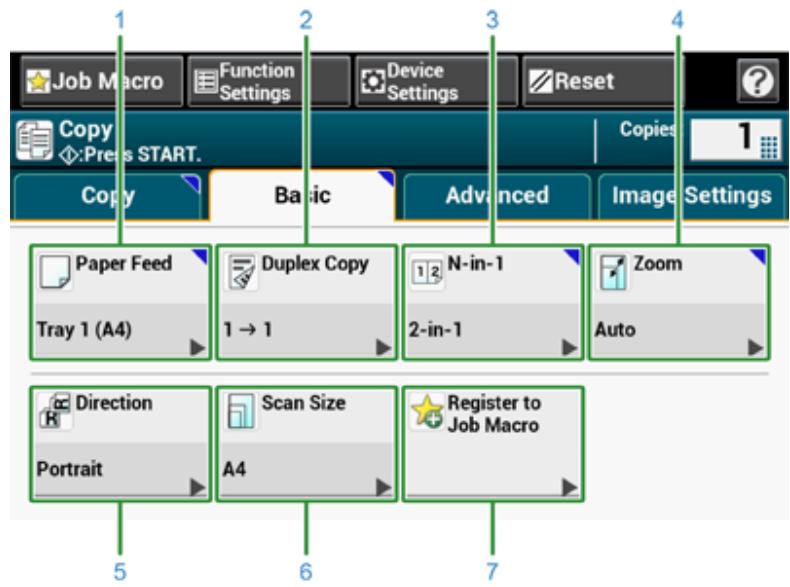
| Item | Description | |
| 1 | Paper Feed | Specifies the tray to set the copy paper. |
| 2 | Duplex Copy | Makes copies on both sides of paper. |
| 3 | N-in-1 | Combines multiple pages on one sheet of paper. |
| 4 | Zoom | Specifies the zoom rate for making enlarged or reduced copies. |
| 5 | Direction | Specifies the orientation according to the document, Top Edge On Top or Top Edge On Left. |
| 6 | Scan Size | Specifies the scan size according to the size of the document. |
| 7 | Register to Job Macro | Registers current settings to Job Macro. |
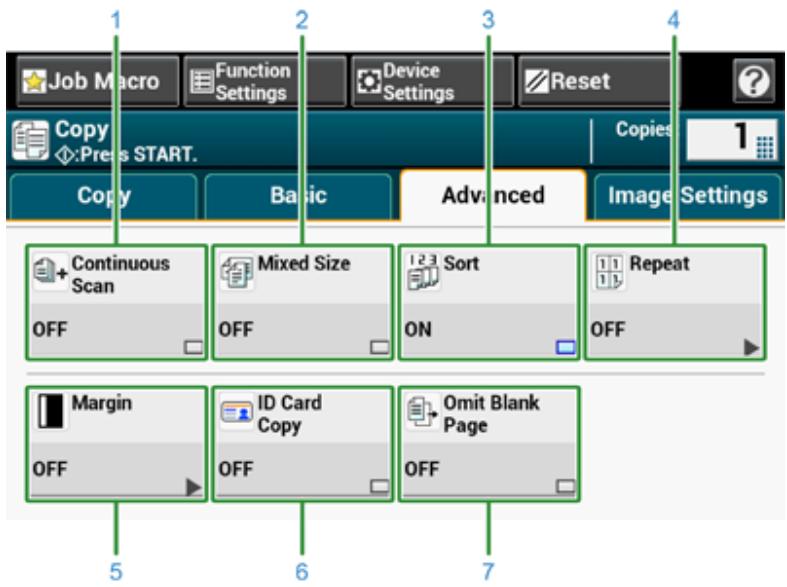
- [Advanced] Tab
| Item | Description | |
| 1 | Continuous Scan | Scans multiple sets of documents as a single copy job. |
| 2 | Mixed Size | Scans multiple documents having the same width but different lengths in the ADF, so that they can be copied on their respective paper sizes. |
| 3 | Sort | Sorts multiple sets of copies in the same page order as the document. |
| 4 | Repeat | Repeatedly copies the same document on one side of a sheet of paper (2/4 times). |
| 5 | Margin | Specifies top, bottom, right, or left margin on printed copy. |
| 6 | ID Card Copy | Copies both sides of an ID card, such as a driver's license, on one side of a sheet of paper. |
| 7 | Omit Blank Page | Skipping blank page when copying. |
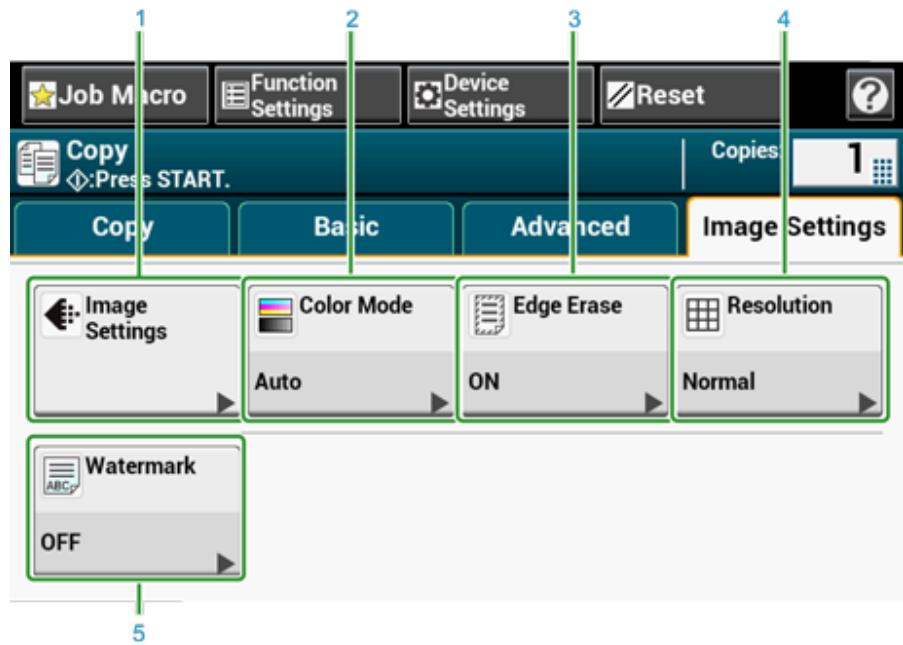
- [Image Settings] Tab
| Item | Description | |
| 1 | Image Settings | Specifies the following image settings: Document Type, Background Removal, Show-Through Removal, Density, Contrast, Hue, Saturation, and RGB. |
| 2 | Color Mode | Specifies color mode to copy a document. |
| 3 | Edge Erase | Eliminates a black shadow that may appear around the edges on the scanned image when scanning, for example, a book. |
| 4 | Resolution | Specifies the resolution to scan a document. |
| 5 | Watermark | Stamps text when copying. |
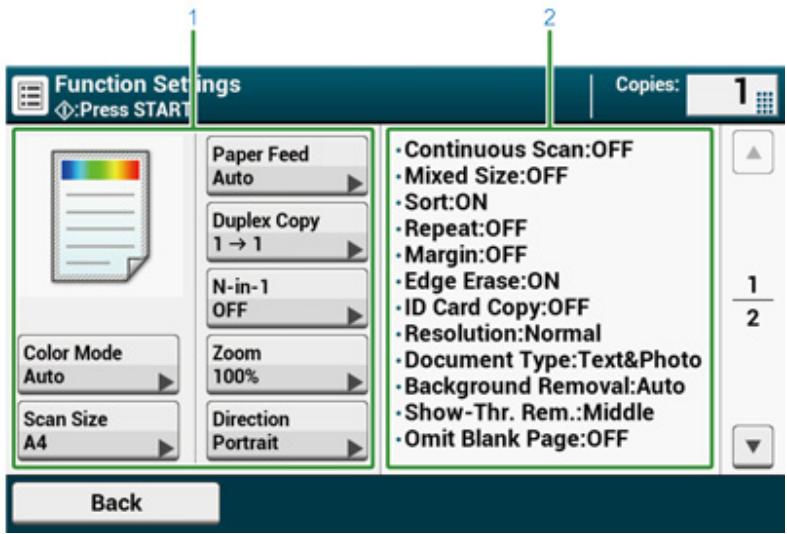
- [Function Settings] Screen
| Item | Description | |
| 1 | Setting display area 1 | Displays the current settings for displayed items. |
| 2 | Setting display area 2 | Displays a list of settings that are not displayed in the setting display area 1. |
5 Scan
Sending Scanned Data as an E-mail Attachment
Saving Scanned Data in a Shared Folder
Cancelling Scanning
Descriptions of Screens for Scan
Sending Scanned Data as an E-mail Attachment
This section describes how to send scanned data as an e-mail attachment.
Before Using Scan To E-mail
- Entering E-mail Address to Send E-mail
- Specifying a Destination from Address Book or Group List (Advanced Manual)
- Specifying a Destination Using One-touch Button (Advanced Manual)
- Specifying a Destination from Transmission History (Advanced Manual)
- Specifying a Destination Searching LDAP Server (Advanced Manual)
- Setting the Sender's Address (Advanced Manual)
- Setting the Reply Address (Advanced Manual)
- Registering an E-mail Template (Advanced Manual)
- Using an E-Mail Template (Advanced Manual)
- Saving Transmission Data (Advanced Manual)
- Checking Results of Scan To E-mail (Advanced Manual)
Before Using Scan To E-mail
If the machine is set up from [Easy Setup] > [E-mail Setting], skip Before Using Scan To E-mail. If the information is not set, set up in the following procedure.
1 Check the information related to E-mail following the steps in "Checking the Setting Information".
2 Press [Device Settings] on the touch panel.
3 Press [Easy Setup].
4 Enter the administrator name and password, and then press [OK].

The factory default administrator name and password are "admin" and "999999" respectively. If the administrator password is changed after installing the machine, enter the updated password.
Press [Skip>>] repeatedly to display [E-mail Setting].
6 Press [Next].
7 Follow the onscreen instruction to enter the information checked in Step 1.

E-mail Setup (Web Page) (Advanced Manual)
Entering E-mail Address to Send E-mail
Press [Scan] on the touch panel or the (SCAN) button on the operator panel.
2 Set a document in the ADF or on the document glass.
3 Press [Scan To E-mail].
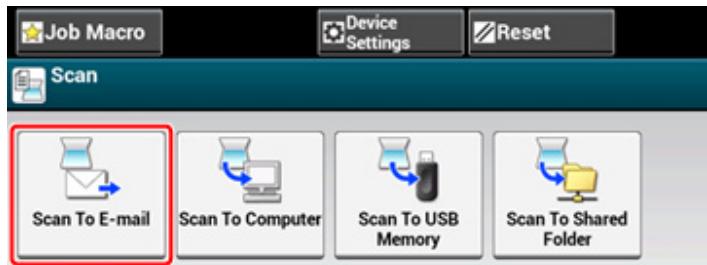
If the access control is enabled and E-mail address of the user who currently logs in is registered, the E-mail address of the user is automatically entered in [To].
4 Check the [Scan To E-mail] tab is selected. To select [Cc] or [Bcc], press [To] several times.

Press [Manual Input].
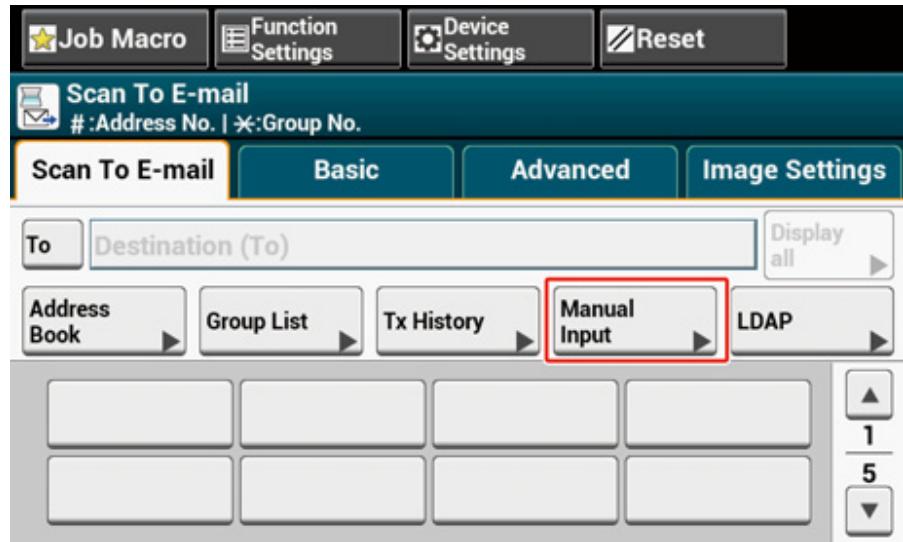

Enter an e-mail address.
You can enter up to 80 characters.
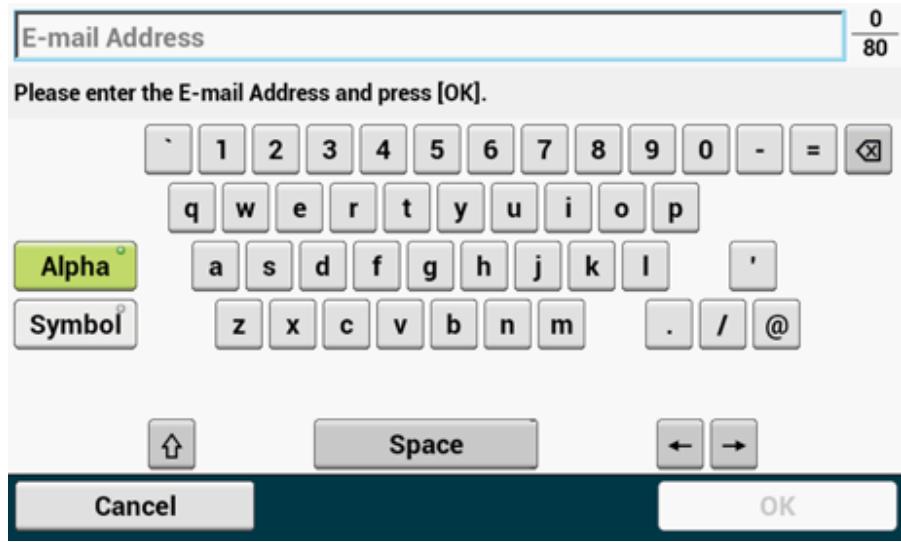
7 Set scan settings if necessary.
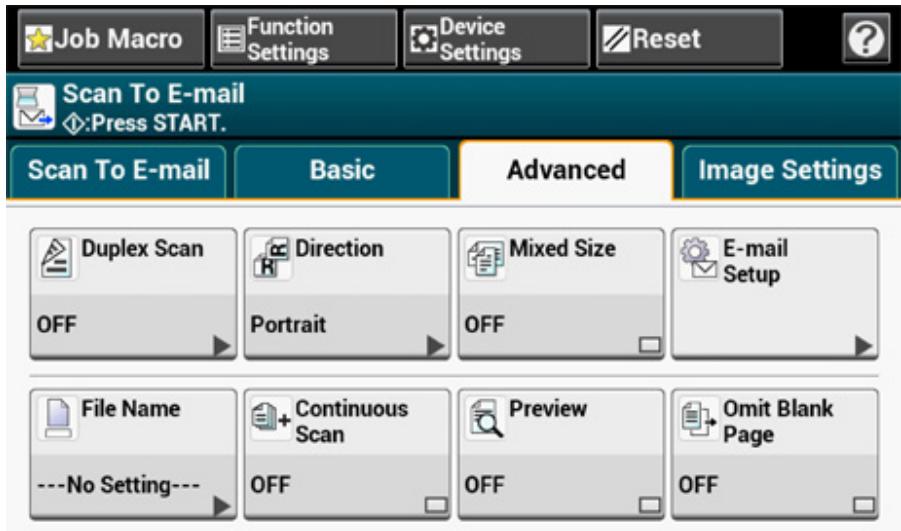
8 Press [OK].
9 Press the (START) button.

Specifying a Destination from Address Book or Group List (Advanced Manual)
Specifying a Destination Using One-touch Button (Advanced Manual)
Specifying a Destination from Transmission History (Advanced Manual)
Specifying a Destination Searching LDAP Server (Advanced Manual)
Saving Scanned Data in a Shared Folder
This section describes how to save scanned data in a shared folder on a network.
- Creating a Shared Folder in a Computer
- Registering a Destination (Profile)
How to Use Scan To Shared Folder - Changing a Destination (Profile) from the Operator Panel (Advanced Manual)
- Deleting a Destination (Profile) from the Operator Panel (Advanced Manual)
- Tables of Profile Setting Items (Advanced Manual)
Creating a Shared Folder in a Computer
!
If you create a shared folder in the following steps, all users whose accounts are set in your computer can access the shared folder.
Create a shared folder in a computer in which the scanned document is saved.
1 Click [Start] on the Windows task bar, right-click [Computer], and then click [Properties].
2 Check the name of [Computer name].
You need the computer name you checked when you register the destination in the machine. Write it down.
3 Close the window.
Create a folder in which documents are saved on the computer.
5 Right-click the created folder, and then click [Properties].
6 Click the [Sharing] tab, and then click [Advanced Sharing].
7 Select the [Share this folder] check box, and then click [Permissions].
8 Select the [Allow] check box of [Change] in [Permissions for Everyone], and then click [OK].
9 Click [OK].
10 Click [Close] to close the properties screen.
Registering a Destination (Profile)
Create a shared folder and register to the machine as a destination.
Up to 50 profiles can be registered.
Press [Device Settings] on the touch panel.
2 Press [▼] once, and then press [Profile].
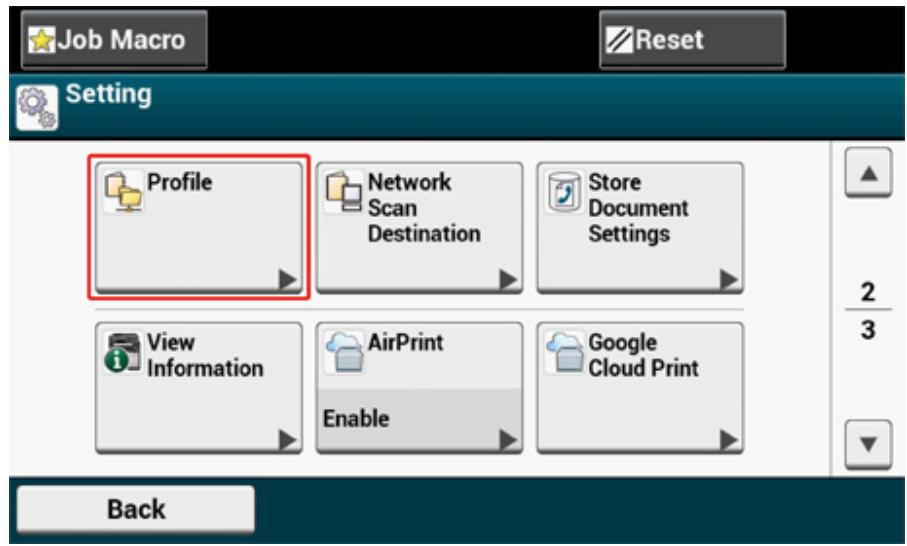
3 Select a number, and then press [Register].
4 Enter a profile name, and then press [Next].
5 Select a setting, and then press [Next].
6 Enter the values of the transmission destination computer name and the shared folder name in the "\the transmission destination computer name\the shared folder name" format.
Example: \PC1\share

If there is no DNS server in the network, you cannot specify the computer with the computer name (the transmission destination computer name). In such a case, use the IP address of the computer to set.
Example: \192.168.0.3\share
7 Press [Next].
8 Enter the user name and password in [UserID] and [Password].

- If domain management is performed, enter "User name@domain name".
- If domain management is performed and you cannot establish a connection even after entering "Username@domain name", delete "@domain name".
-
Also, access the Web page of this machine, select [Admin Setup] > [Network Menu], and then set the NetBIOS domain name in [Workgroup name] in [NBT].
-
For the domain name, check with your network administrator.
9 Press [Close].
10 Set other items if necessary.
11 Press [OK].
How to Use Scan To Shared Folder
Scanned data is converted into a PDF, JPEG, TIFF, or XPS file, and then sent to the shared folder. PDF is set by factory default.
Connect the machine to a network and create a shared folder on the computer before using the Scan To Shared Folder function.

Connecting a LAN Cable/USB Cable

Connecting to a Wireless LAN (Only When the Wireless LAN Module is Mounted)

Creating a Shared Folder in a Computer

The following procedure uses the factory default setting.
Press [Scan] on the touch panel or the (SCAN) button on the operator panel.
2 Set a document in the ADF or on the document glass.
3 Press [Scan To Shared Folder].
4 Press [Select Profile]. If a profile is not displayed, create the profile.

Registering a Destination (Profile)

Select a profile.

Enable [Preview] on the [Advanced] tab to preview the scanned image.

Set scan settings if necessary.

Press the (START) button.
Cancelling Scanning
You can cancel scanning while a message is being displayed to inform you that scanning is in progress.
1 Press the (STOP) button on the operator panel.
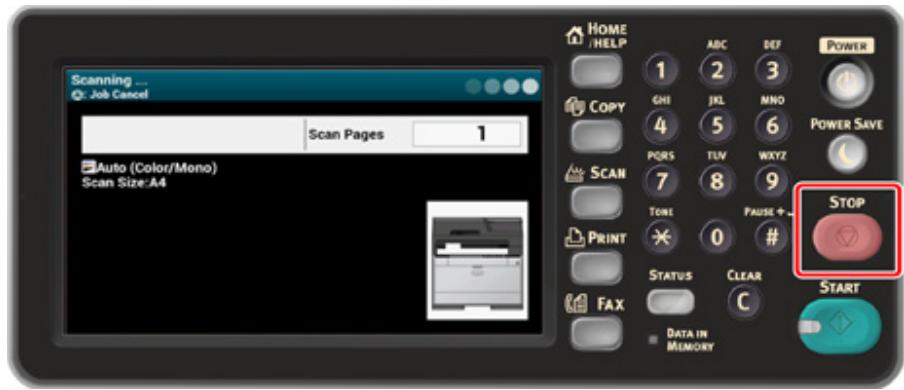
Descriptions of Screens for Scan
This section describes the items of the screen.
- Scan To E-mail Screen
- Scan To Shared Folder Screen
- Scan To Computer Screen (Advanced Manual)
- Scan To USB Memory Screen (Advanced Manual)
Scan To E-mail Screen
- [Scan To E-mail] Tab
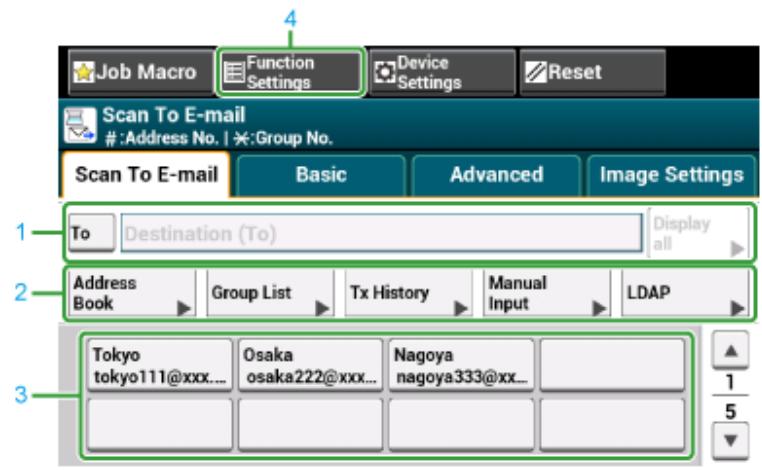
| Item | Description | |
| 1 | Destination area | Select a destination e-mail address. The selected e-mail address appears in this area. If at least 1 destination is specified, you can press [Display all] to edit, add, or delete a destination. |
| 2 | Shortcut buttons | Displays shortcut buttons for using certain scan functions. The screen image shows the factory default setting. Shortcut buttons on the screen can be customized to fit your needs. Refer to "How to Customize the Touch Panel (Advanced Manual)". |
| 3 | One touch buttons | Displays destinations assigned to one-touch buttons. Press a button to add a destination. |
| 4 | Function Settings | Displays the current settings. The setting can be changed for certain functions. |
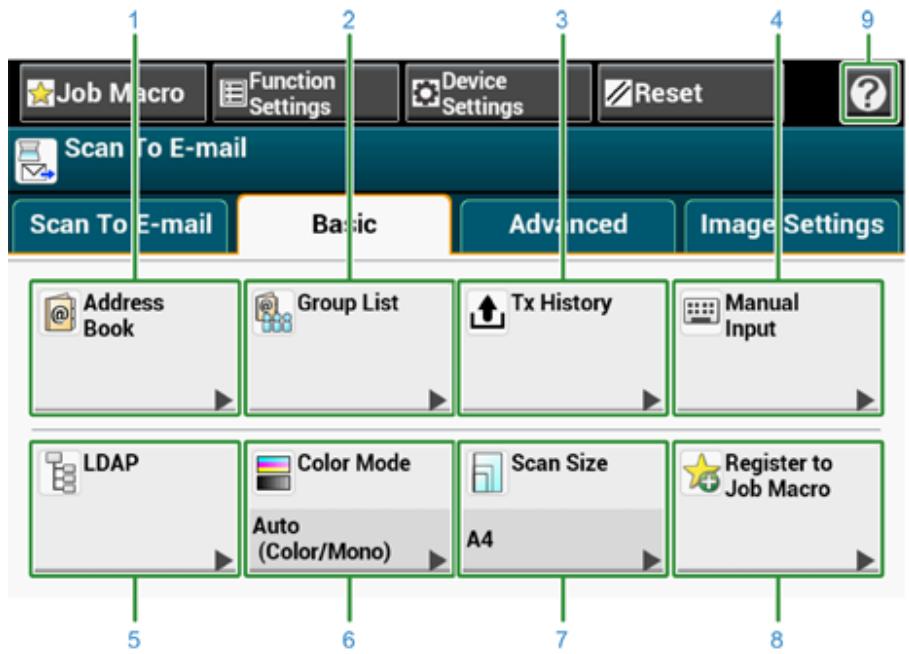
[Basic] Tab
| Item | Description | |
| 1 | Address Book | Displays e-mail addresses registered in the Address Book. Select an e-mail address as a destination from the Address Book. |
| 2 | Group List | Displays a list of groups in which e-mail addresses are registered. Select a group as a destination from the Group List. |
| 3 | Tx History | Displays a transmission history. Select a destination from the transmission history. |
| 4 | Manual Input | Enter an e-mail address manually to use it as a destination. |
| 5 | LDAP | Search for an e-mail address from the LDAP server to use it as a destination. There are two search methods: Simple Search and Advanced Search. |
| 6 | Color Mode | Specifies color mode to scan a document. |
| 7 | Scan Size | Specifies the scan size when scanning a document. |
| 8 | Register to Job Macro | Registers current settings to Job Macro. |
| 9 | ? | Displays Help topics. |
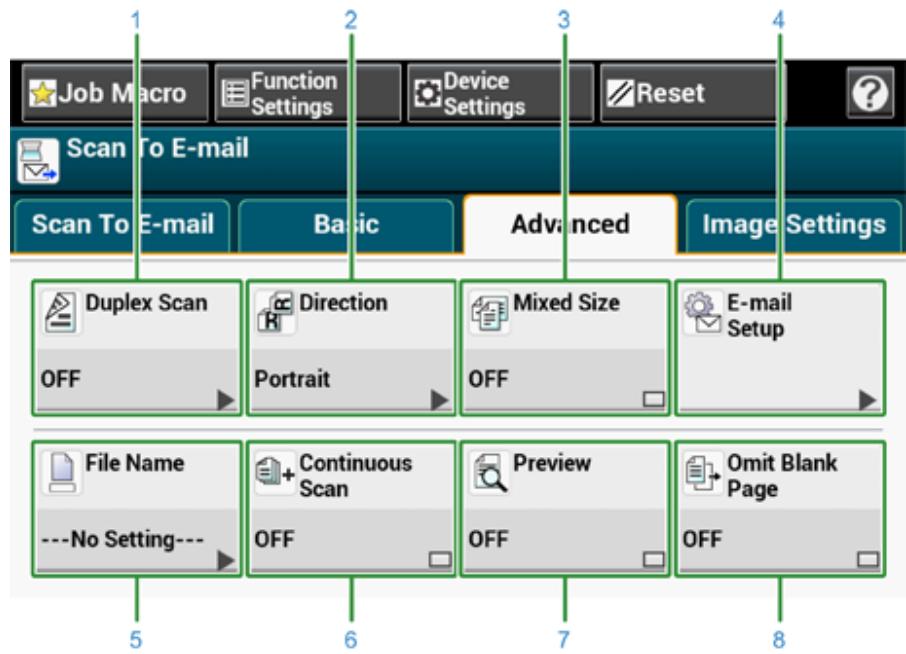
- [Advanced] Tab
| Item | Description | |
| 1 | Duplex Scan | Specifies duplex scanning. Set this function when scanning both sides of a document. |
| 2 | Direction | Specifies the orientation of images. |
| 3 | Mixed Size | Scans documents of different sizes. |
| 4 | E-mail Setup | Specifies an e-mail address as a reply destination. If the recipient replies to the received e-mail, the reply is sent to the e-mail address specified here. Specifies the subject of the e-mail. Specifies the body of the e-mail. |
| 5 | File Name | Specifies a file name for the scanned file. If not specified, the file will be named according to the factory default setting. |
| 6 | Continuous Scan | Scans multiple documents as a single job. |
| 7 | Preview | Specifies whether to preview scanned images. |
| 8 | Omit Blank Page | Skipping blank pages when scanning. |
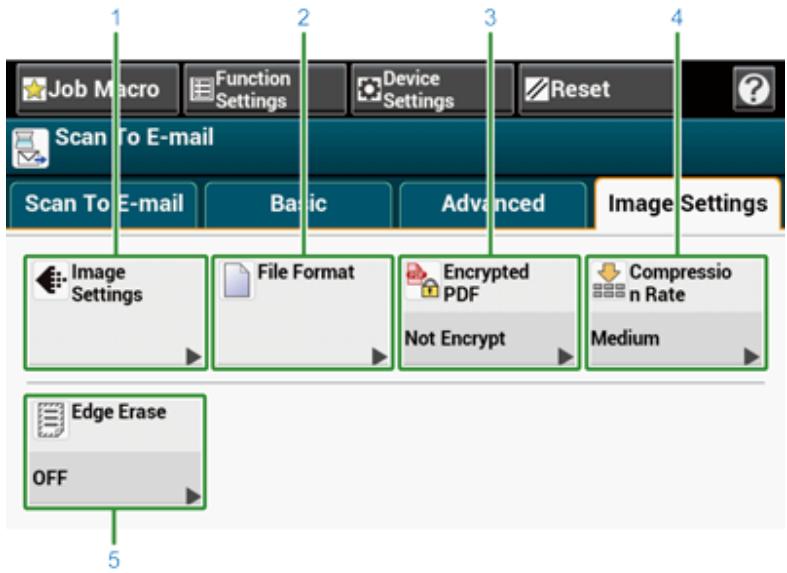
- [Image Settings] Tab
| Item | Description | |
| 1 | Image Settings | Specifies the following image settings: density, document type, resolution, background removal, show-through removal, contrast, hue, saturation, and RGB. |
| 2 | File Format | Specifies a file format for the scanned file. |
| 3 | Encrypted PDF | Creates an encrypted (password-protected) scanned file. This function is available only when the file format is set to PDF or HC-PDF. |
| 4 | Compression Rate | Specifies a compression level for the scanned file. |
| 5 | Edge Erase | Eliminates a black shadow that may appear around the edges on the scanned file when scanning, for example, a book. |
- [Function Settings] > [Destination] Tab
Add, edit or delete a destination to which a document is sent.
![OKI ES5473MFP - - [Function Settings] > [Destination] Tab - 1](/content/2024/11/223446/images/1f31bc28aace10789815cea156fa8decce5f95e2164668562cb4175ad9113162.jpg)
- [Function Settings] > [Scan Setting] Tab
![OKI ES5473MFP - - [Function Settings] > [Destination] Tab - 2](/content/2024/11/223446/images/5b5cc6ca3bc50c77cb4d5cd023eb7182f4e1e4f1b1c3ce759727e5db1efc52ac.jpg)
| Item | Description | |
| 1 | Setting display area 1 | Displays the current settings for displayed items. |
| 2 | Setting display area 2 | Displays a list of settings that are not set by items displayed in setting display area 1. |
Scan To Shared Folder Screen
- [Scan To Shared Folder] Tab
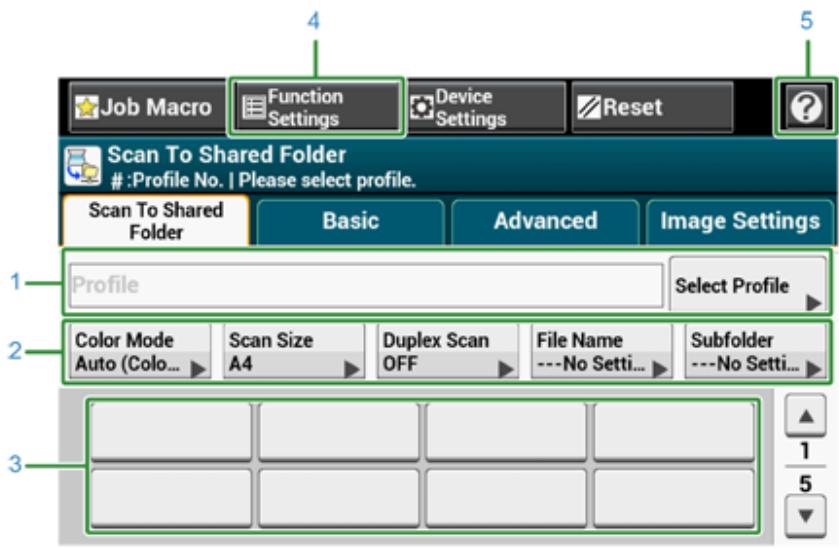
| Item | Description | |
| 1 | Profile area | Select a destination profile from [Select Profile]. The selected profile appears in this area. |
| 2 | Shortcut buttons | Displays shortcut buttons for using certain scan functions. The screen image shows the factory default setting. The setting can be changed by Administrator Setting. |
| 3 | One touch buttons | Displays destinations assigned to one-touch buttons. Press a button to add a destination. |
| 4 | Function Settings | Displays the current settings. The setting can be changed for certain functions. |
| 5 | ? | Displays Help topics. |
- [Basic] Tab
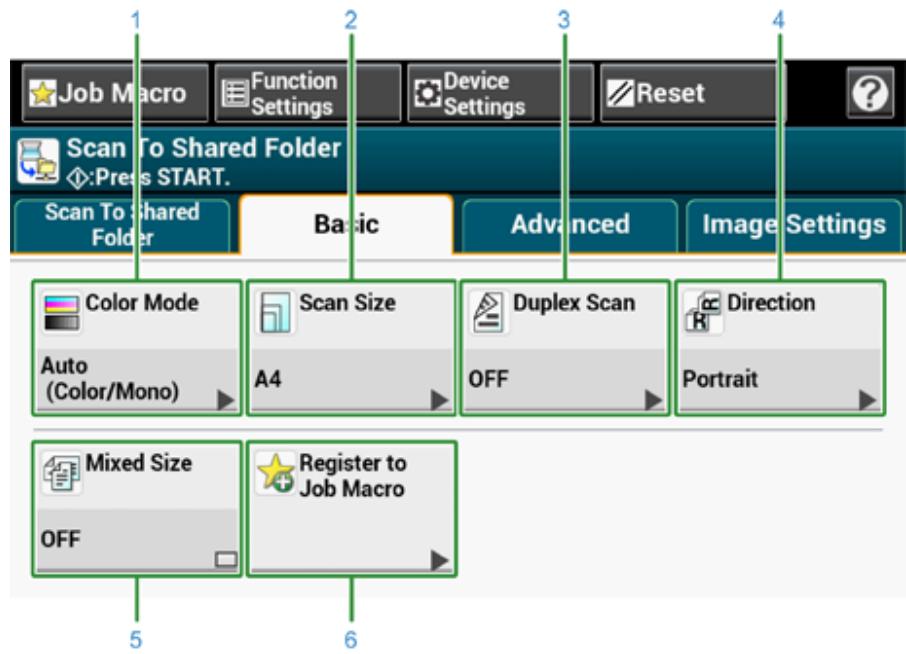
| Item | Description | |
| 1 | Color Mode | Specifies color mode to scan a document. |
| 2 | Scan Size | Specifies the scan size when scanning a document. |
| 3 | Duplex Scan | Specifies duplex scanning. Set this function when scanning both sides of a document. |
| 4 | Direction | Specifies the orientation of images. |
| 5 | Mixed Size | Scans documents of different sizes. |
| 6 | Job Macro | Registers current settings to Job Macro. |
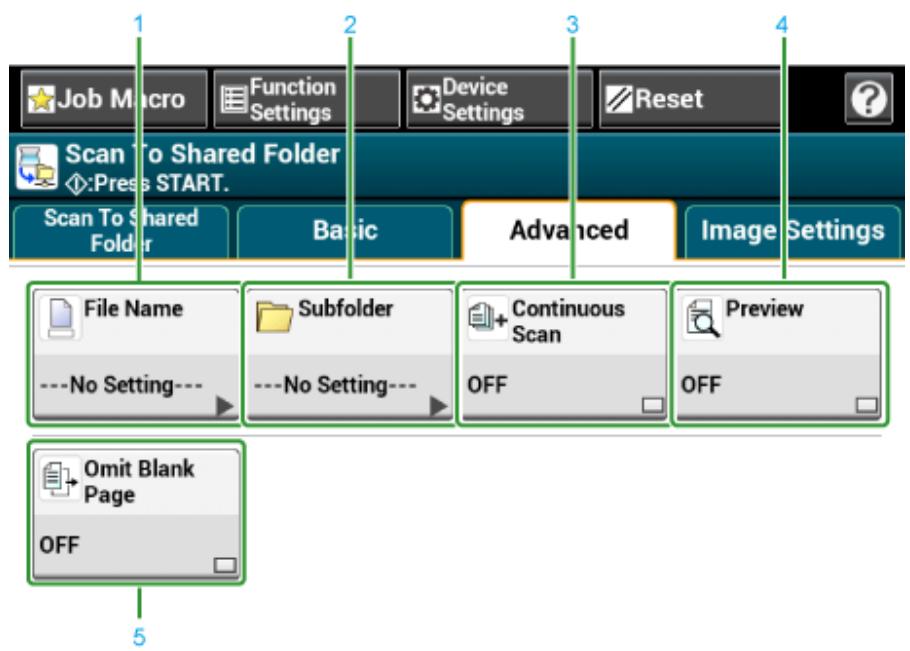
- [Advanced] Tab
| Item | Description | |
| 1 | File Name | Specifies a file name for the scanned file. If not specified, the file will be named according to the factory default setting. |
| 2 | Subfolder | Specifies a sub folder in which to save the scanned document. If not specified, the scanned data will be saved in the root folder. |
| 3 | Continuous Scan | Scans multiple documents as a single job. |
| 4 | Preview | Specifies whether to preview scanned images. |
| 5 | Omit Blank Page | Skipping blank pages when scanning. |
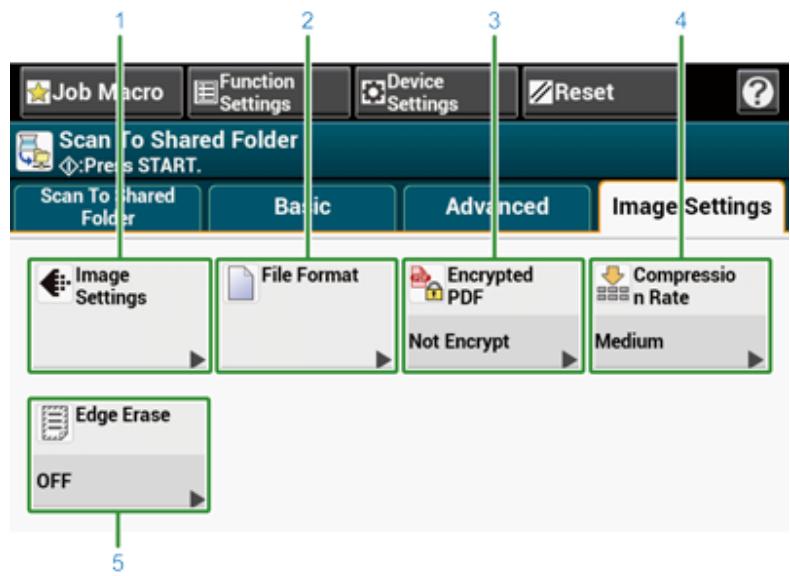
- [Image Settings] Tab
| Item | Description | |
| 1 | Image Settings | Specifies the following image settings: Density, Document Type, Resolution, Background Removal, Show-Through Removal, Contrast, Hue, Saturation and RGB |
| 2 | File Format | Specifies a file format for the scanned file. |
| 3 | Encrypted PDF | Creates an encrypted (password-protected) scanned file. This function is available only when the file format is set to PDF or HC-PDF. |
| 4 | Compression Rate | Specifies a compression level for the scanned file. |
| 5 | Edge Erase | Eliminates a black shadow that may appear around the edges on the scanned file when scanning, for example, a book. |
- [Function Settings] > [Profile] Tab
Delete a selected profile on the [Profile] tab.
![OKI ES5473MFP - - [Function Settings] > [Profile] Tab - 1](/content/2024/11/223446/images/c2090baf4a725d65f71fb639d7ee5c34721321e406118b99aec2c78572c81329.jpg)
- [Function Settings] > [Scan Setting] Tab
![OKI ES5473MFP - - [Function Settings] > [Scan Setting] Tab - 1](/content/2024/11/223446/images/05d4aedea3bf29ea4fbdbae76f4e5e7807e199e5fc844348473efd1a1ce4c6c4.jpg)
| Item | Description | |
| 1 | Setting display area 1 | Displays the current settings for displayed items. |
| 2 | Setting display area 2 | Displays a list of settings that are not set by items displayed in setting display area 1. |
6
Printing from a Computer (Windows)
Printing from a Computer (Mac OS X)
Cancelling a Print Job
About Screens and Functions of Each Printer Driver
Descriptions of Screens for Print
"WordPad" for Windows and "TextEdit" for Mac OS X are used as examples. The screens and steps may vary depending on the application.
Printing from a Computer (Windows)
For Windows PCL Printer Driver
For Windows PS Printer Driver
For Windows PCL Printer Driver
1 Open the file to print.
2 Select [Print] from the [File] menu.
3 Select the printer driver.
4 Click [Preferences].
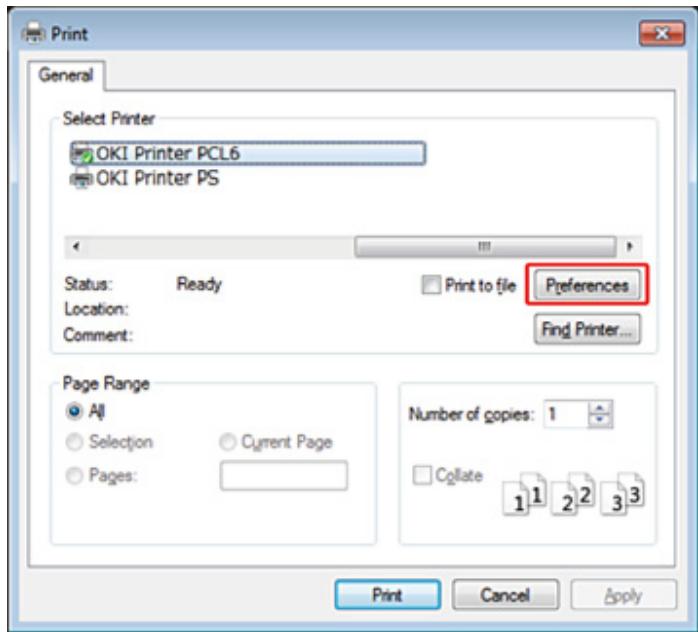
5 Change the settings in each tab to suit your needs.
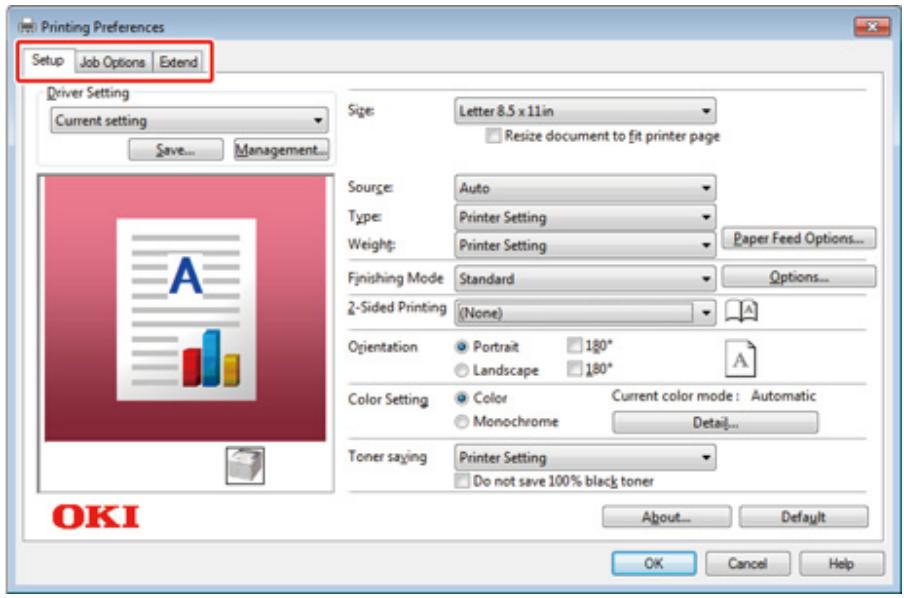
6 Click [OK].
7 Click [Print] on the [Print] Screen.
For Windows PS Printer Driver
1 Open the file to print.
2 Select [Print] from the [File] menu.
3 Select the PS printer driver.
4 Click [Preferences].
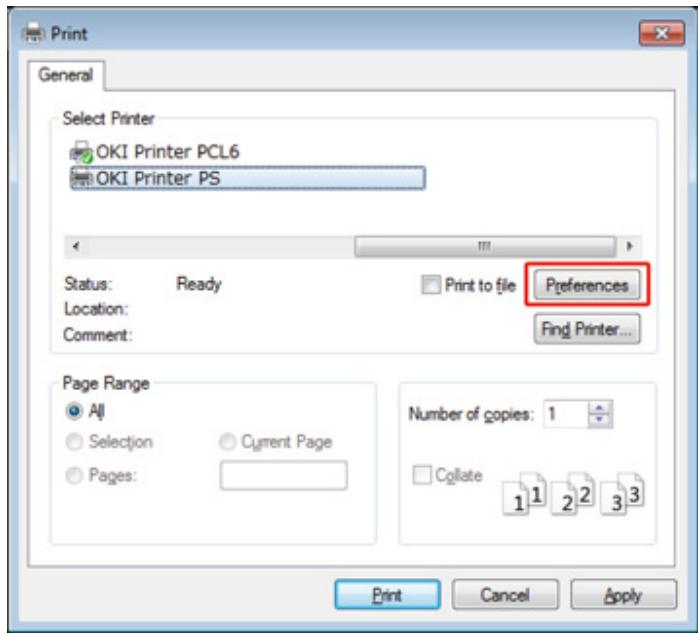
5 Change the settings in each tab to suit your needs.
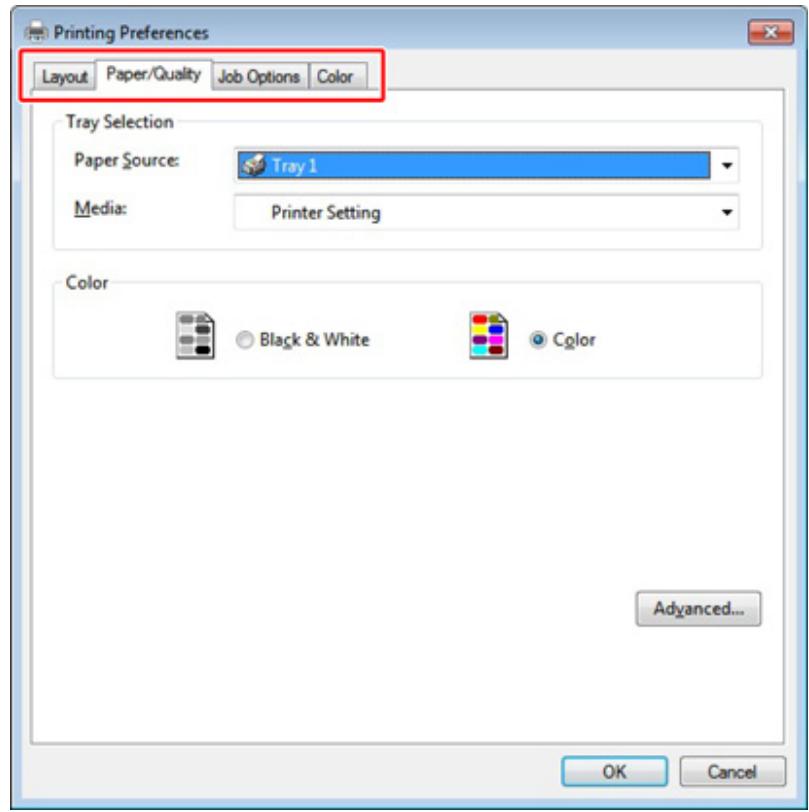
6 Click [OK].
7 Click [Print] on the [Print] screen.
Printing from a Computer (Mac OS X)
You can set a paper size, paper tray, and paper weight, and paper type with the printer driver.
1 Open the file to print.
2 Select [Print] from the [File] menu.
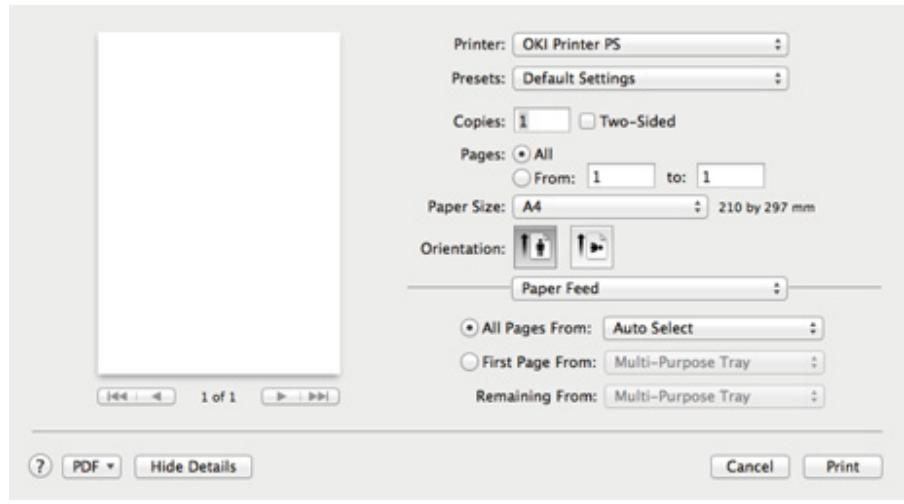
3 Select the machine from [Printer].
4 Select the paper size from [Paper Size].
5 Change the settings on each panel to suit your needs.
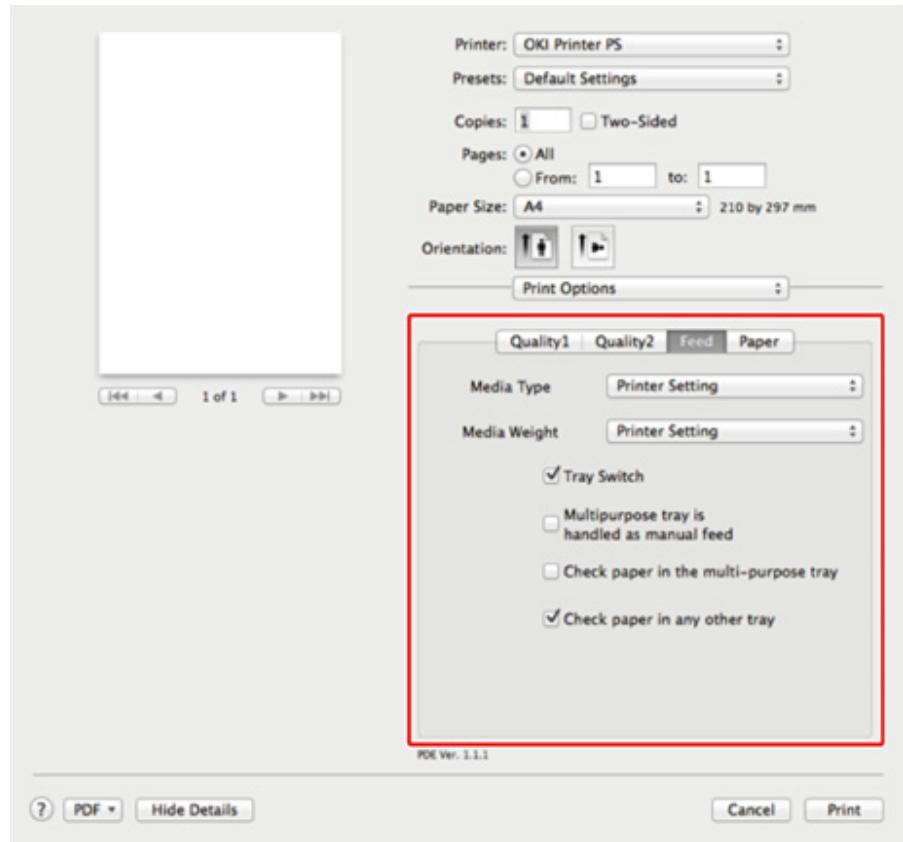

If setting details are not displayed in the print dialog for Mac OS X10.8.5 to 10.11, click [Show Details] at the bottom of the dialog.
6 Click [Print].
Cancelling a Print Job
You can cancel a print job by deleting the job in the job list displayed on the operator panel.
1
- The pages that are ready to be printed on this machine cannot be cancelled.
- If the touch panel indicates that printing is in progress for a long time, delete the print job from the computer.
Press the

(Status) button on the operator panel.
Press the [Device Information] tab.
3 Press [Job Lists].
4 Select the job you want to delete, and press [Delete].
5 Press [Yes] on the confirmation screen.
- Cancelling Printing from a Computer
If you send a large amount of data from a computer by accident, you can cancel printing on the computer.
For Windows
1 Click [Start], and then select [Devices and Printers].
2 Right-click the printer icon, and then select [See print jobs].
3 Select the file name you want to cancel printing.
4 Press the
5 Check the display on the operator panel of the machine. When "Processing ..." or "Data present." is displayed, cancel printing on the operator panel of the machine.
For Mac OS X
1 Select [System Preferences] from the Apple menu.
2 Click [Printers & Scanners].
3 Double-click the printer icon.
4 Click [Open Print Queue...].
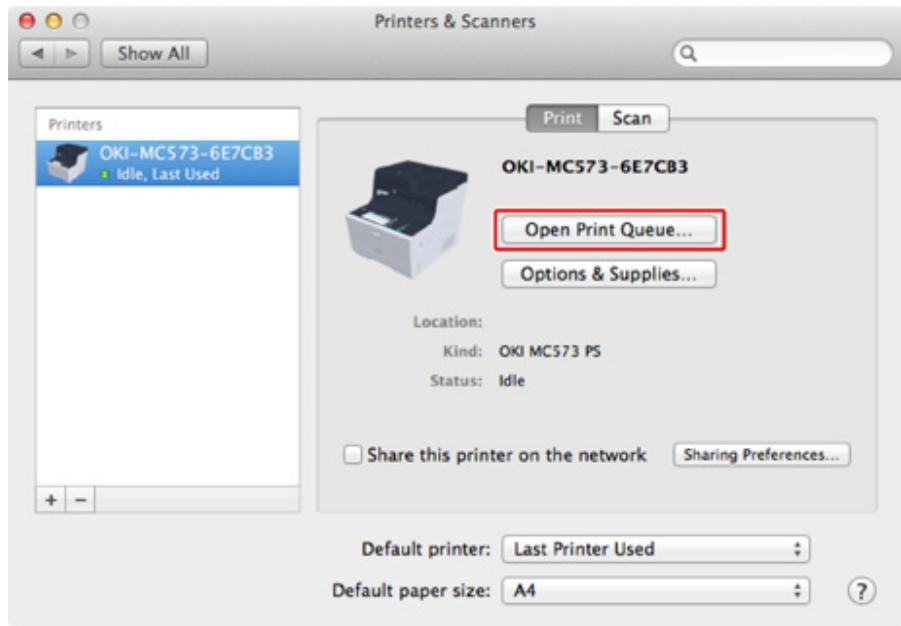
5 Select the file name you want to cancel printing.
6 Click
7 Check the display on the operator panel of the machine.
About Screens and Functions of Each Printer Driver
This section describes screens and functions of the printer drivers.
- Windows PCL Printer Driver
- Windows PS Printer Driver
Mac OS X PS Printer Driver
Windows PCL Printer Driver
- [Setup] Tab
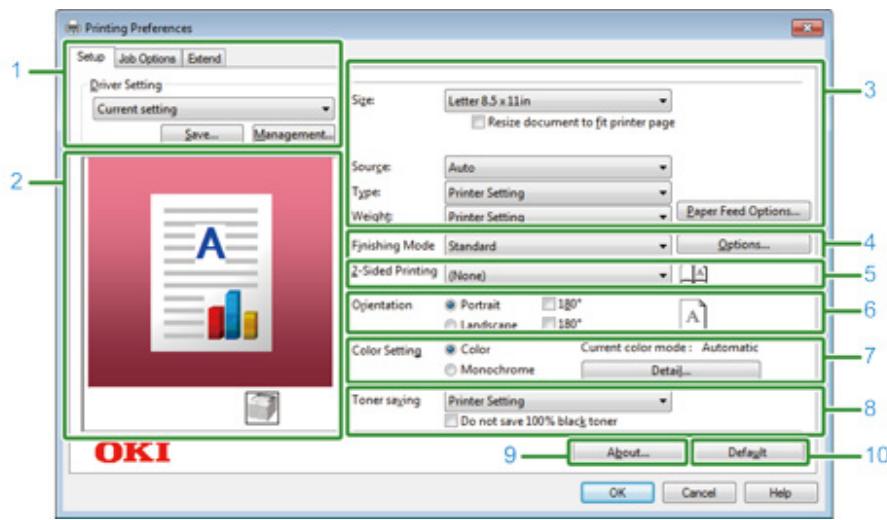
| Item | Description | |
| 1 | Driver Setting | Saves your settings. |
| 2 | Image layout | Displays a sample image for the set layout. |
| 3 | Media | Specifies the paper size, type, weight, paper feed method, or other settings. |
| 4 | Finishing Mode | Specifies the multi-page printing, booklet printing, poster printing, or other settings. |
| 5 | 2-Sided Printing (Duplex) | Specifies this setting when you want to perform duplex printing. |
| 6 | Orientation | Specifies the printing direction. |
| 7 | Color Setting | Switches between color printing and monochrome printing. |
| 8 | Toner saving | Decreases the print density to save toner. |
| 9 | About | Displays the version of the printer driver. |
| 10 | Default | Reset the settings on the tab to their default settings. |
- [Job Options] Tab
![OKI ES5473MFP - - [Job Options] Tab - 1](/content/2024/11/223446/images/7b93dccf3f6940f33be86b8b6cefc1044d803f4308be524bd6b919e090120546.jpg)
| Item | Description | |
| 1 | Quality | Specifies the resolution for printing. |
| 2 | Scale | Specifies the enlargement/reduction rate for printing. |
| 3 | Copies | Specifies the number of copies to print. |
| 4 | Job Type | Specifies the print type. |
| 5 | Advanced | Sets other printing settings. |
| 6 | Default | Resetset each setting value in the tab to its default setting value. |
- [Extend] Tab
![OKI ES5473MFP - - [Extend] Tab - 1](/content/2024/11/223446/images/0e9fdf4e7f257ea57e74415b79d5e4b91f258c96e0c1f5cca18abe7b41665d08.jpg)
| Item | Description | |
| 1 | Watermarks | Specifies when you want to use stamp print. |
| 2 | Overlays | Sets when printing print formats which are registered to the printer beforehand as overlays. |
| 3 | Fonts | Specifies TrueType fonts and printer fonts. |
| 4 | User Authentication | Specifies the user authentication. |
Windows PS Printer Driver
- [Layout] Tab
![OKI ES5473MFP - - [Layout] Tab - 1](/content/2024/11/223446/images/807ebbfab517f945a79c643b296273255fd3480eaca48674264b9a82cbf4dc2c.jpg)
| Item | Description | |
| 1 | Orientation | Specifies the printing direction. |
| 2 | Print on Both Sides | Specifies this setting when you want to perform duplex printing. |
| 3 | Page Order | Specifies a page order to print. |
| 4 | Page Format | Specifies the number of pages that is printed on a sheet of paper and booklet printing. |
| 5 | Image layout | Displays a sample image for the set layout. |
| 6 | Advanced | Allows you to set detailed settings for print quality and a paper size. |
- [Paper/Quality] Tab
![OKI ES5473MFP - - [Paper/Quality] Tab - 1](/content/2024/11/223446/images/f3fe43923efeed2551450d970ce721891eef450002f7d73cc4621b3b0e70593a.jpg)
| Item | Description | |
| 1 | Tray Selection | Changes the paper feed tray. |
| 2 | Color | Selects Color or Black & White. |
| 3 | Advanced | Allows you to set detailed settings for print quality and a paper size. |
- [Job Options] Tab
![OKI ES5473MFP - - [Job Options] Tab - 1](/content/2024/11/223446/images/d37d38670cbe644e34d284639072f590a4a73fcbd54cf18643fef2764f10c867.jpg)
| Item | Description | |
| 1 | Quality | Specifies the resolution for printing. If you set [Toner Saving], the print density decreases to save toner. |
| 2 | Job Type | Specifies the job type and the number of copies to print. [Job Type Option] can be used if [Shared Print] or [Private Print] is selected. If you select the [Collate] check box, multiple documents are printed in units of copies. |
| 3 | Fit to Page | If you select the [Resize document to fit printer page] check box, a document is printed on paper of a different size from that of the document. |
| 4 | Watermarks | Specifies when you want to use stamp print. |
| 5 | Overlays | Sets when printing print formats which are registered to the printer beforehand as overlays. |
| 6 | Advanced | Sets other print options. |
| 7 | User Auth | Specifies the user authentication. |
| Item | Description | |
| 8 | About | Displays the version of the printer driver. |
| 9 | Default | Resetsethe settings on the tab to their default settings. |
- [Color] Tab
![OKI ES5473MFP - - [Color] Tab - 1](/content/2024/11/223446/images/0d22980bd353091a56a0c026b8e01e231a66f187a8e5dc46d16d0a1b23bcb6a9.jpg)
| Item | Description | |
| 1 | Color Mode | Specifies the color adjustment for color printing. |
| 2 | Toner Saving | Saves toner when printing. |
| 3 | Advanced | Sets some other printing settings. |
| 4 | Color Swatch | Starts Color Swatch Utility. |
| 5 | Default | Reset the settings on the tab to their default settings. |
Mac OS X PS Printer Driver
- [Layout] Panel
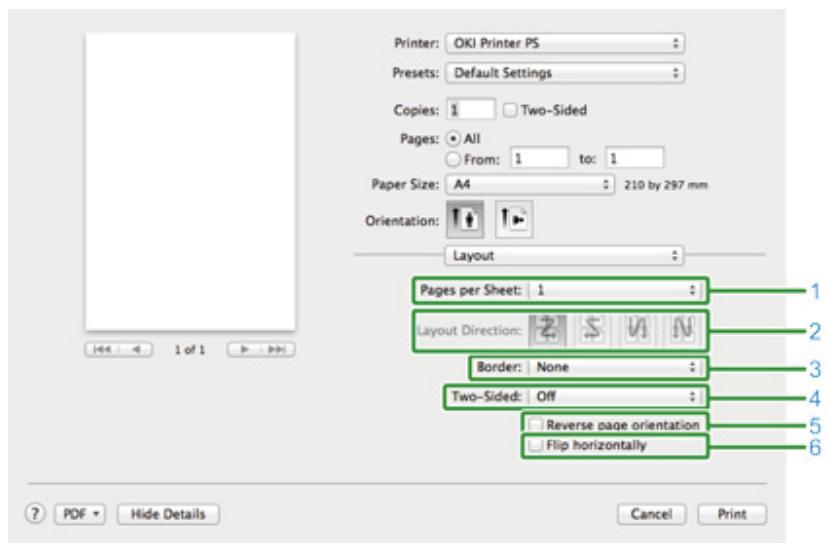
| Item | Description | |
| 1 | Pages per Sheet | Selects the number of pages that is printed on a sheet of paper. |
| 2 | Layout Direction | Specifies the layout that is applied when printing multiple pages on a sheet of paper. |
| 3 | Border | Specifies a type of a boundary. |
| 4 | Two-Sided | Specifies when performing duplex printing. |
| 5 | Reverse page orientation | Reverses the direction of a page to print by selecting this check box. |
| 6 | Flip horizontally | Flips left and right to print by selecting this check box. |
- [Color Matching] Panel
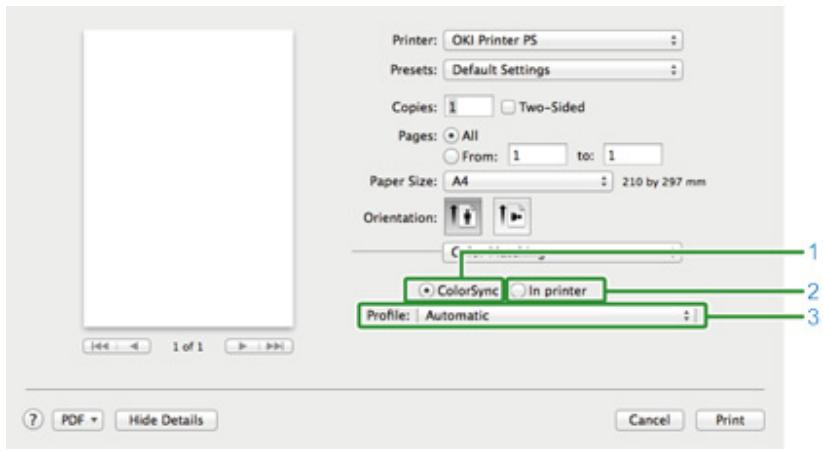
| Item | Description | |
| 1 | ColorSync | Specifies the ColorSync function. |
| 2 | In printer | Performs color matching with this machine. |
| 3 | Profile | Specifies a profile. |
- [Paper Handling] Panel
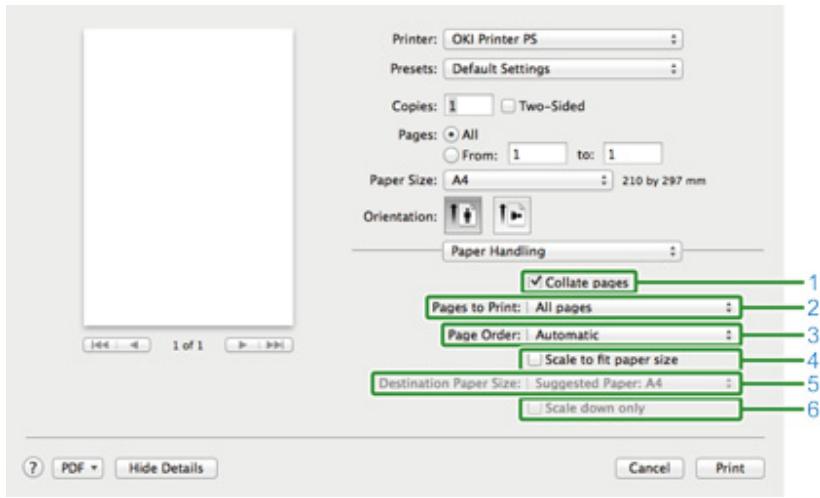
| Item | Description | |
| 1 | Collate pages | Prints in units of copies by selecting this check box. |
| 2 | Pages to Print | Specifies pages to print. |
| 3 | Page Order | Specifies a page order to print. |
| 4 | Scale to fit paper size | Prints to fit a paper size. A document may not be printed correctly depending on the setting.Enlarges or reduces a document to fit the output paper size by selecting this check box. |
| 5 | Destination Paper Size | Selects the output paper size when the [Scale to fit paper size] check box is selected. |
| 6 | Scale down only | Only reduces a document to fit the output paper size by selecting this check box. |
- [Paper Feed] Panel
![OKI ES5473MFP - - [Paper Feed] Panel - 1](/content/2024/11/223446/images/797e13bfcf248f43b634ade1ea0aa79e70c56fb56a371ab10cc3ea246a059049.jpg)
| Item | Description | |
| 1 | All Pages From | Specifies the paper feed tray. If you specify [Auto Select], a tray is automatically selected. |
| 2 | First Page From | Select this setting to print only the first page from the specified tray. |
| 3 | Remaining From | Select this setting to print the remaining pages from the specified tray. |
- [Cover Page] Panel
![OKI ES5473MFP - - [Cover Page] Panel - 1](/content/2024/11/223446/images/b310ef0633e55be19263a252d63722cbbf3c6bedff66fe9a855e105eb7971009.jpg)
| Item | Description | |
| 1 | Print Cover Page | Specifies the cover printing. |
| 2 | Cover Page Type | Specifies a string when printing the cover. |
| 3 | Billing Info | This function is not available. |
- [Color] Panel
![OKI ES5473MFP - - [Color] Panel - 1](/content/2024/11/223446/images/d983a013920b071ada0bc0ee69588964cd410c20d6ea30d9ed9c5f467abf3fd9.jpg)
| Item | Description | |
| 1 | Grayscale | Specifies to use monochrome printing. |
| 2 | Color | Specifies alignment to color mode when printing in color. |
- [Print Options] Panel
![OKI ES5473MFP - - [Print Options] Panel - 1](/content/2024/11/223446/images/e8cfd68b0385835c3318e43c821a944a3d17622f699249141eba0186acb5e601.jpg)
| Item | Description | |
| 1 | Quality1, Quality2, Feed, Paper | Specifies the print quality, toner saving, paper type, etc. |
- [User Authentication] Panel
![OKI ES5473MFP - - [User Authentication] Panel - 1](/content/2024/11/223446/images/b0937d459b2576787412969f128453540be0a1dbd92c521419e43efa93ef3c5f.jpg)
| Item | Description | |
| 1 | Use User Authentication | Select this check box if you set user authentication when printing. |
| 2 | UserID | The user name for user authentication. |
| 3 | Password | The password for user authentication. |
| 4 | Authentication type | Specify an authentication type to be used. |
| 5 | Summary Account | Specify an account name and type. |
![OKI ES5473MFP - - [User Authentication] Panel - 2](/content/2024/11/223446/images/9a23818cef7c1fa1599badc7e72663a206a2ece3345d96fc46c7fb67f9530532.jpg)
[Authentication type], [Summary Account] can be enabled from the apple menu, select [System Preferences] > [Printers & Scanners], select the device and enable the device in the [Options] tab of [Options & Supplies].
- [Secure Print] Panel
![OKI ES5473MFP - - [Secure Print] Panel - 1](/content/2024/11/223446/images/67eef88d4812ec722e54acff0a03ec1d4e2bc061d13d7850323f2f9bdcf30e21.jpg)
| Item | Description | |
| 1 | Job Type | Specifies the job type. [Job Type Option] can be used if [Shared Print] or [Private Print] is selected. |
| 2 | Job Type Option | Specify a job name to be displayed on the operator panel and password required when printing. |
- [Supply Levels] Panel
![OKI ES5473MFP - - [Secure Print] Panel - 2](/content/2024/11/223446/images/8c784d830195706cffd0b23cf3f857879b6aad7d93f16f31b8b5e1f0cb1493ec.jpg)
| Item | Description | |
| 1 | Consumables | Displays the remaining amount of consumables. |
![OKI ES5473MFP - - [Secure Print] Panel - 3](/content/2024/11/223446/images/b160f790f120a22ee2b7d174f3a839ab377b3d8c429d4411376ff954ea064161.jpg)
The [Supply Levels] panel may not appear depending on the environment such as how to connect to the device.
Descriptions of Screens for Print
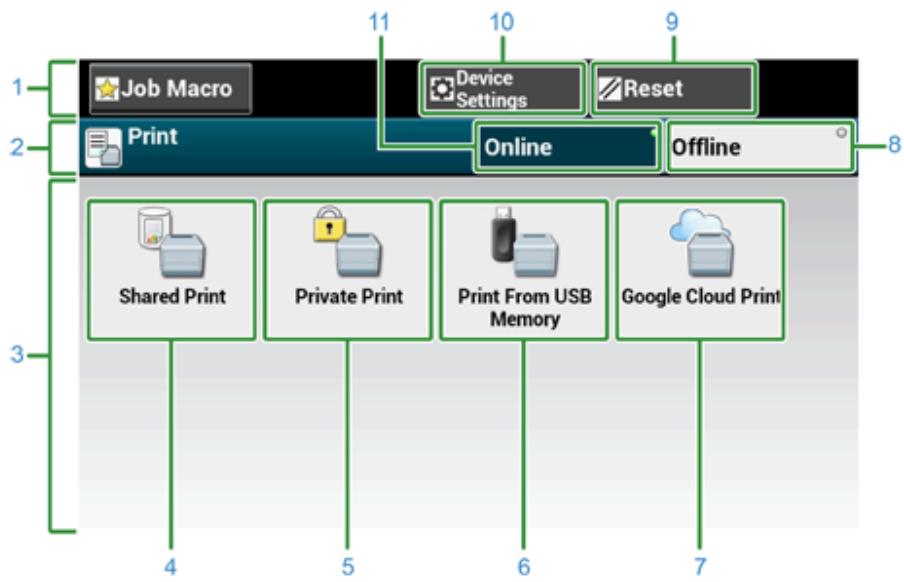
| Item | Description | |
| 1 | Stationary button area | Displays buttons that appear on the screen at all times. |
| 2 | Title and operation guide area | Displays the title of the current screen and provides guide for possible operations. |
| 3 | Main area | Displays shortcut buttons for using certain print functions. |
| 4 | [Shared Print] | Prints shared documents saved on the machine. |
| 5 | [Private Print] | Prints private documents saved on the machine. |
| 6 | [Print From USB Memory] | Prints a print data stored in USB Memory directly. |
| 7 | [Google Cloud Print] | Prints a print data received from Google Cloud Print manually. |
| 8 | [Offline] | Switches this machine offline. |
| 9 | [RESET] | Returns the settings for the current print job to their default settings. |
| 10 | [Device Settings] | Specifies various settings such as Administrator Setting. |
| 11 | [Online] | Switches this machine online. |
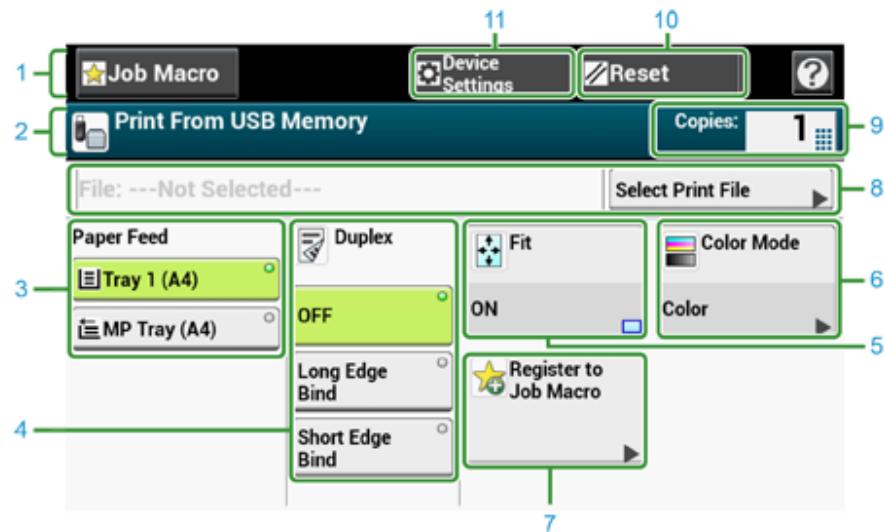
| Item | Description | |
| 1 | Stationary button area | Displays buttons that appear on the screen at all times. |
| 2 | Title and operation guide area | Displays the title of the current screen and provides guide for possible operations. |
| 3 | Paper Feed | Specifies the tray to set the copy paper. |
| 4 | Duplex | Prints on the both sides of paper. |
| 5 | Fit | Prints adjusting the page size to fit the selected paper. |
| 6 | Color Mode | Specifies color mode to copy a document. |
| 7 | Register to Job Macro | Registers current settings to Job Macro. |
| 8 | Select Print file | Select files to print. |
| 9 | Copies | Specifies the number of copies to make. |
| 10 | Reset | Returns the settings for the current copy job to their default settings. |
| 11 | Device Settings | Specifies various settings such as Administrator Setting. |
7 Fax
Basic Operations of Fax Functions
Setting for Receptions
Descriptions of Screens for Fax
Basic Operations of Fax Functions
This section describes basic operations when sending and receiving a fax.
- Entering Fax Number to Send a Fax
- About the Dial Function (Advanced Manual)
- Specifying a Destination from Phone Book (Advanced Manual)
- Specifying a Destination Using One-touch Button (Advanced Manual)
- Specifying a Destination from Transmission History and Reception History (Advanced Manual)
- Deleting a Specified Destination (Advanced Manual)
- Displaying a Preview Image (Advanced Manual)
- Cancelling a Fax Transmission
- Receiving a Fax (Advanced Manual)
- Paper Size Priority (Advanced Manual)
- Checking the Communication Status/Transmission and Reception History (Advanced Manual)
- Items on Transmit and Receipt Journal Report (Advanced Manual)
Entering Fax Number to Send a Fax
Press [Fax/Internet Fax] on the touch panel or the (FAX) button on the operator panel.
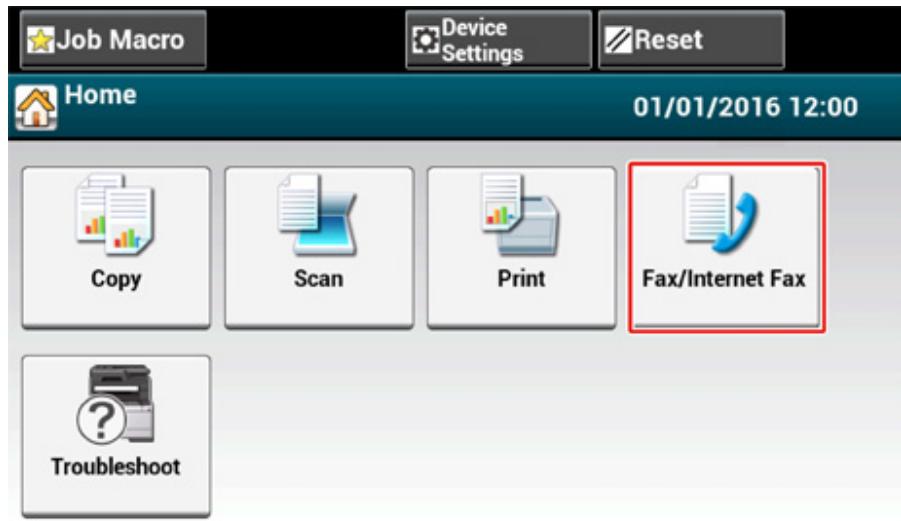
2 Set a document in the ADF or on the document glass.

When scanning a document with the machine, a document in the ADF is given priority. Check that there is no document in the ADF when using the document glass.
3 Press [Fax].
![OKI ES5473MFP - Press [Fax]. - 1](/content/2024/11/223446/images/14358195bb81dc6d0cc71ecbfc58594f0b0779aeeccf762889b9230a2bde6303.jpg)
Press [Manual Dial].
5 Enter the destination number, and then press [OK].
6 Change settings if necessary.
![OKI ES5473MFP - Press [Fax]. - 2](/content/2024/11/223446/images/d76f0a1749e6516919cd2f9186a413ee3b51ba0f5b3524dbd1093a3aa04c199b.jpg)
- The default settings for sending a fax are as follows.
[Scan Size]: A4 or Letter
- You can change the default settings by pressing [Device Settings] > [Admin Setup] on the touch panel.
![OKI ES5473MFP - Press [Fax]. - 3](/content/2024/11/223446/images/ef5bced1087cff2fbacd8489a94c33ff31606479f92eb0c11183ed6630cf296d.jpg)
Fax Setup (Advanced Manual)
- Enable [Preview] on the [Advanced] tab to preview the image to send.
7 Press the (START) button.
Cancelling a Fax Transmission
- Cancelling During a Transmission
- Cancelling a Reserved Transmission
Cancelling During a Transmission
You can cancel a fax transmission when a message is displayed and scanning is in progress.
1 Press the (STOP) button.
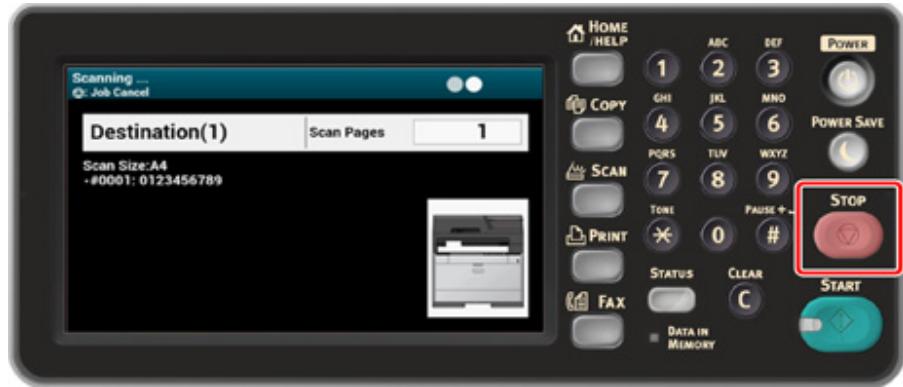
Cancelling a Reserved Transmission

If you select broadcast, the broadcast job is cancelled.
Press [Fax/Internet Fax] on the touch panel or the (FAX) button on the operator panel.
2 Press [Fax].
Press the [Fax Job View/Cancel] tab.
4 Press [Delete] of a job to cancel.

A fax that is being sent is displayed on the top of the list.

Press [Yes] on a confirmation screen.
Setting for Receptions
This section describes various settings when receiving a fax.
- Setting the Reception Mode
- DRD
- Setting a Tray to Print Received Documents (Advanced Manual)
- Setting the Waiting Time from When an Incoming Call Arrives to When Reception Starts (Response Waiting Time)
Receiving Operation - Setting a Print Method for When a Received Image Exceeds Paper Size (Advanced Manual)
- Duplex Printing (Advanced Manual)
- Setting So That You Can Hear Line Monitor Sound (Advanced Manual)
- Forwarding a Fax to Another Fax Number (Advanced Manual)
- Setting When to Ring the External Telephone (Tel Priority Mode) (Advanced Manual)
- Setting Fax Detection Mode (Advanced Manual)
- Setting the T/F Timer (Advanced Manual)
- Setting TAD Mode (Advanced Manual)
- Block Junk Fax (Advanced Manual)
- Previewing a Received Fax (Advanced Manual)
Setting the Reception Mode
[Fax Ready Mode] is set by factory default.
Change the setting according to your environment.
- [Fax Ready Mode]: Select this mode if you use this machine for fax only.
- [Tel/Fax Ready Mode]: Select this mode if you want to receive both phone calls and faxes with the machine detecting automatically.
- [Ans/Fax Ready Mode]: Select this mode if you want to use the answering phone function of an external telephone as well as the fax function of the machine.
- [Tel Ready Mode]: Select this mode if you often use the external telephone that is connected to the machine.
- [DRD]: If you use the distinctive ring detection (DRD) function that is provided by a telephone company. Refer to "DRD".
1 Check that the machine is turned on.
2 Press [Device Settings] at the top of the home screen.
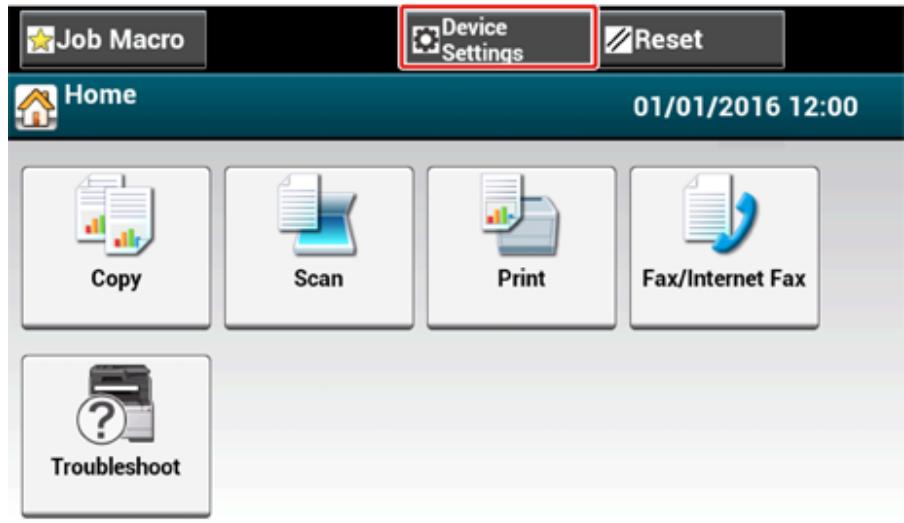
Press [▲] once to switch the screens, and then press [Admin Setup].
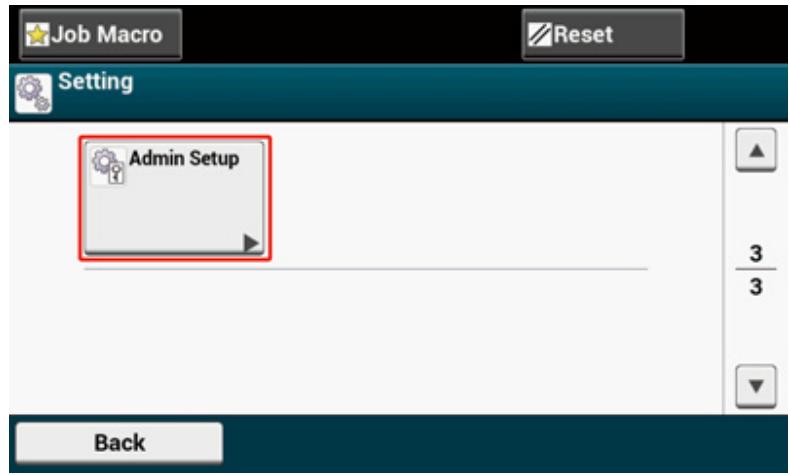
4 Enter the administrator password, and then press [OK].

The factory default administrator name and password are "admin" and "999999" respectively.
5 On the administrator log in screen, press [OK].
Press [▼] once to switch the screens, and then press [User Install].
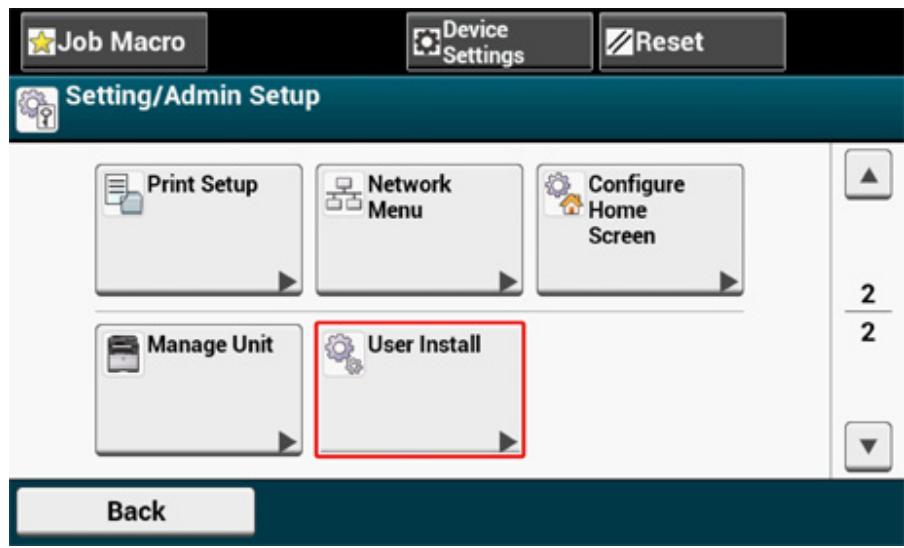
7 Press [▼] once to switch the screens, and then press [Reception Mode].
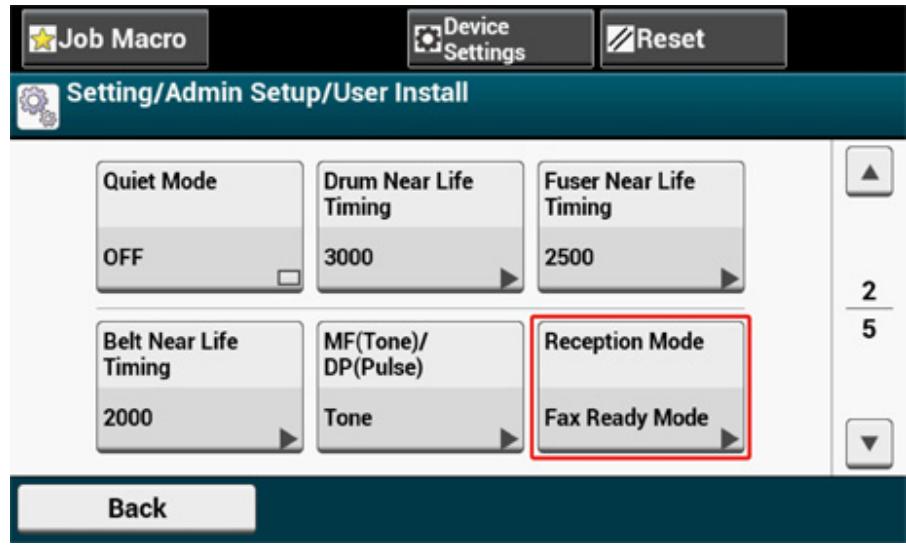
8 Select a mode which is most suitable for your environment.
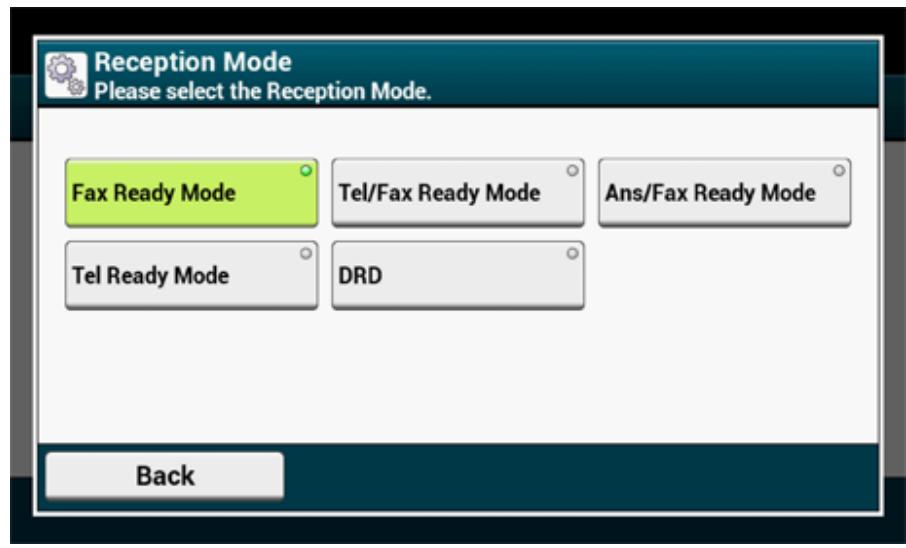
Press [Back] until the home screen is displayed.
DRD
This mode allows the machine to detect a distinctive ring if it has been enabled on the phone line. In this mode, the machine distinguishes the DRD type of the sender. The machine then answers only when it matches the registered DRD type.
There are several types of DRD ring pattern. The length of ring ON time and ring OFF time is different. It depends on the Country Code. Please set the Country Code and DRD Type for your suitable DRD ring pattern. You can register up to four DRD types.
Country Code : except New Zealand, Australia and Hong Kong (This pattern is to apply to America's DRD.)
Type 1:2 sec ON -4 sec OFF repeat
Type 2 : 0.8 sec ON - 0.4 sec OFF - 0.8 sec ON - 4 sec OFF repeat
Type 3 : 0.4 sec ON - 0.2 sec OFF - 0.4 sec ON - 0.2 sec OFF - 0.8 sec ON - 4 sec OFF repeat
Type 4 : 0.3 sec ON - 0.2 sec OFF - 1 sec ON - 0.2 sec OFF - 0.3 sec ON - 4 sec OFF repeat
Country Code : New Zealand (This pattern is to apply to New Zealand's DRD.)
Type 1:0.4 sec ON - 0.2 sec OFF - 0.4 sec ON - 2 sec OFF repeat
Type 2:0.4 sec ON - 2.6 sec OFF repeat
Type 3 : 0.4 sec ON - 0.2 sec OFF - 0.4 sec ON - 0.2 sec OFF - 0.4 sec ON - 1.4 sec OFF repeat
Type 4 : 0.4 sec ON - 0.8 sec OFF - 0.4 sec ON - 1.4 sec OFF repeat
Country Code : Australia (This pattern is to apply to Australia's DRD.)
Type 1:0.4 sec ON - 0.2 sec OFF - 0.4 sec ON - 2 sec OFF repeat
Type 2:0.2 sec ON - 0.4 sec OFF - 0.2 sec ON - 0.4 sec OFF - 0.2 sec ON - 1.6 sec OFF repeat
Country Code : Hong Kong (This pattern is to apply to Hong Kong's DRD.)
Type 1 : 1.2 sec ON - 3 sec OFF repeat
Type 2: 0.4 sec ON - 0.2 sec OFF - 0.4 sec ON - 0.2 sec OFF - 0.8 sec ON - 0.4 sec OFF repeat
Type 3 : 0.5 sec ON - 0.5 sec OFF - 1 sec ON - 0.5 sec OFF - 0.5 sec ON - 3 sec OFF repeat
Setting the Waiting Time from When an Incoming Call Arrives to When Reception Starts (Response Waiting Time)
The factory default value is 1 Ring.
Change the value if faxes cannot be received.
Press [Device Settings] on the touch panel.
2 Press or several times and press [Admin Setup].
3 Enter the administrator name and password and press [OK]. The factory default administrator name and password are "admin" and "999999" respectively.
4 Select [Fax Setup].
5 Select [Other Settings].
6 Press [Ring Response].
7 Select a waiting time.
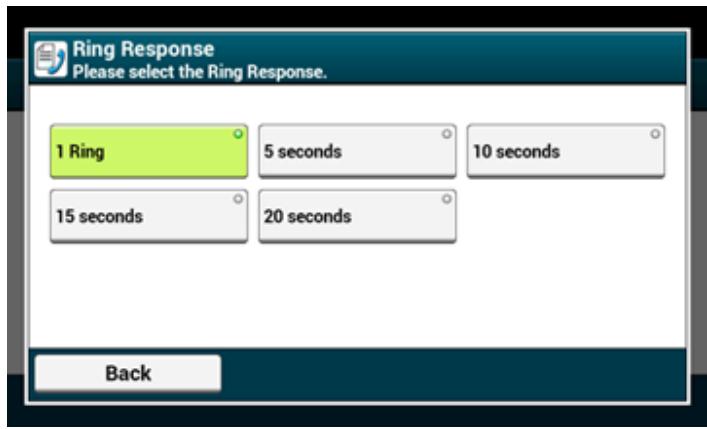
Press [Back] until the home screen is displayed.
Receiving Operation
Receiving operation varies depending on the specified fax reception mode.
The fax reception mode is set to [Fax Ready Mode] by factory default and the machine receives faxes automatically. When you change the fax reception mode, check the reception behavior following the instructions below.
The (Status) indicator on the operator panel is lit while receiving a fax and "Fax receiving ..." is displayed.
When Receiving Calls and Faxes (Tel/Fax Ready Mode)
If [Tel/Fax Ready Mode] is set, you can use the telephone and fax. To receive calls, you must connect a telephone to the machine in advance.
The machine automatically detects a voice call or fax.

For details on how to connect a telephone device, see "Connecting a Telephone Line".
- Receiving a Fax
Fax reception automatically starts.
Receiving a Call
When receiving a call, the telephone starts ringing.
When the telephone starts ringing, pick up the receiver. You can answer the call.
2 When receiving a fax, press (Start).

- If you often receive voice calls, it is recommended [OK] in [Tel Priority Mode]. Setting When to Ring the External Telephone (Tel Priority Mode) (Advanced Manual)
- If the connected telephone is remotely located, you can switch the machine to the fax reception operation by dialing the remote switchover number on the telephone.
- Instructing a Fax Reception from a Telephone Remotely (Remote Swithchover Number) (Advanced Manual)
When Connecting an Answering Machine (Ans/Fax Ready Mode)
If [Ans/Fax Ready Mode] is set, you can use an answering machine and fax. Connect an answering machine in advance.

For details on how to connect an answering machine, see "Connecting a Telephone Line".
- Receiving a Fax
The answering machine rings, a response message is played, and fax reception automatically starts. - Receiving a Call
The answering machine rings, a response message is played, and a message recording starts.
When Using as a Telephone Normally (Tel Ready Mode)
If you often use a telephone that is connected to the machine, [Tel Ready Mode] is recommended.
- Receiving a Call
When receiving a call, the telephone starts ringing.
- Receiving a Fax
When receiving a signal, the telephone starts ringing.
When the telephone starts ringing, pick up the receiver.
Press the (START) button.
Descriptions of Screens for Fax
This section describes the items of the screen.
- Fax Screen
- Internet Fax Screen (Advanced Manual)
Fax Screen
- [Fax] Tab
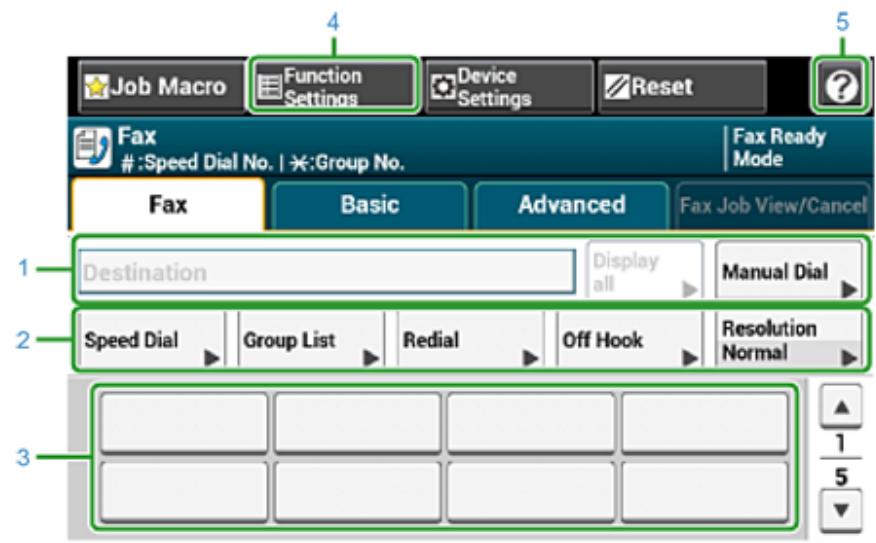
| Item | Description | |
| 1 | Destination area | Select a fax destination. The selected fax destination appears in this area. If at least 1 destination is specified, you can press [Display all] to edit, add, or delete a destination. |
| 2 | Shortcut buttons | Displays shortcut buttons for using fax functions. The screen image shows the factory default setting. Shortcut buttons on the screen can be customized to fit your needs. Refer to "How to Customize the Touch Panel (Advanced Manual)" |
| 3 | One touch buttons | Displays destinations assigned to one-touch buttons. Press a button to add a destination. |
| 4 | Function Settings | Displays the current settings. The setting can be changed for certain functions. |
| 5 | ? | Displays Help topics. |
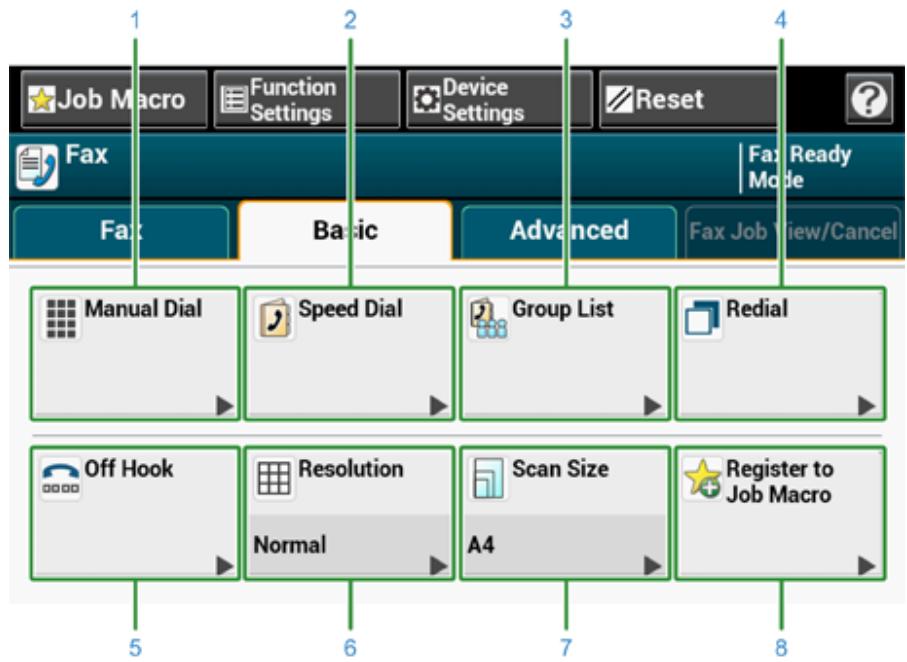
[Basic] Tab
| Item | Description | |
| 1 | Manual Dial | Enter a fax number manually to use it as a destination. |
| 2 | Speed Dial | Displays destinations registered in the speed dial list. Select a destination from the speed dial list. |
| 3 | Group List | Displays a list of groups in which fax destinations are registered. Select a group as a destination from the Group List. |
| 4 | Redial | Displays a list of recently used destinations. Select a destination from the recent records. |
| 5 | Off Hook | Sends a fax by Off Hook dialing. Call the destination, and start sending a fax manually when you hear a receiving tone (beep) of the destination machine. |
| 6 | Resolution | Specifies the resolution to scan a document. |
| 7 | Scan Size | Specifies the scan size when scanning a document. |
| 8 | Register to Job Macro | Registers current settings to Job Macro. |
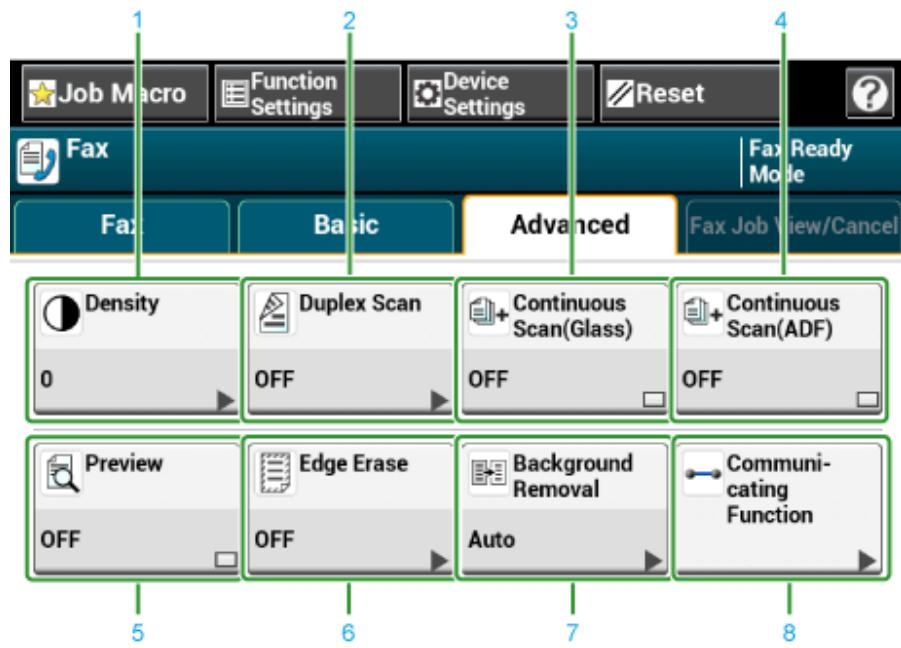
- [Advanced] Tab
| Item | Description | |
| 1 | Density | Adjusts a level of scan density. |
| 2 | Duplex Scan | Specifies duplex scanning. Set this function when scanning both sides of a document. |
| 3 | Continuous Scan (Glass) | Scans multiple documents as a single job using the document glass. |
| 4 | Continuous Scan (ADF) | Scans multiple documents as a single job using the ADF. |
| 5 | Preview | Displays fax images to send on the touch panel. |
| 6 | Edge Erase | Eliminates a black shadow that may appear around the edges on the scanned file when scanning, for example, a book. |
| 7 | Background Removal | Removes background. |
| 8 | Communicating Function | Specifies the following settings: TTI, TTI Select, Transmit Confirmation, Delayed Tx, Fcode Polling, Fcode Tx. |
- [Fax Job View/ Cancel] Tab
Cancels a transmission or see the detail of the job that is proceeding.
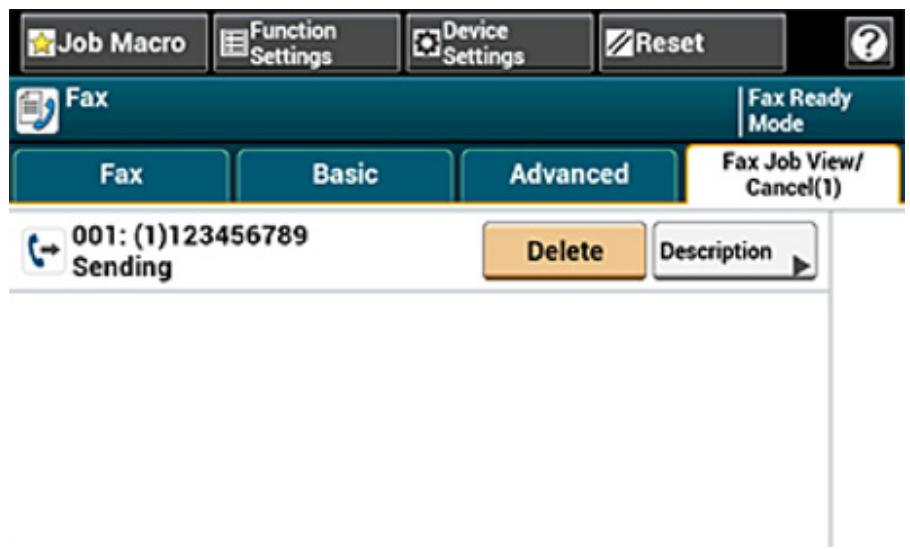
- [Function Settings] > [Destination] Tab
Add, edit or delete a destination to which a fax is sent.
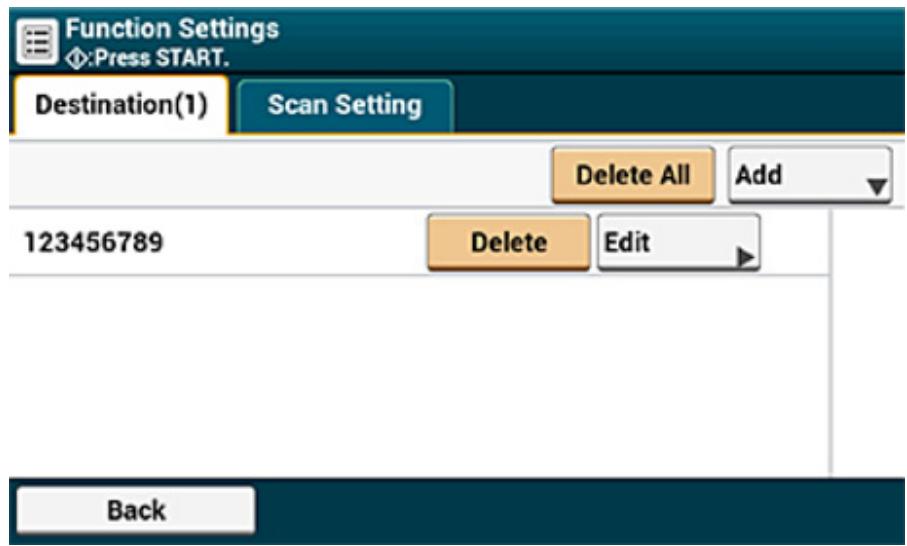
- [Function Settings] > [Scan Setting] Tab
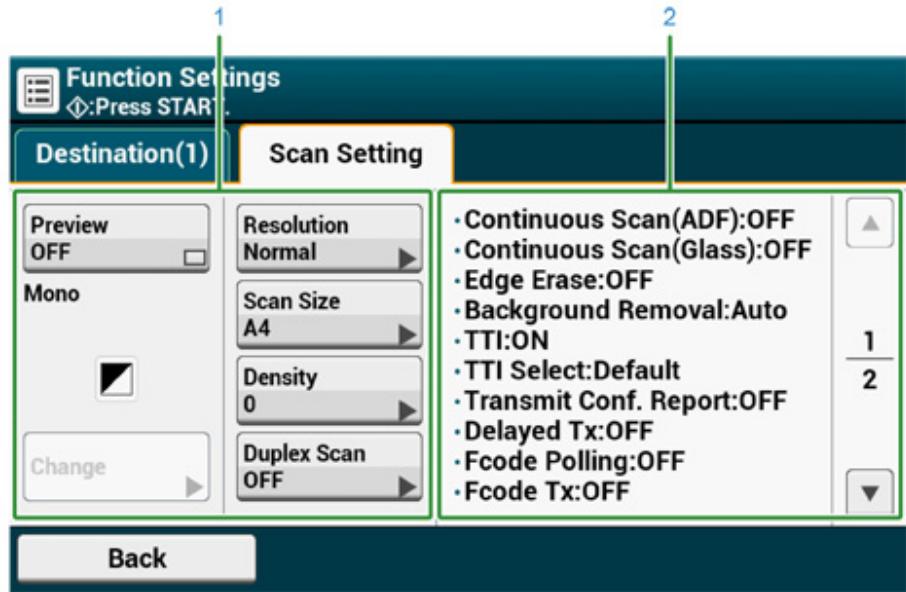
| Item | Description | |
| 1 | Setting display area 1 | Displays the current settings for displayed items. |
| 2 | Setting display area 2 | Displays a list of settings that are not set by items displayed in setting display area 1. |
Replacing Consumables
Cleaning Each Part of the Machine
This section describes how to maintain the machine to keep the machine comfortable and extend its life.
Replacing Consumables
This section describes how to replace consumables.
- Cautions When Replacing Consumables
- Replacing the Toner Cartridges
- Replacing the Image Drum
- Replacing the Image Drum and Toner Cartridge at the Same Time
Cautions When Replacing Consumables
Observe the following cautions when replacing.
| WARNING | |
| Do not throw the toner or toner cartridge into a fire. The toner will scatter, resulting in burns. | |
| Do not store a toner cartridge in a location where it is exposed to open flames. The toner may ignite, resulting in fire or burns. | |
| Do not vacuum spilled toner with an electric vacuum cleaner. Vacuuming spilled toner with an electric vacuum cleaner may result in ignition due to sparks from electric contacts or other reasons. If toner spills on the floor or other places, wipe the toner with a damp rag or other cloth. | |
| CAUTION | |
| Some parts inside the machine become very hot. Do not touch the locations around a "CAUTION HOT" label. Burns may result. | |
| Keep toner cartridges out of the reach of children. If a child accidentally swallows toner, immediately seek medical advice. | |
| If you inhale toner, gargle with a large amount of water, and move to a place with fresh air. Seek medical advice if necessary. | |
| If toner lands on your hands or other areas of skin, wash thoroughly with soap and water. | |
| If toner gets into your eyes, immediately rinse with a large amount of water. Seek medical advice if necessary. | |
| If you swallow toner, spit it out. Seek medical advice if necessary. | |
| When handling a paper jam or replacing toner cartridges, use care not to let your clothes or hands get dirty with toner. If toner lands on your clothes, wash with cold water. If toner gets hot by washing with hot water or other methods, the toner will stain the fabric and become impossible to remove. | |
| Do not disassemble the image drum or toner cartridge. You may inhale the scattered toner, or the toner may land on your hands or clothes, making them dirty. | |
| Store used toner cartridges by putting them into a bag while using care not to scatter the toner. | |
!
- Use OKI genuine consumables to ensure optimum performance of the products.
- Charges for services for problems caused by the use of consumables other than OKI genuine consumables are incurred, regardless of the warranty or in the maintenance contract. (Although the use of non-genuine consumables does not always result in problems, use extra care when using them.)
Replacing the Toner Cartridges
When the "[COLOR] Toner Low" message ([COLOR] indicates C (cyan), M (magenta), Y (yellow) or K (black)) which appears on the display screen, prepare a replacement toner cartridge.
When the "[COLOR] Toner Empty" appears and printing stops, replace the toner cartridge.

Even if the cyan (blue), magenta (red) or yellow toner cartridges run out, you can print in black and white by selecting [Monochrome] or [Grayscale]. However, please replace the toner cartridge quickly after it runs out, as not doing so may cause the image drum to be damaged.
1
- Have a new toner cartridge ready, as the print quality declines after more than one year following breaking the seal.
- If you replace the toner cartridge/image drum while it is being used, the toner consumption will not be counted normally.
- By opening and closing the output tray after the message "[COLOR] toner has run out" is displayed, you are able to print. Please replace the toner cartridge as failure to do so may damage the image drum.
- Toner powder may spill if you remove a toner cartridge before the toner runs out.
1 Prepare new toner cartridges.
2 Hold the handle (B) and open the scanner unit (a) completely.
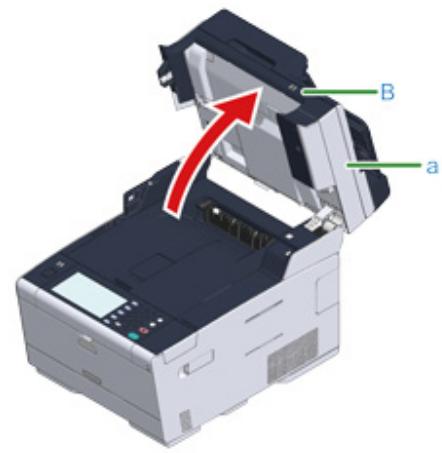
3 Press the button (A) and open the output tray (b) completely.
| CAUTION | Burns may result. | |
| The fuser unit is extremely hot. Do not touch it. | ||
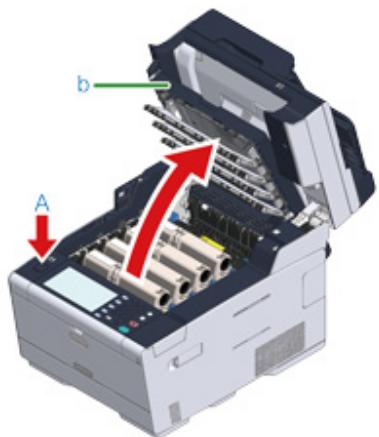
4 Identify an empty toner cartridge by its label color.
5 Pinch the tip of blue lever (c) of the toner cartridge and turn it toward you until the tip aligns on the lug of the cartridge.
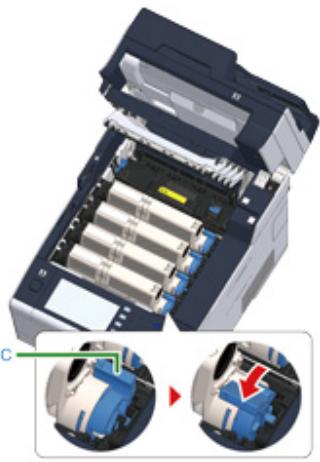
6 Lift the toner cartridge (d) from right side, and remove it from the machine.
| WARNING | Burns may result. | |
| Never throw used toner cartridges into a fire. They may explode, and the toner inside may fly off and cause burns. | ||
!
While removing consumables, be careful not to hit them to the LED head.
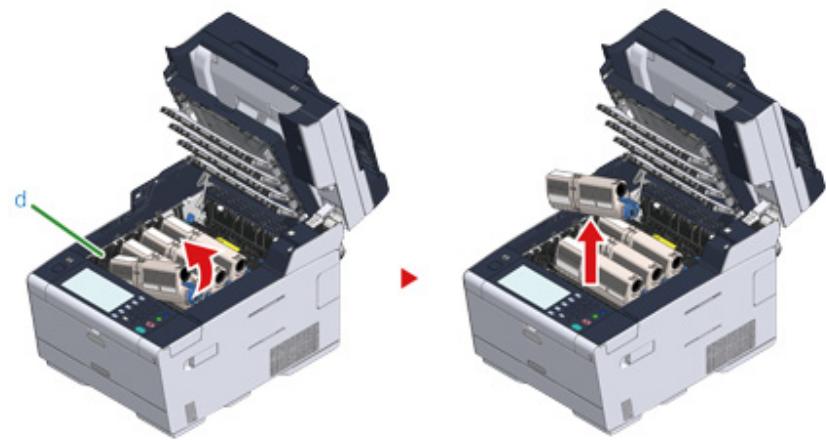
7 Unpack a new toner cartridge.
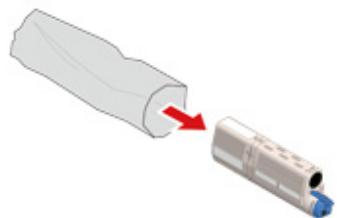
8 Shake the cartridge several times vertically and horizontally.
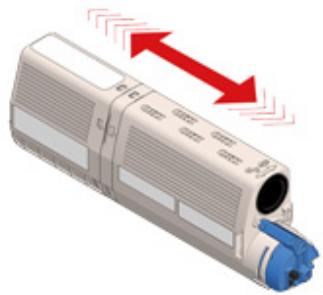
9 Remove the tape (e) from the toner cartridge.
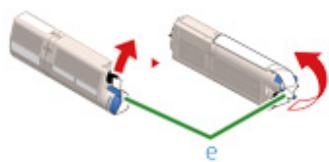
10 Insert a new toner cartridge (d) by aligning its left side indentation (f) with the protrusion (g) on the image drum so the toner cartridge and image drum color labels align. Then insert the right side gently into place.

Do not insert a toner cartridge without removing the tape.
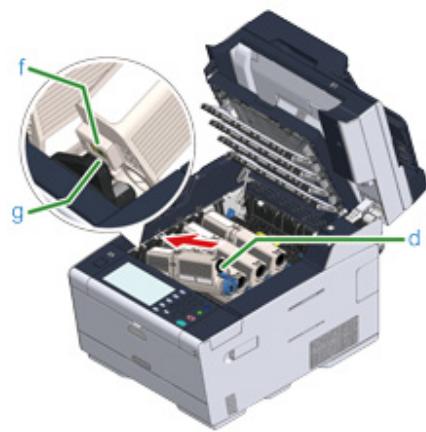
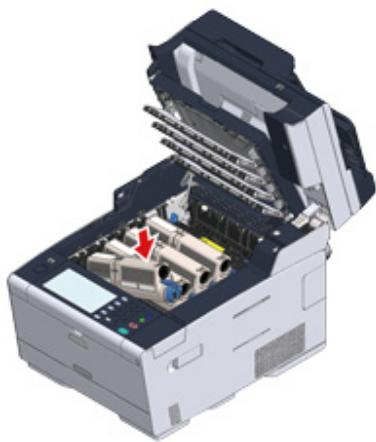
Hold the cartridge, pinch the tip of blue lever (c) of the toner cartridge, and turn forward until the tip aligns on the lug of the cartridge.
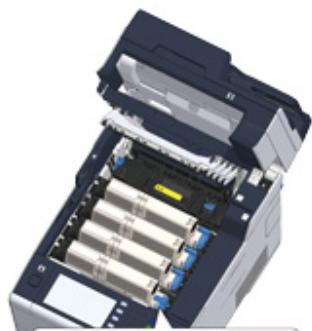
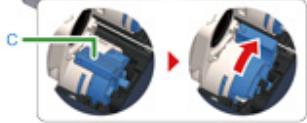
!
- If you close the output tray without turning the blue lever when installing the toner cartridge into the image drum, it may cause a malfunction. Be sure to turn the blue lever until its top aligns on the lug in the back of the toner cartridge.
- If the toner cartridge is not securely attached, printing quality may deteriorate.
12 Wipe the lens of the LED head with a soft tissue paper lightly.
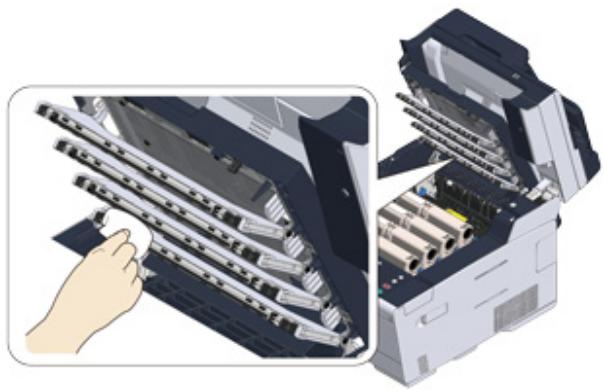
!
Do not use solvents, such as methyl alcohol or thinners. They damage the LED head.
13 Close the output tray (b) slowly and push the center of the output tray for confirmation.
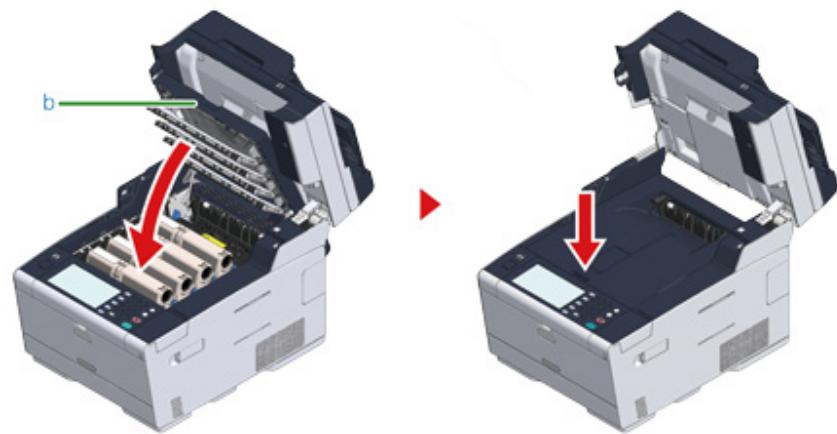
Hold the handle (B) to close the scanner unit (a).
1
Do not close the scanner unit vigorously. It may cause the document feed roller of ADF to fall and get in the way of loading documents.
If the document feed roller of ADF has fallen, open and close the ADF cover.
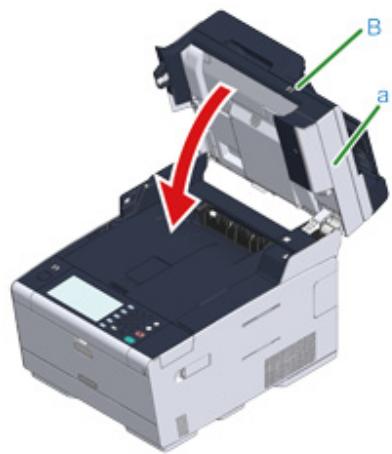
15 Please recycle toner cartridges.

If you have to dispose of used toner cartridges, put them into polyethylene bags or other container, and be sure to follow the regulations or instructions of your local government.
Replacing the Image Drum
When the "[COLOR] Image Drum Near Life" message appears on the display screen, prepare a replacement image drum. If you continue printing, the message "[COLOR] Image Drum Life" will be displayed and printing will stop.
When the "Please install new Image Drum Unit." message is displayed and printing stops, replace the image drum.
When using A4 paper (simplex printing), the estimated replacement cycle of an image drum is approximately 30,000 pages. This estimation assumes the standard use condition (three pages are printed at a time). Printing one page at a time reduces the drum lifetime approximately by half.
1
- The actual number of pages you can print with the image drum depends on how you use the machine. It may be less than half the above estimation depending on the printing conditions.
- Printing quality may deteriorate after 1 year following the unpacking of the toner cartridge. Replace the toner cartridge with a new one.
- Although opening and closing the output tray may extend the life of an image drum for a while, it is recommended to replace it soon after the "Install New image drum" message is displayed.
- When [Device Settings] > [Admin Setup] > [Manage Unit] > [System Setup] > [Near Life Status] on the touch panel is set to [Disable], the ["COLOR" Image Drum Near Life" message does not appear.
- Use OKI genuine consumables to ensure optimum performance of the products.
- Charges for services for problems caused by the use of consumables other than OKI genuine consumables are incurred, regardless of the warranty or in the maintenance contract. (Although use of non-genuine consumables does not always result in problems, use extra care when using them.)
This section describes how to replace the image drum when you want to continue using the toner cartridge.
!
- If you use a new image drum with the toner cartridges currently in use, the remaining amount indication of the toner cartridges will not display correctly. The messages "[COLOR] Image Drum Near Life" or "[COLOR] Image Drum Life" may also be displayed soon after replacement.
- Use extra care when handling the image drum (the green cylinder), because it is fragile.
- Do not expose the image drum to direct sunlight or strong light (approximately 1,500 lux or more). Even under room lighting, do not leave the image drum for 5 minutes or more.

You can set when to display the "[COLOR] Image Drum Near Life" message. Press [Device Settings] > [Admin Setup]
[User Install] > [Drum Near Life Timing] on the touch panel to change the setting. Available values are from 500 to 3,000 (in 500 increments).
1 Prepare new image drum.
2 Hold the handle (B) and open the scanner unit (a) completely.
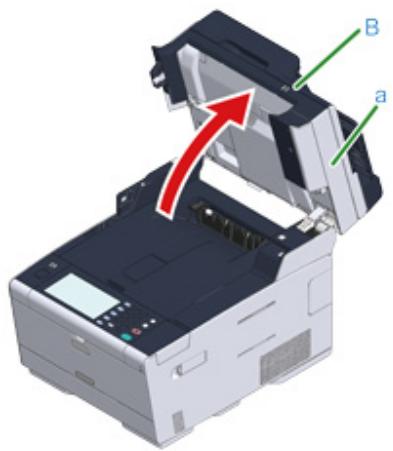
3 Press the button (A) and open the output tray (b) completely.
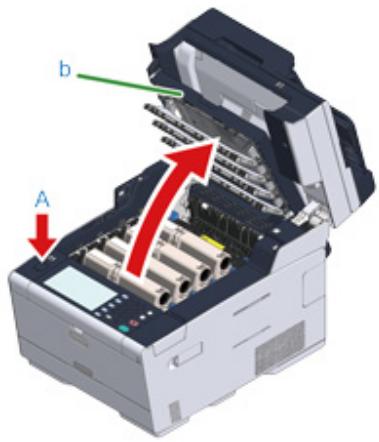
4 Identify the image drum that reached its lifetime by its label color.
5 Remove the image drum (c) from the machine and place the image drum on a flat surface.

While removing consumables, be careful not to hit them to the LED head.
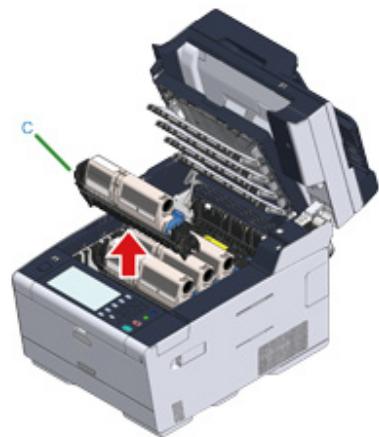
6 Hold the cartridge, pinch the tip of blue lever (d) of the toner cartridge, and turn it toward you until the tip aligns on the lug of the cartridge.
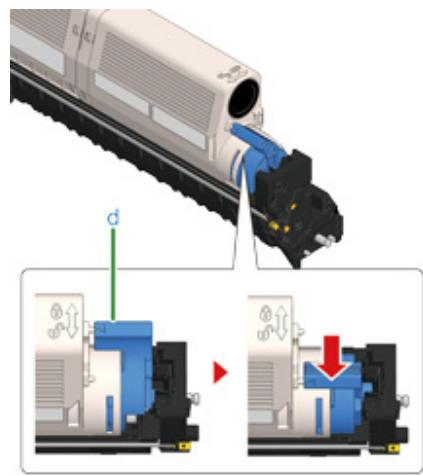
7 Lift the toner cartridge (e) from the right side, and remove it from the image drum.
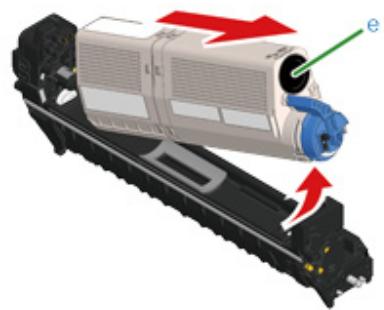
8 Unpack a new image drum and place it on a flat surface.
9 Remove the desiccant pack.
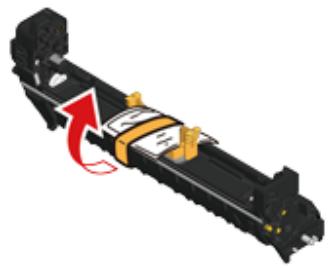
10 Remove the toner cover.
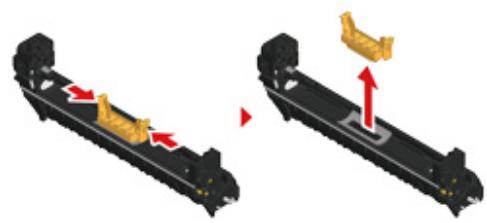
11 Insert the toner cartridge (e) removed in step 7 by aligning its left side indentation (f) with the protrusion (g) on the image drum so that the toner
cartridge and image drum color label align. Then insert the right side gently into place.
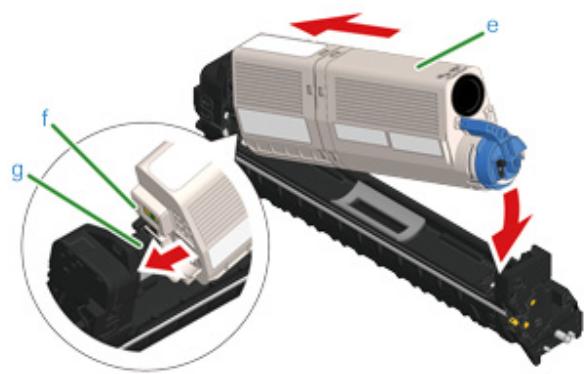
12 Hold the cartridge, pinch the tip of blue lever (d) of the toner cartridge, and turn forward until the tip aligns on the lug of the cartridge.
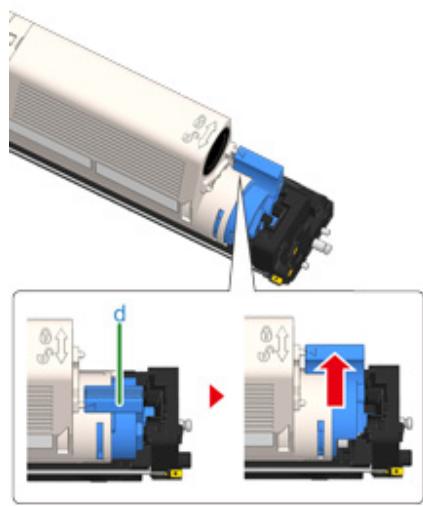
1
If you close the output tray without turning the blue lever when installing the toner cartridge into the image drum, it may cause a malfunction. Be sure to turn the blue lever until its top aligns on the lug in the back of the toner cartridge.
13 Check the label color of the new image drum and place the drum into the machine.

While setting consumables, be careful not to hit them to the LED head.
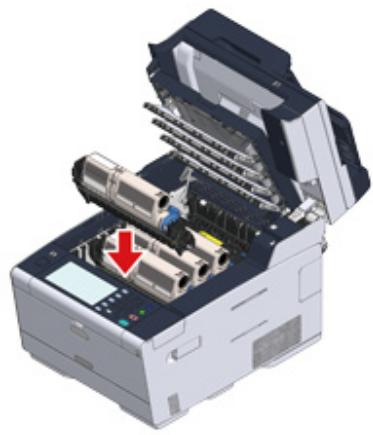
14 Close the output tray (b) slowly and push the center of the output tray for confirmation.
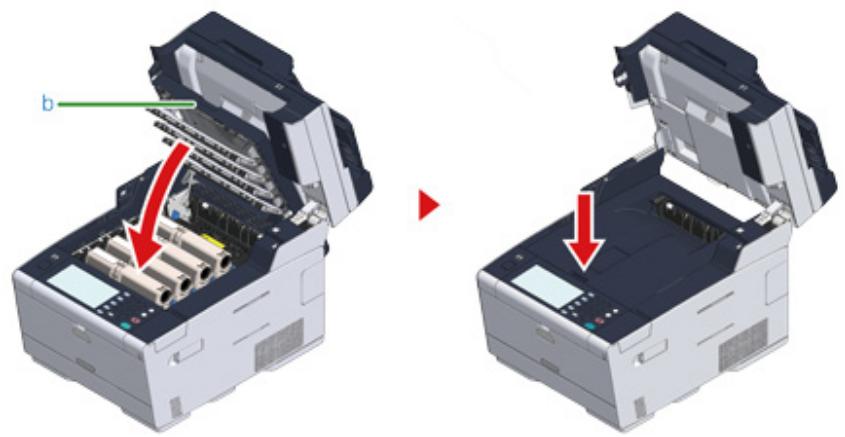
Hold the handle (B) to close the scanner unit (a).

Do not close the scanner unit vigorously. It may cause the document feed roller of ADF to fall and get in the way of loading documents.
If the document feed roller of ADF has fallen, open and close the ADF cover.
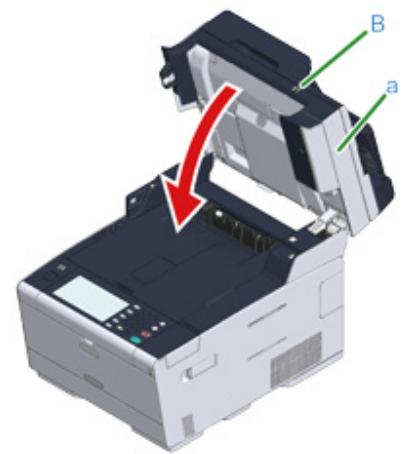

Please recycle image drums.

If you must dispose of an image drum, put it in a plastic bag or similar container and dispose of it in accordance with your municipality's ordinances or guidelines.
Replacing the Image Drum and Toner Cartridge at the Same Time
This section describes how to replace the image drum and toner cartridge with new ones at the same time.
!
- Use extra care when handling the image drum (the green cylinder), because it is fragile.
- Do not expose the image drum to direct sunlight or strong light (approximately 1,500 lux or more). Do not leave the image drum for 5 minutes or more even under room light.
1 Prepare new image drum and toner cartridge.
2 Hold the handle (B) and open the scanner unit (a) completely.
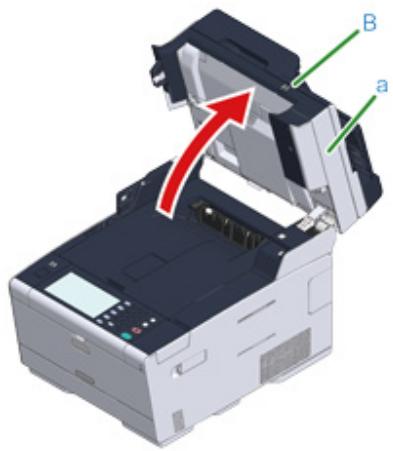
3 Press the button (A) and open the output tray (b) completely.
| CAUTION | Burns may result. | |
| The fuser unit is extremely hot. Do not touch it. | ||
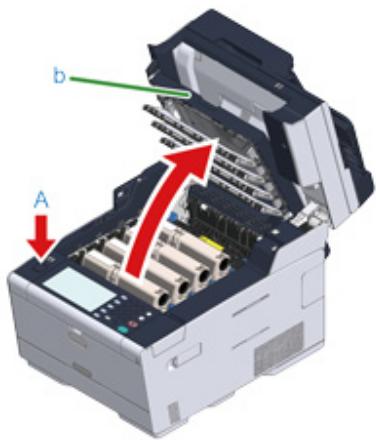
4 Identify an empty toner cartridge by its label color.
5 Remove the image drum (c) from the machine and place it on a flat surface.
!
While removing consumables, be careful not to hit them to the LED head.
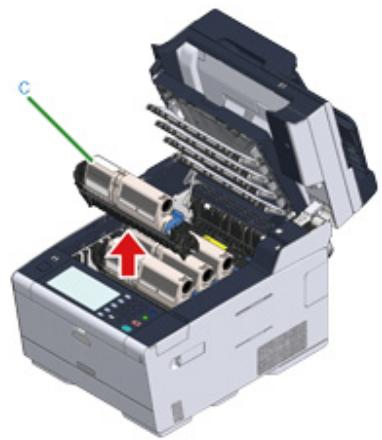
| WARNING | Burns may result. | |
| Never throw a used image drum or toner cartridge into a fire. They may explode, and the toner inside may fly off and cause burns. | ||
6 Unpack a new image drum and place it on the flat surface.
7 Remove the desiccant pack.
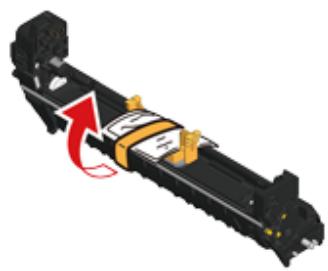
8 Remove the toner cover.
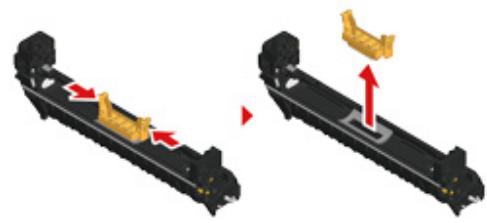
9 Unpack a new toner cartridge.
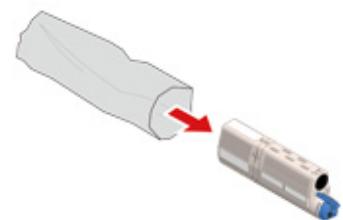
10 Shake the cartridge several times vertically and horizontally.
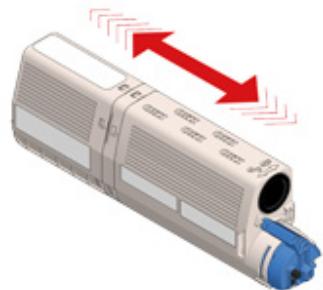
12 Insert a new toner cartridge (e) by aligning its left side indentation (f) with the protrusion (g) on the image drum so that the toner cartridge and image drum color label align. Then insert the right side gently into place.
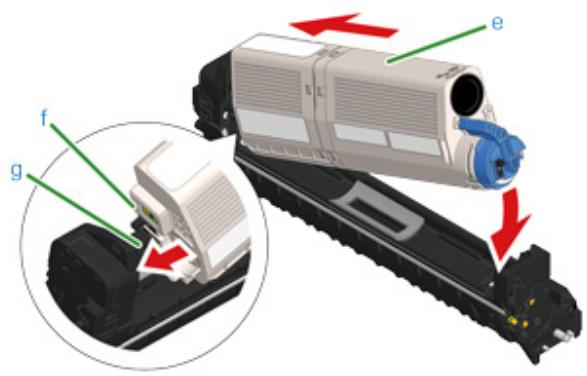

For the installation method, refer to "Replacing the Toner Cartridges".
Hold the cartridge, pinch the tip of blue lever (h) of the toner cartridge, and turn forward until the tip aligns on the lug of the cartridge.
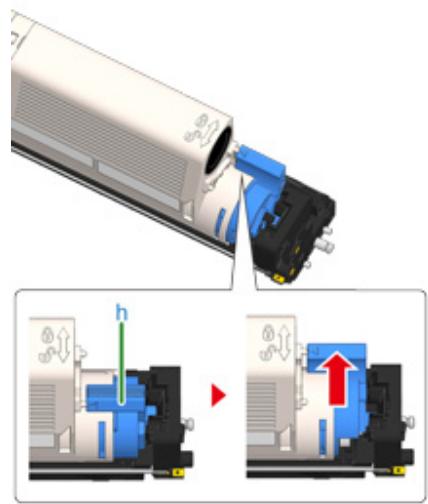

If you close the output tray without turning the blue lever when installing the toner cartridge into the image drum, it may cause a malfunction. Be sure to turn the blue lever until its top aligns on the lug in the back of the toner cartridge.
14 Check a label color of a new image drum and place the drum into the machine.

While setting consumables, be careful not to hit them to the LED head.
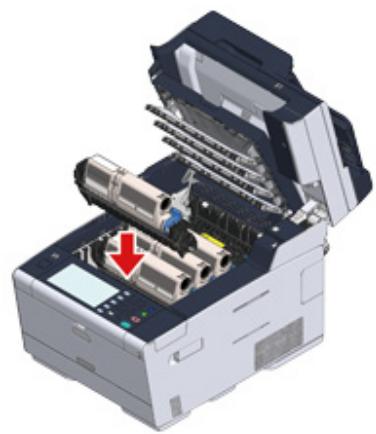
15 Close the output tray (b) slowly and push the center of the output tray for confirmation.
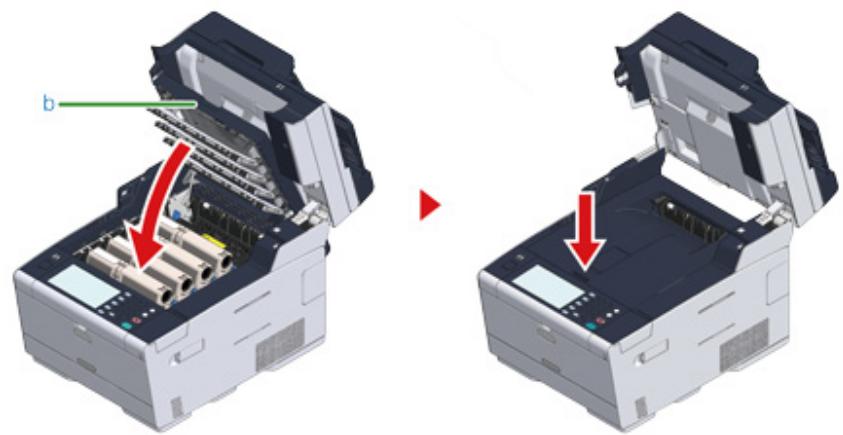
16 Hold the handle (B) to close the scanner unit (a).

Do not close the scanner unit vigorously. It may cause the document feed roller of ADF to fall and get in the way of loading documents.
If the document feed roller of ADF has fallen, open and close the ADF cover.
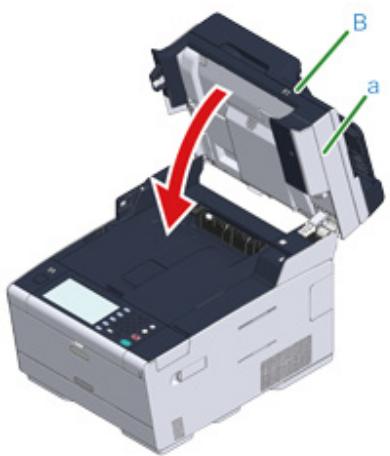
17 Please recycle image drums and toner cartridges.

If you must dispose of an image drum, put it in a plastic bag or similar container and dispose of it in accordance with your municipality's ordinances or guidelines.
Cleaning Each Part of the Machine
This section describes how to clean the machine and parts.
- Cleaning the Surface of the Machine (Advanced Manual)
- Cleaning the Document Glass
- Cleaning the Document Feed Rollers (Advanced Manual)
- Cleaning the Paper Feed Rollers (Tray 1/Tray 2/Tray 3) (Advanced Manual)
- Cleaning the Paper Feed Rollers (MP Tray) (Advanced Manual)
- Cleaning the LED Head
Cleaning the Document Glass
Clean the document glass once a month to maintain image quality of the printouts.

Do not use benzine, thiners, or alcohol. They may damage the plastic parts of the machine.
1 Open the document glass cover.
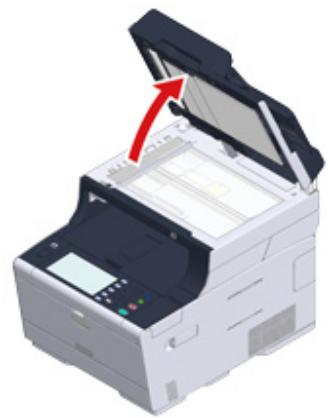
2 Wipe lightly the document holding pad (a) and document glass (b) with a soft cloth that has been slightly moistened with water and squeezed well.
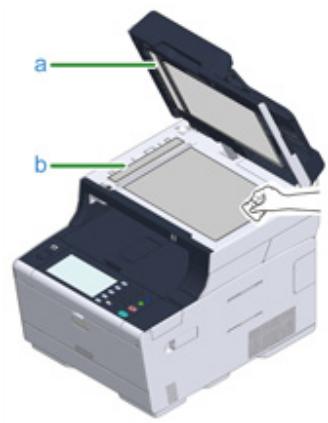

If the document glass surface and document holding pad are very dirty, wipe gently with a soft cloth that has been moistened with neutral detergent and squeezed well, and then wipe again with a soft cloth that has been slightly moistened with water and squeezed well.
3 Close the document glass cover.

Do not close the document cover vigorously. It may cause the document feed roller of ADF to fall and get in the way of loading documents.
If the document feed roller of ADF has fallen, open and close the ADF cover.
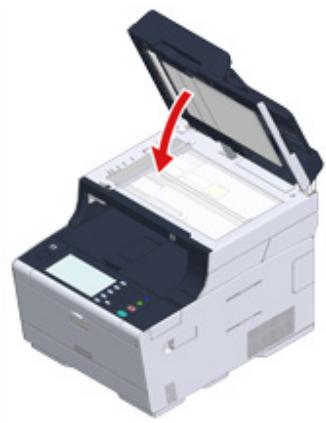
Cleaning the LED Head
Clean the LED head if vertical white lines appear, images are faded, or the periphery of letters are smudged in the printouts.

- Do not use solvents, such as methyl alcohol or thiners, because they may damage the LED head.
- Do not expose the image drum to direct sunlight or strong light (approximately 1,500 lux or more). Even under room lighting, do not leave the image drum for 5 minutes or more.
1 Hold the handle (B) and open the scanner unit (a) completely.
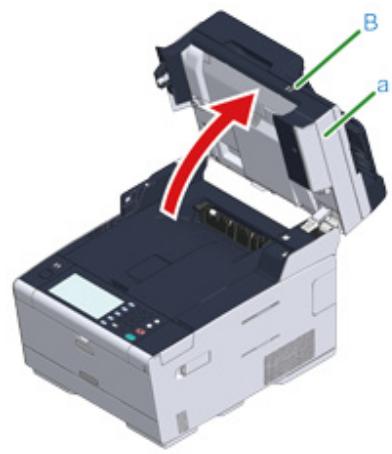
2 Press the button (A) and open the output tray (b) completely.
| CAUTION | Burns may result. | |
| The fuser unit is extremely hot. Do not touch it. | ||
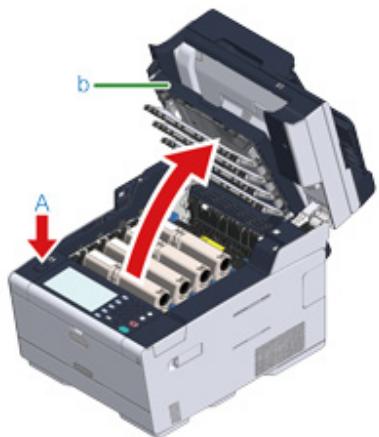
3 Wipe the four lenses of the LED heads with a soft tissue paper lightly.
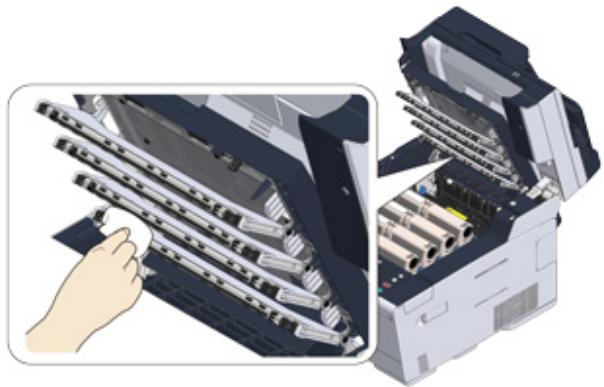
4 Close the output tray (b) slowly and push the center of the output tray for confirmation.
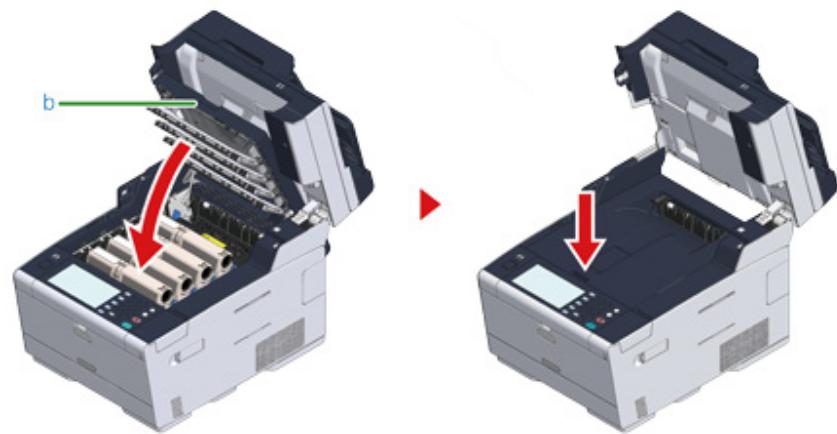
5 Hold the handle (B) to close the scanner unit (a).
1
Do not close the scanner unit vigorously. It may cause the document feed roller of ADF to fall and get in the way of loading documents.
If the document feed roller of ADF has fallen, open and close the ADF cover.
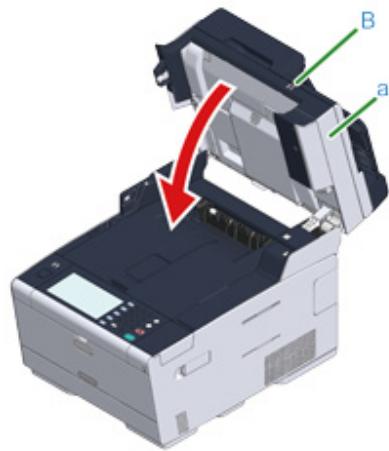
9
Troubleshooting
If Paper Jams Occur
If a Document Jam Occurs
Copy Problems
Scan Problems
Print Problems
Fax Problems
If an Error Message is Displayed on the Operator Panel
If Paper Jams Occur
This section describes how to handle when a paper jam occurs. Check the error code on the operator panel and see the corresponding page.
- If the Error Code is "370", "371", "372"
- If the Error Code is "380", "381", "382", "385", "389"
- If the Error Code is "390"
- If the Error Code is "391", "392", "393"
- If the Error Code is "409"
If the Error Code is "370", "371", "372"
If documents are set in the ADF or on the document glass, remove them.
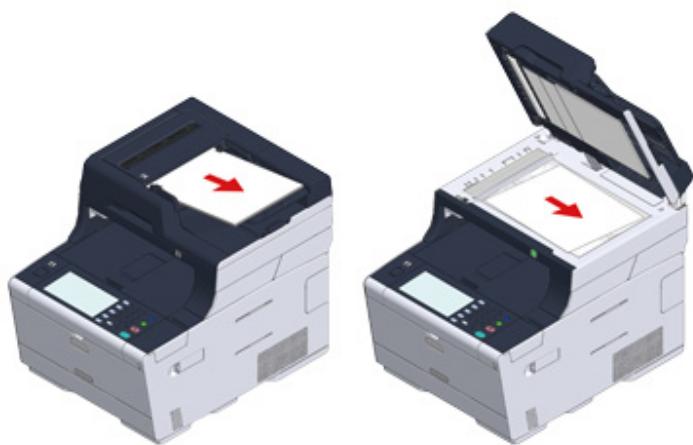
2 Hold the handle (B) and open the scanner unit (a) completely.
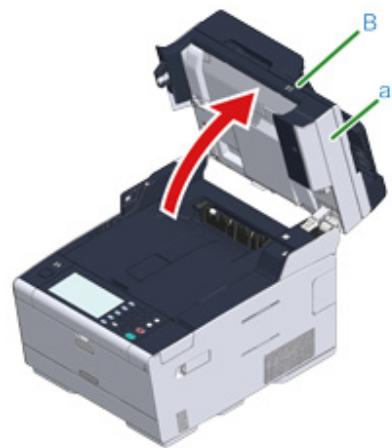
3 Press the button (A) and open the output tray (b) completely.
| CAUTION | Burns may result. | |
| The fuser unit is extremely hot. Do not touch it. | ||
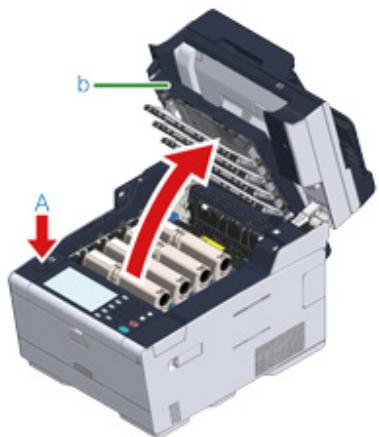
4 Remove the four image drums from the machine and place the image drums on a flat surface.
!
While removing consumables, be careful not to hit them to the LED head.
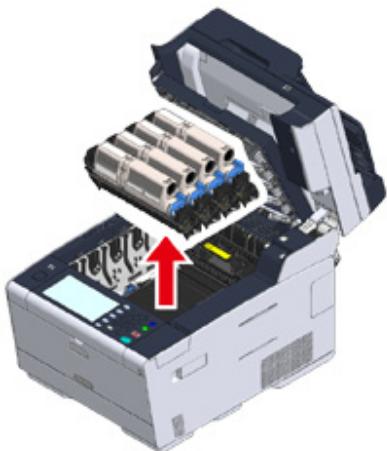
5 Cover the removed image drums with paper so that the image drums are not exposed to light.
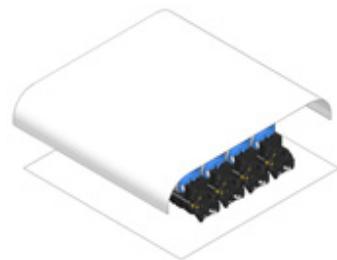
6 Remove the jammed paper slowly by pulling the edge of paper.
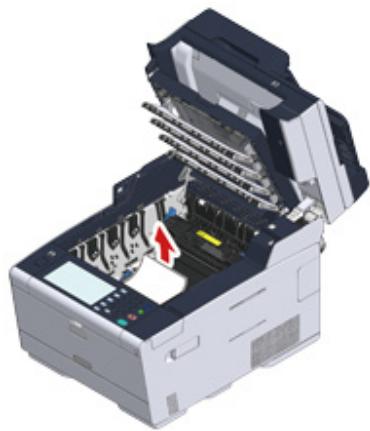
7 If paper jams in the fuser unit, press the jam release lever (c) on the fuser unit and slowly pull the jammed paper toward you.
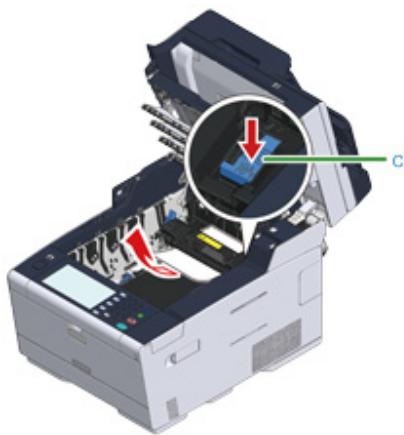
8 Tilt back the lock levers (d) on the both sides of the fuser unit toward you.
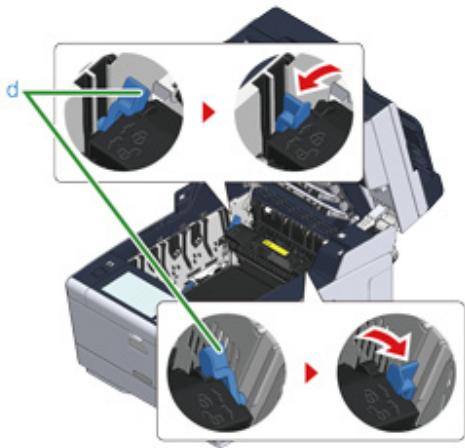
9 Hold the fuser unit handle and lift the fuser unit out of the machine.

While removing the fuser unit, be careful not to hit it to the LED head.
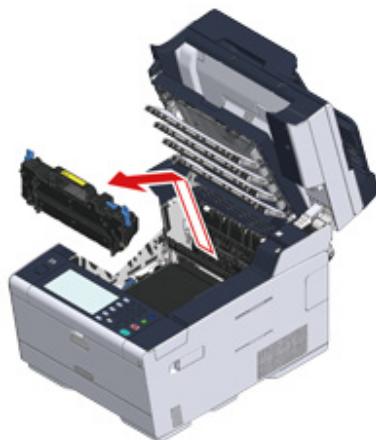
10 Turn the lock levers (e) on the both sides of the belt unit toward you and remove the belt unit by holding the lock levers.
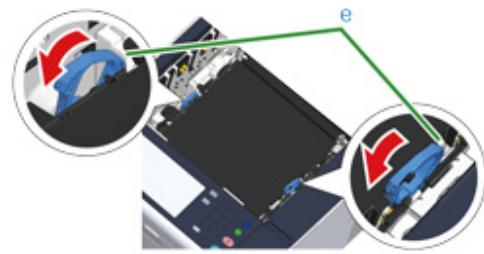
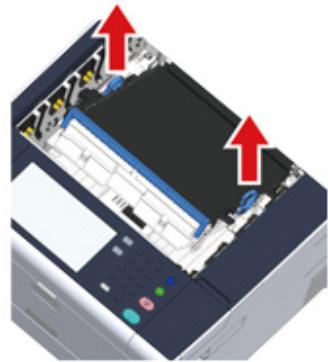
11 Remove the jammed paper slowly by pulling the edge of paper.
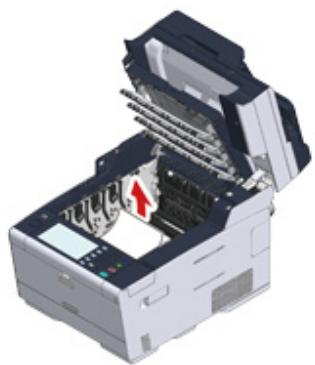
12 Hold the lock levers of belt unit and place the belt unit into the machine.
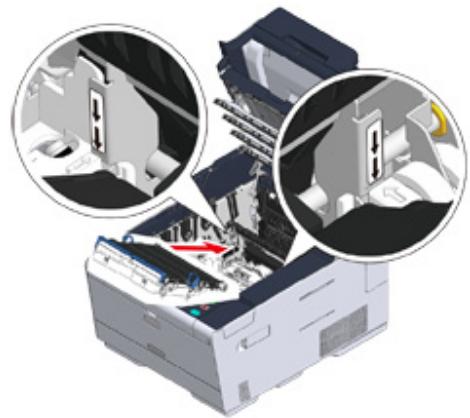
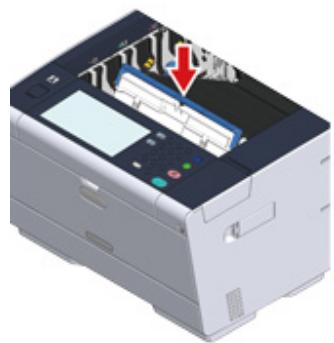
13 Turn the lock levers (e) on the both sides of the belt unit forward.
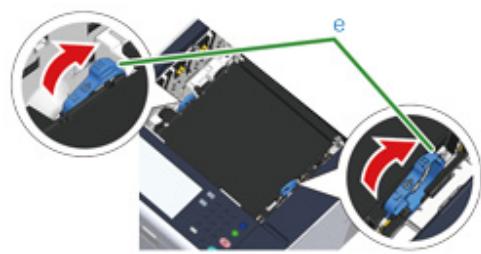
14 Hold the fuser unit handle and place the fuser unit into the machine.

While setting the fuser unit, be careful not to hit it to the LED head.
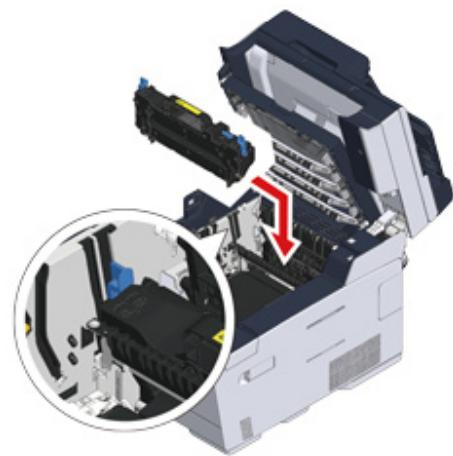
15 Tilt the lock levers (d) on the both sides of the fuser unit.
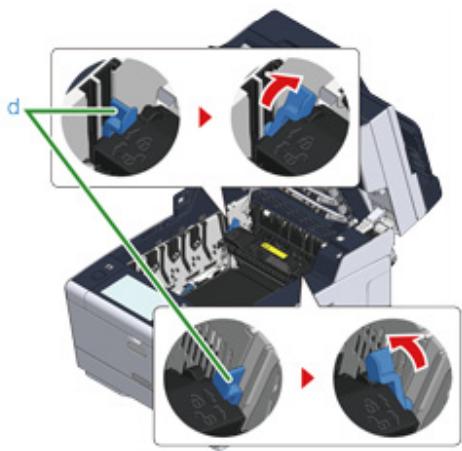
16 Replace the four image drums into the machine
1
While setting consumables, be careful not to hit them to the LED head.
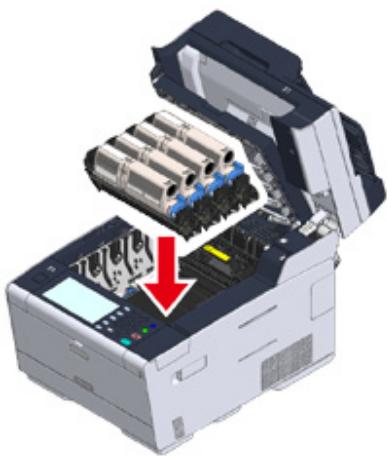
17 Close the output tray (b) slowly and push the center of the output tray for confirmation.
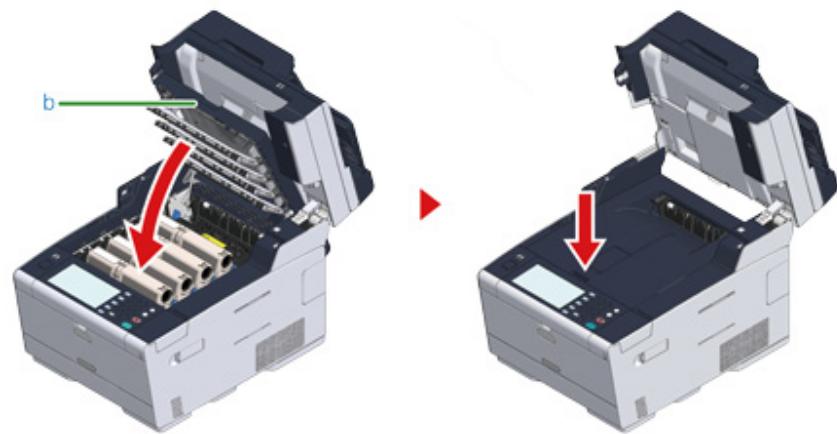
Hold the handle (B) to close the scanner unit (a).
1
Do not close the scanner unit vigorously. It may cause the document feed roller of ADF to fall and get in the way of loading documents.
If the document feed roller of ADF has fallen, open and close the ADF cover.
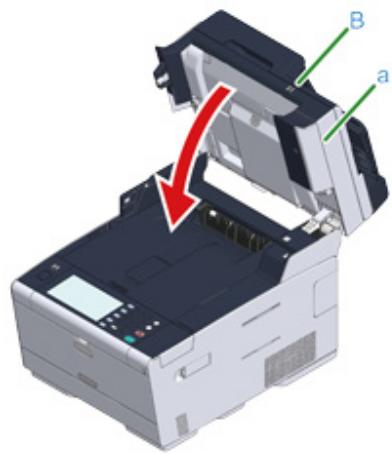
If the Error Code is "380", "381", "382", "385", "389"
If documents are set in the ADF or on the document glass, remove them.
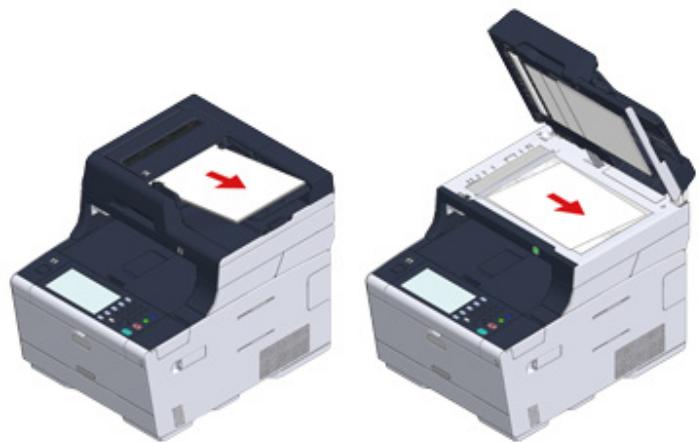
2 Hold the handle (B) and open the scanner unit (a) completely.
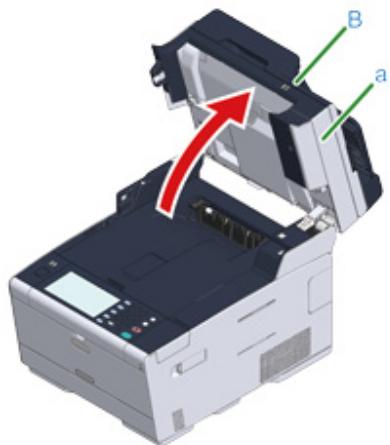
3 Press the button (A) and open the output tray (b) completely.
| CAUTION | Burns may result. | |
| The fuser unit is extremely hot. Do not touch it. | ||
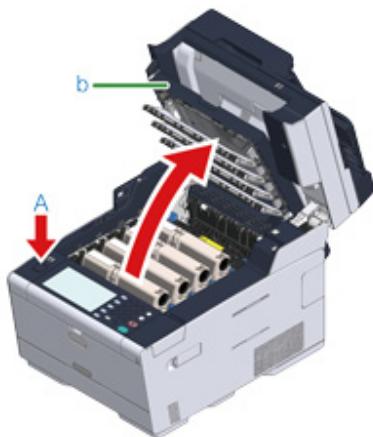
4 Remove the four image drums from the machine and place the image drums on a flat surface.
!
While removing consumables, be careful not to hit them to the LED head.
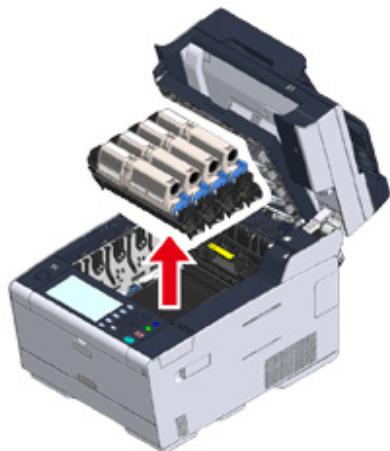
5 Cover the removed image drums with paper so that the image drums are not exposed to light.
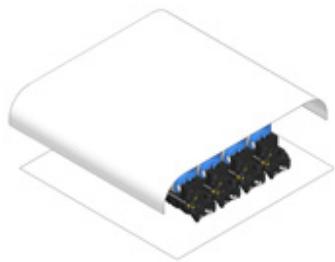
6 Remove the jammed paper slowly by pulling the edge of paper.
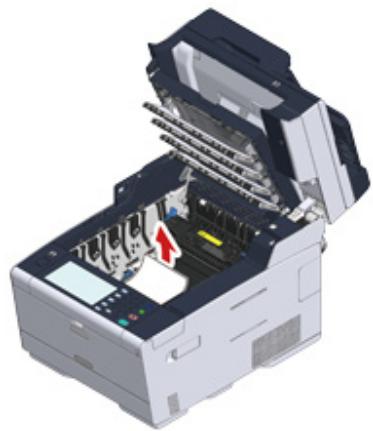
7 If paper jams in the fuser unit, press the jam release lever (c) on the fuser unit and slowly pull the jammed paper toward you.
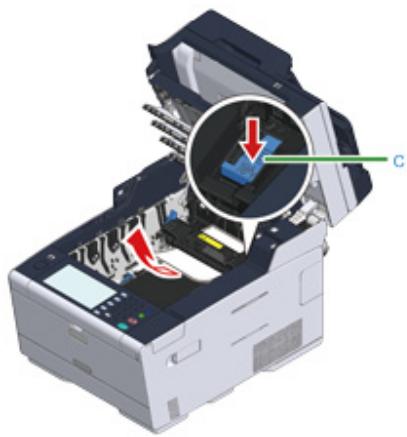
8 Tilt back the lock levers (d) on the both sides of the fuser unit toward you.
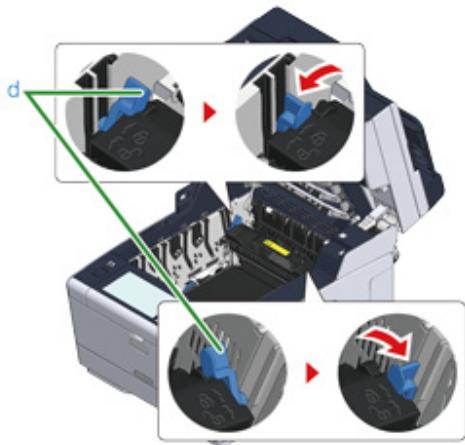
9 Hold the fuser unit handle and lift the fuser unit out of the machine.

While removing the fuser unit, be careful not to hit it to the LED head.
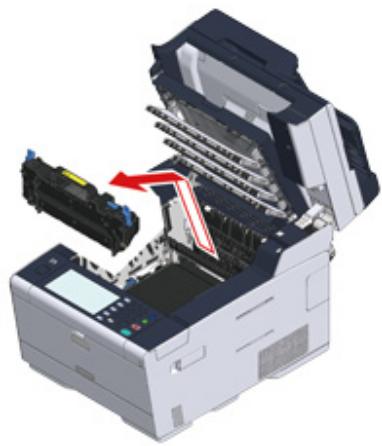
10 Check that any pieces of paper do not remain inside the machine.
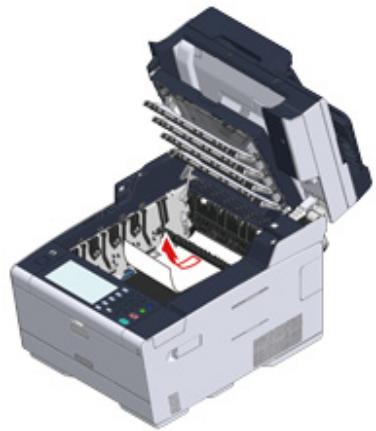
Hold the fuser unit handle and place the fuser unit into the machine.

While setting the fuser unit, be careful not to hit it to the LED head.
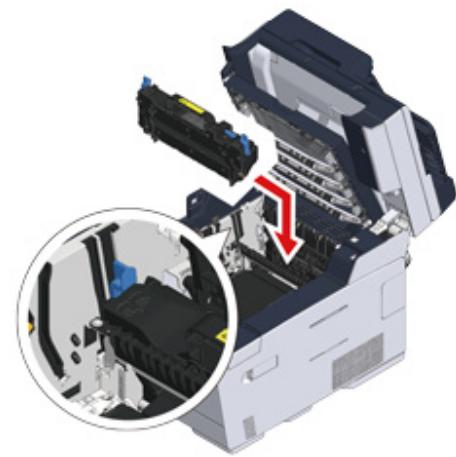
12 Tilt the lock levers (d) on the both sides of the fuser unit.
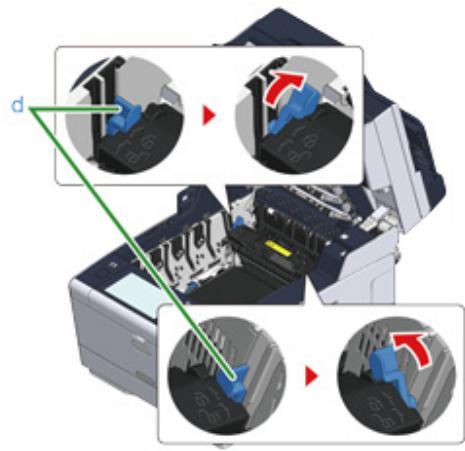
13 Put all four image drums back into the machine.

While setting consumables, be careful not to hit them to the LED head.
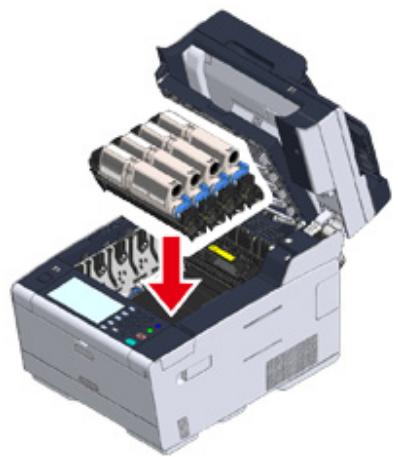
14 Close the output tray (b) slowly and push the center of the output tray for confirmation.
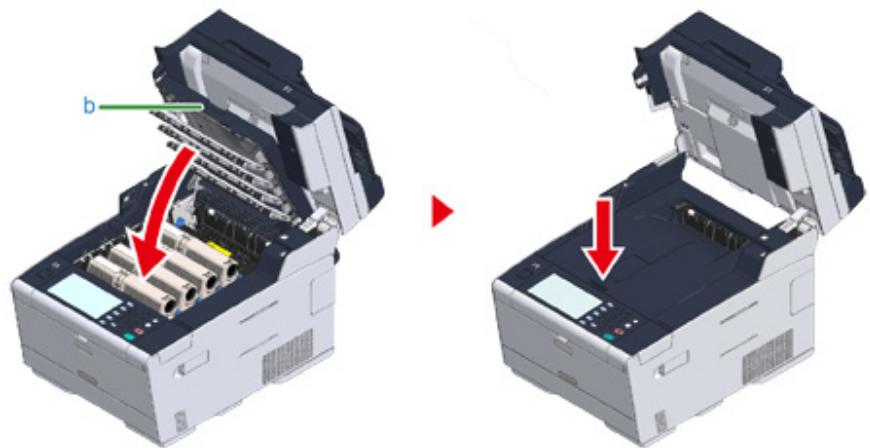
Hold the handle (B) to close the scanner unit (a).

Do not close the scanner unit vigorously. It may cause the document feed roller of ADF to fall and get in the way of loading documents.
If the document feed roller of ADF has fallen, open and close the ADF cover.
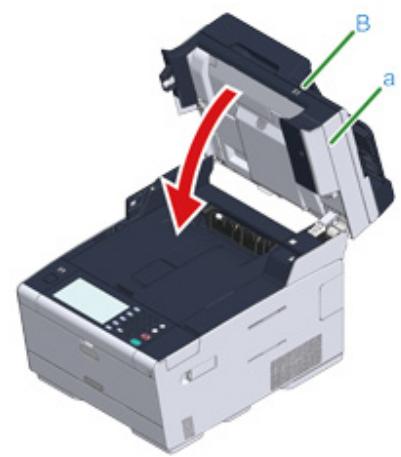
If the Error Code is "390"
If documents are set in the ADF or on the document glass, remove them.
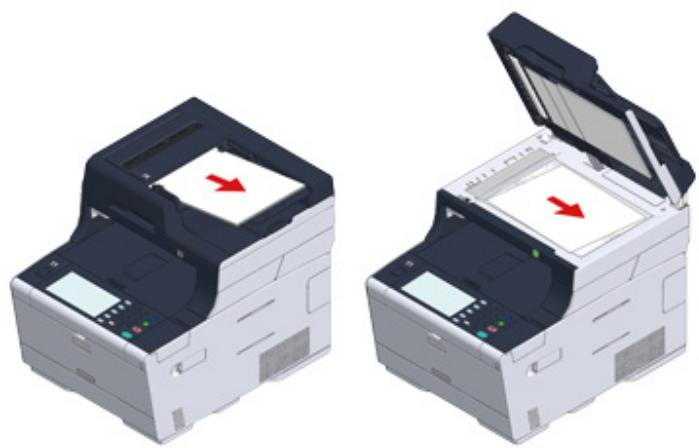
2 If paper is loaded on the MP tray, remove the paper.
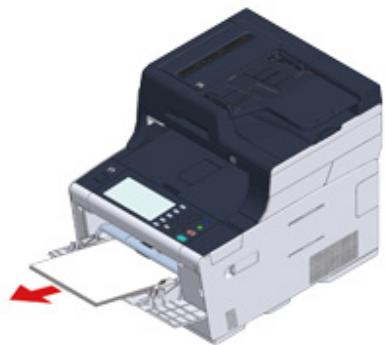
3 Hold the handle (B) and open the scanner unit (a) completely.
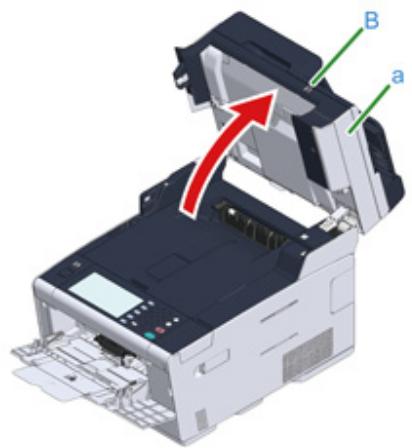
4 Press the button (A) and open the output tray (b) completely.
| CAUTION | Burns may result. | |
| The fuser unit is extremely hot. Do not touch it. | ||
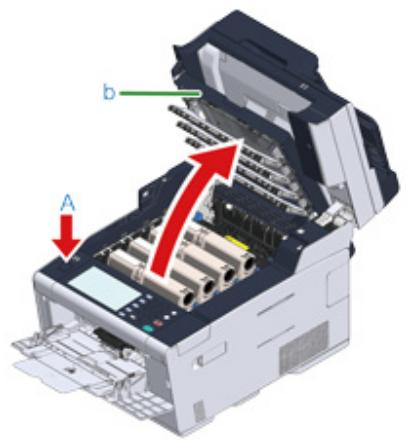
5 Remove the four image drums from the machine and place the image drums on a flat surface.
!
While removing consumables, be careful not to hit them to the LED head.
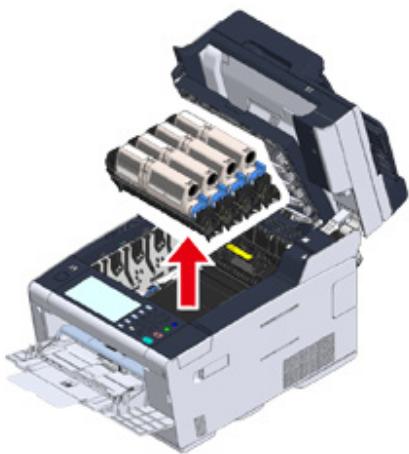
6 Cover the removed image drums with paper so that the image drums are not exposed to light.
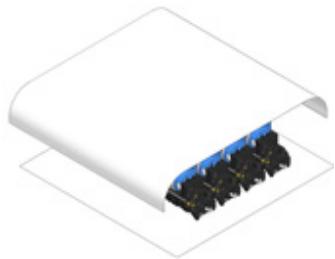
7 Open the transparent cover (c) inside the machine, remove the jammed paper slowly by pulling the edge of paper.
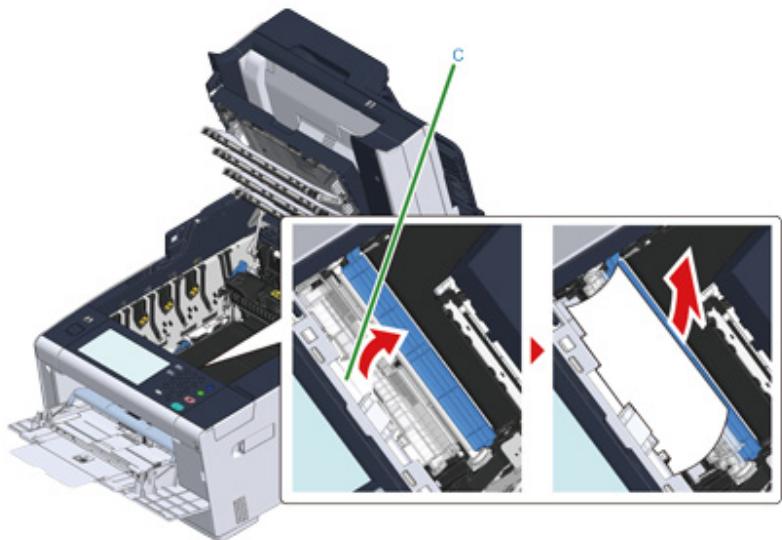
Put all four image drums back into the machine.
1
While setting consumables, be careful not to hit them to the LED head.
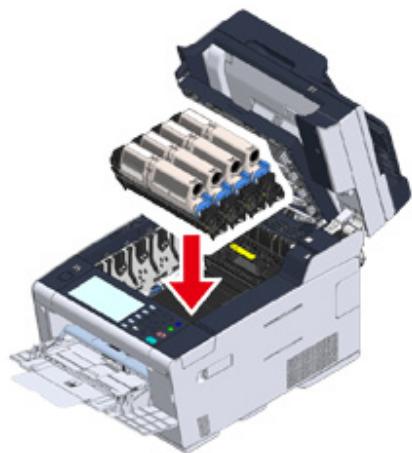
9 Close the output tray (b) slowly and push the center of the output tray for confirmation.
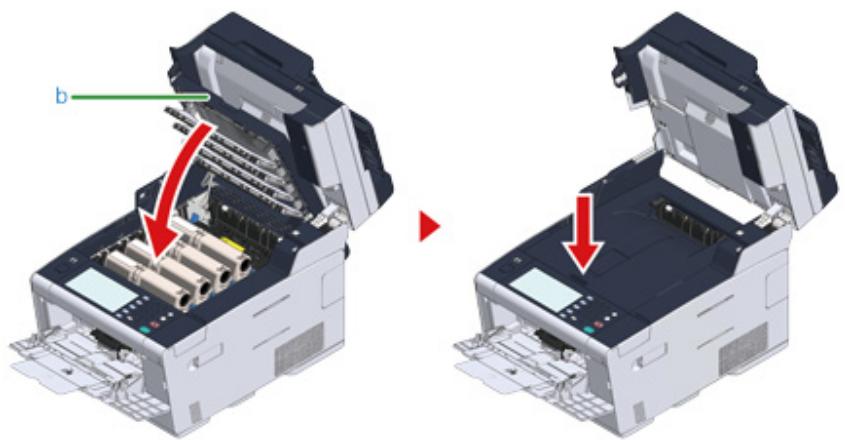
10 When loading paper on the MP tray, load the paper with the print side face up.
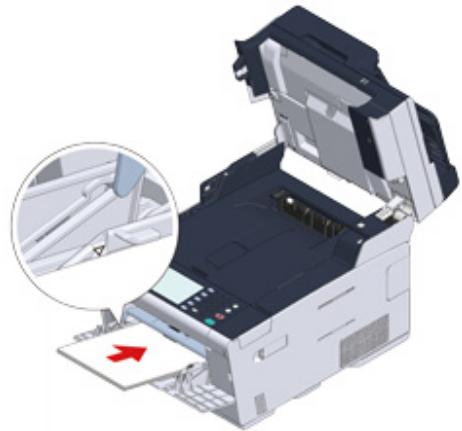
Hold the handle (B) to close the scanner unit (a).

Do not close the scanner unit vigorously. It may cause the document feed roller of ADF to fall and get in the way of loading documents.
If the document feed roller of ADF has fallen, open and close the ADF cover.
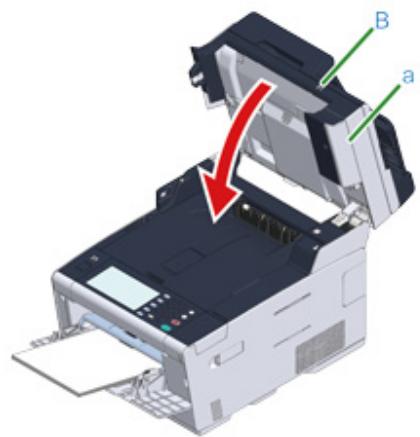
If the Error Code is "391", "392", "393"
A paper jam has occurred while feeding paper from a paper tray.
1
If paper jams occur frequently, clean the paper feed rollers. For details, refer to "Cleaning the Paper Feed Rollers (Tray 1/Tray 2/Tray 3) (Advanced Manual)".
This procedure uses Tray 1 as an example.
Pull out the cassette of the indicated tray.
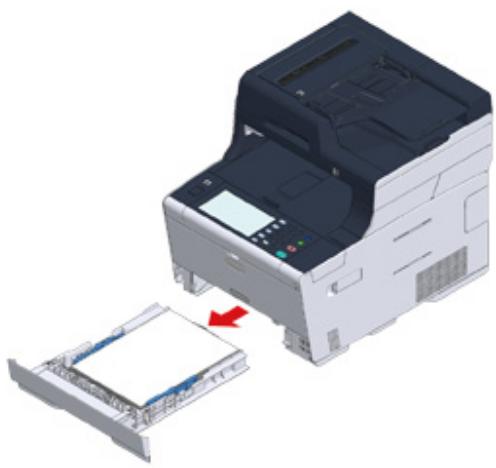
2 Remove the jammed paper.
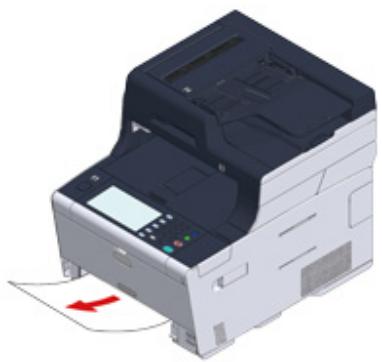
!
If paper does not jam, the machine may have failed in feeding paper. Reduce the sheets of paper loaded in the tray, check the positions of paper guides and paper stopper in the tray, and ensure that paper is correctly loaded.
3 Replace the paper cassette into the machine.
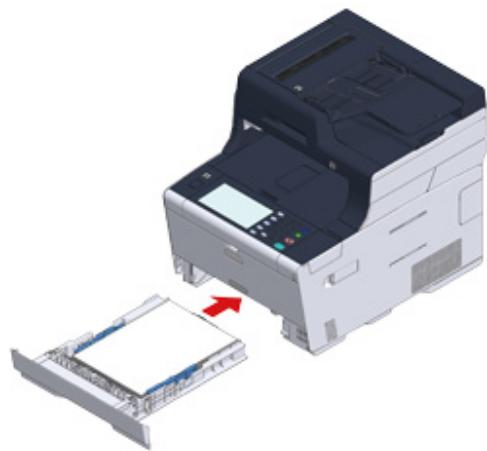
4 Hold the handle (B) and open the scanner unit (a) completely.
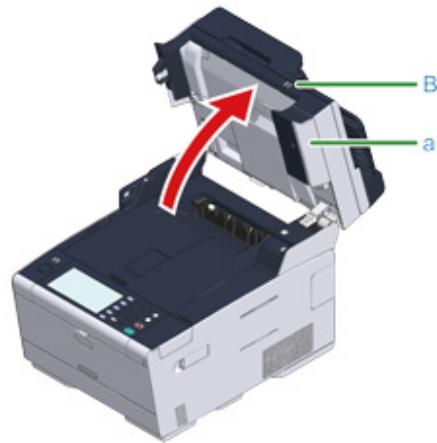
Press the button (A) and open the output tray (b) completely.
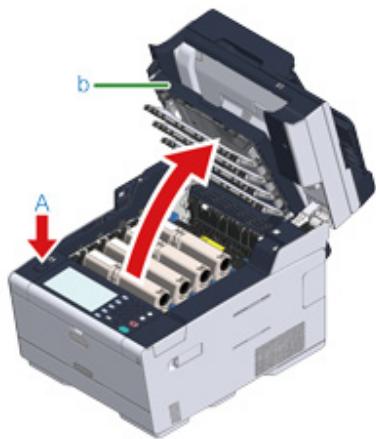
6 Close the output tray (b) slowly and push the center of the output tray for confirmation.
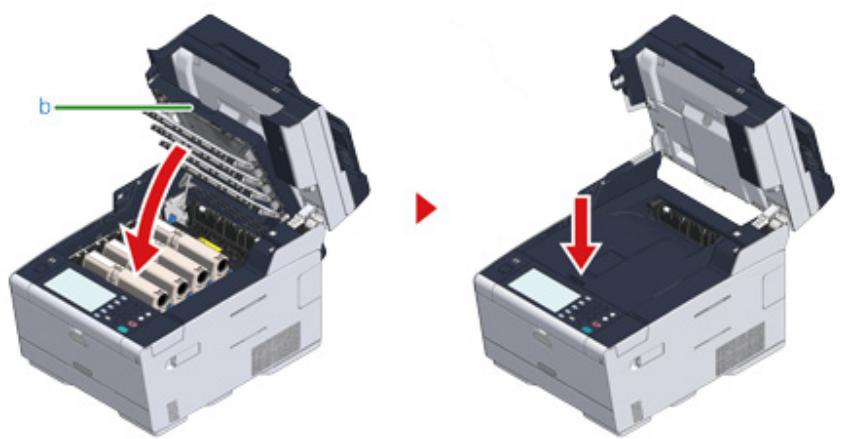
7 Hold the handle (B) and close the scanner unit (a).
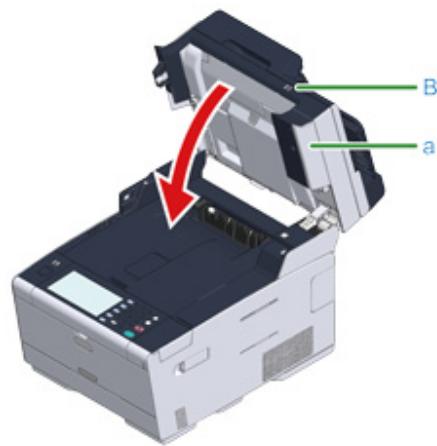

Do not close the scanner unit vigorously. It may cause the document feed roller of ADF to fall and get in the way of loading documents.
If the document feed roller of ADF has fallen, open and close the ADF cover.

Opening and closing the output tray starts printing.
If the Error Code is "409"
1 Close the rear output tray (b).
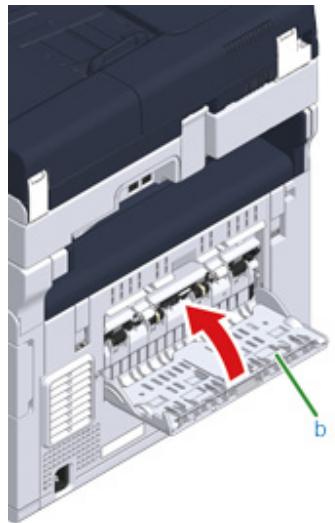
2 Hold the handle (B) and open the scanner unit (c) completely.
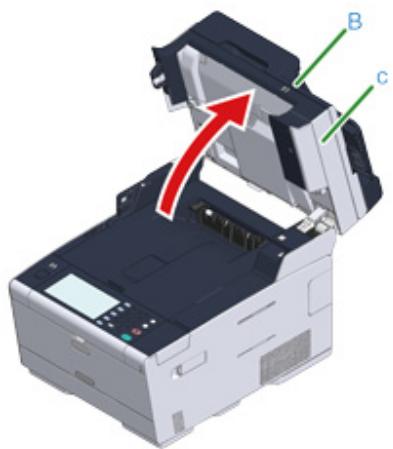
3 Press the button (A) and open the output tray (d) completely.
| CAUTION | Burns may result. | |
| The fuser unit is extremely hot. Do not touch it. | ||
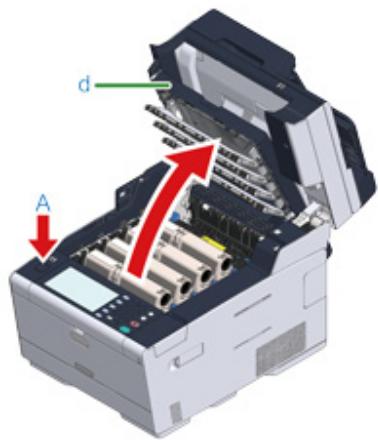
4 Remove the four image drums from the machine and place the image drums on a flat surface.
1
While removing consumables, be careful not to hit them to the LED head.
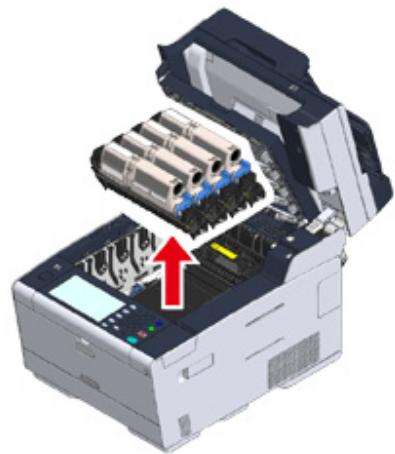
5 Cover the removed image drums with paper so that the image drums are not exposed to light.
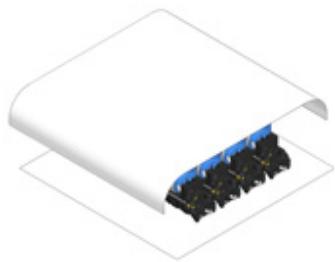
6 Remove the jammed paper slowly by pulling the edge of paper.
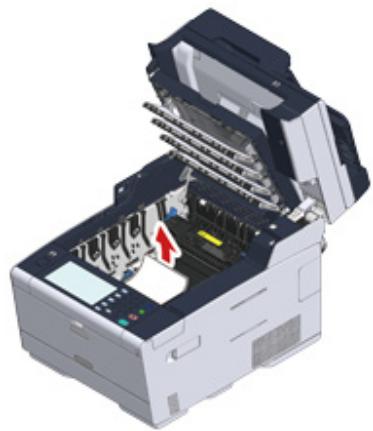
7 If paper jams in the fuser unit, press the jam release lever (e) on the fuser unit and slowly pull the jammed paper toward you.
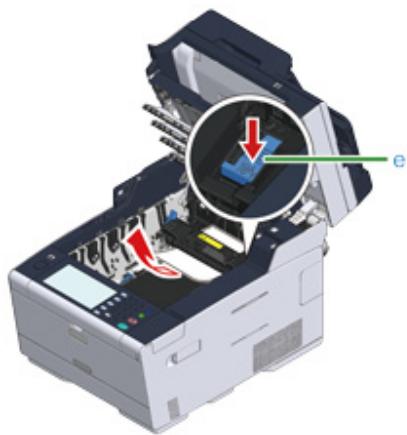
8 Tilt the lock levers (f) on the both sides of the fuser unit toward you.
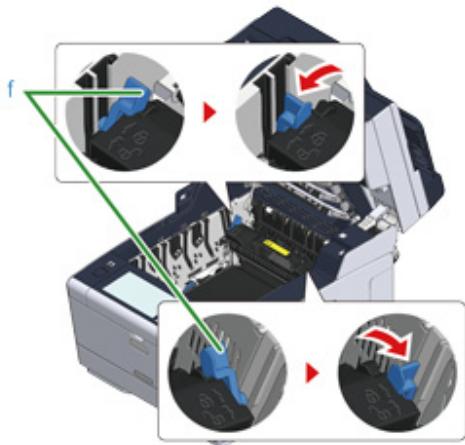
9 Hold the fuser unit handle and lift the fuser unit out of the machine.

While removing the fuser unit, be careful not to hit it to the LED head.
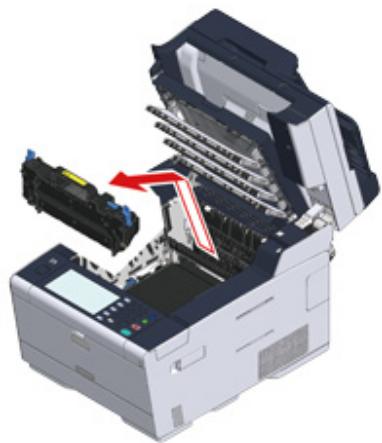
10 Turn the lock levers (g) on the both sides of the belt unit toward you and remove the belt unit by holding the lock levers.
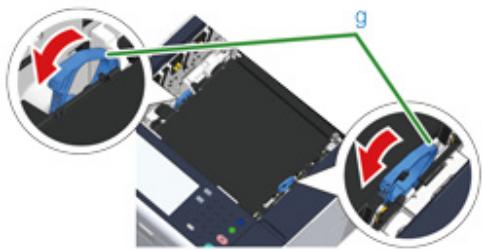
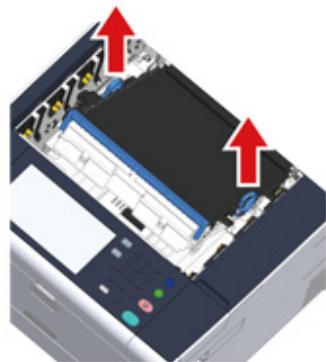
11 Remove the jammed paper slowly by pulling the edge of paper.
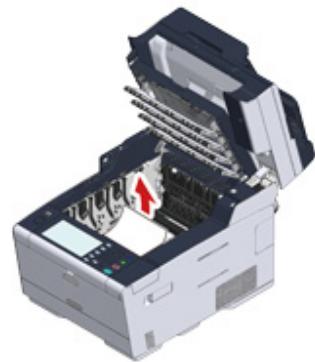
12 Hold the lock levers of belt unit and place the belt unit into the machine.
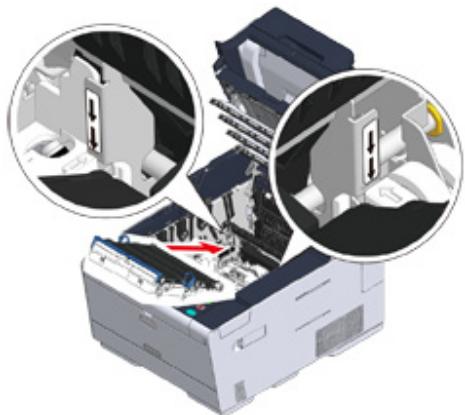
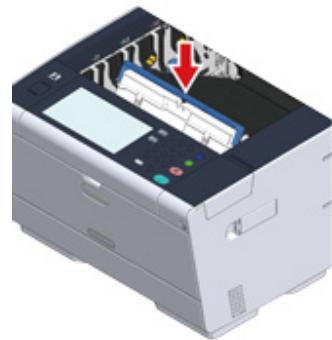
13 Turn the lock levers (g) on the both sides of the belt unit forward.
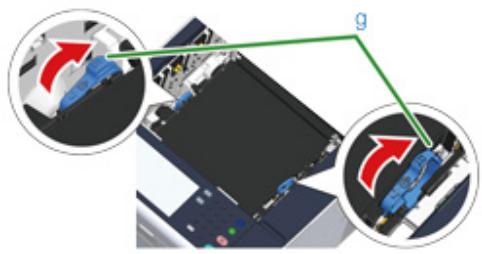
14 Hold the fuser unit handle and place the fuser unit into the machine.

While setting the fuser unit, be careful not to hit it to the LED head.
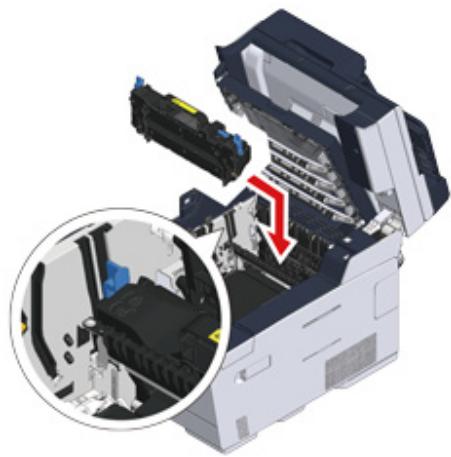
15 Tilt the lock levers (f) on the both sides of the fuser unit.
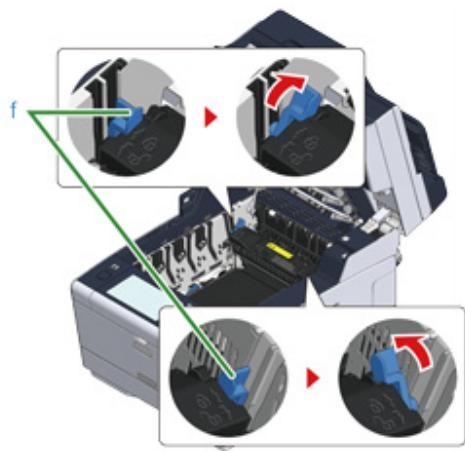
16 Put all four image drums back into the machine.

While setting consumables, be careful not to hit them to the LED head.
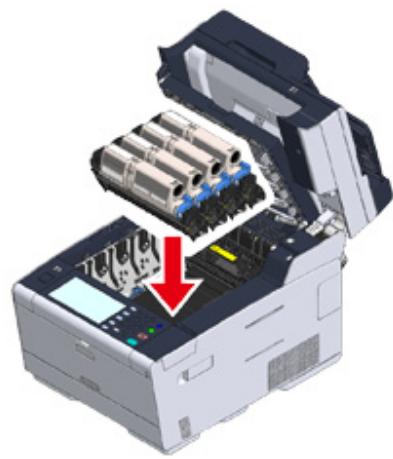
17 Close the output tray (d) slowly and push the center of the output tray for confirmation.
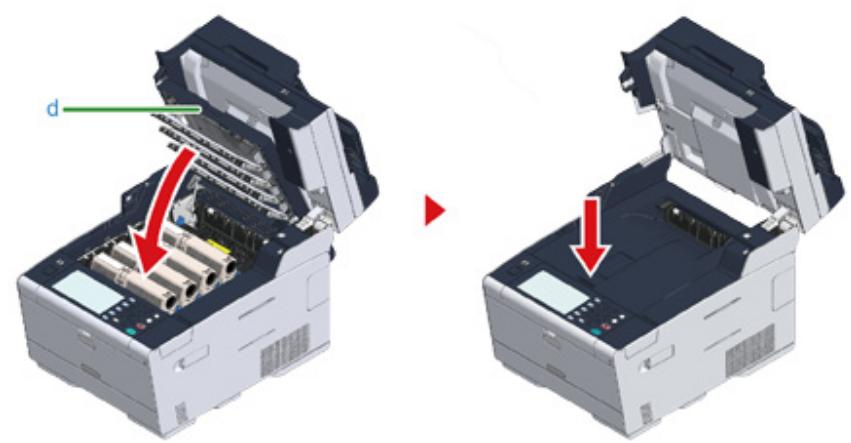
18 Hold the handle (B) to close the scanner unit (c).
!
Do not close the scanner unit vigorously. It may cause the document feed roller of ADF to fall and get in the way of loading documents.
If the document feed roller of ADF has fallen, open and close the ADF cover.
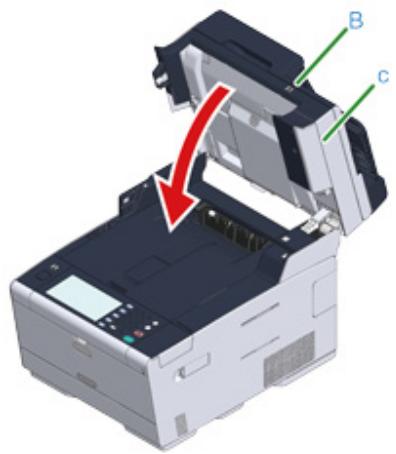
If a Document Jam Occurs
This section describes how to handle when a document jam occurs.
- If a Document is Visible in the Paper Path
- If a Document is Invisible in the Paper Path
If a Document is Visible in the Paper Path
1 Open the ADF cover (a).
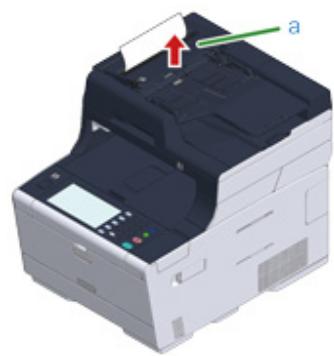
2 Pull out the document upward.
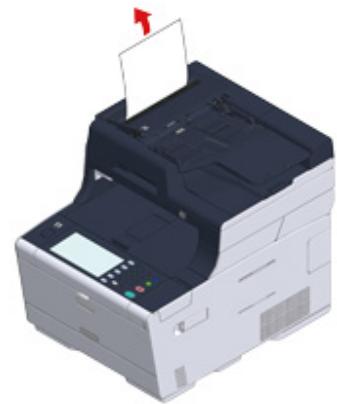

Sticky notes and labels attached on the documents may cause a document jam.
When using the ADF, remove sticky notes or labels from the document. If removing labels is unavailable, use the document glass.
3 Close the ADF cover (a).
Remove the document on the document tray, and then close the ADF cover.
Otherwise, documents may be torn or folded.
If a Document is Invisible in the Paper Path
1 Open the ADF cover (a).
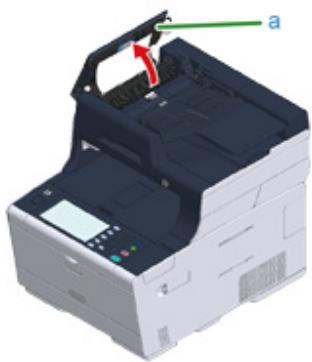
2 Remove the jammed document. Proceed to step 4 if you cannot remove the jammed document.
!
Do not try to remove the document by force.
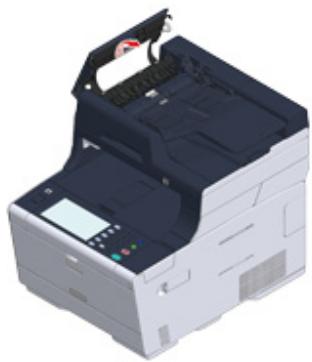
3 If you were able to remove the document, proceed to step 8.
4 Open the inner cover (b).
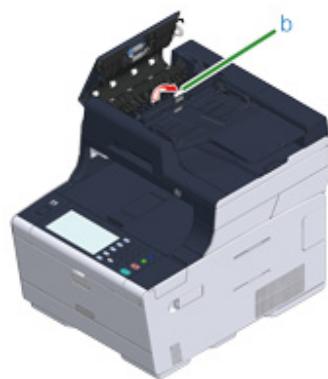
If you can see the edge of the jammed document, pull it out gently.
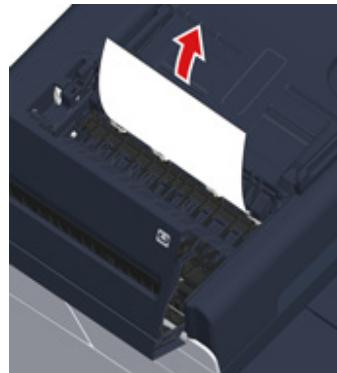
If the edge of document jammed under the document tray (c) can be seen, lift up the document tray and gently pull out the document to remove.
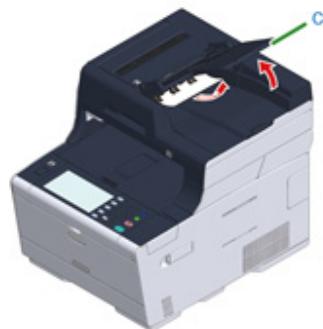
If you were able to remove the document, close the inner cover.
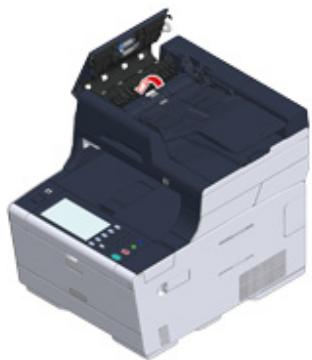
8 Close the ADF cover slowly.
Remove the document on the document tray, and then close the ADF cover. Otherwise, documents may be torn or folded.

If an error occurs while copying, the copying gets canceled.
Copy Problems
This section describes problems with the copy function.

If you cannot solve a problem with the following solutions, contact your dealer.
- Unable to Copy
- The Copied Output is Different from the Original (Advanced Manual)
- Other Problems (Copy) (Advanced Manual)
Unable to Copy
- Unable to copy
| Point to check | Solution | Reference |
| Is the machine turned on? | Turn on the machine. | Turning On the Machine |
| Is the machine being initialized? | Wait until initialization is complete. | - |
| Is your document set properly? | Set the document properly. | Setting a Document |
| Is there paper in the tray? | Load paper in the tray. Check that the paper cassette is installed in the machine. | Loading Paper |
| Is the proper size paper for the document loaded in the tray? | Load the proper size paper for the document. | Loading Paper |
| Is the paper tray selectable if [Paper Feed] is set to [Auto]? | On the touch panel, press [Device Settings], select [Paper Setup] > [Select Tray] > [Copy] > the paper tray on which the paper you use is loaded, and then select [ON] or [ON(Prior)]. | Specifying the Paper Feed Tray (Paper Feed) (Advanced Manual) |
| Is the loaded paper compatible with duplex printing? | Duplex copying cannot be performed depending on the paper size, paper type, or paper weight. Load the appropriate paper for duplex printing, and then set the paper size, document type, and document weight correctly. | Loading Paper |
| Is the media type of the paper tray set to [Plain] or [Recycled]? | If [Paper feed] is set to [Auto], set the media type for the paper tray to [Plain] or [Recycled]. | Loading Paper |
| Is there a paper jam? | Check an error message, and then remove any jammed paper. | If Paper Jams Occur |
| Is there an empty toner cartridge? | Replace the empty toner cartridge with a new toner cartridge. | Replacing the Toner Cartridges |
| Does the image drum reach its lifetime? | Replace the image drum with a new image drum. | Replacing the Image Drum |
| Does the fuser unit reach its lifetime? | Replace the fuser unit with a new one. | Replacing the Fuser Unit (Advanced Manual) |
| Does the belt unit reach its lifetime? | Replace the belt unit with a new one. | Replacing the Belt Unit (Advanced Manual) |
| Are any covers on the machine opened? | Close all the covers. | - |
| Has any error occurred? | Clear the error. | Error Message List |
| Is another job in progress? | Start copying after the other job is complete. | - |
| Is a print job from a computer or other device in progress? | Wait until printing is complete. | - |
| Is a fax being sent in real time? | Wait until the transmission is complete. | - |
| Is Continuous Scan mode on? | Select [Scan completed] on the display screen. | Enabling Continuous Scan Mode (Continuous Scan) (Advanced Manual) |
| Is the machine offline? | Press the (PRINT) button, and then select [Online]. | - |
| Are you authorized to make copies? | Enter the authorized PIN or user name and password. | Enabling Access Control (Advanced Manual) |
- Unable to change copy ratios
| Point to check | Solution | Reference |
| Is [Cannot find appropriate paper size. Please confirm paper of tray.] displayed? | Specify a paper feed tray. Or specify a zoom ratio manually. | Making Enlarged or Reduced Copies (Zoom) (Advanced Manual) |
| Did you press Reduce or Enlarge? | The specified size of paper is not loaded in the trays. Specify a paper feed tray. Or specify a zoom ratio manually. | Making Enlarged or Reduced Copies (Zoom) (Advanced Manual) |
- Unable to copy mixed size documents
| Point to check | Solution | Reference |
| Is [Mixed Size] set to [OFF]? | Set [Mixed Size] to [ON]. | Copying Different Size Documents (Mixed Size) (Advanced Manual) |
| Is the size of your document supported for making mixed size copies? | Use documents sizes supported for mixed size copying. | Copying Different Size Documents (Mixed Size) (Advanced Manual) |
| Is paper of the required sizes loaded? | Load paper of the required sizes on each paper tray. The paper trays need to be set to [ON] or [ON(Prior)] from [Device Settings] > [Paper Setup] > [Select Tray] > [Copy] on the touch panel. | - |
- Unable to sort copies
| Point to check | Solution | Reference |
| Is [Sort] set to [OFF]? | Set [Sort] to [ON]. | Sorting Each Set in Page Order (Sort) (Advanced Manual) |
| Is memory full? | Reduce the number of document pages. Check the free space in memory. Delete unnecessary jobs in memory. | Checking the Free Space in Memory/Hard Disk Drive (Advanced Manual) |
Scan Problems
This section describes problems with the scan function.

If you cannot solve a problem with the following solutions, contact your dealer.
- Unable to Scan
- Scan To E-Mail Problems (Advanced Manual)
- E-mail/Internet fax/FaxServer Error Code (Advanced Manual)
- Scan To Computer Problems (Advanced Manual)
- Unable to Save Files in a Network Folder (Advanced Manual)
Network Connection Problems (Scan) (Advanced Manual) - Wireless LAN Connection Problems (If Wireless LAN Module is Fitted) (Scan) (Advanced Manual)
Unable to Scan
| Point to check | Solution | Reference |
| Is the machine turned off? | Turn on the machine. | Turning On the Machine |
| Is the cable connected to the machine? | Check the cable connections, and then connect the cables properly. | Connecting a LAN Cable/USB Cable |
| Is there any damage to the cable? | Change the cable. | - |
| Is the network setting correct? | Set the network setting correctly. | Connecting a LAN Cable/USB Cable |
| Has any error occurred? | Follow the on-screen instructions on the display screen of the machine. If you use the Scan To PC function, refer to "Scan To Computer Problems (Advanced Manual)". | Error Message List Scan To Computer Problems (Advanced Manual) |
Print Problems
This section describes problems with printing from a computer.

- If you cannot solve a problem with the following solutions, contact your dealer.
-
For problems caused by an application, contact the manufacturer of the application.
-
Unable to Print
Network Connection Problems (Print) (Advanced Manual) - Wireless LAN Connection Problems (If Wireless LAN Module is Fitted) (Print) (Advanced Manual)
- USB Connection Problems (Advanced Manual)
Unable to Print
Common to Windows and Mac OS X
| Cause | Solution | Reference |
| The machine is in Sleep mode or Deep Sleep mode. | Press the (POWER SAVE) button to enter standby status. | Saving Power Consumption with the Power Save Function |
| The machine is turned off. | Turn on the machine. | Turning On the Machine |
| A LAN cable or USB cable is unplugged. | Check that the cable is plugged into the machine and computer properly. | Connecting a LAN Cable/USB Cable |
| There may be a problem with a cable. | Replace the cable with a new cable. | - |
| The machine is offline. | Press the (PRINT) button, and then select [Online]. | - |
| An error message is displayed on the touch panel. | Check the error messages displayed on the touch panel or press {? on the touch panel. | Error Message List |
| The interface setting is disabled. | Whether there is a consistency with the machine's settings and the network connection environment, check the settings of the interface that you are using on the touch panel. | Connecting a LAN Cable/USB Cable Connecting to a Wireless LAN (Only When the Wireless LAN Module is Mounted) |
| There is a problem with the print function. | Check if the menu map can be printed. | Checking the Information of the Machine (Advanced Manual) |
| The power switch LED lamp quickly flashes at approximately 0.3-second intervals. | A malfunction may occur in the machine. Unplug the power cord immediately, and then contact your dealer. | - |
For Windows
| Cause | Solution | Reference |
| The machine is not set as the default printer. | Set the machine as the default printer. Right-click the [OKI MC573 *) icon on the [Devices and Printers] folder, and then select [Set as Default Printer]. * Indicates the driver type. (ex. PCL6/PS/XPS/FAX) | - |
| The output port of the printer driver is incorrect. | Select the output port for connecting the LAN cable or USB cable. | - |
| The machine is processing data from another interface. | Wait until printing is complete. | - |
| "Receiving data timeout" is displayed on the touch panel and the machine does not print. | Press [Device Settings], select [Admin Setup] > [Print Setup] > [Print menu] > [Printer Adjust] > [Timeout Injob] on the touch panel, and then select a longer time. The factory default setting is 40 seconds. If the job is not printed with "Received invalid data" displayed, the selected emulation language may not match this machine (model). Make sure that the printer driver you use supports this model of the machine. | - |
Fax Problems
This section describes problems with the fax function.

If you cannot solve a problem with the following solutions, contact your dealer.
- Unable to Send a Fax
- Unable to Receive a Fax
- Unable to Send or Received a Fax (Advanced Manual)
- Other Problems (Fax) (Advanced Manual)
- Fax Error Codes (Advanced Manual)
Unable to Send a Fax
- Unable to send a fax
| Point to check | Solution | Reference |
| Did you send in the correct procedure? | Check the procedure, and then try again. | Entering Fax Number to Send a Fax |
| Did you specify the correct fax number? | If you are using speed dial, print the speed dial list to check the registration. | Entering Fax Number to Send a Fax Specifying a Destination from Phone Book (Advanced Manual) Specifying a Destination Using One-touch Button (Advanced Manual) Specifying a Destination from Transmission History and Reception History (Advanced Manual) |
| Did you specify the appropriate dial type? | Specify the appropriate dial type for your region. Press [Device Settings] on the touch panel, select [Admin Setup] > [User Install] and set the value according to your environment in [MF (Tone)/DP (Pulse)]. | User Install (Advanced Manual) |
| Has any problem occurred at the recipient machine? | Ask the recipient to have the recipient's machine ready for reception. | - |
| Is the error code [23] marked on the Transmit/Receipt Journal? | Press [Device Settings] on the touch panel, select [Admin Setup] > [User Install], and then set [MF(Tone)/DP(Pulse)] depending on your environment. | Checking the Information of the Machine (Advanced Manual) User Install (Advanced Manual) |
| Is the error code [26] marked on the Transmit/Receipt Journal? | Press [Device Settings] on the touch panel, select [Admin Setup] > [Fax Setup] > [Fax Setting], and then change the setting for [PBX Line]. | Checking the Information of the Machine (Advanced Manual) Administrator Setup (Advanced Manual) |
- A document cannot be sent continuously
| Point to check | Solution | Reference |
| Did you set the document correctly in the ADF? | Set the document after aligning the leading edge. | Setting a Document |
- After dialing, even if the (START) button is pressed, the machine cannot send a fax
| Point to check | Solution | Reference |
| Did you specify the appropriate dial type? | Specify the appropriate dial type for your region. Press [Device Settings] on the touch panel, select [Admin Setup] > [User Install] and set the value according to your environment in [MF (Tone)/DP (Pulse)]. | User Install (Advanced Manual) |
| Is the document set properly? | Set the document properly. | Setting a Document |
| Did you dial the correct number? | Dial the correct number. | - |
| Is the recipient's line busy? | Wait until the line is opened, and then try again. | - |
- Unable to send a fax manually
| Point to check | Solution | Reference |
| Did you put the handset down before pressing the (START) button? | Press the (START) button first. | Sending a Fax after Calling (Manual Transmission) (Advanced Manual) |
- A document cannot be scanned during memory transmission
| Point to check | Solution | Reference |
| Is the document set properly? | Set the document properly. | Setting a Document |
| Point to check | Solution | Reference |
| Is memory full? | Check the reserved transmission. Print the documents received with the confidential transmission. Delete the documents stored in the bulletin board box. Delete the documents stored in the Secure Receive. | Sending at a Specified Date and Time (Delayed Tx) (Advanced Manual) Printing a Document That is Received in the Confidential Box of This Machine (Advanced Manual) Receiving a Document That is Saved in a Destination Bulletin Board Box by Fax (Fcode Polling) (Advanced Manual) Setting Secure Reception (Advanced Manual) |
Unable to Receive a Fax
- Unable to receive a fax
| Point to check | Solution | Reference |
| Did you specify the appropriate reception mode? | Check the reception mode. | Setting the Reception Mode |
| Is there paper in the tray? | Load the paper. | Loading Paper |
| Is there a paper jam? | Check an error message, and then remove any jammed paper. | If Paper Jams Occur |
| Is a telephone cable connected to the machine and telephone line correctly? | Connect the telephone cable correctly. | Connecting a Telephone Line |
| Is memory full? | Check the reserved transmission. Check whether paper jams or paper runs out. | Cancelling a Fax Transmission If Paper Jams Occur |
| Print the documents received with the confidential transmission. Delete the documents stored in the bulletin board box. Delete the documents stored in the Secure Receive. | Printing a Document That is Received in the Confidential Box of This Machine (Advanced Manual) Setting Secure Reception (Advanced Manual) |
- Unable to receive a fax manually
| Point to check | Solution | Reference |
| Did you put the handset down before pressing the (START) button? | Press the (START) button first. | Setting the Reception Mode |
- Fcode polling reception is not available
| Point to check | Solution | Reference |
| Did the sender store a polling document in a bulletin box? | Ask the sender to store the polling document. | - |
If an Error Message is Displayed on the Operator Panel
If an error occurs in this machine, an error message and/or an error code (a 3-digit number) is displayed on the touch panel and (STATUS) on the operator panel blinks or lights up.
Press [Details] and clear the error following the onscreen instructions.
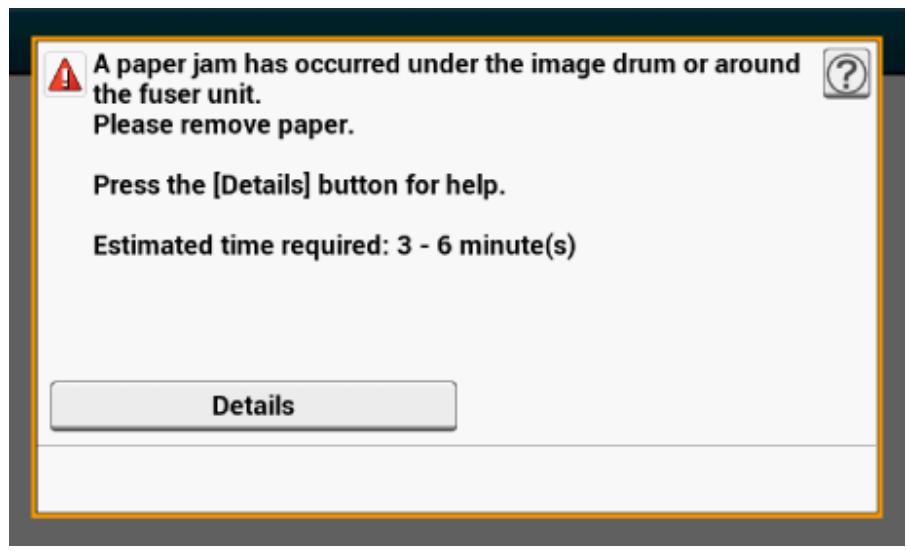
- Error Message List
Error Message List
Wait a moment. Network initializing ...
The network is being initialized.
Wait for a while until the machine connects to the network.
Checking File System
File system in a flash memory device is being checked. Wait for a while.
Inspection is required. PU Flash Error
Turn off the machine, and then back on. If the same error occurs, contact your dealer.
Inspection is required. PU Communication Error
Turn off the machine, and then back on. If the same error occurs, contact your dealer.
Offline Mode
Press [Print] > [Online] on the touch panel. The (STATUS) button turns off when the machine turns online.
Data present.
Data remains unprinted. Wait for a while and if the message does not disappear, check the data.
Deleting data.
The job was cancelled or user is unauthorized. Wait for a while.
Warming up.
The machine is adjusting the temperature of the fuser unit. Wait for a while.
Preparing ...
Color registration and density are being adjusted. Wait for a while.
| Wait a moment. Executing maintenance. |
| The programs on the machine are being updated. Do not turn off the machine until the update completes. The machine automatically restarts after the update completes. |
| Toner Low. |
| The toner indicated on the screen is low. Have a new toner cartridge ready. |
| Waste Toner Full. Replace with new Toner Cartridge. |
| Waste toner is full. Replace the toner cartridge with a new one. C: Cyan (blue), M: Magenta (red), Y: Yellow, K: Black |
| C Non Recommended Toner. |
| An optimum C (Cyan, blue) toner cartridge is not installed.Use a toner cartridge that matches your machine. |
| M Non Recommended Toner. |
| An optimum M (Magenta, red) toner cartridge is not installed.Use a toner cartridge that matches your machine. |
| Y Non Recommended Toner. |
| An optimum Y (Yellow) toner cartridge is not installed.Use a toner cartridge that matches your machine. |
| K Non Recommended Toner. |
| An optimum K (Black) toner cartridge is not installed.Use a toner cartridge that matches your machine. |
| Error Postscript |
| A postscript error has occurred. Please check data. |
| Image Drum Near Life. |
| The image drum indicated on the screen is near life. Have a new image drum ready. C: Cyan (blue), M: Magenta (red), Y: Yellow, K: Black |
| Fuser Near Life. |
| The fuser unit is near life. Have a new fuser unit ready. |
| Belt Unit Near Life. |
| The belt unit is near life. Have a new belt unit ready. |
| Fuser Unit Life. Install New Fuser Unit. |
| The fuser unit reaches its lifetime. Replace the fuser unit with a new one. |
| Belt Unit Life. Install New Belt Unit. |
| The belt unit reaches its lifetime. Replace the belt unit with a new one. |
| Toner empty. Replace with new Toner Cartridge. |
| The toner indicated on the screen is empty. Replace the empty toner cartridge with a new one. C: Cyan (blue), M: Magenta (red), Y: Yellow, K: Black |
| Toner cartridge not installed. |
| A color toner cartridge indicated on the screen is not installed.Install the toner cartridge.C: Cyan (blue), M: Magenta (red), Y: Yellow, K: Black |
| Image Drum Life. Please install new Image Drum Unit. |
| The image drum indicated on the screen reaches its lifetime. Replace the image drum with a new one. C: Cyan (blue), M: Magenta (red), Y: Yellow, K: Black |
| [TRAY] empty. |
| No paper is loaded in the indicated tray. Load paper. |
| Disk Memory Full. |
| Memory in the file system is full. Delete unnecessary files. |
| The File System is write-protected. |
| The file you are trying to write is write-protected.Contact the device administrator. |
| Insufficient page memory to collate. |
| Insufficient memory error has occurred during collate printing. Reduce the number of pages to print. |
| Insufficient memory. Error: 014 |
| Memory full error has occurred while receiving PC Fax data. Press [Close]. |
| Unauthorized user, job cancelled. |
| Unauthorized job was sent or unauthorized user attempted to print or send a fax. Data was deleted. Contact your administrator to use this machine. |
| File erasing ... |
| Stored document files are being deleted. Wait for a while. |
| Erased Data Full |
| Files supposed to be deleted are full. Erase the files. |
| Expired saved files have been deleted. |
| Private printing files whose storage period expired were automatically deleted. |
| Disk Read/Write Error |
| An error has occurred in the file system. Press [Close]. |
| Flash Error |
| An error has occurred when firmware was being updated.Contact the administrator. |
| Invalid print data received. |
| Invalid print data or PC fax transmission data was received. To erase the message, press [Close].If you performed private printing, the data was deleted because it was incomplete. Print again. |
| Received data has been discarded because Job Type is restricted. |
| Data whose job type is not defined in the acceptable job type settings was received. The data was discarded without being processed. Select a job type defined in the acceptable job type settings for [Job Type] of the printer driver and print again. About Screens and Functions of Each Printer Driver |
| Manual Request. |
| Print on paper fed manually. Load paper in the MP tray. |
| Change [TRAY] paper. |
| The size and type of paper set in the machine do not match those indicated on the screen. Use the same size and type of paper selected on the application. |
| Change MP Tray paper. |
| The size or type of paper loaded in the MP tray do not match those indicated on the screen. Make sure that the size and type of paper loaded in the MP tray match those selected on the application. |
| Wait a moment. Network Configuration writing ... |
| Network settings for this machine is changed. The new settings are being stored. Wait for a while. |
| Wait a moment. Network initializing ... |
| Network settings for this machine are initializing. Wait for a while. |
| Paper [TRAY] is empty. Set [MEDIA_SIZE]. Error: 490, 491, 492, 493, 494 |
| No paper is loaded in the indicated tray. Load paper of the displayed size. |
| [TRAY] cassette is missing. Open and Close the indicated cassette. Error: 440, 441, 430, 431, 432 |
| The tray is not installed. Install the cassette. If the cassette is already inserted, pull it out, and then insert it again. |
| Insufficient memory. Error: 420 |
| Data is too complicated. Memory full error has occurred during processing. Reduce the volume of the print data. |
| Waste Toner Full. Replace with new Toner Cartridge. Error: 414, 415 |
| Waste toner of the toner cartridge is full. Opening and closing the output tray can resume printing for a while, but it may damage the image drum. Replace the toner cartridge with a new one as soon as possible. Y: Yellow, M: Magenta (red) |
| Toner empty. Replace with new Toner Cartridge. Error: 410, 411, 412, 413 |
| The indicated cartridge ran out of toner. Opening and closing the output tray can resume printing for a while, but it may damage the image drum. Replace the toner cartridge with a new one as soon as possible. C: Cyan (blue), M: Magenta (red), Y: Yellow, K: Black |
| C Non Recommended Toner. Error: 552, 556, 616, 622 |
| The installed C (Cyan, blue) toner cartridge is not optimum.We recommend using an optimum toner cartridge. |
| M Non Recommended Toner.Error: 551, 555, 615, 621 |
| The installed M (Magenta, red) toner cartridge is not optimum.We recommend using an optimum toner cartridge. |
| Y Non Recommended Toner. Error: 550, 554, 614, 620 |
| The installed Y (Yellow) toner cartridge is not optimum.We recommend using an optimum toner cartridge. |
| K Non Recommended Toner.Error: 553, 557, 617, 623 |
| The installed K (Black) toner cartridge is not optimum.We recommend using an optimum toner cartridge. |
| Toner Not Installed. Error: 610, 611, 612, 613 |
| A color toner cartridge indicated on the screen is not installed. Install the toner cartridge. C: Cyan (blue), M: Magenta (red), Y: Yellow, K: Black |
| Image Drum Sensor Error. Check Image Drum. Error: 540, 541, 542, 543 |
| A sensor error has occurred in the image drum indicated on the screen. Uninstall the image drum, and then install it again. If the message persists, uninstall the toner cartridge and install it again. If the toner cartridge is not installed, install it. C: Cyan (blue), M: Magenta (red), Y: Yellow, K: Black |
| Multiple sheets of paper have been fed. Reset Paper in [TRAY]. Error: 401 |
| The indicated tray fed multiple sheets of paper at a time. Remove the cassette from the tray, and then load paper again. |
| Paper Size Error. Reset Paper in [TRAY]. Error: 400 |
| Paper size error has occurred in the indicated tray. Make sure that the size of paper loaded in the tray matches the [Paper Size] setting set on the operator panel. Load paper according to the paper size and direction set. To resume printing, open and close the output tray. If the setting set on the operator panel is wrong, cancel printing first, set the right paper size from [Paper Size] on the operator panel, and then print again. Make sure that the cassette does not feed multiple sheets of paper at a time after starting printing. If it happens, remove paper, and then load paper correctly. |
| Paper jam has occurred. Please open Output Tray to remove paper. Error: 390 |
| Paper jammed via the paper feed path from the MP tray. Remove jammed paper. If the edge of the jammed paper is not visible, open the output tray and remove the paper. |
| Paper jam has occurred. Pull out the [TRAY] cassette and then remove the paper. Error: 391, 392, 393 |
| A paper jammed via the paper feed path from the indicated tray. Pull out the cassette, and then remove paper. If multiple sheets of paper are fed at a time, remove paper and reload paper. Make sure that the paper stoppers are set in the right position. |
| A paper jam has occurred under the image drum or around the fuser unit. Please remove paper. Error: 380, 381, 382, 385, 389 |
| A paper jam has occurred inside the machine. Open the output tray and remove jammed paper. |
| Paper jam has occurred under the belt unit or in the fuser unit. Please remove paper. Error: 370, 371, 372 |
| A paper jam has occurred inside the machine. Open the output tray and remove jammed paper. |
| Image Drum Life. Please install new Image Drum Unit. Error: 350, 351, 352, 353 |
| The image drum indicated on the screen reaches its lifetime. Replace the image drum with a new one. Opening and closing the output tray can resume printing for a while. Replace with a new one as soon as possible, however. C: Cyan (blue), M: Magenta (red), Y: Yellow, K: Black |
| Image Drum Life. Please install new Image Drum Unit. Error: 560, 561, 562, 563, 564, 565, 566, 567 |
| The image drum indicated on the screen reaches its lifetime. Replace the image drum with a new one. C: Cyan (blue), M: Magenta (red), Y: Yellow, K: Black |
| Image Drum Life. Please install new Image Drum Unit. Error: 680, 681, 682, 683 |
| Printing has stopped because the image drum indicated on the screen reached its lifetime. Replace with a new image drum to print. C: Cyan (blue), M: Magenta (red), Y: Yellow, K: Black |
| Fuser Unit Life. Install New Fuser Unit. Error: 354 |
| The fuser unit reaches its lifetime. Replace the fuser unit with a new one. Opening and closing the output tray can resume printing for a while. Replace with a new one as soon as possible for maintaining the print quality. |
| Belt Unit Life. Install New Belt Unit. Error: 355 |
| The belt unit reaches its lifetime. Replace the belt unit with a new one. Opening and closing the output tray can resume printing for a while. Replace with a new one as soon as possible for maintaining the print quality. |
| Waste Toner Full. Install New Belt Unit. Error: 356 |
| Waste toner of the belt unit is full. Replace the belt unit with a new one. Opening and closing the output tray can resume printing for a while. Replace with a new one as soon as possible for maintaining the print quality. |
| Toner cartridge not properly installed. Error: 544, 545, 546, 547 |
| A color toner cartridge indicated on the screen is not installed. Make sure that the lever on the toner cartridge is fully turned and the protective tape is removed. C: Cyan (blue), M: Magenta (red), Y: Yellow, K: Black |
| Image Drum not properly installed. Check Image Drum. Error: 340, 341,342, 343 |
| The indicated image drum is not installed correctly. Remove and re-install the image drum. C: Cyan (blue), M: Magenta (red), Y: Yellow, K: Black |
| The Fuser Unit is not installed correctly. Reset Fuser Unit. Error: 320 |
| The fuser unit is not properly installed. Remove and re-install the fuser unit. |
| Belt Unit not installed correctly. Re-set the Belt Unit. Error: 330 |
| The belt unit is not properly installed. Remove and re-install the belt unit. |
| [COVER] Open. Error: 310 |
| Indicated cover is open. Close the cover. Error: 310 The output tray. |
| Power OFF/ON |
| Turn off the machine, and then back on. If the same error occurs, contact your dealer. |
| Inspection is required. |
| Turn off the machine, and then back on. If the same error occurs, contact your dealer. |
| Cancelling ... |
| The cancel button was pressed while copying. The copy job is being cancelled. Wait for a while. |
| Automatic document feeder (ADF) cover is open. |
| The ADF cover of the scanner is open. Close the cover. |
| Document jam has occurred. Open the automatic document feeder (ADF) cover on the scanner to check. |
| Paper jammed in the ADF of the scanner. Open the ADF cover and remove jammed paper. |
| Scanner lamp error check the lamp. |
| Light volume of the scanner is low. Contact your dealer. |
| Power OFF/ON Carriage Error <1> |
| An error has occurred on the carriage of the scanner. Turn off the machine, and then back on. If the same error occurs, contact your dealer. |
| USB Memory Full |
| Scan To USB Memory was cancelled because the USB Memory is full. Check the free space in the USB Memory. |
| Writing to USB memory failed. |
| The USB Memory is write-protected. Unlock the protection. |
| USB Memory disconnected. |
| The USB Memory was removed while performing Scan To USB Memory. Connect USB Memory and try again. |
| Connect to PC failed. |
| No destination computer was found for Scan to Computer. Make sure that your computer is turned on and recordable. To erase the message, press [Close]. Scan To Computer Problems (Advanced Manual) |
| Insufficient memory occurred during Rx. |
| Memory full error has occurred during fax reception. Ensure available memory. |
| Communication Error |
| An error has occurred during fax transmission or fax reception. |
| Telephone |
| The external phone is in use. Use the device after ending the call in progress. |
| File Transmission Error |
| An error such as a malfunction of the server or disconnection of a LAN cable has occurred while performing Scan To shared folder. Check the network connection. To erase the message, press [Close]. |
| Please check SMTP settings. |
| Cannot connect to the SMTP server. Check the network settings. |
| Please check POP3 settings. |
| Cannot connect to the POP3 server. Check the network settings. |
| SMTP Login failed. |
| An attempt to log into the SMTP server ended up an authentication error. Check the network settings. |
| SMTP Auth. Unsupported |
| The SMTP server does not support the authentication system. Check the network settings. |
| POP3 Login failed. |
| An attempt to log into the POP3 server ended up an authentication error. Check the network settings. |
| Getting target IP failed. Please Check DHCP settings. |
| The DHCP server cannot be detected. Check the network connection. |
| Please check DNS settings. |
| Cannot connect to the DNS server. Check the network connection. |
| Please check Server settings. |
| Cannot connect to the file server. Check the network settings. |
| Server Login failed. |
| Logging into the file server failed. Check the server settings. |
| Entering directory failed. |
| Connecting to the directory of the FTP server failed. Check the server settings. |
| Changing data Transfer Type failed. |
| File transmission failed because the file transfer type was not accepted by the FTP server. Change the FTP transfer type to "binary". |
| File writing failed. |
| Files sent using Scan To shared folder could not be written. Check the access rights for the shared folder. |
| FTP destination Full. |
| Memory in the FTP server is low. Delete unnecessary files and ensure the free space. Available memory for fax reception may be short or faxes received using Secure Receive may be left unprinted. Check preview images and delete unnecessary files to ensure the free space. |
| Please change File Name. |
| The specified file name is not acceptable. Check the FTP server settings and change the file name. |
| Device communication protocol not supported. |
| The server does not support CIFS or FTP. Check the server settings. |
| Please check Network Share Name. |
| The name of the network shared folder is not correct. Check the folder name. |
| Please insert USB Memory. |
| Scan To USB Memory or print from USB Memory with USB Memory not inserted was attempted.Insert USB Memory. |
| [TRAY] cassette missing. |
| The cassette in the indicated tray is pulled out. Install the cassette. |
| Access Limitation Error. Monochrome printing was performed due to the color printing limitation. |
| A color print job was converted to a mono print job due to an unauthorized user. Contact your administrator for color printing. |
| Access Limitation Error. Data was deleted due to the color printing limitation. |
| A color print job was deleted due to an unauthorized user. Contact your administrator for color printing. |
| Restricted access error. Data deleted due to printing restrictions. |
| A print job was deleted due to an unauthorized user. Contact your administrator for printing. |
| Incompatible USB device connected. Remove the connected USB device. |
| An unsupported USB device is connected. Remove the USB device. |
| Please remove the connected USB device. USB device has not been recognized. |
| The connected USB device was not recognized. Remove the USB device. |
| Please remove the USB Hub. USB Hub is connected. |
| A USB hub is connected. Remove the USB hub. This machine does not support USB hub. |
| Inspection is required. SIP Error |
| Turn off the machine, and then back on. If the same error occurs, contact your dealer. |
| Job Log Database Error |
| A data base access error has occurred while writing or reading the job log. Turning off and on the machine may resolve the problem. To erase the message, press [Close]. |
| Job Log Buffer Full(Delete old logs) |
| Old job logs were deleted, because job log buffer was full. |
| A decoding error occurred. Check the image data. |
| An error has occurred in the image data sent to this machine. Check the image data. |
| Process has been canceled as there is no space on the device. Please free up enough memory space by reducing usage and try again. |
| Processing data was cancelled due to memory full. |
| Press the (Status) button and check if printing data remains on the machine. Delete the data if any data remains. |
| Remaining private printing data can be deleted only by someone who set the password and the administrator. |
| If an error occurs while scanning or faxing, change the scan settings to prevent the data amount from being large. |
| Process has been canceled by a device error. After maintenance or change of the device, please try again. |
| Processing data was cancelled because an error occurred on the machine. Contact your dealer. |
| Access denied to PC. Please check PC. |
| Connecting to a computer failed when performing Scan to Computer. Check the settings on the computer. Scan To Computer Problems (Advanced Manual) |
| Deleting data. |
| This machine ran out of color toner. Color print data is being deleted. Wait for a while. |
| Color toner empty. Job cancelled. |
| This message indicates that the color print job was cancelled because toners other than black are empty. Press [Close] to exit the status window. |
| Error PDF |
| The PDF file is damaged. Check the file. |
| This PDF file is password protected. |
| This PDF file is password protected. |
| Valid password required to print document. |
| This PDF needs authentication. |
| No communication with the SNMP server. |
| Obtaining current time from the SNMP server failed. Check the server. |
| USB Memory disconnected. |
| The USB Memory was removed while printing from USB Memory. Do not remove USB Memory while printing is in progress. |
| Cannot open the file. |
| The specified file could not be Opened. Check the file. |
| Cannot read the file. |
| Files could not be read. Check the device where the files are stored. |
| Image Drum Sensor Error. |
| The sensor error has occurred in the image drum indicated on the screen. Uninstall the image drum, and then install it again. If the message persists, uninstall the toner cartridge and install it again. |
| Rear Output Tray is open, so 2-sided printing is disabled. Error code: 581 |
| 2-sided printing (duplex printing) failed because the rear output tray is open. Close the rear output tray and tray again. |
| Printing was stopped. Rear Output Tray was opened during printing. Open the Output Tray. Error code: 409 |
| The rear output tray was moved while printing. Open the output tray and remove the jammed paper remaining inside of the unit. |
Wait Timeout in menu is disabled. Printing is disabled except by USB. Clear page buffer and enable time out in menu.
Wait Timeout is disabled.
Press [Device Settings], select [Admin Setup] > [Print Setup] > [Print menu] > [Printer Adjust] > [Timeout Injob] on the touch panel, and then select a longer print timeout value.
Insufficient memory occurred during Fax Tx reservation.
Insufficient memory error has occurred during Scan To fax.
Perform the following to increase the available memory.
- Check the reserved transmission.
- Print the documents received with the confidential reception.
- Delete the documents stored in the bulletin board box and images received using Secure Receive.
Insufficient memory.
Insufficient memory error has occurred during fax reception.
Perform the following to increase the available memory.
- Check the reserved transmission.
- Check whether paper jams or paper runs out.
- Print the documents received with the confidential reception.
- Delete the documents stored in the bulletin board box and images received using Secure Receive.
E-mail receiving has been cancelled.
Receiving E-mail was cancelled because the format of the E-mail is not supported or attached file is too large. Check the file format and size of the attached file.
Wireless settings are incomplete.
Wrong values are set or items remain upset in the wireless LAN settings. Check the wireless settings.
Not connected to wireless access point.
No wireless LAN access points are found.
Make sure that the access point is turned on.
Disconnect and re-connect to wireless LAN.
Wireless startup failed.
Turn off the machine, check that the wireless LAN module is correctly installed, and then reboot the machine. If the error persists, contact your dealer.
| Firmware Update Error Please try again. If network doesn't work, please try firmware update over USB. |
| Updating the firmware failed. Update again. |
| Registering with Google Cloud Print. Don't turn off the power until registration is complete. |
| This machine is being registered to the Google Cloud Print service. Wait for a while. |
| Deleting from Google Cloud Print. |
| This machine is being removed from the Google Cloud Print service. Wait for a while. |
| Caution, unknown Consumable detected. Go to User Manual "Trouble Shooting" to restore operation. Error: 709 |
You can use any consumables in your product, but you must accept the risks of using non-genuine consumables. If the use of non-genuine consumables causes damage to the product or results in your product not functioning to its full specification, then such damage or effect on the product is not covered by warranty. To accept these risks and to restore function;
(1) Turn off your product.
(2) Press and hold the (CLEAR) button and turn on your product.
(3) After start up, release the C (CLEAR) button.
Note: This operation will be recorded for future reference.
| Replace the image drum. [PAGES] Pages Left. |
| The image drum indicated on the screen reaches its lifetime. Replace the image drum with a new one. C: Cyan (blue), M: Magenta (red), Y: Yellow, K: Black |
| Receiving data timeout. |
| Data could not received within a certain period of time. Press [Device Settings], select [Admin Setup] > [Print Setup] > [Print menu] > [Printer Adjust] > [Timeout Injob] on the touch panel, and then select a longer print timeout value. |
| IPv4 address is conflicted. Please change IPv4 address. |
| The IP address assigned to this machine is duplicated with that of another device. Check the IP addresses, and then assign another IP address. |
| Blank pages were detected on all pages. Please check how the document was set. |
| Scanned pages are all blank. Turn over the document. |
| Simplex printing was performed as the paper setting did not allow duplex printing. |
| Duplex printing is not available on the specified paper. Check the size and thickness of paper. Press [Close]. |
| Changing Language. Panel operation is disabled. |
| Display language is being changed. Wait for a while. |
| Language Change Failed. Error num: %CODE% |
| Switching display languages failed. Press the power button to turn off the machine, and then back on. |
| Detected an abnormality of internal database. The data must be deleted. After pressing [Format], the data will be deleted, and then reboot. |
| Data base is beyond restoration. To delete the data base, press [Format]. |
| Cannot print because your Summary Account balance is 0. User name for Printing: [USERNAME] Summary Account Name for Insufficient Balance: [ACCOUNTNAME] To continue the print job, increase the balance and select [Start]. To increase the balance, please contact the device administr. To cancel the print job, select [Cancel]. |
| The number of print jobs excesses the limit. No more print jobs are authorized. Contact your administrator. |
10
Operating Management/ Specifications
Changing the Administrator Password
Saving Power Consumption with the Power Save Function
Specifications
This section describes how to manage the machine and its specifications.
Changing the Administrator Password
It is recommended to change the administrator password to protect your security. Set the administrator password using from 6 to 12 alphanumeric characters. Be careful not to forget the set password.
Press [Device Settings] on the touch panel.
Press or several times and press [Admin Setup].
3 Enter the administrator name and password and press [OK]. The factory default administrator name and password are "admin" and "999999" respectively.
Press or several times and press [Manage Unit].
Press or several times and press [Admin Password].
6 Enter a new password, and then press [OK].
7 Enter the password again.
8 Press [OK].
Saving Power Consumption with the Power Save Function
The machine has three Power Save modes: Power Save, Sleep, and Deep Sleep.
In Power Save mode, the display screen turns off and the power saving indicator lights up or blinks.
Press the (POWER SAVE) button to enter Power Save mode.
After being left unoperated for a certain period of time (a minute by factory default), the machine automatically enters Power Save mode.
After being left unoperated for a certain period of time (15 minutes by factory default) in Power Save mode, the machine enters Sleep mode, Deep Sleep mode.

- For details on how to change the idle time before entering Power Save mode, see "Setting the Length of Idle Time Before Entering Power Save Mode".
- For details on how to change the idle time before entering Sleep mode, see "Setting the Length of Idle Time Before Entering Sleep Mode".
Press the (POWER SAVE) button to recover from Power Save mode. The machine also recovers from Power Save mode, when some data is received from a computer or another device, or a document is set.
- Setting the Length of Idle Time Before Entering Power Save Mode
- Setting the Length of Idle Time Before Entering Sleep Mode
- Restrictions in Power Saving Function
- Automatically Turning Off the Machine (Auto Power Off)
- Setting the Length of Idle Time Before Auto Power Off Works
Setting the Length of Idle Time Before Entering Power Save Mode
Press [Device Settings] on the touch panel.
Press or several times and press [Admin Setup].
3 Enter the administrator name and password and press [OK]. The factory default administrator name and password are "admin" and "999999" respectively.
Press or several times and press [Manage Unit].
5 Press [Power Save].
6 Press [Power Save Time].
7 Select transition time.
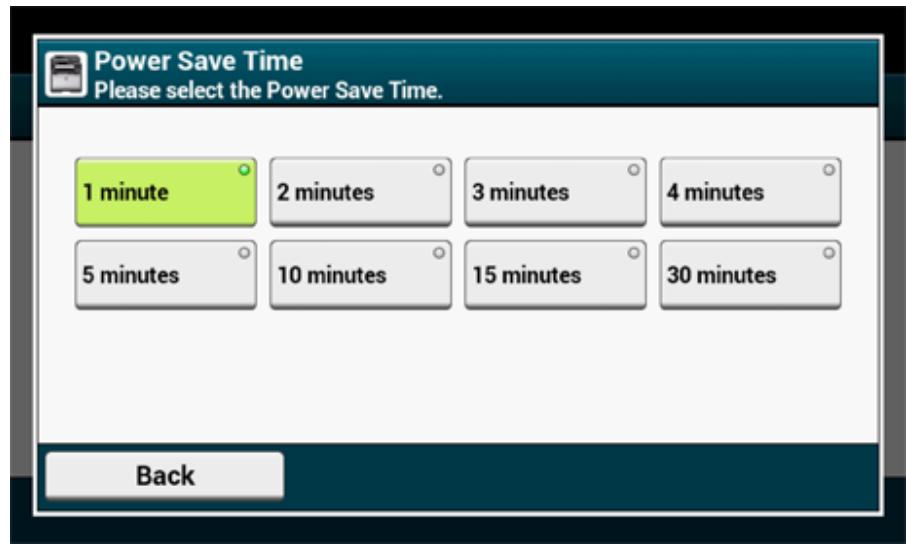
Setting the Length of Idle Time Before Entering Sleep Mode
Press [Device Settings] on the touch panel.
Press or several times and press [Admin Setup].
3 Enter the administrator name and password and press [OK]. The factory default administrator name and password are "admin" and "999999" respectively.
4 Press or several times and press [Manage Unit].
5 Press [Power Save].
6 Press [Sleep Time].
7 Select transition time.
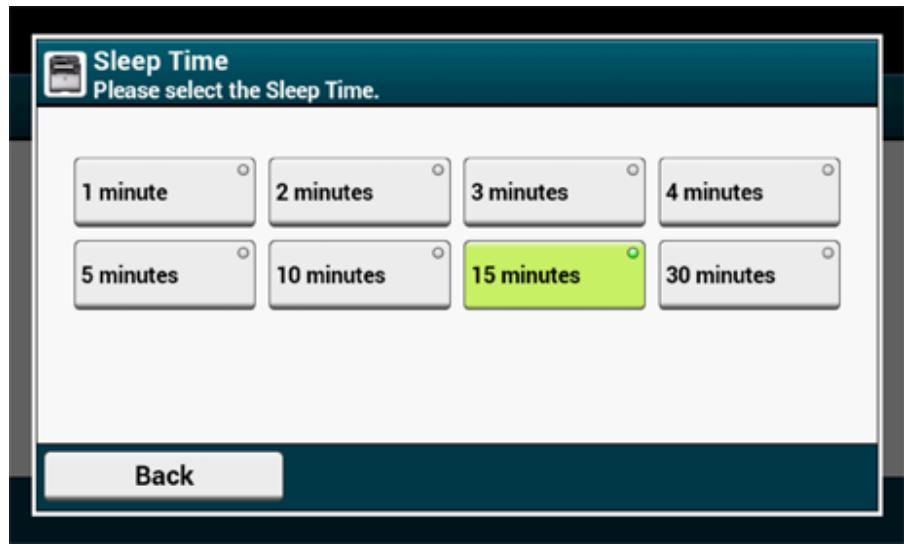
Restrictions in Power Saving Function
The machine does not enter Sleep mode in the following cases.
- When an error occurs on the machine
- When a delayed fax transmission is set
- When a fax transmission is waiting for redialing
- Access Control in the Access Control settings is enabled and Local IC Card or LDAP IC Card in the Authentication Method is enabled.
The machine does not enter Deep Sleep mode in the following cases.
- IPSec is enabled
- A TCP connection is established Example: A connection is established with Telnet or FTP.
When the transition time to enter Sleep mode or Deep Sleep mode from Power Save mode elapses and the connection is disconnected, the machine enters Sleep mode.
- E-mail reception is enabled
- Wireless LAN is enabled
- Google Cloud Print is enabled
- LLTD is enabled
IPv6 Global Address is assigned
In Deep Sleep mode, you cannot use the following protocols to print.
- NBT
In Deep Sleep mode, you cannot search or set by using the following functions and protocols.
- NBT
In Deep Sleep mode, the following protocols that have the client function do not operate.
E-mail alert*2
SNMP Trap
WINS*1
- SNTP*2
*1 The elapse time in Deep Sleep mode is not included in the intervals of WINS update time.
WINS regular updates are not performed in Deep Sleep mode, possibly resulting in names that are registered in the WINS server being deleted.
*2 The elapse time in Deep Sleep mode is not included in the intervals of the e-mail alert notification time and the intervals of the NTP server update time.
In a network environment where a large number of packets are sent, the machine automatically exits Deep Sleep mode to Sleep mode and responds.
Also, if a terminal that runs searches with Bonjour, such as Mac or iPhone, is connected to the same network, the machine automatically exits Deep Sleep mode to Sleep mode and responds.
This machine automatically enters Deep Sleep mode after a certain period of time.
Automatically Turning Off the Machine (Auto Power Off)
The machine equipped with the Auto Power Off function which automatically turns off the power if the machine is left unoperated for a certain period of time.
There are three options for the Auto Power Off setting and [Auto Config] is set by factory default.
- [Auto Config]: The machine automatically turns off after being left unoperated for a certain period of time unless the machine is in the following conditions.
- A LAN cable is connected to the network interface connector.
- A telephone cable is connected to the LINE connector.
- Wireless LAN is enabled.
- [Enable]: If you do not use the machine for a certain period of time, the machine automatically turns off.
- [Disable]: Enables the Auto Power Off function. The machine does not automatically turn off.
!
The machine does not automatically turn off in the following cases.
- When an error has occurred
- When a delayed transmission is reserved
- When a fax transmission is waiting for a radial
Follow the steps below to change the Auto Power Off setting.
Press [Device Settings] on the touch panel.
2 Press or several times and press [Admin Setup].
3 Enter the administrator name and password and press [OK]. The factory default administrator name and password are "admin" and "999999" respectively.
Press or several times and press [User Install].
5 Press [Power Setup].
6 Press [Auto Power Off].
7 Select the value.
Setting the Length of Idle Time Before Auto Power Off Works
Press [Device Settings] on the touch panel.
2 Press or several times and press [Admin Setup].
3 Enter the administrator name and password and press [OK]. The factory default administrator name and password are "admin" and "999999" respectively.
Press or several times and press [Manage Unit].
5 Press [Power Save].
6 Press [Auto Power Off Time].
7 Select transition time.
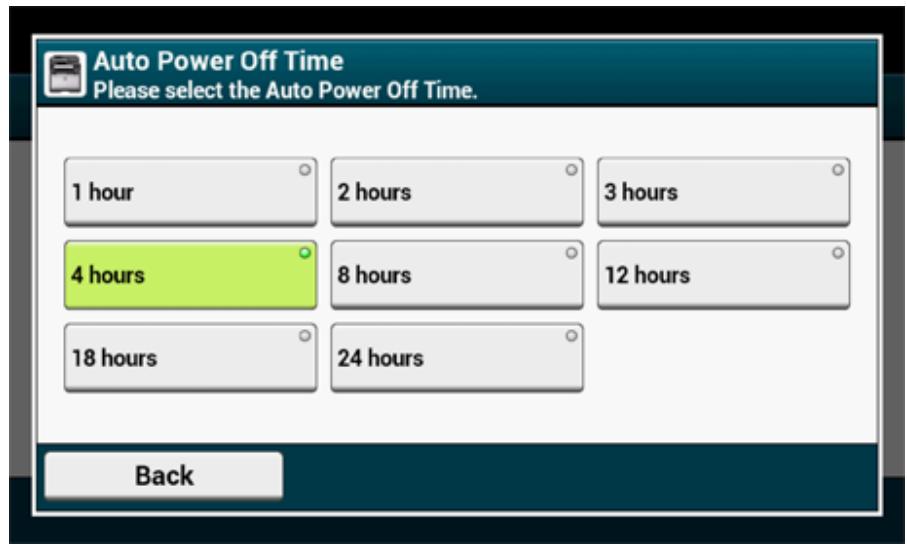
Specifications
This section describes the specifications of the machine.
- General Specifications
- Copier Specifications
- Fax Specifications
- Scanner Specifications
- Printing Specifications
Network Specifications - Wireless LAN Specifications (Option)
General Specifications
| MFP Model | Model Number |
| MC573/ES5473 MFP | N36401A/N36401B |
| Item | MC573/ES5473 MFP | |
| CPU | ARM Processor (667MHz) | |
| Memory | DDR3 32bit 1GB | |
| ROM | 3 GB | |
| Weight (including consumables) | Approx. 31 kg | |
| Dimensions (W x D x H) | 427 x 576 x 472 mm | |
| Power supply | N36401A: 110V - 127V AC +/-10%N36401B: 220V - 240V AC +/-10% | |
| Power consumption | Typical operation | N36401A: 670 W / N36401B: 640 W |
| Idle | 100 W | |
| Peak | N36401A: 1240 W / N36401B: 1270 W | |
| Power save mode | Less than 20 W | |
| Sleep mode | Less than 7.8 W | |
| Deep Sleep mode | Less than 1.5 W | |
| Auto power off mode | Less than 0.5 W | |
| Operating condition | Operating | Temperature : 10 - 32°C, Humidity : 20 - 80% RH |
| Idle | Temperature : 0 - 43°C, Humidity : 10 - 90% RH | |
| Interface | USB 2.0, Ethernet 10BASE-T/100BASE-TX/1000BASE-T, Host USB x 2IEEE802.11 b/g/n/a Wireless LAN (Option) | |
| Display | Color touch panel 7 inches, WVGA (800 x 480) | |
| Supported OS | Windows 10/Windows Server 2016/Windows 8.1/Windows Server 2012 R2/Windows 8/Windows Server 2012/Windows 7/Windows Vista/Windows Server 2008 R2/Windows Server 2008Mac OS X 10.8.5 to 10.11 | |
| Device service life * | 5 years or 420000 sheets | |
| Storage environment | Temperature: -10 to 43 degreesRelative humidity: 10 to 90% | |
- Device service life depends on the customer's use conditions.
Copier Specifications
| Item | MC573/ES5473 MFP | |
| Document size | ADF | A4, A5, A6, B5, B6, Letter, Legal 13/13.5/14, Executive, Statement, 8.5 SQ, Folio * A6 paper is not available for duplex scanning. |
| Document glass | A4, A5, A6, B5, B6, B6 Half, Letter, Executive, Statement, 8.5 SQ, 16K (197 x 273 mm, 195 x 270 mm, 184 x 260 mm), Index Card, 4 x 6 inches, 5 x 7 inches, Envelopes | |
| First copy time | Color | 12 seconds |
| Mono | 12 seconds | |
| Copies | Up to 999 | |
| Copy speed | Color | Up to 30 cpm |
| Mono | Up to 30 cpm | |
Fax Specifications
| Item | MC573/ES5473 MFP | |
| Compatibility | ITU-T G3/Super G3 | |
| Compression method | MH, MR, MMR, JBIG | |
| Modem speed | Up to 33.6 Kbps | |
| Lines | PSTN, PBX | |
| Line interface | RJ11 x 2 (Line/TEL) | |
| Transmission speed | Approx. 2 seconds/page (ITU-T no.1, JBIG, Normal) | |
| Stored document memory size | 256 MB | |
| Storage document capacity | Up to 8192 pages (ITU-T no.1, MMR, Normal) | |
| Resolution | Normal | 8 dots x 3.85 line/mm |
| Fine | 8 dots x 7.7 line/mm | |
| Photo | 8 dots x 7.7 line/mm | |
| Extra-Fine | 8 dots x 15.4 line/mm | |
Scanner Specifications
| Item | MC573/ES5473 MFP | |
| Type | Document Glass with ADF function | |
| Image sensor | Color CIS | |
| Light source | LED | |
| Scanning resolution | 600 x 600 dpi, 600 x 300 dpi | |
| Document thickness | ADF | 64 - 105 g/m2(17 - 28 lb) |
| Document glass | 20 mm | |
| ADF document capacity | 50 sheets (80 g/m2) and total thickness 5 mm or lower | |
| Scanning area | ADF | Simplex: Up to 216 x 356 mm (8.5 x 14 inches) Duplex: Up to 216 x 356 mm (8.5 x 14 inches) |
| Document glass | 216 x 297 mm (8.5 x 11.7 inches) or less | |
| Scanning speed | Color | Approx. 30 pages/minute (A4, 600 x 300 dpi, ADF simplex) |
| Mono | Approx. 30 pages/minute (A4, 600 x 600 dpi, ADF simplex) | |
Printing Specifications
| Item | MC573/ES5473 MFP | |
| Printing method | Dry electrophotographic recording method with LED (Light-emitting diode) | |
| Page-description language | PostScript 3, PCL5c, PCL6 (XL), EPSON FX, IBM ProPrinter, XPS, PDF (v1.7 or earlier) | |
| Resident fonts | PCL: 91 European fonts PS: 80 European fonts | |
| Resolution | 1200 x 1200 dpi, 600 x 600 dpi | |
| Color | Yellow, Magenta, Cyan, Black | |
| Print speed | • A4 Simplex: Up to 30 ppm Duplex: Up to 16 ppm (mono), 14 ppm (color) • Letter Simplex: Up to 31 ppm Duplex: Up to 16 ppm (mono), 14 ppm (color) | |
| First print out time | Color | Approx. 7.5 seconds (A4) |
| Mono | Approx. 7.5 seconds (A4) | |
| Paper size | Tray 1 | Legal 13/13.5/14, Letter, Executive, A4, A5, A6, B5, B6, Statement, 8.5 SQ, Folio, 16K (197 x 273 mm, 195 x 270 mm, 184 x 260 mm), Custom size |
| Additional tray unit (Optional) | Legal 13/13.5/14, Letter, Executive, A4, A5, B5, 8.5 SQ, Folio, 16K (197 x 273 mm, 195 x 270 mm, 184 x 260 mm), Custom size | |
| MP Tray | Legal 13/13.5/14, Letter, Executive, A4, A5, A6, B5, B6 Half, Statement, 8.5 SQ, Folio, Index card (3x5inches), 4 x 6 inches, 5 x 7 inches, Banner up to 1321 mm (52 inches), 16K (197 x 273 mm, 195 x 270 mm, 184 x 260 mm), C5, DL, Com-9, Com-10, Monarch, Custom size | |
| Duplex Printing | Legal 13/13.5/14, Letter, Executive, A4, A5, B5, 8.5 SQ, Folio, 16K (197 x 273 mm, 195 x 270 mm, 184 x 260 mm), Custom size | |
| Custom size | • Tray 1 100 - 216 mm (W), 148 - 356 mm (L) (3.9 - 8.5 inches (W), 5.8 - 14.0 inches (L)) • Additional tray unit (optional) 148 - 216 mm (W), 210 - 356 mm (L) (5.8 - 8.5 inches (W), 8.2 - 14.0 inches (L)) • MP tray 64 - 216 mm (W), 90 - 1321 mm (L) (2.5 - 8.5 inches (W), 3.5 - 52 inches (L)) • Duplex 148 - 216 mm (W), 210 - 356 mm (L) (5.8 - 8.5 inches (W), 8.2 - 14.0 inches (L)) | |
| Media type | Plain paper (64 g/m²- 220 g/m²), Envelopes, Label | |
| Feeding method | Automatic feeding from Tray 1, MP tray and Additional tray unit (optional) Manual feeding from MP tray | |
| Item | MC573/ES5473 MFP | |
| Paper loading capacity | ·Tray 1 250 sheets (less than 80 g/m²), total thickness 25 mm or lower. ·MP tray 100 sheets (less than 80 g/m²) and total thickness 10 mm or lower, 10 envelopes (85 g/m²). ·Additional tray unit (optional) 530 sheets of Standard paper /80 g/m² and total thickness 53 mm or lower. | |
| Output method | Output tray/Rear output tray | |
| Paper output capacity | ·Output Tray 150 sheets (less than 80 g/m²) ·Rear Output Tray 100 sheets (less than 80 g/m²) | |
| Print guaranteed area | 6.35 mm or more from the paper edge (not applicable to special media such as envelopes) | |
| Print precision | Print beginning: ± 2 mm, paper skew: ± 1 mm/100 mm Image expansion: ± 1 mm/100 mm (80 g/m²) | |
| Warm-up time | ·From power on 35 seconds (at room temperature 25°C, rated voltage) ·From sleep mode 38 seconds (at room temperature 25°C, rated voltage) | |
| Usage Environment Conditions | ·When in operation 10 - 32°C/ Relative Humidity of 20 - 80% (maximum wet bulb temperature of 25°C, maximum dry bulb temperature of 2°C) ·When not in operation 0 - 43°C/ Relative Humidity of 10 - 90% (maximum wet bulb temperature of 26.8°C, maximum dry bulb temperature of 2°C) | |
| Conditions for the guarantee of print quality | ·Operating Range Temperature 10°C, humidity 20 to 80% RH Temperature 32°C, humidity 20 to 60% RH Humidity 20% RH, temperature 10 to 32°C Humidity 80% RH, temperature 10 to 27°C ·Full-color Print Quality Assured Range Temperature 17 to 27°C, humidity 50 to 70% RH | |
| Consumables | Toner cartridges, Image drums, Belt unit, Fuser unit | |
Network Specifications
| Item | MC573/ES5473 MFP |
| Interface | Ethernet 10BASE-T/100BASE-TX/1000BASE-T, IEEE802.11 a/b/g/n Wireless LAN |
| Protocol | TCP/IPv4, TCP/IPv6, NetBIOS over TCP, LPR, Port9100, IPP, FTP, HTTP, TELNET, SMTP, POP3, SNMPv1/v3, DHCP, DHCPv6, DNS, DDNS, UPnP, WINS, Bonjour, SNTP, LLTD, Web Services Discovery (WSD), SSL/TLS, IPSec, CIFS, SMB (Version 1.0), LDAPv3, Kerberos, IEEE802.1X, AirPrint, Google Cloud Print |
Wireless LAN Specifications (Option)
| Item | MC573/ES5473 MFP |
| Wireless LAN standard | IEEE802.11a/b/g/n conformity (2.4 GHz / 5 GHz) |
| Security | Disable, WEP, WPA-PSK, WPA2-PSK, WPA-EAP, WPA2-EAP |
Regulatory wireless LAN statements
- FCC Statement
- IC Statement
- Europe-CE Declaration of conformity.
FCC statement
FCC WARNING
Changes or modifications not expressly approved by the party responsible for compliance could void the user's authority to operate the equipment.
Note: This equipment has been tested and found to comply with the limits for a Class B digital device, pursuant to part 15 of the FCC Rules. These limits are designed to provide reasonable protection against harmful interference in a residential installation. This equipment generates, uses and can radiate radio frequency energy and, if not installed and used in accordance with the instructions, may cause harmful interference to radio communications. However, there is no guarantee that interference will not occur in a particular installation. If this equipment does cause harmful interference to radio or television reception, which can be determined by turning the equipment off and on, the user is encouraged to try to correct the interference by one or more of the following measures:
- Reorient or relocate the receiving antenna.
- Increase the separation between the equipment and receiver.
- Connect the equipment into an outlet on a circuit different from that to which the receiver is connected.
- Consult the dealer or an experienced radio/TV technician for help.
This transmitter must not be co-located or operating in conjunction with any other antenna or transmitter.
IC statement
This device complies with Part 15 of FCC Rules and Industry Canada licence-exempt RSS standard(s). Operation is subject to the following two conditions: (1) this device may not
cause interference, and (2) this device must accept any interference, including interference that may cause undesired operation of this device.
This Class [B] digital apparatus complies with Canadian ICES-003.
5.15-5.25 GHz band is restricted to indoor operations only.
This equipment complies with FCC/IC radiation exposure limits set forth for an uncontrolled environment and meets the FCC radio frequency (RF) Exposure Guidelines and RSS-102 of the IC radio frequency (RF) Exposure rules. This equipment should be installed and operated keeping the radiator at least 20~cm or more away from person's body.
Europe - CE Declaration of Conformity

This equipment complies with the essential requirements of the European Union directive 2014/53/EU.
The telecommunications functionality of this product may be used in the following EU and EFTA countries: Austria, Belgium, Bulgaria, Cyprus, Czech Republic, Denmark, Estonia, Finland, France, Germany, Greece, Hungary, Iceland, Ireland, Italy, Latvia, Liechtenstein, Lithuania, Luxembourg, Malta, Netherlands, Norway, Poland, Portugal, Romania, Slovak Republic, Slovenia, Spain, Sweden, Switzerland, Turkey and United Kingdom.
Italia
www.oki.com/it
François
www.oki.com/fr
Deutschland
www.oki.com/de
United Kingdom
www.oki.com/uk
Ireland
www.oki.com/ie
Espana
www.oki.com/es
Portuguesa
www.oki.com/pt
Sverige
www.oki.com/se
Danmark
www.oki.com/dk
Norge
www.oki.com/no
Suomi
www.oki.com/fi
Nederland
www.oki.com/nl
Belgié/Belgique
www.oki.com/be
Österreich
www.oki.com/at
www.oki.com/th/printing/
Australia
www.oki.com/au/
New Zealand
www.oki.com/nz/
United States
www.oki.com/us/
Canada
www.oki.com/ca/
Brasil
www.oki.com/br/printing
Mexico
www.oki.com/mx/
Argentina
www.oki.com/la/
Colombia
www.oki.com/la/
Other countries
www.oki.com/printing/
