ManualGo.com
GRAND S FLEX - Smartphone ZTE - Free user manual and instructions
Find the device manual for free GRAND S FLEX ZTE in PDF.



Download the instructions for your Smartphone in PDF format for free! Find your manual GRAND S FLEX - ZTE and take your electronic device back in hand. On this page are published all the documents necessary for the use of your device. GRAND S FLEX by ZTE.
USER MANUAL GRAND S FLEX ZTE
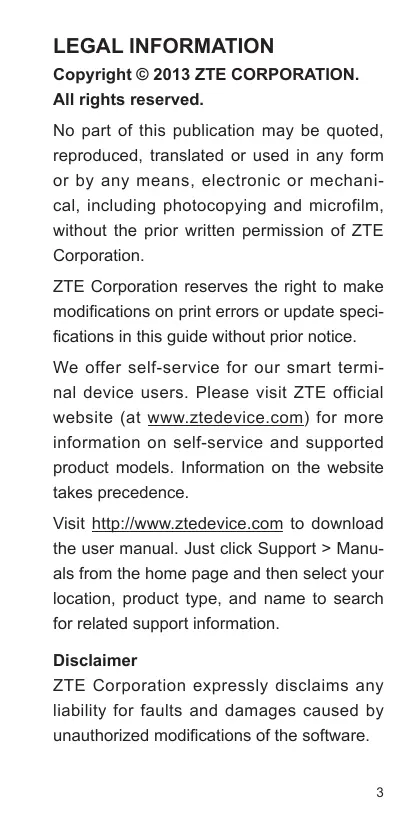
LEGAL INFORMATION Copyright © 2013 ZTE CORPORATION. All rights reserved. No part of this publication may be quoted, reproduced, translated or used in any form or by any means, electronic or mechanical, including photocopying and microfilm, without the prior written permission of ZTE Corporation. ZTE Corporation reserves the right to make modifications on print errors or update specifications in this guide without prior notice. We offer self-service for our smart terminal device users. Please visit ZTE official website (at www.ztedevice.com) for more information on self-service and supported product models. Information on the website takes precedence. Visit http://www.ztedevice.com to download the user manual. Just click Support > Manuals from the home page and then select your location, product type, and name to search for related support information. Disclaimer ZTE Corporation expressly disclaims any liability for faults and damages caused by unauthorized modifications of the software.
Product Safety Information Do not use while re-fuelling. Do not use hand-held while driving. This device may produce a bright or flashing light. For body-worn operation maintain a separation of 15 mm. Do not dispose of it in a fire. Small parts may cause a choking hazard. Avoid contact with magnetic media. This device may produce a loud sound. To prevent possible hearing damage, do not listen at high volume levels for long periods. Avoid Extreme Temperatures. Keep away from pacemakers and other personal medical devices. Avoid any contact with liquid, keep it dry. Switch off when instructed in hospitals and medical facilities. Do not attempt to disassemble. Switch off when instructed in aircrafts and airports.
Do not rely on this device for emergency communications. Switch off in explosive environments. Only use approved accessories. Getting to Know Your Phone Indicator Light Front Camera Proximity & Light Sensor Earpiece Power Key Micro-SIM Card Tray Touch Screen Home Key Back Key Handsfree Microphone Back Camera Flash Menu Key Headset Jack Noise-cancelling Microphone Volume Key Charging/ USB Jack Speaker Main Microphone
- Press and hold to power on, select phone modes, turn on/off airplane mode, restart, or power off.
- Press to turn off or on the screen display. Home Key
- Touch to return to the Home screen from any application or screen.
- Touch and hold when the screen is not locked to open Google Search. Menu Key
- Touch to get the options for the current screen.
- Touch and hold to see recently used apps. Back Key Touch to go to the previous screen. Volume Key Press or hold either end of the key to turn the volume up or down. Before Getting Started
1. Insert the end of a small paper clip or SIM
eject tool into the hole beside the microSIM card tray.
2. Pull out the micro-SIM card tray and
place the SIM card on the tray as shown. Then carefully install the tray back.
Charging the Battery When you first get your new phone you’ll need to charge the battery. WARNING! Use only ZTE-approved chargers and cables. The use of unapproved accessories could damage your phone or cause the battery to explode. CAUTION: Do not change the built-in rechargeable battery in your phone by yourself. The battery can only be changed by ZTE or ZTE authorised service provider.
1. Connect the adapter to the charger jack.
2. Connect the charger to a standard AC
3. Disconnect the charger when the battery
Powering On/Off Make sure the SIM card is in your phone and the battery is charged.
- Press and hold the Power Key to turn on your phone.
- To turn it off, press and hold the Power Key to open the options menu. Touch Power off and then touch OK. CAUTION: Do not touch the Volume Key when powering on the phone. Restarting the Phone If the phone freezes or takes too long to respond, try pressing and holding the Power Key for about 8 seconds to restart the phone. Waking Up Your Phone Your phone automatically goes into sleep mode when it is not in use for some time. The display is turned off to save power and the keys are locked to prevent accidental operations. You can wake up phone by turning on the display and unlocking the keys.
1. Press the Power Key to turn the screen
at the center of the screen. NOTE: If you have set an unlock pattern, face lock, PIN or password for your phone, you’ll need to draw the pattern or enter the PIN/password to unlock.
Using the Touch Screen Your phone’s touch screen lets you control actions through a variety of touch gestures.
- Touch When you want to type using the onscreen keyboard, select items onscreen such as application and settings icons, or press onscreen buttons, simply touch them with your finger.
- Touch and Hold To open the available options for an item (for example, a message or link in a Web page), touch and hold the item.
- Swipe or Slide To swipe or slide means to quickly drag your finger vertically or horizontally across the screen.
- Drag To drag, press and hold your finger with some pressure before you start to move your finger. While dragging, do not release your finger until you have reached the target position.
- Pinch In some apps (such as Maps, Browser, and Gallery), you can zoom in and out by placing two fingers on the screen at once and pinching them together (to zoom out) or spreading them apart (to zoom in).
- Rotate the screen For most screens, you can automatically change the screen orientation from portrait to landscape by turning the phone sideways. UK Hotline: +44 (0)20 3450 8722