
GRAND S FLEX - Smartphone ZTE - Free user manual and instructions
Find the device manual for free GRAND S FLEX ZTE in PDF.



| Product Type | Smartphone |
| Brand | ZTE |
| Model | GRAND S FLEX |
| Dimensions (HxWxD) | approx. 144 x 72 x 8.9 mm |
| Weight | approx. 145 g |
| Display | 5-inch capacitive touchscreen, 720 x 1280 pixel resolution |
| Operating System | Android 4.1 Jelly Bean |
| Processor | Quad-core 1.2 GHz |
| RAM | 1 GB |
| Internal Storage | 4 GB (expandable via microSD card) |
| Rear Camera | 8 megapixels with LED flash |
| Front Camera | 1 megapixel |
| Battery | Built-in rechargeable lithium-ion, 2300 mAh |
| Network | GSM / HSPA |
| Connectivity | Wi-Fi 802.11 b/g/n, Bluetooth 4.0, GPS |
| Sensors | Accelerometer, proximity, light |
| Care and Cleaning | Avoid contact with liquids; clean with a soft, dry cloth |
| Safety | Do not disassemble; turn off in explosive environments; maintain a distance of 15 mm from the body |
| Power Supply | USB charger 5V/1A |
| SIM Card Slot | Micro-SIM |
Frequently Asked Questions - GRAND S FLEX ZTE
User questions about GRAND S FLEX ZTE
0 question about this device. Answer the ones you know or ask your own.
Ask a new question about this device
Download the instructions for your Smartphone in PDF format for free! Find your manual GRAND S FLEX - ZTE and take your electronic device back in hand. On this page are published all the documents necessary for the use of your device. GRAND S FLEX by ZTE.
USER MANUAL GRAND S FLEX ZTE
Copyright © 2013 ZTE CORPORATION. All rights reserved.
No part of this publication may be quoted, reproduced, translated or used in any form or by any means, electronic or mechanical, including photocopying and microfilm, without the prior written permission of ZTE Corporation.
ZTE Corporation reserves the right to make modifications on print errors or update specifications in this guide without prior notice.
We offer self-service for our smart terminal device users. Please visit ZTE official website (at www.ztedevice.com) for more information on self-service and supported product models. Information on the website takes precedence.
Visit http://www.ztedevice.com to download the user manual. Just click Support > Manuals from the home page and then select your location, product type, and name to search for related support information.
Disclaimer
ZTE Corporation expressly disclaims any liability for faults and damages caused by unauthorized modifications of the software.
Product Safety Information
 | Do not use while re-fuelling. |
 | Do not use hand-held while driving. |
 | This device may produce a bright or flashing light. |
 | For body-worn operation maintain a separation of 15 mm. |
 | Do not dispose of it in a fire. |
 | Small parts may cause a choking hazard. |
 | Avoid contact with magnetic media. |
 | This device may produce a loud sound. |
 | To prevent possible hearing damage, do not listen at high volume levels for long periods. |
 | Avoid Extreme Temperatures. |
 | Keep away from pacemakers and other personal medical devices. |
 | Avoid any contact with liquid, keep it dry. |
 | Switch off when instructed in hospitals and medical facilities. |
 | Do not attempt to disassemble. |
 | Switch off when instructed in aircrafts and airports. |
 | Do not rely on this device for emergency communications. |
 | Switch off in explosive environments. |
 | Only use approved accessories. |
Getting to Know Your Phone
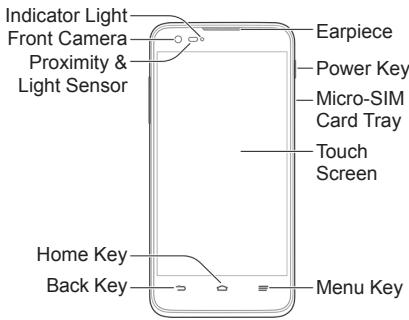
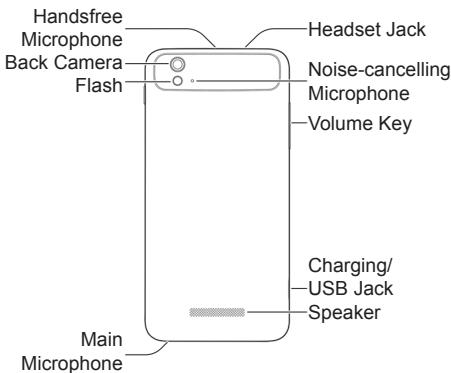
Power Key
- Press and hold to power on, select phone modes, turn on/off airplane mode, restart, or power off.
- Press to turn off or on the screen display.
Home Key
- Touch to return to the Home screen from any application or screen.
- Touch and hold when the screen is not locked to open Google Search.
Menu Key
- Touch to get the options for the current screen.
- Touch and hold to see recently used apps.
Back Key
Touch to go to the previous screen.
Volume Key
Press or hold either end of the key to turn the volume up or down.
Before Getting Started
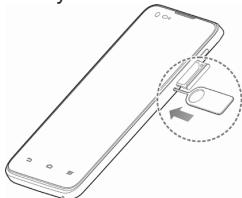
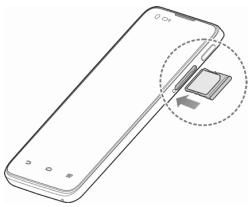
- Insert the end of a small paper clip or SIM eject tool into the hole beside the micro-SIM card tray.
natural_image
Line drawing of a smartphone with a close-up of its cable being inserted (no text or symbols)- Pull out the micro-SIM card tray and place the SIM card on the tray as shown. Then carefully install the tray back.
natural_image
Line drawing of a smartphone with an inset showing a small electronic component (no text or symbols)Charging the Battery
When you first get your new phone you'll need to charge the battery.
WARNING! Use only ZTE-approved chargers and cables. The use of unapproved accessories could damage your phone or cause the battery to explode.
CAUTION: Do not change the built-in rechargeable battery in your phone by yourself. The battery can only be changed by ZTE or ZTE authorised service provider.
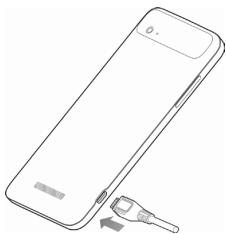
- Connect the adapter to the charger jack.
natural_image
Line drawing of a smartphone with a key inserted, showing no text or symbols-
Connect the charger to a standard AC wall outlet.
-
Disconnect the charger when the battery is fully charged.
Powering On/Off
Make sure the SIM card is in your phone and the battery is charged.
- Press and hold the Power Key to turn on your phone.
- To turn it off, press and hold the Power Key to open the options menu. Touch Power off and then touch OK.
CAUTION: Do not touch the Volume Key when powering on the phone.
Restarting the Phone
If the phone freezes or takes too long to respond, try pressing and holding the Power Key for about 8 seconds to restart the phone.
Waking Up Your Phone
Your phone automatically goes into sleep mode when it is not in use for some time. The display is turned off to save power and the keys are locked to prevent accidental operations.
You can wake up phone by turning on the display and unlocking the keys.
- Press the Power Key to turn the screen on.
- Touch and hold 🔒 at the center of the screen.
NOTE: If you have set an unlock pattern, face lock, PIN or password for your phone, you'll need to draw the pattern or enter the PIN/password to unlock.
Using the Touch Screen
Your phone's touch screen lets you control actions through a variety of touch gestures.
- Touch When you want to type using the onscreen keyboard, select items onscreen such as application and settings icons, or press onscreen buttons, simply touch them with your finger.
- Touch and Hold To open the available options for an item (for example, a message or link in a Web page), touch and hold the item.
- Swipe or Slide To swipe or slide means to quickly drag your finger vertically or horizontally across the screen.
- Drag To drag, press and hold your finger with some pressure before you start to move your finger. While dragging, do not release your finger until you have reached the target position.
- Pinch In some apps (such as Maps, Browser, and Gallery), you can zoom in and out by placing two fingers on the screen at once and pinching them together (to zoom out) or spreading them apart (to zoom in).
- Rotate the screen For most screens, you can automatically change the screen orientation from portrait to landscape by turning the phone sideways.
UK Hotline: +44 (0)20 3450 8722
0800 783 0094
natural_image
Illustration of a smartphone with a magnified inset showing a device interacting with its screen (no text or symbols present)natural_image
Line drawing of a smartphone showing the open lid and internal components (no text or symbols)natural_image
Line drawing of a smartphone with a key inserted, showing no text or symbolsCopyright © 2013 ZTE CORPORATION.
natural_image
Line drawing of a smartphone with an open dialog box and arrow indicating action (no text or symbols)natural_image
Line drawing of a smartphone showing the open lid and internal components, with an inset close-up highlighting a small electronic component (no text or symbols present)Laden des Akkus
natural_image
Line drawing of a smartphone with a USB cable inserted, showing the battery and port (no text or symbols)Telif Hakkı © 2013 ZTE CORPORATION.
natural_image
Line drawing of a smartphone with a close-up of its right-hand side showing a device (no text or symbols present)natural_image
Line drawing of a smartphone with an inset showing a small electronic component (no text or symbols)Pilin Şarj Edilmesi
natural_image
Line drawing of a smartphone with a small electronic device attached (no text or symbols)Grand S Flex SNELSTARTGIDS
natural_image
Line drawing of a smartphone with an open dialog box and arrow indicating action (no text or symbols)natural_image
Line drawing of a smartphone showing the open lid and internal components, with a magnified inset highlighting the chip (no text or symbols present)De batterij opladen
natural_image
Line drawing of a smartphone showing the front panel and internal components (no text or symbols)Copyright © 2013 ZTE CORPORATION.
natural_image
Line drawing of a smartphone with a magnified inset showing a device interacting with its screen (no text or symbols present)natural_image
Line drawing of a smartphone showing the internal portion of its screen and an external close-up view (no text or symbols)natural_image
Line drawing of a smartphone with a key inserted, showing no text or symbolsCopyright © 2013 ZTE CORPORATION.
Med ensamrätt.
natural_image
Line drawing of a smartphone with an open dialog box and arrow indicating action (no text or symbols)natural_image
Line drawing of a smartphone with an inset showing a portion of its screen (no text or symbols present)Ladda batteriet
natural_image
Line drawing of a smartphone with a USB cable inserted (no text or symbols)natural_image
Line drawing of a smartphone with a magnified inset showing a small object interacting with the screen (no text or symbols)natural_image
Line drawing of a smartphone showing the cable being inserted into a slot (no text or symbols present)Ładowanie baterii
natural_image
Line drawing of a smartphone with a USB cable inserted, showing the cable attachment (no text or symbols)natural_image
Line drawing of a smartphone with an open dialog box and arrow indicating action (no text or symbols)natural_image
Line drawing of a smartphone showing the open lid and internal components (no text or symbols)natural_image
Line drawing of a smartphone with a USB cable inserted (no text or symbols)natural_image
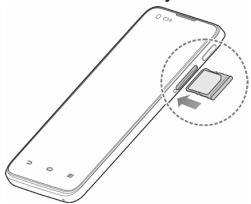
Line drawing of a smartphone with a magnified inset showing a device interacting with its screen (no text or symbols present)- Izvucite ležište za mikro SIM karticu i postavite SIM karticu na ležište kako je prikazano. Zatim do kraja umetnite ležište.
natural_image
Line drawing of a smartphone showing the open lid and internal components, with a magnified inset highlighting the chip (no text or symbols present)Punjenje baterije
natural_image
Line drawing of a smartphone with a key inserted, showing no text or symbolsnatural_image
Line drawing of a smartphone with a magnified inset showing a small object interacting with the screen (no text or symbols present)natural_image
Diagram of a smartphone showing the open lid and internal components, with an inset close-up highlighting a small electronic component (no text or symbols present)Nabíjení baterie
natural_image
Line drawing of a smartphone with a USB cable inserted, showing the cable being inserted (no text or symbols present)natural_image
Line drawing of a smartphone with a magnified inset showing a device being inserted (no text or symbols)natural_image
Line drawing of a smartphone with an open rear panel and a close-up of its internal components (no text or symbols)Încărcarea bateriei
natural_image
Line drawing of a smartphone with a key inserted, showing no text or symbols© 2013 ZTE CORPORATION.
natural_image
Line drawing of a smartphone with a close-up of its right-hand side showing a device (no text or symbols present)natural_image
Line drawing of a smartphone showing the open lid and internal components, with an inset close-up highlighting a small object (no text or symbols present)natural_image
Line drawing of a smartphone with a USB cable inserted (no text or symbols)natural_image
Line drawing of a smartphone with an open port and a close-up of its port (no text or symbols)natural_image
Line drawing of a smartphone showing the open lid and internal components (no text or symbols)Nabíjanie batérie
natural_image
Line drawing of a smartphone with a small electronic device attached (no text or symbols)Grand S Flex Kratke upute
PRAVNE INFORMACIJE
Copyright © 2013 ZTE CORPORATION. Sva prava pridržana.
Nijedan bio ove brošure ne smije se citirati, reproducirati, prevoditi ili koristiti u bilo kojem obliku ni na bilo koji način, elektronički ili mehanički, uključujući fotokopiranje i snimanje na mikrofilm, bez prethodne pisane dozvole tvrtke ZTE Corporation.
natural_image
Illustration of a smartphone with a close-up of its right-hand side showing a hand holding a key (no text or symbols present)natural_image
Line drawing of a smartphone showing the open lid and internal components (no text or symbols)Punjenje baterije
Prije prvog korištenja novog telefona trebate napuniti bateriju na sljedeći način.
UPOZORENJE! Koristite samo one punjače i kabele koje je odobrio ZTE. Korištenje dodatne opreme koja nije odobrena može oštetiti vaš telefon ili uzrokovati eksploziju baterije.
UPOZORENJE: Nemojte sami mijenjati punjivu bateriju koja je ugrađena u telefon. Bateriju može zamijeniti samo ZTE ili ovlašteni ZTE serviser.
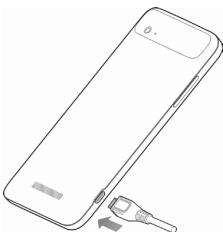
- Priključite adapter u utičnicu za punjač.
natural_image
Line drawing of a smartphone with a USB cable inserted (no text or symbols)- Ukopčajte punjač u standardnu zidnu utičnicu za izmjeničnu struju.
- Iskopčajte punjač kada se baterija napuni dokraja.
© ZTE CORPORATION, 2013 г.
natural_image
Line drawing of a smartphone with a magnified inset showing a hand holding a key (no text or symbols present)natural_image
Line drawing of a smartphone with an open lid and a close-up inset showing the chip (no text or symbols)natural_image
Line drawing of a smartphone with a USB cable inserted, showing the battery and port (no text or symbols)natural_image
Line drawing of a smartphone with a magnified inset showing a device interacting with its screen (no text or symbols present)natural_image
Line drawing of a smartphone showing the internal component being inserted, with no text or symbols present.natural_image
Line drawing of a smartphone with a USB cable inserted, showing the battery and port (no text or symbols)natural_image
Line drawing of a smartphone with an open dialog box and arrow indicating action (no text or symbols)natural_image
Line drawing of a smartphone showing the open lid and internal components (no text or symbols)Akun lataaminen
natural_image
Line drawing of a smartphone with a key inserted, showing no text or symbolsnatural_image
Line drawing of a smartphone with an open dialog box and arrow indicating action (no text or symbols)natural_image
Line drawing of a smartphone showing the open lid and internal components (no text or symbols)Lade batteriet
natural_image
Line drawing of a smartphone with a key inserted, showing no text or symbols- Disclaimer
- Power Key
- Home Key
- Menu Key
- Back Key
- Volume Key
- Before Getting Started
- Charging the Battery
- Powering On/Off
- Restarting the Phone
- Waking Up Your Phone
- Using the Touch Screen
- Laden des Akkus
- Pilin Şarj Edilmesi
- Grand S Flex SNELSTARTGIDS
- De batterij opladen
- Copyright © 2013 ZTE CORPORATION.
- Med ensamrätt.
- Ladda batteriet
- Ładowanie baterii
- Punjenje baterije
- Nabíjení baterie
- Încărcarea bateriei
- Nabíjanie batérie
- Grand S Flex Kratke upute
- PRAVNE INFORMACIJE
- Copyright © 2013 ZTE CORPORATION. Sva prava pridržana.
- Akun lataaminen
- Lade batteriet
Brand : ZTE
Model : GRAND S FLEX
Category : Smartphone