8011 VPN - VPN Router LANCOM - Free user manual and instructions
Find the device manual for free 8011 VPN LANCOM in PDF.


User questions about 8011 VPN LANCOM
0 question about this device. Answer the ones you know or ask your own.
Ask a new question about this device
Download the instructions for your VPN Router in PDF format for free! Find your manual 8011 VPN - LANCOM and take your electronic device back in hand. On this page are published all the documents necessary for the use of your device. 8011 VPN by LANCOM.
USER MANUAL 8011 VPN LANCOM
LANCOM Installation Guide
© 2007 LANCOM Systems GmbH, Wuerselen (Germany). All rights reserved.
While the information in this manual has been compiled with great care, it may not be deemed an assurance of product characteristics. LANCOM Systems shall be liable only to the degree specified in the terms of sale and delivery.
The reproduction and distribution of the documentation and software included with this product is subject to written permission by LANCOM Systems. We reserve the right to make any alterations that arise as the result of technical development.
Trademarks
Windows®, Windows Vista™, Windows XP® and Microsoft® are registered trademarks of Microsoft, Corp.
The LANCOM Systems logo and the name LANCOM are registered trademarks of LANCOM Systems GmbH. All other names mentioned may be trademarks or registered trademarks of their respective owners.
Subject to change without notice. No liability for technical errors or omissions.
This product includes software developed by the OpenSSL Project for use in the OpenSSL Toolkit http://www.openssll.org/.
This product includes cryptographic software written by Eric Young (eay@cryptsoft.com).
This product includes software developed by the NetBSD Foundation, Inc. and its contributors.
LANCOM Systems GmbH
Adenauerstr. 20/B2
52146 Wueselen
Germany
www.lancom.de
Wuerselen, November 2007
© 2007 LANCOM Systems GmbH, Wuerselen (Germany)
Wuerselen, November 2007
LANCOM Systems GmbH
Adenauerstr. 20/B2
52146 Wurselen
Deutschland
www.lancom.de
Würselen, November 2007
This short instruction gives answers to the following questions:
Which software has to be installed for the configuration?
How is the device attached?
How can the device be accessed via LANconfig, WEBconfig or via serial interface?
How does one start the setup wizards (e.g. for setting up the Internet access)?
How is a reset carried out?
Where can one find further information and support?
The complete documentation of your device contains the following parts:
This Quick Install Guide is meant for readers, which have knowledge of installing network components and routers, and which are familiar with the functioning of DHCP and DNS servers, as well as with TCP/IP addressing.
The User's Manual contains all detailed information, which are necessary for setting up your device. In addition, all important technical specifications can be found here.
The PBX Functions Manual gives you detailed step-by-step instructions on commissioning a LANCOM VoIP router as a PBX (private branch exchange) for a single location. Also described are the main operating instructions for users, and how to connect terminal equipment.
The Reference Manual complements the user's manual and particularly deals with those topics, which apply across several models to the LANCOM operating system LCOS.

Depending on the model type, the user's manual and the reference manual can be found also as a Acrobat document (PDF file) on the enclosed CD.
The latest versions of documentations and software are available under www.lancom.eu/download at any time.

Installing software
If you use a Windows PC for configuration, you should Install LANtools (LANconfig and LANmonitor of the included CD).
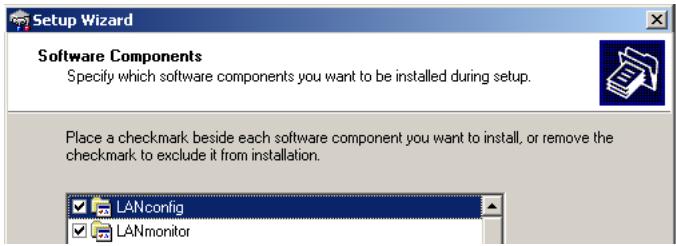

- Alternatively, or in case of other operating systems, it is possible to use a web browser for configuration.
Setting up and connecting the device
Put up LANCOM/mount. While doing so, please follow the installation advices regarding the ambient conditions, stackability etc. of the technical data in the User's Manual.

Some devices (e.g. with integrated ADSL modem) may become quite warm in operation. For these models, ensure an ambient air temperature of 35^ at maximum. Take care of sufficient ventilation. Do not stack devices and do not expose them to direct insolation!
Install/connect additional antennas for LANCOM Wireless devices, if necessary.

Antennas are only to be attached or changed when the device is switched off. Mounting or demounting antennas while the device is switched on may cause the destruction of the WLAN module! When installing outdoor antennas, the instructions on installation and grounding in the LANCOM Antenna Installation Guide must be observed.
Connect LAN and WAN ports to the corresponding remote stations.
Supply power via the provided power supply unit resp. power cable. If necessary, switch on the power switch.

Some devices support power supply via the LAN cable (Power-over-Ethernet - PoE). Please notice the corresponding advice at the rear of your device.

LANCOM WLAN routers only
Searching and configuring devices ...
A LANCOM router, wireless router, access point or WLAN controller can be configured in the following ways (provided that the model is equipped with the according interface):

If your network is equipped with a LANCOM WLAN Controller, network commissioning of wireless routers and access points is generally fully automatic. For further information please refer to the user manual supplied with your LANCOM WLAN controller.
Via the local network (LAN) 1.
- Via the wireless network (WLAN) ② , if WLAN encryption (e.g. WEP) has been correctly set up (or deactivated) in the configuration computer and the device with the wireless interface.
As of LCOS version 7.22 all LANCOM access points are set to "Managed Mode" when shipped, and the WLAN modules are switched off. For this reason the first-time configuration of LANCOM access points via WLAN is not possible.
Via the serial configuration interface 3.
Via a ISDN connection 4.
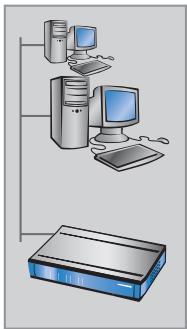
1
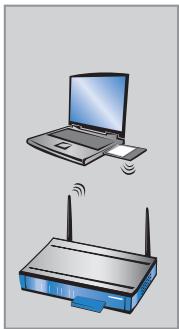
2
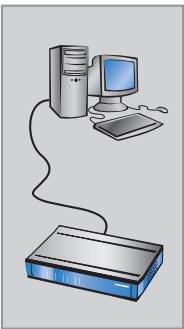
3
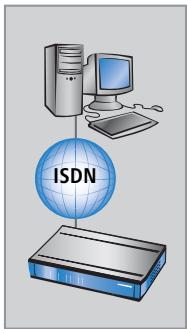
4

Always switch on your device first before starting the PC for configuration.
... with LANconfig
Start LANconfig. Unconfigured LANCOM devices will be found automatically within the local network.

If LANconfig cannot find the device, check the network connection and update the IP address of the configuration computer (e.g. via the command line with ipconfig/renew, by reactivating the network connection, or by restarting the computer). Then start the search in LANconfig again.

It is possible, that LANconfig is not able to find the appropriate devices in the LAN, if an „Internet connection Firewall“ (Windows XP) or any other „Personal Firewall“ is activated on the configuration PC. Deactivate, if necessary, the Firewall during the configuration, if the unconfigured devices cannot be found.

Depending on the configuration, LANCOM wireless routers and LANCOM access points in managed mode are not displayed by the LANconfig device search. To display these devices, activate the option 'Search for managed APs'.
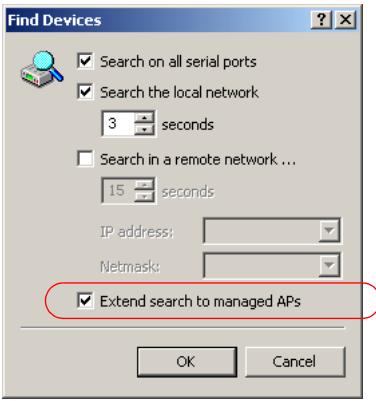
The wizard for the general settings will also start automatically. This procedure defines the following parameters:
TCP/IP and DHCP settings
Restrictions for configuration accesses
According to the model type settings for DSL, ADSL and/or ISDN
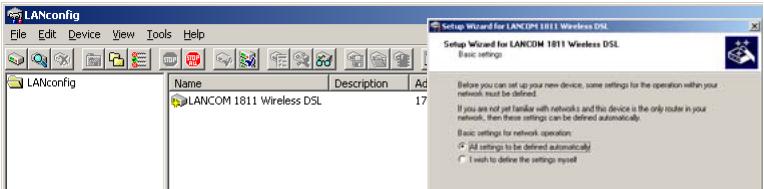
Continue the description with point ④.
... with WEBconfig
Start a web browser, alternatively, for configuration. The reaction of Routers and Access Points, as well as their accessibility for configuration via web browser is dependent on whether a DHCP server and a DNS server are already active in the LAN, and whether these two server processes exchange the assignment of IP addresses to symbolic names within the LAN between each other.
DHCP client or server?
After powered on, unconfigured LANCOM devices check first, whether a DHCP server is already active in the LAN. Dependent on the situation, the device is able to switch on its own DHCP server or, alternatively, to activate its DHCP client mode. In this second operating mode, the device itself can obtain an IP address from a DHCP server already existing in the LAN.
Network without DHCP server
In a network without DHCP server, unconfigured LANCOM devices activate their own DHCP server service after starting, and assign appropriate IP addresses and gateway information to the other workstations within the LAN, provided that the workstations are set to obtain their IP address automatically (auto-DHCP). In this constellation, the device can be accessed with any web browser from each PC with activated auto-DHCP function through the name LANCOM or by its IP address 172.23.56.254.
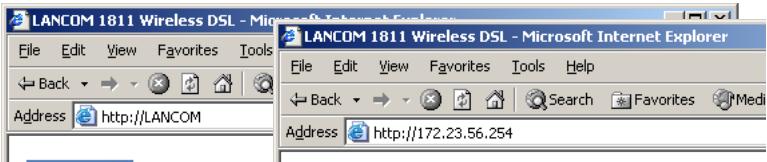
If the configuration PC does not obtain its IP address from the LANCOM DHCP server, figure out the current IP address of this PC (with Start Execute cmd and command ipconfig at the prompt under Windows 2000 or Windows XP, with Start Execute cmd and the command winipcfg at the prompt under Windows Me and Windows 9x, or with the command ifconfig on the console under Linux). In this case, the LANCOM is reachable under the IP address x.x.x.254 ("x" stands for the first three blocks in the IP address of the configuration PC).
Network with DHCP server
If a DHCP server is active in the LAN to assign IP addresses, an unconfigured LANCOM device will turn off its own DHCP server. It will change into DHCP client mode and will obtain an IP address from the DHCP server of the LAN. This IP address is not known at first. The accessibility of the device depends on the name resolution:
If there is a DNS server for name resolution in the LAN, which interchanges the assignment of IP addresses to names with the DHCP server, then the device can be accessed by the name "LANCOM
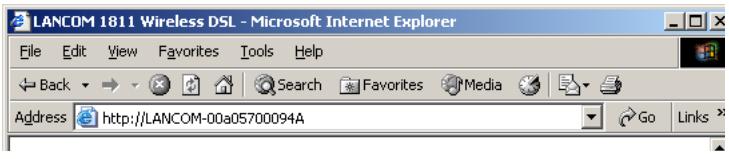

The MAC address can be found on a label at the bottom of the device.
If there is no DNS server in the LAN, or it is not linked to the DHCP server, then the device can not be reached by the name. The following options remain in this case:
Figure out the DHCP-assigned IP address of the LANCOM by suitable tools and contact the device directly with this IP address.
Use LANconfig.
- Connect a PC with a terminal program via the serial configuration interface to the device.
... via serial interface
If no LAN access can be established to the device, connect the PC via the serial configuration interface and carry out the configuration via LANconfig or a terminal program.

For outband configuration via terminal program it is not possible to use setup wizards. The use of LANconfig is again the most convenient configuration method.
... via dial-up networking/ISDN connection (remote configuration)
If your device is reachable at a remote location via ISDN, you can configure it remotely with LANconfig. Further information about remote configuration can be found in the reference manual.
... via wireless LAN
LANCOM WLAN routers and access points only

Ex-factory, WEP128 encryption is activated for every unconfigured LANCOM wireless router as standard. This WEP encryption in WLAN devices being managed by a LANCOM WLAN Controller is overwritten by the central encryption settings in the profiles of the WLAN Controller.
LANCOM wireless router: To use a WLAN card to connect to a new LANCOM wireless router for wireless configuration, the WLAN card must be programmed with the 13-character standard WEP key.
LANCOM access point: To use a WLAN client to connect to a new LANCOM access point for wireless configuration, it is first necessary to use a different means of configuration to reset the operating mode of a WLAN interface to "Access point mode". A WLAN card with the 13-character standard WEP key is then able to access the LANCOM access point.
The standard WEP key consists of the first letter "L" followed by the LAN MAC address of the access point in ASCII characters. The LAN MAC addresses of the LANCOM devices always begin with the character string "00A057". You will find the LAN MAC address on a sticker on the base of the device. Only use the number labeled as "MAC address" that starts with "00A057". The other numbers that may be found are not the LAN MAC address!
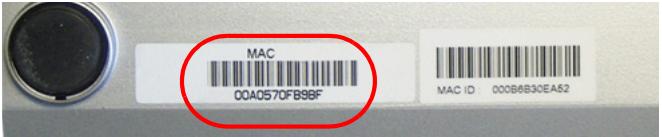
A device with the LAN MAC address "00A0570FB9BF" thus has a standard WEP key of "L00A0570FB9BF". This key is entered into the 'Private WEP settings' of the device for each logical WLAN network as 'Key 1'.
To use a WLAN adapter to establish a connection to a new LANCOM access point, the WEP128 encryption must be activated for the WLAN adapter and the standard 13-character WEP key entered.

The setup wizards ...

Start the installation of each device with the basic settings wizard and then continue with the check security settings wizard!

If you change the encryption (e.g. WEP) of the device's WLAN interface with the setup wizard in a wireless configuration, then you also have to adjust the appropriate WLAN encryption settings of the WLAN card of the configuration PC.
... under LANconfig
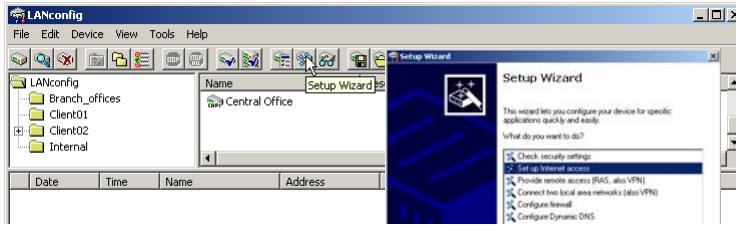
- When using LANconfig, start the setup wizards for further configuration (e.g. for Internet access, LAN coupling or RAS). To do so, select your device from the selection window and select the button Setup wizard or from the menu bar Extras Setup wizard.
Setup wizards under LANconfig
... under WEBconfig
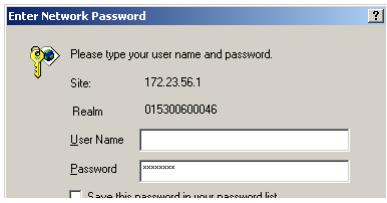
- WEBconfig provides to start setup wizards for further configuration as well (e.g. for Internet access, LAN coupling or RAS). To do so, click on the appropriate entry of the start page of the web configuration. Leave out the user name of the login window and enter the proper password. If no password has been set for the device, the web configuration will show up directly.
Setup wizards under WEBconfig
Basic Settings
Security Settings
Setup Internet Access
Selection of Internet Provider
Setup a RAS Account
Connect Two Local Area Networks
Device Configuration and Status
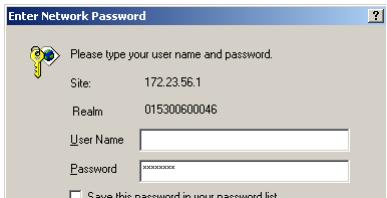


It may not be possible to configure all device functions using WEBconfig's setup wizards. Use, if necessary, LANconfig for a more comfortable and more extensive configuration.
How to reset the device?
If you have to configure the device regardless of possible existing settings, or if a connection to the device configuration failed, you can put back the device into the factory default state with a Reset.
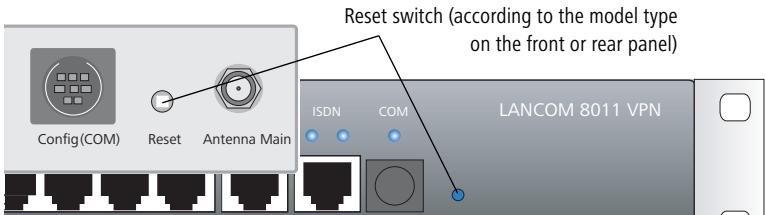
The reset button offers two basic functions—boot (restart) and reset (to the factory settings)—which are called by pressing the button for different lengths of time.
With the suitable setting, the behavior of the reset button can be controlled accordingly.
| Configuration tool | Call |
| WEBconfig, Telnet | Expert configuration > Setup > Config |
Reset button
This option controls the behavior of the reset button when it is pressed:
- Ignore: The button is ignored.

Please observe the following notice: The settings 'Ignore' or 'Boot only' makes it impossible to reset the configuration to the factory settings using the reset button.
If the password is lost for a device with this setting, there is no way to access the configuration! In this case the serial communications interface can be used to upload a new firmware version to the device. This resets the device to its factory settings, which results in the deletion of the former configuration. Instructions on firmware uploads via the serial configuration interface are available in the LCOS reference manual.
- Boot only: A press of the button prompts a restart, regardless of how long the it is held down.
- Reset-or-boot (standard setting): Press the button briefly to restart the device. Pressing the button for 5 seconds or longer restarts the device and resets the configuration to its factory settings. All LEDs on the device light up continuously. Once the switch is released the device will restart with the restored factory settings.

After applying the reset, the device will start fresh with factory defaults. All settings will be lost. Therefore, you should save the current configuration if possible before the reset!

Please notice that also the WLAN encryption settings of the device will get lost in case of a reset and the standard WEP key comes into effect again. The wireless configuration of a device with WLAN interface will only succeed after a reset, if the standard WEP key is programmed into the WLAN adapter! After a reset, the LANCOM access point returns to managed mode, in which case the configuration cannot be directly accessed via the WLAN interface!

Further information and support
Should you have any queries, or should you require any further support regarding the topics discussed in this documentation, the following sources of information are available to you:
In the service- & support section on www.lancom.eu/support many answers on „Frequently Asked Questions ('FAQs')“ can be found, the LANCOM knowledge data base ("Support KnowledgeBase" with whole text search), as well as telephone numbers and contact addresses.
In the download section on www.lancom.eu/download current drivers, firmware, tools and documentation are available at any time.
Premières Étapes
Selection of Internet Provider
Setup a RAS Account
Connect Two Local Area Networks

Please type your user name and password.
Site:
172.23.56.1
Realm
015300600046
UserID
Password
xxxxxx

DHCP: client o server?
Procedure guide in WEBconfig
Selection of Internet Provider

Setup a RAS Account

Connect Two Local Area Networks
Device Configuration and Status
…