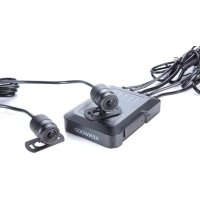
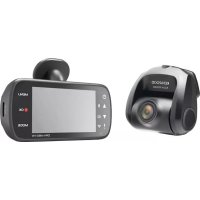
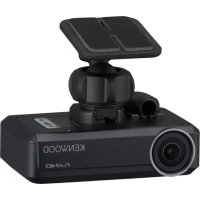
KCA-DR300 - Dashboard camera KENWOOD - Free user manual and instructions
Find the device manual for free KCA-DR300 KENWOOD in PDF.


| Product Type | Dashboard Camera |
| Brand | KENWOOD |
| Model | KCA-DR300 |
| Recording Resolution | Full HD 1920x1080 pixels |
| Viewing Angle | 140° |
| Sensor | CMOS |
| Built-in Screen | Yes, 2.7 inches |
| Storage | microSD card up to 32 GB (not included) |
| Power Supply | 5V DC via cigarette lighter adapter |
| Built-in Battery | Yes, rechargeable lithium-ion |
| Main Functions | Loop recording, motion detection, G-sensor, night vision |
| Dimensions (L x W x H) | 60 x 50 x 30 mm |
| Weight | 80 g |
| Operating Temperature | -10°C to 60°C |
| Compliance | Directive 1999/5/EC |
| Warranty | 2 years |
| Maintenance and Cleaning | Clean the lens with a soft, dry cloth. Avoid abrasive products. |
| Safety | Use only the supplied adapter. Do not expose to moisture or extreme temperatures. |
| Spare Parts and Repairability | Mounting bracket, USB cable, cigarette lighter adapter available. Repairability index not provided. |
| Country of Origin | China |
Frequently Asked Questions - KCA-DR300 KENWOOD
User questions about KCA-DR300 KENWOOD
0 question about this device. Answer the ones you know or ask your own.
Ask a new question about this device
Download the instructions for your Dashboard camera in PDF format for free! Find your manual KCA-DR300 - KENWOOD and take your electronic device back in hand. On this page are published all the documents necessary for the use of your device. KCA-DR300 by KENWOOD.
USER MANUAL KCA-DR300 KENWOOD
Getting to know the recorder 2
Power key 3
LED indicators 3
Function keys 4
System icons. 5
Inserting a memory card 6
Using your recorder in a vehicle. 7
Connecting to your computer 9
Operating basics 10
Turning the recorder ON and OFF 10
Setting the date and time. 10
Recording in driving mode 11
Recording in Parking mode 12
Camera mode. 13
Playback mode 13
System settings 14
Settings Menu. 14
KENWOOD DRIVE-VIEW PLAYER 17
Installing KENWOOD DRIVE-VIEW PLAYER 17
Playing the recording files. 17
For more information. 20
Precautions and notices 20
Safety precautions. 20
About GPS 21
Caring for your device. 22
Approximate recording time/number of photos. 23
Specifications 24
Getting to know the recorder
NOTE: The screenshots and other presentations shown in this manual may differ from the actual screens and presentations generated by the actual product.
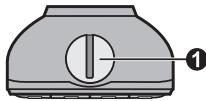
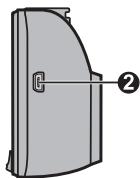
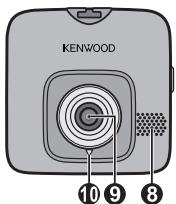
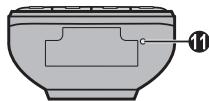
Device mount socket
For the device mount.
Mini-USB connector
Connects to the charger or computer.
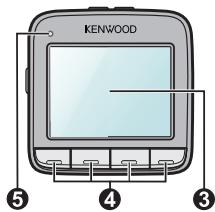
LCD screen
Function keys
LEDindicator1
Indicates the system status of the recorder.
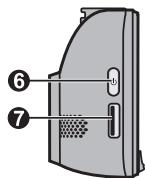
6 Power key
7 Memory card slot
Videos are recorded to a MicroSD card.
Speaker
Outputs audio.
Camera lens
LED indicator 2
Parking mode indicator.
1 Microphone
Allows you to record the video with sounds.
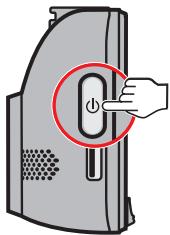
Power key
Once the vehicle engine is started, the recorder automatically turns on. By default, the recording will start right after the recorder turns on.
You can perform the following using the Power key:
- To manually turn the recorder on and off, press and hold the Power key for 2 seconds.
- When the recorder is turned on, press and release the Power key to switch the LCD screen on/off.
LED indicators
| Status | LED 1 | LED 2 |
| The power cable is connected and the recorder is on: · The battery is charging, and - the recording is in progress. - the recording is stopped. · The battery is fully charged, and - the recording is in progress. - the recording is stopped. | Green, Amber / Blinking Green / On | OFF OFF |
| Red / Blinking OFF | OFF OFF | |
| The recorder switches to Parking mode, and: · The parking recording is in progress. · The parking recording is stopped. | Red / Blinking OFF | Red / Blinking Red / Blinking |
Function keys
The device provides four function keys to control the corresponding icons displayed at the bottom of the LCD screen. The key's function may vary on different screens. For example, the device will display four icons as shown below while continuous recording is in progress.
Example:
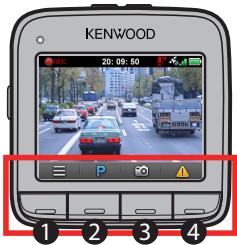
| Icon | Description | |
| 1 | 3 | Press to enter the Settings Menu. |
| 2 | P | Press to manually activate Parking mode. |
| 3 | Press to take a photo. | |
| 4 | ! | Press to manually start an emergency recording. |
System icons
Various System icons on the title bar at the top of the screen provide the status information of your device. The icons displayed will vary depending on your device model and state.
Example:
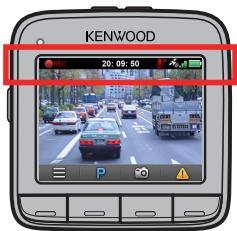
| Icon | Description |
| REC | The REC icon blinks while recording is in progress. |
| 20:09:50 | Displays the current time. |
| / | Recording with sound is disabled/enabled. |
| The GPS signal icon indicates the GPS status. | |
| The Battery icon indicates the remaining battery power. |
Inserting a memory card
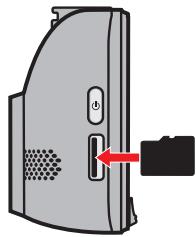
You must insert a memory card (may be sold separately) before you can start recording.
- Hold the card by the edges and gently insert it into the slot with the label facing the rear side of the recorder.
- To remove a card, gently push the top edge of the card inwards to release it, and pull it out of the slot.
NOTE:
- DO NOT apply pressure to the centre of the memory card.
- You are advised to use a Class 6 memory card with at least 8GB capacity. The recorder supports memory cards with up to 32GB capacity.
- The manufacturer does not guarantee the product's compatibility with memory cards from all manufacturers.
- Before you start recording, please format the memory card to avoid malfunction caused by files not created by the recorder. You can format the card on your computer or on the recorder (by selecting Settings Menu > Format).
- You are recommended to turn the device off before removing the memory card.
Using your recorder in a vehicle
- Make sure that your car is parked on a level ground.
- Follow the instructions below to mount your recorder in a vehicle securely.
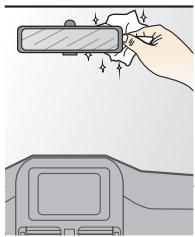
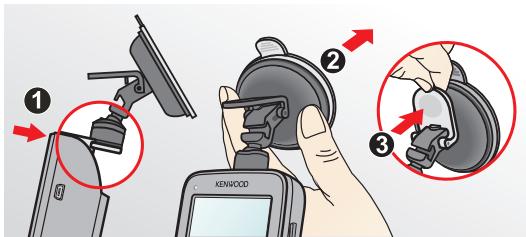
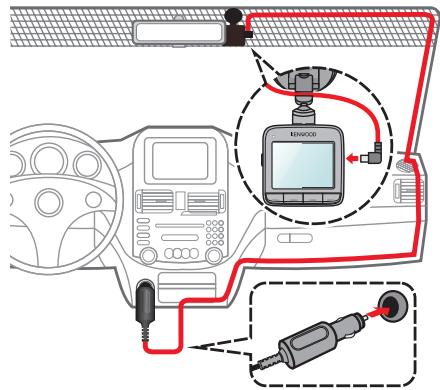
- Connect the car charger to the cigarette lighter. Route the cables through the top ceiling and the A-pillar so that it does not interfere with driving. Make sure that the cable installation does not interfere with the vehicles airbags or other safety features.
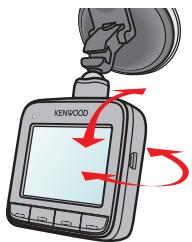
- When adjusting the angle of mounting, make sure that the camera's view is parallel with the level ground, and the ground/sky ratio is close to 6/4.
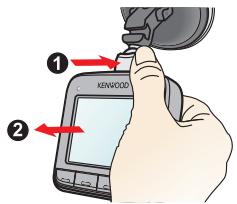
- When not using the recorder, follow the instructions below to remove the recorder from the holder.
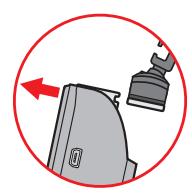
NOTE:
- To ensure the highest quality recordings, you are advised to place the recorder near the rear view mirror.
- Select an appropriate location for mounting the device in a vehicle. Never place the device where the driver's field of vision is blocked.
- If the car's windscreen is tinted with a reflective coating, it may be athermic and impact the GPS reception. In this instance, please mount your device where there is a "clear area."
- The system will automatically calibrate the G sensor of the device during start-up. To avoid G sensor malfunction, always turn the device on AFTER you mount it in the vehicle properly.
Connecting to your computer
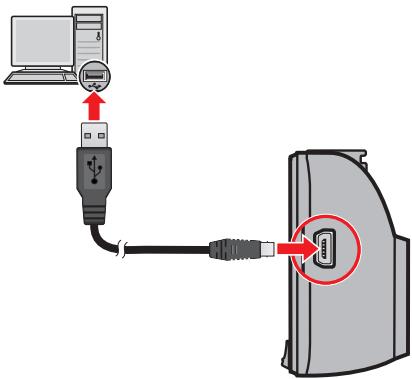
You can connect the recorder to your computer to access data on the memory card.
The Mini-USB connector is located on the right side of the device. Follow the instructions below to connect the rcrorder to the computer via the USB cable (not supplied).
Operating basics
Turning the recorder ON and OFF
Complete the installation according to the instructions in the "Using your recorder in a vehicle" section.
- Once the vehicle engine is started, the recorder automatically turns on. By default, the recording will automatically start in few seconds after start-up.
- When a GPS fix is established, the GPS signal icon ( ) will show on the top-right corner of the screen. The number of the vertical bars in the icon indicates the strength of the signal.
- When the recorder is turned on, press and release the Power key to switch the LCD screen on/off.
- To manually turn the recorder on and off, press and hold the Power key for 2 seconds.
Restarting the recorder
Occasionally, you may need to perform a hardware reset when the recorder stops responding, or appears to be "frozen" or unresponsive.
To restart the recorder, press and hold the Power key until the system is shut down; press the Power key again to turn the recorder on.
Setting the date and time
To make sure of the correct date and time for your recordings, please check the date and time settings before you begin recording.
- Press to access the Settings Menu.
- Select System > Date / Time and press
-
Select Automatic or Manual:
-
When you select Automatic, the system will display the time zone setting screen. Use / to select your time zone and press . The system will set the correct date and time according to the time zone setting.
- When you select Manual, the system will display the date and time setting screen. Use / to adjust the value of the selected field; press and repeat the step until all fields have been changed. When completed, press
Recording in driving mode
NOTE:
DO NOT remove the memory card while recording.
- If the recording is ongoing but there is not enough space on your memory card, the system will display a warning message on the screen. Once confirmed, the new video clips will replace the old ones.
Continuous recording
When you connect the car charger to the cigarette lighter in the car, the recorder will start continuous recording automatically. The recording may be divided into several video clips; recording will not stop between video clips.
- When continuous recording is in progress, you can manually stop recording by pressing 目 . Press 目 to return to the recording screen; the system will start continuous recording automatically.
- The continuous recordings can be found in the "Video" category for file playback.
Emergency recording
By default, if an event happens, such as sudden impact, high-speed driving, an aggressive turn or an accidental crash, the G sensor will prompt the recorder to start an emergency recording.
- If you want to manually start an emergency recording while continuous recording is in progress, press . To stop emergency recording and resume continuous recording, press .
- The emergency recordings can be found in the "Emergency" category for file playback.
Recording in Parking mode
Your recorder supports parking recording function. Depending on how long the car is parked, you may need an external power source (e.g. a power bank) to record the video while the device's power cable is disconnected.
- Parking mode is disabled by default. You have to enable the function by selecting Settings Menu > Parking Mode > Detection > On.
- Before enabling Park mode, please check your device memory storage allocation. Go to Settings Menu > System > Storage allocation and use / to set a proper allocation for parking recording, and then press to save. Changing the allocation will erase the memory card, so save any videos or photos to your computer first.
- When Parking mode is enabled and the device's power is disconnected (e.g. the vehicle engine is stopped or the power cable is disconnected) or when the car stops moving for 5 minutes*, the system will automatically activate Parking mode.
- The feature is triggered by the G sensor of the device. You can change the configuration from Settings Menu > Parking Mode > Auto Entry.
- If you want to manually activate Parking mode while continuous recording is in progress, press P.
To stop Parking mode and resume continuous recording, press
- Once the movements were detected and recorded during Parking mode, you will be asked to watch the video when you stop Parking mode. Follow the on-screen prompts to watch videos or resume continuous recording.
- The parking recordings can be found in the "Parking" category for file playback.
Camera mode
The recorder allows you to take a photo.
- If the recording is in progress, press to take a photo.
- The photos can be found in the "Photo" category for file playback.
Playback mode
To select a video or photo for playback:
- Press to access the Settings Menu.
- Select File Playback and press
-
Select the desired type and press . The types include: Video (continuous recordings), Emergency, Parking (parking recordings) and Photo.
-
Use the key to select the desired file from the list, and then press to start playback.
-
During playback, you can:
-
Press to return to the list.
- While playing videos, press / to play the previous/next video. Press to Pause or Delete the file.
- While viewing photos, press / to display the previous/next photo. Press to delete the current photo.
System settings
Settings Menu
To customise the system settings, press
FilePlayback
Plays the recorded videos and photos. For more information on playback, see the "Playback mode" section.
Sound Recording
Sets if you want to include sounds in the recordings. The default setting is On.
- Parking Mode
Allows you to change the settings of Parking mode. The available settings include:
- Detection: Select On or Off. When enabled, the recorder will start recording automatically when it detects movements or if an event happens in Parking mode.
- Auto Entry: The options are Difficult, Medium and Easy.
- Motion Detection: The options are Low, Medium, High and Off.
- LED Indicator: The options are On and Off.
Video Recording
Changes the settings of recording, including:
- Video Clip Length: Sets the length of each video clip for a continuous recording (1 min, 3 min or 5 min).
- EV: Sets the proper exposure level (-1 +1) to adjust the brightness of the image. The default setting is 0.
- HDR: Select On or Off to enable or disable High Dynamic Range function of the device.
- GPS Stamp: Sets if and how you want to record the GPS information.
G-Sensor Sensitivity
The G sensor detects the car's movement forwards/backwards (X), to the right/left (Y), and upwards/downwards (Z). In case of an event, the G sensor will prompt the recorder to start recording automatically.
You need to adjust the G sensor sensitivity depending on your driving style and road condition. Please note that it is harder to trigger when you set the sensitivity level lower.
- Emergency: Sets the sensitivity level (6 levels, from Low to High) of the G sensor that allows automatical triggering of the emergency recording while continuous recording is in progress. The event recordings will be stored in the "Emergency" category.
- Parking Mode: Sets the sensitivity level (3 levels, from Low to High) of the G sensor that allows to automatical triggering of the parking recording when the recorder is in Parking mode. The parking recordings will be stored in the "Parking" category.
- System
Allows you to change the system settings of the device.
- GPS Status: Displays the status of GPS signal reception.
- Date/Time: Sets the system date and time. For more information, see the "Setting the date and time" section.
- Beep Alert: Enables or disables system notification sounds.
- Volume: Adjusts the volume level.
- LCD Standby: Sets Always On or selects how long (10 sec, 1 min or 3 min) the screen remains lit after you press any key.
- Language: Sets the language.
- Distance Unit: Sets the preferred distance unit.
- Storage Allocation: The system provides four default memory configurations
to store the videos (including continuous recordings, emergency recordings and parking recordings) and photos. Select the proper configuration based on your usage.
- Restore to Defaults: Restores system settings to factory defaults.
- Version: Displays the software information.
Format
Formats a memory card. (All data will be erased.)
KENWOOD DRIVE-VIEW PLAYER
KENWOOD DRIVE-VIEW PLAYER is a tool for you to view the videos recorded on the recorder.
Installing KENWOOD DRIVE-VIEW PLAYER
Insert the attached CD-ROM into the disc drive of your computer. Double-click Setup.exe (Windows) or KENWOOD DRIVE-VIEW PLAYER_**.dmg (MAC) and install KENWOOD DRIVE-VIEW PLAYER by following the on-screen prompts.
Playing the recording files
- Remove the memory card from the recorder and access the card on the computer via a card reader. You are advised to copy the recording files to your computer for backup and playback.
Or connect the recorder with the memory card inserted to your computer via a USB cable.
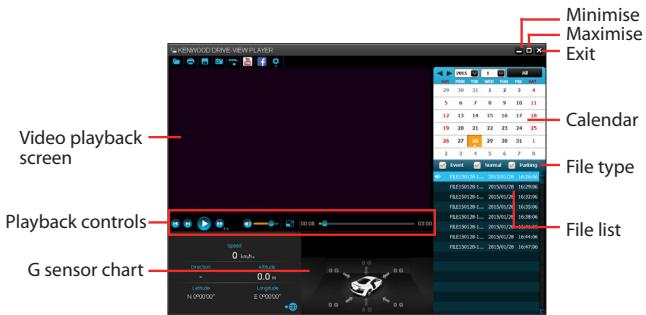
- Start KENWOOD DRIVE-VIEW PLAYER on the computer.
NOTE:
- The Map screen may not display when the computer is not connected to the Internet or when your recorder model does not support the GPS function.
-
G sensor chart displays data in 3-axis waveform about the car's shift forward/ backward (X), to the right/left (Y) and upward/downward (Z).
-
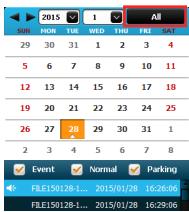
By default, KENWOOD DRIVE-VIEW PLAYER shows the calendar and the file list on the right.
-
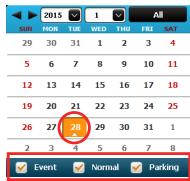
When a recording file exists, you will see the date marked with "▲." Click that date to display the files that were recorded on that date.
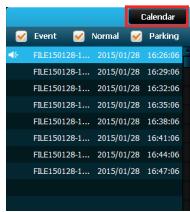
- You can choose the file type to display: Event (emergency recordings); or/and Normal (continuous recordings); or/and Parking (parking recordings).
- To display all files in the current folder, click All. To return to the calendar view, click Calendar. You can also click on the upper-left corner to select the folder that stores the recording files.
- Double-click the desired file on the file list to start playback.
-
The playback controls are described as follows:
-
D / II: Starts or pauses the playback.
- Skips to the previous / next file on the list.
Changes the playback speed to 1 / 4x 1 / 2x 1× default), 1.5x or 2x
- / : Mutes or unmutes the volume.
- Adjusts the volume level.
- Plays the video in full screen. Click to return to the normal view.
- 00:05 : Displays the playback progress. You can click on a point along the track bar to move directly to a different location for the playback.
6. The tool bar allows you to do the following:
- Click to select the folder that stores the recording files.
- Click to preview and print the current video image.
- Click to back up the selected files to the specified location on your computer.
- Click to capture and save the current video image to the specified location on your computer.
- Click Your YouTube / f to upload the selected file to YouTube/Facebook.
- Click to export the GPS information of the selected file in the KML format to the specified location on your computer.
- Click to open the Settings Menu. The Settings items are described as follows: Change Language: Sets the display language of KENWOOD DRIVE-VIEW PLAYER. Change Skin: Sets the color scheme of KENWOOD DRIVE-VIEW PLAYER.
About: Displays the version and copyright information of KENWOOD DRIVE-VIEW PLAYER.
For more information
Precautions and notices
Warning! Do not operate the device while driving. Using this product does not change the requirement for a driver to take full responsibility for his or her behavior. This responsibility includes observing all traffic rules and regulations in order to avoid accidents, personal injury or property damage.
- For your own safety, do not operate the controls of the product while driving.
- A window mount is needed when using the recorder in a car. Make sure that you place the recorder in an appropriate place, so as not to obstruct the driver's view or deployment of airbags.
- Make sure that no object is blocking the camera lens and no reflective material is placed near the lens. Please keep the lens clean.
- If the car's windscreen is tinted with a coating, it may impact the recording quality.
Safety precautions
About charging
- Use only the charger supplied with your device. Use of another type of charger may result in malfunction and/or danger.
- This product is intended to be supplied by a LISTED Power Unit marked with "LPS", "Limited Power Source" and output rated +5V dc / 1.0 A.
- Use a specified battery in the equipment.
About the charger
- Do not use the charger in a high moisture environment. Never touch the charger when your hands or feet are wet.
-
Allow adequate ventilation around the charger when using it to operate the device or charge the battery. Do not cover the charger with paper or other objects that will reduce cooling. Do not use the charger while it is inside a carrying case.
-
Connect the charger to a proper power source. The voltage requirements are found on the product case and/or packaging.
- Do not use the charger if the cord becomes damaged.
- Do not attempt to service the unit. There are no serviceable parts inside. Replace the unit if it is damaged or exposed to excess moisture.
About the battery
CAUTION! This unit contains a non-replaceable internal Lithium Ion battery. The battery can burst or explode, releasing hazardous chemicals. To reduce the risk of fire or burns, do not disassemble, crush, puncture, or dispose of in fire or water.
- Use a specified battery in the equipment.
-
Important instructions (for service personnel only)
-
Caution! Risk of explosion if battery is replaced by an incorrect type. Dispose of used batteries according to the instructions.
- Replace only with the same or equivalent type recommended by the manufacturer.
- The battery must be recycled or disposed of properly.
- Use the battery only in the specified equipment.
About GPS
- GPS is operated by the United States government, which is solely responsible for the performance of GPS. Any change to the GPS system can affect the accuracy of all GPS equipment.
- GPS satellite signals cannot pass through solid materials (except glass). When you are inside a tunnel or building, GPS positioning is not available. Signal reception can be affected by situations such as bad weather or dense overhead obstacles (e.g. trees, tunnels, viaducts and tall buildings).
- The GPS positioning data is for reference only.
Caring for your device
Taking good care of your device will ensure trouble-free operation and reduce the risk of damage.
- Keep your device away from excessive moisture and extreme temperatures.
- Avoid exposing your device to direct sunlight or strong ultraviolet light for extended periods of time.
- Do not place anything on top of your device or drop objects on your device.
- Do not drop your device or subject it to severe shock.
- Do not subject your device to sudden and severe temperature changes. This could cause moisture condensation inside the unit, which could damage your device. In the event of moisture condensation, allow the device to dry out completely before use.
- The screen surface can easily be scratched. Avoid touching it with sharp objects. Non-adhesive generic screen protectors designed specifically for use on portable devices with LCD panels may be used to help protect the screen from minor scratches.
- Never clean your device with it powered on. Use a soft, lint-free cloth to wipe the screen and the exterior of your device.
- Do not use paper towels to clean the screen.
- Never attempt to disassemble, repair or make any modifications to your device. Disassembly, modification or any attempt at repair could cause damage to your device and even bodily injury or property damage and will void any warranty.
- Do not store or carry flammable liquids, gases or explosive materials in the same compartment as your device, its parts or accessories.
- To discourage theft, do not leave the device and accessories in plain view in an unattended vehicle.
- Overheating may damage the device.
Approximate recording time/number of photos
| Setting | SDHC card | Continuous recording | Emergency recording | Parking recording | Photo |
| Setting-1 (Initial) | 4GB | 25 min | 11 min | 0 min | 494 |
| 8GB | 50 min | 22 min | 0 min | 1000 | |
| 16GB | 1 hour 40 min | 43 min | 0 min | 2001 | |
| 32GB | 3 hour 20 min | 1 hour 26 min | 0 min | 4003 | |
| Setting-2 | 4GB | 14 min | 11 min | 11 min | 499 |
| 8GB | 28 min | 22 min | 22 min | 1011 | |
| 16GB | 56 min | 43 min | 43 min | 2023 | |
| 32GB | 1 hour 53 min | 1 hour 27 min | 1 hour 27 min | 4046 | |
| Setting-3 | 4GB | 12 min | 16 min | 7 min | 494 |
| 8GB | 24 min | 33 min | 15 min | 1001 | |
| 16GB | 49 min | 1 hour 5 min | 29 min | 2002 | |
| 32GB | 1 hour 38 min | 2 hour 10 min | 58 min | 4003 | |
| Setting-4 | 4GB | 17 min | 11 min | 7 min | 494 |
| 8GB | 35 min | 22 min | 15 min | 1001 | |
| 16GB | 1 hour 11 min | 43 min | 29 min | 2002 | |
| 32GB | 2 hour 22 min | 1 hour 27 min | 58 min | 4003 | |
| The listed recording time and the number of photo are approximations. It may be shorten depending on the case of recoding. In continuous recording mode, recording continues with erasing old files when the memory becomes full. Photos are recorded with the size of 1920 x 1080. | |||||
Approximate recording time (when using the battery)
Waiting time for the parking recording: approx. 25 min
Continuous recording time: approx. 8 min
Approximate charge time
When using attached car charger: 1 hour 40 min
Specifications
Image sensor
1/2.7inch 2Mega pixel CMOS
Lens
f2.0 f=3.6mm Fixed focus
Field of view
D:Approx 126°
H:Approx 100^ :Approx 55^
LCD Screen
2.4 inch Color TFT
Still image format / size
JPEG Standard / 1920x1080
Recording format/ codec
MOV/H.264
Frame rate
30fps (1920x1080p)
Recording media
microSDHC card Class-6 or over (max.32GB)
Power supply
USB Car Charger Adapter
Input: DC12V / 24V
Output: DC5V/1A
Power consumption
2.2W (Continuous recording)
Weight
Approx 91g (Camera only)
Operating temp.
-10°C - +60°C
(0^ - 45^ during charging)
Accessories
Car Charger Adapter (code 3.5m) x 1
Car Mount Bracket x 1
CD-ROM (PC Viewer/Detail user guide) x 1
- Design and specific cations are subject to change without notice.
- microSDHC is a trademark of SD-3C, LLC.
- Microsoft,Windows,Windows Vista either registered trademarks or trademarks of Microsoft Corporation in the United States and/or other countries.
- Macintosh,iMovie,Mac,Mac are trademarks of Apple Inc., registered in the U.S. and other countries.
- Google is a trademark of Google Inc.
JVC KENWOOD Corporation
3-12 Moriya-cho, Kanagawa-ku, Yokohama-shi, Kanagawa, 221-0022, Japan
EU Representative:
JVCKENWOOD NEDERLAND B.V.
Amsterdamseweg 37, 1422 AC UITHOORN, The Netherlands
English
Hereby, JVC KENWOOD declares that this unit "KCA-DR300" is in compliance with the essential requirements and other relevant provisions of Directive 1999/5/EC.
Français
Information on Disposal of Old Electrical and Electronic Equipment and Batteries (applicable for countries that have adopted separate waste collection systems)
Products and batteries with the symbol (crossed-out wheeled bin) cannot be disposed as household waste.
Old electrical and electronic equipment and batteries should be recycled at a facility capable of handling these items and their waste byproducts.
Contact your local authority for details in locating a recycle facility nearest to you.
Proper recycling and waste disposal will help conserve resources whilst preventing detrimental effects on our health and the environment.
Notice: The sign "Pb" below the symbol for batteries indicates that this battery contains lead.
For Israel
nnnnnnnnnnnnnnnnnnnnnnnnnnnnnnnnnnnnnnnnnnnnnnnnnnnnnnnnnnnnnnnnnnnnnnnnnnnnnnnnnnnnnnnnnnnnnnnnnnnnnnnnnnnnnnnnnnn
y
n nn nnnnnnnnnnnnnnnnnnnnnnnnnnnnnnnnnnnnnnnnnnnnnnnnnnnnnnnnnnnnnnnnnnnnnnnnnnnnnnnnnnnnnnnnnnnnn