
S520 - Numeric keypad YAMAHA - Free user manual and instructions
Find the device manual for free S520 YAMAHA in PDF.


| Product Type | Portable Digital Keyboard |
| Brand | YAMAHA |
| Model | S520 |
| Number of Keys | 61 velocity-sensitive keys |
| Maximum Polyphony | 32 notes |
| Built-in Tones | 100 Voices |
| Accompaniment Styles | 100 Styles |
| Effects | Reverb, Chorus |
| Metronome | Yes, adjustable |
| Learning Function | Yamaha Education Suite (Y.E.S.) |
| Display | Backlit LCD |
| Power Supply | 12V AC adapter included; battery option (6 AA batteries not included) |
| Output Power | 2 x 2.5 W |
| Speakers | 2 Speakers |
| Connectivity | Headphone jack, sustain pedal, USB to Host, audio input |
| Dimensions (W x D x H) | 946 x 404 x 140 mm |
| Weight | 5.5 kg |
| Color | Black |
| Included Accessories | Music stand, AC adapter, user manual |
| Care and Cleaning | Wipe with a soft, dry cloth. Do not use solvents. |
| Safety | Do not expose to moisture or liquids. Do not open the device. |
| Spare Parts and Repairability | Contact an authorized YAMAHA service center for any repairs. |
Frequently Asked Questions - S520 YAMAHA
User questions about S520 YAMAHA
0 question about this device. Answer the ones you know or ask your own.
Ask a new question about this device
Download the instructions for your Numeric keypad in PDF format for free! Find your manual S520 - YAMAHA and take your electronic device back in hand. On this page are published all the documents necessary for the use of your device. S520 by YAMAHA.
USER MANUAL S520 YAMAHA
DVD/Video CD/CD Player
DVD-S795
Operating Instructions



Before attempting to connect, operate or adjust this product, please read this Operating Instructions manual completely and save this manual for future reference.
Note:
This player can be used only where the power supply is AC 120 V, 60 Hz. It cannot be used elsewhere.
CAUTION:
DVD/VIDEO CD/CD PLAYER IS A CLASS I LASER PRODUCT. HOWEVER THIS DVD/VIDEO CD/CD PLAYER USES A VISIBLE LASER BEAM WHICH COULD CAUSE HAZARDOUS RADIATION EXPOSURE IF DIRECTED. BE SURE TO OPERATE THE DVD/VIDEO CD/CD PLAYER CORRECTLY AS INSTRUCTED.
WHEN THIS DVD/VIDEO CD/CD PLAYER IS PLUGGED TO THE WALL OUTLET, DO NOT PLACE YOUR EYES CLOSE TO THE OPENING OF THE DISC TRAY AND OTHER OPENINGS TO LOOK INTO THE INSIDE OF THIS PLAYER.
USE OF CONTROLS OR ADJUSTMENTS OR PERFORMANCE OF PROCEDURES OTHER THAN THOSE SPECIFIED HEREIN MAY RESULT IN HAZARDOUS RADIATION EXPOSURE.
DO NOT OPEN COVERS AND DO NOT REPAIR YOURSELF. REFER SERVICING TO QUALIFIED PERSONNEL.
WARNING:
TO REDUCE THE RISK OF FIRE OR ELECTRIC SHOCK, DO NOT EXPOSE THIS PLAYER TO RAIN OR MOISTURE.
TO REDUCE THE RISK OF FIRE OR ELECTRIC SHOCK, AND ANNOYING INTERFERENCE, USE THE SUPPLIED ACCESSORIES ONLY.
This player is not disconnected from the AC power source as long as it is connected to the wall outlet, even if this player itself is turned off. This state is called the standby mode.
In this state, this player is designed to consume a very small quantity of power.

CAUTION
RISK OF ELECTRIC SHOCK DO NOT OPEN

CAUTION: TO REDUCE THE RISK OF ELECTRIC SHOCK, DO NOT REMOVE COVER (OR BACK). NO USER-SERVICEABLE PARTS INSIDE. REFER SERVICING TO QUALIFIED SERVICE PERSONNEL.

The lightning flash with arrowhead symbol, within an equilateral triangle, is intended to alert the user to the presence of uninsulated “dangerous voltage” within the product’s enclosure that may be of sufficient magnitude to constitute a risk of electric shock to persons.

The exclamation point within an equilateral triangle is intended to alert the user to the presence of important operating and maintenance (servicing) instructions in the literature accompanying the appliance.
| CAUTION -LASER RADIATION WHEN OPEN.DO NOT STARE INTO BEAM. |
| ATTENTION-RAYONNEMENT LASER EN CAS D'OUVERTURE.NE PAS REGARDER DANS LE FAISCEAU. |
| VORSICHT -LASERSTRAHLUNG, WENN ABDECKUNG GEÖFFNET.NICHT IN DEN STRAHL BLICKEN. |
| ADVARSEL -LASERSTRÅLING VED ÅBNING.SE IKKE IND I STRÅLEN. |
| ADVARSEL -LASERSTRÅLING NÅR DEKSEL ÅPNES.STIRR IKKE INN I STRÅLEN. |
| VARNING -LASERSTRÅLNING NÅR DENNA DEL ÄR ÖPPNAD.STIRRA EJ IN I STRÅLEN. |
| VARO! -AVATTAESSA OLET ALTTIINA LASERSÄTEILYLLE.ÄLÄ TUIJOTA SÄTEESEEN. |
| 注意 - 当打开这里会出现激光,请不要直视激光。 |
| - |
(Inside of player)
FOR CANADIAN CUSTOMERS
TO PREVENT ELECTRIC SHOCK, MATCH WIDE BLADE OF PLUG TO WIDE SLOT AND FULLY INSERT.
THIS CLASS B DIGITAL APPARATUS COMPLIES WITH CANADIAN ICES-003.
FCC INFORMATION (for U.S.A)
1. IMPORTANT NOTICE: DO NOT MODIFY THIS
UNIT! This product, when installed as indicated in the instructions contained in this manual, meets FCC requirements. Modifications not expressly approved by Yamaha may void your authority, granted by the FCC, to use the product.
-
IMPORTANT: When connecting this product to accessories and/or another product use only high quality shielded cables. Cable/s supplied with this product MUST be used. Follow all installation instructions. Failure to follow instructions could void your FCC authorization to use this product in the USA.
-
NOTE: This product has been tested and found to comply with the requirements listed in FCC Regulations, Part 15 for Class "B" digital devices. Compliance with these requirements provides a reasonable level of assurance that your use of this product in a residential environment will not result in harmful interference with other electronic devices.
This equipment generates/uses radio frequencies and, if not installed and used according to the instructions found in the users manual, may cause interference harmful to the operation of other electronic devices.
Compliance with FCC regulations does not guarantee that interference will not occur in all installations. If this product is found to be the source of interference, which can be determined by turning the unit “OFF” and “ON”, please try to eliminate the problem by using one of the following measures:
Relocate either this product or the device that is being affected by the interference.
Utilize power outlets that are on different branch (circuit breaker of fuse) circuits or install AC line filter/s.
In the case of radio or TV interference, relocate/reorient the antenna. If the antenna lead-in is 300 ohm ribbon lead, change the lead-in to coaxial type cable.
If these corrective measures do not produce satisfactory results, please contact the local retailer authorized to distribute this type of product. If you can not locate the appropriate retailer, please contact Yamaha Electronics Corp., U.S.A. 6600 Orangethorpe Ave, Buena Park, CA 90620
The above statement apply ONLY to those products distributed by Yamaha Corporation of America or its subsidiaries.
We Want You Listening For A Lifetime
YAMAHA and the Electronic Industries Association's Consumer Electronics Group want you to get the most out of your equipment by playing it at a safe level. One that lets the sound come through loud and clear without annoying blaring or distortion—and, most importantly, without affecting your sensitive hearing. Since hearing damage from loud sounds is often undetectable until it is too late,
YAMAHA and the Electronic Industries Association's Consumer Electronics Group recommend you to avoid prolonged exposure from excessive volume levels.

Precautions
Please read these precautions before operating this player.
■ AC cord
To avoid any malfunctions of the player, and to protect against electric shock, fire or personal injury, please observe the following:
- Hold the plug firmly when connecting or disconnecting the AC cord to this player.
- Do not connect or disconnect the AC cord when your hands are wet.
- Keep the AC cord away from heating appliances.
- Never put any heavy object on the AC cord.
- Do not attempt to repair or reconstruct the AC cord in any way.
- Remove dust, dirt, etc. on the plug at regular intervals.
- If the player has been dropped or otherwise damaged, set the player to the standby mode and disconnect the AC cord.
- If smoke, malodors or noises are emitted from the player, set the player to the standby mode and disconnect the AC cord.
Placement
Avoid placing the player in areas of:
- direct sunlight or heating radiators, or closed automobiles
●high temperature [over 95°F (35°C)] or high humidity (over 90%)
- excessive dust
- vibration, impact or where the surface is tilted as the internal parts may be seriously damaged.
- Place the player in a horizontal position, and do not place anything heavy on it.
- Do not place the player on amplifiers or other equipment which may become hot.
■ Non-use periods
When the player is not being used, set the player to the stand-by mode.
When left unused for a long period of time, the player should be unplugged from the household AC outlet.
■ Do not place objects inside the player
- Touching internal parts of this player is dangerous, and may cause serious damage to the player. Do not attempt to disassemble the player.
- Do not put any foreign object on the disc tray.
- Keep away from water and magnets.
- Keep the player away from flower vases, tubs, sinks, etc. If liquids are spilled into the player, serious damage could occur.
- Keep magnetic objects such as speakers, at a distance from the player.
Condensation
Moisture may form on the lens in the following conditions:
- immediately after a heater has been turned on.
- in a steamy or very humid room.
- when the player is moved from a cold environment to a warm one.
If moisture forms inside this player, it may not operate properly. In this case, turn on the power and wait about one hour for the moisture to evaporate.
■ When watching a TV broadcast
Depending on the reception condition of the TV, interference may appear on the TV screen while you are watching a TV broadcast and the player is left on. This is not a malfunction of the player or the TV. To watch a TV broadcast, set the player to the standby mode.
Dear Customers
May we take this opportunity to thank you for purchasing this YAMAHA DVD/Video CD/CD player.
We strongly recommend that you carefully study the Operating Instructions before attempting to operate the player and that you note the listed precautions.
The model number and serial number of this player can be found on either the back or the bottom of the player. Please note them in the space provided below and retain this booklet as a permanent record of your purchase to aid identification in the event of theft.
MODEL NUMBER ____ SERIAL NUMBER ____
This product incorporates copyright protection technology that is protected by method claims of certain U.S. patents and other intellectual property rights owned by Macrovision Corporation and other rights owners. Use of this copyright protection technology must be authorized by Macrovision Corporation, and is intended for home and other limited viewing uses only unless otherwise authorized by Macrovision Corporation. Reverse engineering or disassembly is prohibited.
Accessories
Please check and identify the supplied accessories.
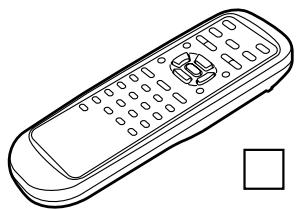
natural_image
Line drawing of a remote control device with keypad and buttons (no text or symbols)☐ Remote control unit .... 1
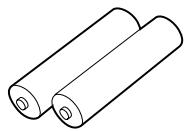
☐ Batteries ..... 2 for remote control unit [size "AA"]

□ AC cord .... 1

natural_image
Line drawing of a multi-up cable with multiple connectors (no text or symbols)Definition of terms 7
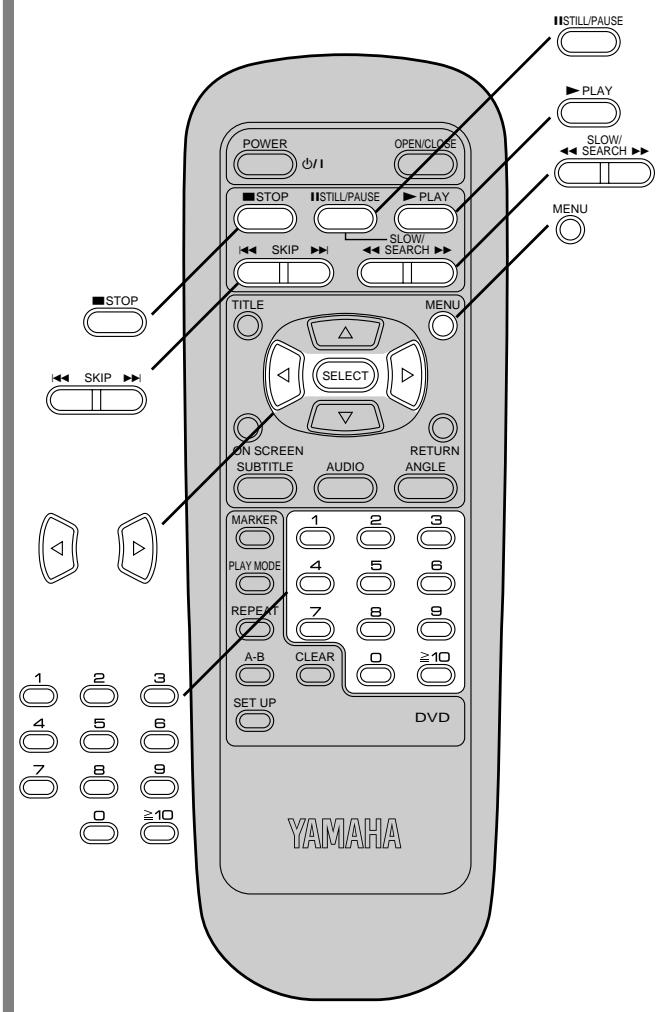
Control reference guide 8
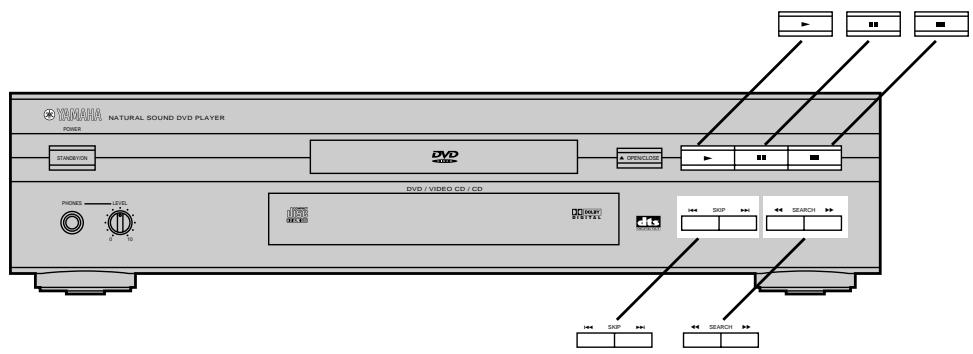
- Main unit 8
- Remote control unit 8
Front panel FL display 9
Connection 10
- Connecting to an AV amplifier containing Dolby Digital or dts (digital theater systems) decoder ..... 10
- Connecting to an AV amplifier which does not contain Dolby Digital or dts (digital theater systems) decoder.... 12
Remote control unit preparation ..... 13
●Battery installation 13
- Remote control operation range 13
Connecting headphones 13
Basic Operation:
Basic play 14
●Before enjoying DVD/Video CD/CD 14
- Basic play 14
- Stopping play 15
Skipping ahead or back 16
Still picture (Pause) 16
Rapid advance (Rapid reverse) ..... 17
Frame advance (Frame reverse) [DVD/Video CD] 17
Slow-motion play [DVD/Video CD] 17
Enjoying Video CDs with playback control without using menus [Video CD] ..... 17
Operation Using On-Screen Menu Icons:
General information about On-Screen Menu Icons 18
- Common procedures 18
Detailed descriptions of each On-Screen Menu Icon.... 19
- Screen for disc information (For DVD) 19
- Screen for disc information (For Video CD/CD) ..... 20
- Screen for player information 21
- Shuttle screen.... 22
Advanced Operation:
Repeat play 23
- Repeat viewing (listening) 23
- Repeating sections between two specific points (A-B repeat) 24
Program play [Video CD/CD] 25
Random play [Video CD/CD] 26
Storing markers in memory to be viewed (listened to) again 26
- Storing a marker in the memory 26
- Recalling/clearing a marker 27
Changing audio soundtrack language [DVD] 27
Switching vocals ON or OFF for Karaoke discs [DVD/Video CD] 27
Changing subtitle language [DVD] ..... 28
Viewing from another angle [DVD] 29
Using a title menu [DVD] 29
Using a DVD menu [DVD].... 29
Initial Settings:
Initial settings 30
- Common procedures of initial settings 30
- Selecting disc languages [DVD] 31
- Selecting rating level [DVD] 32
- Selecting language of On-Screen Display menu ..... 33
- Selecting the display format of the On-Screen Display 34
- Selecting the FL display brightness 35
- Selecting TV screen type 36
- Concerning images which appear on the TV screen (aspect ratios of the screen).... 37
- Selecting digital output 38
- Speaker settings 40
- Other settings 42
Language code list 44
For Your Reference:
Disc handling and maintenance 45
●Maintenance 45
Troubleshooting 46
- Self-diagnosis display function 47
Specifications 48
■ High picture quality
●10 bit video D/A converter
With its 10 bit capability, this D/A converter reproduces fine images faithfully.
- Component video output
When used with a compatible monitor, a video connection via the component video output jacks of your new DVD/Video CD/CD player is capable of the most precise color reproduction in a video signal.
- An array of picture quality modes yielded by digital processing
Signal deterioration is kept to the minimum by processing the data as digital data.
This feature can be used as the picture quality setting individually tailored for DVD playback.
– Cinema Image (See page 21.)
Using the On-Screen Menu Icon enables the cinema mode, which is best for the playback of movie programs, to be selected.
In addition, the picture quality best suited to the type of software programs concerned can be selected. In all, four picture quality modes are provided: normal, soft, fine and cinema.
-User selection (See page 21.)
Using the On-Screen Menu Icon, the contrast, color hue, equalizer and brightness can be adjusted to suit your own preference.
–Monitor selector (See page 36.)
Once the type of TV used [Standard (Direct View TV), CRT Projector, LCD Projector, Projection TV] has been selected when the initial setting operations are performed, the optimum picture quality for the type of TV concerned will be automatically selected.
■ High sound quality
- 96 kHz/24 bit audio D/A converter
This player enables 96 kHz/24 bit linear PCM signals, which constitute the highest specifications in the DVD standards, to be reproduced faithfully. To support 96 kHz sampling/24 bit sound, the shaping noise of this multi-level digital sigma type of D/A converter is kept flat up to 44 kHz, thus preventing the important audio signals from being affected in any way. In terms of the bottom line, the sound in all of its various modes is reproduced faithfully.
- Dolby Digital 5.1ch surround decoder (See pages 21 and 40.)
The Dolby Digital 5.1ch surround decoder incorporated in this player comes with speaker mode settings which support the low-range reproduction capability of the speakers, speaker level settings, delay time settings, audio dynamic range suppression, Cinema Dialogue function to make it easier to hear movie dialogues, and other features.
- dts (digital theater systems) digital output (See page 10.)
By connecting an amplifier incorporating a dts decoder, you can enjoy high quality digital surround from dts discs.
■ On-Screen Menu Icons (See page 18.)
By simply pressing the ON SCREEN button on the remote control, information on the DVD/Video CD/CD player and disc can be displayed on the TV screen for easy identification. The player's operations and settings can be easily accessed by operating the cursor buttons on the remote control while monitoring the TV screen. The color and position of the On-Screen Menu Icons can be changed.
■ Versatile DVD features
- Multi-audio function (See page 27.)
The audio soundtrack can be heard in up to 8 languages. (The number of audio sound languages depends on the software.)
- Multi-subtitle function (See page 28.)
Subtitles may be displayed in one of a maximum of 32 languages. (The number of the subtitle languages depends on the software.)
- Multi-angle function (See page 29.)
This function allows you to choose the viewing angle of scenes which were shot from a number of different angles. (Limited to DVD recorded with multiple camera angles.)
●Parental lock function (See page 32.)
This function can prevent playback of DVD software unsuitable for some audiences (especially for children).
■ Marker function (See page 26.)
This player can store a maximum of 5 positions in memory, for convenient access, as desired.
■ Disc formats supported by this player
The player can play back discs bearing any of the following marks:

DVD
[3" (8 cm) disc/
5" (12 cm) disc]

Video CD
[3" (8 cm) disc/
5" (12 cm) disc]

CD
[3" (8 cm) disc/
5" (12 cm) disc]
■ Discs which cannot be played with this player
- DVD with Region No. other than "1" or "ALL"
- Disc of PAL system
- CD-G
•DVD-ROM
- CD-RW
- DVD-R/DVD-RAM
- DVD+RW
- CD-ROM
•CVD
•VSD
•SVCD
•CDV
- Divx Video Disc
etc.
- Do not try to play Photo CD or CD-R.
(Otherwise, data on the disc may be damaged.)
■ Region Management Information
This player is designed and manufactured to respond to the Region Management Information that is recorded on a DVD disc. The Region number of this player is “1”. If the Region number described on the DVD disc does not correspond to the Region number of this player, this player cannot play this disc. This player will play DVD discs made for “ALL” Regions. This player will play DVD discs marked with the following symbols:

or

Angle
Recorded onto some DVD discs are scenes which have been simultaneously shot from a number of different angles (the same scene is shot from the front, from the left side, from the right side, etc.). With such discs, the ANGLE button can be used to view the scene from different angles.
Chapter number
These numbers are recorded on DVD discs. A title is subdivided into many sections, each of which is numbered, and specific parts of video presentations can be searched quickly using these numbers.
Digital audio output connector (Optical)
The digital audio output connector (optical) converts electrical signals into optical signals and transfers them to the amplifier. Consequently, it has a number of features including its immunity from electrical interference from external sources and its ability to prevent the generation of noise and its minimal effect on the external environment.
DVD
This refers to a high-density optical disc on which high-quality pictures and sound have been recorded by means of digital signals. Incorporating a new video compression technology (MPEG 2) and high-density recording technology, DVD enables esthetically pleasing full-motion video to be recorded over long periods of time (for instance, a whole movie can be recorded).
DVD has a structure consisting of two 0.6 mm thin discs which are adhered to each other. Since the thinner the disc, the higher the density at which the information can be recorded, a DVD disc has a greater capacity than a single 1.2 mm thick disc. Since the two thin discs are adhered to each other, there is the potential to achieve double-sided play sometime in the future for even longer duration of play.
Field
Half of the video information (video signal) in a frame is called a field. With conventional TV systems, a signal frame (a single screen) consists of two fields.
Field still
Only one field (half of the video information) is displayed on the TV screen, so the apparent resolution is low. However, there is no blurring on the screen.
Frame
Individual images in a video or on the TV are called frames.
Frame still
The two fields are displayed, alternately, on the TV screen, so the image is blurry. However, the image quality is better than field images.
Playback control
This is recorded on a Video CD (version 2.0). The scenes or information to be viewed (or listened to) can be selected interactively with the TV monitor by looking at the menu shown on the TV monitor.
Subtitles
This is the appearance of the dialogue at the bottom of the screen which are prerecorded on some DVD discs.
Title number
These numbers are recorded on DVD discs. When a disc contains two or more movies, these movies are numbered as title 1, title 2, etc.
Track number
These numbers are assigned to the tracks which are recorded on Video CDs and CDs. They enable specific tracks to be located quickly.
Video CD
This contains recordings of pictures and sound whose quality is on a par with that of videotape. This player also supports Video CDs with playback control (version 2.0).
Main unit
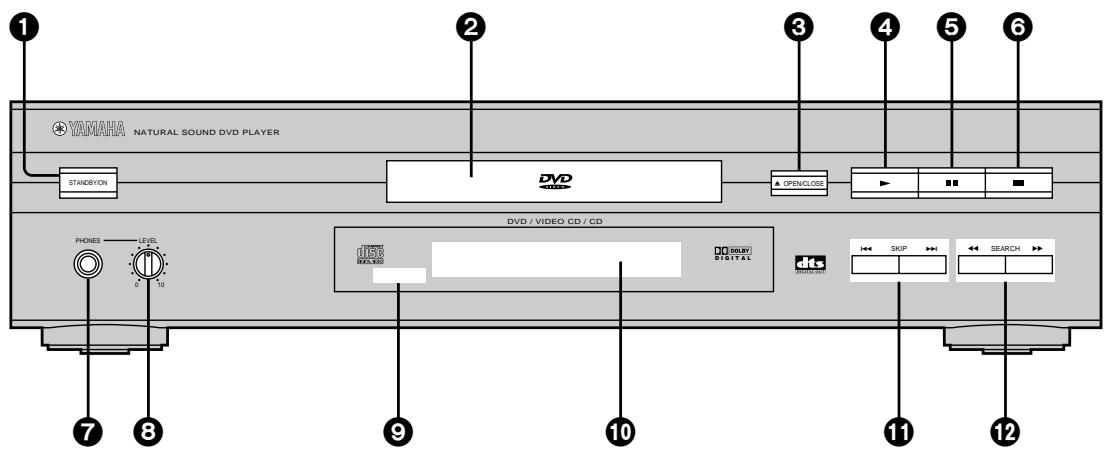
Page
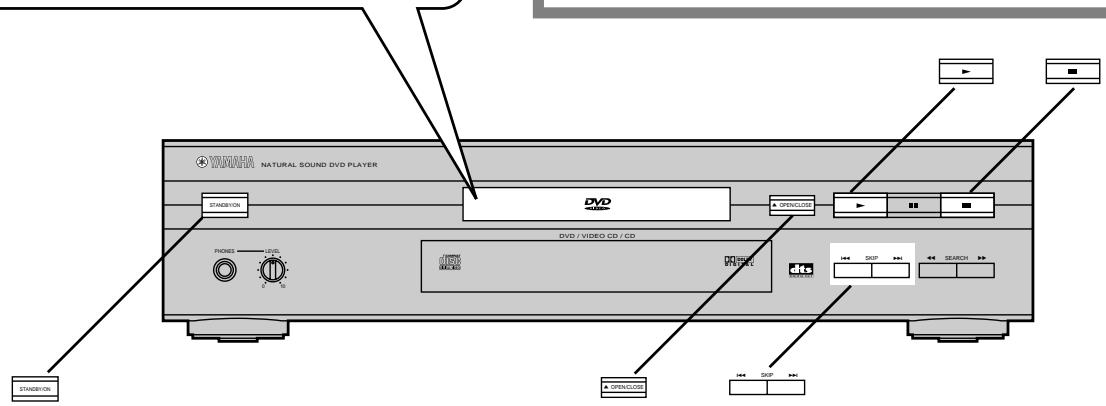
① STANDBY/ON button 14
Press to switch the player from standby mode to ON or vice versa. In standby mode, the player is still consuming a small amount of power.
② Disc tray 14
③ OPEN/CLOSE button (▲) 14
④ PLAY button (▶) 14
⑤ PAUSE button (Ⅱ) 16
Page
⑥ STOP button (■).... 15
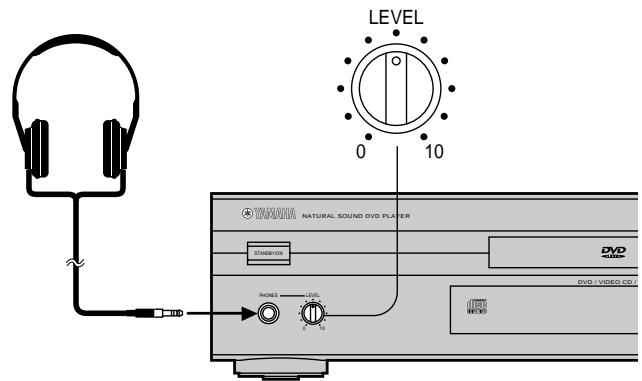
⑦ Headphones jack (PHONES) 13
⑧ Phones level control (LEVEL) 13
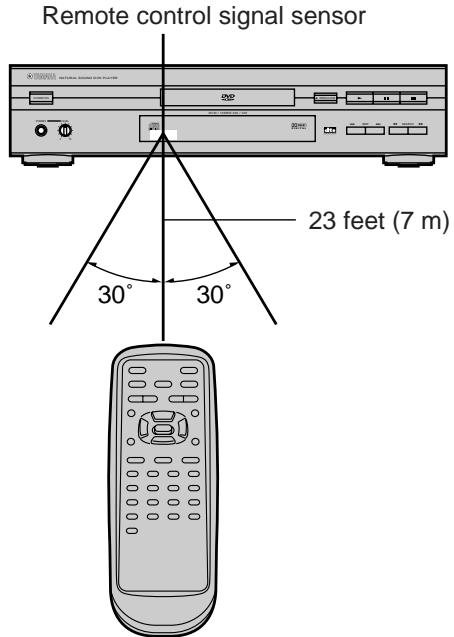
9 Remote control signal sensor.... 13
⑩ FL Display 9
⑪ SKIP buttons (|◀◀, ▶▶|).... 15, 16
12 SEARCH buttons (◀◀, ▶▶) 17
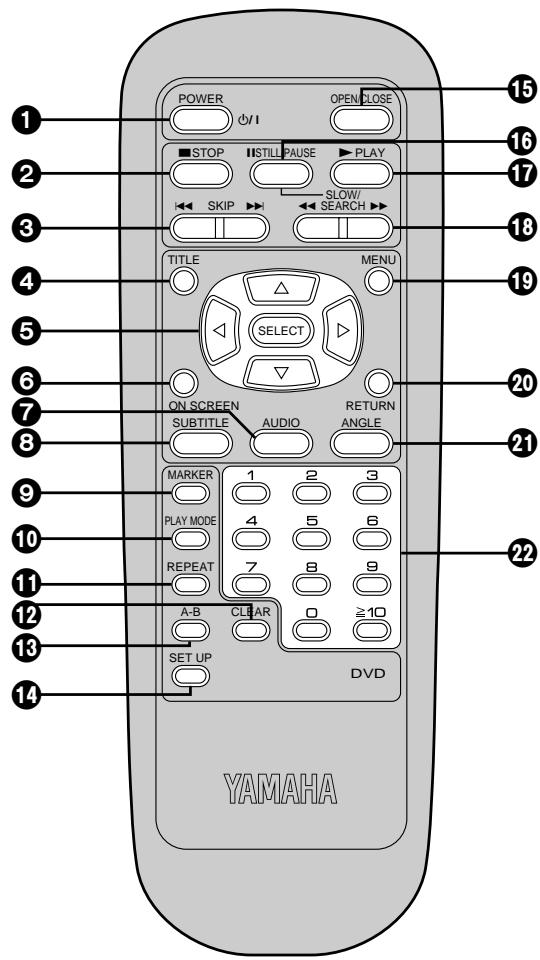
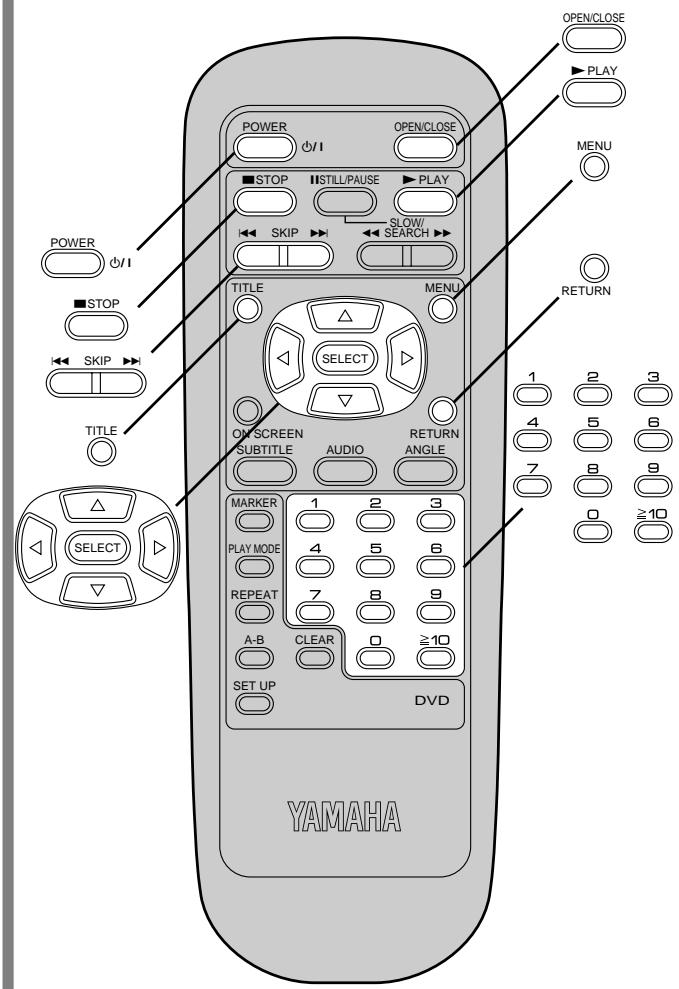
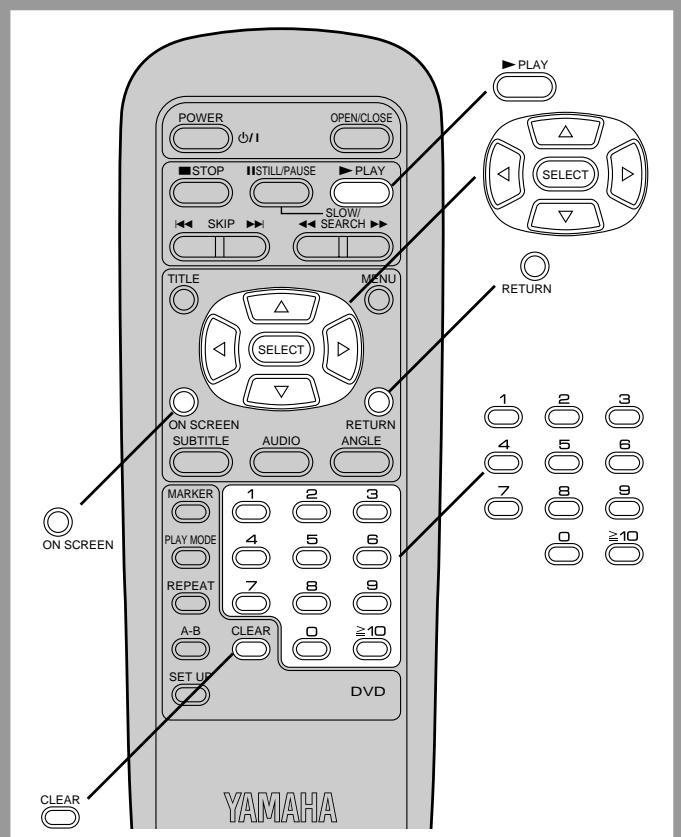
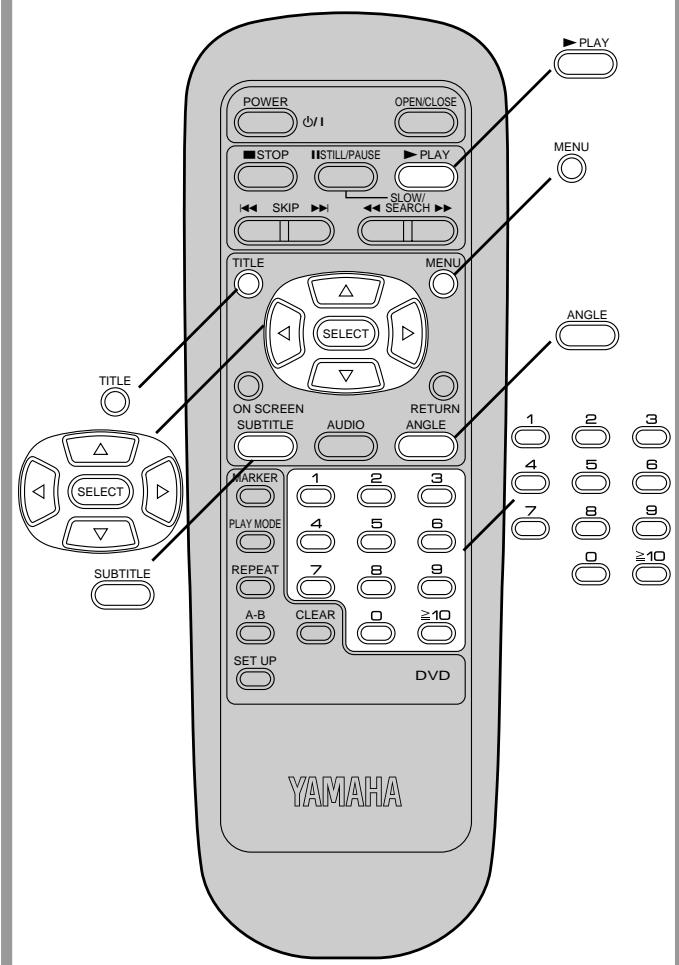
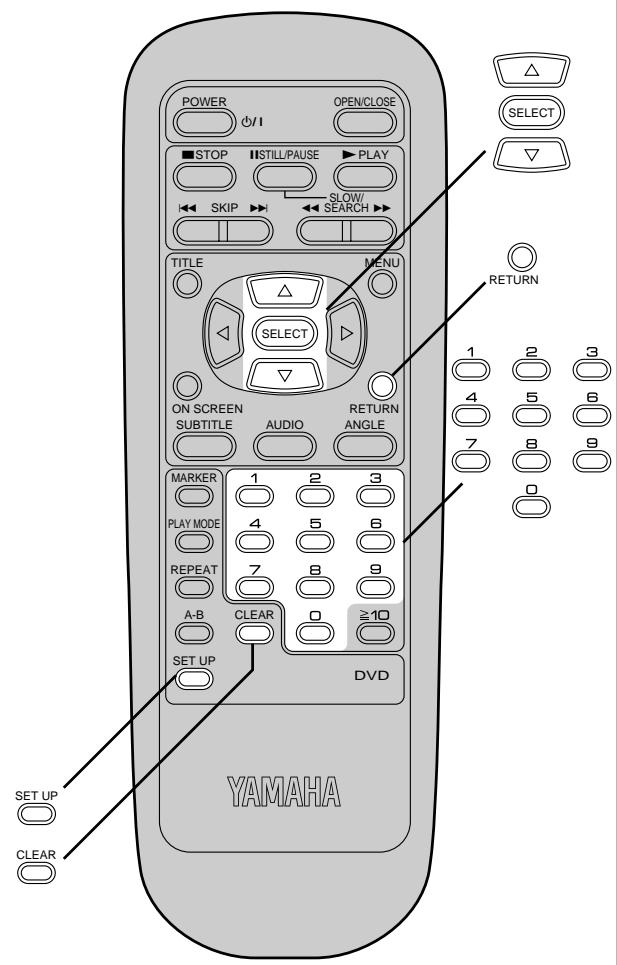
Remote control unit
Page
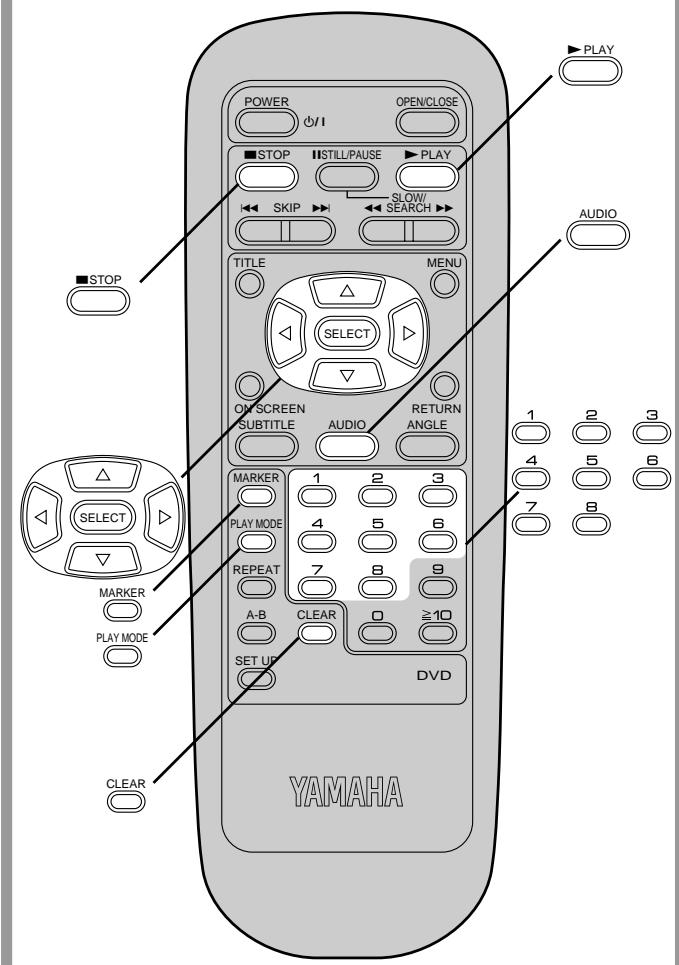
① POWER button (⏻/l) 14
② STOP button (■).... 15
③ SKIP buttons (|◀◀, ▶▶|).... 15, 16
④ TITLE button 15, 29
⑤ Cursor buttons (▲, ▼, ◀, ▶)/SELECT button ..... 15
⑥ ON SCREEN button 18
⑦ AUDIO button 27
⑧ SUBTITLE button 28
⑨ MARKER button 26
10 PLAY MODE button 25, 26
⑪ REPEAT button 23
⑫ CLEAR button.... 18, 21, 25, 27
⑬ A-B button....24
14 SET UP button 30
⑮ OPEN/CLOSE button 14
16 STILL/PAUSE button (II).... 16
⑰ PLAY button (▶) 14
18 SLOW/SEARCH buttons (◀◀, ▶▶) ..... 17
19 MENU button 15, 17, 29
20 RETURN button 15, 18, 30
21 ANGLE button 29
22 Numeric buttons.... 15
- To select a 2-digit number
Example: To select track 23
Press “≥10”, “2” and then “3”.
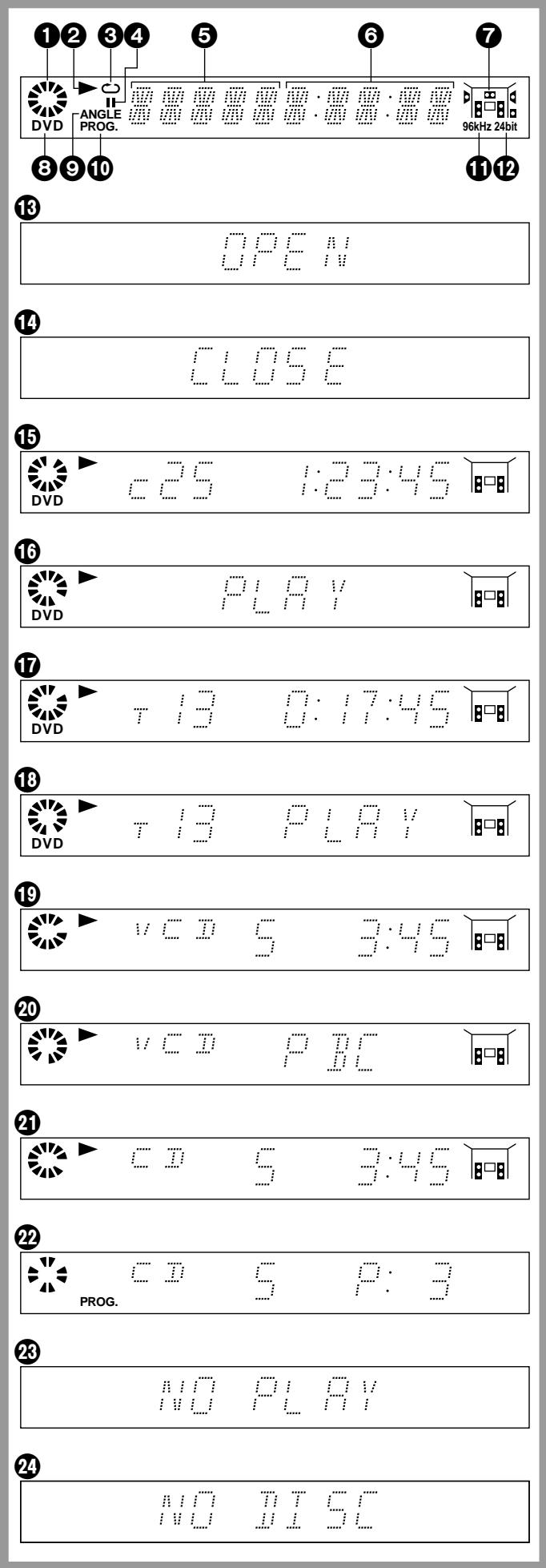
Front panel FL display
1

Rotates during play.
Rotates fast clockwise or counterclockwise during rapid advance (reverse). (See page 17.) Rotates slowly clockwise or counterclockwise during slow-motion play.
[DVD/Video CD] (See page 17.)

Illuminates in the stop mode.
② Illuminates during playback.
Flashes when the RESUME function is ON.
(See page 15.)
③ Illuminates during repeat play. (See pages 23 and 24.)
④ Illuminates in the still picture (pause) mode. (See page 16.)
⑤ Indicates the title/chapter number. [DVD] Indicates the track number. [Video CD/CD]
⑥ Indicates the elapsed playing time from the start of the title/track during play.
⑦ Indicates the audio channel information recorded in the disc being played back (e.g. 2ch or 5.1ch).
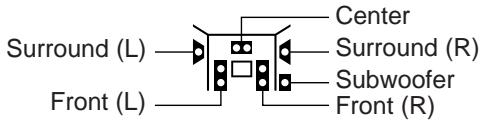
⑧ Illuminates when a DVD is loaded.
⑨ Illuminates when it is possible to switch the angle. [DVD] (See page 29.)
10 Illuminates during program play. [Video CD/CD] (See page 25.)
⑪ Illuminates when Linear PCM of 96 kHz sampling is being played.
⑫ Illuminates when Linear PCM of 24 bit is being played.
⑬ Illuminates when the disc tray is open.
14 Illuminates when the disc tray is being closed (retracted).
15 Illuminates during play of a DVD.
16 Illuminates during play of an interactive DVD.※
⑰ Illuminates during play of a Karaoke DVD.
18 Illuminates during play of an interactive Karaoke DVD.*
19 Illuminates during play of a Video CD.
20 Illuminates during play of a Video CD with playback control.
21 Illuminates during play of a CD.
②2 Illuminates when the track number is selected to be stored in the memory (program play). [Video CD/CD] (See page 25.)
23 Illuminates when playback is impossible.
- DVD for which playback is prohibited by the initial settings "2 Ratings". (See page 32.)
- DVD with Region No. other than “1” or “ALL” (See page 6.)
- Disc of PAL system
24 Illuminates when no disc is loaded.
*An interactive DVD is DVD software which includes multiple angles, multiple plot endings, etc.
Connection
- Ensure that this player and other equipment to be connected are set to the standby mode or off, and disconnect the AC cord, before commencing connection.
- Do not block ventilation holes of any of the equipment and arrange them so that air can circulate freely.
- Read through the instructions before connecting other equipment.
- Ensure that you observe the color coding when connecting audio and video cables.
- Select the appropriate screen type at the initial setting “6 TV Aspect” according to your TV set [4:3/16:9 and Standard (Direct View TV)/CRT Projector/LCD Projector/Projection TV]. (See page 36.)
Notes:
- If the DVD/Video CD/CD player is connected to the TV through a video cassette recorder, the picture may not be played back normally with some DVDs.
- When playing some DVD discs, TV volume level may be lower than from some other sources, adjust the TV volume to your desired level.
- When the DVD/Video CD/CD player is connected to the TV set through the component video output connectors, the ON SCREEN informations from the amplifier will not show on the TV screen. To show them, select the input position which is connected to the amplifier on the TV set.
Do not place the player on amplifiers or other equipment which may become hot.
Connecting to an AV amplifier containing Dolby Digital or dts (digital theater systems) decoder
When DVDs recorded in Dolby Digital or dts are played, Dolby Digital bitstream or dts bitstream is output from the player's OPTICAL digital audio output connector or COAXIAL digital audio output connector. When the player is connected to a Dolby Digital decoder or dts decoder, you can enjoy theater-quality audio in your home. [An optical digital audio cable or coaxial digital audio cable (both optional) is required when an optional Dolby Digital decoder or dts decoder is used.]
Note:
- When connecting an AV amplifier which contains dts decoder, be sure to select “Bitstream” at “3 dts” of the initial setting “7 Digital Audio Output”. (“Off” is selected at the factory preset.) If “Off” is selected, dts bitstream is not output from the digital audio output connector.
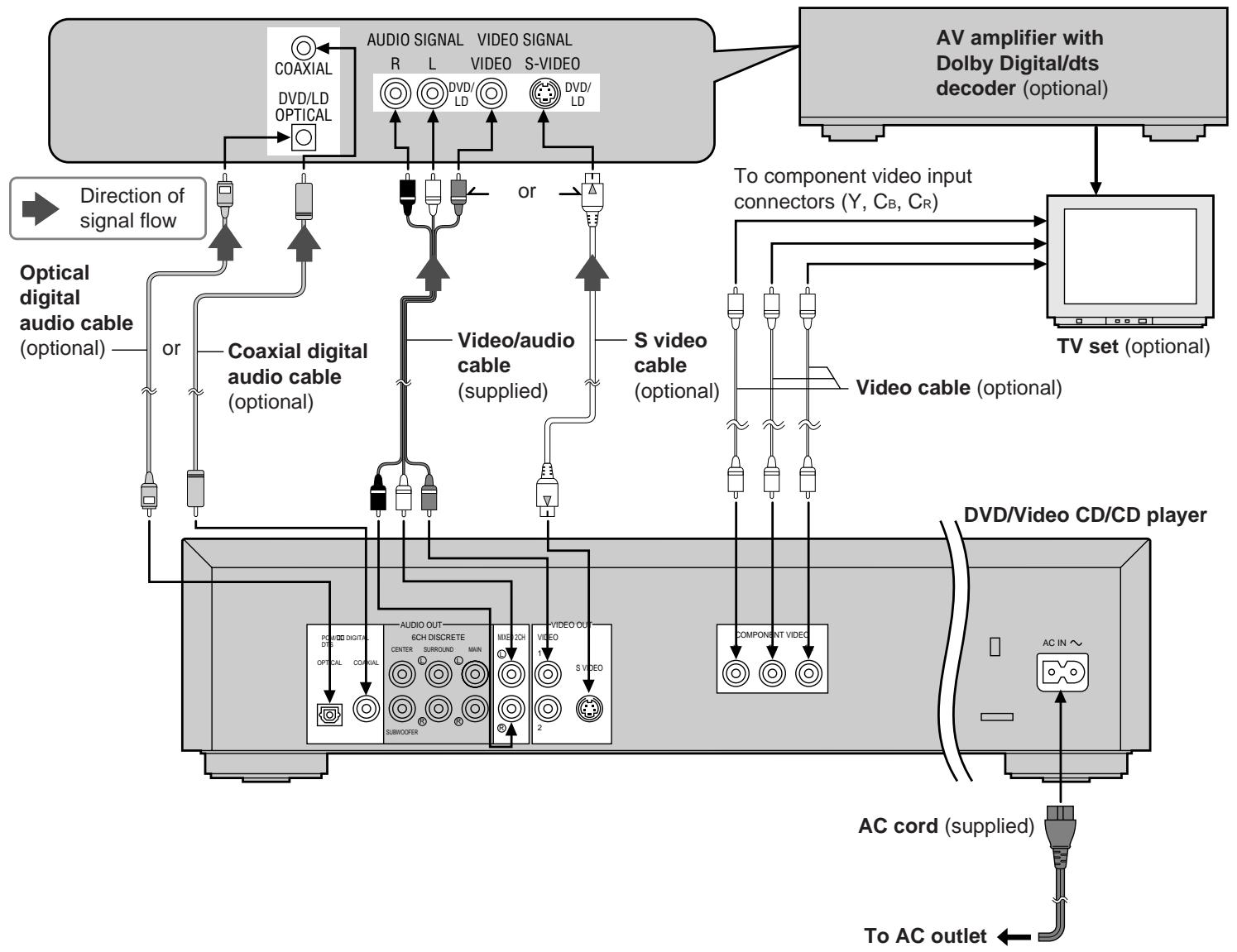
flowchart
Video streaming system diagram showing signal flow from coaxial to video cable, audio output, and CD/CD player via TV set and AC cord.Component video output connectors (Y, C_B , C_R )
The component video output connector outputs the color difference signals ( C_B , C_R ) and luminance signal (Y) separately in order to achieve high fidelity in reproducing colors.
- The description of the component video input connectors may differ depending on the TV set or monitor (e.g. Y, P_B , P_R/Y , B-Y, R-Y/Y, C_B , C_R and so on). Refer to the instruction manual of your TV set for details.
S video output connector
The S video output connector separates the color (C) and luminance (Y) signals before transmitting them to the TV set in order to achieve a sharper picture.
Use the S video cable (optional) when connecting the player to a TV set equipped with an S video input connector for the best picture clarity possible.
Notes when connecting the optical digital audio cable (optional)
- Remove the dust protection cap from the optical digital audio output connector and connect the cable firmly so that the configurations of both the cable and the connector match.
- Keep the dust protection cap and, to protect against dust, always reattach the cap when not using the connector.
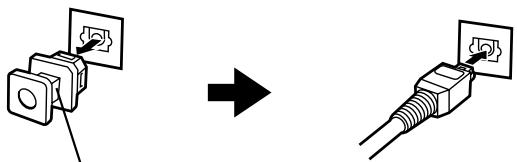
Dust protection cap
Concerning the audio output from the player's optical/coaxial digital audio output connector
| Disc | Sound recording format | Optical/coaxial digital audio output from connector |
| DVD | Dolby Digital | Dolby Digital bitstream (1–5.1ch) or PCM (2ch) (48 kHz/16 bit) ^*1 ^*2 |
| Linear PCM (48/96 kHz 16/20/24 bit) | Linear PCM (2ch) (48 kHz sampling/16 bit only) or no output ^*1 | |
| dts | dts bitstream (1–5.1ch) or no output ^*1 | |
| Video CD | MPEG 1 | PCM (44.1 kHz sampling) ^*2 |
| CD | Linear PCM | Linear PCM (44.1 kHz sampling) |
^1 The type of audio output from the connector can be selected by “7 Digital Audio Output” of the initial settings. (See page 38.)
^2 Compressed sound converted to PCM will be output.
Note:
- Some dts decoders which do not support DVD-dts interface may not work properly with the DVD/Video CD/CD player.
For your reference:
- Dolby Digital is a digital sound compression technique developed by the Dolby Laboratories, Inc.
Supporting 5.1-channel surround sound, as well as stereo (2-channel) sound, this technique enables a large quantity of sound data to be efficiently recorded on a disc.
- Linear PCM is a signal recording format used in a CD. While a CD is recorded in 44.1 kHz/16 bit, a DVD is recorded in 48 kHz/16 bit up to 96 kHz/24 bit.
- If you have a Dolby Pro Logic Surround decoder, you will obtain the full benefit of Pro Logic from the same DVD movies that provide full 5.1-channel Dolby Digital soundtracks, as well as from titles with the Dolby Surround mark.
Caution for the optical/coaxial digital audio output connector:
■ When connecting an amplifier (with an optical/coaxial digital input connector) which contains the Dolby Digital decoder or dts decoder
- Be sure to select "Bitstream" both at "2 Dolby Digital" and "3 dts" of the initial setting "7 Digital Audio Output". (See page 38.)
■ When connecting an amplifier (with an optical/coaxial digital input connector) which does not contain the Dolby Digital decoder or dts decoder
- Be sure to select “PCM” at “2 Dolby Digital” and “Off” at “3 dts” of the initial setting “7 Digital Audio Output”. (See page 38.)
- Otherwise any attempt to play DVDs may cause such a high level of noise that it may be harmful to your ears and damage your speakers.
- Video CDs and CDs can be played as they would normally be played.
Manufactured under license from Dolby Laboratories. "Dolby" and the double-D symbol are trademarks of Dolby Laboratories. Confidential Unpublished Works. © 1992–1997 Dolby Laboratories, Inc. All rights reserved.
Connecting to an AV amplifier which does not contain Dolby Digital or dts (digital theater systems) decoder
This DVD/Video CD/CD player contains a Dolby Digital decoder. This enables the playback of DVDs recorded in Dolby Digital Surround or Linear PCM without the need for an optional decoder with Dolby Digital or Linear PCM processing. When the DVD/Video CD/CD player is connected to an AV amplifier with 5.1ch input connectors, you can enjoy theater-quality audio in your home when playing discs recorded in Dolby Digital Surround or Linear PCM.
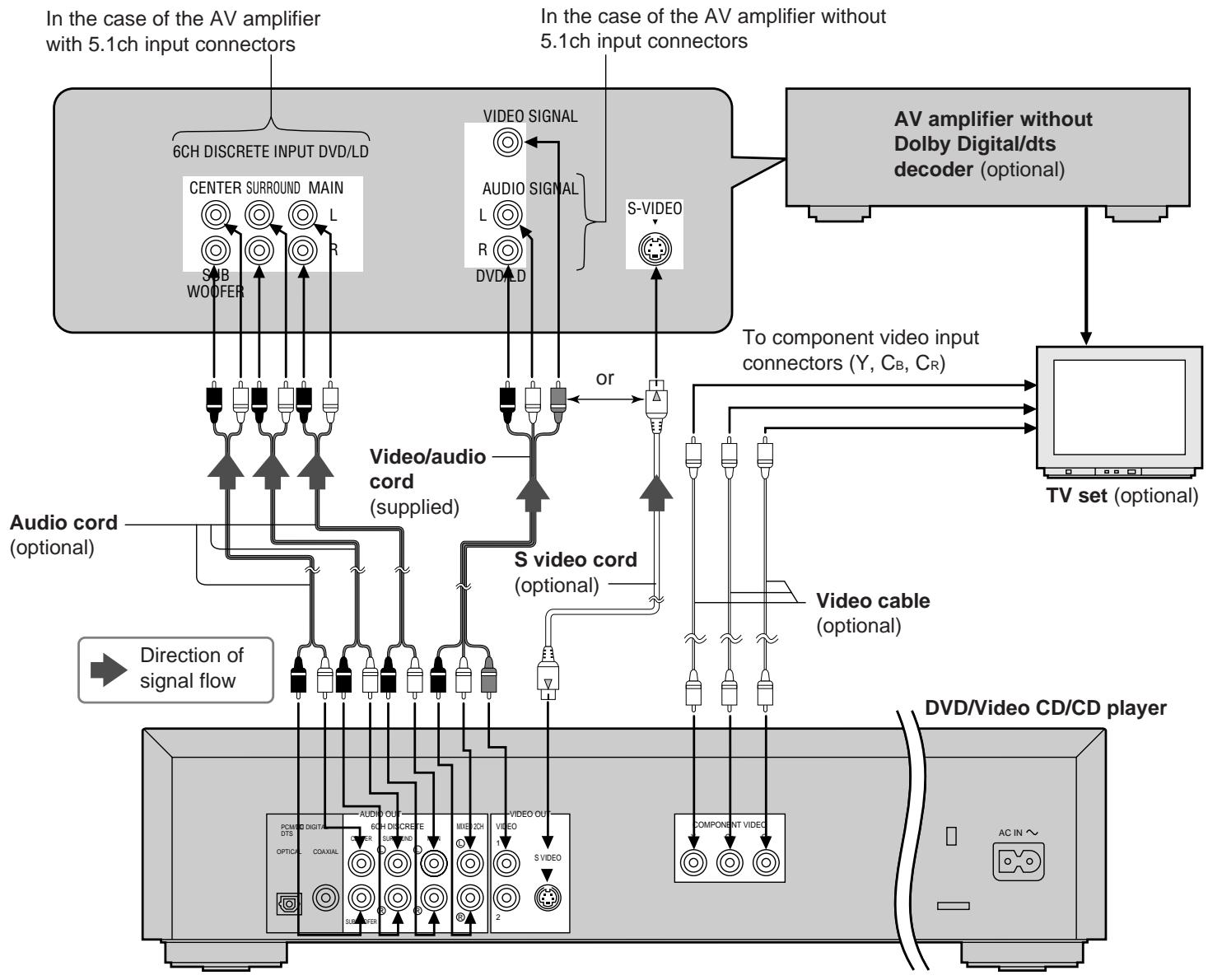
flowchart
graph TD
    A["In the case of the AV amplifier with 5.1ch input connectors"] --> B["6CH DISCRETE INPUT DVD/LD"]
    A --> C["Center Surround MAIN L R"]
    A --> D["S-B WOOFER"]
    E["In the case of the AV amplifier without 5.1ch input connectors"] --> F["VIDEO SIGNAL"]
    E --> G["AUDIO SIGNAL"]
    E --> H["L R"]
    E --> I["DVD/LD"]
    E --> J["S-VIDEO"]
    K["AV amplifier without Dolby Digital/dts decoder (optional)"] --> L["TV set (optional)"]
    M["To component video input connectors (Y, C_B, C_R)"] --> N["Video cable (optional)"]
    O["Video/audio cord (supplied)"] --> P["S video cord (optional)"]
    Q["Audio cord (optional)"] --> R["Direction of signal flow"]
    S["Video/CD/CD player"] --> T["DV/DVD/Video CD/CD player"]
    U["PCM/DIGIT/PTS COAXIAL"] --> V["AUDIO OUT 6CH DISCRETE 6H DISCRETE 6H DISCRETE 6H DISCRETE 6H DISCRETE 6H DISCRETE 6H DISCRETE 6H DISCRETE 6H DISCRETE 6H DISCRETE 6H DISCRETE 6H DISCRETE 6H DISCRETE 6H DISCRETE 6H DISCRETE 6H DISCRETE 6H DISCRETE 6H DISCRETE"]
    V --> W["MIE 2DH VIDEO 2 S VIDEO"]
    W --> X["S VIDEO 2 S VIDEO"]
    X --> Y["COMPONENT VIDEO"]
    Y --> Z["AC IN AC"]
Notes:
- After connection is made, set the "8 Speaker Setting" (such as Yes/No and Large/Small) according to your speaker system. (See page 40.)
-
If the surround speakers are set to “No” at the “8 Speaker Setting” (see page 40), the discs recorded in Linear PCM will be played back only in 2 channels even when the center speaker is connected as well as the front speakers.
-
DVDs recorded in Linear PCM/96 kHz sampling in which "Center Speaker" is contained will also be played back only in 2 channels.
- If the player is connected to the AV amplifier as shown above, audio recorded in dts will not be output. To enjoy dts sound, it is necessary to connect the player as shown on page 10.
A
natural_image
Illustration of a remote control device with battery and switch components (no text or symbols)B
C
Remote control unit preparation
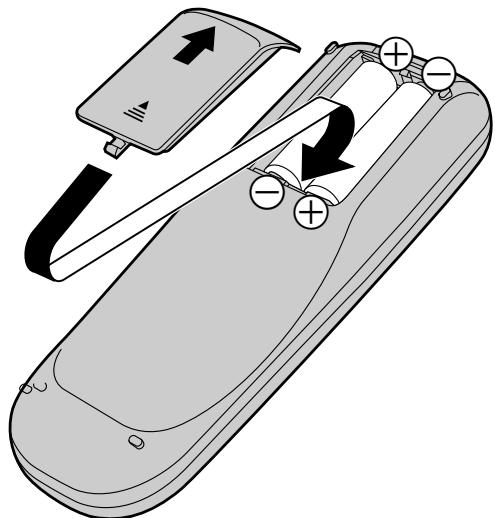
Battery installation A
Insert the batteries while observing the correct (+) and (−) polarities as illustrated at left.
Service life of batteries
- The batteries normally last for about one year although this depends on how often, and for what operations, the remote control unit is used.
- If the remote control unit fails to work, even when it is operated near the player, replace the batteries.
- Use size "AA" batteries.
Notes:
- Do not use rechargeable (Ni-Cd) batteries.
- Do not attempt to recharge, short-circuit, disassemble, heat or throw the batteries into a fire.
- Do not drop, step on or otherwise impact the remote control unit. This may damage the parts or lead to malfunction.
- Do not mix old and new batteries.
- If the remote control unit is not going to be used for a long time, remove the batteries. Otherwise, electrolyte may leak which may lead, not only to malfunctioning but also, to burns if contact is made with the electrolyte.
- Wipe away any electrolyte leaking inside the remote control unit, and install new batteries.
- If any electrolyte should come into contact with parts of your body, wash it off thoroughly with water.
Remote control operation range B
Point the remote control unit from no more than about 23 feet (7 m) from the remote control sensor and within about 60° of the front of the player.
- The operating distance may vary according to the brightness of the room.
Notes:
- Do not point bright lights at the remote control sensor.
- Do not place objects between the remote control unit and the remote control sensor.
- Do not use this remote control unit while simultaneously operating the remote control unit of any other equipment.
Connecting headphones ©
1 Connect the headphones (optional).
- Headphones with a 1/4'' (6.3 mm) stereo plug can be connected.
2 Adjust the volume.
Caution:
Avoid listening to sound at levels which may be harmful to your ears.
Basic play
Before enjoying DVD/Video CD/CD
The On-Screen menu language of your player has been factory preset to English.
If you would like to change the menu language to French or Spanish, please refer to "Selecting language of On-Screen Display menu" on page 33.
In the explanations given below it is assumed that English has been selected as the menu language.
Preparations
- Confirm that the TV set or the audio equipment (if connected) is properly connected to the player.
- Confirm that the power for the TV set or the audio equipment (if connected) is turned on.
- Confirm that the input setting for the TV set or the audio equipment (if connected) is properly selected.
(Example: Select "VCR 2" on the TV set if this player has been connected to TV input connector [2].)
Basic play
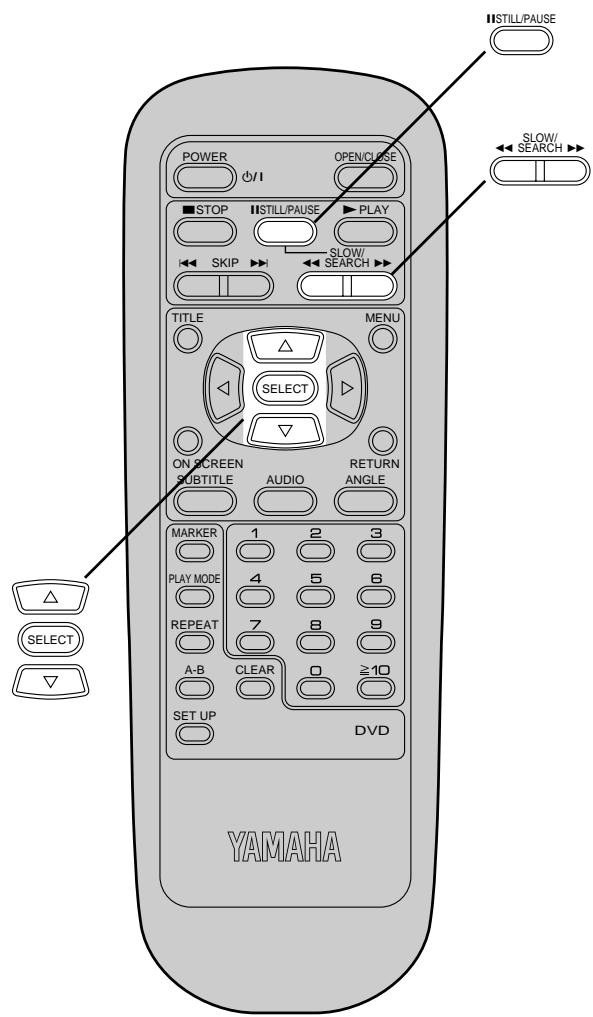
1 Press POWER to switch on the power.
2 Press OPEN/CLOSE to open the disc tray.
Open
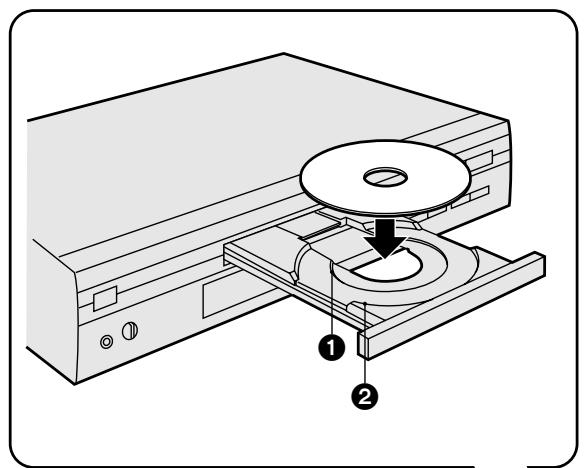
3 Place the disc on the disc tray with the label side to be played facing upwards.
Hold the disc without touching either of its surfaces, position it with the label side to be played facing upwards, align it with the guides, and place it in its proper position.
① 3" (8 cm) disc
② 5" (12 cm) disc
4 Press PLAY.
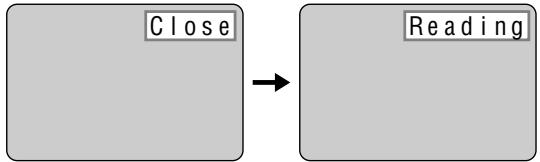
flowchart
graph LR
    A["Close"] --> B["Reading"]
The disc tray is automatically closed and play begins.
- When the disc tray is closed by pressing OPEN/CLOSE, press PLAY to start play.
- When a menu screen appears on the TV monitor
In case of an interactive DVD or a Video CD with playback control, a menu screen appears on the TV monitor. Perform step 5 to start play.
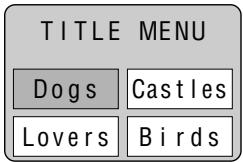
(Example of DVD)
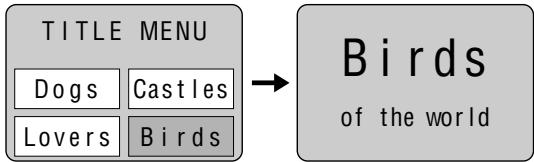
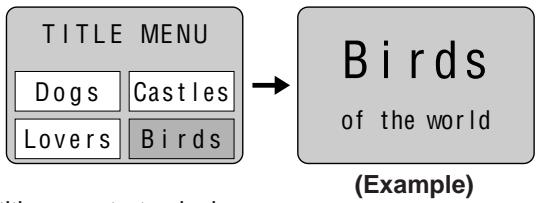
5 Press the cursor buttons (▲, ▼, ◀, ▶) and press SELECT, or press the numeric buttons, to select the preferred item.
- The cursor buttons (▲, ▼, ◀, ▶) are not effective for selecting items for Video CDs.
flowchart
graph LR
    A["TITLE MENU"] --> B["Birds of the world"]
    A --> C["Dogs"]
    A --> D["Castles"]
    A --> E["Lovers"]
    A --> F["Birds"]
(Example)
Play of the selected item now begins.
While watching the movie program
- Setting to the picture quality best suited to movies
Using the On-Screen Menu Icon will select the optimum picture quality for movie programs (this setting gives a gentler feel to videos, producing more detail in darker scenes and helping to reduce noise).
The picture quality of your choice can be set using the On-Screen Menu Icons. (See “Cinema Image” on page 21.)
●Raising the volume but only for the dialogue
The volume for the dialogue only can be raised by displaying the On-Screen Menu Icons (for player information) and setting “Cinema Dialogue” to “ON”. (See page 21.)
[This setting takes effect only for discs which are recorded with Dolby Digital 5.1ch and with the sound contained in the center channel.]
When the menu continues onto another screen
After step 4 on page 14, press SKIP (▶▶).
- To return to the previous menu screen Press SKIP (◀◀◀).
- Due to the design of some software titles, SKIP (|◀◀, ▶▶▶) may not always work. For operation, refer also to the jacket of the disc concerned.
Stopping play and returning to the menu screen
Press TITLE, MENU or RETURN (for DVD), or RETURN (for Video CD).
Play is suspended, and the menu screen is displayed.
- The buttons may not work depending on the disc used.
After operation
When the player is not in use, remove the disc and press POWER to set the player to the standby mode.
The player is automatically set to the standby mode after 30 minutes or so have elapsed in the stop mode.
(Auto power-off function)
What is playback control?
If a Video CD has “playback control” written on its disc or jacket, it means that particular scenes or information can be selected for viewing interactively with the TV monitor using the menu screen.
Notes:
- The disc continues to rotate while the menu is displayed even after the player has finished playing a particular item. When no further selections are to be played, be sure to press STOP to clear the menu display.
- If the disc is placed in upside down (and it is a single sided disc), the FL display will indicate "NO PLAY".
For your reference:
- When appears on the TV monitor while a button is being operated, it means that the corresponding operation is prohibited by the player or the disc.
Stopping play
Press STOP during play.
RESUME function
The player records the point where STOP was pressed during play (RESUME function). ("▶" flashes on the player's FL display when this function is activated.)
- Press PLAY again while “▶” flashes, and play will resume from this point.
- When the tray is opened or STOP is pressed again while “▶” flashes, the RESUME function will be cleared.
The RESUME function works only with titles for which the elapsed playing time appears on the player's FL display during playback.
This feature will not be cleared when the player is set to the standby mode and then turned back ON.
Chapter preview function (DVD only)
When PLAY is pressed while “▶” flashes, the message shown at right is displayed.
Press PLAY to Chapter Preview
When PLAY is pressed again while the above message is displayed, the first few seconds of each chapter from the beginning of the title up to the point where operation was stopped will be played. This makes it possible to review previously viewed chapters. Normal playback will commence from the point where operation was stopped.
Notes:
- Cancelling the RESUME function will also clear the chapter preview function.
●The chapter preview function may not work with some DVDs.
Skipping ahead or back
Press SKIP (|◀◀, ▶▶|) during play.
◀◀: Reverse direction
▶▶|: Forward direction
For your reference:
- A chapter (DVD) or a track (Video CD/CD) is skipped each time the button is pressed.
- When SKIP (|◀◀) is pressed once midway through a chapter/track, play returns to the start of that chapter/track. When it is pressed again, a chapter/track is skipped each time the button is pressed.
- When SKIP (|◀◀, ▶▶) is pressed during menu play of Video CDs with playback control, a menu screen may sometimes be recalled.
Still picture (Pause)
By the remote control unit
Press STILL/PAUSE during play.
By the main unit
Press PAUSE during play.
- DVD/Video CD: The player will be placed in the still picture mode.
- CD: The player will be placed in the pause mode.
●Normal play is resumed when PLAY is pressed.
Rapid advance (Rapid reverse)
By the remote control unit
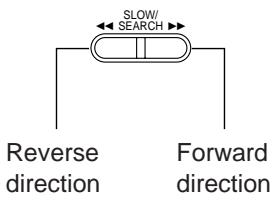
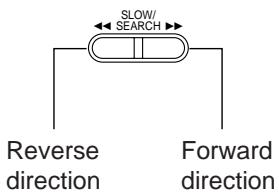
Press SLOW/SEARCH (◀◀, ▶▶) during play.
natural_image
Simple gray rectangular shape with a white arrow icon and label '(Example)' below (no text or symbols on the shape itself)On the main unit
Press SEARCH (◀◀, ▶▶) during play.
Reverse Direction Forward direction
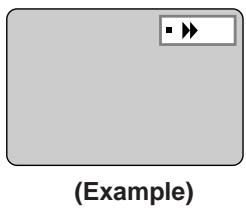
- The speed of advance (reverse) is relatively slow at first. When the button is pressed again, the speed becomes faster. (Each time the button is pressed, the speed increases up to 5 steps.)
- The speed will be retained even after the button is released.
●Normal play is resumed when PLAY is pressed.
For your reference:
- When SLOW/SEARCH (◀◀, ▶▶) or SEARCH (◀◀, ▶▶) is used during menu play of Video CDs with playback control, a menu screen may sometimes be recalled.
- For DVD and Video CDs, audio from 6CH DISCRETE or MIXED 2CH output connectors will be heard during rapid advance scanning at the initial scan speed. (See page 42.)
Frame advance (Frame reverse) [DVD/Video CD]
Press the cursor buttons (◀, ▶) in the still picture mode. (See page 16.)
◀: Reverse direction
▶: Forward direction
- The disc is advanced (reversed) by one frame each time the cursor button (◀, ▶) is pressed.
- When the cursor button (◀, ▶) is kept pressed, consecutive frame advance (reverse) works.
●Normal play is resumed when PLAY is pressed.
Note:
- For Video CDs, frame reverse is not possible.
For your reference:
- Pressing STILL/PAUSE or PAUSE also activates frame advance.
- Whether the pictures are advanced by a “Frame” or “Field” is automatic. (See page 42.)
Slow-motion play [DVD/Video CD]
By the remote control unit
Press SLOW/SEARCH (◀◀, ▶▶) in the still picture mode. (See page 16.)
![YAMAHA S520 - Slow-motion play [DVD/Video CD] - 2](/content/2024/11/201376/images/74f33c1c16ff1793f627f007e86cd681c92118df7a211d92441e217d39bc17c6.jpg)
natural_image
Blank gray rectangular area with a small play button icon in the top-right corner, labeled (Example) below (no text or symbols within the main area)On the main unit
Press SEARCH (◀◀, ▶▶) in the still picture mode. (See page 16.)
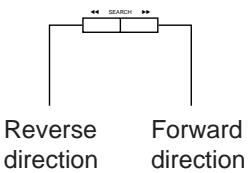
- The speed of slow-motion is slow at first. When the button is pressed again, the speed becomes faster. (Each time the button is pressed, the speed increases up to 5 steps.)
- The speed will be retained even after the button is released.
●Normal play is resumed when PLAY is pressed.
Note:
- For Video CDs, slow-motion playback in reverse direction is not possible.
Enjoying Video CDs with playback control without using menus [Video CD]
- Press STOP after the menu screen appears (after step 4 on page 14).
("PBC" will be cleared from the player's FL display.) - Press the numeric buttons to select the preferred track. (Play begins.)
- Refer to the jacket etc. of the disc concerned for the track numbers.
- Press "1" to start play from the beginning of the disc.
To return to menu play
Press STOP to stop playback and press MENU.
("PBC" will light up on the player's FL display and the menu screen is resumed.)
Perform step 5 on page 15.
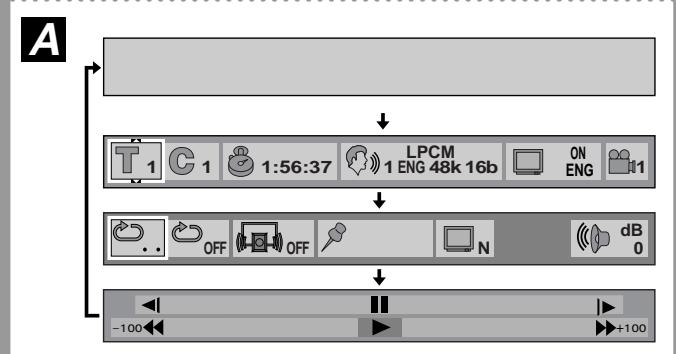
flowchart
graph TD
    A["Input"] --> B["1:56:37 LPCM 1 ENG 48k 16b ON ENG"]
    B --> C["OFF OFF N dB 0"]
    C --> D["-100 +100"]
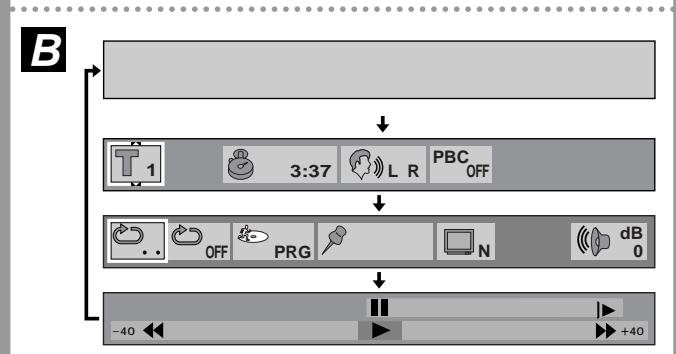
flowchart
graph TD
    A["1"] --> B["3:37"]
    B --> C["PBC OFF"]
    C --> D["PRG"]
    D --> E["N"]
    E --> F["dB 0"]
    F --> G["-40"]
    G --> H["+40"]
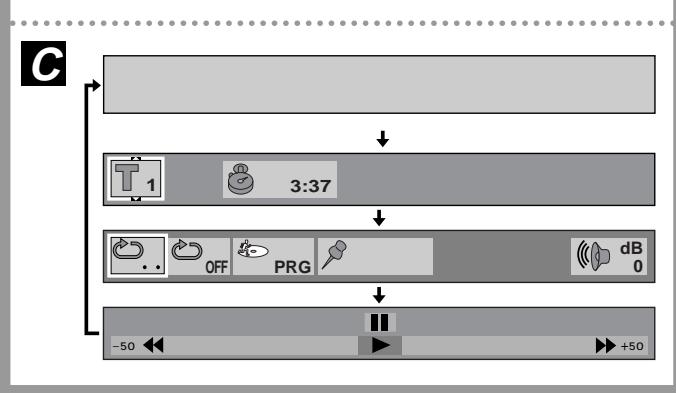
flowchart
graph TD
    A["Input"] --> B["Timer 1"]
    B --> C["3:37"]
    C --> D["OFF"]
    C --> E["PRG"]
    D --> F["Display 0 dB"]
    E --> G["Display +50"]
    F --> H["Output"]
    G --> H
General information about On-Screen Menu Icons
This player features On-Screen Menu Icons providing various functions. A “banner” will be displayed on the TV monitor by pressing the ON SCREEN button on the remote control.
Operating the cursor buttons/SELECT button on the remote control will show disc information (title/chapter/track number, elapsed playing time, audio/subtitle language, and angle) and player information (repeat play, play mode, marker, etc.).
Some icons allow the settings to be changed.
Common procedures
1 Press ON SCREEN during play or in the stop mode.
Each time this button is pressed, the TV monitor changes as shown below.
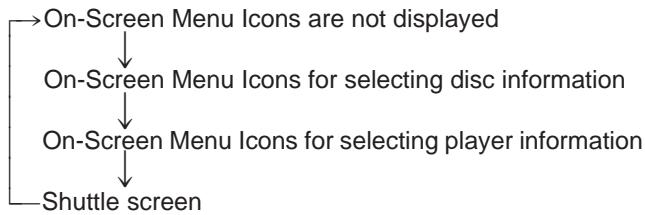
flowchart
graph TD
    A["On-Screen Menu Icons are not displayed"] --> B["On-Screen Menu Icons for selecting disc information"]
    B --> C["On-Screen Menu Icons for selecting player information"]
    C --> D["Shuttle screen"]
- Some functions cannot be accessed from the stop mode.
2 Press the cursor buttons (◀, ▶) to select the preferred item.
- The currently selected item is indicated by the yellow frame on the On-Screen Menu Icons.
3 Press the cursor buttons (▲, ▼) to select the preferred setting.
- For some functions, the setting will be registered immediately; for others, SELECT or PLAY must be pressed.
- When numbers are displayed (e.g. title No.), the numeric buttons are also effective for setting instead of the cursor buttons (▲, ▼). When numbers are entered by the numeric buttons, press SELECT to register the setting.
Press RETURN or CLEAR to clear the On-Screen Menu Icons.
Examples of On-Screen Menu Icons
(See A, B and C for detailed illustration.)
(The screens may differ depending on the disc contents.)
•DVD (A)
- Video CD (B)
•CD (C)
For your reference:
- Depending on the type of DVD software and a TV with automatic picture zoom function enabled, the On-Screen Menu Icons may not be displayed or only partially displayed on the TV screen.
In this case, change the position of the On-Screen Menu Icons in “4 On-Screen Messages” of the initial settings. (See page 34.)
- The color (blue, violet or green) of the On-Screen Menu Icons can be changed. (See page 34.)
Detailed descriptions of each On-Screen Menu Icon
Screen for disc information (For DVD)
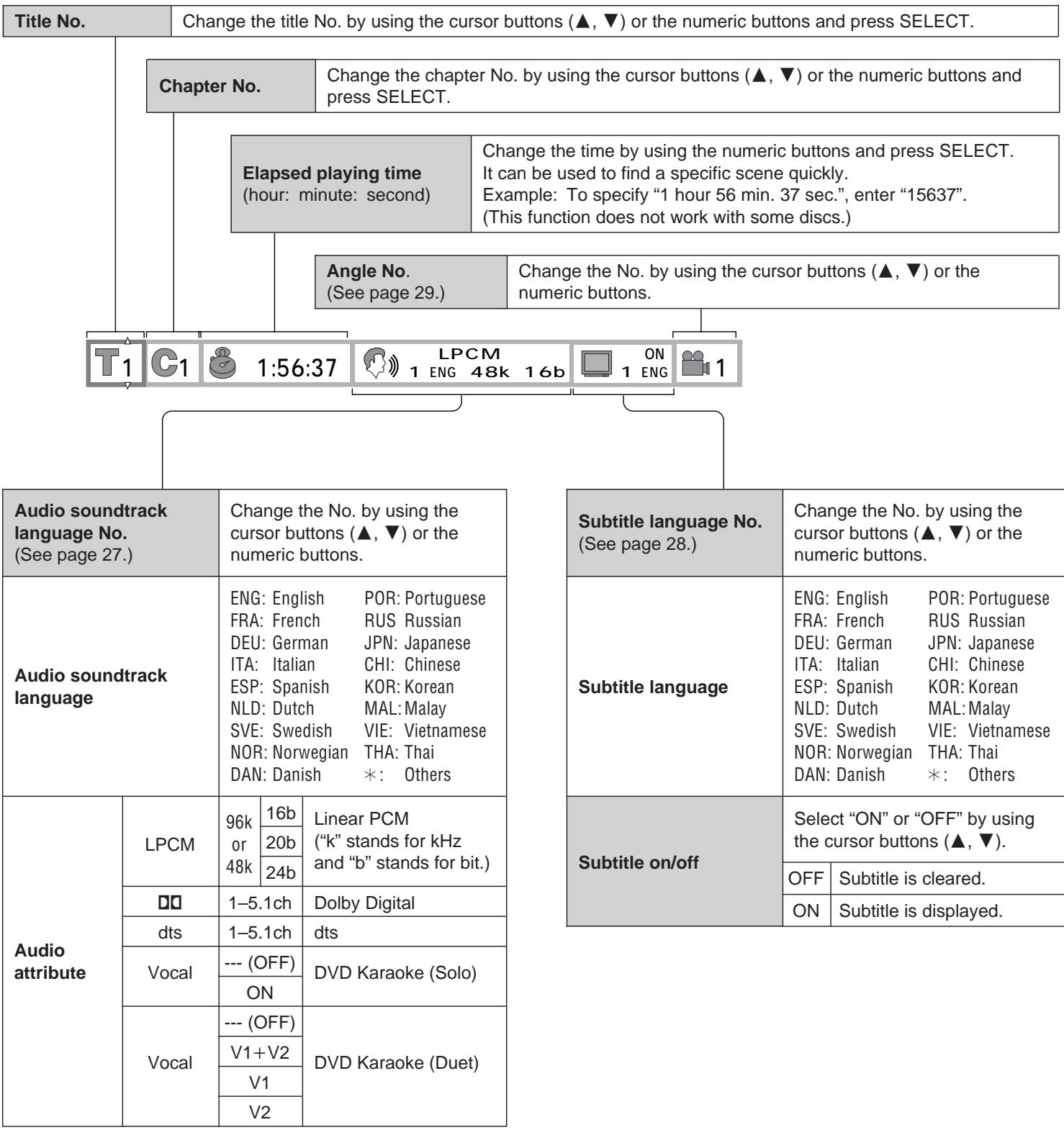
For your reference:
- “△ ▽” around the icon means that the item can be changed using the cursor buttons (▲, ▼).
Screen for disc information (For Video CD/CD)
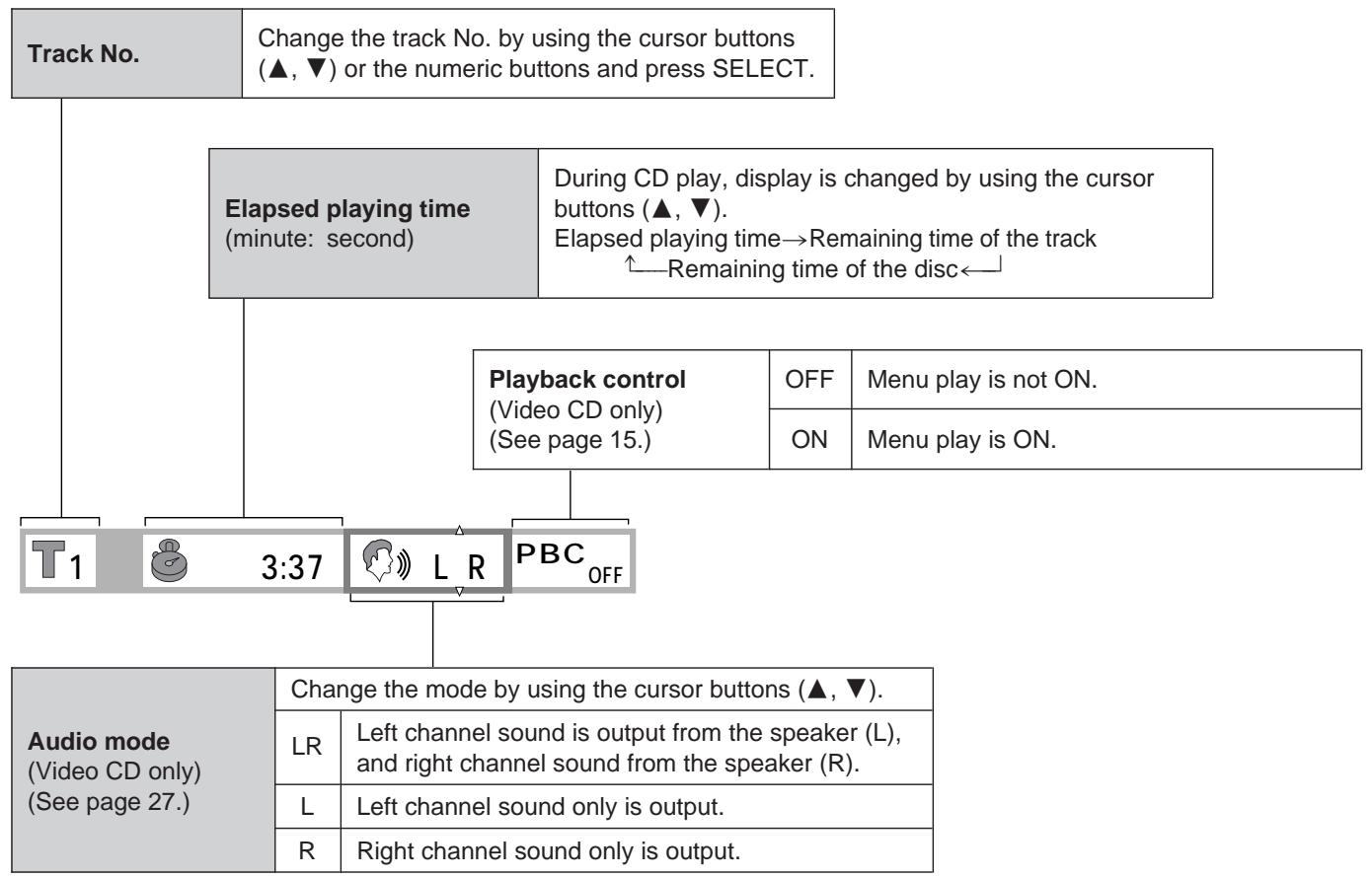
flowchart
graph TD
    A["Track No."] --> B["Change the track No. by using the cursor buttons (▲, ▼) or the numeric buttons and press SELECT."]
    B --> C["Elapsed playing time (minute: second)"]
    C --> D["During CD play, display is changed by using the cursor buttons (▲, ▼). Elapsed playing time→Remaining time of the track ↑—Remaining time of the disc←"]
    D --> E["Playback control (Video CD only) (See page 15.)"]
    D --> F["ON"]
    D --> G["Menu play is not ON."]
    E --> H["3:37"]
    F --> I["Menu play is ON."]
    J["Audio mode (Video CD only) (See page 27.)"] --> K["Change the mode by using the cursor buttons (▲, ▼)."]
    K --> L["LR"]
    K --> M["Left channel sound is output from the speaker (L), and right channel sound from the speaker (R)."]
    L --> N["L"]
    L --> O["Left channel sound only is output."]
    M --> P["R"]
    M --> Q["Right channel sound only is output."]
Note:
- Track No. and the elapsed playing time are not displayed during menu play of Video CDs with playback control.
- It is not possible to turn playback control ON or OFF using the On-Screen Menu Icons.
For your reference:
- “△ ▽” around the icon means that the item can be changed using the cursor buttons (▲, ▼).
Screen for player information
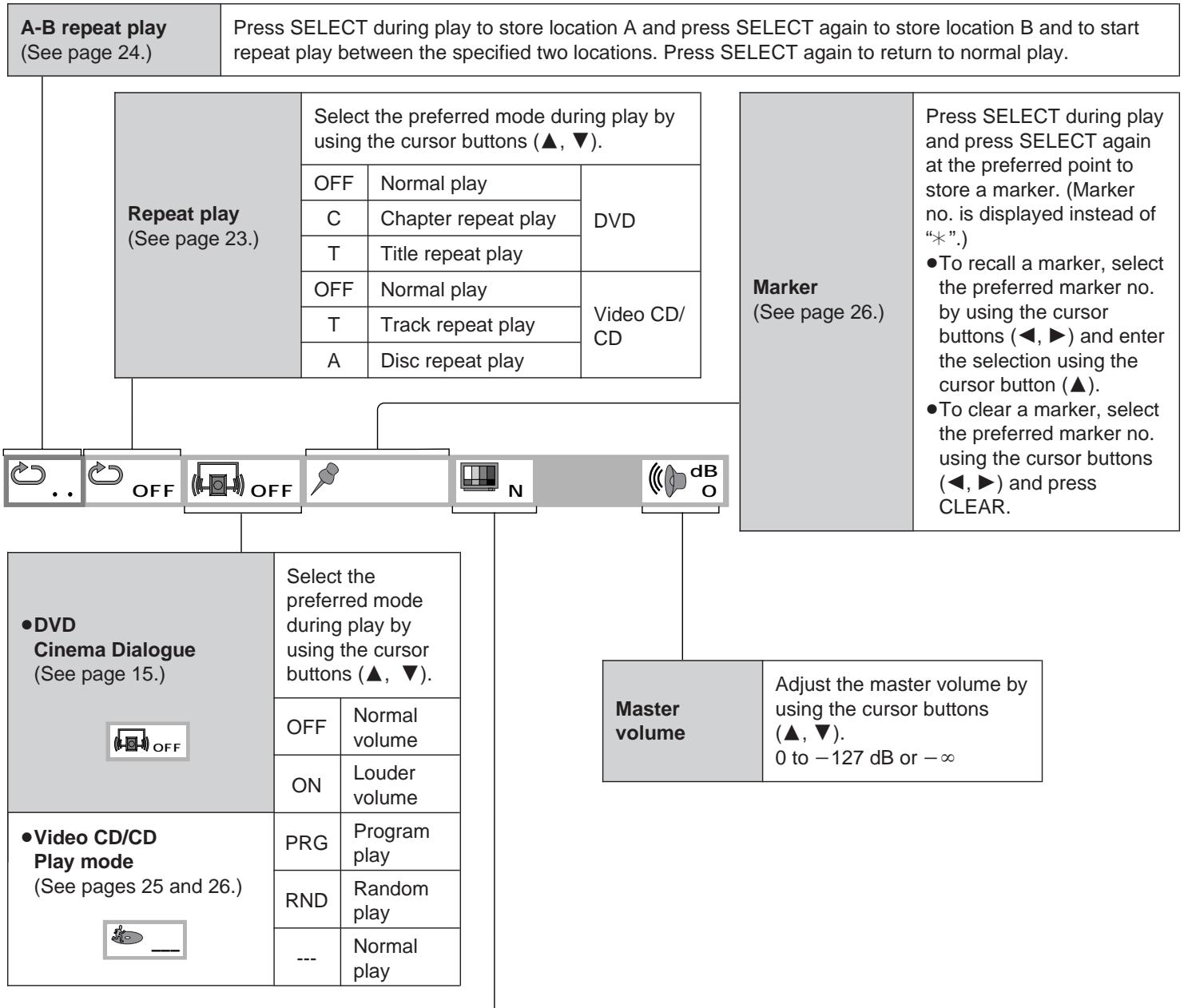
flowchart
graph TD
    A["A-B repeat play (See page 24.)"] --> B["Repeat play (See page 23.)"]
    B --> C["Select the preferred mode during play by using the cursor buttons (▲, ▼)."]
    C --> D["OFF"]
    C --> E["Normal play"]
    C --> F["DVD"]
    C --> G["C"]
    C --> H["Chapter repeat play"]
    C --> I["T"]
    C --> J["Title repeat play"]
    C --> K["OFF"]
    C --> L["Normal play"]
    C --> M["Video CD/CD"]
    C --> N["T"]
    C --> O["Track repeat play"]
    C --> P["A"]
    C --> Q["Disc repeat play"]
    B --> R["OFF"]
    B --> S["OFF"]
    B --> T["N"]
    B --> U["dB O"]
    B --> V["DVD Cinema Dialogue (See page 15.)"]
    V --> W["Select the preferred mode during play by using the cursor buttons (▲, ▼)."]
    W --> X["OFF"]
    W --> Y["Normal volume"]
    W --> Z["ON"]
    W --> AA["Louder volume"]
    V --> AB["Video CD/CD Play mode (See pages 25 and 26.)"]
    AB --> AC["PRG"]
    AB --> AD["Program play"]
    AB --> AE["RND"]
    AB --> AF["Random play"]
    AB --> AG["---"]
    AB --> AH["Normal play"]
    B --> AI["Marker (See page 26.)"]
    AI --> AJ["Press SELECT during play and press SELECT again at the preferred point to store a marker. (Marker no. is displayed instead of “*.”)."]
    AJ --> AK["To recall a marker, select the preferred marker no. by using the cursor buttons (◀, ▶) and enter the selection using the cursor button (▲)."]
    AK --> AL["To clear a marker, select the preferred marker no. using the cursor buttons (◀, ▶) and press CLEAR."]
    AI --> AM["Master volume"]
    AM --> AN["Adjust the master volume by using the cursor buttons (▲, ▼). 0 to -127 dB or -∞"]
| Cinema Image(DVD/Video CD only) | Select the preferred mode by using the cursor buttons (▲, ▼). | |||
| N | Normal mode | F | Fine mode | |
| S | Soft mode | C | Cinema mode | |
| U | User selection mode(Adjust the picture quality as you like.)When “U” is selected and SELECT is pressed, the On-Screen Menu Icon as shown below appears. Contrast (+7 to -7) Color hue (+7 to -7) Equalizer (+1/0/-1) Brightness (0 to 15)Select the preferred item by using the cursor buttons (◀, ▶) and select the preferred value by using the cursor buttons (▲, ▼). Contrast (+7 to -7) Color hue (+7 to -7) Equalizer (+1/0/-1) Brightness (0 to 15)Select the preferred item by using the cursor buttons (◀, ▶) and select the preferred value by using the cursor buttons (▲, ▼). | |||
Notes:
- Repeat play and marker functions do not work with an interactive DVD or during menu play of a Video CD with playback control.
●A-B repeat play does not work with an interactive DVD. - It is not possible to change the play mode using the On-Screen Menu Icons.
For your reference:
●The master volume can be set and stored separately for DVD, Video CD and CD.
Shuttle screen
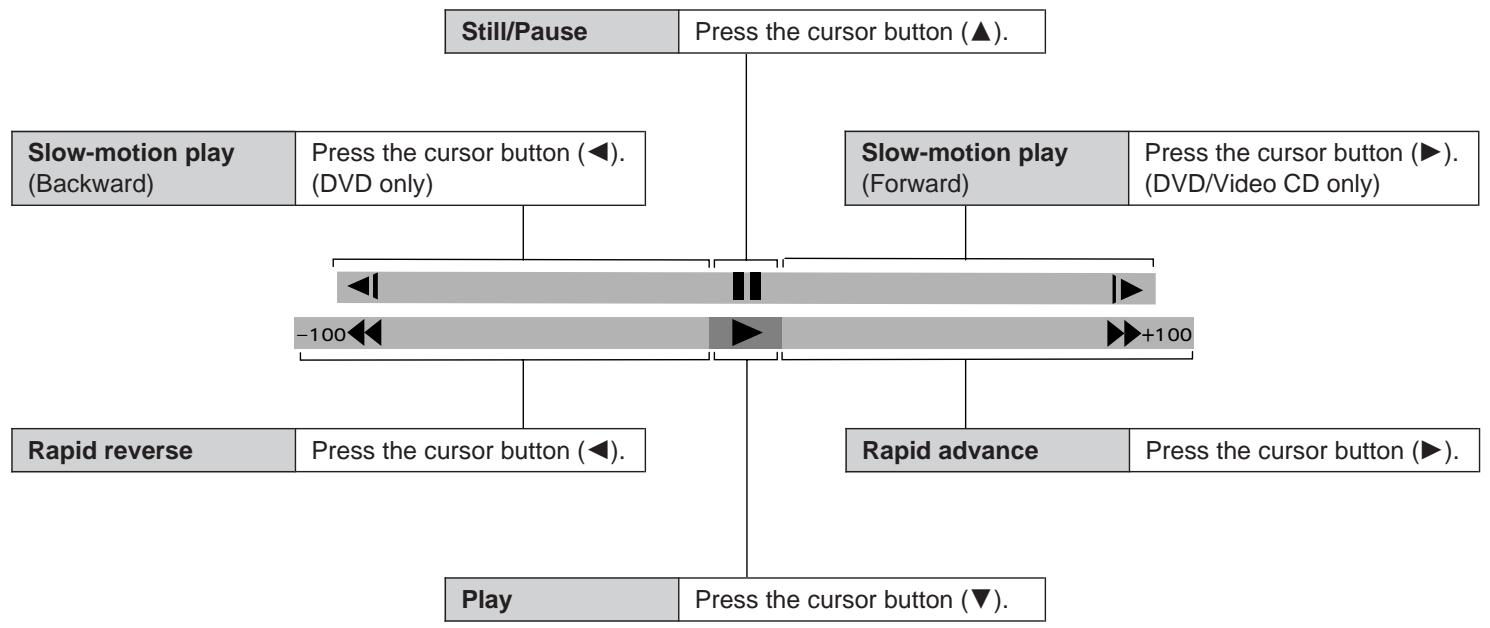
flowchart
graph TD
    A["Still/Pause"] --> B["Press the cursor button (▲)."]
    C["Slow-motion play (Backward)"] --> D["Press the cursor button (◀). (DVD only)"]
    E["Rapid reverse"] --> F["Press the cursor button (◀)."]
    G["Play"] --> H["Press the cursor button (▼)."]
    I["Slow-motion play (Forward)"] --> J["Press the cursor button (▶). (DVD/Video CD only)"]
    K["Rapid advance"] --> L["Press the cursor button (▶)."]
    M["Play"] --> N["Press the cursor button (▼)."]
    O["Slow-motion play (Forward)"] --> P["+100"]
    Q["Slow-motion play (Forward)"] --> P
    R["Slow-motion play (Forward)"] --> P
    S["Slow-motion play (Forward)"] --> P
    T["Slow-motion play (Forward)"] --> P
    U["Slow-motion play (Forward)"] --> P
    V["Slow-motion play (Forward)"] --> P
    W["Slow-motion play (Forward)"] --> P
    X["Slow-motion play (Forward)"] --> P
    Y["Slow-motion play (Forward)"] --> P
    Z["Slow-motion play (Forward)"] --> P
    AA["Slow-motion play (Forward)"] --> P
    AB["Slow-motion play (Forward)"] --> P
    AC["Slow-motion play (Forward)"] --> P
    AD["Slow-motion play (Forward)"] --> P
    AE["Slow-motion play (Forward)"] --> P
    AF["Slow-motion play (Forward)"] --> P
    AG["Slow-motion play (Forward)"] --> P
    AH["Slow-motion play (Forward)"] --> P
    AI["Slow-motion play (Forward)"] --> P
    AJ["Slow-motion play (Forward)"] --> P
    AK["Slow-motion play (Forward)"] --> P
    AL["Slow-motion play (Forward)"] --> P
    AM["Slow-motion play (Forward)"] --> P
    AN["Slow-motion play (Forward)"] --> P
    AO["Slow-motion play (Forward)"] --> P
    AP["Slow-motion play (Forward)"] --> P
    AQ["Slow-motion play (Forward)"] --> P
    AR["Slow-motion play (Forward)"] --> P
    AS["Slow-motion play (Forward)"] --> P
    AT["Slow-motion play (Forward)"] --> P
    AU["Slow-motion play (Forward)"] --> P
    AV["Slow-motion play (Forward)"] --> P
    AW["Slow-motion play (Forward)"] --> P
    AX["Slow-motion play (Forward)"] --> P
    AY["Slow-motion play (Forward)"] --> Z
    AZ["Slow-motion play (Forward)"] --> AA
    BA["Slow-motion play (Forward)"] --> AB
    BB["Slow-motion play (Forward)"] --> AC
    BC["Slow-motion play (Forward)"] --> AD
    BD["Slow-motion play (Forward)"] --> AE
    BF["Slow-motion play (Forward)"] --> AG
    BG["Slow-motion play (Forward)"] --> AH
For your reference:
- Each time the cursor button (◀, ▶) is pressed, the speed of rapid reverse/advance and slow-motion play increases up to 5 steps.
- The figures appearing at both ends of the shuttle screen stand for the maximum speeds of rapid reverse and rapid advance. (DVD: +100/-100, Video CD: +40/-40, CD: +50/-50)
Repeat play
Repeat viewing (listening)
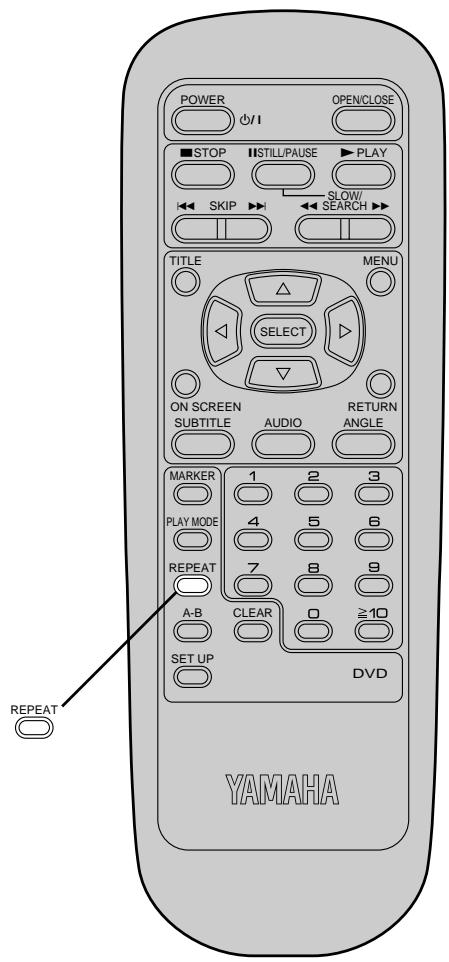
Press REPEAT during play.
Each time this button is pressed, the TV monitor changes as shown below and the disc will repeat a chapter or title (DVD) or a track (Video CD/CD).
•DVD
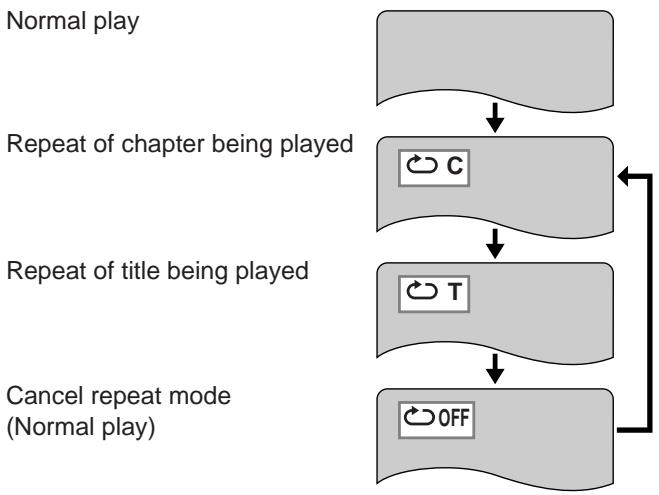
flowchart
graph TD
    A["Normal play"] --> B["Repeat of chapter being played"]
    B --> C["Repeat of title being played"]
    C --> D["Cancel repeat mode (Normal play)"]
    D --> E["OFF"]
    style A fill:#ccc,stroke:#333
    style B fill:#fff,stroke:#333
    style C fill:#fff,stroke:#333
    style D fill:#ccc,stroke:#333
- Video CD/CD
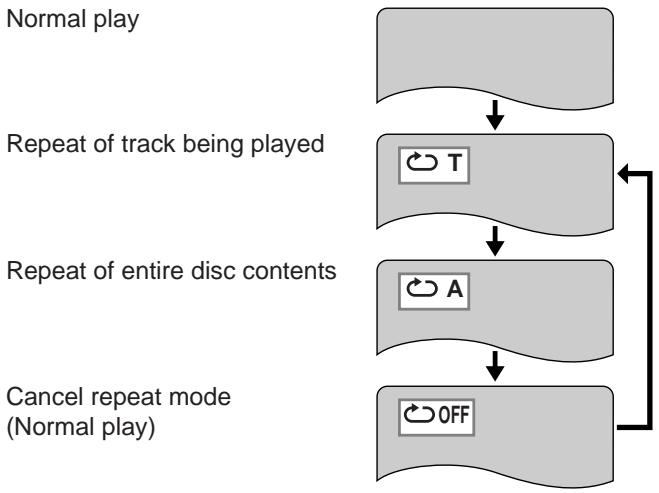
flowchart
graph TD
    A["Normal play"] --> B["Repeat of track being played"]
    B --> C["Repeat of entire disc contents"]
    C --> D["Cancel repeat mode (Normal play)"]
    D --> E["OFF"]
    E --> B
To return to normal play
Press REPEAT several times until “OFF” is displayed.
Notes:
- Repeat play may not work correctly with some DVDs.
- Repeat play does not work with an interactive DVD or during menu play of a Video CD with playback control.
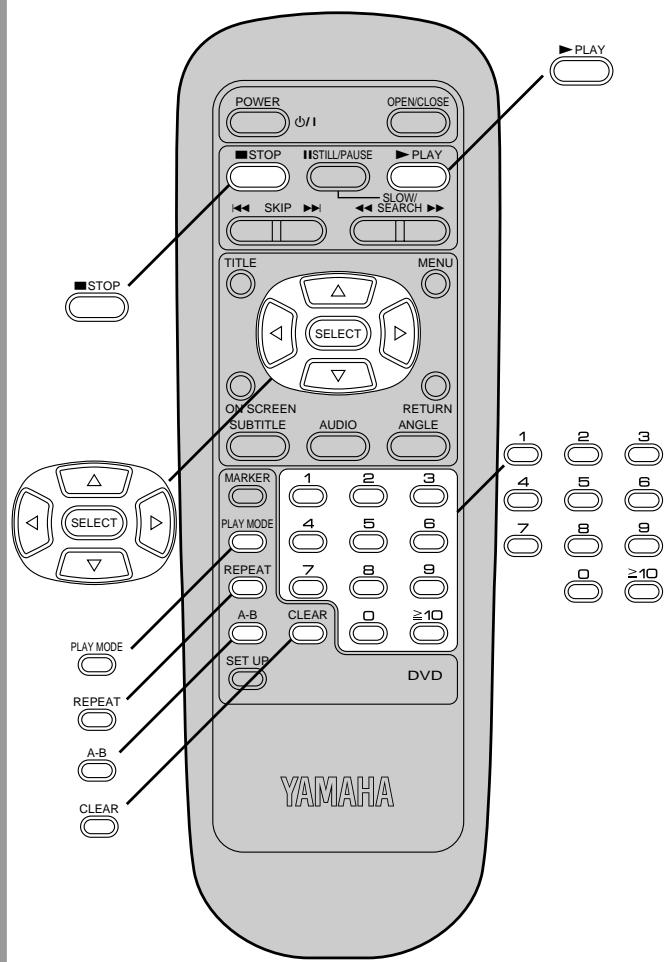
Repeat play
To enjoy program repeat play
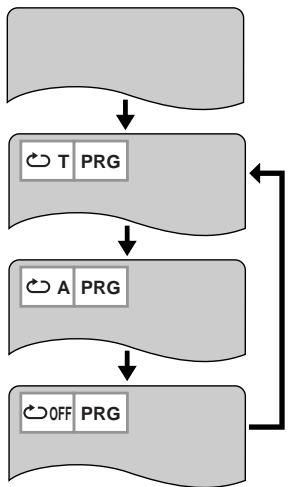
If REPEAT is pressed during program play (see page 25), the display changes as follows:
Program play
Repeat of programmed track being played
Repeat of all programs
Cancel repeat mode (Program play)
flowchart
graph TD
    A["Input"] --> B["T PRG"]
    B --> C["A PRG"]
    C --> D["OFF PRG"]
    D --> B
To return to program play
Press REPEAT several times until “OFF” is displayed.
Repeating sections between two specific points (A-B repeat)
1 Press A-B during play at the point where repeat play is to start (A).
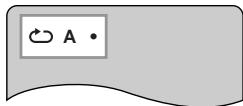
2 Press A-B at the point where repeat play is to be concluded (B).
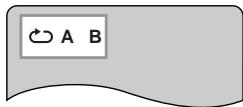
Repeat play of the selection between points A and B starts.
To return to normal play
Press A-B several times until “▶••” is displayed.
Notes:
●A-B repeat play does not work with an interactive DVD.
- Some subtitles recorded around point A or B may fail to appear. [DVD]
- A-B repeat play works only within a title [DVD] or a track [Video CD/CD].
For your reference:
- If the title/track is completed before end location B is specified, the end point of the title/track serves as end location B.
The player plays the tracks on the disc in an order you specify.
1 Press PLAY MODE in the stop mode.
The program playback screen appears on the TV monitor.
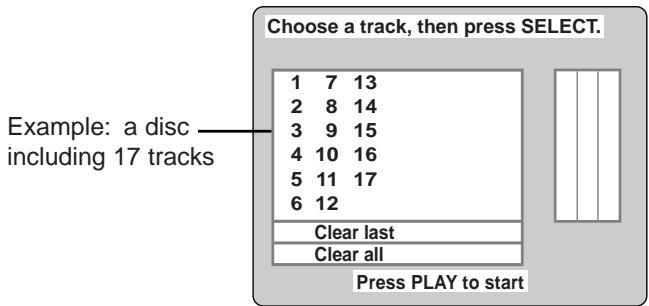
- To exit the screen
Press PLAY MODE twice.
2 Press the cursor buttons (▲, ▼, ◀, ▶) to select the preferred track number.
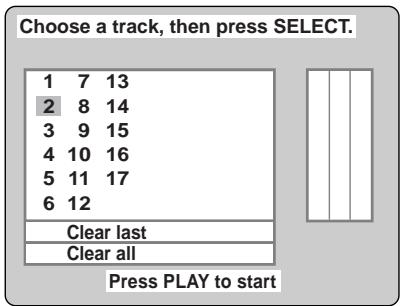
3 Press SELECT.
The selected track is stored in the memory.
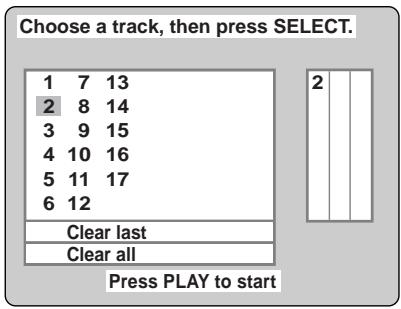
- Repeat steps 2 and 3 to select another track.
- Up to 18 tracks can be programmed.
4 Press PLAY.
Play now begins in the programmed sequence.
After playback
Play is stopped and the program playback screen is displayed.
To return to normal play
- Press STOP. (Program play is suspended.)
- Press PLAY MODE twice.
- Press PLAY.
Normal play begins from the beginning of the disc.
(The content of the program is still retained in the memory.)
Clearing the program
When the program playback screen is displayed
- To clear the last program one by one
Move to "Clear last" and press SELECT.
(Pressing CLEAR of the remote control unit also clears the last program.)
- To clear all the programs
Move to "Clear all" and press SELECT.
(The programs are also cleared when the player is set to the standby mode or turned off, or OPEN/CLOSE is pressed.)
Programming track numbers while monitoring the player's FL display
This function works with the following discs.
• CDs
- Video CDs with playback control when menu play is cancelled
(Press STOP while the menu screen is displayed.)
●Video CDs which do not support playback control (Ver 1.1)
- Press PLAY MODE once in the stop mode.
In the case of a CD

Flashes
- Press the numeric buttons to select the track. The selected track is stored in the memory.
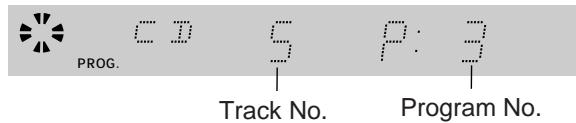
- Repeat step 2 to select another track.
- Press PLAY.
Program play starts.
Random play [Video CD/CD]
The player plays the tracks on the disc in random order.
1 Press PLAY MODE twice in the stop mode. The random playback screen appears on the TV monitor.
Random Playback Press PLAY to start
- To exit the screen Press PLAY MODE once.
2 Press PLAY.
Play now begins in random order.
After playback
Play is stopped and the random playback screen is displayed.
To return to normal play
- Press STOP. (Random play is suspended.)
- Press PLAY MODE once.
- Press PLAY. Normal play begins from the beginning of the disc.
Storing markers in memory to be viewed (listened to) again
Storing a marker in the memory
1 Press MARKER during play. The marker screen appears on the TV monitor.
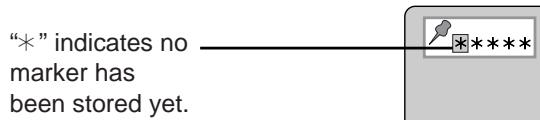
2 Press SELECT during play at the starting point to be viewed (listened to) again.
Indicates “MARKER 1” is stored in the memory. ____ (If SELECT is pressed where any number is already displayed, the previous starting point will be replaced by the new one.)
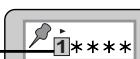
- Up to 5 markers can be stored in the memory.
- Press MARKER to clear the display.
Storing markers in memory to be viewed (listened to) again
Recalling/clearing a marker
1 Press MARKER during play.
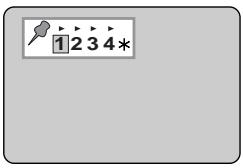
2 Press the cursor buttons (◀, ▶) to select the marker to be recalled/cleared.
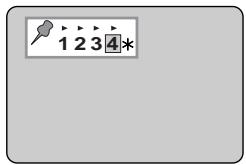
3 Press the cursor button (▲) to recall a marker.
or Press CLEAR to clear a marker.
Play resumes from the point corresponding to the selected marker.
or
The selected marker is cleared. (Press MARKER to clear the display.)
Notes:
- Some subtitles recorded around the marker may fail to appear. [DVD]
- These operations do not work with an interactive DVD or during menu play of a Video CD with playback control.
For your reference:
- All the markers are cleared when the player is set to the standby mode or turned off, or OPEN/CLOSE is pressed.
Changing audio soundtrack language [DVD]
It is possible to change the audio soundtrack language to a different language from the one selected at the initial settings. (If available. See page 31.)
(This operation works only with discs on which multiple audio soundtrack languages are recorded.)
1 Press AUDIO during play.
- When no audio soundtrack is recorded, “—” will be displayed instead of the language number.
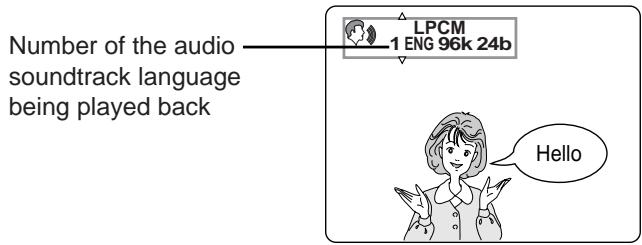
2 Press the cursor buttons (▲, ▼) until the preferred language is selected.
Pressing the numeric buttons also changes the audio soundtrack language.
- Press AUDIO or SELECT to clear the display.
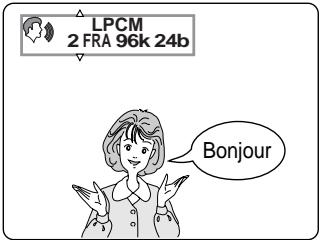
For your reference:
- When the preferred language is not selected, even after pressing the cursor buttons (▲, ▼) several times, it means that language is not available on the disc.
- When the power is turned on, or the disc tray is opened, the language heard is the one selected at the initial settings. If this language is not recorded on the disc, only the available language on the disc will be heard.
Switching vocals ON or OFF for Karaoke discs [DVD/Video CD]
1 Press AUDIO during play.
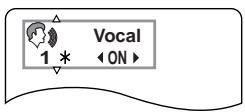
2 Press the cursor buttons (▲, ▼, ◀, ▶) until the preferred setting is selected.
•DVD Karaoke (Solo) (◀, ▶)
$$ - - - (\text { OFF }) \longleftrightarrow \text { ON } $$
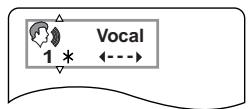
•DVD Karaoke (Duet) (◀, ▶)
$$ \begin{array}{c}- - - (\text { OFF }) \rightarrow 1 + 2 (\text { ON }) \rightarrow \text { V1(ON) } \rightarrow \text { V2(ON)}\\uparrow\end{array} $$
- Video CD (▲, ▼)
●This operation does not work with CDs.
Changing subtitle language [DVD]
It is possible to change the subtitle language to a different language from the one selected at the initial settings. (If available. See page 31.)
(This operation works only with discs on which multiple subtitle languages are recorded.)
1 Press SUBTITLE during play.
- When no subtitles are recorded, “--” will be displayed instead of the language number.
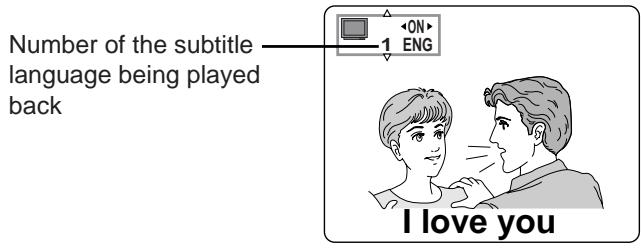
2 Press the cursor buttons (▲, ▼) until the preferred language is selected.
Pressing the numeric buttons also changes the subtitle language.
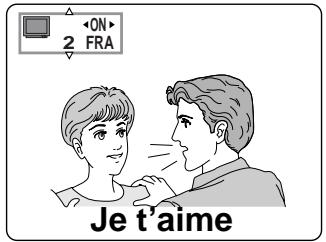
- Press SUBTITLE or SELECT to clear the display.
To clear/display the subtitles
Press the cursor buttons (◀, ▶) to select ON or OFF at step 2.
Notes:
- In some cases, the subtitle language is not changed to the selected one immediately.
- When a disc supported the closed caption is played, the subtitle and the closed caption may overlap each other on the TV monitor. In this case, turn the subtitle off.
For your reference:
- When the preferred language is not selected even after pressing the cursor buttons (▲, ▼) several times, it means that the language is not available on the disc.
- When the power is turned on or the disc tray is opened, subtitles appear in the language selected at the initial settings. If this language is not recorded on the disc, they appear in the disc's priority language.
Viewing from another angle [DVD]
Some DVDs may contain scenes which have been shot simultaneously from a number of different angles. For these discs, the same scene can be viewed from each of these different angles using the ANGLE button. (The recorded angles differ depending on the disc used.)
1 Press ANGLE during play.
Number of angle being played back
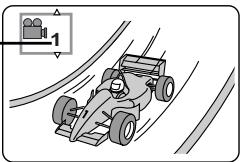
natural_image
Illustration of a racing car speeding on a track with motion blur (no text or symbols)2 Press the cursor buttons (▲, ▼) until the preferred angle is selected.
Pressing the numeric buttons also changes the angle.
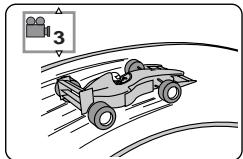
natural_image
Illustration of a car racing on a curved track with motion lines, no text or symbols present- Press ANGLE or SELECT to clear the display.
Note:
- This function only works for titles having scenes recorded at different angles.
For your reference:
- “ANGLE” lights up on the player’s FL display at scenes recorded at different angles to indicate that angle switching is possible.
- The angle number can be programmed beforehand with some DVDs; the angle will be switched to the selected number when “ANGLE” lights up.
Using a title menu [DVD]
Some discs with movies, for example, may be available with two or more titles. If the disc has a title menu recorded on it, the TITLE button can be used to select the movie title. (The details of operation differ depending on the disc used.)
1 Press TITLE during play.
A list of the titles on the disc is now displayed.
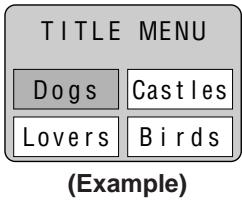
- Pressing TITLE again resumes play from the scene when TITLE was first pressed.
2 Press the cursor buttons (▲, ▼, ◀, ▶) and press SELECT or PLAY, or press the numeric buttons, to select the preferred title.
flowchart
graph LR
    A["TITLE MENU"] --> B["Birds of the world"]
    A --> C["Dogs"]
    A --> D["Castles"]
    A --> E["Lovers"]
    A --> F["Birds"]
    B --> G["(Example)"]
The selected title now starts playing.
Using a DVD menu [DVD]
Some DVDs have unique menu structures called DVD menus. For example, DVDs programmed with complex contents provide guide menus, and those recorded with various languages provide menus for audio and subtitle language. Although the DVD menu's contents and operation differ from disc to disc, the following explains basic operation when this feature is used.
1 Press MENU during play.
The DVD menu available on the disc is now displayed.
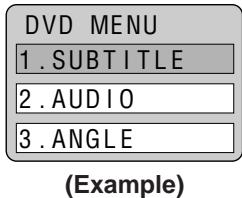
- Pressing MENU again resumes play from the scene when MENU was first pressed.
2 Press the cursor buttons (▲, ▼, ◀, ▶) and press SELECT, or press the numeric buttons, to select the preferred item.
The selected item is now executed.
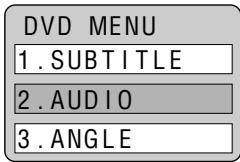
(Example)
When the menu continues onto another screen Repeat step 2.
Initial settings
Once the initial settings have been completed, the player can always be operated under the same conditions (especially with DVD discs).
The settings will be retained in the memory, until the settings are changed, even after switching to standby mode.
Common procedures of initial settings
1 Press SET UP in the stop mode.
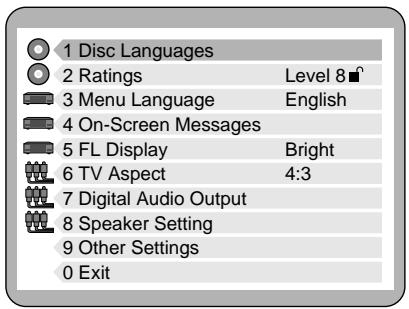
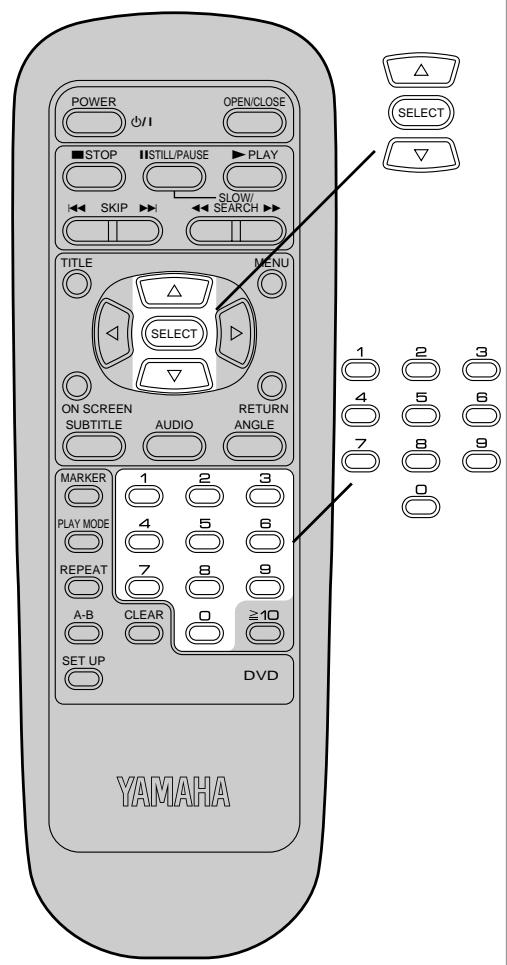
2 Press the cursor buttons (▲, ▼) to select the preferred item and press SELECT.
Each screen for setting the value is displayed.
1 Disc Languages (see page 31)
2 Ratings (see page 32)
3 Menu Language (see page 33)
4 On-Screen Messages (see page 34)
5 FL Display (see page 35)
6 TV Aspect (see page 36)
7 Digital Audio Output (see page 38)
8 Speaker Setting (see page 40)
9 Other Settings (see page 42)
3 Press the cursor buttons (▲, ▼) to select the preferred value and press SELECT.
- Some items require additional steps. (See the respective page.)
To cancel during setup operation
Press RETURN or select "0". (The previous screen is displayed.)
To clear the initial settings screen
Press the cursor buttons (▲, ▼) to select "0" and press SELECT. (Pressing SET UP or RETURN also clears the initial settings screen.)
Note:
- After the player is set to the “Lock All” setting in “2 Ratings”, none of the initial settings, including “2 Ratings”, can be changed if the DVD disc is left inside the player. In this case, remove the disc, and unlock the player.
For your reference:
- The numeric buttons can also be used for selecting items or values instead of the cursor buttons (▲, ▼); in this case, pressing SELECT is not necessary.
Selecting disc languages [DVD]
This is to select the audio soundtrack language, subtitle language and the language used in title menus or DVD menus which will always be used for every disc to be played back.
1 At the initial settings screen (on page 30)
Press the cursor buttons (▲, ▼) to select "1 Disc Languages" and press SELECT.
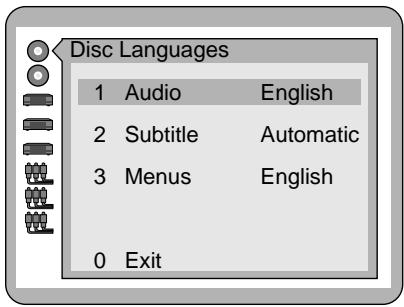
2 Press the cursor buttons (▲, ▼) to select the preferred item and press SELECT.
1 Audio:
To select the audio soundtrack language.
2 Subtitle:
To select the subtitle language.
3 Menus:
To select the language used in title menus or DVD menus.
3 Press the cursor buttons (▲, ▼) to select the preferred language and press SELECT.
When "1 Audio" is selected
1 English: English is selected. (Factory preset)
2 French/3 Spanish:
Each language is selected.
4 Original: The original language of each disc will be selected.
5 Other *****: Another language can be selected. (Refer to the language codes on page 44. Press CLEAR if an incorrect language code is entered.)
When "2 Subtitle" is selected
1 Automatic: The same language selected for the "1 Audio" will be selected. (Factory preset)
- If the language selected for the “1 Audio” is actually used during playback, the subtitles will not appear.
- If another language is used during playback, the subtitles will appear in the language selected at the setup "1 Audio".
2 English/3 French/4 Spanish:
Each language is selected.
5 Other *****: Another language can be selected. (Refer to the language codes on page 44. Press CLEAR if an incorrect language code is entered.)
When "3 Menus" is selected
1 English: English is selected. (Factory preset)
2 French/3 Spanish:
Each language is selected.
4 Other *****: Another language can be selected. (Refer to the language codes on page 44. Press CLEAR if an incorrect language code is entered.)
The screen illustrated in step 1 is displayed. Select "0" by using the cursor buttons (▲, ▼) and press SELECT to return to the initial settings screen.
Also refer to “Common procedures of initial settings” on page 30.
Note:
- If the language selected is not available on the disc, the language designated by each disc will be selected.
Initial settings
Selecting rating level [DVD]
This is to disable the playing of specified DVDs which are unsuitable for children.
- Some DVDs are encoded with a specific rating level. If the rating level of the disc is higher than that preset in the initial settings operation, playback of the disc will be prohibited.
1 At the initial settings screen (on page 30)
Press the cursor buttons (▲, ▼) to select "2 Ratings" and press SELECT.
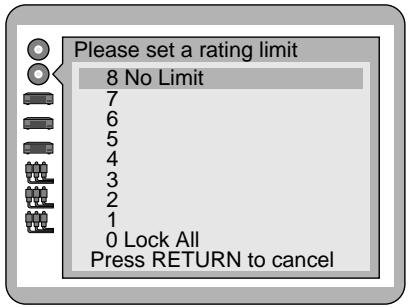
2 Press the cursor buttons (▲, ▼) to select the preferred level and press SELECT.
Level 8: All DVDs can be played back. (Factory preset)
Level 7 to 2: DVDs for general audiences/children can be played back. (DVDs for adults are prohibited.)
Level 1: DVDs for children can be played back. (DVDs for adults/general audiences are prohibited.)
Level 0: Playback of all DVDs is prohibited (e.g. to prohibit playback of DVDs for adults which are not encoded with rating level information).
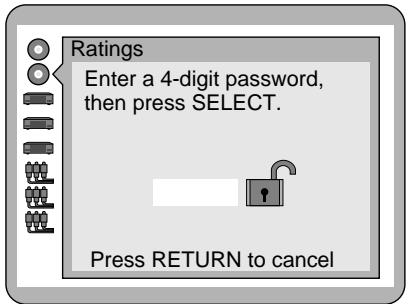
3 When level 7 or lower is selected Input a 4-digit password by pressing the numeric buttons and press SELECT.
The lock symbol appears closed to show the rating is locked.
Example: "4343" Do not forget you password.
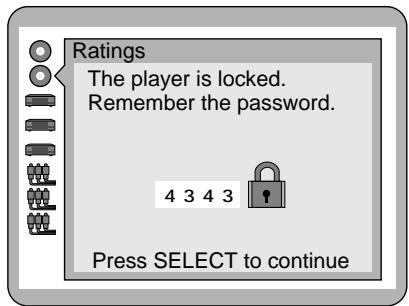
4 Press SELECT.
Setting is finished and the initial settings screen is displayed.
- The rating is locked. Any discs whose rating is higher than the setting cannot be played back unless the correct password is entered.
When the player is locked
The following screen appears when “2 Ratings” is selected at the initial settings screen.
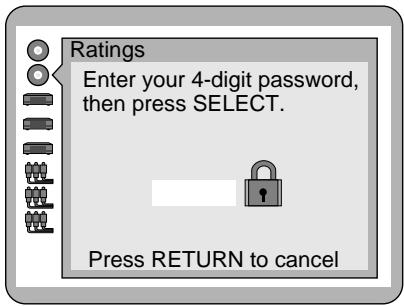
- Input a 4-digit password and press SELECT.
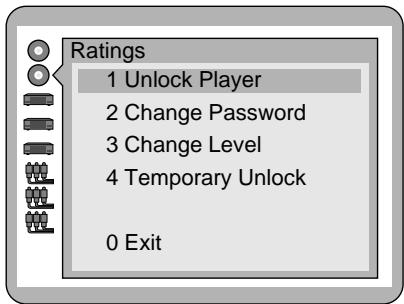
2. To unlock the player
Press "1" and then press SELECT.
To change the password
Press “2”, enter a new 4-digit password and press SELECT, then press SELECT again.
To change the rating level
Press "3", select a new level by pressing the cursor buttons (▲, ▼), then press SELECT.
To unlock the player temporarily
Press "4" and then press SELECT.
- The rating is unlocked temporarily only for the current disc or only until the player is set to the standby mode.
To finish setting without changing the rating level
Press "0".
Setting is finished and the initial settings screen is displayed.
Also refer to “Common procedures of initial settings” on page 30.
Note:
- Some discs may not be encoded with specific rating level information though its disc jacket says that it is for “adults”. For those discs, the age restriction will not work.
Selecting language of On-Screen Display menu
This is to select the language to be used in the On-Screen Display menus which the player will show on the TV monitor.
1 At the initial settings screen (on page 30) Press the cursor buttons (▲, ▼) to select "3 Menu Language" and press SELECT.
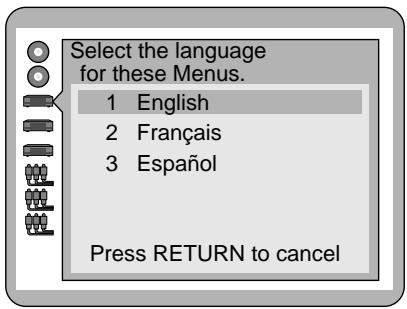
2 Press the cursor buttons (▲, ▼) to select the preferred language and press SELECT.
1 English:
English is selected. (Factory preset)
2 Français/3 Español: Each language is selected.
Setting is finished and the initial settings screen is displayed.
Also refer to “Common procedures of initial settings” on page 30.
Initial settings
Selecting the display format of the On-Screen Display
You can select whether “Play”, “Still” and other displays will be displayed or not, and the color and position of “Play”, “Still” and other displays as well as On-Screen Menu Icons.
1 At the initial settings screen (on page 30) Press the cursor buttons (▲, ▼) to select "4 On-Screen Messages" and press SELECT.
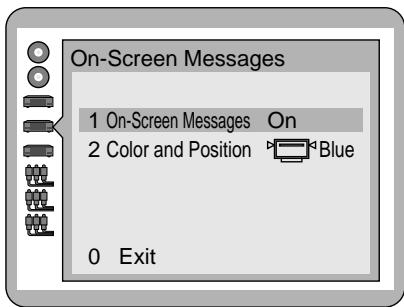
2 Press the cursor buttons (▲, ▼) to select the preferred item and press SELECT.
1 On-Screen Messages:
To select whether “Play”, “Still” and other displays are displayed or not.
2 Color and Position:
To select the color (Blue/Violet/Green) and position (above/slightly below) of "Play", "Still" and other displays as well as On-Screen Menu Icons.
3 Press the cursor buttons (▲, ▼) to select the preferred setting and press SELECT.
When "1 On-Screen Messages" is selected
1 On: "Play", "Still" and other displays will always appear on the TV screen. (Factory preset)
2 Off: "Play", "Still" and other displays will not appear on the TV screen.
When "2 Color and Position" is selected
The colors and positions are set as follows:
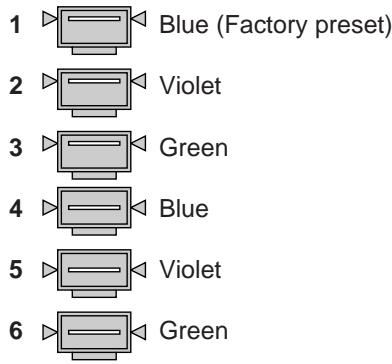
The screen illustrated in step 1 is displayed. Select "0" by using the cursor buttons (▲, ▼) and press SELECT to return to the initial settings screen.
Also refer to “Common procedures of initial settings” on page 30.
For your reference:
- When
is selected, "Play", "Still" and other displays screen Menu Icons will be displayed at a little than the factory setting. It is recommended to sing in such a case that the screen is only par-
Selecting the FL display brightness
This is to select the brightness of the player's FL display.
1 At the initial settings screen (on page 30) Press the cursor buttons (▲, ▼) to select "5 FL Display" and press SELECT.
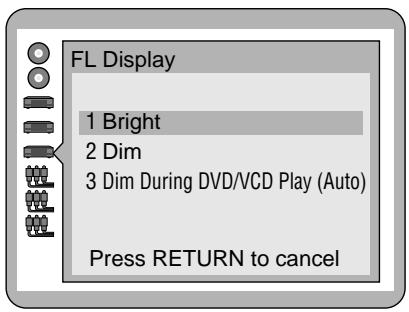
2 Press the cursor buttons (▲, ▼) to select the preferred item and press SELECT.
1 Bright:
The FL display will always be bright. (Factory preset)
2 Dim:
The FL display will always be dimmed.
3 Dim During DVD/VCD Play (Auto):
The FL display will be dimmed during playback of DVDs and Video CDs.
Setting is finished and the initial settings screen is displayed.
For your reference:
- Even if “3 Dim During DVD/VCD Play (Auto)” is selected, the display resumes brightness when a button for special play such as SLOW/SEARCH and STILL/PAUSE is pressed.
Also refer to “Common procedures of initial settings” on page 30.
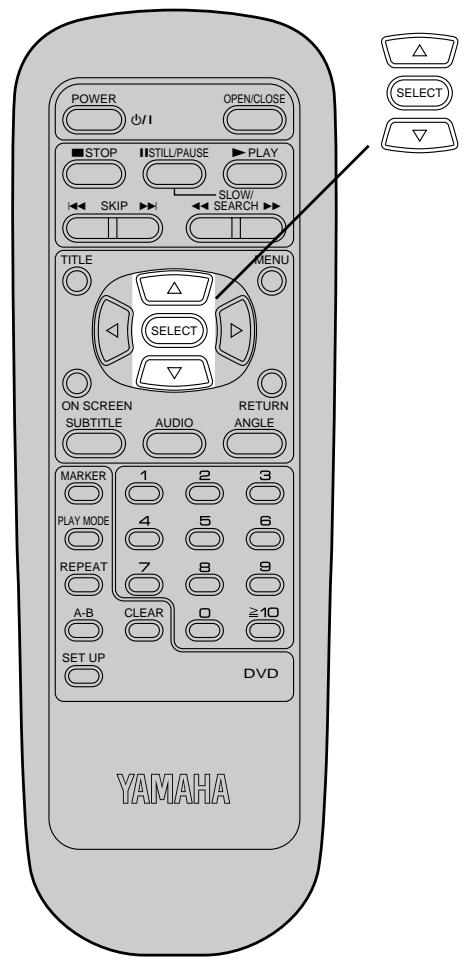
Initial settings
Selecting TV screen type
Select the TV aspect, conventional size screen (4:3) or wide-screen (16:9), and the TV type according to your TV set.
1 At the initial settings screen (on page 30)
Press the cursor buttons (▲, ▼) to select "6 TV Aspect" and press SELECT.
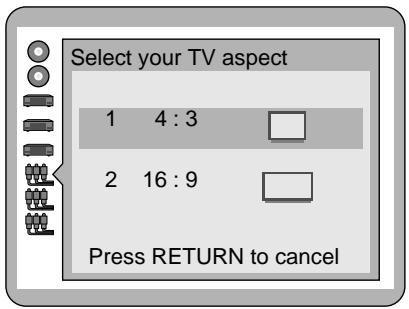
2 Press the cursor buttons (▲, ▼) to select the TV aspect and press SELECT.
1 4:3:
Select when a conventional TV set is connected.
(Factory preset)
2 16:9:
Select when a wide-screen TV set is connected.
3 Press the cursor buttons (▲, ▼) to select the TV type and press SELECT.
When "4:3" is selected
When "16:9" is selected
Following TV types can be selected in both cases.
1 Standard (Direct View TV):
Select when a standard TV (Direct view) is connected.
(Factory preset)
2 CRT Projector:
Select when a CRT projector is connected.
3 LCD Projector:
Select when a LCD projector is connected.
4 Projection TV:
Select when a projection TV is connected.
Setting is finished and the initial settings screen is displayed.
Also refer to “Common procedures of initial settings” on page 30.
For your reference:
- For further details on the images which appear on the TV screen (aspect ratios of the screen), see page 37.
Concerning images which appear on the TV screen (aspect ratios of the screen)
Images which appear on the TV screen differ depending on the type of software and the TV set connected.
| Type of software | TV set connected (Screen mode) | |||
| 4:3 | 16:9 (“FULL” mode) | 16:9 (“ZOOM” mode) | 16:9 (“AUTO” mode) | |
Software for wide-screen (formatted in the Pan & Scan style)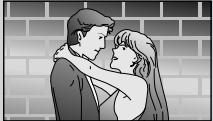 | Screen whose right and left edges are cut off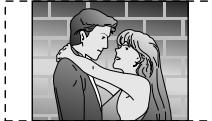 | Full screen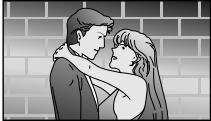 | Screen whose top and bottom edges are cut off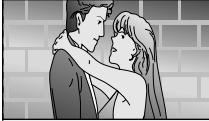 | Full screen |
Software for wide-screen (not formatted in the Pan & Scan style) | Letterbox (with black bands at top and bottom) | |||
Software (4:3) | Full screen | Screen horizontally enlarged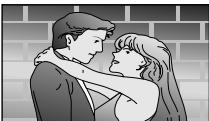 | Screen whose top and bottom edges are cut off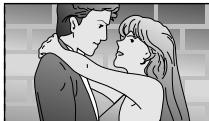 | Full screen (with black bands at right and left)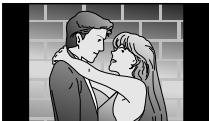 |
Software(4:3, Letterbox) | Letterbox (with black bands at top and bottom | Screen horizontally enlarged (with black bands at top and bottom) | Full screen | Screen in which the picture at the far left and far right ends only is extended horizontally (with black bands at top and bottom) |
- The images which appear on the TV screen, and what each screen mode is called, may differ depending on the manufacturer of the TV set or on the type of the TV set. Consult the instruction manual provided with your TV set.
For your reference:
- Letterbox
Black bands are inserted at the top and bottom of the screen to fill in the gaps at the top and bottom where the size of the picture is smaller than the screen.
- Pan & Scan
Part of the wide-screen picture (either at both sides or one side of the screen) is automatically eliminated so that the picture fills the whole screen.
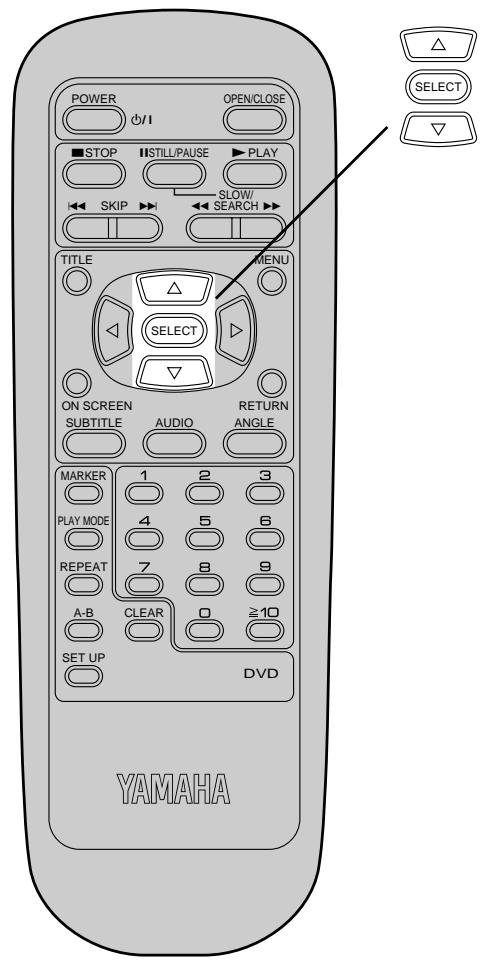
Initial settings
Selecting digital output
Select the digital output to be output from the optical/coaxial digital audio output connector of the player.
1 At the initial settings screen (on page 30)
Press the cursor buttons (▲, ▼) to select "7 Digital Audio Output" and press SELECT.
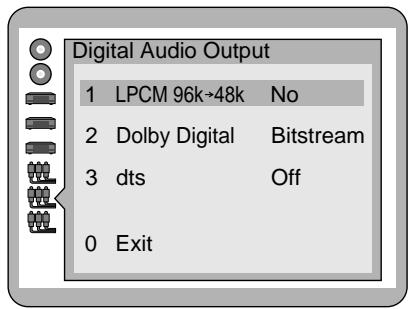
2 Press the cursor buttons (▲, ▼) to select the preferred item and press SELECT.
1 LPCM 96k→48k:
To select whether digital audio converted to 48 kHz/16 bit is output from the optical/coaxial digital audio output connector or no digital audio is output during playback of the DVD recorded in Linear PCM of 96 kHz.
(In case of the DVD recorded in Linear PCM of 48 kHz, digital audio converted to 48 kHz/16 bit is output irrespective of the setting.)
2 Dolby Digital:
To select the signal format (Bitstream or PCM) to be output from the optical/coaxial digital audio output connector during playback of the DVD recorded in Dolby Digital.
3 dts:
To select whether dts bitstream is output from the optical/coaxial digital audio output connector or no digital audio is output during playback of the DVD recorded in dts.
3 Press the cursor buttons (▲, ▼) to select the preferred value and press SELECT.
When "1 LPCM 96k→48k" is selected
1 No: Digital audio of 48 kHz/16 bit is output during playback of the DVD recorded in Linear PCM of 48 kHz. No digital audio is output during playback of the DVD recorded in Linear PCM of 96 kHz. However, audio will be output using the original audio recording system in case of the DVD which has not been copyright-protected. (Factory preset)
2 Yes: During playback of the DVD recorded in Linear PCM of 48 kHz or 96 kHz, digital audio converted to 48 kHz/16 bit is output.
(Digital output of PCM audio is restricted to 48 kHz/16 bit or below for copyright protection.)
When "2 Dolby Digital" is selected
1 Bitstream: Dolby Digital bitstream (1ch–5.1ch) is output during playback of the DVD recorded in the Dolby Digital. (Factory preset)
Select this setting when the player is connected to the Dolby Digital decoder.
2 PCM ^*1 : Digital audio converted to PCM (2ch) of 48 kHz/16 bit is output during playback of the DVD recorded in the Dolby Digital.
When "3 dts" is selected
1 Off ^*1 : No digital audio is output during playback of the DVD recorded in dts.
(Factory preset)
2 Bitstream: dts bitstream is output during playback of the DVD recorded in dts.
Select this setting when the player is connected to the dts decoder.
The screen illustrated in step 1 is displayed. Select "0" by using the cursor buttons (▲, ▼) and press SELECT to return to the initial settings screen.
Also refer to “Common procedures of initial settings” on page 30.
Recommended setting of "Digital Audio Output"
Make settings as shown in table below depending on the kind of equipment that is connected to the optical/coaxial digital audio output connector.
| Type of equipment to be connected | Recommended setting | ||
| 1 LPCM 96k→48k | 2 Dolby Digital | 3 dts | |
| No equipment is connected | No | Bitstream | Off |
| AV amplifier (with digital audio input connector) without Dolby Digital/dts decoder | Yes*3 | PCM*1*2 | Off*1 |
| AV amplifier with Dolby Digital decoder (See page 10.) | Yes*3 | Bitstream | Off |
| AV amplifier with Dolby Digital/dts decoder (See page 10.) | Yes*3 | Bitstream | Bitstream |
●Underlined item is a factory preset.
※1 When connecting an AV amplifier (with an optical/coaxial digital audio input connector) without Dolby Digital or dts decoder, be sure to select “PCM” of “2 Dolby Digital” and “Off” of “3 dts”. If “Bitstream” is selected, any attempt to play DVD may cause such a high level of noise that it may be harmful to your ears and damage your speakers.
*2 When “PCM” is selected and “Yes” is selected for the speakers other than the front speakers at “8 Speaker Setting” (see page 40), only audio corresponding to the front speakers will be output from the player’s digital audio output connector during playback of the DVD recorded in Dolby Digital 5.1 ch surround. In this case, select “No” for the speakers other than the front speakers at “8 Speaker Setting”.
^*3 The audio which is output from the player's audio output connectors (6CH DISCRETE and MIXED 2CH) is also set to the Linear PCM 48 kHz sound quality level.
To enjoy high quality sound at 96 kHz, connect the amplifier or decoder directly to the audio output connectors, not to the digital audio output connector. (Select "No" at the "1 LPCM 96k→48k".)
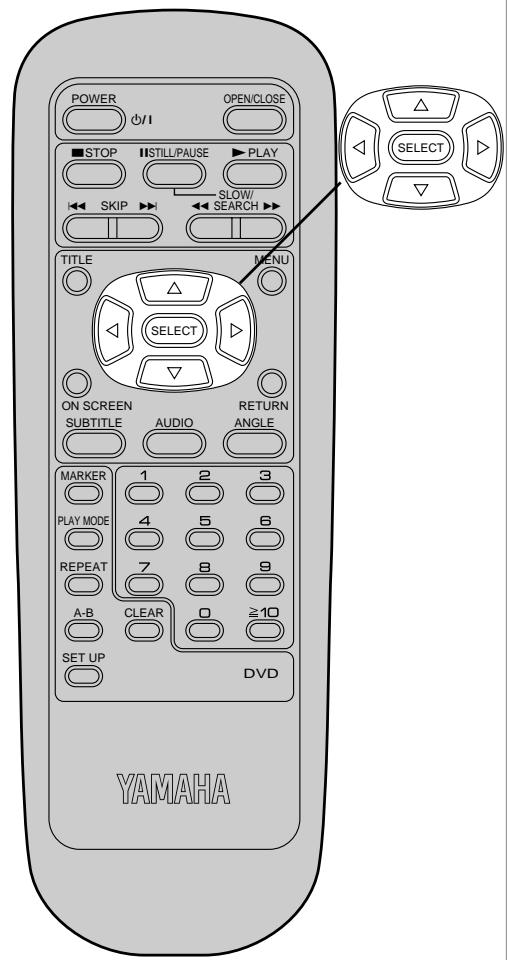
Speaker settings
1 At the initial settings screen (on page 30) Press the cursor buttons (▲, ▼) to select "8 Speaker Setting" and press SELECT.
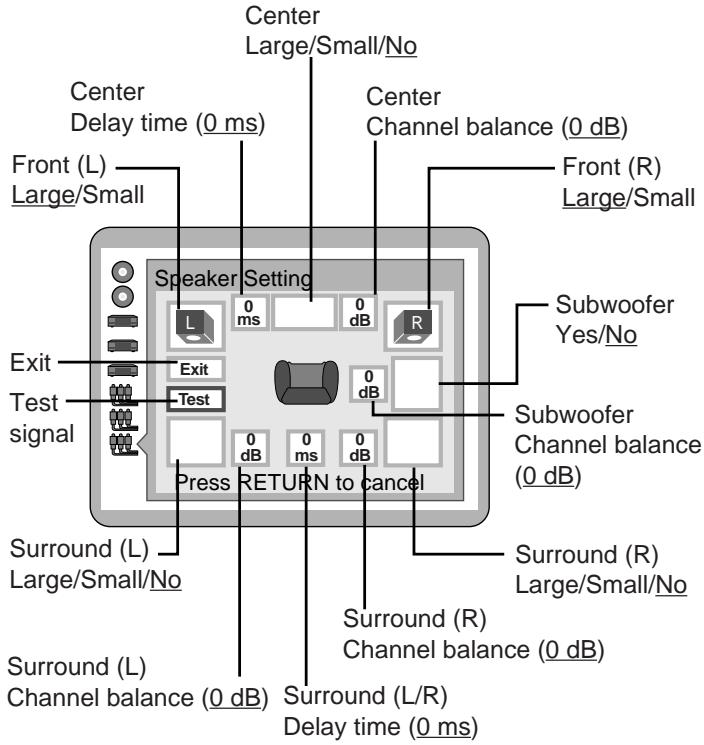
● Underlined item is a factory preset.
2 Press the cursor buttons (▲, ▼, ◀, ▶) to select the preferred item and press SELECT.
3 Press the cursor buttons (▲, ▼) to select the preferred value and press SELECT.
Speaker icons:
- If the speaker is connected, display the icon by using the cursor buttons (▲, ▼) and pressing SELECT.
- If the speaker supports low-frequency (under 100 Hz) reproduction, select the larger icon. If the speaker does not support low-frequency (under 100 Hz) reproduction, select the smaller icon. [When the subwoofer is not connected, be sure to select “Large” for the front speakers (L/R).]
In the case of surround speaker (L)
• Large/Yes

- Small/Yes
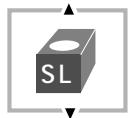
• No

Delay time:
If the surround speakers or the center speaker can not be installed at an equal distance to the front speakers from the listening position, change the delay time to get better surround effect.
- When D2 or D3 is equal to or larger than D1, no setting is necessary. Otherwise, change the setting according to the table below.
| Speaker | Delay time | Difference between D1 and D2/D3 |
| Center speaker (D2) | 1.3 ms | approx. 1^1/2 feet (50 cm) |
| 2.6 ms | approx. 3 feet (100 cm) | |
| 3.9 ms | approx. 5 feet (150 cm) | |
| 5.3 ms | approx. 6 feet (200 cm) | |
| Surround speakers (D3) | 5.3 ms | approx. 6 feet (200 cm) |
| 10.6 ms | approx. 12 feet (400 cm) | |
| 15.9 ms | approx. 18 feet (600 cm) |
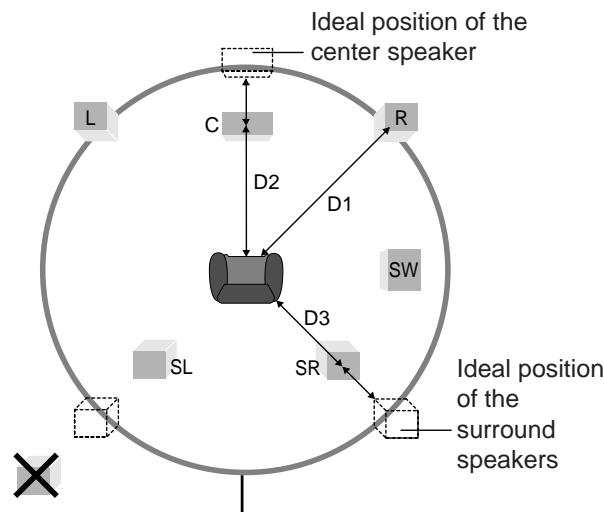
It is recommended to locate all the speakers inside of this circle.
To adjust the channel balance using the test signal:
- Select "Test" by using the cursor buttons (▲, ▼, ◀, ▶), and then press SELECT.
(Test signals will be output clockwise from each speaker except the subwoofer consecutively.) - While listening to the test signal, adjust the volume of each speaker so that all the test signals are heard at the equal level.
- Press SELECT. (The test signals are stopped.)
Note:
- Test signal is not output from the subwoofer. Adjust the channel balance for each disc to be played back.
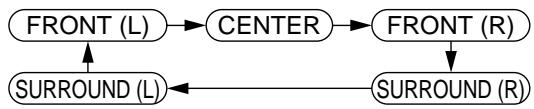
flowchart
graph TD
    A["FRONT (L)"] --> B["CENTER"]
    B --> C["FRONT (R)"]
    D["SURROUND (L)"] <--_E["SURROUND (R)"]
4 Press the cursor buttons (▲, ▼, ◀, ▶) to select "Exit" and press SELECT.
Setting is finished and the initial settings screen is displayed.
Also refer to “Common procedures of initial settings” on page 30.
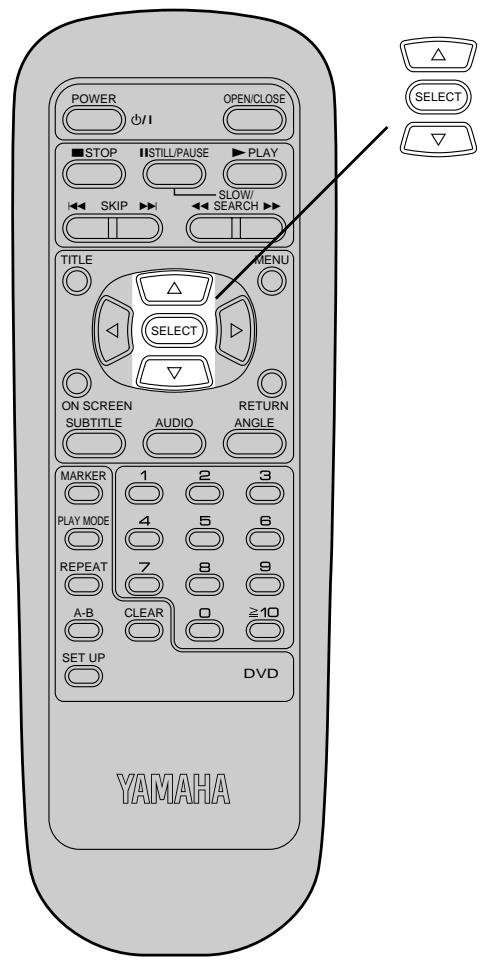
Initial settings
Other settings
Compression of the sound's dynamic range and other special settings can be performed.
1 At the initial settings screen (on page 30)
Press the cursor buttons (▲, ▼) to select "9 Other Settings" and press SELECT.
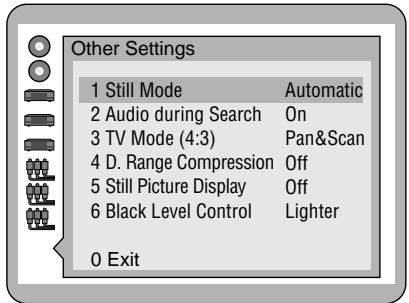
2 Press the cursor buttons (▲, ▼) to select the preferred item and press SELECT.
1 Still Mode:
To select “Field still” or “Frame still” to prevent jittering from occurring or to let small text or fine patterns seen clearly in the still picture mode.
2 Audio during Search:
To select whether audio is heard during search at the initial scan speed or not.
3 TV Mode (4:3):
To select whether the video material for a wide-screen will be played back in the Pan & Scan style or in the Letterbox style on a conventional size TV.
4 D. (Dynamic) Range Compression:
To select the dynamic range during playback.
5 Still Picture Display:
To select whether the picture type (I/P/B) is displayed on the TV screen in the still picture mode or not.
6 Black Level Control:
To select the black level of the picture, "Lighter" or "Darker".
3 Press the cursor buttons (▲, ▼) to select the preferred value and press SELECT.
When "1 Still Mode" is selected
1 Automatic: “Field still” and “Frame still” are automatically selected in the still picture mode. (Factory preset)
2 Field: "Field still" is always selected.
Select this setting when jittering occurs in the pictures even when “1 Automatic” is selected.
3 Frame: "Frame still" is always selected.
Select this setting when small text or fine patterns cannot be seen clearly even when “1 Automatic” is selected.
When "2 Audio during Search" is selected
1 On: Audio from 6CH DISCRETE or MIXED 2CH output connectors will be heard during search at the initial scan speed. (Factory preset)
2 Off: Select this setting when audio during search at the initial scan speed is not desired.
When "3 TV Mode (4:3)" is selected
1 Pan & Scan: The video material for a wide-screen will be played back in the Pan & Scan style on a conventional size TV. (Factory preset)
- Video material not formatted in the Pan & Scan style will be played back in the letterbox style. (See page 37.)
2 Letterbox: The video material for a wide-screen will be played back in the letterbox style on a conventional size TV.
When "4 D. (Dynamic) Range Compression" is selected
1 Off: Normal audio range is selected. (Factory preset)
2 On: Select this setting to enjoy listening to dynamic sound even on a low volume.
Dynamic range is the difference in volume between the quietest and loudest sounds heard. Dynamic Compression limits level for listening at low volume. This is useful late at night, for example.
[This function only works with Dolby Digital DVD.]
When "5 Still Picture Display" is selected
1 Off: The picture type (I/P/B) will not be displayed on the TV screen in the still picture mode. (Factory preset)
2 On: The picture type (I/P/B) will be displayed on the TV screen in the still picture mode.
When "6 Black Level Control" is selected
1 Lighter: The black level of the picture is selected to the lighter one.
Select this setting normally when the player is connected to a TV set through the VIDEO OUT connector or S VIDEO OUT connector. (Factory preset)
2 Darker: The black level of the picture is selected to the darker one.
Select this setting normally when the player is connected to a TV set through the COMPONENT VIDEO OUT (Y, C_B , C_R ) connector.
The screen illustrated in step 1 is displayed. Select "0" by using the cursor buttons (▲, ▼) and press SELECT to return to the initial settings screen.
Also refer to “Common procedures of initial settings” on page 30.
For your reference:
- When the “2 On” is selected at the “5 Still Picture Display”, the following screen is displayed in the still picture mode;
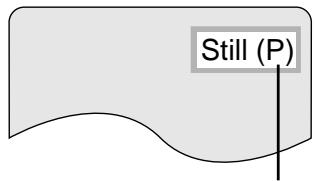
Example: in the case of the P-Picture
• I/P/B:
The MPEG 2 standard adopted for DVD uses the following 3 picture types for the coding of each picture (frame) on the TV screen.
I: I-Picture (Intra coded picture)
This is the standard picture type, and each picture is coded separately. Since it features the best picture quality, it is recommended that the screen be frozen with I-Picture when the picture quality is to be adjusted.
P: P-Picture (Predictive coded picture)
This picture type is computed on the basis of a past I-Picture or P-Picture.
B: B-Picture (Bidirectionally-predictive coded picture)
This picture type is computed by comparing the previous and subsequent I-Picture or P-Picture. It has the lowest volume of information.
General Picture type
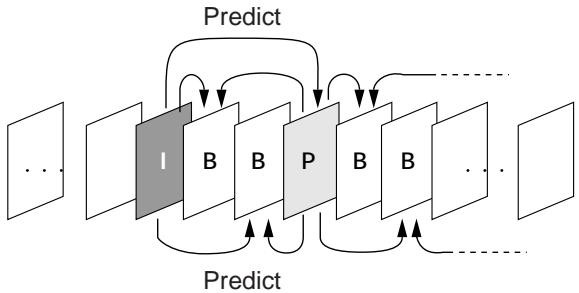
flowchart
graph TD
    subgraph Input Layer
        I["..."] --> A1["1"]
        A1 --> B1["B"]
        B1 --> C1["B"]
        C1 --> D1["P"]
        D1 --> E1["B"]
        E1 --> F1["B"]
        F1 --> G1["..."]
    end
    subgraph Hidden Layer
        I --> H1["1"]
        H1 --> I2["1"]
        I2 --> B2["B"]
        B2 --> C2["B"]
        C2 --> D2["P"]
        D2 --> E2["B"]
        E2 --> F2["B"]
        F2 --> G2["..."]
    end
    subgraph Output Layer
        H1 --> H3["1"]
        H3 --> I3["1"]
        I3 --> J3["B"]
        J3 --> K3["B"]
        K3 --> L3["P"]
        L3 --> M3["B"]
        M3 --> N3["B"]
        N3 --> O3["..."]
    end
    Predict1["Predict"] --> Predict2["Predict"]
    Predict3["Predict"] --> Predict4["Predict"]
Enter the appropriate code number for the initial settings “Audio”, “Subtitle” and/or “Menus” (see page 31).
| Code | Language | Code | Language | Code | Language | Code | Language |
| 6565 | Afar | 7079 | Faroese | 7678 | Lingala | 8375 | Slovak |
| 6566 | Abkhazian | 7082 | French | 7679 | Laothian | 8376 | Slovenian |
| 6570 | Afrikaans | 7089 | Frisian | 7684 | Lithuanian | 8377 | Samoan |
| 6577 | Ameharic | 7165 | Irish | 7686 | Latvian, Lettish | 8378 | Shona |
| 6582 | Arabic | 7168 | Scots Gaelic | 7771 | Malagasy | 8379 | Somali |
| 6583 | Assamese | 7176 | Galician | 7773 | Maori | 8381 | Albanian |
| 6588 | Aymara | 7178 | Guarani | 7775 | Macedonian | 8382 | Serbian |
| 6590 | Azerbaijani | 7185 | Gujarati | 7776 | Malayalam | 8385 | Sundanese |
| 6665 | Bashkir | 7265 | Hausa | 7778 | Mongolian | 8386 | Swedish |
| 6669 | Byelorussian | 7273 | Hindi | 7779 | Moldavian | 8387 | Swahili |
| 6671 | Bulgarian | 7282 | Croatian | 7782 | Marathi | 8465 | Tamil |
| 6672 | Bihari | 7285 | Hungarian | 7783 | Malay | 8469 | Telugu |
| 6678 | Bengali; Bangla | 7289 | Armenian | 7784 | Maltese | 8471 | Tajik |
| 6679 | Tibetan | 7365 | Interlingua | 7789 | Burmese | 8472 | Thai |
| 6682 | Breton | 7378 | Indonesian | 7865 | Nauru | 8473 | Tigrinya |
| 6765 | Catalan | 7383 | Icelandic | 7869 | Nepali | 8475 | Turkmen |
| 6779 | Corsican | 7384 | Italian | 7876 | Dutch | 8476 | Tagalog |
| 6783 | Czech | 7387 | Hebrew | 7879 | Norwegian | 8479 | Tonga |
| 6789 | Welsh | 7465 | Japanese | 7982 | Oriya | 8482 | Turkish |
| 6865 | Danish | 7473 | Yiddish | 8065 | Panjabi | 8484 | Tatar |
| 6869 | German | 7487 | Javanese | 8076 | Polish | 8487 | Twi |
| 6890 | Bhutani | 7565 | Georgian | 8083 | Pashto, Pushto | 8575 | Ukrainian |
| 6976 | Greek | 7575 | Kazakh | 8084 | Portuguese | 8582 | Urdu |
| 6978 | English | 7576 | Greenlandic | 8185 | Quechua | 8590 | Uzbek |
| 6979 | Esperanto | 7577 | Cambodian | 8277 | Rhaeto-Romance | 8673 | Vietnamese |
| 6983 | Spanish | 7578 | Kannada | 8279 | Romanian | 8679 | Volapük |
| 6984 | Estonian | 7579 | Korean | 8285 | Russian | 8779 | Wolof |
| 6985 | Basque | 7583 | Kashmiri | 8365 | Sanskrit | 8872 | Xhosa |
| 7065 | Persian | 7585 | Kurdish | 8368 | Sindhi | 8979 | Yoruba |
| 7073 | Finnish | 7589 | Kirghiz | 8372 | Serbo-Croatian | 9072 | Chinese |
| 7074 | Fiji | 7665 | Latin | 8373 | Singhalese | 9085 | Zulu |
A
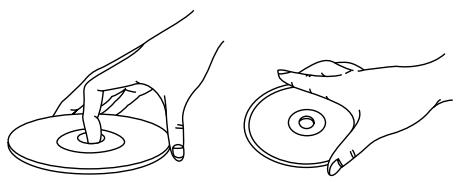
natural_image
Line drawing of two hands holding a CD or DVD disc, no text or symbols presentB
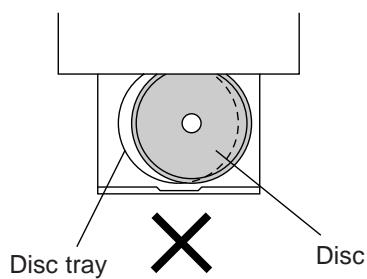
C
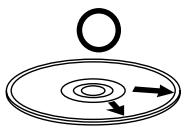
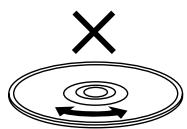
Disc handling and maintenance
Handling precautions
- Hold the disc by the edges so the surface will not be soiled with fingerprints. (A)
Fingerprints, dirt and scratches can cause skipping and distortion. - Do not write on the label side with a ball-point pen or other writing utensils.
- Do not use record cleaning sprays, benzine, thinner, static electricity prevention liquids or any other solvent.
- Be careful not to drop or bend the disc.
- Do not install more than 1 disc on the disc tray.
- Do not try to close the disc tray when the disc is not installed properly. (B)
- Be sure to store the disc in its exclusive case when not in use.
If the surface is soiled C
Wipe gently with a soft, damp (water only) cloth.
When wiping discs, always move the cloth from the center hole toward the outer edge.
(If you wipe the discs using a circular motion, circular scratches are likely to occur, which will cause noise.)
If the disc is brought from a cold to a warm environment, moisture may form on the disc
Wipe this moisture off with a soft, dry, lint-free cloth before using the disc.
Improper disc storage
You can damage discs if you store them in the following places:
●Areas exposed to direct sunlight
●Humid or dusty areas
●Areas directly exposed to a heat outlet or heating appliance
Discs which cannot be played with this player
●DVD with Region No. other than “1” or “ALL”
- Disc of PAL system
•DVD-ROM
- DVD-R/DVD-RAM
- CD-ROM
•VSD
•CDV
etc.
- Do not try to play Photo CD or CD-R.
(Otherwise, data on the disc may be damaged.)
To prevent a malfunction of this player
- Do not use any non standard shaped CD (heart etc.) available on the market, because it may damage the player.
- Do not use a CD with tape, seals, or paste on it, because damage to the player may result.
Maintenance
- Be sure to press POWER to set the player to the standby mode and disconnect the AC cord before maintaining the player.
●Wipe this player with a dry, soft cloth.
If the surfaces are extremely dirty, wipe clean with a cloth which has been dipped in a weak soap-and-water solution and wrung out thoroughly, and then wipe again with a dry cloth. - Never use alcohol, benzine, thinner, cleaning fluid or other chemicals. And do not use compressed air to remove dust.
Troubleshooting
If the player fails to operate normally, check the following points to determine whether the fault can be corrected by the simple measures suggested. If it cannot be corrected, or if the fault is not listed in the SYMPTOM column, disconnect the AC cord and contact your authorized YAMAHA dealer or service center for help.
| Symptom (Common) | Remedy |
| No power. | Insert the AC plug securely into the AC cord. |
| The player is automatically set to the standby mode. | To conserve power, the player is automatically set to the standby mode after approx. 30 minutes have elapsed in the stop mode (Auto power-off function). Turn the power back to ON. |
| ●Play fails to start even when PLAY is pressed.●Play starts but then stops immediately. | ●Condensation has formed: wait about 1 to 2 hours to allow the player to dry out.●This player cannot play a disc other than DVD, Video CD and CD.●The disc may be dirty and may require cleaning.●Ensure that the disc is installed with the label side up to be played facing upwards. |
| No picture. | ●Ensure that the equipment is connected properly.●Ensure that the input setting for the TV is “Video”. |
| ●No sound.●Distorted sound. | ●Ensure that the equipment is connected properly.●Ensure that the input settings for the TV and stereo system are correct.●Adjust the master volume using the On-Screen Menu Icon for player information. |
| Picture is distorted during rapid advance or rapid reverse. | The picture will be somewhat distorted at times: this is normal. |
| No key operation (by the main unit and/or the remote control unit) is effective. | ●Some operations may be prohibited by the disc.●Press POWER to set the player to the standby mode and then back to ON.Alternatively, press POWER to set the player to the standby mode, disconnect the AC plug and then re-connect it. (The player may not be operating properly due to lightning, static electricity or some other external factor.) |
| No 4:3 (16:9) picture. | Choose the correct setup “6 TV Aspect” item which matches the TV set used. |
| No on-screen display. | The “Off” setting is selected for “1 On-Screen Messages” in “4 On-Screen Messages”: select “On”. |
| No operations can be performed with the remote control unit. | ●To conserve power, the player is automatically set to the standby mode after approx. 30 minutes have elapsed in the stop mode (Auto power-off function).Turn the power back to ON.●Check the batteries are installed with the correct polarities (+ and - ).●The batteries are depleted: replace them with new ones.●Point the remote control unit at the remote control sensor and operate.●Operate the remote control unit at a distance of not more than 23 feet (7 m) from the remote control sensor.●Remove the obstacles between the remote control unit and remote control sensor. |
| On-Screen Menu Icons not displayed or only partially displayed on the TV screen. | Change the position of the On-Screen Menu Icon using “2 Color and Position” in “4 On-Screen Messages” of the initial settings. |
| Symptom (DVD) | Remedy |
| No subtitles. | ● Subtitles appear only with discs which contain them.● Subtitles are cleared from the TV monitor. Perform the steps on page 28 to display the subtitles. |
| Alternative audio soundtrack (or subtitle) languages fail to be selected. | ● An alternative language is not selected with discs which do not contain more than one language.● In the case of some discs, the alternative language cannot be selected by operating the AUDIO or SUBTITLE button. Try selecting it from the DVD menu if one is available. |
| Angle cannot be changed. | This function is dependent on software availability. Even if a disc has a number of angles recorded, these angles may be recorded for specific scenes only (when “ANGLE” lights up on the player’s FL display). |
| Play does not start even when title is selected. | Confirm the “2 Ratings” setting. |
| Audio soundtrack and/or subtitle language is not the one selected at the initial settings. | If the audio soundtrack and/or subtitle language does not exist on the disc, the language selected at the initial settings will not be seen/heard. |
| The menu is displayed in French (example). | The setup “3 Menus” of “1 Disc Languages” is set to French: select English. |
| No surround sound | Choose the correct setup at the “8 Speaker Setting” which matches your stereo system. |
| The password for rating level has been forgotten. | Reset all the settings to Factory Preset.While the player is in the stop mode, hold the player’s SKIP (◀◀) button and the PAUSE button down simultaneously and then hold the OPEN/CLOSE button down for longer than 3 seconds (until “Initialized” disappears from the TV monitor). The lock will be released and all initial settings will return to the default values. |
| Symptom (Video CD) | Remedy |
| No menu play. | This function works only for Video CDs with playback control. |
Self-diagnosis display function
When an error or trouble is detected during operation, a service number appears in the FL display.
When a service number has appeared, check out the details given below.
| Service number | Player status | Remedy |
| Disc is dirty. | Wipe the disc clean. | |
| Trouble is likely to have occurred. The number following “H” differs depending on the status of the player. | Press POWER to set the player to the standby mode and then back to ON. Alternatively, press POWER to set the player to the standby mode, disconnect the AC cord, and then re-connect it. |
- If the service number fails to be cleared even when the remedial action is taken, ask the service technician to repair the player.
Power
requirements: AC 120 V, 60 Hz
Power
consumption: 19 W (approx. 1.0 W when set to the standby mode)
Signal system: NTSC
Weight: 7.9 lbs. (3.6 kg)
Dimensions: 17^3/16'' (W)× 10^3/8'' (D)× 3^15/_16'' (H)
[435 (W)×263 (D)×100 (H) mm]
(excluding protrusions)
Operating temperature range:
+41 to +95°F (+5 to +35°C)
Operating humidity range:
5 to 90% RH (no condensation)
Discs played:
(1) DVD-VIDEO disc
5" (12 cm) single-sided, single-layer
5" (12 cm) single-sided, dual-layer
5" (12 cm) double-sided, single-layer
3" (8 cm) single-sided, single-layer
3" (8 cm) single-sided, dual-layer
3" (8 cm) double-sided, single-layer
(2) Compact disc (CD-DA, VIDEO CD)
5" (12 cm) disc
3" (8 cm) disc
Component video output:
Y output level: 1 Vp-p (75Ω)
C_B output level: 0.7 Vp-p (75Ω)
C_R output level: 0.7 Vp-p (75Ω)
Output connector: Pin jack
(Y; green, C_B ; blue, C_R ; red)
S video output:
Y output level: 1 Vp-p (75Ω)
C output level: 0.286 Vp-p (75Ω)
Output connector: S terminal
Number of connectors: 1 system
Video output:
Output level: 1 Vp-p (75Ω)
Output connector: Pin jack
Number of connectors: 2 systems
Audio output:
Output level: 2 Vrms (1 kHz, 0 dB)
Output connector: Pin jack
Number of connectors:
5.1ch mixed output (2ch): 1 system
5.1ch discrete output (5.1ch): 1 system
Audio signal output characteristics:
(1) Frequency response:
●DVD (linear audio):
2 Hz–22 kHz (48 kHz sampling)
2 Hz–44 kHz (96 kHz sampling)
- CD audio: 2 Hz–20 kHz (EIAJ)
(2) S/N ratio:
- CD audio: 115 dB (EIAJ)
(3) Dynamic range:
- DVD (linear audio):
103 dB
- CD audio: 100 dB (EIAJ)
(4) Total harmonic distortion:
- CD audio: 0.002% (EIAJ)
Digital audio output:
Optical digital output: Optical connector
Coaxial digital output: Pin jack
PHONES jack:
Output connector: Stereo, 14 " (6.3 mm) jack
Pickup: Wave length: 665 nm
Laser power: CLASS II
Specifications are subject to change without notice.
Weight and dimensions are approximate.