S661 - Numeric keypad YAMAHA - Free user manual and instructions
Find the device manual for free S661 YAMAHA in PDF.


| Brand | YAMAHA |
| Model | S661 |
| Product Type | DVD / CD / VCD Player |
| Supported Disc Formats | DVD, DVD±R/RW, CD, CD-R/RW, VCD, SVCD, MP3, JPEG |
| Region Code | 1 (USA/Canada) |
| Video Output | Composite (CVBS), S-Video, Component (Y Pb Pr) |
| Audio Output | Analog stereo (L/R), digital coaxial and optical |
| Digital-to-Analog Converter | 24-bit |
| Signal-to-Noise Ratio | 105 dB (1 kHz) |
| Dynamic Range | 105 dB (1 kHz) |
| Distortion and Noise | 0.003% (1 kHz) |
| Audio Formats | Dolby Digital, DTS, MPEG, PCM |
| Dimensions (W × D × H) | 435 × 302 × 75 mm |
| Weight | 2.8 kg |
| Power Supply | 120 V, 60 Hz |
| Power Consumption | 12 W (standby < 1 W) |
| Special Features | Zoom, camera angle, subtitles, multi-language, PBC, repeat, random, program, disc lock, parental control |
| Cabinet Care | Soft cloth slightly damp, no solvents |
| Disc Care | Cloth from center to edge, no solvents |
| Safety | Do not expose to water or moisture, do not obstruct ventilation slots, use only specified accessories |
Frequently Asked Questions - S661 YAMAHA
User questions about S661 YAMAHA
0 question about this device. Answer the ones you know or ask your own.
Ask a new question about this device
Download the instructions for your Numeric keypad in PDF format for free! Find your manual S661 - YAMAHA and take your electronic device back in hand. On this page are published all the documents necessary for the use of your device. S661 by YAMAHA.
USER MANUAL S661 YAMAHA
This symbol warns the user that uninsulated voltage within the unit may have sufficient magnitude to cause electric shock. Therefore, it is dangerous to make any kind of contact with any inside part of this unit.

This symbol alerts the user that important literature concerning the operation and maintenance of this unit has been included. Therefore, it should be read carefully in order to avoid any problems.
WARNING
To reduce the risk of fire or electric shock, do not expose this appliance to rain or moisture.
CAUTION
Use of controls or adjustments or performance of procedures other than herein may result in hazardous radiation exposure.
The set complies with the FCC-Rules, Part 15 and with 21 CFR 1040.10.
IMPORTANT SAFETY INSTRUCTIONS
- Read these instructions.
- Keep these instructions.
- Heed all warnings.
- Follow all instructions.
- Do not use this apparatus near water.
- Clean only with a dry cloth.
- Do not block any of the ventilation openings. Install in accordance with the manufacturers instructions.
- Do not install near any heat sources such as radiators, heat registers, stoves, or other apparatus (including amplifiers) that produce heat.
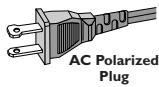
9. Do not defeat the safety
purpose of the polarized or grounding-type plug. A polarized plug has two blades with one wider than the other. A grounding type plug has a grounding prong. The wide blade or the provided for your safety. When the prf fit into your outlet, consult an electric the obsolete outlet.
-
Protect the power cord from being walked on or pinched, particularly at plugs, convenience receptacles, and the point where they exit from the apparatus.
-
Only use attachments/accessories specified by the manufacturer.
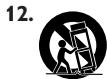
Use only with a cart, stand, tripod, bracket, or table specified by the manufacturer or sold with the apparatus. When a cart is used, use caution when moving the cart/apparatus combination to avoid injury from tip-over.
- Unplug this apparatus during lightning storms or when unused for long periods of time.
14.Refer all servicing to qualified service personnel. Servicing is required when the apparatus has been damaged in any way, such as if the power-supply cord or plug is damaged, liquid has been spilled or objects have fallen into the apparatus, or when the apparatus has been exposed to rain or moisture, does not operate normally, or has been dropped. - Battery usage CAUTION - To prevent battery leakage which may result in bodily injury or damage to the unit:
Install all batteries correctly, + and - as marked on the unit.
Do not mix batteries (old and new or carbon and alkaline, etc.).
Remove batteries when the unit is not used for a long time.
- Be sure to allow spaces of at least 2.5cm above, behind and on both sides the unit.
- Do not place the following objects on this unit: A vessel with water in it. If the vessel falls by vibrations and water spills, it may cause damage to the unit, and/or you may get an electric shock.
FCC INFORMATION (for US customers only)
- IMPORTANT NOTICE: DO NOT MODIFY THIS UNIT!
This product, when installed as indicated in the instructions contained in this manual, meets FCC requirements. Modifications not expressly approved by Yamaha may void your authority, granted by the FCC, to use the product. - 103T: When connecting this product to accessories and/or another product use only high quality shielded cables. Cable/s supplied with this product MUST be used. Follow all installation instructions. Failure to follow instructions could void your FCC authorization to use this product in the USA.
- NOTE: This product has been tested and found to comply with the requirements listed in FCC Regulations, Part 15 for Class "B" digital devices. Compliance with these requirements provides a reasonable level of assurance that your use of this product in a residential environment will not result in harmful interference with other electronic devices. This equipment generates/uses radio frequencies and, if not installed and used according to the instructions found in the users manual, may cause interference harmful to the operation of other electronic devices. Compliance with FCC regulations does not guarantee that interference will not occur in all installations. If this product is found to be the source of interference, which can be determined by turning the product "OFF" and "ON", please try to eliminate the problem by using one of the following measures: Relocate either this product or the device that is being affected by the interference.
Utilize power outlets that are on different branch (circuit breaker or fuse) circuits or install AC line filter/s.
In the case of radio or TV interference, relocate/reorient the antenna. If the antenna lead-in is 300 ohm ribbon lead, change the lead-in to coaxial type cable.
If these corrective measures do not produce satisfactory results, please contact the local retailer authorized to distribute this type of product. If you can not locate the appropriate retailer, please contact Yamaha Electronics Corp., 6600 Orngeithorpe Ave. Buena Park, CA90622.
The above statements apply ONLY to those products distributed by Yamaha Corporation of America or its subsidiaries.
We Want You Listening For A Lifetime
YAMAHA and the Electronic Industries Association's Consumer Electronics Group want you to get the most out of your equipment by playing it at a safe level. One that lets the sound come through loud and clear without annoying blaring or distortion - and, most importantly, without affecting your sensitive hearing.
Since hearing damage from loud sounds is often undetectable until it is too late, YAMAHA and the Electronic Industries Association's Consumer Electronics Group recommend you to avoid prolonged exposure from excessive volume levels.

For Customer Use:
Read carefully the information located at the rear panel of the player and enter below the Serial No. Retain this information for future reference.
Model No.
Serial No.
FOR CANADIAN CUSTOMERS
To prevent electric shock, match wide blade of plug to wide slot and fully insert.
This Class B digital apparatus complies with Canadian ICES-003.
This digital apparatus does not exceed the Class B limits for radio noise emissions from digital apparatus as set out in the Radio Interference
Regulations of the Canadian Department of Communications.
CAUTION
Use of controls or adjustments or performance of procedures other than those specified herein may result in hazardous radiation exposure.
CAUTION: READ THIS BEFORE OPERATING YOUR UNIT.
1 To assure the finest performance, please read this manual carefully. Keep it in a safe place for future reference.
2 Install this unit in a well ventilated, cool, dry, clean place — away from direct sunlight, heat sources, vibration, dust, moisture, or cold. In a cabinet, allow about 2.5cm (1 inch) of free space all around this unit for adequate ventilation.
3 Locate this unit away from other electrical appliances, motors, or transformers to avoid humming sounds.
4 Do not expose this unit to sudden temperature changes from cold to hot, nor locate this unit in an environment with high humidity (i.e., a room with a humidifier) to prevent condensation inside this unit, which may cause an electrical shock, fire, damage to this unit, and/or personal injury.
5 Avoid installing this unit in a location where foreign objects may fall onto this unit or where this unit may be exposed to liquid dripping or splashing. On the top of this unit, do not place:
- Other components, as they may cause damage and/or discoloration on the surface of this unit.
- Burning objects (i.e., candles), as they may cause fire, damage to this unit, and/or personal injury.
- Containers with liquid in them, as they may fall, spilling the liquid and causing an electrical shock to the user and/or damage to this unit.
6 Do not cover this unit with a newspaper, tablecloth, curtain, etc. in order not to obstruct heat radiation. If the temperature inside this unit rises, it may cause fire, damage to this unit, and/or personal injury.
7 Do not plug in this unit to a wall outlet until all connections are complete.
8 Do not operate this unit upside-down. It may overheat, possibly causing damage.
9 Do not use excessive force on switches, knobs and/or cords.
10 When disconnecting the power cord from the wall outlet, grasp the plug; do not pull the cord.
11 Do not clean this unit with chemical solvents; this might damage the finish. Use a clean, dry cloth.
12 Use only the voltage specified on this unit. Using this unit with a higher voltage than specified is dangerous and may cause fire, damage to this unit, and/or personal injury. YAMAHA will not be held responsible for any damage resulting from use of this unit with a voltage other than as specified.
13 To prevent damage by lightning, disconnect the power cord from the wall outlet during an electrical storm.
14 Do not attempt to modify or fix this unit. Contact qualified YAMAHA service personnel when any service is needed. The cabinet should never be opened for any reason.
15 When not planning to use this unit for long periods of time (i.e., vacation), disconnect the AC power plug from the wall outlet.
16 Be sure to read the "TROUBLESHOOTING" section on common operating errors before concluding that this unit is faulty.
17 Before moving this unit, press STANDBY/ON to set the unit in standby mode, then disconnect the AC power plug from the wall outlet.
WARNING
TO REDUCE THE RISK OF FIRE OR ELECTRIC SHOCK,DO NOT EXPOSE THIS UNIT TO RAIN OR MOISTURE.
NOTE:
Pictures shown maybe different between countries. Never make or change connections with the power switched on.
When playing DTS encoded CDs, excessive noise will be heard from the analog stereo outputs. To avoid possible damage to the audio system, the consumer should take proper precautions when the analog stereo outputs of the player are connected to an amplification system. To enjoy DTS Digital Surround™ playback, an external 5.1-channel DTS Digital Surround™ decoder system must be connected to the digital output of the player.
LASER SAFETY
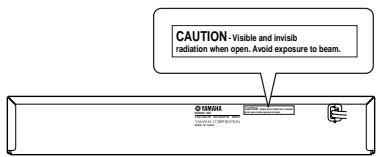
This unit employs a laser. Due to possible eye injury, only a qualified service person should remove the cover or attempt to service this device.
CAUTION
VISIBLE AND INVISIBLE LASER RADIATION WHEN OPEN. AVOID EXPOSURE TO BEAM (WARNING LOCATION: INSIDE ON LASER COVERSHEILD OR THE BACKPLATE OF SET)
LASER
Type Semiconductor laser GaAlAs
Wave length 650 nm (DVD)
780 nm (VCD/CD)
Output Power 7mW(DVD)
10 mW (VCD/CD)
Beam divergence 60 degree
Introduction
Environmental Information. 2
Supplied accessories 2
Notes about discs 2
Cleaning discs. 2
Symbols Used in this Manual. 2
Functional Overview
Front and Rear Panels. 3
Remote Control. 4
Preparation
General Notes on connections 5
Digital Connections. 5
Analog Connections 5
Video Connections 6
S-Video terminal 6
Component Video terminal ............6
Composite Video terminal (1, 2)
Inserting batteries into the Remote Control.....7
Using the Remote Control. 7
NTSC/PAL Conversion 7
Turning on the power. 7
Smart Power On/Off. 7
Operation
BasicPlayback 8
General Operation 8
Video control during playback. 8
Audio control during playback. 8
Repeat and Shuffle. 9
Repeat A-B. 9
DiscResume. 9
OSD (On-Screen Display) 9
Zoom 10
Special DVD Features 10
Playing a Title 10
Playing a Chapter. 10
Camera Angle. 10
Changing the Audio Language and/or format...10
Subtitles. 10
Special VCD & SVCD Features. 10
Playback Control (PBC) 10
Preview Function 11
Picture CD & MP3 Playback
General Operation. 12
MP3 & JPEG Navigator. 12
Play Mode. 12
Special JPEG Features 13
Function Introduction. 13
Preview Function 13
Zoom picture. 13
Playback with multi-angles. 13
Wipe Effect. 13
Special MP3 Features. 13
Function Introduction. 13
JPEG and MP3 simultaneous playback. 13
Setup Menu
Basic Operation 14
General Setup menu. 14
Disc Lock. 14
Program (not for Picture CD/MP3)............14
OSD language. 15
Screen Saver. 15
Audio Setup menu. 15
Speaker Setup. 15
Digital Audio Setup. 16
Equalizer (Sound Mode) 16
3D (Reverb Mode) 16
Video Setup menu. 17
TV Type 17
TV Display 17
Closed Caption. 18
Progressive. 18
Picture Setting. 18
Password Setup. 19
Preference Setup menu. 20
Audio language 20
Subtitle language 20
Disc Menu language 20
Parental Control. 21
Default Setup. 21
MP3/JPEG Navigator 21
Troubleshooting 22
Specifications 23
Maintenance. 23
Language Code 24
Thank you for purchasing this unit. This Owner's Manual explains the basic operation of this unit.
The region code is 1 for U.S.A and Canada models.

Since it is usual for DVD movies to be released at different times in
different regions of the world, all players have region codes and discs can have an optional region code. This unit can play discs containing the identical region code, or mentioned as region "ALL". If you load a disc of a different region code to this unit, you will see the region code notice on the screen. The disc will not playback, and should be unloaded.
Environmental Information
This unit consists of materials which can be recycled and reused if disassembled by a specialised company. Please observe the local regulations regarding the disposal of packaging materials, exhausted batteries and old equipment.
Supplied accessories
Remote control
- Batteries (two AA size) for remote control
Audio/Video cable
- Owner's Manual
Notes about discs
- This unit is designed for use with DVD video, Video CD, Super video CD, Audio CD, CD-R, CD-RW (MP3 Supported), DVD+RW, DVD+R, DVD-R and DVD-RW.
- CD-R and CD-RW cannot be played unless finalized.
- Some discs cannot be played depending on the recording conditions such as PC environment and application software. The characteristics and condition of the discs; materials, scratches, curvature, and etc, may result in failure.
- Be sure to use only CD-R and CD-RW discs made by reliable manufacturers.
- Do not use any non standard shaped discs (heart, etc.)
- Do not use disc with tape, scals, or paste on it, damage to the unit may result.
- Do not use a disc printed on its surface by a commercially available label printer.
Cleaning discs
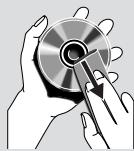
- When a disc becomes dirty, clean it with a cleaning cloth. Wipe the disc from the centre out. Do not wipe in a circular motion.
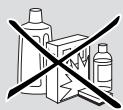
- Do not use solvents such as benzine, thinner, commercially available cleaners, or antistatic spray intended for analog records.
Symbols Used in this Manual
The below symbols appear in some headings and notes with the following meanings:
| DVD | - Description refers to playback of DVD-video discs |
| VCD | - Description refers to playback of Video CDs |
| CD | - Description refers to playback of Audio CDs |
| SVCD | - Description refers to playback of Super VCDs |
- Some DVD video discs require specific functions or allow only limited functions during playback.
“×” may appears on the TV screen which means that the function is not available on that specific DVD video disc.
Manufactured under license from Dolby Laboratories. "Dolby" and the double-D symbol are trademarks of Dolby Laboratories.
"DTS" and "DTS Digital Out" are trademarks of Digital Theater Systems, Inc.
This product incorporates copyright protection technology that is protected by method claims of certain U.S. patents and other intellectual property rights owned by Macrovision Corporation and other rights owners. Use of this copyright protection technology must be authorized by Macrovision Corporation, and is intended for home and other limited viewing uses only unless otherwise authorized by Macrovision Corporation. Reverse engineering or disassembly is prohibited.
Front and Rear Panels
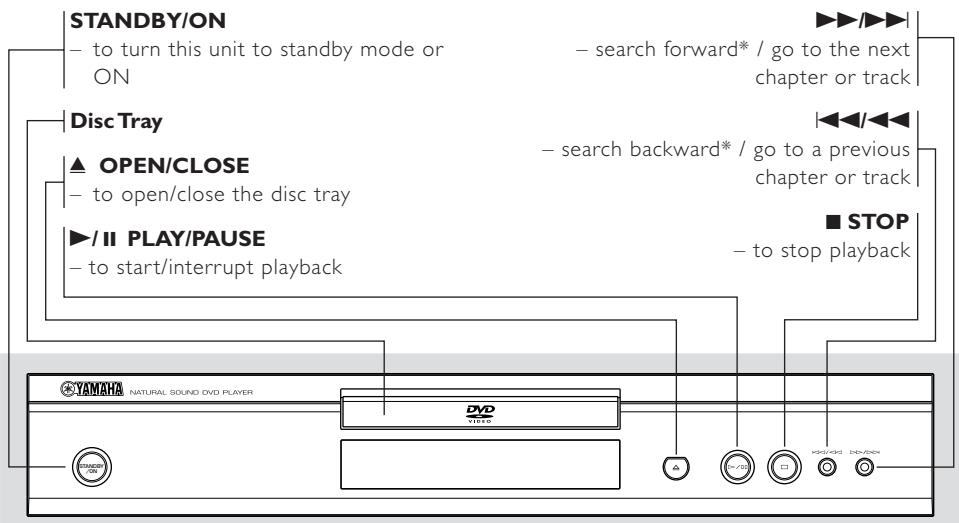
* Press button for about two seconds.
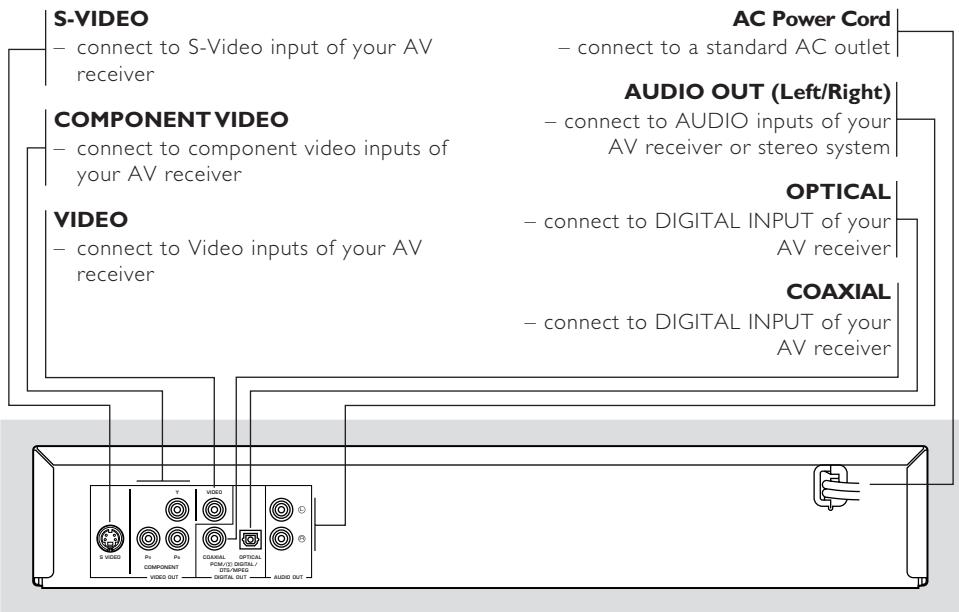
Caution: Do not touch the inner pins of the jacks on the rear panel. Electrostatic discharge may cause permanent damage to the unit.
Remote Control
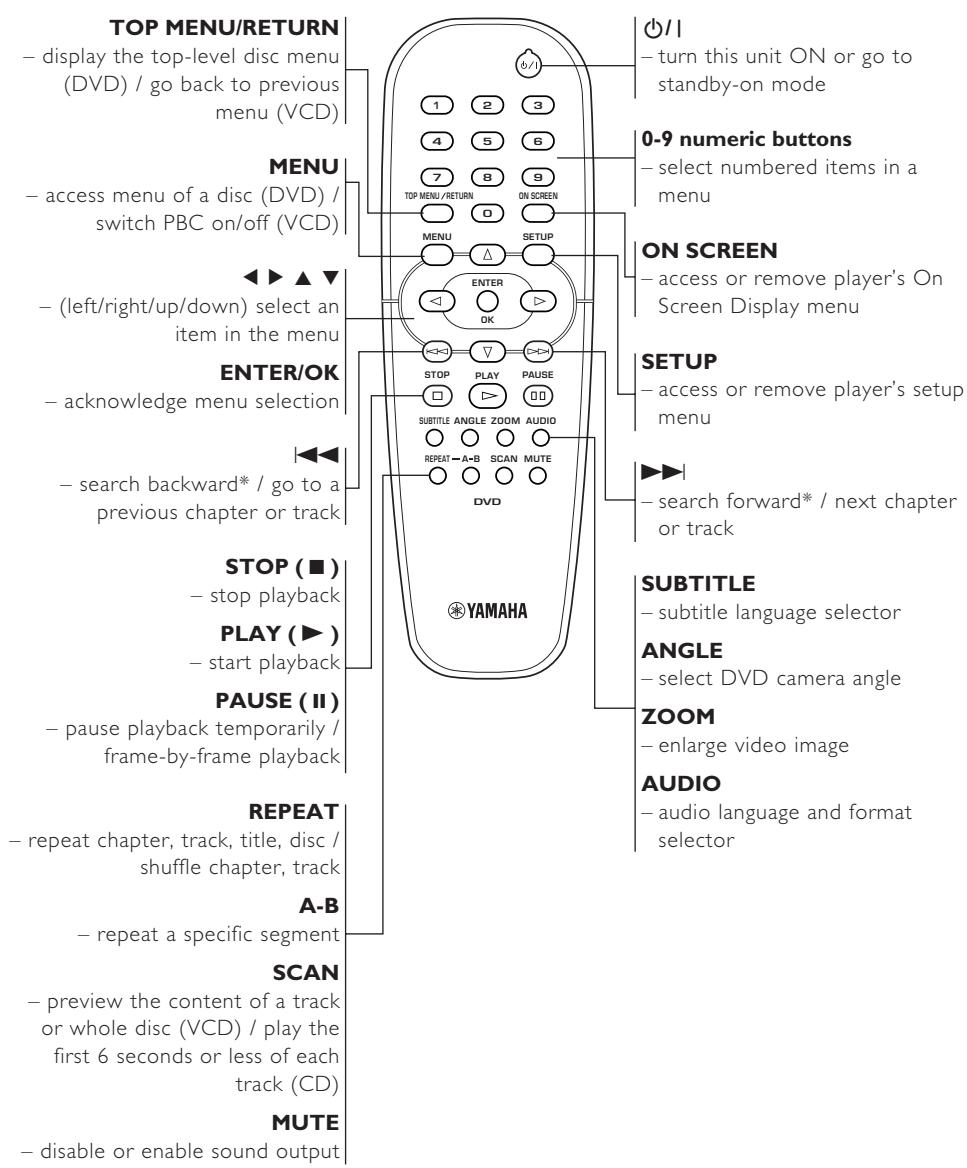
* Press and hold button for about two seconds.
General Notes on connections
Never make or change connections with the power switched on.
Depending on the equipment you wish to connect, there are various ways you could connect this unit. Possible connections are shown in the following drawings.
- Please refer to the manuals of other equipment as necessary to make the best connections.
- Do not connect this unit via your VCR. The video quality could be distorted by the copy protection system.
- Do not connect this unit's audio out jack to the phono in jack of your audio system.
Digital Connections
This unit has COAXIAL and OPTICAL digital out jacks. Connect one or both of them to your AV receiver equipped with Dolby digital, DTS, or MPEG decoder using each specific cable (separate purchase).
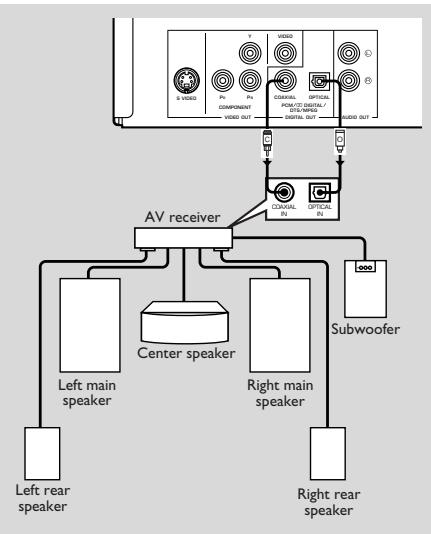
You will need to set this unit's digital output to All (see 'Digital Output').
Note:
- If the audio format of the digital output does not match the capabilities of your receiver, the receiver will produce a strong, distorted sound or no sound at all. Make sure to select the appropriate audio format at menu screen included on the disc. Pressing AUDIO once or more may change not only audio languages but also audio formats, and the selected format appears for several seconds on the status window.
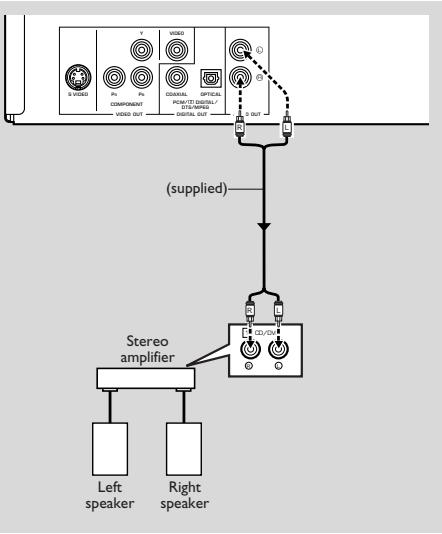
Analog Connections
Use audio/video cable supplied with this unit to connect AUDIO OUT L (left) and R (right) jacks of this unit to corresponding input jacks of your audio equipment such as Stereo amplifier.
Video Connections
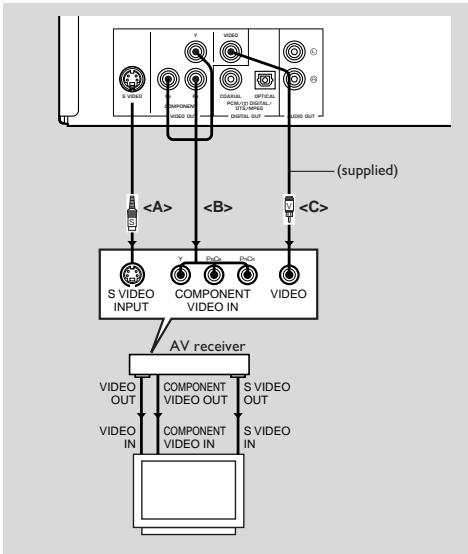
If your AV receiver has video output jacks, connect your receiver (and then to your TV) so that you can use one TV for several different video sources (LD, VCR etc.) by simply switching the input source selector of your receiver. The player has three types of video output jacks. Use one of them in accordance with the input jacks of the equipment to be connected.
S-Video terminal
S (separate) video connection achieves a clearer picture than composite video connection by separating color and luminance when transmitting signals. Use commercially available S-video cable. Receiver (and TV) with S-video input is required.
Component Video terminal
Component video connection achieves high fidelity in reproducing colors (better performance than S-video connection), separating video signal into luminance (Y, terminal color-coded as green), and color difference (Pb, blue/Pr, red). Use commercially available coaxial cables. Receiver (and TV) with component input is required. Observe the color of each jack when connecting. If your receiver does not have component output jacks, connecting the player's component output directly to your TV's component input can reproduce better video image.
Composite Video terminal (1, 2)
Use audio/video cable supplied with this unit when connecting the player to a TV.
VIDEO 1, 2 jacks of VIDEO OUT output the same signal. You can connect one to your receiver's input using supplied Audio/Video cable, and the other to another receiver or a TV.
Inserting batteries into the Remote Control
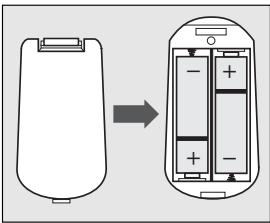
1 Open the battery cover by pressing in the tab, then lift off the cover.
2 Insert batteries with the correct polarity as indicated by the + and - symbols inside the battery compartment.
3 Close the cover.
CAUTION!
- Remove batteries if they are exhausted or not to be used for a long time.
- Do not use old and new or different types of batteries in combination.
- Batteries contain chemical substances, so they should be disposed off properly and kept away from children.
Using the Remote Control
- Direct the remote control at the remote sensor of the DVD player.
- Do not drop or give the remote control a shock.
- Do not leave the remote control in extremely hot or humid places.
- Do not spill water or put anything wet on the remote control.
NTSC/PAL Conversion
This player is equipped with a NTSC/PAL conversion feature to convert the video output of the disc to match your TV system. The conversions supported are as below. To activate the conversion, refer to "TV Type":
| Disc | Output format | |||
| Type | Format | Selected mode | ||
| NTSC | PAL | MULTI | ||
| DVD | NTSC | NTSC | PAL | NTSC |
| PAL | NTSC | PAL | PAL | |
| VCD | NTSC | NTSC | PAL | NTSC |
| PAL | NTSC | PAL | PAL | |
Notes:
"Multi" can only be selected when using a TV that has both the NTSC and PAL systems.
- Slight picture distortions may occur due to this conversion. This is normal. Thus, the "Multi" is most suitable for the best picture quality.
Turning on the power
1 Connect the AC power cord to the power outlet.
2 Turn on the TV and your AV receiver.
3 Select the appropriate input source at the AV receiver that was used to connect to this unit. Refer to the equipment owner's manual for detail.
4 Tum this unit on.
5 Set the TV to the correct Video IN channel. (eg. EXT1, EXT2, AV1, AV2, AUDIO/VIDEO, etc. (Refer to your TV owner's manual for detail)
The front display lights up and the default screen appears on the TV.
Smart Power On/Off
When in STOP or NO DISC mode, the DVD player will switch to standby mode after 15 minutes without any operations for saving energy. It is easily reactivated by pressing the POWER or PLAY on the remote control or the STANDBY/ON button on the front panel.
BasicPlayback
1 Press STANDBY/ON on the front panel to turn on the DVD player.
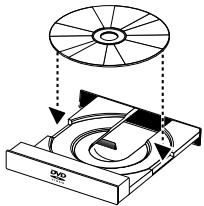
2 Press (OPEN/CLOSE) on the front panel to open disc loading tray.
3 Place the chosen disc in the tray, with the label facing up.
4 Press (OPEN/CLOSE) again to close the tray. After recognizing this disc, the player begin to playback automatically.
Notes:
DVDs may have a region code. Your player will not play discs that have a region code different from the region code of your player.
- If 'Disc Lock' is set to LOCK and the disc inserted is not authorized, the 6-digit code must be entered and/or the disc must be authorized (see 'Disc Lock').
General Operation
Note: All instructions set out below refer to the remote control, unless otherwise stated.
Video control during playback
STOP DVD VCD CD SVCD
1 You can resume the play from the point at which you stopped last time, if you just press STOP once. It will start from the beginning if you press STOP twice to stop playback.
PAUSE/STEP DVD VCD CD SVCD
1 To get a still picture, press PAUSE during playback.
2 To step forward to the next frame picture, press PAUSE again.
3 To resume normal playback, press PLAY.
SKIP
1 Press or briefly during playback to go to the next chapter/track or to return to the beginning of the correct chapter/track respectively.
2 Press twice briefly to step back to the previous chapter/track.
3 To go directly to any chapter/track, enter the chapter/track number using the numeric buttons and press ENTER/OK.
Note: Long press of the | or till switch on backward or forward search.
SEARCH DVD VCD CD SVCD
1 To search the contents in fast speed, press or for fast forward/backward searching.
2 Press or again to increase the speed for searching.
3 Press PLAY to return to normal playback.
Slow Motion DVD
1 To get a slow motion effect during playback, press or .
2 Press or again, you can get different playback forward/backward speeds.
3 Press PLAY to return to normal play back.
VCD SVCD
1 To get a slow motion effect during playback, press
2 Press again, you can get different playback forward speeds.
3 Press PLAY to return to normal play back.
Note: The SLOW BACKWARD function is not available for VCD/Super VCD discs.
Audio control during playback
MUTE DVD VCD CD SVCD
1 Press MUTE to disable the sound output.
2 Press MUTE again to deactivate the mute.
Audio channel selection VCD CD SVCD
1 Super VCD has two stereo audio channels which are used for playing karaoke or the audio language selection. (for instance, you can choose one channel for only the music background of the song while you play the karaoke.)
2 Press AUDIO to select the audio channels you want.
3 VCD has only one stereo audio channel, you can select STEREO, MONO LEFT, MONO RIGHT or MIX-MONO by pressing AUDIO.
Stereo: Output the left and right audio channels of the disc through the left and right audio jacks accordingly.
Mono Left: Output the left audio channels of the disc through the left and right audio jacks.
Mono Right: Output the right audio channels of the disc through the left and right audio jacks.
MIX-Mono: each of the audio jacks can output the same audio effect as stereo.
Repeat and Shuffle

Each time you press REPEAT, the Repeat/Shuffle mode changes as follows;

- This feature may not be available with some discs.

With PBC OFF,
Each time you press REPEAT, the Repeat/Shuffle mode changes as follows;

Repeat A-B DVD VCD CD
DVD-Video Discs: repeat a sequence in a title Video and Audio CDs: repeat a sequence in a track
1 Press Repeat A-B at your chosen starting point.
2 Press Repeat A-B again at your chosen end point.
The repeat sequence begins.
3 To exit the sequence, press Repeat A-B.
Disc Resume DVD VCD CD SVCD
This player can resume playback of the last 5 discs, even if the disc was ejected or the power switched off.
1 Load one disc, which is one of the last 5 discs.
2 Press PLAY when DVD player is recognizing the disc. If the information of this disc has been stored in the memory of DVD player, it will be played back from the stop point last time.
OSD (On-Screen Display)
This function will provide some information about your playing disc on the screen.
Press ON SCREEN.
The Status window appears on the TV.
Title/Chapter/Track selection DVD VCD
1 Press to select "Title" or "Chapter" (DVD) or "Track" (VCD).
2 Press ENTER/OK.
3 Select a title, chapter or track number using the numeric buttons.
Time Search DVD VCD
1 Press to select "TT Time" or "CH Time"(DVD) or "Track Time" or "Disc Time"(VCD).
"TT Time" refers to the total time of the current title, and the "CH Time" refers to the total time of the current chapter.
2 Press ENTER/OK.
3 Enter hours, minutes and seconds from left to right using the numeric buttons. (e.g. 0:34:27)
Audio/Subtitle/Angle DVD
You can change "Audio", "Subtitle" or "Angle" if available on the disc you are playing.
1 Press to select "Audio", "Subtitle" or "Angle".
2 Press ENTER/OK.
3 For Audio and Subtitle, Press to highlight your selection and press ENTER/OK.
or
For Angle,
Select an angle using the numeric buttons.
Repeat/Time Display DVD VCD
1 Press to select "Repeat" or "Time Disp".
2 Press ENTER/OK.
3 Press to highlight your selection and press ENTER/OK.
Time display CD
Each time you press ON SCREEN, the time display changes as follows;

Zoom DVD VCD SVCD
The Zoom function allows you to change the image size.
1 Press ZOOM to activate the function.
Use to view other parts of the zoomed picture.
Playback will continue.
2 Press ZOOM repeatedly to return to the original size.
Special DVD Features
Playing a Title DVD
A DVD disc may have one or more titles. This depends on the content (a movie, video clips, a drama series, etc.) on the disc.
- After you load a disc, information about the content shows on the screen waiting for your selection. You can also press TOP MENU to turn back to the title menu during playback.
Press the appropriate numeric buttons or
to highlight your selection.
Press ENTER/OK to confirm.
Playing a Chapter DVD
When you have selected a title, it may include one or more chapters.
- Any time you want to watch another chapter during playback, press MENU to turn back to the chapter menu (If disc has chapter menu).
Press the appropriate numeric buttons or
on the remote control to highlight your selection.
Press ENTER/OK.
After a chapter has been selected, you also can press or to make a change.
Camera Angle DVD
Some discs contain scenes which have been shot simultaneously from various angles.
This DVD player allows you to select the desired camera angle.
Press ANGLE on your remote control.
Note: The function is available only for the DVD discs which have several angles recorded.
Changing the Audio Language and/or format DVD
Press AUDIO repeatedly to select the different languages.
Note: The function will be activated only if the DVD is recorded with multi-language audio tracks.
Subtitles DVD SVCD
- Press SUBTITLE repeatedly to select the different subtitles.
Note: The function will be activated, only if the DVD or Super VCD is recorded with multi-subtitles.
Special VCD & SVCD Features
Playback Control (PBC)
PBC function allows you to enter the index menu which is used to select a track after loading the VCD & SVCD disc.
If you want to activate the function during the playback or after pressing STOP twice,
1 Press MENU to set the PBC On.
Pay attention to the hint on the screen.
2 Use I or to select the page you like.
If the items of the index menus are numbered, press the appropriate numeric buttons.
Press ENTER/OK.
3 Press RETURN to enter the index menu during the playback.
Notes:
- The content of the index menu depends on the disc. Please refer to the disc's instructions for details.
- If the disc doesn't include the PBC information, this function will have no effect.
If you want to skip the index menu and playback directly from the beginning,
1 Press MENU to switch off the function.
Preview Function
- Press SCAN to enter previewing menu.
Press to highlight Track Digest, Disc Interval or Track Interval. - Press ENTER/OK to open one option.
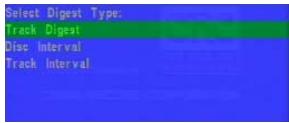
After you enter the menu of any digest type, To quit preview function: Press ▲▼▶ to highlight EXIT and press ENTER/OK.
To return to the previewing menu for selecting the other digest type: Press (\triangle \triangle \triangle \triangle \triangle \triangle \triangle \triangle \triangle \triangle \triangle \triangle \triangle \triangle \triangle \triangle \triangle \triangle \triangle \triangle \triangle \triangle \triangle \triangle \triangle \triangle \triangle \triangle \triangle \triangle \triangle \triangle \triangle \triangle \triangle \triangle \triangle \triangle \triangle \triangle \triangle \triangle \triangle \triangle \triangle \triangle \triangle \triangle \triangle \triangle \triangle
Note: You can select Track Interval only during playback, with PBC Off.
1 Track Digest
This function will minimize the picture of every track in order to display every six of these tracks on the screen to help you know the content of every track on the disc.
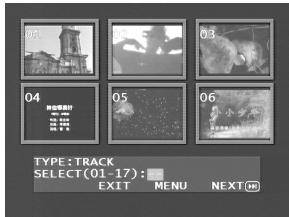
- To choose the desired track, press to highlight the second line and input your selected track number next to "SELECT".
Select the others from the current six by pressing the I or to open the previous or next page and press ENTER/OK.
2 Disc Interval
This function is used to divide a disc into six parts by regular intervals and display them on one page to help you preview the whole disc.
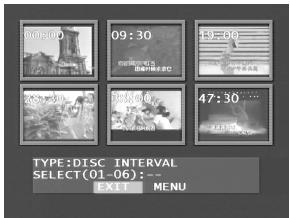
- To choose the desired track, press to highlight the second line and input your numerical selection next to "SELECT" and press ENTER/OK.
3 Track Interval
This function is used to divide a single track into six parts by regular intervals and display them on one page to help you preview the selected track.
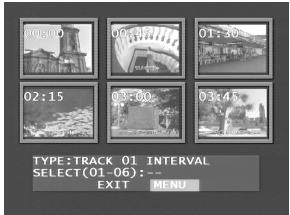
- To choose the desired track, please press (\triangle \triangle \triangle \triangle \triangle \triangle \triangle \triangle \triangle \triangle \triangle \triangle \triangle \triangle \triangle \triangle \triangle \triangle \triangle \triangle \triangle \triangle \triangle \triangle \triangle \triangle \triangle \triangle \triangle \triangle \triangle \triangle \triangle \triangle \triangle \triangle \triangle \triangle \triangle \triangle \triangle \triangle \triangle \triangle \triangle \triangle \triangle \triangle \triangle \triangle \triangle to highlight the second line and input your numerical selection next to "SELECT" and press ENTER/OK.
This player can playback JPEG format pictures and MP3 files on a personally recorded CD-R/RW disc or commercial CD, and is compatible with Kodak Picture CD.
- Playback pictures or songs one by one automatically.
- Album and track selection.
- Repeat (disc / album / track / picture).
- Select any music or pictures from the disc to playback them together.
Maximum files numbers in one folder is 500.
Maximum files Programmable is 100.
General Operation
- If you choose WITH MENU in the Setup Menu (Please refer to the MP3 & JPEG navigator below), the Picture CD/MP3 CD menu will be shown on the screen before playback.
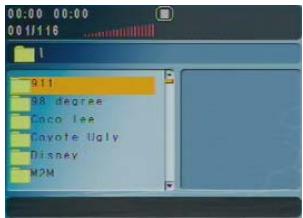
- At any time during JPEG playback, press MENU to return to the menu.
- To open the selected folder, press ENTER/OK.
The menu shows six files or folders at a time. To move to the next (or previous) page, press (or I).
MP3 & JPEG Navigator
To select a different playback method, follow the steps below.
1 At STOP mode, press SETUP to open the setup menu.
2 Press to highlight PREFERENCE icon.
3 Press to open the PREFERENCE menu.
4 Press to highlight the MP3/JPEG NAV menu.
5 Press to enter the menu.
6 Press to highlight the WITHOUT MENU or WITH MENU item.
WITHOUT MENU: automatically playback all files in according date sequence.
WITH MENU: playback files in the selected folder.
7 Press ENTER/OK to confirm your selection.
Play Mode
Auto Playback
If you choose WITHOUT MENU, the DVD player will automatically playback Picture CD/MP3 CD in sequence when it is loaded.
Repeat / Shuffle
- When the Picture CD/MP3 CD menu is shown on the screen, Press REPEAT repeatedly, the button beside PLAY MODE will display different option,
Repeat Folder: All files in this folder will be replayed time after time.
Shuffle: All files in this folder will be played at random without any repeat.
Folder: All files in this folder will be played.
- If you press REPEAT during playback, the option will be displayed on the screen accordingly.
During Shuffle mode, you can skip tracks by pressing I or
Special JPEG Features
Function Introduction
Picture CD is a disc with a collection of JPEG format pictures, and all extension filenames should end with 'JPG'. The CD can be recorded on any computer, and pictures may be from digital camera or scanner. If the customers prefer, they can make this CD become a Digital Album.
You can choose any general function introduced in General Operation, besides, you also can,
Display the thumbnails of 12 pictures.
- Zoom the picture.
- Rotate the picture.
- Flip the picture vertically or horizontally.
- Scan pictures by different effects.
Preview Function
This function shows the content of the current folder or the whole disc.
1 Press STOP during playback of JPEG pictures. You will see the thumbnails of 12 pictures on the screen.
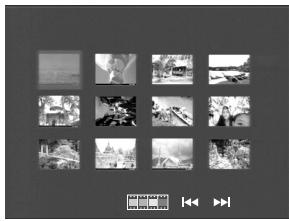
2 Press or to display the other pictures on the next or the previous page.
3 Press 0 to highlight one of them and press ENTER/OK to playback, or, Move the cursor to highlight on the bottom of the page to start playback from the first picture on the current page.
4 Press MENU to go to the Picture CD/MP3 CD menu.
Zoom picture
During playback, press ZOOM to display the picture with different scales.
Press to view the rest of the zoomed picture.
Playback with multi-angles
When displaying one picture on TV screen
Press (\triangle \triangle \triangle \triangle \triangle \triangle \triangle \triangle \triangle \triangle \triangle \triangle \triangle \triangle \triangle \triangle \triangle \triangle \triangle \triangle \triangle \triangle \triangle \triangle \triangle \triangle \triangle \triangle \triangle \triangle \triangle \triangle \triangle \triangle \triangle \triangle \triangle \triangle \triangle \triangle \triangle \triangle \triangle \triangle \triangle \triangle \triangle \triangle \triangle \triangle \triangle
Flip the picture vertically.
: Flip the picture horizontally.
: rotate the picture anti-clockwise.
: rotate the picture clockwise.
Wipe Effect
- Press ANGLE repeatedly to choose different wipe effects.
Special MP3 Features
Function Introduction
"MP3" stands for "MPEG Audio Layer-3". and is a part of the MPEG standard. A CD can store up to 10 hours of MP3 audio, which is nearly 10 times as much as an Audio CD. Each song is recorded as a file. You can choose any general function introduced in General Operation. You can also choose different playback speeds.
JPEG and MP3 simultaneous playback
1 Firstly playback MP3 music according to the instructions introduced in playback Selection.
2 Then select a picture to playback. Refer to the instructions introduced in playback Selection.
Now the pictures will be played back in sequence together with MP3 music.
3 To quit simultaneous playback, press MENU to return to the Picture CD/MP3 CD menu, then pictures will be stopped. After that, press STOP, then MP3 music will be stopped as well.
Note: In the function of JPEG and MP3 Simultaneous Playback, and are invalid for MP3.
Basic Operation
1 Press SETUP in the STOP mode to enter the Setup Menu.
2 Press ENTER/OK to go to the next level submenu or confirm your selection.
3 Press to enter the submenu or return to the previous menu.
4 Press to highlight the desired menu.
5 Press SETUP to quit the setup menu.
When you quit the setup menu, the settings will be stored in the player's memory even if the player is switched to power off.
General Setup menu
Some settings need to be made in this menu. They are: "Disc Lock", "Program", "OSD Language" and "Screen Saver". Follow the steps below:
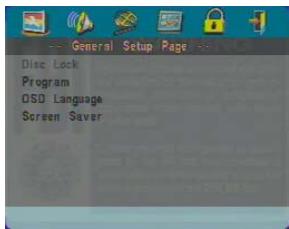
1 Press SETUP to enter the setup menu.
2 Press to choose the GENERAL SETUP icon
Disc Lock
When the disc is locked, the player will store its specific code into the memory for future identification. For the next playback, the DVD player will prompt you to enter the password. Then, press ENTER/OK to load the disc.
1 Press to highlight "Disc Lock".
2 Enter its submenu by pressing
Lock: Lock the disc being played.
Unlock: unlock the disc.
3 Press to return to the General Setup Page.
Program (not for Picture CD/MP3)
1 press to choose "Program".
2 Press to move the cursor to the field of the submenu to choose the item Input menu.
Input menu: Enter the Program item.
3 Press ENTER/OK to enter the program page.
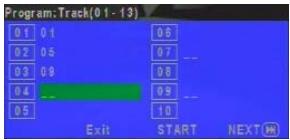
Input your favorite track
1 Input valid track number by pressing the numeric buttons.
2 Press (\triangle \triangle \triangle \triangle \triangle \triangle \triangle \triangle \triangle \triangle \triangle \triangle \triangle \triangle \triangle \triangle \triangle \triangle \triangle \triangle \triangle \triangle \triangle \triangle \triangle \triangle \triangle \triangle \triangle \triangle \triangle \triangle \triangle \triangle \triangle \triangle \triangle \triangle \triangle \triangle \triangle \triangle \triangle \triangle \triangle \triangle \triangle \triangle \triangle \triangle \triangle to move the cursor to the next selected position.
If the track number is more than ten, press to open the next page and go on programing, or press to highlight NEXT button, and then press ENTER/OK.
3 Repeat this steps to input another track number until the whole program is completed.
Remove a track
1 Press (\triangle \triangle \triangle \triangle \triangle \triangle \triangle \triangle \triangle \triangle \triangle \triangle \triangle \triangle \triangle \triangle \triangle \triangle \triangle \triangle \triangle \triangle \triangle \triangle \triangle \triangle \triangle \triangle \triangle \triangle \triangle \triangle \triangle \triangle \triangle \triangle \triangle \triangle \triangle \triangle \triangle \triangle \triangle \triangle \triangle \triangle \triangle \triangle \triangle \triangle \triangle
2 Press ENTER/OK or PLAY to remove this track from the program menu.
Playback tracks
When programming is completed,
1 Press (\triangle \triangle \triangle \triangle \triangle \triangle \triangle \triangle \triangle \triangle \triangle \triangle \triangle \triangle \triangle \triangle \triangle \triangle \triangle \triangle \triangle \triangle \triangle \triangle \triangle \triangle \triangle \triangle \triangle \triangle \triangle \triangle \triangle \triangle \triangle \triangle \triangle \triangle \triangle \triangle \triangle \triangle \triangle \triangle \triangle \triangle \triangle \triangle \triangle \triangle \triangle
2 Press ENTER/OK.
DVD player will playback the selected tracks under the programed sequence.
Quit the program playback
In the Program menu,
1 Press (\triangle \triangle \triangle \triangle \triangle \triangle \triangle \triangle \triangle \triangle \triangle \triangle \triangle \triangle \triangle \triangle \triangle \triangle \triangle \triangle \triangle \triangle \triangle \triangle \triangle \triangle \triangle \triangle \triangle \triangle \triangle \triangle \triangle \triangle \triangle \triangle \triangle \triangle \triangle \triangle \triangle \triangle \triangle \triangle \triangle \triangle \triangle \triangle \triangle \triangle \triangle
2 Press ENTER/OK to quit this menu.
Stop the program playback
- During playback of the programmed tracks, press STOP. Then after you press PLAY, the DVD player will resume normal playback.
Repeat the program playback
During playback of the programmed tracks, press REPEAT. The programed tracks can be played again.
Note: If you select Shuffle mode by pressing REPEAT several times, the DVD player cancels program playback.
OSD language
This option is to select a language for information displayed on TV screen.
1 Press to highlight "OSD Language" in the
General Setup menu.
2 Enter its submenu by pressing
3 Move the cursor by pressing to highlight the selected language.
4 Press ENTER/OK to confirm.
5 Press to return to the General Setup Page.
Screen Saver
This function is used to turn the screen saver on or off.
1 Press to highlight "Screen Saver" in the General Setup menu.
2 Enter its submenu by pressing
3 Move the cursor by pressing to highlight the selected item.
On: In STOP or No DISC mode, if no actions are performed within 5~6 minutes, the screen saver will be activated.
Off: Screen saver is disabled.
4 Press ENTER/OK.
5 Press to return to the General Setup Page.
Audio Setup menu
There are items included in Audio Setup Pages such as "Speaker Setup", "Digital Audio Setup", "Equalizer" and "3D".
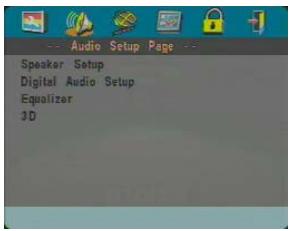
1 Press SETUP to enter the setup menu.
2 Press to choose the AUDIO SETUP icon
Speaker Setup
This menu contains setup options for your analog audio output, such as "Downmix", "D.R.C."
(Dynamic Range Compression) etc. which makes the setup system reproduce high quality surround sound.
Downmix
1 Press to highlight the "Downmix".
2 Enter its submenu by pressing
3 Move the cursor by pressing to highlight the selected item.
LT/RT
This option should be used only if your DVD player is connected to a Dolby Prologic decoder.
- Stereo
This option will downmix Dolby Digital signals directly into analogue stereo from L/R jacks.
Virtual Surround
This option will reproduce the surround channels virtually.
4 Press ENTER/OK.
5 Press to return to the Audio Setup Page.
D.R.C. (Dynamic Range Compression)
The DVD player will compress the dynamic range of its sound output for late-night listening.
1 Press to highlight "D.R.C."
2 Enter its submenu by pressing
3 Move the cursor by pressing to highlight the selected item.
On: Enable D.R.C.
Off: Disable D.R.C.
4 Press ENTER/OK.
5 Press to return to the Audio Setup Page.
DIGITAL AUDIO SETUP
In this menu, you can set up the digital audio output signal from the digital jacks, such as coaxial etc.
DIGITAL OUTPUT
1 Press to highlight DIGITAL OUTPUT.
2 Enter its submenu by pressing
3 Press to highlight the selected item.
ALL: Original digital signals output. In this mode, all audio settings except MUTE are invalid.
PCM Only: If your receiver is PCM-compatible, or your receiver can not decode MPEG-2, Dolby Digital, or DTS audio, choose this option.
4 Press ENTER/OK.
5 Press and return to the Audio Setup Page.
Note: If DIGITAL OUTPUT is set to "ALL", all audio settings except MUTE are invalid.
LPCM OUTPUT
In this menu, you can select PCM digital output between 48kHz and 96kHz.
1 Press to highlight the "LPCM OUTPUT".
2 Enter its submenu by pressing
3 Move the cursor by pressing to highlight the selected item.
48K: 96kHz (if available on disc) PCM data stream will be converted to 48kHz .
96K: If the 96kHz disc is copy protected, the digital output will be muted to comply with the standards.
4 Press ENTER/OK.
5 Press to return to the Audio Setup Page.
EQUALIZER (Sound Mode)
The "EQUALIZER" allows you to select from various preset modes that control the frequency bands of sound to optimize certain musical styles. It greatly enhances the excitement and enjoyment of your favourite music.
1 Press to highlight the "EQUALIZER".
2 Enter its menu "SOUND MODE" by pressing
3 Press
4 Move the cursor by pressing to highlight the selected item.
NONE: Play the disc under the original sound effect.
5 Press ENTER/OK.
6 Press to return to the Audio Setup Page.
Note: The sound may be distorted if the selected sound mode is incompatible with the disc contents. In that case, select another sound mode or "NONE".
3D (REVERB MODE)
The "3D" can simulate the echoes and frequency response of some particular places so as to make you feel like personally on the place.
1 Press to highlight the "3D".
2 Enter its menu "REVERB MODE" by pressing
3 Press
4 Move the cursor by pressing to highlight the selected item.
OFF: Play the disc under the original sound effect.
5 Press ENTER/OK.
6 Press to return to the Audio Setup Page.
Video Setup menu
There are items included in Video Setup menu such as "TV Type", "TV Display", "Closed Caption", "Progressive" and "Picture Setting".
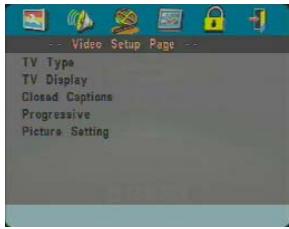
1 Press SETUP to enter the setup menu.
2 Press to choose the VIDEO SETUP icon
TV Type
Before viewing the DVD or VCD, ensure that the PAL or NTSC setting of the system matches your TV set.
1 Press to highlight "TV Type" in the Video Setup menu.
2 Enter its submenu by pressing
3 Move the cursor by pressing to highlight one option.
4 Press ENTER/OK.
5 Press to return to the Video Setup Page.
Note: Choosing NTSC item indicates that the player will output NTSC signals. Similarly, you can get PAL signals by choosing the PAL option. The option Multi means video output depends on the format of the DVD or VCD discs.
TV Display
4:3 PANSCAN
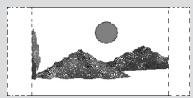
4:3 LETTERBOX
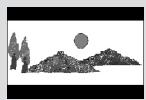
16:9
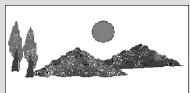
Select the aspect ratio of the TV to be connected.
4:3 PANSCAN when you connect a normal TV to the DVD player. Displays the wide picture on the whole TV screen with a portion automatically cut off.
4:3 LETTERBOX when you connect a normal TV to the DVD player. Displays a wide picture with bands displayed on the upper and lower portions of the TV screen.
16:9 when you connect a wide-screen TV to the DVD player.
Setup the item as follows,
1 Press to highlight the "TV Display" option in the Video Setup menu.
2 Enter its submenu by pressing
3 Move the cursor by pressing to highlight the selected item.
4 Press ENTER/OK.
5 Press to return to the Video Setup Page.
Closed Caption
Closed captions are data that are hidden in the video signal on specific discs, invisible without a special decoder. The difference between subtitles and captions is that subtitles are intended for hearing persons and captions are for the hearing impaired. Subtitles rarely show all of the audio. For example, captions show sound effects (e.g., "phone ringing" and "footsteps"), while subtitles don't.
Before you select this function, please ensure that the disc contains closed captions information and your TV set also has this function.
1 Press to highlight "Closed Caption" in the Video Setup menu.
2 Enter its submenu by pressing
3 Move the cursor by pressing to highlight one option.
On: Enable Closed Caption.
Off: Disable Closed Caption.
4 Press ENTER/OK.
5 Press to return to the Video Setup Page.
Progressive
This player's COMPONENT video jack can output progressive signals to a progressive signal compatible TV for an extra high-quality picture.
1 Press to highlight "Progressive".
2 Enter its submenu by pressing
3 Move the cursor by pressing to highlight one option.
On: Enable Progressive.
Off: Disable Progressive.
If you select "On", the player prompt you to confirm your selection.
4 Press ENTER/OK.
5 Press to return to the Video Setup Page.
Notes on activating Progressive:
- Ensure that your TV has progressive scan.
- Connect with YPbPr video cable.
- When the Progressive is active, the VIDEO (CVBS) and SVIDEO jacks do not output video signals.
- If there is no picture, wait 15 seconds for auto recover or disactivate Progressive manually.
1 Open the disc tray by pressing (OPEN/ CLOSE)on the front panel.
2 Press
3 Press MUTE.
CONSUMERS SHOULD NOTE THAT NOT ALL HIGH DEFINITION TELEVISION SETS ARE FULLY COMPATIBLE WITH THIS PRODUCT AND MAY CAUSE ARTIFACTS TO BE DISPLAYED IN THE PICTURE. IN CASE OF 525 PROGRESSIVE SCAN PICTURE PROBLEMS, IT IS RECOMMENDED THAT THE USER SWITCH THE CONNECTION TO THE "STANDARD DEFINITION" OUTPUT. IF THERE ARE QUESTIONS REGARDING OUR VIDEO MONITOR COMPATIBILITY WITH THIS MODEL 525P DVD PLAYER, PLEASE CONTACT OUR CUSTOMER SERVICE CENTER.
This unit is compatible with the complete line of YAMAHA products, including the projectors DPX-1, DPX-1000, LPX-500 and the plasma monitor PDM-1.
Picture Setting
In this menu, you can personalize your picture color by adjusting brightness, contrast, tint and color (saturation).
1 Press to highlight "Picture Setting" in the Video Setup menu.
2 Press to open its submenu.
Brightness
1 Press to highlight "Brightness".
2 Press to open the level bar.
BRIGHTNESS I I I I I I I I
-1
3 Press to increase and decrease the brightness level.
4 Press ENTER/OK to return to the Picture Setting menu.
Contrast
1 Press to highlight "Contrast".
2 Press to open the level bar.
3 Press to increase and decrease the contrast level.
4 Press ENTER/OK to return to the Picture Setting menu.
Tint
1 Press to highlight "Tint".
2 Press to open the level bar.
3 Press to increase and decrease the tint level.
4 Press ENTER/OK to return to the Picture Setting menu.
Color (saturation)
1 Press to highlight "Color".
2 Press to open the level bar.
3 Press to increase and decrease the color level.
4 Press ENTER/OK to return to the Picture Setting menu.
Password Setup
This item is used for the parental control and disc lock. Enter your six digit password when a hint is displayed on the screen.
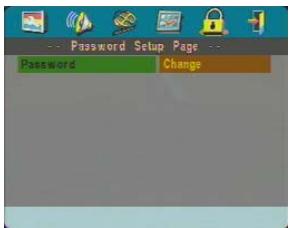
1 Press SETUP to enter the setup menu.
2 Press to choose the PASSWORD icon
3 Press to highlight "Password".
4 Press▶ to highlight "Change".
5 Press ENTER/OK to open the Password Change Page.
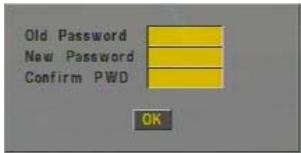
6 Press to repeatedly until the player prompt you to enter the old password.
7 Enter the current 6 digit code.
8 If successful, the player will prompt for a new one.
9 After that, enter the new password again to reconfirm.
10 Press ENTER/OK to return to the Password Setup Page.
Notes:
- You can change the setup of parental control and load a locked disc with a valid password being entered.
- If you forget your password, you can enter the default password 842100, then you can input your password after logging on.
Preference Setup menu
There are options included in this menu such as "Audio", "Subtitle", "Disc Menu", "Parental", "Default" and "MP3/JPEG NAV".
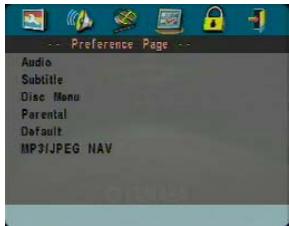
1 Press STOP twice.
2 Press SETUP to enter the setup menu.
3 Press to choose the PREFERENCE icon
Audio language
DVD discs are available with multiple audio languages. Use this option to select the preferred default audio language.
1 Press to highlight "Audio".
2 Enter the submenu by pressing
3 Move the cursor by pressing to highlight the selected option.
If you want to choose other languages, please refer to the instructions on the next page.
4 Press ENTER/OK.
5 Press to return to the Preference Page.
Note: Your DVD disc may not include the audio language which you set in the AUDIO menu. If so, the player will use another audio language instead.
Subtitle language
DVD discs are available with multi-subtitle languages. Use this option to select the preferred default subtitle language.
1 Press to highlight "Subtitle".
2 Enter the submenu by pressing
3 Move the cursor by pressing to highlight the selected option.
If you want to choose other languages, please refer to the following instructions.
4 Press ENTER/OK.
5 Press to return to the Preference Page.
Note: Your DVD disc may not include the subtitle which you set in the SUBTITLE menu. If so, the player will use another subtitle language instead.
Disc Menu language
DVD discs are available with multiple disc menu languages. This option is used to select the default disc menu language.
1 Press to highlight "Disc Menu".
2 Enter the submenu by pressing
3 Move the cursor by pressing to highlight the selected item.
If you want to choose other languages, please refer to the following instructions.
4 Press ENTER/OK.
5 Press to return to the Preference Page.
Note: If your DVD disc doesn't include the disc menu language you have set, the player will use another recorded language instead.
If you choose Others in Audio, Subtitle or Disc Menu menu,
You can select other languages. Please do as follows,
1 Move the cursor by pressing to highlight "Others".
2 Press ENTER/OK.
The DVD player will prompt you to enter a language code (Four digits).
3 Input a language code by pressing numeric buttons.
Please look up the preferred language code in the chapter LANGUAGE CODE, which can be found at the end of this manual.
4 Press ENTER/OK.
Parental Control DVD
Movies on DVDs may contain scenes which are not suitable for children. Therefore, discs may contain 'Parental Control' information which applies to the complete disc or to certain scenes on the disc. These scenes are rated from 1 to 8, and alternative, more suitable scenes are available on the disc. Ratings are country dependent. The 'Parental Control' feature allows you to prevent discs from being played by your children or to have certain discs played with alternative scenes.
VCD, SVCD, CD have no level indication, so parental control function has no effect on those kinds of discs. This applies to most illegal DVD discs.
- You can follow the steps below to setup the parental control:
1 Press to highlight "Parental".
2 Move to its submenu by pressing
3 Then use to highlight a rating for the disc inserted.
4 Press ENTER/OK to confirm, then press to return to the Preference Page.
No Parental Control
Parental Control is not activated. The Disc will be played in full.
1 Select 8 ADULT item.
2 Press ENTER/OK.
Ratings 1 to 7:
3 Some discs contain scenes which are not suitable for children. All scenes with a rating higher than you set will be skipped during playback. However if the disc contains alternate scenes, these will play automatically. If not, the playback will stop and the six digits code will need to be entered again.
Default Setup
If problems occur while setting up the DVD player, the "Default" function can be used to reset all options to the factory defaults and all your personal settings will be erased.
1 Press to highlight "Default".
2 Highlight RESET by pressing
3 Press ENTER/OK.
Note: When this function is activated, all setups will be reset to factory defaults.
MP3/JPEG Navigator
This menu allows you to select alternate settings when you playback picture CD and MP3 CD.
1 Press to highlight MP3/JPEG NAV.
2 Press to enter the menu.
3 Press to highlight WITHOUT MENU or WITH MENU.
WITHOUT MENU: playback all pictures or MP3 music in sequence automatically.
WITH MENU: playback pictures or MP3 music in the selected folder.
4 Press ENTER/OK to confirm your selection.
Refer to the chart below when this unit does not function properly. If the problem you are experiencing is not listed below or if the instruction below does not help, set this unit to the standby mode, disconnect the power cord, and contact the nearest authorized YAMAHA dealer or service center.
| Problem | Solution |
| No power | - Check if the AC power cord is properly connected. |
| No picture | - Check if the TV is switched on. - Check the video connection. - If you did not use Progressive Scan connections (using the Y PB PR jacks on the DVD Player) and you do not have a picture at the TV, please follow the steps below to turn off Progressive Scan; 1. Press ▲ (OPEN/CLOSE) to open the disc tray. 2. Press ▷. 3. Then press MUTE to deactivate the Progressive. The DVD Player will reset itself to Component/Interlaced video. The disc tray will closed automatically to let you know it has reset itself. |
| Distorted picture | - The disc is badly scratched or dirty. - Sometimes a small amount of picture distortion may appear. This is not a malfunction. |
| Completely distorted picture or black/ white picture with DVD or Video CD | - Make sure the NTSC/PAL setting at the DVD player matches the video signal of your television. (See NTSC/PAL CONVERSION) |
| No sound or distorted sound | - Adjust the volume. - Check that the speakers are connected correctly. |
| No audio at digital output | - Check the digital connections. - Check if your receiver can decode MPEG-2 or DTS and if not, please make sure the digital output is set to PCM. - Check if the audio format of the selected audio language matches your receiver capabilities. |
| Disc can't be played | - The DVD+R/DVD+RW/DVD-R/DVD-RW/CD-R/CD-RW must be finalized. - Ensure the disc label is facing up. - Check if the disc is defective by trying another disc. - If you have recorded this particular Picture CD or MP3 CD yourself, please ensure that your disc contains at least about 6~10 pictures or 3~5MP3 music tracks before using it with the player. |
| No return to start-up screen when disc is removed | - Reset the unit by switching the player off, then on again. |
| The player does not respond to the remote control | - Aim the remote control directly at the sensor on the front of the player. - Reduce the distance to the player. - Replace the batteries in the remote control. - Insert the batteries with their polarities (+/- signs) as indicated. |
| Buttons do not work | - In order to completely reset the player, unplug the AC cord from the AC outlet. |
| Player does not respond to some operating commands during playback | - Operations may not be permitted by the disc. Refer to the instructions of the disc. |
| DVD Video player cannot read CDs/ DVDs | - Use a commonly available cleaning CD/DVD to clean the lens before sending the DVD Video player for repair. |
PLAYBACK SYSTEM
DVD Video
Video CD & SVCD
CD
PICTURE CD
CD-R, CD-RW
DVD+R, DVD+RW
DVD-R, DVD-RW
VIDEO PERFORMANCE
Video (CVBS) Output
1 Vpp into 75 ohm
S-Video output
Y:1 Vpp into 75 ohm
C: 0.3 Vpp into 75 ohm
Component video output
Y:1 Vpp into 75 ohm
Pb/Cb Pr/Cr: 0.7 Vpp into
75 ohm
Black Level Shift
On/Off
Video Shift
Left/Right
AUDIO FORMAT
Digital Mpeg/ AC-3/ DTS
PCM
Compressed Digital
16, 20, 24 bits
fs, 44.1, 48, 96 kHz
MP3(ISO 9660)
24,32,56,64,96,128,256kbps
fs, 16, 22.05, 24, 32, 44.1, 48 kHz
Analog Sound Stereo
Specifications subject to change without prior notice.
AUDIO PERFORMANCE
DA Converter
24bit
Signal-Noise (1 kHz)
105dB
Dynamic range (1 kHz)
DVD
fs 96 kHz
2Hz-44kHz
fs 48 kHz
2Hz- 22kHz
SVCD
fs 48 kHz
2Hz- 22kHz
fs 44.1kHz
2Hz- 20kHz
CD/VCD
fs 44.1kHz
2Hz- 20kHz
Distortion and Noise (1 kHz)
0.003%
TV STANDARD (PAL/50Hz) (NTSC/60Hz)
Number of lines
625
525
Playback
Multistandard
(PAL/NTSC)
CONNECTIONS
Y Output
Cinch (green)
Pb/Cb Output
Cinch (blue)
Pr/Cr Output
Cinch (red)
S-Video Output
Mini DIN, 4 pins
Video Output
Cinch
1 coaxial, 1 optical
IEC958 for CDDA / LPCM/
MPEG1
IEC1937 for MPEG 2, Dolby
Digital and DTS
CABINET
Dimensions (w× d× h)
435 × 302 × 75 mm
Weight
Approx. 2.8Kg
POWER SUPPLY
Power inlet
120V, 60Hz
Power usage
Approx. 12W
Power usage standby
<1W
Maintenance
Cleaning the Cabinet
Use a soft cloth slightly moistened with a mild detergent solution. Do not use a solution containing alcohol, spirits, ammonia or abrasives.
Cleaning Discs
- When a disc becomes dirty, clean it with a cleaning cloth. Wipe the disc from the center out. Do not wipe in a circular motion.
- Do not use solvents such as benzine, thinner, commercially available cleaners, or antistatic spray intended for analog records.
These pages can be used to select other languages. This does not affect the options in "Audio", "Subtitle" or "Disc Menu".
| Abkhazian | 6566 |
| Afar | 6565 |
| Afrikaans | 6570 |
| Albanian | 8381 |
| Amharic | 6577 |
| Arabic | 6582 |
| Armenian | 7289 |
| Assamese | 6583 |
| Avestan | 6569 |
| Aymara | 6589 |
| Azerbaijani | 6590 |
| Bashkir | 6665 |
| Basque | 6985 |
| Belarusian | 6669 |
| Bengali | 6678 |
| Bihari | 6672 |
| Bislama | 6673 |
| Bokmål, Norwegian | 7866 |
| Bosnian | 6683 |
| Breton | 6682 |
| Bulgarian | 6671 |
| Burmese | 7789 |
| Castilian, Spanish | 6983 |
| Catalan | 6765 |
| Chamorro | 6772 |
| Chechen | 6769 |
| Chewa; Chichewa; Nyanja | 7889 |
| Chichewa; Chewa; Nyanja | 7889 |
| Chinese | 9072 |
| Chuang; Zhuang | 9065 |
| Church Slavic; Slavonic; | 6785 |
| Church Slavonic; Church | 6785 |
| Chuvash | 6786 |
| Cornish | 7587 |
| Corsican | 6779 |
| Croatian | 7282 |
| Czech | 6783 |
| Danish | 6865 |
| Dutch | 7876 |
| Dzongkha | 6890 |
| English | 6978 |
| Esperanto | 6979 |
| Estonian | 6984 |
| Faroese | 7079 |
| Fijian | 7074 |
| Finnish | 7073 |
| French | 7082 |
| Frisian | 7089 |
| Gaelic; Scottish Gaelic | 7168 |
| Gallegan | 7176 |
| Georgian | 7565 |
| German | 6869 |
| Gikuyu; Kikuyu | 7573 |
| Greek, | 6976 |
| Guarani | 7178 |
| Gujarati | 7185 |
| Hausa | 7265 |
| Hebrew | 7269 |
| Herero | 7290 |
| Hindi | 7273 |
| Hiri Motu | 7279 |
| Hungarian | 7285 |
| Icelandic | 7383 |
| Ido | 7379 |
| Indonesian | 7368 |
| Interlingua (International) | 7365 |
| Interlingue | 7369 |
| Inuktitut | 7385 |
| Inupiaq | 7375 |
| Irish | 7165 |
| Italian | 7384 |
| Japanese | 7465 |
| Javanese | 7486 |
| Kalaallisut | 7576 |
| Kannada | 7578 |
| Kashmiri | 7583 |
| Kazakh | 7575 |
| Khmer | 7577 |
| Kikuyu; Gikuyu | 7573 |
| Kinyarwanda | 8287 |
| Kirghiz | 7589 |
| Komi | 7586 |
| Korean | 7579 |
| Kuanyama; Kwanyama | 7574 |
| Kurdish | 7585 |
| Kwanyama; Kuanyama | 7574 |
| Lao | 7679 |
| Latin | 7665 |
| Latvian | 7686 |
| Letzeburgesch; | 7666 |
| Limburgan; Limburger; | 7673 |
| Limburger; Limburgan; | 7673 |
| Limburgish; Limburger; | 7673 |
| Lingala | 7678 |
| Lithuanian | 7684 |
| Luxembourgish; | 7666 |
| Macedonian | 7775 |
| Malagasy | 7771 |
| Malay | 7783 |
| Malayalam | 7776 |
| Maltese | 7784 |
| Manx | 7186 |
These pages can be used to select other languages. This does not affect the options in "Audio", "Subtitle" or "Disc Menu".
| Maori | 7773 |
| Marathi | 7782 |
| Marshallese | 7772 |
| Moldavian | 7779 |
| Mongolian | 7778 |
| Nauru | 7865 |
| Navaho, Navajo | 7886 |
| Navajo; Navaho | 7886 |
| Ndebele, North | 7868 |
| Ndebele, South | 7882 |
| Ndonga | 7871 |
| Nepali | 7869 |
| Northern Sami | 8369 |
| North Ndebele | 7868 |
| Norwegian | 7879 |
| Norwegian Bokmål; Bokmål, | 7866 |
| Norwegian Nynorsk; | 7878 |
| Nyanja; Chichewa; Chewa | 7889 |
| Nynorsk, Norwegian; | 7878 |
| Occitan (post 1500); Proven | 7967 |
| Old Bulgarian; Old Slavonic; | 6785 |
| Old Church Slavonic; Old | 6785 |
| Old Slavonic; Church | 6785 |
| Oriya | 7982 |
| Oromo | 7977 |
| Ossetian; Ossetic | 7983 |
| Ossetic; Ossetian | 7983 |
| Pali | 8073 |
| Panjabi | 8065 |
| Persian | 7065 |
| Polish | 8076 |
| Portuguese | 8084 |
| Provençal; Occitan (post) | 7967 |
| Pushto | 8083 |
| Quechua | 8185 |
| Raeto-Romance | 8277 |
| Romanian | 8279 |
| Rundi | 8278 |
| Russian | 8285 |
| Samoan | 8377 |
| Sango | 8371 |
| Sanskrit | 8365 |
| Sardinian | 8367 |
| Scottish Gaelic; Gaelic | 7168 |
| Serbian | 8382 |
| Shona | 8378 |
| Sindhi | 8368 |
| Sinhalese | 8373 |
| Slovak | 8375 |
| Slovenian | 8376 |
| Somali | 8379 |
| Sotho, Southern | 8384 |
| South Ndebele | 7882 |
| Spanish; Castilian | 6983 |
| Sundanese | 8385 |
| Swahili | 8387 |
| Swati | 8383 |
| Swedish | 8386 |
| Tagalog | 8476 |
| Tahitian | 8489 |
| Tajik | 8471 |
| Tamil | 8465 |
| Tatar | 8484 |
| Telugu | 8469 |
| Thai | 8472 |
| Tibetan | 6679 |
| Tigrinya | 8473 |
| Tonga (Tonga Islands) | 8479 |
| Tsonga | 8483 |
| Tswana | 8478 |
| Turkish | 8482 |
| Turkmen | 8475 |
| Twi | 8487 |
| Uighur | 8571 |
| Ukrainian | 8575 |
| Urdu | 8582 |
| Uzbek | 8590 |
| Vietnamese | 8673 |
| Volapük | 8679 |
| Walloon | 8765 |
| Welsh | 6789 |
| Wolof | 8779 |
| Xhosa | 8872 |
| Yiddish | 8973 |
| Yoruba | 8979 |
| Zhuang; Chuang | 9065 |
| Zulu | 9085 |