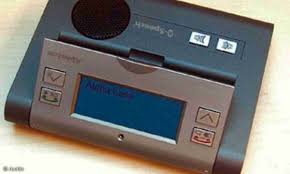
ALPHA - Programmable thermostat B-SPEECH - Free user manual and instructions
Find the device manual for free ALPHA B-SPEECH in PDF.



| Product Type | Bluetooth hands-free kit with optional GPS function |
| Brand | B-SPEECH |
| Model | ALPHA |
| Dimensions (without additional speaker) | 120 mm (L) x 93 mm (D) x 23 mm (H) |
| Dimensions (speaker/GPS) | 45 mm x 93 mm x 20 mm |
| Weight | Not specified (estimated: approx. 150 g with batteries) |
| Power supply | 3 rechargeable AAA NiMH batteries (included), 12/24 V car charger and USB cable |
| Talk time | Up to 8 hours (depending on usage) |
| Bluetooth technology | Bluetooth V1.2, Class II, range up to 10 meters |
| Supported Bluetooth profiles | HSP (headset), HFP (hands-free), A2DP (stereo), AVRC |
| Phonebook | Up to 600 contacts, automatic transfer (AT) or manual (OPP) |
| Display | Backlit LCD screen, 4 lines of 18 characters, rotatable up to 190° |
| Speakers | 2 x 2 Watts with integrated amplifiers |
| Main functions | Hands-free calls, voice dialing, redial, mute mode, multilingual menu, stereo music, GPS (optional), storage of 50 GPS positions |
| Noise reduction | DSP (digital signal processor) to reduce noise and echo, Full Duplex |
| Operating temperature | -10 °C to +40 °C |
| Battery storage temperature | -10 °C to +50 °C |
| Maintenance and cleaning | Clean with a soft, dry cloth; avoid liquids, dust and moisture |
| Safety | Do not open the device, use only the supplied charger, do not use alkaline batteries, respect operating temperatures |
| Spare parts and repairability | Replaceable AAA NiMH rechargeable batteries; for any repairs, contact an authorized center |
| Warranty | 2 years from date of purchase (except normal wear) |
| General information | German design; compatible with any Bluetooth device; firmware update possible |
Frequently Asked Questions - ALPHA B-SPEECH
User questions about ALPHA B-SPEECH
0 question about this device. Answer the ones you know or ask your own.
Ask a new question about this device
Download the instructions for your Programmable thermostat in PDF format for free! Find your manual ALPHA - B-SPEECH and take your electronic device back in hand. On this page are published all the documents necessary for the use of your device. ALPHA by B-SPEECH.
USER MANUAL ALPHA B-SPEECH
natural_image
Black electronic device with display and control buttons (no readable text or symbols)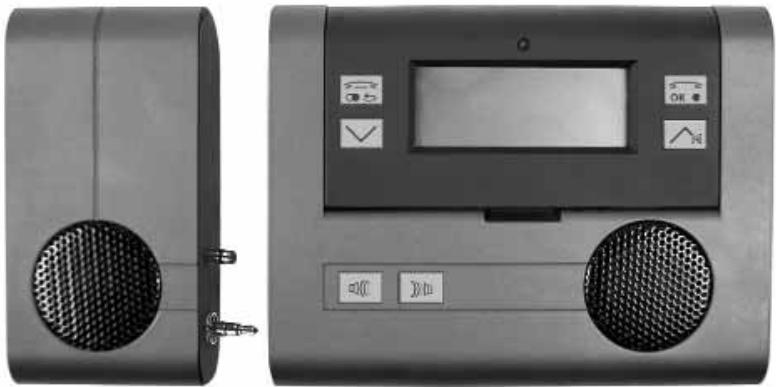
natural_image
Front and side views of a portable electronic device with speaker ports and control buttons (no visible text or symbols)-
..... English
-
..... Français
-
..... Italiano
-
..... Deutsch
-
..... Español
-
..... Czech
Index
4....Short Instruction / Contents
5 - 6.....Product Features
6 - 8.....Installation / On / OFF / Pairing
9 -13...... Menu
Operation / Telephone Book / Telephone Book Reading / To skim through the telephone directory / Telephone Telephone Book Delete / Missed Calls / Received calls / Dialled Numbers Hotkey-Funktion
13 -15.....GPS-Menu
Actual GPS Data / Stored GPS Data / GPS-memory
15 - 16.....Reverse the LCD
Stereo-Mode AV-Function / AV-Funktion with handset / AV-Function with other Bluetooth-Devices / Utility samples
16 - 18.....Connect the Dongle and PC with Alpha
Volume Adjustment / Take a call / reject a Call / Microphone Mute / Voice Dial Redial / Private Speech, pass a Call to Handset
18 - 20.....Battery Status
Charge the battery / Battery Notice and Warning
20 - 21 ....Warranty
Short introduction in the wireless technology Bluetooth.
Bluetooth is a wireless communication technology with short range. It enables a wireless communication between devices with Bluetooth interfaces, such as Mobile Phones, Personal Digital Assistants (PDA), Desktops and Notebooks, input / output devices (mouse, keyboard, printer) and domestic appliances. Bluetooth complies with the world wide standards for radio operating in the ISM-Band (industrial, scientific and medical frequency band). Within the ISM-Band (2,4 GHz to 2.48 GHz) Bluetooth can jump 1,600 time per second between 79 different frequencies with a range up to 10 meters (Class II).
Alpha Bluetooth-Handsfree system
Alpha is a Bluetooth - device, the newest of which has been equipped with Bluetooth technology Version 1.2. It is a multi-function device to be used in car, office and for leisure.
Contents
- Alpha
• Additional Speaker for Stereo Streaming
• 12 / 24 car charging cable
• Home USB Cable for Charging by PC - 3 rechargeable AAA -NiMH Power batteries
- Visor clip
- User manual
Products Features:
- Bluetooth V1.2 (Classe II) is compatible with the Headset- and Handsfree - Profile
- Adaptive Frequency Hopping (AFH). Less susceptible to interference.
- Data rate 723 Kbps
- Extensive reduction of disturbance from other radio technology, eg. WLAN
• A2DP / AV Stereo profile
• Class II 10 Meters range - Phone book function for downloading of 300 Numbers
- Automatically downloading by AT command or one by one by OPP
- User friendly Menu oriented software
• GPS Function (optional purchase) - Hotkey function
- 16 Memories for each of the missed, received and dialled calls
- 50 memories for GPS Positions.
- Multilanguage 4 Lines with 18 Characters per line LCD display, caller's number and name will be displayed on it when the call is being received, if supported from Handset.
• 2 Speakers, each 2 Watts - 2 Amplifiers, each 2 Watts built in
- Swivel LCD display to fit the right view angle of user up to 190^ .
- Supports voice dialling - provided this is supported by the Handset
- Re-dial of the last dialled phone number.
- DSP (Digital Signal Processor) to decrease noise and echo.
- Full Duplex
- Display of the state of charge of the battery.
-
Rechargeable Power AAA NiMH batteries
-
Remembers up to 4 different handset pairings.
• Supports different music sources ( stereo Music player and Mobile Phone) - Compatible with all Bluetooth Devices.
- Firmware-Upgrading Interface
- Talk time is for up to 8 hours (depending on type of operation.)
- Stylish German Design
- Size: 120mm wide x 93mm deep x 23mm height without the additional speaker
- Speaker/GPS size 45 x 93 x 20 mm
GPS (optional) specifications:
- Sensitivity -155 dB
• NMEA Protocol
• Frequency L1, 1,575.42 Mhz - Position deviation: 5 Meters
• Velocity: 0,1 m/sec. - Cold/Warm/Hot start: 55/45/10 sec..
• Acceleration: max. ±4g
• 16 Channel GPS Receiver IC, ATMEL GPS IC
Installation
- Open the battery compartment and insert the 3 rechargeable batteries. Close the battery compartment
Battery note: Please charge the batteries for a minimum of 6 Hours before using for the first time. - Start the pairing process (as describe further down) between the Alpha and your Mobile Phone.
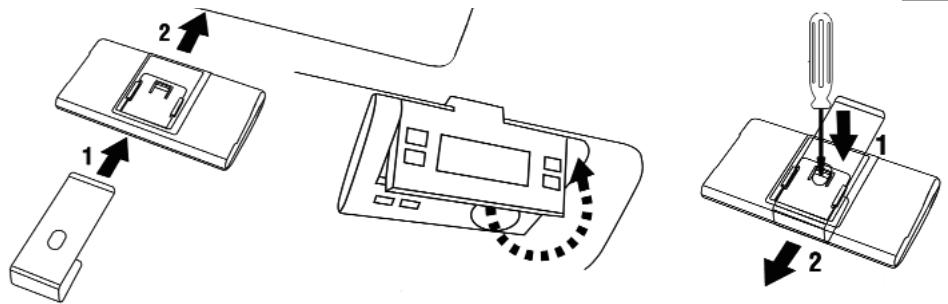
- Fasten the sun screen clip at the back of the Alpha.
- The Alpha can now be clipped over the side of the sun visor.
- Adjust the LCD screen to an optimum viewing angle.
Turning the device On/Off
Turn ON
The Alpha is turned On or Off by turning the swivel display from 0 deg to 30 deg. or more
Turn Off
To turn off the Alpha close the LCD swivel display and the device will turn Off automatically.
Pairing
The Alpha and your Mobile Phone must be paired before being used together.
- Turn the display at least 30^ to start Alpha.
-
The "ALPHA" will be displayed on LCD and the Alpha is ready.
-
The "P" shows the Automatic Pairing Mode
- The Alpha automatically chooses the "Hands-free" or "Headset" profile and pairs it with the mobile phone.
Details of the pairing process:
Note : Place your mobile phone and the Alpha at a max. distance of 30cm apart.
- Turn the Alpha on.
- The Pairing mode is activated for 4 Minutes. Activate the Bluetooth function of your Mobile Phone and follow the method for pairing of your mobile phone in its user manual. The Alpha will be found by your Mobile Phone. Choose the Alpha from the list displayed by your Mobile Phone. Your phone will ask for the pairing code. Enter "1234". This code is fixed at manufacture and can not be changed. Note: Some Handsets after pairing need to be connected and require authorisation please follow your handset Manual
- The Alpha is now paired with your Mobile Phone. Both devices are ready for use.
- Paired device will be recognized from Alpha (information on up to 8 Mobiles will be held in the Alpha memory)
- There is a "CAR" icon displayed on the LCD when Alpha connected with a Mobile Phone.
Important: If the pairing process fails, repeat the process. Once the connection is successful, the Alpha is ready. You can then phone wirelessly, provided the Mobile Phone is properly set up.
Note:
- If you don't want to pair Alpha with a new Mobile Phone, just leave it switched on and it will search and connect the last paired Mobile Phone automatically.
- Adjust the Alpha to a comfortable level of volume.
- Adjust the LCD screen to an optimum viewing angle.
Alpha Menu
Alpha is very user-friendly. To browse the Menu items please
press the Menu Button M,(4) to get in to the Alpha Menu, by pressing the up and down buttons (4 and 3) you can scroll up and down menu items.
By pressing OK(1), confirm the Menu (in GPS Function this is also the storing position)
By pressing return (2) return to the top menu.
Notice: The Menu function works in the Stand by mode.
Operation menu
Main Menu
Press (Menu) Button (4) in the stand-by mode, the LCD will display the Main menu as below:
- Languages
- Phone book
- Phone book reading
- Phone book review
- Phone book delete
- Dialled out calls
- Missed calls
- Received calls
- GPS Menu
- GPS Actual Data
- GPS History
• To reverse the LCD reverse
- Media Player
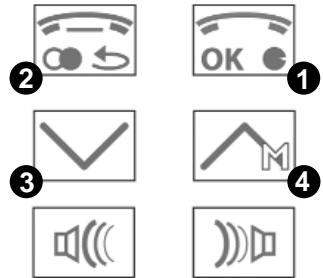
Press button 3 or 4 to select on the main menu, and press button 1 to confirm selection, or press button 2 to get back to previous menu.
Operation
Alpha can be operated in any of the six languages below.
Languages:
-
English
-
French
-
Italian
-
Spanish
-
German
-
Portuguese
Press M (4), to select menu Language, enter "OK"(1) by using Menu up (4) or down(3) select the language, then press "OK", the selected language will remain on the display.
Phone book function
To use the phonebook function the portable must be synchronizable with Alpha.
The portable must support the 'Object to Push' or 'AT Command' and the hands free mode.
Please refer to your portable manual.
Alpha can store 600 mobile phone numbers and names. The display will show Phone Book full, when more than 600 Contacts have been transferred.
Note: Alpha can only support standard alphabets, other symbols will not be displayed on the LCD.
Note: Only some of the Mobile Phones support this phone book data transfer function.
The Phone book transfer will not be supported by some Mobiles. If not, please send the contact names and numbers one by one via Bluetooth from the Mobile Phone to Alpha.
Note: If in the contact list there are more numbers available for the same name, the Alpha will store these numbers under the same name.
Press M (4) to select the menu Phone Book, press OK to get in to the sub menu, select the required function and press OK to confirm.
Phone Book reading
Reading of the directory.
Select "Reading of the directory" in the main menu and confirm with OK (1). The Alpha then synchronises with the mobile phone and automatically downloads the data of the phone directory. The names and the numbers are stored alphabetically in the memory of the Alpha. This function is not supported by all mobile phones, in this case "phonebook push" appears on the Alpha's screen. To end this function, or after the reading of the directory, press the "return" (2) key until the mode of conversation is activated. The Alpha is in conversation mode when the name of your mobile telephone and a "car" icon is visible on its screen.
Some mobile phones do not support the automatic transfer of the telephone directory or take a long time or can only transmit a limited number of contacts. In this case, after having paired the Alpha with your mobile phone (an icon "car" appears on the screen), you can manually transfer the contacts from your mobile phone to the Alpha. In the mobile phone telephone directory choose the contacts to be transferred (single contacts, groups of contacts or all contacts). Send the data of the contacts by means of Bluetooth. Choose "B-Speech-Alpha" among the installed devices and confirm your choice. All the selected contacts are now stored directly in the telephone directory of the Alpha.
Note: In the OPP (sending of Numbers one by one via Bluetooth) Phone book transfer Mode, any time you start to read the Phone Book, the Hand free function will disconnected,
The Alpha will return to Hand free Mode after closing the Phone book reading function
You can interrupt the Phone Book reading function at any time by pressing the Return (2) button.
To skim through the telephone directory
Press on the M (4) key to scroll though the contacts memorised alphabetically.
The key (3) makes it possible to skim through the alphabet until the initial required appears, then use the M (4) key until the name of the required contact appears.
P.B. review
Select P.B. review in the Phone Book menu by scrolling up or down (press button 3 or 4), and press OK (button 1) for confirmation, To review the contacts press up or down buttons (3 or 4)
To dial the number from the Phone book, select one of stored numbers and press OK (button 1) and it will be dialed out via the connected phone. Press return (button 2) and retrun to the previous menu.
P.B. delete
Select P.B. delete in the Phone Book menu by scrolling up or down (press button 3 or 4), and press OK (button 1) for confirmation, Alpha will display "Delete the phone book?", press button 1 for confirmation, or press button 2 to return to the main menu.
Missing calls
Select Missing Calls in the Phone Book menu by scrolling up or down (press button 3 or 4), and press OK (button 1) for confirmation, To review the Missed calls press up or down buttons (3 or 4)
To dial the Number from the Missed Call memory, select one of the stored Contacts and press OK (button 1) to dial it out via the connected phone. Press return (button 2) to return to the previous menu.
Note : 16 Missed calls can be memorised.
Incoming calls
Select Incoming Calls in the Phone Book menu by scrolling up or down (press button 3 or 4), and press OK
(button 1) for confirmation, To review the Incoming calls press up or down buttons (3 or 4)
To dial the Number from the Incoming Call memory, select one of the stored Contacts and press OK (button 1) to dial it out via the connected phone. Press return (button 2) to return to the previous menu.
Note : 16 Incoming calls can be memorized.
Dialed Numbers
Select Dialed Numbers Calls in the Phone Book menu by scrolling up or down (press button 3 or 4), and press OK (button 1) for confirmation, To review the Dialed Numbers press up or down buttons (3 or 4) To dial the Number from the Dialed Numbers memory, select one of the stored Contacts and press OK (button 1) to dial it out via the connected phone. Press return (button 2) to return to the previous menu.
Note : 16 Dialed calls can be memorized.
Hotkey function
You can store a Number which you can then dial simply by pushing the Volume + and Volume - at same time. This function could be used to store an Emergency number or Mailbox or any other required number.
Storage the Hotkey Number:
Select one of the stored numbers of phone book, press both V- and V+ buttons to set that number as the Hotkey stored number.
Dial the Hotkey Number:
Press both V- and V+ buttons to dial the Hotkey number under the standby mode of Alpha Note: not every handset supports Hot Key function
GPS menu
The GPS Menu works only when the GPS Module is connected in to the Alpha. You can also use the Alpha GPS Module, with the integrated Speaker, which can be connected in to the Alpha.
Warning: Please ONLY connect or disconnect the GPS Module to Alpha when the device is switched off.
Note : Alpha GPS needs 1 to 2 minutes at cold start to establish the connection between the satellites Alpha. Press Menu and scroll up or down to get to the GPS Menu confirm with OK (Button 1), Alpha will display as below:
-
GPS Actual Data
-
GPS Memory.
Select the required menu by scrolling up or down, and confirm by pressing the OK.
GPS Actual Data
GPS Actual data shows:
- Date, GMT Time and the amount of Memory used.
- Longitude and Altitude
- Speed and direction
- D:02/07/07 T:12:30
- Lgtd:
- Ltd:
- Kmh160 NW
Storing a position
User can store up to 50 positions in the memory of the Alpha.
To store a position simply press the OK Button and all displayed information will stored in the next free memory location, the last entry will be displayed on the Screen.
GPS Memory
Select the sub menu and confirm by pressing OK (Button 1) on the LCD, and press OK to confirm.
Use menu up or down to scroll through the GPS memory, then you can see the stored entries and their information as below:
• D:02/07/07 T:12:30
• Lgtd:
- Ltd:
• Kmh160 NW M10
Note: When the GPS Memory is full. The next entry stored will replace the oldest entry.
LCD upside-down
Press Menu and scroll up or down to select the LCD Reverse Menu, Press OK (Button 1) to invert the display. This is a useful function in conjunction with use on the sun visor or when used on a table.
Media Player, Stereo mode, AV Function
The Alpha support Stereo AV Mode Profile, when connecting to a Bluetooth enabled Multimedia music Player or Handset.
Alpha allows you by using the plug-in additional speaker, to enjoy Stereo music via Bluetooth.
Alpha provides 2 x 2 Watts amplifier and speakers.
The AV function will be displayed on the LCD screen as a stereo Speaker Icon.
AV Function by using a Mobile phone:\_
Connect your Mobile Phone with Alpha (refer to Pairing menu)
Start the Music player on your Mobile Phone, and depending on your handset, the AV function will start automatically. In other cases, choose the Music player Menu on your Handset, select in the option for sending via Bluetooth. Then choose in the paired list Alpha, and confirm it. The music will now be sent to your Alpha. To stop the Music, use the Pause in the Media player or stop Music from your handset.
AV Operation with other Bluetooth equipment
In addition to Handset, you can pair the Alpha with any other Bluetooth stereo Source to enjoy the music and also utilise the Hands free communication with your Mobile Phone.
You can remotely control the AV capable Bluetooth Handset. Please refer to the AV menu and chose the Forward, Backward, Stop, Pause and Play. Scroll the up and down buttons to select the required function. To stop the Music, use the Pause in the Media player or stop Music from your handset.
Examples of utilisation:
Music sources and Handset setting:
Pair the Alpha with your handset as mentioned before to memorise the Alpha in your handset. Disconnect the paired Handset from Alpha, by switching off the Mobile or switching off the Bluetooth function of the Mobile. Pair the Alpha with your Bluetooth capable music player (eg: PC, MP3 player). You can transmit the music wirelessly to the Alpha.
Turn on the Bluetooth Function of the Paired Handset, Alpha will recognize the Mobile and your Mobile will ask to confirm the connection to Alpha, After confirmation of connection with Alpha, the music will be received for the other source by Bluetooth. At any time your Mobile phone receives calls the Alpha will automatically interrupt the music and switch to your handset function. Once the communication is terminated, Alpha will automatically return to the music from the Bluetooth source.
Connecting the Alpha with a Bluetooth Dongle and PC
If you use the IVT software, please click, "my Bluetooth". Then the Bluetooth device Discovery, on the Screen, please search for the Bluetooth devices. You will find the Alpha, (please make sure that Alpha was in the pairing mode before you effect this search, refer to the Pairing in the manual).
Enter the Pass Key "1234", confirm the pairing with the computer. After pairing the OK sign will appear on the PC screen. To enjoy the Music from your PC, please go to the media player and configure the speaker interface to "Bluetooth AV/HS Audio". After the configuration, restart the Media Player and you can listen to the Music.
Volume control
To adjust a volume you can press the Volume up or Volume down at any time, the display will show the volume Indication bar for few seconds.
Warning: Feedback, echo or noises can take place while conversing if the volume is set up too high specially by using the additional Stereo speaker
Note: During this operation - Never press the V+ and V- at the same time, as the Hotkey function will be activated.
Taking / Refusing a call
LCD will display caller's name and number, providing that number has been transferred into the Alpha Phone book. Please note that the name will only be displayed, if the stored Number and the receiving Number, are exactly the same.
Press Answer (Button 1) to accept a call.
Press Call ending (Button 2) to refuse a call.
Microphone Mute
To Mute the Microphone during an active Phone call, simply press the Menu Button (Button Nr 3)
and the Microphone will be cut off and not able to transfer any speech to the other party.
To activate the Microphone, please press the Menu down button (Button 3) again and the other party can now hear you speaking..
Voice dialling function
Make sure that your mobile phone accepts voice dialing. Activate the voice dialing function of your mobile phone first and record the voice commands. Press button 1 in standby mode for 2 seconds.
Once you hear a beep, speak the stored name and the corresponding stored number will be dialed.
Redial of the last dialed phone number
Press the Redial button (Button 2) in stand by mode for 2 seconds. The last dialed number will automatically be redialed.
Private mode Call transfer to Mobile
During an active Phone call Press the Answer Button (Button 1) to transfer a call from Hands free Alpha to your Handset.
Presse the Answer button (button 1) to return to your hands free function
Battery status
If the charge of the batteries is low, you will be warned by a flash of the indicator and a BiBiBiBi sound.
There is a □ icon displayed on the LCD.
Note: Low battery state can lead to malfunctioning. A warning signal sounds.
Battery charging
The Alpha use 3 rechargeable AAA batteries. The batteries are not fully charged when you unpack the Alpha. We recommend that you fully charge the batteries for a minimum of 6 hours before first use.
There is a L icon displayed on the LCD while charging. Once the batteries are fully charged, the fully battery 📄icon displayed on the LCD.
Warning:
- Please, never open the Alpha yourself, please get in touch with your local service partner.
- The temperature range for use is between -10^ and +40^ . Use at other temperatures damages the device.
- Only charge the Alpha with the charger delivered with the Alpha.
Battery warning!
Never use Alkaline Batteries!
Never Charge Alkaline batteries or mix Alkaline batteries with Rechargeable batteries
- charge the batteries before use
- never charge Alcaline Batteries
- Danger of explosion if exposed to open fires
- If your eyes get in contact with battery liquid, wash out the eyes with clear water immediately and contact your doctor.
- Do not open batteries
- Do not put batteries in contact with liquid
- Do not short-circuit batteries, nor put them in contact with metal.
- Do not mix different types of batteries, nor new with old
• Temperature range of use - 0°C up to max. 60°C -
Keep batteries away from children
-
Do not put batteries in your mouth
- Do not dispose of the batteries in the domestic rubbish.
Please note:
"You are as driver responsible for having your vehicle under control at all times... You should while driving, never converse through your mobile phone, write or read SMS or look at MMS. Surveys have revealed that drivers are a higher security risk when telephoning while driving We advise you strongly, as a driver, to use a handsfree device while driving and to stop your vehicle before having important conversations on your mobile phone".
Maintain the Alpha
- Always keep the Alpha in a safe place and turn off when not in use..
- Keep it away from water, dirt, dust and humidity, If it gets wet, then immediately clean and allow to dry completely before using
- Do not store the Device in High temperature over 70 Deg Cel. Or 165 Deg F.
- Do not drop or shake the device.
Warranty and parts replacement
Dear customer,
Our products are subject to a strict quality control. However, should you have problems, please contact your seller. You will then be helped rapidly.
Please note :
- The warranty is limited to the original purchaser.
- A copy of your receipt or other proof of purchase is required. Without proof of purchase, your warranty is defined as beginning on the date of manufacture as labeled on the products.
- The warranty is void if the serial number, date code label or product label is removed, or if the product has been subject to physical abuse, improper installation, modification, or repair by unauthorized third parties.
- The responsibility for our products is limited to the repair or replacement of the product at our discretion.
- All warranty on our products is limited to two years from the date of purchase.
- Specifically exempt from any warranty are limited-life consumable components subject to normal wear and tear, such as microphone, decorative finishes, batteries, and other accessories.
- We are not liable for any incidental or consequential damages arising from the use or misuse of any our products.
- This warranty gives you specific rights but you may have other rights depending on your location.
- Unless otherwise instructed in the user guide, the user may not, under any circumstances, attempt to perform service, adjustments or repairs on this unit, whether in or out of warranty. It must be returned to the sales outlet, factory or authorized service agency for all such work.
- We do not assume any responsibility for any loss or damage incurred during shipping. Any repair work on our products by unauthorized third parties nullifies any warranty.
Korrekturhinweis!
Piles; Avertissement!
Encendido /Apagado del dispositivo On/Off
Encendido ON
natural_image
Blank gray image with no visible content, text, or symbols
- Index
- Short introduction in the wireless technology Bluetooth.
- Alpha Bluetooth-Handsfree system
- Contents
- Products Features:
- GPS (optional) specifications:
- Installation
- Turning the device On/Off
- Turn ON
- Turn Off
- Pairing
- Details of the pairing process:
- Note:
- Alpha Menu
- Operation menu
- Main Menu
- Operation
- Phone book function
- Phone Book reading
- To skim through the telephone directory
- P.B. review
- P.B. delete
- Missing calls
- Incoming calls
- Dialed Numbers
- Hotkey function
- Storage the Hotkey Number:
- Dial the Hotkey Number:
- GPS menu
- GPS Actual Data
- Storing a position
- GPS Memory
- LCD upside-down
- Media Player, Stereo mode, AV Function
- AV Function by using a Mobile phone:\_
- AV Operation with other Bluetooth equipment
- Examples of utilisation:
- Connecting the Alpha with a Bluetooth Dongle and PC
- Volume control
- Taking / Refusing a call
- Microphone Mute
- Voice dialling function
- Redial of the last dialed phone number
- Private mode Call transfer to Mobile
- Battery status
- Battery charging
- Warning:
- Battery warning!
- Please note:
- Maintain the Alpha
- Warranty and parts replacement
- Dear customer,
- Please note :
- Korrekturhinweis!
- Piles; Avertissement!
- Encendido /Apagado del dispositivo On/Off
- Encendido ON
Brand : B-SPEECH
Model : ALPHA
Category : Programmable thermostat