
SRP 5004 - Remote control PHILIPS - Free user manual and instructions
Find the device manual for free SRP 5004 PHILIPS in PDF.

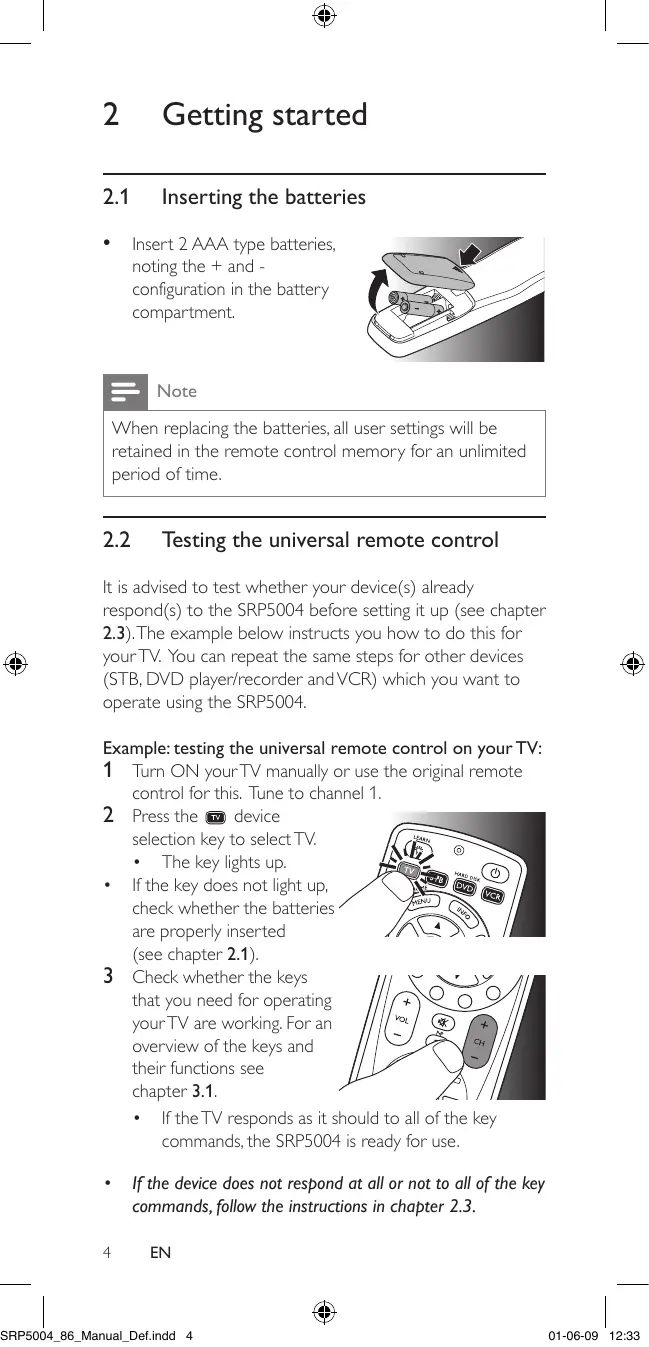


| Product type | Universal remote control |
| Brand | Philips |
| Model | SRP5004 |
| Power supply | 2 AAA batteries (1.5 V) |
| Compatible devices | TV, set-top box (cable, satellite, DTT, IPTV), DVD player/recorder, VCR |
| Number of controllable devices | Up to 4 |
| Main functions | Volume, channels, menu, teletext, play, record, color keys, and more |
| Key learning | Yes, up to 60 keys from the original remote |
| Backlighting | Yes, can be activated by dedicated key |
| Settings memory | Retained when replacing batteries |
| Configuration | By brand code or auto search |
| Key enhancement | Yes, by long press |
| Maintenance | Clean with a soft, dry cloth |
| Safety | Do not expose to moisture, do not open, use only recommended batteries |
| Spare parts | Batteries only (AAA) |
| Included accessories | User manual, batteries |
Frequently Asked Questions - SRP 5004 PHILIPS
User questions about SRP 5004 PHILIPS
0 question about this device. Answer the ones you know or ask your own.
Ask a new question about this device
Download the instructions for your Remote control in PDF format for free! Find your manual SRP 5004 - PHILIPS and take your electronic device back in hand. On this page are published all the documents necessary for the use of your device. SRP 5004 by PHILIPS.
USER MANUAL SRP 5004 PHILIPS
Register your product and get support at www.philips.com/welcome
SRP5004/86
EN User Manual 3
1 Your SRP5004 3
2 Getting started. 4-8
2.1 Inserting the batteries 4
2.2 Testing the universal remote control 4
2.3 Setting up the universal remote control 5-8
3 Using the universal remote control. 8-12
3.1 Keys and functions.. 8-10
3.2 Learning key functions 10-11
3.3 Resetting a key to its original function.. 12
4 Service and support. 12-14
4.1 Frequently asked questions.. 12-13
4.2 Need help? 14
Helpline 99
Code list for TV brands. 100-107
Code list for STB brands. 107-113
Code list for DVD brands 113-116
Code list for VCR brands. 116-118
Information to the consumer 119
1 Your SRP5004
Congratulations on your purchase of the Philips SRP5004 universal remote control. After setting up the remote control you can operate up to 4 different devices with it.
Improved with Philips patented (pending) Simple Setup technology, the SRP5004 can be set up easily for TV, DVD player / recorder, VCR and all common set-top boxes, such as Sky, British Telecom, Orange, Freebox, TNT, Canal Digital, Telefonica, Premiere, Kabel Deutschland, Belgacom TV, Telenet, Viasat and many more.
Simply follow the instructions in chapter 2.3 to set up the remote control for your devices.
To fully benefit from the support that Philips offers, register your product at www.philips.com/welcome.
2 Getting started
2.1 Inserting the batteries
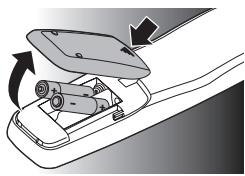
- Insert 2 AAA type batteries, noting the + and - configuration in the battery compartment.

Note
When replacing the batteries, all user settings will be retained in the remote control memory for an unlimited period of time.
2.2 Testing the universal remote control
It is advised to test whether your device(s) already respond(s) to the SRP5004 before setting it up (see chapter
2.3). The example below instructs you how to do this for your TV. You can repeat the same steps for other devices (STB, DVD player/ recorder and VCR) which you want to operate using the SRP5004.
Example: testing the universal remote control on your TV:
1 Turn ON your TV manually or use the original remote control for this. Tune to channel 1.
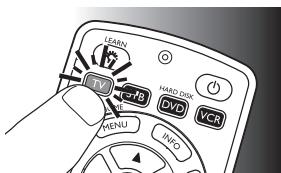
2 Press the device selection key to select TV.
The key lights up.
If the key does not light up, check whether the batteries are properly inserted (see chapter 2.1).
3 Check whether the keys that you need for operating your TV are working. For an overview of the keys and their functions see chapter 3.1.
If the TV responds as it should to all of the key commands, the SRP5004 is ready for use.
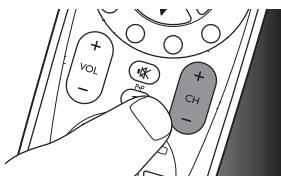
- If the device does not respond at all or not to all of the key commands, follow the instructions in chapter 2.3.
4 EN
2.3 Setting up the universal remote control
This is only necessary if your device does not respond to the SRP5004. If that is the case, the SRP5004 does not recognize the brand and / or model of your device and you need to set up the remote control to do so.
The example below instructs you how to do this for your TV. You can repeat the same steps for other devices (STB, DVD player/recorder and VCR) which you want to operate, using the SRP5004.
The remote control can be set up to operate any 4 of the following devices:
| Device name | Description |
| TV | Traditional TV, flat screen TV and projection TV,TV part of TV / VCR,TV / VCR / DVD and TV / DVD combos |
| STB | Cable box, satellite receiver, Digital Video Broadcasting Terrestrial device (DVB-T), Internet Protocol TV (IPTV), Free To Air TV, High Definition Television decoder (HDTV) |
| DVD | DVD player / recorder (DVDR), DVD / Hard Disk Drive combination (DVDR-HDD), Blu-Ray player, High Definition DVD player (HD-DVD), DVD part of TV / DVD,TV / VCR / DVD and VCR / DVD combos |
| VCR | Video cassette player / recorder,VCR part of TV / VCR,TV / VCR / DVD and VCR / DVD combos |
Example: setting up the universal remote control to operate your TV:
1 Turn ON the TV manually or use the original remote control for this. Tune to channel 1.
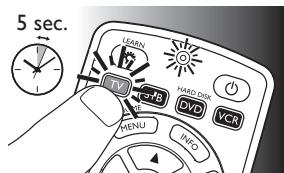
2 Press and hold the
device selection key for 5 seconds until the red Setup LED @ lights up.
- The remote control is now in setup mode.
EN 5
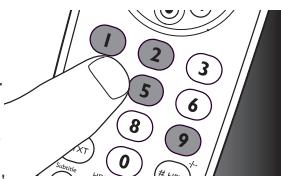
3 Look up the brand of your TV in the Code list for TV brands at the back of this user manual. A four-digit code is shown for each brand. Use the digit keys to enter the code for your brand (e.g. PhilipsTV, ② 1 9 5 ).
If the red Setup LED turns off, an invalid code was entered. In this case, try again.

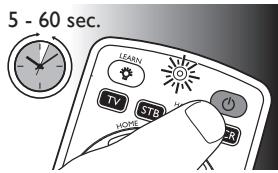
4 Aim the remote control at the TV. Press and hold the key and immediately release it when the TV turns off (standby).
This step normally takes between 5 and 60 seconds. In extreme circumstances this step can take up to 15 minutes.
5 Turn on the TV and check if all keys that you need for operating your TV are working. Try, for example, if the - CH + and digit keys function properly.
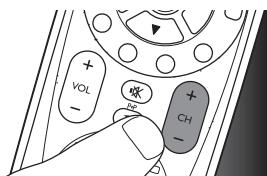
If a key does not function as expected, press and hold it and immediatley release it as soon as it works. For more information, see chapter 2.3.2.
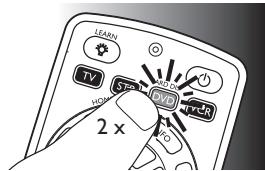
6 Press the device selection key twice to save your settings and exit setup mode.
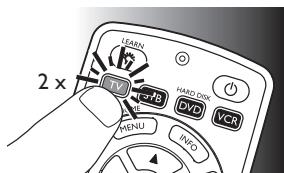
- When no key is pressed for 5 minutes or more, the remote control will exit setup mode, automatically saving all your settings.

Note
If you wish to restart setup, you can start again from the beginning at any time.
- If the device does not respond at all or not to all of the key commands or if you cannot find the code for your brand, enter '9, 9, 9, 9' in step 3 and continue with step 4. The remote control will now search its full database for a code that works with your TV. Full database search may take up to 15 minutes.
- Alternatively you can set up the universal remote control with the learn feature as described in chapter 3.2.
2.3.1 Setting up the remote control for other devices (STB, DVD player / recorder and VCR)
1 Make sure the device is turned on, fully operational and able to respond to remote control commands. E.g. insert a disc in the DVD player / recorder or a video cassette in the VCR.
2 Then follow steps 2 to 6 of 'Setting up the remote control for your TV'. Make sure to use the correct device selection key: STB, OV or VCB.
2.3.2 Improving keys
When correctly set up, the remote control should be able to operate all your devices. However, when using the remote control for the first time it might occur that some keys do not yet function as expected.
In this case you can have the remote control search for alternatives.

Note
Improving keys is not possible when the code was found during full database search (with code '9, 9, 9, 9').
During initial setup
1 Make sure the receiving device is able to respond. E.g. when you try to repair the Play key for your DVD player, make sure to insert a DVD into the DVD player otherwise the Play key is not able to function.
2 Press the key that does not function, keep it pressed and immediately release it when the device responds. Repeat this for every key that does not function.
- If the key still does not function as expected, try pressing it again for a longer period of time.
After initial setup
1 Make sure the receiving device is able to respond. E.g. when you try to repair the Play key for your DVD player, make sure to insert a DVD into the DVD player otherwise the Play key is not able to function.
2 Select the device you wish to operate (e.g. DVD). Press the device selection key to select DVD.
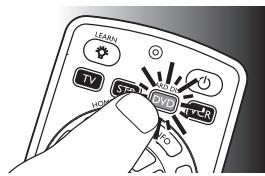
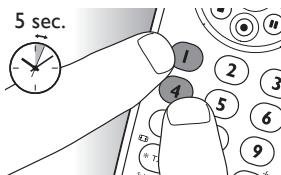
3 Keep keys ① and ④ pressed simultaneously for 5 seconds.
- The red Setup LED @ lights up. The remote control is now in setup mode.
4 Press and hold the key that does not function and immediately release it when the device responds.
If the key still does not function as expected, try pressing it again for a longer period of time.
5 Press the device selection key twice to save your settings and exit setup mode.
- When no key is pressed for 5 minutes or more, the remote control will exit setup mode, automatically saving all your settings.
3 Using the universal remote control
3.1 Keys and functions
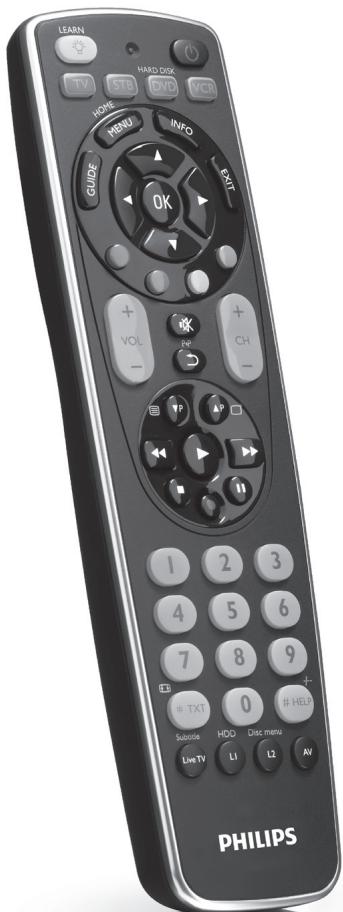
The illustration on page 2 gives an overview of all keys on the remote control. Try out the keys you need for operating your devices.

Notes
- Keys having the same functions as the keys on your original remote control may have different namings on the SRP5004 (e.g. Info / Display).
Only functions that are available on your original remote control can be used for operating your devices with the SRP5004.
1 Setup LED. Lights up red when the remote control is in setup or learn mode.
2 ⑧ turns the backlight on / off.
3 1T 1ST vDv ...device selection keys.
- select the device to be operated.
- light up when a remote control command is being sent.
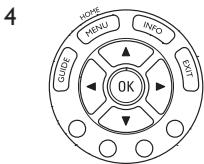
GUIDE...... electronic program guide.
MENU / HOME...menu on / off.
INFO............on-screen channel information.
EXIT exits / clears on-screen menu displays.
.........cursor up, down, left, right in a menu.
OK......... confirms your selection.
Colored keys..... Teletext / context sensitivity keys.
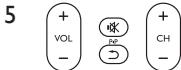
+VOL -............ adjusts TV volume.
※ mutes TV sound.
念 previous program/Last.
- CH -.............. previous / next channel.
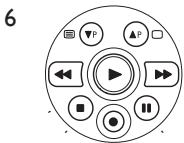
P P . previous ( P) / next ( P) page / track in various modes.
口 /口 teletext on (国) / off (口).
rewind.
play.
fast forward.
stop.
. record.
..pause.
EN 9
7
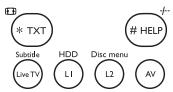
- TXT / ...... wide screen.
- STB: text.
Live TV / Subtitle. • subtitles.
Live TV.
L1 / HDD. stores learned key commands.
- opens Hard Disk Drive menu.
L2 / Disc menu ... stores learned key commands.
- opens disc menu.
AV.........switches between external (Audio / video) inputs of your equipment.
HELP / --- ....... selects between one and two-figure channel numbers and channel numbers with more than two or three figures.
STB:Help.
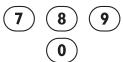
8 ① ② ③ ......... digit keys for direct channel / track ④ ⑤ ⑥ selection.
9 ⑤…………………turns the selected device on / off.

Note
For some TV brands / types, this key will only turn off the TV. You will have to press a digit button (direct channel selection) to turn on the TV again.
3.2 Learning key functions
If you miss certain functions from your original remote control on the SRP5004, the SRP5004 can learn these functions. You can store a function under any of the available keys, except under the device selection keys (STARDCK) and the key.Any function already stored under a key will be deleted.
The SRP5004 is equipped with two dedicated keys for learning additional functions: and . These keys do not have a default function and enable you to add extra key functions without deleting any SRP5004 functionality.
1 Make sure that you have the original remote control at hand.
2 Select the desired device (e.g. DVD). Press the device selection key to select DVD.
The key lights up.
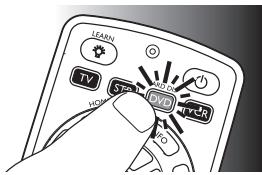
3 Place both remote controls on a flat surface (like a table) and aim them head-to-head with about 5 -10 cm in between.
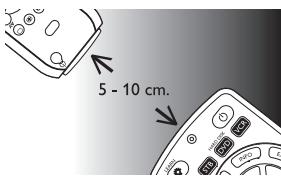
4 Keep the key and the key you wish to learn on the SRP5004 (e.g. the INFO key) pressed simultaneously for 5 seconds, until the red Setup LED light up.
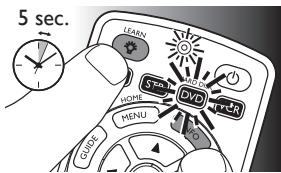
The remote control is now in learn mode.
5 Press and hold the key that you wish to learn on the original remote control until the device selection key gives two short blinks and both key and Setup LED go out to confirm that learning was successful.
- The remote control has now learned the new function.

Note
It may occur that learning a key function fails the first time. The device selection key will then give a long blink and both key and Setup LED 忍 will go out. In this case, please try again.
- If you keep having trouble learning key functions, check the batteries in both SRP5004 and original remote control and replace if necessary.
- It may also be that the remote control learn memory is full (a total of 60 keys can be learned). In this case you can reset one or more keys to their all original functions in order to create memory space. For this, see chapter 3.3.
3.3 Resetting a key to its original function
When resetting a key to its original function, any learned function stored under the key will be deleted.
1 In the current device mode, keep digit keys ① and ⑥ pressed simultaneously for 5 seconds until the red Setup LED @ lights up.
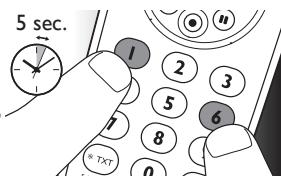
The remote control is now in setup mode.
2 Press digit keys ⑨, ⑨, and ⑥, in that order.
After each key press the device selection key blinks once.
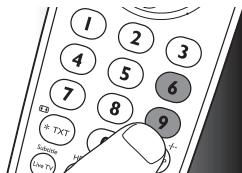
3 Press the key you wish to reset twice. E.g. the key.
After each key press the device selection key blinks once.
The device selection key will blink one more time to confirm that the key was successfully reset to its original function.
The key can now also learn a new function, if desired.
4 Service and support
4.1 Frequently asked questions
In this chapter you will find answers to the most frequently asked questions about your universal remote control.
Setup
I cannot enter setup mode.
Battery level too low or battery lifetime came to an end.
- Replace the batteries. For this see chapter 2.1.
12 EN
How do I set the remote control for combo devices (TV / VCR, TV / DVD, DVD / VCR, etc)?
Some combo devices require you to set up two different source selection keys to control both parts of the combo device. For example, if you have a TV / DVD combo, you might need to set up the remote control for both TV and DVD to operate your TV / DVD combo.
Operation
The remote control does not wake up anymore.
Battery level too low or battery lifetime came to an end.
- Replace the batteries. See chapter 2.1.
The device I want to operate does not respond at all / does not respond to all of the key commands.
- Check if the keys you press are available on the original remote control of the device.
Try improving keys. See chapter 2.3.2.
Not all key functions are available in the database of the remote control.
Try learning key functions from the original remote control. See chapter 3.2.
Wrong code selected during setup.
- Set up the remote control again for the device. Always test if the device responds, before leaving setup mode. See chapter 2.2.
It may be that the keys that you are trying to use have a different naming on the original remote control.
Try out all keys to find the one(s) you need.
The Teletext keys do not work.
Find out whether your TV is equipped with Teletext.
Try improving the Teletext keys. See chapter 2.3.2.
- Check whether you are using the correct keys to switch on Teletext. For TV this is the 密 key; for STB this is the 密 key.
Batteries
Will my settings be deleted when I replace the batteries?
No. All user settings will be retained in the remote control memory during battery replacement.
4.2 Need help?
We advise you to first read this user manual carefully. It is provided to help you set up and use the remote control.
If, however, you require extra information or have additional questions about setup, usage, spare parts, warranty, etc. of the SRP5004, you can always contact us.
When calling our helpline, make sure to have the SRP5004 at hand when you call, so that our operators can help you determine whether the SRP5004 is working properly.
You will find our contact details at the end of this user manual.
The model number of your Philips universal remote control is SRP5004/86.
Date of purchase:
/
(day/month/year)
For online support go to: www.philips.com/welcome.
- Click 'Support' and follow the on-screen instructions.
Inhaltsverzeichnis
Improving keys is not possible when the code was found during full database search (with code '9, 9, 9, 9').
The Teletext keys do not work.
Find out whether your TV is equipped with Teletext.
Try improving the Teletext keys. See chapter 2.3.2.
Text-TV-knapparna fungerar inte.
2.3.2 Forbedring at taster
In this chapter you will find answers to the most frequently asked questions about your universal remote control.
Opsætning
4.2 Brug for hjaelp?
MENU / HOME...menu on / off.
Code list for TV brands
A
A.R. Systems. 0023
Acme 1294
Acura .0023
ADA. 1337
ADC. 1765
Addison .0822
Admiral. 0000
Adyson. 1098
Agashi. 1098
Agazi. 1765
AGB. .0721
Aiko .0023
Aim 1170
Aiwa. 0792
Akai. 0051
Akiba. 0085
Akito. 0664
Akura. 0023
Alaron. 1098
Alba .0051
Alcyon 1672
Alkos 1459
Allorgan. 0394
Allstar. 1170
AMOi. 1243
Amplivision. 0023
Amstrad. 0085
Anam. 0144
Anam National.0721
Anglo .0023
Anitech .0243
Ansonic. 0113
AOC. 0822
Apollo. 0582
Arc en Ciel. 0932
Arcam. 1098
Arcam Delta. 1294
Ardem. 0023
Aristona. 0792
Arthur Martin.0582
ASA .0000
Asberg. 0306
Astra. 1337
Asuka .0023
Atlantic. 0023
Atori. 0023
Auchan. .0582
Audiosonic. 0023
AudioTon. 0023
Ausind. 1672
Autovox. 0144
Awa .0362
Ayomi. 1533
B
Baird. .0522
Bang & Olufsen. 0000
BARON .0000
Basic Line. 0023
Bastide. 1098
Baur .0901
Bazin. 1098
Beijing 0236
Beko .0306
Beng 1759
Beon. 0306
Best. 0023
Bestar. 0172
Bestar-Daewoo 1248
Binatone. 1098
Black Star. 0306
Blacktron. 1649
Blackway. 1649
Blaupunkt. 1759
Blue Sky. 0085
Blue Star. 0422
Bondstec. 0306
Boots. .0731
BPL. 0206
Brandt. .0932
Brinkmann. 0306
Brionvega. 0664
Britannia 1098
Bruns. 1452
BSkyB. 1703
BSR. 0394
BTC 0023
Bush. 0206
C
Caihong. 0236
Cameron. 1358
Capsonic. 1765
Carad. 0721
Carena. 0085
Carrefour.0451
Cascade. 0023
Casio 1170
Catha .0721
Cathay. 1170
CCE. 0023
Centurion. 1170
Century. 0000
CGE. 0306
Changcheng. 0236
Changfei. 0236
Changhai. 0236
Changhong. 0236
Chimei. 1235
Chuangjia. 0236
Chunfeng. 0236
Chung Hsin. 0822
Chunsun. 0236
Cimline. 0023
City. 0023
Clarivox. 1170
Clatronic. 0243
CMS. 1782
CMS Hightec. 1098
Concorde. 0023
Condor. 0243
Conrowa. 0236
Contec. 0272
Continental Edison.0932
Cosmel. 0023
Crosley. 0334
Crown. 0306
CS Electronics.0334
CTC. 0334
Cybertron. 0023
D
D-Vision. 1098
Daewoo. 0362
Dainichi. 0334
Dansai. 0760
Dantax .0693
Datsura. 0942
Dawa. 1170
Daytron. 0023
De Graaf. 1337
Decca. 0362
Deitron.0721
Denver. 0085
Desmet. 0023
Diamant. 1170
Diamond. 0023
Digatron. 1098
Digline. 0721
Dixi. 0023
DongDa. 0236
Donghai. 0236
Drean. .0721
DSE(Digital).0901
DTS .0023
Dual. 1026
Dual-Tec. 0113
Dumont. .0113
Duongjie. 0236
Dux. 1170
Dynatron. 1170
Dynex. 1790
E
Elbe. .0113
Elbe-Sharp. .0721
Elcit. 0334
Electa. 1408
ELECTROTECH. 1337
Elektra 1649
Element 1790
ELG. 1170
Elin. 0272
Elite. .0023
Elman. 0334
Elta. .0023
Emerson. 0085
Emperor. 1649
Epson. 1358
Erres. .0792
ESC. 0023
Etron .0023
Eurofeel. .0023
Euroline. .0693
Euroman. .0023
Europa. 1170
Europhon. 0113
Expert .0023
Exquisit. 1170
F
Fagor Life. .0721
Feilang. 0236
Feilu .0236
Feiyue .0236
Fenmenti. 1098
Fenner. .0023
Ferguson. 1170
Fidelity. 0272
Filsai 1098
Finlandia. 0000
Finlux. 0113
Firstline. 0394
Fisher. 0394
Flint .0085
FNR. 1771
Formenti. 0272
Formenti-Phoenix.1098
Fortress. 1452
Fraba. 0394
Friac. 0023
Frontech. 0901
Fujitsu. 0394
Fujitsu General. 0394
Funai. 0085
G
Galaxy. 0306
Galaxis. 0306
GBC. 0206
Geant Casino.0582
GEC. 0422
Geloso. 1109
General Technic. 0023
Genexxa .0422
GFM. 1790
Giant. 1098
Goldhand. 1098
Goldline. 0721
GoldStar. 0272
Goodmans.0451
Gorenje. 0721
GPM. 0023
Gradient. .0721
Graetz .0422
Granada. 0451
Grandin. 0206
Great Wall. 1248
Gronic 1098
Grundig. 0306
H
Haier. 0236
HaiHong. 0236
Halifax. 0023
Hampton 1098
Hanseatic. 0488
Hantarex. 0085
Hantor. 1170
Harwood. 0023
Hauppauge. 0206
HCM. 0422
Hema. 0023
Hemmermann.0582
Hifivox. 1459
Higashi. 1782
Highline. 1170
Hikona. 0023
HiLine .0721
Hinari. 0206
Hisawa. 0422
Hisense. 0236
Hitachi .0522
Hitachi Fujian.0522
Hitsu. 1248
Hoeher. 0932
Hongmei. 0236
Hornyphone 1170
Hoshai. 0085
Huafa. 0236
Huanghaimei. 0236
Huanghe. 0236
Huanglong. 0236
Huangshan. 0236
Huanyu 0334
Huari. 0236
Hygashi 1098
Huijiaban. 0236
Hyper. 0394
Hypson .0422
Hyundai. 0552
1
Iberia 1170
ICE. 0051
ICeS. 0334
Imperial. 0306
Indesit. 1337
Indiana. 1170
Ingelen. 0932
Ingersol. 0023
Inno Hit. 0553
Innovation .0144
Interactive. 0721
Interbuy. 0306
Interfunk. 0488
Internal. 1170
International. 1782
Intervention. 0488
IR. .0394
Irradio. 0553
Isukai. 0085
ITC. 0394
ITS .0553
ITT. 0582
ITV. 0553
J JEC. 1187
Jiahua. 0236
Jinhai. 0236
Jinxing. 0236
JVC. 1026
Kaisui. .0593
Kamosonic. 1294
Kamp. 1098
Kangchong. 0236
Kanghua. 0236
Kangwei 0236
Kapsch. 0000
Karcher. 0488
Kawa. 0000
Kawasho. 1098
Kendo. 0630
Kennedy. 1452
KIC. 1098
Kingsley. 1098
Kiota. 0000
Kiton. 1098
Kneissel. 0630
Kolin. 0822
Kolster. 1170
Konig. 1260
Konka. 0243
Korpel. 1170
Korting. 0334
Kosmos. 1170
Koyoda. 1337
KTV. 1098
Kuro. 0942
Kyoshu. 1243
Kyoto. 1098
L
L&S Electronic.0932
Lasat. 0721
Layco. 0085
Lecson. 1170
Lenco. 0023
Lenoir. .0023
Lesa. 0306
Leyco .0664
LG. 0693
LG/GoldStar. 1379
Liesenk. 1442
Liesenk & Tter. 1170
Liesenkotter.0721
Life. 0144
Lifetec. .0792
Lloyd's. 1790
Local India TV. 0000
Loewe. 0721
Loewe Opta. 0664
Logik. .0731
Luma. 0630
Lumatron. 0630
Lux May. 1170
Luxor .0942
M
Madison. 1098
Magnadyne .0834
Magnafon. 0334
Magnavox.0721
Magnum .0792
Mandor. 1765
Manesth. .0593
Manhattan 1170
Marantz. .0901
Marelli. 1452
Mark. 1109
Masuda. 0023
Matsui. .0731
Matsushita. 0822
McMichael. 1442
Mediator.0792
Medion.0792
Medison. .0721
Melectronic 1109
Melvox. 0582
Memorex. 0023
Memphis. .0023
Mercury. .0023
Metz. 0172
Micromaxx.0792
Microstar. .0144
Minato. 1098
Minerva 1207
Minoka. 1170
Mitsubishi. 0172
Mivar. 0334
Morgans 1170
Motion 1672
MTC. 0334
MTEC. 1653
MTlogic. 0932
MuDan. 0236
Multistandard. 1771
Multitec. 1098
Multitech. .0593
Multisystem 1442
Murphy .0051
Musikland. 0023
NAD. 0932
Naiko 1170
Nakimura. 1170
Naonis. 1337
N
NEC. 0172
Neckermann.0630
NEI .0172
Nesco. 0306
Netsat. 1170
Network. 0023
Neufunk. 0023
New Tech. 0023
NewWorld.0023
Nicamagic. 1098
Nikkai. 0760
Noblex. .0721
Nobliko. 0334
Nogamatic. 1459
Nokia. 0582
Nordic. 1098
Nordmende.0172
Normerel 1098
Novatronic. 0023
0
Oceanic. 0582
Okano .0023
Okana. 1170
Onimax. 0932
ONCEAS. 1294
Onwa. 0085
Opera. 1170
Orbit 1170
Orion. 0792
Online. 0023
Ormond. 1442
Orsowe. 0721
Osaki. 0630
Osio. 1207
Oso. 0023
Oulin. 0236
Osume. 0760
Otto Versand.0172
P
Pacific 0932
Pael. 1098
Palladium. 1026
Palsonic 1207
Panama .0243
Panasonic. 0822
Panasonic/National 1170
Panavision. .0394
Panda .0236
Pathe Cinema 0334
Pathe Marconi.0932
Pausa .0023
Pensonic 1243
Perdio. 0023
Perfekt 1170
Philco .0834
Philharmonic. 1098
Philips. 0864
Phoenix. 0760
Phonola. 0760
Phonotrend.0721
Pioneer. 0488
Pionier. 1098
Plantron. 0023
Playsonic. 0023
Polaroid. 1713
Poppy. 0023
Portland. 1248
Powerpoint. 1098
Prandoni Prince.0664
Precision. 1098
Prima. 0306
Prinz. 0394
Profekt. 0721
Profex. 0085
Profilo. 1442
Profitronic. 0306
Proline. 0760
Promax. 1260
Prosonic .0272
Protech. 0760
Provision .0792
Pye. .0792
Pymi. .0023
Q
Quandra Vision. 0582
Quasar. 1452
Quelle. 0901
Questa 1098
R
Radio. 0932
R-Line 1170
Radialva. 0023
Radiola .0792
Radiomarelli. 0834
RADIONETTE.1337
RadioShack. 1170
Radiotone. 0023
Rank. 1187
RBM. 1337
RCA .0582
Recor 1170
Rectiligne 1098
Rediffusion.0932
Redstar. 1170
Reflex. 1170
Reoc. 0932
Revox. 0023
Rex. 0000
RFT. 0630
Rhapsody. 1098
Roadstar.0792
Robotron. 1452
Rowa. 1098
Royal Lux. .0721
RTF. 1452
S
Saba. 0932
Sagem. 0085
Saisho. 0792
Saivod. 1098
Salora. 0942
Sambers. 0334
Samsung. 0958
Sandra 1098
Sansui. 0023
Sanyo .0996
Sanyuan 0236
SBR. 0864
Schaub Lorenz.0582
Schneider. 1026
SEG. 0996
SEI. 0834
SEI-Sinudyne. 0834
Seleco. 0000
Sencora. 0023
Sentra .0760
Serino .0593
Shanghai. 0236
Shanshui 0236
Shaofeng 0236
Sharp. 1058
Shencai. 0236
ShengCai. 0236
Shenyang. 0236
Shintoshi. 1170
Shivaki. 1098
Shorai. 1568
Siam. .0721
Siarem .0334
Siemens. 1170
Siera. .0792
Siesta. 0721
Silva. 1098
Silva Schneider. 1098
Silver 0394
Singer. 0834
Sinudyne. 0834
Skantic. 0942
Sky. 1170
Skyworth. 0236
S crypton. 1098
Sogera. 0023
Solavox. 0422
Sonawa. 0023
Songdian. 0236
Soniko. 1098
Sonitron. 0996
Sonneclair. 1098
Sonoko. 0023
Sonolor. 0582
Sontec 1207
Sony. 1076
Sound & Vision. 0334
Soundwave. 0664
Standard. 0023
Starlite. 0023
Stenway.0422

Stern. 0000
Strato. 0023
Stylandia. 1098
Sunkai .0085
Sunstar. 0085
Sunwood. 0023
Superla. 0334
SuperTech. 0760
Supervision. 0932
Supra. 0023
Susumu 1459
Sutron. 0023
Sydney. 1098
Sylvania. 1790
Symphonic. 1790
Sysline. 1170
Sytong. 1098
T
Tactus. 1653
Taishan. 0236
Tandberg. 1207
Tandy. 1140
Tashiko 1098
Tatung. 1109
TCL. 1187
TCM. 0901
Teac. 0422
Teachimagen.0932
Tec. 1140
Tech Line 1098
Techica .0023
Technema. 0023
Technics. 0822
TechniSat. 1294
TEDELEX. 1098
Teleavia .0932
Telecor. 0023
Telefunken. 1170
Telefusion. 1098
Telegazi 0023
Telemeister. 0023
Telesonic 1170
Telestar. 1170
Teletech. 0834
Teleton. 0144
Television. 0334
Teleview 1098
Televiso .0582
Temco. 1568
Tennessee. 1170
Tensai. 1140
Tenson. 0023
Tesmet. 1408
Tevion.0792
Texet. 0394
Thomson. 1170
Thom. 0664
Tiankeban. 0236
TOBO .0236
Tokai. 0023
Tokyo. 0023
Tomashi .0422
Toshiba. 1187
Towada. .0901
Toyoda. 0000
Trakton 1098
Trans Continens. 0023
Transfec 1248
Transonic 1098
Transtec. 1782
Trident. 1207
Tristar. 0023
Triumph. .0721
U
Uher. 0664
Ultravox. 0834
Unic Line. 1207
United .0664
Union. 1252
Universal. 1098
Universum 1207
Univox. 0023
V
Vestel 1109
Vexa. 0023
Vibrant. 1653
Victor. 1026
Videologic. 1098
Videologique. 0023
Videosat 1452
VideoSystem. 1170
Videotechnic. 0023
Videoton. 0942
Viewsonic. 1374
Visiola. 1098
Vision. 0023
Vistar. 0582
Vortec 1170
Voxson. .0664
W
Waltham. 1026
Watson. .0792
Watt Radio. 0334
Wega. 0394
Wegavox. 1790
Weltblick. 0023
Weston. 1452
Wharfedale. 1098
White Westinghouse.....0760
Windstar. 1649
X
Xiahua. 0236
Xiangyu. 0236
Xingfu. 0236
Xinghai. 0236
Xinrisong. 0236
Xrypton. 1170
Xuelian. 0236
Y
Yamishi .0422
Yokan 1170
Yoko. 0023
Yorx. 0023
Yuhang. 0236
Z
Zanussi. 1098
Zhuhai. 0236
Code list for STB brands
A
1&1 1346
ABC. 1649
AB Sat. 1653
ADB. 0000
Aegir. 1235
AGS. 0721
Akai. 1489
Alba 1464
Alcatel 1487
Aldes. 1464
Allantide. 0000
Allegro. 1488
Allsat. 1489
Allsonic 1489
Alltech. 1672
Alpha. 1790
Altai. 1759
Amitronica. 1672
Ampere. 1505
Amstrad 1505
Andover. 0942
Anglo 1672
Ankaro. 1588
Anttron. 1421
Apollo. 1782
Arcon. 1533
Armstrong. 1489
Asat. 1489
ASLF. 1672
AST 1573
Astacom.0721
Aston 1464
Astra. 1679
Astro. 1538
AudioTon. 1421
Aurora. 1568
Austar. 1568
Avalon. 1759
AVM. 1346
Axiel. 0721
Axis. 1588
B
Barcom 1533
BBT 1566
Belgacom TV. 1170
Bell Atlantic. 0582
Benjamin 0236
Best. 1573
Birmingham Cable
Communications.0582
Blaupunkt. 1824
Blue Sky. 1464
Boca. 1505
Boston. 1464
Brandt. 1617
Brain Wave 1026
British Telecom 1649
Broadcast. 1252
Broco. 1672
BSkyB. 1713
BT .0721
BT Satellite. 1617
BTVision. 1649
Bubu Sat. 1672
Bush. 1358
BVV. 1533
C
Cabletime. 1235
Cambridge. 1790
Camundosat. 0236
Canal Digital. 0023
Canal Satellite. .0958
Canal+ 1790
Channel Master. 1358
Chaparral. 1243
CHEROKEE. 1653
Chess. 1771
CityCom 1805
Clatronic 1358
Clyde. 0864
Clyde Cablevision.0864
CNT. 1260
Colombia. 1374
Columbia. 1374
COLUMBUS 1573
Comag. 1374
Comcrypt. 1459
Commlink.1771
Comtech. 1588
Condor. 1538
Connexions. 1573
Conrad. 1538
Conrad Electronic.1805
Contec. 1588
Cosat. 1489
Coship. 1567
Crown. 1337
Cryptovision.0693
Cybermaxx. 0822
Cyrus .0721
D
D-Box. 1703
Daeryung. 1759
Daewoo 1672
Dansat. 1358
Darty Box. 1838
DDC. 1358
Decca. 1260
Decsat. 0582
Delega. 1358
Dew. 1358
Diamond. 1058
Digiality. 1824
Digipro. 1782
Digiturk. 0236
Discoverer 1771
Discovery.0721
Diseqc. .0721
Diskxpress.1533
Distratel. 1260
Ditristrad. 1489
Distrisat. 1790
DNR. 1533
DNT. 1489
Drake. 1374
DStv. 1568
Dual. 0236
Dune 1782
Dynasat. 1489
E
Echostar. 1266
Einhell 1505
Elap. 1805
Electus. 1303
Elekta 1260
Elsat. 1672
Elta. 1489
Emanon 1782
Emme Esse 1489
Engel. 1672
Ep Sat. 1672
EURIEULT 1505
Eurocrypt. 1703
Eurodec. 1765
Europa. 1538
European. .0721
Europhon. 1538
Eurosat. 1337
Eurosky. 1538
Eurospace. 1058
Eurostar. 1538
Eutelsat 1672
Eutra. 1759
Exator. 1421
F
Fenner 1538
Ferguson 1358
Fidelity. 1617
Filmnet 1459
Filmnet Cablecrypt.....1294
Filmnet Comcrypt.1294
Finlandia. 1703
Finlux. 1703
FinnSat. 1358
Flair Mate. 1672
Foxtel. 1568
France Satellite/TV.1573
France Telecom.1732
Free. 1140
Freebox. 1140
Freecom. 1464
Freesat. 1759
FTE. 1187
FTEmaximal. 1538
Fuba. 1573
Fugionkyo. 1782
Fujitsu. 0932
G
G-Sat. 1358
Galaxi. 1533
Galaxis. 1588
Galaxisat. 1573
Gardiner. 1573
GEC. 0864
General Instrument.....1649
GMI. 1337
Goldbox. 1790
Golden Channel. 0000
GoldStar. 1782
Gooding. 1672
Goodmans. 1379
Granada. 1703
Grandin. 1187
Grothusen. 1782
Grundig. 1617
H
Hänsel & Gretel. 1538
Hanseatic. 1294
Hantor. 1489
Hanuri 1260
Micro electronic. 1679
Morgan Sydney.1464
Mr Zapp. 1765
N
Navex. 1358
NEC. .0721
Network. 1358
NeufTelecom.0552
Neuhaus. 1679
Neusat. 1672
NextWave. 1098
Nikko 1679
Nokia. 1703
Nomex. 1252
Noos. 1765
Nordmende. 1464
Northcoast. 1710
Nova. 1568
Novaplex. 1711
Novis. 1358
NTC. 1243
NTL. 1712
0
Oceanic. 1058
Octagon 1421
Okano. 1337
Ono. 1649
Optex. 1489
Optus. 1588
Orange. 1187
Orbitech. 1505
Origo 1058
Osat. 1782
Otto Versand. 1824
Oxford. 1260
M
Macab. 1765
Manata. 1464
Manhattan. 1464
Marantz. 1346
Mascom. 1260
Maspro. 1672
Master's. .0822
Matav. 0236
Matsui. 1617
Max. 1824
Mediabox.1790
Mediamarkt. 1337
Mediasat. 1679
Medion. 1588
Medison. 1672
Mega. 1489
Metronic. 1464
Metz 1824
Micro Technology. 1679
Micromaxx. 1538
Microstar. 1538
Microtec. 1672
Minerva 1824
Mitsubishi. 1617
Mnet. 1459
Morgan's. 1505
Motorola. .0942
Movie Time. 1303
Multichoice. 0000
Multitec. 1771
Muratto. 1058
Mysat. 1672
P
Pace 1713
Pacific 1058
Packsat .0721
Palcom. 1076
Palladium. 1058
Palsat 1790
Panasat. 1568
Panasonic. 1505
Panda 1679
Patriot. 1464
Philips. 1732
Phoenix. 1358
Phonotrend. 1076
Pioneer 1058
Polsat. 1765
Predki 1358
Premiere 1588
Preisner. 1505
Priesner. 1337
Profile. 0721
Promax. 1672
Prosat. 1076
Prosonic 1824
Protek. 1058
Provision 1260
PVP Stereo
Visual Matrix. 1649
Pye. 1672
Pyxis. 1243
Q
Quadral. 1588
Quelle. 1824
Quiero 1765
R
Radiola 1489
Radix. 1759
Rainbow. 1421
Rediffusion.0721
Redpoint. 1255
RedStar 1782
Regency. 1764
RFT. 1489
Roadstar. 1672
Roch. 1187
Rockdale 1098
Rover 1588
S
Saba. 1679
Sabre. 1672
Sagem 1765
Sakura. 1358
Salora. 0721
Samsung. 1379
SAT 1058
SatCruiser. 1098
Sat Partner. 1464
Sat Team. 1672
Satbox. 0000
Satcom. 1588
Satec. 1679
Satel. 0085
Satelco. 1782
Satford. 1252
Satline. 1771
Satmaster. 1252
Satplus. 1771
Schacke. 1653
Schneider. 1538
Schwaiger 1505
Scientific Atlanta 1303
SCS. 1374
Sedea Electronique.....0958
Seemann. 1489
SEG. 1489
Seleco. 1489
Septimo. 1260
Servi Sat. 1464
Sharp. 1769
Siemens. 1617
Silva. 1782
Skantin. 1672
Skardin 1255
Skinsat. 1790
SKR. 1672
SKY. 1255
SkyCable 1770
Sky Digital. 1294
Skymaster. 1771
Skymax 1489
SkySat 1505
Skyvision. 1489
Skyworth 1780
SL. 1533
SM Electronic. 1771
Smart. 1266
Sony. 1058
SR. 1421
StarTrak. 1782
Starcom. 1649
Stargate. 1781
Starland. 1672
Starring. 1358
Strong. 1782
STVI. 1187
Sumida 1337
Sunny Sound. 1782
Sunsat. 1672
Sunstar 1538
Super Sat. 1489
Supermax. 1098
Systec. 1374
T
Tandberg. 1765
Tandy. 1309
Tantec. 1076
Tatung. 1260
TCM. 1538
Techniland. 1252
TechniSat. 1790
Technology 1568
Technosat. 1098
TechnoTrend .0582
Technowelt. 1505
Teco. 1337
Tee-Comm. 0932
Teknika 1802
Telanor 1358
Telasat. 1266
Tele+1 .0000
Teleciel 1653
Telecom. 1672
Teledirekt. 1358
Telefonica. 0085
Telefunken. 1379
Telegant. 1803
Teleka. 1679
Telemaster 1260
Telenet 1804
Telepiu. 1459
Telesat 1266
Telestar. 1790
Teletech. 0000
Televes. 1464
Telewest. 1712
Telewire. 1489
Tempo. 1098
Tevion. 1538
Thomson. 1805
Thorens. 1058
Thorn. 1672
Tioko. 1374
Tiscali 1837
Tocom. 1822
Tokai. 1790
Tonna. 1464
Topfield. 0693
Torx 1649
TNT. 1790
TPS. 1346
Triad 1058
Triasat. 1790
Triax. 1266
Tudi 1303
Turnsat. 1672
Tvonics. 1358
Twinner. 1464
U
UEC. 1568
Uher. 1771
Uniden 1170
Unisat. 1421
United Cable. 1649
Unitor. 1464
Universal. 1823
Universum 1824
V
Variosat. 1824
Vector. 1058
Vega. 1782
Ventana. 1489
Vestel 1824
Via Digital. 1805
Viasat. 1459
Videoway. 1831
VideoWorks 1832
Vidtech. 1833
Viewstar. 1834
Virgin. 1712
Vision. 1835
Visionetics. 1836
Visionic. 1782
Visiopass. 1732
Visiosat. 1464
Vivanco. 1346
Vivid. 1568
Vortec 1782
VTech. 1573
W
Wela. 1187
Welltech. 1771
WeTeKom. 1505
Wevasat 1672
Wewa. 1672
Winersat. 1358
Wintergarten 1771
Wisi. 1679
Wittenberg. 1533
Woorisat. 1260
Worldsat. 0721
X
Xcom Multimedia. 0000
Xrypton. 1782
XSat. 1653
Z
Zaunkonig. 1533
Zehnder 1573
Zenith. 0942
Zinwell 1568
Zodiac. 1421
Zwergnase. 1337
Code list fort DVD brands A
4Kus. 0000
AEG. 1243
Airis. 0000
Aiwa. 1617
Akai. 1533
Akura. 1248
Alba 1170
Alize. 1098
Amitech. 1243
AMOi. 0864
AMW. 1243
Apex 1058
Asono. 0000
ATACOM. 0000
Avious. 1235
Awa. 1243
B
Bang & Olufsen. 1170
Baze 1235
BBK. 0000
Bellagio. 1243
Best Buy. 1260
Boghe. 1255
BPL. 0236
Brainwave. 1243
Brandt. 1309
Britannia 1782
Bush. 1235
C
C-Tech. 0721
Cambridge Audio. 1568
CAT. 0822
Celestial. 0932
Centrex. 1255
Centrum .0822
CGV. 1235
Changhong. 0236
Cinetec 1243
CineVision. 0721
Classic. 1358
Clatronic. 1235
Coby. 1248
Conia 1759
Continental Edison.1243
Crown. 0834
CVG. 1243
CyberHome. 1442
D
Daenyx. 1243
Daewoo. 1243
Dansai. 1207
Datron. 0236
Daytek. 1243
Dayton. 1243
DEC. 1248
Decca. 1243
Denon. 1713
Denver. 1248
Denzel. 1260
Desay. 0000
Diamond. 0942
Digitor. 0023
DK Digital. 1805
Dmtech 1358
Dual. 1260
DVX. .0721
Dynex. 1358
Easy Home 1260
E-Dem. 0000
Element 1358
E
Eclipse. 1568
Electrohome. 1243
Elin. 1243
Elta. 0306
Emerson. 1713
Enzer 1260
F
Finlux. 1235
Fintec 1243
Fisher. 1252
Funai. 1358
G
Gericom. 1255
GFM. 1358
Giec. 1255
Global Solutions.0721
Global Sphere.0721
Go Video. 1260
Goodmans. 1255
Graetz 1260
Grundig. 1255
Grunkel. 0306
GVG. 1243
H
Haaz. .0942
Haier. 0236
Harman/Kardon.1672
H&B. 0000
HiMAX. 1260
Hisense. 0236
Hitachi 1260
Hoeher. 0000
Home Tech Industries....0000
Humax. 1838
Hyundai. .0932
1
Innovation. 1358
J
JVC. 1266
K
Kansai. 1248
Kennex. 1243
Kenwood. 1653
KeyPlug. 1243
Kiiro 1243
Kingavon. 1248
Kiss .0901
Koda. 1248
KXD 1260
L
Lafayette. 0236
Lawson. .0721
Leccson. 1098
Lenco. 1235
LG. 1294
Life. 1759
Lifetec. 1358
Limit. .0721
Liteon. 0000
Loewe. 1588
LogicLab. 0721
Luxor 1255
M
Magnavox. 0000
Magnex. 1235
Magnum 1260
Majestic. 1248
Marantz. 1568
Marquant. 1243
Matsui. 1759
Mecotec. 1243
Mediencom. 1782
Medion. 1358
Metz 1337
MiCO. 0942
Micromaxx. 1358
Micromedia 1568
Micromega. 1255
Microstar. 1358
Minoka. 1243
Minowa. 1235
Mizuda. 0000
Monyka. 1260
Mustek. 1358
Mx Onda. 1568
Mystral. 0932
N
NAD. 1374
Naiko. 0306
Nakamichi 1058
Neufunk. 1260
Nevir. 1243
Next Base .0693
NU-TEC. 1759
0
Omni. 1782
Onida. 1255
Onkyo 1617
Oopla 0000
Optim. 1098
Orava. 1248
Orbit 1243
Orion. 1235
Oritron 1759
P
P&B. 1248
Pacific .0721
Palsonic. 1243
Panasonic. 1303
peeKTON. 0000
Pensonic. 1243
Philco .0236
Philips. 1309
Philips Magnavox.1782
Phonotrend. 1235
Pioneer 1337
Pointer. 1243
Portland. 1243
Powerpoint. 1243
Proline. 1255
Prosonic .0582
Provision 1248
R
Raite 1260
REC. 1782
RedStar .0664
Reoc.0721
Revoy. 0000
Rimax. 1098
Roadstar 0000
Ronin. 1243
Rowa. 0306
Rownsonic. 0822
Royal. 0236
S
Saba 1309
Sabaki. .0721
Saivod. 1243
Sampo. 1358
Samsung. 1346
Sansui 1207
Sanyo 1252
ScanMagic. 1358
Schaub Lorenz. 1243
Schneider. 1358
Scientific Labs.0721
Scott. 0236
Seeltech. 0000
SEG. 1358
Sharp. 1374
Sherwood. 1489
Sigmatek. 0000
Silva. 1248
Singer. 0942
Skymaster. 1358
Skyworth 1248
Slim Art 1243
SM Electronic.0721
Sontech. 0932
Sony. 1379
Soundmaster.0721
Soundmax.0721
Spectra. 1243
Standard. .0721
Star Cluster 0721
Starmedia. 0000
Sunkai 1243
Supersonic. 0236
Supervision.0721
Sylvania. 1358
Symphonic. 1358
Synn. 0721
T
T.D.E. Systems .0932
Tatung. 1243
TCM. 1358
Teac. 1505
Tec. 1248
Technika. 1235
Telefunken. 0822
Tensai 1243
Tevion. 1358
Thomson 1408
Tokai .0362
Top Suxess. 0000
Toshiba. 1421
TRANS-continents.0051
Transonic 1235
Trio. 1243
TruVision. 1260
TSM. 0000
U
Umax. 1098
United 1235
Universal. 1703
V
Viewmaster. 0000
W
Waitec. 0000
Welltech. 1255
Wharfedale. 0942
Woxter. 0085
X
Xbox. 0236
Xlogic. 1207
XMS. 1243
Xoro. 1255
Y
Yakumo. 1255
Yamada 1140
Yamaha 1771
Yamakawa 1358
Yukai. 1358
Z
Zenith. 1617
Code list for VCR brands
Adelsound. 1459
Adyson. 1442
Aiwa. 0144
Akai. .0932
Akiba. 1442
Akura. 0144
Alba .0144
Ambassador. 0582
Amstrad. 1732
Anitech 1442
Ansonic. 1459
ASA. 1459
Asuka .0144
Audiosonic. 1442
AudioTOn. 0932
B
Baird. 0144
Bang & Olufsen.0582
Basic Line. 0144
Baur. 1459
Bestar. 0144
Black Panther Line.1442
Blaupunkt. 1459
Blue Sky. 1459
Bondstec. 0144
Bush. 1442
C
Cathay. 1442
Catron. 0582
CGE. 0144
Cimline. 1442
Clatronic. 0144
Condor. 0144
Crown. 0144
D
Daewoo. 0144
Dansai. 1442
Dantax 1765
Daytron. 1442
De Graaf. 1459
Decca. 0144
Denko 1442
Diamant. 1459
Dual. 0144
Dumont. 0144
E
Elbe 1442
Elcatech 1442
Elsay. 1442
Elta. 1442
Emerson. 1442
ESC. 0144
Etzuko. 1442
Europhon.0932
F
Ferguson. 1452
Fidelity. 1732
Finlandia. 1459
Finlux. 0144
Firstline. 1442
Fisher. 0932
Flint 1765
Formenti-Phoenix. 1459
Frontech. 0582
Fujitsu. 1303
Funai. 0144
G
Galaxy 1303
GBC. 0144
GEC. 1459
Geloso. 1337
General. 0582
General Technic 1765
GoldHand 1442
GoldStar. 0144
Goodmans.0144
Graetz 1452
Granada. 1459
Grandin. 0144
Grundig. 0144
H
Hanseatic.0144
Hantor. 0932
Harwood 1442
HCM. 1442
Hinari. 0144
Hisawa. 1765
Hitachi. 0144
Hypson. 1442
1
Impego. .0582
Imperial 1303
Ingersol. 1459
Inno Hit .0144
Innovation. 1765
Interbuy. 1442
Interfunk. 1459
Intervention. 1732
Irradio. 1442
ITT. 1452
ITV. 0144
J JVC.1379
K
Kaisui. 1442
Karcher. 1459
Kendo. 0144
Kenwood. 1452
Korpel. 1442
Kyoto. 1442
L Lenco. 1294
Leyco 1442
LG. 0144
Lifetec. 1765
Logik. 0144
Lumatron. 1442
Luxor 1442
M Manesth.1442
Marantz. 1459
Mark. 1442
Matsui. 0144
Mediator. 1459
Medion. 1765
Memorex. 0144
Memphis. 1442
Melectronic 1732
Metz. 1459
Micromaxx. 1765
Microstar. 1765
Migros. 1303
Mitsubishi. 0144
Multitech.0144
Murphy. 1303
N National. 1459
NEC. 1452
Neckermann. 1452
NEI 1459
Nesco. 1442
Nikkai. 0144
Nokia. 0144
Nordmende. 1452
0
Oceanic. 0144
Okano 1442
Orion. 0144
Orson. 1303
Osaki. 0144
Otto Versand. 1459
P
Palladium. 0144
Panasonic. 1379
Pathe Cinema 1459
Pathe Marconi. 1452
Perdio 1303
Philco 1442
Philips. 1309
Phonola. 1459
Pioneer. 0593
Portland. 0144
Prinz. 1303
Profex. 1337
Proline. 1303
Prosonic 1442
Pye. 1459
Q
Quelle. 0144
R
Radialva. 1442
Radiola 1459
Rex. 1452
RFT. 0144
Roadstar. 1442
Royal. 1442
S
Saba. 1452
Saisho. 0144
Samsung. 0942
Samurai. 0023
Sansui. 1452
Sanwa. 1459
Sanyo 1408
Saville 1442
SBR. 1459

Schaub Lorenz.0144
Schneider. 0144
SEG 1442
SEI-Sinudyne 1459
Seleco. 0144
Sentra .0144
Sentron. 1442
Sharp. 1346
Shintom. 1442
Shivaki. 1459
Shorai. 1459
Siemens. 1459
Silva. 1459
Silver. 1442
Sinudyne. 1459
Solavox. 0582
Sonneclair. 1442
Sonoko. 1442
Sontec. 1459
Sony. 1309
Soundwave. 1459
Standard. 1442
Starlite. 1459
Stern. 1442
Sunkai 1765
Sunstar. 1303
Suntronic. 1303
Sunwood 1442
Supra. 1459
Symphonic 1442
T
Taisho. 0144
Tandberg. 1442
Tashiko 1732
Tatung. 0144
TCM. 1765
Teac. 1442
Tec. 0144
Teleavia 1452
Telefunken 1452
Teletech. 1442
Tenosal. 1442
Tensai. 0144
Tevion. 1765
Thomson 1452
Thorn.0144
Tokai 1442
Tonsai. 1337
Toshiba. 1452
Towada 1442
Towika. 1442
TVA. 0582
U
Uher. 1459
Ultravox. 1442
Universum. 0144
United Quick Star 1442
V
Videon. 1765
W
Weltblick. 1459
Y
Yamishi 1442
Yokan 1442
Yoko. 0144
EN Information to the consumer
Disposal of your old product
Your product is designed and manufactured with high quality materials and components, which can be recycled and reused.
When this crossed-out wheeled bin symbol is attached to a product it means the product is covered by the European Directive 2002/96/EC.

Please inform yourself about the local separate collection system for electrical and electronic products.
Please act according to your local rules and do not dispose of your old products with your normal household waste.
The correct disposal of your old product will help prevent potential negative consequences for the environment and human health.
Battery information
Your product operates on batteries covered by the European Directive 2006/66/EC, which cannot be disposed with normal household waste.
Please inform yourself about the local rules on separate collection of batteries because the correct disposal will help prevent negative consequences for the environmental and human health.
DE Kundeninformationen
All rights reserved. Reproduction in whole or in part is prohibited without the prior written consent of the copyright owner.
The information presented in this document does not form part of any quotation or contract, is believed to be accurate and reliable and may be changed without notice. No liability will be accepted by the publisher for any consequence of its use. Publication there of does not convey nor imply any license under patent- or other industrial or intellectual property rights.
Document order number: 313923552201
www.philips.com
RTP/RR/2209


- SRP5004/86
- Your SRP5004
- Getting started
- Inserting the batteries
- Note
- Testing the universal remote control
- Setting up the universal remote control
- Example: setting up the universal remote control to operate your TV:
- Setting up the remote control for other devices (STB, DVD player / recorder and VCR)
- Improving keys
- During initial setup
- After initial setup
- Using the universal remote control
- Keys and functions
- Notes
- Learning key functions
- Resetting a key to its original function
- Service and support
- Frequently asked questions
- Setup
- Operation
- The Teletext keys do not work.
- Batteries
- Need help?
- Inhaltsverzeichnis
- Text-TV-knapparna fungerar inte.
- Forbedring at taster
- Opsætning
- Brug for hjaelp?
- Code list for TV brands
- A
- B
- C
- D
- E
- F
- G
- H
- 1
- M
- N
- 0
- P
- Q
- R
- S
- T
- U
- V
- W
- X
- Y
- Z
- Code list for STB brands
- Code list fort DVD brands A
- J
- K
- L
- Code list for VCR brands
- EN Information to the consumer
- Disposal of your old product
- Battery information
- DE Kundeninformationen
Brand : PHILIPS
Model : SRP 5004
Category : Remote control