 EasyManual
55VLE5523BG - Television GRUNDIG - Free user manual and instructions
Find the device manual for free 55VLE5523BG GRUNDIG in PDF.


Questions des utilisateurs sur 55VLE5523BG GRUNDIG
0 question sur cet appareil. Repondez a celles que vous connaissez ou posez la votre.
Poser une nouvelle question sur cet appareil
Download the instructions for your Television in PDF format for free! Find your manual 55VLE5523BG - GRUNDIG and take your electronic device back in hand. On this page are published all the documents necessary for the use of your device. 55VLE5523BG by GRUNDIG.
USER MANUAL 55VLE5523BG GRUNDIG
7 Special features of your TV
7 Receiving digital channels
7 Grundig SCR system
8 Important notes on environmental protection
8 Notes on still images
9 PACKING CONTENTS
9 Standart accessory
9 Optional accessory
10 CONNECTION AND PREPARATION
10 Connecting the antenna and the power adapter
11 Setting up or hanging
11 Setting up with stand
11 Preparing for mounting on the VESA bracket
12 Inserting batteries into the remote control
13 OVERVIEW
13 Connections on the television set
14 Control elements
14 Turning the TV to standby
14 Adjusting the volume or changing the station
15 The remote control - Main functions
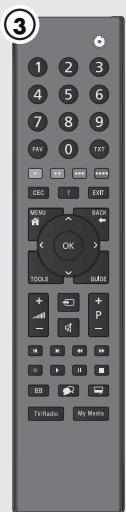
16 The remote control - All functions
17 INITIAL SET-UP
17 Initial set-up and tuning channels
17 Selecting language, operating mode and country
18 Tuning the channels from satellite (DVB-S/ S2)
20 Tuning terrestrial channels (DVB-T)
20 Tuning channels from the cable provider (DVB-C)
21 Changing the program table for the digital channels
24 PICTURE/SOUND SETTINGS
24 Picture settings
24 Advanced picture settings
26 Sound settings
28 Switching on and off
28 Selecting channels
28 Selecting channels from lists
28 Selecting a preset AV channel
28 Adjusting the volume
28 Switching sound on/off
28 Displaying information
28 Freeze-frame
28 Audio language
29 Subtitles
29 Zapping function
30 TV OPERATION - ADDITIONAL FUNCTIONS
30 Entering the switch-off time (sleep timer)
30 Zoom function
30 Eco mode
30 Audio settings
30 Picture settings
31 Changing the picture format
32 ELECTRONIC TV GUIDE
32 Electronic TV guide
33 TOP text or FLOF text mode
33 Additional functions
34 USB RECORDING
34 Information on recording and playing television programmes
34 Possible limitations when using an external data medium
35 Connecting external data media
35 Settings for USB recording
37 "Pausing" time shift programmes
37 Recording programmes
38 Presetting programmes to be recorded
40 Playback
41 USB OPERATION
41 File formats
42 Connecting external data media
42 Removing the external data media
43 The media player
43 Settings in the USB setup menu
44 Basic playback functions
45 Additional playback functions
46 LANGUAGE SETTINGS
46 Opening the SETTINGS menu
46 Changing the menu language
46 Changing the audio language
47 ACCESSIBLE FUNCTIONS
47 Changing the subtitle language and subtitle mode
47 Audio description (Audio subtitles)
48 DATE AND TIME SETTINGS
48 Opening the SETTINGS menu
48 Automatic setting
48 Manual setting
49 TIMER FUNCTIONS
49 Opening the SETTINGS menu
49 Entering the switch-off time (sleep timer)
49 Switch-on timer
50 Switch-off timer
50 Automatic switch-off (Auto Sleep)
51 PARENTAL SETTINGS
51 Opening the SETTINGS menu
51 Authorising programmes
51 Locking menus
52 Locking keys (Parental lock)
52 Changing the PIN code
52 Locking television channels
52 Watching a blocked television channel
53 SOFTWARE OF THE DEVICE
53 Opening the SETTINGS menu
53 Productinformation
53 Updating software
53 Software update (USB)
54 RESET FUNCTIONS
54 Restoring the television to the default settings
55 OPERATION USING EXTERNAL DEVICES
55 DIGI LINK
55 The DIGI LINK functions on your television
56 Device operation
56 Switching the device to standby
57 High definition HD ready
57 Connection options
58 Connecting external devices
58 Using a DVD player, DVD recorder, video recorder or set-top box
58 Headphones
59 Hi-fi system/AV receiver
60 OPERATION WITH A COMMON INTERFACE
60 What is a Common Interface?
60 Inserting the CA module
60 Access control for CI module and smart card
61 SETTING FURTHER CHANNELS
61 Update for digital channels from a satellite automatically
62 Searching for digital channels from a satellite manually on a transponder
63 Antenna settings and searching for digital channels from a satellite automatically
64 Antenna settings, SCR system and searching for digital channels from a satellite automatically
65 Antenna settings for DiSEqC 1.0/1.1 and searching for digital channels from a satellite automatically
67 Searching for channels from the cable provider automatically
68 Searching for channels from the cable provider manually
68 Searching for digital terrestrial TV channels automatically
69 Searching for digital terrestrial TV channels manually
69 Automatic service update
70 Tuning analogue television channels
71 Changing stored analogue channels
73 Displaying signal information
74 INFORMATION
75 Service information for dealers
75 Environmental note
75 Note for the Product Package
75 Cleaning the TV set
75 Explanation of the symbols which may be present on back side of the television set
76 Troubleshooting
77 GLOSSARY
80 INDEX
About your TV set
- With your TV set, you can receive and watch digital TV programmes over DVB-S, DVB-T and DVB-C, along with analogue TV.
The TV set can record programmes. For this feature you need a USB storage device, such as an external hard drive (not included). Recorded programmes can only be played on the same TV set. After the TV st is repaired, it is possible that recorded programmes may no longer be able to be played back.
Intended use
The TV set is designed for use in dry rooms.
Use the TV set with the supplied stand or a suitable VESA bracket.
The TV set is primarily intended for the playback of TV programmes, streaming content and audio/video material from external devices. Any other use is strictly prohibited.
It is not intended as an information display or for predominant use as a computer monitor. If a still image or a non-full-format image is displayed for an extended period, visible traces may remain on the screen for some time.
This is not a defect that can be used as the basis for a warranty claim.
Safety
WARNING
Risk of electrical accident
- Do not open the TV set. Safety risk may arise and also the guarantee of the product can be void if the television set is opened.
The TV set can only be operated with the power cable or the AC/DC adapter supplied with the product. - Do not operate the TV set with a damaged power cord/AC/DC adaptor (if supplied).
If the plug on the TV set has an earthing contact, only insert the plug into a socket with an earthing contact.
Plug the TV set into the mains socket only after you have connected the external devices and the antenna. - Protect the TV set from moisture. Do not place any vessels filled with water (such as vases) on the TV.
Fire hazard
To prevent the spread of fire, keep candles or other open flames away from this product at all times.
- Do not cover the ventilation slots on the TV set.
Always unplug the power plug and antenna plug during a thunderstorm. - Keep candles or other open flames away from the TV set.
- Do not expose the batteries to extreme heat such as sunshine, fire or the like.
Only use batteries of the same type (brand, size, properties). Do not use used and new batteries together.
WARNING
Injuries caused by falling TV set
Never place the TV set on an unstable surface. The TV set may fall, causing serious injury, possibly leading to death in isolated cases.
Observe the following precautions:
Only use the manufacturer's recommended cabinets or stands.
Only use furniture that can safely support the TV set.
Make sure that the TV set does not protrude beyond the dimensions of the furniture on which it is resting.
- Do not place the TV set on tall furniture (such as kitchen cabinets, bookshelves) without securely anchoring the furniture and TV set.
- Do not place the TV set on fabric or other materials located between the TV set and furniture.
Instruct children that there is danger associated with climbing on furniture when the TV set is to be reached.
NOTICE
Shortened service life due to high operating temperature
- Do not place the TV set next to heating units or in direct sunlight.
To ensure adequate ventilation, maintain clearance of at least 10cm around the TV set.
Discolouration of furniture due to rubber feet
Some furniture surfaces may discolour when they come in contact with rubber. To protect furniture, you can place a sheet made of glass or plastic under the stand. Do not use textile underlays or mats such as doilies.
Environmental information

Do not dispose of batteries in the household waste. Used batteries must be returned to retail
stores or public collection points. You help to protect the environment in this way.
- Be sure to dispose of packaging materials for your product separately according to the guidelines of local authorities so that they can be recycled in an environmentally safe manner.
If you are not using your TV set for a while, turn it to standby mode. In standby mode, the TV set uses very little energy (≤ 0.5W) . If you do not use the TV set for an extended period, turn it off with the power switch or unplug the power cord from the socket. If you turn off the device or disconnect it from the power supply, the switch-on timer and programmed recordings will not work.
- Select a location for the TV set so that no direct sunlight falls on the screen. This allows a lower backlight to be selected, which saves energy.
Do not dispose of the product along with normal household waste at the end of its service life. Take it to a recycling centre
for electrical and electronic equipment.
Special features of your TV
You can receive and watch digital TV channels using your television set (via DVB-S/S2, DVB-T and DVB-C) - including High Definition programmes (HD). However, the reception of digital TV channels in HD is currently limited to a few countries in Europe.
Although this television set complies with the current DVB-S/S2, DVB-T and DVB-C standards (status: August 2012), the compatibility with future DVB-S/S2 satellite transmissions as well as terrestrial DVB-T and DVB-C cable programmes cannot be guaranteed.
- Your television set can receive and process all analogue and non-encrypted digital TV channels. The television set is also equipped with digital and analogue receivers.
The electronic TV guide (for digital channels only) informs you about any schedule changes at short notice, and provides an overview of all the broadcasters' schedules for the next few days. Detailed information on the individual television programmes are - when provided by the broadcasting station - are also available in the electronic TV guide.
- You can connect various data media, such as an external hard drive, a USB memory stick or a digital camera, to the USB socket. Using the file browser, you can then select and play the file formats of your choice (for example, MP4, MP3 or JPEG data).
Using the time shift function, you can quickly and easily pause a programme using the remote control and resume it at a later stage. The programme is recorded in an external data medium.
You can record any digital TV channels you choose.
The TV channels are converted by the television and saved on an external data medium which is connected to the USB socket.
The saved programmes can be called up and played from the archive on the external data medium at any time.
You can also play a programme from the archive while recording another.
More information on recording and playing TV programmes can be found from page 34.
Receiving digital channels
You require a satellite antenna to receive digital satellite channels (DVB-S/S2).
You require a digital roof antenna or indoor antenna (passive or active indoor antenna with its own power supply) to receive digital television channels (DVB-T).
If you wish to receive digital television channels via your cable system (DVB-C), the antenna cable for your cable operator must be connected to the television set.
Unlike analogue broadcasting, not every channel has its own transmission frequency. Instead, several channels are grouped into what are known as bouquets on a regional or national level. You can find the current transmission information on teletext from various broadcasters, or by consulting a current TV guide or the Internet.
Various digital television channels from private broadcasters are encrypted (DVB-S/S2, DVB-T and DVB-C). Watching these channels and the recording and playback functions are only possible with the appropriate CI module and a SmartCard. Ask your specialist dealer. The range of channels available from the public broadcasting institutions (ARD with EinsExtra, EinsFestival or ZDF with ZDF Info and all third party broadcasters) are not encrypted and can be received without a SmartCard.
Grundig SCR system
- Your TV supports SCR system (Satellite Channel Router). If your antenna installation is equipped with an Single Cable Distribution multiswitch, all television sets which are connected on this antenna can receive the television channels stand-alone.
Important notes on environmental protection
The following information will help you to save resources - and money as well.
If you are not using your television set for several days, you should pull out the mains plug for environmental and safety reasons. This way the television does not consume any electricity.
If the device is equipped with a power switch, switching it off using this switch will be sufficient. The energy consumed by the television set is reduced to virtually 0 W.
In standby mode, the television set uses very little energy. However, it may be necessary to leave the television set in standby mode for certain functions (for example automatic switch-on and switch-off and for timer functions).
The television set uses less energy when the brightness is reduced.
Notes on still images
Watching the same image for a long time on the screen may cause a still image remains feebly on the background. Feeble image(s) on the background is originated from LCD/LED technology and does not require any action under guarantee. To avoid such cases and/or minimize the impact, you may observe the tips below.
- Do not allow the same TV channel to stay on the screen for a very long time. Channel logos may cause this situation.
- Do not allow the images, which are not full screen, to constantly stay on the screen; if not streamed in full screen format by the broadcaster, you can convert the images to full screen by changing picture formats.
Higher brightness and/or contrast values will lead this impact to appear faster; therefore, you are recommended to watch your TV in the lowest brightness and contrast levels.
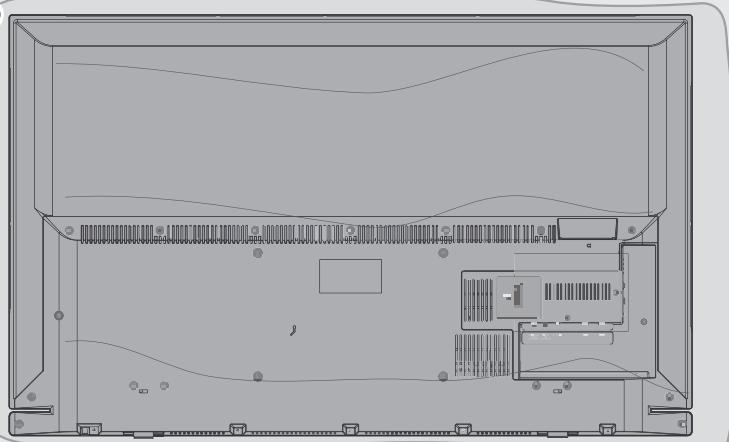
(1)
2
(5)

Standart accessory
TV
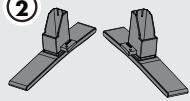
2 Stand
3 Remote control
4 Batteries for remote controls
5 Screws and mounting instructions for stand
6 Screws for VESA bracket
7 Brief Instruction
Optional accessory
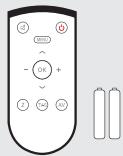
Easy-Use Remote Control
Batteries for Easy-Use remote controls
Cleaning cloth
Connecting the antenna and the power adapter
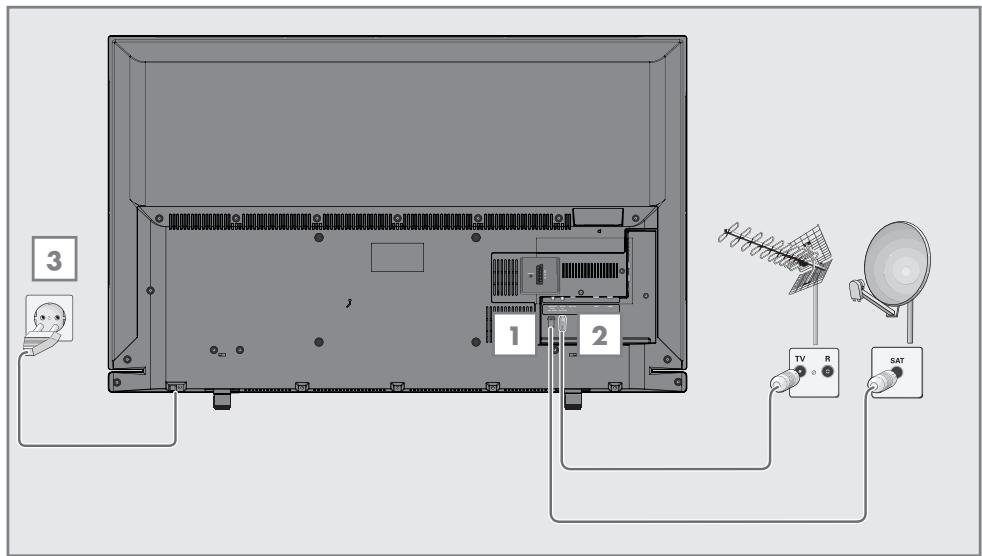
1 To receive digital satellite channels (DVB-S/ S2), connect the satellite antenna cable to the antenna socket SATELLITE on the television set. And/or
2a To receive terrestrial digital broadcasters (DVB-T) connect the cable for the rooftop or indoor antenna (passive or active indoor antenna with its own power supply) to the antenna socket ANT IN on the television set;
or
2b To receive digital cable channels (DVB-C) connect the cable for the rooftop antenna to the antenna socket ANT IN on the television set;
or
2c To receive analogue TV channels, connect the cable for the rooftop antenna to the antenna socket ANT IN on the television set
Note:
When connecting an indoor antenna you may have to try it out at different positions until you get the best reception.
3 Plug the power cord of the power adapter into a wall socket.
Notes:
- Do not plug in the power adapter until you have connected the external equipment and the antenna.
- Do not use an adapter plug or extension lead which does not meet the applicable safety standards. Do not tamper with the power cord.
Setting up or hanging
- Select a location so that no direct sunlight falls on the screen.
Setting up with stand
To mount the stand, refer to the installation instructions included.
Place the TV set on a hard, level surface.
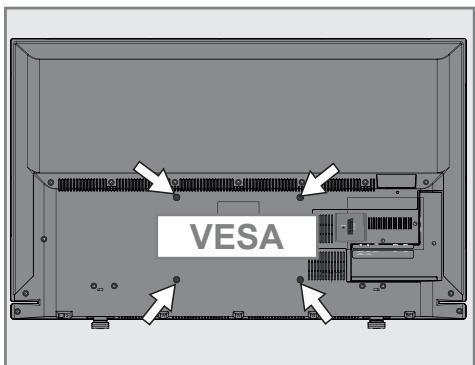
Preparing for mounting on the VESA bracket
You will need:
A pair of scissors,
A crosstip screwdriver.
Follow the installation instructions for the VESA bracket.
1 Place the TV set in the film on a smooth surface with the screen facing down.
2 Cut open the film on the back side using the scissors.
3 Connect the required cables to the connectors on the TV set. See the "Connections" section in this manual.
4 Tie the cables so they do not hang down onto the floor.
5 Screw the VESA bracket onto the TV set and mount it according to its installation instructions.
Inserting batteries into the remote control
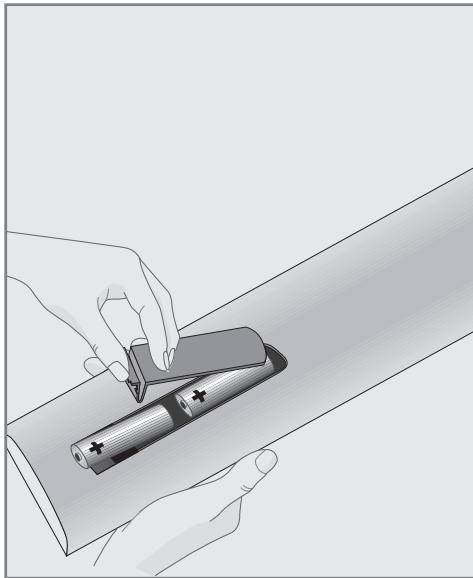
1 Open the battery compartment by removing the lid.
2 Insert the batteries (2× 1.5V micro, for example R03 or AAA). Observe the polarity marked in the bottom of the battery compartment.
3 Close the battery compartment.
Note:
If the television no longer reacts properly to remote control commands, the batteries may be flat. Always remove used batteries.
The manufacturer accepts no liability for damage caused by leaking batteries.
Environmental note
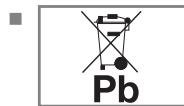
This symbol on rechargeable batteries/batteries or on the packaging indicates that the recharge
able battery/battery may not be disposed of with regular household rubbish. For certain rechargeable batteries/batteries, this symbol may be supplemented by a chemical symbol. Symbols for mercury (Hg) or lead (Pb) are provided if the rechargeable batteries/batteries contain more than 0.0005% mercury or more than 0.004% lead.
Rechargeable batteries/batteries, including those which do not contain heavy metal, may not be disposed of with household waste. Always dispose of used batteries in accordance with local environmental regulations.
Make enquiries about the applicable disposal regulations where you live.
Connections on the television set
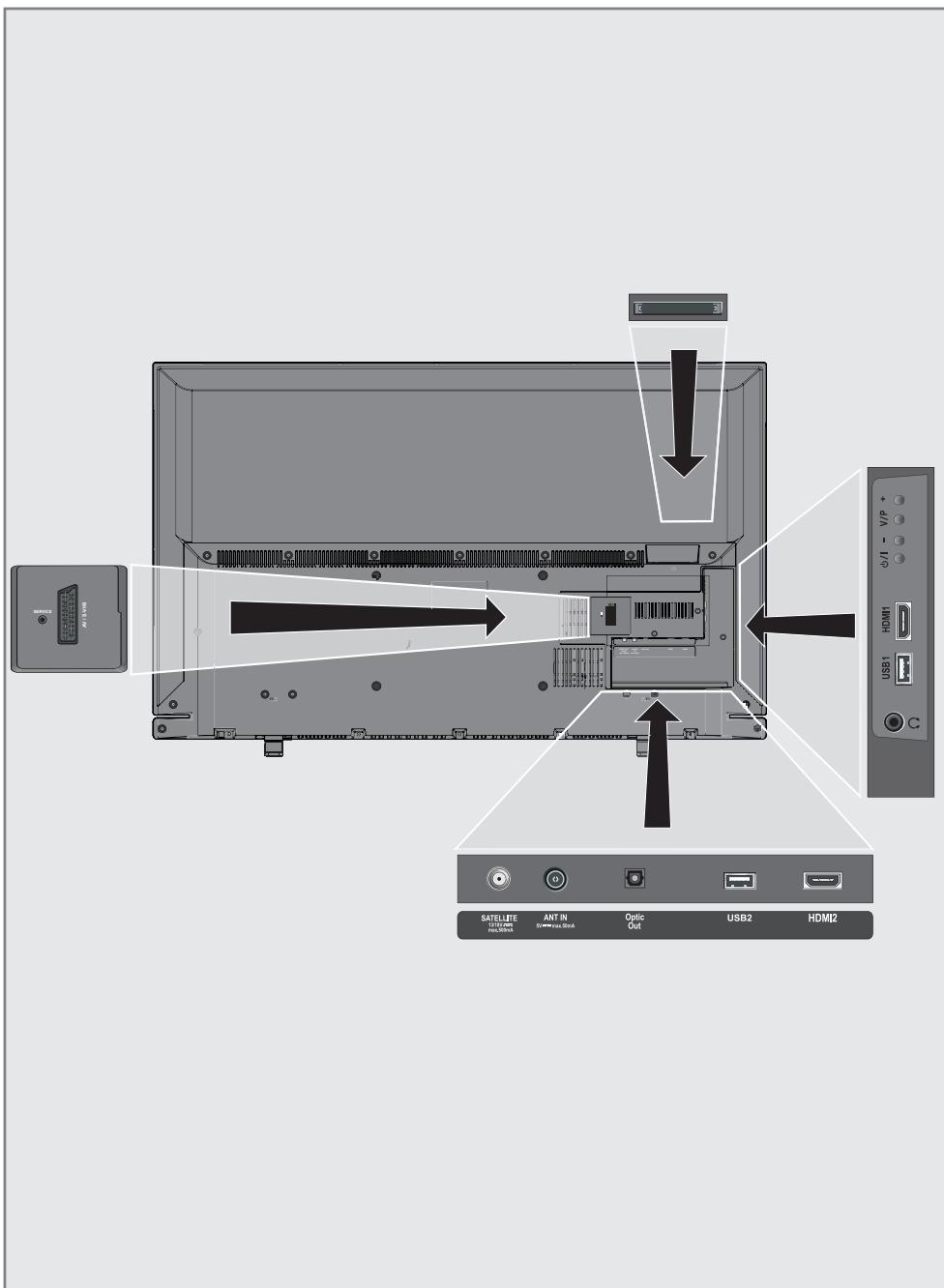
SERVICE
Service only.
AV/S-VHS
SCART socket, audio/video input and output;
S-VHS socket, audio/video input for S-Video camera using a SCART-S-VHS adapter cable;
Component socket, audio/video input (YUV signal) using a SCART-YPbPr adapter cable.
SATELLITE
For satellite antenna. Suitable for single-cable GSCR system.
ANT IN
For antenna cable (terrestrial antenna, cable connection or analogue antenna).
Optic Out
Optical audio output. For digital multichannel audio/video amplifier or AV receiver connections.
USB2
Connect data media for recording programmes, such as an external hard disk.
HDMI2
Input for digital audio and image data.
#
Headphone jack or line output via adapter. External audio output (with headphone-RCA converter).
USB1
USB socket for external data medium and PVR function.
HDMI1
Input for digital audio and image data.
CI
For CA modules for receiving encrypted stations.
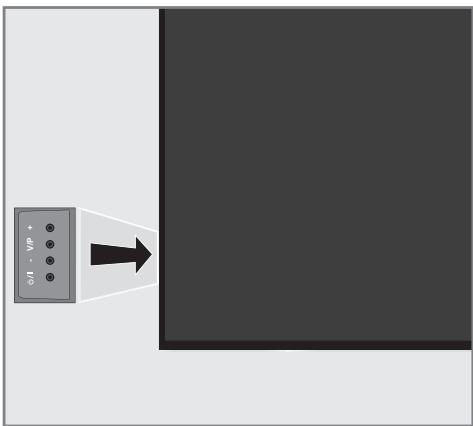
Control elements
Turning the TV to standby
Switches the television on and back into standby mode.
Adjusting the volume or changing the station
1 «V/P« Pre-selection for volume or channel selection.
2 - Adjusts the volume; Selects channels in steps.
3 + Adjusts the volume; Selects channels in steps.
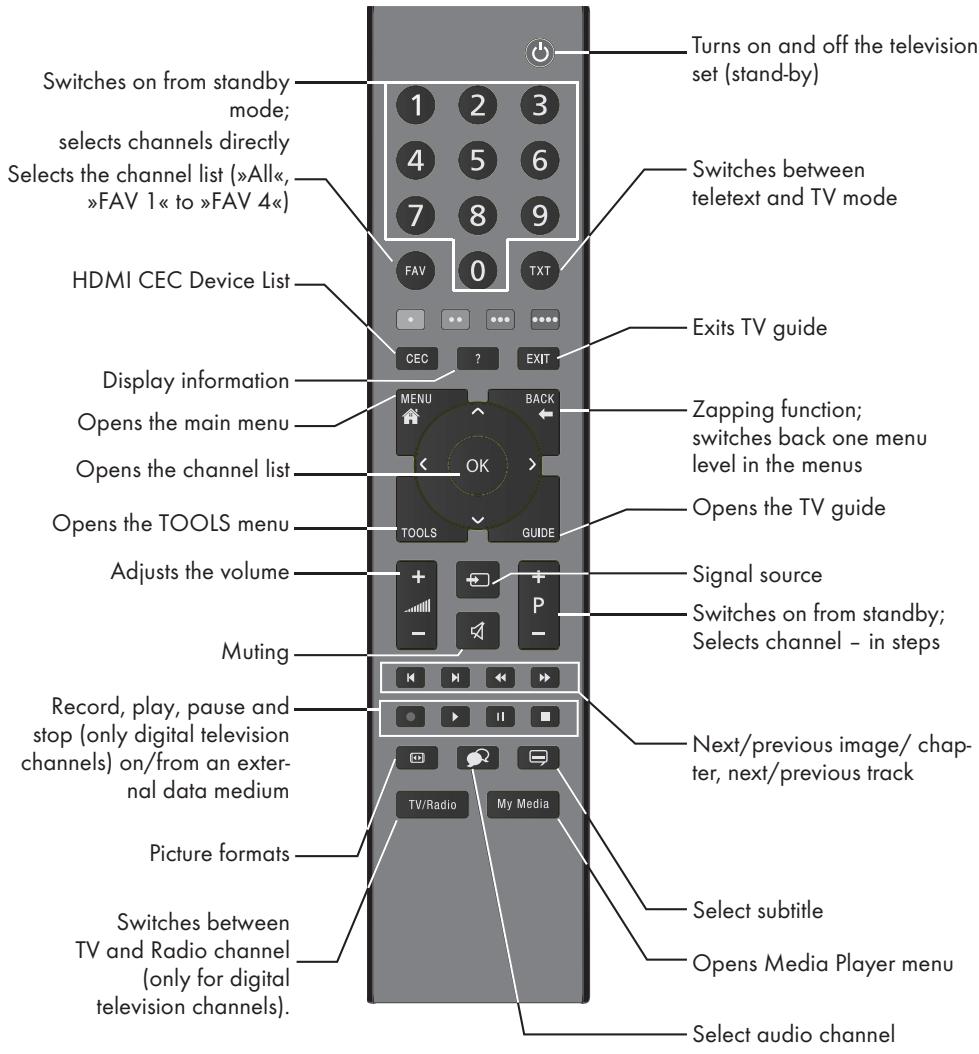
The remote control - Main functions
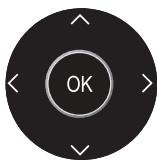
Navigation in the menus
Moves the cursor up and down in the menus.
Moves the cursor to the left and right in the menus.
Activates various functions and save functions/settings.
The remote control - All functions
- (red) Selects pages in teletext;
- (green) Selects/activates various functions
- (yellow) in the menus.
... (blue)
Switches to double character size in teletext; selects the previous title/previous picture in the Media Player.
Refreshes a teletext page; selects the next track/next picture in the Media Player.
止 Stops scrolling through pages in teletext; starts a fast reverse search in the Media Player.
Reveals answers in teletext; starts a fast forward search in the Media Player.
Starts the recording (only for digital television channels, the recording is made on an external data medium).
Starts playing a programme from an external data medium; repeats a recorded programme; starts playback in the Media Player.
Freeze frame, if no external data medium is connected; playback pause; time shift mode (only for digital television channels and when an external data medium is connected); Pauses the file executed in the Media Player.
Ends playback of a programme from an external data medium; ends a recording or playback in time shift mode; splits the screen in teletext; stops the file executed in the Media Player.
Selects different audio languages (only for digital television channels).
Selects different subtitles (only for digital television channels).
Initial set-up and tuning channels
The television set is equipped with automatic channel search, which searches for satellite channels (DVB-S/S2), terrestrial channels (DVB-T), cable channels (DVB-C) and analogue channels.
You start the search and the channels will be stored into the different Program Tables. Following, you can sort the channels in the Program Tables.
The various settings
Depending on the type of antenna connected, you can decide which channels you would like the television to search for.
DVB-S/S2 -Tunes digital channels from the satellite,from page 18.
You have two options for this search:
- the basic installation which presets a standard selection, e.g. the satellite Astra 19.2° East; you need only start the search;
- the professional installation, which allows you to make all required settings and set parameters for your receiver system.
DVB-T - Tunes digital terrestrial channels, on page 20.
DVB-C -Tunes digital channels from the cable provider, on page 20.
Tunes analogue television channels, in the chapter "Special functions", starting on page 70.
Further settings for digital channels after the initial set-up can also be found in the chapter "Special Settings", starting on page 61.
Note:
Make the language and country selection for all types, then continue reading the respective chapter.
Selecting language, operating mode and country
1 Switch on the television set from standby with 心 , 1 0 or P + or P -
- During initial set-up, the Installation Guide will be displayed.
Help:
If this menu is not displayed, restore the television set to its default settings (see page 54).
2 Select the menu language with , «, «V« or «A» and press OK « to confirm.
3 Select the mode with « or » and press OK to confirm.
- The settings used in »Home Mode« help to save energy.
- Alternatively, the menu item «Shop Mode« can be selected which the retailer can use for demonstrating the device functions.
Note:
End the Shop Mode by restoring the television set to its default settings (see page 54).
4 Select the country in which the television set is operated with , , or and press OK to confirm.
- The »Source Setup« menu appears with the »Connection Type« line marked.
Note:
You can find a description of how to tune the channels of your choice - depending on the antenna connected - in the following chapters.
Tuning the channels from satellite (DVB-S/S2)
You have two options for tuning digital satellite channels.
A The easy installation, which pre-configures all antenna settings for the satellite channels on Astra 19.2^ East.
B The advanced installation can be used if you wish to receive satellite channels from various satellites. To do so, you must make the antenna settings (Satellite, LNB Power, LNB Type, DISEqC Mode, LNB Selection) for the satellites chosen.
Easy installation
1 In the «Source Setup« menu, in the «Connection Type« line, select the option «Satellite« with «or» and press OK to confirm.
2 Select the line «Easy Installation« with «V« or «A« and press «OK« to confirm.
- Other menu options will be displayed, the satellite Astra 19.2^ East is preset.
3 Start the scan with (green).
- The »Search results« menu appears, and the scan for channels begins.
Depending on the number of television channels received, this can easily take a few minutes.
- The scan is complete as soon as the «PROGRAM TABLE« appears.
Note:
You can abort the scan by pressing >MENU<.
Advanced installation
1 In the «Source Setup« menu, in the «Connection Type« line, select the option «Satellite« with «or».
2 Select the line Advanced Installation with or and press OK to confirm. - The menu appears.
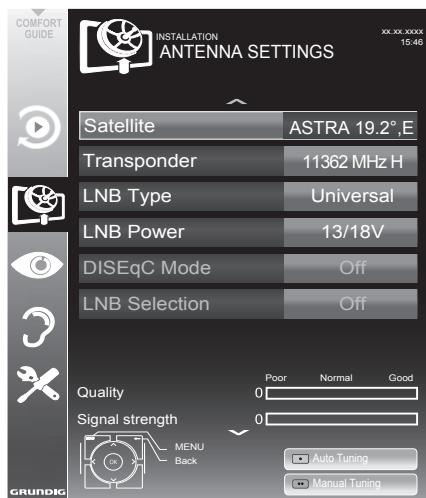
3 Select the line «Satellite« with «V« or «A« and press «OK« to confirm.
- The »SELECT SATELLITE« menu appears. Select the satellites with «V«, «A«, «O« or «» and press «OK« to confirm.
Note:
The setting in the line Transponder is not required for this automatic scan.
4 Select the line LNB Type with V or A .
Select the type of LNB installed with or
5 Select the line LNB Power with or
Depending on the type of LNB, set the LNB power supply to 13 / 18V or 14 / 19V with or
6 Select the line DISEqC Mode with or
- DiSEqC 1.0 allows up to four satellites to be received simultaneously.
- DiSEqC 1.1 allows up to 16 satellites to be received simultaneously.
7 Select the line LNB Selection with or
Select the setting for the respective satellites with
8 Once the settings for the satellite have been made, switch to the AUTOMATIC CHANNEL SEARCH menu with * (red).
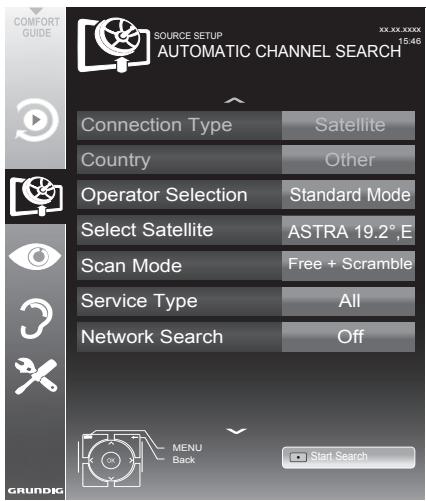
9 Select the line Scan Mode with or
Select the scan mode with or (for unencrypted channels, for encrypted channels only, or for both).
10 Select the line Service Type with or
Use « or » to select whether you want to search for television channels only (TV), radio stations only (Radio) or both (Radio + TV).
Note:
It is possible, that some TV channels (transponders) cannot be found. This is caused by a change in satellite parameters made by the broadcaster, e.g. new channels have been added. Set the «Network Search« option to «On«.
11 Start the scan with (red).
- The »Results« menu appears, and the scan for channels begins.
Depending on the number of channels received, this can easily take a few minutes. - The scan is complete as soon as the «PROGRAM TABLE« appears.
Note:
You can abort the scan by pressing >MENU<.
12 Press MENU × to end the setting.
Note:
If other television channels are to be tuned from a second satellite, proceed as follows: Open the menu with MENU , select the line SOURCE SETUP with V or A and press OK to confirm. Then select the Automatic Channel Search with V or A and press OK to confirm. Confirm the line Select Satellite with OK and select the preferred satellite with V , A , or . Start the scan with (red). Continue the adjustment by step 4 of the chapter.
Note:
Before recording HD channels, please check signal quality and Strength, see chapter "Displaying signal information" on page 72. If the level is displayed in green, you can record HD channels without any problems.
Tuning terrestrial channels (DVB-T)
1 In the Source Setup menu, in the Connection Type line, select the option Air with or
2 Select the line Scan Type with V or A.
Use « or » to set the required scan type:
- DTV, scan for digital television channels;
- ATV , scan for analogue television channels;
- ATV & DTV , scan for analogue and digital television channels.
Caution:
The antenna power supply (5V ---) may only be switched on if the antenna is an active indoor antenna with a signal amplifier and it is not already supplied with a voltage via a mains plug (or similar supply). Otherwise you may cause a short circuit and irreparably damage your antenna.
3 Select the line Active Antenna Power with or
Switch on the antenna power supply for the antenna with or ( On)
4 Start the scan with (green).
- The »Search Results« menu appears, and the search for channels begins.
Depending on the number of channels received, this can easily take a few minutes. - The scan is complete as soon as the «PROGRAM TABLE« appears.
Note:
You can abort the scan by pressing MENU*.
5 Press MENU to end the setting.
Note:
Before recording HD channels, please check signal quality and Strength, see chapter "Displaying signal information" on page 72. If the level is displayed in green, you can record HD channels without any problems.
Tuning channels from the cable provider (DVB-C)
1 In the Source Setup menu, in the Connection Type line, select the option Cable with or .
2 Select the line Scan Type with or >> Use to set the required scan type:
- DTV , scan for digital channels;
- ATV , scan for analogue television channels;
- ATV & DTV, scan for analogue and digital television channels.
3 Select the line Cabel Scan Type with or . Select the preferred option ( Quick or Full) with or .
- The search function «Quick« sets up the channels according to the information provided by your cable provider in the transmission signal.
- If the option «Full« is selected, the entire frequency range will be scanned. The search can take a long time with this option. This option is recommended if your cable provider does not support the scan type «Quick».
Note:
- You can accelerate the search. To do this, you need information about the frequency and network ID. You are usually able to get this data from your cable operator or find it in forums on the Internet.
4 Start the scan with (green). - The «Search Results« menu appears, and the search for channels begins.
Depending on the number of channels received, this can easily take a few minutes. - The scan is complete as soon as the PROGRAM TABLE appears.
Note:
You can abort the scan by pressing MENU*.
5 Press MENU to end the setting.
Changing the program table for the digital channels
Channels which are found using the scan are saved in the «PROGRAM TABLE«.
You can delete channels which are not required from the program table, you can change the order of channels within the program table and lock individual channels (Parental control).
You can also add channels to the favourites list; in addition, you can change the order of channels within the favourites list.
Switch to the next page in the programme table with P + and to the previous page with P - .
With (yellow) you can open the LIST MANAGEMENT within the program table.
In this List Management you can create your own favourites lists.
With · · · · · (blue) you can sort the channels according different criteria.
Selecting channel lists
1 Open the menu with MENU*.
2 Select the SOURCE SETUP menu with or and press OK to confirm. - The SOURCE SETUP menu appears.
3 Select the line «Programe Table« with «V« or «A« and press «OK« to confirm. - The menu «PROGRAM TABLE« appears.
Important:
- Prograde table and favourites lists are saved separately according to the different input sources (satellite, cable, air).
When opening the program table, the respective channel list for the current input signal appears.
Notes:
If in the program table CA appears added to the name of the channel, you need a CI module and a Smart-Card for watching these channels.
As the received data channels are not displayed in the program table, number channels displayed in the program table may be less than 6000.
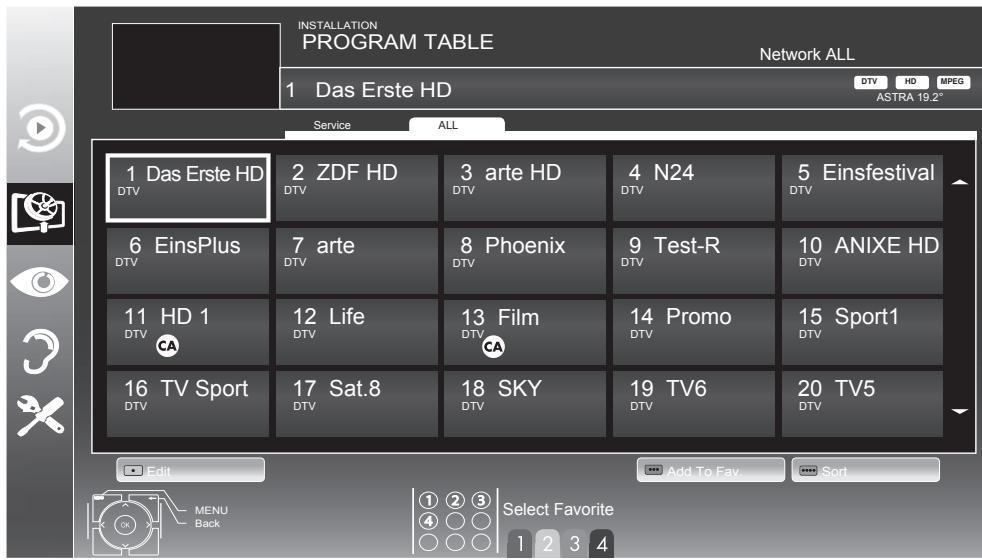
Deleting channels in the program table
In the PROGRAM TABLE menu, select the Edit mode by pressing (red).
2 Select the television channel to be deleted with , , or and press · · · (yellow) to delete.
Note:
You can delete all channels with (blue).
3 Confirm the deletion process with (green);
or
cancel the deletion process with (red);
4 Quit the program table with >MENU>.
Change the order of the channels in the program table
(only satellite channels and digital television channels from the cable provider)
1 In the PROGRAM TABLE menu, select the Edit mode by pressing (red).
2 Select the channel which should be moved with , , or and mark it with (red).
3 Move the channel to its new position with , , < or > and press OK to confirm.
Note:
Repeat steps 2 and 3 if you would like to change other channels.
4 Quit the program table with MENU*.
Sorting channels in the program table
(only satellite channels and digital television channels from the cable provider)
You can sort the order of the channels in the program table according different criteria.
In the PROGRAM TABLE< menu, select the Sort mode by pressing (blue).
2 Select the sort criteria for satellite channels with (red), (green) or (yellow);
or
sort digital channels from the cable provider with (blue).
3 Quit the program table with MENU*.
Skipping channels
You can mark channels which should be skipped when selecting with or . It is still possible to select them using the number buttons.
In the PROGRAM TABLE menu, switch over to the list view with (yellow).
2 Select the preferred channel with V or
3 Select the column Skip with or and use OK to mark the channel. The channel is marked by /
4 Quit the program table with MENU.
Note:
Channels can also be reactivated. Select the channel with or , then select the column Skip and reactivate the channel with OK
Creating lists of favourites
You can save your favourite channels in up to four favourites lists (FAV 1 to FAV 4).
Notes:
Favourites lists must be created separately for all input sources (satellite, cable, air).
You can select the favourites list by pressing FAV.
In the PROGRAM TABLE< menu, switch over to the list view with (yellow).
2 Select the channel of your choice with or .
3 "Push" the channel into the favourites lists 1 to 4 with « or » and press OK to confirm.
- The position in the favourites list is marked with
- You can enter the same channel in more than one favourite list.
Each favourite list can store up to 250 channels.
Notes:
Channels can also be deleted from the
favourites lists. Select the channel to be
deleted with V , A , C or and
press OK to delete it.
- When deleting a channel from the favourites list, the order within the favourites list will be updated.
4 Quit the program table with MENU*.
Sorting channels in the favourite list
You can change the order of channels in the favourites list.
1 In the PROGRAM TABLE menu, select the favourites list to 4 .
2 Select the channel which should be moved with , , or and mark it with (red).
3 Move the channel to its new position with , , < or > and press OK to confirm.
Notes:
Repeat steps 2 and 3 if you would like to change other channels within the same favourites list.
Repeat steps 1 to 3 if you would like to change channels in a different favourites list.
4 MENU the current favourites list with (blue).
- The entire program table will appear again.
5 Quit the program table with MENU*.
Picture settings
1 Open the menu with MENU*.
2 Select the menu item PICTURE SETTINGS with V or A and press OK to confirm.
- The PICTURE SETTINGS menu appears.
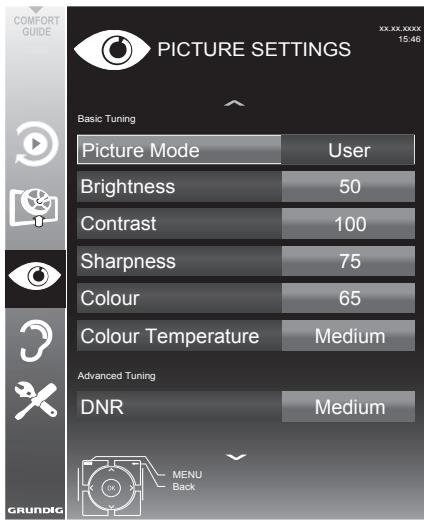
3 Select the line Picture Mode, Brightness, Contrast, Sharpness, Colour, or Colour Temperature with or and press OK to confirm.
Note:
In the «PICTURE SETTINGS« menu you can also find other additional settings.
4 Select the line DNR, Mpeg NR, Vibrant Colour, Perfect Clear, Film Mode, Gamma, Dynamic Contrast, Dynamic Backlight or Backlight with V or A. Select the value with or and press OK to confirm.
5 Press MENU to end the setting.
Advanced picture settings
The "advanced picture settings" are in principal digital image improvements which, however, should be only used when necessary when picture quality and transmission is excellent. They may well improve the display with poor material, but may adversely affect the display where transmission and picture quality are excellent.
■ Nois Reduction « - Reduces the visible snow by displaying the picture a little less sharply and creating a slight blurring. Should therefore be used minimally with good picture material.
■ Block Noise Reduction « - This function can only be selected with digital reception sources and AV preset. It reduces any interference from artefacts (pixel blocks) from digital programmes due to MPEG compression (such as from DVB-T receivers and lower transmission rates or DVD players).
Vibrant Colour - Increases the colour contrast and the contrast adjustment. This setting is mostly too strong for use with normal pictures and should only be used where necessary (low or off) otherwise nuances in the image can be suppressed.
- Perfect Clear - Improves the general image by means of a gentle blue hue (giving the appearance of greater sharpness) and improves the black level by setting this entirely to black from specific shade of back. This reduces the visible grey values in the dark areas of the picture.
■ Film mode detects and processes feature films automatically for all channel sources. This means you will always receive an optimal picture.
This functions in the modi 480i, 576i and 1080i in TV playback and for other channel sources.
If the Film mode is switched on for programmes without a feature film signal, minor problems such as picture freeze, defective subtitles or fine lines in the picture could occur.
- «Gamma« - This setting establishes which brightness value should be displayed for which digital transmission value. Most recordings are transmitted with a gamma value of 2.2 (all Windows PCs and newer PCs with a MAC operating system work with this, older MAC systems and transmissions without colour profile mostly operate with a gamma value of 1.8).
Dynamic Contrast - The function dynamically and optimally adjusts the contrast for the respective picture content by analysing images and then altering this depending in a change in contrast. This increase the contract, however may also reduce the visible brightness levels in the picture. - Dynamic Backlight - Here the device optimally adjusts the back lighting for the picture content by regulating the back lighting depending on the average picture brightness. If a picture has predominately dark areas, then the black level displayed is improved by downward adjustment of the back lighting (in this case the display of the dark areas is improved), and with predominantly bright picture material the back lighting is maximised in order to display these areas more brightly.
Backlight - Manual setting for back lighting (only active if dynamic back lighting is switched to "OFF"). This setting also directly impacts power consumption.
Sound settings
1 Open the menu with MENU*.
2 Select the menu item SOUND SETTINGS with V or A and press OK to confirm.
- The «SOUND SETTINGS« menu appears.
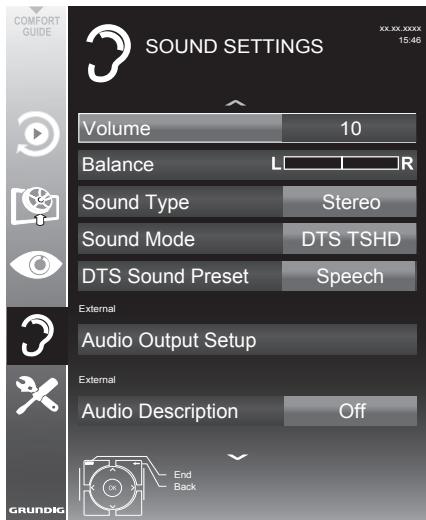
Note:
Additional operations are explained in the following sections.
Volume
1 Select the line Volume with or and change the setting with or
Balance
1 Select the line «Balance« with «V« or «A« and change the setting with «< or «» «.
Stereo/two channel sound, mono
If the device receives two-channel-sound programmes, e.g. a film with the original soundtrack on audio channel B (display: Dual II) and the dubbed version on sound channel A (display: Dual I), you can select the audio channel you prefer.
If the device receives stereo or Nicam programmes, it switches automatically to stereo sound (display: «Stereo»).
You can switch the sound to Mono if the stereo sound quality is poor.
1 Select the line Sound Type with or and adjust the setting with or
Stereo width
This broadens the sound output for stereo programmes and improves the sound with mono reception.
1 Select the line Sound Mode with V or A.
2 Select the option «Spatial« with « or » «.
DTS TruSurround HD
DTS TruSurround HD is a patented audio technology which is integrated into the television set and only requires the built-in speakers to generate a Surround Sound effect.
1 Select the line Sound Mode with V or A .
2 Select the option DTS TSHD with < < 口 or
3 Select the line DTS Sound Preset with or
4 Select the sound effect Music , Movie , Natural or Speech with or
For DTS patents, see http://patents.dts.com. Manufactured under license from DTS Licensing Limited. DTS, the Symbol, & DTS and the Symbol together are registered trademarks and DTS Studio Sound is a trademark of DTS, Inc. DTS, Inc. All Rights Reserved.
For DTS patents, see http://patents.dts.com. Manufactured under license from DTS Licensing Limited. DTS, the Symbol, & DTS and the Symbol together are registered trademarks, and DTS 2.0+Digital Out is a trademark of DTS, Inc. © DTS, Inc. All Rights Reserved.
Soundeffects
This menu offers three preset sound effects (Music, Natural and Speech) and one setting to be created by you (User).
1 Select the line «Sound Preset« with «V« or «A«.
2 Select the sound effect «Music», «Natural« or «Speech« by pressing «« or «» «.
Note:
User « option is active when «Sound mode « setting is selected as «Normal or «Spatial «.
Automatic volume
Television stations broadcast at different volumes. The automatic volume limiting (AVL) function means the volume is kept the same when you switch between channels.
1 Select the line AVL with V or A and select the option On with or
Note:
If the DTS TSHD setting has been selected in the Sound Mode line, the AVL line cannot be selected.
Equalizer
Equalizer offers a sound setting "User" that you can create.
Equaliser appears in the menu when «Sound mode« is selected as «Spatial« or «Normal«, and «Sound Preset« as «User«.
1 Select Equalizer with or and press OK to confirm. The Equalizer menu appears.
Note:
If the DTS TSHD setting has been selected in the Sound Mode line, the Equalizer line will not indicate.
2 Select the frequency bandwidth 120Hz with or Set the preferred value with 或
3 Set the next frequency bandwidth with V or A and repeat the setting.
4 Press BACK to save the setting.
Exiting the setting
1 Press MENU to end the setting.
Switching on and off
1 Press U<, 1...0 or P + or P - to switch on the television from standby mode.
2 Press to switch the television to standby.
Selecting channels
1 Press 1 0 to select presets directly.
2 Select television channels step by step with P + or P - .
3 Open the channel list with OK, select the preferred television channel with V, , or and press OK to confirm.
Exit the channel list with MENU<.
Notes:
Information appears automatically for a short time.
Switch over to the radio programmes, press TV/Radio. Select the Channel List with OK. The Radio List appears. Select the radio programme with V or A and press OK to confirm.
Use TV / Radio to switch back to the Channel List for television channels.
Selecting channels from lists
You can select channels from various lists (e.g. all channels, FAV 1 to FAV 4).
Press FAV to open an overview of program tables.
- The overview is displayed.
2 Select a channel list with A or V and open it with OK.
3 Select a television channel with V , A > < or > and press OK to confirm.
4 Press MENU to MENU the channel list.
Selecting a preset AV channel
1 Open the »Select Source« menu with «.
2 Select an AV preset with , , or and press OK to confirm.
3 Use 1 0 to switch back to the television channel.
Adjusting the volume
1 Adjust the volume with + -
Switching sound on/off
Press to mute the sound or switch it on again.
Displaying information
1 Display information, press ? repeatedly. - The display disappears automatically after a short while.
Freeze-frame
If you wish to view a particular scene for longer, you can "freeze" the frame of the current programme.
1 Activate the freeze-frame function with
2 End the freeze-frame function with
Note:
If an external data medium is connected to the television, the time shift function is activated with . The time shift function is described on page 37.
Audio language
Various languages are available on digital television channels. This depends on the programme being broadcast.
1 Open the selection menu with
2 Select the language by pressing or and press OK to confirm.
Subtitles
Various subtitles are available on digital television channels. This depends on the programme being broadcast.
1 Open the selection menu with
2 Select the subtitles with or and press OK to confirm.
Zapping function
This function remembers the channel you are currently watching while you switch over to other ones (zapping).
1 Press 1 0 or P + , P - to select the channel to be stored in the zapping memory and press BACK to confirm.
2 Press 1 0 or A , V to switch to another television channel.
3 Press BACK to switch between the saved television channel and the last television channel viewed.
4 End the function with MENU*.
TV OPERATION - ADDITIONAL FUNCTIONS
Entering the switch-off time (sleep timer)
In the «Sleep Timer« menu you can enter a time for the television to switch off. After this time has elapsed, the television switches to standby mode.
1 Open the Tools menu with «TOOLS«.
2 Select the line Sleep Timer with or
3 Enter the switch-off time with « or »».
Note:
To switch off the function, use or to set the switch-off time to Off .
Zoom function
This function allows you to enlarge the picture as required.
1 Open the Tools menu with «TOOLS«.
2 Select the menu item «Zoom« with «V« or «A«.
3 Press OK repeatedly to enlarge the display in three steps.
Eco mode
This function allows you to reduce the power consumption.
1 Open the Tools menu with «TOOLS«.
2 Select the menu item «Eco TV« with «V« or «A«.
3 Switch on the Eco mode with « or » «.
4 Switch the Eco mode off again with or
Audio settings
Various audio settings are available.
1 Open the Tools menu with «TOOLS«.
2 Select the menu item «Sound Preset« with «V« or «A«.
3 Select the audio setting by pressing or
- You can change the «User« audio setting - see the "Soundeffects" chapter on page 27.
Note:
User « option is active when «Sound mode « setting is selected as «Normal or «Spatial «.
Picture settings
Various picture settings are available.
1 Open the Tools menu with «TOOLS«.
2 Select the menu item «Picture Mode« with «V« or «A».
3 Select the picture setting by pressing or .
- You can change the «User« picture setting; see "Picture settings" on page 24.
Note:
Picture setting «Game« can only be selected in «HDMI«, «Component« modes.
TV OPERATION - ADDITIONAL FUNCTIONS
Changing the picture format
Basic setting is 16:9
1 Select the picture format with
- The picture format (for example « 16:9«) is displayed.
- You can choose between the following picture formats:
»Auto« format
The picture format is automatically switched to 16:9 for 16:9 programmes.
The picture format is automatically switched to 4:3 for 4:3 programmes.
For programmes in 4:3 format, the picture is stretched horizontally if the 16:9 format or 14:9 format is selected.
The picture geometry is stretched horizontally.
With actual 16:9 input sources (from a settop box on the SCART socket) the picture fills the screen completely and with the correct geometry.
>>4:3« format
The picture is shown in 4:3 format.
LetterBox format
The letterbox format is especially suitable for programmes in 16:9 format.
The black borders which are usually at the top and bottom of the screen are eliminated, 4:3 pictures fill the screen.
The transmitted pictures are enlarged, but are slightly cropped at the top and bottom. The picture geometry remains unchanged.
Subtitle
If you cannot see the subtitles at the bottom of the screen, select Subtitle.
»Overscan off» format
In this mode, HD pictures are not cropped by the HDMI sockets or component sockets, and are displayed in their original size. This only applies in HDMI mode and for resolutions of 720p or above.
Electronic TV guide
The electronic TV guide provides an overview of all programmes that will be broadcast in the next week (for digital channels only).
Press GUIDE to display the TV guide.
Notes:
Not all channels supply provide a detailed TV guide.
Many broadcasters transmit the current schedule, but do not offer detailed descriptions.
There are broadcasters which do not provide any information at all.
2 Press or to select a television channel.
- Today's programmes on the television channel selected are displayed.
3 Switch to the information about the current programme with
Notes:
You can open and switch off the extensive programme information with 2
You can can added the selected broadcast to the memory timer by pressing OK.
You can record programmes by pressing.
4 Press to select information on the next programme and to return to the information for the current programme.
5 Select programmes on over the coming days with (green), and switch back to the current day with (red).
6 Switch back to the channel selection with
Note:
Filter for certain programmes with (blue), select the channel type with or >> , >> , V or A and press OK to confirm. Programmes which match the selected channel type are displayed.
7 Quit the electronic TV guide with «EXIT«.
TOP text or FLOF text mode
1 Press TXT to switch on teletext.
2 Select teletext pages directly with 1 0 or step by step with and Return to teletext page 100 with ?
Note:
At the bottom of the screen there is an info bar with red, green and - depending on the channel - yellow and blue panels. Similarly, the remote control also features buttons with different colours with which these pages can be selected.
3 Go back a page with (red).
4 Go to the next page with (green).
5 Select a particular chapter with (yellow).
6 Select a particular subject with (blue).
7 Quit teletext with TXT.
Normal text mode
1 Press TXT to switch on teletext.
2 Press 1 0 to select teletext pages directly. Return to teletext page 100 with ?
3 Go back a page with
4 Go to the next page with
5 Quit teletext with TXT.
Additional functions
Skipping the waiting time
While a page search is progressing, you can switch to the TV programme.
1 Enter the teletext page number with 1 0 and then press
- As soon as the page is found, the page number is displayed.
2 Press »▶« to switch to the teletext page.
Enlarging the character height
If you have difficulty reading the text on the screen, you can increase the character height.
To enlarge the character height of a teletext page, keep pressing
Page hold
A multiple page may contain several sub-pages, which are automatically scrolled by the broadcasting station.
1 Stop the automatic scrolling of the subpages with
2 Quit the function with
Revealing answers
Certain teletext pages contain hidden answers or information.
1 Display information with
2 Press to conceal the information.
Split screen
This functions allows you to display the television channel on the left side, the teletext on the right side.
1 Switch the function on with «.
- The television channel and teletext are displayed next to each other.
2 Switch the function off with
Information on recording and playing television programmes
- Recording and playback of television programmes is only possible with digital television channels (DVB-S/S2, DVB-T and DVB-C).
The digital television channels (DVB-S/S2, DVB-T and DVB-C) you are able to record and playback also depends on the broadcaster.
- Recording and playback of programmes, as well as the time shift function, can only be carried out using an external data medium (hard drive or USB stick).
Recordings can be made with most data media on the market. However, we cannot guarantee operation for all data media.
If a programme was recorded on an external data medium, it can only be played back on your television set. The playback of these programmes is not possible on other devices.
If you send your television to be repaired and hardware components need to be replaced, you might not be able to play the recordings again on the repaired television.
Reception for SKY broadcasting service is currently only possible in Germany with a suitable set-top box or suitable CA module.
Grundig does not accept liability for any loss of saved data on an external data medium.
The USB Multimedia Player might not support some recorded events. For proper playback please use the PRnP player.
To avoid problems in recording and time shifting features of your television, using a high-speed USB disk or Hard Disk is recommended. Otherwise, distortions or jams may be encountered in video playback.
Possible limitations when using an external data medium
Depending on the broadcaster, you may experience various restrictions on some of the functions from some television channels.
GRUNDIG has no influence on these restrictions.
- Recording a programme on the external data medium can be disabled by the broadcaster. If the message «URI* protected! PVR function is blocked« appears on the screen, then recording or timeshift is restricted (one recording possible) or disabled (recording not possible) by the broadcaster.
* URI = User right information (Copyright information).
If you record and save a programme on the archive of an external data medium, playback can be restricted.
The broadcaster can allow you to view this programme one or more times, but it may only be available for a certain period of time.
Programmes not suitable for minors will require the input of a PIN number immediately before recording starts. If this authorisation is not given, the recording may not start.
- Copying a programme from a digital television channel onto a video or DVD recorder using the AV/S-VHS socket (analogue picture/sound signal) can also be restricted by the broadcaster. Prerequisite is that your device supports the copying function.
Connecting external data media
Notes:
Before connecting the external data medium it is recommended to switch the television to stand-by mode.
Before removing the external data medium, the television must be switched to standby, so that no data loss occurs.
- Your television features two USB sockets, USB1 and USB2.
USB2 is used to connect data media, which require an additional power supply.
- for example, external hard disks.

1 Connect the USB2 socket of the television and the corresponding socket of the data medium (external hard disk) using a USB cable;
or
insert the USB plug of the USB memory stick into the USB1 socket of the television.
Notes:
The USB1 socket of the television supplies a maximum power of 500mA in accordance with USB specifications. External hard disks which require more power may therefore only be connected to the USB2 of the television.
If you use a network cable for external hard disks which have been connected to the USB2 socket of the television, this network cable must also be disconnected from the power supply when the television is switched off.
External data media may not be disconnected from the television while files on the data medium are being accessed.
Settings for USB recording
Selecting the menu
1 Open the menu with MENU\*.
2 Select the menu item «USB RECORDING« with «V« or «A« and press «OK« to confirm.
- The USB RECORDING menu appears.

Formatting the external data media
A new, external data media must be formatted before the recording.
1 Select the Format Partation line with V or A button and confirm with OK button.
2 To confirm the formatting operation press (green) button;
or
to cancel formatting operation press (red) button.
3 Press MENU button to MENU.
Select the external data media for recording
If several external data media are connected to the television, you can select the preferred data medium for the recording.
1 Select the line Disk with or
2 Select the preferred data media with or
- The name of the data medium (the hardware) is displayed on the line «Partition«.
3 Select the line Change PRnP data medium with or and press OK to confirm.
4 Press MENU to end the setting.
Selecting a partition on the external data medium
If the external data medium features several partitions, select the partition you would like to use.
1 Select the line Partition with or
2 Select the partition you wish to use with or .
3 Press MENU to end the setting.
Safely remove disk
1 Select the line «Safely Remove Disk« with «V« or «A« and press «OK« to confirm.
Note:
The disk can now be removed from the socket.
"Pausing" time shift programmes
You can pause the programme you are watching. This is a useful function, for example if the telephone rings while you are watching a film and you do not want to miss anything.
A freeze-frame display of the last scene appears on the screen and the programme is recorded in the time shift memory of the external data medium.
Note:
The external hard disk or the USB memory stick you connected to the TV should be formatted by the TV before recording or doing time shift.
Press to pause the current programme.
- The picture is frozen, the time shift and the remaining recording time are displayed.
2 Press to resume the programme.
- The programme will continue to be recorded.
Note:
The following functions are possible when in time shift mode:
- Rewind, press » « several times according to speed (the picture freezes while rewinding).
- Fast forward, press »» « several times according to speed.
- Select pause with
3 Press to quit the time shift function.
- The message «Live programme» appears, and you will see the current programme without time shift.
- The scenes in the "time shift memory" are deleted.
Recording programmes
You can record programmes. The data for these programmes is recorded on an external data medium and this archive is administered via the television.
You need 44 MB till 110 MB of memory capacity on the external data medium for 1 minute recording time.
While recording, you can watch another programme from the archive.
Note:
- The external hard disk or the USB memory stick you connected to the TV should be formatted by the TV before recording or doing time shift.
One-touch programme recording
1 Select the television channel to be recorded with 1 0 or P + , P - and press
品 « to start the recording.
Information on the recording is displayed: the recording symbol, the channel name, the programme, the recording time and the available memory space.
- After a short time this information disappears.
2 End the recording with
3 Confirm the display with (green); or
press (red) to continue the recording.
Notes:
After the recording is complete, the recording will be automatically saved on the external data medium.
If the external data medium is disconnected from the USB socket during recording, the recording will be stopped automatically and will not be saved.
Recording a programme from the channel list
1 Open the CHANNEL LIST with OK.
2 Select a television channel with «V«, «A«, «< or >» and press OK to confirm.
3 Press MENU to exit the channel list.
4 Press to start recording.
Information on the recording is displayed: the recording symbol, the channel name, the programme, the recording time and the available memory space.
- After a short time this information disappears.
5 Press to stop recording.
6 Confirm the display with (green); or
press (red) to continue the recording.
Set the lead/follow-up time
With this function you can change the recording time set by the electronic TV guide.
If you think that a program will start a few minutes earlier or will end several minutes later, you can "add" up to 60 minutes to this time.
1 Display channel information with GUIDE\*.
2 Switch to the timer function with (yellow) and then select the Personnel recording time edit menu with (green).
3 Change the start time with or
4 Use to switch to the End row and change the end time with .
5 Save the setting with (green).
6 Switch off the program information with «GUIDE«.
Presetting programmes to be recorded
... using the electronic TV guide
You can use data from the electronic TV guide for recording.
20 programmes can be preset for the timer recording or as a reminder.
1 Press GUIDE to display channel information.
- The electronic TV guide appears.
2 Select the preferred channel with or
3 Switch to the information about the current programme with
4 Select the programme of your choice with or
5 Confirm the programme with « e «.
- The symbol appears after the name of the programme, and the data has been added to the timer.
Note:
If the data for the recording is to be changed, use (yellow) and (blue) to switch to the SCHEDULED EVENTS, press (green), change the data and save it with (green).
6 Press MENU to exit the menu.
Notes:
Before the timer recording begins, a warning message appears with a 20-second countdown. You can switch over to the programmed television channel.
If the timer recording starts during playback, playback is not interrupted: Recording takes place automatically in the background as long as you do not select Yes when the timer countdown message is shown.
Note for UPC customers only: When a program is recorded, it can happen that a part of the previous or next program is included in the recording schedule due to possible electronic TV guide inaccuracies. Please be advised that in this case, when one or more of these programs are parental rated, the highest access level will be applied for the entire recording.
... by manual data entry
You can preset up to 20 programmes for timer recording.
1 Press GUIDE to display channel information. - The electronic TV guide appears.
2 Open the MAKE SCHEDULE menu by pressing (yellow) twice.
3 Select the line Type with V or A and select the option Recording with or
4 Select the line Channel with or and select the channel with or .
5 Select the line Mode with or and select the preferred mode (Once, Every Day or Weekly) with or
6 Select the line Start (Start recording) with or and enter the date/time with 1 0
7 Select the line End (Stop recording) with or and enter the date/time with 1 0
8 Save the data with (green). - The programme is preset.
9 Press MENU to exit the menu.
Notes:
Before the timer recording begins, a warning message appears with a 20-second countdown. You can switch over to the programmed television channel.
If the timer recording starts during playback, playback is not interrupted: recording takes place automatically in the background as long as you do not select «Yes« when the timer countdown message is shown.
Editing recording data in the timer menu
You can edit the data for programmed timer recordings.
1 Select the timer menu by pressing GUIDE<, yellow) and (blue) in succession.
- The «SCHEDULED EVENTS« menu appears.
2 Select the title of the programme to be changed with or and activate the timer position with (green).
- The input menu is displayed.
3 Select the required option with or and edit the data with 1 0 and 或
4 Save the changes with (green).
- The timer has been changed.
5 Press MENU to close the menu.
Deleting recording data in the timer menu
You can delete the data for programmed timer recordings.
1 Select the timer menu by pressing GUIDE<, yellow) and … (blue) in succession.
- The «SCHEDULED EVENTS« menu appears.
2 Select the title of the programme to be deleted with or and delete the timer position with (yellow).
3 Press MENU to close the menu.
Playback
The recorded programmes - whether started manually or using the timer function - are stored on the external data medium.
Selecting a programme from the archive
1 Open the menu with MENU\*.
2 Select the menu item USB RECORDING with or and press OK to confirm.
3 Confirm the menu item PRnP-Archiv with OK button. - The menu appears.
4 Select the programme of your choice with or and start playback with (red).
5 Press to end playback. - The television switches over to the current television channel.
Forward/reverse picture search
1 During playback, select the fast forward speed (2x, 4x, 8x or 16x) with ; or
during playback, select the rewind speed (2x,4x,8x or 16x) with (the picture freezes when rewinding).
Playback during a recording
During a recording, you can either watch the programme you are currently recording or watch a different one that you have already recorded.
1 Select the channel to be recorded with 1 0 or P + , P - and press to start the recording.
2 Open the menu with MENU\*.
3 Select the menu item USB RECORDING with or and press OK to confirm.
4 Confirm the menu item PRnP-Archiv with OK< button. - The menu appears.
5 Select the programme you want with or and press (red) to start playback.
- The recording continues in the background.
6 Press to end playback.
7 Press to stop recording.
Deleting programmes in the recording list
You can delete programmes from the recording list.
1 Open the menu with MENU\*.
2 Select the menu item USB RECORDING with or and press OK to confirm.
3 Confirm the menu item PRnP-Archiv with OK button. - The menu appears.
4 Select the programme to be deleted with or
5 Press (blue) to delete the programme.
6 Confirm the security query with (green).
Note:
- You cannot delete programmes in the «Recorded Event« menu which are currently being recorded or played back.
7 Press MENU to close the menu.
File formats
Your television can work with the following file formats using the USB sockets:
Video data
Special codecs for video compression and decompression provide more memory space without compromising the picture quality excessively.
Your television plays video files in the formats XVID, H.264/MPEG-4 AVC (L4.1, 4 reference pictures), MPEG-4, MPEG-2, MPEG-1, MJPEG and MOV.
The following file name extensions are also supported: ".avi", "mkv", ".mp4", ".ts", ".mov", ".mpg", ".dat", ".vob", ".divx".
Format (codec) information is embedded within the file content and may differ depending on the file extension. ".avi", ".mkv" or ".divx" files containing divx codec within are not playbacked.
Image data
Your television can display pictures in the formats JPEG, PNG and BMP.
JPEG stands for Joint Picture Experts Group. It denotes a process for compressing picture files.
PNG and BMP are process used to save image data with no, or very little, losses.
Picture files can be stored with other types of files on one medium.
These files can be organised into folders and sub folders.
Audio data
Your television can play audio data in the formats MP3, AAC.
MP3 is the abbreviation for MPEG-1 Level 3 and is based on the MPEG-1 standard, which was developed by the MPEG (Motion Picture Expert Group).
AAC stands for Advanced Audio Coding and was also developed by MPEG. AAC provides better sound quality at an identical data rate.
These formats allow audio files to be recorded and played which sound as good as a CD, while taking up only a fraction of the memory space.
File name extensions which are supported: MP3, MP2, M4A, AAC.
MP3 files can be organised into folders and sub folders, as on the computer.
Connecting external data media
Before connecting the external data medium it is recommended to switch the television to standby mode.
Before removing the external data medium, the television set must be switched to standby, so that no data loss occurs.
Notes:
The USB1 socket of the television set supplies a maximum power of 500mA in accordance with USB specifications. External hard disks which require more power may therefore only be connected to the USB2 of the television set.
If you use a network cable for external hard disks which are connected to the USB2 socket on the television, this network cable must also be disconnected from the power supply when the television is switched off.
External data media may not be disconnected from the television set while files on the data medium are being accessed.
A bi-directional data transfer as defined for ITE (Information Technology Equipment) devices in EN 55022/EN 55024 is not possible.
USB transfer is not in itself an operating mode. It is only an additional function.

1 Press 1 , 1 0 or P + or P - to switch on the television from standby mode.
2 Connect the USB2 socket of the television and the corresponding socket on the data device (external hard drive, digital camera, card reader or MP3 player) using a USB cable;
or
insert the USB plug of the USB memory stick into the USB1 socket of the television set.
Removing the external data media
Before removing the external data medium, log off the data medium.
1 Switch off the media player by pressing «My Media«.
2 Open the menu with MENU
3 Select the menu item »USB RECORDING« with «V« or «A« and press «OK« to confirm.
4 Select the line » Safely Remove Disk« with «V« or «A« and press «OK« to confirm.
Note:
The data medium can now be removed from the socket.
The media player
The media player displays video, audio and picture files stored on external data media.
If an external data medium contains files in different formats, you can, when necessary, filter out the formats not required.

Main menu of the media player
1 Selected data format.
2 Total number of folders on the data medium.
3 Preview of the selected file.
4 Information on the external data medium.
5 Menu navigation.
Settings in the USB setup menu
Selecting the menu
1 Press My Media to select the external data medium.
2 Open the menu with MENU\*.
3 Select the menu item «SOURCE SETUP« with «V« or «A« and press «OK« to confirm.
- The SOURCE SETUP menu appears.
Note:
Additional functions are explained in the following sections.
Switching on automatic preview
If this function is switched on, a preview of the selected file then appears in the file browser.
1 Select the line Auto Preview with or
2 Switch on the function with or ( »On ).
3 Press MENU to end the setting.
Selecting the display mode
1 Select «View Mode« with «V« or «A«.
2 Select the preferred option with
3 Press MENU to end the setting.
Setting the display duration for pictures in a slideshow
1 Select «Slide Show Interval« with «V« or «A».
2 Select the display duration (3, 5, 10 seconds) with « or «.
3 Press MENU to end the setting.
Basic playback functions
1 Press My Media to select the external data medium.
- The media player appears.
2 Select the file format (video files, audio files, picture files) with or
3 Switch to the folder/file list with 0K
Notes:
If two USB data media are connected, select the desired data media with «V« or «A« and open with «OK«.
- USB data medium with several partitions is connected to the USB sockets, the letter for the respective drive (e.g. C) appears behind the folder symbol. Select the letter of the drive with «V« or «A« and press «OK« to confirm.
4 Select the folder or file with V or A and press OK to open it.
- A list of subdirectories appears.
Note:
Switch back to the main folder with BACK
5 Select the track or picture with or and press to start playing.
Notes:
You can view information on the film data by pressing
- When playing MP3 data, information on the album, track and singer is displayed at the left of the menu.
When playing picture files, you can use «?« to display information about the resolution and size.
When playing picture data, the file browser switches off. Press to display the file browser again.
6 Press to pause playback.
7 Press to resume normal playback.
Press to end playback. The file browser appears.
Notes:
Use to select Folder, when you would like to return to the last folder. Use Root (and then press OK) to return to the main folder.
It is possible that files which are actually supported do not function correctly in USB mode. This is because certain files are not recorded with standardised compression processes, although they feature the "right" file ending.
If a video file features several audio tracks (audio streams), you can switch these over during playback in full screen mode with
- When playing music files, you can use other options in the USB mode at the same time. This way, you can, for example, enhance a slideshow with music.
For films, only subtitles in the .SRT, .ASS, .SSA, .SMI format are supported. The names of the subtitle and film files must be identical. Otherwise, no subtitles will be shown.
Additional playback functions
Depending on the file format, the following additional functions are available:
Selecting chapters files
(only video files)
1 During playback, select the next chapter with
2 During playback, select the previous chapter with .
Note:
You can also select chapters by entering the chapter number with 1 0
Selecting titles files
(only video files)
1 During playback, select the next title with «A«.
2 During playback, select the previous title with
Playing selected titles
Only the marked tracks are played.
1 Select the titles with V or A and press OK to mark it.
2 Select the next title with or and press OK to mark it.
3 Start playback with
4 Press to end playback.
Note:
To remove the marking, select the title with or and press OK to remove the marking.
Selecting a track or picture in steps (SKIP)
During playback, select the next track/picture with
2 During playback, select the previous track/picture with «.
- Playback begins with the track or picture you selected.
Selecting a certain passage for playback
(video files only)
1 During playback, press OK.
2 Enter the passage (time) with 1 0 and press · (green) or OK to confirm.
Fast forward
(for video and audio files only)
You can select different speeds (2-fold, 4-fold, 8-fold, 16-fold and 32-fold forwards and backwards).
1 Select the playback speed during playback with or
2 Press to resume normal playback.
Rotating pictures
(picture files only)
You can rotate pictures by 90^ .
1 During playback, press « or » to rotate the pictures by 90^ .
Repeat functions
Options:
- One: the current track will be repeated.
- ALL: all tracks will be repeated.
1 Switch off the repeat function before playback with TOOLS\*.
2 Select the line Repeat with or
3 Select the function with or
4 Start playback with
Opening the SETTINGS menu
1 Open the menu with MENU\*.
2 Select the menu item «SETTINGS« menu with «V« or «A« and press «OK« to confirm.
- The SETTINGS × menu appears.

Note:
Additional operations are explained in the following sections.
Changing the menu language
1 Select the line Menu with or and press OK to confirm.
- The »Select Menu Language« menu appears.
2 Select the menu language with , «, «V« or «A« and press «OK« to confirm.
3 Press BACK to go back one menu level or press MENU to end the setting.
Changing the audio language
(only for digital television channels)
You can define a primary and a secondary audio language.
1 Select the line Audio with or and press OK to confirm.
- The «Select Audio Language« menu appears.
2 Select the audio language with , >> V or and then use (red) to set it as the primary audio language, or use (green) to set it as the secondary audio language.
- The primary and secondary language is display at the top right in the menu.
3 Press BACK to go back one menu level or press MENU to end the setting.
Changing the subtitle language and subtitle mode
(only for digital television channels)
You can switch the subtitles on and off, select the subtitle language and allocate a second subtitle language.
1 Open the menu with MENU\*.
2 Select the menu item «SETTINGS« menu with «V« or «A« and press «OK« to confirm.
- The SETTINGS × menu appears.

3 Select the line Subtitle with V or A and press OK to confirm.
- The »Select Subtitle Language« menu appears.
4 Select the subtitle language with , >> or then use (red) to set it as the primary subtitle language, or use (green) to set it as the secondary subtitle language.
- The primary and secondary language is displayed at the top right in the menu.
5 To go back one menu level, press BACK
6 Select the line Subtitle Mode with or and then set the preferred option Off, Automatic or Basic with or
7 Press MENU to end the setting.
Audio description (Audio subtitles)
Audio description is an additional audio channel for visually-impaired persons. Descriptions are provided of activities, surroundings, changes of scene, gestures and actors' facial expressions.
This audio channel is transmitted simultaneously with the normal sound on digital channels. Availability depends on the respective channel and broadcaster.
1 Open the menu with MENU.
2 Select the menu item «SOUND SETTINGS« menu with «V« or «A« and press «OK« to confirm.

3 Select the line Audio Description with or and select the option On with or
4 Select the line Volume with or and change the volume with or
5 Press MENU to end the setting.
Opening the SETTINGS menu
1 Open the menu with MENU\*.
2 Select the menu item «SETTINGS« menu with «V« or «A« and press «OK« to confirm.
- The SETTINGS × menu appears.

Note:
Additional operations are explained in the following sections.
Automatic setting
Your television set detects the difference in time to Greenwich Mean Time (GMT) automatically, as long as the channel selected transmits a time signal.
1 Select the line Date & Time with V or A and press OK to confirm.
2 Select the line Auto with or and press OK to confirm.
- Date and Time will be updated automatically;
or
3 Select the input box with or , enter the data for Date and Time with 1 0 and press · · · (green) to confirm.
Manual setting
You can also set the difference in time manually - for example, when the correct time is not detected automatically or does not correspond to local time for other reasons.
1 Select the line Time Adjustment with then select the option Manual with or
- The lines «Time Zone« and «Daylight Saving« are active.
2 Select the line «Time Zone« with «V« and press «OK« to confirm.
- The «Select Time Zone« menu appears.
3 Select the appropriate time zone with , or and press OK to confirm.
4 Select the line Daylight Saving with and use or to set the option Auto , Off or On.
5 Press MENU to finish the setting.
Note:
If the option «Auto« is selected in the line «Time Adjustment», the television set automatically adapts the time to the time signal from the respective broadcaster. However, different channels may also use time bases which are different to those of your country; e.g. foreign broadcasters. In these cases, reminders and planned recordings may be annulled due to the time difference.
Opening the SETTINGS menu
1 Open the menu with MENU\*.
2 Select the menu item «SETTINGS« menu with «V« or «A« and press «OK« to confirm.
- The SETTINGS × menu appears.

Note:
Additional operations are explained in the following sections.
Entering the switch-off time (sleep timer)
In the «Sleep Timer« menu you can enter a time for the television to switch off. After this time has elapsed, the television switches to standby mode.
1 Select the line Sleep Timer with or
2 Enter the switch-off time with or
Note:
To switch off the function, use or to set the switch-off time to Off.
3 Press BACK to go back one menu level or press MENU to end the setting.
Switch-on timer
In the «Auto On« menu you can enter a switch-on time for the television. After the preset time has elapsed, the television switches on from standby - at the preselected volume and the preselected television channel.
1 Select the line Auto On with or and press OK to confirm.
2 Select the line Mode with or and use or to select when the television should switch on.
3 Select the line Input Source with or and use or to select the input source.
4 Select the line Service Type with or and use or to select the preferred option (ATV, DTV, Radio or DATA).
5 Select the line Channel with or and use or to select the preferred channel.
Note:
The line Channel is only active when the input signal currently in use has been set. If no entry has been made, then the first channel of the selected input source will be used.
6 Select the line Volume with or and use to set the volume.
7 Select the line Set Hour with or and enter the time with 1 0 .
8 Save the data with (green).
Note:
You can abort the entry by pressing (red).
9 Press BACK to go back one menu level or press MENU to end the setting.
Switch-off timer
In the «Auto Off« menu, you can enter a time for the television to switch off. After this time has elapsed, the television switches to standby mode.
1 Select the line Auto Off with V or A and press OK to confirm.
2 Select the line Mode with or and use or to set the preferred mode.
3 Select the line Set Hour with or and enter the time with 1 0 .
4 Save the data with (green).
Note:
You can abort the entry by pressing (red).
5 Press BACK to go back one menu level or press MENU to end the setting
Automatic switch-off
(Auto Sleep)
If this function is activated, the television switches automatically to standby after 5 minutes if no video signal is broadcast or in accordance with the according to European regulations, the television switches automatically to standby after 4 hours provided that none of the buttons on the remote control or on the television is operated during this period.
1 Select the line Auto Sleep with V or A.
2 Enter the switch-off time with « or » «.
Note:
To switch off the function, use « or » to select the setting «Off«.
3 Press BACK to go back one menu level or press MENU to end the setting
Opening the SETTINGS menu
1 Open the menu with MENU\*.
2 Select the menu item «SETTINGS« menu with «V« or «A« and press «OK« to confirm.
- The SETTINGS × menu appears.

Note:
Additional operations are explained in the following sections.
Authorising programmes
There are films which may be wholly or partially unsuitable for children.
These programmes contain information which marks the content or scenes with access levels of 4 to 18. You can select one of the access levels, thereby authorising playback.
1 Select the line Parental Guidance with or and press to confirm.
2 Enter the PIN code 1234 with 1 0
3 Select the access level with « or » «.
4 Press BACK to go back one menu level or press MENU to end the setting.
Note:
When the TV is in review buffer mode, the parental rating of the program in the live broadcast is applied on the content being watched (rather than the actual parental rating of the content being watched). As a result, a parental rated content being watched in the review buffer mode will not necessarily show as parental rated and vice versa. This means that if parental rated program starts in live broadcast the PIN-pop up message will appear in review buffer, or the PIN-pop up message will be dismissed in review buffer as soon as a program without parental rating starts in live broadcast."
Locking menus
This function allows you to lock the »Automatic Channel Search«, «Digital Manual Tuning«, «Analogue Manual Tuning« and «Program Table« menus so that they can be only accessed by entering a PIN code.
1 Select Menu Lock with or and press to confirm.
2 Enter the PIN code 1234 with 1 0
3 Activate the lock with or ( On) .
Note:
To switch off the menu lock, use « or » to select the setting («Off«).
4 Press BACK to go back one menu level or press MENU to end the setting.
Locking keys (Parental lock)
When the key lock is activated, the buttons on the television set do not function.
1 Select the line Keypad Lock with V or A and press to confirm.
2 Enter the PIN code 1234 with 1 0
3 Activate (On) or deactivate (Off) the key lock with or
4 Press BACK to go back one menu level or press MENU to end the setting.
Changing the PIN code
You can also enter a personal PIN code instead of the default code 1234 . Please take note of your own PIN code.
1 Select Set PIN with or and press OK to confirm.
2 Enter the current PIN code 1 2 3 4 with 1 0
3 Enter your new four digit PIN code with 1 0
4 Enter your new four digit PIN code with 1 0 again.
5 Press BACK to go back one menu level or press MENU to end the setting.
Locking television channels
You can lock individual television channels, for example channels unsuitable for children, using a personal PIN code.
1 Open the menu with MENU\*.
2 Select the menu item «SOURCE SETUP« with «V« or «A« and press «OK« to confirm.
3 Select the line Program Table with V or A and press OK to confirm. - The PROGRAM TABLE menu is displayed.
4 In the «PROGRAM TABLE« menu, switch over to the list view with «●●« (yellow).
5 Select the channel to be locked with V or A
6 Select the column Lock with or and press OK to lock the channel.
7 Enter the PIN code 1234 with 1 0 - The channel is marked using
Note:
To remove the lock, select the channel again with or , press OK to confirm and then enter the PIN code 1 2 3 4 using 1 0
8 Press BACK to go back one menu level or press MENU to end the setting.
Watching a blocked television channel
You can watch a TV channel blocked with PIN code by selecting the TV channel and entering the PIN code.
1 Select the blocked channel with 1 0 or P + , P - .
2 Enter PIN code 1234以 with 1 .. 0以 buttons on the displayed password screen. -Blocked channel can be viewed.
Note:
- Channel will be blocked again when you change the channel.
Opening the SETTINGS menu
1 Open the menu with MENU\*.
2 Select the menu item «SETTINGS« menu with «V« or «A« and press «OK« to confirm.
- The SETTINGS × menu appears.

Note:
Additional operations are explained in the following sections.
Productinformation
1 In the « SETTINGS« menu use «V« or «A« to select the line «Software Version« and press «OK« to confirm.
- Software version information of the product is displayed.
2 Press BACK to go back one menu level or press MENU to end the setting.
Updating software
(for digital channels only)
1 In the «SETTINGS« menu, select the line «Check For Updates updates« with «V« or «A« and press «OK« to confirm.
- A search for new software will be made and - if available - it will be installed.
Note:
If a search for software updates should be made automatically, select the line «Auto OAD Update« with «V« or «A« and use «« or «» « to select the option «On«.
- The software will be updated automatically as far as possible.
2 Press MENU to end the setting.
Software update (USB)
1 Plug the memory stick in the USB1 socket at the side of the television.
2 In the « SETTINGS« menu, select the line «USB Software update« with «V« or «A« and press «OK« to confirm.
- The software on the USB memory stick is installed.
Restoring the television to the default settings
This function allows you to delete the channel lists and all custom settings.
1 Open the menu with MENU\*.
2 Select the menu item «SETTINGS« menu with «V« or «A« and press «OK« to confirm.
- The SETTINGS × menu appears.

3 In the « SETTINGS« menu, select the line «Restore Factory Defaults« with «V« or «A« and press «OK« to confirm.
4 Press (green) to confirm the warning message.
- The Source Setup menu appears.
5 Continue the settings with the chapter "Initial set-up and tuning television channels" on page 17.
DIGI LINK

Your television is equipped with the DIGI LINK function.
This function uses the CEC (Consumer Electronics Control) protocol.
CEC allows external devices which are connected to the HDMI sockets by an HDMI cable (e.g. DVD player) to be operated with a remote control.
Prerequisite is that the devices connected support CEC. Read the operating manual for the external device to find out how to activate the corresponding function.
The DIGI LINK functions on your television
Switching on the television automatically from standby
If the external device (e.g. Blu-ray player) is switched on, the television also switches on and the appropriate HDMI preset is selected automatically.
Depending on the features of the external device, the external device (e.g. AV receiver) can be switched on alone, the television stays in standby.
Automatic selection of the HDMI preset on the television
If your television is switched on and you then switch on the external device (e.g. DVD player), the appropriate HDMI preset on the television will be selected.
Selecting the menu language
The television menu language is automatically selected on the external device (e.g. DVD player).
The external device must support this function.
Switching off the external device automatically
If you switch your television to standby, the external device (if it is switched on) will also be switched to standby.
DIGI LINK is always active on your television set.
Searching for and activating external devices
You can connect up to 11 devices with DIGI LINK functions to your television.
1 Open the Tools menu with «TOOLS«.
2 Select the menu item CEC with V or A and press OK to confirm. - The HDMI CEC Device List appears.
3 Start the device search with (red). - The devices found are displayed in the menu.
4 Select the device for operation with >> , < or > and press OK to mark it.
- If the selected device is connected to a different input to the current one, a switch to the respective input will occur automatically.
5 Press MENU to end the setting.
Device operation
You can decide whether external devices should react to your television's remote control.
1 Press use V, A, or to select the preset HDMI1 or HDMI2 and press OK to confirm.
2 Open the menu with MENU\*.
3 Select the menu item «SOURCE SETUP« with «V« or «A« and press «OK« to confirm.
- The SOURCE SETUP\* menu appears.

4 Select the line Remote Control with or
5 Select the type of operation (RC Passthrough«, Deck« or «Tuner« with «or »».
Notes:
RC Passthrough can be used for all devices.
>Deck and Tuner can be selected in accordance with the external device which has been connected.
Try out which type of remote control operation the external device reacts to the best.
Read about the scope of functions of the DIGILINK-compatible device in the respective operating manual.
6 Press BACK to go back one menu level or press MENU to end the setting.
Switching the device to standby
This option switches the external device to standby.
1 Press use V, A, or to select the preset HDMI1 or HDMI2 and press OK to confirm.
2 Open the menu with MENU.
3 Select the menu item «SOURCE SETUP« with «V« or «A« and press «OK« to confirm.
- The SOURCE SETUP menu appears.
4 Select Device Standby with or and press OK to confirm.
- The external device switches itself off.
High definition HD ready

Connect the corresponding input sources (e.g. HDTV receiver or HD-DVD player) to the HDMI sockets (for digital HDTV sources). This ensures that you
can view digital HDTV programmes, even if they are copy-protected (HDCP High Bandwidth Digital Content Protection), without encountering problems.
Connection options
- Which television socket(s) you connect your external devices to depends on the sockets the external device is equipped with and the signals which are available.
Please note: With many external devices, the resolution of the video signal must be adjusted to the input sockets of the television (see the operating manual of the external device). You can find out which values you need to set by referring to the guidelines in the sections about the various connection options.
- Do not connect any other equipment while the device is switched on. Also switch off the other equipment before connecting it.
- Do not plug in the power cord of the device until you have connected the external equipment and the antenna.

Connecting external devices
... with digital audio/video signals
Suitable devices: Digital satellite receivers,Playstation,BluRay player,DVD player/ recorder,set-top box, notebook,PCs.
Video signal: Digital video; resolution: standard 576p; HDTV 720p, 1080i, 1080p.
Audio signal: digital audio (stereo, multi-channel compression, uncompressed).
Presets HDMI1orHDM12.
1 Connect the HDMI1 or HDMI2 socket on the television and the corresponding HDMI socket on the external device using a standard HDMI cable (digital video and audio signal).
... using the SCART socket (CVBS/RGB signal)
Suitable devices: Digital satellite receiver, DVD player/recorder, set-top box, games console, video recorder, decoder.
Video signal: CVBS/RGB.
Audio signal: stereo, analogue.
>>AV1 « preset.
1 Connect the AV1/S-VHS socket on the television and the corresponding socket on the external device using a SCART cable (video and audio signal).
... with S-Video signal
Suitable devices: DVD player/recorder, video recorder, camera recorder, notebook, PC.
Video signal: Y/C.
Audio signal: stereo, analogue.
»S-VHS« preset.
1 Connect the AV1/S-VHS socket on the television and the corresponding socket on the external device using an EURO/AV cable (video and audio signal).
Using a DVD player, DVD recorder, video recorder or set-top box
Switch on the external device and select the function you wish to use.
2 Press use V , A , < or to select the preset for the input signal (AV1 «, S-VHS«, HDM11 «, HDM12 « or Component) and press OK to confirm.
Headphones
Connecting the headphones
Plug the headphone jack (3.5 mm ø jack plug) into the headphone socket on the left side of the television.
Changing the headphone volume
1 Open the menu with MENU\*.
2 Select the menu item «SOUND SETTINGS« with «V« or «A« and press «OK« to confirm.
- The «SOUND SETTINGS« menu appears.
3 Select the menu item Audio Output Setup with or and press OK to confirm.
- The «Audio Output Setup« menu appears.
4 Select the line Audio Out with V or A, select the option Headphone with and and press OK to confirm.
5 Select the line Headphone with V or A .
6 Set the preferred volume with « and » «.
7 Press MENU to end the setting.
Note:
Prolonged listening with headphones at loud volumes can damage your hearing.
Hi-fi system/AV receiver
Connecting the hi-fi system/ AV receiver
1 Connect the Optic Out socket on the television to the corresponding socket of the device with an optical digital cable (digital audio signal).
Setting the audio format
You can select whether the audio signal output via the Optic Out socket should be in the PCM or AC2 format.
1 Open the menu with MENU\*.
2 Select the menu item SOUND SETTINGS with or and press OK to confirm. - The SOUND SETTINGS menu appears.
3 Select Audio Output Setup with V or A and press OK to confirm. - The menu appears.
4 Select the line Optic Out with V or A.
5 Select the preferred audio format (PCM or Auto) with << or >>.
Note:
If you wish to output the audio only via a multi-channel amplifier/AV receiver, set the option TV Speaker to Off in the menu.
6 Press MENU to end the setting.
Playing the audio signal via the HiFi system
1 Connect the socket on the television to the corresponding socket of the AV receiver with an cable (digital audio signal).
Note:
If this function is not activated, the audio signal is transmitted to the HiFi system/ AV receiver (connected to 3.5 mm jack plug) into the headphone socket on the left side of the television.
1 Open the menu with MENU\*.
2 Select the menu item «SOUND SETTINGS« with «V« or «A« and press «OK« to confirm. - The «SOUND SETTINGS« menu appears.
3 Select Audio Output Setup with V or A and press OK to confirm. - The menu appears.
4 Select the line Audio Out with or and press or to activate the audio output (Line Out).
5 Select the line Audio Out Status with or and select the option FixedorAdjustablewith or
Notes:
If you select »Adjustable«, the volume can be changed in the menu option » Audio Out Volume«.
If the audio should only be output via the HiFi system/AV receiver, select the option Off in the line TV Speaker with or
6 Press MENU to end the setting.
Manufactured under license from Dolby Laboratories. Dolby and the double-D symbol are trademarks of Dolby Laboratories.

What is a Common Interface?
Common Interface (CI) is an interface for DVB receivers.
Encrypted channels can only be viewed with a CA module suitable for the encryption system and in conjunction with the corresponding smart card.
The television set is equipped with a Common Interface slot into which CI modules from various providers can be inserted.
- You can insert the provider's smart card into the CA module in order to enable the encrypted channels you wish to view.
Inserting the CA module
Note:
Switch the device off before you insert a CA module into the «Cl« slot.
1 Insert the corresponding smart card into the CI module.
2 Insert the CI module with the smart card into the Cl slot on the television.
Notes:
In the CA Module sub-menu you can see which CA module has been inserted in the CI slot.
If you are inserting a CA module into the CI slot of the television for the first time, you will need to wait a moment until the CA module is detected.
Access control for CI module and smart card
1 Open the menu with MENU\*.
2 Select the menu item SOURCE SETUP with or and press OK to confirm. - The SOURCE SETUP menu appears
3 Select the line CA-Module with V or A and press OK to confirm.
Notes:
This menu provides operating instructions and - after you enter your PIN code - access to the PAY-TV provider's channels.
The remaining settings are described in the operating manuals for your CI module and smart card.
The CA modul is not supported in certain countries and regions; please consult your authorised dealer.
4 Press MENU to end the setting.
Update for digital channels from a satellite automatically
Satellite data changes frequently, new channels are constantly being added. You should therefore perform an automatic search from time to time.
This searches all transponders for new channels.
1 Open the menu with MENU\*.
2 Select the menu item «SOURCE SETUP« with «V« or «A« and press «OK« to confirm.
- The SOURCE SETUP menu appears.

3 Select the line Source with or and press OK to confirm.
Select the input source «Satellite« with ««, «»«, «V« or «A« and press «OK« to confirm.
4 Select the line Automatic Channel Search with V or A and press OK to confirm.
- The menu appears.
5 Select the line «Select Satellites« with «V« or «A« and press «OK« to confirm.
- The »SELECT SATELLITE« menu appears.
6 Select a satellite with , , or and press OK to confirm.
7 Select the line Scan Mode with or
Select the scan mode with or (for unencrypted channels, for encrypted channels only, or both).
8 Select the line Service Type with V or A.
Use « or » to select whether you want to search for television channels (TV) only, radio stations only (Radio) or both (Radio + TV).
9 Select the line Network Search with or
Select the option On with or
- If the «Network Search« is set to «On», the data will be accessed via the new transponder of the network which has been set.
10 Start the scan with * (red).
Note:
If the previously stored channels should be retained in the channel list and the new channels found be added to it, then press (green).
If * (red) is pressed, the saved channels will be deleted from the current channel list.
- The »Results« menu appears, and the scan for channels begins.
Depending on the number of channels received, this can easily take a few minutes.
- The search is complete as soon as the PROGRAM TABLE appears.
Note:
You can abort the search by pressing MENU\*.
11 Press MENU to end the setting.
Searching for digital channels from a satellite manually on a transponder
If a certain channel cannot be found with automatic search, you can search it manually by manual search function. You must enter all parameters of the channel correctly. You can obtain the current transponder information from teletext page, satellite TV magazines or internet.
1 Open the menu with MENU\*.
2 Select the menu item SOURCE SETUP with or and press OK to confirm.
- The SOURCE SETUP\* menu appears.
3 Select the line Source with V or A and press OK to confirm.
Select the input source «Satellite« with « «, » «, « V « or « A « and press «OK « to confirm.
4 Select the line «Digital Manual Tuning « with «V« or «A« and press «OK« to confirm.
- The menu appears.
5 Select the required option for manually adjusting with or
Transponder
Enter the transponder frequency with 1 0 in five digits.
Symbol Rate (Ksym/s)
Enter the transponder symbol rate with 1 0 in five digits.
Polarization
Set the polarisation for the transponder to Horizontal « or » Vertical « using » « or » «.
Network Search
Select the network search with or as On or Off.
Scan Mode
Use or to select whether you want to search for unencrypted (Unencrypted) channels only, encrypted (Encrypted) channels only, or for both (Unencrypted + Encrypted).
Service Type
Use « or » to select whether you want to search for television channels only (TV), radio stations only (Radio), or both (Radio + TV).
6 Start the scan with * (red).
- The »Results« menu appears, and the scan for TV channels begins.
Note:
You can abort the search by pressing MENU\*.
7 Press MENU to end the setting.
Antenna settings and searching for digital channels from a satellite automatically
Notes:
The following description about the LNB settings premise a substantial expertise about the satellite systems. Ask your specialist dealer.
1 Open the menu with MENU\*.
2 Select the menu item SOURCE SETUP with or and press OK to confirm. - The SOURCE SETUP menu appears.
3 Select the line Source with or and press OK to confirm. Select the input source Satellite with , , or and press OK to confirm.
4 Select the line Antenna Settings with or A and press OK to confirm. - The menu appears.
5 Select and set the required option for the antenna settings with or : Satellite Press OK then select the required satel with , , or and press OK to confirm.
LNB Type
Press OK then select the required LNB Type with or enter the required data and confirm with (green).
LNB Power
Set the LNB power supply (depending on the type of LNB) to Off 13/18 V or 14/19 V with or .
LNB Selection
Only necessary for DiSEqC 1.0 or DiSEqC 1.1, see chapter "Searching for antenna settings for DiSEqC 1.0/1.1 and digital channels from a satellite automatically".
6 Select Auto Tuning by presing * (red).
7 Select the line Scan Mode with V or A. Select the scan mode with or (for unencrypted channels, for encrypted channels only, or both).
8 Select the line Service Type with or . Use or to select whether you want to search for television channels (TV) only, radio stations only (Radio) or both (Radio + TV).
9 Start the scan with (red). - The Results menu appears, and the scan for TV channels begins.
Notes:
- When updating via the same satellites a security query is displayed at the start of a search.
If the previously stored channels should be retained in the channel list and the new channels found be added to it, then press (green).
If (red) is pressed, the saved channels will be deleted from the current channel list.
- The »Results« menu appears, and the scan for channels begins.
Depending on the number of channels received, this can easily take a few minutes.
- The search is complete as soon as the PROGRAM TABLE appears.
Note:
You can abort the search by pressing MENU\*.
10 Press MENU to end the setting.
Antenna settings, SCR system and searching for digital channels from a satellite automatically
Notes:
■ Your TV supports SCR system (Single Channel Router - EN 50494).
The following description about the LNB settings premise a substantial expertise about the satellite systems. Ask your specialist dealer.
1 Open the menu with MENU.
2 Select the menu item «SOURCE SETUP« with «V« or «A« and press «OK« to confirm.
3 Select the line Source with V or A and press OK to confirm.
Select the input source «Satellite« with ««, «» «, «V« or «A« and press «OK« to confirm.
4 Select the line Antenna Settings with or A and press OK to confirm. - The menu appears.
5 Select and set the required option for the antenna settings with V or A
Satellite
Press OK then select the required satel-lite with , or and press OK to confirm.
LNB Type
If your antenna system is equipped with a single-cable system multiswitch, use the option «Grundig SCR«. Press «OK« and select the «Grundig SCR« option with « or «.
Select the LNB-Frequency High line with and enter the frequency with 1 0 in five digits.
Select the LNB-Frequency Low line with and enter the frequency with 1 0 in five digits.
Confirm the settings with (green).
User Band
Select the number of the antenna socket used with or
UB Frequency (MHz)
Enter the required frequency for the selected antenna socket with 1 0
LNB Selection
Depending on the number of LNBs, select the option with or .
1 / 2 if only 1 LNB is used; if two LNBs are used, select the required LNB ( 1 / 2 or 2 / 2)
Notes:
Use installation equipment supported / suggested by your SCR Switch.
- Other users / receivers connected to the system may be affected if the specified user band number and frequency is changed during installation.
- User band and user band frequency is specified on the SCR switch used; and each user / receiver must select a specified user band and user band frequency.
- With SCR satellite system, auto search by several users / receivers at the same time may cause problems.
6 Select Auto Tuning by presing (red).
7 Select the line Scan Mode with V or A .
Select the scan mode with or (for unencrypted channels, for encrypted channels only, or both).
8 Select the line Service Type with V or A.
Use « or » to select whether you want to search for television channels (TV) only, radio stations only (Radio) or both (Radio + TV).
9 Start the scan with (red).
- The »Results« menu appears, and the scan for TV channels begins.
Notes:
- When updating via the same satellites a security query is displayed at the start of a search.
If the previously stored channels should be retained in the channel list and the new channels found be added to it, then press (green).
If (red) is pressed, the saved channels will be deleted from the current channel list.
- The »Results« menu appears, and the scan for channels begins.
Depending on the number of channels received, this can easily take a few minutes.
- The search is complete as soon as the «PROGRAM TABLE« appears.
Note:
You can abort the search by pressing MENU\*.
10 Press MENU × to end the setting.
Antenna settings for DiSEqC 1.0/1.1 and searching for digital channels from a satellite automatically
Note:
The following description about the LNB settings premise a substantial expertise about the satellite systems. Ask your specialist dealer.
1 Open the menu with MENU\*.
2 Select the menu item «SOURCE SETUP« with «V« or «A« and press «OK« to confirm.
3 Select the line Source with or and press OK to confirm.
Select the input source «Satellite« with « «, » «, « V « or « ∧ « and press «OK« to confirm.
4 Select the line Antenna Settings with or A and press OK to confirm. - The menu appears.
5 Select and set the required option for the antenna settings with V or A
Satellite
Press OK then select the required satel-lite with , or and press OK to confirm.
LNB Type
Press OK then select the required LNB Type with or enter the required data and confirm with (green).
LNB Power
Set the LNB power supply (depending on the type of LNB) to Off 13/18 V or 14/19 V with or .
LNB Selection
See DISEqC mode.
DISEqCMode
Based on the number of current satellite system, select the option «Off«, «DiSEqC 1.0« or «DiSEqC 1.1« with «or» «.
- Off: For satellite systems with single antenna.
- »DiSEqC 1.0« switch allows for receiving from maximum four satellites at the same time.
From LNB Selection use or to make the 1/4 , 2/4 , 3/4 or 4/4 selection for the satellite that corresponds to relevant DiSEqC positions.
- DiSEqC 1.1 « switch allows for receiving from maximum sixteen satellites at the same time.
From LNB selection use or to make the selections between 1/16 and 16/16 for the satellite that corresponds to relevant DiSEqC positions.
6 Select Auto Tuning by presing (red).
7 Select the line Scan Mode with V or A.
Select the scan mode with or (for unencrypted channels, for encrypted channels only, or both).
8 Select the line Service Type with V or A.
Use « or » to select whether you want to search for television channels (TV) only, radio stations only (Radio) or both (Radio + TV).
9 Start the scan with (red).
- The »Results« menu appears, and the scan for TV channels begins.
Notes:
- When updating via the same satellites a security query is displayed at the start of a search.
If the previously stored channels should be retained in the channel list and the new channels found be added to it, then press (green).
If (red) is pressed, the saved channels will be deleted from the current channel list.
- The »Results« menu appears, and the scan for channels begins.
Depending on the number of channels received, this can easily take a few minutes.
- The search is complete as soon as the PROGRAM TABLE appears.
Note:
You can abort the search by pressing MENU\*.
10 Press MENU to end the setting.
Note:
Repeat the procedure from point 1 for the settings of the second satellite or any others. These channels will be added to the bottom of the channel table.
Searching for channels from the cable provider automatically
1 Open the menu with MENU\*.
2 Select the menu item SOURCE SETUP with or and press OK to confirm.
- The SOURCE SETUP\* menu appears.
3 Select the line Source with V or A and press OK to confirm
Select the option «Cable« with ««, » «, «V« or «A« and press «OK« to confirm.
4 Select the line Automatic Channel Search with V or A and press OK to confirm.
- The menu appears.

5 Select the line Scan Typ with or and set the option DTV with or
6 Select the line Cable Scan Type with V or A and set the option Quick or Full with
- The search function Quick sets the channels according to the information provided by your cable provide in the transmission signal.
- If the option «Full« is selected, the entire frequency range will be scanned. The search can take a long time with this option. This option is recommended if your cable provider does not support the search type «Quick».
Note:
You can accelerate the search. To do this, you need information about the frequency and network ID. You are usually able to get this data from your cable operator or find it in forums on the Internet. For example, the frequency 402MHz and network ID 61441 can be entered for Germany.
7 Start the scan with * (red).
- All channel and favourites lists will be deleted and compiled anew.
Note:
After starting the scan, a security query will appear. Press (green) to confirm the option Yes.
- The »Results« menu appears, and the scan for channels begins. Depending on the number of channels received, this can easily take a few minutes.
- The scan is complete as soon as the «PROGRAM TABLE« appears.
Note:
You can abort the search by pressing MENU\*.
8 Press MENU to end the setting.
Searching for channels from the cable provider manually
1 Open the menu with MENU\*.
2 Select the menu item SOURCE SETUP with or and press OK to confirm.
- The SOURCE SETUP menu appears.
3 Select the line Source with or and press OK to confirm.
Select the option «Cable« with ««, »» «, «V« or «A« and press «OK« to confirm.
4 Select Digital Manual Tuning with V or A and press OK to confirm.
- The menu appears.
5 Enter the four-digit frequency with 1 0
- The search starts after confirming, the channels found are displayed in the «Results« menu.
6 Press MENU to finish the setting.
Searching for digital terrestrial TV channels automatically
1 Open the menu with MENU.
2 Select the menu item «SOURCE SETUP« with «V« or «A« and press «OK« to confirm.
- The SOURCE SETUP menu appears.
3 Select the line Source with V or A and press OK to confirm.
Select the option Air with , , or A and press OK to confirm.
Caution:
The antenna power supply (line »Active Antenna Power«) may only be switched on if the antenna is an active indoor antenna with a signal amplifier and it is not already supplied with a voltage via a mains plug (or similar supply). Otherwise you may cause a short circuit and irreparably damage your antenna.
4 Select the line Active Antenna Power with or . Switch on the antenna power supply for the antenna with
5 Select the line Automatic Channel Search with or and press OK to confirm.
- The menu appears.

6 Select the line Scan Typ with V or A and set the option DTV with or
7 Start the scan with (red).
- All channel and favourites lists will be deleted and compiled anew.
Note:
After starting the scan, a security query will appear. Press (green) to confirm the option Yes.
- The »Reults« menu appears, and the scan for TV channels begins. Depending on the number of television channels received, this can easily take a few minutes.
- The scan is complete as soon as the «PROGRAM TABLE« appears.
Note:
You can abort the search by pressing MENU\*.
8 Press MENU to end the setting.
Searching for digital terrestrial TV channels manually
1 Open the menu with MENU\*.
2 Select the menu item SOURCE SETUP with or and press OK to confirm.
- The SOURCE SETUP menu appears.
3 Select the line Source with or and press OK to confirm.
Select the option Air with , , or A and press OK to confirm.
Caution:
The antenna power supply (line Active Antenna Power) may only be switched on if the antenna is an active indoor antenna with a signal amplifier and it is not already supplied with a voltage via a mains plug (or similar supply). Otherwise you may cause a short circuit and irreparably damage your antenna.
4 Select the line Active Antenna Power with or . Switch on the antenna power supply for the antenna with or (On%).
5 Select the line Digital Manual Tuning with or and press OK to confirm. - The menu appears.
6 Enter the channel number directly with 1 0 -After the search is complete, the channels found are displayed in the Results menu.
7 Press MENU to finish the setting.
Automatic service update
If this function is activated, possible changes of network operators are updated automatically. The unit must be located in stand-by mode.
1 Open the menu with MENU\*.
2 Select the menu item «SOURCE SETUP« with «V« or «A« and press «OK« to confirm.
3 Select the line »Automatic Service Update« with «V« or «A«.
4 Select the automatic update with or ( On).
5 Press MENU to end setting.
Tuning analogue television channels
This setting is only necessary if you cannot receive any digital channels and you have not carried out an analogue search during initial setup.
The television channels can be set directly or using the scan.
Switching the television to analogue reception
Note:
- Analogue channels can be selected if the option «Air« or «Cable« has been selected.
1 Open the »Select input source« menu with «.
2 Depending on the antenna system, select the option Air or Cable with , >> or as the input source and press OK to confirm.
Note:
Additional operations are explained in the following sections.
Setting all analogue television channels Analogue channels are displayed in the channel list after the digital channels.
Note:
Plug the rooftop antenna cable (for analogue television channels) into the ANT IN socket on the television.
1 Open the menu with MENU\*.
2 Select the menu item «SOURCE SETUP« with «V« or «A« and press «OK« to confirm.
- The SOURCE SETUP menu appears.
3 Select the line Source with or and press OK to confirm.
Select the option «Air« or «Cable« with ««, «» «, «V« or «A« and press «OK« to confirm.
4 Select the line Automatic Channel Search with V or A and press OK to confirm.

5 Select the line Scan Typ with V or A and set the option ATV with or
6 Start the scan with ^* (red).
Note:
After starting the scan, a security query will appear. Press (green) to confirm the option Yes
- All channel and favourites lists for the analogue channels will be deleted and compiled anew.
- The »Results« menu appears, and the scan for TV channels begins. Depending on the number of television channels received, this can easily take a few minutes.
- The search is complete as soon as the «PROGRAM TABLE« appears.
Note:
You can abort the search by pressing MENU\*.
7 Press MENU to end the setting.
Tuning the television channels by entering the channel numbers
1 Open the menu with MENU\*.
2 Select the menu item «SOURCE SETUP« with «V« or «A« and press «OK« to confirm.
- The SOURCE SETUP\* menu appears.
3 Select the line Analogue Manual Tuning with or and press OK to confirm.
- The menu appears.

4 Select Band by pressing or and use or to choose between S (special channel) or C (normal channel).
5 Select the line Channel with or and enter the channel number with or step by step, or use 1...0 to enter the channel number directly, or start a automatic scan with (green) oder (yellow).
Notes:
The current system is displayed in the System line. If the colour or sound is not functioning properly, select the line System with or Use < < 口 or to select the preferred setting.
■ If fine tuning is necessary, select the line «Fine Tuning« with «V« or «A« and use « « or » « to make the setting.
6 Press (blue) to save the setting.
Note:
If you wish to remedy other television channels, repeat steps 4 to 6.
7 Press MENU to end the setting.
Changing stored analogue channels
If channels were stored with the automatic channel search while tuning the television channels, you can delete them. You can also store channels in a different preset, change or enter the name of a channel as well as skip channels.
Selecting a channel list
1 Open the menu with MENU.
2 Select the menu item «SOURCE SETUP« with «V« or «A« and press «OK« to confirm.
- The SOURCE SETUP menu appears.
3 Select the line Program Table with V or A and press OK to confirm.
- The PROGRAMATABLE\*menu appears.
Note:
Additional operations are explained in the following sections.
Deleting channels
1 In the PROGRAMME TABLE menu, select the television channel to be deleted with , , or and press * (red) to confirm.
2 Delete the selected channel by pressing (yellow).
Note:
(blue) allows all television channels to be deleted.
3 Press (green) to confirm the deletion process.
Skipping television channels
You can highlight television channels to be skipped when you select with or . Selection is still possible using the number buttons.
In the PROGRAMME TABLE menu, switch over to the list view with (yellow).
2 Select the preferred channel with or
3 Select the column Skip with or and use OK to mark the channel. - The channel is marked using
Note:
Channels can also be reactivated. Select the channel with or , then select the column Skip and reactivate the channel with OK
Creating lists of favourites
You can select your favourite channels and save them in up to four favourites lists (Fav 1 to Fav 4).
In the «PROGRAMATE« menu, switch over to the list view with «...» (yellow).
2 Select the preferred channel with or
3 Use or to "push" the channel into one of the favourites lists 1 to 4 and press OK to confirm.
- The position in the favourites list is marked with
- You can enter the same channel in more than one favourite list.
Each favourite list can store up to 250 channels.
Note:
Channels can also be deleted from favour-rites lists. Select the channel to be deleted with , , < or and delete it with 0K
Exiting the settings
1 Press MENU to end the setting.
Displaying signal information
(for digital channels only)
1 Open the menu with MENU\*.
2 Select the menu item «SOURCE SETUP« with «V« or «A« and press «OK« to confirm.
3 Select the line Signal Information with or and press OK to confirm. - Information on the channel, network, modulation, symbol rate, quality and signal strength is displayed.
Notes:
The signal information changes in accordance with the current input source.
The signal properties are displayed in the lower section of the menu. The further the bars for Quality and Signal Strenght extend to the right, the better the reception signal.
The signal level not only depends on your receiver system, but also on the channel which is currently active. Remember this when aligning your antenna based upon the signal level display.
4 Press MENU to close the menu.
GRUNDIG 55 VLE 5523 BG
Product data sheet
Energy efficiency class
A+
Screen diagonal
139 cm/55 inch
Power consumption
Operation 84 W/140 W max.
Standby < 0.50 W
Annual power consumption
123 kWh
Maximum resolution
1920 × 1080
Additional information
Operating voltage:
220...240V\~,50...60Hz
Screen (dm^2)
82 dm²
RoHS limits
Pb (lead)/Hg (mercury)
Pb concentration complies with RoHS limits/
0 mg
Peak luminance ratio
65%
Audio output
2 × 20 W music power
2 × 10 ~W sine power
Default satellites
20
LNB power supply
13/18 V, 14/19 V optional, maximum
500 mA
LNB switching signal
0/22 kHz 650 mV +/- 250 mVpp
DiSEqC
1.0-operation, 1.1-operation
Digital reception ranges
Satellite
Ku band: 10,700 MHz ... 12,750 MHz
Modulation: DVBS QPSK, DVBS2 QPSK, 8 PSK
IF band: 950 MHz ... 2150 MHz
Signal level: -25 dBm ... -65 dBm
Cable
Overall band: 110 MHz ... 862 MHz
Modulation: 16 QAM, 32 QAM, 64 QAM, 128 QAM and 256 QAM
Symbol rate: 4.0 Msym/s ... 7.2 Msym/s
Terrestrial (DVB-T)
VHF/UHF-Band, bandwidth 7 MHz and
8 MHz
FFT size: 2k,8k
Modulation: 16 QAM, 64 QAM, QPSK
Guard interval: 1/4, 1/8, 1/16, 1/32
Terrestrial (DVB-T2)*
VHF/UHF-Band, bandwidth 7 MHz and
8 MHz
FFT size: 1k,2k,4k,8k,16k,32k
Modulation: 16 QAM, 64 QAM,
256 QAM, QPSK
Guard interval: 1/4, 19/256, 1/8, 19/128
1/16, 1/32, 1/128
* DVB-T2 is optional and therefore not
available on all products.
Analogue reception ranges
C02 ... C80, special channels S01 ... S41
Preset channels
TV/Radio 6000 (satellite - DVB-S),
1000 (cable - DVB-C)
or 99 (analogue)
1000 (terrestrial - DVB-T) or
99 (analogue)
5AV,2USB
Supported media files
Image files: jpg/jpe,bmp,png
Music files: m4a, wma, aac
Video files: mov, xvid, mpg, mpe, hob,
dat,trp,ts,avi,mp4,mkv
Weight
approx. 15,2 kg
Dimensions
W×H×D124,4cm×76,2cm×7,8cm
Technical changes and errors reserved.
Service information for dealers

The product complies with the following EU directives and regulations:
2006/95/EC: Directive on the harmonisation of the laws
of Member States relating to designed for use within certain voltage limits.
2004/108/EC: Directive relating to electromagnetic compatibility.
2009/125/EC: Ecodesign requirements for energy-using products;
Implementing Reg (EC) No 642/2009:
Ecodesingn requirements for Televisions; Implementing Reg (EC) No 278/2009:
Ecodesingn requirements for no-load condition electric power consumption and average active efficiency of external power supplies. (for models with AC/DC external adaptor)
2010/30/EU: Directive on the indication by labelling and standard product information of the consumption of energy and other resources by energy-related products;
Supplementing Reg (EC) No 1062/2010 Energy Labelling of televisions.
2011/65/EU: Restriction of the use of certain hazardous substances in electrical and electronic equipment.
Environmental note

This product has been made from high-quality parts and materials which can be re-used and recycled.
. Therefore, do not dispose of dung with normal household waste in service life. Take it to a collec
tion point for the recycling of electrical and electronic equipment. Dispose of the used device at a collection point for electrical and electronic equipment. The symbol on the product, in the operating manual or on the packaging indicates that recycling is possible.
Information on collection points is available from your local authorities.
Help protect the environment by recycling used products.
Note for the Product Package
Packaging materials of your product are recyclable. Please ensure that packaging materials of your product are disposed of separately in accordance with the regulations set by the local authorities in order to have the packaging materials included in the environmental friendly recycling process.
Cleaning the TV set
Pull the power cord out of the mains socket. Clean the appliance with a damp cloth and a mild detergent. Do not use any detergents containing alcohol, spirit, ammonia or scouring agent.
Use a damp, soft cloth to clean the screen. Do not use water with soap or detergent.
Explanation of the symbols which may be present on back side of the television set

Class II or Double insulation. Television set doesn't require connection to electrical earth (ground).

Alternating current. The set works only with AC line voltage in your household electricity.

Direct current. The set works only with AC/DC adapter.
Troubleshooting
If the information provided below does not help, please consult an authorised GRUNDIG dealer. Please bear in mind that malfunctions can also be caused by external devices such as video recorders or satellite receivers.
Problem Possible cause Remedy Screen lit (snow), but no station visible Antenna cable Is the antenna cable connected? No TV channel tuned Start a channel scan Insufficient contrast in picture The picture settings are not correct Adjust the brightness, contrast or colour setting Problem at station Try another channel Picture and/or sound distorted Interference from other devices Place the device in a different position Ghosting, reflection Channel setting Automatic or manual tuning/fine tuning Antenna Have antenna cable or system checked No colour Colour intensity too low Turn up the colour Adjust TV standard (if setting option is available) Select the correct colour standard Problem at station Try a different channel Picture but no sound Volume is set to a minimum Turn up or switch on the volume Teletext impaired or absent Problem at station Try a different channel Television channel (no teletext) or antenna system Try with a different TV channel, carry out fine tuning Station signal too weak Check antenna The remote control does not work Obstacle between remote control and device. Point remote control at television Battery problem Check batteries and replace if necessary Operating mode undefined Switch off the television at the mains switch for two minutes
Note:
This is a Class A product. During operation the device could cause radio interference. In this case the user may have to remedy this. Please contact your specialist dealer.
Depending on the television model.
Backlight
Manual setting for back lighting (only active if dynamic back lighting is switched to "OFF"). This setting also directly impacts power consumption.
Block Noise Reduction
This function can only be selected with digital reception sources and AV presets. It reduces any interference from artefacts (pixel blocks) from digital programmes due to MPEG compression (such as from DVB-T receivers and lower transmission rates or DVD players).
Boot loader version
Boot loader is a software application that is loaded by the device firmware from a boot capable medium and then executed. The boot loader then loads further parts of the operating system.
Common Interface
Interface for a DVB receiver. Encrypted channels can only be viewed with a CA module suitable for the encryption system and in conjunction with the corresponding smart card.
Digilink
This function uses the CEC (Consumer Electronics Control) protocol.
CEC allows external devices connected to the HDMI sockets with an HDMI cable (e.g. DVD player) to be operated with a remote control.
DiSEqC
DiSEqC (Digital Satellite Equipment Control) is a digital system for controlling complex satellite systems with a motor or several LNBs.
DiSEqC is necessary if two or more satellite positions need to be controlled.
Dynamic Backlight
Here the device optimally adjusts the back lighting for the picture content by regulating the back lighting depending on the average picture brightness. If a picture has predominately dark areas, then the black level displayed is improved by downward adjustment of the back lighting (in this case the display of the dark areas is improved), and with predominantly bright picture material the back lighting is maximised in order to display these areas more brightly.
DTS TruSurround
DTS TruSurround is an advanced surround sound solution package that extracts and positions the exact audio signals for an atmospheric surround sound experience using the built-in TV speakers. To complete the audio experience, post-processing and psychoacoustic methods are used which provide 3D audio playback in accordance with the video content - for optimising bass and dialogue and delivering unified and balanced volume for the entire content.
DVB-C
DVB-C (Digital Video Broadcasting - Cable) and the successor DVB-C2 standard are variations of DVB which is used for transmitting digital radio and television signals via a cable connection.
DVB-S
DVB-S (Digital Video Broadcasting - Satellite) is the name given to broadcasting DVB signals via satellite.
DVB-T
DVB-T (Digital Video Broadcasting - Terrestrial) is a variation of DVB which is used for transmitting digital radio and television signals via a cable connection.
Dynamic Contrast
The function dynamically and optimally adjusts the contrast for the respective picture content by analysing images and then altering this depending in a change in contrast. This increase the contract, however may also reduce the visible brightness levels in the picture.
Film mode
Detects and processes feature films automatically for all channel sources. This means you will always receive an optimal picture. This functions in the modi 480i, 576i and 1080i in TV playback and for other channel sources. If the «Film mode« is switched on for programmes without a feature film signal, minor problems such as picture freeze, defective subtitles or fine lines in the picture could occur.
Firmware version
Firmware is the term used for software that is embedded in a programmed chip (microcontroller). It is mostly stored in a flash memory, an EPROM or an EEPROM. The firmware contains functions for controlling the device.
Gamma
This setting establishes which brightness value should be displayed for which digital transmission value. Most recordings are transmitted with a gamma value of 2.2 (all Windows PCs and newer PCs with a MAC operating system work with this, older MAC systems and transmissions without colour profile mostly operate with a gamma value of 1.8).
Hardware version
Hardware in this context means the device. This includes all components such as processor, display, etc.
HD
High Definition Television is a general term for a range of television standards which feature increased vertical, horizontal or temporal resolution.
Full HD is a feature of an HDTV capable device which is able to output or record an HD resolution of 1920 × 1080 pixels.
JPEG
JPEG stands for Joint Picture Experts Group. It denotes a process for compressing picture files.
LNB
Low Noise Block is located in the centre of a parabolic antenna.
It converts the satellite frequency from, for example, 10.7 to 11.75 or 11.8 to 12.75 GHz to the 950-2150 MHz range, thereby enabling the cable transmission using a coaxial cable and more recently also with optical fibre and reception with a satellite receiver.
MEMC
Improves the display of moving images through the additional computation of intermediate pictures and is only available for devices from 32^ . It is displayed with a PPR of 400 (Picture Perfection Rate). If the adjustment value is too high, this may result in ghosting with poor transmission due to the incorrect computation of the intermediate pictures.
MP3
MP3 is the abbreviation for MPEG-1 Level 3 and is based on the MPEG-1 standard, which was developed by the MPEG (Motion Picture Expert Group).
Nois Reduction
Reduces the visible snow by displaying the picture a little less sharply and creating a slight blurring. Should therefore be used minimally with good picture material.
Perfect Clear
Improves the general image by means of a gentle blue hue (giving the appearance of greater sharpness) and improves the black level by setting this entirely to black from specific shade of back. This reduces the visible grey values in the dark areas of the picture.
SCR (Single Channel Router)
Unrestricted single cable system.
If your antenna system is equipped with a single cable multi-switch, the televisions which are connected to this antenna system can receive television channels independently from one another.
Symbolrate
This is the number of transmitted symbols in the digital transmission technology per time unit
Timeshift
You can pause the programme you are watching. This is a useful function, for example if the telephone rings while you are watching a film and you do not want to miss anything.
The programme is saved in the time-shift memory of the external data medium.
A maximum of 60 minutes of the current programme can be recorded in the time shift memory.
Transponder
A transponder receives data on a satellite and then transmits it again. For example, an earth station can transmit data signals for television channels to a geostationary satellite, which sends this back to earth. Any suitable satellite antenna with visual contact to the satellite can receive the signal.
USB-Recording
Enables recording and playback of television programmes with digital television channels (DVB-S, DVB-T and DVB-C). This depends on the broadcaster.
Recording and playback of programmes can only be carried out using an external data medium (hard drive or USB stick).
Vibrant Colour
Increases the colour contrast and the contrast adjustment. This setting is mostly too strong for use with normal pictures and should only be used where necessary (low or off) otherwise nuances in the image can be suppressed.
Symbols
"Pausing" time shift programmes....37
A
Access control for CI module and
smart card.....60
Additional functions.....33
Additional information....74
Additional playback functions....45
Adjusting the volume....28
Adjusting the volume or changing the station.....14
Advanced installation.....18
Audio data.....41
Audio language....28
Audio settings.....30
Authorising programmes....51
Automatic selection of the HDMI preset on the television.....55
Automatic service update....69
Automatic setting.....48
Automatic switch-off(Auto Sleep).....50
Automatic volume.....27
B
Balance....26
Basic playback functions....44
C
Change the order of the channels in the program table.....22
Changing stored analogue channels....71
Changing the audio language....46
Changing the headphone volume....58
Changing the menu language....46
Changing the picture format....31
Changing the PIN code....52
Changing the program table for the digital channels....21
Changing the subtitle language and subtitle mode....47
Cleaning the TV set....75
Connecting external data media.....35, 42
Connecting external devices....58
Connecting the antenna and the power adapter....10
Connecting the headphones....58
Connecting the hi-fi system/AV receiver....59
Connection options.....57
Connections on the television set....13
Control elements....14
Creating lists of favourites....23, 72
D
Deleting channels....71
Deleting channels in the program table....22
Deleting programmes in the recording list.....40
Deleting recording data in the timer menu.....39
Device operation....56
Displaying information....28
Displaying signal information....73
DTS TruSurround HD....26
E
Easy installation....18
Eco mode....30
Editing recording data in the timer menu.....39
Electronic TV guide....32
Enlarging the character height....33
Entering channel names (8 digit maximum)....72
Entering the switch-off time (sleep timer).....30, 49
Environmental note....75
Equalizer.....27
Explanation of the symbols which may be present on back side of the television set....75
F
Fast forward.....45
File formats....41
Formatting the external data media....36
Freeze-frame.....28
G
Grundig SCR system....7
H
Headphones....58
Hi-fi system/AV receiver....59
High definition HD ready....57
1
Image data....41
Important notes on environmental protection....8
Information on recording and playing television programmes....34
Initial set-up and tuning television channels....17
Inserting batteries into the remote control....12
Inserting the CA module.....60
L
Locking keys (Parental lock).....52
Locking menus....51
Locking television channels.....52
M
Main menu of the file browser.....43
Manual setting....48
N
Normal text mode....33
Note for the Product Package....75
Notes on still images....8
0
One-touch programme recording....37
Optional accessory....9
P
Page hold....33
Picture settings.....24, 30
Playback.....40
Playback during a recording....40
Playing selected titles....45
Playing the audio signal via the HiFi system....59
Possible limitations when using an external data medium....34
Preparing for mounting on the VESA bracket....11
Presetting programmes to be recorded....38
Product data sheet....74
R
Receiving digital channels....7
Recording a programme from the channel list....38
Recording programmes.....37
Removing the external data media....42
Repeat functions....45
Restoring the television to the default settings....54
Revealing answers.....33
Rotating pictures....45
S
Safely remove disk....36
Searching for and activating external devices....55
Searching for digital television channels from a satellite manually....63
Searching for digital terrestrial TV channels automatically....68
Searching for digital terrestrial TV channels manually....69
Searching for television channels from the cable provider automatically....67
Searching for television channels from the cable provider manually....68
Selecting a certain passage for playback....45
Selecting a partition on the external data medium....36
Selecting a preset AV channel....28
Selecting a track or picture in steps (SKIP)....45
Selecting channel lists....21
Selecting channels....28
Selecting channels from lists....28
Selecting chapters files....45
Selecting external data media....36
Selecting language, country and operating mode....17
Selecting the display mode....43
Selecting the menu.....35, 43
Selecting the menu language.....55
Selecting titles files....45
Service information for dealers....75
Set the lead/follow-up time....38
Setting all analogue television channels....70
Settings for USB recording....35
Settings in the USB setup menu....43
Setting the audio format....59
Setting the display duration for pictures in a slideshow....43
Setting up or hanging....11
Setting up with stand.....11
Skipping channels....22
Skipping television channels....72
Skipping the waiting time....33
Software update (USB)....53
Sorting channels in the favourite list....23
Sorting channels in the program table.....22
Soundeffects....27
Sound settings....26
Special features of your TV.....7
Split screen.....33
Standart accessory....9
Stereo/two channel sound, mono....26
Stereo width.....26
Subtitles....29
S-Video signal....58
Switching off the external device automatically....55
Switching on and off....28
Switching on automatic preview....43
Switching on the television automatically from standby.....55
Switching sound on/off....28
Switching the device to standby....56
Switch-off timer.....50
Switch-on timer....49
T
The DIGI LINK functions on your television....55
The file browser....43
The remote control - All functions....16
The remote control - Main functions....15
The various settings....17
TOP text or FLOF text mode....33
Troubleshooting....76
Tuning analogue television channels....70
Tuning television channels from the cable provider (DVB-C).....20
Tuning terrestrial television channels (DVB-T).....20
Tuning the television channels by entering the channel numbers....71
Tuning the television channels from satellite (DVB-S/S2)....18
Turning the TV to standby.....14
U
Updating software (OAD).....53
Using a DVD player, DVD recorder, video recorder or set-top box....58
using the SCART socket (CVBS/RGB signal).....58
V
Video data.....41
Volume....26
W
Watching a blocked television channel....52
What is a Common Interface?.....60
with digital audio/video signals....58
Z
Zapping function....29
Zoom function.....30
Grundig Intermedia GmbH • Beuthener Strasse 41 • D-90471 Nürnberg
»Overscan off» format
In this mode, HD pictures are not cropped by the HDMI sockets or component sockets, and are displayed in their original size. This only applies in HDMI mode and for resolutions of 720p or above.Electronic TV guide
The electronic TV guide provides an overview of all programmes that will be broadcast in the next week (for digital channels only). Press GUIDE to display the TV guide.Notes:
Not all channels supply provide a detailed TV guide. Many broadcasters transmit the current schedule, but do not offer detailed descriptions. There are broadcasters which do not provide any information at all. 2 Press or to select a television channel. - Today's programmes on the television channel selected are displayed. 3 Switch to the information about the current programme withNotes:
You can open and switch off the extensive programme information with 2 You can can added the selected broadcast to the memory timer by pressing OK. You can record programmes by pressing. 4 Press to select information on the next programme and to return to the information for the current programme. 5 Select programmes on over the coming days with (green), and switch back to the current day with (red). 6 Switch back to the channel selection withNote:
Filter for certain programmes with (blue), select the channel type with or >> , >> , V or A and press OK to confirm. Programmes which match the selected channel type are displayed. 7 Quit the electronic TV guide with «EXIT«.TOP text or FLOF text mode
1 Press TXT to switch on teletext. 2 Select teletext pages directly with 1 0 or step by step with and Return to teletext page 100 with ?Note:
At the bottom of the screen there is an info bar with red, green and - depending on the channel - yellow and blue panels. Similarly, the remote control also features buttons with different colours with which these pages can be selected. 3 Go back a page with (red). 4 Go to the next page with (green). 5 Select a particular chapter with (yellow). 6 Select a particular subject with (blue). 7 Quit teletext with TXT.Normal text mode
1 Press TXT to switch on teletext. 2 Press 1 0 to select teletext pages directly. Return to teletext page 100 with ? 3 Go back a page with 4 Go to the next page with 5 Quit teletext with TXT.Additional functions
Skipping the waiting time
While a page search is progressing, you can switch to the TV programme. 1 Enter the teletext page number with 1 0 and then press - As soon as the page is found, the page number is displayed. 2 Press »▶« to switch to the teletext page.Enlarging the character height
If you have difficulty reading the text on the screen, you can increase the character height. To enlarge the character height of a teletext page, keep pressingPage hold
A multiple page may contain several sub-pages, which are automatically scrolled by the broadcasting station. 1 Stop the automatic scrolling of the subpages with 2 Quit the function withRevealing answers
Certain teletext pages contain hidden answers or information. 1 Display information with 2 Press to conceal the information.Split screen
This functions allows you to display the television channel on the left side, the teletext on the right side. 1 Switch the function on with «. - The television channel and teletext are displayed next to each other. 2 Switch the function off withInformation on recording and playing television programmes
- Recording and playback of television programmes is only possible with digital television channels (DVB-S/S2, DVB-T and DVB-C). The digital television channels (DVB-S/S2, DVB-T and DVB-C) you are able to record and playback also depends on the broadcaster. - Recording and playback of programmes, as well as the time shift function, can only be carried out using an external data medium (hard drive or USB stick). Recordings can be made with most data media on the market. However, we cannot guarantee operation for all data media. If a programme was recorded on an external data medium, it can only be played back on your television set. The playback of these programmes is not possible on other devices. If you send your television to be repaired and hardware components need to be replaced, you might not be able to play the recordings again on the repaired television. Reception for SKY broadcasting service is currently only possible in Germany with a suitable set-top box or suitable CA module. Grundig does not accept liability for any loss of saved data on an external data medium. The USB Multimedia Player might not support some recorded events. For proper playback please use the PRnP player. To avoid problems in recording and time shifting features of your television, using a high-speed USB disk or Hard Disk is recommended. Otherwise, distortions or jams may be encountered in video playback.Possible limitations when using an external data medium
Depending on the broadcaster, you may experience various restrictions on some of the functions from some television channels.GRUNDIG has no influence on these restrictions.
- Recording a programme on the external data medium can be disabled by the broadcaster. If the message «URI* protected! PVR function is blocked« appears on the screen, then recording or timeshift is restricted (one recording possible) or disabled (recording not possible) by the broadcaster. * URI = User right information (Copyright information). If you record and save a programme on the archive of an external data medium, playback can be restricted. The broadcaster can allow you to view this programme one or more times, but it may only be available for a certain period of time. Programmes not suitable for minors will require the input of a PIN number immediately before recording starts. If this authorisation is not given, the recording may not start. - Copying a programme from a digital television channel onto a video or DVD recorder using the AV/S-VHS socket (analogue picture/sound signal) can also be restricted by the broadcaster. Prerequisite is that your device supports the copying function.Connecting external data media
Notes:
Before connecting the external data medium it is recommended to switch the television to stand-by mode. Before removing the external data medium, the television must be switched to standby, so that no data loss occurs. - Your television features two USB sockets, USB1 and USB2. USB2 is used to connect data media, which require an additional power supply. - for example, external hard disks.  1 Connect the USB2 socket of the television and the corresponding socket of the data medium (external hard disk) using a USB cable; or insert the USB plug of the USB memory stick into the USB1 socket of the television.Notes:
The USB1 socket of the television supplies a maximum power of 500mA in accordance with USB specifications. External hard disks which require more power may therefore only be connected to the USB2 of the television. If you use a network cable for external hard disks which have been connected to the USB2 socket of the television, this network cable must also be disconnected from the power supply when the television is switched off. External data media may not be disconnected from the television while files on the data medium are being accessed.Settings for USB recording
Selecting the menu
1 Open the menu with MENU\*. 2 Select the menu item «USB RECORDING« with «V« or «A« and press «OK« to confirm. - The USB RECORDING menu appears. Formatting the external data media
A new, external data media must be formatted before the recording. 1 Select the Format Partation line with V or A button and confirm with OK button. 2 To confirm the formatting operation press (green) button; or to cancel formatting operation press (red) button. 3 Press MENU button to MENU.Select the external data media for recording
If several external data media are connected to the television, you can select the preferred data medium for the recording. 1 Select the line Disk with or 2 Select the preferred data media with or - The name of the data medium (the hardware) is displayed on the line «Partition«. 3 Select the line Change PRnP data medium with or and press OK to confirm. 4 Press MENU to end the setting.Selecting a partition on the external data medium
If the external data medium features several partitions, select the partition you would like to use. 1 Select the line Partition with or 2 Select the partition you wish to use with or . 3 Press MENU to end the setting.Safely remove disk
1 Select the line «Safely Remove Disk« with «V« or «A« and press «OK« to confirm.Note:
The disk can now be removed from the socket."Pausing" time shift programmes
You can pause the programme you are watching. This is a useful function, for example if the telephone rings while you are watching a film and you do not want to miss anything. A freeze-frame display of the last scene appears on the screen and the programme is recorded in the time shift memory of the external data medium.Note:
The external hard disk or the USB memory stick you connected to the TV should be formatted by the TV before recording or doing time shift. Press to pause the current programme. - The picture is frozen, the time shift and the remaining recording time are displayed. 2 Press to resume the programme. - The programme will continue to be recorded.Note:
The following functions are possible when in time shift mode: - Rewind, press » « several times according to speed (the picture freezes while rewinding). - Fast forward, press »» « several times according to speed. - Select pause with 3 Press to quit the time shift function. - The message «Live programme» appears, and you will see the current programme without time shift. - The scenes in the "time shift memory" are deleted.Recording programmes
You can record programmes. The data for these programmes is recorded on an external data medium and this archive is administered via the television. You need 44 MB till 110 MB of memory capacity on the external data medium for 1 minute recording time. While recording, you can watch another programme from the archive.Note:
- The external hard disk or the USB memory stick you connected to the TV should be formatted by the TV before recording or doing time shift.One-touch programme recording
1 Select the television channel to be recorded with 1 0 or P + , P - and press 品 « to start the recording. Information on the recording is displayed: the recording symbol, the channel name, the programme, the recording time and the available memory space. - After a short time this information disappears. 2 End the recording with 3 Confirm the display with (green); or press (red) to continue the recording.Notes:
After the recording is complete, the recording will be automatically saved on the external data medium. If the external data medium is disconnected from the USB socket during recording, the recording will be stopped automatically and will not be saved.Recording a programme from the channel list
1 Open the CHANNEL LIST with OK. 2 Select a television channel with «V«, «A«, «< or >» and press OK to confirm. 3 Press MENU to exit the channel list. 4 Press to start recording. Information on the recording is displayed: the recording symbol, the channel name, the programme, the recording time and the available memory space. - After a short time this information disappears. 5 Press to stop recording. 6 Confirm the display with (green); or press (red) to continue the recording.Set the lead/follow-up time
With this function you can change the recording time set by the electronic TV guide. If you think that a program will start a few minutes earlier or will end several minutes later, you can "add" up to 60 minutes to this time. 1 Display channel information with GUIDE\*. 2 Switch to the timer function with (yellow) and then select the Personnel recording time edit menu with (green). 3 Change the start time with or 4 Use to switch to the End row and change the end time with . 5 Save the setting with (green). 6 Switch off the program information with «GUIDE«.Presetting programmes to be recorded
... using the electronic TV guide
You can use data from the electronic TV guide for recording. 20 programmes can be preset for the timer recording or as a reminder. 1 Press GUIDE to display channel information. - The electronic TV guide appears. 2 Select the preferred channel with or 3 Switch to the information about the current programme with 4 Select the programme of your choice with or 5 Confirm the programme with « e «. - The symbol appears after the name of the programme, and the data has been added to the timer.Note:
If the data for the recording is to be changed, use (yellow) and (blue) to switch to the SCHEDULED EVENTS, press (green), change the data and save it with (green). 6 Press MENU to exit the menu.Notes:
Before the timer recording begins, a warning message appears with a 20-second countdown. You can switch over to the programmed television channel. If the timer recording starts during playback, playback is not interrupted: Recording takes place automatically in the background as long as you do not select Yes when the timer countdown message is shown. Note for UPC customers only: When a program is recorded, it can happen that a part of the previous or next program is included in the recording schedule due to possible electronic TV guide inaccuracies. Please be advised that in this case, when one or more of these programs are parental rated, the highest access level will be applied for the entire recording.... by manual data entry
You can preset up to 20 programmes for timer recording. 1 Press GUIDE to display channel information. - The electronic TV guide appears. 2 Open the MAKE SCHEDULE menu by pressing (yellow) twice. 3 Select the line Type with V or A and select the option Recording with or 4 Select the line Channel with or and select the channel with or . 5 Select the line Mode with or and select the preferred mode (Once, Every Day or Weekly) with or 6 Select the line Start (Start recording) with or and enter the date/time with 1 0 7 Select the line End (Stop recording) with or and enter the date/time with 1 0 8 Save the data with (green). - The programme is preset. 9 Press MENU to exit the menu.Notes:
Before the timer recording begins, a warning message appears with a 20-second countdown. You can switch over to the programmed television channel. If the timer recording starts during playback, playback is not interrupted: recording takes place automatically in the background as long as you do not select «Yes« when the timer countdown message is shown.Editing recording data in the timer menu
You can edit the data for programmed timer recordings. 1 Select the timer menu by pressing GUIDE<, yellow) and (blue) in succession. - The «SCHEDULED EVENTS« menu appears. 2 Select the title of the programme to be changed with or and activate the timer position with (green). - The input menu is displayed. 3 Select the required option with or and edit the data with 1 0 and 或 4 Save the changes with (green). - The timer has been changed. 5 Press MENU to close the menu.Deleting recording data in the timer menu
You can delete the data for programmed timer recordings. 1 Select the timer menu by pressing GUIDE<, yellow) and … (blue) in succession. - The «SCHEDULED EVENTS« menu appears. 2 Select the title of the programme to be deleted with or and delete the timer position with (yellow). 3 Press MENU to close the menu.Playback
The recorded programmes - whether started manually or using the timer function - are stored on the external data medium.Selecting a programme from the archive
1 Open the menu with MENU\*. 2 Select the menu item USB RECORDING with or and press OK to confirm. 3 Confirm the menu item PRnP-Archiv with OK button. - The menu appears. 4 Select the programme of your choice with or and start playback with (red). 5 Press to end playback. - The television switches over to the current television channel.Forward/reverse picture search
1 During playback, select the fast forward speed (2x, 4x, 8x or 16x) with ; or during playback, select the rewind speed (2x,4x,8x or 16x) with (the picture freezes when rewinding).Playback during a recording
During a recording, you can either watch the programme you are currently recording or watch a different one that you have already recorded. 1 Select the channel to be recorded with 1 0 or P + , P - and press to start the recording. 2 Open the menu with MENU\*. 3 Select the menu item USB RECORDING with or and press OK to confirm. 4 Confirm the menu item PRnP-Archiv with OK< button. - The menu appears. 5 Select the programme you want with or and press (red) to start playback. - The recording continues in the background. 6 Press to end playback. 7 Press to stop recording.Deleting programmes in the recording list
You can delete programmes from the recording list. 1 Open the menu with MENU\*. 2 Select the menu item USB RECORDING with or and press OK to confirm. 3 Confirm the menu item PRnP-Archiv with OK button. - The menu appears. 4 Select the programme to be deleted with or 5 Press (blue) to delete the programme. 6 Confirm the security query with (green).Note:
- You cannot delete programmes in the «Recorded Event« menu which are currently being recorded or played back. 7 Press MENU to close the menu.File formats
Your television can work with the following file formats using the USB sockets:Video data
Special codecs for video compression and decompression provide more memory space without compromising the picture quality excessively. Your television plays video files in the formats XVID, H.264/MPEG-4 AVC (L4.1, 4 reference pictures), MPEG-4, MPEG-2, MPEG-1, MJPEG and MOV. The following file name extensions are also supported: ".avi", "mkv", ".mp4", ".ts", ".mov", ".mpg", ".dat", ".vob", ".divx". Format (codec) information is embedded within the file content and may differ depending on the file extension. ".avi", ".mkv" or ".divx" files containing divx codec within are not playbacked.Image data
Your television can display pictures in the formats JPEG, PNG and BMP. JPEG stands for Joint Picture Experts Group. It denotes a process for compressing picture files. PNG and BMP are process used to save image data with no, or very little, losses. Picture files can be stored with other types of files on one medium. These files can be organised into folders and sub folders.Audio data
Your television can play audio data in the formats MP3, AAC. MP3 is the abbreviation for MPEG-1 Level 3 and is based on the MPEG-1 standard, which was developed by the MPEG (Motion Picture Expert Group). AAC stands for Advanced Audio Coding and was also developed by MPEG. AAC provides better sound quality at an identical data rate. These formats allow audio files to be recorded and played which sound as good as a CD, while taking up only a fraction of the memory space. File name extensions which are supported: MP3, MP2, M4A, AAC. MP3 files can be organised into folders and sub folders, as on the computer.Connecting external data media
Before connecting the external data medium it is recommended to switch the television to standby mode. Before removing the external data medium, the television set must be switched to standby, so that no data loss occurs.Notes:
The USB1 socket of the television set supplies a maximum power of 500mA in accordance with USB specifications. External hard disks which require more power may therefore only be connected to the USB2 of the television set. If you use a network cable for external hard disks which are connected to the USB2 socket on the television, this network cable must also be disconnected from the power supply when the television is switched off. External data media may not be disconnected from the television set while files on the data medium are being accessed. A bi-directional data transfer as defined for ITE (Information Technology Equipment) devices in EN 55022/EN 55024 is not possible. USB transfer is not in itself an operating mode. It is only an additional function.  1 Press 1 , 1 0 or P + or P - to switch on the television from standby mode. 2 Connect the USB2 socket of the television and the corresponding socket on the data device (external hard drive, digital camera, card reader or MP3 player) using a USB cable; or insert the USB plug of the USB memory stick into the USB1 socket of the television set.Removing the external data media
Before removing the external data medium, log off the data medium. 1 Switch off the media player by pressing «My Media«. 2 Open the menu with MENU 3 Select the menu item »USB RECORDING« with «V« or «A« and press «OK« to confirm. 4 Select the line » Safely Remove Disk« with «V« or «A« and press «OK« to confirm.Note:
The data medium can now be removed from the socket.The media player
The media player displays video, audio and picture files stored on external data media. If an external data medium contains files in different formats, you can, when necessary, filter out the formats not required. Main menu of the media player
1 Selected data format. 2 Total number of folders on the data medium. 3 Preview of the selected file. 4 Information on the external data medium. 5 Menu navigation.Settings in the USB setup menu
Selecting the menu
1 Press My Media to select the external data medium. 2 Open the menu with MENU\*. 3 Select the menu item «SOURCE SETUP« with «V« or «A« and press «OK« to confirm. - The SOURCE SETUP menu appears.Note:
Additional functions are explained in the following sections.Switching on automatic preview
If this function is switched on, a preview of the selected file then appears in the file browser. 1 Select the line Auto Preview with or 2 Switch on the function with or ( »On ). 3 Press MENU to end the setting.Selecting the display mode
1 Select «View Mode« with «V« or «A«. 2 Select the preferred option with 3 Press MENU to end the setting.Setting the display duration for pictures in a slideshow
1 Select «Slide Show Interval« with «V« or «A». 2 Select the display duration (3, 5, 10 seconds) with « or «. 3 Press MENU to end the setting.Basic playback functions
1 Press My Media to select the external data medium. - The media player appears. 2 Select the file format (video files, audio files, picture files) with or 3 Switch to the folder/file list with 0KNotes:
If two USB data media are connected, select the desired data media with «V« or «A« and open with «OK«. - USB data medium with several partitions is connected to the USB sockets, the letter for the respective drive (e.g. C) appears behind the folder symbol. Select the letter of the drive with «V« or «A« and press «OK« to confirm. 4 Select the folder or file with V or A and press OK to open it. - A list of subdirectories appears.Note:
Switch back to the main folder with BACK 5 Select the track or picture with or and press to start playing.Notes:
You can view information on the film data by pressing - When playing MP3 data, information on the album, track and singer is displayed at the left of the menu. When playing picture files, you can use «?« to display information about the resolution and size. When playing picture data, the file browser switches off. Press to display the file browser again. 6 Press to pause playback. 7 Press to resume normal playback. Press to end playback. The file browser appears.Notes:
Use to select Folder, when you would like to return to the last folder. Use Root (and then press OK) to return to the main folder. It is possible that files which are actually supported do not function correctly in USB mode. This is because certain files are not recorded with standardised compression processes, although they feature the "right" file ending. If a video file features several audio tracks (audio streams), you can switch these over during playback in full screen mode with - When playing music files, you can use other options in the USB mode at the same time. This way, you can, for example, enhance a slideshow with music. For films, only subtitles in the .SRT, .ASS, .SSA, .SMI format are supported. The names of the subtitle and film files must be identical. Otherwise, no subtitles will be shown.Additional playback functions
Depending on the file format, the following additional functions are available:Selecting chapters files
(only video files) 1 During playback, select the next chapter with 2 During playback, select the previous chapter with .Note:
You can also select chapters by entering the chapter number with 1 0Selecting titles files
(only video files) 1 During playback, select the next title with «A«. 2 During playback, select the previous title withPlaying selected titles
Only the marked tracks are played. 1 Select the titles with V or A and press OK to mark it. 2 Select the next title with or and press OK to mark it. 3 Start playback with 4 Press to end playback.Note:
To remove the marking, select the title with or and press OK to remove the marking.Selecting a track or picture in steps (SKIP)
During playback, select the next track/picture with 2 During playback, select the previous track/picture with «. - Playback begins with the track or picture you selected.Selecting a certain passage for playback
(video files only) 1 During playback, press OK. 2 Enter the passage (time) with 1 0 and press · (green) or OK to confirm.Fast forward
(for video and audio files only) You can select different speeds (2-fold, 4-fold, 8-fold, 16-fold and 32-fold forwards and backwards). 1 Select the playback speed during playback with or 2 Press to resume normal playback.Rotating pictures
(picture files only) You can rotate pictures by 90^ . 1 During playback, press « or » to rotate the pictures by 90^ .Repeat functions
Options: - One: the current track will be repeated. - ALL: all tracks will be repeated. 1 Switch off the repeat function before playback with TOOLS\*. 2 Select the line Repeat with or 3 Select the function with or 4 Start playback withOpening the SETTINGS menu
1 Open the menu with MENU\*. 2 Select the menu item «SETTINGS« menu with «V« or «A« and press «OK« to confirm. - The SETTINGS × menu appears. Note:
Additional operations are explained in the following sections.Changing the menu language
1 Select the line Menu with or and press OK to confirm. - The »Select Menu Language« menu appears. 2 Select the menu language with , «, «V« or «A« and press «OK« to confirm. 3 Press BACK to go back one menu level or press MENU to end the setting.Changing the audio language
(only for digital television channels) You can define a primary and a secondary audio language. 1 Select the line Audio with or and press OK to confirm. - The «Select Audio Language« menu appears. 2 Select the audio language with , >> V or and then use (red) to set it as the primary audio language, or use (green) to set it as the secondary audio language. - The primary and secondary language is display at the top right in the menu. 3 Press BACK to go back one menu level or press MENU to end the setting.Changing the subtitle language and subtitle mode
(only for digital television channels) You can switch the subtitles on and off, select the subtitle language and allocate a second subtitle language. 1 Open the menu with MENU\*. 2 Select the menu item «SETTINGS« menu with «V« or «A« and press «OK« to confirm. - The SETTINGS × menu appears.  3 Select the line Subtitle with V or A and press OK to confirm. - The »Select Subtitle Language« menu appears. 4 Select the subtitle language with , >> or then use (red) to set it as the primary subtitle language, or use (green) to set it as the secondary subtitle language. - The primary and secondary language is displayed at the top right in the menu. 5 To go back one menu level, press BACK 6 Select the line Subtitle Mode with or and then set the preferred option Off, Automatic or Basic with or 7 Press MENU to end the setting.Audio description (Audio subtitles)
Audio description is an additional audio channel for visually-impaired persons. Descriptions are provided of activities, surroundings, changes of scene, gestures and actors' facial expressions. This audio channel is transmitted simultaneously with the normal sound on digital channels. Availability depends on the respective channel and broadcaster. 1 Open the menu with MENU. 2 Select the menu item «SOUND SETTINGS« menu with «V« or «A« and press «OK« to confirm.  3 Select the line Audio Description with or and select the option On with or 4 Select the line Volume with or and change the volume with or 5 Press MENU to end the setting.Opening the SETTINGS menu
1 Open the menu with MENU\*. 2 Select the menu item «SETTINGS« menu with «V« or «A« and press «OK« to confirm. - The SETTINGS × menu appears. Note:
Additional operations are explained in the following sections.Automatic setting
Your television set detects the difference in time to Greenwich Mean Time (GMT) automatically, as long as the channel selected transmits a time signal. 1 Select the line Date & Time with V or A and press OK to confirm. 2 Select the line Auto with or and press OK to confirm. - Date and Time will be updated automatically; or 3 Select the input box with or , enter the data for Date and Time with 1 0 and press · · · (green) to confirm.Manual setting
You can also set the difference in time manually - for example, when the correct time is not detected automatically or does not correspond to local time for other reasons. 1 Select the line Time Adjustment with then select the option Manual with or - The lines «Time Zone« and «Daylight Saving« are active. 2 Select the line «Time Zone« with «V« and press «OK« to confirm. - The «Select Time Zone« menu appears. 3 Select the appropriate time zone with , or and press OK to confirm. 4 Select the line Daylight Saving with and use or to set the option Auto , Off or On. 5 Press MENU to finish the setting.Note:
If the option «Auto« is selected in the line «Time Adjustment», the television set automatically adapts the time to the time signal from the respective broadcaster. However, different channels may also use time bases which are different to those of your country; e.g. foreign broadcasters. In these cases, reminders and planned recordings may be annulled due to the time difference.Opening the SETTINGS menu
1 Open the menu with MENU\*. 2 Select the menu item «SETTINGS« menu with «V« or «A« and press «OK« to confirm. - The SETTINGS × menu appears. Note:
Additional operations are explained in the following sections.Entering the switch-off time (sleep timer)
In the «Sleep Timer« menu you can enter a time for the television to switch off. After this time has elapsed, the television switches to standby mode. 1 Select the line Sleep Timer with or 2 Enter the switch-off time with orNote:
To switch off the function, use or to set the switch-off time to Off. 3 Press BACK to go back one menu level or press MENU to end the setting.Switch-on timer
In the «Auto On« menu you can enter a switch-on time for the television. After the preset time has elapsed, the television switches on from standby - at the preselected volume and the preselected television channel. 1 Select the line Auto On with or and press OK to confirm. 2 Select the line Mode with or and use or to select when the television should switch on. 3 Select the line Input Source with or and use or to select the input source. 4 Select the line Service Type with or and use or to select the preferred option (ATV, DTV, Radio or DATA). 5 Select the line Channel with or and use or to select the preferred channel.Note:
The line Channel is only active when the input signal currently in use has been set. If no entry has been made, then the first channel of the selected input source will be used. 6 Select the line Volume with or and use to set the volume. 7 Select the line Set Hour with or and enter the time with 1 0 . 8 Save the data with (green).Note:
You can abort the entry by pressing (red). 9 Press BACK to go back one menu level or press MENU to end the setting.Switch-off timer
In the «Auto Off« menu, you can enter a time for the television to switch off. After this time has elapsed, the television switches to standby mode. 1 Select the line Auto Off with V or A and press OK to confirm. 2 Select the line Mode with or and use or to set the preferred mode. 3 Select the line Set Hour with or and enter the time with 1 0 . 4 Save the data with (green).Note:
You can abort the entry by pressing (red). 5 Press BACK to go back one menu level or press MENU to end the settingAutomatic switch-off
(Auto Sleep)
If this function is activated, the television switches automatically to standby after 5 minutes if no video signal is broadcast or in accordance with the according to European regulations, the television switches automatically to standby after 4 hours provided that none of the buttons on the remote control or on the television is operated during this period. 1 Select the line Auto Sleep with V or A. 2 Enter the switch-off time with « or » «.Note:
To switch off the function, use « or » to select the setting «Off«. 3 Press BACK to go back one menu level or press MENU to end the settingOpening the SETTINGS menu
1 Open the menu with MENU\*. 2 Select the menu item «SETTINGS« menu with «V« or «A« and press «OK« to confirm. - The SETTINGS × menu appears. Note:
Additional operations are explained in the following sections.Authorising programmes
There are films which may be wholly or partially unsuitable for children. These programmes contain information which marks the content or scenes with access levels of 4 to 18. You can select one of the access levels, thereby authorising playback. 1 Select the line Parental Guidance with or and press to confirm. 2 Enter the PIN code 1234 with 1 0 3 Select the access level with « or » «. 4 Press BACK to go back one menu level or press MENU to end the setting.Note:
When the TV is in review buffer mode, the parental rating of the program in the live broadcast is applied on the content being watched (rather than the actual parental rating of the content being watched). As a result, a parental rated content being watched in the review buffer mode will not necessarily show as parental rated and vice versa. This means that if parental rated program starts in live broadcast the PIN-pop up message will appear in review buffer, or the PIN-pop up message will be dismissed in review buffer as soon as a program without parental rating starts in live broadcast."Locking menus
This function allows you to lock the »Automatic Channel Search«, «Digital Manual Tuning«, «Analogue Manual Tuning« and «Program Table« menus so that they can be only accessed by entering a PIN code. 1 Select Menu Lock with or and press to confirm. 2 Enter the PIN code 1234 with 1 0 3 Activate the lock with or ( On) .Note:
To switch off the menu lock, use « or » to select the setting («Off«). 4 Press BACK to go back one menu level or press MENU to end the setting.Locking keys (Parental lock)
When the key lock is activated, the buttons on the television set do not function. 1 Select the line Keypad Lock with V or A and press to confirm. 2 Enter the PIN code 1234 with 1 0 3 Activate (On) or deactivate (Off) the key lock with or 4 Press BACK to go back one menu level or press MENU to end the setting.Changing the PIN code
You can also enter a personal PIN code instead of the default code 1234 . Please take note of your own PIN code. 1 Select Set PIN with or and press OK to confirm. 2 Enter the current PIN code 1 2 3 4 with 1 0 3 Enter your new four digit PIN code with 1 0 4 Enter your new four digit PIN code with 1 0 again. 5 Press BACK to go back one menu level or press MENU to end the setting.Locking television channels
You can lock individual television channels, for example channels unsuitable for children, using a personal PIN code. 1 Open the menu with MENU\*. 2 Select the menu item «SOURCE SETUP« with «V« or «A« and press «OK« to confirm. 3 Select the line Program Table with V or A and press OK to confirm. - The PROGRAM TABLE menu is displayed. 4 In the «PROGRAM TABLE« menu, switch over to the list view with «●●« (yellow). 5 Select the channel to be locked with V or A 6 Select the column Lock with or and press OK to lock the channel. 7 Enter the PIN code 1234 with 1 0 - The channel is marked usingNote:
To remove the lock, select the channel again with or , press OK to confirm and then enter the PIN code 1 2 3 4 using 1 0 8 Press BACK to go back one menu level or press MENU to end the setting.Watching a blocked television channel
You can watch a TV channel blocked with PIN code by selecting the TV channel and entering the PIN code. 1 Select the blocked channel with 1 0 or P + , P - . 2 Enter PIN code 1234以 with 1 .. 0以 buttons on the displayed password screen. -Blocked channel can be viewed.Note:
- Channel will be blocked again when you change the channel.Opening the SETTINGS menu
1 Open the menu with MENU\*. 2 Select the menu item «SETTINGS« menu with «V« or «A« and press «OK« to confirm. - The SETTINGS × menu appears. Note:
Additional operations are explained in the following sections.Productinformation
1 In the « SETTINGS« menu use «V« or «A« to select the line «Software Version« and press «OK« to confirm. - Software version information of the product is displayed. 2 Press BACK to go back one menu level or press MENU to end the setting.Updating software
(for digital channels only) 1 In the «SETTINGS« menu, select the line «Check For Updates updates« with «V« or «A« and press «OK« to confirm. - A search for new software will be made and - if available - it will be installed.Note:
If a search for software updates should be made automatically, select the line «Auto OAD Update« with «V« or «A« and use «« or «» « to select the option «On«. - The software will be updated automatically as far as possible. 2 Press MENU to end the setting.Software update (USB)
1 Plug the memory stick in the USB1 socket at the side of the television. 2 In the « SETTINGS« menu, select the line «USB Software update« with «V« or «A« and press «OK« to confirm. - The software on the USB memory stick is installed.Restoring the television to the default settings
This function allows you to delete the channel lists and all custom settings. 1 Open the menu with MENU\*. 2 Select the menu item «SETTINGS« menu with «V« or «A« and press «OK« to confirm. - The SETTINGS × menu appears.  3 In the « SETTINGS« menu, select the line «Restore Factory Defaults« with «V« or «A« and press «OK« to confirm. 4 Press (green) to confirm the warning message. - The Source Setup menu appears. 5 Continue the settings with the chapter "Initial set-up and tuning television channels" on page 17.DIGI LINK
 Your television is equipped with the DIGI LINK function. This function uses the CEC (Consumer Electronics Control) protocol. CEC allows external devices which are connected to the HDMI sockets by an HDMI cable (e.g. DVD player) to be operated with a remote control. Prerequisite is that the devices connected support CEC. Read the operating manual for the external device to find out how to activate the corresponding function.The DIGI LINK functions on your television
Switching on the television automatically from standby
If the external device (e.g. Blu-ray player) is switched on, the television also switches on and the appropriate HDMI preset is selected automatically. Depending on the features of the external device, the external device (e.g. AV receiver) can be switched on alone, the television stays in standby.Automatic selection of the HDMI preset on the television
If your television is switched on and you then switch on the external device (e.g. DVD player), the appropriate HDMI preset on the television will be selected.Selecting the menu language
The television menu language is automatically selected on the external device (e.g. DVD player). The external device must support this function.Switching off the external device automatically
If you switch your television to standby, the external device (if it is switched on) will also be switched to standby. DIGI LINK is always active on your television set.Searching for and activating external devices
You can connect up to 11 devices with DIGI LINK functions to your television. 1 Open the Tools menu with «TOOLS«. 2 Select the menu item CEC with V or A and press OK to confirm. - The HDMI CEC Device List appears. 3 Start the device search with (red). - The devices found are displayed in the menu. 4 Select the device for operation with >> , < or > and press OK to mark it. - If the selected device is connected to a different input to the current one, a switch to the respective input will occur automatically. 5 Press MENU to end the setting.Device operation
You can decide whether external devices should react to your television's remote control. 1 Press use V, A, or to select the preset HDMI1 or HDMI2 and press OK to confirm. 2 Open the menu with MENU\*. 3 Select the menu item «SOURCE SETUP« with «V« or «A« and press «OK« to confirm. - The SOURCE SETUP\* menu appears.  4 Select the line Remote Control with or 5 Select the type of operation (RC Passthrough«, Deck« or «Tuner« with «or »».Notes:
RC Passthrough can be used for all devices. >Deck and Tuner can be selected in accordance with the external device which has been connected. Try out which type of remote control operation the external device reacts to the best. Read about the scope of functions of the DIGILINK-compatible device in the respective operating manual. 6 Press BACK to go back one menu level or press MENU to end the setting.Switching the device to standby
This option switches the external device to standby. 1 Press use V, A, or to select the preset HDMI1 or HDMI2 and press OK to confirm. 2 Open the menu with MENU. 3 Select the menu item «SOURCE SETUP« with «V« or «A« and press «OK« to confirm. - The SOURCE SETUP menu appears. 4 Select Device Standby with or and press OK to confirm. - The external device switches itself off.High definition HD ready
 Connect the corresponding input sources (e.g. HDTV receiver or HD-DVD player) to the HDMI sockets (for digital HDTV sources). This ensures that you can view digital HDTV programmes, even if they are copy-protected (HDCP High Bandwidth Digital Content Protection), without encountering problems.Connection options
- Which television socket(s) you connect your external devices to depends on the sockets the external device is equipped with and the signals which are available. Please note: With many external devices, the resolution of the video signal must be adjusted to the input sockets of the television (see the operating manual of the external device). You can find out which values you need to set by referring to the guidelines in the sections about the various connection options. - Do not connect any other equipment while the device is switched on. Also switch off the other equipment before connecting it. - Do not plug in the power cord of the device until you have connected the external equipment and the antenna. Connecting external devices
... with digital audio/video signals
Suitable devices: Digital satellite receivers,Playstation,BluRay player,DVD player/ recorder,set-top box, notebook,PCs. Video signal: Digital video; resolution: standard 576p; HDTV 720p, 1080i, 1080p. Audio signal: digital audio (stereo, multi-channel compression, uncompressed). Presets HDMI1orHDM12. 1 Connect the HDMI1 or HDMI2 socket on the television and the corresponding HDMI socket on the external device using a standard HDMI cable (digital video and audio signal).... using the SCART socket (CVBS/RGB signal)
Suitable devices: Digital satellite receiver, DVD player/recorder, set-top box, games console, video recorder, decoder. Video signal: CVBS/RGB. Audio signal: stereo, analogue. >>AV1 « preset. 1 Connect the AV1/S-VHS socket on the television and the corresponding socket on the external device using a SCART cable (video and audio signal).... with S-Video signal
Suitable devices: DVD player/recorder, video recorder, camera recorder, notebook, PC. Video signal: Y/C. Audio signal: stereo, analogue. »S-VHS« preset. 1 Connect the AV1/S-VHS socket on the television and the corresponding socket on the external device using an EURO/AV cable (video and audio signal).Using a DVD player, DVD recorder, video recorder or set-top box
Switch on the external device and select the function you wish to use. 2 Press use V , A , < or to select the preset for the input signal (AV1 «, S-VHS«, HDM11 «, HDM12 « or Component) and press OK to confirm.Headphones
Connecting the headphones
Plug the headphone jack (3.5 mm ø jack plug) into the headphone socket on the left side of the television.Changing the headphone volume
1 Open the menu with MENU\*. 2 Select the menu item «SOUND SETTINGS« with «V« or «A« and press «OK« to confirm. - The «SOUND SETTINGS« menu appears. 3 Select the menu item Audio Output Setup with or and press OK to confirm. - The «Audio Output Setup« menu appears. 4 Select the line Audio Out with V or A, select the option Headphone with and and press OK to confirm. 5 Select the line Headphone with V or A . 6 Set the preferred volume with « and » «. 7 Press MENU to end the setting.Note:
Prolonged listening with headphones at loud volumes can damage your hearing.Hi-fi system/AV receiver
Connecting the hi-fi system/ AV receiver
1 Connect the Optic Out socket on the television to the corresponding socket of the device with an optical digital cable (digital audio signal).Setting the audio format
You can select whether the audio signal output via the Optic Out socket should be in the PCM or AC2 format. 1 Open the menu with MENU\*. 2 Select the menu item SOUND SETTINGS with or and press OK to confirm. - The SOUND SETTINGS menu appears. 3 Select Audio Output Setup with V or A and press OK to confirm. - The menu appears. 4 Select the line Optic Out with V or A. 5 Select the preferred audio format (PCM or Auto) with << or >>.Note:
If you wish to output the audio only via a multi-channel amplifier/AV receiver, set the option TV Speaker to Off in the menu. 6 Press MENU to end the setting.Playing the audio signal via the HiFi system
1 Connect the socket on the television to the corresponding socket of the AV receiver with an cable (digital audio signal).Note:
If this function is not activated, the audio signal is transmitted to the HiFi system/ AV receiver (connected to 3.5 mm jack plug) into the headphone socket on the left side of the television. 1 Open the menu with MENU\*. 2 Select the menu item «SOUND SETTINGS« with «V« or «A« and press «OK« to confirm. - The «SOUND SETTINGS« menu appears. 3 Select Audio Output Setup with V or A and press OK to confirm. - The menu appears. 4 Select the line Audio Out with or and press or to activate the audio output (Line Out). 5 Select the line Audio Out Status with or and select the option FixedorAdjustablewith orNotes:
If you select »Adjustable«, the volume can be changed in the menu option » Audio Out Volume«. If the audio should only be output via the HiFi system/AV receiver, select the option Off in the line TV Speaker with or 6 Press MENU to end the setting. Manufactured under license from Dolby Laboratories. Dolby and the double-D symbol are trademarks of Dolby Laboratories. What is a Common Interface?
Common Interface (CI) is an interface for DVB receivers. Encrypted channels can only be viewed with a CA module suitable for the encryption system and in conjunction with the corresponding smart card. The television set is equipped with a Common Interface slot into which CI modules from various providers can be inserted. - You can insert the provider's smart card into the CA module in order to enable the encrypted channels you wish to view.Inserting the CA module
Note:
Switch the device off before you insert a CA module into the «Cl« slot. 1 Insert the corresponding smart card into the CI module. 2 Insert the CI module with the smart card into the Cl slot on the television.Notes:
In the CA Module sub-menu you can see which CA module has been inserted in the CI slot. If you are inserting a CA module into the CI slot of the television for the first time, you will need to wait a moment until the CA module is detected.Access control for CI module and smart card
1 Open the menu with MENU\*. 2 Select the menu item SOURCE SETUP with or and press OK to confirm. - The SOURCE SETUP menu appears 3 Select the line CA-Module with V or A and press OK to confirm.Notes:
This menu provides operating instructions and - after you enter your PIN code - access to the PAY-TV provider's channels. The remaining settings are described in the operating manuals for your CI module and smart card. The CA modul is not supported in certain countries and regions; please consult your authorised dealer. 4 Press MENU to end the setting.Update for digital channels from a satellite automatically
Satellite data changes frequently, new channels are constantly being added. You should therefore perform an automatic search from time to time. This searches all transponders for new channels. 1 Open the menu with MENU\*. 2 Select the menu item «SOURCE SETUP« with «V« or «A« and press «OK« to confirm. - The SOURCE SETUP menu appears.  3 Select the line Source with or and press OK to confirm. Select the input source «Satellite« with ««, «»«, «V« or «A« and press «OK« to confirm. 4 Select the line Automatic Channel Search with V or A and press OK to confirm. - The menu appears. 5 Select the line «Select Satellites« with «V« or «A« and press «OK« to confirm. - The »SELECT SATELLITE« menu appears. 6 Select a satellite with , , or and press OK to confirm. 7 Select the line Scan Mode with or Select the scan mode with or (for unencrypted channels, for encrypted channels only, or both). 8 Select the line Service Type with V or A. Use « or » to select whether you want to search for television channels (TV) only, radio stations only (Radio) or both (Radio + TV). 9 Select the line Network Search with or Select the option On with or - If the «Network Search« is set to «On», the data will be accessed via the new transponder of the network which has been set. 10 Start the scan with * (red).Note:
If the previously stored channels should be retained in the channel list and the new channels found be added to it, then press (green). If * (red) is pressed, the saved channels will be deleted from the current channel list. - The »Results« menu appears, and the scan for channels begins. Depending on the number of channels received, this can easily take a few minutes. - The search is complete as soon as the PROGRAM TABLE appears.Note:
You can abort the search by pressing MENU\*. 11 Press MENU to end the setting.Searching for digital channels from a satellite manually on a transponder
If a certain channel cannot be found with automatic search, you can search it manually by manual search function. You must enter all parameters of the channel correctly. You can obtain the current transponder information from teletext page, satellite TV magazines or internet. 1 Open the menu with MENU\*. 2 Select the menu item SOURCE SETUP with or and press OK to confirm. - The SOURCE SETUP\* menu appears. 3 Select the line Source with V or A and press OK to confirm. Select the input source «Satellite« with « «, » «, « V « or « A « and press «OK « to confirm. 4 Select the line «Digital Manual Tuning « with «V« or «A« and press «OK« to confirm. - The menu appears. 5 Select the required option for manually adjusting with orTransponder
Enter the transponder frequency with 1 0 in five digits.Symbol Rate (Ksym/s)
Enter the transponder symbol rate with 1 0 in five digits.Polarization
Set the polarisation for the transponder to Horizontal « or » Vertical « using » « or » «.Network Search
Select the network search with or as On or Off.Scan Mode
Use or to select whether you want to search for unencrypted (Unencrypted) channels only, encrypted (Encrypted) channels only, or for both (Unencrypted + Encrypted).Service Type
Use « or » to select whether you want to search for television channels only (TV), radio stations only (Radio), or both (Radio + TV). 6 Start the scan with * (red). - The »Results« menu appears, and the scan for TV channels begins.Note:
You can abort the search by pressing MENU\*. 7 Press MENU to end the setting.Antenna settings and searching for digital channels from a satellite automatically
Notes:
The following description about the LNB settings premise a substantial expertise about the satellite systems. Ask your specialist dealer. 1 Open the menu with MENU\*. 2 Select the menu item SOURCE SETUP with or and press OK to confirm. - The SOURCE SETUP menu appears. 3 Select the line Source with or and press OK to confirm. Select the input source Satellite with , , or and press OK to confirm. 4 Select the line Antenna Settings with or A and press OK to confirm. - The menu appears. 5 Select and set the required option for the antenna settings with or : Satellite Press OK then select the required satel with , , or and press OK to confirm.LNB Type
Press OK then select the required LNB Type with or enter the required data and confirm with (green).LNB Power
Set the LNB power supply (depending on the type of LNB) to Off 13/18 V or 14/19 V with or .LNB Selection
Only necessary for DiSEqC 1.0 or DiSEqC 1.1, see chapter "Searching for antenna settings for DiSEqC 1.0/1.1 and digital channels from a satellite automatically". 6 Select Auto Tuning by presing * (red). 7 Select the line Scan Mode with V or A. Select the scan mode with or (for unencrypted channels, for encrypted channels only, or both). 8 Select the line Service Type with or . Use or to select whether you want to search for television channels (TV) only, radio stations only (Radio) or both (Radio + TV). 9 Start the scan with (red). - The Results menu appears, and the scan for TV channels begins.Notes:
- When updating via the same satellites a security query is displayed at the start of a search. If the previously stored channels should be retained in the channel list and the new channels found be added to it, then press (green). If (red) is pressed, the saved channels will be deleted from the current channel list. - The »Results« menu appears, and the scan for channels begins. Depending on the number of channels received, this can easily take a few minutes. - The search is complete as soon as the PROGRAM TABLE appears.Note:
You can abort the search by pressing MENU\*. 10 Press MENU to end the setting.Antenna settings, SCR system and searching for digital channels from a satellite automatically
Notes:
■ Your TV supports SCR system (Single Channel Router - EN 50494). The following description about the LNB settings premise a substantial expertise about the satellite systems. Ask your specialist dealer. 1 Open the menu with MENU. 2 Select the menu item «SOURCE SETUP« with «V« or «A« and press «OK« to confirm. 3 Select the line Source with V or A and press OK to confirm. Select the input source «Satellite« with ««, «» «, «V« or «A« and press «OK« to confirm. 4 Select the line Antenna Settings with or A and press OK to confirm. - The menu appears. 5 Select and set the required option for the antenna settings with V or ASatellite
Press OK then select the required satel-lite with , or and press OK to confirm.LNB Type
If your antenna system is equipped with a single-cable system multiswitch, use the option «Grundig SCR«. Press «OK« and select the «Grundig SCR« option with « or «. Select the LNB-Frequency High line with and enter the frequency with 1 0 in five digits. Select the LNB-Frequency Low line with and enter the frequency with 1 0 in five digits. Confirm the settings with (green).User Band
Select the number of the antenna socket used with orUB Frequency (MHz)
Enter the required frequency for the selected antenna socket with 1 0LNB Selection
Depending on the number of LNBs, select the option with or . 1 / 2 if only 1 LNB is used; if two LNBs are used, select the required LNB ( 1 / 2 or 2 / 2)Notes:
Use installation equipment supported / suggested by your SCR Switch. - Other users / receivers connected to the system may be affected if the specified user band number and frequency is changed during installation. - User band and user band frequency is specified on the SCR switch used; and each user / receiver must select a specified user band and user band frequency. - With SCR satellite system, auto search by several users / receivers at the same time may cause problems. 6 Select Auto Tuning by presing (red). 7 Select the line Scan Mode with V or A . Select the scan mode with or (for unencrypted channels, for encrypted channels only, or both). 8 Select the line Service Type with V or A. Use « or » to select whether you want to search for television channels (TV) only, radio stations only (Radio) or both (Radio + TV). 9 Start the scan with (red). - The »Results« menu appears, and the scan for TV channels begins.Notes:
- When updating via the same satellites a security query is displayed at the start of a search. If the previously stored channels should be retained in the channel list and the new channels found be added to it, then press (green). If (red) is pressed, the saved channels will be deleted from the current channel list. - The »Results« menu appears, and the scan for channels begins. Depending on the number of channels received, this can easily take a few minutes. - The search is complete as soon as the «PROGRAM TABLE« appears.Note:
You can abort the search by pressing MENU\*. 10 Press MENU × to end the setting.Antenna settings for DiSEqC 1.0/1.1 and searching for digital channels from a satellite automatically
Note:
The following description about the LNB settings premise a substantial expertise about the satellite systems. Ask your specialist dealer. 1 Open the menu with MENU\*. 2 Select the menu item «SOURCE SETUP« with «V« or «A« and press «OK« to confirm. 3 Select the line Source with or and press OK to confirm. Select the input source «Satellite« with « «, » «, « V « or « ∧ « and press «OK« to confirm. 4 Select the line Antenna Settings with or A and press OK to confirm. - The menu appears. 5 Select and set the required option for the antenna settings with V or ASatellite
Press OK then select the required satel-lite with , or and press OK to confirm.LNB Type
Press OK then select the required LNB Type with or enter the required data and confirm with (green).LNB Power
Set the LNB power supply (depending on the type of LNB) to Off 13/18 V or 14/19 V with or .LNB Selection
See DISEqC mode.DISEqCMode
Based on the number of current satellite system, select the option «Off«, «DiSEqC 1.0« or «DiSEqC 1.1« with «or» «. - Off: For satellite systems with single antenna. - »DiSEqC 1.0« switch allows for receiving from maximum four satellites at the same time. From LNB Selection use or to make the 1/4 , 2/4 , 3/4 or 4/4 selection for the satellite that corresponds to relevant DiSEqC positions. - DiSEqC 1.1 « switch allows for receiving from maximum sixteen satellites at the same time. From LNB selection use or to make the selections between 1/16 and 16/16 for the satellite that corresponds to relevant DiSEqC positions. 6 Select Auto Tuning by presing (red). 7 Select the line Scan Mode with V or A. Select the scan mode with or (for unencrypted channels, for encrypted channels only, or both). 8 Select the line Service Type with V or A. Use « or » to select whether you want to search for television channels (TV) only, radio stations only (Radio) or both (Radio + TV). 9 Start the scan with (red). - The »Results« menu appears, and the scan for TV channels begins.Notes:
- When updating via the same satellites a security query is displayed at the start of a search. If the previously stored channels should be retained in the channel list and the new channels found be added to it, then press (green). If (red) is pressed, the saved channels will be deleted from the current channel list. - The »Results« menu appears, and the scan for channels begins. Depending on the number of channels received, this can easily take a few minutes. - The search is complete as soon as the PROGRAM TABLE appears.Note:
You can abort the search by pressing MENU\*.10 Press MENU to end the setting.
Note:
Repeat the procedure from point 1 for the settings of the second satellite or any others. These channels will be added to the bottom of the channel table.Searching for channels from the cable provider automatically
1 Open the menu with MENU\*. 2 Select the menu item SOURCE SETUP with or and press OK to confirm. - The SOURCE SETUP\* menu appears. 3 Select the line Source with V or A and press OK to confirm Select the option «Cable« with ««, » «, «V« or «A« and press «OK« to confirm. 4 Select the line Automatic Channel Search with V or A and press OK to confirm. - The menu appears.  5 Select the line Scan Typ with or and set the option DTV with or 6 Select the line Cable Scan Type with V or A and set the option Quick or Full withNote:
You can accelerate the search. To do this, you need information about the frequency and network ID. You are usually able to get this data from your cable operator or find it in forums on the Internet. For example, the frequency 402MHz and network ID 61441 can be entered for Germany. 7 Start the scan with * (red). - All channel and favourites lists will be deleted and compiled anew.Note:
After starting the scan, a security query will appear. Press (green) to confirm the option Yes. - The »Results« menu appears, and the scan for channels begins. Depending on the number of channels received, this can easily take a few minutes. - The scan is complete as soon as the «PROGRAM TABLE« appears.Note:
You can abort the search by pressing MENU\*. 8 Press MENU to end the setting.Searching for channels from the cable provider manually
1 Open the menu with MENU\*. 2 Select the menu item SOURCE SETUP with or and press OK to confirm. - The SOURCE SETUP menu appears. 3 Select the line Source with or and press OK to confirm. Select the option «Cable« with ««, »» «, «V« or «A« and press «OK« to confirm. 4 Select Digital Manual Tuning with V or A and press OK to confirm. - The menu appears. 5 Enter the four-digit frequency with 1 0 - The search starts after confirming, the channels found are displayed in the «Results« menu. 6 Press MENU to finish the setting.Searching for digital terrestrial TV channels automatically
1 Open the menu with MENU. 2 Select the menu item «SOURCE SETUP« with «V« or «A« and press «OK« to confirm. - The SOURCE SETUP menu appears. 3 Select the line Source with V or A and press OK to confirm. Select the option Air with , , or A and press OK to confirm.Caution:
The antenna power supply (line »Active Antenna Power«) may only be switched on if the antenna is an active indoor antenna with a signal amplifier and it is not already supplied with a voltage via a mains plug (or similar supply). Otherwise you may cause a short circuit and irreparably damage your antenna. 4 Select the line Active Antenna Power with or . Switch on the antenna power supply for the antenna with 5 Select the line Automatic Channel Search with or and press OK to confirm. - The menu appears.  6 Select the line Scan Typ with V or A and set the option DTV with or 7 Start the scan with (red). - All channel and favourites lists will be deleted and compiled anew.Note:
After starting the scan, a security query will appear. Press (green) to confirm the option Yes. - The »Reults« menu appears, and the scan for TV channels begins. Depending on the number of television channels received, this can easily take a few minutes. - The scan is complete as soon as the «PROGRAM TABLE« appears.Note:
You can abort the search by pressing MENU\*. 8 Press MENU to end the setting.Searching for digital terrestrial TV channels manually
1 Open the menu with MENU\*. 2 Select the menu item SOURCE SETUP with or and press OK to confirm. - The SOURCE SETUP menu appears. 3 Select the line Source with or and press OK to confirm. Select the option Air with , , or A and press OK to confirm.Caution:
The antenna power supply (line Active Antenna Power) may only be switched on if the antenna is an active indoor antenna with a signal amplifier and it is not already supplied with a voltage via a mains plug (or similar supply). Otherwise you may cause a short circuit and irreparably damage your antenna. 4 Select the line Active Antenna Power with or . Switch on the antenna power supply for the antenna with or (On%). 5 Select the line Digital Manual Tuning with or and press OK to confirm. - The menu appears. 6 Enter the channel number directly with 1 0 -After the search is complete, the channels found are displayed in the Results menu. 7 Press MENU to finish the setting.Automatic service update
If this function is activated, possible changes of network operators are updated automatically. The unit must be located in stand-by mode. 1 Open the menu with MENU\*. 2 Select the menu item «SOURCE SETUP« with «V« or «A« and press «OK« to confirm. 3 Select the line »Automatic Service Update« with «V« or «A«. 4 Select the automatic update with or ( On). 5 Press MENU to end setting.Tuning analogue television channels
This setting is only necessary if you cannot receive any digital channels and you have not carried out an analogue search during initial setup. The television channels can be set directly or using the scan.Switching the television to analogue reception
Note:
- Analogue channels can be selected if the option «Air« or «Cable« has been selected. 1 Open the »Select input source« menu with «. 2 Depending on the antenna system, select the option Air or Cable with , >> or as the input source and press OK to confirm.Note:
Additional operations are explained in the following sections.Setting all analogue television channels Analogue channels are displayed in the channel list after the digital channels.
Note:
Plug the rooftop antenna cable (for analogue television channels) into the ANT IN socket on the television. 1 Open the menu with MENU\*. 2 Select the menu item «SOURCE SETUP« with «V« or «A« and press «OK« to confirm. - The SOURCE SETUP menu appears. 3 Select the line Source with or and press OK to confirm. Select the option «Air« or «Cable« with ««, «» «, «V« or «A« and press «OK« to confirm. 4 Select the line Automatic Channel Search with V or A and press OK to confirm.  5 Select the line Scan Typ with V or A and set the option ATV with or 6 Start the scan with ^* (red).Note:
After starting the scan, a security query will appear. Press (green) to confirm the option Yes - All channel and favourites lists for the analogue channels will be deleted and compiled anew. - The »Results« menu appears, and the scan for TV channels begins. Depending on the number of television channels received, this can easily take a few minutes. - The search is complete as soon as the «PROGRAM TABLE« appears.Note:
You can abort the search by pressing MENU\*. 7 Press MENU to end the setting.Tuning the television channels by entering the channel numbers
1 Open the menu with MENU\*. 2 Select the menu item «SOURCE SETUP« with «V« or «A« and press «OK« to confirm. - The SOURCE SETUP\* menu appears. 3 Select the line Analogue Manual Tuning with or and press OK to confirm. - The menu appears.  4 Select Band by pressing or and use or to choose between S (special channel) or C (normal channel). 5 Select the line Channel with or and enter the channel number with or step by step, or use 1...0 to enter the channel number directly, or start a automatic scan with (green) oder (yellow).Notes:
The current system is displayed in the System line. If the colour or sound is not functioning properly, select the line System with or Use < < 口 or to select the preferred setting. ■ If fine tuning is necessary, select the line «Fine Tuning« with «V« or «A« and use « « or » « to make the setting. 6 Press (blue) to save the setting.Note:
If you wish to remedy other television channels, repeat steps 4 to 6. 7 Press MENU to end the setting.Changing stored analogue channels
If channels were stored with the automatic channel search while tuning the television channels, you can delete them. You can also store channels in a different preset, change or enter the name of a channel as well as skip channels.Selecting a channel list
1 Open the menu with MENU. 2 Select the menu item «SOURCE SETUP« with «V« or «A« and press «OK« to confirm. - The SOURCE SETUP menu appears. 3 Select the line Program Table with V or A and press OK to confirm. - The PROGRAMATABLE\*menu appears.Note:
Additional operations are explained in the following sections.Deleting channels
1 In the PROGRAMME TABLE menu, select the television channel to be deleted with , , or and press * (red) to confirm. 2 Delete the selected channel by pressing (yellow).Note:
(blue) allows all television channels to be deleted. 3 Press (green) to confirm the deletion process.Skipping television channels
You can highlight television channels to be skipped when you select with or . Selection is still possible using the number buttons. In the PROGRAMME TABLE menu, switch over to the list view with (yellow). 2 Select the preferred channel with or 3 Select the column Skip with or and use OK to mark the channel. - The channel is marked usingNote:
Channels can also be reactivated. Select the channel with or , then select the column Skip and reactivate the channel with OKCreating lists of favourites
You can select your favourite channels and save them in up to four favourites lists (Fav 1 to Fav 4). In the «PROGRAMATE« menu, switch over to the list view with «...» (yellow). 2 Select the preferred channel with or 3 Use or to "push" the channel into one of the favourites lists 1 to 4 and press OK to confirm. - The position in the favourites list is marked with - You can enter the same channel in more than one favourite list. Each favourite list can store up to 250 channels.Note:
Channels can also be deleted from favour-rites lists. Select the channel to be deleted with , , < or and delete it with 0KExiting the settings
1 Press MENU to end the setting.Displaying signal information
(for digital channels only) 1 Open the menu with MENU\*. 2 Select the menu item «SOURCE SETUP« with «V« or «A« and press «OK« to confirm. 3 Select the line Signal Information with or and press OK to confirm. - Information on the channel, network, modulation, symbol rate, quality and signal strength is displayed.Notes:
The signal information changes in accordance with the current input source. The signal properties are displayed in the lower section of the menu. The further the bars for Quality and Signal Strenght extend to the right, the better the reception signal. The signal level not only depends on your receiver system, but also on the channel which is currently active. Remember this when aligning your antenna based upon the signal level display. 4 Press MENU to close the menu.GRUNDIG 55 VLE 5523 BG
Product data sheet
Energy efficiency class A+ Screen diagonal 139 cm/55 inch Power consumption Operation 84 W/140 W max. Standby < 0.50 W Annual power consumption 123 kWh Maximum resolution 1920 × 1080Additional information
Operating voltage: 220...240V\~,50...60Hz Screen (dm^2) 82 dm² RoHS limits Pb (lead)/Hg (mercury) Pb concentration complies with RoHS limits/ 0 mg Peak luminance ratio 65% Audio output 2 × 20 W music power 2 × 10 ~W sine power Default satellites 20 LNB power supply 13/18 V, 14/19 V optional, maximum 500 mA LNB switching signal 0/22 kHz 650 mV +/- 250 mVpp DiSEqC 1.0-operation, 1.1-operationDigital reception ranges
Satellite
Ku band: 10,700 MHz ... 12,750 MHz Modulation: DVBS QPSK, DVBS2 QPSK, 8 PSK IF band: 950 MHz ... 2150 MHz Signal level: -25 dBm ... -65 dBmCable
Overall band: 110 MHz ... 862 MHz Modulation: 16 QAM, 32 QAM, 64 QAM, 128 QAM and 256 QAM Symbol rate: 4.0 Msym/s ... 7.2 Msym/sTerrestrial (DVB-T)
VHF/UHF-Band, bandwidth 7 MHz and 8 MHz FFT size: 2k,8k Modulation: 16 QAM, 64 QAM, QPSK Guard interval: 1/4, 1/8, 1/16, 1/32Terrestrial (DVB-T2)*
VHF/UHF-Band, bandwidth 7 MHz and 8 MHz FFT size: 1k,2k,4k,8k,16k,32k Modulation: 16 QAM, 64 QAM, 256 QAM, QPSK Guard interval: 1/4, 19/256, 1/8, 19/128 1/16, 1/32, 1/128 * DVB-T2 is optional and therefore not available on all products.Analogue reception ranges
C02 ... C80, special channels S01 ... S41Preset channels
TV/Radio 6000 (satellite - DVB-S), 1000 (cable - DVB-C) or 99 (analogue) 1000 (terrestrial - DVB-T) or 99 (analogue) 5AV,2USBSupported media files
Image files: jpg/jpe,bmp,png Music files: m4a, wma, aac Video files: mov, xvid, mpg, mpe, hob, dat,trp,ts,avi,mp4,mkvWeight
approx. 15,2 kgDimensions
W×H×D124,4cm×76,2cm×7,8cm Technical changes and errors reserved.Service information for dealers
 The product complies with the following EU directives and regulations: 2006/95/EC: Directive on the harmonisation of the laws of Member States relating to designed for use within certain voltage limits. 2004/108/EC: Directive relating to electromagnetic compatibility. 2009/125/EC: Ecodesign requirements for energy-using products; Implementing Reg (EC) No 642/2009: Ecodesingn requirements for Televisions; Implementing Reg (EC) No 278/2009: Ecodesingn requirements for no-load condition electric power consumption and average active efficiency of external power supplies. (for models with AC/DC external adaptor) 2010/30/EU: Directive on the indication by labelling and standard product information of the consumption of energy and other resources by energy-related products; Supplementing Reg (EC) No 1062/2010 Energy Labelling of televisions. 2011/65/EU: Restriction of the use of certain hazardous substances in electrical and electronic equipment.Environmental note
 This product has been made from high-quality parts and materials which can be re-used and recycled. . Therefore, do not dispose of dung with normal household waste in service life. Take it to a collec tion point for the recycling of electrical and electronic equipment. Dispose of the used device at a collection point for electrical and electronic equipment. The symbol on the product, in the operating manual or on the packaging indicates that recycling is possible. Information on collection points is available from your local authorities. Help protect the environment by recycling used products.Note for the Product Package
Packaging materials of your product are recyclable. Please ensure that packaging materials of your product are disposed of separately in accordance with the regulations set by the local authorities in order to have the packaging materials included in the environmental friendly recycling process.Cleaning the TV set
Pull the power cord out of the mains socket. Clean the appliance with a damp cloth and a mild detergent. Do not use any detergents containing alcohol, spirit, ammonia or scouring agent. Use a damp, soft cloth to clean the screen. Do not use water with soap or detergent.Explanation of the symbols which may be present on back side of the television set
 Class II or Double insulation. Television set doesn't require connection to electrical earth (ground).  Alternating current. The set works only with AC line voltage in your household electricity.  Direct current. The set works only with AC/DC adapter.Troubleshooting
If the information provided below does not help, please consult an authorised GRUNDIG dealer. Please bear in mind that malfunctions can also be caused by external devices such as video recorders or satellite receivers.| Problem | Possible cause | Remedy |
| Screen lit (snow), but no station visible | Antenna cable | Is the antenna cable connected? |
| No TV channel tuned | Start a channel scan | |
| Insufficient contrast in picture | The picture settings are not correct | Adjust the brightness, contrast or colour setting |
| Problem at station | Try another channel | |
| Picture and/or sound distorted | Interference from other devices | Place the device in a different position |
| Ghosting, reflection | Channel setting | Automatic or manual tuning/fine tuning |
| Antenna | Have antenna cable or system checked | |
| No colour | Colour intensity too low | Turn up the colour |
| Adjust TV standard (if setting option is available) | Select the correct colour standard | |
| Problem at station | Try a different channel | |
| Picture but no sound | Volume is set to a minimum | Turn up or switch on the volume |
| Teletext impaired or absent | Problem at station | Try a different channel |
| Television channel (no teletext) or antenna system | Try with a different TV channel, carry out fine tuning | |
| Station signal too weak | Check antenna | |
| The remote control does not work | Obstacle between remote control and device. | Point remote control at television |
| Battery problem | Check batteries and replace if necessary | |
| Operating mode undefined | Switch off the television at the mains switch for two minutes |