
WORKFORCE WF-3540DTWF - Multifunction Printer EPSON - Free user manual and instructions
Find the device manual for free WORKFORCE WF-3540DTWF EPSON in PDF.


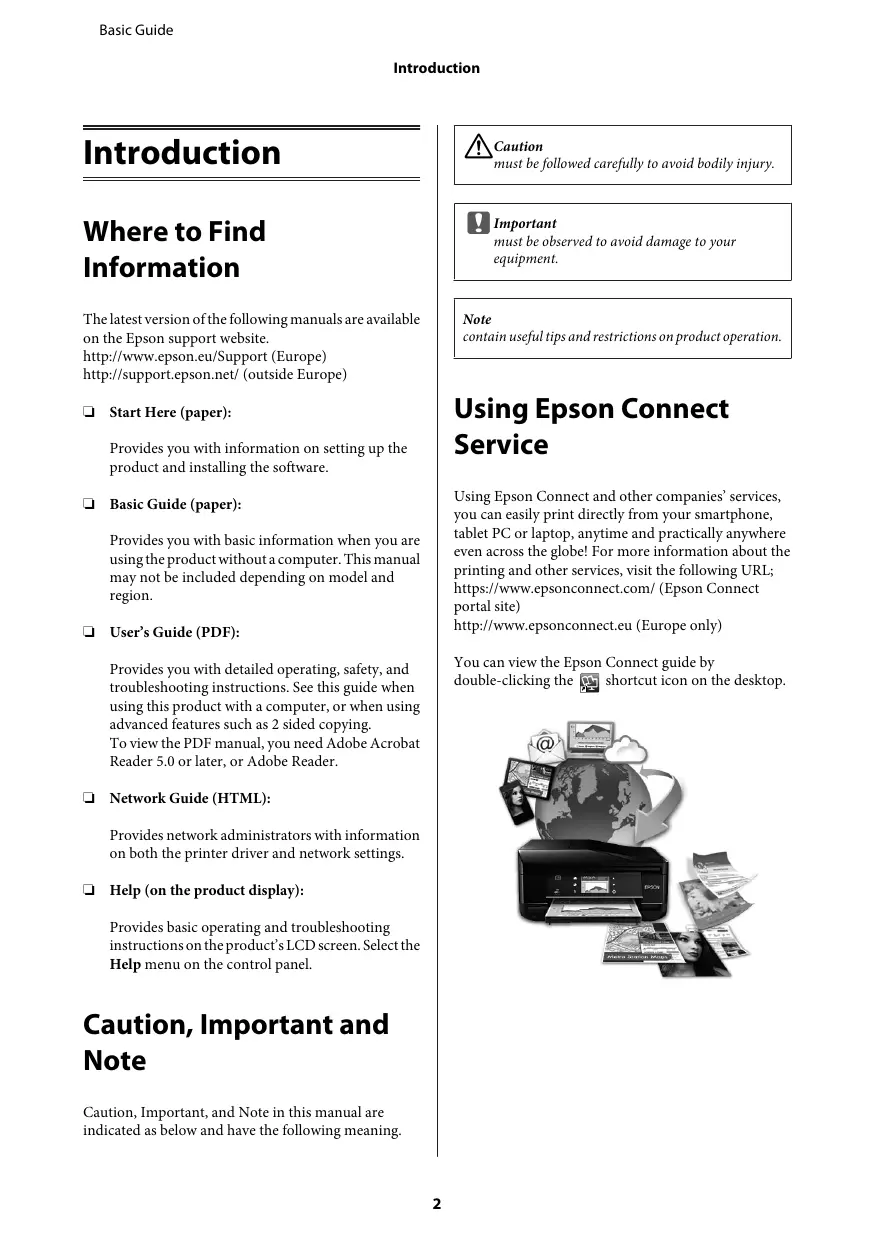


| Product Type | Multifunction Inkjet Printer |
| Brand | Epson |
| Model | WorkForce WF-3540DTWF |
| Main Functions | Print, copy, scan, fax |
| Number of paper trays | 2 trays (tray 1 and tray 2) |
| Paper tray capacity | Up to 250 sheets of plain paper (tray 1) |
| Automatic Document Feeder (ADF) | Yes, capacity 30 sheets A4/Letter, duplex |
| Supported paper types | Plain paper, photo paper, envelopes, matte paper, etc. |
| Print speed (black) | Up to 34 ppm (pages per minute) |
| Print speed (color) | Up to 34 ppm |
| Connectivity | Wi-Fi, Ethernet, USB |
| LCD screen | Yes, with touch functions (depending on region) |
| Supported memory cards | SD, SDHC, SDXC, Memory Stick Duo, etc. |
| Wireless printing | Epson Connect (printing from smartphone/tablet) |
| Duplex printing | Automatic |
| Fax | Yes, with speed dial (100 entries) and group dial |
| Power supply | 220-240 V AC, 50/60 Hz |
| Power consumption | Approx. 20 W (printing), 7 W (standby) |
| Dimensions (W x D x H) | Approx. 460 x 420 x 280 mm |
| Weight | Approx. 11 kg |
| Maintenance and cleaning | Clean print heads via Maintenance menu; replace used ink cartridges |
| Safety | Use only the supplied power cord; do not expose to moisture; unplug during storms |
| Spare parts and repairability | Original Epson ink cartridges; replaceable maintenance box; technical support at http://support.epson.net/ |
Frequently Asked Questions - WORKFORCE WF-3540DTWF EPSON
User questions about WORKFORCE WF-3540DTWF EPSON
0 question about this device. Answer the ones you know or ask your own.
Ask a new question about this device
Download the instructions for your Multifunction Printer in PDF format for free! Find your manual WORKFORCE WF-3540DTWF - EPSON and take your electronic device back in hand. On this page are published all the documents necessary for the use of your device. WORKFORCE WF-3540DTWF by EPSON.
USER MANUAL WORKFORCE WF-3540DTWF EPSON
WF-3520 Series WF-3530 Series WF-3540 Series
EN Basic Guide FR Guide de base DE Grundlagenhandbuch NL Basishandleiding IT Guida di base ES Guía básica PT Guia Básica
Ink Cartridge Codes / Codes des cartouches d'encre / Tintenpatronencodes / Cartridgecodes /
Codici cartucce inchiostro / Códigos de los cartuchos de tinta / Códigos dos tinteiros
| BK | C | M | Y | ||
| Black Noir Schwarz Zwart Nero Negro Preto | Cyan Cyan Cyan Cyaan Ciano Ciano | Magenta Magenta Magenta Magenta Magenta Magenta | Yellow Jaune Gelb Geel Giallo Amarillo Amarelo | ||
| Stag Cerf Hirsch Hert Cervo Ciervo Veado | T1301 | T1302 | T1303 | T1304 | |
| XL | XL | XL | XL | ||
| Apple Pomme Apfel Appel Mela Manzana Maça | T1291 | T1292 | T1293 | T1294 | |
| L | L | L | L | ||
http://www.epson.eu/pageyield
For information on Epson's ink cartridge yields, please visit the website above. Available ink cartridge sizes vary by area.
Where to Find Information. 2
Caution, Important and Note. 2
Using Epson Connect Service. 2
Safety Instructions. 3
Control Panel Overview. 3
Button and LCD. 4
Lights. 5
Paper and Media Handling. 5
Selecting Paper. 5
Loading Paper into the Paper Cassette. 6
Placing Originals. 7
Automatic Document Feeder (ADF). 7
Scanner glass. 9
Inserting a Memory Card. 9
Copying. 10
Scanning. 10
Faxing. 11
Introducing FAX Utility. 11
Connecting to a Phone Line. 11
About a phone cable. 11
Using the phone line for fax only. 11
Sharing line with phone device. 12
Checking the fax connection. 12
Setting Up Fax Features. 13
Setting up speed dial entries. 13
Setting up group dial entries. 13
Sending Faxes. 13
Receiving Faxes. 14
Printing Reports. 14
More Functions. 15
Replacing Ink Cartridges. 16
Safety instructions. 16
Precautions. 16
Replacing an ink cartridge. 17
Basic Troubleshooting. 19
Error Messages. 19
Paper Jams. 20
Removing jammed paper from the rear cover 20
Removing jammed paper from inside the product. 21
Removing jammed paper from the paper cassette. 22
Removing jammed paper from the Automatic Document Feeder (ADF). 23
Print Quality Help. 24
Faxing Help. 24
Where To Get Help. 24
Technical Support Web Site. 24
Introduction
Where to Find Information
The latest version of the following manuals are available on the Epson support website.
http://www.epson.eu/Support (Europe)
http://support.epson.net/ (outside Europe)
Start Here (paper):
Provides you with information on setting up the product and installing the software.
Basic Guide (paper):
Provides you with basic information when you are using the product without a computer. This manual may not be included depending on model and region.
User's Guide (PDF):
Provides you with detailed operating, safety, and troubleshooting instructions. See this guide when using this product with a computer, or when using advanced features such as 2-sided copying.
To view the PDF manual, you need Adobe Acrobat Reader 5.0 or later, or Adobe Reader.
Network Guide (HTML):
Provides network administrators with information on both the printer driver and network settings.
Help (on the product display):
Provides basic operating and troubleshooting instructions on the product's LCD screen. Select the Help menu on the control panel.
Caution, Important and Note
Caution, Important, and Note in this manual are indicated as below and have the following meaning.
Caution
must be followed carefully to avoid bodily injury.
Important
must be observed to avoid damage to your equipment.
Note
contain useful tips and restrictions on product operation.
Using Epson Connect Service
Using Epson Connect and other companies' services, you can easily print directly from your smartphone, tablet PC, or laptop, anytime and practically anywhere, even across the globe! For more information about the printing and other services, visit the following URL: https://www.epsonconnect.com/ (Epson Connect portal site)
http://www.epsonconnect.eu (Europe only)
You can view the Epson Connect guide by double-clicking the shortcut icon on the desktop.

Safety Instructions
Read and follow these instructions to ensure safe use of this product. Make sure you keep this guide for future reference. Also, be sure to follow all warnings and instructions marked on the product.
Use only the power cord supplied with the product and do not use the cord with any other equipment. Use of other cords with this product or the use of the supplied power cord with other equipment may result in fire or electric shock. - Be sure your AC power cord meets the relevant local safety standard. - Never disassemble, modify, or attempt to repair the power cord, plug, printer unit, scanner unit, or options by yourself, except as specifically explained in the product's guides. Unplug the product and refer servicing to qualified service personnel under the following conditions: The power cord or plug is damaged; liquid has entered the product; the product has been dropped or the casing damaged; the product does not operate normally or exhibits a distinct change in performance. Do not adjust controls that are not covered by the operating instructions. Place the product near a wall outlet where the plug can be easily unplugged.
- Do not place or store the product outdoors, near excessive dirt or dust, water, heat sources, or in locations subject to shocks, vibrations, high temperature or humidity. Take care not to spill liquid on the product and not to handle the product with wet hands.
- Keep this product at least 22 cm away from cardiac pacemakers. Radio waves from this product may adversely affect the operation of cardiac pacemakers. If the LCD screen is damaged, contact your dealer. If the liquid crystal solution gets on your hands, wash them thoroughly with soap and water. If the liquid crystal solution gets into your eyes, flush them immediately with water. If discomfort or vision problems remain after a thorough flushing, see a doctor immediately.
- Avoid using a telephone during an electrical storm. There may be a remote risk of electric shock from lightning. Do not use a telephone to report a gas leak in the vicinity of the leak.
Note:
The following provides safety instructions for ink cartridges.
→ "Replacing Ink Cartridges" on page 16
Control Panel Overview
Note:
Control panel design varies depending on location. Although the control panel design and what is displayed on the LCD screen, such as menu names and option names, may differ from your actual product, the method of operation is the same.
Control Panel Overview
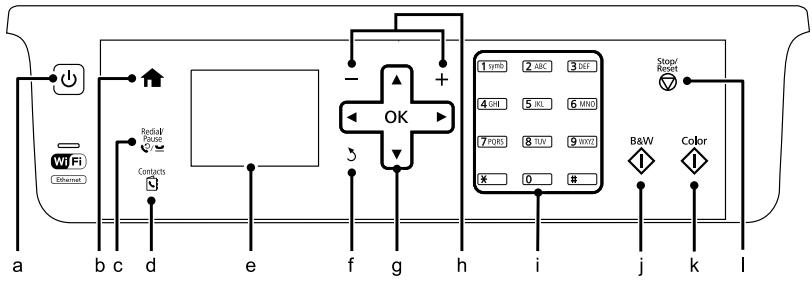
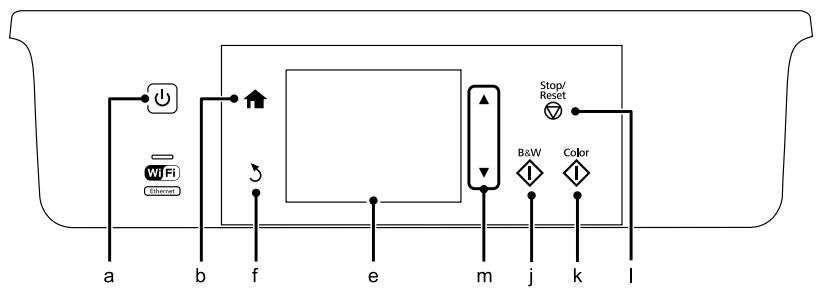
Button and LCD
| Buttons | Function | |
| a | Turns the product on or off. | |
| b | Returns to the top menu. When on the top menu, switches between the modes. | |
| c | Displays the last number dialed. When entering numbers in fax mode, this inserts a pause symbol (-) that acts as a brief pause during dialing. | |
| d | Displays the Contacts list in fax mode. | |
| e | - | LCD screen displays menus. If your product has a touch panel, you can scroll the screen by swiping the LCD screen. Try swiping a little harder if the touch panel is slow to respond. |
| f | Cancels/returns to the previous menu. | |
| g | Press ↕, ↕, ↕, ↕ to select menus. Press OK to confirm the setting you have selected and go to next screen. When typing a fax number, ↕ acts as a backspace key, and ↕ inserts a space. | |
| h | +,- | Sets the number of copies. |
| i | 0-9,*#, | Specifies the date/time or the number of copies, as well as fax numbers. Enters alphanumeric characters and switches between uppercase, lowercase, and numbers each time it is pressed. It may be easier to use the software keypad to enter text instead of using these buttons. |
| j | Starts printing/copying/scanning/faxing in black and white. |
Paper and Media Handling
| Buttons | Function | |
| k | ◇ | Starts printing/copying/scanning/faxing in color. |
| l | ◇ | Stops the current operation or initializes the current settings. |
| m | ▲,▼ | Scrolls the screen. |
Lights
| Lights | Function |
| \(\bigcirc\) | On when the product is on. Flashes when the product is receiving data, printing/copying/scanning/faxing, replacing an ink cartridge, charging ink, or cleaning the print head. |
| \(\mathrm{Wi} \, \mathrm{Fi}\) \(\mathrm{Ethernet}\) | Stays on while the printer is connected to a network. Flashes while network settings are being adjusted (green: Wi-Fi/orange: Ethernet). |
Note:
For more information on the icons displayed on the LCD screen, see the Help on the control panel.
Paper and Media Handling
Selecting Paper
The product automatically adjusts itself for the type of paper you select in your print settings. That is why the paper type setting is so important. It tells your product what kind of paper you are using and adjusts the ink coverage accordingly. The table below lists the settings you should choose for your paper.
| For this paper | LCD paper type |
| Plain paper*1 | Plain Paper |
| Epson Bright White Ink Jet Paper*1 | Plain Paper |
| Epson Ultra Glossy Photo Paper | Ultra Glossy |
| For this paper | LCD paper type |
| Epson Premium Glossy Photo Paper | Prem. Glossy |
| Epson Premium Semigloss Photo Paper | Prem. Glossy |
| Epson Glossy Photo Paper | Glossy |
| Epson Photo Paper | Photo Paper |
| Epson Matte Paper – Heavyweight | Matte |
| Epson Photo Quality Ink Jet Paper | Matte |
*1 You can perform 2-sided printing with this paper.
Loading Paper into the Paper Cassette
Follow these steps to load paper:
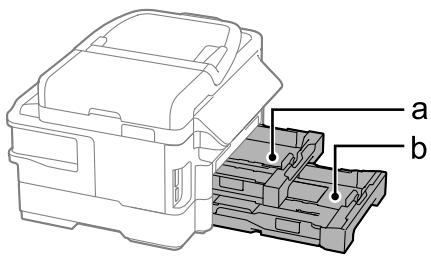
a. Paper cassette 1 b. Paper cassette 2*
- The availability of this part varies by product.
Pull out the paper cassette.
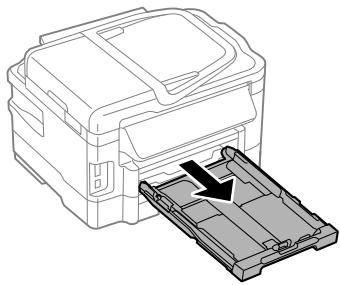

2 Pinch and slide the edge guides to the sides of the paper cassette.
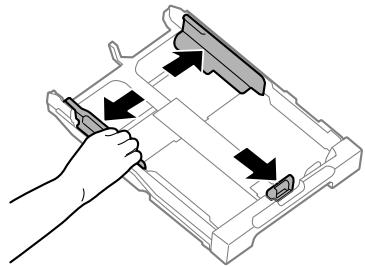
3 Slide the edge guide to adjust to the paper size you will use.
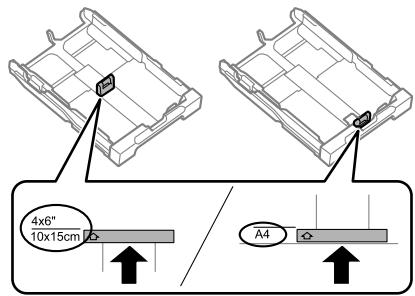
4 Load paper toward the edge guide with printable side face down, and check that the paper is not sticking out from the end of the cassette.
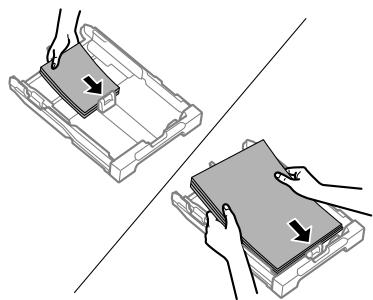
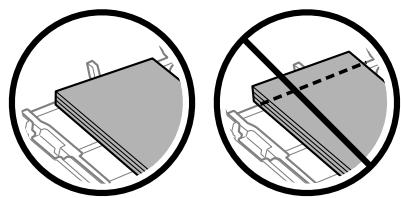
Note:
- Paper cassette 2 supports plain paper size B5 or larger only. Fan and align the edges of the paper before loading.
5
Slide the edge guides to the edges of the paper.
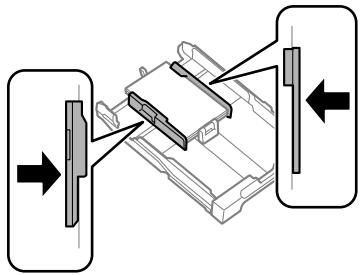
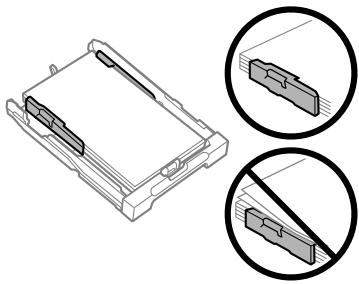
Note:
For plain paper, do not load paper above the arrow mark inside the edge guide.
For Epson special media, make sure the number of sheets is less than the limit specified for the media.
6
Keep the cassette flat and slowly and carefully reinsert it all the way into the product.
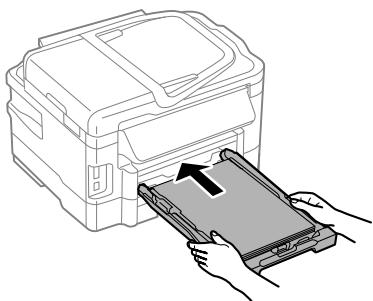

Slide out the output tray and raise the stopper.
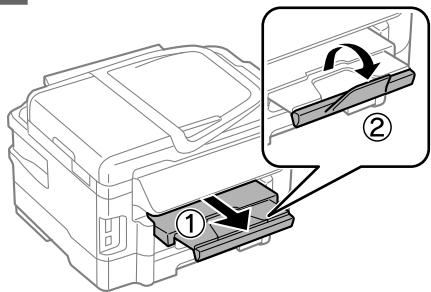
Note:
Leave enough space in front of the product for the paper to be fully ejected. Do not remove or insert the paper cassette while the product is operating. For instructions on loading media other than plain paper such as envelopes and pre-punched paper, see the PDF User's Guide.
Placing Originals
Automatic Document Feeder (ADF)
You can load your original documents in the Automatic Document Feeder (ADF) to copy, scan, or fax multiple pages quickly. The ADF can scan both sides of your documents. To do so, select the option in the copy setting menu. You can use the following originals in the ADF.
| Size | A4/Letter/Legal |
| Type | Plain paper |
| Weight | 64 g/m2to 95 g/m2 |
| Capacity | 30 sheets or 3 mm or less (A4, Letter)/10 sheets (Legal) |
When you scan a 2-sided document using the ADF, legal size paper is not available.

Important:
To prevent paper jams, avoid the following documents. For these types, use the scanner glass.
Documents held together with paper clips, staples, etc. Documents that have tape or paper stuck to them. Photos, OHPs, or thermal transfer paper. Paper that is torn, wrinkled, or has holes.
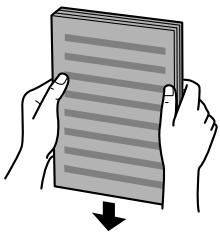
1 Tap the originals on a flat surface to even the edges.
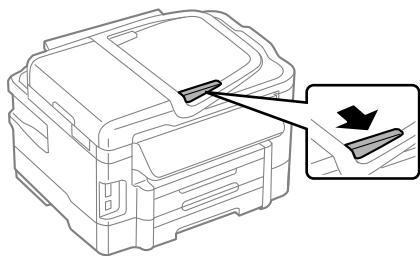
2 Slide the edge guide on the Automatic Document Feeder.
3 Insert the originals face-up and short edge first into the Automatic Document Feeder.
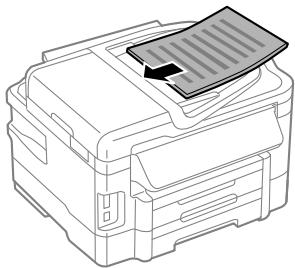

Slide the edge guide until it is flush with the originals.
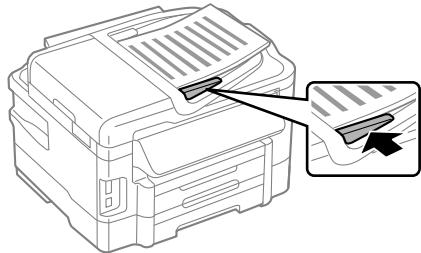
Note:
For 2-up Copy layout, place the original as shown. Make sure the orientation of the original matches the Document Orientation settings.
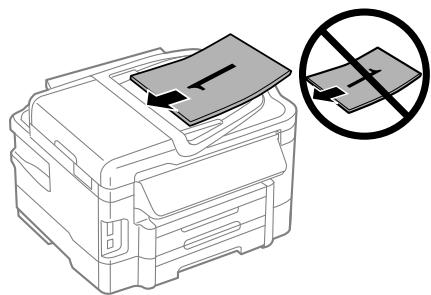
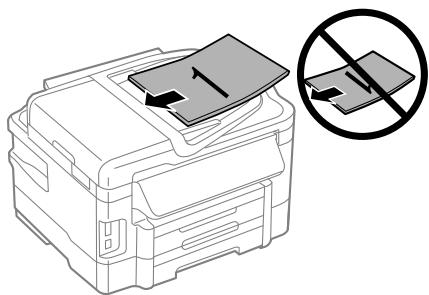
When you use the copy function with the Automatic Document Feeder (ADF), the print settings are fixed at Reduce/Enlarge - Actual Size, Paper Type - Plain Paper, and Paper Size - A4/Legal. The print is cropped if you copy an original larger than A4.
Scanner glass
1 Open the document cover and place your original face-down on the scanner glass.
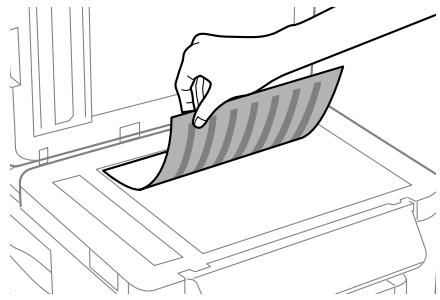
2 Slide the original to the corner.
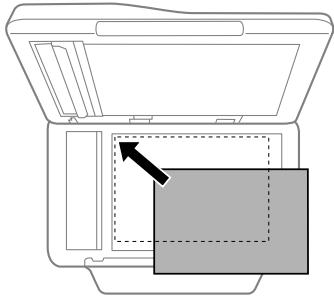
3 Close the cover gently.
Note: When there is a document in the Automatic Document Feeder (ADF) and on the scanner glass, priority is given to the document in the Automatic Document Feeder (ADF).
Inserting a Memory Card
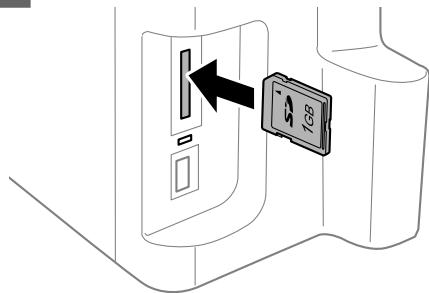
You can print photos that are stored on a memory card, or save scanned data on a memory card. The following memory cards are supported.
SD, miniSD, microSD, SDHC, miniSDHC, microSDHC, SDXC, microSDXC, MultiMediaCard, MMCplus, MMCmobile, MMCmicro, Memory Stick Duo, Memory Stick PRO Duo, Memory Stick PRO-HG Duo, Memory Stick Micro, MagicGate Memory Stick Duo
Important:
The following memory cards require an adapter. Attach it before inserting the card into the slot, otherwise the card may get stuck.
miniSD, microSD, miniSDHC, microSDHC, microSDXC, MMCmicro
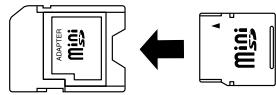
MMCmobile
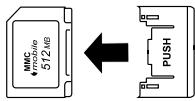
Memory Stick Micro
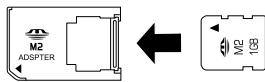
1 Insert one card at a time.
Copying
2 Check the light stays on. = on, = flashing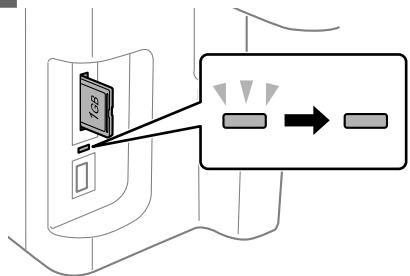

Important:
Do not try to force the card all the way into the slot. It should not be fully inserted. Do not remove the memory card while the light is flashing. The data in the memory card may be lost.
Copying
Follow the steps below to copy documents. For products with two paper cassettes, if you want to copy a large quantity of documents in a single batch, load A4/Legal plain paper in both cassettes and set the Paper Source to Cassette 1>Cassette 2 in step 7.

Load paper in the paper cassette.
→ "Loading Paper into the Paper Cassette" on page 6

Place original.
"Placing Originals" on page 7

Enter Copy mode from the Home menu.

Press + and - to set the number of copies.

Set the density.

Press ∇ to enter the Copy menu.

Select the appropriate copy settings such as paper size, paper type, and paper quality.
Note:
Depending on the model, you can make copy settings in Paper and Copy Settings. You can preview the copy results before you start copying. You can make various layout copies such as 2-sided copy, 2-up copy, and so on. Change the 2-sided or layout settings as necessary.

Press one of the diamond buttons to set the color mode, and then start copying.
Note:
Refer to the PDF User's Guide for other copying functions and the Copy mode menu list.
Scanning
You can scan documents and send the scanned image from the product to a connected computer.
Note:
For information on Scan to Cloud, see the Epson Connect guide, which can be accessed using the shortcut icon on the desktop.

Place your original(s).
"Placing Originals" on page 7

Select Scan from the Home menu.

Select a scan menu item.

If you select Scan to PC, select a computer. If you select Scan to Memory Card, make settings such as the scan format and 2-sided settings.
5
Press the diamond buttons to start scanning.
Note:
For more information on other scan functions and the scan mode menu list, see the PDF User's Guide.
Your scanned image is saved.
Faxing
Introducing FAX Utility
FAX Utility is software that can transmit data such as documents, drawings, and tables created with a word processing or spreadsheet application directly by fax, without printing. In addition, this utility has a function to save a received fax as a PDF file on a computer. This allows you to check the data without printing it and print only the data you want to print. Use the following procedure to run the utility.
Windows
Click the start button (Windows 7 and Vista) or click Start (Windows XP), point to All Programs, select Epson Software, and then click FAX Utility.
Mac OS X
Click System Preference, click Print & Fax or Print & Scan, and then select FAX (your printer) from Printer. Then click as follows:
Mac OS X 10.6.x, 10.7.x: Option & Supplies - Utility - Open Printer Utility
Mac OS X 10.5.x: Open Print Queue - Utility
Note:
For more details, see the online help for FAX Utility.
Connecting to a Phone Line
About a phone cable
Use a phone cable with the following interface specification.
RJ-11 Phone Line RJ-11 Telephone set connection
Depending on the area, a phone cable may be included with the product. If so, use that cable.
Using the phone line for fax only
1 Connect a phone cable leading from a telephone wall jack to the LINE port.
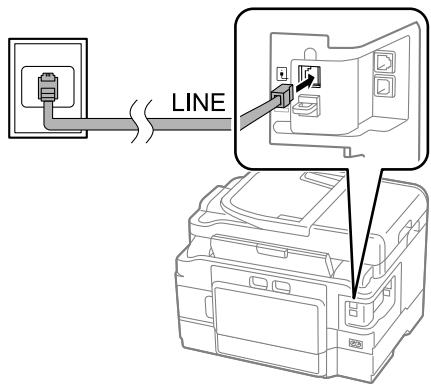

Make sure Auto Answer is set to On. "Receiving Faxes" on page 14

Important:
If you do not connect an external telephone to the product, make sure you turn on auto answer.
Otherwise, you cannot receive faxes.
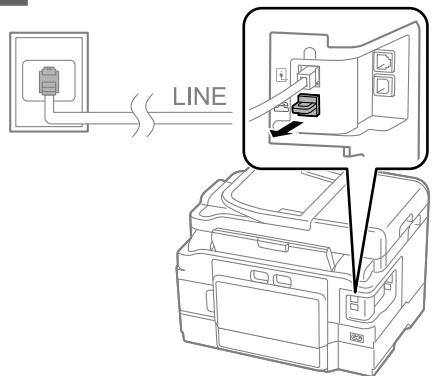
Sharing line with phone device
1 Connect a phone cable leading from a telephone wall jack to the LINE port.
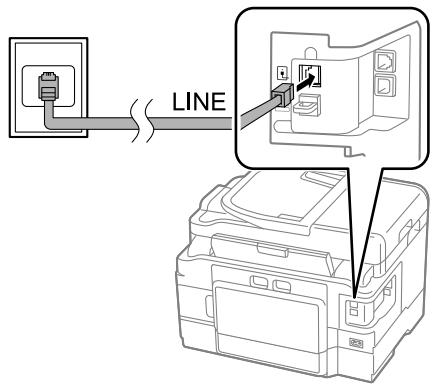
2 Remove the cap.
3 Connect a phone or answering machine to the EXT. port.
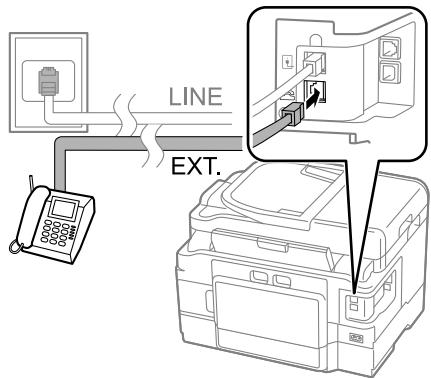
Note: See the PDF User's Guide for other connection methods.
Checking the fax connection
You can check whether the product is ready to send or receive faxes.
1 Load plain paper in the cassette.
-> "Loading Paper into the Paper Cassette" on page 6
Note:
If your product is equipped with two cassettes, load paper in cassette 1. If you have changed the Paper Source setting (Setup > Fax Settings > Receive Settings > Paper Source), load paper in the cassette you specified.
2 Enter Setup mode from the Home menu. 3 Select Fax Settings. 4 Select Check Fax Connection. Press one of the arrow buttons to print the report.
Note: If errors are reported, try the solutions in the report.
Setting Up Fax Features
Setting up speed dial entries
You can create a speed dial list allowing you to select fax recipient numbers quickly when faxing. Up to 100 combined speed dial and group dial entries can be registered.
1 Enter Fax mode from the Home menu. Press or select Contacts. 3 Select Edit Contacts. 4 Select Speed Dial Setup. You see the available speed dial entry numbers. 5 Select the speed dial entry number that you want to register. You can register up to 100 entries. 6 Use the numeric keypad to enter a phone number. You can enter up to 64 digits.
Note:
A hyphen ("-") causes a slight pause when dialing. Only include it in phone numbers when a pause is necessary. Spaces entered between numbers are ignored when dialing.
7 Enter a name to identify the speed dial entry. You can enter up to 30 characters. 8 Select Done to register the name.
Setting up group dial entries
You can add speed dial entries to a group, allowing you to send a fax to multiple recipients at the same time. Up to 99 combined speed dial and group dial entries can be entered.
1. Enter Fax mode from the Home menu. Press or select Contacts.
3. Select Edit Contacts. 4. Select Group Dial Setup. You see the available group dial entry numbers. 5. Select the group dial entry number that you want to register. 6. Enter a name to identify the group dial entry. You can enter up to 30 characters. 7. Select Done to register the name. 8. Select a speed dial entry that you want to register in the group dial list. 9. Repeat step 8 to add other speed dial entries to the group dial list. You can register up to 99 speed dial entries in a group dial. Press OK to finish creating a group dial list.
Sending Faxes
1. Place your original in the Automatic Document Feeder or on the scanner glass. → "Placing Originals" on page 7. 2. Enter Fax mode from the Home menu. Use the keys on the numeric keypad to enter the fax number. You can enter up to 64 digits.
Note:
To display the last fax number you used, press or Redial. Press and make the send settings. To scan and fax both sides of your original, select 2-Sided Faxing. On, and then load the original in the Automatic Document Feeder. Depending on the model, you can also make the settings by selecting Send Settings. Make sure you have entered the header information. Some fax machines automatically reject incoming faxes that do not include header information.
Press (color) or (B&W) to start sending a color or monochrome fax.
Note:
If the fax number is busy or there is some problem, this product redials after one minute. Press Redial to redial immediately.
Receiving Faxes
Follow the instructions to make settings to receive faxes automatically.
Note:
Depending on the Fax Output settings, the received fax is saved as data or printed. If Fax Output is set to Save, the received fax data is automatically saved as data, and you can skip step 1.
1 Load plain paper in the cassette.
-> "Loading Paper into the Paper Cassette" on page 6
Note:
If your product is equipped with two cassettes, make Paper Source settings.
Setup > Fax Settings > Receive Settings > Paper Source. If you want to print a large quantity of faxes in a single batch, load plain paper in both cassettes and set Paper Source to Cassette 1 > Cassette 2.
2 Make sure Auto Answer is set to On. Setup > Fax Settings > Receive Settings > Auto Answer > On
Note:
- When an answering machine is connected directly to this product, make sure you set Rings to Answer correctly using the following procedure. Depending on the region, Rings to Answer may be unavailable. For more information on receiving faxes manually, see the PDF User's Guide.
3 Enter Setup mode from the Home menu.
4 Select Fax Settings. 5 Select Communication. 6 Select Rings to Answer. 7 Select the number of rings.
Important:
Select more rings than needed for the answering machine to pick up. If it is set to pick up on the fourth ring, set the product to pick up on the fifth ring or later. Otherwise the answering machine cannot receive voice calls.
Note:
When you receive a call and the other party is a fax, the product receives the fax automatically even if the answering machine picks up the call. If you pick up the phone, wait until the LCD screen displays a message saying that a connection has been made before you hang up. If the other party is a caller, the phone can be used as normal or a message can be left on the answering machine.
Printing Reports
Follow the instructions below to print a fax report.
1. Load plain paper in the cassette.
→ "Loading Paper into the Paper Cassette" on page 6
Note:
If your product is equipped with two cassettes, make Paper Source settings.
Setup > Fax Settings > Receive Settings > Paper Source
2. Enter Fax mode from the Home menu. 3. If Advanced Options is displayed on the LCD screen, select Advanced Options.
If it is not displayed, press ∇.
More Functions

Select Fax Report.

Select the item you want to print.
Note:
Only Fax Log can be viewed on the screen.

Press one of the ◇ buttons to print the report you selected.
Note:
For more information on other fax functions and the fax mode menu list, see the PDF User's Guide.
More Functions
More Functions provide you with many special menus that make printing easy and fun! For more details, select More Functions, select each menu, and then follow the instructions on the LCD screen.
| Menu | Functions | |
| ID Card Copy | → | You can copy both sides of an ID card at the same time. |
| Print Photos | → | You can print photos stored on a memory card or an external USB device without using a computer. You can also reduce and enlarge your photos, and adjust the photo quality. |
| Copy/Restore Photos | → | You can make faithful copies of your originals. If your original photo is faded, you can restore color to bring it back to life. |
| Photo Layout Sheet | → | You can print your photos on a memory card in various layouts. |
| Print Ruled Papers | You can print ruled paper or graph paper with or without a photo set as the background. | |
Replacing Ink Cartridges
Safety instructions
- Keep ink cartridges out of the reach of children.
- Be careful when you handle used ink cartridges, as there may be some ink around the ink supply port. If ink gets on your skin, wash the area thoroughly with soap and water.
If ink gets into your eyes, flush them immediately with water. If discomfort or vision problems continue after a thorough flushing, see a doctor immediately.
If ink gets into your mouth, spit it out immediately and see a doctor right away.
Precautions
Epson recommends the use of genuine Epson ink cartridges. Epson cannot guarantee the quality or reliability of non-genuine ink. The use of non-genuine ink may cause damage that is not covered by Epson's warranties, and under certain circumstances, may cause erratic product behavior. Information about non-genuine ink levels may not be displayed. Do not shake ink cartridges too vigorously; otherwise ink may leak from the cartridge.
To maintain optimum print head performance, some ink is consumed from some cartridges not only during printing but also during maintenance operations such as ink cartridge replacement and print head cleaning. If you need to remove an ink cartridge temporarily, be sure to protect the ink supply area from dirt and dust. Store the ink cartridge in the same environment as the product. When storing the cartridge, be sure that its label identifying the color of the ink cartridge is facing upward. Do not store ink cartridges upside down. For maximum ink efficiency, only remove an ink cartridge when you are ready to replace it. Ink cartridges with low ink status may not be used when reinserted. - Do not open the ink cartridge package until you are ready to install it in the product. The cartridge is vacuum packed to maintain its reliability. If you leave a cartridge unpacked for a long time before using it, normal printing may not be possible. Install all ink cartridges; otherwise, you cannot print.
Replacing an ink cartridge
1 Open the scanner unit. The ink cartridge holder moves to the ink cartridge replacement position.
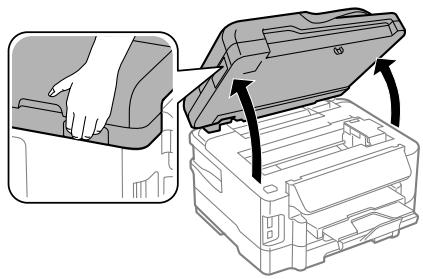
Important:
Do not move the ink cartridge holder by hand; otherwise, you may damage the product. Do not lift up the scanner unit when the document cover is open.
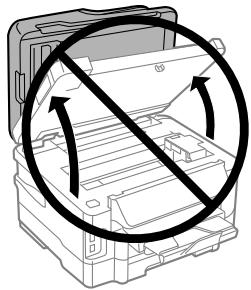
Note:
If the ink cartridge holder does not move to the ink cartridge replacement position, follow the instruction below.
Home > Setup > Maintenance > Ink Cartridge
Replacement
2 Open the ink cartridge cover.
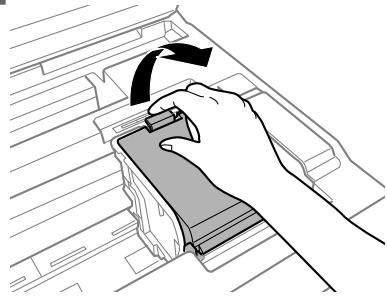
Pinch and remove the ink cartridge.
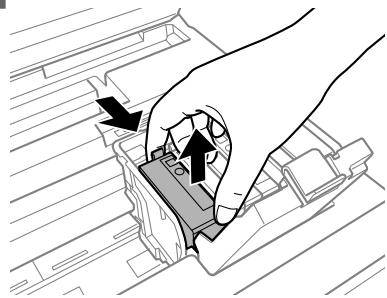
Note:
The illustration shows replacement of the black ink cartridge. Replace the cartridge appropriate to your situation. - Removed ink cartridges may have ink around the ink supply port, so be careful not to get any ink on the surrounding area when removing the cartridges.
4 Gently shake new replacement cartridges four or five times and remove the replacement ink cartridge from its package.
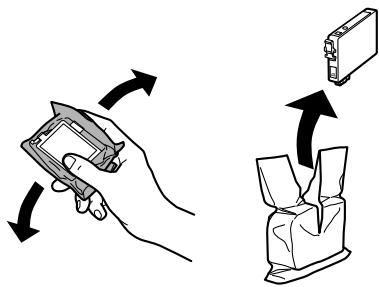
5 Remove only the yellow tape.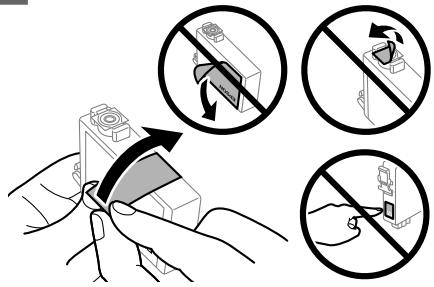

Important:
- You must remove the yellow tape from the cartridge before installing it; otherwise, print quality may decline or you may not be able to print. If you have installed an ink cartridge without removing the yellow tape, take the cartridge out of the product, remove the yellow tape, and then reinstall it.
- Do not remove the transparent seal from the bottom of the cartridge; otherwise, the cartridge may become unusable. Do not remove or tear the label on the cartridge; otherwise, ink will leak.
6 Insert the cartridge and press it until it clicks.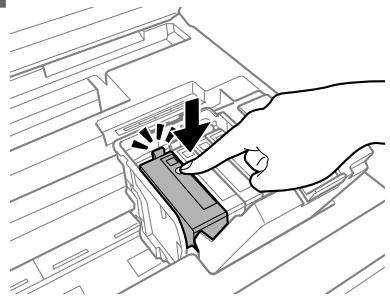
7 Close the ink cartridge cover. 8 Close the scanner unit slowly. Ink charging starts.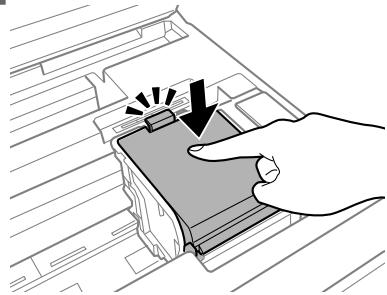
Note:
The power light continues to flash while the product is charging ink. Do not turn off the product during ink charging. If the ink charging is incomplete, you may not be able to print. If you had to replace an ink cartridge during copying, to ensure copy quality after ink charging is finished, cancel the job that is copying and start again from placing the originals.
Ink cartridge replacement is complete. The product will return to its previous status.
Basic Troubleshooting
Error Messages
This section describes the meaning of messages displayed on the LCD screen.
| Error Messages | Solutions |
| Paper out or Paper jam | → See “Paper Jams” on page 20 |
| Printer error. Turn the power off and on again. For details, see your documentation. | Turn the product off and then back on. Make sure that no paper is still in the product. If the error message still appears, contact Epson support. |
| Communication error. Check if a computer is connected. | Make sure the computer is connected correctly. If the error messages still appear, make sure that scanning software is installed on your computer and that the software settings are correct. |
| The maintenance box is nearing the end of its service life. | Replace maintenance box before the end its service life. For more details, see the PDF User's Guide. When the maintenance box is full, the product stops and you need to replace the maintenance box to continue printing. |
| The maintenance box is at the end of its service life. You need to replace it. | Replace the maintenance box. |
| A printer's ink pad is nearing the end of its service life. Please contact Epson Support. | Press ◎ button to resume printing. The message will be displayed until the ink pad is replaced. Contact Epson support to replace ink pads before the end of their service life. When the ink pads are saturated, the product stops and Epson support is required to continue printing. |
| A printer's ink pad is at the end of its service life. Please contact Epson Support. | Contact Epson support to replace ink pads. |
| No dial tone detected. Run Check Fax Connection under Fax Settings in Setup menu. | Make sure the phone cable is connected correctly and the phone line works. → See “Connecting to a Phone Line” on page 11 If you connected the product to a PBX (Private Branch Exchange) phone line or Terminal Adapter, turn off the Dial Tone Detection. Select Fax Settings > Communication > Dial Tone Detection >Off. |
| Combination of the IP address and the subnet mask is invalid. See your documentation. | Refer the online Network Guide. |
| Recovery Mode | The firmware update has failed. You will need to re-attempt the firmware update. Ready a USB cable and visit your local Epson website for further instructions. |
Basic Troubleshooting
Paper Jams

Caution:
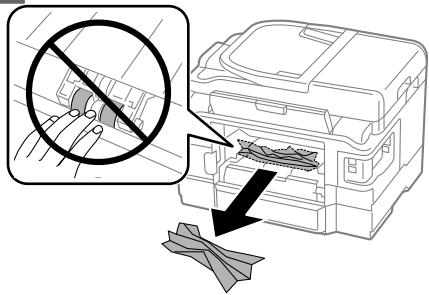
- Never touch the buttons on the control panel while your hand is inside the product.
Note:
- Cancel the print job if prompted by a message from the LCD screen or the printer driver. After you have removed the jammed paper, press the button indicated in the LCD screen.
Removing jammed paper from the rear cover
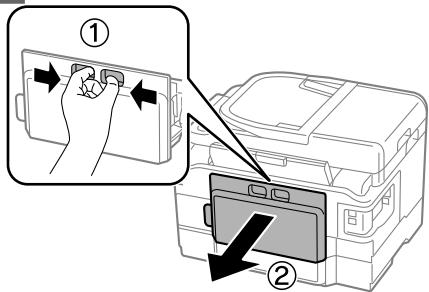
1
Pull out the rear cover.
2
Carefully remove the jammed paper.
3
Carefully remove the jammed paper.
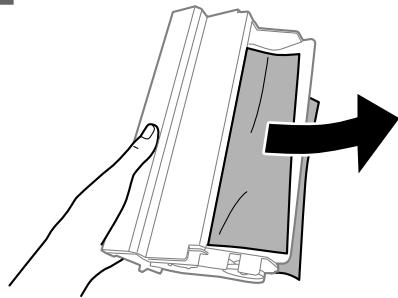
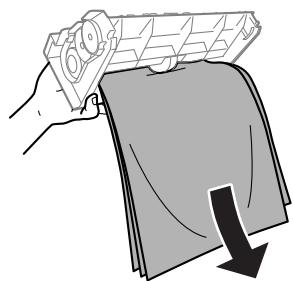
4
Open the rear cover.
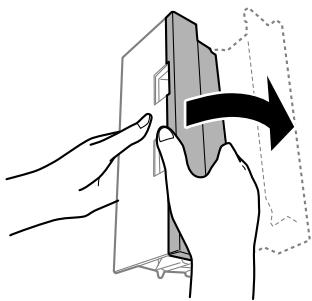
Basic Troubleshooting
5 Carefully remove the jammed paper.
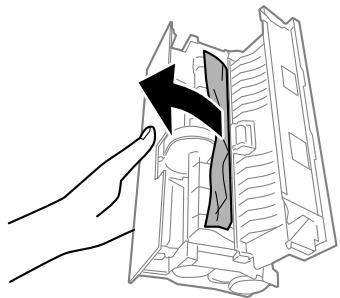
6 Reattach the rear cover.
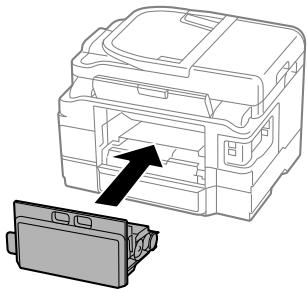
Removing jammed paper from inside the product
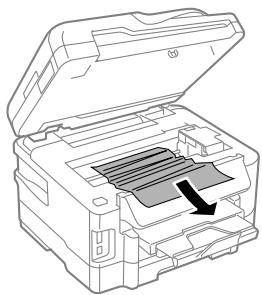
1 Carefully remove the jammed paper.
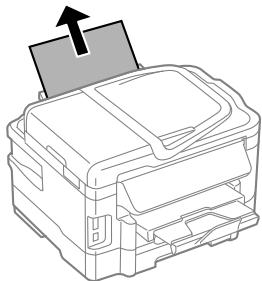
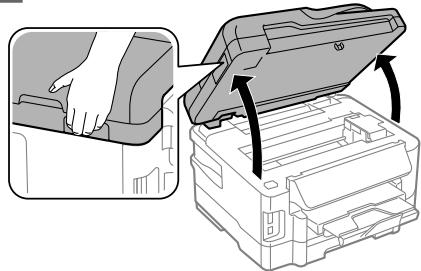
2 Open the scanner unit.
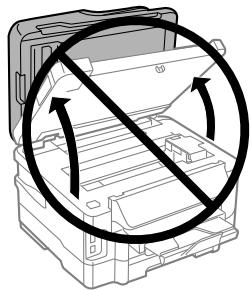
Important:
Do not lift up the scanner unit when the document cover is open.
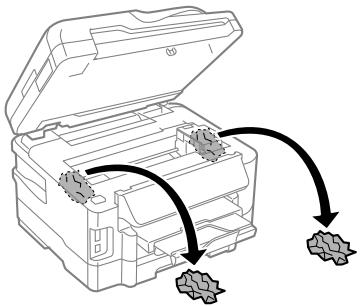
3 Remove all of the paper inside, including any torn pieces.
Basic Troubleshooting

Important:
Do not touch the flat white cable connected to the cartridge holder.
4
Close the scanner unit slowly.
Removing jammed paper from the paper cassette
1
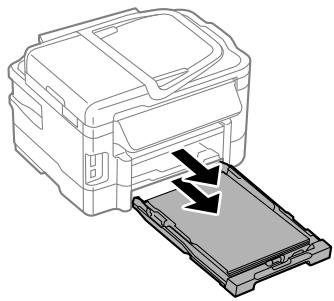
Pull out the paper cassette.
Note:
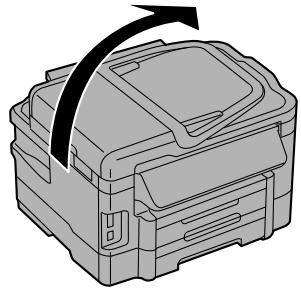
If you cannot pull out the cassette, unplug the power cord from the product and the electrical outlet. Unplug all other cables from the product.
Carefully stand the product on its side as shown below and carefully pull out the cassette.

Remove the jammed paper from the cassette.

Carefully remove any paper jammed inside the product.
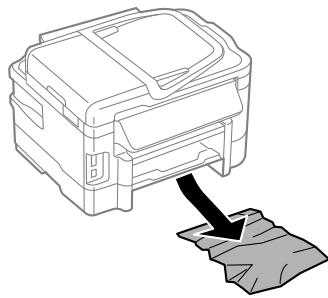
4
Align the edges of the paper.
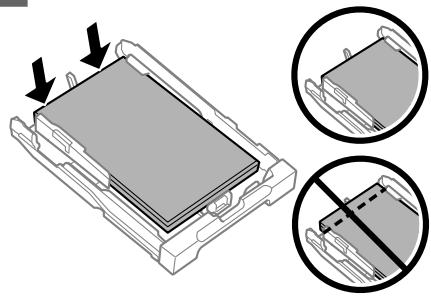
5
Keep the cassette flat and slowly and carefully reinsert it all the way into the product.
Basic Troubleshooting
Removing jammed paper from the Automatic Document Feeder (ADF)
1. Remove the stack of paper from the ADF input tray. 2. Open the ADF cover.
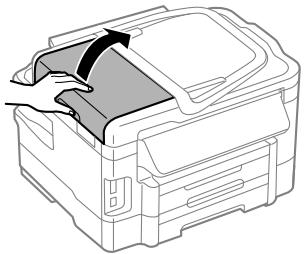

Important:
Make sure you open the ADF cover before removing jammed paper. If you do not open the cover, the product may be damaged.

Carefully remove the jammed paper.
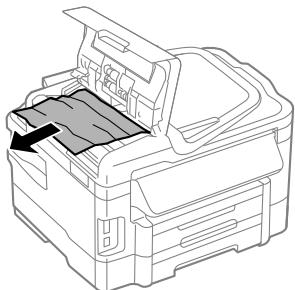

Close the ADF cover.

Open the document cover.
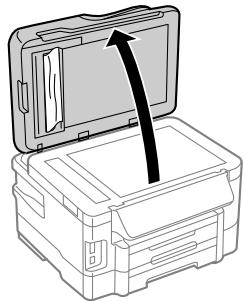

Carefully remove the jammed paper.
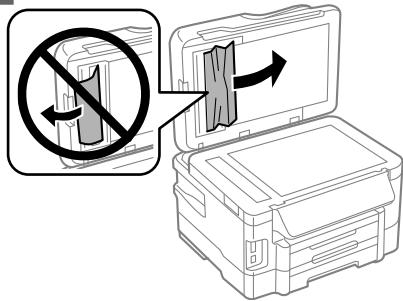

Close the document cover.

Raise the ADF input tray.
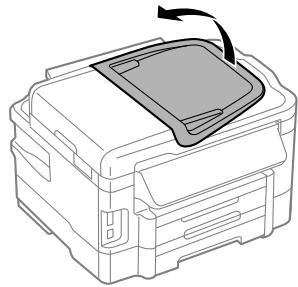

Carefully remove the jammed paper.
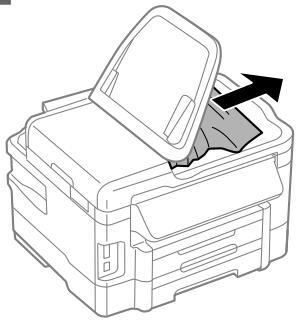

Return the ADF input tray to its original position.
Print Quality Help
If you see banding (light lines), missing colors, or any other quality problems in your printouts, try the following solutions.
The print head may be clogged. Perform a nozzle check first and then clean the print head.
Make sure you have loaded the paper and placed your original correctly. → "Loading Paper into the Paper Cassette" on page 6 ⇒ "Placing Originals" on page 7 Check the paper size settings and the paper type settings. "Selecting Paper" on page 5
Setup > Maintenance > Nozzle Check
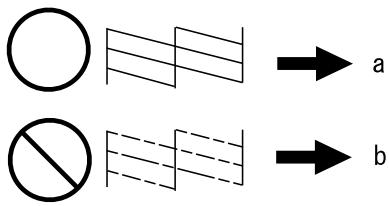
(a) OK (b) Needs a head cleaning
Faxing Help
Make sure the phone cable is connected correctly and check that the phone line works. You can check the line status by using the Check Fax Connection function. → "Connecting to a Phone Line" on page 11 If the fax did not send, make sure that the recipient's fax machine is turned on and working. If this product is not connected to a phone and you want to receive faxes automatically, make sure you turn on auto answer. "Receiving Faxes" on page 14
Note: For more solutions to faxing problems, see the online User's Guide.
Where To Get Help
Technical Support Web Site
Epson's Technical Support Web Site provides help with problems that cannot be solved using the troubleshooting information in your product documentation. If you have a Web browser and can connect to the Internet, access the site at:
http://support.epson.net/ http://www.epson.eu/Support (Europe)
If you need the latest drivers, FAQs, manuals, or other downloadables, access the site at:
http://www.epson.com http://www.epson.eu/Support (Europe)
Then, select the support section of your local Epson Web site.
Introduction. 2
https://www.epsonconnect.com/ (Epson Connect portal)
http://www.epsonconnect.eu (Europe only)
Using the Epson Connect service. 2
Using the Epson Connect service
Placing Originals. 8
Checking the fax connection. 13
Setting up Fax Features. 14
4 Align the paper margins.
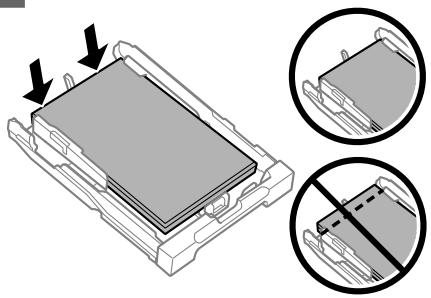
5 Keep the feeder flat and, slowly and carefully, insert it back into the product.
Removing jammed paper from the Automatic Document Feeder (ADF)
Remove the stack of paper from the ADF feeder. 2 Open the ADF cover.
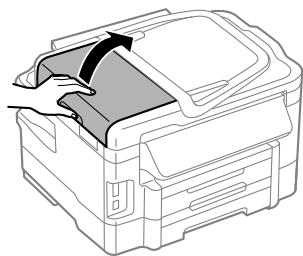
Important:
No part of this publication may be reproduced, stored in a retrieval system, or transmitted in any form or by any means, electronic, mechanical, photocopying, recording, or otherwise, without the prior written permission of Seiko Epson Corporation. The information contained herein is designed only for use with this product. Epson is not responsible for any use of this information as applied to other printers.
Neither Seiko Epson Corporation nor its affiliates shall be liable to the purchaser of this product or third parties for damages, losses, costs, or expenses incurred by the purchaser or third parties as a result of accident, misuse, or abuse of this product or unauthorized modifications, repairs, or alterations to this product, or (excluding the U.S.) failure to strictly comply with Seiko Epson Corporation's operating and maintenance instructions.
Seiko Epson Corporation shall not be liable for any damages or problems arising from the use of any options or any consumable products other than those designated as Original Epson Products or Epson Approved Products by Seiko Epson Corporation.
Seiko Epson Corporation shall not be held liable for any damage resulting from electromagnetic interference that occurs from the use of any interface cables other than those designated as Epson Approved Products by Seiko Epson Corporation.
EPSON® is a registered trademark, and EPSON EXCEED YOUR VISION or EXCEED YOUR VISION is a trademark of Seiko Epson Corporation.
SDXC Logo is a trademark of SD-3C, LLC.
Memory Stick Duo, Memory Stick PRO Duo, Memory Stick PRO-HG Duo, Memory Stick Micro, and MagicGate Memory Stick Duo are trademarks of Sony Corporation.
General Notice: Other product names used herein are for identification purposes only and may be trademarks of their respective owners. Epson disclaims any and all rights in those marks.




- INK CARTRIDGE CODES / CODES DES CARTOUCHES D'ENCRE / TINTENPATRONENCODES / CARTRIDGECODES
- CODICI CARTUCCE INCHIOSTRO / CÓDIGOS DE LOS CARTUCHOS DE TINTA / CÓDIGOS DOS TINTEIROS
- HTTP://WWW.EPSON.EU/PAGEYIELD
- SAFETY INSTRUCTIONS
- CONTROL PANEL OVERVIEW
- PAPER AND MEDIA HANDLING
- COPYING
- SCANNING
- FAXING
- MORE FUNCTIONS
- REPLACING INK CARTRIDGES
- BASIC TROUBLESHOOTING
- WHERE TO GET HELP
- INTRODUCTION
- WHERE TO FIND INFORMATION
- CAUTION, IMPORTANT AND NOTE
- USING EPSON CONNECT SERVICE
- NOTE
- BUTTON AND LCD
- LIGHTS
- SELECTING PAPER
- LOADING PAPER INTO THE PAPER CASSETTE
- PLACING ORIGINALS
- AUTOMATIC DOCUMENT FEEDER (ADF)
- IMPORTANT
- TAP THE ORIGINALS ON A FLAT SURFACE TO EVEN THE EDGES
- SLIDE THE EDGE GUIDE ON THE AUTOMATIC DOCUMENT FEEDER
- INSERT THE ORIGINALS FACE-UP AND SHORT EDGE FIRST INTO THE AUTOMATIC DOCUMENT FEEDER
- SCANNER GLASS
- INSERTING A MEMORY CARD
- INTRODUCING FAX UTILITY
- WINDOWS
- MAC OS X
- CONNECTING TO A PHONE LINE
- ABOUT A PHONE CABLE
- USING THE PHONE LINE FOR FAX ONLY
- SHARING LINE WITH PHONE DEVICE
- CHECKING THE FAX CONNECTION
- SETTING UP FAX FEATURES
- SETTING UP SPEED DIAL ENTRIES
- SETTING UP GROUP DIAL ENTRIES
- SENDING FAXES
- RECEIVING FAXES
- LOAD PLAIN PAPER IN THE CASSETTE
- PRINTING REPORTS
- PRECAUTIONS
- REPLACING AN INK CARTRIDGE
- ERROR MESSAGES
- PAPER JAMS
- CAUTION
- REMOVING JAMMED PAPER FROM THE REAR COVER
- REMOVING JAMMED PAPER FROM INSIDE THE PRODUCT
- REMOVING JAMMED PAPER FROM THE PAPER CASSETTE
- REMOVING JAMMED PAPER FROM THE AUTOMATIC DOCUMENT FEEDER (ADF)
- PRINT QUALITY HELP
- FAXING HELP
- TECHNICAL SUPPORT WEB SITE
- USING THE EPSON CONNECT SERVICE
Brand : EPSON
Model : WORKFORCE WF-3540DTWF
Category : Multifunction Printer