
TVGO-U202 - Video Capture Card GENUIS - Free user manual and instructions
Find the device manual for free TVGO-U202 GENUIS in PDF.


| Product Type | USB 2.0 Video Capture Card |
| Brand | GENUIS |
| Model | TVGO-U202 |
| Dimensions (estimated) | Approximately 7 x 3 x 1.5 cm (USB key format) |
| Weight (estimated) | Approximately 50 g |
| Power | Via USB port (mini USB cable included, secondary connector for additional power) |
| Supported TV systems | NTSC and PAL (with included adapters) |
| Video inputs | TV (via NTSC/PAL adapter), S-Video, Composite (via included adapter) |
| Audio input | 3.5 mm jack (via included Y audio cable) |
| Main functions | Watch TV on PC, real-time or scheduled recording (MPEG-1/2/4), TimeShift, snapshot capture, multi-channel preview |
| Recording formats | MPEG-1, MPEG-2, MS-MPEG-4, VCD, DVD, other MPEG-4 codecs (DivX) |
| Included software | Genius TVR (viewing and recording interface), Ulead ToolBox (editing and conversion to MPEG-4/3GPP) |
| Remote control | Infrared with built-in sensor and IR extension port |
| Minimum system requirements | Pentium III 1.2 GHz for MPEG-1/2, Pentium 4 2.4 GHz for MPEG-4, 128 MB RAM, USB 2.0 port, Windows 2000 SP4/XP SP1 |
| Package contents | TVGo-U202, mini USB cable, Y audio cable, remote control, PAL adapter, NTSC adapter, S-Video to RCA adapter, installation CD, user manual |
| Maintenance and cleaning | Clean with a soft dry cloth. Do not use solvents. Avoid moisture and dust. |
| Safety | Do not expose to water or extreme temperatures. Disconnect before cleaning. Use only the provided power adapter if necessary (via USB). |
| Spare parts and repairability | Cables and adapters can be replaced as spare parts (non-official). The device is not designed for user repair. |
| General information | USB 2.0 plug-and-play device. Compatible with Windows 2000 and XP. Standard manufacturer's warranty. |
Frequently Asked Questions - TVGO-U202 GENUIS
User questions about TVGO-U202 GENUIS
0 question about this device. Answer the ones you know or ask your own.
Ask a new question about this device
Download the instructions for your Video Capture Card in PDF format for free! Find your manual TVGO-U202 - GENUIS and take your electronic device back in hand. On this page are published all the documents necessary for the use of your device. TVGO-U202 by GENUIS.
USER MANUAL TVGO-U202 GENUIS
The Genius TVGo-U202 capture device is the ideal mate when you want to enjoy different types of entertainment. It includes great features that traditional TV's cannot provide. Just hook up your cable or antenna to it then you can watch any TV program on your PC, no more hassles of opening up your PC or notebook and inserting a card. You can also set up a schedule to record your favorite TV programs by saving them in MPEG-1/2/4 format; and capture pictures shown on TV as you watch. Plus, you can connect it to a VHS, DVD, VCD, video game player, or even a camcorder, and you can play and record a TV/Video program while you're watching it and replay it back at another time.
With the bundled Ulead Toolbox software, you can edit TV programs and format the file you save on your PC or notebook to MPEG-4 or 3GPP files, which can then be played on a 3G mobile phone. And with the USB 2.0 high transmission speed, you will eliminate any slow images or interrupted TV signals. So now, with the TVGo-U202, you can watch and record TV/Video on your desktop or notebook using this compact model.
1.2 Features
Portable shape, supports universal TV system
- Powered by USB cable
Real-time recording and schedule recording in MPEG-1/2/4 format
Supports Time shifting and snapshot image capture
- Bundled with video capture and editing software
1.3 Package Contents
You should have the following items in the package.TVGo-U202
- Mini USB Cable
Audio Y-Cable
Remote control
PAL Converter - NTSC Converter
S-Video to RCA converter
Installation CD - User's Manual
1.4 System Requirements
PC Pentium III 1.2GHz or higher for real time MPEG-1/2 recoding.
PC Pentium 4 2.4GHz or higher for real time MPEG-4 recoding.
USB2.0Port
Minimum 128MB RAM (256MB is recommended)
100MB HD space for installing driver
Additional HD space for recording and editing files
VGA monitor with DirectShow installed supporting 16-bit color
VGA card that supports DirectX 8.1 or above
Speaker for audio output
Supports Windows 2000 (Service Pack 4) / XP (Service Pack 1)
2. Input & Output Connections
2.1 TVGo-U202
- Audio In: Connects external audio to unit using supplied cable.
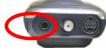
- IR Sensor: Onboard IR sensor for remote control.
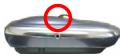
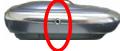
- Extended IR Sensor port: Connects IR extension to TVGo-U202
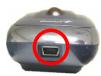
- Mini USB: Connects TVGo-U202 to your PC.
3. Cables
- Mini USB cable: Connects TVGo-U202 to your PC's USB2.0 port. Plug in the primary USB connector to the computer; plug in the secondary USB connector only if your PC/Notebook does not fully power the TVGo-U202. (See diagram 1)
- NTSC/PAL converters: Connects your TV cable or antenna to TVGo-U202 (use one of these two devices, depending on whether you have cable or broadcast TV). (See diagram 2)
- Composite to S-Video adaptor: Connects TVGo-U202 to Composite Video-format external devices, such as a DVD player or a VCR (devices that use S-Video plug directly into TVGo-U202). (See diagram 3)
- IR Extension cable: Provides an external IR sensor to use with your remote control. (See diagram 4)
- Audio cable: Transmits audio from external devices to TVGo-U202 (no cable required for audio from your TV cable or antenna). (See diagram 5)
Cable and connector diagrams:
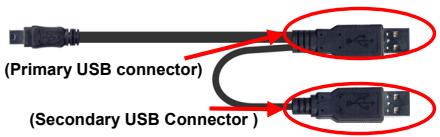
Diagram 1 (Mini USB cable)
Diagram 2 (NTSC and PAL converters)

NTSC

PAL
Diagram 3 (Composite to S-Video adaptor)

Diagram 4 (IR extension)
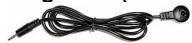
Diagram 5 (Audio cable)

4. Remote Control
The TVGo-U202 comes with a fully functional remote control. Make sure you aim at either the IR sensor on the unit or the IR sensor on the extension cable. (see section 2.1) You can use the following buttons on TVGo-U202's remote control to access many of the functions.
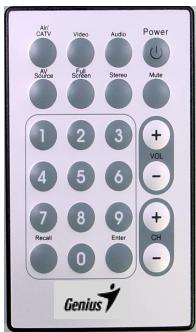
| Button | Function |
| Air/CATV | Toggles between air and cable reception. |
| Video | Toggles between Video settings; use Volume +/- to adjust |
| Audio | Toggles between Audio settings; use Volume +/- to adjust |
| Power | Turns the Genius TRV program on or off. |
| AV Source | Controls the input source (air, cable, AV in, S-Video in, FM) |
| Full screen | Turns full screen mode on or off |
| Stereo | Toggles between stereo and mono |
| Mute | Turns mute on or off |
| Numbers 0-9 | Allows you to select a channel |
| Volume +/- | Raise or lowers the volume |
| Channel +/- | Allow you to go up or down one channel |
| Recall | Allows you to jump to the previous channel |
| Enter | Takes a snapshot of the current image on the screen |
2.2 Software installation
- First, make sure that Windows® XP (Service Pack 1) or Windows® 2000 (Service pack 4) is installed in your system. If you are not sure what version of Windows you have, just click the right button of your mouse on "My computer" folder and select "Properties" to see the version. If your PC is not ether Windows® 2000 (Service Pack 4) or Windows® XP (Service Pack 1), please go to "Start", click on "Programs", then click "Windows Update" to upgrade your Windows version of Service Pack 4 for Windows® 2000 or Service Pack 1 for Windows® XP using the Internet.
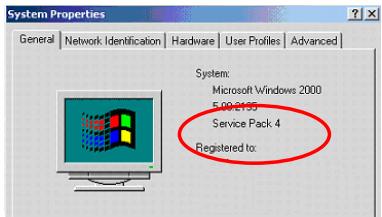
This is an example for checking the version of Windows 2000.
- Next insert TVGo-U202's CD driver software into your PC' or notebook CD-ROM drive. The CD will automatically start and TVGo-U202's installation window will open on your screen.
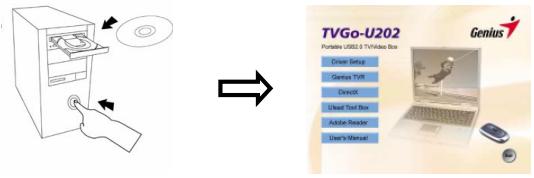
- Before you install the Genius TVR, you will need to install DirectX. Just click on DirectX in the installation window to begin.

- A series of dialog boxes will appear; click 'Next' or 'Finish' at each prompt. When DirectX has finished installing, the installation window will appear again.
- Now click on DRIVER SETUP to install the TVGo-U202 driver, then select your language and click "next"
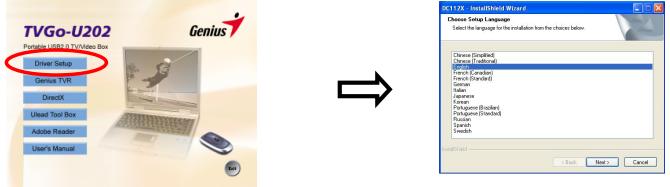
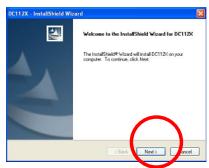
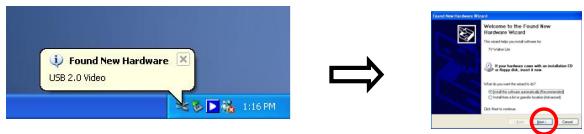
- Follow the installation instructions step by step to install the driver. When the TVGo-U202 driver has finished installing, you will need to reboot your computer. Next, make sure the TV cable or antenna is connected to TVGo-U202, and connect TVGo-U202 to your PC or notebook with the USB cable.
- When a dialog box called 'Found New Hardware' opens on your screen, choose 'Install the software automatically (recommended)' and click 'Next'.
- Now click on Genius TVR to install the Genius TVR software. When TVR has finished installing, you will need to reboot your computer.
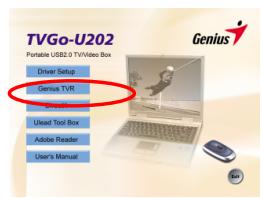
2.3 Launching TVGo-U202
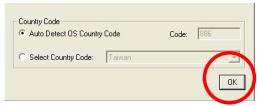
Click on the Genius TVR icon on your desktop to launch USB 2.0 TV Box. When you launch the Genius TVR software for the first time, a dialog box will appear that will ask you to choose the country in which you are using your USB 2.0 TV Box. Just choose your country and click 'OK', or just click 'OK' to let the software Auto Detect your country code. At this point, the software will scan for available TV channels. This will take a few minutes.
3. The TVGo-U202 Interface
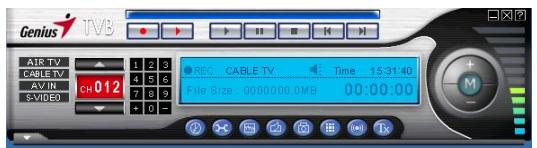
The TVGo-U202 interface operates the TVGo-U202.
3.1 Moving and resizing
You can adjust the size of the TV screen by clicking and dragging on its edges with your mouse. You can move the interface around your screen by clicking and dragging anywhere on the interface. To switch to a full-screen display, double-click on the TV picture. Double click again to switch back to the previous view.
3.2 Choosing your video source
Four buttons on the left side of the interface allow you to choose your source.
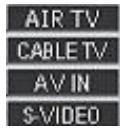
Air TV: Use this to receive your TV signal through a broadcast antenna.
Cable TV: Use this to receive your TV signal via cable.
AV IN: Use this when an external device using Composite Video is connected to TVGo-U202.
S-Video: Use this when an external device using S-Video is connected to TVGo-U202.
3.3 Channel and volume buttons
On the right side of the interface you will find the channel buttons; use these to change channels. With the +/- buttons, located at the bottom of the channel number panel, you can add or delete a tuned channel from your Channel List. (See sections 3.5.1 and 3.5.5)

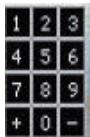
You can also find the volume bar in the middle of the interface. Click on the + or - to increase or decrease the volume, or click anywhere on the volume bar to set the volume at that level. Click on the speaker icon at the left to mute the volume.
3.4 Info panel
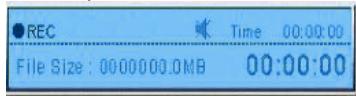
The above image shows the info panel. The top part of the info panel shows you the current channel you are tuned in to and the current time. If you are in record mode, the "REC" button will be lit. Use the arrows to change the channel up or down. The bottom part of the info panel shows the file size of what you are currently recording, how long you have been recording, and your current video source.
3.5 Settings button

Above or below the volume bar you will see a number of buttons. These buttons provide you with many options for setting your preferences in TVGo-U202. The most important button is the settings button, which opens the Settings dialog box.
3.5.1 TV settings tab
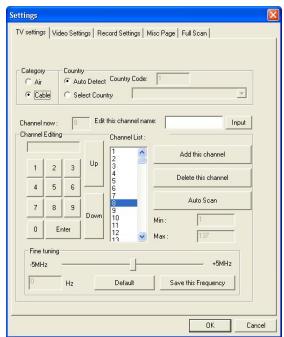
The first tab in the settings dialog box is TV settings. Here you can select your video mode, set your country settings, scan for channels, and select and name your favorite channels.
Category
This tab allows you to choose either cable or air (broadcast) TV as your TV source.
Country
This tab sets TVGo-U202 to the TV standards of the
country where you are using it. The setting process should happen automatically, but if it does not, just click on Select Country and choose your country manually.
Channel editing
This allows you to choose and name your favorite TV stations and add them to your channel list. To add a channel, choose it and click on "Add this channel"; to delete a channel, choose it and click on "Delete this channel". To name a channel, choose it, type a name in the "Edit this channel" box, and click on "Input".
Later, you will be able to access your favorite channels by clicking the right edge of the interface - a list of your favorite channels will appear, and you can click on a channel to choose it. You can also right-click on any channel listed in your favorites to change its name.
Fine Tuning
The Fine Tuning feature allows you to fine-tune your channel frequencies. Slide the Fine Tuning button to the left or right to make minor adjustments to the frequencies. To save your changes, click "Save this Frequency", or you can click "Default" to go back to the default setting.
3.5.2. Video Setting tab
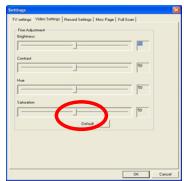
This tab allows you to set TV display settings including Brightness, Contrast, Hue, and Saturation. If you click on "Default", the display settings will return to their factory settings.
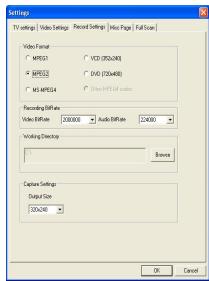
3.5.3 Record settings tab
This dialog box allows you to set your preferences for video recording. If you are recording files that you only plan to view on your computer, choose one of the MPEG options. For an external device, choose the format of that external device.
Video format
This allows you to choose whether you will record files in MPEG-1, MPEG-2, MS-MPEG-4, VCD, DVD, or another MPEG4 codec such as DivX, you can go to the DivX website at http://www.divx.com/divx/ to download a free codec.
Recording BitRate
Here you can choose the BitRate of your recording depending on which file format has been chosen. A higher BitRate will improve the quality of the recorded files.
Working directory
This allows you to choose the location on your PC where movies and pictures are saved. To change the location, click on "Browse" and select the folder you want to save your files in.
Capture settings
Here you can choose the output size of the video that you record.
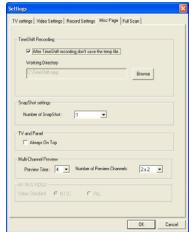
3.5.4 Page tab
This box allows you to make additional settings for recording and taking snapshots.
TimeShift recording
When you check this box, files that you record in TimeShift mode will not be saved after you turn off TimeShift. See section 3.7.2 for an explanation of TimeShift. You can also set the directory that the software will use to hold the TimeShift temp file. To change this, click on "Browse" and select the folder you wish to use.
Snapshot settings
This allows you to choose how many snapshots are taken when you click the Snapshot button. See section 3.6.4 for an explanation of Snapshot.
TV and Panel
When you check "Always on Top", the TV window will always be in front of other applications on your screen.
Multi-Channel Preview
This allows you to preview channels, choose the number of channels you want to preview and the length of time you preview each channel (See 3.6.5).
3.5.5 Full Scan tab
This box lets you do a full scan for channels, as well as input frequencies to create channels. If you wish to use this option, check the "Use Full Scan Channel List" checkbox.
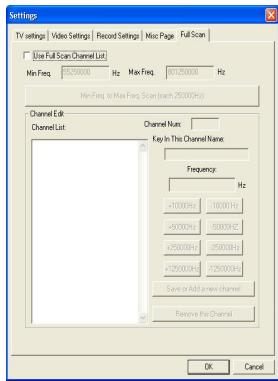
Min Freq. To Max Freq. Scan: This will scan through all available frequencies to detect available channels. Click "Start Scan" on the box that appears to start the full scan; click on "Stop Scan" to stop scanning. The scan will take a while to complete.
Channel Edit: You can edit channels detected, or add your own channels by entering a frequency. To name a channel, select it from the Channel List, type a name into the "Key In The Channel Name" box, and click on "Save or Add a new channel". To remove a channel, select it from the Channel List and click "Remove this Channel". If you want to remove a channel using Frequency, you can adjust the current frequency with the +/- Hz buttons and click "Save or Add a new channel".
3.6 Additional settings
On the same toolbar as the settings button, you will find additional buttons that provide options for customizing TVGo-U202.
3.6.1 Schedule recording button


To the left of the settings button is the Schedule Recording button. When you click on this symbol, a window will appear that allows you to schedule record TV programs.
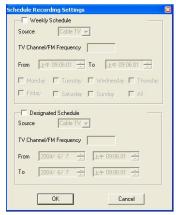
Weekly Schedule
This allows you to schedule record shows that are broadcast at the same time every day or every week.
Designated schedule
This allows you to program TVGo-U202 to record a single show.
3.6.2 Auto Scan button

Clicking Auto Scan allows you to quickly scan the TV channels that are currently available, one at a time. To stop Auto Scan, click on the button again and click OK.
3.6.3 Change Skin button

Clicking Change Skin gives you a different view of the TVR software. Click on the button again to change back to the original view.
3.6.4 Snapshot button

When you click on Snapshot, TVGo-U202 will take a picture of the current frame appearing on your monitor, and the snapshot will be saved in your Gallery. (See section 3.7.3 for an explanation of Gallery).
3.6.5 Multiple Preview button

When you click on the Multiple Preview button, you will be able to see an array of thumbnail images of the TV programs currently airing. When you see a program that you want to watch, just double click on it.
The amount of time that each preview screen is displayed, and the number of channels shown, can be selected on the Page tab (see section 3.5.4).
3.6.6 Audio settings button

When you click the audio settings button, a dialog box opens that allows you to set your audio preferences — balance, bass, treble, and volume.
3.6.7 Teletext button

When you click on the Teletext button, Teletext/Closed Captioning will be enabled (only when available).
3.7 How to record a program

The top row of buttons on your TVGo-U202 TVR interface allows you to record a program while watching it, and lets you control the TimeShifting feature.
3.7.1 Record button

By clicking this button, you can record a program while watching it. When you click again, the recording will stop. You will find the recorded file in the Gallery (see section 3.7.3 for an explanation of the Gallery) in the format you chose in Record Settings/Video Format (see section 3.5.3). You cannot change channels while recording.
3.7.2 TimeShift Function button

The TimeShift Function allows you to pause, fast forward, or rewind a program while you are watching it.
To start a TimeShift recording, click on the red TimeShift button (for Start/Stop). When in TimeShift mode, the Time Slider will appear in the horizontal bar above the TimeShift button. Click the button again to stop.
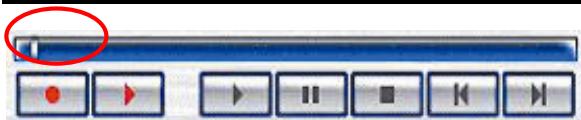
The orange bar shows how much video is currently being recorded, and the gray square is your current position. Dragging the slider to the left rewrites the video, dragging the slider right fast-forwards the video up to what is currently playing.

The other controls are Play, Pause, Stop, Skip to Beginning, and Skip to End. Clicking on Pause will pause the video, and you can resume watching by clicking on Play. Skip to Beginning will go to the beginning of the recorded video, and Skip to End will skip to the end of the recorded video (that is currently playing). To stop the TimeShift mode, you can click on Stop or on the red TimeShift button. You cannot change channels when in TimeShifting.
3.7.3 The Gallery
The gallery is a shortcut to the location on your hard drive where video files and snapshots are stored. You can choose your hard drive location as explained in Record Settings/Video Format (see section 3.5.3).
You can open the gallery by clicking on the button located at the bottom left corner of the Genius TVR.

Here you can see what files you have recorded, as well as the following buttons:
Close Gallery: Closes the Gallery
Send by E-Mail: Opens your computer's default e-mail program to e-mail the selected file
Change ListView: Toggles between Thumbnail, List, and Detailed views of your files
Play Movie: Plays a selected movie
Paint: Opens selected image
Click the right button on a file gives you a dropdown menu with the following options
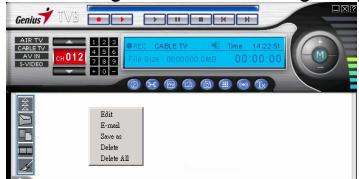
E-Mail: Opens your computer's default e-mail program to e-mail the selected file
Save As: Lets you name and save the file to a selected folder
Delete: Deletes selected file
Delete All: deletes all files in gallery
Edit: Opens the file
4. Ulead ToolBox
Ulead Video ToolBox is a simple yet complete tool to capture videos from DV camcorders and other video capturing devices to your computer and you can edit the TV programs and format the file you save on your PC or NB to MPEG-4 or 3GPP files which can be played on 3G mobile phones.
Aside from the ability to capture videos, Video ToolBox carries a set of editing tools. Cutting video clips and converting video files to other video file formats are both possible inside this program. The program also offers various export options that allow you to share video clips. It is also tightly integrated with Ulead DVD MovieFactory giving you the ability to create DVDs, VCDs and SVCDs. Just click the Ulead Tool Box icon on the installation and follow the instructions, and you will find the Ulead Toolbox interface on your screen.
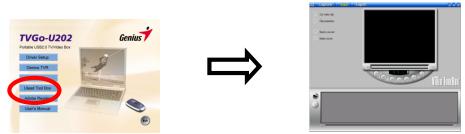
4.1 Introduction of Ulead ToolBox
4.1.1 Setting: Contains several commands. Switch to the step to that pertains to how you work to accomplish the desired task inside Ulead Video ToolBox

4.1.2 Switch to the step to accomplish the desired task

4.1.3 Allows you to play back video clips
4.1.4 Optional Panel: Displays commands and settings available in the selected step
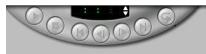
4.1.5 Navigation buttons: Use these buttons for device control, trimming, and playing video clips
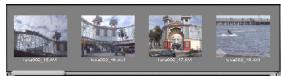
4.1.6 Insert Video files: Allows you to add video clips from a file to the Video Strip

4.1.7 Remove selected clips: Removes selected clips from the Video Strip.

4.1.8 Video Strip: Displays all video clips being used
4.2 Button Function

It allows you to automatically split different scenes in your video into separate video clip
files
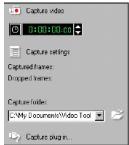
- First Run Video ToolBox, and select Capture Plug-in in the Options Panel.
- In the Change Capture Plug-in dialog box, select the 'Ulead DirectShow capture plug-in.'
- Use the Navigation buttons below the Preview window to check.
- Click Capture settings and select Capture Option to display.
- In Capture folder select the folder where you want to store your captured clips.
- Play back your video when you get to the part you want to capture, click capture video. To stop recording, click this button again or press the ESC button.
Edit
It allows you to trim, arrange and render your video in preparation for final output and you can also convert the format through batch conversion or combine clips into one whole movie.
Cutting Video Clips
- Select a video clip on the Video Strip.
- Drag to Preview Bar under the Preview Window to the point where want to cut the Video clip.
- Select Cut Video clip in the Options Panel.
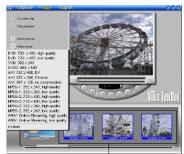
Converting the video format of your clips
- Select the clips you want to convert to another video format on the Video Strip.
- Select Batch Convert in the Options Panel.
- Select the format you want to convert the select clips from the list.
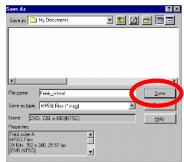
- Type in a file name then click Save.

Combining clips as one video
- Select the clips you want to include in the video on the Video Strip.
- Select Make movie in the Options Panel.
- Select the format you want for the video from the list.
- Type in a file name then click Save.
Export
It allows you to output your project in various media format
- You can view the video in the Preview Window using the navigation buttons.
- Before exploring, make sure that the format of your video file complies with your target media output.
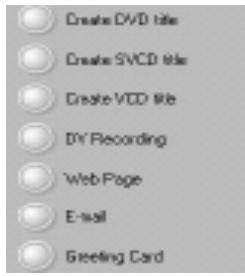
- Create DVD/VCD/SVCD: launches the Ulead DVD MovieFactory Allowing you to create a DVD/VCD/SVCD.
- DV Recording: Sends your video back to a digital camcorder or other digital video recording devices.
- Web Page: Shares your video over the internet.
- E-mail: Launches your default e-mail application and sends your video as an e-mail attachment.
- Greeting card: Creates multimedia greeting card using the video files.




- 1.2 FEATURES
- 1.3 PACKAGE CONTENTS
- 1.4 SYSTEM REQUIREMENTS
- INPUT & OUTPUT CONNECTIONS
- 2.1 TVGO-U202
- CABLES
- CABLE AND CONNECTOR DIAGRAMS
- DIAGRAM 2 (NTSC AND PAL CONVERTERS)
- REMOTE CONTROL
- 2.2 SOFTWARE INSTALLATION
- 2.3 LAUNCHING TVGO-U202
- THE TVGO-U202 INTERFACE
- 3.2 CHOOSING YOUR VIDEO SOURCE
- 3.3 CHANNEL AND VOLUME BUTTONS
- 3.4 INFO PANEL
- 3.5 SETTINGS BUTTON
- 3.5.1 TV SETTINGS TAB
- CATEGORY
- COUNTRY
- CHANNEL EDITING
- FINE TUNING
- VIDEO SETTING TAB
- 3.5.3 RECORD SETTINGS TAB
- VIDEO FORMAT
- RECORDING BITRATE
- WORKING DIRECTORY
- CAPTURE SETTINGS
- TIMESHIFT RECORDING
- SNAPSHOT SETTINGS
- TV AND PANEL
- MULTI-CHANNEL PREVIEW
- 3.5.5 FULL SCAN TAB
- 3.6 ADDITIONAL SETTINGS
- 3.6.1 SCHEDULE RECORDING BUTTON
- WEEKLY SCHEDULE
- DESIGNATED SCHEDULE
- 3.6.2 AUTO SCAN BUTTON
- 3.6.3 CHANGE SKIN BUTTON
- 3.6.4 SNAPSHOT BUTTON
- 3.6.5 MULTIPLE PREVIEW BUTTON
- 3.6.6 AUDIO SETTINGS BUTTON
- 3.6.7 TELETEXT BUTTON
- 3.7.1 RECORD BUTTON
- 3.7.2 TIMESHIFT FUNCTION BUTTON
- 3.7.3 THE GALLERY
- ULEAD TOOLBOX
- 4.1 INTRODUCTION OF ULEAD TOOLBOX
- EDIT
- CUTTING VIDEO CLIPS
- CONVERTING THE VIDEO FORMAT OF YOUR CLIPS
- COMBINING CLIPS AS ONE VIDEO
- EXPORT
Brand : GENUIS
Model : TVGO-U202
Category : Video Capture Card