
MEGACAM - Camera MACALLY - Free user manual and instructions
Find the device manual for free MEGACAM MACALLY in PDF.



| Product Type | USB Webcam |
| Brand | MACALLY |
| Model | MEGACAM |
| Maximum Resolution | 1600 x 1200 UXGA |
| Frame Rate | Up to 30 frames per second |
| Interface | USB 2.0 |
| Built-in Microphone | Yes, USB Audio type |
| Operating LED indicator | Yes |
| Sliding privacy cover | Yes |
| Flexible stand base | Yes, allows desktop placement or monitor mounting |
| System Compatibility | Mac OS X v10.4.9 or later, Windows XP SP2/Vista/7 |
| Software Compatibility | iChat, Skype, Yahoo! Messenger, Windows Live Messenger, Photo Booth, iStopMotion, Delicious Library |
| Power Supply | Via USB 2.0 port (bus-powered) |
| Warranty | 2 years |
| Care and Cleaning | Clean with a soft, dry cloth. Avoid solvents or abrasive products. |
| Safety | Do not expose to water or humidity. Do not disassemble the device. |
| Environmental Information | Compliant with WEEE directive 2002/96/EC. Do not dispose of with household waste. |
Frequently Asked Questions - MEGACAM MACALLY
User questions about MEGACAM MACALLY
0 question about this device. Answer the ones you know or ask your own.
Ask a new question about this device
Download the instructions for your Camera in PDF format for free! Find your manual MEGACAM - MACALLY and take your electronic device back in hand. On this page are published all the documents necessary for the use of your device. MEGACAM by MACALLY.
USER MANUAL MEGACAM MACALLY
Thank you for purchasing the Macally MegaCam. The Macally MegaCam is a flexible and portable USB video webcam and works with Skype, Yahoo! Messenger, Windows Live Messenger (Windows only), iChat (Mac only) and aMSN (mac only). The Macally MegaCam gives you endless ways to have fun!
About this guide
Before you start using the Macally MegaCam, be sure to read this manual in its entirety.
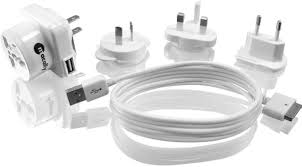
Package contents
To keep you informed of the latest driver updates and new Macally products, please register this product at http://www.macally-europe.com/register.php.
Technical support
About problem solving. Many problems can be solved easily. To avoid unnecessary product returns, please follow the steps below when you experience a problem with a Macally product.
Make sure that a) your hardware and software meet all system requirements (see package, manual and website), b)
the product is connected properly and c) that your computer supports products that you want to connect through our host controllers and hubs.
Go to the FAQ-section (frequently asked questions) at http://www.macally-europe.com/faqlist.php to find a solution to your problem.
Contact us for further technical support! In Europe, please call to +31 24 373 14 10 or email to techsupport@macally-europe.com. Technical support hours in Europe are from 9h00 to 17h00 (ET), from Monday to Friday. In USA, please call to +1 626 214 2770 or email to techsupport@macally.com.
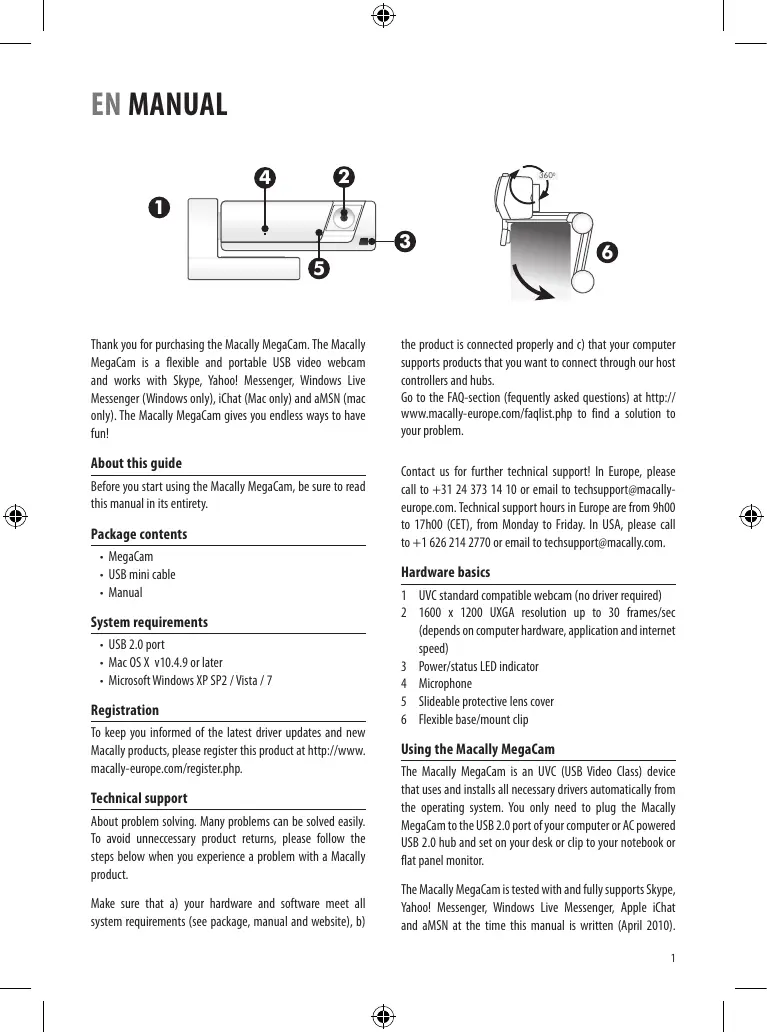
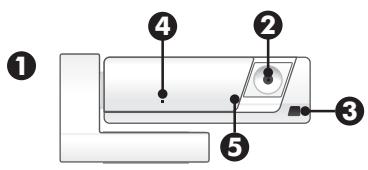
Hardware basics
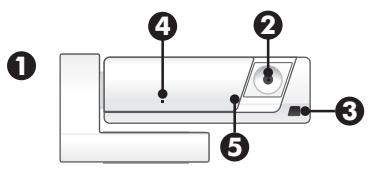
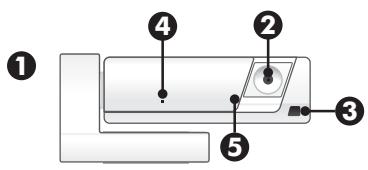
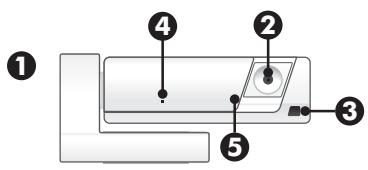
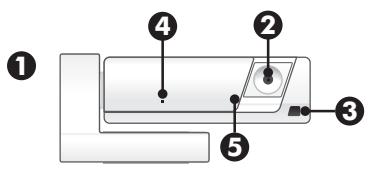
1 UVC standard compatible webcam (no driver required)
2 1600 x 1200 UXGA resolution up to 30 frames/sec (depends on computer hardware, application and internet speed)
3 Power/status LED indicator
4 Microphone
5 Slideable protective lens cover
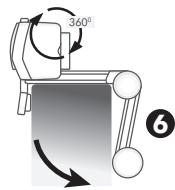
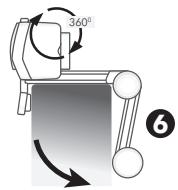
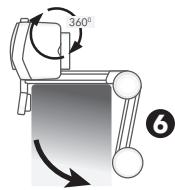
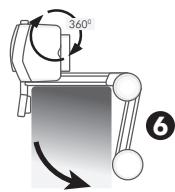
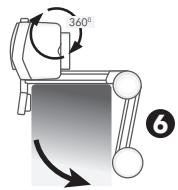
6 Flexible base/mount clip
Using the Macally MegaCam
The Macally MegaCam is an UVC (USB Video Class) device that uses and installs all necessary drivers automatically from the operating system. You only need to plug the Macally MegaCam to the USB 2.0 port of your computer or AC powered USB 2.0 hub and set on your desk or clip to your notebook or flat panel monitor.
The Macally MegaCam is tested with and fully supports Skype, Yahoo! Messenger, Windows Live Messenger, Apple iChat and aMSN at the time this manual is written (April 2010).
However, as software develops continuously we recommend you to search for and download the latest video conferencing software updates available to your operating system.
Video conferencing applications
iChat (Mac only)
Connect the Macally MegaCam to your computer (connected to the Internet), log-on to iChat and select Preferences. In the Preferences menu select the Audio/Video or Video icon and select "USB 2.0 Camera" under Camera and Microphone options. When you are done close the Preferences menu. Click on the green camera icon in the iChat Buddy List to test the MegaCam. Click on a contact in your Buddies Lists. Once connected, the other party will be able to see you on iChat video as shown below. If, the other party has an active webcam, you will see him or her as well. Please note the picture-in-picture windows, the big window shows the remote camera, the small window shows the local camera for monitoring purpose.

Skype
In Mac OS, connect the Macally MegaCam to your computer (connected to the Internet), log-on to Skype and select Preferences. In the Preference Menu, select the Audio icon and choose Macally USB Microphone as Audio Input. Then, select the Video icon, choose USB 2.0 Camera as camera source and check the options "Enable Skype Video" and "Start my video automatically". Close the Preferences window and you are ready to go!
In Windows, connect the Macally MegaCam to your computer
(connected to the Internet), log-on to Skype, go to Tools and select Options. In the Options menu, select Audio Settings and choose USB 2.0 Camera as Microphone. Then, select Video Settings, choose USB Video Device as webcam. Click the Save button to exit and you are ready to go! Call your contact, click "Start my video" and your contact will be able to see you in Skype. (You can use Skype Test Call to test the microphone and speaker sound.)
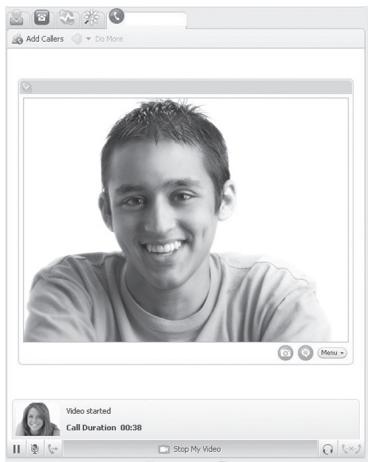
The Skype window below shows how your friend sees you, the small picture in the big picture shows her local web cam.
Yahoo! Messenger
In Mac OS, connect the Macally MegaCam to your computer (connected to the Internet), log-on to Yahoo! Messenger and select "Start Broadcast" in the Webcam menu. Now you can enjoy live video chatting with your friends!
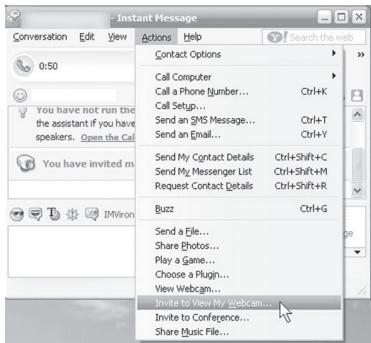
In Windows, connect the Macally MegaCam to your computer (connected to the Internet), log-on to Yahoo! Messenger and select Preferences. In the Preferences menu select Calling & Audio and choose USB 2.0 Camera as Microphone. Then, select Super Webcam and choose "Start SuperWebcam mode automatically". To start video conferencing, right click on a contact to pop down the menu, go to "More Actions" and choose "Invite to View My Webcam". Or else, in the Instant Messenger window, go to "Actions" and select Invite to View My Webcam. Now you can enjoy live video chatting with your friends!
Windows Live Messenger (Windows only)
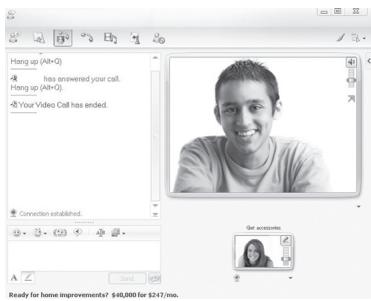
Connect the Macally MegaCam to your computer (connected to the Internet), log-on to Windows Live Messenger. In the menu bar, select "Tools", then "Audio and video setup..." and follow the instructions. In "Step 2: Microphone Setup" select USB 2.0 Camera and in "Step 3: Webcam Setup" select USB Video Device. Click "Finish" to close the Window. Then, in the menu bar select Video and "Show your webcam...". Right click on an online contact to pop down the menu and select "Start a video call". Once you are connected, your contact will see you as shown below.
Frequently Asked Questions
Q: Do I need to purchase additional software to make the Macally MegaCam work with iChat?
A: No. The Macally MegaCam is automatically recognized by iChat.
Q: Can I run multiple video conferencing applications simulta
neously while using the Macally MegaCam?
A: No. You can only use the Macally MegaCam with one video conferencing application at the time.
Q: Why don't I see any video?
A: If there is no video, restart your computer and run one video conferencing application only. If there is still no video, in Mac please try to reset the PRAM by restarting your computer and immediately press and hold down 4 keys simultaneously: Option, Cmd (Apple key), P and R. Hold down these keys until the Mac sounds chime three times.
Q: Can I use the Maccally MegaCam with a new iMac, MacBook, MacBook Air or MacBook Pro with built-in iSight camera?
A: Yes. You can use the Macally MegaCam, instead of the built-in iSight camera, to capture video and photos all around your computer with more flexibility.
Q: Will the Maccally MegaCam cause any conflict with the computer's built-in microphone?
A: No. The Macally MegaCam's built-in microphone is USB Audio type and will not cause any conflict with your computer's internal microphone. Please note, if the audio does not work after you have tried all things, you might need to configure Audio Input source from Sound in System Preferences of Mac OS X or from Sounds and Audio Devices of Control Panel in Windows XP and Vista.
Q: My MegaCam video image is blurry. What can I do to obtain a clearer image?
A: Please adjust the focus by turning the Focus Adjust Ring on the Macally MegaCam.
Q: Can I plug the Macally MegaCam to an USB 1.1 or keyboard's USB port?
A. No, you can't. The Macally MegaCam requires more power than USB 1.1 or a keyboard's USB port can provide. Please connect the Macally MegaCam to a computer with a built-in USB 2.0 port or an AC powered USB 2.0 hub.
Q: What other applications work with MegaCam?
A: On a Mac, PhotoBooth, iStopMotion and Delicious Library are tested and work with the Macally MegaCam. However, as the operating system and software develops, the compatibility might change, please test the Macally MegaCam with your desired application to find out.
Warranty
Macally Peripherals warrants that this product will be free from defects in title, materials and manufacturing workmanship for two (2) years from the date of the purchase. If the product is found to be defective then, as your sole remedy and as the manufacturer's only obligation, Macally will repair or replace the product. This warranty is exclusive and is limited to the Macally MegaCam. This warranty shall not apply to products that have been subjected to abuse, misuse, abnormal electrical or environmental conditions, or any condition other than what can be considered normal use.
The liability of Macally Peripherals arising from this warranty and sale shall be limited to a refund of the purchase price. In no event shall Macally Peripherals be liable for costs of procurement of substitute products or services, or for any lost profits, or for any consequential, incidental, direct or indirect damages, however caused and on any theory of liability, arising from this warranty and sale. These limitations shall apply notwithstanding any failure of essential purpose of any limited remedy.
Environmental Information for Customers in the European Union

European Directive 2002/96/EC requires that the equipment bearing this symbol on the product and/or its packaging must not be disposed of with unsorted municipal waste. The symbol indicates that this product should be disposed of separately from regular household waste streams. It is your responsibility to dispose of this and
other electric and electronic equipment via designated collection facilities appointed by the government or local authorities. Correct disposal and recycling will help prevent potential negative consequences to the environment and human health. For more detailed information about the disposal of your old equipment, please contact your local authorities, waste disposal service, or the shop where you purchased the product.
Copyright © 2010 Maccally Peripherals

Macally Europe
Teklink Europe BV
Tel: +31 24 3731410
Fax: +31 24 3731134
email: sales@macally-europe.com
website: www.macally-europe.com
DE HANDBUCH
Copyright © 2010 Maccally Peripherals
FR MANUEL
Copyright © 2010 Maccally Peripherals
ES MANUAL
Copyright © 2010 Maccally Peripherals

Macally Europe
Teklink Europe BV
Tel: +31 24 3731410
Fax: +31 24 3731134
email: sales@macally-europe.com
website: www.macally-europe.com
NL Handleiding
Copyright © 2010 Maccally Peripherals
IT MANUALE
Copyright © 2010 Maccally Peripherals


- About this guide
- Package contents
- Technical support
- Hardware basics
- Using the Macally MegaCam
- Video conferencing applications
- iChat (Mac only)
- Skype
- Yahoo! Messenger
- Windows Live Messenger (Windows only)
- Frequently Asked Questions
- Warranty
- Environmental Information for Customers in the European Union
- DE HANDBUCH
- FR MANUEL
- ES MANUAL
- NL Handleiding
- IT MANUALE
Brand : MACALLY
Model : MEGACAM
Category : Camera