P300B - Mobile Phone E-TEN - Free user manual and instructions
Find the device manual for free P300B E-TEN in PDF.


| Product Type | Personal Assistant (Pocket PC) with mobile phone functions |
| Brand | E-TEN |
| Model | P300B |
| Operating System | Microsoft Windows Mobile (Pocket PC) |
| Screen | TFT touch screen (size and resolution not specified) |
| Connectivity | Bluetooth, GPRS, Infrared, USB |
| Digital camera | Not available (P300 model only) |
| Battery | Rechargeable lithium-ion main battery, built-in backup battery |
| Charging time | Approximately 8 hours for the first charge, approximately 3 hours thereafter |
| Power supply | 5V power adapter (included), charging via USB cradle |
| Main functions | Mobile phone, SMS/email messaging, MSN Messenger, Web browsing (GPRS), Pocket Office (Word, Excel), media player, Bluetooth |
| Storage | Expansion via SD/MMC card |
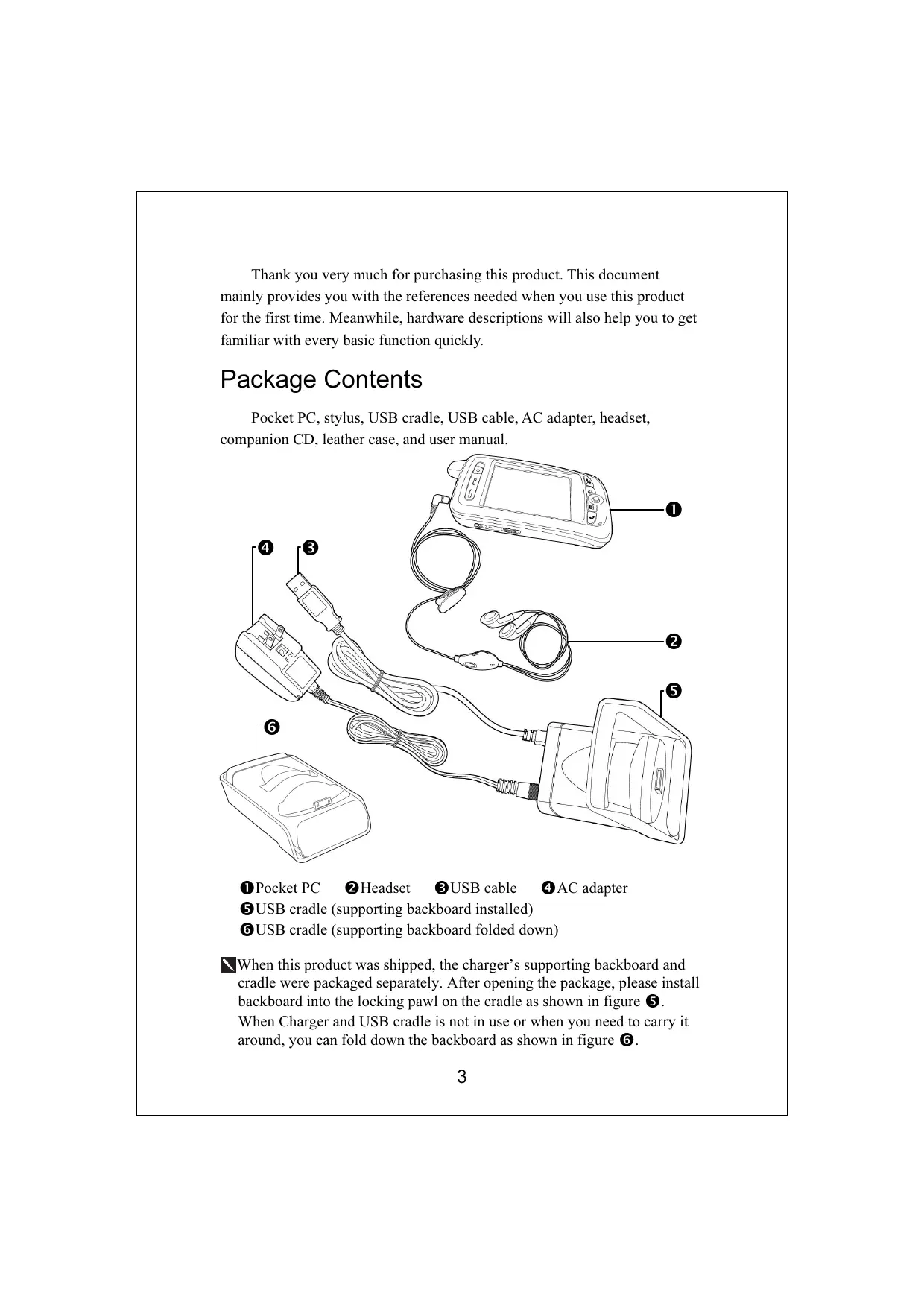
| Package contents | Pocket PC, stylus, USB cradle, USB cable, power adapter, headset, companion CD, leather case, user manual |
| Operating temperature | Do not exceed 45°C for charging, 60°C for storage |
| Care and cleaning | Clean with a soft, dry cloth. Avoid moisture and extreme temperatures. |
| Safety precautions | Use only the provided adapter and battery. Do not expose to water or fire. |
| Spare parts and repairability | Contact E-TEN customer service for replacement parts. |
Frequently Asked Questions - P300B E-TEN
User questions about P300B E-TEN
0 question about this device. Answer the ones you know or ask your own.
Ask a new question about this device
Download the instructions for your Mobile Phone in PDF format for free! Find your manual P300B - E-TEN and take your electronic device back in hand. On this page are published all the documents necessary for the use of your device. P300B by E-TEN.
USER MANUAL P300B E-TEN
P300 Quick Start Guide
PACKAGE CONTENTS 3
APPEARANCES 4
P300 Front 4
P300B Front 5
Top 6
Bottom 6
Back 7
USEFOR THE FIRST TIME 8
Charging and Power Supply 8
Replacing Battery 9
Power 10
Backlight 10
Screen Alignment 11
Turn on Screen 11
POWER ON AND OFF 11
Sleep Mode 11
Reboot 12
DIGITALCAMERAUSE 13
CELLPHONEUSE 14
Turn the Phone On and Off 15
MICROSOFT ACTIVESYNC 16
USB Cradle Installation 16
Installing and Using ActiveSync 17
CONNECT TO THE INTERNET 18
Configure GPRS Connection 18
Start GPRS Connection 20
Disconnect GPRS 20
WIRELESS COMMUNICATION TOOLS 21
Pocket IE 21
Inbox 22
Setting up E-mail Service 23
Using E-mail and Mobile Phone Messages 24
MSN Messenger 27
Setting Up 27
Chatting with Contacts 28
COMPANION PROGRAMS 29
Pocket Word 29
PocketExcel 30
Media Player 31
BLUETOOTH WIRELESS TRANSMISSION 32
Bluetooth Connection Function Setup 33
Pair 34
Serial Port 35
Bluetooth Headset 36
FAQ 37
In this guide, the sections marked with “ ” indicate that whether the features described here are supported or not depends on the actual product specifications.
Thank you very much for purchasing this product. This document mainly provides you with the references needed when you use this product for the first time. Meanwhile, hardware descriptions will also help you to get familiar with every basic function quickly.
Package Contents
Pocket PC, stylus, USB cradle, USB cable, AC adapter, headset, companion CD, leather case, and user manual.
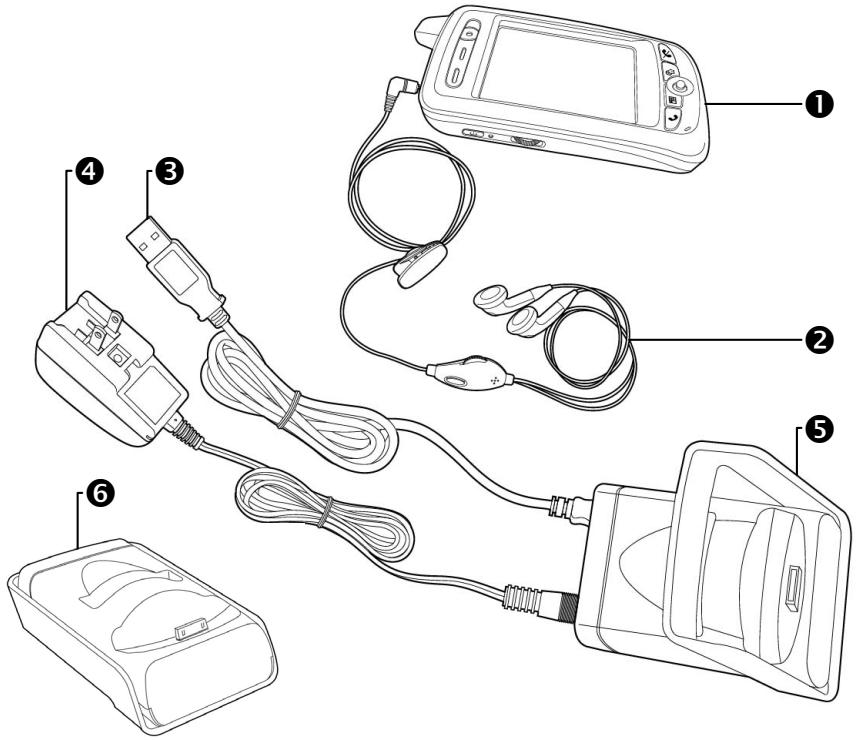
Pocket PC
2 Headset
USB cable
4 AC adapter
USB cradle (supporting backboard installed)
USB cradle (supporting backboard folded down)
When this product was shipped, the charger's supporting backboard and cradle were packaged separately. After opening the package, please install backboard into the locking pawl on the cradle as shown in figure 5.
When Charger and USB cradle is not in use or when you need to carry it around, you can fold down the backboard as shown in figure ⑥.
Appearances
P300 Front
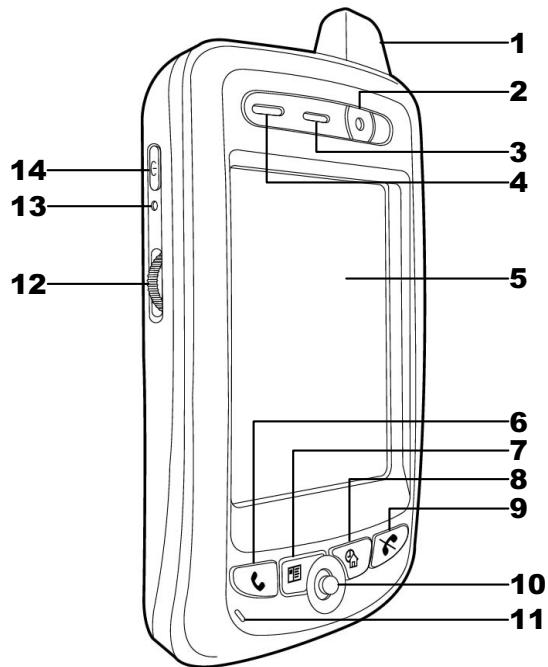
1 Antenna
3 Speaker
5 Touch Panel
7 "Contact" Hot Key
9 End Button
11 Microphone
13 Reset Button
Status icons on the navigation bar:

Cell Phone Off

Cell Phone On

GPRS is Online
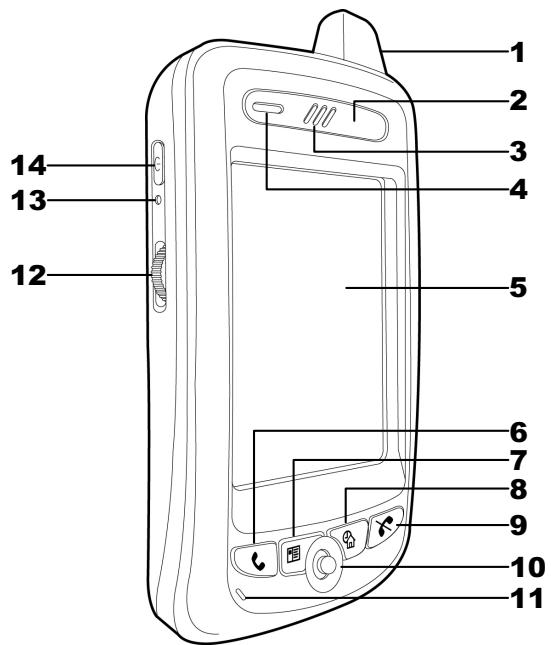
1 Antenna
3 Speaker
5 Touch Panel
7 "Contact" Hot Key
9 End Button
11 Microphone
13 Reset Button
Status icons on the navigation bar:

Cell Phone Off

Cell Phone On

GPRS is Online
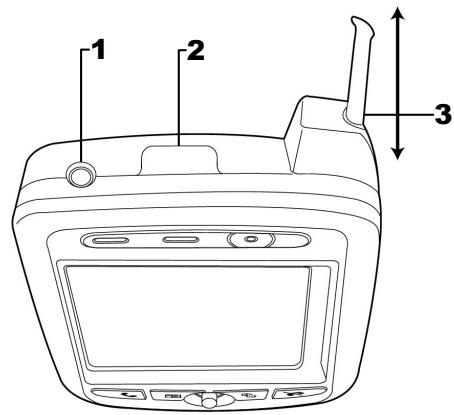
Top
1 Headset Jack
2 Infrared Port
3 Stylus slot, pull to take out stylus.
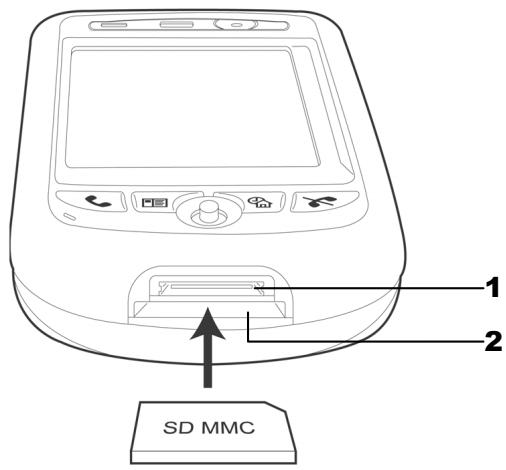
Bottom
1 Cradle connection port
2 SD/MMC card slot
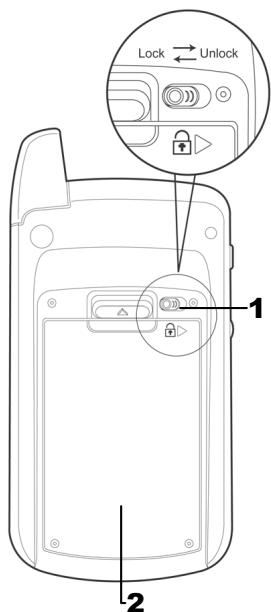
Back
1 Main battery lock, follow the illustrations on Pocket PC to use.
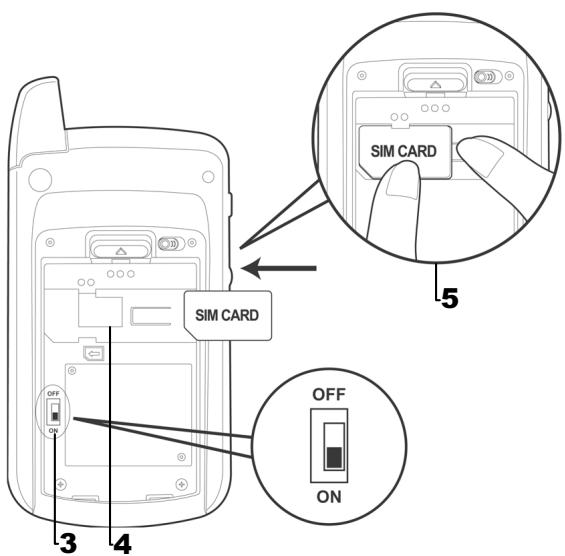
3 Back-up power switch, follow the illustrations on Pocket PC to use.
2 Main battery. Merchandise label on the top of battery cover.
4 SIM card slot, follow the illustrations indicated on Pocket PC to use.
5 To remove SIM card: use one hand to press down locking pawl, use the other hand to push SIM card.

Please note carefully!
- You need to turn on back-up power switch when you use this Pocket PC the first time. When back-up power switch is set to "ON", the system operation will temporarily rely on back-up battery to supply its power if you need to pull out or replace main battery. Back-up battery is charged by main battery.
- If back-up power switch is set to "OFF", the back-up battery will not function. Once the main battery is taken out, the Pocket PC will only retain Microsoft Windows and manufacture's pre-installed programs. Any other data input, programs newly installed, and customised settings setup by you will be lost.
Use for the First Time
Charging and Power Supply

Please note carefully!
Manufacturer's Instructions: Don't recharge the battery under a temperature higher than 45^ and don't store or use it under a temperature higher than 60^ ; otherwise, expansion or leakage of the battery may occur.
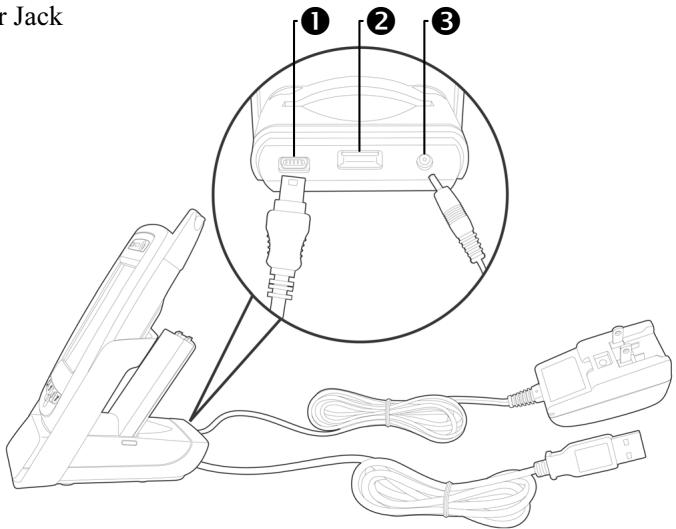
USB port: use the USB cable comes with this product to connect to the PC
USB host port: can be used with common retail mice and USB thumb drives. This function is only available for P300.
3 Power Jack
- Unlock main battery lock and release the main battery. (If you just unpack the package, please omit this step. Main battery and Pocket PC are packed separately when the phone was shipped.)
- Use stylus to set back-up power switch on the back of the Pocket PC to be On. We remind you that, you only need to turn on back-up power switch when you use this Pocket PC for the first time. You will not need to touch this switch again in any other situation.
-
Install the main battery and lock the main battery lock.
-
Plug the AC adapter's (specifically for this product) round connector into the power jack located in the back of the charging cradle. Then plug the other end of the AC adapter into a normal home-use wall outlet. The Pocket PC will then start charging automatically.
-
Cold Boot: Use one finger to press and hold the "Power" button on the top of the Pocket PC, meanwhile, use the tip of the stylus to press down the "Reset" button located on the left side of the Pocket PC. Then release the "Power" button and the "Reset" button simultaneously. After rebooting, follow the instructions on the screen to finish screen alignment...etc, tasks.
-
A brand new Pocket PC takes approximately 8 hours to be fully charged. It takes about 3 hours to be charged in full thereafter. After charging is finished, you can then unplug the AC adapter and carry around the Pocket PC freely. Please charge the Pocket PC regularity in the future to keep the Pocket PC functioning smoothly.
-
"Indicator on the top left of this Pocket PC" will indicate charging or various other functions in-use.
| Charging | Charging is Finished | Low Power |
| Red light glows | Red light off | Red light blinks |
| Cell phone on | Reminder or warning | |
| Green light blinks | Orange light blinks quickly |
If secondary main battery is purchased, it can be charged by plugging in the charging slot located on the back of the charging cradle. "Indicator on the side of the charging cradle" will indicate the charging status.
| Charging | Charging is Finished | No Battery |
| Red light glows | Green light glows | Indicator off |
Replacing Battery
- If cell phone or GPRS connecting fuction has been turned on, you should turn them off first before going on to the next step. Otherwise, the connection will be shut down improperly.
- Unlock the main battery lock located on the back of this Pocket PC and take out the battery.
- Replace the main battery and lock the main battery lock. When the main battery is taken out, system power will be supplied temporarily by back-up battery. However, if you do not install the main battery back within 1 minute, data will be lost.
- Remember to press the "Power" button to turn on the screen. Otherwise, the Pocket PC will be supplied by the back-up battery continuously and data may lose when the back-up battery is exhausted.
Power
-
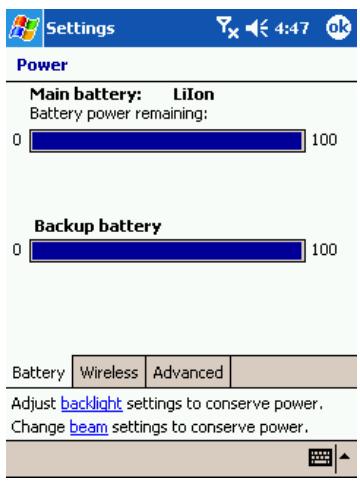
You can tap on and then Settings. On the System tab, tap Power to check the power status and configure power related settings.
-
Advanced tab: to configure automatic shutdown when the Pocket PC is in stand-by for a certain duration.
Backlight
-
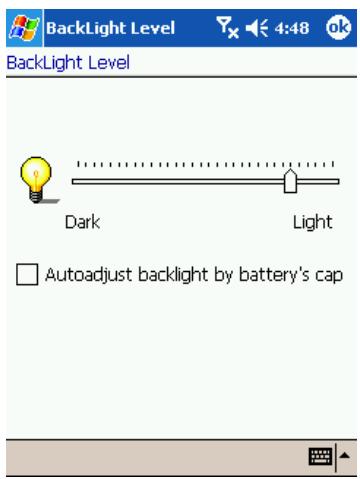
If backlight is desired, tap on Settings, System tab, and then Backlight.
-
Tap on Settings, System tab, and then Backlight Control to adjust the backlight brightness level.
Screen Alignment
When you use this Pocket PC for the first time or cold-boot it, system will require you to do screen alignment. When the Pocket PC doesn't respond properly to screen taps, you can also redo screen positioning by following the instructions in this section.

Settings

12:09

1.
Screen
Align Screen
Adjust the touch screen if your device is not responding accurately to screen taps. To do so, tap the Align Screen button or press the Action hardware button.
Align Screen
ClearType
ClearType smoothes the edges of screen fonts for many programs.
Enable ClearType Note: You must soft reset your device for changes to take effect
Adjust input options to improve speed and accuracy.

Turn on Screen
- Tap on and then Settings. On the System tab, tap Screen to align the screen.
- Tap on the "Align Screen" button. When the screen adjustment window appears, use stylus to tap the center of the cross (+) until the next cross appears. Please follow the instructions on screen to finish the rest of the operations. Tap "ok" button to exit.
This product is designed to provide you with power-saving functions. When the screen is off, you can turn the screen back on by pressing the "Power" button on the left side of the Pocket PC.
Power On and Off
Sleep Mode
- Press the "Power" button on the left side of the Pocket PC to enter Sleep mode. During the Sleep mode, screen is off and some peripherals will enter power-saving mode. But if the cell phone is already turned on, it will remain on stand-by status.
- Press the "Power" button again to turn the screen back on.

You can also tap on

and then Settings. On the System tab, tap
Power and then Advance tab to configure "automatically turn off the device" when the Pocket PC is in stand-by for a certain duration.
Reboot
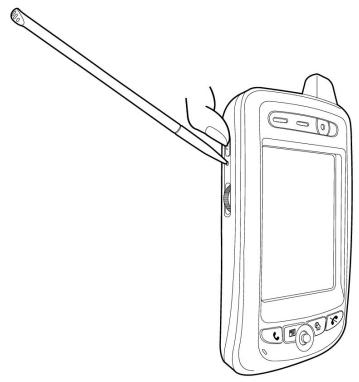
Warm-boot (Reset): Use the tip of the stylus to press down the "Reset" button located on the left side of the Pocket PC.
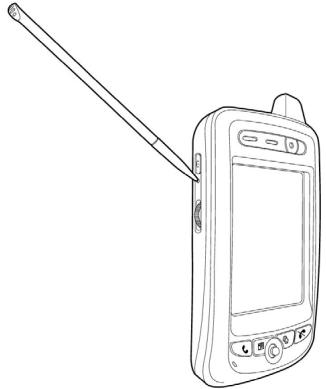
Cold-boot: Use one finger to press and hold the "Power" button on the top of the Pocket PC, meanwhile, use the tip of the stylus to press down the "Reset" button located on the left side of the Pocket PC. Then release the "Power" button and the "Reset" button simultaneously. After rebooting, follow the instructions on the screen to finish screen alignment...etc, tasks.
Digital Camera Use
This function is only available for P300.
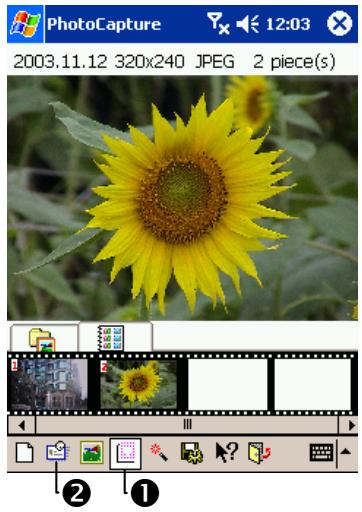
- Tap on Programs, Multimedia, and then Photo Capture.
- To take a self-portrait, face to the screen of your Pocket PC. When you are satisfied with the image on the screen, press down the camera shutter button (the "Action" key on the joystick at the bottom of the Pocket PC).
- You can send your photos to your friends as an E-mail attachment. Follow the steps:
1Tap on the 1Album icon at the bottom of the screen, and tap on the photo taken. The photo appears on the Preview window.
2 Tap on the Send icon at the bottom of the screen, and tap on "Mail" to enter the Inbox program. You can choose friends from your Address Book and send them your photo now.
For more information about the digital carema, tap on and then Help when you use Photo Capture.
Cell Phone Use
| Methods of Use | Operation | Receive a Call or Hang-Up | Adjusting earphone volume |
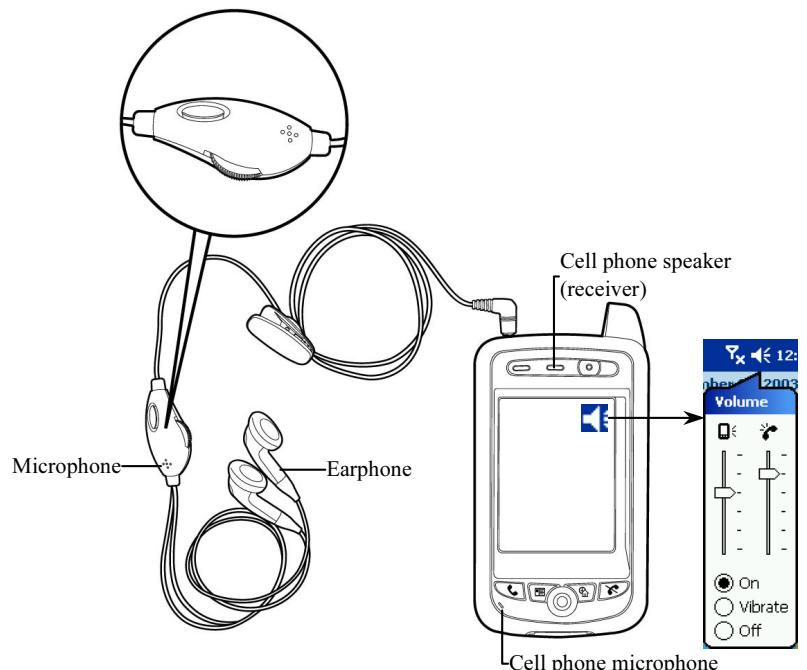
| Hold the Pocket PC to talk. | Put your ear near the speaker (receiver) and mouth near the microphone of Pocket PC. | Press the button to answer a call or button to hang-up. | During a call, use the volume adjustment button on the left side to adjust speaker volume. |
| Plug-in external headset. | Place the earphone piece into the ear and microphone piece near the mouth. | Using the remote function, press the button on the earphone and microphone headset to receive a call or hang-up. | During a call, use the volume adjustment button on the headset to adjust the volume of the earphone. |
The speaker of the Pocket PC locates at the same position of the cell phone's speaker function. To avoid sudden ringing affecting your hearing, adjust volume of the speaker to an appropriate level before using the cell phone near your ear. Tap on the top. adjusts volume of the voice functions within all programs, and adjusts volume of the cell phone conversation.
Turn the Phone On and Off
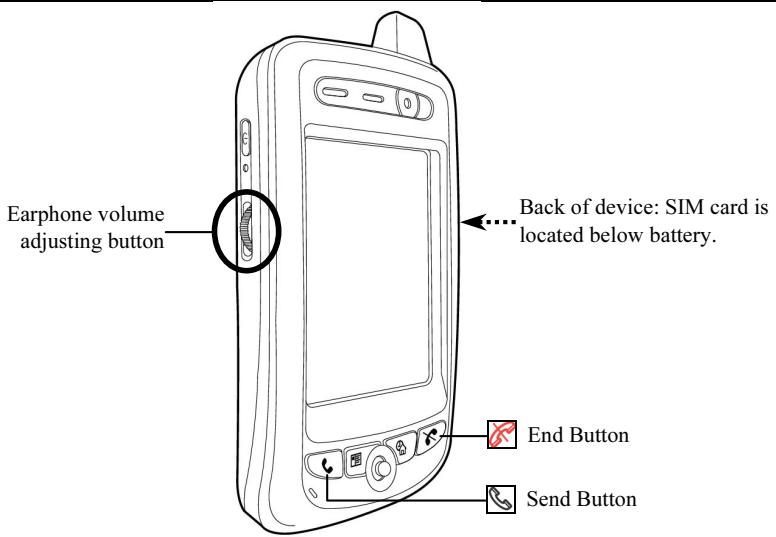
- Unlock main battery lock and take out the main battery.
- Install SIM card: follow the illustration shown on the Pocket PC to install cell phone SIM card into its slot. Please note the positioning angle of SIM card. The metal side should face the Pocket PC.
- Turning on cell phone: Tap on x icon located in the navigation bar on the top, wait until message window appears, then tap "Turn off flight mode" button and wait for the turn-on procedure to finish. Icon x
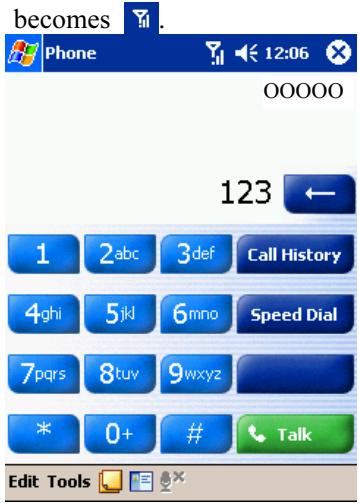
- If password (PIN) is set, key in the password and then tap "Enter" button.
- Make a call: Press "Dial" button on the Pocket PC's bottom left corner to enter the phone screen. Using the stylus to select the phone number, tap the "Talk" button.
- Answer a call: Press "Talk" button on the bottom left corner.
- End a call (hang-up): Press "Hang-up" button on the bottom right corner.
- Turn off cell phone: Tap on icon, and then tap "Turn on flight mode" button after message window appears.
Microsoft ActiveSync
USB Cradle Installation
Caution!
Before installing ActiveSync, make sure the USB line is not connected to the computer yet. Only after installing ActiveSync the USB can be connected to the computer.
- ActiveSync Software Installation: Execute Microsoft ActiveSync installation in your desktop PC with the CD-ROM provided with our product.
- Hardware Installation: Plug-and-play USB Cradle. Connect the Pocket PC with a desktop PC or laptop PC by USB port and USB connector.
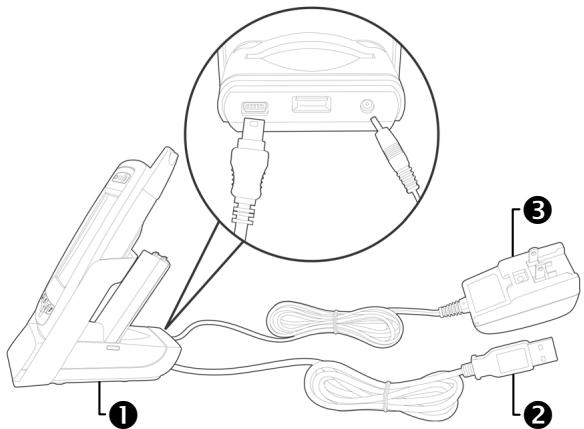
1 Recharging or USB Communication Port Cradle: the Pocket PC can be placed into the cradle, make sure you insert it all the way down.
PC USB Communications Port: Separate the two ends of the USB line and insert one into the Pocket PC and the other into your computer's USB port.
3AC Adaptor: Supplies power to the Pocket PC and recharges the battery. If the user wishes to use the Pocket PC for an extended duration, it is recommended to operate out of the USB cradle to secure the availability of constant power.
3.ActiveSync program instructions
Once the Pocket PC is connected to the PC, the PC will display a window that reads "Set Up a Partnership." Follow the setup procedure in that window. When setup is complete, a green icon will show up on the PC to indicate that the Pocket PC is online.
Installing and Using ActiveSync
After synchronization is completed, check to make sure that on the Pocket PC side, programs such as "Calendar", "Contacts", and "Tasks" contain data in-sync with Microsoft Outlook on the desktop PC.
Once you have set up ActiveSync and completed the first synchronization process, you can initiate synchronization from your Pocket PC. To switch to ActiveSync on your Pocket PC, tap , and then tap
ActiveSync.
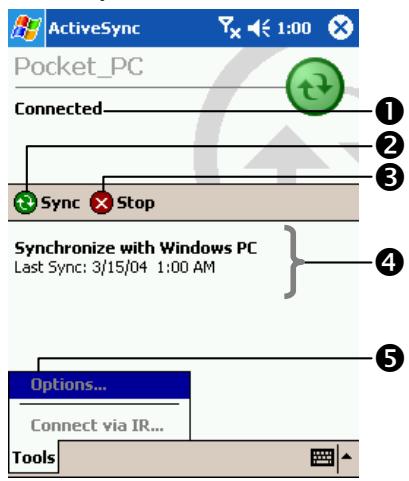
View connection status.
2 Tap to connect and synchronize.
3 Tap to stop synchronization.
4 View synchronization status.
5 Tap to synchronize via IR or change synchronization settings.
Connect to the Internet
This chapter will show you how to use GPRS to connect wirelessly to the Internet. With the GPRS Internet feature, whether you're at home, at the office, or on the road, you may connect your Pocket PC wirelessly to the Internet for browsing websites, sending E-mails, SMS messages, and MSN instant messages. Simply register with a Telecom for the GPRS service and obtain a SIM Card then you are ready to go online.
Configure GPRS Connection
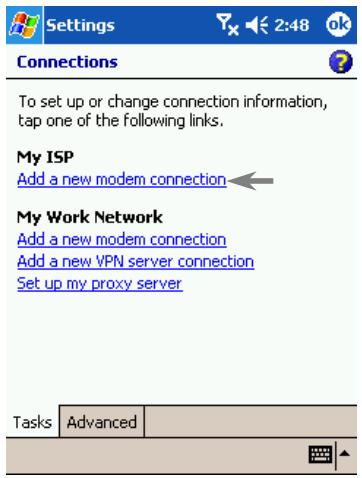
- Tap on , Settings,
Connections tab, Connections, and then Tasks tab.
- As the Picture to the left shows, tap "Add a new modem connection" under "My ISP".
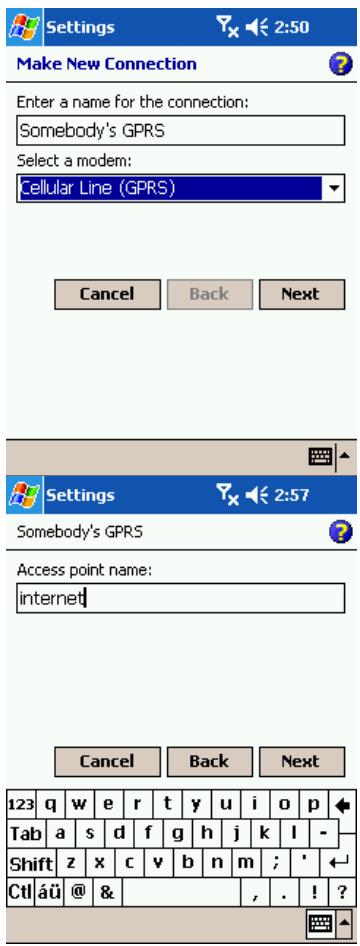
- In the "Make New Connection" display, fill in the text box under "Enter a name for the connection" with a proper name for this connection. Under the "Select a modem" drop-down list, select "Cellular Line (GPRS)". Tap "Next".
- Presume (for the sake of this example) there is an account with ChungHwa Telecom, under "Access point name" enter "internet". Tap "Next".
- After having entered the proper account information, tap "Finish".
The content is provided by the Taiwan telecommunication industry. The client should verify the information according to local standards.