G500 PLUS - Gps E-TEN - Free user manual and instructions
Find the device manual for free G500 PLUS E-TEN in PDF.


| Product type | GPS / Pocket PC with GSM/GPRS phone |
| Brand | E-TEN |
| Model | G500 PLUS |
| Dimensions (approx.) | 130 x 75 x 22 mm |
| Weight (approx.) | 180 g (with battery) |
| Power supply | Rechargeable lithium-ion battery, 5V power adapter, car charger |
| Talk time | Approximately 3 to 4 hours (depending on usage) |
| Operating system | Windows Mobile 5.0 |
| Screen | TFT touch screen, 240x320 pixel resolution |
| Built-in GPS | Yes, GPS receiver with satellite data update |
| Phone | Quad-band GSM/GPRS, call and SMS management |
| Camera | Digital camera with video mode |
| Connectivity | Bluetooth 2.0, USB (cable and docking station), headphone jack |
| Storage | Internal memory + Mini SD slot |
| Main functions | GPS navigation, telephony, PDA, messaging, multimedia, PC synchronization |
| Maintenance and cleaning | Clean with a soft, dry cloth. Do not use chemicals. |
| Safety | Do not disassemble the device. Use only the provided accessories. Avoid moisture and extreme temperatures. |
| Spare parts and repairability | Battery, stylus, USB cable, charger, hands-free kit, car mount replaceable. Repair by a certified professional. |
| General information | 226-page user manual available in PDF. Multilingual manual. |
Frequently Asked Questions - G500 PLUS E-TEN
User questions about G500 PLUS E-TEN
0 question about this device. Answer the ones you know or ask your own.
Ask a new question about this device
Download the instructions for your Gps in PDF format for free! Find your manual G500 PLUS - E-TEN and take your electronic device back in hand. On this page are published all the documents necessary for the use of your device. G500 PLUS by E-TEN.
USER MANUAL G500 PLUS E-TEN
GPS Pocket PC User Manual
Safety Instructions
Please Read Before Proceeding.
This product is not charged when shipped from the factory. When you use this product the first time, we recommend that you install the battery as illustrated and fully charge it for about 8 hours before use.
Before you install the SIM card, make sure that tap the ALL OFF Button in Wireless Manager to turn off your Pocket PC's mobile phone and Bluetooth functions. And press the "Power Button" on the top of the Pocket PC to turn off the screen. Otherwise, abnormal disconnection problems will occur.
- When you are on a plane, in a medical facility or at a gas station where wireless communications devices are not allowed and must be turned off, please go to Wireless Manager and select the ALL OFF Button to turn off your Pocket PC's mobile phone and Bluetooth functions. By pressing the "Power Button" on the top of the Pocket PC, you only turn off the display.
- In case the Pocket PC is damaged, send it back to the dealer for repair. Do not attempt to disassemble the Pocket PC on your own; otherwise the warranty will be void.
Where to Find Information
| For information on: | See this source: |
| Programs on your Pocket PC | This User's Guide and Pocket PC Help. To view Help, tap and then Help. |
| Additional programs that can be installed on the Pocket PC | The Pocket PC Getting Started CD. |
| Connecting to and synchronizing with a desktop computer | Check the user's guide that comes with this product or look for the online help relevant to ActiveSync on the desktop PC or the Pocket PC. |
| Up-to-date information on your Pocket PC | http://www.microsoft.com/windowsmobile/ |
This document lists the functions, specifications, and illustrations for reference only. The actual purchased product should be taken as the standard.
User Manual
SAFETYINSTRUCTIONS. 2
WHERE TO FIND INFORMATION. 2
1 Voice Command Satellite Navigation 1-1
NAVIGATION DEVICE INSTALLATION 1-1
GPS NAVIGATION SOFTWARE INSTALLATION 1-2
CONDITIONS FOR USING GPS CAR NAVIGATION 1-2
SATELLITE DATA UPDATE. 1-5
2 Getting Started 2-1
PACKAGE CONTENT 2-1
EXTERNAL VIEWS. 2-2
Hardware Hotkey Functions 2-3
Rear Side 2-4
USING THE POCKET PC FOR THE FIRST TIME 2-5
Travel Charger 2-5
Charging Power and Power Supply 2-7
Re-installation or Replacing the Battery 2-8
POWER ON AND OFF. 2-9
Sleep Mode. 2-9
Turn on the Screen. 2-10
Restarting the Pocket PC. 2-11
Reset. 2-12
Default Settings 2-13
Clean Boot 2-14
3 Using the Pocket PC 3-1
START 3-1
Screen. 3-1
Today Screen 3-3
Programs 3-6
System Application Programs 3-8
M-DESK. 3-10
ENTER INFORMATION ON YOUR POCKET PC. 3-13
Enter Text Using the Input Panel 3-13
Type with the Soft Keyboard. 3-15
Use Letter Recognizer 3-15
Use Block Recognizer 3-15
Use Transcriber. 3-16
SelectTypedText. 3-16
Write on the Screen. 3-17
Write on the Screen 3-17
Select Writing 3-18
Convert Writing to Text. 3-18
Draw on the Screen 3-20
Create a Drawing 3-20
Select a Drawing. 3-21
Record a Message 3-21
Create a Recording 3-22
Use My Text 3-23
Voice Commander 3-23
4 Using the Phone 4-1
INSTALLING AND REMOVING THE SIM CARD 4-2
USING THE PHONE 4-4
Adjusting the Phone Volume. 4-5
TURNING THE PHONE ON OR OFF AND MAKING CALLS. 4-6
Toolbar. 4-8
Call from Contacts. 4-9
Call from Speed Dial 4-9
Call from the Call History 4-10
CUSTOMIZE YOUR PHONE 4-11
Add Ringtone. 4-12
PHONE APPLICATION PROGRAMS 4-13
SIM Manager 4-13
Standard Display. 4-13
Full-Screen Display 4-14
Copy Phonebook Information. 4-15
SMS Management 4-16
SIM Tool Kit. 4-16
SMS Sender 4-17
Speed Dial. 4-18
Hot Key Switch. 4-18
Frequently Dialed Screen 4-19
Index Dial 4-20
Call Filter 4-21
5 Customize Your Pocket PC / 5-1
ADJUSTING SETTINGS. 5-1
NOTIFICATIONS. 5-2
POWER PREFERENCE SETTINGS 5-3
BACKLIGHT 5-4
MICROPHONE. 5-4
ADJUST VOLUME. 5-5
SCENARIOS 5-6
QUICKLINK. 5-7
FIND AND ORGANIZE INFORMATION 5-9
NAVIGATION BAR AND COMMAND BAR 5-10
POP-UP MENUS. 5-11
REDEFINE HOT KEYS. 5-12
6 Microsoft ActiveSync 6-1
INSTALLING AND USING ACTIVESYNC 6-2
USB SYNCHRONIZATION 6-4
SYNCHRONIZING USING BLUETOOTH 6-7
7 Connections 7-1
CONNECTING TO THE INTERNET 7-1
Connection Wizard 7-1
Setting the GPRS Connection 7-3
Starting GPRS Connection 7-5
Disconnecting GPRS 7-6
USING BLUETOOTH. 7-7
Bluetooth Connection Wizard. 7-7
Bluetooth Connection Setting 7-9
Service 7-10
Serial Port 7-11
Bluetooth Headset. 7-12
FTP Sharing 7-12
CSD TYPE 7-13
CONNECTING WITH A PERSONAL COMPUTER 7-13
8 Sending and Receiving Messages / 8-1
E-MAILS AND SMS MESSAGES 8-1
Synchronizing E-mail Messages 8-2
Connecting Directly to the Mail Server 8-3
E-mail Server Setup 8-4
Using E-mails and SMS. 8-5
Direct Push Technology Alert 8-8
Direct Push Technology Alert Settings 8-8
MSN MESSenger 8-10
Setting Up 8-11
Working with Contacts 8-12
Chatting with Contacts 8-13
MMS COMPOSER 8-14
Setting Up MMS Mailbox 8-15
Create and Edit MMS. 8-18
9 Multimedia/ 9-1
USING CAMERA 9-1
Camera Mode 9-2
Camera Mode Using Wizard 9-3
Managing Pictures Shot by Continuous
Shutter 9-4
Digital Video Mode. 9-5
Digital Video Mode Using Wizard. 9-6
Speed Shooting Using the Hardware Hotkeys. 9-7
MULTIMEDIA MANAGER 9-8
Preview Multimedia Information. 9-8
Slide Show Function 9-9
Multimedia Manager Tools 9-10
IMAGE MAKER. 9-11
IMAGE WIZARD 9-13
FM TUNER 9-14
10 Companion Programs 10-1
CALENDAR: SCHEDULING APPOINTMENTS AND MEETINGS .... 10-2
Create an Appointment 10-3
Use the Summary Screen 10-4
Create Meeting Requests 10-4
Schedule a Meeting. 10-5
CONTACTS: TRACKING FRIENDS AND COLLEAGUES 10-6
Create a Contact. 10-7
Find a Contact. 10-8
Use the Summary Screen 10-9
TASKS: KEEPING A TO DO LIST. 10-10
Create a Task. 10-11
Use the Summary Screen 10-12
NOTES: CAPTURING THOUGHTS AND IDEAS. 10-13
Create a Note. 10-14
WORD MOBILE 10-15
EXCEL MOBILE. 10-18
Tips for Working in Excel Mobile. 10-20
POWERPOINT MOBILE 10-21
WINDOWS MEDIA PLAYER 10-22
INTERNET EXPLORER 10-24
Using Internet Explore 10-24
Browse the Internet. 10-25
View Mobile Favorites and Channels 10-26
The Mobile Favorites Folder. 10-26
Favorite Links. 10-27
Synchronize Mobile Favorites 10-27
Create a Mobile Favorite 10-27
Save Pocket PC Memory 10-28
11 Maintaining the Pocket PC 11-1
BACKUP UTILITY 11-1
Storage Space 11-1
Backup Files 11-2
Wizard Mode 11-2
Standard Mode 11-2
Advanced Settings Options 11-3
Restore Files 11-5
Wizard Mode 11-5
Standard Mode. 11-6
ADDING OR REMOVING PROGRAMS 11-7
Add Programs Using ActiveSync. 11-7
Add a Program Directly from the Internet 11-8
Add a Program to the Start Menu. 11-9
Remove Programs 11-10
MANAGE MEMORY 11-11
ViewMemoryStatus 11-11
Find Available Memory 11-12
SYSTEM INFORMATION 11-15
12 Voice Commander 12-1
STARTING VOICE COMMANDER 12-2
VOICE COMMAND FORMAT 12-3
VOICE COMMANDER SETTINGS 12-5
Contacts Settings Page 12-5
Application Settings Page 12-8
Music Settings Page 12-10
Digit Training Settings Page 12-12
Advanced Settings Page. 12-14
FAQ 12-15
13 Specifications 13-1
14 Regulation Notice and Safety Declaration / 14-1
SAR INFORMATION 14-1
HEALTH AND SAFETY INFORMATION 14-2
15 FAQ / 15-1
1 Voice Command Satellite
Navigation /
Navigation Device Installation
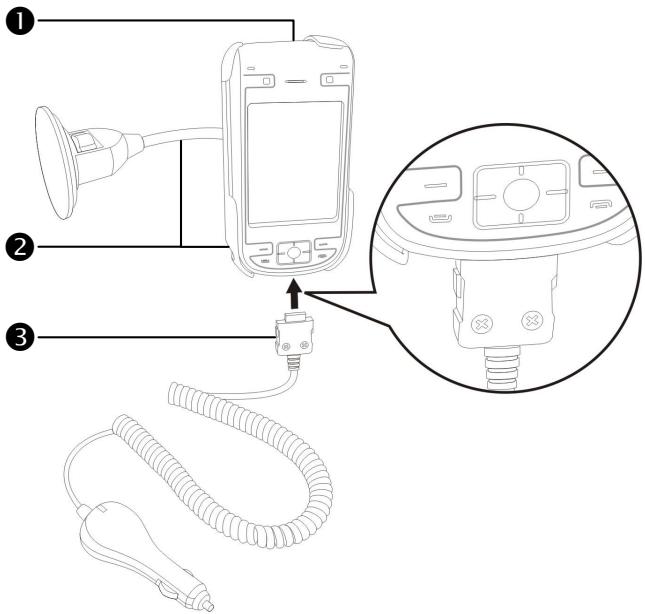
Pocket PC
Pocket PC Car Mount: place where it is easily accessible to driver or passenger
3Car Charger: when Pocket PC is low on power, recharge by connecting one end to the car cigarette lighter/12 volt power outlet and the other end to the socket on base of Pocket PC.
Attention: The GPS signal receiver is built into the Pocket PC. If car windscreen has heat reflective metallic film, or Pocket PC is obstructed by objects, then the receptivity of the GPS will be adversely affected.
Voice Command Satellite Navigation
GPS Navigation Software Installation
Please follow your car navigation system operating manual's instructions on software installation in order to use the navigation function.
Conditions for Using GPS Car Navigation
By using this system you are agreeing to the following conditions:
- When using this device, please use with matching car mount. Affix device securely to the car mount. Please be aware that installation in the areas depicted below is forbidden and is strictly prohibited.
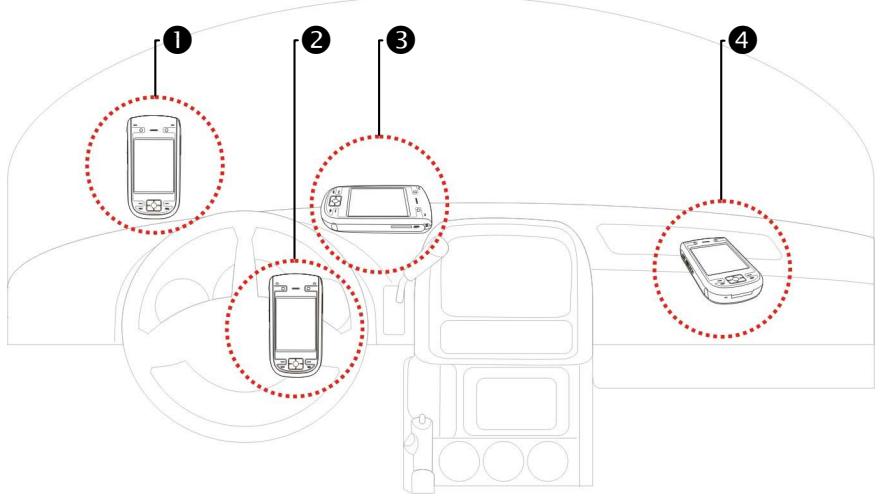
1 Do not place where it will obstruct driver vision
Do not place over air bag
Do not place where it can not be securely attached
4Do not place in path of activated air bag
- Please set navigation destination before driving. Do not operate this system while driving.
- Please use this system with care. If any harm results from careless use of this system, the responsibility for safe driving resides with the driver.
- GPS positioning is limited by weather and usage location (tall buildings, tunnels, underpasses, trees, bridges). Most GPS do not work indoors, nor can GPS signals penetrate buildings, car sun shades and heat reflective film with metallic content. Please install GPS outdoors with clear line of sight. Beneath the windscreen at the front of the car is a common choice, and the windscreen should be free of heat reflective film.
- If reception is poor, an external GPS antenna may give better signal reception.
- The GPS system is built and operated by the U.S. Department of Defense which is also responsible for its maintenance and calibration. Any changes made by them may affect the operation and accuracy of the GPS system.
- Wireless devices (mobile phones, speed radar detectors) will all interfere with the satellite signal and cause unreliable signal reception.
- The GPS position fix is provided only for the driver's reference and should not affect actual driver behavior.
-
The electronic map data provided in the navigation system is for normal reference only and not intended for high precision applications. The user should determine their exact location based on actual road conditions.
-
The route provided by the navigation system, the audio cues and intersection data are derived from recommended optimal route calculated using the electronic map data. This is provided for the driver's reference only, the driver should decide their chosen route according to actual road conditions.
- When not in use, please do not leave the device inside the car. If exposed directly to sunlight, the battery may overheat and cause damage to this device. This may endanger the vehicle as well.
Satellite Data Update
Tap Programs, GPS, and then Satellite Data Update.
Login to the provider's server to download instant satellite data and enable the GPS function. Note: either of the following connections allows your Pocket PC to download the latest GPS data.
- ActiveSync connection: Connect your Pocket PC to a PC (Desktop or Notebook). Please note that your PC must be online.
- GPRS Connection: Roaming mode cannot update GPS data automatically. If necessary, change to manual mode.
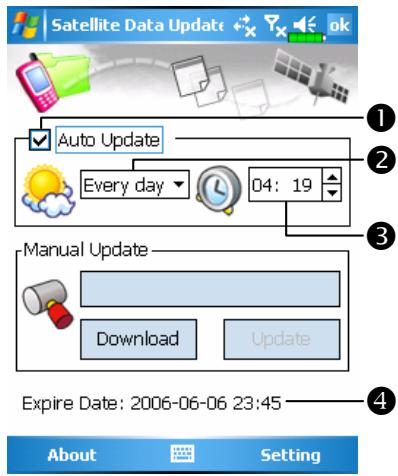
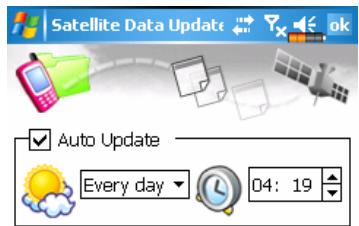
The system will update GPS data automatically based on a schedule. Follow these steps:
Check the automatic update checkbox.
2 Set the date.
Set the time.
4 The text shows the expiration date of the GPS data. On the due date, the system will pop up a warning message. Refer to the following instruction about the Today screen.

Expire Date: 2006-06-06 23:45
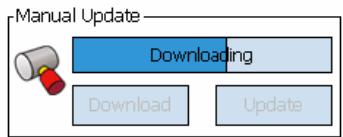
Tap the Download Button to update the GPS data manually. The figure on the left shows how to download using the ActiveSync connection.
Tap the Setting Button in the Satellite Data Update main screen to open the dialog in the left figure.
Check the expiration checkbox to activate the reminder function on the due date.
2 The default value is checked. The system will automatically update the data when online. Costs will be incurred when connecting over the Internet, so consider carefully before activating this function.
After setting your Pocket PC to the following connection mode and activating the automatic update and Internet connection functions, the system will automatically download the latest GPS information periodically.
- ActiveSync connection. Make sure that your Pocket PC is connected to the PC, and that the PC is online.
- GPRS connection.
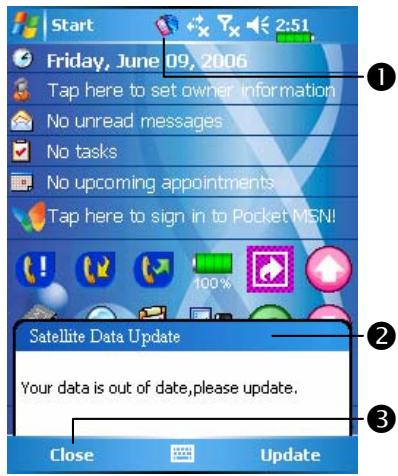
When the GPS data has expired, the Today screen shows the relevant message.
The icon reminds you that your GPS data has expired.
2 Tap the Notification Button to open the message window.
3Tap to close the message window.
2 Getting Started /
Package Content
Pocket PC, stylus, Battery, Getting Started CD, User Guide, AC adapter, USB cable, headset, Leather case, Car charger and Car mount.
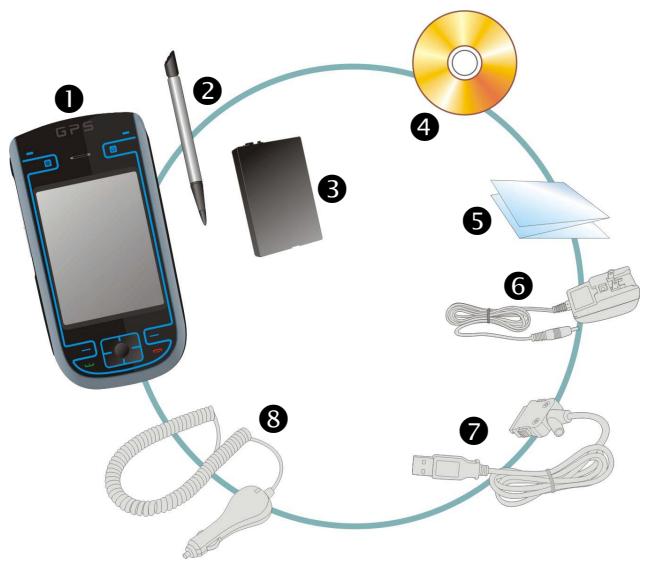
Pocket PC
Stylus
3 Battery
Getting Started CD
User Guide
AC Adapter
USB Cable
3Car Charger
External Views
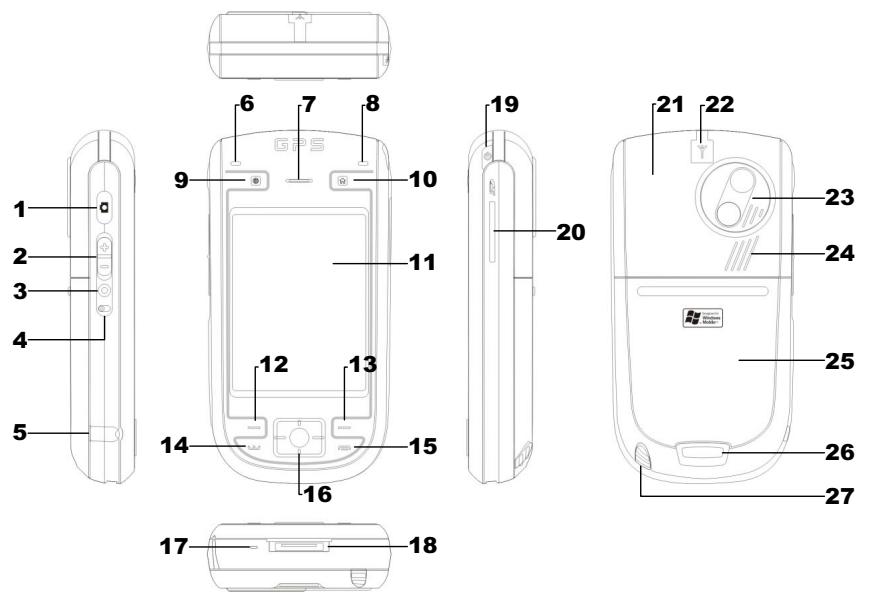
1 Camera Shutter
3 Voice Commander
5 Earphone and microphone jack
7 Cell Phone speaker
9 Hot key reserved for GPS AP
11 Touch screen
13 Right Soft-Key
15 End button
17 Microphone
19 Power button
21 Hidden antenna for Cell Phone
23 Built-in camera lens/ preview mirror
25 Back cover. Battery is inside.
27 Stylus holder. Slide the stylus out of the holder. This is a two-stage push-pull stylus.
2 Volume control key
4 Reset button
6 Bluetooth Active LED (Blue)
8 Power Charging LED (Red) Cell phone Active LED (Green)
10 M-Desk hot key
12 Left Soft-Key
14 Send button
16 Navigation button. Press the center of the button to set as launch key.
18 Charger or USB cradle connector
20 Mini SD Slot
22 GPS external cable connector
24 Speaker
26 Press the fixing lock button to open.
Hardware Hotkey Functions
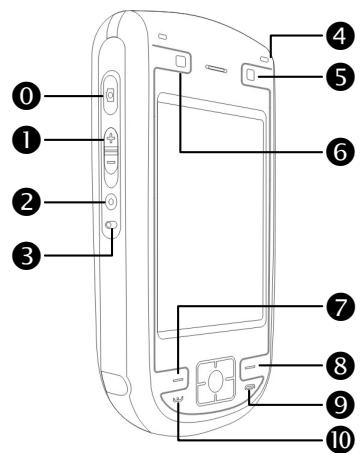
| Hardware Button | Short Press (Press once and release) | Long Press (Press for a few seconds and release) |
| 0 | Camcorder | Video recorder |
| 1 | ■ Zoom in/out during camera mode ■ Adjust volume | -- |
| 2 | Connect to Voice Commander | Connect to Notes |
| 3 | Reset Button | -- |
| 4 | Power Button = open or close screen | -- |
| Power Button + Reset Button = Cold boot | -- | |
| 5 | Connect to M-Desk | -- |
| 6 | Hot key reserved for GPS AP | -- |
| 7 | Left Soft-Key: Softkeys on left and right to operate function buttons at bottom of display. | -- |
| 8 | Right Soft-Key | -- |
| 9 | ■ Hang up during call ■ Disconnect during GPRS connection ■ Skip to Today's screen while in other programs | ■ Turn off phone if it is on ■ Turn on phone when it is off |
| 10 | Connect to Phone/dial/renal/answer | Telephone hold |
Rear Side
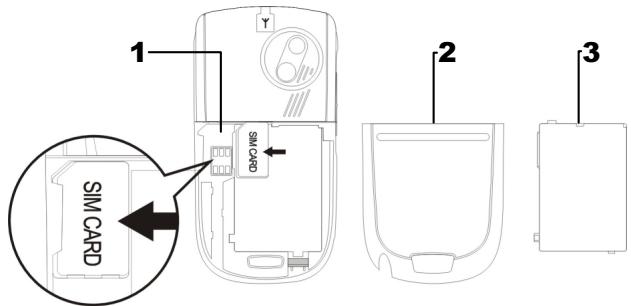
1 Insert the SIM card into the SIM card slot with its golden contacts facing down. Follow the picture indicated on the Pocket PC.
3 Main battery
5 Main battery lock
2 Back cover
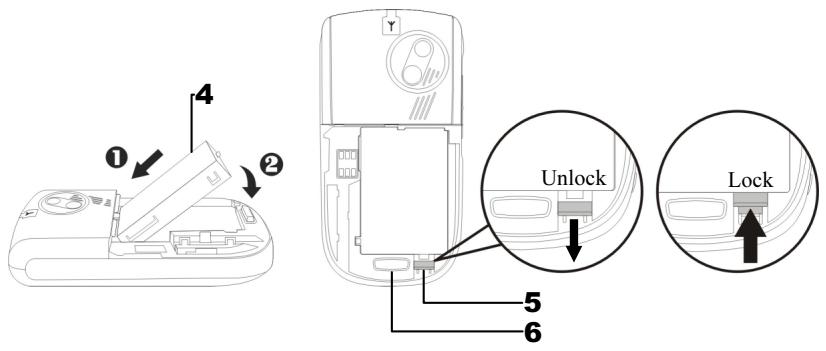
4 Follow the direction in the illustration to install the main battery.
6 Fixing lock button for the back cover
- Installing the SIM Card
- Installing the Battery

Caution!
The backup battery is charged through the main battery power.
Using the Pocket PC for the First Time
Travel Charger
1Connect the AC adapter plug to any household power outlet.
Connect the round plug from the AC adapter to the power jack on the USB cable.
3Connect the flat end on the USB cable to the charger or USB connector on the bottom of the Pocket PC. The Pocket PC starts to charge automatically.
4 If necessary, connect the other end of the USB cable to the USB port on the desktop computer.
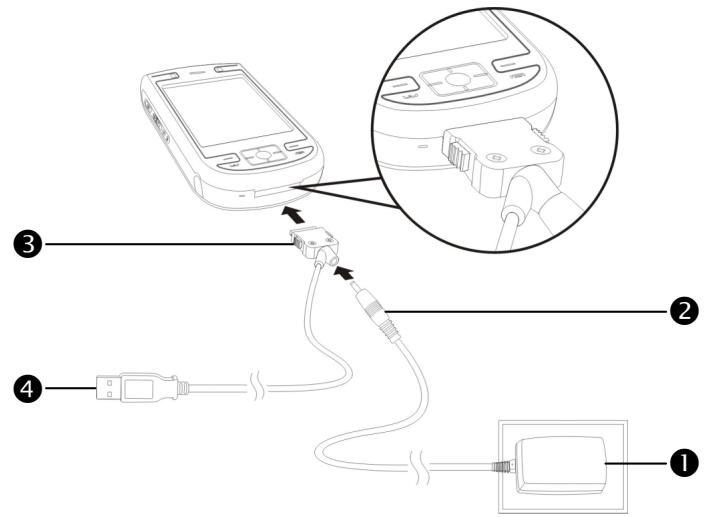
If you use the travel charge accessory without connecting the AC adapter, you can still charge the battery by connecting the Pocket PC to the USB cable that is connected to a desktop computer. However, this should not be considered as the only charging method. We recommend that you follow the normal charging method by using an AC adapter.
- To remove the back cover, press the fixing lock button on the rear side of the Pocket PC. Unlock the main battery lock and remove the main battery. (If you are opening this product for the first time, the main battery and the Pocket PC are packed separately inside the product package.)
- Install the main battery properly and lock the battery securely. Slide the back cover into the groove until you hear a click to indicate that the back cover lock is locked properly.
- Connect the AC adapter plug to any household power outlet, and then connect the round plug from the AC adapter to the power connector. The Pocket PC starts to charge automatically.
- Cold Boot: Press and hold the "Power Button" with one hand, and use the stylus tip to press the "Reset Button" with the other hand. Release the "Power Button" and the "Reset Button" at the same time. Wait for the Pocket PC to restart and follow the instructions on the screen to complete screen alignment.
- It will take about 8 hours to fully charge the battery after the first time you open the package. Subsequent charging will only take about 3 hours. After charging, you can disconnect the AC adapter and carry the Pocket PC around portably. To maintain smooth operation, charge the power regularly.
- View the battery icon on the upper right corner to check the power usage condition.
- The LED indicator on the upper right of Pocket PC will display the charging and function usage status.
| Charging | Fully charged | Insufficient power |
| Red LED lights up | Red LED goes off | Red LED flashes |
| Phone is on | Caution or Warning | |
| Green LED flashes | Orange LED flashes quickly |
Charging Power and Power Supply
USB port: Use the USB cable included with the product package to connect the Pocket PC to the desktop computer through this port. (* The cradle is optional.)
AC adapter power jack.
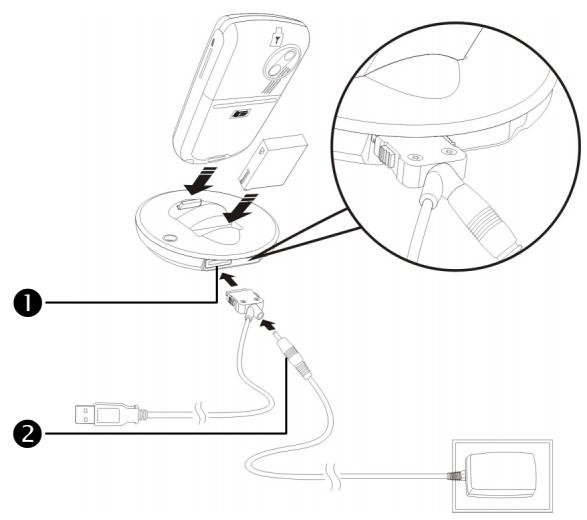
If you need to charge the main battery by itself, you can insert it into the charging slot at the back of the charger. The LED indicator on the side of the charger displays the charging status.
| Charging | Fully charged | No battery |
| Red LED lights up | Green LED lights up | LED is off |
Re-installation or Replacing the Battery
If the phone or GPRS connection function is already activated, deactivate it first and run the next step; otherwise abnormal disconnection will occur.
- Press the fixing lock button on the rear side of the Pocket PC and remove the back cover.
- Slide the main battery lock down to open the main battery lock. Now you can easily remove the battery.
- Replace the main battery and lock it properly. When you remove the main battery, the system operation will be powered temporarily by the backup battery.
- Slide the back cover into the groove until you hear a click to indicate that the back cover lock is locked properly.
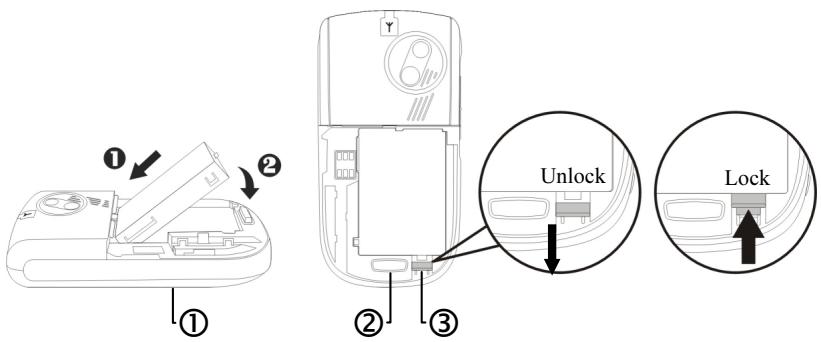
①Follow the directions in the figure to install or remove the battery properly.
② Back cover lock.
③ Main battery lock. Slide down to unlock and slide up to lock.
Power On and Off
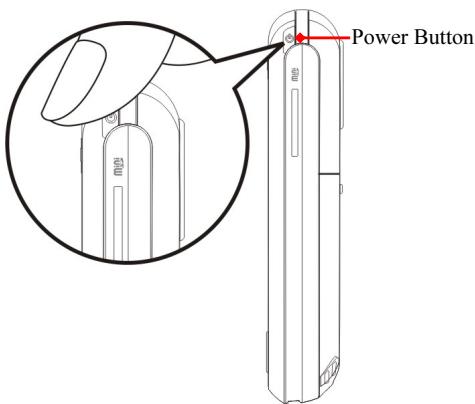
Sleep Mode
- Press the "Power Button" at the top of the Pocket PC to enter the Sleep mode. At this time, the screen is turned off and all peripheral devices enter the power-saving mode. But if the phone is turned on, it is still in the call waiting mode.
- To turn on the screen later, just press the "Power Button."
Sleep mode settings
On battery power :

On external power :

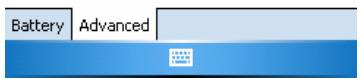
- Tap Settings, the System tab, Power and then the Advanced tab to set the device to turn off automatically after waiting for a certain time period.
Turn on the Screen
This product is designed with a power-saving feature. If the screen is turned off, press the "Power Button" at the top of the Pocket PC to turn it on.

Backlight


Dark
Light

Autoadjust backlight by battery's cap

Autoadjust backlight by idle time

Adjust power settings to conserve power.

If the screen is too dark and you cannot see clearly, set the proper brightness level for the backlight.
Tap Settings, the System tab, Backlight and then the Backlight Level tab.

Using the Stylus to Touch the Screen
- Your Pocket PC is designed for graphics-based operation. Generally speaking, we usually "use the stylus to perform basic actions such as tap, drag, and tap and hold" on the touch screen. Other actions such as reset and cold boot will require the use of the stylus tip.
- Pull the stylus to full-length to make it easier to tap the screen during operation. When kept completely in the stylus holder, the stylus length shortens.
Restarting the Pocket PC
Appropriate situation: If the Pocket PC is unable to maintain normal operation, has no response, or if the screen is frozen.
For your consideration, factoring into your safety and convenience, please refer to the following instructions in order:
| 1. Reset | Push in the “Reset Button” located to the side of Pocket PC with the tip of the stylus. |
| 2. Default Settings procedures | If the touch screen is functional, please tap Programs, Utilities, and then Default Settings. |
| 3. Clean Boot | Hold the “Power Button” and press once on the “Reset Button” with the tip of the stylus, and release both buttons simultaneously. Next, continually hold the End Button until the system inquiry screen is displayed, then release the End Button. Answer the question(s). |
Reset
Reset method: Push in the "Reset Button" located to the side of Pocket PC with the tip of the stylus.
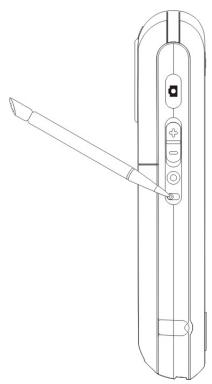
Appropriate situation: If the Pocket PC is unable to maintain normal operation, has no response, or if the screen is frozen.
Result: In a moment, when Pocket PC automatically completes the system startup process, the last display will be the Today screen. This will retain the Microsoft Windows, factory pre-installed applications, user's input data, newly installed programs, and user custom settings.
Tap, Programs, Utilities, and then Default Settings.
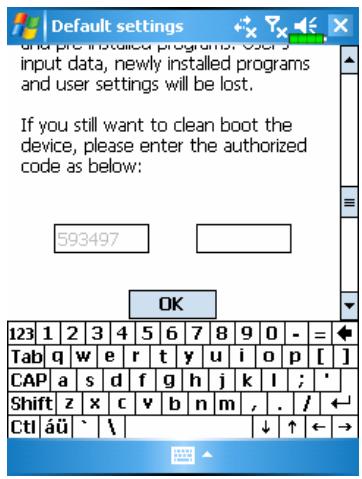
- If this application is inadvertently accessed, please select the × to the upper right of the screen to exit, the system will not be affected.
- If you are certain that you wish to perform this action, please select the data input block on the right, and enter the authorized code in the block to the left. Then tap the OK button.
Appropriate situation: If the Pocket PC is unable to maintain normal operation, but the touch screen is functional. Please refer to the instructions in this section to troubleshoot.
Result: This will retain only the Microsoft Windows, and factory pre-installed applications. Other settings such as user's input data, newly installed programs, and user custom settings will all be cleared.
Clean Boot
Cold boot method: Hold the "Power Button" on top of the Pocket PC with one hand while holding the stylus tip to push in the "Reset Button" with the other. Simultaneously release both the "Power Button" and "Reset Button".
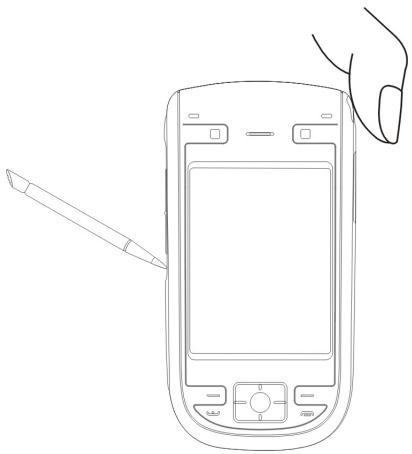
- Appropriate situation: If a previous reset has already been attempted and the Pocket PC is still unable to maintain normal operations, has no response, or if the screen is frozen.
Before executing the preceding "Cold boot method", please carefully consider the following instructions and then decide on the cold boot method. - After a cold boot is performed, if no buttons are pressed, when Pocket PC automatically completes the system startup process, the last display will be the Today screen. This is identical to the reset result.
- If a previous reset has already been attempted but the Pocket PC is still unable to maintain normal operation, consider the following solution: After cold boot, hold the End Button on the bottom right of Pocket PC until the system inquiry screen is shown, and then release the End Button. Next, please read thoroughly through the instructions on cold booting before continuing carefully.
Perform cold boot and hold the End Button. The system will display a two question inquiry screen. Please refer to the following instructions before careful consideration.
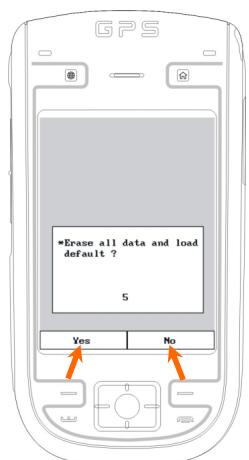
- Erase all data and load default? (The default is "No." If Yes or No was not selected, after a few seconds the system will automatically execute the default No.)
If you long press Left Soft-Key for a few seconds to select "Yes," then the system will erase all data and load default. After your Pocket PC restarts, follow the instructions on the screen to complete.
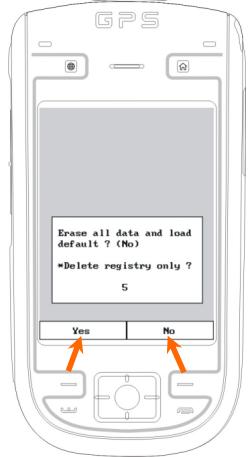
- Delete registry only? (The default is "No." If Yes or No was not selected, after a few seconds the system will automatically execute the default No.)
If you long press Left Soft-Key for a few seconds to select "Yes," then the system will delete registry only.

Caution!
- After performing a cold boot, the system will retain Microsoft Windows and pre-installed programs. If you answer "Yes" to the two questions displayed after a cold boot, other items such as the user's input data, newly installed programs and user settings will be lost.
- There are two ways to retain your data, loaded default and registry:
1 Perform a Reset.
Performing a Cold Boot, and answer “No” when the above two questions display.
3 Using the Pocket PC /
Start
Screen
Tap, Settings, the System tab, and then Screen.
The first time you use or cold boot the pocket PC, the system will ask you to align the screen. Kindly continue to tap the center of each cross (+) that appears and follow the screen instructions to complete the operation. If you feel that the position is not quite accurate while tapping on the screen, you follow the help for this section to align the screen again.
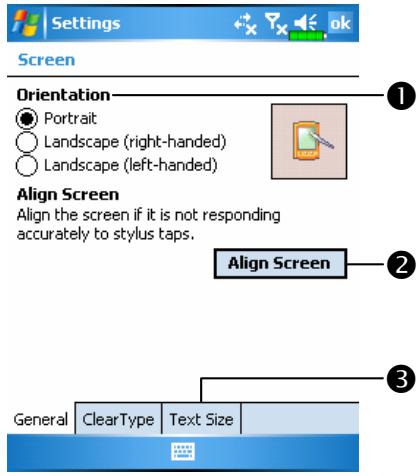
Orientation:
Portrait (default)
Landscape (right-handed)
Landscape (left-handed)
2 Tap the Align Screen button to calibrate the screen. When Align Screen appears, use the stylus to tap the center of the cross (+) until the next cross appears, then follow the screen instructions to complete the operation. Finally, tap OK to exit.
3Text Size tab: For selecting the desired text size.
The following steps will bring you into the touch screen calibration mode. These steps provide a faster and more efficacious way to enter the touch screen calibration mode. And they also provide a method of getting into Screen program for when the touch screen dislocation is so severe that you completely cannot select or do anything using the stylus.
- Simultaneously press the Left Soft-Key on the bottom-left of the Pocket PC and the round execution button in the center of the navigation pad.
- Release these two buttons at the same time, and you will enter the calibration screen.
Today Screen
When you turn on your Pocket PC for the first time each day (or after 4 hours of inactivity), you will see the "Today screen". You can also display it by tapping and then Today. On the "Today screen", you can see at a glance the important information for the day.
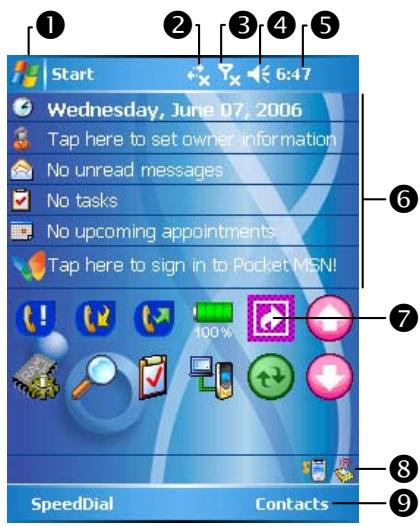
Start. Tap to switch to a program.
2 Tap to enable or disable the GPRS connection feature.
3 Antenna icon. Tap to turn the phone on or off.
Speaker icon. For adjusting volume.
⑤ Time. Tap to display the current date and time, and the upcoming appointments. Tap and hold the time area to select analog or digital clock display from the list.
Today screen. Displays important information for the day. Tap on any item to enter its relevant setup screen. For example, tap to sign in to Pocket MSN.
Quick Link. Tap to quick link to a program.
The icons mean you can tap to quick link to programs, such as Wireless Manager, Scenarios, Call Filter status, etc.
Tap to quick link to SpeedDial. Tap to quick link to Contacts.
Using the Pocket PC
The following table lists the icons that you may see on the Navigation Bar or the Command Bar. Kindly refer to the "Meaning" column for explanation or tap on the icon to access the instant message.
| Icon | Meaning (Located on the Navigation Bar at the top of the screen) |
| Speaker is on | |
| Speaker is off | |
| Main battery is charging. | |
| Main battery power is low. | |
| Main battery power is very low. | |
| Main battery is fully charged. | |
| Backup battery power is low. | |
| Notify you that you have one or more MSN instant messages. | |
| Notify you that you have one or more e-mails, text messages or SMS. | |
| Notify you that you have one or more voice mails. | |
| If there is not enough space on the screen to display all notification icons, tap this icon to view all icons. | |
| PowerPoint slide show | |
| Active connection to computer | |
| Active Sync is synchronizing | |
| SIM card unavailable | |
| Phone is powered off | |
| Signal strength indicator for phone function | |
| GPRS not in use | |
| GPRS in use | |
| GPRS available | |
| GPS in use | |
| Icon | Meaning (Located on the Command Bar at the bottom of the screen) |
| General Mode. Set the scenario suitable for each environment. | |
| Meeting Mode. Set the scenario suitable for each environment. | |
| Outdoor Mode. Set the scenario suitable for each environment. | |
| Silent Mode. Set the scenario suitable for each environment. |
Programs
You can switch from one program to another by selecting it from the menu. (You can customize which programs you see on this menu. For information, see "Adjusting Settings" section.) To access some programs, you'll need to tap Programs, and then the program name.
| Icon | Programs | Description |
| Games Group | Bubble Breaker, Solitaire | |
| Multimedia Group | Camera, FM Tuner, Image Maker, Image Wizard, Multimedia Manager | |
| Phone Group | Add Ring tone, Call Filter, MMS Composer, Scenarios, SIM Tool Kit, SMS Sender, Speed Dial | |
| Utilities Group | Backup Utility, Bluetooth Manager, Default Settings, M-Desk | |
| Voice Commander Group | Voice Commander, Voice Commander Settings | |
| GPS Group | Satellite Data Update | |
| ActiveSync | Synchronize information between your Pocket PC and desktop computer. | |
| Calendar | Keep track of your appointments and create meeting requests. | |
| Contacts | Keep track of your friends and colleagues. | |
| Notes | Create handwritten or typed notes, drawings, and recordings. | |
| Tasks | Keep track of your tasks. | |
| Messaging | Send and receive e-mail messages. | |
| Internet Explorer | Browse Web and WAP sites, and download new programs and files from the Internet. | |
| Pocket MSN | MSN related programs. For example, send and receive instant messages with your MSN Messenger contacts. | |
| Word Mobile | Create new documents or view and edit Word documents created on your desktop computer. | |
| Excel Mobile | Create new workbooks or view and edit Excel workbooks created on your desktop computer. | |
| PowerPoint Mobile | View PowerPoint slide shows created on your desktop computer. | |
| Calculator | Performs basic calculations. | |
| Pictures & Videos | Take, view, and edit pictures. | |
| Windows Media Player | Plays movies or sound files. | |
| File Explorer | Manages files or folders. | |
| Wireless Manager | Manage the mobile phone and Bluetooth functions. |
You can also switch to some programs by pressing a program button. Your Pocket PC has one or more program buttons located on the front or side of the Pocket PC. The icons on the buttons identify the programs they switch to. For more information, refer to "Redefine Hot Keys" section.
System Application Programs

Settings, the Personal tab
| Program | Description |
| Buttons | Set the hot key for Pocket PC hardware button. |
| Input | Set the details about the input method. |
| Menu | Set the items displaying on the Start menu. |
| MSN Options | Set the details about Pocket MSN. |
| Owner Information | Input owner information. |
| Password | Set the access rights and password of Pocket PC. |
| Phone | Set the details about the phone. |
| Sounds & Notifications | Set the volume and notification method. |
| Today | Set the look of Today screen and display information. |

Settings, the System tab
| Program | Description |
| About | Display the important information about the Pocket PC. |
| Backlight | Set the details about the backlight and brightness. |
| Certificates | For network identification to prevent unauthorized access. |
| Clock & Alarms | Set the time and alarms. |
| Memory | View the memory usage, and the list of running programs, etc. |
| Microphone | Set the microphone volume. |
| Power | View the power usage condition, whether or not to power off after a waiting period. |
| Regional Settings | Set the region and information display formats such as date, time, etc. |
| Remove Programs | Remove programs that are no longer used. |
| Screen | Aligning the screen is helpful in determining the touch accuracy. You can select the portrait or landscape orientation. |
| System Information | View the system information. |

Settings, the Connections tab
| Program | Description |
| Beam | Set if receiving end will accept beam data automatically or not. |
| Connection Wizard | Select the appropriate country and carrier name. |
| Connections | Set the network connection. |
| CSD Type | Set Pocket PC to simulate a modem and access the Internet through the built-in GSM device. |
| Network Cards | Set the details about network cards. |
M-Desk
Press the hot key on the upper part of the Pocket PC to link to M-Desk.
Tap, Programs, Utilities, and then M-Desk.
You can categorize programs or even change the background picture on the panel according to your personal preferences. Categorizing, renaming, deleting or editing the text color of program names under M-Desk will not affect the default setting of the Pocket PC.
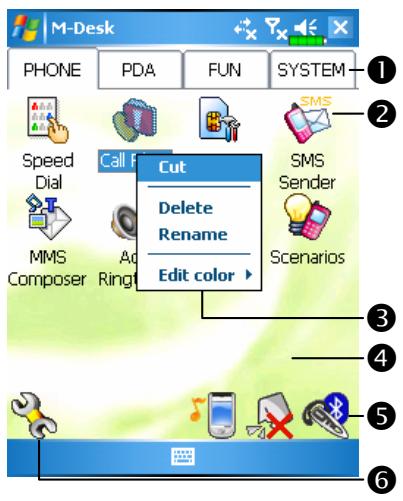
Tap Phone, PDA or other tabs to switch to other categories. Tap and hold the tab to display a pop-up menu that allows you to Rename, Move forward or Move back.
The program icon selected for this category. Tap to run this program.
3 Tap and hold program. A pop-up menu appears and allows you to Rename, Delete, Cut, or edit the text color of the program name.
Tap on empty space and the pop-up menu allows you to add New, Paste or Change ground.
Switch Scenario Enable or disable the speakerphone Enable or disable the Bluetooth earphone function Enter Categories Setup screen
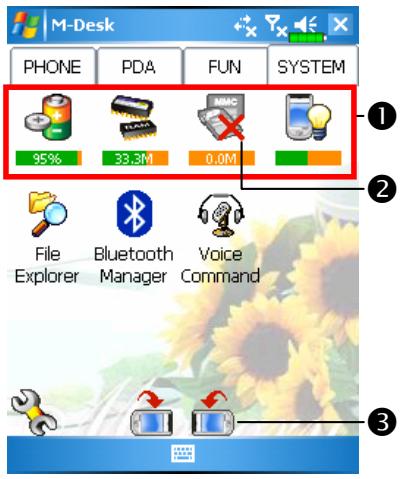
System category screen
This category already has these programs that are automatically selected by the system which you cannot move or delete. All relevant information is updated automatically.
2If no Mini SD card is installed, its icon changes to gray and will be marked with a red X.
Change screen orientation.
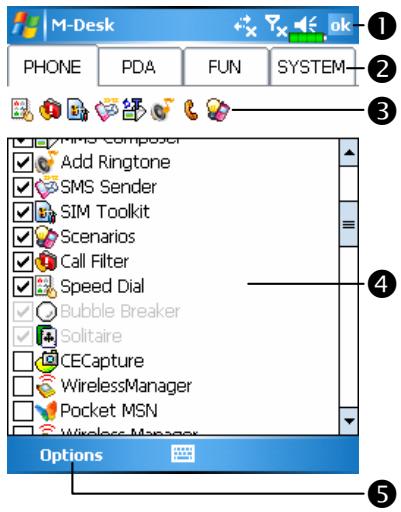
Categories Setup screen
Exit the Categories Setup screen.
2 Tap Phone, PDA or other tabs to select preferred programs. A maximum of 12 programs are allowed for each category.
3Icons for programs selected under this category.
4 Program selection area: Tap to check l the program name to confirm selection. Tap on l again to change it back to l to cancel selection. If it is already checked in other categories, the icon is in gray and you cannot select this item.
Tap Options and then Style Choose to change the background picture.
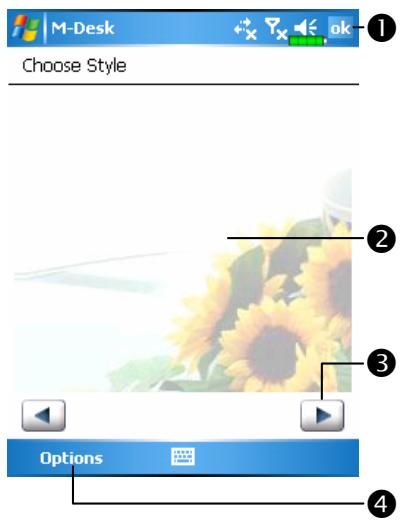
Choose Style screen
Exit Choose Style screen.
Viewing area.
View the previous or next picture.
4 Tap Options and then Classify Config to enter the Categories Setup screen.
Enter Information on Your Pocket PC
You have several options for entering new information:
- Use the input panel to enter typed text, either by using the soft keyboard or other input method.
- Write directly on the screen.
- Draw pictures on the screen.
- Speak into your Pocket PC microphone to record a message.
- Use Microsoft ActiveSync to synchronize or copy information from your desktop computer to your Pocket PC. For more information on ActiveSync, see ActiveSync Help on your desktop computer.
Enter Text Using the Input Panel
Use the input panel to enter information in any program on your Pocket PC. You can either type using the soft keyboard or write using Letter Recognizer, Block Recognizer, or Transcriber. In either case, the characters appear as typed text on the screen.
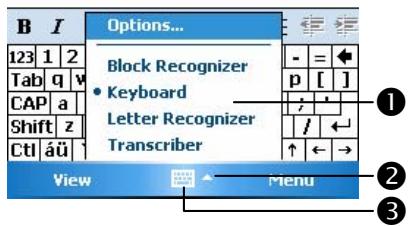
To show or hide the input panel, tap the Input Panel button. Tap the arrow next to the Input Panel button to see your choices.

Select an input method.
2 Tap to see your choices.
Input Panel button.
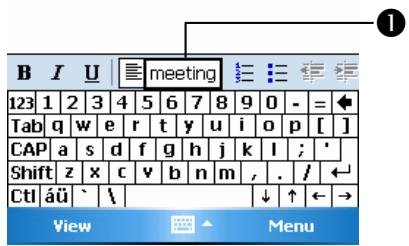
When you use the input panel, your Pocket PC anticipates the word you are typing or writing and displays it above the input panel. When you tap the displayed word, it is inserted into your text at the insertion point. The more you use your Pocket PC, the more words it learns to anticipate.

Tap here if this is the right word.
To change word suggestion options, such as the number of words
suggested at one time, tap
Settings, the Personal tab, Input, and
then the Word Completion tab.
Type with the Soft Keyboard
- Tap the arrow next to the Input Panel button and then Keyboard.
- On the soft keyboard that is displayed, tap the keys with your stylus.
Use Letter Recognizer
With Letter Recognizer you can write letters using the stylus just as you would on paper.
- Tap the arrow next to the Input Panel button and then Letter Recognizer.
- Write a letter in the box.
When you write a letter, it is converted to typed text that appears on the screen. For specific instructions on using Letter Recognizer, with Letter Recognizer open, tap the question mark next to the writing area.
Use Block Recognizer
With Block Recognizer you can input character strokes using the stylus that are similar to those used on other Pocket PCs.
- Tap the arrow next to the Input Panel button and then Block Recognizer.
- Write a letter in the box.
When you write a letter, it is converted to typed text that appears on the screen. For specific instructions on using Block Recognizer, with Block Recognizer open, tap the question mark next to the writing area.
Use Transcriber
With Transcriber you can write anywhere on the screen using the stylus just as you would on paper. Unlike Letter Recognizer and Block Recognizer, you can write a sentence or more of information. Then, pause and let Transcriber change the written characters to typed characters.
- Tap the arrow next to the Input Panel button and then Transcriber.
- Write anywhere on the screen.
For specific instructions on using Transcriber, with Transcriber open, tap the question mark in the lower right hand corner of the screen.
SelectTypedText
If you want to edit or format typed text, you must select it first. Drag the stylus across the text you want to select. You can cut, copy, and paste text by tapping and holding the selected words and then tapping an editing command on the pop-up menu, or by tapping the command on the Menu menu.
Write on the Screen
In any program that accepts writing, such as the Notes program, and in the Notes tab in Calendar, Contacts, and Tasks, you can use your stylus to write directly on the screen. Write the way you do on paper. You can edit and format what you've written and convert the information to text at a later time.
Write on the Screen
Tap Menu and then check Draw to switch to writing mode. This action displays lines on the screen to help you write.
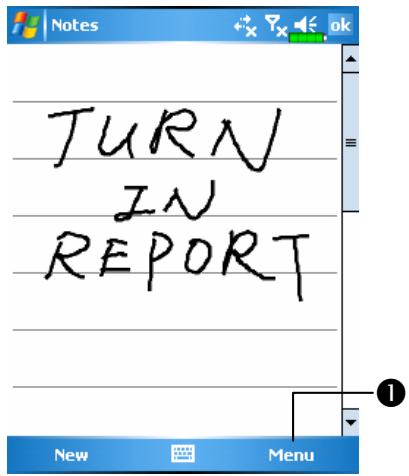
Tap Menu and then check Draw. Use your stylus like a pen now.
Some programs that accept writing may not have the Draw function. See the documentation for that program to find out how to switch to writing mode.
Select Writing
If you want to edit or format writing, you must select it first.
- Tap and hold the stylus next to the text you want to select until the insertion point appears.
- Without lifting, drag the stylus across the text you want to select.
If you accidentally write on the screen, tap Menu, then Undo and try again. You can also select text by tapping Menu and then Draw to deselect it and then dragging the stylus across the screen.
You can cut, copy, and paste written text in the same way you work with typed text: tap and hold the selected words and then tap an editing command on the pop-up menu, or tap the command on the Menu menu.
Convert Writing to Text
Tap Menu, Tools, and then Recognize. If you want to convert only certain words, select them before tapping Recognize on the Tools menu (or tap and hold the selected words and then tap Recognize on the pop-up menu). If a word is not recognized, it is left as writing.
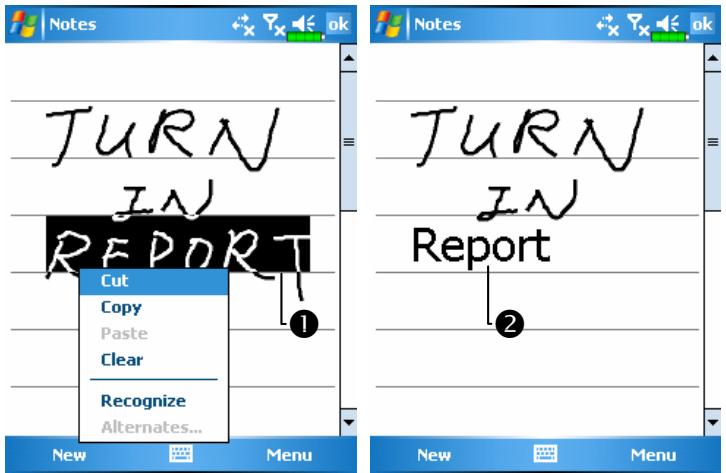
1 Select the text you want to convert and tap Recognize on the pop-up menu.
The writing is turned into text.
3-18
If the conversion is incorrect, you can select different words from a list of alternates or return to the original writing. To do so, tap and hold the incorrect word (tap one word at a time). On the pop-up menu, tap Alternates. A menu with a list of alternate words appears. Tap the word you want to use, or tap the writing at the top of the menu to return to the original writing.
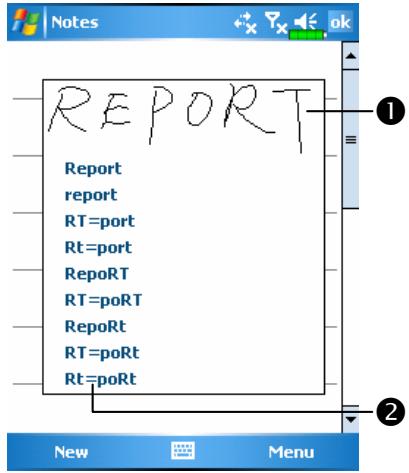
1 Tap to return to your original writing.
2Or, tap the word you want to use.
Tips for getting good recognition:
- Write neatly.
- Write on the lines and draw descendants below the line. Write the cross of the "t" and apostrophes below the top line so that they are not confused with the word above. Write periods and commas above the line.
- For better recognition, try increasing the zoom level to 300% using the Zoom menu.
- Write the letters of a word closely and leave big gaps between words so that the Pocket PC can easily tell where words begin and end.
- Hyphenated words, foreign words that use special characters such as accents, and some punctuation cannot be converted.
- If you add writing to a word to change it (such as changing a “3” to an “8”) after you attempt to recognize the word, the writing you add will not be included if you attempt to recognize the writing again.
Draw on the Screen
You can draw on the screen in the same way that you write on the screen. The difference between writing and drawing on the screen is how you select items and how they can be edited. For example, selected drawings can be resized, while writing cannot.
Create a Drawing
Cross three ruled lines on your first stroke. A drawing box appears. Subsequent strokes in or touching the drawing box become part of the drawing. Drawings that do not cross three ruled lines will be treated as writing.
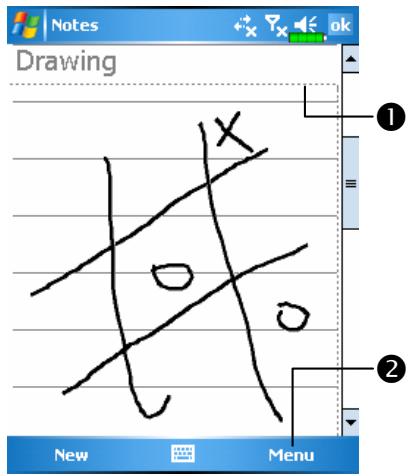
The drawing box indicates the boundaries of the drawing.
2 Tap Menu and then check Draw.
You may want to change the zoom level so that you can more easily work on or view your drawing. Tap Menu, Zoom and then a zoom level.
Select a Drawing
If you want to edit or format a drawing, you must select it first. Tap and hold the stylus on the drawing until the selection handle appears. To select multiple drawings, tapping Menu and then Draw to deselect it and then drag to select the drawings you want.
You can cut, copy, and paste selected drawings by tapping and holding the selected drawing and then tapping an editing command on the pop-up menu, or by tapping the command on the Menu menu. To resize a drawing, make sure the Draw function is not selected, and drag a selection handle.
Record a Message
In any program where you can write or draw on the screen, you can also quickly capture thoughts, reminders, and phone numbers by recording a message. In Calendar, Tasks, and Contacts, you can include a recording in the Notes tab. Refer to "Voice Recording Format" section.
In the Notes program, you can either create a stand-alone recording or include a recording in a written note. If you want to include the recording in a note, open the note first. In the Inbox program, you can add a recording to an e-mail message.
Create a Recording
- Hold your Pocket PC's microphone near your mouth or other source of sound.
- Press and hold the Record hardware button on your Pocket PC until you hear a beep.
- While holding down the Record button, make your recording.
- To stop recording, release the Record button. Two beeps will sound. The new recording appears in the note list or as an embedded icon.
You can also make a recording by tapping the Record button on the Recording toolbar.
To play a recording, tap it in the list or tap its icon in the note.
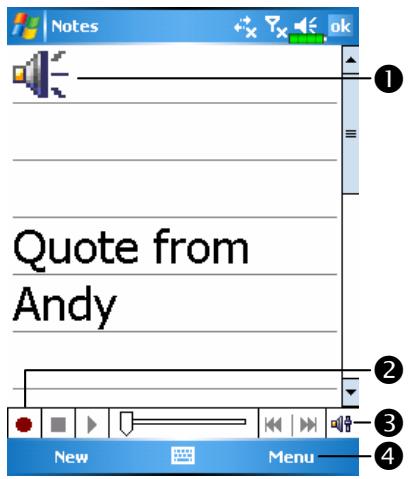
0 Indicates an embedded recording.
2 Tap to begin recording.
Recording toolbar.
4 Tap Menu and then check View Recording Toolbar.
Use My Text
When using Messaging or MSN Messenger, use My Text to quickly insert preset or frequently used messages into the text entry area. To insert a message, tap My Text and tap a message.
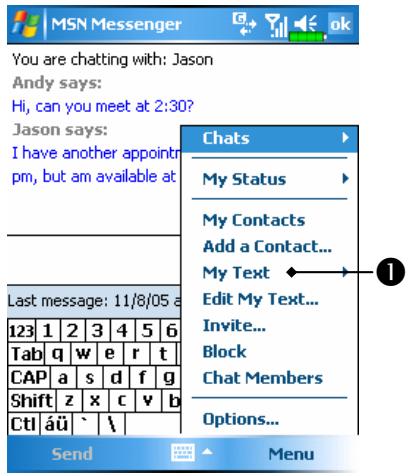
Tap to select a prewritten message.
You can add text after inserting a My Text message before sending it. To edit a My Text message, select Edit My Text Messages. Select the message you wish to edit and make desired changes.
Voice Commander
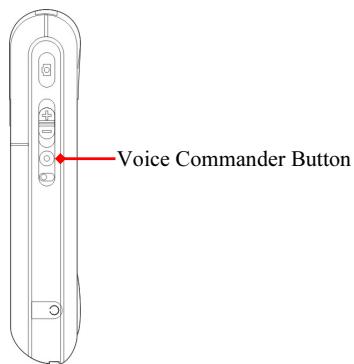
By default, the system sets the ⑤ button on the side of the Pocket PC as the “Voice Commander Button.” Press this button to launch the Voice Commander. For details on how to use this function, please refer to the Voice Commander section.
Using the Pocket PC 3-23
4 Using the Phone /
The Phone feature on the Pocket PC allows you to perform the following tasks:
Make and receive calls.
Quickly make calls or listen to voice mail without entering phone numbers using Contacts, Speed Dial, or your Call Log.
Check the Call Log to see who has called, whom you have called, add a new number to Contacts, and access notes taken while you were on a call.
Receive calls and easily take notes during the call.
Send SMS messages.
Customize how your phone rings.
To switch to the Phone function, press the button on the lower part of the Pocket PC or tap and then Phone.
Caution!
- To avoid distraction and affecting driving safety, never use your Pocket PC while driving an automobile or any other moving vehicle.
- Make sure that the SIM card is properly installed in your Pocket PC and the Phone is already turned on before you use the functions described in this section.
- When you are on a plane, in a medical facility or at a gas station where wireless communications devices are not allowed and must be turned off, please go to Wireless Manager and select the ALL OFF Button to turn off your Pocket PC's mobile phone and Bluetooth functions. By pressing the "Power Button" on the top of the Pocket PC, you only turn off the display.
- The Phone function relies on the Pocket PC main battery for power. Maintain the main battery power level to assure call quality and the normal operation.
Installing and Removing the SIM Card
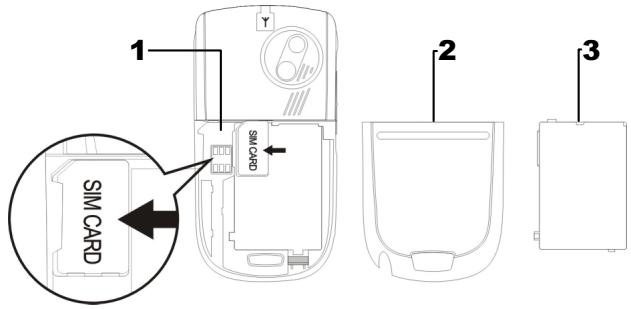
1 Insert the SIM card into the SIM card slot with its golden contacts facing down. Follow the picture indicated on the Pocket PC.
3 Main battery
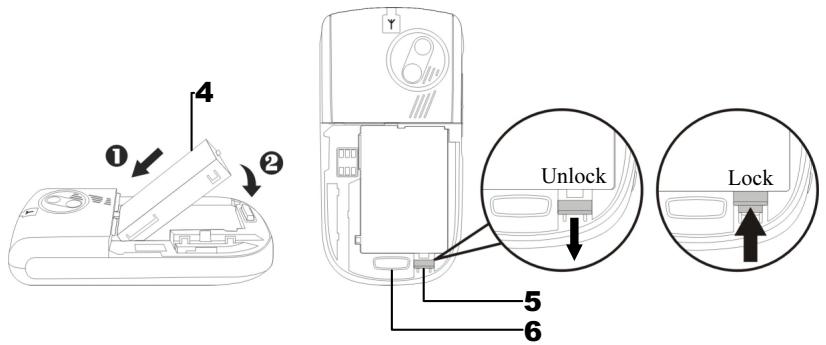
5 Main battery lock
2 Back cover
4 Follow the direction in the picture to install the main battery.
6 Fixing lock button for the back cover
- Installing the SIM Card
- Installing the Battery
- Tap the ALL OFF Button in Wireless Manager to turn off your Pocket PC's mobile phone and Bluetooth functions.
- Press the "Power Button" on the top of the Pocket PC to turn off the screen.
- To remove the back cover, press the fixing lock button on the rear side of the Pocket PC.
- Slide it down to unlock the main battery lock and then remove the main battery.
- Insert the SIM card into the SIM card slot with the golden contacts facing down. Use according to the picture labelled on the Pocket PC. Or remove the SIM card horizontally. Replace the main battery and then lock the main battery lock.
- Slide the back cover into the groove until you hear a click to indicate that the back cover lock is locked properly.
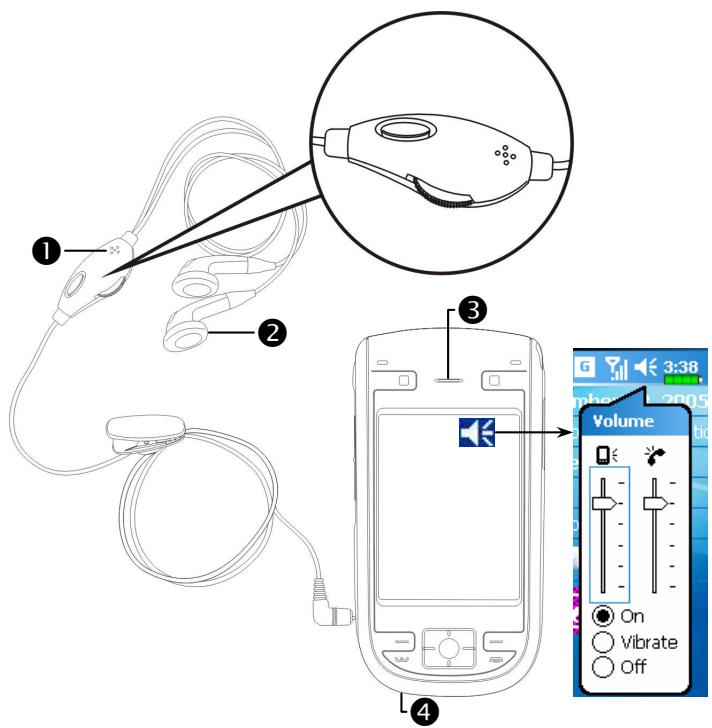
Using the Phone
Microphone
2 Earphone
Phone Speaker
4 Phone Microphone (Bottom of Pocket PC)
| Combination Method | Operation | Answer or End a Call | Adjust Earphone Volume |
| Hold the Pocket PC manually for calls | Hold the Pocket PC and position the speaker close to your ear and the microphone close to your lips. | Press Send Button or End Button on the lower part of the Pocket PC. | While answering a call, push the volume control key on the side of the Pocket PC to test the microphone volume. |
| Install the external headset | Place the microphone in your ear and position the microphone to your lips. | Use the line control function. Press the button on the headset to answer or end the call. Except the Bluetooth headset, when the phone is ringing, hold down the button to reject the incoming call. | Use the knob on the headset to adjust the volume of the microphone during a call. |
Adjusting the Phone Volume
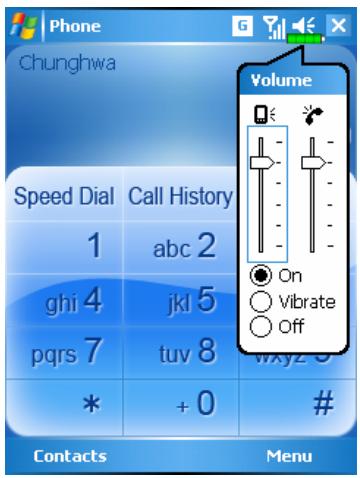
Tap on the top and adjust all programs' sound functions under Adjust the phone sound volume under
- When there is no call, you can push the volume control key on the side of the Pocket PC or use the stylus to tap the speaker icon Tap and then to adjust the ring volume of the incoming call.
-
Push the volume control key on the side of the Pocket PC or tap and then to adjust the phone volume. You can only do this during a call.
-
Vibration mode: The speaker icon on the top changes to
- Mute mode: The speaker icon on the top changes to
Here is how to adjust the proper volume:
- If earphones are used with the Pocket PC to make calls, set the volume according to actual personal needs.
- If earphones are not used with the Pocket PC and not held close to the ear for calls but similar to hands-free operation, it is recommended to set the sound volume for the top two levels.
- For holding the Pocket PC close to the ear directly for calls, it is recommended that you set the volume to the lower four levels. It is recommended not to use the top two levels because the volume is high and may affect your hearing.
Turn on or turn off the speakerphone:
- Enable the speakerphone: While answering a call, tap Speaker on to turn on.
- Disable the speakerphone: Tap Speaker off to turn off.
Turning the Phone On or Off and Making Calls
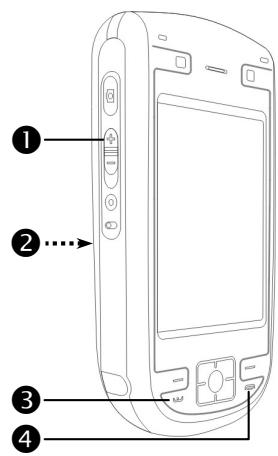
Adjustearphone volume
Rear side: The SIM card is located below the battery.
3 Send Button
4 End Button
- Open the Pocket PC back cover and remove the main battery.
- Install the SIM card properly. As shown in the direction on the Pocket PC, pay attention to the position of the cut corner on the SIM card when you insert it into the card slot. The golden contacts of the SIM card should face down.
- Reinstall the main bettery and the back cover properly.
- Turn on the phone: Tap the icon. When the message window appears, tap "Turn off flight mode," and input the PIN and wait for the phone to turn on. The icon changes to
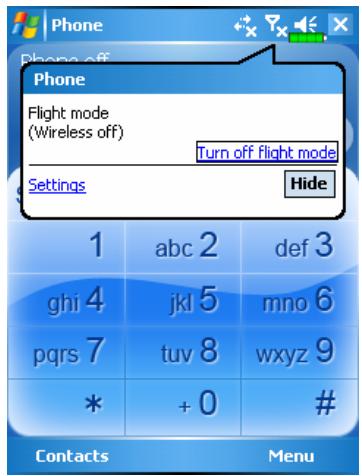
- Dial: Press to enter the Phone screen. Use the stylus to tap the telephone number and then tap the Enter Button.
- Answer a call: Press .
- End a call: Press
- Turn off the phone: Tap the icon. When the message window appears, tap "Turn on flight mode."
The following table shows the icons that you may see on the Navigation Bar on the top of the screen.
| Signal Indicator | Description |
| ∅ | SIM card unavailable. |
| Yx | The phone is turned off. To turn it on, tap this icon. |
| ... | Network is searching or unavailable. |
| Y! | Phone connection unavailable or network error. To turn it off, tap this icon. |
| Yl | The phone is turned on and signal reception is normal. To turn it off, tap this icon. |
| Cll | Active call. To switch back from other programs, tap this icon. |
| C | Call forwarding active |
| ... | Calls are forwarded |
| ! | Missed call |
| A | Roaming mode |
Provides the functional tools.
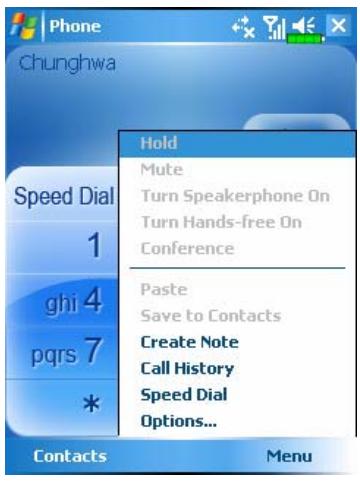
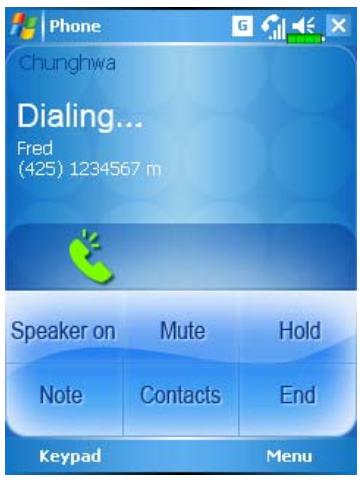
- Contacts Button: Link to Contacts.
- Menu Button
Save to Contacts: Save the dialed phone number to Contacts.
2Create Note: While making a call, you can enter Notes to use the panel as the memo pad for writing down notes, pictures or recording.
Options: Change the phone setup such as ring tone, vibration mode, PIN code, etc.
3.Keypad Button: Tap to return to the keypad.
4. Speaker on Button: While answering a call, tap to enable the speakerphone.
Phone numbers entered in Contacts can be used to quickly locate phone numbers and make calls.
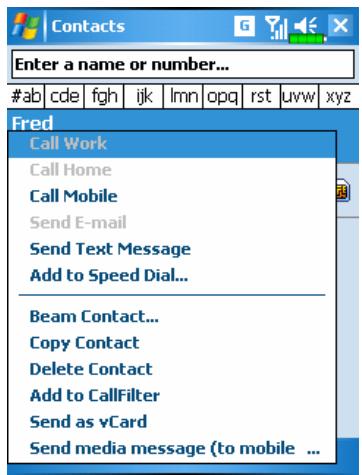
- In the contact list, tap and hold the contact to display a pop-up menu.
- Tap Call Mobile or Call Work on the pop-up menu.
- Tap a contact to display the details.
Call from Speed Dial
On the Phone screen, tap Speed Dial Button to enter the following
screen.
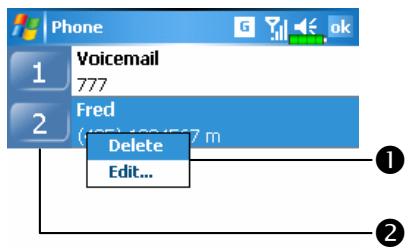
Tap and hold on a certain contact. The pop-up menu provides the Delete and Edit options for phone setup.
2 Tap to redial this number. Remember that this code (for example, "2") you want to dial can also be dialed from the number area in the Phone screen by tapping on "2".
3 Tap Menu and then New to show the Contacts list. Tapping a Contacts name and number will add it to the Speed Dial list. A maximum of 99 numbers are allowed.
Tap Call History Button on the Phone screen to enter the following screen.
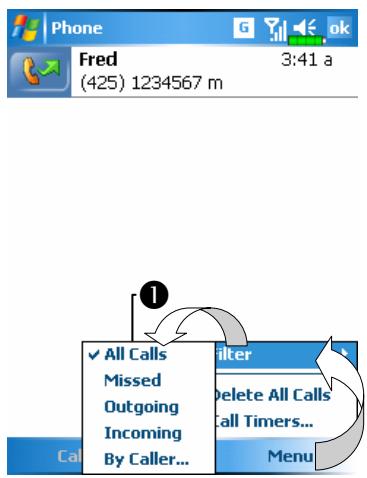
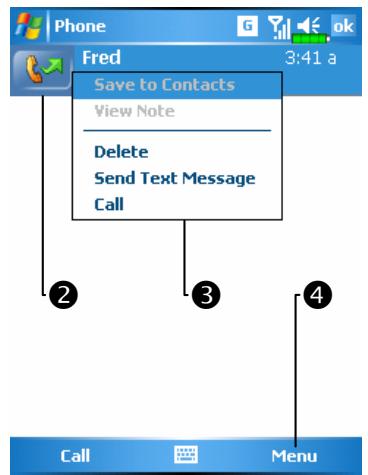
1 Tap Menu and then Filter to list the categories. To search, tap By Caller and follow the screen instructions to complete the operation.
2 Tap this icon to radial this number immediately.
3 Tap and hold the phone number area and tap the option you need on the pop-up menu. For example, tap Call to radial this number, tap Save to Contacts to add this number to the Phonebook.
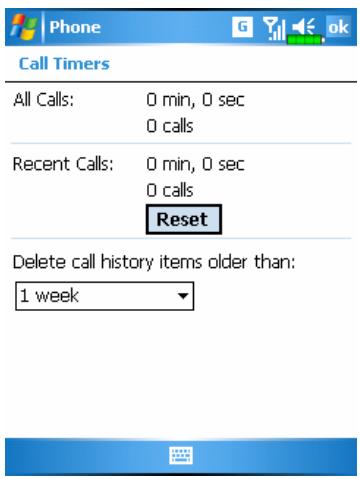
Tap Menu and then Delete All Calls to delete all call records. Or tap Call Timers to view the number of calls, call time and manage call records as shown in the figure on the left.
Customize Your Phone
Tap Menu, Options, and then the Phone, Services, Network, Skin, Appreciation software or Others tabs to modify the relevant service setup. Note that the setup values you can change here depend on the services provided by your telephone company.
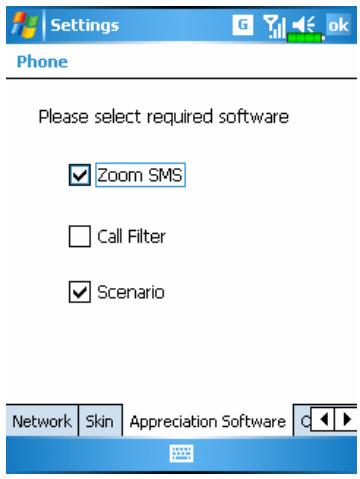
Tap the Appreciation software tab.
Make sure that you have checked "SMS Zoom." When you receive an SMS, a large mail icon will appear on the upper right of the Today screen, and you can open your newly received message by tapping on this icon.
2 If you check "Call Filter" and "Scenarios," the representing icons will appear on the lower right of the Today screen.
Tap the Skin tab.
Select a new dialup panel.
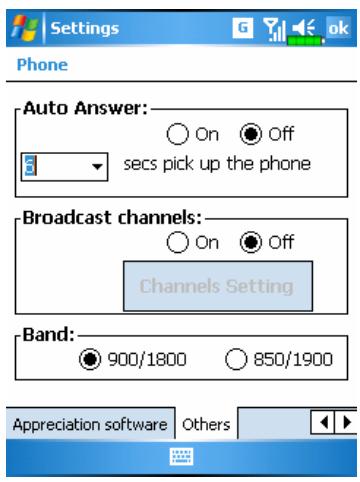
Tap the Others tab.
1 Auto Answer: While driving, you can set the phone to Auto Answer and use your earphones for calls.
2 Broadcast Channels: If your telephone company provides this service, you can activate it.
3 Band: You can set the band for different regions.
Tap Menu, Options, and then the Phone tab.
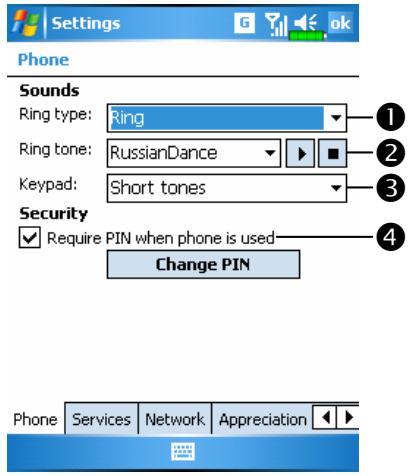
You can set the ring type as ring, vibration or mute.
2 If you want to use a customized ring tone file, use the ActiveSync program on your desktop computer to copy the .wav ring tone file to the /Windows/Rings folder on the Pocket PC. You can then select this ring tone from the Ring tone list.
Set the key sound for dialing.
You can set a PIN (Personal Identity Number) to block unauthorized access to your phone. Your first PIN is provided by your phone service provider.
Add Ringtone
Tap, Programs, Phone, and then Add Ringtone.
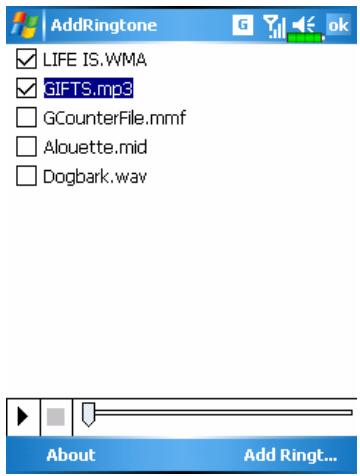
- All of the music files stored in your Pocket PC or Mini SD card will be listed, please select the new ringtones which you would like to add.
- Tap Add Ringtone Button, then you can enter the Phone tab for telephone environment settings and select your ringtone files from the Ring tone list.
Phone Application Programs
Caution!
Before you can use the functions described in the Phone Group. Make sure that the SIM card is properly installed in your Pocket PC and the Phone is already turned on.
SIM Manager
If your Pocket PC does not include this function, it means it is not supported and you can skip this chapter.
Tap, Programs, Phone, and then SIM Manager.
Standard Display
SIM Manager manages the SIM Phonebook and duplicates the
Phonebook entries.
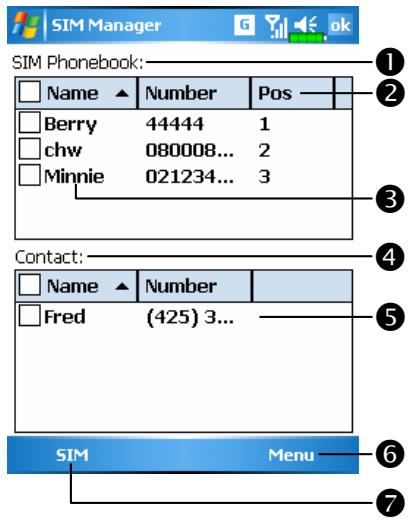
SIM Phonebook
2Name or Pos.: Tap on the title of the columns, and when the button appears it is possible to sort.
3 Tap and hold a Phonebook entry to duplicate it to Contacts.
4 Contacts: The contact's mobile number will be displayed in this column. If none is available, then the office number will be displayed.
5 Tap and hold a Contacts entry to duplicate it to the SIM Phonebook.
Using the Phone
The following are the shared functions for standard screen or fullscreen display:
Standard Button: Provides Standard, SIM, Contacts three switching modes.
7 Menu Button: Provides the appropriate function table.
SMS Management: Enter the SMS management screen.
■ New SIM Contact: Add a new phonebook entry to the SIM card.
- Refresh: Tap to refresh the displayed contacts and SIM card information, after the Contacts are updated.
Full-Screen Display
When switching to fullscreen display, the fullscreen display for SIM card phonebook or Contacts will be as shown as per the illustration below. This will enable the phonebook contacts to be easier to read and more precise management can be conveniently performed.
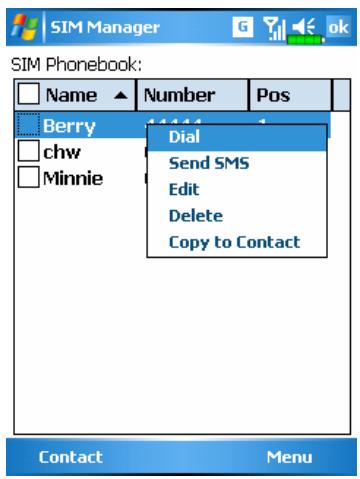
- Tap and hold a Phonebook entry. Then, tap Dial on the pop-up menu to call this contact.
- Choose Send SMS from the list, to enter the preparation screen for sending SMS.
- Tap and hold a Phonebook entry to be duplicated. Then, tap Copy to Contacts on the pop-up menu to copy to Contacts.
The function descriptions of this section are for standard screen and fullscreen display. Copying phonebook information between the SIM card and Contacts is either by "select one, select multiple, or select all" methods. For precise management of your phonebook that can be conveniently performed.
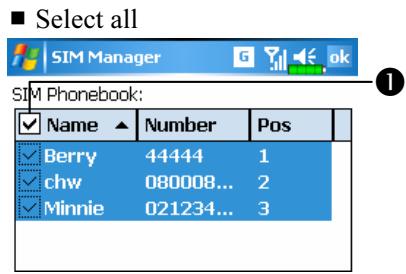
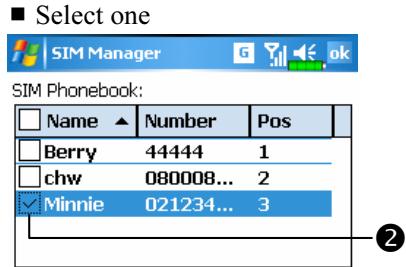
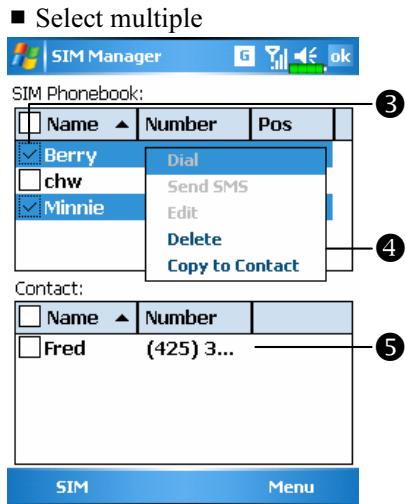
1 Tap on the in the title to select all.
2 Tap on the in front of a phonebook data entry to select this singl entry.
3It is also possible to select multiple phonebook data entries.
In the SIM Phonebook area, tap and hold the selected phonebook data to select the function and copy to Contacts.
In the Contacts area, tap and hold the selected phonebook data to select the function and copy to SIM Phonebook.
Tap Menu and then SMS Management to enter the SMS management screen and to display the original SMS contents on the SIM card.
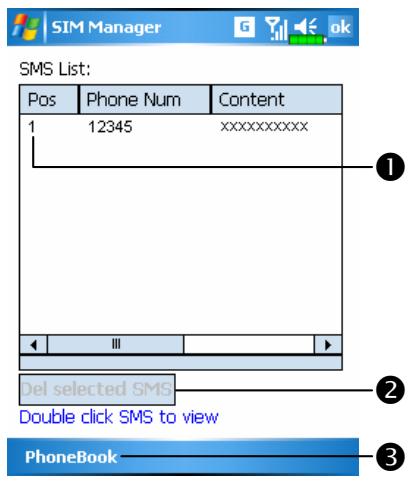
Double tap the number in the Pos. column to view the corresponding SMS contents.
2 Tap the SMS you want to delete. When it is highlighted, tap Del selected SMS Button to delete this message from the SIM card.
3 Return to the SIM Manager screen.
SIM Tool Kit
Tap, Programs, Phone, and then SIM Tool Kit.
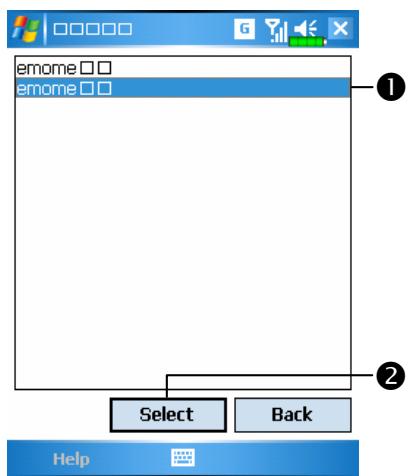
This screen is for reference only. The actual screen is based on the service items provided by your telecom company.
Tap any service item.
2Select Button: Launch service item. Follow the screen or voice instructions.

Enter the composing SMS screen in Messaging.
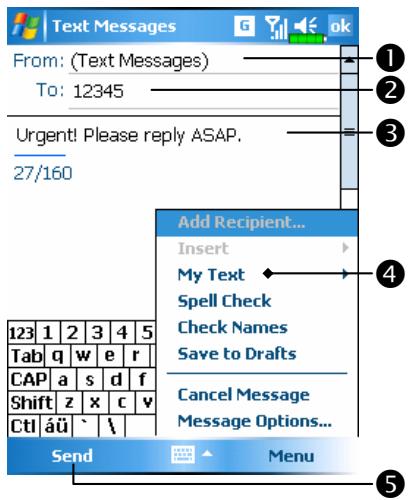
1 "Text Messages" means you are editing SMS.
Input the mobile phone number.
3Input the messages you want to send.
Tap Menu and then My Text to select canned messages or to edit your Text Messages.
Tap to send SMS message.
Tap, Programs, Phone, and then Speed Dial.
Hot Key Switch
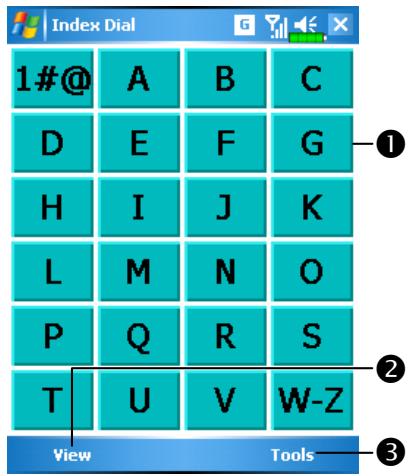
Tap the box according to the functions provided by the system.
View Button: to switch between these functions: Frequency Dial Index Dial.
3 Tools Button: Provides the relevant menu. For example, select Settings to set the interface as Frequency Dial or Index Dial. Select Sound on/off to set the sound for tapping the screen.
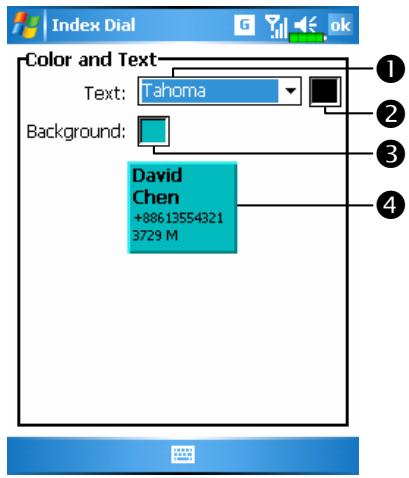
Tap Tools and then Color and Text to enter the Setting screen shown on the left. You can set the text font, text color and button background color according to your personal preferences.
1Font
2 Text color
3Button background
Preview area
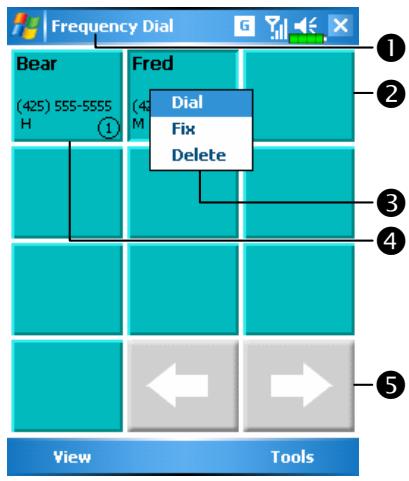
Frequency Dial screen
Tap View Button to switch to the Frequency Dial screen as shown on the left.
2 Tap any phone entry box to speed dial.
3 Tap and hold the box, then select appropriate command from the pop-up menu.
4 Sort according to the number of calls in descending order. The upper left corner has the most number of calls while the lower right corner has the least number.
5: Tap to view the previous or next page.
Index Dial
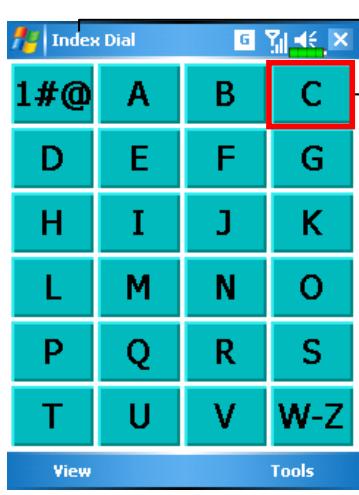

Index Dial screen
1 Tap View Button to switch to the Index Dial screen as shown on the left.
2 Tap on any letters. The content displayed are the data created in Contacts. If you did not create any data in Contacts, the screen is blank.
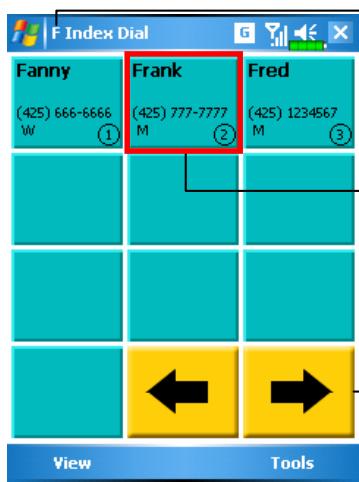

The letter "F" appears on the upper left side of the screen (see left). This indicates that this page contains all address data that starts with "F". The English Address Book is arranged alphabetically using the First Name.
2 Tap any box to speed dial.
3: Tap to view the previous or next page.
Tap Programs, Phone, and then Call Filter.
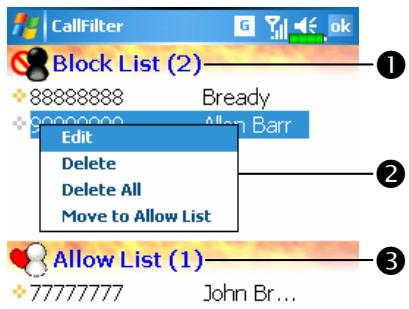
Tap Add New List Button to add a new Block List.
Tap and hold an entry in the list. Select from the pop-up menu to manage the list according to your needs.
3Tap Add New List to add a new Allow List. Tap and hold any entry in the list to display the pop-up menu.
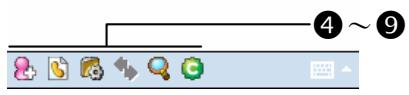
4 Add New List Button
Call History Button: Blocked call records.
6 Options Button
Synchronize Button: Tap Options and then Synchronize to activate the functions for this button. The system will synchronize the names according to the current Contacts entries but without updating the phone numbers.
Find Button: Helps you find entries conveniently if there are lots of entries in the list.
9 About Button: Information about Call Filter.
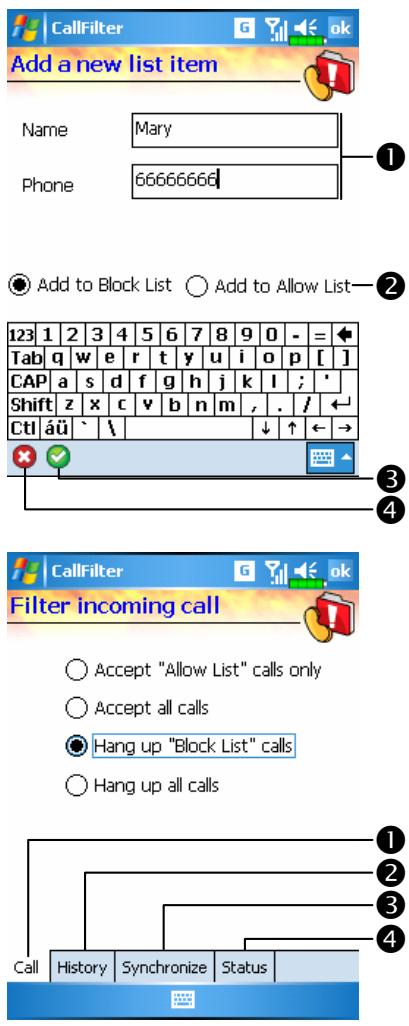
Tap Add New List Button in the Call Filter screen to enter the screen shown on the left.
Input name and telephone number.
Add to Block List or Allow List.
3OK Button
4 Cancel Button
- Tap and hold a contact in the Contacts screen. Select Add to Call Filter from the pop-up menu to add a new entry to the Block List.
Tap Options Button in the Call Filter screen to enter the screen shown on the left.
Call tab: Set to accept or reject call.
History tab: Set the time for keeping the record.
Synchronize tab: Activate or deactivate the functions of Synchronize Button in the Call Filter screen.
Status tab: Set to activate or deactivate the Status icon on the lower right of the Today screen. If activated, the icons 8 or will show. Tap to view the filter status.
Tap the icon or on the lower right of the Today screen to display the Call Filter Status window.
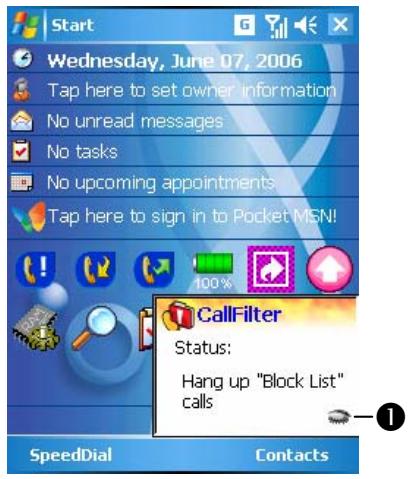
Display Call Filter setting status.
1 Tap to hide the Call Filter Status window.
5 Customize Your Pocket PC /
You can adjust the Pocket PC settings according to your personal preferences and install other programs.
Adjusting Settings
To see available options, tap Settings, then the Personal or System tab located at the bottom of the screen. The following utilities allow you to adjust the settings based on your personal work style.
Clock & Alarms, to change the time or to set alarms
- Menu, to customize what appears on the menu, and to enable a pop-up menu from the New button
Owner Information, to enter your contact information
Password, to limit access to your Pocket PC
Power, to maximize battery life
Today, to customize the look and the information that is displayed on the Today screen
Notifications
Your Pocket PC reminds you in a variety of ways when you have something to do. For example, if you've set up an appointment in Calendar, a task with a due date in Tasks, or an alarm in Clock & Alarms, you'll be notified in any of the following ways:
A message box appears on the screen.
A sound, which you can specify, is played.
A light flashes on your Pocket PC.
The Pocket PC vibrates.
To choose reminder types and sounds for your Pocket PC, tap and then Settings. In the Personal tab, tap Sounds & Notifications. The options you choose here apply throughout the Pocket PC.
Power Preference Settings
Tap Settings, the System tab, and then Power.
View the power usage condition or perform the relevant power management settings.
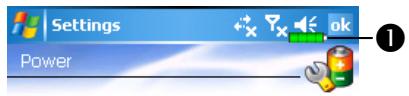
Main battery : Lion
Main battery state : High power

Backup battery state : High power


Battery Icon:
Power icon
Check this item, so that when you accidentally press the hardware buttons on the Pocket PC, the Pocket PC will not exit the sleep mode. This will prevent unnecessary power consumption if a button is being pressed accidentally and not being discovered in time.
3Checking this item displays the power icon on the upper right side of the screen.
4 Advanced tab: Set the Pocket PC to turn off automatically after a period of inactivity.
Backlight
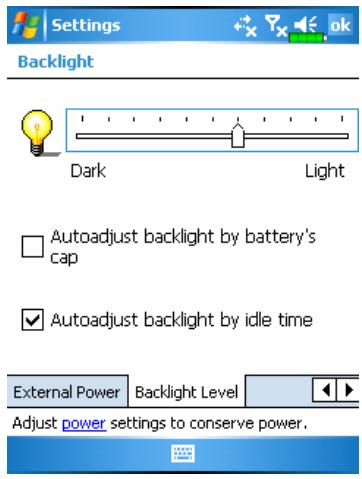
Tap 4, Settings, the System tab, and then Backlight.
- Battery Power or External Power tab: Set the relevant backlight functions.
- Backlight Level tab: Adjust the backlight level.
Microphone
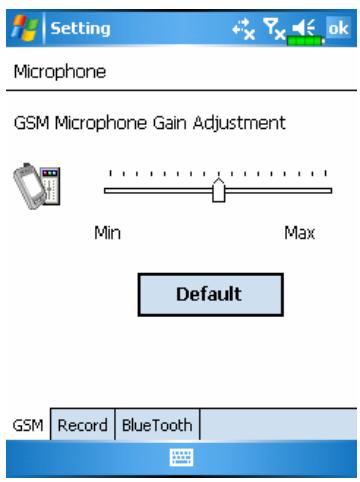
Tap, Settings, the System tab, and then Microphone.
- Use the slider to adjust volume of the phone mic, recording mic, or Bluetooth mic.
- Default Button: Restore to default system settings.
Adjust Volume
Push the volume control key on the side of the Pocket PC. Or use the stylus to tap the icon on the top of the screen to adjust all program sound functions under Adjust the phone volume under
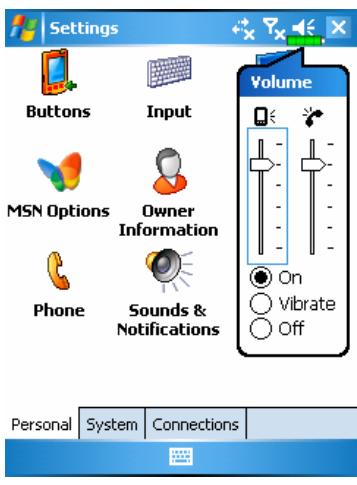
- Adjust volume: When set to On, use the stylus to tap and drag the slider up and down to adjust the volume. You can also push or on the side of the Pocket PC.
- Vibrate: Under © Vibrate mode, the sound function of all programs will be replaced by vibration, including incoming call rings. The icon on the top changes to
- Mute: Under Off mode, the sound function of all programs will be turned off, including incoming call rings. The icon on the top changes to
Scenarios
Tap, Programs, Phone, and then Scenarios.
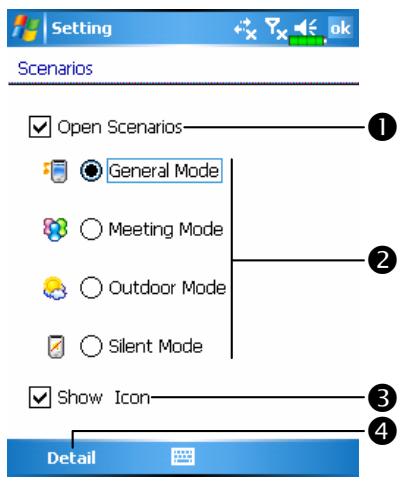
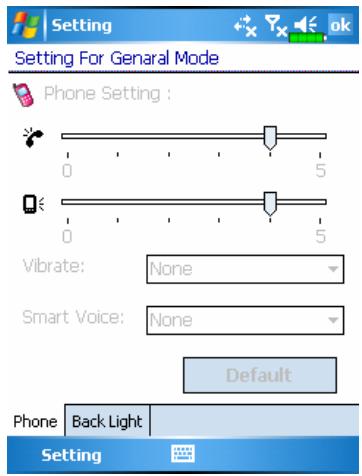
You can tap any Scenarios icon in the Today screen to enter Scenarios. After selecting a mode, this will become the Scenarios icon you selected.
Check this item to activate Scenarios.
2 Select an applicable mode.
3 Check this item to display the Scenarios mode icon in the Today screen.
4 Details Button: Set the relevant options for this mode, such as volume, backlight, etc.
Tap Details Button to enter the screen shown on the left. And then tap Settings Button to set the relevant options for this mode, such as volume, backlight, etc.
Quick Link
Tap Settings, the Personal tab, Today, the Items tab, and then check Quick Link.
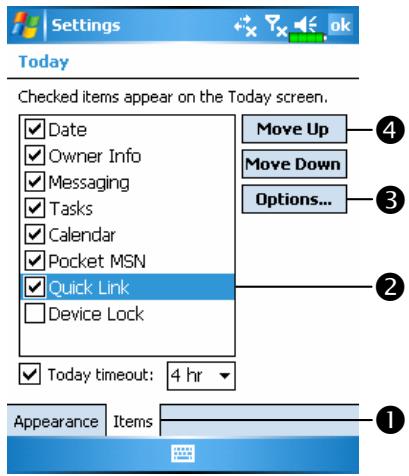
Items tab: Enter the Today setting screen with Quick Link Options.
2Make sure that Quick Link is checked so that the Today screen can display this item.
Options Button: Check and select Quick Link to highlight it, and then tap Options to enter its settings screen.
4 Tap Move Up or Move Down to arrange the display order of these items in the Today screen.
Tap Options in the above screen to enter the screen shown on the left.
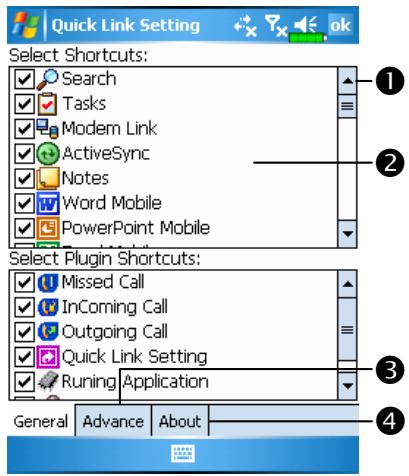
Use the scroll bar to view pages.
2 General tab: Program names that are checked will be displayed in the Today screen. Tap l again to deselect an item and it will not be displayed in the Today screen.
3 Advanced tab: Enter the Quick Link Advanced Settings screen.
4 About tab: Relevant information about Quick Link.
You can select a maximum of 27 icons. Items not supported by the system will not display.
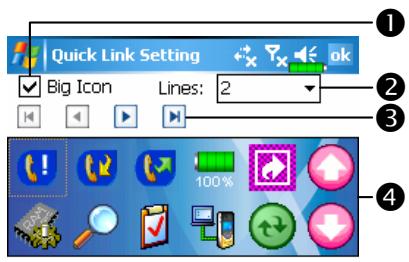

Tap the Advanced tab to enter the screen shown on the left.
1 Set to enable or disable the use of the Big Icon.
2 Tap on arrowhead to select the number of lines for displaying Quick Link.
The icons of the programs you checked in the General tab are displayed in this area.
4 Tap an item in 3 area, and use the arrows here to arrange order in which the item will be displayed in the Today screen.
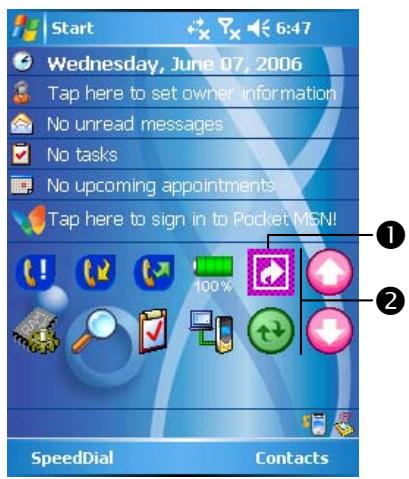
Description on the Today Screen
Tap this icon to link to Quick Link settings screen.
2 Your Quick Link settings. Tap the icon to quick link to this program.
Find and Organize Information
The Search feature on your Pocket PC helps you quickly locate information.
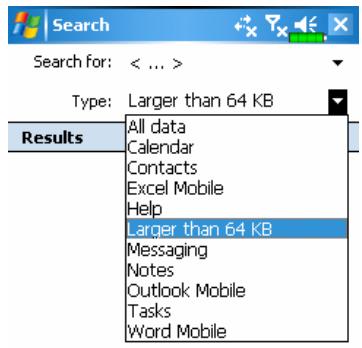

-
Tap Programs, and then Search. Input the text you want to find and then select the data type. Tap on Search to start the search.
-
To find information that occupies a larger space, select Larger than 64 KB for Type.
Actually, you can use File Explorer to search for files and place these files into folders systematically. Just tap Programs, and then File
Explorer.
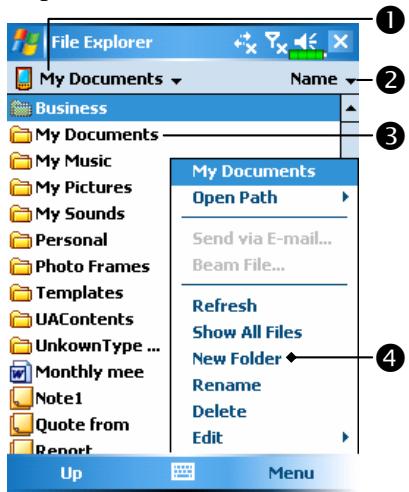
Tap to change folders.
2 Select the sort order for the list.
3 Tap the folder name to open folder.
4 Tap Menu and then New Folder to create a new folder.
You can move files in File Explorer by tapping and holding the item you want to move, and then tapping Cut or Copy and Paste on the pop-up menu.
Customize Your Pocket PC
Navigation Bar and Command Bar
The navigation bar is located at the top of the screen. It displays the active program and current time, and allows you to switch to programs and close screens.
Use the command bar at the bottom of the screen to perform tasks in programs. The command bar includes menu names, buttons, and the Input Panel button. To create a new item in the current program, tap New. To see the name of a button, tap and hold the stylus on the button. Drag the stylus off the button so that the command is not carried out.
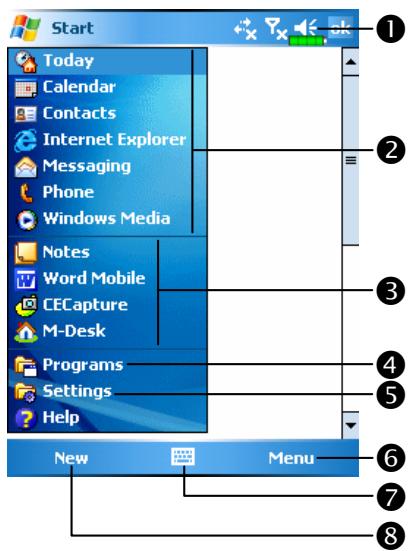
1 Tap to change volume or mute the Pocket PC.
2 Tap to select a program.
3 Tap to quickly select a program you have recently used.
4 Tap to see additional programs.
Tap to customize the Pocket PC.
Menu button.
Input panel button.
New button.
Pop-up menus
With pop-up menus, you can quickly choose an action for an item. For example, you can use the pop-up menu in the contact list to quickly delete a contact, make a copy of a contact, or send an e-mail message to a contact. The actions in the pop-up menus vary from program to program. To access a pop-up menu, tap and hold the stylus on the item name that you want to perform the action on. When the menu appears, lift the stylus, and tap the action you want to perform. Or tap anywhere outside the menu to close the menu without performing an action.
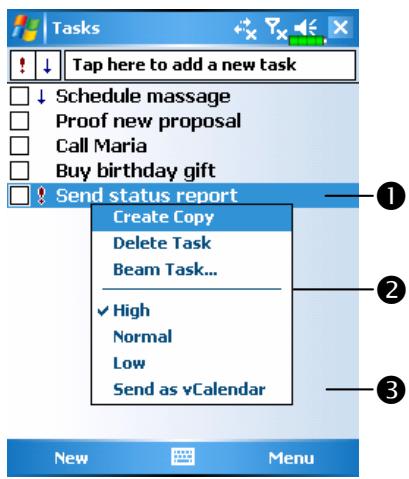
Tap and hold to display the pop-up menu.
Lift the stylus and tap the action you want.
3 Tap outside the menu to close it without performing an action.
Redefined Hot Keys
Tap, Settings, the Personal tab, and then Buttons.
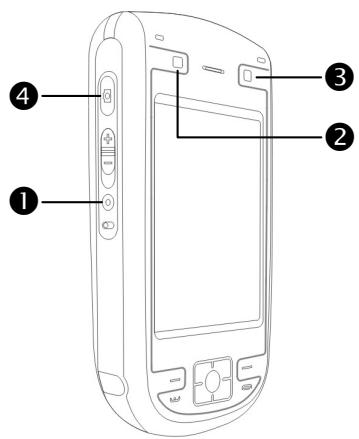
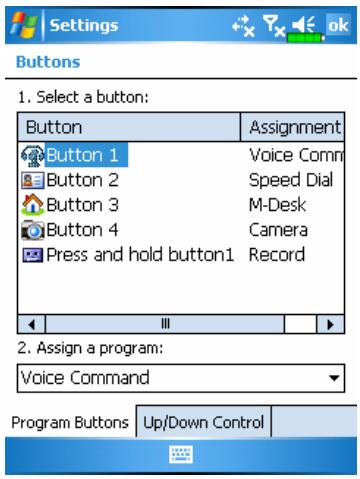
These hot keys can be redefined as launch keys for frequently used programs.
End Button and Send Button are exclusive phone functions so they cannot be redefined.
6 Microsoft ActiveSync /
Using Microsoft ActiveSync, you can synchronize the information on your desktop computer with the information on your device. Synchronization compares the data on your device with your desktop computer and updates both computers with the most recent information. For example:
- Keep Pocket Outlook data up-to-date by synchronizing your Pocket PC with Microsoft Outlook data on your desktop computer.
Synchronize Microsoft Word and Microsoft Excel files between your Pocket PC and desktop computer. Your files are automatically converted to the correct format.
By default, ActiveSync does not automatically synchronize all types of information. Use ActiveSync options to turn synchronization on and off for specific information type.
With ActiveSync, you can also:
Back up and restore your Pocket PC data.
- Copy (rather than synchronize) files between your device and desktop computer.
Control when synchronization occurs by selecting a synchronization mode. For example, you can synchronize continually while connected to your desktop computer or only when you choose the synchronize command.
Select which information types are synchronized and control how much data is synchronized. For example, you can choose how many weeks of past appointments you want synchronized.
Installing and Using ActiveSync
Important Installation Notice
Before you install ActiveSync, make sure that the USB cable on the Pocket PC is not connected to the personal computer. Connect the USB cable only after ActiveSync is installed.
- Installing ActiveSync: Use the Getting Started CD to install Microsoft ActiveSync 4.1 on the personal computer. ActiveSync is already installed on your Pocket PC.
- Hardware installation: The USB cable is a plug-and-play device. Use the USB cable to connect your Pocket PC to your personal computer.
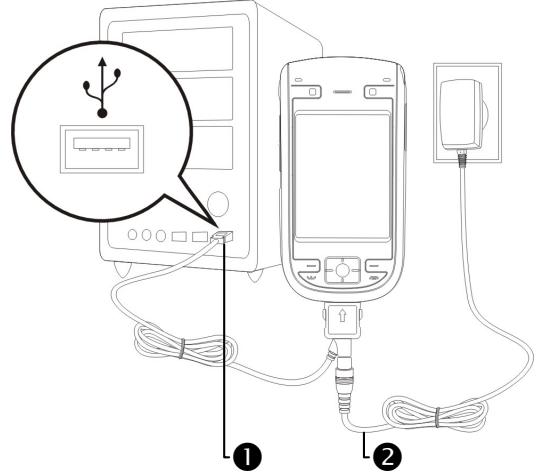
USB ports and USB cable: Connect one end of the USB cable to the Pocket PC and the other end to the USB port on the personal computer.
AC adapter: For charging power. For prolonged use of this Pocket PC (such as network connection), we recommend that you use the AC adapter for longer lasting power.
- Using the optional cradle: Use the USB cradle and the USB cable to connect your Pocket PC to your personal computer (desktop computer or notebook).
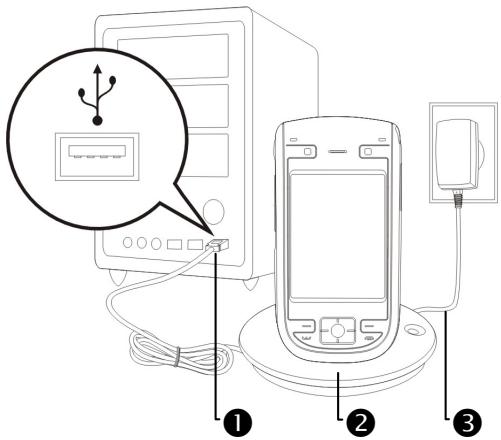
USB ports: Connect one end of the USB cable to the Pocket PC and the other end to the USB port on the personal computer.
Charger or USB cradle (* optional): Dock the Pocket PC into this cradle and make sure that it is firmly seated into the slot on the cradle.
③ AC adapter: For charging power. For prolonged use of this Pocket PC (such as network connection), we recommend that you use the AC adapter for longer lasting power.
4. Using ActiveSync
1 After installation is complete, the ActiveSync Setup Wizard helps you customize your synchronization settings.
Once you use the USB cable to connect the two devices properly, the Set Up a Partnership screen appears on the personal computer. Set it up according to your requirements. The green icon appears on the status bar of your personal computer to indicate that it is Connected.
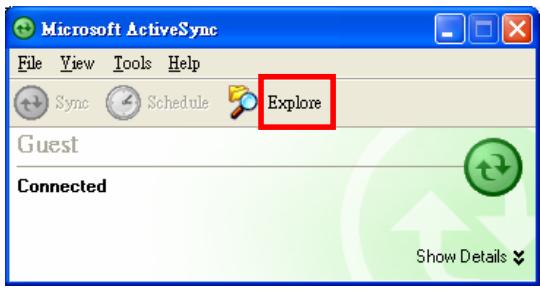
3Click Explore on the Microsoft ActiveSync on the personal computer to access files in the Pocket PC. Just like using a personal computer, manage the files in the two devices.
Windows 95 and Windows NT do not support USB connection.
USB Synchronization
Before you start to synchronize, use the Pocket PC Getting Started CD to install ActiveSync on your personal computer. For more information on how to install ActiveSync, please refer to the ActiveSync CD or online help. ActiveSync is already installed on your Pocket PC.
ActiveSync synchronization settings:
- After installation is complete, the Setup Wizard will continue to guide you. Adjust the specifications according to your actual needs.
- Use the USB cable to connect the two devices properly and the Set Up a Partnership screen appears on the personal computer. Set it up according to your requirements.
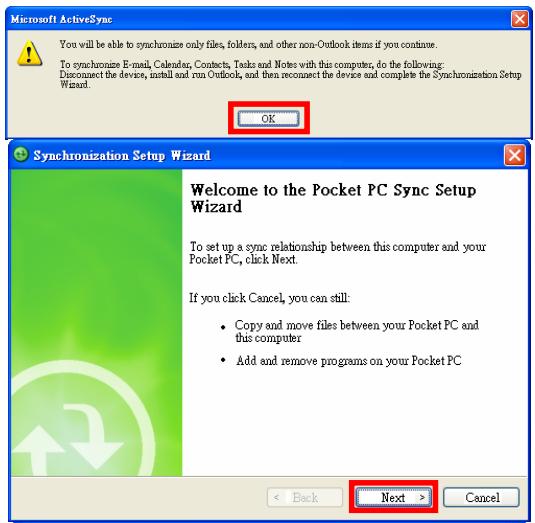
1Click OK.
2 Click Next.
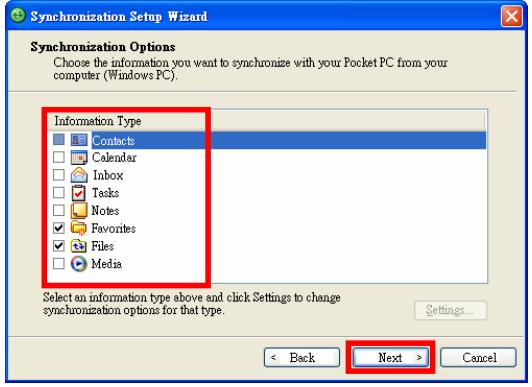
3 Check the items you want to synchronize.
Click Next.

Click Finish.
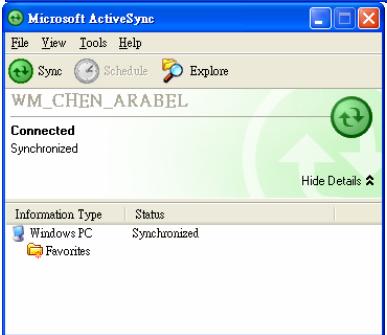
After installation is complete, the ActiveSync Setup Wizard helps you connect your Pocket PC to your desktop computer, set up a partnership so you can synchronize information between your Pocket PC and your desktop computer, and customize your synchronization settings. Your first synchronization process will automatically begin when you finish using the wizard.
The green icon appears on the status bar of the personal computer to indicate that it is Connected.
After your first synchronization, take a look at Calendar, Contacts, and Tasks on your Pocket PC. You'll notice that information you've stored in Microsoft Outlook on your desktop computer has been copied to your device, and you didn't have to type a word. Disconnect your Pocket PC from your computer and you're ready to go!
Once you have set up ActiveSync and completed the first synchronization process, you can initiate synchronization from your Pocket PC. To switch to ActiveSync on your Pocket PC, tap , and then tap ActiveSync.
For more information on how to use ActiveSync on your personal computer, run ActiveSync and refer to the ActiveSync online help. To learn more about the Pocket PC ActiveSync, switch to ActiveSync and tap and then Help. Just refer to the Help for more information.
After the synchronization is complete, tap Calendar, Contacts, and Tasks on the Pocket PC to view if the information saved in Microsoft Outlook on the personal computer is already copied to the Pocket PC.
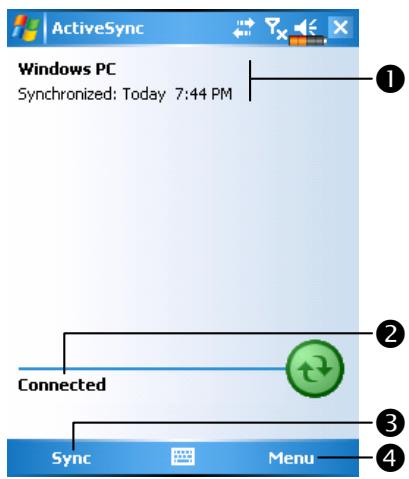
On the Pocket PC site: Tap Programs and then ActiveSync.
View synchronization status.
View connection status.
3 Tap to connect and synchronize.
Tap to synchronize via Bluetooth or change synchronization settings.
Synchronizing using Bluetooth
Without using the USB cable to connect the two devices, you can still synchronize using Bluetooth. The greatest advantage is that you don't have to plug in and detach from the USB cable so often. This is especially useful for managing several Pocket PCs. For details on Bluetooth devices, refer to "Using Bluetooth" section.
7 Connections /
Connecting to the Internet
This section teaches you how to use GPRS wireless network connection. GPRS wireless networking is a convenient function for working at home or while traveling. You can use the Pocket PC to browse websites and read or send E-mails, SMS or MSN messages.
Make sure that your telecom company provides this service and apply for a SIM with GPRS function. If you already have a SIM card, all you need to do is apply for the GPRS function from your service provider. Current SIM cards can support GPRS networking functions.
Connection Wizard
Generally, you will only need to install the SIM card to your Pocket PC to simultaneously use the mobile phone functions. The system will automatically add the connection items for this SIM card. To verify: Tap

Settings, the Connections tab, Connections, and then "Manage
existing connections," the list will show the newly added network name.
If the system is unable to successfully add the connection to your SIM card, it is possible to use Connection Wizard.
Tap, Settings, the Connections tab, and then Connection Wizard.
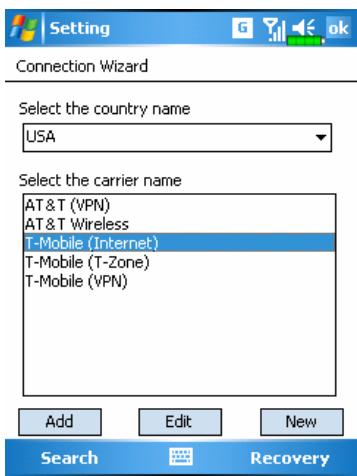
- Select the country name from the list.
- Select the carrier name from the list.
- According to actual requirements, select the carrier name, and then tap Add Button or Edit Button. Or use the New Button to add the new network connection.
- Search Button: Detect the currently available telecommunication service. If it is found, use the Add Button to add the highlighted selection. If it is not found, the "New network" screen will be shown; please manually setup the network.
- Recovery Button: Restore to the original setup value.
- Tap Settings, the Connections tab, Connections, and then "Manage existing connections," the list will show the newly added network name.


Settings, the Connections tab, Connections, and then the
Tasks tab.
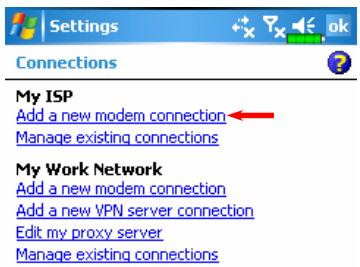
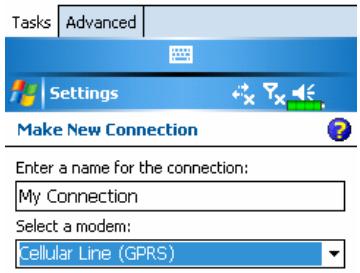

-
As shown in the screen on the left tap "Add a new modem connection."
-
Enter the "Make New Connection" screen as shown in the screen on the left.
-
Input a new connection name for convenience in making connections in the future.
Select "Cellular Line (GPRS)."
Lastly tap Next.
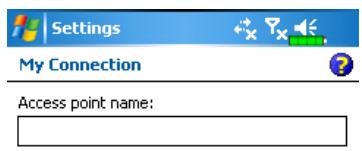
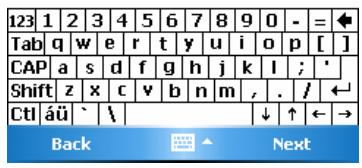
- Input the Access Point Name provided by your telecom company and tap Next.
- Input your personal information such as account number, and tap Finish.
Starting GPRS Connection
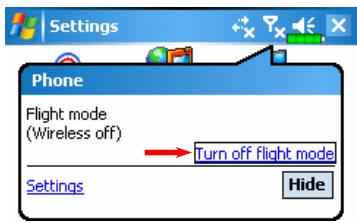
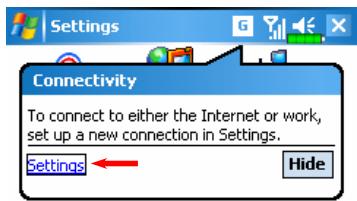
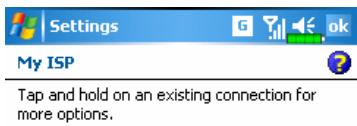
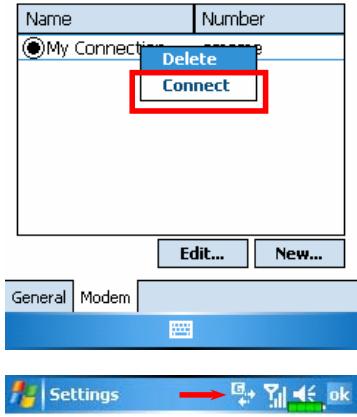
- Tap the or icon at the top of the screen and when a message window appears tap "Turn off flight mode" and input your PIN to turn on the Phone. The icon will change to while the icon changes to G.
- Tap , then tap Settings to link to Connections. You are ready to connect GPRS.
- Select "Manage existing connections" in Connections. Tap and hold on the newly created connection name, and then select Connect to finish GPRS connection.
- Input your account information in the Logon Network screen and tap to login to the network.
- After the connection is established, the G icon will change to G
- Now you can use the appropriate program to access the Internet, receive or send E-mails, etc.
Disconnecting GPRS
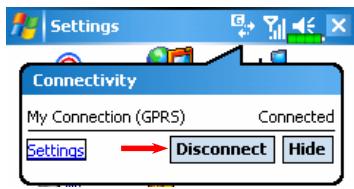
- Disconnect GPRS: Tap and the message window appears. Tap Disconnect.
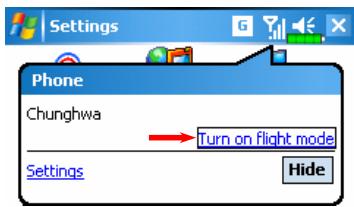
- Turn off Phone: Tap and the message window appears. Tap "Turn on flight mode."
Using Bluetooth
Tap, Programs, Utilities, and then Bluetooth Manager.
Bluetooth is a short-distance wireless communication technology with an effective range under 10 meters (30 feet). When you turn on the Bluetooth function, the indicator flashes blue.
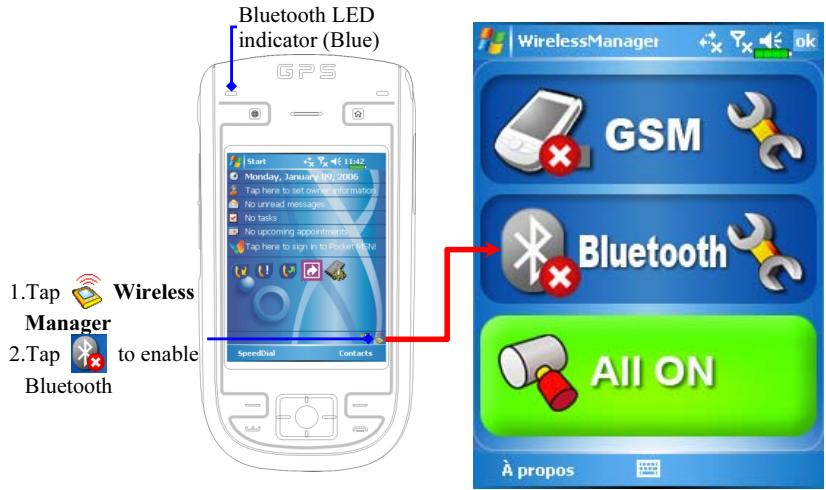
Bluetooth Connection Wizard
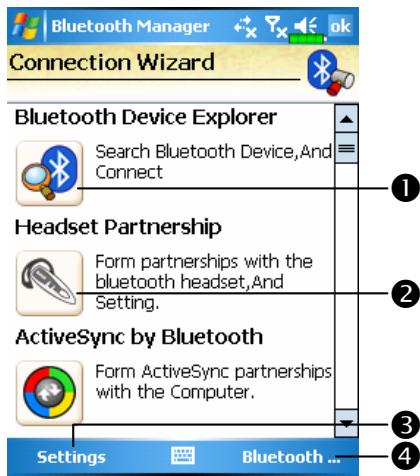
1 Tap on any one of the icons on the left side of the Wizard screen, the system will ask you if you would like to activate Bluetooth. After activation, the LED indicator on the upper left will flash blue.
Tap here and the system will search for all nearby Bluetooth headsets.
3 Tap to configure your Bluetooth device.
4 Tap to enter the Bluetooth device pairing screen.
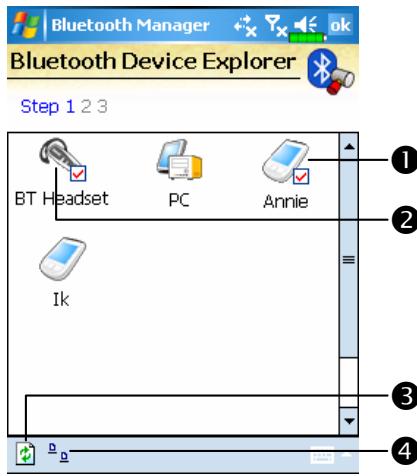
All nearby Bluetooth devices found by the system.
Tap on any one of the shortcut icons and you will be able to follow the on-screen instructions to pair with that particular device. Devices that have already been paired with are shown with a l
2 Tap on one of the icons which represent a Bluetooth headset, when a is shown, it means that you may use that particular Bluetooth headset.
3Refresh Search Button: re-scan for all nearby Bluetooth devices.
Change viewing method.
Tap Bluetooth Manager Button in the Wizard Mode screen to enter this screen.
The system will search once again and add to the number of the devices that you may pair with.
2 Return to Bluetooth Wizard.
3 Tap to configure your Bluetooth device.
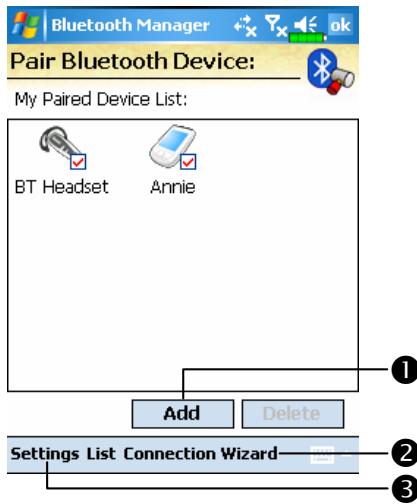
Tap Settings Button in the Bluetooth Wizard screen to display the Bluetooth Settings screen.
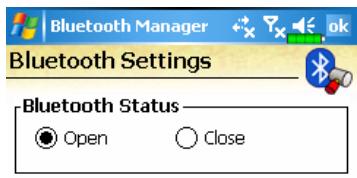
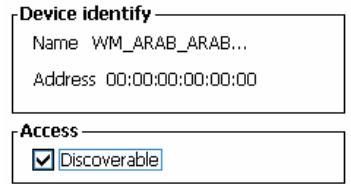
Tap the General tab
1. Bluetooth Status
Tap Open to enable Bluetooth function.
Tap Close to disable Bluetooth function. Make sure that you disable Bluetooth function when you need to save power or if you are in locations such as an airplane or hospital that ban the use of wireless devices.
2. Device Identify
Name: Other devices supporting Bluetooth can identify your Pocket PC by this name.
Address: This is the unique address of your Pocket PC.
3. Access
1 Check "Discoverable": Within an effective range of 10 meters (30 feet), all devices supporting Bluetooth can detect your Pocket PC and data transmission is performed with confirmation from the other party.
Uncheck "Discoverable": Your Pocket PC can transmit data to other devices but other devices cannot detect your Pocket PC.
Service
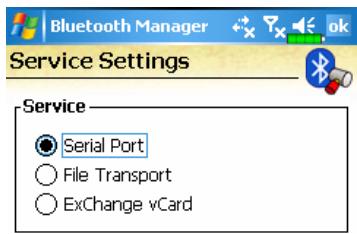
Start Service
□Authorization
Encryption
Tap the Service tab
Provide the settings about services of serial port, file transport and exchange vCard.
If you have Bluetooth GPS software, use the product as instructed and refer to the accompanied documentation and this section to register your Pocket PC as an effective serial port or search for other serial ports.
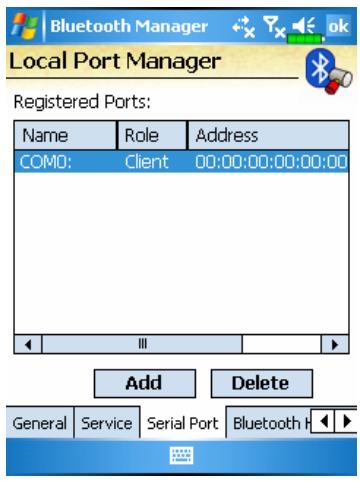
Register Serial Port:
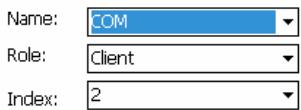
you Register name'

Tap the Serial Port tab
Register new serial port
- Tap Add to enter the Settings screen.
If you no longer need to use a registered serial port, tap this serial port under the "Name" column to highlight and then tap Delete to delete it. - The figure on the left shows the settings screen for registering a new serial port.
- If you select COM for the “Name” field, then the valid options for the “Index” field are 0, 2, 4, 6 and 7.
2If you select BTS for the "Name" field, then the valid options for the "Index" field are 0 to 9.