
ANTI-EXECUTABLE STANDARD - Endpoint Security FARONICS - Free user manual and instructions
Find the device manual for free ANTI-EXECUTABLE STANDARD FARONICS in PDF.


| Product Type | Endpoint Security Software |
| Available Editions | Standard, Server Standard, Enterprise, Server Enterprise |
| Supported Operating Systems | Windows XP SP3 (32-bit), Windows XP SP2 (64-bit), Windows Server 2003, Windows Server 2008, Windows Vista, Windows 7 (32 and 64-bit) |
| Key Features | White List, Black List, Maintenance Mode, Stealth Mode, Customizable Alerts |
| Protection Enabled | Prevents execution of any unauthorized executable |
| White List | Allows defining executables allowed to run |
| Black List | Allows blocking specific executables |
| Maintenance Mode | Automatically adds new executables to the active white list |
| User Management | Administrators and trusted users with differentiated access |
| Stealth | Options to hide the icon, alerts, and splash screen |
| Logging | Records events in the Event Viewer |
| Deep Freeze Compatibility | Synchronizes maintenance modes with Deep Freeze |
| License | 30-day trial version or full version with license key |
| Installation | Installation wizard with optional automatic white list creation |
| Technical Support | Email: support@faronics.com, Phone: 800-943-6422 / 604-637-3333 |
| Minimum Requirements | Windows-compatible processor, 512 MB RAM, 50 MB disk space |
| Export/Import Configuration | .aecfg file (proprietary) or XML/CSV for viewing |
| Uninstallation | Via the installation wizard, requires administrator rights and protection disabled |
Frequently Asked Questions - ANTI-EXECUTABLE STANDARD FARONICS
User questions about ANTI-EXECUTABLE STANDARD FARONICS
0 question about this device. Answer the ones you know or ask your own.
Ask a new question about this device
Download the instructions for your Endpoint Security in PDF format for free! Find your manual ANTI-EXECUTABLE STANDARD - FARONICS and take your electronic device back in hand. On this page are published all the documents necessary for the use of your device. ANTI-EXECUTABLE STANDARD by FARONICS.
USER MANUAL ANTI-EXECUTABLE STANDARD FARONICS
ABSOLUTE Protection from Unauthorized Executables
User Guide
Last modified: December, 2009
© 1999 - 2009 Faronics Corporation. All rights reserved. Faronics, Deep Freeze, Faronics Core Console, Faronics Anti-Executable, Faronics Device Filter, Faronics Power Save, Faronics Insight, Faronics System Profiler, and WINSelect are trademarks and/or registered trademarks of Faronics Corporation. All other company and product names are trademarks of their respective owners.
Contents
Preface 5
Important Information. 6
About Faronics 6
Product Documentation 6
Technical Support 7
Contact Information. 7
Definition of Terms 8
Introduction 10
Anti-Executable Overview 11
About Anti-Executable 11
Anti-Executable Editions. 11
About Faronics Core Console. 11
System Requirements 12
Anti-Executable Licensing 13
Installing Anti-Executable 15
Installation Overview. 16
Installing Anti-Executable 17
Using Anti-Executable 21
Accessing Anti-Executable 22
Using Anti-Executable 22
Status Tab 23
Verifying Product Information 23
Enabling Anti-Executable Protection 24
Anti-Executable Maintenance Mode 24
Exporting Anti-Executable Configurations 24
White List Tab. 25
Using the White List Editor 25
Creating a New White List 26
Activating a White List 29
Adding Executables or Folders to an Existing White List using the White List Editor 29
Adding Executables to the Active White List 30
Black List Tab 31
Using the Black List Editor 31
Creating a New Black List. 32
Activating a Black List 35
Adding Executables or Folders to an Existing Black List using the Black List Editor 35
Users Tab. 36
Adding an Anti-Executable Administrator or Trusted User 36
Removing an Anti-Executable Administrator or Trusted User 38
Enabling Anti-Executable Passwords 38
Setup Tab 40
Setting Event Logging in Anti-Executable 40
Anti-Executable Stealth Functionality 40
Deep Freeze Maintenance Compatibility 41
Customizing Alerts 41
Uninstalling Anti-Executable 43
Uninstalling using the Setup Wizard. 44
Preface
Anti-Executable protects computers by preventing unauthorized executables from running.
Topics
Important Information
Technical Support
Definition of Terms
Important Information
This section contains important information about your Faronics Product.
About Faronics
Faronics delivers market-leading solutions that help manage, simplify, and secure complex IT environments. Our products ensure 100% machine availability, and have dramatically impacted the day-to-day lives of thousands of information technology professionals. Fueled by a market-centric focus, Faronics' technology innovations benefit educational institutions, health care facilities, libraries, government organizations, and corporations.
Product Documentation
The following documents form the Faronics Anti-Executable documentation set:
- Faronics Anti-Executable User Guide - This document guides you how to use the product.
- Faronics Anti-Executable Release Notes — This document lists the new features, known issues and closed issues.
- Faronics Anti-Executable readme.txt - This document will guide you through the installation process.
Technical Support
Every effort has been made to design this software for ease of use and to be problem free. If problems are encountered, contact Technical Support.
Email: support@faronics.com
Phone: 800-943-6422 or 604-637-3333
Hours: Monday to Friday 7:00am to 5:00pm (Pacific Time)
Contact Information
Web: www.faronics.com
- Email: sales@faronics.com
Phone: 800-943-6422 or 604-637-3333
Fax: 800-943-6488 or 604-637-8188
Hours: Monday to Friday 7:00am to 5:00pm (Pacific Time)
- Address: Faronics Technologies USA Inc. 2411 Old Crow Canyon Road, Suite 170 San Ramon, CA 94583 USA
Faronics Corporation
609 Granville Street, Suite 620
Vancouver, BC V7Y 1G5
Canada
Definition of Terms
| Term | Definition |
| Alert | The notification dialog that appears when there is an attempt to launch an unauthorized executable. Anti-Executable Administrators can specify the message and image displayed in the alerts. For more information, refer to Exporting Anti-Executable Configurations. |
| Anti-Executable Administrator | Anti-Executable Administrators have access to all Anti-Executable configuration options. They can create and edit White Lists, Black Lists, manage Anti-Executable users, set Anti-Executable protection to Enabled or Disabled, and uninstall/upgrade Anti-Executable. |
| Anti-Executable Console Loadin | A software library that extends the functionality of Faronics Core Console allowing full control over the configuration and operation of Anti-Executable installed on remote workstations. |
| Anti-Executable Trusted User | Trusted Users have access to Status tab, White Lists tab and Black Lists tab. They can create and edit White Lists, Black Lists, and set Anti-Executable protection to Enable or Disable. Trusted Users cannot uninstall/upgrade Anti-Executable. |
| Authorized Executable | An Executable that is in the Active White List and therefore can be launched. |
| Black Folder | A folder, and its subFolders, from which all executables are blocked. |
| Black List | A list of executables, or folders containing executables, that are blocked by Anti-Executable. |
| Executable | Any file that can be launched by the operating system. The executable files managed by Anti-Executable have the extension .scr, .jar, .bat, .com, or .exe. |
| External User | Any user that is neither an Anti-Executable Administrator nor an Anti-Executable Trusted user. An external user can run only authorized executables and has no control over Anti-Executable configuration. This restriction applies regardless of any user rights assigned by the operating system. |
| Faronics Core Agent | The software installed on workstations to enable communication with Faronics Core Console. |
| Maintenance Mode | When in Maintenance Mode, new executable files added or modified are automatically added to the Active White List. |
| Protection | When set to Enabled, this setting indicates that Anti-Executable is protecting a computer with an Active White List. When set to Disabled, any executable can be launched on the computer. |
| Stealth Mode | Stealth Mode is a group of options that control visual indication of Anti-Executable's presence on a system. Stealth Mode provides the option to the Administrator to hide the Anti-Executable icon in the Windows system tray, prevent the Alert from being displayed and prevent the splash screen from being displayed. |
| Trusted Executable | A Trusted executable can launch other executables that themselves are unauthorized. |
| Unauthorized Executable | An Unauthorized executable is one that is not in the Active White List and can not be launched. |
| White Folder | A folder, and its subFolders, from which any executable can be launched. |
| White List | A list of executables, or folders containing executables, that are allowed to run by Anti-Executable. |
| Workstation | Any client or remote machine using the Operating System specified in the System Requirements. |
Introduction
Anti-Executable protects computers by preventing unauthorized executables from running.
Topics
Anti-Executable Overview
System Requirements
Anti-Executable Licensing
About Anti-Executable
Anti-Executable prevents unauthorized executables from running, giving IT administrators total control over the computer. Any executable file that is not part of a list of files called the White List will not run. This White List is under the complete control of authorized users who can edit it, modify it, erase it, etc.
Nothing gets past Anti-Executable: attempts to rename the executable files, or run them from removable storage devices, or even from the network will be blocked, leaving your machines safe and saving you time, money, and effort.
Anti-Executable Editions
Faronics Anti-Executable has four different editions available. Whether you have servers or workstations, working standalone or as part of a network, Anti-Executable will provide you with the protection that you need. Choose the Anti-Executable edition that bests suits your needs:
| Edition | Use Anti-Executable to protect |
| Standard | Local computers loaded with non-server operating system |
| Server Standard | Local computers loaded with server operating systems |
| Enterprise | Remote computers loaded with non-server operating system* |
| Server Enterprise | Remote computers loaded with server operating systems* |
*Enterprise versions allow to protect multiple computers from a central console called Faronics Core Console.
About Faronics Core Console
Faronics Core Console is a lightweight, high performance, secure, easy-to-learn, and integrated framework for the management of multiple Faronics products. It provides a consistent and reliable method of displaying, managing, installing, updating, and protecting workstations and servers from a single console, allowing your organization to increase efficiency with a complete management solution for Faronics products.
Enterprise Versions of Anti-Executable allow you to protect multiple workstations via Faronics Core Console.
System Requirements
Anti-Executable can be installed on the following Operating Systems:
- 32-bit edition of Windows XP SP3 and 64-bit edition of Windows XP SP2.
- 32 and 64-bit editions of Windows Server 2003, Windows Server 2008, Windows Vista, and Windows 7.
Anti-Executable Licensing
Anti-Executable is available in both Full and Evaluation versions. An Evaluation version can be downloaded for free from Faronics' web site (www.faronics.com) and it will be fully operational for 30 days after installation. An expired Evaluation version will not protect the machine and must be uninstalled or upgraded to a Full Version. A Full version requires a valid License Key in order to protect the machine.
License information can be obtained by Anti-Executable Administrator through the Anti-Executable Status tab. To upgrade from an Evaluation version to a Full version, enter a valid License Key and click OK.

Server editions of Anti-Executable cannot be installed on a non-Server Operating System. License Keys for Server editions of Anti-Executable cannot be used on non-Server editions.
Non-Server editions of Anti-Executable cannot be installed on a Server Operating System. License Keys for Non-Server editions of Anti-Executable cannot be used on Server editions.
Installing Anti-Executable
This chapter describes the installation process of Anti-Executable.
Topics
Installation Overview
Installing Anti-Executable
Installation Overview
Anti-Executable features installers for 32- and 64-bit versions of Windows Server 2003, Windows Server 2008, Windows XP SP3, and Windows Vista.
Before installing, verify the operating system version and choose the installer from the following list:
| System | Install File |
| Windows XP/Vista (32-bit) | AEStd_32-bit.msi |
| Windows XP/Vista (64-bit) | AEStd_64-bit.msi |
| Windows Server 2003 and Windows Server 2008 (32-bit) | AESrvStd_32-bit.msi |
| Windows Server 2003 and Windows Server 2008 (64-bit) | AESrvStd_64-bit.msi |
Anti-Executable can be installed using the Setup Wizard. To install Anti-Executable, complete the following steps:
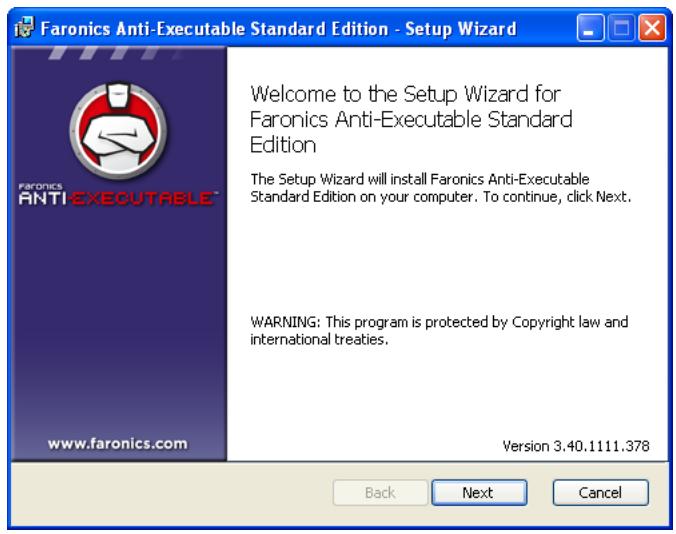
- Insert the CD-ROM from the Media Package into the CD-ROM drive. If Anti-Executable has been downloaded via the Internet, double-click AEStd_32-bit_en.msi (for a 32-bit Operating System) or AEStd_64-bit_en.msi (for a 64-bit Operating System) to begin the installation process. Click Next to continue.
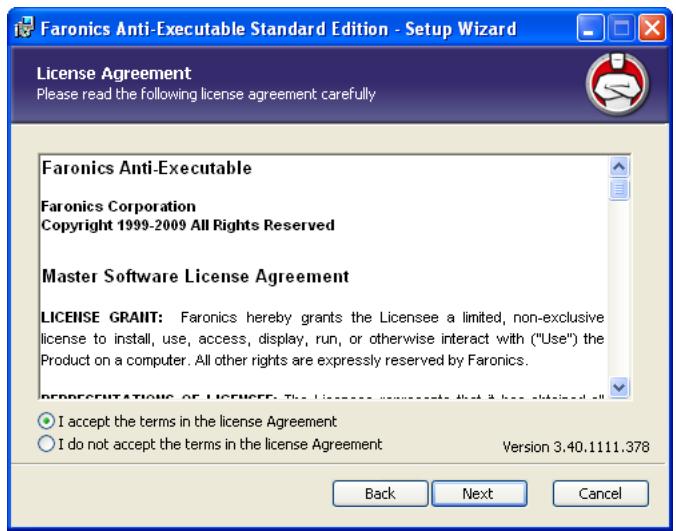
- Read and accept the License Agreement. Click Next to continue.
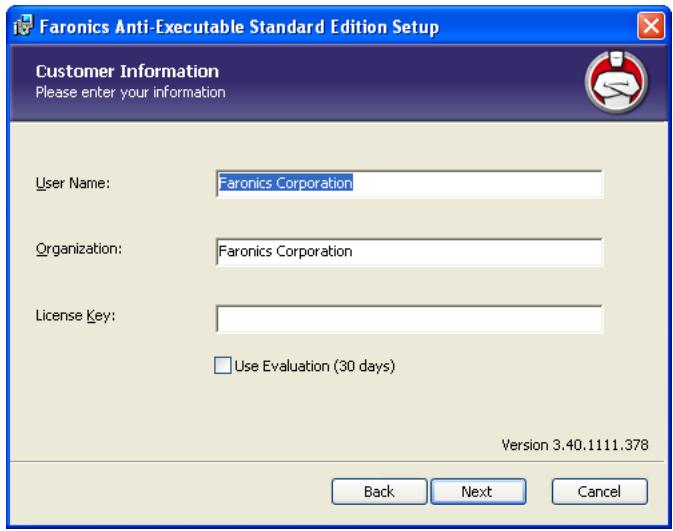
- Enter the User Name and Organization. If Use Evaluation is selected, Anti-Executable is installed as an Evaluation version and is valid for 30 days. An Evaluation version can be converted to a Full shipping version at any time by entering a License Key. Click Next to continue.
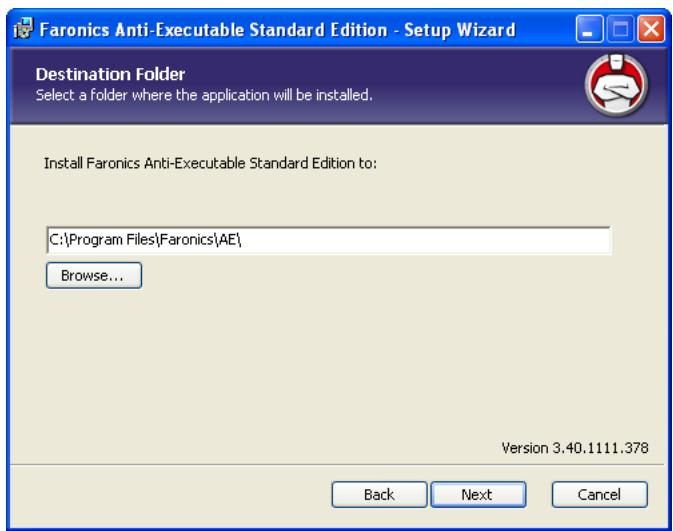
- Specify the install location. The default is C:\Program Files\Faronics\AE. Click Next to continue.
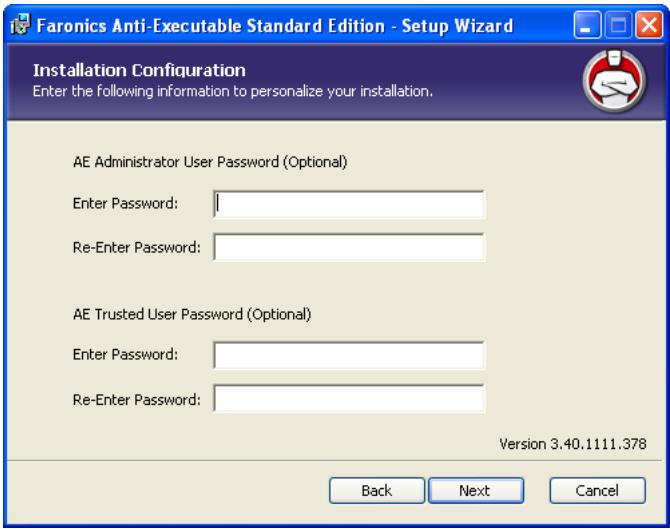
- This step is optional. Specify the Anti-Executable Administrator and Trusted User passwords. These passwords can also be set in the Anti-Executable Users tab following installation. Click Next to continue.
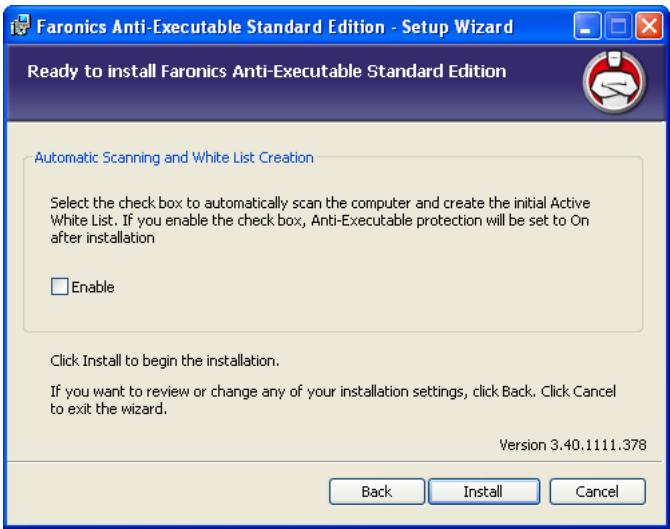
- The Automatic Scanning and White List Creation dialog is displayed. Select Enable if you want Anti-Executable to automatically scan all non-removable drives on the computer and create a White List. Click Install to begin the installation.
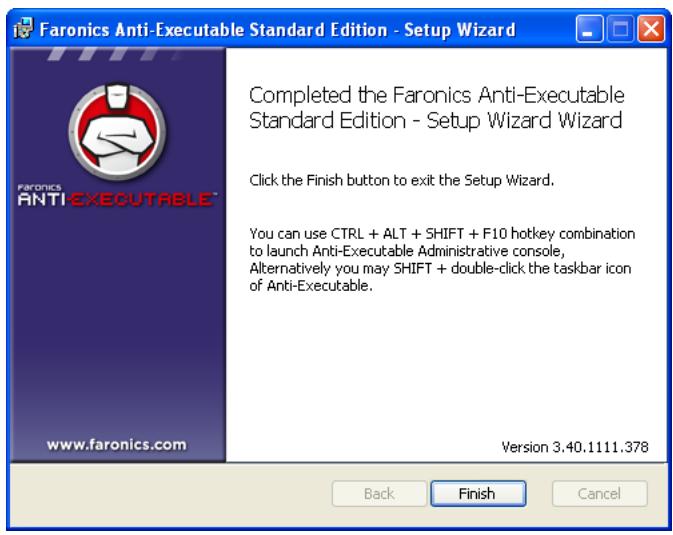
- Click Finish to complete the installation.
- Following a successful installation a restart is required. Click Yes to restart immediately or No to restart later.
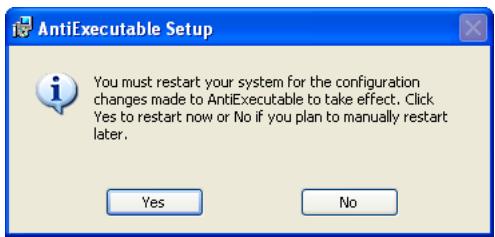

An immediate restart is recommended following installation.
If the Enable check box is selected in the Automatic Scanning and White List Creation dialog, Protection is enabled and there is an Active White List when the computer restarts.
If the Enable check box is not selected in the Automatic Scanning and White List Creation dialog, Protection is disabled and there is no Active White List when the computer restarts.
Using Anti-Executable
This chapter describes the procedure to access, configure and use Anti-Executable.
Topics
Accessing Anti-Executable
Status Tab
White List Tab
Adding Executables to the Active White List
Black List Tab
Users Tab
Setup Tab
Accessing Anti-Executable
Anti-Executable is accessed by holding down the Shift key and double-clicking the
Anti-Executable icon in the Windows System Tray. If the icon is not present, the Ctrl + Alt + Shift + F10 hotkey sequence can be used.
If you are an Administrator, you will have access to the Status, White List, Black List, User and Setup tabs. If you are a Trusted User, you will have access only to the Status, White List, and Black List tabs.
External users are not permitted to access Anti-Executable. Anti-Executable Administrator and Trusted Users must enter the appropriate passwords to access Anti-Executable if those passwords have been set.
Using Anti-Executable
Following installation, Anti-Executable must be configured. Anti-Executable Administrators can access all the following tabs:
- Status - Displays the version of Anti-Executable installed, whether newer versions of Anti-Executable are available and allows user to import and export configurations, and set Anti-Executable Protection to Enable, Disable or Maintenance Mode.
- White Lists - Used to create, edit, and apply White Lists.
- Black Lists—Used to create, edit, and apply Black Lists.
- Users - Used to add Administrators, Trusted users and their passwords.
- Setup - Used to configure Stealth Mode, manage logging, alert messages, and enable Anti-Executable compatibility with Deep Freeze.
The Windows administrator user account that performed the installation is the first Anti-Executable Administrator.
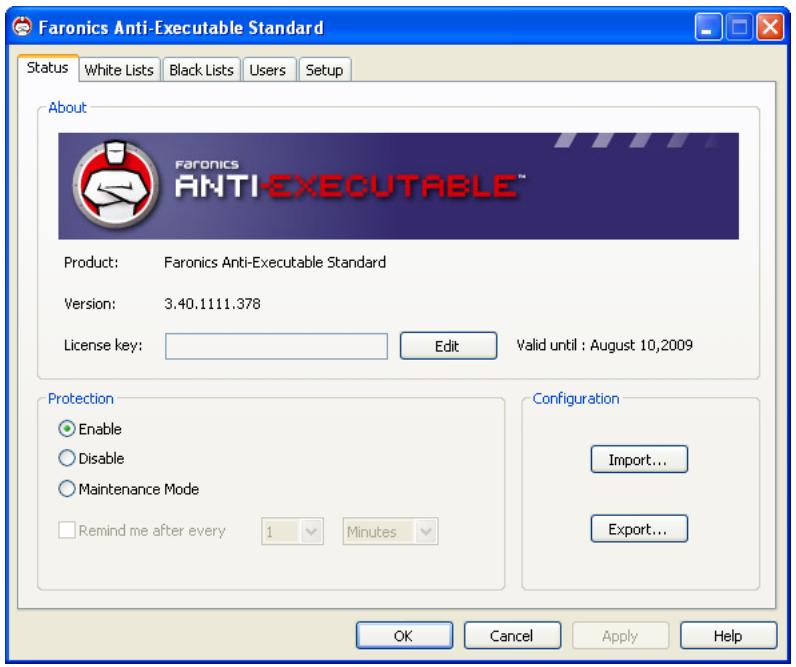
The Status tab allows Anti-Executable Administrators and Trusted Users to configure various settings, set protection to Enable, Disable, or Maintenance Mode, and import or export previously saved configurations.
Verifying Product Information
The About pane displays the version of Anti-Executable installed. If newer versions are available, New version is available is displayed. Click Update for more information.
If an Evaluation version of Anti-Executable has been installed, the Valid until field displays the date when Anti-Executable expires. Anti-Executable displays a notification about the current status of the License in the windows system tray.
Once the evaluation period expires, Anti-Executable will no longer protect a machine. The following expired icon is displayed in the system tray when Anti-Executable expires.

To convert an Evaluation version of Anti-Executable to a Full version, click Edit and enter a valid License Key in the License Key field. License Keys can be obtained by contacting Faronics.
Enabling Anti-Executable Protection
Following installation, Anti-Executable is enabled by default only if Enable was selected in the Automatic Scanning and White List Creation dialog during installation. Otherwise, Anti-Executable cannot protect the machine. Administrators or Trusted users must select Enable for White List protection to take place.

If Protection has been set to Enable and the Active White List is empty, only basic system executables (e.g. boot-up, login) can be launched. Only Anti-Executable Administrator and Trusted Users can manage White Lists.
Use the Remind Me after every check box to have Anti-Executable provide reminders on a workstation to enable Protection if Protection is disabled.
Anti-Executable Maintenance Mode
Select Maintenance Mode and click Apply to run Anti-Executable in Maintenance Mode. When in Maintenance Mode, new executable files added or modified are automatically added to the Active White List. To exit Maintenance Mode, select Enable or Disable.
If Enable is selected, the changes are recorded by Anti-Executable. If Disable is selected, the changes are not recorded by Anti-Executable.

If the computer is running in Maintenance Mode, and if the Protection is disabled, the changes made to the workstation during Maintenance Mode are not added to the Active White List.

Adequate time required for Windows Updates must be provided while running in Maintenance Mode.
Exporting Anti-Executable Configurations
Anti-Executable Administrators can save multiple configurations which can be applied to other machines. If a White List has been set as Active, it is also included in the configuration export.
To save an Anti-Executable configuration file, click Export in the Status tab after making selections. The configuration file is saved in a proprietary format (.aecfg) to prevent tampering. To open a previously defined configuration file (.aecfg), click Import and browse to a configuration file.

Saving a configuration to XML only allows for viewing of the configuration settings. XML configuration files cannot be applied to other machines.
Any changes made to the Anti-Executable settings will not take affect until you click Apply.
White List Tab
Anti-Executable allows the launch of any executable on the Active White List when Protection is set to Enable. Also included are White Folders — folders and their subFolders from which any executable can be launched.
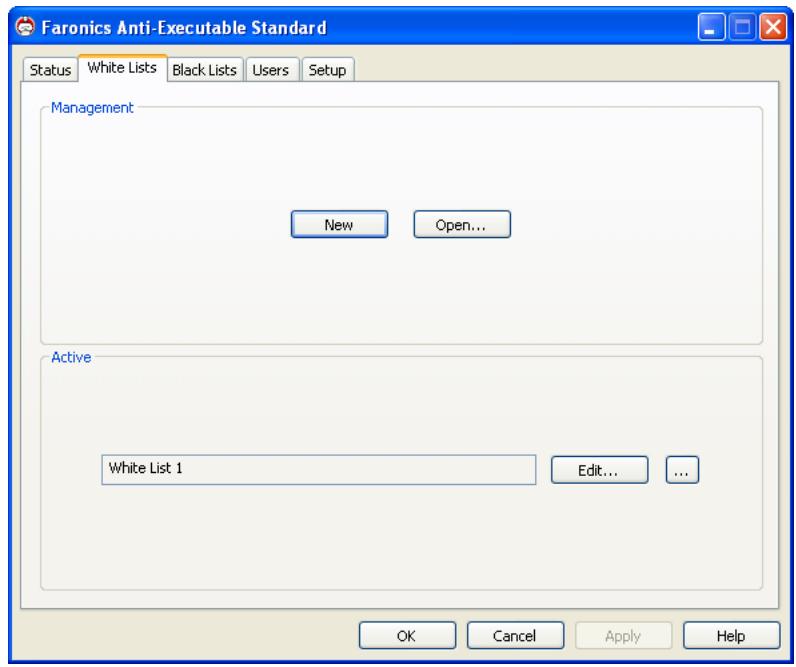
There can only be one White List active at a time. Refer to the section titled Creating a New White List for information on creating the first White List.
Using the White List Editor
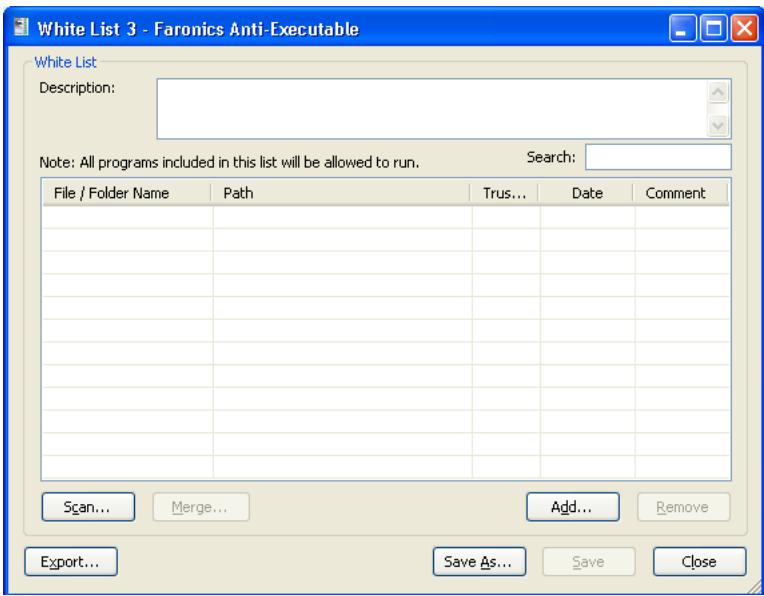
The Anti-Executable White List Editor is opened by clicking on the White List tab and selecting New, Open, or Edit. The White List Editor also appears when an individual White List file is opened in Windows Explorer.
- New - Opens the White List Editor and allows Anti-Executable Administrators and Trusted Users to create a new White List.
- Open - Opens an existing White List for editing.
- Edit - Opens the White List editor to add or remove executables and/or folders to the Active White List.
Creating a New White List
Only Anti-Executable Administrators and Trusted Users can access the White List editor.

It is recommended to use a clean computer to create a White List. A clean computer is a system that has the Operating System and all the required applications installed for day-to-day operations. Creating a White List before the computer is handed over to the user will ensure that the White List contains only the files required for the computer to work properly.
To create a new White List complete the following steps:
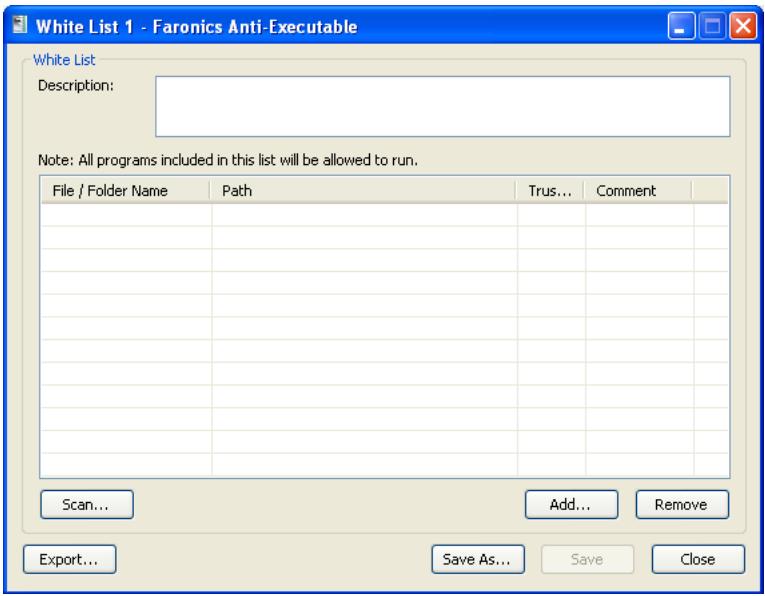
- Shift+ double-click the Anti-Executable icon in the System Tray. Alternatively, you can also use the Ctrl+Alt+Shift+F10 hotkey. Specify the Administrator password to logon to Anti-Executable. Click the White List tab.Click New. The White List editor appears:
-
To determine the available applications, click Scan, select a drive or directory.
-
Use Ctrl+Click or Shift+Click to select multiple drives or directories to scan the workstation locally.
- Click My Network Places, browse and select a remote workstation for remote scanning.
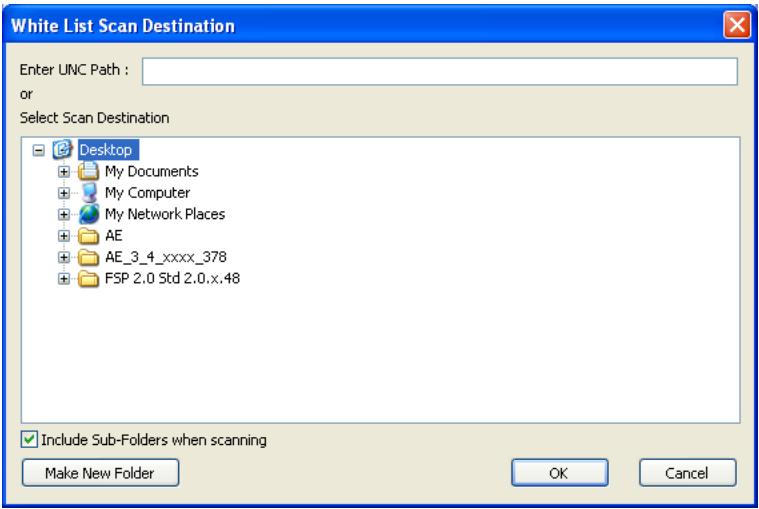
The Scan feature searches the selected location, and its subdirectories, for any executable files (files containing the extensions: .scr, .jar, .bat, .com, or .exe.). The duration of the scan depends on the location's storage capacity and number of executables found within.
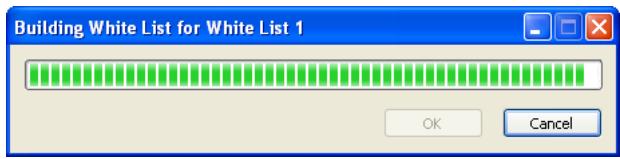
- Click OK. The Building White List for... dialog appears to show the progress:
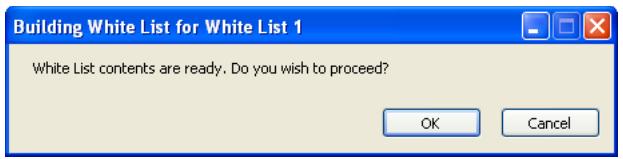
- Once the scan has finished, Anti-Executable checks if you want to proceed. Click OK.
-
A populated White List appears. Folders and executables can be added on an individual basis. Click Add and select the folders or executables to be added to the new White List. If a folder is added, the executables within that folder, and its sub-folders, are permitted to launch.
-
To remove a folder or executable, select it and click Remove. This does not remove the folder or executable from the system.
- To merge the folders or executables with an existing White List, click Merge. The Open dialog appears. Select an existing White List and click Open. The contents of the existing White List are merged with the scanned list of files or executables. Click Save to save the White List with the same name. Click Save As to save the merged White List with a different name.
- To search for a particular folder or executable, enter one or more characters from the folder name or executable name in the Search field. The list is filtered based on the characters entered.
To sort the executables added by date, click the title of the Date column.
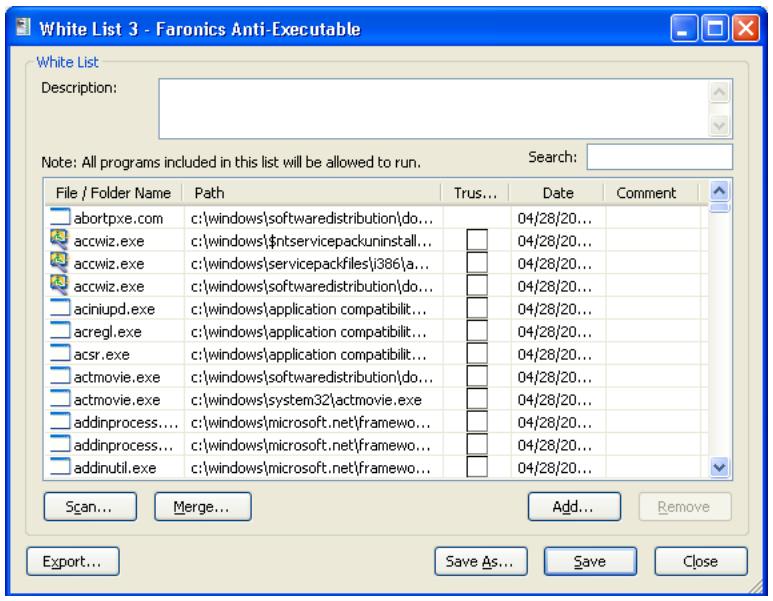
- Define whether an application is Trusted by clicking in the Trusted column. If the check box is selected, it indicates that an application is Trusted and can launch other executables that themselves are unauthorized.
-
Specify any comments for any applications by clicking the Comment column. A text prompt appears allowing for any additional information to be entered. A description can also be added for the entire list in the space provided at the top of the White List editor.
-
Click Save to save the White List. Click Save As to save under a different name. White Lists are saved in a proprietary format with the extension .aewl. Click Export to export a White List to XML or CSV format. White Lists in XML or CSV format can be opened and edited through Windows Explorer but can not be set as the Active White List.

For more information about an executable, right-click the executable and select Google Search. The default browser is launched and the name of the executable is searched on www.google.com.
Activating a White List
After a White List has been created, it can be set as the Active White List by clicking the Browse button in the Active White List section of the White List tab. The browse button launches an Open dialog. Browse to the White List and click Open.
Adding Executables or Folders to an Existing White List using the White List Editor
In addition to populating a new White List, the Scan feature allows executables from a specific location to be added to an existing White List. This location can be local, external, or on a network.
- Click Scan to launch the White List Scan Destination dialog. This will search the selected location for any executables. Once the scan has finished, the results can be merged into the White List.
- Individual folders and executables can be added by clicking Add.
- To open a previously created White List, click Open and browse to the White List file. Make any changes necessary with Add, Remove, Scan, or Merge buttons. These buttons add and remove executables and folders from the White List. They do not modify actual files or folders on the machine.
- Click the White List Only button to delete the executables from the Black List and ensure that they are a part of only the White List.
- Multiple White Lists can be opened and edited at the same time. Only one White List can be set as an Active White List at a time.
Adding Executables to the Active White List
Executables can be added to the active White List by launching them. If the machine is in the protected state and an unauthorized executable is launched, the Anti-Executable Administrator or Trusted User is prompted with options to Allow, Deny, or Allow and Add to White List.
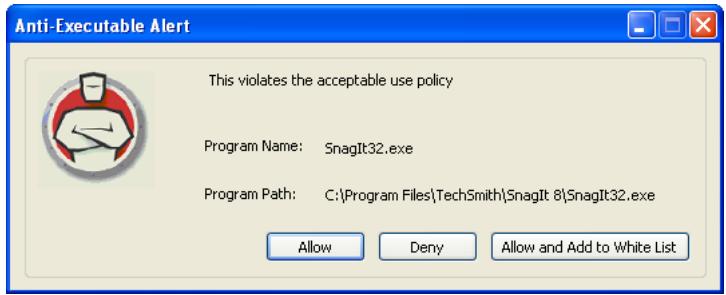
- Allow—Permits the executable to launch but does not add it to the Active White List. The next time the executable is launched, it will be blocked again.
- Deny - The executable is not added to the Active White List and remains an unauthorized executable. It is not permitted to launch.
- Allow and Add to White List —The executable is allowed to launch. It is also added to the Active White List, making it an authorized executable.
External users do not have the necessary permissions to Allow, Deny, or Allow and Add to White List. External users attempting to launch executables not in the Active White List are notified that the executable has been blocked. Refer to the section on Customizing Alerts for more information.
Black List Tab
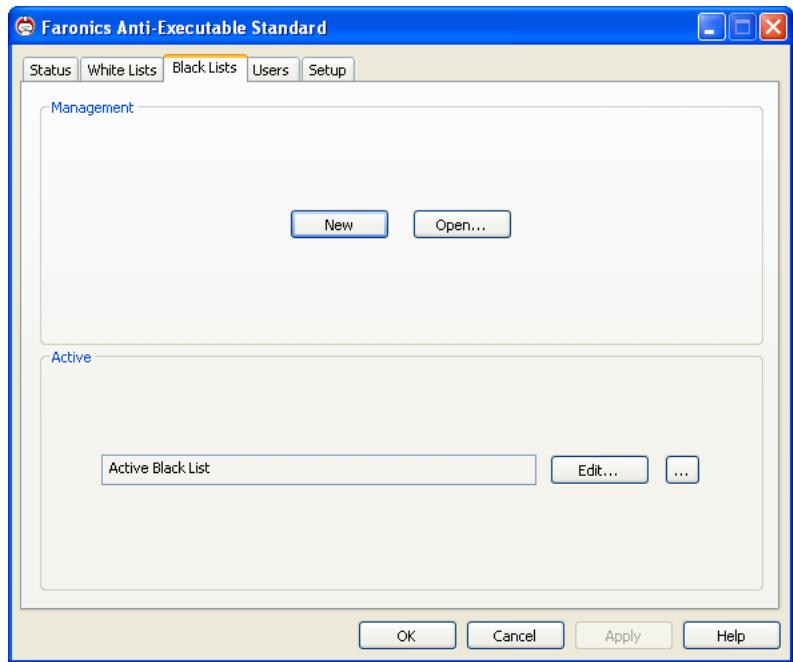
Anti-Executable allows the blocking of any executable on the Active Black List when Protection is set to Enable. Also included are Black Folders — folders and their subFolders from which all executables are blocked.
There can only be one Black List active at a time. Consult the section titled Creating a New Black List for information on creating the first Black List.
Using the Black List Editor
The Anti-Executable Black List Editor is opened by clicking on the Black List tab and selecting New, Open, or Edit. The Black List Editor also appears when an individual Black List file is opened in Windows Explorer.
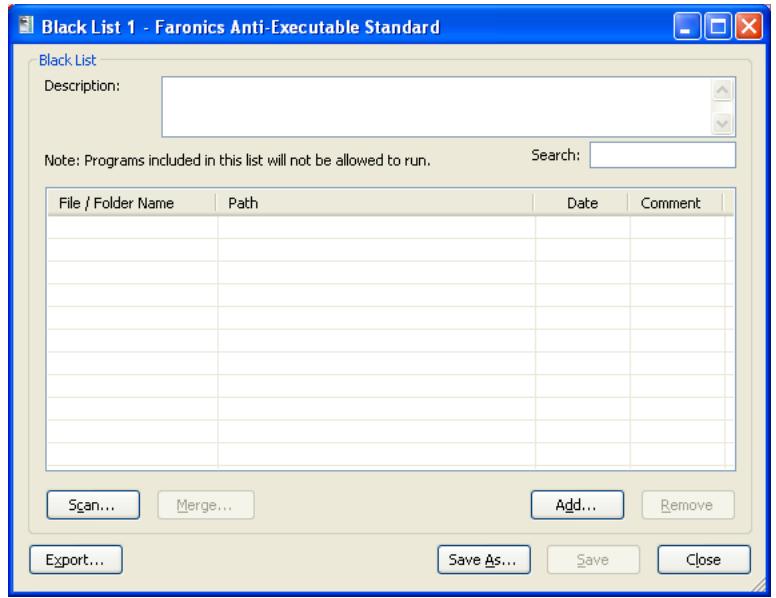
- New - Opens the Black List Editor and allows Anti-Executable Administrators and Trusted Users to create a new Black List.
- Open - Opens an existing Black List for editing.
- Edit - Opens the Black List editor to add or remove executables and/or folders to the Active Black List.
Creating a New Black List
Only Anti-Executable Administrators and Trusted Users can access the Black List editor.
To create a new Black List complete the following steps:
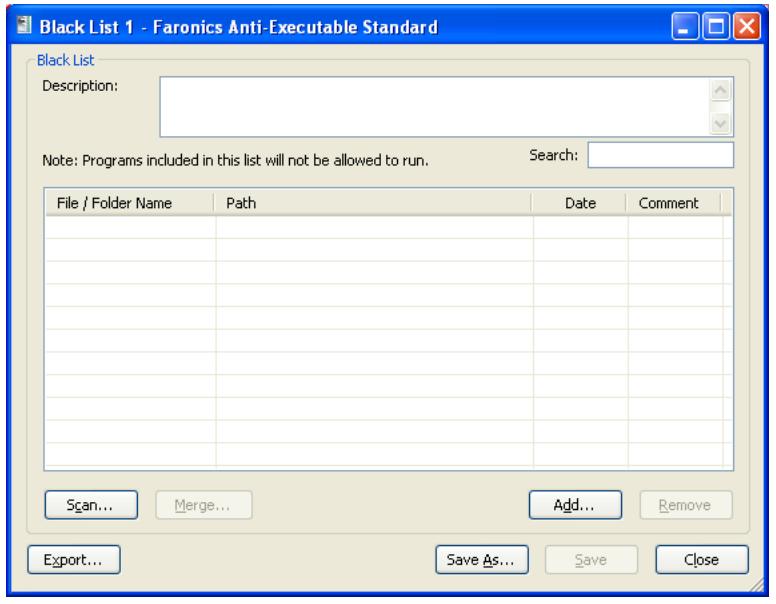
- Shift+ double-click the Anti-Executable icon in the System Tray. Alternatively, you can use the Ctrl+Alt+Shift+F10 hotkey. Specify the Administrator password to logon to Anti-Executable. Click the Black List tab. Click New. The Black List editor appears:
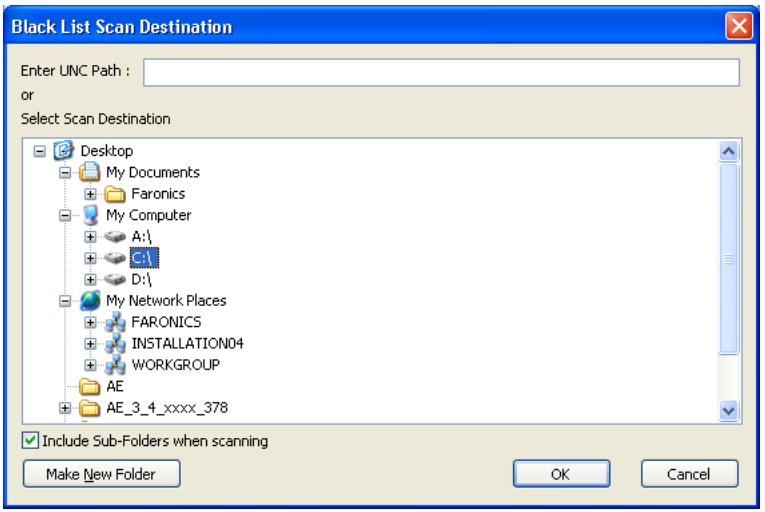
- To determine the available applications, click Scan, select a drive or directory. Use Ctrl+Click or Shift+Click to select multiple drives or directories. Alternatively, click My Network Places, browse and select a remote workstation. Click OK.
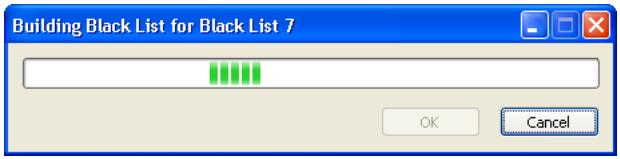
The Building Black List for... dialog appears to show the progress:
The Scan feature searches the selected location, and its subdirectories, for any executable files (files containing the extensions: .scr, .jar, .bat, .com, or .exe.). The duration of the scan depends on the location's storage capacity and number of executables found within.
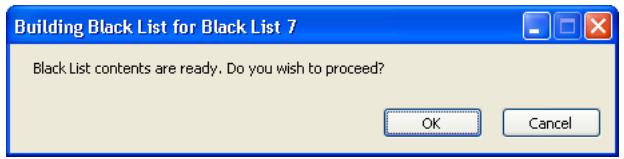
- Once the scan has finished, Anti-Executable asks to merge the results into the new Black List. Click OK.
-
A populated Black List appears. Folders and executables can be added on an individual basis. Click Add and select the folders or executables to be added to the new Black List. If a folder is added, the executables within that folder, and its sub-folders are blocked.
-
To remove a folder or executable, select it and click Remove. This does not remove the folder or executable from the system.
- To merge the folders or executables with an existing Black List, click Merge. The Open dialog appears. Select an existing Black List and click Open. The contents of the existing Black List are merged with the scanned list of files or executables. Click Save to save the Black List with the same name. Click Save As to save the merged Black List with a different name.
- To search for a particular folder or executable, enter one or more characters from the folder name or executable name in the Search field. The list is filtered based on the characters entered.
To sort the executables added by date, click the title of the Date column.
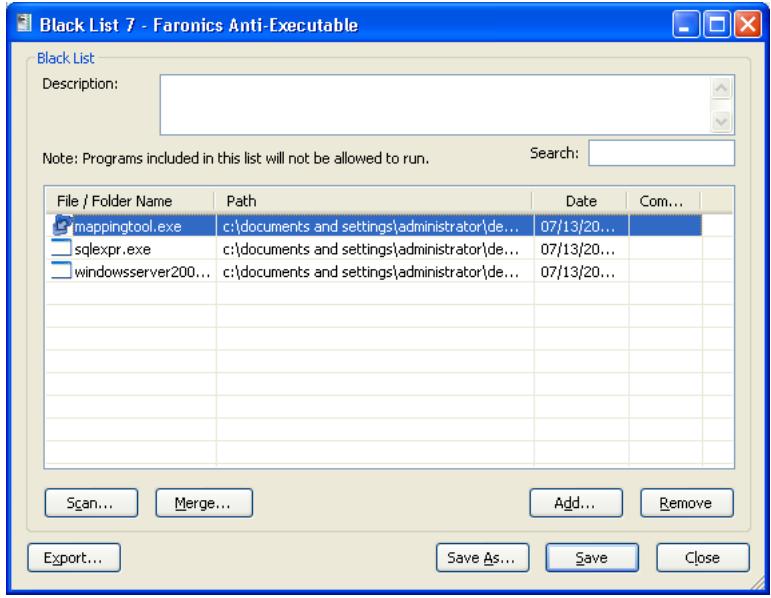
- Specify any comments for any applications by clicking the Comment column. A text prompt appears allowing for any additional information to be entered. A description can also be added for the entire list in the space provided at the top of the Black List editor.
- Click Save to save the Black List. Click Save As to save under a different name. Black Lists are saved in a proprietary format with the extension .aebl. Click Export to export a Black List to
XML or CSV format. Black Lists in XML and CSV format can be opened and edited through Windows Explorer but can not be set as the Active Black List.

For more information about an executable, right-click the executable and select Google Search. The default browser is launched and the name of the executable is searched on www.google.com.
Activating a Black List
After a Black List has been created, it can be set as the Active Black List by clicking the Browse button in the Active Black List section of the Black List tab. The browse button launches an Open dialog. Browse to the Black List and click Open.
Adding Executables or Folders to an Existing Black List using the Black List Editor
In addition to populating a new Black List, the Scan feature allows executables from a specific location to be added to an existing Black List. This location can be local, external, or on a network.
- Click Scan to launch the Black List Scan Destination dialog. This will search the selected location for any executables. Once the scan has finished, the results can be merged into the Black List.
- Individual folders and executables can be added by clicking Add.
- To open a previously created Black List, click Open and browse to the Black List file. Make any changes necessary with Add, Remove, Scan or Merge buttons. These buttons add and remove executables and folders from the Black List. They do not modify actual files or folders on the machine.
- Click the Black List Only button to delete the executables from the White List and ensure that they are a part of only the Black List.
- Multiple Black Lists can be opened and edited at the same time. Only one Black List can be set as an Active Black List at a time.
Users Tab
Anti-Executable uses Windows user accounts to determine the features available to users. There are two types of Anti-Executable users:
- Administrator User — Can manage White Lists, Black Lists, Users, and Setup and can uninstall Anti-Executable.
- Trusted User - Can create, configure, and set the Active White List or the Active Black List. They are prohibited from uninstalling Anti-Executable and cannot manage Users or Setup.
By default, the Windows user account which performs the Anti-Executable installation becomes the first Anti-Executable Administrator User. This Administrator User can then add existing Windows users to Anti-Executable.
Any user not listed by Anti-Executable is an external user who is subject to the executable launch limitations specified by the contents of the Active White List.
If an Anti-Executable Administrator or Trusted User attempts to open an unauthorized application while Anti-Executable is enabled, they will be shown a dialog with an option to Allow, Deny, or Allow and Add to White List.
Adding an Anti-Executable Administrator or Trusted User
All Anti-Executable users are existing Windows user accounts. However, all Windows user accounts do not automatically become Administrators or Trusted users. Windows user accounts that are not Administrators or Trusted Users are External users.
To add a user to Anti-Executable, perform the following steps:
- Click the Users tab at the top of the Anti-Executable window.
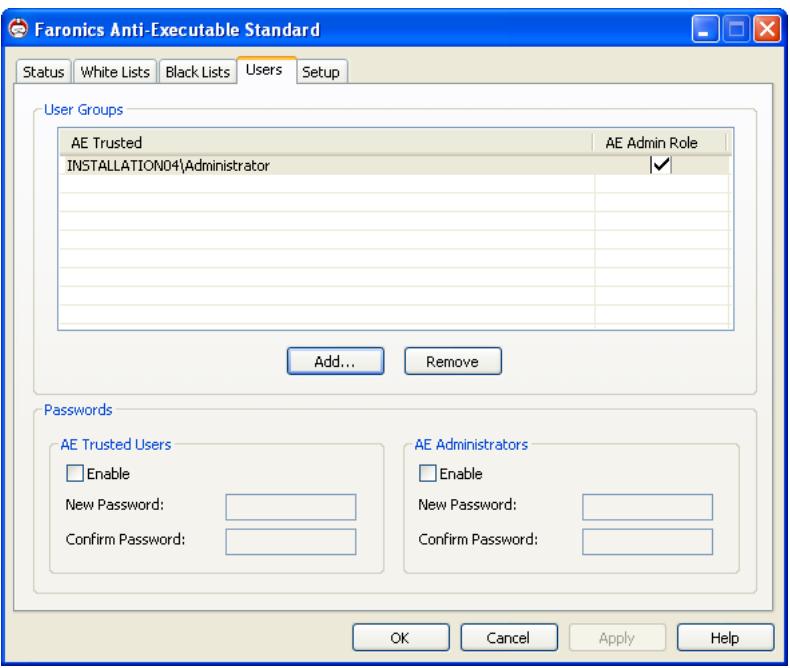
- Click Add to add a new user. Select the User icon from the list provided.
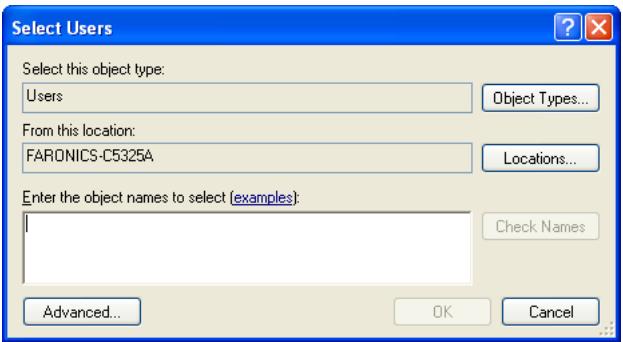
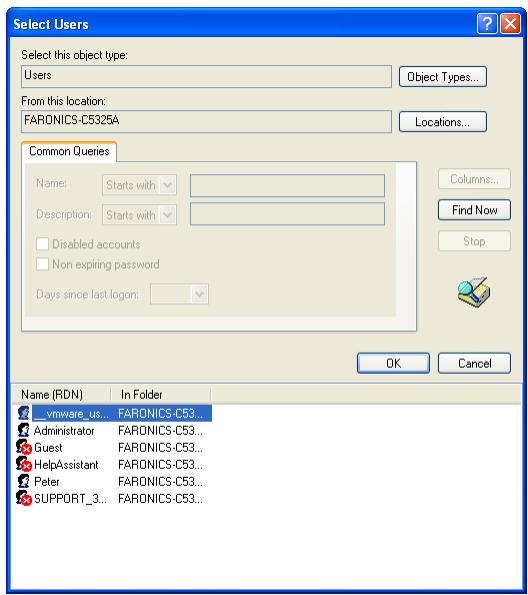
- If the list is empty, click Advanced > Find Now to display a list of available users. Domain administrators currently logged in can add other domain users. Click on a user name to add it to Anti-Executable's list and click OK.
- By default, each added user is an Anti-Executable Trusted User. If the new user is to be given administrative rights, specify them as an Anti-Executable Administrator by selecting the Anti-Executable Admin Role check box.
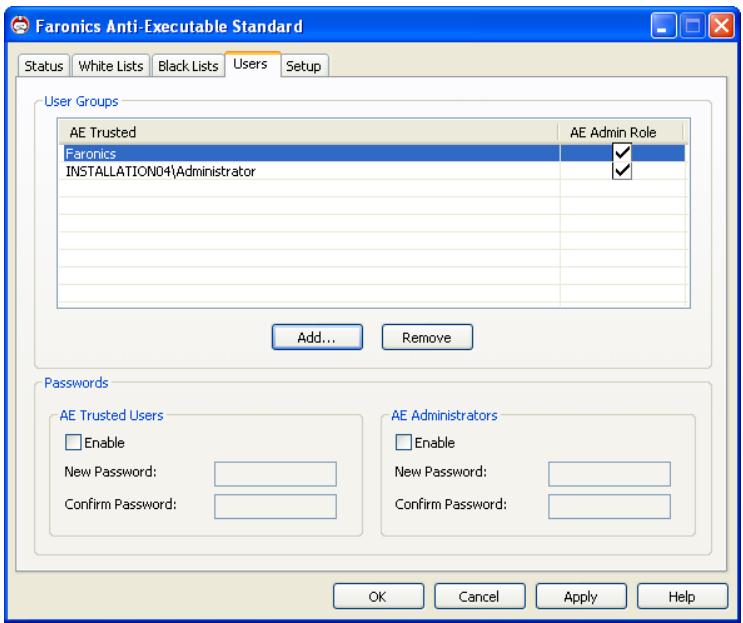
5. Click Apply when finished.
Removing an Anti-Executable Administrator or Trusted User
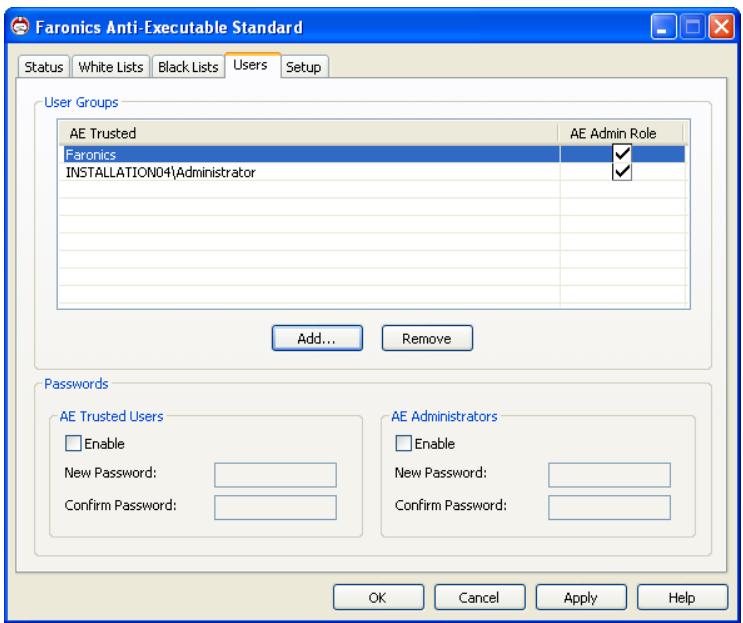
Click on the Users tab and select the user to be removed. Click Remove. This does not remove the user's Windows user account; the user has now become an external user.
Enabling Anti-Executable Passwords
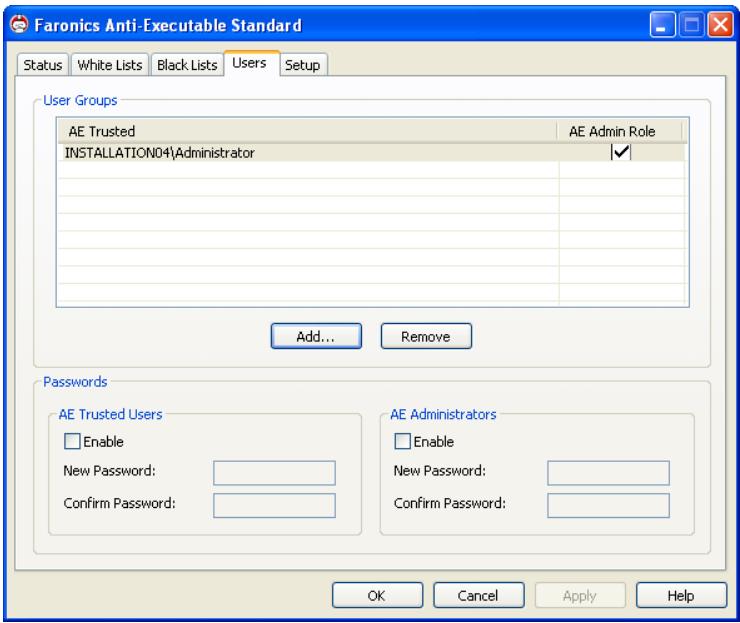
As an added layer of protection, Anti-Executable can attach a password to each user group. Passwords only apply to the members of the associated groups.
To specify a password, ensure the Enable check box is selected. Enter the password in the New Password and Confirm Password fields. Click Apply to save the changes.
Setup Tab
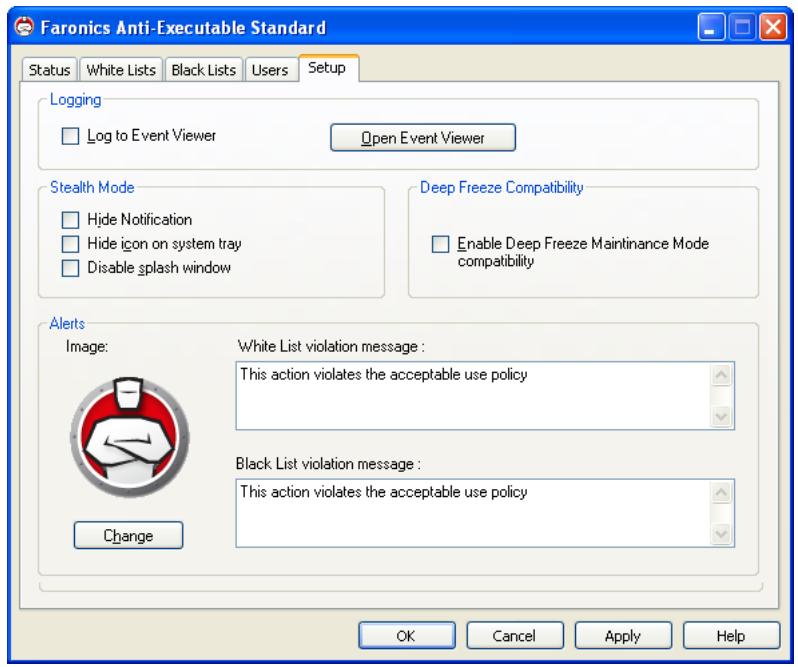
The Anti-Executable Administrator can setup Logging to log various user actions, apply various settings for Stealth Mode, set up Alerts and enable Deep Freeze Compatibility.
Setting Event Logging in Anti-Executable
Select Log to Event Viewer to log events to the Event Viewer. To view the logged events, click Open Event Viewer.
Anti-Executable Stealth Functionality
Stealth Mode is a group of options that control visual indication of Anti-Executable's presence on a system. Stealth Mode gives the option to the Administrator to hide the Anti-Executable icon in the Windows system tray, prevent the Alert from being displayed and prevent the splash screen from being displayed.
When Anti-Executable is not visible in the system tray, Administrators and Trusted users can launch Anti-Executable through the Ctrl + Alt + Shift + F10 hotkey.
Stealth functionality has the following options:
- Hide Notification — prevents the Alert from being displayed.
- Hide icon on system tray — hides the Anti-Executable icon in the system tray.
- Disable splash windows — disables the Anti-Executable splash window that is displayed before Anti-Executable is launched.
Deep Freeze Maintenance Compatibility

This feature is applicable only when Faronics Deep Freeze and Faronics Anti-Executable are installed on the computer.
The Deep Freeze Maintenance Mode Compatibility feature allows the Administrator to synchronize the Maintenance Modes of Deep Freeze and Anti-Executable.
By enabling the Enable Deep Freeze Maintenance Mode Compatibility check box, Anti-Executable will automatically enter Maintenance Mode when Deep Freeze enters Maintenance Mode.
By setting both Deep-Freeze and Anti-Executable to be in Maintenance Mode at the same time, any executable that is added to the computer, will not only be added to the Active White List, but will be retained by Deep Freeze once it freezes back the computer after the Maintenance Mode ends.
Anti-Executable will stay in Maintenance Mode until shortly before the Maintenance Mode of Deep Freeze ends. Once Anti-Executable exits Maintenance Mode, it will add any new or updated executable files to the Active White List. When Deep Freeze exits its Maintenance Mode, it will reboot the computer Frozen with the updated White List.

It is not possible to set Anti-Executable to Maintenance Mode if Deep Freeze Maintenance Mode Compatibility is enabled and Deep Freeze status is Frozen. This is because, changes made to the computer will be lost on reboot.
If Anti-Executable is disabled, and Deep Freeze enters Maintenance Mode, Anti-Executable will continue to be disabled.
Maintenance periods triggered by Deep Freeze will take precedence over any other Maintenance periods scheduled on Anti-Executable.
For more information on Deep Freeze, visit http://www.faronics.com/deepfreeze.
Customizing Alerts
Anti-Executable Administrators can use the Alerts pane to specify the message and an image that appears whenever a user attempts to run an unauthorized executable. The following messages can be set:
- White List violation message — displayed when a White List is violated.
- Black List violation message — displayed when a Black List is violated.
Enter a message or use the default message provided. This text will be displayed in all alert dialogs whenever a user attempts to run an unauthorized executable. Choose a bitmap image by clicking Change and browsing to a file. The selected image will accompany the text in the alert dialog. Alert messages display the following information:
- Executable location
- Executable name
- Default or customized image
- Default or customized message
Uninstalling Anti-Executable
This chapter explains the procedure to uninstall Anti-Executable.
Topics
Uninstalling using the Setup Wizard
Uninstalling using the Setup Wizard

Anti-Executable can only be uninstalled when logged in as a user with Anti-Executable Administrator privileges and when Anti-Executable Protection is set to Disable.
Complete the following steps to remove Anti-Executable:
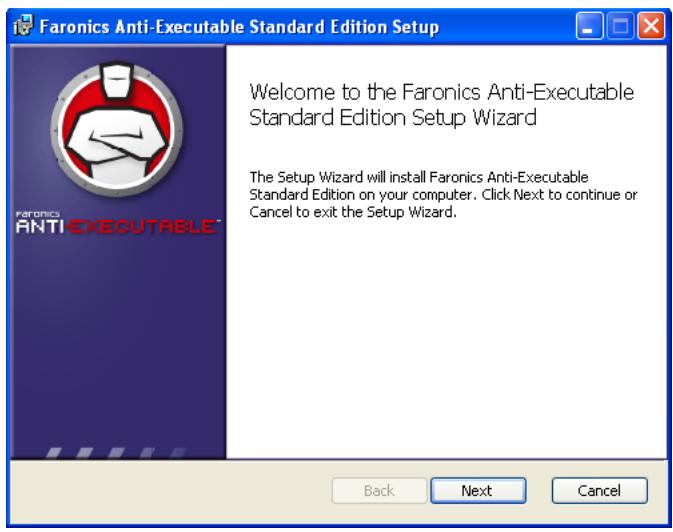
- Double-click the .msi file used to install Anti-Executable. The Installation Wizard is displayed.
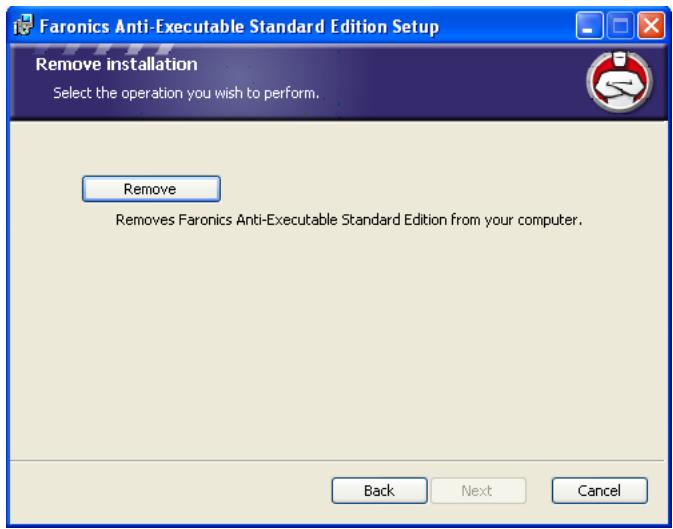
- Click Remove followed by Next.
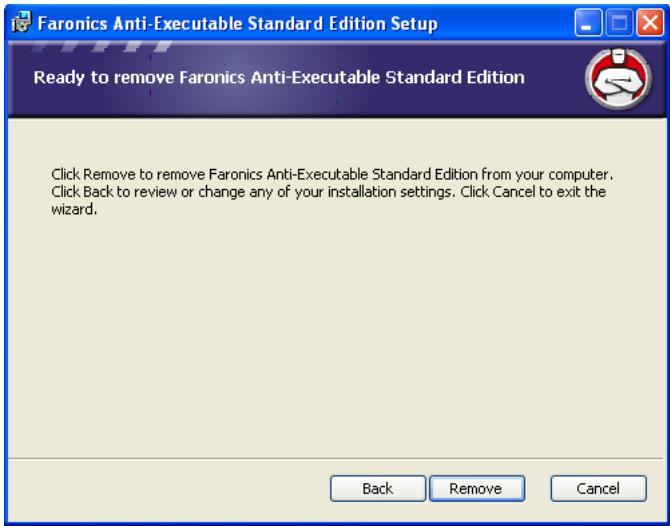
- Click Remove.
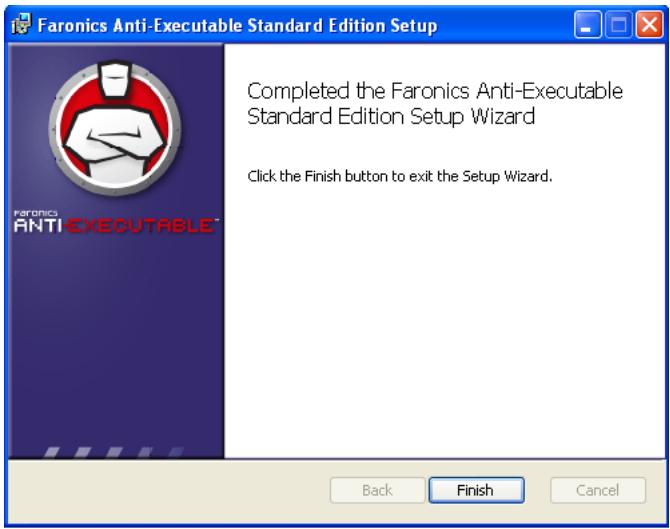
- Click Finish to complete the uninstall.
- Following a successful uninstall, a restart is required. Click Yes to restart immediately or No to restart later.
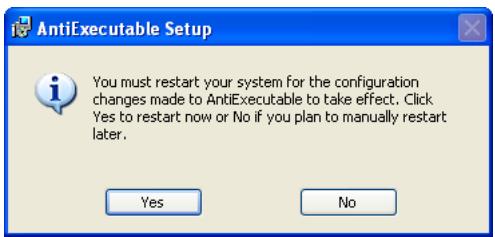

An immediate restart is recommended following uninstall.