
DEVICE FILTER MAC - Device Security FARONICS - Free user manual and instructions
Find the device manual for free DEVICE FILTER MAC FARONICS in PDF.



| Product Type | Device Security Software |
| Brand | FARONICS |
| Model | DEVICE FILTER MAC |
| Required Operating System | Mac OS X v10.3.0 or later |
| Processor Compatibility | Intel and PowerPC (universal application) |
| Recommended RAM | 256 MB RAM |
| Installation Type | .pkg package (CD-ROM or .dmg download) |
| Main Functions | Control of USB, FireWire, network (Ethernet, Wi-Fi, Bluetooth, infrared), cameras, CD/DVD, stealth mode, logging, user management |
| ARD Integration | Apple Remote Desktop 2.2 or later |
| Number of Administrator Users | Maximum 4 (1 primary non-removable) |
| Device Mounting Options | Deny, read-only, read/write, with capacity limit |
| Logging | USB, FireWire, network activity with condense |
| Stealth Mode | Hiding menu bar icons |
| Temporary Authorization | Single mount or time-limited |
| Remote Control | Via command line (CLI) or ARD tasks |
| Update | Online check via Preferences panel or ARD |
| Uninstallation | Via Preferences panel, requires restart |
Frequently Asked Questions - DEVICE FILTER MAC FARONICS
User questions about DEVICE FILTER MAC FARONICS
0 question about this device. Answer the ones you know or ask your own.
Ask a new question about this device
Download the instructions for your Device Security in PDF format for free! Find your manual DEVICE FILTER MAC - FARONICS and take your electronic device back in hand. On this page are published all the documents necessary for the use of your device. DEVICE FILTER MAC by FARONICS.
USER MANUAL DEVICE FILTER MAC FARONICS
This page intentionally left blank
Technical Support
Every effort has been made to design this software for ease of use and to be problem free. If problems are encountered, contact Technical Support:
Email: support@faronics.com
Phone: 800-943-6422 or 604-637-3333
Hours: 7:00 am to 5:00pm (Pacific Time)
Contact Information
Web: www.faronics.com
Email: sales@faronics.com
Phone: 800-943-6422 or 604-637-3333
Fax: 800-943-6488 or 604-637-8188
Hours: 7:00 am to 5:00pm (Pacific Time)
Address: Faronics Technologies USA Inc.
Suite 170 - 2411 Old Crow Canyon Road
San Ramon, CA 94583
USA
Faronics Corporation
620 - 609 Granville St.
Vancouver, BC V7Y 1G5
Canada
Last modified: August, 2008
© 1999 - 2008 Faronics Corporation. All rights reserved. Faronics, Deep Freeze, Faronics Core Console, Faronics Anti-Executable, Faronics Device Filter, Faronics Power Save, Faronics Insight, Faronics System Profiler, and WINSelect are trademarks and/or registered trademarks of Faronics Corporation. All other company and product names are trademarks of their respective owners.
This page intentionally left blank
Contents
Device Filter Overview 7
About Device Filter 7
About Apple Remote Desktop (ARD) 7
Command Line Control Capability 7
System Requirements. 7
About Faronics 7
Installing Device Filter 8
Installing Using a Customized Device Filter Installer 8
Installing Using the Basic Device Filter Mac Installer 8
Installing via Apple Remote Desktop 8
Installing Over Previous Versions 8
Uninstalling Device Filter 8
Using the Device Filter Preference Pane 9
Creating the First Device Filter User 9
Start Tab. 10
FireWire Tab. 11
USB Tab. 12
Network Tab. 13
Admin Tab. 14
Logging Tab 15
Users Tab. 17
Device Filter Icons. 18
Checking for Software Updates 18
Appendix I: Device Filter Assistant & Customizing the Installer 19
Appendix II: Apple Remote Desktop Integration Tasks 26
Using and Editing Tasks 27
Adding Targeted Computers to the Task List 28
ARD Sample Output 30
Sample Command Line Script 30
This page intentionally left blank
Device Filter Overview
About Device Filter
Unregulated connectivity can cause a multitude of security, productivity, and policy challenges that consume valuable computer and human resources. Device Filter Mac solves this problem by enabling system administrators to effectively control device connectivity at an enterprise level. Anything from an iPod to portable applications, or a modem connected via Bluetooth can now be managed to ensure that no unauthorized data transfers or connections take place. Device Filter Mac even offers seamless integration with Apple Remote Desktop (ARD), allowing administrators to deploy a customized device connectivity configuration package to single or multiple computers
About Apple Remote Desktop (ARD)
Apple Remote Desktop is Apple Computer's complete desktop management solution for Mac OS X. Faronics does not provide sales or technical support information for Apple Remote Desktop. More information regarding ARD can be found at http://www.apple.com/remotedesktop.
Command Line Control Capability
Tasks referred to in Appendix II for use with ARD can also be used in other third-party command line control programs.
System Requirements
Device Filter requires Mac OS X v10.3.0 and up.
Device Filter is a Universal application (Intel and PPC compatible).
ARD integration requires Apple Remote Desktop version 2.2 or later.
A minimum of 256 MB RAM is recommended.
About Faronics
Faronics delivers innovative solutions that help manage, simplify, and secure complex IT environments. Our products ensure 100% workstation availability, and have dramatically impacted the day-to-day lives of thousands of information technology professionals. Fueled by a customer-centric focus, Faronics' technology innovations benefit educational institutions, healthcare facilities, libraries, government organizations and corporations. Faronics' award-winning Deep Freeze preserves computer configurations, providing total system consistency while allowing users complete, unrestricted workstation access. Faronics Anti-Executable prevents unauthorized software from being installed or run, and Power Save lowers energy costs with intelligent energy management. Incorporated in 1996, Faronics has an office in the USA and Canada.
Installing Device Filter
Installation and configuration of Device Filter requires administrative access.
Device Filter is distributed on a CD-ROM, or as a downloadable .dmg file via the Internet.
Installing Using a Customized Device Filter Installer
A customized Device Filter Installer can be created using the Device Filter Assistant. Refer to Appendix I for more information.
Installing Using the Basic Device Filter Mac Installer
To install Device Filter on a single computer, perform the following steps:
- Double-click the file Device Filter pkg to begin the installation process. (Depending on the configuration, the file extension may not be visible.)
- Follow the steps presented, and read and accept the license agreement.
- Click Install and Device Filter Mac is installed on the computer. It will be accessible as a preference pane from within System Preferences.
The computer requires a restart to complete the installation.
Installing via Apple Remote Desktop
Device Filter is distributed as a standard installation package file and can therefore be installed over a network using Apple Remote Desktop's Install Packages command. Refer to the Apple Remote Desktop user guide for more information. Refer to Appendix II for more information about controlling Device Filter over a network using Apple Remote Desktop.
Installing Over Previous Versions
It is recommended that previous versions of Device Filter be uninstalled before installing a newer version, though this is not necessary.
Uninstalling Device Filter
To uninstall Device Filter, click the lock icon to unlock the preference pane. A Device Filter user name and password will be required.
Click the icon and select Uninstall from the action menu.
Follow the steps presented; a restart is required to complete the uninstall process.

If Device Filter is installed on a machine that is also running Deep Freeze, the Mac must be in a Thawed state for the uninstall to be successful. If Deep Freeze is in a Frozen state, Device Filter will refuse the uninstall command and prompt the user with the reason.
Using the Device Filter Preference Pane
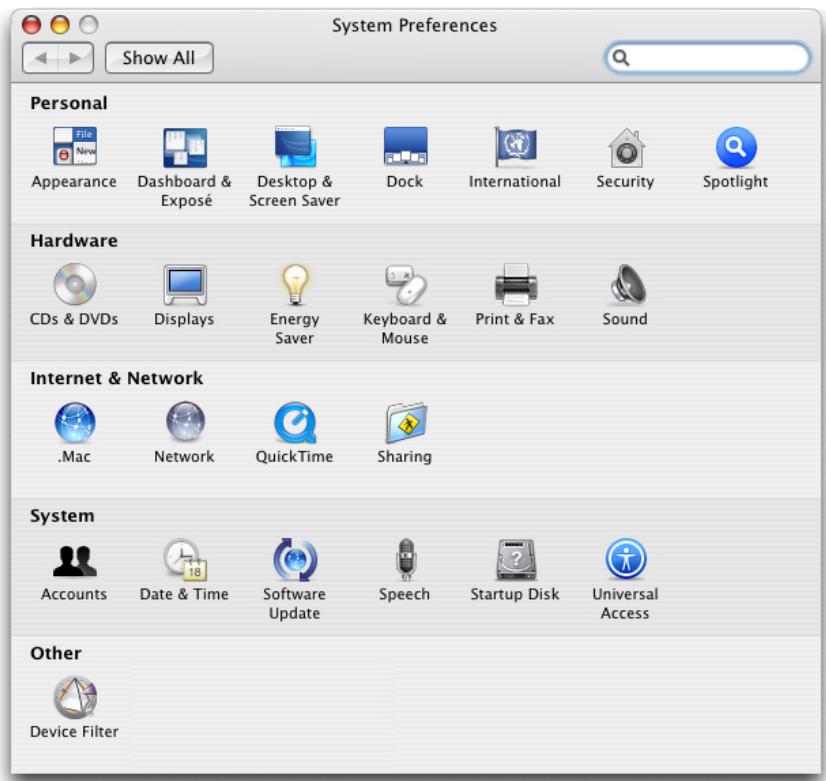
To launch the Device Filter preference pane, open System Preferences and click the Device Filter icon listed under Other, as shown:
Creating the First Device Filter User
Unless you have specified a first user prior to installation from within the Device Filter Assistant, the first Device Filter user will have to be set up the first time the preference pane is accessed.
To configure Device Filter, click the lock icon to unlock the preference pane. (When the changes are complete, click the icon again to lock the screen and prevent any other changes.)
When the lock is clicked for the first time, the following dialog appears:
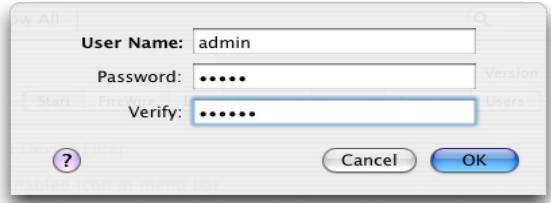
Enter a User Name and Password, verify the password, and click OK.
The first user added is considered to be the administrative user of Device Filter. Only the first Device Filter user can add, edit, and/or delete users, and this user cannot be deleted.
Up to three other Device Filter users can be created on the Users tab. These users are the Device Filter Administrators. Device Filter users must input their usernames and passwords to unlock the preference pane and alter the settings of the program.
Start Tab
The Start tab is where Device Filter can be enabled, and a number of other options including "stealth mode" and camera/CD/DVD control can be configured.
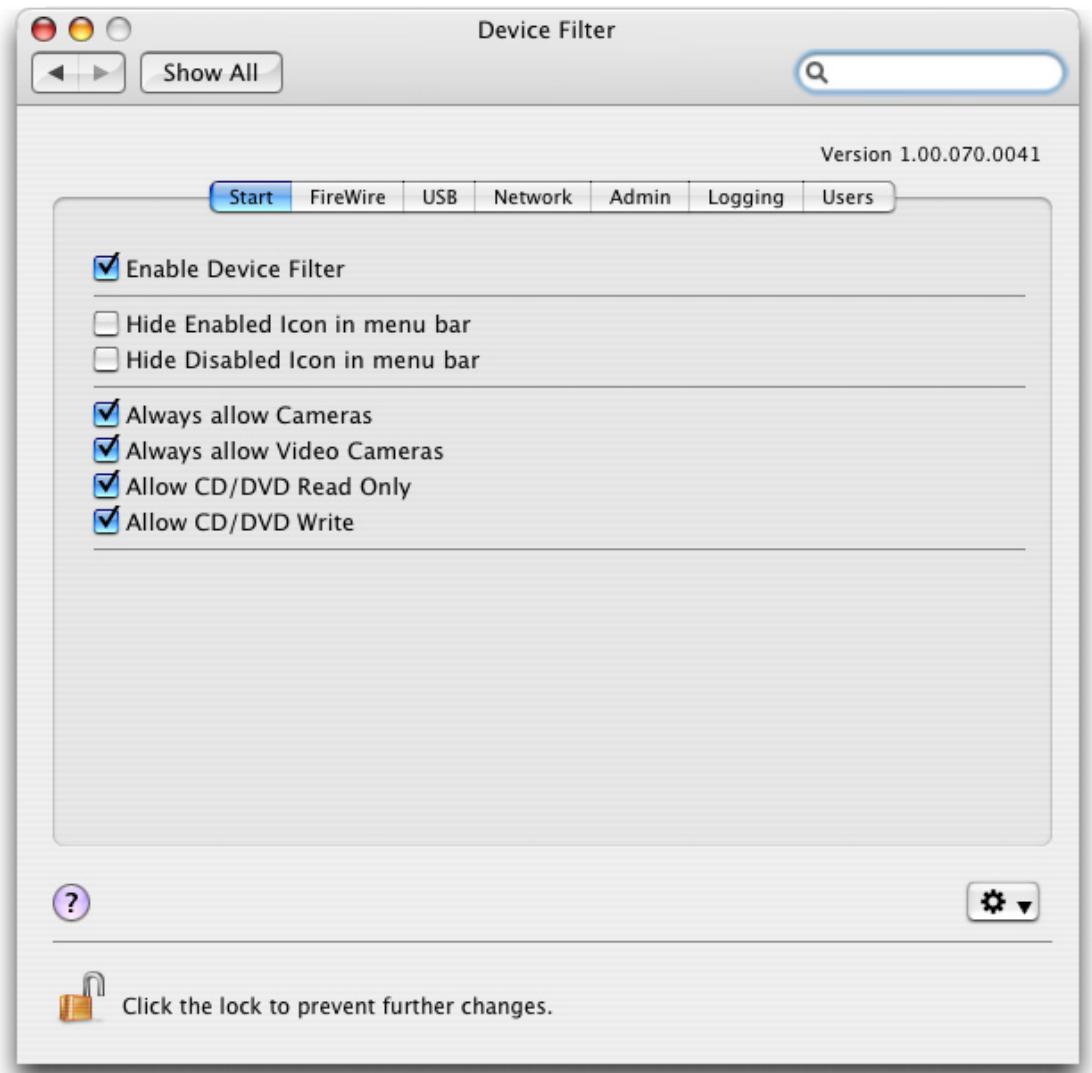
Check the Enable Device Filter option to activate its controls.

Once Device Filter is enabled, the changes in configuration are immediate; no reboot is needed for them to be applied. The only exception is the enabling/disabling of the infrared (IR) port. This change does require a restart to take effect.
Stealth Mode
To hide the visual presence of Device Filter from the user, check the Hide Enabled Icon in menu bar and/or Hide Disabled Icon in menu bar options.
Camera and CD/DVD Control
To allow cameras or video cameras, check the preferred option.
To allow users to access CDs and DVDs in either Read Only or Read/Write modes, check the preferred option. These options refer to both internal and external CD/DVD drives.
FireWire Tab
The FireWire tab configures how a FireWire (IEEE 1394) device can be mounted on a computer.
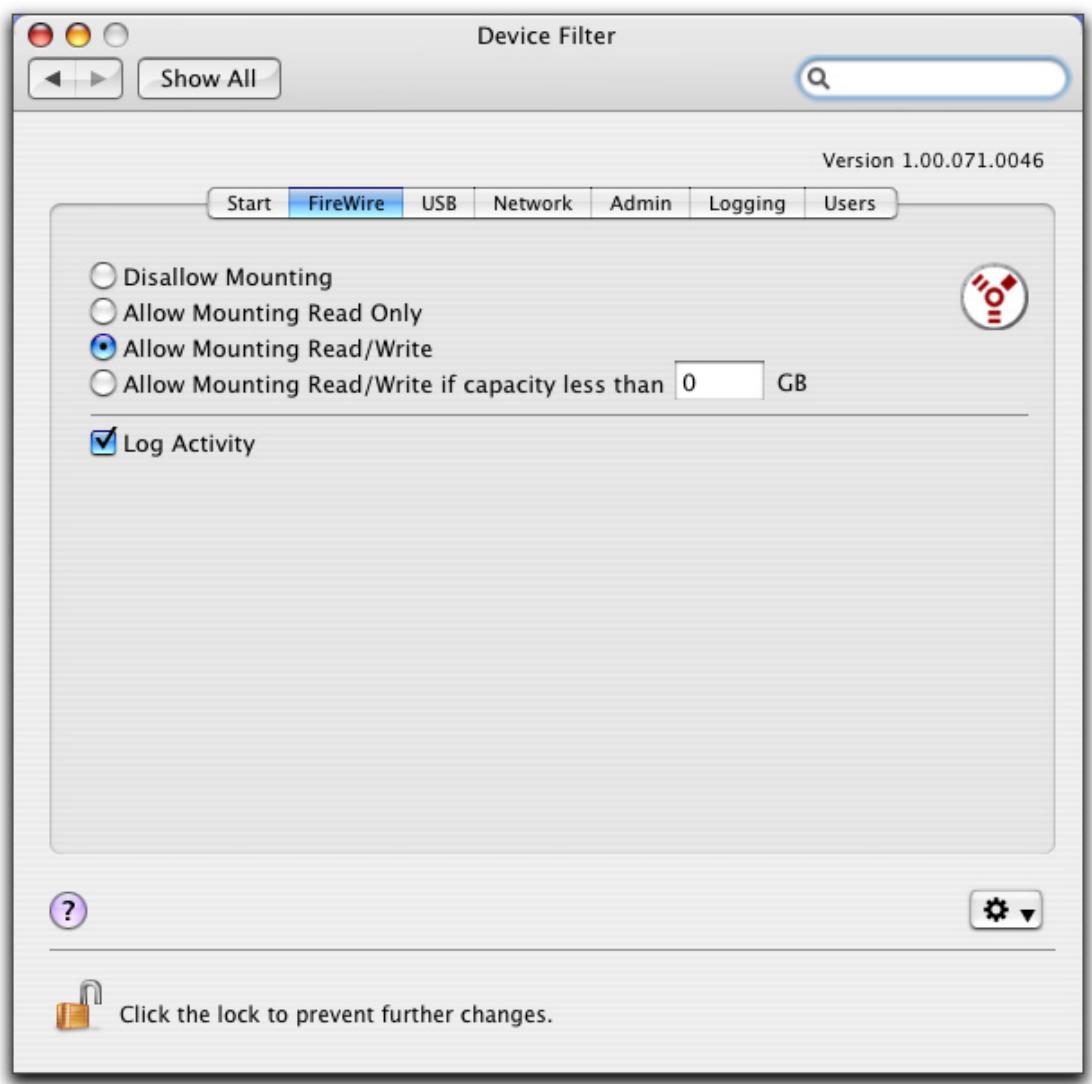
To disallow FireWire devices from mounting or to choose whether devices can be mounted as either Read Only or Read/Write, select the preferred option.
If a certain maximum size of FireWire device is required, input the preferred size (in GB) in the field provided.
To log FireWire device activity, check the Log Activity option. This log is displayed in the Logging tab of the preference pane and within the activity log file at the location specified in the Logging tab.

FireWire disks that are not ejected properly will not mount as Read Only. FireWire CD/DVD drives are controlled from the corresponding options on the Start tab
USB Tab
The USB tab configures how a USB device can be mounted on a computer.
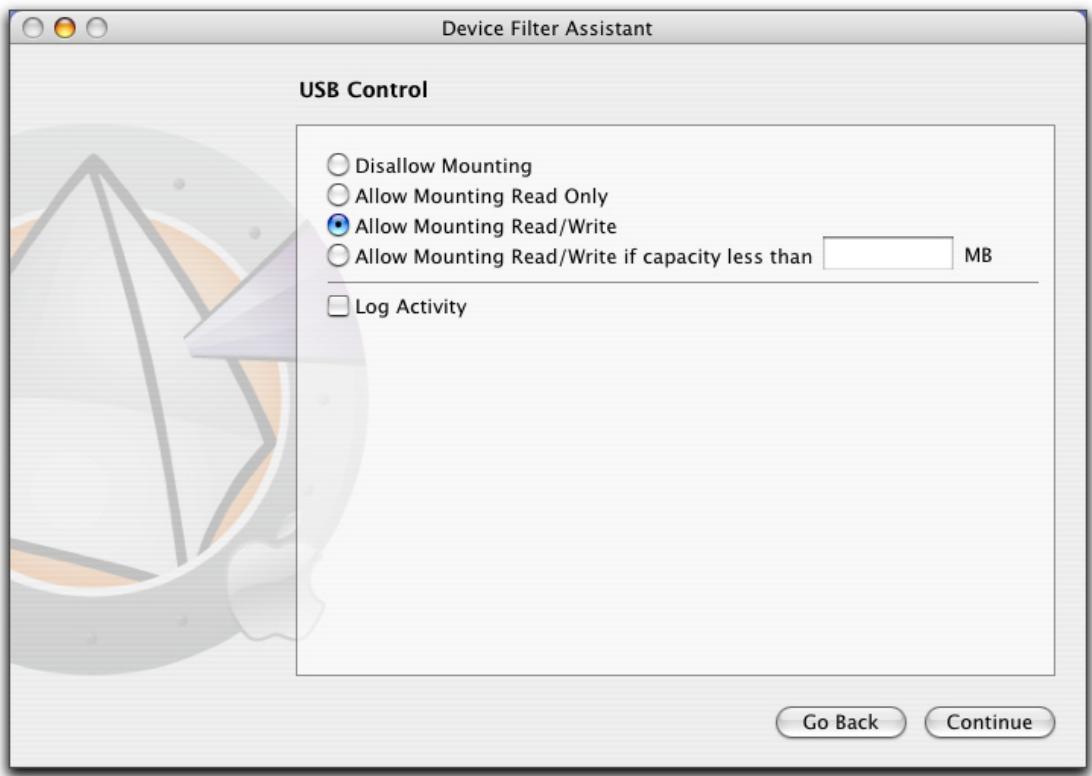
To disallow or allow USB devices from mounting or to choose whether devices can be mounted as either Read Only or Read/Write, select the preferred option.
If a certain maximum size of USB device is required, input the preferred size (in MB) in the field provided.
To log USB activity traffic, check the Log Activity option. This log is displayed in the Logging tab of the preference pane and within the activity log file at the location specified in the Logging tab.

USB peripherals such as keyboards and mice are not affected by Device Filter controls. USB CD/DVD drives are controlled from the corresponding options on the Start tab..
Network Tab
The Network tab configures what network settings and connections are enabled on the workstation.
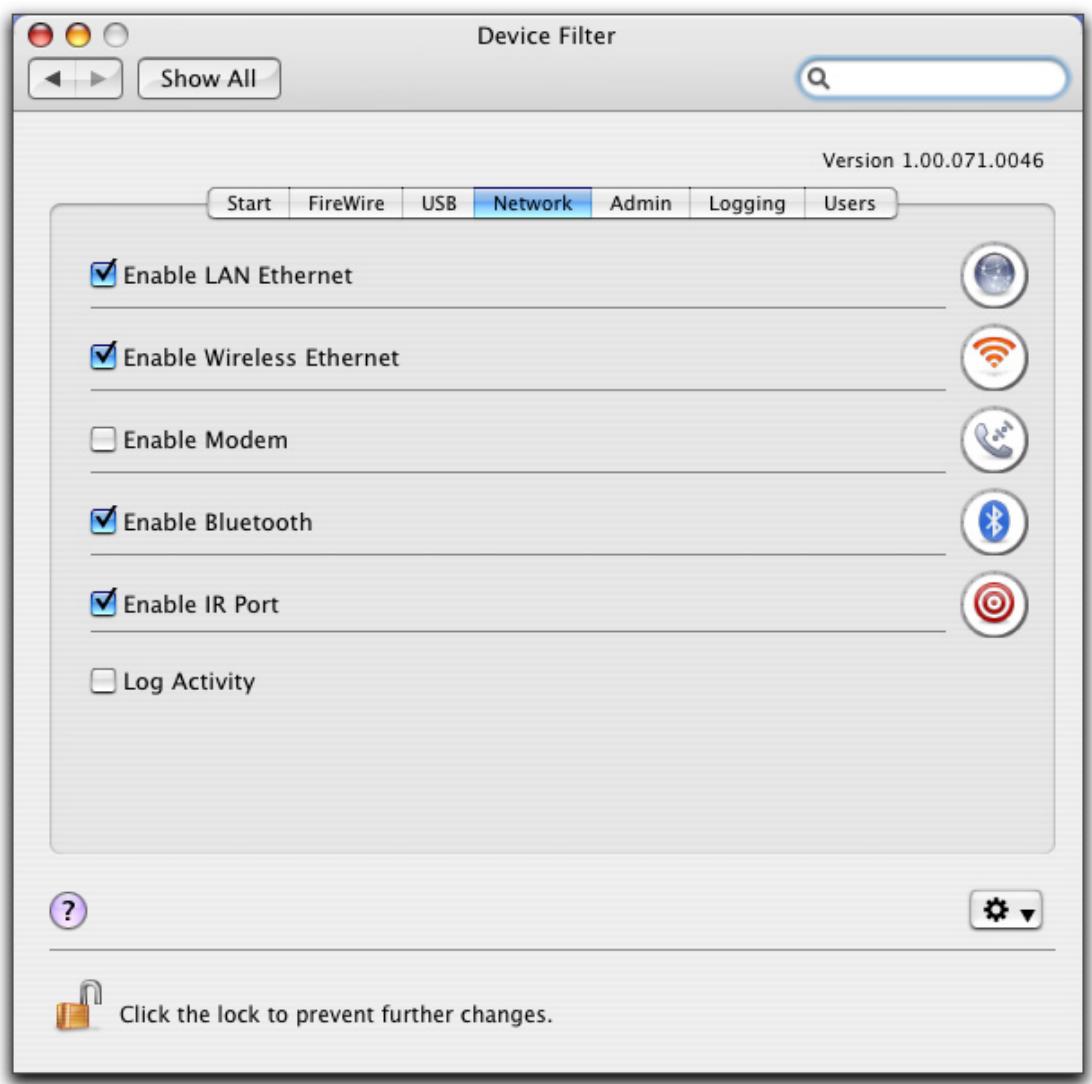
Choose from the following options to designate what network settings and connections will be enabled on a computer:
LAN Ethernet
Wireless
Modem
- Bluetooth (modem only)
- IR (Infra-red) Port: if this option is chosen, a restart is required for it to become enabled/disabled
To log Network connection activity, check the Log Activity option. This log is displayed in the Logging tab of the preference pane and the activity log file.
Admin Tab
The Admin tab is for enabling specific authorization options for storage devices.
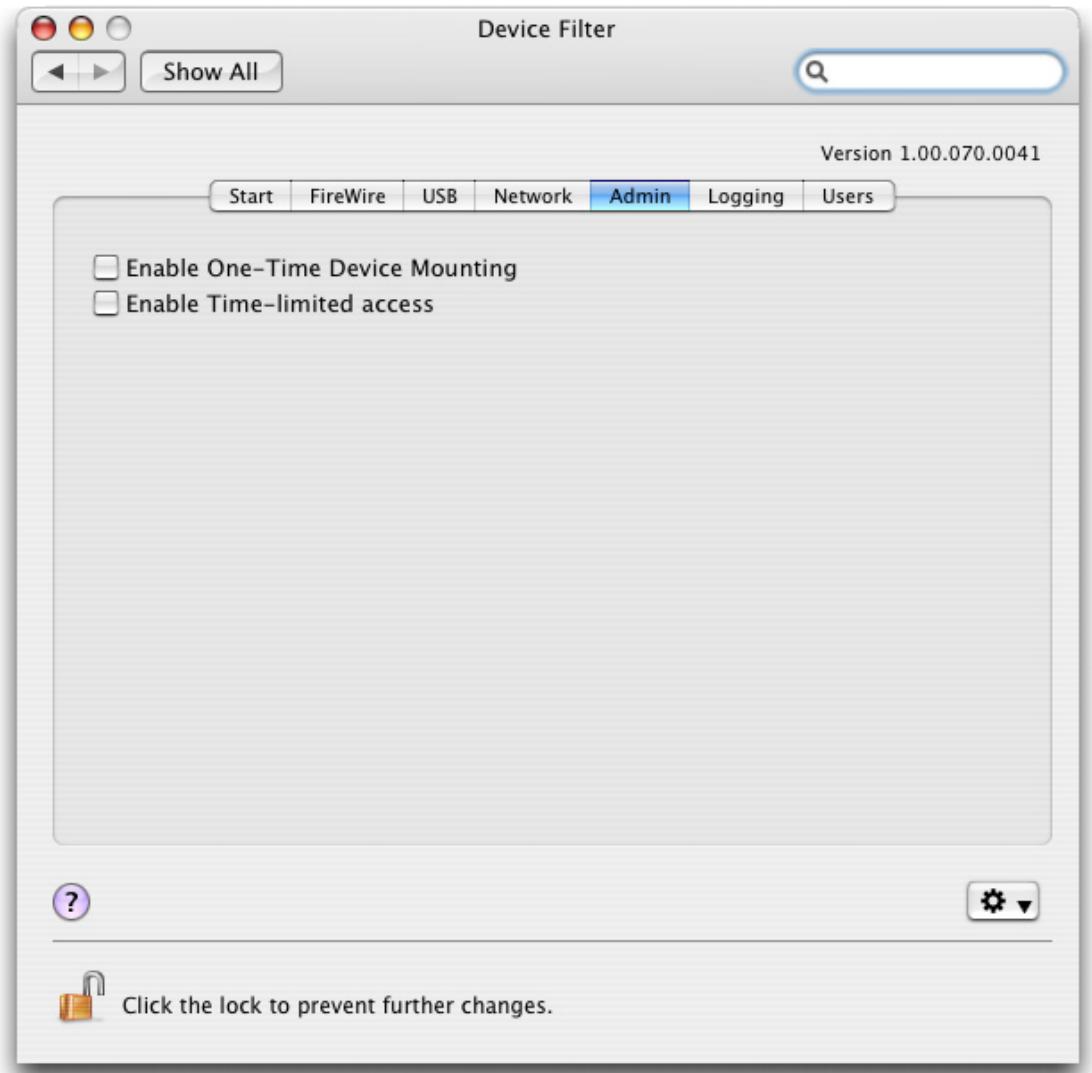
To enable an otherwise disallowed device for one-time use only, check Enable One-Time Device Mounting. To enable an otherwise disallowed device for a specified amount of time, check Enable Time-limited access. If either the above options are configured, a dialog box will appear when a disallowed device is connected to the workstation. The user must enter a Device Filter username and password to continue.
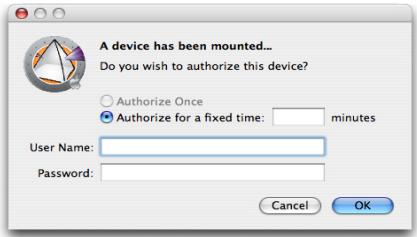
For timed-access, a number of minutes must be entered into the corresponding field to authorize the device. A warning will appear to the user two minutes before the timed-access is set to expire.
Logging Tab
The Logging tab allows administrators to view the activity of the specified devices/connections and to designate other logging options. If the Log Activity option is chosen on the FireWire, USB, and/or Network tabs, the Logging tab displays this activity.
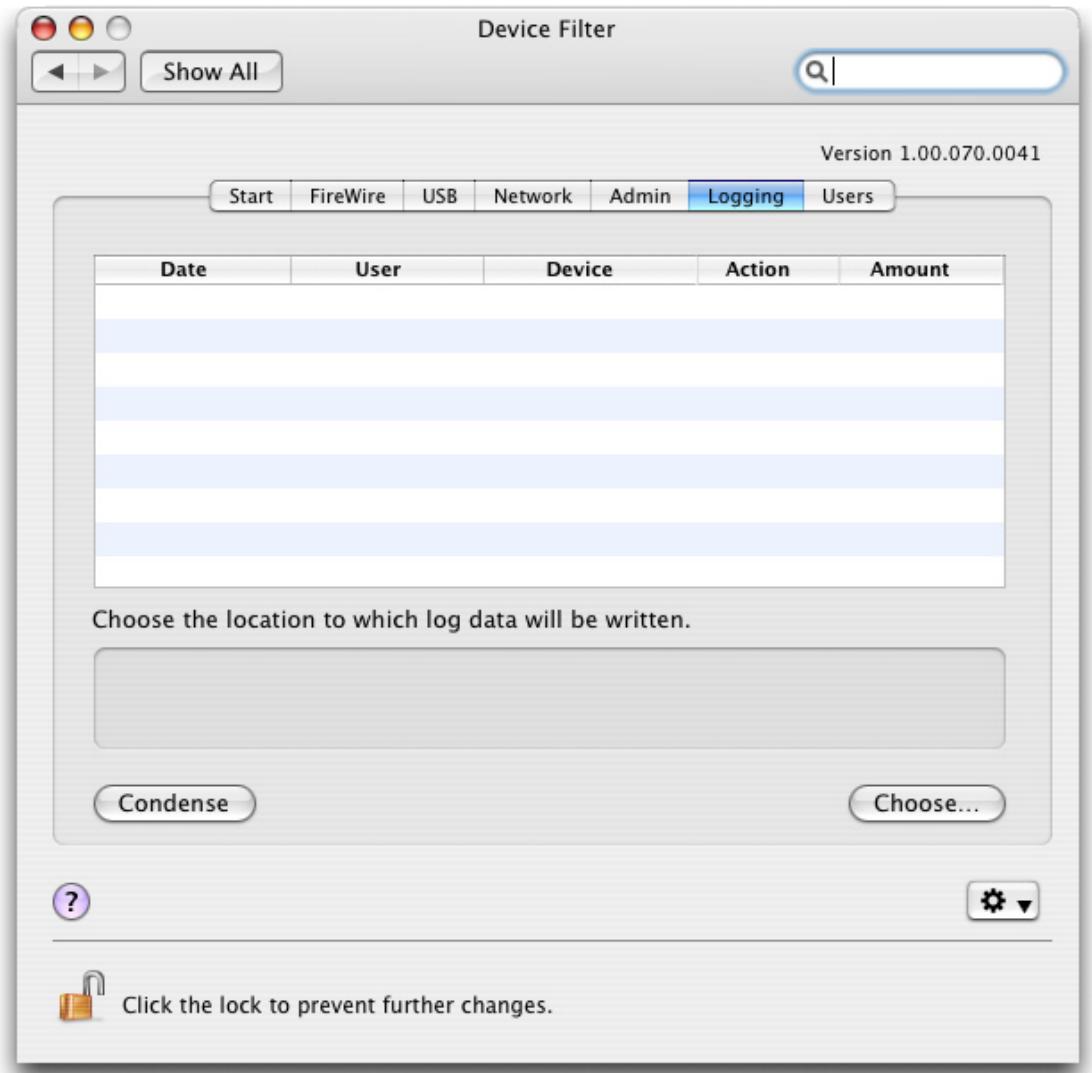
The logging data can be viewed either from within the tab or via a Device Filter activity log file.
To choose the name of the activity log file and the location where the file will be written (if this was not pre-determined by using the Device Filter Assistant), click Choose, enter a file name and browse to the preferred save location.

If an activity log file location is designated with the Device Filter Assistant and that location does not exist on the workstation, logging will be disabled upon install and a warning dialog box will prompt the user to enter a new location for this file.
Also, if you are running Device Filter on a computer that has Deep Freeze installed, the activity log file must be saved on a Thawed partition or the log data will not be retained after restarts.
Device Filter logs information and groups it into columns as follows:
- Date displays the date of activity
- User displays the local user under whose account the activity took place
Device displays the type of connection or name of device
Action displays whether the action was incoming, outgoing, Read or Write
Amount displays the amount of data activity in kilobytes (K)
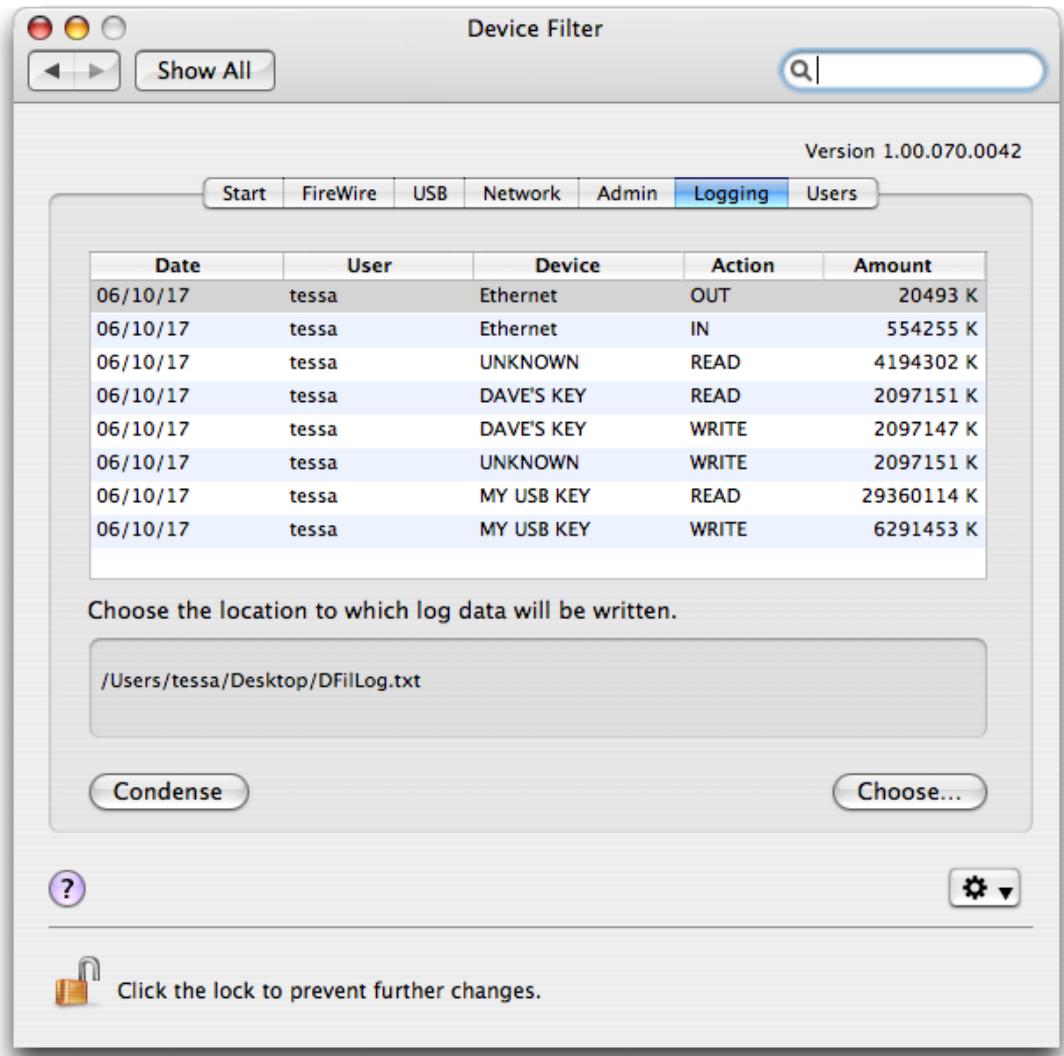
To combine entries which have logged the same date, action, user and device (thus making the log file smaller), click Condense.
Note: Condensing the activity log file can be done on an ongoing basis if desired. New data will be incorporated into the condensed log file.

To clear old data from the Logging window, either erase or rename the existing activity log file. A new, empty activity log file (with the previously specified name) will be created, and the Logging window will display the activity that is logged in this new file.
Users Tab
The Users tab is for adding, deleting, and editing users. Device Filter users are the administrators of the program and have unique usernames and passwords. There can be a maximum of four Device Filter users.
The first user added is considered to be the administrative user of Device Filter. Only the first Device Filter user can add, edit, and/or delete users, and this user cannot be deleted.
Device Filter users must input their usernames and passwords to unlock the preference pane and alter the settings of the program.
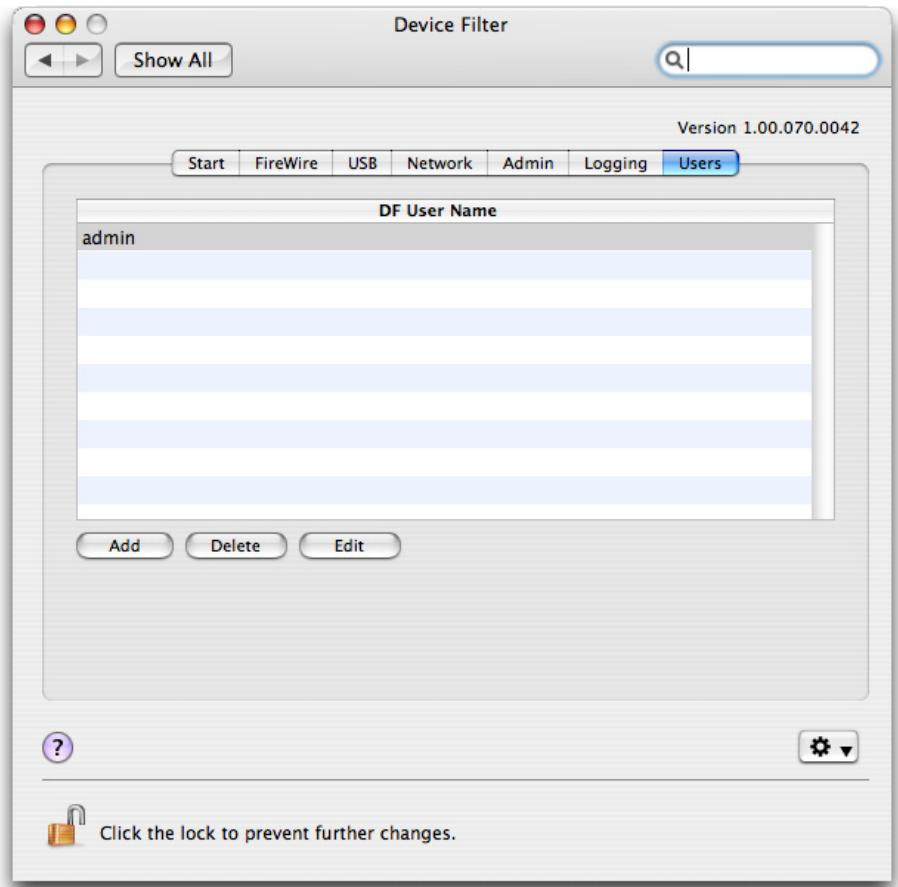
Adding a User
To add a user, click Add. In the dialog that appears, enter the new user's name and password, and confirm the password.
Click OK and the new user appears in the Users tab.
Deleting a User
To delete a user, select the preferred user name and click Delete.
The first user added is considered to be an administrative user of Device Filter. Only this admin user can add, edit, and/or delete users, so this user cannot be deleted.
Editing a User
To edit a user, click Edit. In the dialog that appears enter the new username and/or password, and confirm the password.
Click OK and the user information is updated.
Device Filter Icons
When Device Filter is installed, the Device Filter icon will appear in the menu bar.
The Enabled icon indicates that Device Filter control is active.
The Disabled icon indicates that Device Filter control is deactivated.
Checking for Software Updates
To check if the installed version of Device Filter is the most current one, click the icon and choose "Check for Updates..."
Your default browser will load with a page stating if your version is up to date or if there is a more current one available for download. Follow the links as necessary.
Alternatively, you can check to see if you are running the most current version of Device Filter Mac via the checkForUpdates task in Apple Remote Desktop.
Appendix I: Device Filter Assistant & Customizing the Installer
Device Filter Assistant can be used to create customized Device Filter installation packages and allows for the creation of global settings for a multiple workstation environment. Device Filter Assistant can also directly install Device Filter specific Saved Tasks into the Apple Remote Desktop (ARD) console on the current system. ARD tasks are not part of the customized Device Filter installation package. Neither ARD nor the ARD agent can be running in order for the task installation to be successful.
To run Device Filter Assistant, complete the following steps:
- Double-click the program icon to open Device Filter Assistant. The Introduction screen appears:
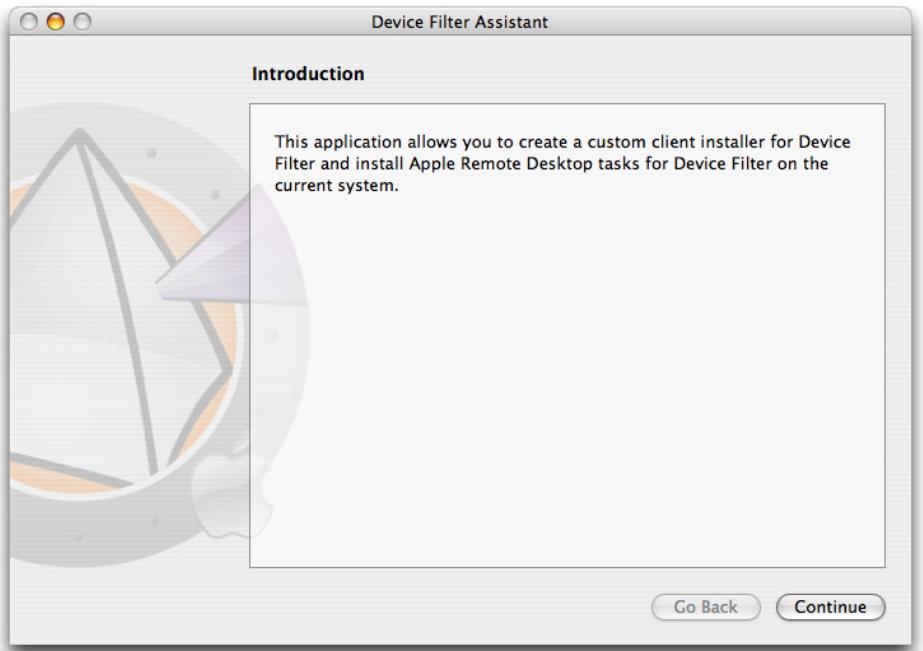
- Click Continue. The Device Filter Tasks screen appears:
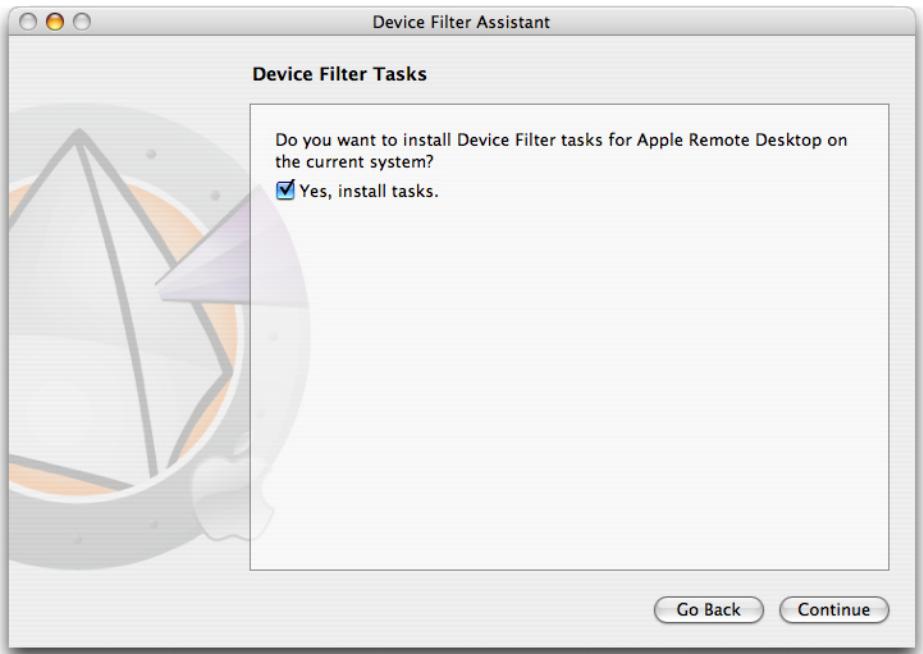
- Check the box marked Yes, Install Tasks if you want the Device Filter Mac specific tasks to be exported into ARD on the current machine. A dialog may appear, stating that ARD or the ARD agent is currently running and giving the option to quit ARD immediately or at a later time. The Device Filter tasks will only be installed if ARD is not running. Choose the preferred action, and click Continue.
The Device Filter Custom Installer screen appears:
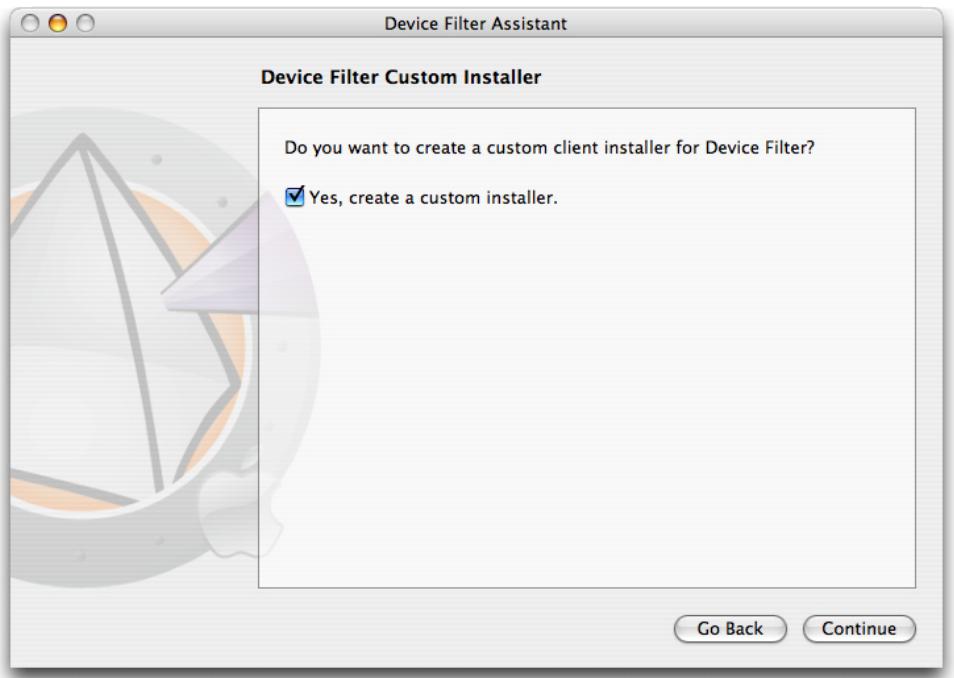
- To create a custom client installer, check Yes, create a custom installer and click Continue.
The Device Filter Administrator screen appears:
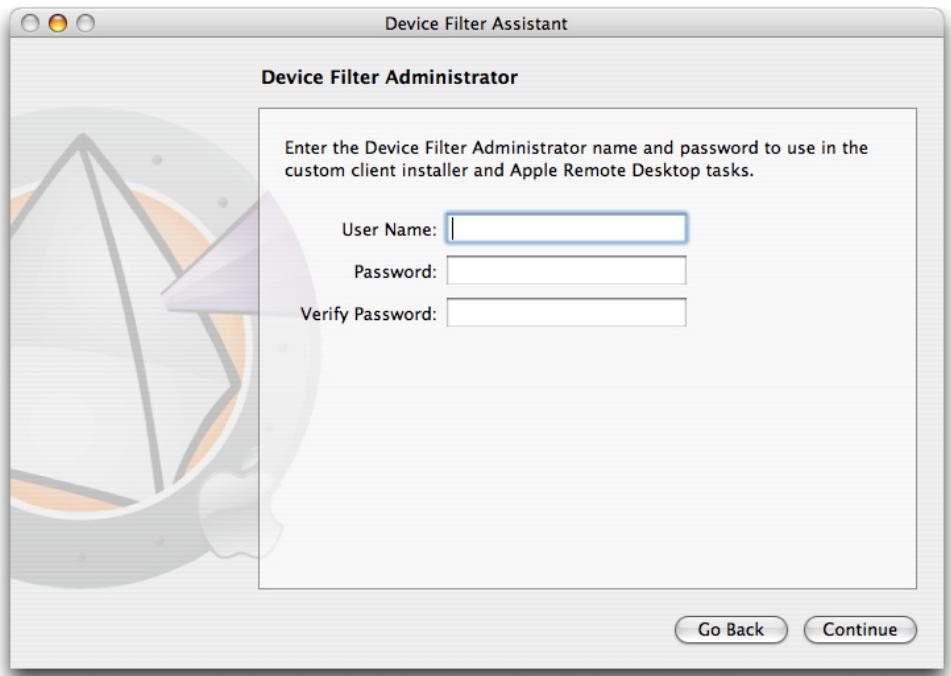
- Enter the User Name and Password of the Device Filter Administrator to be created by the custom installer and used by Device Filter Mac's Apple Remote Desktop tasks. Retype the password to verify it and click Continue.
The Startup Control screen appears:
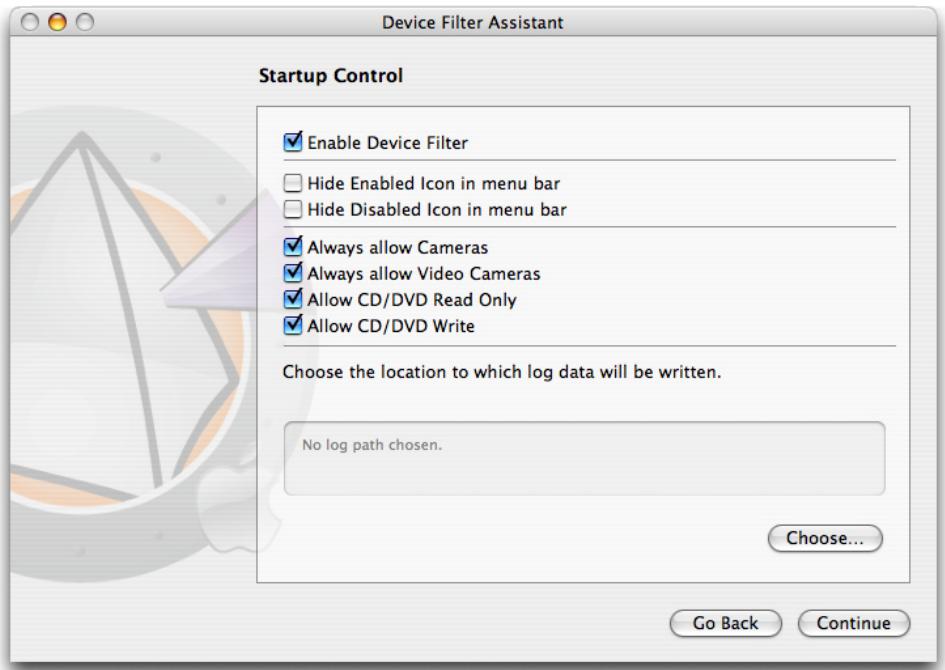
- The Startup Control screen is used to enable Device Filter and and a number of other options including "stealth mode" and camera/CD/DVD control can be configured:
Check the Enable Device Filter option to activate its controls.
Stealth Mode
To hide the visual presence of Device Filter from the user, check the Hide Enabled Icon in menu bar and/or Hide Disabled Icon in menu bar options.
Camera and CD/DVD Control
To allow cameras or video cameras, check the preferred option.
To allow users to access CDs and DVDs in either Read Only or Read/Write modes, check the preferred option. These options refer to both internal and external CD/DVD drives.
If the activity of devices and connections is to be logged, click Choose, enter an activity log file name and browse to the preferred save location.

Remember to choose a location which exists on the target machine(s). If an activity log file location is specified that does not exist on the workstation, logging will be disabled upon install and a warning dialog box will prompt the user to enter a new location for this file.
Also, if you are running Device Filter on a computer that has Deep Freeze installed, the activity log file must be saved on a Thawed partition or the log data will not be retained after restarts.
Click Continue. The USB Control screen appears:
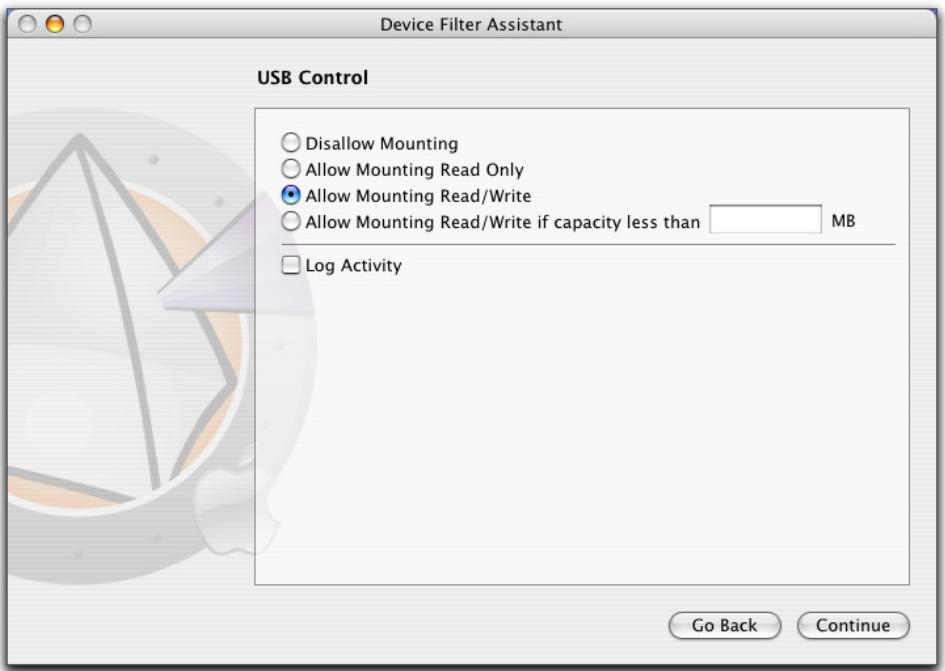
- The USB Control screen configures how a USB device can be mounted on a computer.
To disallow or allow USB devices from mounting or to choose whether devices can be mounted as either Read Only or Read/Write, select the preferred option. If a certain maximum size of USB device is required, input the preferred size (in MB) in the field provided.
To monitor USB activity, check the Log Activity option. This log is displayed in the Logging tab of the preference pane and within the activity log file at the location specified in the Logging tab..
Click Continue. The FireWire Control screen appears:
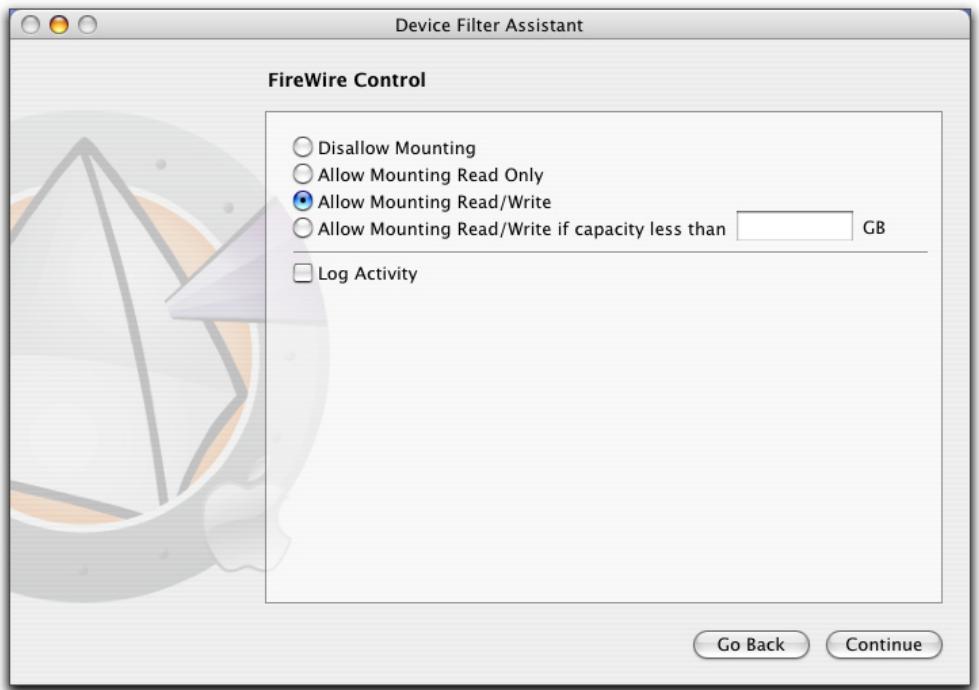
- The FireWire Control screen configures how a FireWire (IEEE 1394) device can be mounted on a computer.
To disallow FireWire devices from mounting or to choose whether devices can be mounted as either Read Only or Read/Write, select the preferred option. If a certain maximum size of FireWire device is required, input the preferred size (in GB) in the field provided.
To monitor FireWire activity, check the Log Activity option. This log is displayed in the Logging tab of the preference pane and within the activity log file at the location specified in the Logging tab.

USB and FireWire CD/DVD drives are controlled from the corresponding options on the Startup Control screen.
Click Continue. The Network Control screen appears:
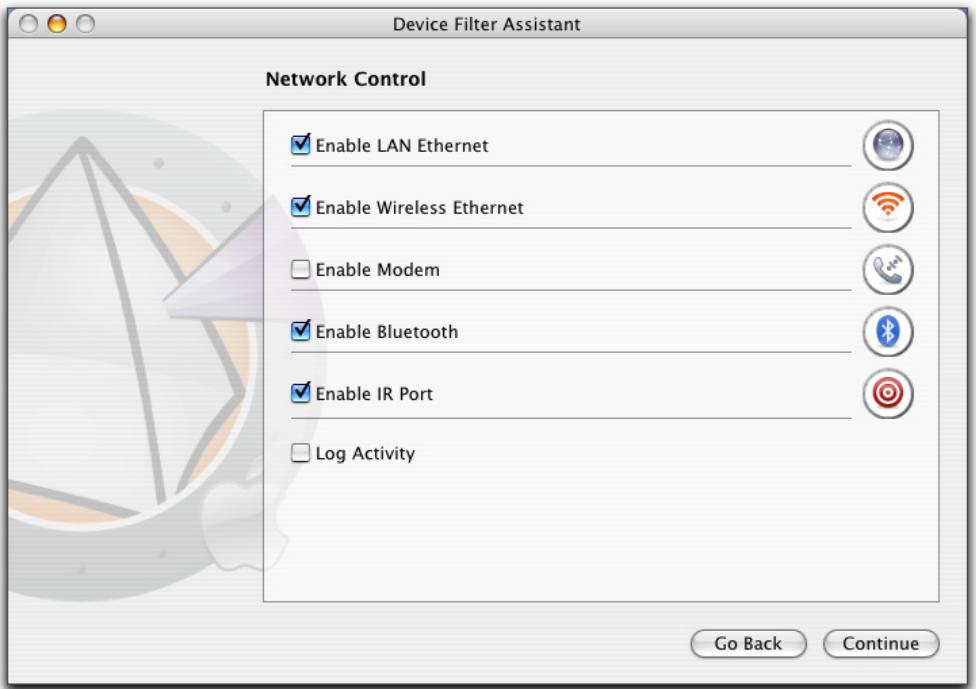
- The Network Control screen is for configuring what network settings and connections are enabled on the workstation.
LAN Ethernet
- Wireless
Modem
- Bluetooth (modem only)
- IR (Infra-red) Port
To log Network connection activity, check the Log Activity option. This log is displayed in the Logging tab of the preference pane and the activity log file.
Click Continue. The Administrator Options screen appears:
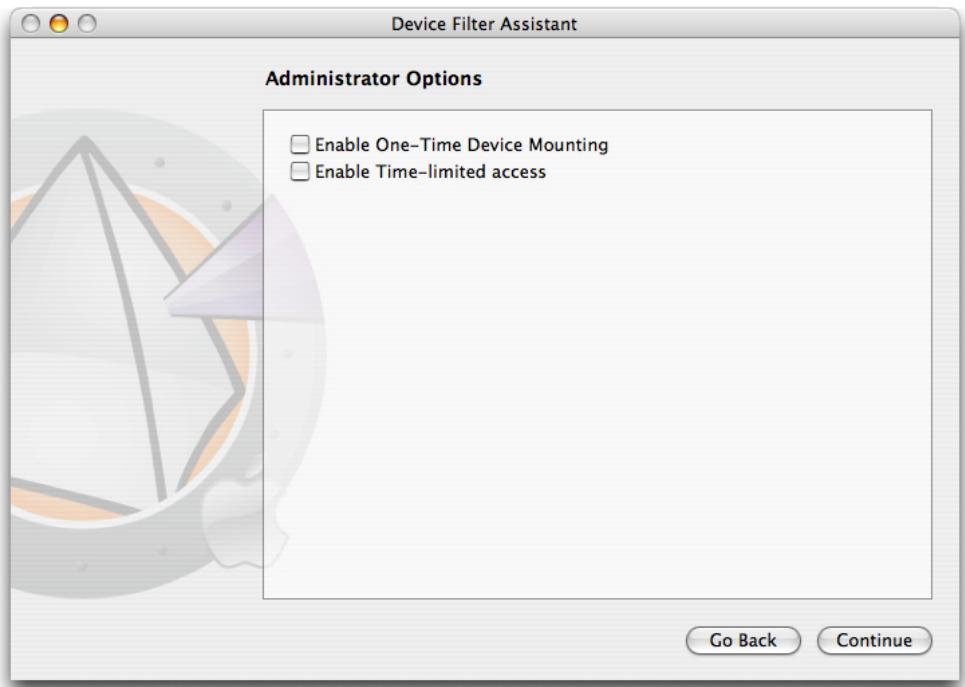
- The Administrator Options screen is for enabling specific authorization options.
To enable an otherwise disallowed device for one-time use only, check Enable One-Time Device Mounting.
To enable an otherwise disallowed device for a specified amount of time, check Enable Time-limited access.
Click Continue. The Choose Device Filter Installer screen appears:
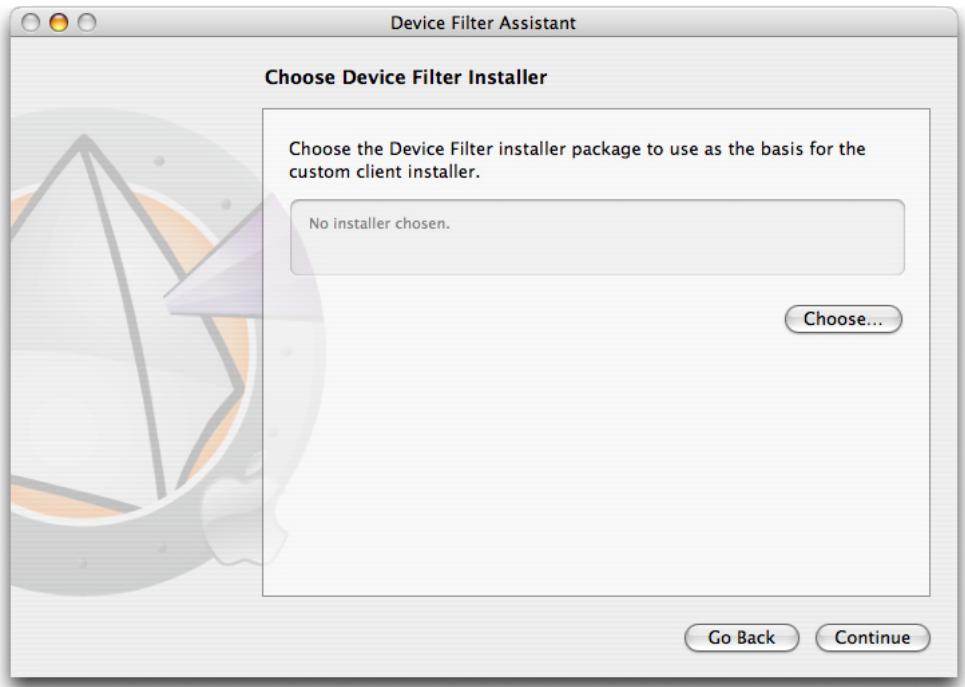
- Click Choose and browse to the location of the Device Filter Mac installer package (Device Filter pkg) located in the Device Filter Mac folder. Alternatively, drag the package file into the Choose dialog screen. Click Continue. The Where to Save screen appears:
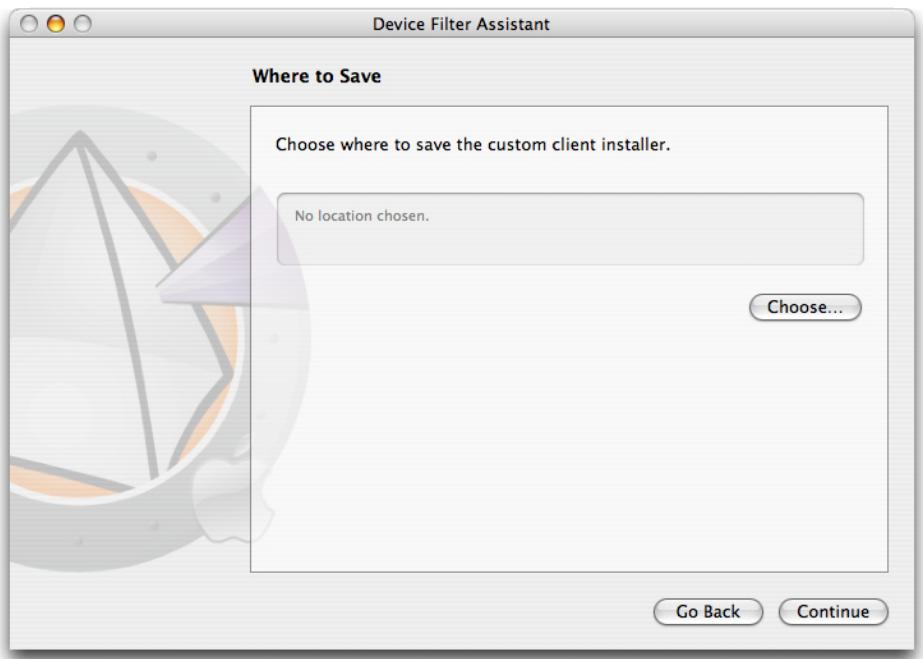
- Click Choose. A standard Save dialog appears. Browse to a location to save the custom client installer and select it. Alternatively, drag and drop the preferred save location into the Choose dialog screen. Click Continue.
The final screen appears, stating that the custom client installer was successfully created and that the Device Filter tasks were installed into ARD.
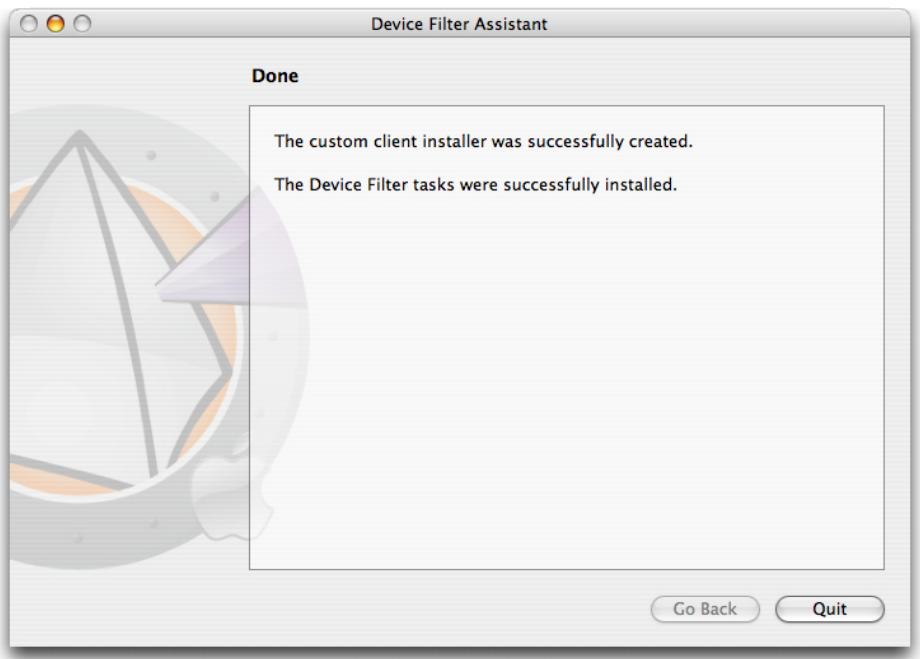
- Click Quit to close the Device Filter Mac Assistant.
Appendix II: Apple Remote Desktop Integration Tasks
Device Filter Assistant can install tasks for use with Apple Remote Desktop. These tasks can be used as supplied or as a starting point for controlling Device Filter Mac with ARD. After the Assistant is run, the tasks are installed in ARD, as shown:
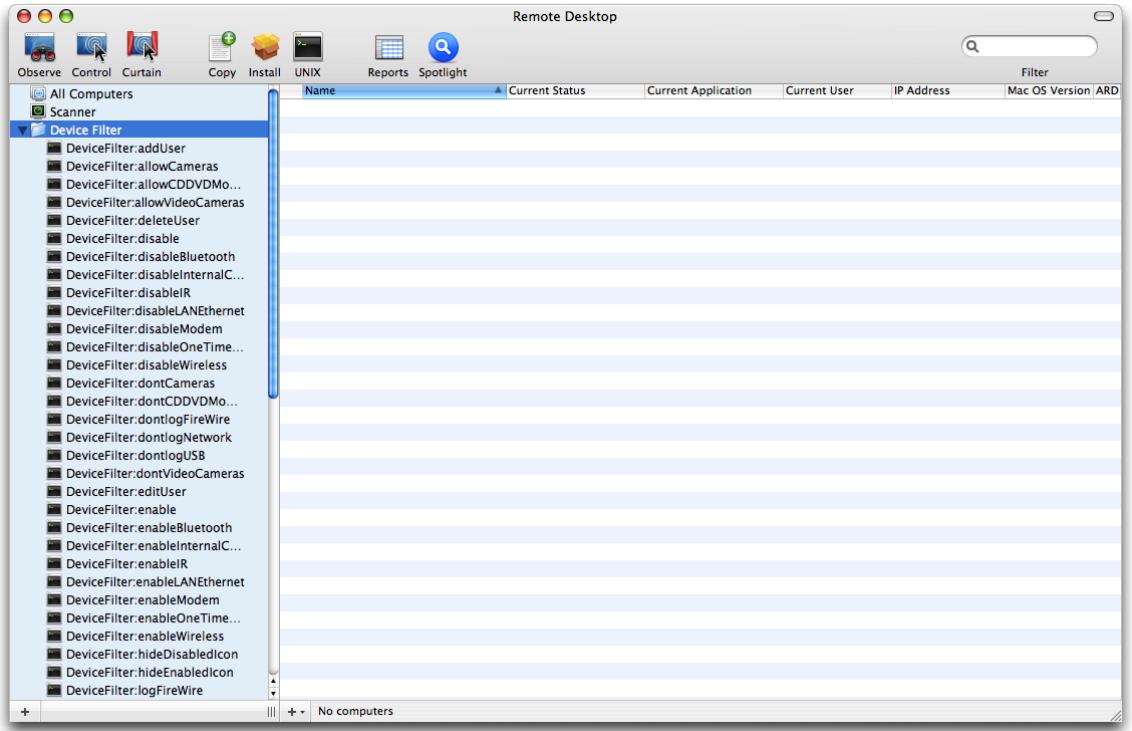
NOTE: In ARD 2.2, the Device Filter-specific tasks are saved in the Saved Tasks folder, not in a named folder.
The following table gives a description of the function of each task. Each task can also be configured in the Device Filter Mac preference pane, except for status.
| Task | Function |
| addUser | adds a new user to target computer(s) |
| allowCameras | allows digital cameras to be connected to target computer(s) |
| allowCDDVDMounting | allows internal/external CD/DVDs Read Only to be mounted to target computer(s) |
| allowVideoCameras | allows video cameras to be connected to target computer(s) |
| deleteUser | deletes a user from target computer(s) |
| disable | disables Device Filter protection on target computer(s) |
| disableAdminCanAuthorizationForTime | disables optional timed-access device authorization |
| disableBluetooth | disables Bluetooth modem connectivity on target computer(s) |
| disableCDDVD | disables internal/external CD/DVD Read/Write on target computer(s) |
| disableIR | disables infra-red port connectivity on target computer(s) |
| disableLANEthernet | disables LAN ethernet connectivity on target computer(s) |
| disableModem | disables modem connectivity on target computer(s) |
| disableOneTimeDeviceMounting | disables optional one-time device authorization |
| disableWireless | disables wireless ethernet connectivity on target computer(s) |
| dontCameras | prevents digital cameras from connecting to target computer(s) |
| dontCDDVDMounting | prevents internal/external CD/DVD Read Only mounting on target computer(s) |
| dontlogFireWire | disables logging of FireWire connection activity |
| dontlogNetwork | disables logging of Network connection activity |
| dontlogUSB | disables logging of USB connection activity |
| dontVideoCameras | prevents mounting of video cameras on target computer(s) |
| editUser | edits username and/or password on target computer(s) |
| enable | enables Device Filter protection on target computer(s) |
| enableAdminCanAuthorizationForTime | enables optional timed-access device authorization |
| enableBluetooth | enables Bluetooth modem connectivity on target computer(s) |
| enableCDDVD | enables internal/external CD/DVD Read/Write mounting |
| enableIR | enables infra-red port connectivity on target computer(s) |
| enableLANEthernet | enables LAN ethernet connectivity on target computer(s) |
| enableModem | enables modem connectivity on target computer(s) |
| enableOneTimeDeviceMounting | enables optional one-time device authorization |
| enableWireless | enables wireless ethernet connectivity on target computer(s) |
| hideDisabledIcon | hides Device Filter menu bar disabled icon |
| hideEnabledIcon | hides Device Filter menu bar enabled icon |
| logFireWire | logs activity of FireWire connected devices |
| logNetwork | logs activity of network connections (Ethernet, Bluetooth, wireless) |
| logUSB | logs activity of USB connected devices |
| setFireWireOptions | configures FireWire device connectivity options |
| setUSBOptions | configures USB device connectivity options |
| showDisabledIcon | shows Device Filter menu bar disabled icon on target computer(s) |
| showEnabledIcon | shows Device Filter menu bar enabled icon on target computer(s) |
| status | displays status of Device Filter on target computer(s) |
| uninstall | uninstalls Device Filter on target computer(s) |
| version | displays Device Filter version number on target computer(s) |
Using and Editing Tasks
In order to use the tasks, each task must be edited to add site-specific information, such as usernames and passwords. The following conditions and settings must apply for ARD to perform the tasks:
- The target computer(s) for the task must be specified
- A user on the target computer must be specified to run the command
Generally, the commands take the following form:
Where
Examples:
- status task - /Library/Application\ Support/Faronics/DeviceFilter/CLI "admin" "password" status
Where /Library/Application\ Support/Faronics/DeviceFilter/CLI is the installation location of the program, admin is the configured user name, password is the configured password, and status is the desired command.
- setUSBOptions task - /Library/Application\ Support/Faronics/DeviceFilter/CLI "admin" "password" setUSBOptions 0-3 size
Where /Library/Application\ Support/Faronics/DeviceFilter/CLI is the installation location of the program, admin is the configured user name, password is the configured password, setUSBOptions is the desired command, 0-3 (corresponding to the desired option) found on the USB tab of the preference pane - 0=Disallow Mounting, 1=Allow Mounting, Read Only, 2=Allow Mounting Read/Write, 3=Allow Mounting Read/Write if capacity less than) is the first parameter and size (corresponding to the desired maximum size of USB device in MB, if 3 is chosen as the first parameter) is the second parameter.

The uninstall task must run as root on the target computer. Otherwise, it will not have the sufficient permissions to uninstall all components of Device Filter Mac. If Device Filter is installed on a machine that is also running Deep Freeze, the Mac must be in a Thawed state for the uninstall to be successful. If Deep Freeze is in a Frozen state, Device Filter will refuse the uninstall command and prompt the user with the reason.
Adding Targeted Computers to the Task List
This section has been written as a basic overview of how to use the Device Filter-specific tasks in ARD. For a more in-depth description of how to best utilize ARD and ARD tasks, please refer to your ARD user manual or to the Help Files found within ARD itself.
In order to run a task, there must be computers targeted to run the task. To add one or more computers to be targeted to run the task, complete the following steps:
- In the left column, double-click the task to be targeted to the specified computers.
The Task Edit window appears. At the bottom of the window is a dialog listing the designated computers assigned to the task. Before a computer is added to the list, it reads No Computers.
- Drag and drop the preferred workstations or group of workstations into the dialog from the computers in the All Computers list. The number of computers assigned to a specific task appears at the bottom of the window.
- Click Save.
The following figure shows the enable task set to run as the current console user on a target computer:
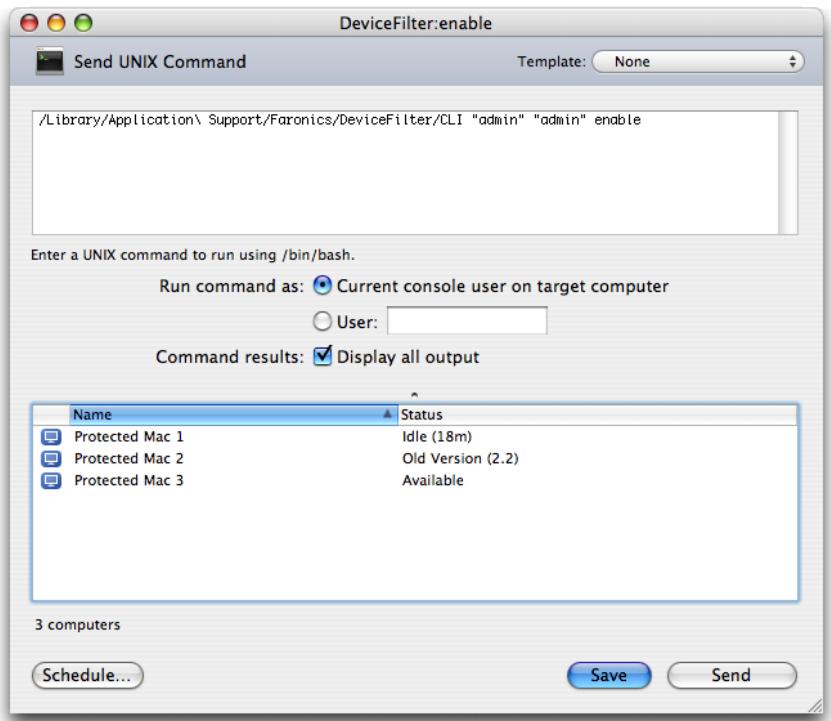
Each task must be edited to use a Device Filter user name and password for the target computer(s). In the above example, admin is the Device Filter user name and admin is the Device Filter password. The name and password may already be present in the task, depending on the settings that were specified in Device Filter Assistant.
ARD Sample Output
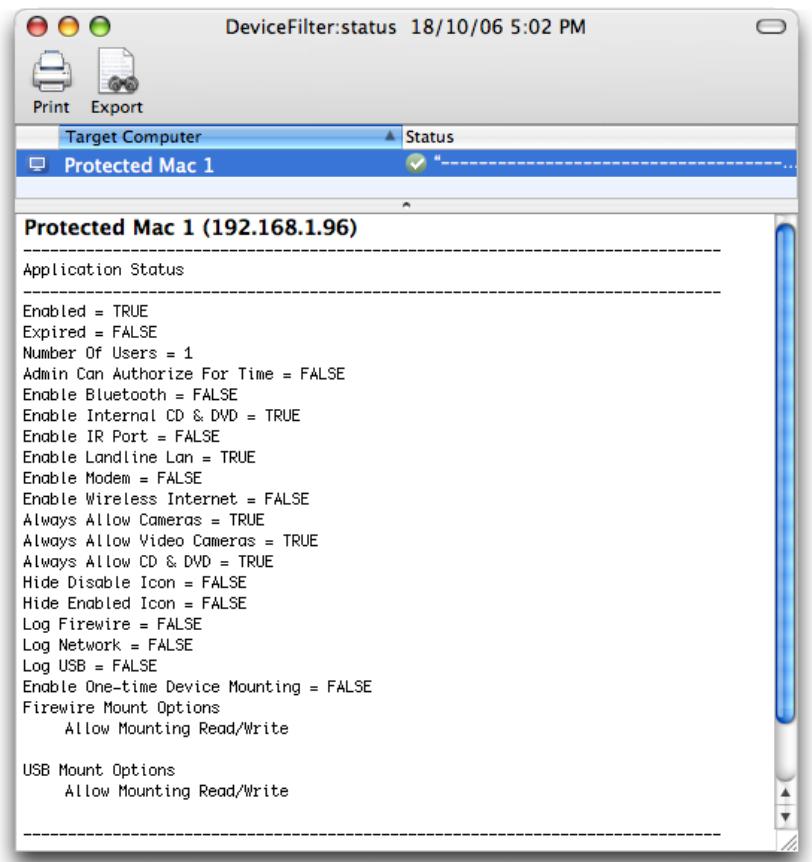
The following figure shows the sample output from the status function. The Display all output checkbox must be selected in the Apple Remote Desktop Edit Task window in order to show the target's status.
Sample Command Line Script
The Device Filter Mac tasks give network administrators increased flexibility when managing device usage on Device Filter Mac workstations. These tasks can be run with several different third-party enterprise management tools and/or central management solutions; this includes executing commands in Terminal while connected to a remote workstation via SSH.
A sample script using the enable command is shown below:
Library/Application\Support/Faronics/DeviceFilter/CLI admin password enable
A sample script using the setUSBOptions command is shown below:
Library/Application\Support/Faronics/DeviceFilter/CLI admin password setUSBOptions 3 512
In these examples, admin is the name of a valid Device Filter user and password is that user's password; for the second example script, the number 3 is the choice to allow a USB device to mount (Read/Write) if the capacity is below a certain maximum size and 512 is the chosen maximum size in MB.
These sample scripts can be modified to run any task listed in the Task table on pages 26 and 27.