
DEEP FREEZE SERVER ENTERPRISE - System management software FARONICS - Free user manual and instructions
Find the device manual for free DEEP FREEZE SERVER ENTERPRISE FARONICS in PDF.


| Product type | System management software |
| Brand | FARONICS |
| Model | DEEP FREEZE SERVER ENTERPRISE |
| Main functions | Indestructible protection of system configurations by freezing changes; automatic restoration on every reboot; centralized management via console; remote deployment; task scheduling (reboot, shutdown, maintenance); ThawSpaces for persistent data; integrated Windows Update; command line control (DFC); Active Directory integration. |
| Security | Up to 15 fixed passwords, customization code (encryption), stealth mode (hidden icon), protection against brute force attacks (reboot after 10 attempts), temporary passwords (OTP), keyboard/mouse lock, enhanced local policies. |
| Supported operating systems | Windows Server 2000, 2003, 2003 R2, 2008, 2008 R2 (32 and 64-bit) |
| Minimum configuration | 256 MB RAM, 10% free hard disk space |
| Deployment mode | Assisted installation, silent (command line), targeted via console, master image |
| Network connection types | LAN (UDP broadcast) and LAN/WAN (TCP/IP with fixed IP or name) |
| Ports used | Default 7725 (TCP and UDP), customizable |
| Centralized management | Enterprise console with overview, user groups, Active Directory import, history, task scheduling |
| Extensions and customization | Custom actions (RDC, remote execution, MSI installation), custom console (limited features) |
| License and evaluation period | 30-day evaluation version, full-time license activatable via key |
| Software update | Ability to remotely update workstations from the console (version 6.3 and higher) |
| Maintenance and cleaning | Security updates performed via scheduled maintenance windows; no hardware maintenance required. |
| Spare parts and repairability | Not applicable (software) |
| General information | Server version of Deep Freeze; protects servers from unauthorized modifications; compatible with imaging solutions; technical support via email and phone. |
Frequently Asked Questions - DEEP FREEZE SERVER ENTERPRISE FARONICS
User questions about DEEP FREEZE SERVER ENTERPRISE FARONICS
0 question about this device. Answer the ones you know or ask your own.
Ask a new question about this device
Download the instructions for your System management software in PDF format for free! Find your manual DEEP FREEZE SERVER ENTERPRISE - FARONICS and take your electronic device back in hand. On this page are published all the documents necessary for the use of your device. DEEP FREEZE SERVER ENTERPRISE by FARONICS.
USER MANUAL DEEP FREEZE SERVER ENTERPRISE FARONICS
ABSOLUTE System Integrity
DEEP FREEZE SERVER ENTERPRISE
User Guide
Last modified: March, 2010
© 1999 - 2010 Faronics Corporation. All rights reserved. Faronics, Deep Freeze, Faronics Core Console, Anti-Executable, Faronics Device Filter, Faronics Power Save, Faronics Insight, Faronics System Profiler, and WINSelect are trademarks and/or registered trademarks of Faronics Corporation. All other company and product names are trademarks of their respective owners.
Contents
Preface 7
Important Information. 8
About Faronics 8
Product Documentation 8
Technical Support 9
Contact Information. 9
Introduction 11
Deep Freeze Overview. 12
System Requirements 12
Deep Freeze Server Enterprise Files 13
Installing Deep Freeze 15
Installation Overview. 16
Installing Deep Freeze Configuration Administrator and Enterprise Console 16
Customization Code 19
Re-Initializing the Customization Code 19
Update Mode 19
One Time Passwords 21
Using Deep Freeze Configuration Administrator 23
Accessing the Configuration Administrator 24
7.2.10.3.1.1. 24
Passwords Tab 26
Drives Tab 27
Frozen Drives 27
ThawSpace. 28
Existing ThawSpace 29
Always Thaw External Hard Drives. 29
Embedded Events Tab 31
Restart. 32
Shutdown. 33
Maintenance 34
Idle Time 36
Maintenance Tab. 37
Run batch file with: 37
Windows Update 37
Batch File 38
Advanced Options Tab 39
Network 39
Advanced Options 40
Stealth Mode 40
License 40
Creating Workstation Install Program and Workstation Seed 42
Using Deep Freeze Server Enterprise Console 43
Deep Freeze Server Enterprise Console 44
Launching the Enterprise Console 44
Activating the Enterprise Console. 44
Status Icons 45
Managing Communication Between the Console and Workstations. 46
Configuring the local service 46
Editing or Removing a local service Connection 48
Remote Consoles. 49
Setting up Remote Control Enabled Connections 49
Connecting to a Remote Console 50
Managing Deep Freeze with the Console. 51
Updating Deep Freeze Software. 51
Sending Messages to Computers 52
Target Installing Deep Freeze 52
Updating a Deep Freeze Configuration File 52
53
Licensing 55
Scheduling Deep Freeze Tasks. 56
Assigning Computers to Scheduled Tasks 59
Executing a Task Immediately 60
Deleting a Task 60
Scheduled Task Properties. 60
Managing Network and Groups 61
Adding a New Group 61
Building a User Defined Group Structure. 61
Importing Groups from Active Directory 62
History 63
Adding computers to a Group 64
Configure Custom Actions. 65
Control with RDC 65
Remote Execute. 66
Push and Install MSI file 67
Deleting, Importing and Exporting Custom Actions 68
Console Customizer 69
Deep Freeze Server Enterprise Console Shutdown 70
71
Attended Install or Uninstall 71
Uninstalling Deep Freeze on the Workstation via the Console 72
Silent Install or Uninstall 73
Example Command Line 73
Silent Install or Uninstall Using a Shortcut 74
Network Install on Multiple computers 74
74
74
Target Install. 75
Check for Updates 76
Managing Deep Freeze Computers 77
Login Screen. 78
Status Tab 79
Status on Next Boot. 79
Clone 79
License 79
Password Tab 80
Network Tab. 81
ThawSpace Tab. 82
Permanent Software Installations, Changes, or Removals 83
Deep Freeze Command Line Control 85
Deep Freeze Command Line Control (DFC.EXE) 86
DFC Return Values. 86
DFC Command Line Syntax 87
Appendix A Ports and Protocols 89
Appendix B Network Examples 91
Example 1 - Single Subnet. 92
Example 2 - Multiple Subnets One local service 93
Example 3 - Multiple Ports, Console Accessed Remotely. 94
Example 4 - Multiple Subnets Multiple local services 95
Appendix C Troubleshooting a Remote Console Connection 97
No Clients In the Console 97
Port is in Use Error When Starting the Console 98
Appendix D Creating a Customized Deep Freeze Server Enterprise Console 99
Appendix E Deep Freeze Action Files - RDC Example 101
Deep Freeze Action Files 101
Action File Example 101
Deep Freeze Action File Structure 102
Console Parameters. 104
Preface
This user guide explains how to install, configure and use Deep Freeze Enterprise.
Topics
Important Information
Technical Support
Important Information
This section contains important information about your Faronics Product.
About Faronics
Faronics delivers market-leading solutions that help manage, simplify, and secure complex IT environments. Our products ensure 100% machine availability, and have dramatically impacted the day-to-day lives of thousands of information technology professionals. Fueled by a market-centric focus, Faronics' technology innovations benefit educational institutions, health care facilities, libraries, government organizations, and corporations.
Product Documentation
The following documents form the Deep Freeze Server Enterprise documentation set:
- Deep Freeze Server Enterprise User Guide - This is the document you are reading. This document guides you how to use the product.
- Deep Freeze Server Enterprise Release Notes — This document lists the new features and known issues and closed issues.
Technical Support
Every effort has been made to design this software for ease of use and to be problem free. If problems are encountered, contact Technical Support.
Email: support@faronics.com
Phone: 800-943-6422 or +1-604-637-3333
Hours: 7:00am to 5:00pm (Pacific Time)
Contact Information
Web: www.faronics.com
- Email: sales@faronics.com
Phone: 800-943-6422 or +1-604-637-3333
Fax: 800-943-6488 or +1-604-637-8188
Hours: 7:00am to 5:00pm (Pacific Time)
- Address: Faronics Technologies USA Inc. 2411 Old Crow Canyon Road, Suite 170 San Ramon, CA 94583 USA
Faronics Corporation
609 Granville Street, Suite 620
Vancouver, BC V7Y 1G5
Canada
Introduction
Faronics Deep Freeze helps eliminate computer damage and downtime by making computer configurations indestructible. Once Deep Freeze is installed on a computer, any changes made to the computer—regardless of whether they are accidental or malicious—are never permanent. Deep Freeze provides immediate immunity from many of the problems that plague computers today—inevitable configuration drift, accidental system misconfiguration, malicious software activity, and incidental system degradation.
Topics
Deep Freeze Overview
System Requirements
Deep Freeze Overview
System Requirements
-
Deep Freeze Server Enterprise is supported on:
-
Windows Server 2000, 2003, 2003 R2, 2008 and 2008 R2
— Deep Freeze requires 10% of the hard drive to be left as free space -
Both 32 and 64 bit versions of Windows are supported
-
Faronics recommends a minimum of 256 MB of system memory in the protected systems
-
The Deep Freeze Configuration Administrator and Enterprise Console are supported on:
-
Windows 2000, XP, Vista, Windows 7, Server 2000, 2003, 2003 R2, 2008 and 2008 R2
-
32 and 64 bit versions are supported
Deep Freeze Server Enterprise Files
Deep Freeze uses different colored icons to represent its components. Files identified by a red icon should generally only be installed on an administrative computer.
| Icon | Definition |
| Deep Freeze Server Enterprise Configuration Administrator and Enterprise Console installation file. | |
| The Configuration Administrator application is used to create customized, pre-configured, computer installation program files and Workstation Seeds. | |
| The Enterprise Console application is used to centrally deploy, monitor, manage, and maintain Deep Freeze installations. | |
| A customized Deep Freeze workstation installation file is created in the Configuration Administrator and deployed to workstations within the enterprise. This file includes the Workstation Seed. If the Deep Freeze workstation installation file is installed, the Workstation Seed is not required to be installed separately. | |
| A Workstation Seed enables seamless communication between the Enterprise Console and computers on a network. When the Workstation Seed is installed on a computer, the computer becomes visible on the Enterprise Console. Once a computer is visible on the Enterprise Console, various actions such as Restart, Shutdown and Wake-on-LAN can be performed on the computer remotely. Deep Freeze can also be installed remotely on visible computer thereby allowing Deep Freeze related actions on remote computers. | |
Installing Deep Freeze
This chapter describes the installation process of Deep Freeze.
Topics
Installation Overview
Customization Code
One Time Passwords
Installation Overview
Installing Deep Freeze Server Configuration Administrator and Enterprise Console
The Configuration Administrator is intended to be installed only on the computer used to administrate Deep Freeze. The Configuration Administrator is used to create customized Deep Freeze installation files and Workstation Seeds.
The Deep Freeze Server Enterprise Console installs automatically with the Deep Freeze Configuration Administrator.
Complete the following steps to install the Configuration Administrator:
- If Deep Freeze has been downloaded via the Internet, double-click the file DFEntServ.exe to begin the installation process. The following screen appears:
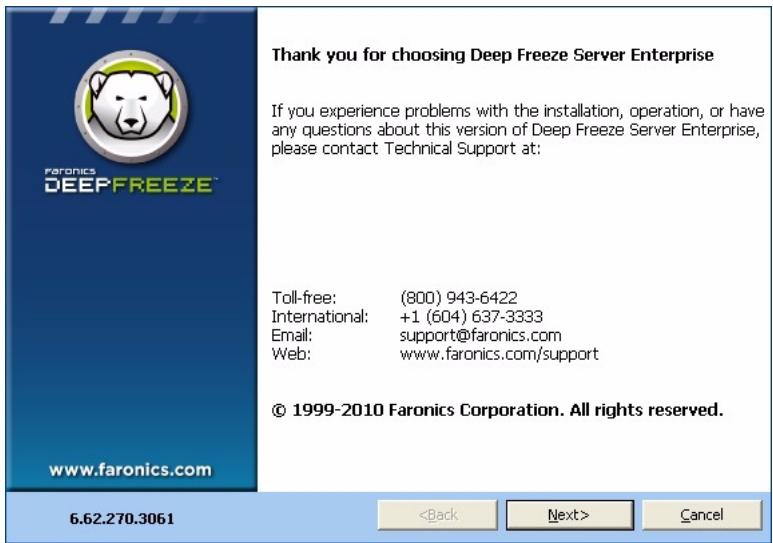
- Click Next.
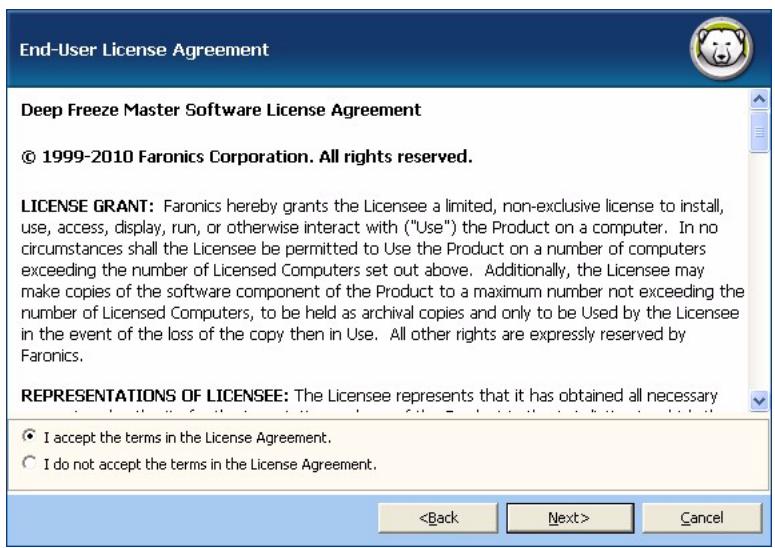
- Read and accept the license agreement. Click Next.
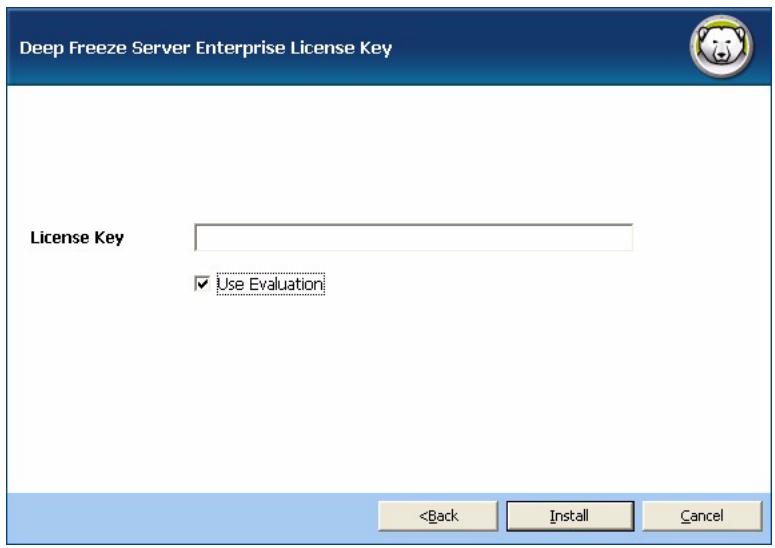
- Enter the License Key in the License Key field or select the Use Evaluation check box to install in Evaluation mode. Click Install.

The Evaluation version of Deep Freeze is valid for 30 days. After 30 days, all Deep Freeze functionality will be disabled on the Enterprise Console. All other features will continue to work even after the 30 day period.
- Once the installation process is completed, the Customization Code screen appears.
A Customization Code is a unique identifier that completely encrypts the Configuration Administrator, the Enterprise Console, the Workstation Installation files, the One Time Password Generation System, and the Deep Freeze Command Line Control.
Your Customization Code, if lost or forgotten, cannot be recovered by Faronics or any other third party. It is recommended that you record and safely store your Customization Code.
Enter a Customization Code in the field below. The code must be at least eight characters long and can consist of any combination of alphanumeric characters, including spaces.
Enter a Customization Code:
12345678

- Specify the Customization Code and click Next. The Customization Code must be a minimum of eight characters. The installation is completed.
The Customization Code is a unique identifier that encrypts the Configuration Administrator, the Enterprise Console, the computer installation files, the One Time Password Generation System, and Deep Freeze Command Line Control. This code is not a password that can be used to access Deep Freeze.
The Customization Code ensures that unauthorized administrators are prevented from accessing or controlling a computer. Multiple Deep Freeze administrators controlling the same group of computers must use a matching Customization Code.

The Customization Code must be recorded and guarded with care. Faronics is unable to recover a lost or forgotten Customization Code.
Re-Initializing the Customization Code
If another administrator wants to create installation files with the same Configuration Administrator using a different Customization Code, complete the following steps:
- Run DFInit.exe.
- This resets the existing Customization Code for the Configuration Administrator.
- Enter a new Customization Code.
- Click OK for the new Customization Code to become active.
Update Mode
Update Mode can be used to automatically create updated versions of existing files of Deep Freeze Server Enterprise by executing a special Update command.

The Update Mode is not applicable for updating from Deep Freeze Server Enterprise 6.3 to Deep Freeze Server Enterprise 6.62. Installing Deep Freeze Server Enterprise 6.62 on a computer that has Deep Freeze Server Enterprise 6.3 does not update the computer with the new version. Installing Deep Freeze Server Enterprise 6.62 over Deep Freeze Server Enterprise 6.3 will result in two versions on the same computer. To update Deep Freeze Server Enterprise, uninstall Deep Freeze Server Enterprise 6.3 and install Deep Freeze Server Enterprise 6.62.

The Update Mode is only applicable when updating from Deep Freeze Server Enterprise 6.62 to higher versions.
This command completes two tasks:
-
Updates previous versions of the Deep Freeze Server Enterprise Console and the Deep Freeze Configuration Administrator. (Found in Faronics > Deep Freeze Server 65 Enterprise.)
-
Updates any user created files stored in the Faronics > Deep Freeze Server 65 Enterprise > Install Programs folder.
The benefit of these updates is that a number of files can be updated to the latest version while retaining their configuration data (created with an older version of Deep Freeze Enterprise).
The command automatically updates files created by an administrator (.exe, .rdx) that are present in the Faronics > Deep Freeze Server 65 Enterprise > Install Programs directory, including the following sub-directories:
- Workstation install files
Workstation Seed files
In the example below, the district office has received a new version of Deep Freeze Configuration Administrator and can automatically update any existing Deep Freeze Workstation Install files and Workstation Seeds at a remote location.
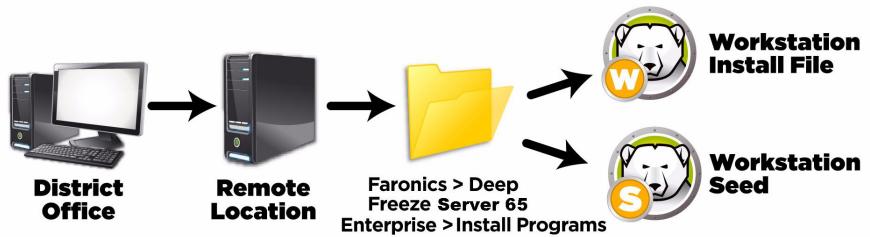
The update command does not require a password, but does require a Customization Code. Use the following command syntax:
\PathToFile\DFEntServ.exe /update="Customization Code" c:\dfupdate.log
- PathToFile must be replaced with the actual path to the installation file (DFEntServ.exe)
- DFEntServ.exe must be the actual name of the installation file (it may differ if it was downloaded)
- Customization Code must be in quotes if there is a space in it
- Customization Code must match the old installation files' Customization Code
- The log file provides full details of exactly which files were updated. The part of the command syntax to generate the log file (dfupdate.log) is mandatory. The command will not execute if a log file has not been specified.
The update process may take a few minutes to complete.
Update Mode does not update the existing version of Deep Freeze on computers. Computers must be updated using the Enterprise Console.
The One Time Passwords Generation System is used to generate temporary passwords for Deep Freeze that expire at midnight on the day they were generated.
One Time Passwords dialog can be accessed from
- Tools>One Time Passwords in the Enterprise Console. For more information refer to Using Deep Freeze Server Enterprise Console.
- File>One Time Passwords in the Configuration Administrator. For more information refer to Using Deep Freeze Configuration Administrator.
A One Time Password (OTP) can be useful if, for example, a Deep Freeze password is forgotten or if a configuration file was created without any passwords defined. An OTP can also be used to provide access to a computer for an individual performing maintenance duties without requiring that individual to know the permanent Deep Freeze password.
To create an OTP, complete the following steps:
- Select either Password valid for one use only or Password valid for multiple uses. All OTPs expire at midnight on the day they were created, regardless of type.
- Enter the OTP Token from the computer that requires the OTP into the Token field. The OTP Token for the computer is located in the logon dialog, as shown below.
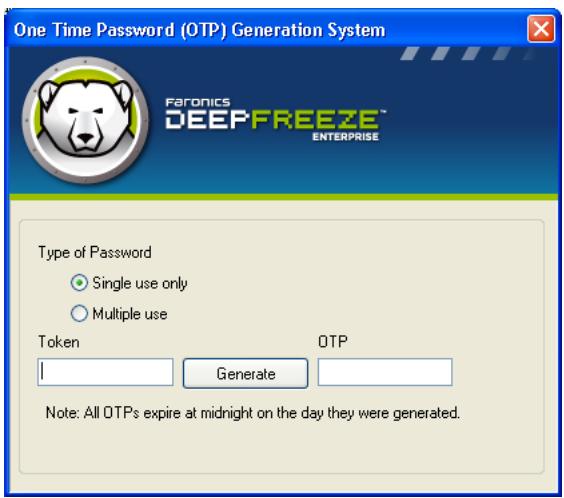
- Click Generate.

The Deep Freeze Command Line interface does not support the use of One Time Passwords.
Using Deep Freeze Configuration Administrator
Topics
Accessing the Configuration Administrator
Passwords Tab
Drives Tab
Embedded Events Tab
Maintenance Tab
Advanced Options Tab
Creating Workstation Install Program and Workstation Seed
Accessing the Configuration Administrator
Open the Configuration Administrator by selecting the following path from the Start menu:
Start > All Programs > Faronics > Deep Freeze Server 65 Enterprise > Deep Freeze Administrator
The Configuration Administrator provides various tabs to configure passwords, Frozen drives, Windows Updates, Embedded Events and Licensing. Once the settings have been configured, a Workstation Install file is created. The Workstation Install file can be installed on the computers that need to be protected by Deep Freeze.
Toolbar and Menus
Toolbar
The Toolbar is available at the top of every tab in the Configuration Administrator.

New

Open

Save

Save As

Help

Create
The buttons allow users to make a New configuration file (.rdx), to Open a saved configuration file, and to Save or Save As a configuration file. Users can also access Help from this toolbar.
The Create button allows users to create a Workstation Install Program or a Workstation Seed. (.exe) containing settings specified in all the tabs.
Selecting New opens the Configuration Administrator with default configuration settings. Changes made but not saved prior to selecting New will be lost.
File Menu
The File menu contains the same options as those available on the Toolbar, with the additions of the option to choose from the available languages and Password Protection.
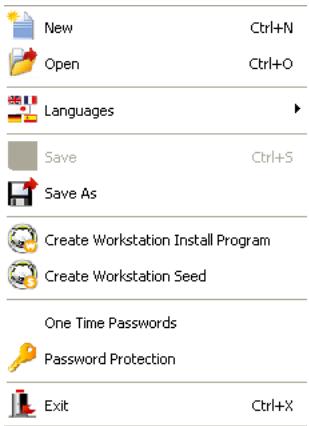
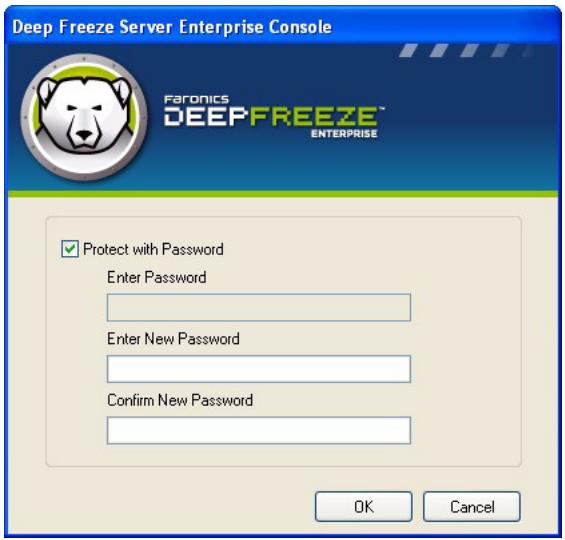
Password Protection
Password Protection offers an optional layer of security for the administrator.
To password protect access to the Configuration Administrator, complete the following steps:
- Open the File menu and select Password Protection.
- Select the Protect with password check box.
- Enter and confirm the password.
- Click OK to set the password or Cancel to exit the dialog without setting a password.
Passwords Tab
Deep Freeze Server Enterprise allows the administrator to choose up to 15 fixed passwords.
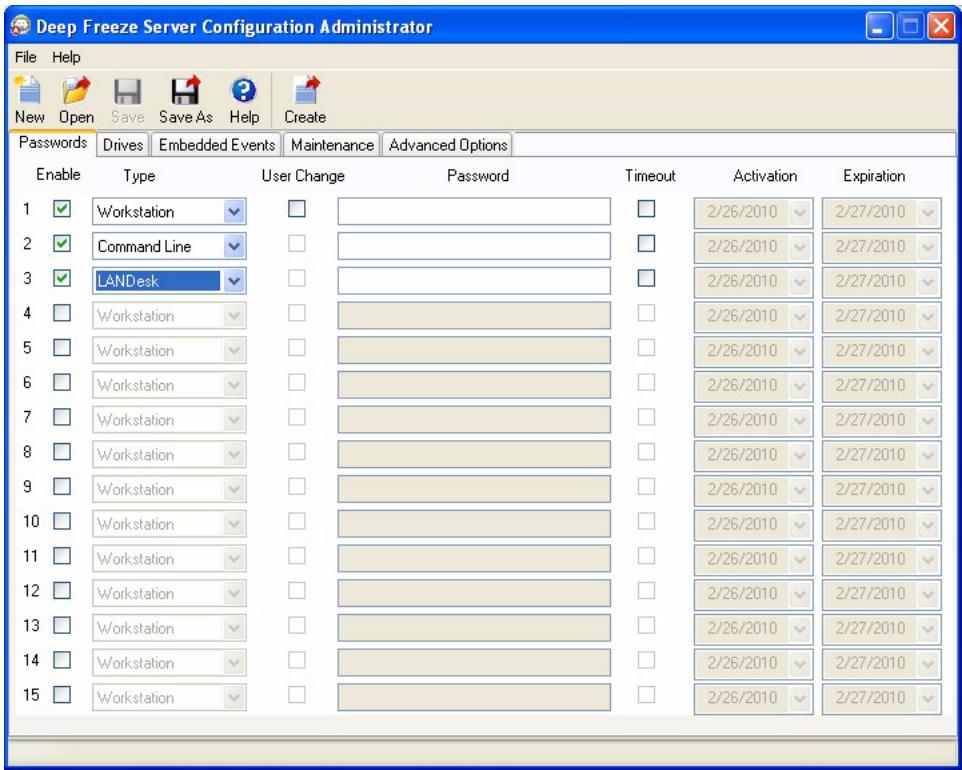
To create a password, complete the following steps:
- Select Enable on the appropriate row.
-
From the Type drop-down list, choose the preferred kind of password. The following options are available:
-
Workstation: designated for use at the workstation when the Login Screen is launched.
Command Line: for use with Command Line Controls. The Command Line Control tool (DFC.exe) does not function unless at least one Command Line password is defined. -
LANDesk: designated for use with the Deep Freeze Plug-in for LANDesk Management Suite Console.
-
Optional: For passwords, select the User Change check box to allow a user to change the password at the computer.
-
Enter the password.

The password entered in the Password field is not hidden. Do not use the same password for Command Line and the GUI.
- To set a password to become active and expire on specified dates, select the Timeout check box and use the drop-down calendars to specify an Activation date and Expiration date.
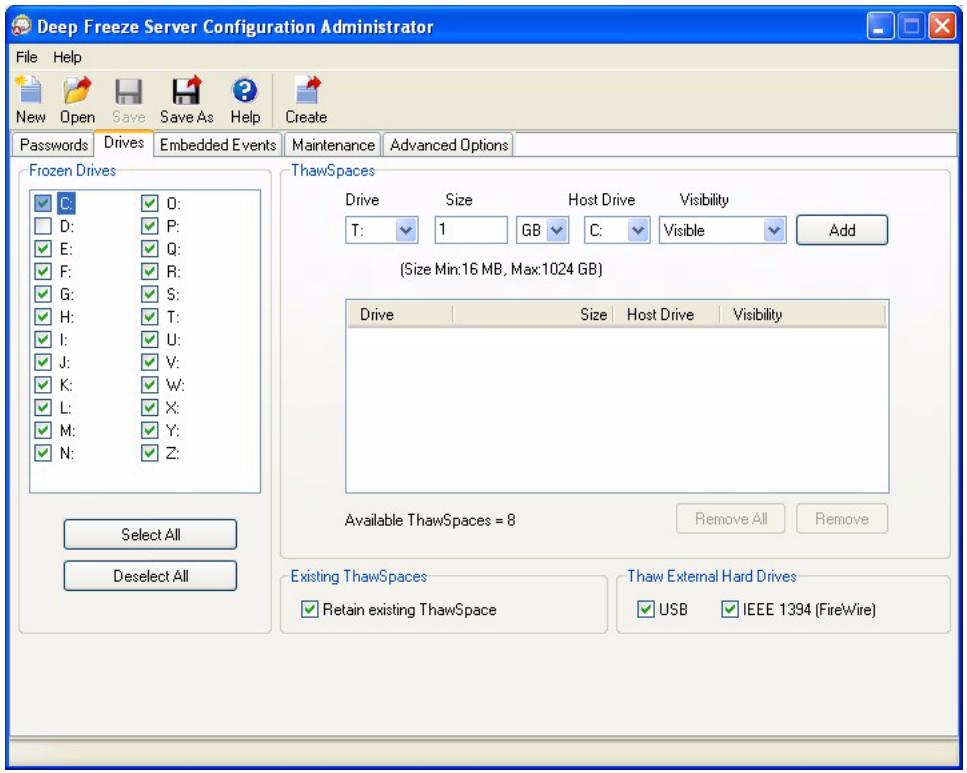
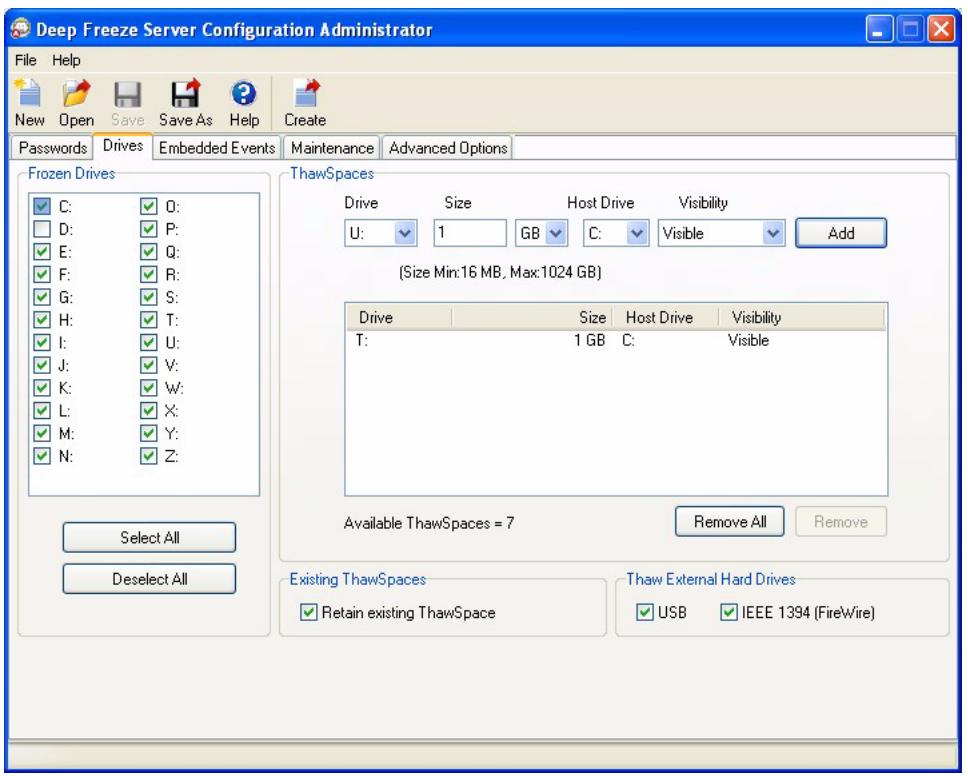
The Drives tab is used to select which drives are to be Frozen (protected by Deep Freeze) or Thawed (unprotected), or to create a ThawSpace — a virtual partition on a Frozen/Thawed drive where data can be saved permanently without being deleted by Deep Freeze during a reboot.
Frozen Drives
By default, all drives are Frozen. To put a drive in a Thawed state, clear the check box of the preferred drive.
While only local drives (partitions or physical drives) can be Frozen, all drive letters are shown because the pre-configured installation file may be installed on many computers with various hardware and software setups.
Example
In the above screen, the D : is not selected from the Frozen Drives list. Therefore, all drives except D : are Frozen.
ThawSpace
ThawSpace is a virtual partition that can be used to store programs, save files, or make permanent changes. All files stored in the ThawSpace are retained after a restart, even if the computer is Frozen.
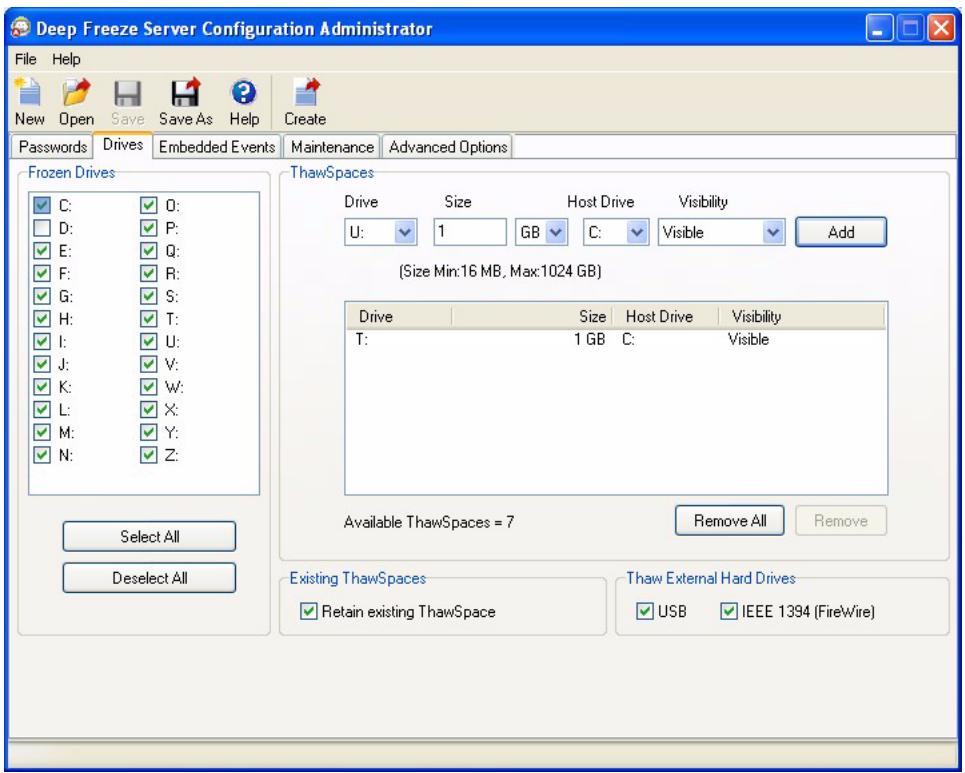
To create a single ThawSpace or multiple ThawSpaces using the Configuration Administrator, complete the following steps:
-
Select the Drive Letter. The default letter is T : However, it can be changed to any available letter. The next available letter is automatically used if the selected drive letter already exists on a computer when Deep Freeze is installed.
-
When a Drive Letter is selected from the drop-down and used to create a ThawSpace, it is removed from the drop-down.
- When a ThawSpace is removed, the corresponding Drive Letter is added back to the drop-down.
-
The Drive Letter cannot be same as the Host Drive.
-
Enter the Size. This is the size of the ThawSpace. The maximum size is 1024 GB and the minimum size is 16MB.
-
If the computer does not have enough free space to accommodate the selected ThawSpace size, the size of the ThawSpace is adjusted downward to ensure proper operation of the computer.
- If you select the Size less than 16MB, the ThawSpace is set to 16MB.
-
If you select the Size more than 1024GB (1TB), the ThawSpace is set to 1024GB (1TB).
-
Select the ThawSpace storage unit in MB or GB .
-
Select the Host Drive.
-
The Host Drive is the drive where the ThawSpace is created.
-
The storage required for the ThawSpace is used from the total storage available on the Host Drive.
-
Select Visible or Hidden from the Visibility drop-down.
-
If you select Visible, the drive will be visible in Windows Explorer.
- If you select Hidden, the drive will not be visible in Windows Explorer.
-
However, the hidden drive can be accessed by typing the drive letter in Start>Run.
-
Click Add to add the ThawSpace.
Removing a ThawSpace
To remove a ThawSpace, select the ThawSpace and click Remove. The ThawSpace is removed and the drive letter is now added back to the Drive Letter drop-down. Click Remove All to remove all the ThawSpaces.
Example
In the above screen, a ThawSpace of 16 MB is created on the Host Drive C: and the ThawSpace is designated with the drive letter T :. The ThawSpace T : is set to Visible and can be accessed via the Windows Explorer.

It is recommended to assign Drive Letters towards the end of the alphabet (X, Y, Z) in order to avoid automatic reassignment when a removable drive is unplugged.
Existing ThawSpace
The Retain existing Thawspace check box is selected by default to prevent ThawSpaces created during previous installations from being deleted.
A dialog is always displayed asking if the ThawSpace should be retained or deleted during an Attended Uninstall, regardless of whether Retain existing ThawSpace has been selected. This option is not displayed if the uninstall is performed through the Enterprise Console.
Always Thaw External Hard Drives
The Always Thaw External Hard Drives pane has two check boxes, USB and IEEE 1934 (FireWire) and both check boxes are selected by default. This ensures that the USB or IEEE 1934 (FireWire) hard drives are always Thawed.
If the USB and/or IEEE 1394 (FireWire) external hard drives check boxes are cleared, the drive is Frozen or Thawed according to the letter each drive mounts to in the Frozen Drives section.
Network drives and removable media drives (floppy, memory keys, CD-RW, etc.) are not affected by Deep Freeze and therefore cannot be Frozen.
Example
In the above screen, drives E : and F : are selected in the Frozen Drives pane.
Let us assume that E : corresponds to a USB hard drive and F : corresponds to an IEEE 1394 (FireWire) hard drive.
The USB and IEEE 1394 (FireWire) check boxes are selected in the Always Thaw External Hard Drives pane, the external hard drives would be Thawed.
The USB check box is selected. The IEEE 1934 (FireWire) check box is cleared. In this example, the USB drive (E:) would be Thawed and the IEEE 1394 (FireWire) drive (F:) would be Frozen.
The Embedded Events Tab allows you to schedule various events at pre-defined intervals.
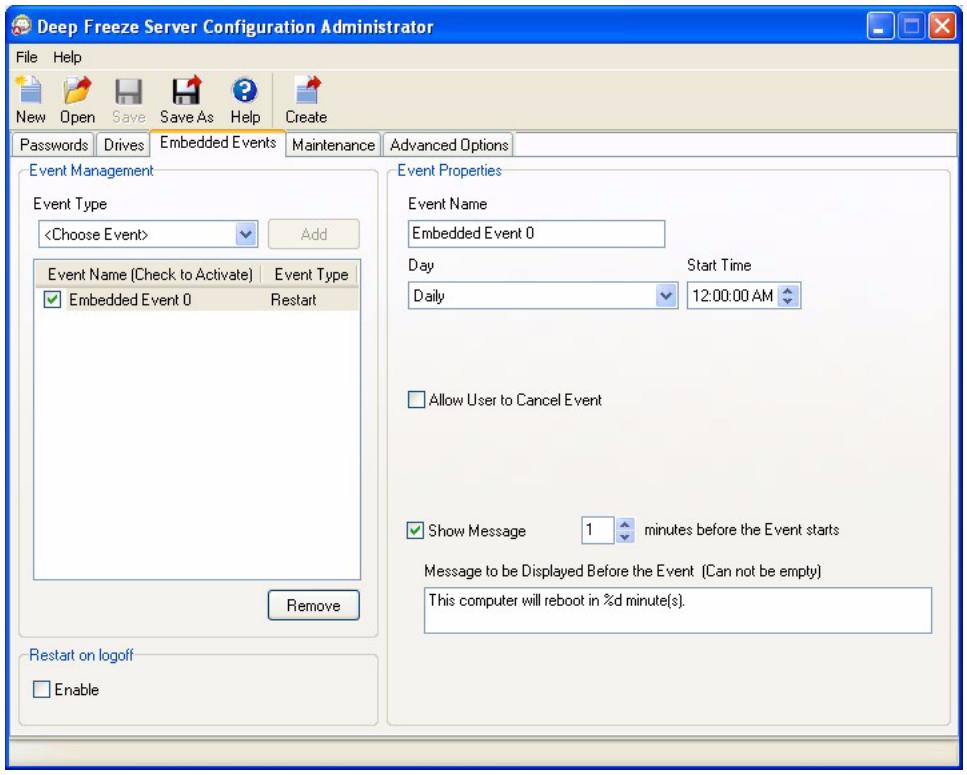

When events are created through the Embedded Events tab, they are saved in the Workstation Install file. As the events created by the Embedded Events tab exist on the target computer, if communication between the Enterprise Console and the target computer fails, or does not exist, the events are still executed since they exist on the target computer.
Events scheduled through the Scheduled Tasks Wizard in the Enterprise Console exist on the Enterprise Console and not on the target computers. Therefore, a continuous connectivity between the Enterprise Console and the target computer is required for the events to be executed. For more information, refer to the Scheduling Deep Freeze Tasks section.

Overlapping events cannot be created in the Embedded Events tab. If a newly created event overlaps with an existing event, a message is displayed.

A message can be displayed to the user for a maximum of 5 minutes. There must be a gap of a minimum of 5 minutes between any two events.
Restart on Logoff - Select this check box to Restart the computer automatically when it is logged off. If this option is selected, the computer is restarted when a user logs off.
The following events can be scheduled in the Embedded Events Tab:
Restart
The Restart event can be scheduled by completing the following steps:
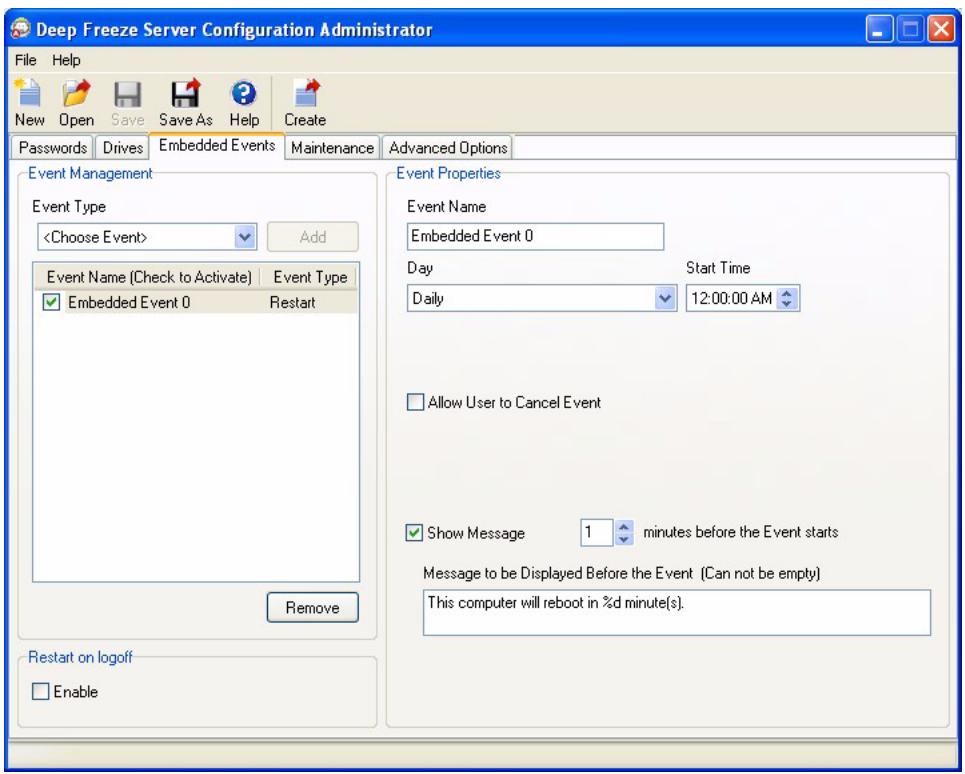
Select Restart from the Event Type drop-down in the Event Management pane and click Add. The following options are displayed in the Event Properties pane:
Event Name - Specify a name for the event.
Day - Select the day, or specify if the event will occur on Weekdays or Weekends.
- Start Time - Select the Start Time.
- Allow User to Cancel Event - Select the check box if the user is allowed to cancel the event.
- Show message - Select the check box to display a message on the computer before the event occurs. Specify the time interval in minutes and enter a brief message to be displayed before the event occurs.

The message This computer will reboot in %d seconds is displayed in the Message to be displayed before the Event field. This message can be edited. Add the word minutes in the message after %d to include the word minutes as part of the message.
Example
In the above screen, an Embedded Event has been created to restart the computer daily at 12:00 AM. The Embedded Event is configured to display a message to the user 1 minute before the Restart event.
Shutdown
The Shutdown event can be scheduled by completing the following steps:
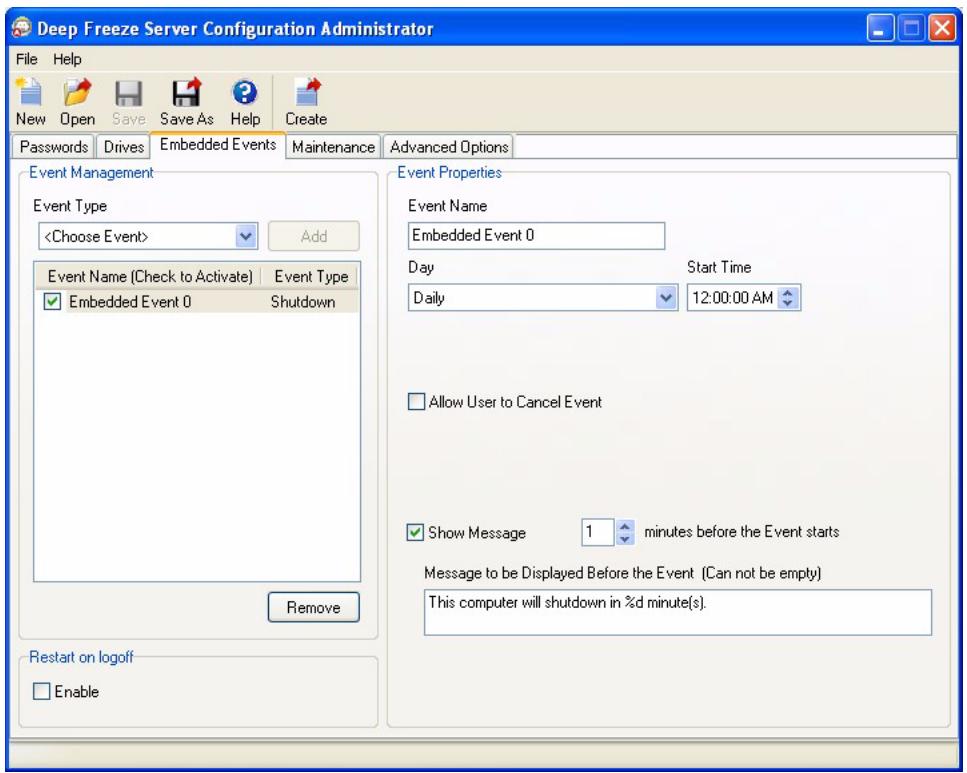
Select Shutdown from the Event Type drop-down in the Event Management pane and click Add. The following options are displayed in the Event Properties pane:
Event Name - Specify a name for the event.
Day - Select the day, or specify if the event will occur on Weekdays or Weekends.
- Start Time - Select the Start Time.
- Allow User to Cancel Event - Select the check box if the user is allowed to cancel the event.
- Show message - Select the check box to display a message on the computer before the event occurs. Specify the time interval in minutes and enter a brief message to be displayed before the event occurs.

The message This computer will reboot in %d seconds is displayed in the Message to be displayed before the Event field. This message can be edited. Add the word minutes in the message after %d to include the word minutes as part of the message.
Example
In the above screen, an Embedded Event has been created to shutdown the computer daily at 12:00 AM. The Embedded Event is configured to display a message to the user 1 minute before the Shutdown event.
Maintenance
Maintenance Events are scheduled for ensuring successful software updates or other permanent changes on the computer. A Maintenance Event has a Start Time and an End Time. During this period, the software updates and other permanent changes take place.
The Maintenance Event can be scheduled by completing the following steps:
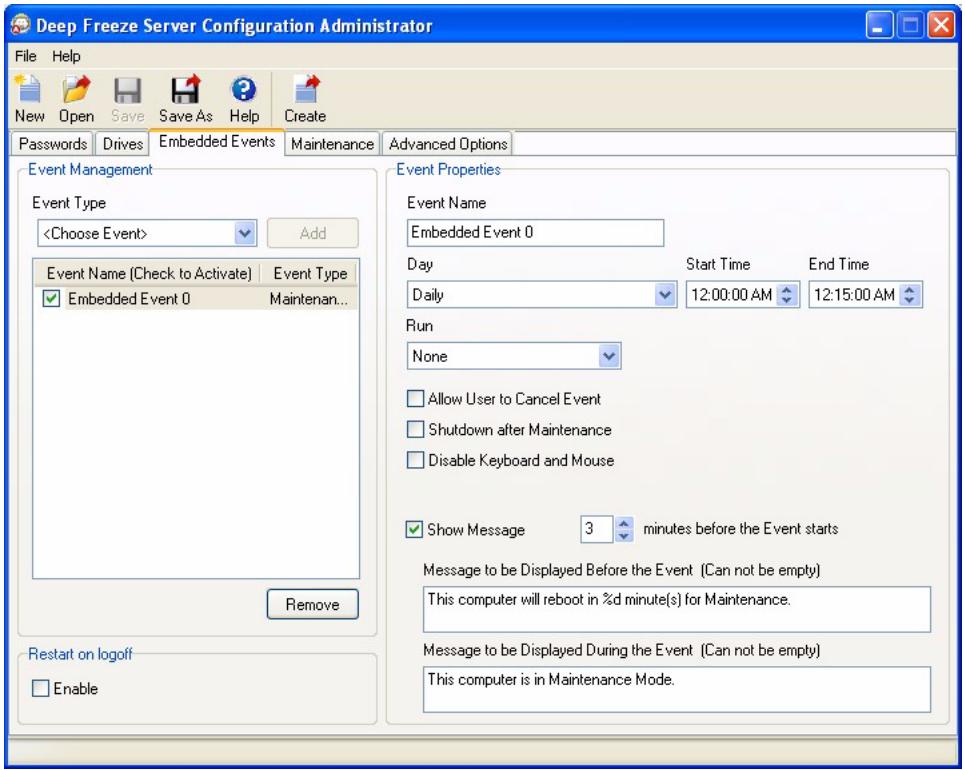
Select Maintenance from the Event Type drop-down in the Event Management pane and click Add.
The following options are displayed in the Event Properties pane:
Event Name - Specify a name for the event.
Day - Select the day, or specify if the event will occur on Weekdays or Weekends.
- Start Time - Select the Start Time.
End Time - Select the End Time. The minimum interval is 15 minutes.
- Run - Select Batch File to run a batch file. Select Windows Updates to enable Windows Updates.

Deep Freeze requires Windows Update Agent (version 7.2.6001.788 or higher) to ensure that Windows Update can execute properly.
- Allow User to Cancel Event - Select the check box if the user is allowed to cancel the event.
- Shutdown after Maintenance - Select the check box to shutdown the computer after Maintenance.
- Disable Keyboard and Mouse - Select the check box to disable keyboard and mouse during Maintenance.
- Show message - Select the check box to display a message on the computer Before and During the event. Specify the time interval in minutes and enter a brief message to be displayed before the event starts.

The message This computer will reboot in %d for Maintenance is displayed in the Message to be displayed before the Event field. This message can be edited. Add the word minutes in the message after %d to include the word minutes as part of the message.

Adequate time required for Windows Updates must be set while creating the Maintenance event.
Example
In the above screen, a Maintenance Event has been created to schedule a maintenance period at the computer daily between 12:00 AM and 12:15 AM. No Batch Files or Windows Updates are to be run during the maintenance period. The user is not allowed to cancel the event. The computer will not shut down after the maintenance period. The keyboard and mouse are not disabled during the maintenance period. The Maintenance Event is configured to display a message to the user 3 minutes before the event starts. The following message will be displayed on the computer at 12:00 AM The computer will reboot in 3 minutes for maintenance. During the maintenance period, the following message is displayed on the computer This computer is in Maintenance Mode.

Deep Freeze will automatically update the computer with Critical Updates, Security Updates, and Service Packs during Windows Update.
Idle Time
The Idle Time event can be scheduled by completing the following steps:
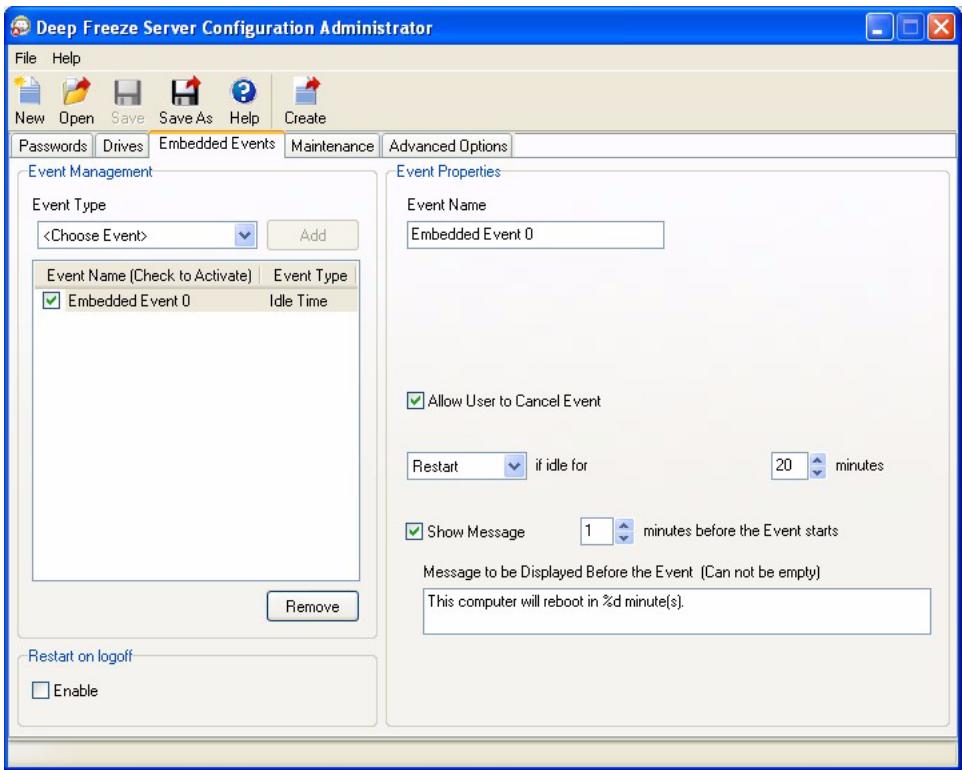
Select Idle Time from the Event Type drop-down in the Event Management pane and click Add. The following options are displayed in the Event Properties pane:
Event Name - Specify a name for the event.
- Restart or Shutdown - Select Restart or Shutdown and specify the time interval in minutes.
- Show message - Select the check box to display a message. Specify the time interval in minutes and enter a brief message.

After the computer is started, the Idle Time counter becomes active only after the first keyboard or mouse activity has been initiated.
Example
In the above screen, the Idle Time Event is set to Restart when the computer is idle for 20 minutes. A message is displayed to the user for 1 minute after the idle time has elapsed. The computer will restart unless the user cancels the event in the message dialog displayed.
The Maintenance tab is used to specify an SUS (Microsoft Software Update Services) or WSUS (Windows Software Update Services) Server and batch file options for a Scheduled Maintenance period.
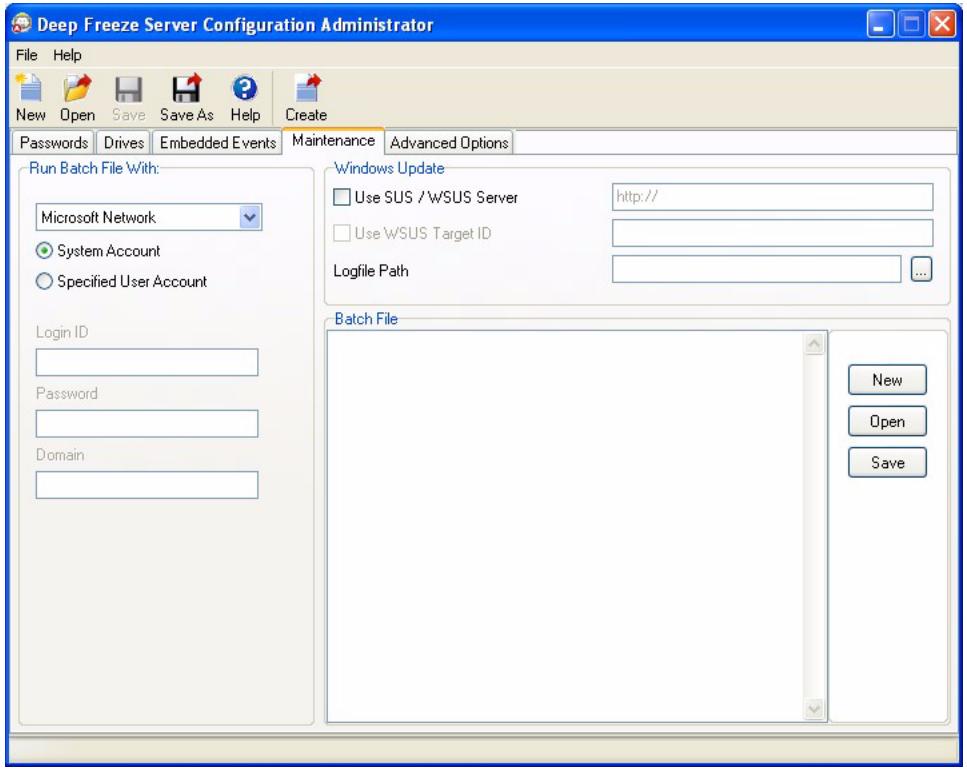
Run batch file with:
Select Microsoft Network and select if the account to be used is a System account or a Specified user account. If you select Specified user account, specify the Login ID, Password, and Domain.
For Novell Network, select Novell, specify the Login ID, Password, Tree, Context, and Server.
Windows Update
To use an SUS (Microsoft Software Update Services) Server or a WSUS (Windows Software Update Services) Server for Windows critical updates, select the option Use SUS/WSUServer and enter the IP address or Hostname. If Use SUS/WSUSServer is not selected, Windows critical updates are downloaded via the Internet for each computer individually.
Select the Windows Update Logfile path. Browse to select the log file path and click OK. If the path is empty, Deep Freeze will create a default log file DFWuLogfile.log under the Faronics folder.
Microsoft SUS client and SUS/WSUS server can be downloaded at: http://www.microsoft.com.
Batch File
Enter a custom batch file to run during the Maintenance Period. The same batch file applies to all Maintenance Periods for which a batch file will be run. The following options are available when running custom batch files:
- To clear the current batch file, click New
To load an existing file, click Open and browse to the location of the file
To save the contents of the field, click Save and browse to the preferred save location
The batch file can be any command or series of commands that the command processor can run. Users can run custom scripts that require the use of a third-party scripting engine by calling the script from the batch file as if it was being run from the command line.
The Advanced Options tab is used to configure the network settings used by the computers to communicate with the Console, configure various security options, and administer License Keys.
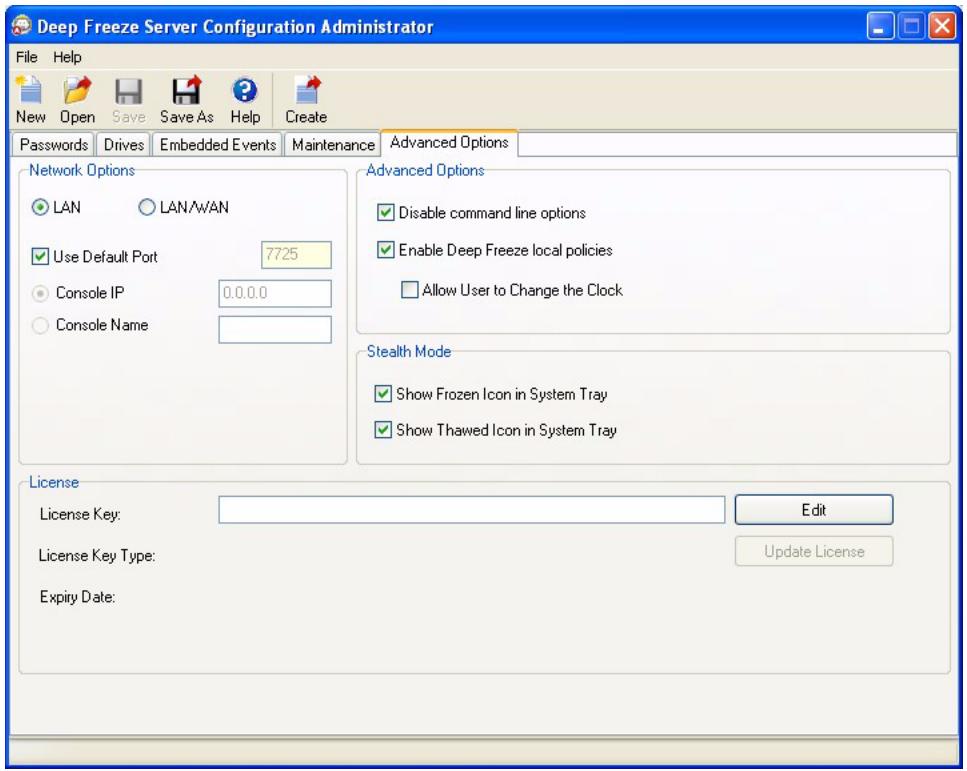
Network
Communication between the Deep Freeze Server Enterprise Console and computers with Deep Freeze installed can use two different modes: LAN Mode or LAN/WAN Mode.
- LAN: Select LAN to configure Deep Freeze to communicate within a Local Area Network (LAN). LAN mode is a self-configuring mode that requires only a port number. The default port is 7725. The port number can be changed if it is in conflict with other programs on the LAN. In LAN mode, the Deep Freeze target computer and the Enterprise Console find each other through UDP broadcasts. These broadcasts only occur when computer or the Enterprise Console is started, ensuring that there is little network traffic associated with target computer and Console communication.
- LAN/WAN: Select LAN/WAN to configure Deep Freeze to communicate in both a LAN and a WAN (wide area network). LAN/WAN can be used in either a LAN or WAN environment and over the Internet. This mode uses an IP address or the computer name, along with a port number, to allow communication between the Enterprise Console and the managed computers.
The following two methods are available to identify the Console:
- specify the Console IP, which must be static
- specify the Console Name, in which case the IP can be dynamic
When the Enterprise Console is behind a firewall or a NAT (network address translation) router, the firewall or router must be configured to allow traffic to pass through to the Enterprise Console. Depending on the firewall or router, computers may need to be configured with the IP address of the firewall so that traffic can be forwarded.
For more information on configuring and using Deep Freeze in a specific network environment, refer to Appendix B or contact Technical Support.
If a port number other than the default of 7725 (registered to Deep Freeze) is used, care should be taken to ensure that there are no conflicts with applications already running on the network. Well-known ports (0-1023) should be avoided and any Registered Ports (1024-49151) should be checked for conflicts before deployment.
A complete listing of the ports assigned to various applications can be found on the Internet Assigned Numbers Authority web site at http://www.iana.org/assignments/port-numbers.
Advanced Options
- Disable Command Line options - This option is selected by default. Clearing this check box allows for further customization of the Deep Freeze installation program when using the Silent Install System. Selecting this option prevents the pre-existing configuration choices from being changed during installation.
- Enable Deep Freeze local policies - For enhanced security, Deep Freeze removes the following local privileges: debugging programs, modifying firmware, and changing the system time; clear this option to use existing privileges.
- Allow user to change the clock - Select this option to allow Frozen users to adjust the system clock.
Stealth Mode
- Show Frozen icon in system tray - Select this option to display the icon to indicate that Deep Freeze is installed and the computer is Frozen.
- Show Thawed icon in system tray - Select this option to display the icon to indicate that Deep Freeze is installed but the computer is Thawed.
If the options to show a Deep Freeze icon in the System Tray are unchecked, the keyboard shortcut CTRL+ALT+SHIFT+F6 must be used to access the logon dialog.
License
License Key - Click Edit and enter the License Key.
License Key Type - The License Key type is displayed. This field displays if this is an Evaluation version or a full version.
- Expiry Date - The Expiry Date for Deep Freeze is displayed.
The License Key can be updated in the following ways:
- Through the Workstation Install file - The License Key is updated in the Configuration Administrator and a Workstation Install file is created. The License Key is now part of the Workstation Install file.
- Through the Enterprise Console - The License Key can be updated directly on the Enterprise Console. When the License Key is updated in the Enterprise Console, it is
automatically updated on all connected computers. For more information on updating directly through the Enterprise Console, refer to the Licensing section.
- Manually on each computer - The License Key can be updated manually on each computer. For more information, refer to the Status Tab section.
Creating Workstation Install Program and Workstation Seed
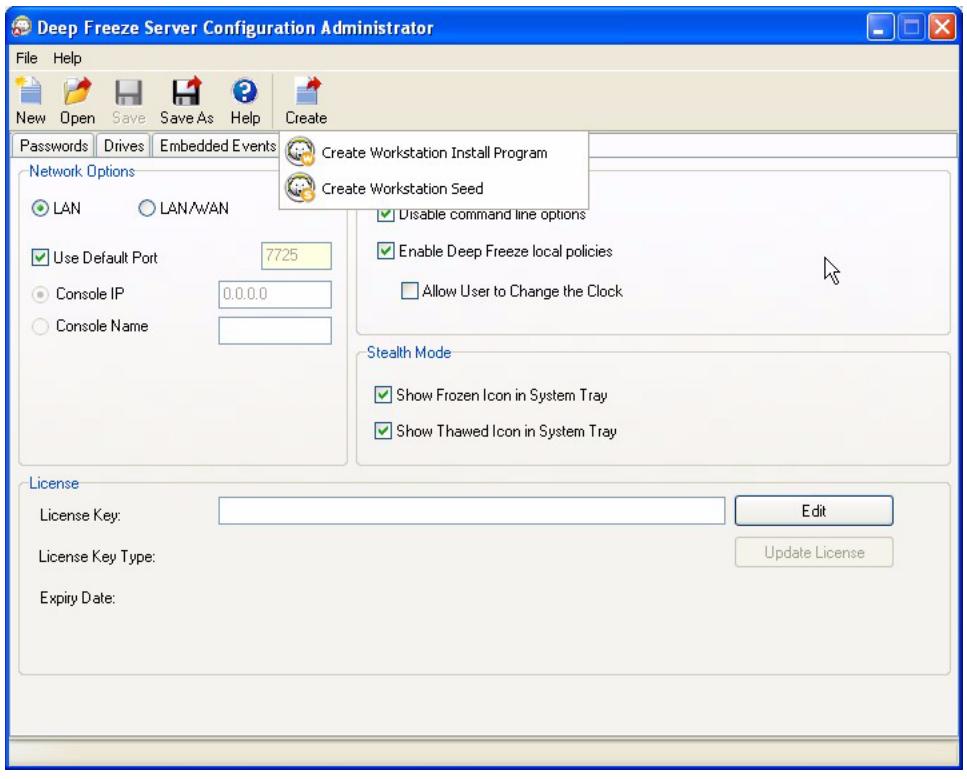
To create customized Deep Freeze installation program files with all of the options that were configured in the previous sections, click the Create button in the Configuration Administrator toolbar and select Create Workstation Install Program.
This file can then be used to install Deep Freeze on computers using:
- Attended Install (install based on user input)
- Silent Install system (install that does not inform user of progress or provide messages during installation)
- Target Install (install program created by the Enterprise Console for deployment on target computers)
To create a Workstation Seed, click the Create button in the Configuration Administrator toolbar and select Create Workstation Seed. The Workstation Seed is a lightweight program that allows administrators to remotely install and control computers from the Enterprise Console. The Workstation Seed can be installed as part of a master image and then deployed via imaging software. All computers on the LAN with the Workstation Seed installed are displayed in the Enterprise Console. The default file name for this program is DFServerWksSeed.exe.
All files are saved to Deep Freeze Enterprise/Install Programs folder by default. A different location can be chosen and the file name can be changed if required. It is recommended that a naming convention is used if you are creating multiple customized installation files.
Using Deep Freeze Server Enterprise Console
This chapter describes using the Deep Freeze Server Enterprise Console.
Topics
Deep Freeze Server Enterprise Console
Managing Communication Between the Console and Workstations
Remote Consoles
Connecting to a Remote Console
Managing Deep Freeze with the Console
Licensing
Scheduling Deep Freeze Tasks
Assigning Computers to Scheduled Tasks
Managing Network and Groups
History
Adding computers to a Group
Configure Custom Actions
Console Customizer
Deep Freeze Server Enterprise Console Shutdown
Installing Deep Freeze on the Workstation
Uninstalling Deep Freeze on the Workstation via the Console
Silent Install or Uninstall
CheckforUpdates
Deep Freeze Server Enterprise Console
The Deep Freeze Server Enterprise Console displays the status of all Frozen, Thawed, and Target computers on the network and allows the administrator to perform specific tasks on those computers. Detailed status information is available with selective or group reporting.
The Enterprise Console allows administrators to remotely perform the following tasks:
- Immediately Target Install computers
- Selectively Freeze, Thaw, or Thaw Lock one or more computers
- Lock or Unlock selected computers
- Dynamically update Embedded Events and Maintenance settings
- Restart or shutdown computers
- Stop scheduled maintenance
Power on computers equipped with a Wake-on-LAN network card - Update Deep Freeze software
Schedule tasks directly from the Console - Send messages to computers
- Import groups and containers from Active Directory
- Generate One Time Passwords
Schedule Actions - Customize the Enterprise Console
- Update the License Key
The Enterprise Console can only wake a computer from a powered-down state if the computer is properly configured to power on when a Wake-on-LAN packet is received.
Launching the Enterprise Console
The Enterprise Console is installed with the Deep Freeze Configuration Administrator. Open the Console by selecting the following path from the Start menu:
Start > All Programs > Faronics > Deep Freeze Server 65 Enterprise > Deep Freeze Console
Activating the Enterprise Console
As a security feature of Deep Freeze Server Enterprise the OTP feature prevents unauthorized Deep Freeze Server Enterprise Console use. When the DFConsole.exe file is copied to a new computer, the Console must be activated. When it is run for the first time on the new computer, a dialog displays with an OTP Token.
The network administrator enters this token in the Configuration Administrator's OTP Generation System. An OTP is generated. Enter it in the dialog and the Console will run.
The Enterprise Console runs on Windows 2000/XP/Vista, and 2000, 2003 and 2008 Server. The computer on which the Enterprise Console is installed must not have an installation of the Workstation Seed (using the same port) or a full Deep Freeze installation.
Status Icons
The Enterprise Console displays the status of the computers on the local area network with the following icons beside or above the computer name, depending on the view selected:
| Icon | Definition |
| Target: Computers that have the Deep Freeze Workstation Seed installed but do not have Deep Freeze installed; Deep Freeze can only be remotely installed on computers with this icon | |
| Computers with Deep Freeze installed in a Frozen state | |
| Computers with Deep Freeze installed in a Thawed state | |
| Computers with Deep Freeze installed in a Thawed Locked state | |
| Computers that are currently powered down | |
| Computers that are currently in Maintenance Mode | |
| Computers whose communication with the Console has been interrupted | |
| Computers that are Locked |
Managing Communication Between the Console and Workstations
There are two types of connections from Console to workstation and Console to Console:
- Local connections - connections that can only be accessed by the Enterprise Console that hosts those connections.
- Remote control enabled connections — connections that can be accessed by the Console that hosts as well as other Consoles connected remotely.

The Server Service for Deep Freeze 6.5 will not automatically update the Server Service for Deep Freeze 6.4 or lower. Both services can be installed on the same computer, but only one service can run at a time.
A computer can lose communication with the Console for any of the following reasons:
- The computer is powered off manually or is shut down without warning
- The network is experiencing heavy traffic or outages
- The computer's network settings are changed to point to a new Console
In most cases, communication with the computer is re-established when the computer is powered on or when the conditions causing the communications breakdown are rectified. It may take several minutes for the computer to report back to the Console and re-establish communication. If communication cannot be re-established, contact Technical Support for troubleshooting steps.
Configuring the local service
The local service is a service that sets up and maintains connections to computers.
Enabling the local service
By default the local service will be installed and enabled when the Console is first run.
To enable the local service again if it has been disabled (and/or uninstalled)
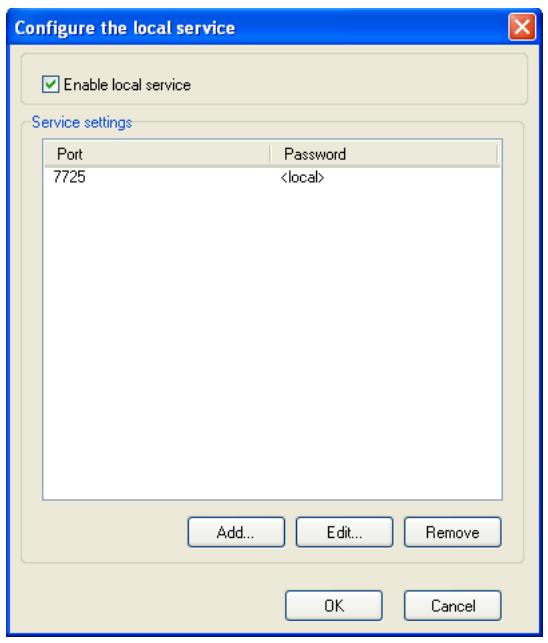
- Select Tools > Network Configuration.
- Select the Enable local service check box to enable it.
Disabling the local service
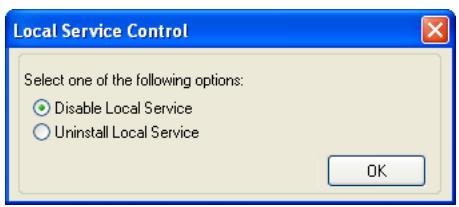
Clearing the Enable local service check box and clicking OK displays the option to either disable the local service or uninstall the local service.
Adding a local service Connection
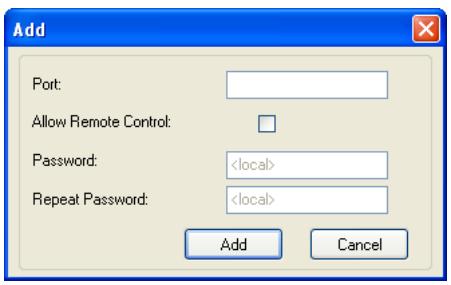
- To add local service connection, select Tools >Network Configuration.
- To add a connection select Add and specify the port number (7725 in this case).
- To enable the Console to be controlled remotely, select Allow Remote Control check box and specify a password.
After selecting Add, a connection that serves port 7725 will be created in the connections list of the local service as well as the in the network pane of the Console.
Editing or Removing a local service Connection
Once a Local Service connection has been added to it can be edited or removed through the Tools > Network Configuration.
To edit a local service connection perform the following steps:
- Ensure the Enable Local Service option is selected.
- Select a port from the Local Service connections list and click Edit.
- The edit dialog appears that allows for the port to be controlled remotely and password protected.
- To remove a port from the Local Service, highlight the port and click Remove. This does not delete the entry from the Network and Groups pane in the Enterprise Console. It simply removes it from the Local Service connections list.
- To remove the entry form the network pane in the Console, select it and click the Remove icon located in the sidebar.
A Remote Console is a Console that hosts one or more connections that allow other Consoles to connect through. Existing connections must be edited to allow them to be accessed remotely.
Setting up Remote Control Enabled Connections
To allow a connection to be accessed remotely perform the following steps:
- Open Tools > Network Configurations.
- Select the Enable local service check box.
- Select a port from the list and click Edit.
- Ensure Allow Remote Control is selected.
- Specify a password.
- Click OK.
Connecting to a Remote Console
Once a Remote Console has been established by the hosting Console it can be accessed by other Consoles from a different machine.
- Select the Connect to Remote Console icon in the side bar or by right-clicking on the network item. Upon selection the Connect to Remote Console dialog appears:
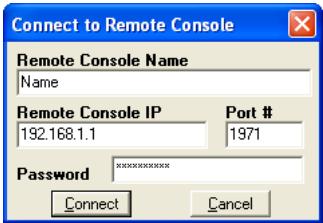
- In the Connect to Remote Console dialog, specify the connection details such as Remote Console Name, Remote Console IP, Port number, and Password. This information is provided by the administrator of the host Console. Once entered, this information can be retrieved by right-clicking a port in the Network and Groups Pane and selecting Properties.

If the connection to a Remote Console has been severed, it can be reconnected by clicking the Reconnect to Remote Console icon in the sidebar or by right-clicking on an entry in the Network and Groups pane.
Managing Deep Freeze with the Console
The Enterprise Console contains a toolbar at the top of the screen that allows quick access to the functions of the Console.

These commands can also be accessed using the contextual menu, as shown below, that appears by right-clicking on one or more computers. When a particular action is chosen, the selected computer performs the action and the status icons update accordingly.
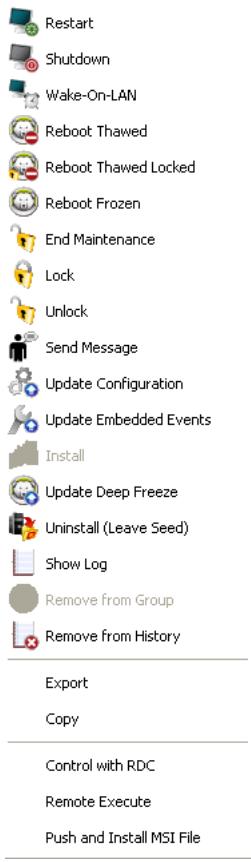
Specific icons are disabled if the selected computer does not support that action. For example, a computer that has a Target icon, will not show the option to be Thawed or Frozen, because the program has not been installed yet.
Updating Deep Freeze Software
To update Deep Freeze computers (where Deep Freeze 6.3 or higher is installed) with a new version of Deep Freeze, complete the following steps:
-
In the Configuration Administrator of the new version of Deep Freeze, create a blank workstation installation file.
-
In the Enterprise Console, select the computers to be updated. These computers can be in either a Frozen or Thawed state.
- Right-click, and select Update Deep Freeze from the contextual menu.
- A standard Open file window appears. Select the blank computer file and click Open.
- The selected computers update to the new version of Deep Freeze software, but retain all settings from the current version.
This feature works only on computers with Deep Freeze 6.3 and higher currently installed.
Sending Messages to Computers
To send a message to one or more computers, complete the following steps:
- Select the computer(s) to send a message.
- Right-click and select Send Message from the contextual menu.
- Type the message in the dialog that appears and click Send. A dialog appears asking for confirmation to send the message to the selected computers.
- Click OK to send or Cancel to close the dialog without sending the message.
Target Installing Deep Freeze
Complete the following steps to remotely install a Full Workstation Installation on any computer that has the Workstation Seed installed.
- Right-click on one or multiple computers and select Install. A dialog is displayed, asking if the installation should proceed. Click OK.
- A dialog box appears to select the file to be installed on the remote computer.
- Select the installation file to use and click Open.
- The computer installs Deep Freeze and restarts.
- Once the installation is complete, the Enterprise Console reflects the change in the computer's status, and displays it as Frozen.
Updating a Deep Freeze Configuration File
Complete the following steps to update the configuration on one or many computer(s) with the settings of an existing .rdx file. (An .rdx file is a file containing the conditions specified in the Deep Freeze Configuration Administrator).
- Right-click on the computer(s) and select Update Configuration, as shown below.
- A message appears asking for an existing .rdx file to be located.
- Click OK. A standard Open File dialog appears to select an .rdx file.
- Locate a file and click Open to update the configuration on the selected computer(s) with the settings in the .rdx file. Click Cancel to cancel the configuration update.

If the Network options in the new configuration have changed, the computer(s) may lose communication with the existing Enterprise Console. If communication with the computers is lost, check the Network settings on the updated computers to ensure that the port numbers and/or IP address of the Console have not been changed.

Changes to passwords take effect immediately. All other changes take effect after each computer is restarted. ThawSpace and/or Frozen Drives cannot be changed through updating the configuration file.
Dynamically Updating a Deep Freeze Configuration
Complete the following steps to dynamically update the configuration on a single or multiple computers.
- Right-click on the computer(s) and select Update Embedded Events from the contextual menu. Or, select the desired computer(s) and click the Update Embedded Events icon in the toolbar.
-
A menu bar with six buttons appears at the bottom of the Workstations pane. Choose one of the following options:
-
Click New to create a new sub-configuration set.
- Click Import to import the settings from an existing Deep Freeze Configuration file (.rdx) or Deep Freeze Workstation Installation File (.exe) into the sub-configuration window.
In either case, a Configuration Screen, similar to the Configuration Administrator, appears containing the Embedded Events tab and Maintenance tab.
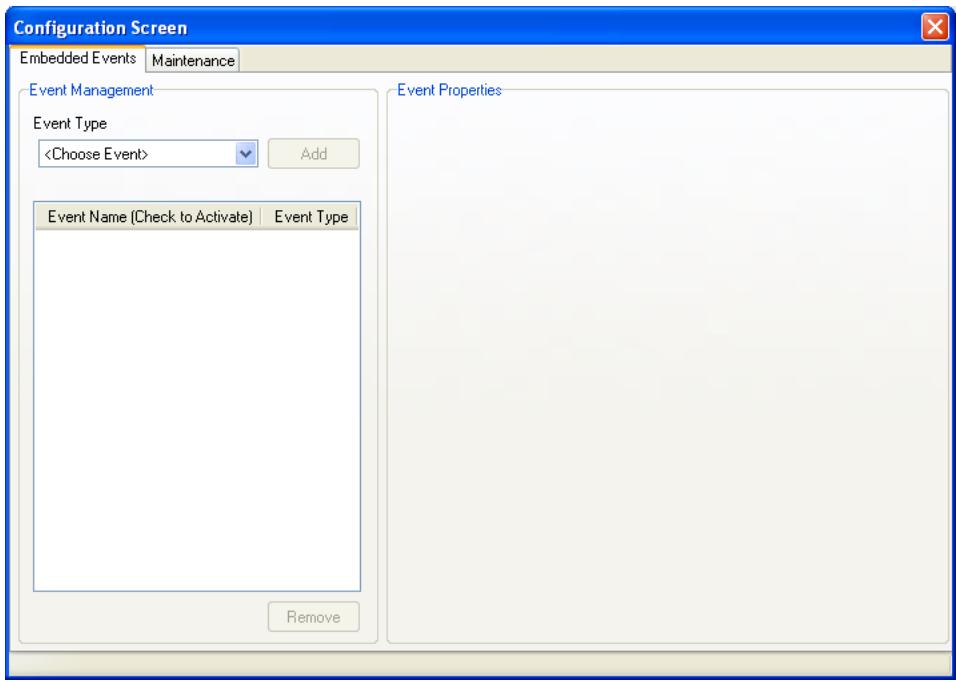
The two tabs on the Configuration Screen can be used to update the configuration on remote computers. Close the Configuration Screen after making the necessary changes in configuration. For further information about the options on each tab, refer to Using Deep Freeze Configuration Administrator.
The following message is displayed:
- Click OK.
- In the Workstations pane, select the required computer(s) to be dynamically updated with the new configuration settings.
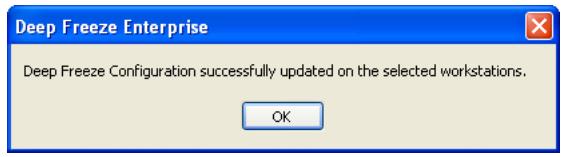
- Click Send on the menu bar to send the new configuration settings to the selected computer(s). The following message is displayed.
-
After sending the new configuration settings to the selected computers, the following options are available:
-
Click Save As to save the current settings of the Configuration Screen to a file. A standard Save File dialog displays where a location and file name can be specified.
- Click Edit at any time to re-open the Configuration Screen with the current settings intact.
- Click Close to clear the contents of the Configuration Screen and exit out of the dynamic configuration mode.

When updating the configuration on the computer, the Embedded Events and Maintenance tab options are updated with the new settings.
The License Key can be updated via the Enterprise Console.
To update the License Key, complete the following steps:
- Launch the Enterprise Console.
- Go to Tools > Licensing.
- The Deep Freeze License dialog is displayed.
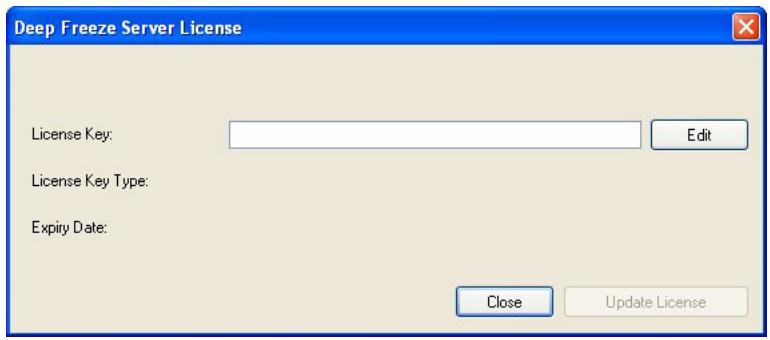
- Click Edit and enter the License Key in the License Key field.
- Click Update License.
The License Key is automatically updated on all computers communicating with the Enterprise Console. If a computer is offline (shut down or disconnected from the network), the License Key is updated when the computer communicates with the Enterprise Console the next time.
Scheduling Deep Freeze Tasks
To schedule a Deep Freeze task in the Enterprise Console using the Scheduled Task Wizard, complete the following steps:
-
Open the Scheduled Task Wizard in one of the following ways:
-
click Scheduler in the Network and Groups pane and click the Add Task icon
- right-click on Scheduler in the Network and Groups pane, and choose Add Task
The following screen is displayed:
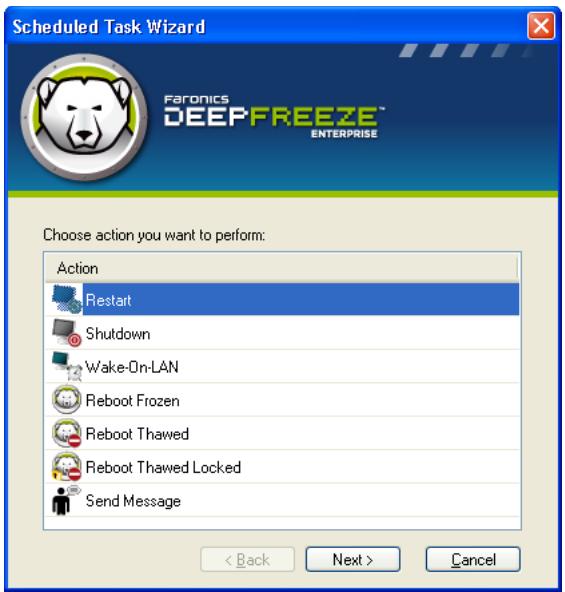
- Double-click the preferred task or select the task and click Next.
- In the following screen, enter a name for the task and choose the preferred task execution schedule: Daily, Weekly, Monthly, or One time only. Task names must be unique. No two tasks can have the same name. Click Next.
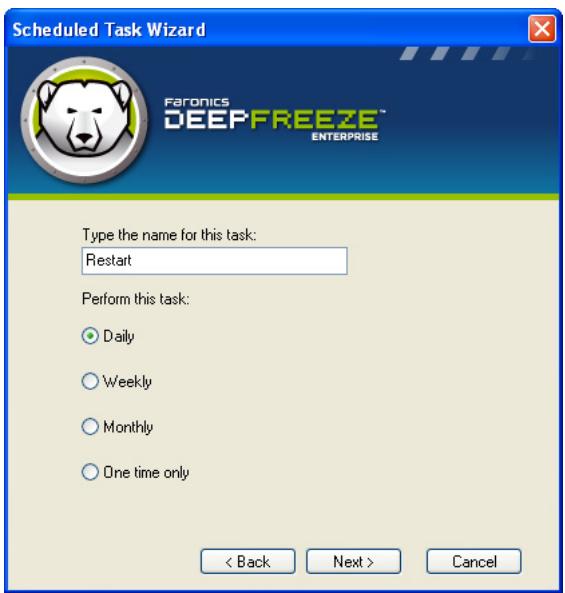
- Depending on the choice of task execution, the time and date configuration options that follow will vary. Click Next.
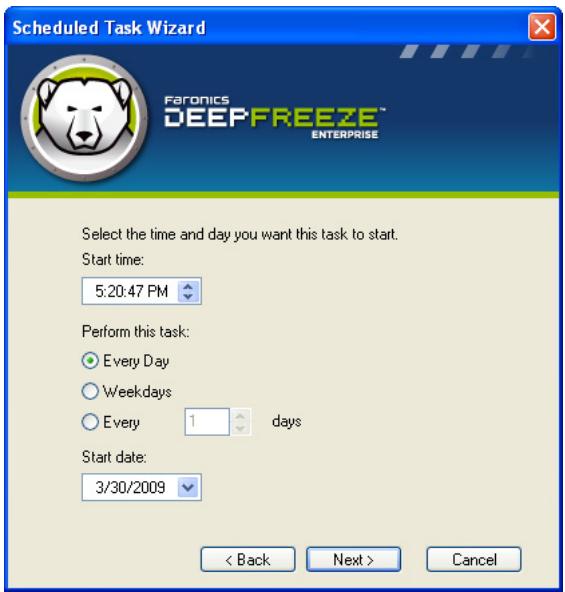
- Click Finish once the configuration is completed.
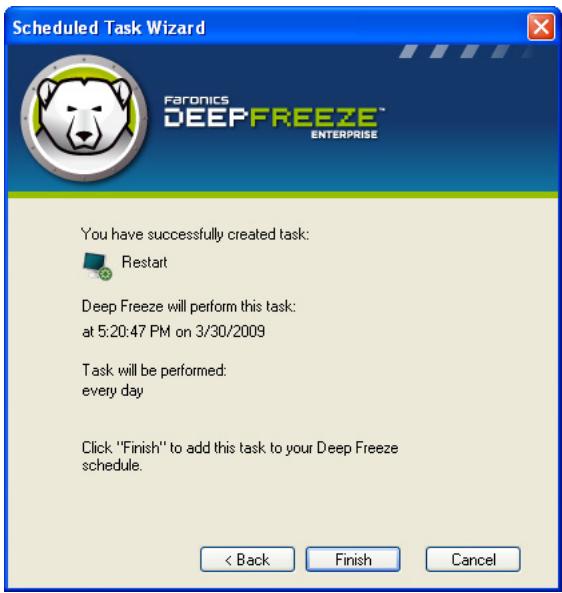

The default start time for a task is five minutes from the current time.
Assigning Computers to Scheduled Tasks
After a task has been scheduled, it appears under the Scheduler in the Network and Groups pane of the Console.
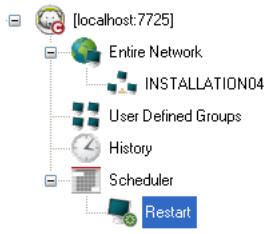
To assign computers to a task, select the preferred computers from the Workstations pane in the Console and drag them onto the preferred task. Or, drag a group onto the task.
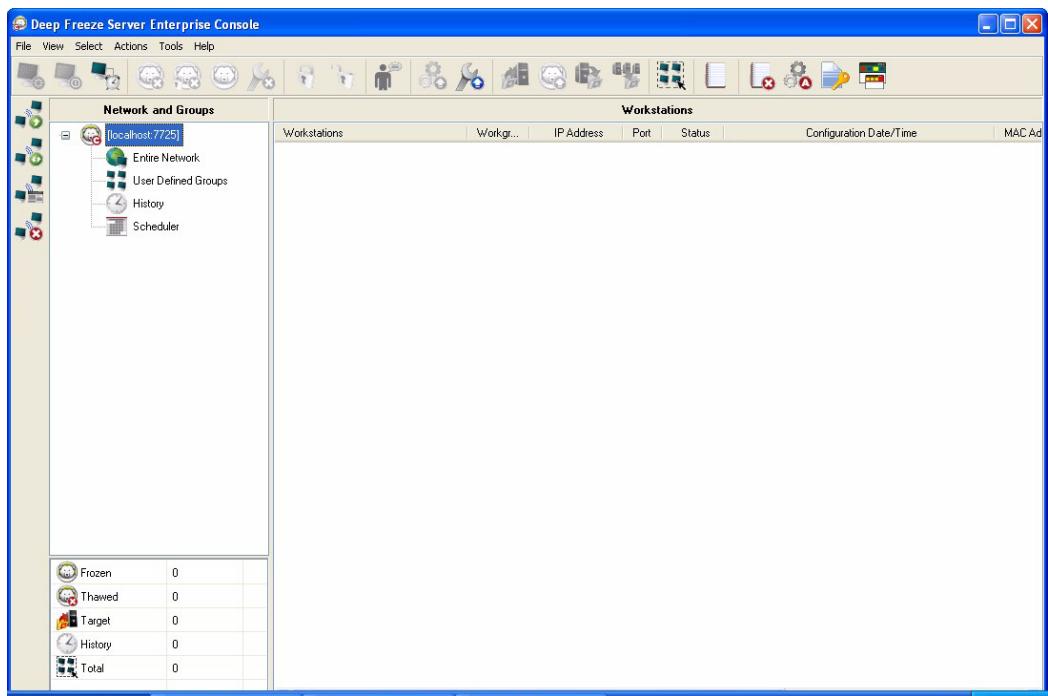
To see which computers are assigned to a specific task, click on the task. The assigned computers appear in the Workstations pane.
To delete a computer from a task, click on the computer and press Delete.
Executing a Task Immediately
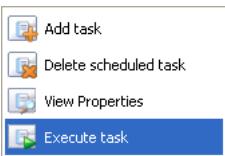
To execute a task immediately, right-click the task and select Execute Task.
Deleting a Task
To delete a task, click on the task and press Delete.
Scheduled Task Properties
To see the properties of a task, right-click the task name and select View Properties. The following screen displays:
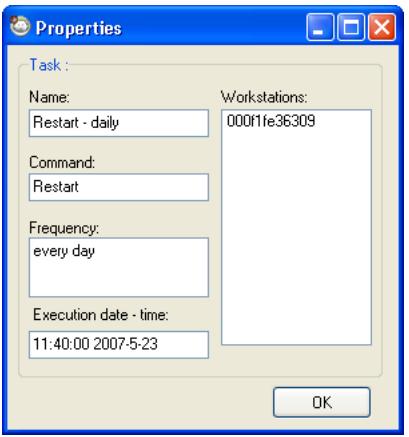
The properties of a task cannot be changed after it has been created. Only the computers that will execute the task can be changed by adding or deleting computers.

Scheduled tasks will still execute even if the Enterprise Console is closed provided the local service is enabled and the network connections are not shutdown upon exiting the Enterprise Console.
Managing Network and Groups
The Enterprise Console automatically arranges computers by their workgroup or domain. Click the appropriate workgroup or domain to view the computers in that workgroup or domain.
The Enterprise Console can be used to define specific groups in order to arrange computers.
Adding a New Group
To add a new group, complete the following steps:
- In the Network and Groups pane, right-click on User Defined Groups and choose Add Group.
- The Add Group dialog appears:
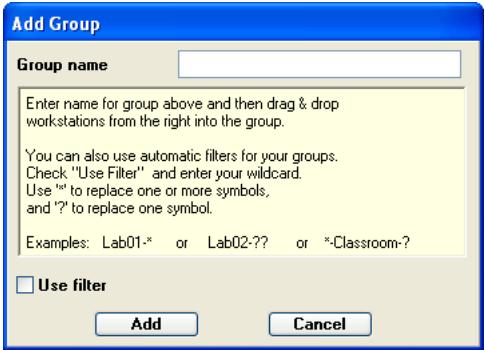
- Enter the name of the group to be added and click Add. The group appears under User Defined Groups in the Network and Groups pane.
Building a User Defined Group Structure
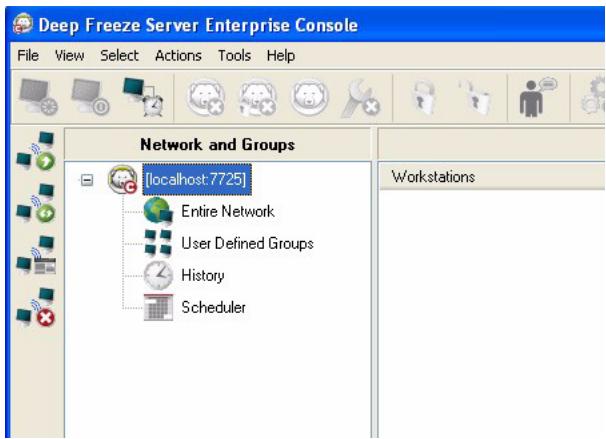
After a group has been added, one or more sub-groups can be added below it, and further sub-groups can be added indefinitely as a way to differentiate between environments, as in the example shown below:
Importing Groups from Active Directory
If the group structure has already been designed within Active Directory, that structure can be imported directly into the Enterprise Console. Complete the following steps to import from the Active Directory:
- Select Tools> Import Groups from Active Directory, or click the LDAP icon located in the sidebar.
- The following dialog appears. Select either the Microsoft tab or the Novell tab.
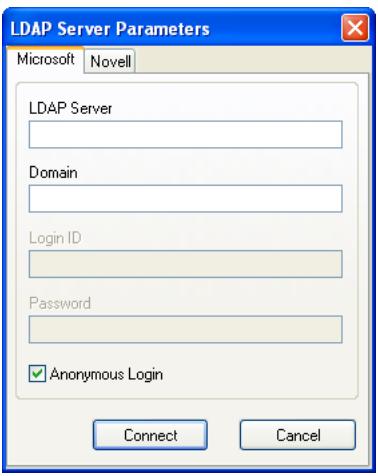
- Enter the LDAP server information of the import location. The option to login anonymously is also available. If this check box is not selected, a user name and password is required.
- Click Connect. The Active Directory hierarchy appears. Select the required entries and click Import.
History
The Enterprise Console stores the history of the target computers.
- To view history, click History in the Networks and Groups pane.
- To delete computer(s) from History, select the computer(s), right-click and select Remove from History in the context menu.
Adding computers to a Group
Computers can be added to a group by dragging them from the Workstations pane to the preferred group, or by using an automatic filter set during the creation of the groups.
Automatic group filtering allows computers to be added to user-defined groups automatically.
The computers are added based on their computer name.
Wildcards (^*,?) can be used to add computers based on a specific segment of the name.
Example: Lab1-* adds all computers with names starting with Lab1-.
Sorting Groups Alphabetically
To sort the Groups alphabetically, right-click User Defined Groups and select Sort Groups Alphabetically.
Removing Workstations from User Defined Group
To remove a computer from a Group, right-click on the computer in User Defined Groups and select Remove from Group.
Importing or Exporting Groups to File
To import groups from a file or export groups to a file, choose the preferred option from the Tools menu.
Viewing the Console Log File
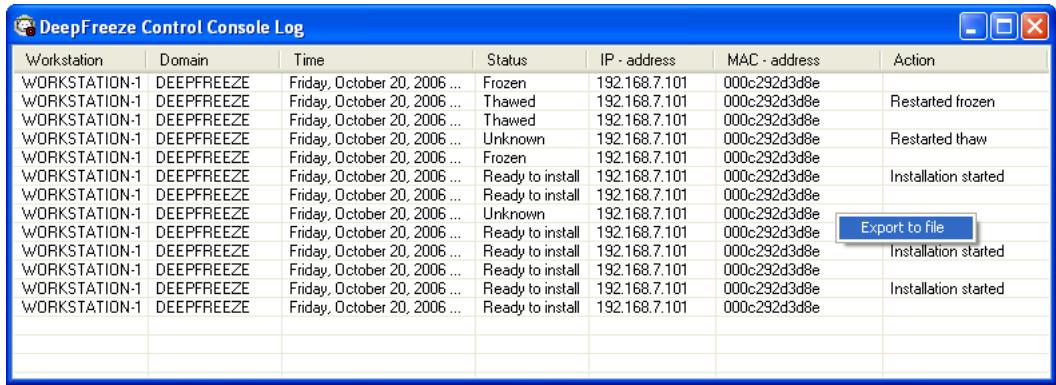
The Enterprise Console keeps a log of the status and activity history of all connected computers. The log stores information for the previous 48 hours. Information older than 48 hours is automatically deleted from the log.
- To view the log file for one or many computers, right-click on the computer(s) and select Show Log.
- To sort the log file, click on a preferred heading.
- To export the log file as a .csv file, right-click and select Export to file, as displayed:
Deep Freeze provides the following custom actions that can be accessed via the Actions menu. Additional actions can be created to suit specific needs. Deep Freeze provides three default actions. Additional Custom Actions can be configured by importing the appropriate .xml file in the Deep Freeze Console. For more information on Custom Actions, the structure of the custom action file and details about various parameters, refer to Appendix E.
Control with RDC
This allows connecting to the computer through Microsoft Remote Desktop Protocol. Remote Desktop Connection must already be enabled on the target machines.
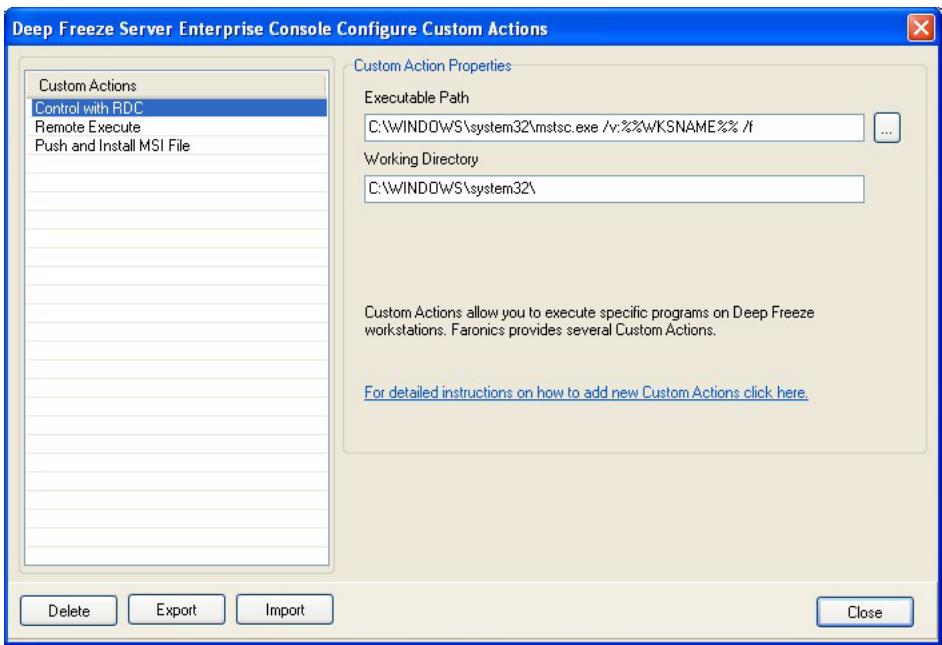
- Go to Action Menu > Custom Actions.
- Select Control with RDC.
- Enter the Executable Path or browse to select the location.
- Enter the Working Directory.
- Click Apply.
Remote Execute
Remote Execute allows you to remotely execute an executable file on a computer. PsExec is a tool that can be used to remotely execute an executable file on a computer. PsExec must be downloaded and installed on the computer. For more information on PsExec, visit http://www.faronics.com/pstools.
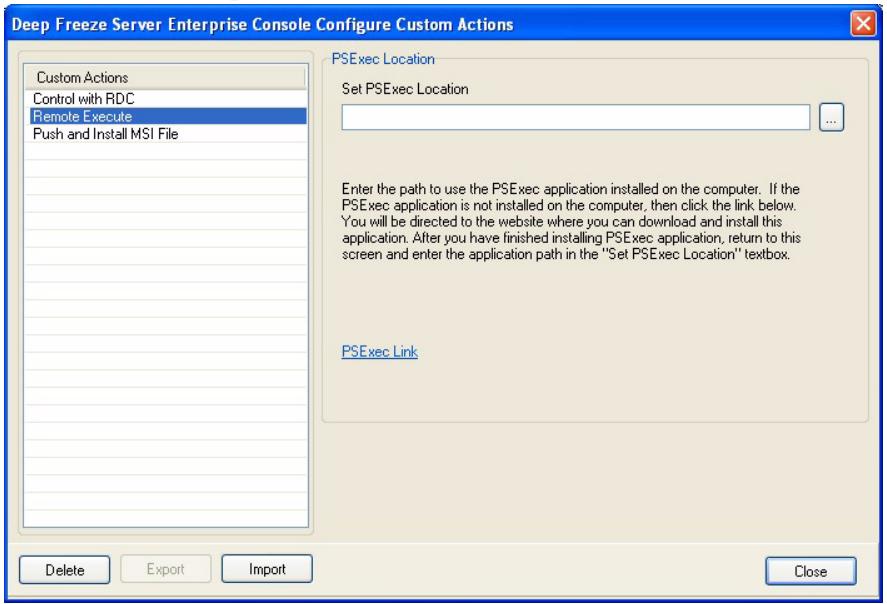
Configure
- Go to Action > Custom Actions.
- Select Remote Execute.
- Enter the PSEcloc Location or browse to select the location.
- The Executable path and the Working Directory are added automatically. The Executable path and Working Directory can be modified later.
- Click Close.
Execute
- Select the computers from the Workstations pane.
- Select Action > Remote Execute.
- The Remote Execute dialog is displayed.
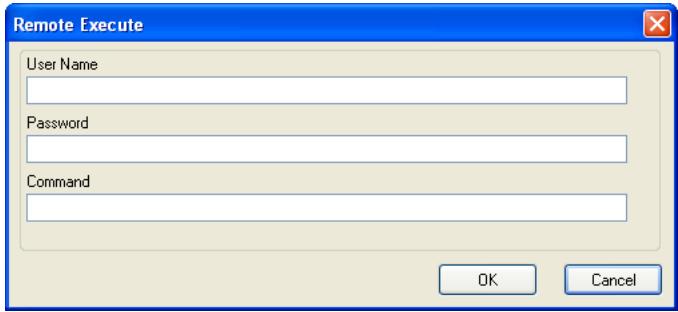
- Enter the User Name, Password and Command.
- Click OK.
Push and Install MSI file
The Push and Install MSI file option allows you to push and install a .msi file on a computer through the Enterprise Console.
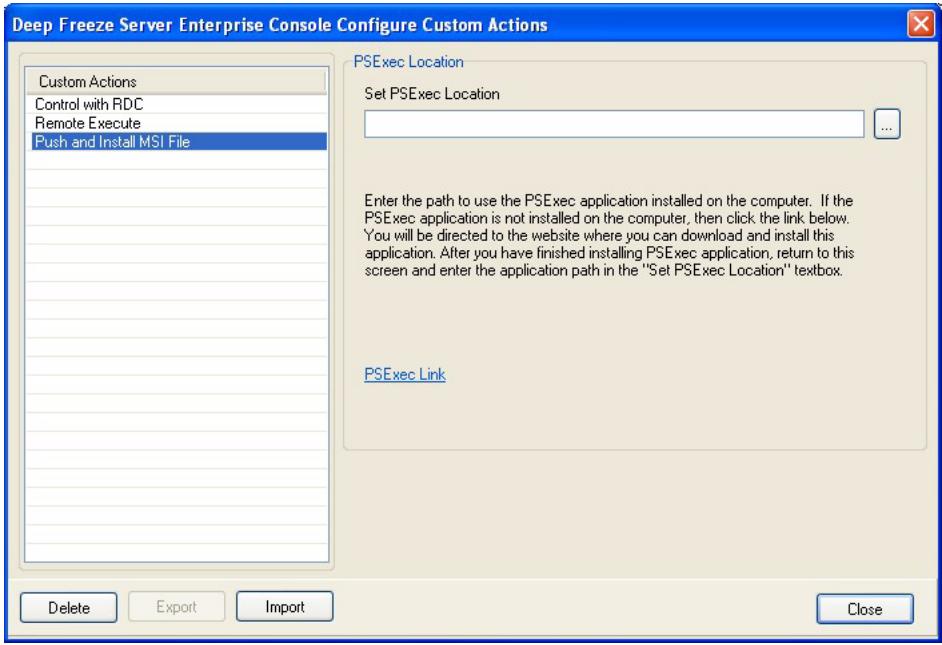
Configure
- Go to Action > Custom Actions.
- Select Push and Install MSI file.
- Enter the PSEc Location or browse to select the location.
- The Executable path and the Working Directory are added automatically. The Executable path and Working Directory can be modified later.
- Click Close.
Execute
- Select the computers from the Workstations pane.
- Select Action > Push and Install MSI file.
- The Push and Install MSI file dialog is displayed.
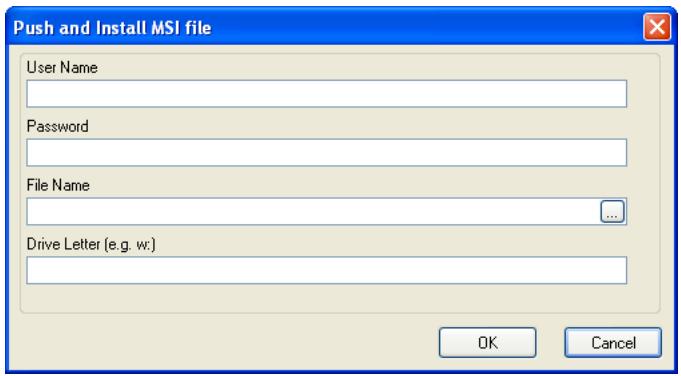
- Enter the User Name, Password, File Name and Drive Letter.
- Click OK.
Deleting, Importing and Exporting Custom Actions
Deleting Custom Actions
To delete Custom Actions, complete the following steps:
- Go to Action Menu > Custom Actions.
- Select the Custom Action to be deleted.
- Click Delete.
Importing Custom Actions
To import Custom Actions, complete the following steps:
- Go to Action Menu > Custom Actions.
- Click Import.
- Browse to select the .xml file to be imported.
- Click Open to import the file.
Exporting Custom Actions
To export Custom Actions, complete the following steps:
- Go to Action Menu > Custom Actions.
- Select the Custom Action to be exported.
- Click Export.
- The Export Custom Action to File dialog is displayed.
- Specify a File name and click Save.
The Console Customizer lets you specify which features and commands you want to be available in the Console, and save the result as a new Console that can be distributed in your organization.
The available settings are grouped into categories (Console functions, Workstation commands, Deep Freeze commands, Workstation install/uninstall commands, and Scheduler commands). Click on the plus (+) icon to the far left of each category to disclose the full list of settings available in that category.
Select or clear the individual check boxes as required. Alternatively, select or clear the entire categories at once. Settings that are cleared will not be available in the new Enterprise Console you create. For an example on how to use the Console Customizer in a practical scenario, refer to Appendix D.
Complete the following steps to create Consoles with limited functionality:
- Select Tools>Console.Customizer.
- The Console Customizer is displayed.
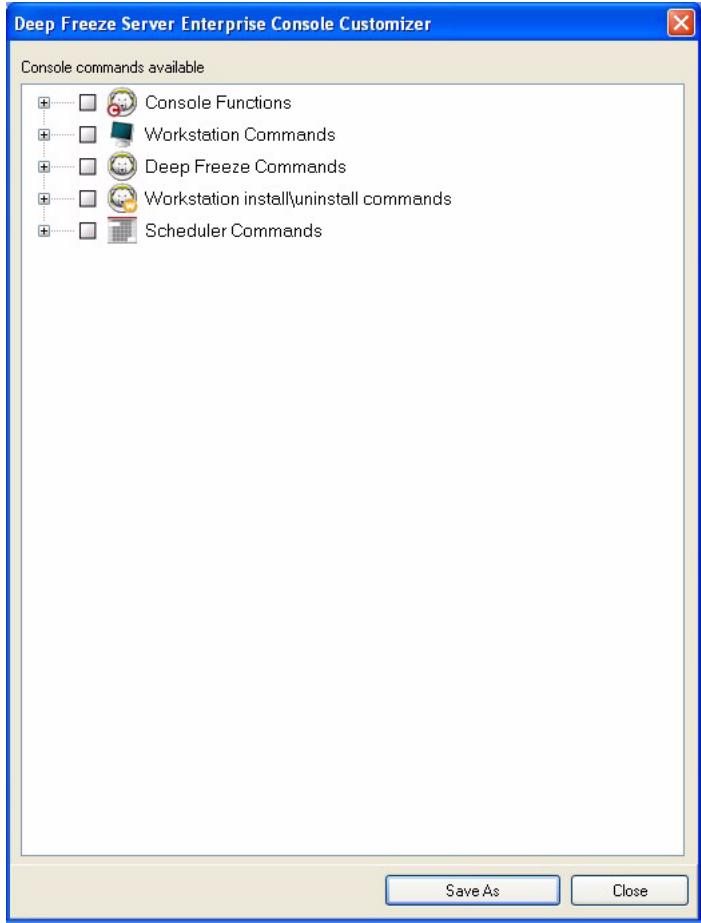
- Select the features to be displayed in the new Console.
- Click Save As to save the Console. Specify a name for the file.
- When you double-click the newly created .exe file, the Console with the limited functionality is launched.
Deep Freeze Server Enterprise Console Shutdown
To shutdown the Deep Freeze Console select File > Exit or click the close window button. Upon exit, you can choose to:
- Minimize the Console to the system tray.
This does not stop the Console and keeps the connections active. The Deep Freeze Console icon appears in the system tray. Scheduled tasks will still execute. To reopen the Deep Freeze Server Enterprise Console, right-click its icon located in the taskbar and select Restore DF6 Console.
- Close Deep Freeze Console and leave the network connections running
This closes the Console but keeps the connections to the computers active. Scheduled tasks will still execute.
- Close Deep Freeze Console and shutdown network connections.
This stops Console processes, closes the connections (including local service), and scheduled tasks will not start to execute. However, scheduled tasks that have started executing will continue.
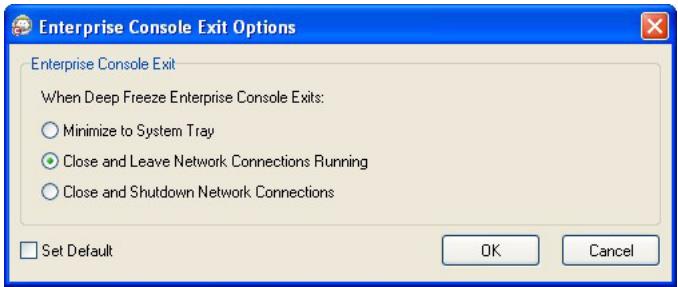
The dialog will not appear on future exits once the Set Default option has been selected. To edit these settings select Tools >Exit Options.
Installing Deep Freeze on the Workstation
After a customized installation program file has been created using the Configuration Administrator, Deep Freeze can be deployed to computers using an Attended Install, a Target Install, the Silent Install System, or as part of an imaging process.
All background utilities and antivirus software should be disabled and all applications should be closed prior to installation. These programs may interfere with the installation, which could result in Deep Freeze not functioning correctly.
The computer restarts after any type of installation is completed. Deep Freeze must be in a Thawed state for any type of uninstall to succeed.
Any existing ThawSpace will be deleted during an uninstall if:
- the option to retain existing ThawSpace was not checked in the Configuration Administrator
- the ThawSpace was not created with Deep Freeze Server Enterprise Version 5 or later
Attended Install or Uninstall
To install or uninstall Deep Freeze, complete the following steps:
- Run the installation program file (DFServerWks.exe) on the computer.
- Click Install to begin the installation. Follow the steps presented, then read and accept the license agreement. Deep Freeze installs and the computer restarts.

Click Uninstall to uninstall Deep Freeze. Uninstall can only be clicked if Deep Freeze has previously been installed and the computer is currently Thawed. If there is an existing ThawSpace, Deep Freeze displays a dialog asking if it should be retained or deleted.

If the hard drive is too fragmented, it is not possible to create ThawSpace(s). A message is displayed prompting you to abort installation, or install Deep Freeze without ThawSpace(s).
Uninstalling Deep Freeze on the Workstation via the Console
The Enterprise Console can be used to uninstall Deep Freeze completely or to uninstall Deep Freeze but leave the Workstation Seed. A computer must be in a Thawed state in order to uninstall the program.
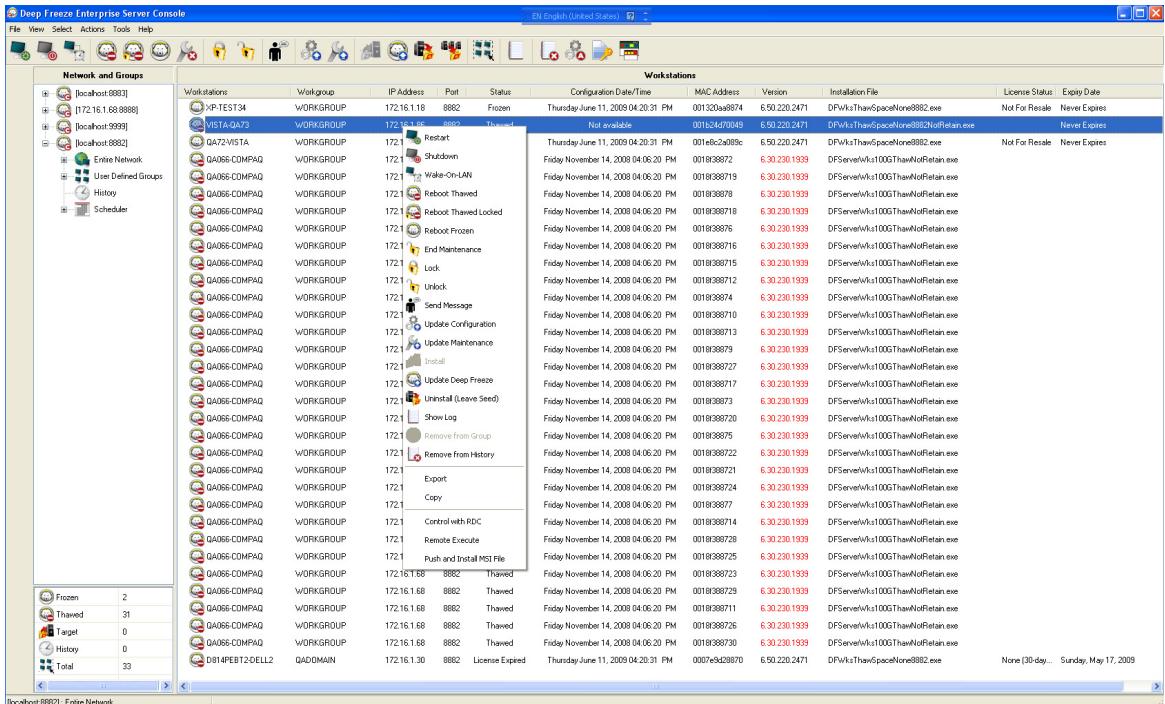
To uninstall Deep Freeze on a computer and leave the Workstation Seed, right-click on the Thawed workstation(s) and select Uninstall (Leave Seed), as shown above. Or click the icon on the toolbar.
To completely uninstall Deep Freeze and the Workstation Seed, select the computer(s) to be uninstalled and click the Uninstall icon on the toolbar.

The computer must be Thawed before Deep Freeze can be uninstalled. The Enterprise Console prompts for confirmation. Once the uninstall is confirmed, Deep Freeze uninstalls and the computer restarts.
Silent Install or Uninstall
Deep Freeze can be rapidly installed to many computers over a network using the Silent Install System. Any deployment utility that allows execution of a command line on a remote computer can implement the Silent Install System. After the Silent Install is complete, the computer immediately restarts. The command line has the following options:
| Syntax | Description |
| [/Install] | Install Deep Freeze using installation file |
| [/Install /Seed] | Install only the specified Workstation Seed file |
| [/Uninstall] | Uninstall Deep Freeze |
| [/Uninstall /Seed] | Uninstall Deep Freeze and leave the Workstation Seed installed |
| [/PW=password] | Set a password during installation* |
| [/AllowTimeChange] | Allow system clock to be changed* |
| [/Freeze=C, D, ...] | Freeze only drives listed (Thaw all others)* |
| [/Thaw=C, D, ...] | Thaw only drives listed (Freeze all others)* |
| [/USB] | Exempt external USB hard disks from protection |
| [/FireWire] | Exempt external FireWire hard disks from protection |
Example Command Line
DFServerWks.exe /Install /Freeze=C /PW=password
In the above example, the Deep Freeze installation program file is named DFServerWks.exe. Only the C: drive will be Frozen. Any other drives on the computer will be Thawed. If the computer only has a C: drive, the [/Freeze] switch can be omitted. A password (password) will be created. After executing the command, Deep Freeze will install and the computer will restart Frozen and ready to use.
The Silent Install System does not work without the [/Install] or [/Uninstall] switch. Deep Freeze must be in a Thawed state before [/Uninstall] can be used.

To run the configuration command line options, Disable Command Line options on the Advanced Options tab must be cleared.

- These options are disabled by default.
Silent Install or Uninstall Using a Shortcut
Deep Freeze can be installed directly on a computer without having to use the installation dialog box by completing the following steps.
- Locate the Deep Freeze installation program file (DFServerWks.exe) on the target computer.
- Right-click on the icon and choose Create Shortcut.
- Right-click on the shortcut and choose Properties.
- Edit the path of the Target field by typing /install or /uninstall at the end of the path.
Example Shortcut Target:
C:\Documents and Settings\DFServerWks.exe /install
Double-clicking on the new shortcut results in the immediate installation or uninstallation of Deep Freeze, followed by a restart of the computer.
Deep Freeze must be in a Thawed state before /uninstall can be used.

If the hard drive is too fragmented, it is not possible to create ThawSpace(s). The installation is aborted.
Network Install on Multiple computers
The Silent Install System can also be used to install Deep Freeze on multiple computers over a network. If the workstations on the network use logon scripts, the scripts can be used to install Deep Freeze on all networked workstations automatically. All workstations will restart Frozen and ready for use after installation has completed.
Use the following command line syntaxes to create an install error report log file:
\Server Name\Share Name\DFServerWks.exe /Install >> my.log
Installing Over Existing Deep Freeze Versions
Unless the Update Deep Freeze Software feature is used (for Deep Freeze 6.3 and higher), all existing Deep Freeze versions must be uninstalled prior to performing any new Deep Freeze installation.
Installing Using Imaging
Deep Freeze has been designed to work with all major imaging and desktop management software. Use either an Attended Install or the Silent Install System to install Deep Freeze on a master image.
Deep Freeze must be prepared for deployment before finalizing a master image. To prepare the master image for deployment, restart the computer into a Thawed state and log on to Deep Freeze using the keyboard shortcut CTRL+SHIFT+ALT+F6. Select the Clone tab, and click Set Flag.
Create an image of your computer immediately as per your process.
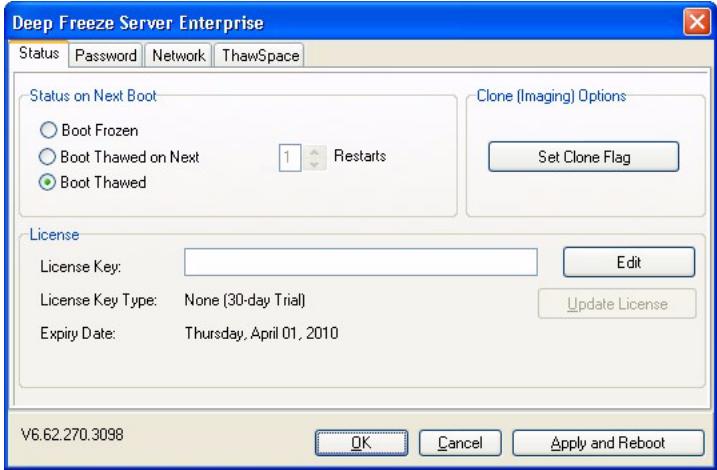
After imaging, the computers require an additional restart for Deep Freeze to correctly detect the changes in disk configuration. If the computers are imaged in an unattended mode, steps should be taken to ensure the computers are restarted to allow the configuration to update.
To return to the Frozen state after imaging is complete, set Deep Freeze to Boot Thawed on next n number of restarts (in the master image) so that after n number of restarts, the computer is automatically Frozen. Alternatively, use Deep Freeze Command Line Control to Freeze selected computers.
Target Install
Deep Freeze can also be deployed using a Target Install from the Enterprise Console.
Check for Updates
Deep Freeze allows you to check if there are newer versions available.
Go to Help > Check for updates. This checks if there are newer versions of Deep Freeze available.
Managing Deep Freeze Computers
This chapter describes managing computers where Deep Freeze is installed.
Topics
Login Screen
Status Tab
Password Tab
Network Tab
ThawSpace Tab
Permanent Software Installations, Changes, or Removals
Login Screen
Use one of the following ways to access Deep Freeze on a computer.
- If the Deep Freeze icon is shown in the System Tray, hold down the SHIFT key and double-click the Deep Freeze icon. If Deep Freeze is in Stealth Mode, use CTRL+ALT+SHIFT+F6 keyboard short cut. Either method brings up the logon dialog.
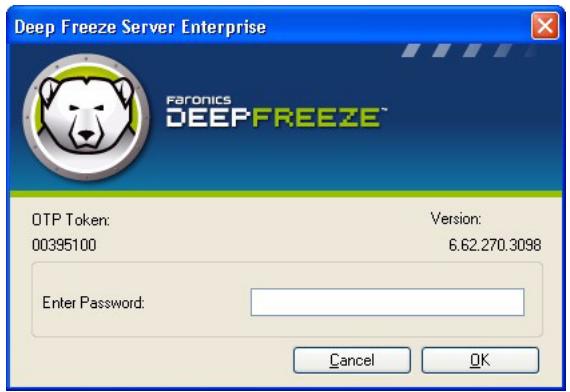
- Enter the administrator password and click OK to log on to Deep Freeze.
As an additional security feature, Deep Freeze prevents Brute Force attacks by automatically restarting the computer after 10 unsuccessful login attempts.
The Status tab displays the following options:
Status on Next Boot
The Status tab is used to set the mode Deep Freeze will be in after the next restart.
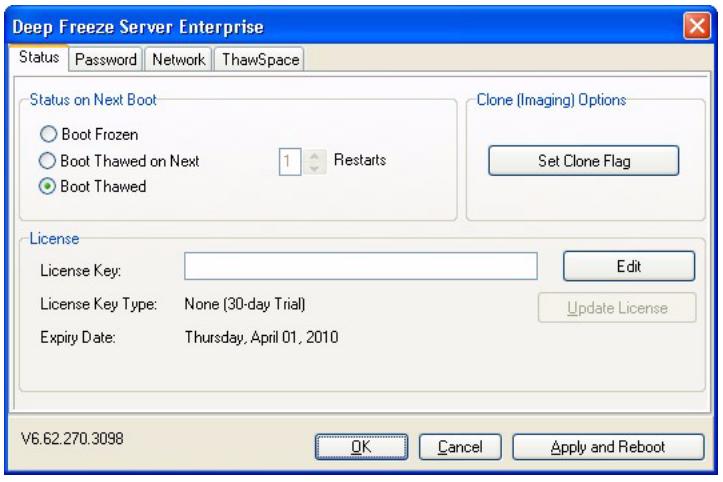
Choose one of the following options:
- Boot Frozen
to ensure that the computer is Frozen the next time it is restarted
- Boot Thawed on next
to ensure that the computer is Thawed each time it is restarted for the next specified number of restarts. When that number of restarts is exceeded, the computer will boot Frozen.
- Boot Thawed
to ensure that the computer is Thawed each time it is restarted
Select the radio button next to the desired choice and click OK to save any changes. Clicking Apply and Reboot will save any changes and reboot the computer immediately.
Clone
The Clone pane is used to prepare master images for the deployment process. For more information, refer to the Installing Using Imaging section.
License
Enter the License Key in the License Key field. If no License Key is entered, Deep Freeze expires in 30 days after installation.
Password Tab
The Password tab allows you to change the password.
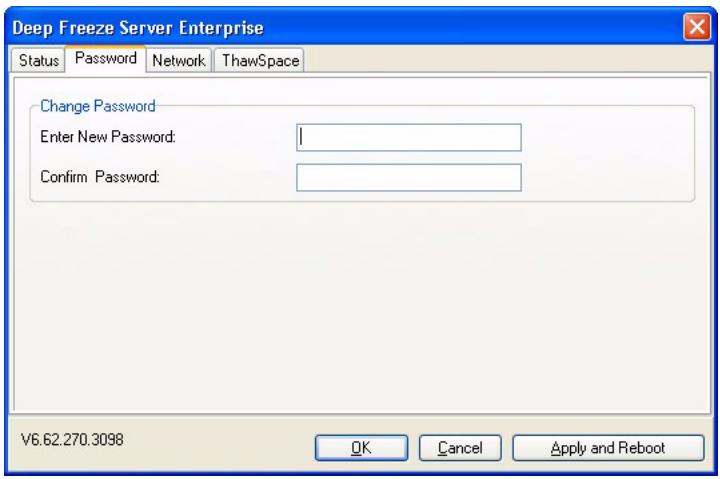
- Specify a new password in the Enter new password field.
- Confirm the new password by re-entering the same password in the Confirm password field.
- Click OK.
- The password is changed and a confirmation dialog is displayed.
Network Tab
The Network tab can be used to configure the network options on a computer.
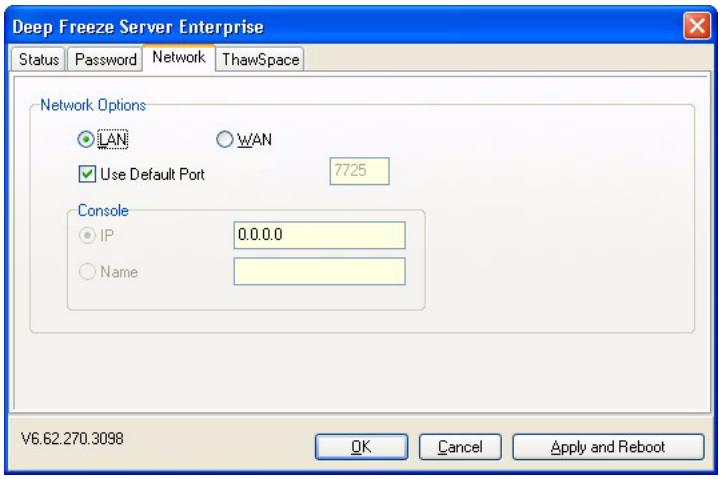
To choose either the LAN or the WAN method of communication, click the preferred option.
The default port number can be changed by clearing the Use Default Port check box and entering the required port number.
For more information on network configuration, refer to Appendix B.
ThawSpace Tab
ThawSpace is a virtual partition on a computer that can be used to store programs, save files, or make permanent changes. All files stored in the ThawSpace are saved after a restart, even if the computer is Frozen.
ThawSpace is only available if it was set to be created in the Deep Freeze Configuration Administrator.
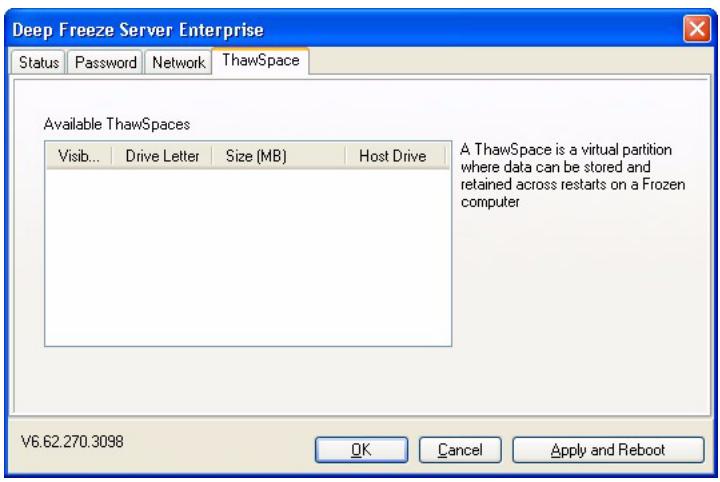
After uninstalling Deep Freeze, all the ThawSpaces become visible. When Deep Freeze is reinstalled, the ThawSpaces are Visible or Hidden as per the original settings in the ThawSpace tab.
Any existing ThawSpace is deleted during an uninstall if any of the following apply:
- the option to retain existing ThawSpace was not selected in the Configuration Administrator
- the ThawSpace was not created with Deep Freeze Version 5 or higher
Permanent Software Installations, Changes, or Removals
Computers must be Thawed for any permanent changes to take effect. Installation of software often requires one or more restarts to complete the installation.
Deep Freeze helps administrators overcome challenges with maintaining the configuration of their computers in a production environment. Deep Freeze protects computers from unauthorized changes, viruses and malware, that can leave computers in a non-functional state. Deep Freeze also provides features to retain user data while protecting the computer.
For more information on how to implement Deep Freeze and ensure that the user data is retained, refer to Deep Freeze - Retaining User Data available at http://www.faronics.com/library
Deep Freeze Command Line Control
This chapter describes using the Deep Freeze Commands.
Topics
Deep Freeze Command Line Control (DFC.EXE)
DFC Command Line Syntax
Deep Freeze Command Line Control (DFC.EXE)
Deep Freeze Command Line Control (DFC) offers network administrators increased flexibility in managing Deep Freeze computers. DFC works in combination with third-party enterprise management tools and/or central management solutions. This combination allows administrators to update computers on the fly and on demand.
It is important to note that DFC is not a stand-alone application. DFC integrates seamlessly with any solution that can run script files, including standard run-once login scripts.
DFC commands require a password with command line rights. OTPs cannot be used.
List all commands by calling DFC without parameters.
The files are copied to (32-bit)
The files are copied to (64-bit)
DFC Return Values
On completion of any DFC command, the DFC returns the following values:
| Syntax | Description |
| 0 | SUCCEED or Boolean FALSE, for commands returning a Boolean result |
| 1 | Boolean TRUE |
| 2 ERROR | User does not have administrator rights |
| 3 ERROR | DFC command not valid on this installation |
| 4 ERROR | Invalid command |
| 5 - * ERROR | Internal error executing command |
DFC Command Line Syntax
| Syntax | Description |
| DFC password /BOOTTHAWED | Restarts computer in a Thawed state; only works on Frozen computers. |
| DFC password /THAWNEXTBOOT | Sets computer to restart Thawed the next time it restarts; only works on Frozen computers and does not force computer to restart. |
| DFC password /BOOTFROZEN | Restarts computer into a Frozen state; only works on Thawed computers. |
| DFC password /FREEZENEXTBOOT | Sets up computer to restart Frozen the next time it restarts; only works on Thawed computers and does not force computer to restart. |
| DFC get /ISFROZEN | Queries computer if it is Frozen. Returns error level 0 if Thawed. Returns 1 if Frozen. |
| DFC password /CFG=[path] depfrz.rdx | Replaces Deep Freeze configuration information. Works on Thawed or Frozen computers. Password changes are effective immediately. Other changes require restart. |
| DFC get /version | Displays Deep Freeze version number. |
| DFC password /UPDATE=[path to installer file] | Sets up computer to restart in a Thawed state and install a Deep Freeze update |
| DFC password /LOCK | Disables keyboard and mouse on computer. Works on Frozen or Thawed computer and does not require a restart. |
| DFC password /UNLOCK | Enables keyboard and mouse on computer. Works on Frozen or Thawed computer and does not require a restart. |
| DFC password /THAWLOCKNEXTBOOT | Sets up computer to restart in a Thawed state with keyboard and mouse disabled; only works on Frozen computers |
| DFC password /BOOTTHAWEDNOINPUT | Restarts computer in a Thawed state with keyboard and mouse disabled; only works on Frozen computers |
| DFC get /LICENSESTATUS | Displays the status of the license and the expiry date of the license (if any). The different possible types of license and the associated return codes are:111: Unlicensed — Deep Freeze is not licensed and will operate in Evaluation mode for 30 days since installation.112: Evaluation — licensed for evaluation with a fixed expiry date.113: Licensed — licensed with no expiry date.114: Expired — The Evaluation period has expired. |
| DFC get /LICENSETYPE | Displays the status of the license and the expiry date of the license (if any). The different possible types of license and the associated return codes are:111: None (Unlicensed) — Deep Freeze is not licensed and will operate in Evaluation mode for 30 days since installation.112: Evaluation — licensed for evaluation with a fixed expiry date.113: Standard (Licensed) — licensed with no expiry date.114: Not for Resale — Licensed with no expiry date. |
| DFC password /LICENSE=licensekey | Changes the License Keypassword is the Deep Freeze Administrator password.licensekey is the License Key for Deep Freeze.If there is an error, the following error codes are displayed:101: The License Key is not valid102: The License Key provided has already expired. |
Appendix A Ports and Protocols
The key to setting up the Deep Freeze architecture is knowing which ports to use. The important factor is knowing which ports are in use on the network and using ports that will not conflict with those. The default port, 7725 has been officially registered to Deep Freeze.
The following three components make up the Deep Freeze architecture:
- Client (with seed installed)
Remote Console (local service enabled) - Console (connects to the Remote Console)
As long as the clients and Remote Console connection use the same port there should not be any port conflicts between the different components:
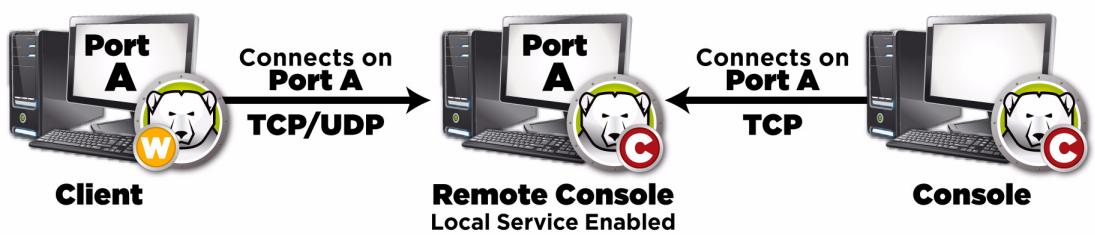
Ports can also be used to divide the clients. If the local service is setup to run three ports (7725, 7724 and 7723), Enterprise Consoles can connect to the three different ports to see a different set of clients under each port.
In the diagram above, the client(s) use both the TCP and UDP protocols to communicate with the Remote Console. The Console(s) that connects to the Remote Console uses only the TCP protocol to communicate with the Remote Console. It is important to remember the ports and protocols being used in order to prevent firewalls, switches or routers from blocking them.
Appendix B Network Examples
The following examples show different scenarios involving local service or Remote Console.
Example 1 - Single Subnet
Example 2 - Multiple Subnets One local service
Example 3 - Multiple Ports, Console Accessed Remotely
Example 4 - Multiple Subnets Multiple local services
Each example explains how different Deep Freeze components interact in different networking environments.

In the following examples, the client machines have either the Deep Freeze workstation installation or Workstation Seed installed. Both installs contain the communications component which talks to the Console/Remote Console. The difference between the workstation install and Workstation Seed is that the workstation install actually installs Deep Freeze while the Seed has only the communication component.
Example 1 - Single Subnet
In this environment, all client machines are contained in the same subnet as the Console machine. This environment does not require a remote controlled Console, although one could be used. In this example, the Remote Console is not used. This is the simplest networking environment. It is also the easiest to configure.
The following diagram shows the network topology:
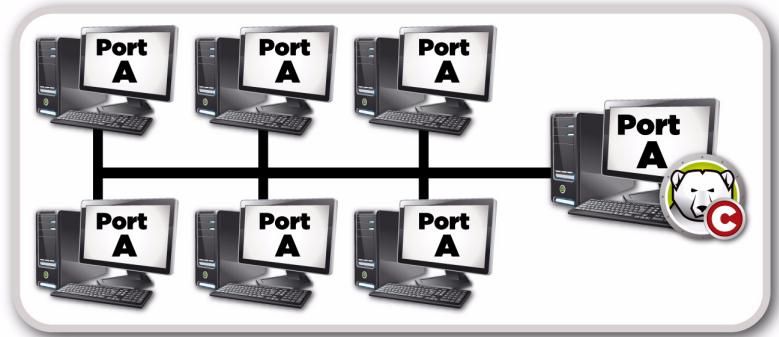
Subnet 1
The client machines, represented by the computer icons, are located on the same subnet as the Deep Freeze Server Enterprise Console machine represented by the Deep Freeze Console icon.
In this scenario, clients are using port A while the Console has set up a local service connection for the same port. This port is configured in the Advanced Options tab, before creating the Workstation Install file or Workstation Seed.
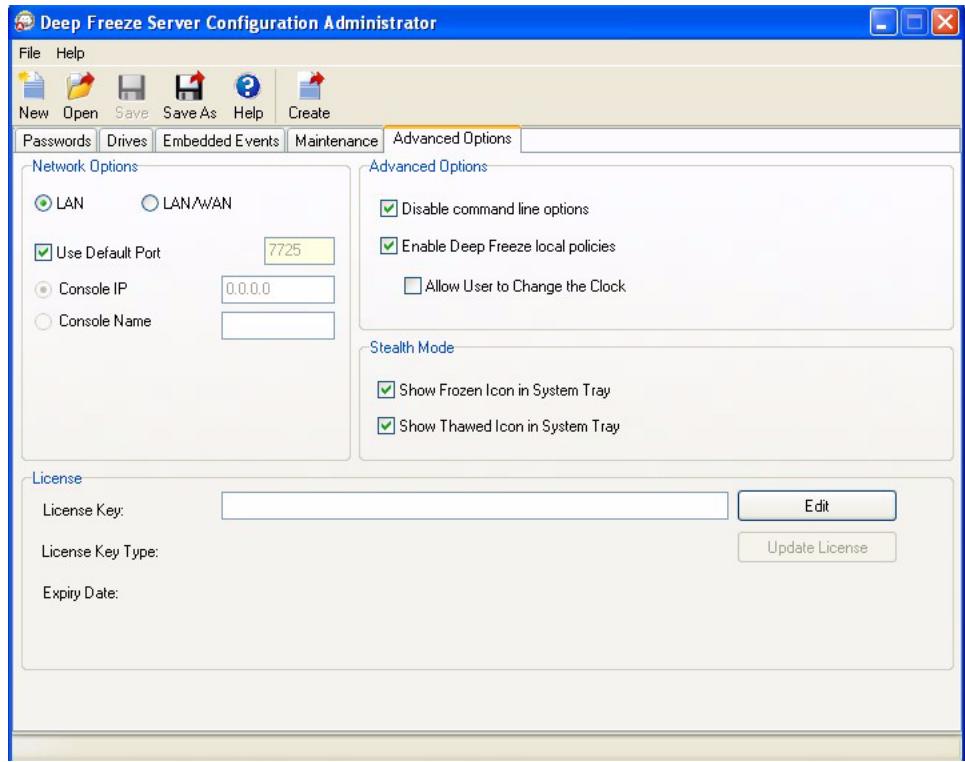
Example 2 - Multiple Subnets One local service
In this environment, the clients are located across more than one subnet. There is still only one Console being used. This environment does not require a Remote Console, although one could be used. The following diagram shows the network topology:
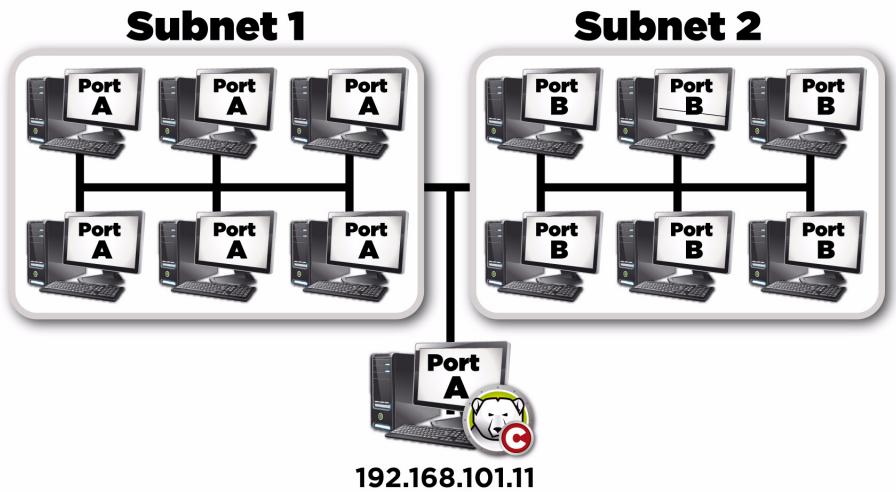
In this scenario (similar to Example 1 - Single Subnet) both the clients and the connection hosted by the Console are using the same port. This port is configured in the Deep Freeze Configuration Administrator in the Advanced Options tab, before creating the Workstation Install file or Workstation Seed.
In order for the clients to be seen, they need to be configured to use a LAN/WAN connection. When the LAN/WAN option is selected, a Console IP field appears. Specify the IP of the machine that will run the Enterprise Console. An example of these settings are shown in the Advanced Options tab below:
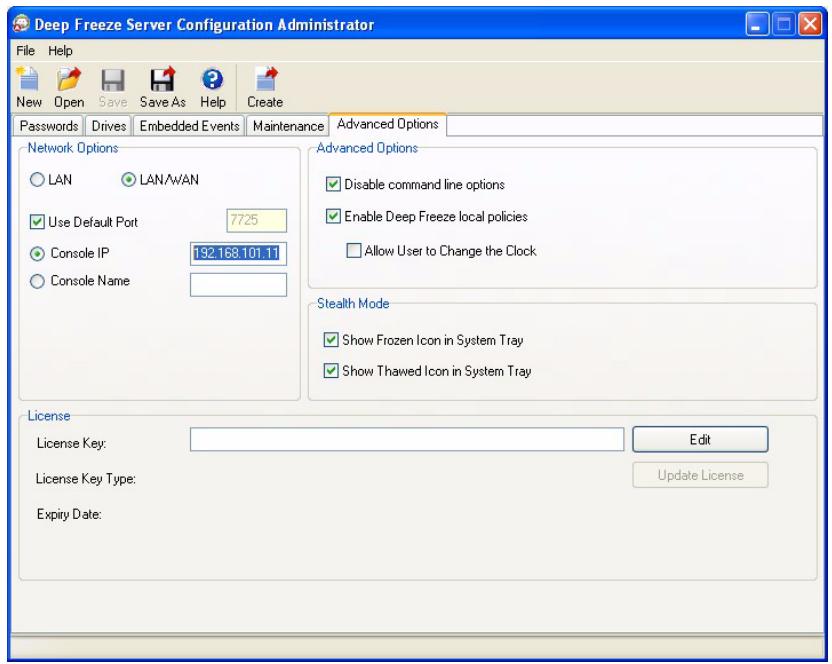
Example 3 - Multiple Ports, Console Accessed Remotely
In this environment the clients are again located across multiple ports. In this case, more than one Console is being used. Multiple Consoles are accessed using a local service whose administrator (host) has released the connection information. The following diagram shows the network topology:
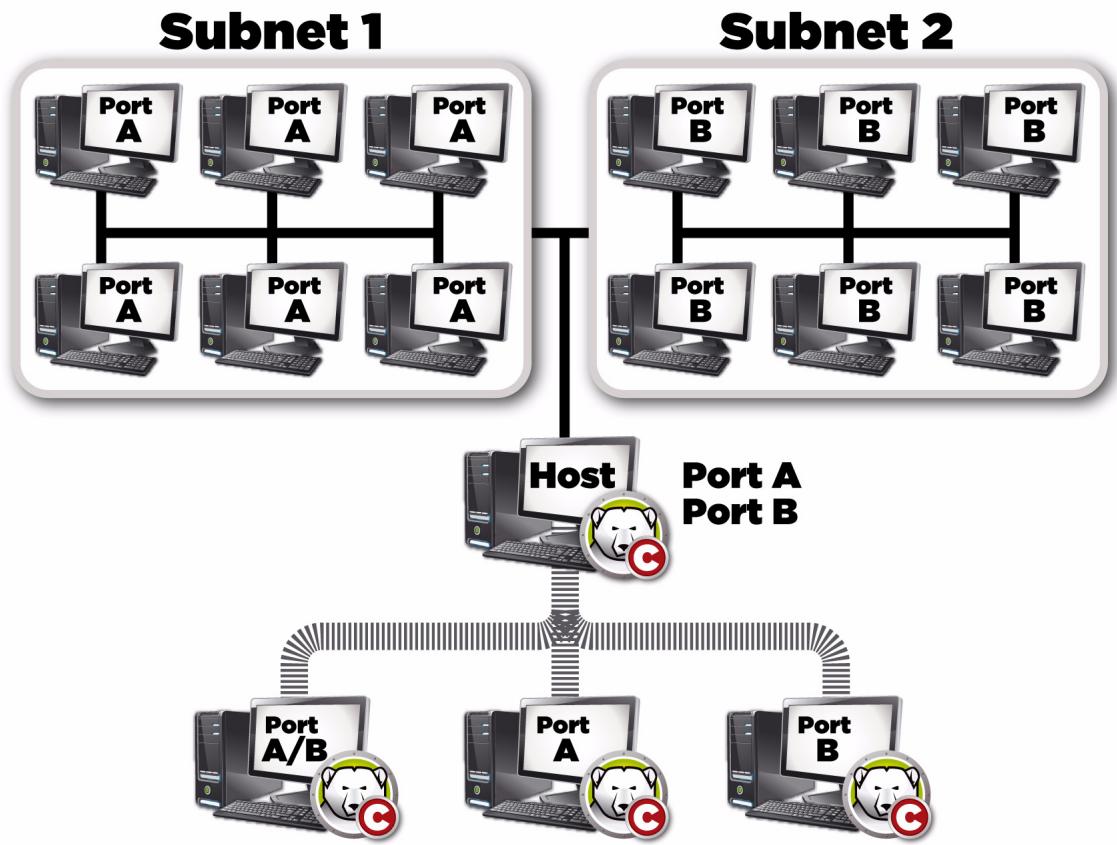
In this scenario, the host has set up a connection using the local service. Looking at the above diagram, three other Consoles connect to the host in order to see the clients according to their ports. The Consoles do not have to be a part of individual subnets as long as they can see the host.
More specifically, The Console connected through port A/B can see the host Console as well as each individual computer assigned to ports A and B. The other Consoles connected through port B can see the host and only the computers assigned to port B.
Example 4 - Multiple Subnets Multiple local services
In this example, there are two separate locations.
The following is a list of assumptions that are made regarding this particular example:
- the locations are spread apart and have only a minimal connection to each other
- there is a network administrator at each location who is responsible for looking after Deep Freeze at that location
- both locations need to be administered from a third location
In this example, the Remote Consoles are set up at each location and a local service is used:
- Location 1 (a computer lab on campus) uses port A to communicate with the clients and the connections hosted by the Console. The school library's computers use port B. The Console in the technical support department uses the connections hosted by both lab and library Consoles.
- Any console not directly communicating with a computer should have the local service turned off.
The following diagram shows the network topology:
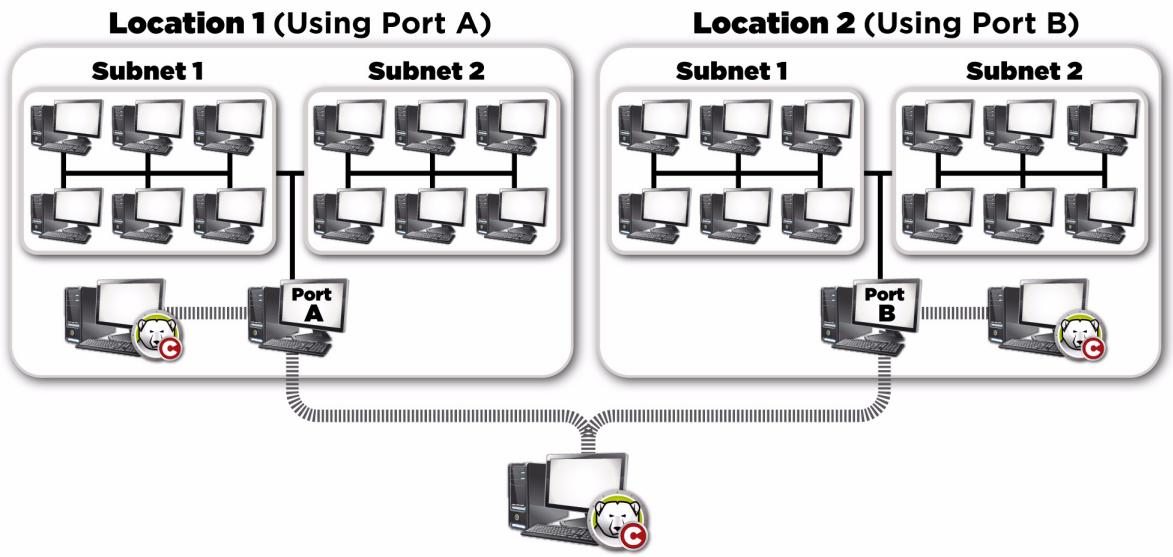
The benefit of this setup is that it allows all the packets sent from the clients in Location 1 to be contained at that location. The less distance a packet must travel, the less chance there is of the packet failing.
The administrator in the lab can connect to the local service in the same location 1 but cannot connect to the local service in the library. The reason for this is that the lab administrator does not know the password to access the local service for the library. The same goes for the administrator in the library. If technical support knows the password to both local services (lab and library) the local service at both locations can be connected to, in order to administer all the clients.
Appendix C Troubleshooting a Remote Console Connection
No Clients In the Console
The following are some common reasons why clients fail to appear in the Console.
1. Windows XP/Vista clients may have the firewall turned on.
With Windows XP SP1, the firewall must be turned off. With Windows XP SP2 or later including Vista, either the firewall must be turned off or the ports being used must be added to the Exceptions tab. Deep Freeze requires both TCP and UDP protocols; therefore, one exception should be added for each.
2. The Console and clients do not contain the correct network settings.
If the Console is set up to run under one port and the clients are using another, they will not be able to see each other. Also, if the computers are configured for LAN/WAN, the IP must be equal to the IP of the machine where the Console is running.
The default LAN setup works as long as all the machines running the computer and Console exist on the same subnet. However, if a VLAN is being run, or if there are several subnets where the clients exist, the computer install must be configured to run under the LAN/WAN settings.
3. Something on the network is blocking the port used between the Console and the clients.
Check for a connection using a ping. The clients are unable to send packets to the Console/Remote Console because there does not seem to be a route to the host. Attempting to ping the IP of the Console/Remote Console does not seem to work. To resolve this issue, make sure the two machines can connect to each other.
If a server, router, or switch on the network is not allowing the port to get through, the clients will not be seen. By default, 7725 is the port being used.
4. The workstations were created under a different Customization Code than the Console.
When the Deep Freeze Configuration Administrator is first run, a prompt for a Customization Code appears. This code is very important as it encrypts the software. This means that any workstations created are encrypted with this Customization Code. If a Console was created using another administrator that was installed with a different Customization Code, it cannot see workstations created under the original code. The workstations and Console must be created under a Configuration Administrator installed using the same exact Customization Code.
Port is in Use Error When Starting the Console
When attempting to start the Console, the error message Unable to start Console: Port is in use appears. There are several reasons why this error message may be appearing:
1. There is a Deep Freeze Workstation Installation/Workstation Seed installed under the same port as the Console or on the same computer.
It is possible that Deep Freeze was installed in stealth mode (the icon does not appear in the system tray). The seed does not show an icon. The best test is to run a Workstation Install file on the computer. If the uninstall option is displayed, the Workstation Install file or Workstation Seed is installed and can be uninstall. If the uninstall option does not appear, the Workstation Install file or Workstation Seed is not installed.
The simplest solution would be to first turn off the local service and then connect to a Console that can be accessed remotely.
2. Another program or service is using the port on this machine.
This may involve running a port sniffer on the machine in question to see what ports are open. There are several tools available on the web to perform this action. The netstat.exe application found in Windows also should show whether the port Deep Freeze is using is already in use.
3. The network cable is unplugged.
This message can occur if there is no network connection on the machine.
Appendix D
Creating a Customized Deep Freeze Server Enterprise Console
The Deep Freeze Server Enterprise Console includes the ability to create a new Enterprise Console with limited capabilities. A customized, limited console can be distributed in your organization to allow certain users to perform desired tasks, while ensuring they do not have access to the full capabilities of the Enterprise Console.
In this example, we will create a limited Console suitable for distribution to a teacher or computer lab instructor. In this scenario, we want the teacher to be able to restart machines, lock the keyboard and mouse on demand, and send messages to the students. However, we do not want the teacher to be able to boot the machines into a Thawed state, uninstall Deep Freeze, or perform other IT-exclusive tasks.
The Console Customizer can be launched from Tools > Console Customizer.
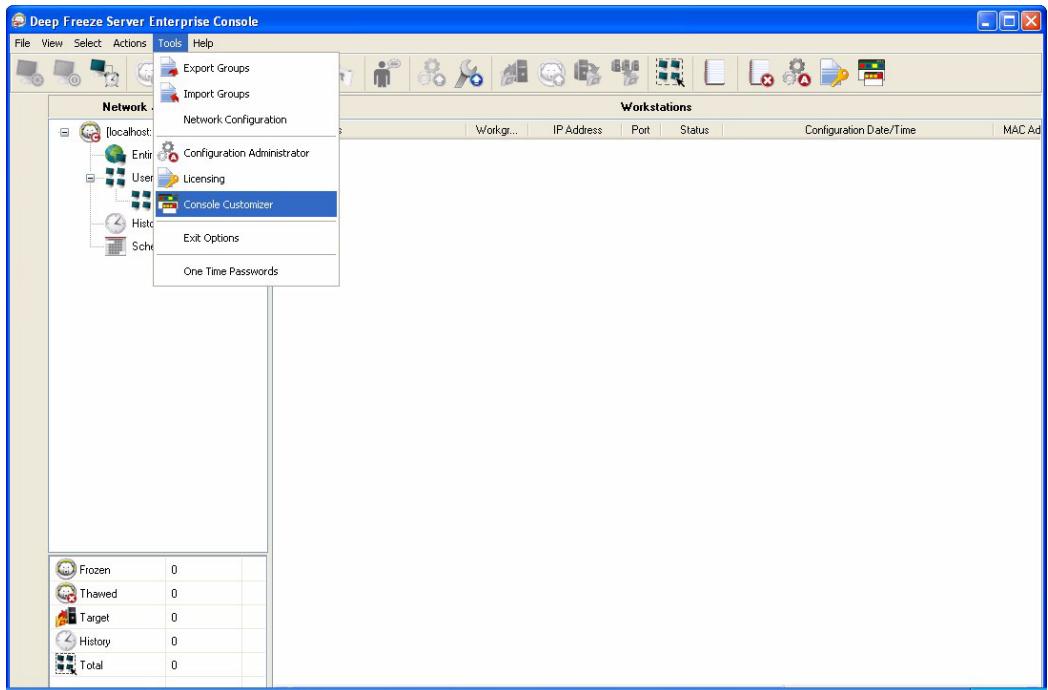
We will leave Console functions > Activation selected. This will ensure that if the new Console is moved to a different computer, a One Time Password will need to be entered on the computer the new Console is moved to. If this security precaution is not a concern in your environment, do not select this option.
Console functions > One Time Password is not selected because we do not want a teacher to be able to reboot the computer in Thawed mode under any circumstances. If a teacher reboots the computer in Thawed mode, students might install unnecessary software on the computer which will be retained even after a reboot.
We will leave all options under Workstation commands selected because we want a teacher to be able to send messages to students, and to shutdown, restart, and wake computers as required.
We will only leave three options under Deep Freeze commands selected: Unlock, Lock, and Reboot in Frozen state. This will allow a teacher to lock (and unlock) the keyboard and mouse on student computers as required, as well as to reboot computers Frozen (just in case a computer is ever accidentally left Thawed by IT staff). Leaving all other options cleared will ensure a teacher is unable to permanently modify a computer.
Finally, we will clear all Workstation install/uninstall commands and all Scheduler commands because we don't want our teacher to use any of these options.
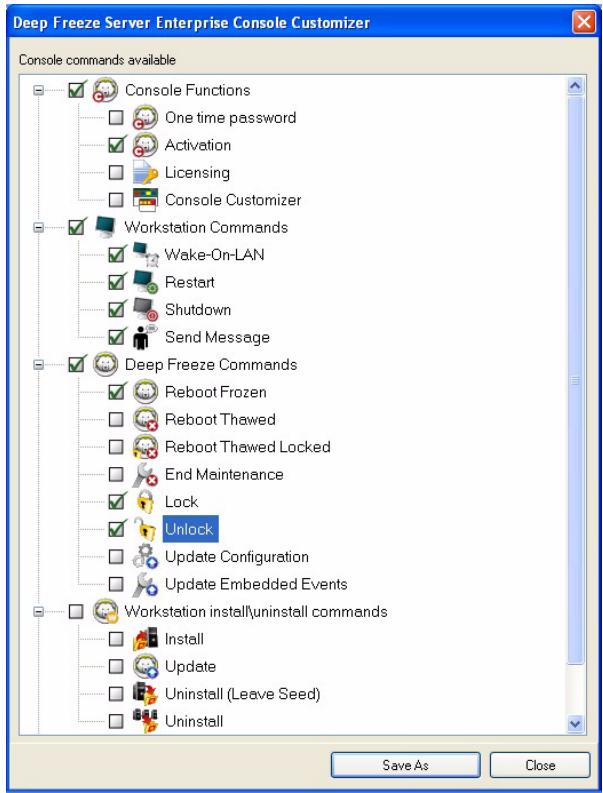
Once all options have been selected, click Save As to save a new Enterprise Console. A standard Save As dialog is displayed:
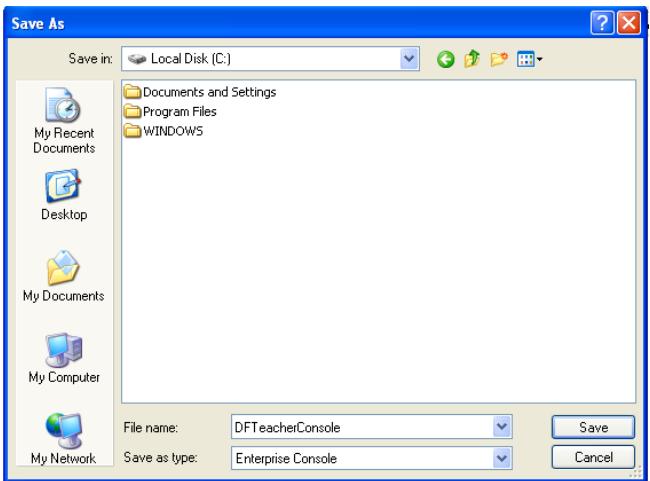
Save the new limited Enterprise Console and distribute it to the required users.
Appendix E Deep Freeze Action Files - RDC Example
Deep Freeze Action Files
A Deep Freeze Action File is an XML file that allows administrators to define additional functionality into the Deep Freeze Server Enterprise Console. An Action File defines a method for calling an external batch file and passing some information (for example, machine IP addresses, computer names) to the batch file or script. Action Files simply call an external program or script. Therefore, any scripting language that can be called from the command line can be used.
Action File Example
The structure of the Deep Freeze Action file that we will be using is shown below. The DFEntConsoleCustomActions.xml is available at C:\Program Files\Faronics\Deep Freeze Server 65 Enterprise . The file can be edited to add additional actions like the one explained below:
<?xml version="1.0" encoding="UTF-8"?>
<!--Deep Freeze Default Custom Action file-->
<CUSTOMDEFINEDACTIONS>
<ACTION1>
<CAPTION>
<ENGLISH>Control with RDC</ENGLISH>
<GERMAN>Control with RDC German</GERMAN>
<JAPANESE>Control with RDC Japanese</JAPANESE>
<SPANISH>Control with RDC Spanish</SPANISH>
<FRENCH>Control with RDC French</FRENCH>
</CAPTION>
<FILEMENU Y</FILEMENU>
<POPUPM MENU Y</POPUPM MENU>
<SILENT>Y</SILENT>
<SUBITEMS />
<PARAMS />
<SYNC />
<LOG />
<EXECUTE>C:\Windows\system32\mntsc.exe /v:%WKSNAME%f</EXECUTE>
<WORKDIR>C:\Windows\system32</WORKDIR>

The XML file will successfully execute only if the parameters in << and << are in UPPERCASE.
In the above example, the custom action file contains the command for running Remote Desktop on the Console computer and connect the remote computer specified in the parameter %%WKSNAME%.
The DFEntConsoleCustomActions.xml file contains 3 samples:
Control with RDC
Remote Execution
- Push and Install MSI file
For more information on using the above samples, refer to the Configure Custom Actions section. You can edit the The DFEntConsoleCustomActions.xml file as per your needs.
Deep Freeze Action File Structure
The following XML schema outlines the custom defined actions available to the user. Multiple XML files can be saved based on the number of commands required. Each file must be saved to the Console folder and the read only attribute must not be selected.
Any changes made must be accompanied by a restart of the Deep Freeze Console in order to take effect.
| Parameter | Usage |
| <?xml version="1.0" encoding="UTF-8"?> | |
| < CUSTOMDEFINEDACTIONS> | |
| <CAPTION> | Text that appears in file menu or submenu |
| <ENGLISH>Caption</ENGLISH> | Text in various languages |
| <GERMAN>Caption</GERMAN> | Text in various languages |
| <JAPANESE>Caption</JAPANESE> | Text in various languages |
| <SPANISH>Caption</SPANISH> | Text in various languages |
| <FRENCH>Caption</FRENCH> | Text in various languages |
| <FILEMENU>y</FILEMENU> | Defines if this action will be in file menu |
| <POPUPMENU>y</POPUPMENU> | Defines if this action will be in right-click popup menu |
| <SILENT>y</SILENT> | Defines if user will be asked a confirmation message |
| <SUBITEMS> | In sub-items, the item that is a child to this item can be defined |
| </SUBITEMS> | If the sub-items are defined then action for this items will be ignored |
| <SYNC>y</SYNC> | Specifies if command will be executed synchronously or asynchronously |
| <PARAMS> | Choosing this action prompts user to enter custom parameters |
| <password> | Name on parameter |
| <VAR%=PARAM1%</VAR> | Name of variable which will be used in EXECUTE |
| <ENGLISH>USERNAME Param(ENGLISH)</ENGLISH> | Text in various languages |
| <GERMAN>USERNAME Param (GERMAN) [/GERMAN> | Text in various languages |
| <JAPANESE>USERNAME Param (JAPANESE) [/JAPANESE> | Text in various languages |
| <SPANISH>USERNAME Param (SPANISH) [/SPANISH> | Text in various languages |
| <FRENCH>USERNAME Param (FRENCH) [/FRENCH> | Text in various languages |
| </CAPTION> | |
| </USERNAME> | |
| </PARAMS> | |
| <LOG> | Defines behavior of the log file |
| <APPEND>y</APPEND> | Defines if log file will be appended or created new |
| <FILENAME>c:\alcommand.log</FILENAME> | Defines filename |
| <EXECUTE>c:\windows\dvpn.exe %IP%% %USERNAME% %password% %WKSNAME%</EXECUTE> | Defines command which will be executed. Here, parameters and/or console items can be used |
| <WORKDIR>c:\windows</WORKDIR> | Defines working directory |
Console Parameters
The following console parameters can be passed to the executed application or script through the Enterprise Console:
| Parameter | Usage |
| %WKSNAME% | Workstation name |
| %DOMAIN% | Workstation domain |
| %IP% | Workstation IP |
| %PORT% | Workstation port |
| %STATUS% | Workstation status |
| %CFGDATETIME% | Workstation configuration date/time |
| %MAC% | Workstation MAC address |
| %DFVERSION% | Workstation Deep Freeze version |