
GSM424R - Network switch COMET LABS - Free user manual and instructions
Find the device manual for free GSM424R COMET LABS in PDF.


| Product Type | Gigabit Ethernet Web Smart Switch |
| Brand | COMET LABS |
| Model | GSM424R |
| Number of Ports | 24 ports 10/100BASE-TX + 2 ports 10/100/1000BASE-T + 2 mini-GBIC slots |
| RJ45 Port Type | Auto-MDI/MDIX, auto-negotiation |
| Transfer Rate | 10/100/1000 Mbps (depending on port) |
| Switching Mode | Store-and-Forward |
| MAC Address Table | 4K entries, auto-learning |
| Buffer Memory | 768 KB |
| Advanced Functions | VLAN (port-based), QoS, Trunking (Gigabit ports), Port Mirroring, Web configuration |
| Power Supply | 100-240 V AC, 50-60 Hz, internal |
| Power Consumption | 19 W max |
| Dimensions (W x D x H) | 440 x 200 x 44 mm |
| Weight | Approximately 2.5 kg |
| Operating Temperature | 0°C to 40°C |
| Operating Humidity | 10% to 90% (non-condensing) |
| Standards | IEEE 802.3, 802.3u, 802.3ab, 802.3x |
| Certifications | FCC Class A, CE Class A, VCCI Class A, cUL, CB |
| Installation | Desktop or 19-inch rack (bracket included) |
| Management | Via Web interface (HTTP) or Web Management Utility |
| Maintenance and Cleaning | Disconnect before cleaning; use a soft dry cloth. Do not use liquid or abrasive products. |
| Safety | Reliable grounding; do not obstruct ventilation; do not expose to moisture. |
| Repairability | No user-serviceable parts. Contact technical support in case of malfunction. |
Frequently Asked Questions - GSM424R COMET LABS
User questions about GSM424R COMET LABS
0 question about this device. Answer the ones you know or ask your own.
Ask a new question about this device
Download the instructions for your Network switch in PDF format for free! Find your manual GSM424R - COMET LABS and take your electronic device back in hand. On this page are published all the documents necessary for the use of your device. GSM424R by COMET LABS.
USER MANUAL GSM424R COMET LABS
28-Port 10/100/1000Mbps
Gigabit Ethernet
Web Smart Switch
(Model: GSM424R)
with
2×1000BASE-T, 24×10/100BASE-TX ports
2 optional mini-GBIC ports
User's Guide
FCC Warning
This equipment has been tested and found to comply with the regulations for a Class A digital device, pursuant to Part 15 of the FCC Rules. These limits are designed to provide reasonable protection against harmful interference when the equipment is operated in a commercial environment. This equipment generates, uses, and can radiate radio frequency energy and, if not installed and used in accordance with this user's guide, may cause harmful interference to radio communications. Operation of this equipment in a residential area is likely to cause harmful interference, in which case the user will be required to correct the interference at his or her own expense.
CE Mark Warning
This is a Class A product. In a domestic environment, this product may cause radio interference, in which case the user may be required to take adequate measures.
VCCI Warning
This is a product of VCCI Class A Compliance.
注意
a) Elevated Operating Ambient Temperature- If installed in a closed or multi-unit rack assembly, the operating ambient temperature of the rack environment may be greater than room ambient. Therefore, consideration should be given to installing the equipment in an environment compatible with the manufacturer's maximum rated ambient temperature (Tmra).
b) Reduced Air Flow- Installation of the equipment in a rack should be such that the amount of air flow required for safe operation of the equipment is not compromised.
c) Mechanical Loading- mounting of the equipment in the rack should be such that a hazardous condition is not achieved due to uneven mechanical loading.
d) Circuit Overloading- Consideration should be given to the connection of the equipment to the supply circuit and the effect that overloading of circuits might have on over current protection and supply wiring. Appropriate consideration of equipment nameplate ratings should be used when addressing this concern.
e) Reliable Earthing- Reliable earthing of rack-mounted equipment should be maintained. Particular attention should be given to supply connections other than direct connections to the branch circuit (e.g., use of power strips).
TABLE OF CONTENT
About This Guide 1
Purpose 1
Terms/Usage 1
Introduction 3
Gigabit Ethernet Technology 3
Fast Ethernet Technology 4
Switching Technology. 5
VLAN (Virtual Local Area Network) 6
Features. 6
Unpacking and Installation. 9
Unpacking 9
Installation. 9
Rack Mounting. 10
Connecting Network Cable. 11
AC Power 11
Identifying External Components 13
Front Panel 13
Rear Panel 14
Understanding LED Indicators. 15
Power and System LEDs. 15
Ports 1~24 10/100M Status LEDs. 16
Ports 25~26 Gigabit Status LEDs. 16
Ports 27~28 mini-GBIC Status LEDs 17
Configuration. 19
Installing the Web Management Utility. 19
Discovery List. 20
Monitor List 21
Device Setting. 23
Toolbar 24
Configuring the Switch. 25
Login. 26
Setup Menu 28
Configuring Setup Setting 28
Port Settings 28
VLAN Settings (Virtual Local Area Network) 30
Trunk Setting 31
Mirror Setting 31
Device Status 32
Statistic 32
System Setting. 34
Trap Setting 34
Set Password 35
Backup Setting 36
Reset Setting. 37
Logout. 37
Technical Specifications 39
Congratulations on your purchase of the 24+4G-Port 10/100/1000Mbps Gigabit Ethernet Web Smart Switch. This device integrates 1000Mbps Gigabit Ethernet, 100Mbps Fast Ethernet and 10Mbps Ethernet network capabilities in a highly flexible package.
Purpose
This guide discusses how to install your 24+4G-Port 10/100/1000Mbps Gigabit Ethernet Web Smart Switch.
Terms/Usage
In this guide, the term "Switch" (first letter upper case) refers to your 24+4G-Port 10/100/1000Mbps Gigabit Ethernet Web Smart Switch, and "switch" (first letter lower case) refers to other Ethernet switches.
This chapter describes the features of the 24+4G-Port 10/100/1000Mbps Gigabit Ethernet Web Smart Switch and some background information about Ethernet/Fast Ethernet/Gigabit Ethernet switching technology.
Gigabit Ethernet Technology
Gigabit Ethernet is an extension of IEEE 802.3 Ethernet utilizing the same packet structure, format, and support for CSMA/CD protocol, full duplex, flow control, and management objects, but with a tenfold increase in theoretical throughput over 100-Mbps Fast Ethernet and a hundredfold increase over 10-Mbps Ethernet. Since it is compatible with all 10-Mbps and 100-Mbps Ethernet environments, Gigabit Ethernet provides a straightforward upgrade without wasting a company's existing investment in hardware, software, and trained personnel.
The increased speed and extra bandwidth offered by Gigabit Ethernet is essential to coping with the network bottlenecks that frequently develop as computers and their busses get faster and more users use applications that generate more traffic. Upgrading key components, such as your backbone and servers to Gigabit Ethernet can greatly improve network response times as well as significantly speed up the traffic between your subnets.
Gigabit Ethernet enables fast optical fiber connections to support video conferencing, complex imaging, and similar data-intensive applications. Likewise, since data transfers occur 10 times faster than Fast Ethernet, servers outfitted with Gigabit Ethernet NIC's are able to perform 10 times the number of operations in the same amount of time.
In addition, the phenomenal bandwidth delivered by Gigabit Ethernet is the most cost-effective method to take advantage of today and tomorrow's rapidly improving switching and routing internetworking technologies. And with expected advances in the coming years in silicon technology and digital signal processing that will enable Gigabit Ethernet to eventually operate over unshielded twisted-pair (UTP) cabling, outfitting your network with a powerful 1000-Mbps-capable backbone/server connection creates a flexible foundation for the next generation of network technology products.
Fast Ethernet Technology
The growing importance of LANs and the increasing complexity of desktop computing applications are fueling the need for high performance networks. A number of high-speed LAN technologies have been proposed to provide greater bandwidth and improve client/server response times. Among them, 100BASE-T (Fast Ethernet) provides a non-disruptive, smooth evolution from the current 10BASE-T technology. The non-disruptive and smooth evolution nature, and the dominating potential market base, virtually guarantees cost-effective and high performance Fast Ethernet solutions.
100Mbps Fast Ethernet is a standard specified by the IEEE 802.3 LAN committee. It is an extension of the 10Mbps Ethernet standard with the ability to transmit and receive data at 100Mbps, while maintaining the CSMA/CD Ethernet protocol. Since the 100Mbps Fast Ethernet is compatible with all other 10Mbps Ethernet environments, it provides a straightforward upgrade and takes advantage of the existing investment in hardware, software, and personnel training.
Switching Technology
Another approach to pushing beyond the limits of Ethernet technology is the development of switching technology. A switch bridges Ethernet packets at the MAC address level of the Ethernet protocol transmitting among connected Ethernet or Fast Ethernet LAN segments.
Switching is a cost-effective way of increasing the total network capacity available to users on a local area network. A switch increases capacity and decreases network loading by dividing a local area network into different segments, which don't compete with each other for network transmission capacity.
The switch acts as a high-speed selective bridge between the individual segments. The switch, without interfering with any other segments, automatically forwards traffic that needs to go from one segment to another. By doing this the total network capacity is multiplied, while still maintaining the same network cabling and adapter cards.
Switching LAN technology is a marked improvement over the previous generation of network bridges, which were characterized by higher latencies. Routers have also been used to segment local area networks, but the cost of a router, the setup and maintenance required make routers relatively impractical. Today switches are an ideal solution to most kinds of local area network congestion problems.
VLAN (Virtual Local Area Network)
A VLAN is a group of end-stations that are not constrained by their physical location and can communicate as if a common broadcast domain, a LAN. The primary utility of using VLAN is to reduce latency and need for routers, using faster switching instead. Other VLAN utility includes:
Security, Security is increased with the reduction of opportunity in eavesdropping on a broadcast network because data will be switched to only those confidential users within the VLAN.
Cost Reduction, VLANs can be used to create multiple broadcast domains, thus eliminating the need of expensive routers.
Port-based (or port-group) VLAN is the common method of implementing a VLAN, and is the one supplied in the Switch.
Features
24× 10 / 100Mbps Auto-negotiation Fast Ethernet RJ45 ports
2× 10 / 100 / 1000Mbps Auto-negotiation Gigabit RJ45 ports
2×mini-GBIC ports
All RJ45 ports support auto MDI/MDIX, so there is no need to use cross-over cables or an up-link port
Full/half duplex transfer mode for 10/100Mbps RJ45 port
Full duplex transfer mode for Gigabit port
Wire speed reception and transmission
Store-and-Forward switching scheme capability to support rate adaptation and ensure data integrity
Up to 4K unicast addresses entities per device, self-learning, and table aging
768KBytes packet buffer
Supports IEEE 802.3x flow control for full-duplex mode ports
Supports Back-pressure flow control for half-duplex mode ports
Supports port-base VLAN
Supports port-base QoS
Supports Trunking on 1000BASE-T ports
Supports Port-mirroring
Supports Port-setting for Speed/Disable, Flow control
Easy configuration via WEB Browser
Easy setting via Web Management Utility
Standard 19" Rack-mount size
This chapter provides unpacking and installation information for the Switch.
Unpacking
Open the shipping cartons of the Switch and carefully unpacks its contents. The carton should contain the following items:
One 24+4G-Port 10/100/1000Mbps Gigabit Ethernet Web Smart Switch
One AC power cord, suitable for your area's electrical power connections
Four rubber feet to be used for shock cushioning
Screws and two mounting brackets
CD-Rom with Web Management Utility and User's Guide
If any item is found missing or damaged, please contact your local reseller for replacement.
Installation
The site where you install the hub stack may greatly affect its performance. When installing, consider the following pointers:
Install the Switch in a fairly cool and dry place. See Technical Specifications for the acceptable temperature and humidity operating ranges.
Install the Switch in a site free from strong electromagnetic field generators (such as motors), vibration, dust, and direct exposure to sunlight.
Leave at least 10cm of space at the front and rear of the hub for ventilation.
Install the Switch on a sturdy, level surface that can support its weight, or in an EIA standard-size equipment rack. For information on rack installation, see the next section, Rack Mounting.
When installing the Switch on a level surface, attach the rubber feet to the bottom of each device. The rubber feet cushion the hub and protect the hub case from scratching.
Rack Mounting
The switch can be mounted in an EIA standard-size, 19-inch rack, which can be placed in a wiring closet with other equipment. Attach the mounting brackets at the switch's front panel (one on each side), and secure them with the provided screws.
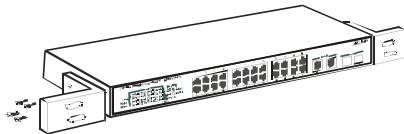
Figure 1. Combine the Switch with the provided screws
Then, use screws provided with the equipment rack to mount each switch in the rack.
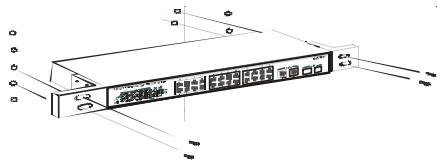
Figure 2. Mount the Switch in the rack
Connecting Network Cable
The Switch supports 10Mbps Ethernet or 100Mbps Fast Ethernet and it runs both in half and full duplex mode using two pair of Category 5 cable.
The Switch also supports 2Ports 1000Mbps Gigabit Ethernet that runs in Auto-negotiation mode and 10Mbps Ethernet or 100Mbps Fast Ethernet that runs both in half and full duplex mode and 1000Mbps Gigabit Ethernet runs in full duplex mode using four pair of Category 5 Cable.
These RJ45 ports are Auto-MDI type port. The Switch can auto transform to MDI-II or MDI-X type, so you can just make an easy connection that without worrying if you are using a standard or crossover RJ45 cable.
There are additional 2 ports mini-GBIC slot for optional mini-GBIC module.
AC Power
The Switch used the AC power supply 100-240V AC, 50 - 60Hz . The power switch is located at the rear of the unit adjacent to the AC power connector and the system fan. The switch's power supply will adjust to the local power source automatically and may be turned on without having any or all LAN segment cables connected.
This chapter describes the front panel, rear panel, and LED indicators of the Switch.
Front Panel
The figure below shows the front panels of the Switch.

Figure 3. Front panel of 24 + 4G port Gigabit Ethernet Switch
LED Indicator:
Comprehensive LED indicators display the status of the switch and the network (see the LED Indicators chapter below).
Fast Ethernet Ports (Port 1~24):
These ports support network speeds of either 10Mbps or 100Mbps, and can operate in half- and full- duplex transfer modes. These ports also supports automatic MDI/MDIX crossover detection function gives true "plug and play" capability, just need to plug-in the network cable to the hub directly and don't care if the end node is NIC (Network Interface Card) or switch and hub.
Gigabit Ethernet Ports (Port 25~26):
The Switch is equipped with two Gigabit twisted pair ports, supported auto negotiable 10/100/1000Mbps and auto MDI/MDIX crossover detection function. These two ports can operate in half-duplex mode for 10/100Mbps and full-duplex mode for 10/100/1000Mbps.
mini-GBIC Ports (Port 27~28):
The Switch is equipped with two mini-GBIC ports, supported optional 1000BASE-SX/LX mini-GBIC module.
Note: When the port was set to “Forced Mode”, the Auto MDI/MDIX will be disabled.
Rear Panel
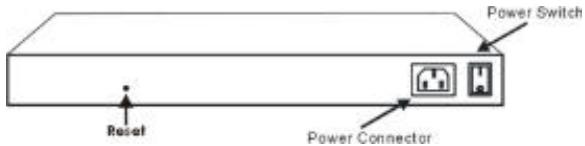
Figure 4. Rear panel of the Switch
Power Switch:
This is a switch where you can control to enable or disable the power.
AC Power Connector:
This is a three-pronged connector that supports the power cord. Plug in the female connector of the provided power cord into this connector, and the male into a power outlet. Supported input voltages range from 100-240V AC at 50 - 60Hz .
Reset:
The Reset button is to reset all the setting back to the factory default.
Note: Be sure that you recorded the setting of your device, else all the setting will be erased when pressing the "Reset" button.
The front panel LEDs provide instant status feedback, and, helps monitor and troubleshoot when needed.
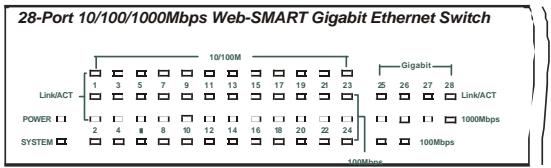
Figure 5. LED indicators of the Switch
Power and System LEDs
POWER: Power Indicator
| On : | When the Power LED lights on, the Switch is receiving power. |
| Off : | When the Power turns off or the power cord has improper connection. |
SYSTEM: Management Indicator
| Blinking : | When the CPU is working, the System LED is blinking. |
| On/Off : | The CPU is not working. |
Ports 1~24 10/100M Status LEDs
Link/ACT: Link/Activity
| On : | When the Link/ACT LED lights on, the respective port is successfully connected to an Ethernet network. |
| Blinking : | When the Link/ACT LED is blinking, the port is transmitting or receiving data on the Ethernet network. |
| Off : | No link. |
100Mbps
| On : | When the 100Mbps LED lights on, the respective port is connected to a 100Mbps Fast Ethernet network. |
| Off : | When the respective port is connected to a 10Mbps Ethernet network |
Ports 25~26 Gigabit Status LEDs
Link/ACT: Link/Activity
| On : | When the Link/ACT LED lights on, the respective port is successfully connected to an Ethernet network. |
| Blinking : | When the Link/ACT LED is blinking, the port is transmitting or receiving data on the Ethernet network. |
| Off : | No link. |
100Mbps
| On : | When the 100Mbps LED lights on, the respective port is connected to a 100Mbps Fast Ethernet network. |
| Off : | When the respective port is connected to a 10Mbps Ethernet or 1000Mbps Gigabit Ethernet network. |
1000Mbps
| On : | When the 1000Mbps LED lights on, the respective port is connected to a 1000Mbps Gigabit Ethernet network. |
| Off : | When the respective port is connected to a 10Mbps Ethernet or 100Mbps Fast Ethernet network |
Ports 27~28 mini-GBIC Status LEDs
Link/ACT: Link/Activity
| On : | When the mini-GBIC module is installed and connected to a network, the Link/ACT LED lights on. |
| Blinking : | When the LED is blinking, the mini-GBIC module is receiving data on a network. |
| Off : | No link. |
1000Mbps
| On : | When the 1000Mbps LED lights on, the respective port is connected to a 1000Mbps Gigabit Ethernet network. |
| Off : | When the respective port is disconnected to the network |
Through the Web Browser you can configure the Switch such as VLAN, Trunking, QoS... etc.
With the attached Web Management Utility, you can easily discover all the Web Management Switch, assign the IP Address, changing the password and upgrading the new firmware.
Installing the Web Management Utility
The following gives instructions guiding you through the installations of the Web Management utility.
- Insert the Utility CD in the CD-Rom Drive.
- From the Start menu on the Windows desktop, choose Run.
- In the Run dialog box, type D:\Web Management Utility\setup.exe (D:) depends where your CD-Rom drive is located) and click OK.
- Follow the on-screen instructions to install the utility.
- Upon completion, go to Program Files -> web_management/utility and execute the Web Management utility. (Figure 6.)

Figure 6. Web Management Utility
The Web Management Utility was divided into four parts, Discovery List, Monitor List, Device Setting and Toolbar function, for details instruction, follow the below section.
Discovery List
This is the list where you can discover all the Web management devices in the entire network.
By pressing the "Discovery" button, you can list all the Web Management devices in the discovery list.
Double click or press the "Add to monitor list" button to select a device from the Discovery List to the Monitor List.
System word definitions in the Discovery List:
- MAC Address: Shows the device MAC Address.
- IP Address: Shows the current IP address of the device.
- Protocol version: Shows the version of the Utility protocol.
- Product Name: Shows the device product name.
- System Name: Shows the appointed device system name.
- Location: Shows where the device is located.
- Trap IP: Shows the IP where the Trap to be sent.
- Subnet Mask: Shows the Subnet Mask set of the device.
- Gateway: Shows the Gateway set of the device.
Monitor List
All the Web Smart Device in the Monitor List can be monitored; you can also receive the trap and show the status of the device.
System word definitions in the Monitor List:
- S: Shows the system symbol of the Web-Smart device, × represent for device system is not alive.
- IP Address: Shows the current IP address of the device.
- MAC Address: Shows the device MAC Address.
- Protocol version: Shows the version of the Utility protocol.
- Product Name: Shows the device product name.
- System Name: Shows the appointed device system name.
- Location: Shows where the device is located.
- Trap IP: Shows the IP where the Trap to be sent.
- Subnet Mask: Shows the Subnet Mask set of the device.
- Gateway: Shows the Gateway set of the device.
View Trap: The Trap function can receive the events that happen from the Web Management Switch in the Monitor List.
There is a light indicator behind the "View Trap" button, when the light indicates in green, it means that there is no trap transmitted, and else when it indicates in red, it means that there is new trap transmitted, this is to remind us to view the trap. (Figure 7)
Figure 7.
When the "View Trap" button is clicked, a Trap Information window will pop out, it will show the trap information including the Symbol, Time, Device IP and the Event occurred. (Figure 8)
The symbol “!” represents the trap signal arise, this symbol will disappear after you review and click on the event record.
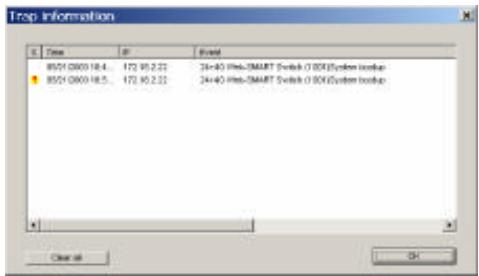
Figure 8.
Note: In order to receive Trap information, switch has to be configured with Trap IP and Trap Events in Web browser, which are available in the Trap Setting Menu (see Page 40 for detail).
Add Item: To add a device to the Monitor List manually, enter the IP Address of the device that you want to monitor.
Delete Item: To delete the device in the Monitor List.
Device Setting
You can set the device by using the function key in the Device Setting Dialog box.
Configuration Setting: In this Configuration Setting, you can set the IP Address, Subnet Mask, Gateway, Set Trap to (Trap IP Address), System name and Location.
Select the device in the Discovery list or Monitor List and press this button, then the Configuration Setting window will pop out as Figure 9, after filling up the data that you want to change, you must fill up the password and press the "Set" to process the data changed immediately.
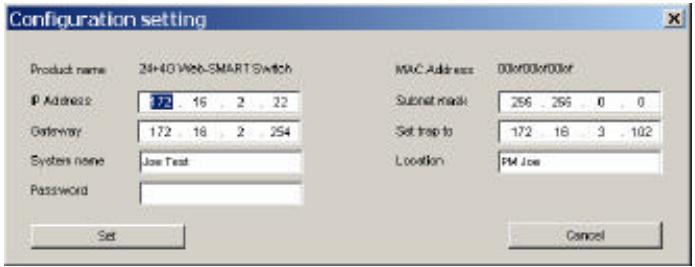
Figure 9. Configuration Setting
Password Change: You can use this Password Change when you need to change the password, fill in the password needed in the dialog box and press "Set" button to proceed the password change immediately.
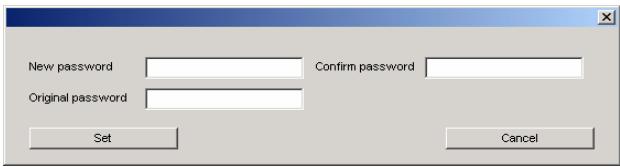
Figure 10. Password Change
Firmware Upgrade: When the device has a new function, there will be a new firmware to update the device, use this function to update.
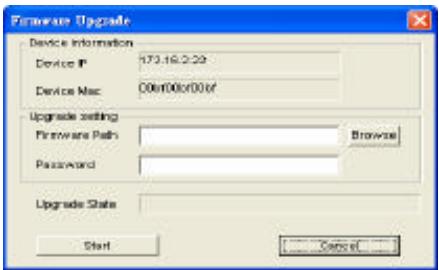
Figure 11.
Web Access: Double click the device in the Monitor List or select a device in the Monitor List and press this "Web Access" button to access the device in Web browser.
Toolbar
The toolbar in the Web Management Utility have four main tabs, File, View, Options and Help.
In the "File TAB", there are Monitor Save, Monitor Save As, Monitor Load and Exit.
Monitor Save: To record the setting of the Monitor List to the default, when you open the Web Management Utility next time, it will auto load the default recorded setting.
Monitor Save As: To record the setting of the Monitor List in appointed filename and file path.
Monitor Load: To manually load the setting file of the Monitor List.
Exit: To exit the Web Management Utility.
In the "View TAB", there are view log and clear log function, this function will help you to show trap setting.
View Log: To show the event of the Web Management Utility and the device.
Clear Log: to clear the log.
In the "Option TAB", there are Refresh Time function, this function helps you to refresh the time of monitoring the device. Choose 15 secs, 30 secs, 1 min, 2 min and 5 min to select the time of monitoring.
In the "Help TAB", there is About function, it will show out the version of the Web Management Utility.
Configuring the Switch
The 24+4G-Port 10/100/1000Mbps Gigabit Ethernet Web Smart Switch has a Web GUI interface for smart switch configuration. The Switch can be configured through the Web Browser. A network administrator can manage, control and monitor the switch from the local LAN. This section indicates how to configure the Switch to enable its smart functions including:
Port Setting (Speed/Disable, Duplex mode, Flow Control and Port base QoS)
Virtual LAN Group setting (VLAN)
Trunking
Port Mirroring
System Setting
Device status and Statistic
Login
Before you configure this device, note that when the Web Smart Switch is configured through an Ethernet connection, make sure the manager PC must be set on the IP network. For example, when the default network address of the default IP address of the Web Smart Switch is 192.168.0.1, then the manager PC should be set at 192.168.0.x (where x is a number between 2 and 254), and the default subnet mask is 255.255.255.0.
Open Internet Explorer 5.0 or above Web browser.
Enter IP address http://192.168.0.1 (the factory-default IP address setting) to the address location.
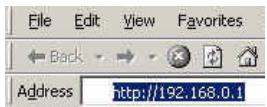
Figure 12.
Or through the Web Management Utility, you do not need to remember the IP Address, select the device shown in the Monitor List of the Web Management Utility to settle the device on the Web Browser.
When the following dialog page appears, remain enter the default password "admin" and press Login to enter the main configuration window.
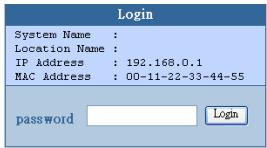
Figure 13.
After entering the password, the main page comes up, the screen will display the device status.
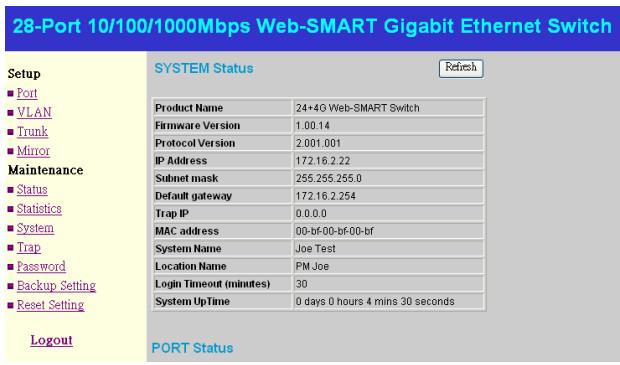
Figure 14. Device Status
Setup Menu
When the main page appears, find the Setup menu in the left side of the screen (Figure 15). Click on the setup item that you want to configure. There are eleven options: Port Settings, VLAN Settings, Trunk Setting, Mirror Setting, Device Status, Statistic, System Settings, Trap Setting, Password Setting, Backup Setting and Reset Setting as shown in the Main Menu screen.
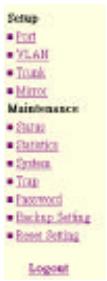
Figure 15. Setup menu
Configuring Setup Setting
Find that there are four items, including Port Settings, VLAN Settings, Trunk Settings and Mirror Settings in Setup menu.
Port Settings
In Port Settings menu (Figure 16), this page will show each port's status, press the ID parameter to set each port's Speed, Flow Control, QoS priority and Link Status. When you need to renew the posted information, press the "Refresh" button.
The Link Status in the screen will show the connection speed and duplex mode; else this dialog box will show down when the port is disconnected.
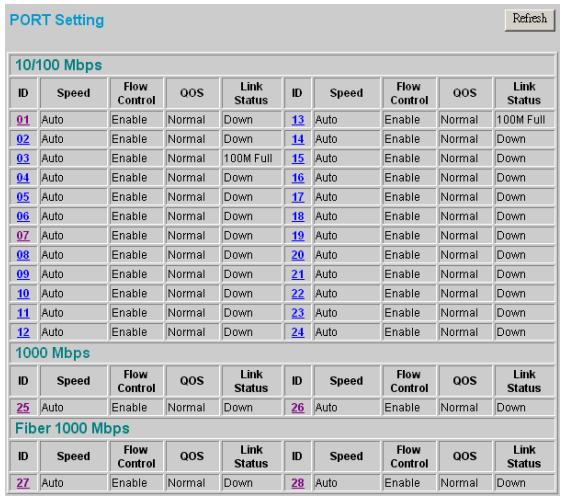
Figure 16. Port Configuration
To change the port setting, click on the ID parameter to enter to the selected port to configure its Speed/Disable, Flow control and QoS setting.
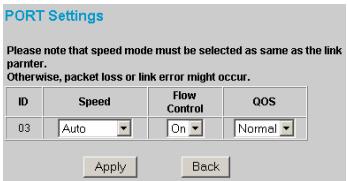
Figure 17.
Speed/Disable:
This setting has six modes—100M Full, 100M Half, 10M Full, 10M Half, Auto and Disable—for speed or port disable selections.
Flow Control:
This setting determines whether or not the Switch will be handling flow control. Set FlowCtrl to Enable for avoiding data transfer overflow. Or it sets to Disable; there is either no flow control or other hardware/software management.
When the port is set to forced mode, then the flow control will automatically set to Disable.
QoS:
In some ports that need to have a high priority to manage the data transfer, QoS should be change. Set the port's QoS to high to determine the port will always transfer their data first.
VLAN Settings (Virtual Local Area Network)
Group individual ports into a small "Virtual" network of their own to be independent of the other ports. To add a VLAN group, press "Add Group" button, the new VLAN configuration window will pop out, you can fill in the description in order to describe this VLAN Group, check on the port to be a member to this VLAN Group, and press "Apply" button to execute the setting.

Figure 19. VLAN Group Settings
Once you want to modify the VLAN Group, check on the ID parameter, the ID VLAN configuration window will pop out.
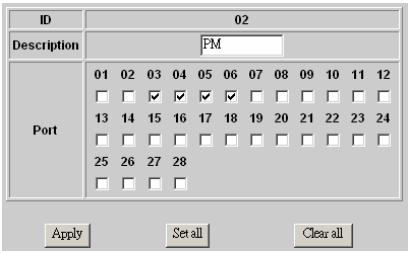
Figure 20. VLAN Settings
Trunk Setting
The Trunk function enables to cascade two devices with a double times bandwidth (up to 4000Mbps in full duplex mode).
There is only one selection for the trunk setting, port 25 and port 26, or select "disable" for closing this function.
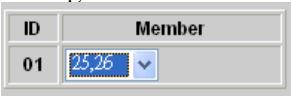
Figure 21. Trunk Settings
Be sure that the selected trunk setting port must connect to the device with a same VLAN group.
Mirror Setting
Port Mirroring is a method of monitoring network traffic that forwards a copy of each incoming and/or outgoing packet from one port of a network switch to another port where the packet can be studied. It enables the manager to keep close track of switch performance and alter it if necessary.
Configuring the port mirroring by assigning a source port from which to copy all packets and a sniffer port where those packets will be sent.
The selection of the sniffer mode is as follow:
TX (transmit) mode: this mode will duplicate the data transmit from the source port and forward to the sniffer port.
RX (receive) mode: this mode will duplicate the data that send to the source and forward to the sniffer port.
Both (transmit and receive) mode: this mode will duplicate both the data transmit from and data that send to the source port, then it will forward to the sniffer port.
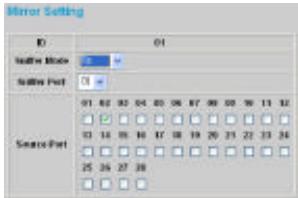
Figure 22.
Device Status
Click on the "Status" to present the device status on this screen, it will show the System Status, Port Status, VLAN Status, Trunk Status and Mirror Status..
Press "Refresh" when you need to renew the posted information.
Statistic
The Statistic Menu screen will show the status of each port packet count.
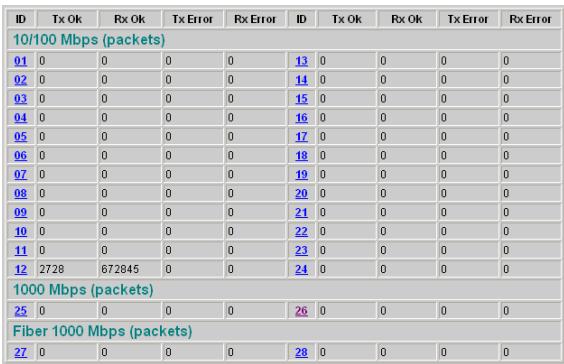
Figure 23. Statistic
For Detail packet information, click on the ID parameter as Figure 24.
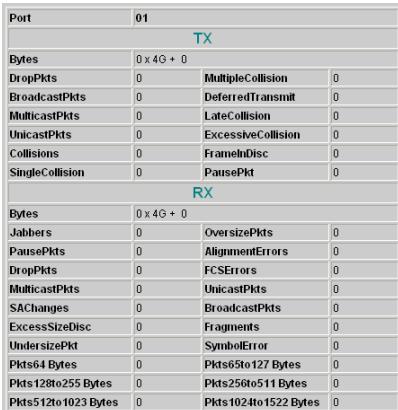
Figure 24.
System Setting
The System Setting includes the System name, Location name, Login Timeout, IP Address, Subnet Mask and Gateway. Through the Web Management Utility, you can easily recognize the device by using the System Name and the Location Name.
The Login Timeout is to set the idle time-out for security issue, when there is no action when running the Web Smart Utility and the time is up, you must re-login to Web Smart Utility before you set the Utility.
Fill up the IP Address, Subnet Mask and Gateway for the device.
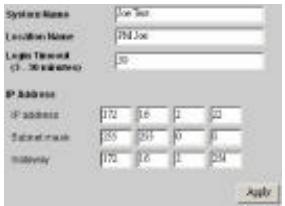
Figure 25.
Trap Setting
The Trap Setting enables the device to monitor the Trap through the Web Management Utility, set the Trap IP Address of the manager where the trap to be sent.
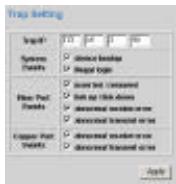
Figure 26. Trap Setting
System Events: Monitoring the system's trap.
Device Bootup: a trap when booting up the system.
Illegal Login: a trap when there is using a wrong password login, and it will record from where the IP to be login.
Fiber Port Events: Monitoring the Fiber port status.
Link Up/Link Down: a trap when there is linking status happens in fiber port.
Abnormal* Receive Error: a trap when there are receive data error in fiber port.
Abnormal* Transmit Error: a trap when there are transmit data error in fiber port.
Copper Port Events: Monitoring the copper port status.
Abnormal* Receive Error: a trap when there are receive data error in copper port.
Abnormal* Transmit Error: a trap when there are transmit data error in copper port.
Abnormal*: 50 error packet count within 10 seconds.
Set Password
Password is the invaluable tool for the manager to secure Web Management Switch, use this function to change the password.
If you forget the password, press the "Reset" button in the rear panel of the Switch, the current setting includes VLAN, Port Setting... etc. will be lost and the Switch will restore to the default setting.
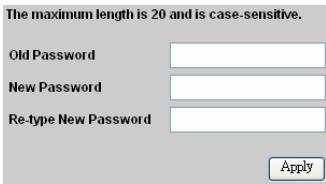
Figure 27. Set Password
Backup Setting
The backup tools help you to backup the current setting of the Switch. Once you need to backup the setting, press the "Backup" button to save the setting.
To restore a current setting file to the device, you must specify the backup file and press "Restore" button to proceed the setting of the recorded file.
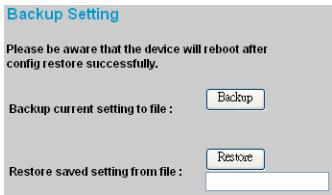
Figure 28. Backup Setting
Note: when restoring a recorded file, the current password will not be erased.
Reset Setting
The Factory Reset button helps you to reset the device back to the default setting from the factory. Be aware that the entire configuration will be reset, the IP address of the device will be set to default setting 192.168.0.1.
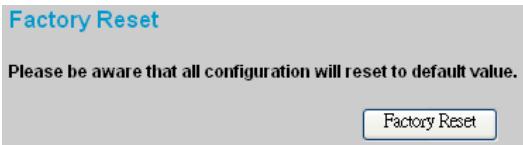
Figure 29. Reset Setting
Logout
When press this function, the web configuration will go back to first Login page.
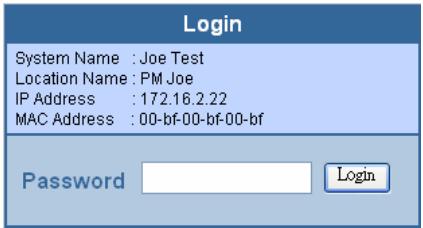
Figure 30.Logout
| General | |
| Standards | IEEE 802.3 10BASE-T Ethernet IEEE 802.3u 100BASE-TX Fast Ethernet IEEE 802.3ab 1000BASE-T Gigabit Ethernet IEEE 802.3x Full Duplex Flow Control |
| Protocol | CSMA/CD |
| Data Transfer Rate | Ethernet: 10Mbps (half duplex), 20Mbps (full-duplex) Fast Ethernet: 100Mbps (half duplex), 200Mbps (full-duplex) Gigabit Ethernet: 2000Mbps (full-duplex) |
| Topology | Star |
| Network Cables | 10BASET: 2-pair UTP Cat. 3, 4, 5; up to 100m 100BASE-TX: 2-pair UTP Cat. 5; up to 100m 1000BASE-T: 4-pair UTP Cat. 5; up to 100m Fiber module: mini-GBIC Fiber module |
| Number of Ports | 24 × 10/100Mbps Auto-MDIX RJ45 ports 2 × 10/100/1000Mbps Auto-MDIX RJ45 ports 2 × mini-GBIC fiber slot |
| Physical and Environmental | |
| AC inputs | 100-240V AC, 50-60 Hz internal universal power supply |
| Power Consumption | 19Watts (Max) |
| Temperature | Operating: 0° ~ 40°C, Storage: -10° ~ 70°C |
| Humidity | Operating: 10% ~ 90%, Storage: 5% ~ 90% |
| Dimensions | 440 x 200 x 44 mm (W x H x D) |
| EMI: | FCC Class A, CE Mark Class A, VCCI Class A |
| Safety: | cUL(UL60950), CB(IEC60950) |
| Performance | |
| Transmits Method: | Store-and-forward |
| Filtering Address Table: | 4K entries per device |
| Packet Filtering/Forwarding Rate: | 10Mbps Ethernet: 14,880/pps 100Mbps Fast Ethernet: 148,800/pps 1000Mbps Gigabit Ethernet: 1,488,000/pps |
| MAC Address Learning: | Automatic update |
| Transmits Method: | Store-and-forward |
| RAM Buffer: | 768K bytes per device |