
WRB24 - Wi-Fi Router COMET LABS - Free user manual and instructions
Find the device manual for free WRB24 COMET LABS in PDF.


| Product Type | Multifunction Wi-Fi Router |
| Brand | COMET LABS |
| Model | WRB24 |
| Dimensions (L x W x H) | 189 x 122 x 27 mm |
| Power Supply | 12 V DC external |
| Operating Temperature | 0°C to 40°C |
| Storage Temperature | -10°C to 70°C |
| Network Protocol | TCP/IP |
| Network Interfaces | 4 ports LAN 10/100BaseT (RJ45), 1 port WAN 10/100BaseT (RJ45) |
| Wireless Standard | IEEE 802.11b |
| Wireless Speeds | Up to 22 Mbps (with TI B+), 11 Mbps standard |
| Wireless Security | WEP 64/128/256-bit |
| Main Functions | Internet connection sharing, firewall, DHCP server, access control, virtual servers, DMZ, URL filtering, VPN passthrough |
| Management | Web interface, UPnP, remote management |
| LED Indicators | 12 LEDs: Status, Power, LAN (Link/Act, 100), WAN, WLAN |
| Package Contents | Router, power adapter, quick installation guide, CD-ROM |
| Safety | Compliant with FCC Part 15, CE, minimum distance 20 cm for RF exposure |
Frequently Asked Questions - WRB24 COMET LABS
User questions about WRB24 COMET LABS
0 question about this device. Answer the ones you know or ask your own.
Ask a new question about this device
Download the instructions for your Wi-Fi Router in PDF format for free! Find your manual WRB24 - COMET LABS and take your electronic device back in hand. On this page are published all the documents necessary for the use of your device. WRB24 by COMET LABS.
USER MANUAL WRB24 COMET LABS
Multi-Function Wireless Router
Wireless Access Point
Broadband Internet Access
4-Port Switching Hub
CHAPTER 1 INTRODUCTION ....1
Wireless Router Features .... 1
Package Contents .... 3
Physical Details....4
CHAPTER 2 INSTALLATION......6
Requirements......6
Procedure 6
CHAPTER 3 SETUP ....8
Overview 8
Configuration Program 9
Setup Wizard 11
LAN Screen....14
Wireless Screen....16
Password Screen....19
CHAPTER 4 PC CONFIGURATION....20
Overview 20
Windows Clients....20
Macintosh Clients....32
Linux Clients....32
Other Unix Systems....32
Wireless Station Configuration....33
CHAPTER 5 OPERATION AND STATUS....34
Operation 34
Status Screen....34
Connection Status - PPPoE 36
Connection Status - PPTP 38
Connection Status - Telstra Big Pond....39
Connection Details - SingTel RAS 40
Connection Details - Fixed/Dynamic IP Address 42
CHAPTER 6 ADVANCED FEATURES ....44
Overview 44
Advanced Menu Screen 44
Advanced Internet Screen 45
Access Control 49
Remote Management 55
Virtual Servers....56
Dynamic DNS (Domain Name Server) 59
Upgrade Firmware....61
CHAPTER 7 ADVANCED CONFIGURATION....62
Overview 62
PC Database....63
Options 67
Security......69
Logs....71
MAC Address 73
Routing....74
APPENDIX A TROUBLESHOOTING....78
Overview 78
General Problems....78
Internet Access....78
Wireless Access....79
APPENDIX B ABOUT WIRELESS LANS....80
Modes 80
BSS/ESS....80
Channels....81
WEP 81
Wireless LAN Configuration....81
APPENDIX C SPECIFICATIONS 82
Multi-Function Wireless Router 82
Wireless Interface....82
FCC Statement 83
P/N: 9560K30001
Copyright © 2003. All Rights Reserved.
Document Version: 1.0
All trademarks and trade names are the properties of their respective owners.
This Chapter provides an overview of the Wireless Router's features and capabilities.
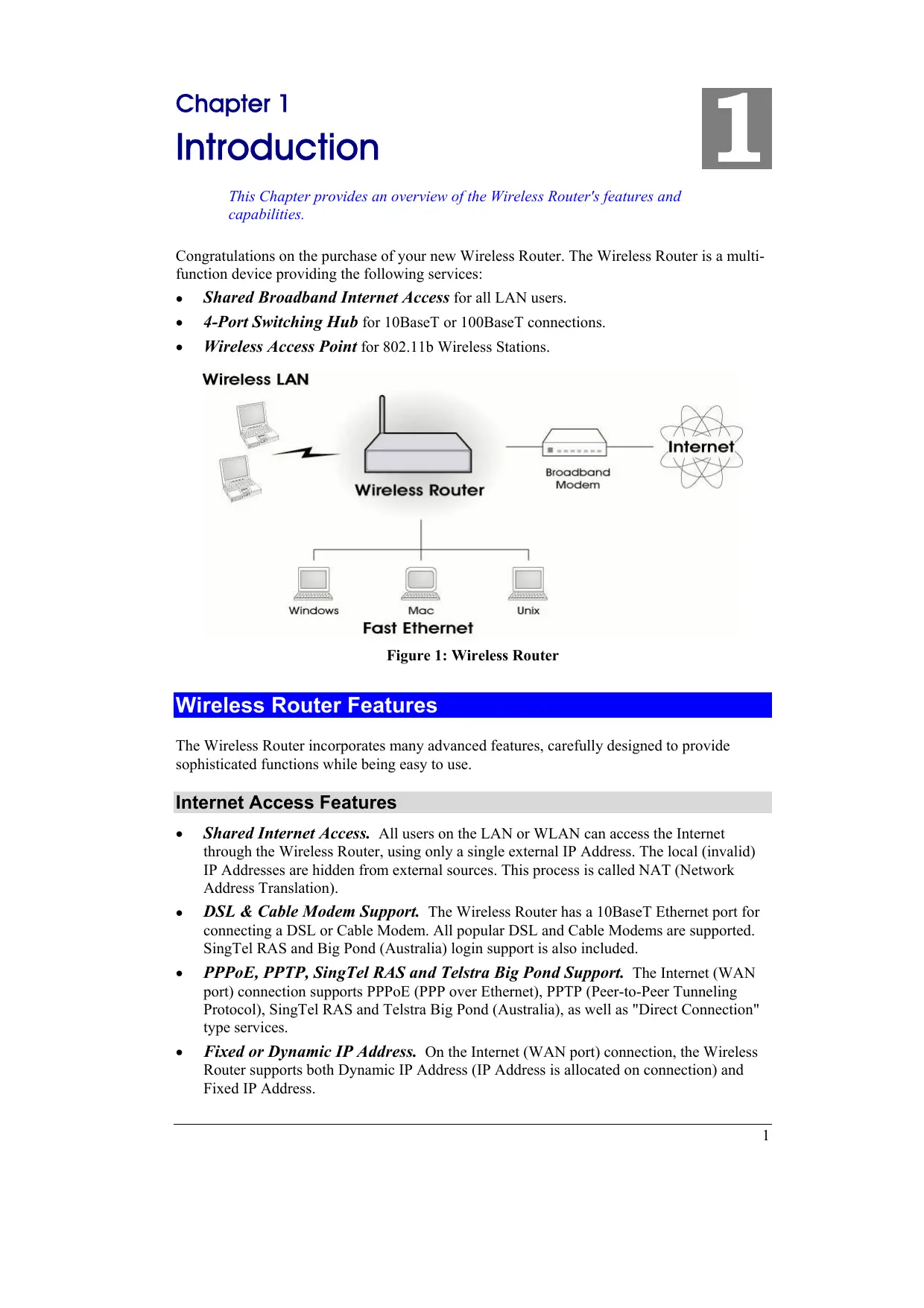
Congratulations on the purchase of your new Wireless Router. The Wireless Router is a multifunction device providing the following services:
- Shared Broadband Internet Access for all LAN users.
• 4-Port Switching Hub for 10BaseT or 100BaseT connections.
• Wireless Access Point for 802.11b Wireless Stations.
Wireless LAN
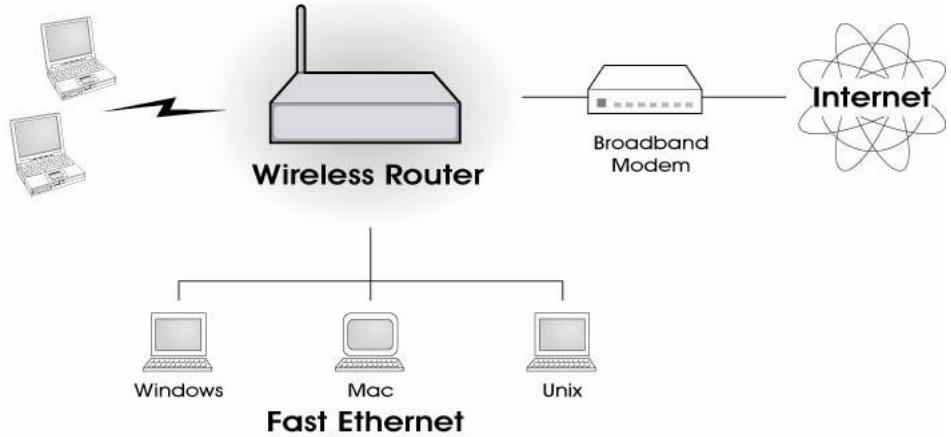
flowchart
graph TD
    A["Desktop"] --> B["Wireless Router"]
    C["Desktop"] --> B
    B --> D["Broadband Modem"]
    D --> E["Internet"]
    F["Windows"] --> G["Fast Ethernet"]
    H["Mac"] --> G
    I["Unix"] --> G
Figure 1: Wireless Router
Wireless Router Features
The Wireless Router incorporates many advanced features, carefully designed to provide sophisticated functions while being easy to use.
Internet Access Features
- Shared Internet Access. All users on the LAN or WLAN can access the Internet through the Wireless Router, using only a single external IP Address. The local (invalid) IP Addresses are hidden from external sources. This process is called NAT (Network Address Translation).
- DSL & Cable Modem Support. The Wireless Router has a 10BaseT Ethernet port for connecting a DSL or Cable Modem. All popular DSL and Cable Modems are supported. SingTel RAS and Big Pond (Australia) login support is also included.
- PPPoE, PPTP, SingTel RAS and Telstra Big Pond Support. The Internet (WAN port) connection supports PPPoE (PPP over Ethernet), PPTP (Peer-to-Peer Tunneling Protocol), SingTel RAS and Telstra Big Pond (Australia), as well as "Direct Connection" type services.
- Fixed or Dynamic IP Address. On the Internet (WAN port) connection, the Wireless Router supports both Dynamic IP Address (IP Address is allocated on connection) and Fixed IP Address.
Advanced Internet Functions
- Communication Applications. Support for Internet communication applications, such as interactive Games, Telephony, and Conferencing applications, which are often difficult to use when behind a Firewall, is included.
- Special Internet Applications. Applications that use non-standard connections or port numbers are normally blocked by the Firewall. The ability to define and allow such applications is provided, to enable such applications to be used normally.
- Virtual Servers. This feature allows Internet users to access Internet servers on your LAN. The required setup is quick and easy.
- DMZ. One (1) PC on your local LAN can be configured to allow unrestricted 2-way communication with Servers or individual users on the Internet. This provides the ability to run programs, which are incompatible with Firewalls.
- URL Filter. Use the URL Filter to block access to undesirable Web sites by LAN users.
- Internet Access Log. See which Internet connections have been made.
- VPN Pass through Support. PCs with VPN (Virtual Private Networking) software using PPTP, L2TP and IPSec are transparently supported - no configuration is required.
Wireless Features
- Standards Compliant. The Wireless Router complies with the IEEE802.11b (DSSS) specifications for Wireless LANs.
- Speeds to 22Mbps. All speeds up to the 802.11b maximum of 11Mbps are supported, as well as the TI "B+" enhancement which allows 22Mbps between compatible devices.
- WEP support. Support for WEP (Wired Equivalent Privacy) is included. Key sizes of 64 Bit, 128 Bit and 256 Bit (for TI devices only) are supported.
- Access Control. The Access Control feature can ensure that only trusted Wireless Stations can access your LAN.
- Simple Configuration. If the default settings are unsuitable, they can be changed quickly and easily.
LAN Features
- 4-Port Switching Hub. The Wireless Router incorporates a 4-port 10/100BaseT switching hub, making it easy to create or extend your LAN.
- DHCP Server Support. Dynamic Host Configuration Protocol provides a dynamic IP address to PCs and other devices upon request. The Wireless Router can act as a DHCP Server for devices on your local LAN and WLAN.
- Multi Segment LAN Support. LANs containing one or more segments are supported, via the Wireless Router's RIP (Routing Information Protocol) support and built-in static routing table.
Configuration & Management
- Easy Setup. Use your WEB browser from anywhere on the LAN or WLAN for configuration.
- Remote Management. The Wireless Router can be managed from any PC on your LAN. And, if the Internet connection exists, it can also (optionally) be configured via the Internet.
- UPnP Support. UPnP (Universal Plug and Play) allows automatic discovery and configuration of the Wireless Router. UPnP is by supported by Windows ME, XP, or later.
Security Features
- Password - protected Configuration. Optional password protection is provided to prevent unauthorized users from modifying the configuration data and settings.
- Wireless LAN Security. WEP (Wired Equivalent Privacy) is supported, as well as Wireless access control to prevent unknown wireless stations from accessing your LAN.
- NAT Protection. An intrinsic side effect of NAT (Network Address Translation) technology is that by allowing all LAN users to share a single IP address, the location and even the existence of each PC is hidden. From the external viewpoint, there is no network, only a single device - the Wireless Router.
- Stateful Inspection Firewall. All incoming data packets are monitored and all incoming server requests are filtered, thus protecting your network from malicious attacks from external sources.
- Protection against DoS attacks. DoS (Denial of Service) attacks can flood your Internet connection with invalid packets and connection requests; using so much bandwidth and so many resources that Internet access becomes unavailable. The Wireless Router incorporates protection against DoS attacks.
Package Contents
The following items should be included:
• The Wireless Router Unit
- Power Adapter
• Quick Installation Guide
• CD-ROM containing the on-line manual.
If any of the above items are damaged or missing, please contact your dealer immediately.
Physical Details
Front Panel
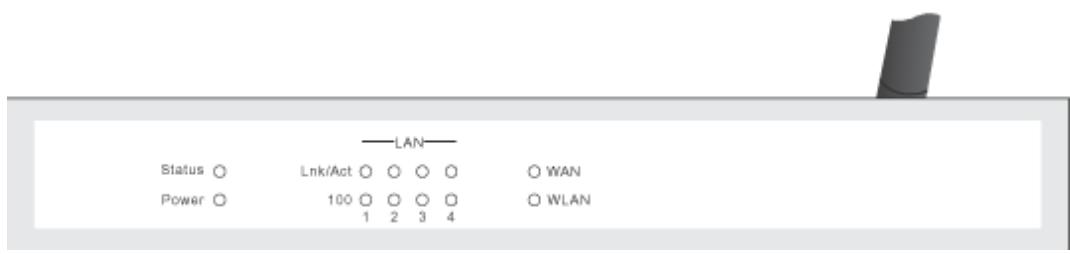
Figure 2: Front Panel
Status (Red) On - Error condition.
LED
Off - Normal operation.
Blinking - This LED blinks during start up.
Power LED On - Power on.
Off - No power.
LAN LEDs For each port, there are 2 LEDs
- Link/Act
- On - Corresponding LAN (hub) port is active.
- Off - No active connection on the corresponding LAN (hub) port.
- Flashing - Data is being transmitted or received via the corresponding LAN (hub) port.
• 100
- On - Corresponding LAN (hub) port is using 100BaseT.
- Off - Corresponding LAN (hub) port connection is using 10BaseT, or no active connection.
WAN LED On - Connection to the Broadband Modem attached to the WAN (Internet) port is established.
Off - No connection to the Broadband Modem.
WLAN LED On - Idle.
Off - Error - No Wireless connection available.
Flashing - Data is being transmitted or received via the Wireless access point. This includes "network traffic" as well as user data.
Rear Panel


text_image
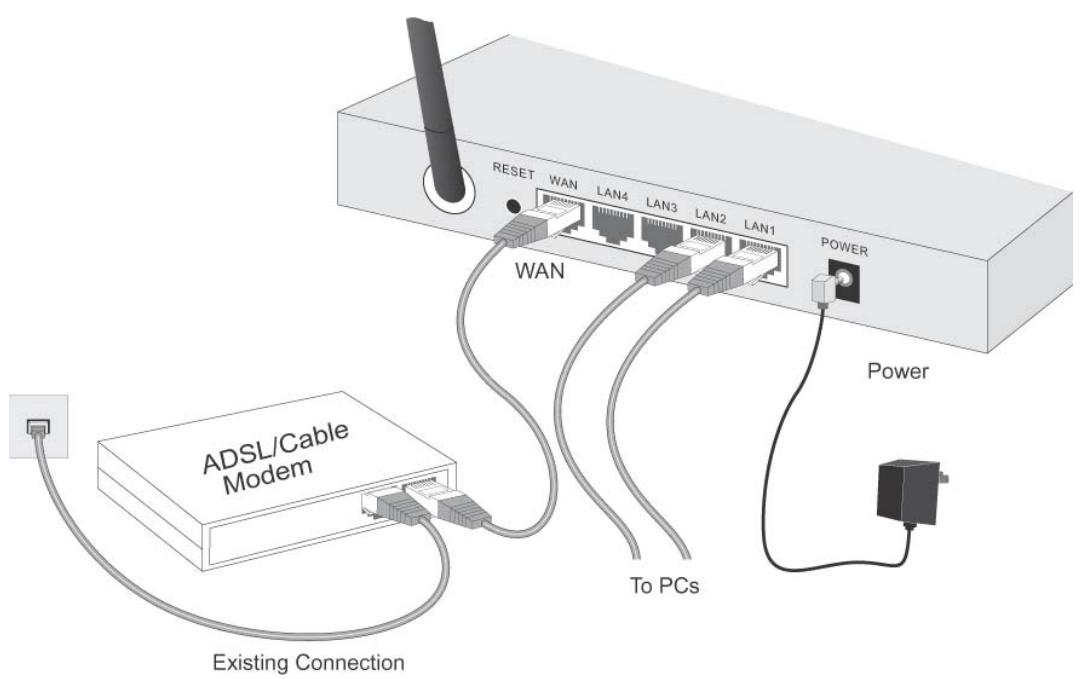
RESET WAN LAN4 LAN3 LAN2 LAN1 POWERFigure 3: Rear Panel
Reset Button
This button has two (2) functions:
- Reboot. When pressed and released, the Wireless Router will reboot (restart).
- Clear All Data. This button can also be used to clear ALL data and restore ALL settings to the factory default values.
To Clear All Data and restore the factory default values:
- Power Off.
- Hold the Reset Button down while you Power On.
- Keep holding the Reset Button for a few seconds, until the RED LED has flashed TWICE.
- Release the Reset Button. The Wireless Router is now using the factory default values.
WAN port (10/100BaseT)
Connect the DSL or Cable Modem here. If your modem came with a cable, use the supplied cable. Otherwise, use a standard LAN cable.
10/100BaseT LAN connections
Use standard LAN cables (RJ45 connectors) to connect your PCs to these ports.
Power port
Connect the supplied power adapter here.
Chapter 2
Installation
This Chapter covers the physical installation of the Wireless Router.
Requirements
• Network cables. Use standard 10/100BaseT network (UTP) cables with RJ45 connectors.
• TCP/IP protocol must be installed on all PCs.
- For Internet Access, an Internet Access account with an ISP, and either of a DSL or Cable modem (for WAN port usage)
- To use the Wireless Access Point, all Wireless devices must be compliant with the IEEE802.11b specifications.
Procedure
text_image
RESET WAN LAN4 LAN3 LAN2 LAN1 POWER WAN Power ADSL/Cable Modem To PCs Existing ConnectionFigure 4: Installation Diagram
1. Choose an Installation Site
Select a suitable place on the network to install the Wireless Router.
Ensure the Wireless Router and the DSL/Cable modem are powered OFF.

For best Wireless reception and performance, the Access Point should be positioned in a central location with minimum obstructions between the Access Point and the PCs.
Also, if using multiple Access Points, adjacent Access
Points should use different Channels.
2. Connect LAN Cables
Use standard LAN cables to connect PCs to the Switching Hub ports on the Wireless Router. Both 10BaseT and 100BaseT connections can be used simultaneously.
3. Connect WAN Cable
Connect the DSL or Cable modem to the WAN port on the Wireless Router. Use the cable supplied with your DSL/Cable modem. If no cable was supplied, use a standard cable.
4. Power Up
• Power on the Cable or DSL modem.
- Connect the supplied power adapter to the Wireless Router and power up.
Use only the power adapter provided. Using a different one may cause hardware damage
5. Check the LEDs
• The Power LED should be ON.
- The Status LED should flash, then turn OFF. If it stays on, there is a hardware error.
- For each LAN (PC) connection, the LAN Link/Act LED should be ON (provided the PC is also ON.)
• The WAN LED should be ON.
• The WLAN LED should be ON
For more information, refer to the Front Panel section in Chapter 1.
Overview
This chapter describes the setup procedure for:
- Internet Access
• LAN configuration - Wireless setup
- Assigning a Password to protect the configuration data.
PCs on your local LAN may also require configuration. For details, see Chapter 4 - PC Configuration.
Other configuration may also be required, depending on which features and functions of the Wireless Router you wish to use. Use the table below to locate detailed instructions for the required functions.
| To Do this: | Refer to: |
| Configure PCs on your LAN. | Chapter 4:PC Configuration |
| Check Wireless Router operation and Status. | Chapter 5:Operation and Status |
| Use any of the following Internet features:Special ApplicationsDMZVirtual ServersDynamic DNSRemote ManagementFirmware Upgrade | Chapter 6:Advanced Features |
| Use any of the following Advanced Configuration settings:PC DatabaseOptions (Backup DNS, TFTP, UPnP, Firewall)Routing (RIP and static Routing) | Chapter 7Advanced Configuration |

Note!
Where use of a certain feature requires that PCs or other LAN devices be configured, this is also explained in the relevant chapter.
Configuration Program
The Wireless Router contains an HTTP server. This enables you to connect to it, and configure it, using your Web Browser. Your Browser must support JavaScript. The configuration program has been tested on the following browsers:
• Netscape V4.08 or later
• Internet Explorer V4 or later
Preparation
Before attempting to configure the Wireless Router, please ensure that:
- Your PC can establish a physical connection to the Wireless Router. The PC and the Wireless Router must be directly connected (using the Hub ports on the Wireless Router) or on the same LAN segment.
- The Wireless Router must be installed and powered ON.
- If the Wireless Router's default IP Address (192.168.0.1) is already used by another device, the other device must be turned OFF until the Wireless Router is allocated a new IP Address during configuration.
Using UPnP
If your Windows system supports UPnP, an icon for the Wireless Router will appear in the system tray, notifying you that a new network device has been found, and offering to create a new desktop shortcut to the newly-discovered device.
- Unless you intend to change the IP Address of the Wireless Router, you can accept the desktop shortcut.
- Whether you accept the desktop shortcut or not, you can always find UPnP devices in My Network Places (previously called Network Neighborhood).
- Double - click the icon for the Wireless Router (either on the Desktop, or in My Network Places) to start the configuration. Refer to the following section Setup Wizard for details of the initial configuration process.
Using your Web Browser
To establish a connection from your PC to the Wireless Router:
- After installing the Wireless Router in your LAN, start your PC. If your PC is already running, restart it.
- Start your WEB browser.
- In the Address box, enter "HTTP://" and the IP Address of the Wireless Router, as in this example, which uses the Wireless Router's default IP Address:
HTTP://192.168.0.1
If you can't connect
If the Wireless Router does not respond, check the following:
- The Wireless Router is properly installed, LAN connection is OK, and it is powered ON. You can test the connection by using the "Ping" command:
- Open the MS-DOS window or command prompt window
- Enter the command: ping 192.168.0.1
If no response is received, either the connection is not working, or your PC's IP address is not compatible with the Wireless Router's IP Address. (See next item.)
- If your PC is using a fixed IP Address, its IP Address must be within the range 192.168.0.2 to 192.168.0.254 to be compatible with the Wireless Router's default IP Address of 192.168.0.1. Also, the Network Mask must be set to 255.255.255.0. See Chapter 4 - PC Configuration for details on checking your PC's TCP/IP settings.
- Ensure that your PC and the Wireless Router are on the same network segment. (If you don't have a router, this must be the case.)
Setup Wizard
The first time you connect to the Wireless Router, the Setup Wizard will run automatically. (The Setup Wizard will also run if the Wireless Router's default settings are restored.)
-
Step through the Wizard until finished.
-
You need to know the type of Internet connection service used by your ISP. Check the data supplied by your ISP.
-
The common connection types are explained in the tables below.
-
On the final screen of the Wizard, run the test and check that an Internet connection can be established.
-
If the connection test fails:
-
Check your data, the Cable/DSL modem, and all connections.
- Check that you have entered all data correctly.
- If using a Cable modem, your ISP may have recorded the MAC (physical) address of your PC. Run the Wizard, and on the Cable Modem screen, use the "Clone MAC address" button to copy the MAC address from your PC to the Wireless Router.
Common Connection Types
Cable Modems
| Type | Details | ISP Data required |
| Dynamic IP Address | Your IP Address is allocated automatically, when you connect to you ISP. | Usually, none.However, some ISP's may require you to use a particular Hostname, Domain name, or MAC (physical) address. |
| Static (Fixed) IP Address | Your ISP allocates a permanent IP Address to you. | IP Address allocated to you.Some ISP's may also require you to use a particular Hostname, Domain name, or MAC (physical) address. |
DSL Modems
| Type | Details | ISP Data required |
| Dynamic IP Address | Your IP Address is allocated automatically, when you connect to you ISP. | None. |
| Static (Fixed) IP Address | Your ISP allocates a permanent IP Address to you. | IP Address allocated to you. |
| PPPoE | You connect to the ISP only when required. The IP address is usually allocated automatically. | User name and password. |
| PPTP | Mainly used in Europe.You connect to the ISP only when required. The IP address is usually allocated automatically, but may be Static (Fixed). | PPTP Server IP Address.User name and password.IP Address allocated to you, if Static (Fixed). |
Other Modems (e.g. Broadband Wireless)
| Type | Details | ISP Data re uired |
| Dynamic IP Address | Your IP Address is allocated automatically, when you connect to you ISP. | None. |
| Static (Fixed) IP Address | Your ISP allocates a permanent IP Address to you. | IP Address allocated to you. |
Big Pond Cable (Australia)
For this connection method, the following data is required:
- User Name
- Password
• Big Pond Server IP address
SingTel RAS
For this connection method, the following data is required:
- User Name
- Password
- RAS Plan
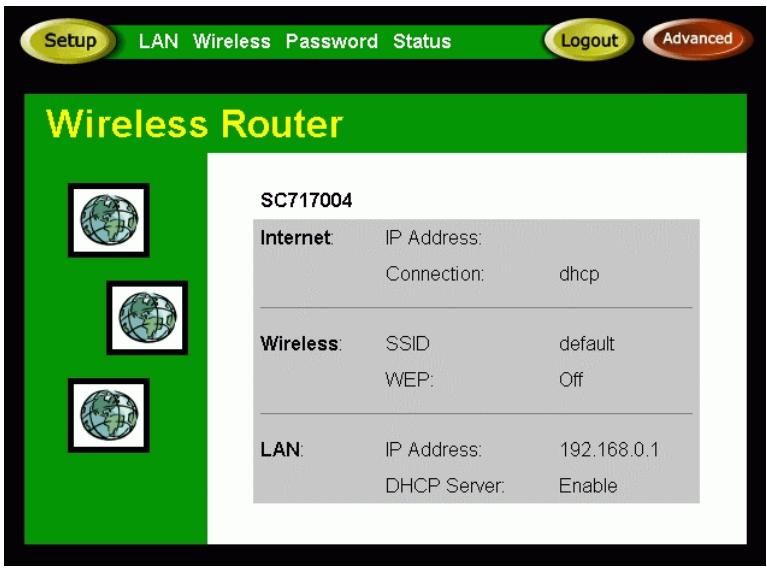
Home Screen
After finishing the Setup Wizard, you will see the Home screen. When you connect in future, you will see this screen when you connect. An example screen is shown below.
text_image
Setup LAN Wireless Password Status Logout Advanced Wireless Router SC717004 Internet: IP Address: Connection: dhcp Wireless: SSID default WEP: Off LAN: IP Address: 192.168.0.1 DHCP Server: EnableFigure 5: Home Screen
Navigation & Data Input
- Use the menu bar on the top of the screen, and the "Back" button on your Browser, for navigation.
- Changing to another screen without clicking "Save" does NOT save any changes you may have made. You must "Save" before changing screens or your data will be ignored.

On each screen, clicking the "Help" button will display help for that screen.
From any help screen, you can access the list of all help files (help index).
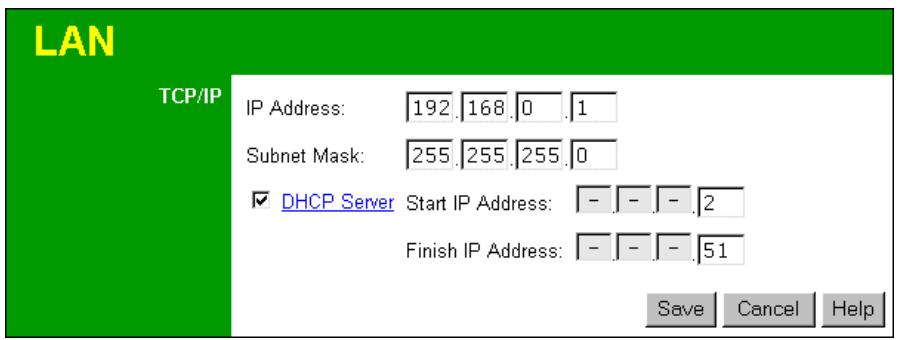
LAN Screen
Use the LAN link on the main menu to reach the LAN screen. The example screen is shown below.
text_image
LAN TCP/IP IP Address: 192.168.0.1 Subnet Mask: 255.255.255.0 ✓ DHCP Server Start IP Address: - - - .2 Finish IP Address: - - - .51 Save Cancel HelpFigure 6: LAN Screen
Data - LAN Screen
| TCP/IP | |
| IP Address | IP address for the Wireless Router, as seen from the local LAN. Use the default value unless the address is already in use or your LAN is using a different IP address range. In the latter case, enter an unused IP Address from within the range used by your LAN. |
| Subnet Mask | The default value 255.255.255.0 is standard for small (class "C") networks. For other networks, use the Subnet Mask for the LAN segment to which the Wireless Router is attached (the same value as the PCs on that LAN segment). |
| DHCP Server | If enabled, the Wireless Router will allocate IP Addresses to PCs (DHCP clients) on your LAN when they start up. The default (and recommended) value is enabled.If you are already using a DHCP Server, this setting must be disabled, and the existing DHCP server must be re-configured to treat the Wireless Router as the default Gateway. See the following section for further details.The Start IP Address and Finish IP Address fields set the values used by the DHCP server when allocating IP Addresses to DHCP clients. This range also determines the number of DHCP clients supported.See the following section for further details on using DHCP. |
Buttons
| Save | Save the data on screen. |
| Cancel | The "Cancel" button will discard any data you have entered and reload the file from the Wireless Router. |
DHCP
What DHCP Does
A DHCP (Dynamic Host Configuration Protocol) Server allocates a valid IP address to a DHCP Client (PC or device) upon request.
- The client request is made when the client device starts up (boots).
- The DHCP Server provides the Gateway and DNS addresses to the client, as well as allocating an IP Address.
• The Wireless Router can act as a DHCP server.
- Windows 95/98/ME and other non-Server versions of Windows will act as a DHCP client. This is the default Windows setting for the TCP/IP network protocol. However, Windows uses the term Obtain an IP Address automatically instead of "DHCP Client".
- You must NOT have two (2) or more DHCP Servers on the same LAN segment. (If your LAN does not have other Routers, this means there must only be one (1) DHCP Server on your LAN.)
Using the Wireless Router's DHCP Server
This is the default setting. The DHCP Server settings are on the LAN screen. On this screen, you can:
- Enable or Disable the Wireless Router's DHCP Server function.
- Set the range of IP Addresses allocated to PCs by the DHCP Server function.

You can assign Fixed IP Addresses to some devices while using DHCP, provided that the Fixed IP Addresses are NOT within the range used by the DHCP Server.
Using another DHCP Server
You can only use one (1) DHCP Server per LAN segment. If you wish to use another DHCP Server, rather than the Wireless Router's, the following procedure is required.
- Disable the DHCP Server feature in the Wireless Router. This setting is on the LAN screen.
- Configure the DHCP Server to provide the Wireless Router's IP Address as the Default Gateway.
To Configure your PCs to use DHCP
This is the default setting for TCP/IP under Windows 95/98/ME.
See Chapter 4 - Client Configuration for the procedure to check these settings.
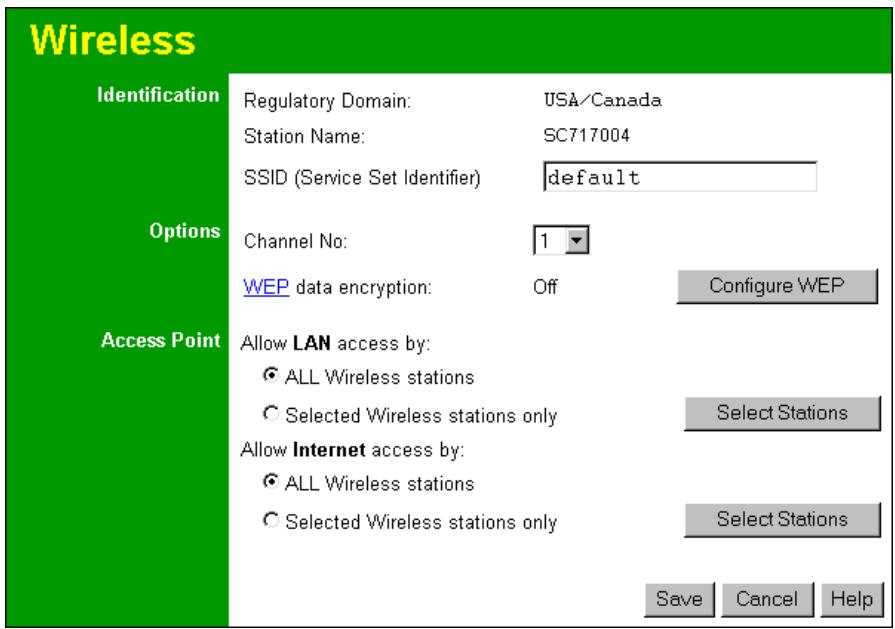
Wireless Screen
The Wireless Access Point settings must match the other Wireless stations. To change the Wireless Router's default settings for the Wireless Access Point feature, use the Wireless link on the main menu to reach the Wireless screen. An example screen is shown below.
text_image
Wireless Identification Regulatory Domain: USA/Canada Station Name: SC717004 SSID (Service Set Identifier) default Options Channel No: 1 WEP data encryption: Off Configure WEP Access Point Allow LAN access by: ● ALL Wireless stations ○ Selected Wireless stations only Select Stations Allow Internet access by: ● ALL Wireless stations ○ Selected Wireless stations only Select Stations Save Cancel HelpFigure 7: Wireless Screen
Data - Wireless Screen
| Identification | |
| Regulatory Domain | It is illegal to use this device in any location outside of the regulatory domain. |
| Station name | This is the same as the "Device Name" for the Wireless Router.On your PC, some Wireless status screens may display this name as the name of the Access Point in use. |
| SSID (ESSID) | If using an ESS (Extended Service Set, with multiple access points) this ID is called an ESSID (Extended Service Set Identifier).To communicate, all Wireless stations should use the same SSID/ESSID. |
| Options | |
| Channel No. | Select the Channel you wish to use on your Wireless LAN.If you experience interference (shown by lost connections and/or slow data transfers) you may need to experiment with different channels to see which is the best.If using multiple Access Points, adjacent Access Points should use different Channels to reduce interference. |
| WEP data encryption | WEP (Wired Equivalent Privacy) status will display "Enabled" or "Disabled", depending on whether WEP is being used. If used, data is Encrypted before being transmitted, making communication more secure.Click the "Configure WEP" button to access the WEP sub-screen, and view or change the WEP settings. |
| Access Point | |
| Allow LAN access by ... | All Wireless Stations - All wireless stations can use the access point to access your LAN.Selected Wireless stations only - Only selected wireless stations access your LAN. To select the required wireless stations, click the "Select Stations" button. |
| Allow Internet access by ... | All Wireless Stations - All wireless stations can use the access point to access the Internet.Selected Wireless stations only - Only selected wireless stations use the access point to access the Internet. To select the required wireless stations, click the "Select Stations" button. |
| Buttons | |
| Configure WEP | Click this button to view the WEP sub-screen. See the following section for more details. |
| Select Stations | Click this button to select the required PCs. |
| Save | Save the data on screen. |
| Cancel | The "Cancel" button will discard any data you have entered since the last "Save" operation. |
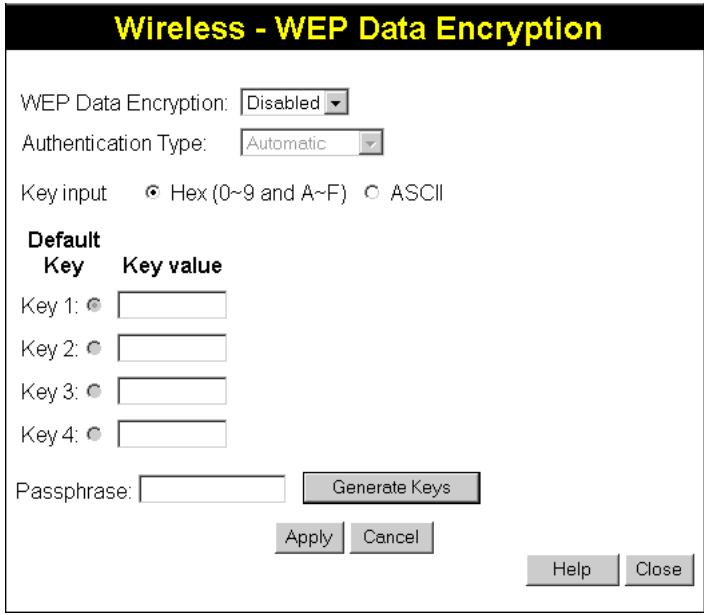
WEP Screen
Clicking the «Configure WEP» button on the Wireless screen accesses this screen.
text_image
Wireless - WEP Data Encryption WEP Data Encryption: Disabled Authentication Type: Automatic Key input Hex (0~9 and A~F) ASCII Default Key Key value Key 1: Key 2: Key 3: Key 4: Passphrase: Generate Keys Apply Cancel Help CloseFigure 8: WEP Screen
Data - WEP Screen
| WEP Data Encryption | |
| WEP Data Encryption | Select the option to match other Wireless Stations:Disabled - data is NOT encrypted before being transmitted.64 Bit - data is encrypted, using the default key, before being transmitted. You must enter at least the default key. For 64 Bit Encryption, the key size is 5 chars (ASCII) or 10 chars in HEX (0~9 and A~F).128 Bit - data is encrypted, using the default key, before being transmitted. You must enter at least the default key. For 128 Bit Encryption, the key size is 13 chars (ASCII) or 26 chars in HEX (0~9 and A~F).256 Bit - data is encrypted, using the default key, before being transmitted. You must enter at least the default key. For 256 Bit Encryption, the key size is 29 chars (ASCII) or 58 chars in HEX (0~9 and A~F). |
| Authentication Type | Normally, this should be left at the default value of "Automatic". If changed to "Open System" or "Shared Key", ensure that your Wireless Stations use the same setting. |
| WEP Keys | Key Input - Select "Hex" or "ASCII" depending on your input method. (All keys are converted to Hex; ASCII input is only for convenience.)Default Key - select the key you wish to be the default. Transmitted data is ALWAYS encrypted using the Default Key; the other Keys are for decryption only.Key Value - Enter the key value you wish to use. Other stations must have the same key. |
| Pass phrase | If desired, you can generate a key from a phrase, instead of entering the key value directly. Enter the desired phrase, and click the "Generate Keys" button. |
Password Screen
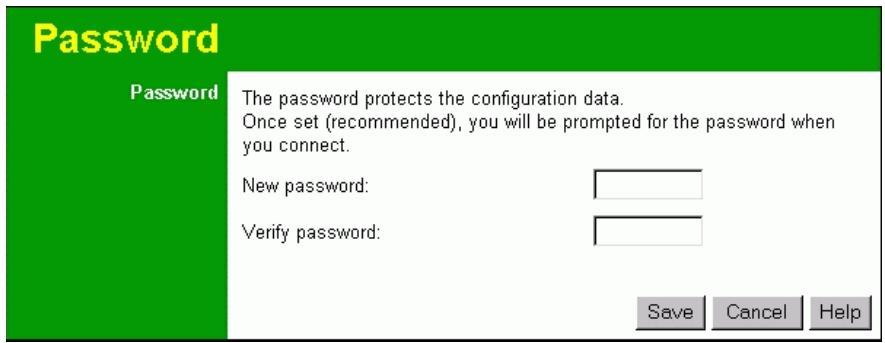
The password screen allows you to assign a password to the Wireless Router.
text_image
Password Password The password protects the configuration data. Once set (recommended), you will be prompted for the password when you connect. New password: Verify password: Save Cancel HelpFigure 9: Password Screen
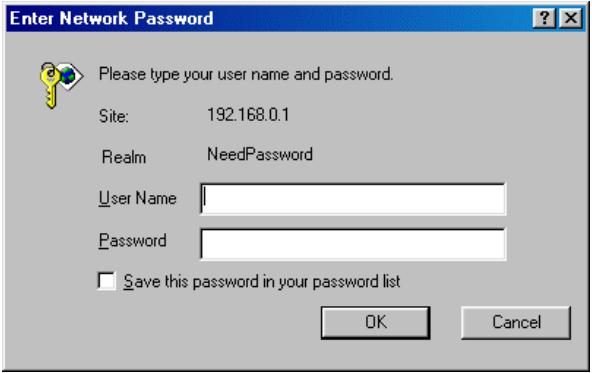
Once you have assigned a password to the Wireless Router (on the Password screen above) you will be prompted for the password when you connect, as shown below. (If no password has been set, this dialog will not appear.)
text_image
Enter Network Password Please type your user name and password. Site: 192.168.0.1 Realm NeedPassword User Name Password Save this password in your password list OK CancelFigure 10: Password Dialog
- Leave the "User Name" blank.
- Enter the password for the Wireless Router, as set on the Password screen above.
Overview
For each PC, the following may need to be configured:
• TCP/IP network settings
- Internet Access configuration
• Wireless configuration
Windows Clients
This section describes how to configure Windows clients for Internet access via the Wireless Router.
The first step is to check the PC's TCP/IP settings.
The Wireless Router uses the TCP/IP network protocol for all functions, so it is essential that the TCP/IP protocol be installed and configured on each PC.
TCP/IP Settings - Overview
If using the default Wireless Router settings, and the default Windows TCP/IP settings, no changes need to be made.
- By default, the Wireless Router will act as a DHCP Server, automatically providing a suitable IP Address (and related information) to each PC when the PC boots.
- For all non-Server versions of Windows, the default TCP/IP setting is to act as a DHCP client.
If using a Fixed (specified) IP address, the following changes are required:
• The Gateway must be set to the IP address of the Wireless Router
- The DNS should be set to the address provided by your ISP.

If your LAN has a Router, the LAN Adminis rator must reconfigure the Router itself. Refer to Chapter 8 - Advanced Setup for details.
Checking TCP/IP Settings - Windows 9x/ME:
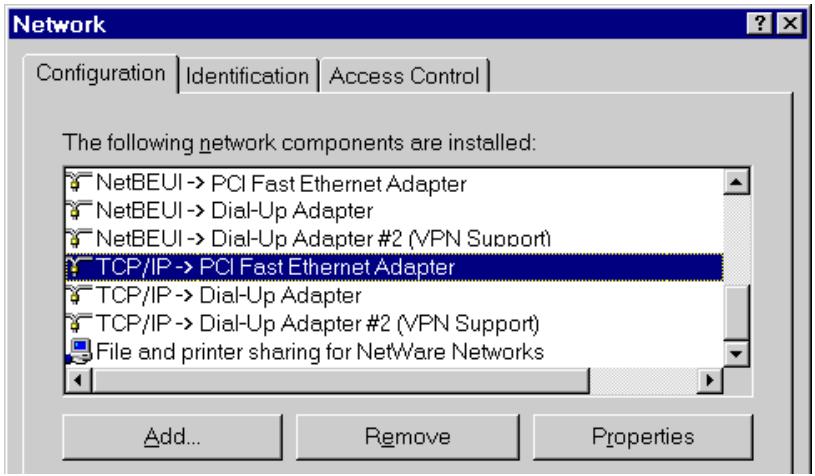
- Select Control Panel - Network. You should see a screen like the following:
text_image
Network Configuration | Identification | Access Control | The following network components are installed: NetBEUI -> PCI Fast Ethernet Adapter NetBEUI -> Dial-Up Adapter NetBEUI -> Dial-Up Adapter #2 (VPN Support) TCP/IP -> PCI Fast Ethernet Adapter TCP/IP -> Dial-Up Adapter TCP/IP -> Dial-Up Adapter #2 (VPN Support) File and printer sharing for NetWare Networks Add... Remove PropertiesFigure 11: Network Configuration
- Select the TCP/IP protocol for your network card.
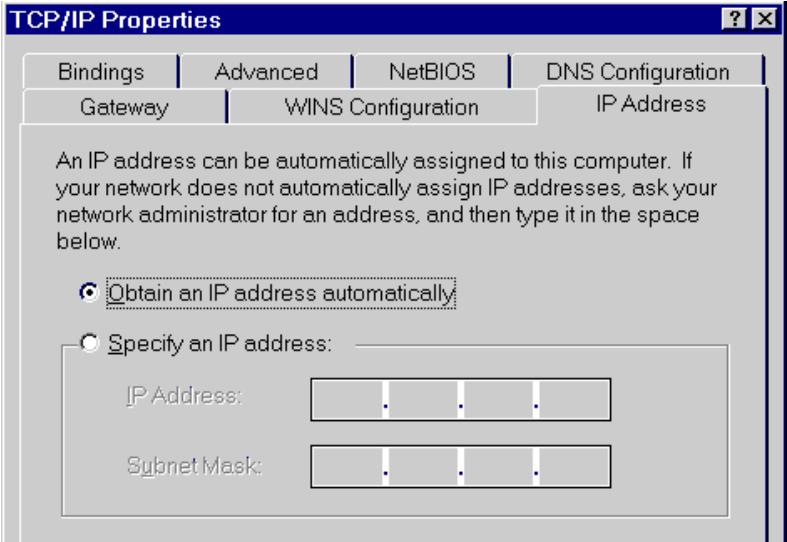
- Click on the Properties button. You should then see a screen like the following.
text_image
TCP/IP Properties Bindings Advanced NetsBIOS DNS Configuration Gateway WINS Configuration IP Address An IP address can be automatically assigned to this computer. If your network does not automatically assign IP addresses, ask your network administrator for an address, and then type it in the space below. Obtain an IP address automatically Specify an IP address: IP Address: .... Subnet Mask: ....Figure 12: IP Address (Win 95)
Ensure your TCP/IP settings are correct, as follows:
Using DHCP
To use DHCP, select the radio button Obtain an IP Address automatically. This is the default Windows setting. Using this is recommended. By default, the Wireless Router will act as a DHCP Server.
Restart your PC to ensure it obtains an IP Address from the Wireless Router.
Using "Specify an IP Address"
If your PC is already configured, check with your network administrator before making the following changes:
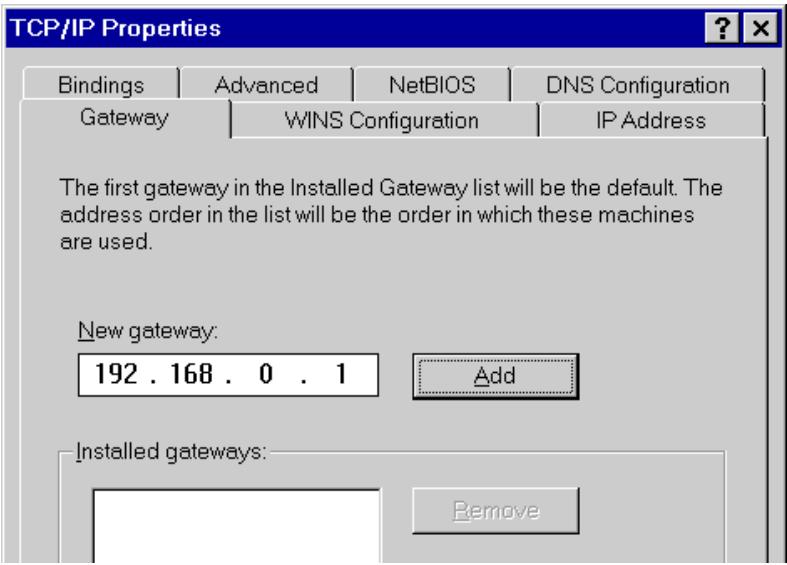
- On the Gateway tab, enter the Wireless Router's IP address in the New Gateway field and click Add, as shown below. Your LAN administrator can advise you of the IP Address they assigned to the Wireless Router.
text_image
TCP/IP Properties Bindings Advanced NetsBIOS DNS Configuration Gateway WINS Configuration IP Address The first gateway in the Installed Gateway list will be the default. The address order in the list will be the order in which these machines are used. New gateway: 192 . 168 . 0 . 1 Add Installed gateways: RemoveFigure 13: Gateway Tab (Win 95/98)
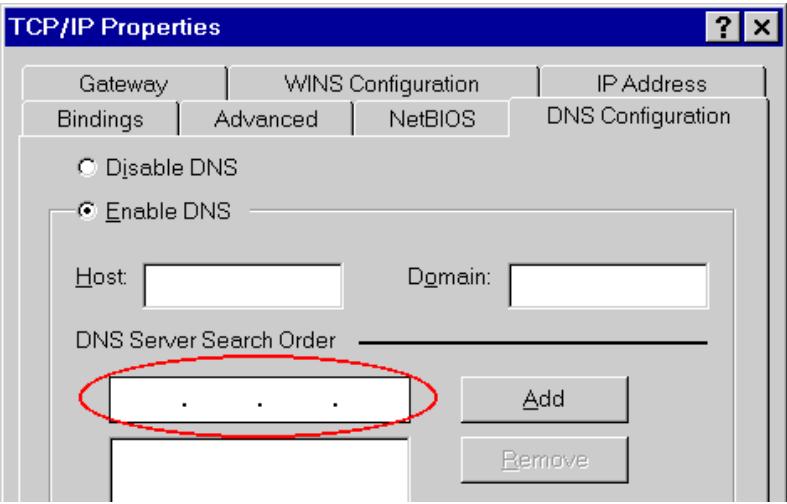
- On the DNS Configuration tab, ensure Enable DNS is selected. If the DNS Server Search Order list is empty, enter the DNS address provided by your ISP in the fields beside the Add button, then click Add.
text_image
TCP/IP Properties Gateway WINS Configuration IP Address Bindings Advanced NetsBIOS DNS Configuration Disable DNS Enable DNS Host: Domain: DNS Server Search Order Add RemoveFigure 14: DNS Tab (Win 95/98)
Checking TCP/IP Settings - Windows NT4.0
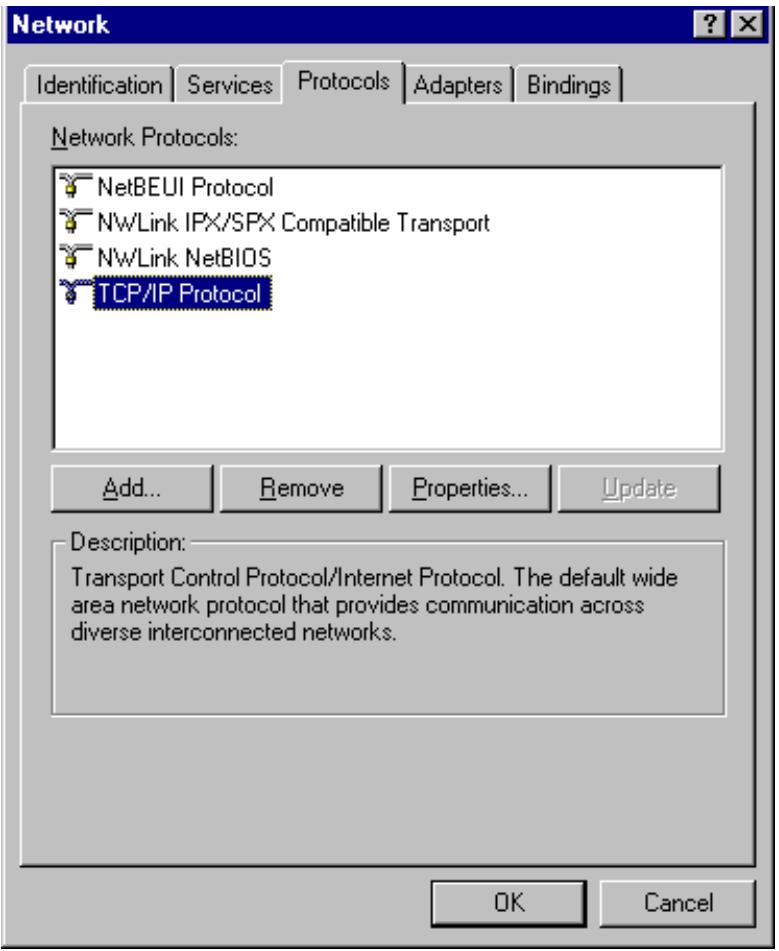
- Select Control Panel - Network, and, on the Protocols tab, select the TCP/IP protocol, as shown below.
text_image
Network Identification Services Protocols Adapters Bindings Network Protocols: NetBEUI Protocol NWLink IPX/SPX Compatible Transport NWLink NetBIOS TCP/IP Protocol Add... Remove Properties... Update Description: Transport Control Protocol/Internet Protocol. The default wide area network protocol that provides communication across diverse interconnected networks. OK CancelFigure 15: Windows NT4.0 - TCP/IP
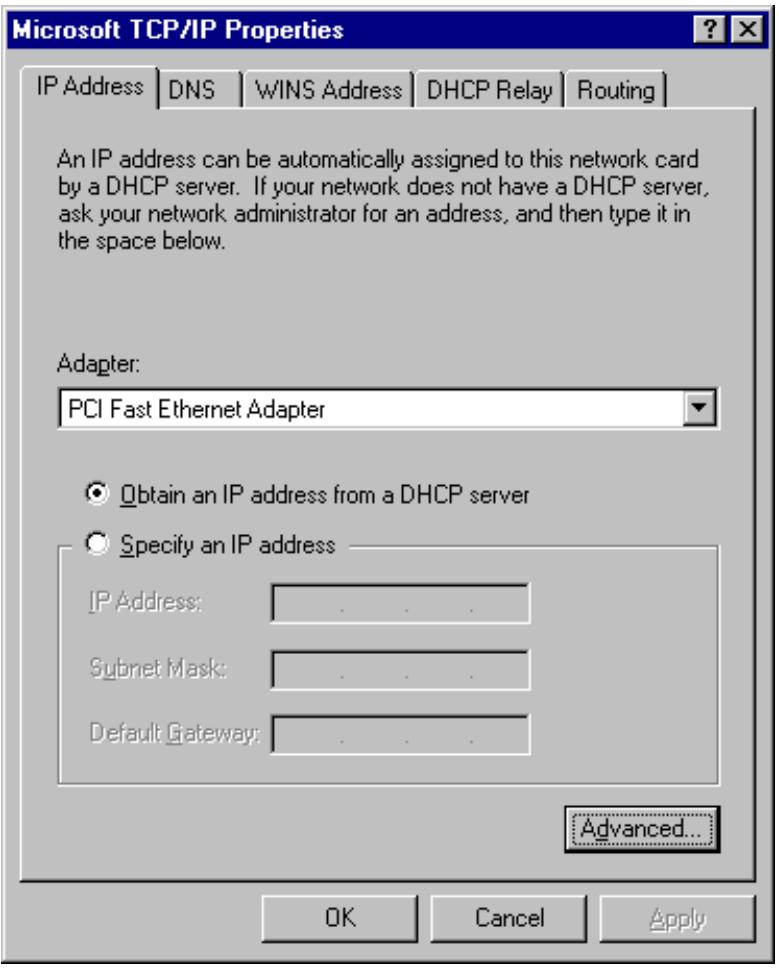
- Click the Properties button to see a screen like the one below.
text_image
Microsoft TCP/IP Properties IP Address DNS WINS Address DHCP Relay Routing An IP address can be automatically assigned to this network card by a DHCP server. If your network does not have a DHCP server, ask your network administrator for an address, and then type it in the space below. Adapter: PCI Fast Ethernet Adapter Obtain an IP address from a DHCP server Specify an IP address IP Address: . Subnet Mask: . Default Gateway: . Advanced... OK Cancel ApplyFigure 16: Windows NT4.0 - IP Address
- Select the network card for your LAN.
- Select the appropriate radio button - Obtain an IP address from a DHCP Server or Specify an IP Address, as explained below.
Obtain an IP address from a DHCP Server
This is the default Windows setting. Using this is recommended. By default, the Wireless Router will act as a DHCP Server.
Restart your PC to ensure it obtains an IP Address from the Wireless Router.
Specify an IP Address
If your PC is already configured, check with your network administrator before making the following changes.
-
The Default Gateway must be set to the IP address of the Wireless Router. To set this:
-
Click the Advanced button on the screen above.
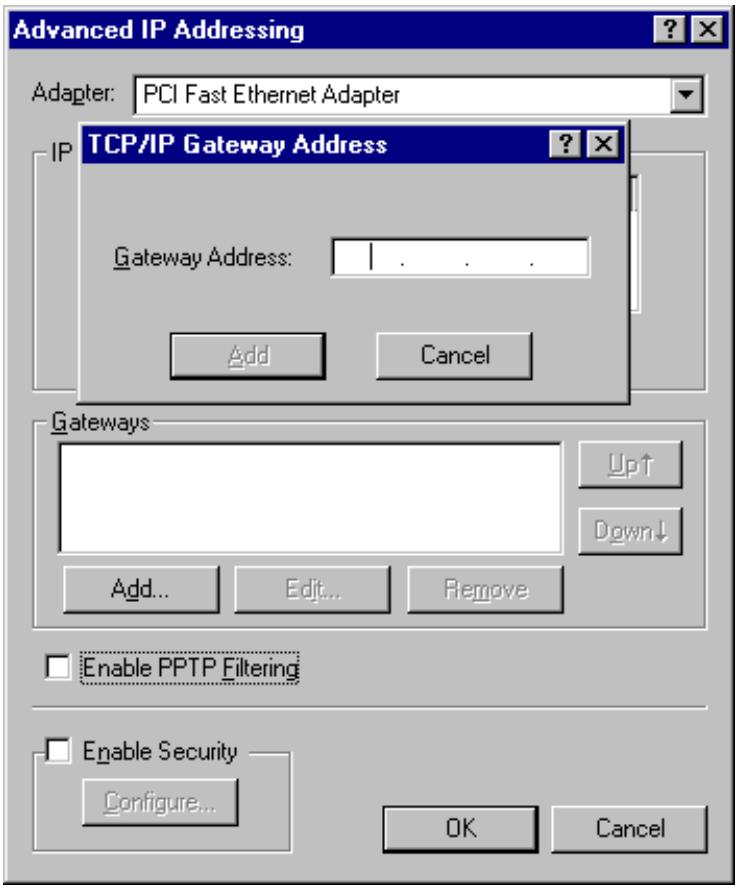
- On the following screen, click the Add button in the Gateways panel, and enter the Wireless Router's IP address, as shown in Figure 17 below.
- If necessary, use the Up button to make the Wireless Router the first entry in the Gateways list.
text_image
Advanced IP Addressing Adapter: PCI Fast Ethernet Adapter TCP/IP Gateway Address Gateway Address: Add Cancel Gateways Up↑ Down↓ Add... Edit... Remove Enable PPTP Filtering Enable Security Configure... OK CancelFigure 17 - Windows NT4.0 - Add Gateway
-
The DNS should be set to the address provided by your ISP, as follows:
-
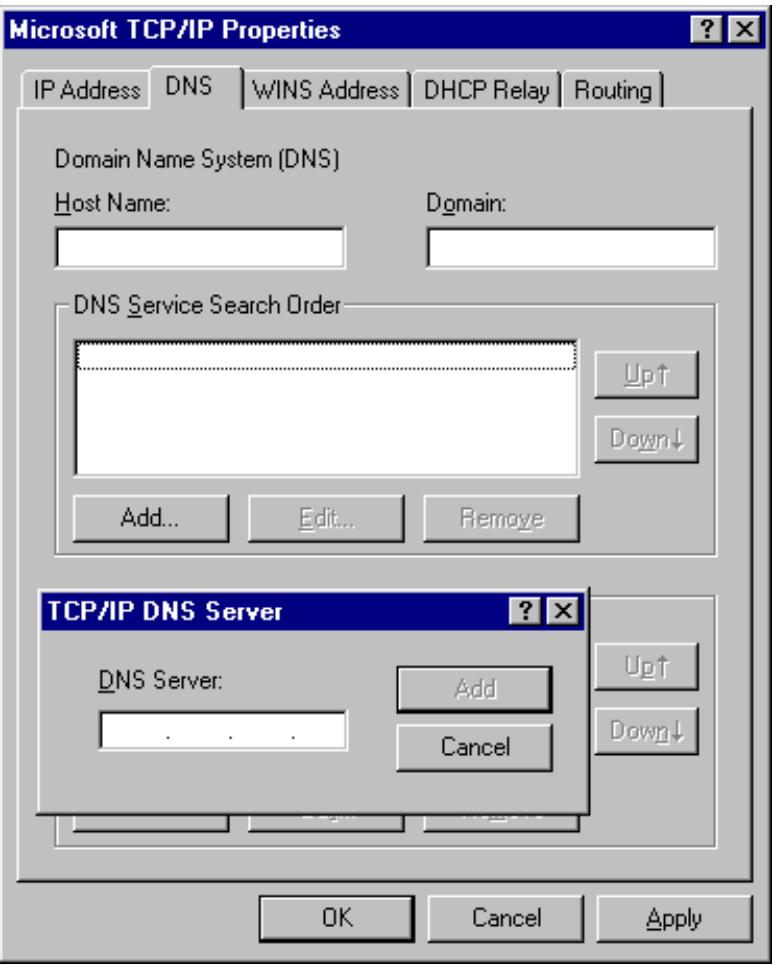
Click the DNS tab.
- On the DNS screen, shown below, click the Add button (under DNS Service Search Order), and enter the DNS provided by your ISP.
text_image
Microsoft TCP/IP Properties IP Address DNS WINS Address DHCP Relay Routing Domain Name System (DNS) Host Name: Domain: DNS Service Search Order Up↑ Down↓ Add... Edit... Remove TCP/IP DNS Server DNS Server: Add Cancel OK Cancel ApplyFigure 18: Windows NT4.0 - DNS
Checking TCP/IP Settings - Windows 2000:
- Select Control Panel - Network and Dial-up Connection.
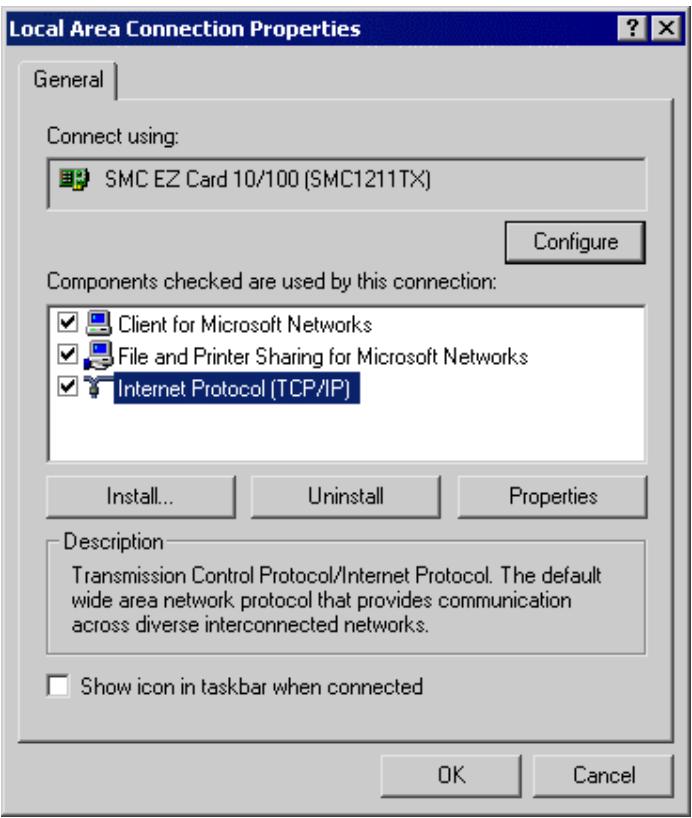
- Right - click the Local Area Connection icon and select Properties. You should see a screen like the following:
text_image
Local Area Connection Properties General Connect using: SMC EZ Card 10/100 (SMC1211TX) Configure Components checked are used by this connection: ✓ Client for Microsoft Networks ✓ File and Printer Sharing for Microsoft Networks ✓ Internet Protocol (TCP/IP) Install... Uninstall Properties Description Transmission Control Protocol/Internet Protocol. The default wide area network protocol that provides communication across diverse interconnected networks. Show icon in taskbar when connected OK CancelFigure 19: Network Configuration (Win 2000)
- Select the TCP/IP protocol for your network card.
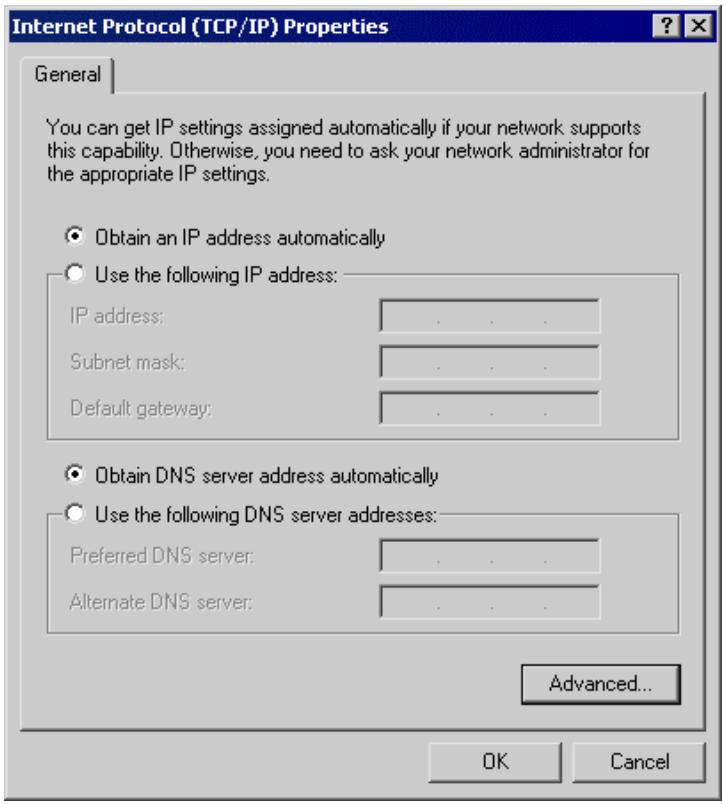
- Click on the Properties button. You should then see a screen like the following.
text_image
Internet Protocol (TCP/IP) Properties General You can get IP settings assigned automatically if your network supports this capability. Otherwise, you need to ask your network administrator for the appropriate IP settings. Obtain an IP address automatically Use the following IP address: IP address: .... Subnet mask: .... Default gateway: .... Obtain DNS server address automatically Use the following DNS server addresses: Preferred DNS server: .... Alternate DNS server: .... Advanced... OK CancelFigure 20: TCP/IP Properties (Win 2000)
- Ensure your TCP/IP settings are correct, as described below.
Using DHCP
To use DHCP, select the radio button Obtain an IP Address automatically. This is the default Windows setting. Using this is recommended. By default, the Wireless Router will act as a DHCP Server.
Restart your PC to ensure it obtains an IP Address from the Wireless Router.
Using a fixed IP Address ("Use the following IP Address")
If your PC is already configured, check with your network administrator before making the following changes.
- Enter the Wireless Router's IP address in the Default gateway field and click OK. (Your LAN administrator can advise you of the IP Address they assigned to the Wireless Router.)
- If the DNS Server fields are empty, select Use the following DNS server addresses, and enter the DNS address or addresses provided by your ISP, then click OK.
Checking TCP/IP Settings - Windows XP
- Select Control Panel - Network Connection.
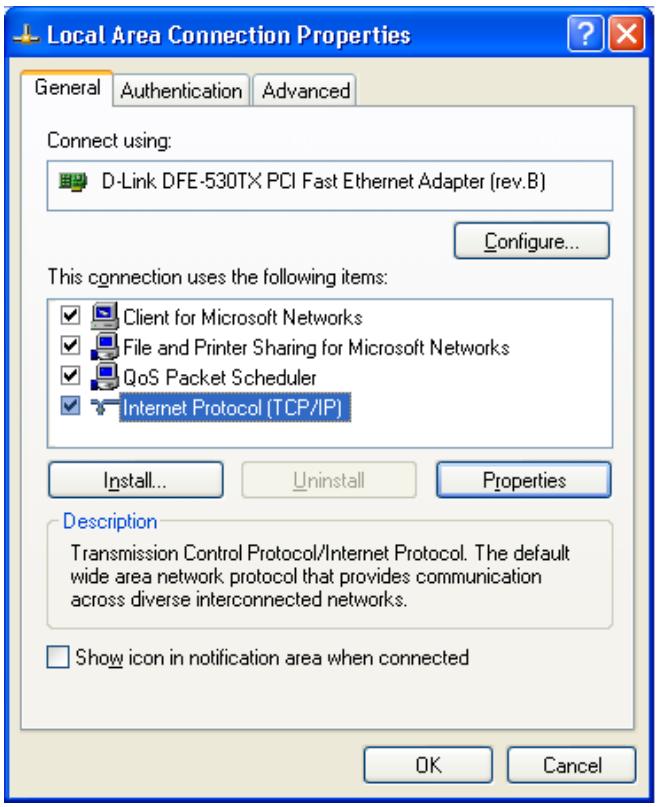
- Right click the Local Area Connection and choose Properties. You should see a screen like the following:
text_image
Local Area Connection Properties General Authentication Advanced Connect using: D-Link DFE-530TX PCI Fast Ethernet Adapter (rev.B) Configure... This connection uses the following items: ✓ Client for Microsoft Networks ✓ File and Printer Sharing for Microsoft Networks ✓ QoS Packet Scheduler ✓ Internet Protocol (TCP/IP) Install... Uninstall Properties Description Transmission Control Protocol/Internet Protocol. The default wide area network protocol that provides communication across diverse interconnected networks. Show icon in notification area when connected OK CancelFigure 21: Network Configuration (Windows XP)
- Select the TCP/IP protocol for your network card.
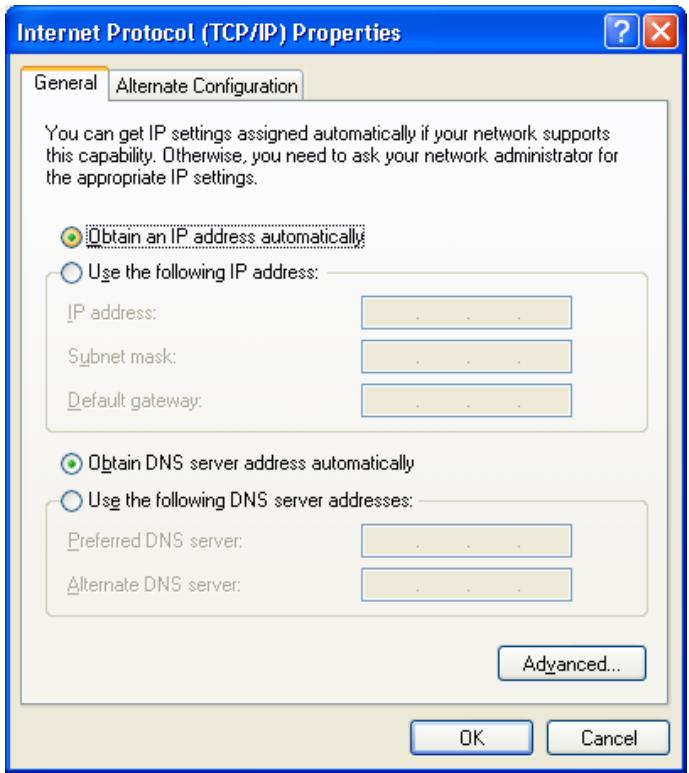
- Click on the Properties button. You should then see a screen like the following.
text_image
Internet Protocol (TCP/IP) Properties General Alternate Configuration You can get IP settings assigned automatically if your network supports this capability. Otherwise, you need to ask your network administrator for the appropriate IP settings. Obtain an IP address automatically Use the following IP address: IP address: .... Subnet mask: .... Default gateway: .... Obtain DNS server address automatically Use the following DNS server addresses: Preferred DNS server: .... Alternate DNS server: .... Advanced... OK CancelFigure 22: TCP/IP Properties (Windows XP)
- Ensure your TCP/IP settings are correct.
Using DHCP
To use DHCP, select the radio button Obtain an IP Address automatically. This is the default Windows setting. Using this is recommended. By default, the Wireless Router will act as a DHCP Server.
Restart your PC to ensure it obtains an IP Address from the Wireless Router.
Using a fixed IP Address ("Use the following IP Address")
If your PC is already configured, check with your network administrator before making the following changes.
- In the Default gateway field, enter the Wireless Router's IP address and click OK. Your LAN administrator can advise you of the IP Address they assigned to the Wireless Router.
- If the DNS Server fields are empty, select Use the following DNS server addresses, and enter the DNS address or addresses provided by your ISP, then click OK.
Internet Access
To configure your PCs to use the Wireless Router for Internet access:
- Ensure that the DSL modem, Cable modem, or other permanent connection is functional.
- Use the following procedure to configure your Browser to access the Internet via the LAN, rather than by a Dial-up connection.
For Windows 9x/ME/2000
- Select Start Menu - Settings - Control Panel - Internet Options.
- Select the Connection tab, and click the Setup button.
- Select "I want to set up my Internet connection manually, or I want to connect through a local area network (LAN)" and click Next.
- Select "I connect through a local area network (LAN)" and click Next.
- Ensure all of the boxes on the following Local area network Internet Configuration screen are unchecked.
- Check the "No" option when prompted "Do you want to set up an Internet mail account now?".
- Click Finish to close the Internet Connection Wizard. Setup is now completed.
For Windows XP
- Select Start Menu - Control Panel - Network and Internet Connections.
- Select Set up or change your Internet Connection.
- Select the Connection tab, and click the Setup button.
- Cancel the pop-up "Location Information" screen.
- Click Next on the "New Connection Wizard" screen.
- Select "Connect to the Internet" and click Next.
- Select "Set up my connection manually" and click Next.
- Check "Connect using a broadband connection that is always on" and click Next.
- Click Finish to close the New Connection Wizard. Setup is now completed.
Accessing AOL
To access AOL (America On Line) through the Wireless Router, the AOL for Windows software must be configured to use TCP/IP network access, rather than a dial-up connection. The configuration process is as follows:
- Start the AOL for Windows communication software. Ensure that it is Version 2.5, 3.0 or later. This procedure will not work with earlier versions.
- Click the Setup button.
- Select Create Location, and change the location name from "New Locality" to "Wireless Router".
- Click Edit Location. Select TCP/IP for the Network field. (Leave the Phone Number blank.)
- Click Save, then OK. Configuration is now complete.
- Before clicking "Sign On", always ensure that you are using the "Wireless Router" location.
Macintosh Clients
From your Macintosh, you can access the Internet via the Wireless Router. The procedure is as follows.
- Open the TCP/IP Control Panel.
- Select Ethernet from the Connect via pop-up menu.
- Select Using DHCP Server from the Configure pop-up menu. The DHCP Client ID field can be left blank.
- Close the TCP/IP panel, saving your settings.
Note:
If using manually assigned IP addresses instead of DHCP, the required changes are:
- Set the Router Address field to the Wireless Router's IP Address.
- Ensure your DNS settings are correct.
Linux Clients
To access the Internet via the Wireless Router, it is only necessary to set the Wireless Router as the "Gateway".
Ensure you are logged in as "root" before attempting any changes.
Fixed IP Address
By default, most Unix installations use a fixed IP Address. If you wish to continue using a fixed IP Address, make the following changes to your configuration.
- Set your "Default Gateway" to the IP Address of the Wireless Router.
- Ensure your DNS (Name server) settings are correct.
To act as a DHCP Client (recommended)
The procedure below may vary according to your version of Linux and X-windows shell.
- Start your X Windows client.
- Select Control Panel - Network
- Select the "Interface" entry for your Network card. Normally, this will be called "eth0".
- Click the Edit button, set the "protocol" to "DHCP", and save this data.
- To apply your changes
- Use the "Deactivate" and "Activate" buttons, if available.
• OR, restart your system.
Other Unix Systems
To access the Internet via the Wireless Router:
- Ensure the "Gateway" field for your network card is set to the IP Address of the Wireless Router.
- Ensure your DNS (Name Server) settings are correct.
Wireless Station Configuration
This section applies to all Wireless stations wishing to use the Wireless Router's Access Point, regardless of the operating system which is used on the client.
To use the Wireless Access Point in the Wireless Router, each Wireless Station must have compatible settings, as follows:
| Mode | The mode must be set to Infrastructure. |
| SSID (ESSID) | This must match the value used on the Wireless Router. The default value isdefaultNote! The SSID is case sensitive. |
| WEP | By default, WEP on the Wireless Router isdisabled.If WEP remains disabled on the Wireless Router, all stations must have WEP disabled.If WEP is enabled on the Wireless Router, each station must use the same settings as the Wireless Router. |
Operation
Once both the Wireless Router and the PCs are configured, operation is automatic.
However, there are some situations where additional Internet configuration may be required:
- If using Internet-based Communication Applications, it may be necessary to specify which PC receives an incoming connection. Refer to Chapter 6 - Advanced Features for further details.
- Applications that use non-standard connections or port numbers may be blocked by the Wireless Router's built-in firewall. You can define such applications as Special Applications to allow them to function normally. Refer to Chapter 6 - Advanced Features for further details.
- Some non-standard applications may require use of the DMZ feature. Refer to Chapter 6 - Advanced Features for further details.
Status Screen
Use the Status link on the main menu to view this screen.
| Status | ||
| Internet | Connection Method: | PPPoE |
| Broadband Modem : | No Connection | |
| Internet Connection: | Idle | |
| Internet IP Address: | ||
| Connection Details | ||
| LAN | IP Address: | 192.168.0.1 |
| Network Mask: | 255.255.255.0 | |
| DHCP Server: | ON | |
| System | Device Name: | SC717004 |
| Firmware Version: | Version 1.6 Release 00 | |
| System Data | ||
| Refresh Screen Help | ||
Figure 23: Status Screen
Data - Status Screen
| Internet | |
| Connection Method | This indicates the current connection method, as set in the Setup Wizard. |
| Broadband Modem | This shows the connection status of the modem. |
| Internet Connection | Current connection status:ActiveIdleUnknownFailedIf there is an error, you can click the "Connection Details" button to find out more information. |
| Internet IP Address | This IP Address is allocated by the ISP (Internet Service Provider). |
| "Connection Details" Button | Click this button to open a sub-window and view a detailed description of the current connection. Depending on the type of connection, a "log" may also be available. |
| LAN | |
| IP Address | The IP Address of the Wireless Router. |
| Network Mask | The Network Mask (Subnet Mask) for the IP Address above. |
| DHCP Server | This shows the status of the DHCP Server function - either "Enabled" or "Disabled".For additional information about the PCs on your LAN, and the IP addresses allocated to them, use the PC Database option on the Advanced menu. |
| System | |
| Device Name | This displays the current name of the Wireless Router. |
| Firmware Version | The current version of the firmware installed in the Wireless Router. |
| "System Data" Button | Clicking this button will open a Window, which lists all system details and settings. |
| Buttons | |
| Connection Details | View the details of the current Internet connection. The sub-screen displayed will depend on the connection method used. See the following sections for details of each sub-screen. |
| System Data | Display all system information in a sub-window. |
| Refresh Screen | Update the data displayed on screen. |
Connection Status - PPPoE
If using PPPoE (PPP over Ethernet), a screen like the following example will be displayed when the "Connection Details" button is clicked.
Connection Status - PPPoE
Connection
Physical Address: 00-c0-02-11-4f-05
IP Address:
Network Mask:
PPPoE Link Status: OFF
Connection Log
005:Reset physical connection
004:stop PPP
003:try to hang up
002:sub_wait:timeout
001:wait 100 msec "WAN start..."
000:stop PPP
Clear Log
Connect and Disconnect buttons should only be needed if the setting
"Connect automatically, as required" is Disabled.
Connect
Disconnect
Refresh
Help
Close
Figure 24: PPPoE Status Screen
Data - PPPoE
| Connection | |
| Physical Address | The hardware address of this device, as seen by remote devices on the Internet. (This is different to the hardware address seen by devices on the local LAN.) |
| IP Address | The IP Address of this device, as seen by Internet users. This address is allocated by your ISP (Internet Service Provider). |
| Network Mask | The Network Mask associated with the IP Address above. |
| PPPoE Link Status | This indicates whether or not the connection is currently established.If the connection does not exist, the "Connect" button can be used to establish a connection.If the connection currently exists, the "Disconnect" button can be used to break the connection. |
| Connection Log | |
| Connection Log | The Connection Log shows status messages relating to the existing connection.The most common messages are listed in the table below.The "Clear Log" button will restart the Log, while theRefresh button will update the messages shown on screen. |
| Buttons | |
| Connect | If not connected, establish a connection to your ISP. |
| Disconnect | If connected to your ISP, hang up the connection. |
| Clear Log | Delete all data currently in the Log. This will make it easier to read new messages. |
| Refresh | Update the data on screen. |
Connection Log Messages
| Message | Description |
| Connect on Demand | Connection attempt has been triggered by the "Connect automatically, as required" setting. |
| Manual connection | Connection attempt started by the "Connect" button. |
| Reset physical connection | Preparing line for connection attempt. |
| Connecting to remote server | Attempting to connect to the ISP's server. |
| Remote Server located | ISP's Server has responded to connection attempt. |
| Start PPP | Attempting to login to ISP's Server and establish a PPP connection. |
| PPP up successfully | Able to login to ISP's Server and establish a PPP connection. |
| Idle time-out reached | The connection has been idle for the time period specified in the "Idle Time-out" field. The connection will now be terminated. |
| Disconnecting | The current connection is being terminated, due to either the "Idle Time-out" above, or "Disconnect" button being clicked. |
| Error: Remote Server not found | ISP's Server did not respond. This could be a Server problem, or a problem with the link to the Server. |
| Error: PPP Connection failed | Unable to establish a PPP connection with the ISP's Server. This could be a login problem (name or password) or a Server problem. |
| Error: Connection to Server lost | The existing connection has been lost. This could be caused by a power failure, a link failure, or Server failure. |
| Error: Invalid or unknown packet type | The data received from the ISP's Server could not be processed. This could be caused by data corruption (from a bad link), or the Server using a protocol which is not supported by this device. |
Connection Status - PPTP
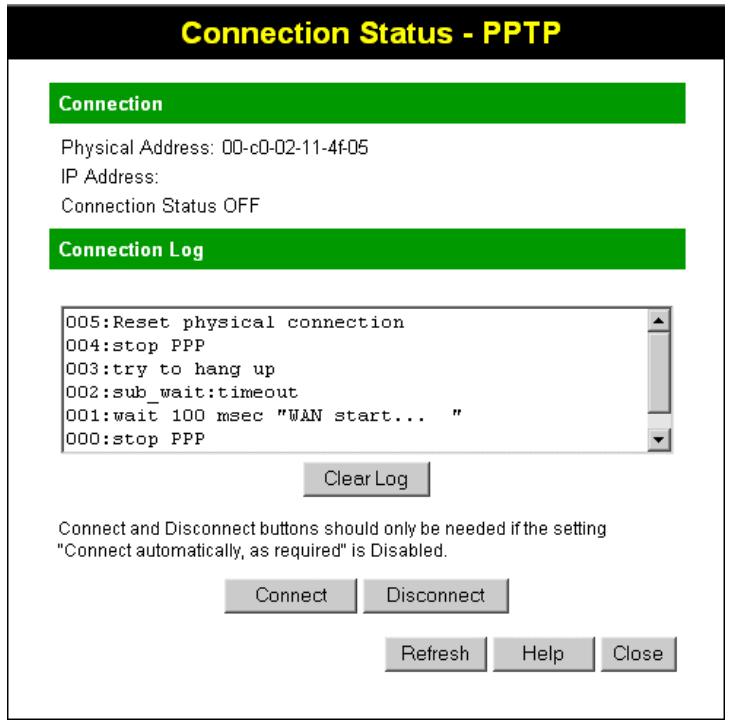
If using PPTP (Peer-to-Peer Tunneling Protocol), a screen like the following example will be displayed when the "Connection Details" button is clicked.
text_image
Connection Status - PPTP Connection Physical Address: 00-c0-02-11-4f-05 IP Address: Connection Status OFF Connection Log 005:Reset physical connection 004:stop PPP 003:try to hang up 002:sub_wait:timeout 001:wait 100 msec "WAN start... " 000:stop PPP Clear Log Connect and Disconnect buttons should only be needed if the setting "Connect automatically, as required" is Disabled. Connect Disconnect Refresh Help CloseFigure 25: PPTP Status Screen
Data - PPTP
| Connection | |
| Physical Address | The hardware address of this device, as seen by remote devices on the Internet. (This is different to the hardware address seen by devices on the local LAN.) |
| IP Address | The IP Address of this device, as seen by Internet users. This address is allocated by your ISP (Internet Service Provider). |
| PPTP Status | This indicates whether or not the connection is currently established.If the connection does not exist, the "Connect" button can be used to establish a connection.If the connection currently exists, the "Disconnect" button can be used to break the connection. |
| Connection Log | |
| Connection Log | The Connection Log shows status messages relating to the existing connection.The "Clear Log" button will restart the Log, while the Refresh button will update the messages shown on screen. |
| Buttons | |
| Connect | If not connected, establish a connection to your ISP. |
| Disconnect | If connected to your ISP, hang up the connection. |
| Clear Log | Delete all data currently in the Log. This will make it easier to read new messages. |
| Refresh | Update the data on screen. |
Connection Status - Telstra Big Pond
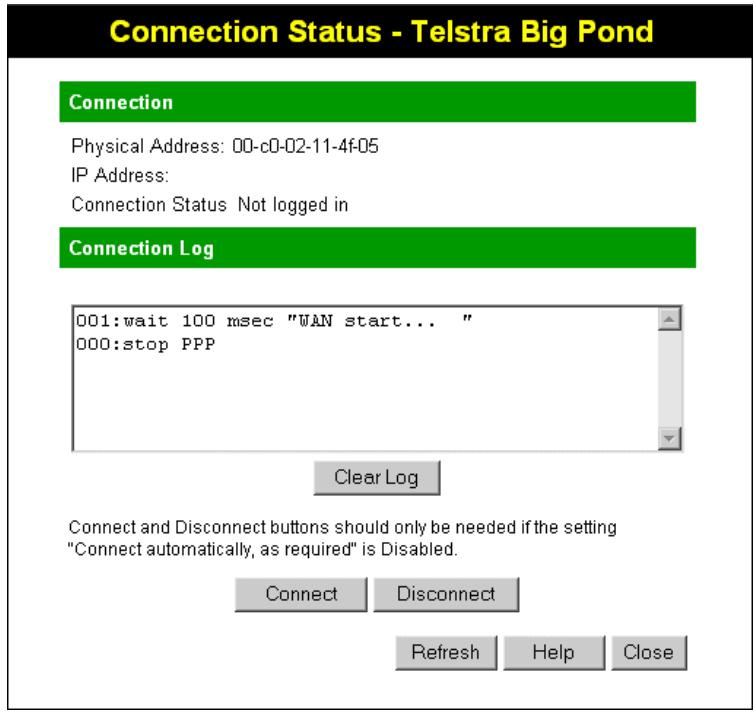
An example screen is shown below.
text_image
Connection Status - Telstra Big Pond Connection Physical Address: 00-c0-02-11-4f-05 IP Address: Connection Status Not logged in Connection Log 001:wait 100 msec "WAN start... " 000:stop PPP Clear Log Connect and Disconnect buttons should only be needed if the setting "Connect automatically, as required" is Disabled. Connect Disconnect Refresh Help CloseFigure 26: Telstra Big Pond Status Screen
Data - Big Pond
| Connection | |
| Physical Address | The hardware address of this device, as seen by remote devices. (This is different to the hardware address seen by devices on the local LAN.) |
| IP Address | The IP Address of this device, as seen by Internet users. This address is allocated by your ISP (Internet Service Provider). |
| Connection Status | This indicates whether or not the connection is currently established.If the connection does not exist, the "Connect" button can be used to establish a connection.If the connection currently exists, the "Disconnect" button can be used to break the connection.Normally, it is not necessary to use the Connect and Disconnect buttons unless the setting "Connect automatically,as required" is disabled. |
| Connection Log | |
| Connection Log | The Connection Log shows status messages relating to the existing connection.The Clear Log button will restart the Log, while the Refresh button will update the messages shown on screen. |
| Buttons | |
| Connect | If not connected, establish a connection to Telstra Big Pond. |
| Disconnect | If connected to Telstra Big Pond, terminate the connection. |
| Clear Log | Delete all data currently in the Log. This will make it easier to read new messages. |
| Refresh | Update the data on screen. |
Connection Details - SingTel RAS
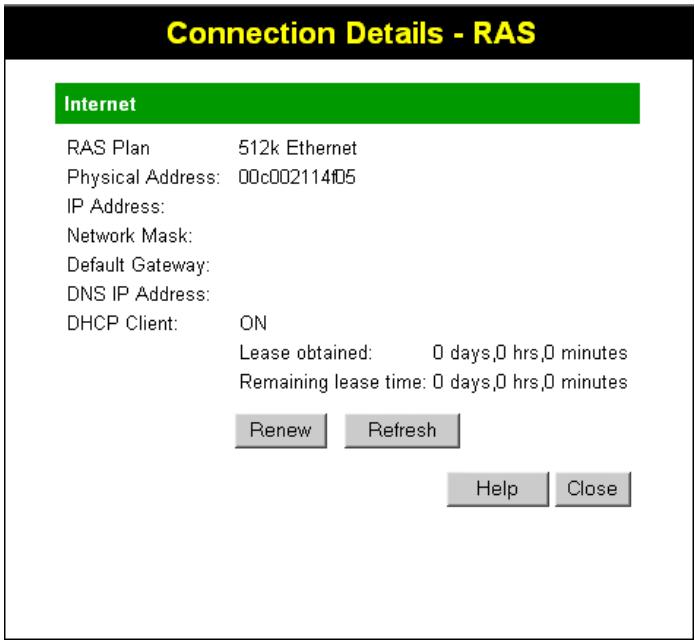
If using the SingTel RAS access method, a screen like the following example will be displayed when the "Connection Details" button is clicked.
text_image
Connection Details - RAS Internet RAS Plan 512k Ethernet Physical Address: 00c002114f05 IP Address: Network Mask: Default Gateway: DNS IP Address: DHCP Client: ON Lease obtained: 0 days,0 hrs,0 minutes Remaining lease time: 0 days,0 hrs,0 minutes Renew Refresh Help CloseFigure 27: Connection Details - RAS
Data - RAS
| Internet | |
| RAS Plan | The RAS Plan which is currently used. |
| Physical Address | The hardware address of this device, as seen by remote devices on the Internet. (This is different to the hardware address seen by devices on the local LAN.) |
| IP Address | The IP Address of this device, as seen by Internet users. This address is allocated by your ISP (Internet Service Provider). |
| Network Mask | The Network Mask associated with the IP Address above. |
| Default Gateway | The IP Address of the remote Gateway or Router associated with the IP Address above. |
| DNS IP Address | The IP Address of the Domain Name Server which is currently used. |
| DHCP Client | This will show "Enabled" or "Disabled", depending on whether or not this device is functioning as a DHCP client.If "Enabled" the "Remaining lease time" field indicates when the IP Address allocated by the DHCP Server will expire. The lease is automatically renewed on expiry; use the "Renew" button if you wish to manually renew the lease immediately. |
| Buttons | |
| Release/RenewButton will display EITHER"Release"OR"Renew" | This button is only useful if the IP address shown above is allocated automatically on connection. (Dynamic IP address). If you have a Fixed (Static) IP address, this button has no effect.If the ISP's DHCP Server has NOT allocated an IP Address for the Wireless Router, this button will say "Renew". Clicking the "Renew" button will attempt to re-establish the connection and obtain an IP Address from the ISP's DHCP Server.If an IP Address has been allocated to the Wireless Router (by the ISP's DHCP Server), this button will say "Release". Clicking the "Release" button will break the connection and release the IP Address. |
| Refresh | Update the data shown on screen. |
Connection Details - Fixed/Dynamic IP Address
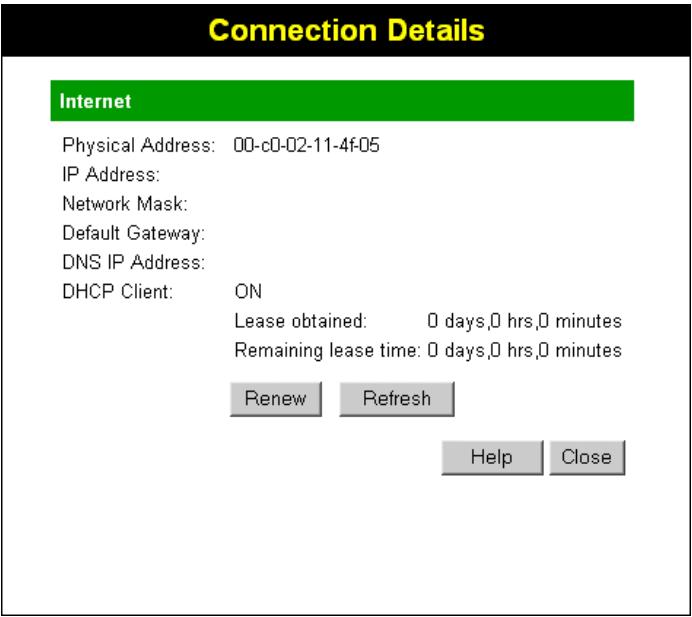
If your access method is "Direct" (no login), a screen like the following example will be displayed when the "Connection Details" button is clicked.
text_image
Connection Details Internet Physical Address: 00-c0-02-11-4f-05 IP Address: Network Mask: Default Gateway: DNS IP Address: DHCP Client: ON Lease obtained: 0 days,0 hrs,0 minutes Remaining lease time: 0 days,0 hrs,0 minutes Renew Refresh Help CloseFigure 28: Connection Details - Fixed/Dynamic IP Address
Data - Fixed/Dynamic IP address
| Internet | |
| Physical Address | The hardware address of this device, as seen by remote devices on the Internet. (This is different to the hardware address seen by devices on the local LAN.) |
| IP Address | The IP Address of this device, as seen by Internet users. This address is allocated by your ISP (Internet Service Provider). |
| Network Mask | The Network Mask associated with the IP Address above. |
| Default Gateway | The IP Address of the remote Gateway or Router associated with the IP Address above. |
| DNS IP Address | The IP Address of the Domain Name Server which is currently used. |
| DHCP Client | This will show "Enabled" or "Disabled", depending on whether or not this device is functioning as a DHCP client.If "Enabled" the "Remaining lease time" field indicates when the IP Address allocated by the DHCP Server will expire. The lease is automatically renewed on expiry; use the "Renew" button if you wish to manually renew the lease immediately. |
| Buttons | |
| Release/RenewButton will display EITHER"Release" | This button is only useful if the IP address shown above is allocated automatically on connection. (Dynamic IP address). If you have a Fixed (Static) IP address, this button has no effect.If the ISP's DHCP Server has NOT allocated an IP Address for |
| OR"Renew" | the Wireless Router, this button will say "Renew". Clicking the "Renew" button will attempt to re-establish the connection and obtain an IP Address from the ISP's DHCP Server.If an IP Address has been allocated to the Wireless Router (by the ISP's DHCP Server), this button will say "Release". Clicking the "Release" button will break the connection and release the IP Address. |
| Refresh | Update the data shown on screen. |
Overview
The following advanced features are provided.
- Advanced Internet
• Communication Applications
• Special Applications
- DMZ
- URL filter
- Access Control
- Remote Management
- Virtual Servers
- Dynamic DNS
- Firmware Upgrade
Advanced Menu Screen
This screen provides access to the advanced features. An example screen is shown below.
Advanced Features
Advanced Internet
Access Control
Remote Management
Virtual Servers
Dynamic DNS
Firmware Upgrade
Special Applications, DMZ, URL Filter
Define Internet access rights for PCs on your LAN.
Allow management of this device via the Internet.
Allow Internet users to access Servers on your LAN.
Use with "Virtual Servers" to allow Internet users to connect to your Servers using a URL instead of an IP address.
The firmware can be upgraded using your Web Browser
Advanced Configuration
PC Database
Options
Security
Logs
MAC Address
Routing
View and modify the list of PCs.
Backup DNS, TFTP firmware upgrade, UPnP.
Firewall and other security-related settings.
Set system log options, E-mailing of logs, view all logs.
Set the MAC (hardware) address for the WAN (Internet) port.
Only required if your LAN has other Routers or Gateways.
Figure 29: Advanced Menu
Advanced Internet Screen
This screen allows configuration of all advanced features relating to Internet access.
• Communication Applications
• Special Applications
- DMZ
- URL filter
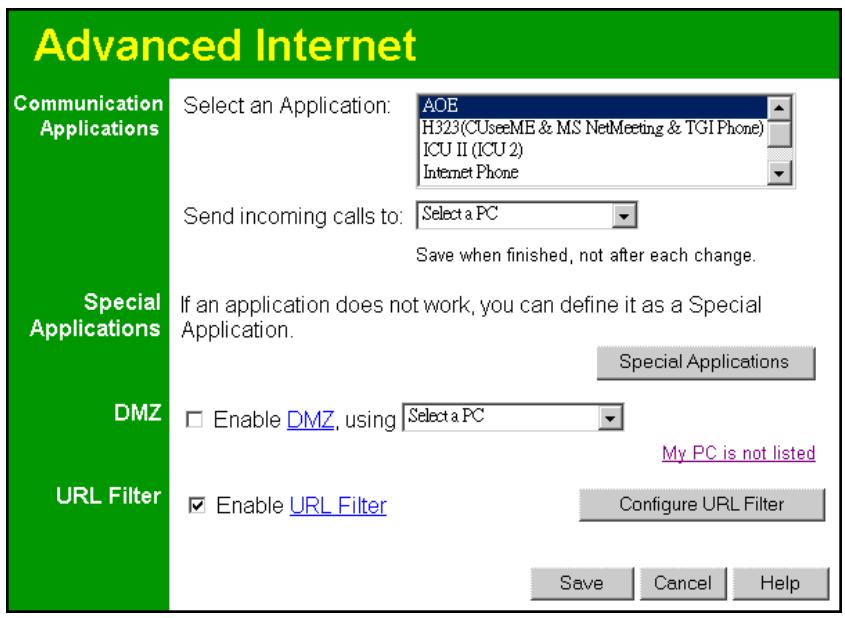
An example screen is shown below.
text_image
Advanced Internet Communication Applications Select an Application: AOE H323(CUseME & MS NetMeeting & TGI Phone) ICU II (ICU 2) Internet Phone Send incoming calls to: Select a PC Save when finished, not after each change. Special Applications If an application does not work, you can define it as a Special Application. Special Applications DMZ Enable DMZ, using Select a PC My PC is not listed URL Filter Enable URL Filter Configure URL Filter Save Cancel HelpFigure 30: Internet Screen
Communication Applications
Most applications are supported transparently by the Wireless Router. But sometimes it is not clear which PC should receive an incoming connection. This problem could arise with the Communication Applications listed on this screen.
If this problem arises, you can use this screen to set which PC should receive an incoming connection, as described below.
| Communication Applications | |
| Select an Application | This lists applications which may generate incoming connections, where the destination PC (on your local LAN) is unknown. |
| Send incoming calls to | This lists the PCs on your LAN.If necessary, you can add PCs manually, using the "PC Database" option on the advanced menu.For each application listed above, you can choose a destination PC.There is no need to "Save" after each change; you can set the destination PC for each application, then click "Save". |
Special Applications
If you use Internet applications which use non-standard connections or port numbers, you may find that they do not function correctly because they are blocked by the Wireless Router's firewall. In this case, you can define the application as a "Special Application".
Special Applications Screen
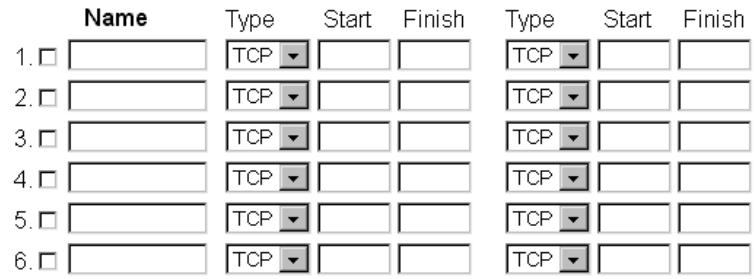
This screen can be reached by clicking the Special Applications button on the Internet screen.
You can then define your Special Applications. You will need detailed information about the application; this is normally available from the supplier of the application.
Also, note that the terms "Incoming" and "Outgoing" on this screen refer to traffic from the client (PC) viewpoint
Special Applications
Special Applications can only be used by 1 user at any time.
Incoming Ports
text_image
Name 1. □ 2. □ 3. □ 4. □ 5. □ 6. □ Type TCP Start Finish Type TCP Start Finish TCP TCP TCP TCP TCP TCP
Figure 31: Special Applications Screen
Data - Special Applications Screen
| Checkbox | Use this to Enable or Disable this Special Application as required. |
| Name | Enter a descriptive name to identify this Special Application. |
| Incoming Ports | Type - Select the protocol (TCP or UDP) used when you receive data from the special application or service. (Note: Some applications use different protocols for outgoing and incoming data).Start - Enter the beginning of the range of port numbers used by the application server, for data you receive. If the application uses a single port number, enter it in both the "Start" and "Finish" fields.Finish - Enter the end of the range of port numbers used by the application server, for data you receive. |
| Outgoing Ports | Type - Select the protocol (TCP or UDP) used when you send data to the remote system or service.Start - Enter the beginning of the range of port numbers used by the application server, for data you send to it. If the application uses a single port number, enter it in both the "Start" and "Finish" fields.Finish - Enter the end of the range of port numbers used by the application server, for data you send to it. If the application uses a single port number, enter it in both the "Start" and "Finish" fields. |
Using a Special Application
- Configure the Special Applications screen as required.
- On your PC, use the application normally. Remember that only one (1) PC can use each Special application at any time. Also, when 1 PC is finished using a particular Special Application, there may need to be a "Time-out" before another PC can use the same Special Application. The "Time-out" period may be up to 3 minutes.

If an application still cannot function correctly, try using the "DMZ" feature.
DMZ
This feature, if enabled, allows one (1) computer on your LAN to be exposed to all users on the Internet, allowing unrestricted 2-way communication between the "DMZ PC" and other Internet users or Servers.
• This allows almost any application to be used on the "DMZ PC".
- The "DMZ PC" will receive all "Unknown" connections and data.
- If the DMZ feature is enabled, you must select the PC to be used as the "DMZ PC".
- The DMZ feature can be Enabled and Disabled on the Advanced Internet screen.

The "DMZ PC" is effectively outside the Firewall, making it more vulnerable to attacks. For his reason, you should only enable the DMZ feature when required.
URL Filter
The URL Filter allows you to block access to undesirable Web site
- To use this feature, you must define "filter strings". If the "filter string" appears in a requested URL, the request is blocked.
- Enabling the URL Filter also affects the Internet Access Log. If Enabled, the "Destination" field in the log will display the URL. Otherwise, it will display the IP Address.
- The URL Filter can be Enabled or Disabled on the Advanced Internet screen.
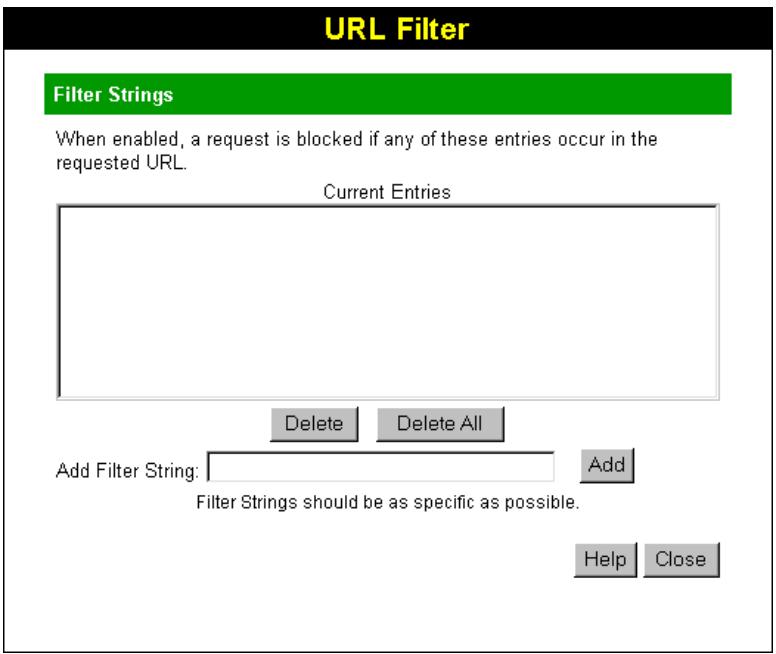
URL Filter Screen
Click the "Configure URL Filter" button on the Internet screen to access the URL Filter screen. An example screen is shown below.
text_image
URL Filter Filter Strings When enabled, a request is blocked if any of these entries occur in the requested URL. Current Entries Delete Delete All Add Filter String: Add Filter Strings should be as specific as possible. Help CloseFigure 32: URL Filter Screen
Data - URL Filter Screen
| Filter Strings | |
| Current Entries | This lists any existing entries. If you have not entered any values, this list will be empty. |
| Add Filter String | To add an entry to the list, enter it here, and click the "Add" button.An entry may be a Domain name (e.g. www.trash.com) or simply a string. (e.g. ads/ )Any URL which contains ANY entry ANYWHERE in the URL will be blocked. |
| Buttons | |
| Delete/Delete All | Use these buttons to delete the selected entry or all entries, as required. Multiple entries can be selected by holding down the CTRL key while selecting.(On the Macintosh, hold the SHIFT key while selecting.) |
| Add | Use this to add the current Filter String to the site list. |
Access Control
This feature is accessed by the Access Control link on the Advanced menu.
Overview
The Access Control feature allows administrators to restrict the level of Internet Access available to PCs on your LAN. With the default settings, everyone has unrestricted Internet access.
To use this feature:
- Set the desired restrictions on the "Default" group. All PCs are in the "Default" group unless explicitly moved to another group.
- Set the desired restrictions on the other groups ("Group 1", "Group 2", "Group 3" and "Group 4") as needed.
- Assign PC to the groups as required.

Restrictions are imposed by blocking "Services", or types of connections. All common Services are pre-defined. If required, you can also define your own Services.
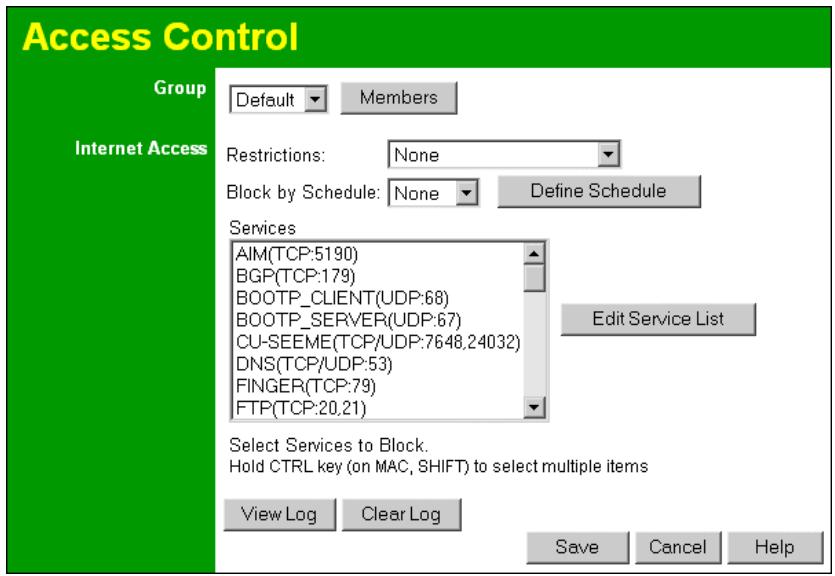
Access Control Screen
To view this screen, select the Access Control link on the Advanced menu.
text_image
Access Control Group Default Members Internet Access Restrictions: None Block by Schedule: None Define Schedule Services AIM(TCP:5190) BGP(TCP:179) BOOTP_CLIENT(UDP:68) BOOTP_SERVER(UDP:67) CU-SEEME(TCP/UDP:7648,24032) DNS(TCP/UDP:53) FINGER(TCP:79) FTP(TCP:20,21) Edit Service List Select Services to Block. Hold CTRL key (on MAC, SHIFT) to select multiple items View Log Clear Log Save Cancel HelpFigure 33: Access Control Screen
Data - Access Control Screen
| Group | |
| Group | Select the desired Group. The screen will update to display the settings for the selected Group. Groups are named "Default", "Group 1", "Group 2", "Group 3" and "Group 4", and cannot be re-named. |
| "Members" Button | Click this button to add or remove members from the current Group.If the current group is "Default", then members can not be added or deleted. This group contains PCs not allocated to any other group.To remove PCs from the Default Group, assign them to another Group.To assign PCs to the Default Group, delete them from the Group they are currently in.See the following section for details of the Group Members screen. |
| Internet Access | |
| Restrictions | Select the desired options for the current group:None - Nothing is blocked. Use this to create the least restrictive group.Block all Internet access - All traffic via the WAN port is blocked. Use this to create the most restrictive group.Block selected Services - You can select which Services are to block. Use this to gain fine control over the Internet access for a group. |
| Block by Schedule | If Internet access is being blocked, you can choose to apply the blocking only during scheduled times. (If access is not blocked, no Scheduling is possible, and this setting has no effect.) |
| Define Schedule Button | Clicking this will open a sub-window where you can define or modify the Schedule. |
| Services | This lists all defined Services. Select the Services you wish to block. To select multiple services, hold the CTRL key while selecting. (On the Macintosh, hold the SHIFT key rather than CTRL.) |
| Edit Service List Button | If you wish to define additional Services, or manage the Service list, click this button to open the "Services" screen. |
| Buttons | |
| Members | Click this button to add or remove members from the current Group.If the current group is "Default", then members cannot be added or deleted. This group contains PCs not allocated to any other group.See the following section for details of the Group Members screen. |
| Define Schedule | Click this to open a sub-window where you can define or modify the Schedule. |
| Edit Service List | If you wish to define additional Services, or manage the Service list, click this button to open the "Services" screen. |
| Save | Save the data on screen. |
| Cancel | Reverse any changes made since the last "Save". |
| View Log | Click this to open a sub-window where you can view the "Access Control" log. This log shows attempted Internet accesses which have been blocked by the Access Control feature. |
| Clear Log | Click this to clear and restart the "Access Control" log, making new entries easier to read. |
Group Members Screen
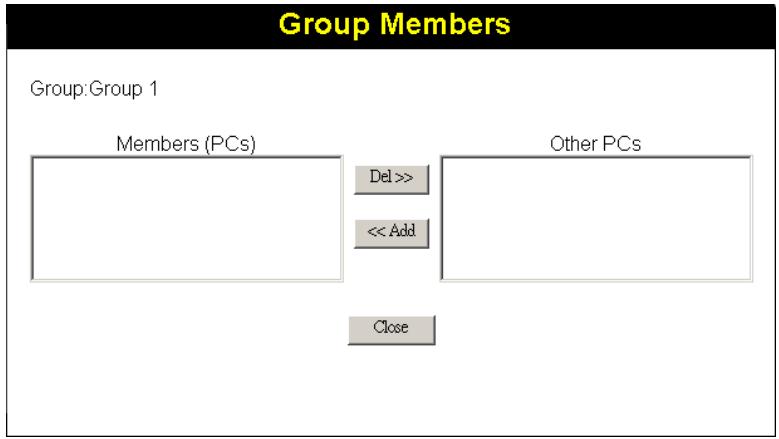
This screen is displayed when the Members button on the Access Control screen is clicked.
text_image
Group Members Group: Group 1 Members (PCs) Del >> << Add Other PCs CloseFigure 34: Group Members
Use this screen to add or remove members (PCs) from the current group.
- The "Del >>" button will remove the selected PC (in the Members list) from the current group.
- The "<< Add" button will add the selected PC (in the Other PCs list) to the current group.

PCs not assigned to any group will be in the "Default" group. PCs deleted from any other Group will be added to the "Default" group.
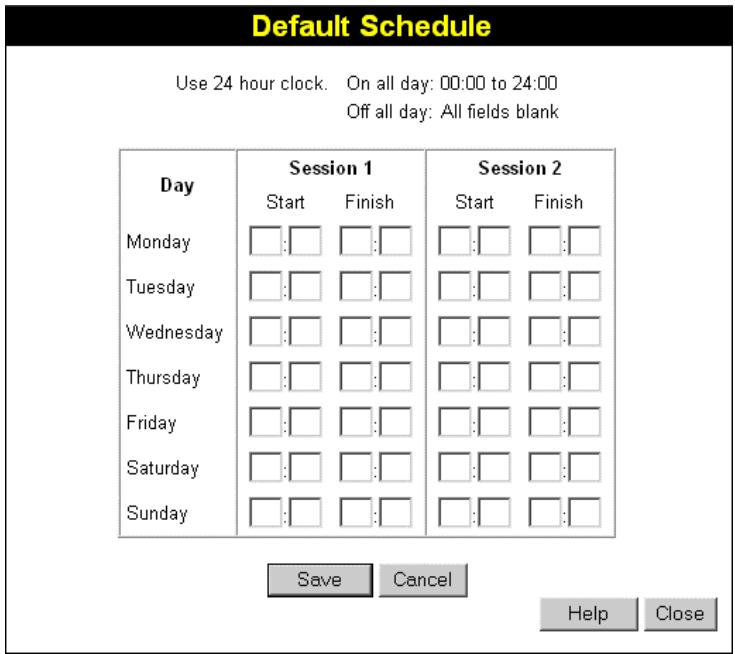
Default Schedule Screen
This screen is displayed when the Define Schedule button on the Access Control screen is clicked.
• This schedule can be (optionally) applied to any Access Control Group.
- Blocking will be performed during the scheduled time (between the "Start" and "Finish" times.)
- Two (2) separate sessions or periods can be defined.
• Times must be entered using a 24 hr clock.
- If the time for a particular day is blank, no action will be performed.
text_image
Default Schedule Use 24 hour clock. On all day: 00:00 to 24:00 Off all day: All fields blank Day Session 1 Start Finish Session 2 Start Finish Monday □:□ □:□ □:□ □:□ Tuesday □:□ □:□ □:□ □:□ Wednesday □:□ □:□ □:□ □:□ Thursday □:□ □:□ □:□ □:□ Friday □:□ □:□ □:□ □:□ Saturday □:□ □:□ □:□ □:□ Sunday □:□ □:□ Save Cancel Help CloseFigure 35: Default Schedule Screen
Data - Default Schedule Screen
| Day | Each day of the week can be scheduled independently. |
| Session 1Session 2 | Two (2) separate sessions or periods can be defined. Session 2 can be left blank if not required. |
| Start Time | Enter the start using a 24 hr clock. |
| Finish Time | Enter the finish time using a 24 hr clock. |
Services Screen
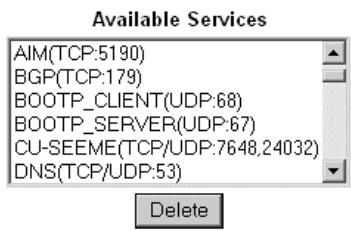
This screen is displayed when the Edit Service List button on the Access Control screen is clicked.
Services
text_image
Available Services AIM(TCP:5190) BGP(TCP:179) BOOTP_CLIENT(UDP:68) BOOTP_SERVER(UDP:67) CU-SEEME(TCP/UDP:7648,24032) DNS(TCP/UDP:53) DeleteAdd New Service
text_image
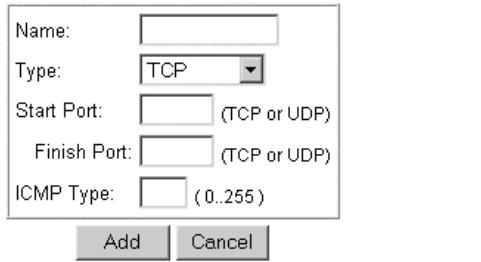
Name: Type: TCP Start Port: (TCP or UDP) Finish Port: (TCP or UDP) ICMP Type: (0..255) Add Cancel
Figure 36: Access Control - Services
Data - Services Screen
| Available Services | |
| Available Services | This lists all the available services. |
| "Delete" button | Use this to delete any Service you have added. Pre-defined Services cannot be deleted. |
| Add New Service | |
| Name | Enter a descriptive name to identify this service. |
| Type | Select the protocol (TCP, UDP, ICMP) used to the remote system or service. |
| Start Port | For TCP and UDP Services, enter the beginning of the range of port numbers used by the service. If the service uses a single port number, enter it in both the "Start" and "Finish" fields. |
| Finish Port | For TCP and UDP Services, enter the end of the range of port numbers used by the service. If the service uses a single port number, enter it in both the "Start" and "Finish" fields. |
| ICMP Type | For ICMP Services, enter the type number of the required service. |
| Buttons | |
| Delete | Delete the selected service from the list. |
| Save | Add a new entry to the Service list, using the data shown in the "Add New Service" area on screen. |
| Cancel | Clear the " Add New Service " area, ready for entering data for a new Service. |
Access Control Log
To check the operation of the Access Control feature, an Access Control Log is provided. Click the View Log button on the Access Control screen to view this log.
This log shows attempted Internet accesses which have been blocked by the Access Control function.
Data shown in this log is as follows:
| Date/Time | Date and Time of the attempted access. |
| Name | If known, the name of the PC whose access was blocked. This name is taken from the Network Clients database |
| Source IP address | The IP Address of the PC or device whose access request was blocked |
| MAC address | The hardware or physical address of the PC or device whose access request was blocked |
| Destination | The destination URL or IP address |
Remote Management
This feature allows you to manage the Wireless Router via the Internet.
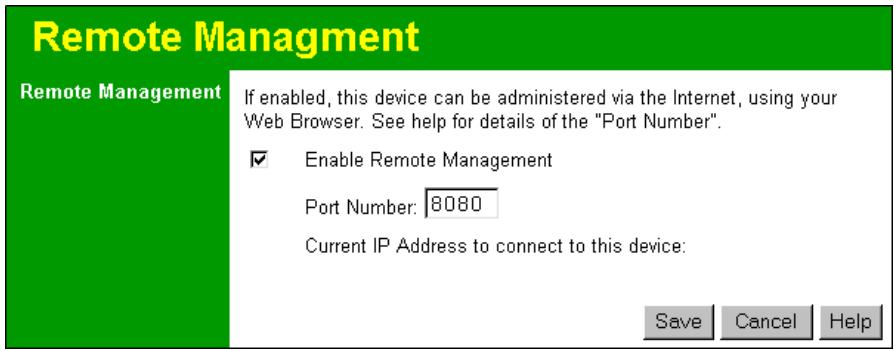
text_image
Remote Management Remote Management If enabled, this device can be administered via the Internet, using your Web Browser. See help for details of the "Port Number". ✓ Enable Remote Management Port Number: 8080 Current IP Address to connect to this device: Save Cancel HelpFigure 37: Remote Management Screen
Data - Remote Management Screen
| Remote Management | |
| Enable Remote Management | Enable to allow management via the Internet. If Disabled, this device will ignore management connection attempts from the Internet. |
| Port Number | Enter a port number between 1024 and 65535 (8080 is recommended). This port number must be specified when you connect (see below).Note: The default port number for HTTP (Web) connections is port 80, but using port 80 here will prevent the use of a Web "Virtual Server" on your LAN. (See Advanced Internet - Virtual Servers) |
| Current IP Address | You must use this IP Address to connect (see below).Your ISP allocates this IP Address. But if using a Dynamic IP Address, this value can change each time you connect to your ISP. So it is better if your ISP allocates you a Fixed IP Address. |
To connect from a remote PC via the Internet
- Ensure your Internet connection is established, and start your Web Browser.
- In the "Address" bar, enter "HTTP://" followed by the Internet IP Address of the Wireless Router. If the port number is not 80, the port number is also required. (After the IP Address, enter ":" followed by the port number.)
e.g.
HTTP://123.123.123.123:8080
This example assumes the WAN IP Address is 123.123.123.123, and the port number is 8080.
Virtual Servers
This feature allows you to make Servers on your LAN accessible to Internet users. Normally, Internet users would not be able to access a server on your LAN because:
- Your Server does not have a valid external IP Address.
- Attempts to connect to devices on your LAN are blocked by the firewall in this device.
The "Virtual Server" feature solves these problems and allows Internet users to connect to your servers, as illustrated below.
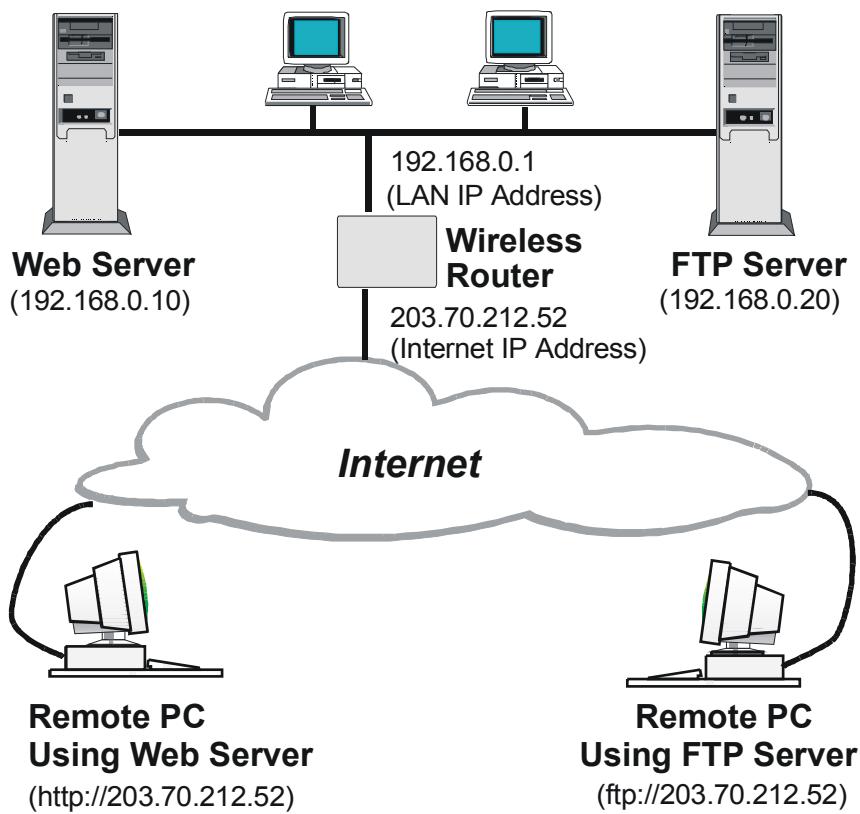
flowchart
graph TD
    A["Web Server (192.168.0.10)"] --> B["Wireless Router"]
    C["Computer"] --> B
    D["Computer"] --> B
    E["Computer"] --> B
    F["FTP Server (192.168.0.20)"] --> B
    B --> G["Internet"]
    H["Remote PC Using Web Server (http://203.70.212.52)"] --> G
    I["Remote PC Using FTP Server (ftp://203.70.212.52)"] --> G
Figure 38: Virtual Servers
IP Address seen by Internet Users
Note that, in this illustration, both Internet users are connecting to the same IP Address, but using different protocols.
To Internet users, all virtual Servers on your LAN have the same IP Address. This IP Address is allocated by your ISP.
This address should be static, rather than dynamic, to make it easier for Internet users to connect to your Servers.
However, you can use the DDNS (Dynamic DNS) feature to allow users to connect to your Virtual Servers using a URL, instead of an IP Address.
Virtual Servers Screen
The Virtual Servers screen is reached by the Virtual Servers link on the Advanced screen. An example screen is shown below.
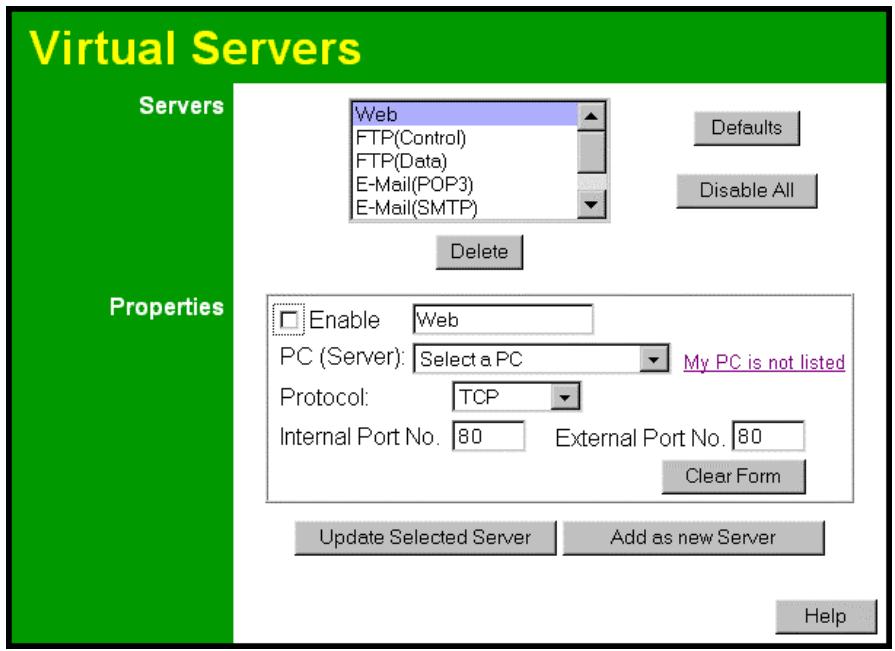
text_image
Virtual Servers Servers Web FTP(Control) FTP(Data) E-Mail(POP3) E-Mail(SMTP) Defaults Disable All Delete Properties Enable Web PC (Server): Select a PC My PC is not listed Protocol: TCP Internal Port No. 80 External Port No. 80 Clear Form Update Selected Server Add as new Server HelpFigure 39: Virtual Servers Screen
This screen lists a number of pre-defined Servers, and allows you to define your own Servers. Details of the selected Server are shown in the "Properties" area.
Data - Virtual Servers Screen
| Servers | |
| Servers | This lists a number of pre-defined Servers, plus any Servers you have defined. Details of the selected Server are shown in the "Properties" area. |
| Properties | |
| Enable | Use this to Enable or Disable support for this Server, as required.If Enabled, any incoming connections will be forwarded to the selected PC.If Disabled, any incoming connection attempts will be blocked. |
| PC (Server) | Select the PC for this Server. The PC must be running the appropriate Server software. |
| Protocol | Select the protocol (TCP or UDP) used by the Server. |
| Internal Port No. | Enter the port number which the Server software is configured to use. |
| External Port No. | The port number used by Internet users when connecting to the Server. This is normally the same as the Internal Port Number. If it is different, this device will perform a "mapping" or "translation" function, allowing the server to use one port address, while clients use a different port address. |
| Buttons | |
| Defaults | This will delete any Servers you have defined, and set the pre-defined Servers to use their default port numbers. |
| Disable All | This will cause the "Enable" setting of all Virtual Servers to be set OFF. |
| Update Selected Server | Update the current Virtual Server entry, using the data shown in the "Properties" area on screen. |
| Add as new Server | Add a new entry to the Virtual Server list, using the data shown in the "Properties" area on screen. The entry selected in the list is ignored, and has no effect. |
| Delete | Delete the current Virtual Server entry. Note that the pre-defined Servers cannot be deleted. Only Servers you have defined yourself can be deleted. |
| Clear Form | Clear all data from the "Properties" area, ready for input of a new Virtual Server entry. |

For each entry, the PC must be running the appropriate Server software.
Defining your own Virtual Servers
If the type of Server you wish to use is not listed on the Virtual Servers screen, you can define and manage your own Servers:
Create a new Server:
- Click "Clear Form"
- Enter the required data, as described above.
- Click "Add".
- The new Server will now appear in the list.
Modify (Edit) a Server:
- Select the desired Server from the list
- Make any desired changes (for example, change the Enable/Disable setting).
- Click "Update" to save changes to the selected Server.
Delete a Server:
- Select the entry from the list.
- Click "Delete".
Note: You can only delete Servers you have defined. Pre-defined Server cannot be deleted.

From the Internet, ALL Virtual Serve s have the IP Address allocated by your ISP.
Connecting to the Virtual Servers
Once configured, anyone on the Internet can connect to your Virtual Servers. They must use the Internet IP Address (the IP Address allocated to you by your ISP).
e.g.
http://203.70.212.52
ftp://203.70.212.52
It is more convenient if you are using a Fixed IP Address from your ISP, rather than Dynamic. However, you can use the Dynamic DNS feature, described in the following section, to allow users to connect to your Virtual Servers using a URL, rather than an IP Address.
Dynamic DNS (Domain Name Server)
This free service is very useful when combined with the Virtual Server feature. It allows Internet users to connect to your Virtual Servers using a URL, rather than an IP Address.
This also solves the problem of having a dynamic IP address. With a dynamic IP address, your IP address may change whenever you connect, which makes it difficult to connect to you.
The Service works as follows:
- You must register for the service at http://www.dyndns.org (Registration is free). Your password will be E-mailed to you.
- After registration, use the "Create New Host" option (at www.dyndns.org) to request your desired Domain name.
- Enter your data from www.dyndns.org in the Wireless Router's DDNS screen.
- The Wireless Router will then automatically ensure that your current IP Address is recorded at http://www.dyndns.org
- From the Internet, users will be able to connect to your Virtual Servers (or DMZ PC) using your Domain name, as shown on this screen.
Dynamic DNS Screen
Select Advanced on the main menu, then Dynamic DNS, to see a screen like the following:
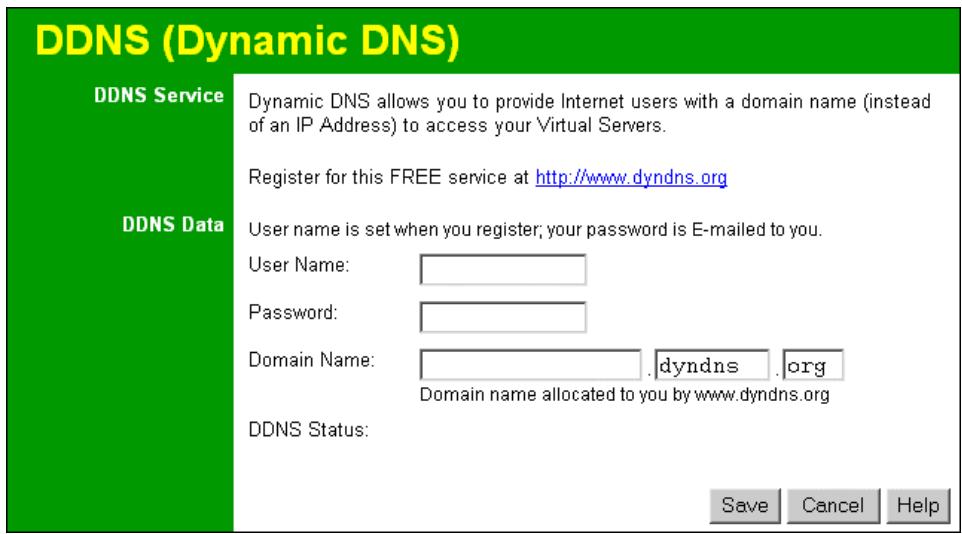
text_image
DDNS (Dynamic DNS) DDNS Service Dynamic DNS allows you to provide Internet users with a domain name (instead of an IP Address) to access your Virtual Servers. Register for this FREE service at http://www.dyndns.org DDNS Data User name is set when you register; your password is E-mailed to you. User Name: Password: Domain Name: .dyndns .org Domain name allocated to you by www.dyndns.org DDNS Status: Save Cancel HelpFigure 40: DDNS Screen
Data - Dynamic DNS Screen
| DDNS Service | |
| DDNS Service | You must sign up first to create a new account before using the service. The service is free.Click this link to connect to the www.dyndns.org Web site.Your initial password will be E-mailed to you; you can change this later if you wish.After registration, use the "Create New Host" link (on the www.dyndns.org Web site) to request a domain name. |
| DDNS Data | |
| User Name | Enter the "User name" specified at the www.dyndns.org Web site when you registered. |
| Password | Enter your current password for www.dyndns.org |
| Domain Name | Enter your domain name, as allocated at www.dyndns.org.The name should consist only of letters and the hyphen (dash).Using any other characters may cause problems.. |
| DDNS Status | This message is returned by the DDNS Server at www.dyndns.orgNormally, this message should be "Update successful" (current IP address was updated on the www.dyndns.org server).If the message is "No host", this indicates the host name entered was not allocated to you. You need to connect to www.dyndns.org and correct this problem. |
Upgrade Firmware
The firmware (software) in the Wireless Router can be upgraded using your Web Browser.
You must first download the upgrade file, and then select Upgrade on the Advanced menu.
You will see a screen like the following.
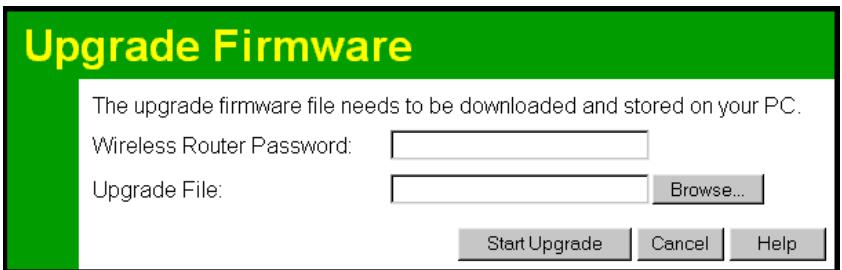
text_image
Upgrade Firmware The upgrade firmware file needs to be downloaded and stored on your PC. Wireless Router Password: Upgrade File: Browse... Start Upgrade Cancel HelpFigure 41: Upgrade Firmware Screen
To perform the Firmware Upgrade:
- Click the "Browse" button and navigate to the location of the upgrade file.
- Select the upgrade file. Its name will appear in the Upgrade File field.
- Click the "Start Upgrade" button to commence the firmware upgrade.

The Wireless Router is unavailable during the upgrade process, and must restart when the upgrade is completed. Any connection is to or through the Wireless Router will be lost.
Overview
Normally, it is not necessary to use these screens, or change any settings. These screens and settings are provided to deal with non-standard situations, or to provide additional options for advanced users.
The settings available are:
| PC Database | This is the list of PCs shown when you select the "DMZ PC" or a "Virtual Server". This database is maintained automatically, but you can add and delete entries for PCs which use a Fixed (Static) IP Address. |
| Options | Various options, such as backup DNS, UPnP, and enable TFTP firmware upgrade option. |
| Security | Firewall and other security-related settings. |
| Logs | View or clear all logs, set E-Mailing of log files. |
| MAC Address | Set the MAC (hardware) address used on the Internet (WAN port) interface. This is required only if your ISP has recorded the MAC (hardware) address you should use. |
| Routing | Only required if your LAN has other Routers or Gateways. |
PC Database
The PC Database is used whenever you need to select a PC (e.g. for the "DMZ" PC). It eliminates the need to enter IP addresses. Also, you do not need to use fixed IP addresses on your LAN.
PC Database Screen
An example PC Database screen is shown below.
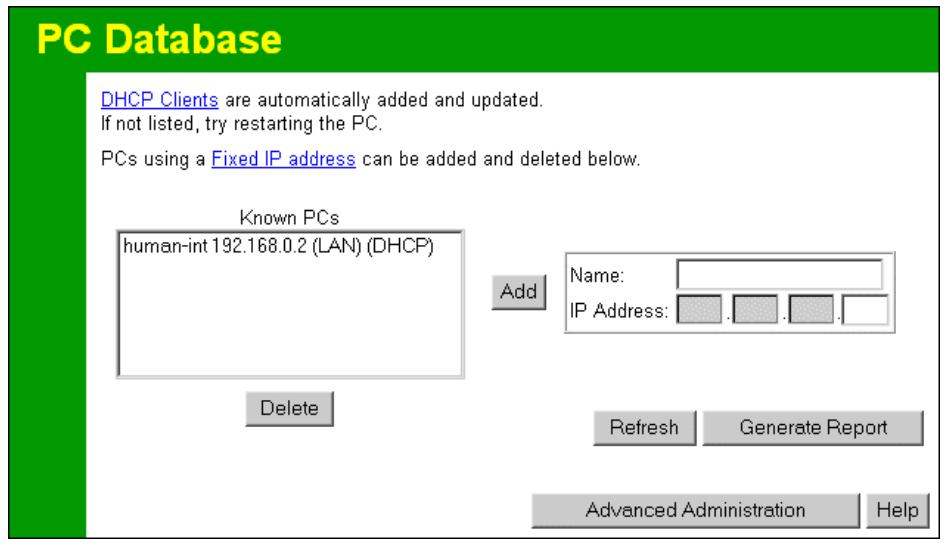
text_image
PC Database DHCP Clients are automatically added and updated. If not listed, try restarting the PC. PCs using a Fixed IP address can be added and deleted below. Known PCs human-int 192.168.0.2 (LAN) (DHCP) Add Name: IP Address: Delete Refresh Generate Report Advanced Administration HelpFigure 42: PC Database
- PCs which are "DHCP Clients" are automatically added to the database, and updated as required.
- By default, non-Server versions of Windows act as "DHCP Clients"; this setting is called "Obtain an IP Address automatically".
- The Wireless Router uses the "Hardware Address" to identify each PC, not the name or IP address. The "Hardware Address" can only change if you change the PC's network card or adapter.
- This system means you do NOT need to use Fixed (static) IP addresses on your LAN. However, you can add PCs using Fixed (static) IP Addresses to the PC database if required.
Data - PC Database Screen
| Known PCs | This lists all current entries. Data displayed is name (IP Address) type. The "type" indicates whether the PC is connected to the LAN. |
| Name | If adding a new PC to the list, enter its name here. It is best if this matches the PC's "hostname". |
| IP Address | Enter the IP Address of the PC. The PC will be sent a "ping" to determine its hardware address. If the PC is not available (not connected, or not powered On) you will not be able to add it. |
| Buttons | |
| Add | This will add the new PC to the list. The PC will be sent a "ping" to determine its hardware address. If the PC is not available (not connected, or not powered On) you will not be able to add it. |
| Delete | Delete the selected PC from the list. This should be done in 2 situations:• The PC has been removed from your LAN.• The entry is incorrect. |
| Refresh | Update the data on screen. |
| Generate Report | Display a read-only list showing full details of all entries in the PC database. |
| Advanced Administration | View the Advanced version of the PC database screen. See below for details. |
PC Database (Admin)
This screen is displayed if the "Advanced Administration" button on the PC Database is clicked. It provides more control than the standard PC Database screen.
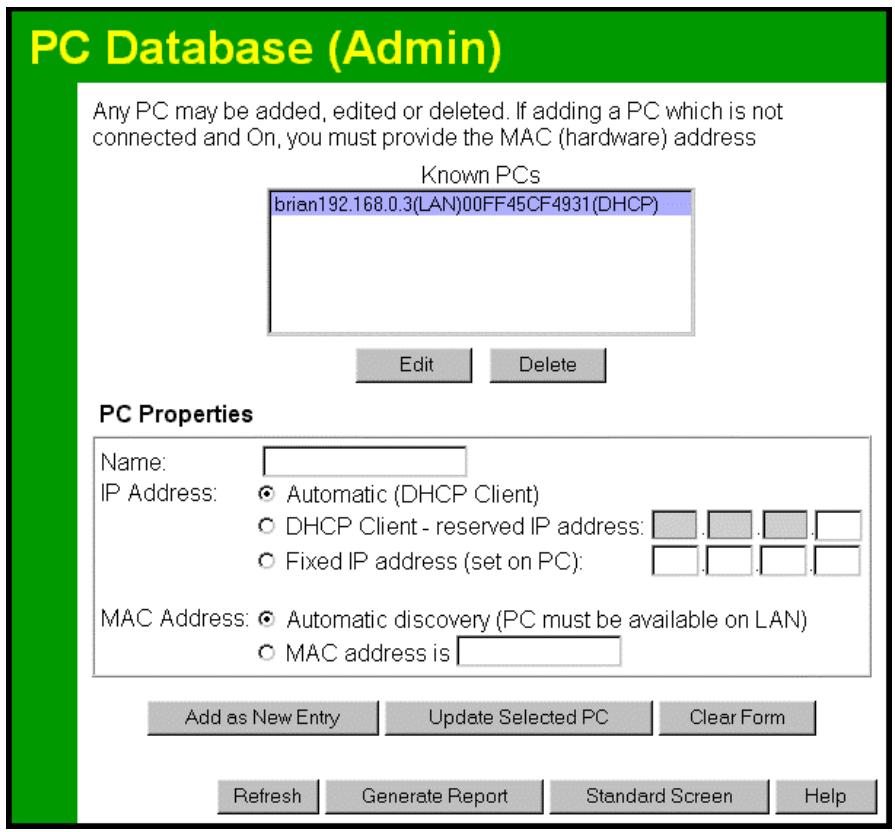
text_image
PC Database (Admin) Any PC may be added, edited or deleted. If adding a PC which is not connected and On, you must provide the MAC (hardware) address Known PCs brian192.168.0.3(LAN)00FF45CF4931(DHCP) Edit Delete PC Properties Name: IP Address: ○ Automatic (DHCP Client) ○ DHCP Client - reserved IP address: _________. ○ Fixed IP address (set on PC): _________. MAC Address: ○ Automatic discovery (PC must be available on LAN) ○ MAC address is _________ Add as New Entry Update Selected PC Clear Form Refresh.Generate Report Standard Screen HelpFigure 43: PC Database (Admin)
Data - PC Database ( Admin) Screen
| Known PCs | This lists all current entries. Data displayed is name (IP Address) type. The "type" indicates whether the PC is connected to the LAN. |
| PC Properties | |
| Name | If adding a new PC to the list, enter its name here. It is best if this matches the PC's "hostname". |
| IP Address | Select the appropriate option:Automatic - The PC is set to be a DHCP client (Windows: "Obtain an IP address automatically"). The Wireless Router will allocate an IP address to this PC when requested to do so. The IP address could change, but normally won't.DCHP Client - Reserved IP Address - Select this if the PC is set to be a DCHP client, and you wish to guarantee that the Wireless Router will always allocate the same IP Address to this PC.Enter the required IP address. Only the last field is required; the other fields must match the Wireless Router's IP address.Fixed IP Address - Select this if the PC is using a Fixed (Static) IP address. Enter the IP address allocated to the PC. (The PC must be configured to use this IP address.) |
| MAC Address | Select the appropriate optionAutomatic discovery - Select this to have the Wireless Router contact the PC and find its MAC address. This is only possible if the PC is connected to the LAN and powered On.MAC is - Enter the MAC address on the PC. The MAC address is also called the "Hardware Address", "Physical Address", or "Network Adapter Address". The Wireless Router uses this to provide a unique identifier for each PC. Because of this, the MAC address cannot be left blank. |
| Buttons | |
| Add as New Entry | Add a new PC to the list, using the data in the "Properties" box.If "Automatic discovery" (for MAC address) is selected, the PC will be sent a "ping" to determine its hardware address. This will fail unless the PC is connected to the LAN, and powered on. |
| Update Selected PC | Update (modify) the selected PC, using the data in the "Properties" box. |
| Clear Form | Clear the "Properties" box, ready for entering data for a new PC. |
| Refresh | Update the data on screen. |
| Generate Report | Display a read-only list showing full details of all entries in the PC database. |
| Standard Screen | Click this to view the standard "PC Database" screen. |
Options
This screen allows advanced users to enter or change a number of settings. For normal operation, there is no need to use this screen or change any settings.
An example Options screen is shown below.
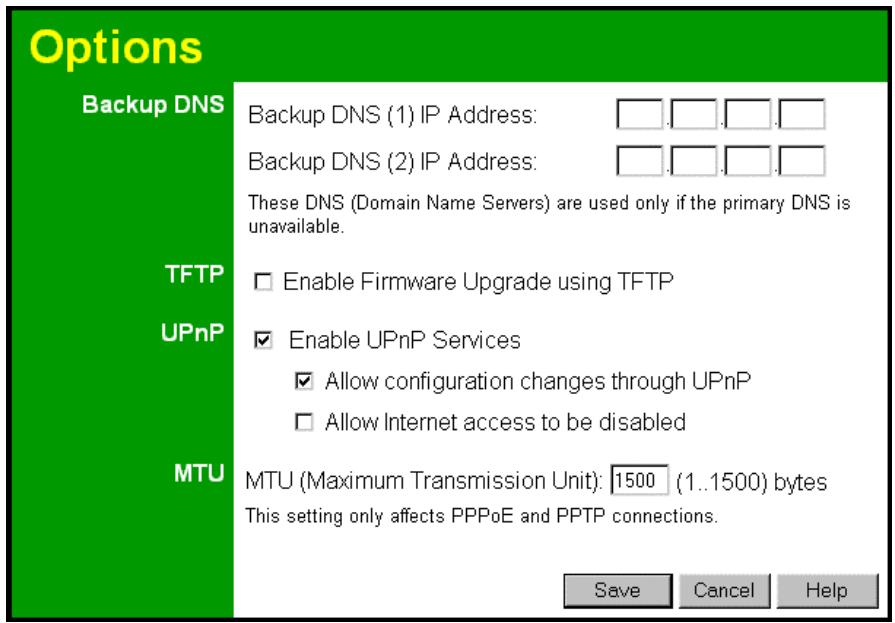
text_image
Options Backup DNS Backup DNS (1) IP Address: Backup DNS (2) IP Address: These DNS (Domain Name Servers) are used only if the primary DNS is unavailable. TFTP Enable Firmware Upgrade using TFTP UPnP Enable UPnP Services Allow configuration changes through UPnP Allow Internet access to be disabled MTU MTU (Maximum Transmission Unit): 1500 (1..1500) bytes This setting only affects PPPoE and PPTP connections. Save Cancel HelpFigure 44: Options Screen
Data - Options Screen
| Backup DNS | |
| IP Address | Enter the IP Address of the DNS (Domain Name Servers) here. These DNS will be used only if the primary DNS is unavailable. |
| TFTP | |
| Enable Firmware Upgrade using TFTP | If enabled, TFTP (Trivial FTP) can be used to upgrade the firmware in this device. This is normally not required; a Windows utility is available for this purpose.You must obtain the firmware upgrade file first; instructions for using TFTP will be available with the upgrade. |
| UPnP | |
| Enable UPnP Services | UPnP (Universal Plug and Play) allows automatic discovery and configuration of equipment attached to your LAN. UPnP is by supported by Windows ME, XP, or later.If Enabled, this device will be visible via UPnP.If Disabled, this device will not be visible via UPnP. |
| Allow Configuration... | If checked, then UPnP users can change the configuration.If Disabled, UPnP users can only view the configuration. But currently, this restriction only applies to users running Windows XP, who access the Properties via UPnP. (e.g. Right - click the Wireless Router in My Network Places, and select Properties) |
| Allow Internet access to be disabled | If checked, then UPnP users can disable Internet access via this device.If Disabled, UPnP users cannot disable Internet access via this device. But currently, this restriction only applies to users running Windows XP, who access the Properties via UPnP. (e.g. Right - click the Wireless Router in My Network Places, and select Properties) |
| MTU | |
| MTU size | MTU (Maximum Transmission Unit) value should only be changed if advised to do so by Technical Support.Enter a value between 1 and 1500.This device will still auto-negotiate with the remote server, to set the MTU size. The smaller of the 2 values (auto-negotiated, or entered here) will be used.For direct connections (not PPPoE or PPTP), the MTU used is always 1500. |
Security
This screen allows you to set Firewall and other security-related options.
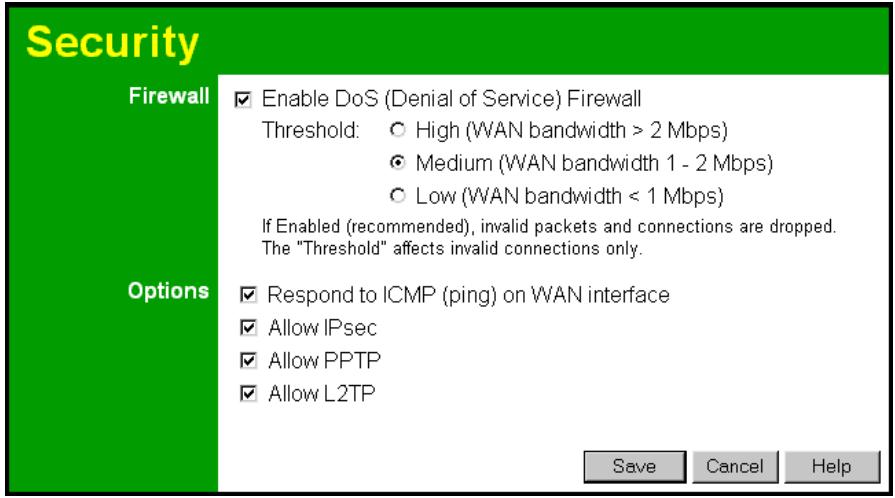
text_image
Security Firewall Enable DoS (Denial of Service) Firewall Threshold: ○ High (WAN bandwidth > 2 Mbps) ○ Medium (WAN bandwidth 1 - 2 Mbps) ○ Low (WAN bandwidth < 1 Mbps) If Enabled (recommended), invalid packets and connections are dropped. The "Threshold" affects invalid connections only. Options Respond to ICMP (ping) on WAN interface Allow IPsec Allow PPTP Allow L2TP Save Cancel HelpFigure 45: Security Screen
Data - Security Screen
| Firewall | |
| Enable DoS Firewall | If enabled, DoS (Denial of Service) attacks will be detected and blocked. The default is enabled. It is strongly recommended that this setting be left enabled.Note:A DoS attack does not attempt to steal data or damage your PCs, but overloads your Internet connection so you cannot use it - the service is unavailable.This device uses "Stateful Inspection" technology. This system can detect situations where individual TCP/IP packets are valid, but collectively they become a DoS attack. |
| Threshold | This setting affects the number of "half-open" connections allowed.A "half-open" connection arises when a remote client contacts the Server with a connection request, but then does not reply to the Server's response.While the optimum number of "half-open" connections allowed (the "Threshold") depends on many factors, the most important factor is the available bandwidth of your Internet connection.Select the setting to match the bandwidth of your Internet connection. |
| Options | |
| Respond to ICMP | The ICMP protocol is used by the "ping" and "traceroute" programs, and by network monitoring and diagnostic programs.If checked, the Wireless Router will respond to ICMP packets received from the Internet.If not checked, ICMP packets from the Internet will be ignored. Disabling this option provides a slight increase in security. |
| Allow IPsec | The IPSec protocol is used to establish a secure connection, and is widely used by VPN (Virtual Private Networking) programs.If checked, IPSec connections are allowed.If not checked, IPSec connections are blocked. |
| Allow PPTP | PPTP (Point to Point Tunneling Protocol) is widely used by VPN (Virtual Private Networking) programs.If checked, PPTP connections are allowed.If not checked, PPTP connections are blocked. |
| Allow L2TP | L2TP is a protocol developed by Cisco for VPNs (Virtual Private Networks).If checked, L2TP connections are allowed.If not checked, L2TP connections are blocked. |
Logs
The Logs record various types of activity on the Wireless Router. This data is useful for troubleshooting, but enabling all logs will generate a large amount of data and adversely affect performance.
Since only a limited amount of log data can be stored in the Wireless Router, log data can also be E-mailed to your PC.
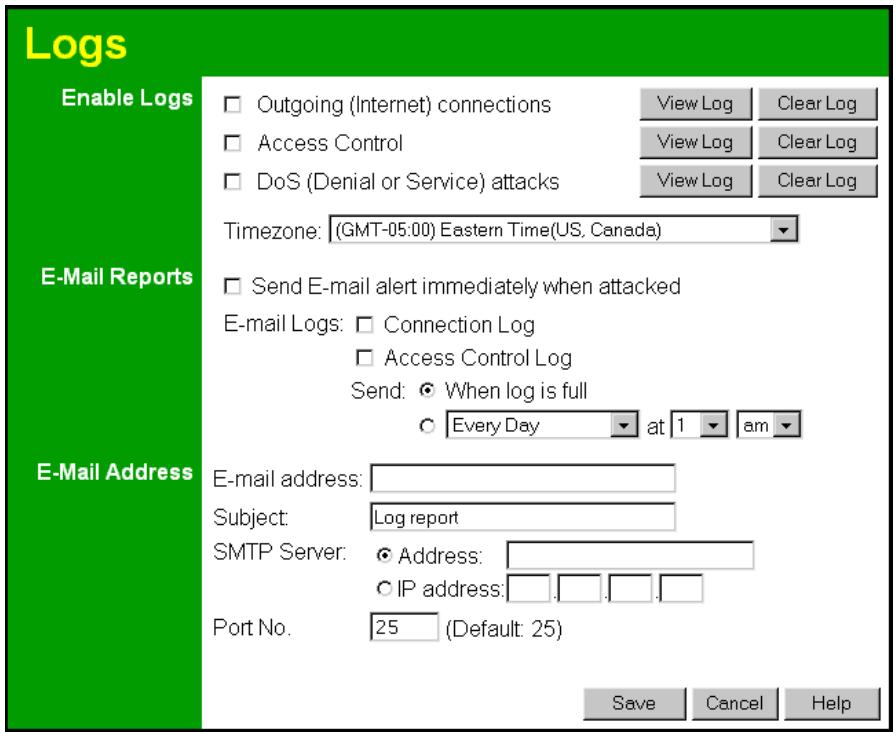
text_image
Logs Enable Logs Outgoing (Internet) connections View Log Clear Log Access Control View Log Clear Log DoS (Denial or Service) attacks View Log Clear Log Timezone: (GMT-05:00) Eastern Time(US, Canada) E-Mail Reports Send E-mail alert immediately when attacked E-mail Logs: Connection Log Access Control Log Send: When log is full Every Day at 1 am E-Mail Address E-mail address: Subject: Log report SMTP Server: Address: IP address: Port No. 25 (Default: 25) Save Cancel HelpFigure 46: Logs Screen
Data - Logs Screen
| Enable Logs | |
| Outgoing Connections | If selected, Outgoing Internet connections are logged. Normally, the (Internet) "Destination" will be shown as an IP address. But if the "URL Filter" is enabled, the "Destination" will be shown as a URL. |
| Access Control | If enabled, the log will include attempted outgoing connections which have been blocked by the "Access Control" feature. |
| DoS Attacks | If enabled, this log will show details of DoS (Denial of Service) attacks which have been blocked by the built-in Firewall. |
| Time zone | Select the correct Time zone for your location. This is required for the date/time shown on the logs to be correct. |
| E-Mail Reports | |
| Send E-mail alert | If enabled, an E-mail will be sent immediately if a DoS (Denial of Service) attack is detected. If enabled, the E-mail address information must be provided. |
| E-mail Logs | You can choose to have the logs E-mailed to you, by enabling either or both checkboxes. If enabled, the Log will be sent to the specified E-mail address. The interval between E-mails is determined by the "Send" setting. |
| Send | Select the desired option for sending the log by E-mail.When log is full - The time is not fixed. The log will be sent when the log is full, which will depend on the volume of traffic.Every day, Every Monday ... - The log is sent on the interval specified.If "Every day" is selected, the log is sent at the time specified.If the day is specified, the log is sent once per week, on the specified day.Select the time of day you wish the E-mail to be sent.If the log is full before the time specified to send it, it will be sent regardless. |
E-Mail Address
| E-mail Address | Enter the E-mail address the Log is to be sent to. The E-mail will also show this address as the Sender's address. |
| Subject | Enter the text string to be shown in the "Subject" field for the E-mail. |
| SMTP Server | Enter the address or IP address of the SMTP (Simple Mail Transport Protocol) Server you use for outgoing E-mail. |
| Port No. | Enter the port number used to connect to the SMTP Server. The default value is 25. |
MAC Address
The MAC (hardware) address is a low-level network identifier. It may be called "MAC Address", "Hardware Address", or "Physical Address". On a PC, this address is associated with the Network card or adapter. The address on the MAC Address screen is the address on the Internet (WAN port) interface, and has no effect on the LAN interface.
- If your ISP asks for the "Network Adapter Address", "Physical Address", "Hardware Address", or "MAC Address" for the PC the DSL/Cable modem is connected to, provide this value.
- If your ISP has already recorded a MAC address, you can change the address used by the Wireless Router to match the address recorded by your ISP.
MAC Address Screen
Select MAC Address from the Advanced menu to reach a screen like the example below.
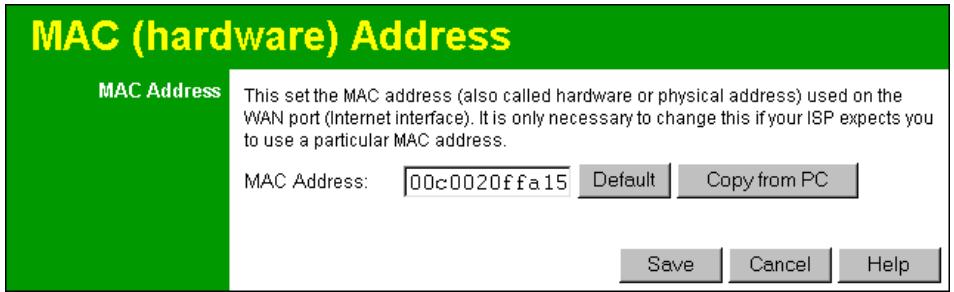
text_image
MAC (hardware) Address MAC Address This set the MAC address (also called hardware or physical address) used on the WAN port (Internet interface). It is only necessary to change this if your ISP expects you to use a particular MAC address. MAC Address: 00c0020ffa15 Default Copy from PC Save Cancel HelpFigure 47: MAC address Screen
Data - MAC address Screen
| MAC (hardware) Address | The current MAC (hardware) address is displayed.If your ISP has recorded a Hardware Address, you can "spoof" that address by entering it in the address field. The hardware address consists of 12 characters, where each character is a digit (0..9) or a character between A and F. |
| Buttons | |
| Default | Inserts the default MAC address into the MAC address field. You must click "Save" to actually change the address used. |
| Copy from PC | Inserts the MAC address from your PC into the MAC address field. You must click "Save" to actually change the address used. |
| Save | Save your changes to the Wireless Router. |
| Cancel | Reverse any changes made since the last "Save". |

If the MAC address is changed, the Wireless Router must restart.
Routing
Overview
- If you don't have other Routers or Gateways on your LAN, you can ignore the "Routing" page completely.
- If the Wireless Router is only acting as a Gateway for the local LAN segment, ignore the "Routing" page even if your LAN has other Routers.
- If your LAN has a standard Router (e.g. Cisco) on your LAN, and the Wireless Router is to act as a Gateway for all LAN segments, enable RIP (Routing Information Protocol) and ignore the Static Routing table.
- If your LAN has other Gateways and Routers, and you wish to control which LAN segments use each Gateway, do NOT enable RIP (Routing Information Protocol). Configure the Static Routing table instead. (You also need to configure the other Routers.)
- If using Windows 2000 Data center Server as a software Router, enable RIP on the Wireless Router, and ensure the following Windows 2000 settings are correct:
- Open Routing and Remote Access
- In the console tree, select Routing and Remote Access, [server name], IP Routing, RIP
- In the "Details" pane, right-click the interface you want to configure for RIP version 2, and then click "Properties".
- On the "General" tab, set Outgoing packet protocol to "RIP version 2 broadcast", and Incoming packet protocol to "RIP version 1 and 2".
Routing Screen
The routing table is accessed by the Routing link on the Advanced screen.
Using this Screen
Generally, you will use either RIP (Routing Information Protocol) OR the Static Routing Table, as explained above, although is it possible to use both methods simultaneously.
Static Routing Table
- If RIP is not used, an entry in the routing table is required for each LAN segment on your Network, other than the segment to which this device is attached.
- The other Routers must also be configured. See Configuring Other Routers on your LAN later in this chapter for further details and an example.
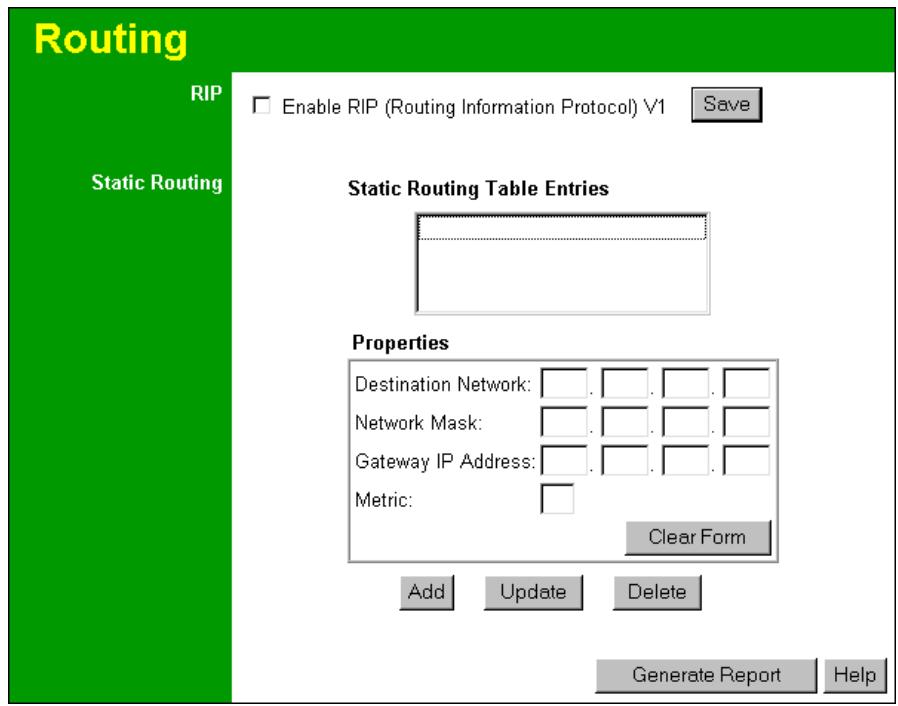
text_image
Routing RIP Enable RIP (Routing Information Protocol) V1 Save Static Routing Static Routing Table Entries Properties Destination Network: . . . . . . Network Mask: . . . . . . Gateway IP Address: . . . . . . Metric: Clear Form Add Update Delete Generate Report HelpFigure 48: Routing Screen
Data - Routing Screen
| RIP | |
| Enable RIP | Check this to enable the RIP (Routing Information Protocol) feature of the Wireless Router.The Wireless Router supports RIP 1 only. |
| Static Routing | |
| Static Routing Table Entries | This list shows all entries in the Routing Table.The "Properties" area shows details of the selected item in the list.Change any the properties as required, then click the "Update" button to save the changes to the selected entry. |
| Properties | Destination Network - The network address of the remote LAN segment. For standard class "C" LANs, the network address is the first 3 fields of the Destination IP Address. The 4th (last) field can be left at 0.Network Mask - The Network Mask for the remote LAN segment. For class "C" networks, the default mask is 255.255.255.0Gateway IP Address - The IP Address of the Gateway or Router which the Wireless Router must use to communicate with the destination above. (NOT the router attached to the remote segment.)Metric - The number of "hops" (routers) to pass through to reach the remote LAN segment. The shortest path will be used. The default value is 1. |
Buttons
| Save | Save the RIP setting. This has no effect on the Static Routing Table. |
| Add | Add a new entry to the Static Routing table, using the data shown in the "Properties" area on screen. The entry selected in the list is ignored, and has no effect. |
| Update | Update the current Static Routing Table entry, using the data shown in the "Properties" area on screen. |
| Delete | Delete the current Static Routing Table entry. |
| Clear Form | Clear all data from the "Properties" area, ready for input of a new entry for the Static Routing table. |
| Generate Report | Generate a read-only list of all entries in the Static Routing table. |
Configuring Other Routers on your LAN
It is essential that all IP packets for devices not on the local LAN be passed to the Wireless Router, so that they can be forwarded to the external LAN, WAN, or Internet. To achieve this, the local LAN must be configured to use the Wireless Router as the Default Route or Default Gateway.
Local Router
The local router is the Router installed on the same LAN segment as the Wireless Router. This router requires that the Default Route is the Wireless Router itself. Typically, routers have a special entry for the Default Route. It should be configured as follows.
| Destination IP Address | Normally 0.0.0.0 but check your router documentation. |
| Network Mask | Normally 0.0.0.0 but check your router documentation. |
| Gateway IP Address | The IP Address of the Wireless Router. |
| Metric | 1 |
Other Routers on the Local LAN
Other routers on the local LAN must use the Wireless Router's Local Router as the Default Route. The entries will be the same as the Wireless Router's local router, with the exception of the Gateway IP Address.
- For a router with a direct connection to the Wireless Router's local Router, the Gateway IP Address is the address of the Wireless Router's local router.
- For routers which must forward packets to another router before reaching the Wireless Router's local router, the Gateway IP Address is the address of the intermediate router.
Static Routing - Example
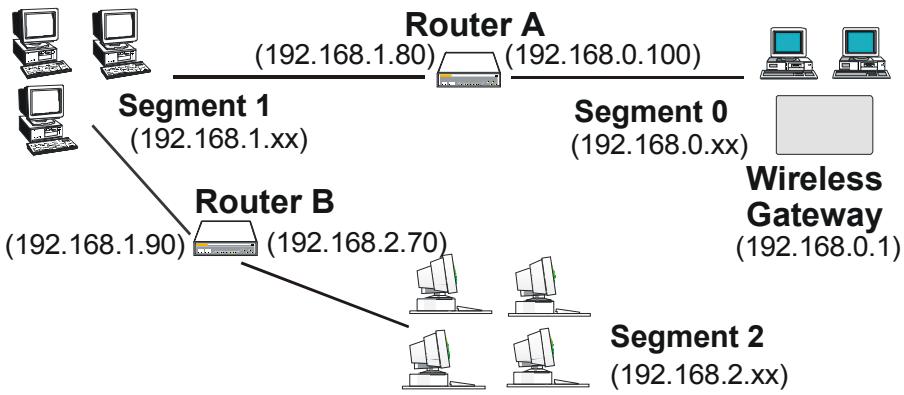
flowchart
graph TD
    A["Computer"] -->|Segment 1 (192.168.1.xx)| B["Router A (192.168.0.100)"]
    C["Computer"] -->|Segment 2 (192.168.2.xx)| D["Router B (192.168.2.70)"]
    B --> E["Wireless Gateway (192.168.0.1)"]
    B --> F["Router A"]
    B --> G["Router B"]
Figure 49: Routing Example
For the Wireless Router's Routing Table
For the LAN shown above, with 2 routers and 3 LAN segments, the Wireless Router requires 2 entries as follows.
| Entry 1 (Segment 1) | |
| Destination IP Address | 192.168.1.0 |
| Network Mask | 255.255.255.0 (Standard Class C) |
| Gateway IP Address | 192.168.0.100 (Wireless Router's local Router) |
| Metric | 2 |
| Entry 2 (Segment 2) | |
| Destination IP Address | 192.168.2.0 |
| Network Mask | 255.255.255.0 (Standard Class C) |
| Gateway IP Address | 192.168.0.100 |
| Metric | 3 |
Router A's Default Route
| Destination IP Address | 0.0.0.0 |
| Network Mask | 0.0.0.0 |
| Gateway IP Address | 192.168.0.1 (Wireless Router's IP Address) |
For Router B's Default Route
| Destination IP Address | 0.0.0.0 |
| Network Mask | 0.0.0.0 |
| Gateway IP Address | 192.168.1.80 (Wireless Router's local router) |
Overview
This chapter covers some common problems that may be encountered while using the Wireless Router and some possible solutions to them. If you follow the suggested steps and the Wireless Router still does not function properly, contact your dealer for further advice.
General Problems
Problem 1: Can't connect to the Wireless Router to configure it.
Solution 1: Check the following:
- The Wireless Router is properly installed, LAN connections are OK, and it is powered ON.
- Ensure that your PC and the Wireless Router are on the same network segment. (If you don't have a router, this must be the case.)
- If your PC is set to "Obtain an IP Address automatically" (DHCP client), restart it.
- If your PC uses a Fixed (Static) IP address, ensure that it is using an IP Address within the range 192.168.0.2 to 192.168.0.254 and thus compatible with the Wireless Router's default IP Address of 192.168.0.1.
Also, the Network Mask should be set to 255.255.255.0 to match the Wireless Router.
In Windows, you can check these settings by using Control Panel-Network to check the Properties for the TCP/IP protocol.
Internet Access
Problem 1: When I enter a URL or IP address I get a time out error.
Solution 1: A number of things could be causing this. Try the following troubleshooting steps.
- Check if other PCs work. If they do, ensure that your PCs IP settings are correct. If using a Fixed (Static) IP Address, check the Network Mask, Default gateway and DNS as well as the IP Address.
- If the PCs are configured correctly, but still not working, check the Wireless Router. Ensure that it is connected and ON. Connect to it and check its settings. (If you can't connect to it, check the LAN and power connections.)
- If the Wireless Router is configured correctly, check your Internet connection (DSL/Cable modem etc) to see that it is working correctly.
Problem 2: Some applications do not run properly when using the Wireless Router.
Solution 2: The Wireless Router processes the data passing through it, so it is not transparent.
Use the Special Applications feature to allow the use of Internet applications which do not function correctly.
If this does solve the problem you can use the DMZ function. This should work with almost every application, but:
- It is a security risk, since the firewall is disabled.
• Only one (1) PC can use this feature.
Wireless Access
Problem 1: My PC can't locate the Wireless Access Point.
Solution 1: Check the following.
- Your PC is set to Infrastructure Mode. (Access Points are always in Infrastructure Mode)
- The SSID on your PC and the Wireless Access Point are the same. Remember that the SSID is case-sensitive. So, for example "Workgroup" does NOT match "workgroup".
- Both your PC and the Wireless Access Point must have the same setting for WEP. The default setting for the Wireless Router is disabled, so your wireless station should also have WEP disabled.
- If WEP is enabled on the Wireless Router, your PC must have WEP enabled, and the key must match.
- If the Wireless Router's Wireless screen is set to Allow LAN access to selected Wireless Stations only, then each of your Wireless stations must have been selected, or access will be blocked.
- To see if radio interference is causing a problem, see if connection is possible when close to the Wireless Access Point. Remember that the connection range can be as little as 100 feet in poor environments.
Problem 2: Wireless connection speed is very slow.
Solution 2: The wireless system will connect at the highest possible speed, depending on the distance and the environment. To obtain the highest possible connection speed, you can experiment with the following:
- Access Point location. Try adjusting the location and orientation of the Access Point.
- Wireless Channel If interference is the problem, changing to another channel may show a marked improvement.
- Radio Interference Other devices may be causing interference. You can experiment by switching other devices Off, and see if this helps. Any "noisy" devices should be shielded or relocated.
- RF Shielding Your environment may tend to block transmission between the wireless stations. This will mean high access speed is only possible when close to the Access Point.
Modes
Wireless LANs can work in either of two (2) modes:
- Ad-hoc
- Infrastructure
Ad-hoc Mode
Ad-hoc mode does not require an Access Point or a wired (Ethernet) LAN. Wireless Stations (e.g. notebook PCs with wireless cards) communicate directly with each other.
Infrastructure Mode
In Infrastructure Mode, one or more Access Points are used to connect Wireless Stations (e.g. Notebook PCs with wireless cards) to a wired (Ethernet) LAN. The Wireless Stations can then access all LAN resources.

Access Points can only function in "Infrastructure" mode, and can communicate only with Wireless Stations, which are set to "Infrastructure" mode.
BSS/ESS
BSS
A group of Wireless Stations and a single Access Point, all using the same ID (SSID), form a Basic Service Set (BSS).
Using the same SSID is essential. Devices with different SSIDs are unable to communicate with each other.
ESS
A group of Wireless Stations, and multiple Access Points, all using the same ID (ESSID), form an Extended Service Set (ESS).
Different Access Points within an ESS can use different Channels. In fact, to reduce interference, it is recommended that adjacent Access Points SHOULD use different channels.
As Wireless Stations are physically moved through the area covered by an ESS, they will automatically change to the Access Point which has the least interference or best performance. This capability is called Roaming. (Access Points do not have or require Roaming capabilities.)
Channels
The Wireless Channel sets the radio frequency used for communication.
- Access Points use a fixed Channel. You can select the Channel used. This allows you to choose a Channel which provides the least interference and best performance. In the USA and Canada, 11 channels are available. If using multiple Access Points, it is better if adjacent Access Points use different Channels to reduce interference.
- In "Infrastructure" mode, Wireless Stations normally scan all Channels, looking for an Access Point. If more than one Access Point can be used, the one with the strongest signal is used. (This can only happen within an ESS.)
- If using "Ad-hoc" mode (no Access Point), all Wireless stations should be set to use the same Channel. However, most Wireless stations will still scan all Channels to see if there is an existing "Ad-hoc" group they can join.
WEP
WEP (Wired Equivalent Privacy) is a standard for encrypting data before it is transmitted.
This is desirable because it is impossible to prevent snoopers from receiving any data which is transmitted by your Wireless Stations. But if the data is encrypted, then it is meaningless unless the receiver can decrypt it.
If WEP is used, the Wireless Stations and the Access Point must have the same settings for each of the following:
| WEP | Off, 64 Bit, 128 Bit, 256 Bit |
| Key | For 64 Bit encryption, the Key value must match.For 128 Bit encryption, the Key value must matchFor 256 Bit encryption, the Key value must match |
| WEP Authentication | Open System or Shared Key. |
Wireless LAN Configuration
To allow Wireless Stations to use the Access Point, the Wireless Stations and the Access Point must use the same settings, as follows:
| Mode | On client Wireless Stations, the mode must be set to "Infrastructure". (The Access Point is always in "Infrastructure" mode.) |
| SSID (ESSID) | Wireless Stations should use the same SSID (ESSID) as the Access Point they wish to connect to. Alternatively, the SSID can be set to "any" or null (blank) to allow connection to any Access Point. |
| WEP | The Wireless Stations and the Access Point must use the same settings for WEP (Off, 64 Bit, 128 Bit or 256 Bit). |
| WEP Key: If WEP is enabled, the Key must be the same on the Wireless Stations and the Access Point. | |
| WEP Authentication: If WEP is enabled, all Wireless Stations must use the same setting as the Access Point (either "Open System" or "Shared Key"). |
Multi-Function Wireless Router
| Model | Wireless Router |
| Dimensions | 189mm(W) * 122mm(D) * 27mm(H) |
| Operating Temperature | 0°C to 40°C |
| Storage Temperature | -10°C to 70°C |
| Network Protocol: | TCP/IP |
| Network Interface: | 5 Ethernet:4 * 10/100BaseT (RJ45) LAN connection1 * 10/100BaseT (RJ45) for WAN |
| Wireless interface | Wireless Access Point via built-in wireless mod le. |
| LEDs | 12 |
| Power Adapter | 12 V DC External |
| Relative humidity | 10% to 90% |
Wireless Interface
| Standards | IEEE802.11b WLAN, PCMCIA 2.1, JEIDA 4.2, roaming supportTI "B+" 22Mbps support |
| Frequency | 2.4 to 2.4835GHz (Industrial Scientific Medical Band) |
| Channels | Maximum 14 Channels, depending on regulatory authorities |
| Modulation | DSSS BPSK/QPSK/CC |
| Data Rate | 22 / 11 / 5.5 / 2 / 1 Mbps |
| Coverage Area | Indoors : 25m @11Mbps, 100m @5.5Mbps or lowerOutdoors : 150m @11Mbps, 250m @5.5Mbps or lower |
| WEP | 64Bit, 128Bit, 256Bit |
| Output Power | 13dBm (typical) |
| Receiver Sensitivity | -80dBm Min. |
FCC Statement
This equipment has been tested and found to comply with the limits for a Class B digital device, pursuant to Part 15 of the FCC Rules. These limits are designed to provide reasonable protection against harmful interference in a residential installation.
This equipment generates, uses and can radiate radio frequency energy and, if not installed and used in accordance with the instructions, may cause harmful interference to radio communications. However, there is no guarantee that interference will not occur in a particular installation. If this equipment does cause harmful interference to radio or television reception, which can be determined by turning the equipment off and on, the user is encouraged to try to correct the interference by one of the following measures:
• Reorient or relocate the receiving antenna.
- Increase the separation between the equipment and receiver.
- Connect the equipment into an outlet on a circuit different from that to which the receiver is connected.
- Consult the dealer or an experienced radio/TV technician for help.
To assure continued compliance, any changes or modifications not expressly approved by the party responsible for compliance could void the user's authority to operate this equipment. (Example - use only shielded interface cables when connecting to computer or peripheral devices).
FCC Radiation Exposure Statement
This equipment complies with FCC RF radiation exposure limits set forth for an uncontrolled environment. This equipment should be installed and operated with a minimum distance of 20 centimeters between the radiator and your body.
This device complies with Part 15 of the FCC Rules. Operation is subject to the following two conditions:
(1) This device may not cause harmful interference, and
(2) This device must accept any interference received, including interference that may cause undesired operation.
This transmitter must not be co-located or operating in conjunction with any other antenna or transmitter.
CE Marking Warning
This is a Class B product. In a domestic environment this product may cause radio interference in which case the user may be required to take adequate measures.