
EBR606C - Weather Station IROX - Free user manual and instructions
Find the device manual for free EBR606C IROX in PDF.



User questions about EBR606C IROX
0 question about this device. Answer the ones you know or ask your own.
Ask a new question about this device
Download the instructions for your Weather Station in PDF format for free! Find your manual EBR606C - IROX and take your electronic device back in hand. On this page are published all the documents necessary for the use of your device. EBR606C by IROX.
USER MANUAL EBR606C IROX
NEUERLICHES EINLESEN DES FUNKSENSORS
© Irox Development Technology www.irox.com

EBR606C
MODED'EMPLOI
FONCTIONS DE LA STATION MÉTEOROLOGIQUE
N. Compartment des piles
© Irox Development Technology www.irox.com

EBR606C
INSTRUCTION MANUAL
FUNCTIONS OF THE WEATHER STATION
This weather station measures the environment of its surrounding area and may receive the measured temperature of up to three 433MHz remote thermometers. The information is displayed by illuminated LED. This kind of display requests the use of a power-adapter. The main-unit has therefore to be connected to the included power adapter in order to make you benefit of all functions. The batteries in the main unit are for data back-up only.
FEATURES
- Weather forecast based on barometric pressure changes
Radio controlled time (DCF77) - Displays indoor/outdoor minimum and maximum temperature
- Low battery indication for main unit and wireless sensors
Daily alarm (wake-up alarm) with snooze function
24 hour time display - Wall mount or free standing
(ENG)
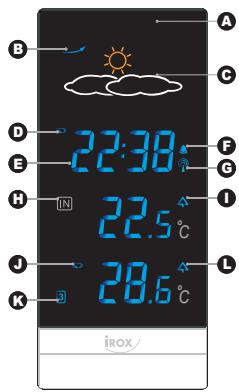
DISPLAY AND FUNCTIONS of the MAIN UNIT
A. IR motion sensor
It is a contact-less key to activate the snooze function. Simply wave your hand within 15 cm distance of the unit.
B. Air pressure trend arrow
Indicates the trend of air pressure changes
C. Weather forecast icon
Weather icon to show the current weather forecast on the display for the coming day
D. Low battery indicator
Shown to indicate the battery in the main unit is low. The battery is for data back-up in case of a power interruption. If this icon appears, replace as soon as possible. Without good batteries, all data may be lost during a power interruption.
E. Clock window
Displays current time or alarm time
F. Alarm icon
Alarm icon appears on display upon activation of alarm
G. Radio controlled time indicator
Appears to indicate the displayed time is received from the time DCF77 time signal
H. Indoor temperature
The temperature displayed is the indoor temperature. This temperature is measured in the cable of the power adapter
I. Indoor maximum/minimum indicator
Indicates that the maximum or minimum indoor temperature is on the display
J. Remote sensor battery low indicator
Appears when the batteries of the remote sensor are running dry and the temperature measured by this sensor is no longer reliable. Please change the batteries at once.
K. Remote sensor
The channel of the current remote thermometer is displayed. It can display up to 3 different remote sensors placed within a range of max. 5 to 50 meters distance from the main unit. The actual distance depends on the environment (walls, electric noise etc)
L. Outdoor maximum/minimum indicator
Indicates that the maximum or minimum outdoor temperature is on the display
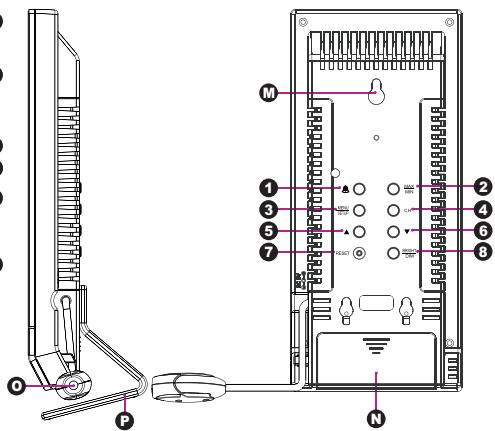
M. Wall mounting hole
To hang the weather station to a wall
N. Battery compartment
O. Jack for connecting the power adapter
P. Removable stand
To place the weather station on a desk
DESCRIPTION OF BUTTONS
The weather station has 8 major buttons on the rear side:
1. [Q] Button
- Press once to switch from clock mode to alarm time display mode
While in alarm display, press once to make the alarm icon appear to enable the daily alarm - Press one more time to let alarm icon disappear to disable the daily alarm
- While in alarm display mode, press and hold Alarm button for 2 seconds to enter alarm setting mode
2. [MAX/MIN] Button
- Toggle to view the Max/Min reading of the Indoor and Remote Temperature.
3. [MENU/SETUP] Button
Press and hold for 2 seconds to enter clock setting mode
4. [CH] Button
- Press to select from channels (1, 2 or 3) or enter into scroll mode
- Press and hold for 2 seconds to activate or deactivate the sensor searching mode
5. [▲] Button
Press once to increase the setting in CLOCK or ALARM setting mode
6. [▼] Button
Press once to decrease the setting in CLOCK or ALARM setting mode
7. [RESET] Button
Press once to trigger system reset and restore all settings to factory default
8. [BRIGHT/DIM] Button
Toggle to select bight LED display or a dim LED display
GETTING STARTED
This Weather Station is designed for easy set up. For best operation, the following steps are required to be done in the proper sequence.
- Insert batteries first to the main unit
- Insert batteries to the sensor unit
- Immediately thereafter connect the main unit to the power adapter
Note:
- The main unit cannot be programmed manually until the wireless remote sensor unit registration procedure has been completed.
- Position the remote unit and main unit within the same room in a distance of about 1-2 meters.
- Although the remote unit is weather resistant, it should be placed away from direct sunlight, rain or snow.
(ENG)
STEP1
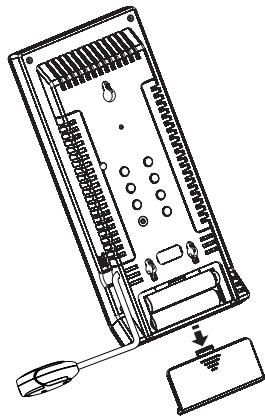
STEP 2
BATTERY INSTALLATION FOR MAIN UNIT
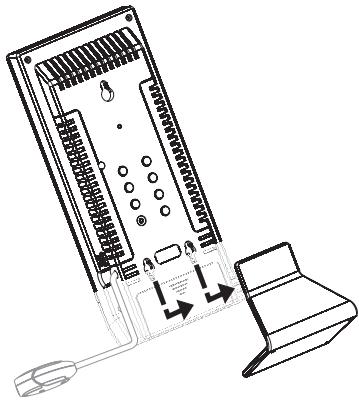
- Take away the removable stand from the weather station (main unit). See STEP 1
- Open the battery compartment on the rear of the weather station. See STEP 2
- Insert 2 AAA size 1.5V alkaline batteries as indicated in the correct polarity.
- Close the battery compartment.
- Put back the removable stand and put the weather station on a table or mount it on the wall without the removable stand.
- Insert the plug of the adapter into the DC 5V IN Jack of the weather station and connect the adaptor to a socket-outlet (100-240V AC).
Note:
This EBR606C weather station must work with the adaptor. If you remove the adaptor, the EBR606C will turn off the display, save the last reading of the temperature and weather forecast and keep the internal clock running by the back-up battery.
Note:
Replace the batteries when the low battery indicator appears on the top-right corner of the display.
WIRELESS REMOTE SENSOR REGISTRATION PROCEDURE
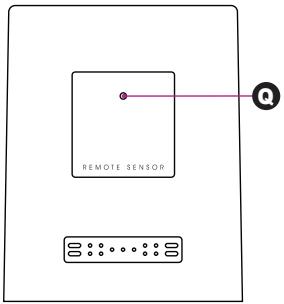
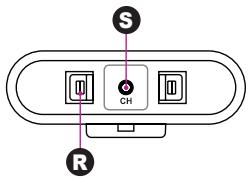
- Insert the 2 AA batteries in the correct polarity (if you hold the sensor as indicated above, the left side, where R is pointing directly to, has to show the + polarity of the battery, the other side, on the right, the - polarity). The small red LED Q on the front panel will start to flash for about 10 seconds. The default flashing frequency is once every 2 seconds to indicate this sensor will be registered on channel 1 if not set manually within 10 seconds.
- While the transmission LED is flashing, you may change the transmission channel of the sensor. Press once the [CH] button at the bottom of the remote sensor and it will flash twice to indicate this sensor will now be registered on channel 2. Keep on pressing the [CH] button will change the channel setting up to 3 and the next pressing then back to channel 1.
- Once a remote sensor is registered, the main unit will display its temperature in the corresponding remote channel.
- The remote sensor will automatically start a 10 minute DCF77 time reception after 2 minutes channel registration.
It will not send the temperature to the main unit during these 10 minutes of time reception.
- The remote sensor will then send the received time signal to the main unit.
TRANSMISSION RANGE
The maximum transmission range between outdoor sensor and weather station is 30m under optimum conditions in an open area. The actual distance will be reduced by many factors:
- Walls, reinforced concrete ceilings
Trees, bushes, earth, rocks
Metal & conducting objects (eg radiators) - Broadband interferences in residential areas (DECT telephones, mobiles, radio controlled headphones, radio-controlled speakers, other radio-controlled weather stations, etc.)
(ENG)
MANUALLY (RE-)REGINSTER THE REMOTE SENSOR
If the battery is low and needs to be replaced or the communication between the main unit and remote sensor is interrupted for 35 minutes, the outdoor reading displays - , ^- . It is also possible that your weather station is receiving information from your neighbour which might be using the same frequency and channel.
You can re-register your outdoor sensor manually.
- Remove the batteries from the remote sensor for a few seconds.
- Re-install the batteries in the correct polarity. The transmission LED will flash every 2 seconds.
- Press the outdoor sensor channel select button S to chose the desired channel (1, 2 or 3). The transmission LED will flash every 2 seconds as many times as the selected channel.
- Press and hold the [CH] button on the main unit for 2 seconds to activate the search mode. A brief beep is audible and a remote sensor channel number (1-3) starts to flash.
- Make sure that the remote sensor is installed within range (maximum 50m in an open area).
- The weather station will detect the remote sensor and the remote sensor temperature will be displayed.
- Press and hold the [CH] button on the main unit for 2 seconds to exit search mode.
- If no button is pressed, search mode will automatically stop after 2 minutes.
DCF77 RADIO CONTROLLED CLOCK (RCC)
The remote sensor receives the time signal transmitted by Physikalisch-Technische Bundesanstalt (PTB) of Germany. In average this time deviates less than 1 second in 2 million years. PTB transmits the time signal (DCF77, 77.5kHz) continuously from Mainflingen near Frankfurt am Main. It is expected that the signal can cover a distance of more than 1,000km from the transmitter. Then the remote sensor transmits the time signal to the weather station to display the accurate time. However, there are many environment factors that may affect the RCC reception (nearby computer monitors or other electronic devices like TV, metal surfaces etc.). Please place the remote sensor away from metallic structures and face the transmitter in the direction of Frankfurt a.M.
SET THE CLOCK
If DCF reception fails, or you want to set your desired time, please follow the steps below:
- Press and hold [MENU/SETUP] button for 2 seconds to enter clock setting mode, the hour value begins flashing at the frequency of 1Hz .
- Press [▲] or [▼] button once to increase or decrease the hour value by one hour.
- Press [MENU/SETUP] button to confirm the hour value.
- The minutes setting mode begins flashing.
- Press [▲] or [▼] button to set your desired minute value. Holding down either button will increase or decrease the minutes rapidly. Press [MENU/SETUP] button to confirm the minute value.
Note:
Every change of minute digit will automatically reset the seconds to zero.
- The word "On" will now appear and flash on the clock time place. This means that the DCF reception is turned on. Press [▲] or [▼] to toggle DCF reception to OFF or ON. Press [MENU/SETUP] to confirm.
Note:
- When DCF reception is turned ON, the time will be updated once the time signal is received
- Once DCF reception is set to OFF or the time is set manually, the RCC time indicator icon will disappear
- If no key press during setting mode for 10 seconds, it will automatically save the setting value and exit to normal display.
TO SET DAILY ALARM
- In clock time display mode, press [ ] button once to switch to display alarm time for 10 seconds.
- Press [ ] button again in alarm display mode to enable or disable the daily alarm.
- In alarm time display mode, press and hold [ ] button for 2 seconds to enter alarm setting mode.
- The hour digits will flash, use [] button to increase by one hour or [] button to decrease by one hour to your desired hours. Holding down the button will change the increment/decrement unit rapidly. Press [O] button to confirm.
- The minute digits will flash. Use [▲] button to increase by one minute or [▼] button to decrease by one minute to your desired minutes. Holding down the button will change the increment/decrement unit rapidly. Press [▲] button to confirm and finish the setting. The unit will show the alarm time for 10 seconds and auto-exit to clock time display. The alarm bell icon [▲] will appear in clock time display to indicate the daily alarm is enabled.
TO ACITVATE THE SNOOZE FUNCTION
In the top middle of the weather station, there is an IR motion sensor which can activate snooze function. When the alarm sounds, move your hand above the IR motion sensor within the distance of 15cm to pause alarm and activate snooze function. The alarm bell icon [ ] will keep flashing during 5 minute snooze time. Press any key to exit snooze.
(ENG)
WEATHER FORECAST
The weather station forecasts the weather condition for the next 12~24 hours based on the local air pressure changes. There are 5 kinds of weather conditions forecasted: Sunny, Slightly cloudy, Cloudy, Rainy and Stormy.
The air pressure arrow displayed on the LED shows the air pressure change trend:
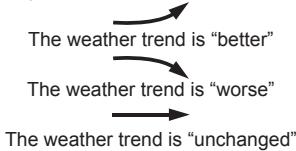
NOTE:
- It is not necessary and not possible to adjust the altitude of the weather station. After the initial start up of the weather station, a first forecast will be made within the first 24 hours of operation.
- In period of long stable weather conditions, it becomes difficult to make a reliable forecast.
- The weather forecast is solely calculated on the basis of barometric air pressure changes.
- The probability of a correct weather forecast is approximately 70% and is valid for the future (in about 12-24 hours) in an area of approx. 20 - 30km around the location of the Weather station.
- The forecast "Sunny" means at night "cloudless weather". Fog is not indicated by the weather station as this can occur with different weather conditions.
- If you travel with the weather station, a reliable weather forecast will become impossible due to changes in altitude and location. You'll have to wait up to 24 hours so that the weather station can calculate a new forecast based on the conditions at the new location.
THERMOMETER
How to display Max/Min temperature
- Press [MAX/MIN] button to display the memorized maximum indoor and outdoor temperature of the displayed channel for 6 seconds.
- Press this key again to display the memorized minimum indoor and outdoor temperature of the displayed channel for 6 seconds.
- While the maximum/minimum values on one channel is displayed, press [CH] button to display the maximum/minimum values on another channel.
- When maximum/minimum value is displayed, press and hold [MAX/MIN] for 2 seconds to clear them in this channel and display the current temperature
SPECIFICATIONS
Main Unit
| Indoor temperature range | : -10°C to +60.0°C (14°F to 140.0°F) |
| Operating temperature range | : 0°C to +50.0°C (32.0°F - 122.0°F) |
| Temperature resolution | : 0.1°C (0.2°F) |
| Outdoor temperature range | : -20.0°C to +60.0°C (-4.0°F to 140.0°F) |
| Backup batteries | : 2 pieces UM-4 AAA size 1.5V battery |
| Remote Unit | |
| Measuring range | : -20.0°C to +60.0°C (-4.0°F to 140.0°F) |
| Operating temperature range | : -10.0°C to +50.0°C (14.0°F to 122.0°F) |
| Temperature resolution | : 0.1°C (0.2°F) |
| RF Transmission Frequency | : 433 MHz |
| RF Transmission Range | : max. 50 meters in open area |
| Temperature sensing cycle | : 60 - 75 seconds |
| Batteries | : 2 pieces UM-3 AA size 1.5V battery (alkaline or better) |
CARE INSTRUCTIONS
- Do not expose the device to extreme temperatures or direct sunlight over longer periods.
- Avoid blows and shocks of any kind to the device.
- For cleaning use a dry soft cloth that you have moistened with water and a mild cleaning agent. Never use volatile substances such as benzene, thinner, cleansing agents in spray cans etc.
- When the device is not being used store it in a dry area and out of the reach of small children.
- If the device is activated under extreme coldness it may occur that the display becomes illegible. As soon as it is returned to a warm environment the device will function normally.
Please keep the user's manual and other documents delivered with the device stored carefully so that you can reference them at a later point if necessary. - Please use only new batteries and never mix old and new batteries.
- Please also remember that old batteries should not be disposed of with household waste but should be handed in at the designated collection centres.
- Important: With all Irox appliances, all disposal fees in Switzerland (vRG; advance recycling fee) and in the EU (WEEE) have been paid.
(ENG)
SUPPORT
This device is a new development of Irox Development Technology. All information was made and checked by means of a functioning instrument. It may occur that adjustments and improvements of the device will take place that due to typographical procedures were not able to be listed in this manual. Should you notice deviations which make it difficult for you to operate and use the instrument you may at any time download the latest manual onto your PC free of charge at www.irox.com.
© Irox Development Technology www.irox.com

EBR606C
ISTRUZIONI PER L'USO
© Irox Development Technology www.irox.com