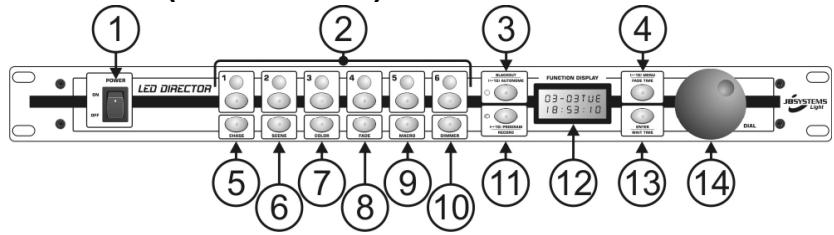
LED DIRECTOR - LED Lighting JBSYSTEMS LIGHT - Free user manual and instructions
Find the device manual for free LED DIRECTOR JBSYSTEMS LIGHT in PDF.


| Product type | Programmable controller for LED projectors |
| Brand | JBSYSTEMS LIGHT |
| Model | LED Director |
| Weight | 1.5 kg |
| Dimensions (approx.) | 19 inches (482 mm) wide, 1U (44 mm) high, depth ~150 mm |
| Power supply | DC 9 to 12 V, 300 mA min; AC mains adapter 230 V, 50 Hz → 9 VDC / 300 mA |
| DMX outputs | 6 individual outputs (4 channels RGB+DIM) + 1 combined output (24 channels) + 1 DMX Through output |
| DMX input | 1 DMX input with priority over internal programs |
| Programming capacity | Up to 24 chase sequences, 30 scenes each; 24 macros; 3 programs per day (21 weekly) |
| Fade and pause times | Adjustable from 0 second to 90 minutes |
| Internal clock | Annual calendar with time, day, month, year; backup battery |
| Display | Backlit LCD 2 lines × 8 characters |
| Navigation wheel | Large rotary wheel for settings and navigation |
| Indicator lights | 6 RGB LEDs (one per output) for visual control |
| Keyboard lock | Control panel lock function |
| Data transfer | Ability to transfer sequences and programs between devices via DMX cable |
| Blackout / Stand-alone mode | General blackout and stand-alone mode |
| DMX configuration | Choice between RGBM or MRGB channel order |
| Max. operating temperature | 45 °C |
| Maintenance | Clean with a soft, slightly damp cloth; avoid solvents |
| Safety | Class III device, indoor use only, do not expose to moisture |
| Warranty | Warranty void if damage caused by incorrect use |
Frequently Asked Questions - LED DIRECTOR JBSYSTEMS LIGHT
User questions about LED DIRECTOR JBSYSTEMS LIGHT
0 question about this device. Answer the ones you know or ask your own.
Ask a new question about this device
Download the instructions for your LED Lighting in PDF format for free! Find your manual LED DIRECTOR - JBSYSTEMS LIGHT and take your electronic device back in hand. On this page are published all the documents necessary for the use of your device. LED DIRECTOR by JBSYSTEMS LIGHT.
USER MANUAL LED DIRECTOR JBSYSTEMS LIGHT
Copyright © 2009 by BEGLEC comm.v.a.
Reproduction or publication of the content in any manner, without express permission of the publisher, is prohibited.
CE
Version: 1.0



EN - DISPOSAL OF THE DEVICE
Dispose of the unit and used batteries in an environment friendly manner according to your country regulations.
FR-DECLASSES L'APPAREIL
Thank you for buying this JB Systems® product. To take full advantage of all possibilities, please read these operating instructions very carefully.
FEATURES
This unit is radio-interference suppressed. This product meets the requirements of the current European and national guidelines. Conformity has been established and the relevant statements and documents have been deposited by the manufacturer.
- Programmable LED controller with 6 outputs, each containing 4 channels (RGB+DIM)
- Perfect for automation of indoor and outdoor LED projectors, thanks to internal clock:
Year calendar with time, day, month, year
3 different programs per day
- Week program 7days x 3programs = max. 21 programs per week
- Backup battery to preserve data.
- Quick and easy programming of up to 24 chases, each containing max. 30 scenes
- Fade & wait time between two colors can take up to 90minutes
- Independent fade and wait time setting during playback
- Keyboard locking feature to prevent unauthorized
- 24 macros with programmable fade & wait time
Each output monitored by RGB LEDs: easy programming without connected projectors - 2x8 digit backlight LCD display and big dial knob for easy navigation
-
Flexible DMX in/output configuration:
-
6 DMX-outputs (RGB+DIM) to connect LED projectors in star-configuration
- 1 combined DMX-output (24channel) to connect LED-projectors in daisy chain configuration
- 1 DMX-input with DMX-address setting: priority over internal programs when DMX-signal detected.
-
1 DMX-through: link from DMX-input.
-
Data (chases, schedules, ...) can be transferred between 2 units.
- Compact 19"-rack /1U enclosure.
BEFORE USE
Check the contents:
Check that the carton contains the following items:
- LED Director
- Mains adapter
- User manual
Some important instructions:
- Before you start using this unit, please check if there's no transportation damage. Should there be any, do not use the device and consult your dealer first.
- Important: This device left our factory in perfect condition and well packaged. It is absolutely necessary for the user to strictly follow the safety instructions and warnings in this user manual. Any damage caused by mishandling is not subject to warranty. The dealer will not accept responsibility for any resulting defects or problems caused by disregarding this user manual.
- Keep this booklet in a safe place for future consultation. If you sell the fixture, be sure to add this user manual.
- To protect the environment, please try to recycle the packing material as much as possible.
SAFETY INSTRUCTIONS:

CAUTION
RISK OF ELECTRIC SHOCK DO NOT OPEN

CAUTION: To reduce the risk of electric shock, do not remove the top cover. No user-serviceable parts inside. Refer servicing to qualified service personnel only.

The lightning flash with arrowhead symbol within the equilateral triangle is intended to alert the use or the presence of un-insulated "dangerous voltage" within the product's enclosure that may be of sufficient magnitude to constitute a risk of electric shock.

The exclamation point within the equilateral triangle is intended to alert the user to the presence of important operation and maintenance (servicing) instructions in the literature accompanying this appliance.

This symbol means: indoor use only
This symbol means: Read instructions
This symbol means: Safety Class III appliance

The device is suitable for mounting on standard flammable surfaces. Standard flammable surfaces include building materials such as wood and wood-based materials more than 2mm thick.
- To prevent fire or shock hazard, do not expose this appliance to rain or moisture.
- To avoid condensation to be formed inside, allow the unit to adapt to the surrounding temperatures when bringing it into a warm room after transport. Condense sometimes prevents the unit from working at full performance or may even cause damages.
- This unit is for indoor use only.
- Don't place metal objects or spill liquid inside the unit. No objects filled with liquids, such as vases, shall be placed on this appliance. Electric shock or malfunction may result. If a foreign object enters the unit, immediately disconnect the mains power.
- No naked flame sources, such as lighted candles, should be placed on the appliance.
- Don't cover any ventilation openings as this may result in overheating.
- Prevent use in dusty environments and clean the unit regularly.
- Keep the unit away from children.
- Inexperienced persons should not operate this device.
Maximum save ambient temperature is 40^ . Don't use this unit at higher ambient temperatures. - Always unplug the unit when it is not used for a longer time or before you start servicing.
- The electrical installation should be carried out by qualified personal only, according to the regulations for electrical and mechanical safety in your country.
- Check that the available voltage is not higher than the one stated on the rear panel of the unit.
- The socket inlet shall remain operable for disconnection from the mains.
- The power cord should always be in perfect condition: switch the unit immediately off when the power cord is squashed or damaged. It must be replaced by the manufacturer, its service agent or similarly qualified persons in order to avoid a hazard
- Never let the power-cord come into contact with other cables!
- In order to avoid a hazard, the unit shall only be used with the AC-adaptor delivered with it. If the AC-adaptor is damaged, a same model adaptor shall be used only.
- In order to prevent electric shock, do not open the cover. Apart from the mains fuse there are no user serviceable parts inside.
- Never repair a fuse or bypass the fuse holder. Always replace a damaged fuse with a fuse of the same type and electrical specifications!
- In the event of serious operating problems, stop using the appliance and contact your dealer immediately.
- Please use the original packing when the device is to be transported.
- Due to safety reasons it is prohibited to make unauthorized modifications to the unit.
MAINTENANCE
Clean by wiping with a polished cloth slightly dipped with water. Avoid getting water inside the unit. Do not use volatile liquids such as benzene or thinner which will damage the unit.
FUNCTIONS (FRONT)
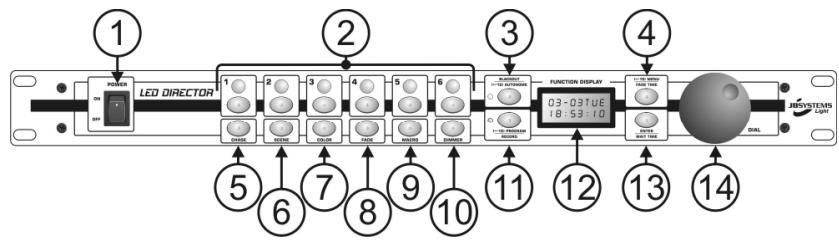
- POWER SWITCH: used to switch the unit on/off.
-
FIXTURE BUTTON: used to select/deselect a projector, the RGB-indicator indicates the status:
-
RGB-indicator ON: output is on and ready to be edited (press fixture button shortly)
- RGB-indicator BLINKS: output is on but not editable (press fixture button shortly)
-
RGB-indicator OFF: output is off and not editable (press fixture button for about 1 second)
-
BLACKOUT / AUTONOME BUTTON: this button has two different functions:
-
BLACKOUT: press the button shortly to turn blackout on/off, the yellow LED is lit while the outputs are set to zero.
-
AUTONOME: press the button for about 1second to shut the DMX-signal off on all DMX-output the connected projectors start working in automatic standalone mode. The yellow LED blinks, while the LCD-display shows "STAND ALONE". Press the button shortly to switch this mode off.
-
MENU / FADE TIME BUTTON: this button has two different functions:
-
MENU: press the button for about 1 second to access the setup menu: see further for more information on the setup menu. Press the button shortly to leave the setup menu.
-
FADE TIME: The fade time determines how long it takes to fade from one color to another. Press this button to edit the fade time. Can be used in chase playback mode or when a macro is edited. Just use the dial (14) to change the fade time from 0 seconds up to 90 minutes.
-
CHASE BUTTON: used to select one of the 24 chases, just turn the dial (14) to choose the chase.
- SCENE BUTTON: used to select a scene inside a chase (the display shows "MANUAL"), just turn the dial (14) to choose the desired scene.
- COLOR BUTTON: press this button (the display shows "Color") to set the desired color now select 1 or more fixtures (2) and use the dial (14) to choose one of the 255 available colors.
- FADE BUTTON: The fade time determines how long it takes to fade from one color to another. Press this button (the display shows "Fade") and use the dial (14) to set the desired fade time of the selected fixture(s).
-
MACRO BUTTON: there are 24 pre-programmed macros that you can use to make scenes and chases. Press this button (the display shows "Macro") and use the dial (14) to choose the desired macro for the selected fixture(s). You can adapt the Fade time (4) and wait time (13) as you like.
-
DIMMER BUTTON: this button has two different functions:
-
IN PROGRAM MODE: you can press this button and use the dial (14) to set the dimming level of one or more selected fixture(s).
-
IN PLAYBACK MODE: you can press this button and use the dial (14) to set the dimming level of all outputs. (master dimmer)
-
PROGRAM / RECORD BUTTON: this button has two different functions:
-
PROGRAM: press the button for about 1 second to access the chase program mode (green LED blinks) and use the dial (14) to choose the chase you want to create or edit. When editing is done, press the button again for about 1 second to leave the program mode.
-
RECORD: while in program mode, press this button shortly to saved the scene you just edited. The display shows "STORE OK" and jumps to the next step.
-
DISPLAY: makes using and programming a lot easier. When a DMX-signal is detected on the DMX-input (18), the display shows the start address you selected for the incoming DMX-channels.
-
ENTER / WAIT TIME BUTTON: this button has two different functions:
-
ENTER: press the button shortly to confirm the menu settings shown on the display.
- WAIT TIME: The wait time determines how long it takes before the next scene starts or the next step in a macro is done. Press this button to edit the wait time. Can be used in chase playback mode or
when a macro is edited. Use the dial (14) to change the wait time from 0 seconds up to 90 minutes.
- DIAL KNOB: used to browse menus and change different values shown on the display.
FUNCTIONS (REAR)
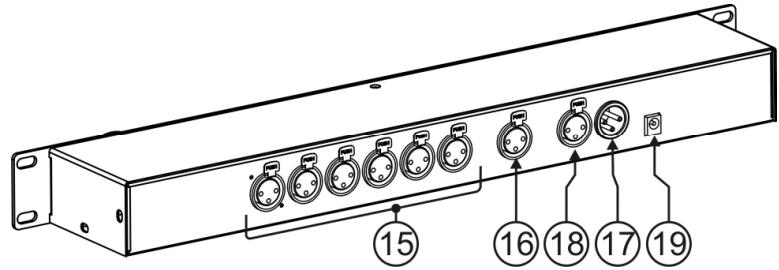
- FIXTURE OUTPUTS: used to connect the LED projectors in a "star-configuration". All 6 outputs use 4 channels, each with the same order: R + G + B + DIM (or DIM + R + G + B see setup menu)
-
DMX OUT: used to connect all LED projectors in a "daisy chain configuration" (all units in one DMX line). The channels of the different projectors are merged to 24 channels:
-
Fixture1 = channels 001 to 004
- Fixture2 = channels 005 to 008
- Fixture3 = channels 009 to 012
- Fixture4 = channels 013 to 016
- Fixture5 = channels 017 to 020
-
Fixture6 = channels 021 to 024
-
DMX IN: normally not used BUT you can connect an external DMX-controller. As soon as a DMX-signal is detected on this input, this DMX-signal takes precedence of the outputs generated by the LED Director. This means that an external DMX-controller can automatically take over the control over the fixtures connected to the DMX-outputs. You can even determine starting from which address the incoming DMX-channels should be routed to the outputs (see item 5 in the chapter "setup menu").
- DMX THROUGH: This is an exact copy of the DMX input (17) and is used to daisy chain the LED Director in a big installation.
- DC-INPUT: input for power adapter. The input supports 9V_dc to 12V_dc @ minimum 300mA.
CONNECTIONS
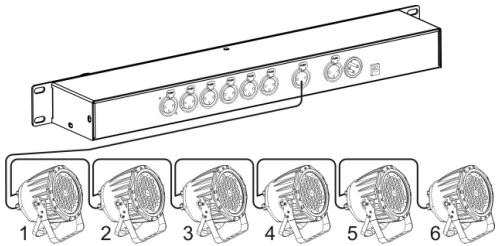
The LED fixtures can be connected to the LED Director in two ways:
STAR CONFIGURATION
The 6 DMX-outputs (15) are used and the connected LED fixtures all have start address 001. Of course you can put several LED fixtures (ex. 1A and 1B on the drawing) on one output but all should have the same start address 001.
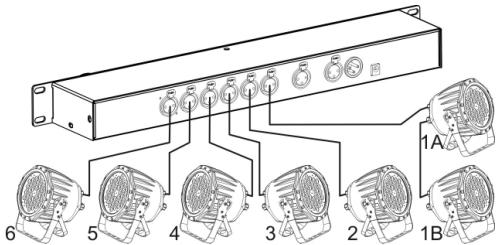
DAISY CHAIN CONFIGURATION
All LED fixtures are connected to DMX-out (16). All LED fixtures receive their own start address, (see n°16 in the previous chapter) depending on which of the 6 channels you want to assign them to.
SETUP MENU
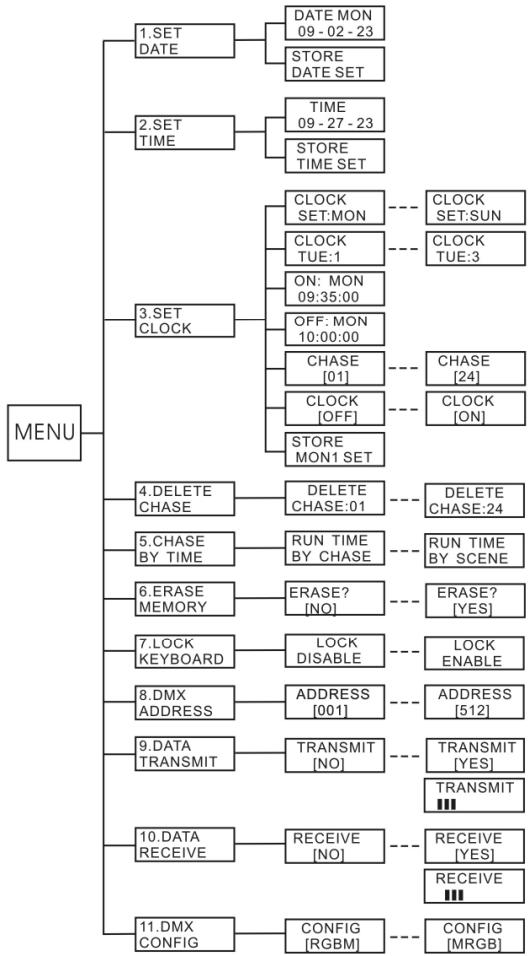
The setup menu is used to configure the LED Director and perform some less used functions. Press the MENU button (4) for about 1 second to enter the setup menu. The menu contains 11 sections that are fully explained below:
1/SETDATE
- Use the dial (14) to select "SET DATE" and press the ENTER button (13) the display shows the current date.
- Use the dial (14) to select the item you want to edit (year, month or day will be underlined)
- Press ENTER (13) and use the dial (14) to adapt the value
- Press ENTER (13) to confirm and also adapt the other values.
- Turn the dial (14) until the display shows "STORE DATE SET"
- Press ENTER (13) to confirm.
Note: if you want to return to the main menu, just press the MENU button (4) shortly.
2/ SET TIME
- Use the dial (14) to select "SET TIME" and press the ENTER button (13) the display shows the current time.
- Use the dial (14) to select the item you want to edit (hours, minutes or seconds will be underlined)
- Press ENTER (13) and use the dial (14) to adapt the value
- Press ENTER (13) to confirm and also adapt the other values.
- Turn the dial (14) until the display shows "STORE TIME SET"
- Press ENTER (13) to confirm.
Note: if you want to return to the main menu, just press the MENU button (4) shortly.
3/SET CLOCK
Here you can set the start/stop times for up to 21 timed chases (3 chases/day x 7 days = 21 timers)
Note: while programming a timer, just press the MENU button (4) shortly, if you want to go to the previous step(s) and correct it.
- Use the dial (14) to select "SET CLOCK" and press the ENTER button (13) the display shows "CLOCK SET: SUN". (SUN = Sunday)
- Use the dial (14) to select the day you want. (in this example we choose MON "Monday")
- Press ENTER (13) to confirm the display shows "CLOCK MON: x" ( x = the number of the timer)
- Use the dial (14) to select the timer you want to edit. (in this example we choose 2 "timer 2")
- Press ENTER (13) to confirm the display shows "ON: MON hr:min:sec" (start time of the chase timer)
- Use the dial (14) to select the item you want to edit (hours, minutes or seconds will be underlined)
- Press ENTER (13) and use the dial (14) to adapt the value.
- Press ENTER (13) to confirm and also adapt the other values.
- Turn the dial (14) until the display shows "OFF: FRI hr:min:sec" (stop time of the chase timer)
- Use the dial (14) to select the item you want to edit (day, hours, minutes or seconds will be underlined)
- Press ENTER (13) and use the dial (14) to adapt the value
- Press ENTER (13) to confirm and also adapt the other values.
- Turn the dial (14) until the display shows "CHASE [01]" (number of the chase you want to select)
- Press ENTER (13) and use the dial (14) to adapt the value
- Press ENTER (13) to confirm
- Turn the dial (14) until the display shows "CLOCK [OFF]"
ATTENTION!!! CLOCK [OFF] means that the timer is programmed but NOT activated!!!
- Press ENTER (13) and use the dial (14) to change it to "CLOCK [ON]"
- Press ENTER (13) to confirm
- Turn the dial (14) until the display shows "STORE MON2 SET" (in our example!)
- Press ENTER (13) to confirm (yellow and green LED blink 3times)
The display shows "CLOCK SUN:2" (in our example!)
→you can start the procedure again to program a new timer OR press 2x the MENU button (4) to return to the main menu.
4/ DELETE CHASE
- Use the dial (14) to select "DELETE CHASE" and press the ENTER button (13) the display shows "DELETE Chase: 01".
- Use the dial (14) to select the chase you want to delete
- Press ENTER (13) to confirm the display shows "DELETE? [NO]"
- Use the dial (14) to change it to "DELETE? [YES]"
- Press ENTER (13) to confirm (yellow and green LED blink 3times)
→you can start the procedure again to program a new timer OR press the MENU button (4) to return to the main menu.
5/ CHASE BY TIME
This option determines how the parameters "fade time" and "wait time" influence the timing of the programmed chase during playback. We suggest to think about this before you start programming the chases, since it influences the final result a lot. Two options are available:
- RUN TIME BY CHASE: This is the easiest method but with less possibilities. The parameters "fade time" and "wait time" are set during playback. This means that all steps of the chases will have the same fade and wait times.
- RUN TIME BY SCENE: This method gives you the possibility to enter a different fade and wait time for every scene of a chase! This means that you can change the playback & color fade speeds to obtain a very dynamic chase. However, during playback you can't change these parameters anymore!
Select as explained below:
- Use the dial (14) to select "CHASE BY TIME" and press the ENTER button (13) the display shows "RUN TIME BY CHASE" or "RUN TIME BY SCENE".
- Use the dial (14) to select the option you want.
- Press ENTER (13) to confirm (yellow and green LED blink 3times)
6/ERASE MEMORY
Be VERY careful with this one: the complete memory will be erased!
- Use the dial (14) to select "ERASE MEMORY" and press the ENTER button (13) the display shows "ERASE? [NO]".
- Use the dial (14) to change it to "ERASE? [YES]"
- Press ENTER (13) to confirm the display shows "Please Wait ... " followed by the yellow and green LEDs blinking 3times.
Note: if you want to return to the main menu, just press the MENU button (4) shortly.
7/ LOCK KEYBOARD
This option locks the keyboard so unauthorized persons can't use it. In the setup menu you can enable the locking feature however you still have to perform additional actions to really LOCK the keyboard!
- Use the dial (14) to select "LOCK KEYBOARD" and press the ENTER button (13) the display shows "LOCK ENABLE" or "LOCK DISABLE".
- Use the dial (14) to select the option you want
- Press ENTER (13) to confirm (yellow and green LED blink 3times)
Locking the keyboard when "LOCK KEYBOARD" is enabled:
-
LOCK KEYBOARD:
-
Press the ENTER button (13) until an "open" padlock appears on the display.
-
Press fixture buttons n^ 1 + 3 + 6 together to lock the keyboard completely the display shows a "closed" padlock.
-
UNLOCK KEYBOARD:
-
Press fixture buttons n^ 1 + 3 + 6 together to unlock the keyboard again the keyboard is free again.
8/DMX ADDRESS
When an external DMX-controller is connected to the "DMX-in" (17) of the LED Director, the DMX-controller takes over the control of the LED fixtures. You can determine which 24 DMX-channels from the controller are used, simply by setting the start address. Example: the external controller sends 512 DMX-channels and you want that channels 100 to 123 control the LED-fixtures simply set the DMX address to "100".
- Use the dial (14) to select "DMX ADDRESS" and press the ENTER button (13) the display shows "ADDRESS [xxx]" (xxx = current DMX address)
- Use the dial (14) to adjust the address; (100 in our example)
- Press ENTER (13) to confirm (yellow and green LED blink 3times)
9/ DATA TRANSMIT
- Use the dial (14) to select "DATA TRANSMIT" and press the ENTER button (13) the display shows "TRANSMIT [NO]"
- Press ENTER (13) to confirm [NO] and return to the main menu or use the dial (14) to change it to "TRANSMIT [YES]"
- Press ENTER (13) to confirm the display shows "TRANSMIT with a progression bar" just wait until the display shows "TRANSMIT END"
10/ DATA RECEIVE
- Use the dial (14) to select "DATA RECEIVE" and press the ENTER button (13) the display shows "RECEIVE [NO]"
- Press ENTER (13) to confirm [NO] and return to the main menu or use the dial (14) to change it to "RECEIVE [YES]"
- Press ENTER (13) to confirm the display shows "RECEIVE with a progression bar" just wait until the display shows "RECEIVE END"
11/DMX CONFIG
The LED Director can control LED fixtures with 2 different DMX-channel arrangements:
- RGBM: CH1 = Red + CH2 = Green + CH3 = Blue + CH4 = Master dimmer
- MRGB: CH1 = Master dimmer + CH2 = Red + CH3 = Green + CH4 = Blue
Check the DMX-channel arrangement of your fixtures and choose the right one:
- Use the dial (14) to select "DMX CONFIG" and press the ENTER button (13) the display shows "CONFIG [RGBM]" or "CONFIG [MRGB]".
- Use the dial (14) to select the option you want.
- Press ENTER (13) to confirm (yellow and green LED blink 3times)
Important note: you can't use RGBM and MRGB fixtures together!
HOW TO USE
HOW TO PROGRAM A CHASE
A. Press the PROGRAM button (11) during 1s to enter program mode the green LED blinks while the display shows "Chase [01]"
B. Use the dial (14) to choose the desired chase, for example chase 02
C. Press the SCENE button (6) the display shows "C02 SN01" and the eventual scene is shown on the blinking RGB-indicators (2).
Note: if you selected "RUN TIME BY SCENE" in the setup menu (see item 5 in the chapter "setup menu") you can set a different wait and fade time for each scene, during programming:
- Press the WAIT TIME button (13) the display shows "Macro WT:x.xxS" (x.xx = wait time)
- Use the dial (14) to choose the desired wait time. (the time before color fading starts)
-
Press the FADE TIME button (4) the display shows "Macro FT:x.xxS" (x.xx = fade time)
-
Use the dial (14) to choose the desired fade time. (time needed to fade between two colors)
D. Press the FIXTURE button (2) of the output you want to edit, you can select several outputs together. (RGB-indicator should be lit, not blinking)
E. Now you have several options:
Insert a fixed color:
In the current scene one of the 255 available colors is selected.
- Press the COLOR button (7) the display shows "Color [xxx]" (xxx = number of the color)
- Use the dial (14) to choose the desired color.
- Select another fixture or continue with the next step.
Insert a color fade:
In the current scene you get a fade of all colors.
- Press the FADE button (8) the display shows "Fade SP: x.xxS" (x.xx = fade time)
- Use the dial (14) to choose the desired speed of the color fade.
- Select another fixture or continue with the next step.
Insert a color macro:
In the current scene one of the 24 available macros is selected. (a color macro is a pre-programmed fade sequence between 2 or more colors)
- Press the MACRO button (9) the display shows "Macro [xx]" (xx = number of the macro)
- Use the dial (14) to choose the desired macro.
- Press the WAIT TIME button (13) the display shows "Macro WT:x.xxS" (x.xx = wait time)
- Use the dial (14) to choose the desired wait time. (the time before color fading starts)
- Press the FADE TIME button (4) the display shows "Macro FT:x.xxS" (x.xx = fade time)
- Use the dial (14) to choose the desired fade time. (time needed to fade between two colors)
- Select another fixture or continue with the next step.
Set the light output:
Sets the output of the selected channel(s) for the current scene.
- Press the DIMMER button (10) the display shows "DIM:xxx" (xxx = DMX-value: 000 to 255)
- Use the dial (14) to choose the desired output value.
- Select another fixture or continue with the next step.
F. When all channels for the current scene are set, just press the RECORD button (11) shortly to save the scene and automatically go to the next scene. (yellow and green LED blink 3times)
G. Go back to step D to set the other scenes until your chase is ready. (max 30scenes)
H. Press the PROGRAM button (11) during 1s to save the chase and leave the program mode the green LED stops blinking while the display shows "SCAN CHANGE"
Note1 ~ Adapting a scene: press the SCENE button (6) and use the dial (14) to select the scene. Make the changes and press the RECORD button (11) shortly to save the scene corrections.
Note2 ~ Deleting a scene: press the SCENE button (6) and use the dial (14) to select the scene. Press all FIXTURE buttons (2) until the indicators are all off. (the scene is empty) Press the RECORD button (11) shortly to save the empty scene.
HOW TO DELETE A CHASE
Chases can only be deleted via the SETUP menu: see earlier to learn how.
HOW TO RUN A CHASE
As soon as the LED Director is switched on, the last running mode and chase start immediately. This means that, for example in a store, during the night you can switch the mains completely off. When you switch the mains on again, the LED Director runs the last used program immediately!
There are 3 running modes:
AUTOMATIC MODE:
- Press the CHASE button (5) and use the dial (14) to select one of the chases:
- If a chase is empty, the display shows "NO SCENE" choose another chase ⑤ .
- If a chase contains scenes, the display shows "AUTO" while the chase starts running.
Note: fade & wait times can only be adapted if you selected "RUN TIME BY CHASE" in the setup menu (see item 5 in the chapter "setup menu")
MANUAL MODE:
- First select one of the chases as described for the automatic mode.
- Press the SCENE button (5), the display shows "MANUAL"
- Use the dial (14) to select one of the scenes.
The scene is shown until you select another one.
CLOCKED MODE:
When the clock is set to switch chases automatically on/off, everything will run as determined in the setup menu. (see earlier)
You can still use the automatic and manual modes while the clocked mode is activated.
HOW TO USE MANUALLY
Using the controller manually means that you don't have to program any chase.
Don't use the CHASE (5) or SCENE (6) buttons but go directly to step "E" in "how to program a chase" to set the output channels manually.
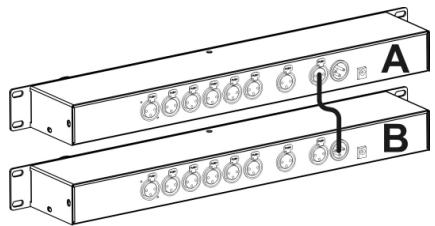
HOW TO TRANSFER DATA BETWEEN 2 UNITS
To save time you can transfer data (chases + timers) from one unit to another, this is how it works:
- Connect the two units together using a DMX-cable: DMX-through (A) for the transmitter, DMX-in (B) for the receiver of the data (see drawing).
- Clear the complete memory of the receiver (B): refer to item 6 in the chapter "setup menu" to learn how.
- Put the receiver (B) in DATA RECEIVE mode: refer to item 10 in the chapter "setup menu" to learn how.
- Put the transmitter (A) in DATA TRANSMIT mode: refer to item 9 in the chapter "setup menu" to learn how.
- Done!
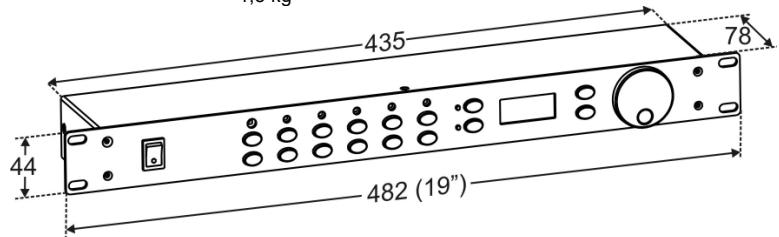
SPECIFICATIONS
Power Input: DC 9V to 12V 300mA minimum.
AC/DC Power adapter: AC 230V, 50Hz → 9Vdc / 300mA (or more)
DMX outputs: 3pin XLR ~ 24channels and 6x 4channels
Size: see drawing
Weight: 1,5 kg
Every information is subject to change without prior notice. You can download the latest version of this user manual on our website: www.beglec.com
MODE D'EMPLOI
FONCTIONS (FACE AVANT)