
RECODE MULTIMEDIA SUITE 10 - Multimedia Software NERO - Free user manual and instructions
Find the device manual for free RECODE MULTIMEDIA SUITE 10 NERO in PDF.


User questions about RECODE MULTIMEDIA SUITE 10 NERO
0 question about this device. Answer the ones you know or ask your own.
Ask a new question about this device
Download the instructions for your Multimedia Software in PDF format for free! Find your manual RECODE MULTIMEDIA SUITE 10 - NERO and take your electronic device back in hand. On this page are published all the documents necessary for the use of your device. RECODE MULTIMEDIA SUITE 10 by NERO.
USER MANUAL RECODE MULTIMEDIA SUITE 10 NERO
Copyright and Trademark Information
This document, like the software described therein, is provided as a license and may only be used or reproduced in accordance with the licensing agreement. The contents of this document, as well as the associated software, is subject to change without prior notice. Nero AG rejects any responsibility for the correctness of the contents of this document and rejects any claims that transcend the clauses of the guarantee agreement.
This document and all of its contents are protected by copyright and are the property of Nero AG. All rights reserved. In addition, this document contains material that is protected by internationally valid copyright. This document may not be reproduced, transmitted, or transcribed in whole or in part without the express written permission of Nero AG.
Please keep in mind that existing graphics, pictures, videos, music titles or other materials that you may wish to insert or transcribe into projects may be protected by copyright. The unauthorized use of this type of material in your projects may violate the rights of the owner of the copyright. Make sure that you obtain all necessary authorizations from the owner of the copyright.
Unless you own the copyright, have permission from the copyright owner or your actions fall under the "fair use" provisions of copyright law, you may be violating national or international copyright laws. The transcribing, duplication, modification or publication of copyright-protected material may lead to claims for damages and the enforcement of other legal measures against you. If you are unsure of your rights, you should contact your legal advisor.
Some Nero Multimedia Suite applications require technologies developed by third-party manufacturers and may be included in Nero Multimedia Suite as demo versions. These applications can be activated online free of charge or by sending an activation fax to have unlimited use of the version. Nero will only transmit the data necessary for activation of the technology licensed from third parties. For unlimited use of Nero Multimedia Suite, it is therefore necessary to have an Internet connection or a fax machine.
Copyright © 2006 - 2010 Nero AG and its licensors. All rights reserved.
Nero, Nero BackItUp, Nero BackItUp & Burn, Nero Burning ROM, Nero Digital, Nero DMA Manager, Nero Essentials, Nero Express, Nero ImageDrive, Nero LiquidTV, Nero MediaHome, Nero MediaHub, Nero MediaStreaming, Nero Move it, Nero Music2Go, Nero PhotoDesigner, Nero PhotoSnap, Nero Recode, Nero RescueAgent, Nero Simply Enjoy, Nero SmartDetect, Nero SmoothPlay, Nero StartSmart, Nero Surround, Nero Vision, Nero Vision Xtra, Burn-At-One, InCD, LayerMagic, Liquid Media, the SecurDisc logo, and UltraBuffer are common law trademarks or registered trademarks of Nero AG.
Adobe, Acrobat, Acrobat Reader and Premiere are trademarks or registered trademarks of Adobe Systems, Incorporated. AMD Athlon, AMD Opteron, AMD Sempron, AMD Turion, ATI Catalyst and ATI Radeon are trademarks or registered trademarks of Advanced Micro Devices, Inc. ATSC is a trademark of the Advanced Television Committee. ICQ is a registered trademark of AOL, LLC. Apple, iPhoto, iPod, iTunes, iPhone, FireWire, and Mac are trademarks or registered trademarks of Apple, Inc. ARM is a registered trademark of ARM, Ltd. AudibleReady is a registered trademark of Audible, Inc. BenQ is a trademark of the BenQ Corporation. Blu-ray Disc is a trademark of Blu-ray Disc Association. CyberLink is a registered trademark of CyberLink Corp. DLNA is a registered trademark of Digital Living Network Alliance. DivX and DivX Certified are registered trademarks of DivX, Inc. Dolby, Pro Logic and the double-D symbol are trademarks or registered trademarks of Dolby Laboratories, Inc. DTS and DTS Digital Surround are registered trademarks of DTS, Inc. DVB is a registered trademark of the DVB Project. Freescale Semiconductor, Inc. Google and YouTube are trademarks of Google, Inc. WinTV is a registered trademark of Hauppauge Computer Works, Inc. Intel, Intel XScale, Pentium and Core are trademarks or registered trademarks of Intel Corporation. Linux is a registered trademark of Linus Torvalds. Memorex is a registered trademark of Memorex Products, Inc. ActiveX, ActiveSync, DirectX, DirectShow, Internet Explorer, Microsoft, HDI, MSN, Outlook, Windows, Windows Mobile, Windows NT, Windows Server, Windows Vista, Windows Media, Xbox, Xbox 360, the Windows Vista start button and the Windows logo are trademarks or registered trademarks of Microsoft Corporation. My Space is a trademark of MySpace, Inc. NVIDIA, GeForce and ForceWare are trademarks or registered trademarks of NVIDIA Corporation. Nokia is a registered trademark of Nokia Corporation. CompactFlash is a registered trademark of SanDisk Corporation. Sony, Memory Stick, PlayStation, PLAYSTATION and PSP are trademarks or registered trademarks of Sony Corporation. HDV is a trademark of Sony Corporation and Victor Company of Japan, Limited (JVC). UPnP is a registered trademark of the UPnP Implementers Corporation. Labelflash is a registered trademark of Yamaha Corporation.
The trademarks mentioned here are named for information purposes only. All trade names and trademarks are the property of their respective owners.
Nero AG, Im Stoeckmaedle 13, D-76307 Karlsbad, Germany
Table of contents
1 Start Successfully 5
1.1 About the Manual 5
1.2 About This Application 5
1.3 Versions of Nero Recode 5
1.4 Working With Nero Recode 6
2 Starting the Program 8
3User Interface 9
3.1 Main Window 9
3.1.1 Extended area - Main window 10
3.2 Basic Settings 11
3.2.1 General Tab 12
3.2.2 DVD Tab 12
3.2.3 Nero Digital Tab 13
3.2.4 Audio Tab 14
3.2.5 File I/O Tab 14
3.3 Import Screen 15
3.3.1 DVD-Video Files/Nero Digital Titles Tab 16
3.3.2 Data Files Tab 18
3.3.3 Title Import Profiles 19
3.4 Burn Settings screen 20
3.4.1 Extended Area (Burn Settings) 22
3.5 Recoding And Burning Screen 23
3.5.1 Extended Area - Recoding and Burning 25
4 Recoding an Entire DVD 26
4.1 Setting Options For Recoding an Entire DVD 26
4.2 Recoding an Entire DVD to DVD 27
5 Recoding a main movie to DVD 30
5.1 Setting Options For Recoding a Main Movie to DVD 30
5.2 Trim Movie Window 31
5.3 Default Streams Window 32
5.4 Recoding a Main Movie to DVD 33
6 Compiling a DVD 36
6.1 Setting Options for Compiling a DVD 36
6.2 Compiling a DVD 37
7 Recoding a DVD to Nero Digital 41
7.1 Setting Options for Recoding a DVD to Nero Digital 41
7.2 Nero Digital Video Settings 44
Table of contents
7.2.1 Deinterlace Tab 45
7.2.2 Frame Rate Tab 45
7.2.3 Crop Tab 46
7.2.4 Resolution Tab 46
7.2.5 Plug-ins Tab 47
7.3 Encoder Settings 48
7.3.1 General Settings 49
7.3.2 Encoding Tools 50
7.3.3 Visual Enhancements 51
7.3.4 Multithreading 51
7.4 Nero Digital Audio Settings 51
7.5 Nero Digital Subtitle Settings 52
7.5.1 Subtitle Formats 54
7.6 Chapters Window 55
7.7 Recoding DVDs And Videos to Nero Digital 56
8 Recoding a Main Movie to Nero Digital 60
8.1 Setting Options For Recoding a Main Movie to Nero Digital 60
8.2 Recoding a Main Movie to Nero Digital 61
9 Technical Information 64
9.1 System Requirements 64
9.2 Key Combinations 64
10 Index 65
11 Contact 68
1 Start Successfully
1.1 About the Manual
This manual is intended for all users who want to learn how to use Nero Recode. It is process-based and explains how to achieve a specific objective on a step-by-step basis.
To make best use of this documentation, please note the following conventions:
| ○ | Indicates warnings, preconditions or instructions that have to be precisely followed. |
| ○ | Indicates additional information or advice. |
| 1. Start ... | The number at the beginning of a line indicates a prompt for action. Carry out these actions in the order specified. |
| → | Indicates an intermediate result. |
| → | Indicates a result. |
| OK | Indicates text passages or buttons that appear in the program interface. They are shown in boldface. |
| (see...) | Indicates references to other chapters. They are executed as links and are shown in red and underlined. |
| [...] | Indicates keyboard shortcuts for entering commands. |
1.2 About This Application
Nero Recode allows you to copy non-copy-protected DVD videos to DVD, which is a method of archiving your content. If the source video is larger than 4.7 GB, it is compressed to fit on a single-layer DVD without loss of quality.
You can also exclude unwanted material on the source DVD from the copying process (including subtitles or soundtracks) thereby making space for additional videos or for better video quality. The target DVD can also be written to the hard drive as a DVD video index or as a so-called disc image.
Of course, you can also compile content from different (non-copy protected) DVDs, export them to the innovative Nero Digital MPEG-4/H.264 AVC format and burn them to create your own collection.
No matter whether the video is intended for playing on mobile devices or HDTV, the various export profiles allow you to adjust the output format to your requirements - and you always get the best quality for your respective file size thanks to the various export profiles.
Thus, Nero Recode lets you copy, recompile, and recode the content of DVs and DVDs and then to burn the results to disc.
1.3 Versions of Nero Recode
Nero Recode is also offered in versions different from the full version. These versions differ from the full version in the scope of their features, i.e. they cannot perform all the tasks described in this manual, and the user interface is adapted to the specific version.
The following versions are available:
Nero Recode
Full version
Nero Decode Essentials
The following features of the full version may not be included:
PSP export function
iPod export function
Nero Recode Essentials SE
Exclusive features:
- Recode an entire DVD to DVD
Burn function (via Nero API)
Nero Recode Essentials CE
The following features of the full version are not included:
Recode an entire DVD
Recoding a main movie to DVD
Change the structure of a DVD
1.4 Working With Nero Recode
Basically, choose the task you wish from the selection in the Nero Recode main window. This manual contains a chapter for each task that describes all of the steps required for its completion.
To complete the task, you simply navigate through the different steps (a new screen is displayed for each step). For each screen, the manual contains a chapter in which all areas are described in detail.
All the tasks that you can carry out with Nero Recode are basically divided into four steps:
Selecting the required task
- Importing the files you want to recode
Setting the options for Nero Digital and for the burn process
Recoding and burning the disc
Use the Next and Back buttons to move back and forth through the three screens while performing a task. This means that you can also change settings that you have already made and undo actions.

Each screen contains tool tips, detailed information and explanations for the buttons, icons and menus. Move the mouse pointer over a control element for a few seconds to see the tool tip.
You should know the following definitions in Nero Recode:
| Encoding | Means the conversion of a video of any format into another format, e.g. MPEG-2 or Nero Digital (MPEG-4). A corresponding encoder is required for each target format. |
| Transcoding | Means the conversion of a video from one particular format into another, e.g. from Xvid to MPEG-2. In this manual transcoding is used synonymously with encoding. |
| Recoding | Means the conversion of an existing video with certain properties (e.g. bit rate 2500 kbps) into the same format with different properties (e.g. bit rate 1990 kbps). |
| Decoding | Means opening or playing a video that has been encoded in a particular format. |

The best way to create a simple 1:1 copy of a DVD is by using Nero Express or Nero Burning ROM. There is no compression whatsoever in this case. The recordable disc used must have as much free disk space as is shown for the content of the original DVD.
You can find detailed instructions on how to work with the application in the separate Nero Express and Nero Burning ROM user manuals.

Copyright
Unless you possess the copyright yourself, or at least have the permission of the copyright holder, the unauthorized reproduction of discs may be a breach of national or international law and may lead to severe penalties!
2 Starting the Program
To start Nero Recode via Nero StartSmart, proceed as follows:
- Click the Nero StartSmart icon.
The Nero StartSmart window is opened. - Click the button.
The list of Nero applications is displayed.
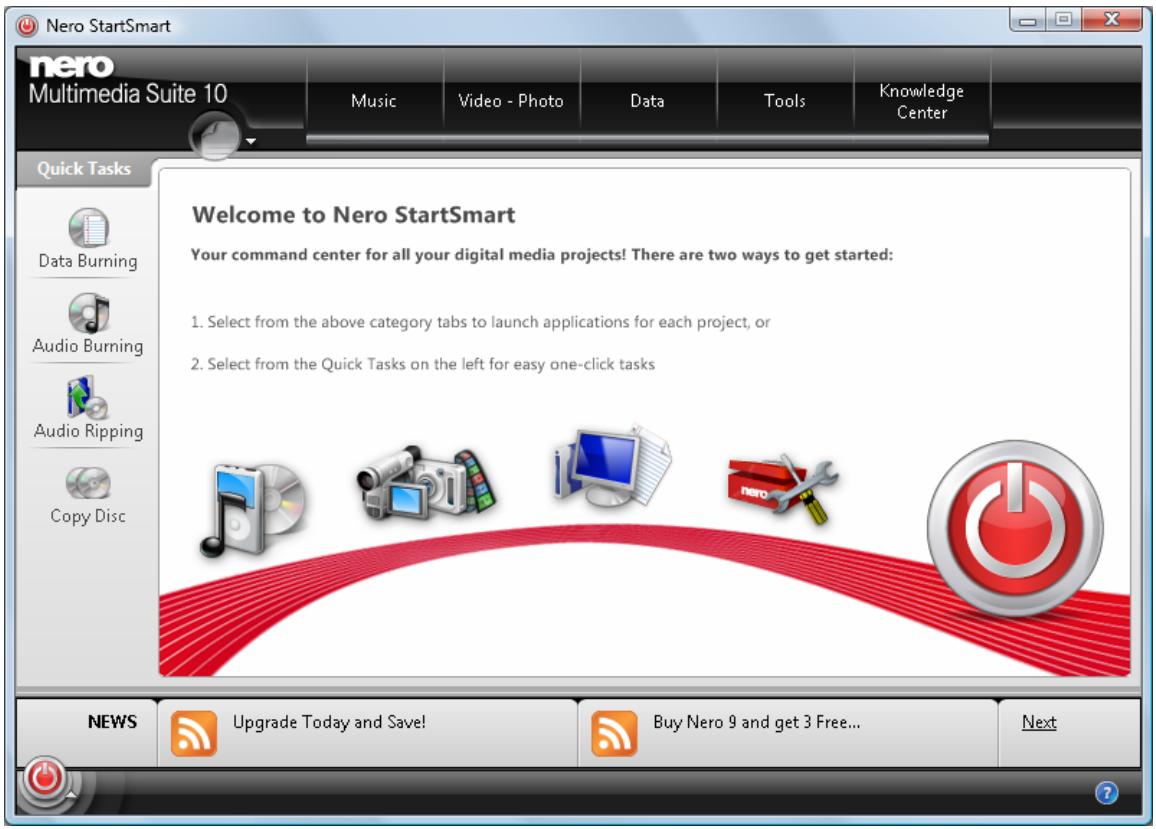
Nero StartSmart window
- Select the Nero Recode entry in the selection list.
The Nero Decode window is opened.
You have started Nero Decode via Nero StartSmart.
3 User Interface
3.1 Main Window
The Nero Recode user interface consists of a main window and an extended area. After selecting a task in the Nero Recode screen, complete the task by navigating through the various steps with a new screen displayed for each.
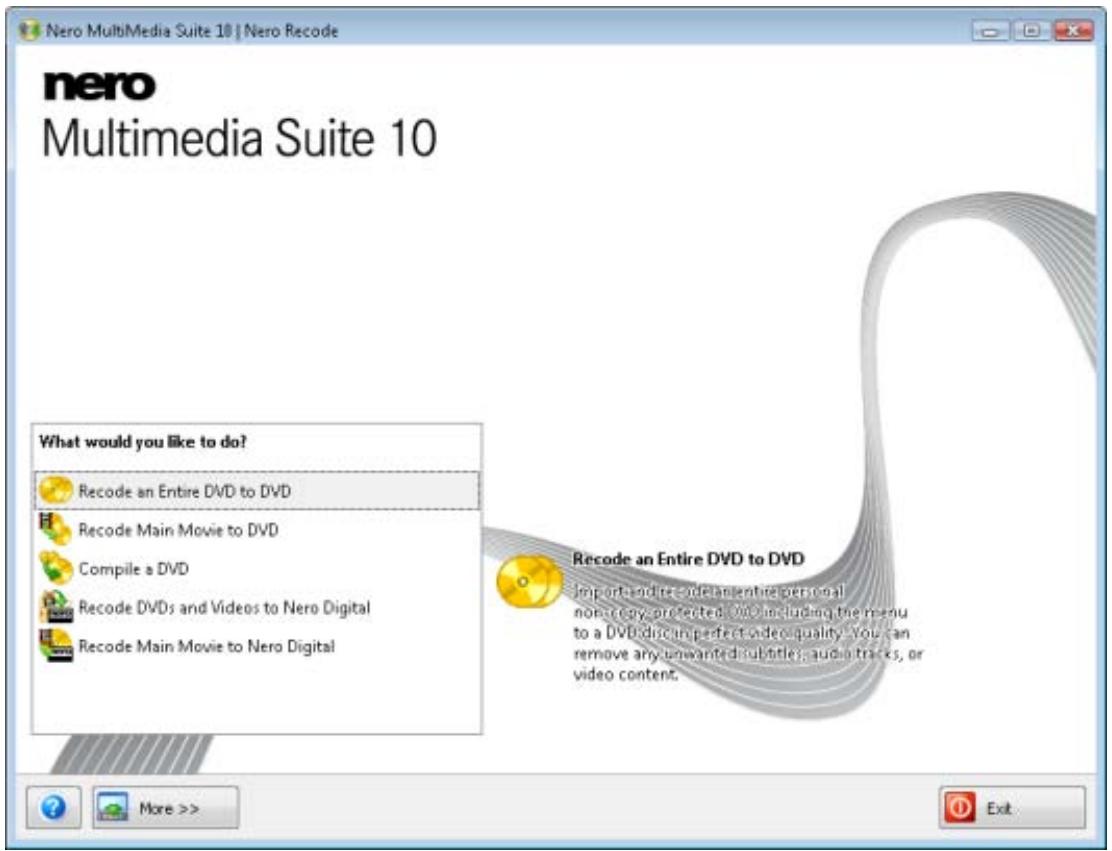
Main window
The following selection options are available in the Nero Recode main window:
| Recoding an Entire DVD to DVD | Imports DVDs including their menus and extras. Unwanted audio tracks, subtitles or video content can be removed and the structure of the video titles can be changed. |
| Recoding Main Movie to DVD | Imports the main movie on a DVD without menus and extras. Unwanted audio tracks, subtitles or video content can be removed and the structure of the video titles can be changed. |
| Compiling a DVD | Imports video titles and compiles an individual DVD from one or more DVDs. Unwanted audio tracks, subtitles or video content can be removed and the structure of the video titles can be changed. |
| Recoding DVDs and Videos to Nero Digital | Imports video titles from one or more DVDs and converts them to Nero Digital (MPEG-4) files. Unwanted audio tracks, subtitles or video content can be removed and the structure of the video titles can be changed. |
| Recode Main Movie to Nero Digital | Imports the main movie from a DVD without menus and extras and converts it to Nero Digital (MPEG-4) files. Unwanted audio tracks, subtitles or video content can be removed and the structure of the video titles can be changed. |
The following buttons are available:
| More | Opens and closes the extended area in which the basic Nero Recode settings can be made. |
| ? | Displays the online help as well as the version and manufacturer information. |
| Exit | Closes Nero Recode. |

Each screen contains tool tips, detailed information and explanations for the buttons, icons and menus. Move the mouse pointer over a control element for a few seconds to see the tool tip.
See also
Extended area - Main window 10
3.1.1 Extended area - Main window
The Nero Recode user interface consists of a main window and an extended area. Clicking the More button opens the expanded area.
The following buttons are available in the extended area:
| Options | Calls up a window containing various tabs that allow you set the way the program operates. |
| Erasing a Disc | Erases a rewritable disc. |
| Disc Info | Calls up information about the disc in the drive. |
Nero CoverDesigner
Launches Nero CoverDesigner in a new window.
Nero CoverDesigner is an application in the Nero Multimedia Suite and is automatically installed during the main installation procedure. Nero CoverDesigner allows you to create and print labels and booklets for burned DVDs and CDs. Please see the separate Nero CoverDesigner user manual for full instructions on how to make professional looking covers and labels.

Each screen contains tool tips, detailed information and explanations for the buttons, icons and menus. Move the mouse pointer over a control element for a few seconds to see the tool tip.
See also
Basic Settings 11
Main Window 9
3.2 Basic Settings
The Nero Recode Options window has the General, DVD, Nero Digital, Audio, and File I/O tabs available. You can customize Nero Recode according to your preferences in this window. To open the window, click the Options button in the extended area.
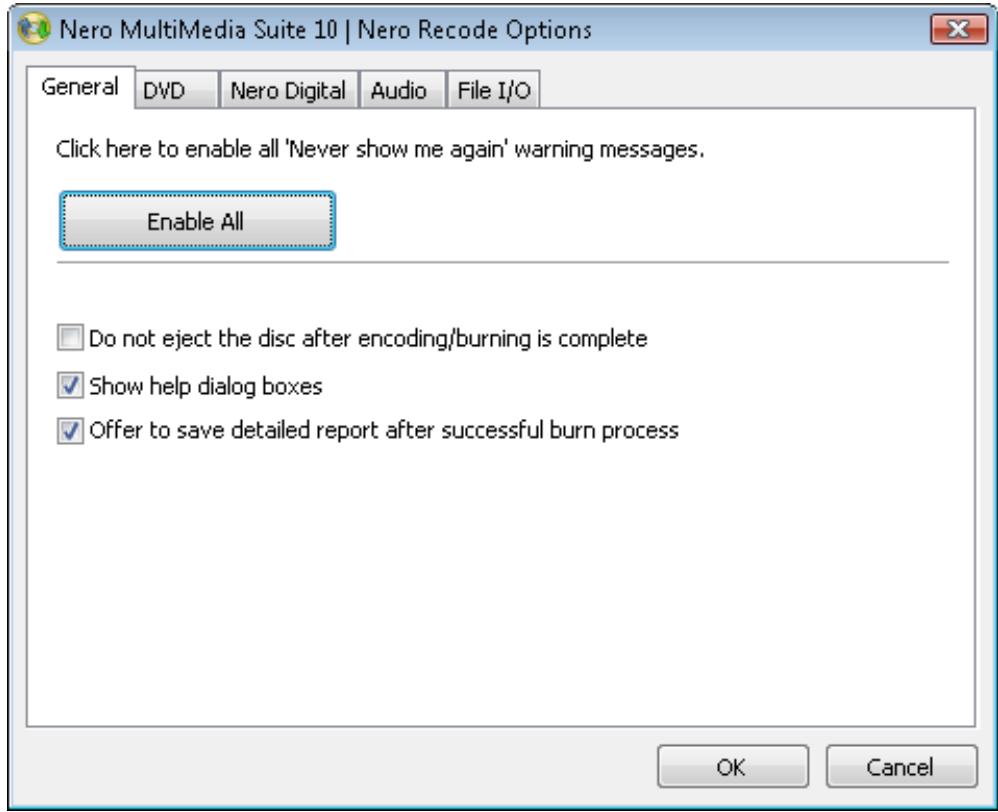
Nero Decode Options window
See also
Extended area - Main window 10
File I/O Tab 14
Audio Tab 14
Nero Digital Tab 13
DVD Tab 12
General Tab 12
3.2.1 General Tab
On the General tab, you can define general Nero Recode settings.
The following setting options are available:
| Button Enable All | This enables all warnings if these have been disabled manually. |
| Check box Do not eject the disc after encoding/burning is complete | If this check box is selected, the disc is not ejected after the burn process. |
| Check box Show help dialog boxes | If this check box is selected, brief explanation texts appear when you move the cursor over individual items of the Nero Recode interface. |
| Check box Offer to save detailed report after successful burn process | If this check box is selected, Nero Recode offers the option, after each burn process, of saving a report that was created during the burn process. |
See also
Basic Settings 11
3.2.2 DVD Tab
The DVD tab is divided into the Import DVD and Output DVD areas. You can define the settings for DVD importing and outputting in this tab.
The following check boxes are available on the Import DVD area:
| Prompt to include DVD data files when importing | If this check box is selected, content is transferred, i.e. copied as well, when a DVD with data content is imported. |
| Relax DVD-Video specification to allow 16-bit Unicode for the volume label | If this check box is selected, limitations on the use of character sets are relaxed. |
| Nero Recode does not use characters from languages like Japanese or Korean, which have a 16-bit Unicode character set that does not comply with DVD-Video requirements. |
The following check boxes are available on the Output DVD area:
| Remove P-UOPs (Prohibited User Operations) from target disc | If this check box is selected, the locked areas of a DVD are made accessible to the user when the DVD is copied. For example, if the original DVD contains an area that cannot be skipped, you can use Nero Recode to remove the block so that users can skip or fast forward through the area. |
| Remove Layer Break | If this check box is selected, Nero Recode removes the layer break. If the original DVD consists of two layers, there is a command on the DVD to freeze the image briefly to allow the laser to switch from the first layer to the second. When Nero Recode is used to copy to a DVD with just one layer, this command is redundant and can be removed. |
See also
Basic Settings 11
3.2.3 Nero Digital Tab
The Nero Digital tab is divided into the Import presets and Misc settings areas. You can define the settings for conversion into the Nero Digital format here.
The following configuration options are available in the Import presets area:
| Check box Analyze files while importing | If this check box is selected, Nero Recode performs an analysis of the video file during the importing process. |
| Check box Keep interlaced content if possible | If this check box is selected, Nero Recode keeps the interlaced content of a video file, provided that this is possible. |
| Check box Keep input resolution for interlaced encodings | If this check box is selected, Nero Recode keeps the input resolution of the video file if encoding should be carried out with the interlaced feature. The resolution is not changed and picture edges are not trimmed. |
| Check box Prefer motion adaptive deinterlacing method | If this check box is selected, Nero Recode selects the motion-adaptive deinterlacing method as the preferred encoding method. Even quick motion sequences are extremely sharp and detailed. However, burning is slower. |
| Drop-down menu Default resizing method | Selects the method for changing video resolution. Bilinear interpolation is selected by default. |
The following check boxes are available in the Misc settings area:
| Enable classic set of Nero Digital profiles | Activates the classical set of Nero Digital profiles, available in the screens My Nero Digital Disc and My Nero Digital Film Backup in the drop-down menu Nero Digital Profiles. If the check box is deselected, Nero Digital AVC and Nero Digital Standard are offered. |
| Auto-close iTunes after iPod transfer | If this check box is selected, iTunes is automatically closed after transcoding into Apple iPod video. |
| Never write extra track to allow low-memory device playback | If this check box is selected, the creation of a special extra track is prevented. Certified players with low RAM can play long movies. |
See also
Basic Settings 11
3.2.4 Audio Tab
The Audio tab is divided into the Preview and Decoding areas. You can define audio quality settings in this tab.
The Preview area features a drop-down menu. You can use this menu to choose the preview mode for audio that is best suited to your hardware and to your speakers.
The Decoding area features the Apply Dynamic Range Compression when decoding Dolby Digital(TM) tracks check box. If this check box is selected, the level control for Dolby Digital tracks is adjusted in order to reduce hissing and static noise.
See also
Basic Settings 11
3.2.5 File I/O Tab
On the File I/O tab you can define the method for accessing a drive for direct conversion.
You can choose the SPTI/ASPI or Windows File System entries from the drop-down menu.

When read with SPTI/ASPI, non-copy-protected DVD that feature a copyright bit will display a message stating that the DVD cannot be copied due to copy protection. In this case, you should choose the Windows File System option when reading.
See also
Basic Settings 11
3.3 Import Screen
In the screen for importing files, you can add your DVD video title, add data files, adjust the required video quality for the title, and transfer or remove audio tracks and subtitles from the selection of the original DVD.

The screen varies depending on the selected task. Following is an explanation of the setting options that are always shown on this screen. You can find the explanation for the setting options that are displayed depending on the selected tasks in the description for the individual tasks.
The screen is divided into the DVD-Video Files/Nero Digital Titles and Data Files tabs.
A capacity bar below shows how much space is occupied on the disc graphically. As long as the bar is green, all the content fit on the disc. If a red bar is shown on the display, the data volume is larger than the disc's capacity. The Total size area, located to the right of the capacity bar, is also used to indicate the space that is already occupied, in MB.
Clicking the More button displays the extended area. In this area, you can use the Title import profile area to create and save required quality settings in your own profile.
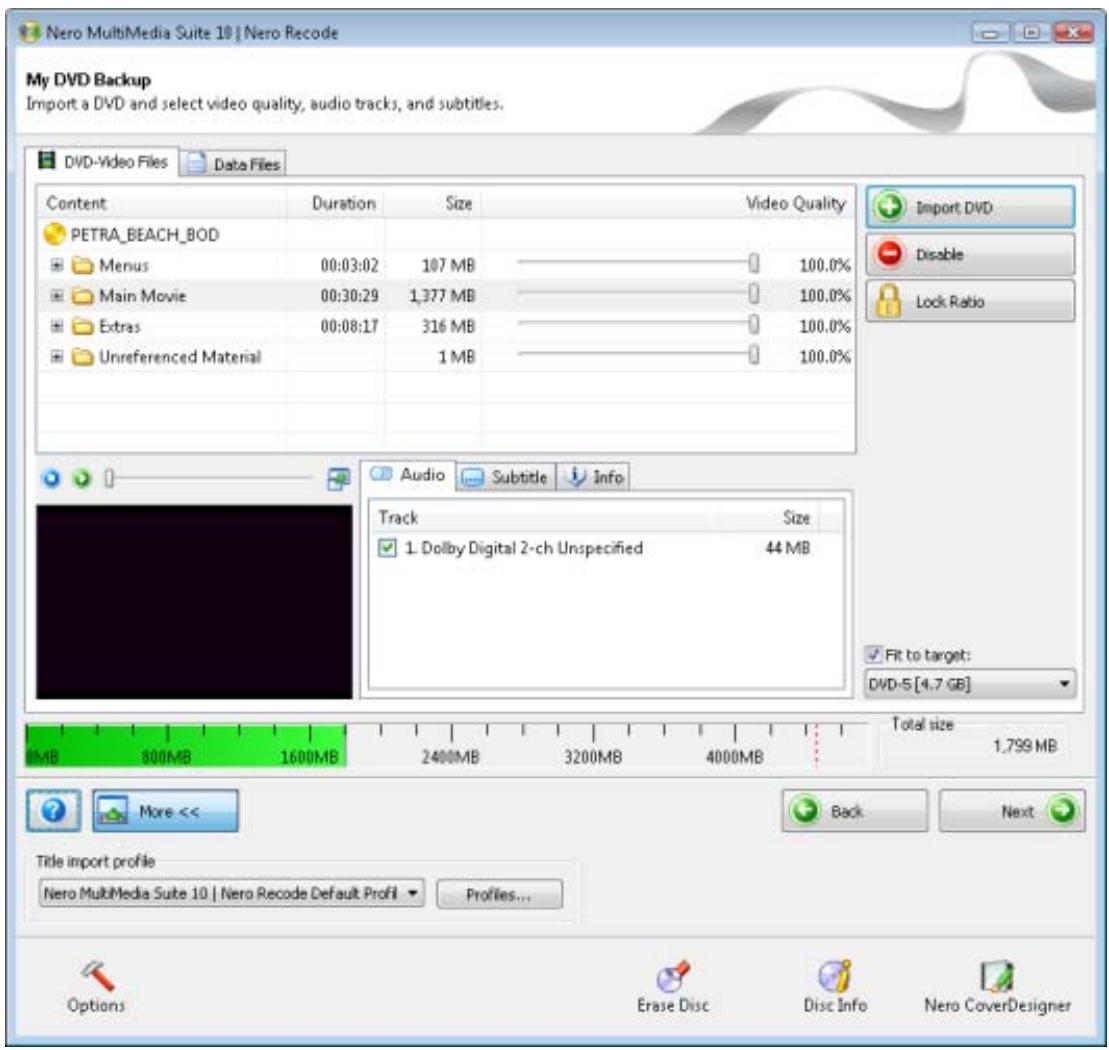
See also
Title Import Profiles 19
Data Files Tab 18
DVD-Video Files/Nero Digital Titles Tab 16
3.3.1 DVD-Video Files/Nero Digital Titles Tab
You can use the DVD-Video Files and Nero Digital Titles tabs to add your DVD tracks and video files.
Both tabs are divided into a content area, a preview area beneath it to the left, and the Audio/Subtitle/Info tabs, which show the audio tracks and subtitles on the original DVD, to the right.

The screen varies depending on the selected task. Following is an explanation of the setting options that are always shown on this screen. You can find the explanation for the setting options that are displayed depending on the selected tasks in the description for the individual tasks.
The following setting options are available:
| Button Import DVD / Import Titles | Opens a window to import the required DVD and/or video title. |
| Check box Fit to target | If this check box is selected, the content of the imported disc is recoded automatically in such a way that it can fit on the inserted recordable disc. The check box is selected by default. If the check box is deselected, the size of the copy can be defined irrespective of the limitation of a disc. Although it may not be possible to burn the resulting DVD structure onto a typical commercial blank disc, the DVD-Video title could certainly be played from the hard drive. |
| Drop-down menu Fit to target | Shows the target medium. This drop-down menu is active when the Fit to target check box is selected. |
The imported video titles are shown on the content area. The following information on the individual titles is available:
| Column Content | Shows the structure transferred from the DVD. |
| Column Duration | Shows the duration of the respective area, folder, or video title. |
| Column Size | Shows the memory size of the respective area, folder, or video title. Feature limitation. |
| Column Video quality | Shows the quality (in percentage) in which Nero Recode can recode the area, folder, or video title. If the content of the imported disc must be recoded in such a way as to fit it on a smaller target recordable disc, the quality of all video titles is adjusted uniformly. |
You can play a preview of the imported video title in the preview area. The following setting options are available:
| Button | Ends playback. |
| Button | Starts playback. |
| Slider | Skipping to particular points. |
| Button | Enlarges/reduces the preview area. |
The Audio/Subtitle/Info tabs show the audio tracks and subtitles on the original DVD. You can select any desired video title in the content area in order to see the corresponding audio and subtitle tracks. These are imported according to the profile chosen during the import process. The following tabs are available:
| Audio | Displays the audio tracks imported in line with the import profile. |
| Subtitles | Displays the audio tracks imported in line with the import profile. |
| Info | Displays information about the imported video title. |
See also
Import Screen 15
3.3.2 Data Files Tab
Data files can be burned onto the disc as well as the film. These files are imported using the Data Files tab.

The screen varies depending on the selected task. Following is an explanation of the setting options that are always shown on this screen. You can find the explanation for the setting options that are displayed depending on the selected tasks in the description for the individual tasks.
The following buttons are available:
| Add Files | Opens a window for adding the desired data files. |
| Erase | Removes a selected data file. This is enabled only if at least one data file has been added. |
| Returns to the next higher level in the folder structure. This is only active when the user is located in a subfolder. | |
| Opens a window for creating a new folder inside the disc's data area. | |
| Opens a menu for changing the way/view in which the files appear in the folders. |
See also
Import Screen 15
3.3.3 Title Import Profiles
You can select the desired profile for importing a DVD or create and manage your own import profile in the Title import profile area.
Clicking the Profiles button opens the Nero Recode Profile window. You can make adjustments in the Video, Audio, and Subtitle tabs.
The following buttons are available:
| Drop-down menu Current profile | Shows the current selected profile. If you create your own import profiles, these are listed in the drop-down menu as entries. |
| Button New | Calls up a window where a new profile can be created. |
| Button Delete | Deletes the current profile displayed in the Current Profile drop-down menu. |
The following settings are available on the Video tab:
| Quality distribution | Defines the quality ratio between the main movie and the extras. |
| Menu | Indicates whether the menus contained in the video file can be copied in original quality. |
The following setting options are available on the Audio tab:
| Check box Preselect the following audio tracks | If this check box is selected, only audio tracks in the specified languages are imported when the DVD is imported. |
| Button Add | Opens a window in which the desired languages for importing audio tracks can be selected. This button is enabled only if the Preselect the following audio tracks check box has been selected. |
| Button Remove | Removes languages from the list box. This button is only enabled if the Preselect the following audio tracks check box is selected and at least one language has been selected for removal from the list box. |
| Drop-down menu From multiple tracks of the same language select | Specifies the audio format used if there are several audio tracks in the same language on the DVD. |
| Check box Select all tracks if none meets my selection criteria | If this check box is selected and none of the audio tracks on the corresponding DVD meet the defined criteria, all audio tracks are imported as an alternative. |
The following setting options are available on the Subtitle tab:
| Check box Preselect the following subtitle tracks | If this check box is selected, only subtitles in the specified languages are imported when a DVD is imported. |
| Button Add | Opens a window in which the desired languages for importing subtitles can be selected. This button is only enabled if the Preselect the following subtitle tracks check box is selected. |
| Button Remove | Removes languages from the list box. This button is only enabled if the Preselect the following subtitle tracks check box is selected and at least one language has been selected in the list box for removal. |
| Check box Select all tracks if none meets my selection criteria | If this check box is selected and none of the subtitles on the corresponding DVD meet the defined criteria, all subtitles are imported as an alternative. |
See also
Import Screen 15
3.4 Burn Settings screen
You can define the desired options for recoding and writing on the Burn Options screen.

The screen varies depending on the selected task. Following is an explanation of the setting options that are always shown on this screen. You can find the explanation for the setting options that are displayed depending on the selected tasks in the description for the individual tasks.
Clicking the More button displays the extended area. You can configure certain additional options inside this area, e.g. the burn process priority.
Once you have defined all the settings you want, click the Burn button on the bottom right to start the recording and burn process.
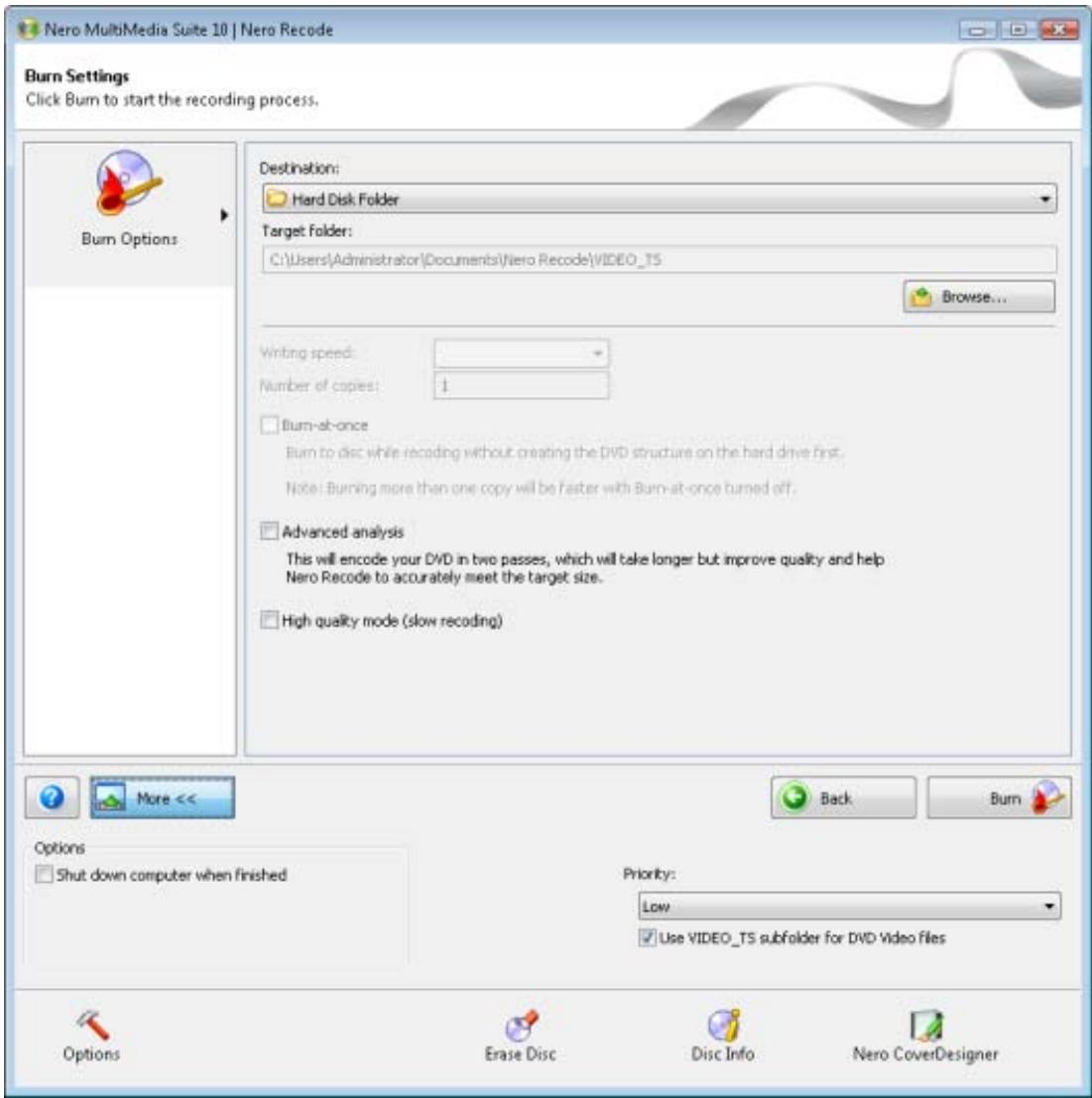
Burn Settings screen
The following setting options are available in the top area of the screen:
| Drop-down menu Destination | This specifies the destination for the compilation. You can use a CD/DVD recorder to burn the data, store the data on a hard drive or generate an image file. |
| Input field Target folder | Specifies the target folder in which the compilation is stored and in which the temporary files created during burning are stored. The temporary files are automatically deleted after burning. |
| Button Browse | Opens a window showing the computer's directory tree. You can use this window to select the target folder where the compilation should be saved, or where the temporary files that are created during the burn process should be stored. The path is referenced automatically in the target folder input field. Temporary files are deleted after the burn process automatically. |
The following setting options are available in the bottom area of the screen:
| Drop-down menu Writing speed | Specifies the writing speed. This drop-down menu is only enabled when a CD/DVD recorder is selected in the Destination drop-down box. |
| Input field Number of copies | Shows the number of copies to be burned. This drop-down menu is only enabled when a CD/DVD recorder is selected in the Destination drop-down menu. |
| Check box Burn-at-once | If this check box is selected, the DVD structure is not buffered on the hard drive before the burn process. If this check-box is selected, the burn process takes longer. However, if you want to create several copies, this method is quicker, since the data only has to be recoded once. This drop-down menu is only enabled when a CD/DVD recorder is selected in the Destination list box. |
| Check box Advanced analysis | Improves the quality of a DVD's encoding process considerably. Recoding takes place in two steps and therefore takes longer. |
| Check box High quality mode | Improves the quality of the recoding process. Recoding takes longer. |
See also
Extended Area (Burn Settings) 22
3.4.1 Extended Area (Burn Settings)
The following setting options are available in the extended area of the Burn Settings screen:
| Check box Shut down computer when finished | If this check box is selected, the computer is automatically shut down after the burn process. |
| Drop-down menu DVD Book Type settings | Determines the specification of a DVD. Automatic - Automatically selects the most suitable book type for this DVD. DVD-ROM - Sets the book type to DVD-ROM. Select this setting if the DVD should play on multiple DVD players. Physical disc type - Selects the book type which is specified on the DVD. Current recorder settings - Lets the recorder choose the book type setting. This drop-down menu is enabled only if you have selected your computer's disc drive as a target. |
| Drop-down menu Priority | Defines how the resources available on the computer are used during the recoding and burn process. |
| Check box Use VIDEO_TS subfolder for DVD Video files | Creates a subfolder VIDEO_TS in your target folder in which the DVD-Video files are saved. |
See also
Burn Settings screen 20
3.5 Recoding And Burning Screen
The recoding and burn process is carried out in the Recoding and Burning screen.

The screen varies depending on the selected task. Following is an explanation of the setting options that are always shown on this screen. You can find the explanation for the setting options that are displayed depending on the selected tasks in the description for the individual tasks.
You can find all the information necessary to track the individual steps of the recoding and burn process on the top area of the screen. Below, on the left, you can play a preview of the imported video title in the preview area. On the right, the Status area displays information regarding the progress of the recoding and burn process. Additionally, a progress bar shows the progress graphically.
Clicking the More button displays the extended area. You can configure certain additional options inside this area, e.g. the burn process priority.
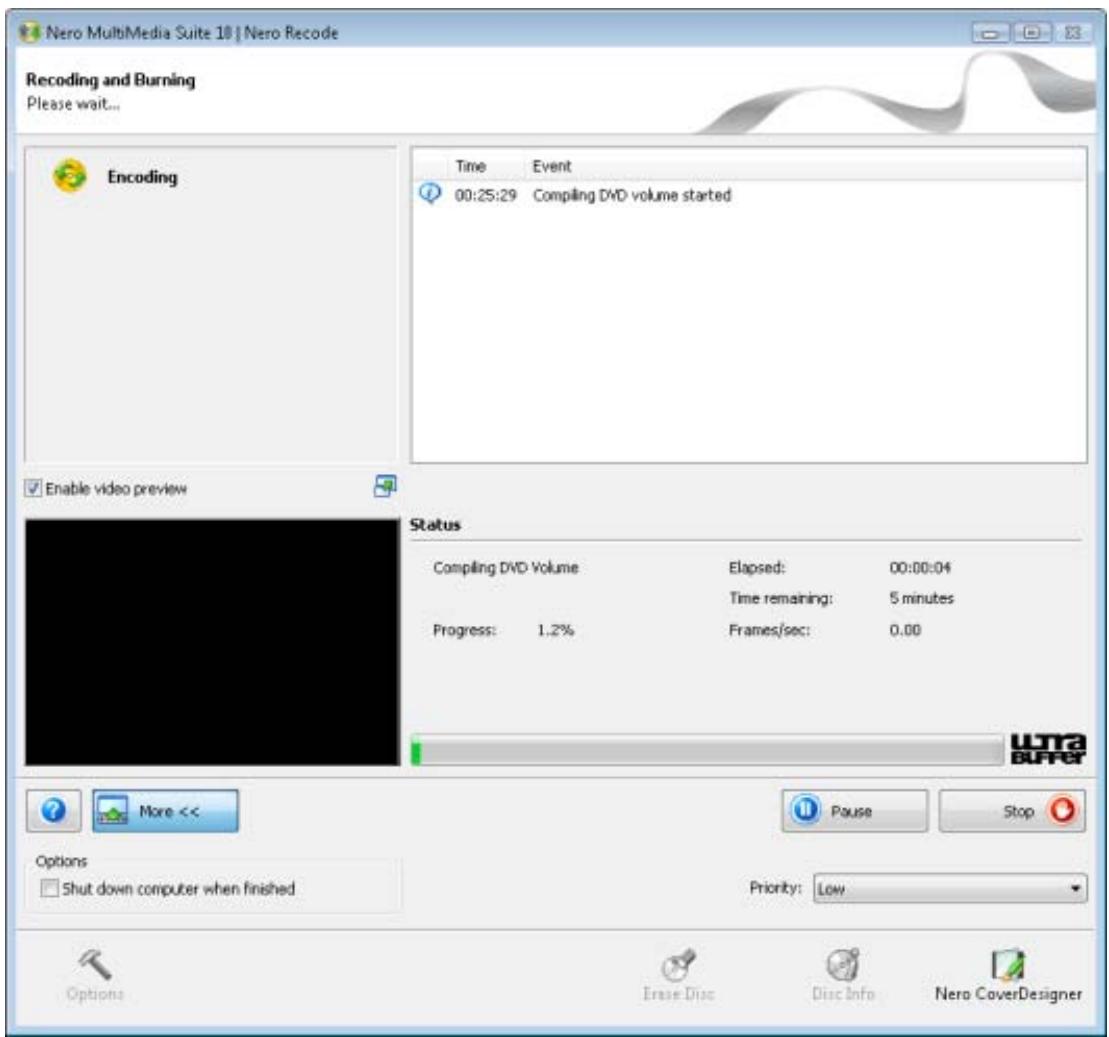
User Interface
Recoding and Burning screen
The following buttons are available in the Recoding and Burning screen:
| Button Pause | Interrupts the recoding and burn process. |
| Button Stop | Ends the recoding and burn process. |
| Button Resume | Resumes the recoding and burn process. This button is enabled only if the recoding and burn process was interrupted with the Pause button. |
| Button Back | Returns to the previous screen. This button is only active if the recoding and burn process has ended. |
| Button Next | Displays the What do you want to do now? screen. This button is only active if the recoding and burn process has ended. |
The following setting options are available in the preview area:
| Check box Enable video overview | If this check box is enabled, you can play the preview during the burn process. |
| Button | Enlarges/reduces the preview area. |
| Link Show Nero Digital compatible devices | Opens a browser window containing a list of devices that can reproduce the Nero Digital profile during the encoding process. This option is enabled only if you recode files into the Nero Digital format. This function requires a fully functional Internet connection. |
See also
Extended Area - Recoding and Burning 25
3.5.1 Extended Area - Recoding and Burning
The following setting options are available in the extended area of the Recording and Burning screen:
| Check box Shut down computer when finished | If this check box is selected, the computer is automatically shut down after the burn process. |
| Drop-down menu Priority | Defines how the resources available on the computer are used during the recoding and burn process. |
See also
Recoding And Burning Screen 23
4 Recoding an Entire DVD
4.1 Setting Options For Recoding an Entire DVD
In addition to the basic settings that are always displayed on the screen for importing files, you can configure certain additional settings with the Recode an Entire DVD to DVD task.
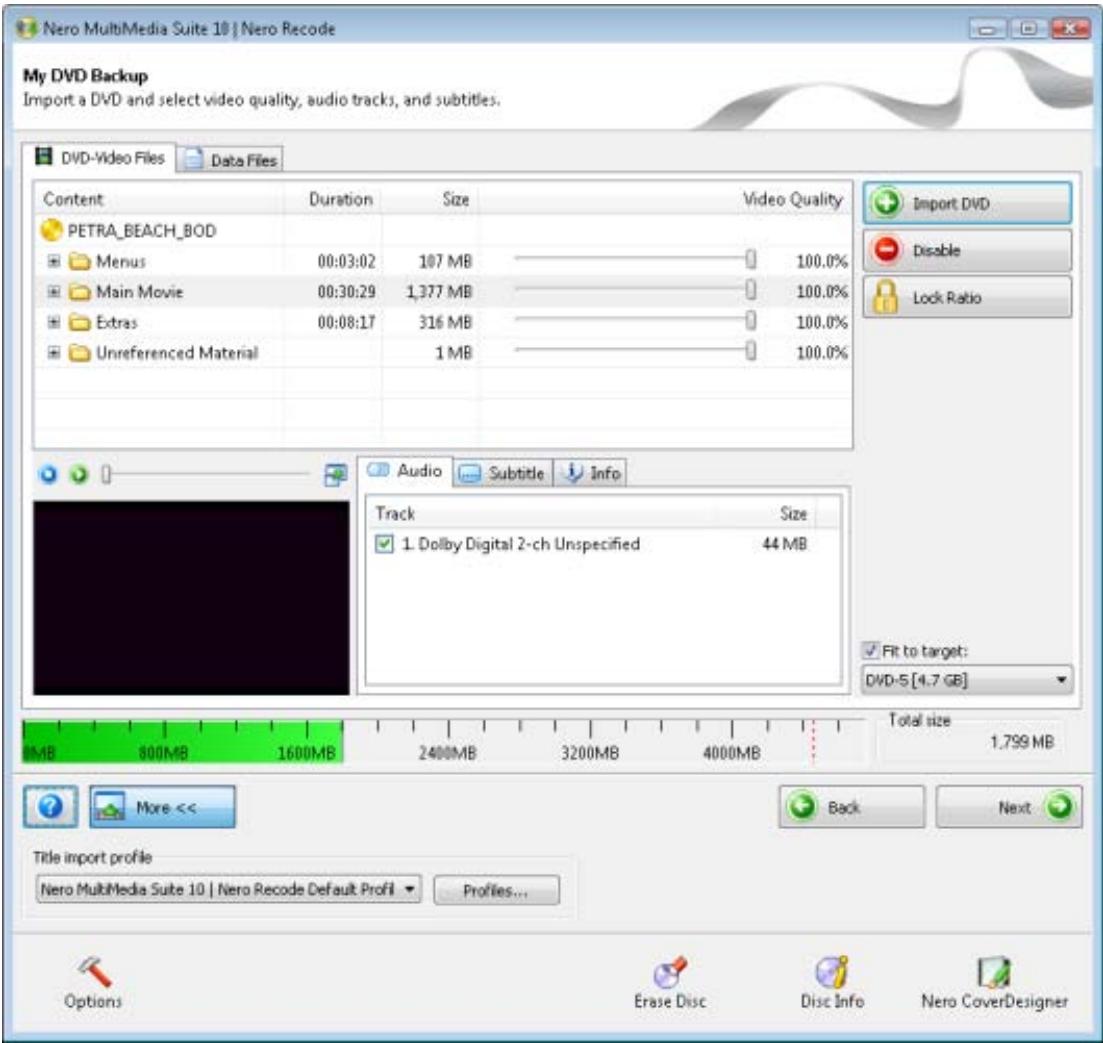
My DVD Backup screen
The following buttons are available:
| Disable | Removes video titles on the original DVD from your compilation. This way, you can disable, e.g. unnecessary extras, and create more space on the target DVD. Disabled files are not transferred to the copy during the burn process. This button is only enabled if at least one DVD video title has been imported into the content area and selected there. |
| Activate | Enables video titles that were previously disabled. The files that are added again are transferred to the target DVD when the compilation is written. This button is only enabled if at least one DVD video title has been disabled in the content area and selected there. |
| Lock Ratio | Locks the automatic change of recoding quality for a DVD-Video title. It is still possible to make manual changes to the quality settings by moving the slider. It could be a good idea to lock individual video titles if you want to improve the quality of other content (and therefore, the quality of the remaining content is lowered proportionately). A locked title is protected from the proportional adjustment in this case. This button is only enabled if at least one DVD video title has been imported into the content area and selected there. |
| Unlock Ratio | Unlocks automatic recoding quality changes for a video title. This button is only enabled if at least one DVD video title has been locked in the content area and selected there. |
Import Screen 15
Recoding an Entire DVD to DVD 27
4.2 Recoding an Entire DVD to DVD
When copying a DVD, including the menu, you can use Nero Recode to adjust and modify the structure of a DVD in such a way that the data can be written to a conventional recordable disc with perfect video quality. You can remove undesired subtitles or audio tracks.

Copyright
Unless you possess the copyright yourself, or at least have the permission of the copyright holder, the unauthorized reproduction of discs may be a breach of national or international law and may lead to severe penalties!
To recode a DVD, proceed as follows:
- Choose the Recode an Entire DVD to DVD task from the Nero Recode main window.
→ The My DVD Backup screen is displayed. - Insert the DVD you want to recode in the disc drive on your PC.

Keep in mind that the Fit to target check box is enabled so that the content of the source DVD can be recoded during the subsequent process in such a way that it fits the selected target format.
If the check box is disabled, the DVD-Video will be imported in its original size. In this case, it is possible that the data volume will be so large that you will only be able to store it on a double-layer DVD or on the hard drive.
-
If you created your own import profile and want to select it:
-
Click the More button.
→ The extended area is displayed. -
Select the required import profile in the Title import profile area.
-
Click the Import DVD button.
The Browse Folder window is opened.
- Select the drive or hard drive folder containing the DVD that you want to recode and click the OK button.
The DVD's individual video titles are imported and shown in the content area. If the source DVD is larger than the target media, you can also use this area to see how the DVD is recoded according to the selected profile.
Underneath, the capacity bar shows how much disk space is occupied by the imported files on the disc graphically.
-
If there is an individual video title you do not want to copy:
-
Select the required video title.
- Click the Disable button.
The Disable Item window is opened.
-
Select the desired deletion method from the drop-down menu and click the OK button.
→ The video title is disabled. -
If you want to re-enable an disabled video title:
-
Select the required video title.
- Click the Enable button.
The video title is re-enabled.
-
If you want to lock an individual video title to protect it from loss of quality during recoding:
-
Select the required video title.
- Click the Lock Ratio button.
→ The video title is locked.
-
If you want to unlock a locked video title in order to adjust the quality proportionally to the quality of the other titles while recoding:
-
Select the required video title.
- Click the Unlock Ratio button.
→ The video title is unlocked.

In order to adjust the quality of a desired video title individually, you can move the slider in the Video Quality column under the content area. The quality of the remaining DVD content is lowered proportionally to the quality improvement of an individual piece of content.
The sliders in the Video Quality area are enabled only when the Fit to target check box is disabled.
- Select the check boxes for the audio tracks that you want to copy on the Audio tab. Accordingly, deselect the check boxes for the audio tracks that you don't want to copy.
- Select the check boxes for the subtitle tracks that you want to copy on the Subtitle tab. Accordingly, deselect the check boxes for the subtitle tracks that you don't want to copy.
- Click the Next button.
The Burn Settings screen is displayed.
- Make the required settings for the burn process.
- Click the Burn button.
The recoding and burn process is started and the Recording and Burning screen is displayed. You can track the process here.
- If you have chosen the disc drive of your computer as the target of the compilation, you will be prompted to insert an empty writable disc in the drive.
The burn process is complete when the relevant message appears in the information window.
You have recoded a DVD. Clicking the Next button displays the What do you want to do now? screen. You can select further options here or exit Nero Recode.
See also
Recoding And Burning Screen 23
Burn Settings screen 20
Import Screen 15
Setting Options For Recoding an Entire DVD 26
5 Recoding a main movie to DVD
5.1 Setting Options For Recoding a Main Movie to DVD
In addition to the basic settings that are always displayed on the screen for importing files, you can configure certain other settings with the Recode Main Movie to DVD task.
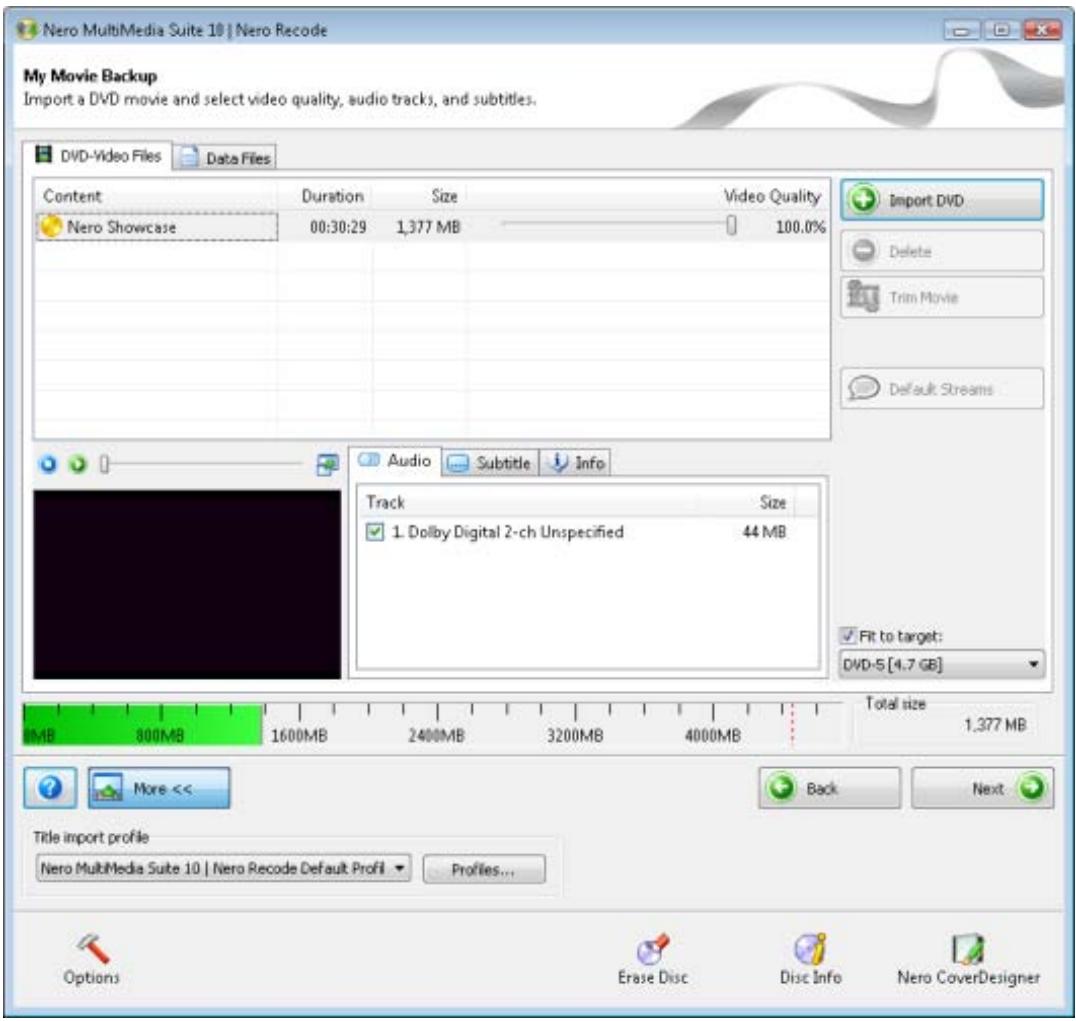
My Movie Backup screen
The following buttons are available:
| Trim Movie | Opens the Trim Movie window, where the selected video title can be trimmed. This button is only enabled if at least one DVD video title has been imported into the content area and selected there. |
| Default Streams | Opens the window Default Streams in which the streams for audio and subtitles can be selected. |
| This button is only enabled if at least one DVD video title has been imported into the content area and selected there. | |
See also
Import Screen 15
Recoding a Main Movie to DVD 33
Default Streams Window 32
Trim Movie Window 31
5.2 Trim Movie Window
You can use the Trim Movie window to trim a video title that you do not want to use in its entirety down to a special section.
The window is divided into two areas. The left side - the area for the first frame - is used to select the frame with which the video title should start. The right side - the area for the last frame - is used to define the frame with which the video title should end.
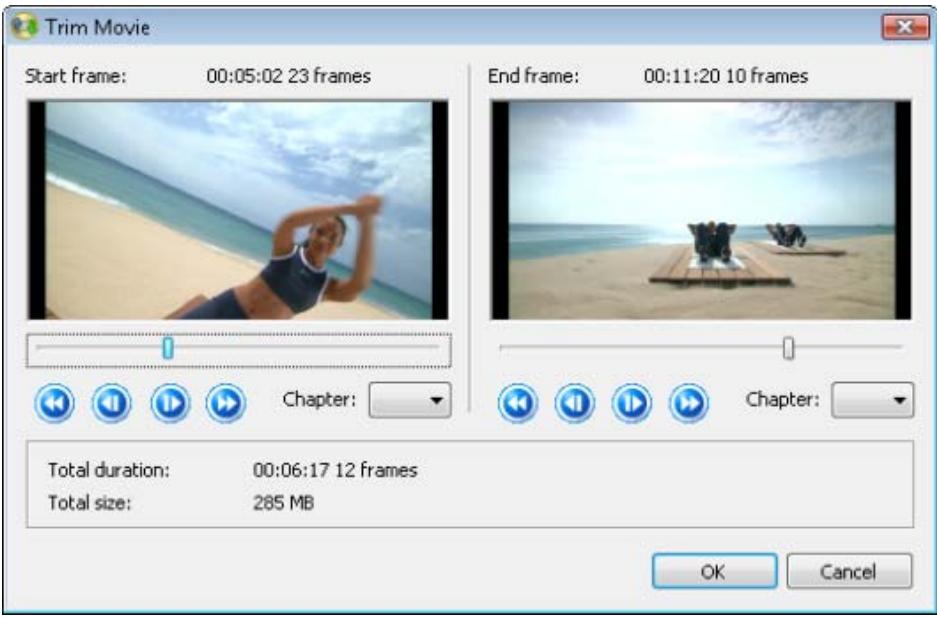
Trim Movie window
The following setting options are available:
| Button | Skipping forwards a few frames. |
| Button | Skipping forwards 6 seconds. |
| Button | Skips 6 seconds back. |
| Button | Skips a few frames back. |
| Slider | Manually regulates determination of the desired frames. |
| Drop-down menu | Selects the chapter markers of the video title directly. It is only possible if the video title contains chapter markers. |
| Display Start Frame | Indicates the start frame of the video title. |
| Display End frame | Indicates the end frame of the video title. |
| Display Total duration | Indicates the length of the video title. |
| Display Total size | Indicates the overall size of the video title. |
See also
Setting Options For Recoding a Main Movie to Nero Digital 60
Setting Options for Recoding a DVD to Nero Digital 41
Setting Options for Compiling a DVD 36
Setting Options For Recoding a Main Movie to DVD 30
5.3 Default Streams Window
In the Default Streams window you can define the settings for audio and subtitle streams.
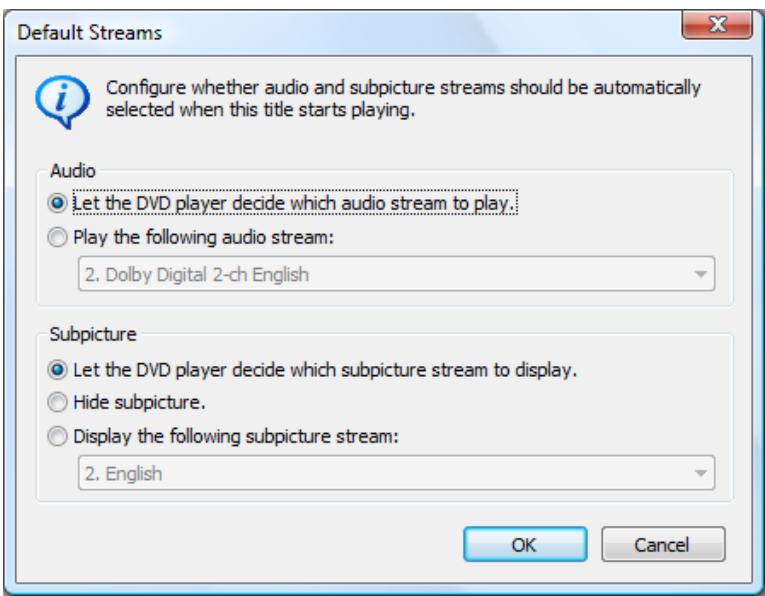
Default Streams window
The following option buttons are available in the Audio area:
| Let the DVD player decide which audio stream to play | Allows the DVD player to choose which audio stream to play. Selection occurs automatically when title playback starts. |
| Play the following audio stream | Selects the audio stream to be played when a title is played back, e.g. in a DVD player. |
The following option buttons are available in the Subpicture area:
| Let the DVD player decide which subtitle stream to display | Lets the DVD player decide which subtitle stream will be played. The selection is made automatically when the title playback starts. |
| Hide subtitles | Hides the subtitles. No subtitles are shown during title playback, e.g. in a DVD player. |
| Display the following subtitles stream | Selects the subtitles stream to be played when a title is played back, e.g. in a DVD player. |
See also
Setting Options for Compiling a DVD 36
Setting Options For Recoding a Main Movie to DVD 30
5.4 Recoding a Main Movie to DVD
You can use Nero Recode to copy the main movie of a DVD without additional extras. You have the option of customizing and modifying the main movie's structure so that the data can be written to a conventional recordable disc with perfect video quality.

Copyright
Unless you possess the copyright yourself, or at least have the permission of the copyright holder, the unauthorized reproduction of discs may be a breach of national or international law and may lead to severe penalties!
In order to recode the main movie of a DVD, proceed as follows:
- Choose the Recode Main Movie to DVD task from the Nero Recode main window.
→ The My Movie Backup screen is displayed.
- Insert the DVD you want to recode in the disc drive on your PC.

Keep in mind that the Fit to target check box is enabled so that the content of the source DVD can be recoded during the subsequent process in such a way that it fits the selected target format.
If the check box is disabled, the DVD-Video will be imported in its original size. In this case, it is possible that the data volume will be so large that you will only be able to store it on a double-layer DVD or on the hard drive.
-
Select the required import profile in the Title import profile area.
-
Click the Import DVD button.
The Browse Folder window is opened.
- Select the drive or hard drive folder containing the DVD that you want to recode and click the OK button.
The main movie of the DVD is imported and shown in the content area. If the source DVD is larger than the target media, you can also see how the DVD is recoded according to the chosen profile here. Underneath, the capacity bar shows how much disk space is occupied by the imported files on the disc graphically.
-
If you want to trim an individual video title:
-
Select the required video title.
- Click the Trim Movie button.
→ The Trim Movie window is opened.
-
Choose the first and last frames and click the OK button.
→ The video title is trimmed. -
If you wish to configure the default streams:
-
Select the required video title.
- Click the Default Streams button.
The Default Streams window is opened.
- Choose the desired option buttons and click the OK button.
→ The video title's streams are adjusted.
- Select the check boxes for the audio tracks that you want to copy on the Audio tab. Accordingly, deselect the check boxes for the audio tracks that you don't want to copy.
-
Select the check boxes for the subtitle tracks that you want to copy on the Subpicture tab. Accordingly, deselect the check boxes for the subtitle tracks that you don't want to copy.
-
Click the Next button.
The Burn Settings screen is displayed.
-
Make the required settings for the burn process.
-
Click the Burn button.
The recoding and burn process is started and the Recording and Burning screen is displayed. You can track the process here.
- If you have chosen the disc drive of your computer as the target of the compilation, you will be prompted to insert an empty writable disc in the drive.
The burn process is complete when the relevant message appears in the information window.
You have recoded the main movie of a DVD. Clicking the Next button displays the What do you want to do now? screen. You can select further options here or exit Nero Recode.
See also
Setting Options For Recoding a Main Movie to DVD 30
Trim Movie Window 31
Default Streams Window 32
Import Screen 15
Burn Settings screen 20
Recoding And Burning Screen 23
6 Compiling a DVD
6.1 Setting Options for Compiling a DVD
In addition to the basic settings that are always displayed on the screen for importing files, you can configure certain other settings with the Compile a DVD task.
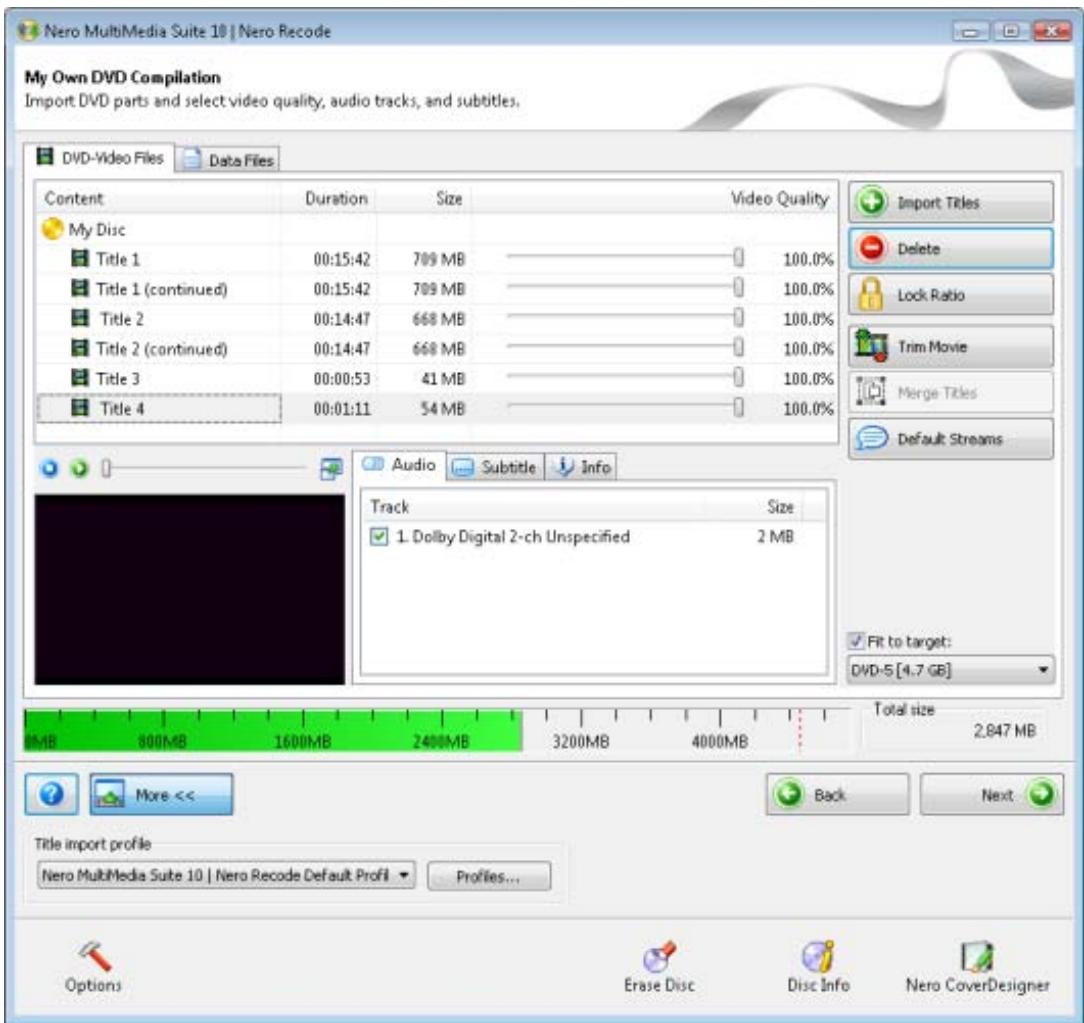
My Own DVD Compilation screen
The following buttons are available:
| Delete | Deletes imported video titles from your compilation. This button is only enabled if at least one DVD video title has been imported into the content area and selected there. |
| Lock Ratio | Locks the automatic change of recoding quality for a DVD video title. It is still possible to make manual changes to the quality settings by moving the slider. |
| It could be a good idea to lock individual video titles if you want to improve the quality of other content (and therefore, the quality of the remaining content is lowered proportionately). A locked title is protected from the proportional adjustment in this case. This button is only enabled if at least one DVD video title has been imported into the content area and selected there. | |
| Unlock Ratio | Unlocks automatic recoding quality changes for a video title. This button is only enabled if at least one DVD video title has been locked in the content area and selected there. |
| Trim Movie | Opens the Trim Movie window, where the selected video title can be trimmed. This button is only enabled if at least one DVD video title has been imported into the content area and selected there. |
| Merge Titles | Merges selected video titles and pastes them to a common folder, Merged Titles. You can rename the folder according to your own preferences. This button is enabled only if at least two DVD video titles have been imported into the content area and selected there. |
| Split | Splits merged video titles. This button is enabled only if at least two DVD video titles have been merged into one. |
| Default Streams | Opens the window Default Streams in which the streams for audio and subtitles can be selected. This button is only enabled if at least one DVD video title has been imported into the content area and selected there. |
See also
Compiling a DVD 37
Trim Movie Window 31
Default Streams Window 32
Import Screen 15
6.2 Compiling a DVD
You can use Nero Recode to compile a DVD of your own with parts from a DVD and data files.

Copyright
Unless you possess the copyright yourself, or at least have the permission of the copyright holder, the unauthorized reproduction of discs may be a breach of national or international law and may lead to severe penalties!
To compile a DVD, proceed as follows:
- Choose the Compile a DVD task from the Nero Recode main window.
→ The My Own DVD Compilation screen is displayed.
- Insert the DVD you want to recode in the disc drive on your PC.

Keep in mind that the Fit to target check box is enabled so that the content of the source DVD can be recoded during the subsequent process in such a way that it fits the selected target format.
If the check box is disabled, the DVD-Video will be imported in its original size. In this case, it is possible that the data volume will be so large that you will only be able to store it on a double-layer DVD or on the hard drive.
-
Select the required import profile in the Title import profile area.
-
Click the Import Titles button.
The Import Titles window is opened.
- Select the video titles that you want to recode and click the Add titles button.
The selected video titles are imported and shown on the content area. If the source files are larger than the target media, you can also see how the files are recoded according to the selected profile here.
Underneath, the capacity bar shows how much disk space is taken up by the imported files on the disc graphically.
-
If you want to delete a single video title:
-
Select the required video title.
- Click the Erase button.
The video title is removed from the compilation.
-
If you want to lock an individual video title to protect it from loss of quality during recoding:
-
Select the required video title.
- Click the Lock Ratio button.
→ The video title is locked.
-
If you want to unlock a locked video title in order to adjust the quality proportionally to the quality of the other titles while recoding:
-
Select the required video title.
- Click the Unlock Ratio button.
→ The video title is unlocked.

In order to adjust the quality of a desired video title individually, you can move the slider in the Video Quality column under the content area. The quality of the remaining DVD content is lowered proportionally to the quality improvement of an individual piece of content.
The sliders in the Video Quality area are enabled only when the Fit to target check box is disabled.
-
If you want to trim an individual video title:
-
Select the required video title.
- Click the Trim Movie button.
→ The Trim Movie window is opened.
-
Choose the first and last frames and click the OK button.
→ The video title is trimmed. -
If you want to merge several video titles:
-
Select at least two video titles.
- Click the Merge Titles button.
→ The video titles are compiled in a newly created folder, Merged Titles.

Video titles can only be merged if they all have the same audio track.
-
If you wish to separate merged video titles:
-
Select the Merged Titles folder.
- Click the Split Titles button.
→ The video titles are shown separately again; the Merged Titles folder is deleted.
-
If you wish to configure the default streams:
-
Select the required video title.
- Click the Default Streams button.
The Default Streams window is opened.
-
Choose the desired option buttons and click the OK button.
The video title's streams are adjusted. -
Select the check boxes for the audio tracks that you want to copy on the Audio tab. Accordingly, deselect the check boxes for the audio tracks that you don't want to copy.
- Select the check boxes for the subtitle tracks that you want to copy on the Subtitle tab. Accordingly, deselect the check boxes for the subtitle tracks that you don't want to copy.
- Click the Next button.
The Burn Settings screen is displayed.
-
Make the required settings for the burn process.
-
Click the Burn button.
The recoding and burn process is started and the Recording and Burning screen is displayed. You can track the process here.
- If you have chosen the disc drive of your computer as the target of the compilation, you will be prompted to insert an empty writable disc in the drive.
The burn process is complete when the relevant message appears in the information window.
You have compiled a DVD. Clicking the Next button displays the What do you want to do now? screen. You can select further options or exit Nero Recode here.
See also
Setting Options for Compiling a DVD 36
Trim Movie Window 31
Default Streams Window 32
Import Screen 15
Burn Settings screen 20
Recoding And Burning Screen 23
7 Recoding a DVD to Nero Digital
7.1 Setting Options for Recoding a DVD to Nero Digital
In addition to the basic settings that are always displayed on the screen for importing files, you can configure certain other options with the Recode DVDs and Videos to Nero Digital task.
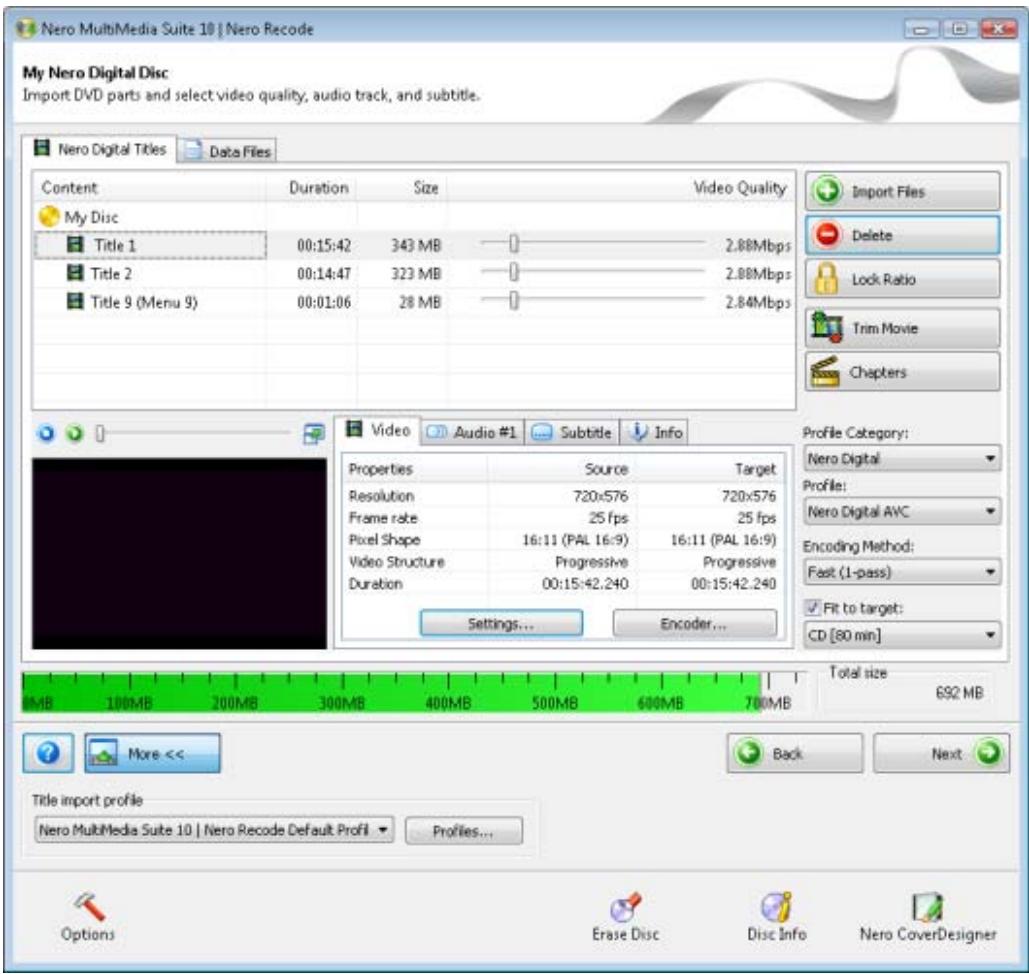
My Nero Digital Disc screen
The following buttons are available:
| Delete | Deletes imported video titles from your compilation. This button is only enabled if at least one DVD video title has been imported into the content area and selected there. |
| Lock Ratio | Locks the automatic change of recoding quality for a DVD-Video title. It is still possible to make manual changes to the quality settings by moving the slider. |
| It could be a good idea to lock individual video titles if you want to improve the quality of other content (and therefore, the quality of the remaining content is lowered proportionately). A locked title is protected from the proportional adjustment in this case. This button is only enabled if at least one DVD has been imported into the content area and selected there. | |
| Unlock Ratio | Unlocks automatic recoding quality changes for a video title. This button is only enabled if at least one DVD video title has been locked in the content area and selected there. |
| Trim Movie | Opens the Trim Movie window, where the selected video title can be trimmed. This button is only enabled if at least one DVD video title has been imported into the content area and selected there. |
| Chapters | Opens the window Chapters where chapter markers can be set. This button is only enabled if at least one DVD video title has been imported into the content area and selected there. |
The following drop-down menus are available:
| Profile Category | Changes the Nero Digital category. This setting refers to the respective target media for which encoding takes place. The result has different sizes depending on the selection; the entries in the Profile drop-down menu are adjusted accordingly. |
| Profile | Changes the Nero Digital profile. The setting relates to the target medium for which encoding is being carried out. |
| Encoding Method | Selects the method to be used to encode the MPEG-4 file. If you select Fast (1-pass), the movie only undergoes one conversion pass. This method requires less time but has lower quality than encoding in two steps. The movie is analyzed and converted with the available bit rate simultaneously. If you select High quality (2-pass), the movie undergoes several conversion passes. The quality is better, but the process takes longer. The first pass analyzes the movie and creates a temporary file (*log). The second pass converts the file. During this process, the bit rate data that was stored in the temporary files is used. |
The Video tab shows the video title's properties. The following information is available:
| Column Properties | Shows the video properties stored on the DVD, e.g. resolution, frame rate, pixel format, video structure, and duration. |
| Column Source | Shows the original size. |
| Column Target | Shows the target sizes depending on the selected Nero Digital profile. |
| Button Settings | Opens the Nero Digital Video Settings window, where you can define how the video should be processed. |
| Button Encoder | Opens the Nero Digital Video Properties window. You can configure the settings for the AVC encoding of your data here. |
The Audio tab displays the properties of an audio track. If there are two audio tracks available for the target video, an additional tab is displayed accordingly. The following setting options are available:
| Drop-down menu Source | Used to choose the audio track desired for the video file. |
| Drop-down menu Codec | Used to choose the desired audio codec. |
| Display Format | Shows the target data of the audio track, depending on the selected codec. |
| Button Settings | Opens the Nero Digital Audio Properties window. You can define the settings for the audio encoder here. Only available if you have selected the Nero Digital audio codec (AAC). |
The Subtitle tab displays the available subtitle tracks. The following selection menus are available:
| Main subtitle track: | Used to select a desired subtitle track for the video file. You can also choose not to use subtitles (None) or to create or import your own subtitle track. If you select the Create new subtitle entry, the Nero Digital Subtitle Settings window is opened. |
| Secondary subtitle track: | Chooses a secondary subtitle track in addition to the main one. You can choose not to select a secondary subtitle track (None) or to create or import your own subtitle track. If you select the Create new subtitle entry, the Nero Digital Subtitle Settings window is opened. |

You can only insert our own subtitle track if you have selected the Nero Digital or AVC profile category and, accordingly, one of the following profiles for encoding: Standard, Cinema, or HDTV.
See also
Nero Digital Video Settings 44
Encoder Settings 48
Nero Digital Audio Settings 51
Nero Digital Subtitle Settings 52
Chapters Window 55
Recoding DVDs And Videos to Nero Digital 56
Trim Movie Window 31
Import Screen 15
7.2 Nero Digital Video Settings
The Deinterlace, Frame rate, Crop, Resize, and Plug-ins tabs are available on the Nero Digital Video Settings window. You can define how video should be processed here.
To open this window, click the Settings button on the Video tab.
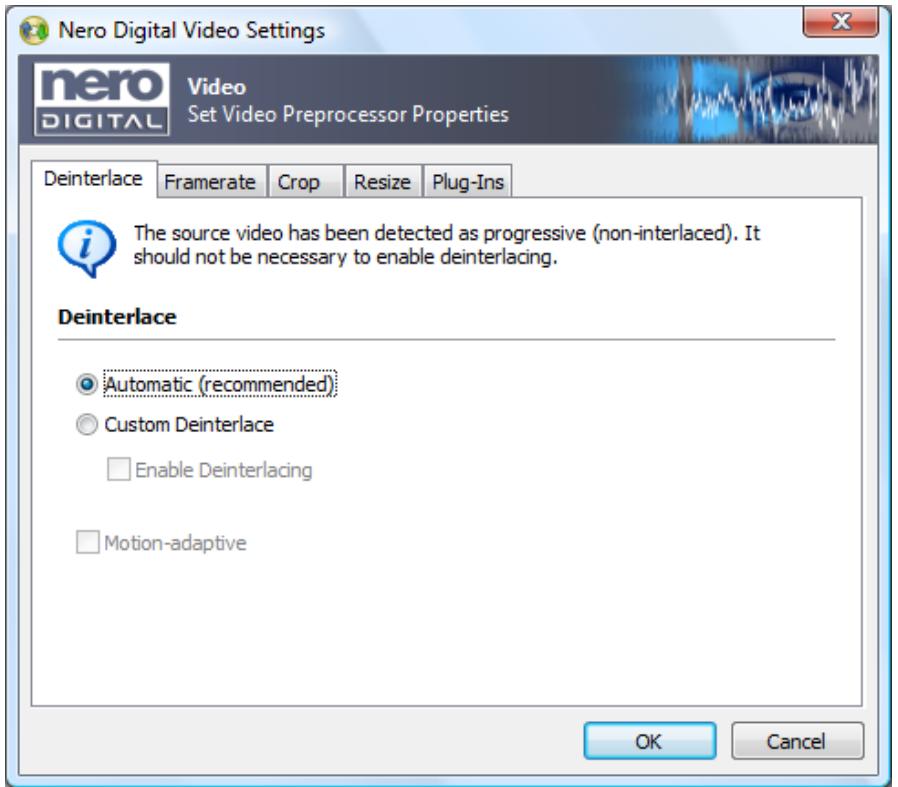
Nero Digital Video Settings window
See also
Deinterlace Tab 45
Frame Rate Tab 45
Crop Tab 46
Resolution Tab 46
Plug-ins Tab 47
Setting Options for Recoding a DVD to Nero Digital 41
7.2.1 Deinterlace Tab
The following setting options are available on the Deinterlace tab:
| Option button Automatic (recommended) | Automatically selects whether or not the video title should be encoded with deinterlace. |
| Option button Custom Deinterlace | Enables the Enable deinterlacing check box. |
| Check box Enable Deinterlacing | Enables deinterlacing for the current video title and displays the Motion-adaptive check box. This check box is only available if the Custom Deinterlace option button has been selected. |
| Check box Motion-adaptive | If the check box is selected, improved video quality can be achieved with a motion-adaptive conversion. Even fast motion sequences are reproduced in an extremely sharp manner with full detail accuracy. The burn process is slower, however. |
See also
Nero Digital Video Settings 44
7.2.2 Frame Rate Tab
You can select the target frame rate for your Nero Digital file on the Frame rate tab. The frame rate indicates the number of frames shown per second. The Nero Recode default settings use the frame rate of the source file, provided that the selected Nero Digital profile allows it.
The following setting options are available in the Framerate area:
| Option button Automatic (recommended) | Automatically selects how many frames are shown per second. |
| Option button Custom Framerate | Enables the Target rate drop-down menu. |
| Drop-down menu Target frame rate | Selects how many frames per minute to show. This drop-down menu is only available if you selected the User-defined rate option button. |
| Check box Motion-adaptive | If the check box is selected, improved video quality can be achieved with a motion-adaptive conversion. Even fast motion sequences are reproduced in an extremely sharp manner with full detail accuracy. The burn process is slower, however. |
See also
Nero Digital Video Settings 44
7.2.3 Crop Tab
If your DVD-Video features black picture bars on the sides, you can crop them with the Crop tab. This decreases the size of the video and as a result improves its quality. The Nero Recode default settings detect the bars and crop them automatically.
The following setting options are available in the Crop area:
| Option button Automatic (recommended) | Detects black picture bars and crops them automatically. |
| Option button Custom Crop | Enables the four text boxes for the manual cropping (top, bottom, right, left) and the Adjust button. |
| Button Adjust | Opens a window and displays a frame from the video. You can use the mouse to define the four cropping areas (top, bottom, left, right) by hand. The button is only enabled if the Custom Crop option button is selected. |
| Option button Disable | Allows the video to be converted without cropping the borders. |
See also
Nero Digital Video Settings 44
7.2.4 Resolution Tab
Under the default settings, the selection of a profile for converting the DVD video title to the MPEG-4 format defines the size of the picture to be created. You can adjust these picture sizes individually under the Resize tab.
The following setting options are available in the Resize area:
| Option button Automatic (recommended) | Automatically adjusts the frame size to the selected Nero Digital profile so that the frame size generated matches the output medium. |
| Option button Custom Resize | Activates the two text boxes for the page format (width and height). The values to be entered must be multiples of 16 and must be in the range 16 to 720 pixels for width and 16 to 576 pixels for height. |
| Option button Disable | Allows the video to be converted without changing the frame size. |
| Check box Square Pixels / Letterboxing | If this check box is selected, a Nero Digital file that consists of square pixels and uses the Letterbox method is created. This increases compatibility with some players. This can, however, result in black bars inside the video file. This option is only available if the Custom resize option button has been selected. |
| Drop-down menu Resizing method | Selects the desired resizing method, e.g. bilinear, bicubic, Lanczos and superresolution. |
See also
Nero Digital Video Settings 44
7.2.5 Plug-ins Tab
You can select and configure plug-ins that have already been installed for use in Nero Recode under the Plug-Ins tab.
The following setting options are available:
| Selection list Installed Plug-Ins | Displays the installed plug-ins. |
| Selection list Selected Plug-Ins | Displays the selected plug-ins. |
| Button Add | Adds installed plug-ins to the Selected plug-ins selection list. |
| Button Remove | Removes plug-ins from the Selected plug-ins list box. |
| Button Move Up / Move Down | Sorts the items in the Selected plug-ins selection list. |
| Button Options | Opens the Plug-ins Editor window, where you can define settings for the respective plug-ins. The setting options depend on the selected plug-in. You can track your adjustments in the preview area on the right side of the window. Clicking the Reset button undoes all changes. |

The Nero Recode default settings include the Color Correction and Denoise plug-ins.
You can adjust brightness, contrast and saturation of your video files with sliders in the Color Correction plug-in.
Noise interference can be removed from video files with the sliders in the
Denoise plug-in.
See also
Nero Digital Video Settings 44
7.3 Encoder Settings
You can configure settings for AVC encoding of your data, save the settings you have configured, or load saved setting configurations in the Nero Digital Video Properties window, under the Encoder configuration tab. The different setting areas are selected with the directory tree on the left side of the window.
You can open the window by clicking the Encoder button on the Video tab.
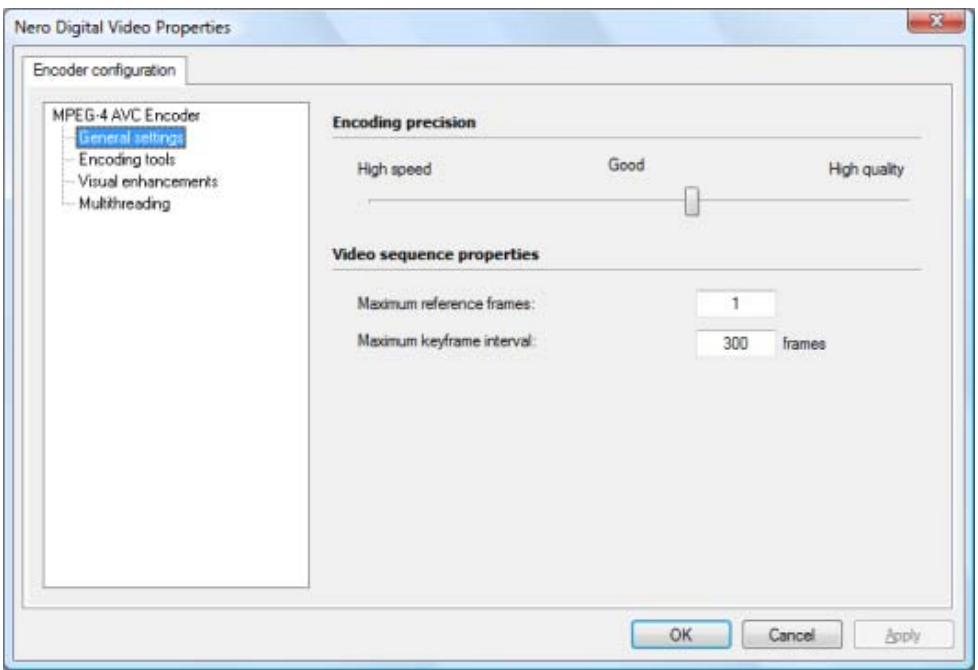
Nero Digital Video Properties window
The following setting options are available under the MPEG-4 AVC Encoder entry:
| Button Load Settings | Loads existing encoder settings. A window is opened. |
| Button Save Settings | Saves newly created encoder settings. |
See also
Setting Options for Recoding a DVD to Nero Digital 41
Multithreading 51
Visual Enhancements 51
Encoding Tools 50
General Settings 49
7.3.1 General Settings
You can configure settings for Encoding precision and Video sequence properties under the General Settings entry.
The slider in the Encoding precision area specifies how good the quality of the output file should be in relation to the time used for encoding. High quality provides the best quality, but the longest encoding time. High speed takes up the least encoding time and provides the worst available quality. It is advisable to use a value in the middle within the Good range.
The following setting options are available in the Video sequence properties area:
| Input field Maximum reference frames | Specifies how many frames from which a P-frame or B-frame may query information. |
| Input field Maximum keyframe interval | Defines the range for the size of the GOP. |
See also
Encoder Settings 48
7.3.2 Encoding Tools
You can define settings for the encoding process under Encoding tools.
The following check box is available in the Baseline Profile area:
| Deblocking | If this check box is selected, a soft-focus effect is applied to the sharp edges of the macroblocks. You can configure the intensity by using the Deblocking strength slider. |
The following setting options are available in the Main profile area:
| Check box Bidirectional prediction | If this check box is selected, encoding is carried out with the help of B-VOPs. |
| Input field Maximum consecutive B-frames | Specifies the maximum number of B-frames that can be used in a GOP. This input field is enabled only when the Bidirectional prediction check box is enabled. |
| Check box CABAC | If this check box is selected, the Context Adaptive Binary Arithmetic Coding encoding method is used. |
| Check box Weighted prediction | If this check box is selected, reference frames can be re-weighted during motion predictions. This increases the encoding efficiency especially during cross fading. |
| Check box Interlaced encoding | If this check box is selected, interlaced-encoded output material can be saved as interlaced material again. Only possible if the source video file is interlaced. |
The following check box is available in the High profile area:
| 8 x 8 Transform | If this check box is selected, the default 4x4 transform used by the encoder is changed to an 8x8 transform. This allows for better compression with high-definition resolutions. This setting depends on the chosen profile. |
See also
Encoder Settings 48
7.3.3 Visual Enhancements
The settings in the Visual enhancements entry use human perception patterns to achieve better overall quality.
This means, for example, that the quality is better in the middle of the picture than at the outer edges because the eyes tend to focus on the middle and do not notice slight blurring at the edge. Because quality is "saved" at the edge, you can either improve overall quality or achieve greater compression. This means that you can achieve greater compression without any appreciable loss of quality.
The following check boxes are available in the Psychovisual enhancement area:
| Picture level | If this check box is selected, human perception is taken into account in order to achieve better compression for individual pictures at certain spots in the video. |
| Macroblock level | If this check box is selected, human perception is taken into account in order to achieve better compression for macroblocks in certain areas in the picture. |
See also
Encoder Settings 48
7.3.4 Multithreading
You can configure multithreading settings under the Multithreading entry.

Nero Recode supports multi-core processors. If you have one of these, you can distribute the encoding process over the desired number of threads.
The following drop-down menu is available:
| Number of threads/slices | Defines whether the encoding process should be performed by multiple threads (Multithreading). The number of processor cores used corresponds to the number of threads you have selected. This ensures optimal use of a multi-core processor system. |
See also
Encoder Settings 48
7.4 Nero Digital Audio Settings
You can define settings for the audio encoder in the Nero Digital Audio Properties window.
You can open the window by clicking the Settings button on the Audio tab.
The following setting options are available in the Audio Settings area:
| Option button Automatic (recommended) | Automatically adapts the audio profiles to the Nero Digital profile, so that the quality of the audio track best corresponds to the output medium. |
| Option button Custom | Activates the combo boxes Channels, Mode, Sample rate and Bit rate. |
| Drop-down menu Channels | Selects the audio channels. Depending on the selected Nero Digital profile, Stereo, Mono, and 5.1 are available for selection. |
| Drop-down menu Mode | Selects the mode with which the audio channels are processed. Depending on the Nero Digital profile selected, Low complexity and High efficiency are available. The selection affects the scan and bit rate. |
| Drop-down menu Sample rate | Selects the scan rate. The scan rate is the frequency that a signal is scanned per time interval. |
| Drop-down menu Bit rate | Selects the bit rate. The bit rate is the quantity of data transmitted within a time unit. |
The following drop-down menu is available in the Audio Boost Volume area:
| Drop-down menu Volume | Sets the required volume. |
See also
Setting Options for Recoding a DVD to Nero Digital 41
7.5 Nero Digital Subtitle Settings
The Nero Digital Subtitle Settings window allows you to create your own subtitle track. You can also import a subtitle track that is already available. In order to be able to import the track, the file must be saved in one of the following formats: SUB, SRT, SMI, SSA, ASS, PSB.

You can only insert our own subtitle track if you have selected the Nero Digital or AVC profile category and, accordingly, one of the following profiles for encoding: Standard, Cinema, or HDTV.
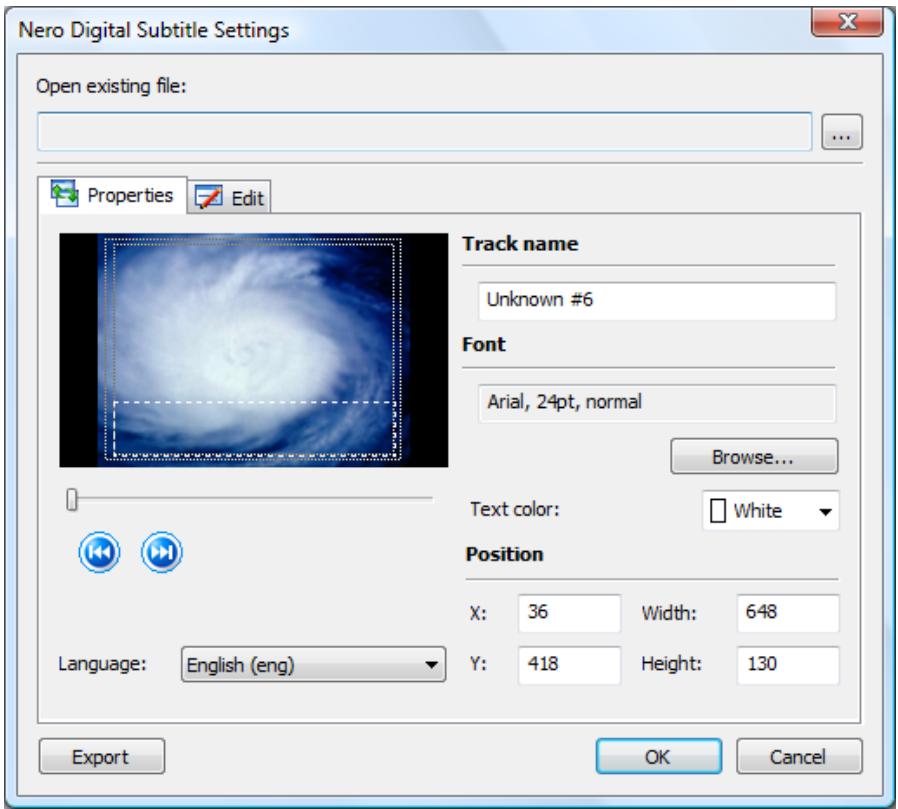
Nero Digital Subtitle Settings window
The following setting options are available:
| Button Open existing file | Opens a window. You can select subtitle files that are already available in this window. |
| Button Export | The Save as window is opened. You can save a subtitle file that you created in a folder of your choice. |
The following setting options are available on the Properties tab:
| Input field Track name | Allocates a name to a subtitle track you have created. |
| Area Font | Displays the settings from the Font window. |
| Button Browse | Opens the Font window. Make the settings for the font and the size of your subtitle track here. |
| Drop-down menu Text color | Specifies the color of your subtitle track. |
| Area Position | Specifies the coordinates of the text box where the subtitle track is displayed. |
| Drop-down menu Language | Specifies the subtitle track language to be declared. |
| Button ←/→ | Goes to the end/beginning of the current subtitle line or the beginning/end of the next. Only available if subtitle lines have already been created. |
| Slider | Selects the desired frames. |
The Edit tab shows the individual subtitle lines. The following information on the individual lines is available:
| Column Start timecode | Shows the start time for the subtitle line. You can adjust the start time according to your preferences. Click inside the column in order to edit the duration of an interval. |
| Column End timecode | Shows how long the subtitle lines are displayed. You can adjust the ending time according to your preferences. Click inside the column in order to edit the duration of an interval. |
| Column Text | Displays the subtitle text for an interval. You can enter or edit the desired text by using the Edit button. |
The following buttons are available on the Edit tab:
| Button Append | Adds a new line to the end of the frame. In the standard setting the interval between the start and end of the time code is 4 seconds. |
| Button Edit | Opens the Edit Subtitle Line window. You can enter or edit the desired text for a subtitle line in this window. |
| Button Delete | Deletes a previously selected subtitle line. |
See also
Subtitle Formats 54
Setting Options for Recoding a DVD to Nero Digital 41
7.5.1 Subtitle Formats
The individual subtitles in files in SUB (preSub) format consist of a single line. The lines are separated from each other by paragraph marks and must have the following form:
1 \0 \50\ Sample subtitle text
The first and last frame in which the text should be displayed are shown between curly frames. The subtitle text is shown after them, without a space between.
The SRT (SubRip) subtitle format consists of 3-line blocks. They are separated from each other by empty breaks and must have the following format:
1
Continuous number that begins with one and is increased by one for each block.
00:01:36,480 -> 00:01:38,360
The first time indication specifies in hours, minutes, seconds, and milliseconds when the text begins to be displayed.
An arrow that consists of two hyphens and a angle bracket follows, separated by a space.
After another space, the time indication that specifies when the text should cease to be displayed follows.
Sample subtitle text
Contains the subtitle's text.
The SMI (SAMI) subtitle format is based on HTML syntax. Millisecond are used as the basis for time values. This format is a standard developed by Microsoft and is intended mainly for the use of subtitles in videos. SMI can only be played back with Windows Media Player and other Microsoft products.
The subtitle format SSA (Sub Station Alpha) has the widest range of functionality. The syntax consists of sections and the included code lines. The sections begin with a bracket (e.g. "[Script Info]") followed by predefined code lines (e.g. Title, Original timing), containing the respective information. This allows the use of colors, fonts, font sizes and similar.
The subtitle format ASS (Advanced Sub Station Alpha) is an enhanced version of SSA and offers all the features of SSA. It also allows subtitles to be graphically edited, e.g. for Karaoke.
The PSB (MPsub) subtitle format was developed for the Mplayer, a movie player for Linux. Its main feature is the use of dynamic time dependencies. The code consists of numbers and of the subtitle's text. The first number in the code represents the waiting time, in seconds, for the next subtitle to be displayed after the last subtitle has elapsed. The second number shows the current subtitle for the time, in seconds, that it represents.
See also
Nero Digital Subtitle Settings 52
7.6 Chapters Window
In the Chapters window, you can add your own chapter markers to those already on the DVD. Chapter markers subdivide the content of a DVD. It is possible to access them, as chapters, with the DVD player.
The following setting options are available:
| Display panel Current frame | Shows the current playing time of the video displayed in the preview window. |
| Display area Chapters | Shows the chapter markers already set and the starting time for every chapter marker. |
| Button Add | Adds a chapter marker at the selected point in the video. |
| Button Delete | Deletes the selected chapter marker. |
| Slider | Jumps to the desired frame. |
| Button | Starts playback. |
| Button | Pauses playback. |
| Button | Skipping 6 seconds back. |
| Button | Skipping a few frames back. |
| Button | Skipping forwards a few frames. |
| Button | Skipping forwards 6 frames. |
See also
Setting Options For Recoding a Main Movie to Nero Digital 60
Setting Options for Recoding a DVD to Nero Digital 41
7.7 Recoding DVDs And Videos to Nero Digital
You can use Nero Recode to encode all video formats supported by Nero into Nero Digital files. The Nero Digital codec is MPEG-4-compliant. These files can be played in Nero ShowTime and in other common programs.

Copyright
Unless you possess the copyright yourself, or at least have the permission of the copyright holder, the unauthorized reproduction of discs may be a breach of national or international law and may lead to severe penalties!
To recode a DVD or video to Nero Digital, proceed as follows:
- Choose the Decode DVDs and Videos to Nero Digital task in the Nero Decode main window.
→ The My Nero Digital Disc screen is displayed.
- Insert the DVD you want to recode in the disc drive on your PC.

Keep in mind that the Fit to target check box is enabled so that the content of the source DVD can be recoded during the subsequent process in such a way that it fits the selected target format.
If the check box is disabled, the DVD-Video will be imported in its original size. In this case, it is possible that the data volume will be so large that you will only be able to store it on a double-layer DVD or on the hard drive.
-
Select the required import profile in the Title import profile area.
-
Click the Import Files button.
The Import Titles window is opened.
- Select the video titles that you want to recode and click the Add titles button.
The selected video files are imported and displayed in the content area.
If the source files are larger than the target media, you can also see how the files are recoded according to the selected profile here.
Underneath, the capacity bar shows how much disk space is taken up by the imported files on the disc graphically.
-
If you want to delete a single video title:
-
Select the required video title.
- Click the Erase button.
→ The video title is removed from the compilation.
-
If you want to lock an individual video title to protect it from loss of quality during recoding:
-
Select the required video title.
- Click the Lock Ratio button.
→ The video title is locked.
-
If you want to unlock a locked video title in order to adjust the quality proportionally to the quality of the other titles while recoding:
-
Select the required video title.
- Click the Unlock Ratio button.
→ The video title is unlocked.

In order to adjust the quality of a desired video title individually, you can move the slider in the Video Quality column under the content area. The quality of the remaining DVD content is lowered proportionally to the quality improvement of an individual piece of content.
The sliders in the Video Quality area are enabled only when the Fit to target check box is disabled.
-
If you want to trim an individual video title:
-
Select the required video title.
- Click the Trim Movie button.
→ The Trim Movie window is opened.
-
Choose the first and last frames and click the OK button.
→ The video title is trimmed. -
If you want to add additional chapters to individual video titles:
-
Select the required video title.
- Click the Chapters button.
→ The Chapter window is opened.
-
Add the desired chapter markers and click the OK button.
→ The chapters are added. -
Choose the desired Nero Digital category in the Profile Category drop-down menu.
- Select the required Nero Digital profile in the Profile drop-down menu.
- Select the desired encoding method from the Encoding Method drop-down menu.
- If you want to change the video settings for a video title, click the Settings button under the Video tab and configure the settings according to your preferences.
- If you wish to modify the encoder settings of a video title, click the Encoder button on the Video tab and make the required settings.
- Select the audio tracks of a video title that you want to copy on the Audio #1 and #2 tabs.
- If you want to change other audio settings for an audio track, click the Settings button under the corresponding Audio tab and configure the settings according to your preferences.
- Select the subtitle tracks (of a video title) that you want to copy under the Subtitle tab.
- Click the Next button to define the burn settings.
The Burn Settings screen is displayed.
-
Make the required settings for the burn process.
-
Click the Burn button.
The recoding and burn process is started and the Recording and Burning screen is displayed. You can track the process here.
- If you have chosen the disc drive of your computer as the target of the compilation, you will be prompted to insert an empty writable disc in the drive.
The burn process is complete when the relevant message appears in the information window.
You have recoded a DVD or a video into Nero Digital. Clicking the Next button displays the What do you want to do now? screen. You can select further options or exit Nero Recode here.
See also
Setting Options for Recoding a DVD to Nero Digital 41
Nero Digital Video Settings 44
Encoder Settings 48
Nero Digital Audio Settings 51
Nero Digital Subtitle Settings 52
Chapters Window 55
Trim Movie Window 31
Import Screen 15
Burn Settings screen 20
Recoding And Burning Screen 23
8 Recoding a Main Movie to Nero Digital
8.1 Setting Options For Recoding a Main Movie to Nero Digital
In addition to the basic settings that are always displayed on the screen for importing files, you can configure certain other settings with the Recode Main Movie to Nero Digital task.
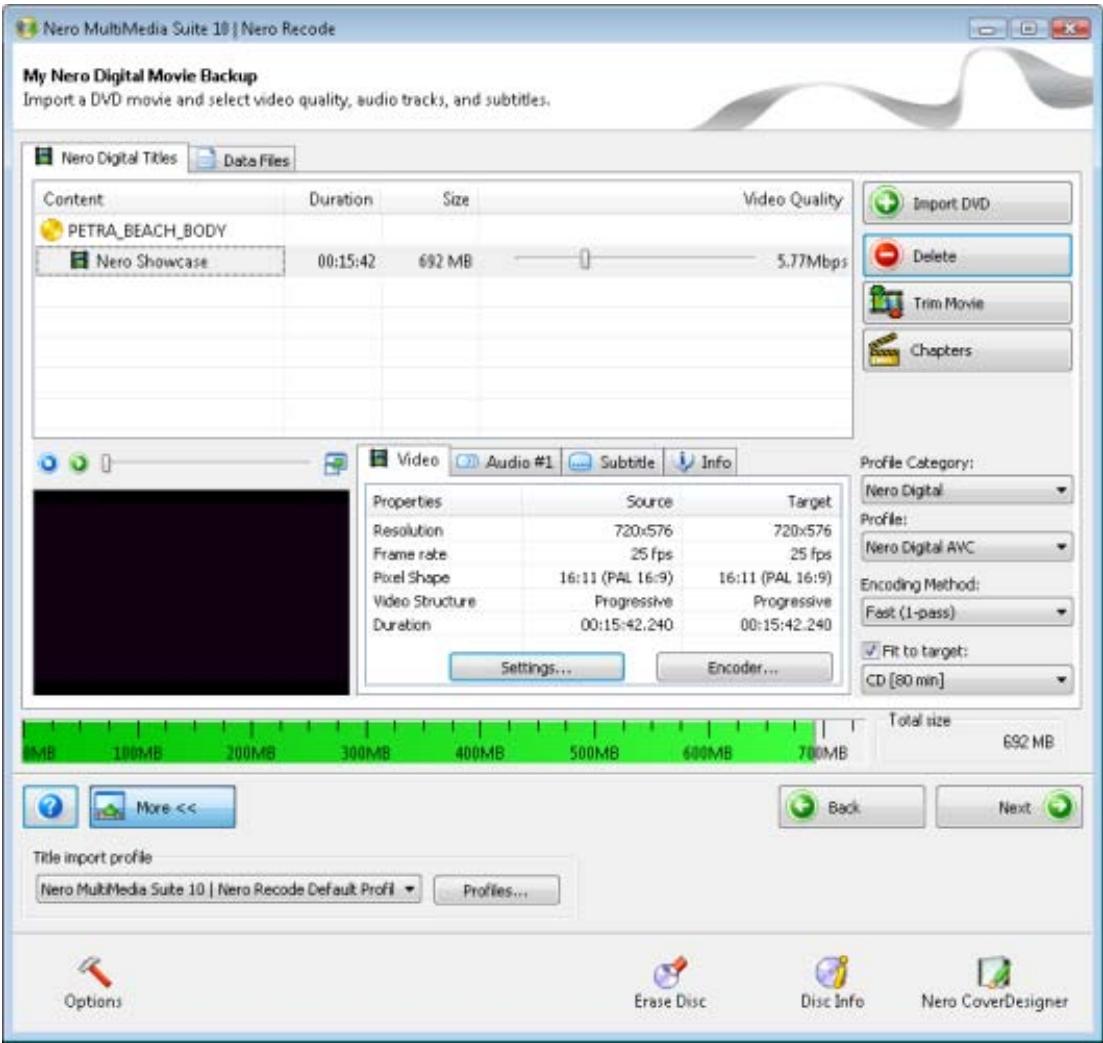
My Nero Digital Movie Backup screen
The following buttons are available:
| Trim Movie | Opens the Trim Movie window, where the selected video title can be trimmed. This button is only enabled if at least one DVD video title has been imported into the content area and selected there. |
| Chapters | Opens the Chapters window where chapter markers can be set. |
| This button is only enabled if at least one DVD video title has been imported into the content area and selected there. | |
The following drop-down menus are available:
| Profile Category | Changes the Nero Digital category. This setting refers to the respective target media for which encoding takes place. The result has different sizes depending on the selection; the entries in the Profile drop-down menu are adjusted accordingly. |
| Profile | Changes the Nero Digital profile. The setting relates to the target medium for which encoding is being carried out. |
| Encoding Method | Selects the method to be used to encode the MPEG-4 file. If you select Fast (1-pass), the movie only undergoes one conversion pass. This method requires less time but has lower quality than encoding in two steps. The movie is analyzed and converted with the available bit rate simultaneously. If you select High quality (2-pass), the movie undergoes several conversion passes. The quality is better, but the process takes longer. The first pass analyzes the movie and creates a temporary file (*log). The second pass converts the file. During this process, the bit rate data that was stored in the temporary files is used. |
See also
Trim Movie Window 31
Import Screen 15
Recoding a Main Movie to Nero Digital 61
Chapters Window 55
8.2 Recoding a Main Movie to Nero Digital
You can use Nero Recode to encode the main movie of a DVD without additional extras into Nero Digital. The Nero Digital codec is MPEG-4-compliant. These files can be played in Nero ShowTime and in other common programs.

Copyright
Unless you possess the copyright yourself, or at least have the permission of the copyright holder, the unauthorized reproduction of discs may be a breach of national or international law and may lead to severe penalties!
In order to recode the main movie of a DVD to Nero Digital, proceed as follows:
- Choose the Recode Main Movie to Nero Digital task in the Nero Recode main window.
→ The My Nero Digital Movie Backup screen is displayed.
- Insert the DVD you want to recode in the disc drive on your PC.

Keep in mind that the Fit to target check box is enabled so that the content of the source DVD can be recoded during the subsequent process in such a way that it fits the selected target format.
If the check box is disabled, the DVD-Video will be imported in its original size. In this case, it is possible that the data volume will be so large that you will only be able to store it on a double-layer DVD or on the hard drive.
- Select the required import profile in the Title import profile area.
- Click the Import DVD button.
The Browse Folder window is opened.
- Select the drive or hard drive folder containing the DVD that you want to recode and click the OK button.
The DVD's main movie is imported and shown in the content area. If the source DVD is larger than the target media, you can also see how the DVD is recoded according to the selected profile here.
Underneath, the capacity bar shows how much disk space is occupied by the imported files on the disc graphically.
-
If you want to trim an individual video title:
-
Select the required video title.
- Click the Trim Movie button.
→ The Trim Movie window is opened.
-
Choose the first and last frames and click the OK button.
→ The video title is trimmed. -
If you want to add additional chapters to individual video titles:
-
Select the required video title.
- Click the Chapters button.
The Chapter window is opened.
- Add the desired chapter markers and click the OK button.
→ The chapters are added.

In order to adjust the quality of a desired video title individually, you can move the slider in the Video Quality column under the content area. The quality of the remaining DVD content is lowered proportionally to the quality improvement of an individual piece of content.
The sliders in the Video Quality area are enabled only when the Fit to target check box is disabled.
- Choose the desired Nero Digital category in the Profile Category drop-down menu.
- Select the required Nero Digital profile in the Profile drop-down menu.
-
Select the desired encoding method from the Encoding Method drop-down menu.
-
If you want to change the video settings for a video title, click the Settings button under the Video tab and configure the settings according to your preferences.
- If you want to change the encoder settings for a video title, click the Encoder button under the Video tab and configure the settings according to your preferences.
- Select the audio tracks of a video title that you want to copy on the Audio #1 and #2 tabs.
- If you want to change the audio settings for an audio track, click the Settings button under the Audio tab and configure the settings according to your preferences.
- Select the subtitle tracks (of a video title) that you want to copy under the Subtitle tab.
- Click the Next button to define the burn settings.
The Burn Settings screen is displayed.
- Make the required settings for the burn process.
- Click the Burn button.
The recoding and burn process is started and the Recording and Burning screen is displayed. You can track the process here.
- If you have chosen the disc drive of your computer as the target of the compilation, you will be prompted to insert an empty writable disc in the drive.
The burn process is complete when the relevant message appears in the information window.
You have recorded a DVD's main movie to Nero Digital. Clicking the Next button displays the What do you want to do now? screen, where you can select other options or exit Nero Recode.
See also
Setting Options For Recoding a Main Movie to Nero Digital 60
Trim Movie Window 31
Chapters Window 55
Import Screen 15
Burn Settings screen 20
Recoding And Burning Screen 23
9 Technical Information
9.1 System Requirements
Nero Recode is installed along with its suite. Its system requirements are the same. You can find more detailed information on the system requirements under www.nero.com.
In addition, the following requirements apply:
16-bit Windows compatible sound card and speakers or headphones
Optional: CD recorder
- Optional: DVD-Video Plug-in for DVD-Video recordings and the "DVD-9 to DVD-5" function
Multi-core processor (recommended)
9.2 Key Combinations
The following shortcuts for entering keyboard commands are available in Nero Recode.
The following general key combinations are available:
| [F1] | Displays the help file. |
| DEL | Deletes selected items (e.g. titles or text). |
| [Shift+arrow key] | Selects text starting from the cursor position. |
| [Ctrl+Shift+arrow key] | Selects a block of text starting from the cursor position. |
| [Ctrl+arrow key] | Moves the cursor to the beginning of the next/previous word. |
| [Ctrl+C] | Copies selected title from the content area to the clipboard. |
| [Ctrl+X] | Cuts selected title from the content area and adds it to the clipboard. |
| [Ctrl+V] | Pastes title from the clipboard to the desired position in the content area. |
10 Index
1:1 copy. 7
Abbreviation 64
Activate 27
Audio channels. 52
Audio codec 43
Audio encoder 43
Audio preview. 14
Audio Settings 52
Audio streams 33
Audio tab 18, 19, 43
Audio tracks 18, 19, 39, 39, 43, 43
Baseline profile. 50
Basic settings...10,11,12,12,13,14,15
Bit rate 52
Book type 23
Burn process 21, 23, 23, 25
Burn progress 23
Burn Settings. 6, 21, 23
Burn Settings screen. 6
Burn-at-once 22
B-VOP 50
CABAC 50
Capacity bar 15
Chapter 42, 56, 60
Chapter window 42, 56, 60
Color Correction 48
Compiling a DVD. 5, 10, 36, 38
Conventions, manual 5
Copy DVD 5,7
Copy protection 15
Copyright. 15, 15
Crop 46
Crop tab 46
Customizing image size 47
Data Files tab 15, 18
Deblocking. 50
Decoding 7, 14
Default streams 33
DefaultStreams 30,37
Default Streams window 33
Deinterlace 45
Deinterlace tab 45
Deleting a video title. 36, 41
Denoise 48
Disable 26
Disabling video titles 26
Disc image. 5
Disc Info 10
Dolby Digital 14
DVD tab 12
DVD-Video Files tab. 15, 16
Enabling video titles 27
Encoder 43, 48
Encoder configuration tab 48
Encoder settings 49, 49, 50, 51, 51
Encoding 7
Encoding method 61
Encoding Method 42
Encoding precision 49
Erase 36,41
Erasing a Disc 10
Extended area. 9, 10, 21, 23, 23, 25
File I/O tab. 15
Focal plane. 51
Frame rate. 45
Full version. 6
General tab. 12
GOP 50, 50
High quality mode 22
Image file. 5
Import DVD 12, 17
Import files.....18, 19, 26, 30, 36, 41, 60
Import Files 6, 16
Import Files screen . 6, 15, 16, 18, 19, 26, 30, 36, 41, 60
Import Title 17
Info tab 18
Interlaced 50
Interlaced encoding 13
iPod 14
iTunes 14
Key combinations. 64
Layer break 13
Letterbox 47
Lock Ratio 27, 36, 41
Locking a video title 27, 36, 41
Macroblock level 51
Main window 9
Manual, conventions 5
Merge Titles 37
Merge video title. 37, 37
Motion-adaptive. 14, 45, 45
Multi-Core processors 51
Multithreading. 51
My DVD Backup 26
My DVD Backup screen 26
My Movie Backup 30
My Movie Backup screen 30
My Nero Digital Disc screen. 41
My Nero Digital Movie Backup screen. 60
My Own DVD Compilation screen .... 36
Nero Burning ROM 7
Nero CoverDesigner 11
Nero Digital 10, 14, 15, 25, 42, 44, 44, 45, 45, 46, 47, 47, 48, 49, 50, 51, 51, 52, 52, 53, 60, 61
Nero Digital Audio 43
Nero Digital Audio Properties window. 43, 52
Nero Digital Subtitle Settings window . 43, 52
Nero Digital tab 13
Nero Digital Titles tab. 16
Nero Digital Video Properties window. 43, 48, 49, 50, 51, 51
Nero Digital video settings 45, 45, 46, 47, 47
Nero Digital Video settings 43
Nero Digital Video Settings 44
Nero Digital Video Settings window43, 44, 45, 45, 46, 47, 47
Nero Express 7
Nero Recode main window 6
Nero Recode Options window 11, 12, 12, 13, 14, 15
Nero Recode profile window 19
Options. 10, 11, 12, 12, 13, 14, 15
Output DVD 13
Picking a task. 6, 9
Plug-ins 47, 48
Plug-ins tab 47
Preview. 18, 25
Preview window tab 14
Priority 21, 23, 23, 25
Profile categories 44, 53
Profile category 42, 61
Profiles 14, 19, 25, 42, 44, 53, 61
Program Starting the program 8
Program versions 6
Progress bar 23
Psychovisual enhancement 51
P-UOP 13
Quick info 7,10,11
Recoding 7, 21, 23, 23, 25
Recoding a main movie to DVD. 9, 30, 34
Recoding an entire DVD to DVD 9, 26, 27
Recoding and burn process 6
Recoding and Burning screen.... 6, 23, 25
Recoding DVDs and videos to Nero
Digital 10,41
Recoding DVD's and videos to Nero
Digital 57
Recoding process 21, 23, 23, 25
Recoding the main movie to Nero Digital 10,60,61
Resolution 47
Sample rate. 52
Scope of features 6
Screen Burn Settings 21, 23
Setting chapter markers. 42, 56, 60
Split 37
Start. 8
Subtitle formats 55
Subtitle settings. 52
Subtitle streams 33
Subtitle tab 18, 19, 43
Subtitle tracks. 43, 44, 52, 53
Subtitle Tracks 18, 20, 55
Subtitles 44, 53
System requirements 64
Other. 64, 64
Target folder. 22
Task-specific setting options... 15, 17, 18, 21, 23, 26, 30, 36, 41, 60
Temporary files 22
Title import profiles. 19
Tool tips. 7, 10, 11
Transcoding 7
Trim movie 31
Trim Movie 30, 37, 42, 60
Trim Movie window 31
Unlock Ratio 27,37,42
Unlocking a video title 27,37
Unlocking video titles 42
User interface. 9
Versions 6
Video quality17, 27, 29, 37, 39, 42, 58, 62
Video resolution 14
Video sequence properties 49
Video settings. 43, 45, 45, 46
Video Settings 44, 47, 47
Video tab 19, 42
Video title. 39
Visual enhancement. 51
Volume 52
Write speed 22
Writing 21, 23, 23, 25
11 Contact
Nero Recode is a Nero AG product.
Nero AG
Im Stoeckmaedle 13
76307 Karlsbad
Germany
Internet: www.nero.com
Help: http://support.nero.com
Fax: +49 724 892 8499
Nero Inc.
330 N Brand Blvd Suite 800
Glendale, CA 91203-2335
USA
Internet: www.nero.com
Help: http://support.nero.com
Fax: (818) 956 7094
E-mail: US-CustomerSupport@nero.com
Nero KK
Rover Center-kita 8F-B, 1-2-2
Nakagawa-chouu Tsuzuki-ku
Yokohama, Kanagawa
Internet: www.nero.com
Help: http://support.nero.com
Japan 224-0003
Copyright © 2010 Nero AG and its licensors. All rights reserved.