
SOUNDTRAX MULTIMEDIA SUITE 10 - Multimedia editing and production software NERO - Free user manual and instructions
Find the device manual for free SOUNDTRAX MULTIMEDIA SUITE 10 NERO in PDF.


User questions about SOUNDTRAX MULTIMEDIA SUITE 10 NERO
0 question about this device. Answer the ones you know or ask your own.
Ask a new question about this device
Download the instructions for your Multimedia editing and production software in PDF format for free! Find your manual SOUNDTRAX MULTIMEDIA SUITE 10 - NERO and take your electronic device back in hand. On this page are published all the documents necessary for the use of your device. SOUNDTRAX MULTIMEDIA SUITE 10 by NERO.
USER MANUAL SOUNDTRAX MULTIMEDIA SUITE 10 NERO
Copyright and Trademark Information
This document, like the software described therein, is provided as a license and may only be used or reproduced in accordance with the licensing agreement. The contents of this document, as well as the associated software, is subject to change without prior notice. Nero AG rejects any responsibility for the correctness of the contents of this document and rejects any claims that transcend the clauses of the guarantee agreement.
This document and all of its contents are protected by copyright and are the property of Nero AG. All rights reserved. In addition, this document contains material that is protected by internationally valid copyright. This document may not be reproduced, transmitted, or transcribed in whole or in part without the express written permission of Nero AG.
Please keep in mind that existing graphics, pictures, videos, music titles or other materials that you may wish to insert or transcribe into projects may be protected by copyright. The unauthorized use of this type of material in your projects may violate the rights of the owner of the copyright. Make sure that you obtain all necessary authorizations from the owner of the copyright.
Unless you own the copyright, have permission from the copyright owner or your actions fall under the "fair use" provisions of copyright law, you may be violating national or international copyright laws. The transcribing, duplication, modification or publication of copyright-protected material may lead to claims for damages and the enforcement of other legal measures against you. If you are unsure of your rights, you should contact your legal advisor.
Some Nero Multimedia Suite applications require technologies developed by third-party manufacturers and may be included in Nero Multimedia Suite as demo versions. These applications can be activated online free of charge or by sending an activation fax to have unlimited use of the version. Nero will only transmit the data necessary for activation of the technology licensed from third parties. For unlimited use of Nero Multimedia Suite, it is therefore necessary to have an Internet connection or a fax machine.
Copyright © 2006 - 2010 Nero AG and its licensors. All rights reserved.
Nero, Nero BackItUp, Nero BackItUp & Burn, Nero Burning ROM, Nero Digital, Nero DMA Manager, Nero Essentials, Nero Express, Nero ImageDrive, Nero LiquidTV, Nero MediaHome, Nero MediaHub, Nero MediaStreaming, Nero Move it, Nero Music2Go, Nero PhotoDesigner, Nero PhotoSnap, Nero Recode, Nero RescueAgent, Nero Simply Enjoy, Nero SmartDetect, Nero SmoothPlay, Nero StartSmart, Nero Surround, Nero Vision, Nero Vision Xtra, Burn-At-Once, InCD, LayerMagic, Liquid Media, the SecurDisc logo, and UltraBuffer are common law trademarks or registered trademarks of Nero AG.
Adobe, Acrobat, Acrobat Reader and Premiere are trademarks or registered trademarks of Adobe Systems, Incorporated. AMD Athlon, AMD Opteron, AMD Sempron, AMD Turion, ATI Catalyst and ATI Radeon are trademarks or registered trademarks of Advanced Micro Devices, Inc. ATSC is a trademark of the Advanced Television Committee. ICQ is a registered trademark of AOL, LLC. Apple, iPhoto, iPod, iTunes, iPhone, FireWire, and Mac are trademarks or registered trademarks of Apple, Inc. ARM is a registered trademark of ARM, Ltd. AudibleReady is a registered trademark of Audible, Inc. BenQ is a trademark of the BenQ Corporation. Blu Ray Disc is a trademark of Blu-ray Disc Association. CyberLink is a registered trademark of CyberLink Corp. DLNA is a registered trademark of Digital Living Network Alliance. DivX and DivX Certified are registered trademarks of DivX, Inc. Dolby, Pro Logic and the double-D symbol are trademarks or registered trademarks of Dolby Laboratories, Inc. DTS and DTS Digital Surround are registered trademarks of DTS, Inc. DVB is a registered trademark of the DVB Project. Freescale is a trademark of Freescale Semiconductor, Inc. Google and YouTube are trademarks of Google, Inc. WinTV is a registered trademark of Hauppauge Computer Works, Inc. Intel, Intel XScale, Pentium and Core are trademarks or registered trademarks of Intel Corporation. Linux is a registered trademark of Linus Torvalds. Memorex is a registered trademark of Memorex Products, Inc. ActiveX, ActiveSync, DirectX, DirectShow, Internet Explorer, Microsoft, HDI, MSN, Outlook, Windows Mobile, Windows NT, Windows Server, Windows Vista, Windows Media, Xbox, Xbox 360, the Windows Vista start button and the Windows logo are trademarks or registered trademarks of Microsoft Corporation. My Space is a trademark of MySpace, Inc. NVIDIA, GeForce and ForceWare are trademarks or registered trademarks of NVIDIA Corporation. Nokia is a registered trademark of Nokia Corporation. CompactFlash is a registered trademark of SanDisk Corporation. Sony, Memory Stick, PlayStation, PLAYSTATION and PSP are trademarks or registered trademarks of Sony Corporation. HDV is a trademark of Sony Corporation and Victor Company of Japan, Limited (JVC). UPnP is a registered trademark of the UPnP Implementers Corporation. Labelflash is a registered trademark of Yamaha Corporation.
The trademarks mentioned here are named for information purposes only. All trade names and trademarks are the property of their respective owners.
Nero AG, Im Stoeckmaedle 13, D-76307 Karlsbad, Germany
Table of contents
1 Start Successfully 5
1.1 About the Manual 5
1.2 About This Application 5
2 Starting the Program 6
2.1 Terminology 6
2.2 Configuration 7
2.2.1 Project Settings 7
2.2.2 Preferences 10
2.2.3 Device Settings 16
2.2.4 Audio Format Settings 17
3User Interface 21
3.1 Templates 21
3.2 Surround Projects 21
3.3 Main Window 22
3.3.1 Menu Bar 23
3.3.2 Toolbar 23
3.3.3 Master Track Area 24
3.3.4 Assignable Effects Area 26
3.3.5 Tracks Area 26
3.3.6 Project Area 26
3.3.7 Track Display Area 27
3.4 Effect Chains 27
3.4.1 Plug-ins 28
3.4.2 Tools 28
3.4.3 Effects 28
3.6.2 Mixing Console 36
3.6.3 Tools Area 37
4 Importing And Recording 39
4.1 Recording Audio 39
4.1.1 Recording Console 39
4.1.2 Recording Audio File 40
4.1.3 Recording From Record or Cassette 41
4.2 Importing an Audio CD 45
5 Editing Track 47
5.1 Inserting Clips 47
5.2 Adding Sections to a Track 47
5.3 Applying Crossfades 48
5.3.1 Creating Crossfade 49
5.3.2 Editing Crossfade Properties 49
5.4 Applying Effects and Enhancement Options 50
5.5 Creating a Nero ScratchBox Clip 51
5.6 Creating a Volume Curve 53
5.7 Changing the Surround Sound Distribution 53
5.8 Creating a Pan Curve 54
5.9 Creating an Effect Chain 55
5.10 Creating or Using an Effect Chain Template 55
5.11 Creating an Effect Group 56
5.12 Adding an Effect Group Curve to The Track 57
6 Exporting And Burning 58
6.1 Exporting a Project to an Audio File 58
6.2 Burning a Project to CD 58
7 Technical Information 60
7.1 System Requirements 60
7.2 Formats Supported 60
7.2.1 Audio Formats and CODECs 60
8 Glossary 61
9 Index 62
10 Contact 66
1 Start Successfully
1.1 About the Manual
This manual is intended for all users who want to learn how to use Nero SoundTrax. It is process-based and explains how to achieve a specific objective on a step-by-step basis.
To make best use of this documentation, please note the following conventions:
| Indicates warnings, preconditions or instructions that have to be precisely followed. | |
| Indicates additional information or advice. | |
| 1. Start ... | The number at the beginning of a line indicates a prompt for action. Carry out these actions in the order specified. |
| → | Indicates an intermediate result. |
| → | Indicates a result. |
| OK | Indicates text passages or buttons that appear in the program interface. They are shown in boldface. |
| (see...) | Indicates references to other chapters. They are executed as links and are shown in red and underlined. |
| [...] | Indicates keyboard shortcuts for entering commands. |
1.2 About This Application
Nero SoundTrax is a professional application for the creation of Audio CDs. Instead of simply compiling audio files into a playlist, you can now mix or change the contents of the audio files. A number of wizards are available to help you copy your LP records or cassettes to your computer in just a few steps. Thanks to the many templates, even demanding projects involving 5.1. Surround or 7.1 Surround are no longer a problem: simply select the template and Nero SoundTrax opens along with the relevant tracks. In addition, the integrated Nero ScratchBox provides user-friendly functions for mixing and scratching.
2 Starting the Program
To start Nero SoundTrax via Nero StartSmart, proceed as follows:
- Click the Nero StartSmart icon.
The Nero StartSmart window is opened. - Click the button.
The list of Nero applications is displayed.
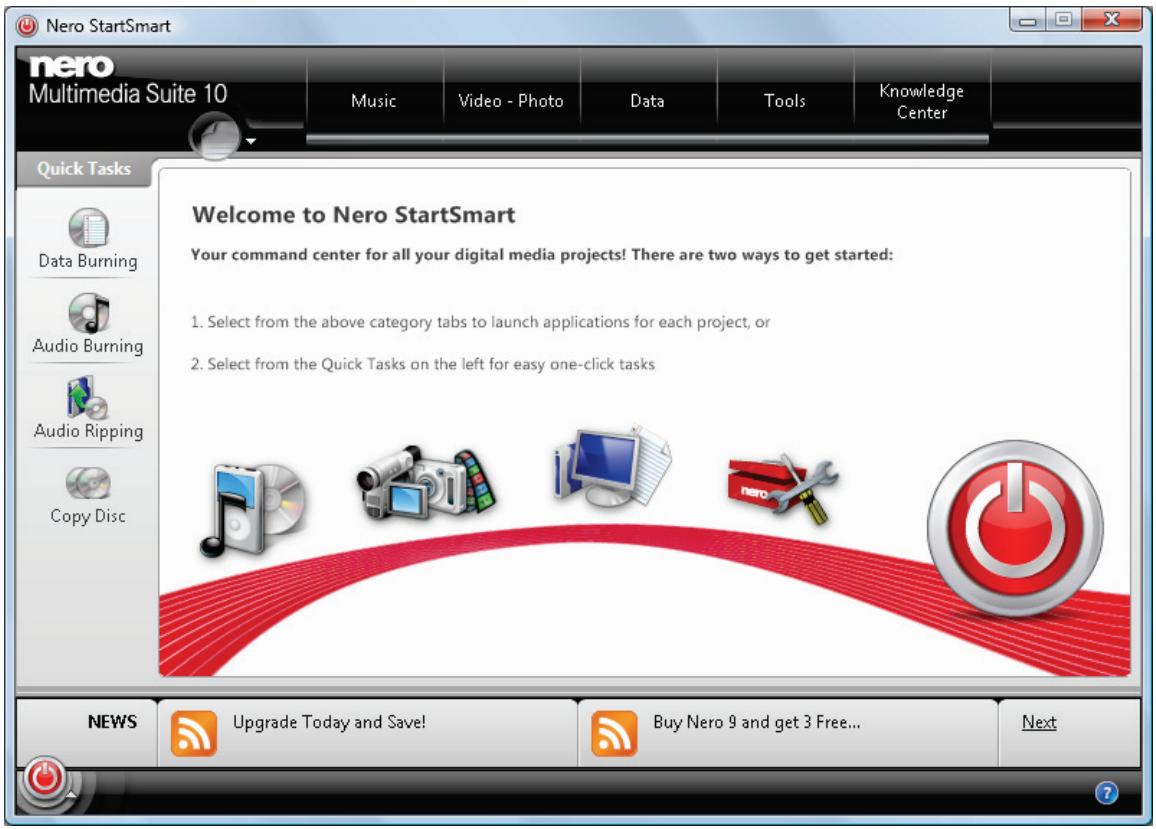
Nero StartSmart window
- Select the Nero SoundTrax entry in the selection list.
The Nero SoundTrax window is opened.
You have started Nero SoundTrax via Nero StartSmart.
2.1 Terminology
The following terms are specific to Nero SoundTrax:
- Clip refers to a single audio file.
- Track refers to a single audio track. A track can contain multiple clips in succession. Each track has its own settings for volume and effects.
- Channel refers to audio information that is contained in a clip, e.g. the left and the right channel.
- Project refers to the process of adding existing audio files, editing these files, and exporting them as a finished audio file. A project can be saved with all changes made in a project file, and it can be re-opened later. The project file has the extension *.npf (Nero project file). Project files themselves do not contain audio files, they only contain links to the used audio file, as well as mix and effect settings.

Summary
A project's goal is to create an edited audio compilation consisting of multiple tracks. These tracks in turn contain multiple clips in which audio is recorded in multiple channels.
2.2 Configuration
You can configure Nero SoundTrax to suit your needs. For this purpose the Preferences, Project Settings, Device Settings, and Audio Format Settings are available.
You can open the different setting windows via the Options entry in the menu bar.
2.2.1 Project Settings
In the Nero SoundTrax Project Settings window, audio and general settings such as project titles and the name of the artists can be defined on various tabs. In addition, it is possible to define the tempo and the beat of your music project.
You can open this window via the Options > Project Settings entry in the menu bar.
2.2.1.1 Audio Settings Tab
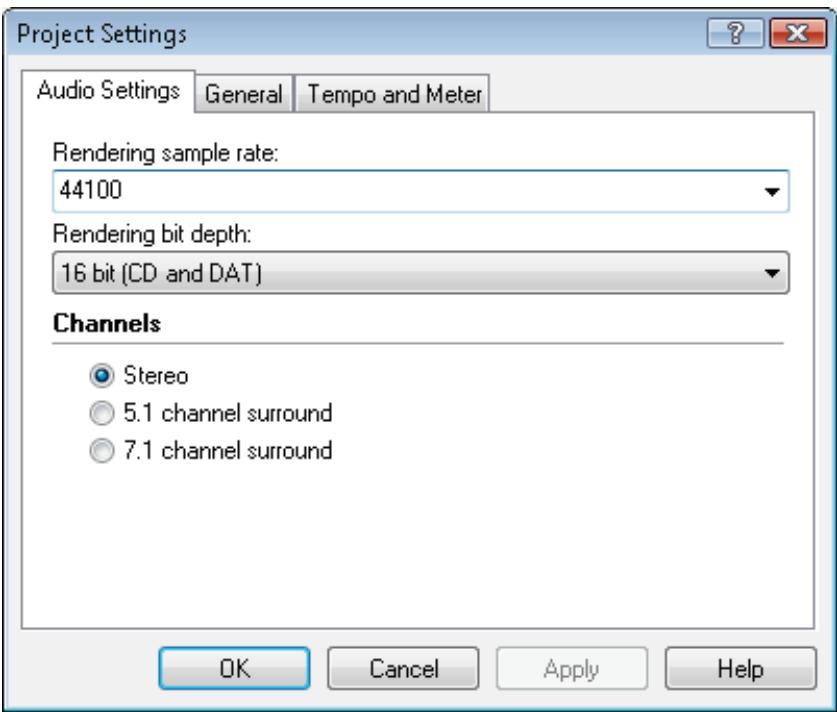
Audio Settings tab
The following setting options are available on the Audio Settings tab:
| Drop-down menu Rendering sample rate | Specifies the sampling rate. The sampling rate is the frequency with which a signal is scanned per time interval. The default rate is 44100. |
| Drop-down menu Rendering bit depth | Determines the bit depth. Bit depth indicates the precision with which a vibration will be captured. The default setting is 16-bit (CD and DAT). |
The Channels area specifies the number of channels available in the tracks area. The following option buttons are available:
| Stereo | 2-channel. This entry is selected by default. |
| 5.1 Channel Surround | 6-channel surround. |
| 7.1 Channel Surround | 8-channel surround. |
See also
Surround Projects 21
2.2.1.2 General Tab
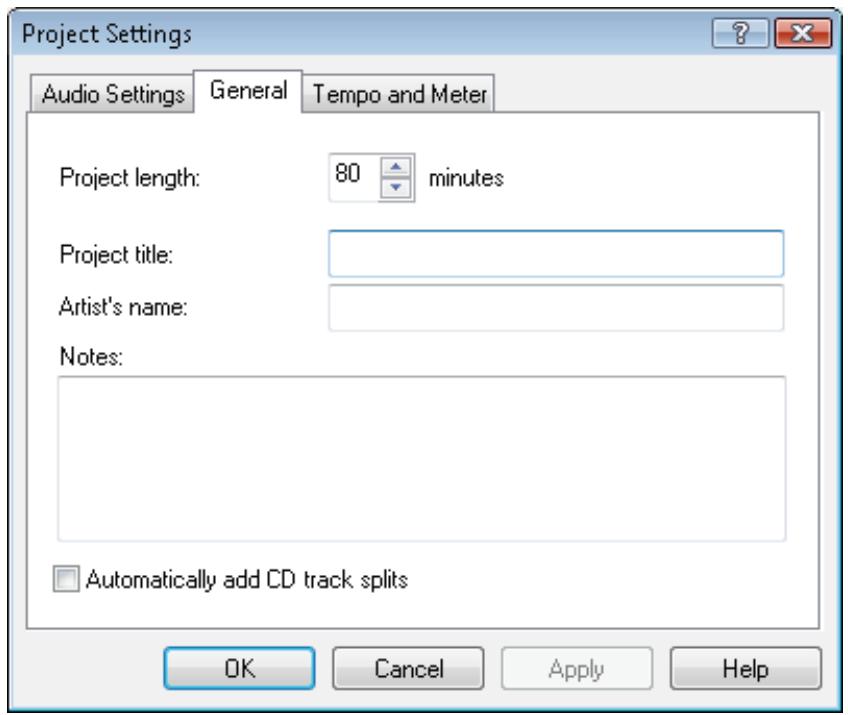
General tab
The following setting options are available on the General tab:
| Input field Project length | Specifies the length of the project in minutes. |
| Input field Project title | Specifies the title of the project. |
| Input field Artist's name | Specifies the name of the artist. |
| Input area Notes | Specifies comments for the project. |
| Check box Automatically add CD track splits | Adds a short stop between two audio clips in the same track. |
2.2.1.3 Tempo And Meter Tab
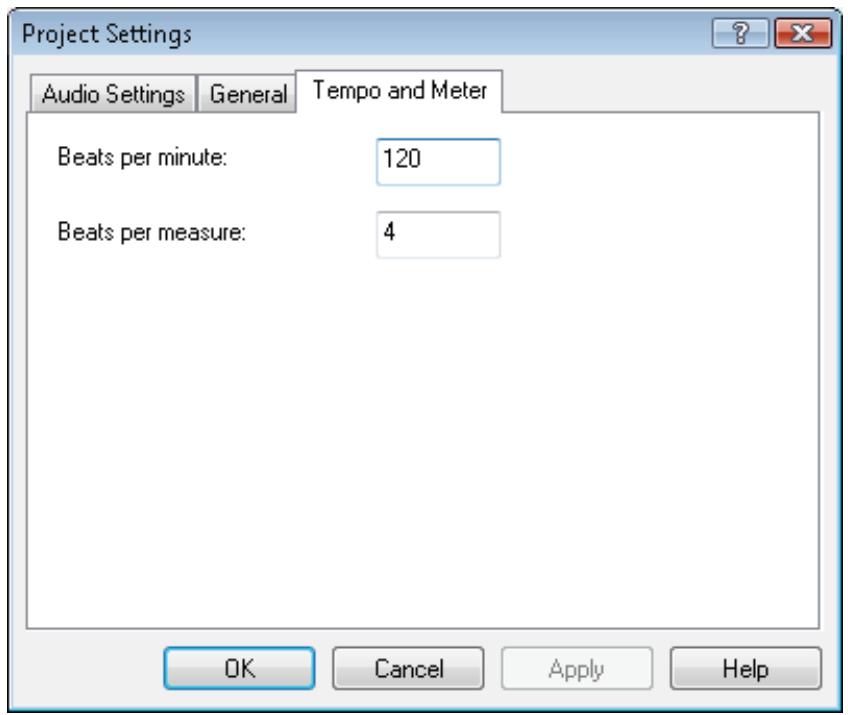
Tempo and Meter tab
The following input fields are available on the Tempo and Meter tab:
| Beats per minute | Specifies the tempo of the project, i.e. the beats per minute. |
| Beats per measure | Specifies the beats per measure for the project. |
2.2.2 Preferences
In the Nero SoundTrax Preferences window, you can define output and saving settings as well as determine aspects of display and plug-ins on various tabs. In addition general settings such as a standard export file format and folder in which the music files are saved can be defined.
You can open this window via the Options > Preferences entry in the menu bar.
2.2.2.1 General Tab

General tab
The following setting options are available on the General tab:
| Check box Limit number of undo levels | Limits the number of steps that can be undone to the value specified in the input field. |
| Input field Maximum number of undo levels | Specifies the number of steps that can be undone. |
| Input field Default duration of CD track splits (in seconds) | Specifies the duration of the pause of new CD track splits. |
| Drop-down menu Default export file format | Specifies the file format in which Nero SoundTrax will export audio files in the default setting. |
2.2.2.2 Save/Output Settings Tab
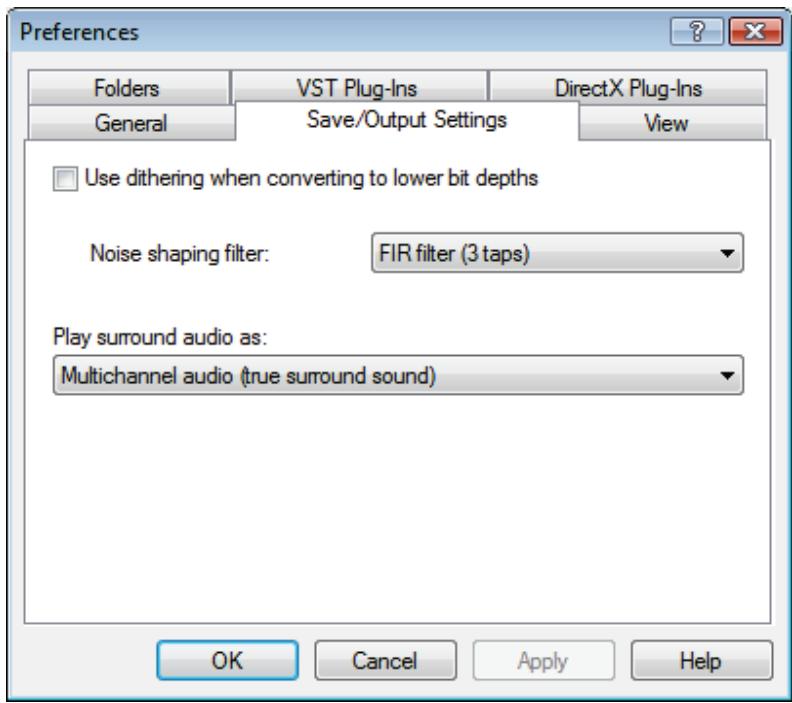
Save/Output Settings tab
The following setting options are available on the Save/Output Settings tab:
| Check box Use dithering when converting to lower bit depths | Activates noise shaping, which ensures higher audio quality when converting. |
| Drop-down menu Noise shaping filter | Specifies the type of noise shaping. IIR filter (2nd order): Infinite Duration Impulse Response. Uses IIR filter. IIR filters can provide an infinitely long and continuous impulse response. In general they achieve a better subjective audio quality than FIR filters do, however they have higher levels of interference energy outside of the audible range. Second order means that sound is attenuated by 12 dB. FIR filter (3 taps): Finite Impulse Response filter. Uses FIR filters. FIR filters possess a pulse response with guaranteed finite length. This entry is selected by default. |
| Drop-down menu Play surround audio as | Specifies how surround audio is played. Multichannel audio (true surround sound): Plays surround audio with all channels. |
| Stereo using Nero HeadPhone (Virtual Surround): Plays surround audio filtered down as stereo, with a virtual surround effect generated for headphones. Stereo with Nero VirtualSpeakers (virtual surround): Plays surround audio filtered down as stereo, with a virtual sound effect generated for speakers. |
2.2.2.3 View Tab
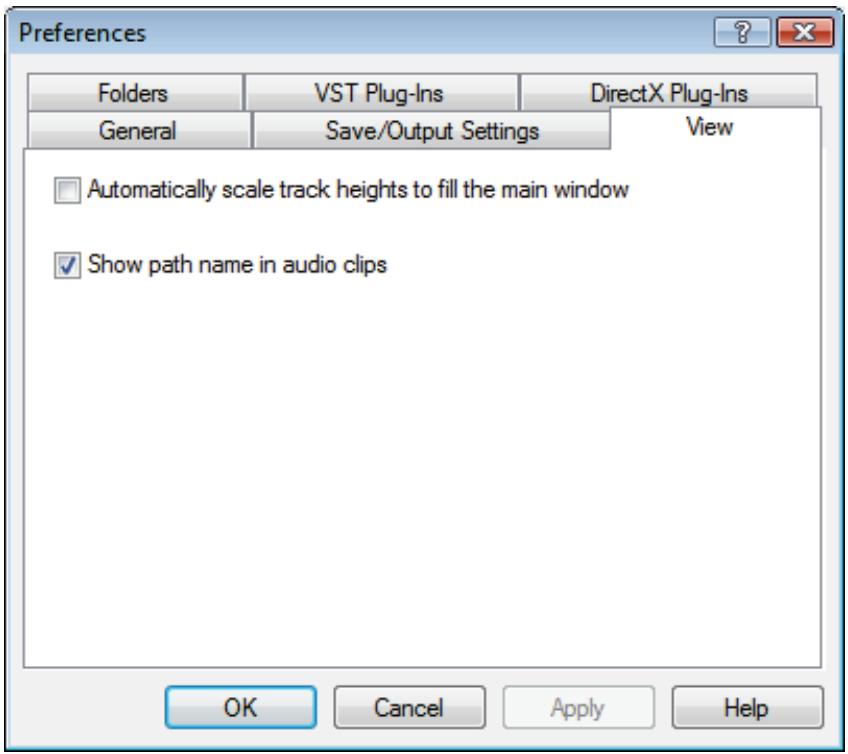
View tab
The following check boxes are available on the View tab:
| Automatically scale track heights to fill the main window | Automatically enlarges the display of the track so that its height fills the main window. |
| Show path name in audio clips | Shows the clip path in the track display in addition to the file name. |
2.2.2.4 Folders Tab
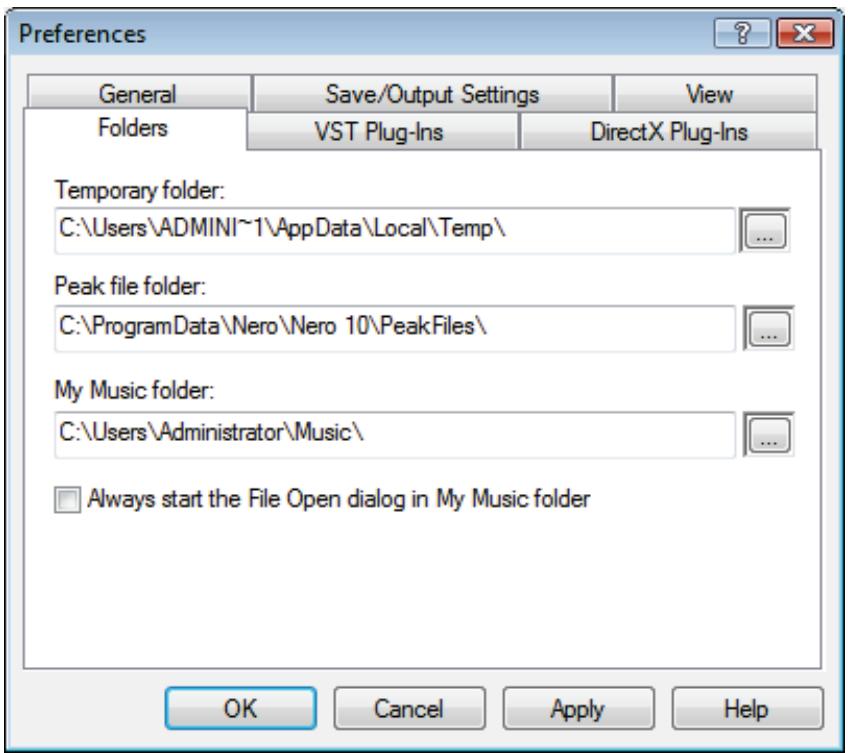
Folders tab
The following setting options are available on the Folders tab:
| Input field Temporary folder | Defines the folder in which temporary files are stored. The folder should be located on a drive with enough storage space. |
| Input field Peak file folder | Specifies the folder in which peak files are stored. Peak files are cache files that Nero uses to open Nero SoundTrax audio files more quickly. The folder should be located on a drive with enough storage space. |
| Input field My Music folder | Specifies the My Music folder. |
| Button | Opens a dialog box with which the folder can be se- lected for the respective files. |
| Check box Always start the File Open dialog in the My Music folder | When opening the Open dialog box, the system will always first show the folder that is specified in the My Music folder input field. |
2.2.2.5 VST Plug-ins Tab
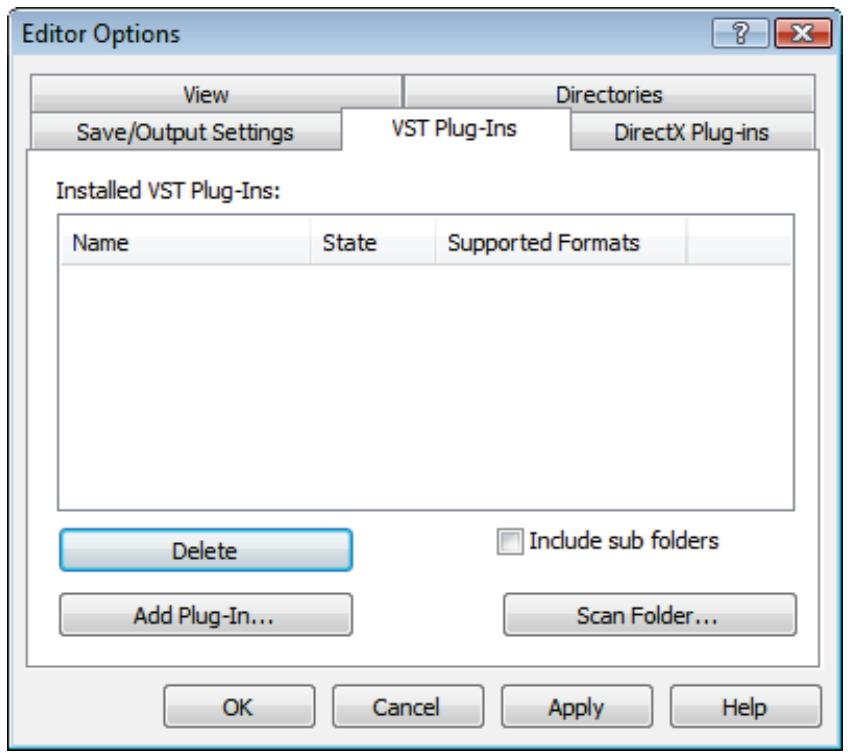
VST Plug-ins tab
The following setting options are available on the VST Plug-ins tab:
| Display area Installed VST Plug-ins | Shows the currently installed VST plug-ins. |
| Button Delete | Deletes the selected VST plug-in. |
| Button Add Plug-in | Opens the Open dialog box. Installs a new VST plug-in. |
| Check box Include sub folders | Searches for new VST plug-ins in the specified folder and sub folders. |
| Button Scan Folder | Opens the Open dialog box. Searches for new VST plug-ins in the specified folder. |
2.2.2.6 DirectX Plug-ins Tab
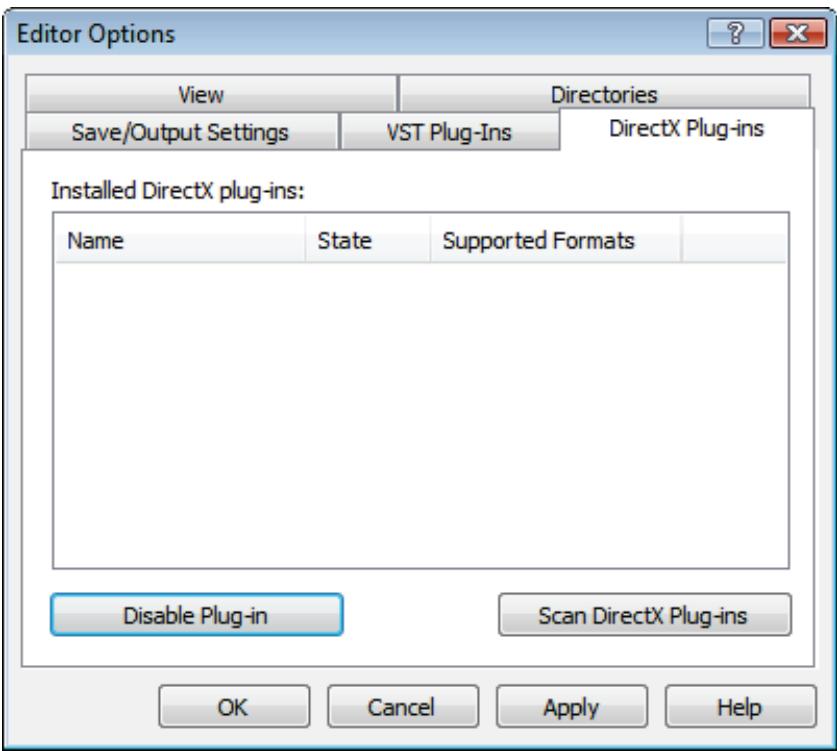
DirectX Plug-ins tab
The following setting options are available on the DirectX Plug-ins tab:
| Display area Installed DirectX Plug-ins | Shows the currently installed DirectX Plug-ins. |
| Button Disable Plug-in | Disables the marked DirectX Plug-in. |
| Button Scan DirectX Plug-ins | Carries out an intensive search for DirectX Plug-ins. |
2.2.3 Device Settings
In the Device Settings window of Nero SoundTrax you can define settings for the audio input and output.
You can open this window via the Options > Device Settings entry in the menu bar.
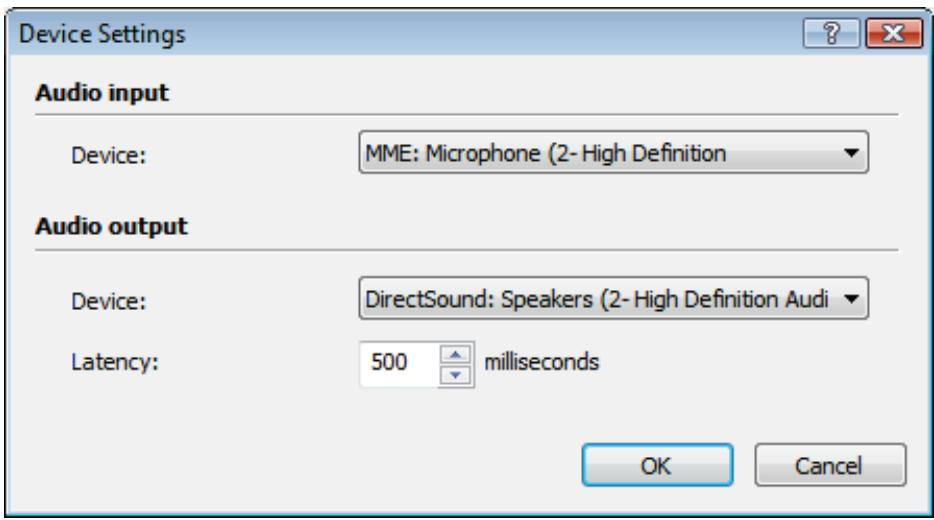
Device Settings window
The following drop-down menu is available in the Audio Input area:
| Device | Specifies the audio device for the audio input. |
The following setting options are available in the Audio Output area:
| Drop-down menu Device | Specifies the audio device for the audio output. |
| Input field Latency | Specifies the delay time of the sound card to convert an audio signal from the input of the card to the output of the card. |
2.2.4 Audio Format Settings
In the Audio Format Settings window from Nero SoundTrax you can set various definitions for decoders, encoders and converters on different tabs.
You can open this window via the Options > Audio Format Settings entry in the menu bar.
2.2.4.1 Decoders Tab
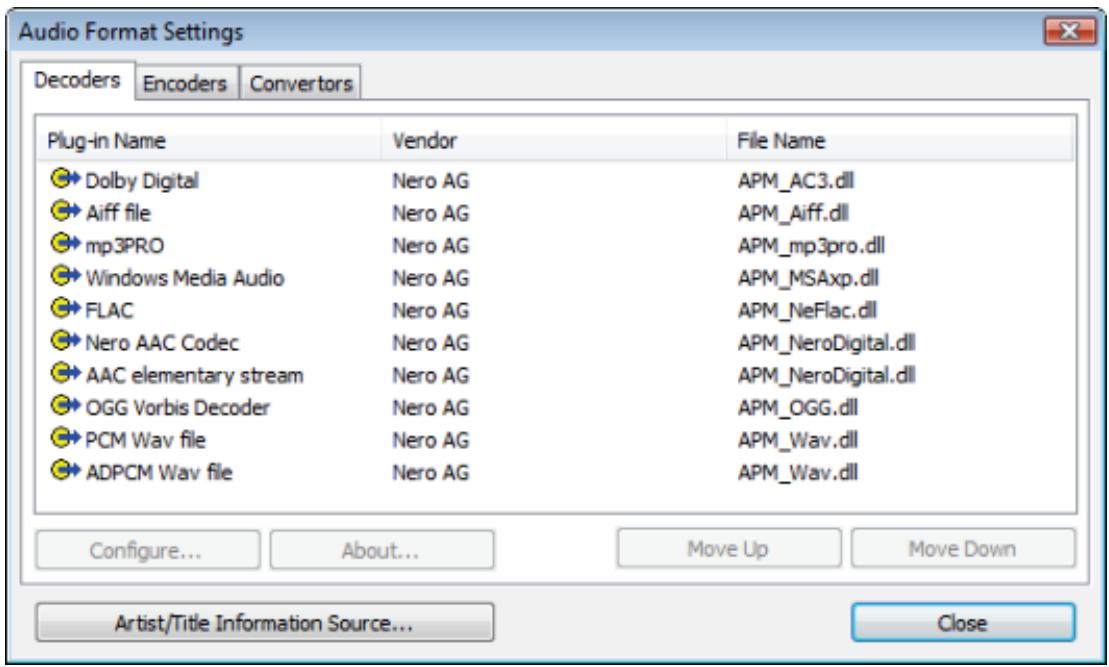
Decoders tab
The following setting options are available on the Decoders tab:
| Display area Decoder Plug-ins | Shows the available decoders. |
| Button Configure | Opens a window where additional settings can be made for the selected decoder. This button is not available for all decoders. |
| Button About | Opens the About window where information about the selected decoder is displayed. This button is not available for all decoders. |
| Button Move Up | Moves the decoder up one entry. |
| Button Move Down | Moves the decoder down one entry. |
| Button Artist/Title Information Source | Opens the Get Artist / Title Information window where you can specify the source from which information relative to artist and title will be read. |
2.2.4.2 Encoders Tab
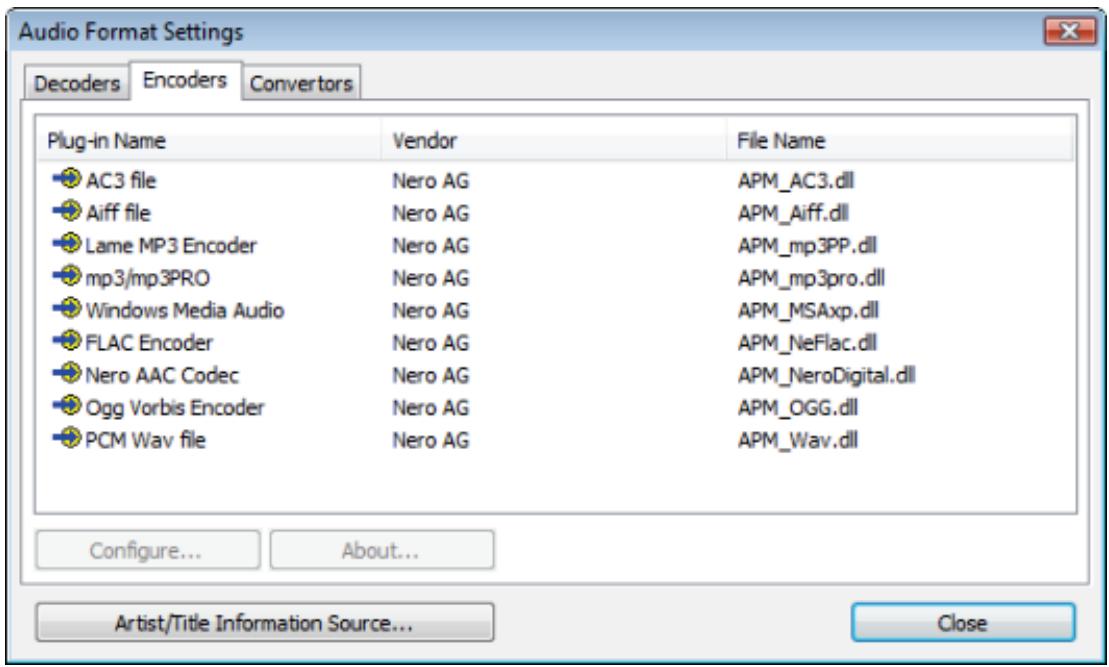
Encoders tab
The following setting options are available on the Encoders tab:
| Display areaEncoder Plug-ins | Shows the available encoders. |
| ButtonConfigure | Opens a window where additional settings can be made for the selected encoder.This button is not available for all encoders. |
| ButtonAbout | Opens the About window where you can view information about the selected encoder.This button is not available for all encoders. |
| ButtonArtist/Title Information Source | Opens the Get Artist / Title Information window where you can specify the source from which information about artist and title will be read. |
2.2.4.3 Converters Tab
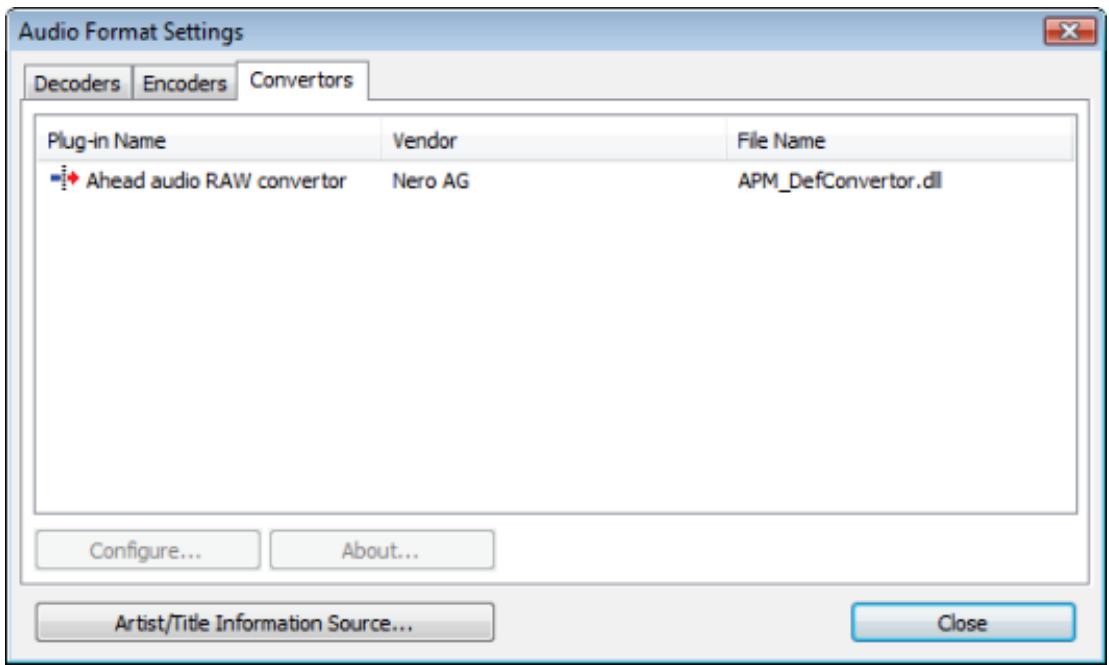
Converters tab
The following setting options are available on the Converters tab:
| Display area Converter Plug-ins | Shows the available converters. |
| Button Configure | Opens a window where you can make additional settings for the selected converter. This button is not available for all converters. |
| Button About | Opens the About window where you can view information about the selected converter. This button is not available for all converters. |
| Button Artist/Title Information Source | Opens the Get Artist / Title Information window where you can specify the source from which information about artist and title will be read. |
3 User Interface
3.1 Templates
When starting Nero SoundTrax, a window is opened in which you can select project templates.
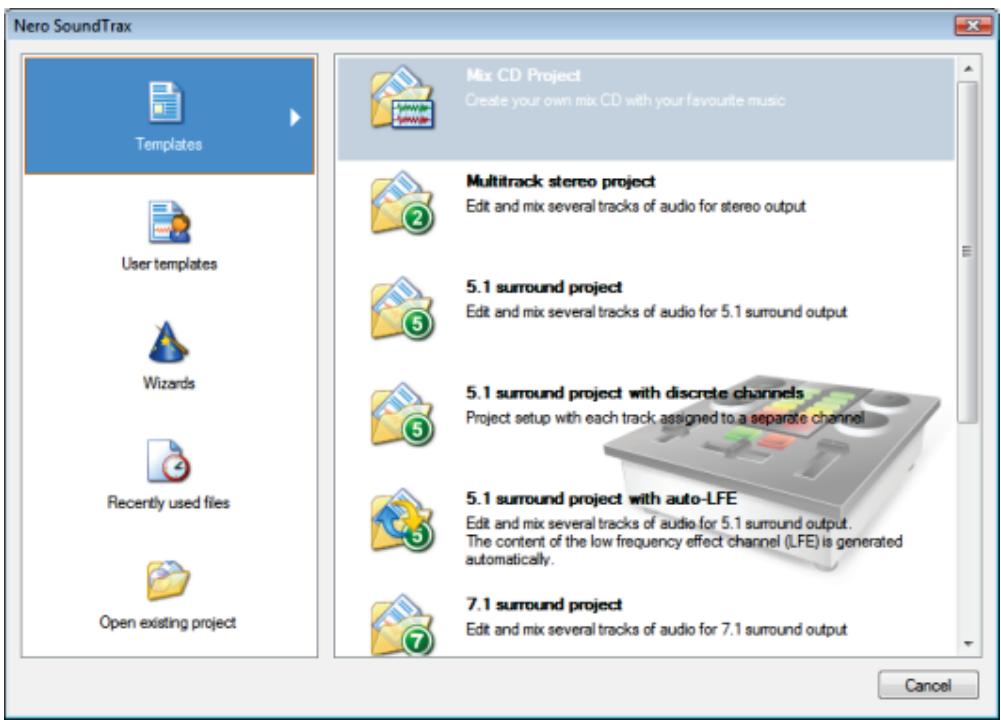
Task selection window
The following menu icons are available:
| Templates | Offers templates for frequently used projects such as CD mix, stereo, and surround projects. |
| User templates | Offers user-created templates for projects. |
| Wizards | Opens wizards for recording an LP record or a cassette. The Neuro SoundTrax wizards allow you to record music from LP records and cassettes and burn it quickly and easily onto CD. The wizards offer filters that you can use to equalize disturbances such as scratches, thereby obtaining optimal recording quality. |
| Recently used files | Shows recently used files. |
| Open existing project | Opens the Open window that offers access to an existing project. |
See also
Recording From Record or Cassette 41
3.2 Surround Projects
With Nero SoundTrax you can create 5.1 and 7.1 surround projects. These numbers correspond to playback with a surround system with 5 or 7 speakers plus subwoofer.
In addition to two different types of surround projects, Nero SoundTrax offers the selection of the number of speakers:
- Projects in which all speakers will be addressed with one sound track
- Projects in which all speakers will receive a separate channel
In addition you can insert an automatically generated LFE channel in the project.
You can edit individual tracks in a surround project exactly as any other track.
3.3 Main Window
The main window is opened after you have started Nero SoundTrax and selected a template. It is the starting point for all tasks that can be carried out with Nero SoundTrax.
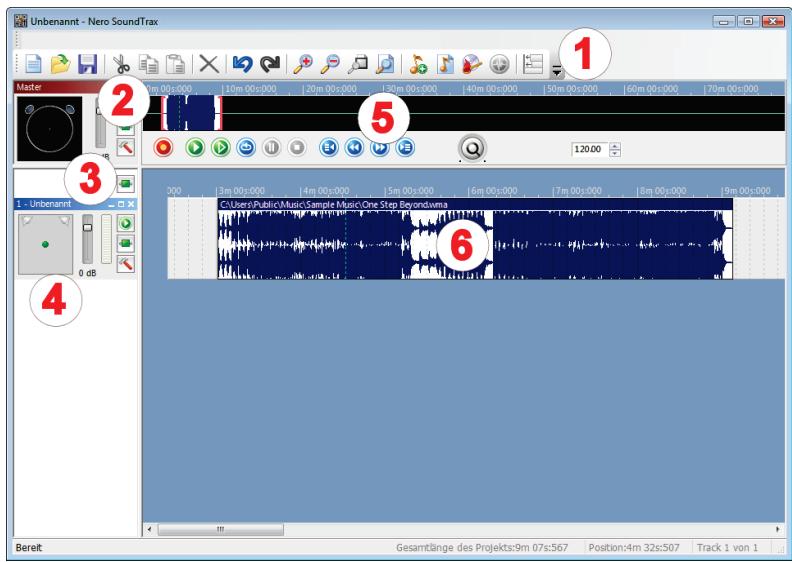
Main window
The main window is divided into the following areas:
| 1 | Menu bar and toolbar |
| 2 | Master track settings |
| 3 | Assignable effects |
| 4 | Tracks |
| 5 | Project |
| 6 | Track display |
3.3.1 Menu Bar
The following menus are available in the menu bar:
| File | Opens the File menu which contains file functions such as opening, saving, and closing that you are already familiar with from Windows. In addition, tem-plates can be inserted and opened, and CD tracks and the tracks created in Nero SoundTrax can be exported as audio files. |
| Edit | Opens the Edit menu which contains editing functions for the files in the track display such as cutting, copying, and deleting that you are already familiar with from Windows. In addition, you can chain the notes of the tracks created in Nero SoundTrax. |
| View | Opens the View menu which allows you to individually adjust the menu bar and toolbar, and enlarge or reduce the view of the project. In addition, you can change the time format of the project. |
| Insert | Opens the Insert menu which allows you to insert audio files, audio loops, and SoundBox and ScratchBox clips in tracks that have been created in Nero SoundTrax. In addition, you can import tracks from Audio CDs, generate an automatic LFE track, add effects in effect chains, and create assignable ef-fect groups. |
| Audio | Opens the Audio menu which allows you to record, import, and play audio files. |
| Tracks | Opens the Tracks menu which allows you to insert and delete tracks. You can also add different effect curves to a track and change the track prop-ties. |
| Tools | Opens the Tools menu which allows you to burn a CD, open other Nero ap-plies, and select wizards to record analog audio tracks. |
| Options | Opens the Options menu which allows you to specify general and special settings for the project, for the connected devices, and for the audio format. |
| Help | Opens the Help menu which allows you to open the online help and view the version number and other registration data. |
3.3.2 Toolbar
The following buttons are available in the toolbar:
| Creates a new project. | |
| Opens an existing project. | |
| Saves the project. | |
| Cuts out the selected section and saves it to the clipboard. | |
| Copies the selected section and saves it to the clipboard. | |
| Pastes the contents of the clipboard to the selected location. | |
| × | Deletes the selected clips. |
| Undoes the last action. | |
| Restores the last action that you have undone. | |
| Zooms into the project. | |
| Zooms out of the project. | |
| Zooms into the project so that the selected section is displayed in a manner that fills the screen. | |
| Zooms out of the project in such a manner that the entire project is displayed. | |
| Inserts a new track after the selected track. | |
| Opens the Open window and inserts an audio file at the selected location. | |
| Burns the project to CD. This button is only available if the project contains at least one clip. | |
| Opens the selected clip for editing. If the clip is an audio file, then Nero WaveEditor will be opened. If the clip is a Sound-Box or ScratchBox clip, then the respective tool will open. This button is only available if a clip is selected. | |
| Aligns the selected clips at the same start position; the start position that is furthest to the left will be used. This button is only available if multiple clips are selected. | |
| Opens the Add or Remove Buttons menu which allows you to customize the toolbar by adding or removing buttons. |
3.3.3 Master Track Area
The Master area allows you to define settings which apply for all tracks inserted into the project.
The following setting options are available in the Master area:
| Display area | Shows distribution of the surround sound. |
| Slider | Adjusts the volume of all tracks in the project. |
| Button | Opens the Effect Chain Editor - Master window. This is where you can create an effect chain that can be assigned to all tracks. |
| Button | Opens the Project Settings window. |
3.3.3.1 Toolbar
The following buttons are available in the toolbar:
| Creates a new project. | |
| Opens an existing project. | |
| Saves the project. | |
| Cuts out the selected section and saves it to the clipboard. | |
| Copies the selected section and saves it to the clipboard. | |
| Pastes the contents of the clipboard to the selected location. | |
| × | Deletes the selected clips. |
| Undoes the last action. | |
| Restores the last action that you have undone. | |
| Zooms into the project. | |
| Zooms out of the project. | |
| Zooms into the project so that the selected section is displayed in a manner that fills the screen. | |
| Zooms out of the project in such a manner that the entire project is displayed. | |
| Inserts a new track after the selected track. | |
| Opens the Open window and inserts an audio file at the selected location. | |
| Burns the project to CD. This button is only available if the project contains at least one clip. | |
| Opens the selected clip for editing. If the clip is an audio file, then Nero WaveEditor will be opened. If the clip is a Sound-Box or ScratchBox clip, then the respective tool will open. This button is only available if a clip is selected. | |
| Aligns the selected clips at the same start position; the start position that is furthest to the left will be used. This button is only available if multiple clips are selected. | |
| Opens the Add or Remove Buttons menu which allows you to customize the toolbar by adding or removing buttons. |
3.3.4 Assignable Effects Area
In the Assignable Effects area you can create effect chains that can later be assigned to specific tracks.
The following button is available in the Assignable Effects area:

Opens the Assignable Effect Groups window. Here you can create and edit the effect groups.
3.3.5 Tracks Area
In the tracks area inserted tracks are displayed. You can also edit the track settings here.
The following setting options are available in the tracks area:
| Input area | Changes the surround sound, i.e. volume distribution on the various chan- nels/speakers. |
| Slider | Adjusts the volume of the track. |
| Display field | Visualizes the volume level. |
| Button / / | Starts/stops track playback. |
| Button | Opens the Effect Chain Editor - Track window. Here you can create and edit an effect chain for the track. |
| Button | Opens the Track Settings window. Here you can edit the track settings. |
3.3.6 Project Area
The project area is divided into the frequency section and the toolbar.
In the frequency section the frequencies of all tracks are displayed. Here the display of the project can be altered with the red square brackets.
The following buttons are available in the project area:
| Opens the Recording Settings window. | |
| Plays the project from the point where the cursor is located. | |
| Plays the project from the beginning. | |
| Plays the project or the highlighted section in an endless loop. | |
| Pauses playback of the project. | |
| Stops playback. | |
| Sets the cursor at the beginning of the project. | |
| Moves the cursor back quickly. | |
| Moves the cursor forward quickly. | |
| Sets the cursor at the end of the project. | |
| Adjusts the volume. | |
| Specifies the tempo in the BMP unit. |
3.3.7 Track Display Area
The track display area is where the channel frequencies of the inserted audio clips are displayed. The audio clips are displayed individually and in different colors.
Open the context menu by clicking the right mouse button within the track display.
Clicking an audio clip opens the clip's context menu. Here you can delete, select, copy, and cut clips. In addition, you can open Nero WaveEditor, select the output channels, and group clips.
Clicking the track opens the track's context menu. Here you can insert clips of various types, delete, copy, and deactivate them. In addition, you have the possibility of inserting effects and effect chains, track splits, CD indices, and labels.
3.4 Effect Chains
In Nero SoundTrax effects are organized in an effect chain. You can assign effect chains that consist of multiple effects to a specific track or to the master track. Effects are applied sequentially (e.g. noise reduction, volume change, reverb effect). Once an effect chain is created you can save it as an effect chain template.
It is also possible to define effect chains and to assign them to the tracks as an effect group curve. With the effect group curve you can adjust the intensity of the effect group over the length of the track.
When putting an effect chain together you can choose from plug-ins, tools, effects and enhancements. You can open the Effect Chain Editor window via the button in the master and/or track area.
3.4.1 Plug-ins
The following setting options are available in the Plug-ins entry:
| DirectX Settings | Opens the Preferences window with the DirectX Plug-ins tab. |
| VST Settings | Opens the Preferences window with the VST-Plug-ins tab. |
3.4.2 Tools
The following setting options are available in the Tools entry:
| Deesser | Automatically lowers the sibilance level in a voice or song recording. |
| Dynamic Processor | Corresponds to the physical term of loudness (loudness perception). |
| Equalizer | Equalizes sound frequencies and allows sound quality of bases and high notes to be modified (sound design). |
| Karaoke Filter | Filters out frequencies that are exactly the same on both tracks. Fre-quently in songs the vocal is the same on both tracks and is thus re-moved. |
| Noise Gate | Suppresses soft segments in the signal transmission. It is used to suppress background noise for example. |
| Pitch Tuning | Among other things pitch tuning is used to change the playback speed and the pitch. |
| Stereo Processor | Specifies settings for the left and right audio channel and generates artificial stereo. |
| Time Correction | Specifies settings for the playback speed. |
| Transpose | Changes the pitch of music passages and their playback speed. |
3.4.3 Effects
The following setting options are available in the Effects entry:
| Chorus | Adds several slightly distorted signals to the original signal. |
| Convolution Reverb | Uses convolution to convert depictions of real sounds into audio signals by a computer system. |
| Delay | Sends out one or more delayed copies of the input signal, thereby achieving an echo-like sound. |
| Distortion | Distorts the signal. Frequently used for electric guitars. |
| Doppler | Simulates a noise source passing by and the resulting special auditory features. |
| Flanger | Copies the input signal and returns the copy (phase-delayed) to the original. The main difference to the similar phaser effect is the feeding back of the copied signal to the input. The feedback can be finely adjusted. |
| Loudness | Describes the hearing-based volume. With this effect the per- ceived volume can be increased without exceeding the maximum permissible amplitude. |
| Low Fidelity | Simulates a low sampling rate, thereby generating a lower sound quality. |
| Modulation | Modulates the signal with a selectable control signal. Supports amplitude modulation as well as frequency modulation. |
| Multi-Tap Delay | Generates individual echoes or a single reflection and describes the number of simultaneously possible echoes. This is a delay effect based on taps. |
| Phaser | Copies and filters the input signal with a varying band-stop filter. Then the signal is reproduced phase-delayed to the original sig- nal. It is similar to the flanger effect. |
| Pitch Bend | Changes the pitch over the length of the audio file with the help of a speed curve. The length of the audio file can be changed or re- tained. |
| Pseudo Reverse | Creates the impression that the file is being played backwards by reversing only fragments; in reality, however, the file is being played in the correct direction. |
| Re-analogue | Offers several effect options by inserting interference effects, such as artificial aging through noise. |
| Reverb | Gives a reverb effect to the file. |
| Stutter | Produces a stuttering effect through cut-outs or repetitions. |
| Surround Expansion | Offers expanded surround sound settings. Only available if you are editing a surround audio project. |
| Surround Reverb | Changes the room sound. A different environment can be artificially assigned to the music file. It is possible to specify the room depth, width, height, and surface as well as other parameters. |
| Voice Modification | Modifies the voice in a piece of music. You can change the pitch for example. |
| Wah-Wah | Is primarily used to influence the sound of electric guitars. The term wah-wah approximates the sound of the induced effect. |
3.4.4 Enhancement
The following setting options are available in the Enhancement entry:
| Band Extrapolation | Enables generation of high and low frequency harmonies. |
| Camera Denoiser | Removes (or reduces) the humming noises that frequently occur with video cameras with graphic view. |
| DC Offset Correction | Automatically removes DC components that can be harmful to speakers. |
| Declicker | Removes pops. The intensity can be adjusted manually. |
| Declipper | Removes parasitic noise and distortion that result from digital as well as analog saturation. |
| Dehum | Removes hum. |
| Filter Toolbox | Set of filters that suppress feedback and irregularities. |
| Noise Reduction | Reduces undesired noise when saving analog signals. |
3.5 Nero SoundBox
With Nero SoundBox you can create audio clips. Various rhythms, music types, and instruments are available in the Beat Editor, Sequencer and Ambience areas. You can also enter a text in the Text II Speech area which a computerized voice will speak in sync with the music, and add background noises to the audio clip.
You can open the Nero SoundBox window via the Insert > SoundBox Clip entry in the menu bar.
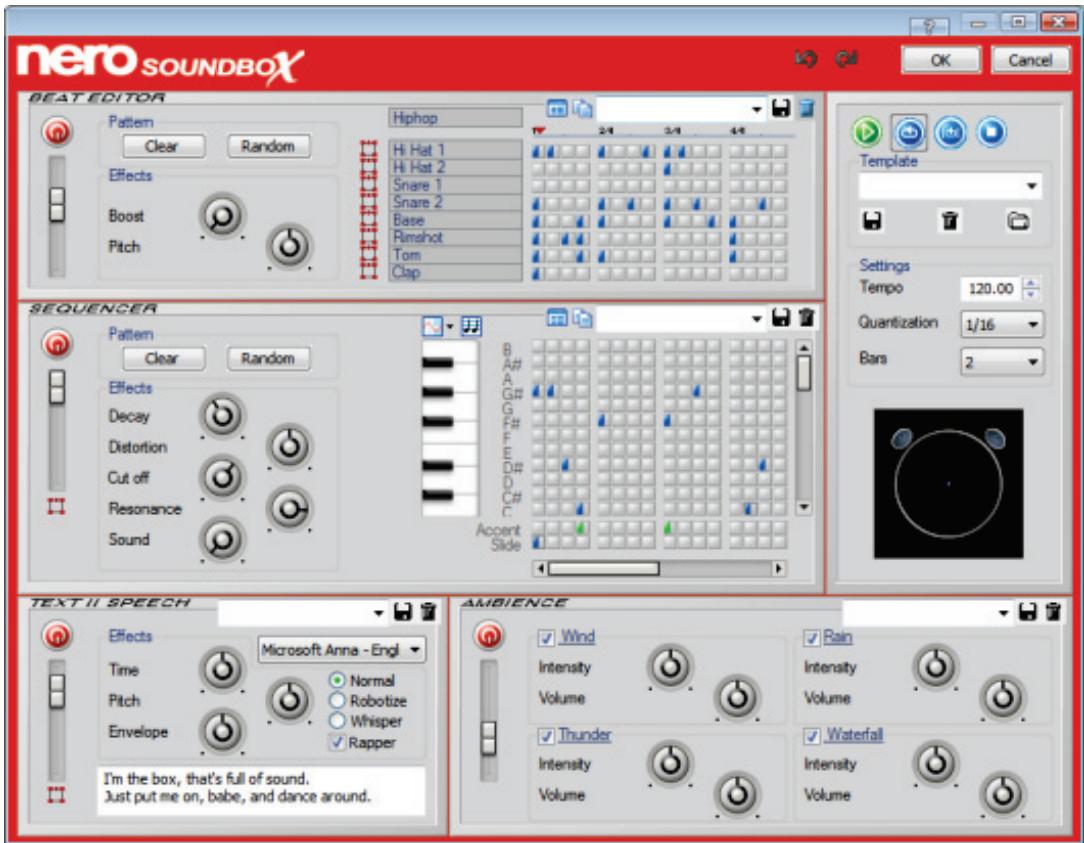
Nero SoundBox
General components are repeated in the various sections of the Nero SoundBox interface. In addition, general settings are available in the Nero SoundBox interface and are applicable in all areas within the Nero SoundBox.
The following setting options are available:
| Button | Switches the section on and off. |
| Jog dial | Specifies the intensity of effects. |
| Slider | Indicates the volume of effects. |
| Display area | Indicates the surround sound allocation. This element is displayed when you click the button. |
| Drop-down menu | Provides different profiles and templates for selection. |
| Button | Opens the complete pattern of the selected profile in a new window. |
| Button | Copies content (rhythm, melody) of a measure into the se- lected measure. |
| Display area | Specifies the rhythmic pattern. The pattern is divided into four measures. |
| Button | Saves a template or a profile. This can be re-used at any time. |
| Button | Deletes a template or a profile. |
| Button | Starts playback of the Nero SoundBox clip. |
| Button | Pauses playback of the Nero SoundBox clip |
| Button | Repeats the entire Nero SoundBox clip. |
| Button | Repeats only the active section of the Nero SoundBox clip. |
| Button | Stops playback of the Nero SoundBox clip. |
| Input field Tempo | Indicates the tempo of the Nero SoundBox clip. |
| Drop-down menu Quantization | Subdivides the measure. |
| Drop-down menu Bars | Shows up to 4 bars in the pattern view which can then be edited. As a result, the same measure is not always played back in succession. |
| Display area | Graphically shows the allocation of sound in the room. |
3.5.1 Beat Editor
In the Beat Editor you can create the rhythms in various musical directions. The pattern specifies the beats of the individual percussion instruments per bar.
The following buttons are available in the Pattern area:
| Button Clear | Clears a pattern. |
| Button Random | Randomly selects a pattern. |
The following setting options are available in the Effects area:
| Jog dial Boost | Indicates the intensity of the selected profile. |
| Jog dial Pitch | Influences the pitch of the profile. |
| Drop-down menu Musical direc- tion | Specifies a musical direction. Depending on the musical direction the entries below the menu change. They will then show the percussion in- struments that are typical for the selection. In the context menu of the individual percussion instruments you can replace a particular instrument with a different instrument. |
3.5.2 Sequencer
In the Sequencer area the individual tones can be edited.
The pattern specifies the tones in the specific bars. In order to hear the tones before inserting them into the pattern, you can click the keyboard and listen to the tone.
In the Accent area of the pattern you can assign a tone with a single click on a box in the meter of the sample. Double-clicking turns the box green and causes the tone to change its frequency level linearly over the length of the tone rather than in a single step.
In the Slide area of the sample, you can give the tone its properties and adapt the basic tone to flow into the next tone to prevent a noticeable transition of the tone change. As a result, the end of the "sliding" tone pitch is the same as that of the next tone.
The following buttons are available in the Pattern area:
| Clear | Deletes a pattern. |
| Random | Randomly selects a pattern. |
The following jog dials are available in the Effects area:
| Decay | Specifies the length of tones. |
| Distortion | Distorts the tone and creates the impression that it seems louder. |
| Cut off | Designates the frequency up to which the tone will be generated. The higher the jog dial is set, the higher the frequencies will be in the gener- ated tone. |
| Resonance | Gives the tone more resonance. |
| Sound | Changes the sound using various parameters. |
The following buttons are available in the Sequencer area:
| Graphically represents the tones. | |
| Switches between polyphony and monophony. Polyphony plays multiple tones at the same time. Monophony selects one pitch per time unit. | |
| Opens a drop-down menu where wave files with characteristic instrument sounds can be selected. Bass, guitar, piano, flute, or saxophone are available. |
3.5.3 Text II Speech
In the Text II Speech area you can enter text into the text box.
The following setting options are available:
| Jog dial Time | Changes the playback speed. |
| Jog dial Pitch | Influences the pitch of speech. |
| Jog dial Envelope | Changes the formants of the voice without changing the pitch. The higher the jog dial is set, the higher the voice formants will be moved. |
| Option buttons Normal, Robotize, Whisper | Defines the playback volume. |
| Check box Rapper | Specifies the pronunciation type. |
| Input field I'm the box... | Specifies the text that will be converted to speech. |
3.5.4 Ambience
In the Ambience area you can select profiles and introduce these as background noises in your sound.
The following setting options are available:
| Jog dial Intensity / Volume | Specifies volume and intensity of the background noises. |
| Drop-down menu | Selects an existing profile. The Intensity and Volume sliders are adapted to suit the imported profile. |
3.6 Nero ScratchBox
With Nero ScratchBox you can insert an audio clip in the track. You can open the Nero ScratchBox window via the Insert > ScratchBox Clip entry in the menu bar.
Nero ScratchBox consists of two virtual turntables (1) on which audio files can be played. This means e.g. that you can professionally mix the audio files in the mixing console area (3), process the audio files with various effects in the tools area (5), and scratch the audio files.
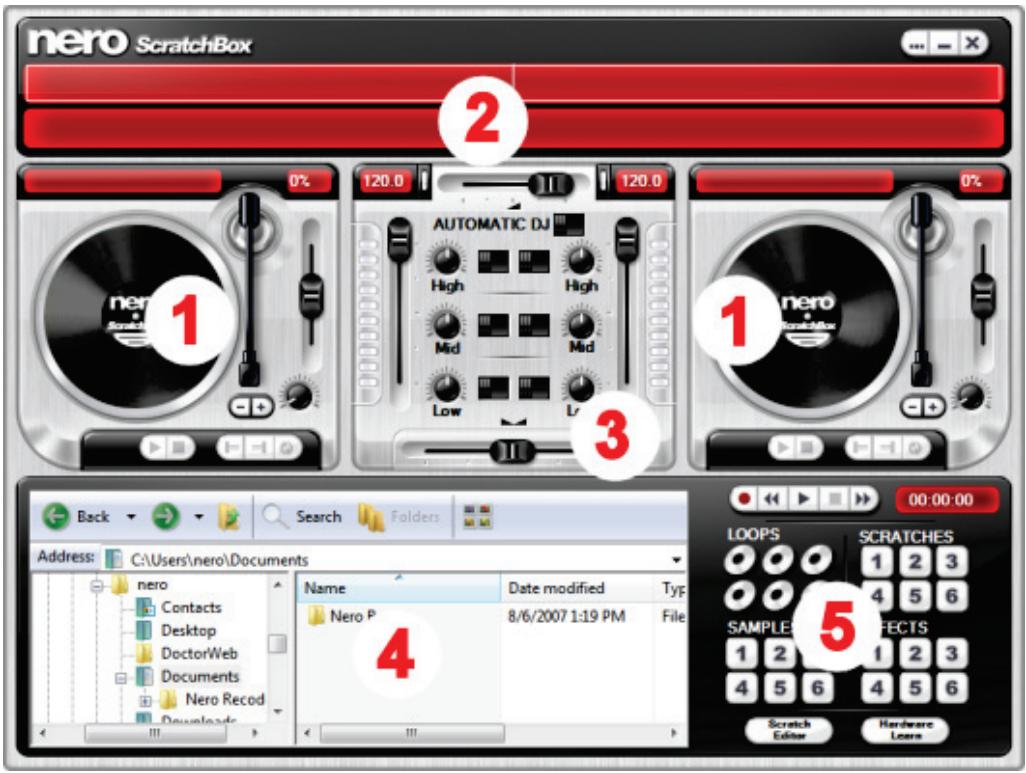
Nero ScratchBox
You can select the files that you want to play on the turntables in the file selection area (4). The familiar Windows folder structure is shown here. In the peak file view (2) the audio file is displayed as peak file.
3.6.1 Turntables
You can play and edit audio files on the turntables. The following setting options are available:
| Button | Starts playback of the audio file. |
| Button | Stops playback of the audio file. |
| Button | Pauses playback of the audio file. |
| Button | Specifies the starting point of a loop. |
| Button | Specifies the end point of a loop. |
| Button | Plays the specified loop in the audio file. |
| Jog dial | Changes the playback speed when starting and ending the audio file. |
| Button | Briefly slows playback. The function simulates the action of manually holding the LP record in place. |
| Button | Briefly accelerates playback. The function simulates manual acceleration of the LP record. |
| Display field | Displays the name of the audio file. |
| Slider | Changes the playback speed of the audio file. |
| Display field | Displays which percentage value is used to specify faster or slower playback of the audio file. |
3.6.2 Mixing Console
On the mixing console you can change the playback of the audio files on the turntables.
The following setting options are available:
| Slider | Specifies the volume of the overall audio output. |
| Display field | Indicates the "Beats per minute." |
| 160.0 | Is illuminated when the meter of one audio file agrees with the meter of the other audio file and the two files can be mixed harmoniously. |
| Slider | Indicates the playback volume of the respective turntable. |
| Scale | Graphically displays the playback. |
| ButtonAutomatic DJ | Triggers an automatic crossfade from one audio file into another. |
| Jog dial | Adjusts the intensity of highs, mid-range and lows. |
| Button | Fades highs, mids, and lows out and in. |
| Slider | Mixes the playback of both turntables. |
3.6.3 Tools Area
In the tools area you can select sample effects and play them on the turntables. In addition you can record the playback of the turntables, post-edit the scratches added to the recording in the Nero ScratchEditor, and record actions on the mixing console.
The following setting options are available in the tools area:
| Button | Records the playback of both audio files. Each sound action that is executed after activating this button will be recorded. |
User Interface
| Button → | Fast forwards the recording. |
| Button ← | Rewinds the recording. |
| Display field 00:00:00 | Indicates the temporal progress of the recording. |
| Button ○ | Displays a loop. |
| Button 1 | Displays sample sounds, scratches, and effects. |
| Button Hardware Learn | Establishes a connection between a control element on the DJ hardware and a control element in the ScratchBox. This button is only active if DJ hardware is connected. |
| Button ScratchEditor | Opens the Nero ScratchEditor window. In the Nero ScratchEditor you will see a curve for each turntable. At normal play speed the curve runs linearly at 100% of the y-axis. Scratches are displayed in the curve as deflections in the positive and negative % range. Negative deflections mean that the audio file is played in reverse for this time, positive deflections mean that the au-dio file is played faster. The x-axis therefore describes the point in time, and the y-axis describes the play speed of the audio file at this point in time. |
4 Importing And Recording
4.1 Recording Audio
Nero SoundTrax allows you to record audio from various external sources which are connected to your sound card (e.g. a microphone, a record player, or a cassette tape recorder). All recordings are monitored in the Recording Console window.
4.1.1 Recording Console
You reach the Recording Console window via the button in the toolbar.
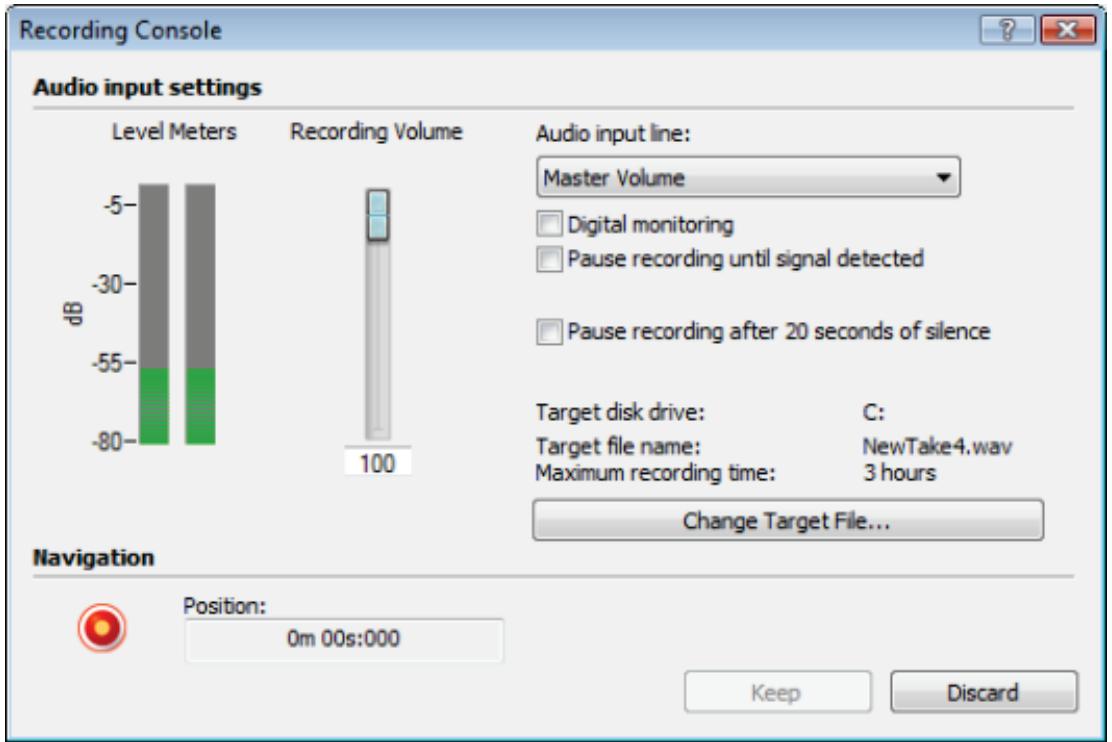
Recording Console window
The following setting options are available in the Audio Input Settings area in the Recording Console window:
| Graph Level Meters | Shows the recording volume in dB. |
| Slider Recording Volume | Specifies the volume of the recording. |
| Drop-down menu Audio input line | Specifies the audio input. |
| Check box Digital monitoring | Turns on the sound of the audio source so you can hear what you are recording. |
| Check box Pause recording until signal detected | Pauses the recording until a signal is detected from the selected audio input. |
| Check box Pause recording after 20 seconds of silence | Pauses the recording after no signal has been detected from the selected audio input for 20 seconds. |
| Button Change Target File | Opens the Save as window which allows you to change the target disk drive, the target file name, and the target file format. Only available before starting the recording. |
The following setting options are available in the Navigation area:
| Button ◎ | Records an audio file. |
| Display field Position | Shows the position of the recording. |
| Button Keep | Closes the Recording Console window and inserts the recording into the track display. |
| Button Discard | Closes the Recording Console window. Your recording will not be saved. |
4.1.2 Recording Audio File
The following requirement must be fulfilled:
A capture device, e.g. a microphone, is connected to the input of the sound card.
To record an audio file, proceed as follows:
- Click the button in the main window.
The Recording Settings window is opened.
- Select the desired bit depth in the Resolution drop-down menu.
- If you want to record in mono, disable the Stereo recording check box.
-
If you want to change the folder in which the recorded file will be stored, click the button and select the folder in which you want to save the target file.
-
Click the OK button.
The Recording Console window is opened. - Select the recording input in the Audio input line drop-down menu.
- If you want to hear how the sound quality is modified by changing the recording volume, enable the Digital monitoring check box.
- Start playback on the capture device.
- Move the Recording Volume slider until the display in the Level Meters is primarily in the yellow range.
- If you want to pause recording until a signal is detected at the recording input, enable the Pause recording until signal detected check box.
If you want to pause recording if a signal has not been detected at the recording input after 20 seconds, enable the Pause recording after 20 seconds of silence check box.
- If you want to change the target file, click the Change Target File button and select the folder where you want to save the audio file.
- Click the button.
The system starts recording.
- Click the II button to stop recording.
- Click the Keep button.
The recording is inserted into the track display.
You have recorded an audio file.
4.1.3 Recording From Record or Cassette
The following requirement must be fulfilled:
A record player or cassette tape recorder must be connected to the input of the sound card.
To record from LP record or cassette, proceed as follows:
- Click the Tools > Wizards > LP to CD Wizard/Tape to CD Wizard entry in the menu bar.
The LP to CD Wizard or Tape to CD Wizard window is opened with the Recording Console screen.
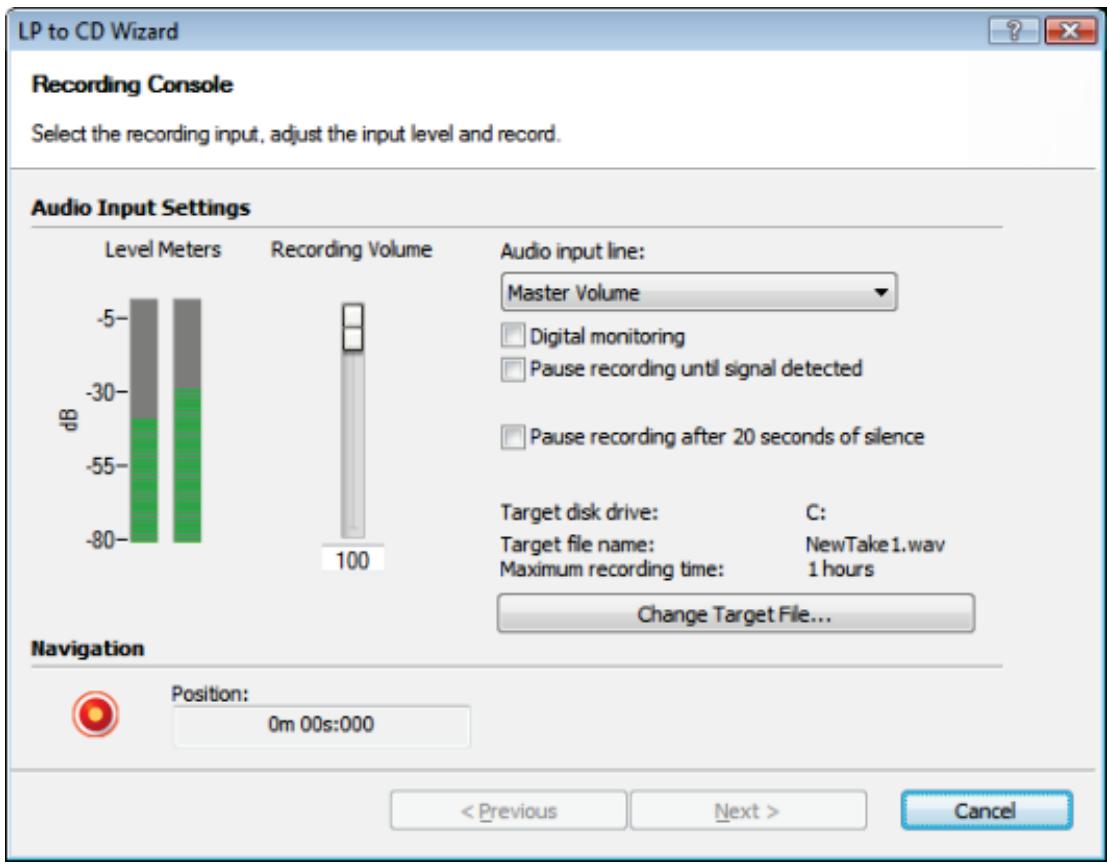
Recording Console screen
- If you want to hear how the sound quality is modified by changing the recording volume, enable the Digital monitoring check box.
- Start playback on the capture device.
- Move the Recording Volume slider until the display in the Level Meters is primarily in the yellow range.

If the level meters are predominantly in the red range then the audio quality will be reduced.
- If you want to pause recording until a signal is detected at the recording input, enable the Pause recording until signal detected check box.
If you want to pause recording if a signal has not been detected at the recording input after 20 seconds, for instance because the cassette has reached the end of one side, enable the Pause recording after 20 seconds of silence check box. - If you want to change the target file, click the Change Target File button and select the folder in which you want to save the audio file.
- Click the button.
The system starts recording.
- Click the II button to stop capturing.
- Click the Next button.
The Automatic Track Detection screen is displayed.
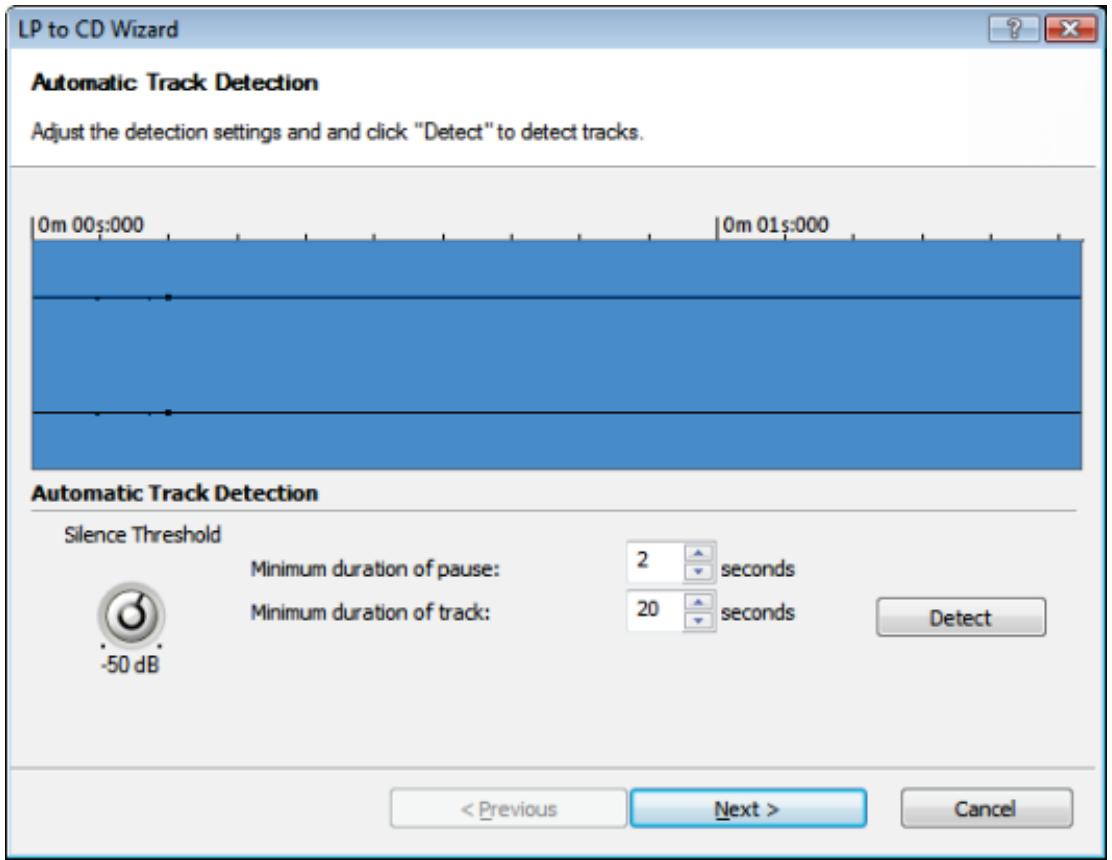
Automatic Track Detection screen
- Turn the Silence Threshold jog dial until the dB value of the pause is reached.
- Enter the minimum duration of a pause in the Minimum duration of pause text box.
Nero SoundTrax detects passages in the audio file and automatically inserts a pause.
- Enter the minimum duration that a track should have in the Minimum duration of track text box.
- Click the Detect button.
The tracks in the recording are detected automatically. The detected tracks are displayed in the respective screen.
- Click the Next button.
The Noise Reduction screen is displayed.
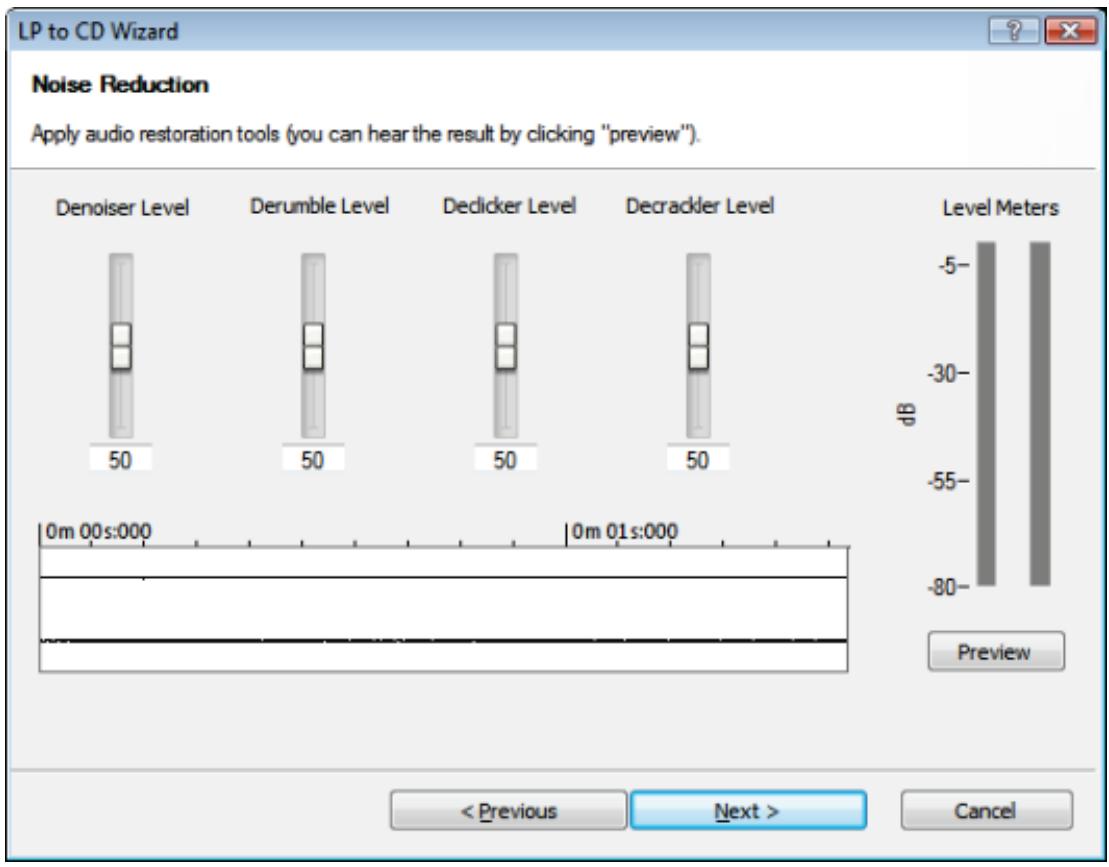
Noise Reduction screen.
- Move the Denoiser Level slider until the desired threshold value for removing background noise such as hissing, crackling, and humming is reached.
- Move the Derumble Level slider until the desired threshold value for removing low frequency signals that occur when recording LP records is reached.

The derumble filter can also erase bass frequencies that are part of the recording. Consequently do not set the threshold value of the slider too high.
- Move the Declicker Level slider until the desired threshold value for removing clicks that occur when recording LP records is reached.
- Move the Decrackler Level until the desired threshold value for removing background crackle that occurs when recording LP records is reached.
- Click the Preview button.
The recording is played with noise suppression.
- Click the Stop button to stop the preview.
- Click the Next button.
The CD Compilation screen is displayed.
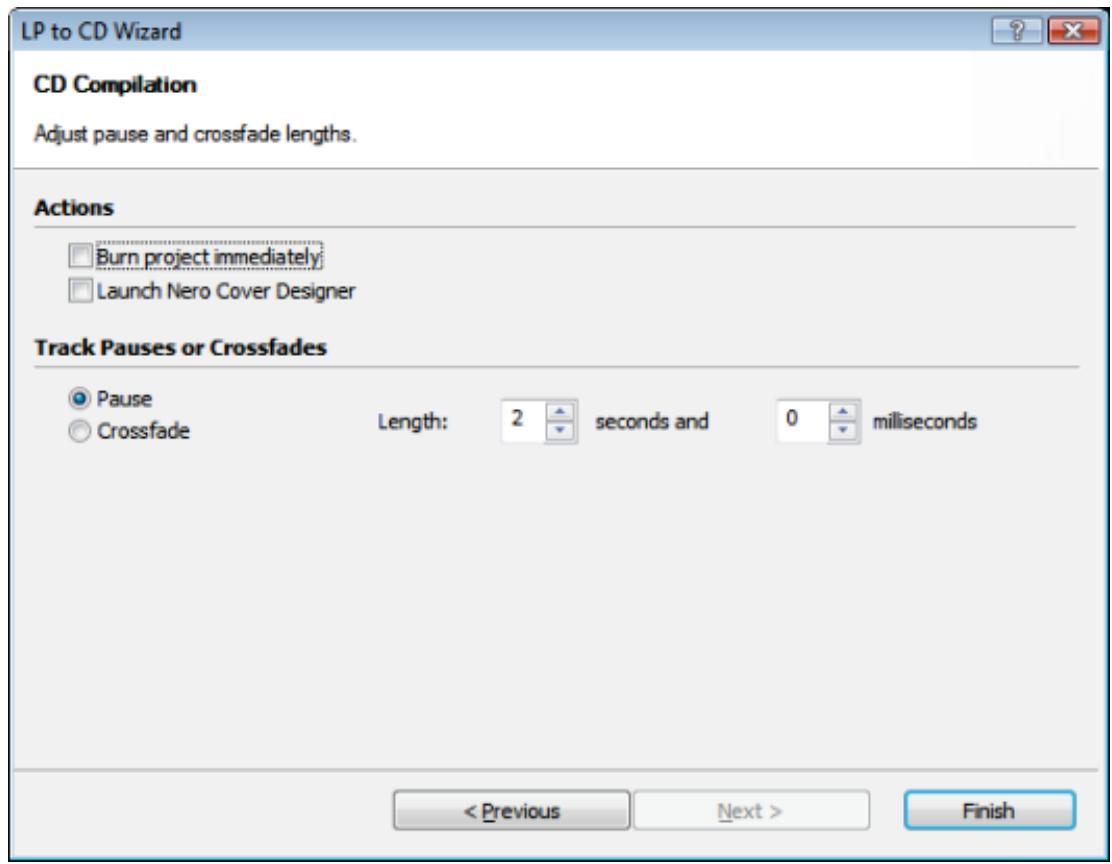
CD Compilation screen
- If you want to burn the project immediately, select the Burn project immediately check box.
- If you want to launch Nero CoverDesigner select the Launch Nero CoverDesigner check box.
- If you want pauses between the individual tracks, select the Pause option button and enter the duration in seconds and milliseconds in the respective text boxes. If you want to have the tracks run into each other, select the Crossfade option button.
- Click the Finish button.
You have recorded an LP record or cassette.
4.2 Importing an Audio CD
To import CD tracks from an Audio CD, proceed as follows:
- Insert the Audio CD in a CD drive.
- Click the Audio > Import from Audio CD entry in the menu bar.
The Audio CD Import window is opened.
-
Select the drive in which you have inserted the Audio CD from the CD-ROM device dropdown menu.
-
If you want to specify the target folder in which the imported audio files will be stored, click the button and choose the folder in which you want to store the imported CD tracks in the directory tree.
- Select all CD tracks that you want to import in the list box.

You can select multiple entries in a selection list by keeping the shift key held down while clicking them.
- Click the OK button.
You have imported CD tracks from an Audio CD.
5 Editing Track
Nero SoundTrax allows you to edit tracks by inserting audio clips and applying various effects and enhancement options.
The following requirement must be fulfilled:
- You have inserted a track in the track display area and changed the track properties as desired, thereby preparing the track for further modification.

One track is inserted by default in the track display area. If this track has been deleted or if you want to insert additional tracks in the track display area, click the Tracks > Insert Track entry in the menu bar.
5.1 Inserting Clips
To insert a clip into the track, proceed as follows:
-
If you want to insert an audio clip or audio loop into the track:
-
Open the context menu in the track display area and click the Insert Audio File(s) / Insert Audio Loop(s) entry.
A window is opened. - Select the audio file that you want to insert.
-
Click the Open button.
The audio file is inserted in the track as a peak file. -
If you want to capture an audio file and immediately insert it in the track as an audio clip:
-
Open the context menu in the track display area and click the Record Audio Clip entry.
-
Make the desired settings and click the Keep button after recording is finished.
The audio clip is inserted in the track automatically. -
If you want to insert a ScratchBox or SoundBox clip:
-
Open the context menu in the track display area and click the Insert ScratchBox Clip / Insert SoundBox Clip entry.
The respective window is opened. - Create the clip and close the window.
The clip is inserted in the track automatically.
You have inserted a clip into the track.
5.2 Adding Sections to a Track
With Nero SoundTrax you can add sections to your audio tracks by inserting CD track splits, CD indexes, and labels. These options are especially helpful if you want to create individual audio files from your project and burn them to a CD instead of saving or burning the project as one large audio file.
To add sections to a track, proceed as follows:
-
If you want to insert a CD track split:
-
Define the position where you would like to insert a CD track split by clicking the respective location in the track display area.
- Right-click the track display area to open the context menu and click the Insert CD Track Split entry.
→ The CD track split is inserted in the track. - If you want to edit the CD track split properties, right-click the CD track icon and click the Properties entry.
→ The Track Split Properties window is opened. - Define the exact position of the track split and the pause length before this CD track as desired, and enter the Title and Artist information in the respective input fields.
-
Click the OK button.
You have edited the CD track split properties. -
If you want to insert a CD index:
-
Define the position at which you would like to insert a CD index by clicking the respective location in the track display area.
- Right-click the track display area to open the context menu and click the Insert CD Index entry.
The CD index is inserted in the track.
-
If you want to edit the CD index properties, right-click the CD index icon and click the Properties entry.
The Index Properties window is opened. -
Define the exact position of the CD index.
-
Click the OK button.
You have edited the CD index properties. -
If you want to insert a label:
-
Define the position at which you would like to insert a label by clicking the respective location in the track display area.
- Right-click the track display area to open the context menu and click the Insert Label entry.
The Label Properties window is opened.
- Define the exact position of the label and enter a title in the Title input field.
- Click the OK button.
The label is inserted in the track.
You have added sections to the track.
5.3 Applying Crossfades
Nero SoundTrax allows you to create a crossfade between two audio files (i.e. to combine these audio files without interrupting their sound). Crossfades create a smooth transition between the audio files and are therefore a great method for creating audio mixes.
5.3.1 Creating Crossfade
To create a crossfade between two audio files, proceed as follows:
- Right-click the track display area to open the context menu and click the Insert Audio File(s) entry.
A window is opened. - Select the audio file that you want to insert.
- Click the Open button.
The audio file is inserted in the track as a peak file. - Insert a second audio file in the same track as described above.
- Drag the second audio file over the first one.
A red X appears in the area in which the two audio files overlap.
You have created a crossfade between two audio files.
5.3.2 Editing Crossfade Properties
After creating a crossfade, you can edit the properties of the crossfade area (i.e. the area in which the two audio files overlap).
To edit the crossfade properties, proceed as follows:
- Right-click the red X in the crossfade area.
A context menu is opened. - If you want to apply a certain crossfade method, click the desired crossfade method.
-
If you want to match the tempos of the two audio files for the crossfade area:
-
Click the Match Tempos entry.
The Crossfade Tempo window is opened.
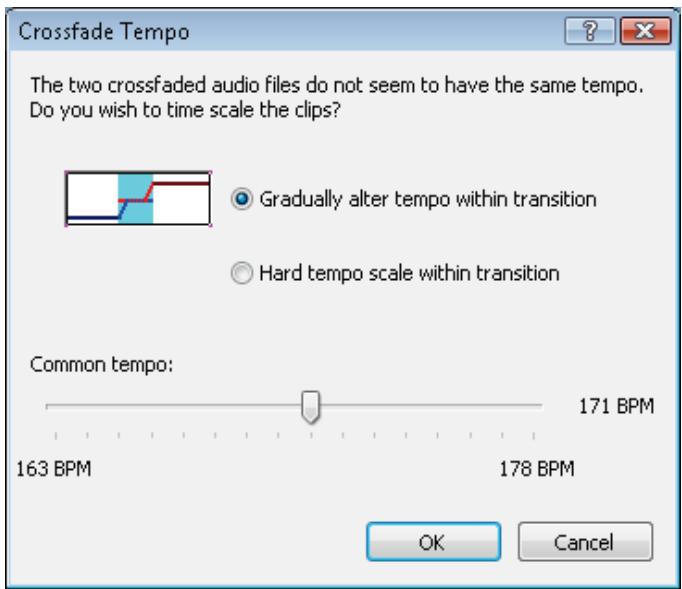
- If you want to create a smooth transition between the two audio files, select the Gradually alter tempo with transition option button.
- If you want to create a rather harsh transition between the two audio files, select the Hard tempo scale within transition option button.
- If you want to manually define the tempo (in bpm) for the crossfade area, move the Common tempo slider to the desired position.
- Click the OK button.
You have edited the crossfade properties.
5.4 Applying Effects and Enhancement Options
To apply effects and enhancement options, proceed as follows:
-
If you want to insert a volume curve or pan curve in the track:
-
Click the Tracks > Add Volume Curve / Add Pan Curve entry in the menu bar.
The curve is inserted in the track. -
Continue to edit the curve.
-
If you want to insert a sound change in the track:
-
Click the Edit the effect chain button in the tracks area on the left.
The Effect Chain Editor window is opened. -
Add the desired sound change to the effect chain.
-
If you want to edit the effect chain for the track:
-
Right-click the track display area to open the context menu and click the Edit Track Effect Chain entry.
The Effect Chain Editor - Track window is opened. -
Edit the effect chain for the track.
-
If you want to add an assignable effect group curve to the track:
- Right-click the track display area to open the context menu and click the Add Assignable Effect Curve entry.
The Add Effect Group Curve window is opened. - Select one of the effect group curves and click the OK button.
The effect group curve will be inserted in the track. - If you want to disable the track, right-click the track display area to open the context menu and click the Deactivate Track entry.
The track will be disabled. The peak file will be hidden.
You have edited the track.
5.5 Creating a Nero ScratchBox Clip
To create a Nero ScratchBox clip, proceed as follows:
- Select an audio file in the file system in the lower left corner of the Nero ScratchBox.
- Drag the file onto one of the turntables.
The name of the audio file is displayed in the display field above the turntable.
-
If you want to define a loop in the audio file:
-
Start playback of the audio file.
- Click the button at the desired starting point of the loop.
- Click the button at the desired end point of the loop.
-
Click the button to play the defined loop.
-
If you want to briefly reduce or accelerate the playback speed, click the Minus or Plus button on the turntable.
- If you want to continuously accelerate the playback speed, move the slider on the turntable up.
The speed increase is shown in the red field above the slider as a percentage value.
-
If you want to permanently slow down the playback speed, move the slider on the turntable down.
The reduction in speed is displayed as a percentage value in the red field above the controller. -
If you desire a slow fade-in and fade-out at the beginning and end of the audio file playback, turn the slider on the turntable to the right.
- If you want to completely filter highs, mid-range, or lows out of the audio file, push the switch for the respective tone to the right.
The switch will be illuminated red.
-
If you want to automatically crossfade from one audio file to another, slide the Automatic DJ slider on the mixing console to the right.
-
If you want to manually crossfade from one audio file to another, move the lower slider on the mixing console in the direction of the desired turntable.
- If you want to change the volume of one of the playbacks, move the vertical slider on the respective side.
- If you want to change the volume for both audio files, move the slider on the mixing console.
- If you want to play a loop from the tools area, drag the loop icon onto the turntable.
- If you want to use a sample scratch from the tools area, click the desired numbered button.
Scatches 1 - 3 will be used on the left turntable, scratches 4 - 6 will be used on the right turntable.
- If you want to use a sample sound or effect, click the desired numbered button in the lower left or lower right of the tools area.
- If you want to record a playback, click the button and start playback of the audio file(s).
All actions that you execute during the recording will also be recorded.
- If you want to stop the recording, click the button.
-
If you want to postprocess the scratches in your recording:
-
Click the Nero ScratchEditor button in the tools area.
The Nero ScratchEditor window is opened. - Change your scratches by clicking the playback curve of the respective turntable and then moving the handles that appear due to scratching.
- Close the Nero ScratchEditor window.
The changes are accepted.
You have created a Nero ScratchBox clip.
5.6 Creating a Volume Curve
A volume curve allows you to vary the volume over the length of the track.
To create a volume curve, proceed as follows:
- Select the track for which you want to change the volume.
- Click the Tracks > Add Volume Curve entry in the menu bar.
The volume curve is displayed in the track. On the left border of the track a percentage scale from 0 to 100 is displayed for the volume.
- Move the starting point of the curve, i.e. the square box at the left corner, to the desired initial volume.
- Click the volume curve where you want a volume change and move the square box up or down.
- Repeat the previous step until you have specified all desired points of the volume curve.
- If you want to delete a specific curve point, right-click the curve point and select the Remove Curve Point entry in the displayed context menu.
-
If you want to define the settings for a curve point more precisely:
-
Right-click the curve point and select the Edit Curve Point entry in the displayed context menu.
The Edit Curve Point window is opened.
- Enter the desired position of the curve point in the Min. and Sec input fields in the Time Line Position area.
- Enter the desired volume in decibels in the Volume text box in the Value area.
- Click the OK button.
You have created a volume curve and added it to the track.
5.7 Changing the Surround Sound Distribution
Nero SoundTrax allows you to allocate different output levels to the speakers during playback of a track. This changes the sound center of the room so that the sound "migrates". For this key points are created in the track so that the movement of sound can be re-used in subsequent playbacks.
To change the surround sound distribution, proceed as follows:

In general: The farther you move the dot away from a speaker the softer the sound in that speaker will be. The nearer you move the green dot to the speaker the louder the sound will be.
The sound from the right speaker becomes louder when the dot is moved to the right; the sound from the left speaker becomes louder when the dot is moved to the left.
If you place the dot in the corner above one of the speakers then only that particular speaker will provide sound; the other speaker will be completely muted. You can achieve the same effect by double-clicking on one of the speakers to turn it yellow.
- Click the green dot in the Surround Sound Distribution field located in the track section, keep the mouse button pressed, and move the dot.
The dot movement is marked by key points in the track display area. These key points consist of a dotted line and a diamond at the top of the line. - If you want to move a key point in the track, click the diamond at the top of the key point and move it to the right or left.
- If you want to delete a key point in the track, click the diamond at the top of the key point and press the Delete key on your keyboard.
You have changed the surround sound distribution of the track.
5.8 Creating a Pan Curve
A pan curve allows you to vary the volume in the individual channels over the length of the track. For example, for stereo you can initially make the left channel louder than the right channel, thereby simulating a movement.
To create a pan curve, proceed as follows:
- Select the track for which you want to change the volume distribution.
- Click the Tracks > Add Pan Curve entry in the menu bar.
The pan curves are displayed in the track. On the left border of the track a percentage scale from 0 to 100 is displayed for the volume. The starting point of the curve is at 0, which represents consistent volume allocation.
- Move the starting point of the curve, i.e. the square box in the left corner, to the desired initial distribution.
-
Click the volume curve at the location for which you want to change the volume distribution and move the square box up or down.
-
Repeat the previous step until you have specified all desired points of the pan curve.
- If you want to delete a specific curve point, right-click the curve point and select the Remove Curve Point entry in the displayed context menu.
-
If you want to define the settings for a curve point more precisely:
-
Right-click the curve point and select the Edit Curve Point entry in the displayed context menu.
The Edit Curve Point window is opened. - Enter the desired position of the curve point in the Min. and Sec. input fields In the Time Line Position area.
- Enter the desired pan in percent in the Pan text box in the Value area.
- Click the OK button.
You have created a pan curve and added it to the track.
5.9 Creating an Effect Chain
To create an effect chain, proceed as follows:
- If you want to create an effect chain for all tracks, click the Insert > Effect Into > Master Effect Chain entry in the menu bar.
- If you want to create an effect chain for a specific track, click the Insert > Effect Into > Track Effect Chain entry in the menu bar.
The Effect Chain Editor window is opened.
-
Click the Add button and choose the desired effect from the displayed menu.
Different control elements are displayed depending on the selected effect. -
Define the other settings as desired.

The subsequent settings differ depending on the selected effect and are not described in further detail.
- Repeat the preceding steps until you have added all desired effects.
- Click the Close button.
- If you want to delete the effect chain, right-click in a free area of the track, whose effect chain you want to delete, and select Edit track effect chain in the displayed context menu.
You have created an effect chain.
5.10 Creating or Using an Effect Chain Template
To create your own effect chain template or to use a predefined one, proceed as follows:
- If you want to create an effect chain for all tracks, click the Insert > Effect Into > Master Effect Chain entry in the menu bar.
If you want to create an effect chain for a specific track, click the Insert > Effect Into > Track Effect Chain entry in the menu bar.
The Effect Chain Editor window is opened.
- Click the Add button and choose the desired effect from the displayed menu.
Different control elements are displayed depending on the selected effect. - If you want to use a predefined template, select the desired template in the drop-down menu in the lower left corner of the window.
-
If you want to create your own template:
-
Define the other settings and the effect as desired.
-
Enter a template name in the drop-down menu in the lower left corner of the window.
-
Click the + button.
You have saved an effect template.
-
If you want to delete a template:
-
Select the template in the drop-down menu in the lower left corner of the window.
- Click the button.
You have deleted the template.
The settings of the selected template will be accepted when you close the Effect Chain Editor window.
You have created your own effect chain template or chosen a predefined one.
5.11 Creating an Effect Group
To create and edit an effect group, proceed as follows:
-
Click the Insert > Effect Into > Assignable Effect Groups entry in the menu bar.
The Assignable Effect Groups window is opened. -
Click the Add Group button.
The new group is displayed in the table. - Select the newly created group.
- Click the Edit Chain button.
The Effect Chain Editor - Track window is opened. - Click the Add button and choose the desired effect from the displayed menu.
Different control elements are displayed depending on the selected effect. - Define the other settings as desired.

The subsequent settings differ depending on the selected effect and are not described in further detail.
- Repeat the preceding steps until you have added all desired effects.
-
Click the Close button.
-
If you want to delete an effect group, select the desired effect group in the table and click the Remove button.
You have edited an effect group.
5.12 Adding an Effect Group Curve to The Track
The following requirement has to be fulfilled:
An effect group must already be created.
To add an effect group to a track, proceed as follows:
- Select the track to which you want to assign the effect group curve.
- Right-click the track dispay area to open the context menu and click the Tracks > Add Assignable Effect Curve entry in the menu bar.
The Add Effect Group Curve window is opened. - Select the desired effect group.
- Click the OK button.
The effect group curve is displayed in the track. On the left border of the track a percentage scale from 0 to 100 is displayed for the volume. - Move the starting point of the curve, i.e. the square box at the left corner, to the desired initial distribution.
- Click the effect group curve at the location for which you want to change the effect and move the square box up or down to the desired intensity.
- Repeat the previous step until you have specified all desired points of the effect group curve.
- If you want to delete a specific curve point, right-click the curve point and select the Remove Curve Point entry in the displayed context menu.
-
If you want to define the settings for a curve point more precisely:
-
Right-click the curve point and select the Edit Curve Point entry in the context menu.
The Edit Curve Point window is opened. - Enter the desired position of the curve point in the Min. and Sec. input fields in the Time Line Position area.
- Enter the desired volume in decibels in the Volume text box in the Value area.
- Click the OK button.
You have added an effect group curve to the track.
6 Exporting And Burning
6.1 Exporting a Project to an Audio File
To save a project as an audio file, proceed as follows:
- Click the File > Export to Audio File entry in the menu bar.
The Save As window is opened. - Select the folder in which you want to save the audio file.
- Enter the desired file name in the File Name input field and select the audio format in which the file will be saved.

The subsequent settings differ depending on the selected effect and are not described in further detail.
-
If you want to define additional settings for the audio format:
-
Click the Options button.
A window is opened. - Define the other settings as desired.
-
Click the OK button.
-
Click the Save button.
You have saved the project as an audio file.
6.2 Burning a Project to CD
To burn an Audio CD, proceed as follows:
- Click the Tools > Burn to CD entry in the menu bar.
The Audio CD Recorder window is opened. - Insert a writable CD in the disc burner.
- Select the disc burner into which you have placed the writable CD in the Device drop-down menu.

You can also save the project as a disc image if you do not want to burn it to a CD immediately. In this case, select the Image Recorder entry instead of a disc burner in the Device drop-down menu. You can then burn this disc image later with Nero Burning ROM or Nero Express.
- If you want to perform a simulation to verify whether the disc burner can burn the CD, select the Simulate before recording check box.
Prior to burning, the program verifies that all files selected for burning are available. - If you want to run a speed test prior to burning, select the Test maximum speed before burning check box.
Prior to burning, the program verifies whether the disc burner is capable of burning the session with the selected writing speed.
- If you do not want to normalize the volume, select the Do not normalize option button in the Volume Level Normalization area.
If you want to normalize the volume of the individual CD tracks individually, select theNormalize each track separately option button
If you want to normalize the volume of the whole CD, select the Normalize globally option button. - If you have selected a normalization method, move the Normalization level jog dial until the desired decibel value is reached.
- If you want to add CD text, enter the desired title and artist in the Title and CD TEXT area.

With CD players that support CD text, the title of the CD, the name of the audio file as well as the name of the artist appear in the display.
-
If you want to add the same artist information to all tracks:
-
Click the Select All button.
- Click the Properties button.
The CD Track Properties window is opened.
- Enter the joint artists of the CD track in the respective input field.
-
Click the OK button.
-
If you want to add titles and artist to specific tracks:
-
Select the desired track in the CD Track List area.
- Click the Properties button.
The CD Track Properties window is opened.
- Enter the title of the CD track in the respective input field.
- Enter the artist of the CD track in the respective input field.
- Click the OK button.
-
Repeat these sub-steps for each track to which you want to add title and artist.
-
Click the OK button.
-
If you have selected the Image Recorder as destination, the Save As window is opened:
-
Select the desired folder and enter the desired file name in the File name input field.
- Click the Save button.
The Burn Progress window is opened and burning is started. You can now follow the progress of burning on the progress bar.
- If you would like to save or print a log file for the burning process, click the Save or Print button.
If you do not want to save or print a log file for the burning process, click the Discard button.
You have burned an Audio CD.
7 Technical Information
7.1 System Requirements
Nero SoundTrax is installed along with its suite. Its system requirements are the same. You can find more detailed information on the system requirements under www.nero.com.
16-bit Windows compatible sound card and speakers or headphones
Optional: CD recorder

Installation of the newest WHQL certified drivers is recommended. WHQL stands for Windows Hardware Quality Labs and means that the device driver certified by Microsoft is compatible with Microsoft Windows and the relevant hardware.
7.2 Formats Supported
7.2.1 Audio Formats and Codec
Advanced Audio Coding (AAC) - import only
Audio Interchange File Format (AIFF, AIF)
Dolby Digital (AC3) - import only
MP3 / mp3PRO (MP3)
- Moving Picture Experts Group-1 Audio Layer 3 (MP3)
Moving Picture Experts Group-4 (MP4)
Nero AAC Codec, Nero Digital (MP4)
OGG Vorbis (OGG, OGM)
Resource Interchange File Format WAVE (WAV, WAVE)
Windows Media Audio (WMA)
Nero WaveEditor File (NWF)
Nero SoundTrax Project File (NPF)
8 Glossary
Bit Depth
Bit depth indicates the precision with which an oscillation vibration will be captured. The greater the value, the more accurate is the acquisition and the better is the audio quality.
FIR Filter
A filter is a system that links an input signal with a transmission function and makes this changed signal available at its output. With a filter with finite pulse response (FIR filter) the output signal is made up of several partially buffered values of the input signal.
Frequency
The frequency denotes the oscillations per second of an electrical or magnetic field. With audio files this means that the frequency increases with rising pitch. The unit is Hertz (Hz). The highest magnitude of oscillation is called the amplitude.
IIR Filter
A filter is a system that links an input signal with a transmission function and makes this changed signal available at its output. A filter with infinite pulse response (IIR filter) uses the input values as well as buffered values of the output signal.
LFE channel
A Low Frequency Effect channel is used for transmitting low frequency sound via a special low frequency channel that is specially reduced in its bandwidth. The bandwidth is limited to the bases and thus to frequencies between 20Hz and 100Hz . The LFE channel is used in various multi-channel sound systems. Because of its limited bandwidth it is not counted as a full channel in the designation of multi-channel sound systems but as a suffix marked as "1"(e.g. 5.1).
Noise shaping
Noise shaping is a process in which the noise of a digital signal is more strongly concentrated in certain frequency ranges. The noise is thus displaced into frequency ranges that are irrelevant for further signal processing. These frequency ranges can subsequently be damped with the aid of various filters and in this way the noise is suppressed.
Sample Rate
The sample rate indicates the frequency with which a signal is sampled per interval of time. It is measured in sampling values per second. The higher the sample rate the more precise the measurement, and the better the audio quality.
9 Index
Accent. 33
Add
Effect group curve 57
Ambience 30, 35
Amplitude 29
Assignable effect groups 26
Assignable effects 22, 26
Audio CD
Burn 58
Importing 45
Audio file 7
Capturing 40
Export 58
Audio Format Settings 7, 17
Convertor 20
Decoder 18
Encoder 19
Audio input 17
Audio output. 17
Audio settings 8
Audio track 7
Band Extrapolation 30
Beat Editor 30, 33
Beats per measure. 10
Beats per minute 10
Bit depth. 8, 12
Burn
Audio CD 58
Camera Denoiser 30
Capturing
Audio file. 40
Cassette 41
LP 41
Record 41
Tape 41
Cassette
Capturing 41
CD index 48
CD text. 59
CD track split. 48
Channels 7,54
Chorus. 29
Clip. 7
Nero ScratchBox. 52
Components
General 31
Configuration 7, 10, 16, 17, 23
Audio Format Settings. 7, 17
Convertor 20
Decoder 18
Device settings 7, 16
Encoder 19
Preferences. 7, 10
Project settings 7
Conventions, manual 5
Convertor 20
Convolution Reverb 29
Create
Effect chain 55
Effect chain template. 56
Effect group. 56
Nero ScratchBox clip 52
Pan curve 54
Volume curve 53
Curve point
Edit 53, 55, 57
Remove. 53, 55, 57
DC Offset Correction 30
Deactivate
Track 51
Declicker 30
Declipper 30
Decoder 18
Deesser 28
Dehum. 30
Delay. 29
Derumble filter 44
Device settings 7, 16
Audio input 17
Audio output. 17
Digital monitoring. 41, 42
DirectX plug-in. 16
DirectX Plug-ins. 28
DirectX settings 28
Distortion 29
Dynamic Processor 28
Edit
Curve point 53, 55, 57
Effect group 56
Key point. 54
Effect chain 26, 50, 56
Effect chain template. 28
Create 56
Remove 56
Effect chains 28, 30, 55
Create 55
Effects 28
Enhancements 28
Plug-ins 28
Remove 55
Tools 28
Effect group. 56, 57
Create. 56
Edit. 56
Remove 57
Effect group curve 28, 51, 57
Add 57
Effect groups. 26
Effects. 26, 28, 29
Encoder 19
Enhancements 28, 30
Equalizer 28
Export
Audio file. 58
File format. 11
Filter Toolbox 30
FIR filter 12
Flanger. 29
Frequency 27,33
General components 31
General settings 31
Hardware Learn 38
Help 23
IIR filter 12
Image Recorder 58
Importing
Audio CD. 45
Insert
CD index 48
Label 48
ScratchBox clip 47
SoundBox clip 47
Karaoke Filter 28
Key point
Edit 54
Remove 54
Label 48
LFE channel 22
LFE track. 23
Loop 36, 38, 47, 52
Loudness. 29
Low Fidelity 29
Main window. 22
Manual, conventions 5
Master 24
Master track. 24
Master track settings. 22
Menu bar. 22, 23
Mixing console. 35, 37
Modulation. 29
Monophony. 34
Multi-Tap Delay 29
Musical direction. 33
Nero ScratchBox clip
Nero Scratch Editor 37, 38
Nero ScratchBox 35,47
Clip 52
Create 52
Nero ScratchEditor 53
Nero SoundBox 30,47
Nero SoundTrax 5
Noise Gate 28
Noise Reduction. 30, 43
Noise shaping. 12
Noise shaping filter. 12
Online help. 23
Open project 21
Options 7,10,16,17,23
Pan curve 50, 54
Create 54
Peak file 35
Peak file folder 14
Peak file view. 35
Percussion instruments 33
Phaser 29
Pitch. 33
Pitch Tuning 28
Playback speed 52
Plug-in 28
Plug-ins DirectX 28 VST .28
Polyphony 34
Preferences. 7, 10
Program Starting the program 6
Project 22, 27 Open 21
Project settings. 7, 25
Project templates Select. 21
Pseudo Reverse 29
Re-analogue 29
Record Capturing 41
Recording Settings. 40
Remove Curve point 53, 55, 57
Effect chain. 55
Effect chain template 56
Key point. 54
Reverb 29
Sample rate. 8, 29
Sample sounds. 38
Save/Output Settings. 12
Scratch Editor. 38
ScratchBox 35,47,52
ScratchEditor. 37, 53
Scratches 38, 52
Scratching 35
Select Project templates 21 Templates 21
Sequencer 30, 33
Settings 7
General 31
Sound allocation. 54
Sound center point. 54
SoundBox. 30, 47
Start 6
Stereo 54
Stereo Processor 28
Stereo recording. 40
Storage space 14
Stutter 29
Surround projects 22
Surround Reverb 29
Surround sound 13, 24, 26, 31, 54
Surround sound distribution .54
System requirements 60
Other 60
Templates Select 21
Tempo and meter 10
Temporary folder 14
Terminology 7
Text II Speech 30, 34
Time Correction 28
Toolbar 22, 23, 25
Tools 28,35,37
Track 7
Deactivate. 51
Track display 22
Track display area 27
Track split. 48
Index
Tracks 22, 26
Transpose 28
True surround 13
Turntables 35, 52
User templates. 21
Virtual surround 13
Voice Modification 29
Volume curve. 50, 53
Create 53
VST plug-in 15
VST settings. 28
VST-Plug-ins 28
Wah-Wah 29
Wizards. 21, 23, 41
10 Contact
Nero SoundTrax is a Nero AG product.
Nero AG
Im Stoeckmaedle 13
Internet: www.nero.com
76307 Karlsbad
Help: http://support.nero.com
Germany
Fax: +49 724 892 8499
Nero Inc.
330 N Brand Blvd Suite 800
Internet: www.nero.com
Glendale, CA 91203-2335
Help: http://support.nero.com
USA
Fax: (818) 956 7094
E-mail: US-CustomerSupport@nero.com
Nero KK
Rover Center-kita 8F-B, 1-2-2
Internet: www.nero.com
Nakagawa-chouo Tsuzuki-ku
Help: http://support.nero.com
Yokohama, Kanagawa
Japan 224-0003
Copyright © 2010 Nero AG and its licensors. All rights reserved.