HT410 - Projector NEC - Free user manual and instructions
Find the device manual for free HT410 NEC in PDF.


User questions about HT410 NEC
0 question about this device. Answer the ones you know or ask your own.
Ask a new question about this device
Download the instructions for your Projector in PDF format for free! Find your manual HT410 - NEC and take your electronic device back in hand. On this page are published all the documents necessary for the use of your device. HT410 by NEC.
USER MANUAL HT410 NEC
Except as specified below, the warranty that may be provided by the dealer covers all defects in material or workmanship in this product. The following are not covered by the warranty:
- Any product on which the serial number has been defaced, modified or removed.
- Damage, deterioration or malfunction resulting from;
a. Accident, misuse, abuse, neglect, fire, water, dust, smoke, lightning or other acts of nature, unauthorized product modification, or failure to follow instructions supplied with the product.
b. Repair or attempted repair by non-authorized persons.
c. Any shipment of product (claim must be presented to the carrier).
d. Removal or installation of the product.
e. Any other causes which do not relate to a product defect.
3. Cartons, carrying cases, batteries, external cabinets, CDROM, or any accessories used in connection with the product.
4. Removal or installation charges.
5. Cost of initial technical adjustments (set-up), including adjustment of user controls. These costs are the responsibility of the dealer from whom the product was purchased.
6. Payment of shipping charges.
7. Consumption parts used in Projets have a limited life.
FOR U.S.A. AND CANADA, PLEASE REFER TO THE STANDARD LIMITED WARRANTY SHEET INCLUDED WITH YOUR PROJECTOR OR CONTACT NEC Solutions (America) Inc. at 800-836-0655 or send e-mail to vsd.tech-support@necsam.com.
FOR EUROPE, PLEASE REFER TO THE GUARantee POLICY INCLUDED WITH YOUR PROJECTOR OR CONTACT YOUR LOCAL SALES ORGANIZATION WITHIN EUROPE.
BESCHRANKTE GARANTIE
LIMITED WARRANTY (USA and Canada only)
NEC SOLUTIONS' PROJECTOR PRODUCTS
NEC Solutions (America), Inc. (hereafter NEC Solutions) warrants this product to be free from defects in material and workmanship under the following terms.
HOW LONG IS THE WARRANTY
NEC Solutions' HT510 and HT410 projectors are covered by a two (2) year limited parts and labor warranty from the date of the first customer purchase. The lamp when used under normal operating conditions is warranted for 500 hours or 90 days, whichever comes first.
WHO IS PROTECTED
This warranty may be enforced only by the first purchaser, and is not transferable.
WHAT IS COVERED AND WHAT IS NOT COVERED
Except as specified below, this warranty covers all defects in material or workmanship in this product.
NEC SOLUTIONS' LIABILITY FOR ANY DEFECTIVE PRODUCT IS LIMITED TO THE REPAIR OR REPLACEMENT OF THE PRODUCT AT NEC SOLUTIONS' OPTION. REPLACEMENT PRODUCTS MAY BE NEW OR RECONDITIONED PRODUCTS, AND REPLACEMENT PARTS MAY BE NEW OR SERVICEABLE USED PARTS. The following are not covered by the limited warranty and NEC Solutions shall not be liable for:
- Any product which is not distributed in the U.S.A. or Canada by NEC Solutions or which is not purchased, installed, and operated in the U.S.A or Canada.
- Any product on which the serial number has been defaced, modified or removed.
- Normal decrease in lamp light output over time.
- Damage, deterioration or malfunction resulting from:
a. Accident, misuse, abuse, neglect, improper ventilation, fire, dust, smoke, water, lightning or other acts of nature, unauthorized product modification, or failure to follow instructions supplied with the product.
b. Repair or attempted repair by anyone other than a NEC Solutions authorized service center.
c. Any shipment of the product (claims must be presented to the carrier).
d. Removal or installation of the product.
e. Any other cause which does not relate to a product defect.
f. Use of the product beyond normal operating conditions. Normal operating conditions are defined as product use not in excess of 8 hours per day and 260 days per year.
- Cartons, carrying cases, shipping cases, batteries, external cabinets, magnetic tapes, or any accessories used in connection with the product.
- Service required as a result of third party components.
WHAT NEC SOLUTIONS WILL PAY FOR
NEC Solutions will pay labor and material expenses for covered items, but NEC Solutions will not pay for the following:
- Removal or installation charges.
- Costs of technical adjustments, set-up, maintenance, or adjustment of user controls.
- Payment of shipping and related charges incurred in returning the product for warranty repair.
HOW YOU CAN GET WARRANTY SERVICE
- To obtain service on your product, consult the dealer from whom you purchased the product.
- Whenever warranty service is required, the original dated invoice [or a copy] must be presented as proof of warranty coverage. In order to obtain warranty service, you may be required to describe and demonstrate the problem to your dealer or to NEC Solutions.
- All products returned to NEC Solutions for service MUST have prior approval. To receive approval or for the name of the nearest NEC Solutions authorized service center, call NEC Solutions at 800-836-0655.
- It shall be your obligation and expense to ship the product, freight prepaid, or to deliver it to a NEC Solutions authorized service center, in either the original package or a similar package affording an equal degree of protection.
- In the event a product is returned to NEC Solutions for warranty service, and it is determined that there is no product defect or that the product condition is not covered by this limited warranty, a diagnostic service fee may be charged to the customer.
LIMITATION OF IMPLIED WARRANTYES
EXCEPT AS EXPRESSLY SET FORTH IN THIS LIMITED WARRANTY, NEC SOLUTIONS MAKES NO OTHER WARRANTYES, EXPRESS OR IMPLIED, INCLUDING BUT NOT LIMITED TO ANY IMPLIED WARRANTYES OR CONDITIONS OF MERCHANTABILITY AND FITNESS FOR A PARTICULAR PURPOSE. ANY IMPLIED WARRANTYES THAT MAY BE IMPOSED BY LAW ARE LIMITED TO THE TERMS AND DURATION OF THIS LIMITED WARRANTY.
EXCLUSION OF DAMAGES
NEC SOLUTIONS' LIABILITY FOR ANY DEFECTIVE PRODUCT IS LIMITED TO THE REPAIR OR REPLACEMENT OF THE PRODUCT AT NEC SOLUTIONS' OPTION. NEC SOLUTIONS SHALL NOT BE LIABLE FOR:
- DAMAGE TO OTHER PROPERTY CAUSED BY ANY DEFECTS IN THIS PRODUCT, DAMAGES BASED UPON INCONVENIENCE, LOSS OF USE OF THE PRODUCT, LOSS OF TIME, COMMERCIAL LOSS; OR
- ANY OTHER DAMAGES, WHETHER INCIDENTAL, CONSEQUENTIAL OR OTHERWISE.
HOW STATE LAW RELATES TO THE WARRANTY
SOME STATES DO NOT ALLOW LIMITATIONS ON HOW LONG AN IMPLIED WARRANTY LASTS AND/OR DO NOT ALLOW THE EXCLUSION OR LIMITATION OF INCIDENTAL OR CONSEQUENTIAL DAMAGES, SO THE ABOVE LIMITATIONS AND EXCLUSIONS MAY NOT APPLY TO YOU. THIS LIMITED WARRANTY GIVES YOU SPECIFIC LEGAL RIGHTS, AND YOU MAY HAVE OTHER RIGHTS WHICH VARY FROM STATE TO STATE.
FOR MORE INFORMATION, CONTACT:
NEC SOLUTIONS (AMERICA), INC.
1250 N. Arlington Heights Road
Itasca, Illinois 60143-1248
TELEPHONE 800-836-0655
www.necvisualsystems.com
Customers are cautioned that product performance is affected by system configuration, software, the application, customer data, and operator control, among other factors. While NEC Solutions' products are considered to be compatible with many systems, the specific functional implementation by the customers of the product may vary. Therefore, the suitability of a product for a specific purpose or application must be determined by the customer and is not warranted by NEC Solutions.
DECLARATION OF CONFORMITY
This device complies with Part 15 of FCC Rules. Operation is subject to the following two conditions. (1) This device may not cause harmful interference, and (2) this device must accept any interference received, including interference that may cause undesired operation.
U.S. Responsible Party: NEC Solutions (America), Inc.
Address: 1250 N. Arlington Heights Road
Itasca, Illinois 60143
Tel. No.:
(630) 467-5000
Type of Product:
Projector
Equipment Classification:
Class B Peripheral
Models:
HT510/HT410
Entertainment Projector
HT510/HT410
User's Manual
English
Deutsch
François
Italiano
Espanol
Svenska
IMPORTANT INFORMATION
Safety Cautions
Precautions
Please read this manual carefully before using your NEC HT510/HT410 Projector and keep the manual handy for future reference. Your serial number is located on the bottom of your projector. Record it here:
CAUTION

To turn off main power, be sure to remove the plug from power outlet.
The power outlet socket should be installed as near to the equipment as possible, and should be easily accessible.
CAUTION

TO PREVENT SHOCK, DO NOT OPEN THE CABINET.
NO USER-SERVICEABLE PARTS INSIDE.
REFER SERVICING TO QUALIFIED SERVICE PERSONNEL.

This symbol warns the user that uninsulated voltage within the unit may be sufficient to cause electrical
shock. Therefore, it is dangerous to make any kind of contact with any part inside of the unit.

This symbol alerts the user that important information concerning the operation and maintenance of
this unit has been provided.
The information should be read carefully to avoid problems.
WARNING
TO PREVENT FIRE OR SHOCK, DO NOT EXPOSE THIS UNIT TO RAIN OR MOISTURE.
DO NOT USE THIS UNIT'S PLUG WITH AN EXTENSION CORD OR IN AN OUTLET UNLESS ALL THE PRONGS CAN BE FULLY INSERTED.
DO NOT OPEN THE CABINET. THERE ARE HIGH-VOLTAGE COMPONENTS INSIDE. ALL SERVICING
MUST BE DONE BY QUALIFIED SERVICE PERSONNEL.
DOC Compliance Notice
This Class B digital apparatus meets all requirements of the Canadian Interference-Caising Equipment Regulations.
Acoustic Noise Information Ordinance-3. GSGV:
The sound pressure level is less than 70 dB (A) according to ISO 3744 or ISO 7779.
WARNING TO CALIFORNIA RESIDENTS:
Handling the cables supplied with this product will expose you to lead, a chemical known to the
State of California to cause birth defects or other reproductive harm. Wash hands after handling.
Copyright © 2004 by NEC Viewtechnology, Ltd.
RF Interference
WARNING
The Federal Communications Commission does not allow any modifications or changes to the unit EXCEPT those specified by NEC Solutions (America), Inc. in this manual. Failure to comply with this government regulation could void your right to operate this equipment. This equipment has been tested and found to comply with the limits for a Class B digital device, pursuant to Part 15 of the FCC Rules. These limits are designed to provide reasonable protection against harmful interference in a residential installation. This equipment generates, uses, and can radiate radio frequency energy and, if not installed and used in accordance with the instructions, may cause harmful interference to radio communications. However, there is no guarantee that interference will not occur in a particular installation. If this equipment does cause harmful interference to radio or television reception, which can be determined by turning the equipment off and on, the user is encouraged to try to correct the interference by one or more of the following measures:
- Reorient or relocate the receiving antenna.
- Increase the separation between the equipment and receiver.
- Connect the equipment into an outlet on a circuit different from that to which the receiver is connected.
- Consult the dealer or an experienced radio / TV technician for help.
In UK, a BS approved power cable with moulded plug has a Black (five Amps) fuse installed for use with this equipment. If a power cable is not supplied with this equipment please contact your supplier.
Important Safeguards
These safety instructions are to ensure the long life of your projector and to prevent fire and shock. Please read them carefully and heed all warnings.
Installation
- For best results, use your projector in a darkened room.
- Place the projector on a flat, level surface in a dry area away from dust and moisture.
To avoid premature lamp failure, do not tilt the front of the projector up or down by more than 15^ from level.
- Do not place your projector in direct sunlight, near heaters or heat radiating appliances.
- Exposure to direct sunlight, smoke or steam can harm internal components.
- Handle your projector carefully. Dropping or jarring can damage internal components.
- Do not place heavy objects on top of the projector.
- If you wish to have the projector installed on the ceiling:
a. Do not attempt to install the projector yourself.
b. The projector must be installed by qualified technicians in order to ensure proper operation and reduce the risk of bodily injury.
c. In addition, the ceiling must be strong enough to support the projector and the installation must be in accordance with any local building codes.
d. Please consult your dealer for more information.
Fire and Shock Precautions
- Ensure that there is sufficient ventilation and that vents are unobstructed to prevent the build-up of heat inside your projector. Allow at least 4 inches (10 cm) of space between your projector and a wall.
- Prevent foreign objects such as paper clips and bits of paper from falling into your projector.
Do not attempt to retrieve any objects that might fall into your projector. Do not insert any metal objects such as a wire or screwdriver into your projector. If something should fall into your projector, disconnect it immediately and have the object removed by a qualified service personnel.
- Do not place any liquids on top of your projector.
- Do not look into the lens while the projector is on. Serious damage to your eyes could result.
- Keep any items such as magnifying glass out of the light path of the projector. The light being projected from the lens is extensive, therefore any kind of abnormal objects that can redirect light coming out of the lens, can cause unpredictable outcome such as fire or injury to the eyes.
- Do not cover the lens with the supplied lens cap or equivalent while the projector is on. Doing so can lead to melting of the cap and possibly burning your hands due to the heat emitted from the light output.
- The projector is designed to operate on a power supply of 100-240 V 50/60 Hz AC. Ensure that your power supply fits this requirement before attempting to use your projector.
- Handle the power cable carefully and avoid excessive bending. A damaged cord can cause electric shock or fire.
- If the projector is not to be used for an extended period of time, disconnect the plug from the power outlet.
- Do not touch the power plug during a thunderstorm. Doing so can cause electrical shock or fire.
- Do not handle the power plug with wet hands.
CAUTION
- Do not try to touch the ventilation outlet on the right and rear side (when seen from the front) as it can become heated while the projector is turned on.
- Do not use the tilt-foot for purposes other than originally intended. Misuses such as gripping the tilt-foot or hanging on the wall can cause damage to the projector.
Before putting the projector in the soft case, be sure to retract the feet. Failure to do so may cause damage to the projector.
-
When carrying the projector, heed the following:
-
Ensure that the power cable and any other cables are disconnected before moving the projector.
Cover the lens with the supplied lens cap so as not to scratch the lens surface. -
Do not send the projector in the soft case by parcel delivery service or cargo shipment. The projector inside the soft case could be damaged.
- Select "High" in the Fan mode if you continue to use the projector for consecutive days. (From the menu, select [Advanced] [Fan Mode] [High].)
- Do not unplug the power cable from the wall outlet under any one of the following circumstances.
Doing so can cause damage to the projector:
- While the projector is turned on.
-
While the cooling fans are running. (The cooling fans continue to work for 60 seconds after the projector is turned off).
-
If you accidentally turn off the main power by disconnecting the power cable or press the main power switch during cooling down, wait 10 minutes and then turn on the projector to resume. This is to protect the lamp.
Lamp Replacement
To replace the lamp, follow all instructions provided on page E-45.
- Be sure to replace the lamp when the message "The lamp has reached the end of its usable life. Please replace the lamp." appears. If you continue to use the lamp after the lamp has reached the end of its usable life, the lamp bulb may shatter, and pieces of glass may be scattered in the lamp case. Do not touch them as the pieces of glass may cause injury.
If this happens, contact your dealer for lamp replacement.
- Allow a minimum of 60 seconds to elapse after turning off the projector. Then turn off the main power switch, disconnect the power cable and allow 60 minutes to cool the projector before replacing the lamp.
What's in the Box?
Make sure your box contains everything listed. If any pieces are missing, contact your dealer. Please save the original box and packing materials if you ever need to ship your Projector.
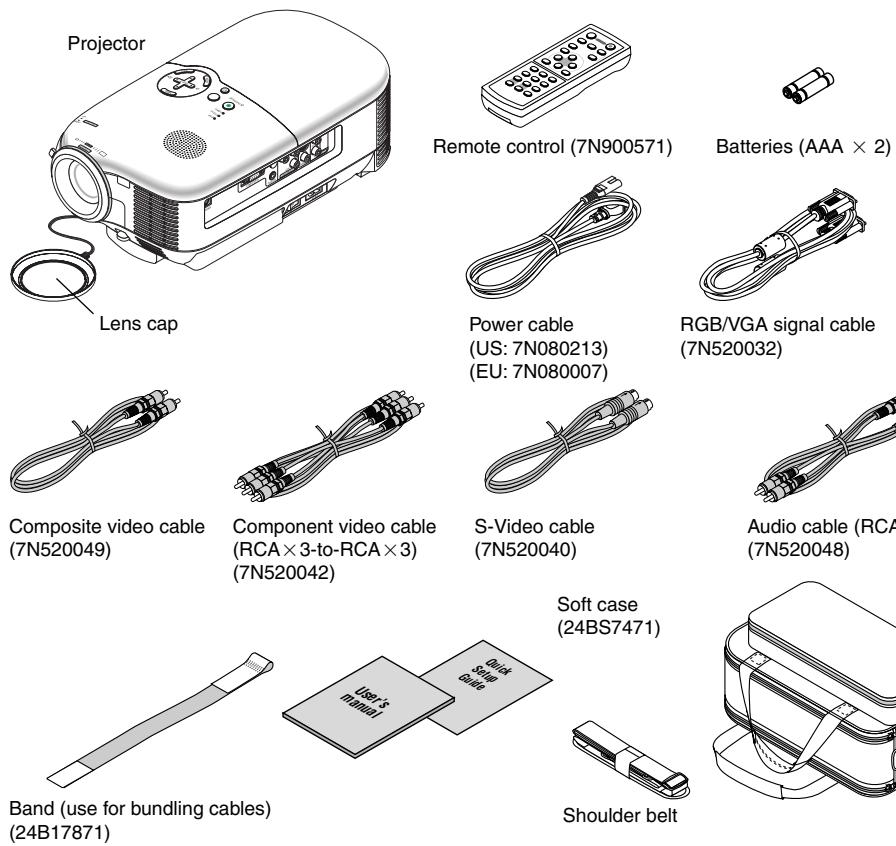
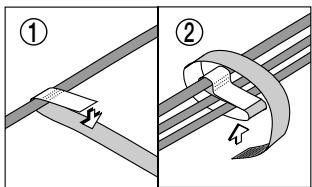
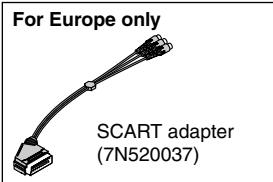
For North America only
Registration card
Limited warranty
For Europe only
Guarantee policy
TABLE OF CONTENTS
IMPORTANT INFORMATION E-i
Safety Cautions E-i
What's in the Box? E-iv
1. INTRODUCTION E-1
Introduction to the Projector E-1
Part Names of the Projector E-3
Top Features E-4
Terminal Panel Features E-5
Part Names of the Remote Control E-6
Battery Installation E-8
Remote Control Precautions E-8
Operating Range for Wireless Remote Control E-9
2. INSTALLATION AND CONNECTIONS E-10
Setting Up the Screen and the Projector E-11
Selecting a Location E-11
Throw Distance and Screen Size E-12
Using the Lens Shift Feature E-15
Making Connections E-16
Connecting Your DVD Player E-16
Connecting Your VCR or Laser Disc Player E-17
Connecting Your PC or Macintosh Computer E-18
To connect SCART output E-19
Connecting the Supplied Power Cable E-20
3.PROJECTING AN IMAGE (BASIC OPERATION) E-21
Turning on the Projector E-21
Selecting a Source E-23
Adjusting the Picture Size and Position E-23
Correcting the Vertical Keystone Distortion E-26
Optimizing an RGB Image Automatically E-27
Turning Up or Down Volume E-27
Turning off the Projector E-28
After Use E-29
4. CONVENIENT FEATURES E-30
Turning Off the Image and Sound E-30
Freezing a Picture E-30
Reducing Vide Noise (Noise Reduction) E-30
Turning Off the Projector at the Preset Time (Off Timer) E-31
Getting the Information on Lamp Usage and Projector Usage E-31
5. USING ON-SCREEN MENU E-32
Using the Menu E-32
List of Menu Items E-34
Menu Descriptions & Functions E-35
Picture E-35
Brightness/Contrast/Sharpness/Color/Hue/Noise Reduction/Telecine E-35
Adjustment E-35
Selecting Wall Color Correction Mode [Wall Color] E-35
Adjusting Color Management [Color Management]/Selecting Gamma Correction Mode [Gamma Correction]/
Adjusting Color Temperature [Color Temperature]/Adjusting White Peaking [White Peaking] E-36
Image E-36
Correcting Vertical Keystone Distortion Manually [Keystone]/Saving Vertical Keystone Correction [Keystone Save] E-36
Selecting Aspect Ratio [Aspect Ratio]/Adjusting the Horizontal/Vertical Position, Clock and Phase [Position/Clock] E-37
Setup E-38
Setting Off Timer [Off Timer]/Selecting Lamp Mode [Lamp Mode]/Selecting Menu Language [Language]/
Selecting Menu Color [Menu Color Select]/Selecting Menu Display Time [Menu Display Time]/
Selecting a Color for Background [Background]/Selecting Projector Orientation [Orientation]/
Selecting Communication Speed [Communication Speed] E-38
Advanced E-39
Preventing the Unauthorized Use of the Projector [Security] E-39
Disabling the Cabinet Buttons [Cabinet Button]/Enabling Fan Speed Mode [Fan Mode]/
Enabling Power Management [Power Management]/Selecting Signal Format [Signal Select] E-42
Information E-43
Page 1/2/3 E-43
Reset E-44
Returning to Factory Default [Factory Default]/Clearing Lamp Hour Meter [Clear Lamp Hour Meter] E-44
6. MAINTENANCE E-45
Replacing the Lamp E-45
Cleaning the Cabinet and the Lens E-48
7.TROUBLESHOOTING E-49
Power Indicator E-49
Status Indicator E-49
Lamp Indicator E-49
Common Problems & Solutions E-50
8. SPECIFICATIONS E-53
9. APPENDIX E-55
Cabinet Dimensions E-55
Pin Assignments of COMPUTER IN (D-Sub RGB) Connector E-56
PC Control Codes and Cable Connection E-57
Compatible Input Signal List E-58
Troubleshooting Check List E-59
TravelCare Guide E-61
1. INTRODUCTION
Introduction to the Projector
This section introduces you to your new NEC HT510/HT410 home entertainment Projector and describes its features and controls.
Congratulations on Your Purchase of The HT510/HT410 Entertainment Projector
The HT510/HT410 is a sophisticated single chip DLPTM projector designed with the enhanced video requirements for the home entertainment user. With the HT510/HT410 you will enjoy projecting images up to 200" (measured diagonally) from your DVD player, VCR, satellite hookup, HDTV source, PC or Macintosh computer (desktop or notebook) and images from your digital camera. The HT510/HT410 can be setup on a coffee table, tabletop, cart, bookshelf or permanently installed ^*1 . With an extensive input panel, quick connect guide and full function remote, you will be ready to immerse yourself in big screen enjoyment.
Features you'll enjoy on the HT510/HT410 entertainment projector:
16:9 native wide screen display
- Exceptionally quite - as low as 26dB fan noise in Eco-Mode
- High resolution images - HT510 is a 1024 × 576 display,HT410 is a 854 × 480 display
HDTV (1080i, 720p) and SDTV (576p, 480p) compatibility
- Manual vertical lens shift assists in projector to screen picture alignment
- Adjustable tilt rear foot for enhanced projector placement and alignment to the screen
- Eco-Mode™ technology – increases lamp life by up to 50% and reduces noise level to <26dB
- 3 video inputs - 1 component, 1 S-Video and 1 video for multiple video source connectivity
- Integrated deinterlace video processing technology
- Display popular wide screen and full screen aspect ratios - 16:9, 1.85:1, 2.35:1 and 4:3
Built in speaker for an integrated audio solution
- Easy set up and operation
High performance long life lamp for low total operating costs
- Wireless remote control operation
- Multiple video mode selections depending on your source
Control the unit with a PC using the PC Control port
- NEC's exclusive intelligent scaling and pixel blending technology provides for extremely accurate image compression up to HDTV (1920×1080) and SXGA+ (1400×1050) display resolution*2
Supports most IBM VGA, SVGA, XGA, Macintosh, component signal (YCbCr/YPbPr) or other RGB signals within a horizontal frequency range of 24 to 100kHz and a vertical frequency range of 50 to 85Hz . This includes NTSC, NTSC4.43, PAL, PAL-M, PAL-N, PAL60 and SECAM standard video signals
NOTE: Composite video standards are as follows:
NTSC: U.S. TV standard for video in U.S. and Canada.
PAL: TV standard used in Western Europe.
PAL-N: TV standard used in Argentine, Paraguay and Uruguay.
PAL-M: TV standard used in Brazil.
PAL60: TV standard used for NTSC playback on PAL TVs.
SECAM: TV standard used in France and Eastern Europe.
NTSC4.43: TV standard used in Middle East countries.
*1 Do not attempt to mount the projector on a ceiling yourself.
The projector must be installed by qualified technicians in order to ensure proper operation and reduce the risk of bodily injury.
In addition, the ceiling must be strong enough to support the projector and the installation must be in accordance with any local building codes. Please consult your dealer for more information.
*2 HDTV 1080i (1920×1080), HDTV 720p (1280×720) and SXGA+ (1400×1050) are displayed with NECs intelligent scaling technology.
Thank you for your purchase of the NEC HT510/HT410 home entertainment projector.
About this user's manual
The fastest way to get started is to take your time and do everything right the first time. Take a few minutes now to review the user's manual. This may save you time later on. At the beginning of each section of the manual you'll find an overview. If the section doesn't apply, you can skip it.
- Digital Light Processing and DLP are trademarks of Texas Instruments.
- IBM is a trademark or registered trademark of International Business Machines Corporation.
Mac and PowerBook are trademarks of Apple Computer, Inc., registered in the U.S. and other countries. - Other product and company names mentioned in this user's manual may be the trademarks or registered trademarks of their respective holders.
Part Names of the Projector
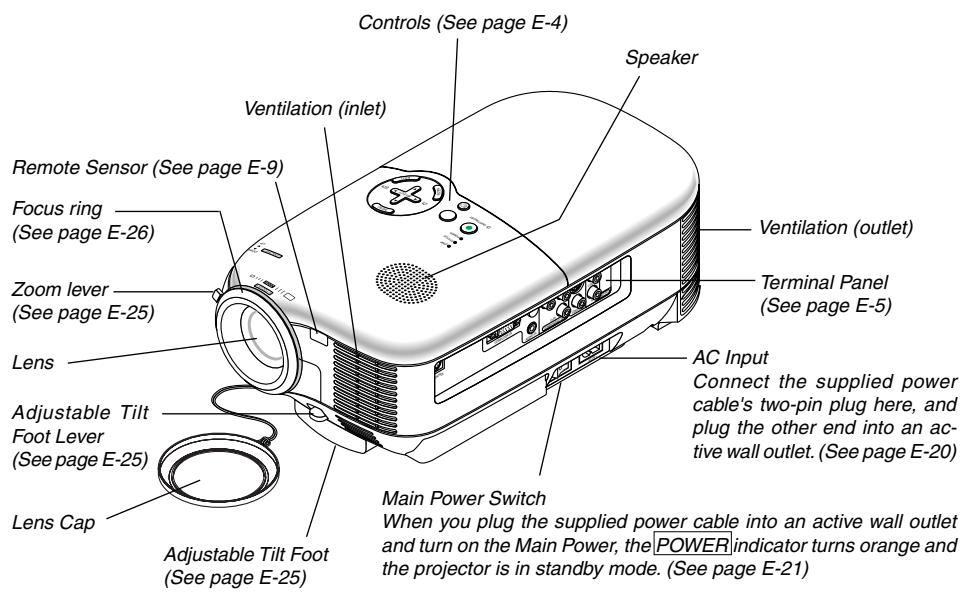
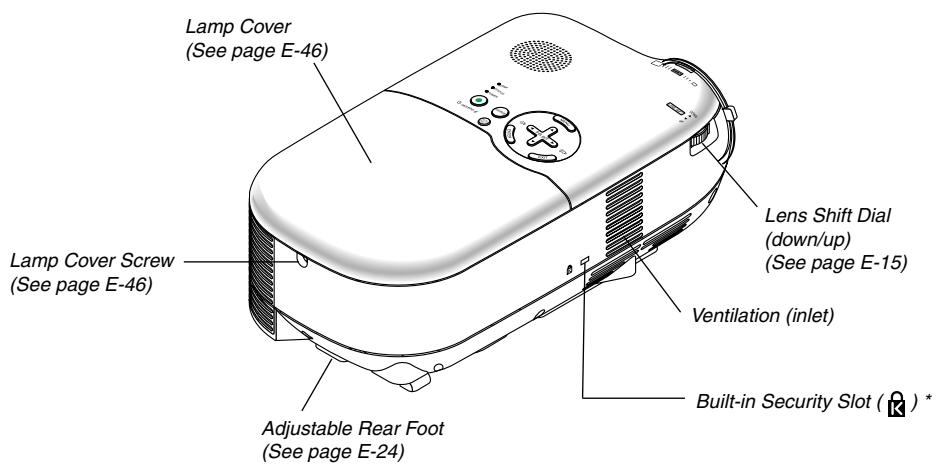
- This security slot supports the MicroSaver® Security System. MicroSaver® is a registered trademark of Kensington Microwave Inc. The logo is trademarked and owned by Kensington Microwave Inc.
Top Features
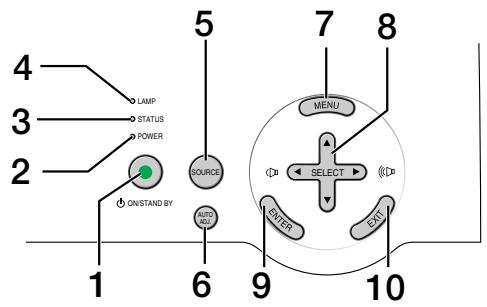
Use this button to turn the power on and off when the main power is supplied and the projector is in standby mode.
To turn on the projector, press and hold this button for a minimum of two seconds. To turn off the projector, press this button twice.
- POWER indicator
When this indicator is green, the projector is on; when this indicator is orange, it is in standby mode. See the power Indicator section on page E-49 for more details.
- STATUS indicator
If this light blinks red rapidly, it indicates that an error has occurred, the lamp cover is not attached properly or the projector has overheated. If this light remains orange, it indicates that you have pressed a cabinet key while the Cabinet Button is locked. See the Status Indicator section on page E-49 for more details.
4.LAMPindicator
If this light blinks red rapidly, it's warning you that the lamp has reached the end of its usable life. After this light appears, replace the lamp as soon as possible (See page E-45). See the Lamp Indicator section on page E-49 for more details.
- SOURCE button
This button will allow you to select a video source such as a PC, VCR or DVD player.
Press and quickly release this button to display the Source list. Each time this button is pressed, each source name will be highlighted in sequence. Highlighting a source name for 2 seconds without pressing the ENTER button will display the selected source.
- AUTO ADJ. button
Use this button to adjust an RGB source for an optimal picture (See page E-27).
- E N U button
Displays the menu.
- SELECT ▲▼▲ / volume +/- buttons
: Use these buttons to select the menu of the item you wish to adjust.
: Use these buttons to change the level of a selected menu item. When no menus appear, these buttons work as a volume control.
9 ENTER button
Executes your menu selection and activates items selected from the menu.
10.[EXIT]button
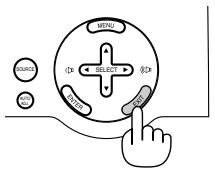
Pressing this button will return to the previous menu.
While you are in the main menu, pressing this button will close the menu.
Terminal Panel Features
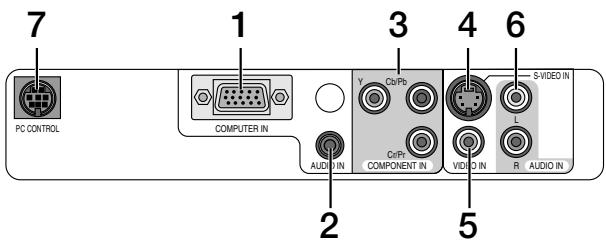
- COMPUTER IN / Component Input Connector (Mini D-Sub 15 Pin)
Connect your computer or other analog RGB equipment such as IBM compatible or Macintosh computers. Use the supplied RGB/VGA cable to connect to your computer. This also serves as a component input connector that allows you to connect a component video output of component equipment such as a DVD player (optional adapter ADP-CV1 required).
This is where you connect the audio output from your computer or DVD player when connected to the COMPUTER IN or COMPONENT IN.
- COMPONENT IN (Y, Cb/Pb, Cr/Pr) connectors (RCA)
Connect component video outputs (Y/Cb/Cr, Y/Pb/Pr) here from external equipment such as a DVD player.
- S-VIDEO IN connector (Mini DIN 4 Pin)
Here is where you connect the S-Video output from an external source like a VCR.
NOTE: S-Video provides more vivid color and higher resolution than the traditional composite video format.
- VIDEO IN connector (RCA)
Connect a VCR, DVD player, laser disc player, or document camera here to project video.
- AUDIO IN jacks L & R (RCA)
These are your left and right channel audio inputs for stereo sound from a Video or S-Video source.
- PC CONTROL Port (Mini DIN 8 Pin)
Use this port to connect a PC or control system. This enables you to control the projector using serial communication protocol. If you are writing your own program, typical PC control codes are on page E-57.
Part Names of the Remote Control
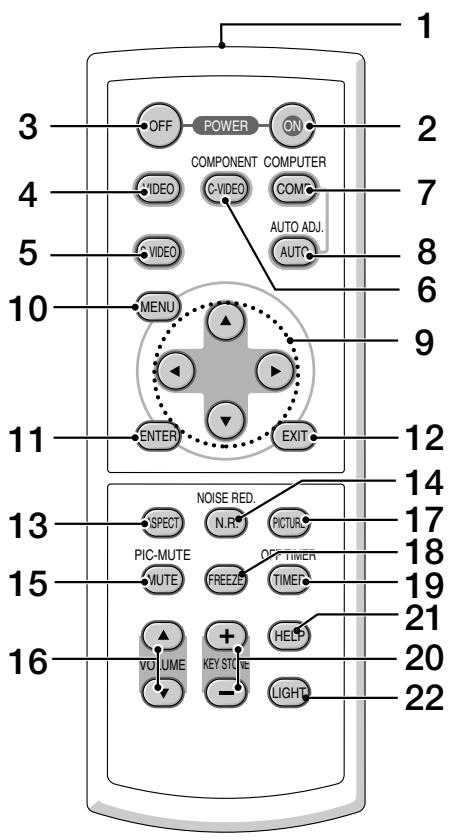
- Infrared Transmitter
Direct the remote control toward the remote sensor on the projector cabinet.
- POWER ON Button
When the main power is on, you can use this button to turn your projector on.
NOTE: To turn on the projector, press and hold the POWER ON button for a minimum of two seconds.
- POWER OFF Button
You can use this button to turn your projector off.
NOTE: To turn off the projector, press the POWER OFF button twice.
4.VIDEO Button
Press this button to select a video source connected to the VIDEO input.
- S-VIDEO Button
Press this button to select an S-Video source connected to the S-VIDEO input.
6.C-VIDEOButton (COMPONENT)
Press this button to select a video source from component equipment connected to the COMPONENT input.
7.COMPButton (COMPUTER)
Press this button to select a video source from computer or component equipment connected to your COMPUTER IN port.
- AUTO Button (AUTO ADJ.)
Use this button to adjust an RGB source for an optimal picture. See page E-27.
- SELECT ▲▼▶ Button
: Use these buttons to select the menu of the item you wish to adjust.
: Use these buttons to change the level of a selected menu item.
- MENU Button
Displays the menu for various settings and adjustments.
11 ENTER Button
Use this button to enter your menu selection. It works the same as the ENTER button on the cabinet. See page E-4.
- Button
It works the same as the EXIT button on the cabinet. See page E-4.
- ASPECTButton
Press this button once to display the Aspect Ratio select menu. Continue pressing to change aspect ratios.
See page E-37.
- N.R. Button (NOISE RED.)
This button will turn on the noise reduction feature to reduce video noise.
- MUTE Button (PIC-MUTE)
This button turns off the image and sound for a short period of time. Press again to restore the image and sound.
- (+) (-) Button
Press (+) to increase the volume and (-) to decrease it.
17.PICTUREButton
Press this button to display the Picture menu. Each time this button is pressed, the option will be changed.
See page E-35.
- Button
This button will freeze a picture. Press again to resume motion.
19.TIMERButton(OFF TIMER)
This button will display eight options to turn off power automatically: Off, 0:30, 1:00, 2:00, 3:00, 4:00, 6:00 and 8:00. See page E-31.
20.KEYSTONE (-) Button
Press this button to correct the keystone (trapezoidal) distortion, and make the image square. See page E-26.
- HELP Button
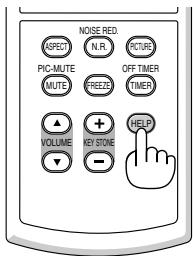
Provides the information about the status of the projector.
22.LIGHTButton
Use this button to turn on or off the button's backlight. If another button is not pressed within 10 seconds while the backlight is on, it will turn off to conserve the batteries.
Battery Installation
1 Press firmly and slide the battery cover off.
2 Remove both old batteries and install new ones (AAA). Ensure that you have the batteries' polarity (+/-) aligned correctly.
3 Slip the cover back over the batteries until it snaps into place. Do not mix different types of batteries or new and old batteries.
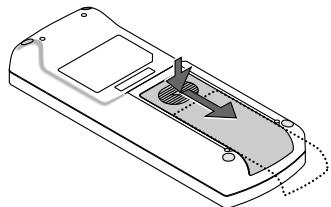
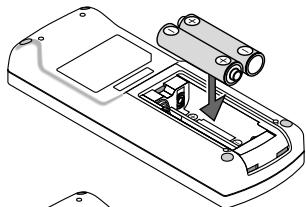
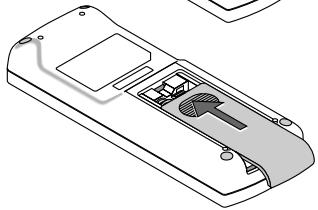
Remote Control Precautions
- Handle the remote control carefully.
- If the remote control gets wet, wipe it dry immediately.
- Avoid excessive heat and humidity.
If you will not be using the remote control for a long time, remove the batteries. - Do not place the batteries upside down.
- Do not use new and old batteries together, or use different types of batteries together.
- Dispose of used batteries according to your local regulations.
Operating Range for Wireless Remote Control
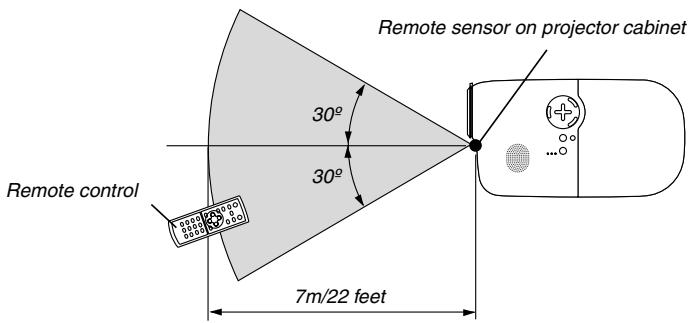
- The infrared signal operates by line-of-sight up to a distance of about 22 feet/7 m and within a 60-degree angle of the remote sensor on the projector cabinet.
- The projector will not respond if there are objects between the remote control and the sensor, or if strong light falls on the sensor. Weak batteries will also prevent the remote control from properly operating the projector.
2. INSTALLATION AND CONNECTIONS
This section describes how to set up your projector and how to connect video and audio sources.
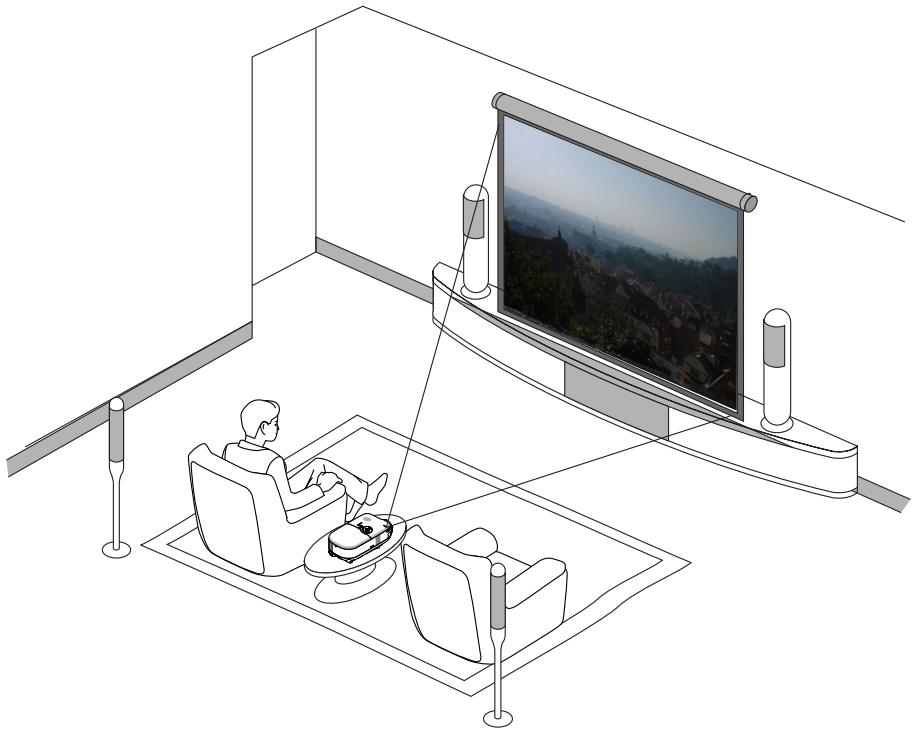
Your projector is simple to set up and use. But before you get started, you must first:
1 Set up a screen and the projector.
2 Connect your video equipment or computer to the projector. See page E-16 to E-19.
3 Connect the supplied power cable. See page E-20.
NOTE: Ensure that the power cable and any other cables are disconnected before moving the projector. When moving the projector or when it is not in use, cover the lens with the lens cap.
Setting Up the Screen and the Projector
Selecting a Location
The further your projector is from the screen or wall, the larger the image. The minimum size the image can be is approximately 30^ (0.76 m) measured diagonally when the projector is roughly 1.2 m/46 inches (HT410) and 1.0 m/40 inches (HT510) from the wall or screen. The largest the image can be is 200^ (5.0 m) when the projector is roughly 8.0 m/316 inches (HT410) and 6.7 m/263 inches (HT510) from the wall or screen. Use the drawing below as a guide.
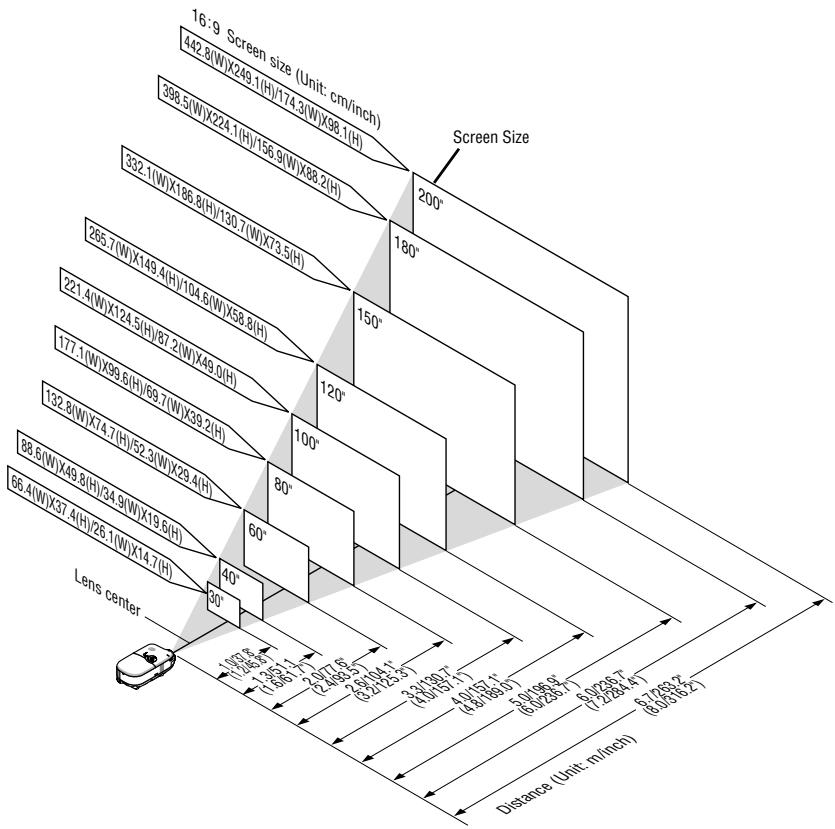
NOTE:
- Values in parentheses for HT410.
- Screen size for 16:9
- The distances are indicated by intermediate values between tele and wide. Use as a rule of thumb.
Throw Distance and Screen Size
The following shows the proper relative positions of the projector and screen. Refer to the table to determine the position of installation.
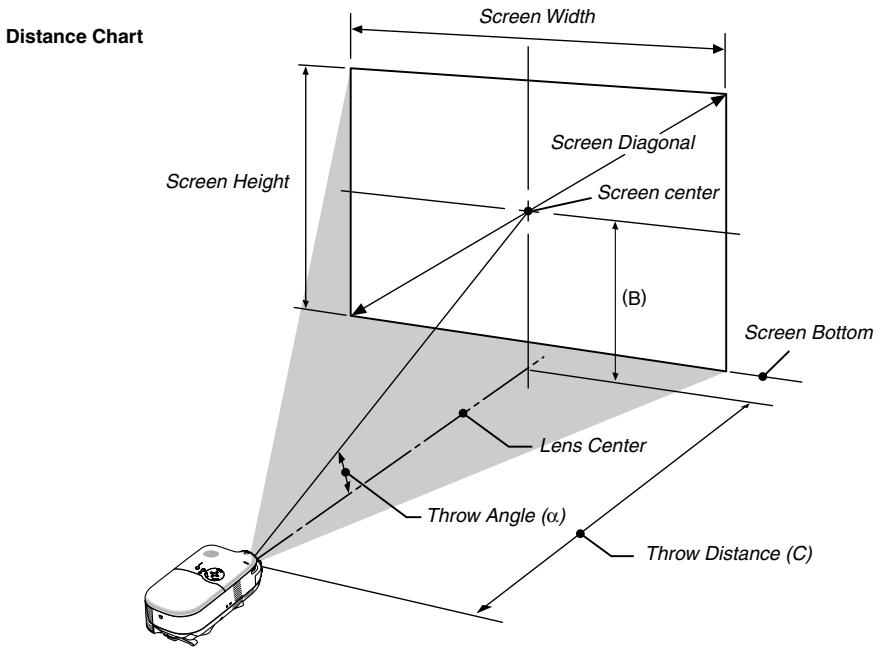
B = Vertical distance between lens center and screen center
C = Throw distance
= Throw angle
NOTE: Distances may vary +/-5%.
WARNING
- Installing your projector on the ceiling must be done by a qualified technician. Contact your NEC dealer for more information.
- Do not attempt to install the projector yourself.
- Only use your projector on a solid, level surface. If the projector falls to the ground, you can be injured and the projector severely damaged.
- Do not use the projector where temperatures vary greatly. The projector must be used at temperatures between 41^ ( 5^ ) and 95^ ( 35^ ).
- Do not expose the projector to moisture, dust, or smoke. This will harm the screen image.
- Ensure that you have adequate ventilation around your projector so heat can dissipate. Do not cover the vents on the side or the front of the projector.
Rear Projection Applications
The projector has the ability to be used in a rear projection application. When used with a third party mirror and frame system, rear projection allows you to achieve a larger image size in less distance than a traditional front projection installation. If space constraints exist, please contact your authorized NEC reseller regarding a rear projection solution. Refer to page E-38 on how to change the projector orientation for use in a rear projection application.
HT510 Distance Chart
Minimum Lens Shift Position
| Screen Size (16:9) | B (min) | C | α | ||||||||||||||
| Diagonal | Width | Height | wide | tele | wide | tele | wide | degree | tele | ||||||||
| inch | mm | inch | mm | inch | mm | inch | mm | inch | mm | inch | mm | inch | mm | inch | mm | degree | degree |
| 30 | 762 | 26.1 | 664 | 14.7 | 374 | 4.1 | 103.1 | 4.1 | 104.0 | 34.4 | 874 | 41.2 | 1047 | 6.7 | 5.7 | ||
| 40 | 1016 | 34.9 | 886 | 19.6 | 498 | 5.4 | 137.7 | 5.5 | 138.5 | 46.5 | 1182 | 55.6 | 1413 | 6.6 | 5.6 | ||
| 55 | 1397 | 47.9 | 1218 | 27.0 | 685 | 7.5 | 189.4 | 7.5 | 190.5 | 64.7 | 1644 | 77.2 | 1961 | 6.6 | 5.5 | ||
| 60 | 1524 | 52.3 | 1328 | 29.4 | 747 | 8.1 | 206.6 | 8.2 | 207.8 | 70.8 | 1797 | 84.4 | 2144 | 6.6 | 5.5 | ||
| 72 | 1829 | 62.8 | 1594 | 35.3 | 897 | 9.8 | 247.9 | 9.8 | 249.4 | 85.3 | 2167 | 101.7 | 2582 | 6.5 | 5.5 | ||
| 73 | 1854 | 63.6 | 1616 | 35.8 | 909 | 9.9 | 251.4 | 10.0 | 252.9 | 86.5 | 2198 | 103.1 | 2619 | 6.5 | 5.5 | ||
| 80 | 2032 | 69.7 | 1771 | 39.2 | 996 | 10.8 | 275.5 | 10.9 | 277.1 | 95.0 | 2413 | 113.2 | 2875 | 6.5 | 5.5 | ||
| 82.6 | 2098 | 72.0 | 1829 | 40.5 | 1029 | 11.2 | 284.4 | 11.3 | 286.1 | 98.2 | 2493 | 116.9 | 2970 | 6.5 | 5.5 | ||
| 84 | 2134 | 73.2 | 1860 | 41.2 | 1046 | 11.4 | 289.2 | 11.5 | 291.0 | 99.9 | 2536 | 118.9 | 3021 | 6.5 | 5.5 | ||
| 90 | 2286 | 78.4 | 1992 | 44.1 | 1121 | 12.2 | 309.9 | 12.3 | 311.8 | 107.1 | 2721 | 127.6 | 3240 | 6.5 | 5.5 | ||
| 92 | 2337 | 80.2 | 2037 | 45.1 | 1146 | 12.5 | 316.8 | 12.5 | 318.7 | 109.6 | 2783 | 130.4 | 3313 | 6.5 | 5.5 | ||
| 100 | 2540 | 87.2 | 2214 | 49.0 | 1245 | 13.6 | 344.4 | 13.6 | 346.4 | 119.3 | 3029 | 142.0 | 3606 | 6.5 | 5.5 | ||
| 106 | 2692 | 92.4 | 2347 | 52.0 | 1320 | 14.4 | 365.0 | 14.5 | 367.2 | 126.5 | 3214 | 150.6 | 3825 | 6.5 | 5.5 | ||
| 110 | 2794 | 95.9 | 2435 | 53.9 | 1370 | 14.9 | 378.8 | 15.0 | 381.1 | 131.4 | 3337 | 156.4 | 3971 | 6.5 | 5.5 | ||
| 119 | 3023 | 103.7 | 2634 | 58.3 | 1482 | 16.1 | 409.8 | 16.2 | 412.3 | 142.3 | 3614 | 169.3 | 4300 | 6.5 | 5.5 | ||
| 120 | 3048 | 104.6 | 2657 | 58.8 | 1494 | 16.3 | 413.2 | 16.4 | 415.7 | 143.5 | 3645 | 170.7 | 4337 | 6.5 | 5.5 | ||
| 133 | 3378 | 115.9 | 2944 | 65.2 | 1656 | 18.0 | 458.0 | 18.1 | 460.8 | 159.3 | 4045 | 189.5 | 4812 | 6.5 | 5.5 | ||
| 150 | 3810 | 130.7 | 3321 | 73.5 | 1868 | 20.3 | 516.6 | 20.5 | 519.7 | 179.9 | 4568 | 213.9 | 5434 | 6.5 | 5.5 | ||
| 161 | 4089 | 140.3 | 3564 | 78.9 | 2005 | 21.8 | 554.5 | 22.0 | 557.8 | 193.2 | 4907 | 229.7 | 5836 | 6.4 | 5.5 | ||
| 180 | 4572 | 156.9 | 3985 | 88.2 | 2241 | 24.4 | 619.9 | 24.6 | 623.6 | 216.2 | 5492 | 257.1 | 6530 | 6.4 | 5.4 | ||
| 200 | 5080 | 174.3 | 4428 | 98.1 | 2491 | 27.1 | 688.8 | 27.3 | 692.9 | 240.5 | 6108 | 285.9 | 7261 | 6.4 | 5.5 | ||
Maximum Lens Shift Position (Factory Default)
| Screen Size (16:9) | B (max) | C | α | |||||||||||||
| Diagonal | Width | Height | wide | tele | wide | tele | degree | tele | degree | |||||||
| inch | mm | inch | mm | inch | mm | inch | mm | inch | mm | inch | mm | inch | mm | |||
| 30 | 762 | 26.1 | 664 | 14.7 | 374 | 10.2 | 259 | 10.3 | 260 | 34.4 | 874 | 41.2 | 1047 | 16.5 | 14.0 | |
| 40 | 1016 | 34.9 | 886 | 19.6 | 498 | 13.6 | 346 | 13.7 | 347 | 46.5 | 1182 | 55.6 | 1413 | 16.3 | 13.8 | |
| 55 | 1397 | 47.9 | 1218 | 27.0 | 685 | 18.7 | 476 | 18.8 | 477 | 64.7 | 1644 | 77.2 | 1961 | 16.1 | 13.7 | |
| 60 | 1524 | 52.3 | 1328 | 29.4 | 747 | 20.4 | 519 | 20.5 | 520 | 70.8 | 1797 | 84.4 | 2144 | 16.1 | 13.6 | |
| 72 | 1829 | 62.8 | 1594 | 35.3 | 897 | 24.5 | 623 | 24.6 | 625 | 85.3 | 2167 | 101.7 | 2582 | 16.0 | 13.6 | |
| 73 | 1854 | 63.6 | 1616 | 35.8 | 909 | 24.9 | 631 | 24.9 | 633 | 86.5 | 2198 | 103.1 | 2619 | 16.0 | 13.6 | |
| 80 | 2032 | 69.7 | 1771 | 39.2 | 996 | 27.2 | 692 | 27.3 | 694 | 95.0 | 2413 | 113.2 | 2875 | 16.0 | 13.6 | |
| 82.6 | 2098 | 72.0 | 1829 | 40.5 | 1029 | 28.1 | 714 | 28.2 | 717 | 98.2 | 2493 | 116.9 | 2970 | 16.0 | 13.6 | |
| 84 | 2134 | 73.2 | 1860 | 41.2 | 1046 | 28.6 | 726 | 28.7 | 729 | 99.9 | 2536 | 118.9 | 3021 | 16.0 | 13.6 | |
| 90 | 2286 | 78.4 | 1992 | 44.1 | 1121 | 30.6 | 778 | 30.7 | 781 | 107.1 | 2721 | 127.6 | 3240 | 16.0 | 13.5 | |
| 92 | 2337 | 80.2 | 2037 | 45.1 | 1146 | 31.3 | 796 | 31.4 | 798 | 109.6 | 2783 | 130.4 | 3313 | 16.0 | 13.5 | |
| 100 | 2540 | 87.2 | 2214 | 49.0 | 1245 | 34.0 | 865 | 34.2 | 868 | 119.3 | 3029 | 142.0 | 3606 | 15.9 | 13.5 | |
| 106 | 2692 | 92.4 | 2347 | 52.0 | 1320 | 36.1 | 917 | 36.2 | 920 | 126.5 | 3214 | 150.6 | 3825 | 15.9 | 13.5 | |
| 110 | 2794 | 95.9 | 2435 | 53.9 | 1370 | 37.4 | 951 | 37.6 | 954 | 131.4 | 3337 | 156.4 | 3971 | 15.9 | 13.5 | |
| 119 | 3023 | 103.7 | 2634 | 58.3 | 1482 | 40.5 | 1029 | 40.6 | 1032 | 142.3 | 3614 | 169.3 | 4300 | 15.9 | 13.5 | |
| 120 | 3048 | 104.6 | 2657 | 58.8 | 1494 | 40.9 | 1038 | 41.0 | 1041 | 143.5 | 3645 | 170.7 | 4337 | 15.9 | 13.5 | |
| 133 | 3378 | 115.9 | 2944 | 65.2 | 1656 | 45.3 | 1150 | 45.4 | 1154 | 159.3 | 4045 | 189.5 | 4812 | 15.9 | 13.5 | |
| 150 | 3810 | 130.7 | 3321 | 73.5 | 1868 | 51.1 | 1297 | 51.2 | 1301 | 179.9 | 4568 | 213.9 | 5434 | 15.9 | 13.5 | |
| 161 | 4089 | 140.3 | 3564 | 78.9 | 2005 | 54.8 | 1392 | 55.0 | 1397 | 193.2 | 4907 | 229.7 | 5836 | 15.8 | 13.5 | |
| 180 | 4572 | 156.9 | 3985 | 88.2 | 2241 | 61.3 | 1557 | 61.5 | 1562 | 216.2 | 5492 | 257.1 | 6530 | 15.8 | 13.4 | |
| 200 | 5080 | 174.3 | 4428 | 98.1 | 2491 | 68.1 | 1730 | 68.3 | 1735 | 240.5 | 6108 | 285.9 | 7261 | 15.8 | 13.4 | |
B : Vertical distance between lens center and screen center
C:Throw distance
:Throw Angle
HT410 Distance Chart
Minimum Lens Shift Position
| Screen Size (16:9) | B (min) | C | α | |||||||||||||
| Diagonal | Width | Height | wide | tele | wide | tele | wide | tele | ||||||||
| inch | mm | inch | mm | inch | mm | inch | mm | inch | mm | inch | mm | inch | mm | degree | degree | |
| 30 | 762 | 26.1 | 664 | 14.7 | 374 | 4.9 | 124.1 | 4.9 | 124.7 | 41.7 | 1060 | 49.9 | 1267 | 6.7 | 5.6 | |
| 40 | 1016 | 34.9 | 886 | 19.6 | 498 | 6.5 | 165.5 | 6.5 | 166.3 | 56.3 | 1430 | 67.1 | 1706 | 6.6 | 5.6 | |
| 55 | 1397 | 47.9 | 1218 | 27.0 | 685 | 9.0 | 227.4 | 9.0 | 228.6 | 78.1 | 1984 | 93.0 | 2363 | 6.5 | 5.5 | |
| 60 | 1524 | 52.3 | 1328 | 29.4 | 747 | 9.8 | 248.1 | 9.8 | 249.4 | 85.4 | 2169 | 101.7 | 2582 | 6.5 | 5.5 | |
| 72 | 1829 | 62.8 | 1594 | 35.3 | 897 | 11.7 | 297.7 | 11.8 | 299.2 | 102.9 | 2613 | 122.4 | 3108 | 6.5 | 5.5 | |
| 73 | 1854 | 63.6 | 1616 | 35.8 | 909 | 11.9 | 301.8 | 11.9 | 303.4 | 104.3 | 2649 | 124.1 | 3152 | 6.5 | 5.5 | |
| 80 | 2032 | 69.7 | 1771 | 39.2 | 996 | 13.0 | 330.7 | 13.1 | 332.4 | 114.5 | 2908 | 136.2 | 3459 | 6.5 | 5.5 | |
| 82.6 | 2098 | 72.0 | 1829 | 40.5 | 1029 | 13.4 | 341.5 | 13.5 | 343.2 | 118.3 | 3004 | 140.7 | 3573 | 6.5 | 5.5 | |
| 84 | 2134 | 73.2 | 1860 | 41.2 | 1046 | 13.7 | 347.2 | 13.7 | 349.1 | 120.3 | 3056 | 143.1 | 3634 | 6.5 | 5.5 | |
| 90 | 2286 | 78.4 | 1992 | 44.1 | 1121 | 14.6 | 372.0 | 14.7 | 374.0 | 129.0 | 3278 | 153.4 | 3897 | 6.5 | 5.5 | |
| 92 | 2337 | 80.2 | 2037 | 45.1 | 1146 | 15.0 | 380.3 | 15.1 | 382.3 | 132.0 | 3352 | 156.9 | 3985 | 6.5 | 5.5 | |
| 100 | 2540 | 87.2 | 2214 | 49.0 | 1245 | 16.3 | 413.3 | 16.4 | 415.5 | 143.6 | 3647 | 170.7 | 4336 | 6.5 | 5.5 | |
| 106 | 2692 | 92.4 | 2347 | 52.0 | 1320 | 17.2 | 438.1 | 17.3 | 440.5 | 152.3 | 3869 | 181.1 | 4599 | 6.5 | 5.5 | |
| 110 | 2794 | 95.9 | 2435 | 53.9 | 1370 | 17.9 | 454.7 | 18.0 | 457.1 | 158.1 | 4017 | 188.0 | 4774 | 6.5 | 5.5 | |
| 119 | 3023 | 103.7 | 2634 | 58.3 | 1482 | 19.4 | 491.8 | 19.5 | 494.5 | 171.2 | 4350 | 203.5 | 5169 | 6.5 | 5.5 | |
| 120 | 3048 | 104.6 | 2657 | 58.8 | 1494 | 19.5 | 496.0 | 19.6 | 498.6 | 172.7 | 4387 | 205.2 | 5213 | 6.5 | 5.5 | |
| 133 | 3378 | 115.9 | 2944 | 65.2 | 1656 | 21.6 | 549.7 | 21.8 | 552.6 | 191.6 | 4867 | 227.7 | 5782 | 6.4 | 5.5 | |
| 150 | 3810 | 130.7 | 3321 | 73.5 | 1868 | 24.4 | 619.9 | 24.5 | 623.2 | 216.4 | 5495 | 257.0 | 6528 | 6.4 | 5.5 | |
| 161 | 4089 | 140.3 | 3564 | 78.9 | 2005 | 26.2 | 665.4 | 26.3 | 668.9 | 232.4 | 5902 | 276.0 | 7010 | 6.4 | 5.4 | |
| 180 | 4572 | 156.9 | 3985 | 88.2 | 2241 | 29.3 | 743.9 | 29.4 | 747.9 | 260.0 | 6604 | 308.8 | 7843 | 6.4 | 5.4 | |
| 200 | 5080 | 174.3 | 4428 | 98.1 | 2491 | 32.5 | 826.5 | 32.7 | 831.0 | 289.1 | 7343 | 343.3 | 8719 | 6.4 | 5.4 | |
Maximum Lens Shift Position (Factory Default)
| Screen Size (16:9) | B (max) | C | α | |||||||||||||
| Diagonal | Width | Height | wide | tele | wide | tele | degree | tele | degree | |||||||
| inch | mm | inch | mm | inch | mm | inch | mm | inch | mm | inch | mm | inch | mm | |||
| 30 | 762 | 26.1 | 664 | 14.7 | 374 | 12.3 | 312 | 12.3 | 312 | 41.7 | 1060 | 49.9 | 1267 | 16.4 | 13.8 | |
| 40 | 1016 | 34.9 | 886 | 19.6 | 498 | 16.4 | 416 | 16.4 | 416 | 56.3 | 1430 | 67.1 | 1706 | 16.2 | 13.7 | |
| 55 | 1397 | 47.9 | 1218 | 27.0 | 685 | 22.5 | 571 | 22.5 | 572 | 78.1 | 1984 | 93.0 | 2363 | 16.1 | 13.6 | |
| 60 | 1524 | 52.3 | 1328 | 29.4 | 747 | 24.5 | 623 | 24.6 | 624 | 85.4 | 2169 | 101.7 | 2582 | 16.0 | 13.6 | |
| 72 | 1829 | 62.8 | 1594 | 35.3 | 897 | 29.4 | 748 | 29.5 | 749 | 102.9 | 2613 | 122.4 | 3108 | 16.0 | 13.5 | |
| 73 | 1854 | 63.6 | 1616 | 35.8 | 909 | 29.8 | 758 | 29.9 | 760 | 104.3 | 2649 | 124.1 | 3152 | 16.0 | 13.5 | |
| 80 | 2032 | 69.7 | 1771 | 39.2 | 996 | 32.7 | 831 | 32.8 | 833 | 114.5 | 2908 | 136.2 | 3459 | 15.9 | 13.5 | |
| 82.6 | 2098 | 72.0 | 1829 | 40.5 | 1029 | 33.8 | 858 | 33.8 | 860 | 118.3 | 3004 | 140.7 | 3573 | 15.9 | 13.5 | |
| 84 | 2134 | 73.2 | 1860 | 41.2 | 1046 | 34.3 | 872 | 34.4 | 874 | 120.3 | 3056 | 143.1 | 3634 | 15.9 | 13.5 | |
| 90 | 2286 | 78.4 | 1992 | 44.1 | 1121 | 36.8 | 934 | 36.9 | 937 | 129.0 | 3278 | 153.4 | 3897 | 15.9 | 13.5 | |
| 92 | 2337 | 80.2 | 2037 | 45.1 | 1146 | 37.6 | 955 | 37.7 | 957 | 132.0 | 3352 | 156.9 | 3985 | 15.9 | 13.5 | |
| 100 | 2540 | 87.2 | 2214 | 49.0 | 1245 | 40.9 | 1038 | 41.0 | 1041 | 143.6 | 3647 | 170.7 | 4336 | 15.9 | 13.5 | |
| 106 | 2692 | 92.4 | 2347 | 52.0 | 1320 | 43.3 | 1100 | 43.4 | 1103 | 152.3 | 3869 | 181.1 | 4599 | 15.9 | 13.5 | |
| 110 | 2794 | 95.9 | 2435 | 53.9 | 1370 | 44.9 | 1142 | 45.1 | 1145 | 158.1 | 4017 | 188.0 | 4774 | 15.9 | 13.5 | |
| 119 | 3023 | 103.7 | 2634 | 58.3 | 1482 | 48.6 | 1235 | 48.7 | 1238 | 171.2 | 4350 | 203.5 | 5169 | 15.9 | 13.5 | |
| 120 | 3048 | 104.6 | 2657 | 58.8 | 1494 | 49.0 | 1245 | 49.2 | 1249 | 172.7 | 4387 | 205.2 | 5213 | 15.9 | 13.5 | |
| 133 | 3378 | 115.9 | 2944 | 65.2 | 1656 | 54.3 | 1380 | 54.5 | 1384 | 191.6 | 4867 | 227.7 | 5782 | 15.8 | 13.5 | |
| 150 | 3810 | 130.7 | 3321 | 73.5 | 1868 | 61.3 | 1557 | 61.4 | 1561 | 216.4 | 5495 | 257.0 | 6528 | 15.8 | 13.4 | |
| 161 | 4089 | 140.3 | 3564 | 78.9 | 2005 | 65.8 | 1671 | 65.9 | 1675 | 232.4 | 5902 | 276.0 | 7010 | 15.8 | 13.4 | |
| 180 | 4572 | 156.9 | 3985 | 88.2 | 2241 | 73.5 | 1868 | 73.7 | 1873 | 260.0 | 6604 | 308.8 | 7843 | 15.8 | 13.4 | |
| 200 | 5080 | 174.3 | 4428 | 98.1 | 2491 | 81.7 | 2075 | 81.9 | 2081 | 289.1 | 7343 | 343.3 | 8719 | 15.8 | 13.4 | |
B : Vertical distance between lens center and screen center
C:Throw distance
:Throw Angle
Using the Lens Shift Feature
- Manual vertical lens shift provides simple vertical image positioning. Rotate the Lens Shift Dial to move the lens up or down.
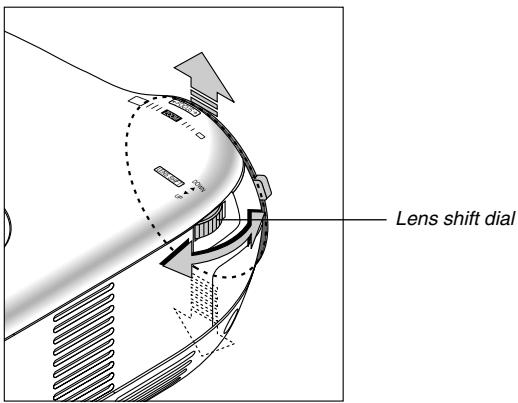
CAUTION:
When the lens shift dial gives resistance, it means the lens shift mechanism has reached the minimum or maximum range of vertical shift.
Do not turn the lens shift dial beyond this limit as it may damage the lens shift mechanism.
Lens Shift Range
The diagram below shows the amount of vertical lens shift that is available.
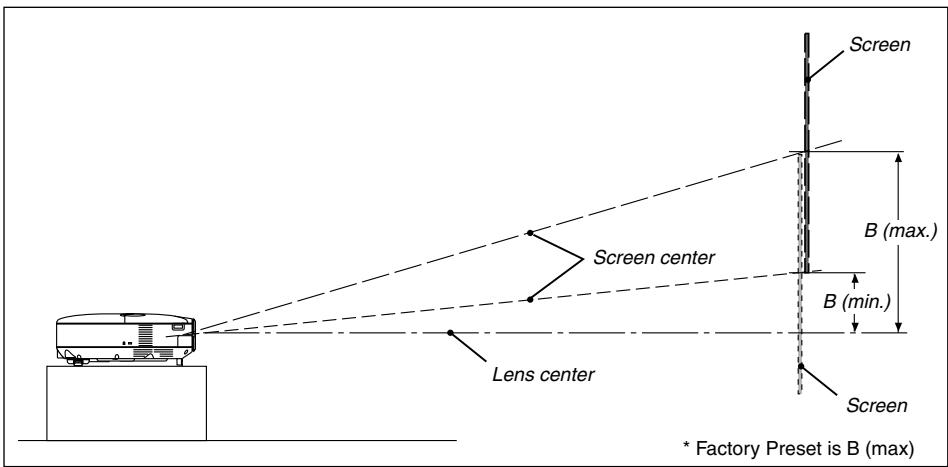
B=Vertical distance between lens center and screen center.
Making Connections Connecting Your DVD Player
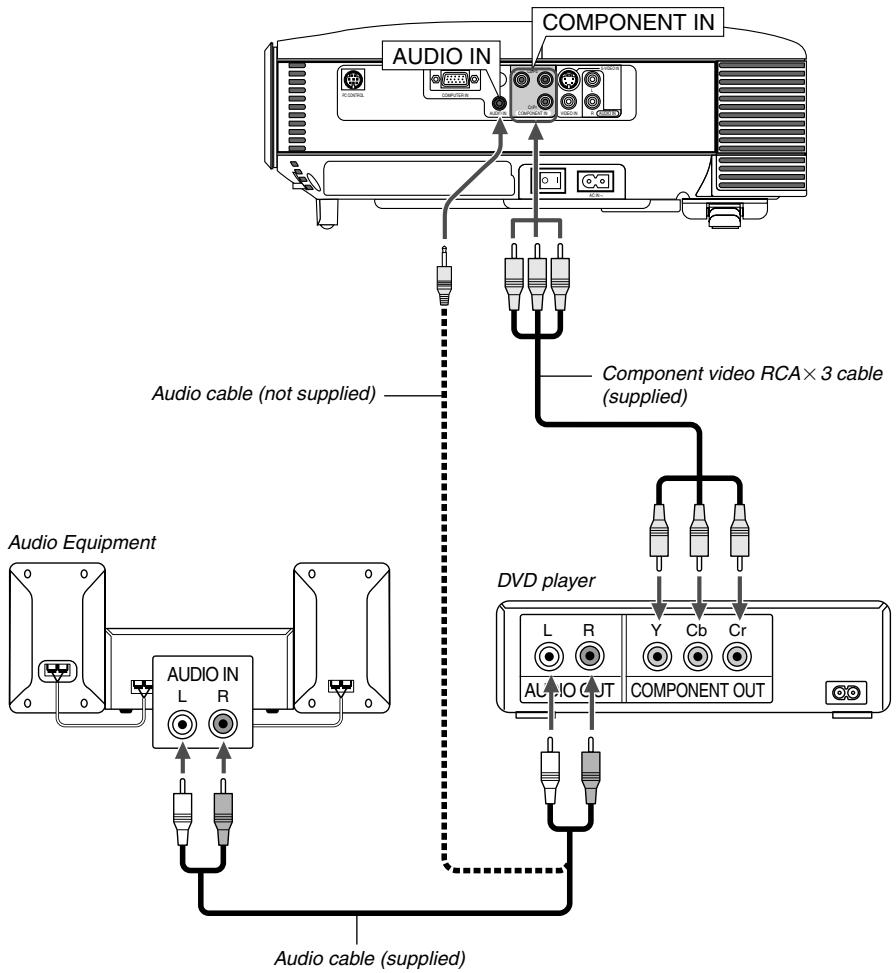
You can connect your projector to a DVD player with component output or Video output. To do so, simply:
- Turn off the power to your projector and DVD player.
- If your DVD player has the component video (Y,Cb,Cr) output, use the supplied component video cable (RCA × 3) to connect your DVD player to the COMPONENT IN connectors on the projector.
For a DVD player without component video (Y,Cb,Cr) output, use the supplied S-Video cable to connect a compositeVIDEO output of the DVD player to the Video Input of the projector.
Use an audio cable (supplied) to connect the audio from your VCR or laser disc player to your audio equipment (if your VCR or laser disc player has this capability). Be careful to keep your right and left channel connections correct for stereo sound.
- Turn on the projector and DVD player.
NOTE: Refer to your DVD player's owner's manual for more information about your DVD player's video output requirements.
Connecting Your VCR or Laser Disc Player
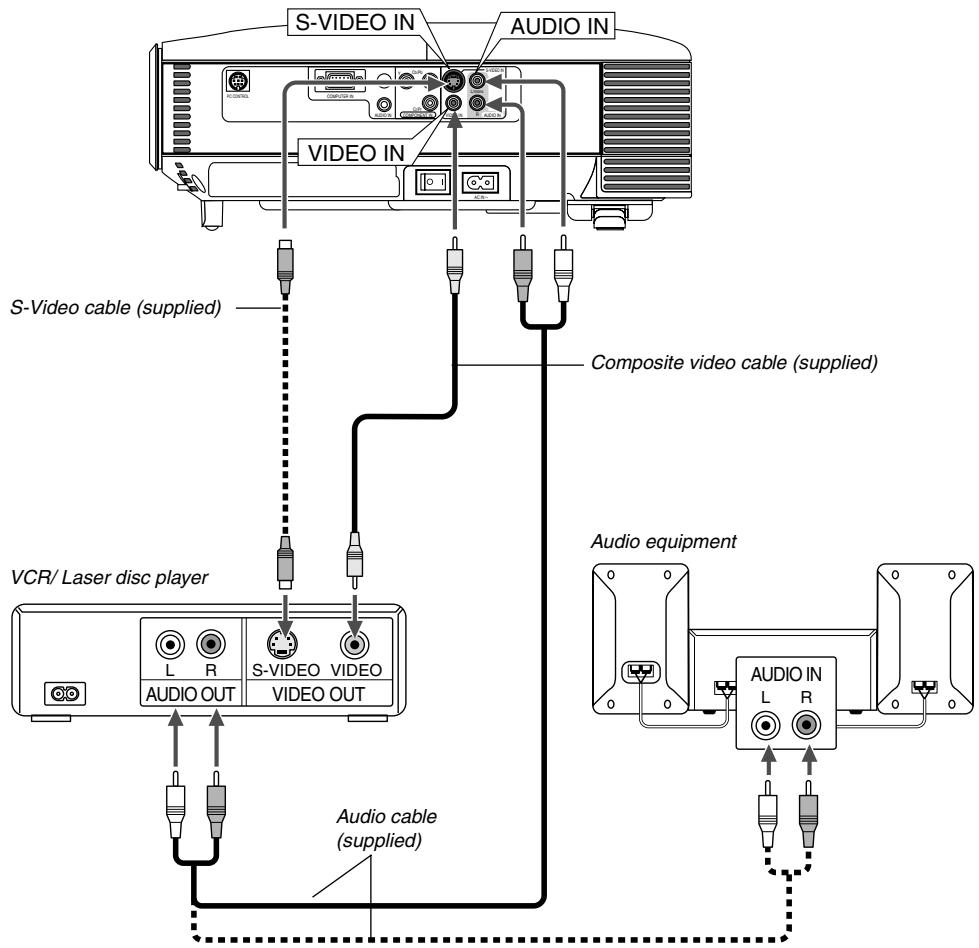
Use S-Video or RCA cables (provided) to connect your VCR, laser disc player or document camera to your projector.
To make these connections, simply:
- Turn off the power to the projector and VCR, laser disc player or document camera.
- Connect one end of your RCA or S-Video cable to the video output connector on the back of your VCR or laser disc player, connect the other end to the Video input on your projector. Use an audio cable (supplied) to connect the audio from your VCR or laser disc player to your audio equipment (if your VCR or laser disc player has this capability). Be careful to keep your right and left channel connections correct for stereo sound.
- Turn on the projector and the VCR or laser disc player.
NOTE: Refer to your VCR or laser disc player owner's manual for more information about your equipment's video output requirements.
NOTE: An image may not be displayed correctly when a Video or S-Video source is played back in fast-forward or fast-rewind via a scan converter.
Connecting Your PC or Macintosh Computer
NOTE: When using with a notebook PC, be sure to connect between the projector and the notebook PC before turning on the power to the notebook PC. In most cases signal cannot be output from RGB output unless the notebook PC is turned on after connecting with the projector.
* If the screen goes blank while using your remote control, it may be the result of the computer's screen-saver or power management software.
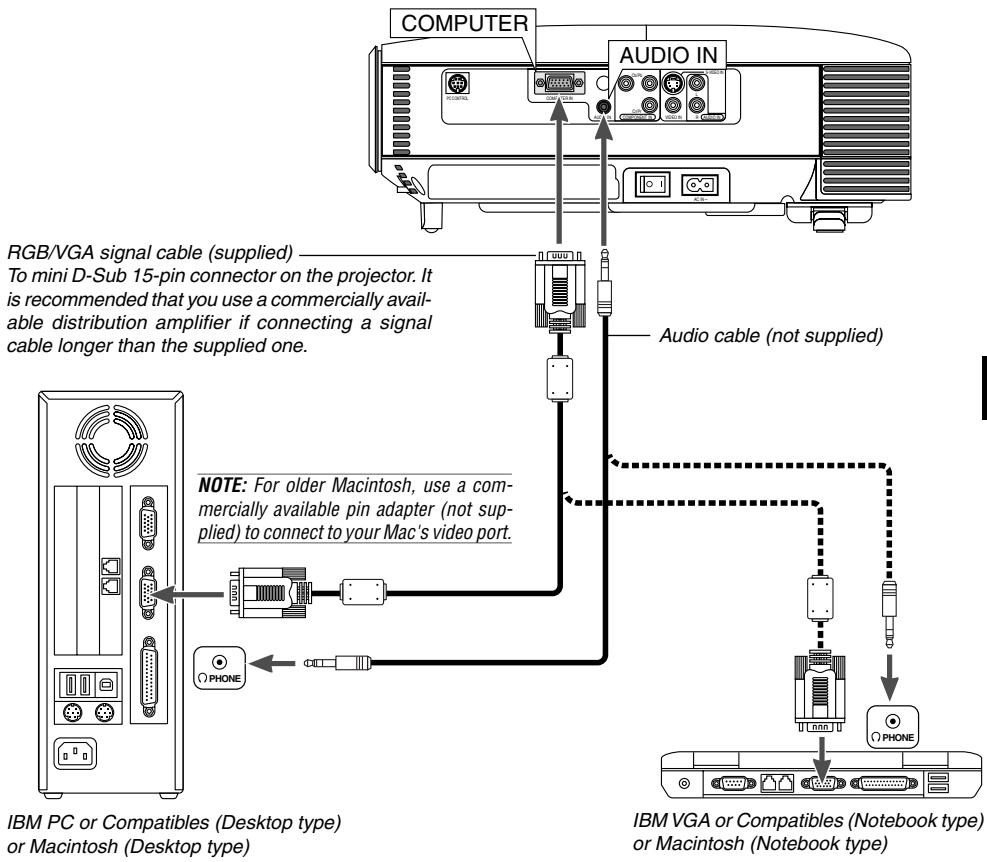
Connecting your PC or Macintosh computer to your projector will enable you to project your computer's screen image for an impressive presentation.
To connect to a PC or Macintosh, simply:
- Turn off the power to your projector and computer.
- Use the supplied RGB/VGA signal cable to connect your PC or Macintosh to the projector.
- Turn on the projector and the computer.
- If the projector goes blank after a period of inactivity, it may be caused by a screen saver installed on the computer you've connected to the projector.
To connect SCART output
Before connections, the supplied exclusive SCART adapter (VIDEO to SCART with audio L/R) and a commercially available SCART cable are required.
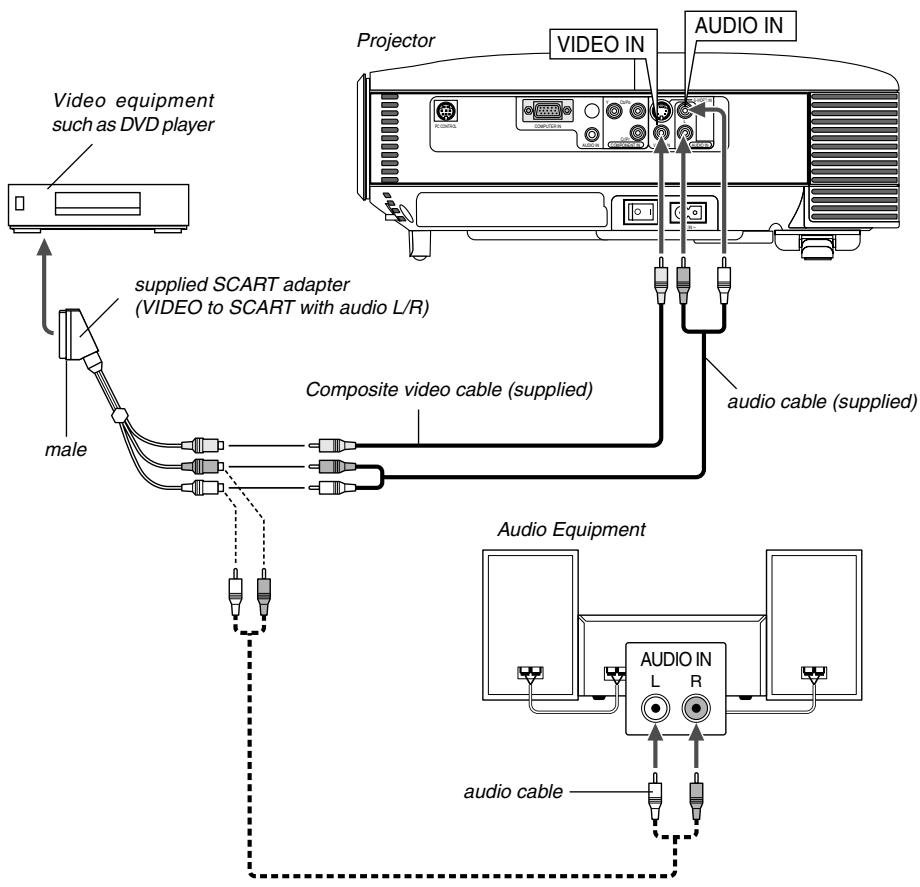
- Turn off the power to the projector and your video equipment.
- Use the SCART adapter to connect the Video input of the projector and a SCART output of your video equipment.
- Turn on the power to the projector and your video equipment.
- Press the SOURCE button on the projector cabinet or Video button on the remote control to select "Video" input.
Connecting the Supplied Power Cable
Connect the supplied power cable to the projector.
First connect the supplied power cable's two-pin plug to the AC IN of the projector, and then connect the other plug of the supplied power cable in the wall outlet.
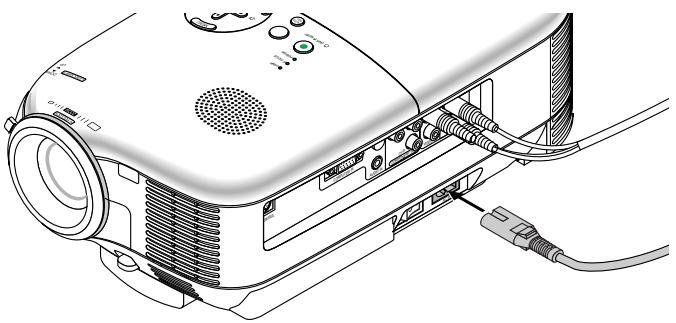
CAUTION
Do not unplug the power cable from the wall outlet under any one of the following circumstances.
Doing so can cause damage to the projector:
- While the projector is turned on.
- While the cooling fans are running. (The cooling fans continue to work for 60 seconds after the projector is turned off).
3. PROJECTING AN IMAGE (BASIC OPERATION)
This section describes how to turn on the projector and to project a picture onto the screen.
Turning on the Projector
NOTE:
- The projector has two power switches: a main power switch and an ON/STAND BY button.
- When plugging in or unplugging the supplied power cable, make sure that the main power switch is pushed to the off (O) position. Failure to do so may cause damage to the projector.
To turn on the main power to the projector, press the Main Power switch to the on (1) position.
The POWER indicator will light orange.
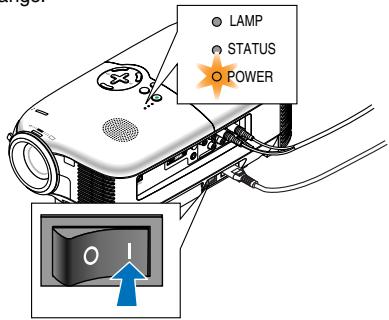
Before you turn on your projector, ensure that the computer or video source is turned on and that your lens cap is removed.
Only after you press the ON/STAND BY button on the projector cabinet or POWER ON button on the remote control for a minimum of 2 seconds will the power indicator turn to green and the projector become ready to use.
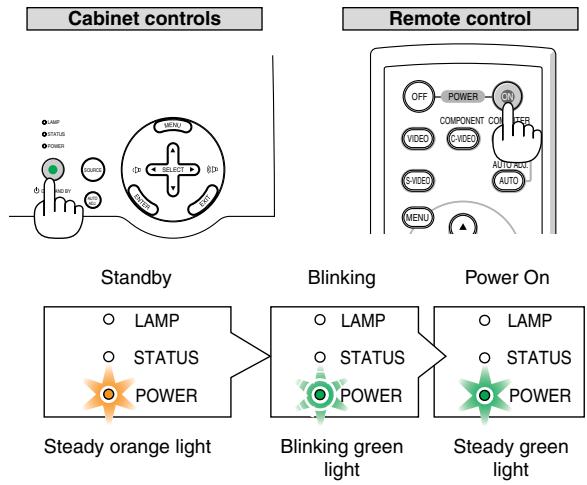
See page E-49 for more details.
NOTE: The POWER and STATUS (LED) indicators blinking green at the same time indicates the main power was interrupted during previous operation. Wait for 60 seconds (cooling period) to see if the lamp turns on by itself.
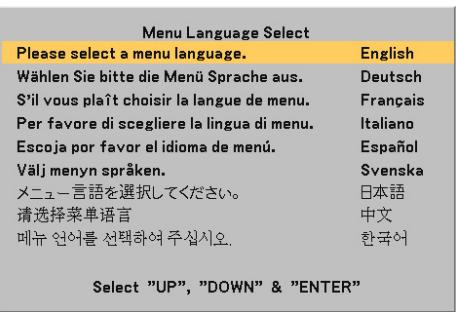
Note on Startup screen (Menu Language Select screen)
When you first turn on the projector, you will get the Startup screen. This screen gives you the opportunity to select one of the 9 menu languages.
To select a menu language, follow these steps:
- Use the SELECT or button to select one of the 9 languages for the menu.
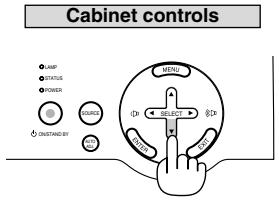
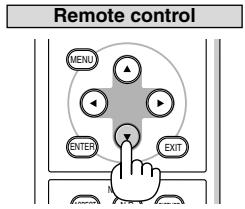
- Press the ENTER button to execute the selection.
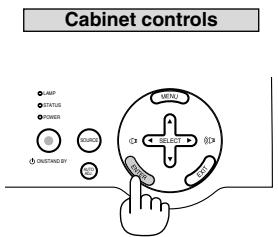
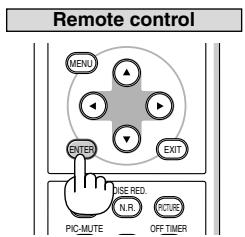
After this has been done, you can proceed to the menu operation.
If you want, you can select the menu language later. See "Language" on page E-38.
NOTE: Immediately after turning on the projector, screen flicker may occur. This is not a fault. Wait 3 to 5 minutes until the lamp lighting is stabilized.
When the Lamp mode is set to Eco, the Lamp indicator will light green.
If one of the following things happens, the projector will not turn on.
- If the internal temperature of the projector is too high, the projector detects abnormal high temperature. In this condition the projector will not turn on to protect the internal system. If this happens, wait for the projector's internal components to cool down.
- When the lamp reaches its end of usable life, the projector will not turn on. If this happens, replace the lamp.
- If the lamp fails to light, and if the STATUS indicator flashes on and off in a cycle of six times, wait a full minute and then turn on the power.
Selecting a Source
Selecting the computer or video source
Using the cabinet buttons
Computer
Component
Video
S-Video
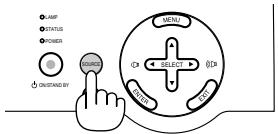
Press the SOURCE button.
Press and quickly release the SOURCE button on the projector cabinet to display the Source list. Each time the SOURCE button is pressed, each source name will be highlighted in sequence.
Using the Remote Control
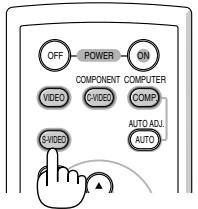
Press any one of theVIDEO,S-VIDEO,C-VIDEOorCOMP)buttons.
NOTE: If no input signal is available, the projector will display a blue background (factory preset).
Adjusting the Picture Size and Position
Place your projector on a flat level surface and ensure that the projector is square to the screen.
Lift the front edge of the projector to center the image vertically.
- If the projected image does not appear square to the screen then use the Keystone feature for proper adjustment. See page E-26.
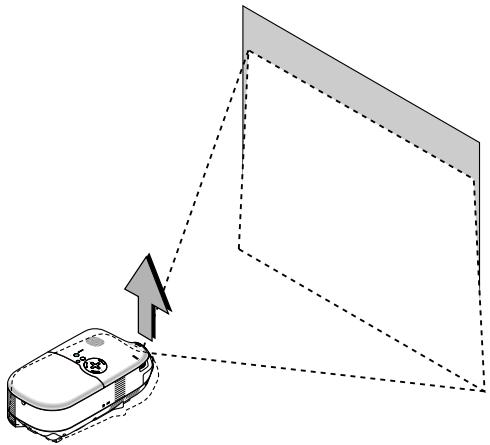
Move the projector left to center the image horizontally on the screen.
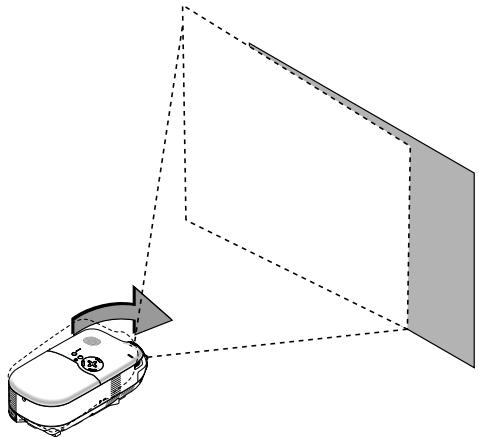
Using the Adjustable Rear Foot
The adjustable rear foot provides the projector with a horizontal tilt adjustment.
If the projector is placed on an uneven surface, keep the projector level by pushing down the left or right rear part of the top cabinet with both hands.
NOTE: A spacer is attached to the adjustable rear foot to provide stability.
Remove the spacer before using the adjustable rear foot.
Save the spacer to use when replacing the lamp as it will keep the projector from tilting in the process (See page E-45).
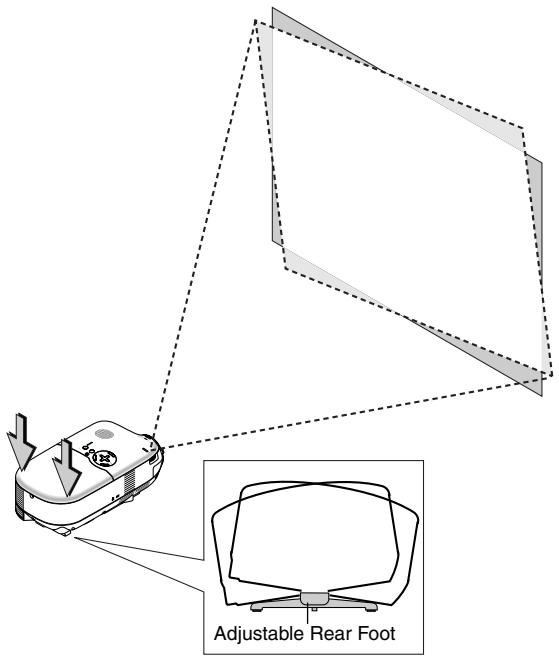
CAUTION: Use care in handling the adjustable rear foot to avoid possible injury to fingers or hands. Using the adjustable rear foot could pinch fingers or hands between the projector bottom and the adjustable rear foot.
Adjusting the Tilt Foot
- Lift the front edge of the projector.
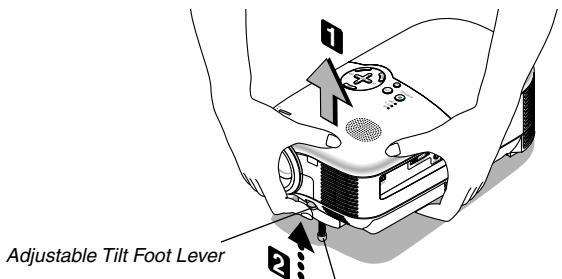
Adjustable Tilt Foot
- Push up the Adjustable Tilt Foot Lever on the front side of the projector to extend the adjustable tilt foot (maximum height).
- Push down the Adjustable Tilt Foot Lever.
- Lower the front of the projector to the desired height and release the Adjustable Tilt Foot Lever to lock the Adjustable tilt foot. There is approximately 10 degrees of up and down adjustment for the front of the projector.
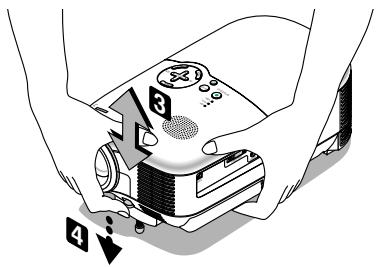
CAUTION
Do not use the tilt-foot for purposes other than originally intended.
Misuses such as gripping the tilt-foot or hanging on the wall can cause damage to the projector.
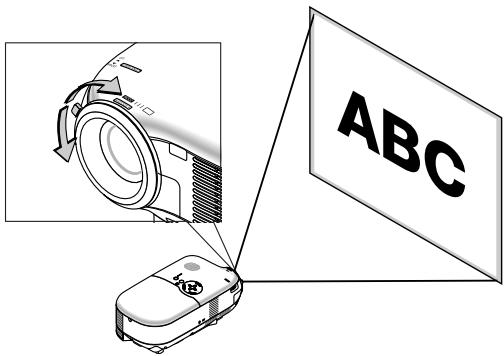
Zoom
Use the Zoom lever to finely adjust the image size on the screen.
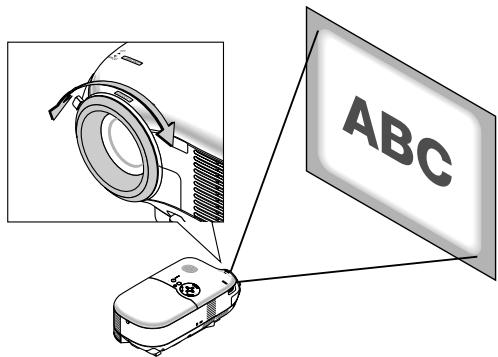
Focus
Use the Focus ring to obtain the best focus.
NOTE: In a ceiling mounted application, the zoom and focus adjustments may cause the projected image to shift down slightly.
If this happens, adjust the lens shift again.
Correcting the Vertical Keystone Distortion
The Keystone correction feature will correct the vertical distortion of a projected image on the screen.
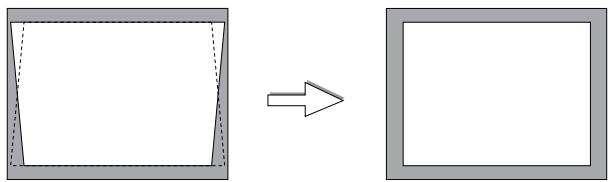
NOTE: Keystone angle can be corrected between 15 degrees upward and 15 degrees downward of projector tilt from level.
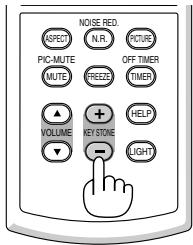
To correct keystone distortion using the KEYSTONE +/- button:
- Press the KEYSTONE+/- button once to display the slide bar for adjustment.
- Press the + or - to correct the keystone distortion.
You can also correct keystone distortion by using the menu.
- Press the MENU button to display the menu.
- Use the SELECT or to select "Image" and then "Keystone".
NOTE: When this option is highlighted, pressing the ENTER button will display its slide bar for adjustment.
- Press the SELECT or to correct the keystone distortion.
NOTE: You can save changes by using "Keystone Save" feature when you turn off the projector. See page E-36.
Optimizing an RGB Image Automatically
Adjusting the Image Using Auto Adjust
Optimizing an RGB image automatically
Press the AUTO ADJ button to optimize an RGB image automatically.
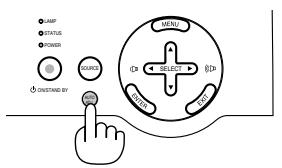
Cabinet controls
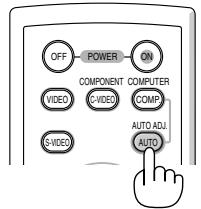
Remote control
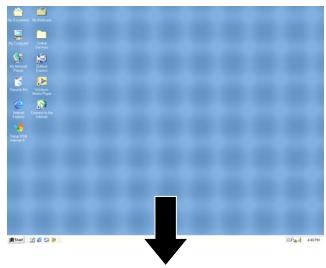
[Poor picture]
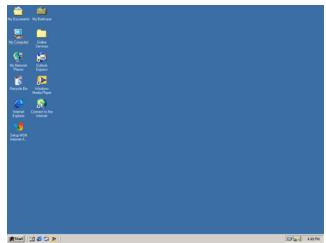
[Normal picture]
Press the AUTO ADJ button to fine-tune the computer image or to remove any vertical banding that might appear and to reduce video noise, dot interference or cross talk (this is evident when part of your image appears to be shimmering). This function adjusts the clock frequencies that eliminate the horizontal banding in the image. This function also adjusts the clock phase to reduce video noise, dot interference or cross talk. (This is evident when part of your image appears to be shimmering.)
This adjustment may be necessary when you connect your computer for the first time.
NOTE:
- Some signals may not be displayed correctly or take time.
- The Auto Adjust function does not work for component and video signals.
- If the Auto Adjust operation cannot optimize the RGB signal, try to adjust Clock and Phase manually. See page E-37.
Turning Up or Down Volume
Sound level from the speaker can be adjusted.
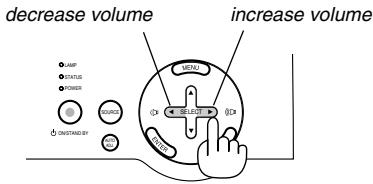
Cabinet controls
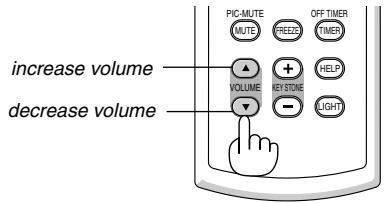
Remote control
NOTE: When no menus appear, the SELECT and buttons on the projector cabinet work as a volume control.
Turning off the Projector
To turn off the projector:
First, press the ON/STAND BY button on the projector cabinet or the POWER OFF button on the remote control.
The "Power Off / Are you sure?" message will appear.
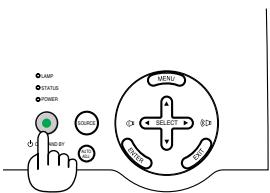
Cabinet controls
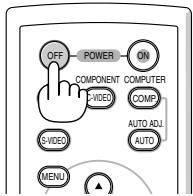
Remote control

Power Off
Are you sure?
Yes
No
Second, press the ENTER button or press the ON/STAND BY or the POWER OFF button again.
The power indicator will glow orange. After the projector turns off, the cooling fans keep operating for 60 seconds (Cooling-off time).
Immediately after turning on the projector and displaying an image, you cannot turn off the projector for 60 seconds.
Third, turn off the Main Power switch. The power indicator will go out.
LAMP
STATUS

Power On
POWER
Steady green light
OL
STATUS

Fan running
POWER
Blinking orange light
LAMP
STATUS

Standby
POWER
Steady orange light
NOTE: To avoid premature lamp failure, wait at least 5 minutes before turning on or off the projector.
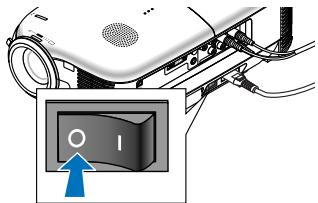
CAUTION
Do not unplug the power cable from the wall outlet or do not turn off the main power under any one of the following circumstances. Doing so can cause damage to the projector:
While the projector is turned on.
- While the cooling fans are running. (The cooling fans continue to work for 60 seconds after the projector is turned off).
After Use
Preparation: Make sure that the projector's main power is off.
- Unplug the power cable.
- Disconnect any other cables.
- Retract adjustable tilt foot if extended.
- Cover the lens with the lens cap.
- Put the projector and its accessories in the supplied soft case.
4. CONVENIENT FEATURES
Turning Off the Image and Sound
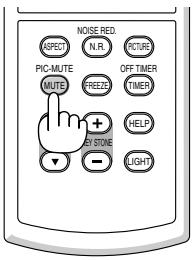
Press the MUTE button to turn off the image and sound for a short period of time. Press again to restore the image and sound.
Freezing a Picture
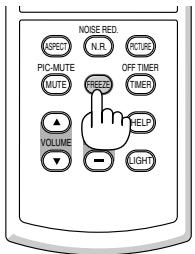
Press the [FREEZE] button to freeze a picture. Press again to resume motion.
Reducing Video Noise (Noise Reduction)
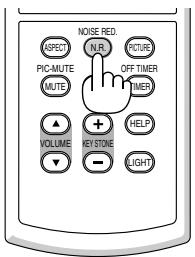
You can reduce video noise by using the N.R. button on the remote control.
To reduce video noise, press the N.R. button to turn on the Noise Reduction feature.
You can also reduce video noise by using the menu. See page E-35.
Turning Off the Projector at the Preset Time (Off Timer)
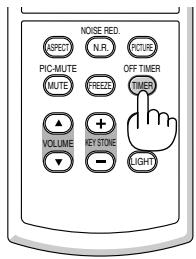
You can use the Off Timer feature to turn off the projector automatically at a preset time. Eight preset times can be selected: Off, 0:30, 1:00, 2:00, 3:00, 4:00, 6:00 and 8:00. Each time the TIMER button on the remote control is pressed, the preset time will change. You can also set the Off Timer using the menu. See page E-38.
Getting the Information on Lamp Usage and Projector Usage
You can view various information such as status of the remaining lamp time, lamp hour meter and projector usage.
5. USING ON-SCREEN MENU
Using the Menus
NOTE: The on-screen menu may not be displayed correctly while interlaced motion video image is projected.
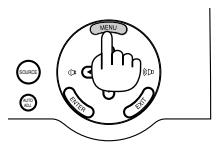
- Press the MENU button on the remote control or projector cabinet to display the main menu.
Picture
Adjustment
Image
Setup
Advanced
Information
Reset
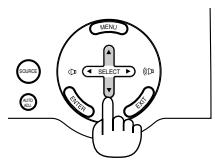
- Press the SELECT buttons on the remote control or the projector cabinet to highlight the menu for the item you want to adjust or set.
Picture
Adjustment
Image
Setup
Advanced
Information
Reset
Highlight
Indicates the selected menu or item.
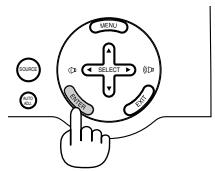
- Press the ENTER button on the remote control or the projector cabinet to select a menu or item.
Keystone
Keystone Save
Aspect Ratio
Position/Clock
Horizontal
Vertical
Clock
Phase
Computer
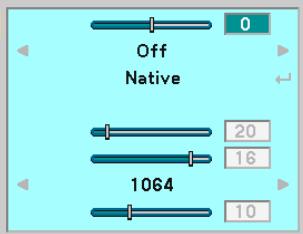
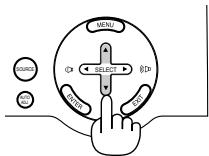
- Use the SELECT buttons on the remote control or the projector cabinet to select the item you want to adjust or set.
- Adjusting the level of a selected item or selecting an item.
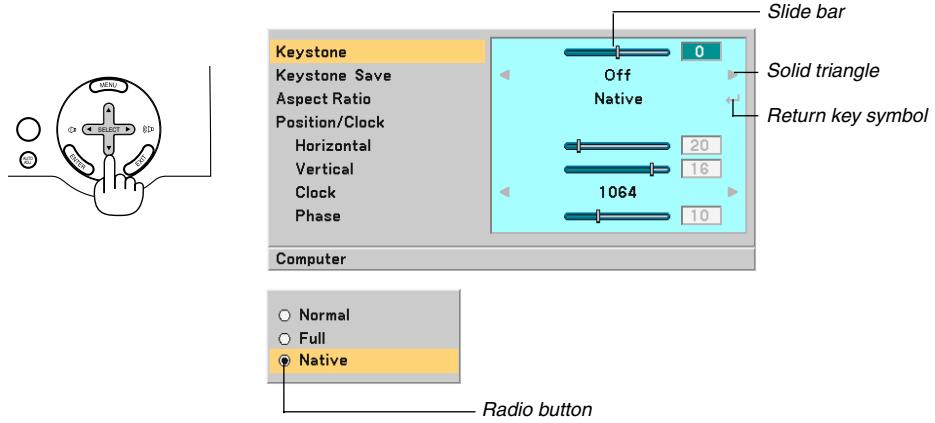
For Adjusting items (Slide bar)
Slide bar ....... Indicates settings or the direction of adjustment.
- Use the SELECT buttons to adjust the item.
For Selecting items (Solid triangle)
Solid triangle.. Indicates further choices are available. A highlighted triangle indicates the item is active.
- Use the SELECT buttons to select the item.
For Selecting items (Return key symbol, Radio button)
Return key symbol ....... Indicates further choices are available.
Radio button . Use this round button to select an option in a dialog box.
1) Press the ENTER button. The selected item will be displayed.
2) Use the SELECT buttons to highlight the item you want to set.
Changes are stored until you adjust it again.
Press the EXIT button to return to the previous screen.
- Repeat steps 2-5 to adjust an additional item, or press the button several times to close the menu.
NOTE: Menu windows have the following elements.

Source Indicates the currently selected source.
Off Timer remaining time.. Indicates the remaining countdown time when the Off Timer is preset.
Key symbol.. Indicates the Cabinet Button is locked.
List of Menu Items
| Picture | |
| Brightness | |
| Contrast | |
| Sharpness | |
| Color | |
| Hue | |
| Noise Reduction | Off, On |
| Telecine | Off, Auto |
| Adjustment | |
| Wall Color | Off, Blackboard, Light yellow, Light green, Light blue, Sky blue, Light rose, Pink |
| Color Management | Hi-Bright, Video, Movie, Graphic, sRGB |
| Gamma Correction | Dynamic, Natural, Black Detail |
| Color Temperature | |
| White Peaking | |
| Image | |
| Keystone | Off, On |
| Keystone Save | Normal, Full, Zoom, Native |
| Aspect Ratio | |
| Position/Clock | |
| Horizontal | |
| Vertical | |
| Clock | |
| Phase | |
| Setup | |
| Off Timer | Off, 0:30, 1:00, 2:00, 3:00, 4:00, 6:00, 8:00 |
| Lamp Mode | Normal, Eco |
| Language | Page-1: English, Deutsch, Français, Italiano, Espanol, Portugueses, Nederlands |
| Menu Color Select | Page-2: Svenska, Norsk, Suomi, Čeština, Magyar, Polski, Türçce |
| Menu Display Time | Page-3: Рескý, Ремпунд, 日本語, 中文,utschland, Dansk |
| Background | Color, Monochrome |
| Orientation | Manual, Auto 5 sec, Auto 15sec, Auto 45 sec |
| Communication Speed | Blue, Black |
| Advanced | |
| Security | Off, On |
| Cabinet Button | Unlock, Lock |
| Fan Mode | Auto, High |
| Power Management | Off, On |
| Signal Select | |
| Computer | RGB/Component, Scart |
| Video | Auto, NTSC3.58, NTSC4.43, PAL, PAL-M, PAL-N, PAL60, SECAM |
| S-Video | Auto, NTSC3.58, NTSC4.43, PAL, PAL-M, PAL-N, PAL60, SECAM |
| Information | |
| Page 1 | Remaining Lamp Time, Lamp Hour Meter, Projector Usage |
| Page 2 | Horizontal Frequency, Vertical Frequency, Sync Polarity, Video Type, Sync Type, Interlace |
| Page 3 | BIOS Version, Firmware Version, Data Version |
| Reset | |
| Factory Default | Current Signal |
| Clear Lamp Hour Meter | All Data |
NOTE: Some menu items may not be available depending on the input source.
Menu Descriptions & Functions
Picture
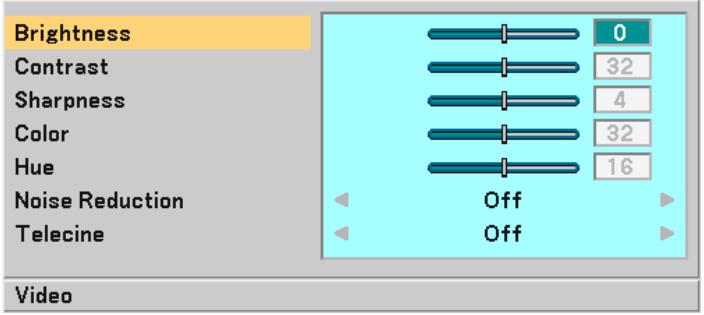
You can adjust brightness, contrast, sharpness, color, hue, noise reduction and Telecine.
NOTE: When one of Brightness, Contrast, Sharpness, Color or Hue is highlighted, pressing the ENTER button will display its slide bar for adjustment.
Brightness ....... Adjusts the brightness level or the black level of the image.
Contrast ....... Adjusts the intensity of the image according to the incoming signal (White level of the image).
Sharpness .... Controls the detail of the image for Video.
Color ......... Increases or decreases the color saturation level (not valid for RGB).
Hue .... Varies the color level from +/- green to +/- blue. The red level is used as reference. This adjustment is only valid for Video and Component inputs (not valid for RGB).
Noise Reduction .. Turn on or off the noise reduction feature. To reduce video noise, select On.
NOTE:
- This feature is not available for 480p, 576p, 720p and non-1080i HDTV and RGB signals
- Noise reduction set to off gives best image quality by way of higher bandwidth. Noise reduction set to on softens the image.
Telecine .... Use 3:2 pull down correction to eliminate jitter and artifacts in video.
Auto: For film source such as a DVD player.
Off: For signals other than film sources.
NOTE: This feature is not available for 480p, 576p, 720p and non-1080i HDTV and RGB signals
Adjustment
Wall Color
Color Management
Gamma Correction
Color Temperature
White Peaking
Computer
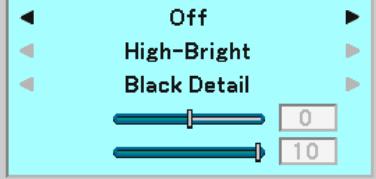
You can adjust Wall Color, Color Management, Gamma Correction, Color Temperature and White Peaking.
Selecting Wall Color Correction Mode [Wall Color]
This function allows for quick adaptive color correction in applications where the screen material is not white. The following eight options are available: Off, Blackboard, Light yellow, Light green, Light blue, Sky blue, Light rose and Pink.
Adjusting Color Management [Color Management]
This option allows you to adjust neutral tint for yellow, cyan or magenta. There are 5 factory presets optimized for various types of images, you can set user adjustable settings.
Hi-Bright....Recommended for presentations from a computer.
Video .Recommended for standard video such as a TV program.
Movie .......Recommended for film based video such as a movie (DVD or HDTV).
Graphic .......Recommended for viewing accurate colors in graphics.
sRGB Standard color values.
Selecting Gamma Correction Mode [Gamma Correction]
Each mode is recommended for:
Dynamic...... Creates a high-contrast picture.
Natural. Natural reproduction of the picture.
Black Detail ... Emphasizes detail in dark areas of the picture.
Adjusting Color Temperature [Color Temperature]
This option allows you to adjust the color temperature using the slide bar.
Move the slide bar to the right to increase the color temperature for a bluish image; to the left to decrease it for a reddish image.
NOTE: The adjustable range may vary depending on White Peaking adjustment.
Adjusting White Peaking [White Peaking]
This allows you to adjust the drive level of the white areas. As the picture becomes dim, it looks more natural.
NOTE: When this option is highlighted, pressing the ENTER button will display its slide bar for adjustment.
Image
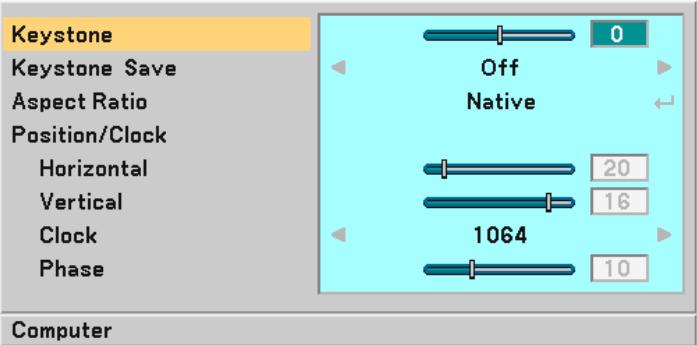
Correcting Vertical Keystone Distortion Manually [Keystone]
You can correct vertical distortion manually.
NOTE: When this option is highlighted, pressing the ENTER button will display its slide bar for adjustment.
Saving Vertical Keystone Correction [Keystone Save]
This option enables you to save your current keystone settings.
Off ........ Does not save current keystone correction settings
On .... Saves current keystone correction settings
Saving your change once affects all sources. The changes are saved when the projector is off.
Selecting Aspect Ratio [Aspect Ratio]
Aspect Ratio allows you to select the best Aspect mode to display your source image.
You can also display the Aspect Ratio window by pressing the ASPECT button on the remote control. (See page E-7).
Normal ....Source is displayed in a 4:3 windowed area with black on the left and right.
Full .Sources fill the screen horizontally.
Zoom ......... Source is stretched vertically.
Native.........Source is displayed in true aspect ratio.
| Source | Signal | Normal | Full | Zoom | Native |
| Computer Component | RGB | ✓ | ✓ | - | ✓ |
| 1080i | - | - | - | - | |
| 720p | - | - | - | - | |
| 480p | ✓ | ✓ | - | ✓ | |
| 576p | ✓ | ✓ | - | ✓ | |
| 480i | ✓ | ✓ | ✓ | - | |
| 576i | ✓ | ✓ | ✓ | - | |
| VIDEO | ✓ | ✓ | ✓ | - | |
| S-VIDEO | ✓ | ✓ | ✓ | - |
For details on shaded areas, see the table below.
| Input Mode | 4:3 source | 16:9 source | |
| Normal | * | ||
| Full | |||
| Zoom | |||
- Recommended mode
NOTE: A 16:9 screen should be used.
Adjusting Horizontal/Vertical Position, Clock and Phase [Position/Clock]
You can adjust the image manually for position and stability; "Horizontal", "Vertical", "Clock" and "Phase".
[Horizontal/Vertical]
Adjusts the image location horizontally and vertically.
[Clock] (available for RGB signal only)
Use this item to fine tune the computer image or to remove any vertical banding that might appear. This function adjusts the clock frequencies that eliminate the horizontal banding in the image. This adjustment may be necessary when you connect your computer for the first time.
[Phase] (available for RGB signal only)
Use this item to adjust the clock phase or to reduce video noise, dot interference or cross talk. (This is evident when part of your image appears to be shimmering.)
Use "Phase" only after the "Clock" is complete.
Setup
Off Timer
Lamp Mode
Language
Menu Color Select
Menu Display Time
Background
Orientation
Communication Speed
Normal
English
Color
Auto 45 sec
Blue
Desktop Front
38400bps
Computer
Setting Off Timer [Off Timer]
You can use the Off Timer feature to turn off the projector automatically at a preset time.
Eight preset times can be selected:Off, 0:30, 1:00, 2:00, 3:00, 4:00, 6:00 and 8:00.
NOTE: You can also use the TIMER button on the remote control to set the Off Timer. See page E-31.
Selecting Lamp Mode [Lamp Mode]
This feature enables you to select two brightness modes of the lamp: Normal and Eco modes. The lamp life can be extended by using the Eco mode.
Normal Mode ... This is the default setting (100% Brightness).
Eco Mode ....... Select this mode to increase the lamp life and reduce fan noise (80% Brightness).
Selecting Menu Language [Language]
You can choose one of 20 languages for the on-screen menu.
Selecting Menu Color [Menu Color Select]
You can choose between two color modes for menu color: color and monochrome.
Selecting Menu Display Time [Menu Display Time]
This option allows you to select how long the projector waits after the last touch of a button to turn off the menu.
The preset choices are "Manual", "Auto 5 sec", "Auto 15 sec", and "Auto 45 sec". The "Auto 45 sec" is the factory preset.
Selecting a Color for Background [Background]
Use this feature to display a blue/black screen when no signal is available.
Selecting Projector Orientation [Orientation]
This sets your image for your type of projection application. The options are:
desktop front projection, ceiling rear projection, desktop rear projection, and ceiling front projection.
Selecting Communication Speed [Communication Speed]
This feature sets the baud rate of the PC Control port (Mini DIN 8 Pin). It supports data rates from 4800 to 38400 bps.
The default is 38400 bps.
Select the appropriate baud rate for your equipment to be connected (depending on the equipment, a lower baud rate may be recommended for long cable runs).
Advanced
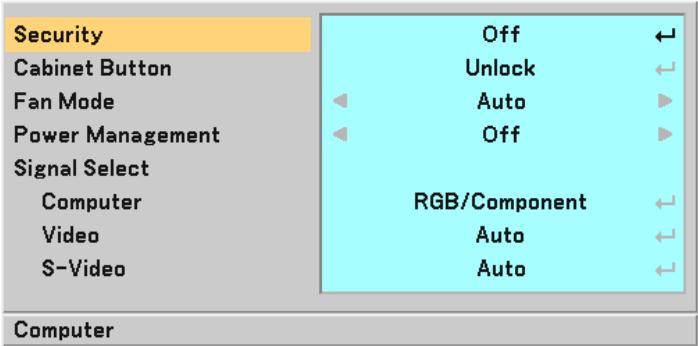
Preventing the Unauthorized use of the projector [Security]
A keyword can be set for your projector to avoid operation by an unauthorized user using the Menu. When a keyword is set, turning on the projector will display the Keyword input screen. Unless the correct keyword is entered, the projector cannot project an image.
To enable the Security function:
- Select [Advanced] [Security] and press the ENTER button.
![NEC HT410 - Preventing the Unauthorized use of the projector [Security] - 1](/content/2025/01/174236/images/6ac0340bb2e8cd660ed9b7a44af0a5541280b3c61f3a616690e922a065e72ca7.jpg)
The Off/On menu will be displayed.
- Select "On" and press the ENTER button.
![NEC HT410 - Preventing the Unauthorized use of the projector [Security] - 2](/content/2025/01/174236/images/e2a9d1d40abc020ca1c8c4a2ee94f7869c88ffa5ed87a92efe1a24a05361f42e.jpg)
The [Keyword] screen will be displayed.
- Type in a combination of the four SELECT buttons and press the ENTER button.
NOTE: A keyword must be four to 10 digits in length.
Keyword
xxxx
The [Confirm Keyword] screen will be displayed.
4 Type in the same combination of SELECT buttons and press the ENTER button.
Confirm Keyword
XXXX
The confirmation screen will be displayed.
- Select "Yes" and press the ENTER button.
![NEC HT410 - Preventing the Unauthorized use of the projector [Security] - 3](/content/2025/01/174236/images/15240b1cf8cfd98dee2be4fb469ed29e1018ddb2f81e73deaa15f454f2651b30.jpg)
Security Function will be enabled.
Are you sure?
Yes
No
The Security function has been enabled.
To disable the Security function:
- Select [Advanced] [Security] and press the ENTER button.
![NEC HT410 - Preventing the Unauthorized use of the projector [Security] - 4](/content/2025/01/174236/images/56f79751b460607a79fcdada3e8a307ee1b5eeeab8baf8f86d9cc91ed1f3d8ea.jpg)
The Off/On menu will be displayed.
- Select "Off" and press the ENTER button.
![NEC HT410 - Preventing the Unauthorized use of the projector [Security] - 5](/content/2025/01/174236/images/6e5e58de9736478848e0c4f291b6fed09495eabd442bebfc6411ddc74750480b.jpg)
The Keyword confirmation screen will be displayed.
![NEC HT410 - Preventing the Unauthorized use of the projector [Security] - 6](/content/2025/01/174236/images/539e01502ebc657cab67d54a3a7df19d508884a04f6b55a9816cbad637110366.jpg)
- Type in your keyword and press the ENTER button.
When the correct keyword is entered, the Security function will be disabled.
When the Security function is enabled and the projector is turned on, the projector will display a blue background.
To display an image at this time, press the MENU button to display the Keyword input screen.
![NEC HT410 - Preventing the Unauthorized use of the projector [Security] - 7](/content/2025/01/174236/images/1ace43dfe72eec6e68a11b72af11b628c8f0d658b428c197de33ca3d2b0933df.jpg)
Type in the correct keyword and press the ENTER button. The projector will display an image.
NOTE:
- The security disable mode is maintained until the main power is turned off (by setting the main power switch to "O" or unplugging the power cable).
- If you forget your keyword, contact your dealer. Your dealer will provide you with your keyword in exchange for your request code. Your request code is displayed in the Keyword Confirmation screen. In this example "K992-45L8-JNGJ-4XU9-1YAT-EEA2" is a request code.
Disabling the Cabinet Buttons [Cabinet Button]
This option turns on or off the Key Lock function for cabinet buttons.
NOTE:
- The Cabinet Buttons setting will not affect the remote control or PC Control Functions.
- When the cabinet buttons are disabled, pressing and holding the button for about 10 seconds will change the setting to enable.
Enabling Fan Speed Mode [Fan Mode]
This option allows you to select two modes for fan speed: Auto mode and High speed mode.
Auto ......... The built-in fans automatically run at a variable speed according to the internal temperature.
High .... The built-in fans run at a fixed high speed.
When you wish to cool down the temperature inside the projector quickly, select "High".
NOTE: It is recommended that you select High speed mode if you continue to use the projector for consecutive days.
Enabling Power Management [Power Management]
When this option is turned on and there is no input for five minutes or more, the projector will automatically turn itself off.
Selecting Signal Format [Signal Select]
[Computer]
Normally select "RGB/Component" and the projector automatically detects a component signal. Select "Scart" for the European Scart signal.
[Video & S-Video System Select]
This feature enables you to select composite video standards automatically or manually.
Normally select "Auto" and the projector will automatically detect the video standard.
In the case where the projector has difficulty detecting the video standard, select the appropriate video standard from the menu.
This must be done for Video and S-Video respectively.
Information
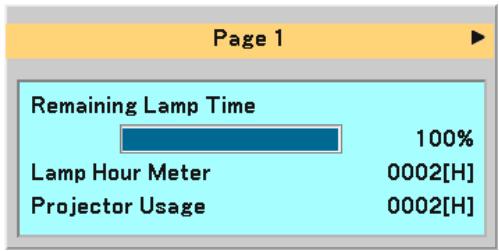
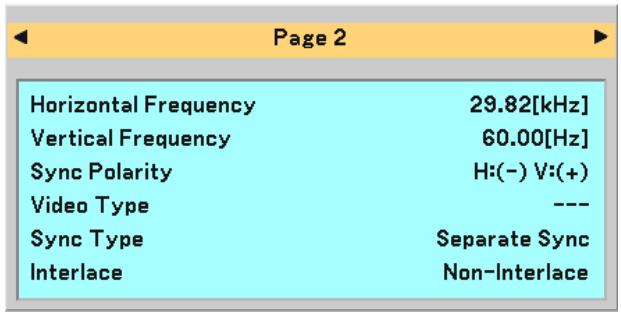
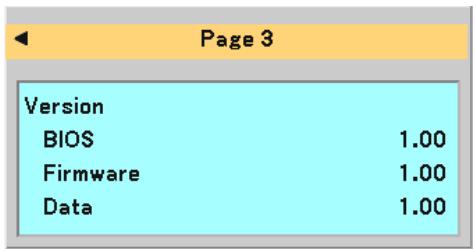
Displays the status of the current signal and lamp usage. This item has three pages. The information included is as follows:
[Page 1]
Remaining Lamp Time (%)
Lamp Hour Meter (H)
Projectile Usage (H)
- The progress indicator shows the percentage of remaining bulb life.
The value informs you of the amount of lamp usage. When the remaining lamp time reaches 0, the Remaining Lamp Time bar indicator changes from 0% to 100 Hours and starts counting down.
If the remaining lamp time reaches 0 hours, the projector will not turn on regardless of whether the lamp mode is set to Normal or Eco.
[Page 2]
Horizontal Frequency
Vertical Frequency
Sync Polarity
Video Type
Sync Type
Interlace
[Page 3]
BIOS Version
Firmware Version
Data Version
Reset
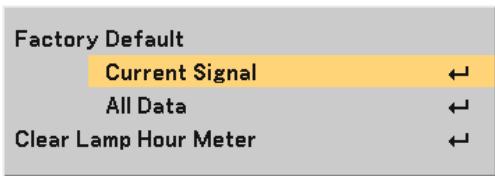
Returning to Factory Default [Factory Default]
The Factory Default feature allows you to change adjustments and settings to the factory preset for a (all) source (s) except the following:
[Current Signal]
Reset the adjustments for the current signal to the factory preset levels.
All the items in "Picture", "Adjustment (except "Wall Color")" and "Image (except "Keystone" and "Keystone Save")" can be reset.
[All Data]
Reset all the adjustments and settings for all the signals to the factory preset.
All items can be reset except Language, Background, Communication Speed, Security, Remaining Lamp Time, Lamp Hour Meter, and Projector Usage.
To reset the lamp usage time, see "Clear Lamp Hour Meter".
Clearing Lamp Hour Meter [Clear Lamp Hour Meter]
Reset the lamp clock back to zero. Selecting this option displays submenu for a confirmation.
NOTE: The projector will turn off and go into standby mode after 2100 hours (up to 3100 hours in Eco mode) of service. If this happens, press the HELP button on the remote control for ten seconds to reset the lamp clock back to zero. Do this only after replacing the lamp.
6. MAINTENANCE
This section describes the simple maintenance procedures you should follow to replace the lamp and clean the projector cabinet.
Replacing the Lamp
After your lamp has been operating for 2000 hours (up to 3000 hours in Eco mode) or longer, the lamp indicator in the cabinet will blink red and the message "The lamp has reached the end of its usable life. Please replace the lamp." will appear. Even though the lamp may still be working, replace it at 2000 (up to 3000 hours in Eco mode) hours to maintain optimal projector performance.
CAUTION
- DO NOT TOUCH THE LAMP immediately after it has been used. It will be extremely hot. Turn the projector off, wait 60 seconds, turn off the main power switch and then disconnect the power cable. Allow at least one hour for the lamp to cool before handling.
- DO NOT REMOVE ANY SCREWS except the lamp cover screw and two lamp case screws. You could receive an electric shock.
- Do not break the glass on the lamp housing.
Keep finger prints off the glass surface on the lamp housing. Leaving finger prints in the glass surface might cause an unwanted shadow and poor picture quality.
- The projector will turn off and go into stand by mode after 2100 (up to 3100 hours in Eco mode) hours of service. If this happens, be sure to replace the lamp. If you continue to use the lamp after 2000 hours (up to 3000 hours in Eco mode) of use, the lamp bulb may shatter, and pieces of glass may be scattered in the lamp case. Do not touch them as the pieces of glass may cause injury. If this happens, contact your NEC dealer for lamp replacement.
To replace the lamp:
Preparation:
Be sure to insert the included spacer between the rear foot and the projector's bottom to prevent the projector from accidentally tilting when inserting the lamp house.
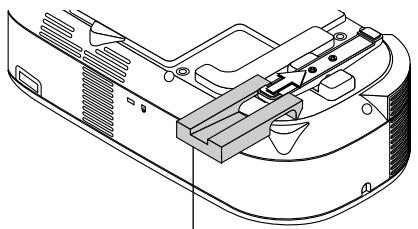
Spacer
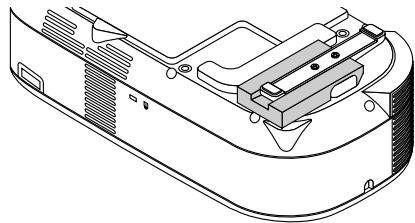
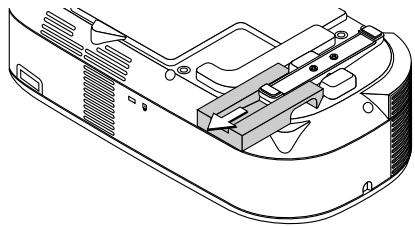
Remove the spacer after replacing the lamp.
- Loosen the lamp cover screw until the screwdriver goes into a freewheeling condition and remove the lamp cover. The lamp cover screw is not removable.
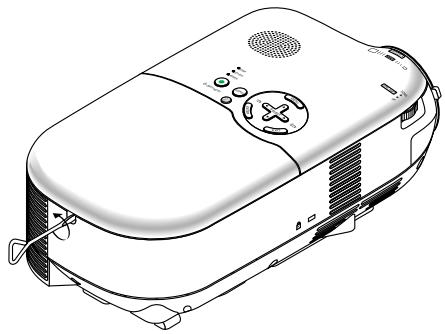
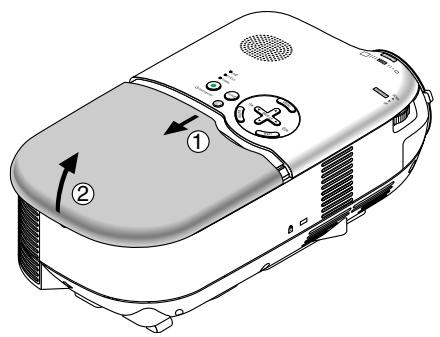
- Loosen the two screws securing the lamp housing until the screwdriver goes into a freewheeling condition. The two screws are not removable.
Remove the lamp housing by holding it.
NOTE: There is an interlock on this case to prevent the risk of electrical shock. Do not attempt to circumvent this interlock.
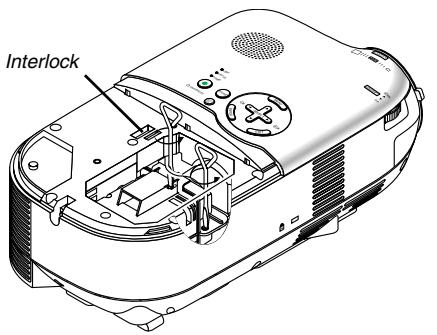
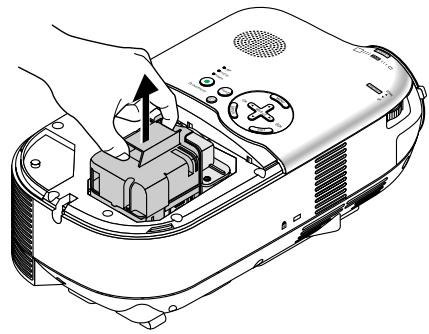
- Insert a new lamp housing until the lamp housing is plugged into the socket.
Secure it in place with the two screws.
Be sure to tighten the screws.
NOTE:
- Align the lamp housing with the guide rail. Make sure the lamp housing plug goes to the socket correctly.
- If both screws are not tightened securely, an image may not be displayed correctly. In this case, apply firm pressure to the portion of asterisk () in the above drawing to seat the lamp housing into the case.
CAUTION
- Do not use a lamp other than the replacement lamp (LH01LP). Order this from your dealer.
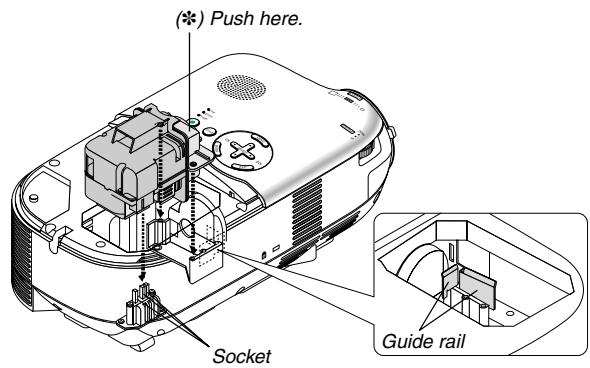
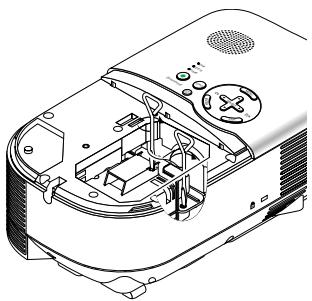
- Reattach the lamp cover.
Tighten the lamp cover screw.
Be sure to tighten the screw.
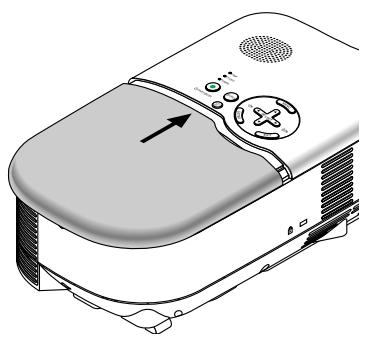
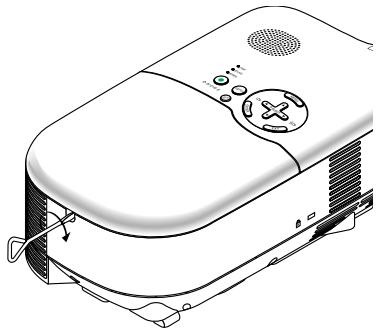
- After you install a new lamp, select the menu [Reset] [Clear Lamp Hour Meter] to reset the lamp usage hours.
NOTE: When the lamp exceeds 2100 hours (up to 3100 hours in Eco mode) of service, the projector cannot turn on and the menu is not displayed. If this happens, press the [HELP] button on the remote control for a minimum of 10 seconds while in standby mode. When the lamp time clock is reset to zero, the lamp indicator goes out.
Cleaning the Cabinet and the Lens
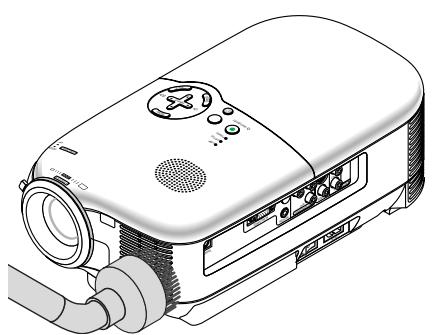
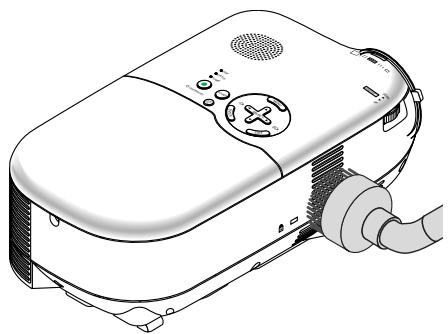
- Turn off the projector before cleaning.
- Clean the cabinet periodically with a damp cloth. If heavily soiled, use a mild detergent. Never use strong detergents or solvents such as alcohol or thinner.
- Use a blower or lens paper to clean the lens, and be careful not to scratch or mar the lens.
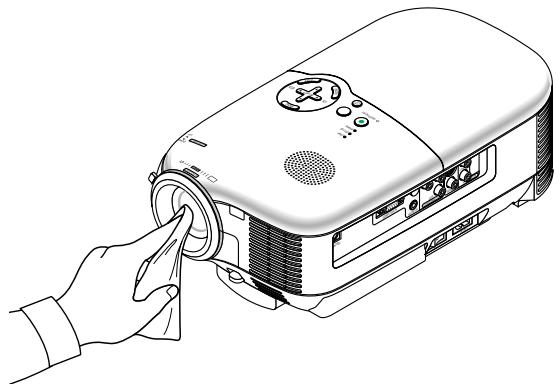
7. TROUBLESHOOTING
This section helps you resolve problems you may encounter while setting up or using the projector.
Power Indicator
| Indicator Condition | Projector Condition | Note | ||
| Off | The main power is off. | - | ||
| Blinking light | Green | 0.5 sec On, 0.5 sec Off | The projector is getting ready to turn on. | Wait for a moment. |
| 2.5 sec On, 0.5 sec Off | Off Timer is enabled. | - | ||
| Orange | 0.5 sec On, 0.5 sec Off | The projector is cooling down. | Wait for a moment. | |
| Steady light | Green | The projector is turned on. | - | |
| Orange | The projector is in Standby. | - | ||
Status Indicator
| Indicator Condition | Projector Condition | Note | ||
| Off | Normal | - | ||
| Blinking light | Red | 1 cycle(0.5 sec On,2.5 sec Off) | Lamp cover error or lamp hous-er error | Replace the lamp cover or lamp housing correctly. |
| 2 cycle(0.5 sec On,0.5 sec Off) | Temperature error | The projector is overheated.Move the projector to a cooler location. | ||
| 4 cycle(0.5 sec On,0.5 sec Off) | Fan error | Fans will not work correctly. | ||
| 6 cycle(0.5 sec On,0.5 sec Off) | Lamp error | Lamp fails to light. Wait a full minute and then turn on again. | ||
| Green | Re-firing the lamp | The projector is re-firing. | ||
| Steady light | Orange | Cabinet button locked | You have pressed cabinet but-ton when Cabinet Button is locked. | |
Lamp Indicator
| Indicator Condition | Projector Condition | Note | |
| Off | Normal | - | |
| Blinking light | Red | Lamp has reached its end of life.Lamp replacement message will be displayed. | Replace the lamp. |
| Steady light | Red | Lamp has been used beyond its limit. The projector will not turn on until the lamp is replaced. | Replace the lamp. |
| Green | Lamp mode is set to Eco mode. | - | |
Common Problems & Solutions
| Problem | Check These Items |
| Does not turn on | ·Check that the power cable is plugged in and that the power button on the projector cabinet or the remote control is on. See pages E-20 and E-21. ·Ensure that the lamp cover or lamp housing is installed correctly. See page E-47. ·Check to see if the projector has overheated or the lamp has reached the end of its usable life. If there is insufficient ventilation around the projector or if the room where you're presenting is particularly warm, move the projector to a cooler location. ·The lamp may fail to light. Wait a full minute and then turn on the power again. ·The lamp has reached the end of its usable life. Replace the lamp. |
| Lamp does not turn on; POWER and STATUS LEDs are blinking green at the same time | ·Wait for 60 seconds (cooling period) to see if the lamp turns on by itself. POWER and STATUS LEDs blinking green at the same time indicates the main power was interrupted during previous operation. |
| Will turn off | ·Ensure that the Power Management is off. See page E-42. |
| No picture | ·Use theVIDEO, S-VIDEO, C-VIDEO or COMP button on the remote control or the SOURCE button on the cabinet to select your source (Video, S-Video, Component or Computer). See page E-23. ·Ensure your cables are connected properly. ·Use menus to adjust the brightness and contrast. See page E-35. ·Reset the settings or adjustments to factory preset levels using “Reset” in the menu. See page E-44. ·Enter your registered keyword if the Security function is enabled. See page E-39. ·When using with a notebook PC, be sure to connect between the projector and the notebook PC before turning on the power to the notebook PC. In most cases signal cannot be output from RGB output unless the notebook PC is turned on after connecting with the projector. *If the screen goes blank while using your remote control, it may be the result of the computer's screensaver or power management software. *For more detailed, see page E-52. |
| Image isn’t square to the screen | ·Reposition the projector to improve its angle to the screen. See pages E-23 and E-24. ·Use the Keystone correction function to correct the trapezoid distortion. See page E-26. |
| Color tone or hue is un-usual | ·Check if an appropriate color is selected in “Wall Color”. If so, select an appropriate option. See page E-35. ·Adjust “Hue” in “Picture”. See page E-35. |
| Picture is blurred | Remove the lens cap. Adjust the focus. See page E-26. Reposition the projector to improve its angle to the screen. See pages E-23 and E-24. Ensure that the distance between the projector and screen is within the ad-justment range of the lens. See pages E-11 to E-14. Condensation may form on the lens if the projector is cold, brought into a warm place and is then turned on. Should this happen, let the projector stand until there is no condensation on the lens. |
| Image is scrolling vertically, horizontally or both | Use theVIDEO, S-VIDEO, C-VIDEO or COMP button on the remote control or the SOURCE button on the cabinet to select the source you want to input. Adjust the computer image manually with the Horizontal /Vertical Position. See page E-37. Connect a source the projector supports. See Compatible Input Signal List on page E-58. |
| Remote control does not work | Install new batteries. See page E-8. Make sure there are no obstacles between you and the projector. Stand within 22 feet (7 m) of the projector. See page E-9. |
| Indicator is lit or blink-ing | See the Power/Status/Lamp Indicator on page E-49. |
| Cross color in RGB mode | Press the AUTO ADJ button on the projector cabinet or the remote control. See page E-27. Adjust the computer image manually with the Clock and Phase in “Image” of the menu. See page E-37. |
If there is no picture, or the picture is not displayed correctly.
- Power on process for the projector and the PC.
Be sure to connect the RGB cable between the projector and the computer before turning on the computer. There are some notebook PCs, which do not output signal unless there is a projector or monitor connected first.
NOTE: You can check the horizontal frequency of the current signal in the projector's menu under Information. If it reads "0 kHz", this means there is no signal being output from the computer. See page E-43 or go to next step.
- Enabling the computer's external display.
Displaying an image on the notebook PC's screen does not necessarily mean it outputs a signal to the projector. When using a PC compatible laptop, a combination of function keys will enable/disable the external display. Usually, the combination of the 'Fn" key along with one of the 12 function keys gets the external display to come on or off. For example, NEC laptops use Fn + F3, while Dell laptops use Fn + F8 key combinations to toggle through external display selections.
Non-standard signal output from the computer
If the output signal from a notebook PC is not an industry standard, the projected image may not be displayed correctly.
Should this happen, deactivate the notebook PC's LCD screen when the projector display is in use. Each notebook PC has a different way of deactivate/reactivate the local LCD screens as described in the previous step. Refer to your computer's documentation for detailed information.
- Image displayed is incorrect when using a Macintosh
When using a Macintosh with the projector, set the DIP switch of the Mac adapter (not supplied with the projector) according to your resolution. After setting, restart your Macintosh for the changes to take effect. For setting display modes other than those supported by your Macintosh and the projector, changing the DIP switch on a Mac adapter may bounce an image slightly or may display nothing. Should this happen, set the DIP switch to the 13^st fixed mode and then restart your Macintosh. After that, restore the DIP switches to a displayable mode and then restart the Macintosh again.
NOTE: A Video Adapter cable manufactured by Apple Computer is needed for a PowerBook which does not have a mini D-Sub 15-pin connector.
-
Mirroring on a PowerBook
-
When using the projector with a Macintosh PowerBook, output may not be set to 1024 x 768 unless "mirroring" is off on our PowerBook. Refer to owner's manual supplied with your Macintosh computer for mirroring.
- Folders or icons are hidden on the Macintosh screen
Folders or icons may not be seen on the screen. Should this happen, select [View] [Arrange] from the Apple menu and arrange icons.
8. SPECIFICATIONS
This section provides technical information about the HT510/HT410 Projector's performance.
| Model Number | HT510/HT410 |
| Optical | |
| DMD | Single Chip Digital Micromirror Device (DMD) |
| Resolution | HT510: 1024×576 pixels*1 up to 1080i with scaling technology |
| HT410: 854×480 pixels*1 up to 1080i with scaling technology | |
| Lens | Manual zoom and focus, manual lens shift |
| F2.0 - 2.48 f=19.5 mm - 23.0 mm | |
| Lens shift: Vertical 0.5 V | |
| Lamp | 155W DC (124W Eco mode) |
| Image Size | 30" - 200" diagonal (16:9) |
| Projection Distance | HT510: 34.4" - 240.5" (wide) / 41.2" - 285.9" (tele) |
| 0.87 m - 6.11 m (wide) / 1.05 m - 7.26 m (tele) | |
| HT410: 41.73" - 289" (wide) / 50" - 343.3" (tele) | |
| 1.06 m - 7.34 m (wide) / 1.27 m - 8.72 m (tele) | |
| Projection Angle (Lowest Position)*2 | HT510: 6.4° - 6.7° (wide) / 5.5° - 5.7° (tele) |
| HT410: 6.4° - 6.7° (wide) / 5.4° - 5.6° (tele) | |
| (Highest Position)*3 | HT510: 15.8° - 16.5° (wide) / 13.4° - 14.0° (tele) |
| HT410: 15.8° - 16.4° (wide) / 13.4° - 13.8° (tele) | |
| Electrical | |
| Inputs | 1 VGA (D-Sub 15 Pin), 1 S-Video (DIN 4 Pin) Video (RCA), 1 Component (Y, Cb/Pb, Cr/Pr), 1 Stereo Mini Audio, 1 Audio L/R (RCA), 1 PC Control (Mini DIN 8 Pin) |
| Video Compatibility | NTSC, NTSC4.43, PAL, PAL-60, PAL-N, PAL-M, SECAM, Component:1080i, 720p, 576p, 480p, 576i, 480i |
| Scan Rate | Horizontal: 15 kHz to 100 kHz (RGB: 24 kHz or over) / Vertical: 50 Hz to 85 Hz |
| Color Reproduction | 16.7 million colors simultaneously, Full color |
| Horizontal Resolution | NTSC / NTSC4.43/PAL / YCbCr: 540 TV lines |
| SECAM: 300 TV lines | |
| RGB: HT510: 1024 dots (H)×576 dots (V) | |
| HT410: 854 dots (H)×480 dots (V) | |
| External Control | IR |
| Sync Compatibility | Separate Sync / Composite Sync / Sync on G |
| Built-in Speaker | 1W (Monaural) |
| Power Requirement | 100 - 240V AC, 50 / 60 Hz |
| Input Current | 2.2 - 1.1A |
| Power Consumption | 204W (7.0W Standby) |
1 Effective pixels are more than 99.99%
2 Lowest Position is the minimum lens shift position.
*3 Highest Position is the maximum lens shift position.
Mechanical
| Installation Orientation | Desktop/Front, Desktop/Rear, Ceiling/Front, Ceiling/Rear |
| Dimensions | 7.4" (W)×4.4" (H)×13.3" (D) 187mm (W)×113mm (H)×337mm (D) (not including protrusions) |
| Net Weight | 6.6 lbs / 3.0 kg |
| Environmental Considerations | Operational Temperatures: 41°F to 95°F (5°C to 35°C), 20% to 80% humidity (non-condensing) Storage Temperatures: 14°F to 122°F (-10°C to 50°C), 20% to 80% humidity (non-condensing) |
| Regulations | UL/C-UL (UL 60950, CSA 60950) Meets DOC Canada Class B requirements Meets FCC Class B requirements Meets AS/NZS CISPR 22 Class B Meets EMC Directive (EN55022, EN55024, EN61000-3-2, EN61000-3-3) Meets Low Voltage Directive (EN60950, TÜV GS Approved) |
| €€ |
For additional information visit:
US : http://www.necvisualsystems.com
Europe : http://www.neceurope.com/
Global : http://www.nec-pj.com/
The specifications are subject to change without notice.
9. APPENDIX
Cabinet Dimensions
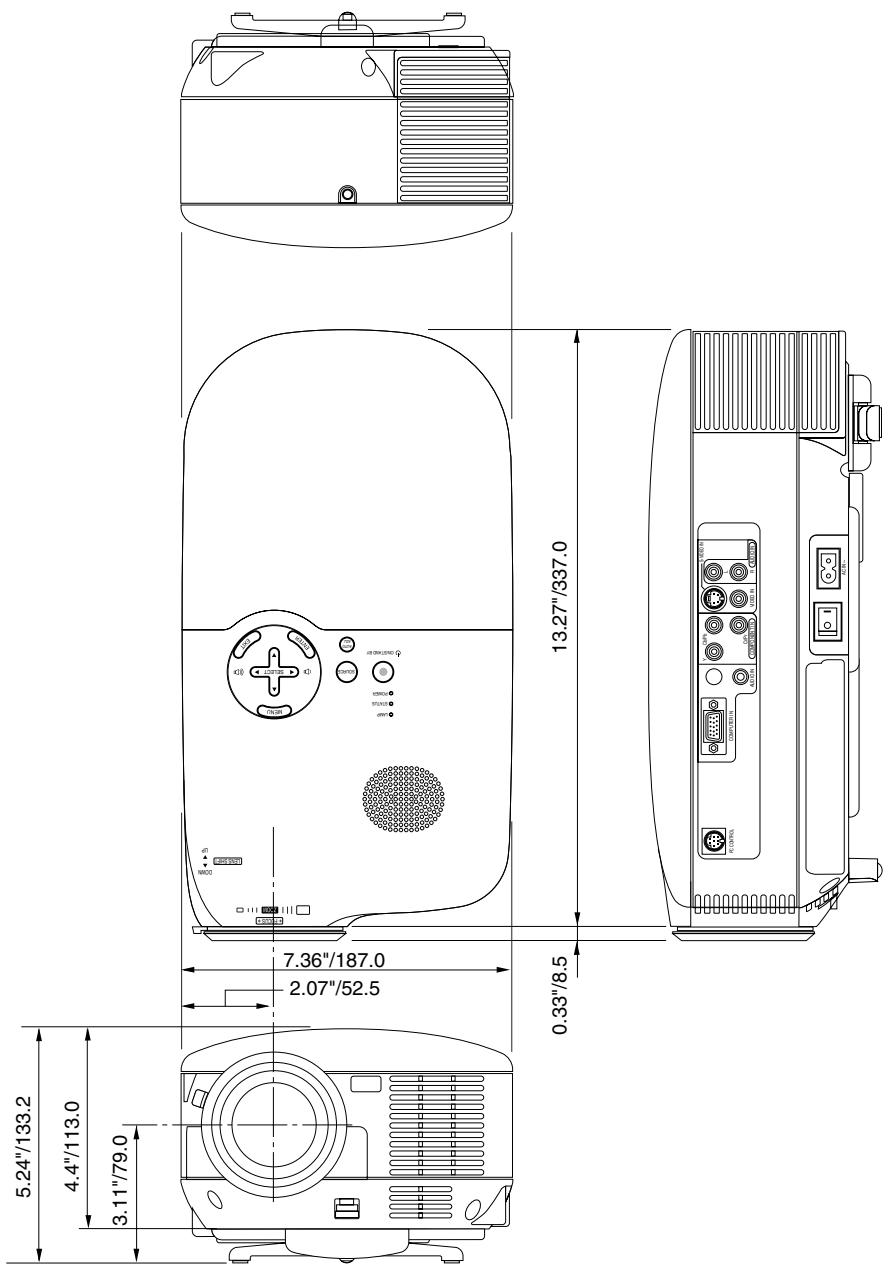
Unit = inch/mm
Pin Assignments of COMPUTER IN (D-Sub RGB) Connector
Mini D-Sub 15 Pin Connector
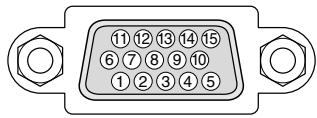
Signal Level
Video signal: 0.7Vp-p (Analog)
Sync signal : TTL level
| Pin No. | RGB Signal (Analog) | YCbCr Signal |
| 1 | Red | Cr |
| 2 | Green or Sync on Green | Y |
| 3 | Blue | Cb |
| 4 | Ground | |
| 5 | Ground | |
| 6 | Red Ground | Cr Ground |
| 7 | Green Ground | Y Ground |
| 8 | Blue Ground | Cb Ground |
| 9 | No Connection | |
| 10 | Sync Signal Ground | |
| 11 | SCART Sync | |
| 12 | Bi-directional DATA (SDA) | |
| 13 | Horizontal Sync or Composite Sync | |
| 14 | Vertical Sync | |
| 15 | Data Clock |
PC Control Codes and Cable Connection PC Control codes
| Function | Code Data | |||||||
| POWER ON | 02H | 00H | 00H | 00H | 00H | 02H | ||
| POWER OFF | 02H | 01H | 00H | 00H | 00H | 03H | ||
| INPUT SELECT COMPUTER | 02H | 03H | 00H | 00H | 02H | 01H | 01H | 09H |
| INPUT SELECT COMPONENT | 02H | 03H | 00H | 00H | 02H | 01H | 11H | 19H |
| INPUT SELECT VIDEO | 02H | 03H | 00H | 00H | 02H | 01H | 06H | 0EH |
| INPUT SELECT S-VIDEO | 02H | 03H | 00H | 00H | 02H | 01H | 0BH | 13H |
| PICTURE MUTE ON | 02H | 10H | 00H | 00H | 00H | 12H | ||
| PICTURE MUTE OFF | 02H | 11H | 00H | 00H | 00H | 13H | ||
| SOUND MUTE ON | 02H | 12H | 00H | 00H | 00H | 14H | ||
| SOUND MUTE OFF | 02H | 13H | 00H | 00H | 00H | 15H | ||
NOTE: Contact your local dealer for a full list of the PC Contorol Codes if needed.
Cable Connection
Communication Protocol Baud rate 38400 bps Data length 8 bits Parity . No parity Stop bit One bit X on/off None Communications procedure Full duplex
NOTE: Depending on the equipment, a lower baud rate may be recommended for long cable runs.
PC Control Connector (Mini DIN-8P)
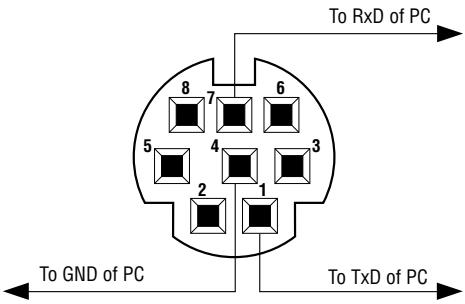
NOTE: Pins 2, 3, 5, 6 and 8 are used inside the projector.
Compatible Input Signal List
Horizontal: 15 kHz to 100 kHz (RGB: 24 kHz or over)
Vertical: 50 Hz to 85 Hz
| Signal | Resolution ( Dots ) | Frequency H. ( kHz ) | Refresh Rate ( Hz ) | |
| NTSC | - | 15.734 | 60 | |
| PAL | - | 15.625 | 50 | |
| PAL60 | - | 15.734 | 60 | |
| SECAM | - | 15.625 | 50 | |
| VESA | 640 | 480 | 31.47 | 59.94 |
| IBM | 640 | 480 | 31.47 | 60 |
| MAC | 640 | 480 | 31.47 | 60 |
| MAC | 640 | 480 | 34.97 | 66.67 |
| MAC | 640 | 480 | 35 | 66.67 |
| VESA | 640 | 480 | 37.86 | 72.81 |
| VESA | 640 | 480 | 37.5 | 75 |
| IBM | 640 | 480 | 39.375 | 75 |
| VESA | 640 | 480 | 43.269 | 85.01 |
| VESA | 800 | 600 | 35.16 | 56.25 |
| VESA | 800 | 600 | 37.879 | 60.32 |
| VESA | 800 | 600 | 48.077 | 72.19 |
| VESA | 800 | 600 | 46.88 | 75 |
| VESA | 800 | 600 | 53.674 | 85.06 |
| MAC | 832 | 624 | 49.725 | 74.55 |
| VESA | 1024 | 768 | 48.363 | 60 |
| VESA | 1024 | 768 | 56.476 | 70.07 |
| MAC | 1024 | 768 | 60.241 | 74.93 |
| VESA | 1024 | 768 | 60.023 | 75.03 |
| VESA | 1024 | 768 | 68.677 | 85 |
| VESA | 1152 | 864 | 67.5 | 75 |
| SUN | 1152 | 900 | 61.796 | 65.95 |
| VESA | 1280 | 960 | 60 | 60 |
| VESA | 1280 | 1024 | 63.981 | 60.02 |
| MAC | 1280 | 1024 | 69.89 | 65.18 |
| SXGA+ | 1400 | 1050 | - | - |
| SDTV(480p)(525p) | - | - | 31.47 | 59.94 Progressive |
| SDTV(576p)(625p) | - | - | 31.25 | 50 Progressive |
| HDTV (1080i)(1125i) | 1920 | 1080 | 33.75 | 60 Interlaced |
| HDTV (1080i)(1125i) | 1920 | 1080 | 28.125 | 50 Interlaced |
| HDTV (720p)(750p) | 1280 | 720 | 45 | 60 Progressive |
| HDTV (720p)(750p) | 1280 | 720 | 37.5 | 50 Progressive |
| DVD YCbCr | - | - | 15.734 | 59.94 Interlaced |
| DVD YCbCr | - | - | 15.625 | 50 Interlaced |
NOTE: Some composite sync signals may not be displayed correctly. Signals other than those specified in the table above may not be displayed correctly. If this should happen, change the refresh rate or resolution on your PC. Refer to Display Properties help section of your PC for procedures.
Images in above list are displayed with scaling technology.
Troubleshooting Check List
Before contacting your dealer or service personnel, check the following list to be sure repairs are needed also by referring to the "Troubleshooting" section in your user's manual. This checklist below will help us solve your problem more efficiently.
- Print the following pages.
Frequency of occurrence always sometimes (How often? other
Power
No power (POWER indicator does not light green) See also "Status Indicator (STATUS)".
Power cable's plug is fully inserted into the wall outlet.
Main power switch is pressed to the ON position.
Lamp cover is installed correctly.
Lamp Hour Meter (lamp operation hours) was cleared after lamp replacement.
No power even though you press and hold the POWER button for a minimum of 2 seconds.
Video and Audio
No image is displayed from your PC or video equipment to the projector.
Still no image even though you connect the projector to the PC first, then start the PC.
Enabling your notebook PC's signal output to the projector.
- A combination of function keys will enable/disable the external display. Usually, the combination of the "Fn" key along with one of the 12 function keys turns the external display on or off.
No image (blue background, logo, no display).
Still no image even though you press the AUTO ADJUST button.
Still no image even though you carry out "Reset" in the projector's menu.
Signal cable's plug is fully inserted into the input connector
A message appears on the screen.
The source connected to the projector is active and available.
Still no image even though you adjust the brightness and/or the contrast.
Input source's resolution and frequency are supported by the projector.
□ Image is too dark.
Remains unchanged even though you adjust the brightness and/or the contrast.
Image is distorted.
Image appears to be trapezoidal (unchanged even though you carry out the "Keystone" or "3D Reform" adjustment).
Other
Remote control does not work.
No obstacles between the sensor of the projector and the remote control.
Projector is placed near a fluorescent light that can disturb the infrared remote controls.
One or more remote sensors are enabled (only models with the Remote Sensor Selection function).
Batteries are new and are not reversed in installation.
If present on the remote control, projector selector switch is not used.
Shut down during operation.
Power cable's plug is fully inserted into the wall outlet.
Lamp cover is installed correctly.
Power Management is turned off (only models with the Power Management function).
Sleep Timer is turned off (only models with the Sleep Timer function).
Parts of the image are lost.
Still unchanged even though you press the AUTO ADJUST button.
Still unchanged even though you carry out "Reset" in the projector's menu.
Image is shifted in the vertical or horizontal direction.
Horizontal and vertical positions are correctly adjusted on a computer signal.
Input source's resolution and frequency are supported by the projector.
Some pixels are lost.
□ Image is flickering.
Still unchanged even though you press the AUTO ADJUST button.
Still unchanged even though you carry out "Reset" in the projector's menu.
Image shows flickering or color drift on a computer signal.
Image appears blurry or out of focus.
Still unchanged even though you checked the signal's resolution on PC and changed it to projector's native resolution.
Still unchanged even though you adjusted the focus.
No sound.
Audio cable is correctly connected to the audio input of the projector.
Still unchanged even though you adjusted the volume level.
AUDIO OUT is connected to your audio equipment (only models with the AUDIO OUT connector).
- Buttons on the projector cabinet do not work (only models with the Key Lock function).
Cabinet Button Lock is not turned on or is disabled in the menu.
Still unchanged even though you press and hold the EXIT button for a minimum of 10 seconds.
In the space below please describe your problem in detail.

Information on application and environment where your projector is used
Projector
Model number:
Serial No.:
Date of purchase:
Lamp operating time (hours):
Lamp Mode: □ Normal □ Eco
Information on input signal:
Horizontal synch frequency [ ] kHz
Vertical synch frequency [] Hz
Remote control model number:
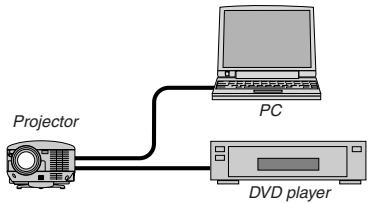
Signal cable
NEC standard or other manufacturer's cable?
Model number: Length: inch/m
Distribution amplifier
Model number:
Switcher
Model number:
Adapter
Model number:
Installation environment
Screen size: inch
Screen type: □ White matte □ Beads □ Polarization
□Wide angle □High contrast
Throw distance: feet/inch/m
Orientation: Ceiling mount Desktop
Power outlet connection:
Connected directly to wall outlet
Connected to power cord extender or other (the number of connected equipment
Connected to a power cord reel or other (the number of connected equipment
Computer
Manufacturer:
Model number:
Notebook PC / Desktop
Native resolution:
Refresh rate:
Video adapter:
Other:
Video equipment
VCR, DVD player, Video camera, Video game or other
Manufacturer:
Model number:
TravelCare Guide
TravelCare - a service for international travelers
This product is eligible for "TravelCare", NEC's unique international warranty.
Please note that TravelCare coverage differs in part from coverage under the warranty included with the product.
Services offered with TravelCare
This warranty allows customers to receive service on their product at the NEC and NEC-designated service stations in the countries listed herein when temporarily traveling internationally for business or pleasure.
For details on services offered by the different service stations, please refer to the "List of TravelCare Outlets" below.
1 Repair services
The product will be repaired and delivered within 10 business days, not including shipping time.
During the term of warranty, the cost of maintenance parts, labor costs for repairs and shipping costs within the service station's coverage area are covered by the warranty.
2 Replacement product rental service
If the customer desires, he or she can rent a replacement product while the original product is being repaired.
Fee: US(200 for 12 days
This fee must be paid at the local service station in cash or credit card.
The $200 rental fee is non-refundable even if the customer rents it less than 12 days before returning.
The replacement product will be delivered within 3 business days.
If the customer did not return the replacement product within 12 days, the customer will be charged the price of the unit.
If the customer returned the replacement product in a faulty or damaged condition, the repair cost will be charged to the customer.
Note that this service is not offered in all countries and regions. Please refer to the "List of TravelCare Outlets".
In addition, this replacement product rental service is not offered after the product's warranty has expired.
Term of warranty
1
a. Upon presentation of the warranty or receipt received upon purchase:
Valid for the term indicated on the warranty or the normal term of warranty for the country of purchase.
b. When only the product is brought in:
Valid for a period of within 14 months of the date of manufacture indicated by the serial number attached to the product.
2 When a product whose term of warranty is expired is brought in:
Repairs will be offered for a fee. In this case the customer is not eligible for the replacement product rental service.
3 In the following cases, repairs may be charged, even if the product's warranty is still in effect:
1) If the term of warranty, model name, serial number and name of the store of purchase are not indicated on the warranty or have been altered.
2) Problems or damage caused by dropping or shocks during shipment or movement by the customer or by improper handling by the customers.
3) Problems or damage caused by improper usage or unwarrantable alterations or repairs by the customer.
4) Problems or damage caused by fire, salt damage, gas damage, earthquakes, lightning damage, storm or flood damage or other natural disasters or such external factors as dust, cigarette smoke, abnormal voltage, etc.
5) Problems or damage caused by use in hot or humid places, in vehicles, boats or ships, etc.
6) Problems or damage caused by expendable supplies or devices connected to the product other than those designated by NEC.
7) Problems caused by natural consumption, wear or deterioration of parts under normal usage conditions.
8) Problems or damage to lamps and other expendable supplies, included parts or optional parts.
9) Other conditions stipulated in the warranty included with the product also apply.
NOTE: The product can be used overseas with voltages of 100 to 120V and 200 to 240V by using a power cable suited for the standards and power source voltage of the country in which the product is being used.
List of TravelCare Outlets
This list applies as of April 1, 2004.
For the most up-to-date information, please refer to the websites of the service stations in the various countries on the List of TravelCare Outlets or to the NEC website at http://www.nec-pj.com.
In Europe
NEC Europe, Ltd. / European Technical Centre
Address: Unit G, Stafford Park 12, Telford TF3 3BJ, U.K.
Telephone: +44 1952 237000
Fax Line: +44 1952 237006
Email Address: AFR@uk.neceur.com
WEB Address: http://www.neceur.com
(Regions Covered)
EU: Austria, Belgium, Denmark, Finland, France, Germany,
Greece, Ireland, Italy, Luxembourg, The Netherlands*,
Portugal, Spain, Sweden and the United Kingdom
EEA: Norway*, Iceland and Liechtenstein
In North America
NEC Solutions (America), Inc.
Address: 1250 N. Arlington Heights Road, Suite 400
Itasca, Illinois 60143, U.S.A.
Telephone: +1 800 836 0655
Fax Line: +1 800 356 2415
Email Address: vsd.tech-support@necsam.com
WEB Address: http://www.necvisualsystems.com
(Regions Covered)
U.S.A., Canada
In Oceania
NEC Australia Pty., Ltd.
Address: New South Wales;
184 Milperra Road, Reversby 2212
Victoria;
480 Princess Hwy Noble Park 3174
South Australia;
84A Richmond Road, Keswick 5035
Queensland;
116 Ipswich Road, Woollongabba 4102
Western Australia;
45 Sarich Court Osborne Park 6017
Telephone: 131632 (from domestic)
+61 8 8375 5706 (from overseas)
Fax Line: +61 8 8375 5757
Email Address: lee.gramola@nec.com.au
WEB Address: http://www.nec.com.au
(Regions Covered)
Australia*, New Zealand
In Asia and Middle East
NEC Viewtechnology, Ltd.
Address: 686-1, Nishioi, Oi-Machi, Ashigarakami-Gun,
Kanagawa 258-0017, Japan
Telephone: +81 465 85 2369
Fax Line: +81 465 85 2393
Email Address: support_pjweb@nevt.nec.co.jp
WEB Address: http://www.nec-pj.com
(Regions Covered)
Japan*
NEC Hong Kong Ltd.
Address: 11th Floor, Tower B, New Mandarin Plaza, 14
Science Museum Road,
Tsim Sha Tsui East, Kowloon, Hong Kong
Telephone: +852 2369 0335
Fax Line: +852 2795 6618
Email Address: esmond.au@nechk.nec.com.hk
WEB Address: http://www.nec.com.hk
(Regions Covered)
Hong Kong
NEC Taiwan Ltd.
Address: 7F, No.167, SEC.2, Nan King East Road, Taipei,
Taiwan, R.O.C.
Telephone: +886 2 8500 1734
Fax Line: +886 2 8500 1420
Email Address: nickliao@nec.com.tw
WEB Address: http://www.nec.com.tw
(Regions Covered)
Taiwan
NEC Solutions Asia Pacific Pte. Ltd
Address: 401 Commonwealth Drive, #07-02, Haw Par
Technocentre, Singapore 149598
Telephone: +65 6 273 8333
Fax Line: +65 6 274 2226
Email Address: tehgh@rsc.ap.nec.com.sg
WEB Address: http://www.nec.com.sg/ap
(Regions Covered)
Singapore
NEC Systems Integration Malaysia Sdn Bhd
Address: Ground Floor, Menara TA One, 22, Jalan P. Ramlee,
50250 Kuala Lumpur, Malaysia
Telephone: +6 03 2164 1199
Fax Line: +6 03 2160 3900
Email Address: necare@nsm.nec.co.jp
WEB Address: http://www.necmalaysia.com.my
(Regions Covered)
Malaysia
Nautilus Hyosung Inc.
Address: 7th Floor, Cheongdam Building, 52,
Cheongdam-Dong,
Kangnam-Ku, Seoul, Korea 135-100
Telephone: +82 2 510 0234
Fax Line: +82 2 540 3584
Email Address: hds-ykc@hyosung.com
(Regions Covered)
South Korea
Lenso Communication Co., Ltd.
Address: 292 Lenso House 4, 1st Floor, Srinakarin Road,
Huamark, Bangkapi, Bangkok 10240, Thailand
Telephone: +66 2 375 2425
Fax Line: +66 2 375 2434
Email Address: pattara@lenso.com
WEB Address: http://www.lenso.com
(Regions Covered)
Thailand
ABBA Electronics L.L.C.
Address: Tariq Bin Ziyad Road, P.O.Box 327, Dubai,
United Arab Emirates
Telephone: +971 4 371800
Fax Line: +971 4364283
Email Address: ABBA@emirates.net.ae
(Regions Covered)
United Arab Emirates
Samir Photographic Supplies
Address: P.O.Box 599, Jeddah 21421, Saudi Arabia
Telephone: +966 2 6828219
Fax Line: +966 2 6830820
Email Address: vartkes@samir-photo.com
(Regions Covered)
Saudi Arabia
NOTE: In countries designated with an asterisk (^*) , replacement product rental service are offered.
Date: / / ,
P-1/
TO: NEC or NEC's Authorized Service Station: FM:
(Company & Name with signature)
Dear Sir (s),
I would like to apply your TravelCare Service Program based on attached registration and qualification sheet and agree with your following conditions, and also the Service fee will be charged to my credit card account, if I don't return the Loan units within the specified period. I also confirm following information is correct. Regards.
Application Sheet for TravelCare Service Program
| Country, product purchased : | |
| User's Company Name : | |
| User's Company Address : Phone No., Fax No.: | |
| User's Name : | |
| User's Address : | |
| Phone No., Fax No.: | |
| Local Contact office : | |
| Local Contact office Address : | |
| Phone No., Fax No.: | |
| User's Model Name : | |
| Date of Purchase : | |
| Serial No. on cabinet : | |
| Problem of units per User : | |
| Required Service : | (1) Repair and Return (2) Loan unit |
| Requested period of Loan unit : | |
| Payment method : | (1) Credit Card (2) Travelers Cheque (3) Cash |
| In Case of Credit Card : Card No. w/Valid Date : |
Condition of your TravelCare Service Program
Enduser is requested to understand following condition of TravelCare Service Program and complete the necessary information on the application sheet.
1. Service Options:
There are 3 types of "Service" available. Enduser has to understand following condition and is required to fill in the Application Sheet.
1) Repair and Return:
The 'Faulty unit' is sent or collected from the customer. It is repaired and returned within 10 days to the customer, excluding transport time.
There may have a case, repair and return can't be done by NEC Authorized Service Station, because of shortage of spare parts due to same model is not sold in the territory.
2) Repair and Return with Loan: (This service is limited to some Service Stations)
This service is offered to the Enduser, who cannot wait until their unit is repaired.
The customer can borrow a unit for $200 up to 12 days. Customer then sends in inoperable unit to nearest NEC Authorized Service Station for service. In order to prevent collection problem, Enduser is required to fill in Application Sheet.
Enduser needs to confirm the availability of the Service to NEC Authorized Service Stations.
3) Loan Only:
For this service, NEC Authorized Service Station supplies the customer with a loan unit for US(200 up to 12 days. Customer keeps the inoperable unit and when customer returns home, customer arranges to have the projector serviced in the home country.
2. Warranty Exclusions:
This program does not apply if the Projector's serial number has been defaced, modified or removed.
If, in the judgement of NEC Authorized Service Station or its agent the defects or failures result from any cause other than fair wear and tear or NEC neglect, or fault including the following without limitation:
1) Accidents, transportation, neglect, misuse, abuse, water, dust, smoke or default of or by the Customer its employees or agents or any third party;
2) Failure or fluctuation of electrical power, electrical circuitry, air conditioning, humidity control or other environmental conditions such as use it in smoking area;
3) Any fault in the attachments or associated products or components (whether or not supplied by NEC or its agents which do not form part of the Product covered by this warranty);
4) Any act of God, fire, flood, war, act of violence or any similar occurrence;
5) Any attempt by any person other than any person authorized by NEC to adjust, modify, repair, install or service the product.
6) Any Cross-border charges such as, duty, insurance, tax etc.
3. Charges for Warranty Exclusions and Out of Warranty Case:
In case faulty unit is under warranty exclusions case or under Out of Warranty period, NEC Authorized Service Station will Inform estimation of actual service cost to the Enduser with reason.
4. Dead on Arrival (DOA):
Enduser must take this issue up with their original supplier in the country of purchase.
NEC Authorized Service Station will repair the DOA unit as a Warranty repair, but will not exchange DOA unit with new units.
5. Loan Service Charges and Conditions:
Upon acceptance of this NEC Projector, Customer agrees to assume liability for this loan unit.
The current cost of use of this loan unit is $200.00 USD for 12 calendar days.
If Customer does not return the unit within the 12 calendar days, Customer will be charged the next highest cost up to and including the full list price to Credit Cards, which price will be informed by NEC Authorized Service Stations. Please see the attached listing of contacts for each country to arrange for pickup of the loan unit.
If you return to their country of origin with the loan unit, you will be charged additional freight to return the unit to the loaning country.
Thank you for your understanding of this program.