
SVR 250 - Active speaker JAMO - Free user manual and instructions
Find the device manual for free SVR 250 JAMO in PDF.

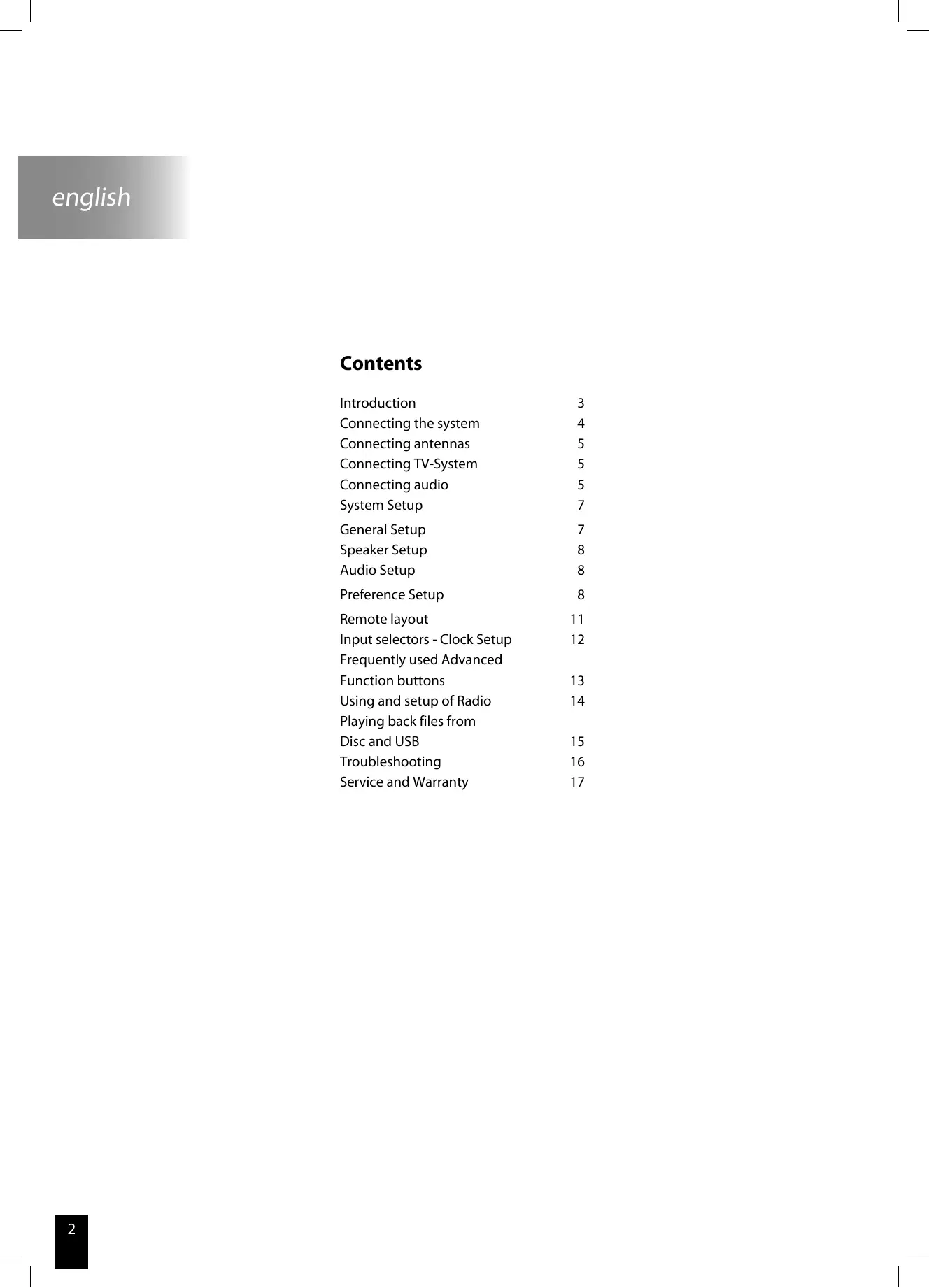


| Product type | Active speaker with DVD player and FM/AM radio tuner |
| Brand | JAMO |
| Model | SVR 250 |
| Power supply | Mains (power cord included) |
| Read formats | Audio CD, CD-R/RW, MP3, WMA, JPEG, DivX, XviD |
| Radio functions | FM and AM with 40 station presets |
| Video connections | SCART, S-Video, Component (YUV), optical digital output |
| Audio connections | Analog audio inputs (AUX 1 and AUX 2), analog audio output, subwoofer pre-out, left/right speaker outputs |
| Advanced functions | Progressive scan, A-B repeat, random playback, Surround modes, sleep timer, display contrast |
| Included accessories | Remote control (S VSR 25) with batteries, 8m speaker cable, SCART cable, audio cable, power cord, FM antenna, AM antenna |
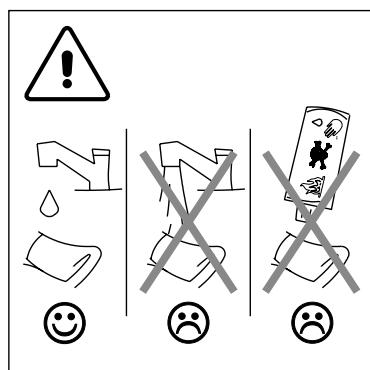
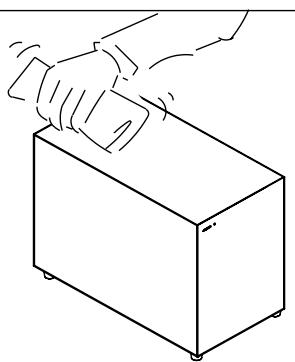
| Maintenance | Clean with a soft, dry cloth. Do not use chemicals or abrasives. |
| Safety | Do not open the casing. Risk of electric shock. Use only in a dry environment. |
| Warranty | 24 months from date of purchase, covers manufacturing and material defects. |
| Repairability | Do not attempt to repair yourself. Contact an authorized JAMO dealer or authorized repair center. |
| TV compatibility | Display formats: 4:3 LB, 4:3 PS, 16:9 |
Frequently Asked Questions - SVR 250 JAMO
User questions about SVR 250 JAMO
0 question about this device. Answer the ones you know or ask your own.
Ask a new question about this device
Download the instructions for your Active speaker in PDF format for free! Find your manual SVR 250 - JAMO and take your electronic device back in hand. On this page are published all the documents necessary for the use of your device. SVR 250 by JAMO.
USER MANUAL SVR 250 JAMO
Connecting the system 4
Connecting antennas 5
Connecting TV-System 5
Connecting audio 5
System Setup 7
General Setup 7
Speaker Setup 8
Audio Setup 8
Preference Setup 8
Remote layout 11
Input selectors - Clock Setup 12
Frequently used Advanced
Function buttons 13
Using and setup of Radio 14
Playing back files from
Disc and USB 15
Troubleshooting 16
Service and Warranty 17
Introduction
Make sure the following accessories are included with your system.
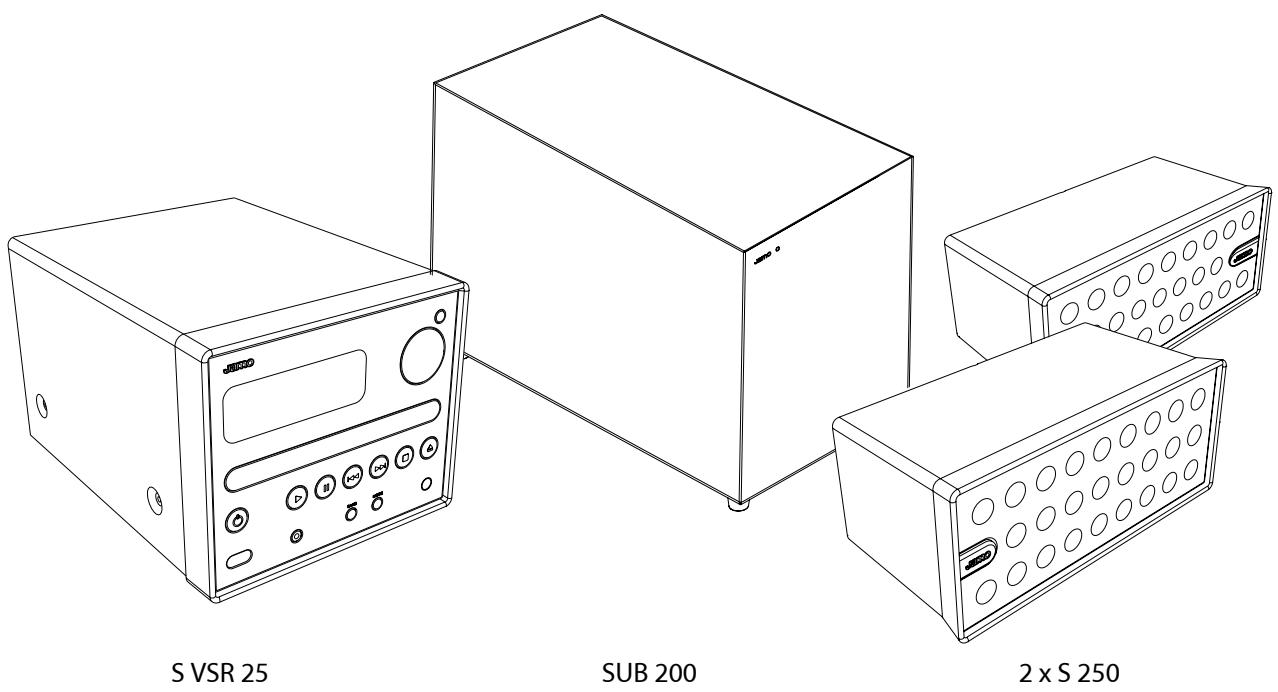

8m / 26ft speaker cable

Batteries for the remote control
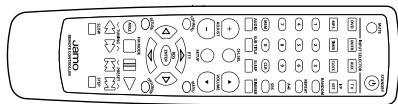
Remote control S VSR 25
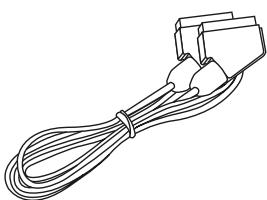
SCART
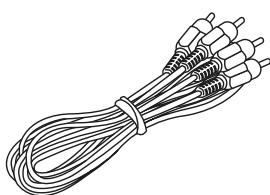
Audio cable / Composite Video
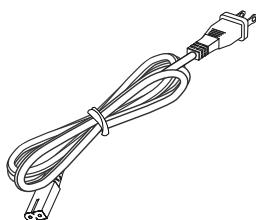
Power Cable

FM Antenna

AM Antenna
Connecting the system
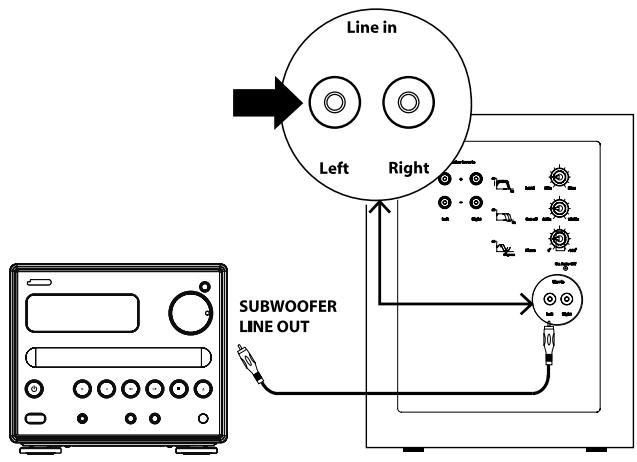
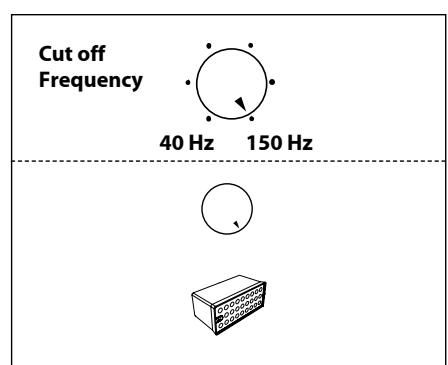
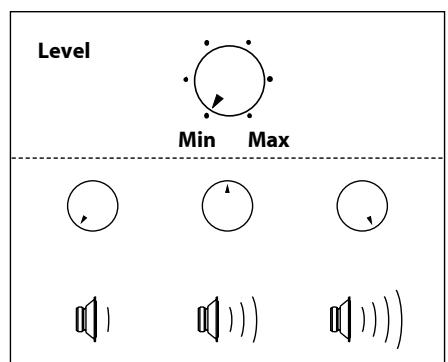
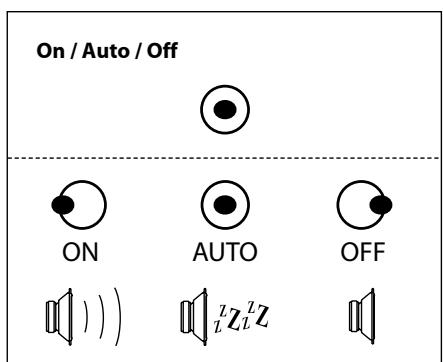
Refer to these illustrations to connect speakers, subwoofer, antennas and TV-system.
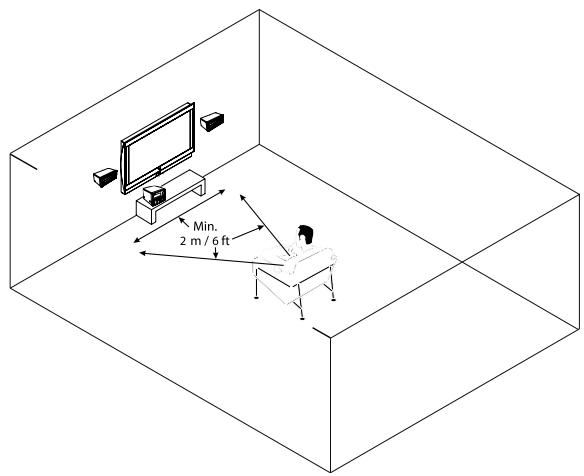
S 250
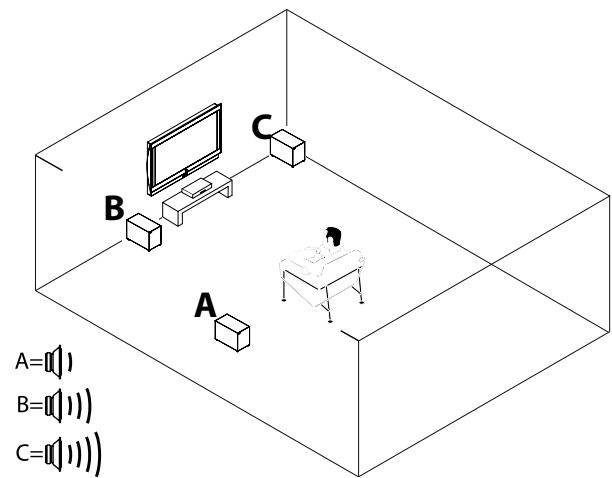
SUB 200
Connecting antennas
You will need to tune into an FM/AM radio station and adjust the position of the FM/AM antenna to achieve the best possible reception.
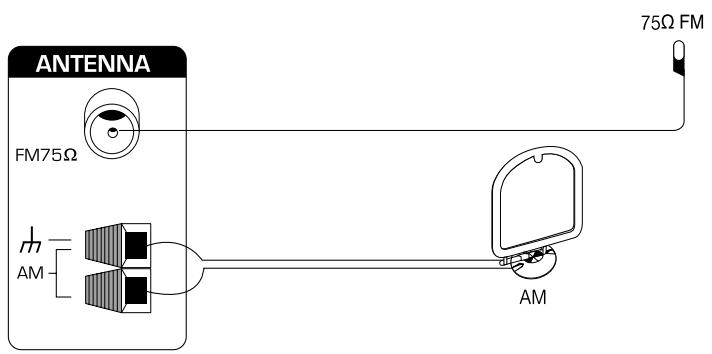
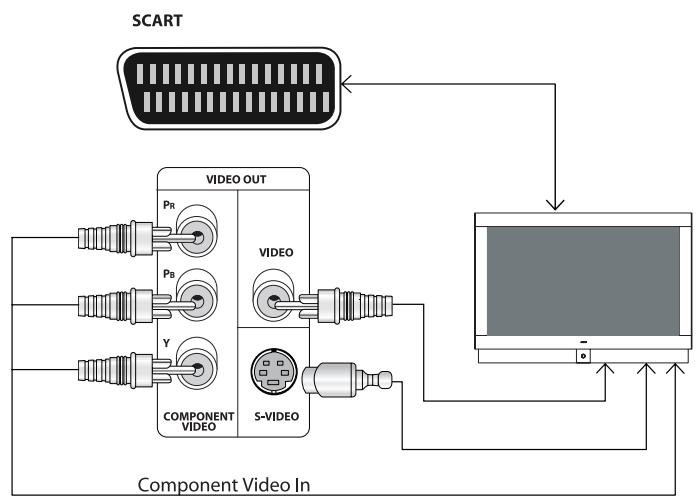
Connecting TV-System
SCART video configuration
Both audio and video are passed through the SCART cable. Most TVs will automatically send the audio to the S VSR 25.
S-Video configuration
Video is connected through the S-Video cable (not supplied) to the TV. Remember to connect the audio from the TV to the S VSR 25. Set Video Output to YPbPr (see page 9)
Component video configuration
The Component video output can be connected to plasma and LCD displays. Remember to connect the audio from the TV to the S VSR 25.
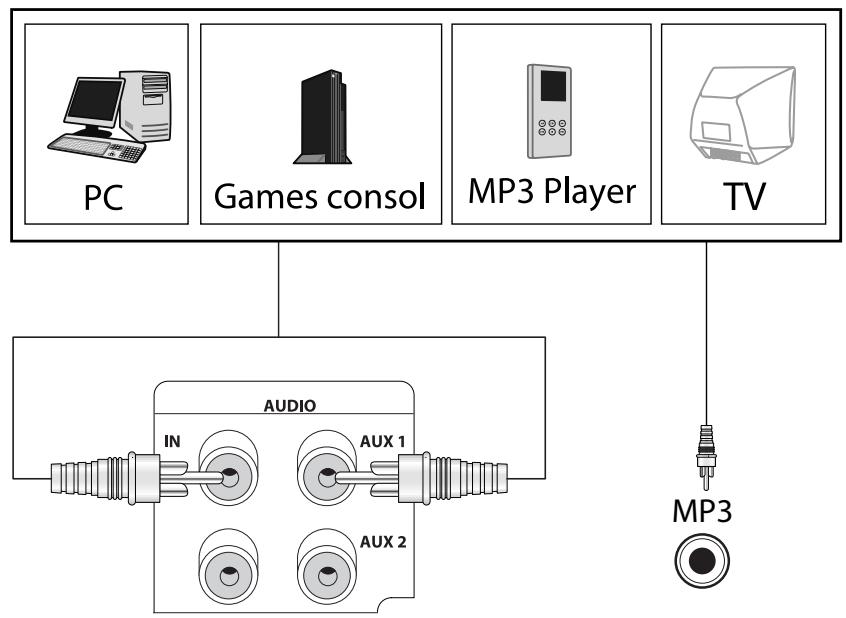
Connecting audio
If a PC, Games consul, MP3 player, TV or similar has analogue audio output, you can connect it directly to the S VSR 25.
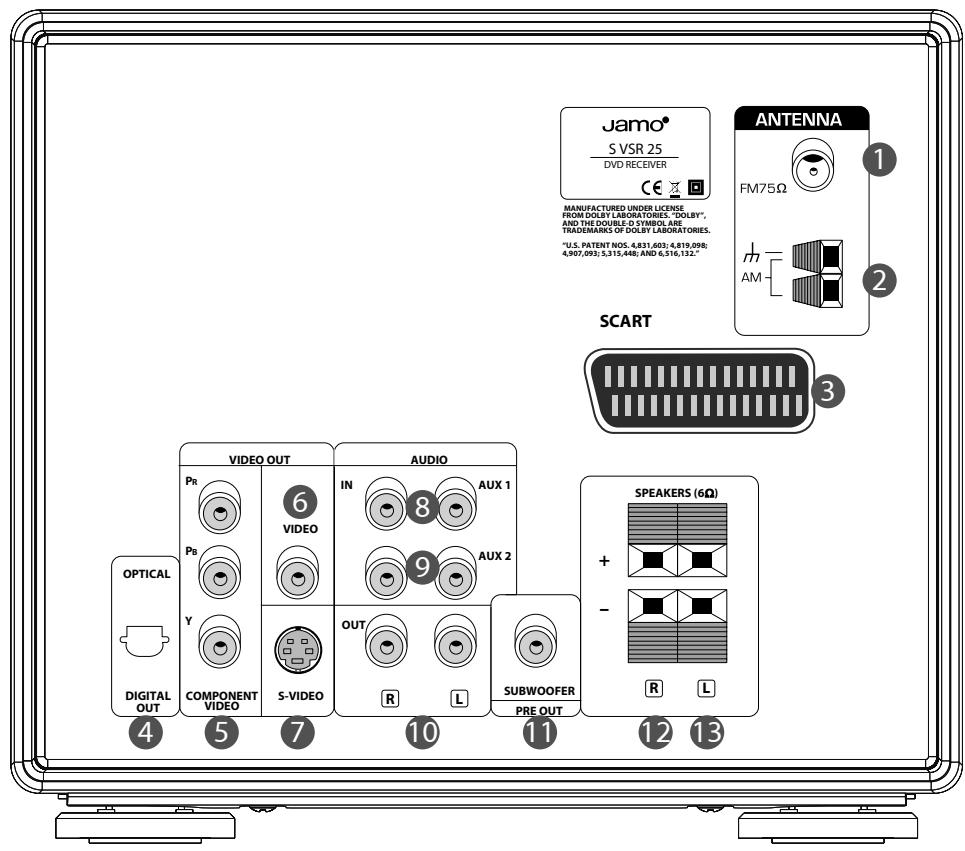
- FM antenna
2.AM antenna - SCART In/Out
- Digital Out (Optical)
- Component Video Out
- Composite Video Out
- S-Video Video Out
- Analogue Audio In - AUX 1
- Analogue Audio In - AUX 2
- Analogue Audio Out
- Subwoofer Pre Output
- Right Speaker Out
- Left Speaker Out
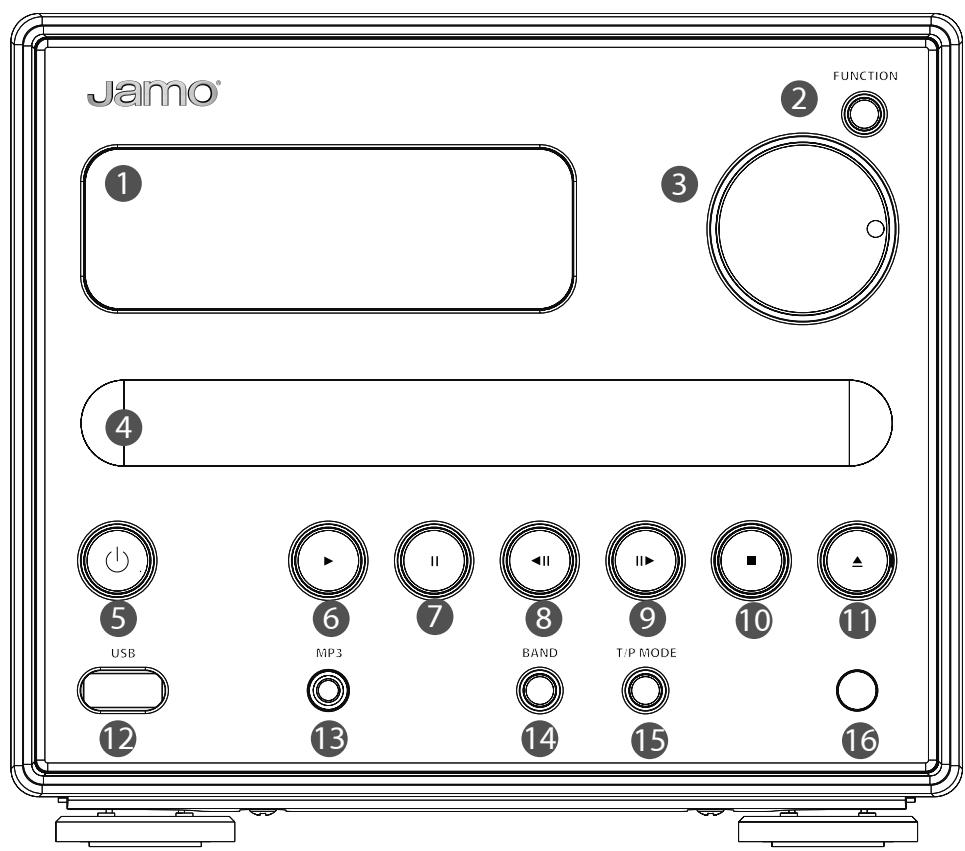
- Display
- Function
- Volume
- Disc Tray
- Standby / On
- Play
- Pause
- Previous chapter/track/program
- Next chapter/track/program
- Stop
- Open/Close
- USB Connector
- Audio Input
- Band
- Tuner Select/Preset Select
- Remote Control Sensor
System Setup
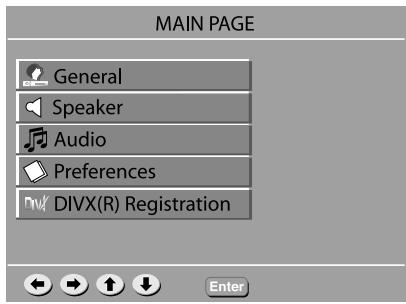
To access the S VSR 25 setup menu, press "SETUP" on the remote.
Use to browse through the menus, and press "ENTER" to select an item.
To exit System Setup, press "SETUP".
General Setup
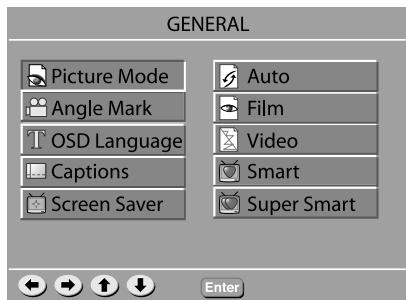
Picture Mode
- Auto Mode - The picture quality is adjusted automatically.
- Film - Choose this setting to show the picture quality of film material.
- Video Mode - Choose to show the picture quality of video material.
- Smart Mode - Choose to show progressive and interlaced materials with limited motion.
- Super Smart - Choose to show progressive and interlaced materials with motion.
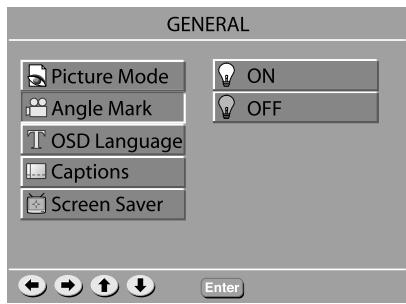
Angle Mark
If available on the DVD, this will show if multiple angles can be displayed.
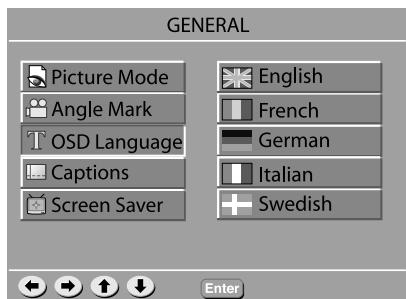
OSD Language
This sets the OnScreen Display language for the S VSR 25.
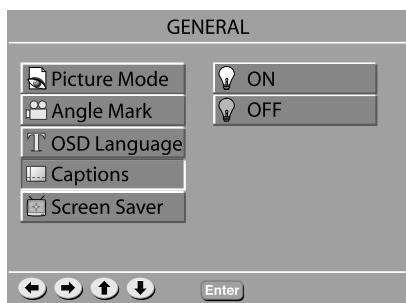
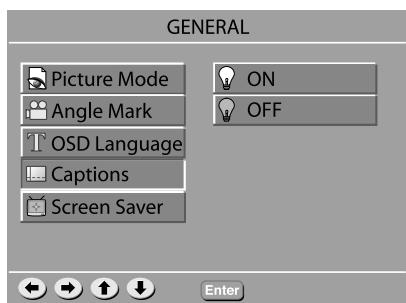
Captions
If available subtitles will be show automatically.
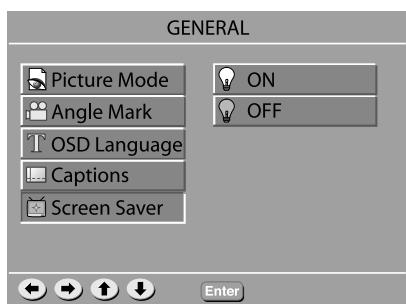
Screen Saver
Turns screen saver ON and OFF.
Speaker Setup
Audio Setup
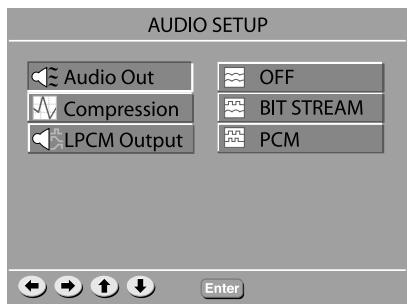
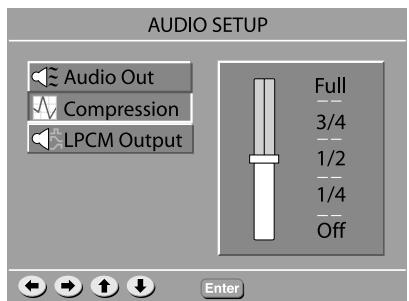
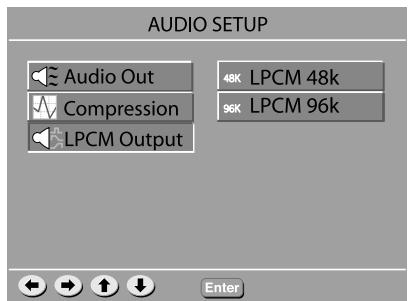
Preference Setup
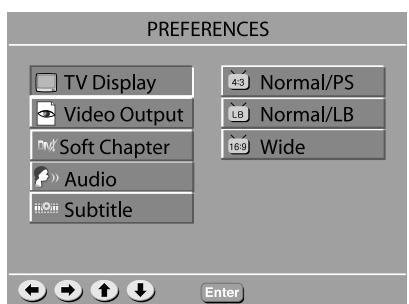
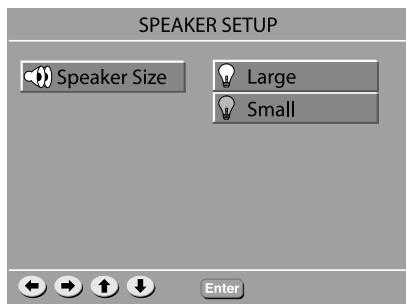
Speaker Setup Large - If you have large floorstand speakers, select large. Small - If you have compact or bookshelf speakers, select small.
Select "Small" for the S 250 speakers.
Audio Out
If an external AV Receiver with DD and DTS decoder is connected through the DIGITAL OUT, select BIT STREAM.
If an external AV Receiver without DD and DTS decoder is connected through the DIGITAL OUT, select PCM.
Compression If you want to watch a movie without disturbing others in the house, you can reduce the dynamics (loud sounds) by activating the dynamic range function.
LPCM Output
Sets Linear Pulse-Code Modulation sample frequency rate for Digital Output.
Check your external receiver to see which sampling rate it can decode.
TV Display
You can select the aspect ratio that is appropriate for your TV display.
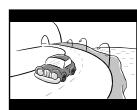
- 4:3 LB - If you have a conventional 'square' set and would like to see the DVD picture in its full format, use this setting. Wide bands will be displayed on the upper and lower portions of the TV screen.
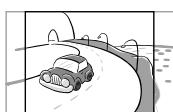
- 4:3 PS - If you have a conventional TV set and would like to see the DVD picture fill your TV screen then use this setting. A wide picture is displayed on the whole TV screen with a portion automatically out off.
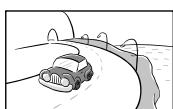
- 16:9 - If you have a widescreen TV set, use this setting (you must also set your widescreen TV to it's 16:9 mode.).
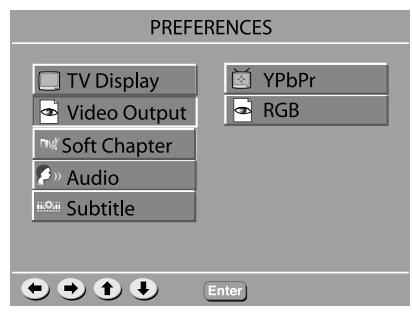
Video Output
Video output selection enables you to choose the type of video output suitable for your DVD system.
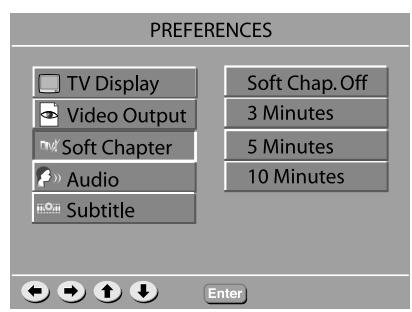
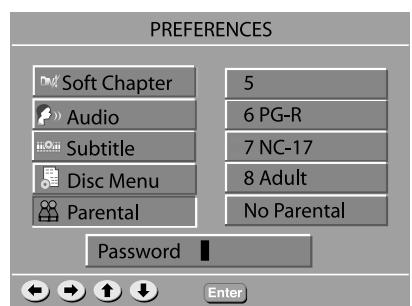
Soft Chapter
Sets how many minutes you want to Skip Forward/Back in a DivX file when pressing / .
Note:
Only works with DivX CDs.
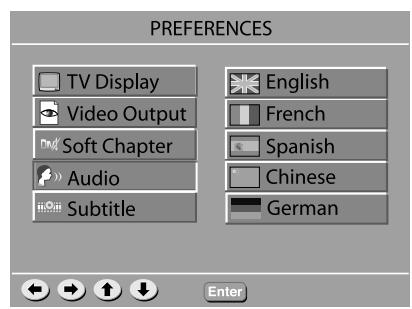
Audio
If available on the DVD, this function allows you to select the preferred audio language.
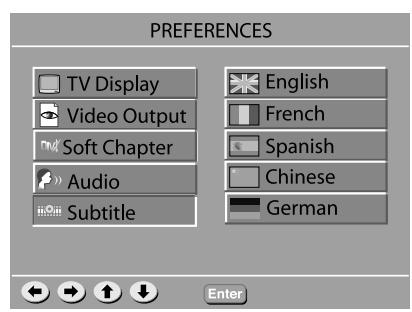
Subtitle
If available on the DVD, this function allows you to select the preferred subtitle language.
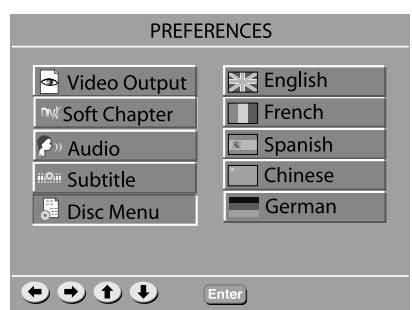
Disc Menu
If available on the DVD, this function allows you to select the desired Menu language.
Parental
This function allows you to restrict viewing of unsuitable DVDs, useful where younger viewers have access to the S VSR 25.
Note:
Before changing the parental control level, you must enter the preset password (4-digital code) to unlock this function. If the entered password is incorrect, you will not be able to change the level.
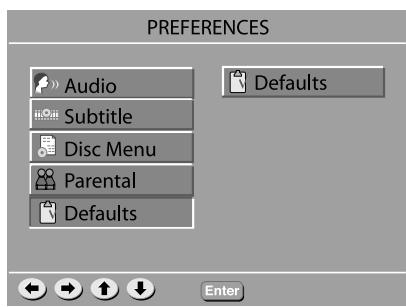
Defaults
If you select this function, all of the functions will be restored to their defaults.
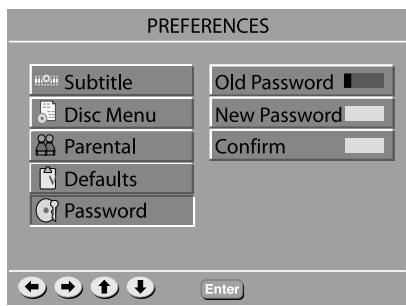
Password
The password is used to change the parental control level.
Setting a Password
Press the numeric buttons to enter old password (Default is 0000), and press the numeric buttons to create a new 4-digit password, and then the numeric buttons to confirm the new password.
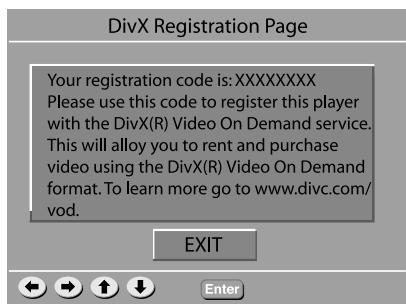
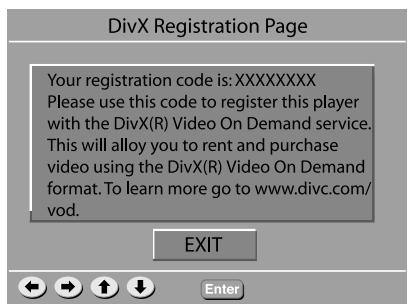
DivX Registration Page
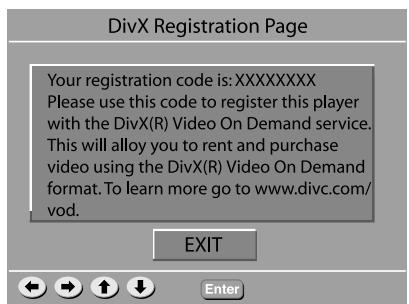
DivX Registration Page
This is a unique code which you can use to register your player. This will allow you to rent and purchase DivX Video On Demand files.
Remote layout
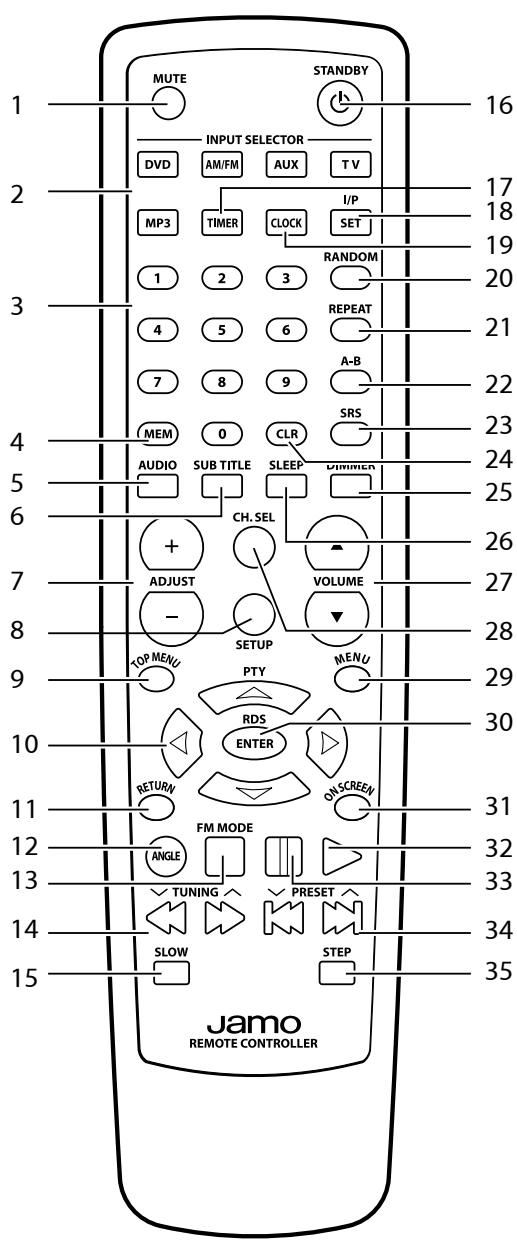
- Mute
- Input Selector
- Numerical keys
- Memory
- Audio
- Subtitle
- Channel, time, adjust buttons.
- Setup
- Top Menu
- Cursor Left, Right, Up, Down.
- Return
- Angle
- FM mode
- Forward/rewind
- Slow
- Standby
- Timer
- Interlace/Progressive, Timer set
- Clock
- Random
- Rep
- A-B playback
- Surround Mode
- Clear
- Display Dimmer
- Sleep
- Volume Up, Down
- Channel Select
- Menu/PBC
- Enter
- On Screen
- Play
- Pause
- Previous/Next Chapter/Track/Program
35.Step
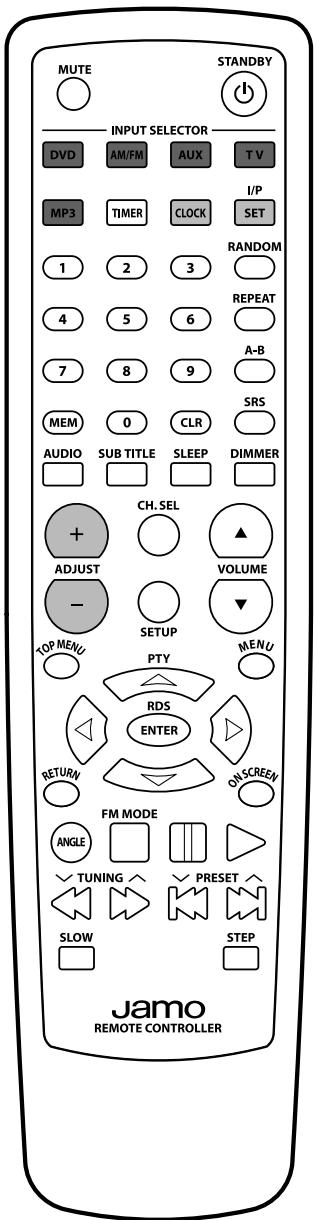
Input Selector Buttons
Press DVD button to start playing a disc.
Press AUX buttons to toggle between auxillery inputs.
Press AM/FM button will activate and toggle between the FM/AM radio tuner.
To set clock:
- Press and hold "CLOCK" for 3 seconds.
- Press "+" or "-" ADJUST buttons.
- Press "SET" to change between hours and minutes.
Frequently used Advanced Function buttons
Here's a brief description of the Advanced Function buttons. Please note that not all functions are available on all media.
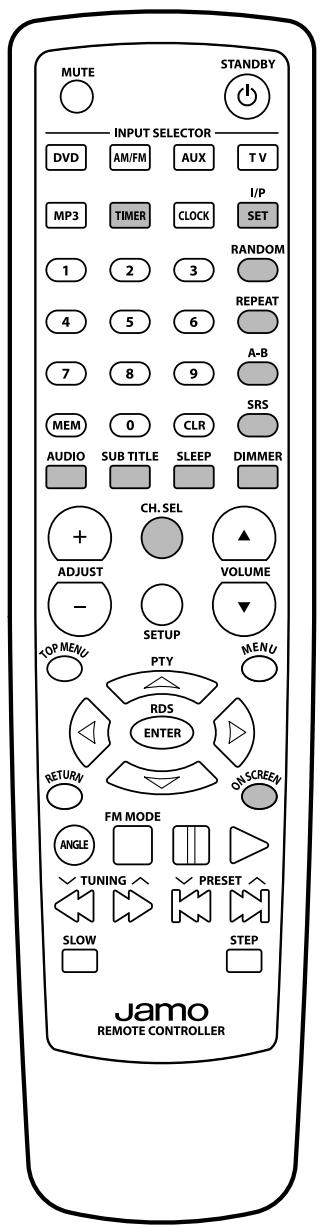
TIMER
Press button to access Timer functions. You adjust the timer settings by pressing "+" and "-" ADJUST buttons, switch between timer setting by pressing the "I/P SET" button.
I/P SET
Changes video output between Interlaced and Progressive scan. NOTE: Not all TV-screens can show Progressive scan.
RANDOM
When activated tracks are played in random order.
REPEAT
You can play the current title/disc or a chapter/track continuously by activating repeat.
A-B
Press the A-B button at the start of the segment to be repeated, press again at the end of the segment.
SRS
Press this button to toggle between stereo and Virtual Surround sound modes.
AUDIO
Use this function to choose between the available audio tracks on the film. Normally you can also choose Audio on the DVD menu.
SUBTITLE
Use this function to choose from the subtitles available on the DVD. Normally you can also choose the subtitle on the DVD menu.
SLEEP
Press to toggle between sleep modes.
DIMMER
Press to dim light in the display.
CH.SEL
Press to toggle between channel adjustment for Left and Right Speaker. Press "+" or "-" ADJUST buttons to adjust volume.
ON SCREEN
You can check information about the media you are watching, such as the total number of the titles or chapters or tracks or time, using the On Screen function.
The information will appear on the TV screen.
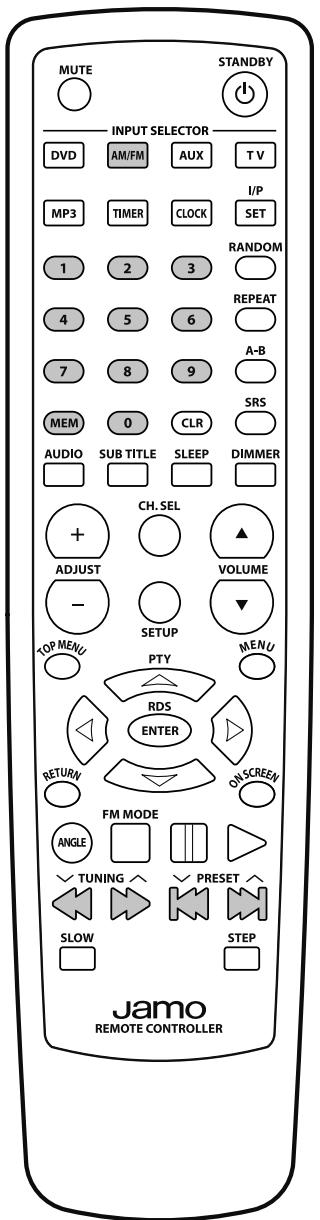
Find a radio station
Press the AM/FM button and make sure the SVSR 25 is in "Stereo" mode. Press the FM MODE/STOP button and look at the display to determine which mode the SVSR 25 is in.
To find a radio station, press and hold or until the frequency indicator starts to change, then release.
The system automatically tunes to the next strong radio station.
Store a radio station
To store a radio station, do the following:
After completing "Find a radio station", press "MEM" followed by a number between 01-40.
Switching between radio stations
After completing "Store a radio station", press or to move between the preset stations.
RDS station service
RDS (Radio Data System) is an additional information system provided by most FM stations.
If a RDS station is being received, you can see programme information on the S VSR 25 display by pressing the RDS / ENTER button on the remote.
Playing back files from Disc and USB
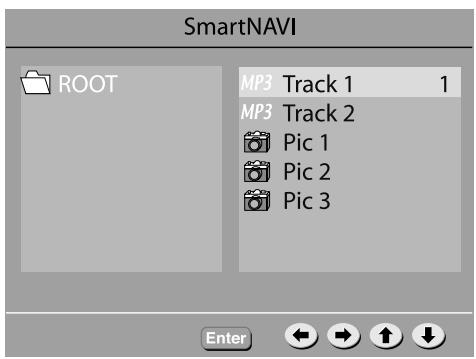
If you insert a Disc or USB device with mp3-, wma-, jpg-, DivX-, XviD-files, (DivX and XviD playback does not work from USB device) your S VSR 25 will switch to FilePlayback mode.
Navigating
When in FilePlayback mode, you will be able to browse through the files by using followed by ENTER to select file or enter/exit a library.
Note, you must STOP playback if you want to navigate the files.
Troubleshooting
If the S VSR 25 appears to be faulty, first consult this troubleshooting guide before calling for service.
Refer also to the corresponding instructions in this manual.
WARNING
Under no circumstances should you attempt to repair the system yourself.
| Symptom | Possible cause | Correction |
| No picture. | ·The TV can not show Progressive Scan ·The TV is switched OFF. ·The TV is not connected correctly. | ·Press "I/P SET" button on remote. ·Turn ON the TV. ·Connect the TV correctly. |
| Disc can't be played. | ·The disc is placed upside down. ·The disc is empty or the format is not supported by S VSR 25. ·The disc is dirty or defect. ·The disc is not placed within the disc tray guide. | ·Ensure the disc label is facing up. ·Remove the disc and try another. ·Clean the disc or dispose of it. ·Place the disk within the proper guide on the disc tray. |
| No sound. | ·The VOLUME is set to 0. ·Speaker cords are not connected correctly. | ·Turn up the VOLUME. ·Connect them correctly. |
| The unit does not respond to commands from the remote control. | ·No batteries are inserted in the remote control. ·The batteries are worn out. ·The remote controller is not pointed at the remote sensor of the S VSR 25. ·The remote controller is too far from the S VSR 25. | ·Insert new batteries. ·Replace with new batteries. ·Point the remote controller at the remote sensor of the unit ·Operate the remote controller within 5 m. |
| Power is not supplied even though the power cable is connected. | ·The power plug is not securely connected. ·The wall plug is not turned ON. | ·Connect the power plug securely. ·Turn ON the wall plug. |
| The unit does not respond to some operating commands during playback | ·Operations may not be permitted by the disc. | ·Read the instructions on the disc. |
| Forgotten or misplaced password. | ·Open disc tray ·Hold down "STOP" on the front panel while holding down "TOP MENU" on the remote. Be careful to point the remote at the Remote Control Sensor ·The TV screen now displays software version. ·Turn the S VSR 25 OFF on the front panel and turn it ON again after 10 seconds. ·The password should now be reset |
Service and Warranty
Environmental information
- The system is made of recyclable materials which can be re-used if disassembled by authorised personnel.
- Please follow local regulations for the disposal of packaging materials, used batteries and discarded units.
Copyright
This product contains copyright technology which is protected pursuant to patents that are the property of Macrovision Corporation and other copyright holders. Any use of this copyright technology must be approved by Macrovision Corporation. The technology is intended for use in the home unless otherwise approved by Macrovision Corporation. Breakdown and disassembly are prohibited.
Made under license from Dolby Laboratories. "Dolby" and the double "D" symbol are trademarks of Dolby Laboratories. "DTS" and "DTS Digital Out" are trademarks of Digital Theater Systems, Inc.
Service
In case of warranty enquiries, please contact your dealer. In case of request for service under warranty, please enclose your original receipt. Important: Never send the product to be repaired without prior agreement. If the DVD player is STILL UNDER WARRANTY, Jamo will pay freight costs back and forth between the dealer and the Jamo authorised service centre. Any other freight must be paid for by the customer. The product must always be packed properly, otherwise the product warranty will be discontinued. If the DVD player is NOT UNDER WARRANTY, all costs must be paid for by the customer.
Warranty certificate
Jamo provides a twenty-four (24) month warranty from the date of purchase against material and manufacturing defects. For defects covered by the warranty, the product must be returned to the dealer that sold the product. The expected time of repair, excluding transport, is approximately five working days.
If any problems arise, information from our authorised service centres is available at the following address, or from the dealer who sold the product.
Terms of Warranty
- The warranty is only valid on presentation of the original sales receipt, and if the serial number on the product is fully legible.
- The obligations of Jamo are limited either to repair or replacement of defective components. The repair or replacement of defective components is based on an assessment by Jamo.
Exchange is only possible if the repair cannot be performed. - Warranty repairs must be carried out by an authorised Jamo dealer, or an authorised service centre. No remuneration is provided for repairs performed by unauthorised workshops. Any repairs or damage to the product caused by unauthorised intervention are not covered by this warranty.
- This product will not be considered as being defective, either in materials or in manufacture, if adaptation to national, local, technical or safety-related requirements is required in countries other than the specific country for which the product was originally designed and manufactured.
- This warranty does not cover these types of adaptations, and no remuneration will be offered for these types of adaptations or for any consequential damages. The warranty does not cover the following:
a) Periodic inspection, maintenance and repair or replacement of parts resulting from normal wear.
b) Costs connected to transport, disassembly or installation of the product.
c) Mis-use, including use for purposes other than was intended, or faulty installation.
d) Damage caused by lightning, water, fire, natural catastrophes, war, insurrection, incorrect line voltage, insufficient ventilation, transport or other causes outside of the control of Jamo. - This warranty applies to every legal owner of the product during the warranty period.
Packaging
If possible, use the original packing material for any shipping. Otherwise, re-pack the S VSR 25 using:
- A reinforced cardboard box, strong enough to carry the weight of the product.
- At least 6cm / 2.36 inches of shock-absorbing material around the product.
- Non-abrasive dust-free material for the other parts.
- Non-abrasive wrapping for the product. (Dust and dirt cover)
- Re-pack the product in such a way as to ensure that it cannot shift in the box during transport.
Information we must receive before repairing the product:
Model name:
Serial no.:
Fault description:
Copy of the invoice or sales receipt
The dealer's name, address and phone no.
Personal information: Name, address, post code/city, phone no. and e-mail address (optional).
Your signature
Dealer's stamp and signature
Date
français
Sommaire
Introduction 19
Picture Mode (Mode Image)
DivX Registration Page
Staller in displaysprak for S VSR 25.
DivX Registration Page
Paraoculars:
Paraoculars are used to detect the presence of a pulse in the eye.
Paraoculars are used to detect the presence of a stimulus in the eye.
Paraoculars are used to detect the presence of a stimulus in the eye.
Paraoculars are used to detect the presence of a stimulus in the eye.