CALA BTA2 - Audio System T+A - Free user manual and instructions
Find the device manual for free CALA BTA2 T+A in PDF.


User questions about CALA BTA2 T+A
0 question about this device. Answer the ones you know or ask your own.
Ask a new question about this device
Download the instructions for your Audio System in PDF format for free! Find your manual CALA BTA2 - T+A and take your electronic device back in hand. On this page are published all the documents necessary for the use of your device. CALA BTA2 by T+A.
USER MANUAL CALA BTA2 T+A
Operating Instructions
Mode d'emploi
Berbel T+A App
Berbel T+A App
We are delighted that you have decided to purchase an absolutely top-class audio system in the form of the new Skyline Edge Sound system. Developed and produced by audio specialists T+A elektroakustik, the system was designed with the needs of the audiophile music lover as top priority.
The system is certain to satisfy the most demanding requirements over a period of many years thanks to its innovative design solutions, solid, carefully considered construction and high-quality materials.
Uncompromising quality control of all materials, painstaking production by highly qualified staff and a fully automatic computer-controlled final inspection are your guarantee of outstanding product quality and the consistent maintenance of all specifications.
In our device production processes we avoid the use of all materials which are environmentally hazardous or injurious to health, such as chlorine-based solvents and CFCs.
We are grateful for the faith you have shown in us, and we are sure that you will enjoy your new sound system, which will give you great listening pleasure.
berbel

For your own safety it is essential that you should read right through these operating instructions, and observe in particular the instructions regarding installation, operation and safety. These operating instructions are an integral part of the equipment. If you ever pass the system on to a new owner, please be sure to include them to prevent incorrect use and avoid hazards.

This product satisfies the requirements of the following EU directives: 2014/35/EU, 2014/30/EU, 2009/125/EU, 2011/65/EU + 2015/863 and 2012/19/EU.
All components employed are in accordance with the currently valid German and European safety norms and standards.
Contents
Controls 30
First steps 31
Basic functions 33
Switching the sound system on and off 33
Selecting sources 33
Selecting tracks / stations 33
Volume adjustment 33
Status indicator 34
Using the App to control the system 35
Using the App to control the system 33
Presets 37
Bluetooth playback 38
System settings (System Configuration menu) 40
Using the App 40
Settings 40
Tone settings (equalisation) 42
Using the App 42
Tone settings 42
Configuring a WLAN connection 44
Safety Notes 46
Software updates 47
Trouble-shooting 48
Specification 50
Symbols used in these instructions

Caution!
Text passages marked with this symbol contain important information which must be observed if the device is to operate properly and safely.

Text passages marked with this symbol contain additional notes and background information intended to help you understand the system's operation.
Controls

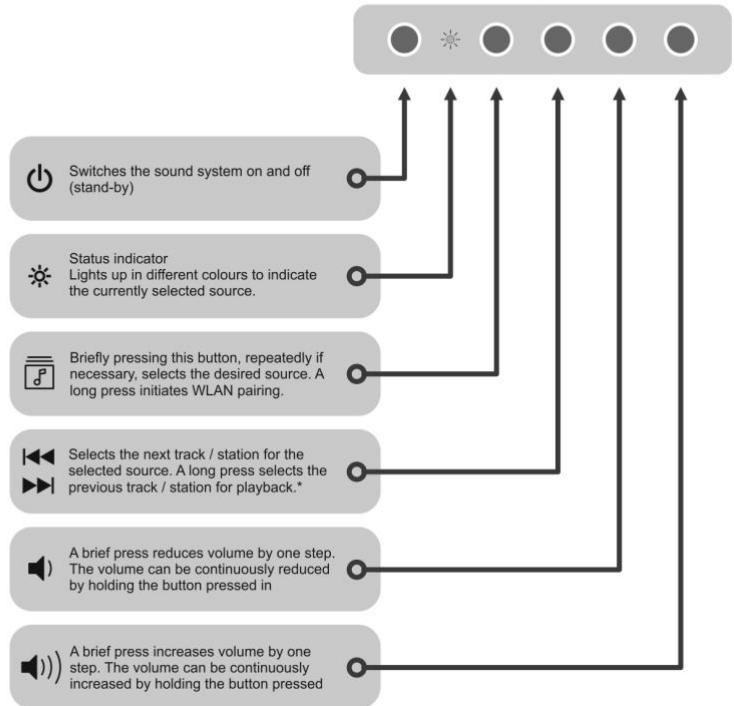
* Not available for all sources.
First steps
The following brief instructions describe the basic procedure you must carry out before you use the sound system for the first time to play music.
①
Main switch
Before you can use the sound system you must move the main switch to the "I" position.
When the main switch is operated to turn the sound system on, you will need to wait about 60 seconds before it is possible to switch the system on using the ⏻ button. During this period the Status indicator flashes red. Please wait until the indicator flashes red-white (default state: stand-by mode, no WLAN connection). If the indicator lights up solid red instead of flashing red-white, the sound system is already connected to a WLAN.
②
Switching on
A brief press on the ⏻ button switches the sound system on. Once running, the system takes a little while - around 40 seconds - to start fully and be ready for use. During this start-up phase the Status indicator flashes red. Once the sound system is operating, the Status indicator switches to the colour corresponding to the currently selected source (see table on page 34).
③
Setting up the WLAN
A WLAN network connection is required in order to operate and control the sound system. You will find details on this in the chapter entitled “Configuring the WLAN connection”.
Creating a WLAN connection using WPS
- The first step is to activate the WPS function of your router or WLAN Access Point. You will find details on this in the description of the device.
- Within two minutes of initial activation, press the 📋 button (see page 30) on the extractor hood; hold the button pressed in until the Status indicator flashes white. As soon as the WLAN connection is established, the Status indicator reverts to a constant display in the colour of the currently selected source. In most cases the connection is complete within a few seconds.
- Connect your smartphone or your tablet computer to the same WLAN to which the sound system is also connected.
• Install the App matching your operating system.
(QR codes for this can be found in the chapter entitled "App operation") - Start the app.
- The app automatically searches for the sound system.
- As soon as the sound system has been detected, you can select it to play music. (Details on this can be found in the chapter entitled “App operation”)
Creating a WLAN connection using Access Point
- Activate the sound system's Access Point function by simultaneously pressing the 📄 and |◀◀ ▶▶| buttons; hold the buttons pressed in until the Status indicator flashes pink.
- The sound system now sets up its own WLAN for the duration of the configuration process. The network name (SSID) is "berbel AP".
- The next step is to connect your smartphone or tablet to the WLAN named "berbel AP". The password for this WLAN is the same as the name (SSID) "berbel AP" (berbel(space)AP).
- Start the app for controlling the sound system, and set up the WLAN by completing the individual steps of the app's Setup Assistant.
- Close the app, then connect your smartphone or tablet to the same WLAN to which you have also connected the sound system.
- The app will automatically search for the sound system when you restart it.
- As soon as the sound system has been detected, you can select it to play music. (Details on this can be found in the chapter entitled “App operation”.)
Basic functions
The App provides a convenient means of controlling all the sound system's functions. However, the basic functions can also be controlled directly - without the App - using the buttons on the sound system. This can be useful, for example, if your smartphone's battery is flat.
Button on the sound system

Switching the sound system on and off
The device is switched on and off by briefly pressing the ⏻ button.
In stand-by mode the Status indicator lights up solid red (it flashes red-white if a WLAN connection is not present).
Selecting sources

Briefly pressing the source button 📋 on the extractor hood, repeatedly if necessary, selects the source to which you wish to listen. The Status indicator shows which source is currently selected by lighting up in various colours (see the table on the next page).
Switching to your preferred source enables you to listen to that source.
Some sources, including streaming services such as Tidal, Qobuz, etc., can only be selected and operated using the App. It is not possible to select these sources using the source button.
Selecting a track / station

A brief press on the ◀◀ ▶▶ button selects the next station / preset within the playback list. Holding the same button pressed in selects the previous station in the list.
This function is only available for the presets which are already stored in the sound system. The procedure for storing presets is described in the chapter entitled "Presets".
It is not possible to select Favourites stored locally on your smartphone or tablet PC.
Volume adjustment


These buttons are used to adjust the volume in fine increments. A brief press of the Volume buttons increases or reduces the volume by one step. Holding either Volume button pressed in alters the volume continuously.

Status indicator
By default the Status indicator shows the currently selected source; different colours are assigned to the individual sources in order to identify them.
The indicator also draws your attention to possible problems, and readiness for WLAN pairing and Bluetooth pairing.
The following Status displays are possible:
| Colour | Status |
| red | The sound system is switched off (Standby) and connected to a WLAN |
| flashing red-white | The sound system is switched off (Standby) and is not connected to a WLAN |
| flashing red(2 times per second) | The sound system is starting, and will shortly be ready for use |
| blue | The Bluetooth source is selected, and a device is connected |
| flashing blue-white | Bluetooth source: a device is connected via Bluetooth. The sound system is not connected to a WLAN |
| flashing blue | Bluetooth source: no device connected. The sound system can be connected |
| green | The UPnP/DLNA source (streaming client) is selected |
| flashing green-white | The UPnP/DLNA source (streaming client) is selected, but there is no connection to a WLAN |
| yellow | The Internetradio source is selected |
| flashing yellow-white | The Internetradio source is selected but there is no connection to a WLAN |
| turquoise | A streaming source such as Tidal has been selected using the app |
| flashing turquoise-white | A streaming source is selected, but there is no connection to a WLAN |
| flashing red(5 times per second) | The device's protective circuit has been tripped.(overheating or short-circuit detected) |
| flashing white | The device is in WLAN pairing mode (WPS function) |
| flashing pink | Access point started for setting up the WLAN. |

If the Status LED alternates white with the source colour, then no WLAN connection is present. In this state playback via one of these sources, and App control, is not possible. If this should occur, you need to complete the WLAN connection to the network.
For more information on this please refer to the chapter entitled "WLAN -configuring the WLAN connection".
Using the App to control the system
The App provides a means of controlling all the functions of the sound system. All information relating to the current device status and current music playback is displayed on the screen.
Installing the App
Two Apps are available for controlling the sound system using the Apple iOS and Android operating systems. Please download the appropriate version from the Appstore and install it on your tablet PC or smartphone. You will find the App under the name "Berbel T+A" in the Appstore. Alternatively you can scan in the QR code printed below.
App for Apple iOS

Berbel T+A App
App for the Android operating system

Berbel T+A App

The language of the app is determined by the system language set on the Tablet PC or smartphone.
This means that if German is set as the system language on the Tablet, the language of the app is automatically set to German.
Using the App to control the system
Connecting the sound system
Once the App has started, it automatically seeks compatible devices available on the network. As soon as the sound system is found, it is displayed on the screen, and can be selected by briefly pressing it.

The sound system can only be detected as part of the network if it is switched on using the main switch. The Status indicator must light up red.
If the Status indicator flashes red-white, the sound system has no connection to the WLAN. In this case it is not possible to switch the system on and control it using the App. For more information please refer to the chapter entitled "First steps".
Selecting a source
All the available sources are displayed on the screen as soon as the App is connected to the sound system.
Select your preferred source with a brief press.
Buttons

System and App settings

Search function

Play lists

Presets

Home screen (Source selection)
Presets
General information
The sound system offers the facility to store presets. For example, you might wish to store your favourite Internet radio stations in the preset list so that you can access them quickly.
App operation
Adding a preset
If you enjoy the station which is currently selected, briefly press the ■ button in the App's playback view to store that station in the preset list.
Calling up a preset using the app
Open the preset list by briefly pressing the ■ button, then select the appropriate preset from the list.
Calling up a preset directly on the sound system
A stored preset can be called up directly by briefly pressing the |◀◀ ▶▶| button on the sound system; the first preset in the list now plays. A further brief press switches to the next preset. Holding the button pressed in switches to the previous preset within the list.
Bluetooth playback
The sound system's integral Bluetooth interface makes it possible to transfer music by wireless means from devices such as smartphones, table PCs, iPods etc.
The mobile device must support the A2DP Bluetooth audio transfer protocol if you wish to transfer Bluetooth audio from a mobile device to the sound system.
Selecting the Bluetooth source
First press the 📋 button the extractor hood to select the Bluetooth source; alternatively you can use the App. The source is selected when the Status indicator flashes blue or lights up solid blue.
Setting up an audio transfer
If you wish to play music from a Bluetooth-enabled device through the sound system, the external device must first be bound (pairing process). This is the procedure for making a connection:
- The sound system is ready to connect when the Status indicator flashes blue.
- If the Status indicator lights up solid blue instead of flashing blue, then the device is already connected. If you wish to make a new connection with another device, the first step must always be to disconnect the existing one.
- When the Status indicator flashes blue, you can start the search for Bluetooth devices on your mobile device.
- Once the sound system is found, connect it to your mobile device.
The Status indicator switches from flashing blue to solid blue when the connection is successful.
If your device requests a PIN code, this should always be '0000'.
Due to the large number of different devices available it is only possible here to provide a general description for setting up the radio link. For detailed information on this aspect please refer to the operating instructions supplied with your device.
Volume adjustment
Volume should only be adjusted using the sound system, as this ensures best possible reproduction quality. Start by setting the playback volume as high as possible on your mobile device, but only to the point where the signal is reproduced without distortion.
Any further changes to volume should then be made using the sound system.
NOTES
The sound system has been tested with a large number of Bluetooth-enabled mobile devices, but it is not possible to guarantee general compatibility with all devices available on the market due to the wide range of devices and the different implementations of the Bluetooth standard, which can vary widely. If you encounter problems with Bluetooth transmission please contact the manufacturer of your mobile device.
The maximum range for Bluetooth audio transmission is normally around 2 ... 3 metres. However, the effective range may vary according to a range of factors. To obtain good range and smooth reception there should be no obstacles or persons located between the sound system and the mobile device.
Bluetooth audio transmission occurs in what is known as a “general-access frequency band” in which a huge number of different radio services are permitted to transmit, such as WLAN, garage door openers, baby monitors, weather stations etc. It is therefore impossible to exclude the possibility of radio interference caused by these other services, which can lead to brief drop-outs or, in rare cases, even to failure of the connection. If problems frequently occur in your own environment, we recommend that you try out different locations for the mobile device close to the sound system, and select the position which provides the best transmission quality.
The principle of Bluetooth transmission is based on data reduction, and for this reason the sound quality you can obtain depends on the mobile device you are using, and the format of the music being reproduced. In basic terms the maximum quality when playing music which is stored in a data-reduced format, such as MP3, AAC, WMA or OGG-Vorbis, is lower than with uncompressed formats such as WAV or FLAC.

System settings
(System Configuration menu)
The basic device settings can be adjusted in the System Configuration menu. This menu is described in detail in the following chapter.
Using the App
Calling up and using the menu
Make the connection to the sound system (see the chapter entitled "First steps"), and call up System Settings using the App's button. Now select the menu point you wish to alter, and adjust the settings accordingly. Every change in the settings takes immediate effect, and is stored.
Settings
Device name menu point
The purpose of this menu point is to enter an individual name for the sound system. The sound system then appears on the home network (WLAN) under this name.
Music services menu point
At this point you can enter the access data for the music streaming services which are supported by the sound system.
Bandwidth limit menu point
This menu point can be used to define the connection speed of your Internet connection; the bitrate of the Internet radio stations and streaming services is then automatically adjusted to suit the setting you have entered. If the bandwidth limit is set to “none”, the system automatically selects the highest available quality in every case.

If you do not know the exact bandwidth of your Internet connection, you should choose the setting at which no drop-outs occur during playback.
Device info menu point
Update sub-point
Update package sub- point
Control sub-point
Client sub-point
Default settings sub- point
This menu point contains information on the installed software status and factory reset.
At this point you can start a firmware update. Updates can only be loaded if the sound system is connected to the Internet.
This point displays the currently installed software package.
Display of the control software version.
Display of the Streaming Client software version.
Calling up and confirming this menu point erases all personal settings and restores the machine to its factory defaults.

Tone settings
(Equalisation)
The App provides a convenient means of configuring the tone settings. In the Tone Control menu you can fine-tune the output of the sound system to suit your personal taste and the characteristics of your listening room. This menu is described in detail in the following chapter.
Using the App
| Calling up and using the menu | Make the connection to the sound system (see the chapter entitled “First steps”) and call up Systems Settings using the App’s 🎨 button. Now select the “Tone settings” menu point, and make the changes you want. Every change you enter takes effect immediately, and is stored. |
Tone settings
| Menu point | Adjustment range / options | Explanation |
| Loudness | off / on | The sound system features aurally compensated volume control (LOUDNESS), which makes allowance for the frequency-dependent sensitivity of the ear at very low volume levels; this is due to the physiology of the human aural system.This option point can be used to switch loudness on or off. |
| Tone control | off / on | The purpose of this menu point is to disable (by-pass) the sound system's tone controls. Select the “OFF” setting to switch tone control off. If you select this setting, the values in the “BASS”, “MID-RANGE” and “TREBLE” menu points have no effect. |
| Treble | -12 ... 0 ... +12 | These two menu points can be used to adjust the treble setting. |
| Mid-range | -6 ... 0 ... +6 | These two menu points can be used to adjust the mid-range setting. |
| Bass | -12 ... 0 ... +12 | These two menu points can be used to adjust the bass setting. |
| Equalisation | absorptive 1 - 4normalreflective 1 - 6 | The values in this menu point can be adjusted to fine-tune the sound system to suit the acoustics of the listening room. For highly absorptive rooms we recommend one of the “absorptive” settings 1 - 4.The “reflective” settings 1 – 6 reduce any reverberation effects which may be present.In normally damped rooms we recommend keeping to the “normal” setting. |
| Ceiling height | 150 / 130 / 110 / 90 /70 / 50 / 30 / 20 | For optimum sound quality this menu point enables you to define the distance between the top edge of the extractor hood and the room ceiling in centimetres. |
| Contour presence | -5 / -4 / ... / 0 / ... / +3 | This menu point is used to adjust the contour filter for the presence range.This option enables you to improve speech comprehensibility in spoken word programmes, documentaries and sport transmissions. |
| Contour fundamental tone | -3 / -2 / -1 / 0 /+1/ +2 | This menu point can be used to adjust the Contour filter for the fundamental tone.If you prefer a relatively warm sound image, you may wish to amplify the fundamental tone (+1 ... +2). For a cooler sound image, or if booming effects occur, you should reduce the fundamental tone (-1 ... -3). |
Configuring a WLAN connection
If you wish to use the sound system within a wireless network you must first set up the WLAN connection to the home network. The procedure for setting up the WLAN connection is described in the following chapter. If you are setting up the sound system to operate for the first time, please follow the procedure described in the chapter entitled “First steps”.

In the following section we assume that a working home network (WLAN network) with router and (DSL) Internet access exists.
If you have queries regarding the installation, set-up and basic configuration of your network, please contact your network administrator or a network specialist.
It is important that the field strength of the WLAN signal is adequate in the vicinity of the Skyline Edge Sound, as the sound system cannot operate reliably if the signal is weak. If the WLAN signal strength is too low, we recommend the installation of a WLAN repeater close to the Skyline Edge Sound. If you are fitting a repeater, you must ensure that both the sound system and your tablet / smartphone are connected to the same WLAN (repeater).
Setting up using WPS (Wi-Fi protected setup)
WPS connection
The sound system supports WPS for setting up the WLAN connection. WPS (Wi-Fi Protected Setup) is a procedure designed to establish reliable WLAN connections. WPS enables you to connect the sound system quickly and easily to your router.
Most modern routers also feature a WPS function for this purpose.
Creating a WLAN connection
- If necessary, switch the sound system on.
- The first step is to activate the WPS function of the WLAN router or repeater to which the connection is to be made. Details on this can be found in the description of the device.
- Within two minutes of initial activation, press the button (see page 6) on the extractor hood; hold the button pressed in until the Status indicator flashes white. As soon as the WLAN connection has been established, the Status indicator reverts to a constant display in the colour of the currently selected source. In most cases the connection is complete within a few seconds.
The WLAN connection is stored until the WPS function is activated again.
The sound system's WPS function can always be started, regardless of the source selected. The WPS function is active as soon as the Status indicator flashes white.
If a network is not yet present, the WLAN connection can also be set up at a later time. In this case the sound system can only be controlled using the buttons mounted directly on the extractor hood.
With a WLAN connection audio playback is only possible via Bluetooth.
Access Point set-up
Access point
The sound system supports the setting up of a WLAN connection using Access Point. This means that the sound system establishes its own WLAN for the duration of the process in which the WLAN settings are configured. This WLAN is disabled again as soon as the configuration is complete. The sound system starts with the new configuration, and establishes a connection to the WLAN which has now been set up.
Creating a WLAN connection
- Switch the sound system on if necessary.
- The first step is to activate the sound system's access point.
This is accomplished by holding the 📋 and ◀◀◀ ▶▶▶I buttons pressed in simultaneously until the Status indicator flashes pink. - The sound system now starts the WLAN access point.
- The following steps must be completed within a period of about five minutes. After this time the sound system automatically leaves access point mode.
- Locate the smartphone or tablet PC on which the Berbel app is installed, and connect it to the WLAN access point. The network name (SSID) and also the password are "berbel AP".
- Start the app for controlling the sound system, and set up the WLAN by completing the individual steps of the app's Setup Assistant.
- Close the app, and connect the smartphone or tablet to the same WLAN to which you have connected the sound system.
- The app will automatically search for the sound system when you restart it.
- As soon as the sound system has been detected, you can select it to play music. (Details on this can be found in the chapter entitled “App operation”.)
The WLAN connection is stored until the WPS function is restarted, or a new configuration is stored using the access point.
Access point mode can be stopped by holding the 📄 and ◀◀◀ ▶▶◀! buttons pressed in again. Access point mode automatically closes after five minutes.
Safety Notes
General
The device is intended exclusively for use inside the Berbel Skyline Edge Sound extractor hood. It may only be operated as part of the Skyline Edge Sound extractor hood.
If the device is subjected to very cold conditions (e.g. in transit), it should not be used until it has warmed up to room temperature, to ensure that every trace of condensation has evaporated.
For your own safety please read right through these operating instructions, and observe the operating and safety notes with particular care.
Device openings

Caution!
The device is designed to be operated in dry indoor conditions. It must be protected from the ingress of water, e.g. drips and splashes, and condensation due to water vapour.
Ensure that the heat generated by the device can be dissipated. It is not permissible to place any object with heat-insulating properties - e.g. blankets, or other devices with a flat base or feet - directly on the case.
Never allow any fluids or foreign bodies to penetrate through the device openings and inside the device. Mains voltage is present inside the device, and there is a danger of lethal electric shock.
Protect the device from water drips and splashes, and never place flower vases or other vessels containing liquid on the device. Do not place exposed flames, such as candles, on the device.
Duty of supervision
Like all electrical apparatus, this device should never be operated unsupervised. Please ensure that it is out of the reach of children.
Operation
The device is intended for use in moderate climates and at altitudes up to 2000 m above mean sea level.
Permissible operating temperature range +10 ... +35°C.
The device may only be set up in a dry, well ventilated location. Avoid direct sunshine, and keep away from heaters.


Repairs and damage
The device must not be opened by anyone except a qualified technician. Repairs and fuse replacements must be entrusted to an authorised specialist T+A workshop. It is not permissible for the user to carry out work of any kind on the device with the exception of those procedures described in these operating instructions. If the device suffers damage, or if there is a suspicion that it is not operating properly, turn it off immediately at the main switch, and take it to an authorised specialist T+A workshop for checking.
Store the device in its original packaging in a dry, frost-free location. Storage temperature range 0 ... 40°C.
Storage
If you wish to dispose of this product at any time it must be taken to your local collection point for electrical waste.
Disposal of the device

Software updates
General
Updating the sound system's firmware is simple and convenient using an existing Internet connection.
The following section describes in detail the exact procedure for carrying out a firmware update.
Update procedure
- To initiate the update procedure open the System Configuration menu in the App, and call up the "Info Menu" (see the chapter entitled "System Settings").
- Select the "Update" sub-menu, and initiate the update process.
- As soon as the update process starts, the flow of information to the App ceases, since the sound system is re-booted.
- The progress of the update process is evident from the Status indicator on the extractor hood. During the programming the Status indicator flashes alternately red and yellow. The programming occurs in several steps. After every step the Status indicator briefly flashes alternately green and yellow. When the programming is successfully completed, the indicator flashes green. The sound system then re-boots itself (indicator flashes red).
i
If for any reason the programming should fail, the Status indicator will flash red at a high rate. In this case you will need to restart the update process by pressing the ⏻ button on the device.
Starting the update manually
There is another method of initiating the update as an alternative to that described above: the process can be started directly using the controls on the extractor hood itself.
If a problem should arise during the update procedure, it may be that the update has to be started manually, i.e. without a connection to the App.
- If this should happen, turn off the sound system using the main switch.
- Hold the ⏻ button pressed in, and turn the sound system on again using the main switch while the button is held pressed in.
- Continue to press the button until the Status indicator flashes alternately red and yellow.
- The update process now continues as described above.
i
The update process may take up to ten minutes, depending on whether all or only some of the sound system's modules are updated.
Trouble-shooting
Many operational problems have a simple cause which is equally simple to correct. The following section lists a number of possible malfunctions together with the measures required to cure them. If a problem occurs, but you are unable to eliminate it using these notes, then please disconnect the system from the mains without delay, and contact a specialist T+A workshop.
| The sound system does not switch on | Cause 1:Mains switch on the extractor hood not switched on.Remedy:Turn the mains switch on. |
| Cause 2:A fault is present, causing the device to enter Protection mode.The Status indicator on the extractor hood flashes red.Remedy:Switch the sound system off at the main switch, and contact the Customer Service department. | |
| The sound system does not respond to operation | Remedy:Switch off the sound system at the main switch and switch it on again after approx. 1 minute. Wait until the sound system is started again. |
| The sound system is not detected by the App | Cause 1:The sound system is not connected to the local network.Remedy:Make the WLAN connection. See the chapter entitled “WLAN -configuring the connection”. |
| Cause 2:The device running the App which is to control the sound system is not connected to the local network.Remedy:Connect the device on which the App is installed to the local network to which the sound system is also connected. | |
| Cause 3:The field strength of the WLAN signal is too weak for a stable connection. For example, this may be due to obstacles such as walls, or too great a distance to the WLAN router.Remedy:You may need to install a WLAN repeater close to the Skyline Edge Sound, and connect the App and the sound system to the repeater's WLAN.Cause :The quality of the WLAN connection is poor, since the field strength of the WLAN signal is low.Remedy:You may need to install a WLAN repeater, and connect the App and the sound system to the repeater's WLAN. | |
| The sound system responds slowly, or not at all, to the App's commands | |
| The sound image is dull, diffuse, thin or otherwise unsatisfactory | Cause :The equalisation setting is not correct.Remedy:Alter the setting to suit the characteristics of your listening room.See the chapter entitled “System settings”. |
| Playback using the Bluetooth connection does not work | Cause 1:The sound system and the device you wish to use for playback are not connected to each other. The Status indicator on the extractor hood flashes blue.Remedy:Create the Bluetooth connection using the device you wish to use for playback. As soon as the sound system is connected, the Status indicator will light up solid blue. |
| Cause 2:Another device is already connected to the sound system. The Status indicator on the extractor hood lights up solid blue.Remedy:Disconnect the device already connected. The new device can be connected as soon as the Status indicator flashes blue. | |
| Cause 3:The distance between the Skyline Edge Sound and the Bluetooth device is too great.Remedy:Reduce the distance until the sound system is detected. | |
| It is not possible to establish a Bluetooth connection, although the connection has already been established. | Cause:The playback device has been connected before, but the saved connection is no longer working.Remedy:Delete the sound system from the list of known devices (Apple: "Ignore this device"). Then look for the sound system again and connect again. |
| The firmware update process was not successful | Remedy:Restart the update process manually, using the buttons on the extractor hood.For details see the chapter entitled “Software updates”. |
Specification
| Bluetooth | ||
| A2DP Bluetooth audio transfer protocol with AVRCP | ||
| Streaming Client | ||
| Formats | MP3, AAC, FLAC, OGG-Vorbis, FLAC, WAV, AIFF, ALACPCM 32 ... 192 kHz, 16/24 Bit; MP3 bis 320 kBit | |
| Supported Media servers | UPnP 1.1, UPnP-AV and DLNA compatible servers, Microsoft Windows Media Connect Server (WMDRM10), DLNA compatible servers | |
| Features | Airable Internet Radio Service; Tidal, Deezer, qobuz. (subscription required) | |
| Amplifier Section | ||
| RMS power output per channel | 55 Watt (4Ω) | |
| Number of channels | 3 | |
| T.H.D. | <0.02 % | |
| Sound Management | DSP controlled room correction | |
| Power requirement | 115 – 230 V,50 – 60 Hzmax. 120 W | |
| Power consumption, networked stand-by | <3 W | |
| Power consumption, mains switch off | 0 W | |
| Weight | 4 kg | |
We reserve the right to alter specifications.
Bienvenue.
Appli Berbel T+A
Appli Berbel T+A
Berbel T+A App
App per Android

Berbel T+A App

Mo to Th 8:00 – 17:30 and Fr 8:00 – 16:30
Fax: +49 (0) 5971 / 80 80 9 - 10
Internet: www.berbel.de
Customer Service contact
Telephone: +49 (0) 5971 / 80 80 9 - 660
Mo to Th 8:00 – 17:30 and Fr 8:00 – 16:30
Fax: +49 (0) 5971 / 80 80 9 - 10
E-Mail: service@berbel.de
Contact



- BERBEL
- CONTENTS
- CONTROLS
- FIRST STEPS
- BASIC FUNCTIONS
- USING THE APP TO CONTROL THE SYSTEM
- PRESETS
- BLUETOOTH PLAYBACK
- SYSTEM SETTINGS (SYSTEM CONFIGURATION MENU)
- TONE SETTINGS (EQUALISATION)
- CONFIGURING A WLAN CONNECTION
- SAFETY NOTES
- SYMBOLS USED IN THESE INSTRUCTIONS
- CAUTION
- CREATING A WLAN CONNECTION USING WPS
- CREATING A WLAN CONNECTION USING ACCESS POINT
- BUTTON ON THE SOUND SYSTEM
- SWITCHING THE SOUND SYSTEM ON AND OFF
- SELECTING SOURCES
- SELECTING A TRACK / STATION
- VOLUME ADJUSTMENT
- STATUS INDICATOR
- CONNECTING THE SOUND SYSTEM
- SELECTING A SOURCE
- BUTTONS
- GENERAL INFORMATION
- APP OPERATION
- ADDING A PRESET
- CALLING UP A PRESET USING THE APP
- CALLING UP A PRESET DIRECTLY ON THE SOUND SYSTEM
- SELECTING THE BLUETOOTH SOURCE
- SETTING UP AN AUDIO TRANSFER
- NOTES
- SYSTEM SETTINGS
- USING THE APP
- SETTINGS
- TONE SETTINGS
- SETTING UP USING WPS (WI-FI PROTECTED SETUP)
- WPS CONNECTION
- CREATING A WLAN CONNECTION
- ACCESS POINT SET-UP
- ACCESS POINT
- GENERAL
- DEVICE OPENINGS
- DUTY OF SUPERVISION
- OPERATION
- REPAIRS AND DAMAGE
- STORAGE
- DISPOSAL OF THE DEVICE
- SOFTWARE UPDATES
- UPDATE PROCEDURE
- I
- STARTING THE UPDATE MANUALLY
- TROUBLE-SHOOTING
- SPECIFICATION
- BIENVENUE
- CUSTOMER SERVICE CONTACT
- CONTACT
Brand : T+A
Model : CALA BTA2
Category : Audio System