USER MANUAL CR500 FOSTEX
"TO REDUCE THE RISK OF FIRE OR ELECTRIC SHOCK, DO NOT EXPOSE THIS APPLIANCE TO RAIN OR MOISTURE."
SAFETY INSTRUCTIONS
- Read Instructions - All the safety and operating instructions should be read before the appliance is operated.
- Retain Instructions - The safety and operating instructions should be retained for future reference.
- HeedWarnings - All warnings on the appliance and in the operating instructions should be adhered to.
- Follow Instructions - All operating and use instructions should be followed.
- Water and Moisture - The appliance should not be used near water - for example, near a bathtub, washbowl, kitchen sink, laundry tub, in a wet basement, or near a swimming pool, and the like.
- Carts and Stands - The appliance should be used only with a cart or stand that is recommended by the manufacturer.
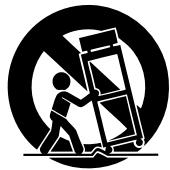
An appliance and cart combination should be moved with care. Quick stops, excessive force, and uneven surfaces may cause the appliance and cart combination to overturn.
- Wall or Ceiling Mounting - The appliance should be mounted to a wall or ceiling only as recommended by the manufacturer.
- Ventilation - The appliance should be situated so that its location or position dose not interfere with its proper ventilation. For example, the appliance should not be situated on a bed, sofa, rug, or similar surface that may block the ventilation openings; or, placed in a built-in installation, such as a bookcase or cabinet that may impede the flow of air through the ventilation openings.
- Heat - The appliance should be situated away from heat sources such as radiators, heat registers, stoves, or other appliances (including amplifiers) that produce heat.
- Power Sources - The appliance should be connected to a power supply only of the type described in the operating instructions or as marked on the appliance.
- Grounding or Polarization - The precautions that should be taken so that the grounding or polarization means of an appliance is not defeated.
CAUTION:
TO PREVENT ELECTRIC SHOCK, MATCH WIDE BLADE OF PLUG TO WIDE SLOT, FULLY INSERT.
ATTENTION:
POUR ÉVITER LES CHOCS ELECTRIQUES, INTRODUIRE LA LAME LA PLUS LARGE DE LA FICHE DANS LA BORNE CORRESPONDANTE DE LA PRISE ET POUSSER JUSQU'AU FOND.
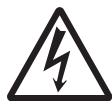
The lightning flash with arrowhead symbol, within an equilateral triangle, is intended to alert the user to the presence of uninsulated "dangerous voltage" within the product's enclosure that may be of sufficient magnitude to constitute a risk of electric shock to persons.

The exclamation point within an equilateral triangle is intended to alert the user to the presence of important operating and maintenance (servicing) instructions in the literature accompanying the appliance.
- Power Cord Protection - Power supply cords should be routed so that they are not likely to be walked on or pinched by items placed upon or against them, paying particular attention to cords at plugs, convenience receptacles, and the point where they exit from the appliance.
- Cleaning - The appliance should be cleaned only as recommended by the manufacturer.
- Nonuse Periods - The power cord of the appliance should be unplugged from the outlet when left unused for a long period of time.
- Object and Liquid Entry - Care should be taken so that objects do not fall and liquids are not spilled into the enclosure through openings.
- Damage Requiring Service - The appliance should be serviced by qualified service personnel when:
A. The power supply cord or the plug has been damaged; or
B. Objects have fallen, or liquid has been spilled into the appliance; or
C. The appliance has been exposed to rain; or
D. The appliance does not appear to operate normally or exhibits a marked change in performance; or
E. The appliance has been dropped, or the enclosure damaged.
- Servicing - The user should not attempt to service the appliance beyond that described in the operating instructions. All other servicing should be referred to qualified service personnel.
- The appliance should be situated away from drops of water or spray of water.
- Objects containing liquid such as vase must not be put on the appliance.
- The appliance is not completely isolated from the power supply even if the power switch is at off position.
- Apparatus shall not be exposed to dripping or splashing and no objects filled with liquids, such as vases, shall be placed on the apparatus.
- Only use attachments/accessories specified by the manufacturer.
- An appliance with a protective earth terminal should be connected to a mains outlet with a protective earth connection.
- An appliance should be placed in a position where an AC plug / inlet can be easily pulled out by hand.
- Main plug is used as the disconnection device. It shall remain readily operable and should not be obstructed during intended use. To be completely disconnected the apparatus from supply mains, the mains plug of the apparatus shall be disconnected from the mains socket outlet completely.
Important Safety Instructions
1) Read these instructions.
2) Keep these instructions.
3) Heed all warnings.
4) Follow all instructions.
5) Do not use this apparatus near water.
6) Clean only with dry cloth.
7) Do not block any ventilation openings. Install in accordance with the manufacturer's instructions.
8) Do not install near any heat sources such as radiators, heat registers, stoves, or other apparatus (including amplifiers) that produce heat.
9) Do not defeat the safety purpose of the polarized or grounding-type plug. A polarized plug has two blades with one wider than the other. A grounding type plug has two blades and a third grounding prong. The wide blade or the third prong are provided for your safety. If the provided plug does not fit into your outlet, consult an electrician for replacement of the obsolete outlet.
10) Protect the power cord from being walked on or pinched particularly at plugs, convenience receptacles, and the point where they exit from the apparatus.
11) Only use attachments/accessories specified by the manufacturer.
12) Use only with the cart, stand, tripod, bracket, or table specified by the manufacturer, or sold with the apparatus. When a cart is used, use caution when moving the cart/apparatus combination to avoid injury from tip-over.
13) Unplug this apparatus during lightning storms or when unused for long periods of time.
14) Refer all servicing to qualified service personnel. Servicing is required when the apparatus has been damaged in any way, such as power-supply cord or plug is damaged, liquid has been spilled or objects have fallen into the apparatus, the apparatus has been exposed to rain or moisture, does not operate normally, or has been dropped.
Table of contents
About this manual 7
Precautions 7
Precautions on installation 8
Chapter-1 Overview 9
Main features 10
Chapter-2 Preparation before using the CR500 13
Power connection 14
Realtime clock setting 14
Initial format of a CD-R/RW disc 16
Usable discs 16
Format types 16
Handling of CD-R/RW disc 16
Setting a disc 17
Initial format of a disc 18
Adjusting display contrast 22
Chapter-3 Names and functions 23
Front panel section 24
Rear panel section 29
Screen details 30
Home screen (available in stop or playback mode) 30
Input monitor screen (available while in record ready or recording) .........32
MENUMode screen 34
Chapter-4 Connection 35
Connecting to other devices 36
Analog audio connection (balanced/unbalanced) 36
Digital audio connection (AES/EBU, S/P DIF) 36
Fader start connection 37
USB keyboard connection 37
Chapter-5 Recording 39
Before starting recording 40
Closing and finalizing 40
Preparation for recording 41
Connecting a sound source 41
Selecting the input 42
Adjusting recording levels 42
Recording aWAV file 44
Starting recording 44
Stopping recording 44
Checking the recorded audio file 45
Playing back a recorded audio file 45
Closing a disc 46
Recording a CD-DA track (Creating an audio CD) 47
Starting recording 47
Stopping recording 47
Checking the recorded audio track 48
Playing back a recorded audio track 48
Finalizing a disc 49
Selecting a song to be played back 50
: Using the [SKIP/CURSOR|▶▶] keys .....50
: Using the [MEMORY/ ] key group .50
: Using the "FILE SEL" screen .51
Chapter-6 Playback/Locate 53
About play mode 54
Playback in the ALL PLAY mode 55
Playback in the SINGLE PLAY mode 55
Cueing/digital scrub 56
Cueing 56
Digital scrub 56
Playback in the PROGRAM PLAY mode 57
Creating the play list 58
Deleting a song from the play list 60
Deleting all songs in the play list 60
Playback in the MEMORY PLAY mode 61
Assigning audio data to a memory 62
Replacing the audio file in a memory bank 63
Editing a memory name 64
Editing the start time/end time by entering time data 64
Editing the start time/end time using the digital scrub function 65
Deleting memory play data 66
Locate/skip functions 68
Locating an audio file (or audio track) 68
Skipping between audio file (or audio track) 69
Locating the specific ABS time 69
Locating a point by entering a time 70
Basic procedure for using the SYS SETUP menu 74
Default file name setting [Default File Name] 75
Input selections [Select Input] 76
Digital output signal format selection [Digital Out] 77
Peak hold time setting [Peak Hold] 77
Reference level setting [Ref. Level] 78
USB keyboard type setting [Keyboard Sel] 78
Saving SYS SETUP data [Sys User Save] 79
Loading SYS SETUP data [Sys User Load] 79
Initializing system memory data [Sys Default Set] .80
Initializing flash memory [Sys Initial Memory] 80
ROM version checking [Version] 81
Basic procedure for using the PLAY SETUP menu 82
Play mode selection [Play Mode] 83
Repeat mode on/off [Repeat] 83
Auto play mode on/off [Auto Play] 84
Auto play on/off when powered on [Power On Play] 84
Formattimg a disc [Format] 86
Rewriting the file system [Rewrite File Sys] 88
Editing a file name [Edit File Name] 89
Deleting an unnecessary audio file [Delete File] 90
Restoring a deleted audio file [Restore Del. File] 91
Finalizing a disc [Finalize] 92
Chapter-8 Specifications 93
About this manual
This manual intends to be used as a guide for using the Fostex CR500 CD-R/RW master recorder.
This manual is written assuming that you have experience of using professional digital recorders and basic knowledge of digital recording.
By reading "Chapter 1: Overview" and "Chapter 3: Names and functions", you may roughly understand the outline of the CR500 and how to use the CR500.
Chapter 3 can be used as the index because we not only briefly describe functions of each control but also show the page where details are described.
"Chapter 2: Preparation before using the CR500" describes information for using the CR500 for the first time, such as realtime clock setting and initial formatting of the CD-R/RW disc.
Precautions
- For supplying the power to the unit, only use the Fostex power cable. If you use any other power cable, the unit may not work correctly and there is a serious risk of damage to the unit.
- Only use a power cable supplied by Fostex.
If you wish to use the unit in a country where the voltage of the AC power outlet does not match your power cable, ask your local Fostex dealer or service station for purchasing an appropriate power cable. Note that the unit can be used both in 50Hz and 60Hz areas.
- Make sure that the voltage of your AC power outlet matches the voltage requirements of the unit.
- When disconnecting the power cable, make sure that the unit [POWER] switch is set to "OFF".
Disconnecting the power cable while the power is "ON" may damage memory data because the unit always communicates with memory data.
- While the unit is accessing to a disc (for example, during recording), never turn off the power. Make sure that the unit completely stops accessing to the disc before you turn off the power. Otherwise, recorded data may be lost, as well as the disc may be damaged.
: Note that Fostex assumes no responsibility on data loss or whatsoever due to use of the unit.
: Fostex is not responsible for any "direct damage" or "indirect damage" caused by using the unit.
-
Do not let water or other liquid, or metal objects such as pins, accidentally enter the inside of the unit (especially inside of the disc tray) because this may lead to electric shock or damage. Should water enter the inside of the unit, turn off the power, unplug the power cable, and consult your dealer or the nearest FOSTEX service station.
-
Do not drop the unit or give it a strong shock. The internal circuits, display, panels may be damaged. Handle the unit with great care because it is a precision machine.
-
To prevent possible electric shock and damage to the unit, do not remove the cover or reach the inside of the unit.
-
Do not give a strong shock to the LCD display. The liquid used inside the LCD display is toxic. If the liquid is spilled, do not suck it in. If it is stained to your hand or skin, wash immediately with plenty of water.
The CR500 uses a lithium battery internally. To replace the battery, ask your dealer or the nearest FOSTEX service station. If the battery is not correctly replaced, there may be a risk of explosion, etc.
Precautions on installation
Do not install the unit in the following conditions.
- In a extremely hot or cold place
- In a moist place
- In a shaky or unstable place
- In a dusty place
- In a strong magnetic field or near a device which generates a magnetic field
- In the direct sunshine
- In the direct rain or water
Notes on moisture condensation
When you bring the unit from a cold place to a warm place, moisture may condense on the drive, display, panels, etc. In such a case, leave the unit for a while until it warms up and evaporates any moisture.
Chapter-1: Overview
This chapter describes the main features of the CR500.
Main features
The CR500 is a two-track digital master recorder which uses a CD-R or CD-RW disc as a recording medium.
The CR500 supports both the BWF-P (interleave) and CD-DA formats for file formats of CD-R/RW discs. It also supports the UDF rev.1.02 (Universal Disk Format), CD-DA (Compact Disc Digital Audio) and ISO9660 file systems, enabling high quality recording and playback (playback only with a ISO9660 disc).
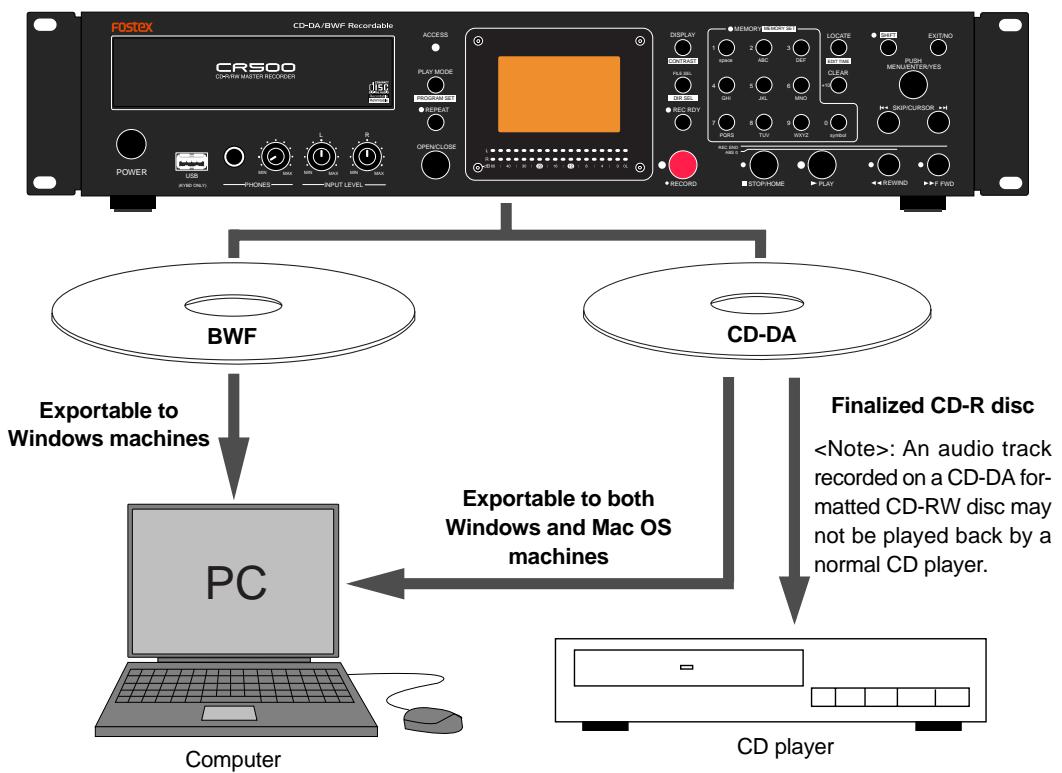
By finalizing a CD-R/RW disc recorded by the CR500, you can export files on the disc to a PC. You can also play back a finalized CD-DA disc by an audio CD player. The CR500 offers versatile playback functions including auto play and program play. By using these functions, you can also use the CR500 as a long continuous playback machine.
The CR500 supports both the BWF (Broadcast Wave Format) and CD-DA (Compact Disc Digital Audio) formats as recording formats of CD-R/RW discs. You can record WAV audio files to a BWF formatted disc, and record audio tracks to a CD-DA formatted disc.
By closing a BWF disc, you can export a file to a Windows PC and divide the file into two mono-track files using the WAV Manager, a freeware application by Fostex (for details about the WAV Manager, ask your Fostex distributor or dealer). By finalizing a CD-DA disc, you can export tracks to a Windows or Mac OS computer, as well as can play it back by a CD player.
: In this manual, each audio data file recorded on a BWF formatted disc is called an "audio file", while each audio data file recorded on a CD-DA formatted disc is called an "audio track".
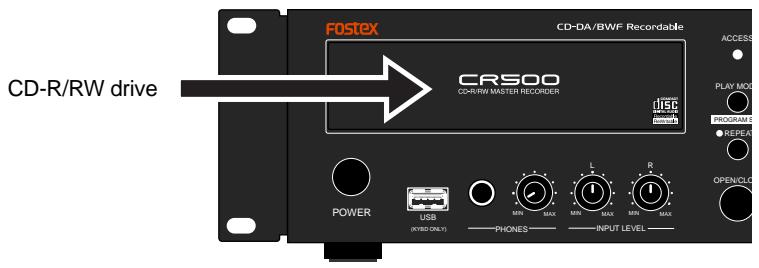
The CR500 is equipped with a high-performance CD-R/RW drive. The anti-buffer-underrun function enables reliable stereo recording/playback.
- Various playback modes
The CR500 supports various playback modes described below.
(1) ALL PLAY mode
Plays back all disc tracks continuously.
(2) SINGLE PLAY mode
Plays back a single track.
(3) PROGRAM PLAY mode
Plays back tracks of the playback list you program.
(4) MEMORY PLAY mode
Plays back the memorized track by the instant start function.
- Supporting a wide range of Fs/Bit combinations for recording
When formatting a CD-R/RW disc to the BWF format, you can choose a desired recording Fs/Bit combination from among the following.
A file is then recorded by the selected Fs/Bit combination to the disc. (Note that a CD-DA formatted disc can only record 44.1kHz / 16 bit tracks.)
(1) 44.1kHz / 16 bit,
(2) 44.1kHz / 24 bit,
(3) 48kHz / 16 bit,
(4) 48kHz / 24 bit,
(5) 88.2kHz / 24 bit,
(6) 96kHz / 24 bit
- Easy-to-see large display and level meters
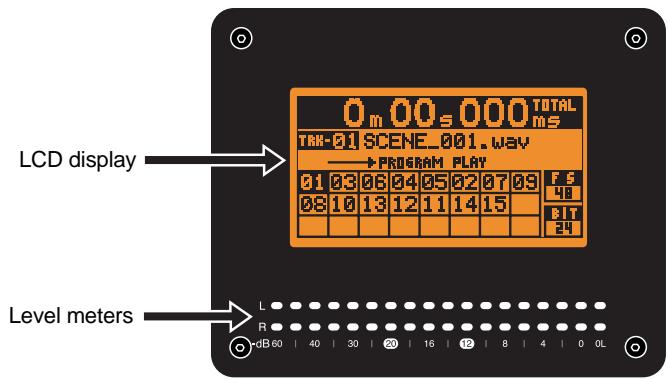
From a 132 × 64 dot matrix LCD display, you can see the time information, as well as the status of the unit setting. The dot-LED level meters (L and R) allow you to check recording or playback levels precisely.
The meter peak hold time is set to three seconds by default, however, you can set it between zero and nine seconds in one second steps using the "Peak Hold" menu item of the "SYS SETUP" menu in the MENU mode (see page 77).
- A USB keyboard can be used for file name entry, etc.
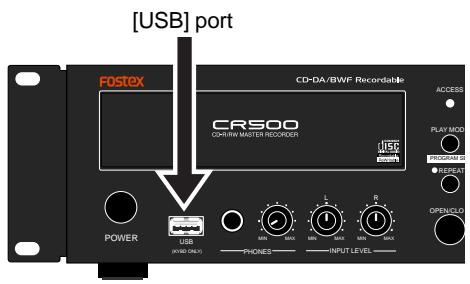
The CR500 is equipped with the [USB] port for connecting an USB keyboard. You can enter a file name, directly bring up a menu screen, and control the transport from the USB keyboard (see page 37).
- Versatile analog and digital connectability
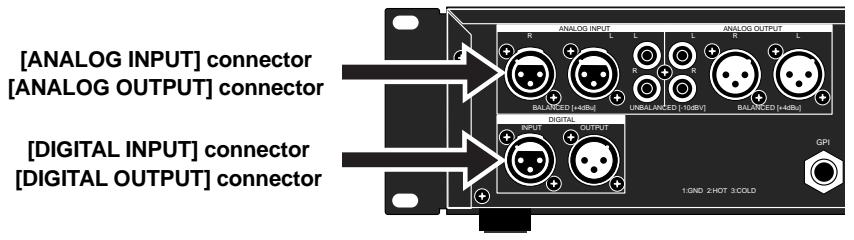
For analog input and output connection, both the balanced XLR and unbalanced RCA connectors are provided. For digital input and output connection, the balanced XLR connectors which can handle the AES/EBU or S/P DIF format digital signals are provided.
- For worldwide use
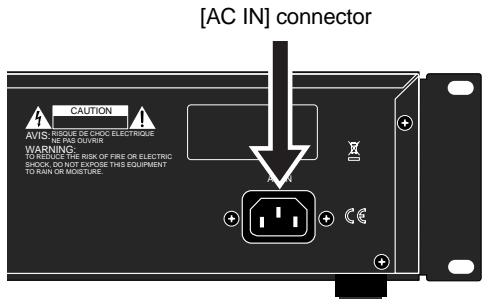
The CR500 has the [AC IN] connector, to which a separate power cable is connected. You can use the CR500 anywhere in the world by using an appropriate power cord.
- Fader start function
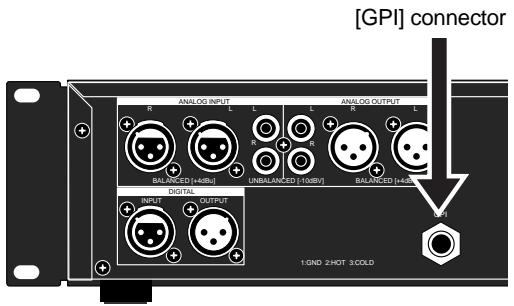
The CR500 provides the fader start function. By connecting a fader start control terminal of a mixing console to the [GPI] connector, you can control play and stop of the CR500 from the mixing console.
Chapter-2: Preparation before using the CR500
This chapter explains preparation before using the CR500 for the first time, including power connection, internal clock setting and initial formatting of a CD-R/RW disc.
You must do these things correctly in order to use the CR500. Read this chapter before using the CR500.
Table of contents
Power connection 14
Realtime clock setting 14
Initial format of a CD-R/RW disc 16
Usable discs 16
Format types 16
Handling of CD-R/RW disc 16
Setting a disc 17
Initial format of a disc 18
Adjusting display contrast 22
Power connection
Connect the supplied power cable to the [AC IN] connector on the rear panel first, and then to the AC outlet.
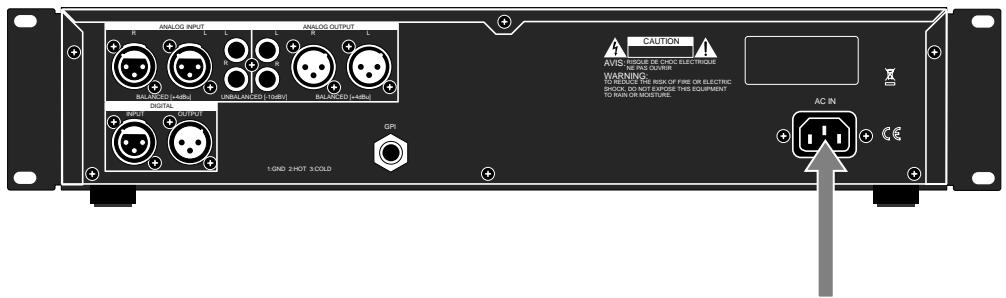
Power cable
: Connect the CR500 to the AC outlet of the voltage indicated on the rear panel. If you use the unit in another country where the power voltage or AC connector type is different, consult your dealer or local Fostex service station.
Realtime clock setting
After making power connection, turn on the CR500 and make setting of the realtime clock.
The realtime clock data is used for date/time of creation of an audio file which is made when you make a recording to a BWF formatted CD-R/RW disc. By default, the realtime clock is set according to local date/time of the factory. Therefore, set the clock correctly according to your local date/time before using.
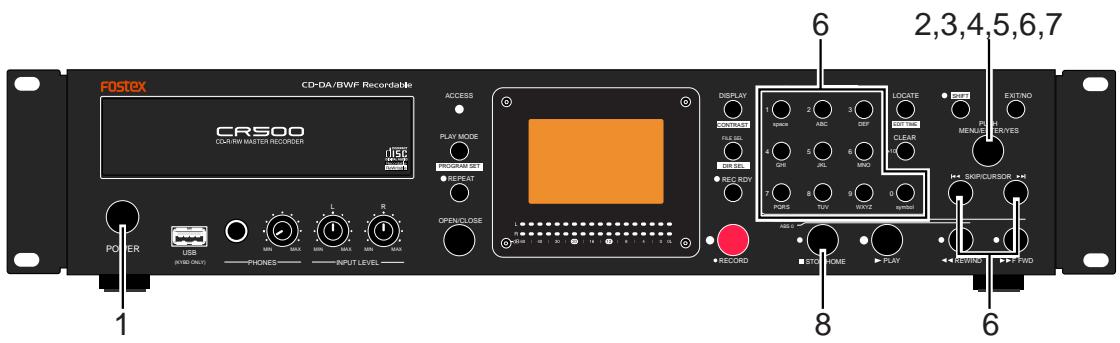
1) Press the [POWER] switch to turn on the CR500.
Soon after turning on the power of the unit, the display shows the screen below.
The time display shows "-m--s---ms", showing that the CR500 started up with no disc loaded on the drive.
![FOSTEX CR500 - 1) Press the [POWER] switch to turn on the CR500. - 1](/content/2025/01/168455/images/a7edd921ecfb6c2dbb887c8735d87ffe02b7cf39550771b6b0aea6c06a887bb5.jpg)
2) Press the [ENTER/YES] key.
The unit enters the MENU mode and the display now shows the MENU list screen on which "SYS SETUP " is highlighted.
![FOSTEX CR500 - 2) Press the [ENTER/YES] key. - 1](/content/2025/01/168455/images/864e24b4dc146287121991ffd088b5e1eb4093919c85ab561f4c2510f61fee87.jpg)
3) While "SYS SETUP" is highlighted, press the [ENTER/YES] key again.
The display now shows the "SYS SETUP" menu, where "Default File Name▶" is highlighted.
![FOSTEX CR500 - 2) Press the [ENTER/YES] key. - 2](/content/2025/01/168455/images/4fc3a74222f17edea0d12b40af062216db44c2103f56c9e82bcf6f93a95f661e.jpg)
4) Use the [MENU] dial to scroll through the menu and highlight "Adjust RTC", then press the [ENTER/YES] key.
The display now shows current clock data which runs in realtime.
![FOSTEX CR500 - 2) Press the [ENTER/YES] key. - 3](/content/2025/01/168455/images/debec0af342b7fcbd6e6c63558020e267fdc6677fea1d51b779ea49fe2ca9742.jpg)
5) Press the [ENTER/YES] key again.
The clock data at the moment when pressing the key is hold and now you can edit the clock data.
![FOSTEX CR500 - 2) Press the [ENTER/YES] key. - 4](/content/2025/01/168455/images/a6b78e3ad7d14d92a23c10c4c54e766fc268fec7ffb5589572aba287c77228f8.jpg)
6) Edit date/time data using the [MENU] dial or the numeric keys.
You can edit the value at the cursor (highlighted) position. To move the cursor, use the [SKIP CURSOR I<▶▶] key.
Each time you press any numeric key, the entered numbers move left from the cursor position.
For example, if you change the currently held data to "06Y 04M 01D 10h 00m 00s", press keys in the following order.
$$
\begin{array}{l} 0 \dashrightarrow 6 \dashrightarrow 0 \dashrightarrow 4 \dashrightarrow 0 \dashrightarrow 1 \dashrightarrow 1 \dashrightarrow 0 \dashrightarrow 0 \dashrightarrow 0 \ \dashrightarrow 0 \dashrightarrow 0 \end{array}
$$
7) After editing date/time data, press the [ENTER/YES] key.
The clock starts running from the entered date/time, while the display returns to the screen which shows current clock data which runs in realtime.
: If you enter illegal data in step 6) above and press the [ENTER/ YES] key, the display shows "Void data!" and the display returns to the screen where you can edit data. Enter legal data and press the [ENTER/ YES] key.
![FOSTEX CR500 - 2) Press the [ENTER/YES] key. - 5](/content/2025/01/168455/images/bff3265dfda8d4bf86bf3466abaaa74a26ec77a29313d37fc51d86535dbbc9d8.jpg)
8) Press the [STOP/HOME] key to exit the MENU mode.
The unit has an internal lithium battery which is used for driving the realtime clock. The battery life is approximately five years. The battery replacement is done by local Fostex distributor's service department or their authorized service agent.
: The file creation date of the CR500 is recorded according to the internal realtime clock. However, because "GMT" of "UDF" is set to offset zero, there may be an error when reading the creation date by a PC.
UDF: Universal Disk Format GMT:Greenwich Mean Time
Usable discs
With the CR500, you can use a CD-R or CD-RW disc which has any of the following logos. Also we recommend using discs manufactured by the following makers.
Recommended makers:
CD-R (Use 12x or higher disc):
Sony,TDK,Taiyo yuden,RICOH
Mitsubishi chemical, Maxell
CD-RW (Use 4x ~ 12x disc):
Sony, TDK, RICOH, Mitsubishi chemical





When you format a CD-R/RW disc with the CR500, you can choose either of the following two format types.
- BWF type:
Choose this type when you make a recording in the WAV file format. With a BWF formatted CD-R/RW disc, you can make additional recordings until you finalize the disc, as far as the disc has an enough space. The closed disc can be read by a Windows computer (see page 20 for details).
- CD-DA type:
Choose this type when you make an audio CD.
With a CD-DA formatted CD-R/RW disc, you can make additional recordings until you finalize the disc, as far as the disc has an enough space. The finalized disc can be read by a Windows or Mac OS computer, as well as can be played back by a normal CD player (see page 20 for details).
Handling of CD-R/RW discs
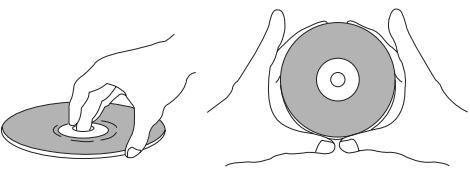
- Handle a disc with care by holding them by the rim or by a finger through the center hole, rather than touching the surface. Do not get fingerprints, dust, scratch, etc. on the signal side.
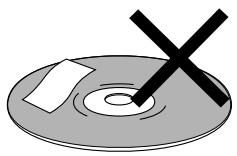
- Do not affix any labels or stickers to the label side of the disc. Do not make a scratch on the label side. A scratch may make recording or playback impossible. Do not write on the label side of a disc with a hard pen such as a ballpoint pen and a pencil. Only use a soft pen.
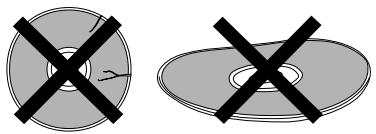
- Do not use a curved or cracked disc, which may cause malfunction of the drive.
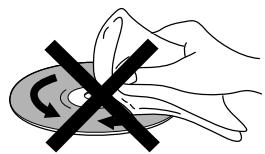
- If dust or fingerprint is attached to the signal side, wipe the disc gently with a soft dry cloth or a cloth with ethyl alcohol from the center towards the out-side edge. Do not wipe it from the outside towards the center.
- Read the instructions supplied with a disc before using.
Setting a disc
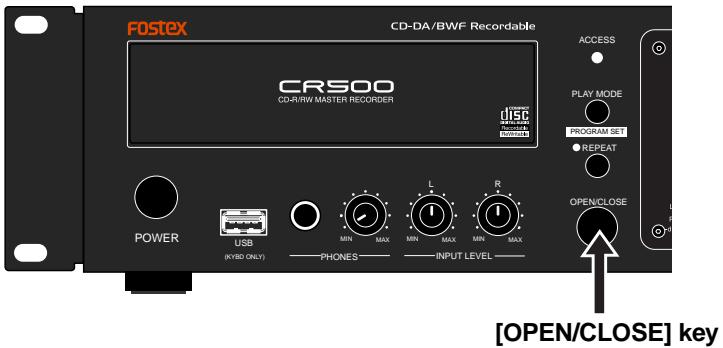
After turning on the CR500, press the [OPEN/CLOSE] key to open the disc tray.
After setting a CD-R/RW disc to the tray, press the [OPEN/CLOSE] key again closes the disc tray.
: When setting a disc to the tray, make sure that the label side is up.
After closing the tray, the unit loads the disc in the following manners depending on the disc condition. If the disc is illegal, the unit rejects the disc and opens the disc tray.
The unit recognizes that the disc is unformatted and shows "Blank Disk" on the display, followed by the "Format" menu item of the "DISK UTILITY" menu in the MENU mode.
If you set an unused BWF formatted disc, the unit scans the disc and starts up with the screen showing that no BWF file exists on the disc.
If you set an unused CD-DA formatted disc, the unit scans the disc and starts up with the screen showing "Blank Disk", followed by the "Format" menu screen of the "DISK UTILITY" menu in the MENU mode.
- Recorded CD-R/RW disc
If you set a BWF formatted (or CD-DA formatted) CD-R/RW disc on which any audio file (or audio track) is recorded, the earliest recorded audio file (or audio track) on the disc is loaded.
If the "Power On Play" item of the "PLAY SETUP" menu in the MENU mode is set to "On", the CR500 automatically starts playback immediately after it starts up when you turn on the power (see page 81).
If you set an audio CD disc of the Red Book format, the unit starts up at the beginning of track 1. Only playback is possible with an audio CD.
Note that some copy-protected audio CDs may not be played back.
If you set an ISO9660 formatted CD-ROM, CD-R or CD-RW disc, you can only play back a WAV file (BWF) on the disc (see page 67).
When you attempt to remove a disc after making recording, a confirmation screen for closing the disc (for a BWF formatted disc) or finalizing the disc (for a CD-DA disc) appears.
To export a WAV file on the BWF formatted disc to your computer, you have to close the disc. To play back an audio track on the CD-DA formatted disc by a normal CD player or to export an audio track to your computer, you have to finalize the disc (see pages 46 and 49).
The following description shows how to do the initial format of an unused disc, assuming that the CR500 is turned on and no disc is set on the disc tray.
The table on the right shows the approximate recordable time and the maximum number of tracks after formatting a 700 MB CD-R/RW disc. Note that the actual recordable time is slightly different depending on discs.
You can check the recordable time and the maximum number of tracks on the input monitor screen.
| Format type | Recordable time | Maximum number of tracks |
| CD-DA (44.1/16) | Approx. 79 min. | Max. 99 tracks |
| BWF (44.1/16) | Approx. 66 min. | Max. 97 tracks |
| BWF (44.1/24) | Approx. 44 min. | Max. 97 tracks |
| BWF (48/16) | Approx. 61 min. | Max. 97 tracks |
| BWF (48/24) | Approx. 40 min. | Max. 97 tracks |
| BWF (88.2/24) | Approx. 22 min. | Max. 97 tracks |
| BWF (96/24) | Approx. 20 min. | Max. 97 tracks |
: The recordable time of a BWF formatted disc decreases not only by making recording but also by closing the disc (see page 46) and by rewriting the file system data (see page 88).
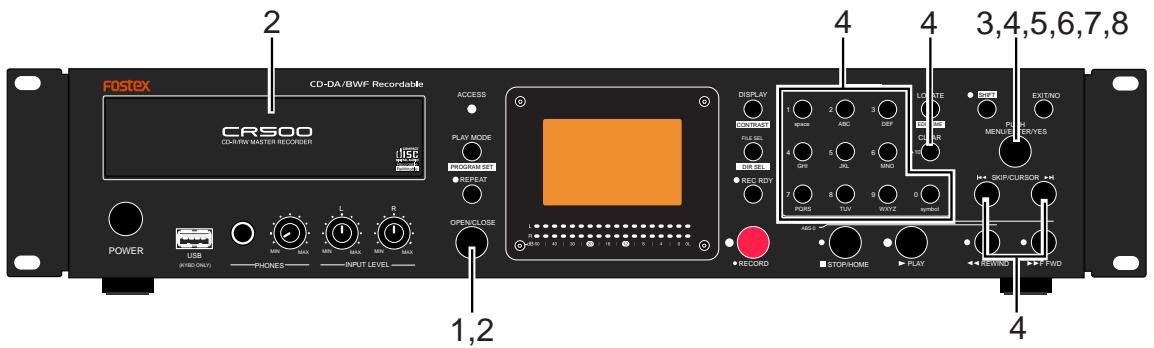
1) Press the [OPEN/CLOSE] key to open the disc tray.
2) Set an unformatted CD-R/RW disc and press the [OPEN/CLOSE] key to close the disc tray. The unit recognizes that the disc is blank and enters the "Format" screen of the "DISK UTILITY" menu in the MENU mode.
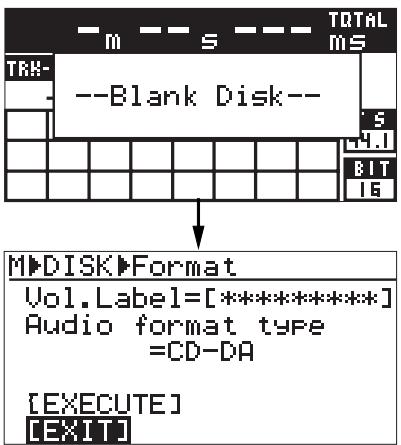
On this screen, you can format the disc after setting the disc volume label and format type.
We recommend to set the volume label because it can be used as the default file name when making recording to a BWF formatted disc.
If you do not edit the volume label, skip the next three steps and go to step 6.
: With a CD-DA disc, the volume label setting is ineffective and is not stored.
3) Use the [MENU] dial to highlight "Vol.Label" at the top and press the [ENTER/YES] key.
The rightmost digit of the current volume label flashes and you can now edit the label.
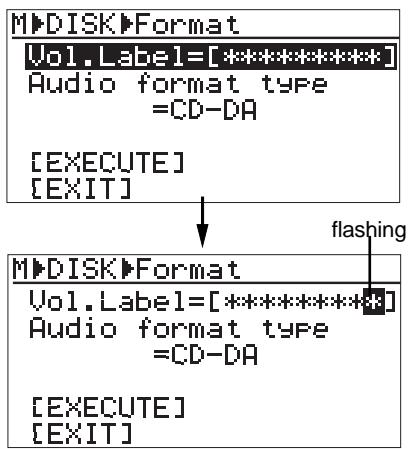
You can enter a desired alphanumeric character at the flashing point.
You can move the flashing point by using the [SKIP/CURSOR] keys. You can clear the character at the flashing point by pressing the [CLEAR/+10] key.
5) After completing editing, press the [ENTER/ YES] key to set the volume label.
The current format type flashes ("CD-DA" flashes by default) and you can now select the format type.
![FOSTEX CR500 - 6) Use the [MENU] dial to highlight "Audio format type" and press the [ENTER/YES] key. - 1](/content/2025/01/168455/images/a2d126dc0145e5f6e328058de25dfe241ebe1248bb849a39a4855f1ef9c8f074.jpg)
You can select a desired format type from among "CD-DA" and various "BWF" types (see the table below). To make an audio CD, select "CD-DA". To record WAV files, select any one of "BWF" types shown below.
| CD-DA: 44.1kHz/16Bit (Default) |
| BWF (44.1/16): 44.1kHz/16Bit |
| BWF (44.1/24): 44.1kHz/24Bit |
| BWF (48/16): 48kHz/16Bit |
| BWF (48/24): 48kHz/24Bit |
| BWF (88.2/24): 88.2kHz/24Bit |
| BWF (96/24): 96kHz/24Bit |
The screen below shows an example when the disc is formatted by "BWF (48/24)".
When formatting completes, "Completed" is shown and the unit exits the MENU mode. The display shows the Home screen.
![FOSTEX CR500 - 8) Use the [MENU] dial to highlight "[EXECUTE]" and press the [ENTER/YES] key. (To cancel formatting, select "[EXIT)".) Formatting starts and the display shows the formatting status. - 1](/content/2025/01/168455/images/93d76bf7957ea0c19c90c87bb326a80c9d84a3921d59793397976de4f462a598.jpg)
On the Home screen immediately after the disc has been formatted, track display is blank while the Fs and Bit information of the disc is shown.
After the CD-R/RW disc has been formatted, you can now make a recording with the CR500. See "Chapter 5: Recording" (from page 39) for details.
: You can re-format a formatted disc by the "Format" menu item of the "DISK UTILITY" menu in the MENU mode (see " Formatting a disk [Format]" on page 86).
: Formatting by the "CD-DA" type is executed immediately. After "Completed" is shown, the following Home screen appears.
![FOSTEX CR500 - 8) Use the [MENU] dial to highlight "[EXECUTE]" and press the [ENTER/YES] key. (To cancel formatting, select "[EXIT)".) Formatting starts and the display shows the formatting status. - 2](/content/2025/01/168455/images/de3b385b967b4f9ea6ce22a054b01ea47946a0c04c70785ec0d7964719991b7f.jpg)
: If you eject a CD-DA formatted disc without making recording or if you turn off the power and then on, the display shows "Blank Disc" again, followed by the "Format" screen.
With a CD-DA formatted CD-R/RW disc, you can make additional recordings until you finalize the disc.
The following table shows available Fs/Bit combinations for recording, as well as capabilities of additional recordings, reformatting, file name editing, file deletion, export to PC and playback by normal CD players.
| Format type |
| BWF | CD-DA |
| Disc type |
| CD-R | CD-RW | CD-R | CD-RW |
| Available Fs/Bit for recording |
| Selectable when formatting44.1kHz/16Bit or 24Bit48kHz/16Bit or 24Bit88.2kHz/24Bit96kHz/24Bit | Selectable when formatting44.1kHz/16Bit or 24Bit48kHz/16Bit or 24Bit88.2kHz/24Bit96kHz/24Bit | Fixed to 44.1kHz/16Bit | Fixed to 44.1kHz/16Bit |
| Additional recordings |
| Possible until a disc is finalized. | Possible until a disc is finalized. | Possible until a disc is finalized. | Possible until a disc is finalized. |
| Reformatting of a recorded disc |
| Impossible | Possible | Impossible | Possible |
| File name editing/file deletion/file restore |
| Possible until finalizedAfter editing, the file system must be stored.<Note>: Impossible when there is no remaining recordable space on the disc. | Possible until finalizedAfter editing, the file system must be stored.<Note>: Impossible when there is no remaining recordable space on the disc. | Impossible. | Impossible. |
| File export to a PC |
| Possible with a closed or finalized disc. | Possible with a closed or finalized disc. | Possible with a finalized disc. | Possible with a finalized disc. |
| * Only can be exported to a Windows machine. | * Can be exported to a Windows or Mac OS machine. |
| Playback by a normal CD player |
| Impossible. | Impossible. | Possible with a finalized disc. | Impossible. |
Do not use the CR500 for reformatting a CD-RW disc on which you have made recording using another machine such as a PC. If you reformat such a disc using the CR500, data may not be completely erased. When you reformat a CD-RW disc using the "Format" menu item of the "DISK UTILITY" menu in the MENU mode, make sure that the disc has been recorded by the CR500.
Adjusting display contrast
The display contrast of the unit is adjusted suitably when shipped. If you want to change the contrast, follow the procedure described below.
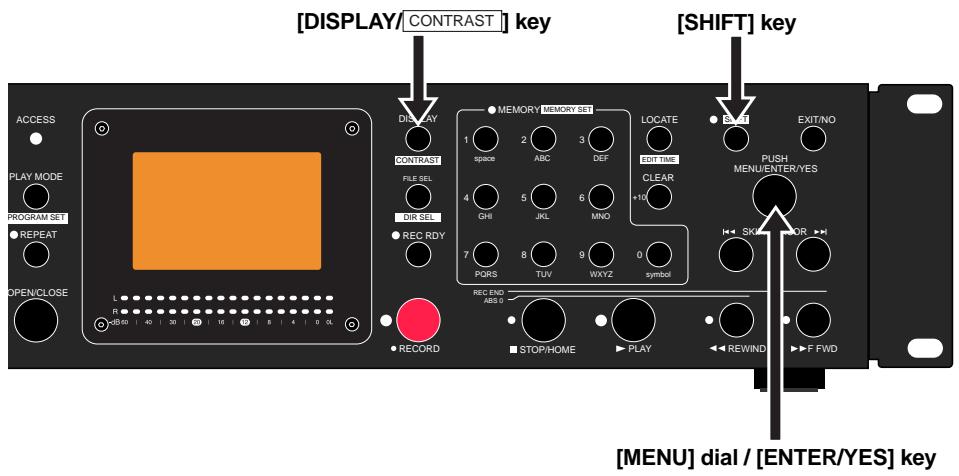
1) Press the [SHIFT] key to turn on the [SHIFT] indicator, followed by the [DISPLAY/CONTRAST] key.
The popup message as shown below appears on the display and you can now adjust the display contrast.
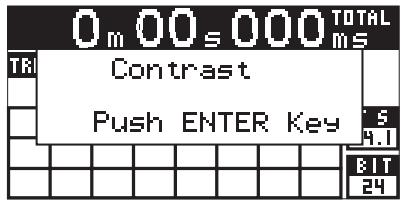
2) While the popup message above is shown, rotate the [MENU] dial to adjust the display contrast.
Rotating the dial clockwise weakens the contrast, while rotating it counterclockwise strengthens the contrast.
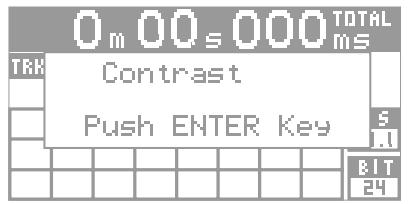
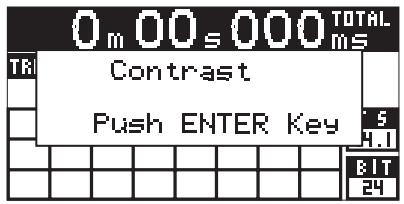
3) After adjusting the contrast, press the [ENTER/YES] key to confirm your setting.
The adjusted display contrast is now effective and the popup message above is dismissed.
: The contrast setting remains even if you turn off the power. If you initialize the system memories from the "Sys initial Memories>" or <"Sys Default Set>" item of the "SYS SETUP" menu in the MENU mode, the contrast is initialized to the factory preset.
Chapter-3: Names and functions
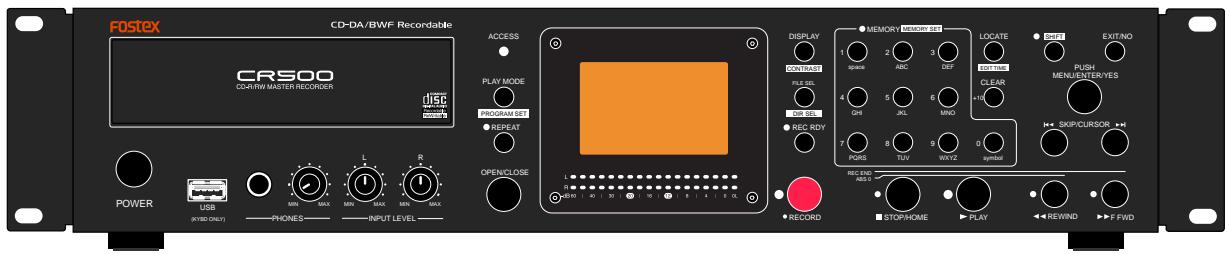
Front panel
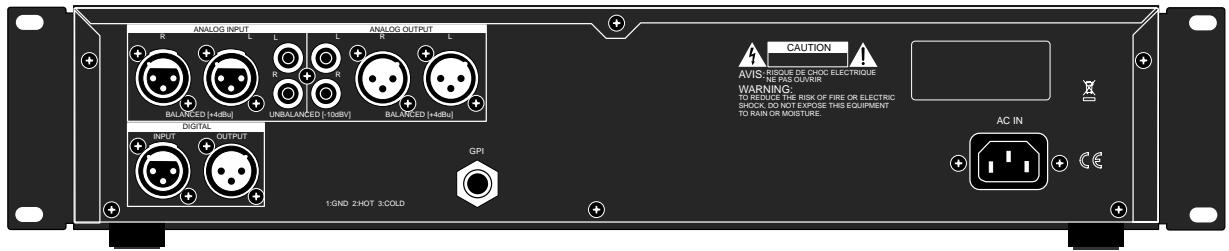
Rear panel
Table of contents
Front panel section 24
Rear panel section 29
Screen details 30
Home screen (available in stop or playback mode) 30
Input monitor screen (available while in record ready or recording) ....32
MENU mode screen 34
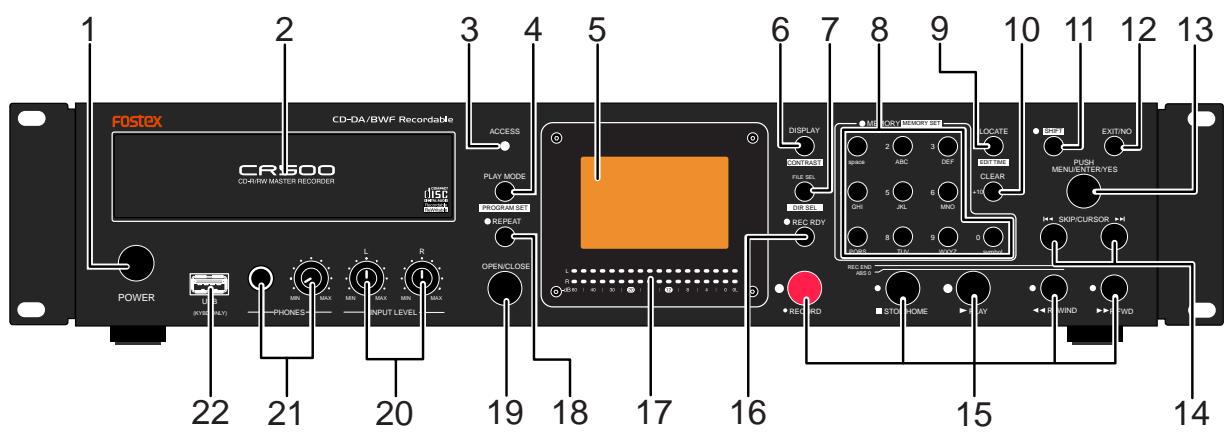
Front panel section
About Non-shift mode and Shift mode
Some keys have the secondary function which is available when the SHIFT indicator is lit (i.e. in the Shift mode), while the primary function is available when the SHIFT indicator is unlit (i.e. in the Non-shift mode).
In this manual, we sometimes say "when SHFTed" and "when unSHFTed", instead of "when the SHIFT indicator is lit" (or "in the Shift mode") and "when the SHIFT indicator is unlit" (or "in the Non-shift mode") respectively.
Audio file and audio track
In this manual, each audio data file recorded on a BWF formatted disc is called an "audio file", while each audio data file recorded on a CD-DA formatted disc is called an "audio track".
1. [POWER] switch
Turns on or off the power of the unit.
2. Disc tray
Loads a CD-R or CD-RW disc. Use the [OPEN/CLOSE] key to open or close the tray.
You can also close the tray by pushing the front of the tray lightly.
3. [ACCESS] indicators
Indicates the condition of the CD-R/RW drive.
Depending on the drive condition, the indicator status changes as below.
| Unlit | No disc is set in the tray. |
| Lit in green | The disc is stopped. |
| Flashing in orange | The unit is playing back the disc. |
| Flashing in red | The unit is recording to the disc. |
4. [PLAY MODE/PROGRAM SET] key
This key has primary (unSHIFTed) and secondary (SHIFTed) functions.
| When unSHIFTed: | While stopped, pressing this key switches the play mode in the following order (see page 54).
“ALL PLAY” -> “SINGLE PLAY” -> “PROGRAM PLAY” -> “MEMORY PLAY” -> “ALL PLAY” |
| <Note>: "PROGRAM PLAY" is shown only when the play list is set. |
| When SHIFTed: | Pressing this key brings up the screen for program setting on which you can set or edit the play list (page 57). |
5. LCD display
This 132 x 64 dot LCD display shows file information, setting status, etc (see page 30).
6. [DISPLAY/CONTRAST] key
This key has primary (unSHIFTed) and secondary (SHIFTed) functions.
| When unSHIFTed: | While stopped or playing, pressing this key switches the time display mode in the following order (see page 30).
Total time -> Track time -> Total remaining time -> Track remaining time -> Total time... |
| When SHIFted: | Pressing this key brings up the screen for adjust the display contrast. Adjust the display contrast using the [MENU] dial and press the [ENTER/YES] key to confirm (see page 22). |
7. [FILE SEL/DIR SEL] key
This key has primary (unSHIFTed) and secondary (SHIFTed) functions.
| When unSHIFTed: | Pressing this key brings up the screen for select-ing an audio file (or audio track) (see page 51). |
| When SHIFTed: | Pressing this key brings up the screen for select-ing a directory (see page 67).<Note>: The Shifted function is available only when a BWF formatted disc is loaded. It is not available with a CD-DA formatted disc. |
Pressing the [STOP/HOME] key (or the [EXIT/NO] key) dismisses each selection screen and returns to the Home screen.
8. [MEMORY/ [MEMORY SET] ] key
The keys in this key group have primary (unSHIFTed) and secondary (SHIFTed) functions.
| When unSHIFTed: | Depending on the current play mode, the function dif-fers.
·In ALL PLAY, SINGLE PLAY or PROGRAM PLAY mode:
Pressing a key in this key group directly locates the beginning of the audio file (or audio track) correspond-ing to the key number.
·In MEMORY PLAY mode:
Pressing a key in this key group starts playback of the audio file (or audio track) set to the memory bank cor-responding to the key number (Instant start function). |
| When SHIFTed: | Note that the SHIFTed functions of the keys in this key group are effective only in the MEMORY PLAY mode.
Pressing a key in this key group brings up the screen for setting a desired audio file (or audio track) to the corresponding memory bank (see page 62). |
In the MENU mode, the keys in this key group are used for entering alphanumeric characters.
9. [LOCATE/EDIT TIME] key
This key has primary (unSHIFTed) and secondary (SHIFTed) functions.
| When unSHIFTed: | Pressing this key locates the position previously located (see page 70). |
| When SHIFTed: | Pressing this key brings up the time edit screen and you can edit the current time (see page 70). After editing the time, pressing this key locates he edited time position. Pressing the [STOP/HOME] key (or the [EXIT/NO] key) dismisses the time edit screen and returns to the Home screen. |
10. [CLEAR/+10] key
This key is used when you select an audio file (or audio track) whose number is more than 9. For example, to select "15", press this key, followed by the [5/JKL] key (see pages 50 and 68).
This key is also used to clear the highlighted character on the screen of the "Edit File Name" item of the "DISK UTILITY" menu in the MENU mode (see page 89).
11. [SHIFT] key
Pressing this key turns the shift mode on or on. When on, the indicator is lit and you can execute a SHIFTed (secondary) function of a key which has dual functions.
The SHIFTed function of a key (if available) is labeled under the key.
12. [EXIT/NO] key
This key has opposite functions to the [ENTER/YES] key. It is used to cancel editing or execution.
In the MENU mode, pressing this key goes up the menu level. Pressing this key repeatedly exits the MENU mode.
This knob has dual functions; the [MENU] dial for selecting an option and the [ENTER/YES] key for confirming the selection. Pressing the [ENTER/YES] key enters the MENU mode. In the MENU mode, you can use the [MENU] dial to make settings of each menu item of the MENU mode. The [MENU] dial also can be used for entering alphanumeric characters.
14. [SKIP/CURSOR] keys
Pressing the [▶] or [▶] key skips to the beginning of the previous or next audio file (or audio track). You can skip to the beginning of a desired file by pressing the key as many time as required (see page 50 and 69).
When the display shows a screen for entering alphanumeric characters in the MENU mode, these keys can be used for moving the cursor position.
15. Transport control keys
[PLAY]key
- Pressing this key plays back the current audio file (or audio track).
- Pressing this key while holding down the [STOP/HOME] key enters the digital scrub mode.
STOP/HOME]key
- During playback or recording, pressing this key stops the drive.
- Pressing the [PLAY] key while holding down this key enters the digital scrub mode (see page 56).
- Pressing this key exits any editing or setting mode and returns to show the Home screen.
- Pressing the [F FWD] or [REWIND] key while holding down this key locates a specific position as below.
| [STOP/HOME] +
[F FWD] | Locates the record end position (REC END) of the currently loaded disc (LOCATE REC END function). |
| [STOP/HOME] +
[REWIND] | Locates the beginning (ABS 0) of the currently loaded disc (LOCATE ABS 0 function). |
[F FWD] key
- Pressing this key while stopped starts fast-forward at up to 30 times the normal playback speed.
- Pressing this key during playback executes forward cueing playback.
- While stopped, pressing this key while holding down the [STOP/HOME] key locates the last recording position of the current audio file (or audio track) (LOCATE REC END).
[REWIND] key
- Pressing this key while stopped starts fast-rewind at up to 30 times the normal playback speed.
- Pressing this key during playback executes reverse cueing playback.
- While stopped, pressing this key while holding down the [STOP/HOME] key locates the beginning of the current audio file (or audio track) (LOCATE ABS 0).
[RECORD] key
- While the [REC RDY] indicator flashes, pressing this key automatically creates a new audio file (or audio track) and starts recording.
16. [REC RDY] key
Pressing this key switches the record ready mode on and off. When it is on, you can monitor the input signal and adjust the recording level (see pages 32, 42 and 47).
While the recorder is in the record ready mode, the [RED RDY] indicator flashes. After recording starts, the indicator lights solidly.
17. Level meters
Show the recording/playback.
The nominal input level of the unit is set to "-12dB" by default. You can change it to "-20dB" using the "Ref. Level" menu item of the "SYS SETUP" menu in the MENU mode (see page 78).
18. [REPEAT] key
Pressing this key switches the repeat mode on and off.
When the repeat mode is on, the [REPEAT] indicator lights and the recorder repeats playback according to the current play mode until the [STOP/HOME] key is pressed.
: When the play mode is set to "MEMORY PLAY", the repeat playback function is disabled.
19. [OPEN/CLOSE] key
Pressing this key opens or closes the disc tray.
: You can also close the tray by pushing the front of the tray lightly.
This control adjusts the input level (L and R) when recording analog audio signals (see page 42).
21. [PHONES] level control/[PHONES] jack
The [PHONE] jack is used to connect headphones, while the [PHONES] level control adjusts the headphone monitor level.
22. [USB (KYBD ONLY)] port
By connecting a USB keyboard to this port, you can enter a file name or control the transport, etc. form the keyboard (see page 37). You can also connect a numeric keyboard for entering numeric values and transport controls.
When you connect a USB keyboard, set the "Keyboard type" menu item of the "SYS SETUP" menu in the MENU mode appropriately (see page 78) to match the keyboard.
You can select between "JAPAN" and "US" (by default, it is set to "US").
![FOSTEX CR500 - [USB (KYBD ONLY)] port - 1](/content/2025/01/168455/images/9bc254c016b593b69c914c7c50c927b6d36a6d5f0b650273461ba317c81da3da.jpg)
Rear panel section
- [ANALOG INPUT] connectors (XLR-3-31 type, balanced)
These connectors receive analog audio signals at +4dBu . When the RCA unbalanced analog input jacks are plugged, the balanced connectors are disabled (see page 36).
- [ANALOG INPUT] connectors (RCA type, unbalanced)
These connectors receive analog audio signals at -10dBV (see page 36).
- [ANALOG OUTPUT] connectors (RCA type, unbalanced)
These connectors send analog audio signals at -10dBV (see page 36).
- [ANALOG OUTPUT] connectors (XLR-3-32 type, balanced)
These connectors send analog audio signals at +4dBu (see page 36).
- [AC IN] connector
This connector is used to connect the supplied AC power cable (page 14).
- [GPI] jack
This jack is used to connect to a mixing console providing the fader start/stop facility, which enables start/stop control of the CR500 from a console's fader (see page 36).
- [DIGITAL OUTPUT] connector (XLR-3-32 type, balanced)
This connector sends AES/EBU or S/P DIF digital signals (see page 36). The digital output signal format (AES/EBU or S/P DIF) can be set by the MENU mode (see page 77).
- [DIGITAL INPUT] connector (XLR-3-31 type, balanced)
This connector receives AES/EBU or S/P DIF digital signals. The unit automatically recognizes the digital signal format (AES/ EBU or S/P DIF) (see page 36).
![FOSTEX CR500 - [USB (KYBD ONLY)] port - 2](/content/2025/01/168455/images/df2e1455947cfc8fea38ee39a26b5da0a616f4d2bcdfe30ca55fa87ba1ceba1b.jpg)
XLR-3-31 type connector
![FOSTEX CR500 - [USB (KYBD ONLY)] port - 3](/content/2025/01/168455/images/d22e882c6debcab825f2e44c55699546753e771a88fd4fd53525e25be6f24825.jpg)
XLR-3-32 type connector
Screen details
Home screen (available in stop or playback mode)
When a formatted CD-R/RW disc is loaded and the unit is stopped or playing back, the "Home screen" is shown. The screen example below shows the Home screen when a recorded CD-R/RW disc is loaded.
On the Home screen, various information about the current setting and status is shown, as described below.
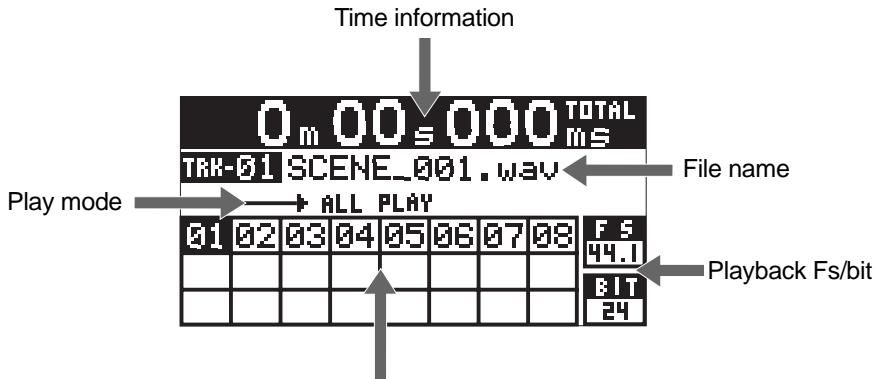
File (or track) number list
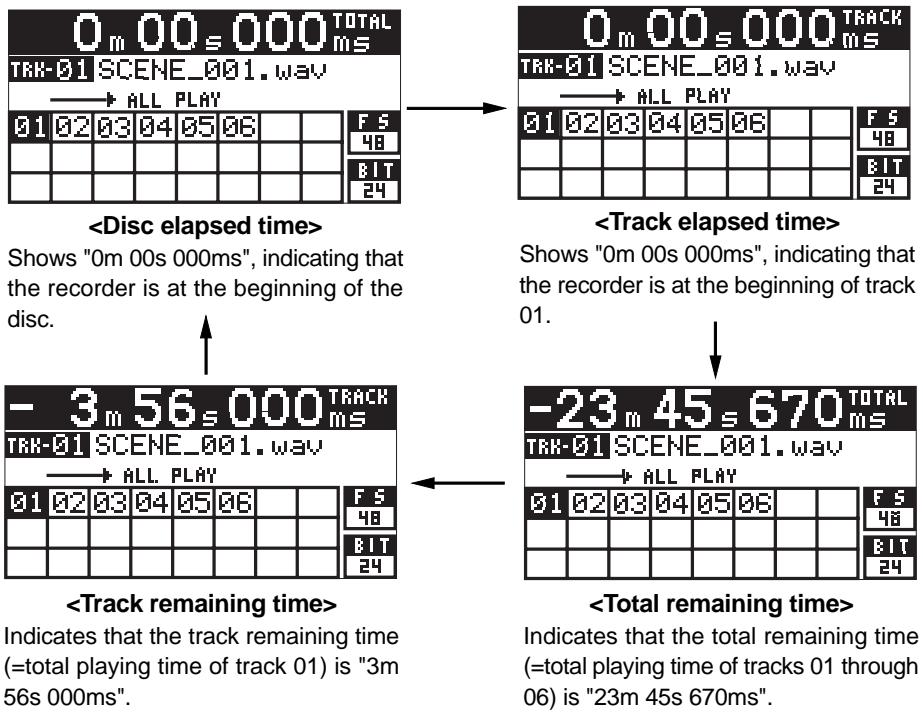
While stopped or during playback, the current recorder position is shown in "m:s:ms". By default, the disc elapsed time from the beginning of the disc is shown (TOTAL is indicated on the top left of the screen).
You can select the time mode shown here by pressing the [DISPLAY/CONTRAST] key from among the disc elapsed time, track elapsed time, total remaining time and track remaining time. Note that during recording, you cannot select the total remaining time and track remaining time.
When selecting the remaining time, negative time value is shown (see the screen examples below).
Also the appropriate icon (, , , or ) which shows transport status is lit.
The following shows a screen example of each of four time modes when the recorder is at the beginning of the disc.
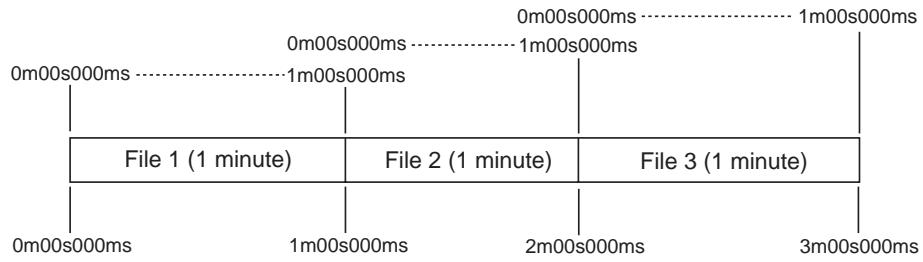
Track time indication example
Total time indication example
- File name
Shows a track number and a name of the currently selected track (file).
WAV file
A file name according to the setting of the "Default File Name" menu item of the "SYS SETUP" menu in the MENU mode is shown.
Depending on the "Default File Name" setting, "DATE information", "Scene Name + Take number" or "Reel Number + File Number" is shown (see page 75).
- Audio track (CD-DA)
A track name written in the CD-TEXT format is shown. If no name is saved in the CD-TEXT format, only the track number is shown (the file name field is blank).
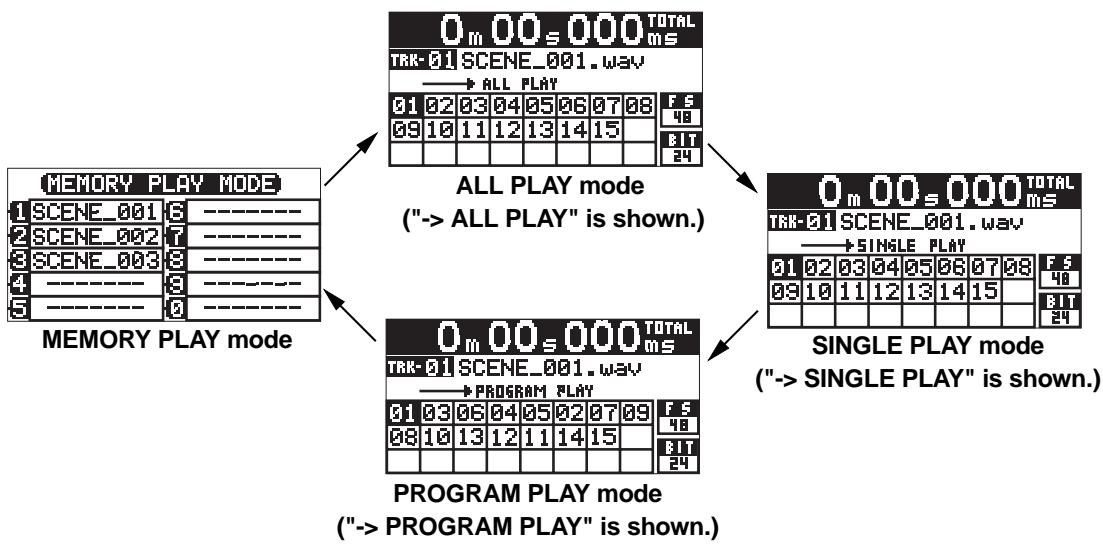
- Play mode
The currently selected play mode is shown. When the MEMORY PLAY mode is selected, the screen looks differently.
You can select the desired play mode by pressing the [PLAY MODE/PROGRAM SET] key from among "ALL PLAY", "SINGLE PLAY", "PROGRAM PLAY" and "MEMORY PLAY" (by default, ALL PLAY is selected). You can also select the desired play mode using the "Play Mode" menu item of the "PLAY SETUP" menu in the MENU mode (see page 83).
: If no file is set in the play list, you cannot select the PROGRAM PLAY mode ("No Play List" pops up).
In the MEMORY PLAY mode, if no audio data is set, "----" is shown in each memory bank (1 through 10) and the [MEMORY] indicator flashes fast.
Numbers of recorded audio files (or audio tracks) are shown. The file (or track) which can be played back currently is highlighted. If no audio file (or audio track) is recorded to the disc, all boxes are blank.
When the ALL PLAY or SINGLE PLAY mode is selected, file (track) numbers are arranged from left top to right bottom in the order of recordings.
| 01 | 02 | 03 | 04 | 05 | 06 | 07 | 08 |
| 09 | 10 | 11 | 12 | 13 | 14 | 15 | |
| | | | | | | |
When the PROGRAM PLAY mode is selected, file (track) numbers are arranged from left top to right bottom in the order of play list registration.
| 04 | 12 | 03 | 02 | 05 | 14 | 07 | 08 |
| 09 | 10 | 11 | 06 | 13 | 15 | 01 | |
| | | | | | | |
-Playback FS/Playback bit
The Fs and bit information of the playback file is shown.
| CD-DA (FS44.1 and BIT CDDA are shown.) | WAV file (FS and BIT information is shown as below.) | | | |
| F5
44.1 | F5
44.1 | F5
48 | F5
88.2 | F5
96 |
| BIT
CDDA | BIT
24 | BIT
16 | BIT
24 | BIT
24 |
The screen example below shows the screen which appears after pressing the [RECDRY] key to enter the record ready mode when a blank or additionally-recordable CD-R/RW disc is loaded and the Home screen is shown.
This screen is shown while in record ready or recording. While this screen is shown, the input monitor mode is enabled, so you can adjust the input levels when recording analog audio signals.
The input monitor screen shows the following information.
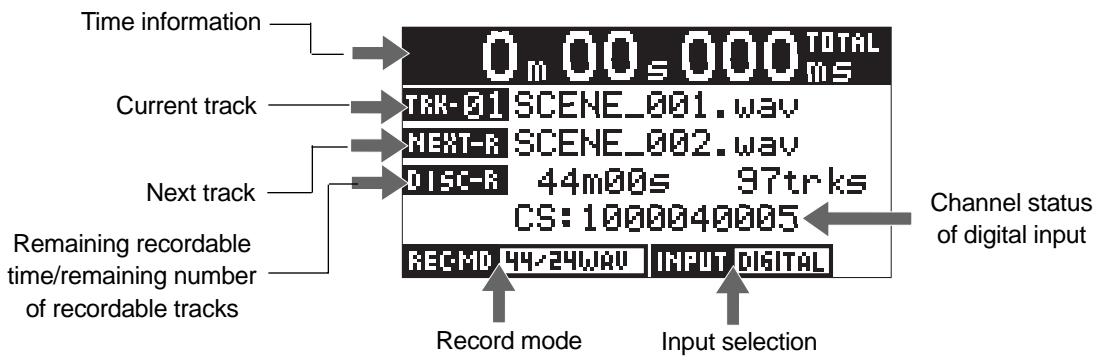
The current recorder position is shown in "m:s:ms". By default, the disc elapsed time is shown ("TOTAL" is lit on the top left of the screen).
- Current track
Shows the track number of the currently selected file (or track). When recording a WAV file, a file name is also shown (if the disc is blank, only the track number is shown). When recording a CD-DA track, only the track number is shown.
- Next track
When recording a WAV file, a file name of the next audio file is shown. When recording a CD-DA track, only the next track number is shown.
- Remaining recordable time/remaining number of recordable tracks
Shows the remaining recordable time on the disc by the current Fs/bit setting in minutes/seconds, as well as the remaining number of recordable tracks.
- Record mode
Shows the record mode (including recording Fs, bit and format) of the disc currently loaded as below. The record mode is conformed to the format type you select when formatting a disc.
| CD-DA disc | BWF disc (FS and BIT information is shown as well as "WAV", as below.) |
| RECHMD 44-IECD-DA | RECHMD 44-16 WAAU | RECHMD 48-24 WAAU |
| RECHMD 88-24 WAAU | RECHMD 96-24 WAAU |
Shows the currently selected input source (analog or digital).
You can select the input using the "Select Input" menu item of the "SYS SETUP" in the MENU mode (see page 76).
| INPUT ANALOG | Shown when "Analog" is selected (default). The recorder can record the analog audio signals fed to the [ANALOG INPUT] connectors on the rear panel. |
| INPUT DIGITAL | Shown when "Digital" is selected. The recorder can record the digital audio signal fed to the [DIGITAL INPUT] connector on the rear panel. When the unit is not receiving a correct digital signal, "DIGITAL" flashes and the recorder input is muted. |
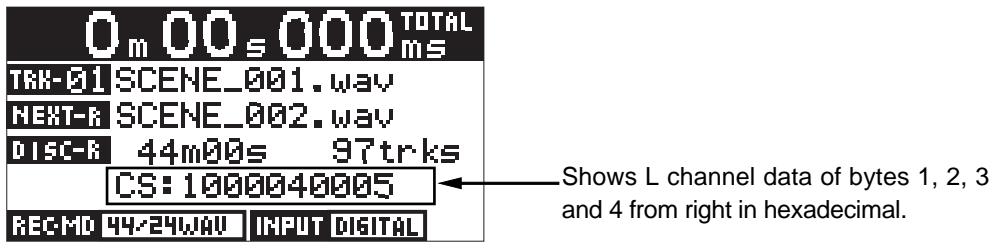
When "Select Input" is set to "Digital" and the unit is receiving a correct digital signal, the channel status of the digital signal is shown.
The following screen is the MENU list screen which appears when you enter the menu mode by pressing the [ENTER/YES] key while the recorder is stopped (see page 72).
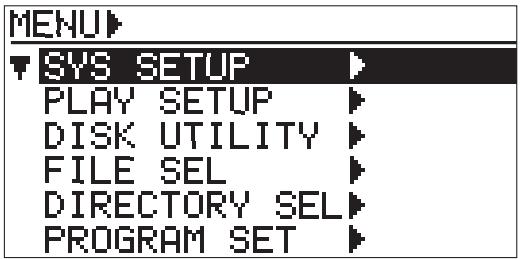
This screen is the first level screen of the MENU mode and you can select a menu from 6 menus listed on this screen.
To select a menu, use the [MENU] dial to highlight the desired menu and press the [ENTER/YES] key. The display now shows the menu screen of the selected menu, as below.
| M/SYSY
▼ Default File Name
Select Input!Analog
Digital Out :AES/EBU
Peak Hold :3sec
Ref. Level :-12dB
Keyboard Sel:US | SYS SETUP menu screen
On this menu screen, you can select a desired menu item from among those related to basic system setup (see page 73). |
| M PLAY
▼ Play Mode :ALL
Repeat :Off
Auto Play :On
Power On Play:Off | PLAY SETUP menu screen
On this menu screen, you can select a desired menu item from among those related to playback (see page 82). |
| M DISK
▼ Format
Rewrite File Sys
Edit File Name
Delete File
Restore Del.File
Finalize | DISK UTILITY menu screen
On this menu screen, you can select a desired menu item from among those related to disc management (see page 85). |
| FILE SEL
[ NO] [NAME] [TIME]
01 SCENE_001.. 3:23
02 SCENE_002.. 5:11
03 SCENE_003.. 10:33
04 SCENE_004.. 7:26
05 SCENE_005.. 4:13 | FILE SEL screen
On this screen, you can select a desired file to be played back (see page 51).
You can access to this screen by pressing the [FILE SEL/DIR SEL] key while the Home screen is shown. |
| DIRECTORY SEL
[ DIRECTORY NAME]
▼ [Root]▼
abuff
cbuff
bwf1 | DIRECTORY SEL screen
On this screen, you can select a desired directory (see page 67).
You can access to this screen by pressing the [FILE SEL/DIR SEL] key in the Shift mode while the Home screen is shown. This screen is available only for a BWF formatted disc. When a CD-DA formatted disc is loaded, you cannot bring up this screen. |
| PROGRAM SET
TOTAL TIME: 000m00s
[ PNITNINAME] [TIME]
01 — — — — — —
<PLAY MODE>:ALL
<SAUE> <ALL CLEAR> | PROGRAM SET screen
On this screen, you can set the play list for program playback (see page 58).
You can access to this screen by pressing the [PLAY MODE/PROGRAM SET] key in the Shift mode while the Home screen is shown. |
Chapter-4: Connection
This chapter describes details about connection of analog and digital audio devices, as well as USB keyboard connection and functions.
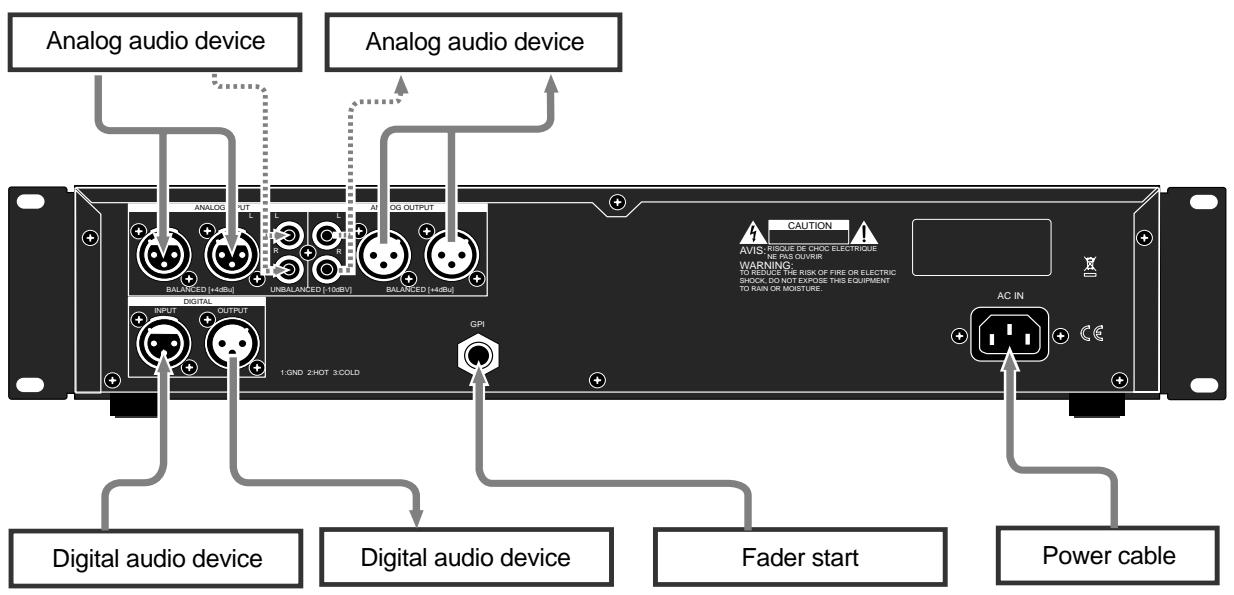
Connecting to other devices
Analog audio connection (balanced/unbalanced)
The CR500 is equipped with both the balanced (XLR-3-31) and unbalanced (RCA) [ANALOG INPUT] connectors, ensuring broad compatibility. You can connect "+"4dBu" signals to the balanced input connectors, while "-10dBV" signals to the unbalanced input connectors.
To record analog signals fed to the balanced or unbalanced [ANALOG INPUT] connectors, set the "Input Sel" menu item of the "SYS SETUP" in the MENU mode to "Analog" (see page 76). By default, the "Input Sel" menu item is set to "Analog". If it is set to "Digital", however, you need to change the setting.
The CR500 is also equipped with both the balanced (XLR-3-32) and unbalanced (RCA) [ANALOG OUTPUT] connectors, which feed +4dBu and -10dBV analog audio signals respectively.
: When both the balanced (XLR) and unbalanced (RCA) input connectors of [ANALOG INPUT] are plugged, the unbalanced input signal takes priority (the balanced XLR connector is disabled).
Digital audio connection (AES/EBU, S/P DIF)
The CR500 is equipped with the [DIGITAL INPUT] (XLR-3-31) connector which accepts digital audio signals of both IEC 60958 (AES/EBU) and IEC 60958 (S/P DIF) format. It automatically detects the format (AES/EBU or S/P DIF) of the digital input signal. Regardless of the Fs/bit information of the input signal, the CR500 records the input signal at the Fs/bit which is set when a disc is formatted.
To record a digital signal fed to the [DIGITAL INPUT] connectors set the "Input Sel" menu item of the "SYS SETUP" in the MENU mode to "Digital" (see page 76).
The CR500 is also equipped with the [DIGITAL OUTPUT] (XLR-3-32) connector which accepts digital audio signals of both IEC 60958 (AES/EBU) and IEC 60958 (S/P DIF) format, like the [DIGITAL INPUT] connector.
You can set the digital output signal format (AES/EBU or S/P DIF) using the "Digital Out" menu item of the "SYS SETUP" in the MENU mode (see page 77). The default setting of the "Digital Out" menu item is "AES/EBU".
: When recording digital audio, if a correct digital signal is fed to the [DIGITAL INPUT] connector, PLL (Phased-locked loop) is active. By entering the record ready mode, the CR500 locks to the input sync signal, while the "DIGITAL" icon on the Home screen changes from flashing to lit.
If the unit does not receive a correct digital signal or does not lock to the input sync signal, "DIGITAL" icon on the Home screen remains flashing and the recorder input is muted.
Fader start connection
By connecting the [GPI] jack (1/4" phone type) to the fader start port of a mixing console, you can play back and stop the CR500 by fader operation of an external mixing console.
USB keyboard connection
The CR500 is equipped with the [USB (KYBD ONLY)] port for USB keyboard connection.
By connecting a USB keyboard, you can edit a file name or a volume name (Reel Number), change setting, etc. from the keyboard (for the function assignment, see the next page). Also by connecting a USB keyboard, its keys duplicate some of CR500 key operations as shown on the table below.
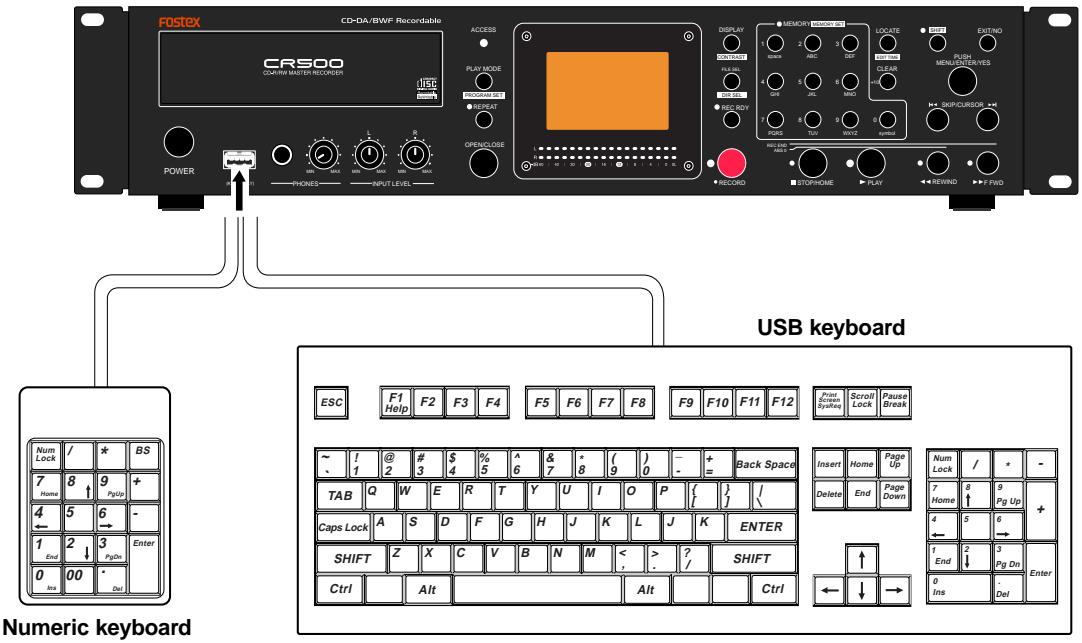
: Before using the USB keyboard for controlling the CR500, set the keyboard type ("US" or "JAPAN") correctly to match your keyboard using the "Keyboard Sel" menu item of the "SYS SETUP" menu in the MENU mode (see page 78). By default, the "Keyboard Sel" menu item is set to "US".
Numeric keyboard
| 0 through 9 keys | Duplicates the function of the keys in the CR500 [MEMORY] key group. |
| , Del key | Duplicates the function of the [CLEAR/+10] key on the CR500 panel. |
| Enter key | Duplicates the function of the [STOP/HOME] key on the CR500 panel. |
| / key | Duplicates the function of the [SKIP/CURSOR I▲] key on the CR500 panel. |
| * key | Duplicates the function of the [SKIP/CURSOR ▷■] key on the CR500 panel. |
| + key | Duplicates the function of the [PLAY] key on the CR500 panel. |
| - key | Duplicates the function of the [SHIFT] key on the CR500 panel. |
USB keyboard
| Function keys |
| F1 key | Brings up the screen of the "Edit File Name" menu item of the "DISK UTILITY" menu in the MENU mode. |
| F3 key | Brings up the screen of the "Default File Name" menu item of the "DISK UTILITY" menu in the MENU mode. |
| F5 key | Switches the play mode to "ALL PLAY". |
| SHIFT + F5 keys | Switches the play mode to "SINGLE PLAY". |
| F6 key | Switches the play mode to "MEMORY PLAY". |
| SHIFT + F6 keys | Switches the play mode to "PROGRAM PLAY". |
| F7 key | Turns on the record ready mode. |
| SHIFT + F7 keys | Turns off the record ready mode. |
| F8 key | Acts the same as the [RECORD] key on the CR500 panel. |
| F9 key | Acts the same as the [STOP/HOME] key on the CR500 panel. |
| F10 key | Acts the same as the [PLAY] key on the CR500 panel. |
| F11 key | Acts the same as the [REWIND] key on the CR500 panel. |
| F12 key | Acts the same as the [F FWD] key on the CR500 panel. |
| Shortcut keys |
| ALT + F keys | Enters the "FILE SEL" menu in the MENU mode. |
| ALT + D keys | Enters the "DIRECTORY SEL" menu in the MENU mode. |
| ALT + S keys | Enters the "SYS SETUP" menu in the MENU mode. |
| ALT + P keys | Enters the "PLAY SETUP" menu in the MENU mode. |
| ALT + L keys | Enters the "PROGRAM SET" menu in the MENU mode. |
| ALT + U keys | Enters the "DISK UTILITY" menu in the MENU mode. |
| Control keys |
| Ctrl + L keys | Acts the same as the [LOCATE/EDIT TIME] key on the CR500 panel. |
| Special keys |
| ↑/↓/→/← keys | Moves the cursor point or scrolls through a list in the MENU mode. |
| BS key | Back space function. |
| DEL key | Acts the same as the [CLEAR/+10] key on the CR500 panel. |
| Esc key | Acts the same as the [EXIT/NO] key on the CR500 panel. |
| Enter key | Acts the same as the [ENTER/YES] key on the CR500 panel. |
| HOME key | Acts the same as the [STOP/HOME] key on the CR500 panel. |
| Space key | Acts the same as the [STOP/HOME] key on the CR500 panel. |
| →key | Skipping forwards. |
| ←key | Skipping backwards. |
: Functions assigned to a USB keyboard and numeric keyboard may be enhanced in the future.
Chapter-5: Recording
This chapter describes how to record audio data using the CR500. The CR500 can record audio to a BWF formatted or CD-DA formatted disc. To a BWF formatted disc, you can record WAV audio files. You can then export files to a Windows computer after closing the disc. To a CD-DA formatted disc, you can record audio tracks. After finalizing a CD-DA formatted disc, you can play it back by a normal CD player or export tracks to a Windows or Mac OS computer.
: With a BWF formatted disc, each time you make recording, an "audio file" is created. You can make up to 97 audio files on a disc as long as there is disc remaining space (note that closing the disc affects the maximum number of recordable audio files).
With a CD-DA formatted disc, each time you make recording, an "audio track" is created. You can make up to 99 audio tracks on a disc as long as there is disc remaining space.
Table of contents
Before starting recording 40
Closing and finalizing 40
Preparation for recording 41
Connecting a sound source 41
Selecting the input 42
Adjusting recording levels 42
Recording a WAV file 44
Starting recording 44
Stopping recording 44
Checking the recorded audio file 45
Playing back a recorded audio file 45
Closing a disc 46
Recording a CD-DA track (Creating an audio CD) 47
Starting recording 47
Stopping recording 47
Checking the recorded audio track 48
Playing back a recorded audio track 48
Finalizing a disc 49
Selecting a song to be played back 50
: Using the [SKIP/CURSORI▶▶] keys .....50
: Using the [MEMORY/ [MEMORY SET] key group .....50
: Using the "FILE SEL" screen .51
Before starting recording
The CR500 can close or finalize a recorded disc. The following explains what are closing and finalizing.
Closing
Closing is done to a BWF formatted disc. A closed disc can be read by a Windows computer. You can close a disc when ejecting a recorded disc (see page 46). If you use a recorded disc only with the CR500 and do not use it with your computer, you do not need to close it (see below).
If you want to close an unclosed disc which is not currently loaded to the CR500, load it to the CR500 and then attempt to eject it (i.e. press the [OPEN/CLOSE] key). The display shows the screen for closing the disc (see page 46).
: Each time you close a BWF formatted disc, the number of remaining recordable files decreases by one and the remaining disc space decreases. Therefore, we recommend closing a disc only when it is necessary.
: You can also finalize a BWF formatted disc using the "Finalize" item of the "DISK UTILITY" menu in the MENU mode (see page 92). With a finalized formatted disc, you cannot make additional recordings, file name editing, file deletion and file restoring.
Finalizing
Finalizing is done to a CD-DA formatted disc. A finalized disc can be read by a Windows or Mac OS computer, as well as can be played back by a normal CD player (only a CD-R disc can be played back by a normal CD player). You can finalize a disc when ejecting a recorded disc (see page 49) or using the "Finalize" item of the "DISK UTILITY" menu in the MENU mode (see page 92).
: Note that you cannot make additional recordings to a finalized disc.
Preparation for recording
Before making recording of analog or digital audio, you must make preparation for recording as described below.
The following description assumes that the CR500 is turned on and a BWF formatted or CD-DA formatted blank CD-R/RW disc is set to the disc tray. To record WAV files, use a BWF formatted CD-R/RW disc. To record audio CD tracks, use a CD-DA formatted CD-R/RW disc.

The following description is assumed that the Home screen as shown below appears on the display. The Home screen looks slightly different depending on the format type. The screen examples below show the Home screens for a BWF (48/24) formatted and CD-DA formatted discs.
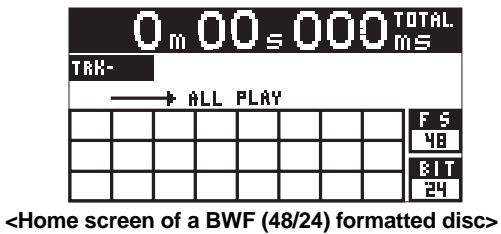
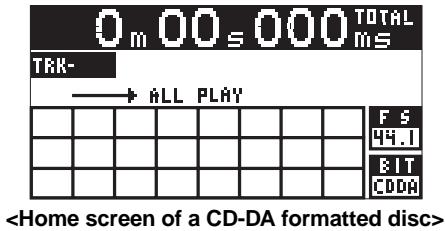
Connecting a sound source
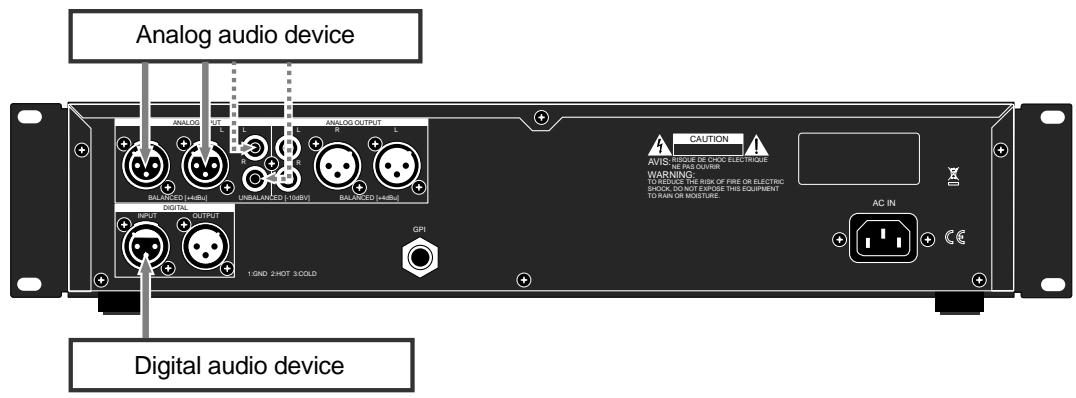
To record an analog audio signal, connect a sound source to the [ANALOG INPUT] (balanced or unbalanced) connectors. To record a digital audio signal, connect a sound source to the [DIGITAL INPUT] connector.
: If you make connection to both the analog balanced (XLR) and unbalanced (RCA) input connectors, the unbalanced input takes priority and the balanced input is disabled.
According to the sound source, select the "Select Input" menu item of the "SYS SETUP" menu in the MENU mode appropriately to "Analog" or "Digital". See page 76 for details about the "Select Input" menu item.
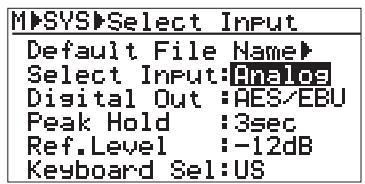
If you record an analog audio source, select "Analog".
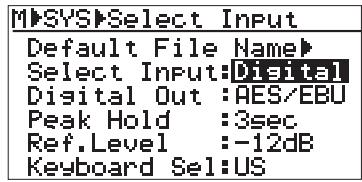
If you record a digital audio source, select "Digital".
: You must set the "Select Input" menu item appropriately. Otherwise, the connected audio source is not fed to the recorder.
You can adjust recording levels only when you record analog audio.
When you record digital audio, recording is always made at the same level as the digital source level.
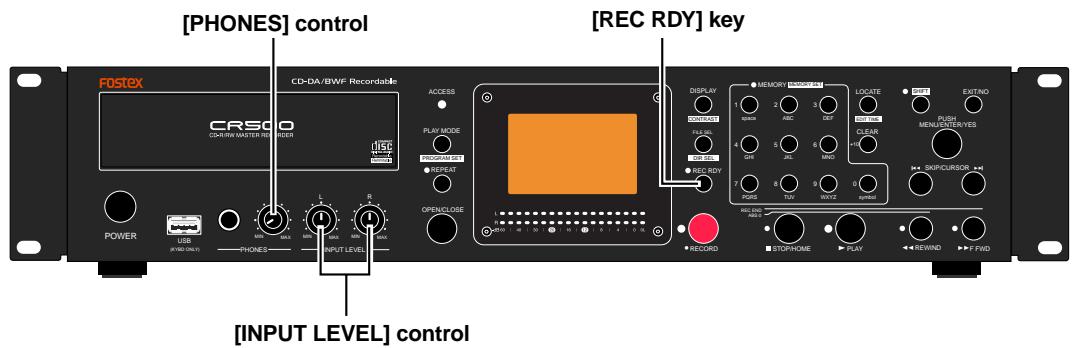
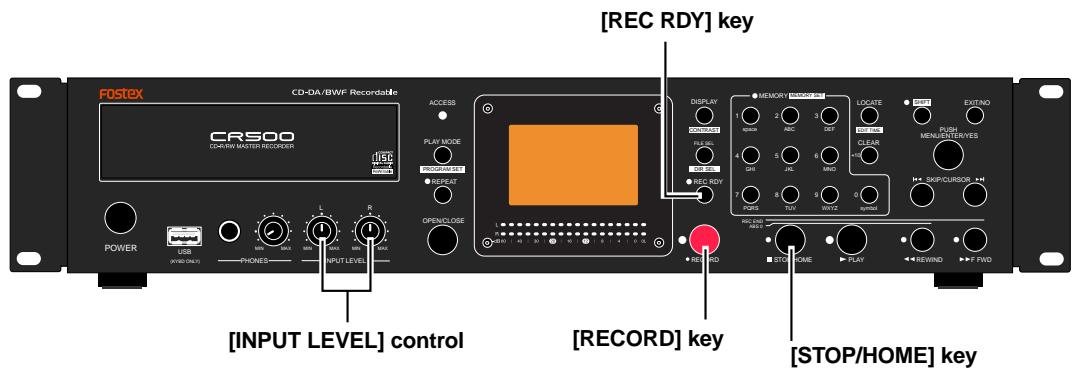
- To adjust the input levels, press the [REC RDY] key to enter the record ready mode ([REC RDY] indicator flashes).
The display changes to the input monitor screen, which shows the format type, input selection, etc. In the record ready mode, the L and R level meters show input levels and you can now check and adjust the input levels.
The following shows input monitor screen examples for a BWF formatted disc and a CD-DA formatted disc. In these examples, the analog input is selected.
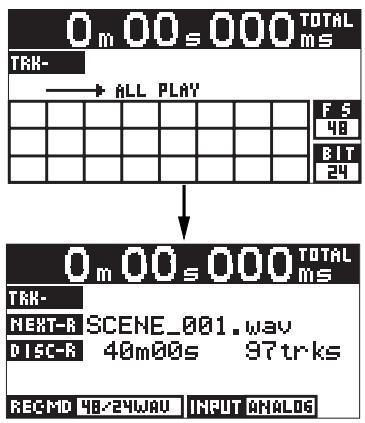
Input monitor screen for a BWF formatted disc
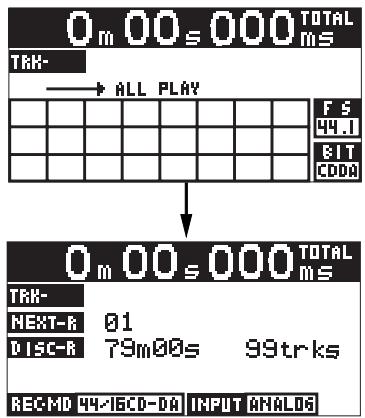
Input monitor screen for a CD-DA formatted disc
: When the "Select Input" menu item is set to "Digital", the input monitor screens for a BWF formatted disc and a CD-DA formatted disc look like the examples below ("INPUT DIGITAL" is shown).
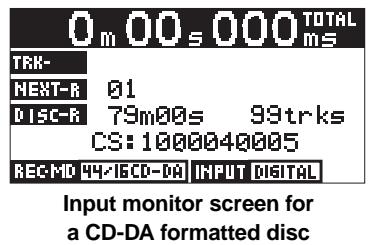
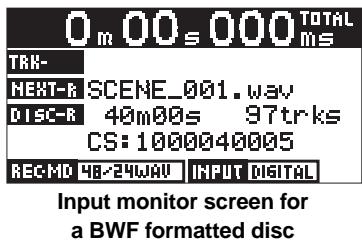
While the "Select Input" menu item is set to "Digital", if the unit receives a correct digital input signal and locks to it, "DIGITAL" of "INPUT DIGITAL" is lit. Just below the "DISC-R" field, the channel status information of the digital signal currently received is shown. If the unit does not receive a correct digital input signal or does not lock to the digital input signal, "DIGITAL" flashes and the input audio signal is muted. In such a case, check the digital output setting of the source device and connection between the source device and the [DIGITAL INPUT] connector of the CR500.
: By default, the file name shown on the input monitor screen for a BWF formatted disc is "" + " (with ".wav", the file extension). Using the "Default File Name" menu item of the "SYS SETUP" menu in the MENU mode, you can select the file name mode from among "" + " (default), "" + " and "" (see page 75). You can also edit the file name using the "Edit File Name" menu item of the "SYS SETUP" menu in the MENU mode (see page 89).
: Normally, no file name is indicated on the input monitor screen for a CD-DA formatted disc. However, if any file name is written by CD-TEXT, it is indicated. Note that you cannot edit the file name of an audio track on the CD-DA formatted disc.
- Feed an analog audio source and adjust the input levels appropriately using the [INPUT LEVEL] control (when feeding a digital audio source, you can only view the levels but cannot control it).
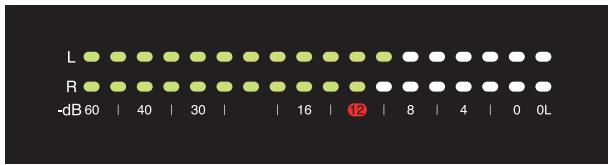
When the analog audio signals are fed, turning the [INPUT LEVEL] control clockwise raises the input level. Adjust the levels appropriately by checking the meter indication and monitoring via headphones.
- When the "Select Input" menu item is set to "Digital", you do not need to adjust the input levels.
: You should set the input levels appropriately so that the indicators near to "0" dB sometimes light but the "OL" indicators do not light.
The reference level is set to "-12dBFS" by default. On the level meter scale, "12" (the -12dB point from the 24-bit full-scale level) is shown in red as the reference marker. You can change to set this level to "-20dB" via the "Ref.level" item in the "SYS SETUP" menu of the MENU mode (see page 78 for details).
Recording a WAV file
You can record analog or digital audio in the WAV file format.
The following description assumes that a BWF formatted blank CD-R (or CD-RW) disc is loaded.
Starting recording
- Press the [REC RDY] key to enter the record ready mode.
The display changes to show the input monitor screen, on which you can see the remaining recordable time and the number of the tracks on the disc.
You can check the input level for recording. When the analog input is selected, you can adjust the input levels for left and right channels using the [INPUT LEVEL] controls.
See "Adjusting recording levels" described earlier in this chapter for details about how to adjust the input levels.
![FOSTEX CR500 - - Press the [REC RDY] key to enter the record ready mode. - 1](/content/2025/01/168455/images/5fedae01b3e06fa35c9f614a0803eeec7a2cb2a16b5547e8b5e605facbd367a8.jpg)
- Press the [RECORD] key to start recording.
When you start recording, the input monitor screen changes as the screen example below. While recording is in progress, the time indication is counted up, whereas the remaining recordable time is counted down (during recording, "●" is shown beside the time indication).
: In order not to miss the beginning of the audio input source, we recommend starting the recorder first.
On the input monitor screen, the "TRK-01" field shows the name of the audio file currently recorded, while the "NEXT-R" field shows the name of the next audio file to be recorded. The file name depends on the setting of the "Default File Name" menu item of the "SYS SETUP" menu in the MENU mode (see page 75).
![FOSTEX CR500 - - Press the [RECORD] key to start recording. - 1](/content/2025/01/168455/images/d484109ff70531aa26d43acce537a8ce58715c128d1566c749a2d38f16aac084.jpg)
Stopping recording
- To stop recording, press the [STOP/HOME] key.
After finishing post-processing of recording ("Please Wait..." is shown on the display), the disc stops at the last recording position.
![FOSTEX CR500 - - To stop recording, press the [STOP/HOME] key. - 1](/content/2025/01/168455/images/fddfc1e5746b0eb739296c931a5959f4ca6bd57c6720dcde93930e54561a0b35.jpg)
Checking the recorded audio file
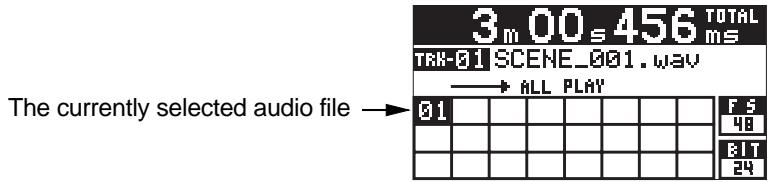
- Press the [REC RDY] key to disable the record ready mode.
The display returns to the Home screen. You can confirm that an audio file has been created, as shown on the screen example below. The time indication shows the last recording position.
- To make another recording in succession, repeat the operation above.
We recommend checking the recordable time and the number of the recordable files on the disc when you make recording.
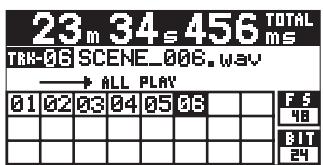
: Each time you make recording, the recorded file number is added to the track list on the Home screen. The screen example on the right shows the recorder condition when the recorder has just finished recording of the sixth audio file.
: With a BWF formatted CD-R or CD-RW disc, you can record additional WAV files to the disc as long as there is remaining recordable space. You can also delete unnecessary files (see page 90). After closing a recorded disc, you can export WAV files to a Windows computer. Note that you cannot reformat a recorded CD-R disc.
Playing back a recorded audio file
The recorder stops at the last recording position when stopping recording. You can skip back to the beginning of the audio file by either of the operations below.
The following assumes that a single audio file is recorded to a disc (see page 50 for file selection when more than one audio file is recorded).
: The CR500 has four play modes. By default, the play mode is set to "ALL PLAY". Therefore, if there are more than one audio file is recorded, the recorder starts playback from the first (earliest) file continuously.
For details about the other play mode, see "Playback/locate" described later.
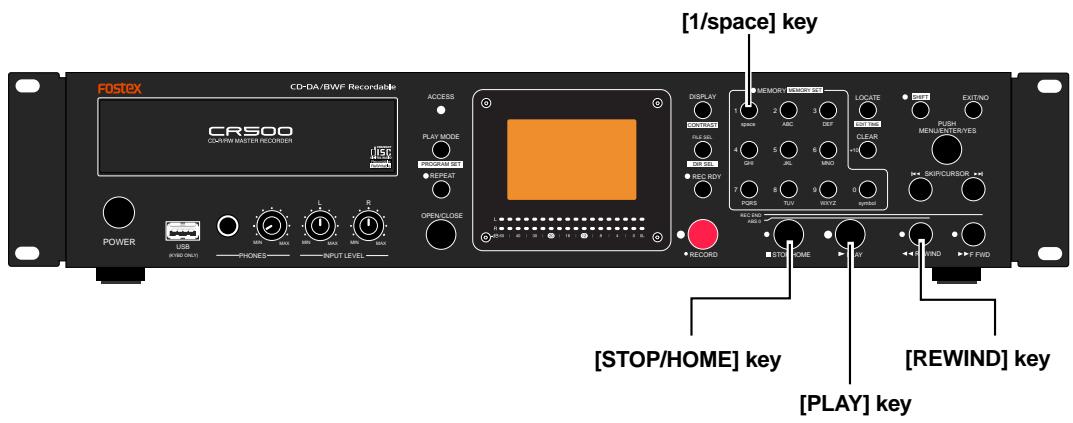
- Press the [REWIND] key while holding down the [STOP/HOME] key, or press the [1/space] key in the [MEMORY] key group.
If you press the [REWIND] key while holding down the [STOP/HOME] key, the recorder executes the "Locate ABS 0" function to go to the beginning of the disc and stops. If you press the [1/space] key in the [MEMORY] key group, the recorder goes to the beginning of the first audio file and automatically starts playback.
: Because the "Auto Play" menu item of the "PLAY SETUP" menu in the MENU mode is set to "On" by default, when you press the [1/space] key in the [MEMORY] key group, the recorder automatically starts playback after skipping to the beginning of the file (see page 84).
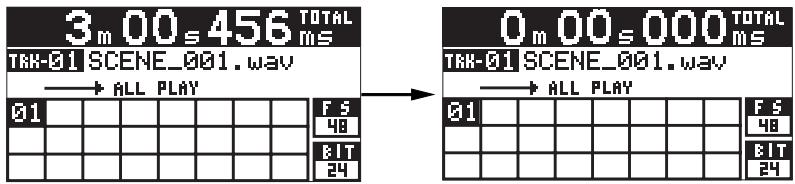
: When more than one audio file is recorded on a disc, if you press the [RE-WIND] key while holding down the [STOP/HOME] key to execute the "Locate ABS 0" function, the recorder goes the beginning of the first audio file. That is, the "Locate ABS 0" function always locates the beginning of the disc (ABS 0), not the beginning of each file. If you wish to select a desired audio file to be played back from among more than one file, follow the instructions described on page 50.
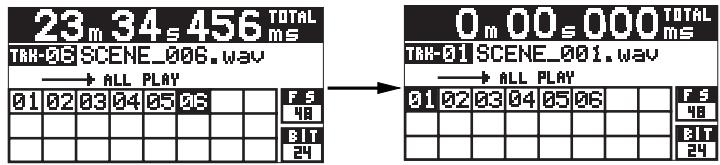
After executing "Locate ABS 0", press the [PLAY] key to start playback.
Closing a disc
By closing a recorded BWF formatted disc, you can export WAV files to a Windows computer. You can close a disc when you eject the disc. Note that you can make additional recordings to a closed disc by reloading the disc.
- You cannot make additional recordings to a disc which is finalized using the "Finalize" item of the "DISK UTILITY" menu in the MENU mode (see page 92).
- Each time you close a disc, the number of remaining recordable files decreases by one and the remaining disc space decreases approximately one or two seconds (the screen shows the number of remaining recordable files calculated by "97 - (the number of recorded files + the number of times you close the disc)"). We recommend not closing a disc unless it is necessary if you do not like to waste tracks and the disc space.
While stopped, press the [OPEN/CLOSE] key.
"Un-closed track!" pops up, followed by the confirmation screen.
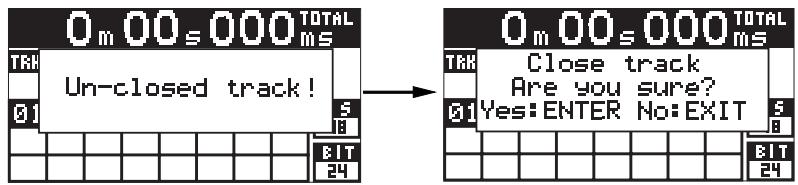
- To close the disc, press the [ENTER/YES] key. To cancel closing, press the [EXIT/NO] key.
If you press the [ENTER/YES] key, "Please Wait Closing track..." pops up. After completing closing, the disc is ejected. Note that it takes some time for closing. If you press the [EXIT/NO] key, the disc is ejected immediately.
Recording a CD-DA track (Creating an audio CD)
You can record analog or digital audio to a disc in the CD-DA format. By finalizing a CD-DA disc on which one or more CD-DA tracks are recorded, an audio CD is created. You can export audio tracks on a finalized CD-DA disc to a Windows computer or play them back by a normal CD player. The following description assumes that a CD-DA formatted blank CD-R (or CD-RW) disc is loaded (you can only make 44.1kHz Fs/16-bit recordings with a CD-DA disc). : An audio track recorded on a CD-DA formatted CD-RW disc may not be played back by a normal CD player.
Starting recording
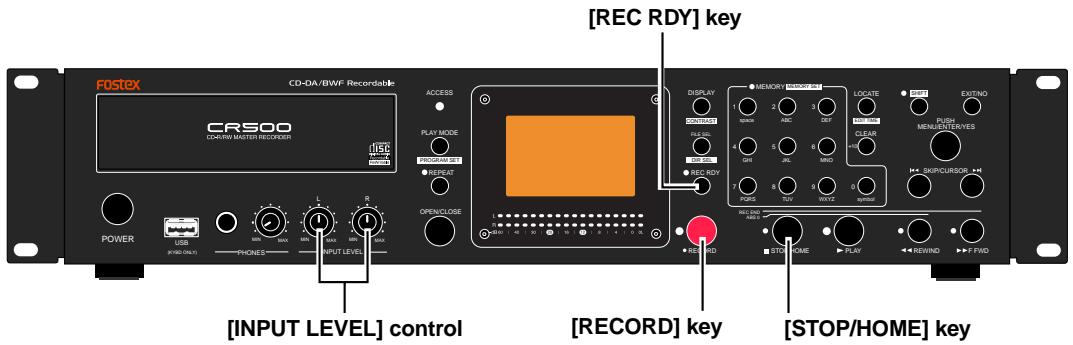
- Press the [REC RDY] key to enter the record ready mode.
The display changes to show the input monitor screen, on which you can see the remaining recordable time and the number of the tracks on the disc.
You can check the input level for recording. When the analog input is selected, you can adjust the input levels for left and right channels using the [INPUT LEVEL] controls. See "Adjusting recording levels" described earlier in this chapter for details about how to adjust the input levels.
![FOSTEX CR500 - - Press the [REC RDY] key to enter the record ready mode. - 1](/content/2025/01/168455/images/98dd4efad331b49399695c4713ccb4e32808ff8adb4354924e527f0be3def175.jpg)
- Press the [RECORD] key to start recording.
When you start recording, the input monitor screen changes as the screen example below. While recording is in progress, the time indication is counted up, whereas the remaining recordable time is counted down (during recording, "●" is shown beside the time indication).
: In order not to miss the beginning of the audio input source, we recommend starting the recorder first.
On the input monitor screen, the "NEXT-R" field shows the track number currently being recorded.
![FOSTEX CR500 - - Press the [RECORD] key to start recording. - 1](/content/2025/01/168455/images/8b13bb9c4e61591a9ea4971613d779815475eb80a883ce579be053470ec20dcb.jpg)
Stopping recording
- To stop recording, press the [STOP/HOME] key.
After finishing post-processing of recording ("Please Wait..." is shown on the display), the disc stops at the last recording position.
![FOSTEX CR500 - - To stop recording, press the [STOP/HOME] key. - 1](/content/2025/01/168455/images/eb334e136111e90bf154b06e542a476fb885a485ed414ae6d05809fecaa2adc9.jpg)
Checking the recorded audio track
- Press the [REC RDY] key to disable the record ready mode.
The display returns to the Home screen. You can confirm that an audio track is created, as shown on the screen example below. The time indication shows the last recording position.
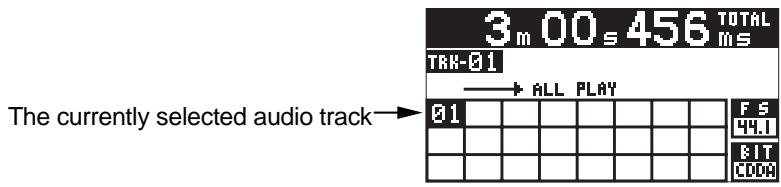
- To make another recording in succession, repeat the operation above.
Note that each time you make a recording, check the recordable time and the number of the tracks on the disc.
: If you make recordings in succession, the track numbers are shown in the track list on the Home screen. In the screen example on the right, six audio tracks have been recorded in succession and the last track is now loaded.
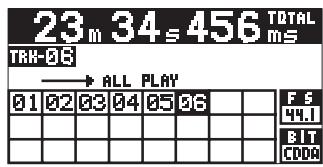
: With a CD-DA formatted CD-R or CD-RW disc, you can record additional tracks to the disc until it is finalized as long as there is remaining recordable space. After finalizing a recorded disc, you can play back the disc by a normal CD player or export audio tracks to a Windows or Mac OS computer. Note that you cannot reformat a recorded CD-R disc.
Playing back the recorded audio track
The recorder stops at the last recording position when stopping recording. You can locate the beginning of the audio track by either of the operations below. The following assumes that a single audio track is recorded to a disc.
: The CR500 has four play modes. By default, the play mode is set to "ALL PLAY". Therefore, if there are more than one audio track is recorded, the recorder starts playback from the first track continuously.
For details about the other play mode, see "Playback/locate" described later.
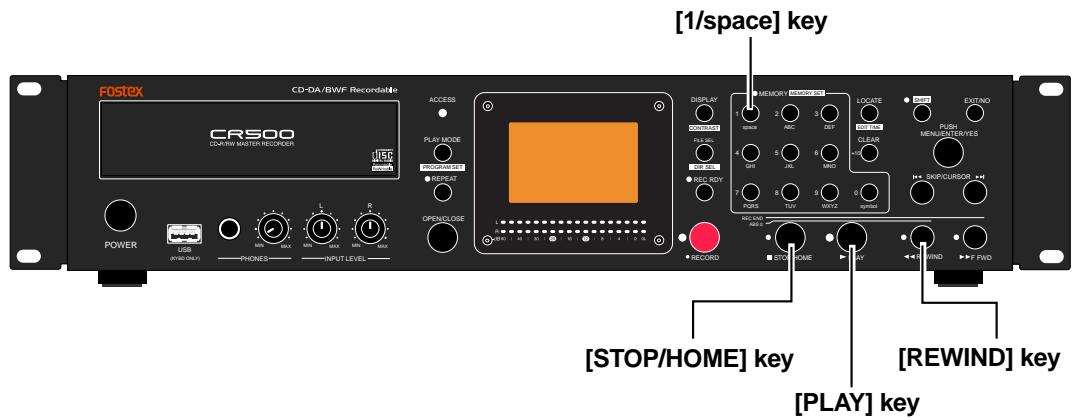
- Press the [REWIND] key while holding down the [STOP/HOME] key, or press the [1/space] key in the [MEMORY] key group.
If you press the [REWIND] key while holding down the [STOP/HOME] key, the recorder executes the "Locate ABS 0" function to skip to the beginning of the disc and stops. If you press the [1/space] key in the [MEMORY] key group, the recorder goes to the beginning of the audio track and automatically starts playback.
: Because the "Auto Play" menu item of the "PLAY SETUP" menu in the MENU mode is set to "On" by default, when you press the [1/space] key in the [MEMORY] key group, the recorder automatically starts playback after skipping to the beginning of the track (see page 84).
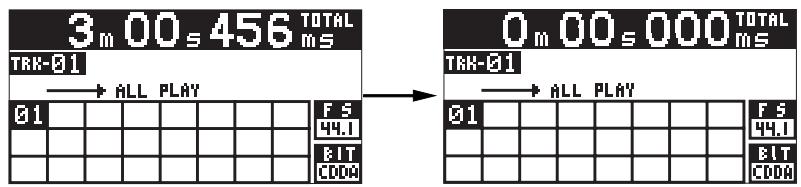
: When more than one audio track is recorded on a disc, if you press the [REWIND] key while holding down the [STOP/HOME] key to execute the "Locate ABS 0" function, the recorder goes to the beginning of track 1. That is, the "Locate ABS 0" function always locates the beginning of the disc (ABS 0), not the beginning of each track. If you wish to select a desired audio track to be played back from among more than one track, follow the instructions described on page 50.
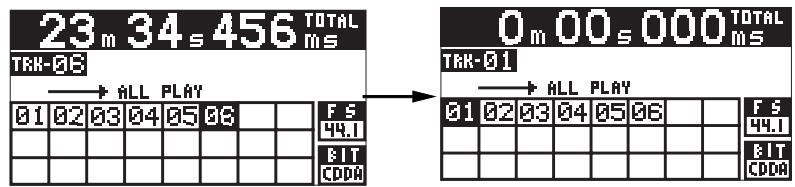
After executing "Locate ABS 0", press the [PLAY] key to start playback.
Finalizing a disc
After finalizing a recorded CD-DA formatted disc, you can play back tracks by a normal CD player or export tracks to a Windows or Mac OS computer. You can finalize a disc when you eject the disc. You can also finalize a disc using the "Finalize" menu item of the "DISK UTILITY" menu in the MENU mode (see page 92).
: You cannot make additional recordings to a disc which has been finalized.
While stopped, press the [OPEN/CLOSE] key.
"Un-closed track!" pops up, followed by the confirmation screen.
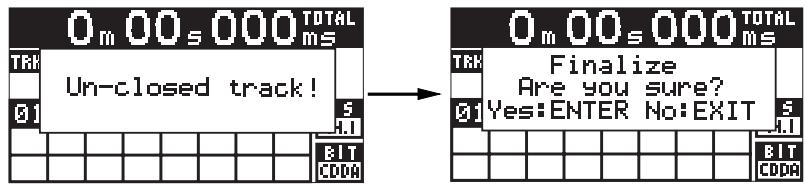
- To finalize the disc, press the [ENTER/YES] key. To cancel finalizing, press the [EXIT/NO] key.
If you press the [ENTER/YES] key, "Please Wait Finalizing track..." pops up. After completing finalizing, the disc is ejected. Note that it takes some time for finalizing. If you press the [EXIT/NO] key, the disc is ejected immediately.
Selecting a song to be played back
When a disc contains more than one song ("audio file" on a BWF formatted disc or "audio track" on a CD-DA disc), you can select a desired song to be played back by any of the following three methods.
: Using the [SKIP/CURSOR |▶▶] keys
If you press the [SKIP/CURSOR] or [SKIP/CURSOR] key, the following popup screen appears, and the recorder skips to the beginning of the current/previous or next song and stops. You can locate the desired track by pressing the appropriate key as many times as required.
![FOSTEX CR500 - : Using the [SKIP/CURSOR |▶▶] keys - 1](/content/2025/01/168455/images/23dccc6f9f2240051912605cf8ce3e0a6f4dc8b23cda5ff71f0d1d492b3a012e.jpg)
: You can execute the operation above while stopped or during playback. If you execute the operation during playback, the recorder automatically starts playback after locating the specified song. If you enable the repeat function (by using the [REPEAT] key or the "PLAY SETUP" menu in the MENU mode), the recorder repeats playback.
: Using the [MEMORY/ [MEMORY SET] key group
By specifying the file (track) number of a song using a key in the [MEMORY/ [MEMORY SET] key group, the recorder locates the beginning of the song. To specify a song whose number is two-digit, use the [CLEAR / + 10] key to specify the tens digit and then press an appropriate key among the [0] through [9] keys (see the entry examples below).
![FOSTEX CR500 - : Using the [MEMORY/ [MEMORY SET] key group - 1](/content/2025/01/168455/images/fab3bf12f3c2e38249972b30a1fc4e8f2ed1719ea857032828b0e7a91d448c82.jpg)
: You can execute the operation above while stopped or during playback. The recorder automatically starts playback of the specified song. If you enable the repeat function (by using the [REPEAT] key or the "PLAY SETUP" menu in the MENU mode), the recorder repeats playback.
How to use the [CLEAR/+10] key
If you press the [CLEAR/+10] key once, the popup screen below left appears. Highlighted "1-" indicates the tens digit is "1". If you press the [CLEAR/+10] key again, highlighted "1-" changes to "2-", indicating that the tens digit is "2". That is, pressing the [CLEAR/+10] key increments the tens digit number.
![FOSTEX CR500 - How to use the [CLEAR/+10] key - 1](/content/2025/01/168455/images/d02d87a44c077c069b46d52a181a81a9bbd2987b5a4ecaad1c00893fd5a3d106.jpg)
![FOSTEX CR500 - How to use the [CLEAR/+10] key - 2](/content/2025/01/168455/images/361e16e69463b2cda5ffe3d25c41bcab58f684909d3f43cf5ecb25f5df0af86a.jpg)
For example, to select track 15, press the [CLEAR/+10] key once, followed by the [5/ JKL] key in the [MEMORY/[MEMORY SET]] key group. To select track 24, press the [CLEAR/+10] key twice, followed by the [4/GHI] key in the [MEMORY/[MEMORY SET]] key group.
: Using the "FILE SEL" screen
You can bring up the "FILE SEL" screen by the following two methods.
: When you select a file from the "FILE SEL" screen, the recorder does not start playback automatically.
- Press the [FILE SELDIR SEL] key to bring up the "FILE SEL" screen directly.
While stopped, pressing the [FILE SEL/DIR SEL] key brings up the "FILE SEL" screen, on which the songs on the current disc are listed. The currently selected song is highlighted.
(The screen example below shows the "FILE SEL" screen of a BWF formatted disc. When a CD-DA disc is set, the "FILE SEL" screen shows the track number and recording time.)
![FOSTEX CR500 - - Press the [FILE SELDIR SEL] key to bring up the "FILE SEL" screen directly. - 1](/content/2025/01/168455/images/d3a97d1eda26cb61b50eaabfa9eb78d1b6af7654b8e2ef42319db9e7b037bdaa.jpg)
While the "FILE SEL" screen is shown, use the [MENU] dial (or the [SKIP/CURSOR] keys) to select a desired song and press the [ENTER/YES] key. The display changes to show the Home screen of the selected song and you can now play back the song.
(1) While stopped, press the [ENTER/YES] key.
The unit enters the menu mode. The display shows the MENU list screen.
![FOSTEX CR500 - While stopped, press the [ENTER/YES] key. - 1](/content/2025/01/168455/images/18605d64c57e1dc9698e2e60aa23f91688bb3212ec30a7c84cc89a345ff5db80.jpg)