USER MANUAL ZYWALL USG 100 ZYXEL
ZyWALL USG 100/200 Series
Unified Security Gateway
Quick Start Guide
Version 2.10
3/2008
Edition 1
DEFAULT LOGIN
| LAN Port | P4 |
| LAN IP Address | http://192.168.1.1 |
| User Name | admin |
| Password | 1234 |
CONTENTS
| ENGLISH | 2 |
| DEUTSCH | 9 |
| ESPAÑOL | 16 |
| FRANÇAIS | 23 |
| ITALIANO | 30 |
| РУССКИЙ | 37 |
| 简体中文 | 45 |
| 繁體中文 | 52 |
1 Checking the Package Contents
Your package should include one of each of the following:
- ZyWALL
- RJ-45 Ethernet cable
- Compact disk (CD)
- Power cord
• RS-232 console Y-cable
- Rack-mounting kit
- Printed Quick Start Guide
2 Rack-mounted Installation
Mount the ZyWALL in a 19-inch rack or place it on a sturdy, flat surface.
Note: Leave 10 cm of clearance at the sides and 20 cm in the rear.
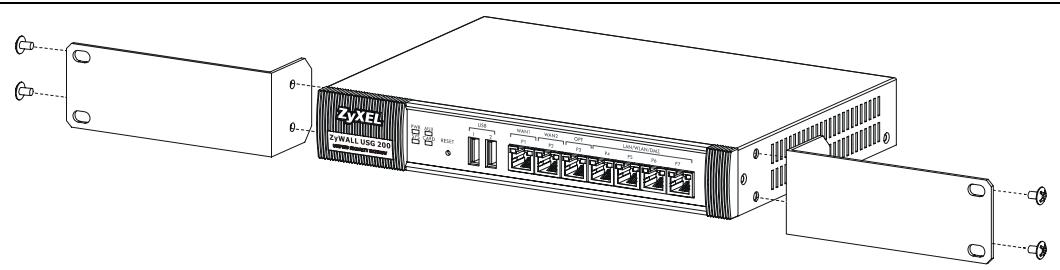
1 Align one bracket with the holes on one side of the ZyWALL and secure it with the included bracket screws. Similarly, attach the other bracket.
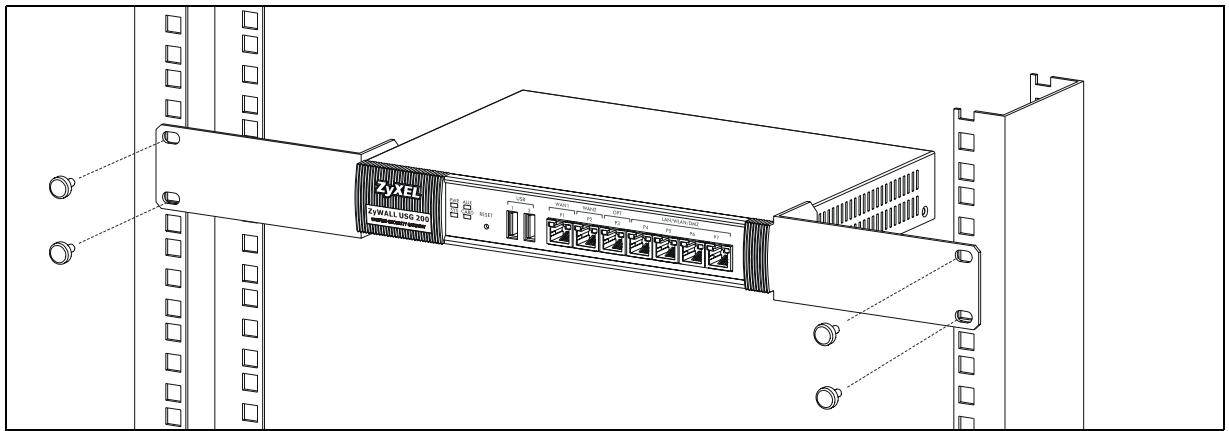
2 After attaching both mounting brackets, position the ZyWALL in the rack by lining up the holes in the brackets with the appropriate holes on the rack. Secure the ZyWALL to the rack with the rack-mounting screws.
natural_image
Technical line drawing of a Zyxel networking device mounted on server racks (no text or symbols visible)
3 Connecting the Hardware
flowchart
graph TD
    A["ZyXEL"] -->|PWR SYS AUX CARD RESET| B["USB"]
    B --> C["WAN1 P1 WAN2 OPT P3 LAN/WLAN/DMZ P4 P5 P6 P7"]
    B --> D["Internet"]
    B --> E["Computer"]
    style A fill:#f9f,stroke:#333
    style B fill:#ccf,stroke:#333
    style C fill:#cfc,stroke:#333
    style D fill:#fcc,stroke:#333
    style E fill:#cff,stroke:#333
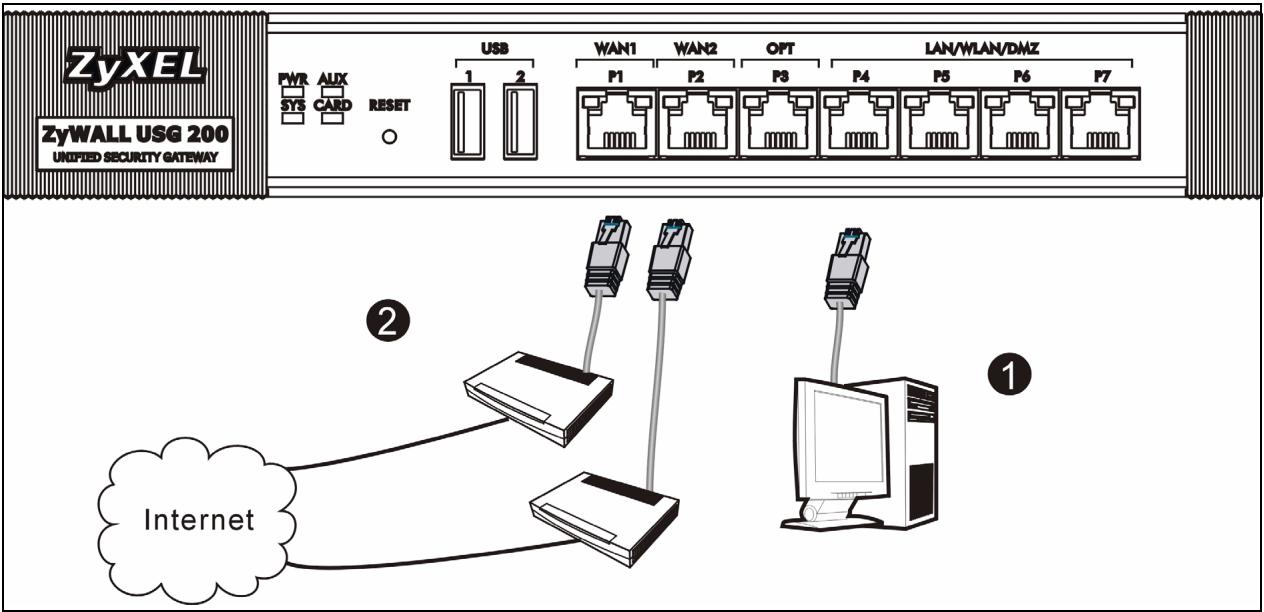
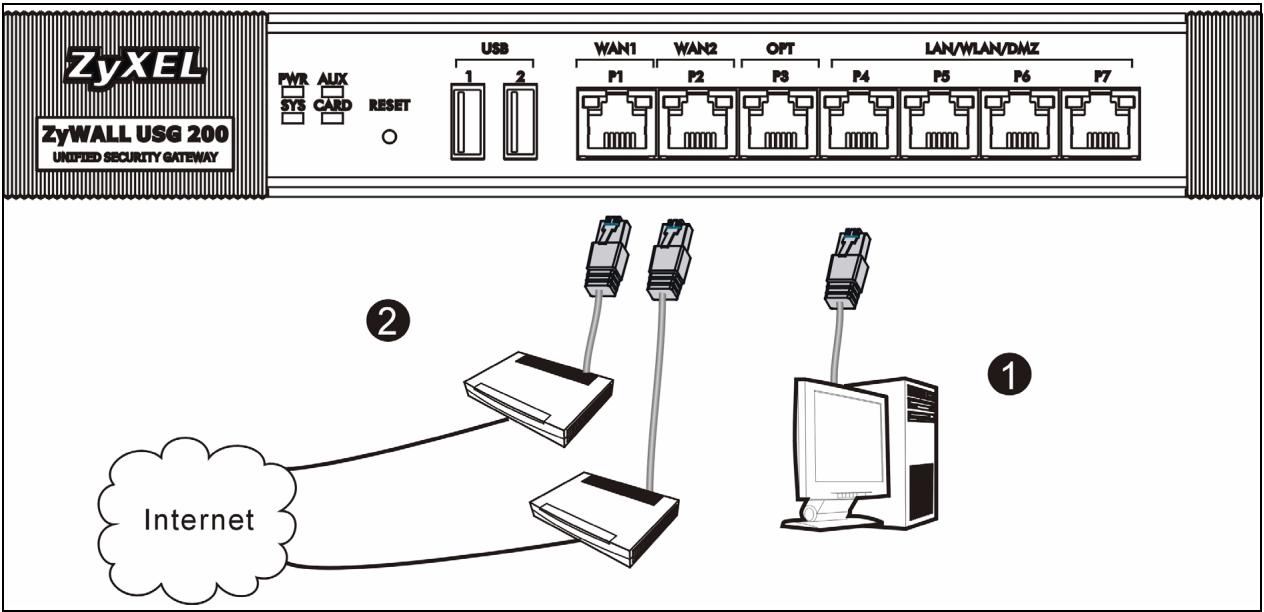
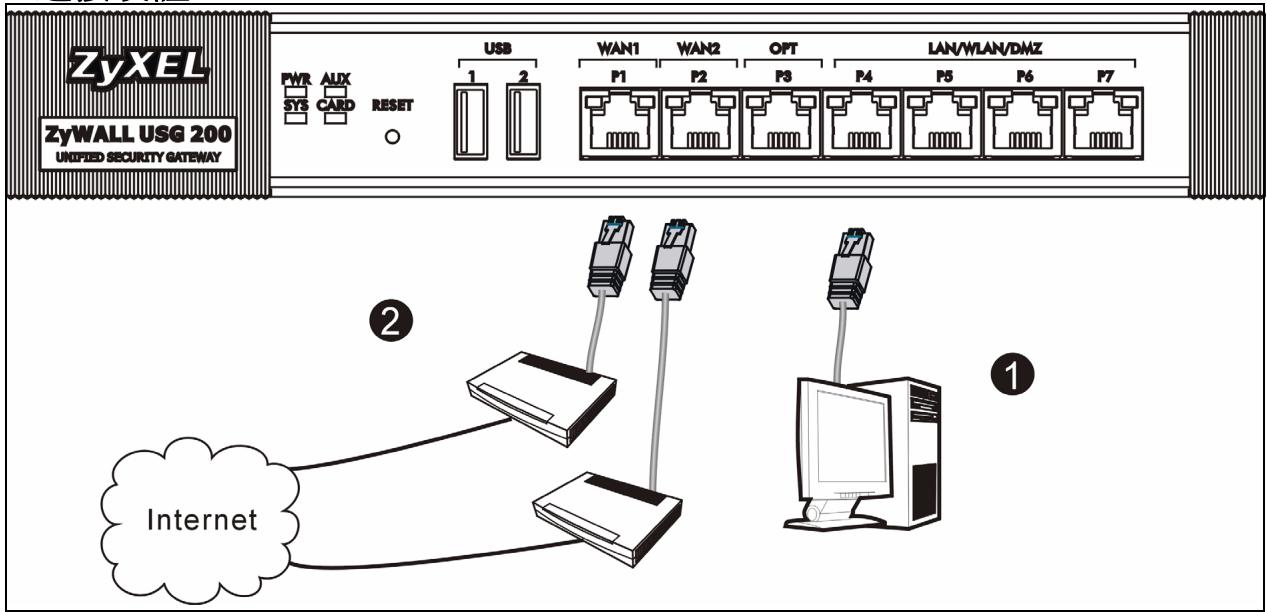
1 It is recommended that you configure the ZyWALL before using it to protect your network. Use an Ethernet cable to connect a computer to port P4.
2 Use another Ethernet cable(s) to connect port 2 and/or port 3 to an Ethernet jack with Internet access.

3 Use the included power adaptor to connect the power socket (on the rear panel) to a power outlet.
4 Look at the front panel. The PWR light turns on. The SYS light blinks during system testing and initialization and then stays on when the system is ready.
4 Web Login
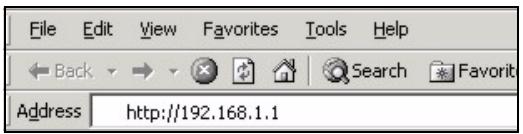
1 Launch your web browser and go to http://192.168.1.1 (the ZyWALL automatically redirects you to https://192.168.1.1).
2 Click Yes to proceed if you get a security alert or certificate screen.
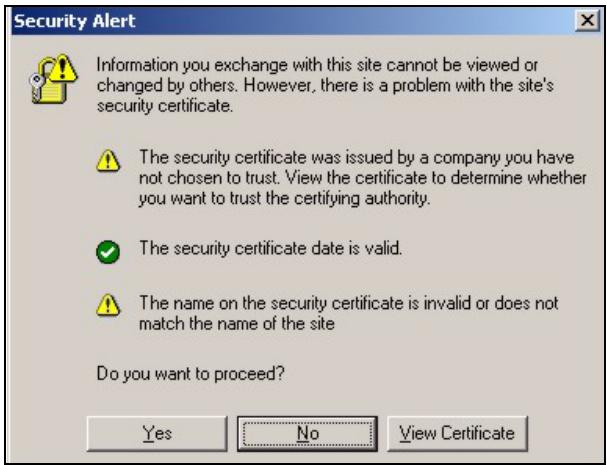
3 Enter admin as the user name and 1234 as the password. Click Login.
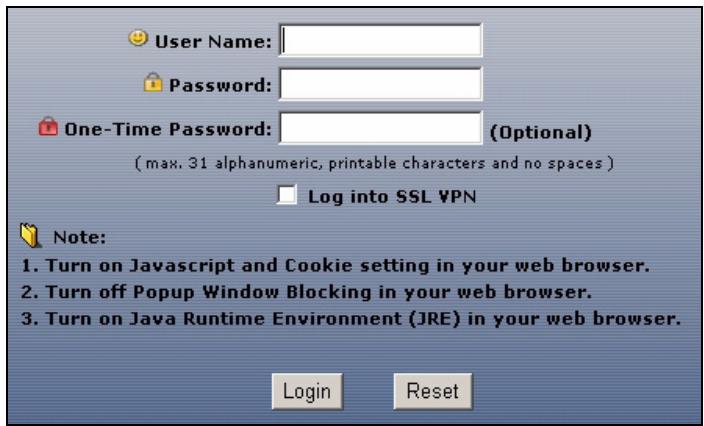
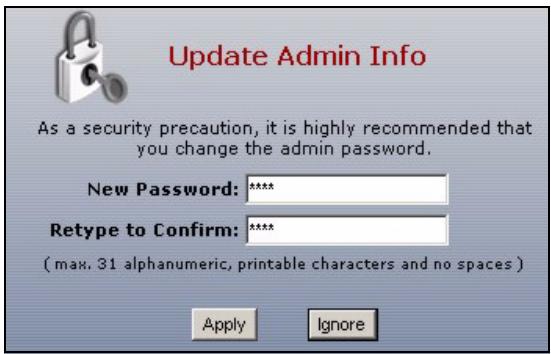
4 It is strongly recommended that you change the password. Type and retype a new password, and click Apply.
5 Installation Setup Wizard
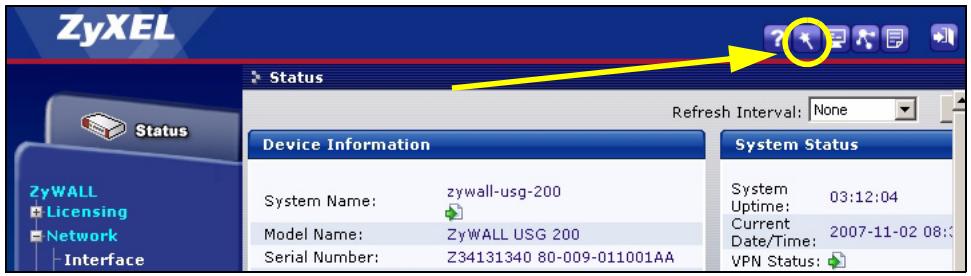
The Status screen opens. Click the Wizard icon 📁 in the upper right corner.
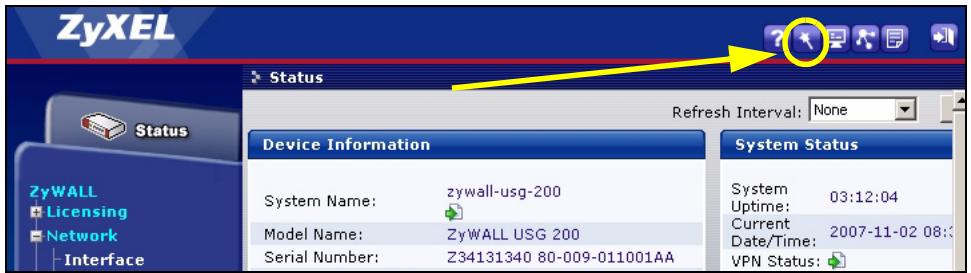
Use an installation setup wizard to connect to the Internet and register the ZyWALL and/or activate trial services, like IDP and content filter.
Note: Use the installation wizard only for initial configuration starting from the default configuration.
Changes you make in the installation wizard may not be applied if you have already changed the ZyWALL's configuration.
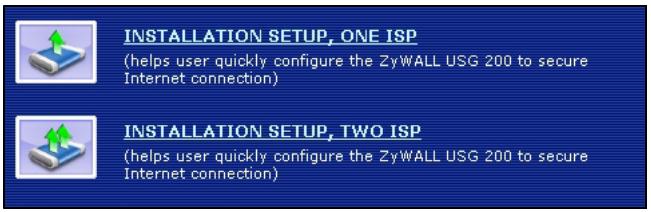
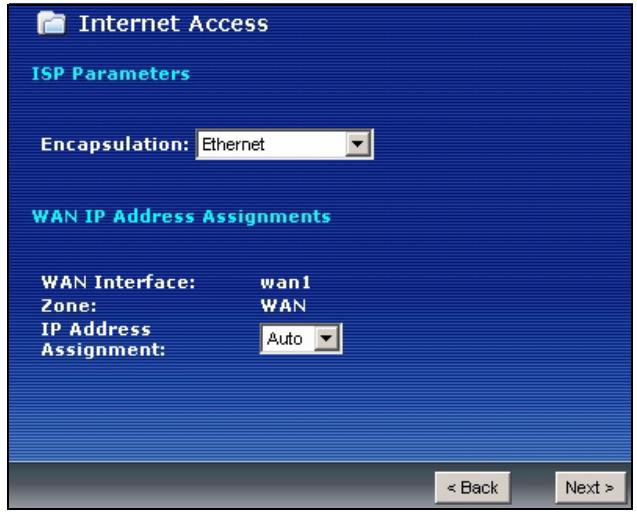
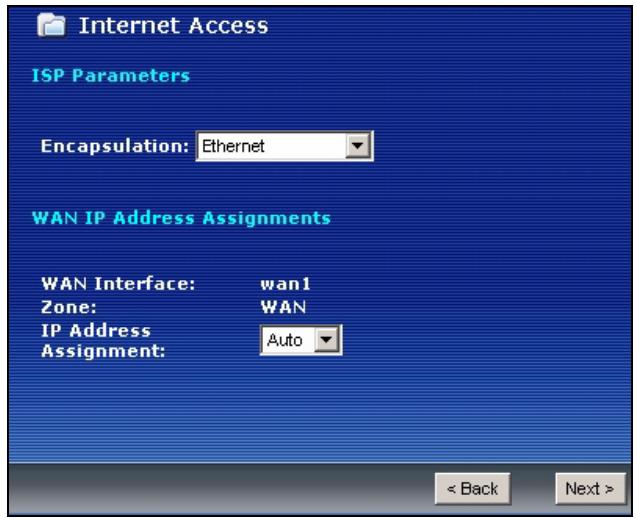
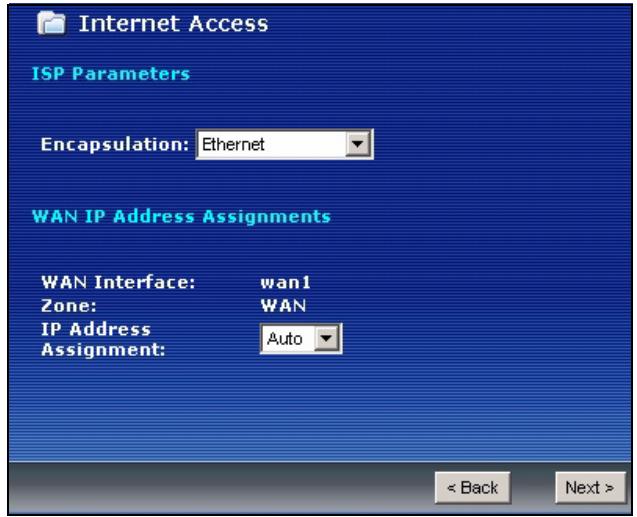
- INSTALLATION SETUP, ONE ISP sets up a single Internet connection for wan1.
- INSTALLATION SETUP, TWO ISP sets up Internet connections for wan1 and wan2.
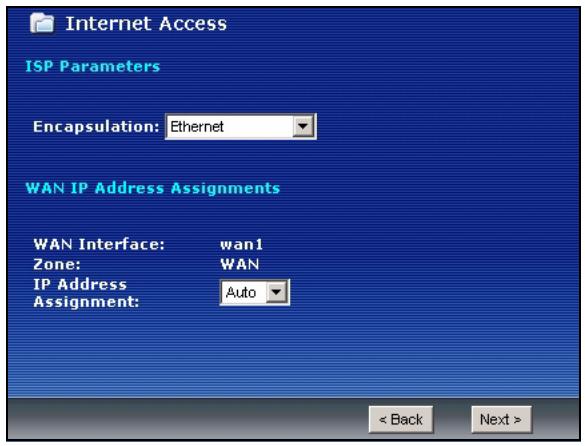
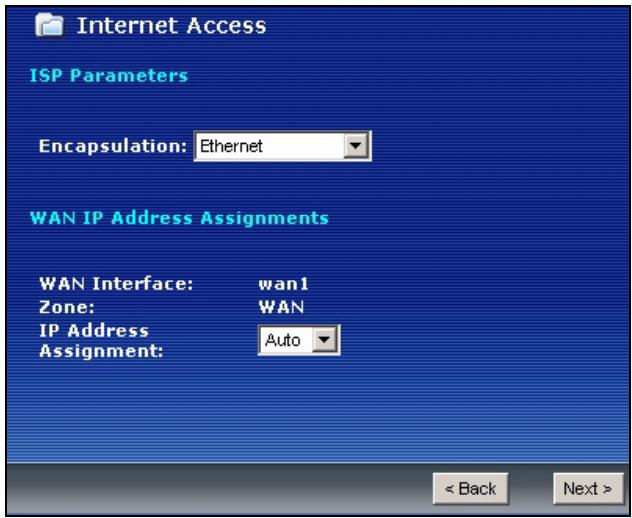
The wizard screens vary depending on the encapsulation type you use. Refer to information provided by your ISP and the web help screens to know what to enter in each field. You can leave fields blank if you don't have that information.
6 Default Settings and Port Details
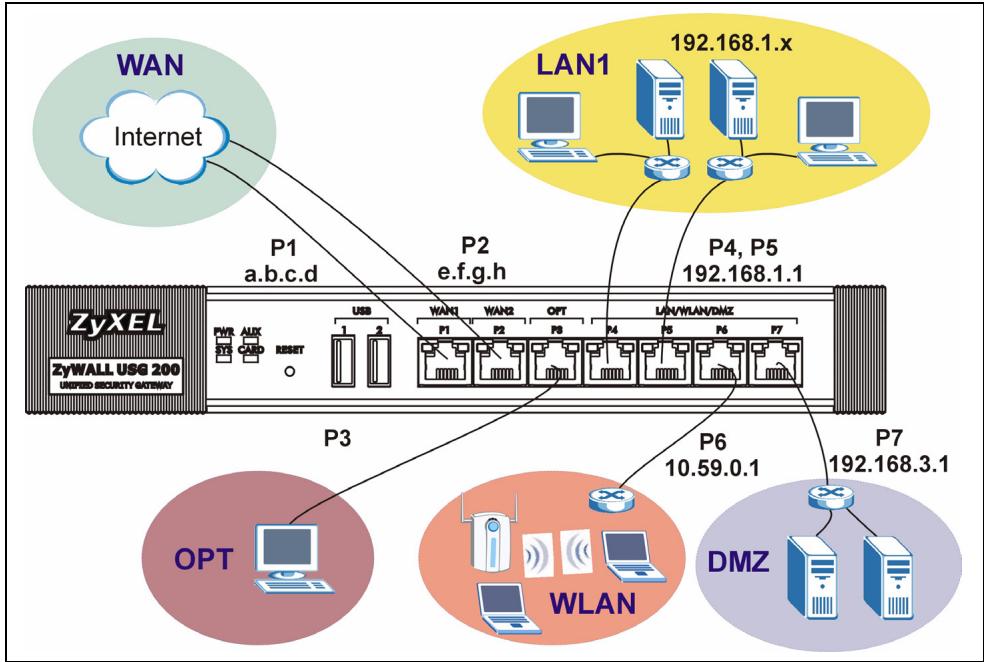
The ZyWALL is configured for the following network topology by default. (ZyWALL USG 200)
flowchart
graph TD
    A["ZyXEL\nZyWALL USG 200\nUNIFIED SECURITY GATWAY"] -->|P1 a.b.c.d| B["Internet"]
    A -->|P2 e.f.g.h| C["LAN1"]
    A -->|P3| D["DMZ"]
    A -->|P4, P5 192.168.1.1| E["LAN/WLAN/DMZ"]
    A -->|P6 10.59.0.1| F["WLAN"]
    A -->|P7 192.168.3.1| G["LAN1"]
    style A fill:#f9f,stroke:#333
    style B fill:#ccf,stroke:#333
    style C fill:#cfc,stroke:#333
    style D fill:#fcc,stroke:#333
    style E fill:#ffc,stroke:#333
    style F fill:#cff,stroke:#333
    style G fill:#ffc,stroke:#333
ZyWALL USG 200
| Port | Interface | Zone | IP Address and DHCP Settings | Suggested Use With Default Settings |
| P1, P2 | wan1, wan2 | WAN | DHCP clients | Connections to the Internet |
| P3 | opt | OPT | None, DHCP server disabled | Third WAN, additional LAN, WLAN, or DMZ port or a separate network. |
| P4, P5 | lan1 | LAN1 | 192.168.1.1, DHCP server enabled | Protected LAN |
| P6 | ext-wlan | WLAN | 10.59.0.1, DHCP server enabled | Wireless access points |
| P7 | dmz | DMZ | 192.168.3.1, DHCP server disabled | Public servers (such as web, e-mail and FTP) |
| AUX | aux | None | None | Auxiliary modem |
| CONSOLE | n/a | None | None | Local management |
ZyWALL USG 100
| Port | Interface | Zone | IP Address and DHCP Settings | Suggested Use With Default Settings |
| P1, P2 | wan1, wan2 | WAN | DHCP clients | Connections to the Internet |
| P3, P4, P5 | lan1 | LAN1 | 192.168.1.1, DHCP server enabled | Protected LAN. |
| P6 | ext-wlan | WLAN | 10.59.0.1, DHCP server enabled | Wireless access points |
| P7 | dmz | DMZ | 192.168.3.1, DHCP server enabled | Public servers (such as web, e-mail and FTP) |
| AUX | aux | None | None | Auxiliary modem |
| CONSOLE | n/a | None | None | Local management |
| Label | Type | Description |
| USB | USB | Connect a (USB) 3G wireless card to access the Internet through a 3G network. At the time of writing, you can use the Huawei E220. |
| P1~P7 | RJ-45 | Use 8-wire Category 5e or above Ethernet cables to connect routers, switches, computers, routers, access points, and so on. |
| AUX | RS-232 | Use an RS-232 console cable to connect dial backup/dial-in modem. |
| CONSOLE | RS-232 | Use an RS-232 console cable to connect a local computer for command-based management. |
| EXTENSION CARD SLOT | PCMCIA | Insert a wireless LAN card to use the wireless LAN feature. At the time of writing, you can use ZyXEL's G-170S wireless card. You can optionally insert a 3G wireless card to access the Internet wirelessly via a 3G network. At the time of writing, you can use a Sierra Wireless AC850 or AC860 3G wireless card. |
7 Troubleshooting
| Problem | Corrective Action |
| None of the LEDs turn on. | Make sure that you have the power cord connected to the ZyWALL and plugged in to an appropriate power source. Make sure you have the ZyWALL turned on. Check all cable connections. |
| If the LEDs still do not turn on, you may have a hardware problem. In this case, you should contact your local vendor. |
| Cannot access the ZyWALL from the LAN. | Check the cable connection between the ZyWALL and your computer or switch. Refer to section 3 for details. |
| Ping the ZyWALL from a LAN computer. Make sure your computer's Ethernet card is installed and functioning properly. Also make sure that its IP address is in the same subnet as the ZyWALL's.In the computer, click Start, (All) Programs, Accessories and then Command Prompt. In the Command Prompt window, type "ping" followed by the ZyWALL's LAN IP address (192.168.1.1 is the default) and then press [ENTER]. The ZyWALL should reply. |
| If you've forgotten the ZyWALL's password, use the RESET button. Press the button in for about 5 seconds (or until the PWR LED starts to blink), then release it. It returns the ZyWALL to the factory defaults (password is 1234, LAN IP address 192.168.1.1 etc.; see your User's Guide for details). |
| If you've forgotten the ZyWALL's IP address, you can use the commands through the console port to check it. Connect your computer to the CONSOLE port using a console cable. Your computer should have a terminal emulation communications program (such as HyperTerminal) set to VT100 terminal emulation, no parity, 8 data bits, 1 stop bit, no flow control and 115200 bps port speed. |
| Cannot access the Internet. | Check the ZyWALL's connection to the Ethernet jack with Internet access. Make sure the Internet gateway device (such as a DSL modem) is working properly. |
| Check the WAN port's status in the Status screen. Use the installation setup wizard again and make sure that you enter the correct settings. |
8 Procedure to View a Product's Certification(s)
1 Go to www.zyxel.com.
2 Select your product from the drop-down list box on the ZyXEL home page to go to that product's page.
3 Select the certification you wish to view from this page.
natural_image
Technical line drawing of a server rack unit with Zyxel internal components and mounting brackets (no text or symbols)
5 Installationsassistent
natural_image
Technical line drawing of a Zyxel industrial server rack with mounting brackets and ports (no text or symbols on the device itself)
3 Conectar el hardware
flowchart
graph TD
    A["ZyXEL"] -->|PWR SYS AUX CARD RESET| B["USB"]
    B --> C["WAN1 P1 WAN2 OPT P3 LAN/WLAN/DMZ P4 P5 P6 P7"]
    B --> D["Internet"]
    B --> E["Computer"]
    style A fill:#f9f,stroke:#333
    style B fill:#ccf,stroke:#333
    style C fill:#cfc,stroke:#333
    style D fill:#fcc,stroke:#333
    style E fill:#cff,stroke:#333
(helps user quickly configure the ZyWALL USG 200 to secure Internet connection)

INSTALLATION SETUP, TWO ISP
(helps user quickly configure the ZyWALL USG 200 to secure Internet connection)
natural_image
Technical line drawing of a Zyxel networking device with labeled ports and connectors (no readable text or symbols beyond branding)
(helps user quickly configure the ZyWALL USG 200 to secure Internet connection)

INSTALLATION SETUP, TWO ISP
(helps user quickly configure the ZyWALL USG 200 to secure Internet connection)
natural_image
Technical line drawing of a Zyxel industrial server rack with mounting brackets and ports (no text or symbols on the device itself)
natural_image
Technical line drawing of a Zyxel ISG 200 networking device with labeled ports and mounting brackets (no readable text beyond labels)
3 Подключение
(helps user quickly configure the ZyWALL USG 200 to secure Internet connection)

INSTALLATION SETUP, TWO ISP
(helps user quickly configure the ZyWALL USG 200 to secure Internet connection)
natural_image
Technical line drawing of a Z pixel network device mounted on server racks (no text or symbols visible)
3 连接硬件
natural_image
Technical line drawing of a Z pixel network device mounted on server racks (no text or symbols visible)
3 連接硬體
flowchart
graph TD
    A["ZyXEL"] -->|PWR SYS AUX CARD RESET| B["UNIFIED SECURITY GATEWAY"]
    B --> C["USB 1"]
    B --> D["USB 2"]
    C --> E["WAN1 P1"]
    C --> F["WAN2 P2"]
    D --> G["OPT P3"]
    D --> H["OPT P4"]
    D --> I["OPT P5"]
    D --> J["OPT P6"]
    D --> K["OPT P7"]
    L["Internet"] --> M["Switch ②"]
    M --> N["Switch ①"]
    style L fill:#f9f,stroke:#333
    style M fill:#ccf,stroke:#333
5 安裝設定精靈
打開狀態畫面。點擊右上角的精靈圖示。
(helps user quickly configure the ZyWALL USG 200 to secure Internet connection)

INSTALLATION SETUP, TWO ISP
(helps user quickly configure the ZyWALL USG 200 to secure Internet connection)
6 預設值及連接埠的細節



