
C830DTN - Color laser printer OKI - Free user manual and instructions
Find the device manual for free C830DTN OKI in PDF.



| Product type | Color laser printer |
| Brand | OKI |
| Model | C830DTN |
| Weight | Approximately 36 kg (79 lb) |
| Power supply | 220-240 V AC, 50/60 Hz, 10 A |
| Main functions | Duplex color printing, Ethernet network, USB, parallel |
| Maintenance and cleaning | Remove shipping tapes, install toner and drum cartridges, load paper |
| Safety | Use only the supplied power cord, do not plug into a UPS, follow the safety manual instructions |
| Spare parts and repairability | Toner and drum cartridges available from the manufacturer. Repair by an authorized technician. |
| General information | Network printer with control panel, compatible with PC and Mac |
Frequently Asked Questions - C830DTN OKI
User questions about C830DTN OKI
0 question about this device. Answer the ones you know or ask your own.
Ask a new question about this device
Download the instructions for your Color laser printer in PDF format for free! Find your manual C830DTN - OKI and take your electronic device back in hand. On this page are published all the documents necessary for the use of your device. C830DTN by OKI.
USER MANUAL C830DTN OKI
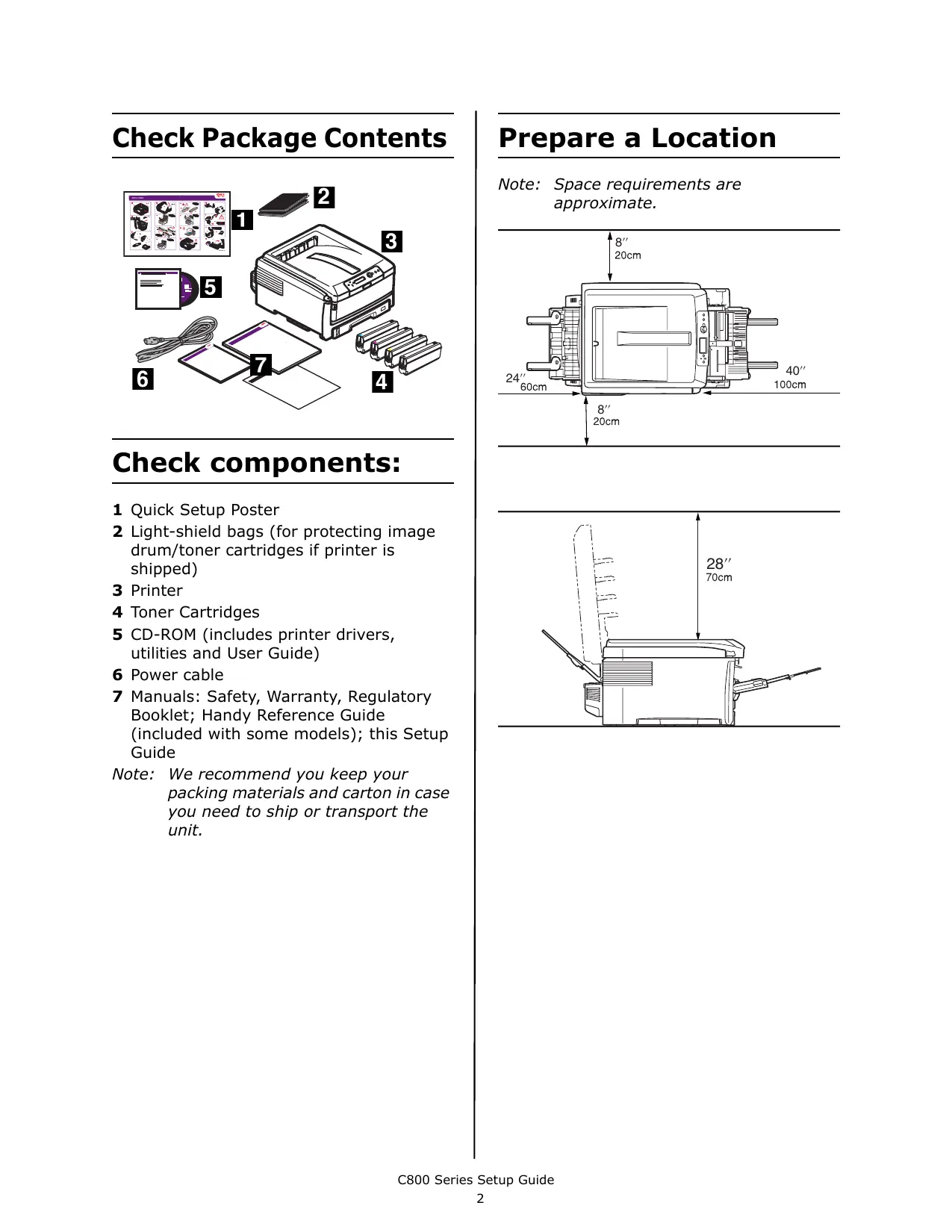
1 Quick Setup Poster
2 Light-shield bags (for protecting image drum/toner cartridges if printer is shipped)
3 Printer
4 Toner Cartridges
5 CD-ROM (includes printer drivers, utilities and User Guide)
6 Power cable
7 Manuals: Safety, Warranty, Regulatory Booklet; Handy Reference Guide (included with some models); this Setup Guide
Note: We recommend you keep your packing materials and carton in case you need to ship or transport the unit.
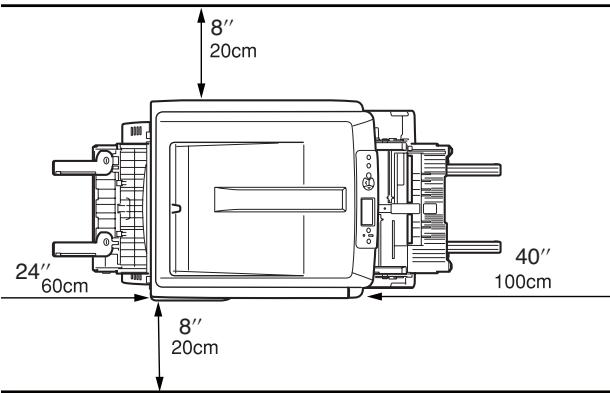
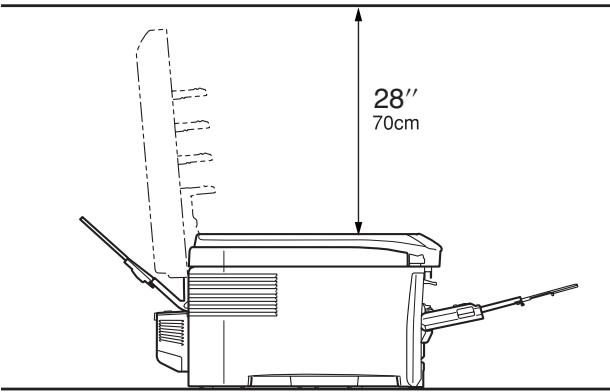
Prepare a Location
Note: Space requirements are approximate.
Set Up the Printer
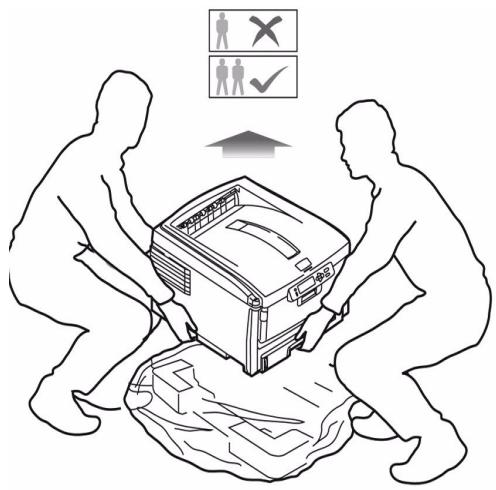
Lift printer and place it on the selected location. The printer weighs approximately 79 lbs.
IMPORTANT!
Other safety information is contained in the Safety, Warranty and Regulatory Information booklet supplied with this product and should be read prior to setting up the printer.
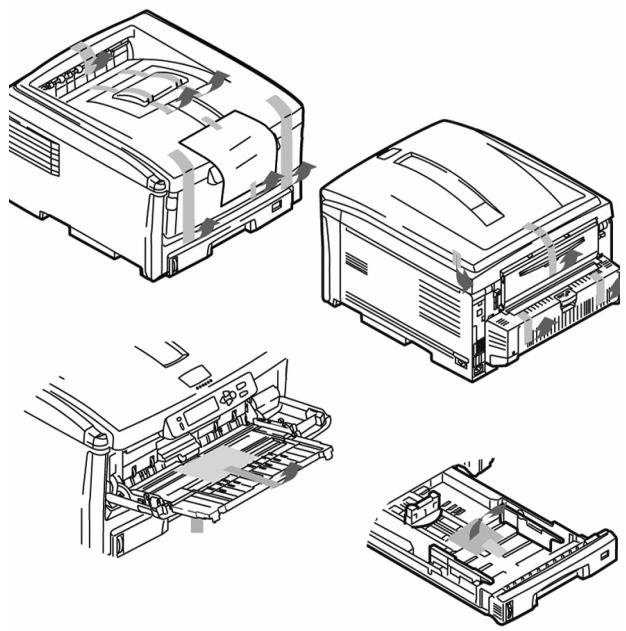
1 Remove all shipping tape.
2 Remove any packing materials.
Prepare Image Drum Cartridge
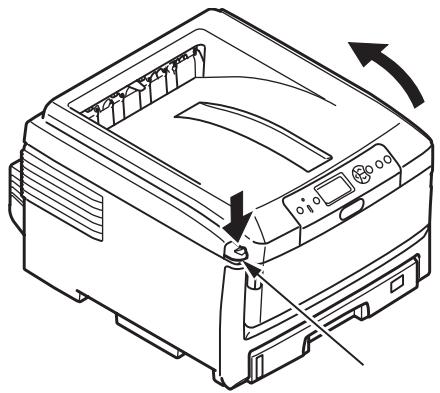
1 Press button and lift the top cover.
2 Remove the black image drum (nearest the control panel). Lift it out as shown below.
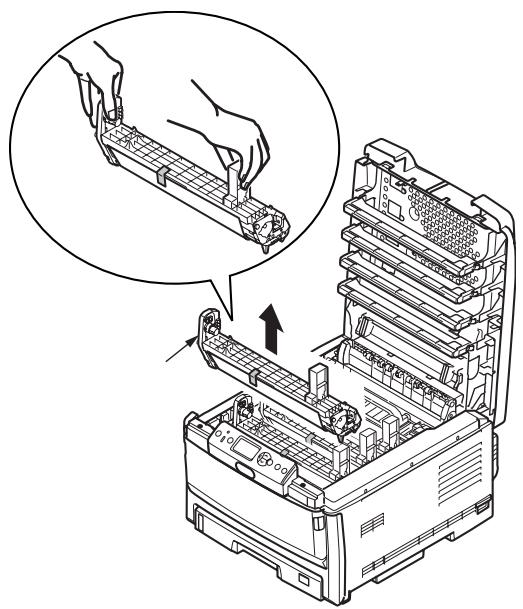
Note: Do not expose cartridge to light for more than 5 minutes.
Note: Do not touch shiny green surface at bottom of drum cartridge.
3 Lift tape (a), then pull out protective paper as shown below (b). Lift out and discard orange shipping restraint (c).
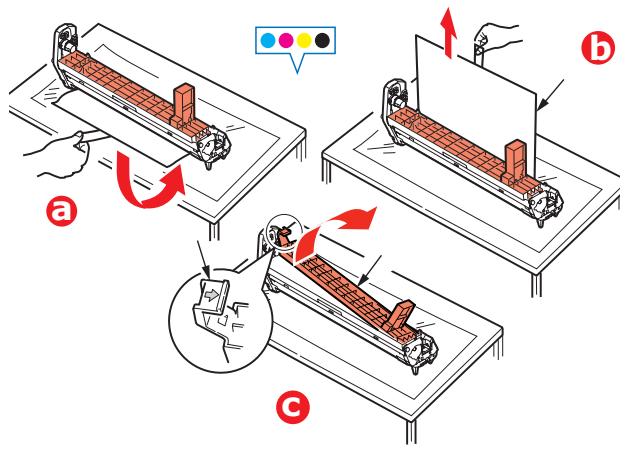
4 Reinstall drum cartridge in the printer.
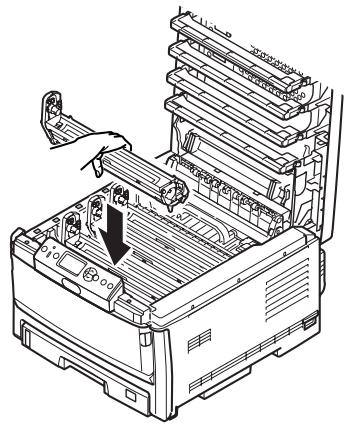
5 Repeat these steps for each of the remaining drum cartridges.
Install Toner Cartridge
1 Unpack the toner cartridge.
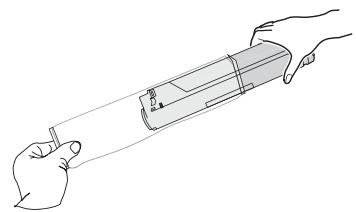
2 Shake the cartridge several times vertically and horizontally to distribute toner.
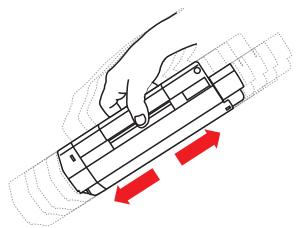
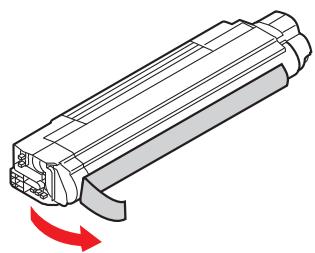
3 Holding the cartridge in a horizontal position, slowly peel off the tape.
4 Place opening on left side of toner cartridge on image drum peg (a).
5 Slide right edge of toner cartridge down into image drum (b).
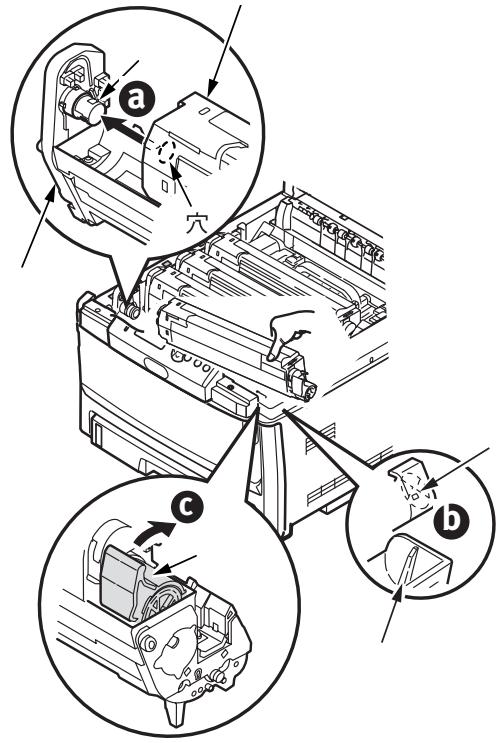
6 Push the lock lever toward the back of the printer as far as it will go (c).
Note: Important! If TONER SENSOR ERROR appears when you turn on the printer, the lever for the toner cartridge color indicated is not pushed all the way back.
7 Repeat these steps for each of the remaining toner units.
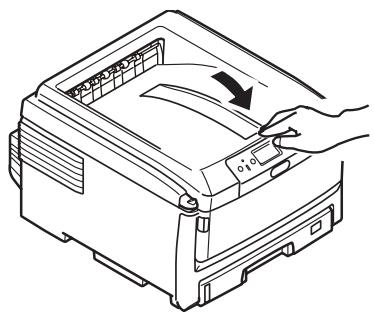
8 Close the top cover.
Load Paper
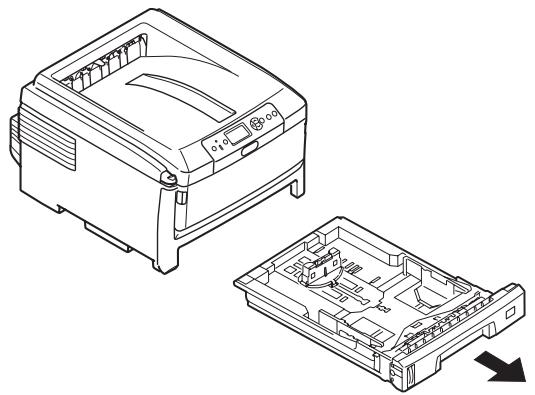
1 Pull out the paper tray.
2 Load paper long edge feed (LEF) (1) up to the mark (a) (letterhead paper face down and top edge towards the right of the printer).
3 Adjust the rear stopper, paper guides (b) and cassette tray roller (c) to the size and orientation of paper being used. For A6 paper, remove and re-install in the A6 position.
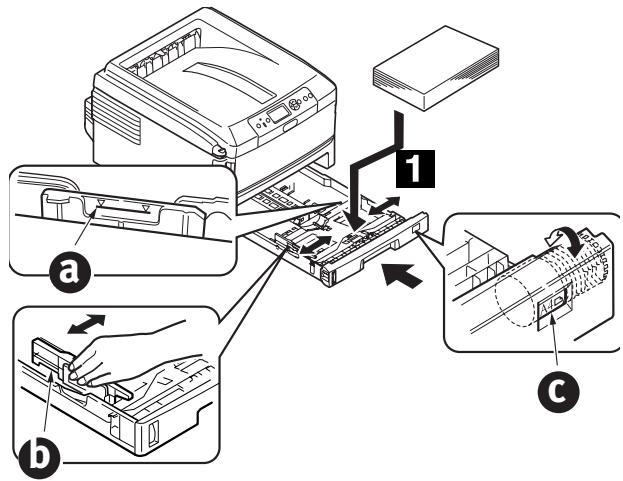
4 Close the paper tray.
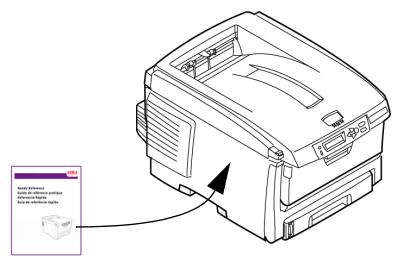
Attach Handy Reference Guide (included with some models)
Insert Power Cable
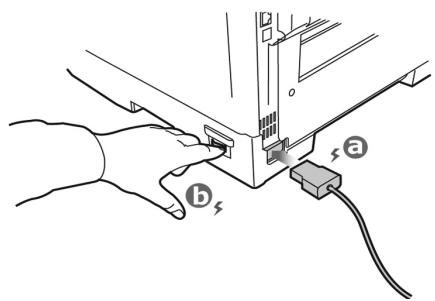
Insert the power cable (a) and turn the printer ON (b).
WARNING!
Be sure to use the 10A AC power cord supplied with the printer. Use of a power cord NOT supplied with this printer, or an extension cord, may result in overheating, and could be a safety hazard.
CAUTION!
To prevent fire or shock hazards, connect the power plug only to a properly rated power outlet.
CAUTION!
Do not connect this product to an uninterrupted power supply (UPS). For further information please contact Oki Data at 1-800-OKIDATA or www.okidata.com.
Computer Connection - PC
Note: Interface cables are not supplied.
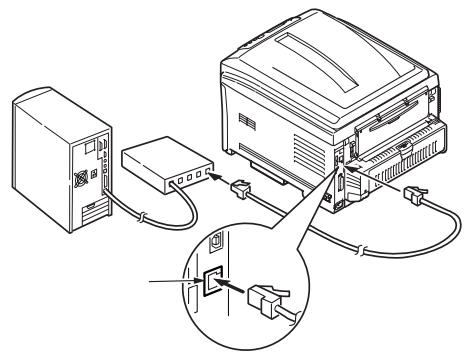
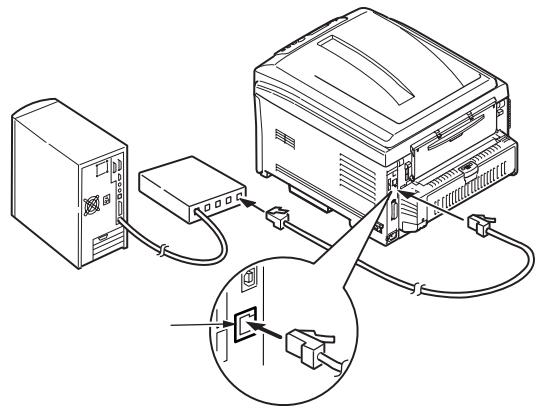
Install Network Cable
Connect the network cable between the printer network port and the Ethernet hub or router.
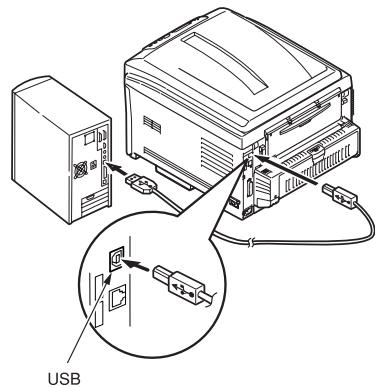
USB Connection
Note: If installing for Windows©, install the software BEFORE installing the USB cable. See
"Install Software" on page 7.
Connect the USB cable between the printer USB port and the computer.
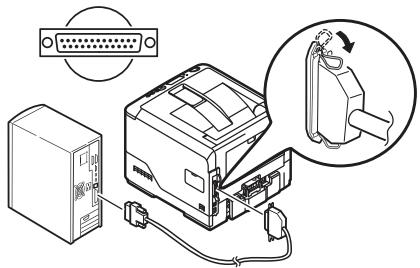
Parallel Connection
Note: Requires UL approved bi-directional (IEEE 1284 compliant) cable.
Connect the Parallel cable between the printer's Parallel port and the computer.
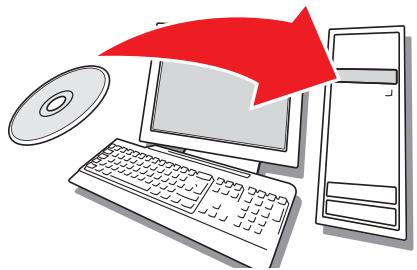
Install Software
Windows Setup
Installing the Driver on a Network
Print the Menu Map
1 Press Menu or on the control panel to select the Information Menu.
2 Press button.
3 Press the or button to select Network.
4 Press button to print the Menu Map. Keep these sheets handy: they contain information you need to set up the printer on your network.
Install the Driver
1 Insert the CD in the CD-ROM drive. The CD will autorun.
2 Select your language.
3 If you accept the license agreement, select I Accept.
4 Select the Driver Setup tab then click Install Driver.
5 Select network printer.
6 Select Directly to the network using TCP/IP.
7 Enter the IP address (locate the address on the Print Menu Map in the Network Menu) or select Search Address to locate the printer on the network.
8 Follow the on-screen instructions.
Installing the Driver on a USB or Parallel Setup
1 Insert the CD in the CD-ROM drive. The CD will autorun.
2 Select your language.
3 If you accept the license agreement, select I Agree.
4 Select the Driver Setup tab then click Install Driver.
5 Select Local Printer.
6 Select the Port: USB, or LPT1 (on some models).
7 Select printer model.
8 If your model is a C830, select printer emulation type (PCL or PS).
9 Follow the on-screen instructions.
Test the Printer Driver Installation
To make sure the printer driver is correctly installed, print a test page:
1 On the Windows taskbar click Start/ Settings/Printers.
2 Right-click the printer model then click Properties.
3 Click the Print Test Page button. Reinstall the driver if the installation failed.
Install Utilities and Downloads
Note: You must be connected to the internet to install Internet downloads.
1 Select Optional Utilities or Internet Downloads from the CD installer menu bar.
2 Click on the utilities and downloads you want to install and follow the instructions.
To Change the Display Language
The default language used by your printer for display messages is English. To change it:
1 Select Optional Utilities>Change the Printer Display Language from the CD menu bar.
2 Follow the on-screen instructions.
Install the User Guide
1 Select the Driver Setup from the CD installer menu bar.
2 Click Install User's Guide.
3 Follow the on-screen instructions to install the manual on your computer.
4 To view the manuals, click Start>Programs>OkiData C800 User Guide.
Note: To open the on-line user guide, you must have Adobe® Acrobat® Reader 5.0 or higher installed.
Activate Printer Options on a Network Setup
If you have an optional paper tray installed, or duplex unit, it must be activated in the printer driver.
1 Click Start>Settings>Printers on the Windows task bar.
2 Right-click the printer icon and choose Properties.
3 Click on the Device Option tab.
4 Click the Get Printer Settings bar. A list of printer settings appears.
5 Click OK to activate the settings.
Activate Printer Options on a non-Network Setup
1 Click Start>Settings>Printers on the Windows task bar.
2 Right-click the printer icon and choose Properties.
3 Select the Device Setting (or Device Option) Tab.
4 Select Installable (Available) Options.
5 Click OK to activate the settings.
Configure Settings Using a Web Browser (optional)
If you are working in a TCP/IP-enabled environment, you can use a web browser to display the printer or job printing status, and to change settings on an embedded web page.
1 Activate your web browser (Microsoft Explorer®/TM, Netscape Navigator™ 4.4 or higher, Mozilla®, Firefox®).
2 Enter the IP Address for the printer. (Locate the address on the Print Menu Map in the Network Menu.
3 When the web page appears, select from the categories in the menu list.
Macintosh®
The printer drivers support OS 10.2.8 and above.
Connect the cable
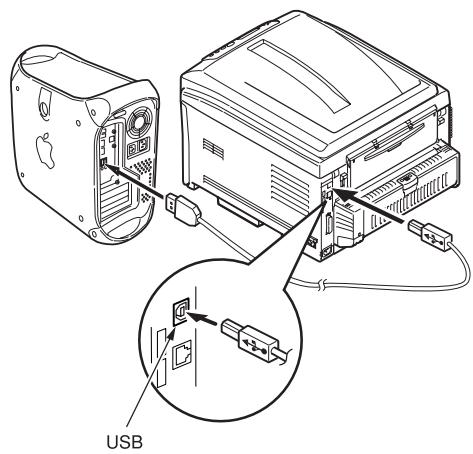
Note: Printer operation is not assured if another USB compatible device is connected concurrently with it.
Install the Printer Driver
1 Turn on the printer, then turn on the computer.
2 Place CD in the CD-ROM drive.
3 Double-click the CD icon that appears on the desktop.
4 Open the Mac OSX folder.
5 Select the language, if prompted.
6 C810: Double-click the Driver folder, then open the C810 GDI Driver Installer. C830: Double-click the C830 Driver and Utilities Installer.
7 Click Continue.
8 Accept the License Agreement.
9 Follow the on-screen instructions.
Install C810 utilities
1 Repeat steps 3 to 9 above, selecting the Utilities Installer in step 6.
2 When the utilities list appears, check the utilities you want to install.
Add the Printer
1 Run the Print Center or Print and Fax Setup Utility.
2 Click More Printers.
3 Browse to select OKI USB, OKI TCP/IP or Bonjour from the drop-down menu.
Note: If you are using USB, select OKI USB and disregard step 4.
4 Enter the printer's IP address.
5 Quit the Print Center.
Using the Web Page to Configure the Printer (optional)
If you are working in a TCP/IP-enabled environment, you can use a web browser to display the printer or job printing status and to change settings on an embedded web page. Enter the IP Address for the printer (locate the address on the Print Menu Map in the Network Menu). Select from the categories in the menu list on the left.
Note: The web page facility is only available when the printer is connected to the network.
Install the Documentation
Note: Adobe® Acrobat® Reader 5.0 or higher is required to view the manuals.
1 Insert the CD into your CD-ROM drive.
2 Double-click the CD icon that appears on the desktop.
3 Install the manuals from the root directory.
To load: drag the .pdf file to the desktop
To view: double-click it.
Service and Support
Available 24 hours a day, 7 days a week.
- Visit our website: www.okiprintingsolutions.com
- Call 1-800-654-3282 (1-800-OKI-DATA)
OKI, OkiLAN ® Oki Electric Industry Company, Ltd. Microsoft, Windows, Windows Vista, Internet Explorer ®/™ Microsoft Corporation in the United States and other countries. Netscape, Netscape Navigator U.S. ™, Netscape Communications Corporation. Adobe, Acrobat, Acrobat Reader, PostScript ™ Adobe Systems, Inc. which may be registered in certain jurisdictions. Ethernet ® Digital Equipment Corporation. EtherTalk, LaserWriter, Mac, Macintosh ® Apple Computer, Inc., Velcro ® Velcro Industries, Mozilla and Firefox ®/™ Mozilla Foundation.
- Prepare a Location
- Set Up the Printer
- IMPORTANT!
- Prepare Image Drum Cartridge
- Install Toner Cartridge
- Load Paper
- Attach Handy Reference Guide (included with some models)
- Insert Power Cable
- WARNING!
- CAUTION!
- Computer Connection - PC
- Install Network Cable
- USB Connection
- Parallel Connection
- Install Software
- Windows Setup
- Installing the Driver on a Network
- Print the Menu Map
- Install the Driver
- Installing the Driver on a USB or Parallel Setup
- Test the Printer Driver Installation
- Install Utilities and Downloads
- To Change the Display Language
- Install the User Guide
- Activate Printer Options on a Network Setup
- Activate Printer Options on a non-Network Setup
- Configure Settings Using a Web Browser (optional)
- Macintosh®
- Connect the cable
- Install the Printer Driver
- Install C810 utilities
- Add the Printer
- Using the Web Page to Configure the Printer (optional)
- Install the Documentation
- Service and Support
- Available 24 hours a day, 7 days a week.
Brand : OKI
Model : C830DTN
Category : Color laser printer