
C5550NMFP - Multifunction Printer OKI - Free user manual and instructions
Find the device manual for free C5550NMFP OKI in PDF.

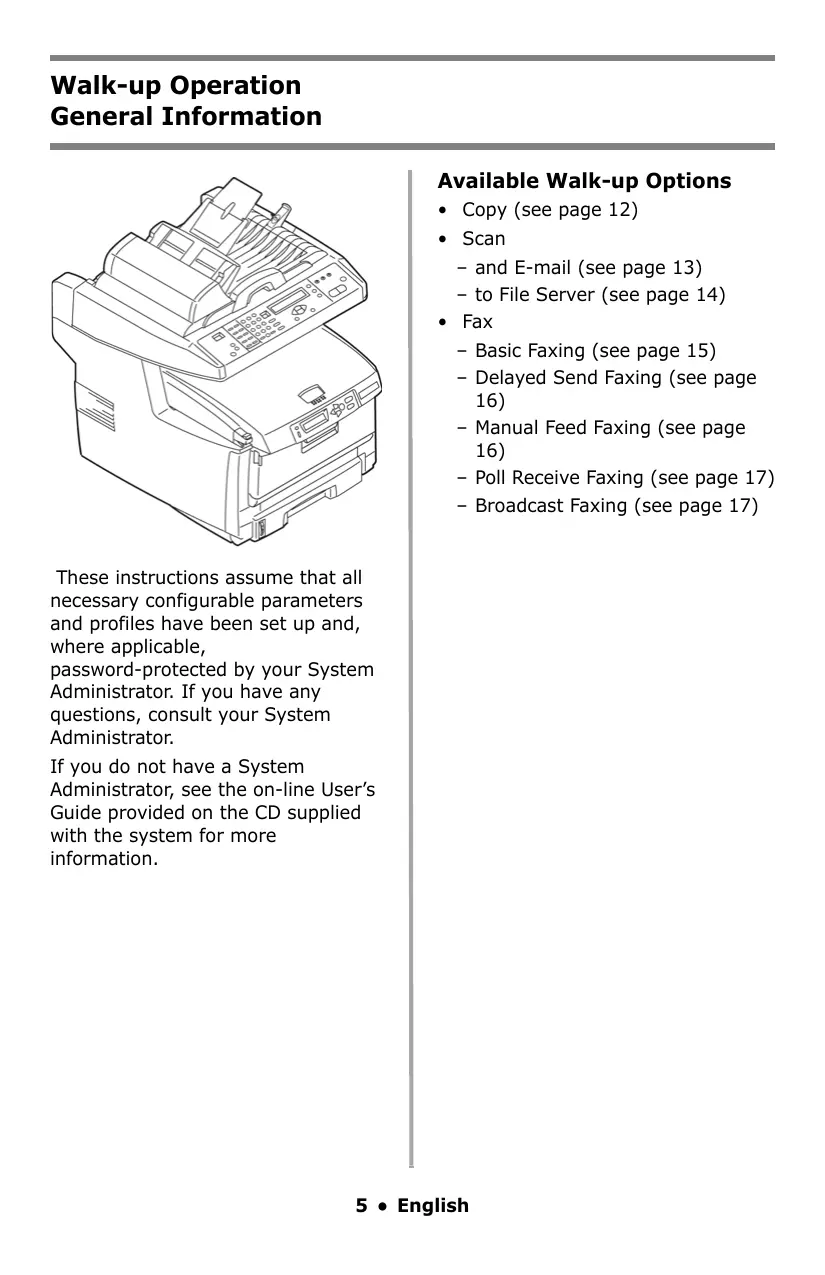


| Product type | Color multifunction printer |
| Brand | OKI |
| Model | C5550NMFP |
| Main functions | Copy, scan, fax, print |
| Print technology | Color LED |
| Supported paper sizes | A4, A5, A6, B5, Letter, Legal 14/13.5/13, Executive, C5, DL, COM-9, COM-10, Monarch, custom sizes (64x148 mm to 216x356 mm) |
| Tray 1 capacity (standard) | 150 sheets (75 g/m²) |
| MF tray capacity (multifunction) | 50 sheets, 10 envelopes, 50 transparencies, labels (max stack 1 cm), banner paper (1 sheet) |
| Top output tray | 250 sheets (face down) |
| Rear output tray | 100 sheets (face up) |
| Duplex printing | Optional (OKI 43347501 duplex unit) |
| Scan resolution | Up to 600 dpi |
| Fax resolution | Standard, Fine, ExtraFine, Photo |
| Toner cartridges | Black (43324420/43381720), Cyan (43324419/43381719), Magenta (43324418/43381718), Yellow (43324417/43381717) |
| Consumables | Toner cartridge, imaging drum (separate) |
| Automatic document feeder (ADF) | 50 sheets (75 g/m²), A4 to Legal sizes, weight 60-120 g/m² |
| Media types | Paper, envelopes, labels, transparencies, banner, cardstock |
| Routine maintenance | Clean ADF rollers and pad, scanner glass, replace ADF pad |
| Safety | Do not touch fuser unit (hot), do not touch green surface of imaging drum |
| Available spare parts | Toner cartridges, imaging drums, ADF pad |
Frequently Asked Questions - C5550NMFP OKI
User questions about C5550NMFP OKI
0 question about this device. Answer the ones you know or ask your own.
Ask a new question about this device
Download the instructions for your Multifunction Printer in PDF format for free! Find your manual C5550NMFP - OKI and take your electronic device back in hand. On this page are published all the documents necessary for the use of your device. C5550NMFP by OKI.
USER MANUAL C5550NMFP OKI
Printer Control Panel 10
Loading Documents for Scanning 11
Copy 12
Scan 13
Fax .15
Duplex Printing 18
Clearing Media Jams 19
Scanner (ADF) Jams 19
Printer Jams. 20
Tray 1 27
Multi Purpose Tray [MPT] . . . 28
Exit Trays. 30
Maintenance 31
Replacing Toner Cartridges. .31
Cleaning the ADF Rollers & Pad35
Cleaning the ADF Glass . . . . .36
Replacing the ADF Pad. 37
Error Messages 38
Service & Support 43
These instructions assume that all necessary configurable parameters and profiles have been set up and, where applicable, password-protected by your System Administrator. If you have any questions, consult your System Administrator.
If you do not have a System Administrator, see the on-line User's Guide provided on the CD supplied with the system for more information.
Available Walk-up Options
- Copy (see page 12)
-
Scan
-
and E-mail (see page 13)
-
to File Server (see page 14)
-
Fax
-
Basic Faxing (see page 15)
- Delayed Send Faxing (see page 16)
- Manual Feed Faxing (see page 16)
- Poll Receive Faxing (see page 17)
- Broadcast Faxing (see page 17)
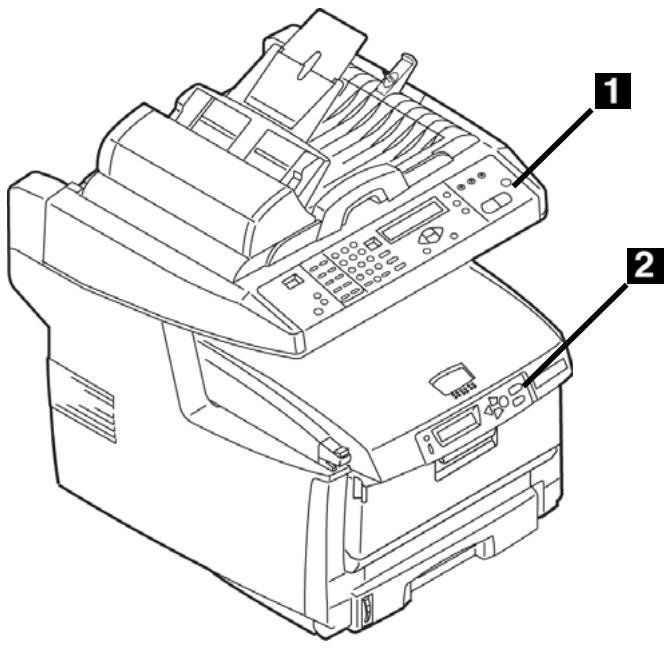
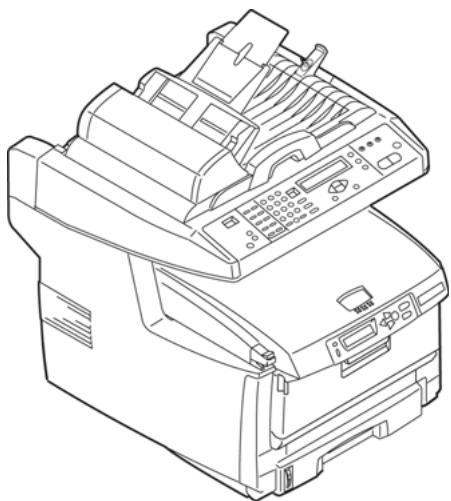
The scanner control panel (1) is used when making copies, sending faxes and scanning documents (see pages 12,ff.).
The printer control panel (2) is used for setting the printer defaults and to print out reports (see page 10).
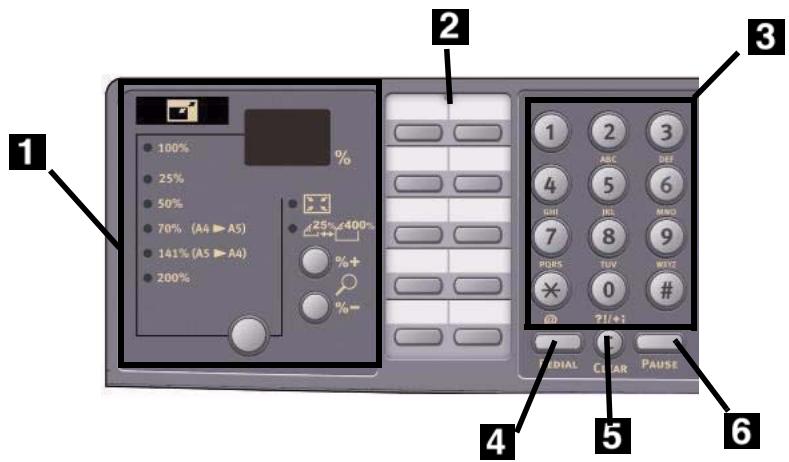
1 Zoom Function
Use the zoom keys
to increase or decrease scaling in 1 % increments from -25 % up to 400 % . Selected value appears in the % box.
Use the zoom preset key
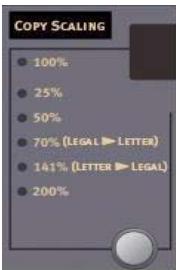
to select a preset percentage of 100% (the default), 25% , 70% , 141% , or 200% .
| 2 | One Touch Keypad Provides one-touch dialing of your most often used or favorite fax numbers. |
| 3 | Alpha-Numeric Keypad Used to enter the copy quantity, fax number or e-mail address. |
| 4 | Redial Key Used to manually resend a fax. |
| 5 | Clear Key Used to delete an entry from the LCD panel. |
| 6 | Pause Key Press to insert a “-” within a fax number which causes a pause to occur during dialing. This is used when dialing an extension. |
Note:
For more detailed information, see the on-line User's Guide or check with your System Administrator.
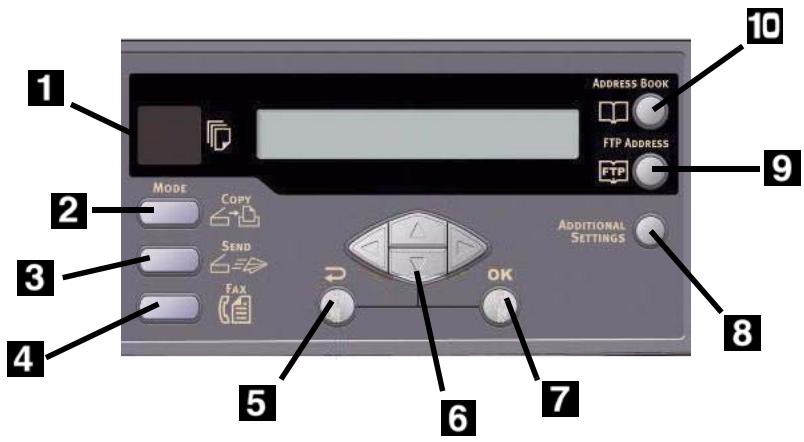
| 1 | Copy Count Display Indicates the number of copies selected. |
| 2 | Copy Mode Key Used to select Copy mode (also the default working mode). |
| 3 | Send Mode Key Used to select Send mode. |
| 4 | Fax Mode Key Used to select Fax mode. |
| 5 | Return Key Used to cancel selections and go back to the top level of the setting. The key is also used to cancel any previous input. |
| 6 | Arrow Keys Used to move the cursor in the LCD up/down/left/right. The up/down keys are used to switch function indication. |
| 7 | OK Key Used to select and confirm current setting selections. |
| 8 | Additional Settings Used to execute additional settings of “Copy” and “Send” modes. (The settings are available only for three minutes. After three minutes, the settings will automatically return to the default value). |
| 9 | FTP Address Used to indicate the stored FTP address for the “Send” function. This key is only available in the “Send” mode. |
| 10 | Address Book Used to indicate the stored E-mail addresses for the Send function. Also used to indicate the stored Fax numbers for the fax function. Press once to view speed dial numbers, press twice to view group dial numbers. |
Note:
For more detailed information, see the on-line User's Guide or check with your System Administrator.
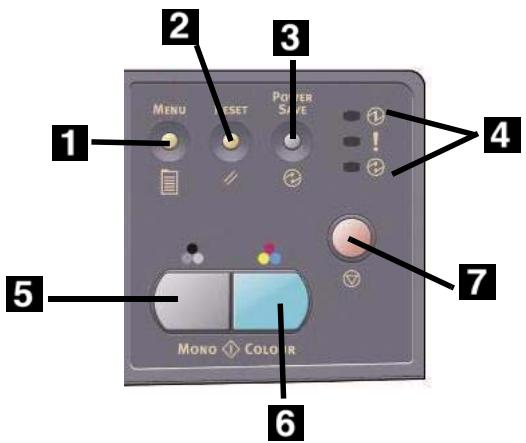
| 1 | Menu Key Select to access the menu to set up the system. |
| 2 | Reset Key Select to change the scanner to the factory default settings. |
| 3 | Power Save Key Press once to go to "sleep" mode (continuous press is invalid). |
| 4 | Power LEDs Illuminates to indicate "power on and ready". Illuminates to indicate error condition. Illuminates to indicate power save mode. |
| 5 | Mono Key Press to send or copy documents in monochrome. |
| 6 | Color Key Press to send or copy documents in color. |
| 7 | Stop Key Select to stop all operation (LCD indication shifts to stand-by screen for each function). Does not effect settings |
Note: For more detailed information, see the on-line User's Guide or check with your System Administrator.
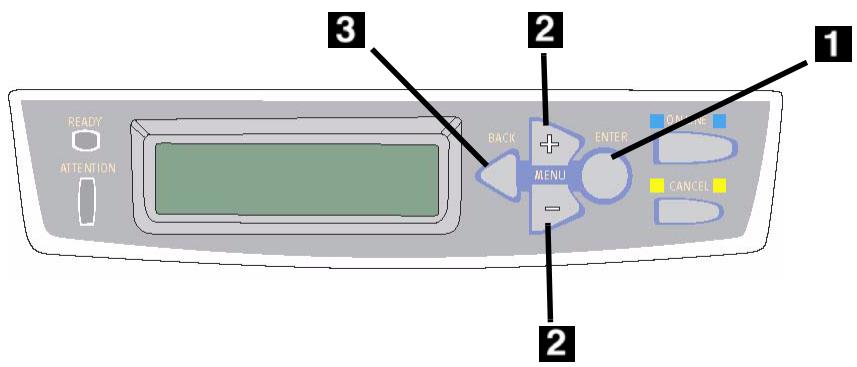
| 1 | Enter Key Press to enter the menu mode or to engage a new setting. |
| 2 | +/- Keys Press to scroll through the menu entries. |
| 3 | Back Key Press to cancel the selection or to exit the menu item. |
Using the Printer Control Panel
Use the printer control panel to set the printer defaults (media size/ weight/ type for each tray, feed tray, etc.) and to print out reports, including the MenuMap which provides a list of all printer menu items and the current settings for each.
For more information on the printer menu items, see "Contents of Each Printer Menu" in the on-line User's Guide or check with your System Administrator.
How to Print the MenuMap
- Press the ENTER key. INFORMATION MENU appears on the display.
- Press the ENTER key. PRINT MENU MAP EXECUTE appears on the displa
- Press the ENTER key to print the menuMap.
Loading a Document Automatic Document Feed
Up to 50 sheets 20-lb. (75 g/m²) paper
- No staples, clips, ragged edges.
- Document size:
-min.4.13" × 5.8"
(105 x 148 mm)
-max.8.5"×14"
(216 x 356 mm)
Weight Range: 16 to 32 lb. (60 to 120g / m2
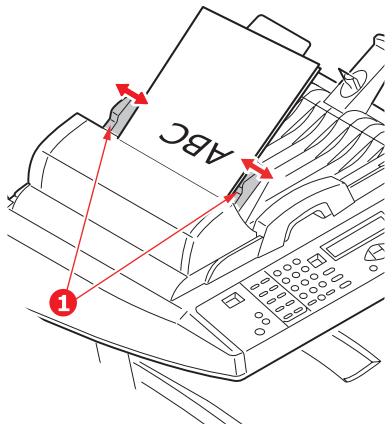
Adjust the guides (1) for paper size and load documents face up, with the top edge entering the scanner.
Scanner Glass
- Document size:
-min.4.13" x 5.8"
(105 x 148 mm)
-max.8.5"×11.69"
(216 x 297 mm)
Maximum thickness
approximately 0.75'' (20 mm)
- Open the scanner lid.
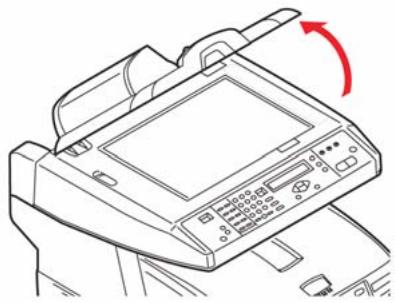
- Load the document face down, with the top edge to the left.
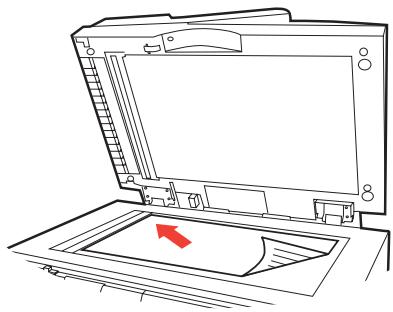
- Close the scanner lid.
Walk-up Operation
Copy
For more information, check with your System Administrator or see the on-line User's Guide provided with your system.
Important
The system default is the Copy mode and the COPY key is illuminated. If it is not, press the COPY key.
Using the Default Settings
- Load the document (see page 11).
- Press the Mono key or the COLOR key.
Using Special Settings
- Load the document (see page 11).
- Use the numeric keypad to set the number of copies (up to 99).
- Press the ADDITIONAL SETTINGS key.
- Change the Copy settings* on the display using the Up, Down, Left and Right Arrow keys and the OK key.
- Press the Mono key or the COLOR key.
*Copy Settings
The default setting is in bold italic.
| Quality | Speed, Text, Photo. Set the print mode which provides the best results. E.g., if the document has many pictures, change this setting to Photo. |
| Density | -2, -1, 0, 1, 2 Set the print density higher or lower. |
| Collate | OFF, ON |
| Duplex | OFF, Short Edge, Long Edge (see page 18). (appears only when the optional duplex unit is installed) |
| N-up | 1in1, 4in1 (Horizontal), 4in1 Vertical). Set for multiple images on one page. |
| Edge Erase | 0, 6, 13, 19, 25 mm. Set amount of document perimeter to be erased. |
| Margin Shift (R) | 0, 6, 13, 19, 25 mm. Set the document image to shift left or right. |
| Margin Shift (B) | 0, 6, 13, 19, 25 mm. Set the document image to shift up or down. |
| Paper Supply | Legal, Letter, A4, A5. |
| Input Tray | Auto, Tray 1, Tray 2 (appears only if the optional second tray is installed), MPT |
Walk-up Operation
Scan
Scanning Options
- Scan and E-mail
- Scan to File Server
Note
These instructions assume that all needed basic data (e.g., e-mail addresses) is already programmed in the system.
Scan and E-mail
- Load the document (see page 11).
- Press the SEND key.
-
Enter the e-mail address in the "To" field in one of these ways.
-
Press the ADDRESS BOOK key and use the arrow keys to navigate to the address. Press the OK key.
-
Type the initial letter of the address using the numeric keypad. Press the OK key.
-
To send to additional addresses, add a comma and repeat the previous step.
- Press the RETURN ( ) key to go back to the main e-mail display.
- Enter the e-mail Subject. Press the OK key.
- Enter any cc and bcc addresses. Press the OK key.
-
To make additional settings*:
-
Press SEND.
- Press ADDITIONAL SETTINGS.
- Use the arrow keys and the OK key to make your choices.
-
Press the RETURN ( ) key.
-
Press the Mono key or the COLOR key.
Additional Settings for Scanning The default setting is in bold italic.
| Attachment | File name of scanned document. |
| From | Set what appears under “From” on the email. |
| Reply to Address (up to 64 cvcharacters) | Set the address to which the recipient should reply, if different from the “From” address. |
| Color Output format | Select: • output format: PDF, TIF, JPG, or MTIF, compression rate: Low, Medium, High. |
| B&W output format | Set: • Multilevel Gray: On, Off. • Output format: PDF, TIF, MTIF Compression rate: Low, Medium, High. |
| Resolution | 75, 100, 150, 200, 300, 400, 600 dpi. |
| Manual Feed | Disable, Enable. Change to Enable to concatenate multiple scanned documents into one e-mail. |
| Document Size | A4, Letter, Legal. |
| Density | -2, -1, 0, 1, 2 Set the print density. |
Walk-up Operation
Scan (cont.)
Scan to File Server
Send scanned documents to a server or a personal computer's file folder.
Note
These instructions assume that the System Administrator has set up and stored the necessary profiles.
- Load the document (see page 11).
- Press the SEND key.
- Press the FTP ADDRESS key.
- Use the arrow keys to select the desired profile from the list.
- Press the OK key.
- Press the Mono key or the COLOR key.
Note
Check with your System Administrator or see the on-line User's Guide on the CD supplied with your system for more information.
Walk-up Operation
Fax
Your system has multiple fax modes, including
Basic Faxing (see below)
- Delayed Send Faxing (see page 16)
- Manual Feed Faxing (see page 16)
- Poll Receive Faxing (see page 17)
- Broadcast Faxing (see page 17)
Basic Faxing
Note
These instructions assume that all needed basic data (e.g., date and time) has already been programmed into the system.
- Load the document (see page 11).
- Press the FAX key.
- Enter the destination fax number:
-
Enter the destination fax number:
-
Use the numeric keypad to type in the number, or
- Press the appropriate pre-programmed One Touch key, or
-
Search the phone book by pressing the ADDRESS Book key - once for speed dial entries or - twice for group dial entries. Use the arrow keys to navigate. Press the OK key when done.
-
Optional: Press the Additional Settings key and use the arrow and OK keys to make additional fax mode settings*. Press the
RETURN ( ) key to go back to the main fax screen.
- Press the Mono key to start scanning.
*Additional Fax Settings
The default setting is in bold italic.
| Quality | Standard, Fine, ExtraFine, Photo Change the setting to adjust the quality of the scanned image. |
| Density | -2, -1, 0, 1, 2 Set the print density. |
| Document Size | A4, Letter, Legal. |
| Delayed send | Real time, |
| Manual Feed | Off, On |
| Poll Receive | Off, On |
| Overseas Mode | Off, On Change the setting to On to avoid transmission problems when faxing overseas. |
Walk-up Operation
Fax (cont.)
Delayed Send Faxing
Set the date and time you wish the fax to be transmitted. The system will scan and store your document ready for sending at the specified time.
- Load the document (see page 11).
- Press the FAX key.
- Enter the destination fax number (see "Enter the destination fax number:" on page 15).
- Press the Additional Settings key.
- Use the down arrow key to navigate to Delayed Send. Press the OK key.
- Use the arrow keys and numeric keypad to set the date and time the fax is to be sent. Press the OK key.
- Press the RETURN ( ) key to return to to the fax screen.
- Press the Mono key.
Manual Feed Faxing
If you need to send multiple sets of documents from the ADF or glass, enable the "Manual Feed" option:
- Load the document (see page 11).
- Press the FAX key.
- Enter the destination fax number (see "Enter the destination fax number:" on page 15).
- Press the Additional Settings key.
- Use the down arrow key to navigate to Manual Feed. Press the OK key.
- Use the down arrow key to select On. Press the OK key.
- Press the RETURN ( ) key to return to to the fax screen.
- Press the Mono key to start scanning.
Walk-up Operation
Fax (cont.)
Poll Receive Faxing
Polling is a process in which documents are loaded into your system, and the system is then set to wait for a call from a remote location before faxing. If the remote machine is set to hold data in memory for transmission to a local machine when contacted, the procedure is called "polling receive".
- Load the document (see page 11).
- Press the FAX key.
- Press the ADDITIONAL SETTINGS key.
- Use the down arrow key to navigate to Polling Receive. Press the OK key.
- Use the down arrow key to select On. Press the OK key.
- Press the RETURN ( ) key to return to to the fax screen.
- Enter the desired location using the One Touch keys or the numeric keypad.
- Press the Mono key to begin polling.
Broadcast Faxing
You can send a fax to multiple locations at the same time.
- Load the document (see page 11).
- Press the FAX key.
- Enter the first destination fax number. See "Enter the destination fax number:" on page 15.
- Press the OK key.
- Enter additional phone numbers (up to 100), pressing the OK key after each number is entered.
- Press the Mono key.
Duplex Printing
(Printing on Both Sides of the Page)
Duplex printing requires that the optional Duplex Unit (OKI P/N 43347501) be installed.
20 to 32 lb. US Bond (75 to 120 g/m²).
Note
If you experience curling with 20 or 24 lb. paper, switch to 28 lb.
Paper Feed
Tray 1, Optional Tray 2 or MP Tray.
Paper Exit
Top Exit tray or Rear Exit tray.
Paper Sizes
- Letter, Legal-14, Legal-13.5, Legal-13, A4, A5, Executive, B5.
- Custom: MP Tray only, range 5.8" x 8¼" (148 x 210 mm) to 5.5" x 14" (215.9 x 355.6 mm)
How to Print a File Using the Duplexer
Open the file you wish to print and click File → Print. Select the C5550 MFP printer.
Windows PostScript Emulation
- Click Properties.
- On the Layout tab, select Long Edge or Short Edge under Print on Both Sides.
Windows PCL Emulation
- Click Properties.
- On the Setup tab, select Long Edge or Short Edge under 2-Sided Printing.
Clearing Media Jams Scanner (ADF) Jams
If a sheet is well advanced out of the ADF, simply grip it and pull gently to draw it fully out.
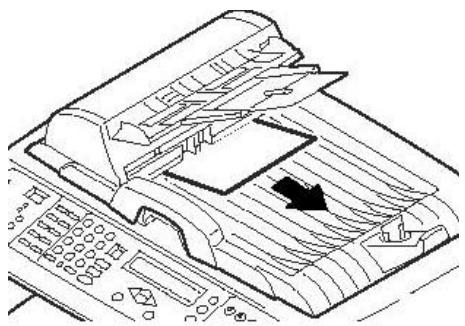
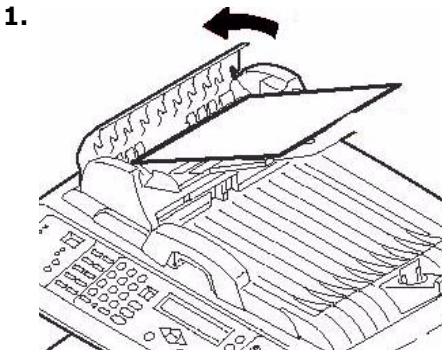
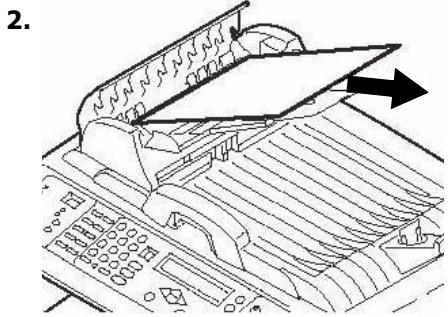
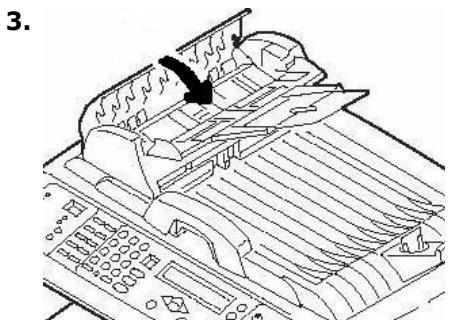
Clearing Media Jams
Printer Jams
In General
When "Paper Jam" appears on the second line of the display, there is paper jammed in the printer section of the unit.
Depending on where the paper is jammed, there may be more than one sheet stuck in the printer.
If one sheet is removed and there are still more sheets in the printer, the initial message will go away temporarily, then "Paper Jam" will appear again.
The box below contains a summary of the basic process for clearing jams. For more details see the pages which follow.
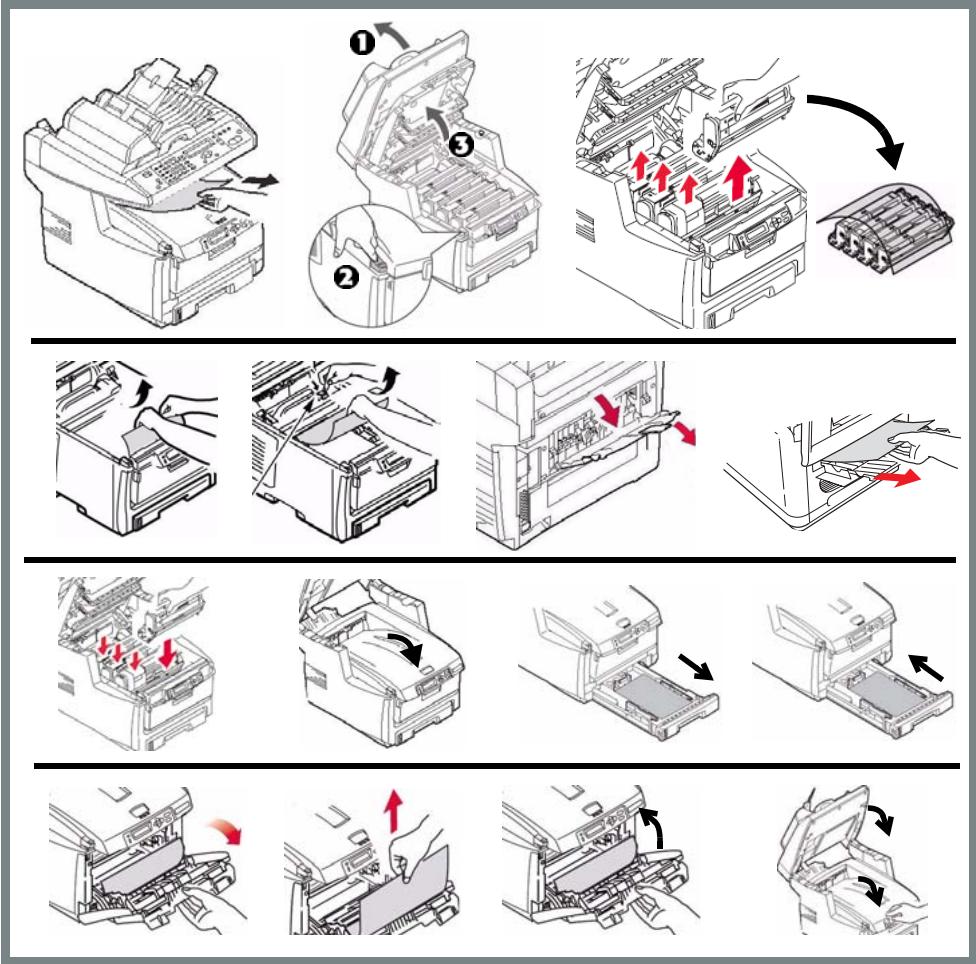
Clearing Media Jams Printer Jams (cont.)
- If a sheet is well advanced out of the top of the printer, simply grip it and pull gently to draw it fully out. If it does not remove easily, leave it alone for now.
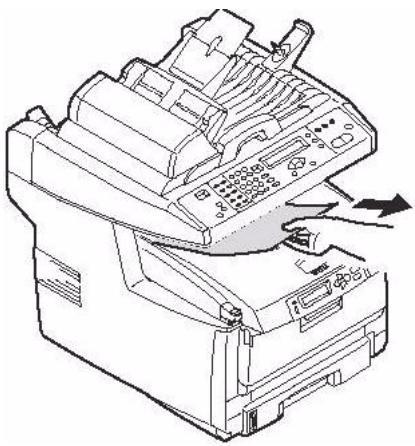
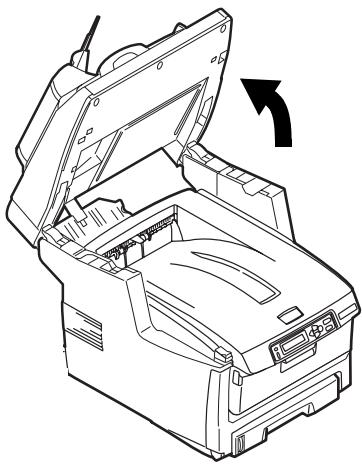
2.
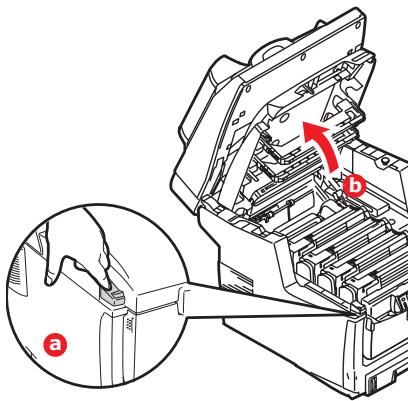
3.
Caution
The fuser may be hot! It is clearly labelled. Do not touch.
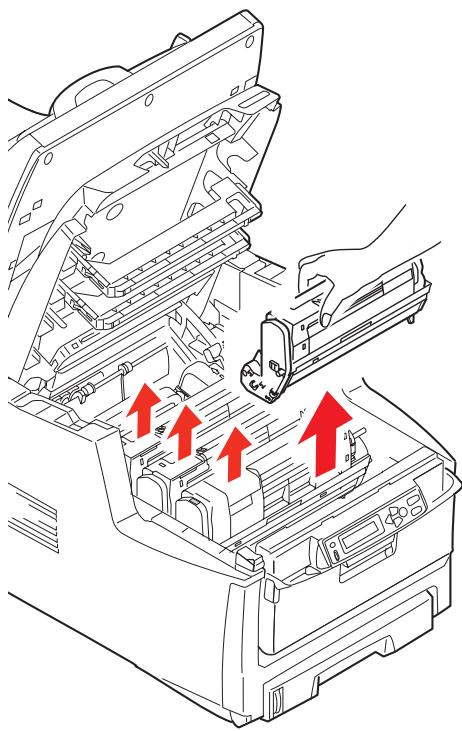
Note the location of the various color toner cartridges.
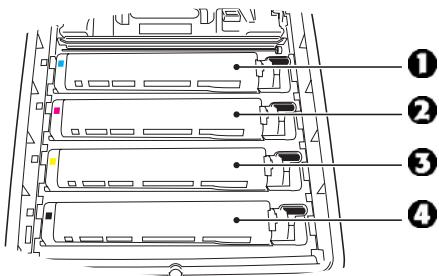
1 = Cyan
2 = Magenta
3 = Yellow
4 = Black
Caution!
Do not touch the green image drum surface or expose it to light for more than 5 minutes.
Clearing Media Jams Printer Jams (cont.)
- Remove all the image drums/ toner cartridges, and place them on a flat surface.
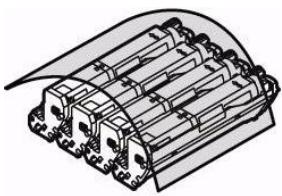
- Cover them to protect them from light.
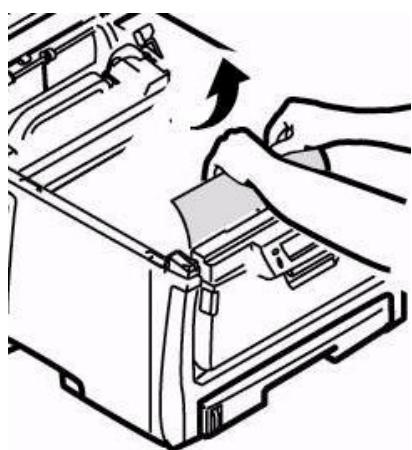
- Gently remove any jammed sheet(s).
- If a sheet is stuck in the fuser, pull the fuser release lever forward, then remove the sheet.
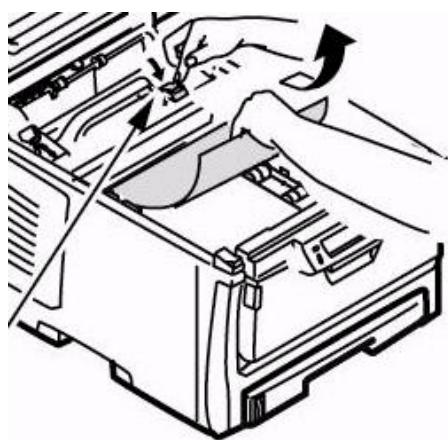
- If the sheet is difficult to remove from the fuser:
a. Lower the rear exit tray
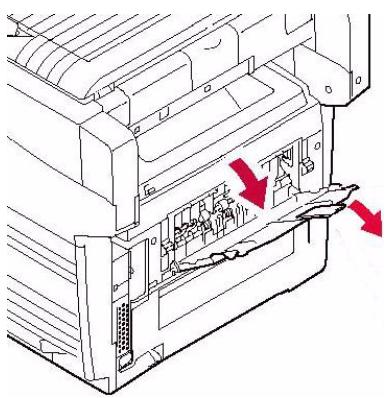
b. Reach in and push the fuser release lever (inside the unit—see previous step) and pull the sheet out from the back.
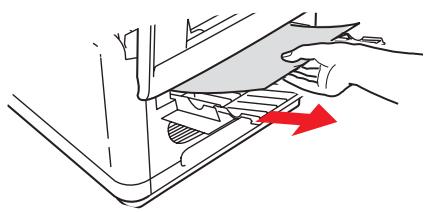
c. Close the rear exit tray.
- Replace the image drums/ toners, being careful to install them in the proper sequence.
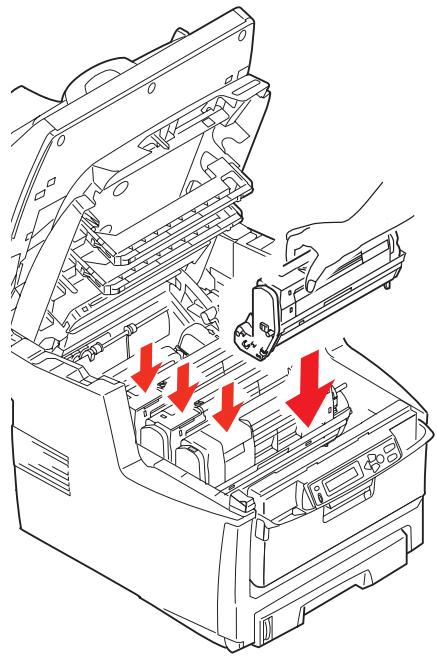
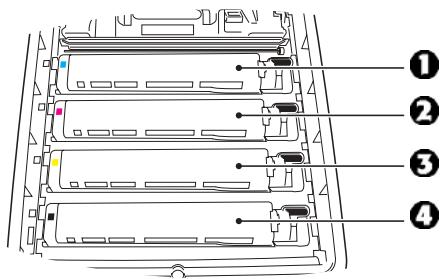
1 = Cyan
2 = Magenta
3 = Yellow
4 = Black
Clearing Media Jams Printer Jams (cont.)
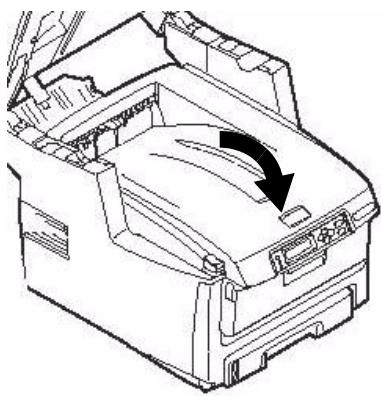
- Lower the printer cover to protect the image drums from light, but do not latch it.
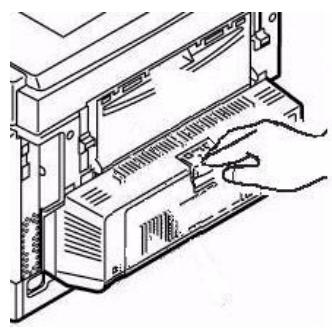
- .If your MFP has a duplex unit installed:
a. Press the cover release and open the cover.
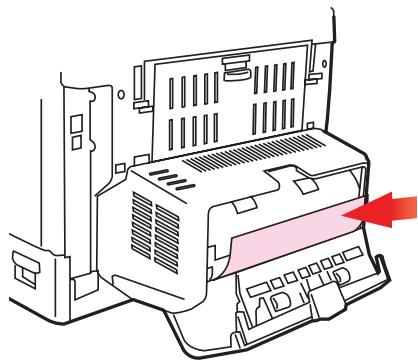
b. Remove any sheets in this area.
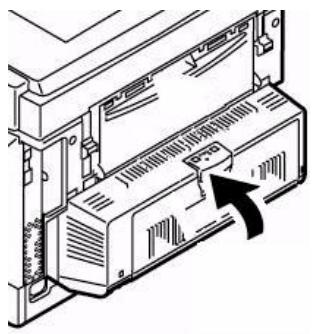
c. Close the cover.
Clearing Media Jams Printer Jams (cont.)
- Lift the front cover release and open the front cover.
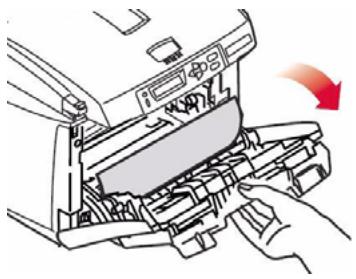
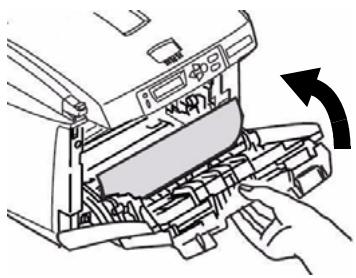
- Remove any jammed paper.
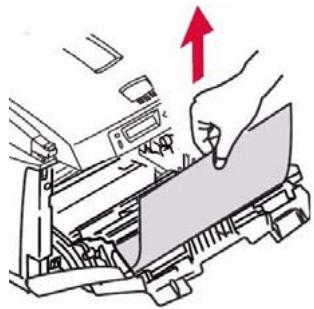
- Close the front cover.
- Pull out the paper tray and remove any jammed paper.
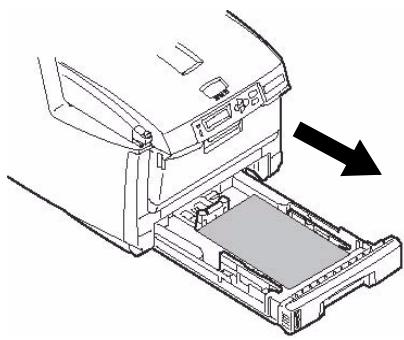
- Close the tray.
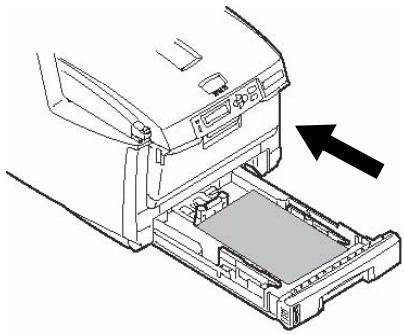
Clearing Media Jams Printer Jams (cont.)
- Press down on the printer cover to latch it.
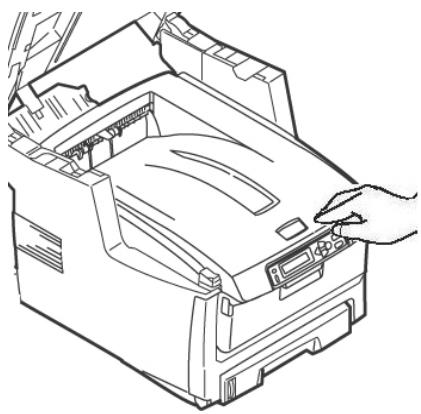
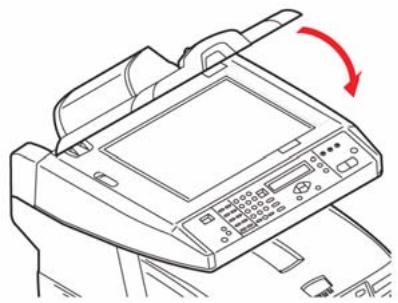
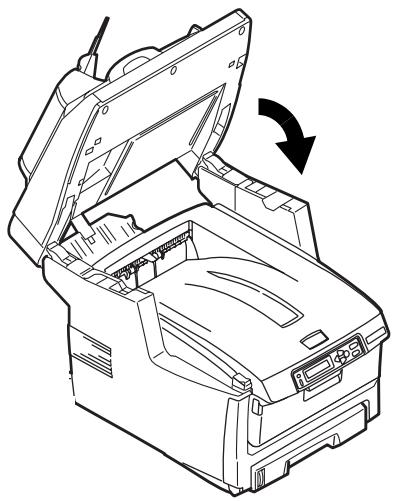
- Gently lower the scanner into place.
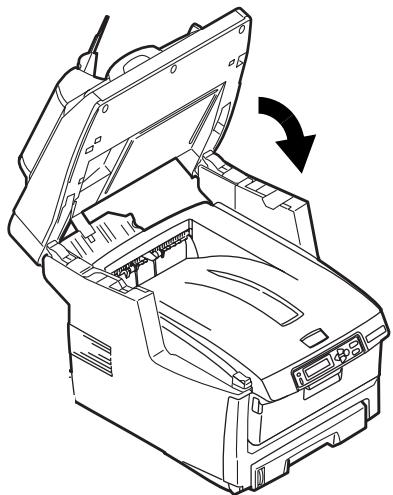
Tray 1
Media Specifications
| Weight Range | 17 to 32 lb. US Bond (64 to 120 g/m2) |
| Sizes | Standard Sizes: Letter, Legal-14, Legal-13.5, Legal-13, A4, A5, A6, B5, ExecutiveCustom Sizes: Min. 4.13" x 5.83" [105 x 148 mm], Max. 8.5" x 14" [216 x 356 mm], (Non-standard sizes must be defined in driver before printing: check with your System Administrator.) |
| Types | Paper, Letterhead Stationery, Recycled |
| Capacity | 300 sheets of 20-lb. (75 g/m2) paper |
Loading Paper
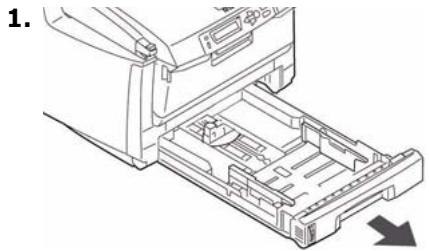
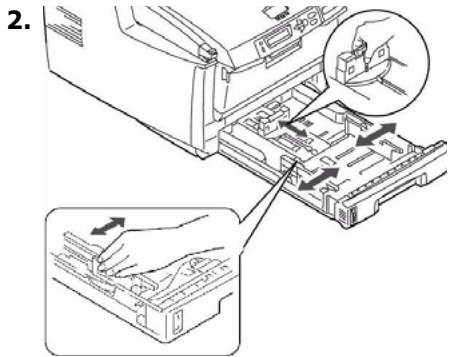
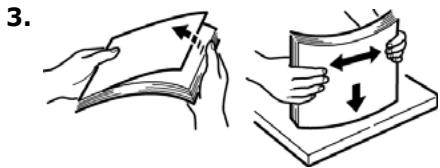
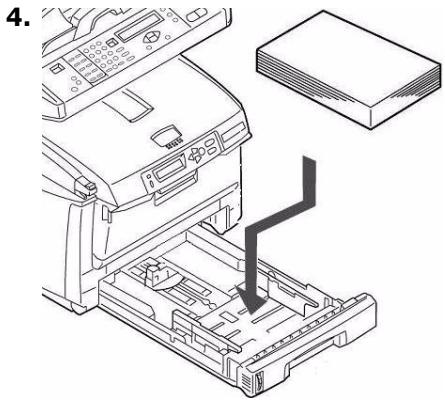
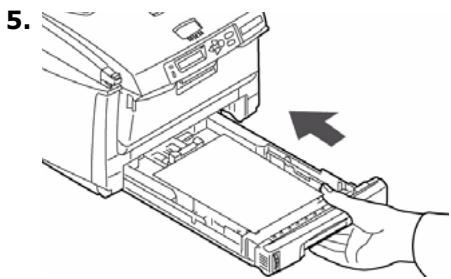
Media Specifications
| Weight Range | 20 to 54 lb. US Bond (42 to 110 lb. Index, 75 to 199 g/m2 metric) |
| Sizes: | Standard Sizes: Letter, Legal-14, Legal-13.5, Legal-13, A4, A5, A6, B5, Executive, C5, DL, COM-9, COM-10, Monarch Custom Sizes: Min. 2.51" × 5.83" [64 × 148 mm], max. 8.5" × 47.24" [216 × 1200 mm] (Non-standard sizes must be defined in driver before printing: check with your System Administrator.) |
| Types | Paper, Letterhead Stationery, Card Stock, Labels, Transparencycies, Envelopes, Banner Paper |
| Capacity: | ·50 sheets of 20-lb. (75 g/m2) paper ·10 envelopes ·50 transparencies ·Labels: max. feed stack = about 3/8-Inch (10 mm) ·Banner Paper: single sheet 8.25 to 8.5" (210 to 216 mm) wide x 47.24" (1200 mm) long |
Loading Print Media
Note
Use the rear exit path (straight through) for heavy paper, transparencies, envelopes and labels. See page 30.
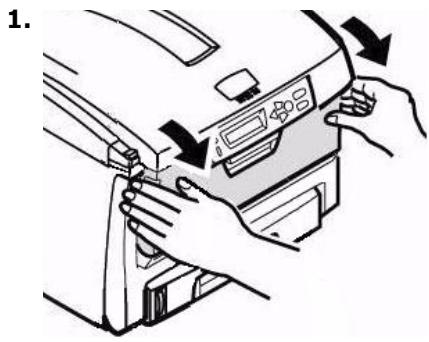
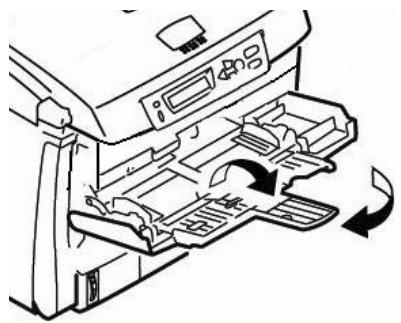
2.
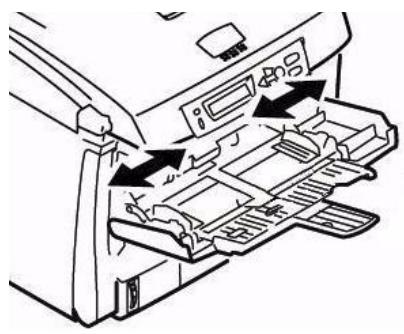
3.
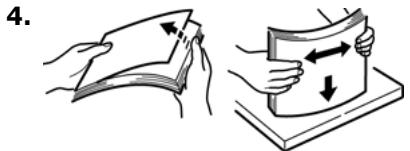
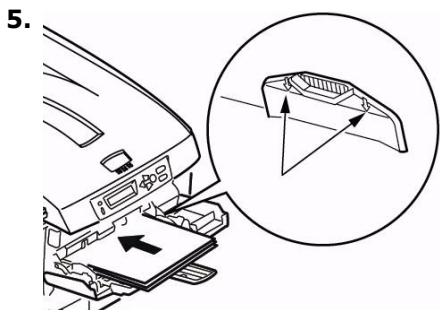
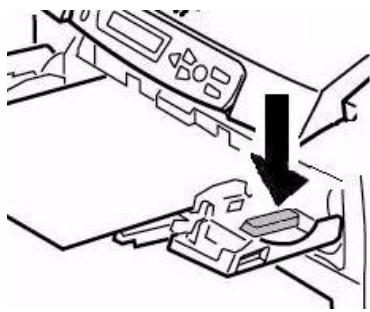
6. Press the blue tray latch button inwards to release the paper platform so that the paper is lifted and gripped in place.
Special Media
Letterhead Stationery
- For single-sided printing: load face up, top edge into the printer.
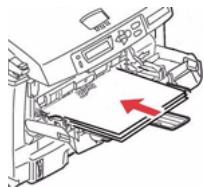
- For double-sided printing (optional duplex unit must be installed): load face down with top edge away from the printer.
Envelopes
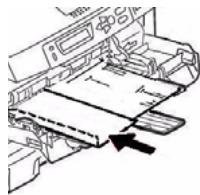
Load envelopes face up, top edge to the left and short edge facing into the printer.
Labels
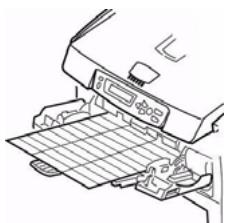
Load labels face up, top edge into the printer.
Banner Paper
- Hand feed banner paper one sheet at a time.
- Use the rear exit.
Top Exit Tray (Face Down)
This is the exit tray that is normally used.
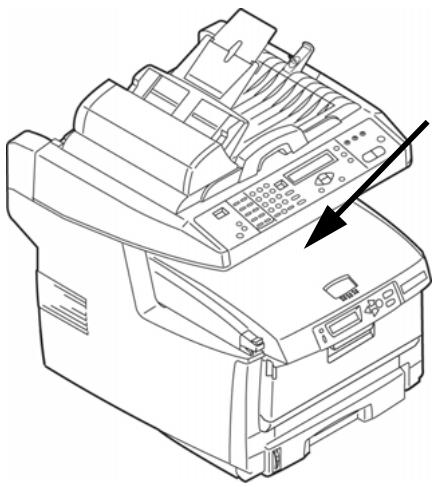
For papers up to 47 lb. US Bond (176 g/m²).
- Holds up to 250 sheets of 20-lb. US Bond (75g / m2) paper.
- Sheets exit face down.
Rear Exit Tray (Face Up)
- Provides straight-through, curl-free print path required for envelopes, labels and heavy paper.
- Handles paper up to 54 lb. US Bond (203 g/m²).
- Holds up to 100 sheets of 20-lb. US Bond (75 g/m²) paper.
- Sheets exit face up: for multi-page documents, select reverse order printing in your application Print dialog box.
Important!
If the rear tray is open, all printed pages will exit there regardless of the printer driver setting.
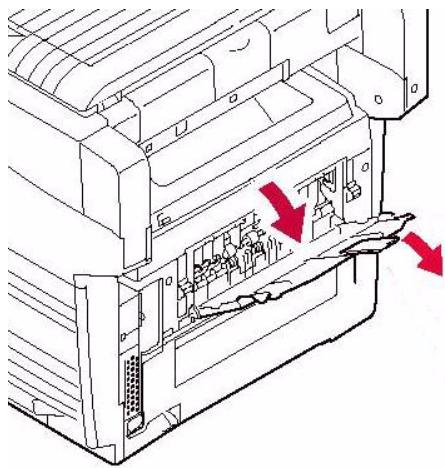
Opening the Rear Exit Tray
Toner Cartridge Order Nos., Oki Type C8
Black 43324420
Cyan 43324419
Magenta 43324418
Yellow. 43324417
Image Drum Order Nos., Oki Type C8
Black 43381720
Cyan 43381719
Magenta 43381718
Yellow. 43381717
Where to Purchase
- Consult the dealer where you purchased your system.
- Consult an Oki Data Authorized Sales or Service Dealer. For the nearest dealer, call 1-800-654-3282.
U.S., Puerto Rico, Guam, U.S. Virgin Islands: Order on the Internet at www.okiPRINTINGSolutions.com.
U.S. only: Order toll-free at 1-800-654-3282, using VISA®, MasterCard®, AMEX®.
Note
Always use genuine Oki Data toner cartridges in your system.
Maintenance
Replacing Toner Cartridges (cont.)
To Replace a Toner Cartridge
The following steps show replacement of the black toner cartridge. Other color toner cartridges are replaced in the same manner.
1. Power off!
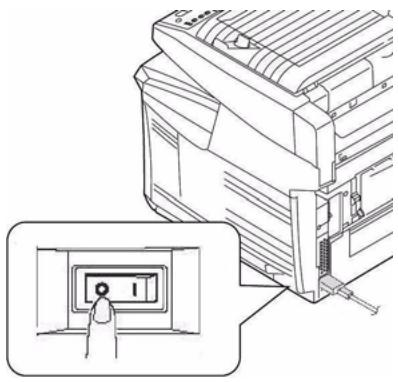
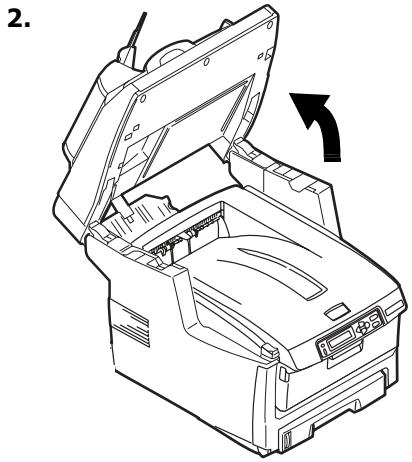
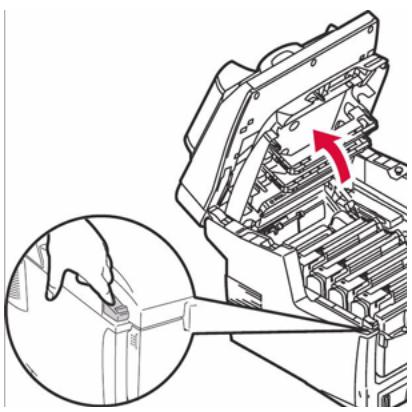
3.
CAUTION! The fuser (behind the cyan toner) may be HOT.
- Locate the toner cartridge that needs to be replaced:
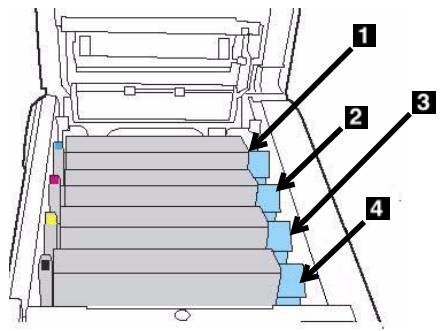
1 = Cyan
2 = Magenta
3 = Yellow
4 = Black
Important!
Make sure the lever is pulled all the way forward before attempting to remove the toner cartridge!
Maintenance
Replacing Toner Cartridges (cont.)
- Pull the colored lever on the right side of the toner cartridge towards the front of the printer to close the cartridge.
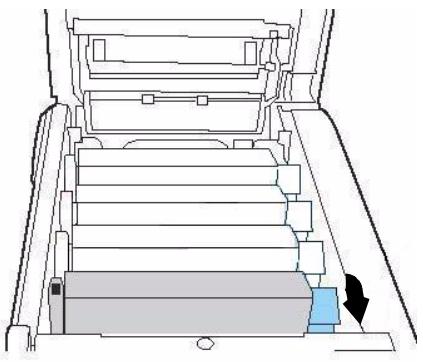
- Remove the used toner cartridge.
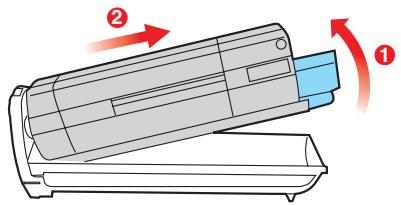
Important!
Discard toner cartridges in accordance with local regulations!
- Unpack the new toner cartridge and shake it back and forth to distribute the toner.
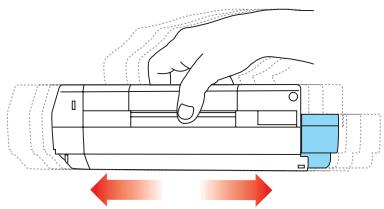
- Remove the tape.
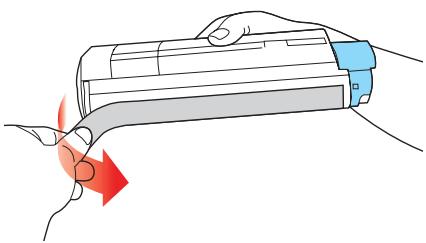
- Insert the new toner cartridge in the unit.
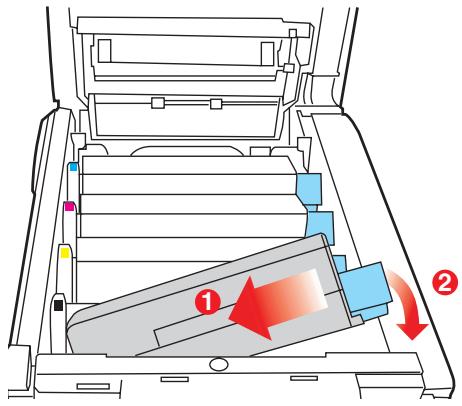
Maintenance
Replacing Toner Cartridges (cont.)
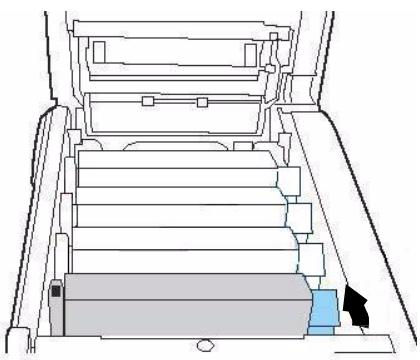
- Push the lock lever toward the back of the printer until it stops.
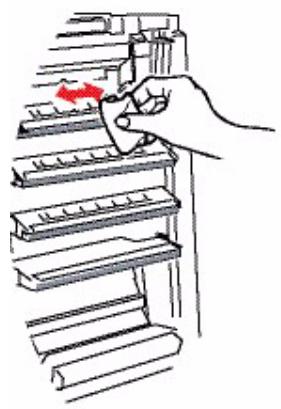
- Use the lens cleaner supplied with the toner cartridge (or a clean soft cloth) to gently clean the LED head.
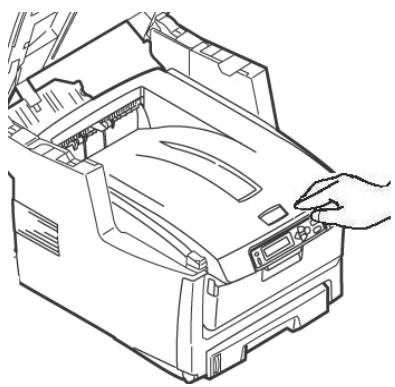
- Close the printer cover and press down to latch it.
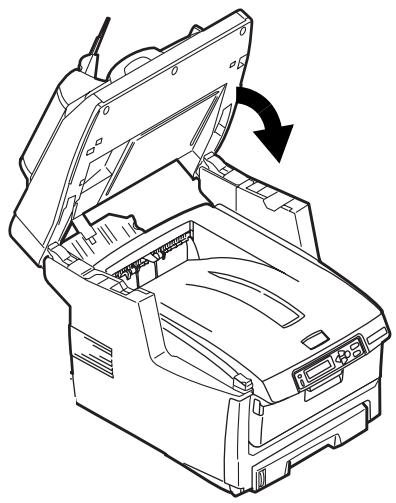
- Gently lower the scanner into place.
Maintenance
Cleaning the ADF Rollers & Pad
If documents are not feeding smoothly through the ADF, please follow these cleaning procedures.
- Moisten a soft, lint-free cloth with isopropyl alcohol (common rubbing alcohol).
- Open the ADF cover.
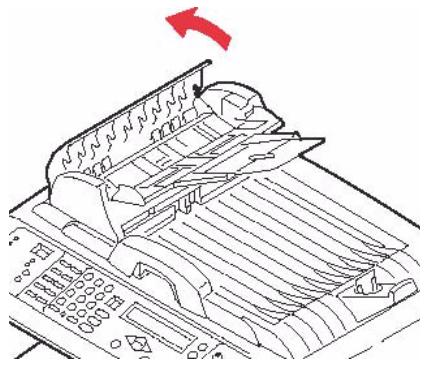
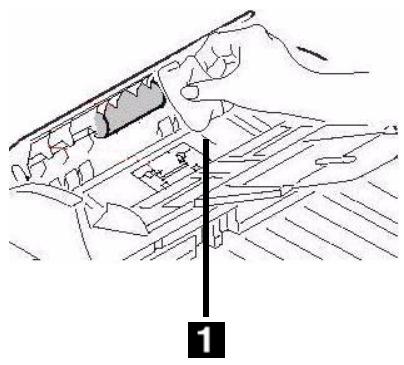
- Clean the feed rollers by moving the moistened cloth from side to side while rotating the rollers. Be careful not to snap or damage the springs (1).
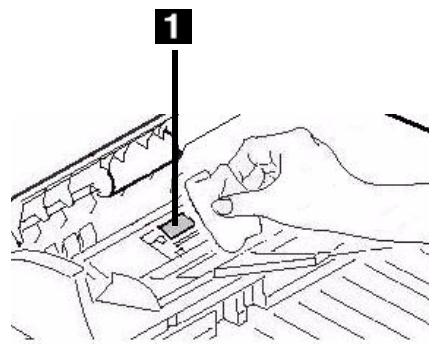
- Clean the pad by moving the moistened cloth up and down along the pad (1).
- Close the ADF cover.
Maintenance
Cleaning the ADF Glass
To ensure optimum image quality and performance, clean the glass occasionally to remove dust or any toner particles.
- Open the document cover.
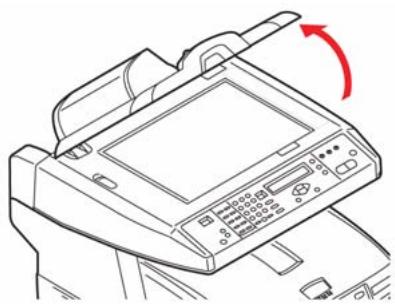
- Dip a soft clean cloth with isopropyl alcohol (95%).
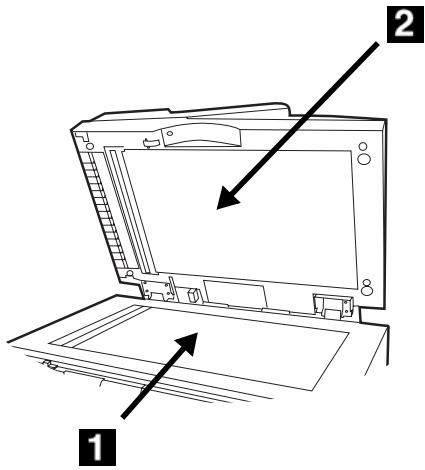
- Gently wipe the document glass (1) and the white sheet beneath the document cover (2).
- Close the document cover.
Maintenance
Replacing the ADF Pad
After scanning approximately 100,000 pages through the ADF, the pad module can become worn out and can cause feeding problems.
Note
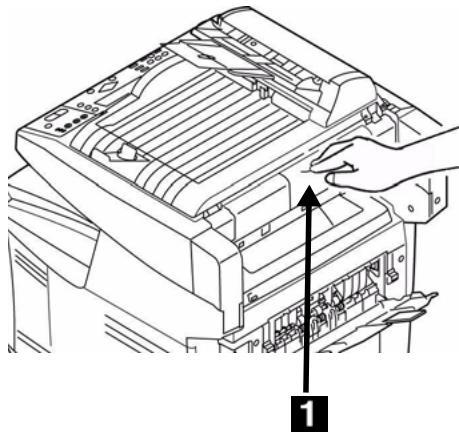
One replacement ADF pad is included with your unit. It is stored behind a swing-down cover (1) on the back of the unit:
For additional ADF pads, order Oki P/N 43103001 (see "Where to Purchase" on page 31).
- Open the ADF cover.
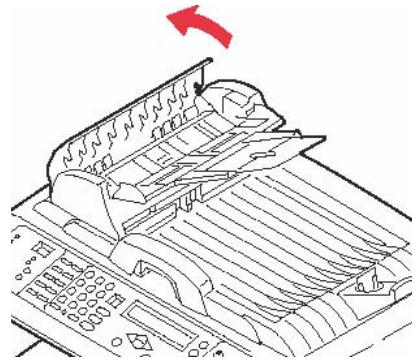
- Press the white plastic arms on the sides of the ADF pad inward and pull the pad out.
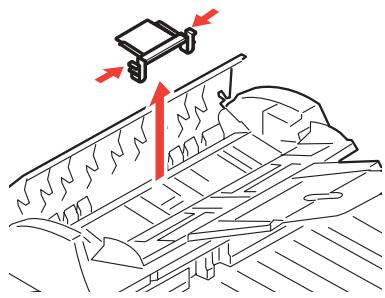
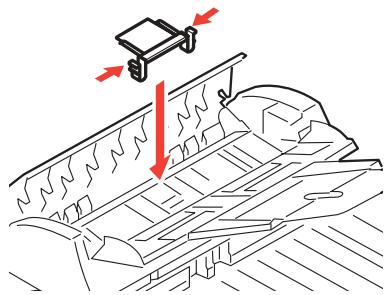
- Press both arms of the new ADF pad inward. Place the pad into the holder until it snaps into place
- Close the ADF cover.
Error Messages
Toner Cartridges & Paper Jams
Some of the more common error messages appear below. For additional error messages see your on-line User's Guide.
Toner Cartridges
XXX TONER EMPTY
Replace the toner cartridge corresponding to color XXX. See page 31.
CHECK TONER CARTRIDGE EEE:YYY IMPROPER LOCK LEVER
The lever for the toner cartridge color indicated is not pushed all the way back.
- EEE = 544: Yellow Drum
- EEE = 545: Magenta Drum
- EEE = 546: Cyan Drum
- EEE = 547: Black Drum
Lift the scanner unit and open the printer cover. Push the lock lever for the color toner cartridge indicated toward the back of the printer as far as it will go. Close the printer cover and gently lower the scanner unit back into place.
If this does not clear the message, call your local service dealer.
CHECK TONER CARTRIDGE XXX TONER SENSOR ERROR
Call your local service dealer.
Paper Jams
(See also "Printer Covers" on page 42)
EEE: PAPER JAM
Appears on the second line of the display to indicate that paper is jammed in the printer. Run through the paper jam clearing procedure (see page 20).
Error Messages (cont.)
Image Drums & E-Mail
Image Drums
REPLACE IMAGE DRUM
EEE: XXX DRUM LIFE
The color image drum indicated is reaching its end of life.
- EEE = 350: Yellow Drum
- EEE = 351: Magenta Drum
- EEE = 352: Cyan Drum
- EEE = 353: Black Drum
Open and close the cover to clear the message and continue printing.
Make sure you have a replacement drum In hand.
REPLACE IMAGE DRUM
EEE: XXX DRUM LIFE
The color image drum indicated needs to be replaced.
- EEE = 560: Yellow Drum
- EEE = 561: Magenta Drum
- EEE = 562: Cyan Drum
- EEE = 563: Black Drum
Replace the image drum. (See the instructions supplied with the new image drum.)
CHECK IMAGE DRUM
EEE:XXX DRUM MISSING
The image drum is no installed correctly.
Lift the scanner unit and open the printer cover. Check that the indicated color image drum is properly installed. Close the cover.
MAILBOX UNAVAILABLE
CHECK "TO" ADDRESS
The requested mail action not taken because the "TO" address was not found. Correct the "TO" address and try again.
FILE SIZE IS TOO LARGE
The file size is larger than the "scan size limit" allowed.
Reduce the file size and try again.
Error Messages (cont.)
Media Trays
Tray 1, Tray 2 (Optional), MP Tray
LOAD SSS
EEE:YYY EMPTY
Printing request was issued to an empty tray. Load media size SSS into the tray.
- EEE = 490: MP Tray
- EEE = 491: Tray 1
- EEE = 492: Tray 2 (option)
LOAD SSS/TTT AND PRESS
EEE:YYYMEDIA MISMATCH
The media size (SSS) and/or type (TTT) in the tray does not match the print data. Load SSS/TTT paper in the tray.
- EEE = 460: MP Tray
- EEE = 461: Tray 1
- EEE = 462: Tray 2 (option)
LOAD SSS IN MP TRAY
AND PRESS ON-LINE SWITCH
The print job is looking for the appropriate media in the Multi-Purpose Tray. Load the indicated media size (SSS) in tray.
INSTALL PAPER CASSETTE
440:YYY OPEN
The paper tray (YYY) has been removed. Reinstall the tray.
Error Messages (cont.)
Scan to File Server
Scan to File Server
FTP LOGIN ERROR CHECK LOGIN NAME
Check your login name and try again.
If you continue to have problems, check with your System Administrator.
FTP PASSWORD ERROR CHECK PASSWORD IN FOLDER
Check your password and try again.
If you continue to have problems, check with your System Administrator.
MAKE SURE PRIVILEGE
Appears on the second line of the display to indicate that you do not have authorization to perform this action.
Check with your System administrator.
FILE NAME NOT ALLOWED CHANGE FILE NAME
Change the file name to meet the naming conventions of the FTP server's operating system.
NETWORK SHARE NAME INCORRECT CHECK DIRECTORY IN FOLDER
The CFIFS Network share name is incorrect.
Check the directory in the profile and make sure it follows UNC, such as \ComputerShare\directory.
COMPUTER NAME ERROR MAKE SURE COMPUTER NAME IN DIRECTORY
CIFS Computer name error. Makes sure the computer name is the directory and is correct.
Error Messages (cont.) Printer Covers & Miscellaneous
Printer Covers
CLOSE COVER EEE:COVER OPEN
- EEE = 310: Top Cover
- EEE = 311: Front Cover
If the message persists, call your local service dealer.
CLOSE COVER 316: DUPLEX COVER OPEN
Close the duplex unit cover.
If the message persists, call your local service dealer.
OPEN UPPER COVER 401: PAPER MULTI FEED
An innappropriate length paper was fed from a tray.
- Check the paper in the trays.
- Check for a paper jam (see page 20).
- Open and close the top cover to continue printing.
OPEN FRONT COVER 400: PAPER SIZE ERROR
Inappropriate size paper was fed from a tray.
- Check the paper in the trays.
- Open and close the front cover.
If the message persists, check for a paper jam (see page 20).
Miscellaneous
TURN OFF SCNER TURNO N AGAIN
Turn off the unit, then turn it on again. If the message persists, contact your service dealer.
ADD MORE MEMORY 420: MEMORY OVERFLOW
The amount of data in the file being printed has exceeded the printer's memory.
- Reduce the size of the file being printed (e.g., print the file as separate groups of pages instead of all the pages at one time).
- Install additional memory in the printer (check with your System Administrator or see the on-line User's Guide).
First ...
Consult the store where you purchased your MFP System.
Additional OKI Resources
Available 24 hours a day, 7 days a week
- Visit MY.OKIDATA.COM for the latest information on
- drivers and utilities
troubleshooting - Product news
- and much more!
Call 1-800-654-3282.
OKI is a registered trademark of Oki Electric Industry Company, Ltd.
AmEx is a registered trademark of American Express Co.
MasterCard is a registered trademark of MasterCard International, Inc.
VISA is a registered trademark of Visa.
Windows is either a registered trademark or trademark of Microsoft Corporation in the United States and other countries.
- Gently lower the scanner into place.
BOITE RÉCEPTION INDISPONIBLE
VERIFIEZ L'ADRESSE «À».
EEE:YYYMEDIA MISMATCH
CHARGEZ SSS/TTT ET APPUYER
EEE:YYMÉDIA INCORRECT
420: MEMORY OVERFLOW
AJOUTER MÉMOIRE
420: DÉPASSEMENT MÉMOIRE
1 = Cian
2 = Magenta
3 = Amarillo
4 = Negro
1 = Cian
2 = Magenta
3 = Amarillo
4 = Negro
1 = Cian
2 = Magenta
3 = Amarillo
4 = Negro
iImportante!
EEE:YYY MEDIA NO COINCIDE
420: MEMORY OVERFLOW
ANADE MEMORIA
420: DESBORDE MEMORIA
MAILBOX UNAVAILABLE CHECK "TO" ADDRESS
CAIXA DE CORREIO INDISPONÍVEL VERIFICAR ENDEREÇÃO "TO" (PARA)
LOAD SSS IN MP TRAY AND PRESS ON-LINE SWITCH
CARREGAR SSS NA BANDEJA MF E PRESSIONO BOTÃO ONLINE
- EEE = 310: Tampa superior
- EEE = 311: Tampa frontal
420: MEMORY OVERFLOW
ADICIONE MAIS MEMORIA
420: ESTOURO DA MEMÓRIA
- Duplex Printing 18
- Clearing Media Jams 19
- Tray 1 27
- Multi Purpose Tray [MPT] . . . 28
- Exit Trays. 30
- Maintenance 31
- Error Messages 38
- Service & Support 43
- Available Walk-up Options
- Zoom Function
- Note:
- Using the Printer Control Panel
- How to Print the MenuMap
- Loading a Document Automatic Document Feed
- Scanner Glass
- Walk-up Operation
- Copy
- Using the Default Settings
- Using Special Settings
- *Copy Settings
- Scan
- Scanning Options
- Note
- Scan and E-mail
- Scan (cont.)
- Scan to File Server
- Fax
- Basic Faxing
- *Additional Fax Settings
- Fax (cont.)
- Delayed Send Faxing
- Manual Feed Faxing
- Poll Receive Faxing
- Broadcast Faxing
- Duplex Printing
- (Printing on Both Sides of the Page)
- Paper Feed
- Paper Exit
- Paper Sizes
- How to Print a File Using the Duplexer
- Windows PostScript Emulation
- Windows PCL Emulation
- Clearing Media Jams Scanner (ADF) Jams
- Clearing Media Jams
- Printer Jams
- In General
- Clearing Media Jams Printer Jams (cont.)
- Caution
- Caution!
- Tray 1
- Loading Paper
- Loading Print Media
- Special Media
- Letterhead Stationery
- Envelopes
- Labels
- Banner Paper
- Top Exit Tray (Face Down)
- Rear Exit Tray (Face Up)
- Toner Cartridge Order Nos., Oki Type C8
- Image Drum Order Nos., Oki Type C8
- Where to Purchase
- Maintenance
- Replacing Toner Cartridges (cont.)
- To Replace a Toner Cartridge
- Power off!
- Cleaning the ADF Rollers & Pad
- Cleaning the ADF Glass
- Replacing the ADF Pad
- Error Messages
- Toner Cartridges & Paper Jams
- Toner Cartridges
- XXX TONER EMPTY
- CHECK TONER CARTRIDGE EEE:YYY IMPROPER LOCK LEVER
- CHECK TONER CARTRIDGE XXX TONER SENSOR ERROR
- Paper Jams
- EEE: PAPER JAM
- Error Messages (cont.)
- Image Drums & E-Mail
- Image Drums
- REPLACE IMAGE DRUM
- EEE: XXX DRUM LIFE
- CHECK IMAGE DRUM
- EEE:XXX DRUM MISSING
- MAILBOX UNAVAILABLE
- CHECK "TO" ADDRESS
- FILE SIZE IS TOO LARGE
- Media Trays
- FTP LOGIN ERROR CHECK LOGIN NAME
- FTP PASSWORD ERROR CHECK PASSWORD IN FOLDER
- MAKE SURE PRIVILEGE
- FILE NAME NOT ALLOWED CHANGE FILE NAME
- NETWORK SHARE NAME INCORRECT CHECK DIRECTORY IN FOLDER
- COMPUTER NAME ERROR MAKE SURE COMPUTER NAME IN DIRECTORY
- Error Messages (cont.) Printer Covers & Miscellaneous
- Printer Covers
- CLOSE COVER EEE:COVER OPEN
- CLOSE COVER 316: DUPLEX COVER OPEN
- OPEN UPPER COVER 401: PAPER MULTI FEED
- OPEN FRONT COVER 400: PAPER SIZE ERROR
- Miscellaneous
- TURN OFF SCNER TURNO N AGAIN
- ADD MORE MEMORY 420: MEMORY OVERFLOW
- First ...
- Additional OKI Resources
Brand : OKI
Model : C5550NMFP
Category : Multifunction Printer