
X2000, X3000, X3500 - Wireless routers LINKSYS - Free user manual and instructions
Find the device manual for free X2000, X3000, X3500 LINKSYS in PDF.



| Product Type | Integrated ADSL Wireless Router |
| Brand | LINKSYS |
| Models | X2000, X3000, X3500 |
| Dimensions (L x H x D) | 202 x 34 x 160 mm |
| Weight | 287 g |
| Power Supply | 12 VDC, 1 A |
| Wireless Standards | 802.11n, 802.11g, 802.11b |
| Ports | DSL (RJ-11), Cable (RJ-45), Ethernet 1-3 (RJ-45), Power |
| Buttons | Power On/Off, Reset, Wi-Fi Protected Setup |
| LEDs | Power, Ethernet (1-3), Wi-Fi Protected Setup, Wireless, Internet |
| Wireless Security | WPA2/WPA (Personal and Enterprise), WEP 64/128-bit, MAC Filtering, SPI Firewall |
| Advanced Features | Wi-Fi Protected Setup (WPS), Guest Network, ADSL or Router-only Mode |
| Configuration | Wizard via CD-ROM or Web Browser (192.168.1.1) |
| Supported Operating Systems | Windows 7, Vista, XP; Mac OS X 10.5+ |
| Operating Temperature | 0 °C to 40 °C |
| Operating Humidity | 10% to 85% (non-condensing) |
| Care and Cleaning | Use a soft, dry cloth; do not use liquid or abrasive products. |
| Spare Parts and Repairability | No spare parts provided; contact Linksys support for repairs. |
Frequently Asked Questions - X2000, X3000, X3500 LINKSYS
User questions about X2000, X3000, X3500 LINKSYS
0 question about this device. Answer the ones you know or ask your own.
Ask a new question about this device
Download the instructions for your Wireless routers in PDF format for free! Find your manual X2000, X3000, X3500 - LINKSYS and take your electronic device back in hand. On this page are published all the documents necessary for the use of your device. X2000, X3000, X3500 by LINKSYS.
USER MANUAL X2000, X3000, X3500 LINKSYS
Set up your modem-router ....6
Connect your modem-router 6
Set up your modem-router as only a router 7
Advanced Configuration
How to access the browser-based utility. . . . . . . . . . . . . . . . . . . . . . . . . . . . . . . . . . . . . . . . . . . . . . . . . 8
How to use the browser-based utility. . . . . . . . . . . . . . . . . . . . . . . . . . . . . . . . . . . . . . . . . . . . . . . . 8
Setup > Basic Setup....9
Auto/ADSL mode 9
Ethernet mode 10
Manual setup 11
Wi-Fi Protected Setup 13
Wireless > Wireless Security ..... 14
Personal Options 14
Office Options 14
Wireless Security 14
Wireless > Guest Access .....17
Guest Access 18
Guest Instructions 18
Troubleshooting
X2000....19
Specifications
X2000....21
Appendix: Linksys X2000 Advanced Settings
X2000....22
Product Overview
Top
natural_image
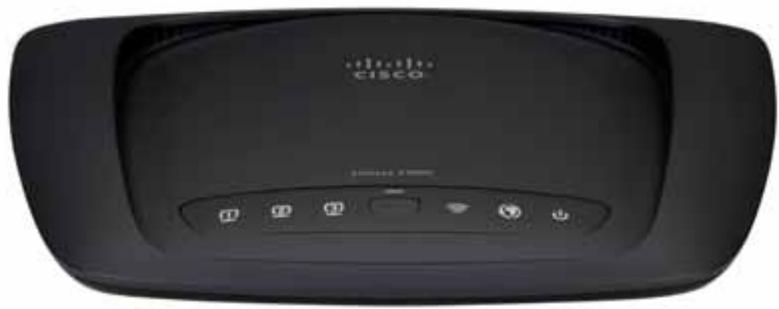
Front view of a black Cisco router device with control buttons and indicator lights (no visible text or symbols beyond branding)
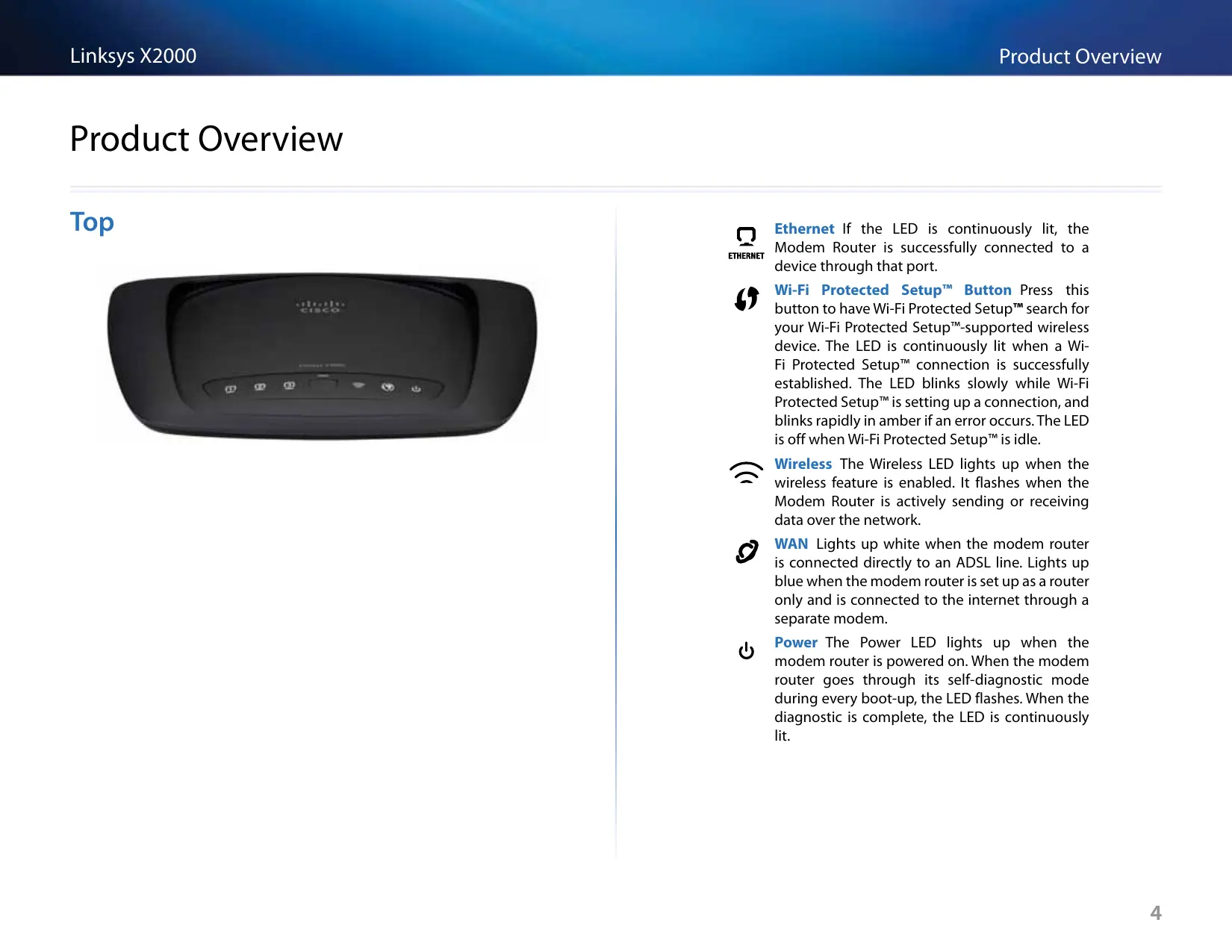
Ethernet If the LED is continuously lit, the Modem Router is successfully connected to a device through that port.

Wi-Fi Protected Setup™ Button Press this button to have Wi-Fi Protected Setup™ search for your Wi-Fi Protected Setup™-supported wireless device. The LED is continuously lit when a Wi-Fi Protected Setup™ connection is successfully established. The LED blinks slowly while Wi-Fi Protected Setup™ is setting up a connection, and blinks rapidly in amber if an error occurs. The LED is off when Wi-Fi Protected Setup™ is idle.

Wireless The Wireless LED lights up when the wireless feature is enabled. It flashes when the Modem Router is actively sending or receiving data over the network.

WAN Lights up white when the modem router is connected directly to an ADSL line. Lights up blue when the modem router is set up as a router only and is connected to the internet through a separate modem.

Power The Power LED lights up when the modem router is powered on. When the modem router goes through its self-diagnostic mode during every boot-up, the LED flashes. When the diagnostic is complete, the LED is continuously lit.
Back

natural_image
Back view of a black wireless router with ports and indicator lights (no visible text or symbols)
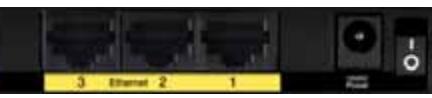
DSL—Connects to the ADSL line.

Cable—To use the modem router as only a router, use a network cable to connect this port to a separate modem's LAN/Ethernet port.

Ethernet—Using Ethernet cables (also called network cables), these Ethernet ports connect the modem router to computers and other Ethernet network devices on your wired network.

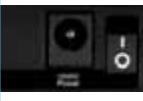
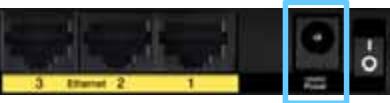
Power—The Power port connects to the included power adapter.

Power button—Press | (on) to turn on the modem router.
Bottom
- Reset—This button allows you to reset the router to its factory defaults. Press and hold the Reset button for approximately five seconds.
Wall-mounting placement
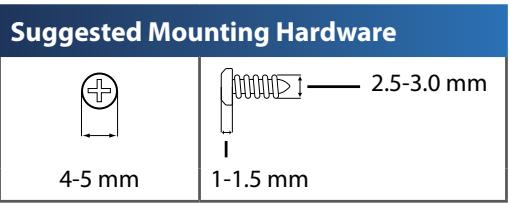
The Router has two wall-mount slots on its bottom panel. The distance between the slots is 175.56 mm. Two screws are needed to mount the Router.
NOTE
Cisco is not responsible for damages incurred by unsecured wall-mounting hardware.
Follow these instructions:
- Determine where you want to mount the Router. Make sure that the wall you use is smooth, flat, dry, and sturdy. Also make sure the location is within reach of an electrical outlet.
- Drill two holes into the wall. Make sure the holes are 175 mm apart.
- Insert a screw into each hole and leave 3 mm of its head exposed.
- Position the Router so the wall-mount slots line up with the two screws.
- Place the wall-mount slots over the screws and slide the Router down until the screws fit snugly into the wall-mount slots.
Wall-mounting template
Print this page at 100% size.
Cut along the dotted line, and place on the wall to drill precise spacing.
175 mm
Installation
Set up your modem-router
NOTE
Run the Setup CD-ROM to install the modem-router. If you cannot run the Setup CD-ROM, refer to the steps below.
NOTE
If you are setting up your modem-router in New Zealand, see "NOTE FOR USERS IN NEW ZEALAND" on page 7.
Connect your modem-router
To connect your modem-router:
- Power down all your network devices, including your computer(s) and the modem-router. If you currently use a modem, disconnect it now—the modem-router replaces your modem.
- Connect one end of the provided Ethernet cable to your computer's Ethernet adapter and the other end to an Ethernet port on the back of the modem-router.
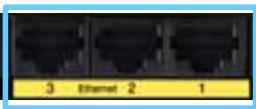
- Repeat step 2 for each additional computer or device that you want to connect to the modem-router.
NOTE
If your computer's Ethernet adapter is not set up, refer to the Ethernet adapter's documentation for more information.
- Connect one end of the phone cable to the DSL port on the back.

- Connect the other end of the phone cable to the wall jack with ADSL service or microfilter.
NOTE
If you experience static on your phone line, you may need a microfilter or splitter. (This is required for users in the UK; other users should contact their ISPs to verify. ISDN users do not need a microfilter.) If you require a microfilter, you must install one for each phone or fax that you use. To install a microfilter, plug it into a phone jack that has ADSL service, then connect one end of the provided phone cable to the microfilter's DSL port.
- Connect one end of the power adapter cord to the Power port and the other end to the electrical outlet.

- Power on the computer that you will use to configure the modem-router.
- The LEDs for Power, Wireless, and Ethernet (one for each connected computer) should light up. If not, make sure the modem-router is powered on and the cables are securely connected.
Set up your modem-router as only a router
NOTE
Run the Setup CD-ROM to install the modem-router. If you cannot run the Setup CD-ROM, refer to the steps below.
To set up your modem-router as a router:
- Connect one end of the provided Ethernet cable to your computer's Ethernet adapter and the other end to an Ethernet port on the back of the modem-router.
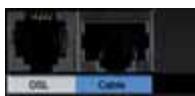
- Connect one end of an Ethernet cable to the Cable port on the back of the modem-router, then connect the other end to an available Ethernet/LAN port on your modem.
- Connect one end of the power adapter cord to the Power port and the other end to the electrical outlet.
- Power on the computer that you will use to configure the modem-router.
- The LEDs for Power, Wireless, and Ethernet (one for each connected computer) should light up. If not, make sure the modem-router is powered on and the cables are securely connected.
NOTE FOR USERS IN NEW ZEALAND
To set up the device, follow these instructions:
- Access the Setup > Basic Setup screen.
- Select RFC 2364 PPPoA from the Encapsulation drop-down menu.
- For the Virtual Circuit ID, enter 0 for the VPI and 100 for the VCI.
- Select VC for Multiplexing.
- Select Multimode from the DSL Modulation drop-down menu.
- Enter your User Name and Password details from your ISP.
- Click Save Settings.
Advanced Configuration
After setting up the router with the setup software (located on the CD-ROM), the router will be ready for use. If you would like to change its advanced settings, or if the software does not run, use the router's browser-based utility. You can access the utility via a web browser on a computer connected to the router. For more help with the utility, click Help on the right side of the screen or go to our website.
How to access the browser-based utility
- To access the browser-based utility, launch the web browser on your computer, and enter the router's default Internet Protocol (IP) address, 192.168.1.1, in the Address field. Then press Enter.
NOTE
You can also access the browser-based utility on Windows computers by entering the device name in the Address field.
A login screen appears. (A similar screen appears for non-Windows 7 users.)
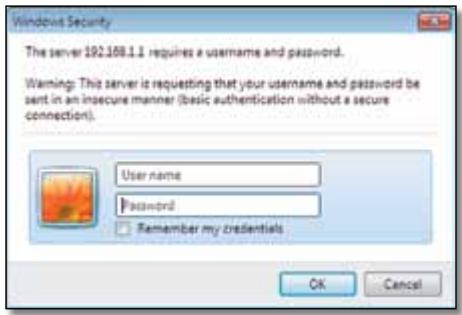
- In the User name field, enter admin.
- In the Password field, enter the password created by the setup software. If you did not run the setup software, then enter the default, admin.
NOTE
You can also access the browser-based utility through Cisco Connect.
- Click OK to continue.
How to use the browser-based utility
Use the tabs at the top of each screen to navigate within the utility. The tabs are arranged in two levels, top-level tabs for general functions and lower-level tabs for the corresponding specific functions.

The top-level tabs are: Setup, Wireless, Security, Access Restrictions, Applications & Gaming, Administration, and Status. Each of these has its own unique, lower-level tabs.
NOTE
Within this User Guide, each screen is identified by its top- and lower-level tab names. For example, "Setup > Basic Setup" is the screen accessed via the Setup top-level tab, and its Basic Setup lower-level tab.
If you change any settings on a screen, you must click Save Settings to apply your changes, or click Cancel Changes to clear your changes. These controls are located at the bottom of each screen.

NOTE
To learn more about any field, click Help on the right side of the screen.
Setup > Basic Setup
The first screen that appears is the Basic Setup screen. This allows you to change the router's general settings.
Auto/ADSL mode
ADSL mode (default) has the following fields that should be completed:

Language
Select your language To use a different language, select one from the dropdown menu. The language of the browser-based utility will change five seconds after you select another language.
Internet Setup
The Internet Setup section configures the router to your Internet connection. Most of this information can be obtained through your Internet Service Provider (ISP).
Internet Connection Type
Select the type of Internet connection your ISP provides from the drop-down menu. The available types are:
- Bridged Mode Only
- RFC 2684 Bridged
- RFC2684 Routed
• IPoA - RFC 2516 PPPoE
- RFC2364 PPPoA
Bridged Mode Only
In this mode, only the DSL modem function is available, and all Gateway features are disabled. If selected, you only need to enter the VC Settings.
RFC 2684 Bridged
If selected, enter the correct data for the IP Settings. Select Obtain an IP address automatically if your ISP allocates an IP address upon connection. Otherwise, select Use the following IP address.
RFC2684 Routed
With this method, you are required to use a permanent IP address to connect to the Internet.
IPoA
IPoA (IP over ATM) uses a fixed IP address.
RFC 2516 PPPoE
Some DSL-based ISPs use PPPoE (Point-to-Point Protocol over Ethernet) to establish Internet connections. If you are using PPPoE, your IP address is provided automatically.
RFC2364 PPPoA
Some DSL-based ISPs use PPPoA (Point-to-Point Protocol over ATM) to establish Internet connections. If using PPPoA, your IP address is provided automatically.
Network Setup
The Network Setup section configures the IP settings for your local network.
Ethernet mode
If you select Ethernet (router-only) mode, the following fields are available:
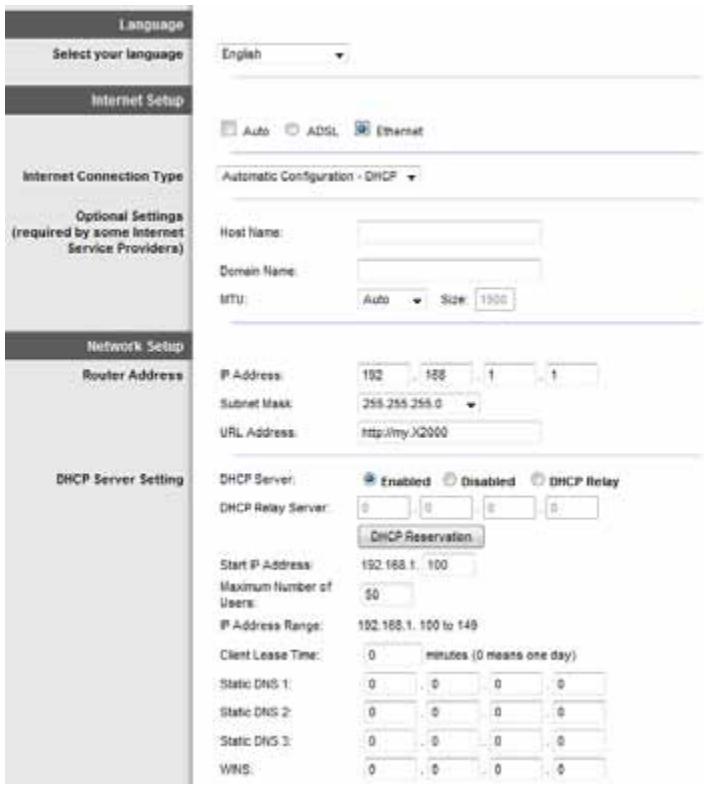
Language
Select your language To use a different language, select one from the dropdown menu. The language of the browser-based utility will change five seconds after you select another language.
Internet Setup
The Internet Setup section configures the router to your Internet connection. Most of this information can be obtained through your Internet Service Provider (ISP).
Internet Connection Type
Select the type of Internet connection your ISP provides from the drop-down menu. The available types are:
• Automatic Configuration - DHCP
- Static IP
- PPPoE
- PPTP
• L2TP
- Telstra Cable
Automatic Configuration - DHCP
The default Internet Connection Type is Automatic Configuration - DHCP (Dynamic Host Configuration Protocol). Keep the default only if your ISP supports DHCP or if you connect using a dynamic IP address. (This option usually applies to cable connections.)
Static IP
If you are required to use a fixed IP address to connect to the Internet, select Static IP.
PPPoE
If you have a DSL connection, check whether your ISP uses Point-to-Point Protocol over Ethernet (PPPoE). If so, select PPPoE.
Connect on Demand or Keep Alive
The Connect on Demand and Keep Alive options let you choose whether the router connects to the Internet only as needed (useful if your ISP charges for connect time), or if the router should always be connected. Select the appropriate option.
PPTP
Point-to-Point Tunneling Protocol (PPTP) is a service that generally applies to connections in Europe.
If your PPTP connection supports DHCP or a dynamic IP address, then select Obtain an IP Address Automatically. If you are required to use a fixed IP address to connect to the Internet, then select Specify an IP Address and configure the options below.
L2TP
Layer 2 Tunneling Protocol (L2TP) is a service that generally applies to connections in Israel.
Telstra Cable
Telstra Cable is a service that generally applies to connections in Australia.
Network Setup
The Network Setup section configures the IP settings for your local network.
Wireless > Basic Wireless Settings
NOTE
To learn more about any field, click Help on the right side of the screen.
The basic settings for wireless networking are set on this screen.
There are two ways to configure the Router's wireless network(s), manual and Wi-Fi Protected Setup.
Wi-Fi Protected Setup is a feature that makes it easy to set up your wireless network. If you have client devices, such as wireless adapters, that support Wi-Fi Protected Setup, then you can use Wi-Fi Protected Setup.
Configuration View To manually configure your wireless networks, select Manual.

Manual setup
Set up the wireless network on this screen.
NOTE
After you set up the wireless network(s), set up the wireless security settings. Go to "Wireless > Wireless Security" on page 14.
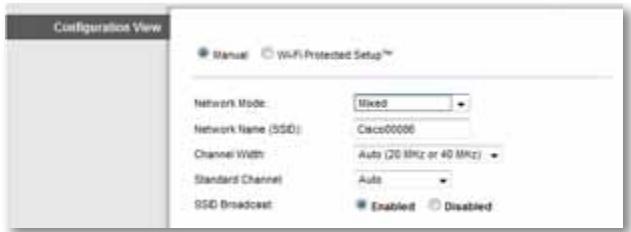
Network Mode In most network configurations, you should leave it set to Mixed (default).
Wireless settings
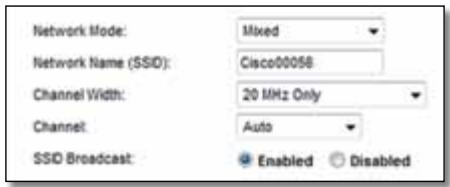
Basic Wireless Settings (Manual) > Wireless Settings
Network Mode Select the wireless standards your network will support.
- Mixed If you have Wireless-N, Wireless-G, and Wireless-B devices in your network, keep the default, Mixed.
- Wireless-B/G Only If you have both Wireless-B and Wireless-G devices in your network, select Wireless-B/G Only.
- Wireless-B Only If you have only Wireless-B devices, select Wireless-B Only.
- Wireless-G Only If you have only Wireless-G devices, select Wireless-G Only.
- Wireless-N Only If you have only Wireless-N devices, select Wireless-N Only.
- Disabled If you have no Wireless-B, Wireless-G, and Wireless-N devices in your network, select Disabled.
NOTE
If you are not sure which mode to use, keep the default, Mixed.
Network Name (SSID) The Service Set Identifier (SSID) is the network name shared by all devices in a wireless network. It is case-sensitive and must not exceed 32 keyboard characters. The default is Cisco followed by the last 5 digits of the router's serial number, which is found on the bottom of the router. If you used the setup software for installation, then the default Network Name is changed to an easy-to-remember name.
NOTE
If you restore the router's factory default settings (by pressing the Reset button or using the Administration > Factory Defaults screen), the Network Name will return to its default value, and all devices on your wireless network will need to be reconnected.
Channel Width For best performance in a network using Wireless-B, Wireless-G and Wireless-N devices, select Auto (20 MHz or 40 MHz). For a channel width of 20 MHz, keep the default, 20 MHz only.
Channel Select the channel from the drop-down list for Wireless-B, Wireless-G, and Wireless-N networking. If you are not sure which channel to select, then keep the default, Auto.
SSID Broadcast When wireless clients survey the local area for wireless networks to associate with, they will detect the SSID broadcast by the router. To broadcast the router's SSID, keep the default, Enabled. If you do not want to broadcast the router's SSID, then select Disabled.
Wi-Fi Protected Setup
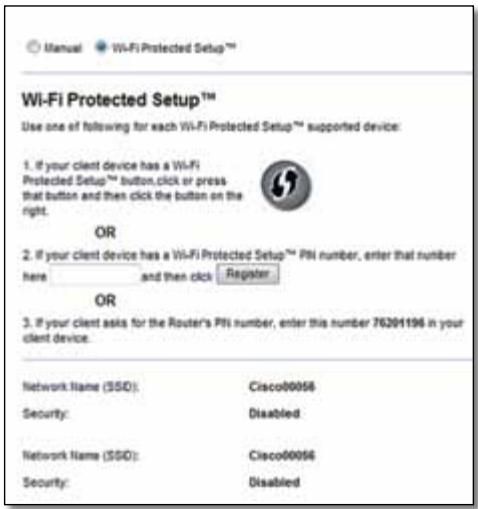
Three methods of Wi-Fi Protected Setup are available. Use the method that applies to the client device you are configuring.
NOTE
Wi-Fi Protected Setup configures one client device at a time. Repeat the instructions for each client device that supports Wi-Fi Protected Setup.
Wi-Fi Protected Setup light activity
- The Cisco logo on the top panel of the router functions as the Wi-Fi Protected Setup light.
- When the Wi-Fi Protected Setup process is active, the light flashes slowly. When the Wi-Fi Protected Setup is successful, the light is continuously lit.
- If there is an error, the light flashes quickly for two minutes; please wait and try again.
- Wait until the light is continuously lit, before starting the next Wi-Fi Protected Setup session.
- Wi-Fi Protected Setup Button Use this method if your client device has a Wi-Fi Protected Setup button.
NOTE
Make sure you configure one client device at a time.
Wi-Fi Protected Setup™
Use one of following for each Wi-Fi Protected Setup™ supported device:
- If your client device has a Wi-Fi Protected Setup™ button, click or press that button and then click the button on the right.

a. Click or press the Wi-Fi Protected Setup button on the client device.
b. Click the Wi-Fi Protected Setup button on the router's Wi-Fi Protected Setup screen, OR press and hold the Wi-Fi Protected Setup button on the back panel of the router for one second.
c. After the client device has been configured, click OK on the router's Wi-Fi Protected Setup screen within two minutes.
- Enter Client Device PIN on Router Use this method if your client device has a Wi-Fi Protected Setup PIN (Personal Identification Number).
- If your client device has a Wi-Fi Protected Setup™ PIN number, enter that number here and then click Register
a. Enter the PIN from the client device in the field on the router's Wi-Fi Protected Setup screen.
b. Click the Register button on the router's Wi-Fi Protected Setup screen.
c. After the client device has been configured, click OK on the router's Wi-Fi Protected Setup screen within two minutes.
- Enter Router PIN on Client Device Use this method if your client device asks for the router's PIN.
- If your client asks for the Router's PIN number, enter this number 76201196 in your client device.
a. On the client device, enter the PIN listed on the router's Wi-Fi Protected Setup screen. (It is also listed on the bottom of the router.)
b. After the client device has been configured, click OK on the router's Wi-Fi Protected Setup screen within two minutes.
For each wireless network, the Network Name (SSID), Security, and Passphrase are displayed at the bottom of the screen.
NOTE
If you have client devices that do not support Wi-Fi Protected Setup, note the wireless settings, and then manually configure those client devices.
Wireless > Wireless Security
The wireless security settings configure the security of your wireless network(s). The router supports the following wireless security options: WPA2/WPA Mixed Mode, WPA2 Personal, WPA Personal, WPA2/WPA Enterprise Mixed Mode, WPA2 Enterprise, WPA Enterprise, WEP, and RADIUS. (WPA stands for Wi-Fi Protected Access. WEP stands for Wireless Equivalent Privacy. RADIUS stands for Remote Authentication Dial-In User Service.)
NOTE
To learn more about any field, click Help on the right side of the screen.
Personal Options
| Security Option | Strength |
| WPA2 Personal | Strongest |
| WPA2/WPA Mixed Mode | WPA2: StrongestWPA: Strong |
| WPA Personal | Strong |
| WEP | Basic |
Office Options
The office options are available for networks that use a RADIUS server for authentication. The office options are stronger than the personal options because WPA2 or WPA provides encryption while RADIUS provides authentication.
| Security Option | Strength |
| WPA2 Enterprise | Strongest |
| WPA2/WPA Enterprise Mixed Mode | WPA2: StrongestWPA: Strong |
| WPA Enterprise | Strong |
| RADIUS | Basic |
Wireless Security
Wireless security is strongly recommended, and WPA2 is the strongest method available. Use WPA2 if it is supported by all of your wireless devices.
Security Mode
Select the security option for your wireless network. Then go to the instructions for your selection.
WPA2/WPA Mixed Mode
NOTE
If you select WPA2/WPA Mixed Mode as your Security Mode, each device in your wireless network MUST use WPA2/WPA and the same passphrase.
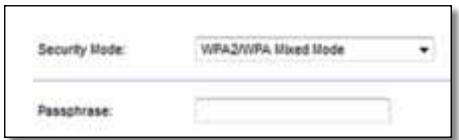
Passphrase Enter a passphrase of 8-63 characters. The default is password. If you used the setup software for installation, then the default is changed to a unique passphrase.
WPA2 Personal
NOTE
If you select WPA2 Personal as your Security Mode, each device in your wireless network MUST use WPA2 Personal and the same passphrase.
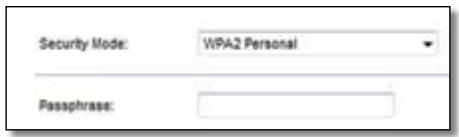
Passphrase Enter a passphrase of 8-63 characters. The default is password. If you used the setup software for installation, then the default is changed to a unique passphrase.
WPA Personal
NOTE
If you select WPA Personal as your Security Mode, each device in your wireless network MUST use WPA Personal and the same passphrase.
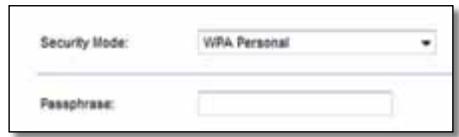
Passphrase Enter a passphrase of 8-63 characters. The default is password. If you used the setup software for installation, then the default is changed to a unique passphrase.
WPA2/WPA Enterprise Mixed Mode
This option features WPA2/WPA used in coordination with a RADIUS server. (This should only be used when a RADIUS server is connected to the router.)
NOTE
If you select WPA2/WPA Enterprise Mixed Mode as your Security Mode, each device in your wireless network MUST use WPA2/WPA Enterprise and the same shared key.
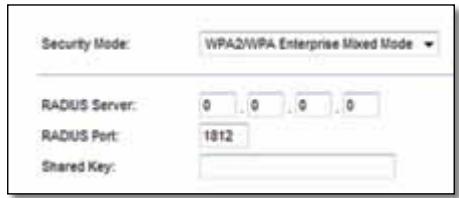
RADIUS Server Enter the IP address of the RADIUS server.
RADIUS Port Enter the port number of the RADIUS server. The default is 1812.
Shared Key Enter the key shared between the router and the server.
WPA2 Enterprise
This option features WPA2 used in coordination with a RADIUS server. (This should only be used when a RADIUS server is connected to the router.)
NOTE
If you select WPA2 Enterprise as your Security Mode, each device in your wireless network MUST use WPA2 Enterprise and the same shared key.
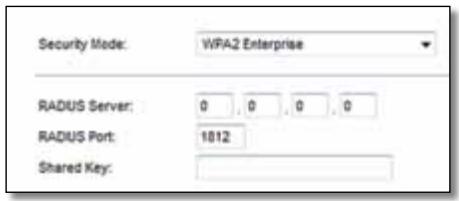
RADIUS Server Enter the IP address of the RADIUS server.
RADIUS Port Enter the port number of the RADIUS server. The default is 1812.
Shared Key Enter the key shared between the router and the server.
WPA Enterprise
This option features WPA used in coordination with a RADIUS server. (This should only be used when a RADIUS server is connected to the router.)
NOTE
If you select WPA Enterprise as your Security Mode, each device in your wireless network MUST use WPA Enterprise and the same shared key.
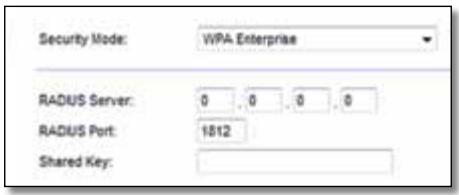
RADIUS Server Enter the IP address of the RADIUS server.
RADIUS Port Enter the port number of the RADIUS server. The default is 1812.
Shared Key Enter the key shared between the router and the server.
WEP
WEP is a basic encryption method, which is not as secure as WPA.
NOTE
If you select WEP as your Security Mode, each device in your wireless network MUST use WEP and the same encryption and shared key.
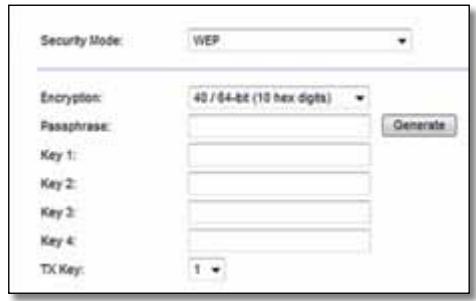
Encryption Select a level of WEP encryption, (40/64-bit 10 hex digits) or 104/128-bit (26 hex digits). The default is 40/64-bit (10 hex digits).
Passphrase Enter a passphrase to automatically generate WEP keys. Then click Generate.
Key 1-4 If you did not enter a passphrase, enter the WEP key(s) manually.
TX Key Select a default TX (Transmit) Key to use. The default is 1.
RADIUS
This option features WEP used in coordination with a RADIUS server. (This should only be used when a RADIUS server is connected to the router.)
NOTE
If you select RADIUS as your Security Mode, each device in your wireless network MUST use RADIUS and the same encryption and shared key.
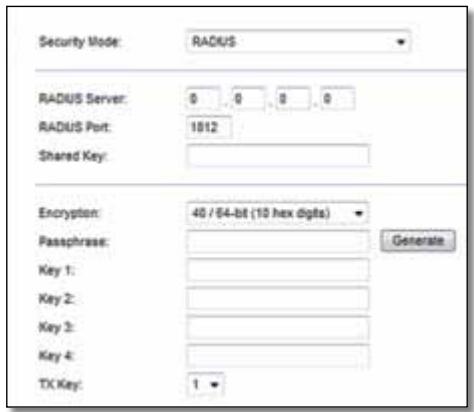
RADIUS Server Enter the IP address of the RADIUS server.
RADIUS Port Enter the port number of the RADIUS server. The default is 1812.
Shared Secret Enter the key shared between the router and the server.
Encryption Select a level of WEP encryption, (40/64-bit 10 hex digits) or 104/128-bit (26 hex digits). The default is 40/64-bit (10 hex digits).
Passphrase Enter a passphrase to automatically generate WEP keys. Then click Generate.
Key 1-4 If you did not enter a passphrase, enter the WEP key(s) manually.
TX Key Select a default TX (Transmit) Key to use. The default is 1.
Disabled
If you choose to disable wireless security, you will be informed that wireless security is disabled when you first attempt to access the Internet. You will given the option to enable wireless security, or confirm that you understand the risks but still wish to proceed without wireless security.
NOTE
When wireless security is disabled, anyone can access your wireless network at any time.

Wireless > Guest Access
The Guest Access feature allows you to provide guests visiting your home with Internet access via wireless. The guest network is a wireless network separate from your local network. The Guest Access feature does not provide access to the local network and its resources, so your guests will not have access to your computers or personal data. For example, the guest computer cannot print to a printer on the local network or copy files to a computer on the local network. This helps minimize exposure of your local network.
NOTE
To learn more about any field, click Help on the right side of the screen.
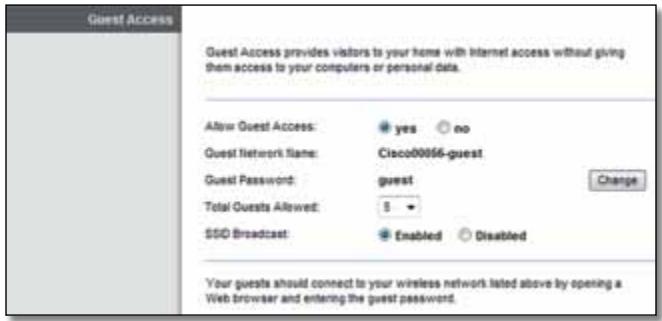
Guest Access
Allow Guest Access To allow Internet access through a guest network, keep the default, yes. Otherwise, select no.
Guest Network Name The default is the name of your wireless network, followed by -guest.
Guest Password The default is guest. If you used the setup software for installation, then the default is changed to a unique password.
Change Click this option to change the Guest Password. The Change Guest Password screen appears.
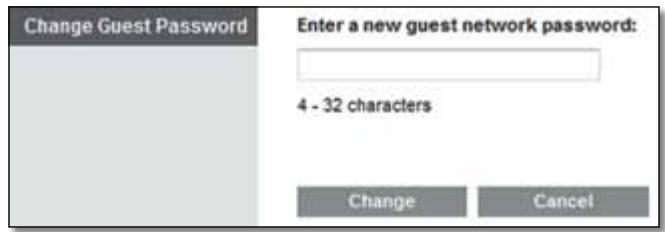
Change Guest Password
- Enter a new guest network password Enter a password of 4-32 characters.
Then click Change to save the new password and return to the Guest Access screen.
Total Guests Allowed By default, 5 guests are allowed Internet access through the guest network. Select the number of guests you want to allow on your guest network.
SSID Broadcast When wireless devices survey the local area for wireless networks to associate with, they will detect the SSID (wireless network name) broadcast by the router. To broadcast the SSID of the guest network, keep the default, Enabled. If you do not want to broadcast the SSID of the guest network, then select Disabled.
Guest Instructions
When a guest wants Internet access in your home, provide these instructions:
- On the guest computer, connect to the wireless guest network named on the Guest Access screen.
- Open a web browser.
- On the login screen, enter the password displayed on the Guest Access screen.
- Click Login.
Troubleshooting
X2000
Your computer cannot connect to the Internet.
Follow the instructions until your computer can connect to the Internet:
- Make sure that the Modem Router is powered on. The Power LED should be green and not flashing.
- If the Power LED is flashing, then power off all of your network devices, including the Modem Router and computers. Then power on each device in the following order:
a. Modem Router
b. Computer - Check the LEDs on the device's front panel. Make sure the Power, DSL, and at least one of the numbered Ethernet LEDs are lit. If they are not, then check the cable connections. The computer should be connected to one of the Ethernet ports numbered 1-4 on the device, and the device's DSL port must be connected to the ADSL line.
When you double-click the web browser, you are prompted for a user name and password. If you want to get rid of the prompt, follow these instructions.
Launch the web browser and perform the following steps (these steps are specific to Internet Explorer but are similar for other browsers):
- Select Tools > Internet Options.
- Click the Connections tab.
- Select Never dial a connection.
- Click OK.
You are using a static IP address and cannot connect.
Refer to Windows Help and change your Internet Protocol (TCP/IP) Properties to Obtain an IP address automatically.
The computer cannot connect wirelessly to the network.
Make sure the wireless network name or SSID is the same on both the computer and the device. If you have enabled wireless security, then make sure the same security method and key are used by both the computer and the device.
You need to modify the basic settings on the device.
Run the Setup Wizard on the Setup CD-ROM.
You need to modify the advanced settings on the device.
Open the web browser (for example, Internet Explorer or Firefox), and enter the device's IP address in the address field (the default IP address is 192.168.1.1). When prompted, complete the User name and Password fields (the default user name and password is admin). Click the appropriate tab to change the settings
You cannot use the DSL service to connect manually to the Internet.
After you have installed the router, it will automatically connect to your Internet Service Provider (ISP), so you no longer need to connect manually.
When you open the web browser, the login screen appears, even though you do not need to log in.
These steps are specific to Internet Explorer but are similar for other browsers.
- Open the web browser.
- Go to Tools > Internet Options.
- Click the Connections tab.
- Select Never dial a connection.
- Click OK.
The router does not have a coaxial port for the cable connection.
A coaxial cable can connect to only a cable modem. Your modem router works as a modem with your ADSL Internet, but if you have cable Internet, your modem router should be connected to a separate cable modem. Insert the Setup CD into your computer and follow the on-screen instructions to connect your modem-router to a cable modem.
You want to access the browser-based utility from Cisco Connect.
To enter the browser-based utility from Cisco Connect, follow these steps:
- Open Cisco Connect.
- On the main menu, click Router settings.
- Click Advanced settings.
- Write down the username and password that are displayed. (To help protect your password, you can copy it to the Clipboard by clicking Copy password.)
- Click OK.
When you try to log into the browser-based utility, your password does not work.
Your wireless security password also serves as the browser-based utility's login password. To see this password:
- Open Cisco Connect.
- On the main menu, click Router settings.
- The Password is displayed on the left side of the screen.
In Windows XP, you do not see the router in the My Network Places screen.
In the Network Tasks section, click Show icons for networked UPnP devices. If the router does not appear, follow these instructions:
- Go to Start > Control Panel > Firewall.
- Click the Exceptions tab.
- Select UPnP Framework.
- Click OK.
WEB
If your questions are not addressed here, refer to the website, linksys.com/support
Specifications
X2000
| Standards | WLAN: 802.11n, 802.11g, 802.11bEthernet: 802.3, 802.3uADSL: T1.413i2, G.992.1 (G.DMT), G.992.2 (G.Lite), G.992.3 (ADSL2), G.992.5 (ADSL2+) for Annex A, B, M, L, U-R2 for Annex B |
| Ports | DSL, Cable, Ethernet (1-3), Power |
| Buttons | On/Off, Reset, Wi-Fi Protected SetupTM |
| LEDs | Power, Ethernet (1-3), Wi-Fi Protected Setup, Wireless, Internet |
| Cabling Type | CAT5, RJ-11 (for Annex A), RJ-45 (for Annex B) |
| Antennas | 2 Internal |
| Modulations | 802.11b: CCK/QPSK, BPSK802.11g: OFDM/BPSK, QPSK, 16-QAM, 64-QAM802.11n: OFDM/BPSK, QPSK, 16-QAM, 64-QAM |
| Transmit Power | 802.11b: 16 ± 1.5 dBm802.11g: 16 ± 1.5 dBm802.11n: 18 ± 1.5 dBm |
| Receive Sensitivity | 802.11b: -87 dBm (typical) @ 11 Mbps802.11g: -72 dBm (typical) @ 54 Mbps802.11n HT20: -71 dBm (typical) @ 130 Mbps802.11n HT40: -68 dBm (typical) @ 270 Mbps |
| Security Features | WPA2TM/WPATM Personal and Enterprise; 128, 64 bits WEP; MAC Address Filtering; SPI Firewall |
| OS Requirements (for Setup wizard) | Windows 7, Windows Vista, Windows Vista 64-bit edition (with Network Magic and Setup Wizard), or Windows XPMac OS X 10.5 or higher |
Environmental
| Dimensions | 202 x 34 x 160 mm (8.0" x 1.3" x 6.3") |
| Weight | 287 g (10.1 oz) |
| Power | 12VDC, 1A |
| Certification | FCC, CE, Telepermit, K.21, UL, CB,Wi-Fi (802.11b/g), WPA ^TM , WPA2 ^TM , WMM,Wi-Fi Protected Setup ^TM |
| Operating Temperature | 0 to 40°C (32 to 104°F) |
| Storage Temperature | -20 to 70°C (-4 to 158°F) |
| Operating Humidity | 10 to 85% Noncondensing |
| Storage Humidity | 5 to 90% Noncondensing |
NOTES
For regulatory, warranty, and safety information, see the CD that came with your modem router or go to Linksys.com/support.
Specifications are subject to change without notice.
Maximum performance derived from IEEE Standard 802.11 specifications. Actual performance can vary, including lower wireless network capacity, data throughput rate, range and coverage. Performance depends on many factors, conditions and variables, including distance from the access point, volume of network traffic, building materials and construction, operating system used, mix of wireless products used, interference and other adverse conditions.
Appendix: Linksys X2000 Advanced Settings
X2000
NOTE
The information in this appendix is only necessary for users who connect the Linksys X2000 directly to a DSL line.
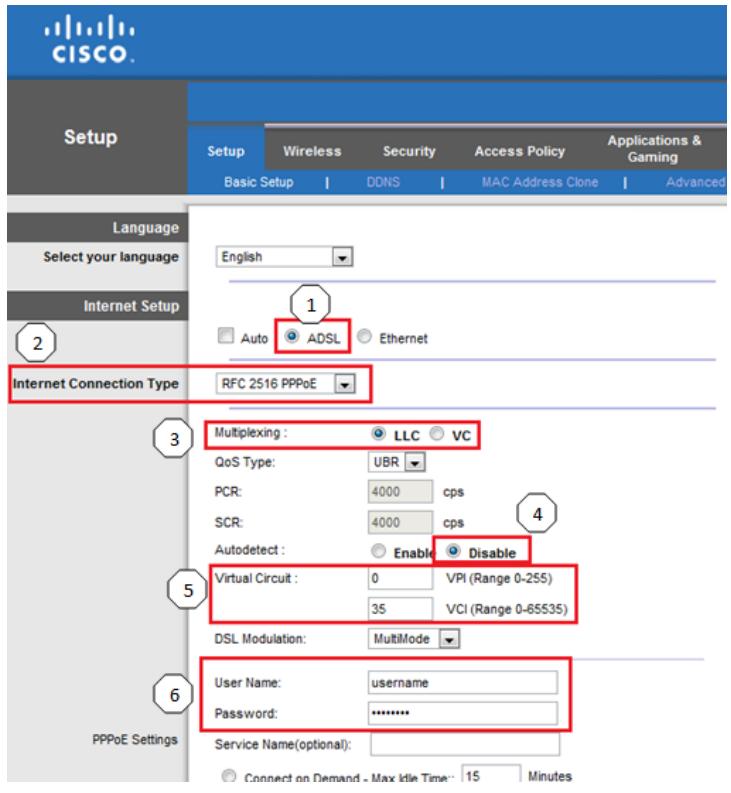
In your router's Advanced Settings, use the Setup tab to enter information about your Internet connection. If you don't know this information, contact your Internet Service Provider (ISP) or see the table on the next page for common settings.
- Select ADSL
- Internet Connection Type (PPPoE, PPPoA, etc.)
- Multiplexing (LLC / VC)
- AutoDetect
- Virtual Circuit (VPI/VCI)
- User name and password
| Country | Service Provider Name | Encapsulation | Multiplexing (LLC or VC) | VPI | VCI |
| APAC | |||||
| Australia | iiNet | PPPoE RFC2516 Embedded | LLC | 8 | 35 |
| Internode | PPPoE RFC2516 Embedded | LLC | 8 | 35 | |
| Optus | PPPoE RFC2516 Embedded | LLC | 8 | 35 | |
| Primus | PPPoE RFC2516 Embedded | LLC | 8 | 35 | |
| Soul | PPPoA - RFC2364 | VCMUX | 8 | 35 | |
| Telstra | PPPoE RFC2516 Embedded | LLC | 8 | 35 | |
| TPG | PPPoE RFC2516 Embedded | LLC | 8 | 35 | |
| Default-Other | PPPoE RFC2516 Embedded | LLC | 8 | 35 | |
| New Zealand | Default-Other | PPPoA - RFC2364 | VCMUX | 0 | 100 |
| EMEA | |||||
| Belgium | Academic Broadband | PPPoE | LLC | 8 | 35 |
| Belgacom | PPPoE | LLC | 8 | 35 | |
| Scarlet | PPPoA | VC | 8 | 35 | |
| Skynet | PPPoE | LLC | 8 | 35 | |
| Tele2 | PPPoE | LLC | 8 | 35 | |
| Default-Other | PPPoE | LLC | 8 | 35 | |
| Germany | 1 & 1 | PPPoE | LLC | 1 | 32 |
| AOL | PPPoE | LLC | 1 | 32 | |
| Arcor | PPPoE | LLC | 1 | 32 | |
| Compuserve | PPPoE | LLC | 1 | 32 | |
| Congster | PPPoE | LLC | 1 | 32 | |
| Freenet | PPPoE | LLC | 1 | 32 | |
| GMX | PPPoE | LLC | 1 | 32 | |
| Hanse Net - Alice | PPPoE | LLC | 1 | 32 | |
| HTP | PPPoE | LLC | 1 | 32 | |
| Lycos | PPPoE | LLC | 1 | 32 | |
| NetCologne | PPPoE | LLC | 8 | 35 | |
| Tiscali | PPPoE | LLC | 1 | 32 | |
| T-Online | PPPoE | LLC | 1 | 32 | |
| Country | Service Provider Name | Encapsulation | Multiplexing (LLC or VC) | VPI | VCI |
| Versatel | PPPoE | LLC | 1 | 32 | |
| Default-Other | PPPoE | LLC | 1 | 32 | |
| Italy | Albacom | PPPoA - RFC2364 | VCMUX | 8 | 35 |
| Aruba | PPPoA - RFC2364 | VCMUX | 8 | 35 | |
| Bisnet | RFC 1483 Routed | LLC | 8 | 35 | |
| MC-link | PPPoA - RFC2364 | VCMUX | 8 | 35 | |
| Nextra | PPPoA - RFC2364 | VCMUX | 8 | 35 | |
| Telecom Italia | PPPoA - RFC2364 | LLC | 8 | 35 | |
| TELE2 | PPPoA - RFC2364 | VCMUX | 8 | 35 | |
| Telvia | PPPoA - RFC2364 | VCMUX | 8 | 35 | |
| Tiscali | PPPoA - RFC2364 | VCMUX | 8 | 35 | |
| Wind | PPPoA - RFC2364 | VCMUX | 8 | 35 | |
| Default-Other | PPPoA - RFC2364 | VCMUX | 8 | 35 | |
| Luxembourg | Default-Other | PPPoE | LLC | 8 | 35 |
| Netherlands | 12Move - KPN | RFC2364 PPPoA | VC | 8 | 48 |
| 12Move - Tiscali | RFC1483 Bridged | LLC | 0 | 34 | |
| bART | RFC1483 Bridged | LLC | 0 | 35 | |
| BBnet | RFC1483 Bridged | LLC | 0 | 35 | |
| CistroN | RFC1483 Bridged | LLC | 0 | 35 | |
| Concepts ICT - BBnet | RFC1483 Bridged | LLC | 0 | 35 | |
| Concepts ICT - KPN | RFC2364 PPPoA | VC | 8 | 48 | |
| Concepts ICT - Versatel | RFC1483 Bridged | LLC | 0 | 32 | |
| Dataweb | RFC1483 Bridged | LLC | 0 | 32 | |
| Demon - BBnet | RFC1483 Bridged | LLC | 0 | 35 | |
| Demon - Tiscali | RFC1483 Bridged | LLC | 0 | 34 | |
| Demon - Versatel | RFC1483 Bridged | LLC | 0 | 32 | |
| Euronet | RFC2364 PPPoA | VC | 8 | 48 | |
| Eweka | RFC1483 Bridged | LLC | 0 | 35 | |
| Fiberworld - BBnet | RFC1483 Bridged | LLC | 0 | 35 | |
| Fiberworld - KPN | RFC2364 PPPoA | VC | 8 | 48 | |
| Freeler | RFC2364 PPPoA | VC | 8 | 48 | |
| HCC-Net | RFC2364 PPPoA | VC | 8 | 48 | |
| Hetnet | RFC2364 PPPoA | VC | 8 | 48 | |
| IAE | RFC1483 Bridged | LLC | 0 | 35 | |
| InterNLnet - BBnet | RFC1483 Bridged | LLC | 0 | 35 | |
| InterNLnet - KPN | RFC2364 PPPoA | VC | 8 | 48 | |
| KPN | RFC2364 PPPoA | VC | 8 | 48 | |
| KPN | RFC2364 PPPoA | VC | 2 | 32 | |
| Ladot | RFC1483 Bridged | LLC | 0 | 35 | |
| Orange/Online | RFC1483 Bridged | LLC | 8 | 35 | |
| Planet | RFC2364 PPPoA | VC | 8 | 48 | |
| Publish Net | RFC1483 Bridged | LLC | 0 | 35 | |
| Quicknet | RFC1483 Bridged | LLC | 0 | 34 | |
| Scarlet - BBnet | RFC1483 Bridged | LLC | 0 | 35 | |
| Scarlet - KPN | RFC2364 PPPoA | VC | 8 | 48 | |
| Scarlet - Tiscali | RFC1483 Bridged | LLC | 0 | 34 | |
| Solcon - KPN | RFC2364 PPPoA | VC | 8 | 48 | |
| Solcon - Tiscali | RFC1483 Bridged | LLC | 0 | 34 | |
| Solcon - Versatel | RFC1483 Bridged | LLC | 0 | 32 | |
| Solcon BBnet | RFC1483 Bridged | LLC | 0 | 35 | |
| Speedling - BBnet | RFC1483 Bridged | LLC | 0 | 35 | |
| Speedling - KPN | RFC2364 PPPoA | VC | 8 | 48 | |
| Speedling -Tiscali | RFC1483 Bridged | LLC | 0 | 34 | |
| SpeedXS | RFC1483 Bridged | LLC | 0 | 35 | |
| Tele2 - BBnet | RFC1483 Bridged | LLC | 0 | 35 | |
| Tele2 - KPN | RFC2364 PPPoA | VC | 8 | 48 | |
| Tele2 - Versatel | RFC1483 Bridged | LLC | 0 | 32 | |
| Telebyte - BBnet | RFC1483 Bridged | LLC | 0 | 35 |
| Country | Service Provider Name | Encapsulation | Multiplexing (LLC or VC) | VPI | VCI |
| Telebyte - Tiscali | RFC1483 Bridged | LLC | 0 | 34 | |
| Tiscali/Telfort | RFC1483 Bridged | LLC | 0 | 34 | |
| Trido Internet - BBnet | RFC1483 Bridged | LLC | 0 | 35 | |
| Trido Internet - KPN | RFC2364 PPPoA | VC | 8 | 48 | |
| TweakDSL | RFC1483 Bridged | LLC | 0 | 35 | |
| Unet - BBnet | RFC1483 Bridged | LLC | 0 | 35 | |
| Unet - KPN | RFC2364 PPPoA | VC | 8 | 48 | |
| Wanadoo - KPN | RFC2364 PPPoA | VC | 8 | 48 | |
| Wanadoo - Wanadoo | RFC1483 Bridged | LLC | 8 | 35 | |
| Xenosite | RFC1483 Bridged | LLC | 0 | 35 | |
| XS4all - BBnet | RFC1483 Bridged | LLC | 0 | 35 | |
| XS4all - KPN | RFC2364 PPPoA | VC | 8 | 48 | |
| XS4all - KPN | RFC2364 PPPoA | VC | 2 | 32 | |
| Default-Other | PPPoA - RFC2364 | VCMUX | 8 | 48 | |
| Poland | Dialnet DSL | RFC 1483 Bridged mode | LLC | 1 | 32 |
| Multimo | RFC2516 PPPoE | LLC | 0 | 35 | |
| Netia Net24 | RFC 2516 PPPoE | LLC | 8 | 35 | |
| Tele2 | RFC 2516 PPPoE | LLC | 0 | 35 | |
| TPSA Neostrada | PPPoA | VC | 0 | 35 | |
| Default-Other | PPPoA | VC | 0 | 35 | |
| Saudi Arabia | STC | PPPoE | LLC | 0 | 35 |
| Default-Other | PPPoE | LLC | 0 | 35 | |
| Spain | Albura | PPPoA - RFC2364 | VC | 1 | 32 |
| Arrakis | PPPoA - RFC2364 | VC | 0 | 35 | |
| Arsys | PPPoA - RFC2364 | VC | 1 | 33 | |
| AUNA | PPPoA - RFC2364 | VC | 8 | 35 | |
| Colt Telecom | PPPoA - RFC2364 | VC | 0 | 35 | |
| ERES MAS | PPPoA - RFC2364 | LLC | 8 | 35 | |
| Jazztel | PPPoA - RFC2364 | LLC | 8 | 35 | |
| Jazztel 20Megas | PPPoE - RFC2516 | LLC | 8 | 35 | |
| Ola Internet | PPPoA - RFC2364 | VC | 0 | 35 | |
| Orange | PPPoA | VC | 8 | 35 | |
| Retevision | PPPoA - RFC2364 | VC | 8 | 35 | |
| Tele2 | PPPoA - RFC2364 | VC | 8 | 35 | |
| Tele2- España | PPPoA - RFC2364 | VC | 0 | 33 | |
| Telefonica IP Dinamica | PPPoE RFC2516 | LLC | 8 | 32 | |
| Telefonica IP Fija | IPoA | LLC | 8 | 32 | |
| Telepac | PPPoE RFC2516 Embedded | LLC | 0 | 35 | |
| Terra | RFC 1483 Routed | LLC | 8 | 32 | |
| Terra IP Dinamica | PPPoE RFC2516 | LLC | 8 | 32 | |
| Terra IP Fija | IPoA | LLC | 8 | 32 | |
| Ticali | PPPoA - RFC2364 | VC | 1 | 32 | |
| Uni2 | PPPoA - RFC2364 | VC | 1 | 33 | |
| Wanadoo Spain | PPPoA | VC | 8 | 35 | |
| Ya.com | PPPoE RFC2516 | LLC | 8 | 32 | |
| Ya.comn IP Fija | IPoA | LLC | 8 | 32 | |
| Default-Other | PPPoA | VC | 8 | 35 | |
| Sweden | BBB-Bostream | RFC 2516 PPPoE | LLC | 8 | 35 |
| Bredband2 | RFC 1483 Bridged | LLC | 8 | 35 | |
| Chello | RFC 1483 Bridged | LLC | 8 | 35 | |
| Comhem | RFC 1483 Bridged | LLC | 8 | 35 | |
| GlocalNet | RFC 2516 PPPoE (MTU 1492) | LLC | 8 | 35 | |
| NetAtOnce | RFC 1483 Bridged - dynamic | LLC | 8 | 35 | |
| No Com | RFC 1483 Bridged | LLC | 8 | 35 | |
| Ownit | RFC 1483 Bridged static ip | LLC | 8 | 35 | |
| Skanova | RFC 1483 Bridged | LLC | 8 | 35 | |
| Sky Com | RFC 1483 Bridged static ip | LLC | 8 | 35 | |
| Spray | RFC 2516 PPPoE | LLC | 8 | 35 | |
| Tele 2 | PPPoE RFC2516 Embedded | LLC | 8 | 35 |
| Country | Service Provider Name | Encapsulation | Multiplexing (LLC or VC) | VPI | VCI |
| Telia | RFC 1483 Bridge | LLC | 8 | 35 | |
| Universal | RFC 1483 Bridged static ip | LLC | 8 | 35 | |
| Vattenfalll | RFC1483 Bridged Static ip | LLC | 8 | 35 | |
| Default-Other | PPPoE RFC2516 Embedded | LLC | 8 | 35 | |
| United Arab Emirates | Etisalat PPPoE | PPPoE | LLC | 0 | 50 |
| Etisalat PPPoA for Al Shamil | PPPoA - RFC2364 | LLC | 0 | 50 | |
| Default-Other | PPPoA - RFC2364 | VC | 0 | 50 | |
| United Kingdom | BT Broadband | PPPoA | VC | 0 | 38 |
| Carphone Warehouse | PPPoA | VC | 0 | 38 | |
| Orange | PPPoA | VC | 0 | 38 | |
| Sky | PPPoA | VC | 0 | 38 | |
| Tiscali | PPPoA | VC | 0 | 38 | |
| Virgin ADSL | PPPoA | VC | 8 | 35 | |
| Default-Other | PPPoA | VC | 0 | 38 |
المحتويات
natural_image
Front view of a black Cisco router device with control buttons (no visible text or symbols beyond branding)natural_image
Back view of a black wireless router with ports and indicator lights (no visible text or symbols)
.ADSL بخط DSL -DSL

ملاحظة
(اللغة) Language
Ethernet ∪ ∪ ∪ ∪ ∪ ∪ ∪ ∪ ∪ ∪ ∪ ∪ ∪ ∪ ∪ ∪ ∪ ∪ ∪ ∪ ∪ ∪ ∪ ∪ ∪ ∪ ∪ ∪ ∪ ∪ ∪ ∪ ∪ ∪ ∪ ∪ ∪ ∪ ∪ ∪ ∪ ∪ ∪ ∪ ∪ ∪ ∪ ∪ ∪ ∪ ∸ ∪ ∸ ∸ ∸ ∸ ∸ ∸ ∸ ∸ ∸ ∸ ∸ ∸ ∸ ∸ ∸ ∸ ∸ ∸ ∸ ∸ ∸ ∸ ∸ ∸ ∸ ∸ ∸ ∸ ∸ ∸ ∸ ∸ ∸ ∸ ∸ ∸ ∸ ∸ ∸ ∸ ∸ ∸ ∸ ∸
(اللغة) Language
ملاحظة
Wi-Fi Protected Setup™
Use one of following for each Wi-Fi Protected Setup™ supported device:
- If your client device has a Wi-Fi
Protected Setup™ button, click or press that button and then click the button on the right.

- If your client device has a Wi-Fi Protected Setup™ PIN number, enter that number
here
and then click
Register
(المختلاط WPA2/WPA وضع) WPA2/WPA Mixed Mode
ملاحظة
( Islamic) WPA2/WPA Enterprise Mixed Mode ( Islamic) WPA2/WPA ( Islamic) WPA2/WPA ( Islamic) WPA2/WPA ( Islamic) WPA2/WPA ( Islamic) WPA2/WPA ( Islamic) WPA2/WPA ( Islamic) WPA2/WPA ( Islamic) WPA2/WPA ( Islamic) WPA2/WPA ( Islamic) WPA2/WPA ( Islamic) WPA2/WPA ( Islamic) WPA2/WPA ( Islamic) WPA2/WPA ( Islamic)
.RADIUS IP (RADIUS RADIUS Server) أدخل عنوان (CADASM)
10 to 85% Noncondensing
5 to 90% Noncondensing
المqaييس
الوزن
الطاقة
الشهادات
حرارة التشفيل
حرارة التخزين
نسبة رطوبة التشفيل
نسبة رطوبة التخزين
ملاحظة
ADSL: T1.413i2, G.992.1 (G.DMT), G.992.2
(G.Lite), G.992.3 (ADSL2), G.992.5 (ADSL2+)
for Annex A, B, M, L, U-R2 for Annex B
Power (الطاقة) ,DSL, Cable, Ethernet (1-3)
CAT5, RJ-11 (for Annex A), RJ-45 (for Annex B)
2 داخليان
802.11b: CCK/QPSK, BPSK
802.11g: OFDM/BPSK, QPSK, 16-QAM, 64-QAM
802.11n: OFDM/BPSK, QPSK, 16-QAM, 64-QAM
| Country | Service Provider Name | Encapsulation | Multiplexing (LLC or VC) | VPI | VCI |
| Versatel | PPPoE | LLC | 1 | 32 | |
| Default-Other | PPPoE | LLC | 1 | 32 | |
| Italy | Albacom | PPPoA - RFC2364 | VCMUX | 8 | 35 |
| Aruba | PPPoA - RFC2364 | VCMUX | 8 | 35 | |
| Bisnet | RFC 1483 Routed | LLC | 8 | 35 | |
| MC-link | PPPoA - RFC2364 | VCMUX | 8 | 35 | |
| Nextra | PPPoA - RFC2364 | VCMUX | 8 | 35 | |
| Telecom Italia | PPPoA - RFC2364 | LLC | 8 | 35 | |
| TELE2 | PPPoA - RFC2364 | VCMUX | 8 | 35 | |
| Telvia | PPPoA - RFC2364 | VCMUX | 8 | 35 | |
| Tiscali | PPPoA - RFC2364 | VCMUX | 8 | 35 | |
| Wind | PPPoA - RFC2364 | VCMUX | 8 | 35 | |
| Default-Other | PPPoA - RFC2364 | VCMUX | 8 | 35 | |
| Luxembourg | Default-Other | PPPoE | LLC | 8 | 35 |
| Netherlands | 12Move - KPN | RFC2364 PPPoA | VC | 8 | 48 |
| 12Move - Tiscali | RFC1483 Bridged | LLC | 0 | 34 | |
| bART | RFC1483 Bridged | LLC | 0 | 35 | |
| BBnet | RFC1483 Bridged | LLC | 0 | 35 | |
| CistroN | RFC1483 Bridged | LLC | 0 | 35 | |
| Concepts ICT - BBnet | RFC1483 Bridged | LLC | 0 | 35 | |
| Concepts ICT - KPN | RFC2364 PPPoA | VC | 8 | 48 | |
| Concepts ICT - Versatel | RFC1483 Bridged | LLC | 0 | 32 | |
| Dataweb | RFC1483 Bridged | LLC | 0 | 32 | |
| Demon - BBnet | RFC1483 Bridged | LLC | 0 | 35 | |
| Demon - Tiscali | RFC1483 Bridged | LLC | 0 | 34 | |
| Demon - Versatel | RFC1483 Bridged | LLC | 0 | 32 | |
| Euronet | RFC2364 PPPoA | VC | 8 | 48 | |
| Eweka | RFC1483 Bridged | LLC | 0 | 35 | |
| Fiberworld - BBnet | RFC1483 Bridged | LLC | 0 | 35 | |
| Fiberworld - KPN | RFC2364 PPPoA | VC | 8 | 48 | |
| Freeler | RFC2364 PPPoA | VC | 8 | 48 | |
| HCC-Net | RFC2364 PPPoA | VC | 8 | 48 | |
| Hetnet | RFC2364 PPPoA | VC | 8 | 48 | |
| IAE | RFC1483 Bridged | LLC | 0 | 35 | |
| InterNLnet - BBnet | RFC1483 Bridged | LLC | 0 | 35 | |
| InterNLnet - KPN | RFC2364 PPPoA | VC | 8 | 48 | |
| KPN | RFC2364 PPPoA | VC | 8 | 48 | |
| KPN | RFC2364 PPPoA | VC | 2 | 32 | |
| Ladot | RFC1483 Bridged | LLC | 0 | 35 | |
| Orange/Online | RFC1483 Bridged | LLC | 8 | 35 | |
| Planet | RFC2364 PPPoA | VC | 8 | 48 | |
| Publish Net | RFC1483 Bridged | LLC | 0 | 35 | |
| Quicknet | RFC1483 Bridged | LLC | 0 | 34 | |
| Scarlet - BBnet | RFC1483 Bridged | LLC | 0 | 35 | |
| Scarlet - KPN | RFC2364 PPPoA | VC | 8 | 48 | |
| Scarlet - Tiscali | RFC1483 Bridged | LLC | 0 | 34 | |
| Solcon - KPN | RFC2364 PPPoA | VC | 8 | 48 | |
| Solcon - Tiscali | RFC1483 Bridged | LLC | 0 | 34 | |
| Solcon - Versatel | RFC1483 Bridged | LLC | 0 | 32 | |
| Solcon BBnet | RFC1483 Bridged | LLC | 0 | 35 | |
| Speedling - BBnet | RFC1483 Bridged | LLC | 0 | 35 | |
| Speedling - KPN | RFC2364 PPPoA | VC | 8 | 48 | |
| Speedling -Tiscali | RFC1483 Bridged | LLC | 0 | 34 | |
| SpeedXS | RFC1483 Bridged | LLC | 0 | 35 | |
| Tele2 - BBnet | RFC1483 Bridged | LLC | 0 | 35 | |
| Tele2 - KPN | RFC2364 PPPoA | VC | 8 | 48 | |
| Tele2 - Versatel | RFC1483 Bridged | LLC | 0 | 32 | |
| Telebyte - BBnet | RFC1483 Bridged | LLC | 0 | 35 |
| Country | Service Provider Name | Encapsulation | Multiplexing (LLC or VC) | VPI | VCI |
| Telebyte - Tiscali | RFC1483 Bridged | LLC | 0 | 34 | |
| Tiscali/Telfort | RFC1483 Bridged | LLC | 0 | 34 | |
| Trido Internet - BBnet | RFC1483 Bridged | LLC | 0 | 35 | |
| Trido Internet - KPN | RFC2364 PPPoA | VC | 8 | 48 | |
| TweakDSL | RFC1483 Bridged | LLC | 0 | 35 | |
| Unet - BBnet | RFC1483 Bridged | LLC | 0 | 35 | |
| Unet - KPN | RFC2364 PPPoA | VC | 8 | 48 | |
| Wanadoo - KPN | RFC2364 PPPoA | VC | 8 | 48 | |
| Wanadoo - Wanadoo | RFC1483 Bridged | LLC | 8 | 35 | |
| Xenosite | RFC1483 Bridged | LLC | 0 | 35 | |
| XS4all - BBnet | RFC1483 Bridged | LLC | 0 | 35 | |
| XS4all - KPN | RFC2364 PPPoA | VC | 8 | 48 | |
| XS4all - KPN | RFC2364 PPPoA | VC | 2 | 32 | |
| Default-Other | PPPoA - RFC2364 | VCMUX | 8 | 48 | |
| Poland | Dialnet DSL | RFC 1483 Bridged mode | LLC | 1 | 32 |
| Multimo | RFC2516 PPPoE | LLC | 0 | 35 | |
| Netia Net24 | RFC 2516 PPPoE | LLC | 8 | 35 | |
| Tele2 | RFC 2516 PPPoE | LLC | 0 | 35 | |
| TPSA Neostrada | PPPoA | VC | 0 | 35 | |
| Default-Other | PPPoA | VC | 0 | 35 | |
| Saudi Arabia | STC | PPPoE | LLC | 0 | 35 |
| Default-Other | PPPoE | LLC | 0 | 35 | |
| Spain | Albura | PPPoA - RFC2364 | VC | 1 | 32 |
| Arrakis | PPPoA - RFC2364 | VC | 0 | 35 | |
| Arsys | PPPoA - RFC2364 | VC | 1 | 33 | |
| AUNA | PPPoA - RFC2364 | VC | 8 | 35 | |
| Colt Telecom | PPPoA - RFC2364 | VC | 0 | 35 | |
| ERES MAS | PPPoA - RFC2364 | LLC | 8 | 35 | |
| Jazztel | PPPoA - RFC2364 | LLC | 8 | 35 | |
| Jazztel 20Megas | PPPoE - RFC2516 | LLC | 8 | 35 | |
| Ola Internet | PPPoA - RFC2364 | VC | 0 | 35 | |
| Orange | PPPoA | VC | 8 | 35 | |
| Retevision | PPPoA - RFC2364 | VC | 8 | 35 | |
| Tele2 | PPPoA - RFC2364 | VC | 8 | 35 | |
| Tele2- España | PPPoA - RFC2364 | VC | 0 | 33 | |
| Telefonica IP Dinamica | PPPoE RFC2516 | LLC | 8 | 32 | |
| Telefonica IP Fija | IPoA | LLC | 8 | 32 | |
| Telepac | PPPoE RFC2516 Embedded | LLC | 0 | 35 | |
| Terra | RFC 1483 Routed | LLC | 8 | 32 | |
| Terra IP Dinamica | PPPoE RFC2516 | LLC | 8 | 32 | |
| Terra IP Fija | IPoA | LLC | 8 | 32 | |
| Ticali | PPPoA - RFC2364 | VC | 1 | 32 | |
| Uni2 | PPPoA - RFC2364 | VC | 1 | 33 | |
| Wanadoo Spain | PPPoA | VC | 8 | 35 | |
| Ya.com | PPPoE RFC2516 | LLC | 8 | 32 | |
| Ya.comn IP Fija | IPoA | LLC | 8 | 32 | |
| Default-Other | PPPoA | VC | 8 | 35 | |
| Sweden | BBB-Bostream | RFC 2516 PPPoE | LLC | 8 | 35 |
| Bredband2 | RFC 1483 Bridged | LLC | 8 | 35 | |
| Chello | RFC 1483 Bridged | LLC | 8 | 35 | |
| Comhem | RFC 1483 Bridged | LLC | 8 | 35 | |
| GlocalNet | RFC 2516 PPPoE (MTU 1492) | LLC | 8 | 35 | |
| NetAtOnce | RFC 1483 Bridged - dynamic | LLC | 8 | 35 | |
| No Com | RFC 1483 Bridged | LLC | 8 | 35 | |
| Ownit | RFC 1483 Bridged static ip | LLC | 8 | 35 | |
| Skanova | RFC 1483 Bridged | LLC | 8 | 35 | |
| Sky Com | RFC 1483 Bridged static ip | LLC | 8 | 35 | |
| Spray | RFC 2516 PPPoE | LLC | 8 | 35 | |
| Tele 2 | PPPoE RFC2516 Embedded | LLC | 8 | 35 |
| Country | Service Provider Name | Encapsulation | Multiplexing (LLC or VC) | VPI | VCI |
| Telia | RFC 1483 Bridge | LLC | 8 | 35 | |
| Universal | RFC 1483 Bridged static ip | LLC | 8 | 35 | |
| Vattenfalll | RFC1483 Bridged Static ip | LLC | 8 | 35 | |
| Default-Other | PPPoE RFC2516 Embedded | LLC | 8 | 35 | |
| United Arab Emirates | Etisalat PPPoE | PPPoE | LLC | 0 | 50 |
| Etisalat PPPoA for Al Shamil | PPPoA - RFC2364 | LLC | 0 | 50 | |
| Default-Other | PPPoA - RFC2364 | VC | 0 | 50 | |
| United Kingdom | BT Broadband | PPPoA | VC | 0 | 38 |
| Carphone Warehouse | PPPoA | VC | 0 | 38 | |
| Orange | PPPoA | VC | 0 | 38 | |
| Sky | PPPoA | VC | 0 | 38 | |
| Tiscali | PPPoA | VC | 0 | 38 | |
| Virgin ADSL | PPPoA | VC | 8 | 35 | |
| Default-Other | PPPoA | VC | 0 | 38 |
Inhalt
Produktübersicht
natural_image
Front view of a black Cisco router device with control buttons and indicator lights (no readable text or symbols beyond branding)
natural_image
Back view of a black wireless router with ports and indicator lights (no visible text or symbols)
Sprache
Sprache
Wi-Fi Protected Setup
HINWEIS
Wi-Fi Protected Setup™
Use one of following for each Wi-Fi Protected Setup™ supported device:
- If your client device has a Wi-Fi Protected Setup™ button, click or press that button and then click the button on the right.

- If your client device has a Wi-Fi Protected Setup™ PIN number, enter that number here and then click Register
- If your client asks for the Router's PIN number, enter this number 76201196 in your client device.
Gastzugriff
Gastpasswort ändern
| Country | Service Provider Name | Encapsulation | Multiplexing (LLC or VC) | VPI | VCI |
| Versatel | PPPoE | LLC | 1 | 32 | |
| Default-Other | PPPoE | LLC | 1 | 32 | |
| Italy | Albacom | PPPoA - RFC2364 | VCMUX | 8 | 35 |
| Aruba | PPPoA - RFC2364 | VCMUX | 8 | 35 | |
| Bisnet | RFC 1483 Routed | LLC | 8 | 35 | |
| MC-link | PPPoA - RFC2364 | VCMUX | 8 | 35 | |
| Nextra | PPPoA - RFC2364 | VCMUX | 8 | 35 | |
| Telecom Italia | PPPoA - RFC2364 | LLC | 8 | 35 | |
| TELE2 | PPPoA - RFC2364 | VCMUX | 8 | 35 | |
| Telvia | PPPoA - RFC2364 | VCMUX | 8 | 35 | |
| Tiscali | PPPoA - RFC2364 | VCMUX | 8 | 35 | |
| Wind | PPPoA - RFC2364 | VCMUX | 8 | 35 | |
| Default-Other | PPPoA - RFC2364 | VCMUX | 8 | 35 | |
| Luxembourg | Default-Other | PPPoE | LLC | 8 | 35 |
| Netherlands | 12Move - KPN | RFC2364 PPPoA | VC | 8 | 48 |
| 12Move - Tiscali | RFC1483 Bridged | LLC | 0 | 34 | |
| bART | RFC1483 Bridged | LLC | 0 | 35 | |
| BBnet | RFC1483 Bridged | LLC | 0 | 35 | |
| CistroN | RFC1483 Bridged | LLC | 0 | 35 | |
| Concepts ICT - BBnet | RFC1483 Bridged | LLC | 0 | 35 | |
| Concepts ICT - KPN | RFC2364 PPPoA | VC | 8 | 48 | |
| Concepts ICT - Versatel | RFC1483 Bridged | LLC | 0 | 32 | |
| Dataweb | RFC1483 Bridged | LLC | 0 | 32 | |
| Demon - BBnet | RFC1483 Bridged | LLC | 0 | 35 | |
| Demon - Tiscali | RFC1483 Bridged | LLC | 0 | 34 | |
| Demon - Versatel | RFC1483 Bridged | LLC | 0 | 32 | |
| Euronet | RFC2364 PPPoA | VC | 8 | 48 | |
| Eweka | RFC1483 Bridged | LLC | 0 | 35 | |
| Fiberworld - BBnet | RFC1483 Bridged | LLC | 0 | 35 | |
| Fiberworld - KPN | RFC2364 PPPoA | VC | 8 | 48 | |
| Freeler | RFC2364 PPPoA | VC | 8 | 48 | |
| HCC-Net | RFC2364 PPPoA | VC | 8 | 48 | |
| Hetnet | RFC2364 PPPoA | VC | 8 | 48 | |
| IAE | RFC1483 Bridged | LLC | 0 | 35 | |
| InterNLnet - BBnet | RFC1483 Bridged | LLC | 0 | 35 | |
| InterNLnet - KPN | RFC2364 PPPoA | VC | 8 | 48 | |
| KPN | RFC2364 PPPoA | VC | 8 | 48 | |
| KPN | RFC2364 PPPoA | VC | 2 | 32 | |
| Ladot | RFC1483 Bridged | LLC | 0 | 35 | |
| Orange/Online | RFC1483 Bridged | LLC | 8 | 35 | |
| Planet | RFC2364 PPPoA | VC | 8 | 48 | |
| Publish Net | RFC1483 Bridged | LLC | 0 | 35 | |
| Quicknet | RFC1483 Bridged | LLC | 0 | 34 | |
| Scarlet - BBnet | RFC1483 Bridged | LLC | 0 | 35 | |
| Scarlet - KPN | RFC2364 PPPoA | VC | 8 | 48 | |
| Scarlet - Tiscali | RFC1483 Bridged | LLC | 0 | 34 | |
| Solcon - KPN | RFC2364 PPPoA | VC | 8 | 48 | |
| Solcon - Tiscali | RFC1483 Bridged | LLC | 0 | 34 | |
| Solcon - Versatel | RFC1483 Bridged | LLC | 0 | 32 | |
| Solcon BBnet | RFC1483 Bridged | LLC | 0 | 35 | |
| Speedling - BBnet | RFC1483 Bridged | LLC | 0 | 35 | |
| Speedling - KPN | RFC2364 PPPoA | VC | 8 | 48 | |
| Speedling -Tiscali | RFC1483 Bridged | LLC | 0 | 34 | |
| SpeedXS | RFC1483 Bridged | LLC | 0 | 35 | |
| Tele2 - BBnet | RFC1483 Bridged | LLC | 0 | 35 | |
| Tele2 - KPN | RFC2364 PPPoA | VC | 8 | 48 | |
| Tele2 - Versatel | RFC1483 Bridged | LLC | 0 | 32 | |
| Telebyte - BBnet | RFC1483 Bridged | LLC | 0 | 35 |
| Country | Service Provider Name | Encapsulation | Multiplexing (LLC or VC) | VPI | VCI |
| Telebyte - Tiscali | RFC1483 Bridged | LLC | 0 | 34 | |
| Tiscali/Telfort | RFC1483 Bridged | LLC | 0 | 34 | |
| Trido Internet - BBnet | RFC1483 Bridged | LLC | 0 | 35 | |
| Trido Internet - KPN | RFC2364 PPPoA | VC | 8 | 48 | |
| TweakDSL | RFC1483 Bridged | LLC | 0 | 35 | |
| Unet - BBnet | RFC1483 Bridged | LLC | 0 | 35 | |
| Unet - KPN | RFC2364 PPPoA | VC | 8 | 48 | |
| Wanadoo - KPN | RFC2364 PPPoA | VC | 8 | 48 | |
| Wanadoo - Wanadoo | RFC1483 Bridged | LLC | 8 | 35 | |
| Xenosite | RFC1483 Bridged | LLC | 0 | 35 | |
| XS4all - BBnet | RFC1483 Bridged | LLC | 0 | 35 | |
| XS4all - KPN | RFC2364 PPPoA | VC | 8 | 48 | |
| XS4all - KPN | RFC2364 PPPoA | VC | 2 | 32 | |
| Default-Other | PPPoA - RFC2364 | VCMUX | 8 | 48 | |
| Poland | Dialnet DSL | RFC 1483 Bridged mode | LLC | 1 | 32 |
| Multimo | RFC2516 PPPoE | LLC | 0 | 35 | |
| Netia Net24 | RFC 2516 PPPoE | LLC | 8 | 35 | |
| Tele2 | RFC 2516 PPPoE | LLC | 0 | 35 | |
| TPSA Neostrada | PPPoA | VC | 0 | 35 | |
| Default-Other | PPPoA | VC | 0 | 35 | |
| Saudi Arabia | STC | PPPoE | LLC | 0 | 35 |
| Default-Other | PPPoE | LLC | 0 | 35 | |
| Spain | Albura | PPPoA - RFC2364 | VC | 1 | 32 |
| Arrakis | PPPoA - RFC2364 | VC | 0 | 35 | |
| Arsys | PPPoA - RFC2364 | VC | 1 | 33 | |
| AUNA | PPPoA - RFC2364 | VC | 8 | 35 | |
| Colt Telecom | PPPoA - RFC2364 | VC | 0 | 35 | |
| ERES MAS | PPPoA - RFC2364 | LLC | 8 | 35 | |
| Jazztel | PPPoA - RFC2364 | LLC | 8 | 35 | |
| Jazztel 20Megas | PPPoE - RFC2516 | LLC | 8 | 35 | |
| Ola Internet | PPPoA - RFC2364 | VC | 0 | 35 | |
| Orange | PPPoA | VC | 8 | 35 | |
| Retevision | PPPoA - RFC2364 | VC | 8 | 35 | |
| Tele2 | PPPoA - RFC2364 | VC | 8 | 35 | |
| Tele2- España | PPPoA - RFC2364 | VC | 0 | 33 | |
| Telefonica IP Dinamica | PPPoE RFC2516 | LLC | 8 | 32 | |
| Telefonica IP Fija | IPoA | LLC | 8 | 32 | |
| Telepac | PPPoE RFC2516 Embedded | LLC | 0 | 35 | |
| Terra | RFC 1483 Routed | LLC | 8 | 32 | |
| Terra IP Dinamica | PPPoE RFC2516 | LLC | 8 | 32 | |
| Terra IP Fija | IPoA | LLC | 8 | 32 | |
| Ticali | PPPoA - RFC2364 | VC | 1 | 32 | |
| Uni2 | PPPoA - RFC2364 | VC | 1 | 33 | |
| Wanadoo Spain | PPPoA | VC | 8 | 35 | |
| Ya.com | PPPoE RFC2516 | LLC | 8 | 32 | |
| Ya.comn IP Fija | IPoA | LLC | 8 | 32 | |
| Default-Other | PPPoA | VC | 8 | 35 | |
| Sweden | BBB-Bostream | RFC 2516 PPPoE | LLC | 8 | 35 |
| Bredband2 | RFC 1483 Bridged | LLC | 8 | 35 | |
| Chello | RFC 1483 Bridged | LLC | 8 | 35 | |
| Comhem | RFC 1483 Bridged | LLC | 8 | 35 | |
| GlocalNet | RFC 2516 PPPoE (MTU 1492) | LLC | 8 | 35 | |
| NetAtOnce | RFC 1483 Bridged - dynamic | LLC | 8 | 35 | |
| No Com | RFC 1483 Bridged | LLC | 8 | 35 | |
| Ownit | RFC 1483 Bridged static ip | LLC | 8 | 35 | |
| Skanova | RFC 1483 Bridged | LLC | 8 | 35 | |
| Sky Com | RFC 1483 Bridged static ip | LLC | 8 | 35 | |
| Spray | RFC 2516 PPPoE | LLC | 8 | 35 | |
| Tele 2 | PPPoE RFC2516 Embedded | LLC | 8 | 35 |
| Country | Service Provider Name | Encapsulation | Multiplexing (LLC or VC) | VPI | VCI |
| Telia | RFC 1483 Bridge | LLC | 8 | 35 | |
| Universal | RFC 1483 Bridged static ip | LLC | 8 | 35 | |
| Vattenfalll | RFC1483 Bridged Static ip | LLC | 8 | 35 | |
| Default-Other | PPPoE RFC2516 Embedded | LLC | 8 | 35 | |
| United Arab Emirates | Etisalat PPPoE | PPPoE | LLC | 0 | 50 |
| Etisalat PPPoA for Al Shamil | PPPoA - RFC2364 | LLC | 0 | 50 | |
| Default-Other | PPPoA - RFC2364 | VC | 0 | 50 | |
| United Kingdom | BT Broadband | PPPoA | VC | 0 | 38 |
| Carphone Warehouse | PPPoA | VC | 0 | 38 | |
| Orange | PPPoA | VC | 0 | 38 | |
| Sky | PPPoA | VC | 0 | 38 | |
| Tiscali | PPPoA | VC | 0 | 38 | |
| Virgin ADSL | PPPoA | VC | 8 | 35 | |
| Default-Other | PPPoA | VC | 0 | 38 |
Contenido
Wi-Fi Protected Setup 82
Wireless > Wireless Security
natural_image
Front view of a black Cisco router device with control buttons and indicator lights (no visible text or symbols on the device body)
natural_image
Back view of a black wireless router with ports and indicator lights (no visible text or symbols)
Language (Idioma)
Language (Idioma)
Wi-Fi Protected Setup
NOTA
Wi-Fi Protected Setup™
Use one of following for each Wi-Fi Protected Setup™ supported device:
- If your client device has a Wi-Fi Protected Setup™ button, click or press that button and then click the button on the right.

- If your client device has a Wi-Fi Protected Setup™ PIN number, enter that number here and then click Register
- If your client asks for the Router's PIN number, enter this number 76201196 in your client device.
Encryption (Encriptación) Seleccione el nivel de encriptación WEP, (40/64-bit 10 hex digits) (40/64 bits, 10 dígitos hexadecimales) o 104/128-bit (26 hex digits) (104/128 bits, 26 dígitos hexadecimales). El valor predeterminado es 40/64 bit (10 hex digits) (40/64 bits, 10 dígitos hexadecimales).
| Country | Service Provider Name | Encapsulation | Multiplexing (LLC or VC) | VPI | VCI |
| Versatel | PPPoE | LLC | 1 | 32 | |
| Default-Other | PPPoE | LLC | 1 | 32 | |
| Italy | Albacom | PPPoA - RFC2364 | VCMUX | 8 | 35 |
| Aruba | PPPoA - RFC2364 | VCMUX | 8 | 35 | |
| Bisnet | RFC 1483 Routed | LLC | 8 | 35 | |
| MC-link | PPPoA - RFC2364 | VCMUX | 8 | 35 | |
| Nextra | PPPoA - RFC2364 | VCMUX | 8 | 35 | |
| Telecom Italia | PPPoA - RFC2364 | LLC | 8 | 35 | |
| TELE2 | PPPoA - RFC2364 | VCMUX | 8 | 35 | |
| Telvia | PPPoA - RFC2364 | VCMUX | 8 | 35 | |
| Tiscali | PPPoA - RFC2364 | VCMUX | 8 | 35 | |
| Wind | PPPoA - RFC2364 | VCMUX | 8 | 35 | |
| Default-Other | PPPoA - RFC2364 | VCMUX | 8 | 35 | |
| Luxembourg | Default-Other | PPPoE | LLC | 8 | 35 |
| Netherlands | 12Move - KPN | RFC2364 PPPoA | VC | 8 | 48 |
| 12Move - Tiscali | RFC1483 Bridged | LLC | 0 | 34 | |
| bART | RFC1483 Bridged | LLC | 0 | 35 | |
| BBnet | RFC1483 Bridged | LLC | 0 | 35 | |
| CistroN | RFC1483 Bridged | LLC | 0 | 35 | |
| Concepts ICT - BBnet | RFC1483 Bridged | LLC | 0 | 35 | |
| Concepts ICT - KPN | RFC2364 PPPoA | VC | 8 | 48 | |
| Concepts ICT - Versatel | RFC1483 Bridged | LLC | 0 | 32 | |
| Dataweb | RFC1483 Bridged | LLC | 0 | 32 | |
| Demon - BBnet | RFC1483 Bridged | LLC | 0 | 35 | |
| Demon - Tiscali | RFC1483 Bridged | LLC | 0 | 34 | |
| Demon - Versatel | RFC1483 Bridged | LLC | 0 | 32 | |
| Euronet | RFC2364 PPPoA | VC | 8 | 48 | |
| Eweka | RFC1483 Bridged | LLC | 0 | 35 | |
| Fiberworld - BBnet | RFC1483 Bridged | LLC | 0 | 35 | |
| Fiberworld - KPN | RFC2364 PPPoA | VC | 8 | 48 | |
| Freeler | RFC2364 PPPoA | VC | 8 | 48 | |
| HCC-Net | RFC2364 PPPoA | VC | 8 | 48 | |
| Hetnet | RFC2364 PPPoA | VC | 8 | 48 | |
| IAE | RFC1483 Bridged | LLC | 0 | 35 | |
| InterNLnet - BBnet | RFC1483 Bridged | LLC | 0 | 35 | |
| InterNLnet - KPN | RFC2364 PPPoA | VC | 8 | 48 | |
| KPN | RFC2364 PPPoA | VC | 8 | 48 | |
| KPN | RFC2364 PPPoA | VC | 2 | 32 | |
| Ladot | RFC1483 Bridged | LLC | 0 | 35 | |
| Orange/Online | RFC1483 Bridged | LLC | 8 | 35 | |
| Planet | RFC2364 PPPoA | VC | 8 | 48 | |
| Publish Net | RFC1483 Bridged | LLC | 0 | 35 | |
| Quicknet | RFC1483 Bridged | LLC | 0 | 34 | |
| Scarlet - BBnet | RFC1483 Bridged | LLC | 0 | 35 | |
| Scarlet - KPN | RFC2364 PPPoA | VC | 8 | 48 | |
| Scarlet - Tiscali | RFC1483 Bridged | LLC | 0 | 34 | |
| Solcon - KPN | RFC2364 PPPoA | VC | 8 | 48 | |
| Solcon - Tiscali | RFC1483 Bridged | LLC | 0 | 34 | |
| Solcon - Versatel | RFC1483 Bridged | LLC | 0 | 32 | |
| Solcon BBnet | RFC1483 Bridged | LLC | 0 | 35 | |
| Speedling - BBnet | RFC1483 Bridged | LLC | 0 | 35 | |
| Speedling - KPN | RFC2364 PPPoA | VC | 8 | 48 | |
| Speedling -Tiscali | RFC1483 Bridged | LLC | 0 | 34 | |
| SpeedXS | RFC1483 Bridged | LLC | 0 | 35 | |
| Tele2 - BBnet | RFC1483 Bridged | LLC | 0 | 35 | |
| Tele2 - KPN | RFC2364 PPPoA | VC | 8 | 48 | |
| Tele2 - Versatel | RFC1483 Bridged | LLC | 0 | 32 | |
| Telebyte - BBnet | RFC1483 Bridged | LLC | 0 | 35 |
| Country | Service Provider Name | Encapsulation | Multiplexing (LLC or VC) | VPI | VCI |
| Telebyte - Tiscali | RFC1483 Bridged | LLC | 0 | 34 | |
| Tiscali/Telfort | RFC1483 Bridged | LLC | 0 | 34 | |
| Trido Internet - BBnet | RFC1483 Bridged | LLC | 0 | 35 | |
| Trido Internet - KPN | RFC2364 PPPoA | VC | 8 | 48 | |
| TweakDSL | RFC1483 Bridged | LLC | 0 | 35 | |
| Unet - BBnet | RFC1483 Bridged | LLC | 0 | 35 | |
| Unet - KPN | RFC2364 PPPoA | VC | 8 | 48 | |
| Wanadoo - KPN | RFC2364 PPPoA | VC | 8 | 48 | |
| Wanadoo - Wanadoo | RFC1483 Bridged | LLC | 8 | 35 | |
| Xenosite | RFC1483 Bridged | LLC | 0 | 35 | |
| XS4all - BBnet | RFC1483 Bridged | LLC | 0 | 35 | |
| XS4all - KPN | RFC2364 PPPoA | VC | 8 | 48 | |
| XS4all - KPN | RFC2364 PPPoA | VC | 2 | 32 | |
| Default-Other | PPPoA - RFC2364 | VCMUX | 8 | 48 | |
| Poland | Dialnet DSL | RFC 1483 Bridged mode | LLC | 1 | 32 |
| Multimo | RFC2516 PPPoE | LLC | 0 | 35 | |
| Netia Net24 | RFC 2516 PPPoE | LLC | 8 | 35 | |
| Tele2 | RFC 2516 PPPoE | LLC | 0 | 35 | |
| TPSA Neostrada | PPPoA | VC | 0 | 35 | |
| Default-Other | PPPoA | VC | 0 | 35 | |
| Saudi Arabia | STC | PPPoE | LLC | 0 | 35 |
| Default-Other | PPPoE | LLC | 0 | 35 | |
| Spain | Albura | PPPoA - RFC2364 | VC | 1 | 32 |
| Arrakis | PPPoA - RFC2364 | VC | 0 | 35 | |
| Arsys | PPPoA - RFC2364 | VC | 1 | 33 | |
| AUNA | PPPoA - RFC2364 | VC | 8 | 35 | |
| Colt Telecom | PPPoA - RFC2364 | VC | 0 | 35 | |
| ERES MAS | PPPoA - RFC2364 | LLC | 8 | 35 | |
| Jazztel | PPPoA - RFC2364 | LLC | 8 | 35 | |
| Jazztel 20Megas | PPPoE - RFC2516 | LLC | 8 | 35 | |
| Ola Internet | PPPoA - RFC2364 | VC | 0 | 35 | |
| Orange | PPPoA | VC | 8 | 35 | |
| Retevision | PPPoA - RFC2364 | VC | 8 | 35 | |
| Tele2 | PPPoA - RFC2364 | VC | 8 | 35 | |
| Tele2- España | PPPoA - RFC2364 | VC | 0 | 33 | |
| Telefonica IP Dinamica | PPPoE RFC2516 | LLC | 8 | 32 | |
| Telefonica IP Fija | IPoA | LLC | 8 | 32 | |
| Telepac | PPPoE RFC2516 Embedded | LLC | 0 | 35 | |
| Terra | RFC 1483 Routed | LLC | 8 | 32 | |
| Terra IP Dinamica | PPPoE RFC2516 | LLC | 8 | 32 | |
| Terra IP Fija | IPoA | LLC | 8 | 32 | |
| Ticali | PPPoA - RFC2364 | VC | 1 | 32 | |
| Uni2 | PPPoA - RFC2364 | VC | 1 | 33 | |
| Wanadoo Spain | PPPoA | VC | 8 | 35 | |
| Ya.com | PPPoE RFC2516 | LLC | 8 | 32 | |
| Ya.comn IP Fija | IPoA | LLC | 8 | 32 | |
| Default-Other | PPPoA | VC | 8 | 35 | |
| Sweden | BBB-Bostream | RFC 2516 PPPoE | LLC | 8 | 35 |
| Bredband2 | RFC 1483 Bridged | LLC | 8 | 35 | |
| Chello | RFC 1483 Bridged | LLC | 8 | 35 | |
| Comhem | RFC 1483 Bridged | LLC | 8 | 35 | |
| GlocalNet | RFC 2516 PPPoE (MTU 1492) | LLC | 8 | 35 | |
| NetAtOnce | RFC 1483 Bridged - dynamic | LLC | 8 | 35 | |
| No Com | RFC 1483 Bridged | LLC | 8 | 35 | |
| Ownit | RFC 1483 Bridged static ip | LLC | 8 | 35 | |
| Skanova | RFC 1483 Bridged | LLC | 8 | 35 | |
| Sky Com | RFC 1483 Bridged static ip | LLC | 8 | 35 | |
| Spray | RFC 2516 PPPoE | LLC | 8 | 35 | |
| Tele 2 | PPPoE RFC2516 Embedded | LLC | 8 | 35 |
| Country | Service Provider Name | Encapsulation | Multiplexing (LLC or VC) | VPI | VCI |
| Telia | RFC 1483 Bridge | LLC | 8 | 35 | |
| Universal | RFC 1483 Bridged static ip | LLC | 8 | 35 | |
| Vattenfalll | RFC1483 Bridged Static ip | LLC | 8 | 35 | |
| Default-Other | PPPoE RFC2516 Embedded | LLC | 8 | 35 | |
| United Arab Emirates | Etisalat PPPoE | PPPoE | LLC | 0 | 50 |
| Etisalat PPPoA for Al Shamil | PPPoA - RFC2364 | LLC | 0 | 50 | |
| Default-Other | PPPoA - RFC2364 | VC | 0 | 50 | |
| United Kingdom | BT Broadband | PPPoA | VC | 0 | 38 |
| Carphone Warehouse | PPPoA | VC | 0 | 38 | |
| Orange | PPPoA | VC | 0 | 38 | |
| Sky | PPPoA | VC | 0 | 38 | |
| Tiscali | PPPoA | VC | 0 | 38 | |
| Virgin ADSL | PPPoA | VC | 8 | 35 | |
| Default-Other | PPPoA | VC | 0 | 38 |
Table des matières
natural_image
Front view of a black Cisco router device with control buttons and indicator lights (no visible text or symbols beyond branding)
natural_image
Back view of a black wireless router with ports and indicator lights (no visible text or symbols)
Langue
Langue
Configuration manuelle
Wi-Fi Protected Setup
REMARQUE
Wi-Fi Protected Setup™
Use one of following for each Wi-Fi Protected Setup™ supported device:
- If your client device has a Wi-Fi Protected Setup™ button, click or press that button and then click the button on the right.

- If your client device has a Wi-Fi Protected Setup™ PIN number, enter that number here and then click Register
- If your client asks for the Router's PIN number, enter this number 76201196 in your client device.
Accès invité
| Country | Service Provider Name | Encapsulation | Multiplexing (LLC or VC) | VPI | VCI |
| Versatel | PPPoE | LLC | 1 | 32 | |
| Default-Other | PPPoE | LLC | 1 | 32 | |
| Italy | Albacom | PPPoA - RFC2364 | VCMUX | 8 | 35 |
| Aruba | PPPoA - RFC2364 | VCMUX | 8 | 35 | |
| Bisnet | RFC 1483 Routed | LLC | 8 | 35 | |
| MC-link | PPPoA - RFC2364 | VCMUX | 8 | 35 | |
| Nextra | PPPoA - RFC2364 | VCMUX | 8 | 35 | |
| Telecom Italia | PPPoA - RFC2364 | LLC | 8 | 35 | |
| TELE2 | PPPoA - RFC2364 | VCMUX | 8 | 35 | |
| Telvia | PPPoA - RFC2364 | VCMUX | 8 | 35 | |
| Tiscali | PPPoA - RFC2364 | VCMUX | 8 | 35 | |
| Wind | PPPoA - RFC2364 | VCMUX | 8 | 35 | |
| Default-Other | PPPoA - RFC2364 | VCMUX | 8 | 35 | |
| Luxembourg | Default-Other | PPPoE | LLC | 8 | 35 |
| Netherlands | 12Move - KPN | RFC2364 PPPoA | VC | 8 | 48 |
| 12Move - Tiscali | RFC1483 Bridged | LLC | 0 | 34 | |
| bART | RFC1483 Bridged | LLC | 0 | 35 | |
| BBnet | RFC1483 Bridged | LLC | 0 | 35 | |
| CistroN | RFC1483 Bridged | LLC | 0 | 35 | |
| Concepts ICT - BBnet | RFC1483 Bridged | LLC | 0 | 35 | |
| Concepts ICT - KPN | RFC2364 PPPoA | VC | 8 | 48 | |
| Concepts ICT - Versatel | RFC1483 Bridged | LLC | 0 | 32 | |
| Dataweb | RFC1483 Bridged | LLC | 0 | 32 | |
| Demon - BBnet | RFC1483 Bridged | LLC | 0 | 35 | |
| Demon - Tiscali | RFC1483 Bridged | LLC | 0 | 34 | |
| Demon - Versatel | RFC1483 Bridged | LLC | 0 | 32 | |
| Euronet | RFC2364 PPPoA | VC | 8 | 48 | |
| Eweka | RFC1483 Bridged | LLC | 0 | 35 | |
| Fiberworld - BBnet | RFC1483 Bridged | LLC | 0 | 35 | |
| Fiberworld - KPN | RFC2364 PPPoA | VC | 8 | 48 | |
| Freeler | RFC2364 PPPoA | VC | 8 | 48 | |
| HCC-Net | RFC2364 PPPoA | VC | 8 | 48 | |
| Hetnet | RFC2364 PPPoA | VC | 8 | 48 | |
| IAE | RFC1483 Bridged | LLC | 0 | 35 | |
| InterNLnet - BBnet | RFC1483 Bridged | LLC | 0 | 35 | |
| InterNLnet - KPN | RFC2364 PPPoA | VC | 8 | 48 | |
| KPN | RFC2364 PPPoA | VC | 8 | 48 | |
| KPN | RFC2364 PPPoA | VC | 2 | 32 | |
| Ladot | RFC1483 Bridged | LLC | 0 | 35 | |
| Orange/Online | RFC1483 Bridged | LLC | 8 | 35 | |
| Planet | RFC2364 PPPoA | VC | 8 | 48 | |
| Publish Net | RFC1483 Bridged | LLC | 0 | 35 | |
| Quicknet | RFC1483 Bridged | LLC | 0 | 34 | |
| Scarlet - BBnet | RFC1483 Bridged | LLC | 0 | 35 | |
| Scarlet - KPN | RFC2364 PPPoA | VC | 8 | 48 | |
| Scarlet - Tiscali | RFC1483 Bridged | LLC | 0 | 34 | |
| Solcon - KPN | RFC2364 PPPoA | VC | 8 | 48 | |
| Solcon - Tiscali | RFC1483 Bridged | LLC | 0 | 34 | |
| Solcon - Versatel | RFC1483 Bridged | LLC | 0 | 32 | |
| Solcon BBnet | RFC1483 Bridged | LLC | 0 | 35 | |
| Speedling - BBnet | RFC1483 Bridged | LLC | 0 | 35 | |
| Speedling - KPN | RFC2364 PPPoA | VC | 8 | 48 | |
| Speedling -Tiscali | RFC1483 Bridged | LLC | 0 | 34 | |
| SpeedXS | RFC1483 Bridged | LLC | 0 | 35 | |
| Tele2 - BBnet | RFC1483 Bridged | LLC | 0 | 35 | |
| Tele2 - KPN | RFC2364 PPPoA | VC | 8 | 48 | |
| Tele2 - Versatel | RFC1483 Bridged | LLC | 0 | 32 | |
| Telebyte - BBnet | RFC1483 Bridged | LLC | 0 | 35 |
| Country | Service Provider Name | Encapsulation | Multiplexing (LLC or VC) | VPI | VCI |
| Telebyte - Tiscali | RFC1483 Bridged | LLC | 0 | 34 | |
| Tiscali/Telfort | RFC1483 Bridged | LLC | 0 | 34 | |
| Trido Internet - BBnet | RFC1483 Bridged | LLC | 0 | 35 | |
| Trido Internet - KPN | RFC2364 PPPoA | VC | 8 | 48 | |
| TweakDSL | RFC1483 Bridged | LLC | 0 | 35 | |
| Unet - BBnet | RFC1483 Bridged | LLC | 0 | 35 | |
| Unet - KPN | RFC2364 PPPoA | VC | 8 | 48 | |
| Wanadoo - KPN | RFC2364 PPPoA | VC | 8 | 48 | |
| Wanadoo - Wanadoo | RFC1483 Bridged | LLC | 8 | 35 | |
| Xenosite | RFC1483 Bridged | LLC | 0 | 35 | |
| XS4all - BBnet | RFC1483 Bridged | LLC | 0 | 35 | |
| XS4all - KPN | RFC2364 PPPoA | VC | 8 | 48 | |
| XS4all - KPN | RFC2364 PPPoA | VC | 2 | 32 | |
| Default-Other | PPPoA - RFC2364 | VCMUX | 8 | 48 | |
| Poland | Dialnet DSL | RFC 1483 Bridged mode | LLC | 1 | 32 |
| Multimo | RFC2516 PPPoE | LLC | 0 | 35 | |
| Netia Net24 | RFC 2516 PPPoE | LLC | 8 | 35 | |
| Tele2 | RFC 2516 PPPoE | LLC | 0 | 35 | |
| TPSA Neostrada | PPPoA | VC | 0 | 35 | |
| Default-Other | PPPoA | VC | 0 | 35 | |
| Saudi Arabia | STC | PPPoE | LLC | 0 | 35 |
| Default-Other | PPPoE | LLC | 0 | 35 | |
| Spain | Albura | PPPoA - RFC2364 | VC | 1 | 32 |
| Arrakis | PPPoA - RFC2364 | VC | 0 | 35 | |
| Arsys | PPPoA - RFC2364 | VC | 1 | 33 | |
| AUNA | PPPoA - RFC2364 | VC | 8 | 35 | |
| Colt Telecom | PPPoA - RFC2364 | VC | 0 | 35 | |
| ERES MAS | PPPoA - RFC2364 | LLC | 8 | 35 | |
| Jazztel | PPPoA - RFC2364 | LLC | 8 | 35 | |
| Jazztel 20Megas | PPPoE - RFC2516 | LLC | 8 | 35 | |
| Ola Internet | PPPoA - RFC2364 | VC | 0 | 35 | |
| Orange | PPPoA | VC | 8 | 35 | |
| Retevision | PPPoA - RFC2364 | VC | 8 | 35 | |
| Tele2 | PPPoA - RFC2364 | VC | 8 | 35 | |
| Tele2- España | PPPoA - RFC2364 | VC | 0 | 33 | |
| Telefonica IP Dinamica | PPPoE RFC2516 | LLC | 8 | 32 | |
| Telefonica IP Fija | IPoA | LLC | 8 | 32 | |
| Telepac | PPPoE RFC2516 Embedded | LLC | 0 | 35 | |
| Terra | RFC 1483 Routed | LLC | 8 | 32 | |
| Terra IP Dinamica | PPPoE RFC2516 | LLC | 8 | 32 | |
| Terra IP Fija | IPoA | LLC | 8 | 32 | |
| Ticali | PPPoA - RFC2364 | VC | 1 | 32 | |
| Uni2 | PPPoA - RFC2364 | VC | 1 | 33 | |
| Wanadoo Spain | PPPoA | VC | 8 | 35 | |
| Ya.com | PPPoE RFC2516 | LLC | 8 | 32 | |
| Ya.comn IP Fija | IPoA | LLC | 8 | 32 | |
| Default-Other | PPPoA | VC | 8 | 35 | |
| Sweden | BBB-Bostream | RFC 2516 PPPoE | LLC | 8 | 35 |
| Bredband2 | RFC 1483 Bridged | LLC | 8 | 35 | |
| Chello | RFC 1483 Bridged | LLC | 8 | 35 | |
| Comhem | RFC 1483 Bridged | LLC | 8 | 35 | |
| GlocalNet | RFC 2516 PPPoE (MTU 1492) | LLC | 8 | 35 | |
| NetAtOnce | RFC 1483 Bridged - dynamic | LLC | 8 | 35 | |
| No Com | RFC 1483 Bridged | LLC | 8 | 35 | |
| Ownit | RFC 1483 Bridged static ip | LLC | 8 | 35 | |
| Skanova | RFC 1483 Bridged | LLC | 8 | 35 | |
| Sky Com | RFC 1483 Bridged static ip | LLC | 8 | 35 | |
| Spray | RFC 2516 PPPoE | LLC | 8 | 35 | |
| Tele 2 | PPPoE RFC2516 Embedded | LLC | 8 | 35 |
| Country | Service Provider Name | Encapsulation | Multiplexing (LLC or VC) | VPI | VCI |
| Telia | RFC 1483 Bridge | LLC | 8 | 35 | |
| Universal | RFC 1483 Bridged static ip | LLC | 8 | 35 | |
| Vattenfalll | RFC1483 Bridged Static ip | LLC | 8 | 35 | |
| Default-Other | PPPoE RFC2516 Embedded | LLC | 8 | 35 | |
| United Arab Emirates | Etisalat PPPoE | PPPoE | LLC | 0 | 50 |
| Etisalat PPPoA for Al Shamil | PPPoA - RFC2364 | LLC | 0 | 50 | |
| Default-Other | PPPoA - RFC2364 | VC | 0 | 50 | |
| United Kingdom | BT Broadband | PPPoA | VC | 0 | 38 |
| Carphone Warehouse | PPPoA | VC | 0 | 38 | |
| Orange | PPPoA | VC | 0 | 38 | |
| Sky | PPPoA | VC | 0 | 38 | |
| Tiscali | PPPoA | VC | 0 | 38 | |
| Virgin ADSL | PPPoA | VC | 8 | 35 | |
| Default-Other | PPPoA | VC | 0 | 38 |
Indice
natural_image
Front view of a black Cisco router device with control buttons and indicator lights (no readable text or symbols beyond branding)
natural_image
Back view of a black wireless router with ports and indicator lights (no visible text or symbols)
Language (Lingua)
- Solo modalità Bridged
- RFC 2684 Bridged
- RFC 2684 Routed
• IPoA - RFC 2516 PPPoE
- RFC 2364 PPPoA
Bridged Mode Only
Language (Lingua)
Static IP (IP statico)
Telstra Cable (Cavo Telstra)
Wi-Fi Protected Setup
NOTA
Wi-Fi Protected Setup™
Use one of following for each Wi-Fi Protected Setup™ supported device:
- If your client device has a Wi-Fi Protected Setup™ button, click or press that button and then click the button on the right.

- If your client device has a Wi-Fi Protected Setup™ PIN number, enter that number here and then click Register
- If your client asks for the Router's PIN number, enter this number 76201196 in your client device.
Wireless > Wireless Security (Protezione wireless)
| Country | Service Provider Name | Encapsulation | Multiplexing (LLC or VC) | VPI | VCI |
| Versatel | PPPoE | LLC | 1 | 32 | |
| Default-Other | PPPoE | LLC | 1 | 32 | |
| Italy | Albacom | PPPoA - RFC2364 | VCMUX | 8 | 35 |
| Aruba | PPPoA - RFC2364 | VCMUX | 8 | 35 | |
| Bisnet | RFC 1483 Routed | LLC | 8 | 35 | |
| MC-link | PPPoA - RFC2364 | VCMUX | 8 | 35 | |
| Nextra | PPPoA - RFC2364 | VCMUX | 8 | 35 | |
| Telecom Italia | PPPoA - RFC2364 | LLC | 8 | 35 | |
| TELE2 | PPPoA - RFC2364 | VCMUX | 8 | 35 | |
| Telvia | PPPoA - RFC2364 | VCMUX | 8 | 35 | |
| Tiscali | PPPoA - RFC2364 | VCMUX | 8 | 35 | |
| Wind | PPPoA - RFC2364 | VCMUX | 8 | 35 | |
| Default-Other | PPPoA - RFC2364 | VCMUX | 8 | 35 | |
| Luxembourg | Default-Other | PPPoE | LLC | 8 | 35 |
| Netherlands | 12Move - KPN | RFC2364 PPPoA | VC | 8 | 48 |
| 12Move - Tiscali | RFC1483 Bridged | LLC | 0 | 34 | |
| bART | RFC1483 Bridged | LLC | 0 | 35 | |
| BBnet | RFC1483 Bridged | LLC | 0 | 35 | |
| CistroN | RFC1483 Bridged | LLC | 0 | 35 | |
| Concepts ICT - BBnet | RFC1483 Bridged | LLC | 0 | 35 | |
| Concepts ICT - KPN | RFC2364 PPPoA | VC | 8 | 48 | |
| Concepts ICT - Versatel | RFC1483 Bridged | LLC | 0 | 32 | |
| Dataweb | RFC1483 Bridged | LLC | 0 | 32 | |
| Demon - BBnet | RFC1483 Bridged | LLC | 0 | 35 | |
| Demon - Tiscali | RFC1483 Bridged | LLC | 0 | 34 | |
| Demon - Versatel | RFC1483 Bridged | LLC | 0 | 32 | |
| Euronet | RFC2364 PPPoA | VC | 8 | 48 | |
| Eweka | RFC1483 Bridged | LLC | 0 | 35 | |
| Fiberworld - BBnet | RFC1483 Bridged | LLC | 0 | 35 | |
| Fiberworld - KPN | RFC2364 PPPoA | VC | 8 | 48 | |
| Freeler | RFC2364 PPPoA | VC | 8 | 48 | |
| HCC-Net | RFC2364 PPPoA | VC | 8 | 48 | |
| Hetnet | RFC2364 PPPoA | VC | 8 | 48 | |
| IAE | RFC1483 Bridged | LLC | 0 | 35 | |
| InterNLnet - BBnet | RFC1483 Bridged | LLC | 0 | 35 | |
| InterNLnet - KPN | RFC2364 PPPoA | VC | 8 | 48 | |
| KPN | RFC2364 PPPoA | VC | 8 | 48 | |
| KPN | RFC2364 PPPoA | VC | 2 | 32 | |
| Ladot | RFC1483 Bridged | LLC | 0 | 35 | |
| Orange/Online | RFC1483 Bridged | LLC | 8 | 35 | |
| Planet | RFC2364 PPPoA | VC | 8 | 48 | |
| Publish Net | RFC1483 Bridged | LLC | 0 | 35 | |
| Quicknet | RFC1483 Bridged | LLC | 0 | 34 | |
| Scarlet - BBnet | RFC1483 Bridged | LLC | 0 | 35 | |
| Scarlet - KPN | RFC2364 PPPoA | VC | 8 | 48 | |
| Scarlet - Tiscali | RFC1483 Bridged | LLC | 0 | 34 | |
| Solcon - KPN | RFC2364 PPPoA | VC | 8 | 48 | |
| Solcon - Tiscali | RFC1483 Bridged | LLC | 0 | 34 | |
| Solcon - Versatel | RFC1483 Bridged | LLC | 0 | 32 | |
| Solcon BBnet | RFC1483 Bridged | LLC | 0 | 35 | |
| Speedling - BBnet | RFC1483 Bridged | LLC | 0 | 35 | |
| Speedling - KPN | RFC2364 PPPoA | VC | 8 | 48 | |
| Speedling -Tiscali | RFC1483 Bridged | LLC | 0 | 34 | |
| SpeedXS | RFC1483 Bridged | LLC | 0 | 35 | |
| Tele2 - BBnet | RFC1483 Bridged | LLC | 0 | 35 | |
| Tele2 - KPN | RFC2364 PPPoA | VC | 8 | 48 | |
| Tele2 - Versatel | RFC1483 Bridged | LLC | 0 | 32 | |
| Telebyte - BBnet | RFC1483 Bridged | LLC | 0 | 35 |
| Country | Service Provider Name | Encapsulation | Multiplexing (LLC or VC) | VPI | VCI |
| Telebyte - Tiscali | RFC1483 Bridged | LLC | 0 | 34 | |
| Tiscali/Telfort | RFC1483 Bridged | LLC | 0 | 34 | |
| Trido Internet - BBnet | RFC1483 Bridged | LLC | 0 | 35 | |
| Trido Internet - KPN | RFC2364 PPPoA | VC | 8 | 48 | |
| TweakDSL | RFC1483 Bridged | LLC | 0 | 35 | |
| Unet - BBnet | RFC1483 Bridged | LLC | 0 | 35 | |
| Unet - KPN | RFC2364 PPPoA | VC | 8 | 48 | |
| Wanadoo - KPN | RFC2364 PPPoA | VC | 8 | 48 | |
| Wanadoo - Wanadoo | RFC1483 Bridged | LLC | 8 | 35 | |
| Xenosite | RFC1483 Bridged | LLC | 0 | 35 | |
| XS4all - BBnet | RFC1483 Bridged | LLC | 0 | 35 | |
| XS4all - KPN | RFC2364 PPPoA | VC | 8 | 48 | |
| XS4all - KPN | RFC2364 PPPoA | VC | 2 | 32 | |
| Default-Other | PPPoA - RFC2364 | VCMUX | 8 | 48 | |
| Poland | Dialnet DSL | RFC 1483 Bridged mode | LLC | 1 | 32 |
| Multimo | RFC2516 PPPoE | LLC | 0 | 35 | |
| Netia Net24 | RFC 2516 PPPoE | LLC | 8 | 35 | |
| Tele2 | RFC 2516 PPPoE | LLC | 0 | 35 | |
| TPSA Neostrada | PPPoA | VC | 0 | 35 | |
| Default-Other | PPPoA | VC | 0 | 35 | |
| Saudi Arabia | STC | PPPoE | LLC | 0 | 35 |
| Default-Other | PPPoE | LLC | 0 | 35 | |
| Spain | Albura | PPPoA - RFC2364 | VC | 1 | 32 |
| Arrakis | PPPoA - RFC2364 | VC | 0 | 35 | |
| Arsys | PPPoA - RFC2364 | VC | 1 | 33 | |
| AUNA | PPPoA - RFC2364 | VC | 8 | 35 | |
| Colt Telecom | PPPoA - RFC2364 | VC | 0 | 35 | |
| ERES MAS | PPPoA - RFC2364 | LLC | 8 | 35 | |
| Jazztel | PPPoA - RFC2364 | LLC | 8 | 35 | |
| Jazztel 20Megas | PPPoE - RFC2516 | LLC | 8 | 35 | |
| Ola Internet | PPPoA - RFC2364 | VC | 0 | 35 | |
| Orange | PPPoA | VC | 8 | 35 | |
| Retevision | PPPoA - RFC2364 | VC | 8 | 35 | |
| Tele2 | PPPoA - RFC2364 | VC | 8 | 35 | |
| Tele2- España | PPPoA - RFC2364 | VC | 0 | 33 | |
| Telefonica IP Dinamica | PPPoE RFC2516 | LLC | 8 | 32 | |
| Telefonica IP Fija | IPoA | LLC | 8 | 32 | |
| Telepac | PPPoE RFC2516 Embedded | LLC | 0 | 35 | |
| Terra | RFC 1483 Routed | LLC | 8 | 32 | |
| Terra IP Dinamica | PPPoE RFC2516 | LLC | 8 | 32 | |
| Terra IP Fija | IPoA | LLC | 8 | 32 | |
| Ticali | PPPoA - RFC2364 | VC | 1 | 32 | |
| Uni2 | PPPoA - RFC2364 | VC | 1 | 33 | |
| Wanadoo Spain | PPPoA | VC | 8 | 35 | |
| Ya.com | PPPoE RFC2516 | LLC | 8 | 32 | |
| Ya.comn IP Fija | IPoA | LLC | 8 | 32 | |
| Default-Other | PPPoA | VC | 8 | 35 | |
| Sweden | BBB-Bostream | RFC 2516 PPPoE | LLC | 8 | 35 |
| Bredband2 | RFC 1483 Bridged | LLC | 8 | 35 | |
| Chello | RFC 1483 Bridged | LLC | 8 | 35 | |
| Comhem | RFC 1483 Bridged | LLC | 8 | 35 | |
| GlocalNet | RFC 2516 PPPoE (MTU 1492) | LLC | 8 | 35 | |
| NetAtOnce | RFC 1483 Bridged - dynamic | LLC | 8 | 35 | |
| No Com | RFC 1483 Bridged | LLC | 8 | 35 | |
| Ownit | RFC 1483 Bridged static ip | LLC | 8 | 35 | |
| Skanova | RFC 1483 Bridged | LLC | 8 | 35 | |
| Sky Com | RFC 1483 Bridged static ip | LLC | 8 | 35 | |
| Spray | RFC 2516 PPPoE | LLC | 8 | 35 | |
| Tele 2 | PPPoE RFC2516 Embedded | LLC | 8 | 35 |
| Country | Service Provider Name | Encapsulation | Multiplexing (LLC or VC) | VPI | VCI |
| Telia | RFC 1483 Bridge | LLC | 8 | 35 | |
| Universal | RFC 1483 Bridged static ip | LLC | 8 | 35 | |
| Vattenfalll | RFC1483 Bridged Static ip | LLC | 8 | 35 | |
| Default-Other | PPPoE RFC2516 Embedded | LLC | 8 | 35 | |
| United Arab Emirates | Etisalat PPPoE | PPPoE | LLC | 0 | 50 |
| Etisalat PPPoA for Al Shamil | PPPoA - RFC2364 | LLC | 0 | 50 | |
| Default-Other | PPPoA - RFC2364 | VC | 0 | 50 | |
| United Kingdom | BT Broadband | PPPoA | VC | 0 | 38 |
| Carphone Warehouse | PPPoA | VC | 0 | 38 | |
| Orange | PPPoA | VC | 0 | 38 | |
| Sky | PPPoA | VC | 0 | 38 | |
| Tiscali | PPPoA | VC | 0 | 38 | |
| Virgin ADSL | PPPoA | VC | 8 | 35 | |
| Default-Other | PPPoA | VC | 0 | 38 |
Inhoudsopgave
Productoverzicht
Bovenkant....145
Achterkant. 146
Onderpaneel 146
Wandmontage 146
Installatie
Uw modemrouter instellen ..... 147
Uw modemrouter verbinden 147
Uw modemrouter alleen als router instellen 147
natural_image
Front view of a black Cisco router device with control buttons and indicator lights (no readable text or symbols beyond branding)
natural_image
Back view of a black wireless router with ports and indicator lights (no visible text or symbols)
Taal
Taal
Handmatig instellen
Wi-Fi Protected Setup
OPMERKING
Wi-Fi Protected Setup™
Use one of following for each Wi-Fi Protected Setup™ supported device:
- If your client device has a Wi-Fi Protected Setup™ button, click or press that button and then click the button on the right.

- If your client device has a Wi-Fi Protected Setup™ PIN number, enter that number here ____ and then click Register
- If your client asks for the Router's PIN number, enter this number 76201196 in your client device.
Wireless (WLAN) > Wireless Security (WLAN-beveiliging)
WPA2/WPA Enterprise Mixed Mode
Encryption (Versleuteling) Selecteer een WEP-versleutelingsniveau: 40/64-bit (10 hex digits) (40/64-bits (10 hexadecimale tekens)) of 104/128-bit (26 hex digits) (104/128-bits) (26 hexadecimale tekens)). De standaardwaarde is 40/64 bits (10 hex digits) (40/64-bits (10 hexadecimale tekens)).
Guest Access (Gasttoegang)
| Country | Service Provider Name | Encapsulation | Multiplexing (LLC or VC) | VPI | VCI |
| Versatel | PPPoE | LLC | 1 | 32 | |
| Default-Other | PPPoE | LLC | 1 | 32 | |
| Italy | Albacom | PPPoA - RFC2364 | VCMUX | 8 | 35 |
| Aruba | PPPoA - RFC2364 | VCMUX | 8 | 35 | |
| Bisnet | RFC 1483 Routed | LLC | 8 | 35 | |
| MC-link | PPPoA - RFC2364 | VCMUX | 8 | 35 | |
| Nextra | PPPoA - RFC2364 | VCMUX | 8 | 35 | |
| Telecom Italia | PPPoA - RFC2364 | LLC | 8 | 35 | |
| TELE2 | PPPoA - RFC2364 | VCMUX | 8 | 35 | |
| Telvia | PPPoA - RFC2364 | VCMUX | 8 | 35 | |
| Tiscali | PPPoA - RFC2364 | VCMUX | 8 | 35 | |
| Wind | PPPoA - RFC2364 | VCMUX | 8 | 35 | |
| Default-Other | PPPoA - RFC2364 | VCMUX | 8 | 35 | |
| Luxembourg | Default-Other | PPPoE | LLC | 8 | 35 |
| Netherlands | 12Move - KPN | RFC2364 PPPoA | VC | 8 | 48 |
| 12Move - Tiscali | RFC1483 Bridged | LLC | 0 | 34 | |
| bART | RFC1483 Bridged | LLC | 0 | 35 | |
| BBnet | RFC1483 Bridged | LLC | 0 | 35 | |
| CistroN | RFC1483 Bridged | LLC | 0 | 35 | |
| Concepts ICT - BBnet | RFC1483 Bridged | LLC | 0 | 35 | |
| Concepts ICT - KPN | RFC2364 PPPoA | VC | 8 | 48 | |
| Concepts ICT - Versatel | RFC1483 Bridged | LLC | 0 | 32 | |
| Dataweb | RFC1483 Bridged | LLC | 0 | 32 | |
| Demon - BBnet | RFC1483 Bridged | LLC | 0 | 35 | |
| Demon - Tiscali | RFC1483 Bridged | LLC | 0 | 34 | |
| Demon - Versatel | RFC1483 Bridged | LLC | 0 | 32 | |
| Euronet | RFC2364 PPPoA | VC | 8 | 48 | |
| Eweka | RFC1483 Bridged | LLC | 0 | 35 | |
| Fiberworld - BBnet | RFC1483 Bridged | LLC | 0 | 35 | |
| Fiberworld - KPN | RFC2364 PPPoA | VC | 8 | 48 | |
| Freeler | RFC2364 PPPoA | VC | 8 | 48 | |
| HCC-Net | RFC2364 PPPoA | VC | 8 | 48 | |
| Hetnet | RFC2364 PPPoA | VC | 8 | 48 | |
| IAE | RFC1483 Bridged | LLC | 0 | 35 | |
| InterNLnet - BBnet | RFC1483 Bridged | LLC | 0 | 35 | |
| InterNLnet - KPN | RFC2364 PPPoA | VC | 8 | 48 | |
| KPN | RFC2364 PPPoA | VC | 8 | 48 | |
| KPN | RFC2364 PPPoA | VC | 2 | 32 | |
| Ladot | RFC1483 Bridged | LLC | 0 | 35 | |
| Orange/Online | RFC1483 Bridged | LLC | 8 | 35 | |
| Planet | RFC2364 PPPoA | VC | 8 | 48 | |
| Publish Net | RFC1483 Bridged | LLC | 0 | 35 | |
| Quicknet | RFC1483 Bridged | LLC | 0 | 34 | |
| Scarlet - BBnet | RFC1483 Bridged | LLC | 0 | 35 | |
| Scarlet - KPN | RFC2364 PPPoA | VC | 8 | 48 | |
| Scarlet - Tiscali | RFC1483 Bridged | LLC | 0 | 34 | |
| Solcon - KPN | RFC2364 PPPoA | VC | 8 | 48 | |
| Solcon - Tiscali | RFC1483 Bridged | LLC | 0 | 34 | |
| Solcon - Versatel | RFC1483 Bridged | LLC | 0 | 32 | |
| Solcon BBnet | RFC1483 Bridged | LLC | 0 | 35 | |
| Speedling - BBnet | RFC1483 Bridged | LLC | 0 | 35 | |
| Speedling - KPN | RFC2364 PPPoA | VC | 8 | 48 | |
| Speedling -Tiscali | RFC1483 Bridged | LLC | 0 | 34 | |
| SpeedXS | RFC1483 Bridged | LLC | 0 | 35 | |
| Tele2 - BBnet | RFC1483 Bridged | LLC | 0 | 35 | |
| Tele2 - KPN | RFC2364 PPPoA | VC | 8 | 48 | |
| Tele2 - Versatel | RFC1483 Bridged | LLC | 0 | 32 | |
| Telebyte - BBnet | RFC1483 Bridged | LLC | 0 | 35 |
| Country | Service Provider Name | Encapsulation | Multiplexing (LLC or VC) | VPI | VCI |
| Telebyte - Tiscali | RFC1483 Bridged | LLC | 0 | 34 | |
| Tiscali/Telfort | RFC1483 Bridged | LLC | 0 | 34 | |
| Trido Internet - BBnet | RFC1483 Bridged | LLC | 0 | 35 | |
| Trido Internet - KPN | RFC2364 PPPoA | VC | 8 | 48 | |
| TweakDSL | RFC1483 Bridged | LLC | 0 | 35 | |
| Unet - BBnet | RFC1483 Bridged | LLC | 0 | 35 | |
| Unet - KPN | RFC2364 PPPoA | VC | 8 | 48 | |
| Wanadoo - KPN | RFC2364 PPPoA | VC | 8 | 48 | |
| Wanadoo - Wanadoo | RFC1483 Bridged | LLC | 8 | 35 | |
| Xenosite | RFC1483 Bridged | LLC | 0 | 35 | |
| XS4all - BBnet | RFC1483 Bridged | LLC | 0 | 35 | |
| XS4all - KPN | RFC2364 PPPoA | VC | 8 | 48 | |
| XS4all - KPN | RFC2364 PPPoA | VC | 2 | 32 | |
| Default-Other | PPPoA - RFC2364 | VCMUX | 8 | 48 | |
| Poland | Dialnet DSL | RFC 1483 Bridged mode | LLC | 1 | 32 |
| Multimo | RFC2516 PPPoE | LLC | 0 | 35 | |
| Netia Net24 | RFC 2516 PPPoE | LLC | 8 | 35 | |
| Tele2 | RFC 2516 PPPoE | LLC | 0 | 35 | |
| TPSA Neostrada | PPPoA | VC | 0 | 35 | |
| Default-Other | PPPoA | VC | 0 | 35 | |
| Saudi Arabia | STC | PPPoE | LLC | 0 | 35 |
| Default-Other | PPPoE | LLC | 0 | 35 | |
| Spain | Albura | PPPoA - RFC2364 | VC | 1 | 32 |
| Arrakis | PPPoA - RFC2364 | VC | 0 | 35 | |
| Arsys | PPPoA - RFC2364 | VC | 1 | 33 | |
| AUNA | PPPoA - RFC2364 | VC | 8 | 35 | |
| Colt Telecom | PPPoA - RFC2364 | VC | 0 | 35 | |
| ERES MAS | PPPoA - RFC2364 | LLC | 8 | 35 | |
| Jazztel | PPPoA - RFC2364 | LLC | 8 | 35 | |
| Jazztel 20Megas | PPPoE - RFC2516 | LLC | 8 | 35 | |
| Ola Internet | PPPoA - RFC2364 | VC | 0 | 35 | |
| Orange | PPPoA | VC | 8 | 35 | |
| Retevision | PPPoA - RFC2364 | VC | 8 | 35 | |
| Tele2 | PPPoA - RFC2364 | VC | 8 | 35 | |
| Tele2- España | PPPoA - RFC2364 | VC | 0 | 33 | |
| Telefonica IP Dinamica | PPPoE RFC2516 | LLC | 8 | 32 | |
| Telefonica IP Fija | IPoA | LLC | 8 | 32 | |
| Telepac | PPPoE RFC2516 Embedded | LLC | 0 | 35 | |
| Terra | RFC 1483 Routed | LLC | 8 | 32 | |
| Terra IP Dinamica | PPPoE RFC2516 | LLC | 8 | 32 | |
| Terra IP Fija | IPoA | LLC | 8 | 32 | |
| Ticali | PPPoA - RFC2364 | VC | 1 | 32 | |
| Uni2 | PPPoA - RFC2364 | VC | 1 | 33 | |
| Wanadoo Spain | PPPoA | VC | 8 | 35 | |
| Ya.com | PPPoE RFC2516 | LLC | 8 | 32 | |
| Ya.comn IP Fija | IPoA | LLC | 8 | 32 | |
| Default-Other | PPPoA | VC | 8 | 35 | |
| Sweden | BBB-Bostream | RFC 2516 PPPoE | LLC | 8 | 35 |
| Bredband2 | RFC 1483 Bridged | LLC | 8 | 35 | |
| Chello | RFC 1483 Bridged | LLC | 8 | 35 | |
| Comhem | RFC 1483 Bridged | LLC | 8 | 35 | |
| GlocalNet | RFC 2516 PPPoE (MTU 1492) | LLC | 8 | 35 | |
| NetAtOnce | RFC 1483 Bridged - dynamic | LLC | 8 | 35 | |
| No Com | RFC 1483 Bridged | LLC | 8 | 35 | |
| Ownit | RFC 1483 Bridged static ip | LLC | 8 | 35 | |
| Skanova | RFC 1483 Bridged | LLC | 8 | 35 | |
| Sky Com | RFC 1483 Bridged static ip | LLC | 8 | 35 | |
| Spray | RFC 2516 PPPoE | LLC | 8 | 35 | |
| Tele 2 | PPPoE RFC2516 Embedded | LLC | 8 | 35 |
| Country | Service Provider Name | Encapsulation | Multiplexing (LLC or VC) | VPI | VCI |
| Telia | RFC 1483 Bridge | LLC | 8 | 35 | |
| Universal | RFC 1483 Bridged static ip | LLC | 8 | 35 | |
| Vattenfalll | RFC1483 Bridged Static ip | LLC | 8 | 35 | |
| Default-Other | PPPoE RFC2516 Embedded | LLC | 8 | 35 | |
| United Arab Emirates | Etisalat PPPoE | PPPoE | LLC | 0 | 50 |
| Etisalat PPPoA for Al Shamil | PPPoA - RFC2364 | LLC | 0 | 50 | |
| Default-Other | PPPoA - RFC2364 | VC | 0 | 50 | |
| United Kingdom | BT Broadband | PPPoA | VC | 0 | 38 |
| Carphone Warehouse | PPPoA | VC | 0 | 38 | |
| Orange | PPPoA | VC | 0 | 38 | |
| Sky | PPPoA | VC | 0 | 38 | |
| Tiscali | PPPoA | VC | 0 | 38 | |
| Virgin ADSL | PPPoA | VC | 8 | 35 | |
| Default-Other | PPPoA | VC | 0 | 38 |
Spis treści
Opis produktu
Góra....170
Tyl 171
Panel dolny 171
natural_image
Front view of a black Cisco router device with control buttons and indicator lights (no readable text or symbols beyond branding)
natural_image
Back view of a black wireless router with ports and indicator lights (no visible text or symbols)
Język
Język
UWAGA
Wi-Fi Protected Setup™
Use one of following for each Wi-Fi Protected Setup™ supported device:
- If your client device has a Wi-Fi Protected Setup™ button, click or press that button and then click the button on the right.

- If your client device has a Wi-Fi Protected Setup™ PIN number, enter that number here and then click Register
- If your client asks for the Router's PIN number, enter this number 76201196 in your client device.
| Country | Service Provider Name | Encapsulation | Multiplexing (LLC or VC) | VPI | VCI |
| Versatel | PPPoE | LLC | 1 | 32 | |
| Default-Other | PPPoE | LLC | 1 | 32 | |
| Italy | Albacom | PPPoA - RFC2364 | VCMUX | 8 | 35 |
| Aruba | PPPoA - RFC2364 | VCMUX | 8 | 35 | |
| Bisnet | RFC 1483 Routed | LLC | 8 | 35 | |
| MC-link | PPPoA - RFC2364 | VCMUX | 8 | 35 | |
| Nextra | PPPoA - RFC2364 | VCMUX | 8 | 35 | |
| Telecom Italia | PPPoA - RFC2364 | LLC | 8 | 35 | |
| TELE2 | PPPoA - RFC2364 | VCMUX | 8 | 35 | |
| Telvia | PPPoA - RFC2364 | VCMUX | 8 | 35 | |
| Tiscali | PPPoA - RFC2364 | VCMUX | 8 | 35 | |
| Wind | PPPoA - RFC2364 | VCMUX | 8 | 35 | |
| Default-Other | PPPoA - RFC2364 | VCMUX | 8 | 35 | |
| Luxembourg | Default-Other | PPPoE | LLC | 8 | 35 |
| Netherlands | 12Move - KPN | RFC2364 PPPoA | VC | 8 | 48 |
| 12Move - Tiscali | RFC1483 Bridged | LLC | 0 | 34 | |
| bART | RFC1483 Bridged | LLC | 0 | 35 | |
| BBnet | RFC1483 Bridged | LLC | 0 | 35 | |
| CistroN | RFC1483 Bridged | LLC | 0 | 35 | |
| Concepts ICT - BBnet | RFC1483 Bridged | LLC | 0 | 35 | |
| Concepts ICT - KPN | RFC2364 PPPoA | VC | 8 | 48 | |
| Concepts ICT - Versatel | RFC1483 Bridged | LLC | 0 | 32 | |
| Dataweb | RFC1483 Bridged | LLC | 0 | 32 | |
| Demon - BBnet | RFC1483 Bridged | LLC | 0 | 35 | |
| Demon - Tiscali | RFC1483 Bridged | LLC | 0 | 34 | |
| Demon - Versatel | RFC1483 Bridged | LLC | 0 | 32 | |
| Euronet | RFC2364 PPPoA | VC | 8 | 48 | |
| Eweka | RFC1483 Bridged | LLC | 0 | 35 | |
| Fiberworld - BBnet | RFC1483 Bridged | LLC | 0 | 35 | |
| Fiberworld - KPN | RFC2364 PPPoA | VC | 8 | 48 | |
| Freeler | RFC2364 PPPoA | VC | 8 | 48 | |
| HCC-Net | RFC2364 PPPoA | VC | 8 | 48 | |
| Hetnet | RFC2364 PPPoA | VC | 8 | 48 | |
| IAE | RFC1483 Bridged | LLC | 0 | 35 | |
| InterNLnet - BBnet | RFC1483 Bridged | LLC | 0 | 35 | |
| InterNLnet - KPN | RFC2364 PPPoA | VC | 8 | 48 | |
| KPN | RFC2364 PPPoA | VC | 8 | 48 | |
| KPN | RFC2364 PPPoA | VC | 2 | 32 | |
| Ladot | RFC1483 Bridged | LLC | 0 | 35 | |
| Orange/Online | RFC1483 Bridged | LLC | 8 | 35 | |
| Planet | RFC2364 PPPoA | VC | 8 | 48 | |
| Publish Net | RFC1483 Bridged | LLC | 0 | 35 | |
| Quicknet | RFC1483 Bridged | LLC | 0 | 34 | |
| Scarlet - BBnet | RFC1483 Bridged | LLC | 0 | 35 | |
| Scarlet - KPN | RFC2364 PPPoA | VC | 8 | 48 | |
| Scarlet - Tiscali | RFC1483 Bridged | LLC | 0 | 34 | |
| Solcon - KPN | RFC2364 PPPoA | VC | 8 | 48 | |
| Solcon - Tiscali | RFC1483 Bridged | LLC | 0 | 34 | |
| Solcon - Versatel | RFC1483 Bridged | LLC | 0 | 32 | |
| Solcon BBnet | RFC1483 Bridged | LLC | 0 | 35 | |
| Speedling - BBnet | RFC1483 Bridged | LLC | 0 | 35 | |
| Speedling - KPN | RFC2364 PPPoA | VC | 8 | 48 | |
| Speedling -Tiscali | RFC1483 Bridged | LLC | 0 | 34 | |
| SpeedXS | RFC1483 Bridged | LLC | 0 | 35 | |
| Tele2 - BBnet | RFC1483 Bridged | LLC | 0 | 35 | |
| Tele2 - KPN | RFC2364 PPPoA | VC | 8 | 48 | |
| Tele2 - Versatel | RFC1483 Bridged | LLC | 0 | 32 | |
| Telebyte - BBnet | RFC1483 Bridged | LLC | 0 | 35 |
| Country | Service Provider Name | Encapsulation | Multiplexing (LLC or VC) | VPI | VCI |
| Telebyte - Tiscali | RFC1483 Bridged | LLC | 0 | 34 | |
| Tiscali/Telfort | RFC1483 Bridged | LLC | 0 | 34 | |
| Trido Internet - BBnet | RFC1483 Bridged | LLC | 0 | 35 | |
| Trido Internet - KPN | RFC2364 PPPoA | VC | 8 | 48 | |
| TweakDSL | RFC1483 Bridged | LLC | 0 | 35 | |
| Unet - BBnet | RFC1483 Bridged | LLC | 0 | 35 | |
| Unet - KPN | RFC2364 PPPoA | VC | 8 | 48 | |
| Wanadoo - KPN | RFC2364 PPPoA | VC | 8 | 48 | |
| Wanadoo - Wanadoo | RFC1483 Bridged | LLC | 8 | 35 | |
| Xenosite | RFC1483 Bridged | LLC | 0 | 35 | |
| XS4all - BBnet | RFC1483 Bridged | LLC | 0 | 35 | |
| XS4all - KPN | RFC2364 PPPoA | VC | 8 | 48 | |
| XS4all - KPN | RFC2364 PPPoA | VC | 2 | 32 | |
| Default-Other | PPPoA - RFC2364 | VCMUX | 8 | 48 | |
| Poland | Dialnet DSL | RFC 1483 Bridged mode | LLC | 1 | 32 |
| Multimo | RFC2516 PPPoE | LLC | 0 | 35 | |
| Netia Net24 | RFC 2516 PPPoE | LLC | 8 | 35 | |
| Tele2 | RFC 2516 PPPoE | LLC | 0 | 35 | |
| TPSA Neostrada | PPPoA | VC | 0 | 35 | |
| Default-Other | PPPoA | VC | 0 | 35 | |
| Saudi Arabia | STC | PPPoE | LLC | 0 | 35 |
| Default-Other | PPPoE | LLC | 0 | 35 | |
| Spain | Albura | PPPoA - RFC2364 | VC | 1 | 32 |
| Arrakis | PPPoA - RFC2364 | VC | 0 | 35 | |
| Arsys | PPPoA - RFC2364 | VC | 1 | 33 | |
| AUNA | PPPoA - RFC2364 | VC | 8 | 35 | |
| Colt Telecom | PPPoA - RFC2364 | VC | 0 | 35 | |
| ERES MAS | PPPoA - RFC2364 | LLC | 8 | 35 | |
| Jazztel | PPPoA - RFC2364 | LLC | 8 | 35 | |
| Jazztel 20Megas | PPPoE - RFC2516 | LLC | 8 | 35 | |
| Ola Internet | PPPoA - RFC2364 | VC | 0 | 35 | |
| Orange | PPPoA | VC | 8 | 35 | |
| Retevision | PPPoA - RFC2364 | VC | 8 | 35 | |
| Tele2 | PPPoA - RFC2364 | VC | 8 | 35 | |
| Tele2- España | PPPoA - RFC2364 | VC | 0 | 33 | |
| Telefonica IP Dinamica | PPPoE RFC2516 | LLC | 8 | 32 | |
| Telefonica IP Fija | IPoA | LLC | 8 | 32 | |
| Telepac | PPPoE RFC2516 Embedded | LLC | 0 | 35 | |
| Terra | RFC 1483 Routed | LLC | 8 | 32 | |
| Terra IP Dinamica | PPPoE RFC2516 | LLC | 8 | 32 | |
| Terra IP Fija | IPoA | LLC | 8 | 32 | |
| Ticali | PPPoA - RFC2364 | VC | 1 | 32 | |
| Uni2 | PPPoA - RFC2364 | VC | 1 | 33 | |
| Wanadoo Spain | PPPoA | VC | 8 | 35 | |
| Ya.com | PPPoE RFC2516 | LLC | 8 | 32 | |
| Ya.comn IP Fija | IPoA | LLC | 8 | 32 | |
| Default-Other | PPPoA | VC | 8 | 35 | |
| Sweden | BBB-Bostream | RFC 2516 PPPoE | LLC | 8 | 35 |
| Bredband2 | RFC 1483 Bridged | LLC | 8 | 35 | |
| Chello | RFC 1483 Bridged | LLC | 8 | 35 | |
| Comhem | RFC 1483 Bridged | LLC | 8 | 35 | |
| GlocalNet | RFC 2516 PPPoE (MTU 1492) | LLC | 8 | 35 | |
| NetAtOnce | RFC 1483 Bridged - dynamic | LLC | 8 | 35 | |
| No Com | RFC 1483 Bridged | LLC | 8 | 35 | |
| Ownit | RFC 1483 Bridged static ip | LLC | 8 | 35 | |
| Skanova | RFC 1483 Bridged | LLC | 8 | 35 | |
| Sky Com | RFC 1483 Bridged static ip | LLC | 8 | 35 | |
| Spray | RFC 2516 PPPoE | LLC | 8 | 35 | |
| Tele 2 | PPPoE RFC2516 Embedded | LLC | 8 | 35 |
| Country | Service Provider Name | Encapsulation | Multiplexing (LLC or VC) | VPI | VCI |
| Telia | RFC 1483 Bridge | LLC | 8 | 35 | |
| Universal | RFC 1483 Bridged static ip | LLC | 8 | 35 | |
| Vattenfalll | RFC1483 Bridged Static ip | LLC | 8 | 35 | |
| Default-Other | PPPoE RFC2516 Embedded | LLC | 8 | 35 | |
| United Arab Emirates | Etisalat PPPoE | PPPoE | LLC | 0 | 50 |
| Etisalat PPPoA for Al Shamil | PPPoA - RFC2364 | LLC | 0 | 50 | |
| Default-Other | PPPoA - RFC2364 | VC | 0 | 50 | |
| United Kingdom | BT Broadband | PPPoA | VC | 0 | 38 |
| Carphone Warehouse | PPPoA | VC | 0 | 38 | |
| Orange | PPPoA | VC | 0 | 38 | |
| Sky | PPPoA | VC | 0 | 38 | |
| Tiscali | PPPoA | VC | 0 | 38 | |
| Virgin ADSL | PPPoA | VC | 8 | 35 | |
| Default-Other | PPPoA | VC | 0 | 38 |
WPS (Wi-Fi Protected Setup) 200
Wireless > Wireless Security
natural_image
Front view of a black Cisco router device with control buttons and indicator lights (no readable text or symbols beyond branding)
natural_image
Back view of a black wireless router with ports and indicator lights (no visible text or symbols)
Language (språk)
• Bridged Mode Only
- RFC 2684 Bridged
- RFC2684 Routed
• IPoA
- RFC 2516 PPPoE
- RFC2364 PPPoA
Bridged Mode Only
Language (språk)
WPS (Wi-Fi Protected Setup)
Wi-Fi Protected Setup™
Use one of following for each Wi-Fi Protected Setup™ supported device:
- If your client device has a Wi-Fi Protected Setup™ button, click or press that button and then click the button on the right.

- If your client device has a Wi-Fi Protected Setup™ PIN number, enter that number here ____ and then click Register
- If your client asks for the Router's PIN number, enter this number 76201196 in your client device.
Wireless > Wireless Security
Gäståtkomst
| Country | Service Provider Name | Encapsulation | Multiplexing (LLC or VC) | VPI | VCI |
| Versatel | PPPoE | LLC | 1 | 32 | |
| Default-Other | PPPoE | LLC | 1 | 32 | |
| Italy | Albacom | PPPoA - RFC2364 | VCMUX | 8 | 35 |
| Aruba | PPPoA - RFC2364 | VCMUX | 8 | 35 | |
| Bisnet | RFC 1483 Routed | LLC | 8 | 35 | |
| MC-link | PPPoA - RFC2364 | VCMUX | 8 | 35 | |
| Nextra | PPPoA - RFC2364 | VCMUX | 8 | 35 | |
| Telecom Italia | PPPoA - RFC2364 | LLC | 8 | 35 | |
| TELE2 | PPPoA - RFC2364 | VCMUX | 8 | 35 | |
| Telvia | PPPoA - RFC2364 | VCMUX | 8 | 35 | |
| Tiscali | PPPoA - RFC2364 | VCMUX | 8 | 35 | |
| Wind | PPPoA - RFC2364 | VCMUX | 8 | 35 | |
| Default-Other | PPPoA - RFC2364 | VCMUX | 8 | 35 | |
| Luxembourg | Default-Other | PPPoE | LLC | 8 | 35 |
| Netherlands | 12Move - KPN | RFC2364 PPPoA | VC | 8 | 48 |
| 12Move - Tiscali | RFC1483 Bridged | LLC | 0 | 34 | |
| bART | RFC1483 Bridged | LLC | 0 | 35 | |
| BBnet | RFC1483 Bridged | LLC | 0 | 35 | |
| CistroN | RFC1483 Bridged | LLC | 0 | 35 | |
| Concepts ICT - BBnet | RFC1483 Bridged | LLC | 0 | 35 | |
| Concepts ICT - KPN | RFC2364 PPPoA | VC | 8 | 48 | |
| Concepts ICT - Versatel | RFC1483 Bridged | LLC | 0 | 32 | |
| Dataweb | RFC1483 Bridged | LLC | 0 | 32 | |
| Demon - BBnet | RFC1483 Bridged | LLC | 0 | 35 | |
| Demon - Tiscali | RFC1483 Bridged | LLC | 0 | 34 | |
| Demon - Versatel | RFC1483 Bridged | LLC | 0 | 32 | |
| Euronet | RFC2364 PPPoA | VC | 8 | 48 | |
| Eweka | RFC1483 Bridged | LLC | 0 | 35 | |
| Fiberworld - BBnet | RFC1483 Bridged | LLC | 0 | 35 | |
| Fiberworld - KPN | RFC2364 PPPoA | VC | 8 | 48 | |
| Freeler | RFC2364 PPPoA | VC | 8 | 48 | |
| HCC-Net | RFC2364 PPPoA | VC | 8 | 48 | |
| Hetnet | RFC2364 PPPoA | VC | 8 | 48 | |
| IAE | RFC1483 Bridged | LLC | 0 | 35 | |
| InterNLnet - BBnet | RFC1483 Bridged | LLC | 0 | 35 | |
| InterNLnet - KPN | RFC2364 PPPoA | VC | 8 | 48 | |
| KPN | RFC2364 PPPoA | VC | 8 | 48 | |
| KPN | RFC2364 PPPoA | VC | 2 | 32 | |
| Ladot | RFC1483 Bridged | LLC | 0 | 35 | |
| Orange/Online | RFC1483 Bridged | LLC | 8 | 35 | |
| Planet | RFC2364 PPPoA | VC | 8 | 48 | |
| Publish Net | RFC1483 Bridged | LLC | 0 | 35 | |
| Quicknet | RFC1483 Bridged | LLC | 0 | 34 | |
| Scarlet - BBnet | RFC1483 Bridged | LLC | 0 | 35 | |
| Scarlet - KPN | RFC2364 PPPoA | VC | 8 | 48 | |
| Scarlet - Tiscali | RFC1483 Bridged | LLC | 0 | 34 | |
| Solcon - KPN | RFC2364 PPPoA | VC | 8 | 48 | |
| Solcon - Tiscali | RFC1483 Bridged | LLC | 0 | 34 | |
| Solcon - Versatel | RFC1483 Bridged | LLC | 0 | 32 | |
| Solcon BBnet | RFC1483 Bridged | LLC | 0 | 35 | |
| Speedling - BBnet | RFC1483 Bridged | LLC | 0 | 35 | |
| Speedling - KPN | RFC2364 PPPoA | VC | 8 | 48 | |
| Speedling -Tiscali | RFC1483 Bridged | LLC | 0 | 34 | |
| SpeedXS | RFC1483 Bridged | LLC | 0 | 35 | |
| Tele2 - BBnet | RFC1483 Bridged | LLC | 0 | 35 | |
| Tele2 - KPN | RFC2364 PPPoA | VC | 8 | 48 | |
| Tele2 - Versatel | RFC1483 Bridged | LLC | 0 | 32 | |
| Telebyte - BBnet | RFC1483 Bridged | LLC | 0 | 35 |
| Country | Service Provider Name | Encapsulation | Multiplexing (LLC or VC) | VPI | VCI |
| Telebyte - Tiscali | RFC1483 Bridged | LLC | 0 | 34 | |
| Tiscali/Telfort | RFC1483 Bridged | LLC | 0 | 34 | |
| Trido Internet - BBnet | RFC1483 Bridged | LLC | 0 | 35 | |
| Trido Internet - KPN | RFC2364 PPPoA | VC | 8 | 48 | |
| TweakDSL | RFC1483 Bridged | LLC | 0 | 35 | |
| Unet - BBnet | RFC1483 Bridged | LLC | 0 | 35 | |
| Unet - KPN | RFC2364 PPPoA | VC | 8 | 48 | |
| Wanadoo - KPN | RFC2364 PPPoA | VC | 8 | 48 | |
| Wanadoo - Wanadoo | RFC1483 Bridged | LLC | 8 | 35 | |
| Xenosite | RFC1483 Bridged | LLC | 0 | 35 | |
| XS4all - BBnet | RFC1483 Bridged | LLC | 0 | 35 | |
| XS4all - KPN | RFC2364 PPPoA | VC | 8 | 48 | |
| XS4all - KPN | RFC2364 PPPoA | VC | 2 | 32 | |
| Default-Other | PPPoA - RFC2364 | VCMUX | 8 | 48 | |
| Poland | Dialnet DSL | RFC 1483 Bridged mode | LLC | 1 | 32 |
| Multimo | RFC2516 PPPoE | LLC | 0 | 35 | |
| Netia Net24 | RFC 2516 PPPoE | LLC | 8 | 35 | |
| Tele2 | RFC 2516 PPPoE | LLC | 0 | 35 | |
| TPSA Neostrada | PPPoA | VC | 0 | 35 | |
| Default-Other | PPPoA | VC | 0 | 35 | |
| Saudi Arabia | STC | PPPoE | LLC | 0 | 35 |
| Default-Other | PPPoE | LLC | 0 | 35 | |
| Spain | Albura | PPPoA - RFC2364 | VC | 1 | 32 |
| Arrakis | PPPoA - RFC2364 | VC | 0 | 35 | |
| Arsys | PPPoA - RFC2364 | VC | 1 | 33 | |
| AUNA | PPPoA - RFC2364 | VC | 8 | 35 | |
| Colt Telecom | PPPoA - RFC2364 | VC | 0 | 35 | |
| ERES MAS | PPPoA - RFC2364 | LLC | 8 | 35 | |
| Jazztel | PPPoA - RFC2364 | LLC | 8 | 35 | |
| Jazztel 20Megas | PPPoE - RFC2516 | LLC | 8 | 35 | |
| Ola Internet | PPPoA - RFC2364 | VC | 0 | 35 | |
| Orange | PPPoA | VC | 8 | 35 | |
| Retevision | PPPoA - RFC2364 | VC | 8 | 35 | |
| Tele2 | PPPoA - RFC2364 | VC | 8 | 35 | |
| Tele2- España | PPPoA - RFC2364 | VC | 0 | 33 | |
| Telefonica IP Dinamica | PPPoE RFC2516 | LLC | 8 | 32 | |
| Telefonica IP Fija | IPoA | LLC | 8 | 32 | |
| Telepac | PPPoE RFC2516 Embedded | LLC | 0 | 35 | |
| Terra | RFC 1483 Routed | LLC | 8 | 32 | |
| Terra IP Dinamica | PPPoE RFC2516 | LLC | 8 | 32 | |
| Terra IP Fija | IPoA | LLC | 8 | 32 | |
| Ticali | PPPoA - RFC2364 | VC | 1 | 32 | |
| Uni2 | PPPoA - RFC2364 | VC | 1 | 33 | |
| Wanadoo Spain | PPPoA | VC | 8 | 35 | |
| Ya.com | PPPoE RFC2516 | LLC | 8 | 32 | |
| Ya.comn IP Fija | IPoA | LLC | 8 | 32 | |
| Default-Other | PPPoA | VC | 8 | 35 | |
| Sweden | BBB-Bostream | RFC 2516 PPPoE | LLC | 8 | 35 |
| Bredband2 | RFC 1483 Bridged | LLC | 8 | 35 | |
| Chello | RFC 1483 Bridged | LLC | 8 | 35 | |
| Comhem | RFC 1483 Bridged | LLC | 8 | 35 | |
| GlocalNet | RFC 2516 PPPoE (MTU 1492) | LLC | 8 | 35 | |
| NetAtOnce | RFC 1483 Bridged - dynamic | LLC | 8 | 35 | |
| No Com | RFC 1483 Bridged | LLC | 8 | 35 | |
| Ownit | RFC 1483 Bridged static ip | LLC | 8 | 35 | |
| Skanova | RFC 1483 Bridged | LLC | 8 | 35 | |
| Sky Com | RFC 1483 Bridged static ip | LLC | 8 | 35 | |
| Spray | RFC 2516 PPPoE | LLC | 8 | 35 | |
| Tele 2 | PPPoE RFC2516 Embedded | LLC | 8 | 35 |
| Country | Service Provider Name | Encapsulation | Multiplexing (LLC or VC) | VPI | VCI |
| Telia | RFC 1483 Bridge | LLC | 8 | 35 | |
| Universal | RFC 1483 Bridged static ip | LLC | 8 | 35 | |
| Vattenfalll | RFC1483 Bridged Static ip | LLC | 8 | 35 | |
| Default-Other | PPPoE RFC2516 Embedded | LLC | 8 | 35 | |
| United Arab Emirates | Etisalat PPPoE | PPPoE | LLC | 0 | 50 |
| Etisalat PPPoA for Al Shamil | PPPoA - RFC2364 | LLC | 0 | 50 | |
| Default-Other | PPPoA - RFC2364 | VC | 0 | 50 | |
| United Kingdom | BT Broadband | PPPoA | VC | 0 | 38 |
| Carphone Warehouse | PPPoA | VC | 0 | 38 | |
| Orange | PPPoA | VC | 0 | 38 | |
| Sky | PPPoA | VC | 0 | 38 | |
| Tiscali | PPPoA | VC | 0 | 38 | |
| Virgin ADSL | PPPoA | VC | 8 | 35 | |
| Default-Other | PPPoA | VC | 0 | 38 |
สารบัญ
ภาพรวมผลิตภัณฑ์
ด้านบน. 215
ต้านหลัง 216
แผงด้านล่าง 216
natural_image
Front view of a black Cisco router device with control buttons and indicator lights (no readable text or symbols beyond branding)natural_image
Back view of a black wireless router with ports and indicator lights (no visible text or symbols)
ภาษา
ภาษา
หมายเหตุ
Wi-Fi Protected Setup™
Use one of following for each Wi-Fi Protected Setup™ supported device:
- If your client device has a Wi-Fi Protected Setup™ button, click or press that button and then click the button on the right.

- If your client device has a Wi-Fi Protected Setup™ PIN number, enter that number here and then click Register
- If your client asks for the Router's PIN number, enter this number 76201196 in your client device.
WPA2/WPA Enterprise Mixed Mode
| Country | Service Provider Name | Encapsulation | Multiplexing (LLC or VC) | VPI | VCI |
| Versatel | PPPoE | LLC | 1 | 32 | |
| Default-Other | PPPoE | LLC | 1 | 32 | |
| Italy | Albacom | PPPoA - RFC2364 | VCMUX | 8 | 35 |
| Aruba | PPPoA - RFC2364 | VCMUX | 8 | 35 | |
| Bisnet | RFC 1483 Routed | LLC | 8 | 35 | |
| MC-link | PPPoA - RFC2364 | VCMUX | 8 | 35 | |
| Nextra | PPPoA - RFC2364 | VCMUX | 8 | 35 | |
| Telecom Italia | PPPoA - RFC2364 | LLC | 8 | 35 | |
| TELE2 | PPPoA - RFC2364 | VCMUX | 8 | 35 | |
| Telvia | PPPoA - RFC2364 | VCMUX | 8 | 35 | |
| Tiscali | PPPoA - RFC2364 | VCMUX | 8 | 35 | |
| Wind | PPPoA - RFC2364 | VCMUX | 8 | 35 | |
| Default-Other | PPPoA - RFC2364 | VCMUX | 8 | 35 | |
| Luxembourg | Default-Other | PPPoE | LLC | 8 | 35 |
| Netherlands | 12Move - KPN | RFC2364 PPPoA | VC | 8 | 48 |
| 12Move - Tiscali | RFC1483 Bridged | LLC | 0 | 34 | |
| bART | RFC1483 Bridged | LLC | 0 | 35 | |
| BBnet | RFC1483 Bridged | LLC | 0 | 35 | |
| CistroN | RFC1483 Bridged | LLC | 0 | 35 | |
| Concepts ICT - BBnet | RFC1483 Bridged | LLC | 0 | 35 | |
| Concepts ICT - KPN | RFC2364 PPPoA | VC | 8 | 48 | |
| Concepts ICT - Versatel | RFC1483 Bridged | LLC | 0 | 32 | |
| Dataweb | RFC1483 Bridged | LLC | 0 | 32 | |
| Demon - BBnet | RFC1483 Bridged | LLC | 0 | 35 | |
| Demon - Tiscali | RFC1483 Bridged | LLC | 0 | 34 | |
| Demon - Versatel | RFC1483 Bridged | LLC | 0 | 32 | |
| Euronet | RFC2364 PPPoA | VC | 8 | 48 | |
| Eweka | RFC1483 Bridged | LLC | 0 | 35 | |
| Fiberworld - BBnet | RFC1483 Bridged | LLC | 0 | 35 | |
| Fiberworld - KPN | RFC2364 PPPoA | VC | 8 | 48 | |
| Freeler | RFC2364 PPPoA | VC | 8 | 48 | |
| HCC-Net | RFC2364 PPPoA | VC | 8 | 48 | |
| Hetnet | RFC2364 PPPoA | VC | 8 | 48 | |
| IAE | RFC1483 Bridged | LLC | 0 | 35 | |
| InterNLnet - BBnet | RFC1483 Bridged | LLC | 0 | 35 | |
| InterNLnet - KPN | RFC2364 PPPoA | VC | 8 | 48 | |
| KPN | RFC2364 PPPoA | VC | 8 | 48 | |
| KPN | RFC2364 PPPoA | VC | 2 | 32 | |
| Ladot | RFC1483 Bridged | LLC | 0 | 35 | |
| Orange/Online | RFC1483 Bridged | LLC | 8 | 35 | |
| Planet | RFC2364 PPPoA | VC | 8 | 48 | |
| Publish Net | RFC1483 Bridged | LLC | 0 | 35 | |
| Quicknet | RFC1483 Bridged | LLC | 0 | 34 | |
| Scarlet - BBnet | RFC1483 Bridged | LLC | 0 | 35 | |
| Scarlet - KPN | RFC2364 PPPoA | VC | 8 | 48 | |
| Scarlet - Tiscali | RFC1483 Bridged | LLC | 0 | 34 | |
| Solcon - KPN | RFC2364 PPPoA | VC | 8 | 48 | |
| Solcon - Tiscali | RFC1483 Bridged | LLC | 0 | 34 | |
| Solcon - Versatel | RFC1483 Bridged | LLC | 0 | 32 | |
| Solcon BBnet | RFC1483 Bridged | LLC | 0 | 35 | |
| Speedling - BBnet | RFC1483 Bridged | LLC | 0 | 35 | |
| Speedling - KPN | RFC2364 PPPoA | VC | 8 | 48 | |
| Speedling -Tiscali | RFC1483 Bridged | LLC | 0 | 34 | |
| SpeedXS | RFC1483 Bridged | LLC | 0 | 35 | |
| Tele2 - BBnet | RFC1483 Bridged | LLC | 0 | 35 | |
| Tele2 - KPN | RFC2364 PPPoA | VC | 8 | 48 | |
| Tele2 - Versatel | RFC1483 Bridged | LLC | 0 | 32 | |
| Telebyte - BBnet | RFC1483 Bridged | LLC | 0 | 35 |
| Country | Service Provider Name | Encapsulation | Multiplexing (LLC or VC) | VPI | VCI |
| Telebyte - Tiscali | RFC1483 Bridged | LLC | 0 | 34 | |
| Tiscali/Telfort | RFC1483 Bridged | LLC | 0 | 34 | |
| Trido Internet - BBnet | RFC1483 Bridged | LLC | 0 | 35 | |
| Trido Internet - KPN | RFC2364 PPPoA | VC | 8 | 48 | |
| TweakDSL | RFC1483 Bridged | LLC | 0 | 35 | |
| Unet - BBnet | RFC1483 Bridged | LLC | 0 | 35 | |
| Unet - KPN | RFC2364 PPPoA | VC | 8 | 48 | |
| Wanadoo - KPN | RFC2364 PPPoA | VC | 8 | 48 | |
| Wanadoo - Wanadoo | RFC1483 Bridged | LLC | 8 | 35 | |
| Xenosite | RFC1483 Bridged | LLC | 0 | 35 | |
| XS4all - BBnet | RFC1483 Bridged | LLC | 0 | 35 | |
| XS4all - KPN | RFC2364 PPPoA | VC | 8 | 48 | |
| XS4all - KPN | RFC2364 PPPoA | VC | 2 | 32 | |
| Default-Other | PPPoA - RFC2364 | VCMUX | 8 | 48 | |
| Poland | Dialnet DSL | RFC 1483 Bridged mode | LLC | 1 | 32 |
| Multimo | RFC2516 PPPoE | LLC | 0 | 35 | |
| Netia Net24 | RFC 2516 PPPoE | LLC | 8 | 35 | |
| Tele2 | RFC 2516 PPPoE | LLC | 0 | 35 | |
| TPSA Neostrada | PPPoA | VC | 0 | 35 | |
| Default-Other | PPPoA | VC | 0 | 35 | |
| Saudi Arabia | STC | PPPoE | LLC | 0 | 35 |
| Default-Other | PPPoE | LLC | 0 | 35 | |
| Spain | Albura | PPPoA - RFC2364 | VC | 1 | 32 |
| Arrakis | PPPoA - RFC2364 | VC | 0 | 35 | |
| Arsys | PPPoA - RFC2364 | VC | 1 | 33 | |
| AUNA | PPPoA - RFC2364 | VC | 8 | 35 | |
| Colt Telecom | PPPoA - RFC2364 | VC | 0 | 35 | |
| ERES MAS | PPPoA - RFC2364 | LLC | 8 | 35 | |
| Jazztel | PPPoA - RFC2364 | LLC | 8 | 35 | |
| Jazztel 20Megas | PPPoE - RFC2516 | LLC | 8 | 35 | |
| Ola Internet | PPPoA - RFC2364 | VC | 0 | 35 | |
| Orange | PPPoA | VC | 8 | 35 | |
| Retevision | PPPoA - RFC2364 | VC | 8 | 35 | |
| Tele2 | PPPoA - RFC2364 | VC | 8 | 35 | |
| Tele2- España | PPPoA - RFC2364 | VC | 0 | 33 | |
| Telefonica IP Dinamica | PPPoE RFC2516 | LLC | 8 | 32 | |
| Telefonica IP Fija | IPoA | LLC | 8 | 32 | |
| Telepac | PPPoE RFC2516 Embedded | LLC | 0 | 35 | |
| Terra | RFC 1483 Routed | LLC | 8 | 32 | |
| Terra IP Dinamica | PPPoE RFC2516 | LLC | 8 | 32 | |
| Terra IP Fija | IPoA | LLC | 8 | 32 | |
| Ticali | PPPoA - RFC2364 | VC | 1 | 32 | |
| Uni2 | PPPoA - RFC2364 | VC | 1 | 33 | |
| Wanadoo Spain | PPPoA | VC | 8 | 35 | |
| Ya.com | PPPoE RFC2516 | LLC | 8 | 32 | |
| Ya.comn IP Fija | IPoA | LLC | 8 | 32 | |
| Default-Other | PPPoA | VC | 8 | 35 | |
| Sweden | BBB-Bostream | RFC 2516 PPPoE | LLC | 8 | 35 |
| Bredband2 | RFC 1483 Bridged | LLC | 8 | 35 | |
| Chello | RFC 1483 Bridged | LLC | 8 | 35 | |
| Comhem | RFC 1483 Bridged | LLC | 8 | 35 | |
| GlocalNet | RFC 2516 PPPoE (MTU 1492) | LLC | 8 | 35 | |
| NetAtOnce | RFC 1483 Bridged - dynamic | LLC | 8 | 35 | |
| No Com | RFC 1483 Bridged | LLC | 8 | 35 | |
| Ownit | RFC 1483 Bridged static ip | LLC | 8 | 35 | |
| Skanova | RFC 1483 Bridged | LLC | 8 | 35 | |
| Sky Com | RFC 1483 Bridged static ip | LLC | 8 | 35 | |
| Spray | RFC 2516 PPPoE | LLC | 8 | 35 | |
| Tele 2 | PPPoE RFC2516 Embedded | LLC | 8 | 35 |
| Country | Service Provider Name | Encapsulation | Multiplexing (LLC or VC) | VPI | VCI |
| Telia | RFC 1483 Bridge | LLC | 8 | 35 | |
| Universal | RFC 1483 Bridged static ip | LLC | 8 | 35 | |
| Vattenfalll | RFC1483 Bridged Static ip | LLC | 8 | 35 | |
| Default-Other | PPPoE RFC2516 Embedded | LLC | 8 | 35 | |
| United Arab Emirates | Etisalat PPPoE | PPPoE | LLC | 0 | 50 |
| Etisalat PPPoA for Al Shamil | PPPoA - RFC2364 | LLC | 0 | 50 | |
| Default-Other | PPPoA - RFC2364 | VC | 0 | 50 | |
| United Kingdom | BT Broadband | PPPoA | VC | 0 | 38 |
| Carphone Warehouse | PPPoA | VC | 0 | 38 | |
| Orange | PPPoA | VC | 0 | 38 | |
| Sky | PPPoA | VC | 0 | 38 | |
| Tiscali | PPPoA | VC | 0 | 38 | |
| Virgin ADSL | PPPoA | VC | 8 | 35 | |
| Default-Other | PPPoA | VC | 0 | 38 |
linksys.com/support

Cisco, the Cisco logo, and Linksys are trademarks or registered trademarks of Cisco and/or its affiliates in the United States and other countries.
A listing of Cisco's trademarks can be found at www.cisco.com/go/trademarks. All other trademarks mentioned in this document are the property of their respective owners.
- Advanced Configuration
- Troubleshooting
- Specifications
- Appendix: Linksys X2000 Advanced Settings
- Product Overview
- Top
- Back
- Bottom
- Wall-mounting placement
- NOTE
- Wall-mounting template
- Installation
- Set up your modem-router
- Connect your modem-router
- To connect your modem-router:
- Set up your modem-router as only a router
- To set up your modem-router as a router:
- NOTE FOR USERS IN NEW ZEALAND
- To set up the device, follow these instructions:
- How to access the browser-based utility
- How to use the browser-based utility
- Setup > Basic Setup
- Auto/ADSL mode
- Language
- Internet Setup
- Internet Connection Type
- Bridged Mode Only
- RFC 2684 Bridged
- RFC2684 Routed
- IPoA
- RFC 2516 PPPoE
- RFC2364 PPPoA
- Network Setup
- Ethernet mode
- Automatic Configuration - DHCP
- Static IP
- PPPoE
- Connect on Demand or Keep Alive
- PPTP
- L2TP
- Telstra Cable
- Wireless > Basic Wireless Settings
- Manual setup
- Wireless settings
- Wi-Fi Protected Setup
- Wi-Fi Protected Setup light activity
- Wi-Fi Protected Setup™
- Wireless > Wireless Security
- Office Options
- Wireless Security
- Security Mode
- WPA2/WPA Mixed Mode
- WPA2 Personal
- WPA Personal
- WPA2/WPA Enterprise Mixed Mode
- WPA2 Enterprise
- WPA Enterprise
- WEP
- RADIUS
- Disabled
- Wireless > Guest Access
- Guest Access
- Change Guest Password
- Guest Instructions
- X2000
- Your computer cannot connect to the Internet.
- When you double-click the web browser, you are prompted for a user name and password. If you want to get rid of the prompt, follow these instructions.
- You are using a static IP address and cannot connect.
- The computer cannot connect wirelessly to the network.
- You need to modify the basic settings on the device.
- You need to modify the advanced settings on the device.
- You cannot use the DSL service to connect manually to the Internet.
- When you open the web browser, the login screen appears, even though you do not need to log in.
- The router does not have a coaxial port for the cable connection.
- You want to access the browser-based utility from Cisco Connect.
- In Windows XP, you do not see the router in the My Network Places screen.
- WEB
- NOTES
- المحتويات
- (اللغة) Language
- Ethernet ∪ ∪ ∪ ∪ ∪ ∪ ∪ ∪ ∪ ∪ ∪ ∪ ∪ ∪ ∪ ∪ ∪ ∪ ∪ ∪ ∪ ∪ ∪ ∪ ∪ ∪ ∪ ∪ ∪ ∪ ∪ ∪ ∪ ∪ ∪ ∪ ∪ ∪ ∪ ∪ ∪ ∪ ∪ ∪ ∪ ∪ ∪ ∪ ∪ ∪ ∸ ∪ ∸ ∸ ∸ ∸ ∸ ∸ ∸ ∸ ∸ ∸ ∸ ∸ ∸ ∸ ∸ ∸ ∸ ∸ ∸ ∸ ∸ ∸ ∸ ∸ ∸ ∸ ∸ ∸ ∸ ∸ ∸ ∸ ∸ ∸ ∸ ∸ ∸ ∸ ∸ ∸ ∸ ∸ ∸ ∸
- ملاحظة
- Inhalt
- Produktübersicht
- Sprache
- HINWEIS
- Gastzugriff
- Gastpasswort ändern
- Contenido
- Language (Idioma)
- NOTA
- Table des matières
- Langue
- Configuration manuelle
- REMARQUE
- Accès invité
- Indice
- Language (Lingua)
- Static IP (IP statico)
- Telstra Cable (Cavo Telstra)
- Wireless > Wireless Security (Protezione wireless)
- Inhoudsopgave
- Productoverzicht
- Installatie
- Taal
- Handmatig instellen
- OPMERKING
- Wireless (WLAN) > Wireless Security (WLAN-beveiliging)
- Guest Access (Gasttoegang)
- Spis treści
- Opis produktu
- Język
- UWAGA
- Language (språk)
- WPS (Wi-Fi Protected Setup)
- Gäståtkomst
- สารบัญ
- ภาพรวมผลิตภัณฑ์
- ภาษา
- หมายเหตุ
Brand : LINKSYS
Model : X2000, X3000, X3500
Category : Wireless routers