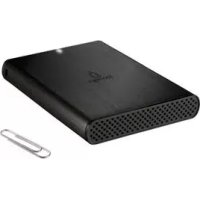
EGO ENCRYPT PLUS - External hard drive IOMEGA - Free user manual and instructions
Find the device manual for free EGO ENCRYPT PLUS IOMEGA in PDF.



User questions about EGO ENCRYPT PLUS IOMEGA
0 question about this device. Answer the ones you know or ask your own.
Ask a new question about this device
Download the instructions for your External hard drive in PDF format for free! Find your manual EGO ENCRYPT PLUS - IOMEGA and take your electronic device back in hand. On this page are published all the documents necessary for the use of your device. EGO ENCRYPT PLUS by IOMEGA.
USER MANUAL EGO ENCRYPT PLUS IOMEGA
KpaTkoe pyKOBOcTO no hauany pa60tbi
Obonyoc ypnpcn Ekkivnonc
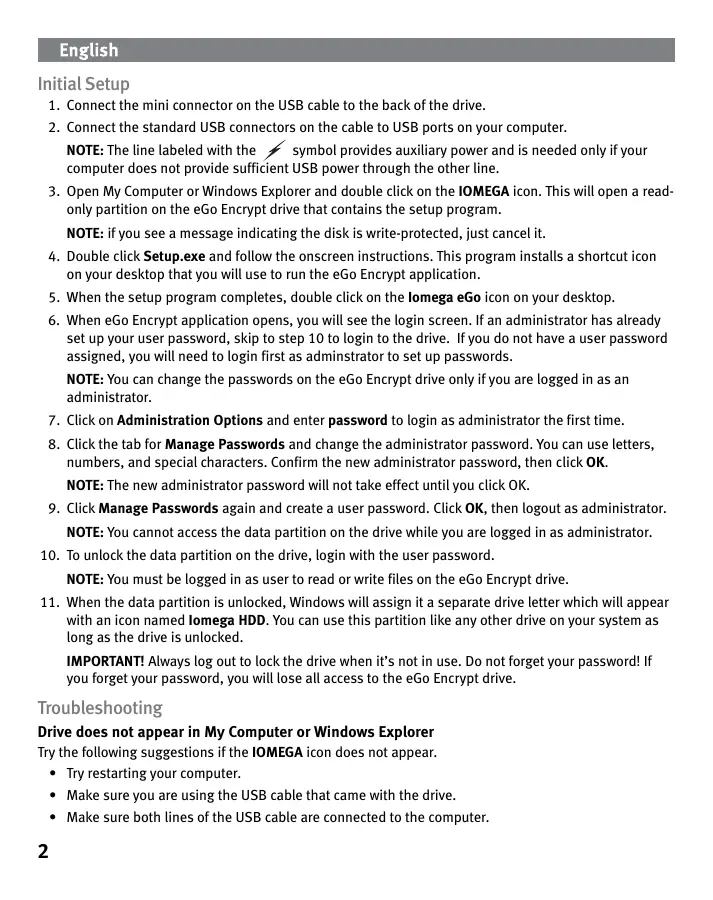
- Connect the mini connector on the USB cable to the back of the drive.
- Connect the standard USB connectors on the cable to USB ports on your computer.
NOTE: The line labeled with the symbol provides auxiliary power and is needed only if your computer does not provide sufficient USB power through the other line.
- Open My Computer or Windows Explorer and double click on the IOMEGA icon. This will open a readily partition on the eGo Encrypt drive that contains the setup program.
NOTE: if you see a message indicating the disk is write-protected, just cancel it.
- Double click Setup.exe and follow the onscreen instructions. This program installs a shortcut icon on your desktop that you will use to run the eGo Encrypt application.
- When the setup program completes, double click on the lomega eGo icon on your desktop.
- When eGo Encrypt application opens, you will see the login screen. If an administrator has already set up your user password, skip to step 10 to login to the drive. If you do not have a user password assigned, you will need to login first as administrator to set up passwords.
NOTE: You can change the passwords on the eGo Encrypt drive only if you are logged in as an administrator.
- Click on Administration Options and enter password to login as administrator the first time.
- Click the tab for Manage Passwords and change the administrator password. You can use letters, numbers, and special characters. Confirm the new administrator password, then click OK.
NOTE: The new administrator password will not take effect until you click OK.
- Click Manage Passwords again and create a user password. Click OK, then logout as administrator.
NOTE: You cannot access the data partition on the drive while you are logged in as administrator.
- To unlock the data partition on the drive, login with the user password.
NOTE: You must be logged in as user to read or write files on the eGo Encrypt drive.
- When the data partition is unlocked, Windows will assign it a separate drive letter which will appear with an icon named lomega HDD. You can use this partition like any other drive on your system as long as the drive is unlocked.
IMPORTANT! Always log out to lock the drive when it's not in use. Do not forget your password! If you forget your password, you will lose all access to the eGo Encrypt drive.
Troubleshooting
Drive does not appear in My Computer or Windows Explorer
Try the following suggestions if the IOMEGA icon does not appear.
Try restarting your computer.
- Make sure you are using the USB cable that came with the drive.
- Make sure both lines of the USB cable are connected to the computer.
- Try changing the cable connections to different USB ports on the computer.
If the IOMEGA icon appears, but there is no icon for the Iomega HDD data partition, double click the Iomega eGo icon on the desktop and enter the user password to unlock the drive. The Iomega HDD partition is visible only when you are logged in as user.
If the problem continues, see the support area on www.iomega.com for additional troubleshooting help.
Using the Drive
User Access
When you are logged in as user, you can access the Iomega HDD data partition on the eGo Encrypt drive. This allows you to view, change, and create files on the data partition. The user login does not provide access to change passwords or secure erase the drive.
Always log out when the drive is not in use to protect the security of your data. If you want to disconnect from USB, log out first, then use the safe removal process for your operating system.
CAUTION! To prevent data loss, do not disconnect the drive during data transfer (activity light flashing).
Administrator Access
The drive administrator can set or change both administrator and user passwords. The administrator can also perform a secure erase, which will destroy all data stored on the drive. The administrator login does not provide access to the data partition on the drive.
Secure Erase
Secure erase is an unrecoverable procedure that destroys all data stored on the lomega HDD data partition. You must be logged in as administrator to perform a secure erase. After completing a secure erase, you must format the data partition with an NTFS file system. You will need to logout as administrator and login as user in order to format the data partition. Refer to the HTML user's manual for detailed instructions.
Complete User's Manual
A complete user's manual in HTML format is available on the support area on www.iomega.com.
Limited Warranty
Iomega warrants this hardware product to be free from defects in materials and workmanship for the warranty period. This non-transferrable, limited warranty is only to you, the first end-user purchaser. The warranty begins on the date of purchase and lasts for a period of one (1) year for product purchased in the Americas or the Asia-Pacific region; ninety (90) days for Iomega reconditioned products purchased in these regions; or, two (2) years for product purchased by an end-user in Europe, the Middle East, or Africa. Customers who register their new products at www.iomegareg.com within 90 days of purchase will receive a warranty extension so that their total warranty shall be a period of three (3) years in all regions.
NOTE: Reconditioned products are not eligible for a warranty extension.
This warranty does not apply to: (a) Iomega software products; (b) expendable components such as fuses or bulbs; or (c) third party products, hardware or software, supplied with the warranted product. Iomega makes no warranty of any kind on such products which, if included, are provided "AS IS." This warranty also excludes damage caused by accident, misuse, abuse, use of non-Iomega approved media, exposure of media to excessive magnetic fields, or external environmental causes.
Your sole and exclusive remedy for a covered defect is repair or replacement of the defective product, at lomega's sole option and expense (shipping may be charged), and lomega may use new or refurbished parts or products to do so. The replaced part/product will be warranted for the remainder of the original warranty or three (3) months from the date of shipment of such parts/products, whichever is longer. If lomega is unable to repair or replace a defective product, your alternate exclusive remedy shall be a refund of the original purchase price.
The above is Iomega's entire obligation to you under this warranty. IN NO EVENT SHALL IOMEGA BE LIABLE FOR INDIRECT, INCIDENTAL, CONSEQUENTIAL OR SPECIAL DAMAGES OR LOSSES, INCLUDING LOSS OF DATA, USE, OR PROFITS EVEN IF IOMEGA HAS BEEN ADVISED OF THE POSSIBILITY OF SUCH DAMAGES. In no event shall Iomega's liability exceed the original purchase price of the drive or the media disk. Some jurisdictions do not allow the exclusion or limitation of incidental or consequential damages, so the above limitation or exclusion may not apply to you.
Obtaining Warranty Service
You must notify Iomega within the warranty period to receive warranty service. Just as technology and market conditions vary, Iomega's specific customer support policies (including fees for services) and procedures change over time. To obtain information about Iomega's current policies or warranty service, please visit our website at www.iomega.com/supportpolicy.html or write to: Iomega Customer Service, 4059 South 1900 West, Roy, UT 84067. Contact Information for Iomega Customer Service in Europe can be obtained on our Support website at www.iomega.com/europe/support. If your product is eligible for warranty service, you will be required to return it to Iomega, along with proper identification, a return authorization number obtained from the Iomega website or provided by the Iomega representative, and proof of purchase. Iomega will not protect, recover, or return data during warranty service so you should duplicate your data before shipment.
Limitations
THE ABOVE WARRANTY IS EXCLUSIVE AND IN LIEU OF ALL OTHER WARRANTYES, EXPRESS OR IMPLIED. To the extent permitted by applicable law, IOMEGA SPECIFICALLY DISCLAIMS ANY IMPLIED WARRANTY, INCLUDING ANY IMPLIED WARRANTY OF MERCHANTABILITY OR FITNESS FOR A PARTICULAR PURPOSE. Any implied warranty required by applicable law shall be limited in duration to the express warranty term. Some jurisdictions do not allow disclaimers of implied warranties or limitations on how long an implied warranty lasts, so the above limitation may not apply to you. This warranty gives you specific legal rights and you may also have other rights that vary from jurisdiction to jurisdiction. Any suit for breach of any warranty on your Product must be filed within one (1) year of the first date the suit could have been brought.
Regulatory Information
This equipment complies with Part 15 of the FCC Rules. Operation is subject to the following conditions: (1) This device may not cause harmful interference, and (2) this device must accept any interference received, including interference that may cause undesired operation.

Tested To Comply
With FCC Standards
FOR HOME OR OFFICE USE
NOTE: This equipment has been tested and found to comply with the limits for a Class B digital device, pursuant to part 15 of the FCC Rules. These limits are designed to provide reasonable protection against harmful interference in a residential installation. This equipment generates, uses and can radiate radio frequency energy and, if not installed and used in accordance with the instructions, may cause harmful interference to radio communications. However, there is no guarantee that interference will not occur in a particular installation. If this equipment does cause harmful interference to radio or television reception, which can be determined by turning the equipment off and on, the user is encouraged to try to correct the interference by one of more or the following measures:
Reorient or relocate the receiving antenna.
- Increase the separation between the equipment and receiver.
- Connect the equipment into an outlet on a circuit different from that to which the receiver is connected.
- Consult the dealer or an experienced radio/TV technician for help.
CE (European Community)
This Iomega product conforms to the following European Directive(s) and Standard(s): Application of Council Directives: 73/23/EEC, 89/336/EEC. Standards to which Conformity is declared: EN60950, EN55022, EN55024, EN61000-3-2, EN61000-3-3. Importer's Name: Iomega International, S.A. Type of Equipment: Information Technology Equipment.
Manufacture/Responsible Party: Iomega Corporation, 4059 South 1900 West, Roy, UT, USA.
Waste Electrical and Electronic Equipment (WEEE)
In accordance with European Directive 2002/96/EC on Waste Electrical and Electronic Equipment (WEEE), the presence of the above symbol on the product or on its packaging indicates that this item must not be disposed of in the normal unsorted municipal waste stream. Instead, it is the user's responsibility to dispose of this product by returning it to a collection point designated for the recycling of electrical and electronic equipment waste. Separate collection of this waste helps to optimize the recovery and recycling of any reclaimable materials and also reduces the impact on human health and the environment.
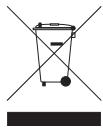
For more information concerning the correct disposal of this product, please contact your local authority or the retailer where this product was purchased.
Canadian Verification
This Class B digital apparatus meets all requirements of the Canadian Interference-Caising Equipment Regulations (ICES-003, Class B).
Français
Configuration initiale
Waste Electrical and Electronic Equipment (WEEE)
yI I oIega HDD nn nnn
wnnnn
eGo Encrypt Iomega HDD 100000000000000000000000000000000000000000
nynnnnnnnnnnnnnnnnnnnnnnnnnnnnnnnnnnnnnnnnnnnnnnnnnnnnnnnnnnnnnnnnnnnnnnnnnnnnnnnnnnnnnnnnnnnnnnnnnnnnnnnnn
- 100000000000000000000000000000
N. 1
y nnnn nn nnnnnnnnnnnnnnnnnnnn N,USB- nnnnnn
yynnnyn
yynnnn yynnnnnnnnnnnnnnnnnnnnnnnnnnnnnnnnnnnnnnnnnnnnnnnnnnnnnnnnnnnnnnnnnnnnnnnnnnnnnnnnnnnnnnnnnnn
.
nonynbnnna
yynnnn nn nnnn nn nn nn nn nn nn nn nn nn nn nn nn nn nn nn
-
111111111111111111111111111111
-
11111111111111111111
nmua npnn
ynnn nn nnnnnnnnnnnnnnnnnnnnnnnnnnnnnnnnnnnnnnnnnnn
ynnn nn nnnnnnnnnnnnnnnnnnnnnnnnnnnnnnnnnnnnnnnnnnnnnnnnnnnnnnnnnnnnnnnnnnnnnnnnnnnnnnnnnnnnnnnnnnnnnnnnnnnnnnnnnnnnnnnnn
TNTFSNNDNNNNNNNNNNNNNNNNNNNNNN
ynnn nn nnnnnnnnnnnnnnnnnnnnnnnnnnnnnnnnnnnnnnnnnnnnnnnnnnnnnnnnnnnnnnnnnnn
n
,nnn nn nnnn 90 nnnn nn nnnn
(3)yynnnn nn
n nn nnnn nn nn nn nn nn nn nn nn nn nn nn nn nn nn nn nn nn nn nn nn nn nn nn nn nn nn nn nn nn nn nn nn nn nn nn nn nn nn nn nn nn nn nn nn nn nn nn nn nn nn nn nn nn nn nn nn nn nn nn nn nn nn nn nn nn nn nn nn nn nn nn nn nn nn nn nn nn nn nn nn nn nn nn
. nnnn nn nnnn nnp www.iomega.com/support
nynnn npnn
.
.
n nn nnnn nn nnnnnnnnnnnnnnnnnnnnnnnnnnnnnnnnnnnnnnnnnnnnnnnnnnnnnnnnnnnnnnnnnnnnnnnnnnnnnnnnnnnnnnnnnnnnnnnnnnnnnnnnnnnnnnnnnnn
nnn npnynnnusB nnpn p
IOMEGA 7yWindows
n nn n nn nn nn nn nn nn nn nn nn nn nn nn nn nn nn nn nn nn nn nn nn nn nn nn nn nn nn nn nn nn nn nn nn nn nn nn nn nn nn nn nn nn nn nn nn nn nn nn nn nn nn nn nn nn nn nn nn nn nn nn nn nn nn nn nn nn nn nn nn nn nn nn nn nn nn nn
ynnn nn y, nnnnnnnnnnnnnnnnnnnnnnnnnnnnnnnnnnnnnnnnnnnnnnnnnnnnnnnnnnnnnnnnnnnnnnnnnnnnnnnnn
T
eGo n nn nn nn nn nn nn nn nn nn nn nn nn nn nn nn nn nn nn nn nn nn nn nn nn nn nn nn nn nn nn nn nn nn nn nn nn nn nn nn nn nn nn nn nn nn nn nn nn nn nn nn nn nn nn nn nn nn nn nn nn nn nn nn nn nn nn nn nn nn nn nn nn nn nn nn nn nn nn nn nn nn nn nn nn nn nn
.Encrypt
I I I I I oIomega eGo bn by nbn nnynn npnnnnnnnnnnn
.
N Nnnn nn n nn, eGo Encrypt 1
,wnnnn nn nnnn 10 10
y
n nn n nn n nn n nn n nn n nn n nn n nn n nn n nn n nn n nn n nn n nn n nn n nn n nn n nn n nn n nn n nn n nn n nn n nn n nn n nn n nn n nn n nn n nn n nn n nn n nn n nn n nn n nn n nn n nn n nn n nn n nn n nn
nyn
. nynn nn nnnn nn (nn) password nn nn nn nn nn nn nn nn nn nn nn nn nn nn nn nn nn nn nn nn nn nn nn nn nn nn nn nn nn nn nn nn nn nn nn nn nn nn nn nn nn nn nn nn nn nn nn nn nn nn nn nn nn nn nn nn nn nn nn nn nn nn nn nn nn nn nn nn nn nn nn nn nn nn nn nn nn nn nn nn nn nn nn nn nn nn nn nn nn nn nn nn nn nn nn nn
wnnnn nn nnnnnnnnnnnnnnnnnnnnnnnnnnnnnnnnnnnnnnnnnnnnnnnnnnnnnnnnnnnnnnnnnnn
by yni nynnnn nn w nytnn npyn nnyn. 0nnnnnnn
.7V
by yinbnu ty nnnn nn nn nn nn nn nn nn nn nn nn nn nn nn nn nn nn nn nn nn nn nn nn nn nn nn nn nn nn nn nn nn nn nn nn nn nn nn nn nn nn nn nn nn nn nn nn nn nn nn nn nn nn nn nn nn nn nn nn nn nn nn nn nn nn nn nn nn nn nn nn nn nn nn nn nn nn nn
7
yynn yynnn nynny
.yn
nynnnnnnnnnnnnnnnnnnnnnnnnnnnnnnnnnnnnnnnnnnnnnnnnnnnnnnnnnnnnnnnnnnnnnnnnnnnnnnnnnnnnnnnnnnnnn
- 1
eGo Encrypt 1111111111111111111111111111111
y Windows, y
Iomega HDD
y
nwn nn nnnnnnnnnnnnnnnnnnnnnnnnnnnnnnnnnnnnn
eGo Encrypt 10000000000000000000000000000000000000000000
$$ l e x l o g _ {2} \left[ l b \div 3 \right] \cdot l i s S i m e $$
Windows Explorer] jj [jj My Computer]
[Windows
IOMEGA jj j 1111111111111
j = j
jssjjus USB jS jooo
JSSUJI JIaIe USB 1
Iomega eGo joljol jol jol jol jol jol jol jol jol jol jol jol jol jol jol jol jol jol jol jol jol jol jol jol jol jol jol jol jol jol jol jol jol jol jol jol jol jol jol jol jol jol jol jol jol jol jol jol jol jol jol
Ie Ie Iomega HDD pnnn nnnn nn nnnnnnnnnnnnnnnnnnnnnnnnnnnnnnnnnnnnnnnnnnnnnnnnnnnnnnnnnnnnnnnnnnnnnnnnnnnnnnnnnnnnnnnnnnnnnnnnnnnnn
P 与 MQ : y = - 12x + 1
( 0,12,0,12) ,( 0,12,0,12)
p1 · c1 = u1 · s1
Iomega clll lps 10000000000000000000000000000000000000000000000
HDD
.
2g 之前
suee www.iomegareg.com 80000000000000000000000000000000000000000000000000000
jbnn nnnn nn nnnn nn nnnnnnnnnnnnnnnnnnnnnnnnnnnnnnnnnnnnnnnnnnnnnnnnnnnnnnnnnnnnnnnnnnnnnnnnnnnnnnnnnnnnnnnnnnnnnnnnnnn
a 1
. www.iomega.com/support
$$ \left| g ^ {2} \right| = 1, \left| c \right| = 1 $$
$$ \therefore \omega_ {1} \beta_ {1} ^ {\prime} \left| \right| _ {1} = \omega_ {2} \beta_ {2} ^ {\prime} + \omega_ {3} \beta_ {3} ^ {\prime} \text {U S B} \quad \left| \right| _ {1} = \left| \right| _ {1} + \left| \right| _ {1} + \left| \right| _ {1} + \left| \right| _ {1} + \left| \right| _ {1} + \left| \right| _ {1} + \left| \right| _ {1} + \left| \right| _ {1} + \left| \right| _ {1} + \left| \right| _ {1} + $$
$$ j _ {i} j _ {i} j _ {i} j _ {i} j _ {i} j _ {i} j _ {i} j _ {i} j _ {i} j _ {i} j _ {i} j _ {i} j _ {i} j _ {i} j _ {i} j _ {i} j _ {i} j _ {i} j _ {i} j _ {i} j _ {i} $$
$$ j _ {i} \left[ \begin{array}{l l l l l l l l l l l l} j _ {i} & j _ {i} & j _ {i} & j _ {i} & j _ {i} & j _ {i} & j _ {i} & j _ {i} & j _ {i} & j _ {i} & j _ {i} & j _ {i} \ j _ {i} & j _ {i} & j _ {i} & j _ {i} & j _ {i} & j _ {i} & j _ {i} & j _ {i} & j _ {i} & j _ {i} & j _ {i} & j _ {i} \end{array} \right] $$
$$ \therefore \text {J} = \sum_ {i = 1} ^ {n} \sum_ {j = 1} ^ {m} \sum_ {k = 1} ^ {n} \sum_ {l = 1} ^ {m} \sum_ {r = 1} ^ {n} \sum_ {s = 1} ^ {m} \sum_ {t = 1} ^ {n} $$
$$ [ \text {W i n d o w s} \quad \text {s c a u s e} / \text {W i n d o w s E x p l o r e r} ] \quad \text {c h i t e} [ \text {r e g u l a r} \quad \text {s c a u s e} / \text {M y C o m p u t e r} ] $$
$$ \left. \int_ {0} ^ {1} \int_ {0} ^ {1} \int_ {0} ^ {1} \int_ {0} ^ {1} \int_ {0} ^ {1} \int_ {0} ^ {1} \int_ {0} ^ {1} \int_ {0} ^ {1} \int_ {0} ^ {1} \int_ {0} ^ {1} \int_ {0} ^ {1}\right) $$
$$ \therefore \Delta A E F \cong \Delta C E F $$
$$ \therefore \text {i s t i n g} \text {i s t i n g} \text {i s t i n g} \text {i s t i n g} \text {i s t i n g} \text {i s t i n g} \text {i s t i n g} \text {i s t i n g} \text {i s t i n g} \text {i s t i n g} \text {i s t i n g}. $$
$$ \text {J a n e r s} \left(\frac {\partial f}{\partial x}, \frac {\partial f}{\partial y}\right) = \frac {\partial f}{\partial x} \frac {\partial f}{\partial y} + \frac {\partial f}{\partial x} \frac {\partial f}{\partial y} $$
$$ . e G o E n c r p t \quad j _ {i} = i, j _ {j} = j, j _ {i} = j, j _ {j} = j, j _ {i} = j, j _ {j} = j $$
$$ \therefore \text {l o m e g a e G o} \text {l o m e g a e G o} \text {l o m e g a e G o} \text {l o m e g a e G o} \text {l o m e g a e G o} \text {l o m e g a e G o} \text {l o m e g a e G o} \text {l o m e g a e G o} \text {l o m e g A} \text {l o m e g A} \text {l o m e g A} \text {l o m e g A} \text {l o m e g A} \text {l o m e g A} \text {l o m e g A} \text {l o m e g A} \text {l o m e g A} \text {l o m e g A} \text {l o m e g} $$
$$ \text {a d a l y s e l e c t i o n} \quad j _ {i} \text {j o u b i l i n g} \quad \text {j e c o n n e c t i o n} \quad \text {l a w} \quad p l \quad 1 3. J _ {i} \text {j o u b i l i n g} \quad \text {j e c o n n e c t i o n} \quad \text {l a w} \quad p l \quad 1 3. J _ {i} \text {e G o E n c r e p t} \quad \text {j u a l l} \quad p l \quad 1 3. $$
$$ j _ {i} \leq j _ {i + 1} \leq j _ {i + 2} \leq j _ {i + 3} \leq j _ {i + 4} \leq j _ {i + 5} \leq j _ {i + 6} \leq j _ {i + 7} \leq j _ {i + 8} \leq j _ {i + 9} \leq j _ {i + 1 0} \leq j _ {i + 1 1} \leq j _ {i + 1 2} \leq j _ {i + 1 3} \leq j _ {i + 1 4} \leq j _ {i + 1 5} \leq j _ {i + 1 6} \leq j _ {i + 1 7} \leq j _ {i + 1 8} \leq j _ {i + 1 9} \leq j _ {i + 2 0} $$
$$ \therefore \text {g a m m a} \left(\mathrm {a l l} \right) \text {s l u s y} \mathrm {l g e n e r g y} \mathrm {l g e n e r g y} \mathrm {l g e n e r g y} \mathrm {l g e n e r g y} \mathrm {l g e n e r g y} \mathrm {l g e n e r g y} \mathrm {l g e n e r g y} \mathrm {l g e n e r g y} \mathrm {l g e n e r g y} \text {c l i n e s t i c} \text {c l i n e s t i c} \text {c l i n e s t i c} \text {c l i n e s t i c} \text {c l i n e s t i c} \text {c l i n e s t i c} $$
$$ \int_ {0} ^ {1} \int_ {0} ^ {1} \int_ {0} ^ {1} \int_ {0} ^ {1} \int_ {0} ^ {1} \int_ {0} ^ {1} \int_ {0} ^ {1} \int_ {0} ^ {1} \int_ {0} ^ {1} \int_ {0} ^ {1} \int_ {0} ^ {1} e G o E n c r p t \quad 1, 2, 3, 4, 5, 6, 7, 8, 9, 1 0, 1 1, 1 2, 1 3, 1 4, 1 5, 1 6, 1 7, 1 8, 1 9, 2 0, 2 1, 2 2, 2 3, 2 4, 2 5, 2 6, 2 7, 2 8, 2 9, 3 0, 3 1, 3 2, 3 3, 3 4, 3 5, 3 6, 3 7, 3 8, 3 9, 4 0, $$
$$ \therefore J _ {g} ^ {\mathrm {s i m}} = 0 $$
$$ \left. \left[ \right. \cup \text {j} _ {\text {i}} \text {j} _ {\text {i}} \text {j} _ {\text {i}} \text {j} _ {\text {i}} \text {j} _ {\text {i}} \text {j} _ {\text {i}} \text {j} _ {\text {i}} \text {j} _ {\text {i}} \text {j} _ {\text {i}} \text {j} _ {\text {i}} ^ {\prime} \text {j} _ {\text {i}} \text {j} _ {\text {i}} ^ {\prime} \text {j} _ {\text {i}} ^ {\prime} \text {j} _ {\text {i}} ^ {\prime} \text {j} _ {\text {i}} ^ {\prime} \text {j} _ {\text {i}} ^ {\prime} \text {j} _ {\text {i}} ^ {\prime} \text {j} _ {\text {i}} ^ {\prime} \text {j} _ {\text {o}} ^ {\prime} \text {j} _ {\text {o}} ^ {\prime} \text {j} _ {\text {o}} ^ {\prime} \text {j} _ {\text {o}} ^ {\prime} \text {j} _ {\text {o}} ^ {\prime} \text {j} _ {\text {o}} ^ {\prime} \text {j} _ {\text {o}} ^ {\prime} \text {j}, v \right. $$
$$ . \dot {0} \dot {a} \cup J \dot {g} ^ {\prime} \cup J _ {s} \dot {e} _ {m} s $$
$$ \left. \right.\left. \right.\left. \right.\left. \right.\left. \right.\left. \right.\left. \right.\left. \right.\left. \right.\left. \right.\left. \right.\left. \right.\left. \right.\left. \right.\left. \right.\left. \right.\left. \right.\left. \right.\left. \right.\left. \right.\left. \right.\left. \right.\left.\left.\left.\left.\left.\left.\left.\left.\left.\left.\left.\left. \text {l i s t} _ {\text {s a m p l e}} ^ {\prime} = 1 / 2, 0, 0, 0, 0, 0, 0, 0, 0, 0, 0, 0, 0, 0, 0, 0, 0, 0, 0, 0, 0, 0, 0, 0, 0, 0, 0, 0, 0, 0, 0, 0, 0, 0, 0 \right| \right| \right| \right| \right| \right| \right| \right| \right| \right| \right| \right| $$
$$ . [ \text {j} _ {1} \text {j} _ {2} \text {j} _ {3} \text {j} _ {4} ] \text {j} _ {5} \text {j} _ {6} \text {j} _ {7} \text {j} _ {8} \text {j} _ {9} \text {j} _ {1 0} \text {j} _ {1 1} \text {j} _ {1 2} \text {j} _ {1 3} \text {j} _ {1 4} \text {j} _ {1 5} \text {j} _ {1 6} \text {j} _ {1 7} \text {j} _ {1 8} \text {j} _ {1 9} \text {j} _ {2 0} \text {j} _ {2 1} \text {j} _ {2 2} \text {j} _ {2 3} \text {j} _ {2 4} \text {j} _ {2 5} \text {j} _ {2 6} \text {j} _ {2 7} \text {j} _ {2 8} \text {j} _ {2 9} \text {j} _ {3 0} \text {j} _ {3 1} \text {j} _ {3 2} \text {j} _ {3 3} $$
$$ . [ \text {i} j ] _ {0} / O K ] \text {i} j \text {j} \text {j} \text {j} \text {j} \text {j} \text {j} \text {j} \text {j} \text {j} \text {j} \text {j} \text {j} \text {j} \text {j} \text {j} \text {j} \text {j} \text {j} \text {j} \text {j} \text {j l} \text {l} \text {l} \text {l} \text {l} \text {l} \text {l} \text {l} \text {l} \text {l} \text {l} \text {l} \text {l} \text {l} \text {l} \text {l} \text {l} $$
$$ \text {s i g n a l} \left[ \text {j e t} _ {\text {i n t}} \right] / \text {M a g e P r o w s e d} ] \text {s i g n a l} \left[ \text {j e t} _ {\text {i n t}} \right] / \text {M a g e P r o w s e d} ] $$
$$ \therefore \int_ {0} ^ {\infty} \frac {1}{x ^ {2}} \frac {1}{x ^ {3}} \frac {1}{x ^ {4}} \frac {1}{x ^ {5}} \frac {1}{x ^ {6}} \frac {1}{x ^ {7}} \frac {1}{x ^ {8}} \dots [ \int_ {0} ^ {\infty} \frac {1}{x ^ {9}} ] / 0 K ] $$
$$ . \cup_ {j} ^ {\infty} \cup_ {i} ^ {\infty} \cup_ {j} ^ {\infty} \cup_ {i} ^ {\infty} \cup_ {j} ^ {\infty} \cup_ {i} ^ {\infty} \cup_ {j} ^ {\infty} \cup_ {i} ^ {\infty} \cup_ {j} ^ {\infty} \cup_ {i} ^ {\infty} \cup_ {j} ^ {\infty} $$
$$ \cdot p l i s c u r a l l j y z e a n d s p l i s c u r a l l j g o w n l l j u s p e r t \quad p _ {i} \left| \omega_ {j} \right| ^ {2} \leqslant 1, $$
$$ . e G o E n c r p t \quad \text {a l} \quad \text {i} \quad \text {j} \quad \text {s} \quad \text {l} \quad \text {e} \quad \text {g} \quad \text {l} \quad \text {e} \quad \text {g} \quad \text {s} \quad \text {j} \quad \text {l} \quad \text {c} \quad \text {l} \quad \text {e} \quad \text {l} \quad \text {e} \quad \text {j} \quad \text {l} \quad \text {p} \quad \text {c} \quad \text {p} \quad \text {s} \quad \text {u} \quad \text {l} \quad \text {j} \quad \text {n} \quad \text {p} \quad \text {q} \quad \text {o} \quad \text {f} \quad \text {i} \quad : a b d s $$
$$ \left. \int_ {0} ^ {1} f (x) d x + \int_ {1} ^ {2} f (x) d x + \dots + \int_ {2} ^ {\infty} f (x) d x\right) = 0 $$
$$ \text {i f} \quad \text {l a l l} \quad \text {e} \quad \text {j} \quad \text {o b j e c t} \quad \text {p l a l l} \quad \text {d} \quad \text {e} \quad \text {g} \quad \text {j} \quad \text {r} \quad \text {s} \quad \text {t} \quad \text {j} \quad \text {o b j e c t} \quad \text {s} \quad \text {f} \quad \text {j} \quad \text {p o w e r l l} \quad \text {l i d e p l o w e r l l} \quad \text {c l i s k s}. I o m e g a H D D $$
$$ \therefore \frac {1}{2} \sin \alpha \cos \beta \sin \alpha $$
$$ \therefore \text {i s} 1! \text {i t a l l e l l j g a r d a l l s} \text {j i t} Y. \text {a l l i n i t y p e i s c i e} \text {j o b j e c t} \text {j e c t} \text {j o b j e c t} \text {j o b j e c t} \text {j o b j e c t} \text {j o b j e c t} \text {j o b j e c t} \text {j o b j e c t} \text {j o b j e c t} \text {j o b j e c t} \text {j o b j e c t} \text {j o b j o c t} $$
$$ . e G o E n c r p t \quad \text {l} \quad \text {l} \quad \text {l} \quad \text {l} \quad \text {l} \quad \text {l} \quad \text {l} \quad \text {l} \quad \text {l} \quad \text {l} \quad \text {l} \quad \text {l} \quad \text {l} \quad \text {l} \quad \text {l} \text {a l s} $$
English
For service and support for your lomega product, visit us at www.lomega.com.
Français
Copyright © 2009 Iomega Corporation. All rights reserved. Iomega, the stylized “i” logo, and eGo are either registered trademarks or trademarks of Iomega Corporation in the United States and/or other countries. Microsoft and Windows are either registered trademarks or trademarks of Microsoft Corporation in the United States and/or other countries. Certain other product names, brand names, and company names may be trademarks or designations of their respective owners.