
POINT D'ACCÉS 802.11B #F5D6130FR - Wireless Access Point BELKIN - Free user manual and instructions
Find the device manual for free POINT D'ACCÉS 802.11B #F5D6130FR BELKIN in PDF.


| Brand | BELKIN |
| Model | F5D6130FR |
| Product Type | Wireless Access Point |
| Network Standards | IEEE 802.3 10/100Base-TX, IEEE 802.11b |
| Frequency Band | 2.412 - 2.497 GHz (ISM band) |
| Wireless Data Rates | Up to 11 Mbit/s (802.11b: 11, 5.5, 2, 1 Mbit/s) |
| Maximum Number of Users | 32 (WLAN) |
| Wireless Security | WEP 64/128-bit encryption, MAC address filtering |
| Management | Web interface (browser) |
| Ports | 1 RJ45 10/100Base-TX port |
| LED Indicators | Power, LAN activity, WLAN activity |
| Antenna | Swivel dipole antenna (180°) |
| Power Supply | AC adapter included |
| Package Contents | Access point, AC adapter, CD-ROM, user manual, registration card |
| Supported Operating Systems | Windows 98SE/Me/2000/XP, Mac OS, Linux |
| Operating Environment | Indoor |
| Maintenance and Cleaning | Clean with a soft, dry cloth. Do not use solvents. |
| Spare Parts and Repairability | No spare parts available. Contact Belkin support for warranty repair. |
| Certifications | FCC, CE, IC (Canada) |
| Warranty | Limited lifetime warranty (Belkin Corporation) |
Frequently Asked Questions - POINT D'ACCÉS 802.11B #F5D6130FR BELKIN
User questions about POINT D'ACCÉS 802.11B #F5D6130FR BELKIN
0 question about this device. Answer the ones you know or ask your own.
Ask a new question about this device
Download the instructions for your Wireless Access Point in PDF format for free! Find your manual POINT D'ACCÉS 802.11B #F5D6130FR - BELKIN and take your electronic device back in hand. On this page are published all the documents necessary for the use of your device. POINT D'ACCÉS 802.11B #F5D6130FR by BELKIN.
USER MANUAL POINT D'ACCÉS 802.11B #F5D6130FR BELKIN
Wireless Network Access Point

User Manual
TABLE OF CONTENTS
Introduction 1
Key Features 2
Package Contents 3
Optional Management 3
Software Requirements 3
System Requirements 3
Specifications 4
Knowing your Access Point 5
Placement of your Access Point 7
Quick Setup 8
Step 1: Connect the AP to a Router, Ethernet Switch, or Hub . . . . . .8
Step 2: Install the Discovery Wizard 9
Using the Discovery Wizard to Configure the AP 11
Configuring the Wireless Network Settings 15
Troubleshooting 29
Information 30
INTRODUCTION
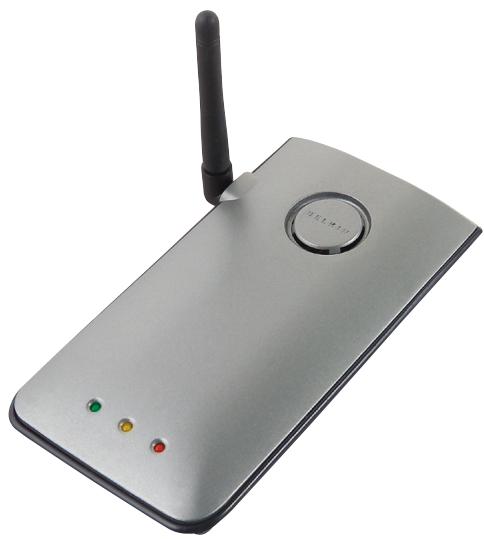
Thank you for purchasing the Belkin Wireless Network Access Point (AP) and welcome to the world of wireless networking. Now you can take advantage of this great new high-speed wireless technology and gain the freedom you need around the home or office—without using cables. The AP acts as a bridge between your existing wired network and your wireless-equipped computers. The easy installation and setup will have you networking wirelessly in minutes. Please be sure to read through this manual completely to be sure that you are getting the most out of your AP.
Key Features
Wide Area Coverage at High Speeds
The Belkin AP provides coverage over an indoor area up to 300 feet in radius, and outdoor area over 1,500 feet in radius.
Up to 128-Bit Encryption
Your Belkin AP is capable of encrypting (scrambling) the transmitted radio waves so you can be sure that your data is secure. The optional encryption feature allows you to encrypt at 64 bits or 128 bits using a key that you enter yourself.
MAC Address Filtering
For added security, you can set up a list of MAC addresses (unique client identifiers) that are allowed access to your network. Every computer has its own MAC address. Simply enter these MAC addresses into a list using the web-based user interface and you can control access to your network.
Works with Both PCs and Mac® Computers
The Access Point supports a variety of networking environments including Mac OS® 8.x, 9.x, X v10.x, AppleTalk®, Linux®, Windows® 95, 98, Me, NT®, 2000, and XP, and others.
Note: The Access Point can be managed through a web browser without the included software. The software included supports Windows 98 SE, Me, 2000, and XP only but IS NOT necessary to use the Access Point.
Web-Based Advanced User Interface
You can set up the AP's advanced functions easily through your web browser, without having to install additional software onto the computer. There are no disks to install or keep track of and, best of all, you can make changes and perform setup functions from any computer on the network quickly and easily.
Applications and Advantages
Economically connect multiple wireless computers to a network
- SOHO (Small Office/Home Office) networking needs
- Provides the easy and quick small network installation SOHO users need.
Package Contents
Belkin Wireless Network Access Point
Power Supply
- Software CD
- User Manual
- Registration Card
Optional Management Software Requirements
- Windows® 98SE, Me, 2000, or XP
- Minimum 64MB RAM
System Requirements
- At least one computer with TCP/IP networking protocol installed
- CAT5 networking cable (or better)
- Microsoft® Internet Explorer 4.0 or later, or Netscape® 4.0 or later
Specifications
Standards:
IEEE 802.3 10Base-T Ethernet/100 Base-Tx Ethernet
IEEE 802.11b
Wireless:
Radio Technology: Direct Sequence Spread Spectrum (DSSS)
802.11b: 11, 5.5, 2, 1Mbps
2.412-2.497GHz ISM band
802.11b: 11 for North America, 14 for Japan, 13 for Europe
64/128-bit WEP
Protocol Supported:
CSMA/CD, TCP, IP, UDP, and DHCP (client)
Management:
Browser-Based
Maximum Users:
32 (WLAN)
Ports:
1 10Base-T/100Base-Tx RJ45 port
1 Power jack
1 Reset button
LEDs:
Power
LAN Activity
WLAN Activity
The AP has been designed to be placed on a desktop vertically or horizontally, or it may be mounted to a wall. The slim design minimizes the desktop space required when placed vertically. All of the cables exit from the rear of the AP for better organization and utility. The LED indicators are easily visible on the front of the AP to provide you with information about network activity and status.
Front Panel
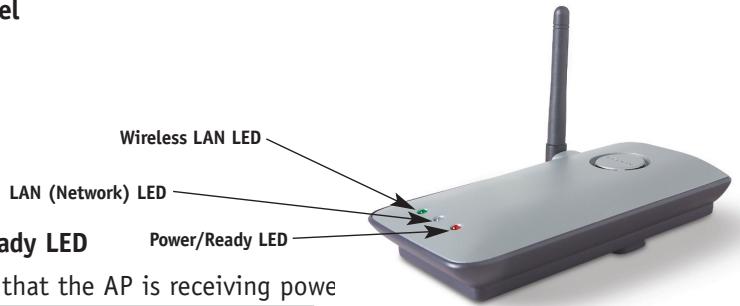
Power/Ready LED
Indicates that the AP is receiving power
| Off | AP is OFF |
| Red | AP is ready |
Wireless LAN LED
| Off | Wireless network is OFF |
| Blinking Green | Indicates AP is working |
LAN (Network) LED
| Off | No network is linked to the port |
| Green | 10Base-T device connected |
| Orange | 100Base-Tx device connected |
| Blinking (Orange or Green) | Port activity |
Rear Panel
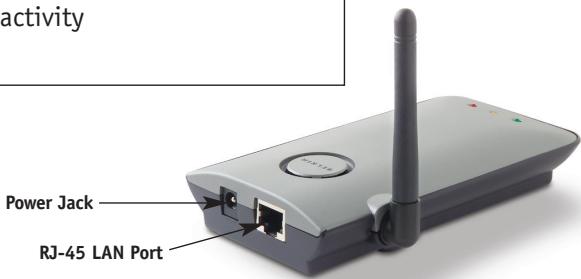
Power Jack
Connect the included 5V DC power supply to this jack.
RJ45 Ethernet Jack
Connect an Ethernet cable to this socket, and connect to an open RJ45 10Base-T or 100Base-T port on a switch, router, or hub.
Reset Button
The Reset button is used in rare cases when the AP may function improperly. Resetting the AP will restore the AP's normal operation while maintaining the programmed settings. You can also restore the factory default settings by using the Reset button. Use the restore option in instances where you may have forgotten your custom password.
a. Resetting the AP
Push and release the Reset button. The lights on the AP will momentarily flash. The Power/Ready light will begin to blink. When the Power/Ready light becomes solid again, the reset is complete.
b. Restoring the Factory Defaults
Press and hold the Reset button for five seconds then release it. The lights on the AP will momentarily flash. The Power/Ready light will begin to blink. When the Power/Ready light becomes solid again, the restore is complete.
Rotatable Dipole Antenna
One unidirectional dipole antennas is located on the side of the AP. The antennas can rotate 180 degrees. The antenna should be oriented in the vertical position for best performance.
Proper placement of your AP is important to ensure the best performance of your wireless network. Indoors, your Wireless Access Point can typically provide a circular coverage area of 300 feet or more. However, different types of construction materials and other obstructions in a building can greatly affect the wireless signal and decrease the range. If possible, place your AP as close as possible to the center of the area that you want to cover. In multistory homes, place the AP on a floor that is as close to the center of the home as possible; this may mean placing the AP on an upper floor.
Use care when choosing the location of your AP
- Be aware of appliances or large objects such as a refrigerator or washer/dryer unit that may be on the opposite side of a wall from where you decide to place your AP.
- Place the AP on top of a desk and away from metal cabinets and computer cases.
- Do not place objects or components on top of the AP.
- Make sure that the antenna is pointing UP at all times.
Metallic-based UV window tint can affect wireless performance. Do not place the AP next to a tinted window.
We realize that in the real world, it may not be possible to place your AP in the center of your coverage area. In cases where you may experience difficulty covering the entire area you want, try placing the AP as high as possible. Wireless devices work best in a line-of-sight situation where there are no obstacles between the wireless computer and the AP. The AP may also be mounted to a wall with the antennas facing UP. There are other options for expanding your wireless coverage area. Visit http://www.belkin.com/networking for solutions.
The wireless signal can be affected by many things including neighboring wireless networks, microwave ovens in operation, and 2.4GHz cordless phones. While these things can affect the network performance, your wireless network typically will work fine under most conditions where these devices exist.
The AP is configured at the factory to operate correctly out-of-the-box. Simply connecting the AP to your existing network will instantly add wireless capabilities to your network with no further configuration required. Belkin ships software that will allow you to locate and connect to the Access Point on your network so you can easily change or modify the settings if you wish. Before you can use the software, you must physically install the Access Point. Once the AP is installed, you can use the software to modify the settings. Follow the steps below to install your AP.
Step 1: Connect the AP to a Router, Ethernet Switch, or Hub
Verify the contents of your box. You should have the following:
- Belkin Wireless Network Access Point
Power Supply - Software CD
- User Manual
-
Registration Card
-
Select a suitable place for your AP as described in the previous section of this manual.
- Connect a CAT5 cable between the AP and your router's LAN port, Ethernet switch, or hub. Connect the power supply to the AP by plugging the round DC connector into the DC jack on the AP. Plug the power supply into the wall. Verify that the Power LED and the Link LED are illuminated. If both LEDs are illuminated, this indicates that the AP is connected properly.
- Connection and placement of your AP is now complete.
Step 2: Install the Discovery Wizard
The Discovery Wizard is a convenient tool for locating and connecting to your AP. The Discovery Wizard is only necessary if you want to make changes to the AP's settings, otherwise, the AP will work out-of-the-box in most cases. Since the AP is shipped from the factory as a DHCP client, it will obtain an IP address automatically from the DHCP server on your network. Since this address is somewhat random, the Discovery Wizard will locate the AP on the network for you so you don't have to take extra steps to determine the IP address of the AP.
- Insert the CD into your CD-ROM drive.
- The Belkin Wireless Network Access Point Setup Utility screen will automatically appear. If it does not appear within 15-20 seconds, then select your CD-ROM drive and double-click on the folder named "Files". Next double-click on the icon named "start.exe".
- In the menu window, drag your mouse over the "Install" button then select "Click here" to start the software installation program.
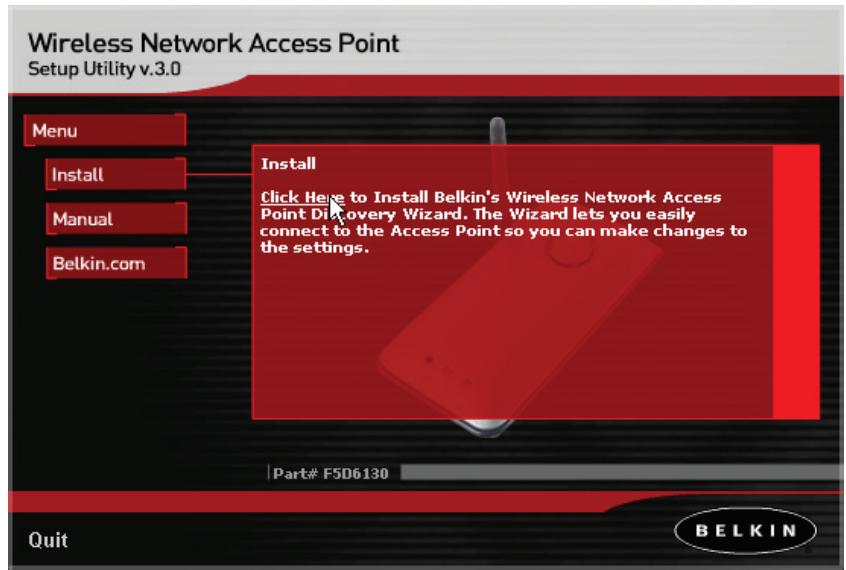
- The software installation Wizard will start. Click "Next" on the first screen.
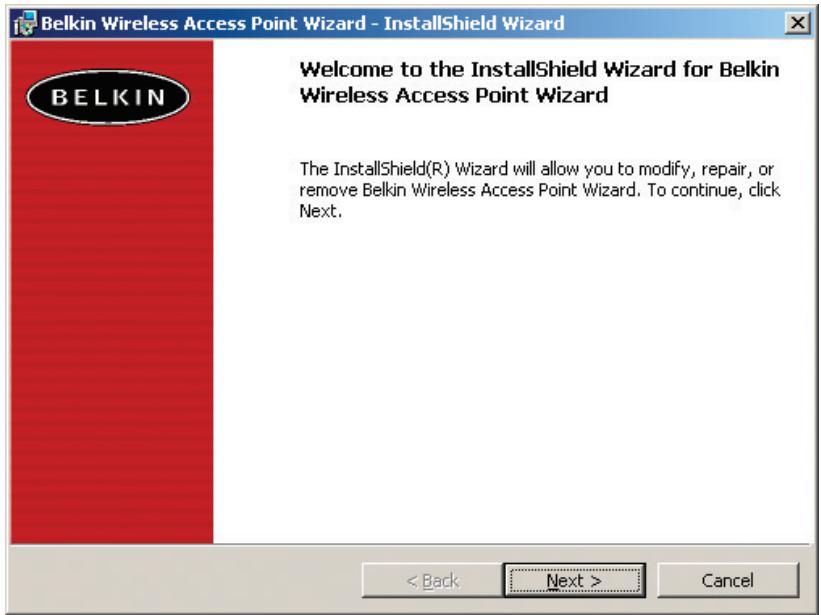
- Accept the user agreement and click "Next" while following the installation Wizard through its steps. Click "Finish" on the last screen.
-
The Discovery Wizard is now installed. Go to the next section to learn how to use the Wizard.
-
After you have installed the Discovery Wizard, you will see an icon on the desktop. Double-click the icon to start the Wizard.

- When you start the Wizard, you will see the word "Scanning...".
| This means the Wizard is looking for Access Points on your network.
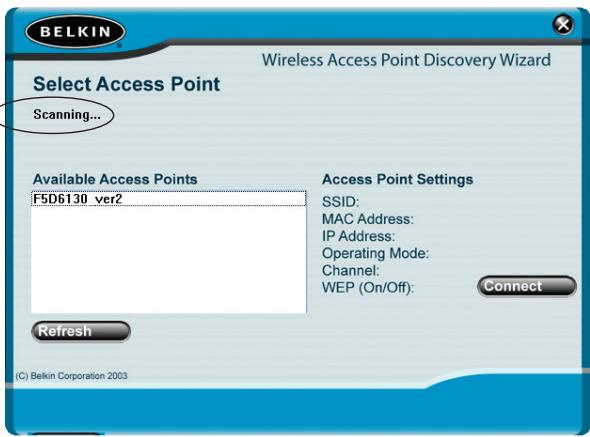
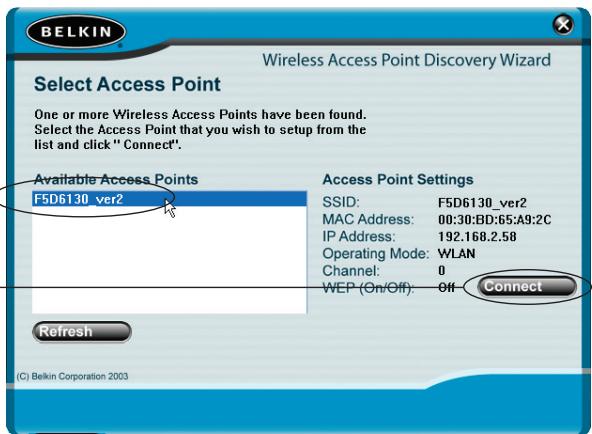
- When the Wizard finds your Access Point(s), the Access Point's name will appear in this window. Click on the Access Point's name.
-
Click "Connect". This will launch your web browser.
-
You will see the AP's login page in your browser window. The AP ships with no password entered. In the login screen, leave the password blank and click the "Submit" button to log in.
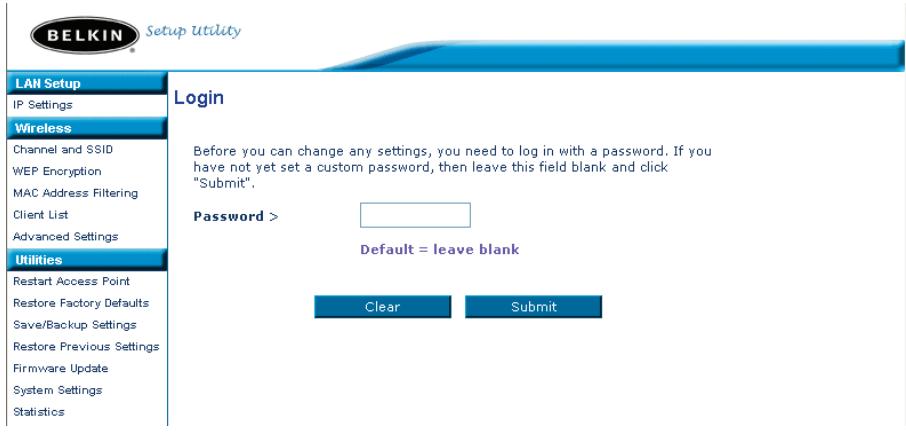
- You are now connected to the AP and can make any changes you want to. See the following section of this manual to learn how to use the interface.
Logging Out of the AP
One computer at a time can log into the AP for the purposes of making changes to the settings of the AP. Once a user has logged in to make changes, there are two ways that the computer can be logged out. Clicking the "Logout" button will log the computer out. The second method is automatic. The login will time out after a specified period of time. The default login time out is 10 minutes. This can be changed from 1 to 99 minutes. For more information, see the section in this manual titled "Changing the Login Timeout Setting".
Understanding the Access Point User Interface
The home page is the first page you will see when you access the Advanced User Interface (UI). The home page shows you a quick view of the AP's status and settings. All advanced setup pages can be reached from this page.
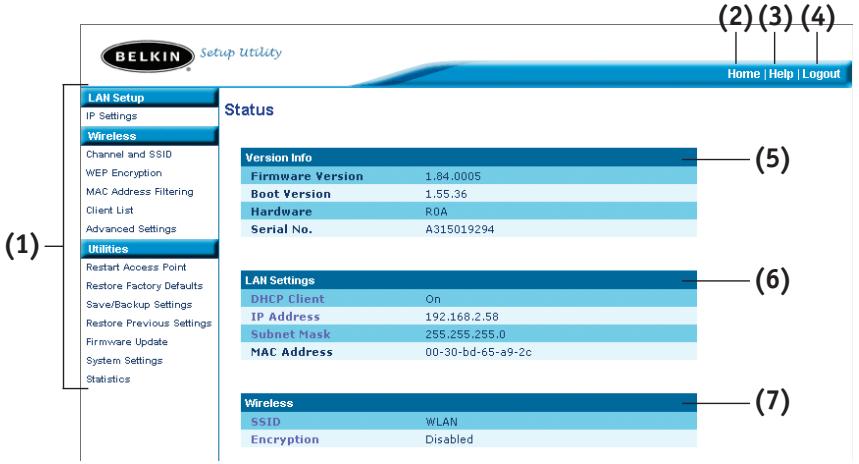
(1) Quick-Navigation Links
You can go directly to any of the AP's advanced UI pages by clicking directly on these links. The links are divided into logical categories and grouped by tabs to make finding a particular setting easier to find. Clicking on the purple header of each tab will show you a short description of the tab's function.
(2) Home Button
The home button is available in every page of the UI. Pressing this button will take you back to the home page.
(3) Help Button
The "Help" button gives you access to the AP's help pages. Help is also available on many pages by clicking "more info" next to certain sections of each page.
(4) Login/Logout Button
This button enables you to log in and out of the AP with the press of one button. When you are logged into the AP, this button will change to read "Logout". Logging into the AP will take you to a separate login page where you will need to enter a password. When you are logged in to the AP, you can make changes to the settings. When you are finished making changes, you can log out of the AP by clicking the "Logout" button. For more information about logging into the AP, see the section called "Logging into the AP".
(5) Version Info
Shows the firmware version, boot-code version, hardware version, and serial number of the AP.
(6) LAN Settings
Shows you the settings of the Local Area Network (LAN) side of the AP. Changes can be made to the settings by clicking on any one of the links (IP Address, Subnet Mask) or by clicking the "LAN" Quick Navigation link on the left side of the screen.
(7) Wireless
Shows the status of the AP's wireless setting. Changes can be made to the settings by clicking on any one of the links or by clicking the "Quick Navigation" links on the left side of the screen.
The Wireless tab lets you make changes to the wireless network settings. From this tab you can make changes to the wireless network name (SSID), operating channel, and encryption security settings.
IP Settings

Changing the Wireless Channel
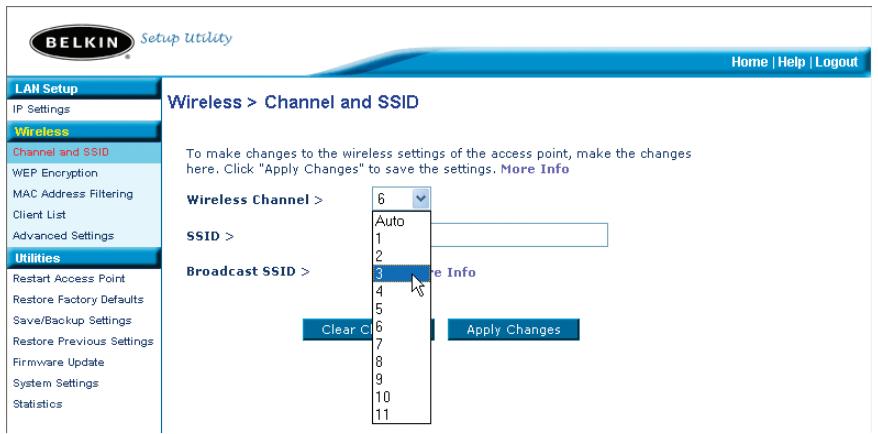
Auto: There are a number of operating channels you can choose from. In the United States, there are 11 channels. In the United Kingdom and most of Europe, there are 13 channels. In a small number of other countries, there are other channel requirements. Your AP is configured to operate on the proper channels for the country you reside in. The default channel is 11 (unless you are in a country that does not allow channel 11). The channel can be changed if needed. If there are other wireless networks operating in your area, your network should be set to operate on a channel that is different than the other wireless networks. For best performance, use a channel that is at least five channels away from the other wireless network. For instance, if another network is operating on channel 11, then set your network to channel 6 or below. To change the channel, select the channel from the drop-down list. Click "Apply Changes". The change is immediate.
Changing the Wireless Network Name (SSID)
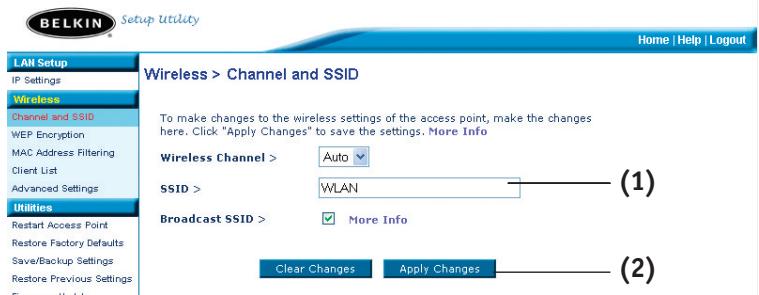
To identify your wireless network, a name called the SSID (Service Set Identifier) is used. The default SSID of the AP is "WLAN". You can change this to anything you want to or you can leave it unchanged. If there are other wireless networks operating in your area, you will want to make sure that your SSID is unique (does not match that of another wireless network in the area). To change the SSID, type in the SSID that you want to use in the SSID field (1) and click "Apply Changes" (2). The change is immediate. If you make a change to the SSID, your wireless-equipped computers may also need to be reconfigured to connect to your new network name. Refer to the documentation of your wireless network adapter for information on making this change.
Using the Broadcast SSID Feature
Note: This advanced feature should be employed by advanced users only.
For security, you can choose not to broadcast your network's SSID. Doing so will keep your network name hidden from computers that are scanning for the presence of wireless networks. To turn off the broadcast of the SSID, remove the check mark from the box next to "Broadcast SSID", and then click "Apply Changes". The change is immediate. Each computer now needs to be set to connect to your specific SSID; an SSID of "ANY" will no longer be accepted. Refer to the documentation of your wireless network adapter for information on making this change.
Changing the Wireless Security Settings
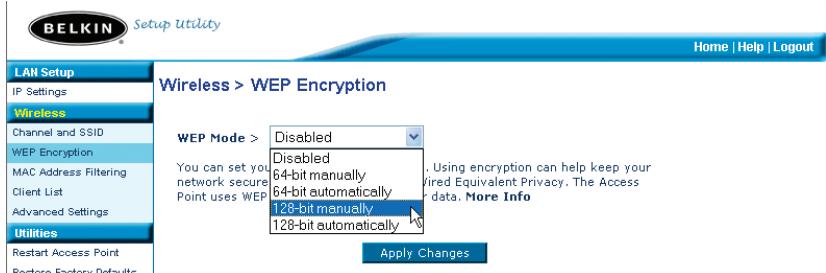
Your AP is equipped with the security standard called WEP (Wired Equivalent Privacy). By default, wireless security is disabled. To enable security, follow the steps in this section.
Setting WEP Encryption using a Passphrase
Note to Mac users: The Passphrase option will not operate with Apple® AirPort®. To configure encryption for your Mac computer, set the encryption using the manual method described in the next section.
- Select "128-bit automatically" or "64-bit automatically" from the drop-down menu.
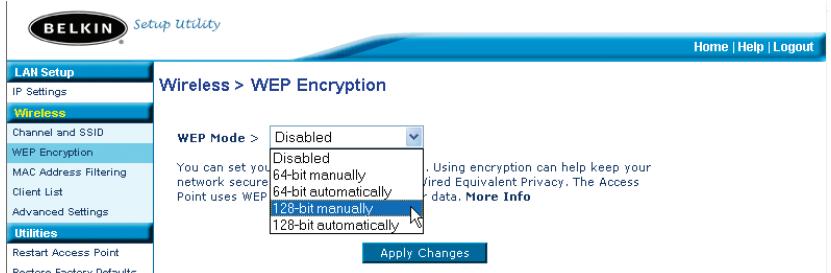
- Type in a passphrase. A passphrase is like a password. It can be a mixture of numbers and letters. After you type in your passphrase, click "Generate". When you click "Generate", the key fields below will become populated.
Note: 64-bit encryption will generate four keys and 128-bit encryption will generate only one key. Select the key you want to use by clicking the radio button next to it. Click "Apply Changes".
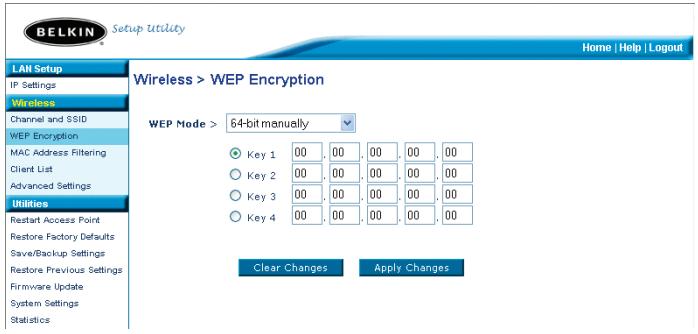
- Encryption in the AP is now set. Each of your computers on your wireless network will now need to be configured with the same passphrase. Refer to the documentation of your wireless network adapter for information on making this change.
Setting Encryption Manually Using a Hexadecimal Key
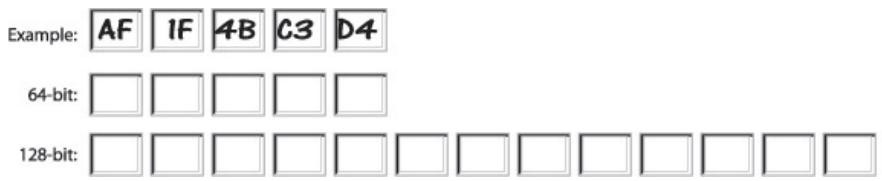
A hexadecimal key is a mixture of numbers and letters from A-F and 0-9. 64-bit keys are five 2-digit numbers. 128-bit keys are 13 2-digit numbers.
For instance:
AF OF 4B C3 D4 = 64-bit key
C3 03 OF AF OF 4B B2 C3 D4 4B C3 D4 E7 = 128-bit key
In the boxes below, make up your key by writing in two characters between A-F and 0-9. You will use this key to program the encryption settings on your AP and your wireless computers.
Note to Mac users: Original Apple AirPort products support 64-bit encryption only. Apple AirPort 2 products can support 64-bit or 128-bit encryption. Please check your product to see which version you are using. If you cannot configure your network with 128-bit encryption, try 64-bit encryption.
- Select "64-bit manually" or "128-bit manually" from the drop-down menu.
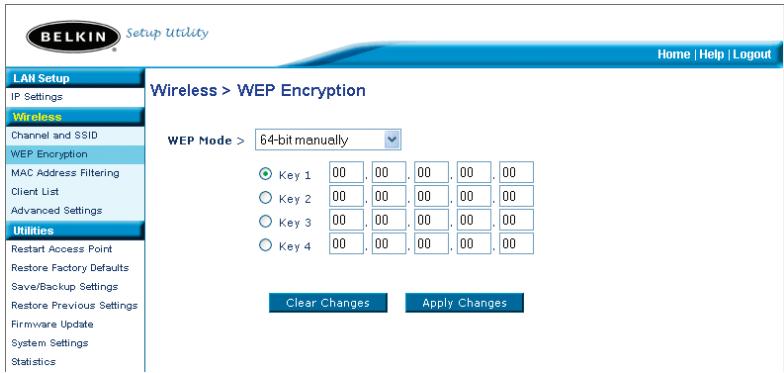
- If using 64-bit encryption, there will be four key fields. If using 128-bit encryption, there will be one key field. In the key field(s), type in the hexadecimal key(s) that you wish to use. When finished typing in your keys, select which key you want to use by clicking the radio button next to it. Click "Apply Changes".
- Encryption in the AP is now set. Each of your computers on your wireless network will now need to be configured with the same hexadecimal key. Refer to the documentation of your wireless network adapter for information on making this change.
Setting MAC Address Filtering
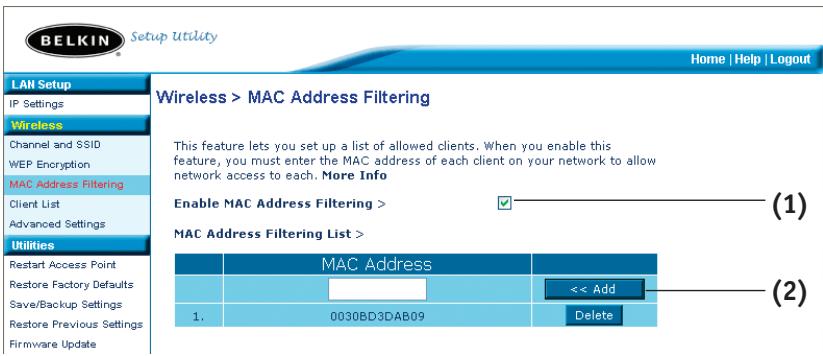
The MAC address filter is a powerful security feature that allows you to specify which computers are allowed access to the Access Point. Any computer NOT in the list will be denied access to the network.
To Enable the MAC Address Filter
- Place a check mark in the "Enable MAC Address Filtering" box (1).
- Enter the MAC addresses of a computer that you want to allow access to the network.
- Click "Add" (2) to add the address to the list.
- Repeat for each computer you want to add to the list.
- Click "Apply Changes" to finish.
Client List
You can view a list of clients that are currently associated with the AP using the Client List feature. You will be presented with the MAC address of the client and the speed at which it is connected.
Advanced Settings
Belkin provides a number of advanced functions that you can set. With exception to the AP name, it is recommended that you make no changes to these settings unless you have a specific reason to do so. From the Advanced Settings page you can do the following:
- Change the AP name (used to uniquely identify the AP on your network)
- Select the Basic Rate Set (1, 2Mbps or 1, 2, 5.5, 11Mbps)
- Select the Transmit rate (Auto, 11Mbps, 5.5Mbps, 2Mbps, 1Mbps)
- Set the RTS threshold
- Set the Fragmentation threshold
- Select the Preamble Type (Long or Short)
When making changes, be sure to click "Apply Changes" for the changes to take effect.
Utilities
The Utilities screen lets you manage different parameters of the AP and perform certain administrative functions.
Restarting the AP
Sometimes it may be necessary to restart or reboot the AP if it begins working improperly. Restarting or rebooting the AP will NOT delete any of your configuration settings.
Utilities > Restart Access Point
Sometimes it may be necessary to restart or reboot the Access Point if it begins working improperly. Restarting or rebooting the Access Point will not delete any of your configuration settings. Click the "Restart Access Point" button below to restart the Access Point.
Restart Access Point
Restarting the AP to Restore Normal Operation
- Click the "Restart AP" button.
- The following message will appear. Click "OK".
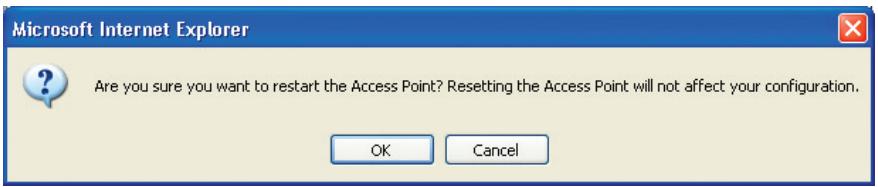
- The following message will appear. Restarting the AP can take up to 60 seconds. It is important not to turn off the power to the AP during the restart.
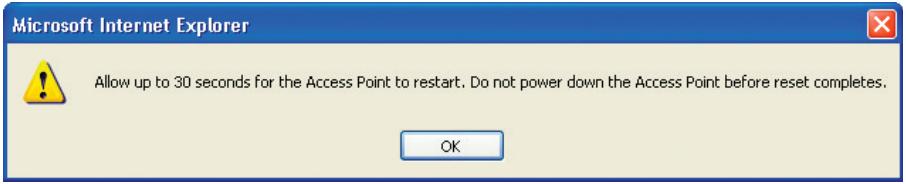
- A 30-second countdown will appear on the screen. When the countdown reaches zero, the AP will be restarted. The AP home page should appear automatically. If not, type in the AP's address (default = 192.168.2.254) into the navigation bar of your browser.
Restoring Factory Default Settings
Using this option will restore all of the settings in the AP to the factory (default) settings. It is recommended that you back up your settings before you restore all of the defaults.
Utilities >Restore Factory Defaults
Using this option will restore all of the settings in the Access Point to the factory (default) settings. It is recommended that you backup your settings before you restore all of the defaults. To restore the factory default settings, click the "Restore Defaults" button below.
Restore Defaults
- Click the "Restore Defaults" button.
- The following message will appear. Click "OK".
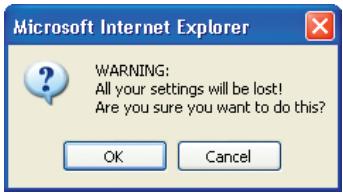
- The following message will appear. Restoring the defaults includes restarting the AP. It can take up to 60 seconds. It is important not to turn the power to the AP off during the restart.
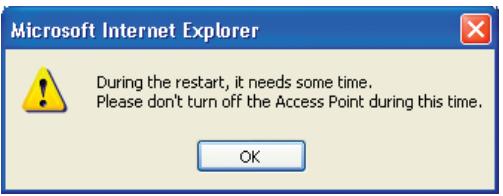
- A 30-second countdown will appear on the screen. When the countdown reaches zero, the AP's defaults will be restored. The AP home page should appear automatically. If it does not, type in the AP's address (default = 192.168.2.1) into the navigation bar of your browser.
Saving a Current Configuration
You can save your current configuration by using this feature. Saving your configuration will allow you to restore it later if your settings are lost or changed. It is recommended that you back up your current configuration before performing a firmware update.
Utilities > Save/Backup Current Settings
You can save your current configuration by using this feature. Saving your configuration will allow you to restore it later if your settings are lost or changed. It is recommended that you backup your current configuration before performing a firmware update.
Save
- Click "Save". A window called "File Download" will open. Click "Save".
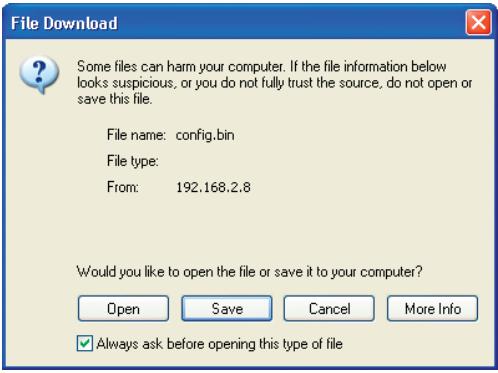
- A window will open that allows you to select the location where you want to save the configuration file. Select a location. You can name the file anything you want, or use the default name "Config". Be sure to name the file so you can locate it yourself later. When you have selected the location and name of the file, click "Save".
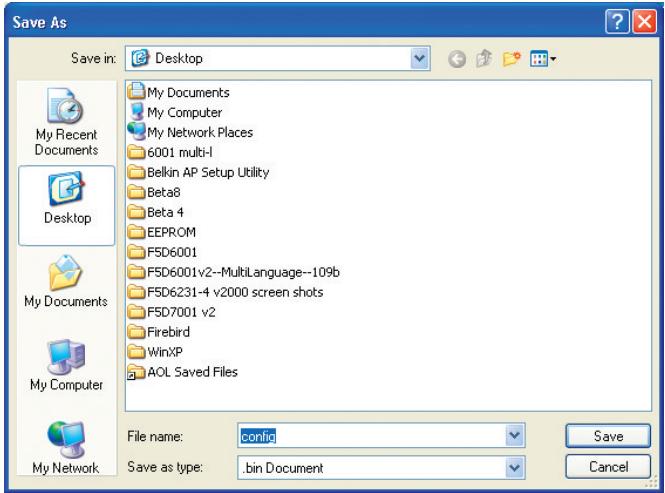
The configuration is now saved.
- When the save is complete, you will see the window below. Click "Close".
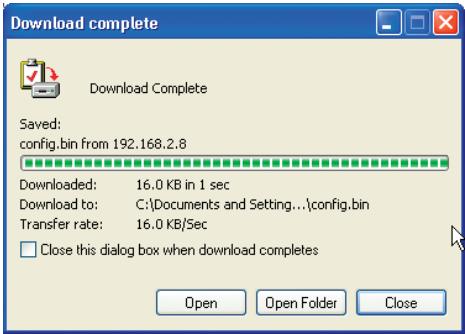
Restoring a Previous Configuration
This option will allow you to restore a previously saved configuration.
Utilities >Restore Previous Settings
This option will allow you to restore a previously saved configuration.
C:\Documents and Settings\Browse...
Restore
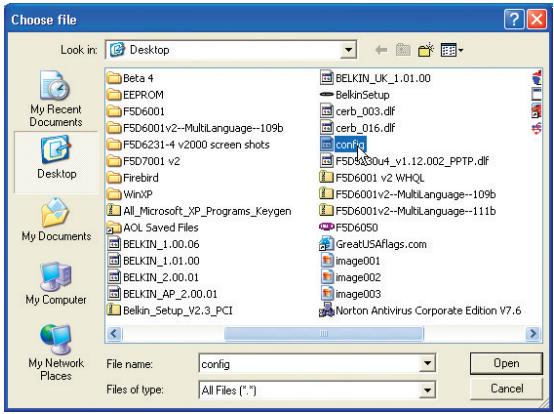
- Click "Browse". A window will open that allows you to select the location of the configuration file. All configuration files end with a ".bin". Locate the configuration file you want to restore and double-click on it.
- You will be asked if you want to continue. Click "OK".
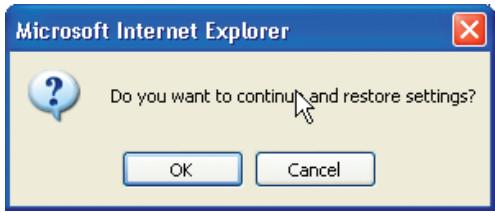
- A reminder window will appear. It will take up to 60 seconds for the configuration restoration to complete. Click "OK".
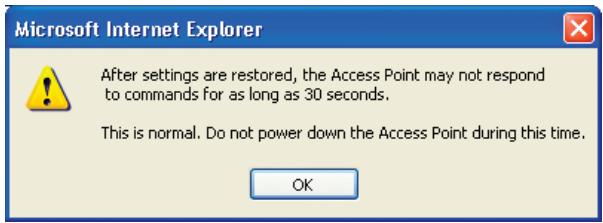
- A 60-second countdown will appear on the screen. When the countdown reaches zero, the AP's configuration will be restored. The AP home page should appear automatically. If not, type in the AP's address (default = 192.168.2.1) into the navigation bar of your browser.
Updating Firmware
From time to time, Belkin may release new versions of the AP's firmware. Firmware updates contain feature improvements and fixes to problems that may have existed. When Belkin releases new firmware, you can download the firmware from the Belkin update website and update your AP's firmware to the latest version.
Utilities > Firmware Update
From time to time, Belkin may release new versions of the Access Point's firmware. Firmware updates contain improvements and fixes to problems that may have existed.
NOTE: Please backup your current settings before updating to a new version of firmware. Click here to go to the Save/Backup Current Settings page.
Update Firmware >

Browse... (1)
Update
Updating the AP's Firmware
- In the "Firmware Update" page, click "Browse" (1). A window will open that allows you to select the location of the firmware update file. All firmware files end with a ".dlf".
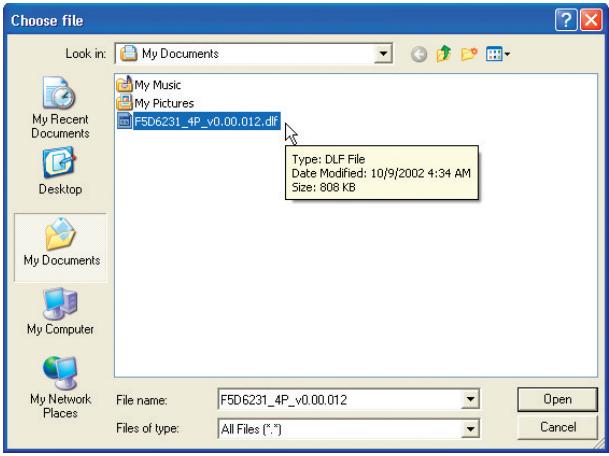
-
Browse to the firmware file you downloaded. Select the file by double-clicking on the file name.
-
The "Update Firmware" box will now display the location and name of the firmware file you just selected. Click "Update".
Utilities > Firmware Update
From time to time, Belkin may release new versions of the Router's firmware. Firmware updates contain improvements and fixes to problems that may have existed. Click the link below to see if there is a new firmware update available for this Router.
NOTE: Please backup your current settings before updating to a new version of firmware. Click Here to go to the Save/Backup current settings page.
Check For New Firmware Version >
Check Firmware
Update Firmware >
C\Documents and Settings\Browse...
Update
- You will be asked if you are sure you want to continue. Click "OK".
- You will see one more message. This message tells you that the AP may not respond for as long as one minute as the firmware is loaded into the AP and the AP is rebooted. Click "OK".
A 30-second countdown will appear on the screen. When the countdown reaches zero, the AP firmware update will be complete. The AP home page should appear automatically.
Changing System Settings
The "System Settings" page is where you can enter a new administrator password, set the time zone, enable remote management, and turn on and off the NAT function of the AP.
Setting or Changing the Administrator Password
The AP ships with NO password entered. If you wish to add a password for greater security, you can set a password here. Write down your password and keep it in a safe place, as you will need it if you need to log into the AP in the future. It is also recommended that you set a password if you plan to use the remote management feature of your AP.
Administrator Password:
The Router ships with NO password entered. If you wish to add a password for more security, you can set a password here. More Info
- Type in current Password >
- Type in new Password >
- Confirm new Password >
- Login Timeout >
TROUBLESHOOTING
You can find technical support information at www.belkin.com/networking or www.belkin.com through the tech support area. If you want to contact technical support by phone, please call 00 800 223 55 460.
FCC Statement
DECLARATION OF CONFORMITY WITH FCC RULES FOR ELECTROMAGNETIC COMPATIBILITY
We, Belkin Corporation, of 501 West Walnut Street, Compton, CA 90220, declare under our sole responsibility that the product,
F5D6130
to which this declaration relates,
complies with Part 15 of the FCC Rules. Operation is subject to the following two conditions: (1) this device may not cause harmful interference, and (2) this device must accept any interference received, including interference that may cause undesired operation.
Caution: Exposure to Radio Frequency Radiation.
The radiated output power of this device is far below the FCC radio frequency exposure limits. Nevertheless, the device shall be used in such manner that the potential for human contact normal operation is minimized.
When connecting an external antenna to the device, the antenna shall be placed in such a manner to minimize the potential for human contact during normal operation. In order to avoid the possibility of exceeding the FCC radio frequency exposure limits, human proximity to the antenna shall not be less than 20cm (8 inches) during normal operation.
Federal Communications Commission Notice
This equipment has been tested and found to comply with the limits for a Class B digital device, pursuant to Part 15 of the FCC Rules. These limits are designed to provide reasonable protection against harmful interference in a residential installation.
This equipment generates, uses, and can radiate radio frequency energy. If not installed and used in accordance with the instructions, it may cause harmful interference to radio or television reception, which can be determined by turning the equipment off and on, the user is encouraged to try and correct the interference by one or more of the following measures:
- Reorient or relocate the receiving antenna.
- Increase the distance between the equipment and the receiver.
- Connect the equipment to an outlet on a circuit different from that to which the receiver is connected.
- Consult the dealer or an experienced radio/TV technician for help.
Modifications
The FCC requires the user to be notified that any changes or modifications to this device that are not expressly approved by Belkin Corporation may void the users authority to operate the equipment.
Canada-Industry Canada (IC)
The wireless radio of this device complies with RSS 139 & RSS 210 Industry Canada. This Class B digital complies with Canadian ICES-003.
Radio products with the CE 0682 or CE alert marking comply with the R&TTE Directive (1995/5/EC) issued by the Commission of the European Community.

Compliance with this directive implies conformity to the following European Norms (in brackets are the equivalent international standards).
EN 60950 (IEC60950) - Product Safety
- EN 300 328 Technical requirement for radio equipment
- ETS 300 826 General EMC requirements for radio equipment.
To determine the type of transmitter, check the identification label on your Belkin product.
Products with the CE marking comply with the EMC Directive (89/336/EEC) and the Low Voltage Directive (72/23/EEC) issued by the Commission of the European Community. Compliance with these directives implies
conformity to the following European Norms (in brackets are the equivalent international standards).
EN 55022 (CISPR 22) - Electromagnetic Interference
EN 55024 (IEC61000-4-2,3,4,5,6,8,11)-Electromagnetic Immunity
EN 61000-3-2 (IEC61000-3-2) - Power Line Harmonics
EN 61000-3-3 (IEC610000) - Power Line Flicker
EN 60950 (IEC60950) - Product Safety
Products that contain the radio transmitter are labeled with CE 0682 or CE alert marking and may also carry the CE logo.
Please refer to http://networking.belkin.com for all networking certificates along with the R&TTE Directive Statements.

Belkin Corporation Limited Lifetime Product Warranty
Belkin Corporation warrants this product against defects in materials and workmanship for its lifetime. If a defect is discovered, Belkin will, at its option, repair or replace the product at no charge provided it is returned during the warranty period, with transportation charges prepaid, to the authorized Belkin dealer from whom you purchased the product. Proof of purchase may be required.
This warranty does not apply if the product has been damaged by accident, abuse, misuse, or misapplication; if the product has been modified without the written permission of Belkin; or if any Belkin serial number has been removed or defaced.
THE WARRANTY AND REMEDIES SET FORTH ABOVE ARE EXCLUSIVE IN LIEU OF ALL OTHERS, WHETHER ORAL OR WRITTEN, EXPRESSED OR IMPLIED. BELKIN SPECIFICALLY DISCLAIMS ANY AND ALL IMPLIED WARRANTYES, INCLUDING, WITHOUT LIMITATION, WARRANTYES OF MERCHANTABILITY AND FITNESS FOR A PARTICULAR PURPOSE.
No Belkin dealer, agent, or employee is authorized to make any modification, extension, or addition to this warranty.
BELKIN IS NOT RESPONSIBLE FOR SPECIAL, INCIDENTAL, OR CONSEQUENTIAL DAMAGES RESULTING FROM ANY BREACH OF WARRANTY, OR UNDER ANY OTHER LEGAL THEORY, INCLUDING BUT NOT LIMITED TO, LOST PROFITS, DOWNTIME, GOODWILL, DAMAGE TO OR REPROGRAMMING OR REPRODUCING ANY PROGRAM OR DATA STORED IN, OR USED WITH, BELKIN PRODUCTS.
Some states do not allow the exclusion or limitation of incidental or consequential damages or exclusions of implied warranties, so the above limitations of exclusions may not apply to you. This warranty gives you specific legal rights, and you may also have other rights that vary from state to state.
BELKIN
belkin.com
Belkin Corporation
5501 West Walnut Street
Compton · CA · 90220-5221 · USA
Tel: +1 310 898 1100
Fax: +1 310 898 1111
Belkin Components, Ltd.
Express Business Park • Shipton Way
Rushden • NN10 6GL • United Kingdom
Tel: +44 (0) 1933 35 2000
Fax: +44 (0) 1933 31 2000
Belkin Components B.V.
Boeing Avenue 333
1119 PH Schiphol-Rijk · The Netherlands
Tel: +31 (0) 20 654 7300
Fax: +31 (0) 20 654 7349
Gestion facultative 3
Configuration requise - logiciel 3
Configuration Requise - Systeme 3
Specifications 4
Utilities > Restart Access Point
Sometimes it may be necessary to restart or reboot the Access Point if it begins working improperly. Restarting or rebooting the Access Point will not delete any of your configuration settings. Click the "Restart Access Point" button below to restart the Access Point.
Using this option will restore all of the settings in the Access Point to the factory (default) settings. It is recommended that you backup your settings before you restore all of the defaults. To restore the factory default settings, click the "Restore Defaults" button below.
Restore Defaults
Utilities > Save/Backup Current Settings
You can save your current configuration by using this feature. Saving your configuration will allow you to restore it later if your settings are lost or changed. It is recommended that you backup your current configuration before performing a firmware update.
Utilities >Restore Previous Settings
This option will allow you to restore a previously saved configuration.
C:\Documents and Settings\Browse...
Utilities > Firmware Update
From time to time, Belkin may release new versions of the Access Point's firmware. Firmware updates contain improvements and fixes to problems that may have existed.
NOTE: Please backup your current settings before updating to a new version of firmware. Click here to go to the Save/Backup Current Settings page.
Update Firmware >

Browse... (1)
Update
From time to time, Belkin may release new versions of the Router's firmware. Firmware updates contain improvements and fixes to problems that may have existed. Click the link below to see if there is a new firmware update available for this Router.
NOTE: Please backup your current settings before updating to a new version of firmware. Click Here to go to the Save/Backup current settings page.
Check For New Firmware Version >
Check Firmware
Update Firmware >
C:\Documents and Settings\Browse...
Update
Administrator Password:
The Router ships with NO password entered. If you wish to add a password for more security, you can set a password here. More Info
- Type in current Password >
- Type in new Password >
- Confirm new Password >
- Login Timeout >
Dépannage
501 West Walnut Street
Belkin Components, Ltd.
Express Business Park • Shipton Way
Assistance technique Belkin
Europe: 00 800 223 55 460
KOMPONENT DES ACCESS POINT
KOMPONENT DES ACCESS POINT
Netzteilanschluss
AF OF 4B C3 D4 = 64-Bit-Schlüssel
C3 03 OF AF OF 4B B2 C3 D4 4B C3 D4 E7 = 128-Bit-Schlüssel
Utilities > Restart Access Point
Sometimes it may be necessary to restart or reboot the Access Point if it begins working improperly. Restarting or rebooting the Access Point will not delete any of your configuration settings. Click the "Restart Access Point" button below to restart the Access Point.
Restart Access Point
Using this option will restore all of the settings in the Access Point to the factory (default) settings. It is recommended that you backup your settings before you restore all of the defaults. To restore the factory default settings, click the "Restore Defaults" button below.
Utilities > Save/Backup Current Settings
You can save your current configuration by using this feature. Saving your configuration will allow you to restore it later if your settings are lost or changed. It is recommended that you backup your current configuration before performing a firmware update.
Utilities >Restore Previous Settings
This option will allow you to restore a previously saved configuration.
C\Documents and Settings\Browse...
Restore
Utilities > Firmware Update
From time to time, Belkin may release new versions of the Access Point's firmware. Firmware updates contain improvements and fixes to problems that may have existed.
NOTE: Please backup your current settings before updating to a new version of firmware. Click here to go to the Save/Backup Current Settings page.
Update Firmware >

Browse... (1)
Update
Utilities > Firmware Update
From time to time, Belkin may release new versions of the Router's firmware. Firmware updates contain improvements and fixes to problems that may have existed. Click the link below to see if there is a new firmware update available for this Router.
NOTE: Please backup your current settings before updating to a new version of firmware. Click Here to go to the Save/Backup current settings page.
Check For New Firmware Version >
Check Firmware
Update Firmware >
C:Documents and Settings}Browse...
Update
Administrator Password:
The Router ships with NO password entered. If you wish to add a password for more security, you can set a password here. More Info
- Type in current Password >
- Type in new Password >
- Confirm new Password >
- Login Timeout >
FEHLERBEHEBUNG
501 West Walnut Street
Compton · CA · 90220-5221 · USA
Tel: +1 310 898 1100
Fax: +1 310 898 1111
Belkin Components, Ltd.
Express Business Park • Shipton Way
KENNISMAKING MET UW ACCESS POINT
KENNISMAKING MET UW ACCESS POINT
Voedingsbus
Utilities > Restart Access Point
Sometimes it may be necessary to restart or reboot the Access Point if it begins working improperly. Restarting or rebooting the Access Point will not delete any of your configuration settings. Click the "Restart Access Point" button below to restart the Access Point.
Using this option will restore all of the settings in the Access Point to the factory (default) settings. It is recommended that you backup your settings before you restore all of the defaults. To restore the factory default settings, click the "Restore Defaults" button below.
Utilities > Save/Backup Current Settings
You can save your current configuration by using this feature. Saving your configuration will allow you to restore it later if your settings are lost or changed. It is recommended that you backup your current configuration before performing a firmware update.
Utilities >Restore Previous Settings
This option will allow you to restore a previously saved configuration.
C:\Documents and Settings\Browse...
Restore
Utilities > Firmware Update
From time to time, Belkin may release new versions of the Access Point's firmware. Firmware updates contain improvements and fixes to problems that may have existed.
NOTE: Please backup your current settings before updating to a new version of firmware. Click here to go to the Save/Backup Current Settings page.
Update Firmware >

Browse... (1)
Update
From time to time, Belkin may release new versions of the Router's firmware. Firmware updates contain improvements and fixes to problems that may have existed. Click the link below to see if there is a new firmware update available for this Router.
NOTE: Please backup your current settings before updating to a new version of firmware. Click Here to go to the Save/Backup current settings page.
Check For New Firmware Version >
Check Firmware
Update Firmware >
C\Documents and Settings\Browse...
Update
Administrator Password:
The Router ships with NO password entered. If you wish to add a password for more security, you can set a password here. More Info
- Type in current Password >
- Type in new Password >
- Confirm new Password >
- Login Timeout >
PROBLEM OPLOSSEN
Canada-Industry Canada (IC)
501 West Walnut Street
Compton · CA · 90220-5221 · USA
Tel: +1 310 898 1100
Fax: +1 310 898 1111
Belkin Components, Ltd.
Express Business Park • Shipton Way
- SeLECTION "128-bit automatically" (128 bits automatistically) o "64-bit automatically" (64 bits automatistically) del menu desplegable.
Utilities > Restart Access Point
Sometimes it may be necessary to restart or reboot the Access Point if it begins working improperly. Restarting or rebooting the Access Point will not delete any of your configuration settings. Click the "Restart Access Point" button below to restart the Access Point.
Using this option will restore all of the settings in the Access Point to the factory (default) settings. It is recommended that you backup your settings before you restore all of the defaults. To restore the factory default settings, click the "Restore Defaults" button below.
Restore Defaults
Utilities > Save/Backup Current Settings
You can save your current configuration by using this feature. Saving your configuration will allow you to restore it later if your settings are lost or changed. It is recommended that you backup your current configuration before performing a firmware update.
Utilities >Restore Previous Settings
This option will allow you to restore a previously saved configuration.
C:\Documents and Settings\Browse...
Restore
Utilities > Firmware Update
From time to time, Belkin may release new versions of the Access Point's firmware. Firmware updates contain improvements and fixes to problems that may have existed.
NOTE: Please backup your current settings before updating to a new version of firmware. Click here to go to the Save/Backup Current Settings page.
Update Firmware >

Browse... (1)
Update
From time to time, Belkin may release new versions of the Router's firmware. Firmware updates contain improvements and fixes to problems that may have existed. Click the link below to see if there is a new firmware update available for this Router.
NOTE: Please backup your current settings before updating to a new version of firmware. Click Here to go to the Save/Backup current settings page.
Check For New Firmware Version >
Check Firmware
Update Firmware >
C\Documents and Settings\Browse...
Update
Administrator Password:
The Router ships with NO password entered. If you wish to add a password for more security, you can set a password here. More Info
- Type in current Password >
- Type in new Password >
- Confirm new Password >
- Login Timeout >
RESOLUCION DE PROBLEMAS
501 West Walnut Street
Compton · CA · 90220-5221 · EE.UU.
Tel: +1 310 898 1100
Fax: +1 310 898 1111
Belkin Components, Ltd.
Express Business Park • Shipton Way
Rushden · NN10 6GL · Reino Unido
Tel: +44 (0) 1933 35 2000
Fax: +44 (0) 1933 31 2000
Belkin Components B.V.
Boeing Avenue 333
1119 PH Schiphol-Rijk • Holanda
Tel: +31 (0) 20 654 7300
Fax: +31 (0) 20 654 7349
CSMA/CD, TCP, IP, UDP, AppleTalk, e DHCP (client)
Gestione:
Su base browser
Utilities > Restart Access Point
Sometimes it may be necessary to restart or reboot the Access Point if it begins working improperly. Restarting or rebooting the Access Point will not delete any of your configuration settings. Click the "Restart Access Point" button below to restart the Access Point.
Restart Access Point
Using this option will restore all of the settings in the Access Point to the factory (default) settings. It is recommended that you backup your settings before you restore all of the defaults. To restore the factory default settings, click the "Restore Defaults" button below.
Utilities > Save/Backup Current Settings
You can save your current configuration by using this feature. Saving your configuration will allow you to restore it later if your settings are lost or changed. It is recommended that you backup your current configuration before performing a firmware update.
Utilities >Restore Previous Settings
This option will allow you to restore a previously saved configuration.
C:\Documents and Settings\Browse...
Restore
Utilities > Firmware Update
From time to time, Belkin may release new versions of the Access Point's firmware. Firmware updates contain improvements and fixes to problems that may have existed.
NOTE: Please backup your current settings before updating to a new version of firmware. Click here to go to the Save/Backup Current Settings page.
Update Firmware >

Browse... (1)
Update
Utilities > Firmware Update
From time to time, Belkin may release new versions of the Router's firmware. Firmware updates contain improvements and fixes to problems that may have existed. Click the link below to see if there is a new firmware update available for this Router.
NOTE: Please backup your current settings before updating to a new version of firmware. Click Here to go to the Save/Backup current settings page.
Check For New Firmware Version >
Update Firmware >
Check Firmware
C:Documents and Settings\Browse...
Update
Administrator Password:
The Router ships with NO password entered. If you wish to add a password for more security, you can set a password here. More Info
- Type in current Password >
- Type in new Password >
- Confirm new Password >
- Login Timeout >
Canada- Industry Canada (IC)
501 West Walnut Street
Compton · CA · 90220-5221 · USA
Tel: +1 310 898 1100
Fax: +1 310 898 1111
Belkin Components, Ltd.
Express Business Park • Shipton Way
Rushden · NN10 6GL Regno Unito
Tel: +44 (0) 1933 35 2000
Fax: +44 (0) 1933 31 2000
Belkin Components B.V.
Boeing Avenue 333
1119 PH Schiphol-Rijk Paesi Bassi
Tel: +31 (0) 20 654 7300
Fax: +31 (0) 20 654 7349
- Wireless Network Access Point
- TABLE OF CONTENTS
- INTRODUCTION
- Key Features
- Wide Area Coverage at High Speeds
- Up to 128-Bit Encryption
- MAC Address Filtering
- Works with Both PCs and Mac® Computers
- Web-Based Advanced User Interface
- Applications and Advantages
- Package Contents
- Optional Management Software Requirements
- System Requirements
- Specifications
- Standards:
- Wireless:
- Protocol Supported:
- Management:
- Maximum Users:
- Ports:
- LEDs:
- Front Panel
- Power/Ready LED
- Wireless LAN LED
- LAN (Network) LED
- Rear Panel
- Power Jack
- RJ45 Ethernet Jack
- Reset Button
- a. Resetting the AP
- b. Restoring the Factory Defaults
- Rotatable Dipole Antenna
- Use care when choosing the location of your AP
- Step 1: Connect the AP to a Router, Ethernet Switch, or Hub
- Step 2: Install the Discovery Wizard
- Logging Out of the AP
- Understanding the Access Point User Interface
- Quick-Navigation Links
- Home Button
- Help Button
- Login/Logout Button
- Version Info
- LAN Settings
- Wireless
- IP Settings
- Changing the Wireless Channel
- Changing the Wireless Network Name (SSID)
- Using the Broadcast SSID Feature
- Changing the Wireless Security Settings
- Setting WEP Encryption using a Passphrase
- Setting Encryption Manually Using a Hexadecimal Key
- Setting MAC Address Filtering
- To Enable the MAC Address Filter
- Client List
- Advanced Settings
- Utilities
- Restarting the AP
- Utilities > Restart Access Point
- Restarting the AP to Restore Normal Operation
- Restoring Factory Default Settings
- Utilities >Restore Factory Defaults
- Saving a Current Configuration
- Utilities > Save/Backup Current Settings
- Restoring a Previous Configuration
- Restore
- Updating Firmware
- Utilities > Firmware Update
- Updating the AP's Firmware
- Utilities > Firmware Update
- Check For New Firmware Version >
- Changing System Settings
- Setting or Changing the Administrator Password
- Administrator Password:
- TROUBLESHOOTING
- FCC Statement
- DECLARATION OF CONFORMITY WITH FCC RULES FOR ELECTROMAGNETIC COMPATIBILITY
- Caution: Exposure to Radio Frequency Radiation.
- Federal Communications Commission Notice
- Modifications
- Canada-Industry Canada (IC)
- Belkin Corporation Limited Lifetime Product Warranty
- BELKIN
- Belkin Corporation
- Belkin Components, Ltd.
- Belkin Components B.V.
- Check Firmware
- Update Firmware >
- Update
- Dépannage
- Assistance technique Belkin
- KOMPONENT DES ACCESS POINT
- Netzteilanschluss
- C3 03 OF AF OF 4B B2 C3 D4 4B C3 D4 E7 = 128-Bit-Schlüssel
- FEHLERBEHEBUNG
- KENNISMAKING MET UW ACCESS POINT
- Voedingsbus
- PROBLEM OPLOSSEN
- RESOLUCION DE PROBLEMAS
- Gestione:
- Canada- Industry Canada (IC)
Brand : BELKIN
Model : POINT D'ACCÉS 802.11B #F5D6130FR
Category : Wireless Access Point