
F5U209 - USB Hub BELKIN - Free user manual and instructions
Find the device manual for free F5U209 BELKIN in PDF.



User questions about F5U209 BELKIN
0 question about this device. Answer the ones you know or ask your own.
Ask a new question about this device
Download the instructions for your USB Hub in PDF format for free! Find your manual F5U209 - BELKIN and take your electronic device back in hand. On this page are published all the documents necessary for the use of your device. F5U209 by BELKIN.
USER MANUAL F5U209 BELKIN
Drive Enclosure User Manual
Introduction 1
System Requirements 2
Assembling Your Drive Enclosure 3
Driver Installation 8
Safe Removal of the USB Disk 10
Format the USB 2.0 External Drive 11
Information 16
En
P74080-em-F5U209-man_9-02.qxd 9/19/02 3:05 PM Page d
INTRODUCTION
En
The Hi-Speed USB 2.0 External Drive Enclosure (the External Drive) is a portable compact storage drive that incorporates the USB 2.0 (Universal Serial Bus 2.0) high-speed interface. The External Drive provides a fast and easy way to add more storage space to your computer. The Plug-and-Play feature gives you great convenience on the road, the External Drive can be easily connected to your computer by USB interface, and can even be disconnected and reconnected while the computer is running.
Note: To enable Hi-Speed USB 2.0 mode (480Mbps), your computer must be equipped with built-in USB 2.0 ports or a USB 2.0 host adapter card.
SYSTEM REQUIREMENTS
Hardware
Notebook and desktop computer with USB 1.0 or USB 2.0 port
Operating System
Windows® 98 SE, Me, 2000, or XP
ASSEMBLING YOUR DRIVE ENCLOSURE
En
- Remove top of the External Drive.
- If you are installing a 3^1/2 -inch hard drive, check to make sure your drive is set to "Master" (see jumper setting information printed on top of your disk drive), then connect the 34-position data cable and 4-position power cable.
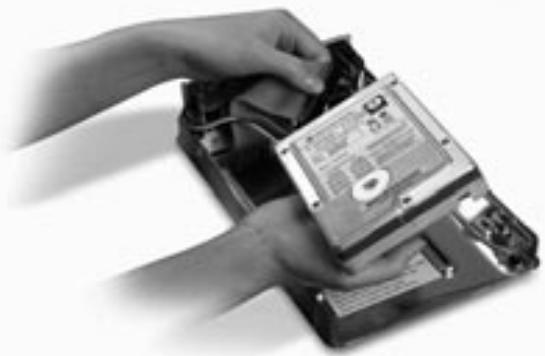
- If you are installing a CD/CD-RW drive, check to make sure your drive is set to "Master", then connect the 34-position data cable, 4-position power cable, and 4-position audio cable.
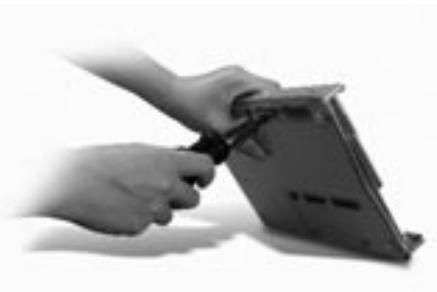
- Choose the set of mounting holes that match the drive you intend to use, and install at least four of the provided mounting screws.
ASSEMBLING YOUR DRIVE ENCLOSURE
Note: There are four fine-threaded screws, and four course-threaded screws included with your Hi-Speed External Drive Enclosure Kit. Be sure to choose the screws that match the mounting holes for your drive. Do not try to force a course-threaded screw into a fine-threaded mounting hole.
- Replace top cover and make sure it is aligned with bottom cover.
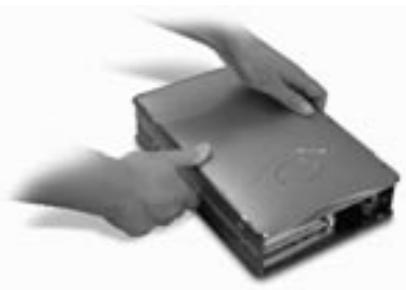
ASSEMBLING YOUR DRIVE ENCLOSURE
En
- Hook the first side rail around the front edge of the External Drive and press the rail into the six rectangular-shaped mounting holes on the side.
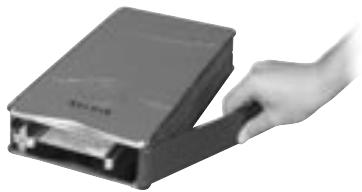
- If you are installing a hard disk, it is necessary to install the front panel. Insert the tabs on one side of the front panel into the mounting holes in the installed side rail.
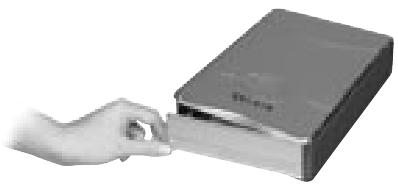
ASSEMBLING YOUR DRIVE ENCLOSURE
- Insert the mounting tabs on the free end of the front panel into the second side rail, and hook the side rail onto the front of the External Drive.
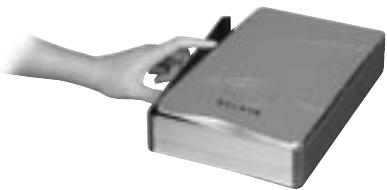
- Finish the assembly by pressing the rail into the six rectangular mounting holes in the side of the External Drive.
Important Note: If you are using Windows 98 or 98 SE, DO NOT connect the External Drive to your computer until driver installation is completed.
ASSEMBLING YOUR DRIVE ENCLOSURE
En
- Plug the square-shaped connector of the USB cable into the USB port on the rear panel of the External Drive.
- Plug the rectangular-shaped connector of the USB cable into a Hi-Speed USB 2.0 port on your computer or Hi-Speed USB 2.0 hub. You may also connect the cable to a full-speed USB 1.1 port on your computer or full-speed USB 1.1 hub.
Note: When connected to a full-speed USB 1.1 port, the maximum USB bandwidth will be 12 Mbps.
- Plug the AC power cord into the power connector on the rear panel of the External Drive, and into an AC wall outlet.
- Power on the drive.
- Proceed to Driver Installation section.
DRIVER INSTALLATION
Windows 98 SE
- Insert the installation CD into your CD-ROM drive.
- Open the Install CD.
- Run the "TPPINST.EXE" to install the drivers for your USB 2.0 External Drive.
- An installer dialog box appears. Click "Next".
- Choose "Complete" and click "Next".
- You may now connect the External Drive to your computer.
- Windows will now detect "USB Storage Adapter", and finish installation of the required device drivers.
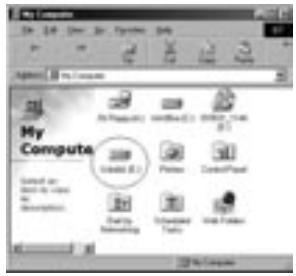
- If your new drive is already partitioned, it will now appear in the "My Computer" window as a "Removable Disk".
Note: If the removable disk option is not selected in the Device Manager Settings window, your new drive will appear as a standard Windows fixed disk.
DRIVER INSTALLATION
En
Note: If the new drive does not appear in My Computer, you may need to partition and format the drive. Please refer to the "Format the USB 2.0 External Drive" section to prepare your USB 2.0 hard disk drive.
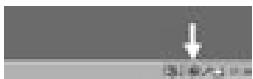
A green "Unplug or Eject Hardware" icon will appear in the system tray.
Windows Me/2000/XP
- If you are plugging the External Drive into your computer for the first time, Windows will detect "USB 2.0 Storage Device" and install the USB mass storage device class driver, which is built into Windows.
- Your new drive will now appear in the "My Computer" window as a "USB Disk".
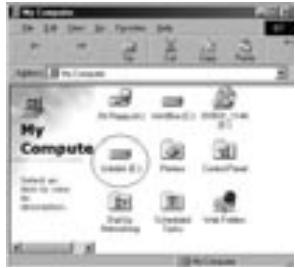
Note: If the new drive does not appear in My Computer, you may need to partition and format the drive. Please refer to the "Partition the USB 2.0 External Hard Disk" section to prepare your USB 2.0 hard disk drive.
SAFE REMOVAL OF THE USB DISK FROM WINDOWS
Windows 98
- Click the green "Unplug or Eject Hardware" icon in the system tray and select the device that you want to remove.
- When the system prompts "You may safely remove this device", unplug the USB cable from the USB port of your computer.
Windows Me/2000/XP
- Double-click on the "Unplug or Eject Hardware" icon in the system tray.
- Select the "USB Mass Storage Device" then click "Stop".
- Choose the USB 2.0 External Drive that you want to disconnect, then click on "Stop" again.
- When the system prompts "You may safely remove this device", unplug the USB cable from the USB port of your computer.
FORMAT THE USB 2.0 EXTERNAL DRIVE
En
Format under Windows 98/Me
- Boot-up the computer into the Windows operating system.
- Plug in your External Drive.
There are two methods to partition and format your USB 2.0 hard disk drive.
Control Panel Method
- Click "Start" and choose "Setting".
- Choose "Control Panel".
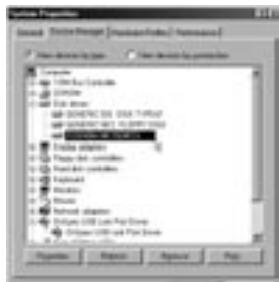
- Double-click on "System", then "Device Manager".
- The following screen will appear.
11
FORMAT THE USB 2.0 EXTERNAL DRIVE
- Select "Disk Drives". Your new hard disk will appear in the hard drive list (in this case as "Toshiba 1924FCV").
- Double-click on the entry for your hard drive. Select "Settings". The following screen will appear.
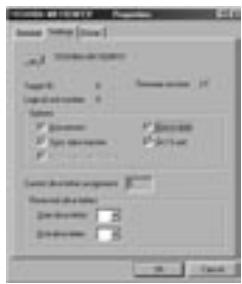
- Make sure there are check marks in the "Disconnect", "Sync Data Transfer", "Removable", and "Int 13 unit" boxes. After making these changes, it will be necessary to restart your computer.
- After Windows restarts, a "Removable Disk" icon will appear in the "My Computer" window.
- Right-click the "Removable Disk" icon and select "Format" from the drop-down list.
- Your removable hard drive is now ready for use.
Note: Using this method to format your removable hard drive will result in a single partition equal in size to the maximum rated capacity of your hard disk.
FORMAT THE USB 2.0 EXTERNAL DRIVE
En
DOS Method (Recommended for Advanced Users Only)
- Click on "Start", and choose "Programs". Select "MSDOS".
- At the DOS prompt, type "FDISK" and press "Enter".
Note: If the FDISK utility terminates without displaying an error message, exit back to Windows and disconnect the External Drive. Reboot your computer. When Windows restarts, reconnect the External Drive and go back to Step 1.
- In the opening FDISK screen, answer the question: "Do you want to enable large disk support?" Enter "Y" if you want to create a partition larger than 2GB. Enter "N" if you want to create a partition smaller than 2GB.
- The FDISK "Options" screen will now appear. Select option 5, "Change Current Fixed Disk". Select your new disk from the list of available drives.
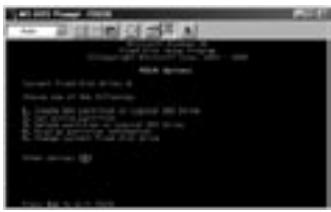
- In the "Change Current Fixed Disk Drive" screen, enter the disk drive number that is assigned to your External Drive.
FORMAT THE USB 2.0 EXTERNAL DRIVE
IMPORTANT
Be sure that you select option 5 and change the "Current Fixed Disk" from "Disk 1" to the disk number assigned to your External Drive. If your computer is equipped with only one internal drive, your new External Drive will be identified as "Disk 2". If your computer is equipped with two internal disk drives, your new External Drive will be identified as "Disk 3". Failure to follow this step will result in the loss of all data on your primary internal hard disk.
- In the steps that follow, you must specify if you want to create one partition equal to the maximum capacity of your external disk drive, or if you want to create multiple partitions.
- After completing the disk partition procedure, exit FDISK and restart Windows. Any new drives created through the disk partition procedure must now be formatted using the Windows disk format utility.
Partition under Windows 2000/XP
- To partition the USB 2.0 hard disk drive under Windows 2000, please plug in the USB 2.0 External Drive, then click on "Start", choose "Settings", then choose "Control Panel". Double-click the "Administrative Tools" icon, then double-click the "Computer Management" icon. You will see the screen on the next page.
Note: In Widows XP, click on "Start", choose "Control Panel", click on the "Performance & Maintenance" icon, click on the "Administrative Tools" icon, then click on the "Computer Management" icon.
FORMAT THE USB 2.0 EXTERNAL DRIVE
En
Note: If you are viewing the Control Panel in classic mode, proceed directly to "Administrative Tools".
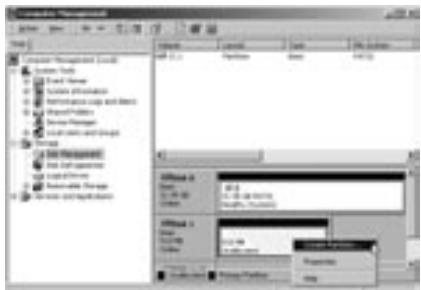
- Click on "Disk Management". All connected disk drives will be displayed in the lower right-hand corner of the "Computer Management" window. Information regarding the status of each of your disk drives will be displayed in this window. Right-click on the status bar for your new external drive to create or delete new partitions, and/or format an existing partition.
Note: When creating a new partition, a "New Partition Wizard" will start and guide you through the setup. This will also format the drive for you.
- Once the disk partition and format procedure is completed, your new External Drive is ready for use.
INFORMATION
FCC Statement
DECLARATION OF CONFORMITY WITH FCC RULES FOR ELECTROMAGNETIC COMPATIBILITY
We, Belkin Corporation, of 501 West Walnut Street, Compton, CA 90220, declare under our sole responsibility that the product: F5U209
to which this declaration relates:
Complies with Part 15 of the FCC Rules. Operation is subject to the following two conditions: (1) this device may not cause harmful interference, and (2) this device must accept any interference received, including interference that may cause undesired operation.
CE Declaration of Conformity
We, Belkin Corporation, declare under our sole responsibility that the F5U209, to which this declaration relates, is in conformity with Generic Emissions Standard EN55022 1998 and with Generic Immunity Standard EN55024 1998, LVD61000-2-3, and LVD61000-3-3.
Belkin Corporation Limited Lifetime Product Warranty
Belkin Corporation warrants this product against defects in materials and workmanship for its lifetime. If a defect is discovered, Belkin will, at its option, repair or replace the product at no charge provided it is returned during the warranty period, with transportation charges prepaid, to the authorized Belkin dealer from whom you purchased the product. Proof of purchase may be required.
This warranty does not apply if the product has been damaged by accident, abuse, misuse, or misapplication; if the product has been modified without the written permission of Belkin; or if any Belkin serial number has been removed or defaced.
THE WARRANTY AND REMEDIES SET FORTH ABOVE ARE EXCLUSIVE IN LIEU OF ALL OTHERS, WHETHER ORAL OR WRITTEN, EXPRESSED OR IMplied. BELKIN SPECIFICALLY DISCLAIMS ANY AND ALL IMPLIED WARRANTY, INCLUDING, WITHOUT LIMITATION, WARRANTY OF MERCHANTABILITY AND FITNESS FOR A PARTICULAR PURPOSE.
No Belkin dealer, agent, or employee is authorized to make any modification, extension, or addition to this warranty.
BELKIN IS NOT RESPONSIBLE FOR SPECIAL, INCIDENTAL, OR CONSEQUENTIAL DAMAGES RESULTING FROM ANY BREACH OF WARRANTY, OR UNDER ANY OTHER LEGAL THEORY, INCLUDING BUT NOT LIMITED TO LOSS PROFITS, DOWNTIME, GOODWILL, DAMAGE TO OR REPROGRAMMING, OR REPRODUCING ANY PROGRAM OR DATA STORED IN OR USED WITH BELKIN PRODUCTS.
En
BELKIN
belkin.com
Belkin Corporation
501 West Walnut Street
Compton · CA · 90220 · USA
Tel: 310.898.1100
Fax: 310.898.1111
Belkin Components, Ltd.
Express Business Park
Shipton Way • Rushden • NN10 6GL
United Kingdom
Tel: +44 (0) 1933 35 2000
Fax: +44 (0) 1933 31 2000
Belkin Components B.V.
Starparc Building • Boeing Avenue 333
1119 PH Schiphol-Rijk · The Netherlands
Tel: +31 (0) 20 654 7300
Fax: +31 (0) 20 654 7349
Belkin Components Ltd.
7 Bowen Crescent • West Gosford
NSW 2250 • Austral
Tel: +61 (0) 24372 8600
Fax: +61 (0) 24372 8603
Belkin Tech Support
US:
310.898.1100 ext. 2263
800.223.5546 ext. 2263
Europe:
0080022355460
Australia: 1800666040
P74080-em-F5U209-man_9-02.qxd 9/19/02 3:05 PM Page 18
SOMMAIRE
501 West Walnut Street
Compton · CA · 90220 · USA
Tel.: 310.898.1100
Télécopie: 310.898.1111
Belkin Components, Ltd.
Express Business Park
Shipton Way • Rushden • NN10 6GL
Royaume-Uni
Tel.: +44 (0) 1933 35 2000
Télécopie: +44 (0) 1933 31 2000
Belkin Components B.V.
Starparc Building • Boeing Avenue 333
Support technique de Belkin
US:
310.898.1100 poste 2263
800.223.5546 poste 2263
Europe: 0080022355460
Australie:1800666040
Fr
P74080-em-F5U209-man_9-02.qxd 9/19/02 3:06 PM Page 18
INHALTSVERZEICHNIS
501 West Walnut Street
Compton · CA · 90220 · USA
Tel: 310.898.1100
Fax: 310.898.1111
Belkin Components, Ltd.
Express Business Park
Shipton Way • Rushden • NN10 6GL
Großbritannien
Tel: +44 (0) 1933 35 2000
Fax: +44 (0) 1933 31 2000
Belkin Components B.V.
Starparc Building • Boeing Avenue 333
1119 PH Schiphol-Rijk · Niederlande
Tel: +31 (0) 20 654 7300
Fax: +31 (0) 20 654 7349
Belkin Components Ltd.
7 Bowen Crescent • West Gosford
NSW 2250 · Australien
Tel: +61 (0) 24372 8600
Fax: +61 (0) 24372 8603
501 West Walnut Street
Compton · CA · 90220 · Verenigde Staten
Tel: 310.898.1100
Fax:3108981111
Belkin Components, Ltd.
Express Business Park
Shipton Way • Rushden • NN10 6GL
Verenigd Koninkrijk
Tel: +44 (0) 1933 35 2000
Fax: +44 (0) 1933 31 2000
Belkin Components B.V.
Starparc Building • Boeing Avenue 333
501 West Walnut Street
Compton · CA · 90220 · USA
Tel: 310.898.1100
Fax:3108981111
Belkin Components, Ltd.
Express Business Park
Shipton Way • Rushden • NN10 6GL
Reino Unido
Tel: +44 (0) 1933 35 2000
Fax: +44 (0) 1933 31 2000
Belkin Components B.V.
Starparc Building • Boeing Avenue 333
1119 PH Schiphol-Rijk · Paises Bajos
Tel: +31 (0) 20 654 7300
Fax: +31 (0) 20 654 7349
Belkin Components Ltd.
7 Bowen Crescent • West Gosford
NSW 2250 • Austral
Tel: +61 (0) 24372 8600
Fax: +61 (0) 24372 8603
Asistencia的技术e de Belkin
501 West Walnut Street
Compton · CA · 90220 · USA
Tel: 310.898.1100
Fax:3108981111
Belkin Components, Ltd.
Express Business Park
Shipton Way • Rushden • NN10 6GL
Regno Unito
Tel: +44 (0) 1933 35 2000
Fax: +44 (0) 1933 31 2000
Belkin Components B.V.
Starparc Building • Boeing Avenue 333
1119 PH Schiphol-Rijk · Paesi Bassi
Tel: +31 (0) 20 654 7300
Fax: +31 (0) 20 654 7349
Belkin Components Ltd.
7 Bowen Crescent • West Gosford
NSW 2250 • Austral
Tel: +61 (0) 24372 8600
Fax: +61 (0) 24372 8603
Belkin Tech Support
US:
501 West Walnut Street
Compton · CA · 90220 · USA
Tel: 310.898.1100
Fax:3108981111
Belkin Components, Ltd.
Express Business Park
Shipton Way • Rushden • NN10 6GL
Reino Unido
Tel: +44 (0) 1933 35 2000
Fax: +44 (0) 1933 31 2000
Belkin Components B.V.
Starparc Building • Boeing Avenue 333
1119 PH Schiphol-Rijk · Holanda
Tel: +31 (0) 20 654 7300
Fax: +31 (0) 20 654 7349
Belkin Components Ltd.
7 Bowen Crescent • West Gosford
NSW 2250 • Austral
Tel: +61 (0) 24372 8600
Fax: +61 (0) 24372 8603