
XMOD - Audio Device CREATIVE - Free user manual and instructions
Find the device manual for free XMOD CREATIVE in PDF.


| Brand | CREATIVE |
| Model | XMOD |
| Product type | External USB audio device and portable audio amplifier |
| Connectivity | USB Mini-B, 3.5 mm stereo line-out jack, 3.5 mm stereo line-in/microphone jack, 3.5 mm stereo headphone-out jack |
| Audio technologies | X-Fi Crystalizer, X-Fi CMSS-3D (Virtual Headphone and Stereo) |
| Integrated headphone characteristics | Frequency range: 140 Hz – 20 kHz, Sensitivity: 112 dB ± 3 dB (1 mW), Impedance: 32 Ω ± 15 %, Connector: 3.5 mm stereo mini-jack |
| Power supply | Via USB (computer) or 5 V / 1 A power adapter (sold separately) |
| System compatibility | PC (Windows) and Mac |
| Main functions | USB audio playback, X-Fi amplification, volume/mute control, customizable Crystalizer and CMSS-3D levels, microphone input |
| Use with external source | Yes, via power adapter (not included) and line input |
| Restore default settings | Press and hold select button + level button until the LEDs flash three times |
| Maintenance and cleaning | Clean with a soft, dry cloth. Do not use solvents or abrasive cleaners. |
| Safety | Do not expose to water, moisture, or temperatures outside 0°C–45°C. Do not disassemble. Avoid prolonged listening at high volume to prevent hearing loss. |
| Warranty | Information in the brochure provided with the product |
| General information | External audio device, portable amplifier, no software installation required |
Frequently Asked Questions - XMOD CREATIVE
- the speakers are powered on;
- the Xmod is powered (USB or adapter);
- the volume is not muted (press the level control button);
- the headphones/speakers are properly connected;
- the headphones are unplugged if you are using the speakers.
2. Press and hold the select button and the level button until all three LEDs flash three times. Default levels are restored.
User questions about XMOD CREATIVE
0 question about this device. Answer the ones you know or ask your own.
Ask a new question about this device
Download the instructions for your Audio Device in PDF format for free! Find your manual XMOD - CREATIVE and take your electronic device back in hand. On this page are published all the documents necessary for the use of your device. XMOD by CREATIVE.
USER MANUAL XMOD CREATIVE
Your versatile Creative Xmod is an external USB audio device and portable audio enhancer that provides you with a great new listening experience.
There is no software to install, so once you connect Xmod to earphones or stereo speakers, and your PC or Mac®, you are ready to experience great audio.
Read on to learn how to get started with your new Xmod!
Contents
Your Xmod 2
Connecting Devices 3
Adjusting volume 6
Customizing X-Fi enhancement levels 6
Using a Microphone with Xmod 7
Connecting to an external stereo audio source 8
FAQs 10
More Information 12
General Specifications 13
Safety Information 14

2 Your Xmod
Your Xmod
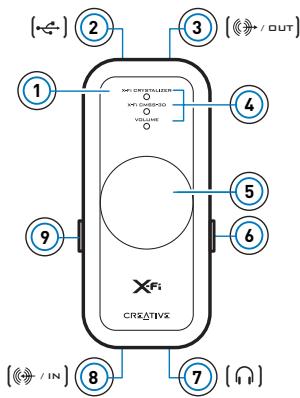
1 Select button
Press and release to switch through Volume, X-Fi CrystalizerTM or X-Fi CMSS-3D modes.
From Volume mode, press twice to adjust the X-Fi Crystalizer level, or press three times to adjust the X-Fi CMSS-3D level.
2 USB port
3 Line-Out jack
4 LED indicators
Shows you which mode you are in. The LED flashes faster or slower when you increase or decrease an X-Fi enhancement level.
The volume LED lights up in red when you mute the sound.
5 Level Control/Mute
Press to mute the sound. Press again to unmute. Turn the control to increase or decrease the volur enhancement level.
6 X-Fi CMSS-3D switch
Slide the switch to the "On" position to enjoy the X-Fi CMSS-3D enhancement.
7 Headphone jack
8 Line-In/Microphone jack
9 X-Fi Crystalizer switch
Slide the switch to the "On" position to enjoy the X-Fi Crystalizer enhancement.

Connecting Devices 3
Connecting Devices
It's easy to get great sound from your PC or Mac. Just connect Xmod to your computer, earphones or speakers, and slide the X-Fi Crystalizer and X-Fi CMSS-3D switches to the "On" position.
Connecting to your computer
Using a USB cable, connect your Xmod directly to a USB port on your computer or a USB hub.
Xmod retains the X-Fi Crystalizer and X-Fi CMSS-3D level settings from the last time you used it with your computer.
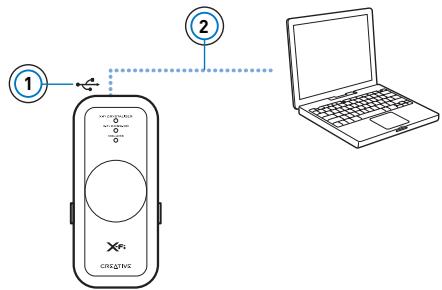
1 USB port
2 USB cable
After you have connected Xmod to your computer, you may need to set Xmod as your computer's default playback and recording device.
For PC Users
1 Click Start Control Panel Sounds and Audio Devices.
The Sounds and Audio Devices Properties dialog box appears.
2 Click the Audio tabbed page.

4 Connecting Devices
3 In the Sound Playback section, select Xmod as the default device.
4 In the Sound Recording section, select Xmod as the default device.
5 Click the Apply button to save these settings.
For Mac Users
1 Close all existing applications.
2 From the Apple Menu, select System Preferences.
3 Under Hardware, select Sound.
4 Click Output and select Creative Xmod from the list of available devices.
5 Click Input and select Creative Xmod from the list of available devices.
6 Close the Sound dialog box.
NOTES
- When you connect Xmod to your computer, audio output from your computer is channeled to Xmod.
- Before monitoring line-in recording, decrease the volume level on Xmod or from your computer.
- After connecting Xmod to your PC or Mac, connect earphones or speakers. See "Enjoying sound from Xmod" on page 5.

Connecting Devices 5
Enjoying sound from Xmod
Connect Xmod to your earphones for personal enjoyment, or to your speaker system to share the experience with everyone in the room.
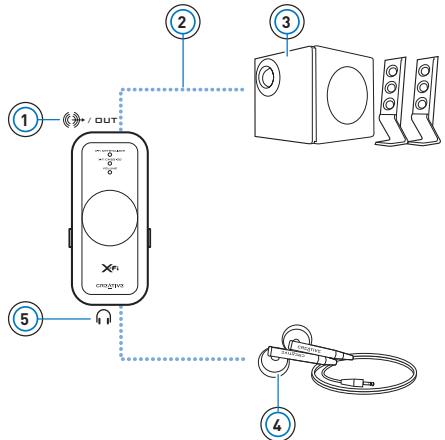
1 Line-Out jack
2 Line-Out cable with 3.5mm stereo connector (not included)
3 Stereo speakers
4 Earphones
5 Headphone jack
NOTES
- When you connect earphones and speakers at the same time, Xmod channels sound to your earphones instead of your speakers. To hear sound from your speakers, disconnect the earphones.
- For the best listening experience, position your speakers about 0.5 metres or 1.5 feet apart, and at a height around your ear level.
- Before using earphones, decrease the volume level on Xmod or from your computer.

6 Adjusting volume
Adjusting volume
Before adjusting the volume, check that the Volume LED is lit in blue. If not, press and release the Select button until the Volume LED lights up in blue. If the Volume LED is red, press the Level Control to unmute the volume.
1 Turn the Level Control clockwise or counterclockwise to increase or decrease the volume.
Customizing X-Fi enhancement levels
Customizing X-Fi Crystalizer
1 In Volume mode, press the Select button twice. The X-Fi Crystalizer LED flashes.
2 Turn the Level Control clockwise or counterclockwise to increase or decrease the level.
The higher the level, the faster the LED flashes.
Customizing X-Fi CMSS-3D
1 In Volume mode, press the Select button three times. The X-Fi CMSS-3D LED flashes.
2 Turn the Level Control clockwise or counterclockwise to increase or decrease the level.
The higher the level, the faster the LED flashes.
NOTES
- If the X-Fi Crystalizer or X-Fi CMSS-3D switches are not set to the "On" position, adjusting the levels will only have a temporary effect on the sound.
- Volume mode is the default. X-Fi Crystalizer and X-Fi CMSS-3D modes automatically switch to Volume mode after 10 seconds.

Using a Microphone with Xmod 7
Using a Microphone with Xmod
Connect a microphone to the Line-In/Microphone jack to:
- make microphone recordings of speeches, lectures or a performance.
- enjoy Voice over Internet Protocol (VoIP) applications, such as Skype™.
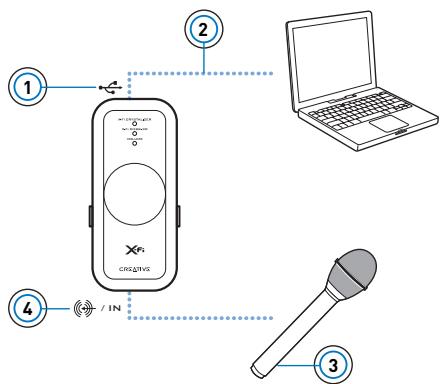
1 USB port
2 USB cable
3 Microphone
4 Line-In/Microphone jack
NOTES
- X-Fi enhancements are only available to audio output during playback, and are not applied to recordings made from the Xmod Line-In/Microphone jack.
- To adjust recording levels, use your favorite mixer or level control application for your PC or Mac.

8 Connecting to an external stereo audio source
Connecting to an external stereo audio source
External audio sources that you can connect to Xmod include MP3 players, CD players, and any other stereo audio source with a line-out jack.
Connect a power adapter (sold separately) and an external audio source to Xmod as shown in the diagram below. Disconnect Xmod from your computer before proceeding.
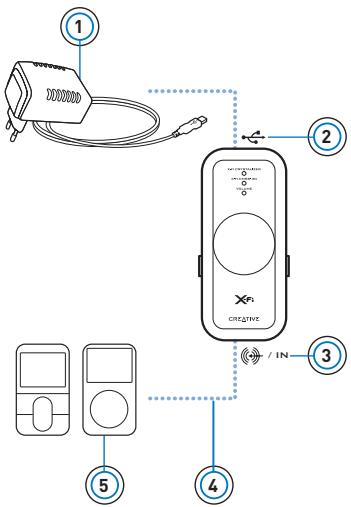
1 Power adapter (sold separately)
2 USB Connector
3 Line-In/Microphone jack
4 Line-In cable with 3.5mm connector (not included)
5 Your digital audio player or other external stereo audio source

Connecting to an external stereo audio source 9
NOTES
- Depending on your region of purchase, your power adapter may differ from the one shown here.
- If you connect both your computer and external audio source to Xmod, you will only hear sound played back from your computer.
Each time you connect Xmod to the power adapter, the volume level reverts to the default.
10 FAQs
FAQs
I can't hear any sound from my earphones or speakers.
Check that:
- your speaker system's power is turned on.
- Xmod is powered from your computer, or the power adapter.
the volume is not muted. Press the Level Control to unmute. - you have connected the earphones or speakers to Xmod. When you connect Xmod to your computer, audio output from your computer is channeled to Xmod.
- you have disconnected your earphones from Xmod. This applies only if you want to hear sound from speakers.
I've adjusted an X-Fi enhancement level, but I only hear a difference for a few seconds.
The X-Fi enhancement switches are not set to the "On" position. Slide the switch to the "On" position to enjoy the difference.
I hear audio distortion when using an X-Fi enhancement.
Depending on the type of audio source, distortion may occur when using an X-Fi enhancement at high levels. Decrease the enhancement level until the distortion goes away.
Can I use noise-cancelling headphones or other special audio-enhancing headphones with Xmod?
When using headphones or earphones with special audio-enhancing features, disable the effects on the headphones or earphones before using it with Xmod. The audio enhancements on the headphones or earphones may interfere with the X-Fi enhancements on Xmod.
FAQs 11
How do I configure DVD playback for surround sound, if I play it on my PC or Mac?
On your software DVD player, configure the player for 5.1 output.
My notebook displays a warning message when I connect Xmod.
Certain models of notebooks are highly sensitive to the amount of power initially drawn by USB-compatible devices. Creative has tested Xmod with many hardware platforms and using Xmod with your notebook will not result in damage from power draw.
How do I reset the X-Fi enhancements to their default level?
1 Press the Select button twice so that the X-Fi Crystalizer LED starts blinking.
2 Press and hold the Select button and the Level Control until all three LEDs blink three times. The enhancements are now at the default level.

12 More Information
More Information
Creative Knowledge Base
Resolve and troubleshoot technical queries at Creative's 24-hour self-help Knowledge Base. Go to www.creative.com, select your region and then select Support.
Product Registration
Registering your product ensures you receive the most appropriate service and product support available. You can register your product by filling in the registration card (where applicable) or at www.creative.com/register.
Please note that your warranty rights are not dependent on product registration.
Customer Support Services and Warranty
You can find Customer Support Services, Warranty and other information in a booklet supplied with your product.

General Specifications 13
General Specifications
Connectivity
USB Mini-B
Line Out - 3.5mm (1/8") Stereo jack
Line In / Mic in - 3.5mm [1/8"] Stereo jack
- Headphone Out - 3.5mm (1/8") Stereo jack
X-Fi Technology
X-Fi Crystalizer
X-Fi CMSS-3D Virtual
X-Fi CMSS-3D Headphone
Earphone Specifications
Frequency Range: 140Hz 20kHz
- Sensitivity: 112 dB ± 3 dB( I/P Level : 1 mW)
Impedance: 32 ohm ± 15%
Plug: 3.5mm (1 / 8^ ) stereo miniplug.
Power Adapter (sold separately)
Output Voltage: 5V + / - 5%
Output Current : 1A

14 Safety Information
Safety Information
Refer to the following information to use your product safely, and to reduce the chance of electric shock, short-circuiting, damage, fire, hearing impairment or other hazards.
NOTES Improper handling may void the warranty for your product. For more information, read the warranty available with your product.
- Do not dismantle or attempt to repair your product. Refer all servicing to authorized repair agents.
- Do not expose your product to temperatures outside the range of 0^ to 45^ (32°F to 113°F).
- Do not pierce, crush or set fire to your product.
- Keep your product away from strong magnetic objects.
- Do not subject your product to excessive force or impact.
- Do not expose your product to water or moisture. If your product is moisture-resistant, take care not to immerse your product in water or expose it to rain.
- Do not listen to audio on your earbuds or headphones at high volume for prolonged periods of time as hearing loss may result. For more information, go to www.hei.org.
- When a conductive apparatus such as earphones, is used in close proximity with a CRT television or CRT monitor, the latter may emit an electrostatic discharge. This electrostatic discharge can be felt as a static shock. While this static shock is usually harmless, it is good practice to avoid close contact with CRT devices when using earphones.

Safety Information 15
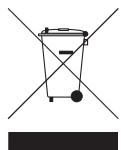
The use of the WEEE Symbol indicates that this product may not be treated as household waste. By ensuring this product is disposed of correctly, you will help protect the environment. For more detailed information about the recycling of this product, please contact your local authority, your household waste disposal service provider or the shop where you purchased the product.
Copyright © 2007 Creative Technology Ltd. All rights reserved. The Creative logo, X-Fi, CMSS and Crystalizer are trademarks or registered trademarks of Creative Technology Ltd. in the United States and/or other countries. Skype is a trademark of Skype Limited. Mac and iTunes are registered trademarks of Apple Computer, Inc.

Felicitations!
Creative Knowledge Base
Copyright © 2007 Creative Technology Ltd. Reservados todos los derechos. El logotipo de Creative, X-Fi, CMSS y Crystalizer son MARCAS MARCIAO MARCAS MARCIAO MARCAS MARCIAO MARCAS MARCIAO MARCAS MARCIAO MARCAS MARCIAO MARCAS MARCIAO MARCAS MARCIAO MARCAS MARCIAO MARCAS MARCIAO MARCAS MARCIAO MARCAS MARCIAO MARCAS MARCIAO MARCAS MARCIAO MARCAS MARCIAO MARCAS MARCIAO MARCAS MARCIAO MARCAS MARCAO MARCAS MARCAO MARCAS MARCAO MARCAS MARCAO MARCAS MARCAO MARCAS MARCAO MARCAS MARCAO MARCAS MARCAO MARCAS MARCAO MARCAS MARCAO MARCAS MARCAO MARCAS MARCAO MARCAS MARCAO MARCAS MARCAO MARCAS MARCAO MARCAS MARCAO MARCAS MARCAO MARCAS MARCAO MARCAS MARCAO MARCAS MARCAO MARCAS MARCIAO MARCAS MARCAO MARCAS MARCAO MARCAS MARCAO MARCAS MARCAO MARCAS MARCAO MARCAS MARCAO MARCAS MARCAO MARCAS MARCAO MARCAS MARCAO MARCAS MARCAO MARCAS MARCAO MARCAS MARCAO MARCAS MARCAO MARCAS MARCAO MARCAS MARCAO MARCAS MARCAO MARCAS MARCAO MARCAS MARCAO MARCASMARCAOMARCSMARCAOMARCSMARCAOMARCSMARCAOMARCSMARCAOMARCSMARCAOMARCSMARCAOMARCSMARCAOMARCSMARCAOMARCSMARCAOMARCSMARCAOMARCSMARCAOMARCSMARCAOMARCSMARCAOMARCSMARCAOMARCSMARCAOMARCSMARCAOMARCSMARCAOMARCSMARCAOMARCSMARCAOMARCSMARCAOMARCEMOARCSMARCAOMARCEMOARCSMARCAOMARCEMOARCSMARCAOMARCEMOARCSMARCAOMARCEMOARCSMARCAOMARCEMOARCSMARCAOMARCEMOARCSMARCAOMARCEMOARCSMARCAOMARCEMOARCSMARCAOMARCEMOARCSMARCAOMARCEMOARCSMARCAOMARCEMOARCSMARCAOMARCEMOARCSMARCAoMARCEMOARCSMARCAoMARCEMOARCSMARCAoMARCEMOARCSMARCAoMARCEMOARCSMARCAoMARCEMOARCSMARCAoMARCEMOARCSMARCAoMARCEMOARCSMARCAoMARCEMOARCSMARCAoMARCEMOARCSMARCAoMARCEMOARCSMARCAoMARCEMOARCSMARCAoMARCEMOARCSMARCAoMARCEMORARCSMARCAoMARCEMOARCSMARCAoMARCEMOARCSMARCAoMARCEMOARCSMARCAoMARCEMOARCSMARCAoMARCEMOARCSMARCAoMARCEMOARCSMARCAoMARCEMOARCSMARCAoMARCEMOARCSMARCAoMARCEMOARCSMARCAoMARCEMOARCSMARCAoMARCEMOARCSMARCAoMARCEMOARCSMARCAeMORAMCRS MOrAeMORAMCRS MOrAeMORAMCRS MOrAeMORAMCRS MOrAeMORAMCRS MOrAeMORAMCRS MOrAeMORAMCRS MOrAeMORAMCRS MOrAeMORAMCRS MOrAeMORAMCRS MOrAeMORAMCRS MOrAeMORAMCRS MOrAee
