
B2 - Gps NAVMAN - Free user manual and instructions
Find the device manual for free B2 NAVMAN in PDF.



User questions about B2 NAVMAN
0 question about this device. Answer the ones you know or ask your own.
Ask a new question about this device
Download the instructions for your Gps in PDF format for free! Find your manual B2 - NAVMAN and take your electronic device back in hand. On this page are published all the documents necessary for the use of your device. B2 by NAVMAN.
USER MANUAL B2 NAVMAN
B2-Series Hands-free Module User Manual
with Bluetooth® wireless technology
F-Series | N-Series

© 2007 Brunswick New Technologies Asia Pte Limited. Navman is a registered trademark of Brunswick New Technologies Asia Pte Limited and is used under licence by Navman New Zealand. Navman is part of the Brunswick Corporation, headquarters Chicago, IL. All rights reserved.
The software contains proprietary information of Navman; it is provided under a licence agreement containing restrictions on use and disclosure and is also protected by copyright law. Reverse engineering of the software is prohibited.
No part of this publication may be reproduced, stored in a retrieval system, or transmitted in any form or by any means, electronic, mechanical, photocopying, recording or otherwise, without the prior written permission of Navman.
Back-ON-Track, Drive-Away, NavPix, SmartST and Turn-by-Turn are either registered trademarks or trademarks of Brunswick New Technologies Asia Pte Limited and are used under licence by Navman New Zealand. All rights reserved.
The Bluetooth word mark and logos are owned by the Bluetooth SIG, Inc. and any use of such marks by Navman New Zealand is under license.
Adobe and Adobe Reader are either registered trademarks or trademarks of Adobe Systems Incorporated in the United States and/or other countries. All rights reserved.
All other trademarks and registrations are the property of their respective owners.
Published in New Zealand.
Disclaimer
Due to continued product development this information may change without notice. Navman does not warrant that this document is error-free.
The screenshots and other presentations shown in this manual may differ from the actual screens and presentations generated by the actual product. All such differences are minor and the actual product will deliver the described functionality as presented in this User Manual in all material respects.
Compliance

WARNING This product, its packaging and its components contain chemicals known to the State of California to cause cancer, birth defects or reproductive harm. This Notice is being provided in accordance with California's Proposition 65.
The manufacturer is not responsible for any radio or tv interference caused by unauthorized modifications to this equipment. Such modifications could void the user's authority to operate the equipment.
This device complies with part 15 of the FCC Rules. Operation is subject to the following two conditions: (1) This device may not cause harmful interference, and (2) this device must accept any interference received, including interference that may cause undesired operation.
Important safety information
WARNING
Removing original equipment, adding accessories or modifying your vehicle could affect the vehicle's safety or make it illegal to operate in some jurisdictions.
Follow all product instructions and all instructions in your vehicle owner's manual regarding accessories or modifications.
Consult your country's and/or state's laws regarding operation of a vehicle with any accessories or modifications.
Do not mount the B2 or attach the antenna in a way that may interfere with the driver's view, the safe operation of the vehicle, deployment of air bags or other safety equipment.
Do not attempt to attach the B2 or attach or adjust the antenna while driving.
Before you use the B2 for the first time, familiarize yourself with your device and its operation.
CAUTION
Do not handle the B2 while it is hot. Let the product cool, out of direct sunlight.
CAUTION
Do not expose the B2 to direct sunlight in an unattended vehicle for prolonged periods. Overheating may damage the unit.
To discourage theft, do not leave the B2, mounting bracket or any cables in plain view in an unattended vehicle.
Failure to adhere to these warnings and cautions may lead to death, serious injury or property damage. Navman disclaims all liability for installation or use of the B2 that causes or contributes to death, injury or property damage or that violates any law.
Welcome
Thank you for purchasing the Navman B2 module. The B2 attaches to your Navman mounting bracket to provide you with Bluetooth® hands-free access to your mobile phone or PDA while driving. Use this manual to learn how to operate your B2 efficiently and safely, and discover the range of features available to you.
Traffic
If your B2 has traffic capability, see the applicable traffic user manual on the enclosed CD.
To install the traffic antenna in your vehicle, see the enclosed In-Car Installation Guide.
Box Contents
| Item | Item | ||
| B2 module | Traffic antenna including: • Traffic FM Antenna • 4 FM antenna fixing pads (including two for second vehicle) Note: The antenna and fixing pads are only supplied with models that support traffic. | ||
| CD containing: • Traffic User Manuals • Adobe Reader® 7 Note: The CD is only supplied with models that support traffic. | Documentation including: • B2 User Manual • In-Car Installation Guide • Limited Warranty Agreement |
Getting to know the B2
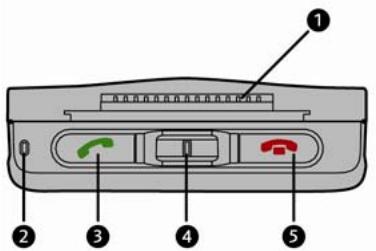
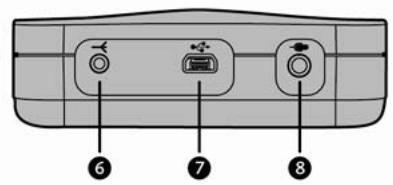
This section describes the components of your B2. Not all features are available on all models. We recommend that you familiarize yourself with your B2's basic operations before use.
| Component | Description | |
| 1 | Hot shoe plate | Connection plate for your Navman. |
| 2 | Microphone | Receives conversation and voice commands. |
| 3 | • Begins a call using voice recognition • Accepts incoming calls • Selects Voice Menu options • Redials last number called • Changes between two calls • Changes call from B2 to phone or PDA, and back again. Note: If you have not recorded any keywords, pressing will access the Record keywords section of the Voice Menu. | |
| 4 | Control switch | Accesses and navigates the Voice Menu. It can be pushed left or right, or pressed (like a button).Press to access the Voice MenuPush left or right to navigate through the options, then press to select an optionPress to select Voice Menu optionsPush left or right during a call to adjust volume. |
| 5 | Ends callsRejects incoming callsExits the Voice Menu and sub-menus. | |
| 6 | Connection socket for the traffic antenna which allows the B2 to receive TMC traffic signals.Note: Only applicable for models that support traffic. | |
| 7 | USB connection socket for the following:AC power-pack to supply power from the mains/line power when updating softwareIn-vehicle power adaptor to supply power from the vehicle power socketUSB cable to connect to your computer when updating software (do not make or receive a call while connected to your computer via USB cable).Note: The AC power-pack, in-vehicle power adaptor and USB cable may have been supplied with your B2, depending on the model. They are also sold separately. | |
| 8 | Socket for external microphone (external microphone sold separately). |
Getting Started
Before you can use the B2 to provide hands-free access to your mobile phone or PDA, you must establish a secure connection between both devices. This process is called "pairing".
How do I pair the B2 with my phone or PDA?

WARNING NOTICE TO DRIVERS IN CALIFORNIA AND MINNESOTA: State law prohibits drivers in California and Minnesota from mounting objects on their windshields while driving. Other Navman mounting options are recommended and an alternative mounting option is included in this box. Navman does not take any responsibility for any fines, penalties, or damages that maybe incurred as a result of disregarding this notice. See California Vehicle Code Section 26708(a); Minnesota Statutes 2005, Section 169.71.
- Position the Navman and B2 in your vehicle according to the instructions in the In-Car Installation Guide.
- Ensure the in-car vehicle adaptor (supplied with your Navman) is plugged into the B2 socket.
Caution: Please ensure that the B2 does not obstruct the driver's view, or interfere with the operation of the vehicle airbags and safety devices. - If you are pairing with a phone or PDA that supports the Bluetooth Hands-free profile, continue to step 3. If you are pairing with a phone or PDA that only supports the Bluetooth Headset profile, press and hold + Control switch for three seconds. The and buttons will both flash. The B2 will be visible to all Bluetooth devices for 3 minutes.
- Turn on Bluetooth on your phone or PDA, then search for near-by Bluetooth devices.
For more information on searching for Bluetooth devices, see the user manual supplied with your phone or PDA.
- Select Navman B2-Series from the list of local Bluetooth devices.
If you are prompted for a passkey or device PIN, enter 1234.
When pairing has completed, the B2 will say "Pairing successful". From now on, when the B2 is turned on, it will automatically detect and pair with your phone or PDA if it is in close proximity (if you have paired the B2 with more than one phone or PDA, it will pair with the one most recently used). The B2 will beep when successfully paired with your phone or PDA.
Note: Your language will be automatically selected on the B2 if your phone or PDA supports this feature; otherwise, you can select the language yourself (see "Voice Menu" on page 10).
How many devices can I pair with my B2?
You can pair up to five phones or PDAs with your B2, although only one phone or PDA may be paired with the B2 at any one time. If you attempt to pair a sixth phone or PDA, you will hear the message "Memory full". To clear the memory, you must press and hold + for three seconds.
Note: Clearing the memory will delete all contacts and keywords.
Basic functions
Note: The use of voice recognition, redial and changing calls between the B2 and your phone or PDA, depend on the model of phone or PDA you are using.
Making a call manually
Enter the number using your phone or PDA, then start the call. The call will automatically change to hands-free mode using the B2.
Note: If the call does not change to the B2, press .
Making a call using voice recognition
Before you can make a call using voice recognition, you must have first recorded the correct keywords (see "Voice recognition" on page 11) and added at least one contact to the B2.
- Press
- After the beep, clearly say the name of the person you want to call.
- If the contact has more than one number assigned to it, clearly say the category of the number after the second beep, for example, "home", "work", "cellular", etc.
The B2 will place the call via your phone or PDA.
Receiving a call
When an incoming call is received on the B2, you will hear a ringtone and see the and buttons flash.
Note: Some versions of the Navman F-Series models may display Caller ID information on-screen when a call is received.
- Press to answer the call.
Press to reject the call.
Using call-waiting
When an incoming call is received while you are already on a call, you will hear a ringtone and see the and buttons flashing.
- Press to change to the incoming call. Press again to change between calls.
- Press to reject the incoming call.
Ending a call
To end a call, press
- When using call-waiting, press to end the current call.
Redialling the last number you called
To redial the number you last called, press and hold for two seconds.
Adjusting the volume
The B2 will default to the level of volume used when it was last paired with the same phone or PDA.
- To adjust the volume during a call, push the Control switch right to increase volume or left to decrease volume. You can also adjust volume using the volume control on your phone or PDA.
To adjust volume at other times, use the Voice Menu (see "Voice Menu" on page 10).
Changing the call to your phone or PDA
To change a call from the B2 to your phone or PDA, press
You can then change the call back to the B2 by pressing again.
Sending tone sounds for voice mail and other services
To use voice mail and other phone-based services, you can use the B2 to send tone sounds:
- During a call, press the Control switch. The B2 will say "0".
- Push the Control switch left or right to navigate through the numbers and symbols.
- To send a number or symbol, push the Control switch.
Voice Menu
The Voice Menu is used to configure the B2 settings.
- To access the Voice Menu, press the Control switch.
- To navigate through the menu, push the Control switch left or right.
- To select an option or access a sub-menu, press or the Control switch.
Note: You cannot access the Voice Menu during a call.
Language
Select your preferred language for the B2.
Available languages include: UK English, US English, French, Spanish, Italian, German, Dutch, Swedish and Danish.
Volume
Increase or decrease the volume of the B2. A beep will sound to indicate the volume level.
Add contact
Allows the B2 to receive contacts from your phone or PDA (see "Adding contacts to the B2" on page 12).
Record keywords
Enter spoken keywords for voice recognition (see "Voice recognition" on page 11).
Update software by Bluetooth
Allows the B2 software to be updated via Bluetooth. Updating the software can help improve performance and ensure that the B2 is compatible with the latest models of Bluetooth phones and PDAs.
To update the B2, visit support.navman.com.
Voice recognition
The B2 has the ability to understand spoken keywords and contact names by using voice recognition. Before you can use voice recognition, you must record the keywords.
How do I record the keywords?
- Navigate through the Voice Menu to the Record keywords sub-menu, then press
-
When the B2 says "Record all keywords", press again, then follow the voice prompts.
-
When asked to say a keyword, ensure that you speak clearly.
- If one or more keywords have already been recorded, the B2 will begin with the first keyword that has not yet been recorded.
-
To skip a keyword, push the Control switch left or right.
-
You can exit the Voice Menu at any time by pressing
Adding contacts to the B2
You can make calls to your contacts using voice recognition. To do this, you must send contact information from your phone or PDA to the B2. The B2 can store information for up to 400 contacts (contacts cannot be shared between paired phones and PDAs).
Note: You must record the voice recognition keywords (see "Voice recognition" on page 11) before you can send contact information to the B2.
How do I send contact numbers from my phone or PDA to the B2?
Note: You can only send contact information for one contact at a time.
- Navigate through the Voice Menu to the Receive contacts sub-menu, then press The Bluetooth connection between the B2 and your phone or PDA is disconnected.
- Go to the Phone book, Address book or Contact list on your phone or PDA and select the contact to send to the B2.
- Press Options, then Send by Bluetooth.
Note: The method of selecting and sending a contact to the B2 by Bluetooth may differ depending on your model of phone or PDA.
- Select Navman B2-Series from the list of local Bluetooth devices.
If you are prompted for a passkey or device PIN, enter 1234.
- Follow the prompts from the B2 to record a name for the contact. The correct categories will be assigned to the contact's numbers automatically.
You can now call a contact using voice recognition.
How do I update contact numbers on my B2?
You can update the numbers assigned to a contact by resending the contact from your phone or PDA. You can not delete a contact.
Support information
Online support
For 24/7 help and support with Navman products, visit our Technical Support website at: support.navman.com
You will find a fully searchable Frequently Asked Questions (FAQs) section for all Navman products.
At least 90% of our customers find answers to their questions at support.nayman.com, however if you require further support, you can use the online email option to contact us.
Phone support
If you would like to speak to a member of our Technical Support team, please call the following number for your region:
United Kingdom, Ireland and International
+44 (0) 1293780950
Monday to Friday: 09.00 - 17.30 UK time (10.00 - 18.30 Central European Time)
North America
+1-866-9NAVMAN (866-962-8626)
Monday to Friday: 9.00am - 6.00pm Eastern time
Australia
+61298799000
Monday to Friday: 8.30am - 5.00pm Eastern Standard Time.
New Zealand
0800 GO NAVMAN (from NZ only)
Monday to Friday: 9.00am - 5.00pm

© 2007 Brunswick New Technologies Asia Pte Limited. Navman er et registreter varemaerkie tihorende Brunswick New Technologies Asia Pte Limited og anwendes under licens of Navman New Zealand. Alle rettigheder forbeholdes.
Se California Vehicle Code Section 26708(a); Minnesota Statutes 2005, Section 169.71.
Assistance technique
Update software by Bluetooth
- B2-Series Hands-free Module User Manual
- F-Series | N-Series
- Disclaimer
- Compliance
- Important safety information
- WARNING
- CAUTION
- Welcome
- Traffic
- Box Contents
- Getting to know the B2
- Getting Started
- How do I pair the B2 with my phone or PDA?
- How many devices can I pair with my B2?
- Basic functions
- Making a call manually
- Making a call using voice recognition
- Receiving a call
- Using call-waiting
- Ending a call
- Redialling the last number you called
- Adjusting the volume
- Changing the call to your phone or PDA
- Sending tone sounds for voice mail and other services
- Voice Menu
- Language
- Volume
- Add contact
- Record keywords
- Update software by Bluetooth
- Voice recognition
- How do I record the keywords?
- Adding contacts to the B2
- How do I send contact numbers from my phone or PDA to the B2?
- How do I update contact numbers on my B2?
- Support information
- Online support
- Phone support
- North America
- Australia
- New Zealand
- Assistance technique
Brand : NAVMAN
Model : B2
Category : Gps