
ILP - Audio converter ION - Free user manual and instructions
Find the device manual for free ILP ION in PDF.


| Product Type | Turntable with analog-to-digital converter |
| Brand | ION |
| Model | ILP |
| Compatible with | iPhone 4S, iPhone 4, iPad 2, iPad, iPod touch (4th generation) |
| Power supply | Included AC adapter (power cable) |
| Audio outputs | RCA output (line level), USB output |
| Playback speeds | 33, 45 and 78 RPM |
| Autostop function | Yes, switchable |
| Box contents | USB cable, power cable, software CD, quick start guide, safety instructions and warranty |
| Included software | EZ Vinyl/Tape Converter (for PC/Mac), EZ VINYL & TAPE CONVERTER app (iOS, App Store download) |
| Recording | To iOS device (via docking station) or computer (via USB) |
| Listening while playing | Via computer speakers, headphone output of connected device, or RCA outputs to stereo system |
| Speed adjustment | Adjustment screw under the turntable (access after removing rubber pads) |
| Maintenance and cleaning | Remove plastic stylus guard before use; clean with a soft, dry cloth |
| Safety | Do not connect RCA outputs to a phono input; use only line inputs |
| Repairability | Contact ION Audio technical support or the retailer before returning the product |
| Weight | Approximately 2.5 kg (estimate) |
| Dimensions (approx.) | 420 × 350 × 120 mm (estimate) |
Frequently Asked Questions - ILP ION
User questions about ILP ION
0 question about this device. Answer the ones you know or ask your own.
Ask a new question about this device
Download the instructions for your Audio converter in PDF format for free! Find your manual ILP - ION and take your electronic device back in hand. On this page are published all the documents necessary for the use of your device. ILP by ION.
USER MANUAL ILP ION
Make sure that the items listed below are included in the box:
iLP
USB cable
Power adapter
- Software CD
Quickstart Guide
Safety Instructions & Warranty Information
READ SAFETY INSTRUCTION BOOKLET BEFORE USING THE PRODUCT
Go to http://www.ionaudio.com for product registration.
USING iLP WITH YOUR iPhone®, iPad®, or iPod touch®
IMPORTANT!
iLP is compatible with the following iOS devices (not included):
iPhone 4S
iPhone 4
iPad 2
- iPad
- iPod touch (4th generation)
Note: iLP's dock will not charge a connected iOS device.
RECORDING
To record music to your iOS device, you can use the EZ VINYL & TAPE CONVERTER app - available for download in the App Store.
- Make sure iLP is not connected to your computer.
- With the ION EZ VINYL & TAPE CONVERTER app downloaded to your iOS device, connect your iOS device to iLP's dock.
- Connect iLP to a power outlet and turn it on.
- On your iOS device, open EZ Converter.
- Follow the on-screen instructions to set up your recording. When prompted to play your music, move iLP's tonearm over the record to start playback.
Note: To listen to a record while it's playing, connect iLP's RCA outputs to a stereo system or powered speakers. Do not connect them to phono-level inputs; iLP's RCA outputs are line-level and could damage a device with phono-level inputs.
- When you have finished recording, raise iLP's tonearm from the record and return it to its arm clip.
PLAYBACK
You can listen to the music on your iOS device through its internal speaker or through headphones connected to it. To do this you must first undock your iOS device from iLP. iLP's RCA outputs do not send out any signal from your iOS device.
To listen to a record while it's playing, connect iLP's RCA outputs to a stereo system or powered speakers. Do not connect them to phono-level inputs; iLP's RCA outputs are line-level and could damage a device with phono-level inputs.
USING iLP WITH YOUR COMPUTER
RECORDING
To record music to your computer, you can use ION EZ Vinyl/Tape Converter. EZ Vinyl/Tape Converter conveniently saves your recordings in your iTunes® library. After you finish converting your vinyl, you can then burn to CD or load onto portable media devices.
To install the software, insert the included CD into your computer, and follow the on-screen instructions.
- Make sure an iOS device (iPhone, iPad, or iPod touch) is not connected to iLP's dock.
- With EZ Vinyl/Tape Converter installed on your computer, use the included USB cable to connect iLP's USB port to an available USB port on your computer.
- Connect iLP to a power outlet and turn it on.
- On your computer, you can open EZ Vinyl/Tape Converter by going to Start Menu All Programs (Windows) or the Applications menu (Mac).
- Follow the on-screen instructions to set up your recording. When prompted to play your music, move iLP's tonearm over the record to start playback.
Note: To listen to a record while it's playing, listen through your computer's speakers, or connect iLP's RCA outputs to a stereo system or powered speakers. Do not connect them to phono-level inputs; iLP's RCA outputs are line-level and could damage a device with phono-level inputs.
- When you have finished recording, raise iLP's tonearm from the record and return it to its arm clip.
Visit www.ionaudio.com/computer-optimization for more information on optimizing your computer for audio.
PLAYBACK
You can listen to the music on your computer through its internal speakers or through headphones connected to it. (iLP cannot be used as a playback device for your computer's audio.)
To listen to a record while it's playing, listen through your (connected) computer's speakers, or connect iLP's RCA outputs to a stereo system or powered speakers. Do not connect them to phono-level inputs; iLP's RCA outputs are line-level and could damage a device with phono-level inputs.
FEATURES
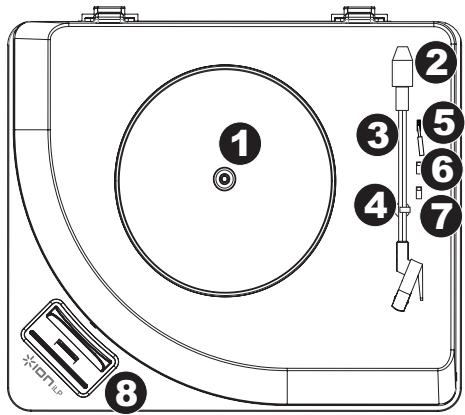
- Platter - Place your record here.
- Counterweight - Controls how much weight is applied to the tonearm. If the tonearm is skipping over the record during playback, try adjusting this counterweight by turning it so it moves more "into" the tonearm. This places more weight on the cartridge to help prevent it from lifting off of the record.
- Tonearm - The tonearm can be raised and lowered by hand, or by pressing the raise / lower lever. Please note that the tonearm needs to be moved away from resting position (on the arm clip) for the turntable motor to activate. When the tonearm is placed back in its resting position, the turntable motor will deactivate.
- Arm Clip - This specially designed arm clip secures the tonearm while at rest or when not in use. The arm clip has been designed to remain in the up position while unlocked.
- Raise / Lower Lever - Raises and lowers the tonearm.
- 33/45/78 Switch* - This switch controls the RPM of the turntable platter.
- Autostop switch - This switch turns autostop on or off. When autostop is on, the platter will start spinning when the tonearm is placed over the record and stop spinning when the record has reached the end. (When autostop is off, the platter will always spin regardless of the position of the tonearm.)
- Dock - Connect your iOS device (not included) here to record audio to it from your vinyl. Please see the USING iLP WITH YOUR iPhone, iPad, or iPad touch section of this manual for information on compatible iOS devices and how to record to them.
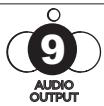
- RCA Output** - The audio from a playing vinyl record is sent to this line-level coaxial audio output. This must not be connected to phono level devices.
- USB Audio Output - Use the included USB cable to connect your turntable to your computer. The USB connection will send audio from the turntable to your computer. Please see the USING ILP WITH YOUR COMPUTER section of this manual for information.
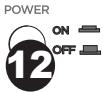
- Power - Use the included adapter to connect to wall power.
- Power Button - Press this button to turn iLP on/off.


IMPORTANT: Remove the plastic cartridge cover (needle cover) before operating the turntable.
**WARNING: The RCA outputs are LINE level. Please only connect these to LINE level inputs. You may damage your receiver if you plug in a LINE level device into a PHONO level input.
- If needed, you may adjust the speed of the turntable platter. On the underside of iLP, remove the rubber pads and tighten/loosen the appropriate screw with a screwdriver.
TROUBLESHOOTING
If you experience any difficulties, please refer to the troubleshooting steps below as well as those in the EZ Vinyl/Tape Converter manual included with this product.
I'm not hearing any audio when recording:
If you are recording to an iOS device:
o Make sure that iLP is powered on and that the needle is on the record.
Connect ILP's RCA outputs to a stereo system or powered speakers. (Do not connect them to phono-level inputs; ILP's RCA outputs are line-level and could damage a device with phono-level inputs.)
o Make sure iLP is not connected to your computer's USB port, then "power cycle" iLP (turn it off then on again).
If you are recording to a computer:
o Make sure that iLP is powered on and that the needle is on the record.
o Make iLP is selected as your computer's default recording device (see the instructions below).
If you are listening through your computer's speakers, make sure those speakers are selected as your computer's default playback device (see the instructions below). Alternatively, you could connect iLP's RCA outputs to a stereo system or powered speakers. Do not connect them to phono-level inputs; iLP's RCA outputs are line-level and could damage a device with phono-level inputs. (Note: The RCA outputs monitor the signal coming out of the turntable, not the signal coming from your computer.)
- Make sure an iOS device is not connected to iLP's dock, then "power cycle" iLP (turn it off then on again). Also, disconnect then reconnect the USB cable connecting iLP to your computer.
I'm not hearing any audio when playing music:
If you are playing music from vinyl:
o Make sure that iLP is powered on and that the needle is on the record.
o Connect ILP's RCA outputs to a stereo system or powered speakers. (Do not connect them to phono-level inputs; ILP's RCA outputs are line-level and could damage a device with phono-level inputs.)
If you are playing music from your computer:
o Make sure your software music player's volume is turned up.
o Make sure your computer's volume is turned up.
o Make sure your computer's speakers are selected as your computer's default playback device (see the instructions below). (ILP cannot be used as a playback device for your computer's audio.)
If you are playing music from an iOS device:
o Make sure your iOS device's volume is turned up. (When connected to iLP's dock, an iOS device will not play audio out of ILP's RCA outputs or out of a connected computer.)
I am hearing a Hum through my speaker, laptop, or iOS device when using the turntable:
If you are recording to a laptop:
- Please connect the laptop to a grounded power supply (3 prong)
If you are playing through a speaker:
Please connect to a grounded (3 prong) power supply.
If you are recording to iPhone or iPad:
- Use the USB cable to connect ILP to a computer that is plugged into grounded power supply, or use RCA cables to connect ILP to a grounded receiver or speaker system.
SETTING YOUR COMPUTER'S SOUNDCARD AS THE DEFAULT PLAYBACK DEVICE
Windows XP: Click Start Menu Control Panel (or Settings Control Panel in Classic View) Sound and Audio Devices. Click the Audio tab and under Sound playback, select your computer's soundcard as the default device.
- Windows Vista: Click Start Menu Control Panel (or Settings Control Panel in Classic View) Hardware and Sound Sound. Click the Playback tab and select your computer's soundcard as the default device.
- Windows 7: Click Start Menu Control Panel Sound. Click the Playback tab and select your computer's soundcard as the default device.
- Mac: Click the upper-left "apple" icon then click System Preferences Sound. Click the Output tab. From the menu, select Internal Speakers if you are using the computer's internal speakers or select Headphones if you are using speakers or headphones attached to the computer's 1/8" headphone output.
SETTING iLP AS THE DEFAULT RECORDING DEVICE
Windows XP: Click Start Menu Control Panel (or Settings Control Panel in Classic View) Sound and Audio Devices. Click the Audio tab and under Sound recording, select iLP as the default device.
- Windows Vista: Click Start Menu Control Panel (or Settings Control Panel in Classic View) Hardware and Sound Sound. Click the Recording tab and select ILP as the default device.
- Windows 7: Click Start Menu Control Panel Sound. Click the Recording tab and select iLP as the default device.
Mac: Click the upper-left "apple" icon then click System Preferences Sound. Click the Input tab. From the menu, select iLP as the device.
BEFORE RETURNING THE PRODUCT, please contact ION Audio or your retailer for technical support. Contact information can be found in the Safety Instruction Booklet included with this product.
www.ionaudio.com/iLP
GUIDE D'UTILISATION RAPIDE (FRANÇAIS)
www.ionaudio.com/iLP
GUIDA RAPIDA (ITALIANO)
www.ionaudio.com/iLP
www.ionaudio.com/iLP
SNELSTARTGIDS (NEDERLANDS)
ILP INSTellen ALS STANDAARD OPNAMEAPPARAAT
www.ionaudio.com/iLP
SPECIFICATIONS
POWER: 12v DC, 1A, center pin-positive, tip-negative
DIMENSIONS: 15^ × 12.5^ × 4^ (381 mm x 317.5 mm x 101.6 mm)
WEIGHT: 7 lbs. (3.2kg)
www.ionaudio.com
- READ SAFETY INSTRUCTION BOOKLET BEFORE USING THE PRODUCT
- USING iLP WITH YOUR iPhone®, iPad®, or iPod touch®
- IMPORTANT!
- RECORDING
- PLAYBACK
- USING iLP WITH YOUR COMPUTER
- FEATURES
- TROUBLESHOOTING
- If you experience any difficulties, please refer to the troubleshooting steps below as well as those in the EZ Vinyl/Tape Converter manual included with this product.
- I'm not hearing any audio when recording:
- I'm not hearing any audio when playing music:
- I am hearing a Hum through my speaker, laptop, or iOS device when using the turntable:
- SETTING YOUR COMPUTER'S SOUNDCARD AS THE DEFAULT PLAYBACK DEVICE
- SETTING iLP AS THE DEFAULT RECORDING DEVICE
- GUIDE D'UTILISATION RAPIDE (FRANÇAIS)
- GUIDA RAPIDA (ITALIANO)
- SNELSTARTGIDS (NEDERLANDS)
- ILP INSTellen ALS STANDAARD OPNAMEAPPARAAT
- SPECIFICATIONS
Brand : ION
Model : ILP
Category : Audio converter