
MASTER CHESS - Chess SAITEK - Free user manual and instructions
Find the device manual for free MASTER CHESS SAITEK in PDF.


| Product type | Electronic chess game |
| Brand | SAITEK |
| Model | MASTER CHESS |
| Dimensions (L × W × H) | 34 × 26 × 3.2 cm |
| Weight | Approximately 1 kg (with batteries) |
| Power supply | 6 AA batteries (type AM3/R6) or optional AC adapter 9V 300mA (center positive) |
| Display | 48-segment LCD (Liquid Crystal Display) |
| Main features | 64 playing levels, Two-Player mode, Trainer mode, problem solving up to mate in 8 moves, memory of 200 half-moves, move suggestion, clock with countdown, power saving options |
| Playing levels | Classic (1s to 15 min), Tournament (1h30 to 3h, 35-50 moves), Blitz (5 to 90 min), Fun (1 to 7s), Infinite, Problem solving (mate in 1 to 8 moves), Training (depth 1 to 16 half-moves) |
| Sensors | Pressure-sensitive board with sensors on each square |
| Move display | 16 LED lights and LCD screen showing departure and arrival squares |
| Memory | Retains position and last 200 half-moves for one year (batteries installed) |
| Care and cleaning | Clean with a dry cloth. Do not use chemicals. Protect from moisture and extreme temperatures. |
| Safety | Use only the recommended AC adapter (center positive). Replace used batteries quickly to avoid leaks. |
| Spare parts and repairability | No spare parts provided. The device contains no user-serviceable parts. For repairs, contact an authorized service center. |
| General information | Manual available in multiple languages. Estimated weight. Optional AC adapter. Manufacturer's warranty. |
Frequently Asked Questions - MASTER CHESS SAITEK
User questions about MASTER CHESS SAITEK
0 question about this device. Answer the ones you know or ask your own.
Ask a new question about this device
Download the instructions for your Chess in PDF format for free! Find your manual MASTER CHESS - SAITEK and take your electronic device back in hand. On this page are published all the documents necessary for the use of your device. MASTER CHESS by SAITEK.
USER MANUAL MASTER CHESS SAITEK
To play a game of chess right away, without reading the entire manual first, simply follow these Quick Start steps!
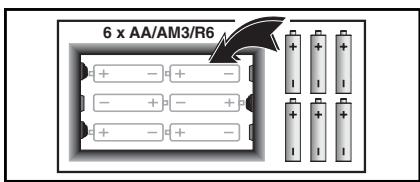
1 Insert six "AA" (Type AM3/R6) batteries into the computer, making sure to observe the correct polarity. If desired, you may also purchase an optional AC adapter for use with this unit.
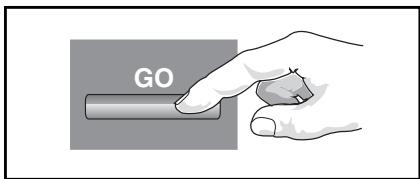
2 Press GO to turn the game on. If the computer does not respond, press into the hole marked ACL at the top edge of the unit (next to the adapter socket), as described in Sections 1.1 or 7.1.
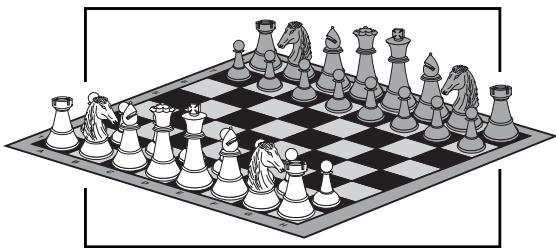
3 Set up the chess pieces in the initial starting position for a new game, with the White pieces closest to you.
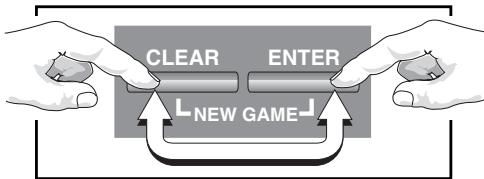
4 To reset the computer for a NEW GAME of chess, simultaneously press the CLEAR and ENTER keys.
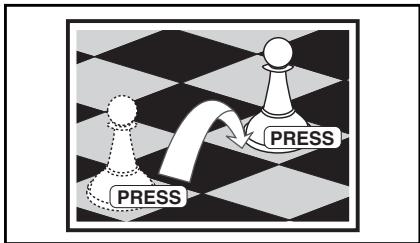
5 Enter moves by executing them on the board, pressing the chess pieces down gently on the from and to squares for each move.
As soon as the computer makes a move, that move is shown in the display window. Two board lights also come on to point to the row and column of the piece to be moved. Press the computer's piece lightly onto the indicated from and to squares to complete the computer's move. That's all there is to it! Make your next move as described above. Press STOP at any time to turn the computer off. Enjoy your game!
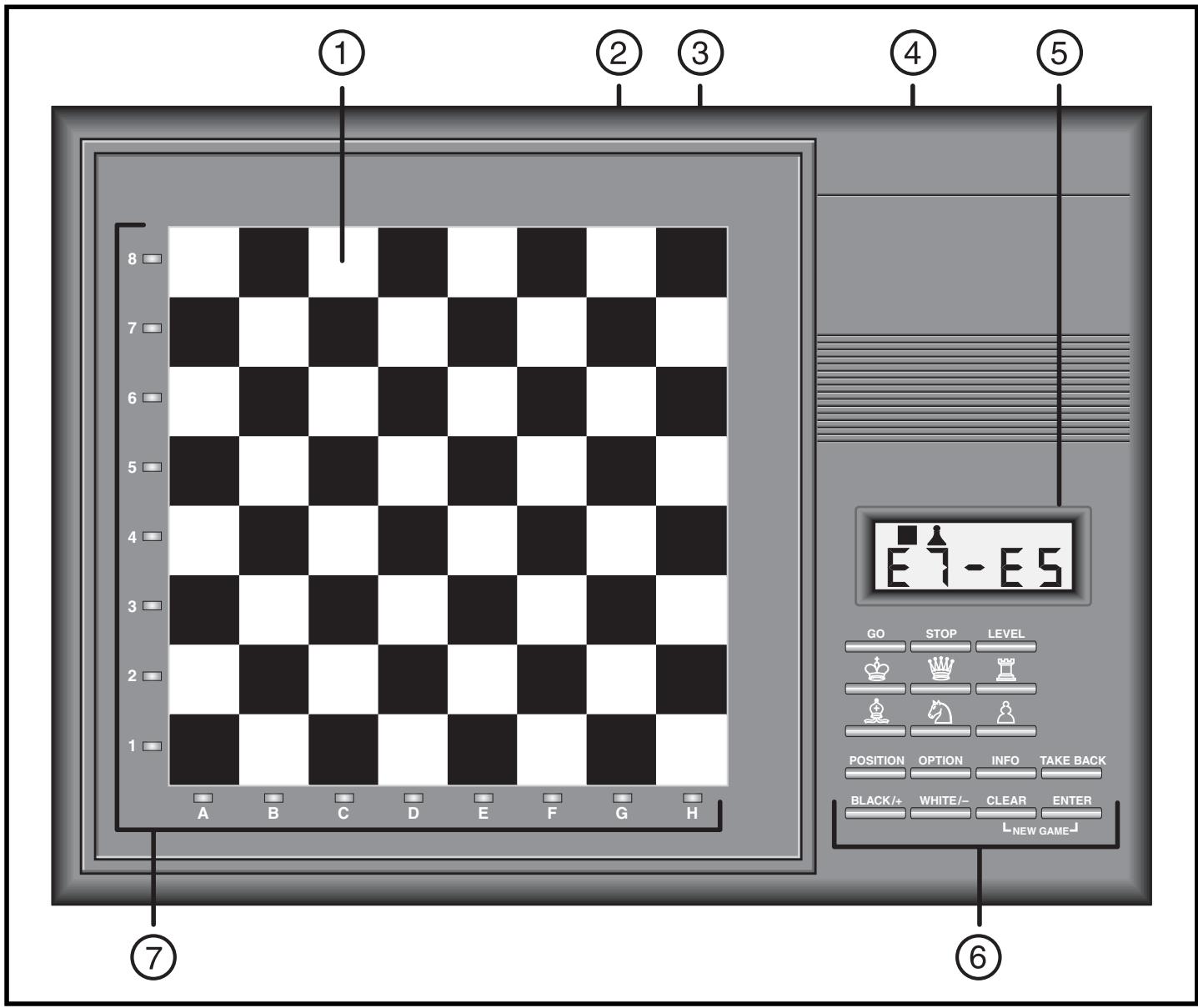
KEYS AND FEATURES
-
SENSORY CHESSBOARD: Each board square contains a sensor that automatically registers piece movement. Board squares can also be pressed within Level Mode to select levels, and within Option Mode to select game options.
-
ACL (Reset): At the top edge of the unit (next to the Mains Adapter Socket). Used to eliminate static discharge after inserting new batteries.
-
MAINS ADAPTER SOCKET: Socket for the optional Mephisto mains adapter.
-
BATTERY COMPARTMENT: Uses six "AA" (Type AM3/R6) batteries.
-
LCD DISPLAY WINDOW: Used to show moves and move information during a game. Also used for level and option selection, piece verification, position set-up, rotating display, and other game information.
6. GAME KEYS
a. GO KEY: Press to turn the computer on.
b. STOP KEY: Press to turn the computer off. When off, the computer retains the current board position and the moves of the current game (up to about 200 individual moves) for up to one full year.
c. LEVEL KEY: Press to enter Level Mode. Within Level Mode, press LEVEL to skip over eight levels at a time.
d. PIECE SYMBOL KEYS (,,,,,,or ): Used to verify and set up positions. Also used to promote pawns.
e. POSITION KEY: Press to enter Position Mode, to set up or change board positions.
f. OPTION KEY: Press to enter Option Mode, to access game and display options.
g. INFO KEY: Press to enter Info Mode, to display game information and watch the computer think.
h. TAKE BACK KEY: Press to take back one individual move (a move for either side). You may take back up to about 200 individual moves.
i. BLACK/+ and WHITE/- KEYS: Press to change levels one at a time in Level Mode, and to cycle through options in Option Mode and Info Mode. Also used to select the color in Position Mode.
j. CLEAR KEY: Press to exit Option Mode, Verify Mode, Two Players Mode and Position Mode. Press to exit Level Mode without changing the level (unless you have used the board squares to change the level in which case CLEAR acts like ENTER and enters the new level). Press simultaneously with the ENTER KEY to reset the computer for a new game of chess.
k. ENTER KEY: Press to change sides with the computer; press while the computer is thinking to force it to move. Also used to clear the board in Position Mode, to turn options on and off in Option Mode, to jump between backwards and forwards in a Game in Two Players Mode and to exit Level Mode after changing playing levels. Press together with the CLEAR KEY to reset the computer for a new game of chess.
I. NEW GAME: Press and hold CLEAR then ENTER to reset the computer for a new game. Then release ENTER before releasing CLEAR.
7. BOARD LIGHTS: Used to show game moves, take back moves, and verify/set-up board positions.
INTRODUCTION
Congratulations on your purchase of this exciting new chess computer! Perfect for all types of players, this computer can be whatever you want it to be—a challenging opponent that will test the skills of even advanced players, a perfect chess partner for intermediate players, or a patient chess coach for beginners! Chess is a very fascinating game, and this computer includes a tremendous number of features that will let you enjoy the game even more. So, go ahead—study the features at your leisure, play some great games, and above all, have fun!
1. GETTING STARTED: THE BASICS
1 First, Install the Batteries or Optional Adapter
Your chess computer runs on six "AA" (Type AM3/ R6) batteries, and we recommend alkaline batteries for longer battery life. Make sure the computer is turned off, and insert the batteries as shown at the front of the manual. Then, press GO to turn the computer on. After the unit automatically verifies the board lights and LCD display segments, a beep will signal that the computer is ready for play. If the unit fails to respond (static discharge may cause it to lock up), use a paper clip or another sharp object to press down into the hole marked ACL on the top edge of the unit (next to the adapter socket) for at least one second. This resets the computer.
To conserve energy and extend battery life, this unit features integrated Power Management Intelligence, whereby the computer enters a special Power Saving Mode at various times during the game. There will be no visible indication to you when this mode is in effect. You will, however, definitely end up replacing your batteries less often! Note that this mode also weakens the computer's play. For details on changing Power Saving Modes or turning this option off, see Section 6.2. To further reduce power consumption, you may also want to set the Auto Power Down option, as noted in Section 6.1. This feature causes the unit to turn itself off automatically after about 15 minutes if no key presses or moves are made during that time.
If you would rather not power your computer with batteries, you may purchase an optional Mephisto/Saitek AC-DC adapter. Please use only the adapter specified for use with this computer (see Section 7.3), as the use of any other adapter will invalidate the unit's warranty. To use the adapter, first press STOP to turn off the computer, connect the adapter to the mains power supply, and then push the plug at the end of the adapter cable into the socket on the computer. Press GO to turn it on.
IMPORTANT: To ensure that the computer's memory contents are not lost, keep good batteries installed in the unit even when you are using the optional adapter.
2 Ready to Play? Here's How to Move! Follow these steps to start a game:
a. Press GO to turn the computer on.
b. Press CLEAR and ENTER simultaneously to reset the computer for a new game of chess. Then, set up the pieces in their starting positions, with the White pieces nearest to you. If you are unsure of the piece positions, refer to the rules.
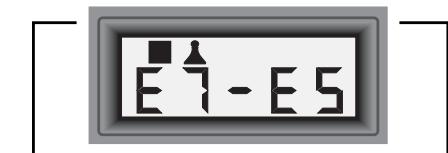
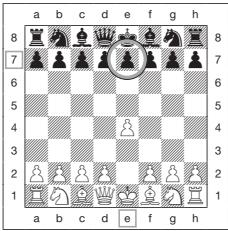
c. To make a move, lightly press down on the piece you want to move until you hear a beep. The sensory board recognizes the piece automatically, and two board lights turn on to indicate that piece. The display window also shows the color, the piece, and the square that was pressed.

- Strong 64K program boasts an estimated Swedish Elo rating of 2200—ideal for advanced players!
- Features powerful 32 bit RISC microprocessor!
- The 256 level setting means you can constantly improve your skills.
- Offers 64 levels of play for learning, variety, and experimentation—including Speed Chess, Tournament, Training, Problem Solving, and even special Fun Levels designed expressly for beginners!
- Watch the computer as it thinks--you'll see the principal variation, the computer's evaluation of the current position, its search depth, and more!
- Need a hint? Just ask for a move suggestion!
- Set up positions and problems for further study.
- Use the advanced, high-speed Selective Search or try out the powerful Brute Force Search!
- Includes large, user-selectable openings.
- Coach Mode allows beginners to learn as they play—even gives blunder and capture warnings!
- Features chess clock with countdown feature and unique "ticking" sound option.
- Take back up to about 200 individual moves!
- Play against another person with the computer acting as referee.
- Great problem-solver—up to mate in eight moves!
- Retains your current position and up to about the last 200 individual moves!
- Advanced energy-saving features—Automatic Power Down and built-in Power Management Intelligence help to save energy and conserve batteries!
- Four different Power Saving Mode options enhance the playing range by further weakening play while saving power, extending the life of your batteries up to about eight times!
d. Take the piece and gently press it down on the square to which you are moving. A second beep sounds and the computer then starts thinking.
Note: At the beginning of a game, the computer's reply is often instantaneous on many levels, because it is playing moves which are stored in its openings. For full details, see Section 2.7.
Now It's The Computer's Turn
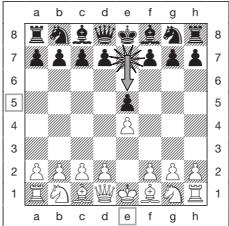
When the computer makes its move, it beeps and shows its move in the display. It also turns on two board lights indicating the horizontal row and vertical column of the piece it wishes to move. Press the indicated piece down gently on the square until you hear a beep. The computer then uses lights to show you where that piece should go. Move the piece to the indicated square and press the piece down to complete the computer's move.
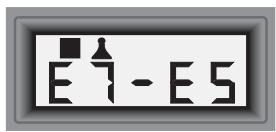
The display shows the color, the piece, and the move.
4 Change Your Mind? Take Back!
Whenever it is your turn to move, you may press TAKE BACK then press WHITE/- to retract a move. The display shows the move to be taken back and the to square of that move is also indicated with the board lights. Press the indicated piece down on the square, and the computer shows you where that piece came from. Press the piece down on the from square to complete the takeback. Repeat by pressing WHITE/- and then pressing the indicated board square to retract more moves. You may
take back up to about 200 individual moves. To resume play at any point, simply press CLEAR and make another move on the board.
Note: After taking back a capture, the computer reminds you to put the captured piece back on the board—the piece and its square are displayed, and the board lights for that square are turned on. Put the indicated piece back on the board and press down on that square to complete the take back.
5 Game Over? Try Another Game!
Whenever you finish a game (or if you decide to abort your current game) you may reset the computer to start another game by pressing the CLEAR and ENTER keys simultaneously. A series of beeps signifies that the computer is ready for another game, using the currently set level.
IMPORTANT: Resetting the computer for a new game clears the current game from the computer's memory—be careful not to press these keys by mistake.
6 Too Easy/Hard? Change the Level!
When the computer is first turned on, it is set to Level 4 (five seconds a move). You may, however, choose any of the 64 playing levels. For a detailed description of all the levels and how to change levels, see Section 3.
2. ADDITIONAL FEATURES
2.1 Indication of the Side to Move
When the computer plays Black, it flashes a black square in the display while it is thinking. After it has moved, a white square is displayed steadily to show that it is now White's turn to move. This feature allows you to tell at a glance whether or not the computer is currently thinking, and which side is to move.
2.2 Capturing and Special Moves
To capture, press down on the piece you want to move, remove the captured piece from the board, and press your piece down on the square of the captured piece. Captures are displayed as in 66*45.
En Passant
In an en passant capture, the computer reminds you to remove the captured pawn by using two board lights to indicate that square. You must press down on the captured pawn before removing it from the board.
Castling
The computer automatically recognizes castling maneuvers after the King is moved. After you have pressed the King down on its from and to squares, the computer uses board lights to remind you to move the Rook. Press down on the Rook's from and to squares to complete the move.
Note: A Kingside castling is displayed as - , and a Queenside castling as - - .
Pawn Promotion
When you promote a pawn, first press your pawn down on its from square, as usual. To promote to a Queen, press down on the to square, and then press the QUEEN key. The computer will automatically change your pawn to a Queen.
To underpromote (to a Rook, Bishop, or Knight), follow the same basic procedure. First, press your pawn down on its from square, then press down on the to square. Next, press the corresponding PIECE SYMBOL KEY for
your desired promotion piece to enter that choice into the computer. The computer recognizes your new piece immediately, and begins thinking about its next move.
The computer can also promote and underpromote. When it promotes, the display shows both the pawn and the promoted piece. Remember to change the piece on the board after a pawn promotion.
2.3 Illegal Moves/ Wrong Moves
Your chess computer never accepts illegal moves. If you attempt such a move, the computer sounds a low double beep, and the board lights and display indicate the square the piece came from. Since the computer will not allow you to move to an illegal square, it will completely disregard that square and wait for a legal entry. Either move that same piece to another square, or press the piece back down on its original from square and move a different piece.
If you do not execute a computer move correctly, you will also hear an error beep and see an error message. This indicates that you are either trying to move the wrong piece, or are moving the computer's piece to the wrong square. If the computer wants to move its pawn from d7 to d5, for example, and you press down on d7 and then d6, the display shows Er : d5 briefly, pointing out your error. The display then returns to showing the move again (d7 - d5), and the computer expects you to press down on d5 to complete its move.
If you press down on a piece and the from square appears in the display, but you decide not to make that move, simply press down on that same square again to cancel the input. Now make another move of your choice. If you change your mind after entering your whole move, you must take the move back as described in Section 1.
2.4 Check, Mate and Draw
When a King is in check, the computer first displays the move as usual. After the move is made, CHECK flashes in the display for a few seconds, along with the checking move. The display then reverts back to showing the clock.
If the computer discovers a forced mate against its opponent, it first displays its move as usual. After the move has been made on the board, the computer flashes a mate announcement along with the move for several seconds (e.g., ∓ , ∓ : ± for a mate in two moves). The display then goes back to showing the clock.
Whenever a game ends in checkmate, the computer beeps, and the display flashes RE E (along with the mating move or clock display) for a brief time after the move has been made. The display then goes back to showing the clock.
The computer recognizes draws by stalemate, threefold repetition, and the 50-move rule. If you are unfamiliar with these draws, see the Chess Rules at the back of the manual. After a draw has occurred, the display flashes End for stalemate or draw by insufficient material, End:3 for three-fold repetition, and End:50 for a draw by the 50-move rule for several seconds together with the move or clock display.
Note: Although the computer knows the rules of chess, it will not display CHECK, MATE, or DRAW messages in Two Players Mode, nor will it announce CHECK or MATE on the computer's turn.
2.5 Terminating the Computer's Search
To interrupt the computer while it is thinking, press ENTER. This forces the computer to play the best move it has found so far. This feature can be very useful on the

HAVING PROBLEMS? SOME TIPS!
- Is it really your turn to move? Check the color symbol in the display window—if the square for the computer's color is flashing, the computer is currently thinking about its move.
- Did you execute the computer's last move incorrectly? If the display shows an error message, Er:dS for example, press the indicated square to correct the problem and complete the computer's move.
- Does the computer merely beep and keep showing your "from" square when you try to move? You are attempting to enter an illegal move. Either move the piece to another square, or press the indicated from square again to erase the move, and make a different move. Trust the computer—it knows all the rules of chess and will not allow an illegal move!
- Are you unsure of the board position? Have some pieces been moved inadvertently? Use Verify Mode to check the piece positions. For details, see Section 5.1.
- Is your King in check? If your King is in check, you must move it out of check before you can make any other move.
- Computer won't make a move? Two Players Mode is active. Press CLEAR once or twice to exit Two Players Mode. Then, either make your own move or press ENTER (if it is the computer's turn).
higher levels, especially on the Infinite Level, where the computer thinks indefinitely unless you stop it.
Note: On the Problem Solving Levels, pressing ENTER does not cause the computer to make a move. Instead, after a short time the computer sounds an error beep and displays -- -- -- to indicate that it was interrupted before it found a mate. To continue your game, switch to another playing level.
2.6 Changing Sides with the Computer
You may change sides with the computer at any time, and as often as you wish during any game. To do so, simply press ENTER when it is your turn. The computer will immediately start thinking about the next move for your side!
2.7 Openings
At the beginning of a game, the computer's reply is usually instantaneous on many levels. This is because it is playing moves which are stored in its memory. The computer's openings consist of many positions from grandmaster play. If the current board position is in its opening, the computer plays a response to that position from its collection of moves, instead of thinking about the move.
Your computer can also handle opening transpositions, with its built-in Automatic Transposition Manager. A transposition occurs when a position reached by a certain set of moves can also be reached when those same moves occur in a different order.
Note: This chess computer offers a unique user-selectable book feature, which lets you choose from various types of openings, or even turn the book off, if desired. For details, see Section 6.2.
2.8 Game Memory
You may interrupt a game at any time by pressing STOP. Play is then suspended, and the computer stores your current position and game (up to about 200 individual moves). When you switch on again, you can resume your game right where you left off!
2.9 Two Players Mode
Normally the computer automatically answers with a

TRY OUT TWO PLAYERS MODE!
- Play through master games. Press CLEAR then ENTER to get the computer's analysis of any board position!
- Replay a sequence of moves in order to study them.
- Study book lines by entering them manually.
- Play against a friend, with the computer checking all moves for legality on both sides!
countermove whenever you enter a move. If you enter Two Players Mode by pressing TAKE BACK however, you can enter any number of moves one by one without letting the computer answer. This feature can be used to enter a series of moves for both sides or to replay a game to a certain position. It also allows you to play against another person, with the computer acting as referee and checking the legality of all moves. To exit Two Players Mode, press CLEAR.
You might also want to go back to an earlier position (up to about the last 200 individual moves) of a game and play on from there. This is possible, of course, by actually taking back until the desired position is reached and then continuing play, as noted in Section 1.4. However, you can also take back moves rapidly without actually taking back step by step on the chessboard. This is done by first pressing TAKE BACK to enter Two Players Mode. Then, press ENTER to jump forwards to the final position of the game or backwards to the initial position in memory. You can also press TAKE BACK to jump forwards in 10 move count steps or jump to the final position/initial position in memory. Press BLACK/+ or WHITE/- to jump forwards or backwards an individual move at a time. Press CLEAR when you reach your desired position. You can then make moves for both sides from that position, or press CLEAR again to exit Two Players Mode and play against the computer from that position. If it is the computer's turn to move after exiting Two Players Mode, press ENTER.
Note: If you need help while playing against another player in Two Players Mode, you can press INFO and the computer will display its suggested move and evaluation, if available.
2.10 Thinking on the Opponent's Time
As you play, you may notice that the computer sometimes replies to your moves instantaneously, even in the middle of games played on the higher levels (when Power Saving Mode is turned off). This is because the computer thinks on your time, using the time you are contemplating your next move to think ahead and plan its strategies. It tries to anticipate the move you are likely to make, and then calculates its responses for that particular move while you are still thinking. If it has guessed right, there is no reason for it to keep on calculating—it immediately plays the move it has already found!
You may turn this feature off by selecting one of the Power Saving Modes, as described in Section 6.2.
3. LEVELS OF SKILL
Your chess computer offers 64 different playing levels, including levels for casual play, tournament play, speed chess, problem solving, and even levels especially for beginners. When you set the playing level, keep in mind that when the computer has more time to think about its moves, it becomes stronger and plays better—just like a human chess player!
Your chess computer also has a unique Power Saving Feature, as detailed in Section 6.2. This option greatly
extends the battery life of the set, as well as expanding the playing range to a total of 256 level settings.
Setting a Playing Level
There are two methods of setting the playing level. You can choose levels by using the game keys or the board squares. Whichever method you use, you must always press LEVEL first to enter Level Mode. Note that changing a level always resets the chess clocks.
To select a level using the game keys, first press LEVEL, and the computer displays the current playing level. For an overview of all 64 levels, please refer to the Level Chart. The levels are also described individually in this section.
When you enter Level Mode the first time, the computer is automatically set on Level 4 (with an average response time of five seconds a move), and the display shows L0:05. Change levels one at a time by using the BLACK/+ and WHITE/- keys. As a shortcut, press LEVEL repeatedly to skip over eight levels at a time. When the display shows the desired level, press ENTER to enter your selection into the computer and exit Level Mode.
Note: If you press LEVEL to verify the level but do not want to actually change levels, press CLEAR. This allows you to exit Level Mode without changing the level or clock settings, even while the computer is thinking.
Another method of changing levels is to use the board squares. As indicated in the Level Chart, each of the 64 squares corresponds to one level. Press LEVEL to enter Level Mode, then press a square to activate a level, using the chart as a guide. When you press down on the desired square and the level shows in the display, press ENTER to enter your selection into the computer and exit Level Mode. When making your selection via the board squares, press CLEAR which has the same effect as pressing ENTER—it enters your level into the computer.
Note that changing the level always resets the chess clocks. It is not recommended that you change the playing level while the computer is thinking. If you want to change the level, press ENTER to force the computer to abort the search and make the computer's move, if any. After taking back the computer's move and changing the level, press ENTER to have the computer start thinking on a new playing level.
3.1 Normal Playing Levels (Squares A1-B8)
| LEVEL | TIME PER MOVE | DISPLAY |
| 1 | 1 second | 0:01 |
| 2 | 2 seconds | 0:02 |
| 3 | 3 seconds | 0:03 |
| 4 | 5 seconds | 0:05 |
| 5 | 10 seconds | 0:10 |
| 6 | 15 seconds | 0:15 |
| 7 | 20 seconds | 0:20 |
| 8 | 30 seconds | 0:30 |
| 9 | 45 seconds | 0:45 |
| 10 | 1 minute | 1:00 |
| 11 | 1.5 minutes | 1:30 |
| 12 | 2 minutes | 2:00 |
| 13 | 3 minutes | 3:00 |
| 14 | 5 minutes | 5:00 |
| 15 | 10 minutes | 10:00 |
| 16 | 15 minutes | 15:00 |
When you select one of the Normal Playing Levels, you are selecting an average response time for the computer. Note that the times are averaged over a large number of moves. In the openings and endgame, the computer tends to play faster, but in complicated middle-game positions, it may take longer to move.

TIPS ON CHOOSING A LEVEL!
- Are you a beginner? Start out with the Fun Levels or lower Training Levels. These levels restrict the computer's search depth, resulting in weaker play, and giving you the chance to learn about the game and perhaps even win! For even more of a shot at winning, combine one of these levels with the Power Saving option, so the computer thinks for less time. For details, see Section 6.2.
- Are you an intermediate or advanced chess player? Try the Normal or Tournament Levels, or the higher Training Levels. The Normal Levels range from easy all the way up to a difficult 15-minute response time. The Training Levels allow you to set your desired search depth—as you conquer each level, go on to the next! The Tournament Levels are the most challenging.
- Want to experiment? Try the Speed Chess Levels for some fast and exciting games. Or use the Problem Solving Levels to solve problems up to mate in eight—search from a position in one of your games, or set up an actual mate problem for the computer to solve!
3.2 Tournament Levels (Squares C1-C8)
The Tournament Levels require you to make a certain number of moves within a specified amount of time. If a player exceeds the allotted time for a given number of moves, the computer beeps and flashes inE along with the elapsed time to signify the game is over. If you wish, you may continue to play even after the time has run out.
Note: If you select a Tournament Level, you may want to set the chess clocks to display countdown time instead of the elapsed time (see Section 6.1). When the game time runs out, the countdown clock automatically reverts back to the normal clock display.
3.3 Speed Chess Levels (Squares D1-D8)
| LEVEL | TIME PER GAME | DISPLAY |
| 25 | 5 minutes | 0:05:99 |
| 26 | 10 minutes | 0:10:99 |
| 27 | 15 minutes | 0:15:99 |
| 28 | 20 minutes | 0:20:99 |
| 29 | 30 minutes | 0:30:99 |
| 30 | 45 minutes | 0:45:99 |
| 31 | 60 minutes | 1:00:99 |
| 32 | 90 minutes | 1:30:99 |
On the Speed Chess Levels (also called "Sudden Death" Levels), you set the total time for the whole game. If the game time is exceeded, the computer beeps and flashes nE (along with the elapsed time) to show that the game is over.
Note: If you select a Speed Chess Level, you may want to set the chess clocks to display countdown time instead of the elapsed time (see Section 6.1). When the game time runs out, the countdown clock automatically reverts back to the normal clock display.
3.4 Fun Levels (Squares E1-E7)
| LEVEL | TIME PER MOVE | DISPLAY |
| 33 | 1 second | Fun: 1 |
| 34 | 2 seconds | Fun: 2 |
SELECT YOUR PLAYING LEVELS FROM THE 64 BOARD SQUARES
| 30 seconds per move | 15 minutes per move | 40 moves in 3:00 | 90 minutes per game | Infinite Level | Mate in 8 | Search Depth 8 ply | Search Depth 16 ply |
| L0:30 | L15:00 | 3:00:40 | 1:30:99 | 9:99:99 | \( \text{F}_{\text{in}}:8 \) | PLy:8 | PLy:16 |
| 20 seconds per move | 10 minutes per move | 50 moves in 2:00 | 60 minutes per game | Fun Level #7 | Mate in 7 | Search Depth 7 ply | Search Depth 15 ply |
| L0:20 | L10:00 | 2:00:50 | 1:00:99 | Fun:7 | \( \text{F}_{\text{in}}:7 \) | PLy:7 | PLy:15 |
| 15 seconds per move | 5 minutes per move | 45 moves in 2:30 | 45 minutes per game | Fun Level #6 | Mate in 6 | Search Depth 6 ply | Search Depth 14 ply |
| L0:15 | L5:00 | 2:30:45 | 0:45:99 | Fun:6 | \( \text{F}_{\text{in}}:6 \) | PLy:6 | PLy:14 |
| 10 seconds per move | 3 minutes per move | 40 moves in 2:00 | 30 minutes per game | Fun Level #5 | Mate in 5 | Search Depth 5 ply | Search Depth 13 ply |
| L0:10 | L3:00 | 2:00:40 | 0:30:99 | Fun:5 | \( \text{F}_{\text{in}}:5 \) | PLy:5 | PLy:13 |
| 5 seconds per move | 2 minutes per move | 35 moves in 1:30 | 20 minutes per game | Fun Level #4 | Mate in 4 | Search Depth 4 ply | Search Depth 12 ply |
| L0:05 | L2:00 | 1:30:35 | 0:20:99 | Fun:4 | \( \text{F}_{\text{in}}:4 \) | PLy:4 | PLy:12 |
| 3 seconds per move | 1.5 minutes per move | 40 moves in 1:45 | 15 minutes per game | Fun Level #3 | Mate in 3 | Search Depth 3 ply | Search Depth 11 ply |
| L0:03 | L1:30 | 1:45:40 | 0:15:99 | Fun:3 | \( \text{F}_{\text{in}}:3 \) | PLy:3 | PLy:11 |
| 2 seconds per move | 1 minute per move | 35 moves in 1:45 | 10 minutes per game | Fun Level #2 | Mate in 2 | Search Depth 2 ply | Search Depth 10 ply |
| L0:02 | L1:00 | 1:45:35 | 0:10:99 | Fun:2 | \( \text{F}_{\text{in}}:2 \) | PLy:2 | PLy:10 |
| 1 second per move | 45 seconds per move | 40 moves in 1:30 | 5 minutes per game | Fun Level #1 | Mate in 1 | Search Depth 1 ply | Search Depth 9 ply |
| L0:01 | L0:45 | 1:30:40 | 0:05:99 | Fun:1 | \( \text{F}_{\text{in}}:1 \) | PLy:1 | PLy:9 |
35 3 seconds Fun:3
36 4 seconds.. Fun:4
37 5 seconds.. Fun:5
38 6 seconds.. Fun:6
39. 7 seconds Foun
These unique "Fun Levels" are meant especially for beginners and young players—these levels allow those who might otherwise never win a game of chess to come up on the winning side for a change! On these Fun Levels, your computer acts much more "human" than most chess computers—it gives everyone a chance to win, in a world where chess machines are typically relentless and often quite difficult to beat. Even though the general consensus seems to be that computers don't ever make mistakes, on the Fun Levels, your computer actually will!
Chess books often advise of basic rules—warning not to give away material, not to bring the Queen out too early, and advising on the development of pieces before starting an attack. Yet players see their opponents breaking these rules and getting away with it! The Fun Levels provide a way of practicing the punishment of these typical mistakes, enabling the beginner to strengthen his game against the human opponents he is likely to face.
Various handicaps are built into the Fun Levels, demonstrating common mistakes made by beginners. Level 33 (displayed as Fun : 1) is the weakest level. On this level, the value of material is set so that the computer will not only "hang" pieces (leave pieces unguarded), but will also actually try to lose material. Even watching the computer throw away its Queen would not be uncommon on this level! Levels 34, 35, and 36 are similar to Level 33, in that they also give away material, but they do not do it as consistently. They progressively start to consider the value of pieces more and more, and Level 36 only occasionally gives pieces away.
On Fun Levels 37 to 38, the computer does not actually give away material. Here, the computer plays more like a beginner who has learned the basics of the game, and the levels get progressively smarter when it comes to material. Players will see the computer make errors like bringing its Queen out too early, leaving its pieces unguarded, and opening itself up to threats of check and/or checkmate. Therefore, although Levels 37 to 39 may be "smarter" than Levels 33 to 36, they are still very much "fun" levels, offering beginners a winning edge!
Even after a player has mastered the Fun Levels, they
can still be a valuable training tool. A game can be started on a Fun Level, for example, and, when the computer makes a bad move, the player can switch to a Normal Level and try to convert his advantage to a win, playing against the stiffer opposition of a higher level.
3.5 Infinite Level (Square E8)
LEVEL
TIME
DISPLAY
40 .9999
On the Infinite Level, the computer searches indefinitely until it finds a forced mate (or forced move), until it has fully searched the position to its maximum depth, or until you stop the search by pressing ENTER. If the search is halted, the computer makes the move it currently thinks is best. Use the Infinite Level to let the computer analyze complicated positions for hours or days!
3.6 Problem Solving Levels (Squares F1-F8)
LEVEL
PROBLEM
DISPLAY
41....Mate in 1. ..in:
42 .Mate in 2. n:2
43 .Mate in 3. 1n:3
44 .Mate in 4. n:4
45 .Mate in 5. n:5
46 .Mate in 6. n:6
47 .Mate in 7. ..in:
48....Mate in 8. ..in:8
Selecting one of these levels activates a special mate finder program. If you have a position where there may be a mate and you would like the computer to find it, set the computer on one of the Problem Solving Levels. Your chess computer can solve mates in up to eight moves. Mates in one to five are usually found quite quickly, whereas solutions taking six to eight moves may take quite some time. If there is no mate present or the computer cannot find a mate, it will beep and display a series of dashes (-- - - - ) . You may continue to play, if desired, by switching levels.
3.7 Training Levels (Squares G1-H8)
| LEVEL | DISPLAY | LEVEL | DISPLAY |
| 49 | PLY:1 | 57 | PLY:9 |
| 50 | PLY:2 | 58 | PLY:10 |
| 51 | PLY:3 | 59 | PLY:11 |
| 52 | PLY:4 | 60 | PLY:12 |
| 53 | PLY:5 | 61 | PLY:13 |
| 54 | PLY:6 | 62 | PLY:14 |
| 55 | PLY:7 | 63 | PLY:15 |
| 56 | PLY:8 | 64 | PLY:16 |
On each of the Training Levels, the computer's search depth is limited to a certain number of moves, as shown above. As you cycle through the levels, the computer displays PL: n for each level. A “PL:” is an individual move (a move for either side), and “n” is the number representing the search depth. For example, on Level 49, the computer searches to a depth of one individual move (PL: i), and thus looks ahead only one move. On this level, therefore, it will often overlook a mate in one. This produces weaker play, giving beginners a chance to win!
4. GAME INFORMATION
In a normal game of chess, you would never ask your opponent what move he was considering, nor would you ask his evaluation of the current position. However, when you play against this chess computer, you can do just that! In fact, you can get a wealth of information about the computer's thought process—it shows you the move it is currently considering, the continuation it expects after
that, its evaluation of the current position, how deeply it is searching, and more. Studying this information can help you learn more about chess!
Using Info Mode
You may access game information at any time by using Info Mode. If you do this while the computer is thinking, you will see the information displays change as the computer considers different moves and searches deeper. Some of the displays may change even if you access Info Mode during your turn.
Game information is divided into four groups, and pressing INFO cycles from one group to another. The BLACK/+ and WHITE/- keys can be used to cycle through the information within each of the groups, as described in the Info Mode Charts in this section.
After familiarizing yourself with Info Mode, refer to Section 6.3 for a description of the user-programmable Rotating Display feature. Selecting this feature makes the computer automatically cycle through the information described below in one-second intervals every time it thinks about its move—you can actually watch the computer "think out loud!"
Note: There may be instances when some game information is not available. In such cases, the display will show a series of dashes (-- - - )
4.1 Principal Variation
Pressing INFO the first time shows you the first move of the principal variation (the line of predicted play). This first move is the move the computer is currently considering making. Use the BLACK/+ and WHITE/- keys to see the rest of the moves. The principal variation is shown to a maximum depth of six ply, or six individual moves.
4.2 Search Information
Pressing INFO a second time gives you information on the computer's search. Use the BLACK/+ and WHITE/- keys to cycle through the different displays, as described in the Info Mode Charts in this section.
4.3 Chess Clocks
Pressing INFO a third time gives you access to the chess clocks. Use the BLACK/+ and WHITE/- keys to cycle through the five different clock displays, as shown in the Info Mode Charts.
The chess clocks keep track of the time for both sides. The clocks stop whenever you take back a move, verify a level, select options, verify or set up a position, or turn the unit off. In all of these cases, however, the times are retained in memory, and the clocks resume as soon as play is continued. Whenever you press CLEAR and ENTER together to reset the computer for a new game, the chess clocks are always reset to 0:00:00.
Note: Press CLEAR to restart the clock if it has stopped after returning to Normal Mode.
4.4 Move Count
Pressing INFO the fourth time shows the number of Black moves that have to be played in the game. At this point, you may use the BLACK/+ and WHITE/- keys to cycle through the last moves of the current game (up to about 200 individual moves).
4.5 Move Suggestions
If you would like advice on any particular move, the computer can give you a move suggestion. Press INFO when it is your turn to move, and the computer will show you its suggested move.
FOR PRINCIPAL VARIATION INFORMATION:
PRESS DISPLAY
INFO(x1) First move of principal variation
BLACK/+ Second move of principal variation
BLACK/+ Third move of principal variation
BLACK/+ Fourth move of principal variation
BLACK/+ Fifth move of principal variation
BLACK/+ Sixth move of principal variation
FOR SEARCH INFORMATION:
PRESS DISPLAY
INFO(x2) Computer's evaluation of the current position, (number is based on a pawn being worth 1.0 points; a positive number indicates that White is ahead)
BLACK/+ Two numbers: The current search depth (number of individual moves the computer is looking ahead); and the number of moves examined so far
BLACK/+ Current move under consideration
BLACK/+ Number of positions (nodes) being examined every second
FOR CHESS CLOCK INFORMATION:
PRESS DISPLAY
INFO(x3) Elapsed time since last move was executed on the board
BLACK/+ Elapsed time for White
BLACK/+ Elapsed time for Black
BLACK/+ Remaining time for White
BLACK/+ Remaining time for Black
*Speed Chess/Tournament Levels only; on other levels, the display will show - - - -
FOR MOVE COUNT INFORMATION:
PRESS DISPLAY
INFO(x4) Number of moves to be played by black side so far
BLACK/+ or WHITE/- Moves of current game
FOR A MOVE SUGGESTION:
PRESS DISPLAY
INFO(on your turn) Suggested move
SUMMARY OF ALL INFO MODE DISPLAYS:
PRESS DISPLAY
- INFO First move of principal variation
BLACK/+ Second move of principal variation
BLACK/+ Third move of principal variation
BLACK/+ Fourth move of principal variation
BLACK/+ Fifth move of principal variation
BLACK/+ Sixth move of principal variation - INFO Computer's evaluation of position
BLACK/+ Search depth & moves examined
BLACK/+ Move currently being considered
BLACK/+ Nodes examined per second - INFO Time since last move was made
BLACK/+ Elapsed time for White
BLACK/+ Elapsed time for Black
BLACK/+ Remaining time for White*
BLACK/+ Remaining time for Black*
- INFO Number of Black moves to be played
BLK+/or WHITE/- Moves of current game - INFO Move suggestion (on your turn)
*Speed Chess/Tournament Levels only
5. VERIFYING/SETTING UP POSITIONS
5.1 Verifying Board Positions
If you should knock over the chess pieces or if you think the board position is incorrect, the computer can verify all piece locations for you.
When it is your turn, press one of the PIECE SYMBOL KEYS (,,,,,,or)。The computer uses the board lights and display window to show you where the first piece of that type is located on the board. The board lights indicate the square, and the display shows the piece symbol, color indicator, and square designation. Press the same PIECE SYMBOL KEY again to see the location of the next piece of that same type. All the White pieces are shown first, then the Black pieces. When there are no more pieces of that type, the board lights go out and only the piece symbol remains in the display.
Repeat the above procedure using the other PIECE SYMBOL KEY, verifying the entire board if desired. Press CLEAR to return to normal play.
5.2 Changing and Setting Up Positions
Your chess computer allows you to set up special board positions to play from, or problems you want the computer to solve for you.
Press POSITION to enter Position Mode, and the display shows -POS-. You may change or set up a board position at any time during a game, whenever it is your turn to move. After you have set up your desired position, always press CLEAR to exit Position Mode.
- To remove a piece from the board, press the piece down gently on its square and remove the piece. Notice that the display indicates the piece type and color, along with a minus sign (-) , and the location for that square.
- To move a piece from one square to another, press the piece down on its original square, pick it up, and then press it down on the new square. As you do this, the display will show a minus sign (-) for the first square, and a plus sign (+) for the second square.
- To add a piece to the board, first press the PIECE SYMBOL KEY for that piece (▲, ◊, ◇, ◆, ◁, or ◘). Make sure the display shows the correct color symbol for the piece you wish to add. If not, press the BLACK/+ or WHITE/- key to change the color. When the display shows the correct piece type and color, place that piece on the desired square and press down gently. The display shows a plus sign, along with the location for that square. To add another piece of the same type, simply press down on another
square. To add a different piece, press a different PIECE SYMBOL KEY and follow the same steps outlined above.
-
To clear the board, press ENTER while you are in Position Mode. The display will show to symbolize the empty chessboard. Press ENTER once more to confirm that you really want to clear the board. Then add pieces as described above. Note that this feature can be handy whenever you want to set up a position which contains only a few pieces, where it would be easier to start out with an empty board.
-
Once you have changed the board position as described above, make sure the color indicator in the display is showing the correct color of the side to move. Change the color, if necessary, by pressing BLACK/+ or WHITE/-.
- Press CLEAR to exit Position Mode
Any legal board position may be set up using the procedures outlined above. The computer will not permit you to set up an illegal position, such as one where there are more than the prescribed number of pieces for a normal game, or one where a King is in check and is not to move. If the position is illegal, the computer will sound an error beep and the display will not return to normal when you press CLEAR. Check the position using the PIECE SYMBOL KEYS, if necessary, and correct the position by setting up a piece, removing an illegal piece, or replacing an incorrectly placed piece. Then exit Position Mode by pressing CLEAR.
CAUTION: All previous moves in your current game will be erased from the computer's memory if you make changes to the position during a game.
6. GAME OPTIONS
In addition to all the features described so far, your chess computer also offers many other intriguing game options, all of which are user-selectable at any time during the game. For an overview of these options, refer to the Options Chart in this section.
Selecting Game Options
The computer's Game Options are divided into three groups: Operation Mode, Playing Mode, and Rotating Display Mode. Pressing OPTION cycles from one group to another. Each group contains eight different options, and the BLACK/+ and WHITE/- keys are used to cycle through the options within each of the groups. For each option, a plus (+) in the display indicates the displayed option is on, and a minus (-) means the option is off. Press ENTER to turn each option on, off, or select other factors as they are displayed. After making all your option selections, press CLEAR to return to normal game play.
Another method of selecting game options is to press certain board squares. As shown in the Options Chart, Squares A1-H1, A2-H2, and A3-H3 can be used to turn Game Options on, off or select other alternatives. First, press OPTION to enter Option Mode; then press the desired square to access any option, using the chart as a guide. Notice that pressing a square repeatedly turns that option on, off or selects other alternatives again, with plus (+) for on and minus (-) for off. Once you have made all your selections, press CLEAR to return to the game.
When the computer is first powered on, certain default options are set. Options which are automatically on at the first startup are shown in the chart with a plus (+), and options which are off are shown with a minus (-). Whenever you reset the computer for a new game, most of your selected options are carried over to your next game.
| GIVE VERIFY MODE A TRY! | ||
| PRESS | DISPLAY | |
| CLEAR+ENTER | ☐, 0:00:00 | (New game, White to move) |
| KNGHT KEY | White Knight, B1 | (1st square with a White Knight) |
| KNGHT KEY | White Knight, G1 | (2nd square with a White Knight) |
| KNGHT KEY | Black Knight, B8 | (1st square with a Black Knight) |
| KNGHT KEY | Black Knight, G8 | (2nd square with a Black Knight) |
| KNGHT KEY | Knight only | (No more Knights on the board) |
| CLEAR | ☐, 0:00:00 | (Exit Verify Mode) |
AND...
| TRY OUT POSITION MODE, TOO! | ||
| PRESS | DISPLAY | |
| CLEAR+ENTER | ☐, 0:00:00 | (New game, White to move) |
| POSITION | -POS- | (Enter Position Mode) |
| Square D2 | White pawn, -D2 | (Remove White pawn from D2) |
| Square D4 | White pawn, +D4 | (Move White pawn to D4) |
| BLACK/+ | Black pawn | (Change color to Black) |
| Square D8 | Black Queen, -D8 | (Remove Black Queen from D8) |
| Square H5 | Black Queen, +H5 | (Move Black Queen to H5) |
| WHITE/- | White Queen | (Set White to move next) |
| CLEAR | ☐, 0:00:00 | (Exit Position Mode, White to move) |
The only options which go back to their default state when you start a new game are Auto Play Mode and Play White From the Top.
6.1 Operation Mode Options
These eight options affect how you operate your computer. Press OPTION once to select this group, and then use the BLACK/+ and WHITE/- keys to select the options. Press ENTER to turn options on (+) or off (-).
Auto Play Mode (Square A1)
Normally, the computer automatically answers with a countermove whenever you enter a move. If you turn Auto Play on by choosing +RωEα , however, you can watch the computer play against itself! Auto Play Mode can be extremely useful if you want to analyze a position very deeply, and the ideal levels to use with this feature are the higher Training Levels. On level 58, for example, the computer searches 10 ply for each move, unless it finishes its search early (e.g., if it is playing from its openings, finds a forced mate or draw, etc.). Selecting this level will enable the computer to analyze game positions very deeply as it plays against itself—perhaps overnight or even for several days! When you get back to the computer, you can take back approximately the last 200 moves of the game and replay them on the board. You can then study the results of the computer's work at your leisure. Note that, when you leave the computer and let it search for a long period of time, it is recommended that you use an AC-DC adapter.
Note: You can speed up the computer's opening play in Auto Play Mode by pressing CLEAR while it is still playing from memory in the opening. Also note that Auto Play Mode will be cancelled if you press ENTER to abort the computer's search, or if the game ends.
Sound with Keypress (Square B1)
This option allows you to turn off the sound that accompanies each keypress by choosing -Sd. You will still
OVERVIEW OF THE GAME OPTIONS*
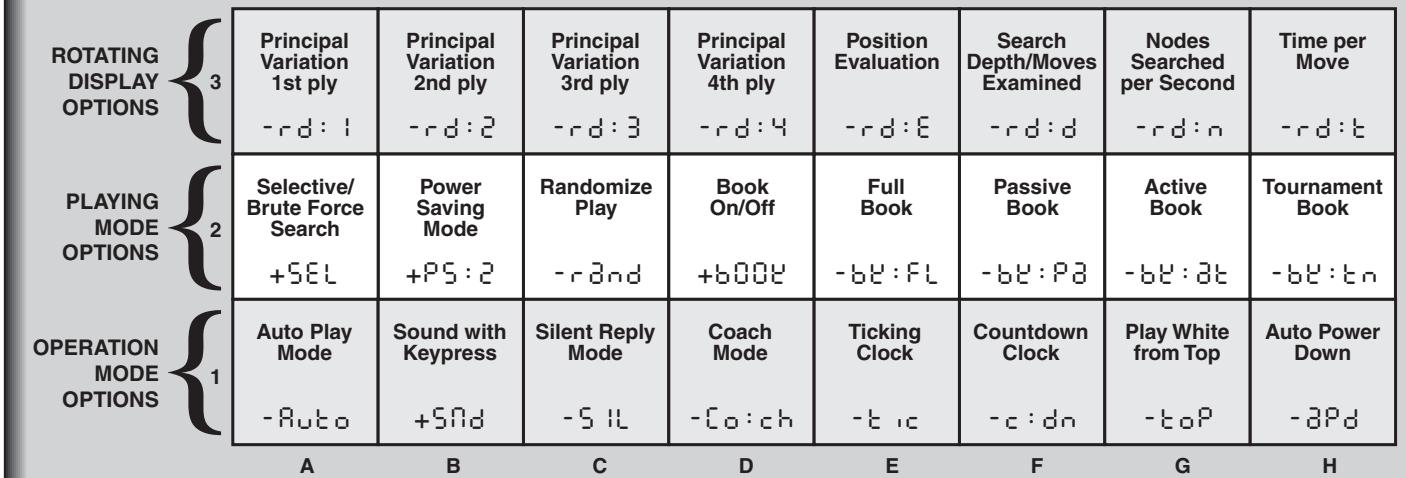
*option on =+, option off = - (defaults are shown)
hear beeps when the computer makes its moves or when an illegal move or keystress is made.
Silent Reply Mode (Square C1)
Normally, the computer always beeps when it has found its move. Turning on Silent Reply Mode by selecting +5 and +L allows for completely silent operation.
Coach Mode (Square D1)
Selecting +Co:ch turns on a special Coach Mode, which encourages you to concentrate on your strategic planning. In this mode, the computer warns you when it thinks you have committed a blunder (except on the Fun Levels) by sounding a double warning beep and flashing the move it intends to make on the LCD. At this point, you can either enter the computer's move, or take back your own move and make another one.
When Coach Mode is on, the computer will also warn you if you are in danger of losing a piece. If one of your pieces is being threatened by a lesser valued piece, for example, the computer will sound a double warning beep and flash the lights of the threatened piece for a few seconds. To continue the game, make your next move, or take back your last move and make a different one.
Ticking Clock (Square E1)
When you turn on the unique Ticking Clock option by choosing + + , you activate a ticking sound that makes the computer's chess clock sound like a real chess clock! Just imagine—you can create the atmosphere of a championship tournament in your very own living room.
Countdown Clock (Square F1)
Turn on this option by selecting +c:dn . This forces the computer to display the countdown time instead of the elapsed time.
Note: This option is only available in combination with the Tournament and Speed Chess Levels.
Play White From the Top (Square G1)
You may want to depart from the usual standard and have the computer play the White pieces from the top of the board. Turn this option on by choosing 七 irc P at the beginning of a new game. Set up the board with the Black pieces closest to you, as shown in the diagram in this section. Notice, in particular, that the Kings and Queens are positioned differently in this set-up.
Auto Power Down (Square H1)
The Auto Power Down option is a battery-saving feature. When this option is turned on by selecting + P , the computer will automatically turn itself off after about 15 minutes if there are no key presses or moves made during that time. To continue the game where you left off, press GO to turn the computer back on.
Note: The computer will not turn itself off while it is thinking about a move.
6.2 Playing Mode Options
These eight options affect how the computer selects its moves. Press OPTION twice to choose this group, and then use the BLACK/+ and WHITE/- keys to select the options. Press ENTER to turn the options on (+) or off (-), or to select other alternatives.
Selective Search (Square A2)
The program in this chess computer normally uses a Selective Search algorithm. This allows the computer to see combinations that would otherwise take much longer to compute. Turning this option off by choosing -SCL makes the program switch to a powerful Brute Force algorithm. This search method minimizes the risk of an occasional oversight.
Note: The Problem Solving Levels always use the Brute Force method.
Power Saving Mode (Square B2)
This option effectively extends both the playing range and battery life of your computer, without affecting the computer's time controls. At its PS:0 setting, as described in Section 2.10, Power Saving Mode is turned off, and the computer thinks on your time—using the time you are contemplating your next move to think ahead and plan its strategies. This is part of what makes your chess computer such a tough opponent. Power Saving Mode allows you to make all the levels weaker by switching the computer into a dormant state and then waking it up automatically. This effectively gives you four times as many levels to choose from, and extends the life of your batteries at the same time. Press ENTER to cycle through PS:0 to PS:3, as follows:
-PS:0 = Computer will play at full strength.
+PS:1 = Computer will not use the time you use to compute its next move.
+PS:2 = Computer will use about 20% of the available time and rest for the remainder.

TRY PLAYING BLACK FROM THE BOTTOM!
- When you select Option G1, the computer will play the White pieces from the top of the board. If you choose this option, make sure you set up the board as shown below!
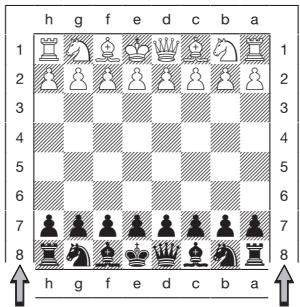
Board set-up with White at the top
You may expect battery life to be extended up to about five times.
+PS:3 = Computer will use about 5% of its time to compute. Battery life will be extended up to about eight times.
Note 1: When a Power Saving Mode is in effect, the computer automatically and periodically wakes up to perform necessary functions. You will not see any difference in the display when any of the Power Saving Modes are activated, but you will notice extended battery life and weakened play.
Note 2: When the playing level is changed, the computer will automatically choose the best Power Saving Mode for that particular level. If you would like to change the Power Saving Mode, you must change the level before selecting the Power Saving Mode.
Randomize Play (Square C2)
Turn this option on with r and d for greater variety of play. Instead of selecting one single best move, the computer will choose one of the best moves to play by consulting its built-in Randomizer.
Book On/Off (Square D2)
Set this option to minus (-) to lock out the computer's openings completely. When you turn the book off by choosing -b00E, the computer is forced to take time to think of its moves from the very beginning of the game, rather than using its openings memory. For more details on openings, see Section 2.7.
Note: If you turn the book off, the remaining book options (described below) are automatically disabled.
Full Book (Square E2)
Turning on the Full Book option with +B:FL gives the computer the freedom to choose any move from its openings, so you will see a greater variety of opening lines being played.
Note: With this option on, the computer may make some questionable moves. This is because its openings memory must contain responses to certain lines of play (even questionable lines) in case they are played. While the computer would not make these moves on its own, it needs to know how to respond to them in the best manner. When you turn on the Full Book, the computer could potentially play one of these moves. Note, also, that enabling this option will disable the Passive, Active, and Tournament Book options.

WATCH THE COMPUTER THINK!
Turn on the Rotating Display options:
Principal line - First move +rd:1
Principal line - Second move ....
Principal line - Third move +rd:3
Principal line - Fourth move .
Position evaluation +rd:6
Search depth/move count +rd:d
Nodes searched per second +rd:n
Time taken per move. +rd: b
Passive Book (Square F2)
Choosing +b:P forces the computer to give preference to passive and closed positions when deciding which lines to play.
Note: If this option is selected, the Active Book and Tournament Book options are disabled.
Active Book (Square G2)
When this option is activated by picking + B E : B E , the computer will give preference to active lines and open positions when deciding which lines to play.
Note: If this option is selected, the Passive Book and Tournament Book options are disabled.
Tournament Book (Square H2)
When you select +b : ap to turn the Tournament Book option on, the computer is forced to always select the best possible line of play in every opening. While this results in the best chess play, it also narrows down the computer's choice of moves by limiting its available book lines.
Note: If this option is selected, The Active Book and Passive Book options are disabled.
6.3 Rotating Display Options (Squares A3-H3)
IMPORTANT: The Rotating Display feature is only activated WHILE THE COMPUTER IS THINKING.
Normally, the computer's display shows the time for the player to move. However, the computer can also display other information, as described in Section 4 (Info Mode). The Rotating Display feature works hand-in-hand with Info Mode, since it allows you to choose which of the info displays you want to see, and then cycles your choices in about one-second increments. You may turn on any or all of the Rotating Display options, as desired.
If you think the display information is changing too quickly when it rotates, press INFO to freeze the display. Successive presses of INFO and the BLACK/+ and WHITE/- keys will allow you to cycle through all the displays manually, as described in Section 4. To start the display rotation again, press OPTION followed by CLEAR. In any event, when the computer starts thinking about its next move, the display automatically starts rotating again.
To set the Rotating Display, first press OPTION three times to select this group of options. Then use the BLACK/+ and WHITE/- keys to select the options you want to be rotated. Press ENTER to turn options on (+) or off (-).
7. TECHNICAL DETAILS
7.1 The ACL Function
Computers sometimes "lock up" due to static discharge or other electrical disturbances. If this occurs, take out the batteries and use a pin or another sharp object to press into the hole marked ACL at the top edge of the unit for at least one second. This resets the computer and clears its memory.
7.2 Care and Maintenance
Your chess computer is a precision electronic device, and should never be subjected to rough handling or exposed to moisture or extreme temperatures. Do not use chemical agents to clean the unit, as they can damage the plastic. Weak batteries should be replaced promptly, since they can leak and damage the computer.
7.3 Technical Specifications
Clock Frequency: 20MHz
Keys: 17
LED Lamps: 16
LCD Display: 48-segment LCD
Sound: Piezo-electric buzzer
Batteries: 6 AA cells (AM3/R6)
Dimensions: 34 × 26 × 3.2 cm
Optional AC-DC
Adapter available:
9V at 300mA
(HGN 5009)
Use alkaline or zinc carbon batteries only.
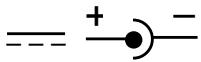
Warning: Use a center positive adapter with a safety isolating transformer. The polarity symbols confirming its center positivity should be clearly marked on the adapter which must comply with the CEE Publication 15. The adapter should be regularly examined for potential hazards such as damage to the plug, cable or cord, casing or other parts. In the event of damage, the adapter should not be used.
The manufacturer reserves the right to make technical changes without notice in the interest of progress.
CONDITIONS OF WARRANTY
- Warranty period is 2 years from date of purchase with proof of purchase submitted.
- Operating instructions must be followed.
- Product must not have been damaged as a result of defacement, misuse, abuse, neglect, accident, destruction or alteration of the serial number, improper electrical voltages or currents, repair, alteration or maintenance by any person or party other than our own service facility or an authorized service center, use or installation of non-Saitek replacement parts in the product or the modification of this product in any way, or the incorporation of this product into any other products, or damage to the product caused by accident, fire, floods, lightning, or acts of God, or any use violative of instructions furnished by Saitek plc.
- Obligations of Saitek shall be limited to repair or replacement with the same or similar unit, at our option. To obtain repairs under this warranty, present the product and proof of purchase (e.g., bill or invoice) to the authorized Saitek Technical Support Center (listed on the separate sheet packaged with this product) transportation charges prepaid. Any requirements that conflict with any state or Federal laws, rules and/or obligations shall not be enforceable in that particular territory and Saitek will adhere to those laws, rules, and/or obligations.
- When returning the product for repair, please pack it very carefully, preferably using the original packaging materials. Please also include an explanatory note.
- IMPORTANT: To save yourself unnecessary cost and inconvenience, please check carefully that you have read and followed the instructions in this manual.
- This warranty is in Lieu of all other expressed warranties, obligations or liabilities. ANY IMPLIED WARRANTYES, OBLIGATIONS, OR LIABILITIES, INCLUDING BUT NOT LIMITED TO THE IMPLIED WARRANTYES OF MERCHANTABILITY AND FITNESS FOR A PARTICULAR PURPOSE, SHALL BE LIMITED IN DURATION TO THE DURATION OF THIS WRITTEN LIMITED WARRANTY. Some states do not allow limitations on how long an implied warranty lasts, so the above limitations may not apply to you. IN NO EVENT SHALL WE BE LIABLE FOR ANY SPECIAL OR CONSEQUENTIAL DAMAGES FOR BREACH OF THIS OR ANY OTHER WARRANTY, EXPRESS OR IMPLIED, WHATSO-EVER Some states do not allow the exclusion or limitation of special, incidental or consequential damages, so the above limitation may not apply to you. This warranty gives you specific legal rights, and you may also have other rights which vary from state to state.
Information for Customers in the United States:
FCC Compliance and Advisory Statement
Warning: Changes or modifications to this unit not expressly approved by the party responsible for compliance could void the user's authority to operate the equipment.
This device complies with Part 15 of the FCC Rules. Operation is subject to the following two conditions:
- This device may not cause harmful interference, and
- This device must accept any interference received, including interference that may cause undesired operation
NOTE: This equipment has been tested and found to comply with the limits for a Class B digital device, pursuant to Part 15 of the FCC Rules. These limits are designed to provide reasonable protection against harmful interference in a residential installation. This equipment generates, uses and can radiate radio frequency energy and, if not installed and used in accordance with the instructions, may cause harmful interference to radio communications. However, there is no guarantee that interference will not occur in a particular installation. If this equipment does cause harmful interference to radio or television reception, which can be determined by turning the equipment off and on, the user is encouraged to try to correct the interference by one or more of the following measures:
- Reorient or relocate the receiving antenna.
- Increase the separation between the equipment and receiver.
- Connect the equipment into an outlet on a circuit different from that to which the receiver is connected.
- Consult the dealer or an experienced radio/TV technician for help.
Saitek Industries, 2295 Jefferson Street, Torrance, CA 90501, USA

TROUBLESHOOTING GUIDE
| SYMPTOMS | POSSIBLE CAUSES | ACTION TO TAKE |
| 1. The computer does not react, behaves erratically, or "freezes" during a game. | Batteries not inserted properly. | See instructions for installing batteries in Section 1. |
| Batteries weak or bad. | Replace the batteries (see Section 1). | |
| Static discharge or an electrical disturbance has caused the computer to lock up. | Press into the hole marked ACL, as described in Section 7.1. | |
| 2. LCD display is dim or difficult to read. | Batteries are weak or bad. | Replace the batteries (see Section 1). |
| 3. The computer will not play a move. | The computer is in Two Player Mode. | The computer only plays automatic responses to your moves if you exit Two Players Mode (see Section 2.9). |
| You might be on a level where the computer thinks for a long time (e.g., Infinite or Problem Solving Levels). | You may interrupt the computer's thinking and force it to move by pressing ENTER. | |
| 4. The computer will not accept your move. | Is it your turn? Is your King in check? Will your move put your King into check? Are you trying to castle incorrectly? | Make sure you are familiar with the chess rules. Verify that the board position is correct, as described in Section 5.1. |
| 5. An error message is displayed when a square is pressed. | The computer is thinking—its color symbol is flashing in the display. | You may interrupt the computer's thinking, if desired, by pressing ENTER. |
| You have not entered the computer's last move correctly. | Press the indicated square to complete the computer's move and erase the error message. | |
| 6. The computer seems to be making illegal moves. | The computer has made a special move, such as en passant, castling, or pawn promotion/underpromotion. | Review the chess rules. Verify the board position as described in Section 5.1. |
| Your position is not correct—pieces have been moved. | Verify the board position (see Section 5.1). | |
| Batteries are running out. | Replace the batteries (see Section 1). | |
| 7. The computer makes instant or irrational moves. | The computer may be set on a Fun Level, where it purposely makes common mistakes, or on one of the lowest Training Levels, where it moves quickly and plays weaker than normal because its search depth is limited. | Press LEVEL to check the currently selected level (see Section 3). |
| One of the Power Saving Modes is selected. | The computer's play is weakened when a Power Saving Mode has been selected. Change the Power Saving Mode (see Section 6.2). | |
| 8. The computer does not work with the adapter. | Wrong adapter type, incorrect voltage rating, or defective adapter. | Check with your dealer. Use only the recommended mains adapter (see Section 7.3). |
| 9. The computer plays both sides. | Auto Play option is turned on. | If you want to play against the computer, turn the Auto Play option off (see Section 6.1). |
LCD Display: 48-segment LCD
Geluid: Piezo-electric buzzer
Batterijen: 6 AA formaat (AM3/R6)
Afmetingen: 34 × 26 × 3,2 cm
Wisselstroom


- KEYS AND FEATURES
- GAME KEYS
- INTRODUCTION
- GETTING STARTED: THE BASICS
- First, Install the Batteries or Optional Adapter
- Ready to Play? Here's How to Move! Follow these steps to start a game:
- Now It's The Computer's Turn
- Change Your Mind? Take Back!
- Game Over? Try Another Game!
- Too Easy/Hard? Change the Level!
- ADDITIONAL FEATURES
- Indication of the Side to Move
- Capturing and Special Moves
- En Passant
- Castling
- Pawn Promotion
- Illegal Moves/ Wrong Moves
- Check, Mate and Draw
- Terminating the Computer's Search
- HAVING PROBLEMS? SOME TIPS!
- Changing Sides with the Computer
- Openings
- Game Memory
- Two Players Mode
- TRY OUT TWO PLAYERS MODE!
- Thinking on the Opponent's Time
- LEVELS OF SKILL
- Setting a Playing Level
- TIPS ON CHOOSING A LEVEL!
- Fun Levels (Squares E1-E7)
- SELECT YOUR PLAYING LEVELS FROM THE 64 BOARD SQUARES
- Infinite Level (Square E8)
- Problem Solving Levels (Squares F1-F8)
- Training Levels (Squares G1-H8)
- GAME INFORMATION
- Using Info Mode
- Principal Variation
- Search Information
- Chess Clocks
- Move Count
- Move Suggestions
- FOR PRINCIPAL VARIATION INFORMATION:
- FOR SEARCH INFORMATION:
- FOR CHESS CLOCK INFORMATION:
- FOR MOVE COUNT INFORMATION:
- FOR A MOVE SUGGESTION:
- SUMMARY OF ALL INFO MODE DISPLAYS:
- VERIFYING/SETTING UP POSITIONS
- Verifying Board Positions
- Changing and Setting Up Positions
- - Press CLEAR to exit Position Mode
- GAME OPTIONS
- Selecting Game Options
- AND...
- Operation Mode Options
- Auto Play Mode (Square A1)
- Sound with Keypress (Square B1)
- OVERVIEW OF THE GAME OPTIONS*
- Silent Reply Mode (Square C1)
- Coach Mode (Square D1)
- Ticking Clock (Square E1)
- Countdown Clock (Square F1)
- Play White From the Top (Square G1)
- Auto Power Down (Square H1)
- Playing Mode Options
- Selective Search (Square A2)
- Power Saving Mode (Square B2)
- TRY PLAYING BLACK FROM THE BOTTOM!
- Randomize Play (Square C2)
- Book On/Off (Square D2)
- Full Book (Square E2)
- WATCH THE COMPUTER THINK!
- Turn on the Rotating Display options:
- Passive Book (Square F2)
- Active Book (Square G2)
- Tournament Book (Square H2)
- Rotating Display Options (Squares A3-H3)
- TECHNICAL DETAILS
- The ACL Function
- Care and Maintenance
- Technical Specifications
- CONDITIONS OF WARRANTY
- Information for Customers in the United States:
- FCC Compliance and Advisory Statement
Brand : SAITEK
Model : MASTER CHESS
Category : Chess