
Turtle Beach Ear Force P21 - Headphones SAITEK - Free user manual and instructions
Find the device manual for free Turtle Beach Ear Force P21 SAITEK in PDF.


| Product Type | Wired Gaming Headset |
| Brand | Saitek / Turtle Beach |
| Model | Ear Force P21 |
| Connectivity | 3.5mm audio jacks (headphone and microphone) |
| Compatibility | PC, Xbox 360, PlayStation 3, mobile devices |
| Driver Diameter | 40 mm |
| Frequency Response | 20 Hz – 20 kHz |
| Impedance | 32 ohms |
| Microphone Type | Noise-cancelling, adjustable boom |
| Microphone Frequency Response | 100 Hz – 10 kHz |
| Cable Length | Approx. 3 m (10 ft) |
| Dimensions (W x H x D) | 200 x 180 x 90 mm |
| Weight | Approx. 250 g |
| Power Source | Powered via audio jack (no batteries required) |
| Main Functions | High-quality stereo sound, noise-cancelling microphone, in-line volume control |
| Controls | In-line mute switch and volume dial |
| Maintenance & Cleaning | Wipe ear cushions with a damp cloth; clean microphone foam gently |
| Safety | Do not use at high volume for extended periods to prevent hearing damage |
| Spare Parts & Repairability | Replacement ear cushions and microphone covers available online |
| General Information | Designed for immersive gaming with clear communication |
Frequently Asked Questions - Turtle Beach Ear Force P21 SAITEK
User questions about Turtle Beach Ear Force P21 SAITEK
0 question about this device. Answer the ones you know or ask your own.
Ask a new question about this device
Download the instructions for your Headphones in PDF format for free! Find your manual Turtle Beach Ear Force P21 - SAITEK and take your electronic device back in hand. On this page are published all the documents necessary for the use of your device. Turtle Beach Ear Force P21 by SAITEK.
USER MANUAL Turtle Beach Ear Force P21 SAITEK
Configuring the PS3® Chat Settings
IMPORTANT: In order to hear other players you must make sure that the following is configured in the PS3 Settings:
Step 1
After powering on the PS3, go to "Settings" > "Accessory Settings" > "Audio Device Settings".
Step 2
Click on "Input Device" and select "Turtle Beach USB Headset" from the options.
Step 3
Click on "Output Device" and select "Turtle Beach USB Headset" from the options.
Step 4
Click on "Microphone Level" and adjust the level of your chat output so that the bar graph barely reaches the red area when you speak loudly.
Step 5
Click on "OK".

Configuring the PS3 Audio Settings
IMPORTANT: In order to hear game audio in the P21 headset, you must make sure that the following is configured in the PS3 Settings:
Step 1
After powering on the PS3, go to "Settings" > "Sound Settings" > "Audio Output Settings".
Step 2
Select "Audio Input Connector / SCART / AV Multi" to send the audio output to the P21.
Step 3
Press "X" to save this setting.
If you are using the HDMI or Digital (optical) output on your PS3 for external speakers, you will need to change this setting to accommodate these devices. Please note that you can not use the audio output from the standard PS3 AV cable simultaneously with an HDMI or Digital (optical) audio output.

About the P21 Headset
The Ear Force® P21 pushes your PS3 gaming experience to a new level with superior stereo sound and crystal-clear communication on the PlayStation® Network (PSN). By combining PSN online chat with stereo game audio, the P21 lets you hear the voices of online players together with the game sound, without the need for external speakers and a communicator headset.
The P21 gives you a competitive advantage by enabling you to clearly communicate with others online while bringing out subtle sound cues in the game that are difficult to hear with speakers—such as the footsteps of an enemy sneaking up on you or the loading of a weapon at a distance.
With its exceptional audio quality, convenient online communication and comfortable ergonomic design, the P21 can help you become a better player while making it a lot more fun to play games on your PS3!

natural_image
Line drawing of a pair of headphones with a charging cable (no text or symbols)Important Information
-
Be careful when turning on the master volume control on the headphones. Before placing the headphones over your ears, set the volume control to minimum, then slowly increase until you reach a comfortable level.
-
Like any speakers, overdriving headphones may cause damage to both the headphones and your ears. Please listen at moderate levels.
-
WARNING: Long term exposure to loud music or other sounds in headphones may cause hearing damage. It is best to avoid extreme volume levels when using headphones, especially for extended periods. Over time, your ears adapt to the volume level, so a level that may not cause initial discomfort might still damage your hearing.
Package Contents
• Ear Force P21 headset
- USB extender cable
• This User's Guide
For warranty information please visit http://support.turtlebeach.com
Copyright © 2009, Voyetra Turtle Beach, Inc. (VTB). All rights reserved. No part of this document may be reproduced without prior written consent from Voyetra Turtle Beach, Inc. Turtle Beach, the Turtle Beach logo, Voyetra, Ear Force and Chat Boost are either trademarks or registered trademarks of VTB. Playstation and PS3 are registered trademarks of Sony Corporation. Windows Operating System is a registered trademark of Microsoft. All other trademarks are not yet registered in any other company and are hereby acknowledged. Product features, visual design, package contents and specifications are subject to change without notice. Product#: TBS-2130-01 V1
EAR FORCE

Voice Chat + Game Audio for the PlayStation® 3
User's Guide

For more products, accessories, and our support knowledge base, visit TurtleBeach.com
Connecting the P21 Using the Standard PS3® A/V Cables
These instructions show how to set up the P21 using the standard A/V cables included with the PS3 so you can listen to the game sound on either the P21 or the TV speakers.

flowchart
graph TD
    A["Step 1 Connect the PS3 audio cables (red/white) to the P21 audio cables (red/white)"] --> B["USB Power"]
    B --> C["USB Extender Cable"]
    C --> D["Video (yellow)"]
    D --> E["TV"]
    E --> F["Audio (red/white)"]
    F --> G["Step 2 Connect the P21 audio cables (red/white) to the TV audio input (red/white)."]
    G --> H["Step 3 Connect the P21 USB/power jack to an open USB port on the PS3. Use the included USB extender cable if necessary."]
    H --> I["Step 4 Connect the PS3 video output plug (yellow) to your TV's video input (yellow)."]
Connecting the P21 to a PS3 with HDMI
These instructions show how to set up the P21 with the PS3 A/V cables and an HDMI cable for HD video. The connections are identical to the standard set up, except the composite video (yellow RCA jack) is replaced by the HDMI video connection.
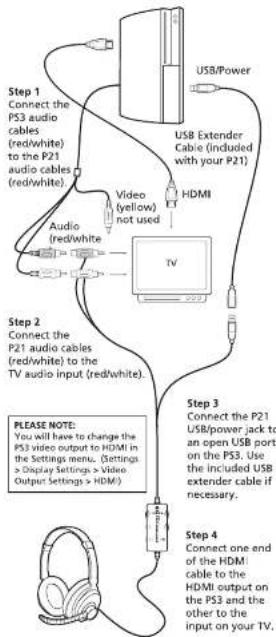
flowchart
graph TD
    A["Step 1 Connect the P53 audio cables (red/white) to the P21 audio cables (red/white)."] --> B["USB/Power"]
    B --> C["USB Extender Cable (included with your P21)"]
    C --> D["HDMI"]
    D --> E["Video (yellow) not used"]
    E --> F["Audio (red/white)"]
    F --> G["TV"]
    G --> H["Step 2 Connect the P21 audio cables (red/white) to the TV audio input (red/white)."]
    H --> I["Please note: You will have to change the P53 video output to HDMI in the Settings menu. (Settings > Display Settings > HDMI)."]
    I --> J["Step 3 Connect the P21 USB/power jack to an open USB port on the P53. Use the included USB extender cable if necessary."]
    J --> K["Step 4 Connect one end of the HDMI cable to the HDMI output on the P53 and the other to the input on your TV."]
Connecting the P21 to a PC or Laptop
Connecting the P21 to a PC or Laptop requires an optional RCA to 3.5mm adapter cable. This lets you insert the P21 RCA plugs into the PC sound card jack so the P21 game audio volume will control the PC game sound in the headphones.
Inserting the P21 USB plug into the PC USB port lets you access the P21 mic and chat as a USB audio device in Windows® Operating System. You can then assign the P21 mic and chat in your game software as a USB audio device. It should appear as "Turtle Beach USB Headset" in the game software audio configuration screen.
To purchase the optional RCA adapter cable, please visit the P21 accessories section on www.TurtleBeach.com

Using the Amplifier
Mic Mute LED
Turns RED when the mic is muted and GREEN when the mic is on.
Mic Mute Switch
When "ON", the microphone is muted so you won't be heard by other players online.
Expander Switch
When "ON", the expander spreads out the stereo separation for a fuller game sound,
Bass Boost
Sets the intensity of bass boost level applied to the game audio.
Chat Boost LED
The intensity of this blue LED indicates the amount of Chat Boost applied to the chat signal. The LED intensity increases as Chat Boost increases the level of teammates' voices in response to louder game sound.
Chat Volume
Sets the level of other player's voices on the PlayStation Network. Chat Boost increases this volume as the game sound increases.
Game Audio Volume
Sets the game sound level.
Mic Monitor (not shown)
When the mic is not muted, you'll hear yourself speak in the headphones, so you won't shout as much when talking online.

Using the Chat Boost™ Feature
Chat Boost is a dynamic talkback expander built into the P21 headset that automatically amplifies incoming chat during loud moments in your game. This allows you to always hear your teammates, regardless of the game volume.
Typically, if you turn up the headset game volume, the chat sound level could become difficult to hear over the game sound. However, with Chat Boost, as the game audio increases, the chat volume also increases and the chat voices will keep up with game level so you can hear what the online players are saying. When the game volume quiets down again, Chat Boost automatically returns the chat level to the lower volume setting.
The blue Chat Boost LED indicator will become brighter as the game volume gets louder and the chat level is increased to compensate. When the LED is dim, the chat volume is only slightly increased. When the LED is bright, the chat volume is significantly increased.
To properly set the Chat Boost function:
-
Turn down the game volume control on the P21 amplifier so there is no game audio.
-
Adjust the chat volume control on the P21 amplifier so you can hear the chat voices at a comfortable level.
-
Gradually turn up the game volume. You will notice that the chat volume will increase as the game gets louder—just as if the talkback volume control is being automatically turned up along with the game level.
PLEASE NOTE:
If the chat volume on the P21 amplifier is set too loud, Chat Boost might increase the chat level so much that the incoming voices will distort. If this happens, turn down the chat volume on the P21 amplifier

- Configuring the PS3® Chat Settings
- Step 1
- Step 2
- Step 3
- Step 4
- Step 5
- Configuring the PS3 Audio Settings
- About the P21 Headset
- Important Information
- Package Contents
- EAR FORCE
- Voice Chat + Game Audio for the PlayStation® 3
- Connecting the P21 Using the Standard PS3® A/V Cables
- Connecting the P21 to a PS3 with HDMI
- Connecting the P21 to a PC or Laptop
- Using the Amplifier
- Mic Mute LED
- Mic Mute Switch
- Expander Switch
- Bass Boost
- Chat Boost LED
- Chat Volume
- Game Audio Volume
- Mic Monitor (not shown)
- Using the Chat Boost™ Feature
- To properly set the Chat Boost function:
Brand : SAITEK
Model : Turtle Beach Ear Force P21
Category : Headphones