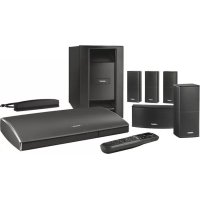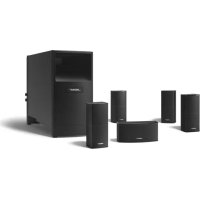
LIFESTYLE 38 - Home theater audio system BOSE - Free user manual and instructions
Find the device manual for free LIFESTYLE 38 BOSE in PDF.



| Product type | Home theater audio system |
| Brand | BOSE |
| Model | LIFESTYLE 38 |
| Media center dimensions (W x D x H) | 40.1 cm x 27.9 cm x 8.9 cm |
| Media center weight | 3.7 kg |
| Media center power supply (US/Canada) | 120 V~, 0.55 A, 50/60 Hz |
| Acoustimass module power supply (US/Canada) | 100-120 V~, 50/60 Hz, 350 W |
| Compatible disc formats | DVD video, DVD-R/RW, Video CD, Audio CD, CD-R/RW, MP3 CD |
| CD storage capacity | Approximately 200 hours of music or more than 200 CDs |
| Intelligent playback system | uMusic™ with 9 customizable presets |
| Radio functions | FM and AM with 20 presets per band |
| Video inputs | Composite, S-Video, Component (YPbPr) |
| Video outputs | Composite, S-Video, Component |
| Audio inputs | AUX (2 Vrms max), digital SPDIF (TV, VCR, TAPE, AUX), optical |
| Audio outputs | Speaker zones 1 and 2, fixed audio output L/R (2 Vrms max) |
| Audio technologies | Dolby Digital, DTS Digital Surround, Videostage 5 |
| Network connectivity | Bose® Link for multi-room extension |
| Maintenance and cleaning | Soft dry cloth for the media center; ammonia-free glass cleaner for the speakers |
| Safety | Liquid protection, Class 1 laser product, automatic timer shutdown |
| Spare parts and repairability | Remote control batteries (replacement), FM/AM antenna, optional IR emitter cable |
Frequently Asked Questions - LIFESTYLE 38 BOSE
User questions about LIFESTYLE 38 BOSE
0 question about this device. Answer the ones you know or ask your own.
Ask a new question about this device
Download the instructions for your Home theater audio system in PDF format for free! Find your manual LIFESTYLE 38 - BOSE and take your electronic device back in hand. On this page are published all the documents necessary for the use of your device. LIFESTYLE 38 by BOSE.
USER MANUAL LIFESTYLE 38 BOSE
Please read this owner's guide
Please take the time to follow this guide carefully. It will help you set up and operate your system properly and enjoy all of its advanced features. Save both the Install Guide and the Operating Guide for future reference.
WARNING: To reduce the risk of fire or electric shock, do not expose the system to rain or moisture
WARNING: This apparatus shall not be exposed to dripping or splashing, and objects filled with liquids, such as vases, shall not be placed on the apparatus. As with any electronic products, use care not to spill liquids in any part of the system. Liquids can cause a failure and/or a fire hazard.
The CAUTION marks shown here are located on the bottom of your LIFESTYLE® DVD home entertainment system media center and ON the rear panel of the Acoustimass® module:
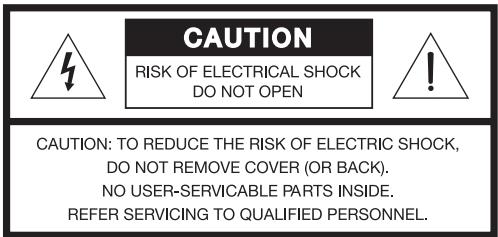
The lightning flash with arrowhead symbol, within an equilateral triangle, alerts the user to the presence of uninsulated dangerous voltage within the system enclosure that may be of sufficient magnitude to constitute a risk of electric shock.
The exclamation point within an equilateral triangle alerts the user to the presence of important operating and maintenance instructions in this owner's guide.
CAUTION: Use of controls or adjustments or performance of procedures other than those specified herein may result in hazardous radiation exposure. The compact disc player should not be adjusted or repaired by anyone except properly qualified service personnel.
A CAUTION: No naked flame sources, such as lighted candles, should be placed on the apparatus.
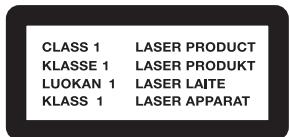
Class 1 laser product
The DVD player contained within the media center is classified as a CLASS 1 LASER PRODUCT according to EN 60825-1:1994 + A11. The CLASS 1 LASER PRODUCT label is located on the bottom of the media center.
Class B emissions limits
This Class B digital apparatus meets all requirements of the Canadian Interference-Caising Equipment Regulations.
Batteries
Please dispose of used batteries properly, following any local regulations. Do not incinerate.

Batteries
Additional safety information
See the additional instructions on the Important Safety Instructions sheet enclosed in the shipping carton.
©2004 Bose Corporation. No part of this work may be reproduced, modified, distributed or otherwise used without prior written permission. Manufactured under license from Dolby Laboratories. "Dolby" and the double-D symbol are trademarks of Dolby Laboratories. Confidential Unpublished Works. ©1992-1997 Dolby Laboratories. All rights reserved.
This product contains one or more programs protected under international and U.S. copyright laws as unpublished works. They are confidential and proprietary to Dolby Laboratories. Their reproduction or disclosure, in whole or in part, or the production of derivative works therefrom without the express permission of Dolby Laboratories is prohibited. Copyright 1992-1996 by Dolby Laboratories, Inc. All rights reserved.
MPEG Layer-3 audio compression technology licensed by Fraunhofer IIS and THOMSON multimedia.
"DTS" and "DTS Digital Surround" are registered trademarks of Digital Theater Systems, Inc.
Music recognition technology and related data are provided by Gracenote and the Gracenote CDDB music recognition service. Gracenote is the industry standard in music recognition technology and related content delivery. For more information visit www.gracenote.com.
CD and music-related data from Gracenote, Inc., © 2000-2003 Gracenote. Gracenote CDDB® Client Software, copyright 2000-2003
Gracenote. This product and service may practice one or more of the following U.S. Patents #5,987,525; #6,061,680; #6,154,773; #6,161,132; #6,230,192; #6,230,207; #6,240,459; #6,330,593, and other patents issue or pending.
Gracenote and CDDB are registered trademarks of Gracenote. The Gracenote logo and logotype, the Gracenote logo, CDDB logo and logotype and the "Gracenote" logo are trademarks of Gracenote.
Where to find…
Introduction 5
Welcome 5
What discs you can play 5
Regarding copy protection
Check for region number compatibility 5
Glossary of audio terms 5
Presenting a New Way to Play 7
What makes this LIFESTYLE® system uniquely yours 7
How you can tell the system to "Do as I do." 7
Getting your music into the system 8
Planning time to store your music 8
How much time to allow for storing CDs 9
How many CDs you can store 9
What you can listen to while storing CDs 9
How the uMusicTM intelligent playback system works for you 9
Why presets are important 9
Switch from one to another easily 10
Use the selection and rating buttons as you like 10
Take advantage of the system intelligence 10
Controls and Capabilities 11
The remote control 11
If the remote does not work as you expect 14
The media center 14
Component video or progressive scan: activating your selection 16
System Performance 17
Some product pointers to ensure satisfaction 17
To turn on other components 17
To watch video 17
To adjust what you see or hear 18
To enjoy remarkable new LIFESTYLE® system features 18
Playing stored music 18
The basics 18
Control options 19
Discover the more advanced benefits 20
Take advantage of what presets can do 20
Respond actively to speed up the learning process 21
Use the Playlist to line up tracks for play 21
How to delete tracks from the Playlist: 22
How to completely clear the Playlist: 22
Check in at the Music Library 22
This product incorporates copyright protected technology that is protected by method claims of certain U.S. patents and other
intellectual property rights owned by Macrovision Corporation and other rights owners. Use of this copyright protection technology must be
authorized by Macrovision Corporation, and is intended for home and other limited viewing uses only, unless otherwise authorized by
Macrovision Corporation. Reverse engineering or disassembly is prohibited.
Consumers should note that not all high definition television sets are fully compatible with this product and may cause artifacts to be displayed in the picture. In case of 525 progressive scan picture problems, it is recommended that the user switch the connection to the "standard
definition" output. If there are questions regarding our TV set compatibility with this model 525p DVD player, please contact our customer service center."
This product incorporates copyright protected technology and other intellectual property rights owned by Cirrus Logic, Inc. and subject to the copyright
protection of the U.S. as well as other licensing restrictions and protections. Use of this copyright protected technology is limited solely to use with
the Cirrus Logic Integrated Circuits Incorporated in this product. Reverse engineering or disassembly is prohibited.
Designed with UEI Technology™ Under License from Universal Electronics Inc. © UEI 2000-2002.
Legal notice: "AEC One Stop Group, Inc. ("AEC") hold the exclusive rights to the ALL MUSIC GUIDE and ALL MOVIE GUIDE data ("The Guides"). You
may not modify, copy or scan or use any other method to reproduce, duplicate, translate, republish, transmit or distribute in any way any portion of The
Guides. You may not download The Guides; any use shall be subject to all restrictions applicable thereto and contained therein. You agree to indemnify,
defend and hold harmless AEC and its affiliates, and Bose and its affiliates, against any and all claims, damages, costs or other expenses that arise
directly or indirectly out of or from (i) your unauthorized use of The Guides, (ii) your violation of this directive and/or (iii) any unauthorized activities by you in
connection with The Guides.
Playing a DVD 23
Control options 24
Using parental controls 24
Loading and playing a CD 25
Control options 25
Using the radio 26
Changing stations 26
Setting a radio station preset 26
To reassign a preset to a different station 27
Using the headphones jack 27
Using the sleep timer 27
To set the sleep timer 27
Controlling External Sources 28
Using your system remote with other components 28
For TV control 28
For cable/satellite control 31
For VCR (or DVR) control 32
For AUX control 32
Designating one video tuner 33
Changing Source Settings 34
Making adjustments to a particular source 34
How to see your options 34
How to change the settings 35
Tuner setting options (FM or AM radio) 36
CD setting options 36
Stored CDs setting options 37
DVD setting options 38
TV setting options (for VCR, CBL-SAT, and AUX) 39
Using System Menus 40
Making system adjustments 40
How to see the System menu. 40
How to make changes 40
Stored CD data options 41
Using the Edit Screen 42
How to change the text 42
Audio options 44
Video options 46
Media center options 47
Remote control options 48
DVD lock options 49
Applying parental control 49
To set the restriction level and passwords 50
Reference 51
Remote control care 51
Replacing the remote control batteries 51
Changing house code settings 51
Other switches 52
For a Bose® link remote in another room 52
Setting up a second room with sound 52
Bose® link compatible products simplify your decisions 53
Bose® link remote switch settings 53
Taking care of your LIFESTYLE® system 54
Troubleshooting 55
Contacting customer service 57
Limited warranty 57
Technical information 57
END USER LICENSE AGREEMENT 58
Welcome
Thank you for purchasing a Bose® LIFESTYLE® 38 or 48 DVD home entertainment system. Through proprietary Bose technologies and innovative LIFESTYLE® systems design, this elegant and easy-to-use system delivers superior performance for both music and video programming.
What discs you can play
The system can play the following types of discs having the corresponding logos:
Video DVDs
DVD-Rs and DVD-R/Ws
Video CDs (VCDs) VIDEOCD

Audio CDs
- CD-Rs or CD-R/Ws
- MP3 CDs that meet the following criteria:
All tracks are burned in a single, closed session and in ISO9660 disc format. Each file name has an ".mp3" extension and no other periods. The file tag is no higher than ID3 (ID3v2).
Regarding copy protection
Music and other content may be protected by international and domestic copyright laws and may contain specific restrictions on use and/or reproduction. Please respect the rights of the artists and other copyright holders.
Check for region number compatibility
For any DVD player and DVD disc to be compatible, their region numbers must match. These numbers are assigned according to where the player and disc are sold.
Check the region number on the bottom of the media center included with your system. Then be sure to choose only DVD discs that show the same region number on the disc label or packaging. For example, a Region 1 DVD and corresponding player should display the mark shown on the right.

Glossary of audio terms
Aspect ratio – The shape of the rectangular picture in a TV set expressed as the width of the picture relative to the height. For example, if a TV picture has an aspect ratio of 4:3 (read as 4 by 3), the shape of that picture is 4 units wide by 3 units high. The two standard TV aspect ratios are 4:3 and 16:9.
Chapter – A main division of contents in a DVD title.
Component video - A video signal split into three parts: luminance and two color signals (marked as YPbPr). It provides the highest resolution video, but cannot be processed by all television sets.
Composite video - A video signal in which the brightness (black and white) and color information are combined. Compatible with most televisions and other video components, composite video cables use RCA jacks.
Dolby Digital - A perceptual coding system for audio, developed by Dolby Laboratories and accepted as an international standard. Dolby Digital is the most common means of encoding multi-channel audio.
DOLBY - The logo representing Dolby Digital.
DTS - An abbreviation for Digital Theater Systems, a type of multi-channel surround sound format used on certain CDs and many DVDs.

- The logo representing DTS.
DVD – An abbreviation most commonly known to mean Digital Video Disc or Digital Versatile Disc. The audio/video/data storage system is based on 12-cm optical discs.
DVD video – A standard for storing and reproducing audio and video on DVD-ROM discs, based on MPEG video, Dolby Digital audio, and other proprietary data formats.
Gracenote - Music recognition technology and related data provided as part of the service contracted for by Bose.
IR - An abbreviation for infrared. Pertains to the type of remote that sends/receives commands on an infrared light beam.
Letterbox – A video format which has an aspect ratio wider than 4:3 and is shown with black bars above and below the picture.
MP3 - MPEG-1 Layer III audio. This is a compressed audio format that allows the recording of many hours of music on a single CD.
NTSC – An abbreviation for National Television System Committee and a label for the video format standard established by the committee for televisions used in the US and other countries.
PAL – An acronym for the Phase Alternate Line video format used extensively in Western Europe.
Pan & Scan – The technique of reframing a picture to conform to a different aspect ratio by cropping parts of the picture. DVD-video players can use the horizontal offset encoded with the video on certain DVDs to automatically pan and scan widenscreen video to a 4:3 ratio.
PCM – An abbreviation for Pulse Code Modulation. A common form of digital audio signal.
Progressive Scan - A video format which displays all lines of the picture frame in a single pass, and refreshes the image sixty times a second. This format is not compatible with all video displays.
RDS - A system that displays radio broadcast station and programming information. This feature is available on European systems only.
SACD – An abbreviation for Super Audio Compact Disc, which is used for high-resolution digital audio stored on a CD-sized disc. The new Bose® LIFESTYLE® systems (with which this guide is included) play the CD-compatible portion of such discs, identified by the CD disc logo on the front of the disc.
SCART - A type of jack commonly found on consumer electronics products manufactured for use in Western Europe.
SCMS – A system for preventing second-generation digital copies of copyrighted audio material. A digital recorder equipped with SCMS will record digitally from another source, but that recording cannot then be used as a source for a second-generation recording.
S-video – Also called Y/C. A video signal that keeps the brightness and color information separate, and is significantly better than composite video. Requires the use of an S-video cable and is compatible with many televisions and other video components.
uMusic™ intelligent playback system – A revolutionary Bose play mode, which performs like a virtual DJ by noting listener preferences and playing suitable stored CD tracks in response.
Videostage® 5 - Bose proprietary Videostage 5 decoding circuitry gives you a five-channel surround sound experience from everything you listen to – VHS tapes, stereo CDs, even mono TV programs.
YPbPr - A component analog video signal containing one luminance and two chrominance components. Also referred to as YUV or Y, B-Y, R-Y.
What makes this LIFESTYLE® system uniquely yours
The CDs you have amassed over the years are an expression of your taste in music. The ones you play on a regular basis provide a window into your style and moods. And the tracks you most enjoy when feeling tired, exuberant, social, or soulful exemplify these moods.
You may have chosen your LIFESTYLE® 38 or 48 system because it captures these subtleties with a breakthrough new feature: the uMusic™ intelligent playback system. Enabled by proprietary Bose® technology, it transforms your system into a virtual DJ, capable of playing a continuous stream of the music you most enjoy and adapting to your preferences as they change.
Not only does it store your personal CD collection, the uMusic intelligent playback system also provides a revolutionary new approach to hearing your music.
It offers immediate access and uninterrupted play, so you can enjoy far more of your favorite music, even the tracks you've forgotten you own. And, as if it is listening along with you, the system also learns to play more and more of what you prefer...for customized listening pleasure.
Underlying this new feature is the capacity to store all of the tracks from hundreds of your CDs in the system. The actual quantity depends on the number and length of tracks on each CD. Used as a personal music library, this feature saves you the time spent physically arranging and searching through your collection.
How you can tell the system to "Do as I do."
That's right, you get to instruct this new music system to play what you want, when you want it.
But giving it instructions requires very little effort. Just react to your stored music as it plays and count on this system to pay attention.
Don't be concerned about doing it right, either, because anything you do is undo-able. For instance, pressing Encore tells the system to search the database for music with characteristics that closely match what's playing now. This choice gets the system to narrow its focus of selections, in response to your command. But whenever you press the uMusic button again, you'll notice the system returns to selecting form a broader range of your collection.
Even pressing the - (negative) rating button does not banish a track forever. It tells the system to move on because this particular track is not right for this time of day, this activity, this selected preset, or the person who's listening.
Pressing the + (positive) rating button has the opposite effect: the system learns that you particularly like the track playing. Not that every track you like requires a + rating. But you can provide this nudge when the track you hear is really special.
Over time, the system adjusts the type of music it plays when your preset is selected, in response to your previous reactions. And you don't need to worry that any response you make now will be stored in concrete. All of your early choices and decisions are easily overridden, if you like. So don't hesitate to tell the system just what you think now. Feel free to experiment, and enjoy your musical mood.
Whatever that mood is, letting it be known helps the system come closer and closer to playing exactly what you'd choose...if you still had to.
Getting your music into the system
Before you can enjoy these benefits, some preparation is required. It involves use of the media center and a simple 3-step procedure for storing your music.
Note: Your system is designed to store the tracks of regular CDs only. It will not store MP3 tracks or the contents of DVDs. If an inappropriate disc type is in the disc tray when the Store button is pressed, the media center displays an error message to indicate that storage is not possible.
Here's how to begin:
-
Place the first CD into the disc tray of the media center and close the tray.
-
Press the Store button, located on the media center control panel.
-
During this process, the media center displays the message CD STORING and shows what percentage of the task is completed.
-
To interrupt or stop the storing activity at any time, simply open the disc tray. To resume storing the same disc, close the tray and press the Store button again.
-
When it reaches 100% and displays the text AUDIO CD STORED, remove the disc and repeat steps 1-3 for each additional CD.
Storing takes about 5 minutes* per disc. For more detail, see Planning time to store you music, below.
Tips on storing
- It is not necessary to have the system turned on while storing.
- Begin storing your favorite CDs first, for the best introductory taste of what the uMusic™ system can do.
- It is not necessary to store CDs alphabetically.
- Using the log pages at the back of this guide is one way to track the order of the CDs you store.
- Allow the system a little time to learn the choices you would make. But don't worry, this DJ is a fast learner.
- After the tracks on a CD are stored, any one of them can be deleted. You can do this in the System menu, under Stored CDs.
Note: For information on how to use the System menu, refer to "Making system adjustments" on page 40. For details on how to eliminate tracks, refer to "Stored CD data options" on page 41.
Planning time to store your music
Storing entails two actions: placing the tracks from each CD in a holding area and processing the tracks for efficient storage. This frees up the holding area. While the holding area is temporarily full, no more storage is possible. As an indicator, the media center displays the message: BUSY PROCESSING CDS.
If you turn the system off, this processing goes faster. If you choose to use the system while it is processing, the storing activity continues, but it may take a little longer.
If your CD collection is extensive, plan on several sessions to store all the tracks. Consider the guidelines below for scheduling these sessions.
*If you notice one disc taking considerably longer to store, it may need to be cleaned. Refer to "Cleaning discs" on page 54.
How much time to allow for storing CDs
- For storing 10 discs: 1 hour, though CDs that are damaged or need cleaning take longer. (Allow about 5 minutes per disc, with some time for inserting and removing each disc.)
- For processing (searching databases and cataloging all the tracks) 10 discs: 6 hours, while the system is turned off.
How many CDs you can store
- Using a LIFESTYLE® 38 system: approximately 200 hours of music or well over 200 CDs
- Using a LIFESTYLE® 48 system: approximately 340 hours of music or well over 350 CDs
What you can listen to while storing CDs
- You can listen to the AM or FM radio tuner, other CD tracks that are already stored, or other sources connected to the system (an analog connection is required), like your TV.
- You cannot listen to the CD that is being stored, or watch a DVD using the media center disc tray.
- As soon as the media center displays 100% , you can listen to the CD you have just stored, (using the CD player or Stored as the source), or you can replace the CD with a DVD and watch a video.
- If your setup includes a Bose® link network, you can continue to listen to the system in other rooms, too.
- You may notice some minor interruptions to the audio temporarily. But, if you have the source connected using both digital and analog cables, you can still enjoy listening to it.
How the uMusic™ intelligent playback system works for you
We know that the time spent sorting through CDs to locate the tracks you prefer simply delays your listening pleasure. Now, almost instantaneously, the uMusic system can do that job for you: finding and playing what you most want to hear.
Why presets are important
The uMusic system provides Presets 1 to 9 ready and waiting to provide each member of your household a private space for their personal listening preferences.
By using an exclusive preset, each listener helps this intelligent system distinguish their individual reactions to what it plays. Consider each preset a center point for that person's musical taste. Over time, the center may shift, as changes in taste and listening habits are noted by the preset.
Feel free to assign the presets as you like, give each one a name, and press just one button on the remote to switch quickly from one to another. Consider the benefits of reserving a preset for:
- Different members of your family, different roommates, different generations. For the preset selected, both the number and its name, if any, appear on the media center display to help you keep the assignments straight.
Note: If several family members store their CD tracks on the system, be sure each one has an assigned preset and uses that preset when listening.
- Different listening times or frames of mind: wake-up, workout, weekends, homework, yard work, craft work, etc. For smaller households, it makes sense to change presets for different activities during your day.
Just remember that no preset is locked into its assignment. At any time, you can completely clear the memory of a stored music preset, then reassign it to another person or purpose. It's strictly your choice. And you are free to use one and only one preset forever, if that's what you prefer.
Switch from one to another easily
Pressing one or two buttons is all it takes.
- If you are not yet in the uMusic™ mode, press the remote control Stored button to get there.
- While in the uMusic mode system, press a number button, from 1 to 9, to activate one of the presets.
Use the selection and rating buttons as you like
With your preset selected, do what you normally do while listening:
- Let the track play to its conclusion if you don't want to take any action. Or,
- Press the Seek button to move on to the next track if you like. Or,
- Press Repeat for any tracks you want to hear again. Or,
- Use the + and - buttons to rate tracks you react to strongly.
No matter which actions above you take while listening, the system continues to select from the entire contents of your stored music. Your preset keeps track of these responses, so the system learns to play certain music more or less often. Yet, for tracks you rate negatively, a small chance remains that you will hear that music in the future. Only by deleting a track from the system can you ensure it will never play again.
Note: To name a preset, or delete a track from the system, select the appropriate option from the System menu. For more information, refer to "Stored CD data options" on page 41.
Take advantage of the system intelligence
As it stores and processes the tracks from your CDs, this system draws information about the tracks from internal music databases. This data includes the name of each track, performing artist, style of music (genre), and other meaningful information that helps characterize the music you enjoy.
As a further benefit, Bose issues update discs to keep the music databases current. So even your newest CD acquisitions will have this information available.
Sending in the Product Registration card included with your system is very important.
(As indicated on your card, you may be able to register on line, instead).
Using either method identifies you as the system owner who should
receive any database or software updates.
Data on each disc copies to the system
automatically, when inserted
in the disc tray.
Be sure to fill out your card, or the online form, and return it to Bose.
Beyond just storing this data for your use, however, the system also allows you to edit it to better reflect your associations with the music. For instance, if the embedded data classifies a CD as "World" music, and you consider it part of your Latin collection, you can simply change the genre of that CD. For any CDs not covered by the database (created at home or non-commercially produced), the system allows you to add information about that music to make sure it is filed and displays as you like.
For details on what information can be added or changed and how to make those changes, refer to "Stored CD data options" on page 41.
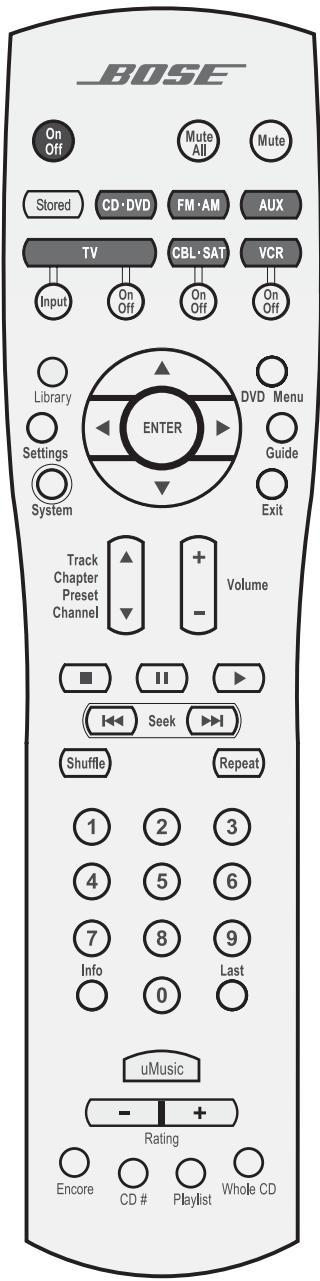
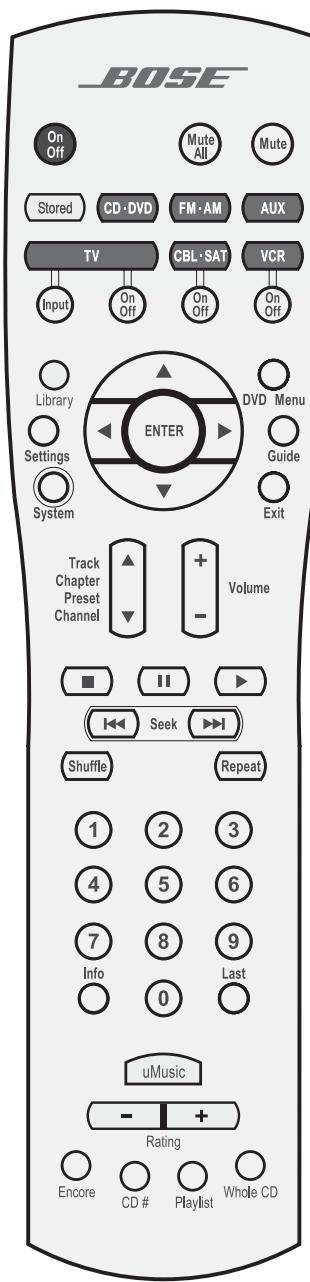
The remote control
The advanced radio-frequency remote control provided with the LIFESTYLE® system works from almost anywhere inside your home. Simply press any button. There is no need to aim the remote at the media center.
Power and mute
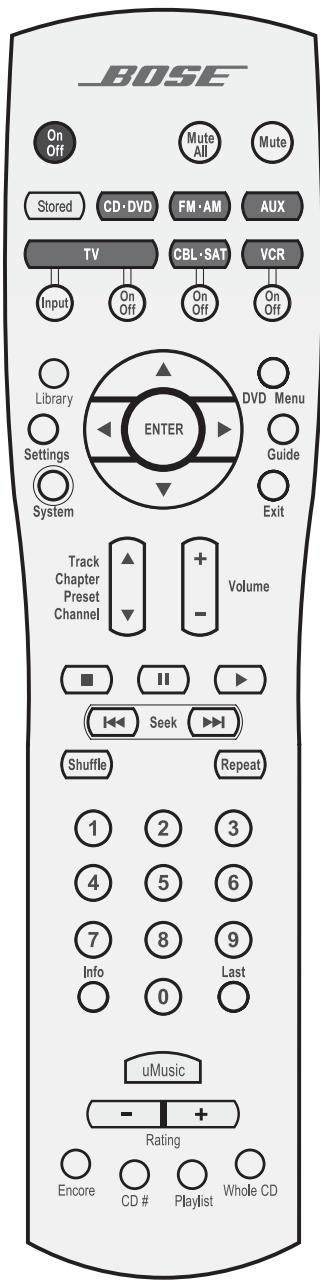
On Off Turns the system on and off. Selects the source last used.
Mutes the volume for all connected speakers (main and in other rooms).
Mutes or unmutes the volume in the current room.
Source and input selection
Stored Turns the system on and selects the uMusic™ intelligent playback system mode of stored CD play. Overrides other stored CD modes.
CD.DVD Turns the system on and selects the built-in disc player as the source.
Turns the system on and selects the built-in FM/AM radio tuner set to the station last selected. Switches between FM and AM when the radio is on.
Turns the system on and selects an AUX source connected to the media center.
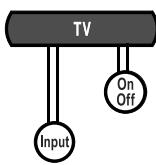
Turns the system on and selects the TV connected to the media center as the source.
When the remote has been set to do so*, turns the TV on and off.
When the remote has been set to do so, scrolls through the TV inputs, allowing for selection of the input used to connect the media center to the TV.
Turns the system on and selects a cable box or satellite receiver connected to the media center as the sound source.
When the remote has been set to do so*, turns your cable or satellite box on or off.
Turns your system on and elects the VCR connected to the media center as the sound source.
When the remote has been set to do so*, turns your VCR on or off.
*You can choose to set the LIFESTYLE® remote to control your TV, cable or satellite box, or VCR so that it will turn these devices on or off. To do that, refer to “Using your system remote with other components” on page 28. Until then, simply turn on the TV or component using its power button or remote control.
Menu and program selection

Library

Settings

System

DVD Menu

Guide

Exit
Enters the library of stored CD tracks.
Enters or exits the Settings menu for the current source.
Enters or exits the System menu.
Enters or exits the menu of the DVD disc that is currently loaded. Enters the main menu of a cable or satellite box.
Displays an electronic TV listings guide.*
Exits the Settings and System menus and the Library and Info screens.
Exits the electronic TV listings.*
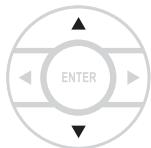
Tune the FM/AM radio up or down to the next frequency. Selects the previous or next item in a menu list.
Enters submenus or confirms the selection of a menu item.
Move up, down, left, or right in a menu or screen.
Select a DVD chapter, CD track, radio station, TV channel or, stored music preset that corresponds to the numbers pressed.
Also changes System and Settings menu items, when numbers apply.
Skipping to the previously selected TV channel.*
Displays or exits the cable or satellite information window, if available. Pressing and holding this button (until the change is apparent), removes or restores track information on the media center display.
Pressing this button also opens a screen on the TV, if the TV input is selected for the media center. This screen provides details on the stored music playing. Pressing the Info button will toggle this information on and off the screen, and each press advances the scrolling information on the media center display.
Selection adjustment
Seek backward or forward to the next strong radio station, CD track, DVD chapter or stored music track.
Skip backward or forward to the next CD track, DVD chapter, radio preset (NOT to stored music preset), or to TV channel.

Raise or lower the volume of the current source.
Pressing + unmutes the source playing (if muted) in the current room only.
Pressing - lowers the volume.
Playback options
The first six buttons defined below are for use with your LIFESTYLE® system only. Except for Shuffle and Repeat, the other buttons below work with a VCR or DVR when the remote is set to do so.
uMusic
Selects the uMusic™ intelligent playback system mode for the stored source and overrides any previously selected modes.
Apply a negative (-) or positive (+) rating to the stored music playing. Immediately moves on to a new track if a negative rating is applied.
For further information on rating stored music, refer to "Respond actively to speed up the learning process" on page 21.

Queues up and plays stored music that most closely matches the style of the current track.

Plays the tracks from a specific CD when it is pressed just before pressing the number keys for that stored CD.

Plays all the tracks, if any, assigned to a playlist. Can be used with additional play mode options, like Encore.
For further information on using a playlist, refer to "Use the Playlist to line up tracks for play" on page 21.

Whole CD
Skipping from the track most recently playing to the first track on the CD of origin and playing that CD from beginning to end.

Stops CD, DVD, or stored music play. For DVDs and VCDs only, the system remembers the point where the music stopped. Pressing again clears that memory.

Pauses CD, DVD, or stored music play.

Starts CD, DVD, or stored music play.
Skip back or forward to the start of a track. Enter control of DVD play rate. Or, when pressed and held, scan backward or forward through the current CD or MP3 disc.

Plays CD tracks in random order. Press Shuffle again to cancel this mode.

Repeats a whole CD or track, DVD chapter, or DVD title. Press Repeat again to cancel the repeat mode.
If the remote does not work as you expect
If your system does not respond when you press a button on the remote, it could be time to change batteries. For information on the type of batteries to use and how to change them, refer to "Replacing the remote control batteries" on page 51
In some buildings, you may experience "dead spots" where the remote control will not operate effectively. If this happens, move the remote a foot or two and try again. Also make sure the cord that connects the power supply to the media center (and contains the remote antenna) is stretched to its full length and is separated from other power cords. If these efforts do not work, move the media center a few feet to a location where it provides a better response.
If the batteries are fine and the suggestions concerning "dead spots," above do not work, you may need an antenna extender. To contact Bose® customer service to request one, refer to the address list included with the system.
The media center
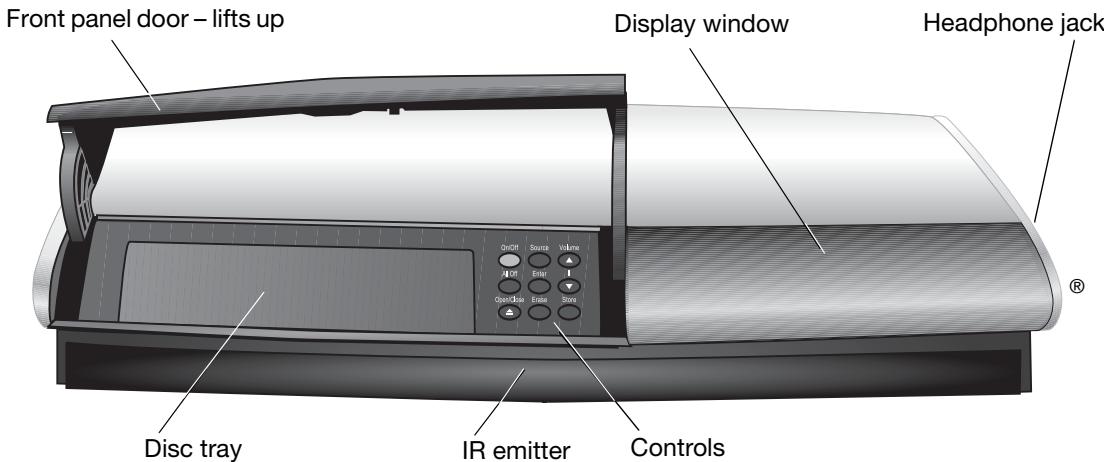
The disc tray and system controls are located under the front panel door of the media center. To the right of that is the display window (Figure 1).
An IR signal emitter, located below the media center controls, enables you to control other components using the LIFESTYLE® remote. Avoid blocking that emitter, so its signal will have a clear path to other components or reflective surfaces in the room.
Front view of the media center
Figure 1
Sample of information that appears on the media center display
Display window
The media center display window indicates the state of the system, including what source is playing, details of that program, and what option, if any, is selected (Figure 2).

Figure 2
When Settings menu items or messages appear in the display, they may scroll to reveal information that does not fit in the two lines available.
Light indicators
| Shuffle | Shows when a CD, MP-3 disc, or contents of an MP-3 folder contents are playing in random order. |
| Repeat | Shows when the track or disc playing is set to repeat. |
| Disc | Shows when a disc in the disc tray is playing. |
| Track | Shows when a track is playing. |
| Storing | Shows when CD tracks are storing. |
| 0 | Lights briefly when a remote control command is received. |
Controls
The nine control buttons work as described below.

Turns the system on or off in the main room only. Selects the source last used when it turns the system on.

Turns off the system and all connected speakers (in all rooms).
Opens/closes the disc tray.

Steps through the available source selections.

- Begins DVD play when that option appears selected on screen.
- When the system is off, resets the remote control house code.
- Works with the Store button to scan through the system settings options on the media center display.

Removes a radio station preset.

Raises the volume of the system and unmutes the speakers if they were muted.

Lowers the volume of the system but does not unmute the source.

Copies the tracks from an audio CD to the internal hard drive.
When the system is off, resets the remote control house code.
Works with the Erase button to scan through the system settings options on the media center display.
Component video or progressive scan: activating your selection
If you have used a component video connection between the media center and the TV, you need to make the activation settings as explained below.
With the media center turned off, use the controls on its front panel to follow these steps:
- Press and hold the Enter button on the media center.
- While holding the Enter button down, press the Store button.
Selections will appear on the media center display each time you press Store.
- When Video appears as the selection on the display, release the Store and Enter buttons.
-
Use the Volume up and down buttons to scroll through the Video options.
-
Stop scrolling at the proper selection.
-
For a component connection only, select:
-NTSC COMPONENT (in N. America)
-PAL COMPONENT (outside North America) - For a component connection and progressive scan, select NTSC PROGRESSIVE.
Note: The system does not support PAL Progressive video.
- With the proper selection made, press Store to confirm the selection and leave the Video options.
The system is now ready to deliver the video signal you prefer.
Some product pointers to ensure satisfaction
To turn your system on:
- Press the On/Off button on the remote control. Or...
- Press the On/Off control on the media center. Or...
- Press the CD/DVD, FM/AM, TV, CBL/SAT, or AUX remote button. This turns the system on and selects the source at the same time. Use the Stored button this way too, after you have stored music on your LIFESTYLE® system.
To use your system with the TV and other components, review the reminders below. They are provided to help ensure that it all works together smoothly.
Note: For information on how to set the remote to operate other components, refer to "Using your system remote with other components" on page 28.
To turn on other components
You need to:
- Turn on the system.
- Select the source.
- Turn the source on (if it is an external component).
You can use your LIFESTYLE® remote control to do all of that, once you have set it to operate the TV and other components. Use the System button on the remote control to see the menu where these settings can be made.
To watch video
Your installation choices may require some activation settings, as indicated below.
-
Getting the image to the TV screen:
-
Be sure to select the proper Video Input on your TV (consistent with the video input that the media center connects to on the back of the TV). Use the TV Input button on the LIFESTYLE® remote control (if the remote is already set to control the TV).
-
Using the component video connection option:
-
If you have a component video connection between the TV and the media center, be sure to make that selection on the display of the media center. Until you do, you may see nothing on your screen when you select DVD as the source.
-
Using the progressive scan capability of your TV:
-
Make sure there is a component video connection between the TV and the media center.
- Be sure to make the Progressive selection on the display of the media center. Until you do, you may see nothing on your screen when you select DVD as the source.
- Make sure any other video component connected to the media center is also connected using a component video adapter.
Note: For information on selecting component video or progressive scan on the media center, refer to "Component video or progressive scan: activating your selection" on page 16.
To adjust what you see or hear
-
For changes to a particular source:
-
Press the Settings menu button on the LIFESTYLE® remote control. Most of these adjustments can be made as you press the up and down arrows on the remote and press Enter to select from options that appear on the media center display.
- To see your choices on the TV, be sure you have the TV on and have selected the proper Video Input for the media center.
-
For details on the changes you can make, refer to "Making adjustments to a particular source" on page 34.
-
For changes to system operation:
-
Press the System button on the LIFESTYLE® remote control.
- Be sure you have the TV on and its Video Input is set for the media center.
- For details on the changes you can make, refer to "Making system adjustments" on page 40.
To enjoy remarkable new LIFESTYLE® system features
You can use many features of your LIFESTYLE® system as soon as it is installed and the setup is verified by the two discs that are included with it.
But the most innovative feature, the uMusic™ intelligent playback system, requires that CD tracks are stored in the system. So you need to store at least one CD first. To get the most impact while listening to your stored music, you really need 20 or more discs stored.
Storing one disc is very simple:
- Place the first CD into the disc tray of the media center and close the tray.
- Press the Store button, located on the media center control panel.
To store additional CDs, you may want some guidelines and more details. Refer to "Getting your music into the system" on page 8.
To further understand your options for identifying and playing the tracks you store, be sure to read “Check in at the Music Library” on page 22 and “Stored CD data options” on page 41.
Playing stored music
Note: This feature is functional only when CDs are stored in the system. For details on how to store CDs, refer to "Getting your music into the system" on page 8.
The basics
- Press Stored to select the stored music source. If the system is off, this will turn it on in the uMusic™ system mode. It begins with the last-used preset.
-
Now you can simply sit back and listen, or make other choices:
-
Press any number button, 1 to 9, to choose a different preset.
- Press - + if you have a particularly strong reaction to a selection now.
Note: Pressing - registers dislike and tells the system to immediately move on to the next track. When you hear a track that is inappropriate for the selected preset, choose this minus rating to lessen your chance of hearing the track again. Pressing + sends a strong message that the current track and ones like it are pleasing now, and you want to hear all of this one.
- Press to hear only music like the piece playing.
The system checks the music databases and selects only those tracks in your collection with very similar attributes, so you can count on it to mirror that mood. - Press to hear the other tracks, in the order arranged, on the same CD.
- Press , followed by its reference number, to move to a specific CD and hear all the tracks on it.
Note: You can refer to the log at the back of the book (if you have noted your CDs there as you stored them) to quickly locate a CD you want to hear.
Control options
If you want to:
Pause the selection playing...
Resume play...
Stop a selection...
Do this:
Press 11
Press 11 again or .
Press once. Then press to continue playing from where the track stopped.
Or, press twice to stop and reset. Then press to restart at the beginning of the track or whole CD.
Move to another selection...
Press Track ▲ up. Not Channel
Move to a previous selection...
Press Track down twice, or once only, if the track you Chapter Preset want to skip has barely begun playing. Channel Not applicable to stored music presets.
Repeat a selection...
Press Repeat while the track or whole CD you want to repeat is playing.
Search backward or forward...
Press and hold the arrows, according to which direction you want to search.
Find out about what's playing...
Press Info to see the track data on the TV screen. Press again to close that screen.
Press and hold to make the information on the media center display disappear or reappear.
Search for a particular CD...
Press and choose to search by:
Library Genre, Album, Artist... as it applies to the CD you want to hear.
Hear music of one type or by one performer...
Press and choose to search by:
Library Genre, Artist...
as it applies to the type of music you want to hear.
Add a selection to the Playlist... Press and hold while the selection is playing.
Hear your Playlist selections... Press Playlist
Make sure a track never plays... Press System, and select Stored CD, Track Action, Delete Track from the menu.
Note: For information on the quick adjustments you can make to Stored CD settings, refer to "Stored CD setting options" on page 37. Instructions on how to enter the menu to make these changes are available in "How to see your options" on page 34.
Discover the more advanced benefits
Enjoying the broad selection of your private music collection in powerful, lifelike multi-speaker performance is the primary benefit of your uMusic™ intelligent playback system.
Yet this system provides the means for you to narrow its selections, to better satisfy the different facets of your personality.
Take advantage of what presets can do
To get the very most from this sophisticated, multi-faceted feature, you need to set up and use the stored music presets reserved just for this purpose.
A stored music preset is where listening preferences for different people, activities, or moods get recorded over time. Consider each one as a different "station" that you tune to so the system can "listen" and learn about your taste.
Note: If several people in your household have stored music on the system, it is particularly important that they have their own presets. This helps the system differentiate preferences and prevents it from replaying music you do not want to hear.
When you first select Stored as your source (on a previously unused system), the system automatically enters Preset 1 (Figure 3). Or, if you used a different preset recently, the system may select that preset for you.
Figure 3
Preset 1 as indicated on the music center display
| STORED | 2:06 | P1 |
| trac k name | CD:125 | |
With CDs already stored in the system, use the preset you prefer to get started:
- Press the Stored button on your LIFESTYLE® remote.
-
Check the media center display to see which play mode is selected.
-
If it says UMUSIC you are ready to listen and enjoy.
-
If it says ENCORE, CD#, PLAYLIST, or WHOLE CD, press the uMusic button on the remote to get the system out of that special play mode.
-
Just listen for a while.
Notice there's no identifiable order to what plays: not by CDs that were stored first, nor by common artist or genre. It's more like a freewheeling stream of tracks you may or may not have heard recently. - While in Stored source, pressing a numbered button – from 2 to 9 – moves into a different preset. The music playing will change when that happens.
Note: You can give each preset a name, up to 8 letters long, for the person or reason for using it. For details on how to do that, refer to "Media center options" on page 47.
Respond actively to speed up the learning process
If you hear a piece you don't like or are not in the mood for:
- Move on by pressing the Seek button.
The system begins to play the next track, notes that you may not be in the mood for this one now, and prepares to learn more.
- Press the - rating button if the track playing is just not right for this preset.
The system logs your strongly negative response and moves to another track immediately.
If a track stands out as a real favorite: - Press the + rating button.
The system logs your response as positive and continues playing the track. You are likely to hear more music from that artist and album sooner than some others.
If you want to register your likes and dislikes more generally:
- Press the Library button, so you can look through music stored on the system and rate it according to genre, artist, or the tracks on a CD.
Note: For details on using the Music Library, refer to "Check in at the Music Library" on page 22.
Use the Playlist to line up tracks for play
The system includes a ready-to-use playlist, so you can line up specific tracks in the order you choose and play them on command.
Note: If you simply want music to set a certain ambiance, you may find it quicker to choose a preset and let the system do the selecting.
The playlist can be useful when you want a very specific type of music, your holiday favorites for example.
How to add music to the Playlist provided:
While listening to a track in Stored source (and not in Playlist), press and hold the Playlist button on the remote.
Locate selections using the Music Library, then press and hold the Playlist button to add them to a Playlist one by one. Or, you can easily add a whole batch of selections by one artist, a genre, or from one CD.
How to delete tracks from the Playlist:
While listening to music in the Playlist, press and hold the Playlist button as the track you want to remove plays.
How to completely clear the Playlist:
To use the Playlist again, for a different purpose, you may want to remove all the tracks listed there now. To do that quickly, press the System button on the remote, move over to Media Center and into that menu to get to the uMusic Preset Action item. Select Clear Playlist from the options list.
Check in at the Music Library
Imagine: while using your LIFESTYLE® system, you hear music – on FM, or perhaps the score of a movie – and suddenly you think of another song you want to hear. You know you own it, though the name eludes you. But it won't stop running through your head.
This is a perfect scenario for using the Music Library. If your system is turned on and the Stored source is selected;
-
Press the Library button on the remote to see your choices for locating a track.
-
The initial library information appears on the media center display (Figure 4).
Figure 4
Music Library as it appears on the media center display

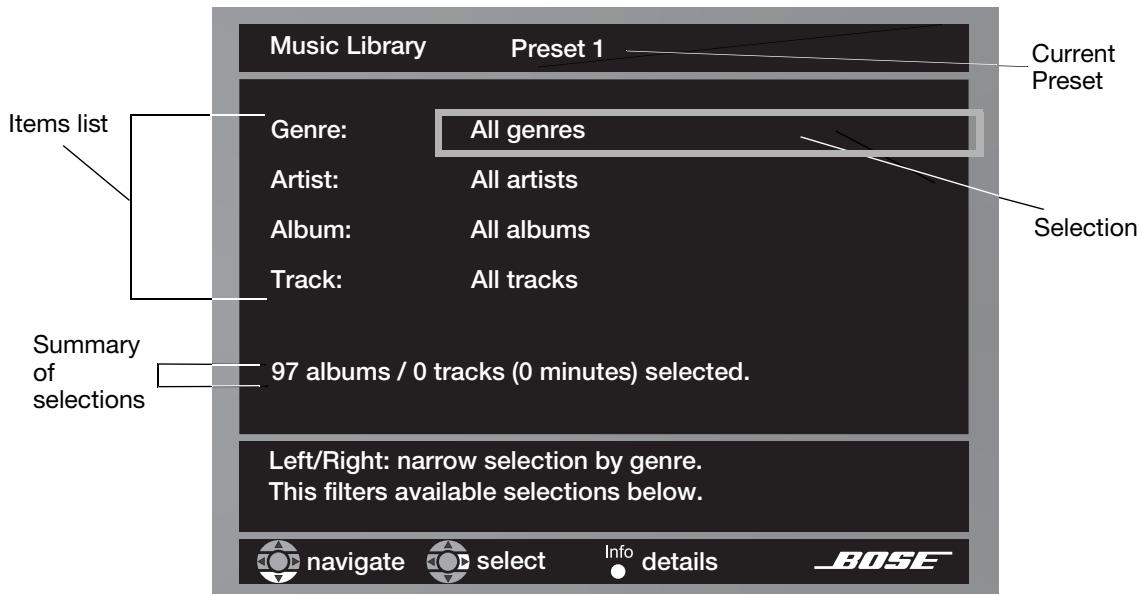
- If your TV is on and the Video Input that connects the media center to the TV is selected, the library screen appears there (Figure 5).
- Genre is selected and ready to browse the genre options.
- Information on the display and the TV screen changes as you move around and make selections.
Figure 5
Music Library on screen
-
Use these actions to move around and make selections from the display or the screen:
-
Press the left, right, up or down arrows to get to the option you want.
- Press Enter or the left arrow to confirm your selection and move back to the features column.
- Repeat these steps for each change you want to make.
-
Press the Exit button on the remote control to leave the Music Library.
-
Choose from new options that appear as you make a selection.
Note: For further details on moving around and making selections on screen, refer to "Making system adjustments" on page 40.
Track located by searching by genre, then artist
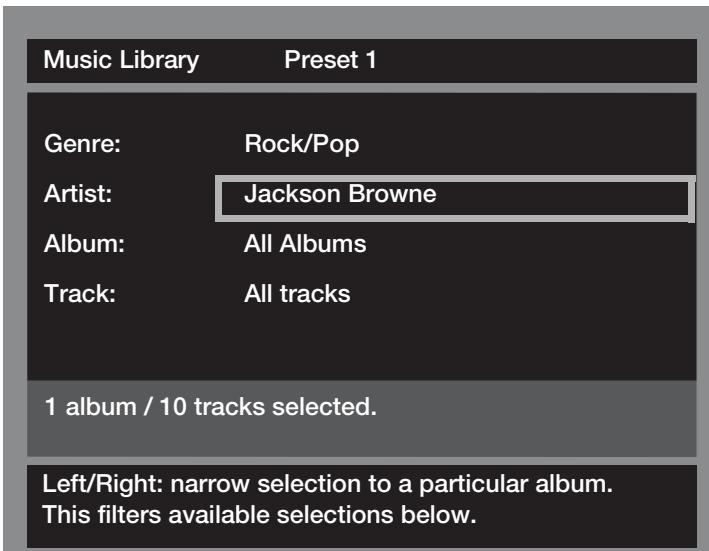
Figure 6
-
When you find what you want, you can use the remote control as follows:
-
Press the Play or Enter button to play your selection(s).
- Press the Info button to see more data for the selection.* (!)
- Press the System button to see data for this selection and edit it as you like.*
- Press Exit to leave the Music Library.
- Press the - or + rating buttons as you locate music in the library. This gives your preset a learning kickstart.
Playing a DVD
The symbols below represent buttons on the LIFESTYLE® remote control unless otherwise indicated.
- Turn on your television.
-
Press CD-DVD to select the DVD player. If the system is off, this will also turn it on.
-
Lift up the media center front door and press on its control panel.
- Insert the DVD disc into the tray (label-side up).
*This appears on the TV screen only.
Open/Close
- Press again to close the disc tray.
- Press to begin play.
You may need to press the play button more than once. Most DVD videos present on-screen selections before the movie begins.
Note: Not all DVDs offer the same features. For example, you can choose subtitles only if the disc provides subtitle information.
Control options
If you want to:
Pause a DVD movie...
Resume play...
Stop a DVD movie...
Skip to the next chapter...
Skip to the previous chapter...
Repeat a chapter...
Search backward or forward...
Do this:
Press II
Press 11 again or .
Press once. Then press to continue playing from where the movie stopped.
Or, press twice to stop and reset. Then press to restart at the beginning of the DVD.
Press Track up. Channel Preset Channel
Press Track down twice. Chapter Preset Channel
Press Repeat while the chapter you want to repeat plays. Press and hold Seek
Note: For information on the quick adjustments you can make to DVD settings refer to "Stored CD setting options" on page 37. Instructions on how to enter the menu to make those changes are available in "How to see your options" on page 34.
Using parental controls
The parental control feature of your LIFESTYLE® system allows you to restrict access to DVD movies with ratings you find inappropriate for members of your family.
Before you can use this feature, you choose a password and a level of restriction in the System menu. To learn more about parental controls, refer to “To set the restriction level and passwords” on page 50.
Note: Refer to "Troubleshooting" on page 55 if you have trouble with a password.
Loading and playing a CD
The symbols below represent buttons on the LIFESTYLE® remote control unless otherwise indicated.
Press CD-DVD to select the CD player and begin playing the CD loaded in the disc tray. This also turns the system on if it is off.
To load another disc after the one playing ends:
- Lift up the media center front door and press Open/Close on its control panel.
-
Insert the audio CD into the tray.
-
Press Open/Close to close the disc tray. Play begins automatically.
Control options
| If you want to: | Do this: |
| Pause a CD... | Press Ⅱ. |
| Resume play of paused CD... | Press Ⅱ or ➔. |
| Stop a CD... | Press ➔. Press ➔ to restart at the beginning of the CD. |
| Clear continuously scrolling track information (for an MP3-CD) from the media center display... | Press and hold Info until the display changes. Press and hold again to restore the scrolling display of text. |
| Go to next track... | Press Track Chapter Preset Channel up. |
| Go to beginning of the track... | After track has played for several seconds, press Track down. |
| Go to a previous track... | Press Track down: once if no music is playing. twice if the music has begun. |
| Scan a CD backward or forward... | Press and hold Seek . On MP3 discs, this jumps to the beginning of a track |
| Randomly play CD tracks... | Press Shuffle. |
| Cancel random play... | Press Shuffle again. |
| Repeat a track... | Press Repeat. |
| Repeat a CD... | Press Repeat again. |
| Cancel repeat... | Press Repeat a third time. |
Note: For information on the quick adjustments you can make to CD settings, refer to "CD setting options" on page 36. Instructions on how to enter the menu to make these changes are available in "How to see your options" on page 34.
Using the radio
The symbols below represent buttons on the LIFESTYLE® remote control.
Press FM-AM to select the radio tuner and turn it on if the system was off. This tunes to the FM or AM station that was last selected.
Changing stations
If you want to:
Switch between FM and AM ...
Seek the next strong station ...
Manually tune to a station ...
Select a preset station ...
Do this:
Press
FM·AM
Press
Seek
Press

Press
(1)
(1)
(2)
(3)
for
cho
pro
7
(8)
(2)
0
Note: For information on the quick adjustments you can make to the radio tuner settings, refer to "Tuner setting options (FM or AM radio)" on page 36. Instructions on how to enter the menu to make those changes are available in "How to see your options" on page 34.
Setting a radio station preset
You can establish a preset for up to 20 AM and 20 FM stations. This enables you to tune in a favorite station quickly. There are two ways to assign presets.
Using the Enter button on the media center control panel to automatically assign the next preset number to a station, follow the steps below for each station you want to assign:
- Tune to the preferred station.
- Press the Enter button on the media center control panel.
Using the LIFESTYLE® remote control, to assign to a specific number:
- Tune to the preferred station.
-
To assign the station a preset number, press and hold that number button.
-
For numbers 1 through 9, press a single number and hold it until the display indicates PRESET: XX SET.
- For numbers 10 through 20, press the first number, then press and hold the second number until the display indicates PRESET: XX SET.
Note: Assigning a preset number to a station will replace any previous assignment of that preset.
To remove a station preset
Tune to the preset number you want to remove. Then follow the step below:
- On the remote control, press and hold the 0 number button until the message PRESET: XX.ERASED appears briefly on the media center display. The removal is then complete.
To reassign a preset to a different station
- Tune to another station. Then press and hold that preset number, which reassigns it to the new station.
- Press the preset number you want to remove. Then mute the system and press and hold that preset number again.
Using the headphones jack
For private listening, you can connect headphones to the jack that is located on the right side of the media center as you face it.
Note: Connecting headphones causes all main room speakers to be muted.
Using the sleep timer
You can set the sleep timer to turn off the LIFESTYLE® system automatically in 10 to 90 minutes, depending on the time you select. You can do this in the Settings menu for any source that is selected.
Note: If you are unfamiliar with use of the Settings menu, refer to "Making adjustments to a particular source" on page 34.
In the Settings menu on the media center display or on the TV screen, move around and make changes by using the selection buttons.
To set the sleep timer
On both the media center display and the TV on-screen menu, the same actions apply:
- Press the Settings button on the LIFESTYLE® remote to enter the menu.
- Move down to the Sleep Timer symbol, the last feature in the menu (Figure 7).
Figure 7
Sleep timer symbol in the source Settings menu
Note: If you see a continuation arrow at the bottom of the menu, move to it to see the other menu items that are not currently shown.
- Move right into the options list and up to the delay time you want, from 10 to 90 minutes.
Note: Pressing the up arrow when you reach the 90 minute option turns the sleep timer off.
- Press Enter to confirm your selection.
- Press Exit or Settings on the LIFESTYLE® remote control to leave the menu.
When the time you set elapses, the timer shuts down the system and the TV (if it is on*), and then turns itself off.
*For the TV to turn off automatically, the system must sense that it is on. This is contingent on your use of the supplied TV sensor. For information on installing and testing the TV sensor, refer to your LIFESTYLE® system Install Guide.
Using your system remote with other components
You can control most brands of external components, such as TVs, VCRs, and cable/satellite boxes, using your LIFESTYLE® remote control. You can also designate one of these components as the video tuner (channel selector) for all, to further simplify operation.
Your LIFESTYLE® system includes an infrared (IR) emitter that sends out signals from the front of the music center to any component that your LIFESTYLE® remote is set to control. This allows you to turn on other sources in the room and make basic selections from them, whether they are connected to the media center or to the TV.
Note: If a component is located where it cannot receive these IR signals, you can use the supplied IR emitter cable with that component. For tips on getting the IR signals where they need to go, or using the optional emitter, see “Connecting the optional IR emitter cable” in your Installation Guide.
For TV control
Note: For general guidelines on using the LIFESTYLE® System menu, refer to "Making system adjustments" on page 40.
Use the TV remote to turn on the TV. Be sure to select the Video Input on the TV for the media center.
Then, using the LIFESTYLE® remote control:
- Press the TV button to select the TV source.
- Press the System button. The System menu will appear on the TV screen.
- Move across the categories to Remote Control to preview these menu options (Figure 8).
- Press the down arrow or Enter to move into that menu.
Figure 8
Preview of Remote features in the System menu
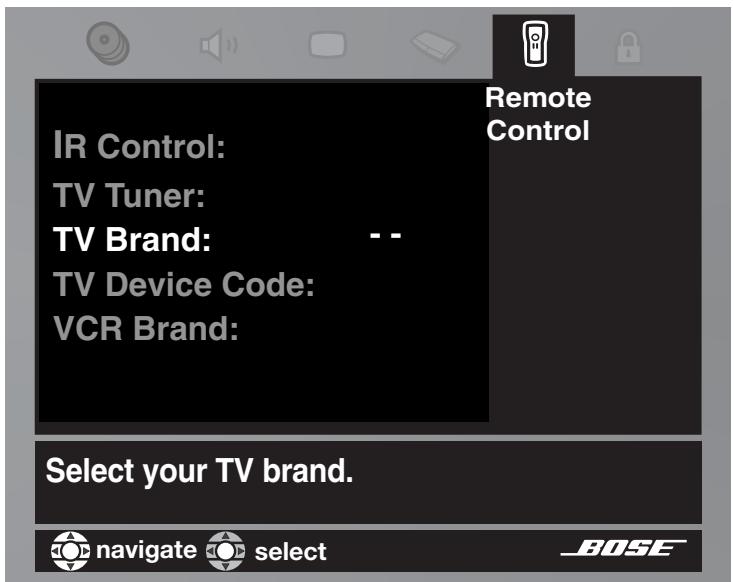
Figure 9
TV brand selection
-
Identify the TV brand:
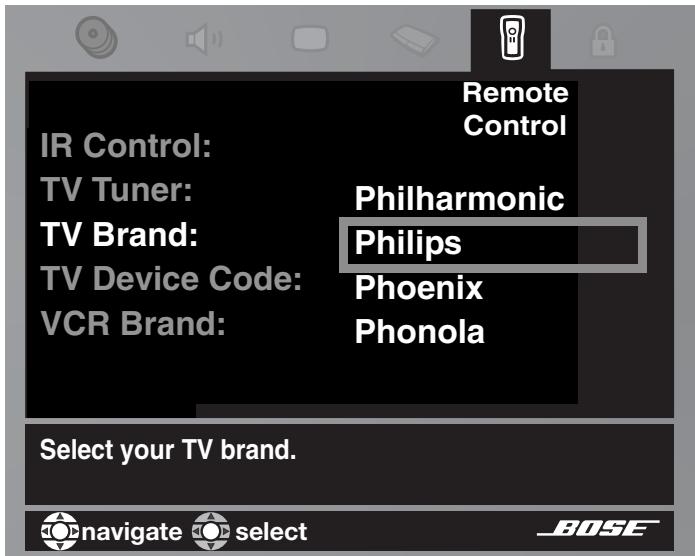
-
From the Remote Control options in the System menu, select TV Brand (Figure 9).
- Move right into the list of brands and up or down to locate the brand for your TV.
- Press Enter to select that brand.
-
Choose the device code:
-
In the menu options on the left, select TV Device Code.
- Move right to select the first code.
- Press the TVOn/Off button on your LIFESTYLE® remote. Press that button again. If the TV turns off and on again, you have chosen the right code. If not, select another code, and press the TVOn/Off button two more times.*
- When you have chosen the right code, press the Enter button.
- To have the TV come on automatically, whenever you press a video source button, follow Step 7 on page 30. To skip this step, instead, press System or Exit to leave the System menu.
*Some manufacturers use a number of similar device codes. After selecting one, you may find you can turn your TV on and off, but are unable to change channels or select Play or Pause. In that case, select a different device code that provides more control.
-
Set the TV to turn on automatically*, as needed:
-
Move up to the System menu categories and over to Video.
From the Video options, select TV Power (Figure 10). - Move right into the list of choices and up or down to select one of the two below:
- Automatic (for TV models that do not use a European style SCART connector)
- Euro Connector (for TV models that use a SCART connector)
- Press the Enter button.
Changing the TV Power
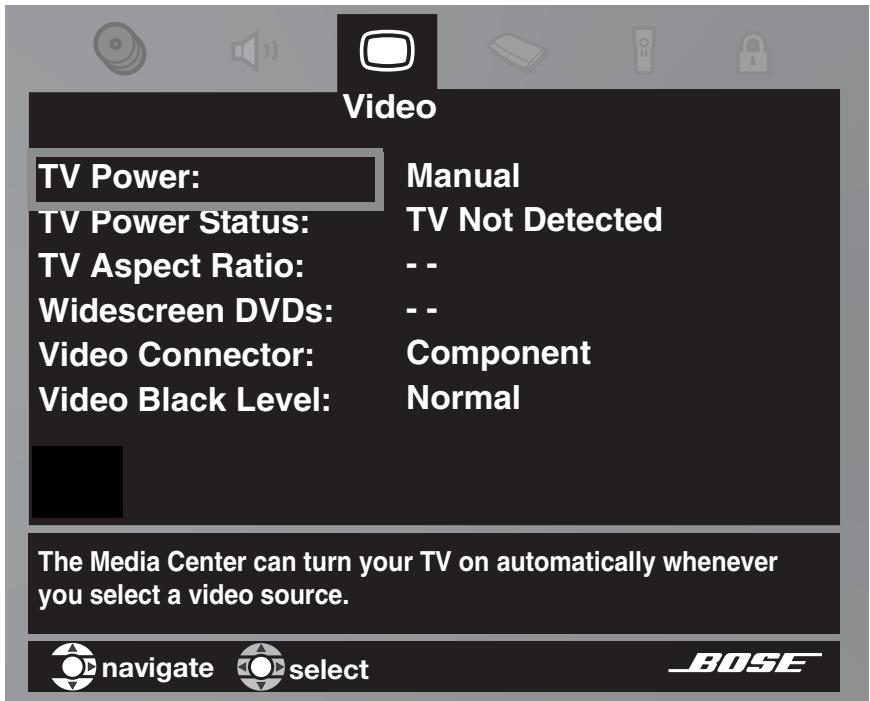
Figure 10
-
Notice the TV Power Status:
-
TV Detected means the installed TV sensor is working.
- TV Not Detected means the TV sensor (if installed) is not positioned properly, or a SCART connector is installed.
- Press System or Exit to leave the System menu.
Note: For information and on using the TV sensor, refer to "Installing the TV on/off sensor" in your Install Guide. To check for positioning of the sensor, refer to "The media center" on page 14.
*For the Automatic feature to work effectively with North American TV models, the optional TV sensor must be installed and positioned to detect if the TV is on or off. In Europe, a SCART connector serves this purpose. If you do not use a SCART connector, or the TV sensor is not positioned properly, the automatic feature is not an option. In that case, leave the TV Power set to Manual. This means you must turn your TV on using its power button or with the LIFESTYLE® remote (when it is set to do so).
For cable/satellite control
While ou can set the LIFESTYLE® remote to control both cable and satellite boxes, you must designate one or the other, not both, in the steps below.
The one connected to the CBL-SAT input on your media center is the one you should designate. So when you press the CBL-SAT source button and the On/Off button below it, you are operating that device.
You can designate the other under AUX Device, following instructions on page 32. Do this only if the device is connected to the AUX input on the media center, or if the AUX input is not being used.
Note: For general guidelines on using the LIFESTYLE® System menu, refer to "Making system adjustments" on page 40.
Follow the process below:
Turn on the cable or satellite box, whichever you are setting the remote to control. Turn on the TV and be sure to select the Video Input on the TV for the media center. Then, using the LIFE-STYLE® remote control, press the CBL-SAT source button and follow the steps below:
-
Identify the device:
-
From the Remote Control options in the System menu, select CBL/SAT Device.
-
Move right and select either Cable or Satellite by pressing Enter.
-
Identify the brand:
-
In the menu options on the left, select CBL/SAT Brand.
- Move right and up or down in the alphabetical list to locate your brand.
-
Press Enter to select that brand.
-
Select the device code:
-
From the menu options on the left, select CBL/SAT Device Code.
- Move right to select the first code.
- Press the CBL-SAT On/Off button on your LIFESTYLE® remote. Press that button again. If the Cable or Satellite box turns off and on again, you have chosen the right code. If not, select another code, and press the CBL-SAT On/Off button two more times.*
- When you have chosen the right code, press the Enter button.
- Press the System or Exit button to leave the System menu.
When you complete these settings, you can use the CBL-SAT On/Off button to turn on your Cable or Satellite source and other LIFESTYLE® remote buttons to operate it.
*Some manufacturers use a number of similar device codes. After selecting one, you may find you can turn your Cable or Satellite box on and off, but are unable to change channels or select Play or Pause. In that case, select a different device code that provides more control.
For VCR (or DVR) control
The list of VCR brands and VCR codes include selections for DVRs as well. By following the instructions below, you can set the remote to control one or the other, but not both.
If you have both a VCR and a DVR, setting your remote to control the DVR will provide more control options. Whether yours is a stand-alone DVR or is coupled with the VCR or Cable/Satellite box makes no difference.
Note: For general guidelines on using the LIFESTYLE® System menu, refer to "Making system adjustments" on page 40.
Follow the process below:
Turn on your VCR or DVR. Turn on the TV and be sure to select the Video Input on the TV for the media center. Then, using the LIFESTYLE® remote control, press the VCR source button and follow the steps below.
-
Identify the brand.
-
From the Remote Control options in the System menu, select VCR Brand.
- Move right into the list of brands and up or down to locate your brand of VCR or DVR.
-
Press Enter to select that brand.
-
Choose a device code:
-
In the menu options on the left, select VCR Device Code.
- Move right to select the first code.
- Press the VCR On/Off button on your LIFESTYLE® remote. Press this button again. If the VCR or DVR turns off and on again, you have chosen the right code. If the VCR or DVR does not turn off and, select another code, and press the VCR On/Off button two more times.
- When you have chosen the right code, press the Enter button.
- Press the System or Exit button to leave the System menu.
When you complete these settings and select VCR as the source, you can now use the VCR On/Off button and press Play, Pause, or Stop to control your VCR.
You can also use the Seek buttons on the LIFESTYLE® remote. On some DVRs, pressing Shuffle and Repeat buttons will allow you to skip backward or forward quickly.
For AUX control
If you have a component connected to the AUX input on your media center, you can set your LIFESTYLE® remote to control it, although on and off control is not an option.
If you do not have a component connected to AUX, you can still control another device by selecting it from the list of AUX device choices: Changer, Satellite, Cable, DVR, TV or VCR.
To exercise this control, you must press the AUX source button first.
Note: For general guidelines on using the LIFESTYLE® System menu, refer to "Making system adjustments" on page 40.
*Some DVRs do not turn off or on, so you can use other remote buttons, like Play, to test for control of that component. Also, some manufacturers use a number of similar device codes. After selecting one, you may find you can turn your VCR or DVR on and off, but are unable to change channels or select Play or Pause. In that case, select a different device code that provides more control.
Follow the process below:
Turn on your component. Turn on the TV and be sure to select the Video Input on the TV for the media center. Then using the LIFESTYLE® remote control, press the AUX source button and continue:
-
Identify the device:
-
From the Remote Control options in the System menu, select AUX Device.
-
Move right and up or down in the list to select a component by pressing Enter.
-
Identify the brand:
-
In the menu options on the left, select AUX Brand.
- Move right and up or down in the alphabetical list to locate your brand.
-
Press Enter to select that brand.
-
Select the device code:
-
From the menu options on the left, select AUX Device Code.
- Move right to select the first code.
-
Press the Play or Channel/Track up button on the LIFESTYLE® remote control.
-
If the component responds, press other function buttons to make sure important functions on the component also work.
-
If the component does not respond, select a different code and try again.
-
When you have chosen the best code for your component, press the Enter button.
- Press the System or Exit button to leave the System menu.
Designating one video tuner
If you set the LIFESTYLE® remote to control several video components, you can choose one of them as then primary channel selector. This allows your remote to change the channels on your cable box, even when TV or VCR is the selected source. So you never need to switch to CBL/SAT to change stations.
Note: For general guidelines on using the LIFESTYLE® System menu, refer to "Making system adjustments" on page 40.
Make this selection from the Remote Control options in the System menu. In the TV Tuner list, select one of your components. Then press the System or Exit button to move out of the menu.
Designating the TV as video tuner
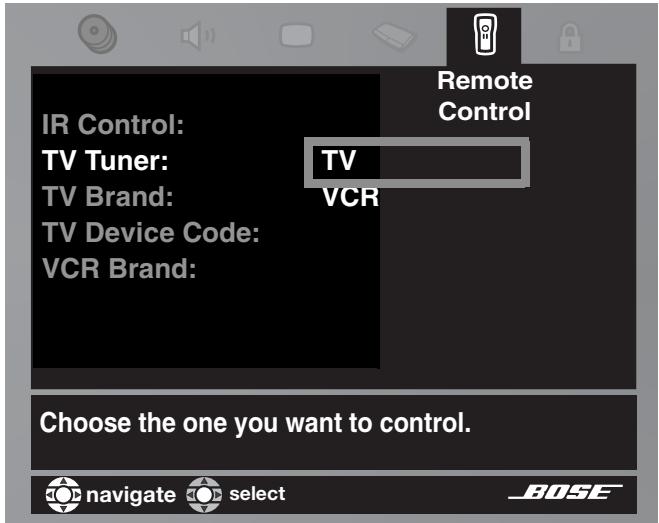
Figure 11
Making adjustments to a particular source
While watching a video or listening to music on your system, you can make quick adjustments that will increase your enjoyment of the program. For example, you may want to hear some or all of the system speakers playing, or boost the center channel volume slightly. For this purpose, each audio source you use with this system has its own Settings menu, with features appropriate to that source. For video sources, the TV Settings menu applies.
With a little experience, moving about and selecting options in the Settings menu for each source becomes second nature. Just try it and see.
How to see your options
To see the settings, you must first select the source. Then, on the LIFESTYLE® remote control, press the Settings button to enter the menu.
You can view the Settings menu for each source on your TV screen or, for audio sources only, on the display panel of your media center.
If your source is the FM radio tuner, the setting options appear on the media center display (Figure 12). The choices scroll into view as you press the down button on the remote.
Figure 12
Settings menu as it appearson the media center display

To see the Settings menu on the TV screen (Figure 13) as well, turn on the TV and select the TV input for the media center. If the list of elements in a menu is longer than can be seen, a small down or up arrow indicates where to move to see the others.
Figure 13
Settings menu as it appears on the TV screen, with identifying tags
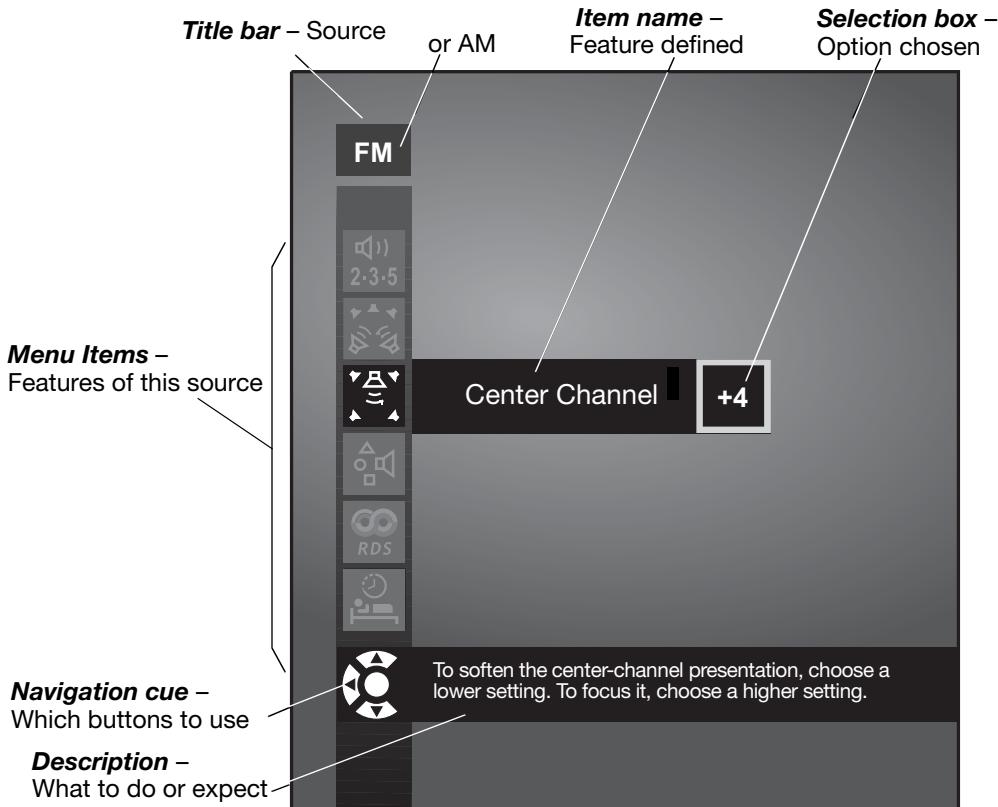
Note: When the Settings menu appears on the TV screen, any change you make to settings will be visible there, as well as on the media center display.
How to change the settings
In the Settings menu on the media center display or on the TV screen, move around and make changes by using the selection buttons shown.
Changing the number of speakers playing
On the display or the screen, the same actions apply:
- Press the left, right, up or down arrows to get to the option you want.
- Press Enter or the left arrow to confirm your selection and move back to the features column.
- Repeat those steps for each change you want to make.
- Press the Exit button on the remote control to leave the Settings menu.
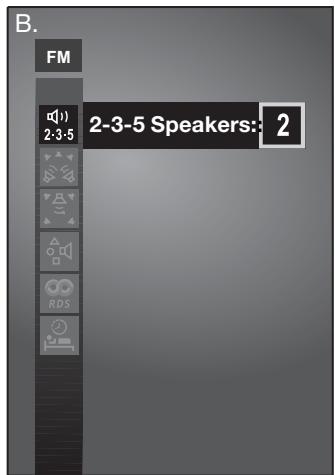
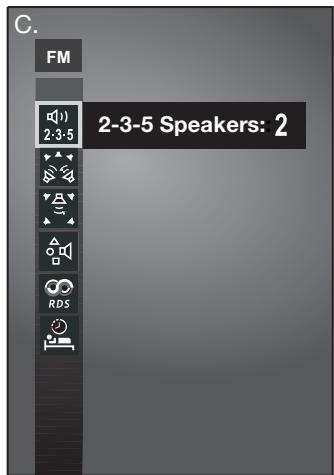
The progression below shows how to change the number of speakers used in FM (Figure 14 A, B & C).
A. The FM Settings menu first appears on the TV screen with 5 speakers as the default setting.
B. Arrow buttons move right and up or down to change the number of speakers playing.
C. Enter or left arrow confirms the new setting and moves back to the list of tuner attributes.
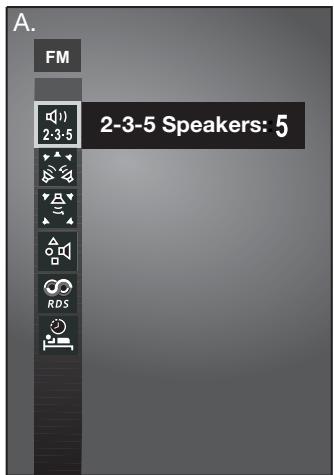
Figure 14
You can use the actions above to restore the original settings, too. Do this if you do not like the effect of a change you have made, or accidentally made a change you did not intend.
The original (default) settings for each source are shown as the first option for each feature on the pages that follow.
Note: You can restore all default settings by choosing Restore Settings in the Systems menu, under Media Center. This reverses all changes you have made in the Settings menu. Instead of making this overall change, you can note the default setting listed on the pages that follow, then re-select that setting in any of the sources.
Tuner setting options (FM or AM radio)
There are different settings menus for AM and FM. You can adjust the settings differently for each. Two of the attributes below are available only when the tuner is set to FM.
| FM (or AM) | Features | Default Setting; Options | Effect of this Setting |
| 2-3-5 | 2-3-5 Speakers | 5 2, 3 | Determines the number of speakers playing. |
| Surround | 0 -5 to +5 | Establishes relative surround sound volume. | |
| Center Channel | 0 -5 to +5 | Establishes relative center volume. | |
| Output Mode (FM-only feature) | Auto Mono or Stereo | Sets channel distribution of radio signals. | |
| RDS Info (FM-only feature on some systems) | Off On | Displays station and program information (as available from Radio Data System). | |
| Sleep Timer | Off 10-90 | Sets system to turn off when the selected time elapses. | |
CD setting options
To get into the CD Settings menu, you must have a CD disc in the disc tray. Then select the source.
| CD | Features | Default Setting; Options | Effect of this Setting |
| 2-3-5 | 2,3,5 Speakers | 5 2, 3 | Determines the number of speakers playing. |
| Surround | 0 -5 to +5 | Establishes relative surround sound volume. | |
| Center Channel | 0 -5 to +5 | Establishes relative center speaker volume. | |
| Time | 0:00 ___________ | Displays elapsed time. Advances or reverses the track to the new time. | |
| Audio Track | DTS Dolby Digital | Plays audio tracks in the format specified. | |
| Sleep Timer | Off 10-90 | Sets system to turn off when the selected time elapses. | |
Stored CD setting options
To get into the Stored CD Settings menu, you must have CD tracks stored in the system. Select Stored as the source.
| Stored CD | Features | Default Setting; Options | Effect of this Setting |
| uMusic Preset | 1 (or last selected) 1 through 9, or names | Varies with selection of a different preset number, using the remote control. | |
| Play mode (Indicator) | uMusic Library, Encore, CD#, Playlist, Whole CD, Shuffle, Repeat | Adjusts automatically as play mode or preset selections change. Not adjustable in the Settings menu. | |
| 2-3-5 Speakers | 5 2, 3 | Determines the number of speakers playing. | |
| Surround | 0 -5 to +5 | Establishes relative surround sound volume. | |
| Center Channel | 0 -5 to +5 | Establishes relative center speaker volume. | |
| Sleep Timer | Off 10-90 | Sets system to turn off when the selected time elapses. |
DVD setting options
To get into the DVD settings menu, you must have a DVD disc in the disc tray before you select the source.
Three attributes (shown in italic type below) appear in the DVD menu only if you have set Audio Processing to User Adjustable in the Audio options of the System menu.
| DVD | Features | Default Setting; Options | Effect of this Setting |
| 2-3-5 | 2,3,5 Speakers | 5 2, 3 | Determines the number of speakers playing. |
| Surround | 0 -5 to +5 | Establishes relative surround sound volume. | |
| Center Channel | 0 -5 to +5 | Establishes relative center speaker volume. | |
| Movie EQ | On Off | Adjusts bass-to-treble relationship for proper movie soundtrack reproduction. | |
| Range Compression | On Off | Adjusts volume to maintain dialogue intelligibility. Keeps some sounds from overwhelming others. | |
| Mono Decoding | On Off | Engages Videostage® 5 mono decoding circuitry to process mono programs (one-channel audio) into 5-speaker sound. | |
| Time | 0:00 _: | Displays elapsed time. Advances or reverses the film to the new time. | |
| T | Title | _of_ | Advances or reverses the film to another section of the DVD, according to the number set. |
| C | Chapter | _ | Advances or reverses the film to a new scene, according to the number set. |
| Audio Track | DTS Dolby Digital | Plays audio tracks in the format specified. | |
| Subtitle Language | English Other | Determines the language used for DVD subtitles (of the languages available on that disc). | |
| Camera Angle | 1 of _ | Determines the angle used for a movie scene (of the camera angles available on the disc). | |
| A·B | A B Repeat | A, B | Repeats a segment of the DVD after the start and end points are defined. To begin: 4. Move backward or forward to the point in the DVD where you want the segment to start. 5. Press Enter. 6. Move to the point where you want it to end. 7. Press Enter. Repeats until you press the Exit or Settings button. |
| Sleep Timer | Off 10-90 | Sets system to turn off when the selected time elapses. |
TV setting options (for VCR, CBL-SAT, and AUX)
The settings below affect programs on the TV, even when the source of the program is VCR, CBL/SAT or AUX. There are no separate settings menus for these sources.
Four attributes (shown in italic type below) appear in the TV menu only if you have set Audio Processing to User Adjustable in the Video options of the System menu.
| TV | Features | Default Setting; Options | Effect of this Setting |
| 2-3-5 | 2,3,5 speakers | 5 2, 3 | Controls the number of speakers playing. |
| Surround | 0 -5 to +5 | Soften or Focus the surround (rear) speakers | |
| Center Channel | 0 -5 to +5 | Soften or Focus the center speaker. | |
| Movie EQ | On Off | Adjusts bass-to-treble relationship for proper movie soundtrack reproduction. | |
| Range Compression | On Off | Adjusts volume to maintain intelligible dialogue. Keeps some sounds from over-whelming others. | |
| Mono Decoding | On Off | Engages Videostage® 5 mono decoding circuitry when the program is monaural. Processes mono TV shows and movies (one channel programs) into five-speaker sound. Mono decoding is off. | |
| Dolby Digital 1+1 | 1 2, Both | Plays audio content of selected soundtrack(s). The content of the second soundtrack may be a second language, for example. | |
| Sleep Timer | Off 10-90 | Sets system to turn off when the selected time elapses. | |
Making system adjustments
Adjustments to system properties are ones you typically make only once or not at all. If your system operates as you want it to, there may be no need for any changes. In some cases, however, changes are required to make the system fully compatible with the installation options you have chosen. Making your remote control other components is one example.
How to see the System menu
The System menu appears on the TV screen only, not on the media center display. To see the menu, you must have the TV turned on and the Video input on the TV set for the media center.
Then, press the System button on the LIFESTYLE® remote control. The menu appears with Audio selected, showing a preview of the audio features.
Note: Entering the System menu causes any DVD or VCD that is playing to pause.
Figure 15
System menu and preview of the audio feature
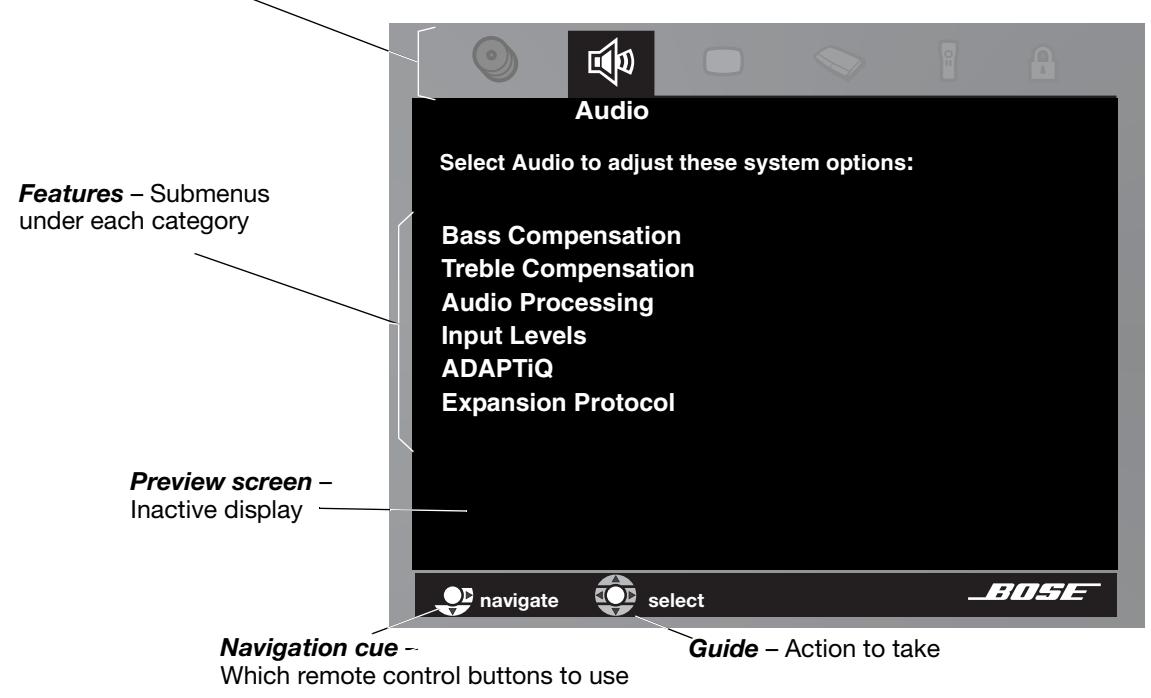
Categories - Elements of the system
How to make changes
Making system adjustments in this menu is similar to changing the settings for a source.
- Move around and make choices by using the selection buttons shown:
- Move right across the categories to see the preview of the features.
- Press the down arrow or Enter button to select Audio for changes.
Note: When you move into the features display, it changes from preview to an active screen with a slightly different appearance.
- Press the left, right, up or down arrows to get to the option you want.
- Press Enter or the left arrow button to confirm your selection and move back to the features column.
- Repeat those steps for each change you want to make.
- Press Exit to leave the Settings menu.
Stored CD data options
Press the System button on the LIFESTYLE® remote control. Move right to see a preview of Stored CD features. Press the down button to move into an active display of submenus.
Note: This choice is available from the System menu only when music from at least one CD has been stored in the system. For information on storing your music, refer to “Getting your music into the system” on page 8.
Stored CD preview
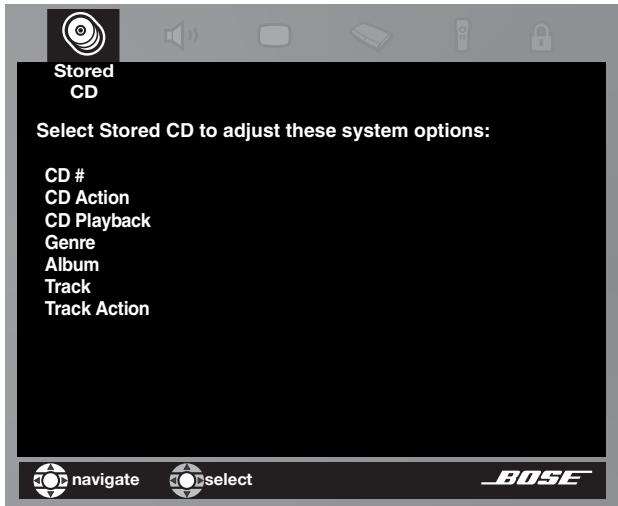
Figure 16
Active display items shown in light italic type, below left, do not appear in every menu.
| Active Display Item | Default Settings; Options | Effect of this Setting |
| CD# Indicator only | Number 1 or selected CD number | Shows the settings for the CD with that number in the system. Changes when the CD selection changes; cannot be edited. |
| CD Action | Reload CD information Delete CD | Replaces user edits with database information. Requires confirmation. Then removes all information related to this CD and displays information for another CD#. |
| CD Playback | Automatic Link all tracks Don’t link all tracks | Tracks play in order, randomly, or individually, as determined by the style of play selected (e.g., Shuffle, uMusic, Whole CD). Tracks play together and in order only. Tracks do not always play in order and together. |
| Genre | Rock/Pop, Classical, Jazz, Electronica, World, Latin, Country, Rap, Vocal Music, Gospel/Religious, Blues, Soundtrack, Folk/Bluegrass, New Age, Reggae, Easy Listening, Children, Spoken/Comedy, Holiday, Other, Unlabeled | Identifies the type of music on the CD. Reclassifies the CD for the type of music genre selected. |
| Album | no default; specific to the CD | Selection of this item brings up an editing screen. |
| Artist | no default; specific to the CD | Selection of this item brings up an editing screen. |
| File Artist As | no default; specific to the CD | Selection of this item brings up an editing screen. Editing will overwrite artist data. May reflect any edits made to artist. |
| Track | no default; specific to the CD | Selection of this item brings up an editing screen. May require pressing Enter to see the options. |
| Track Action | Edit Delete Track | Selection of this item brings up an editing screen. Requires confirmation. Then removes all information related to this track. |
Using the Edit Screen
To see the Edit Screen, select one of the Active Display Items this allows editing. Album is the first such item in the list above. Press the Enter button to make that selection.
Edit Screen as it first appears
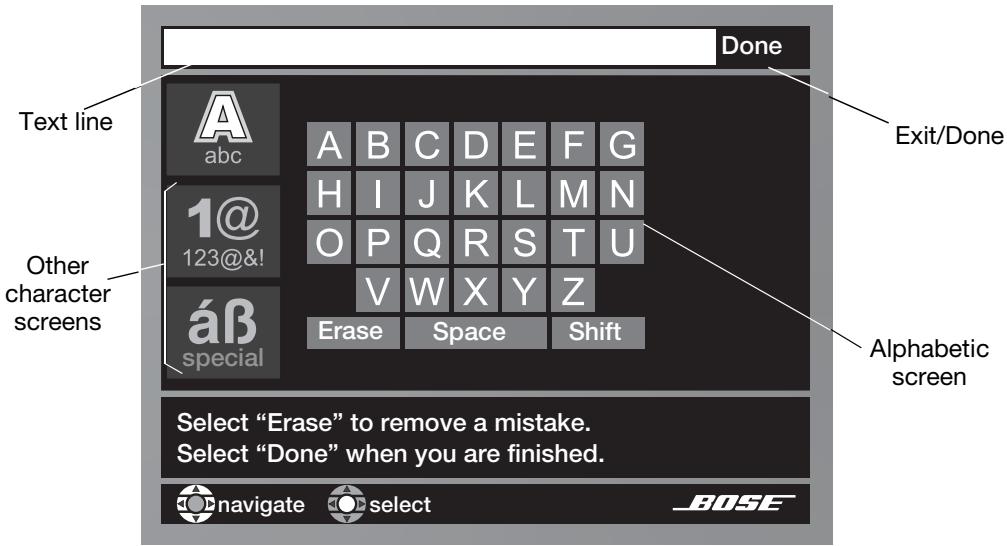
Figure 17
How to change the text
The Edit Screen enables you to alter or replace the music database text provided by the system. This text appears at the top of the screen.
You do not need to move into the text line to make changes. Instead, you can add to it or enter new text by selecting characters from the alphabetic, numeric, or special character tables (Levels 1, 2 or 3 available at the left of the screen). Use the remote control up, down, left and right arrows to get to a character and the Enter button to select it. Each time you press Enter the new
character selected appears in the text line. When you are finished, move to the Done box at the top right and press Enter to leave the Edit Screen or the Exit button on the LIFESTYLE® remote control to leave the System menu.
To eliminate existing letters from the text line:
Letters disappear beginning at the far right and progressing to the left.
- Move down to the Erase bar.
- Press Enter to erase the last letter in the text line.
- Press Enter as often as needed to remove additional characters in that line.
*The Off option for ADAPTiQ system is not a reversible selection.
To enter new text or add to existing text:
Letters appear to the right of existing text.
- Move to a character and press Enter.
- Move to the next character and press Enter.
To place a space between words:
Spaces appear to the right of the last character in the text line.
- Move to Space bar and press Enter.
- Move to a character and press Enter to begin the next word.
To capitalize a letter:
The first letter of a new line of text is automatically capitalized.
- Before typing the character, move to the Shift bar and press Enter.
- Move to the character and press Enter.
- Move back to the Shift bar and press Enter before selecting a letter you do not want to capitalize.
To enter a number or symbol:
- Move to the number 2 at the left of the screen and press Enter.
- Select the number(s) you want in the same way you select characters.
- Move to the number 1 at the left of the screen and press Enter to return to the alphabet table.
To enter a non-English special character:
- Move to the number 3 at the left of the screen and press Enter.
- Select the special character(s) you want in the same way you select other characters.
- Move to the number 1 at the left of the screen and press Enter to return to the alphabet table.
To save the text:
- Move to the Done bar at the top right of the screen.
- Press Enter to confirm completion and leave the Edit Screen. Or, to leave the System menu altogether, press the Exit button on the LIFESTYLE® remote control.
To undo all edits you've made:
To undo changes you have made to information about a CD, select CD Action from the System menu. You can replace your changes with the original database information by selecting Reload CD information.
Audio options
Press the System button on the LIFESTYLE® remote control. Move right to see a preview of audio features. Press the down button to move into an active display of submenus.
Audio preview
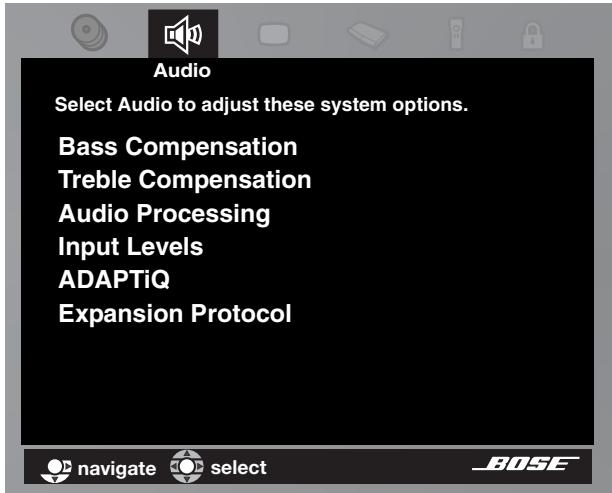
Figure 18
Note: Listening to an audio source while you make these adjustments can be helpful. Some changes will be immediately noticeable and therefore useful in fine tuning your selections.
| Active Display Item | Default Settings; Options | Effect of this Setting |
| Bass Compensation | 0-14 to +14(-9 to +6) | Normal low-frequency reproductionDecreased (-) or increased (+) low-frequency reproductionRange available following ADAPTiQ®system calibration. |
| Treble Compensation | 0-14 to +14:(-9 to +6) | Normal high-frequency reproductionDecreased (-) or increased (+) high-frequency reproductionRange available following ADAPTiQ system calibration. |
| Audio Processing(Movie EQ, Range Compression, Mono Decoding) | AutomaticUser Adjustable | Standard Bose®processing appliedProcessing options available in Source Settings menus |
| TV Analog Input Level | Normal | Standard signal level (loudness) |
| TV Digital Input Level | -6, -3, +3, +6 | Decreases or increases signal level(adjustable to match the levels of other components). |
| VCR Analog Input Level | ||
| VCR Digital Input Level | ||
| CBL/SAT Analog Input Level | Note: You may want to adjust the inputs of external componentsso they match the system's internal FM and CD levels. | |
| CBL/SAT Digital Input Level | ||
| AUX Analog Input Level | ||
| AUX Digital Input Level | ||
| ADAPTiQ | Off On Erase | No ADAPTiQ® audio calibration performed. Uses ADAPTiQ system adjustments established using Disc 2. Eliminates the ADAPTiQ system adjustments when this selection is followed, within 5 seconds, by a press of the Erase button on the media center controls. |
| Expansion protocol | Bose link Legacy | Communicates only with Bose® link networked products*. Communicates only with a Bose SA-1 amplifier. |
| Change this only if instructed in the owner's guide supplied with your Bose® link remote control. |
Elimination of ADAPTiQ system adjustments is not reversible. Restoring those adjustment requires re-use of the Setup disc 2 and the ADAPTiQ headset supplied with the system. For information on how to use this process, refer to "Finishing the installation" in your LIFESTYLE® Installation Guide.
This advanced feature of the LIFESTYLE® system makes adjustments to the audio processing to compensate for the furnishings, speaker placement, and listening positions to provide the most ideal sound in your room.
*This network can accommodate some older (non-Bose® link) products, such as the Wave® radio and Acoustic Wave® music system, but with more limited functionality provided than with newer Bose® link products.
Video options
Press the System button on the LIFESTYLE® remote control. Move right to see a preview of video features. Press the down button to move into an active display of submenus.
Figure 19
Video preview
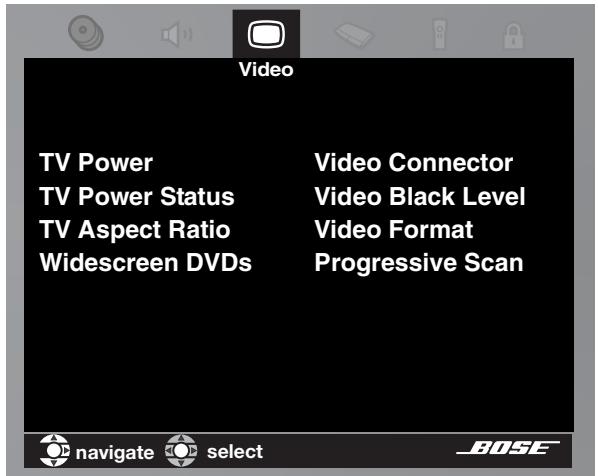
Important Note:
DO NOT change settings for Component video or Progressive scan in the System menu. Doing so can cause your TV screen to go blank, making completion of the process difficult.
Instead refer to "Component video or progressive scan: activating your selection" on page 16.
| Active Display Item | Default Settings; Options | Effect of this Setting |
| TV Power | Automatic Manual Euro | TV turns on automatically when a video source is selected.* TV does not come on automatically. TV responds to SCART connector input. |
| TV Power Status (not a setting) | TV Not Detected TV On | Indicates: TV Sensor not installed or not positioned correctly. Indicates: TV Sensor installed and functioning properly. |
| TV Aspect Ratio | Normal Widescreen | 4:3 ratio screen display. 16:9 ratio widenscreen display. |
| Widescreen DVDs | Modified Unmodified | DVD video reformats, as needed, to fit a 4:3 TV screen. DVD video does not reformat automatically. |
| Video Connector (See Important Note above.) | Composite, S-VIDEO Component | System works with composite and/or S-video TV connection. System works with component TV connection. |
| Video Black Level | Normal Extended | Screen black level generally appropriate for TVs. Reduces screen black level, appropriate for certain TVs. |
| Video Format | NTSC PAL | Correct for NTSC (U.S. standard) monitors. Correct for PAL (European standard) monitors. |
| Progressive Scan (See Important Note above.) | Off On | Screen image repairs in standard style. Screen image repairs in advanced style (must be supported by the TV). |
Note: For information on using the TV sensor, refer to "Installing the TV on/off sensor" in your Install Guide.
*The TV sensor must be installed and positioned to detect if the TV is on or off.
Media center options
Press the System button on the LIFESTYLE® remote control. Move right to see a preview of media center features. Press the down button to move into an active display of submenus.
Media Center preview
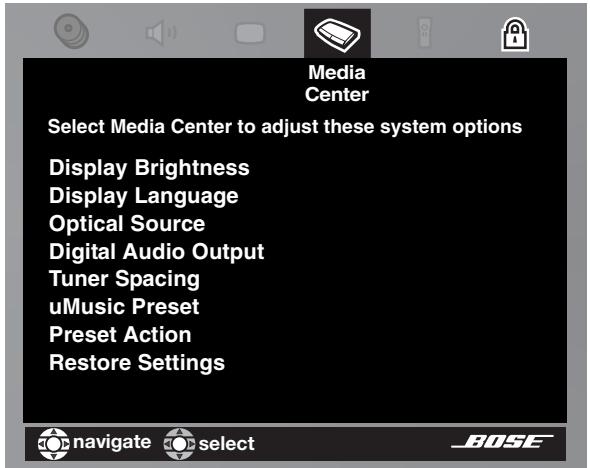
Figure 20
| Active Display Item | Default Settings; Options | Effect of this Setting |
| Display Brightness | 41 to 4 | Media center display lights with a mid-range brightness. Darkens or lightens the media center display (4 = brightest). |
| Display Language | EnglishDansk, Deutsch,Espanol, Français,Italiano, Netherlands,Svenska | On-screen display menus appear in the selected language. |
| Optical Source | NoneTV, VCR, CBL/SAT, AUX | No digital signal received via optical cable. Digital signal received via optical cable for selected source. |
| Digital Audio Format | OriginalPCM | No processing applied for signals sent to rear panel digital audiojacks.Increases digital audio compatibility with other devices. |
| Tuner Spacing | U.S., European | Channel spacing for AM/FM radio stations set to selected region standard. |
| uMusic Preset | 12, 3, 4, 5, 6, 7, 8, 9 | Selected preset. |
| Preset Action | Edit nameClear PlaylistClear ratings | Selection of this item brings up an editing screen for naming or renaming preset selected in the option above.Removes all track selections from the system playlist.Removes all stored ratings associated with the preset selected in the option above. |
| Restore Settings | NoYes | User settings, if any, modify system operation.Overwrites user settings and adjustments with the original settings established at the factory. |
Remote control options
Press the System button on the LIFESTYLE® remote control. Move right to see a preview of remote control. Press the down button to move into an active display of submenus.
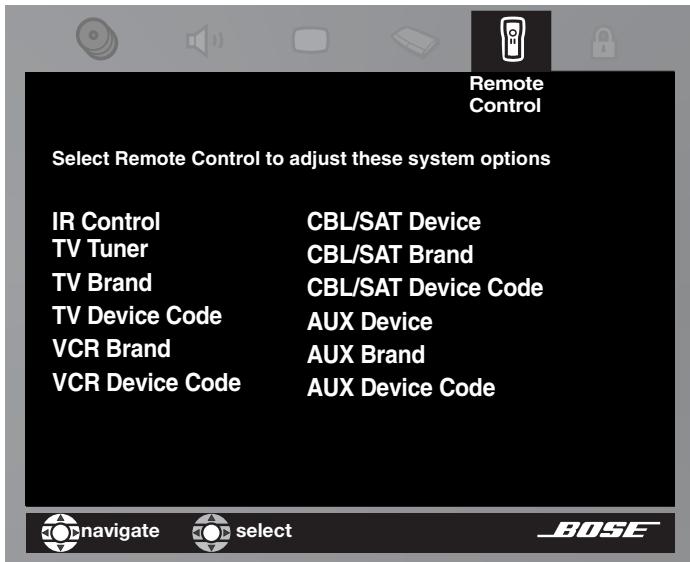
Figure 21
Remote Control preview
| Active Display Item | Default Settings; Options | Effect of this Setting |
| IR Control | Off Teach On | System does not allow IR control by another remote or does not teach IR commands to a learning remote. System sends out IR commands, in response to the LIFESTYLE® remote buttons pressed, to teach another remote to operate the system. System receives IR commands from another remote that has been taught to operate the system. |
| TV Tuner | CBL/SAT TV, VCR | Selected device serves as channel tuner for TV and other video devices. |
| TV Brand | Brand name | Identifies the TV brand for the LIFESTYLE® remote control to operate. |
| TV Device Code | Code number | Identifies the IR code for the system to send to the TV. |
| VCR Brand | Brand name | Identifies the VCR or DVR brand for the remote. |
| VCR Device Code | Code number | Identifies the IR code for the system to send to the VCR. |
| CBL/SAT Device | Cable Satellite | Identifies which of two tuning devices for the LIFESTYLE® remote control to operate. |
| CBL/SAT Brand | Brand name | Identifies the cable or satellite box brand for the remote control. |
| CBL/SAT Device Code | Code number | Identifies the IR code for the system to send to the cable or satellite box. |
| AUX Device | Changer Satellite, Cable, DVR, TV, VCR | Identifies which type of device for the LIFESTYLE® remote to operate, when AUX is selected as the source. |
| AUX Brand | Brand name | Identifies the AUX device brand for the remote. |
| AUX Device Code | Code number | Identifies the IR code for the system to send to the AUX device. |
DVD lock options
Press the System button on the LIFESTYLE® remote control. Move right to see a preview of DVD Lock features. Press the down button to move into an active display of submenus.
DVD Lock Menu
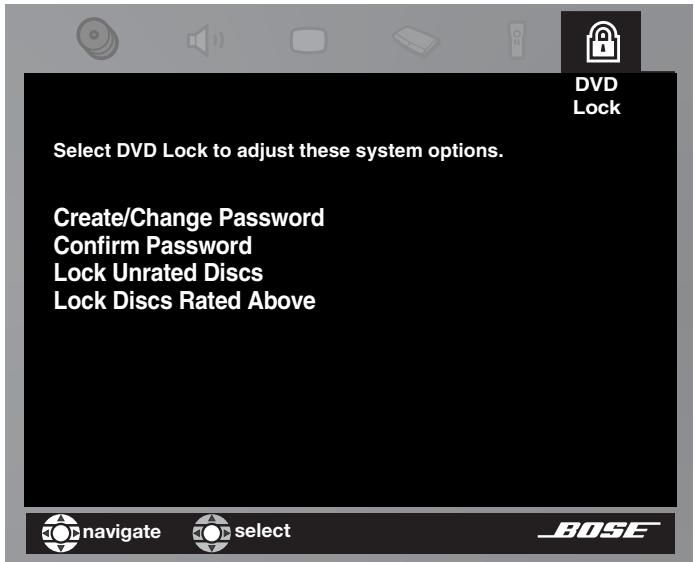
Figure 22
| Active Display Item | Default Setting; Options | Effect of this Setting |
| Change Password | -------- | Establishes a new four-number code to restrict access to movies with certain ratings. |
| Create Password (appears only if no password has been set) | -------- | Establishes a four-number code to restrict access to movies with certain ratings. |
| Confirm Password | -------- | Re-enter the four-number password. |
| Lock Unrated Discs | Off On | No restriction applies to unrated DVD movies. Restricts viewing access to unrated titles when password is set. |
| Lock Discs Rated Above | 1 to 8 | Prevents viewing of discs above the selected number when a password is created. |
Applying parental control
The parental control feature of the LIFESTYLE® system lets you restrict viewing of DVD videos with certain ratings. To activate this feature, you need to set a level of restriction and establish a password in the DVD Lock section of the System menu.
Your password will prevent unauthorized viewing of DVD videos that have a higher rating than your restriction level. There are 8 levels to choose from, matched to movie ratings set by the Motion Picture Association of America (MPAA), on the next page.
| Parental Control Setting | MPAA Rating | Audience Restriction |
| 8 | None | |
| 7 | NC-17 | Adult audiences |
| 6 | R | Mature audiences |
| 5 | Mature teenage audiences | |
| 4 | PG-13 | Teenage audiences |
| 3 | PG | Mature young audiences |
| 2 | Most audiences | |
| 1 | G | General |
For example, by choosing a Parental Control Setting of 4, you restrict access to videos rated above PG-13. Videos with ratings above that may be viewed only after entering the password.
Your password also prevents others from changing the parental control setting without permission.
To set the restriction level and passwords
With the TV turned on, select the proper TV video input for the media center. Press the System button on the LIFESTYLE® remote control.
When the System menu appears on the TV screen:
- Move right to DVD Lock for a preview of the selections (Figure 22 on page 49).
- Press the Down arrow or Enter or button to move into an active display of submenus, which looks different from the preview screen.
- Use the number buttons on your LIFESTYLE® remote to enter four digits into the password blanks.
- Press Enter to register your choice.
- Enter the same four digits in the new blanks and press Enter to register them.
- Select Lock Discs Rated Above.
- Move right and up or down to select the restriction level you want.
- Press Enter or the left arrow to confirm your selection and move out of the selection list.
Remote control care
Changing the batteries as needed is the only regular maintenance required. However, the switches inside the remote battery case may be changed as needed, too. Additional remotes for use in other rooms may need their switches changed, too. For that, refer to “Bose® link remote switch settings” on page 53.
Replacing the remote control batteries
Replace all four batteries when the remote control stops operating or its range seems reduced. Alkaline batteries are recommended.
- Slide open the battery compartment on the back of the remote (Figure 23).
- Insert four AAA or IEC-LR3 1.5V batteries, or the equivalent, as shown. Match the + and - symbols on the batteries with the + and - markings inside the compartment.
- Slide the battery compartment cover back into place.
Figure 23
Installing the remote control batteries
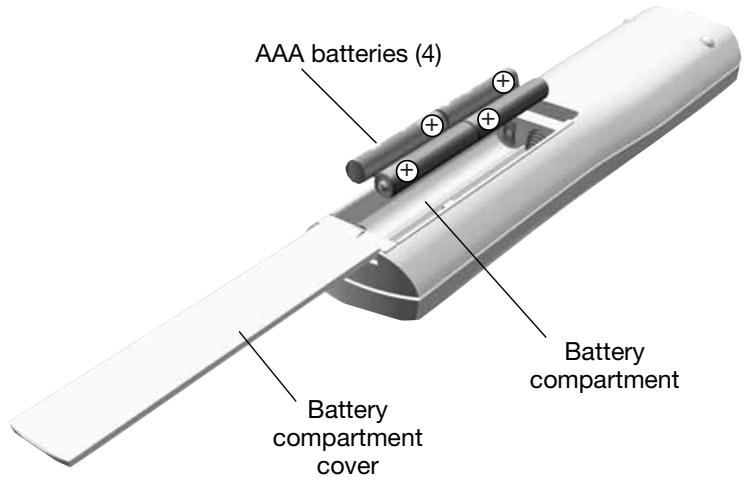
Changing house code settings
Each LIFESTYLE® remote control uses a house code that corresponds to the house code set in the media center, enabling the two to communicate. If another LIFESTYLE® system nearby creates a conflict with your system, you can easily set a new house code in your media center and its remote control(s) with steps that follow.
Using the remote control:
- Open the remote control battery cover and locate the miniature switches (Figure 24 on page 52).
- Move one or more of switches 1, 2, 3, or 4 in the opposite direction from its current setting. Use a paper clip, ball point pen, or similar object.
Note: DO NOT change any other switch settings. Moving other switches may disable your remote control.
- Replace the battery cover.
Using the media center:
- Lift the media center door and press the All Off button.
- Press and hold the Enter button. Your current house code will appear in the media center display window in the form of four rectangles, which represent the positions of switches 1 through 4:
HOUSE CODE:
Switches 1-4 down = 0000 (current house code)
- While holding the Enter button, press any button on the remote control.
The media center displays the new house code, which confirms its recognition of the new code:
NEW HOUSE CODE:
(Switch 1 up, 2 down, 3 up, and 4 down = 1 0 1 0 (new house code)
- Release the Enter button. The system remains off.
- If you have additional remote controls, change the switches to match those of the first remote control by following steps 1-3 above. You do not need to repeat steps 4-8.
Note: To verify your system's house code, press Enter while the system is off. The display confirms the settings of switches 1-4.
Figure 24
Miniature house code switches on the Main room (A) remote
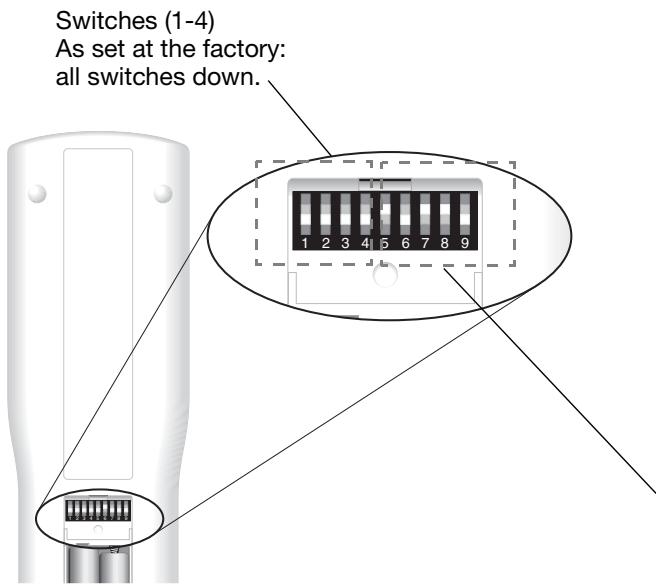
Other switches
Switch 5 determines what "stream" or program you hear.
For more information on streams, refer to the next section on this page.
Switches 6-9 represent the room where the remote will be used. In the main room, the remote is set as Room A with all switches down.
For a Bose® link remote in another room
Switches 1-4 need to match those switch settings in your main remote. Set switches 5-9 for the room where you will use the Bose® link remote.
Setting up a second room with sound
Your LIFESTYLE® DVD home entertainment system can direct sound to more than one room at the same time. What's more, it can even direct sound from two different sound sources (such as CD, AM/FM tuner, TAPE, or AUX) to these rooms through two independent "streams."
In other rooms with speakers (beyond the main room where the media center is located), you can choose either of two sources, for true independence. If the system is on in the main room, listeners in other rooms can enjoy the same program playing there or an entirely different program.
Capable of supplying up to 14 additional rooms with Bose sound, one LIFESTYLE® system can fill your entire living space with music.
Bose® link compatible products simplify your decisions
As an option to provide sound throughout your home (or even outdoors), the Bose® link network connects all the pieces and offers a variety of Bose products of consistent quality for use in other rooms.
These include: Bose Wave® radio/CD Series II or 3-2-1 Series II systems, powered speakers, and unpowered speakers for indoors or out. It also offers amplifiers of different power ratings, plus the proper cables and adapters to complete your sound system. And by purchasing a Bose® link remote control for each additional room, managing your whole-house music system becomes quick and easy. Inside these remotes, one small switch allows you to predetermine which rooms, as a group, will share the main room program stream and which other room or group of rooms will hear the alternate stream.
For more versatility, you may prefer using a PERSONAL® music center II remote control in your other rooms. Besides providing the ability to switch between program streams without setting switches, this advanced remote provides an LCD screen that shows you what is playing on both streams. So it is very easy to change from one to the other, whenever you like.
A Bose® link symbol on the cartons (for the products mentioned above) helps simplify your selections. Regardless of which you choose, the Bose® link remote control also provides detailed instructions for using these products with the system.
For more information on your options, or to purchase additional equipment, contact your local Bose dealer. Or, to reach Bose directly, refer to the address list included with your system.
Bose® link remote switch settings
These settings are for use only with remote controls that have switches inside the battery compartment.*
Make sure the house code switches
(1, 2, 3, and 4) match those on your main remote.
For switch 5, determine if you want the room grouped with the main room (A), so it receives the same program heard there.
- If you do not change switch 5, the room will receive the same program stream as is heard in the main room (A).
- If you set switch 5 up (☑), the room will receive a different stream than the main room (A).
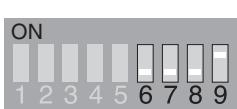
Room
B
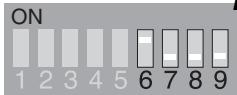
Room
1
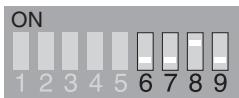
C
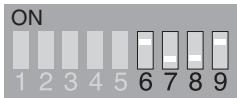
J
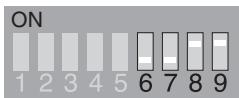
D
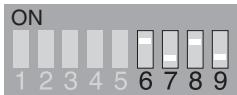
K
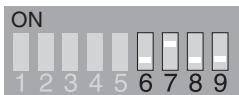
E
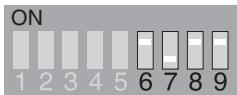
L
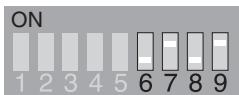
F
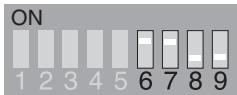
M
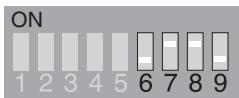
G
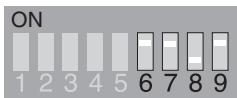
N
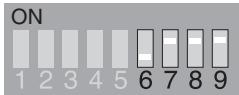
H
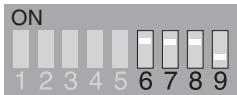
0
*For Bose® link remotes that do not have switches 5-9 in the battery compartment, room settings are made in the Settings menu on the remote display screen.
Taking care of your LIFESTYLE® system
Caring for your system may include:
- Cleaning the system's enclosures
- Cleaning your compact discs and DVDs
- Replacing the remote control batteries (for instructions, refer to the Installation Guide)
Cleaning the media center
- Use only a soft, dry cloth to clean the outside of the media center.
- Do not use any solvents, chemicals, or cleaning solutions containing alcohol, ammonia, or abrasives.
- Do not allow liquids to spill into any openings.
- Do not use any sprays near the system.
Cleaning the speakers
- Clean the surface of your speakers with a soft, damp cloth. You can use an ammonia-free window cleaner on a soft cloth to maintain the finish.
- Do not use any sprays near the system. Do not use any solvents, chemicals, or cleaning solutions containing alcohol, ammonia, or abrasives.
- Do not allow liquids to spill into any openings.
- The speaker grille panels require no special care, although you may vacuum them carefully, if necessary.
Cleaning discs
- Handle discs by their edges to prevent fingerprints and scratches (Figure 25).
- To remove stains or fingerprints from the surface of a disc, use a soft, lint-free, dry cloth. Wipe in straight movements from the center of the disc to the outside. Do not use any chemical products; they can damage the disc.
- Do not write on or attach labels to the surface of the disc.
- To minimize exposure to dust and dirt, replace discs in their cases after use. Store each disc in its case, out of direct sunlight, high temperatures, and humidity.
Handling and cleaning a disc
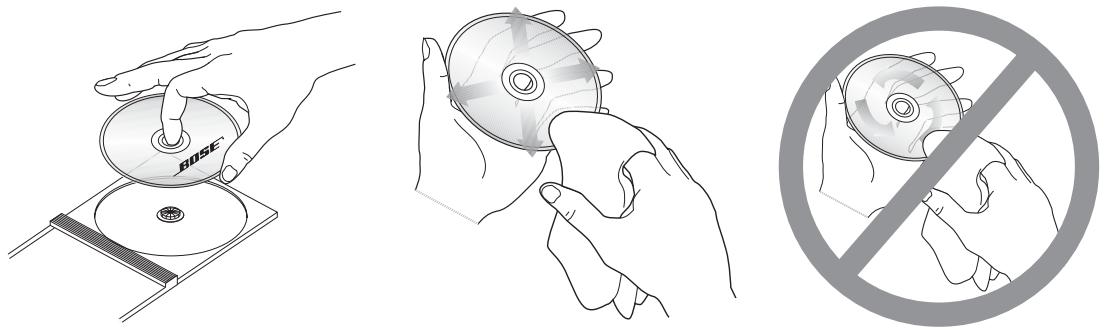
Figure 25
Troubleshooting
| Problem | What to do |
| System doesn't do anything | ·Make sure the power connector is inserted securely into the media center, the power cord is inserted securely into the Acoustimass® module, and the power pack and power cord are fully plugged into operating AC wall outlets. ·Be sure to press a source button (CD/DVD, AM/FM, etc.) on the LIFESTYLE® remote control. ·Unplug the media center power supply for 60 seconds, then reconnect it. This allows the unit to reset itself after a power surge or power interruption. |
| No sound | ·Increase the volume. ·Check to see if MUTE is lit on the display. If it is, press the Mute button on the remote control to unmute the sound. ·Make sure that the power switch on the Acoustimass module is set to ON (I). ·Make sure that the audio input cable: - connector is firmly seated in the media center Main Speaker jack - multi-pin connector at the other end is firmly seated in the Acoustimass module AUDIO INPUT jack. ·Check connections between the cube speakers and the module. ·Turn the media center off for 60 seconds, then on again, to restore communication between the media center and the speakers. ·Check the connections for any external components. Make sure that you have pressed the correct remote button for the source you want to hear. ·For CD or DVD play, be sure the disc is placed correctly, label-side up, in the disc tray. ·Connect the FM and AM antennas. |
| No sound from center speaker | ·Make sure the center speaker cable is connected at both ends. ·Select 3- or 5-speaker mode. |
| Too much sound from center speaker | ·Decrease the Center Channel setting. |
| No sound from surround speakers | ·Select 5-speaker mode. ·Increase the Surround setting for the source being played. ·Make sure the video sound source is stereo and surround-encoded, and the component used (TV, VCR, DVR, etc.) is stereo. |
| Surround speakers are too loud | ·Decrease the Surround setting for the source being played. ·Make sure that the left and right front speakers are connected to the front speaker jacks (blue) and the left and right surround speakers are connected to the surround speaker jacks (orange). |
| Storing tracks of a CD takes much longer than it should | ·Remove the CD and check for scratches, which may slow the process or make it impossible to store all tracks. ·Or, if the CD needs cleaning, refer to “Cleaning discs” on page 54. |
| Remote control behaves erratically or it does not work | ·Check batteries and their polarity (+ and -). ·Move the remote (or the media center) a few feet to avoid an area of “dead spots”. ·Make sure the power cable between the media center and its power source is firmly seated, uncoiled, and extended to its full length. ·Make sure the remote control and media center house codes match. ·Install a remote control extender. |
| System turns on by itself, or behaves erratically | ·Change the house code setting to prevent signals from conflicting with another nearby LIFESTYLE® system. |
| Radio does not work | ·Make sure antennas are connected properly. ·Move AM antenna at least 20 inches (50 cm) from the media center. ·Adjust antenna position to improve reception. ·Make sure the AM antenna is in an upright position. ·Move antennas farther from media center, TV, or other electronic equipment. ·Select another station. You may be in an area of weak signal coverage for some stations. |
| The disc does not play | ·After pressing the CD/DVD button, wait a few seconds before pressing Play. ·Make sure the disc is properly inserted (label side up). ·Eject the disc and try loading it again. ·The CD may be dirty. See “Cleaning discs” on page 54. ·Try another CD. The CD may be defective or not compatible. See “What discs you can play” on page 5. |
| FM sound is distorted | ·Adjust antenna position to reduce interference. |
| FM sound is noisy in surround mode | ·Weak FM stations may produce static in the surround speakers. Select the 2-speaker mode in the Settings menu to minimize noise. See “Tuner setting options (FM or AM radio)” on page 36. |
| Sound is distorted | ·Make sure speaker cables are not damaged and the connections are secure. ·Reduce the output level from any external components connected to the media center. |
| No sound from TV or CD/DVD or VCR or AUX | ·Check the connections. ·Make sure that component is turned on. ·Refer to the component owner's manual. |
| LIFESTYLE®remote does not control your TV, VCR, cable/satellite box, or other external component | ·Make sure correct codes are set. See “For TV control” on page 28. ·Make sure that the front of the media center is not obstructed. The IR emitter that sends commands to your external components is below the controls. ·If you still cannot control your external components successfully, you may need to connect the external IR emitter, included with your system, to the IR EMITTER jack on the rear panel of the media center. See “Connecting the optional IR emitter cable” in your LIFESTYLE®system Installation Guide. |
| Your TV turns on and off unexpectedly | ·Reposition the TV on/off sensor on the back of your TV. Or check the SCART connector if you use one. ·Verify that the TV on/off sensor is working properly by choosing TV Power Status under Video in the System menu. |
| TV screen goes dark or image flips repeatedly after making a change to a Video feature in System settings | ·Use the media center to check the Video Format and Progressive Scan settings, following instructions in “Component video or progressive scan: activating your selection” on page 16. ·Video Format should be set to NTSC (US standard) or PAL (European standard). ·Make sure the Progressive Scan setting is Off, unless you have used a component video connection and progressive scan is a feature of the TV. |
| Scrolling information on Media center display is unwanted | ·Press and hold the Info button on the remote until the scrolling information disappears. ·Press and hold again to make it reappear. |
| The system will not respond, and BOSE LIFESTYLE appears on the media center display | ·Turn the system off and then on again. ·Unplug the system and wait for 30 seconds. ·If neither of these actions restores system operation, contact Bose customer service. Refer to the address list provided in the carton. |
| You forgot your password | ·Enter the numbers 2673 as temporary password to access the parental controls. Then create a new password. |
Contacting customer service
For additional help in solving problems, contact Bose® customer service. See the address and phone number list included with your system.
Limited warranty
Your LIFESTYLE® home theater system is covered by a transferable limited warranty. See your product registration card for details. Please be sure to fill out the information section on the card and mail it to Bose.
Technical information
Media center power pack power rating
USA/Canada: 120V 0.55A 50 / 60 ~Hz 33VDC=1.1A
International: 220 - 240V 0.30A50 / 60Hz33VDC = = 1.1A
Dual voltage: 115 / 230V 0.55A50 / 60Hz33VDC = = 1.1A
Speaker system power rating
USA/Canada: 100 - 120 ~V 50 / 60 ~Hz 350 ~W
International: 220 - 240V 50 / 60Hz 350W
Dual voltage: 100-120/220-240V 50/60 Hz 350W
Media center inputs
AUX: 2Vrms, maximum
CBL-SAT: 2Vrms, maximum
VCR: 2Vrms, maximum
TV: 2Vrms, maximum
DIGITAL: SPDIF (1 each for TV, VCR, TAPE, and AUX)
COMPOSITEVIDEO: NTSC or PAL format 1V_p - p with sync 75
S-VIDEO: Luminance 1V_p-p Chrominance 0.3V_p-p
Component video: NTSC or PAL 1V_p-p with sync on Y
OPTICAL INPUT: SPDIF digital, mapped to input
FM antenna: 75 Ω
AM antenna: 12 H
TV SENSOR: Scan frequency sensing
Media center outputs
SPEAKER ZONES 1 and 2: Variable audio, user selectable
AUDIO OUT: L and R: Fixed audio, 2 Vrms maximum
DIGITAL AUDIO OUT:SPDIF
OPTICAL OUTPUT: SPDIF, -15 to -21 dbm
COMPOSITEVIDEO: NTSC or PAL 1V_p - p with sync 75Ω
S-VIDEO: Luminance 1V_p-p Chrominance 0.3V_p-p
Component video: NTSC or PAL 1V_ - with sync on Y
Media center dimensions
15.8"W x 11.0"D x 3.5"H
(40.1 cm × 27.9 cm × 8.9 cm)
Media center weight
8.2 lb (3.7 kg)
Media center finish
Aluminum
Remote control range
65 ft (20 m)
END USER LICENSE AGREEMENT
IMPORTANT: READ CAREFULLY: This End User License Agreement ("EULA") is a legal agreement between you, the End User ("End User" or "You"), and Bose Corporation ("Bose") governing your use of the technology and software and data and data content belonging to Bose, its vendors and licensors ("Technology"), that is contained in this audio/video device ("System"). By tearing open the protective wrapping on this System, you are agreeing to be bound by the terms of this EULA. In the event you disagree with any of the terms contained herein, DO NOT UNWRAP THIS SYSTEM. Return the sealed System to the Bose Corporation for a full refund.
Copyright laws and international copyright treaties, as well as other intellectual property laws and treaties protect the Technology contained within this System. The Technology is being licensed, not sold. This EULA grants you the right to use the Technology only on this Bose System. You may NOT transfer, lend, distribute, prepare derivative works, reverse engineer, de-compile, or disassemble the Technology, except and only to the extent that applicable law expressly permits such activity. You agree that you will use the Technology and the System solely for your own personal non-commercial use.
The Technology contains software that allows You to obtain vendor-supplied music-related information, including name, artist, track, and title information ("Data"). You may use Data only be means of the intended End User functions of the Technology. You agree not to assign, copy, transfer or transmit such Data to any third party. YOU AGREE NOT TO USE OR EXPLOIT DATA EXCEPT AS EXPRESSLY PERMITTED HEREIN.
You agree that your non-exclusive license to use the Technology will terminate if you violate these restrictions. If your license terminates, you agree to cease any and all use of the Technology or Data. Bose, its vendors and licensors reserve all rights in the Technology, including all ownership rights. You agree that the vendors and licensors of Bose may enforce their rights under this Agreement directly in their own name.
Bose warrants this System in accordance with the provisions of the warranty card delivered with this System. EXCEPT AS EXPRESSLY SET FORTH THEREIN, BOSE, ITS VENDORS, AND ITS LICENSORS HEREBY DISCLAIM ALL WARRANTYES, EXPRESS, IMPLIED, AND STATUTORY, IN CONNECTION WITH THE TECHNOLOGY, INCLUDING WITHOUT LIMITATION, THE IMPLIED WARRANTYES OF MERCHANTABILITY, NON-INFRINGEMENT OF THIRD PARTY RIGHTS, AND FITNESS FOR A PARTICULAR PURPOSE. IN NO EVENT WILL BOSE, ITS VENDORS, OR ITS LICENSORS BE LIABLE FOR ANY INDIRECT, SPECIAL, INCIDENTAL, OR CONSEQUENTIAL DAMAGES ARISING OUT OF THE USE OR INABILITY TO USE THE TECHNOLOGY. IN NO EVENT SHALL BOSE BE LIABLE FOR ANY DAMAGES.
None of the Technology shall be exported or re-exported in violation of any export provisions of the United States or any other applicable jurisdiction. Any attempt to sublicense, assign or transfer any of the rights, duties or obligations hereunder shall be void. This Agreement shall be governed by and interpreted under the laws of the Commonwealth of Massachusetts, without regard to its conflicts of law provisions.
YOU ACKNOWLEDGE THAT YOU HAVE READ AND UNDERSTAND THIS AGREEMENT AND AGREE TO BE BOUND BY ITS TERMS. YOU FURTHER AGREE THAT THIS AGREEMENT IS THE COMPLETE AND EXCLUSIVE STATEMENT OF THE AGREEMENT BETWEEN YOU AND BOSE AND SUPERCEDES ANY PROPOSAL OR PRIOR AGREEMENT, ORAL OR WRITTEN, AND ANY OTHER COMMUNICATIONS RELATING TO THE SUBJECT MATTER OF THIS AGREEMENT.
Para encenderthers components
Tiene que:
Para el control de la television
Nota: Si desea consultar las directrices generales de'utilisation del menu Sistema de LIFESTYLE, consulte "Realizacion de ajustes de sistemas" en la page 40.
DIGITAL AUDIO OUT: SPDIF
SALIDA ÖPTICA: SPDIF, -15 a -21 dbm
VIDEO COMPUESTO: NTSC o PAL 1Vp-p con sinc 75 Ω
S-VIDEO: Luminancia 1V_p - p , Crominancia 0,3V_p - p
Video componente: NTSC o PAL 1V_p - p con sinc en Y
(2)
m = 311
E
②
(8)
C
(3)
B
(c)
3
Réglages tuner (radio FM ou AM)
CBL-SAT: 2 Vrms, maximum
VCR:2 Vrms,maximum
TV:2 Vrms,maximum
DIGITAL AUDIO OUT: SPDIF
OPTICAL OUTPUT: SPDIF, -15 à -21 dbm
Note: Using a pencil here will make it easier to revise the log as needed.