
AUDIOPHILE 192 - Soundcard M-AUDIO - Free user manual and instructions
Find the device manual for free AUDIOPHILE 192 M-AUDIO in PDF.


| Product type | Internal PCI sound card |
| Brand | M-AUDIO |
| Model | Audiophile 192 |
| Audio resolution | 24 bits / 192 kHz |
| Analog inputs | 2 x TRS 6.35 mm balanced/unbalanced |
| Analog outputs | 4 x TRS 6.35 mm (2 main + 2 monitoring) |
| Digital input | 1 x S/PDIF coaxial (RCA) |
| Digital output | 1 x S/PDIF coaxial (RCA) |
| MIDI | 1 input / 1 output (DIN 5-pin) |
| Sampling frequencies | 8 kHz to 192 kHz (internal), 32 kHz to 192 kHz (external S/PDIF) |
| Signal-to-noise ratio (input) | 113 dB (A-weighted, at 48 kHz) |
| Dynamic range (input) | 113 dB (A-weighted, at 48 kHz) |
| THD+N (input) | 0.0006% (1 kHz, -1 dBFS, 48 kHz) |
| Bandwidth | 20 Hz - 80 kHz (at 192 kHz) |
| Power | Via PCI slot |
| System compatibility | Windows XP (SP1), Windows 2000 (SP2), Mac OS X (10.2.8/10.3.4+) |
| Supported drivers | ASIO II, WDM, GSIF II, CoreAudio |
| Dimensions (card) | Standard PCI format (approx. 12 x 10 cm) |
| Weight | Approx. 100 g |
| Box contents | PCI card, breakout cable, driver CD, PDF manual, warranty card |
| Warranty | Check M-AUDIO website for conditions |
Frequently Asked Questions - AUDIOPHILE 192 M-AUDIO
User questions about AUDIOPHILE 192 M-AUDIO
0 question about this device. Answer the ones you know or ask your own.
Ask a new question about this device
Download the instructions for your Soundcard in PDF format for free! Find your manual AUDIOPHILE 192 - M-AUDIO and take your electronic device back in hand. On this page are published all the documents necessary for the use of your device. AUDIOPHILE 192 by M-AUDIO.
USER MANUAL AUDIOPHILE 192 M-AUDIO
High-Definition 4-in/4-out Audio Card with Digital I/O and MIDI

user guide
ENGLISH·FRANÇAIS·DEUTSCH·ESPÁNOL·ITALIANO·日本語
Table of Contents
English 3
Introduction 3
Overview. 3
Features 3
What's in the Box 3
Minimum System Requirements 3
Copyrights, etc 4
Installation Procedures 4
Connecting the Audiophile 192 10
Using the Control Panel. 11
Contact Us 14
Specifications 15
Warranty Terms & Registration 15
Français 17
Introduction 17
Thank you for choosing the M-Audio Audiophile 192 PCI interface, your professional solution for audio and MIDI performance with your computer and Digital Audio Workstation software. The Audiophile 192 provides your computer with a high-resolution four-input, four-output audio interface, as well as sixteen channels of MIDI in and out. The Audiophile 192 is the latest in M-Audio's acclaimed Delta series of digital recording interfaces, based on a proven solid hardware design and innovative software driver technology.
Even if you are an experienced computer user and digital recording enthusiast, we suggest you take the time to read this brief user's manual. It will help to streamline the installation procedure, and acquaint you with the Audiophile 192's superior feature set, allowing you to quickly realize the full potential of this powerful audio tool.
Overview
The Audiophile 192 is a professional quality audio and MIDI interface based on a low-profile PCI card, offering two analog inputs and four analog outputs (balanced or unbalanced TRS) on a robust breakout cable. The Audiophile 192 also offers independent S/PDIF coaxial I/O.
The Audiophile 192 supports a wide range of internal sampling rates, from 8kHz up to 192kHz , for clean, high-resolution 24-bit audio performance. It can also sync to external devices via S/PDIF at sampling rates from 32kHz to 192kHz . The Audiophile 192 runs under Windows XP, Windows 2000, and Mac OS X, and includes ultra-low latency drivers for the most popular audio protocols, including Windows WDM, ASIO II, GSIF II (backward-compatible) and Mac CoreAudio.
The Audiophile 192 also offers a highly flexible software mixer, giving you zero-latency input monitoring. As part of the Delta series of M-Audio interfaces, the Audiophile 192 can be used together with other Delta series devices (or with multiple Audiophile 192's), and can be synchronized via the control panel's multiple card sync page in Windows XP (multiple card support is planned for Mac OS X in a future software update). MIDI I/O is also included, making the Audiophile 192 a total studio solution.
Features
Frequency response 20Hz - 80kHz
24-bit, 192kHz audio interface with an exceptional 113dB dynamic range
Supports internal sample rates of 8kHz to 192kHz, and will sync via S/PDIF to external sample rates of 32kHz to 192kHz
Supports Windows XP (SP1), Windows2000 (SP2) and Mac OS X (10.2.8, 10.3.4 and higher)
Extremely low latency ASIO II and WDM drivers, as well as GSIF II and Mac CoreAudio drivers
Two balanced/unbalanced analog inputs on 1/4'' TRS connectors
Two balanced/unbalanced analog Main outputs on 1 / 4^ TRS connectors
Two balanced/unbalanced analog Monitor outputs on 1 / 4^ TRS connectors
- Stereo S/PDIF inputs and outputs on RCA coaxial connectors
MIDI/O
■ Software-controllable analog mixer provides monitoring of input signals to Monitor outputs
- User-friendly Control Panel offers control of mixing, routing, and master clock settings
Support for VST System Link and WMA Pro
What's in the Box
One Audiophile 192 PCI Card
One Audiophile 192 breakout cable for analog audio and MIDI connections
M-Audio Driver CD with PDF manual
M-Audio Warranty Registration Card
Adobe Acrobat Reader
Minimum System Requirements
Windows
Pentium 3 - 700 MHz or higher, 256 MB RAM (192 and 96kHz operation)
Pentium 3 - 500 MHz or higher, 128 MB RAM (48kHz operation)
- DirectX 9.0b or higher
Windows XP (SP1) or Windows 2000 (SP4)
Available PCI slot
Macintosh
Macintosh G4 733 MHz or higher
512MB RAM
Mac OS X Jaguar (10.2.8 or later) or Panther (10.3.4)
Available PCI slot
Copyrights, etc
Windows, Windows XP, and Windows 2000 are trademarks of Microsoft Corporation.
Macintosh, Mac OS, Mac OS X and CoreAudio are trademarks of Apple Computer.
All other trademarks are property of their respective holders.
Installation Procedures
To Install the Audiophile 192
In all operating systems, begin by inserting the M-Audio Audiophile 192 driver CD-ROM into your computer's CD-ROM drive, then browse to the installer file for your particular operating system. If your system has AUTORUN CD enabled, the installation wizard will take you through the install process step by step. Refer to the section below for Windows or Mac specific instructions on running the installer software.
Once the software has been installed, open your computer and physically insert the Audiophile 192 firmly into an available PCI slot.
When hardware installation is complete, restart your computer and follow the instructions on completing the driver software installation.
Refer to the following sections for your particular hardware and operating system.
Windows XP/2000
Begin by inserting the M-Audio Audiophile 192 driver CD-ROM into your computer's CD-ROM drive and browsing to the installer file for your particular operating system. If your system has AUTORUN CD enabled, the installation wizard (pictured) will take you through the install process step by step.
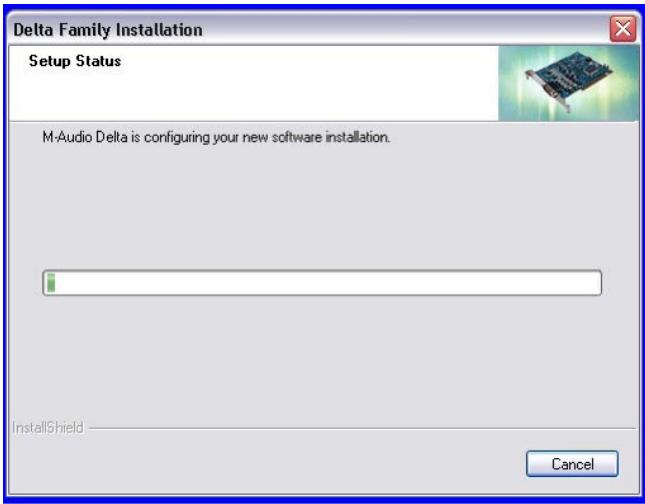
Running the installer application by clicking "Next" will copy the necessary driver files to your computer's hard drive.
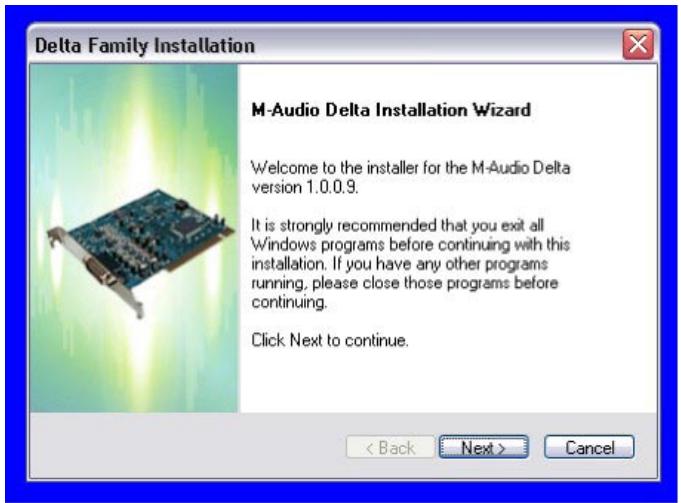
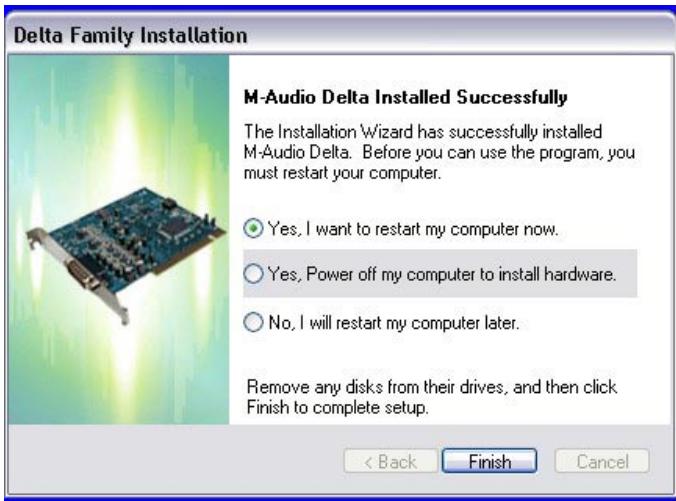
When the installer has completed copying the files, you will be prompted to power your computer off and install the hardware. Select the middle option, "Yes, Power off my computer to install hardware."
- Hardware Installation
Turn OFF the power to your computer system and disconnect the power cords.
Touch a metal plate on your computer system chassis to ground yourself and discharge any static electricity. (This is not dangerous if the system is unplugged!)
Remove the cover from your computer chassis and select an empty PCI slot in your computer.
You should refer to your computer system documentation for any special instructions on installing expansion cards and peripheral equipment.
Unscrew and remove the slot cover for your selected PCI slot.
Insert the Audiophile 192 PCI into the selected PCI slot and press it down so that the contacts are securely seated all the way into the slot.
Secure the bracket of the Audiophile 192 PCI card to the computer chassis using a chassis screw or retaining bracket.
Replace the computer chassis cover and reconnect the power cords.
Connect the Audio cables to the Audiophile 192 PCI. See the External Connections section for more information.
- Driver Installation
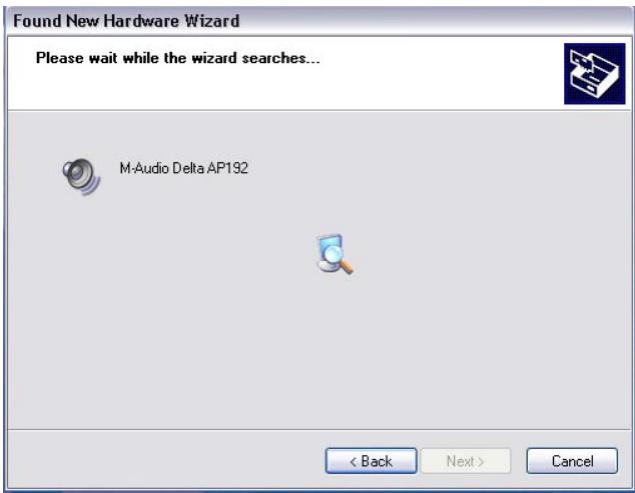
Restart your computer. The New Hardware Wizard will open and prompt you to select a path for the driver files installation. Select the recommended default "Install the software automatically" setting, then click "Next."
Windows will copy the driver files to your hard disk.
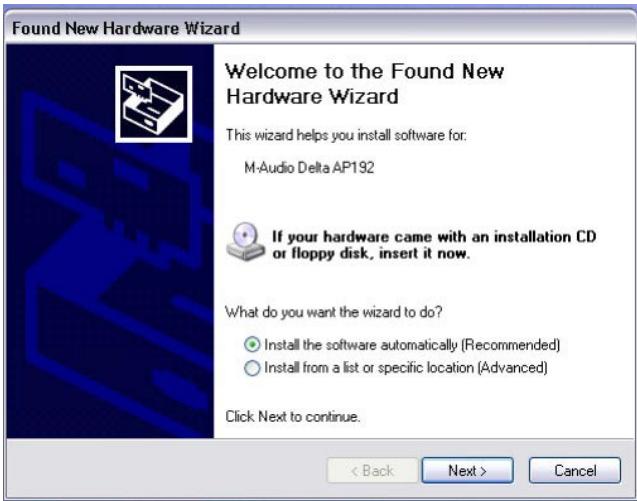
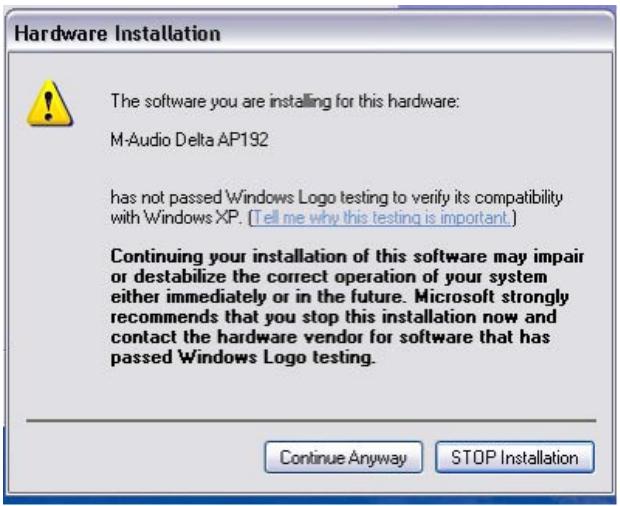
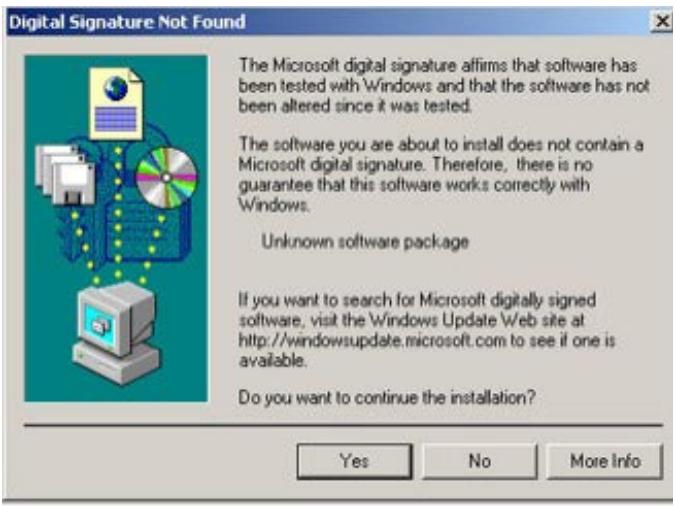
During the installation, you will be prompted with a message warning that the driver software has not passed Windows Logo testing. Select "Continue Anyway" and proceed with the installation.
NOTE: In Windows 2000, this message will refer instead to the drivers not passing Windows Logo testing. Again, it is safe to select Continue Anyway and proceed with the installation.
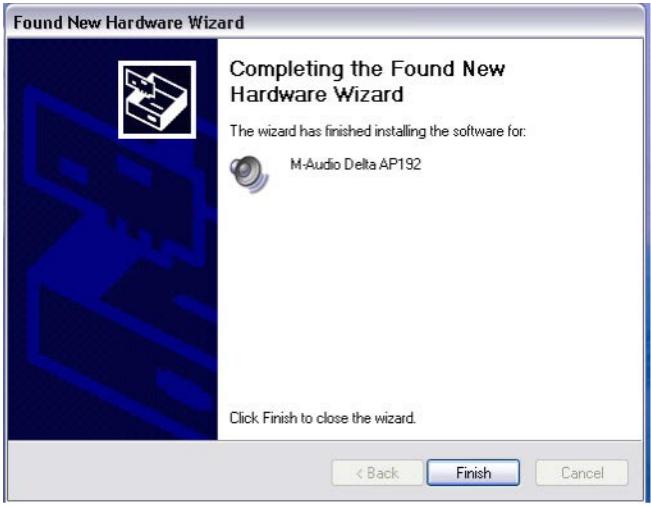
The Wizard will then report that Windows has finished installing the software. Click "Finish."
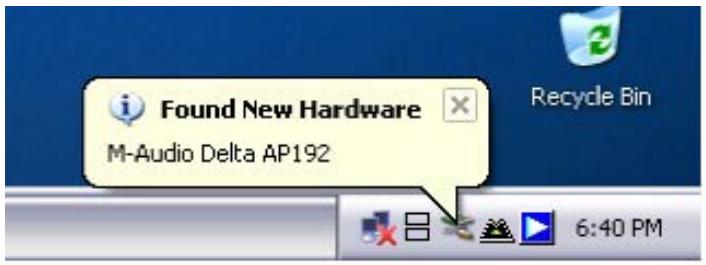
Once the installer has finished copying the files, you will be prompted to reboot your computer. When your computer restarts, you will see the M-Audio mixer icon in your system tray.
(Note that in some cases you may not be prompted to restart. In order to make certain all files have been copied to their proper directories, it is always advisable to restart your computer again.)
Your Audiophile 192 is now ready to use
Mac OS X version 10.2.x (Jaguar)
Insert the Audiophile 192 driver CD into your CD-ROM drive and open the CD to view its contents. Double-click the .dmg file, which contains the M-Audio Audiophile 192 Installer. An M-Audio volume icon will appear on your desktop. If necessary, double-click on the M-Audio volume icon to open, then click on the M-Audio installer to launch it.
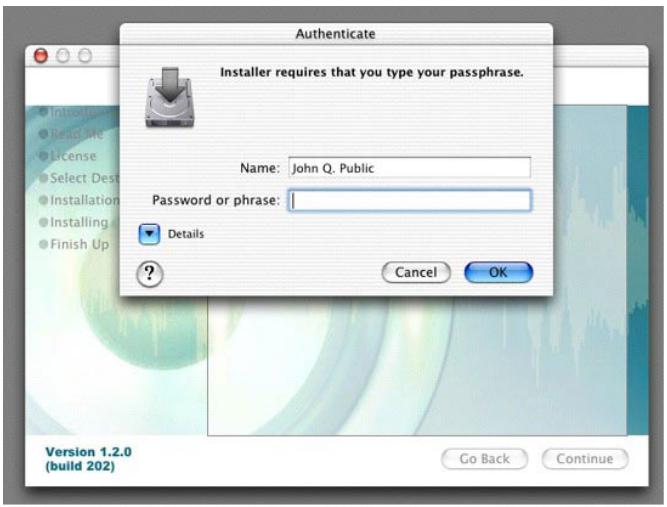
You will need your Administrator Password for the next step. Enter your password and click "OK."
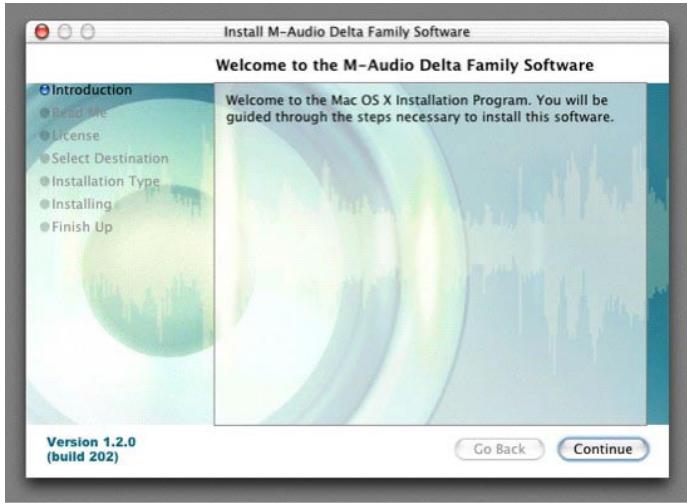
You will be greeted with the Welcome dialog of the installer application. Click "Continue."
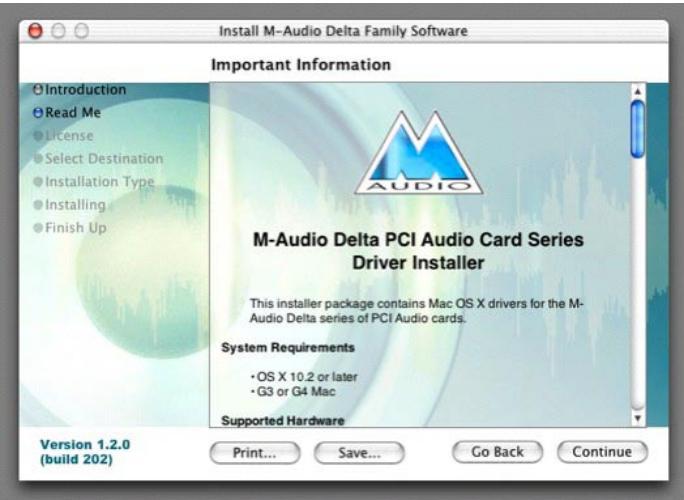
The Read Me box will appear next. This box contains important information on changes that may have occurred since the writing of this manual, so be certain to read through it.
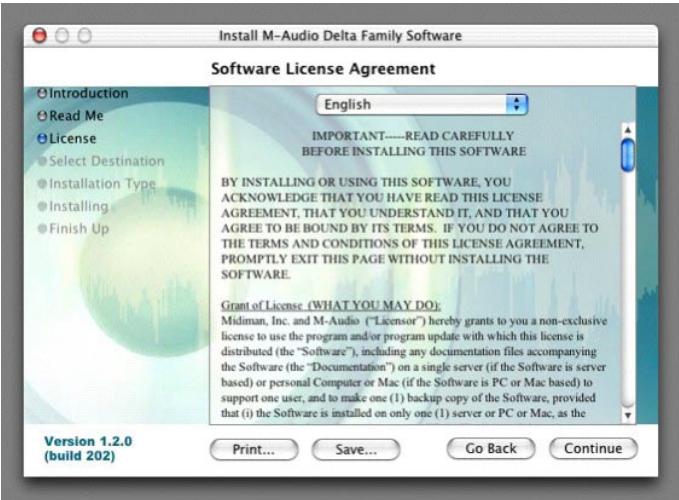
You will then be presented with the License Agreement. Click "Continue," and then click "Agree" if you agree with the License Agreement.
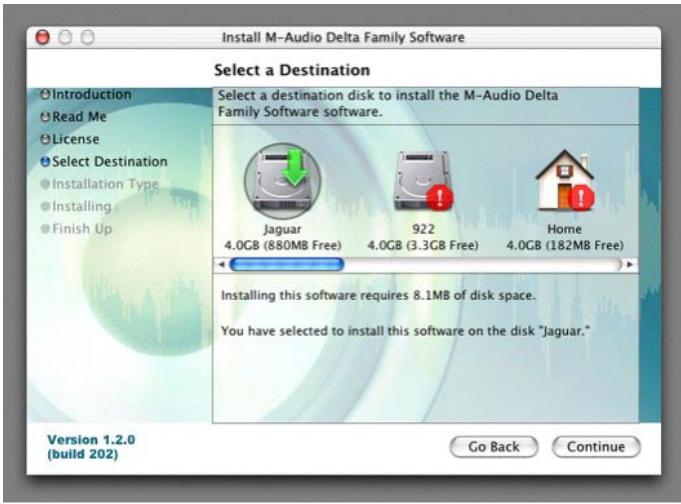
Select a destination disk for the installation, and then click "Continue."
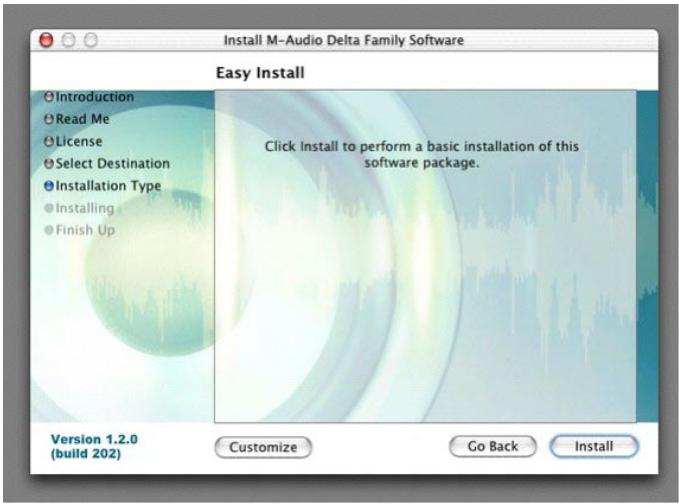
On the Easy Install box, click "Install."
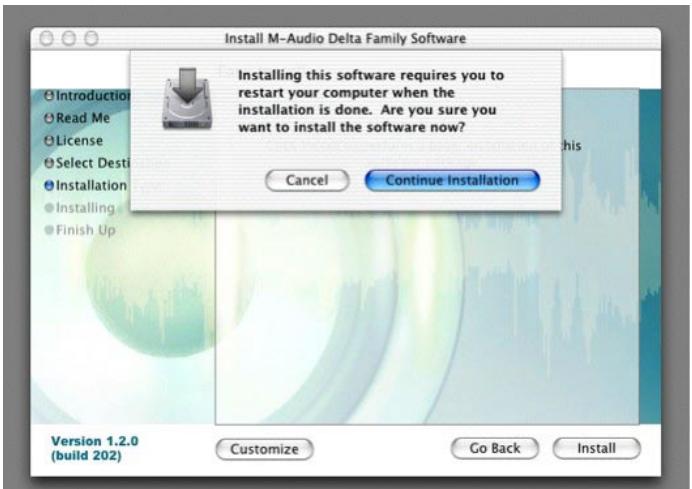
On the following box, click "Continue Installation."
Your M-Audio drivers will install. You will then see the Installation Completed box, and be prompted to click "Restart" and reboot your computer.
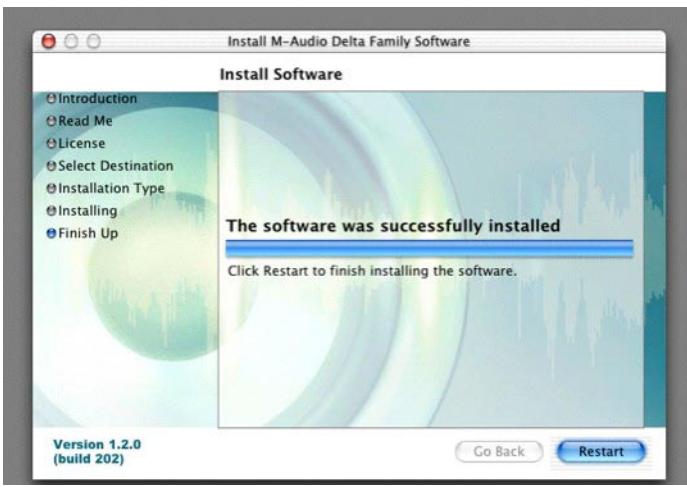
After the computer has rebooted, you may shut down the computer completely, disconnect your power cords, open the computer chassis and install the Audiophile 192 into an available PCI slot.
Mac OS X version 10.3.x (Panther)
Insert the Audiophile 192 driver CD into your CD-ROM drive and open the CD to view its contents. Double-click the .dmg file, which contains the M-Audio Audiophile 192 Installer. An M-Audio volume icon will appear on your desktop. If necessary, double-click on the M-Audio volume icon to open it.
Click on the installer icon and you will be greeted with the Welcome dialog of the installer application. Click "Continue."
The Read Me box will appear next. This box contains important information on changes that may have occurred since the writing of this manual, so be certain to read through it.
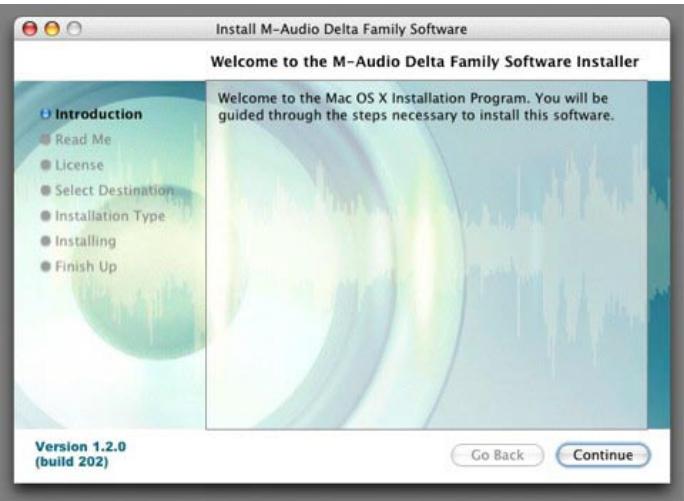
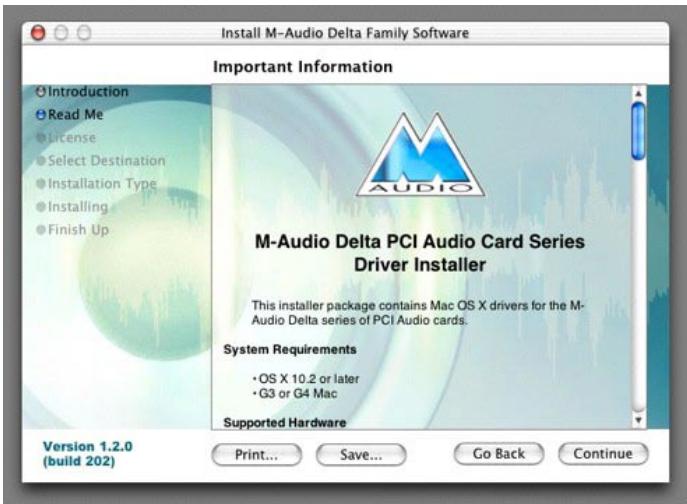
You will then be presented with the License Agreement. Click "Continue," then click "Agree" if you agree with the License Agreement.
Select a destination disk for the installation, and then click "Continue."
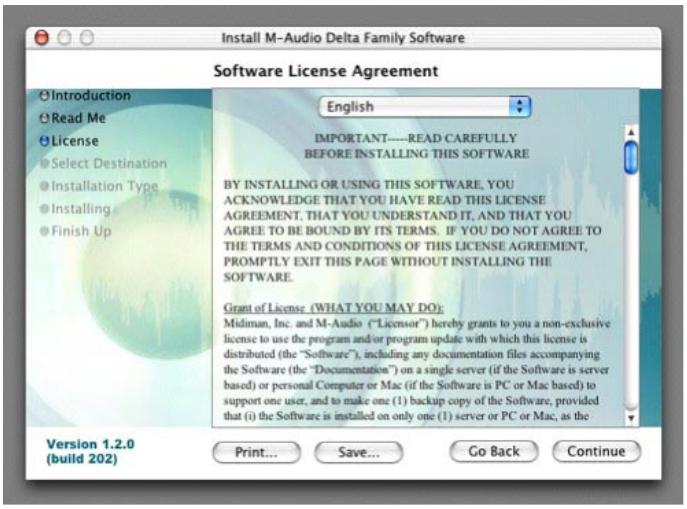
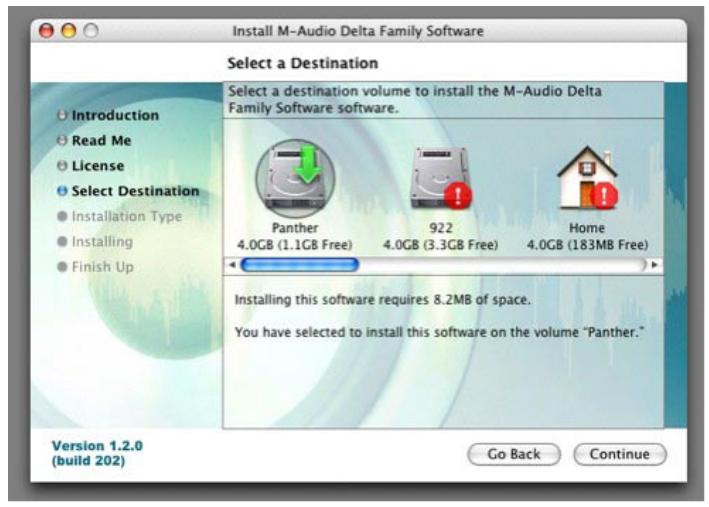
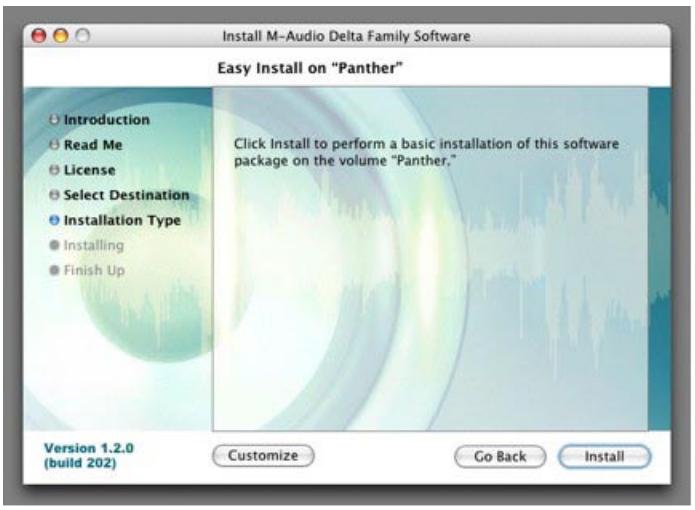
In the Easy Install box, click 'Install.'
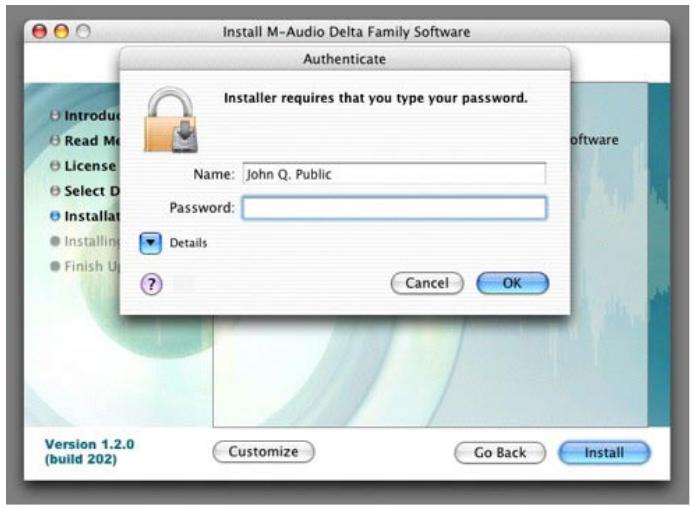
You will need to type in your Administrator Password for the next step.
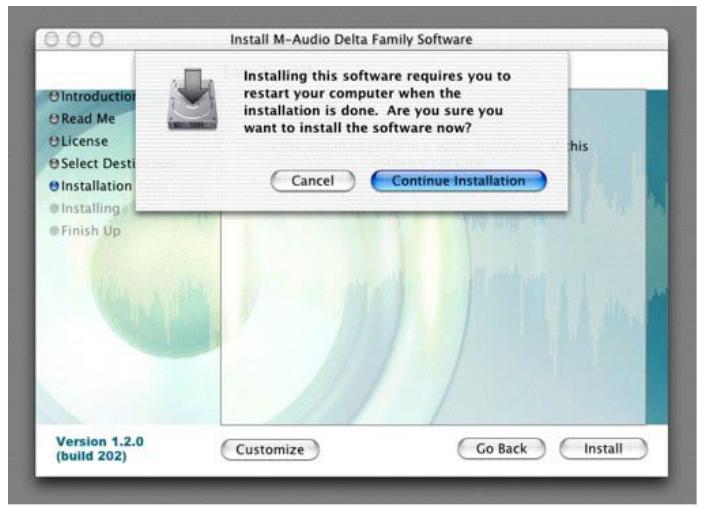
In the following box, click "Continue Installation."
Your M-Audio drivers will install. You will then see the Installation Completed box, and be prompted to restart your computer.
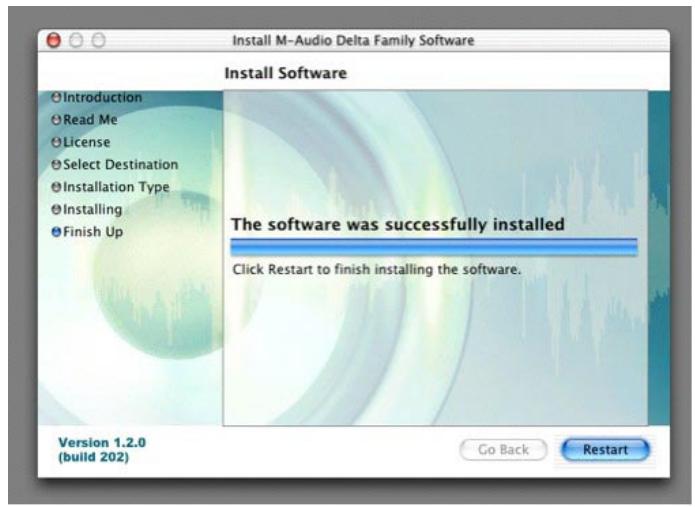
After the computer has rebooted, you may shut down the computer completely, disconnect your power cords, open the computer chassis and install the Audiophile 192 into an available PCI slot.
- Hardware Installation
Turn OFF the power to your computer system and disconnect the power cords.
Touch a metal plate on your computer system chassis to ground yourself and discharge any static electricity. (This is not dangerous if the system is unplugged!) Remove the cover from your computer chassis and select an empty PCI slot in your computer.
You should refer to your computer system documentation for any special instructions on installing expansion cards and peripheral equipment.
Unscrew and remove the slot cover for your selected PCI slot.
Insert the Audiophile 192 PCI into the selected PCI slot and press it down so that the contacts are securely seated all the way into the slot.
Secure the bracket of the Audiophile 192 PCI card to the computer chassis using a chassis screw or retaining bracket.
Replace the computer chassis cover and reconnect the power cords.
Connect the audio cables to the Audiophile 192 PCI. See the External Connections section for more information.
Restart the computer.
Go to "System Preferences" in the Apple Menu. Select the "Sound" preference panel, and click the "Output" tab. Select "Audiophile 192" to choose the Audiophile 192 as your default output device.
Connecting the Audiophile 192
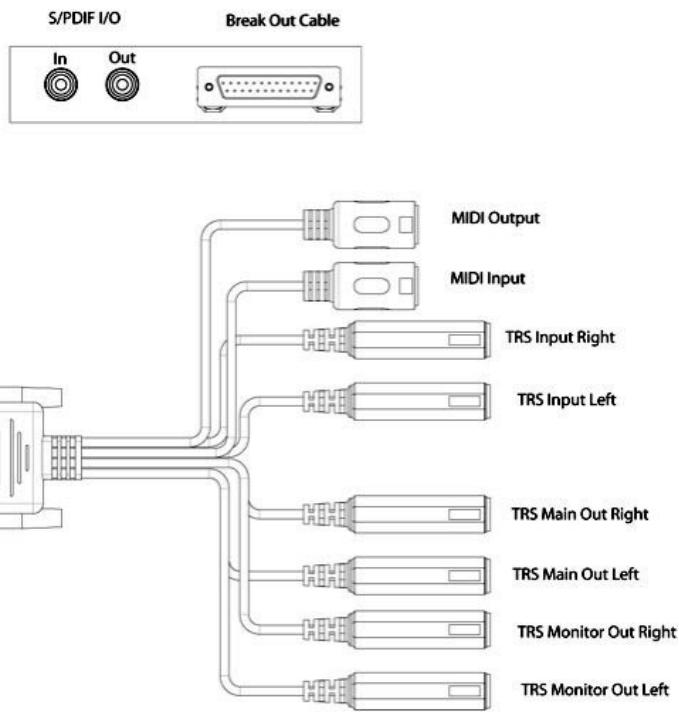
The Audiophile 192 offers following connections:
Main Inputs 1 and 2 - These are balanced/unbalanced 1/4'' TRS input connectors, located on the breakout cable. Any incoming signals can be assigned via the software mixer panel and your DAW application. Connect your line level sources to these inputs.
S/PDF Input - This is an S/PDIF coaxial input on a standard RCA jack, located on the PCI card bracket. Any incoming signal is assigned via the software mixing panel and your DAW application. Connect your S/PDIF digital sources to this input.
Main Outputs 1 and 2 - These are balanced/unbalanced 1/4 TRS output connectors, located on the breakout cable. Their output signals can be assigned only via your DAW application, however their overall level is affected by the WavOut 1/2 (S/W RET 1/2 on the Mac) level faders in the software mixer panel. Connect these outputs to your headphone amplifier, auxiliary amplifier, or external recording device, if applicable.
Monitor Outputs 1 and 2 - These are balanced/unbalanced 1/4'' TRS output connectors, located on the breakout cable. Their output signals are derived from the output of the Audiophile 192's internal direct monitoring mixer. Connect these outputs to your amplifier or powered monitors.
S/PDIF Output - This is a S/PDIF coaxial output on a standard RCA jack, located on the PCI card bracket. Its signal output can be assigned only via the Routing page of the software mixer panel. Connect your S/PDIF digital equipment (CD recorder, digital mixer, etc) to this output.
■ MIDI I/O - This is a standard five-pin DIN connector, providing MIDI Input and Output, located on the breakout cable. Connect this to your MIDI keyboards, controllers or other devices.
Using the Control Panel
The Audiophile 192's driver software provides a simple yet powerful interface with your computer and Digital Audio Workstation software. The control panel allows you to mix any of the Audiophile192's inputs to the Monitor Outputs for zero-latency monitoring of your audio sources while recording. The Monitor Outputs receive their signal from the output of the software mixer, while the S/PDIF Outputs are assigned via the Patchbay/ Routing page.
The Audiophile 192 control panel is installed in your system when you complete the driver installation procedure. To open the control panel:
In Windows - A tiny "M," which is the M-Audio logo, will be placed in the system tray, generally located at the bottom of your Windows desktop. Double-click this icon to open the control panel.
On the Mac - The Audiophile 192 control panel can be found in the System Preferences.
NOTE: The Audiophile 192 control panel can also be opened from an ASIO-compliant music program's audio setup page.
The screenshots shown in the following sections are taken from the Windows control panel. While somewhat different in appearance, the Mac control panel is functionally equivalent. Any differences in actual function are detailed in the following sections.
Monitor Mixer Page
The Monitor Mixer page has fader controls for the input sources feeding the Audiophile 192's software Monitor Mixer. The output of the Monitor Mixer appears at the analog Monitor Outputs.
The inputs derive their audio streams from the Audiophile 192's analog and digital inputs, as well as audio streams from your DAW application. Each input source has its own individual Mute and Solo boxes, and the channels can be linked by checking the "Stereo Link" box. The faders are attenuation-only devices – they can only reduce the signal level from it's maximum.
Note that the Main Outputs' overall output level is affected by the S/W RET 1/2 (WavOut 1/2) level faders.
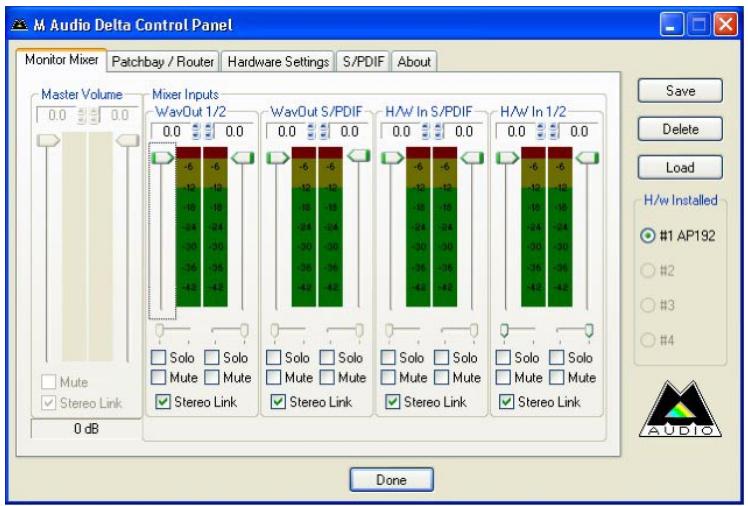
- WavOut 1/2*
These faders control the level of the main audio stream output assigned from your DAW in the monitor mixer, and the overall output of the Analog Hardware Outs 1 and 2.
*Note: on the Mac, this is labeled SW Out 1/2.
- WayOut S/PDIF*
These faders control the level of the audio stream output from your DAW, as assigned to the S/PDIF Digital Outputs in the monitor mixer. (The output assignment is selected within your DAW software.) These faders have no effect on the S/PDIF output level.
*Note: on the Mac this is labeled SW Out S/PDIF.
H/W in S/PDIF
These fader control the mixer level of the audio stream output connected directly to the S/PDIF digital Inputs, providing for zero-latency hardware monitoring. NOTE that the S/PDIF Inputs and S/PDIF Outputs cannot be monitored at the same time. This selection must be made on the S/PDIF page of the control panel. Once selected, the remaining choices will be grayed out in the monitor mixer.
H/W in 1/2
These faders control the level of the audio stream output connected directly to the Analog Inputs, providing for zero-latency hardware monitoring in the monitor mixer.
Patchbay/Router Page
The Patchbay/Router page provides output routing options for the Audiophile 192's S/PDIF outputs. If additional Audiophile 192 cards are installed, their outputs can also be addressed on this page by choosing the card number under 'H/W Installed' to display that card's settings.
The default setting for the S/PDIF Output is the S/PDIF SW Return (WavOut S/PDIF in Windows, SW Out S/PDIF on Mac). This is usually the signal assigned to the S/PDIF Output in your DAW application. If a different selection is made here, the output signal assigned in the DAW will be ignored. Selection of H/W In 1/2 will allow you to convert the analog inputs to digital and route this signal to another digital device via the S/PDIF Output.
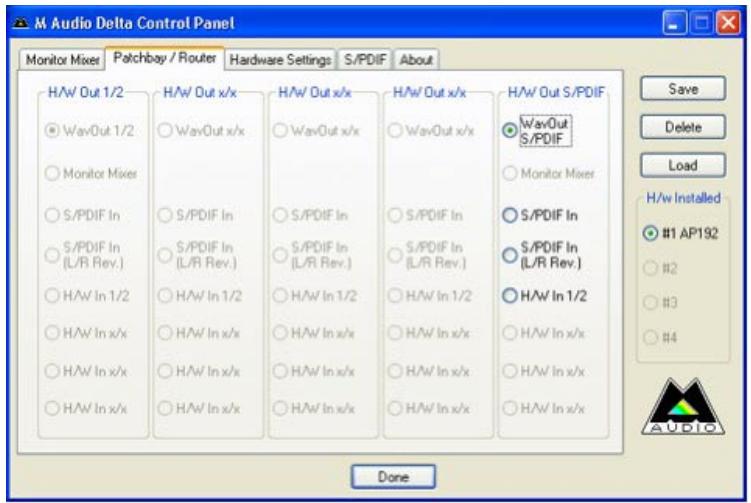
Available sources are:
WavOut S/PDIF - The audio stream is output from your DAW application, as assigned to the Audiophile 192's S/PDIF Outputs. The output level is controlled within your DAW software.
NOTE: on the Mac this is labeled SW Out S/PDIF.
S/PDIF In - audio input from the Audiophile 192's S/PDIF Input connections (direct monitor).
S/PDIF In (L/R Rev.) – The audio input from the Audiophile 192's S/PDIF Inputs, with Left and Right channels reversed.
H/W In 1/2 -audio input from the Audiophile 192's Analog input connections.
Hardware Settings Page
The Hardware Settings page provides access to master clock settings, sample rate settings, buffer settings and more.
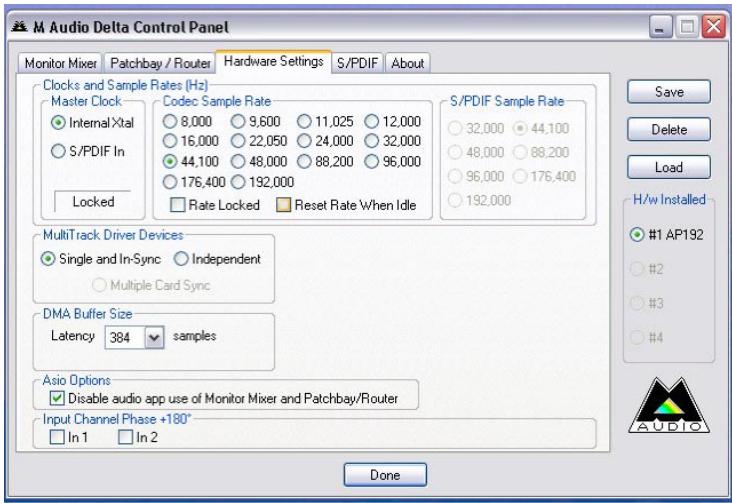
- Master Clock
This section selects the source of the master clock. Internal (default setting) selects the Audiophile 192's internal clock, while S/PDIF In selects the clock received through the S/PDIF input stream.
If Internal is selected, the status display will always show Locked. If S/PDIF is selected, the display will only show Locked when a valid S/PDIF signal is detected at the input. It will display Unlocked if there is no valid S/PDIF input, or if the input signal is incorrect. WhenSyncing to an external clock, that external clock's sample rate must be selected manually on this page to allow proper synchronization.
- Codec Sample Rate
This section allows you to select a sample rate for recording a new file. (When set to internal clock, the file's sample rate will automatically be selected here.) Note that it is possible to manually set the playback sample rate when playback is idle, otherwise the sample rate selected in your DAW software will be mirrored here. Note that changing sample rate in your DAW application will override this panel's selections.
To prevent your DAW from controlling the sample rate, checking the Rate Locked box will retain the selected sample rate, regardless of the incoming sample rate. The Reset Rate When Idle box will prevent the sample rate from changing even if the incoming sample rate changes while recording.
S/PDIF Sample Rate
When syncd to external clock via S/PDIF, you must set the sample rate manually on this page to match that of your external clock source.
MultiTrack Driver Devices
As with all M-Audio Delta series audio devices, the Audiophile 192 is capable of synchronizing with multiple Delta cards when running DAW software that supports simultaneous multiple channels.
Selecting "Single (In-Sync)" forces all audio channels to begin recording or playback at the same time.
Selecting "Independent" will allow all channels to record or play back independently. This may be desirable if more than one application needs to address the Audiophile 192 simultaneously.
The third option, "Multiple Card Sync" is available only when more than one Delta device is installed. This selection will force all channels across all devices to begin recording or playback simultaneously.
- DMA Buffer Sizes (Windows only)
This section allows you to specify the amount of memory allocated to audio buffering. Generally, smaller buffer sizes decrease latency but can also affect the stability of some slower systems. If you detect crackling, stuttering or other audio artifacts during playback, try increasing the buffer size.
As a rule, lower latency is preferable when recording, while maximum stability is desired when mixing. Try to select the lowest buffer setting your system will allow for recording, and a higher buffer setting for mixing.
ASIO Options
Checking this box will disable your DAW application's ASIO drivers from using the Monitor Mixer and Router, allowing you to use your DAW application's internal routing.
- Input Channel Phase
Checking either of these boxes will reverse the phase of the associated input channel. This is useful for checking phasing on stereo input sources.
S/PDIF Page
This page allows you to select various options for the digital input and output signals.
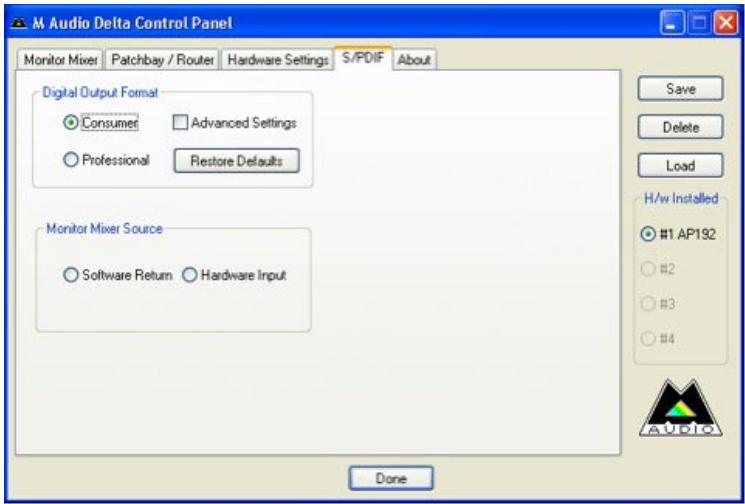
- Digital Output Format
Selects between S/PDIF (Consumer) and AES/EBU (Professional) digital output streams. The default is S/PDIF. The default setting, "Consumer," is a true S/PDIF format and is recognized by all consumer devices. The alternate "Professional" setting is an AES/EBU type data stream, but electrically S/PDIF. This is a work-around that is recognized by some but not all AES/EBU devices.
Check the Advanced Settings box will bring up additional dialog boxes for enabling emphasis, copy protection and additional options.
- Monitor Mixer Source
When recording via the S/PDIF input, this selects the audio source sent to the monitor mixer. Options are Software Return (the output of your DAW) or Hardware Input (direct input monitoring).
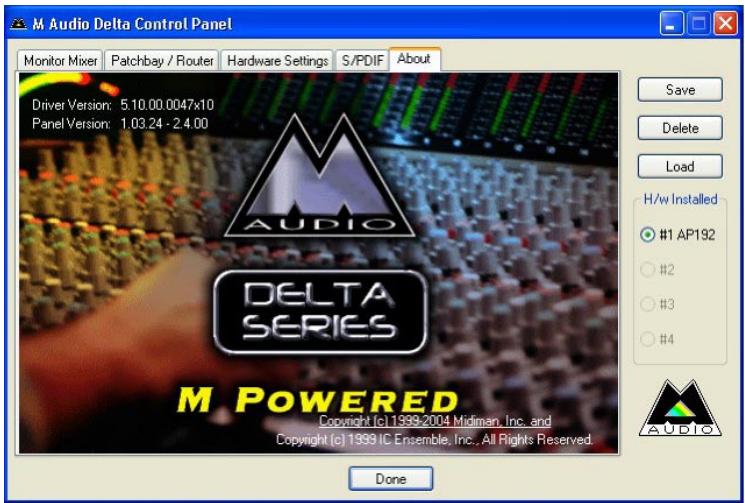
About Page
This page contains information on your hardware and current driver software versions. This information may be helpful, should you ever have the occasion to call for technical support. Clicking the Copyright line in the lower right will link you directly to our website, if you are currently online.
Contact Us
For additional help, technical support is available on our website at www.m-audio.com, where you can fill out our technical support form.
Alternatively, you can email us at support@m-audio.com,
Or contact us by phone at: (626) 633-9055
Technical support is available by telephone from 7am - 7pm PST
M-AUDIO U.S.
5795 Martin Road, Irwindale, CA 91706-6211, U.S.A.
Sales Information: 626-633-9050
Sales Information (email): info@m-audio.com
Tech Support: 626-633-9055
Tech Support (email): techsupt@m-audio.com
Fax: 626-633-9060
Internet Home Page: http://www.m-audio.com
M-AUDIO U.K.
Unit 5, Saracen Industrial Estate, Mark Road, Hemel Hempstead, Herts HP2 7BJ, England
Sales Information (phone): 44 (0) 1442 416590
Sales Information (fax): 44 (0) 1442 246832
Sales Information (email): info@maudio.co.uk
Technical Support (PC): 44 (0) 1309 671301
Technical Support (Mac): 44 (0) 1765 650072
Technical Support (email): support@maudio.co.uk
Internet Home Page: http://www.maudio.co.uk
M-AUDIO France
Unit 5, Saracen Industrial Estate, Mark Road, Hemel Hempstead, Herts HP2 7BJ, England
Informations Commerciales: 0810 001 105
Informations Commerciales (email): info@m-audio.fr
Assistance Technique (email): support@m-audio.fr.com ou mac@m-audio.fr
Fax: +44 (0) 144 224 6832
Site Internet: http://www.m-audio.fr
M-AUDIO Deutschland (Germany)
Kuhallmand 34, D-74613 Ohringen, Germany
Sales Information:
Sales Information (email):
Technical Support
Technical Support (email):
Fax:
Internet Home Page:
497941987000
info@m-audio.de
4979419870030
support@m-audio.de
079419870070
http://www.m-audio.de
M-AUDIO Canada
1400 St-Jean Baptiste Ave. #150, Quebec City, QC G2E 5B7, Canada
Tel: 418-872-0444
Fax: 418-872-0034
Email: midimancana 日 m-audio.com
Internet Home Page: http://www.m-audio.ca
M-AUDIO Japan
Annex Buliding 6F, 2-18-10 Marunouchi, Naka-Ku, Nagoya 460-0002, Japan
Tel: 81522183375
Fax: 81522180875
Technical Support: 082000731
Email: info@m-audio.co.jp
Internet Home Page: http://www.m-audio.co.jp
Specifications
| Sampling Rates: | 8, 9.6, 11.025, 12, 16, 22.050, 24, 32, 44.1, 48, 88.2, 96, 176.4, 192 kHz |
| Main Inputs: | |
| Max Input | +14.2dBu (+4 Vrms) Balanced +14.2dBu (+4 Vrms) Unbalanced |
| Signal to Noise (a-weighted) | -113dB @ 48kHz |
| Dynamic Range (a-weighted) | 113dB @ 48kHz |
| THD+N | 0.0006%, 1kHz, -1dBFS @48kHz |
| Frequency Response | ±0.1 dB, 20Hz to 20kHz @ 48kHz ±0.1 dB, 20Hz to 40kHz @ 96kHz ±0.5 dB, 20Hz to 80kHz @ 192kHz |
| Crosstalk | -130dB, 1kHz, channel-to-channel |
| Impedance | 20kΩ (balanced), 10kΩ (unbalanced) |
| Main Outputs | |
| Max Output | +14dBu (+3.9 Vrms) Balanced +8dBu (+1.95 Vrms) Unbalanced |
| Signal to Noise (a-weighted) | -108dB @ 48kHz |
| Dynamic Range (a-weighted) | 109dB @ 48kHz |
| THD+N | 0.0023%,1kHz, -1dBFS @48kHz |
| Frequency Response | ±0.1dB, 20Hz to 20kHz @ 48kHz ±0.1dB, 20Hz to 40kHz @ 96kHz ±0.5dB, 20Hz to 80kHz @ 192kHz |
| Crosstalk | -105dB, 1kHz, channel-to-channel |
| Impedance | 300Ω (balanced) 150Ω (unbalanced) |
Warranty Terms & Registration
Warranty Terms
M-Audio warrants products to be free from defects in materials and workmanship, under normal use and provided that the product is owned by the original, registered user. Visit www.m-audio.com/warranty for terms and limitations applying to your specific product.
Warranty Registration
Thank you for registering your new M-Audio product. Doing so immediately both entitles you to full warranty coverage and helps M-Audio develop and manufacture the finest quality products available. Register online at www.m-audio.com/register to receive FREE product updates and for the chance to win FREE M-Audio gear.

M-AUDIO Audiophile 192

Tested to comply with
FCC standards
Mac OS X version 10.3.x (Panther)
- MultiTrack Driver Devices
- Input Channel Phase
- Onglet Mixer Source
Sales Information (email):
info@m-audio.com
Tech Support:
626-633-9055
Tech Support
email): techsupt@m-audio.com
Fax:
626-633-9060
Internet Home Page:
http://www.m-audio.com
M-AUDIO Deutschland (Germany)
Kuhallmand 34, D-74613 Ohringen, Germany
Sales Information:
497941987000
Sales Information (email):
info@m-audio.de
Technical Support:
4979419870030
Technical Support (email):
support@m-audio.de
Fax:
079419870070
Internet Home Page:
http://www.m-audio.de
M-AUDIO U.K.
Unit 5, Saracen Industrial Estate, Mark Road, Hemel Hempstead, Herts HP2 7BJ, England
Sales Information (phone): 44 (0) 1442 416590
Sales Information (fax): 44 (0) 1442 246832
Sales Information (email): info@maudio.co.uk
Technical Support (PC): 44 (0) 1309 671301
Technical Support (Mac): 44 (0) 1765 650072
Technical Support (email): support@maudio.co.uk
Internet Home Page: http://www.maudio.co.uk
M-AUDIO Canada
1400 St-Jean Baptiste Ave. #150, Quebec City, QC G2E 5B7, Canada
Tel:
418-872-0444
Fax:
418-872-0034
Email:
midimcanada@m-audio.com
Internet Home Page:
http://www.m-audio.ca
M-AUDIO France
Unit 5, Saracen Industrial Estate, Mark Road, Hemel Hempstead, Herts HP2 7BJ, England
Informations Commerciales: 0810 001 105
Informations Commerciales (email): info@m-audio.fr
Assistance Technique (email): support@m-audio.fr.com ou mac@m-audio.fr
Fax: +44 (0) 144 224 6832
Site Internet: http://www.m-audio.fr
M-AUDIO Japan
Annex Buliding 6F, 2-18-10 Marunouchi, Naka-Ku, Nagoya 460-0002, Japan
Tel: 81522183375
Fax: 81522180875
Technical Support: 082000731
Email: info@m-audio.co.jp
Internet Home Page: http://www.m-audio.co.jp
Tested to comply with
FCC standards
Mac OS X v. 10.3.x (Panther)
S/PDIF-Samplefrequency
- Monitor Mixer Source
Sales Information (email): info@m-audio.com
Tech Support: 626-633-9055
Tech Support (email): techsupt@m-audio.com
Fax: 626-633-9060
Internet Home Page: http://www.m-audio.com
M-AUDIO U.K.
Unit 5, Saracen Industrial Estate, Mark Road, Hemel Hempstead, Herts HP2 7BJ, England
Sales Information (phone): 44 (0) 1442 416590
Sales Information (fax): 44 (0) 1442 246832
Sales Information (email): info@maudio.co.uk
Technical Support (PC): 44 (0) 1309 671301
Technical Support (Mac): 44 (0) 1765 650072
Technical Support (email): support@maudio.co.uk
Internet Home Page: http://www.maudio.co.uk
M-AUDIO France
Unit 5, Saracen Industrial Estate, Mark Road, Hemel Hempstead, Herts HP2 7BJ, England
Informations Commerciales: 0810 001 105
Informations Commerciales (email): info@m-audio.fr
Assistance Technique (email): support@m-audio.fr.com ou mac@m-audio.fr
Fax: +44 (0) 144 224 6832
Site Internet: http://www.m-audio.fr
M-AUDIO Deutschland (Germany)
Kuhallmand 34, D-74613 Ohringen, Germany
Sales Information: 497941987000
Sales Information (email): info@m-audio.de
Technical Support: 4979419870030
Technical Support (email): support@m-audio.de
Fax: 079419870070
Internet Home Page: http://www.m-audio.de
M-AUDIO Canada
1400 St-Jean Baptiste Ave. #150, Quebec City, QC G2E 5B7, Canada
Tel: 418-872-0444
Fax: 418-872-0034
Email: midimancana 已 m-audio.com
Internet Home Page: http://www.m-audio.ca
M-AUDIO Japan
Annex Buliding 6F, 2-18-10 Marunouchi, Naka-Ku, Nagoya 460-0002, Japan
Tel: 81522183375
Fax: 81522180875
Technical Support: 082000731
Email: info@m-audio.co.jp
Internet Home Page: http://www.m-audio.co.jp
Technische Daten
| Sampling Rates | 8, 9.6, 11.025, 12, 16, 22.050, 24, 32, 44.1, 48, 88.2, 96, 176.4, 192 kHz |
| Haupteingänge: | |
| Max Input | +14,2dBu (+4 Vrms) Symmetrisch +14,2dBu (+4 Vrms) Unsymmetrisch |
| Rauschabstand S/N (a-weighted) | -113dB @ 48kHz |
| Dynamikbereich (a-weighted) | 113dB @ 48kHz |
| THD+N | 0,0006%, 1kHz, -1dBFS @48kHz |
| Frequenzgang | ±0.1 dB, 20Hz to 20kHz @ 48kHz ±0.1 dB, 20Hz to 40kHz @ 96kHz ±0.5 dB, 20Hz to 80kHz @ 192kHz |
| Crosstalk | -130dB, 1kHz, channel-to-channel |
| Impedanz | 20kΩ (symmetrisch), 10kΩ (unsymmetrisch) |
| Hauptausgänge: | |
| Max Output | +14dBu (+3.9 Vrms) symmetrisch +8dBu (+1,95 Vrms) unsymmetrisch |
| Rauschabstand S/N (a-weighted) | -108dB @ 48kHz |
| Dynamikbereich (a-weighted) | 109dB @ 48kHz |
| THD+N | 0,0023%,1kHz, -1dBFS @48kHz |
| Frequenzgang | ±0.1dB, 20Hz to 20kHz @ 48kHz ±0.1dB, 20Hz to 40kHz @ 96kHz ±0.5dB, 20Hz to 80kHz @ 192kHz |
| Crosstalk | -105dB, 1kHz, channel-to-channel |
| Impedanz | 300 Ω (symmetrisch) 150 Ω (unsymmetrisch) |
Garantie
Garantiebedingungen
Tested to comply with
FCC standards
Mac OS X version 10.3.x (Panther)
MultiTrack Driver Devices
- Monitor Mixer Source
Sales Information (email):
info@m-audio.com
Tech Support:
626-633-9055
Tech Support
email):techsupt@m-audio.com
Fax:
626-633-9060
Internet Home Page:
http://www.m-audio.com
M-AUDIO Deutschland (Germany)
Kuhallmand 34, D-74613 Ohringen, Germany
Sales Information:
497941987000
Sales Information (email):
info@m-audio.de
Technical Support
4979419870030
Technical Support (email):
support@m-audio.de
Fax:
079419870070
Internet Home Page:
http://www.m-audio.de
M-AUDIO U.K.
Unit 5, Saracen Industrial Estate, Mark Road, Hemel Hempstead, Herts HP2 7BJ, England
Sales Information (phone):
44(0)1442416590
Sales Information (fax):
44(0)1442246832
Sales Information (email):
info@maudio.co.uk
Technical Support (PC):
44 (0) 1309 671301
Technical Support (Mac):
44(0)1765650072
Technical Support (email):
support@maudio.co.uk
Internet Home Page:
http://www.maudio.co.uk
M-AUDIO Canada
1400 St-Jean Baptiste Ave. #150, Quebec City, QC G2E 5B7, Canada
Tel:
418-872-0444
Fax:
418-872-0034
Email:
midimancana 日 m-audio.com
Internet Home Page:
http://www.m-audio.ca
M-AUDIO France
Unit 5, Saracen Industrial Estate, Mark Road, Hemel Hempstead, Herts HP2 7BJ, England
Informations Commerciales:
0810 001 105
Informations Commerciales (email):
info@m-audio.fr
Assistance Technique:
Assistance Technique (email):
support@m-audio.fr.com ou mac@m-audio.fr
Fax:
+44(0)1442246832
Site Internet:
http://www.m-audio.fr
M-AUDIO Japan
Annex Buliding 6F, 2-18-10 Marunouchi, Naka-Ku, Nagoya 460-0002, Japan
Tel:
81522183375
Fax:
81522180875
Technical Support:
082000731
Email:
info@m-audio.co.jp
Internet Home Page:
http://www.m-audio.co.jp
Especificaiones
Tested to comply with
FCC standards
- Monitor Mixer Source (sorgente Monitor Mixer)
Sales Information (email): info@m-audio.com
Tech Support: 626-633-9055
Tech Support (email): techsupt@m-audio.com
Fax: 626-633-9060
Internet Home Page: http://www.m-audio.com
M-AUDIO U.K.
Unit 5, Saracen Industrial Estate, Mark Road, Hemel Hempstead, Herts HP2 7BJ, England
Sales Information (phone): 44 (0) 1442 416590
Sales Information (fax): 44 (0) 1442 246832
Sales Information (email): info@maudio.co.uk
Technical Support (PC): 44 (0) 1309 671301
Technical Support (Mac): 44 (0) 1765 650072
Technical Support (email): support@maudio.co.uk
Internet Home Page: http://www.maudio.co.uk
M-AUDIO France
Unit 5, Saracen Industrial Estate, Mark Road, Hemel Hempstead, Herts HP2 7BJ, England
Informations Commerciales: 0810 001 105
Informations Commerciales (email): info@m-audio.fr
Assistance Technique (email): support@m-audio.fr.com ou mac@m-audio.fr
Fax: +44 (0) 144 224 6832
Site Internet: http://www.m-audio.fr
M-AUDIO Deutschland (Germany)
Kuhallmand 34, D-74613 Ohringen, Germany
Sales Information: 497941987000
Sales Information (email): info@m-audio.de
Technical Support: 4979419870030
Technical Support (email): support@m-audio.de
Fax: 079419870070
Internet Home Page: http://www.m-audio.de
M-AUDIO Canada
1400 St-Jean Baptiste Ave. #150, Quebec City, QC G2E 5B7, Canada
Tel: 418-872-0444
Fax: 418-872-0034
Email: midimancana 日 m-audio.com
Internet Home Page: http://www.m-audio.ca
M-AUDIO Japan
Annex Buliding 6F, 2-18-10 Marunouchi, Naka-Ku, Nagoya 460-0002, Japan
Tel: 81522183375
Fax: 81522180875
Technical Support: 082000731
Email: info@m-audio.co.jp
Internet Home Page: http://www.m-audio.co.jp
Specifiche tecniche
Tested to comply with
FCC standards
Mac OS X 10.3.x (Panther)
Codec Sample Rate (Codec[sanplunglute]
This is a text.
Sales Information email info@m-audio.com
Tech Support 626-633-9055
Tech Support email techsupt@m-audio.com
Fax 626-633-9060
Internet Home Page http://www.m-audio.com
M-AUDIO U.K.
Unit 5, Saracen Industrial Estate, Mark Road, Hemel Hempstead, Herts HP2 7BJ, England
Sales Information phone 4401442416590
Sales Information fax 4401442246832
Sales Information email info@maudio.co.uk
Technical Support PC 4401309671301
Technical Support Mac 44 0 1765 650072
Technical Support email support@maudio.co.uk
Internet Home Page http://www.maudio.co.uk
M-AUDIO France
Unit 5, Saracen Industrial Estate, Mark Road, Hemel Hempstead, Herts HP2 7BJ, England
Informations Commerciales 0810 001 105
Informations Commerciales email info@m-audio.fr
Assistance Technique 0820 000 731 PC ou 0820 391 191 Mac at general
Assistance Technique email support@m-audio.fr.com ou mac@m-audio.fr
Fax +4401442246832
Site Internet http//www.m-audio.fr
M-AUDIO Deutschland Germany
Kuhallmand 34, D-74613 Ohringen, Germany
Sales Information 497941987000
Sales Information email info@m-audio.de
Technical Support
Technical Support email support@m-audio.de
Fax 079419870070
Internet Home Page http://www.m-audio.de
M-AUDIO Canada
1400 St-Jean Baptiste Ave. #150, Quebec City, QC G2E 5B7, Canada
Tel 418-872-0444
Fax 418-872-0034
Email midimancanada@m-audio.com
Internet Home Page http://www.m-audio.ca
M-AUDIO Japan
Tested to comply with
FCC standards