
Revolution 5.1 - Soundcard M-AUDIO - Free user manual and instructions
Find the device manual for free Revolution 5.1 M-AUDIO in PDF.


| Product Type | Internal PCI Sound Card with 5.1 Surround Sound |
| Model | Revolution 5.1 |
| Brand | M-Audio |
| Interface | PCI |
| Audio Channels | 5.1 (front left, front right, center, rear left, rear right, LFE) |
| Sample Rate | Up to 96 kHz |
| Bit Depth | 24-bit |
| Signal-to-Noise Ratio (SNR) | 100 dB (typical) |
| Frequency Response | 20 Hz - 20 kHz |
| Analog Inputs | 1 x 1/4" (6.35 mm) TRS, 1 x 1/8" (3.5 mm) stereo |
| Analog Outputs | 3 x 1/8" (3.5 mm) stereo jacks for 5.1 |
| Digital I/O | S/PDIF coaxial and optical |
| MIDI I/O | 1 MIDI In, 1 MIDI Out (on bracket) |
| Dimensions (approx.) | PCI card: 4.7 x 6.6 in (12 x 16.8 cm) |
| Weight (approx.) | 0.3 lb (140 g) |
| Power Supply | Powered via PCI bus (no external power required) |
| Operating System Compatibility | Windows 98SE/Me/2000/XP, Mac OS 9.x/X |
| Driver Support | WDM/ASIO/MME for Windows, CoreAudio for Mac |
| Key Features | High-quality 24-bit/96kHz audio, 5.1 surround, MIDI I/O, digital I/O |
| Maintenance | Keep dry, clean with soft cloth, avoid dust |
| Safety | Install in grounded computer, avoid static discharge |
| Spare Parts & Repairability | Not user-serviceable; contact M-Audio support for service |
| General Information | Discontinued product, manual available in PDF |
Frequently Asked Questions - Revolution 5.1 M-AUDIO
User questions about Revolution 5.1 M-AUDIO
0 question about this device. Answer the ones you know or ask your own.
Ask a new question about this device
Download the instructions for your Soundcard in PDF format for free! Find your manual Revolution 5.1 - M-AUDIO and take your electronic device back in hand. On this page are published all the documents necessary for the use of your device. Revolution 5.1 by M-AUDIO.
USER MANUAL Revolution 5.1 M-AUDIO
natural_image
Close-up of a CD-ROM card with visible ports and circuitry (no readable text or symbols)USER GUIDE
English
Table of Contents
Introduction 2
Revolution 5.1 Features 2
System Requirements 2
Windows ^® PC ^® : 2
Physical Connections 16
Using the Revolution 5.1's Inputs and Outputs 17
Line Inputs 17
Mic Input 17
CD/Aux Input 17
Headphone Output Jack 18
Speaker Output Jacks 18
Digital Output Jack 19
Explanation of Surround Formats 19
Revolution 5.1 Control Panel 20
Speaker Setup Tab 21
Output Mixer Tab 23
Surround Sound Tab 24
Input/Other Tab 26
About Tab 28
Revolution 5.1 Applications 28
DVD Playback 28
Music Playback 29
Gaming 29
Recording 29
Troubleshooting & Technical Support 31
Warranty Information 31
Appendix A: Technical Specifications 32
Appendix B: WinDVD v5 Installation 33
Introduction
Thank you for purchasing the Revolution 5.1 by M-Audio. Revolution 5.1 is the ideal audio upgrade for any PC or Macintosh computer*, delivering the ultimate in surround sound performance to your computer system. Revolution 5.1 brings you up to 24-bit/192kHz audio and the highest-quality stereo, virtual surround, and multi-channel surround sound available today.
Please take the time to read this User Guide. It will tell you how to install Revolution 5.1 on your particular computer and instruct you on how to get the most from your audio interface.
*Must meet minimum system requirements
Revolution 5.1 Features
■ Professional-quality 24-bit/192kHz playback on six analog outputs, 24-bit/96kHz stereo recording on either mic, line, or internal CD/Aux inputs with L/R record level control
■ Award-winning Control Panel lets you customize your stereo or surround sound settings, with monitor level control for all inputs, line outputs, and headphone output
■ Pro audio playback performance-
Dynamic Range: 109dB (A-weighted); Signal-to-Noise Ratio: -109dB (A-weighted);
THD+N:<0.00185% (-95dB)
■ Supports Dolby Digital 5.1 (AC-3)®, and DTS®
■ SRS TruSurround XT™ technology delivers 5.1 virtual surround sound over stereo speakers, Deep Bass Enhancement and Dialogue Enhancement™
■ Advanced SRS Circle Surround II™ technology creates multi-channel surround sound from your stereo MP3s, CDs and other audio
■ Sensaura™ Game Mode takes your EAX-encoded game and creates a superior spatialized gaming experience
■ Supports the following playback sampling frequencies with MME drivers (kHz): 32, 44.1, 48, 88.2, 96, 176.4 and 192
■ Supports the following output formats: 24-bit Linear PCM; 16-bit Linear PCM; Dolby Digital (AC-3), Dolby Pro Logic, or DTS
■ Coaxial (RCA) S/PDIF output jack
■ One-year warranty
System Requirements
Windows® PC®:
■ Requires available PCI card slot
Minimum Required – for stereo operation:
Intel Celeron 350MHz or AMD K6II 500MHz
■ 128MB RAM
■ CD-ROM Drive
■ Windows 98SE, Me, 2000 (SP4) or XP (SP1)
■ DirectX 9.0b (included)
Minimum Required- for SRS Circle Surround II operation with Windows 98SE:
Intel Pentium 1GHz or AMD Athlon 1GHz
256MB RAM
■ CD-ROM Drive
■ DirectX 9.0b (included)
Recommended:
Intel Pentium III 800MHz or AMD 800MHz
256MB RAM
■ DVD-ROM drive and decoding player application (included)
■ Windows XP (SP1)
■ DirectX 9.0b (included)
Apple Macintosh®:
■ Requires available PCI card slot
Minimum Required- for stereo operation:
■ Apple Macintosh® G4*
■ CD-ROM Drive
■ Mac OS 9.2.2 or later; Mac OS X version 10.2.6 or later
■ 256 MB RAM
Minimum Required – for multi-channel operation:
■ Apple Macintosh® G4* 733MHz QS
■ CD-ROM Drive
■ Mac OS 9.2.2 or later; Mac OS X version 10.2.6 or later
■ 256 MB RAM
Recommended:
■ Apple Macintosh® G4* 800MHz QS or better
■ DVD-ROM Drive
■ Mac OS X version 10.3 or later (Apple DVD Player required or AC-3 or DTS)
■ 512 MB RAM
* CPU Accelerator Cards not supported
Package Contents
Your Revolution 5.1 card was carefully packed at the factory and the shipping carton was designed to protect the unit during shipping. Please retain this container in the unlikely event that you need to return your Revolution 5.1 for service.
The following items are included with your Revolution 5.1:
■ Revolution 5.1 PCI audio card
■ M-Audio Software CD-ROM (includes pdf manual, drivers and WinDVD 5)
■ Quick Start Guide
Software Installation
Your Revolution 5.1 comes with driver software that allows it to communicate with your computer's Windows or Macintosh operating system. Please skip to the section on your computer's operating system and follow those instructions.
Revolution 5.1's driver software, which includes SRS Circle Surround II and TruSurround XT, will load during this installation. You will also want to install the DVD playback software provided on the included CD-ROM. See Appendix A for WinDVD installation instructions.
Windows XP Installation
- Power on your computer and place the Revolution 5.1 Drivers CD-ROM in your computer's CD-ROM tray. If you've not yet installed the Revolution 5.1 PCI card, you should install the software driver before doing so. If you've already installed the PCI card please skip ahead to step 6. Otherwise, you will see the screen displayed here. In this case, click "Next" to continue.

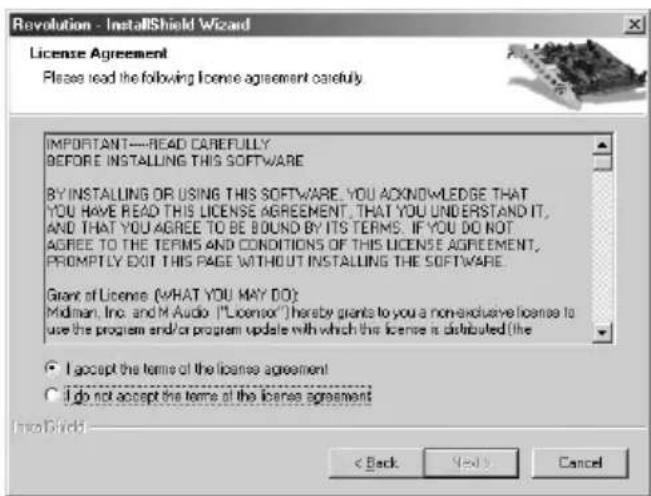
- After you've read the license agreement, please click the "I accept..." circle if you agree to the terms. Then click "Next" to continue.
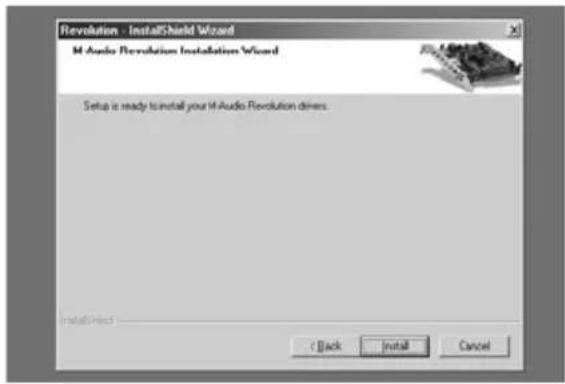
- Click Install to Continue.

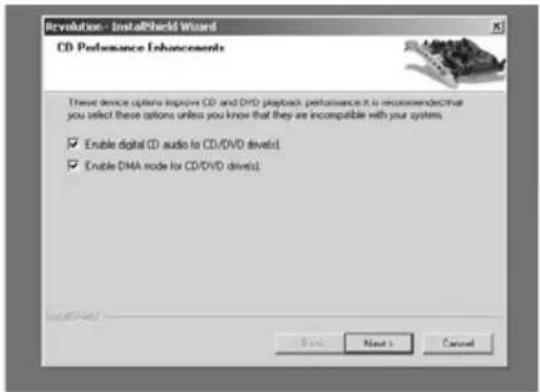
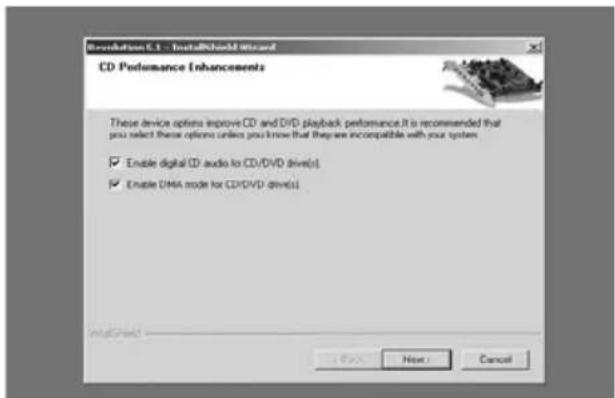
- By default, both options for enabling digital CD audio for CD/DVD drive(s) and DMA mode for CD/DVD drive(s) are checked. We recommend that you leave these settings enabled as they can improve the performance of capable devices. You may disable these settings if you know your drives do not support Digital CD audio or DMA modes. Click "Next" once you have made your choices, and the installation will continue.

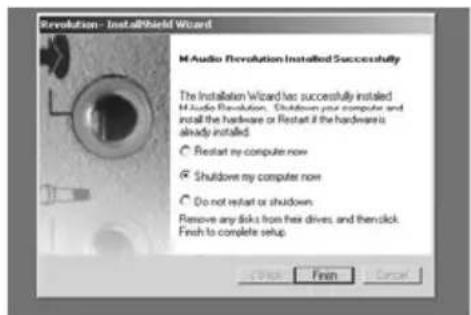
- Click "Finish" and shut down your computer so you can install your Revolution 5.1 card (don't forget to unplug the computer before installing the hardware).

- Once you have finished the hardware installation, restart your system.
Revolution 5.1 and the Windows Sound System (XP)
The Revolution 5.1's Windows Multimedia drivers will allow you to use the Revolution as your Windows system sound device. If the Revolution is the only audio device installed in your computer, then Windows will "select" it automatically. Otherwise, you may need to tell Windows to use the Revolution. To check your Windows Audio setting and select the M-Audio Revolution 5.1:
- Go to the Start menu, and then choose "Control Panel."
- Open "Sounds and Audio Devices," then click the "Audio" tab.
- Under "Sound Playback," the default device should say "Revolution." If it does not say "Revolution," then drop down the list of devices and select "Revolution."
- Click "Apply," then click "OK." Close your Control Panel-you're done!
Windows 2000 Installation
- Power on your computer and place the Revolution 5.1 Drivers CD-ROM in your computer's CD-ROM tray. If you've not yet installed the Revolution 5.1 PCI card, you should install the software driver before doing so. You will see the screen displayed here. Click "Next" to continue.

- Click "Install" to continue.

- By default, both options for enabling digital CD audio for CD/DVD drive(s) and DMA mode for CD/DVD drive(s) are checked. We recommend that you leave these settings enabled as they can improve the performance of capable devices. You may disable these settings if you know your drives do not support Digital CD audio or DMA modes. Click "Next" once you have made your choices, and the installation will continue."
- Click "Finish" to complete the driver installation procedure.
Windows Me Installation
- Power on your computer and place the Revolution 5.1 Drivers CD-ROM in your computer's CD-ROM tray. If you've not yet installed the Revolution 5.1 PCI card, you should install the software driver before doing so. You will see the screen displayed here. Click "Next" to continue.

- After you've read the license agreement, please click the "I accept..." circle if you agree to the terms. Then click "Next" to continue.

- Click "Install" to continue.
- By default, both options for enabling digital CD audio for CD/DVD drive(s) and DMA mode for CD/DVD drive(s) are checked. We recommend that you leave these settings enabled as they can improve the performance of capable devices. You may disable these settings if you know your drives do not support Digital CD audio or DMA modes. Click "Next" once you have made your choices, and the installation will continue.

- Click "Finish" to complete the driver installation procedure.
Note: Upon Restart following hardware installation, you may be prompted with one or more windows which state that a file being copied is older than an existing file. We recommend that you choose "No" if asked whether you want to keep the existing file.
Windows 98SE Installation
- Power on your computer and place the Revolution 5.1 Drivers CD-ROM in your computer's CD-ROM tray. If you've not yet installed the Revolution 5.1 PCI card, you should install the software driver before doing so. You will see the screen displayed here. Click "Next" to continue.

- After you've read the license agreement, please click the "I accept..." circle if you agree to the terms. Then click "Next" to continue.

- Click the "Install" button. The installation will continue.

- By default, both options for enabling digital CD audio for CD/DVD drive(s) and DMA mode for CD/DVD drive(s) are checked. We recommend that you leave these settings enabled as they can improve the performance of capable devices. You may disable them if you know your drives do not support Digital CD audio or DMA modes. Click "Next" once you have made your choices, and the installation will continue.
-
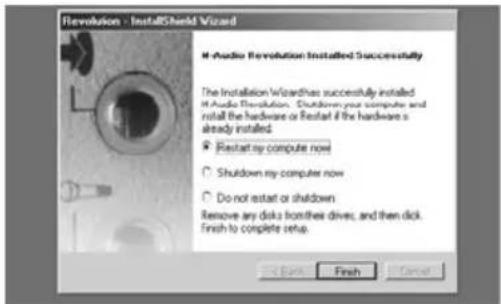
Once the installation is complete, you must choose one of the following:
-
Choose to Restart if your Revolution 5.1 card is already installed inside your PC.
- Choose to Shutdown if you have not yet installed the card, so that you may install it safely when the system is completely shut off (this choice is recommended when installing the driver prior to hardware installation).
- Choose "Do not restart or shutdown," if you wish to complete the Revolution installation later. (Note that your installed Revolution 5.1 card will not function properly until after you have restarted your computer.)
Click "Finish" to exit the installer.

- The Found New Hardware Wizard will automatically pull the drivers from the Drivers CD-ROM. Click "Finish" to complete the installation.
Revolution 5.1 and the Windows Sound System (2000, Me & 98SE)
The Revolution 5.1's Windows Multimedia drivers will allow you to use the Revolution 5.1 as your Windows system sound device. If the Revolution 5.1 is the only audio device installed in your computer, then Windows will "select" it automatically. Otherwise, you may need to tell Windows to use the Revolution 5.1. To check your Windows Audio setting and select the M-Audio Revolution 5.1:
- Go to the Start menu, and then choose "Control Panel."
- Open "Sounds and Multimedia" (on Windows Me and 2000) or "Multimedia" (on Windows 98SE), then click the "Audio" tab.
- Under "Sound Playback," the default device should say "Revolution." If it does not, then drop down the list of devices and select "Revolution."
- Click "Apply," then click "OK." Close your Control Panel to complete the process
Mac OS 9
-
Refer to the next section, "Hardware Installation" to first install the hardware. After installing the hardware, insert the Revolution 5.1 Driver CD into your CD-ROM drive. Double-Click the CD icon to view its contents.
-
Double click the "Revo 5.1 Installer."
3 Click "Continue" when prompted.
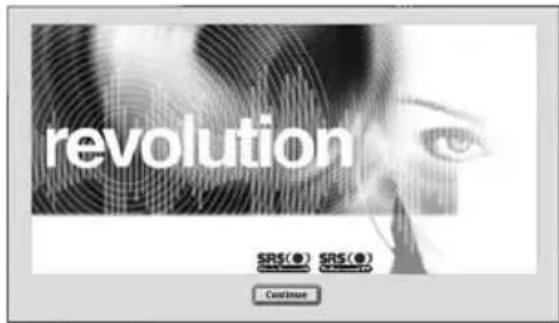
- You can "Save" or "Print" the ReadMe file. Then click "Continue".

- Choose "Standard Install"(recommended) or "Custom Install" by clicking its associated box. Then click "Install" to continue.

- The next window informs you that your system will need to restart after installation is complete. Click "Yes" to continue.

- Click "Restart" to continue.

- Once the computer has restarted, select the Apple menu, followed by "Control Panels" and then "Sound". Select the "Output" tab. Click on "M-Audio Revolution" to choose the Revolution 5.1 as your default output device. You will also see a Control Panel within the Apple menu named "M-Audio Revolution 5.1" that you can use to configure the Revolution 5.1 card. Refer to the section titled "Control Panel Setup" for more information.
Mac OS 9.2.2 Installation is now complete.
Mac OS X
- Refer to the next section, "Hardware Installation" to first install the hardware. After installing the hardware, insert the Revolution 5.1 Driver CD into your CD-ROM drive. Double-Click the CD icon to view its contents.
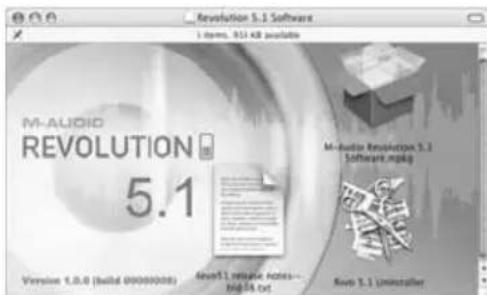
- Double-click "M-Audio Revolution Installer.dmg" file. An Icon will appear on your desktop.
-
Double-click this "Revolution" icon.
-
Now double-click on the "M-Audio Revolution.mpkg."
-
If using OS X 10.1.5, you will need your Administrator Password for the next step. To continue, click the lock icon in the lower left corner of the window that states, "Click The Lock To Make Changes."
-
Enter your password and click "OK."
-
The next window welcomes you to the installation process. Click "Continue."
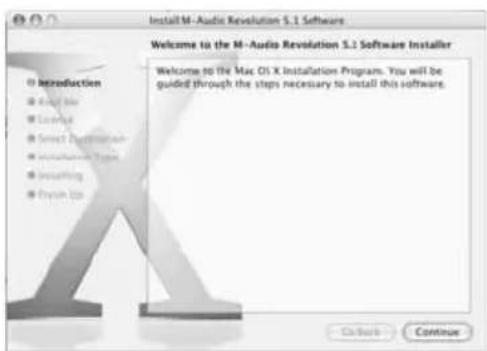
- You can "Print" or "Save" the installer notes if you choose. Otherwise, click "Continue".

- Click "Continue" if you agree to the terms of the license agreement.

- Select your OS X hard drive. Click "Continue."
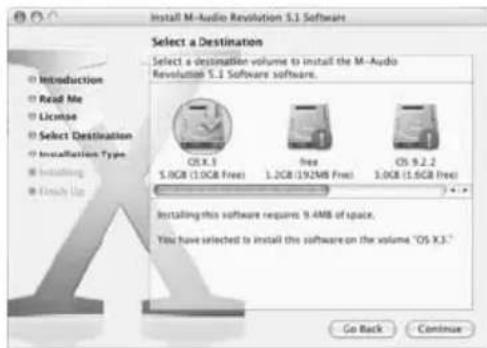
- When prompted, click "Install" to continue.

-
If you are prompted for a password, enter it and click "OK" to continue.
-
When prompted, click "Continue Installation."

- When prompted, click "Restart" to finish the installation.
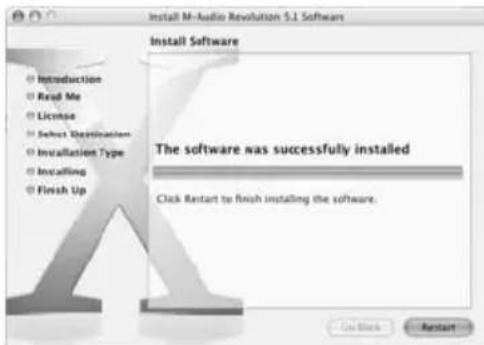
-
After your system has restarted, open the Apple Menu and choose "System Preferences". Select the "Sound" preference panel, and click the "Output" tab. Select "Revolution 5.1 Analog 5.1 Out" to choose the Revolution 5.1 as your default output device.
-
In the Applications folder, found within the "Go" menu, you will find an application called "M-Audio Revolution 5.1". Use this to configure your Revolution 5.1 card. Refer to the section titled "Control Panel Setup" for more information.
Hardware Installation
The Revolution 5.1 is a PCI card that must be installed in one of your computer's PCI expansion slots. Every computer model is slightly different, but here are some general installation instructions:
NOTE: Revolution 5.1 audio cards have been designed to be PCI 2.2 compliant with support for both 3.3-volt and 5-volt PCI signaling environments. This guarantees compatibility with PCI-X, 64-bit, and standard 32-bit PCI-based systems, including the Apple G5.
- Shut down your computer, and then unplug the power cable.
- Open the case to expose the PCI slots.
- Touch the metal cage surrounding the power supply. This grounds you to prevent any static electricity from accidentally damaging the computer.
- Unscrew the metal cover adjacent to the empty PCI slot you will install the Revolution 5.1 into. If you are replacing another PCI card with the Revolution 5.1, remove this card instead.
For optimal IRQ and data throughput reasons on Windows systems, we recommend that you start by choosing one of the middle PCI slots (for example, if your machine has five PCI slots place the Revolution 5.1 card in slot 2 or 3 if available rather than 1, 4 or 5). This is recommended because the 'outside' slots are often summed in pairs, limiting bandwidth available to inserted devices.
-
Press the Revolution 5.1 card into the PCI card slot. When it is properly installed in the slot, you should be able to see only a small edge of the metal connectors showing above the slot.
-
Put the case back together, plug in the power, and start up the computer.
Note: Your computer may have come with more specific instructions on how to install a PCI card into its hardware. If so, be sure to review those instructions prior to installation, in order to avoid possible damage.
Physical Connections

The rear panel of the Revolution 5.1 has the following jacks:
-
Line In (blue) - This is a stereo line-level input that can be used to record an audio source into an audio recording application. You can also monitor an audio source that is connected to this input. The jack is a stereo 1/8" TRS-type jack, and will accept a stereo audio source.
-
Mic In (pink) - The mic input allows you to connect a mono microphone for recording and monitoring, videophone or voice recognition applications. It is a 3-conductor 1/8" TRS-type jack for dynamic or electret (2-conductor) and electret (3-conductor) microphones that require power.
-
Headphones (silver) - Plug a pair of stereo headphones into this 1/8" stereo jack. The headphone out carries a stereo output signal, and has a volume control that is independent of the L/R Front.
-
L/R Front (green) - This line-level output jack should connect to the powered Left and Right speakers, located to the left and right of your computer monitor. If you have a two-speaker stereo setup, this is the jack to use.
-
Center/Subwoofer (orange) - This line-level output connects to powered Center and Subwoofer speakers. The Center channel speaker should be directly above or below your monitor and the subwoofer can be placed almost anywhere it will fit in your room. Use the connector cable's left connector for the Center speaker, and the right connector for the Subwoofer.
-
L/R Surround (black) - This line-level output should be connected to powered Left and Right Surround speakers. These speakers should be located to your left and right sides, just behind your head.
-
Digital Out - The Digital Output jack is a S/PDIF coaxial output. You must use a 75-Ohm coaxial digital (RCA-type) cable (sold separately) to connect to a digital recorder, mixer or surround receiver. This is not to be confused with a standard RCA audio cable, which is only 50-Ohms.
Note: You may also plug the line-level speaker outputs to a stereo receiver or sound system, or a 5.1 surround sound receiver with analog inputs. Some
surround receivers have a separate output for the subwoofer, but most rely on externally powered subwoofers. You can always connect the Revolution 5.1's subwoofer output to the line input of a powered subwoofer.
In addition to the rear panel jacks, the Revolution also has the following internal connection:
- CD/Aux Input - While most computer CD or DVD players play through the operating system software, we have provided an internal connector for your CD-ROM in case you care to use it. This port would use a standard computer internal analog audio cable. You may record and monitor from this input.
Using the Revolution 5.1's Inputs and Outputs
The following descriptions describe in greater detail the inputs and outputs listed above. You'll learn even more about setting up and using these connections in the Control Panel section of this manual.
There are three input connectors described below. Only one of them can be used for recording at any given time, though all three can be monitored simultaneously. Use the Control Panel's "Input/Other" page to select which input may be recorded (please refer to that section of the manual for more information).
Line Inputs
The Revolution 5.1 has a stereo line input. This input allows you to record CDs, audio from video, instruments or any other sound source that outputs line level audio, with up to 96kHz/24-bit audiophile-quality sampling.
You can set the record level for the Line Input on the Input/Other tab of the Revolution 5.1 Control Panel. You may also set the monitor level independently for the line input from the Input/Other tab. See the Control Panel section for more details.
Mic Input
The Revolution 5.1 has a microphone input. This input is mono (one channel) and is designed to accommodate the electrical characteristics—such as gain and impedance factors—of a typical microphone. It can accept a small mono dynamic or condenser microphone and it can also provide power for common electret multimedia microphones. You can connect a small microphone for recording sound effects, voice-recognition and videoconference applications. This input allows you to record up to 96kHz/24-bit audiophile-quality sampling.
You can set the Input level for the Mic Input on the "Input/Other" tab of the Revolution 5.1 Control Panel. You may also set the monitor level independently for the mic input from the Input/Other tab. See the Control Panel section for more details.
CD/Aux Input
The Revolution 5.1 has an internal analog connector for a CD-ROM drive. This is provided for your convenience if you choose to make this internal connection. If you are
replacing an existing audio interface with the Revolution 5.1 and that audio interface has an analog audio cable connected internally to a CD-ROM drive, remove that connection and re-connect it to the Revolution 5.1 CD/Aux Input.
You can set the Input level for the CD/Aux Input on the Input/Other tab of the Revolution 5.1 Control Panel. You may also set the monitor level independently for the CD/Aux input from the Input/Other tab. See the Control Panel section for more details.
Headphone Output Jack
The rear panel of your Revolution 5.1 has a 1/8" stereo headphone output jack. You can adjust the output level of the headphone output from the Control Panel's Speaker Setup tab, or from the Output Mixer tab.
Speaker Output Jacks
The rear panel of your Revolution 5.1 has three 1/8" stereo output jacks, which can be connected to powered speakers or to the inputs on a surround sound receiver. These jacks are designed to combine two speaker outputs into one jack, saving on space and simplifying installation (for example, the Center/Subwoofer output is actually the output for both the Center and the Subwoofer channels). Most multimedia speakers use 1/8" stereo input jacks. If your speaker or receiver jacks are of the RCA type instead, you can purchase a converter-like the one depicted below—at a local electronics store.

The white RCA jacks connect to the first listed channel, while the red jacks connect to the second. For example, with the L/R Front jack, the white jack connects to the Left speaker and the red jack connects to the Right speaker.
Note that the Revolution 5.1's outputs produce a Line Level signal and can therefore be connected directly to powered speaker inputs. However, if your speakers are not self-powered, you will need to connect the Revolution 5.1's outputs to the inputs of a power amplifier or surround receiver and then connect its outputs to the speaker inputs.
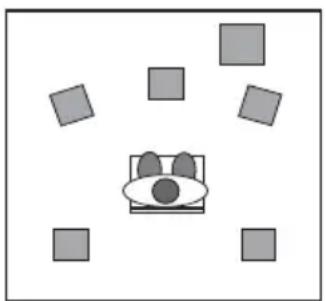
Use the diagram which follows as a guide for placing the speakers around your computer. Make the following speaker connections:
■ Connect the L/R Front output to the Left and Right speakers.
■ Connect the Center/Subwoofer output to the Center and Subwoofer speakers (Left/Black connector for Center and Right/Orange connector for Subwoofer).
■ Connect the L/R Surround output to the Left and Right Surround speakers.
natural_image
Simple diagram of a bed with a cat face and surrounding gray squares (no text or symbols)You can adjust the output level of the speaker outputs from the Control Panel's Speaker Setup tab, or from the Output Mixer tab. Make sure that any speakers you use near a CRT Computer Monitor are shielded speakers. Unshielded speakers in close proximity to your monitor may make your display become discolored in one of the corners, or make the image appear warped. Just move the speakers further away from the monitor to avoid damage.
Digital Output Jack
The rear panel of your Revolution has a digital connector for coaxial S/PDIF output. This output will transmit a stereo PCM digital audio signal, or an encoded surround sound signal such as Dolby Digital or DTS.
Connect this output to the digital input of a stereo or surround sound receiver system. Some powered speakers have digital inputs, and may also be connected to this output.
Explanation of Surround Formats
The "surround format" generally refers to the number of speakers needed in a setup to properly play back all the assigned audio channels.
You may run into a variety of surround formats when playing DVDs, some of which include 2.0, 4.1, 5.1, and even 6.1 and 7.1 (not supported). This section is meant to provide a quick explanation of the supported formats.
2.0 - This is a stereo soundtrack. It will play out of the left and right speakers. Headphones are generally stereo or 2.0 devices.
2.1 - This is a stereo soundtrack incorporating a separate subwoofer (indicated by the ".1"). Generally, the stereo signal (from the green output jack) connects to the subwoofer, which only plays back the bass frequencies of the stereo soundtrack. The left and right speakers then connect to the subwoofer (this is true of most 2.1 computer-type speaker systems) to handle the rest of the signal. Using the Bass Management System provided with the Revolution 5.1, a separate, or "discrete" subwoofer channel may be created by connecting a sub directly to the orange output jack.
4.0 - This signal is the same as 4.1 (description following), only without the discrete subwoofer channel.
4.1 - This is a Dolby Pro Logic®-encoded soundtrack, which is a 2-channel signal that can be played back with a Dolby Pro Logic® or SRS Circle Surround II decoder. It will play back from the left, center and right speakers with a mono signal going to the L/R surrounds. An additional ".1" signal gets sent to the subwoofer (via the orange output jack).
5.0 - This signal is the same as 5.1 (description following), only without the discrete subwoofer channel.
5.1 - This is how most current DVDs are released. Dolby Digital® and DTS® soundtracks can have up to 5.1 channels. This signal plays back from the left, center, and right speakers, plus two additional left and right surround speakers, and a
subwoofer (or LFE) channel speaker.
You need specialized software to play back surround audio formats above two channels. Much of this software is included in the drivers or the software bundle that accompanied your Revolution 5.1. See the installation CD that came with your Revolution 5.1 for more information, or check the M-Audio website.
Revolution 5.1 Control Panel
Once the setup has been completed, you will be able to control most aspects of the Revolution 5.1 via its Control Panel, which can be launched in the following manner:
Windows - Following the driver software installation in Windows Me, 2000, and XP, you will find an M-Audio logo "M" installed in the System Tray, on the right side of your Windows taskbar. Double-click on this logo to launch the M-Audio Revolution 5.1 Control Panel.
Mac OS 9 - After the restart at the end of the Mac OS 9 driver software installation, the Revolution Control Panel will be placed in your Apple Control Panels folder. Open your Applications folder and select "M-Audio Revolution Settings" to launch the M-Audio Revolution 5.1 Control Panel.
Mac OS X - Follow the driver software installation for Mac OS X and restart. Open your Applications folder and double-click "M-Audio Revolution" to launch the M-Audio Revolution 5.1 Preference Panel.
When you launch the Control Panel, you will see a "Speaker Set" pull-down menu, and five more tabs at the top of the Control Panel display. Here is a brief overview of these items:
The "Current Speaker Set" pull-down menu includes presets for many popular speaker models. Click and hold on this menu to see if your speaker models are included in the list for the recommended settings for your speakers.
The Current Speaker Set pull-down menu also allows you to set the number of output channels (e.g. stereo, 5.1, etc.). It's important that this control reflects the actual number of speakers you are using so that the drivers aren't sending audio to non-existent speakers. For example, if you select 5.1 and you only have two speakers connected, you won't hear any of the dialogue when you play a DVD movie. You can also configure these settings by using the "Quick Set" buttons at the top if the panel.
The Master Volume slider at the bottom of the panel controls the overall volume of the Revolution 5.1's outputs, while the Mute button mutes the signal to all of the outputs. This can be handy for things like answering the phone or pretending that you're hard at work!
From left to right, the Control Panel tabs are: "Speaker Setup," "Output Mixer," "Surround Sound," "Input/Other" and "About." Use the Speaker Setup tab to set the size and distance of your speakers and the Output Mixer tab to balance the volumes of each speaker output. The Surround Sound tab controls aspects of SRS Circle Surround II or TruSurround XT, depending on whether you have a stereo or multi-channel speaker set. Input/Other gives you input selection with record and monitor level controls, a sample
rate readout, and latency buffer settings. The About tab gives you information on the software version of your Revolution 5.1 drivers.
The next section explains the settings on each of these tabs in greater detail.
Speaker Setup Tab

This tab allows you to set the size and volume of the main speakers. First, check the Current Speaker Set menu to see if your speakers are included in the manufacturer's presets. If not, the settings in this tab will ensure the best performance from your speaker system.
You may choose a Speaker Setup from the Current Speaker Set menu or from the Quick Switch Settings icons at the top of the tab. If you modify a setup, you may save that setup and name it by clicking the "Save As" button.
The Quick Switch Settings buttons are simply a shortcut to items in the Current Set menu. You may remove a Quick Switch icon by right-clicking on it and selecting "Remove Quick Switch Setting Button," and you may replace or rearrange the Quick Switch icons by clicking on the icon next to Current Set, and dragging that icon up to the Quick Switch Settings.
When you choose a Current Set, a graphic representation of that speaker setup will appear in the Speaker Setup tab (and also on the Surround tab). When you click on a particular speaker, settings for that speaker or speaker group will appear to the right, allowing you to make level adjustments and other modifications right from the Speaker Setup tab.
Speaker Bass Management - This function enables Bass Management for the Revolution 5.1 Control Panel. The Revolution 5.1 Control Panel uses Bass Management to get the best sonic performance from your speakers.
Bass Management is a feature that is common in home theater, and is used in conjunction with a speaker setup that includes a subwoofer. In surround sound, the subwoofer carries the LFE channel (low frequency effects or "enhancement"), which is
generally dedicated to things like explosions or stomping monsters in movie soundtracks—low frequency effects—that would otherwise destroy the main or satellite speakers that aren't large enough to handle them.
Bass Management allows bass frequencies from your main speakers to re-route to your subwoofer. This is called "crossover" bass, and is separate from LFE (.1" channel) bass. Because most smaller or satellite speakers can't handle the bass frequencies from the main speaker channels as well as a subwoofer can, Bass Management filters (at the selected Crossover setting) the lower or bass frequencies from your L/R Front, Center, and L/R Surround speakers, and combines that with the LFE channel, which is already going to your subwoofer. The result is a superior sound experience.
Some of the Current Set menu selections will automatically switch Bass Management on. These are the "Stereo w/ Discrete Subwoofer," "4.1 Surround" and "5.1 Surround" selections. Otherwise, you may switch on Bass Management by using the checkbox underneath the picture of the Speaker Setup.
NOTE: If you have a satellite (or small speaker) surround sound speaker setup, which includes a subwoofer, we recommend switching on and using the Bass Management setting in conjunction with an appropriate Speaker Size and Crossover setting. However, it does require a bit of CPU power from your computer to run Bass Management, so you might want to switch it off if you are running other programs or involved in games that require full CPU power.
Speaker Size - This setting tells the driver software what size your speakers are. Select the speaker size that best describes your L/R Front, Center, and L/R Surround speakers: Large (12" or larger woofer), Medium (5"-8" woofer), or Small (woofer 5" or smaller). There are also settings for Cube or Flat Panel speakers.
The default setting here is "Any." This setting will work in most situations, but definitely choose a speaker size other than "Large" if you have Bass Management enabled, or manually adjust the Crossover setting.
Crossover - The Crossover setting applies to Speaker Bass Management. When you first open the Control Panel, the default Crossover setting is "Off," and Bass Management is also switched off. When you switch Speaker Bass Management on, the Crossover will automatically set to 80Hz. This means that all frequencies below 80Hz will be re-routed from the selected Main and Surround speakers to the discrete Subwoofer. This is an accepted standard, but you may modify it by clicking the drop-down menu for the Crossover selection list and choosing another setting.
Link Stereo Output Levels - This links the left and right output level controls, so that if you change one, the other follows.
Left and Right Levels - These controls change the volumes of the left and right speaker outputs independent of the other speakers. Move it to the right towards 0dB for more volume or left toward -60dB for less volume. Click on a speaker icon in the picture shown for your Speaker Setup to access other speaker level controls.
Distance - This control sets the distance from your head (in the optimum listening position, or "sweet spot") to each speaker in your setup, from 1 to 30 feet.
Revolution 5.1's software can intelligently compensate for differences in speaker placement using this setting, and can make your room sound much better. Click on each speaker icon to access this control for each speaker in your setup.
Mute - Use this button to silence audio going to this speaker.
Solo - By pressing this button, you will only send sound to the selected channel. The Solo function can be useful if, for example, you suspect the left and right speakers are reversed and you need a way to check. You can solo more than one channel at a time, if you wish.
Test - This button sends a test tone to the selected speaker. It is useful for determining where the speaker is located and how loud the volume is relative to the other speakers.
NOTE: DirectX 8.1 (or higher) is required for the test tone function to work in any Windows OS. DirectX 8.1 is supplied on the Applications CD included with your Revolution 5.1 card. In the DirectX folder on the Applications CD, simply double-click "dxsetup.exe" to install DirectX 8.1.
Output Mixer Tab

This tab provides level controls for each of the speaker outputs on the Revolution 5.1. Use these controls to change the balance between the speakers in your system, then use the Master Volume slider at the bottom of the Control Panel to control overall listening level.
You will find that the channels you see in the Output Mixer tab are linked to the Current Set you have chosen in the Speaker Setup tab. If your setup is stereo, for example, you will see only the L/R Front channels and the Headphone channels. If you have chosen "Headphones" as your Current Set, you will see only the Headphone channels, since the Headphones setting switches off all of the main speaker outputs.
Level - Move the Level faders up or down to change the volume of any of the six speaker outputs, plus headphone left and right outputs. For proper DVD playback, each of the surround speakers should play back at the same volume, but you may need to adjust them for distance or to taste. Each Level Control has a level meter next to it, so you can see how much signal is going to each of the outputs.
Mute - Use this button to silence audio going to this speaker.
Solo - By pressing this button, you will only send sound to the selected channel. The Solo function is useful if, for example, you suspect the left and right speakers are reversed. You can solo more than one channel at a time, if you wish.
Surround Sound Tab

This tab controls the surround sound features of the Revolution 5.1. There are two SRS Labs technologies included with the Control Panel, TruSurround XT and Circle Surround II. TruSurround XT takes a multi-channel source and plays it through two speakers in a way that makes it sound like you're playing it back through multiple speakers. Circle Surround II takes a stereo source and processes it so that it plays through multiple speakers.
We have also included Sensaura Game mode (Windows Only), as well as X2 and X3 settings for "all channel stereo." The Sensaura setting will process the effects that occur in real time from the game that you are playing. Sensaura is only for use with EAX-compatible games. The X2 setting will expand your stereo audio to the L/R Surround speakers, and X3 will expand your stereo audio to the L/R Surround as well as summing the center speaker in a 5.0 or 5.1 Speaker Setup.
Here are some suggestions for playing surround sources through your Revolution 5.1:
If you're playing a 5.1 surround DVD with WinDVD (Windows only), and you have multiple speakers attached, select "None" from the drop-down list (Circle Surround II should not be selected).
If you're playing (and decoding) a 5.1 surround DVD and you only have two speakers connected, select "TruSurround XT."
If you're playing a stereo MP3, CD, or DVD and want to hear it through multiple surround channels, select "Circle Surround II."
If you're playing a stereo soundtrack and want to hear it through multiple channels while preserving CPU power, select "Stereo X2" or "Stereo X3."
If you're playing an EAX-compatible game and want to enjoy the full interactive surround experience, select "Sensaura Game" mode.
The TruSurround XT settings only appear if your Current Speaker Set is "Stereo," "Stereo with Subwoofer," or "Headphones." The Circle Surround II settings only appear if your Current Speaker Set is set to three or more channels.
SRS TruSurround XT Enable - This control turns on the TruSurround XT feature. TruSurround XT "virtually" places individual surround channels where they are supposed to be, as though you have speakers all around you. Use this feature to turn 5.1 multi-channel sources, such as Dolby Digital or DTS-encoded DVDs, into "virtual" surround from your stereo speakers. To use this function, select "6 Channel" from within your DVD program's audio output selection menu.
SRS Circle Surround II Enable - This control turns on the Circle Surround II feature. Circle Surround II is a patented SRS technology that solves the problem of playing 5.1 multi-channel content from a two-channel source. It delivers a compelling surround sound experience through any multi-channel playback system. Use this feature to turn stereo sources such as CDs, MP3s or Dolby Pro Logic-encoded DVDs into 5.1 multi-channel surround. Turn this feature off if you're listening to a source that's already playing back in 5.1 surround, such as Windows Media or a DVD movie.
SRS TruSurround XT/Circle Surround II Modes - There are three modes to the Circle Surround II and TruSurround XT feature. Use "Cinema" when watching films or television programs. Select "Music" to listen to stereo music sources in surround. Choose "Mono" to spread out a mono source like old movies or various internet radio stations.
SRS Dialogue Enhancement™ - This feature is designed to make dialogue more intelligible. Click the "Enable" checkbox to enable this feature, and use the Level slider to control the amount of enhancement applied to the dialogue.
SRS TruBass ^® - This feature takes the low bass from big-theater soundtracks and turns it into frequencies that home speakers can reproduce. When you use this feature, you don't need to worry about missing out on the big bass rumbles of submarine missile launches or spacecraft flybys just because you're using small computer speakers. Click the "Enable" checkbox to turn on the TruBass feature, and use the Level slider to add more bass.
SRS(●) and SRS(●) are trademarks of SRS Labs, Inc.-Circle Surround II and TruSurround XT are incorporated under license from SRS Labs, Inc.
Input/Other Tab
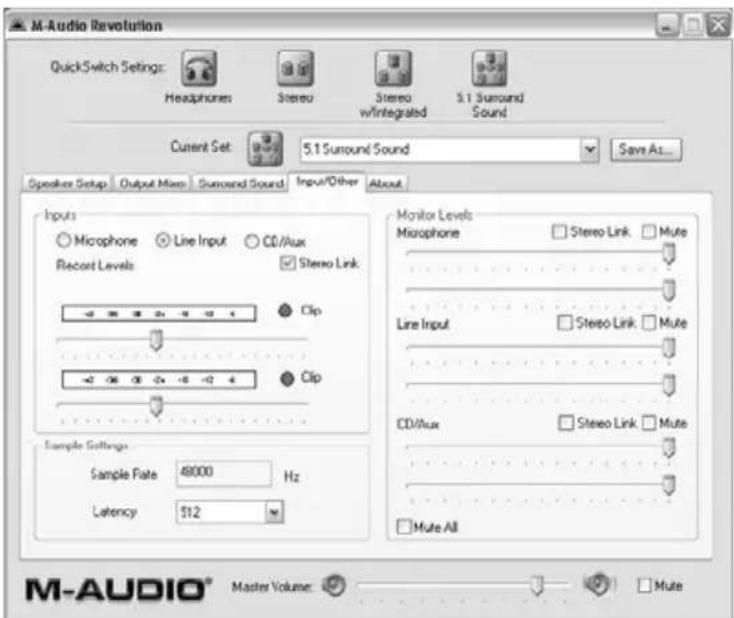
The Input/Other tab controls the input record and monitor levels. It also gives you a display of the current sampling frequency of the Revolution 5.1 and allows you to set the Latency buffer. You may not need to worry about the settings on this page unless you're recording audio with the Revolution 5.1.
However, if you are using a microphone or headset, or wish to monitor the Line Input or the CD/Aux input, the Monitor Level sliders displayed here will allow you to set your listening level for all three of these inputs.
Inputs - Three radio buttons allow you to select the Active Input for the Revolution 5.1. The Revolution 5.1 has three inputs: Microphone, Line Input, or CD/Aux. Only one of these can be active for recording at any given time. The one that you select will be the one that you are able to record. All inputs, on the other hand, can be monitored simultaneously (see "Monitor Levels" on the next page).
NOTE: While the Microphone Input is a mono input, it is sent to both the left and right channels for recording and monitoring. Therefore, you will see both L/R Record Level faders and L/R Monitor Level faders.
Stereo Link Record Levels - When you check this box, the left and right record level faders will always adjust together whenever you move either slider.
Left/Right Record Level - These controls set the input recording level for the Revolution 5.1's selected input. The Revolution 5.1's inputs provide you with up to 12dB of gain level above your input source.
Watch the meters above these level controls to set the input level. For the best sound quality, you generally want to record at the highest level you can without distorting (exceeding 0dB).
At the end of each of the meter stripes is a Clip Indicator. The purpose of this indicator
is to inform you that an incoming signal is too loud, thereby producing distortion. The Clip Indicator will turn red when the input is too loud (exceeds 0dB). Reduce the input level of your audio source so the indicators remain in the blue region rather than the red. To reset the Clip Indicators, click on each one with your mouse and they will return to their normal state.
Sample Settings - This section gives you a display of the current sample rate that the Revolution 5.1 is receiving. The sample rate shown here is controlled by the application you are using to record and/or playback audio. Sometimes the audio that is playing back is controlled by the source, such as a CD or DVD that is playing back at a particular sample rate.
This is a bit like the "SP/EP" control on a VCR. A higher sample rate will sound better, but will require more memory space for storage. 44100Hz is the standard CD sampling rate and is usually your best choice. Higher sampling rates such as 96000Hz will cause certain features to be disabled, such as Circle Surround II.
The Latency setting is expressed in the number of "Samples" that are held in a buffer. The greater the number of samples buffered, the higher the latency. This control is automatically set by the installer to compensate for processor speed. It introduces a delay, usually less than 1/60th of a second, to make sure that audio is played properly.
This setting might become important if you are recording, and you are monitoring through the software. Otherwise, you probably will never need to change this setting. If you encounter problems during recording and/or playback, such as stuttering audio, you can try raising this value to see if the problem goes away. See the Recording section under "Revolution Applications" for more information.
Monitor Levels - These faders control the monitor levels for all of the Revolution inputs—Microphone, Line Input, and CD/Aux. All of these input signals can be monitored at any given time, though only the input that is selected under "Active Inputs" will be recorded. Changing these faders will not change the level that you set for recording. It will only affect the level of what you hear from the inputs.
Stereo Link Monitor Levels - When you check this box, the left and right input level faders will always adjust together whenever you move either slider.
Mute and Mute All - Each input that you are monitoring may be muted individually. Clicking the Mute button above the Microphone fader will mute the mono Microphone input. Clicking the Mute button above the Line Input or CD/Aux faders will mute those stereo inputs.
The Mute All button will switch off monitoring for all three of the Monitor Levels. If you are recording and using software monitoring (that is, monitoring through the music application, such as with ASIO or WDM, or coreAudio in Mac OS X), you will want to select "Mute All." See the "Recording" section under "Revolution Applications" for more information.
About Tab
This tab provides information about the software version of the Control Panel and driver software. This information can be useful to customer support personnel when troubleshooting problems with your Revolution 5.1. There is also a link right to M-Audio's website on this panel.
Revolution 5.1 Applications
Now that we've finished connecting speakers and setting levels, you're probably interested in getting started. This chapter should help you through some typical uses of the Revolution 5.1.
DVD Playback
The Revolution 5.1 ships with WinDVD 5, which can be found on the Applications CD that came with your Revolution 5.1. WinDVD 5 plays back a Dolby Digital-encoded audio signal, sending the decoded 5.1 surround signals to the Revolution 5.1's six line outputs. Use the supplied WinDVD version to take full advantage of the surround sound features of your Revolution 5.1 under the Windows operating system (Macintosh DVD player software prior to OS X 10.3 may not support Dolby Digital playback, so check the documentation that came with your DVD player for more information).
Installation of WinDVD 5 onto your Windows system is done by double-clicking on the Application icon in the WinDVD folder of the included Applications CD (refer to the Appendix B of this manual for more detailed instructions on installation).
To set up WinDVD 5 for Windows, click on the "Subpanel" button (this button looks like an arrow pointing right) from within the WinDVD 5 application. Then choose "Audio Mode" and click on the "Setup" button (the Setup button looks like a wrench). Now click on the "Audio" tab, and select the desired output format (6-channel, etc.). For additional information, again see Appendix B.
The Revolution 5.1 will work with any software DVD player. The type of audio signal that your DVD player sends to the Revolution 5.1 depends on the setting in your DVD player software. Generally, DVD player software provides a series of audio setup options or preferences. The exact location of these audio option controls may vary, so check your DVD player's documentation for more information. These setup options enable you to change or direct the audio output of the DVD player.
Stereo - When the Revolution 5.1 is chosen as your computer's audio device (see the previous chapter, "Software Setup"), this setting will send a stereo signal to the Revolution 5.1's outputs. You may want to turn on the Circle Surround II feature when playing a stereo movie (see the previous section for details).
Digital Out - When you have the Revolution 5.1's digital output connected to the digital input of a surround sound receiver, choose this setting to send the encoded surround signal (Dolby Digital) to the receiver. This selection is called "Use S/PDIF" in WinDVD 5. Your surround sound receiver will then decode the Dolby Digital format.
You may also use the Digital Out for stereo playback of S/PDIF signals.
Note for Macintosh Users: There is currently no DVD player for Mac OS 9 or below OS X version 10.3 that supports software decoding of Dolby Digital or DTS, but Revolution 5.1's CircleSurround II technology does a remarkable job of generating a real surround soundtrack from the Apple DVD Player application.
5.1 - If your DVD player (for example, WinDVD 5) is capable of decoding a surround sound signal such as Dolby Digital (and DTS, in some playback software), select this option. If you have only stereo speakers connected, you may want to turn on TruSurround XT to provide the best surround sound simulation from stereo speakers. If you have multi-channel speakers connected, make sure to turn off Circle Surround II.
Music Playback
The Revolution 5.1 can transform stereo music CDs and MP3 files into a surround sound, room-filling experience. For surround playback of stereo music, open the Revolution 5.1 Control Panel, select the Surround Sound tab and turn on SRS Circle Surround II. Also, select the Music mode appropriate for best playback (see the previous section). With proper playback software, the Revolution 5.1 is even capable of playing back DVD-Audio discs.
Windows Media Player Setup
Microsoft's Windows Media Player (9 and later) will allow you to play 5.1 surround music and movies through the Revolution 5.1. As long as the Revolution 5.1 is selected as your default audio device, Media Player will play surround recordings through the Revolution 5.1's outputs.
Gaming
The Revolution 5.1 brings gaming to life through Sensaura surround sound playback. Sensaura decodes an exclusive suite of algorithms (referred to as EAX) based on the physics of spatial hearing, to mimic the acoustic processes that are involved in replicating a 3D sound space in computer software. The result is a realistic simulation of the effect of hearing any particular sound at a chosen position in three-dimensional space around the listener.
If your game supports EAX technology (Windows Only), open the Revolution 5.1 Control Panel, select the Input/Other tab and select the "Sensaura/Game Mode." This mode disables Circle Surround II, and the sampling rate is automatically changed to 48kHz.
If you find that your game slows down when Sensaura is turned on, you may want to turn off some of the graphic details or reduce the screen resolution in order to speed things up.
Recording
The Revolution 5.1's audio inputs may be used for recording. You can set the record level of an input by launching the Revolution 5.1 Control Panel, clicking the Input/Other tab, selecting an "Active Input" for recording and adjusting the Record Level faders in that pane. If your recording application doesn't see audio from the Revolution 5.1's inputs, check the program's audio preferences, check your cable connections, or
review the Software Setup chapter for potential problems. Go to the Windows Control Panel and open the "Sounds and Multimedia" icon (or "Sounds and Audio Devices" under Windows XP). Use the Revolution 5.1's Microphone, Line, or CD/Aux inputs for the best performance with your input source. The Revolution 5.1 records at sampling rates up to and including 96kHz.
The Revolution 5.1 ships with M-Audio's ASIO drivers for multitrack recording and playback with recording applications that are ASIO-compliant. The buffer for ASIO (Mac OS 9 and Windows) or ASIO/WDM (Windows only) drivers can be adjusted in the latency up/down selection list in the Input/Other tab of the Revolution 5.1 Control Panel (there is no buffer setting for Mac OS X). When you install the Revolution 5.1 card and drivers, a setting is chosen for you that is compatible with your system. You may select a lower setting if you would like to reduce the latency while you are recording and monitoring through your software (often referred to as software monitoring). If your recording or playback stutters or glitches, simply raise the latency setting until the stuttering stops.
Software monitoring is a common way of monitoring your inputs while recording, and though it adds a bit of latency, it gives you the ability to add and monitor effects from your music software. You can also monitor the hardware inputs with zero latency using the Input/Other tab's Monitor Level faders, but without the ability to add effects. However, if you are using software monitoring, you will want to switch off the hardware inputs on the Input/Other tab. To do this, check the "Mute All" box at the bottom of the Monitor Levels pane. Conversely, if you are using the Input/Other tab's Monitor Level faders and not using software monitoring, you will want to disable the input monitoring from within your music software.
For more information on software monitoring, check the manual for your particular music software.
Troubleshooting & Technical Support
M-Audio's website, www.m-audio.com, contains the most up-to-date troubleshooting information. This should be your first stop for all the latest drivers, FAQ files and extensive how-to guides. For additional help after visiting the website, you may contact M-Audio Technical Support by phone (626-633-9066, 9-5 PST M-F), fax (626-633-9060) or e-mail (techsupt@m-audio.com).
If you are having problems with your Revolution 5.1, you may wish to try the following quick troubleshooting tricks:
- If things don't seem to be working properly, try restarting the computer. This solves many computer problems.
- If you have not been able to get your Revolution 5.1 card to work at all, or if it worked for a while and then stopped working altogether, uninstall then reinstall the driver software.
- When launching an ASIO application, make sure that game mode is disabled in the "Input/Other" tab of the Revolution 5.1 Control Panel.
- If the unit stopped working after you installed a new program or system software update, check the M-Audio website for more recently updated drivers. If a major system software update has been recently released, you may need to search for beta version software drivers, which provide increased support for the new software.
- A few features are disabled when a 192kHz or 96kHz sampling rate is selected. If a feature isn't working properly, try opening the Control Panel, selecting Input/Other, and setting the sampling rate to 48kHz.
- Test Tones will not work on any speaker setting in Windows 2000 or Windows Me, and result in the Windows Error: "Unable to create test tone. This operation is not allowed when in digital output mode." To fix this, install DirectX 8.1, or WinDVD 5, both of which are located on the Applications CD. (Installing WinDVD 5 will also install DirectX 8.1 if it is not already installed in your system.
Warranty Information
Warranty Terms
M-Audio warrants products to be free from defects in materials and workmanship, under normal use and provided that the product is owned by the original, registered user. Visit www.m-audio.com/warranty for terms and limitations applying to your specific product.
Warranty Registration
Thank you for registering your new M-Audio product. Doing so immediately both entitles you to full warranty coverage and helps M-Audio develop and manufacture the finest quality products available. Register online at www.m-audio.com/register to receive FREE product updates and for the chance to win M-Audio giveaways.
Appendix A: Technical Specifications
Hardware Features:
■ Provides 8 Analog Channel Line Outputs (through 4 stereo 1/8" Mini jacks)
■ S/PDIF Digital Coaxial Output (uses 75-Ohm RCA-type coaxial cable)
■ S/PDIF Output transmits either Linear PCM, DTS, or AC-3 (Dolby Digital™)
■ Stereo 1/8" Mini Analog Line Input
■ Mono 1/8" Mini Analog Microphone Input with electret mic power
■ Internal CD/Aux Input
Audio Performance:
Line Outs:
Dynamic Range: 109dB (A-weighted)*
Signal-to-Noise Ratio: -109dB (A-weighted)*
THD+N: <0.00185% (-95 dB)*
Max. Line Output Level: +5.96dBV
Frequency Response: -0.31/+0.04dB, 20Hz to 80kHz
@ 192kHz sample rate
Crosstalk: -100dB
Mic In:
Dynamic Range: 101dB (A-weighted)
Signal-to-Noise Ratio: -101dB (A-weighted)
THD+N: <0.00284% (-91dB) left, 0.00245% (-92dB) right**
Frequency Response: +/- 1.8dB, 100Hz to 18kHz
Line In:
Dynamic Range: 102dB (A-weighted)
Signal-to-Noise Ratio: -102dB (A-weighted)
THD+N: 0.00268% (-91dB) left, 0.00250% (-92dB) right
Maximum Input Level: +5.9dBV
Playback Sampling Frequencies (Hz):
- With no rate conversion: 32000, 44100, 48000, 88200, 96000, 172400, 192000
- With MME rate conversion: All sample rates up to 200kHz
* For optimum stereo output performance, use speaker set "X2" and output playback through Line Outs 3 and 4. This avoids the minimal floor-noise introduced when monitoring playback through Line Outs 1 and 2.
** The MIC input is MONO, but feeds both the left and right A/D channels, appearing to an application as a stereo device.
Driver Features:
USB Audio playback using the following Input/Output formats:
■ 16-bit Linear PCM
■ 24-bit Linear PCM
■ Dolby Digital™ (AC-3) and DTS™ output over S/PDIF (not available in Mac OS 9)
■ SRS Circle Surround II processing (PC and Macintosh)
■ SRS TruSurround XT processing (PC and Macintosh)
■ Sensaura, for 3D gaming (PC only)
Appendix B: WinDVD v5 Installation
The enclosed WinDVD Version5 gives you the multi-channel support needed to play encoded surround sound material such as Dolby Digital 5.1. With the proper settings, WinDVD will decode that material and send it to the multi-channel outputs of your Revolution 5.1.
To use WinDVD, you must have DirectX 8.1 installed in your System. If you have an older version of DirectX, WinDVD will inform you that, "The setup program has detected that you have an older version of Microsoft's DirectX." Click "Yes" to install DirectX 8.1. If your System prompts you to restart your computer after installing DirectX, then do so. Otherwise, proceed with the WinDVD installation.
To install WinDVD v5:
- Insert the "Applications" CD into your CD drive and locate the "WinDVD" folder. Run the setup application by double-clicking the "Setup" icon.
- The "Welcome to WinDVD Setup" window will pop up. Click the "Next" button.
- A "License Agreement" box will pop up. Assuming that you agree with the terms, click the "Yes" button on the bottom right hand corner.
- WinDVD will ask you for User Information such as Name, Company (optional) and Serial Number. Your serial number is located on the Applications CD sleeve. After entering this information, click the "Next" button.
- The "Choose Destination Location" dialog box will pop up, asking you to choose where you want to install WinDVD. Usually the default locations are a good choice (if you want to choose another location, then "Browse" to the desired location). Click "Next."
- The "Select Program Folder" box appears. WinDVD will create a folder for you named "InterVideo WinDVD 5." Click "Next."
- The "Setup Status" box informs you that it is installing the program to your hard drive.
- The "File Types Association" window will pop up. If you want DVD video to autoplay, or movie files such as mpegs (files with the .mpg extension) to be played on WinDVD, then leave these boxes checked and click "Next."
- The "Third Party Application Setup" window will pop up. If you want WinDVD to use Microsoft HTML Help, check the box and then click "Next."
- Now the Setup is complete. Select, "Yes, I want to restart my computer now," remove the Applications CD from the drive, and hit the "Finish" button.
Setting Up the Revolution 5.1 in WinDVD:
- Double-click the "Intervideo WinDVD 5" icon that is now located on the Desktop.
- Look at the transport bar, then click on the SubPanel "arrow" found just to the right of the InterVideo logo. Select "Audio Mode" from the list.
- Click on the tool button (it looks like a little wrench), located in the lower right hand corner. The "Audio" page of the Setup box will then pop up next to the transport.
- Select the Audio Output. If you are listening to speakers attached to the Revolution 5.1's line outputs, then select "Analog." If you have the digital output connected to a home theater digital input, then select "S/PDIF."
- Set the Audio Speaker Configuration according to how many speakers you are connecting to the Revolution 5.1's outputs. Click "OK."
- Now the setup is complete. Place a DVD video in your DVD drive and hit "Play."
M-AUDIO
Revolution 5.1

Tested to comply with FCC standards
WARNING: This product contains chemicals, including lead, known to the State of California to cause cancer, and birth defects or other reproductive harm. Wash hands after handling.
© 2006 Avid Technology, Inc. All rights reserved. Product features, specifications, system requirements and availability are subject to change without notice. Avid, M-Audio and Revolution 5.1 are either trademarks or registered trademarks of Avid Technology, Inc. All other trademarks contained herein are the property of their respective owners.
| M-Audio USA5795 Martin Rd., Irwindale, CA 91706 |
| Technical Supportweb: www.m-audio.com/techtel (pro products): (626) 633-9055tel (consumer products): (626) 633-9066fax (shipping): (626) 633-9032 |
| Salese-mail: sales@m-audio.comtel: 1-866-657-6434fax: (626) 633-9070 |
| Web www.m-audio.com |
| M-Audio U.K. Floor 6, Gresham House, 53 Clarenden Road, Watford WD17 ILA, United Kingdom | |
| Technical Support e-mail: support@maudio.co.uk tel:(Mac support): +44 (0)1765 650072 tel: (PC support): +44 (0)1309 671301 | |
| Sales tel: +44 (0)1923 204010 fax: +44 (0)1923 204039 | |
| Web www.maudio.co.uk |
| M-Audio FranceFloor 6, Gresham House, 53 Clarenden Road, WatfordWD17 ILA, United Kingdom | |
| Renseignements Commerciauxtel : 0810 001 105e-mail : info@m-audio.fr | |
| Assistance TechniquePC : 00820 000 731MAC : 00820 391 191 | |
| Assistance Techniquec-mail : support@m-audio.frmac@m-audio.frfax : +33 (0)01 72 72 90 52 | |
| Site Web www.m-audio.fr |
| M-Audio GermanyKuhallmand 34, D-74613 Ohringen, Germany | |
| Technical Support | |
| e-mail: | support@m-audio.de |
| tel: | +49 (0)7941 - 9870030 |
| fax: | +49 (0)7941 98 70070 |
| Sales | |
| e-mail: | info@m-audio.de |
| tel: | +49 (0)7941 98 7000 |
| fax: | +49 (0)7941 98 70070 |
| Web | www.m-audio.de |
| M-Audio Canada1400 St-Jean Baptiste Ave.#150, Quebec City,Quebec G2E 5B7, Canada | |
| Technical Support | |
| email: | techcanada@m-audio.com |
| phone: | (418) 872-0444 |
| fax: | (418) 872-0034 |
| Sales | |
| e-mail: | infocanada@m-audio.com |
| phone: | (866) 872-0444 |
| fax: | (418) 872-0034 |
| Web | www.m-audio.ca |
- Table of Contents
- Introduction 2
- Revolution 5.1 Features 2
- System Requirements 2
- Physical Connections 16
- Using the Revolution 5.1's Inputs and Outputs 17
- Explanation of Surround Formats 19
- Revolution 5.1 Control Panel 20
- Revolution 5.1 Applications 28
- Troubleshooting & Technical Support 31
- Warranty Information 31
- Appendix A: Technical Specifications 32
- Appendix B: WinDVD v5 Installation 33
- Introduction
- Revolution 5.1 Features
- System Requirements
- Windows® PC®:
- Recommended:
- Apple Macintosh®:
- Package Contents
- Software Installation
- Windows XP Installation
- Revolution 5.1 and the Windows Sound System (XP)
- Windows 2000 Installation
- Windows Me Installation
- Windows 98SE Installation
- Revolution 5.1 and the Windows Sound System (2000, Me & 98SE)
- Mac OS 9
- Mac OS X
- Hardware Installation
- Physical Connections
- Using the Revolution 5.1's Inputs and Outputs
- Line Inputs
- Mic Input
- CD/Aux Input
- Headphone Output Jack
- Speaker Output Jacks
- Digital Output Jack
- Explanation of Surround Formats
- Revolution 5.1 Control Panel
- Speaker Setup Tab
- Output Mixer Tab
- Surround Sound Tab
- Input/Other Tab
- About Tab
- Revolution 5.1 Applications
- DVD Playback
- Music Playback
- Windows Media Player Setup
- Gaming
- Recording
- Troubleshooting & Technical Support
- Warranty Information
- Warranty Terms
- Warranty Registration
- Appendix A: Technical Specifications
- Hardware Features:
- Audio Performance:
- Line Outs:
- Mic In:
- Line In:
- Playback Sampling Frequencies (Hz):
- Driver Features:
- Appendix B: WinDVD v5 Installation
- To install WinDVD v5:
- Setting Up the Revolution 5.1 in WinDVD:
Brand : M-AUDIO
Model : Revolution 5.1
Category : Soundcard