DCS-3411 - Surveillance Camera D-LINK - Free user manual and instructions
Find the device manual for free DCS-3411 D-LINK in PDF.


User questions about DCS-3411 D-LINK
0 question about this device. Answer the ones you know or ask your own.
Ask a new question about this device
Download the instructions for your Surveillance Camera in PDF format for free! Find your manual DCS-3411 - D-LINK and take your electronic device back in hand. On this page are published all the documents necessary for the use of your device. DCS-3411 by D-LINK.
USER MANUAL DCS-3411 D-LINK
Business Class Networking
Table of Contents
Product Overview 3
Package Contents 3
System Requirements 3
Introduction 4
Features. 5
Hardware Overview 6
Hardware Installation 8
Software Installation 10
Configuration 22
Setup Wizard Configuration 22
Web-based Configuration Utility 25
Live Video 26
Camera 26
Setup 27
Wizard 27
Internet Connection Setup Wizard 27
Motion Detection Setup Wizard 31
Network Setup. 34
Wireless Setup. 36
Dynamic DNS 37
Image Setup 38
Audio and Video 39
Motion Detection 41
Time and Date. 42
Recording 43
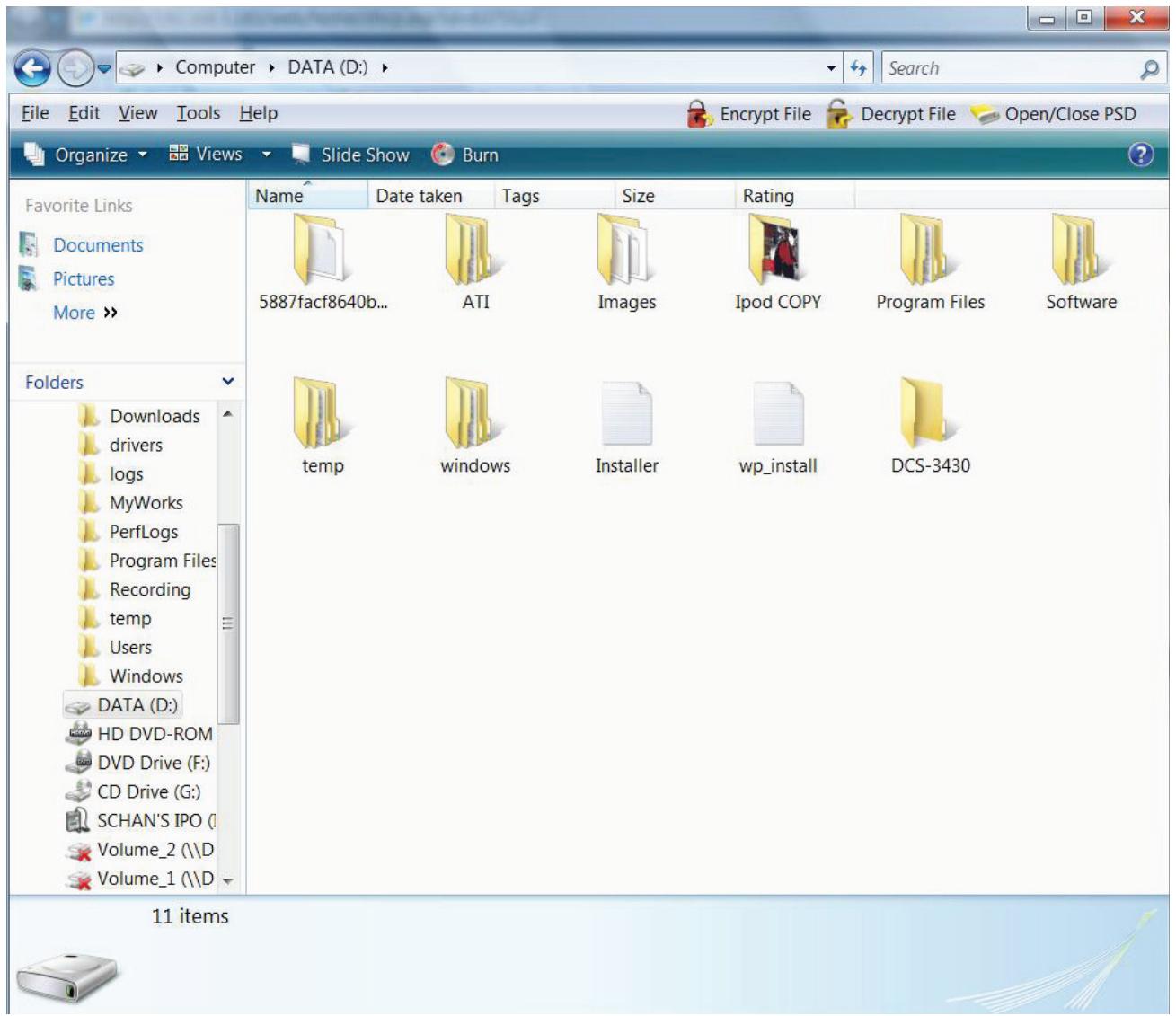
How to save video to a shared folder? 44
Snapshot 46
Digital Output 47
Advanced ICR. 48
RS-485 49
Maintenance 50
Device Admin 50
System 51
Firmware Upgrade. 52
Status 53
Device Info 53
Logs 54
Help 55
D-ViewCam Installation 56
Add a Camera. 59
Troubleshooting 64
DI/DO 67
Networking Basics 69
Check your IP address. 69
Statically Assign an IP address....70
Technical Specifications. 71
Package Contents
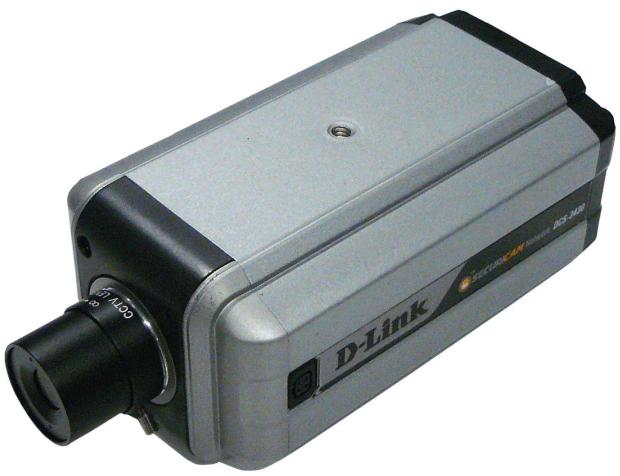
D-Link DCS-3411/3430 Day & Night Network Camera
- CAT5 Ethernet Cable
- Power Adapter
- Manual and Software on CD
- Quick Install Guide
- Camera Stand
2 Antennas (DCS-3430 only)
Note: Using a power supply with a different voltage than the one included with the package will cause damage and void the warranty for this product.
If any of the above items are missing, please contact your reseller.
System Requirements
- Windows XP or Windows Vista
- At least 256MB of memory (512MB recommended)
- An available Ethernet connection
- Wireless 802.11n network (for DCS-3430 only)
- Internet Explorer 6.x or higher Internet Web Browser
VGA card resolution: 800x600 or above - CPU: 1.7GHz or above processor (2.8GHz plus processor with 512MB memory and a 32MB video card is required for multiple camera viewing and recording using the D-ViewCam software)
Introduction
The D-Link DCS-3411/3430 Day & Night Network Camera is a powerful surveillance system that can connect to your network. The DCS-3411/3430 differs from a conventional PC Camera because it is a stand-alone system with a built-in CPU and Web server, providing low-cost solution capable of solving demanding security and home/offICE monitoring needs. It is designed with an aluminum cast for maximum heat dissipation and better protection. Snapshot enables you to save a snapshot image directly form a Web browser to a local hard drive without installing any software. H.264 can reduce the size of video stream around 80% compared with the Motion JPEG and as much as 50% when compared with MPEG4. Using less network bandwidth and storage space allows the DCS-3411/3430 to be a very cost effective network camera. With 0.5 lux light sensitivity, the DCS-3411/3430 is capable of capturing video in rooms with minimal lighting. With optional Day & Night Auto Iris lens, IR LED lens or night vision illuminator, you can customize your surveillance application to enable low light or night vision video streaming. You can also zoom in using the DCS-3411/3430's 16x digital zoom feature. The DCS-3411/3430 gives you the ability to monitor video and audio in you home/office using an Internet browser anywhere in the world! Simple installation procedures, along with the built-in Web-based interface offers easy integration to your network environments.
Note: Use of audio or video equipment for recording the image or voice of a person without their knowledge and consent is prohibited in certain states or jurisdictions. Nothing herein represents a warranty or representation that the D-Link product provided herein is suitable for the end-user's intended use under the applicable laws of his or her state. D-Link disclaims any liability whatsoever for any end-user use of the D-Link product, which fails to comply with applicable state, local, or federal laws.
Features
-
Multiple Stream Types: Choose between H.264 / MPEG4 / MJPEG depending on the type of application the camera is being used for. When using H.264 you can reduce the bandwidth and storage needs by up to 80% when compared to MJPEG or by up to 50% when compared with MPEG4.
-
Supports a Variety of Protocols: Supporting TCP/IP networking, SMTP e-mail, HTTP and other Internet related protocols, the DCS-3411/3430 Network Camera can be integrated easily into other Internet/Intranet applications because of its standards-based features.
-
Remote Snapshot Images: Using the Snapshot feature, you save snapshots directly from the Web browser to a local hard drive without installing any software, making it convenient to instantly capture any moment from a remote location.
-
Low Light Recording and 16x Digital Zoom: The DCS-3411/3430's 0.5 lux light sensitivity allows you to capture video in rooms with minimal lighting, making it ideal for use at night time. The camera also features 16x digital zoom for closer viewing.
-
Optional Day & Night Auto iris lens, IR LED Lens or night vision illuminator², you can customize your surveillance application to enable low light or night vision video streaming.
-
Web Configuration: Using the Web browser, administrators can configure and manage the Network Camera directly using the web browser via Intranet or Internet. Up to 10 accounts with different settings can be created and controlled by the administrator.
-
Built-in BNC (Bayonet Neil-Concelman) connector is used for professional video connections. It benefits users who integrate digital IP camera into traditional system (CCTV) for both analog and digital video streaming purposes.
-
Powerful Surveillance and Remote Monitoring Utility: An administrator is assigned with a pre-defined user ID and password, can modify the Network Camera settings from a remote site via Intranet or Internet. Administrators are allowed to monitor the video image, record the video image to a hard drive, and take snapshots.
-
Broad Range of Applications: With today's high-speed Internet, the Network Camera provides the ideal solution for remotely monitoring live video images over the Intranet and Internet. The DCS-3411/3430 allows remote access using an Internet Explorer or web browser for live image viewing with audio and allows the administrator to manage and control the Network Camera anywhere and anytime. Apply the Network Camera to monitor various objects and places such as homes, offices, banks, hospitals, child-care centers, amusement parks and other varieties of industrial and public monitoring. The Network Camera can also be used for intruder detection with its motion-detection mode, capture still images and video images for archiving and many more applications.
Hardware Overview
Ethernet Cable Connector (PoE only with 3411)
The Network Camera's back panel features an RJ-45 connector for connections to 10Base-T Ethernet cabling or 100Base-TX Fast Ethernet cabling. This network port supports the NWay protocol, allowing the Network Camera to automatically detect or negotiate the transmission speed of the network.
Iris Level
Used only when the DC-Iris lens is connected to the camera. When adjusting the Iris level, you can determine the brightness of the video images.
Audio Out Connector
The DCS-3411/3430 provides an Audio Out connector to be used for 2-way audio. Speakers (not included) may be connected to the camera to provide audio for 2-way communication.
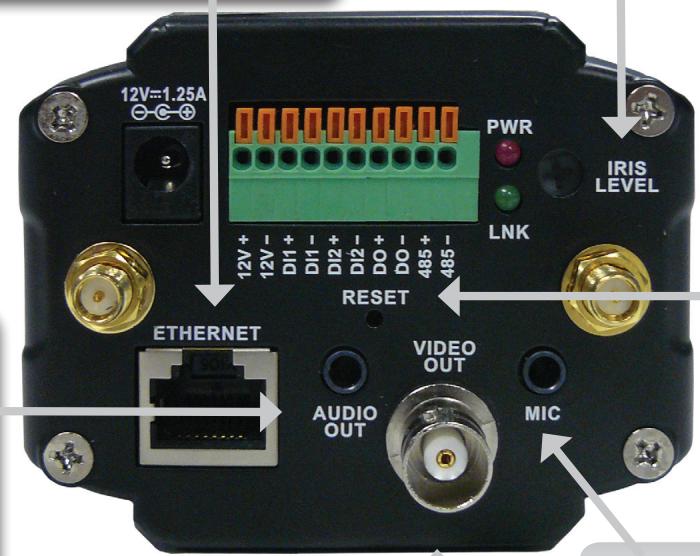
Reset Button
Reset will be initiated when the reset button is pressed once and held until the Power LED flashes through its cycle twice.
BNC
The BNC connector is used for professional video connections. It benefits users who integrate digital IP camera into traditional system (CCTV) for both analog and digital video streaming purposes.
Microphone Connector
The DCS- 3411/3430 Day & Night Network Camera has an internal microphone built-in. However, you have the option of using an external microphone by plugging it into the microphone connector.
Hardware Overview
DC Power Connector
The DC power input connector is located on the DCS-3411/3430 Network Camera's back panel and is labeled 12V DC with a single socket to supply power to the Network Camera.
I/O Connector
The DCS-3411/3430 provides a terminal block with three pairs of connectors situated on the back panel. Two pairs are for input and the other is for output. The I/O connectors provide the physical interface to send and receive digital signals to and from a variety of external devices.
Antenna Connectors (DCS-3430)
Connects to the wireless antennas.
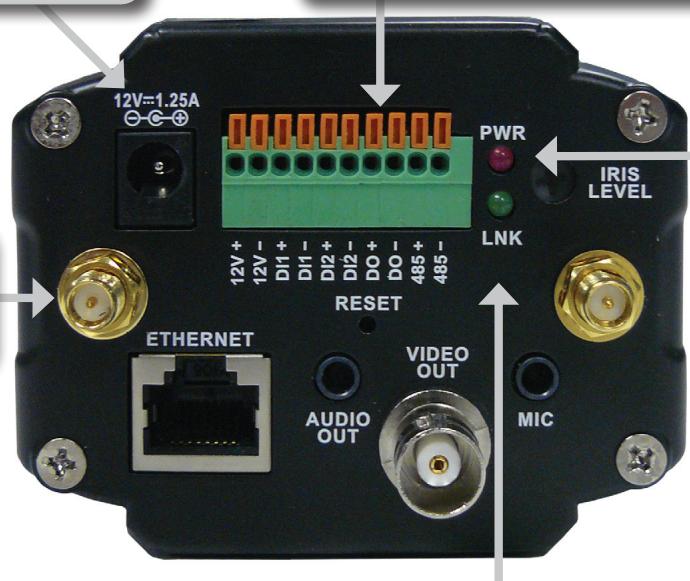
Power LED
The power LED is on the back of the camera. As soon as the power adapter is connected to the camera, the LED will turn red. Once a connection has been established via Ethernet port, the LINK LED will turn solid green. If traffic is passing to the camera the LINK LED will blink. If no Ethernet connection is detected the LINK LED will not light up.
Link LED
Once a connection has been established via Ethernet port, the LINK LED will turn solid green. If traffic is passing to the camera the LINK LED will blink. If no Ethernet connection is detected the LINK LED will not light up.
Hardware Installation
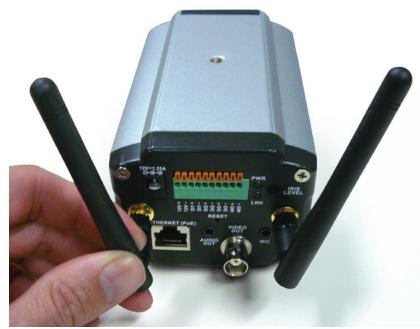
Attach the Antennas (DCS-3430 only)
Locate the antennas included with your DCS-3430, and attach them to the antenna connectors located on the back of the DCS-3430.
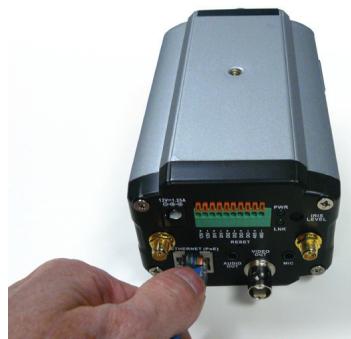
Connect the Ethernet Cable
Connect an Ethernet cable to the network cable connector located on the Network Camera's back panel and attach it to the network.
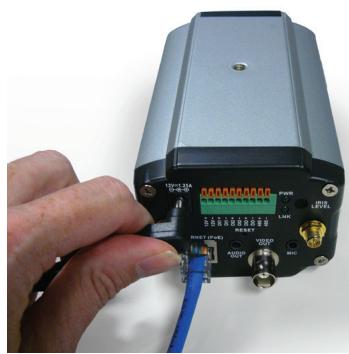
Attach the External Power Supply
Attach the external power supply to the DC power input connector located on the Network Camera's back panel (labeled DC 12V) and connect it to an AC power outlet.
Note: When you have a proper connection, the LED will turn red. The light may cycle on and off and your computer may show an intermittent loss of connectivity, this is normal until you have configured your Network Camera.
Connect Using Power-Over-Ethernet
Once you connect an Ethernet cable to your PoE switch or adapter, the Power LED on the DCS-3411/3430 will turn red to indicate a proper connection.
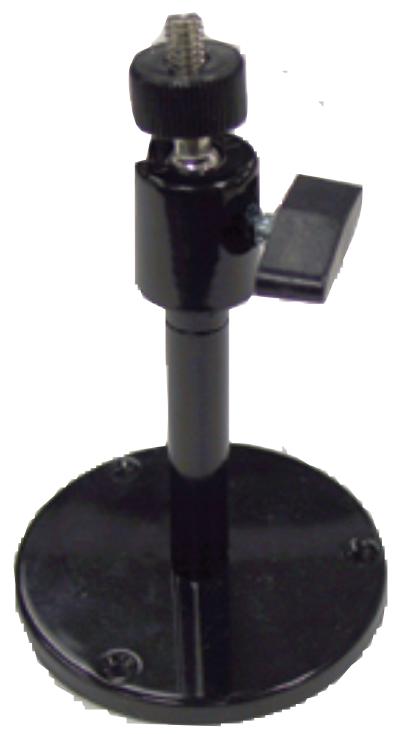
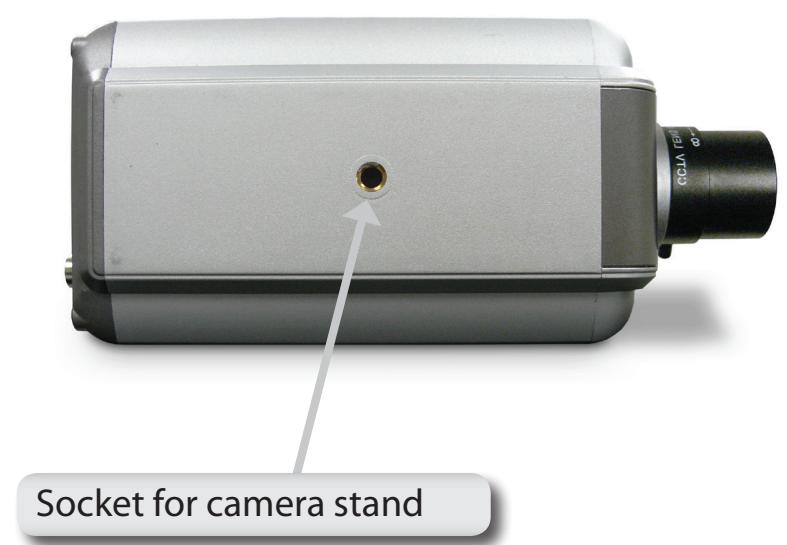
The Network Camera comes with a camera stand with a swivel ball screw head that can be attached to the Network Camera bottom socket cavity. Attach the camera stand to the Network Camera and station it for your application. There are holes located in the base of the camera stand allowing the Network Camera to be mounted to the ceiling, or any wall securely.
Software Installation
Turn on the computer and Insert the D-Link DCS-3411/3430 Driver CD in the CD-ROM drive. The step-by-step instructions that follow are shown in Windows XP. The steps and screens are similar for the other Windows operating systems.
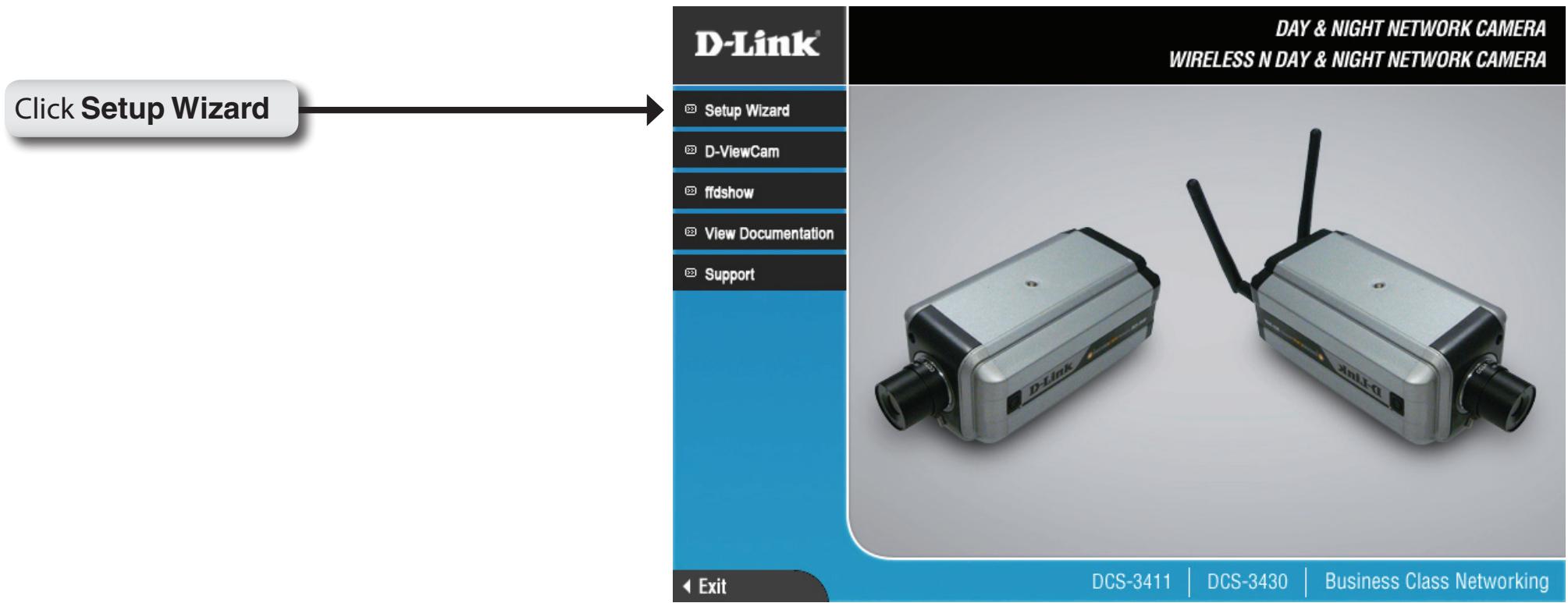
If the CD Autorun function does not automatically start on your computer, click Windows Start > Run. In the Run command box type "D:\DCS-3411_3430.exe", where D: represents the drive letter of your CD-ROM. If it does start, proceed to the next screen.
Click Next to continue.
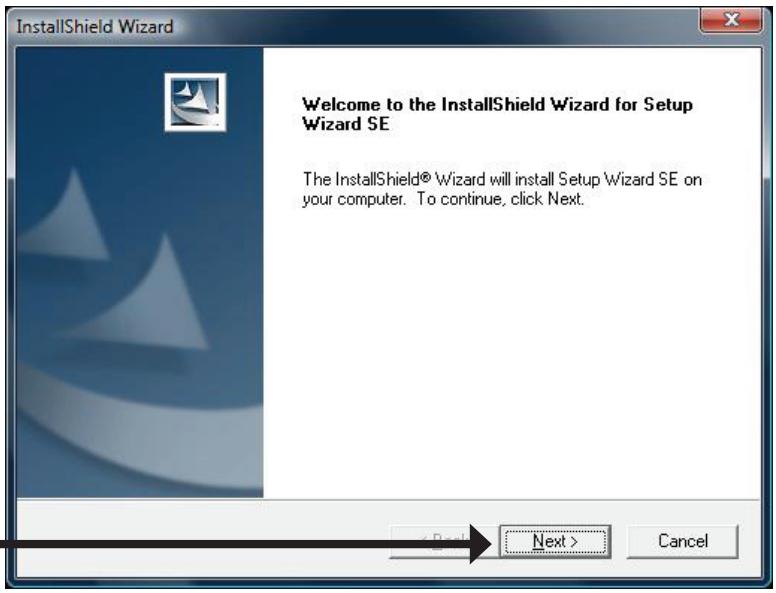
Click Next
Click Yes to accept the License Agreement.
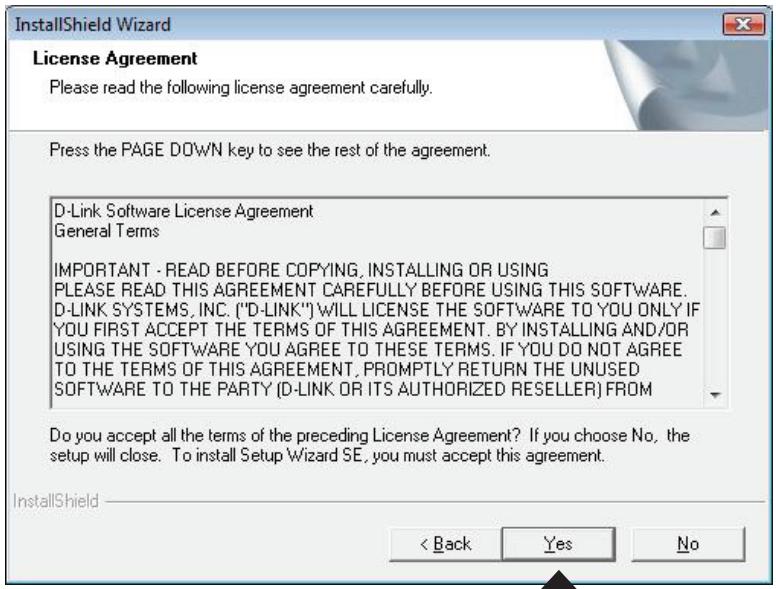
Click Yes
To start the installation click Next.
Note: The installation may take several minutes to complete.
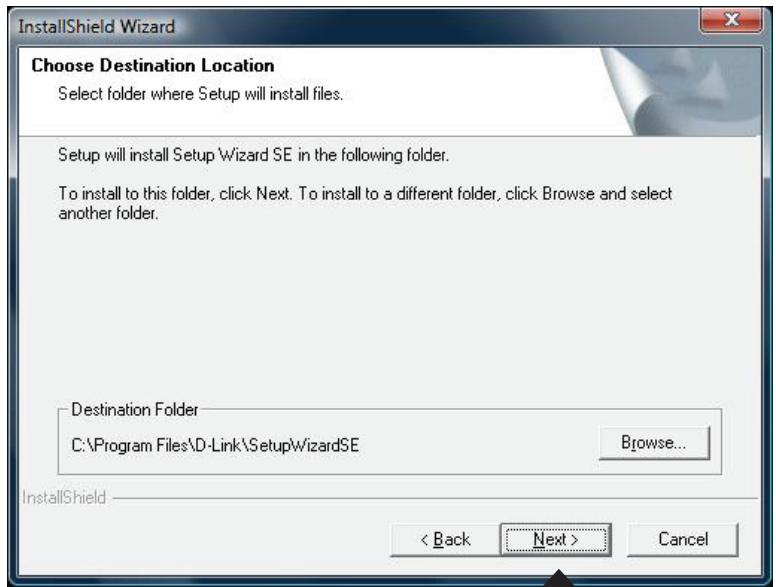
Click Next
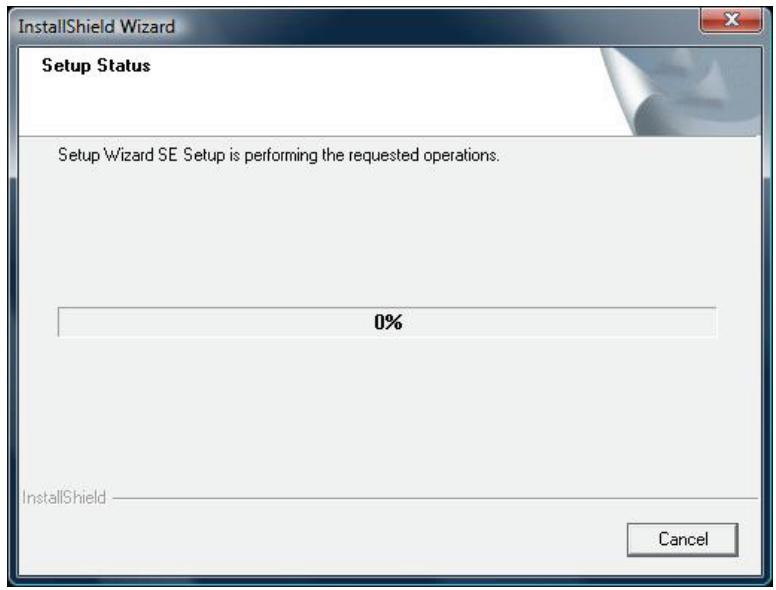
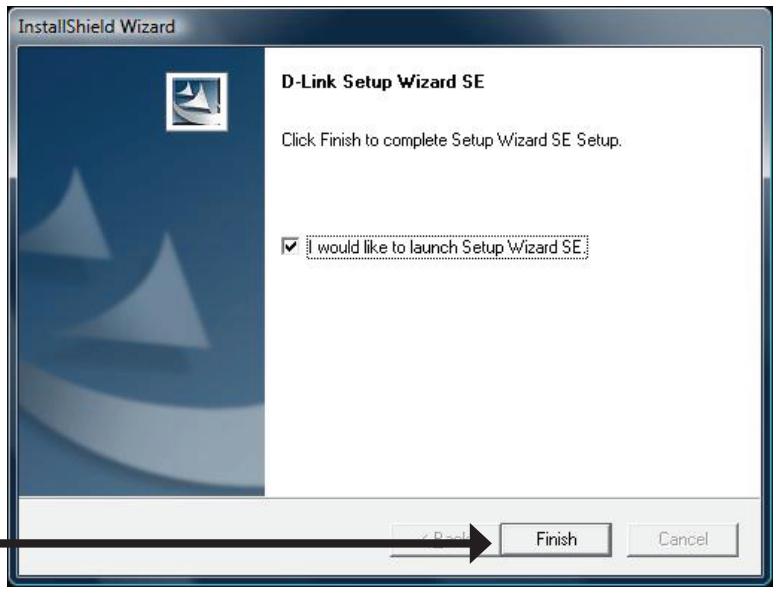
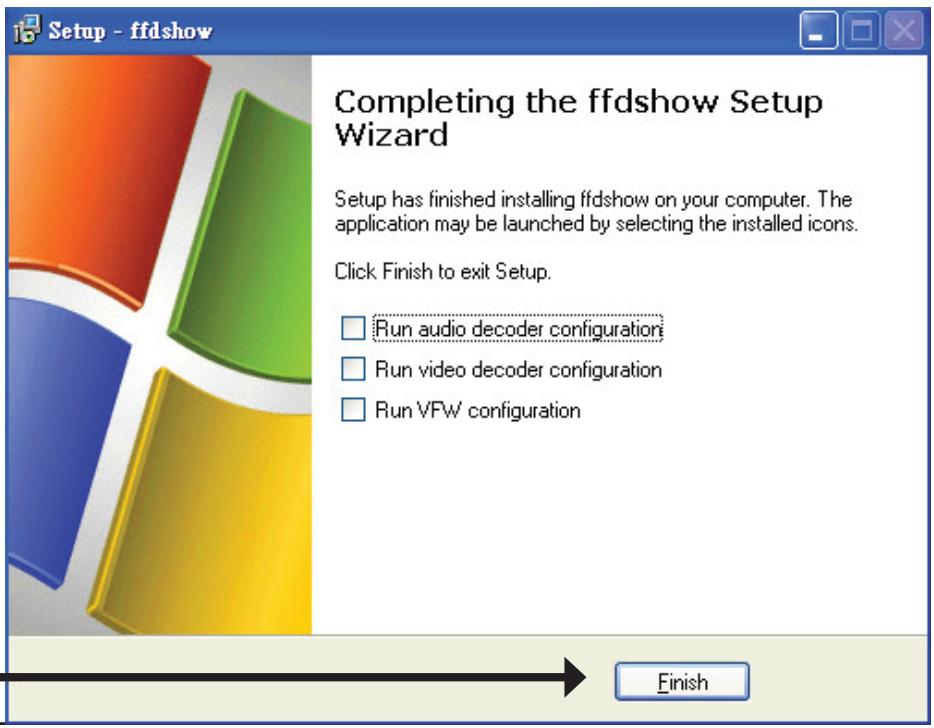
Click Finish to complete the installation.
Click Finish
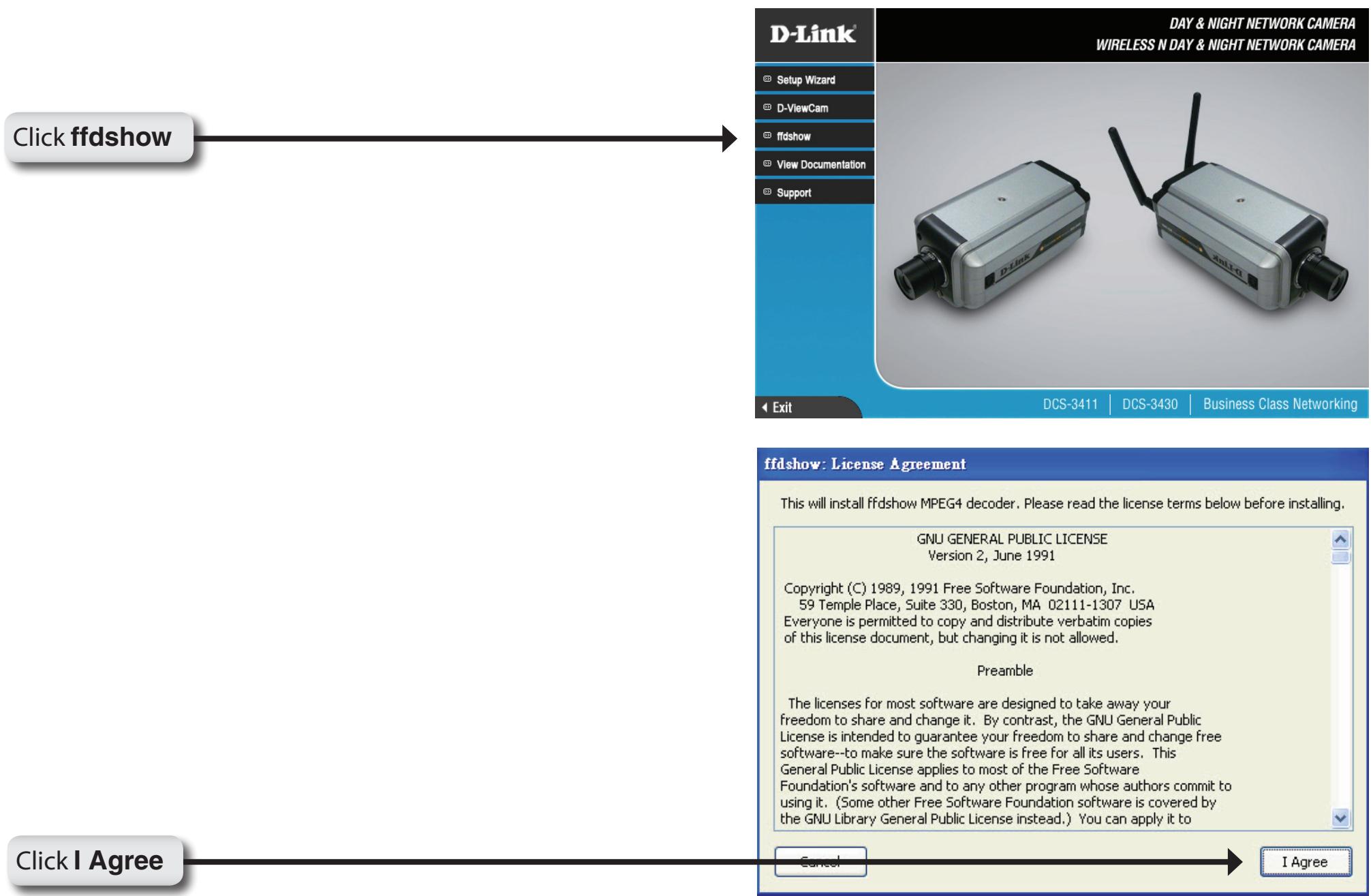
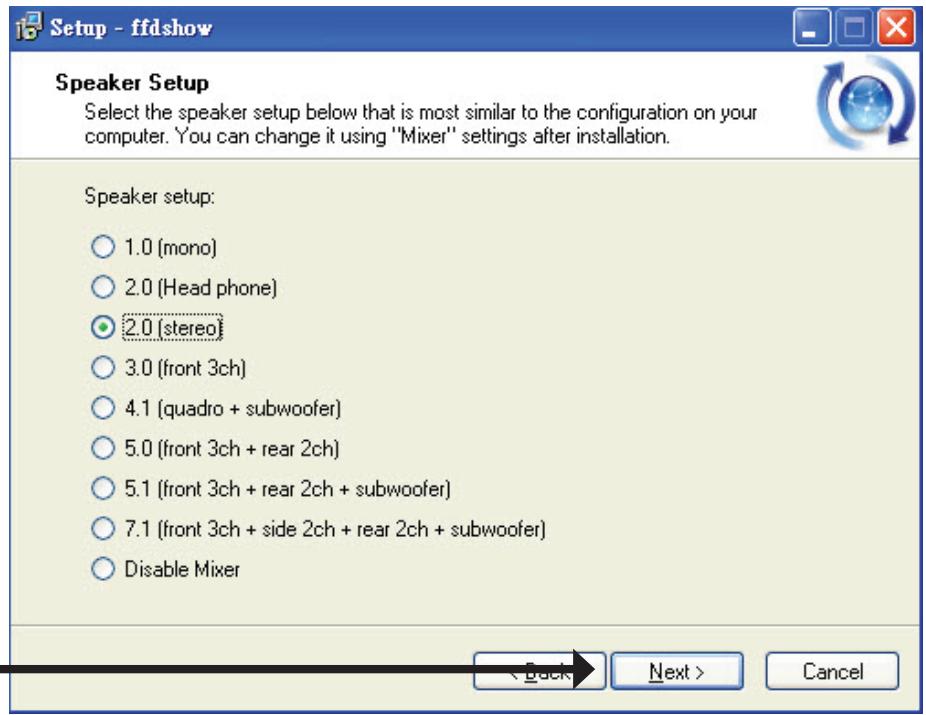
Now, click on fddshow from the autorun screen. This will install the proper CODEs that will allow you to playback video taken by the DCS-3411/3430.
Select Language, and then click OK.

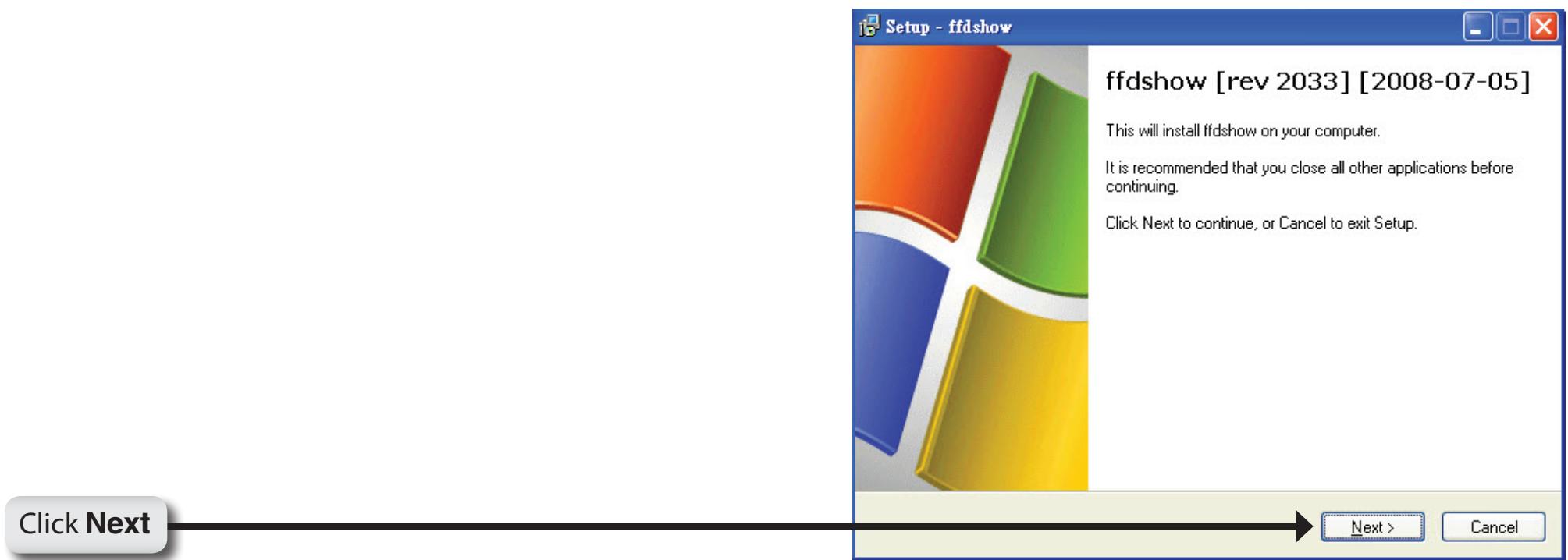
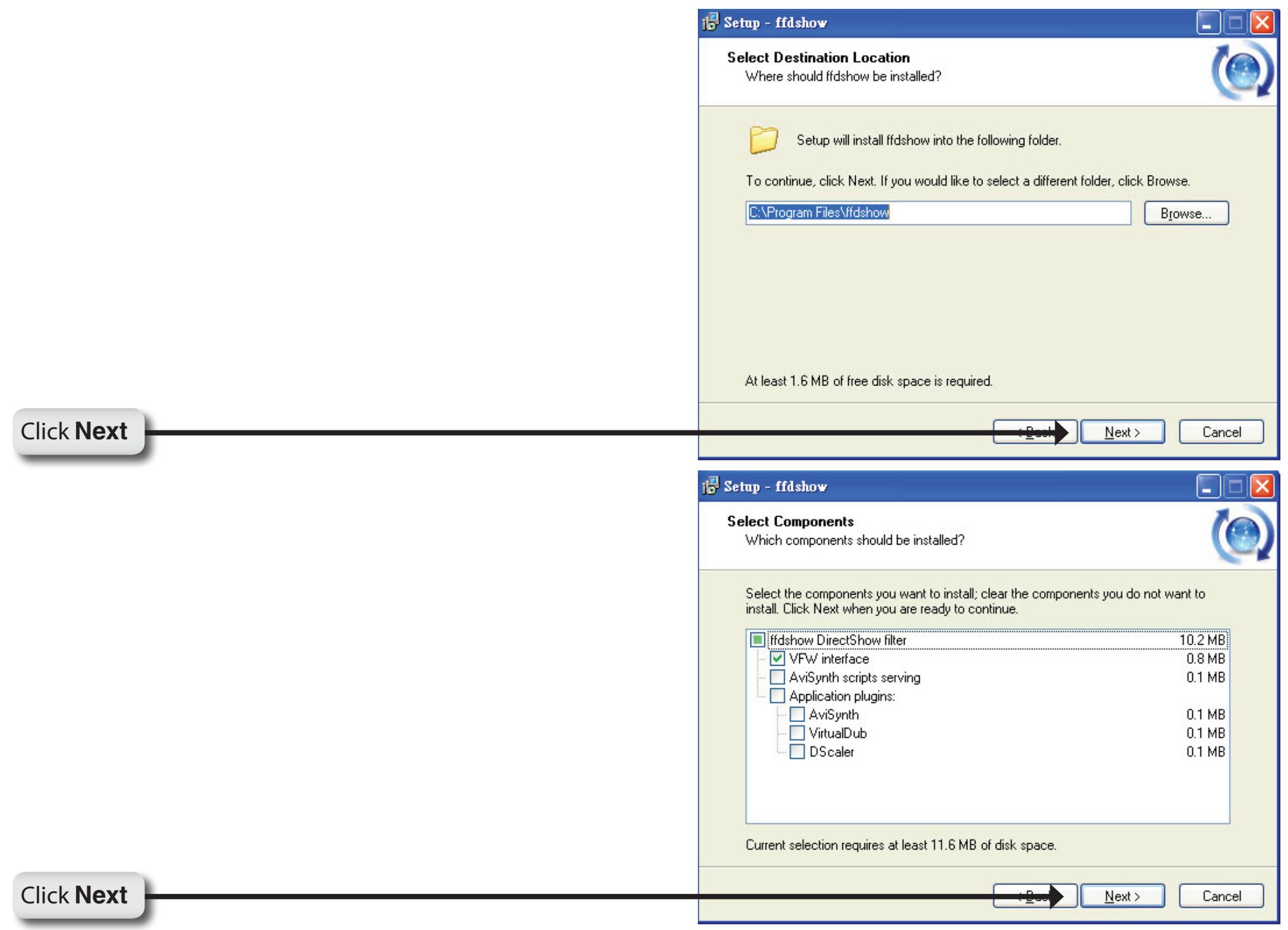
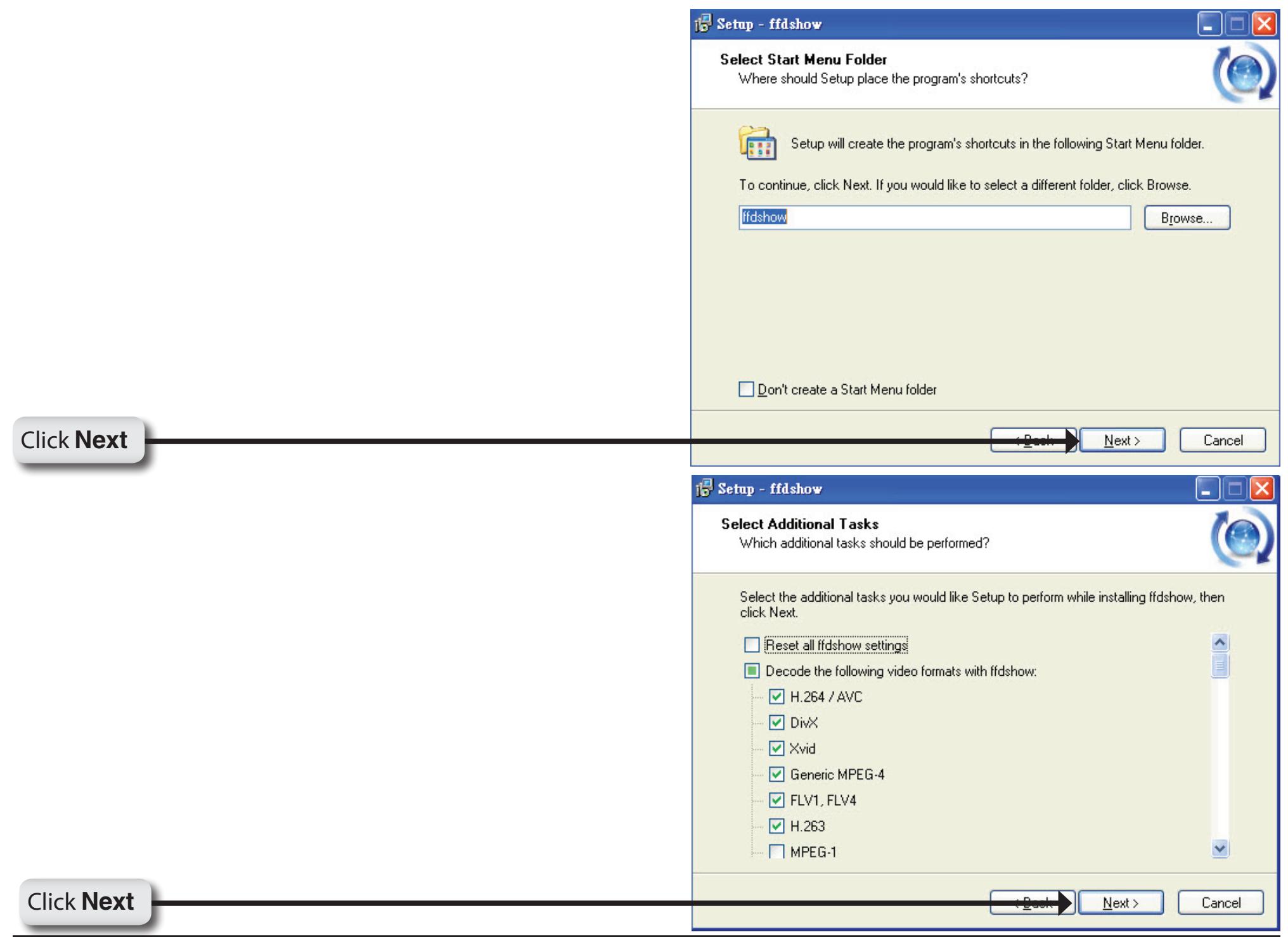
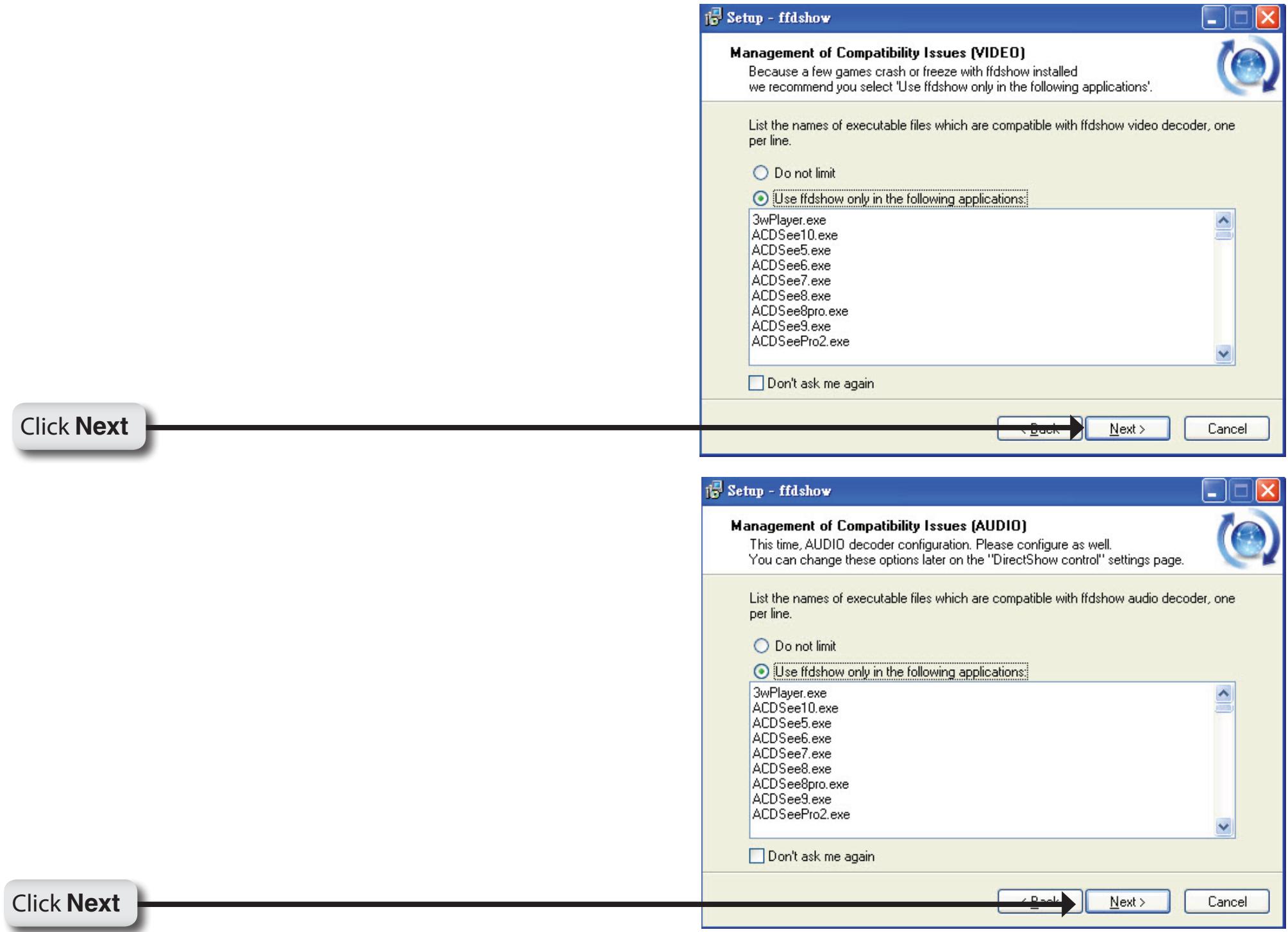
Select the speaker from your PC, and then click Next.
Click Next
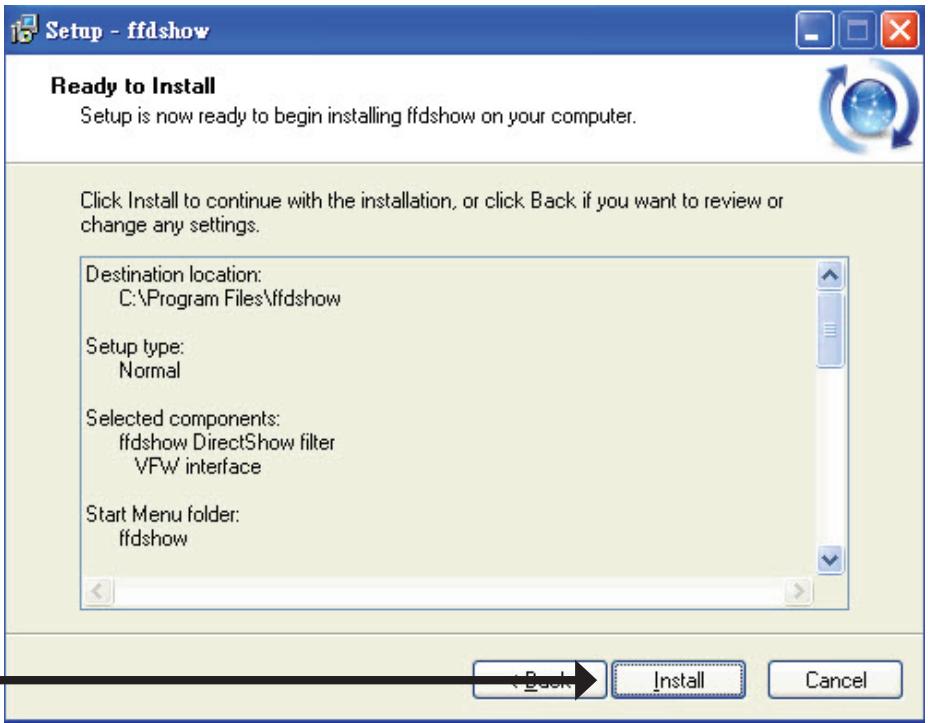
Click Install
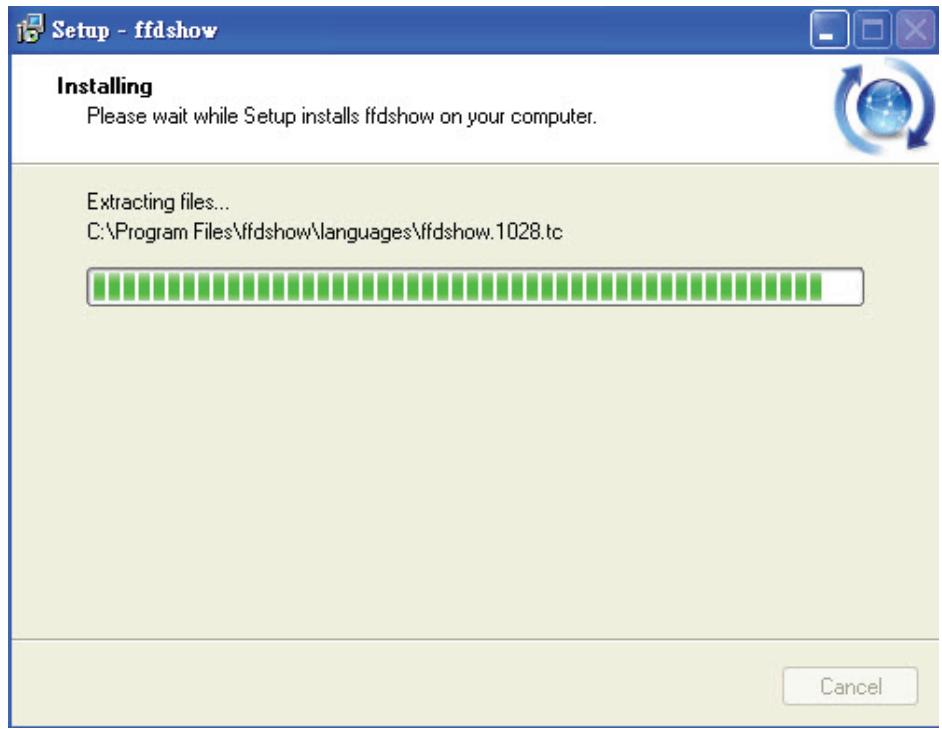
Installing

Configuration
This section will show you how to configure your new D-Link Network Camera using the Setup Wizard.
Setup Wizard Configuration
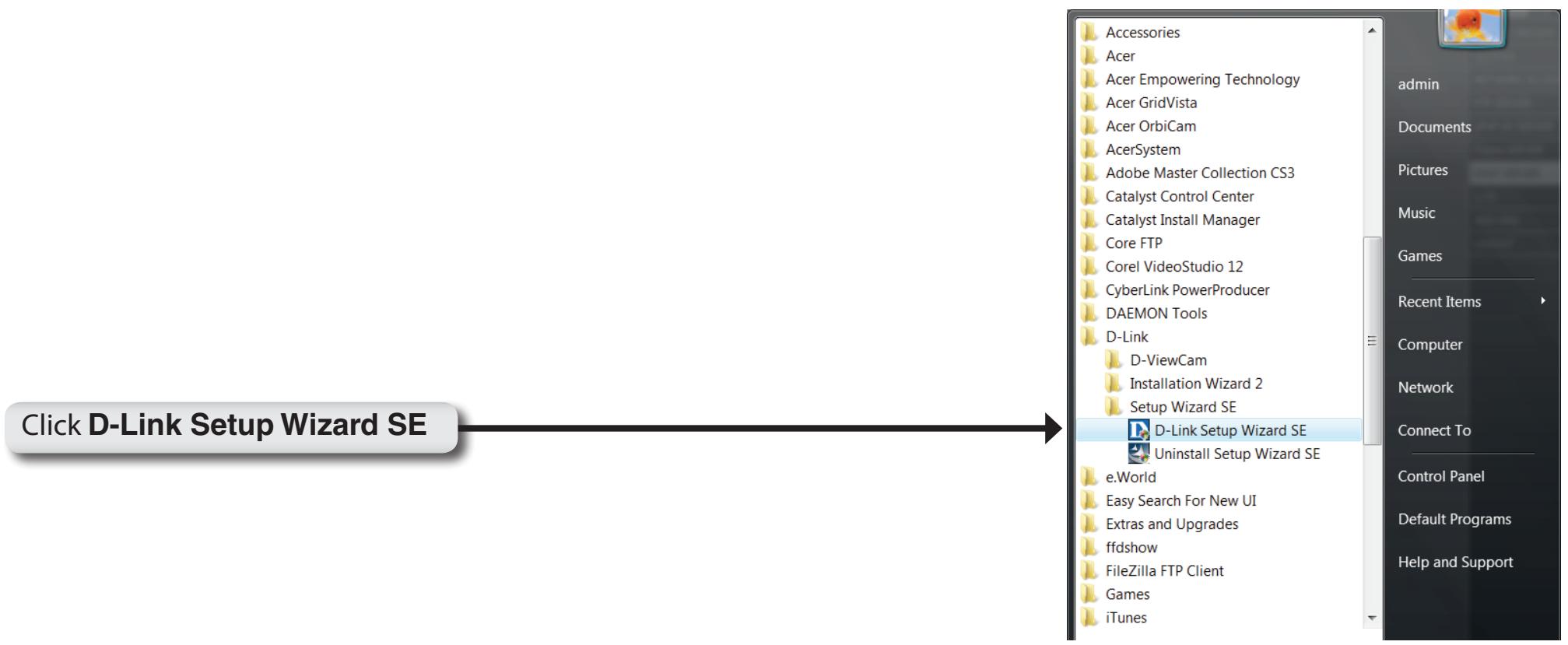
Click on the D-Link Setup Wizard SE icon that was created in your Windows Start menu.
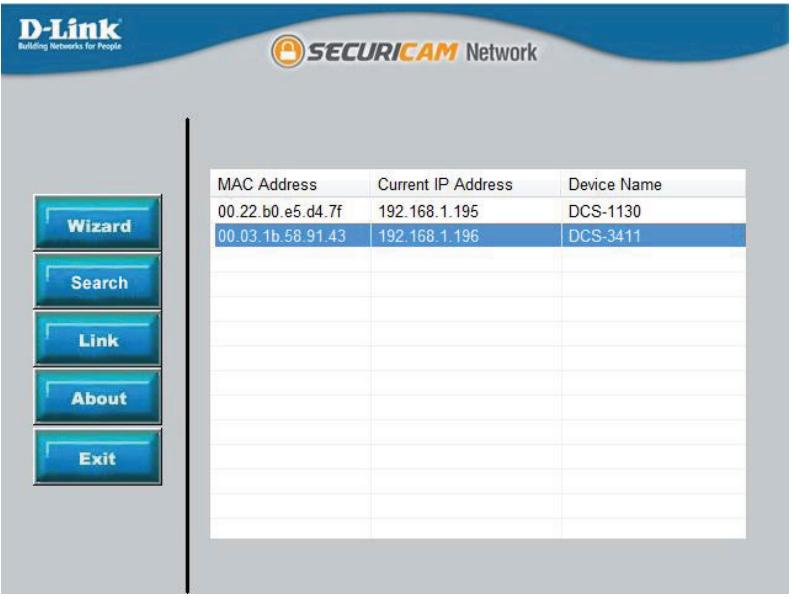
The Setup Wizard will appear and show the MAC address of the DCS-3411/3430 and an IP Address (which may or may not be correct depending on what you have your DCS-3411/3430 connected to). If you have a DHCP server on your network, there will be a valid IP Address displayed here. Click the Wizard button to continue.
Note: A DHCP server is a device that supplies the IP address.
Enter the admin ID and password.
Note: The default Admin ID is admin with the password left blank.
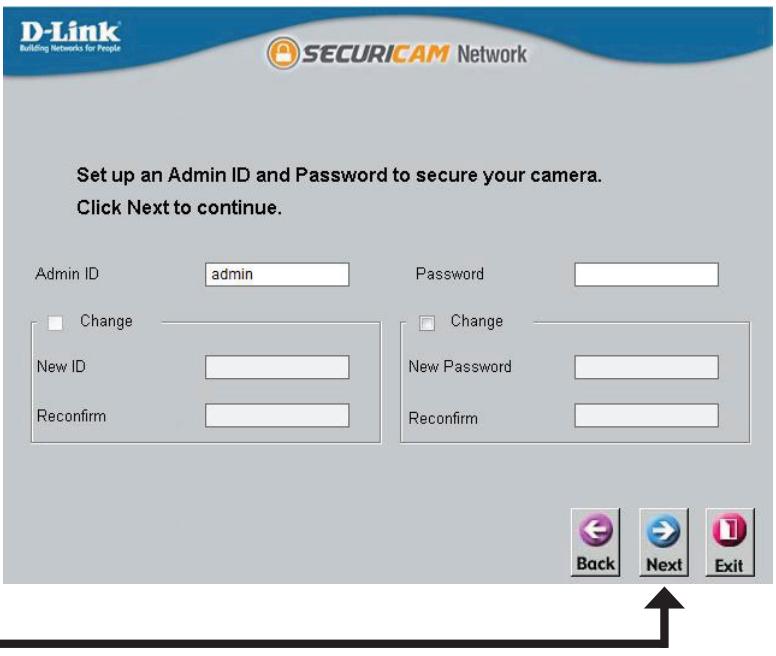
Click Next
Select DHCP if you want to obtain a new IP address every time the camera boots up.
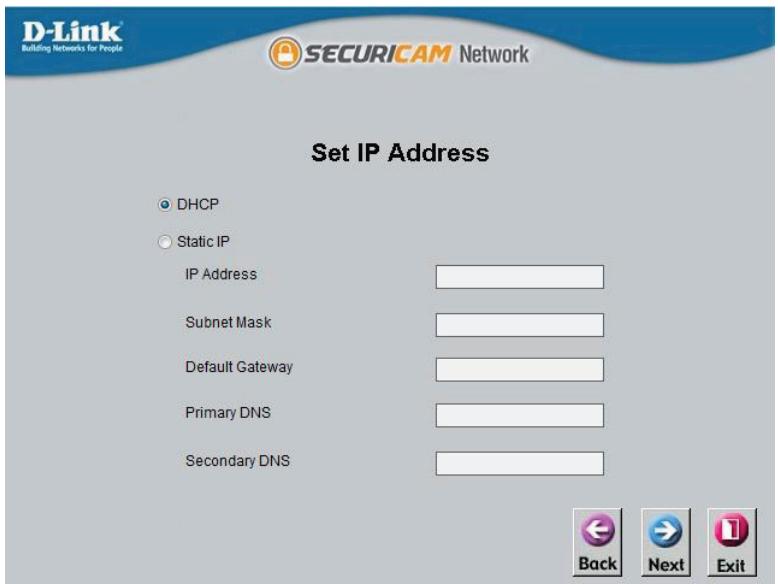
Click Next
Select static IP to use the same IP address at each boot up.
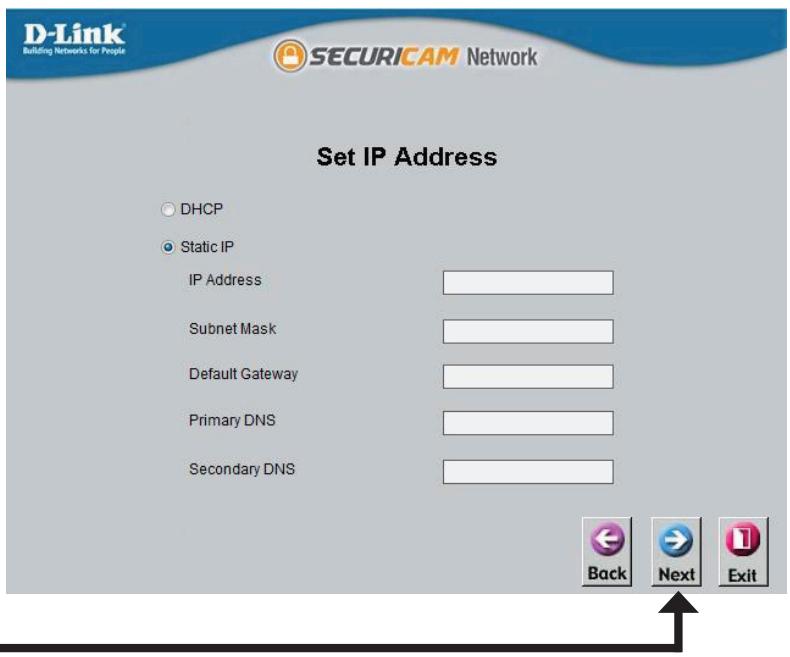
Click Next
Click Restart to save your settings and reboot the Network Camera.
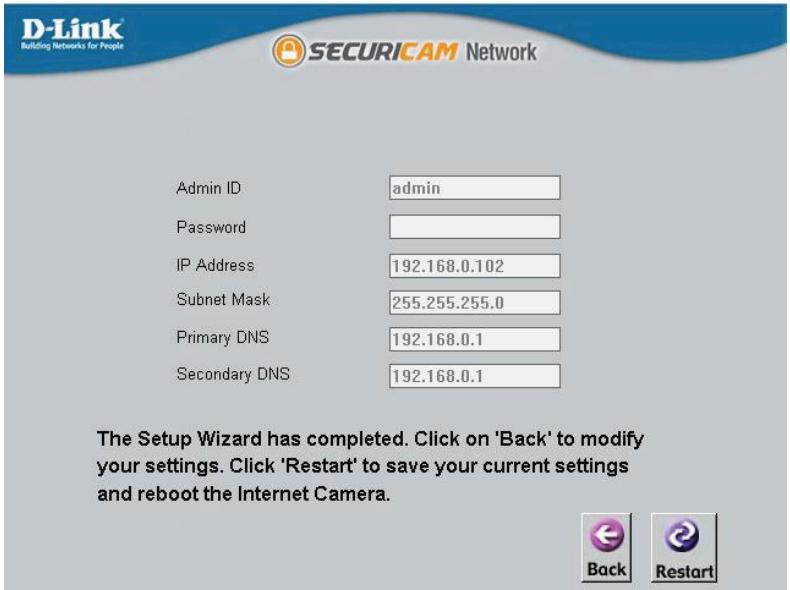
Click Restart
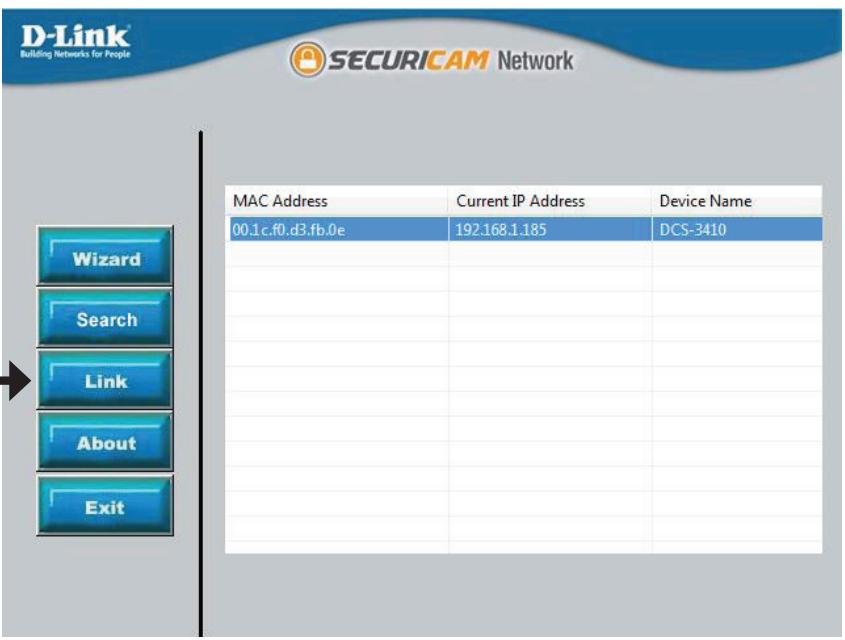
Click the button labeled Link to access the web configuration page. The Setup Wizard will automatically open your web browser to the IP address of the DCS-3411/3430, in this example it is: http://192.198.0.185. Your DCS-3411/3430 may have a different IP Address.
Click Link
Web-based Configuration Utility
This section will show you how to configure your new D-Link Network Camera using the Web-based Configuration Utility.
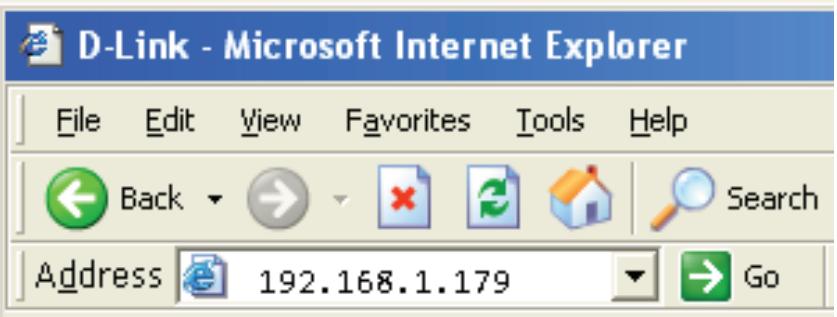
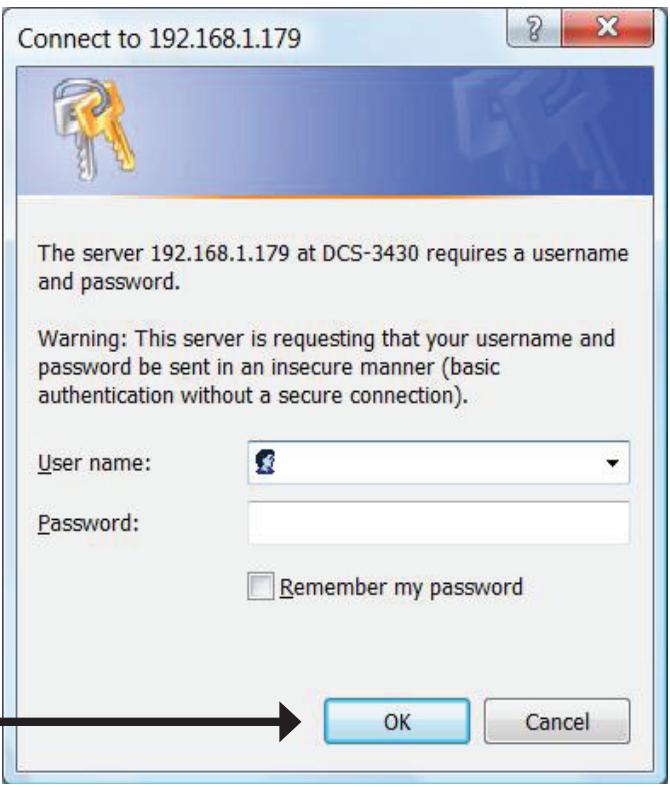
To access the configuration utility, open a web-browser such as Internet Explorer and enter the IP address for your Network Camera (http://192.168.1.179)
Note: For example, the address is 192.168.1.179. Your address may differ.
Enter Admin for the username and then leave the password blank by default.
Note: To change your password at a later time, please refer to page 50.
Click OK
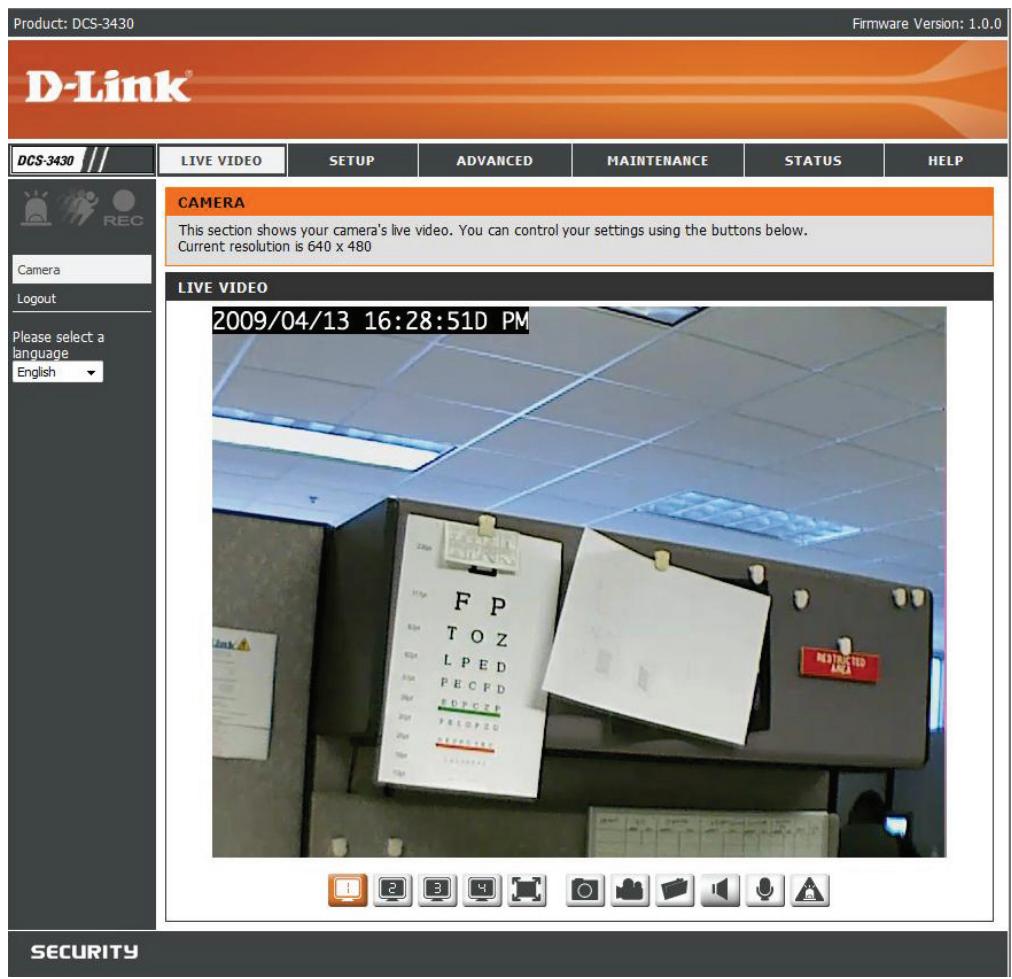
Live Video Camera
This section shows your camera's live video. You may select the available thumbnails for your option of predefined Video Profile, Full Screen mode, and action items of taking Snapshot, Recording, Set Storage Folder, Listen, Talk, and Digital Output. You may also select your language setting using the drop-down menu.
You can zoom in and out of the live video image using your mouse. Right-click to zoom out and left-click to zoom in on the image.

Digital Input Indicator:
This indicator will light up when there is an available digital input signal.

Motion Trigger Indicator:
When a trigger event occurs, this will light up.
Note: The video motion feature for your camera must be enabled.

Recording Indicator:
When a recording is in progress, this indicator will light up.

Video Profile 1

Video Profile 2

Video Profile 3

Video Profile 4

Full screen mode

Taking a Snapshot

Recording a Video Clip

Set a Storage Folder

Listen/Stop Listening

Talk/Stop Talking

Start/Stop Digital Output
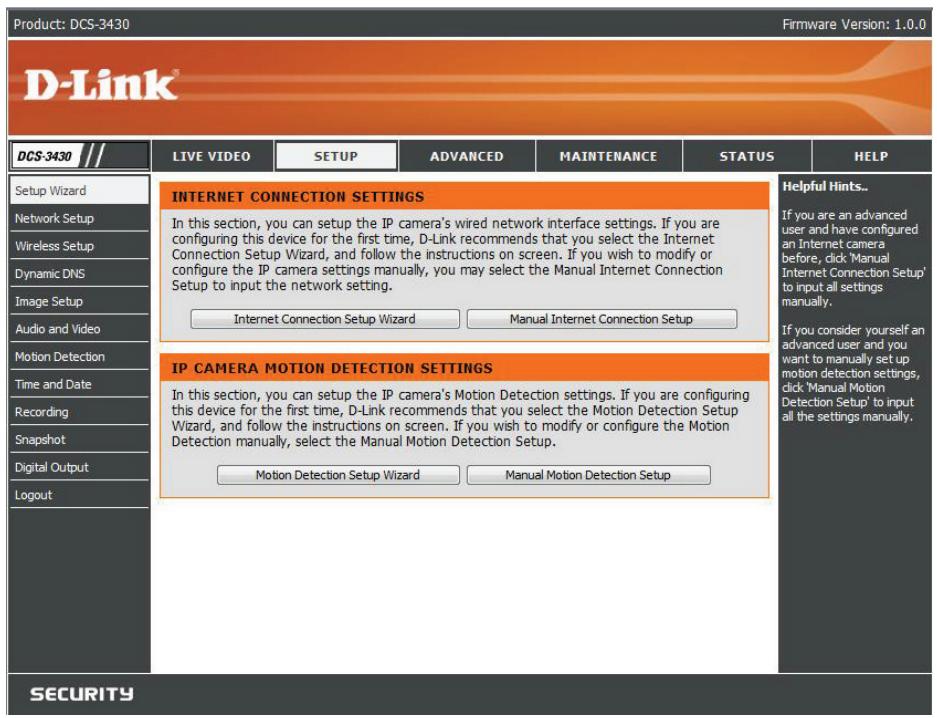
Setup Wizard
To quickly configure your Network Camera, click Internet Connection Setup Wizard, or click Manual Internet Connection Setup to manually configure your Network Camera.
To quickly configure your Network Camera's motion detection settings, click Motion Detection Setup Wizard and skip to page 31. If you want to enter your settings without running the wizard, click Manual Motion Detection Setup and skip to page 41.
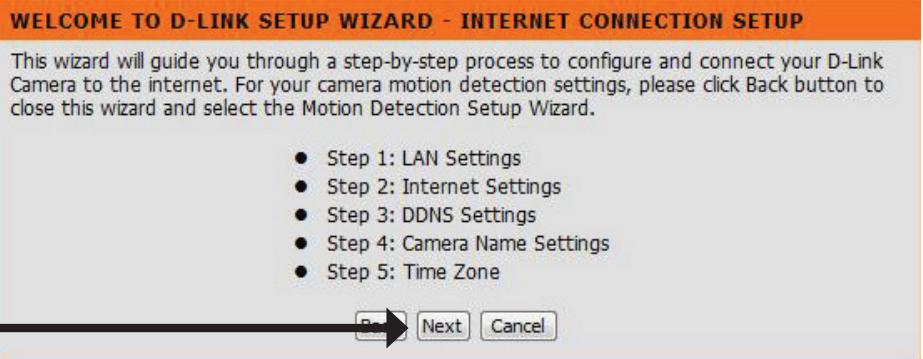
Internet Connection Setup Wizard
This wizard will guide you through a step-by-step process to configure your new D-Link Camera and connect the camera to the internet. Click Next to continue.
Click Next
Select DHCP if you are unsure which settings to pick. Click Next to continue and skip to page 29.
STEP 1: LAN SETTINGS
Please select whether your camera will connect to the Internet with a DHCP connection or Static IP address. If your camera is connected to a router, or you are unsure which settings to pick, D-Link recommends that you keep the default selection of DHCP connection. Otherwise, select Static IP address to manually assign an IP address before clicking on the Next button.
DHCP Connection
Static IP Address
IP Address
Subnet Mask
Default Gateway
Primary DNS
Secondary DNS
Bad
Next
Cancel
Click Next
Select Static IP if your Internet Service Provider has provided you with connection settings, or you wish to set a static address within your home network. Enter the accurate information for your static IP setting. Click Next to continue.
STEP 1: LAN SETTINGS
Please select whether your camera will connect to the Internet with a DHCP connection or Static IP address. If your camera is connected to a router, or you are unsure which settings to pick, D-Link recommends that you keep the default selection of DHCP connection. Otherwise, select Static IP address to manually assign an IP address before clicking on the Next button.
DHCP Connection
Static IP Address
IP Address
192.168.0.20
Subnet Mask
255.255.255.0
Default Gateway
192.168.0.1
Primary DNS
( x - 2x) t - xy^2 = ( x - 2x) f^ t
Secondary DNS
Back
Next
Cancel
Click Next
If you are using PPPoE, select Enable and enter your user name and password, otherwise select Disable and click Next to continue.
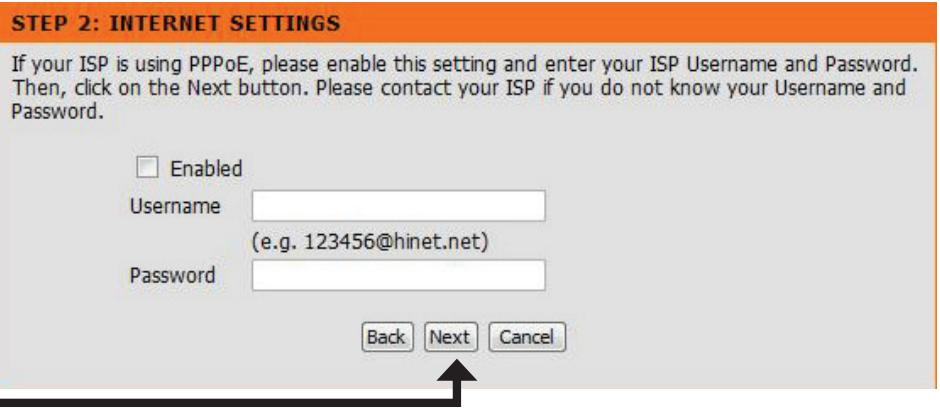
Click Next
If you have a Dynamic DNS account and would like the camera to update your IP address automatically, Select Enable and enter your host information. Click Next to continue.
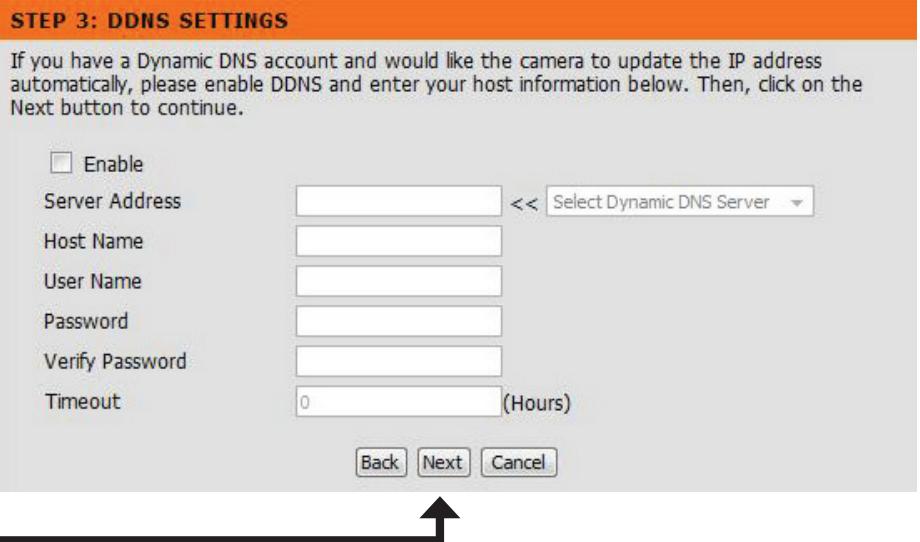
Click Next
Enter a name for your camera and click Next to continue.
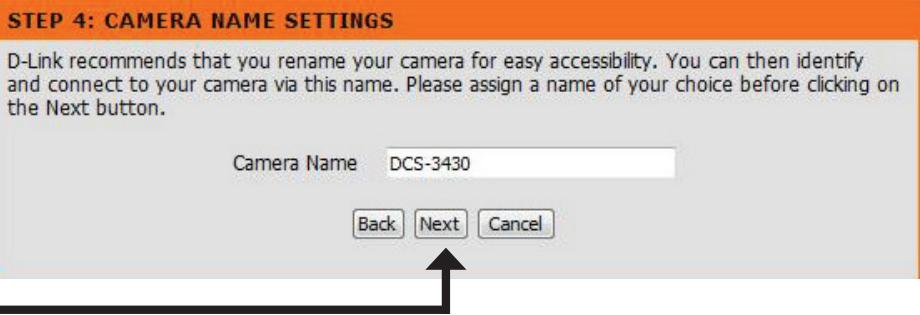
Click Next
Configure the correct time to ensure that all events will be triggered, captured and scheduled at the right time. Click Next to continue.
Click Next
If you have selected DHCP, you will see a summary of your camera's settings. Please note down all this information as you will need it for accessing your camera within the network. Click Apply to save your settings.
Click Apply
If you have selected Static IP, you will see a summary of your camera's settings. Please note down all this information as you will need it for accessing your camera within the network. Click Apply to save your settings.
Click Apply
STEP 5: SETUP TIME ZONE
Please configure the correct time to ensure that all events are triggered, captured and scheduled at the correct time and day and then click on the Next button.
Time Zone
(GMT-08:00) Pacific Time (US & Canada)
Enable Daylight Saving


STEP 6: SETUP COMPLETE
Below is a summary of your camera settings. Click on the Back button to review or modify settings or click on the Apply button if all settings are correct. It is recommended to note down these settings in order to access your camera on the network or via your web browser.
IP Address
DHCP
IP Camera Name
DCS-3430
Time Zone
(GMT-08:00) Pacific Time (US & Canada)
DDNS
Disable
PPPOE
Disable


STEP 6: SETUP COMPLETE
Below is a summary of your camera settings. Click on the Back button to review or modify settings or click on the Apply button if all settings are correct. It is recommended to note down these settings in order to access your camera on the network or via your web browser.
IP Address
192.168.0.20
IP Camera Name
DCS-3430
Time Zone
GMT-08:00 Pacific Time (US & Canada)
DDNS
Disable
PPPOE
Disable


Motion Detection Setup Wizard
This wizard will guide you through a step-by-step process to configure your new D-Link Camera motion detection functions. Click Next to continue.

This section will allow you to enable or disable motion detection as well as control the sensitivity or your camera's ability to detect movement. You can select the Drawing Mode to draw or erase the motion area in your window of live video.
STEP 1: SPECIFY MOTION DETECTION AREA SETTINGS
This section will allow you to enable or disable motion detection function, draw or erase motion area, as well as configure the sensitivity setting of your camera to detect movement.
Enable Video Motion
2009/04/13 16:42:30DPM
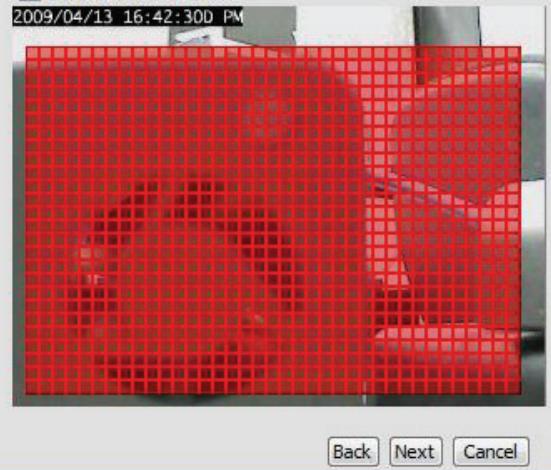
Sensitivity
98
0~100%
Drawing Mode

Draw motion area

Erase motion area
Clear
Click Next
This step allows you to specify how you will receive the events notification of your camera, either via using email or FTP. You will need to enter all the relevant information for your email account or FTP settings. Then, click Next to continue.
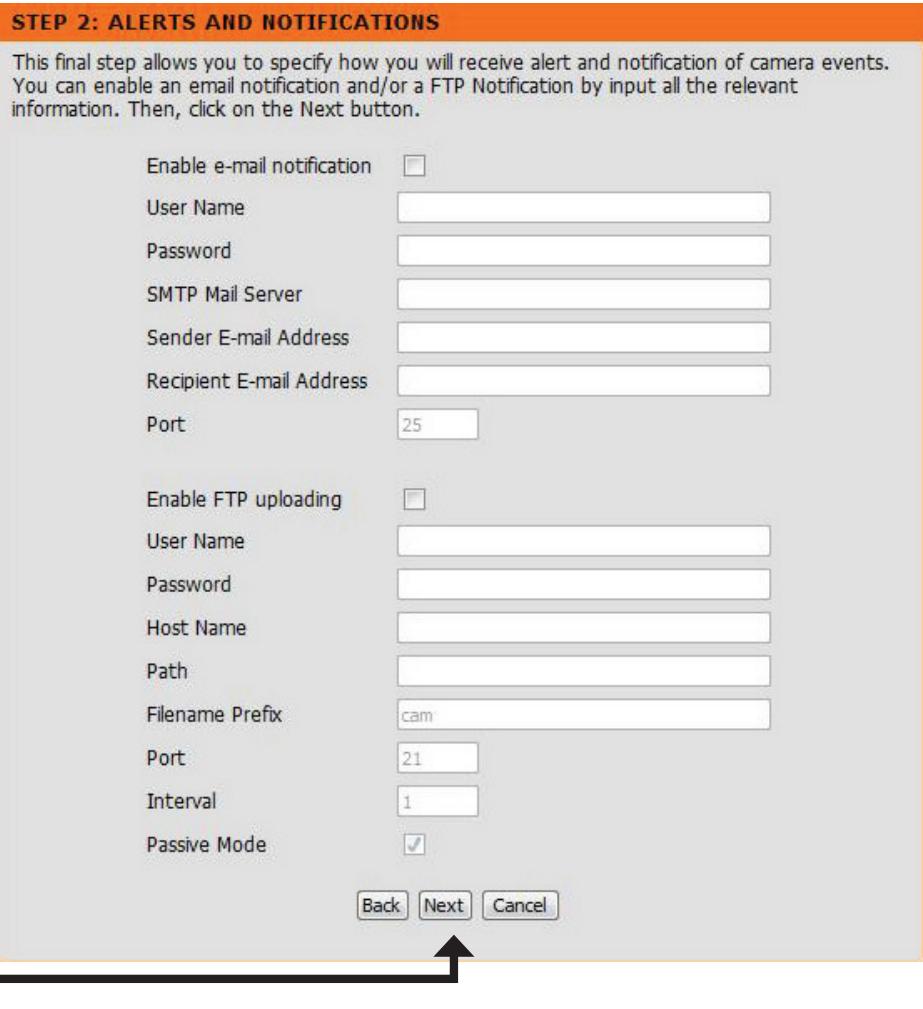
Click Next
You have completed the Motion Detection Wizard. Click Apply to activate your settings.
STEP 3: SETUP COMPLETE
You have completed your camera setup. Please click the Back button if you want to review or modify your settings or click on the Apply button to save and apply your settings.
Motion Detection:
Enable
Alerts and Notification: Do not notify me
Back
Apply
Cance
Click Apply
Network Setup
Use this section to configure the network connections for you camera. All relevant information must be entered accurately.
LAN Settings: Settings for your local area network.
DHCP: Select this connection if you have a DHCP server running on your network and would like a dynamic IP address to be updated to your camera automatically.
Static IP You may obtain a static or fixed IP address and other Address: network information from your network administrator for your camera. A static IP address will ease you for accessing your camera in the future.
IP Address: The fixed IP address.
Subnet Mask: The default value is "255.255.255.0." Used to determine if the destination is in the same subnet.
Default The gateway used to forward frames to destinations in Gateway: a different subnet. Invalid gateway settings may cause the failure of transmissions to a different subnet.
Primary DNS: Primary domain name server that translates names to IP addresses.
Secondary Secondary domain name server to backup the primary DNS: one.
Enable UPnP: Enable this setting to allow your camera to be configured as an UPnP device in your network.
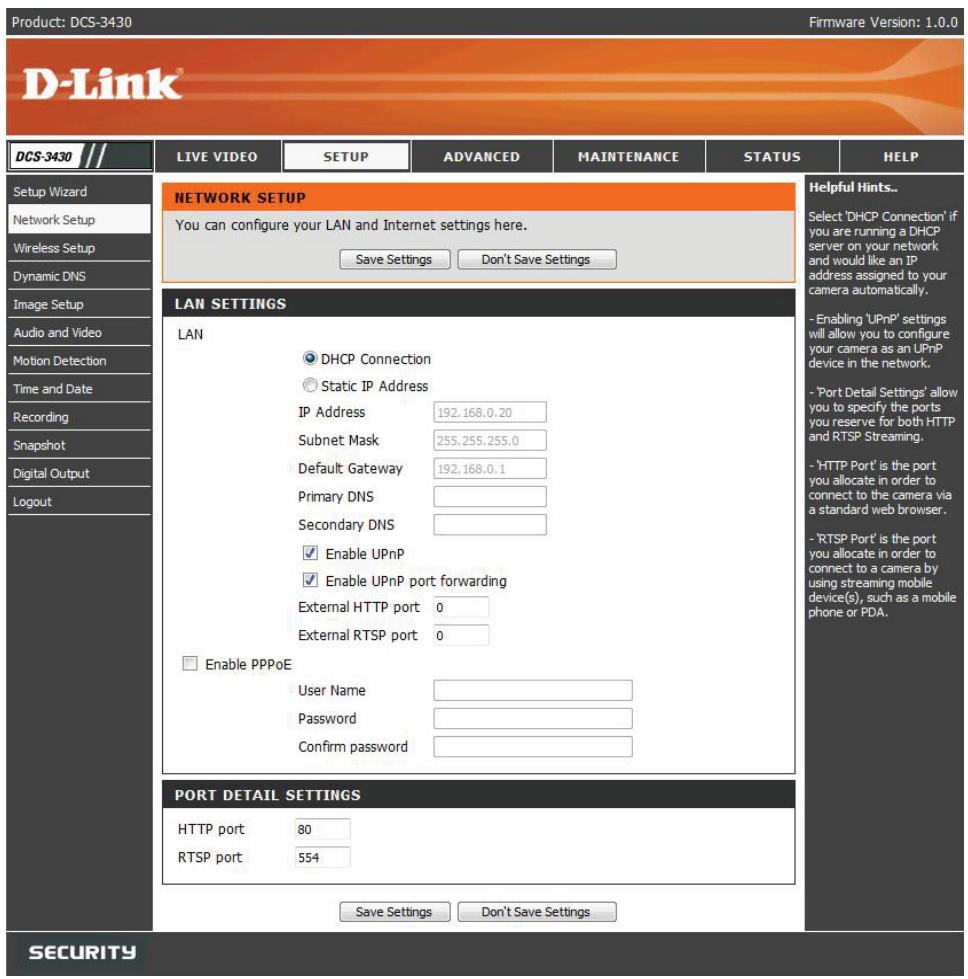
Enable UPnP port Enable this setting to allow the camera to add port forwarding entries into the router automatically. forwarding:
Enable PPPoE: Enable this setting if you network is using PPPoE service.
User Name: The unique name to your account. You may obtain this information from your ISP.
Password: The password to your account. You may obtain this information from your ISP.
HTTP Port: The default value is 80.
RTSP port: The port number that you use for RTSP streaming to mobile devices, such as mobile phones or PDAs. The default port number is 554.
Wireless Setup
This sections allows you to setup and configure the wireless settings for your camera.
Enable Wireless: Select to enable wireless configuration.
Site Survey: Select the wireless connection you would like to use from the pull-down menu.
SSID: Enter the name of you wireless network.
Wireless Mode: Use the dropdown box to select the mode of the wireless network you wish to connect to. Infrastructure is normally used to connect to an access point or router. Ad-Hoc is usually used to connect directly to another computer.
Channel: If you are using Ad Hoc mode, select the channel of the wireless network you wish to connect to, or select Auto.
Authentication: Select the authentication you use on your wireless network - Open, Shared (WEP), WPA-PSK, or WPA-PSK2.
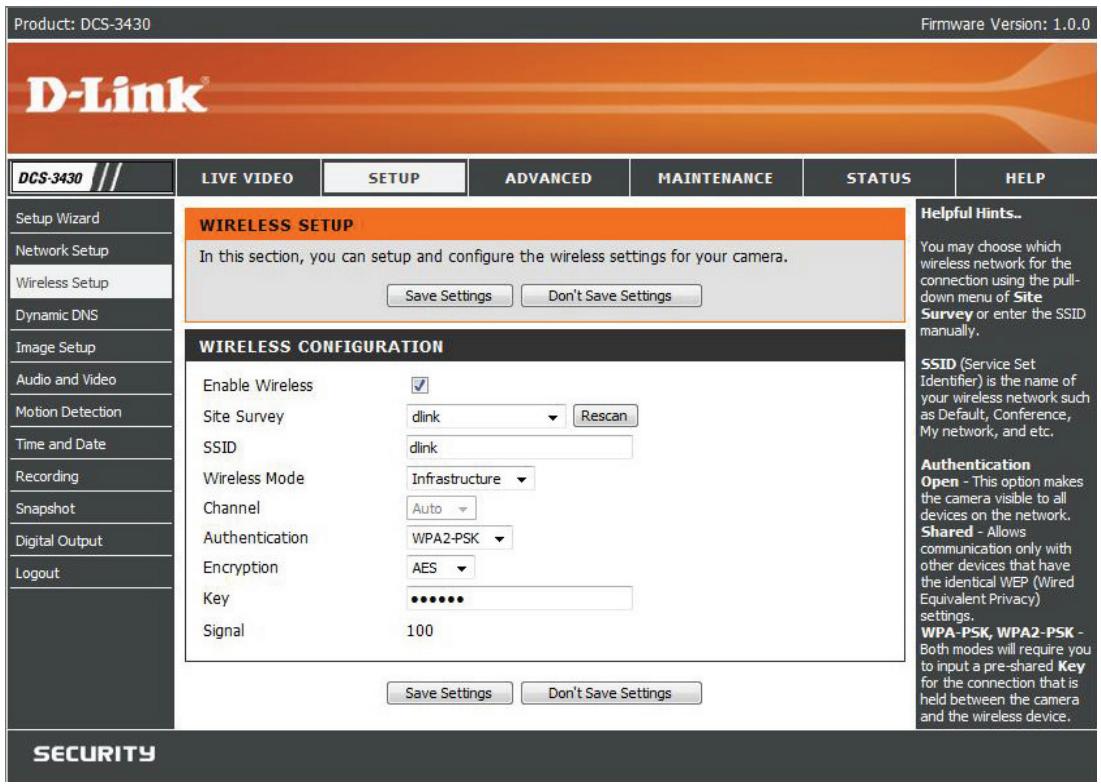
Encryption: If you use WPA-PSK or WPA-PSK2 authentication, you will need to specify whether your wireless network uses TKIP or AES encryption. If you use Open or Shared authentication, this setting will be automatically set for you.
Key: If you use WEP, WPA-PSK, or WPA-PSK2 authentication, enter the Key (also known as password) used for your wireless network.
Signal: Indicates the strength of the wireless signal between the camera and the access point.
Dynamic DNS
DDNS (Dynamic Domain Name Server) will hold a DNS host name and synchronize the public IP address of the modem when it has been modified. The user name and password are required when using the DDNS service.
Enable DDNS: Click to enable the DDNS function.
Server Select your Dynamic DNS provider from the pull Address: down menu or enter the server address manually.
Host Name: Enter the host name of the DDNS server.
User name: Enter your user name or e-mail used to connect to the DDNS
Password: Enter your password used to connect to the DDNS server.
Timeout: This sets the number of hours between DDNS updates.
Status: Indicate the connection status, automatically determined by the system.
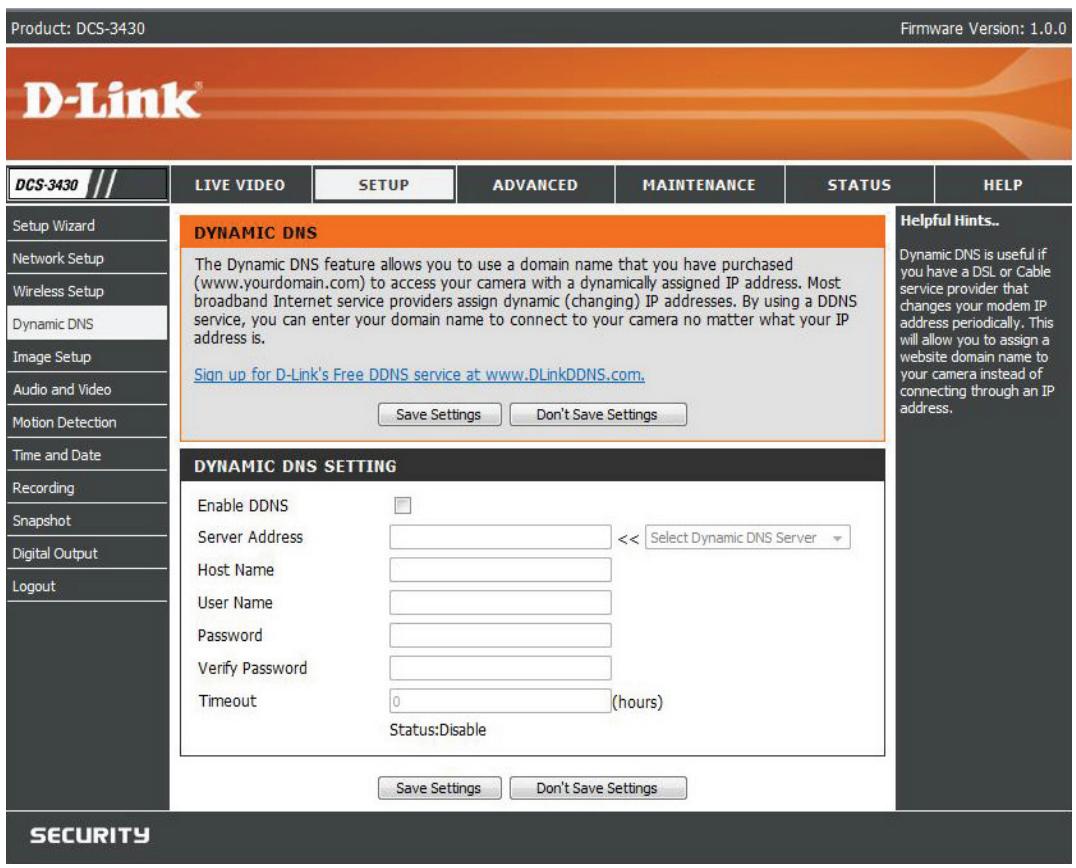
Image Setup
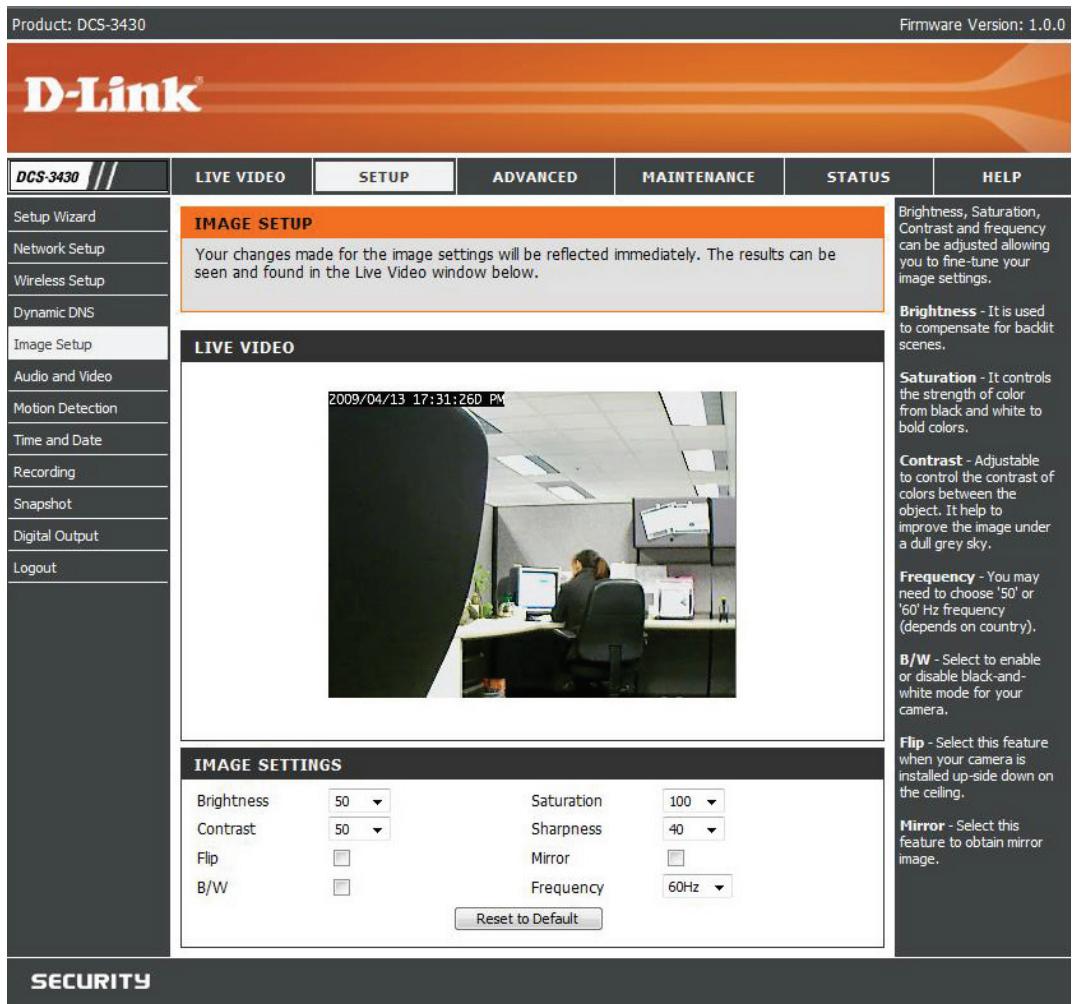
In this section, you may configure the video image settings for your camera. Preview of the image will be shown in the window of Live Video. Click Save Settings to activate and save your changes.
Brightness: An adjustable setting to compensate for backlit scenes.
Contrast: Adjust to control the contrast of colors between the object. This feature will help improve images under a dull grey sky.
Flip: Select this feature when your camera is installed upside down on the ceiling
B/W: Select to enable or disable black and white mode for you camera.
Saturation: This setting controls the strength of color from black and white to bold colors.
Sharpness: Adjust the sharpness of images. Sharper images will be displayed when the number is higher. If the number is lower, a blurrier image will be displayed.
Mirror: Select this feature to obtain a mirror image.
Frequency: You may chose 50Hz or 60Hz frequency. It may depend on the country where you reside.
Audio and Video
You may configure 4 video profiles with different setting for your camera. Additionally, you may also configure your audio (speakers and microphone) setup for your camera. Profile 3 is set as the profile for snapshot, while profile 4 is sef for your mobile phone or PDA device.
Resolution: This option allows the user to choose the video resolution of the camera between 160x120, 320x240 and 704x480:
- QQVGA @ 160x112 - Usually used for only displays of handheld devices.
- QVGA @ 320x240 - Standard solution for mobile phones and PDAs.
VGA @ 640x480 - Standard solution for computer display.
FPS: (Frames Per Second): Highest FPS represents highest refresh rate of a picture is updated on screen every second, and provides better quality of video.
Jpeg Quality: Select the image quality level you wish to use for the JPEG images captured.
BPS: (Bits Per Second): BPS will affect the bit rate of the video recorded by the camera. Higher bit rate will increase the video quality.
RTSP URL: Is the URL name used to connect to the camera when viewing from a mobile device or PDA.
Analog Output: Select the display system of Analog Video Output on the back NTSC or PAL.
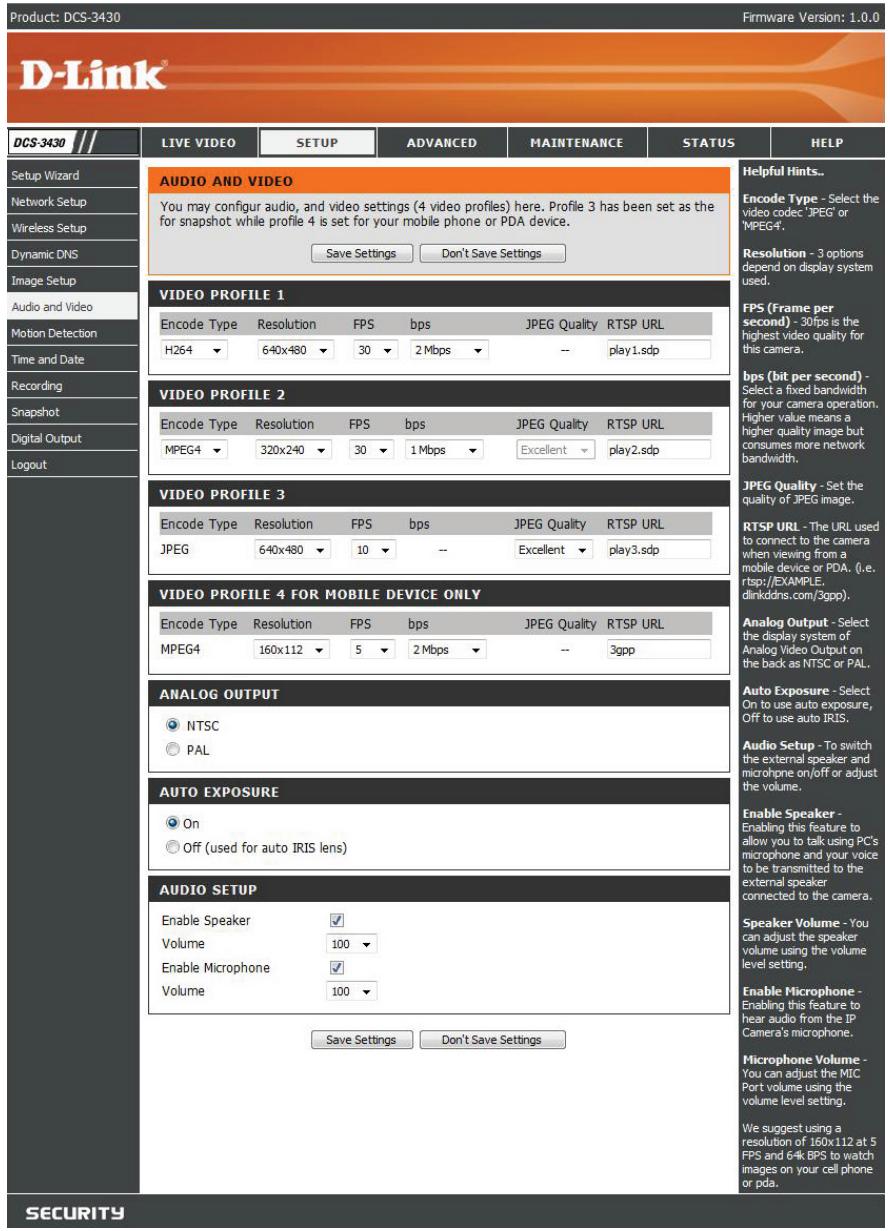
Auto Select On to use auto exposure or Off to use auto IRIS.
Exposure:
Audio Setup: You may switch the external speaker and microphone on/off or adjust the volume.
Enable Enabling this feature allows you to talk using a PC microphone. Your voice will be transmitted to the external speaker. Speaker: connected to the camera.
Speaker You can adjust the speaker volume by using the volume level setting.
Volume:
Enable Enable this feature to hear audio from the IP Camera's microphone. Microphone:
Microphone You can adjust the MIC Port volume by using the volume level setting. Volume:
Motion Detection
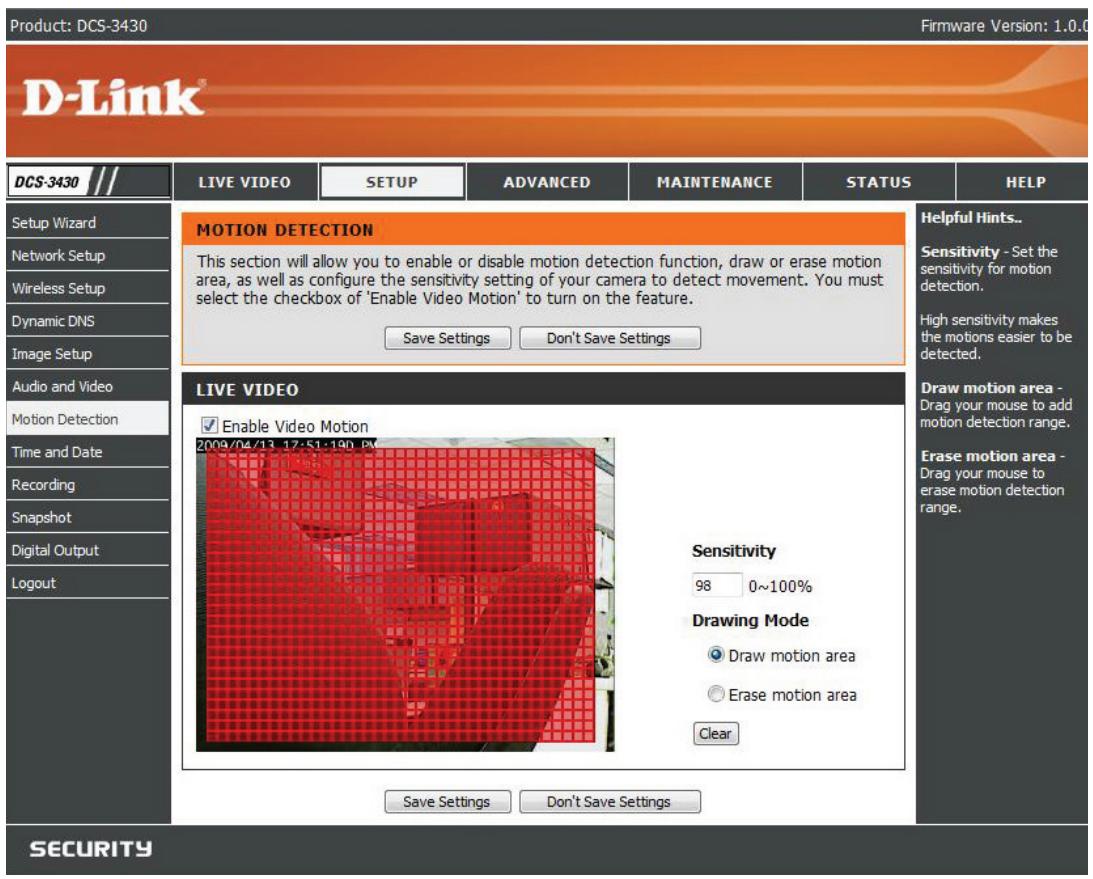
Enabling Video Motion will allow your camera to use the motion detection feature. You may also draw out the motion area for the monitoring.
Enable Video Check this option to turn on the motion detection Motion: feature for your camera.
Sensitivity: Set the measurable difference between two sequential images that would indicate motion.
Draw motion Select this option to draw out the motion detection area: area by dragging your mouse in the window (indicated by the red-colored box).
Erase motion Select this option to erase your motion detection area: area by dragging your mouse in the window.
Time and Date
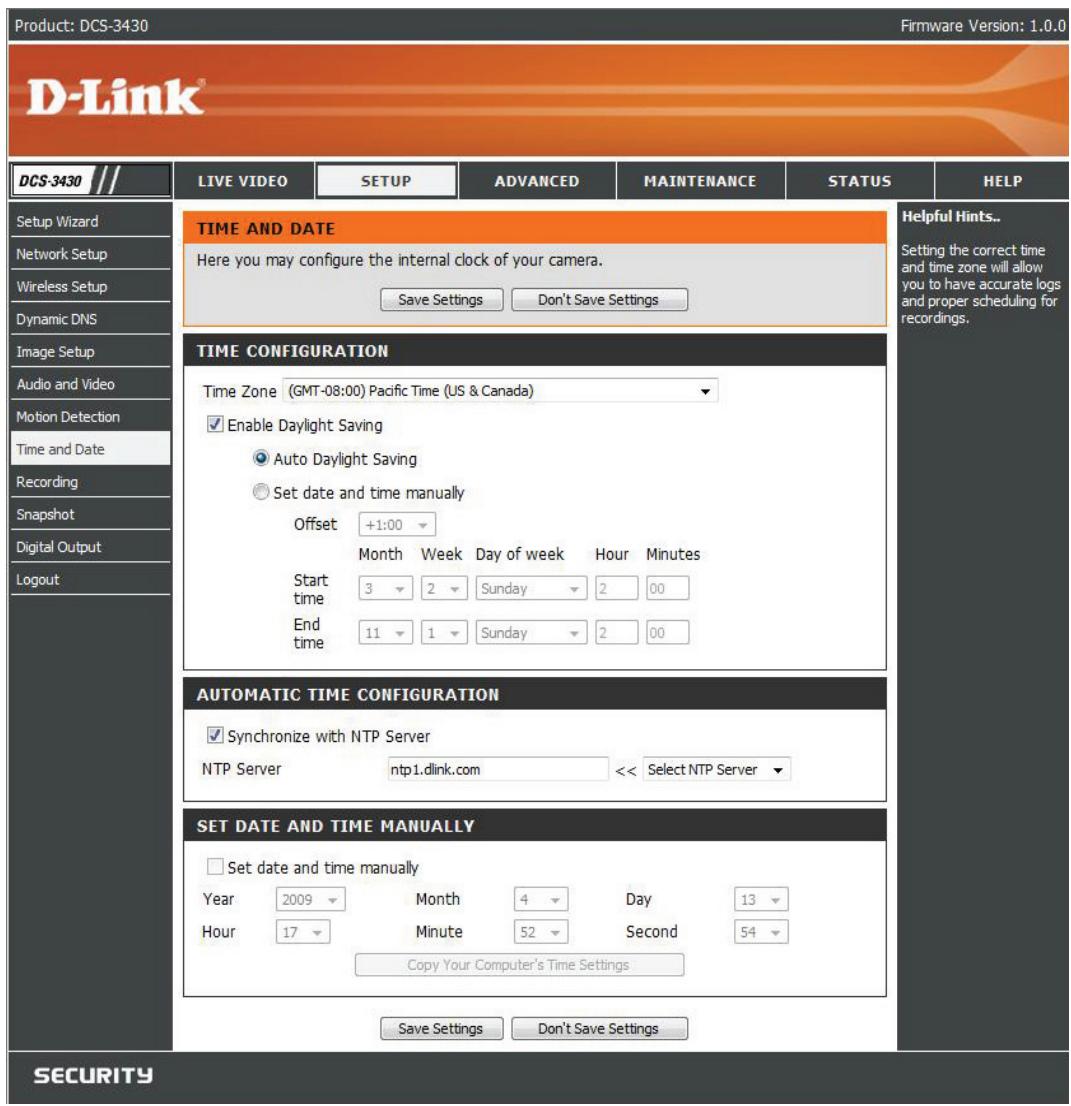
From this section, you may automatically or manually configure, update and maintain the internal system clock for your camera.
Time Zone: Select your time zone from the drop-down menu.
Enable Daylight Select this to enable the daylight saving time. Saving:
Auto Daylight Select this option so that your camera will configure Saving: the Daylight Saving setting automatically.
Set date and Select this option so that you may configure the time manually: Daylight Saving date and time manually.
Offset: Sets the amount of time to be added or removed when Daylight Saving is enabled.
Synchronize Enable this feature to obtain time configuration with NTP automatically from NTP server. server:
NTP Server: Network Time Protocol (NTP) synchronizes the DCS-3411/3430 with an Internet time server. Choose the one that is closest to your location.
Set the date This option allows you to set the time and date and time manually. manually:
Copy Your Computer's Time Settings: This will synchronize the time information from your PC.
Recording
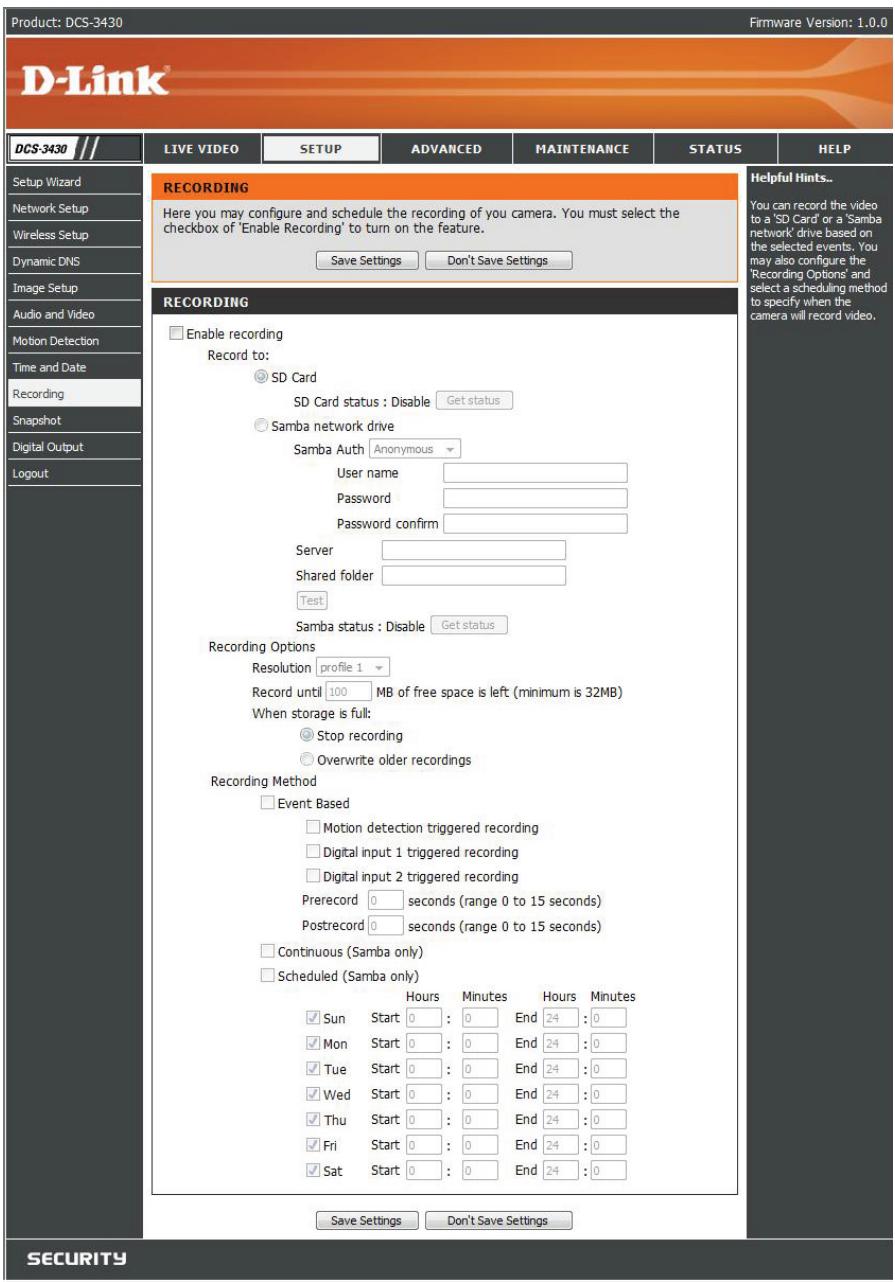
In this section, you can configure and schedule the recording setting for your IP camera.
Enable Recording: Select this option to enable the recording feature.
SD Card: Selecting this will allow you to record to a SD Card inserted into the SD slot on the right side of the unit. When recording to the SD card, you can only use Event Based recording.
Samba Auth: To access your account on the Samba network drive, enter your account or anonymous username and password.
Server: The name of your Samba server.
Shared Folder: The name of the shared folder used for recording.
Test: Click this thumbnail to verify the connection status of your camera to the Samba network drive.
Samba Status: Displays the connection status that is determined by the system. You can click Get Status to refresh the status.
Resolution: Select your pre-defined profile from the drop-down menu.
When Storage is When the recording storage area is full, you may choose to stop full: recording, or recycle the recording files so that your camera can record the video continuously.
Event Based: Records when Motion Recording, Digital Input 1, or Digital Input 2 is triggered.
Prerecord: A preset amount of time before motion recording is triggered.
Postrecord: A preset amount of time after motion recording is triggered.
Continuous: Select to continuously record.
Scheduled: Select this option to manually schedule and configure the starting and ending time for the recording.
How to save video to a shared folder?
- Set the folder in your computer to shared. You can set as anonymous authentication or set a user name and password.
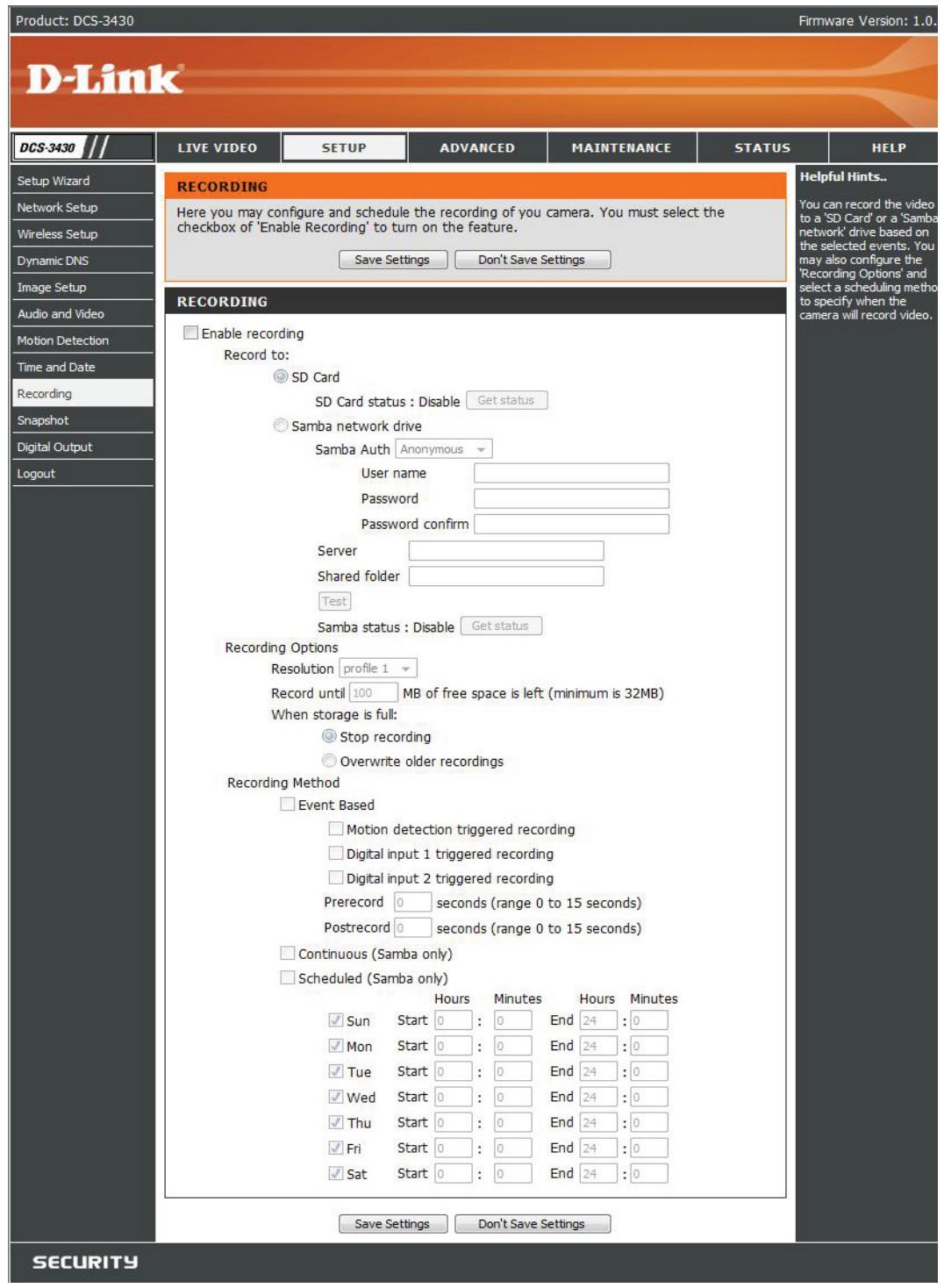
2. Click Enable Recording.
- Set the Samba Authentication to Anonymous or Account. Enter the IP address of the computer or network attached storage with the shared folder and the name of the shared folder in step 1 to record to. If you selected Account, enter the user name and password from step 1.
- Set the recording and schedule options.
- Click Save Settings. The status will be set to Normal when connected properly.
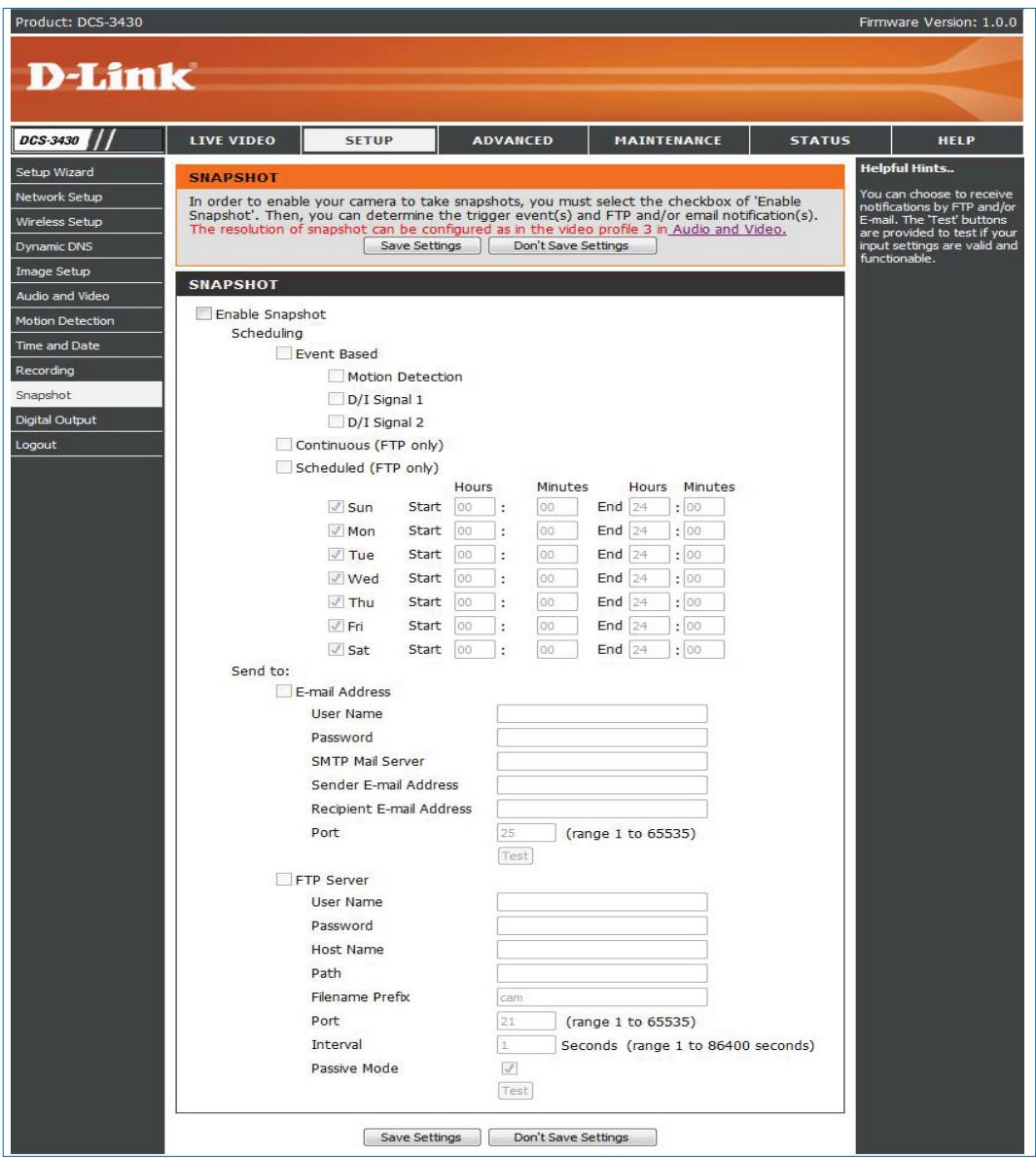
Snapshot
Enable the Snapshot feature so that your camera can take snapshots and send it to your email address or FTP server.
Enable Snapshot: Enable or disable snapshot event.
Event Based: Select one or more of the events such as Motion Detection, D/I Signal 1 and D/I Signal 2 for the source that triggers the action.
Continuous: Select to continuously record.
Scheduled: Select this option to manually schedule and configure the starting and ending time for the recording.
Send to Select this option if you want to receive snapshot E-mail Address: images in your e-mail.
FTP Server: Select this option if you want to receive your snapshot images via FTP.
Host name: The host name of your FTP server.
Path: The directory or path where the images will be uploaded to (for example: \pub\images).
Filename Prefix: The prefix that will be added to the filename of each file.
Port: The port of the FTP server. The default port is 25.
Passive mode: Some FTP servers allow clients to use passive mode when connecting to an FTP, which uses random ports for transfers.
Digital Output
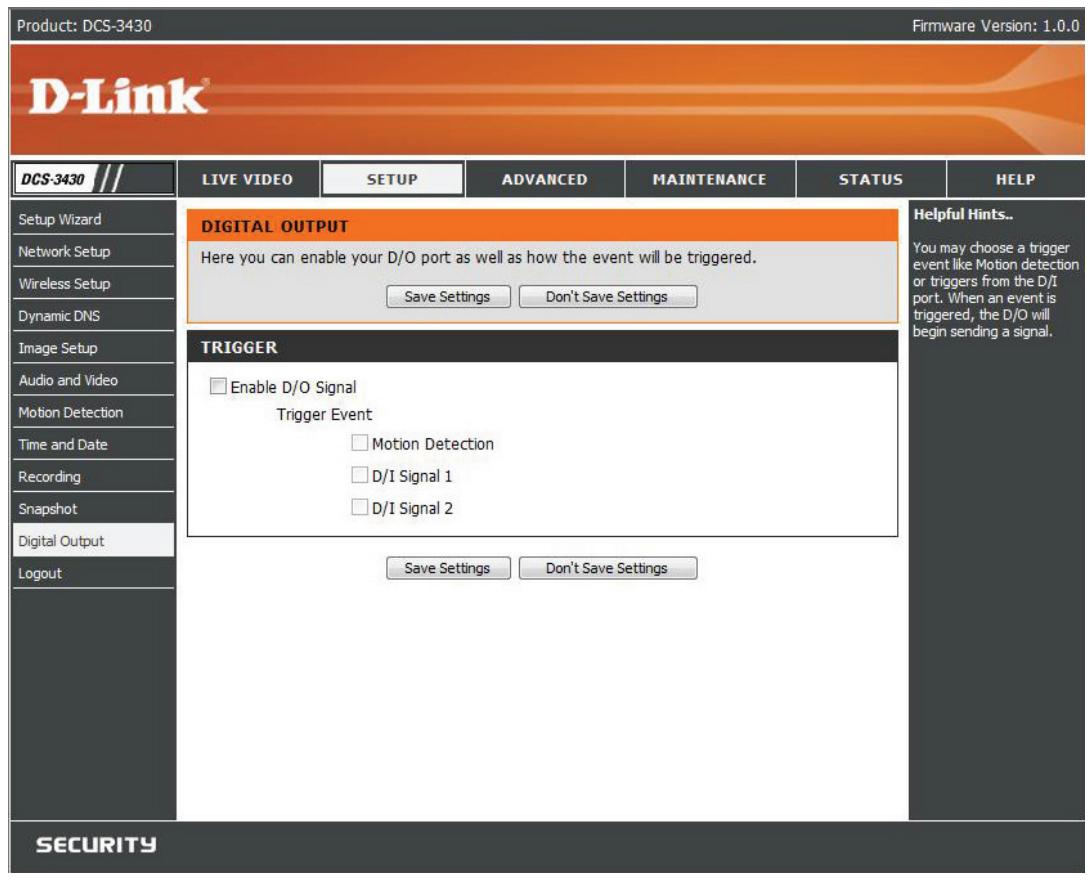
You may enable the Digital Output (DO) feature and configure the source of event for your camera.
Enable D/O This enables the D/O to send a signal when there signal: is a triggered event.
Trigger Event: You can choose from one or up to three events, such as Motion Detection, D/I Signal 1, and D/I Signal 2 for the sources of the triggered events.
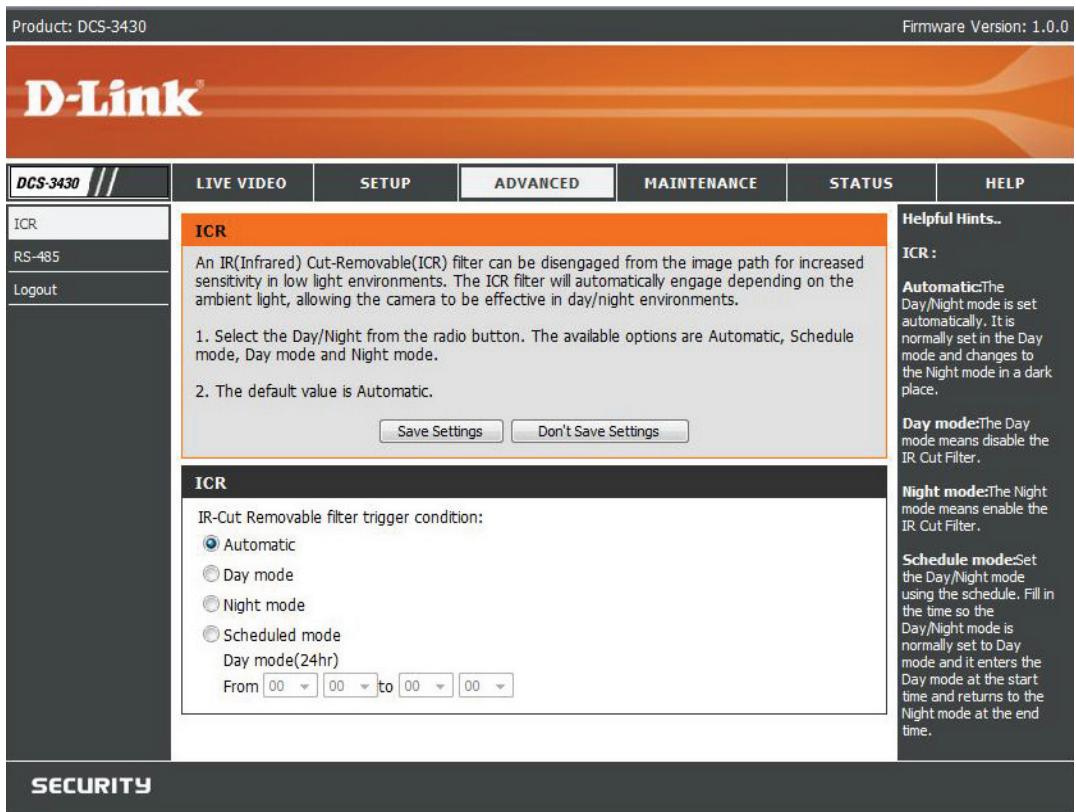
Advanced ICR
ICR - IR-Cut Removable(ICR) filter is a switch mechanical design with two different sensor filters. It provides the best lighting conditions for day and night.
Automatic: Selecting this feature will automatically set to the day mode during daylight and to the night mode during the night or in dark places.
Day mode: Selecting this mode will disable the IR Cut Filter.
Night mode: Selecting this mode will enable the IR Cut Filter.
Scheduled This mode will allow you to enter the desired Mode: time frames for the ICR filter.
RS-485
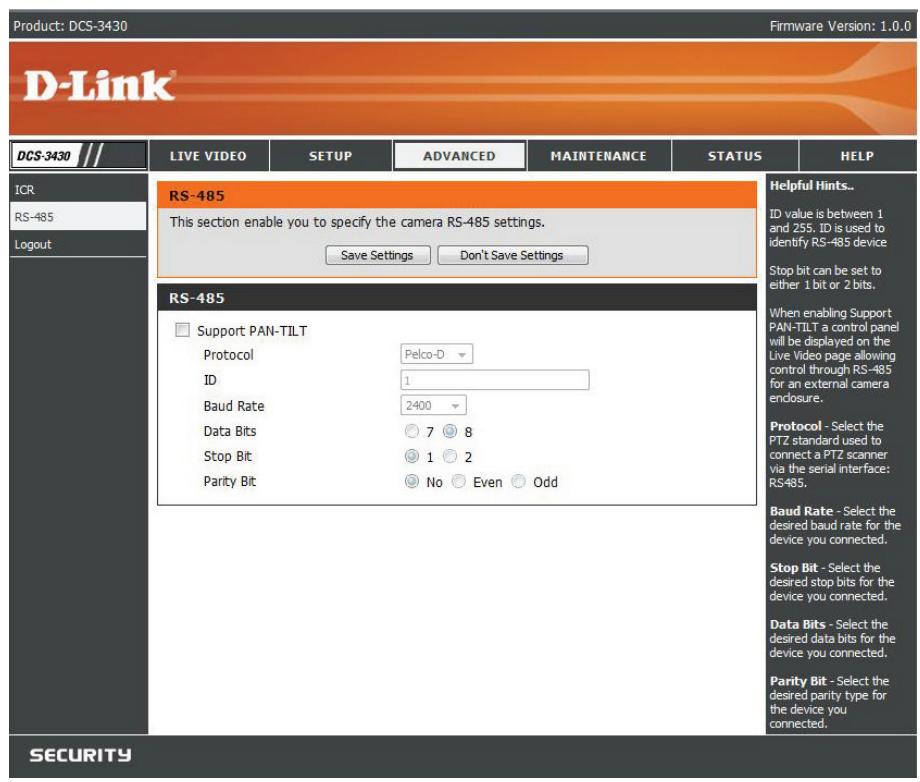
You may configure the RS-485 settings or communication specifications (baud rate, data bit, stop bit, and parity bit) for your camera. RS-485 is a serial communication method for computers and devices. For your camera, RS-485 is used to control a PAN/TILT device, such as an external camera enclosure to perform PAN and TILT movement.
Support PAN-TILT: When enabling Support PAN-TILT, a control panel will be displayed on the Live Video page allowing control through RS-485 for an external camera enclosure.
Protocol: Select one protocol type from the pull-down menu.
ID: Range from 1 to 255, is the identifier for each RS-485 devices.
Baud Rate: Range from 2400 to 38400 bps. It is a speed measurement for communication between a transmitter and receiver, indicates the number of bit transfers per second. Higher baud rate will reduce the distance of the two devices (transmitter and receiver). By default, the value is 2400.
Data Bit: Either 7 or 8. It is a measurement of the actual data bits in a transmission. By default, the value is 8.
Stop Bit: Either 1 or 2. It is used to signal the end of communication for a single packet. The more bits used for stop bits, the greater the lenience in synchronizing the different clocks but the slower the data transmission rate. Bye default, the value is 1.
Parity Bit: Choices of No, Even, and Odd. It is a simple form of error checking used in serial communication and you may use no parity. For even and odd parity, the serial port sets the parity bit (the last bit after the data bits) to a value to ensure that the transmission has an even or odd number of logic-high bits. For example, if the data is 011, for even parity, the parity bit is 0 to keep the number of logic-high bits even. If the parity is odd, the parity bit is 1, resulting in 3 logic-high bits.
Maintenance Device Admin
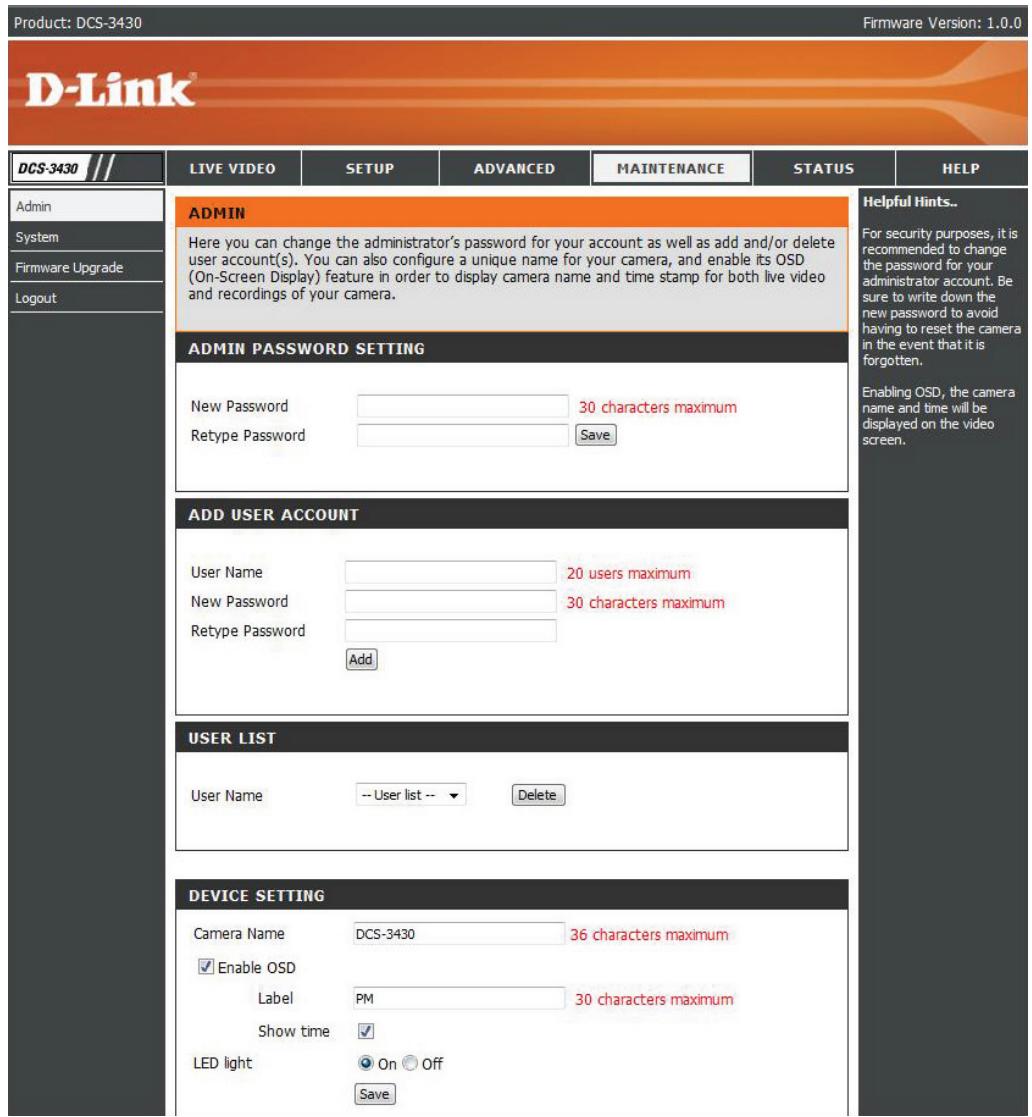
You may modify the name and administrator's password of your camera, as well as add and manage the user accounts for accessing the camera. You may also use this section to create the unique name and configure the OSD setting for your camera.
Admin password Set a new password for the administrator's setting: account.
Add user account: Add new user account.
User name: The user name for the new account.
Password: The password for the new account.
- User List: All the existing user accounts will be displayed here. You may delete any accounts included on the list.
Camera Name: Create a unique name for your camera, in which you can access the camera by using this name in your web-browser. For example: http://DCS-3411/3430 (By default).
Enable OSD: Select this option to enable the On-Screen Display feature for your camera.
Label: The label name.
Show time: Select this option to enable the time-stamp display in the video screen.
LED Light: Chose On or Off.
System
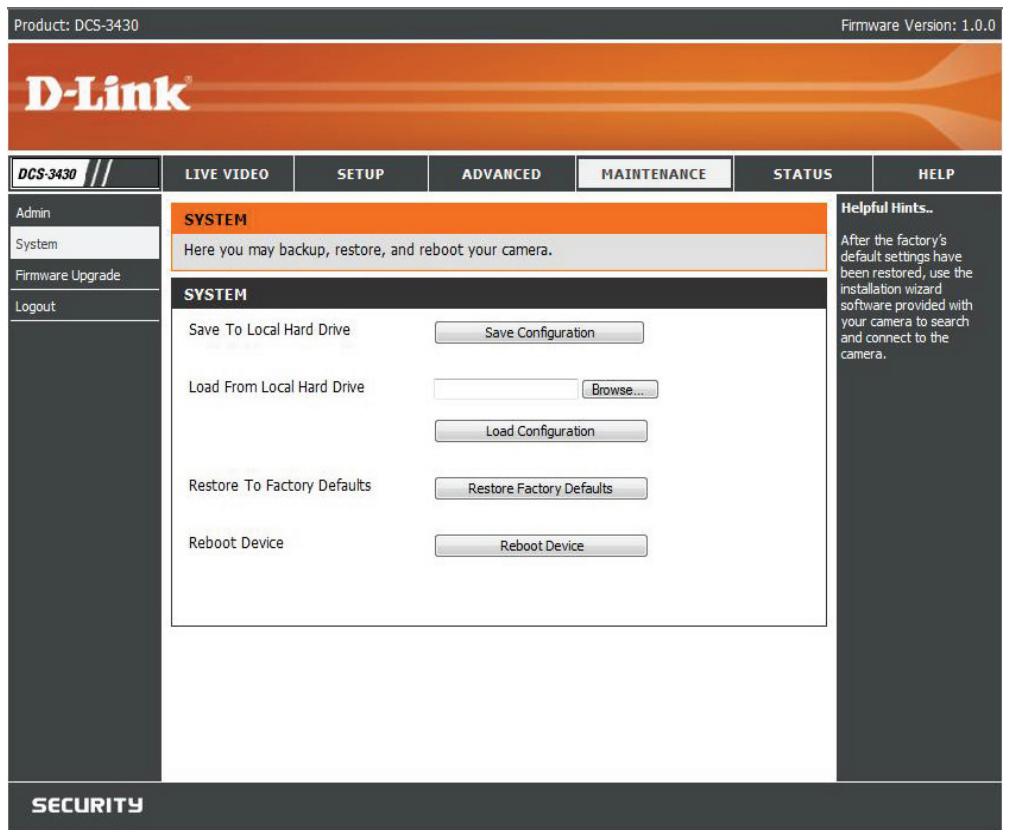
In this section, you may backup, restore and reset the settings as well as reboot your camera.
Save To Local Hard You may save and document your current Drive: configuration settings into your computer.
Local From Local Locate a pre-saved configuration by clicking Hard Drive: Browse and then restore the pre-defined settings to your camera by clicking Load Configuration.
Restore To Factory You may reset your camera and restore the factory Default: settings to your camera by clicking Restore Factory Defaults.
Reboot Device: This will restart your camera.
Firmware Upgrade
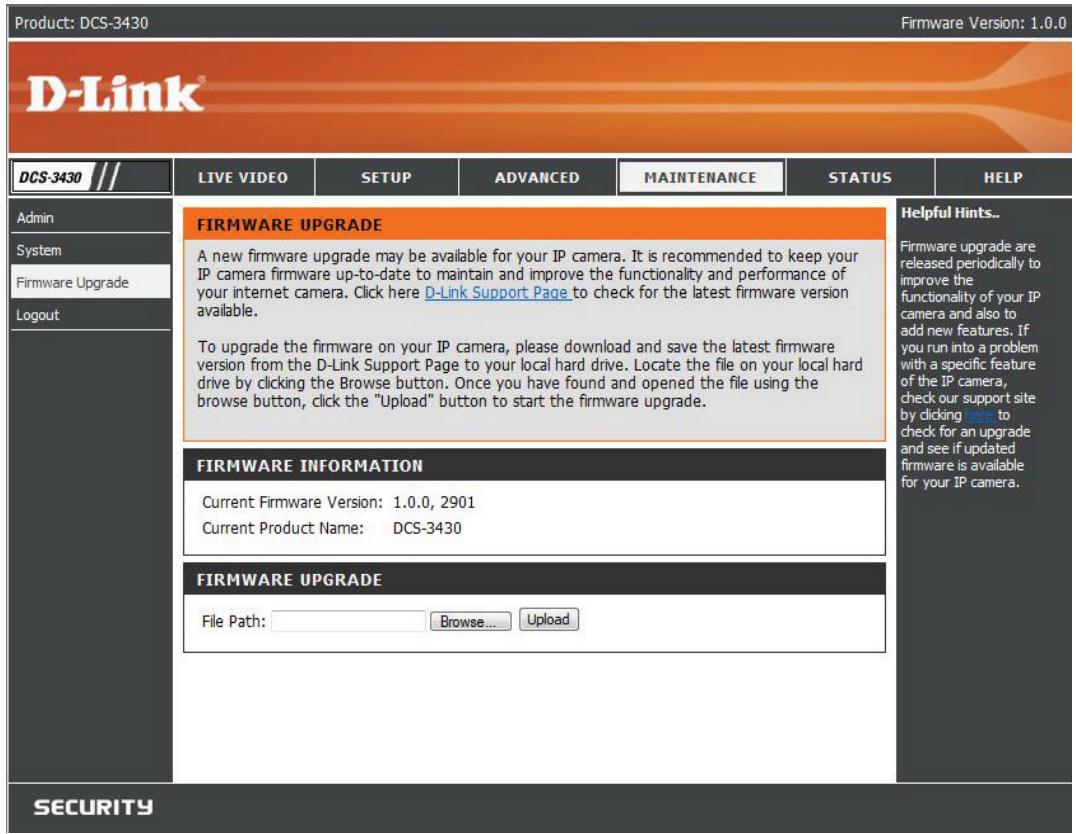
Your current firmware version and date will be displayed on your screen. You may go to the D-Link Support Page to check for the latest firmware version available.
To upgrade the firmware on your DCS-3411/3430, please download and save the latest firmware version from the D-Link Support Page to your local hard drive. Locate the file on your local hard drive by clicking the Browse button. Then, open the file and click the "Upload" button to start the firmware upgrade.
Current firmware It will be automatically determined and displayed version: by the system.
Current Product Name of the existing product. Name:
File Path: Locate the file (upgraded firmware) on your hard drive by clicking Browse.
Upload: Start uploading the new firmware to your camera.
Status Device Info
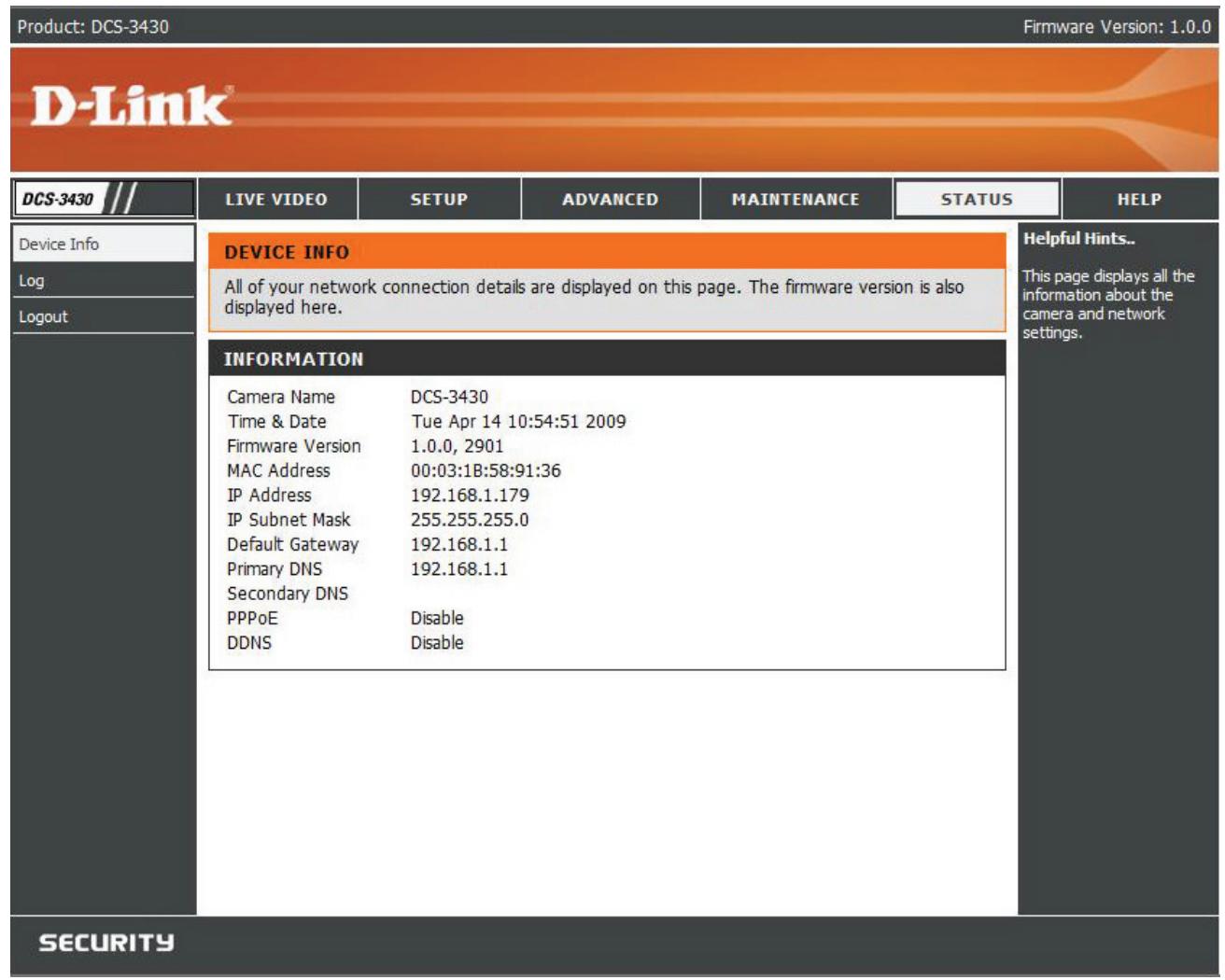
This page displays all the details information about your device and network connection.
Logs
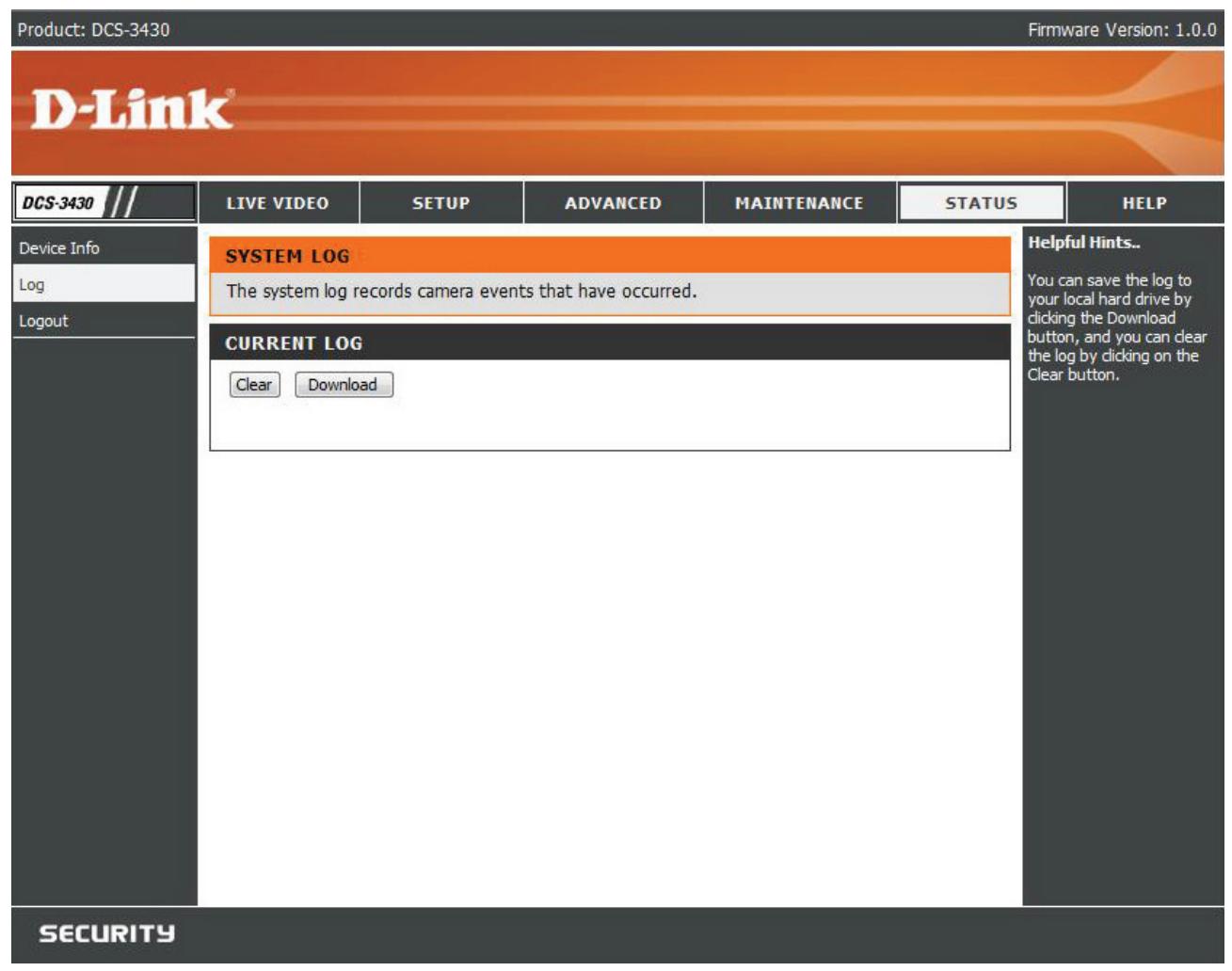
This page displays the log information of your camera. You may download the information by clicking Download or delete the log information by clicking Clear.
Help
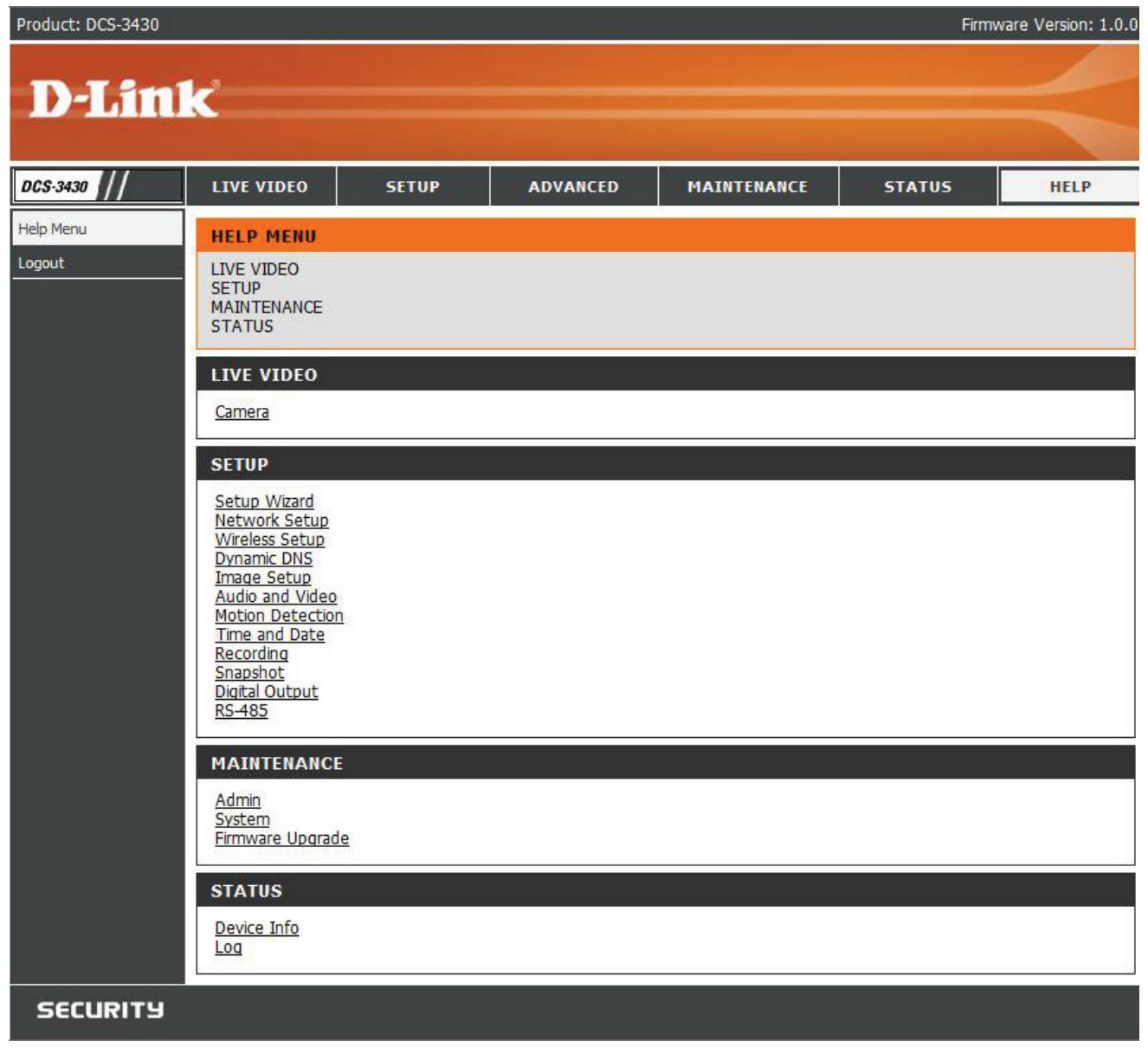
D-ViewCam Installation
D-ViewCam software is included for the administrator to manage up to 32 D-Link IP cameras remotely. You may now use the software to configure all the advanced settings for your cameras. D-ViewCam is a comprehensive management tool for IP surveillance.
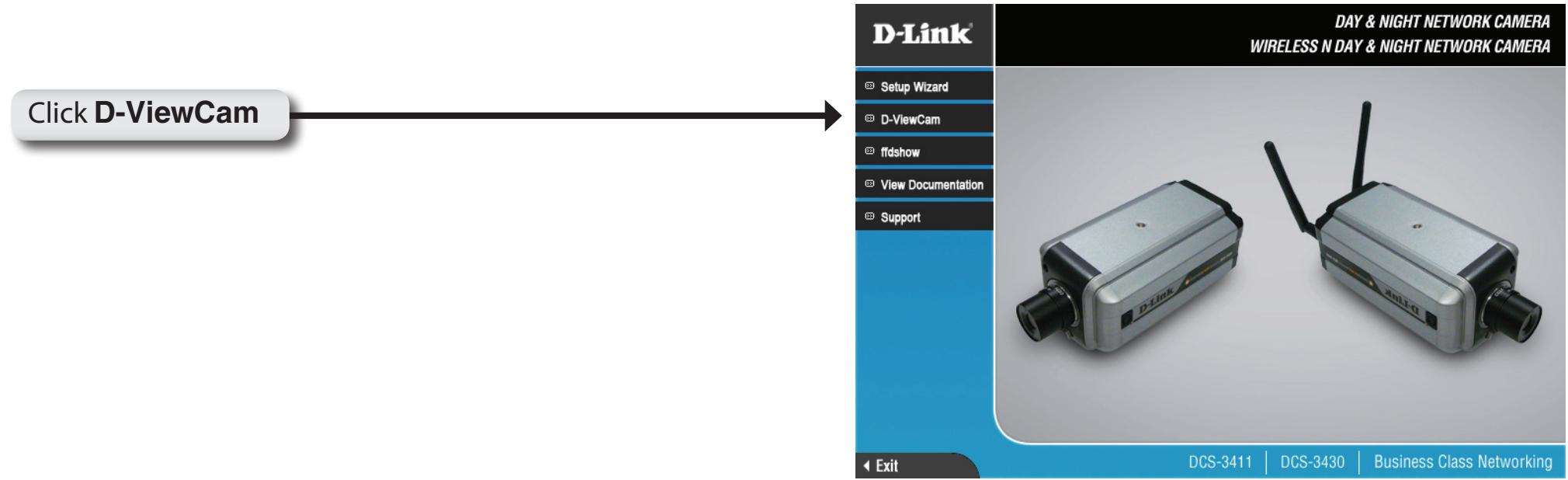
Insert the CD-ROM into the CD-ROM drive. A menu screen will appear as shown below.
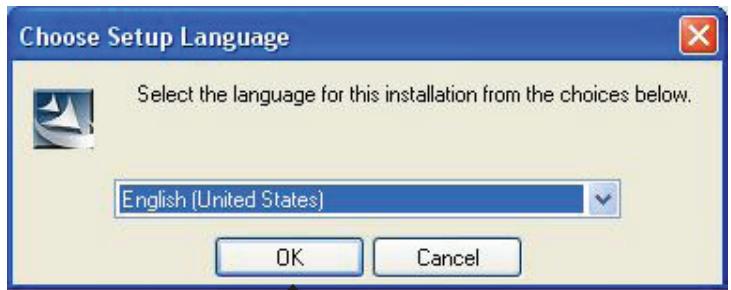
D-ViewCam provides English, Traditional Chinese and Simplified Chinese language versions. Select a language version and click OK to continue.
Click OK
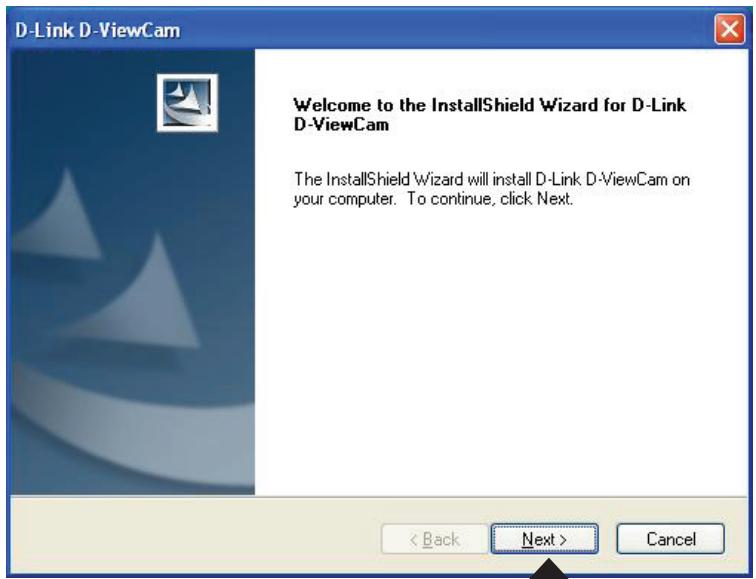
Click Next to continue.
Click Next
Click Browse if you would like to choose a specific folder for the installation, otherwise click Next to continue.
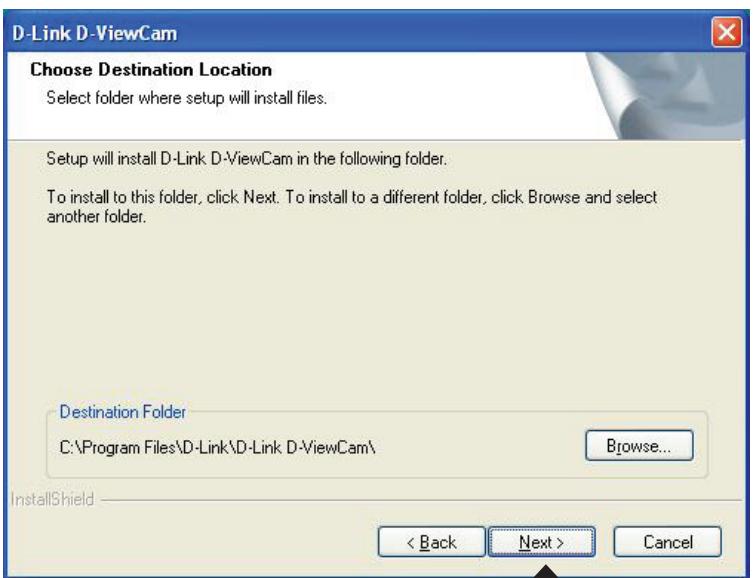
Click Next
Click Next to start the installation.
Note: The D-ViewCam installation process may take several minutes to complete.
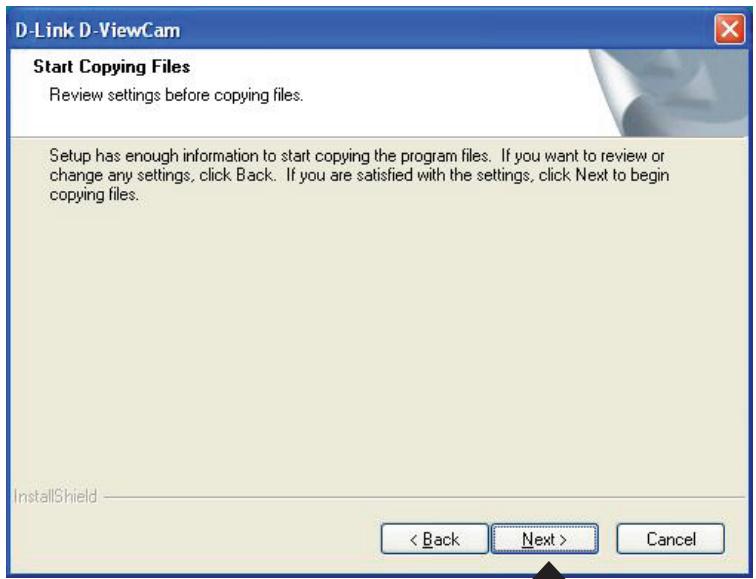
Click Next
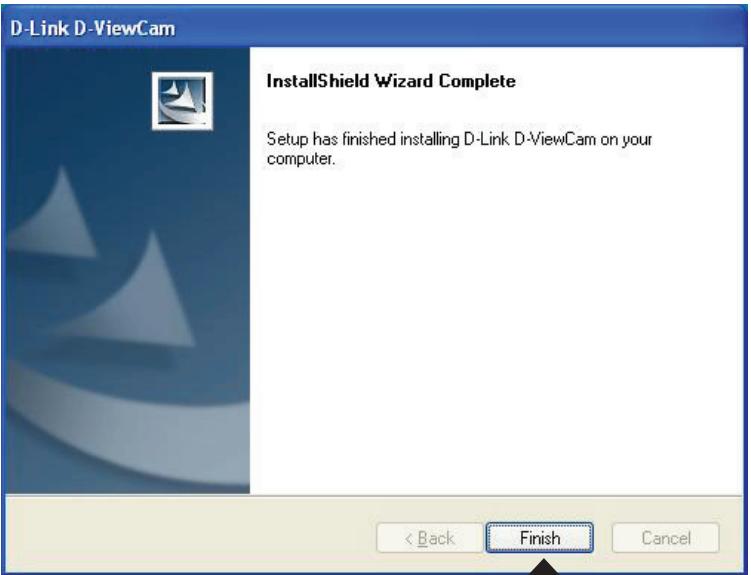
Click Finish to complete the installation.
Click Finish
Add a Camera
This section will show you how to start and add a camera to the D-ViewCam system.
To start D-ViewCam, select Start > All Programs > D-Link > D-Link D-ViewCam.

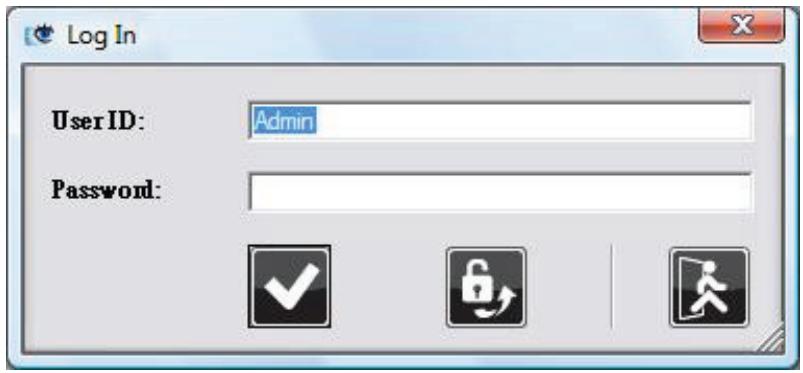
Enter Admin as the default user name and leave the password blank. Click OK to log into the system and access the Add Camera Wizard.
Note: Please refer to page 51 in the D-ViewCam user manual to change your password.
Welcome to the Add Camera Wizard. Use this wizard to add your cameras to the D-ViewCam system.
Note: Use the left or right arrow to navigate the wizard.
Click Next to continue.
Click Next

Choose which method to add your camera(s). You can choose Auto Discovery to automatically search for your camera(s), or choose Add Manually to add your camera(s) via the camera's IP address. Click Next to continue.
If you choose Auto Discovery, the system will search all available cameras that are located on the same LAN with same subnet. The system will place all the cameras under the default map called My Map. Click Next to continue.
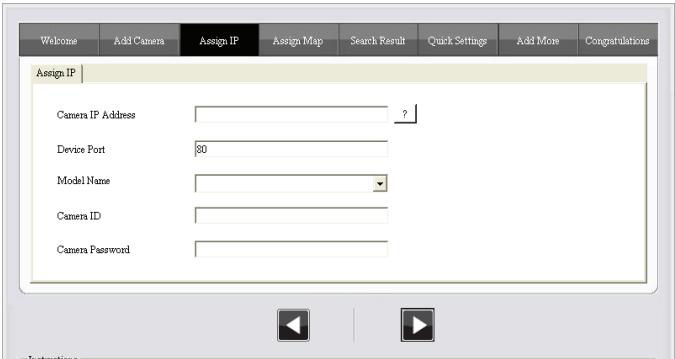
If you choose Add Manually, enter the IP address or domain name, http port, model name, camera ID and password.
Click the "?" button to auto detect the camera's model name, then the model name will appear in the Model Name box.
Click Next to continue.
Add Camera
Please select the add method for your cameras.

Auto Discovery

Add Manually
Auto discovery result
The detected cameras are grouped under My Map.
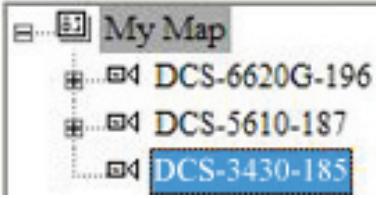
D-ViewCam shows the detected IP camera(s) information. You can choose and schedule the recording for each camera.
- 24/7 Continuous Recording: Continuously recording 24 hours a day, 7 days a week.
- 24/7 Motion Detection Recording: Continuously monitoring but ONLY recording when motion is detected.
- Office Hours Only: Continuously monitoring during office hours (08:00 AM to 06.00 PM) and ONLY recording when motion is detected.
- Non-Office Hours Only: Continuously monitoring during non-office hours (06:00 PM to 08.00 AM) and ONLY recording when motion is detected.
Note: Excluding 24/7 Continuous Recording, other schedule recording types can ONLY do recording when motion is detected. Please refer to page 35 in the D-ViewCam manual for more information.
Click Next to continue.
Quick Settings
The discovered cameras information showed as below:
| Camera Name | Model | Schedule Recording Type | Status | IP Address | MAC Address |
| DCS-5610-187 | DCS-5610 | None | Active | 10.129.1.187 | 000D887D6DC4 |
| DCS-6620G-99 | DCS-6620G | None | Active | 10.129.1.99 | 001346DC3BC3 |
| DCS-3430-185 | DCS-3430 | None | Active | 10.129.1.185 | 001346DC3BEB |
Select Yes to add other camera(s), or select No if you have no additional camera(s) to be added. Click Next to continue.
Add another camera

Yes

No
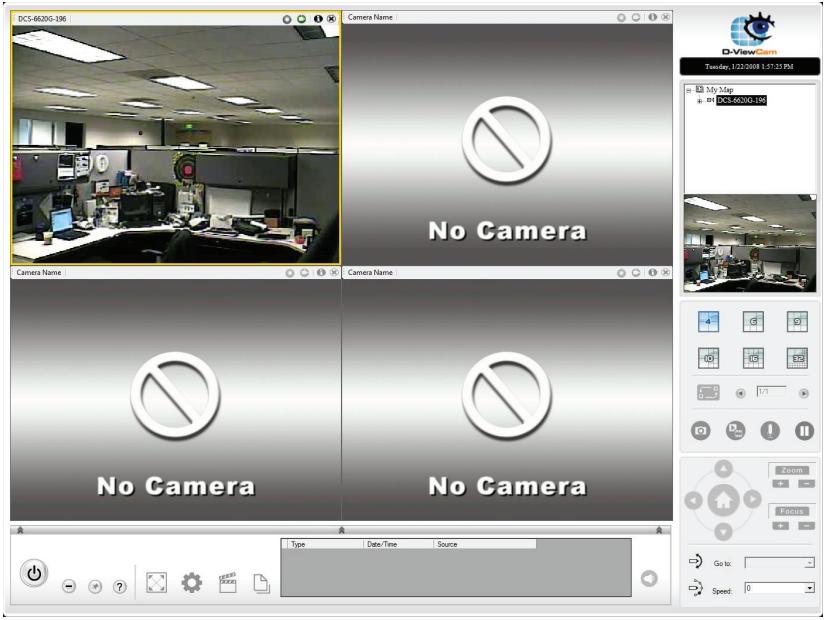
The Add Camera wizard is now complete. Click Close to access the D-ViewCam's main screen.
Congratulations!
Congratulations, your camera configurations are now complete and ready to use.
You may now click the Close button to view your camera and configure any additional advanced settings.
Your D-ViewCam Installation is Complete!
Note: Please refer to the D-ViewCam user manual for information about using D-ViewCam.
Troubleshooting
1. What is an Network Camera?
The Network Camera is a stand-alone system connecting directly to an Ethernet or Fast Ethernet network. It differs from a conventional PC Camera, the Network Camera is an all-in-one system with built-in CPU and Web-based solutions providing a low cost solution that can transmit high quality video images for monitoring. The Network Camera can be managed remotely, accessed and controlled from any PC/Notebook over an Intranet or the Internet from a Web browser.
2. What is the maximum number of users that can be allowed to access DCS-3411/3430 simultaneously?
The maximum number of users that can log onto the Network Camera at the same time is 10. Please keep in mind the overall performance of the transmission speed will slow down when many users are logged on.
3. What algorithm is used to compress the digital image?
The Network Camera utilizes MPEG-4 simple profile image compression technology to provide high quality images.
4. Can I capture still images from the Network Camera?
Yes you are able to capture still images with the snapshot function from the software application CD supplied with the Network Camera or with the snapshot function on the Home page using an Internet browser.
5. Can the Network Camera be used outdoors?
The Network Camera is not weatherproof. It needs to be equipped with a weatherproof case to be used outdoors and it is not recommended.
6. When physically connecting the Network Camera to a network what network cabling is required?
The Network Camera uses Category 5 UTP cable allowing 10 Base-T and 100 Base-T networking.
7. Can the Network Camera be setup as a PC-cam on a computer?
No, the DCS-3411/3430 Network Camera is used only on an wireless 802.11n, Ethernet or Fast Ethernet network.
8. Can the DCS-3411/3430 be connected to the network if it consists of only private IP addresses?
Yes, the Network Camera can be connected to a LAN with private IP addresses.
9. Can the DCS-3411/3430 be installed and work if a firewall exists on the network?
If a firewall exists on the network, port 80 is open for ordinary data communication. The DCS-3411/3430 uses port 5002 for streaming audio and port 5003 for streaming video. These ports (or the ports you specify from the Advanced Tab in the Configuration screen if you change the default ports) need to be opened on the firewall.
10. Why am I unable to access the DCS-3411/3430 from a Web browser?
If a router or firewall is used on the network, the correct ports for the DCS-3411/3430 may not be configured on the router or firewall. To correct the problem, you need to determine if the DCS-3411/3430 is behind a router or firewall and if the router or firewall is properly configured for the ports the DCS-3411/3430 is using. Other possible problems might be due to the network cable. Try replacing your network cable. Test the network interface of the product by connecting a local computer to the unit, utilizing a Ethernet crossover cable. If the problem is not solved the Network Camera might be faulty.
11. Why does the Network Camera work locally but not externally?
This might be caused by network firewall protection. The firewall may need to have some settings changed in order for the Network Camera to be accessible outside your local LAN. Check with the Network Administrator for your network.
Make sure that the Network Camera isn't conflicting with any Web server you may have running on your network. The default router setting might be a possible reason. Check that the configuration of the router settings allow the Network Camera to be accessed outside your local LAN.
12. I connected the Network Camera directly to a computer with a cross-over cable Ethernet cable and received the following Windows error upon running the Installation Wizard:
This Windows error will occur if the Network Camera is connected to a computer that is not properly configured with a valid IP address. Turn off DHCP from the Network Settings in Windows and configure the computer with a valid IP address, or connect the camera to a router with DHCP enabled. This error can also occur if the Installation Wizard icon is clicked on more than once from the setup wizard.
13. Noisy images occur. How can I solve the problem?
The video images might be noisy if the Network Camera is used in a very low light environment. To solve this issue you need more lighting.

13. The images appear to be of poor quality, how can I improve the image quality?
Make sure that your computer's display properties are set above 256 colors. Using 16 or 256 colors on your computer will produce dithering artifacts in the image, making the image appear to be of poor quality. The configuration on the Network Camera image display is incorrect. Through the Advanced > Image Setting section of the Web management you need to adjust the image related parameters such as brightness, contrast, hue and power line frequency for fluorescent light.
DI/DO
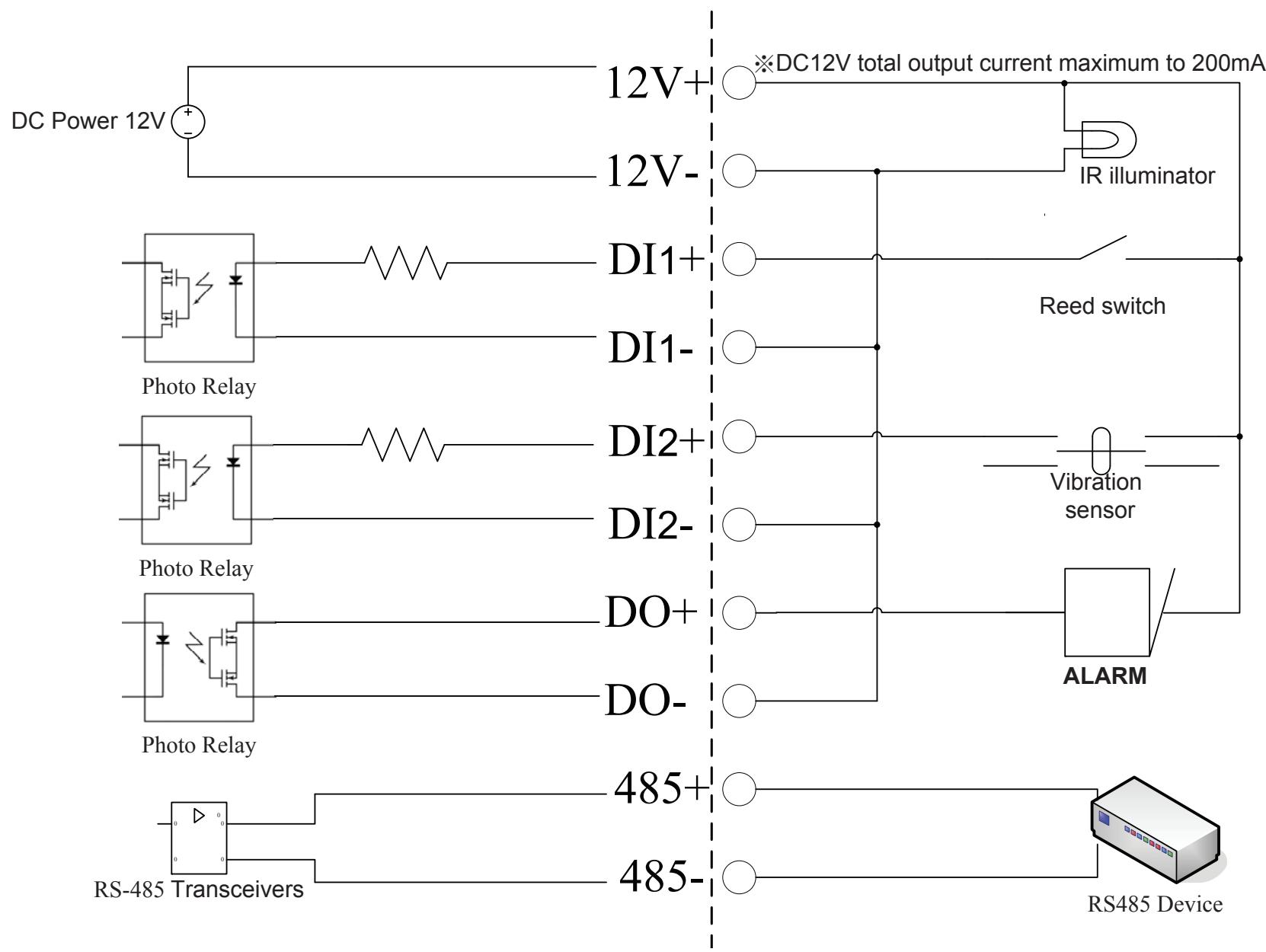
| 12V+/12V- | Connect to an IR illuminator or other device in parallel connection. The total output current should be under 200mA. |
| DI | Receive signals from a motion detector or any other external security device. |
| DO | Connect to an alarm or buzzer. Refer to page 47. |
| 485+/485- | Connect to the RS-485 interface for controlling auxiliary equipment such as an external camera enclosure to perform PAN and TILT movement. Refer to page 49 for more information. |
Networking Basics
Check your IP address
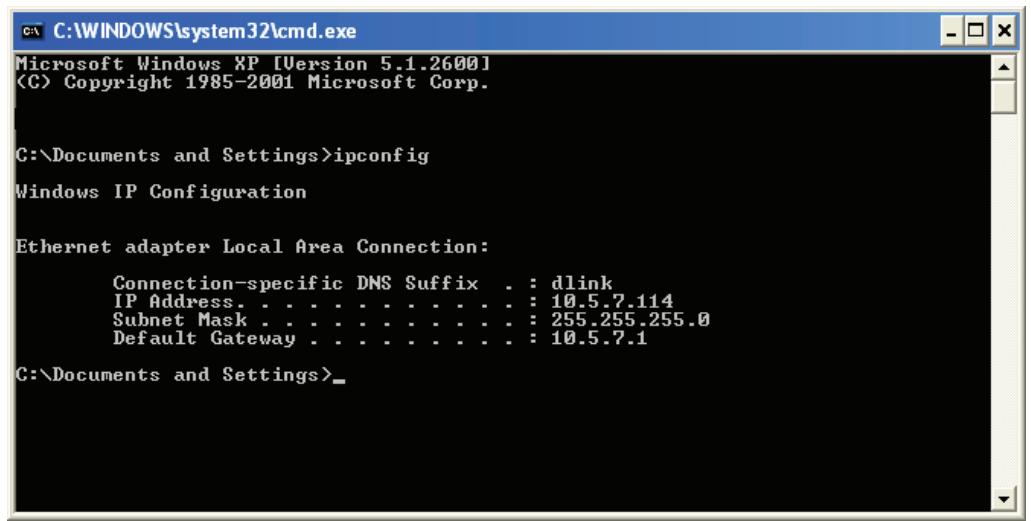
After you install your new D-Link adapter, by default, the TCP/IP settings should be set to obtain an IP address from a DHCP server (i.e. wireless router) automatically. To verify your IP address, please follow the steps below.
Click on Start > Run. In the run box type cmd and click OK.
At the prompt, type ipconfig and press Enter.
This will display the IP address, subnet mask, and the default gateway of your adapter.
If the address is 0.0.0.0, check your adapter installation, security settings, and the settings on your router. Some firewall software programs may block a DHCP request on newly installed adapters.
If you are connecting to a wireless network at a
hotspot (e.g. hotel, coffee shop, airport), please contact an employee or administrator to verify their wireless network settings.
Statically Assign an IP address
If you are not using a DHCP capable gateway/router, or you need to assign a static IP address, please follow the steps below:
Step 1
Windows XP - Click on Start > Control Panel > Network Connections.
Windows® 2000 - From the desktop, right-click My Network Places > Properties.
Step 2
Right-click on the Local Area Connection which represents your D-Link network adapter and select Properties.
Step 3
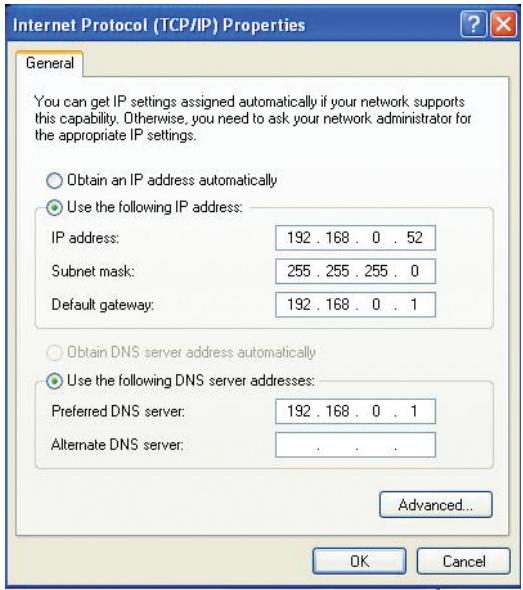
Highlight Internet Protocol (TCP/IP) and click Properties.
Step 4
Click Use the following IP address and enter an IP address that is on the same subnet as your network or the LAN IP address on your router.
Example: If the camera's LAN IP address is 192.168.0.1, make your IP address 192.168.0.X where X is a number between 2 and 99. Make sure that the number you choose is not in use on the network. Set Default Gateway the same as the LAN IP address of your router (192.168.0.1).
Set Primary DNS the same as the LAN IP address of your router (192.168.0.1). The Secondary DNS is not needed or you may enter a DNS server from your ISP.
Step 5
Click OK twice to save your settings.
Technical Specifications
Video Codec
MPEG4 / MJPEG/ H.264 multi profile compression simultaneously
PoE (3411 only)
Supported IEEE 802.3af standard
Sensor
1/4" CMOS Sensor
SDRAM
64 Mbytes
Flash Memory
8 Mbytes
Lens
6mm,F1.8
Support Auto Iris lens, or IR lens
LAN
- 10/100Base T ports x1
- IEEE 802.3 compliance
- IEEE 802.3u compliance
- Support Full-Duplex operations
- MDI/MDIX auto-negotiation
- 802.3x Flow Control support for Full-Duplex mode
- Supported IEEE 802.3af standard (DCS-3411 only)
MIC
42dB +/- 3dB, Omni-directional
Antenna
2 (DCS-3430 only)
I/O Connector
2 Inputs (Photo relay, Active High: Dropout: 0 VDC)
1 Output (photo relay, Close circuit current: AC 70mA or DC 100mA;
40Ohm; Open circuit voltage: 240 VAC or 350VDC)
Power Output: 12VDC, 200mA
RS 485
2 pin(485A,485B) (Supported to control external Pan-Tilt device)
Audio Out
600mV
Video Out
75 ohm 1Vpp
Reset Button
Reset to factory default
Storage
SD card slot
Dimension (WxDxH)
177mm x 78mm x 60mm
Weight
577.8g
Max Power Consumption
Max : DCS-3411 5.484 W, DCS-3430 6.9W
- Input: 100-240VAC, 50/60Hz, 0.4A
- Output: 12VDC, 1.25A
Wireless (DCS-3430 only)
Frequency RangeAnd Channels
2.412-2.4835 GHz
13 Channels (depend on Area)
Transmission
2TX, 2RX
Date Range
- IEEE 802.11n: From MCS0 to MCS15
- IEEE 802.11g: 54, 48, 36, 24, 18, 12, 9, 6 Mbps
- IEEE 802.11b: 11, 5.5, 2, 1 Mbps
- Auto-select or Manual specified.
Outpower
- 12 dBm@11n (Typical)
- 12 dBm@11g (Typical)
- 16 dBm@11b (Typical)
Sensitivity
- HT40802.11n: Packet Error Rate < 10% , MCS6 < -60 dBm·
- HT20802.11n: Packet Error Rate < 10%, MCS6 < -66 dBm
- 802.11g: Packet Error Rate < 10%, 54Mbps < -66 dBm
- 802.11b: Packet Error Rate < 8 % , 11Mbps < -82 dB
Antenna
- Connector: MHF
- Operating Frequency: 2.4Ghz
Networking
Protocol
- IPV4, ARP, TCP, UDP, ICMP
- DHCP Client
- NTP Client
-
DNS Client
-
DDNS Client (D-Link)
- SMTP Client
- FTP Client
- HTTP Server
- Samba Client
- PPPoE
UPnP Port Forwarding
RTP - RTSP
RTCP
3GPP
Ethernet
10/100M BaseT Fast Ethernet auto negotiation
Wireless (DCS-3430 only)
WMM
Video
Algorithm Supported
- MPEG4/MJPEG/H.264 multi profile compression simultaneously
- JPEG for still image
Features
- Adjustable image size and quality
- Time stamp and text overlay
- Three configurative motion detection windows
- Flip & Mirror
Resolution
- Up to 30 frames at 640x480
- Up to 30 frames at 320x240
- Up to 30 frames at 160x120
Sensitivity
11.5 V/lux-s at 550nm
Video
AGC, AWB, AES, BLC
Digital Zoom
Up to 16X
Low Lux
0.5 lux@F1.8
3A control
AGC,AWB,AES
Electronic shutter
NTSC: 1 / 60 1 / 100000 sec.
PAL: 1 / 50 1 / 110000 sec.
Audio
Sample rate
GSM-AMR: 12.2kbps, ADPCM: 8Kbps
Cable
- Cable Length: 1800 ± 30 ~mm
- UL 20AWGx2C (105°C) 300V
Plug
- Type: L type
- Connector Color: Black
Frequency
20 20000Hz
S/N ratio
More than 58dB
Microphone
Directional
Omni-directional
Frequency
20 20000Hz
S/N ratio
More than 58dB
LED
Control
Enable/Disable
Security
Login authentication
Default Admin ID/PW : admin/space(blank)
OS Support
Device
Windows 2000 / Windows XP / Windows Vista / 3GPP Mobile Phone
Utility
Windows 2000 / Windows XP / Windows Vista
Physical Environment
Power
- 12V 1.25A switching power adapter
- External AC-to-DC Switching Power Adapter
- Type: USA / UK / EUR / AUS / CN (Order by each territory)
Operation Temperature
0 to 40^ C (32 to 104^ F )
Storage Temperature
- 20 to 70^ (-4 to 158^
Humidity
20-80% RH non-condensing
Emission (EMI), Safety & Other Certifications
FCC
- IC
C-Tick
- CE
LVD
Maximum wireless signal rate derived from IEEE Standard 802.11g, 802.11a and Draft 802.11n specifications. Actual data throughput will vary. Network conditions and environmental factors, including volume of network traffic, building materials and construction, and network overhead, lower actual data throughput rate. Environmental conditions will adversely affect wireless signal range.
2Range varies depending on country's regulation.
3The DCS-3411/3430 doesn't include 5.25-5.35GHz & 5.47~5.725GHz.