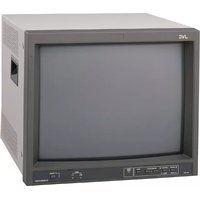
CL-R813 - Monitor JVC - Free user manual and instructions
Find the device manual for free CL-R813 JVC in PDF.


Pick your language and provide your email: we'll send you a specifically translated version.
| Product Type | LCD Monitor |
| Screen Size | 81.3 cm (32 inches) |
| Resolution | 1920 x 1080 (Full HD) |
| Aspect Ratio | 16:9 |
| Brightness | 250 cd/m² |
| Contrast Ratio | 1000:1 |
| Response Time | 5 ms |
| Viewing Angle | 178° / 178° |
| Connectivity | HDMI, VGA, DisplayPort, USB |
| Built-in Speakers | Yes (2 x 3W) |
| Power Consumption | 35W (typical), <0.5W (standby) |
| Power Supply | AC 100-240V, 50/60Hz |
| Dimensions (W x H x D) | 730 x 460 x 180 mm (with stand) |
| Weight | 6.5 kg (with stand) |
| VESA Mount | 100 x 100 mm |
| Adjustability | Tilt only (-5° to +20°) |
| Cleaning | Use soft, dry cloth; avoid solvents |
| Safety | Do not open; keep away from moisture |
| Spare Parts | Power cord, stand, screws included; parts available via JVC service |
| Repairability | Designed for professional repair only; user-replaceable stand |
Frequently Asked Questions - CL-R813 JVC
How do I adjust the brightness and contrast on my JVC CL-R813?
Press the Menu button on the monitor, then use the arrow keys to navigate to Picture settings. From there, you can adjust Brightness and Contrast using the +/- buttons.
What is the recommended way to clean the screen?
Turn off the monitor and unplug it. Use a soft, lint-free cloth slightly dampened with water. Do not use alcohol, ammonia, or abrasive cleaners. Gently wipe the screen in a circular motion.
How can I connect my laptop to the CL-R813?
Connect using an HDMI cable for best quality. Alternatively, use a VGA cable if your laptop lacks HDMI. Ensure the monitor is set to the correct input source via the Input button.
What does the power LED indicate?
A steady blue LED means the monitor is on. A blinking blue LED indicates standby mode. No light means the monitor is off or not receiving power.
Why is there no picture on my monitor?
Check that the monitor is powered on and the correct input source is selected. Ensure the cable is securely connected to both the monitor and the computer. If using a VGA cable, make sure the screws are tightened.
Can I wall-mount this monitor?
Yes, the JVC CL-R813 supports VESA wall mounting with a 100 x 100 mm pattern. Use a compatible wall mount bracket and screws (not included). Follow the instructions in the manual.
How do I reset the monitor to factory settings?
Press the Menu button, go to Setup or System, select Reset, and confirm. This will restore all settings to defaults.
Does the monitor have built-in speakers?
Yes, the CL-R813 includes two built-in speakers with 3 watts each. Audio can be played via HDMI or DisplayPort connections. Use the audio output jack for headphones.
What is the warranty period for this monitor?
The standard warranty for JVC monitors is typically 2 years from the date of purchase. For specific terms, refer to the warranty card included in the box.
How do I update the firmware on my monitor?
Firmware updates are not user-serviceable on this model. If an update is required, contact JVC support or visit the official website for instructions. Do not attempt to update via third-party sources.
User questions about CL-R813 JVC
0 question about this device. Answer the ones you know or ask your own.
Ask a new question about this device
No questions yet. Be the first to ask one.
Download the instructions for your Monitor in PDF format for free! Find your manual CL-R813 - JVC and take your electronic device back in hand. On this page are published all the documents necessary for the use of your device. CL-R813 by JVC.
USER MANUAL CL-R813 JVC

Manual assistant
Powered by Anthropic
Waiting for your message
Product information
Brand : JVC
Model : CL-R813
Category : Monitor