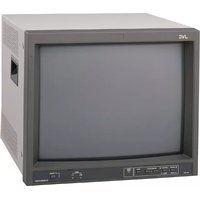
DT-V9L5U - Monitor JVC - Free user manual and instructions
Find the device manual for free DT-V9L5U JVC in PDF.


Pick your language and provide your email: we'll send you a specifically translated version.
| Product Type | Professional LCD Monitor |
| Brand | JVC |
| Model | DT-V9L5U |
| Screen Size | 9 inches (diagonal) |
| Native Resolution | 1024 x 600 pixels |
| Aspect Ratio | 15:9 |
| Brightness | 250 cd/m² |
| Contrast Ratio | 1000:1 |
| Power Supply | 100-240 V AC, 50/60 Hz |
| Power Consumption | 30 W maximum |
| Dimensions (W x H x D) | 220 x 150 x 60 mm |
| Weight | 2.5 kg |
| Video Inputs | SDI, HDMI, Composite |
| Main Functions | Screen marking, zoom, subtitles, freeze frame |
| Maintenance and Cleaning | Clean with a soft, dry cloth. Do not use solvents. |
| Safety | Use a grounded outlet. Do not expose to moisture. |
| Spare Parts and Repairability | Parts available on request. Repair only by an authorized technician. |
| Operating Temperature | 0 °C to 40 °C |
| Operating Humidity | 20 % to 80 % |
Frequently Asked Questions - DT-V9L5U JVC
How to clean the screen of the JVC DT-V9L5U monitor?
Use a soft, dry cloth, slightly dampened if necessary. Never use chemical products or abrasive cleaners.
What video inputs are available on this monitor?
The monitor has SDI, HDMI, and Composite inputs.
How to reset the DT-V9L5U to factory settings?
Access the OSD menu, go to System Settings, and select Reset. Confirm the operation to restore default settings.
What is the native resolution of the JVC DT-V9L5U screen?
The native resolution is 1024 x 600 pixels with a 15:9 aspect ratio.
Can this monitor be mounted on an articulating arm?
Yes, the monitor is compatible with a VESA 75 x 75 mm mount.
How to activate subtitles on the DT-V9L5U?
In the display menu, select Subtitles and choose the desired mode (CC1, CC2, etc.). Make sure the source sends the appropriate signal.
What to do if the screen remains black?
First check the power and input cable. If the problem persists, perform a reset or contact technical support.
The monitor emits an abnormal noise, what to do?
A slight hum may be normal. If the noise is loud, check that the monitor is well ventilated and nothing blocks the vents. If the problem continues, consult a technician.
How to update the firmware of the DT-V9L5U?
Updates are available on the JVC website. Download the file, place it on a USB stick, insert it into the monitor's USB port, and follow the instructions in the Update menu.
Where to find spare parts for this monitor?
Contact JVC after-sales service or an authorized dealer. Parts such as the power supply or panel are available on request.
User questions about DT-V9L5U JVC
0 question about this device. Answer the ones you know or ask your own.
Ask a new question about this device
No questions yet. Be the first to ask one.
Download the instructions for your Monitor in PDF format for free! Find your manual DT-V9L5U - JVC and take your electronic device back in hand. On this page are published all the documents necessary for the use of your device. DT-V9L5U by JVC.
USER MANUAL DT-V9L5U JVC

Manual assistant
Powered by Anthropic
Waiting for your message
Product information
Brand : JVC
Model : DT-V9L5U
Category : Monitor