
RT234 - Electronic musical instrument ZOOM - Free user manual and instructions
Find the device manual for free RT234 ZOOM in PDF.


| Product Type | Drum Machine / Percussion Sequencer |
| Brand | ZOOM |
| Model | RT234 (RhythmTrak 234) |
| Category | Electronic Musical Instrument |
| Dimensions | 297 mm (L) x 215 mm (D) x 43 mm (H) |
| Weight | 1.0 kg |
| Power Supply | AC adapter 9 V DC / 300 mA (supplied) |
| Maximum Polyphony | 32 voices |
| Resolution | 96 PPQN |
| BPM (Tempo) | 40 to 250 BPM |
| Number of Pads | 13 velocity-sensitive pads |
| Drum Kits | 124 kits (including percussion and SFX) |
| Bass Programs | 50 programs |
| Rhythm Patterns | 99 presets + 99 user + 99 groove |
| Songs | 99 songs, up to 255 steps each |
| Maximum Notes | 13,000 notes |
| Recording Modes | Real-time and step (step) |
| Inputs | Line In (6.35 mm mono) x 1, impedance 10 kΩ |
| Outputs | Line L/Mono, R (6.35 mm mono) x 2; Headphones (6.35 mm stereo) x 1 |
| MIDI | MIDI In, receives clock/start/stop/continue, channels per track |
| Optional Pedals | FP01 (expression), FS01 (footswitch) via CTRL1/CTRL2 jacks |
| Control Slider | SOUND JAMMER (pitch, volume, timbre) |
| Display | 6-digit, 7-segment LED |
| Cleaning | Soft, dry cloth; avoid solvents, alcohol, thinners |
Frequently Asked Questions - RT234 ZOOM
User questions about RT234 ZOOM
0 question about this device. Answer the ones you know or ask your own.
Ask a new question about this device
Download the instructions for your Electronic musical instrument in PDF format for free! Find your manual RT234 - ZOOM and take your electronic device back in hand. On this page are published all the documents necessary for the use of your device. RT234 by ZOOM.
USER MANUAL RT234 ZOOM
m = 311 ;
m = 311
.
( x - 2x) t - xy^2 = ( x - 2x) f^ t
1 + u7 = 70%
OPERATION MANUAL
USAGE AND SAFETY PRECAUTIONS
In this manual, symbols are used to highlight warnings and cautions for you to read so that accidents can be prevented. The meanings of these symbols are as follows:
This symbol indicates explanations about extremely dangerous matters. If users ignore this symbol and handle the device the wrong way, serious injury or death could result.
This symbol indicates explanations about dangerous matters. If users ignore this symbol and handle the device the wrong way, bodily injury and damage to the equipment could result.
Please observe the following safety tips and precautions to ensure hazard-free use of the RhythmTrak 234.

- Power requirements
The RhythmTrak 234 is powered by the supplied AC adapter. To prevent malfunction and safety hazards, do not use any other kind of AC adapter.
When using the RhythmTrak ...234 in an area with a different line voltage, please consult your local ZOOM distributor about acquiring a proper AC adapter.

- Environment
Avoid using your RhythmTrak ...234 in environments where it will be exposed to:
- Extreme temperature
High humidity or moisture - Excessive dust or sand
- Excessive vibration or shock

Handling
The RhythmTrak ...234 is a precision instrument. Do not exert undue pressure on the keys and other controls. Also take care not to drop the unit, and do not subject it to shock or excessive pressure.

- Alterations
Never open the case of the RhythmTrak ...234 or attempt to modify the product in any way since this can result in damage to the unit.

- Connecting cables and input and output jacks
You should always turn off the power to the RhythmTrak ...234 and all other equipment before connecting or disconnecting any cables. Also make sure to disconnect all
cables and the AC adapter before moving the RhythmTrak ...234.
Usage Precautions
- Electrical interference
For safety considerations, the RhythmTrak 234 has been designed to provide maximum protection against the emission of electromagnetic radiation from inside the device, and protection from external interference. However, equipment that is very susceptible to interference or that emits powerful electromagnetic waves should not be placed near the RhythmTrak 234, as the possibility of interference cannot be ruled out entirely.
With any type of digital control device, the RhythmTrak ...234 included, electromagnetic interference can cause malfunctioning and can corrupt or destroy data. Care should be taken to minimize the risk of damage.
- Cleaning
Use a soft, dry cloth to clean the RhythmTrak ...234. If necessary, slightly moisten the cloth. Do not use abrasive cleanser, wax, or solvents (such as paint thinner or cleaning alcohol), since these may dull the finish or damage the surface.
Please keep this manual in a convenient place for future reference.
USAGE AND SAFETY PRECAUTIONS
Introduction 1
Names of Parts 2
Top Panel. 2
Rear Panel 2
Getting Connected 3
Preparations 3
Quick Guide 4
Quick Guide (1)
Listening to the Demo 4
Quick Guide (2)
Playing the Pads 6
Quick Guide (3)
Playing a Pattern 8
Quick Guide (4)
Using Groove Play 10
Playing the Pads (Manual Play) 12
Playing by tapping the pads. 12
Using the slider (modify function) 13
Selecting a kit/program for manual play... 14
Playing the Patterns
(Pattern Mode) 15
Pattern play. 15
Changing the kit/program of a track 16
Changing the tempo of pattern playback . 17
Pattern Recording
(Real-Time Recording) 18
Deleting an unnecessary pattern 18
Real-time recording of a drum track 19
Real-time recording of a bass track 23
Pattern Recording
(Step Recording) 27
What is step recording? 27
Step recording of a drum track 28
Step recording of a bass track 30
Pattern Copy 32
Creating Songs (Song Mode) 33
What is a song? 33
Recording and playing a song 34
Editing a song 37
Deleting a song 38
Using Pads to Play Patterns
(Groove Play) 39
[FUNCTION] Key Settings 41
Basic [FUNCTION] key operation steps ... 41
[FUNCTION] key items 43
RhythmTrak …234 Application
Examples 48
Controlling the RhythmTrak...234
with the FP01. 48
Controlling the RhythmTrak…234
with the FS01 49
Synchronized MIDI operation 50
Using MIDI equipment to play the RhythmTrak…234 51
Returning the RhythmTrak…234 to the factory default condition(initialization). 52
Listening to the demo 53
Checking the amount of remaining memory 53
Troubleshooting 54
SPECIFICATIONS 55
Reference
MIDI Implementation
MIDI Implementation Chart
Thank you for selecting the ZOOM RhythmTrak …234. This product is an innovative drum machine with the following features and functions.
- The RhythmTrak …234 plays versatile backing patterns using three different drum tracks and one bass track. 99 preset patterns provide many popular rhythms at the touch of a key. 99 additional patterns can be programmed and stored by the user.
- Program up to 255 patterns in a sequence to create the backing for an entire song. Up to 99 songs can be stored.
- Choose from a variety of 174 built-in super-realistic drum and bass sounds. Practice or perform on stage as if with a whole band. Great for making guitar or keyboard demo tapes, too.
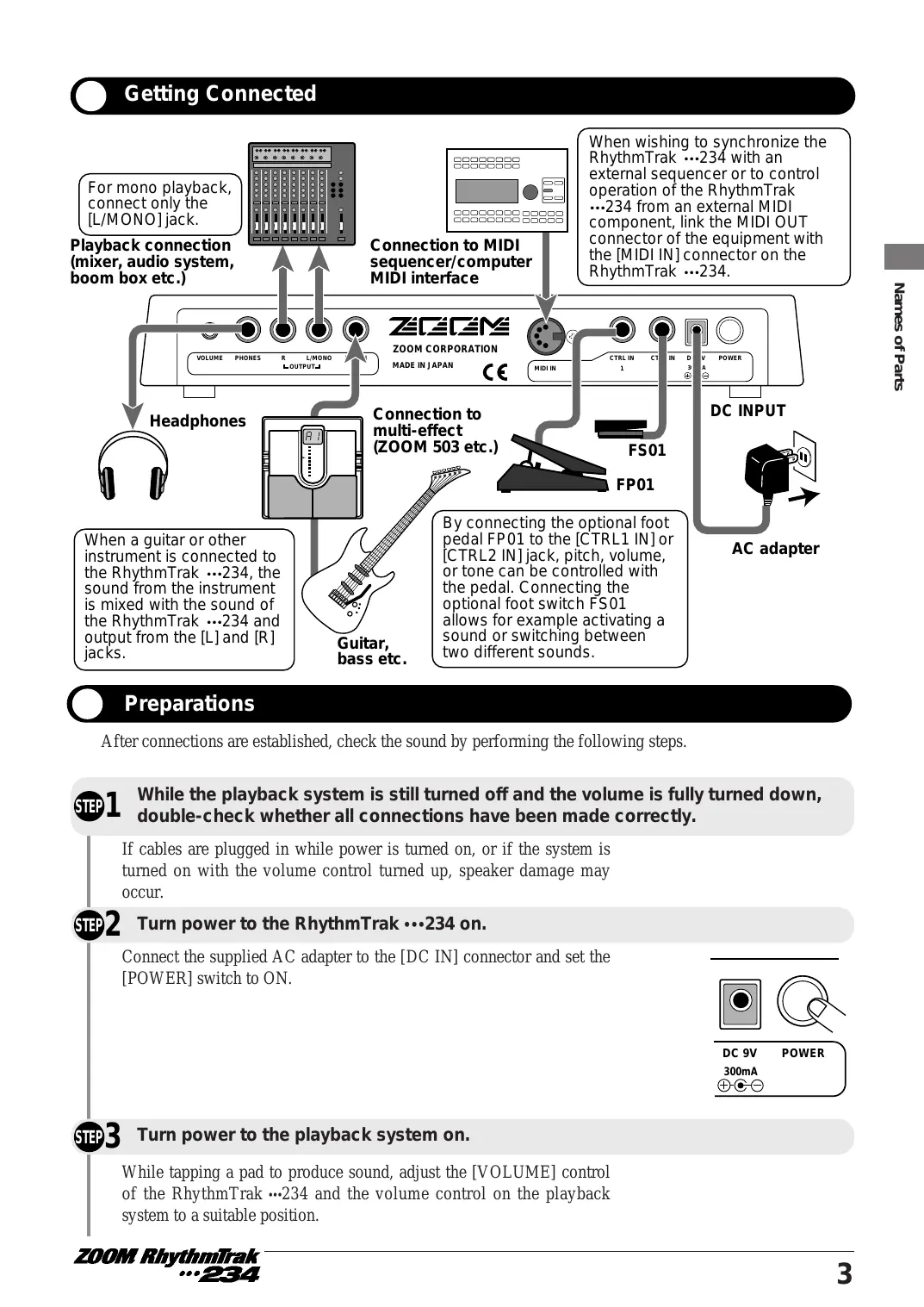
- LINE IN jack allows connection of external instruments. Mix the sound from an instrument, processed by a multi-effect such as the ZOOM 503, with the backing sound provided by the RhythmTrak ...234.
- Simple and intuitive controls make it a snap to operate the RhythmTrak ...234, even if you have never used a drum machine or sequencer before.
- Groove play mode allows changing patterns during play simply by tapping pads on the unit. Great for live performances and for DJ use.
- Parameters such as pitch, volume, or tone can be modified manually during a performance, using a handy slider control.
- Optional foot pedal FP01 can continuously alter pitch, volume, or tone.
- Optional foot switch FS01 can serve for example to control the bass drum by foot or to change between open hi-hat and closed hi-hat.
- MIDI IN connector allows synchronization with an external MIDI sequencer or control of the RhythmTrak ...234 from other MIDI equipment.
Please take the time to read this manual carefully so as to get the most out of your RhythmTrak …234 and to ensure optimum performance and reliability. Retain this manual, the warranty card and all other documentation for future reference.
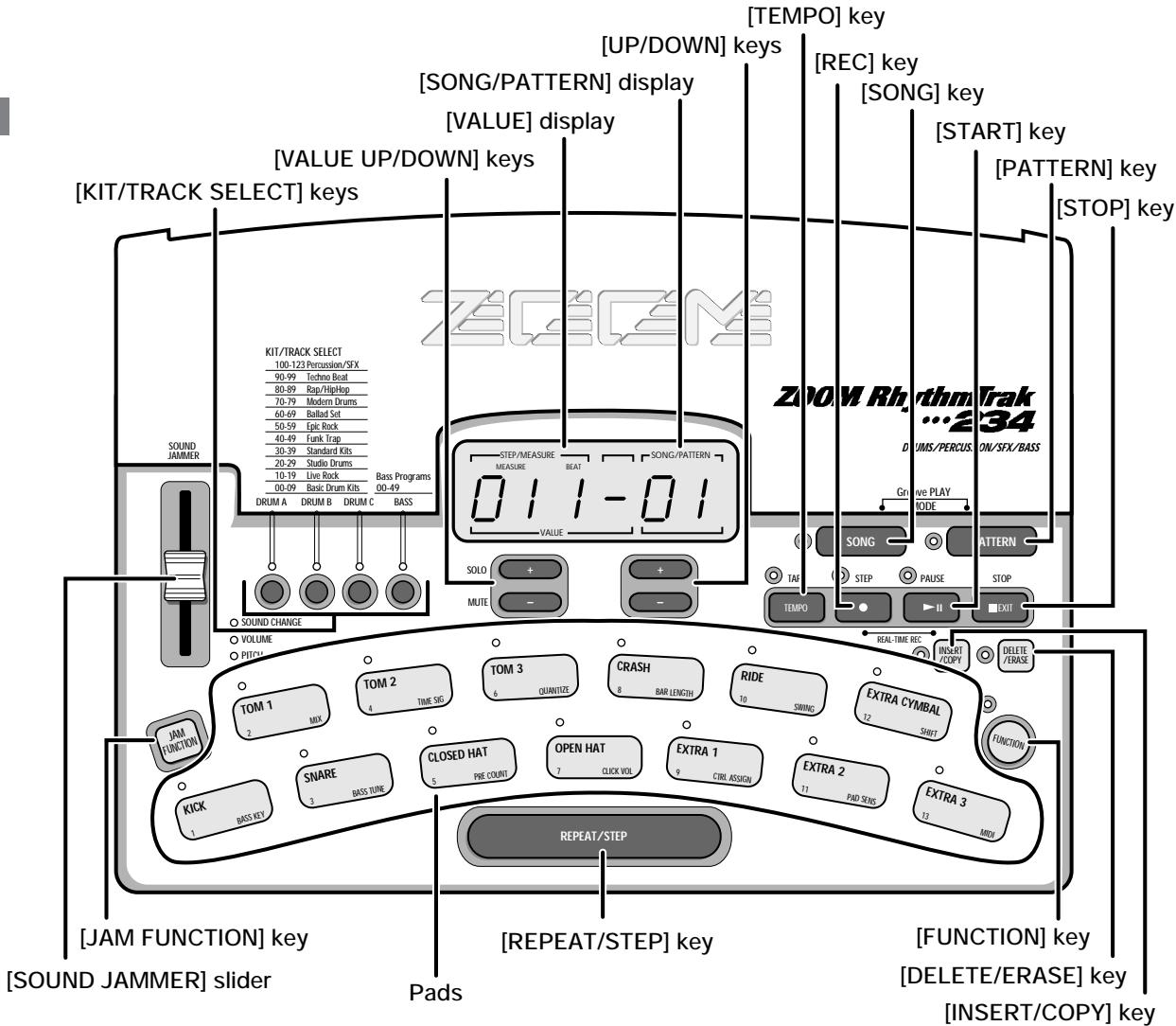
Top Panel
Rear Panel
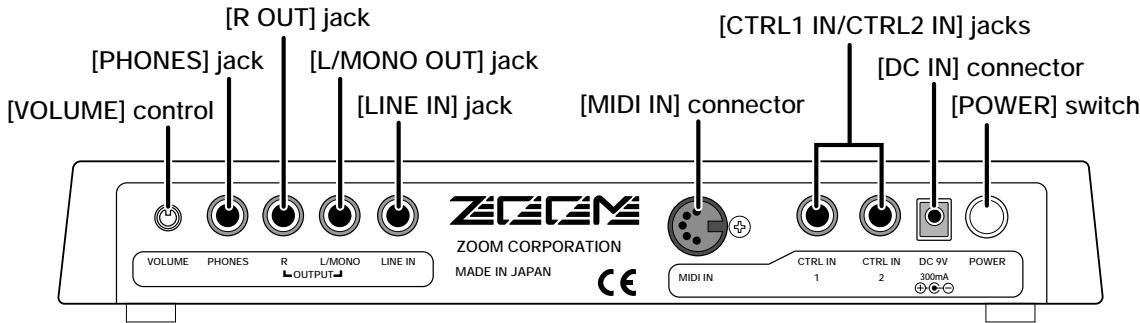

Names of controls and connectors on the top panel and rear panel are enclosed in angle brackets in this manual.
Getting Connected
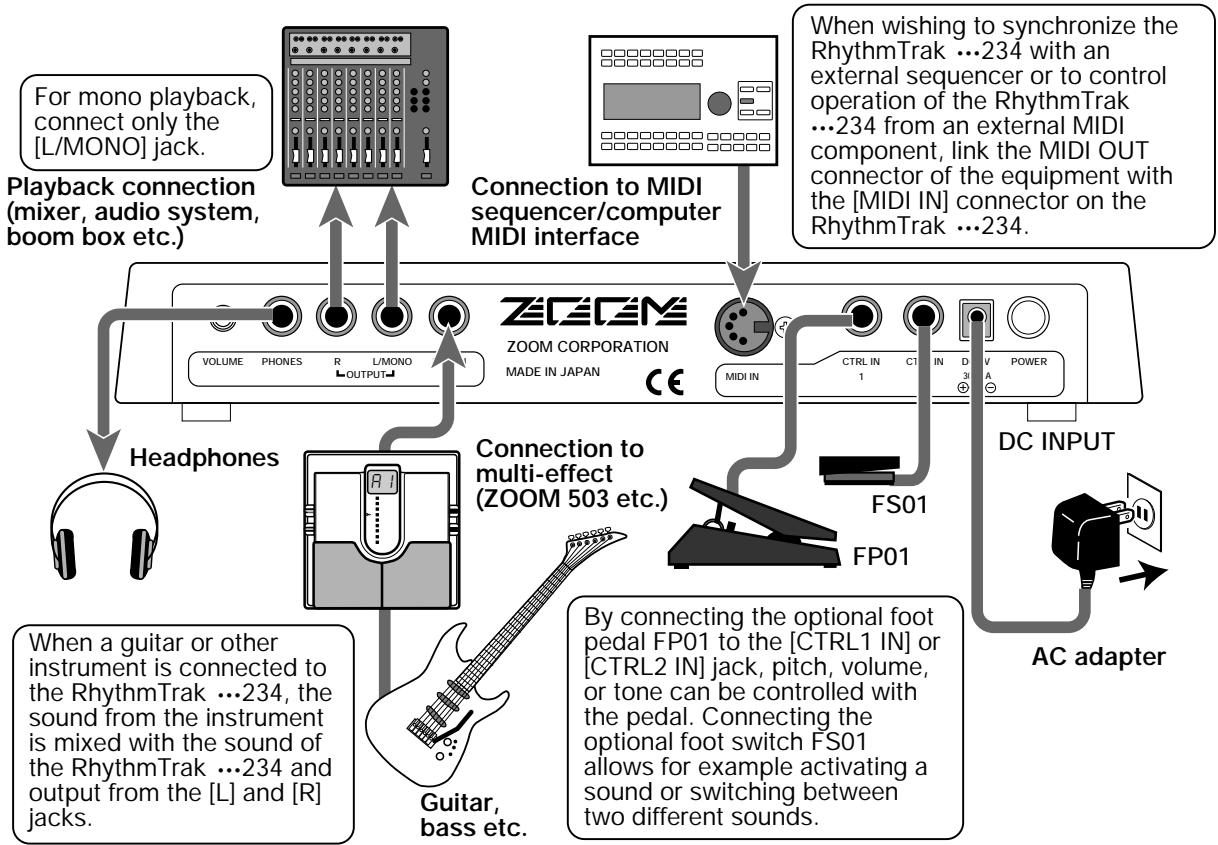
Preparations
After connections are established, check the sound by performing the following steps.

While the playback system is still turned off and the volume is fully turned down, double-check whether all connections have been made correctly.
If cables are plugged in while power is turned on, or if the system is turned on with the volume control turned up, speaker damage may occur.

Turn power to the RhythmTrak …234 on.
Connect the supplied AC adapter to the [DC IN] connector and set the [POWER] switch to ON.

DC 9V

300mA

Turn power to the playback system on.
While tapping a pad to produce sound, adjust the [VOLUME] control of the RhythmTrak ...234 and the volume control on the playback system to a suitable position.
This Quick Guide shows how to operate your RhythmTrak …234, using a few representative examples. Some of terms and concepts used in this manual are also explained here.
Quick Guide (1)
Listening to the Demo
The RhythmTrak ……234 comes with a demo song already built in. Hear for yourself what the RhythmTrak ……234 can do.

Connect the RhythmTrak …234 to the playback system and turn the power on.

Press the [FUNCTION] key.
Verify that the LED to the left of the [FUNCTION] key flashes.

Press the [SONG] key.
The demo song starts.
Sounds just like the backup of a live band, doesn't it? Note how effectively various drum, percussion, and bass sounds are combined. The RhythmTrak …234 can produce such a great variety of sounds with ease.
Drum kits and bass programs
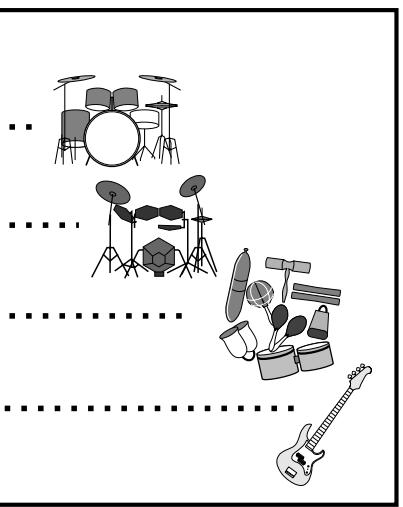
The backup sound provided by the RhythmTrak …234 consists of up to three drum kits and one bass program. A drum kit is a collection of drum sounds including bass drum, snares, tom-tom, percussion sounds such as congas and bongs, and various other effect sounds. These are combined to create backing tracks for a
To stop the demo
Press the [PATTERN] key or [SONG] key.
- [PATTERN] key: RhythmTrak ……234 switches to pattern mode (for playing and recording patterns).
- [SONG] key: RhythmTrak ……234 switches to song mode (for creating backing songs which are sequences of patterns).
![ZOOM RT234 - Press the [PATTERN] key or [SONG] key. - 1](/content/2025/01/152302/images/57fae5fabd6ca7423f1276743f77e5c7b55fd903f9205a73eda4056323fe7f4a.jpg)
wide range of music genres. The RhythmTrak …234 comes with 124 preprogrammed drum kits of which up to three can be used simultaneously. In addition, 50 types of bass programs are available, of which one can be selected for playback.
![ZOOM RT234 - Press the [PATTERN] key or [SONG] key. - 2](/content/2025/01/152302/images/fc5e6954e59f5ca37a4d8fac58452b5f9f5ed85cba38b3b12faf0ee17eed0001.jpg)
Quick Guide (2) Playing the Pads
The top panel of the RhythmTrak …234 has 13 pads which serve to play drum kits and bass programs.
1 Turn the power on.
Press the [PATTERN] key.
The [PATTERN] key LED lights up and the RhythmTrak …234 is in pattern mode.
3 Press the [DRUM A] key.
The [DRUM A] LED lights up. Now you can use the pads to play the drum kit.
![ZOOM RT234 - Press the [DRUM A] key. - 1](/content/2025/01/152302/images/5e4d5c718f2fe9c8ec55266cf27a234a0a74bdcdd0023cd8dd02b2d0eb16e538.jpg)
You can also select the [DRUM B] key or [DRUM C] key to play a different drum kit.
4 Tap the pads.
You will notice that the pads produce various drum sounds. The 13 pads are assigned different sounds, depending on the drum kit or bass program that has been selected. The illustration below shows an example for the drum sounds of the 13 pads with a drum kit.
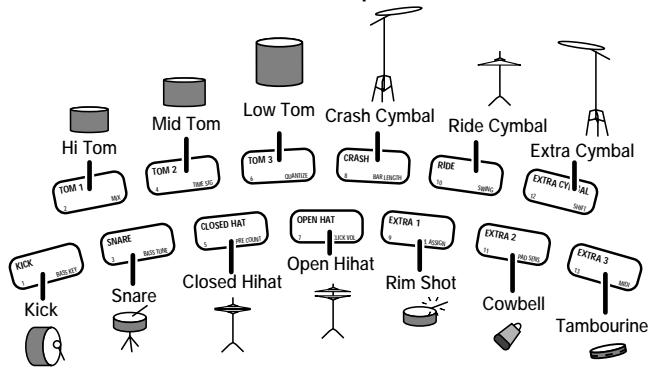
By tapping for example pad 1 (KICK) and pad 3 (SNARE) as in the illustration below, you can play bass drum and snare drum in the rhythm as shown.
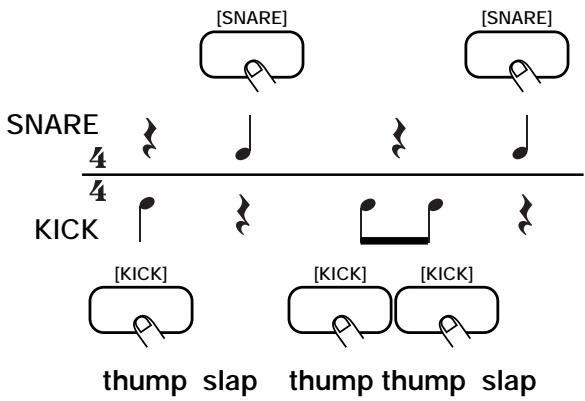
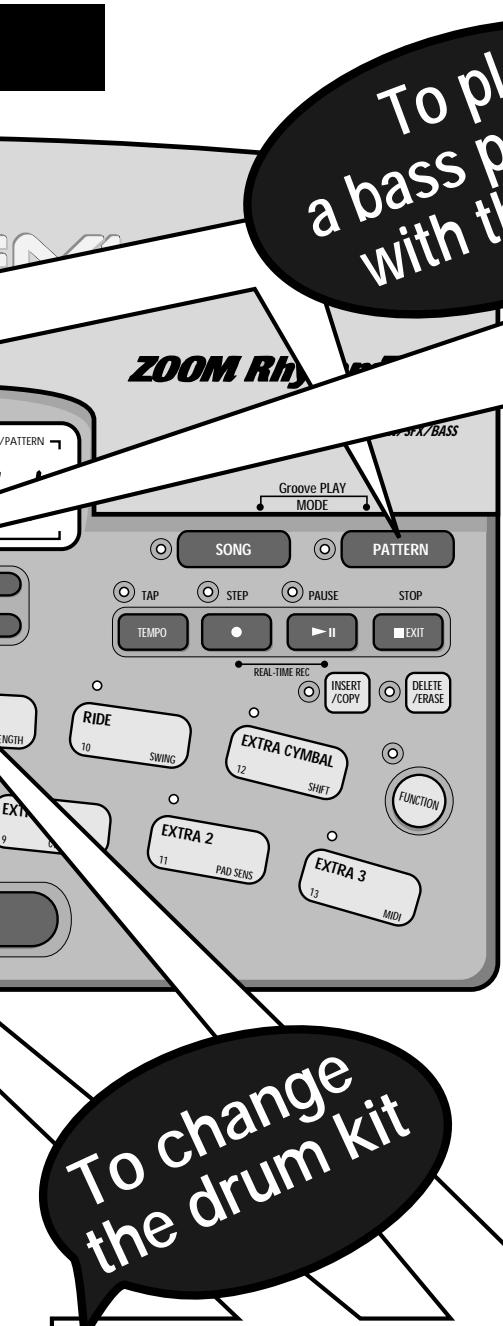
To play a bass program with the pads
6 Press the [BASS] key.
The [BASS] key LED lights up and the current bass program can be played with the pads. Give it a try! You will notice that different pads produce sound of a different pitch.
Unlike with the drum kit, the bass program does not consist of different instrument sounds.
Rather, one type of bass sound is varied in pitch. You can use the 13 pads like the keys of a keyboard.
The illustration below shows an example for the notes produced by the 13 pads with a bass program.
![ZOOM RT234 - Press the [BASS] key. - 1](/content/2025/01/152302/images/4fd151334018775dab3895d0e0678291943a3b38bb41d2a59f86b71f0f4f4ee7.jpg)
To change the bass program, hold the [BASS] key down and use the [VALUE UP/DOWN] keys to change the program number (0 - 49).
![ZOOM RT234 - Press the [BASS] key. - 2](/content/2025/01/152302/images/17c8afa8729a5fd54ec42d20e9a1ac637cd8a4b2f3be160398656f7d5f2b3dac.jpg)
![ZOOM RT234 - Press the [BASS] key. - 3](/content/2025/01/152302/images/3839d78731eb417d83df10ba85b28d3add692c49ac0eac0f8bec81bdd295d09f.jpg)
Which sound is assigned to the pads depends on the pattern.
Press and hold the [DRUM A] key...
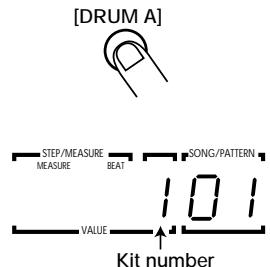
While the [DRUM A] key is being pressed, the [VALUE] display shows the currently selected kit number (0 - 123).
![ZOOM RT234 - Press and hold the [DRUM A] key... - 1](/content/2025/01/152302/images/eaa79c1fbf4d5d8495faf7bae8249c18bab3787f45c2d7831817a5a0edd072f2.jpg)
Kit number
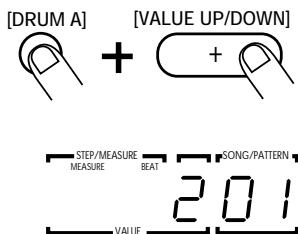
Press the [VALUE UP or DOWN] key.
- [+] key: Selects the next higher kit number.
- [-] key: Selects the next lower kit number.
![ZOOM RT234 - Press the [VALUE UP or DOWN] key. - 1](/content/2025/01/152302/images/6c701b613ae2ce82d7b0d881d81175f15b834250aef39c0cd3192257153f0502.jpg)
Kit number
Quick Guide (3) Playing a Pattern
The RhythmTrak …234 already contains many preprogrammed patterns (backing sequence of several bars). Each pattern combines up to three drum kits and a bass program. Here's how you can play a pattern.
1 Turn the power on.
Press the [PATTERN] key.
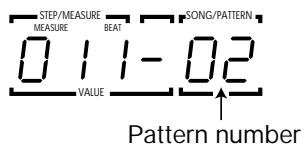
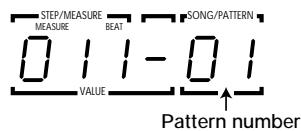
The [PATTERN] key LED lights up and the RhythmTrak …234 is in pattern mode. The [SONG/PATTERN] display shows the currently selected pattern number.
![ZOOM RT234 - Press the [PATTERN] key. - 1](/content/2025/01/152302/images/0ff7b58cb8d9dc55082596f38502f3471f62705f24f72ed57a876b67bebc1bd4.jpg)
Pattern number
The RhythmTrak …234 has memory capacity for 198 patterns.
- 01 - 99: User patterns (can be modified)
- P01 - P99: Preset patterns (cannot be modified)
In the factory default condition, the user patterns have the same content as the preset patterns.
![ZOOM RT234 - Press the [PATTERN] key. - 2](/content/2025/01/152302/images/0fc638e9e2dd4ab8c16f260ad855546f56c1bcda728ac5cc90b7fe4e351fa5a3.jpg)
3 Press the [▶II] (START) key.
Playback of the currently selected pattern starts.
The patterns of the RhythmTrak …234 can be thought of as recordings of up to 3 drum kits and 1 bass program. These are recorded on tracks that are combined to form the pattern. A pattern of the RhythmTrak …234 therefore consists of drum track A, drum track B, drum track C, and the bass track. Drum tracks A - C contain drum kit recordings and the bass track contains a bass program recording.
Pattern
Drum track A
Drum track B
Drum track C
Bass track …
To change the pattern
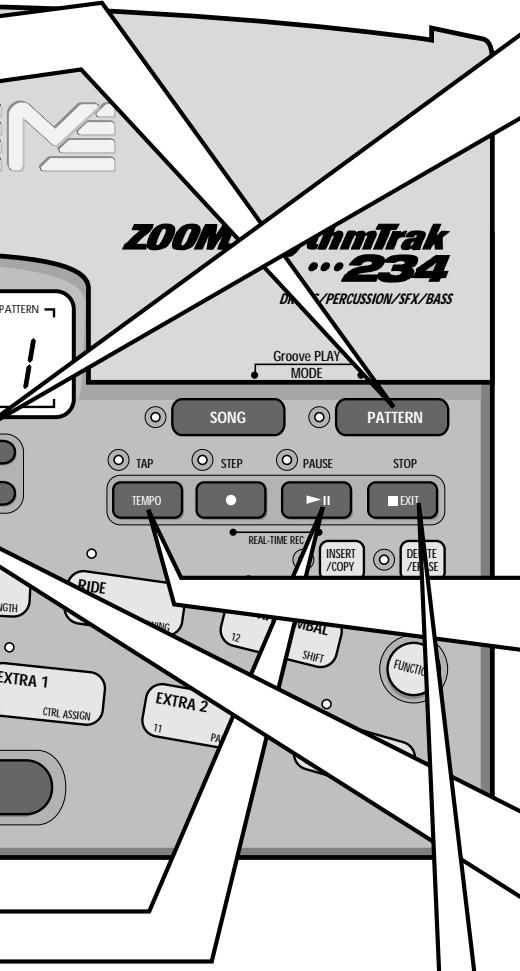
4 Press one of the [UP/DOWN] keys
- [+] key: Selects next higher pattern number.
- [-] key: Selects next lower pattern number.
To change the tempo
Hold the [TEMPO] key...
While the [TEMPO] key is held down, the [VALUE] display shows the currently active tempo.
![ZOOM RT234 - Hold the [TEMPO] key... - 1](/content/2025/01/152302/images/e6457fd4c1897187b4249fb6e2800683124ad7609228056dc026d9fcf65120c9.jpg)
Tempo value
Press the [VALUE UP or DOWN] key.
- [+] key: Increases the tempo value.
- [-] key: Decreases the tempo value.
![ZOOM RT234 - Press the [VALUE UP or DOWN] key. - 1](/content/2025/01/152302/images/04b8f234544c897d7ad919f5a0295cf026e550a0dc84e58c0dd19b5cb0e871bf.jpg)
To stop pattern play
6 Press the [■EXIT] (STOP) key.
Quick Guide (4) Using Groove Play
Groove play is a special feature of the RhythmTrak …234 which lets you switch among various patterns simply by tapping the pads. This makes it easy to play with patterns like a DJ spinning records.
1 Turn the power on.
Press the [SONG] key and [PATTERN] key together.
The [SONG] key LED and [PATTERN] key LED light up, and the RhythmTrak ……234 is in groove play mode.
![ZOOM RT234 - Press the [SONG] key and [PATTERN] key together. - 1](/content/2025/01/152302/images/3367ce0092a9b6c09873fa8e28ceb0b23bb8626c69e6c4e1fbc8e121a18ee5e5.jpg)
3 Push a pad.
While the pad is held down, the pattern assigned to that pad is played. Give it a try and check out which patterns are assigned to the various pads.

The pattern assigned to a pad can be changed ( p. 39).
To play multiple patterns simultaneously
Push several pads together.
In groove play mode, up to 4 patterns can be played simultaneously. For example, while playing a basic drum pattern, you can hit another pad to overlay a bass pattern and then add a
snare fill-in. By using the right timing when pushing the pads, you can create complex rhythms.
To stop groove play
Press the [SONG] key or [PATTERN] key.
- [PATTERN] key was pressed: RhythmTrak ……234 switches to pattern mode.
- [SONG] key was pressed: RhythmTrak …234 switches to song mode.
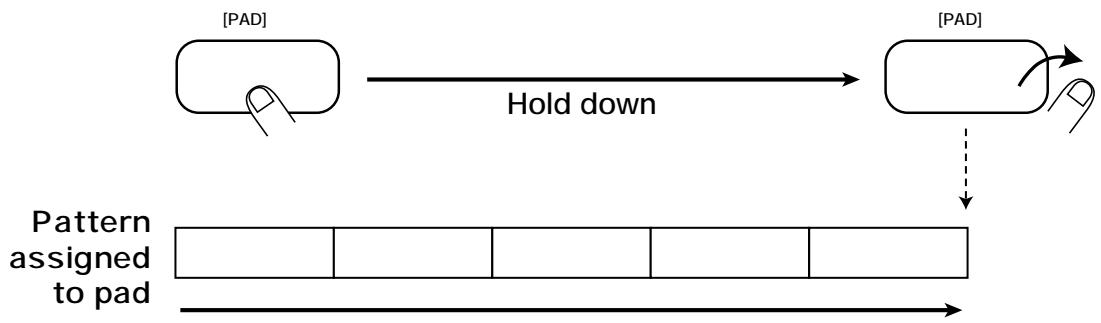
Hold the [REPEAT/STEP] key down while pushing the pad.
To keep playing the pattern without pressing the pad
![ZOOM RT234 - Hold the [REPEAT/STEP] key down while pushing the pad. - 1](/content/2025/01/152302/images/9cdb4625cc72cd92dba5fa9366d97e2419bccf8332957235560aa47a4f9136ad.jpg)
![ZOOM RT234 - Hold the [REPEAT/STEP] key down while pushing the pad. - 2](/content/2025/01/152302/images/d012cbf58be00c0d2dc39b614370961001ce12b839f53cad58967a1d23c33b7c.jpg)
Pattern assigned to pad
The pattern will continue to play also when the pad is released.
This is useful for example to keep on playing a basic drum pattern. [PAD]
To stop the pattern, push the same pad once more.
![ZOOM RT234 - Hold the [REPEAT/STEP] key down while pushing the pad. - 3](/content/2025/01/152302/images/3aa546121e4c62aaccc1d382e99fd3f84535bd315a8db73c91219fc1818fec77.jpg)
Playing the Pads (Manual Play)
The RhythmTrak …234 lets you not only play back existing patterns and songs, it also allows you to manually play the unit by tapping the pads and using the [SOUND JAMMER] slider. This section describes how to manually play the unit
Playing by tapping the pads
The RhythmTrak…234 assigns various sounds to the pads, depending on the currently selected drum kit. Play the pads to discover the realistic sounds offered by the RhythmTrak…234.
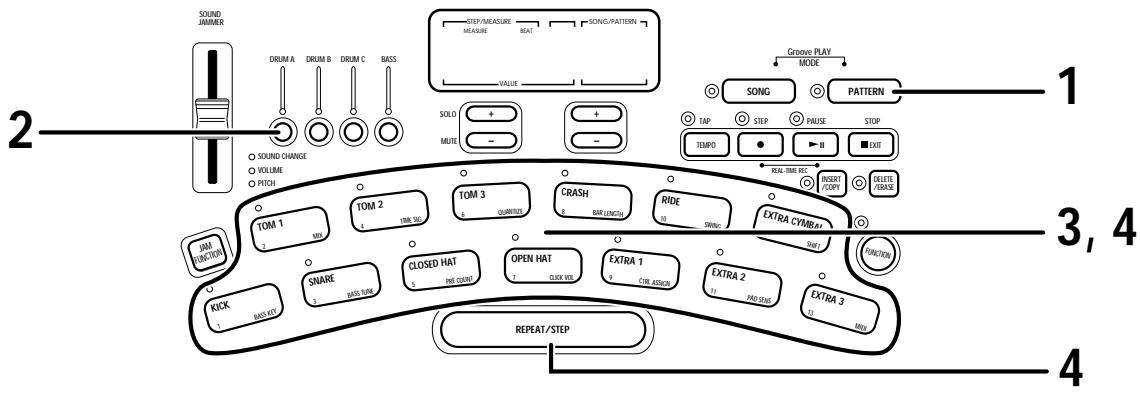
STEP1 Press the [PATTERN] key.
This activates the pattern mode. The [PATTERN] key LED lights up.
![ZOOM RT234 - STEP1 Press the [PATTERN] key. - 1](/content/2025/01/152302/images/8e657a9bf78a7a67041bdf45cd3e716d70e149d0d0d6da9f4d079e310d6b9f3b.jpg)
STEP2 Press the [DRUM A] key of the [KIT/TRACK SELECT] keys.
During manual play, you use the [KIT/TRACK SELECT] keys to select the desired drum kit or bass program. (The LED of the selected key lights up.) Pressing the [DRUM A], [DRUM B], or [DRUM C] key selects drum kit A - C. Pressing the [BASS] key selects the bass program. In this example, let's use drum kit A.
![ZOOM RT234 - STEP2 Press the [DRUM A] key of the [KIT/TRACK SELECT] keys. - 1](/content/2025/01/152302/images/bf0f2a5816c9505d38c20e181311d465c1f96508b5ea03d13dfb4b2fc1067515.jpg)
STEP3 Tap one of the pads.
The LED of the pad lights up briefly and the sound assigned in the drum kit to that pad is heard. The volume changes according to how strongly you tap the pad.

When the [BASS] key is pressed in step 1, a bass program can be played, but there is a difference in how the pads operate. With a drum kit, the sound plays through even if the pad is released immediately. With a bass program, the sound continues only as long as the pad is pressed.
STEP4 Tap a pad while holding the [REPEAT/STEP] key down.
The sound will be produced continuously for as long as the pad is pressed. The repetition speed depends on the tempo.
![ZOOM RT234 - STEP4 Tap a pad while holding the [REPEAT/STEP] key down. - 1](/content/2025/01/152302/images/eff31561e516f3a3cf5dca639cdcd5635a254702f8815953d9ed0b533ffc745a.jpg)
You can adjust the interval for repeated play. See the "Quantize" section on page 44.
![ZOOM RT234 - STEP4 Tap a pad while holding the [REPEAT/STEP] key down. - 2](/content/2025/01/152302/images/fbf004617d8cde63d7fb6d2c9848987e8965f4d92af2bc3cbafa89003b32d83b.jpg)
Using the slider (modify function)
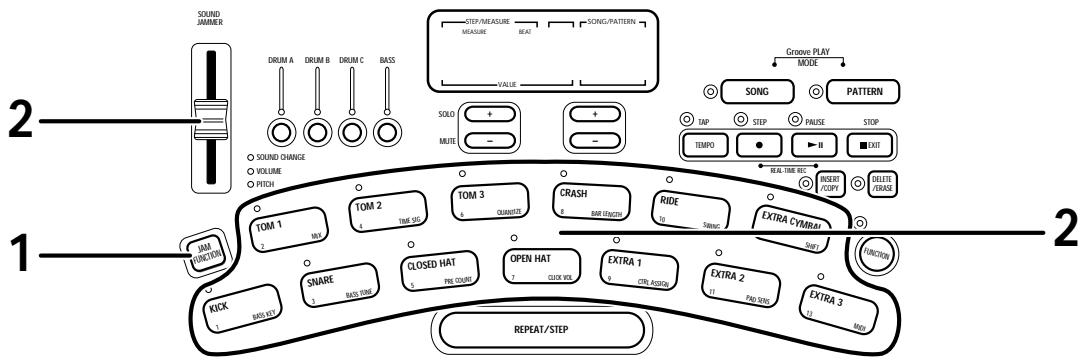
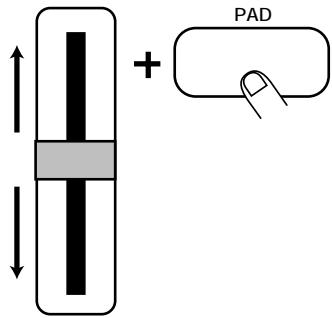
By moving the [SOUND JAMMER] slider while using the pads, you can change the pitch, volume, or tone continuously.
STEP1
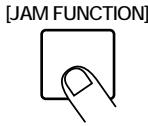
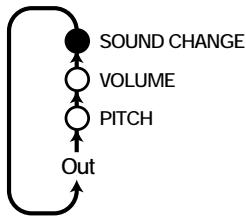
Use the [JAM FUNCTION] key to select the sound parameter that you want to change with the slider.
With each push of the key, the setting cycles through the following setting, and the corresponding LED lights up: PITCH VOLUME SOUND CHANGE Out.
STEP2
Tap the pad while moving the [SOUND JAMMER] slider.
- When PITCH is selected: The slider center position is the reference pitch, and moving the slider shifts the pitch up or down. The adjustment range depends on the sound type.
- When VOLUME is selected: Moving the slider changes the volume. The pad tapping intensity has no effect in this case.
- When SOUND CHANGE is selected: In the center position of the slider, there is no change in the sound. Moving the slider up or down selects variation 1, variation 2 etc. The available variations depend on the sound type.
[Sound JAMMER]

- Only one sound parameter (pitch, volume, or tone) can be changed at a time. When the parameter is switched, the previous parameter returns to its original setting.
- When the sound parameter is switched, the slider becomes active only after passing the position corresponding to the current value. For example, if the VOLUME parameter is selected with the slider set to 0, the volume will not become zero right away. The volume starts to change only after the slider is moved and has passed the current volume position ([SOUND JAMMER] slider LED flashes at this point).
- If you have assigned PITCH to the [SOUND JAMMER] slider on the bass track, moving the slider while tapping the pad will produce sound with different pitches. Moving the slider from the bottom to the top will shift the pitch in the same order as the pitches assigned to pads 1 to 13.
Selecting a kit/program for manual play
For manual play, you can select among 100 drum kits, 24 percussion/SFX kits, and 50 bass programs.
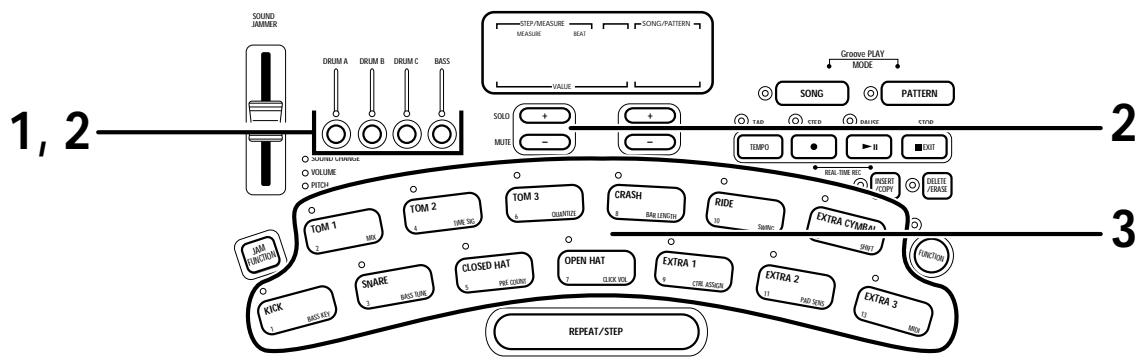

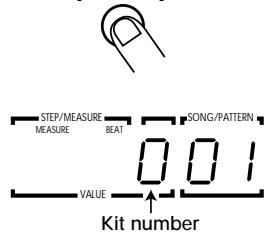
Press one of the [KIT/TRACK SELECT] keys to select the track, and hold the key down.
The current kit/program number is shown on the [VALUE] display.

Available drum kit types are printed on the panel.
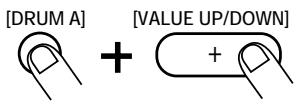
[DRUM A]

While holding the [KIT/TRACK SELECT] key down, use the [VALUE UP/DOWN] keys to select a kit.
The [VALUE UP/DOWN] keys switch the kit number shown on the [VALUE] display by 1 up or down, and the selected kit changes accordingly.

- Keeping a [VALUE UP/DOWN] key depressed changes numbers continuously.
- You can also select a kit by holding the [KIT/TRACK SELECT] key down and moving the [SOUND JAMMER] slider. The slider changes numbers continuously.
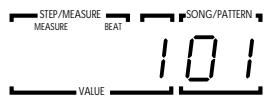

Tap the pads to check the new sound.
Playing the Patterns (Pattern Mode)
This section describes how to play patterns that are built into the RhythmTrak 234 or that have been recorded by the user.
Pattern play
The RhythmTrak 234 incorporates 99 preset patterns (P01 - P99) which cannot be changed by the user, as well as 99 user-definable patterns (01 - 99). The unit is shipped with the user patterns programmed with the same contents as the preset patterns, but these contents can be changed freely. The section below describes how to play back a pattern.
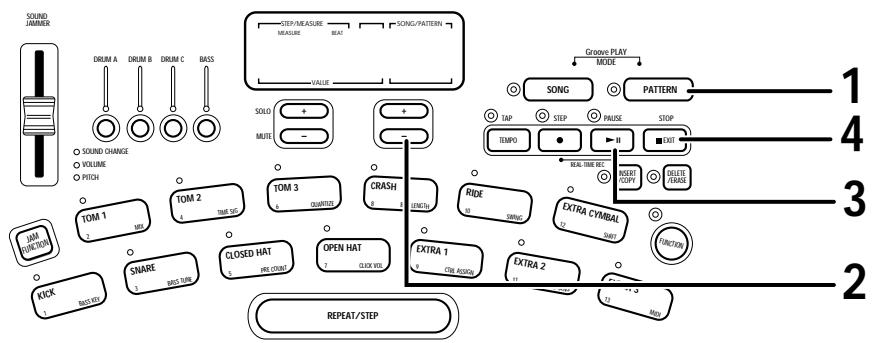
STEP1 Press the [PATTERN] key so that the [PATTERN] key LED lights up.
The RhythmTrak …234 switches to pattern mode and the number of the currently selected pattern is shown on the [SONG/PATTERN] display. 01 - 99 indicates a user pattern, and P01 - P99 a preset pattern. The [VALUE] display shows the current position in the pattern (measure/beat). If an empty user pattern was selected, the [VALUE] display shows "----".
![ZOOM RT234 - STEP1 Press the [PATTERN] key so that the [PATTERN] key LED lights up. - 1](/content/2025/01/152302/images/3ae4b7d5b418f9976c5776c5a9503137a0f6dd4586dfc08743fbf19a167757ff.jpg)
STEP2 Use the [UP/DOWN] keys to select the desired pattern number.
In pattern mode, the [UP/DOWN] keys serve to switch the pattern. You can also hold the [PATTERN] key down and use the [SOUND JAMMER] slider to select a pattern.
![ZOOM RT234 - STEP2 Use the [UP/DOWN] keys to select the desired pattern number. - 1](/content/2025/01/152302/images/ff4c969c3b84babee2183179d33f9c057bf95b0447e4ad45c917ac4f304e5855.jpg)
STEP3 Press the [START] key.
The [START] key LED lights up, and the pattern is played repeatedly. The [TEMPO] key LED flashes according to the tempo of the pattern. The [VALUE] display shows the current position in the pattern (measure/beat).
Pressing the [VALUE UP] key during pattern playback turns off the sound of tracks other than the currently selected track (whose [KIT/TRACK SELECT] LED is lit). Pressing the [VALUE DOWN] key turns off the sound of the currently selected track.
![ZOOM RT234 - STEP3 Press the [START] key. - 1](/content/2025/01/152302/images/1ce02598f4bd1864e048f04cd467a1745dcc07e8504a516609db97aad0a6e17e.jpg)
STEP4 Press the [STOP] key when you want to stop the pattern.
Pressing the [START] key instead of the [STOP] key sets the unit to pause mode. The [START] key LED flashes. Pressing the [START] key again in this condition resumes playback.
![ZOOM RT234 - STEP4 Press the [STOP] key when you want to stop the pattern. - 1](/content/2025/01/152302/images/0088ef56ae2f3ace14e1f30de3a7fe9f88654b1ca4d5a1862da61ead124567ee.jpg)
![ZOOM RT234 - STEP4 Press the [STOP] key when you want to stop the pattern. - 2](/content/2025/01/152302/images/dbc691511d98f81acaac1e501b94f8abae8da2c701e8264de823c275a4a5fbe4.jpg)
Also while playing a pattern, you can use the pads for manual play. However, the [SOUND JAMMER] slider has no modifying effect on the playback sound of the pattern.
Changing the kit/program of a track
The patterns of the RhythmTrak ...234 are made up of drum track A - C and the bass track. The drum tracks contain a drum kit each, and the bass track contains a bass program. The steps below can be used to change the kit or program assigned to a track.
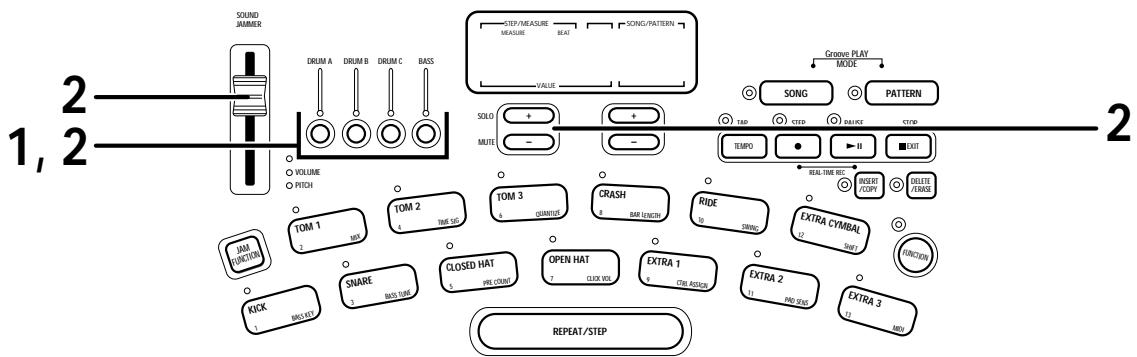

Use the [KIT/TRACK SELECT] keys to select the track whose drum kit/bass program you want to change, and hold the key down.
In pattern mode, the [KIT/TRACK SELECT] keys serve to select a track. While one of the keys is pressed, the number of the kit/program allocated to the corresponding track is shown on the [VALUE] display.

While holding the [KIT/TRACK SELECT] key down, use the [VALUE UP/DOWN] keys or the [SOUND JAMMER] slider to change the kit.
The track is switched to the sounds of the new kit.

By repeating steps 1 and 2, you can change the kits assigned to the other tracks.

Changing the kit/program is also possible while playing a pattern.

- When the kit/program is changed in a user pattern, the new kit/program setting will be stored when the pattern is stored.
- The kit/program of a preset pattern cannot be changed.
Changing the tempo of pattern playback
When playing a pattern in pattern mode, the playback tempo for the pattern can be varied over the range of 40 - 250 BPM (BPM = beats per minute, using quarter notes).
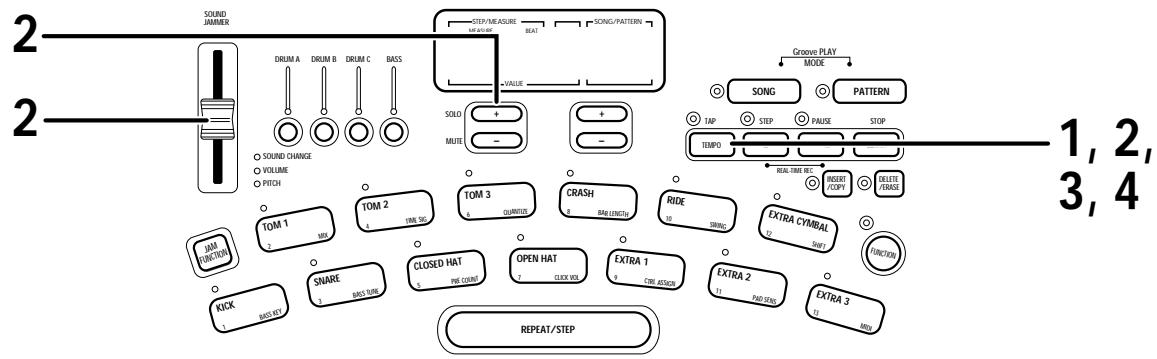

Press the [TEMPO] key.
The [VALUE] display shows the current tempo for about 2 seconds.
![ZOOM RT234 - Press the [TEMPO] key. - 1](/content/2025/01/152302/images/14855201ca6e708aa4391a3f4022fd3cf627463807e1d3ad021aec99864f1987.jpg)
![ZOOM RT234 - Press the [TEMPO] key. - 2](/content/2025/01/152302/images/ca7e37620847fd1f109e42a49b949af08caf17cd42b1497da2c077ff15d22883.jpg)
While holding the [TEMPO] key down, use the [VALUE UP/DOWN] keys or the [SOUND JAMMER] slider to change the tempo.
![ZOOM RT234 - Press the [TEMPO] key. - 3](/content/2025/01/152302/images/926e66bfc1657bdf834fbbfa0f1ba2604b241b36bd554dbdab955f83ef60b399.jpg)
![ZOOM RT234 - Press the [TEMPO] key. - 4](/content/2025/01/152302/images/ad5f738384ebdfbeff53c53a7edd98227b0fa3f60a97c4e5969f3d98df2f99f5.jpg)
When the tempo has been set to the desired value, release the [TEMPO] key.
The [VALUE] display shows the current tempo for about 2 seconds.
![ZOOM RT234 - Press the [TEMPO] key. - 5](/content/2025/01/152302/images/2af34756cad263e36577a24ef36aae95c902b5a72b5e8f674bb39391c709f151.jpg)
To input the tempo for manual play, tap the [TEMPO] key twice in the desired interval (tap tempo input).
While a pattern is paused or playing, the [TEMPO] key can be tapped twice to input a quarter note interval. When creating a pattern, this makes it easy to set the desired tempo.
![ZOOM RT234 - Press the [TEMPO] key. - 6](/content/2025/01/152302/images/bd4855e1f072f80c4459f76f99d5720be70b5c491f935b248381de7160c8f5ba.jpg)
![ZOOM RT234 - Press the [TEMPO] key. - 7](/content/2025/01/152302/images/19376d7a2d6fcf83713cf1b35d5048f879a66b04e442c31b19d5b0d29554eed1.jpg)
The tempo set in pattern mode applies to all patterns. It cannot be changed for an individual pattern.
Pattern Recording (Real-Time Recording)
The RhythmTrak 234 has 99 user pattern slots which can be filled with your own patterns. Creating and recording a pattern is possible in two ways: by actually playing the pattern on the pads (real-time recording), or by entering each sound individually (step recording). The procedure for real-time recording of a drum track and bass track is described below.
Deleting an unnecessary pattern
As shipped from the factory, the user patterns 01 - 99 of the RhythmTrak...234 contain the same patterns as the preset patterns P01 - P99. Therefore you must first delete a pattern if you wish to write your own pattern to a user pattern slot. This is done as follows.
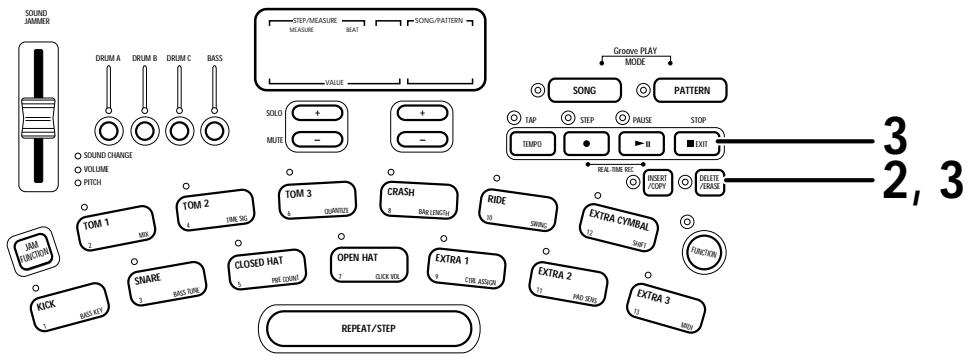
STEP1 In pattern mode, select the user pattern (01 - 99) you want to erase.
After erasing a pattern, the unit remembers the drum kit and bass program type and other values, until the pattern is changed. Therefore we recommend that you choose a pattern whose image resembles the new one you want to create.

The preset patterns (P01 - P99) cannot be erased.
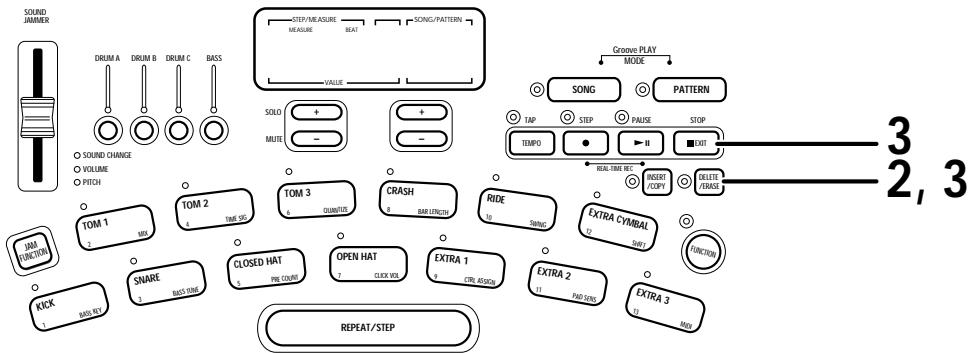
STEP2 Press the [DELETE/ERASE] key.
The [DELETE/ERASE] key LED and the pattern number are flashing, and the indication "dEL?" appears on the [VALUE] display.
If you wish to delete all patterns, see page 47.
![ZOOM RT234 - STEP2 Press the [DELETE/ERASE] key. - 1](/content/2025/01/152302/images/a0495c2f613e5f204b047371f8bd7327fade96b2c6908bededab55123fbe7f09.jpg)
[DELETE/ERASE]
STEP3 When wishing to go ahead with the delete process, press the [DELETE/ERASE] key once more. Otherwise press the [STOP] key.
When the delete process is completed, the unit returns to the pattern mode with the empty user pattern selected. At this time, the [VALUE] display shows "----".
If the delete process was canceled, the unit returns to the pattern mode with the original user pattern selected.
![ZOOM RT234 - STEP3 When wishing to go ahead with the delete process, press the [DELETE/ERASE] key once more. Otherwise press the [STOP] key. - 1](/content/2025/01/152302/images/14b0ef099afaf3496cd69794dcfb8b17d45ae80eecafd013a849ec5c2923dfe4.jpg)
![ZOOM RT234 - STEP3 When wishing to go ahead with the delete process, press the [DELETE/ERASE] key once more. Otherwise press the [STOP] key. - 2](/content/2025/01/152302/images/80951de0859141d6367f53df3fc4c34a92a4691bf8dd11fd4b1cf4d7d75fd558.jpg)
If you erase a user pattern that you have created yourself, you will not be able to restore it. Make sure that you really want to erase the pattern before carrying out step 2. When wishing to return all user patterns to the factory default condition, please refer to page 52.
Real-time recording of a drum track
Real-time recording refers to the process of playing the pads while listening to a metronome sound and recording what you play. First, let's record drum tracks in real time.
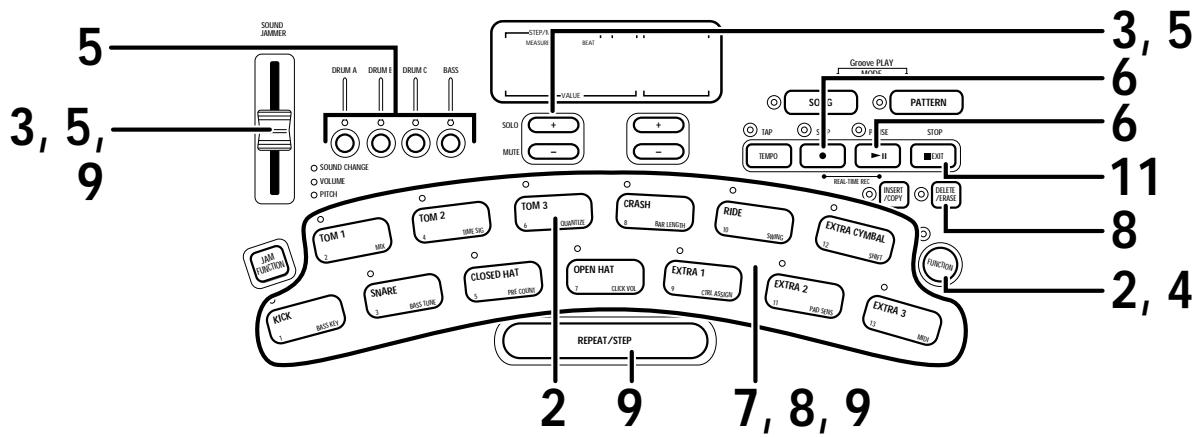
STEP1 In pattern mode, select an empty user pattern (01 - 99).
When a pattern that contains nothing is selected, the [VALUE] display shows only "----".

You cannot record over a preset pattern.
STEP2 Press the [FUNCTION] key and then pad 6 (QUANTIZE).
The [VALUE] display shows the current quantize setting. Quantization refers to the degree of detail with which notes are recorded. By setting the quantize value to the shortest note that you want to use for the pattern, recording can be carried out while automatically maintaining precise timing. You can also turn the quantize function off, to retain the human touch that is characterized by slightly irregular timing.
![ZOOM RT234 - STEP2 Press the [FUNCTION] key and then pad 6 (QUANTIZE). - 1](/content/2025/01/152302/images/abf1a690f7afd52b64a2859dc1e3a93879c501e2dd6b5518e1f83b4f49eae142.jpg)
![ZOOM RT234 - STEP2 Press the [FUNCTION] key and then pad 6 (QUANTIZE). - 2](/content/2025/01/152302/images/cce27c739c256e252893190e40d99c2f28fc131e398e8c1f714e2f9af5c54d70.jpg)
The [FUNCTION] key is used to make various settings for the RhythmTrak...234. For details, please refer to page 41.
![ZOOM RT234 - STEP2 Press the [FUNCTION] key and then pad 6 (QUANTIZE). - 3](/content/2025/01/152302/images/a377956bf96fd442c0a6e943d6f8fd378122d541024ec4d5e05d5f04a22282b7.jpg)
STEP3 Use the [VALUE UP/DOWN] key or the [SOUND JAMMER] slider to set the quantize value (shortest note to be recorded).
4 Quarter note
16 Sixteenth note
48 ...Thirty-second triplet note
8 .Eighth note
24 Sixteenth triplet note
Hi .......Quantize function off
12 .Eighth triplet note
32 Thirty-second note
STEP4 Press the [FUNCTION] key once more.
The new quantize value is set and the unit returns to the pattern mode.
![ZOOM RT234 - STEP4 Press the [FUNCTION] key once more. - 1](/content/2025/01/152302/images/8dd5d999aefee9736e42b0fc3d91d40ea878c3dece473bf17671f970f5c5af6f.jpg)
After recording is completed, it is also possible to change the quantize value and record again on the same track. For example, after recording bass drum and snare drum using quarter notes, you may want to record a hi-hat sequence with sixteenth notes.
![ZOOM RT234 - STEP4 Press the [FUNCTION] key once more. - 2](/content/2025/01/152302/images/3fc6f1d60ae49a954f903b31a1229720afb0297b7055bdff61be609ba5bd4010.jpg)
While holding the [KIT/TRACK SELECT] key for the desired track down, use the [VALUE UP/DOWN] keys or the [SOUND JAMMER] slider to select the kit for the selected track.
For recording a pattern, the [KIT/TRACK SELECT] keys are used to select the track. In this example, select the [DRUM A] key. While the [DRUM A] key is held down, the currently selected kit number is shown on the [VALUE] display.
![ZOOM RT234 - STEP4 Press the [FUNCTION] key once more. - 3](/content/2025/01/152302/images/6f27422e80786618273a85959486c26c90ef0c8c6f95206aaf7bfb258378dd3a.jpg)
![ZOOM RT234 - STEP4 Press the [FUNCTION] key once more. - 4](/content/2025/01/152302/images/66d875f5841b2b21f7d2da057dfea54a3c032dd261b1734729800723d02a48f6.jpg)
In a user pattern, the kit/program is stored for each track. If the kit/program was changed, the last selected kit/program will be stored.
STEP6 While holding the [REC] key down, press the [START] key.
The [REC] key LED and [START] key LED light up and the [TEMPO] key LED flashes. The metronome sound starts.
![ZOOM RT234 - STEP6 While holding the [REC] key down, press the [START] key. - 1](/content/2025/01/152302/images/4f156df93d2544b0b44090f6562241381aec7e25b8470c0b2adcfed4fa71a8d3.jpg)
If not specified otherwise, an empty pattern is set to a beat of 4/4 and a length of 2 measures. These settings can be changed, as described on page 44-45.
![ZOOM RT234 - STEP6 While holding the [REC] key down, press the [START] key. - 2](/content/2025/01/152302/images/a1f7682fc414903668c1e7ce79c90f244f2e8db14bd1611690d11c8b17e4efd3.jpg)
STEP7 Tap the pads in accordance with the metronome sound.
The sound of the respective pad is heard, and it is recorded for the duration set with the quantize value. You can verify the current position in the pattern by checking the [VALUE] display. When the end of the pattern is reached, the recording loops back to the beginning and continues, allowing you to add to the recording as often as desired.

When the [REC] key is pressed during real-time recording, the [REC] key LED starts to flash and pattern recording is suspended. In this condition, tapping the pads will produce sound, but it is not recorded. This is useful to check phrasing and sound before actually recording. To resume recording, press the [REC] key once more.
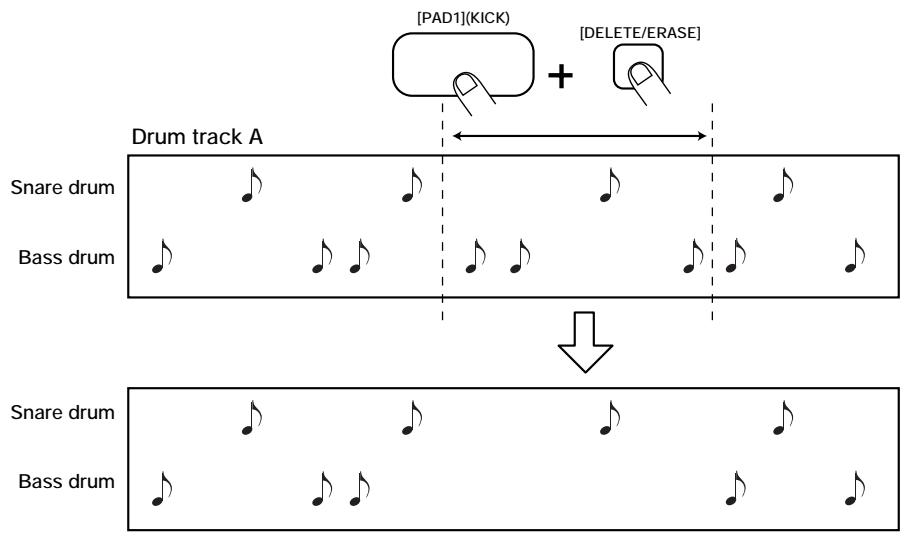
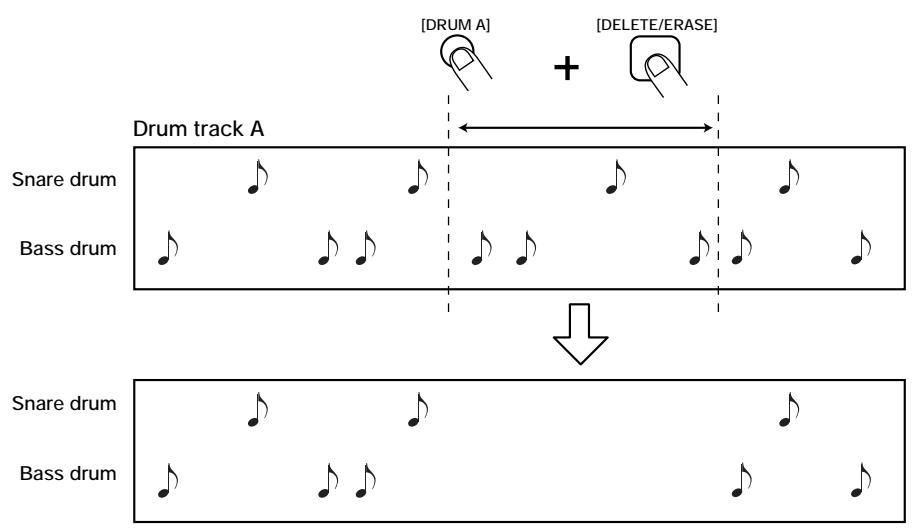
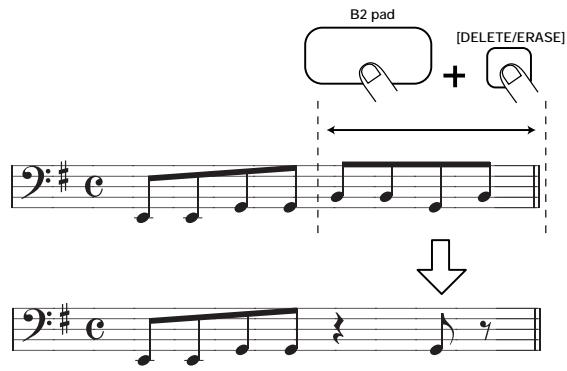
While the key is held down, the sound from that pad is erased from the pattern. To erase the entire track, push the respective [KIT/TRACK SELECT] key while holding the [DELETE/ERASE] key down. While both keys are held down, all sounds in that track are erased.

[DELETE/ERASE]
By holding the [REPEAT/STEP] key down while hitting a pad, an ongoing sound can be created. Moving the [SOUND JAMMER] slider while hitting a pad changes the pitch, volume, or tone (please refer to page 47). In this case, the change is effective only while the pad is being pushed. If the [SOUND JAMMER] slider is moved while the pad is released, the change will not be recorded.
STEP10 Record drum tracks B and C using the same procedure.
STEP11 When recording is completed, press the [STOP] key.
Operation of the RhythmTrak 234 stops.

- If a MIDI clock signal is being received, real-time recording is not possible. For details, please refer to page 47.
- The sound from external MIDI components cannot be recorded.
Real-time recording of a bass track
Next, let's add a bass track to the drum track pattern recorded in the previous section.
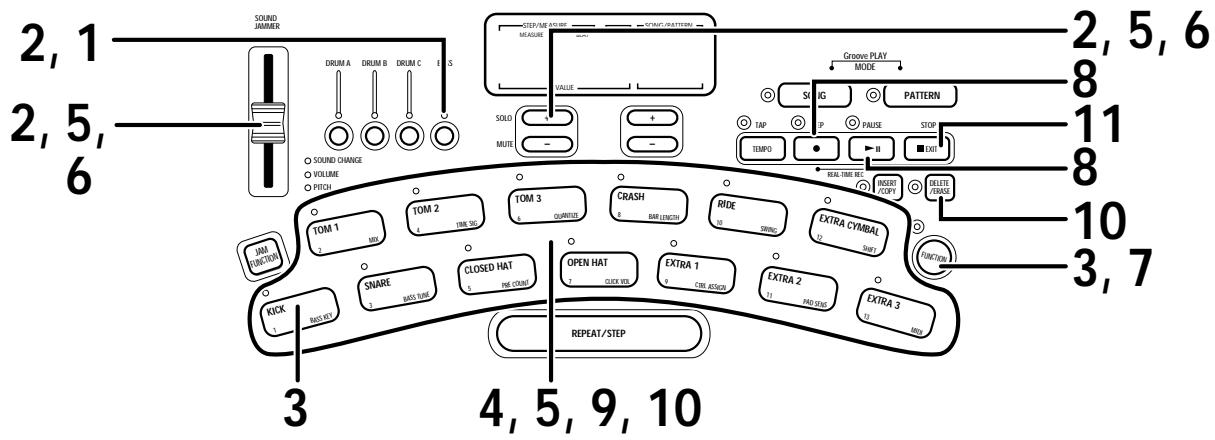
STEP1 Press the [BASS] key of the [KIT/TRACK SELECT] keys and hold the key down.
The bass track is selected for recording.
![ZOOM RT234 - STEP1 Press the [BASS] key of the [KIT/TRACK SELECT] keys and hold the key down. - 1](/content/2025/01/152302/images/c76114cad379cca6b9e8152f87eb6378b1f08bd6924d2a4f30df4513b363805b.jpg)
STEP2 [SOUND JAMMER] slider to select a bass program. If necessary, change the quantize and tempo settings.
![ZOOM RT234 - STEP2 [SOUND JAMMER] slider to select a bass program. If necessary, change the quantize and tempo settings. - 1](/content/2025/01/152302/images/4d2f81a912cb3f9690ff9d1d5f5f74ce9ca2b6b6a2784d956efb65fb19015751.jpg)
The bass program can also be changed during recording.
STEP3 Press the [FUNCTION] key and then pad 1 (BASS KEY).
To record a bass track, you must first assign the pitches from the bass pattern to the pads. Pressing the [FUNCTION] key followed by pad 1 (BASS KEY) enables pitch setting for each pad. The [FUNCTION] key LED lights up and the [VALUE] display shows the pitch name assigned to pad 1.
![ZOOM RT234 - STEP3 Press the [FUNCTION] key and then pad 1 (BASS KEY). - 1](/content/2025/01/152302/images/75fbcda5f5f24fe54b169c08ef1e0409b0f50d75138f69f334657d944d72f294.jpg)
![ZOOM RT234 - STEP3 Press the [FUNCTION] key and then pad 1 (BASS KEY). - 2](/content/2025/01/152302/images/a983e7a66c11f4d206ff0a28a76ab8ad839ab53ee05fb78e9ab9188b32092f10.jpg)
- Also if a pattern was erased, the pitches assigned to the pads in the previous pattern are retained. When wishing to use these as is, steps 3 - 7 can be omitted.
- In the factory default condition, all user patterns have E2 (the lowest note of a 4-string bass) assigned to pad 1.
While the pad is being pressed, the assigned pitch name (E1 - A4) is shown on the VALUE indicator.
![ZOOM RT234 - STEP3 Press the [FUNCTION] key and then pad 1 (BASS KEY). - 3](/content/2025/01/152302/images/b660316c3bc0476b4c095dbac0dd8f5ff9d41891747b966137bb660b1cbc89a4.jpg)
Pitch name assigned to currently pressed pad
![ZOOM RT234 - STEP3 Press the [FUNCTION] key and then pad 1 (BASS KEY). - 4](/content/2025/01/152302/images/0245d96f1701fe59ac9138772e0dc0d73e642beaf81450793554e8f5528acfb3.jpg)
When pad 2 - 13 is released, the pitch name assigned to pad 1 is shown again. This pitch is used as reference when shifting the entire pitch of all pads up or down in semitone steps. Take care not to inadvertently change this pitch.
![ZOOM RT234 - STEP3 Press the [FUNCTION] key and then pad 1 (BASS KEY). - 5](/content/2025/01/152302/images/cfe5b96fdbdab4f6a97f965cdd9c68421d0f19cec2d9ad7ac691ea9e6592d7c0.jpg)
STEP5
While holding the pad down, use the [VALUE UP/DOWN] keys or the [SOUND JAMMER] slider to change the pitch assigned to the pad.
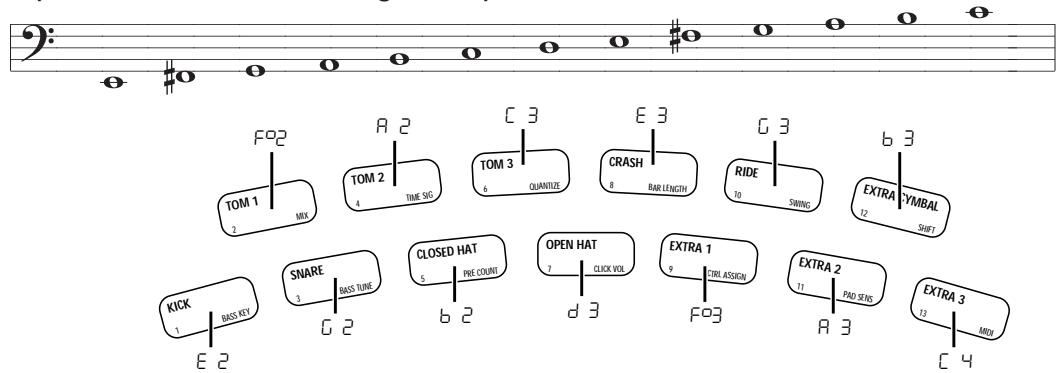
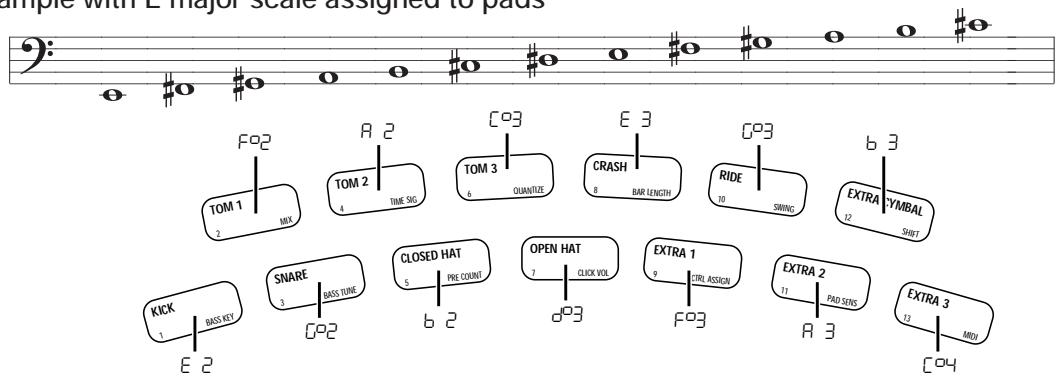
The illustration below shows an example for assigning an E minor and E major scale to the pads.
There are many possibilities for assigning pitch names. We recommend that you try out various approaches to find the one that is best suited to the bass pattern that you want to record.
Example with E minor scale assigned to pads
Example with E major scale assigned to pads
STEP6
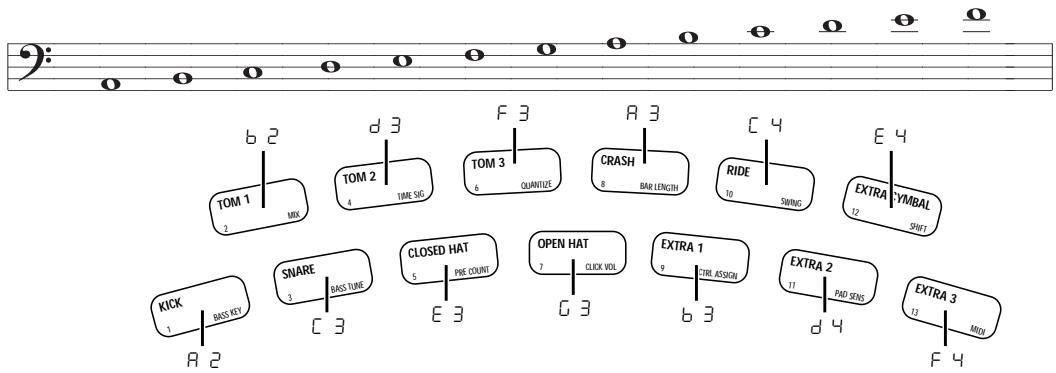
To shift the pitch of all pads, operate the [VALUE UP/DOWN] keys or the [SOUND JAMMER] slider while no pad is pushed.
When the pitch assigned to pad 1 is changed, the pitch of pads 2 - 13 also changes accordingly. For example, if the E minor scale is assigned and you shift pad 1 from "E 2" to "A 2", the A minor scale will be assigned to the pads.
Example with A minor scale assigned to pads
STEP7
When the pitch has been assigned as desired, press the [FUNCTION] key once more.
The [FUNCTION] key LED goes out.
STEP8
While holding the [REC] key down, press the [START] key.
The [REC] key LED and [START] key LED light up and the [TEMPO] key LED flashes. The already recorded drum tracks are played back.
STEP9
Tap the pads in accordance with the metronome sound.
As opposed to drum track recording, the bass track records for the length of which you press a pad. For example, to record the following sequence, hold the pad to which A2 has been assigned and the pad to which E2 has been assigned down for the length of a quarter note each.
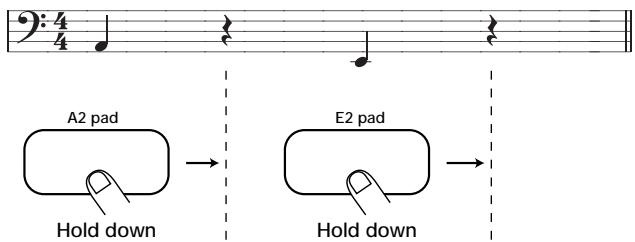

When the [REC] key is pressed during real-time recording, the [REC] key LED starts to flash and pattern recording is suspended. In this condition, tapping the pads will produce sound, but it is not recorded. This is useful to check phrasing and sound before actually recording.
STEP10
To erase the sound from a specific pad, push the pad while holding the [DELETE/ERASE] key down.
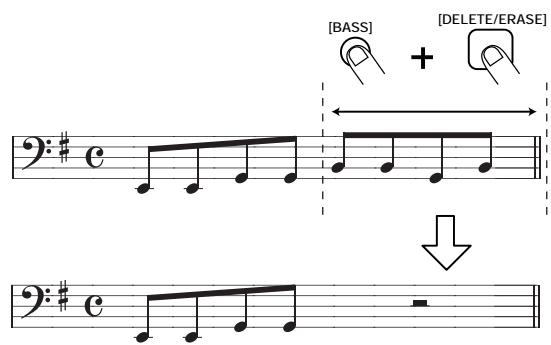
While the key is held down, the sound from that pad is erased from the pattern. To erase the entire bass track, push the [BASS] key of the [KIT/TRACK SELECT] keys while holding the [DELETE/ERASE] key down. While both keys are held down, the bass track is erased.
[DELETE/ERASE]
STEP11
When recording is completed, press the [STOP] key.
Pattern Recording (Step Recording)
This section describes step recording, which is another recording type that is possible with the RhythmTrak ...234.
What is step recording?
Step recording allows you to enter and record each sound separately, step by step, while the RhythmTrak …234 is in the stop condition. Even without mastering how to play the pads in real time, you can easily create complex drum and bass patterns. And you don't need to stop there, because you can even create patterns that would be impossible to play in real time.
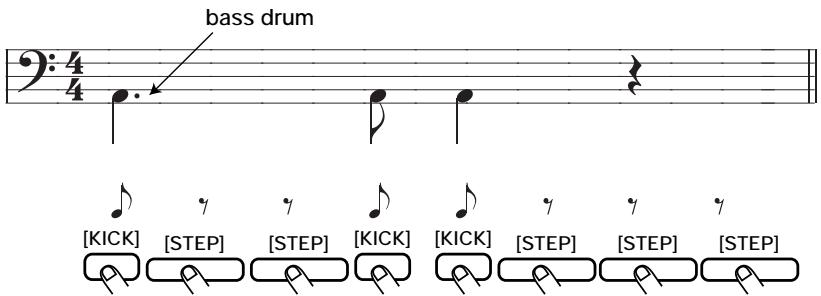
For step recording of a drum track, you select the shortest note that is to be used as unit, and you create the pattern by pressing a pad (note) or the [REPEAT/STEP] key (rest) for each step.
For example, to create the following bass drum pattern with step recording, select an eighth note as smallest unit and make the entry as follows:
When the end of a pattern is reached, it loops automatically back to the beginning, allowing you to add for example snare and hi-hat separately, to complete the pattern. By pushing 2 pads at the same time, you can enter 2 sounds in the same position.
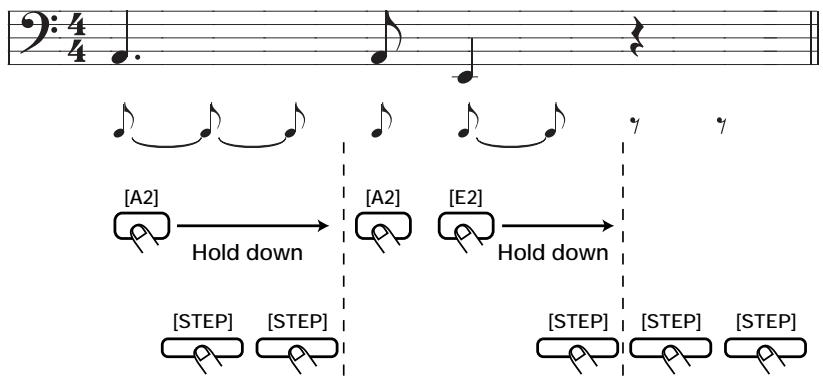
For step recording of a bass track, the procedure is slightly different, because unlike for the drum track, the pitch and duration of the sound must be specified. The fact that tapping a pad gives the shortest-unit note and pushing the [REPEAT/STEP] key gives the shortest-unit rest is the same. The pitch is determined by which pad you push. The length is determined by holding down the pad down and pressing the [REPEAT/STEP] key multiple times. Each push of the [REPEAT/STEP] key increases the duration of the sound by the shortest unit note.
For example, to enter the following bass phrase, select an eighth note as smallest unit and make the entry as follows:
Step recording of a drum track
This section describes how to record drum tracks A - C using step recording.
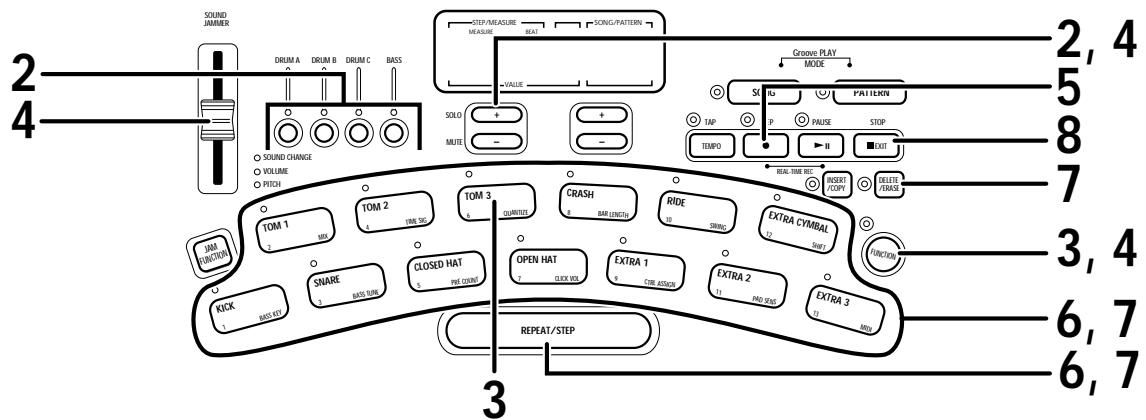
STEP1 In pattern mode, select an empty user pattern.

When wishing to use a pattern where a track has already been recorded, the pattern must be erased first. Please refer to page 18.
STEP2 Use the [KIT/TRACK SELECT] keys and [VALUE UP/DOWN] keys to select the track and kit for recording.
The selection method is the same as for real-time recording. In this example, press the [DRUM A] key of the [KIT/TRACK SELECT] keys.
![ZOOM RT234 - STEP2 Use the [KIT/TRACK SELECT] keys and [VALUE UP/DOWN] keys to select the track and kit for recording. - 1](/content/2025/01/152302/images/ace883e4ad7ca6287945e8fd9ddfc99f1b9869d7020def865fff1d4db32134a9.jpg)
Selecting drum track B or C allows recording in the same way.
STEP3 Press the [FUNCTION] key and then pad 6 (QUANTIZE).
The current quantize setting appears on the [VALUE] display. The minimum unit (shortest note) for step recording is determined by this setting.
![ZOOM RT234 - STEP3 Press the [FUNCTION] key and then pad 6 (QUANTIZE). - 1](/content/2025/01/152302/images/8c1766e198b67f4505428f365ee57d4d45ed9ef812d6ea6b47059b6e8a671047.jpg)
STEP4 Use the [VALUE UP/DOWN] key or the [SOUND JAMMER] slider to set the quantize value, and then press the [FUNCTION] key once more.
4 .Quarter note
16 Sixteenth note
48 ... Thirty-second triplet note
8 .Eighth note
24 Sixteenth triplet note
Hi...1 tick (1/96 of quarter note)
12 .Eighth triplet note
32.Thirty-second note
![ZOOM RT234 - STEP4 Use the [VALUE UP/DOWN] key or the [SOUND JAMMER] slider to set the quantize value, and then press the [FUNCTION] key once more. - 1](/content/2025/01/152302/images/1ffe38bf2074cf2e1e89e66330ac97c31c04b59fa431369a4466237e9bad5c65.jpg)
For details on the [FUNCTION] key, please refer to page 41.
The [REC] key LED and [START] key LED light up, indicating that the RhythmTrak …234 is ready for recording.
![ZOOM RT234 - STEP4 Use the [VALUE UP/DOWN] key or the [SOUND JAMMER] slider to set the quantize value, and then press the [FUNCTION] key once more. - 2](/content/2025/01/152302/images/d62953fa5ddc677ff659a4ee9cd57a0fa0ffd39ad6149b5f82e9e8c5f0276e1c.jpg)
STEP6
To enter a note, press the pad corresponding to the desired sound. To enter a rest, press the [REPEAT/STEP] key.
For example, tapping the [KICK] pad will enter a bass drum note (the [KICK] pad LED flashes briefly). The current position of the pattern then advances by one unit. The tapping intensity will of course also be recorded.
When the end of the pattern is reached, the recording loops back to the beginning and continues, allowing you to add to the recording as often as desired.

- The [VALUE] display shows the current position in the pattern (measure/beat).
- By moving the [SOUND JAMMER] slider while tapping the pad, you can change the pitch, volume, or tone.
STEP7
To erase a sound, use the [REPEAT/STEP] key to move to the desired position. Then press the corresponding pad while holding down the [DELETE/ERASE] key.
As you move the position with the [REPEAT/STEP] key, the LED of a pad that has been input for the current position lights up. Pressing the pad while holding the [DELETE/ERASE] key down causes the LED to go out and the sound will be erased.
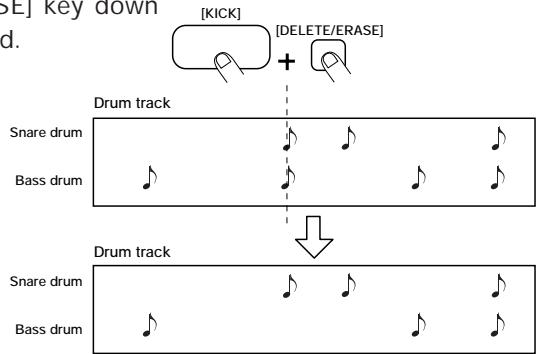

During step recording, erasing the entire track is not possible.
STEP8
When recording is completed, press the [STOP] key.
The [REC] key LED goes out, and step recording ends.
STEP9
To record drum track B or C, repeat steps 3 - 8.

If step 4 is carried out without pressing the [FUNCTION] key, the quantize value of the pattern already recorded in that track will also be changed. For example, if step recording was carried out with sixteenth notes and the quantize value was then changed to quarter notes, the pattern already recorded will also be changed to quarter notes if the [REC] key is pushed without pressing the [FUNCTION] key.

Step recording of a bass track
Now let's add a bass track to the drum tracks recorded as described in the previous section. Because pitch and duration must be specified for the bass track, the procedure is slightly different from step recording of the drum track.
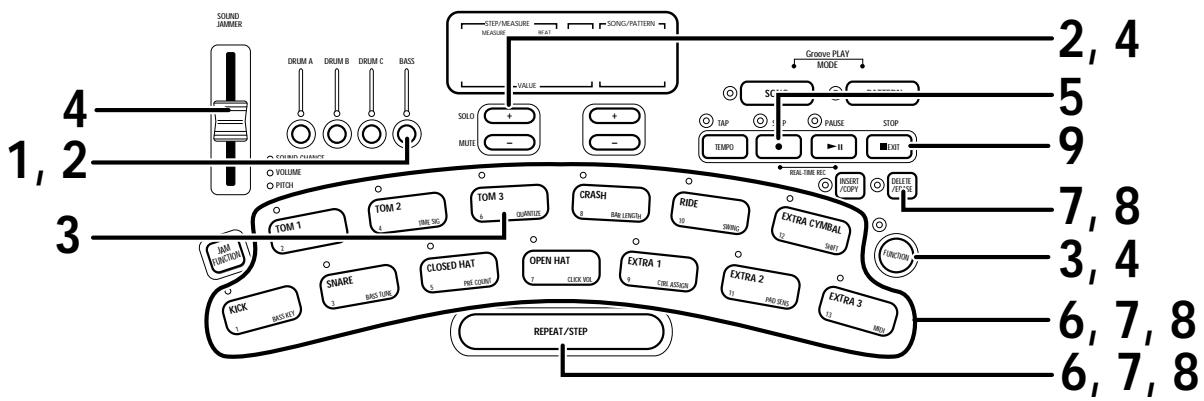
STEP1 Press the [BASS] key of the [KIT/TRACK SELECT] keys.
The bass track is selected.
STEP2 Use the [BASS] key and the [VALUE UP/DOWN] keys to select a kit.
STEP3 Press the [FUNCTION] key and then pad 6 (QUANTIZE).
Use the [VALUE UP/DOWN] keys or the [SOUND JAMMER] slider to set the quantize value (smallest unit for recording). Then press the [FUNCTION] key again.
For details on the quantize value, please refer to page 28.
STEP5 Press the [REC] key.
The [REC] key LED and [START] key LED light up, indicating that the RhythmTrak ……234 is ready for recording.
![ZOOM RT234 - STEP5 Press the [REC] key. - 1](/content/2025/01/152302/images/8c121264ff7dd0bdb079ac9c4b2aa5ead90b605e20809e272093117fdcc3127c.jpg)
If step 4 is carried out without pressing the [FUNCTION] key, the quantize value of the pattern already recorded in that track will also be changed. For example, if step recording of a bass track was carried out with sixteenth notes and the quantize value was then changed to quarter notes, the pattern already recorded will also be changed to quarter notes if the [REC] key is pushed without pressing the [FUNCTION] key.
STEP6 Press the desired pad and/or the [REPEAT/STEP] key to enter the desired note or rest with the desired duration.
For step recording of the bass track, you perform one of three actions:
- Enter the minimum unit note: Briefly tap the pad and release it. A note of the selected minimum duration and the pitch assigned to that pad is entered, and the position proceeds to the next step.
- Enter the minimum unit rest: Briefly tap the [REPEAT/STEP] key and release it. A rest of the selected minimum duration is entered, and the position proceeds to the next step.
![ZOOM RT234 - STEP6 Press the desired pad and/or the [REPEAT/STEP] key to enter the desired note or rest with the desired duration. - 1](/content/2025/01/152302/images/de284f9028b2419b61a1932d87b4fe51743a81c046db2768ac6febf9d8c4451a.jpg)
- Enter a note longer than the minimum unit: Hold the pad down and repeatedly press the [REPEAT/STEP] key. With each push of the [REPEAT/STEP] key, the immediately preceding note is extended by one unit.
![ZOOM RT234 - STEP6 Press the desired pad and/or the [REPEAT/STEP] key to enter the desired note or rest with the desired duration. - 2](/content/2025/01/152302/images/63253cbbe1e15a313ece12789d442e6f58a62d25a607d17f9bfdfb306f3ff7c2.jpg)
When you press a pad, its LED lights up, indicating that the note has been input. The [VALUE] display shows the current position in the pattern (measure/beat).
![ZOOM RT234 - STEP6 Press the desired pad and/or the [REPEAT/STEP] key to enter the desired note or rest with the desired duration. - 3](/content/2025/01/152302/images/5b182c0638ab04387c935ee52960d87bca9ff2e13be5c3adae666970212d5106.jpg)
A note longer than the entire pattern cannot be input. When the input exceeds the pattern length, the note will only be as long as the pattern.
![ZOOM RT234 - STEP6 Press the desired pad and/or the [REPEAT/STEP] key to enter the desired note or rest with the desired duration. - 4](/content/2025/01/152302/images/0d95c69085f1b13c59c2eeea072cdb3b3bab8040dbd18cc38df1ead67c856efc.jpg)
To erase a note, use the [REPEAT/STEP] key to move to the desired position. Then press the corresponding pad while holding down the [DELETE/ERASE] key.
As you move the position with the [REPEAT/STEP] key, the LED of a pad that has been input for the current position lights up. Pressing the pad while holding the [DELETE/ERASE] key down causes the LED to go out and the note will be erased.
![ZOOM RT234 - STEP6 Press the desired pad and/or the [REPEAT/STEP] key to enter the desired note or rest with the desired duration. - 5](/content/2025/01/152302/images/e1b176775bf0a93409b8a97a71872a134b08cec5ad16ebffc46c08ccac132aef.jpg)
![ZOOM RT234 - STEP6 Press the desired pad and/or the [REPEAT/STEP] key to enter the desired note or rest with the desired duration. - 6](/content/2025/01/152302/images/d24a4126728c35a3e4a8cffc6d62c02f64e98d891ca22eed122b4b2e68508af9.jpg)
To decrease the length of a note, use the [REPEAT/STEP] key to move to the position where the note should stop.
Then press the corresponding pad while holding down the [DELETE/ERASE] key.
![ZOOM RT234 - STEP6 Press the desired pad and/or the [REPEAT/STEP] key to enter the desired note or rest with the desired duration. - 7](/content/2025/01/152302/images/76d617b1ca3e3ecabdbcb2adc02f996609844f0def11483c57958b94d7ee31fa.jpg)
![ZOOM RT234 - STEP6 Press the desired pad and/or the [REPEAT/STEP] key to enter the desired note or rest with the desired duration. - 8](/content/2025/01/152302/images/51ed8b387c262a6b784f0aa8daabbbd39b3fa068e054a32b7de772a1364f3076.jpg)
During step recording, erasing the entire track is not possible.
![ZOOM RT234 - STEP6 Press the desired pad and/or the [REPEAT/STEP] key to enter the desired note or rest with the desired duration. - 9](/content/2025/01/152302/images/7b62be304f27b9d0f7e87a2aa778f6879f6ea16ccd0adb7483771d7a773c81c1.jpg)
When recording is completed, press the [STOP] key.
The [REC] key LED goes out, and step recording ends.
Pattern Copy
The current pattern (preset pattern or user pattern) can be copied to another user pattern. This is useful for example when wishing to change only a part of pattern, such as adding percussion or changing only the bass track phrasing. The copy source can be either a preset pattern or a user pattern, but because preset patterns are read-only, the copy destination can only be a user pattern.
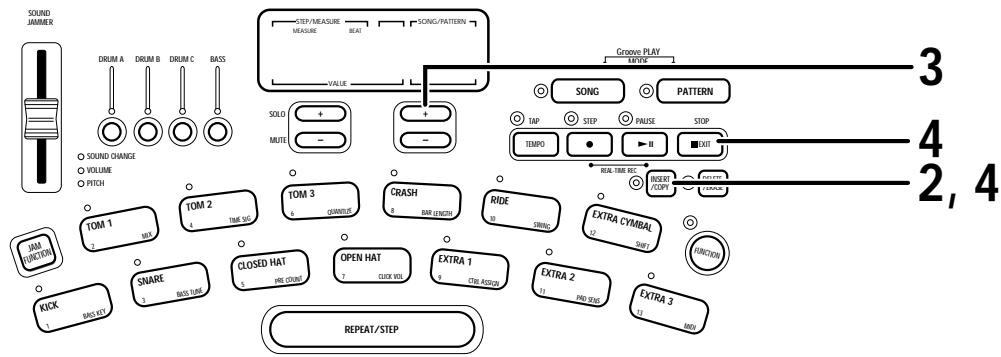
STEP1 In pattern mode, select the pattern to be used as the copy source.
STEP2 Press the [INSERT/COPY] key.
The [INSERT/COPY] key LED flashes and the current pattern is selected as the copy source.
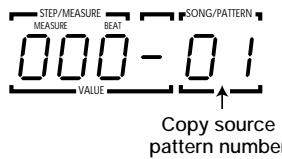
STEP3 Use the [UP/DOWN] keys or the [SOUND JAMMER] slider to select a user pattern (01 - 99) as the copy target.

When the copy is executed, the existing contents of the user pattern selected as the copy target will be erased. Make sure that the pattern you have selected is one that you don't mind erasing.
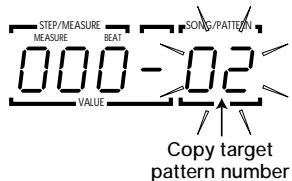
STEP4 To execute the copy process, press the [INSERT/COPY] key. When wishing to cancel the process, press the [STOP] key.
When copying is completed, the unit returns to the pattern mode with the copy target pattern being selected.
If copying was canceled, the unit returns to the pattern mode with the copy source pattern being selected.
Creating Songs (Song Mode)
This section describes how to line up user patterns in a desired order to create the backing for an entire song. This mode of operation is called the song mode.
What is a song?
A song is a sequence of user patterns (preset patterns cannot be used). A song consists of multiple slots (called "steps") each of which contains one pattern. The maximum length of a song is 255 steps. The maximum number of songs that can be stored in the RhythmTrak ...234 is 99. (The actual number of available steps and songs will depend on the number of distinct sounds used for user patterns and other songs.) In song mode, you can change also the tempo and volume during a song.
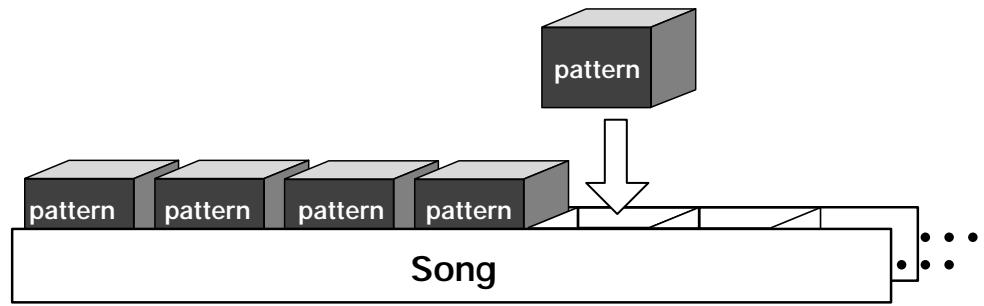
NOTE
The number of steps is not equal to the number of measures. The length of each step depends on the pattern that is contained in the step.
Besides the pattern number, each song step can contain the following settings:
- Tempo change: In song mode, the tempo is stored individually for each song. (The tempo is set with the [TEMPO] key, as described on page 17.) Using this tempo as reference, the tempo for each step can be varied in the range from -30 to 0 (no change) to +30 BPM (beats per minute = number of quarter notes per minute).
- Volume: The volume of the pattern as contained in the step can be set in the range from 0 (no change) to -30.
- Transpose: The bass track can be transposed in semitone steps in the range from -6 to 0 (no change) to +6.
Step 0
- Pattern number
- Tempo information
Volume information - Transpose information
Step 1
- Pattern number
- Tempo information
Volume information - Transpose information
Step 2
- Pattern number
- Tempo information
Volume information - Transpose information
Step 254
Recording and playing a song
Let's collect a number of patterns into a song.
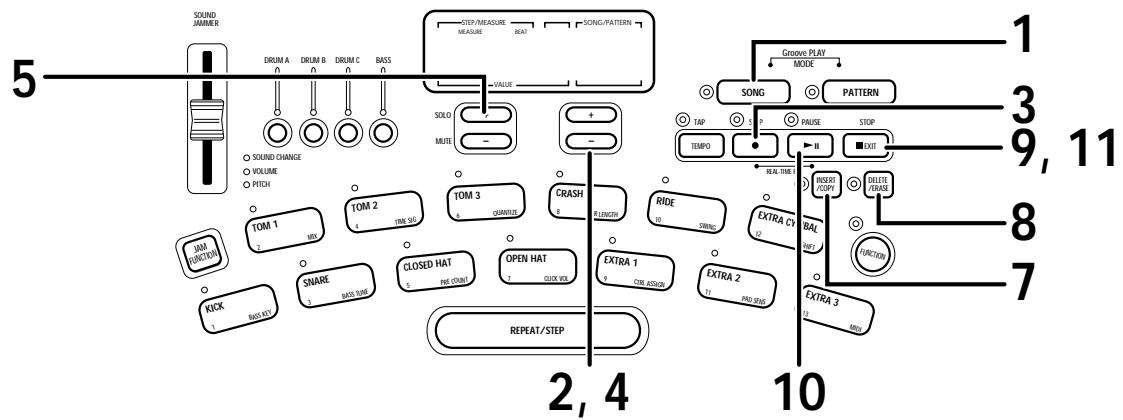
STEP1 Press the [SONG] key.
The RhythmTrak …234 is switched to song mode. The [SONG/PATTERN] display shows the currently selected song number, and the [VALUE] display shows the current step number.
![ZOOM RT234 - STEP1 Press the [SONG] key. - 1](/content/2025/01/152302/images/b6e46c3c4883fa5929921dc7c7bde2abd9ad74969d477a42418b2ed920c79a23.jpg)
![ZOOM RT234 - STEP1 Press the [SONG] key. - 2](/content/2025/01/152302/images/111e5fd060f187ad8cd54f85394d0312e6b86aa369edd2078292640e8d58d276.jpg)
STEP2 Use the [UP/DOWN] keys to select an empty song number.
In song mode, the [UP/DOWN] keys serve to select a song. A song number can also be selected by holding the [SONG] key down while operating the [SOUND JAMMER] slider. If an empty song was selected, the [VALUE] display shows "----".
![ZOOM RT234 - STEP2 Use the [UP/DOWN] keys to select an empty song number. - 1](/content/2025/01/152302/images/593c2db9fc361899cd3986c89a6aeb114a70c98a57a149e0c27249616fed52cf.jpg)
![ZOOM RT234 - STEP2 Use the [UP/DOWN] keys to select an empty song number. - 2](/content/2025/01/152302/images/d6e4515754132b385d9fe477bdacb5aab74d96771a5ea5411606909d6b47f978.jpg)
STEP3 Press the [REC] key.
The [REC] key LED lights up, indicating that the RhythmTrak …234 is ready for song recording.
The [VALUE] display shows the step number, and the [SONG/PATTERN] display shows the pattern number selected for that step.
![ZOOM RT234 - STEP3 Press the [REC] key. - 1](/content/2025/01/152302/images/98c0b1c46fbba9b8606aea47d961b047e370e9994f170e7148b31e569b0acdb9.jpg)
![ZOOM RT234 - STEP3 Press the [REC] key. - 2](/content/2025/01/152302/images/29c8f89f01c49e2e7262e47248a828f4d434283df49b82682a918cfd32d4a634.jpg)
STEP4
Use the [UP/DOWN] keys to select the user pattern number to be assigned to the first step.
During song recording, the [UP/DOWN] keys select the user pattern to be assigned to the step. (Preset patterns cannot be selected.) The selected pattern number is shown on the [SONG/PATTERN] display.
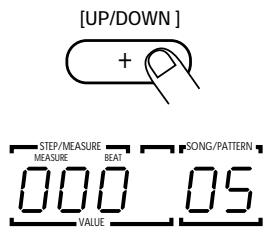

When wishing to hear the currently selected pattern, you can use the [START] and [STOP] keys to play it. While a pattern is playing, you can also switch the step number back and forth to check the patterns in other steps.
STEP5
To proceed to the next step, press the [+] key of the [VALUE UP/DOWN] keys.
The [VALUE] display shows the second step, and the [SONG/PATTERN] display shows "EE" which indicates the end of the song. In this condition, you can select the pattern for the second step.
Pressing the [STEP] key while recording a song will take you to the next step of the song, in the same way as when you press the [VALUE UP] key.
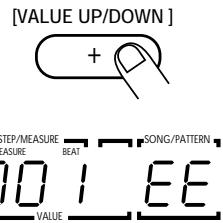
STEP6
Repeat steps 4 - 5 to create the entire song.

One song can have up to 255 steps (patterns). To change a pattern selection, you can use the [-] key of the [VALUE UP/DOWN] keys to return to the previous step.
STEP7
To insert a pattern before the currently selected step, press the [INSERT/COPY] key and perform step 4.
A new step is inserted before the currently selected step, and subsequent steps are shifted one count up.
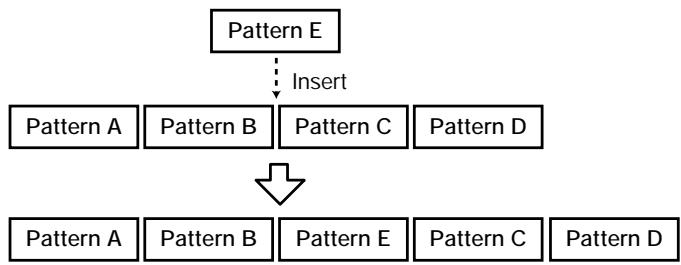
[INSERT/COPY]
STEP8
To delete the currently selected step, press the [DELETE/ERASE] key.
The currently selected step is deleted, and subsequent steps are shifted one count down.
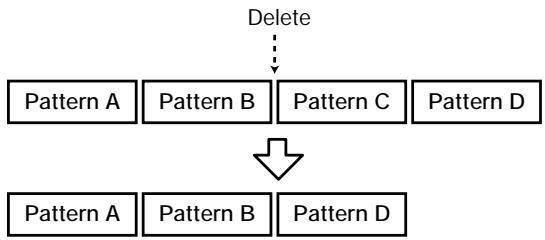
[DELETE/ERASE]


When one song is completed, press the [STOP] key.
The [REC] key LED goes out, and song recording stops. The song position returns to step 1.
![ZOOM RT234 - When one song is completed, press the [STOP] key. - 1](/content/2025/01/152302/images/12ed66acc42ceba205dfb44469641045a4fb93cb1b30f66c507d586b69b1bb1b.jpg)
STEP10 To listen to the song, press the [START] key.
The [START] key LED lights up and the song is played back. The [TEMPO] key LED flashes according to the tempo of the song. During playback, the [VALUE] display shows the current step number, and the [SONG/PATTERN] display shows the song number.
![ZOOM RT234 - STEP10 To listen to the song, press the [START] key. - 1](/content/2025/01/152302/images/348ac2e5cd4331eb563fe727f218117591c258cb84533b47b782a437595d0088.jpg)
![ZOOM RT234 - STEP10 To listen to the song, press the [START] key. - 2](/content/2025/01/152302/images/520f43b2a1111a5c547d36135e392fff0da324241d0afc91ac4a15f11cf9c92b.jpg)
Pressing the [PATTERN] key during playback causes the [VALUE] display to show the number of measures since the start of the song.
![ZOOM RT234 - STEP10 To listen to the song, press the [START] key. - 3](/content/2025/01/152302/images/b922e6fc7083434ce9256d261183b510e324317a6fc20271edcc8a09694bb10b.jpg)
![ZOOM RT234 - STEP10 To listen to the song, press the [START] key. - 4](/content/2025/01/152302/images/a6e73ef9da03b4f2c019a548cf03f8b25cb282e827b7c26c1f7e1625f07ea753.jpg)
- By performing step 2 during playback, you can switch to the next song without stopping play.
- Pressing the [VALUE UP] key during pattern playback turns off the sound of tracks other than the currently selected track (whose [KIT/TRACK SELECT] LED is lit).
- Pressing the [VALUE DOWN] key turns off the sound of the currently selected track.
![ZOOM RT234 - STEP10 To listen to the song, press the [START] key. - 5](/content/2025/01/152302/images/99cbd540e75a74e22c0cd44e4618175d812333ab09dc4ef038b54b5e0f5eb4c1.jpg)
When you select an empty pattern that you have already deleted per the procedure described on page 18, the BASS KEY, MIX, kit number, and bass program will use the settings that were obtained before you deleted the pattern. TIME SIG will be set to "4" and BAR LENGTH will be set to "2".
If you play back a song that includes an empty pattern step, the playback will stop at the empty pattern step.
If a song includes a rest, not an empty pattern step, the song will continue playing after the rest pattern.
You can create a rest pattern by pressing the [REC] key in an empty pattern. A rest pattern stores the settings of the track BASS key (only for the bass track), MIX, TIME SIG, BAR LENGTH, and kit number/bass program when you press the [REC] key.
STEP11 Press the [STOP] key when wishing to terminate playback.
The LED goes out and the song returns to the start position.
By pressing the [START] key again, you can start playback of the song again from the beginning.
![ZOOM RT234 - STEP11 Press the [STOP] key when wishing to terminate playback. - 1](/content/2025/01/152302/images/b1466c2ede214c9c76ee41733569e2a1a6d92a81ee5456e6848efe61364ddd17.jpg)
Pressing the [START] key instead of the [STOP] key causes the PAUSE LED to flash, and playback is paused. To resume playback from the same point, press the [START] key once more.
![ZOOM RT234 - STEP11 Press the [STOP] key when wishing to terminate playback. - 2](/content/2025/01/152302/images/b3b48f7605eb71e0dfd72753f00b76f2a5d1c119d933cb5b47f51e0069aeedf9.jpg)
Also during playback of a song, you can use the pads for manual play. However, modifications made with the [SOUND JAMMER] slider have no effect on the playback sound of the song.
Editing a song
This section describes how you can alter parameters such as tempo or volume for a song that has already been recorded.
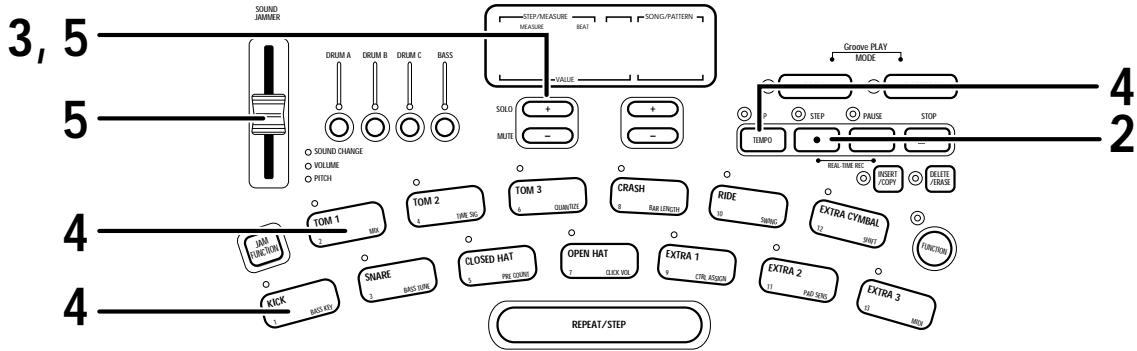
STEP1 In song mode, select the song to which you want to make alterations.
STEP2 Press the [REC] key.
The [REC] key LED lights up, and song editing becomes possible.
STEP3 Use the [VALUE UP/DOWN] keys to select the step where you want to make an alteration.
The [VALUE] display shows the step number and the [SONG/PATTERN] display shows the pattern number.
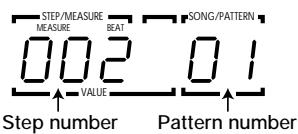
STEP4 Choose the type of alteration by pressing one of the following keys:
- [TEMPO] key: to change the tempo of the pattern
- Pad 2 (MIX): To set the pattern volume
- Pad 1 (BASS KEY): To transpose the bass track
The current setting of the selected parameter is shown on the [VALUE] display.
STEP5 While holding down the pad whose parameter you want to change, use the [VALUE UP/DOWN] keys or the [SOUND JAMMER] slider to set the value.
The adjustment range for the various parameters is as follows.
- Tempo change: -30 to 0 to 30 BPM
Volume: 0 to -30 - Transpose: -6 to 0 to 6 (in semitones)
STEP6 Repeat steps 3 - 5 until all desired parameters are set.
Deleting a song
When you wish to delete a song, for example to make room for new recordings, proceed as follows.
STEP1 In song mode, select the song you want to delete.
STEP2 Press the [DELETE/ERASE] key.
The [DELETE/ERASE] key LED and the song number flash, and the [VALUE] display shows "dEL?"
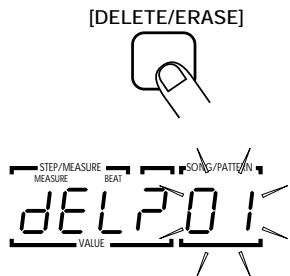
STEP3 To delete the song, press the [DELETE/ERASE] key. To cancel the process, press the [STOP] key.
When deleting is carried out, the unit returns to the song mode with an empty song selected.
When deleting is canceled, the unit returns to the song mode with the original song selected.

Once deleted, a song cannot be restored. Proceed with care to prevent inadvertently deleting a song.
Using Pads to Play Patterns (Groove Play)
This section describes the groove play mode. In this mode, the 13 pads are used to play patterns assigned to them. This allows quick switching between patterns during a performance. Up to 4 patterns can be played simultaneously, letting you for example play two patterns with a different beat, or the same pattern twice, shifted by 1 beat, to create a complex rhythm.
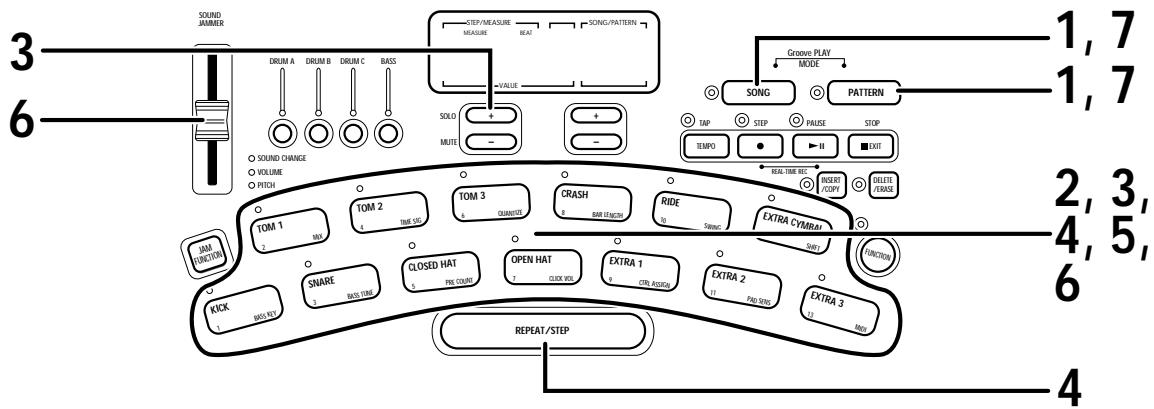
STEP1 Press the [SONG] key and the [PATTERN] together.
The RhythmTrak …234 switches to groove play mode, and the [SONG] key LED and [PATTERN] key LED light up.
STEP2 Try out the sound by pressing any pad.
In the factory default condition, the RhythmTrak …234 has 13 patterns specially designed for groove play assigned to pads 1 - 13. If a pad is held down, the assigned pattern plays repeatedly. The intensity with which the pad is hit controls the overall pattern volume. The pattern number is shown on the [VALUE] display.
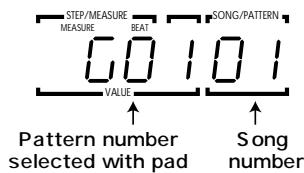
STEP3 To change the pattern assigned to a pad, hold the pad down and use the [VALUE UP/DOWN] keys to select the new pattern.
You can select a groove pattern (G01 - G99) or user pattern (01 - 99). If you select "00", the drum kit and base programs assigned to each pad will sound.
![ZOOM RT234 - STEP3 To change the pattern assigned to a pad, hold the pad down and use the [VALUE UP/DOWN] keys to select the new pattern. - 1](/content/2025/01/152302/images/3607cace37d0bda42491e2dc7e33dc023ebacb55e5297588d645ab395f63a611.jpg)
![ZOOM RT234 - STEP3 To change the pattern assigned to a pad, hold the pad down and use the [VALUE UP/DOWN] keys to select the new pattern. - 2](/content/2025/01/152302/images/c010a7e26245fd1944d4cbbbe6ec71e0adb094c0d2f16706dbe0b8cacdeceea9.jpg)
The patterns assigned to the pads are retained also while the unit is turned off.
STEP4 To repeat a pattern even when the pad is released, hit the pad while holding the [REPEAT/STEP] key down.
The pattern will then be looped even when you release the pad. To stop the loop, hit the pad once more. The unit returns to normal groove play.
To quickly change the pattern assigned to the pad, move the [SOUND JAMMER] slider while pressing and holding down the [REC] key and the corresponding pad.
![ZOOM RT234 - STEP4 To repeat a pattern even when the pad is released, hit the pad while holding the [REPEAT/STEP] key down. - 1](/content/2025/01/152302/images/7103742f2d5382e001cbb2d9a82283a9a18a9355504c96ca2f8f8957507a60f2.jpg)
STEP5 To play several patterns simultaneously, push several pads together.
Up to 4 patterns can be played simultaneously, using the same tempo. Slightly shifting the timing when you hit the pads is also possible.

If 5 or more pads are pushed, only the patterns of the last 4 pads will be played.

- In groove mode, the [START] and [STOP] key can be used to start and stop the currently selected song.
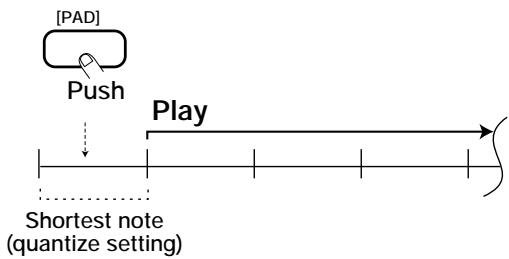
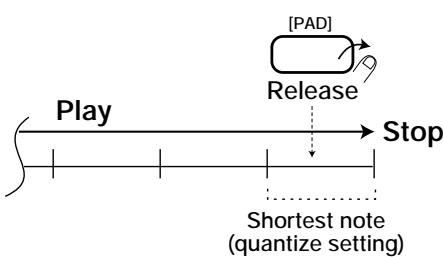
- During groove playback, pad operation (press/release) is detected using the quantize value (shortest note) as the detection interval. This is aimed at matching the timing to other grooves and songs played at the same time. Playing with a fast timing is therefore facilitated by choosing a low quantize value. To play with small timing shifts, choose a higher quantize setting.
STEP6
To continuously change the pitch, volume, or tone of the pattern, you can use the [SOUND JAMMER] slider.
The [SOUND JAMMER] slider allows sound modification also in groove play mode. The slider affects all tracks selected with the [KIT/TRACK SELECT] keys.
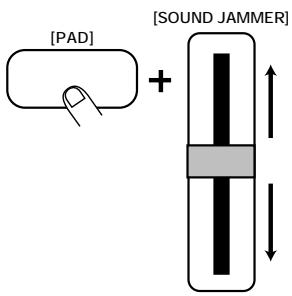

Use the [JAM FUNCTION] key to select the sound parameter that you want to change with the [SOUND JAMMER] slider. For details, please refer to page 13.
STEP7
When wishing to terminate the groove play mode, press the [SONG] key or [PATTERN] key.
The RhythmTrak…234 returns to the song mode or pattern mode.

If "00" is selected as pattern number in step 3, the sounds originally assigned to the pads (depending on the currently selected kit/program) are played.
FUNCTION Key Settings
The [FUNCTION] key is used to make various settings for the RhythmTrak ...234. The 13 pads on the top panel of the RhythmTrak ...234 are also used to select setting items for the [FUNCTION] key. These items are indicated in the lower right corner of each pad. By pressing first the [FUNCTION] key and then the pad with the desired item, a setting can be made. The basic steps for using the [FUNCTION] key and the setting items are described below.
Basic [FUNCTION] key operation steps
The [FUNCTION] key is used in the same way for most setting items.
![ZOOM RT234 - Basic [FUNCTION] key operation steps - 1](/content/2025/01/152302/images/cb5a88ecdaec8225c6cf57c47973903a62776aea240065838a70e04c78b318a3.jpg)
STEP1 Press the [FUNCTION] key.
The [FUNCTION] LED flashes, indicating that you can select a setting item.
![ZOOM RT234 - STEP1 Press the [FUNCTION] key. - 1](/content/2025/01/152302/images/642355737f16d72d9a2bd80eeecc56c2698cb486c48d4879bdb5716d34428e18.jpg)
[FUNCTION]
Some items can be set only in pattern mode, while the unit is in the stop condition.
![ZOOM RT234 - STEP1 Press the [FUNCTION] key. - 2](/content/2025/01/152302/images/727814335291f02b428dba157c4ca0a822b7ce1efd5fc655b358ca86b1b02fba.jpg)
STEP2 Press the pad with the desired item. The following items are available.
The [FUNCTION] LED flashes, indicating that you can select a setting item.
- Pad 1 (BASS KEY): Shifts the bass program pitch in semitones.
- Pad 2 (MIX): Sets the pattern/track level.
- Pad 3 (BASS TUNE): Allows tuning a bass program.
- Pad 4 (TIME SIG): Sets the beat of the pattern.
- Pad 5 (PRE COUNT): Switches pre-count on or off and sets the number of measures.
- Pad 6 (QUANTIZE): Sets the quantize value.
- Pad 7 (CLICK VOL): Sets the metronome volume.
- Pad 8 (BAR LENGTH): Sets the number of measures for the pattern.
- Pad 9 (CTRL ASSIGN): Selects the foot switch/foot pedal function.
- Pad 10 (SWING): Sets the amount of swing for playback.
- Pad 11 (PAD SENS): Adjusts the pad sensitivity.
- Pad 12 (SHIFT): Shifts the playback timing backwards or forwards.
- Pad 13 (MIDI): Sets MIDI input on/off and assigns the MIDI channel for each track.
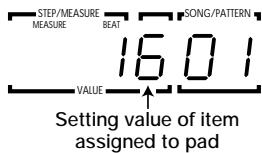
The [VALUE] display shows the setting of the item selected with the pad.

For some items, the sound or track that is to be set must be selected after selecting the item.
STEP3 Change the setting with the [VALUE UP/DOWN] keys.
![ZOOM RT234 - STEP3 Change the setting with the [VALUE UP/DOWN] keys. - 1](/content/2025/01/152302/images/fa61d81733cd15074e7bd6f8f2b6f85eba72a712dafdc72c4748e89569fec831.jpg)
The [SOUND JAMMER] slider can also be used to change the setting.
![ZOOM RT234 - STEP3 Change the setting with the [VALUE UP/DOWN] keys. - 2](/content/2025/01/152302/images/b89b385c5f3370d7f7fac7808004fa86e2f8d03349009a4730a453f2cb0e1c9d.jpg)
STEP4 Press the [FUNCTION] key once more.
The setting changed at step 3 is now determined, and the RhythmTrak …234 puts the function settings to an end.
[FUNCTION] key items
The setting range of the various items controlled with the [FUNCTION] key is described below.
Shifting bass program pitch in semitones (BASS KEY)
Setting Range Pad 1 pitch: A1 - A2
Pad 2 - 13 pitch: E1 - A4
Sets the pitch of the tones assigned to the pads for a bass program in semitones. You can either shift the pitch of the entire bass program or the pitch of pads 2 - 13 individually.
- Shifting the pitch of the entire bass program
Immediately after pressing the [FUNCTION] key and then pad 1 (BASS KEY), the pitch assigned to pad 1 (A1 - A2) is shown on the [VALUE] display. Use the [VALUE UP/DOWN] keys or the [SOUND JAMMER] slider to set the pitch. This will cause the pitch of pads 2 - 13 to change accordingly.
■ Shifting the pitch of pads 2 - 13 individually
After pressing the [FUNCTION] key and then pad 1 (BASS KEY), press the desired pad of pad 2 - 13, and then use the [VALUE UP/DOWN] keys or the [SOUND JAMMER] slider to set the pitch (E1 - A4) for that pad. This will not affect the pitch of other pads.
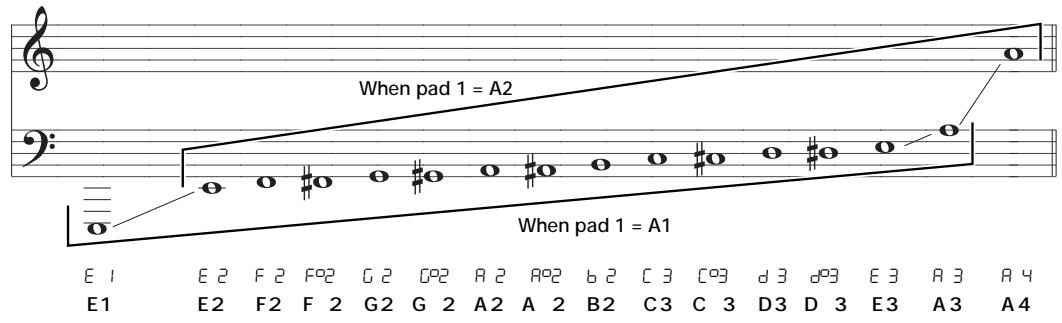

The RhythmTrak …234 stores this setting for each pattern individually.
Setting the pattern/track level (MIX)
Setting Range: 0 - 99
Sets the volume for each track in the currently selected pattern over a range of 0 - 99. After selecting this item, use the [KIT/TRACK SELECT] keys to select the track and then use the [VALUE UP/DOWN] keys or the [SOUND JAMMER] slider to make the setting. This operation is performed for each track separately.

The RhythmTrak ...234 stores this setting for each pattern individually.
Tuning a bass program (BASS TUNE)
Setting Range: 435 - 445 (Default value: 440)
Allows tuning the bass pitch with the [VALUE UP/DOWN] keys in the range of 435Hz - 445Hz
Setting the beat of a pattern (TIME SIG)
Setting Range: 2, 3, 4
Use the [VALUE UP/DOWN] keys to set the beat for the pattern to 2 (2/4 beat), 3 (3/4 beat), or 4 (4/4 beat). Changing the beat of an already recorded pattern is also possible, but the recorded sound will change as follows. Proceed with care, especially when making the beat shorter.
Choosing a longer beat than the current beat
A blank space with the length of the additional beat is added to each measure.
Choosing a shorter beat than the current beat
The excess duration of each measure is cut off. Once the [FUNCTION] key is pressed to accept the setting, it will not be possible to restore the cut-off sections.

The RhythmTrak …234 stores this setting for each pattern individually.
Setting the pre-count (PRE COUNT)
Setting Range: 0, 1, 2, PAd (Default value: 1)
The pre-count (number of metronome ticks before the start of pattern real-time recording) can be turned on and off, and the number of measures can be set with the [VALUE UP/DOWN] keys.
The settings have the following meaning.
0: Real-time recording starts immediately when the [START] key is pressed.
1: Real-time recording starts after 1 measure has been counted.
2: Real-time recording starts after 2 measures have been counted.
PAd: The unit goes into recording standby mode when the [START] key is pressed, and recording starts when any pad is pressed.
Setting the pattern resolution (QUANTIZE)
Setting Range: 4, 8, 12, 16, 24, 32, 48, Hi (Default value: 16)
Sets the quantize value (shortest note) for the pattern. After selecting the item, set the value with the [VALUE UP/DOWN] keys or the [SOUND JAMMER] slider.
The quantize setting affects the following four functions:
- Shortest note for real-time recording
- Shortest note for step recording
-
Sound interval when [REPEAT/STEP] key is used together with pad for continuous repetition
-
Pad push/release detection timing during groove play
The following 9 settings are available for the quantize value.
4.Quarter note
16 Sixteenth note
48 ....Thirty-second triplet note
8 .Eighth note
24 Sixteenth triplet note
Hi .......Quantize function off
12 .Eighth triplet note
32 .........Thirty-second note
During step recording:
1 tick (1/96 quarter note)

- Even when the quantize value is set to Hi, the [REPEAT/STEP] key interval is a thirty-second note.
- The quantize value cannot be set separately for each track.
Setting the metronome volume level (CLICK VOL)
Setting Range: 0 - 99 (Default value: 70)
The volume level of the metronome click sound heard during real-time recording can be adjusted with the [VALUE UP/DOWN] keys.
This setting applies to all patterns.
Setting the number of measures for a pattern (BAR LENGTH)
Setting Range: 1 - 99
Sets the length of the pattern in the range from 1 - 99 measures. Changing the length of an already recorded pattern is also possible, but the recorded sound will change as follows. Proceed with care, especially when making the number of measures smaller.

The RhythmTrak …234 stores this setting for each pattern individually.
Making the number of measures larger
Blank measures are added to the end of the pattern.
Making the number of measures smaller
The excess measures at the end of the pattern are cut off. Once the [FUNCTION] key is pressed to accept the setting, it will not be possible to restore the cut-off measures.
Selecting the foot switch/foot pedal function (CTRL ASSIGN)
Sets the function of the foot pedal FP01 or foot switch FS01 connected to the [CTRL1 IN]/[CTRL2 IN] jacks on the rear panel.

The intensity with which you tap the pad to set up the FS01 determines the volume level of the sound produced when you press the FS01. The volume is affected by the pad sensitivity setting (PAD SENS).
■ When FP01 is connected
Press the [FUNCTION] key and then pad 9 [CTRL ASSIGN], and move the pedal to enable the setting. After the function is selected with the [JAM FUNCTION] key, the FP01 can then be used in
the same way as the [SOUND JAMMER] slider to continuously adjust pitch, volume, or tone (see page 13). The selected function is shown on the [VALUE] display as "Pit", "Vol", or "SndC".
It is not possible to set the [SOUND JAMMER] control and the pedal connected to [CTRL1 IN] or [CTRL2 IN] to a different function.
■ When FS01 is connected
Press any one of pads 1 - 13, the [START] key, [STOP] key, [REPEAT] key, [TEMPO] key, [VALUE UP] key, or [VALUE DOWN] key while pushing down the FS01 to assign the function to the FS01.
- When one pad is pressed
The FS01 operates like that pad, activating the sound assigned to the pad. This can be used for example to play the bass drum manually during a performance.
- When two pads are pressed in sequence
The FS01 can be used to switch the sound of the pad selected first. When the FS01 is depressed, the sound of this pad is heard, and when the FS01 is not depressed, the sound of the other pad is played. (This can be used for example to switch between open hi-hat and closed hi-hat during a performance.) Operating the FS01 will activate the sound of the first pad, even if that pad is not pressed.
- When the [START] key is pressed
Pressing the FS01 will pause or resume playback.
- When the [STOP] key is pressed
Pressing the FS01 will stop playback or start playback from the top of the pattern or song.

When the FP01 or FS01 is not connected or when it is not pressed at the time when the [FUNCTION] key is operated, the above procedure has no effect.
Setting the playback swing amount (SWING)
Setting Range: 50 - 75 (Default value: 50)
This setting controls the swing amount (rhythm flourish). Higher values result in more pronounced swing. This item influences only the playback timing of the pattern. It does not affect the recorded data of the pattern.
Setting the pad sensitivity (PAD SENS)
Setting Range: Soft, MEd, Loud, LItE, norM, HArd, Ehrd (Default value: norM)
The [VALUE UP/DOWN] keys are used to set the pad sensitivity.
The following 7 settings are available.
- Soft (Fixed Soft): Gives a soft sound regardless of the tapping intensity.
- MEd (Fixed Medium): Gives a medium sound regardless of the tapping intensity.
- Loud (Fixed Loud): Gives a loud sound regardless of the tapping intensity.
- Lite (Light): This setting gives the highest sensitivity.
norM (Normal): This setting gives medium sensitivity. - HArd (Hard): This setting gives low sensitivity.
- Ehrd (Extra Hard): This setting gives the lowest sensitivity. To achieve a loud sound, the pads must be hit very hard.
Setting Range: -192 to +192 (Default value: 0)
Shifts the playback timing of a specific track in the currently selected pattern back or forth in 1-tick units (1/96 of a quarter note). The maximum shift is 2 measures. After selecting this item, use the [VALUE UP/DOWN] keys or the [SOUND JAMMER] slider to set the shift value. The recorded data of the pattern is updated when the function is terminated.
When set to a negative value (-)
The playback timing of the selected track is shifted forward. The pattern shifted forward is deleted.
When set to a positive value (+)
The playback timing of the selected track is shifted backwards. The pattern shifted backwards is deleted.
Proceed with care, because once the [FUNCTION] key is used to terminate the setting, it cannot be undone.
Setting MIDI input on/off (MIDI)
Setting Range: Int, Midi (Default value: Int)
When this item is set to "Midi", the RhythmTrak ...234 can receive the following MIDI messages from external components.
MIDI clock
Start
-
Stop
-
Continue

When this item is set to "Midi", real-time recording is not possible.
Setting the MIDI receive channel for each track (MIDI)
Setting Range: 0, 1 - 16 (drum track) 0, 1 - 16, Auto (bass track)
(Default values,drum track A:10,drum track B:0,drum track C:0,bass track:9)
This item sets the MIDI channel for each track. Available settings for drum tracks are 0 (not received) and 1 - 16. Available settings for the bass track are 0 (not received), 1 - 16, and Auto.
"Auto" is a special setting for playing standard GM sound source compatible MIDI files. When the RhythmTrak ...234 receives a GM sound source bass select message, it automatically switches the bass track to that MIDI channel.
To set the MIDI receive channel, hold down the [KIT/TRACK SELECT] key of the desired track and set the value with the [VALUE UP/DOWN] keys or the [SOUND JAMMER] slider. This setting is made individually for each track.
Deleting all patterns
Press and release the [FUNCTION] key. The LED of the [FUNCTION] key will flash. Press the [DELETE] key. The indicator "dEL?AL" will appear. Press the [DELETE] key again to delete the data for all user patterns.
RhythmTrak …234 Application Examples
This section describes examples for combining the RhythmTrak ...234 with optional equipment and external components.
Controlling the RhythmTrak --234 with the FP01
When the separately available foot pedal FP01 is connected to the [CTRL1 IN] or [CTRL2 IN] jack on the rear panel, it can be used in the same way as the [SOUND JAMMER] slider to control pitch or tone.
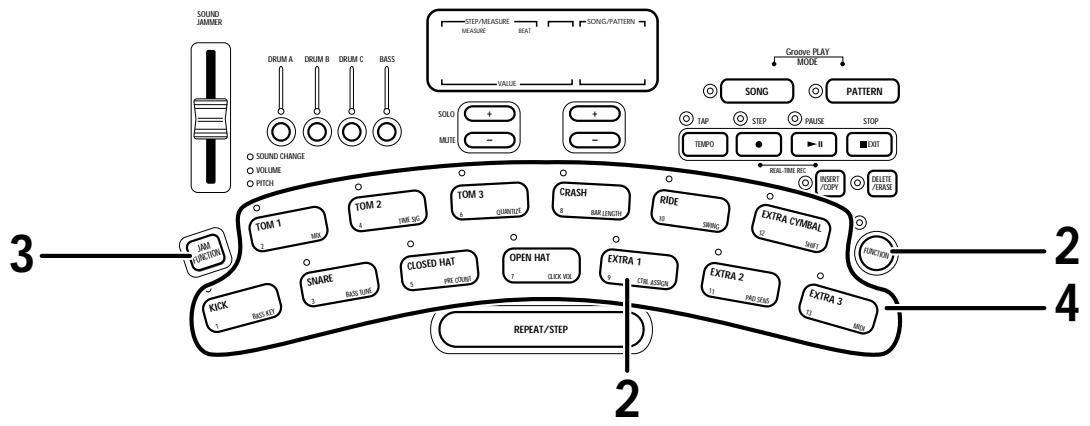
STEP1 Connect the FP01 to the [CTRL1 IN] or [CTRL2 IN] jack on the rear panel.
For information on connections, see page 3.
![ZOOM RT234 - STEP1 Connect the FP01 to the [CTRL1 IN] or [CTRL2 IN] jack on the rear panel. - 1](/content/2025/01/152302/images/aba1c1d0da041c6575d8f59dc3cd07a1ac346a4ee50e97530281919139a7c3bf.jpg)
The function of the two jacks is identical. You can use either jack.
STEP2 Use the [FUNCTION] key and pad 9 (CTRL ASSIGN) to set the FP01 to the same function as the [SOUND JAMMER] slider.
For information on the setting procedure, see page 45.
STEP3 Use the [JAM FUNCTION] key to select the parameter you want to control with the pedal.
For information on the setting procedure, see page 13.
STEP4 While playing the pads, move the FP01.
This has the same effect as moving the [SOUND JAMMER] slider.
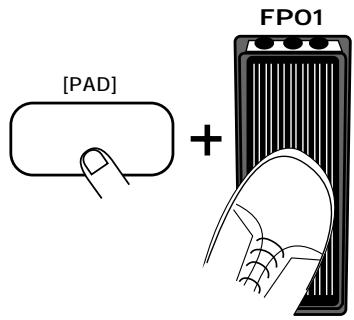
Controlling the RhythmTrak --234 with the FS01
When the separately available foot switch FS01 is connected to the [CTRL1 IN] or [CTRL2 IN] jack on the rear panel, it can be used to operate the bass drum or switch between open and closed hi-hat sound. The switch can also be used in place of the [START] key and [STOP] key to control operation of the RhythmTrak ...234 with your foot.
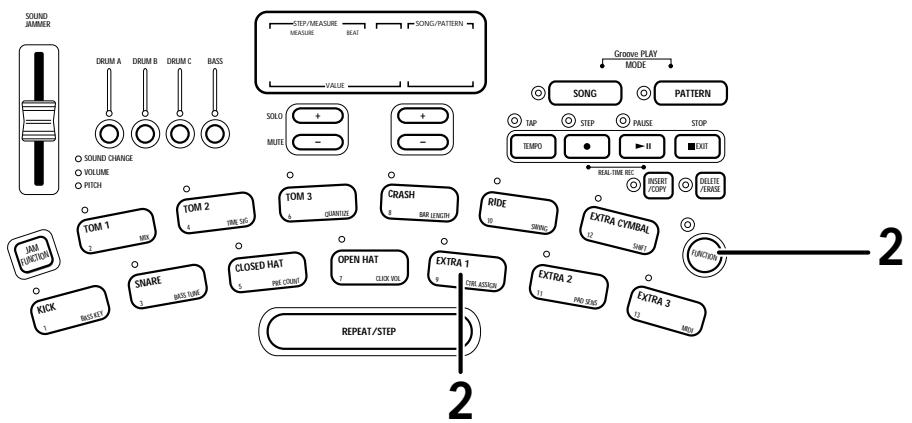
STEP1 Connect the FS01 to the [CTRL1 IN] or [CTRL2 IN] jack on the rear panel.
For information on connections, see page 3.
STEP2 Use the [FUNCTION] key and pad 9 (CTRL ASSIGN) to set the FS01 function.
For information on the setting procedure, see page 45.
STEP3 Use the FS01 in pattern mode or play mode.
Depending on the function selected in step 2, the FS01 activates the sound of a specific pad, switches between the sound of two pads, or controls playback start/stop of a song or pattern. For details, see page 46.
Synchronized MIDI operation
Operation of the RhythmTrak …234 can be synchronized with a sequencer or other rhythm machine equipped with a MIDI jack. This allows playback of the patterns or songs of the RhythmTrak …234 with the tempo determined by the sequencer.
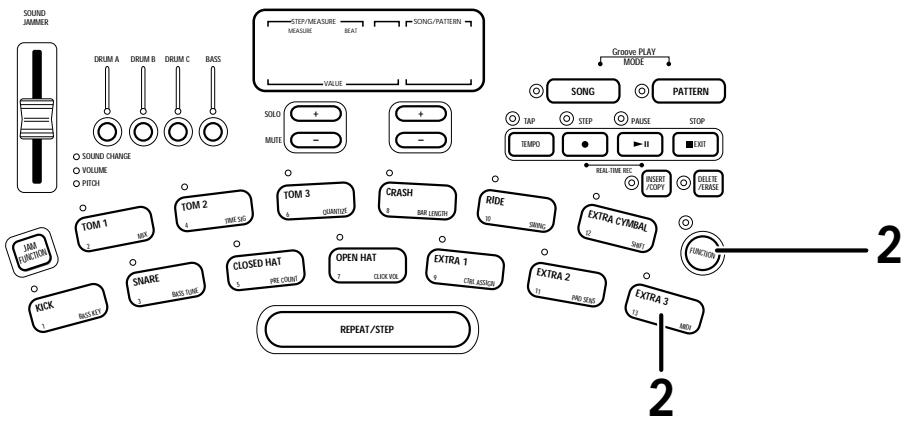
STEP1
Connect the MIDI OUT jack of the MIDI sequencer, rhythm machine, or other MIDI component to the [MIDI IN] connector of the RhythmTrak …234, using a MIDI cable.
For information on connections, see page 3.

Verify that the external MIDI sequencer can send the MIDI clock, start, stop, and continue signals.
STEP2
Use the [FUNCTION] key and pad 13 (MIDI) and set up the RhythmTrak …234 so that it can receive the MIDI clock and other messages.
For information on the setting procedure, see page 47.
STEP3
Start the external MIDI sequencer.
The RhythmTrak …234 operates under control of the MIDI sequencer.
Using MIDI equipment to play the RhythmTrak …234
Using a MIDI sequencer, MIDI keyboard, or similar MIDI Device you can play the built-in sound sources of the RhythmTrak ...234.
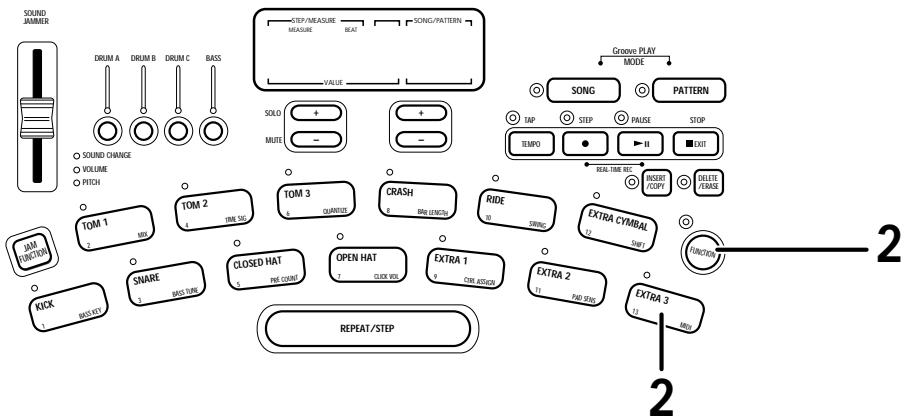
STEP1 Connect the MIDI OUT jack of the MIDI sequencer or other MIDI component to the [MIDI IN] connector of the RhythmTrak…234, using a MIDI cable.
Use the [FUNCTION] key and pad 13 (MIDI) to assign the tracks of the RhythmTrak ...234 to receive MIDI channels which are matched to the send channels of the external MIDI component.
For information on the MIDI channel setting procedure, see page 47.
STEP3 Play the MIDI sequencer or keyboard.
The RhythmTrak …234 produces sound according to the note numbers received via the [MIDI IN] connector. Program change messages can be used to switch drum kits and bass programs of the RhythmTrak …234. For information on program change numbers and corresponding drum kits and bass programs, please refer to the "Reference" section at the end of this manual.
Returning the RhythmTrak…234 to the factory default condition (initialization)
You can reset the RhythmTrak…234 to the factory default condition. Use this function with care, because it will erase all patterns and songs that have been recorded by the user.
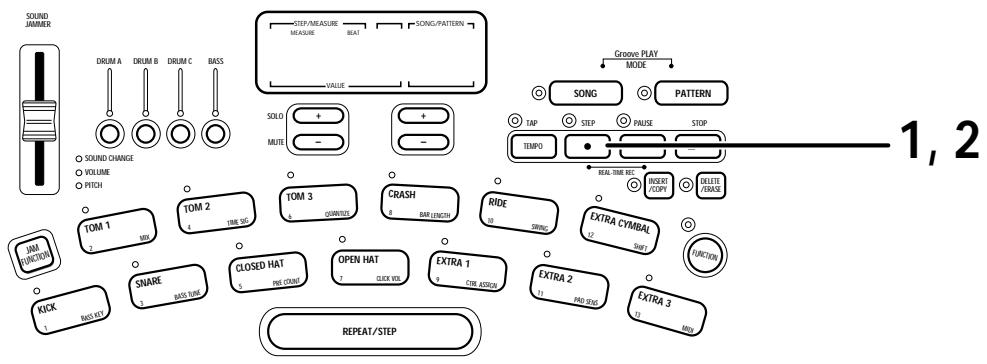
STEP1 Turn power to the RhythmTrak…234 on while holding the [REC] key down.
The indication "Init" flashes on the display.
![ZOOM RT234 - STEP1 Turn power to the RhythmTrak…234 on while holding the [REC] key down. - 1](/content/2025/01/152302/images/23a7279a31523f91541de180c95e768e1cf5ff7c273377573f7aebdc79453d89.jpg)
STEP2 When wishing to go ahead with the initialization, press the [REC] key once more. To cancel the procedure, press the [STOP] key.
When initialization is carried out, all settings and data of the RhythmTrak …234 are reset to the factory default condition, and then the unit starts up. If the process was canceled, the unit starts up normally.
Listening to the demo
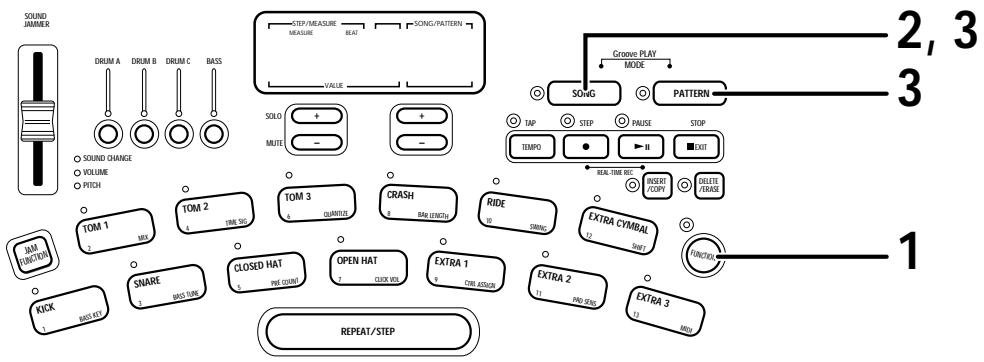
STEP1 Press the [FUNCTION] key.
The [FUNCTION] key LED flashes.
STEP2 Press the [SONG] key.
Playback of the demo song starts. The demo continues to play until it is stopped by the user.
STEP3 To stop the demo, press the [SONG] key or [PATTERN] key.
The RhythmTrak …234 goes into song mode if the [SONG] key is pressed, and into pattern mode if the [PATTERN] key is pressed.
Checking the amount of remaining memory
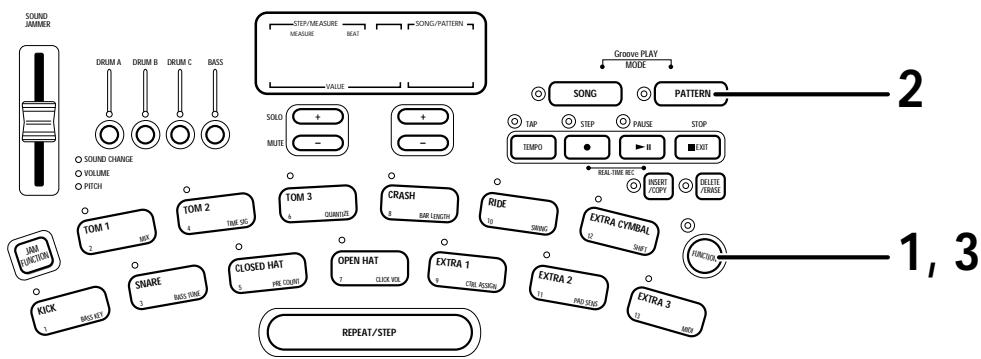
STEP1 Press the [FUNCTION] key.
The [FUNCTION] key LED lights up.
STEP2 Press the [PATTERN] key.
The [FUNCTION] key LED remains lit and the [PATTERN] key LED flashes. The amount of free memory is shown in percent on the [VALUE] display.
STEP3 To cancel the display, press the [FUNCTION] key once more.
The unit reverts to the previously active mode.
Troubleshooting
Check the following items first if there seems to be a problem with the RhythmTrak ...234.
| Symptom | Check | Remedy |
| No sound or very low volume. | Is supplied AC adapter connected properly? | Connect AC adapter as described in "Getting Connected" (page 3). Use only the supplied AC adapter. |
| Is [OUTPUT] jack connected correctly to the playback system? | Make connections as described in "Getting Connected" (page 3). | |
| Is there a problem with the shielded cable? | Try using another cable. | |
| Is the connected playback system operating normally? | Check the system and make sure that the volume level is adjusted properly. | |
| Is [VOLUME] control of RhythmTrak ***234 set correctly? | Set the control to a suitable position. | |
| Has volume been minimized with [SOUND JAMMER] slider or FP01? | Increase volume with [SOUND JAMMER] slider or FP01. | |
| Sound is distorted or intermittent. | Is output level of RhythmTrak ***234 set too high? | Set [VOLUME] control of RhythmTrak ***234 to a suitable position. |
| Song cannot be recorded. | Is RhythmTrak ***234 set to mode other than song mode? | Activate song mode (page 34). |
| Is memory capacity limit reached? | Delete unneeded patterns and songs. | |
| [ SOUND JAMMER] slider has no effect. | Was parameter to be controlled by [SOUND JAMMER] slider just switched? | Immediately after switching [SOUND JAMMER] slider control parameter, slider has no effect until it is moved past the currently active setting. |
| FP01/FS01 has no effect. | Is FP01/FS01 connected correctly to [CTRL1 IN]/[CTRL2 IN] jack? | Make connections as described in "Getting Connected" (page 3). |
| Is desired function of FP01/FS01 activated? | Use [FUNCTION] key and pad 9 (CTRL ASSIGN) to select function (page 45). | |
| Was pedal or switch of FP01/FS01 not pressed when [FUNCTION] key was used to set the function? | Use [FUNCTION] key while pressing pedal or switch of FP01/FS01 (page 45). | |
| Hitting the pads produces sound, but MIDI playback is not possible. | Is the MIDI receive function set to ON? | Use the [FUNCTION] key and pad 13 (MIDI) to change the setting from "Int" (MIDI receive disabled) to "Midi" (MIDI receive enabled). |
SPECIFICATIONS
- Drum Kits: 124 (Including Percussion, SFX kit)
- Bass Programs: 50
- Rhythm Patterns: Preset; 99/User; 99/Preset Groove; 99
Songs: 99
Maximum Notes: 13,000 notes
Maximum Polyphony: 32 voices - Resolution: 96 PPQN
- Tempo: 40 to 250 BPM
- Pads: 13 with Velocity Sense
- Control Slider: SOUND JAMMER
Control: MIDI in, Control in for FP01/FS01 - Display: 6-digit, 7-segment LED
- Input: Line; 1/4" jack (Mono)X 1, Impedance 10kΩ
- Outputs: Line (L/Mono, R); 1/4" jack (Mono)X 2, Impedance 2.2kΩ or less Phones; 1/4" jack (Stereo)X 1, Output Power 50mW into 32Ω
- Power Requirements: 9V DC/300mA (from supplied AC adaptor AD-0006)
- Dimensions: 297(W) X 215(D) X 43(H)mm
Weight: 1.0 ~kg (2.2 ~lbs.) - Accessory: Expression Pedal FP01, Footswitch FS01
MIDI ProgramChange# to DRUM/Percussion/SFX KIT Assign
| PC | KIT# | KIT |
| 0 | 9 | Drum #9 |
| 1 | 39 | Standard 10 |
| 2 | 0 | Live Rock |
| 3 | 1 | Studio |
| 4 | 2 | Standard |
| 5 | 3 | Funk Trap |
| 6 | 4 | Epic Rock |
| 7 | 5 | Ballad |
| 8 | 19 | Live Rock 10 |
| 9 | 6 | Modern |
| 10 | 7 | Rap/HipHop |
| 11 | 8 | Techno Beat |
| 12 | 10 | Live Rock 1 |
| 13 | 11 | Live Rock 2 |
| 14 | 12 | Live Rock 3 |
| 15 | 13 | Live Rock 4 |
| 16 | 59 | Epic Rock 10 |
| 17 | 14 | Live Rock 5 |
| 18 | 15 | Live Rock 6 |
| 19 | 16 | Live Rock 7 |
| 20 | 17 | Live Rock 8 |
| 21 | 18 | Live Rock 9 |
| 22 | 20 | Studio 1 |
| 23 | 21 | Studio 2 |
| 24 | 99 | Techno Beat 10 |
| 25 | 89 | Rap/HipHop 10 |
| 26 | 49 | Funk Trap 10 |
| 27 | 22 | Studio 3 |
| 28 | 23 | Studio 4 |
| 29 | 24 | Studio 5 |
| 30 | 25 | Studio 6 |
| 31 | 26 | Studio 7 |
| 32 | 9 | Drum #9 |
| 33 | 27 | Studio 8 |
| 34 | 28 | Studio 9 |
| 35 | 29 | Studio 10 |
| 36 | 30 | Standard 1 |
| 37 | 31 | Standard 2 |
| 38 | 32 | Standard 3 |
| 39 | 33 | Standard 4 |
| 40 | 69 | Ballad 10 |
| 41 | 34 | Standard 5 |
| 42 | 35 | Standard 6 |
| PC | KIT# | KIT |
| 43 | 36 | Standard 7 |
| 44 | 37 | Standard 8 |
| 45 | 38 | Standard 9 |
| 46 | 40 | Funk Trap 1 |
| 47 | 41 | Funk Trap 2 |
| 48 | 117 | Orchestral Set |
| 49 | 42 | Funk Trap 3 |
| 50 | 43 | Funk Trap 4 |
| 51 | 44 | Funk Trap 5 |
| 52 | 45 | Funk Trap 6 |
| 53 | 46 | Funk Trap 7 |
| 54 | 47 | Funk Trap 8 |
| 55 | 48 | Funk Trap 9 |
| 56 | 50 | Epic Rock 1 |
| 57 | 51 | Epic Rock 2 |
| 58 | 52 | Epic Rock 3 |
| 59 | 53 | Epic Rock 4 |
| 60 | 54 | Epic Rock 5 |
| 61 | 55 | Epic Rock 6 |
| 62 | 56 | Epic Rock 7 |
| 63 | 57 | Epic Rock 8 |
| 64 | 58 | Epic Rock 9 |
| 65 | 60 | Ballad 1 |
| 66 | 61 | Ballad 2 |
| 67 | 62 | Ballad 3 |
| 68 | 63 | Ballad 4 |
| 69 | 64 | Ballad 5 |
| 70 | 65 | Ballad 6 |
| 71 | 66 | Ballad 7 |
| 72 | 67 | Ballad 8 |
| 73 | 68 | Ballad 9 |
| 74 | 70 | Modern 1 |
| 75 | 71 | Modern 2 |
| 76 | 72 | Modern 3 |
| 77 | 73 | Modern 4 |
| 78 | 74 | Modern 5 |
| 79 | 75 | Modern 6 |
| 80 | 76 | Modern 7 |
| 81 | 77 | Modern 8 |
| 82 | 78 | Modern 9 |
| 83 | 79 | Modern 10 |
| 84 | 80 | Rap/HipHop 1 |
| 85 | 81 | Rap/HipHop 2 |
| PC | KIT# | KIT |
| 86 | 82 | Rap/HipHop 3 |
| 87 | 83 | Rap/HipHop 4 |
| 88 | 84 | Rap/HipHop 5 |
| 89 | 85 | Rap/HipHop 6 |
| 90 | 86 | Rap/HipHop 7 |
| 91 | 87 | Rap/HipHop 8 |
| 92 | 88 | Rap/HipHop 9 |
| 93 | 89 | Rap/HipHop 10 |
| 94 | 90 | Techno Beat 1 |
| 95 | 91 | Techno Beat 2 |
| 96 | 92 | Techno Beat 3 |
| 97 | 93 | Techno Beat 4 |
| 98 | 94 | Techno Beat 5 |
| 99 | 95 | Techno Beat 6 |
| 100 | 96 | Techno Beat 7 |
| 101 | 97 | Techno Beat 8 |
| 102 | 98 | Techno Beat 9 |
| 103 | 99 | Techno Beat 10 |
| 104 | 100 | Drum Skins |
| 105 | 101 | Lo Percussion |
| 106 | 102 | Hi Percussion |
| 107 | 103 | Velocity Switch |
| 108 | 104 | Velocity Layers |
| 109 | 105 | Single Percussion |
| 110 | 106 | Indian Percussion |
| 111 | 107 | Temple Blocks |
| 112 | 108 | Percussion Bazaar |
| 113 | 109 | Agogo Gamelan |
| 114 | 110 | Clicks and Sticks |
| 115 | 111 | SFX/1 |
| 116 | 112 | SFX/2 |
| 117 | 113 | SFX/3 |
| 118 | 114 | SFX/4 |
| 119 | 115 | SFX/5 |
| 120 | 116 | Brush Snare Kit |
| 121 | 117 | Orchestral Set |
| 122 | 118 | Various Percussion 1 |
| 123 | 119 | Various Percussion 2 |
| 124 | 120 | Various Percussion 3 |
| 125 | 121 | Various Percussion 4 |
| 126 | 122 | Various Percussion 5 |
| 127 | 123 | Cymbal Set |
MIDI ProgramChange# to BASS PROGRAM Assign
| PC# | PROGRAM# | PROGRAM |
| 0 | 0 | Live Bass |
| 1 | 1 | Studio Bass |
| 2 | 2 | Epic Bass |
| 3 | 3 | Funk Bass |
| 4 | 4 | Ballad Bass |
| 5 | 5 | Acoustic Bass |
| 6 | 6 | Modern Bass |
| 7 | 7 | Synth Bass |
| 8 | 8 | Techno Bass |
| 9 | 9 | Big Bottom Bass |
| 10 | 10 | SubSlap Bass |
| 11 | 11 | Digital Acoustic |
| 12 | 12 | Bass Harmonics |
| 13 | 13 | No Frets |
| 14 | 14 | Acoustic Jazz |
| 15 | 15 | Digital Pick |
| 16 | 16 | TechnoAnalog |
| 17 | 17 | Tabla Bass Tones |
| 18 | 18 | Tight Analog |
| 19 | 19 | Analog Fifths |
| 20 | 20 | Temple Tones |
| 21 | 21 | Quadra Bass |
| 22 | 22 | Analog Touch |
| 23 | 23 | Picked Acoustic |
| 24 | 24 | Bass Dove |
| 25 | 25 | AnalogOctaves |
| 26 | 26 | SynthTomBass |
| 27 | 27 | Lo Sine |
| 28 | 28 | Digi Slap Bass |
| 29 | 29 | Tumba Tones |
| 30 | 30 | Conga Keys |
| 31 | 31 | PowerTom Bass |
| 32 | 5 | Acoustic Bass |
| 33 | 44 | Jazz Bass |
| 34 | 1 | Studio Bass |
| 35 | 13 | No Frets |
| 36 | 45 | Funk Pops |
| 37 | 10 | SubSlap Bass |
| 38 | 7 | Synth Bass |
| 39 | 8 | Techno Bass |
| 40 | 32 | Becoming Bass |
| 41 | 33 | Harmonics Bass |
| 42 | 34 | Bass with Harmonics |
| PC# | PROGRAM# | PROGRAM |
| 43 | 35 | Picked Funk Bass |
| 44 | 36 | Picked Jazz |
| 45 | 37 | Picked Techno |
| 46 | 38 | Acoustic Techno |
| 47 | 39 | Power Funk |
| 48 | 40 | Pops/Pulls Split |
| 49 | 41 | EpicBass Jam/1 |
| 50 | 42 | Tribal Bass Jam/2 |
| 51 | 43 | Wooden Bass |
| 52 | 44 | Jazz Bass |
| 53 | 45 | Funk Pops |
| 54 | 46 | FunkPulls |
| 55 | 47 | Picked Bass |
| 56 | 48 | Analog Bass |
| 57 | 49 | Digi Bass |
| 58 | 0 | Live Bass |
| 59 | 1 | Studio Bass |
| 60 | 2 | Epic Bass |
| 61 | 3 | Funk Bass |
| 62 | 4 | Ballad Bass |
| 63 | 5 | Acoustic Bass |
| 64 | 6 | Modern Bass |
| 65 | 7 | Synth Bass |
| 66 | 8 | Techno Bass |
| 67 | 9 | Big Bottom Bass |
| 68 | 10 | SubSlap Bass |
| 69 | 11 | Digital Acoustic |
| 70 | 12 | Bass Harmonics |
| 71 | 13 | No Frets |
| 72 | 14 | Acoustic Jazz |
| 73 | 15 | Digital Pick |
| 74 | 16 | TechnoAnalog |
| 75 | 17 | Tabla Bass Tones |
| 76 | 18 | Tight Analog |
| 77 | 19 | Analog Fifths |
| 78 | 20 | Temple Tones |
| 79 | 21 | Quadra Bass |
| 80 | 22 | Analog Touch |
| 81 | 23 | Picked Acoustic |
| 82 | 24 | Bass Dive |
| 83 | 25 | AnalogOctaves |
| 84 | 26 | SynthTomBass |
| 85 | 27 | Lo Sine |
| PC# | PROGRAM# | PROGRAM |
| 86 | 28 | Digi Slap Bass |
| 87 | 29 | Tumba Tones |
| 88 | 30 | Conga Keys |
| 89 | 31 | PowerTom Bass |
| 90 | 32 | Becoming Bass |
| 91 | 33 | Harmonics Bass |
| 92 | 34 | Bass with Harmonics |
| 93 | 35 | Picked Funk Bass |
| 94 | 36 | Picked Jazz |
| 95 | 37 | Picked Techno |
| 96 | 38 | Acoustic Techno |
| 97 | 39 | Power Funk |
| 98 | 40 | Pops/Pulls Split |
| 99 | 41 | EpicBass Jam/1 |
| 100 | 42 | Tribal Bass Jam/2 |
| 101 | 43 | Wooden Bass |
| 102 | 44 | Jazz Bass |
| 103 | 45 | Funk Pops |
| 104 | 46 | FunkPulls |
| 105 | 47 | Picked Bass |
| 106 | 48 | Analog Bass |
| 107 | 49 | Digi Bass |
| 108 | 0 | Live Bass |
| 109 | 1 | Studio Bass |
| 110 | 2 | Epic Bass |
| 111 | 3 | Funk Bass |
| 112 | 4 | Ballad Bass |
| 113 | 5 | Acoustic Bass |
| 114 | 6 | Modern Bass |
| 115 | 7 | Synth Bass |
| 116 | 8 | Techno Bass |
| 117 | 9 | Big Bottom Bass |
| 118 | 10 | SubSlap Bass |
| 119 | 11 | Digital Acoustic |
| 120 | 12 | Bass Harmonics |
| 121 | 13 | No Frets |
| 122 | 14 | Acoustic Jazz |
| 123 | 15 | Digital Pick |
| 124 | 16 | TechnoAnalog |
| 125 | 17 | Tabla Bass Tones |
| 126 | 18 | Tight Analog |
| 127 | 19 | Analog Fifts |
DRUM KITs
| 0 | Live Rock |
| 1 | Studio |
| 2 | Standard |
| 3 | Funk Trap |
| 4 | Epic Rock |
| 5 | Ballad |
| 6 | Modern |
| 7 | Rap/HipHop |
| 8 | Techno Beat |
| 9 | Drum #9 |
| 10 | Live Rock 1 |
| 11 | Live Rock 2 |
| 12 | Live Rock 3 |
| 13 | Live Rock 4 |
| 14 | Live Rock 5 |
| 15 | Live Rock 6 |
| 16 | Live Rock 7 |
| 17 | Live Rock 8 |
| 18 | Live Rock 9 |
| 19 | Live Rock 10 |
| 20 | Studio 1 |
| 21 | Studio 2 |
| 22 | Studio 3 |
| 23 | Studio 4 |
| 24 | Studio 5 |
| 25 | Studio 6 |
| 26 | Studio 7 |
| 27 | Studio 8 |
| 28 | Studio 9 |
| 29 | Studio 10 |
| 30 | Standard 1 |
| 31 | Standard 2 |
| 32 | Standard 3 |
| 33 | Standard 4 |
| 34 | Standard 5 |
| 35 | Standard 6 |
| 36 | Standard 7 |
| 37 | Standard 8 |
| 38 | Standard 9 |
| 39 | Standerd 10 |
| 40 | Funk Trap 1 |
| 41 | Funk Trap 2 |
| 42 | Funk Trap 3 |
| 43 | Funk Trap 4 |
| 44 | Funk Trap 5 |
| 45 | Funk Trap 6 |
| 46 | Funk Trap 7 |
| 47 | Funk Trap 8 |
| 48 | Funk Trap 9 |
| 49 | Funk Trap 10 |
| 50 | Epic Rock 1 |
| 51 | Epic Rock 2 |
| 52 | Epic Rock 3 |
| 53 | Epic Rock 4 |
| 54 | Epic Rock 5 |
| 55 | Epic Rock 6 |
| 56 | Epic Rock 7 |
| 57 | Epic Rock 8 |
| 58 | Epic Rock 9 |
| 59 | Epic Rock 10 |
| 60 | Ballad 1 |
| 61 | Ballad 2 |
| 62 | Ballad 3 |
| 63 | Ballad 4 |
| 64 | Ballad 5 |
| 65 | Ballad 6 |
| 66 | Ballad 7 |
| 67 | Ballad 8 |
| 68 | Ballad 9 |
| 69 | Ballad 10 |
| 70 | Modern 1 |
| 71 | Modern 2 |
| 72 | Modern 3 |
| 73 | Modern 4 |
| 74 | Modern 5 |
| 75 | Modern 6 |
| 76 | Modern 7 |
| 77 | Modern 8 |
| 78 | Modern 9 |
| 79 | Modern 10 |
| 80 | Rap/HipHop 1 |
| 81 | Rap/HipHop 2 |
| 82 | Rap/HipHop 3 |
| 83 | Rap/HipHop 4 |
| 84 | Rap/HipHop 5 |
| 85 | Rap/HipHop 6 |
| 86 | Rap/HipHop 7 |
| 87 | Rap/HipHop 8 |
| 88 | Rap/HipHop 9 |
| 89 | Rap/HipHop 10 |
| 90 | Techno Beat 1 |
| 91 | Techno Beat 2 |
| 92 | Techno Beat 3 |
| 93 | Techno Beat 4 |
| 94 | Techno Beat 5 |
| 95 | Techno Beat 6 |
| 96 | Techno Beat 7 |
| 97 | Techno Beat 8 |
| 98 | Techno Beat 9 |
| 99 | Techno Beat 10 |
| 100 | Drum Skins |
| 101 | Lo Percussion |
| 102 | Hi Percussion |
| 103 | Velocity Switch |
| 104 | Velocity Layers |
| 105 | Single Percussion |
| 106 | Indian Percussion |
| 107 | Temple Blocks |
| 108 | Percussion Bazaar |
| 109 | Agogo Gamelan |
| 110 | Clicks and Sticks |
| 111 | SFX/1 |
| 112 | SFX/2 |
| 113 | SFX/3 |
| 114 | SFX/4 |
| 115 | SFX/5 |
| 116 | Brush Snare Kit |
| 117 | Orchestral Set |
| 118 | Various Percussion 1 |
| 119 | Various Percussion 2 |
| 120 | Various Percussion 3 |
| 121 | Various Percussion 4 |
| 122 | Various Percussion 5 |
| 123 | Cymbal Set |
BASS Programs
| 0 | Live Bass |
| 1 | Studio Bass |
| 2 | Epic Bass |
| 3 | Funk Bass |
| 4 | Ballad Bass |
| 5 | Acoustic Bass |
| 6 | Modern Bass |
| 7 | Synth Bass |
| 8 | Techno Bass |
| 9 | Big Bottom Bass |
| 10 | SubSlap Bass |
| 11 | Digital Acoustic |
| 12 | Bass Harmonics |
| 13 | No Frets |
| 14 | Acoustic Jazz |
| 15 | Digital Pick |
| 16 | TechnoAnalog |
| 17 | Tabla Bass Tones |
| 18 | Tight Analog |
| 19 | Analog Fifths |
| 20 | Temple Tones |
| 21 | Quadra Bass |
| 22 | Analog Touch |
| 23 | Picked Acoustic |
| 24 | Bass Dive |
| 25 | AnalogOctaves |
| 26 | SynthTomBass |
| 27 | Lo Sine |
| 28 | Digi Slap Bass |
| 29 | Tumba Tones |
| 30 | Conga Keys |
| 31 | PowerTom Bass |
| 32 | Becoming Bass |
| 33 | Harmonics Bass |
| 34 | Bass with Harmonics |
| 35 | Picked Funk Bass |
| 36 | Picked Jazz |
| 37 | Picked Techno |
| 38 | Acoustic Techno |
| 39 | Power Funk |
| 40 | Pops/Pulls Split |
| 41 | EpicBass Jam/1 |
| 42 | Tribal Bass Jam/2 |
| 43 | Wooden Bass |
| 44 | Jazz Bass |
| 45 | Funk Pops |
| 46 | FunkPulls |
| 47 | Picked Bass |
| 48 | Analog Bass |
| 49 | Digi Bass |
Preset Pattern List
| Rock / Pops | BPM | Rock / Pops | BPM | ||
| P01 | Rock 1 | 107 | P42 | Ska 1 | 144 |
| P02 | Rock 2 | 120 | P43 | Ska 2 | 160 |
| P03 | Rock 3 | 140 | P44 | Ballad 1 | 72 |
| P04 | Rock 4 | 136 | P45 | Ballad 2 | 79 |
| P05 | Rock 5 | 137 | P46 | Ballad 3 | 80 |
| P06 | Rock 6 | 107 | P47 | Ballad 4 | 132 |
| P07 | Rock 7 | 117 | P48 | Ballad 5 | 114 |
| P08 | Rock 8 | 125 | P49 | Blues 1 | 91 |
| P09 | Hard Rock 1 | 130 | P50 | Blues 2 | 84 |
| P10 | Hard Rock 2 | 113 | P51 | Jazz 1 | 148 |
| P11 | Hard Rock 3 | 100 | P52 | Jazz 2 | 120 |
| P12 | Hard Rock 4 | 96 | P53 | Jazz 3 | 125 |
| P13 | Metal 1 | 148 | P54 | Shuffle 1 | 172 |
| P14 | Metal 2 | 80 | P55 | Shuffle 2 | 120 |
| P15 | Thrash 1 | 135 | P56 | Country 1 | 116 |
| P16 | Thrash 2 | 120 | P57 | Country 2 | 175 |
| P17 | Punk 1 | 137 | P58 | Waltz 1 | 132 |
| P18 | Punk 2 | 188 | P59 | Waltz 2 | 125 |
| P19 | Punk 3 | 130 | |||
| P20 | Punk 4 | 148 | |||
| P21 | Fusion | 112 | |||
| P22 | Industrial 1 | 134 | |||
| P23 | Industrial 2 | 103 | |||
| P24 | Industrial 3 | 138 | |||
| P25 | Industrial 4 | 132 | |||
| P26 | Pop 1 | 168 | |||
| P27 | Pop 2 | 142 | |||
| P28 | Pop 3 | 104 | |||
| P29 | Pop 4 | 130 | |||
| P30 | Pop 5 | 108 | |||
| P31 | R&B 1 | 92 | |||
| P32 | R&B 2 | 126 | |||
| P33 | R&B 3 | 116 | |||
| P34 | R&B 4 | 114 | |||
| P35 | R&B 5 | 104 | |||
| P36 | Funk 1 | 112 | |||
| P37 | Funk 2 | 146 | |||
| P38 | Funk 3 | 113 | |||
| P39 | Funk 4 | 117 | |||
| P40 | Funk 5 | 110 | |||
| P41 | Funk 6 | 116 | |||
| Dance | BPM | |
| P60 | Dance 1 | 120 |
| P61 | Dance 2 | 118 |
| P62 | Jungle | 120 |
| P63 | Techno 1 | 132 |
| P64 | Techno 2 | 146 |
| P65 | Techno 3 | 125 |
| P66 | Techno 4 | 130 |
| P67 | Drum&Bass 1 | 163 |
| P68 | Drum&Bass 2 | 153 |
| P69 | Trance 1 | 122 |
| P70 | Trance 2 | 106 |
| P71 | Ambient 1 | 114 |
| P72 | Ambient 2 | 129 |
| P73 | HipHop 1 | 69 |
| P74 | HipHop 2 | 104 |
| P75 | HipHop 3 | 100 |
| P76 | Rap 1 | 91 |
| P77 | Rap 2 | 112 |
| World | BPM | |
| P78 | Afro 1 | 117 |
| P79 | Afro 2 | 101 |
| P80 | Afro 3 | 100 |
| P81 | Afro 4 | 123 |
| P82 | Celtic | 130 |
| P83 | Indian 1 | 102 |
| P84 | Indian 2 | 163 |
| P85 | Latin 2 | 100 |
| P86 | Latin 3 | 126 |
| P87 | Latin 4 | 109 |
| P88 | Latin 5 | 108 |
| P89 | Latin 6 | 126 |
| P90 | Latin 7 | 100 |
| P91 | Latin 8 | 116 |
| P92 | Persian 1 | 122 |
| P93 | Persian 2 | 89 |
| P94 | Reggae 1 | 72 |
| P95 | Reggae 2 | 126 |
| P96 | Reggae 3 | 145 |
| P97 | Reggae 4 | 150 |
| P98 | Poly Rhythm 1 | 104 |
| P99 | Poly Rhythm 2 | 108 |
Preset Groove List
| Groove Patterns Default bars | |||
| G01 | JUNGLE | [PAD 1] | 2 Drums |
| G02 | FUNK | 2 | |
| G03 | REGGAE | 4 | |
| G04 | 16BEAT | 1 | |
| G05 | ROCK | 2 | |
| G06 | PERSIAN | 2 | |
| G07 | RAP 1 | 2 | |
| G08 | RAP 2 | 2 | |
| G09 | SKA 1 | 2 | |
| G10 | SKA 2 | 2 | |
| G11 | INDUSTRIAL 1 | 2 | |
| G12 | INDUSTRIAL 2 | [PAD 2] | 2 |
| G13 | INDUSTRIAL 3 | 2 | |
| G14 | TECHNO 1 | [PAD 4] | 2 |
| G15 | TECHNO 2 | 2 | |
| G16 | TECHNO 3 | 2 | |
| G17 | TECHNO 4 | [PAD 3] | 2 |
| G18 | KICK/SNARE & HAT | 2 | |
| G19 | KICK & SNARE 1 | 2 | |
| G20 | KICK & SNARE 2 | 2 | |
| G21 | KICK & SNARE 4 | 2 | |
| G22 | KICK & SNARE 5 | 2 | |
| G23 | KICK & SNARE 6 | 2 | |
| G24 | KICK & SNARE 7 | 2 | |
| G25 | KICK/SNARE & TOM 1 | 2 | |
| G26 | KICK/SNARE & TOM 2 | 2 | |
| G27 | KICK/SNARE & TOM 3 | 2 | |
| G28 | KICK & TOMS 1 | 2 | |
| G29 | MARCH TOM | 2 | |
| G30 | SFX 1 | 2 | |
| G31 | SFX 2 | 2 | |
| G32 | SFX 3 | 2 | |
| G33 | PERCUSSION JAM 1 | [PAD 6] | 2 Percussion |
| G34 | PERCUSSION JAM 2 | 2 | |
| G35 | TABLA JAM | [PAD 7] | 2 |
| G36 | HIGH PERCUSSION | 2 | |
| G37 | TIMBALES & AGOGO | 2 | |
| G38 | BASS 1 | 1 Bass | |
| G39 | BASS 2 | 2 | |
| G40 | BASS 3 | 2 | |
| G41 | BASS 4 | 2 | |
| G42 | BASS 5 | 2 | |
| G43 | BASS 6 | [PAD 13] | 2 |
| G44 | BASS 7 | 2 | |
| G45 | BASS 8 | [PAD 9] | 1 |
| G46 | BASS 9 | [PAD 11] | 2 |
| G47 | BASS 10 | 4 | |
| G48 | BASS 11 | 1 | |
| G49 | ARPEGGIO | [PAD 10] | 1 Arpeggio &Chord |
| G50 | ETHNIC RIFF | [PAD 12] | 2 |
| G51 | SLOW ARPEGGIO | 2 | |
| G52 | LONG PAD | [PAD 8] | 8 |
| Groove Patterns Default bars | ||
| G53 KICK 1 | 2 | |
| G54 KICK 2 | 2 | |
| G55 KICK 3 | 2 | |
| G56 KICK 4 | 2 | |
| G57 KICK 5 | 2 | |
| G58 KICK 6 | 2 | |
| G59 KICK 7 | 2 | |
| G60 SNARE 1 | 2 | |
| G61 SNARE 2 | 2 | |
| G62 SNARE 3 | 2 | |
| G63 HAT 16th 1 | 2 | |
| G64 HAT 16th 2 | 2 | |
| G65 HAT OPEN | 2 | |
| G66 HAT & RIDE 1 | 2 | |
| G67 HAT & RIDE 2 | 2 | |
| G68 HAT & RIDE 3 | 2 | |
| G69 HAT & RIDE 4 | 2 | |
| G70 RIDE 1 | 2 | |
| G71 RIDE 2 | 2 | |
| G72 RIDE & TAMBOURINE | 2 | |
| G73 TOMS 1 | 2 | |
| G74 TOMS 2 | 2 | |
| G75 TOMS 3 | 2 | |
| G76 SHAKER 1 | 2 | |
| G77 SHAKER 2 | 2 | |
| G78 SHAKER 3 | 2 | |
| G79 SHAKER & TAMB | 2 | |
| G80 TAMBOURINE & HAT | 2 | |
| G81 TAMBOURINE 1 | 2 | |
| G82 TAMBOURINE 2 | 2 | |
| G83 CLAVES | 2 | |
| G84 AGOGO | 2 | |
| G85 TRIANGLE | 2 | |
| G86 CONGAS 1 | 2 | |
| G87 CONGAS 2 | 2 | |
| G88 CONGAS 3 | 2 | |
| G89 CONGA & GUIRO 1 | 2 | |
| G90 CONGA & GUIRO 2 | 2 | |
| G91 COWBELL 2 | 2 | |
| G92 KICK & SNARE RIFF | 2 | |
| G93 SNARE RIFF | [PAD 5] | 2 |
| G94 HATS RIFF | 2 | |
| G95 TOM RIFF | 2 | |
| G96 COMBI-HIT 1 | 2 | |
| G97 COMBI-HIT 2 | 2 | |
| G98 COMBI-HIT 3 | 2 | |
| G99 COMBI-HIT 4 | 2 | |
NONE.
2.RECOGNIZED DATA
1) CHANNEL VOICE MESSAGES
| STATUS | SECOND | THIRD | Description |
| 1000 nnnn | 0kkk kkkk | 0vvv vvvv | NOTE OFF (See NOTE 1) kkk kkkk : Note No. vvv vvvv : Note Off Velocity (ignored) |
| 1001 nnnn | 0kkk kkkk | 0000 0000 | NOTE OFF (See NOTE 1) kkk kkkk : Note No. |
| 1001 nnnn | 0kkk kkkk | 0vvv vvvv | NOTE ON (See NOTE 1) kkk kkkk : Note No. vvv vvvv : Note On Velocity (not 0) |
| 1011 nnnn | 0ccc cccc | 0vvv vvvv | CONTROL CHANGE ccc cccc : Control No. 7 Volume 11 Expression 83 SoundChange (See NOTE 2) vvv vvvv : Control Value |
| 1100 nnnn | 0ppp pppp | ---- ---- | PROGRAM CHANGE ppp pppp : Program Number (See NOTE 3) |
| 1110 nnnn | 0vvv vvvv | 0vvv vvvv | PITCH BENDER CHANGE (See NOTE 4) vvv vvvv vvvv vvvv Pitch Bend Value |
NOTE: nnnn = MIDI Channel Number (0000 - 1111)
- Note Off Messages on Drum Channel(s) will be ignored.
- Default Control Value of SoundChange is 64.
- Relationship between Program Numbers and Kit Numbers are assigned as described in Drum Kits/Bass Program List.
- Pitch Bend values will be used only upper 7bits. Pitch Bending will be effected continuously on Bass Channel. Pitch Bender Message on Drum Channel(s) will change initial pitch at Note On.
2)CHANNEL MODEMESSAGE
STATUS SECOND THIRD DESCRIPTION
1011 nnn 0111 1000 0000 0000 ALL SOUNDS OFF
1011 nmm 0111 1001 0000 0000 RESET ALL CONTROLLER
1011 nmm 0111 1011 0000 0000 All NOTES OFF
1011 nmm 0111 1100 0000 0000 ALL NOTES OFF
NOTE: nnnn = MIDI Channel Number (0000 - 1111)
3)SYSTEM COMMONMESSAGE,SYSTEMREALTIMEMESSAGE
STATUS SECOND THIRD DESCRIPTION
1111 0011 0sss ssss ---- SONG SELECT sss ssss : Song No. 0-98
1111 1000 ---- TIMING CLOCK
1111 1010 START
1111 1011 CONTINUE
1111 1100 STOP
NOTE:
[MultiTrackRhythmMachine
Model RhythmTrack ……234 MIDI Implementation Chart
Date: 1.Jan.,1998
Version :1.00
| Function ... | Transmitted | Recognized | Remarks | |
| Basic Channel | Default Changed | 1-16 1-16 | Memorized for every tracks | |
| Default Mode Altered | 3 | |||
| ********** | ||||
| Note Number | True voice | ********** | 0-127 | |
| Velocity Note ON Note OFF | o x | |||
| After Key's Touch Ch's | x x | |||
| Pitch Bend | o | MS7bits | ||
| Control Change | 7 11 83 | Volume Expression SoundChange | ||
| 120 121 | All Sounds Off Reset All Controls | |||
| Prog Change | True # | ********** | o 0-127 | ||
| System Exclusive | x | |||
| System | Song Pos Song Sel Common | Tune | x o x | |||
| System | Clock Real Time | Commands | o o | |||
| Aux | Local ON/OFF | All Notes OFF | Active Sense | Reset | x o x x | |||
| Notes No transmitted messages. | ||||
MEMO
ZEEMCATCH US IF YOU CAN
ZOOM CORPORATION
NOAH Bldg., 2-10-2, Miyanishi-cho, Fuchu-shi, Tokyo 183-0022, Japan
PHONE: 0423-69-7116 FAX: 0423-69-7115
- OPERATION MANUAL
- USAGE AND SAFETY PRECAUTIONS
- - Power requirements
- - Environment
- Handling
- - Alterations
- - Connecting cables and input and output jacks
- Usage Precautions
- - Electrical interference
- - Cleaning
- Names of Parts 2
- Quick Guide 4
- Playing the Pads (Manual Play) 12
- Playing the Patterns
- (Pattern Mode) 15
- Pattern Recording
- (Real-Time Recording) 18
- (Step Recording) 27
- Pattern Copy 32
- Creating Songs (Song Mode) 33
- Using Pads to Play Patterns
- (Groove Play) 39
- [FUNCTION] Key Settings 41
- RhythmTrak …234 Application
- Examples 48
- Troubleshooting 54
- SPECIFICATIONS 55
- Reference
- MIDI Implementation
- MIDI Implementation Chart
- Top Panel
- Rear Panel
- Getting Connected
- Preparations
- Quick Guide (1)
- Listening to the Demo
- Drum kits and bass programs
- To stop the demo
- Press the [PATTERN] key or [SONG] key.
- Quick Guide (2) Playing the Pads
- Turn the power on.
- Press the [PATTERN] key.
- Press the [DRUM A] key.
- Tap the pads.
- To play a bass program with the pads
- Press the [BASS] key.
- Press and hold the [DRUM A] key...
- Press the [VALUE UP or DOWN] key.
- Quick Guide (3) Playing a Pattern
- Press the [▶II] (START) key.
- Pattern
- To change the pattern
- Press one of the [UP/DOWN] keys
- To change the tempo
- Hold the [TEMPO] key...
- To stop pattern play
- Press the [■EXIT] (STOP) key.
- Quick Guide (4) Using Groove Play
- Press the [SONG] key and [PATTERN] key together.
- Push a pad.
- To play multiple patterns simultaneously
- Push several pads together.
- To stop groove play
- Press the [SONG] key or [PATTERN] key.
- Hold the [REPEAT/STEP] key down while pushing the pad.
- Playing the Pads (Manual Play)
- Playing by tapping the pads
- STEP1 Press the [PATTERN] key.
- STEP2 Press the [DRUM A] key of the [KIT/TRACK SELECT] keys.
- STEP3 Tap one of the pads.
- STEP4 Tap a pad while holding the [REPEAT/STEP] key down.
- Using the slider (modify function)
- STEP1
- STEP2
- Selecting a kit/program for manual play
- Playing the Patterns (Pattern Mode)
- Pattern play
- STEP1 Press the [PATTERN] key so that the [PATTERN] key LED lights up.
- STEP2 Use the [UP/DOWN] keys to select the desired pattern number.
- STEP3 Press the [START] key.
- STEP4 Press the [STOP] key when you want to stop the pattern.
- Changing the kit/program of a track
- Changing the tempo of pattern playback
- Press the [TEMPO] key.
- Pattern Recording (Real-Time Recording)
- Deleting an unnecessary pattern
- STEP1 In pattern mode, select the user pattern (01 - 99) you want to erase.
- STEP2 Press the [DELETE/ERASE] key.
- STEP3 When wishing to go ahead with the delete process, press the [DELETE/ERASE] key once more. Otherwise press the [STOP] key.
- Real-time recording of a drum track
- STEP1 In pattern mode, select an empty user pattern (01 - 99).
- STEP2 Press the [FUNCTION] key and then pad 6 (QUANTIZE).
- STEP3 Use the [VALUE UP/DOWN] key or the [SOUND JAMMER] slider to set the quantize value (shortest note to be recorded).
- STEP4 Press the [FUNCTION] key once more.
- STEP6 While holding the [REC] key down, press the [START] key.
- STEP7 Tap the pads in accordance with the metronome sound.
- Real-time recording of a bass track
- STEP1 Press the [BASS] key of the [KIT/TRACK SELECT] keys and hold the key down.
- STEP2 [SOUND JAMMER] slider to select a bass program. If necessary, change the quantize and tempo settings.
- STEP3 Press the [FUNCTION] key and then pad 1 (BASS KEY).
- STEP5
- STEP6
- STEP7
- STEP8
- STEP9
- STEP10
- STEP11
- Pattern Recording (Step Recording)
- What is step recording?
- Step recording of a drum track
- STEP1 In pattern mode, select an empty user pattern.
- STEP2 Use the [KIT/TRACK SELECT] keys and [VALUE UP/DOWN] keys to select the track and kit for recording.
- STEP3 Press the [FUNCTION] key and then pad 6 (QUANTIZE).
- STEP4 Use the [VALUE UP/DOWN] key or the [SOUND JAMMER] slider to set the quantize value, and then press the [FUNCTION] key once more.
- Step recording of a bass track
- STEP1 Press the [BASS] key of the [KIT/TRACK SELECT] keys.
- STEP2 Use the [BASS] key and the [VALUE UP/DOWN] keys to select a kit.
- Use the [VALUE UP/DOWN] keys or the [SOUND JAMMER] slider to set the quantize value (smallest unit for recording). Then press the [FUNCTION] key again.
- STEP5 Press the [REC] key.
- STEP6 Press the desired pad and/or the [REPEAT/STEP] key to enter the desired note or rest with the desired duration.
- Pattern Copy
- Creating Songs (Song Mode)
- What is a song?
- NOTE
- Step 0
- Step 1
- Step 2
- Recording and playing a song
- STEP1 Press the [SONG] key.
- STEP2 Use the [UP/DOWN] keys to select an empty song number.
- STEP3 Press the [REC] key.
- STEP4
- When one song is completed, press the [STOP] key.
- STEP10 To listen to the song, press the [START] key.
- STEP11 Press the [STOP] key when wishing to terminate playback.
- Editing a song
- Deleting a song
- Using Pads to Play Patterns (Groove Play)
- STEP1 Press the [SONG] key and the [PATTERN] together.
- STEP2 Try out the sound by pressing any pad.
- STEP3 To change the pattern assigned to a pad, hold the pad down and use the [VALUE UP/DOWN] keys to select the new pattern.
- STEP4 To repeat a pattern even when the pad is released, hit the pad while holding the [REPEAT/STEP] key down.
- STEP5 To play several patterns simultaneously, push several pads together.
- FUNCTION Key Settings
- Basic [FUNCTION] key operation steps
- STEP1 Press the [FUNCTION] key.
- STEP2 Press the pad with the desired item. The following items are available.
- STEP3 Change the setting with the [VALUE UP/DOWN] keys.
- [FUNCTION] key items
- Shifting bass program pitch in semitones (BASS KEY)
- - Shifting the pitch of the entire bass program
- ■ Shifting the pitch of pads 2 - 13 individually
- Setting the pattern/track level (MIX)
- Tuning a bass program (BASS TUNE)
- Setting the beat of a pattern (TIME SIG)
- Choosing a longer beat than the current beat
- Choosing a shorter beat than the current beat
- Setting the pre-count (PRE COUNT)
- Setting the pattern resolution (QUANTIZE)
- Setting the metronome volume level (CLICK VOL)
- Setting the number of measures for a pattern (BAR LENGTH)
- Selecting the foot switch/foot pedal function (CTRL ASSIGN)
- ■ When FS01 is connected
- Setting the playback swing amount (SWING)
- Setting the pad sensitivity (PAD SENS)
- When set to a negative value (-)
- When set to a positive value (+)
- Setting MIDI input on/off (MIDI)
- Setting the MIDI receive channel for each track (MIDI)
- Deleting all patterns
- RhythmTrak …234 Application Examples
- Controlling the RhythmTrak --234 with the FP01
- STEP1 Connect the FP01 to the [CTRL1 IN] or [CTRL2 IN] jack on the rear panel.
- STEP2 Use the [FUNCTION] key and pad 9 (CTRL ASSIGN) to set the FP01 to the same function as the [SOUND JAMMER] slider.
- STEP3 Use the [JAM FUNCTION] key to select the parameter you want to control with the pedal.
- STEP4 While playing the pads, move the FP01.
- Controlling the RhythmTrak --234 with the FS01
- Synchronized MIDI operation
- STEP3
- Using MIDI equipment to play the RhythmTrak …234
- Returning the RhythmTrak…234 to the factory default condition (initialization)
- STEP1 Turn power to the RhythmTrak…234 on while holding the [REC] key down.
- STEP2 When wishing to go ahead with the initialization, press the [REC] key once more. To cancel the procedure, press the [STOP] key.
- STEP2 Press the [SONG] key.
- STEP3 To stop the demo, press the [SONG] key or [PATTERN] key.
- Checking the amount of remaining memory
- STEP2 Press the [PATTERN] key.
- STEP3 To cancel the display, press the [FUNCTION] key once more.
- Troubleshooting
- SPECIFICATIONS
- DRUM KITs
- 2.RECOGNIZED DATA
- 1) CHANNEL VOICE MESSAGES
- ZEEMCATCH US IF YOU CAN
Brand : ZOOM
Model : RT234
Category : Electronic musical instrument