
RT-223 - Electronic musical instrument ZOOM - Free user manual and instructions
Find the device manual for free RT-223 ZOOM in PDF.


| Product Type | Electronic musical instrument (drum machine / sequencer) |
| Brand | ZOOM |
| Model | RT-223 |
| Dimensions | Approximately 180 x 140 x 50 mm |
| Weight | Approximately 400 g (with batteries) |
| Power | 9 V DC, 300 mA (AD-0006 adapter) or 4 AA alkaline batteries |
| Polyphony | Up to 4 simultaneous patterns in Groove Play mode |
| Drum kits | 127 (70 preset, 57 user) |
| Bass programs | 12 |
| Patterns | 511 (0-439 preset, rest user) |
| Songs | 100 |
| Effects | COMP EQ and REVERB (40 patches each) |
| Connectivity | L/MONO OUT and R OUT outputs (6.35 mm jack), stereo LINE IN, MIDI IN, DC IN, footswitch jack |
| Display | LCD with backlight |
| Main functions | Real-time and step recording, pattern editing, Groove Play mode, metronome, MIDI sync |
| Maintenance and cleaning | Use a soft, dry cloth. Do not use solvents. |
| Safety | Use only the specified adapter (9 V DC, center negative). Do not open the case. Avoid moisture and extreme temperatures. |
| Spare parts and repairability | AD-0006 adapter optional, AA alkaline batteries |
| General information | Manufactured by ZOOM Corporation, Japan |
Frequently Asked Questions - RT-223 ZOOM
User questions about RT-223 ZOOM
0 question about this device. Answer the ones you know or ask your own.
Ask a new question about this device
Download the instructions for your Electronic musical instrument in PDF format for free! Find your manual RT-223 - ZOOM and take your electronic device back in hand. On this page are published all the documents necessary for the use of your device. RT-223 by ZOOM.
USER MANUAL RT-223 ZOOM
ZOOM RhythmTrak RT-223
Operation Manual
ZEN
© ZOOM Corporation
Reproduction of this manual, in whole or in part, by any means, is prohibited.
USAGE AND SAFETY PRECAUTIONS
SAFETY PRECAUTIONS
In this manual, symbols are used to highlight warnings and cautions for you to read so that accidents can be prevented. The meanings of these symbols are as follows:

This symbol indicates explanations about extremely dangerous matters. If users ignore this symbol and handle the device the wrong way, serious injury or death could result.

This symbol indicates explanations about dangerous matters. If users ignore this symbol and handle the device the wrong way, bodily injury and damage to the equipment could result.
Please observe the following safety tips and precautions to ensure hazard-free use of the RT-223.
- Power requirements

Since power consumption of this unit is fairly high, we recommend the use of an AC adapter whenever possible. When powering the unit from batteries, use only alkaline types.
[AC adapter operation]
- Be sure to use only an AC adapter which supplies 9 V DC, 300 mA and is equipped with a "center minus" plug (Zoom AD-0006). The use of an adapter other than the specified type may damage the unit and pose a safety hazard.
- Connect the AC adapter only to an AC outlet that supplies the rated voltage required by the adapter.
- When disconnecting the AC adapter from the AC outlet, always grasp the adapter itself and do not pull at the cable.
- During lightning or when not using the unit for an extended period, disconnect the AC adapter from the AC outlet.
[Battery operation]
- Use four conventional IEC R6 (size AA) batteries (alkaline).
- The RT-223 cannot be used for recharging.
- Pay close attention to the labelling of the battery to make sure you choose the correct type.
- When not using the unit for an extended period, remove the batteries from the unit.
- If battery leakage has occurred, wipe the battery compartment and the battery terminals carefully to remove all remnants of battery fluid.
While using the unit, the battery compartment cover should be closed.
- Environment

To prevent the risk of fire, electric shock or malfunction, avoid using your RT-223 in environments where it will be exposed to:
Extreme temperatures
- Heat sources such as radiators or stoves
High humidity or moisture
- Excessive dust or sand
- Excessive vibration or shock
Handling

- Never place objects filled with liquids, such as vases, on the RT-223 since this can cause electric shock.
- Do not place naked flame sources, such as lighted candles, on the RT-223 since this can cause fire.

The RT-223 is a precision instrument. Do not exert undue pressure on the keys and other controls. Also take care not to drop the unit, and do not subject it to shock or excessive pressure.
- Connecting cables and input and output jacks

You should always turn off the power to the RT-223 and all other equipment before connecting or disconnecting any cables. Also make sure to disconnect all connection cables and the power cord before moving the RT-223.
- Alterations

Never open the case of the RT-223 or attempt to modify the product in any way since this can result in damage to the unit.
Volume

Do not use the RT-223 at a loud volume for a long time since this can cause hearing impairment.
Usage Precautions
- Electrical interference
For safety considerations, the RT-223 has been designed to provide maximum protection against the emission of electromagnetic radiation from inside the device, and protection from external interference.
However, equipment that is very susceptible to interference or that emits powerful electromagnetic waves should not be placed near the RT-223, as the possibility of interference cannot be ruled out entirely.
With any type of digital control device, the RT-223 included, electromagnetic interference can cause malfunctioning and can corrupt or destroy data. Care should be taken to minimize the risk of damage.
- Cleaning
Use a soft, dry cloth to clean the RT-223. If necessary, slightly moisten the cloth. Do not use abrasive cleanser, wax, or solvents (such as paint thinner or cleaning alcohol), since these may dull the finish or damage the surface.
Please keep this manual in a convenient place for future reference.
- MIDI is a registered trademark of Association of Musical Electronics Industry(AMEI).
- SD Logo is a trademark.
- All trademarks and registered trademarks mentioned in this manual are for identification purposes only and are not intended to infringe on the copyrighted properties of their respective owners.
Contents
USAGE AND SAFETY PRECAUTIONS . . 2
SAFETY PRECAUTIONS 2
Usage Precautions 2
Introduction 4
Names of Parts 5
Top panel 5
Rear panel 5
Getting Connected 6
Using the Unit on Batteries 7
Preparations 7
Quick Guide 8
Quick Guide 1 Listening to the Demo Song . . . 8
Quick Guide 2 Playing the Pads. 10
Quick Guide 3 Playing a Pattern. 12
Quick Guide 4 Assembling a Song by Hitting the Pads. 14
Quick Guide 5 Using Groove Play 16
Playing the Pads (Manual Play) 18
Playing by tapping the pads 18
Selecting a kit/program 19
Playing the Patterns (Pattern Mode) . . 20
Playing a pattern 20
Changing the tempo of pattern playback . . . 21
Entering Patterns in Real Time 22
Real-time recording of a drum track 22
Real-time recording of a bass track 25
Entering Patterns Using Step Input 27
What is step recording? 27
Step recording of drum track 28
Step recording of bass track 29
Editing a Pattern 32
Copying a pattern/Returning a pattern to the factory default condition 32
Erasing a pattern 33
Assigning a name to a pattern 33
Creating Songs (Song Mode) 34
What is a song? 34
Creating a song using step input 34
Creating a song using real-time input 36
Creating a song using FAST input 39
Entering event information 42
Playing a song 44
Editing a Song 45
Copying a range of measures 45
Copying a song 46
Erasing a song 47
Assigning a name to a song 47
Using Pads to Play Patterns (Groove Play Mode) 48
Various Drum Kit Functions (Kit Mode) 50
Creating an original drum kit 50
Copying a drum kit/Returning a drum kit to the factory default condition 52
Assigning a name to a drum kit 53
Using Effects (Effect Mode) 54
About the effects 54
About patches 54
Using the COMP EQ effect 55
Using the REVERB effect 55
Editing effect patches 57
Storing, swapping, or initializing effect patches 58
Assigning a name to an effect patch 59
Using the Metronome (Metronome Mode) 60
Changing Various Settings of the RT-223 63
Basic function setting procedure 63
Function setting items 64
Other Functions 68 Using the jam function 68
Synchronizing the RT-223 to external MIDI equipment 69
Using MIDI equipment to play the RT-223 . .70
Checking the remaining memory capacity 71
Turning the backlight off 71
Returning the RT-223 to the factory default condition (initialization) 71
Troubleshooting 72
RT-223 Appendix 73
RT-223 Product Specifications 73
Reverb Module 74
COMP EQ Module 75
PATCH LIST 76
DRUMKITLIST 77
BASS PROGRAM LIST 78
DRUM PAD NOTE# LIST 78
MIDI NOTE # LIST 78
INSTRUMENT LIST 79
PRESET PATTERN LIST 80
PRESET SONG PAD PARAMETER 85
MIDI Implementation 86
MIDI Implementation Chart 87
Introduction
Thank you for selecting the ZOOM RhythmTrak RT-223 (hereafter simply called the "RT-223"). The RT-223 is a sophisticated product with the following features.
- Highly compact drum/bass machine
The RT-223 is small enough to fit in the pocket of a guitar case. But it has enough muscle to play a full rhythm accompaniment with super realistic drum and bass sounds. You can use it as a personal metronome during practice, or as your rhythm section during a live performance and when making a demo tape.
- Perfectly simple operation
Even if you have never used a drum machine or sequencer before, you will feel comfortable with the RT-223 right away.
- Great selection of preset patterns
The RT-223 can store 511 different patterns (including patterns that you have created yourself). Out of the box, it comes with a wide choice of representative patterns that will you get started in no time.
- Program the accompaniment to an entire song
You can line up multiple patterns in the intended order to create the rhythm accompaniment for a full song. Besides step input, where you specify elements such as pattern number, volume, and tempo one by one, the RT-223 also supports the innovative FAST input method developed by ZOOM.
Groove play mode lets you play patterns like a DJ
Assigning patterns to the pads on the top panel lets you change patterns simply by tapping the pads. Great for live performances and for DJ use.
- Create your original kits
The RT-223 comes with built-in drum kits and bass programs for a variety of musical genres. What's more, you can create your own drum kits by combining drum sounds at will.
- Two types of effects
The drum kit/bass program sound can be processed by two kinds of effects (COMP EQ and REVERB). The REVERB effect allows adjusting
the effect depth for each drum sound individually.
- Jam function for selecting patterns with a foot switch
Connect a foot switch to have even more control over play start/stop and switching patterns. While playing your instrument, you can set fill-ins or breaks or return to the main theme after improvising for any length. This is great for those lively jam sessions.
Built-in metronome function
The metronome is convenient for scale practice or rhythm practice. In addition to the standard beat, you can also use mixed beat settings such as 5-beat and 7-beat.
- Input jack for connecting an external sound source
Connect an instrument processed with a multi-effect such as the ZOOM GFX-1 and mix it with the RT-223 signal to produce impressive sounding output.
- Control various functions with a foot switch
A connected foot switch can be used to start/stop a pattern or change the tempo while keeping your hands free. Alternatively, push the foot switch down to kick a virtual bass drum, or switch between hi-hat open/close.
- Compatible with MIDI synchronization
The MIDI IN connector allows an external MIDI keyboard or other device to play the sounds of the RT-223. It is also possible to synchronize the RT-223 to the MIDI clock from a MIDI sequencer.
Please take the time to read this manual carefully so as to get the most out of your RT-223 and to ensure optimum performance and reliability. Retain this manual, the warranty card and all other documentation for future reference.
Names of Parts
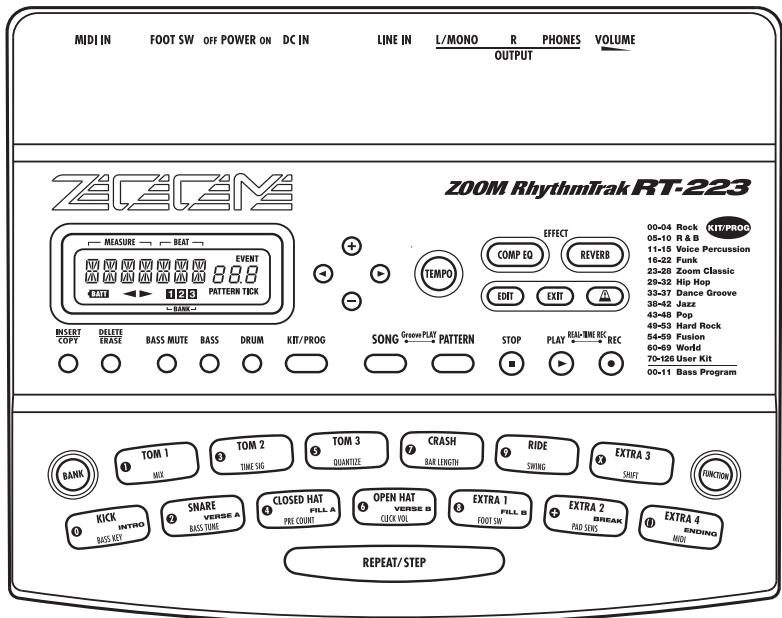
Top panel
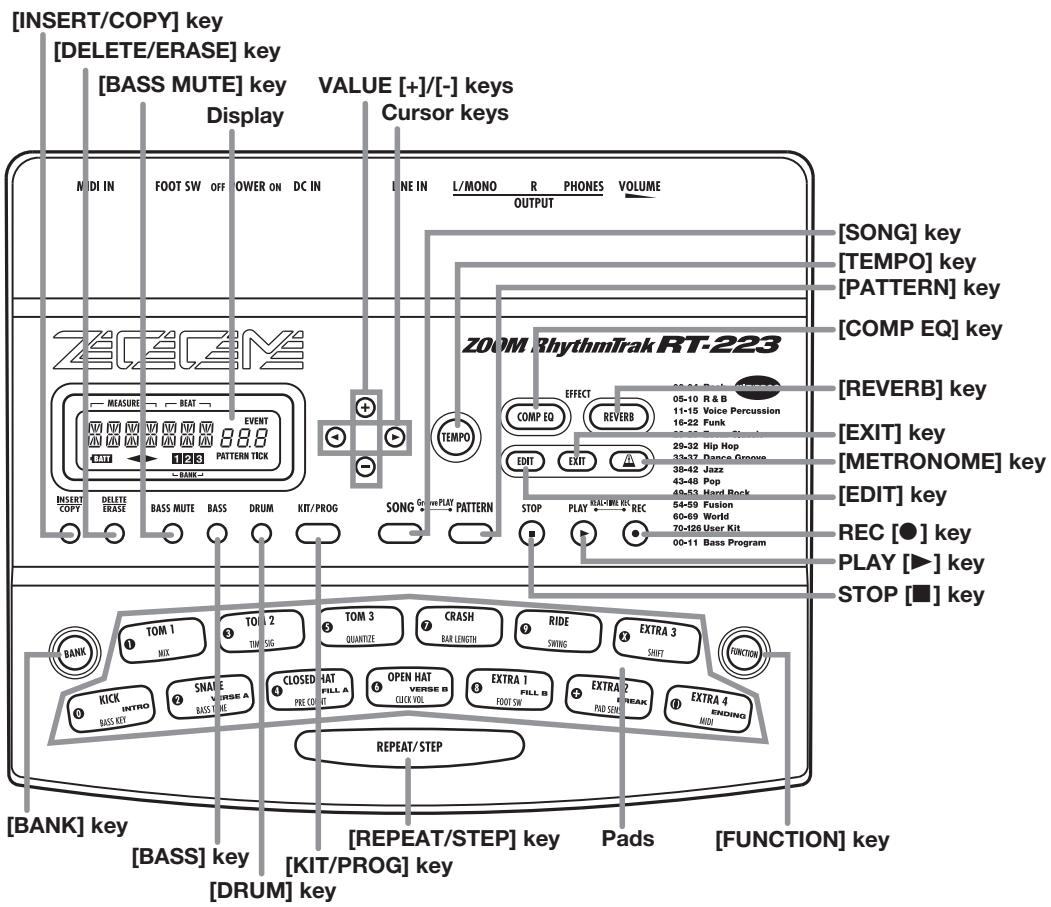
Rear panel
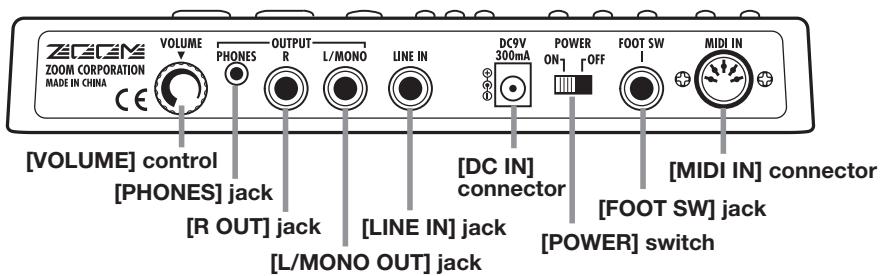
Getting Connected
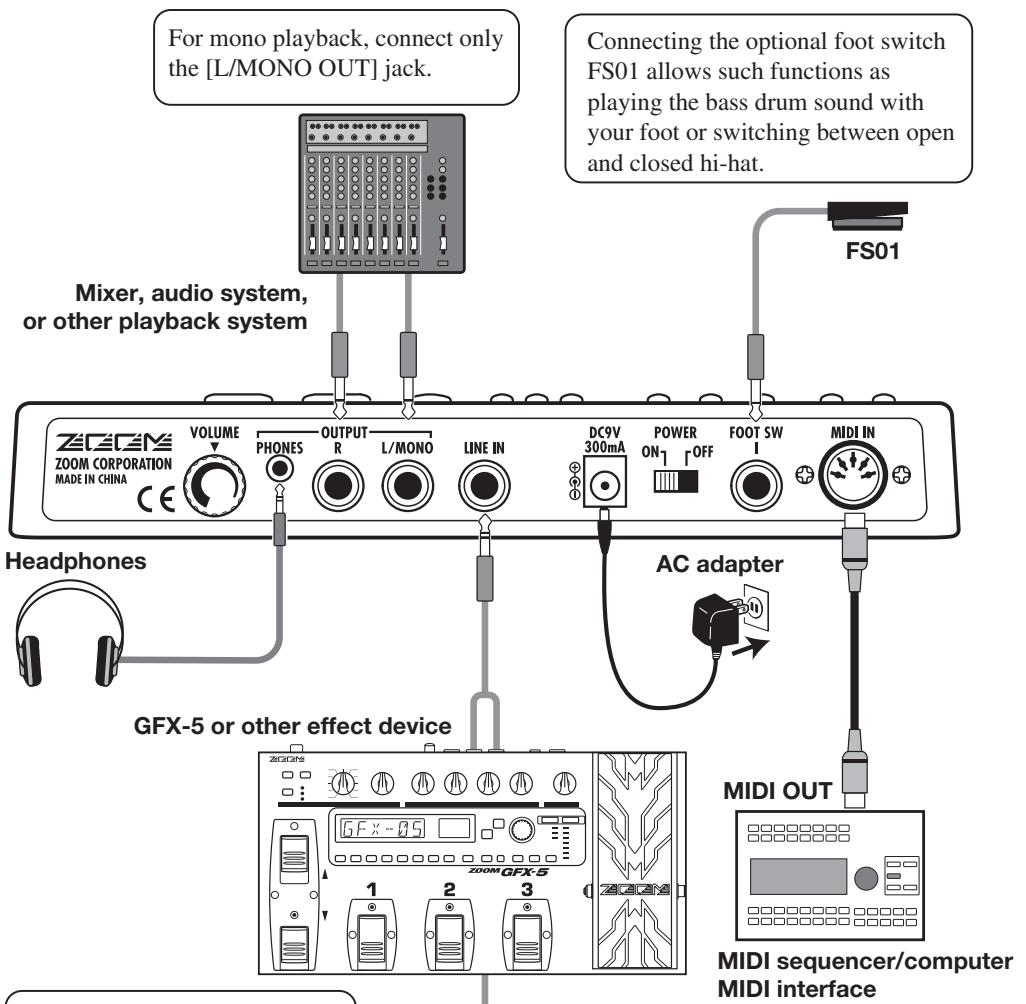
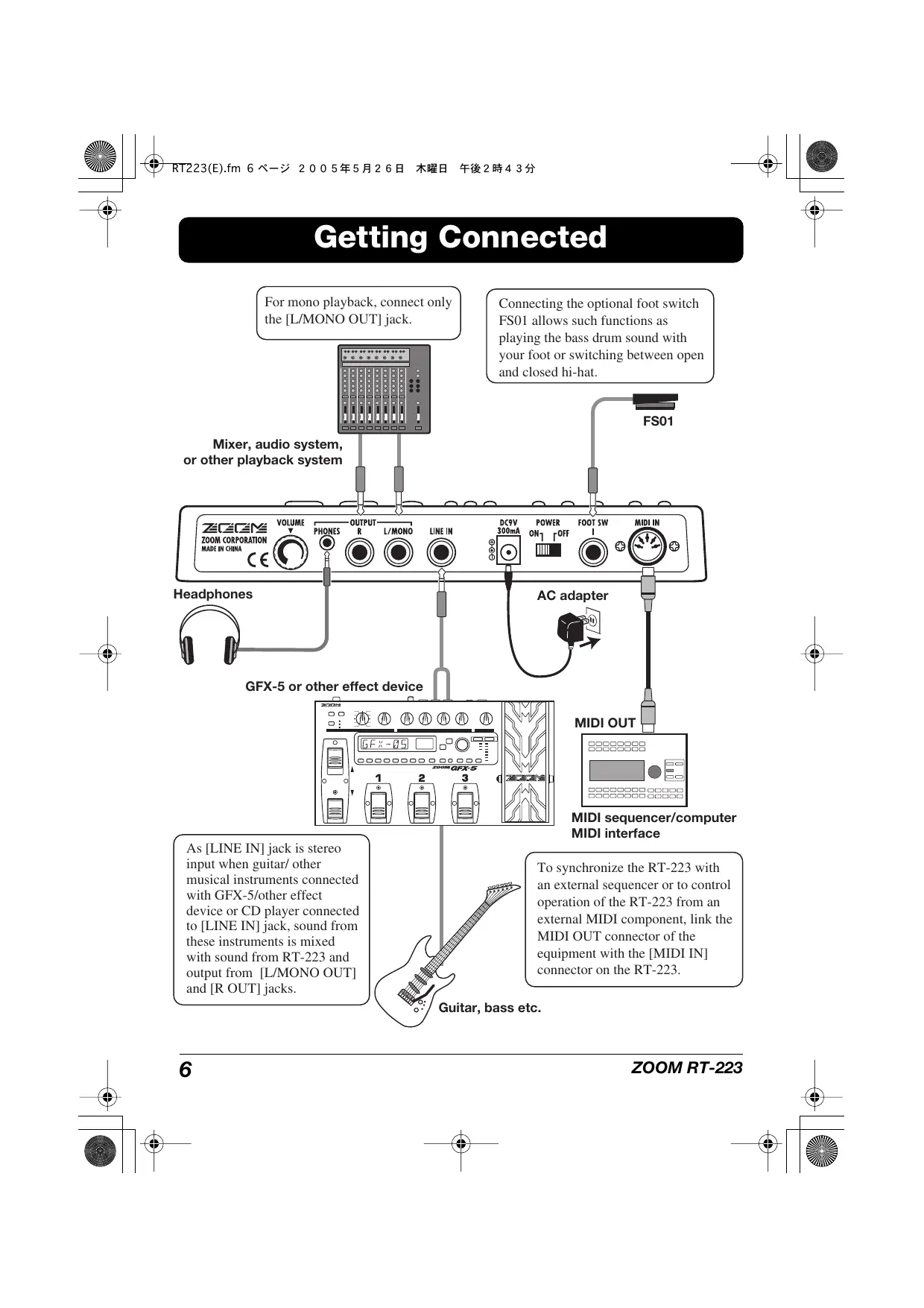
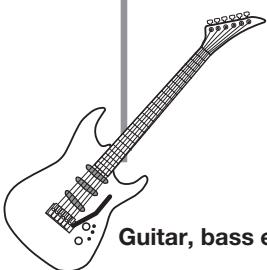
As [LINE IN] jack is stereo input when guitar/ other musical instruments connected with GFX-5/other effect device or CD player connected to [LINE IN] jack, sound from these instruments is mixed with sound from RT-223 and output from [L/MONO OUT] and [R OUT] jacks.
To synchronize the RT-223 with an external sequencer or to control operation of the RT-223 from an external MIDI component, link the MIDI OUT connector of the equipment with the [MIDI IN] connector on the RT-223.
Guitar, bass etc.
Using the Unit on Batteries
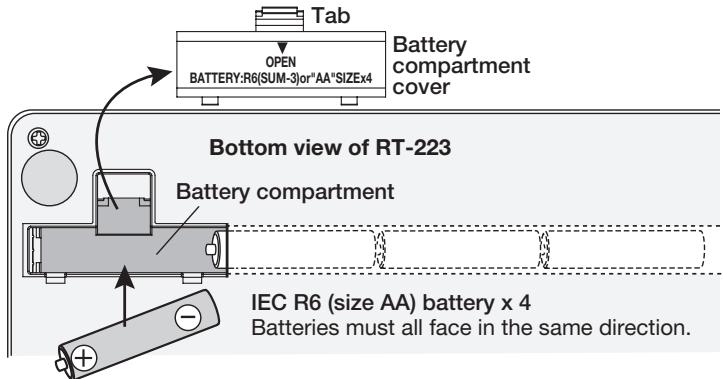
The RT-223 can be powered from four IEC R6 (size AA) batteries. Follow the steps below to insert the batteries.
- Turn the unit over and open the battery compartment cover.
- Insert four fresh IEC R6 (size AA) alkaline batteries.
- Close the battery compartment cover.
NOTE
If the "BATT" symbol appears while the unit is powered from batteries, the batteries are exhausted. Replace the batteries as soon as possible.
Preparations
After connections are established, check the sound by performing the following steps.
- With the playback system turned off and the volume fully turned down, double-check whether all connections have been made correctly.
- To power the unit from the AC adapter(optional),connect the AC adapter to the [DC IN] connector and turn the [VOLUME] control fully down.
- Set the [POWER] switch of the RT-223 to ON, and then turn power to the playback system on.
- While tapping a pad to produce sound, adjust the [VOLUME] control of the RT-223 and the volume control on the playback system to a suitable position.
Quick Guide
This Quick Guide demonstrates how to operate your RT-223, using a few representative examples. Some of the terms and concepts used in this manual are also explained here.
Quick Guide 1 Listening to the Demo Song
The RT-223 comes with a demo song already built in. Hear for yourself what RT-223 can do.
Connect the RT-223 to the playback system and turn the power on.
Press the [FUNCTION] key.
Verify that the [FUNCTION] key flashes.
3 Press the [SONG] key.
The demo song starts.
Sounds just like the backup of a live band, doesn't it? Note how effectively various drum, percussion, and bass sounds are combined. The RT-223 can produce such a great variety of sounds with ease.
To stop the demo
Press the [PATTERN] key or [SONG] key.
Drum kits and bass programs
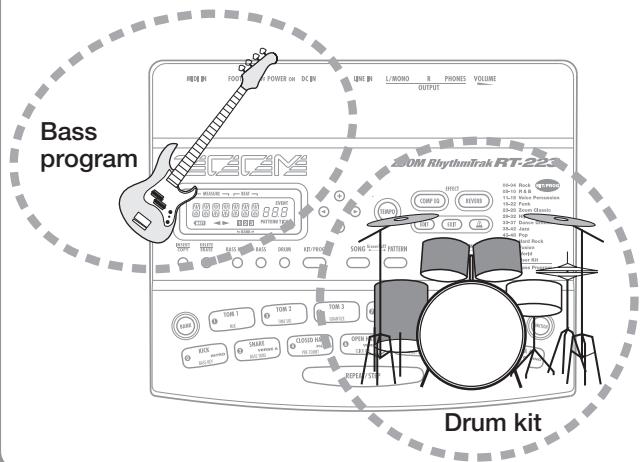
The backup sound provided by the RT-223 consists of a drum kit and a bass program. A drum kit is a collection of drum sounds including bass drum, snares, and tomtom, percussion sounds such as congas and bongs, and various other effect sounds. These are combined to create backing tracks for a wide range of music genres. The RT-223 comes with 127 drum kits of which 70 are preprogrammed. You can also create your own original drum kits.
A bass program is a bass sound such as electric bass, acoustic bass, or synthesizer bass. 12 types of bass programs are available, of which one can be selected for playback.
SONG Groove PLAY PATTERN
When [PATTERN] key is pressed
RT-223 switches to pattern mode (for playing and recording patterns).
![ZOOM RT-223 - When [PATTERN] key is pressed - 1](/content/2025/01/152244/images/14a0f6f3437a00acad31049ccf59af5a2707bfd38033f4a5ccc3d3c56f4a4a0e.jpg)
SONG Groove PLAY PATTERN
When [SONG] key is pressed
RT-223 switches to song mode (for creating backing songs which are sequences of patterns).
Quick Guide 2 Playing the Pads
The top panel of the RT-223 has 13 pads which serve to play drum kits and bass programs.
1 Turn the power on.
Press the [PATTERN] key.
The [PATTERN] key lights up and the RT-223 is in pattern mode.
Press the [DRUM] key.
The [DRUM] key lights up. Now you can use the pads to play the drum kit.
Tap the pads.
You will notice that the pads produce various drum sounds. The 13 pads are assigned different sounds, depending on the drum kit or bass program that has been selected. The illustration below shows an example for the drum sounds of the 13 pads with a drum kit.
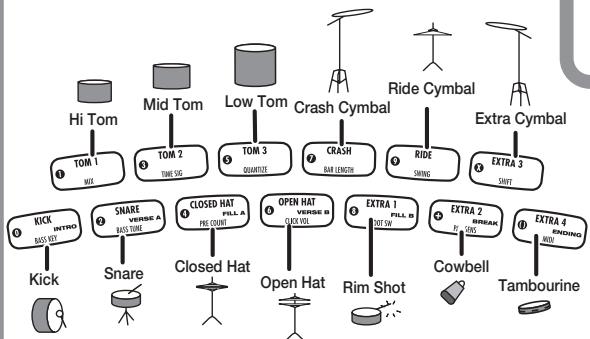
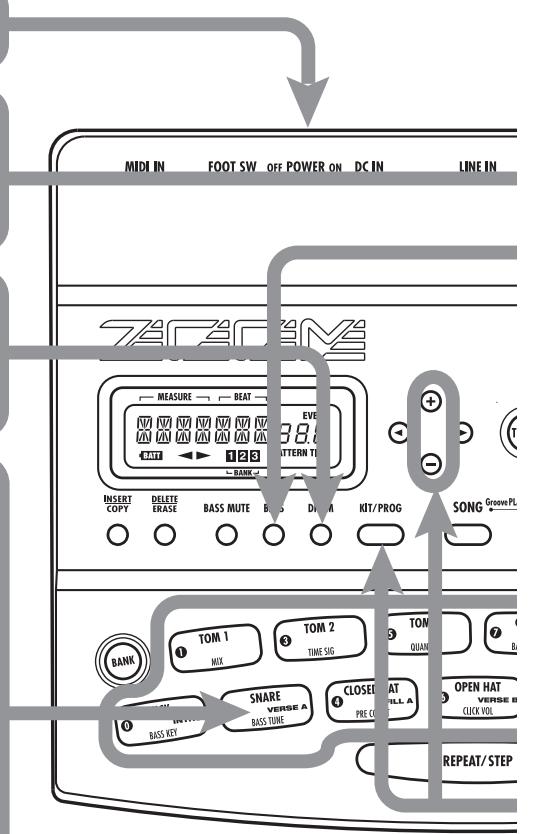
Try tapping pad 0 (KICK) and pad 2 (SNARE) as shown in the illustration above, to play a rhythm line of bass drum and snare drum.
To play a bass program with the pads
Press the [BASS] key.
The [BASS] key lights up and the current bass program can be played with the pads.
![ZOOM RT-223 - Press the [BASS] key. - 1](/content/2025/01/152244/images/74e51e038e8db3c3c2961ad8942639473c188d59dd92e202ff6b3b532f8bf010.jpg)
You will notice that different pads produce bass sound of a different pitch. You can use the 13 pads like the keys of a keyboard.
The illustration below shows an example for the notes produced by the pads when a bass program is selected.
![ZOOM RT-223 - Press the [BASS] key. - 2](/content/2025/01/152244/images/d21684ad4adb66f42acf69173d21965c1289d7b41f05b282d08aa3d9ffde716b.jpg)
To change the drum kit/bass program
Press the [DRUM] or [BASS] key and then the [KIT/PROG] key.
When you press the [KIT/PROG] key, the display shows the name of the currently selected drum kit or bass program.
7 Press one of the VALUE [+]/[-] keys.
VALUE ([+] key
![ZOOM RT-223 - Press one of the VALUE [+]/[-] keys. - 1](/content/2025/01/152244/images/9995f937784e8d19f733aaeabdda61fc61a678edbaa744e3582f3be5072f4d4a.jpg)
Selects the next higher kit/program number.
VALUE [-] key
![ZOOM RT-223 - VALUE [-] key - 1](/content/2025/01/152244/images/55e116c5819220385f1b7072a34fbee3b7440baeb1b88ec86cc6b1df6013cc29.jpg)
Selects the next lower kit/program number.
![ZOOM RT-223 - VALUE [-] key - 2](/content/2025/01/152244/images/3fccc38ac5e7c1b92a58598880a8096c849fbe96226d4b10d53c025018b36762.jpg)
Press the [EXIT] key.
To play the changed drum kit/bass program with the pads, press the [EXIT] key to return to the pattern mode.
Quick Guide 3 Playing a Pattern
The RT-223 already contains many preprogrammed patterns (backing sequence of several bars), using the drum kits and bass programs. Here's how you can play such a pattern.
1 Turn the power on.
Press the [PATTERN] key.
The [PATTERN] key lights up and the RT-223 is in pattern mode. The display shows the currently selected pattern name and pattern number.
![ZOOM RT-223 - Press the [PATTERN] key. - 1](/content/2025/01/152244/images/de1ccabf8aeb764f6fbf12725f7d71b41db86005bd36339c2a05ed93a4ade108.jpg)
Pattern name Pattern number
Press the PLAY [▶] key.
Playback of the currently selected pattern starts.
The patterns of the RT-223 can be thought of as "recordings" of a drum kit and bass program. These are recorded on so-called tracks that are combined to form the pattern.
A pattern of the RT-223 therefore consists of the drum track and the bass track. The drum track contains a drum kit recording and the bass track a bass program recording.
![ZOOM RT-223 - Press the PLAY [▶] key. - 1](/content/2025/01/152244/images/2c42839b189c02cc1b95ad2cc7c2415615b82b5d338e58db510117616a7fb76e.jpg)
![ZOOM RT-223 - Press the PLAY [▶] key. - 2](/content/2025/01/152244/images/751136fd92bdbde195b83258d33f55fa9747ddef0375e323864a843203fe249d.jpg)
To change the pattern
4 Press one of the VALUE [+] /[-] keys.
To change the tempo
Hold the [TEMPO] key...
While the [TEMPO] key is held down, the display shows the currently active tempo.
![ZOOM RT-223 - Hold the [TEMPO] key... - 1](/content/2025/01/152244/images/7ba7823e4e12e6d30bf5df7f2a46bdf217020571d9e632c9311e25fa2862f352.jpg)
Press one of the VALUE [+] /[-] keys.
![ZOOM RT-223 - Press one of the VALUE [+] /[-] keys. - 1](/content/2025/01/152244/images/77d81c167043ff72ca512b648feaf36098b75b61f0307cdd8199db80b9a54911.jpg)
VALUE \([+\] key
![ZOOM RT-223 - VALUE \([+\] key - 1](/content/2025/01/152244/images/dbc55ef6f86927cc1fb4d63e203dd95c54976c23a87586caea19c1b7c785d75c.jpg)
Increases the tempo value.
![ZOOM RT-223 - VALUE \([+\] key - 2](/content/2025/01/152244/images/64105a3c4ee4dfd22285113691b82966998fd34f7f6fb6ba78874d428096b259.jpg)
VALUE [-] key
![ZOOM RT-223 - VALUE [-] key - 1](/content/2025/01/152244/images/0c72accf996f7b6f9094c62e3053bbc216a552c1959fa65761c26e52764cad1a.jpg)
Decreases the tempo value.
HINT
You can tap the [TEMPO] key twice in succession to specify the tempo ( p. 21).
To mute the bass sound
Press the [BASS MUTE] key once.
Press the key once more to turn the bass on again.
To stop pattern play
Press the STOP [■] key.
VALUE \([+\] key
![ZOOM RT-223 - VALUE \([+\] key - 1](/content/2025/01/152244/images/a57353ad24ecd1a6ac0ff8745c41080ce1609868c64acc048dd2ae15ec67dfd3.jpg)
Selects next higher pattern number.
VALUE [-] key
![ZOOM RT-223 - VALUE [-] key - 1](/content/2025/01/152244/images/f3a1ebc7efcc2534759d9c3c4798560a8adf6b5bc0b959a2b82650994bbb7e3a.jpg)
Selects next lower pattern number.
![ZOOM RT-223 - VALUE [-] key - 2](/content/2025/01/152244/images/4c8b839316b07cbda42750e676ccaf2763598759f4c195c6ab95b0c1c30ea8ab.jpg)
Pattern name Pattern number
Quick Guide 4 Assembling a Song by Hitting the Pads
In song mode, you can preassign patterns to pads, making it easy to switch patterns by hitting the pads. This function lets you assemble patterns for a song in real time, complete with fill-ins and breaks.
1 Turn power on.
Press the [SONG] key.
The [SONG] key lights up and the RT-223 goes into song mode. The display shows the name and number of the currently selected song.
![ZOOM RT-223 - Press the [SONG] key. - 1](/content/2025/01/152244/images/3294fb7f0e3c9bf3d70ccca9821a76419d6a101eecc68108544d9c5c7c8085e4.jpg)
Song name Song number
Use the VALUE [+]/[-] keys to select a song.
In this example, select a song from numbers 0 -9.
VALUE \([+\] key
![ZOOM RT-223 - VALUE \([+\] key - 1](/content/2025/01/152244/images/18f8c46dc315bcdadd2b8e32f99965308ceb9aa8552a2b15ff464647837bfba0.jpg)
Select next higher song number.
VALUE [-] key
![ZOOM RT-223 - VALUE [-] key - 1](/content/2025/01/152244/images/2cd0469fc2a64894f6c3885ca7194b330c437d214b94bd35197a26e9ff70ecad.jpg)
Select next lower song number.
For these preprogrammed songs numbers, patterns are already assigned to the pads.
![ZOOM RT-223 - VALUE [-] key - 2](/content/2025/01/152244/images/33080ca82c6262c2aba38dc36bfa191e7510ed7c591247f2794d0c4757caaf9a.jpg)
4 Press pad 0
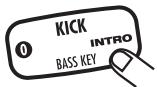
When you hit pad 0 (INTRO), the intro pattern plays, and then the RT-223 automatically switches to pad 2 (VERSE A).
Press pads 1 - 9, \([+\] , [x].
The respective patterns assigned to the pads will play.
When pad 4 (FILL A), pad 8 (FILL B), or pad [+] (BREAK) is pressed, the fill-in or break pattern plays, and then the RT-223 switches automatically to the pattern of another pad. When you press one of these pads, a new pattern will start playing at the beat, even if the previous pattern is not finished. (For other pads, the pattern is switched only after the current pattern has finished.)
![ZOOM RT-223 - Press pads 1 - 9, \([+\] , [x]. - 1](/content/2025/01/152244/images/6f2a92329e7bd3d17a274ee6a439152329607fce11913d29af46aa27b46d84c3.jpg)
![ZOOM RT-223 - Press pads 1 - 9, \([+\] , [x]. - 2](/content/2025/01/152244/images/1145776cd4c1e41d135f630e6f95af38fdecdf15aa73a6ebda640d70050bef0a.jpg)
Measure number
For most of the songs 0 - 9, patterns are assigned to the pads as follows.
![ZOOM RT-223 - Press pads 1 - 9, \([+\] , [x]. - 3](/content/2025/01/152244/images/9e3752e9d3035eb6a7b34288c8d2122166348cc61672b3e05925eeb048e274e1.jpg)
Press pad [0].
![ZOOM RT-223 - Press pad [0]. - 1](/content/2025/01/152244/images/e857437f697d795f45494b6a4ab35a63beead915f5af710f00737211cca3c3c6.jpg)
When you hit pad [· ] (ENDING), the ending pattern plays, and then the RT-223 automatically stops playing.
In this way, you can assemble the accompaniment for an entire song in real time.
HINT
You can also record your pad playing in the song ( p. 36). The assignment of patterns to pads and the transition settings can be changed ( p. 37).
Quick Guide 5 Using Groove Play
Groove play is a special feature of the RT-223 which lets you switch among various patterns simply by tapping the pads. This makes it easy to play with patterns like a DJ spinning records.
1 Turn the power on.
Press the [SONG] key and [PATTERN] key together.
The [SONG] key and [PATTERN] key light up, and the RT-223 is in groove play mode.
SONG Groove PLAY PATTERN SONG Groove PLAY PATTERN

Push a pad.
While the pad is held down, the pattern assigned to that pad is played. Give it a try and check out which patterns are assigned to the various pads.
HINT
The pattern assigned to a pad can be changed ( p. 48).
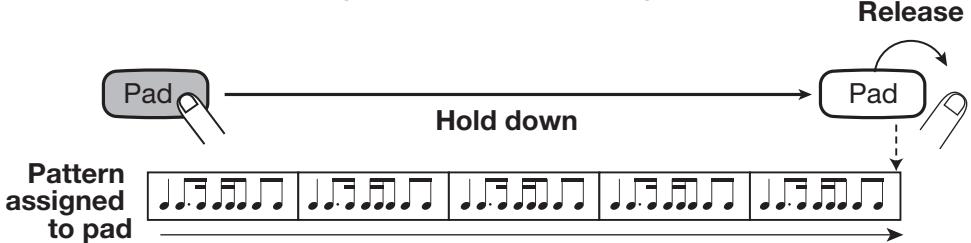
To play multiple patterns simultaneously
Push several pads together.
In groove play mode, up to 4 patterns can be played simultaneously. While playing a basic drum pattern, you can do things such as hitting another pad to overlay a bass pattern and then adding a snare fill-in.
By using the right timing when pushing the pads, you can create complex rhythms.
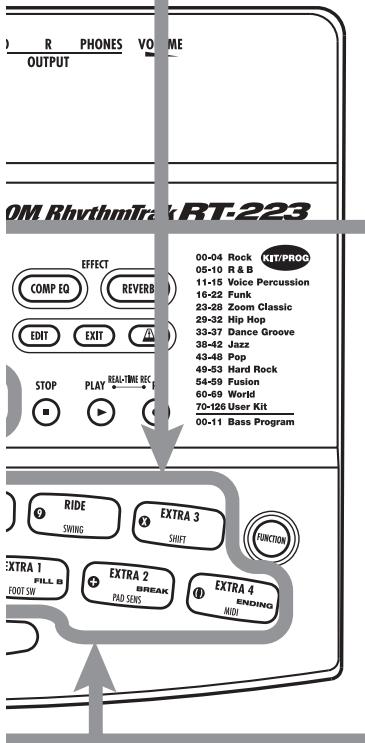
To stop groove play
Press the [SONG] key or [PATTERN] key.
![ZOOM RT-223 - Press the [SONG] key or [PATTERN] key. - 1](/content/2025/01/152244/images/d1302c3ea757891db20ddb02545a09fa6672c18eb5519134d90b81535cde0d98.jpg)
RT-223 switches to pattern mode.
RT-223 switches to song mode.
To keep playing the pattern without pressing the pad
Hold down the [REPEAT/STEP] key while pushing the pad.
The pattern will continue to play when the pad is released. This is useful to keep on playing a basic drum pattern.
![ZOOM RT-223 - Hold down the [REPEAT/STEP] key while pushing the pad. - 1](/content/2025/01/152244/images/2c297ae2c811fd02d7647d24ff18fc6cf7829807165869d92233278d55575ce4.jpg)
Playing the Pads (Manual Play)
The RT-223 lets you not only play back existing patterns and songs, it also allows you to manually play the unit by tapping the pads. This section describes how to manually play the unit.
Playing by tapping the pads
The RT-223 assigns various sounds or pitches to the pads, depending on the currently selected drum kit/bass program. Play the pads to discover the realistic sounds offered by the RT-223.
1. Press the [PATTERN] key.
![ZOOM RT-223 - Press the [PATTERN] key. - 1](/content/2025/01/152244/images/84bd53837a4baeae4e45da6da87f2a220a2d2afd82fa993f4fc77f919132992c.jpg)
This activates the pattern mode. The [PATTERN] key lights up.
2. Press the [DRUM] key.
![ZOOM RT-223 - Press the [DRUM] key. - 1](/content/2025/01/152244/images/c9ede71655245e7498e384444d94b76b0a0c10fd6720181e1ceda443ba29b107.jpg)
The [DRUM] key lights up, and you can play the drum kit using the pads.
During manual play, you use the [DRUM] key and [BASS] key to select the drum kit or bass program. (The selected key lights up.)
3. Tap one of the pads.
The LED of the pad lights up briefly and the sound assigned in the drum kit to that pad is heard. The volume changes according to how strongly you tap the pad.
HINT
When the [BASS] key is pressed in step 2, a bass program can be played, but there is a difference in how the pads operate. With a drum kit, the sound plays through even if the pad is released immediately. With a bass program, the sound continues only as long as the pad is pressed.
4. Press the [BANK] key.
![ZOOM RT-223 - Press the [BANK] key. - 1](/content/2025/01/152244/images/218ea451832d8fe7c1d93dd8c5adc830b8ad87fd608ffccadb3e8a8fef2b147b.jpg)
Each time you press the [BANK] key, the set of sounds assigned to the pads (pad bank) changes. The RT-223 gives you a choice of three pad banks.
HINT
When a bass program is selected, pressing the [BANK] key changes the pitch range of the bass sound.
5. To play the sound of a pad repeatedly, hold down the [REPEAT/STEP] key while pushing the pad.
![ZOOM RT-223 - To play the sound of a pad repeatedly, hold down the [REPEAT/STEP] key while pushing the pad. - 1](/content/2025/01/152244/images/b3ba16cd4b624029989a665970f807995017b42060a3123ad808f960f975782c.jpg)
The sound will be repeated while the pad is being held down. The repeat rate depends on the tempo setting.
HINT
The repeat play interval can be adjusted with the quantize setting ( 65).
Selecting a kit/program
The RT-223 lets you select among 127 drum kits (70 preprogrammed) and 12 bass programs. Try changing the setting as follows.
1. Press the [PATTERN] key.
![ZOOM RT-223 - Press the [PATTERN] key. - 1](/content/2025/01/152244/images/fca3eb83435235d4716e6e34c8a3d39554a867a00c3ade689cdbfd657bb96645.jpg)
The [PATTERN] key lights up and the RT-223 goes into pattern mode.
2. Press the [DRUM] key/[BASS] key and then the [KIT/PROG] key.
![ZOOM RT-223 - Press the [DRUM] key/[BASS] key and then the [KIT/PROG] key. - 1](/content/2025/01/152244/images/2d198a3a719c13e568d29c8cb31b84b0382e212aa2a7114315017139d25bd779.jpg)
BASS
![ZOOM RT-223 - Press the [DRUM] key/[BASS] key and then the [KIT/PROG] key. - 2](/content/2025/01/152244/images/04fb196751266d6c394503dc7a1dbf8ff1f8d4458319b849628988c0033be313.jpg)
DRUM
![ZOOM RT-223 - Press the [DRUM] key/[BASS] key and then the [KIT/PROG] key. - 3](/content/2025/01/152244/images/02867b37e454f0a90f78c2e57ebb42619632f499303e55a70eb4ef33bcc57aae.jpg)
![ZOOM RT-223 - Press the [DRUM] key/[BASS] key and then the [KIT/PROG] key. - 4](/content/2025/01/152244/images/324bc5c943ffa6bcb5558049e2f127020f620b4be97cb0bcdb0bdb7409fcacf7.jpg)
KIT/PROG
The name and number of the currently selected drum kit (or bass program) appears on the display.
![ZOOM RT-223 - Press the [DRUM] key/[BASS] key and then the [KIT/PROG] key. - 5](/content/2025/01/152244/images/94fa4595779482a9c00446383e888d79f2856e79351b2c8fc8f3cd9866232f3d.jpg)
HINT
Available drum kit types are printed on the panel.
| 00-04 Rock 05-10 R & B |
| 11-15 Voice Percussion |
| 16-22 Funk |
| 23-28 Zoom Classic |
| 29-32 Hip Hop |
| 33-37 Dance Groove |
| 38-42 Jazz |
| 43-48 Pop |
| 49-53 Hard Rock |
| 54-59 Fusion |
| 60-69 World |
| 70-126 User Kit |
| 00-11 Bass Program |
3. Use the VALUE [+] /[-] keys to select the drum kit/bass program.
![ZOOM RT-223 - Use the VALUE [+] /[-] keys to select the drum kit/bass program. - 1](/content/2025/01/152244/images/82b28af2fc8afd061dee33c6255de93056f56a76056b86d34a85d55724c8199a.jpg)
The kit/program number shown on the display increases or decreases by one, and the kit/program is switched accordingly.
![ZOOM RT-223 - Use the VALUE [+] /[-] keys to select the drum kit/bass program. - 2](/content/2025/01/152244/images/69c1332e76b8aaa16cea79bc09c9d302eb99dfc664149651577b20e0ce476241.jpg)
HINT
- Keeping a VALUE [+]/[-] key depressed changes numbers continuously.
- To change numbers quickly, hold down one of the VALUE [+] /[-] keys and press the other key. The numbers will change rapidly.
4. Press the [PATTERN] key to return to pattern mode.
You can now play the sound of the new drum kit/ bass program with the pads.
Playing the Patterns (Pattern Mode)
This section describes how to play patterns of the RT-223.
Playing a pattern
The RT-223 incorporates 511 accompaniment patterns. In the factory default condition, the patterns 0 - 439 are preprogrammed.
1. Press the [PATTERN] key.
The [PATTERN] key lights up and the RT-223 goes into pattern mode. The name and number of the currently selected pattern appears on the display.
![ZOOM RT-223 - Press the [PATTERN] key. - 1](/content/2025/01/152244/images/a0e5dff80df139857a0e4eef265e52d4c806b2f81a6811696b0b8ca254cebe93.jpg)
2. Use the VALUE [+] /[-] keys to select the pattern to play.
![ZOOM RT-223 - Use the VALUE [+] /[-] keys to select the pattern to play. - 1](/content/2025/01/152244/images/d767284f02868ed5ba23ef149a7ba71e8be6e7ee2914c45295c5ce42d831fcf4.jpg)
3. Press the PLAY [▶] key.
![ZOOM RT-223 - Press the PLAY [▶] key. - 1](/content/2025/01/152244/images/1af158c5a18624da592998cd9c60a5e142aabaea1b4d194b5acb78a359d2e67f.jpg)
The PLAY [▶] key lights up and the pattern is played repeatedly.
The [TEMPO] key flashes according to the tempo of the pattern.
The display shows the current position in the pattern (measure/beat).
![ZOOM RT-223 - Press the PLAY [▶] key. - 2](/content/2025/01/152244/images/73a9a5774e312b4ee25a689fbeee18c9956af5bf0ee4b8156f6c320bd8a3a2bb.jpg)
HINT
- You can use the pads for manual play while a pattern is playing.
- You can switch the pattern number while a pattern is playing.
4. To mute only the bass track, press the [BASS MUTE] key.
BASS MUTE BASS
![ZOOM RT-223 - To mute only the bass track, press the [BASS MUTE] key. - 1](/content/2025/01/152244/images/4a816d2da494080b41d963b6f84606d3945b1df2eaaf4dbb9e79ae75d479fd22.jpg)
The key lights up and the bass track is muted (only the drum track is heard). To turn the bass track back on, press the [BASS MUTE] key once more.
HINT
The bass track can be muted while the pattern is stopped.
5. Press the STOP [■] key to stop the pattern.
![ZOOM RT-223 - Press the STOP [■] key to stop the pattern. - 1](/content/2025/01/152244/images/4bdd7280addf3c2457fab6576e7d9cfa67e1a4ba9c80c653aaecf230eac383e1.jpg)
Pressing the PLAY [▶] key instead of the STOP
[■] key sets the unit to pause mode. The PLAY [▶] key flashes. Pressing the PLAY [▶] key again in this condition resumes playback from the point where it was paused.
Changing the tempo of pattern playback
When playing a pattern in pattern mode, the playback tempo for the pattern can be varied over the range of 40 - 250 BPM (BPM = beats per minute, using quarter notes).
1. Press the [TEMPO] key.
The display shows the current tempo for about 2 seconds.
![ZOOM RT-223 - Press the [TEMPO] key. - 1](/content/2025/01/152244/images/2c226ea7724cd6c182fd230ce4245c982d795135a098f1bfbd5ca6f9df17d782.jpg)
2. Use the VALUE [+] /[-] keys to set the tempo.
![ZOOM RT-223 - Use the VALUE [+] /[-] keys to set the tempo. - 1](/content/2025/01/152244/images/0b4cb5c39eaf84dc1201a59ee75684db3494957c629b14f6aab76b6daa70fbfd.jpg)
To return to the condition before the [TEMPO] key was pressed, press the [EXIT] key or simply wait a while.
3. To set the tempo directly by manual input, tap the [TEMPO] key twice while the indication "TEMPO" is shown on the display (tap tempo input function).
![ZOOM RT-223 - To set the tempo directly by manual input, tap the [TEMPO] key twice while the indication "TEMPO" is shown on the display (tap tempo input function). - 1](/content/2025/01/152244/images/324bb3ad3879eab66a0246a600cf68636a176d1d6bc90e29c7bc871f07bbcfd1.jpg)
Tap twice
While the pattern is stopped or playing, pressing the [TEMPO] key once to bring up the "TEMPO" indication, and then pressing the [TEMPO] key twice in succession will set the tempo by taking the key press interval as a quarter note. Simply tap the [TEMPO] key in sync with the song rhythm.
NOTE
The tempo set in pattern mode applies to all patterns.
Entering Patterns in Real Time
The RT-223 lets you enter your own accompaniment patterns. Creating and recording a pattern is possible in two ways: by actually playing the pattern on the pads (real-time recording), or by entering each sound individually (step recording). The procedure for real-time recording of a drum track and bass track is described below.
Real-time recording of a drum track
To record a drum track in real time using the pads, proceed as follows.
1. Press the [PATTERN] key.
![ZOOM RT-223 - Press the [PATTERN] key. - 1](/content/2025/01/152244/images/68193d096210509f91873ab69765bc500ed64f8fab753957e89be0d0e77fb336.jpg)
The [PATTERN] key lights up and the RT-223 goes into pattern mode. The name and number of the currently selected pattern appear on the display.
2. Use the VALUE [+] /[-] keys to select an empty pattern.
When you select an empty pattern, the indication "EMPTY" appears on the display.
![ZOOM RT-223 - Use the VALUE [+] /[-] keys to select an empty pattern. - 1](/content/2025/01/152244/images/250930199f3c985c1f141e064f3928639a4e573d7b4eb08894f49770a8dab9fc.jpg)
![ZOOM RT-223 - Use the VALUE [+] /[-] keys to select an empty pattern. - 2](/content/2025/01/152244/images/cb206d9afb4557cad207941f43f0b4dfb0e86513f0cc182efcf644ba1ab81933.jpg)
![ZOOM RT-223 - Use the VALUE [+] /[-] keys to select an empty pattern. - 3](/content/2025/01/152244/images/cd4b71915891264f657c17bde5f5fc1dfbefa0f467a0812d82a88d14e52f49fa.jpg)
HINT
If there is no empty pattern, you should delete an unwanted pattern ( p.33) .
3. Press the [DRUM] key.
BASS
![ZOOM RT-223 - Press the [DRUM] key. - 1](/content/2025/01/152244/images/7e7f33fca2532ca3de76118cde3886fb5f002611e823eac66e534e3869a78065.jpg)
DRUM
![ZOOM RT-223 - Press the [DRUM] key. - 2](/content/2025/01/152244/images/a0d25b5b7ed0f9a57933ae4f3cbfc912524ba82d9f5e1f5a216d4f61e8905430.jpg)
The [DRUM] key and [BASS] key serve to select the drum track or bass track.
4. Press the [KIT/PROG] key.
The name and number of the currently selected drum kit appears on the display.
![ZOOM RT-223 - Press the [KIT/PROG] key. - 1](/content/2025/01/152244/images/53f021d950585a359fb636ea1d77e95a46dfb7a2c72aa7b442e73f849e9fc306.jpg)
5. Use the VALUE [+] /[-] keys to select a drum kit.
![ZOOM RT-223 - Use the VALUE [+] /[-] keys to select a drum kit. - 1](/content/2025/01/152244/images/db8310e788cabe257ec872c208f9bd9a8bfd364e59f0dedb6ef696c5ba03baa2.jpg)
![ZOOM RT-223 - Use the VALUE [+] /[-] keys to select a drum kit. - 2](/content/2025/01/152244/images/04a1ee7622d286074cee7e73309e3d91725484e998c4eeec791ae91dfe182fbd.jpg)
HINT
- Keeping a VALUE [+]/[-] key depressed changes numbers continuously.
- To change numbers quickly, hold down one of the VALUE [+] /[-] keys and press the other key. The numbers will change rapidly.
- The drum kit/bass program used for a pattern can be changed later, after the pattern has been recorded.
- When you change the drum kit/bass program of a pattern, the new drum kit/ bass program is automatically stored for that pattern.
6. Press the [EXIT] key to return to pattern mode.
The sound of the newly selected drum kit can now be played in pattern mode.
7. Press the [FUNCTION] key and then pad 5 (QUANTIZE).
The current quantize value appears on the display.
![ZOOM RT-223 - Press the [FUNCTION] key and then pad 5 (QUANTIZE). - 1](/content/2025/01/152244/images/dcac70e8f73ff857a3b4490645f11a895a653ff3295200e7108f75b88849138d.jpg)
"Quantization" refers to the degree of detail with which notes are recorded. By setting the quantize value to the shortest note to use for the pattern, recording can be carried out while automatically maintaining precise timing. If you select the finest quantize setting, you can retain the human touch that is characterized by slightly irregular timing.
HINT
The [FUNCTION] key is used to make various settings for the RT-223. For details, please refer to page 63.
8. Use the VALUE [+] /[-] keys to set the quantize value (shortest note to be recorded).
4 .........Quarter note
24....Sixteenth triplet note
8......Eighth note
32.....Thirty-second note
12 .......Eighth triplet note
48.... Thirty-second triplet note
16 ....Sixteenth note
Hi.....1 tick (1/96 of quarter note)
9. Press the [FUNCTION] key once more.
The new quantize value is set and the unit returns to the pattern mode.
HINT
After recording is completed, it is possible to change the quantize value and record again on the same track. After recording
bass drum and snare drum using quarter notes, you can record a hi-hat sequence with sixteenth notes.
10. While holding down the REC [●] key, press the PLAY [▶] key.
![ZOOM RT-223 - While holding down the REC [●] key, press the PLAY [▶] key. - 1](/content/2025/01/152244/images/8f5a7941b7fd8b31b3117efc71a35575421ade8bee206c97da0d6eedb307ca78.jpg)
The REC [●] key and PLAY [▶] key light up, and the [TEMPO] key flashes according to the currently selected tempo. The metronome sound starts.
HINT
When you call up an empty pattern, it will be set to the same beat and number of measures as the previous pattern. These settings can be changed, as described on pages 64, 65.
11. Tap the pads in accordance with the metronome sound.
The sound of the respective pad is heard, and it is recorded for the duration set with the quantize value. When the end of the pattern is reached, the recording loops back to the beginning and continues, allowing you to add to the recording as often as desired. You can check the current position in the pattern on the display (measure/beat).
HINT
- By using the [BANK] key during input of a pattern, you can switch the set of drum sounds assigned to the pads.
- When the REC [] key is pressed during
real-time recording, the REC [●] key starts to flash and pattern recording is suspended. In this condition, tapping the pads will produce sound, but it is not recorded. This is useful to check phrasing and sound before actually recording. To resume recording, press the REC [●] key once more.
12. To erase the sound from a specific pad, push the pad while holding down the [DELETE/ERASE] key.
While the key is held down, the sound from that pad is erased from the pattern, as shown in Figure 1 below.
To erase the entire track, push the [DRUM] key while holding down the [DELETE/ERASE] key. While both keys are held down, all sounds in that track are erased, as shown in Figure 2 below.
- To repeat a sound, tap the pad while holding down the [REPEAT/STEP] key.
By holding down the [REPEAT/STEP] key while hitting a pad, a percussion sound can be recorded.
![ZOOM RT-223 - To erase the sound from a specific pad, push the pad while holding down the [DELETE/ERASE] key. - 1](/content/2025/01/152244/images/59cb20814253bfd2d98d33eb01f9a170264b78cdfcc8fa7dcb3c98452991c045.jpg)
- When real-time input of the drum track is completed, press the STOP [■] key.
![ZOOM RT-223 - To erase the sound from a specific pad, push the pad while holding down the [DELETE/ERASE] key. - 2](/content/2025/01/152244/images/8893bb3fe735463d6f23f8c24aa37a8645c461295aaebc0de73d9e55efa80fc4.jpg)
Pattern recording stops.
![ZOOM RT-223 - To erase the sound from a specific pad, push the pad while holding down the [DELETE/ERASE] key. - 3](/content/2025/01/152244/images/5a006efc5e1d312eaa14dea16717b4c901dcb7f623cb39fcfbcd0525ac57f59f.jpg)
![ZOOM RT-223 - To erase the sound from a specific pad, push the pad while holding down the [DELETE/ERASE] key. - 4](/content/2025/01/152244/images/5940bfd651e3cb29cacb759f45316051ee8fa1f9b2602abf84376f247507e5ee.jpg)
NOTE
- If a MIDI clock signal is being received, real-time recording is not possible. For details, please refer to page 67.
Real-time recording of a bass track
Next, let's add a bass track to the drum track pattern recorded in the previous section.
1. Press the [BASS] key.
BASS DRUM
![ZOOM RT-223 - Press the [BASS] key. - 1](/content/2025/01/152244/images/7bc9dbd7e9417ba6a588f2c431df46517c3745be3a5c5877c70c4e35ae68bdc0.jpg)
The bass track is selected for recording.
2. Press the [KIT/PROG] key, and then use the VALUE [+] /[-] keys to select the bass program.
![ZOOM RT-223 - Press the [KIT/PROG] key, and then use the VALUE [+] /[-] keys to select the bass program. - 1](/content/2025/01/152244/images/9e7a3258107936659967b4179bea6d839ee6827ea152ddc080da389160d41ee9.jpg)
3. Press the [EXIT] key to return to pattern mode.
The sound of the newly selected bass program can now be played in pattern mode.
4. Press the [FUNCTION] key and then pad 0 (BASS KEY).
![ZOOM RT-223 - Press the [FUNCTION] key and then pad 0 (BASS KEY). - 1](/content/2025/01/152244/images/c49b63ff54187f417a9dcc5ce91aa2ce82459ee993e2f15d3baa8036f3e08a6e.jpg)
When the bass track is selected, the pads play a series of pitches that are a semitone apart, such as C, C#, D, D#, ...B, C. You can change the bass key that is assigned to the lowest pad (pad 0), as shown in the illustration below.
HINT
The last selected key will be saved as the root for that pattern. By specifying root information in song mode, the bass track can be shifted up or down, using this key as reference.
5. Use the VALUE [+] /[-] keys to select the key to be assigned to pad 0.
HINT
The BASS KEY setting is stored individually for each pattern.
6. When the setting is complete, press the [FUNCTION] key once more.
The [FUNCTION] key goes out and the unit returns to the pattern mode.
![ZOOM RT-223 - When the setting is complete, press the [FUNCTION] key once more. - 1](/content/2025/01/152244/images/9a45584589ec139fde35d38076cc9d95e9be633447a159d7c019b26fb722003b.jpg)
7. While holding down the REC [●] key, press the PLAY [▶] key.
The REC [●] key and PLAY [▶] key light up, and the [TEMPO] key flashes according to the currently selected tempo. The metronome sound starts.
8. Tap the pads along with the metronome sound. Select the pad with the pitch to enter into the phrase.
Unlike in drum track recording, the bass track also records the duration for which you press a pad. For example, to record the following sequence, hold the pad to which A2 has been assigned and the pad to which E2 has been assigned down for the length of a quarter note each.
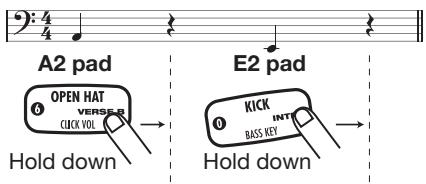
HINT
- By using the [BANK] key during pattern recording, you can switch the pitch range of bass notes assigned to the pads.
- When the REC [●] key is pressed during real-time recording, the REC [●] key starts to flash and pattern recording is suspended. In this condition, tapping the pads will produce sound, but it is not recorded. This is useful to check phrasing before actually recording. To resume recording, press the REC [●] key once more.
9. To erase the sound from a specific pad, push the pad while holding down the [DELETE/ERASE] key.
While the key is held down, the sound from that pad is erased from the pattern.
To erase the entire bass track, push the [BASS] key while holding the [DELETE/ERASE] key down. While both keys are held down, the bass track is erased.
![ZOOM RT-223 - To erase the sound from a specific pad, push the pad while holding down the [DELETE/ERASE] key. - 1](/content/2025/01/152244/images/9f6afa89853a1a91186b6f97cc49d766f8bd96c5d5f03dc746a4d79d2b3667a1.jpg)
![ZOOM RT-223 - To erase the sound from a specific pad, push the pad while holding down the [DELETE/ERASE] key. - 2](/content/2025/01/152244/images/cabd549ad2736a5291427d4a70142fb0af4d53f4fbec704daa4f25000a9f5caf.jpg)
10. When real-time input of the bass track is completed, press the STOP [■] key.
HINT
If necessary, specify a root for the pattern that suits the entered bass phrase. The BASS KEY setting (p. 64) is used to set the root information for the pattern. For patterns that are not to be used in a song or for patterns where the bass track is empty, making the setting is not required.
Entering Patterns Using Step Input
This section describes step recording, which is another recording type that is possible with the RT-223.
What is step recording?
Step recording allows you to enter and record each sound separately, step by step, while the RT-223 is in the stop condition. Even without mastering how to play the pads in real time, you can easily create complex drum and bass patterns.
For step recording of a drum track, you first select the shortest note that is to be used as a unit (length of one step). Then you specify the drum instrument by pressing a pad and the [REPEAT/STEP] key. The note is entered, and input proceeds to the next step. If you press the [REPEAT/STEP] key without pressing a pad, a rest is entered.
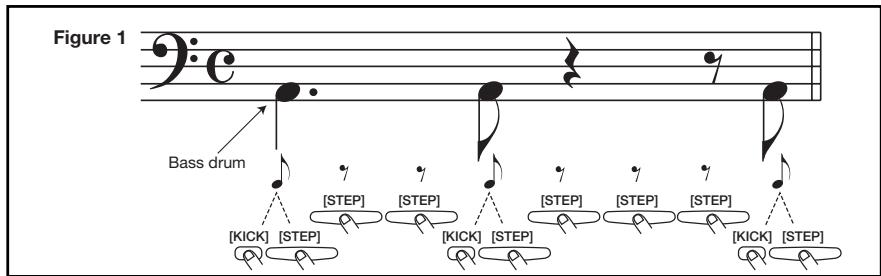
For example, to enter the following bass drum pattern by step input, select an eighth note as smallest unit, and then make the input in the following order, as shown in Figure 1.
[KICK] [STEP] [STEP] [STEP] [KICK] [STEP] [STEP] [STEP] [STEP] [KICK] [STEP]
When the end of a pattern is reached, it loops automatically back to the beginning, allowing you to add for example snare and hi-hat separately, to complete the pattern. By pushing two pads at the same time, you can enter two sounds in the same position.
For step recording of a bass track, the procedure is slightly different, because unlike for the drum track, the pitch and duration of the sound must be specified. For the drum track, every pad produces the sound of a different instrument, but for the bass track, the pitch is determined by which pad you push.
The fact that tapping a pad gives the shortest-unit note and pushing the [REPEAT/STEP] key gives the shortest-unit rest is the same, but the fact that a parameter called "duration" is added when entering a note is different. Even when the step length is the same, the actual duration of each note can be varied individually. To enter the bass phrase shown in Figure 2, select an eighth note as smallest unit and make the entry as shown, while varying the duration.
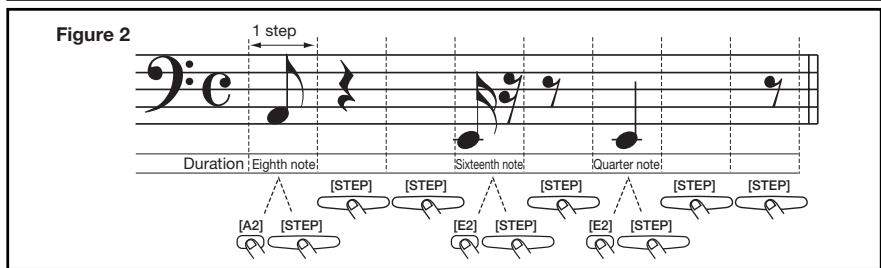
Step recording of drum track
This section describes how to record the drum track using step recording.
1. In pattern mode, select an empty user pattern, and select a drum kit, as necessary.
The selection method for pattern and drum kit is the same as in real-time recording ( p. 22).
When you select an empty pattern, the indication "EMPTY" appears on the display.
HINT
If there is no empty pattern, delete an unneeded pattern first ( ,33)
2. Press the [FUNCTION] key and then pad 5 (QUANTIZE).
The current quantize setting appears on the display. The minimum unit (shortest note) for step recording is determined by this setting.
![ZOOM RT-223 - Press the [FUNCTION] key and then pad 5 (QUANTIZE). - 1](/content/2025/01/152244/images/8e41cb4a8fd03026f75974db5c3a63036d74086c122f319c8cb2c53d5df0d617.jpg)
3. Use the VALUE [+] /[-] keys to select the quantize value (step length) from the following values.
![ZOOM RT-223 - Use the VALUE [+] /[-] keys to select the quantize value (step length) from the following values. - 1](/content/2025/01/152244/images/8d095bcda2d612a453473bcc3645c64e0256b0ed1ae47cf53b5b7ae2b58761c3.jpg)
![ZOOM RT-223 - Use the VALUE [+] /[-] keys to select the quantize value (step length) from the following values. - 2](/content/2025/01/152244/images/df669c6ae9e28011e6deb592737da1661626ec85fcc7d804fde78e30c6496ba4.jpg)
4....Quarter note 24.... Sixteenth triplet note
8....Eighth note 32..... Thirty-second note
12.... Eighth triplet note 48..... Thirty-second triplet note
16.... Sixteenth note Hi ....... 1 tick (1/96 of quarter note)
4. Press the [FUNCTION] key once more.
The quantize value is set, and the unit returns to pattern mode.
5. Press the REC [●] key.
The REC [ ] key lights up and pattern step input becomes possible.
![ZOOM RT-223 - Press the REC [●] key. - 1](/content/2025/01/152244/images/3efccf315edaa18e0349da24d44f998cc20b7079c7d2d5d6e17b305e6707ba78.jpg)
6. To enter a note, press the pad corresponding to the sound, and then press the [REPEAT/STEP] key.
![ZOOM RT-223 - To enter a note, press the pad corresponding to the sound, and then press the [REPEAT/STEP] key. - 1](/content/2025/01/152244/images/d74cfbcd0e8909110c28df7bb7c8ce6e6305005d1aba25eada48fa3aa768a773.jpg)
The note is entered, and the input position advances by one step.
HINT
You can check the current position in the pattern on the display (measure/beat/tick).
7. To enter a rest, press the [REPEAT/STEP] key only.
![ZOOM RT-223 - To enter a rest, press the [REPEAT/STEP] key only. - 1](/content/2025/01/152244/images/18e015c6a9794f0dc0a2241ebd0eb306a7353faea290f89185fdb9a138e8f652.jpg)
If you press the [REPEAT/STEP] key without pressing a pad, no note is entered, and the input
position advances by one step.
When the end of the pattern is reached, the recording loops back to the beginning and continues, allowing you to add to the recording.
- To erase the sound of a specific pad, use the [REPEAT/STEP] key to move to its position. Then press the corresponding pad while holding down the [DELETE/ERASE] key.
![ZOOM RT-223 - To enter a rest, press the [REPEAT/STEP] key only. - 2](/content/2025/01/152244/images/f01cc35782ce5d81a53ec1577e28a6e921af382f778b29ce7416f7c6af31cccb.jpg)
When you move the position with the [REPEAT/STEP] key, the pad for the sound input at the current point lights up. When you delete the sound by pressing the pad while holding down the [DELETE/ERASE] key, the pad goes out.
![ZOOM RT-223 - To enter a rest, press the [REPEAT/STEP] key only. - 3](/content/2025/01/152244/images/1db8eb5bc38136d167bd6b27939613346b96472fd0c565f797b658c08b1de3eb.jpg)
NOTE
During step input, it is not possible to erase the entire track in one go.
- When step input of the drum track is finished, press the STOP [■] key.

STOP
The REC [ ] key goes out, and step input terminates.
Step recording of bass track
Now let's add a bass track to the drum track recorded as described in the previous section. Because pitch and duration must be specified for the bass track, the procedure is slightly different from step recording of the drum track.
- In pattern mode, press the [BASS] key.

The bass track is selected. The bass program selection method is the same as for real-time recording ( p.25)
- Press the [FUNCTION] key and then pad 5 (QUANTIZE).
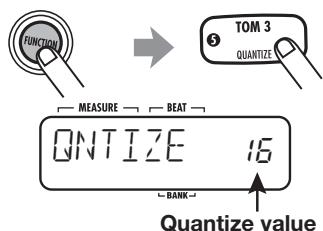
You can now set the quantize value.
3. Use the VALUE [+] /[-] keys to select the quantize value (step length).
For information on quantize values, see page 23.
4. Press the [FUNCTION] key once more.
The quantize value is set, and the unit returns to pattern mode.
5. Press the REC [●] key.
The display changes as follows, and step input becomes possible.
![ZOOM RT-223 - Press the REC [●] key. - 1](/content/2025/01/152244/images/73b93aa958f2959588919a9ded64836890a9ef16cb1789c2db804aecdf93eda4.jpg)
6. Press the left or right cursor key.
The display changes as follows. Here you can set the duration value.
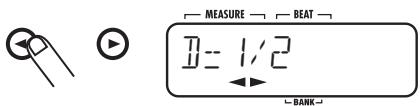
The following settings for note duration are available.
1-8...........Quarter note x 1-8
3/2 Dotted quarter note
3/4 Dotted eighth note
1/2 .Eighth note
1/3 .Eighth triplet note
1/4 Sixteenth note
1/6 Sixteenth triplet note
1/8 Thirty-second note
7. Use the cursor keys to select the duration value.


After a while, the screen of step 5 appears again.
8. To enter a note, press the pad for the pitch, and then press the [REPEAT/STEP] key.
![ZOOM RT-223 - To enter a note, press the pad for the pitch, and then press the [REPEAT/STEP] key. - 1](/content/2025/01/152244/images/db450108ef0a48be4bc1f668c67245fbb6446587aa2b9902f2a9e8f81a421570.jpg)
The note is entered, and the input position advances by one step. The sound duration will be as specified earlier. You can check the current position in the pattern on the display (measure/beat/tick).
NOTE
If the entered duration exceeds the pattern length, the note will continue until the end of the pattern.
9. To advance to the next step, press the [REPEAT/STEP] key.
![ZOOM RT-223 - To advance to the next step, press the [REPEAT/STEP] key. - 1](/content/2025/01/152244/images/926c5b29cdfdd7587510f455455962656d94f5e9f97dc258ac189627b3ad3ec9.jpg)
If you press the [REPEAT/STEP] key without pressing a pad, the position advances by one step without note entry.
10. To erase a note, use the [REPEAT/ STEP] key to move to its position. Then press the corresponding pad while holding down the [DELETE/ ERASE] key.
As you move the position with the [REPEAT/STEP] key, the pad that has been input for the current position lights up. Pressing the pad while holding the [DELETE/ERASE] key down causes the pad to go out and the note will be erased.
![ZOOM RT-223 - To erase a note, use the [REPEAT/ STEP] key to move to its position. Then press the corresponding pad while holding down the [DELETE/ ERASE] key. - 1](/content/2025/01/152244/images/798fe61d5cda8e585fd9ce5521fb20db25284ab7e48188db22ad2f14dcbbca36.jpg)
11. Repeat steps 8 - 10 while changing the quantize value and duration setting, to proceed until the end of the pattern.
When the end of the pattern is reached, the unit automatically loops back to the first measure.
12. When step input of the bass track is completed, press the STOP [■] key.
![ZOOM RT-223 - When step input of the bass track is completed, press the STOP [■] key. - 1](/content/2025/01/152244/images/e35b6d30a4583caa324624097836a7be9fa8dfc412330787dfd6d7fb706a9eb9.jpg)
The REC [ ] key goes out, and step input is completed.
HINT
If necessary, specify a root for the pattern that suits the entered bass phrase. The BASS KEY setting (p. 64) is used to set the root information for the pattern. For patterns that are not to be used in a song or for patterns where the bass track is empty, making the setting is not required.
Editing a Pattern
This section explains how to edit patterns.
Copying a pattern/ Returning a pattern to the factory default condition
You can copy the currently selected pattern to another position. This is useful to change only a part of a pattern, such as changing the bass track phrasing while keeping the drum track.
Patterns that were preprogrammed at the factory (patterns 0 - 439) can be returned to their original condition by the copy process described below.
NOTE
When the copy is executed, the existing contents of the pattern selected as copy target will be erased. Use this function with care.
1. Press the [PATTERN] key.
![ZOOM RT-223 - Press the [PATTERN] key. - 1](/content/2025/01/152244/images/5b17850c3bc0b92570ce0915e46e6884b7cfbbe2370481d89025f99f272f6731.jpg)
The RT-223 goes into pattern mode, and the pattern selection screen appears.
2. Use the VALUE [+] /[-] keys to select the pattern to use as copy source.
![ZOOM RT-223 - Use the VALUE [+] /[-] keys to select the pattern to use as copy source. - 1](/content/2025/01/152244/images/58254692fa0a55f34471e751bd7e2003feb3e199c17c7772d3f7845fe6a213e6.jpg)
![ZOOM RT-223 - Use the VALUE [+] /[-] keys to select the pattern to use as copy source. - 2](/content/2025/01/152244/images/5092de2e54e371e2da49908a68b0ed21d024184611a7747e611d03d3143fb6f9.jpg)
3. Press the [INSERT/COPY] key.
![ZOOM RT-223 - Press the [INSERT/COPY] key. - 1](/content/2025/01/152244/images/a4ad9e147361d648e0f1b6b4b6331b6c4a817c58ee22cc12b55ec67b0a77dc9a.jpg)
The [INSERT/COPY] key flashes and the current pattern is selected as the copy source.
4. Use the VALUE [+] /[-] keys to select the pattern to be used as copy target.
![ZOOM RT-223 - Use the VALUE [+] /[-] keys to select the pattern to be used as copy target. - 1](/content/2025/01/152244/images/aceb2bfb8a379eb74caf6ea31e9686e8d6c1cb2a0ecf24dc9e15e32700c0fb66.jpg)
![ZOOM RT-223 - Use the VALUE [+] /[-] keys to select the pattern to be used as copy target. - 1](/content/2025/01/152244/images/2909f57a8f624acd6d6d63addfaa57482a1d106b8ca05e8726d0f6cac5873d0a.jpg)
Copy target pattern number
HINT
When you select an empty pattern, the indication "E" appears to the right of the pattern number.
To return one of the factory preprogrammed patterns (0 - 439) to the original condition, select the same number as copy source and copy target (the indication "COPY" appears on the display). Then proceed to step 5.
5. To execute the copy, press the [INSERT/COPY] key.
- When you have selected an empty pattern as copy target
The copy is carried out when you press the [INSERT/COPY] key.
- When you have selected an existing pattern as copy target
The indication "REPLACE" appears on the display when you press the [INSERT/COPY] key. To execute the copy, press the [INSERT/ COPY] key once more.
- When you have selected the same pattern as copy source and copy target
The indications "FACTORY" and "REVERT" appear alternately on the display when you press the [INSERT/COPY] key. To execute the
factory restore process, press the [INSERT/ COPY] key once more.
When the copy or factory restore process is completed, the indication "DONE" appears on the display, and the unit returns to the pattern mode. By pressing the [EXIT] key instead of the [INSERT/COPY] key, you can cancel the process and return to pattern mode.
Erasing a pattern
A user pattern can be erased when it is no longer needed. This can be useful to free up memory space.
NOTE
When a pattern has been erased, its contents can no longer be restored. Use this function with care.
- In pattern mode, select the pattern to be erased.
- Press the [DELETE/ERASE] key.
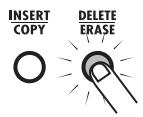
The [DELETE/ERASE] key flashes, and the current pattern name and number alternate with the indication "DELETE" on the display.
3. To execute the erasing process, press the [DELETE/ERASE] key once more.
To cancel the process, press the [EXIT] key instead of the [DELETE/ERASE] key.
Assigning a name to a pattern
When you have selected an empty pattern and created a new pattern, the name "PAT xxx" (where xxx is the pattern number) will automatically be assigned to it. You can change this name later.
- In pattern mode, select the pattern whose name you want to change.
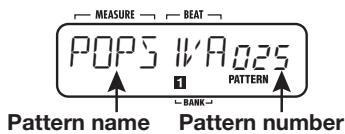
- Press the [EDIT] key.
The currently selected character of the pattern name flashes.
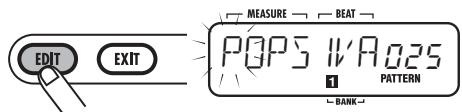
- Use the cursor left/right keys to move the cursor position, and use the VALUE [+] /[-] keys to select the character.
The following characters are available.
Numbers: 0 - 9
Letters: A - Z
Symbols: (space), () * + - /
- Repeat step 3 until the name is complete.
- When name input is completed, press the [EXIT] key.
The name is accepted, and the RT-223 returns to the pattern mode.
Creating Songs (Song Mode)
This section explains what a song in the RT-223 is and how to create songs.
What is a song?
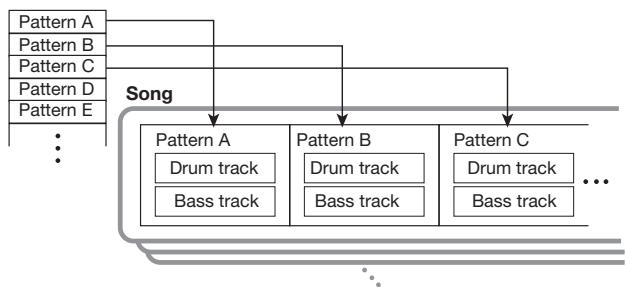
A song in terms of the RT-223 is a sequence of patterns (a number of measures of drum track and bass track) lined up in play order, to provide the backing for an entire musical piece (see illustration below). The maximum number of songs that can be stored in the RT-223 is 100.
A song can be input in three different ways.
- Step input
With this method, you start at the beginning of the song and proceed in discrete steps, specifying the pattern to play and the number of measures for each step. This method is suitable for detailed, manual work on a song.
Real-time input
With this method, you first assign the patterns to the pads and then play the patterns in real time. This method is suitable for quick and intuitive input of a song.
- FAST (Formula Assisted Song Translator)
This method uses simple formulas to specify rhythm pattern playback from start to end. The result is written out as a song in a single operation. This method is suitable for songs with repeated patterns and cases where the configuration of the entire song has been decided beforehand.
HINT
The resulting song is the same, regardless of
which input method was used. After creating a song with FAST input or real-time input, you can still fine-tune it with step input.
Besides pattern information, a song also contains so-called event data (tempo, beat, volume and other information, see page 42). Use step input to enter event information.
Creating a song using step input
This section explains how to create a song by lining up patterns one by one.
1. Press the [SONG] key.
The [SONG] key lights up and the RT-223 goes into song mode. The name and number of the currently selected song are shown on the display.
![ZOOM RT-223 - Press the [SONG] key. - 1](/content/2025/01/152244/images/7af32048a6b0c726888fd187484350382aab905078d86a75e7cce7fe71aa7361.jpg)
2. Use the VALUE [+] /[-] keys to select a song for which "EMPTY" is shown.
HINT
- If there is no empty song, you may have to erase a song that is no longer needed ( ,47)
- Keeping a VALUE [+]/[-] key depressed changes numbers continuously.
- To change numbers quickly, hold down one of the VALUE [+] /[-] keys and press the other key. The numbers will change rapidly.
3. Press the REC [●] key.
The REC [ ] key lights up and the display changes as follows. This screen is used for step input.
![ZOOM RT-223 - Press the REC [●] key. - 1](/content/2025/01/152244/images/0c92fda2e22bf92ac85109b6495ca23975a37dd242ee91b61b363b6d300f4f91.jpg)
The "End" indication means that the song is currently at the end position. For an empty song where no information has been input, the start and "End" point are identical.
![ZOOM RT-223 - Press the REC [●] key. - 2](/content/2025/01/152244/images/dce791bd9c93bd5ccaccbbbf6305692b693c067fd525c3e07fa89c6810c82449.jpg)
4. Press the [INSERT/COPY] key.
The display changes as follows, and pattern input becomes possible.
![ZOOM RT-223 - Press the [INSERT/COPY] key. - 1](/content/2025/01/152244/images/7949466071e9d578e0302ce66a0bb8e01ae9a6deffd1ad1ebf10d61fce7f7284.jpg)
5. Use the VALUE [+] /[-] keys to select the pattern to input.
The selected pattern name appears on the display.
6. Use the cursor left/right keys to set the number of measures for the pattern.
If the selected number is higher than the original number of measures for the pattern, the same
pattern will be repeated. If a smaller number is selected, the sound will switch to the next pattern partway through.
7. When the setting is complete, press the [INSERT/COPY] key.
The pattern with the specified number of measures is inserted, and the display shows the new end position of the song. This means that the "End" indication has now moved to the last measure.
![ZOOM RT-223 - When the setting is complete, press the [INSERT/COPY] key. - 1](/content/2025/01/152244/images/c7e33c1770200ab99e4b6bfa7730b4e093980fe139543f411b0de18ddda4f79f.jpg)
During step input of a song, the input position can be moved by the following actions.
- Jumping to event positions
Use the VALUE [+]/[-] keys. With each push of a key, the input position moves to the next or previous event point.
- Moving in measure units
Use the cursor left/right keys. With each push of a key, the input position moves to the next or previous measure.
- Moving in sixteenth note units
Use the [REPEAT/STEP] key. With each push of the key, the input position moves in sixteenth note units.
8. Repeat steps 4 - 7 to enter all required pattern information.
To edit an entered pattern, you can perform one of the following actions.
- To reselect a pattern
Use the cursor left/right keys to move to the point where the respective pattern information is input, and press the [EDIT] key. The event editing screen appears. Now use the cursor left/right keys
to select "PTN", and use the VALUE [+]/[-] keys to select a new pattern number. To return to the step input screen, press the [EXIT] key. For details on event input/editing, see page 42.
When the pattern is switched within a measure, the new pattern will normally start playing at this point from the beginning. However, you can also have the new pattern start playing from a point other than the beginning. This lets you do things such as inserting the fill-in portion of the new pattern at the third beat of a measure.
To do this, press the [REPEAT] key when the new pattern number is displayed, so that a dot (. appears next to the pattern number.
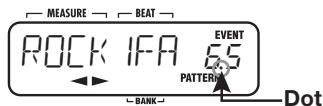
Pressing the [REPEAT] key once more turns the dot off. The pattern will be playing from the start.
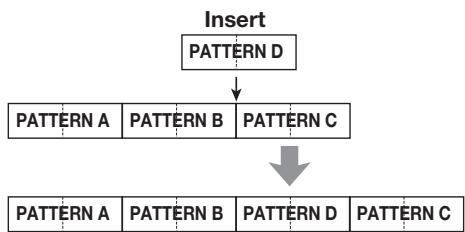
To insert a new pattern in a song
Move to the point where the pattern is to be inserted and carry out steps 4 - 7. This inserts a pattern at the current position, and shifts all later patterns back by the duration of the inserted pattern.
To delete a pattern
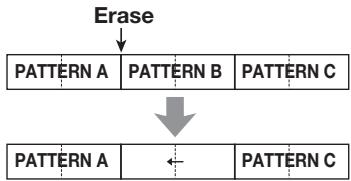
Use the cursor left/right keys to move to the pattern to delete, and press the [EDIT] key to switch to the event editing screen. Now use the cursor left/right keys to select "PTN", and press the [DELETE/ERASE] key. When pattern information is deleted, the "PTN" indication
changes to PTN", which means that the preceding pattern will continue to play. For details on event input/editing, see page 42.
To delete a specific measure
Move to the start of the measure to delete, and press the [DELETE/ERASE] key. The measure is deleted and subsequent events are shifted by one measure forward.
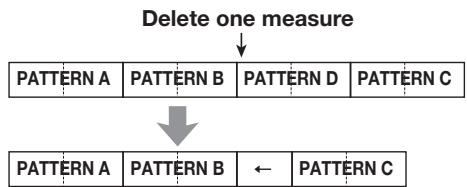
9. To terminate song step input, press the STOP [■] key.
![ZOOM RT-223 - To terminate song step input, press the STOP [■] key. - 1](/content/2025/01/152244/images/ba688f7dde89540c8756fb36c356e789165c24f56a1a68d79b22d3f510e53941.jpg)
The REC [ ] key goes out, and song step input is terminated.
Creating a song using real-time input
In song mode, you can assign different patterns to the 13 pads and play the patterns with the pads. This allows you to play the accompaniment to a performance by hitting the pads to switch patterns. It can also be used to line up patterns for a song in real time, as described below.
HINT
The operation of pads in song mode resembles that of groove play mode ( p. 48). However, in song mode, it is not possible to play several patterns simultaneously. Switching patterns is only available in measure or beat units.
■Assigning patterns to pads
This section describes how to assign to the pads the patterns to use in a song.
NOTE
The pattern assignment made in song mode and that made in groove play mode ( p. 48) are separate. These settings do not influence each other.
1. Press the [SONG] key to activate song mode, and use the VALUE [+] /[-] keys to select a song for which "EMPTY" is shown.
HINT
- In the factory default condition, song numbers 0 - 9 already have patterns assigned to the pads.
- In the factory default condition, song numbers 10 - 99 (for which "EMPTY" is shown) will automatically have the same pattern assignment as used in the previously selected song.
2. Press the [BANK] key.
A screen for making various pad settings appears.
![ZOOM RT-223 - Press the [BANK] key. - 1](/content/2025/01/152244/images/df9554534987c9131b82dd9a072e3c3bf30e12def6539a95f498845f52d29fdb.jpg)
![ZOOM RT-223 - Press the [BANK] key. - 2](/content/2025/01/152244/images/e45b24a07bf8fd41f58b33416ce3a18083aed7f1b245096230317a6bd9588fbe.jpg)
3. Press the pad for which pattern should be assigned.
The pad lights up, and a pattern can be selected.
4. Use the VALUE [+] /[-] keys to select a pattern to assign to the pad.
![ZOOM RT-223 - Use the VALUE [+] /[-] keys to select a pattern to assign to the pad. - 1](/content/2025/01/152244/images/c75d6f432bc7b43421055bf7a621ee2806de2d3d0dfdd83b2e886f49f790560f.jpg)
![ZOOM RT-223 - Use the VALUE [+] /[-] keys to select a pattern to assign to the pad. - 2](/content/2025/01/152244/images/ed891e5a01258ae9a4bdbecb213ad36464c8dc75fbf8ae4d95cdc406fcbc3534.jpg)
- Repeat steps 3 - 4 to assign patterns to the other pads in the same way.
- When the setting is complete, press the [BANK] key or the [EXIT] key.
The screen of step 1 appears again.
HINT
The pattern information is stored for each song separately.
Changing the pattern play method for each pad
You can make changes to the way a pattern plays in song mode, such as transposing the bass track.
1. In song mode, select the song for which to change the settings, and press the [BANK] key.
The screen for making various pad settings appears.
![ZOOM RT-223 - In song mode, select the song for which to change the settings, and press the [BANK] key. - 1](/content/2025/01/152244/images/8fbfc944fd30da76e2743806a4e9a5fd1d08501ae16573a7ee079919648dce43.jpg)
![ZOOM RT-223 - In song mode, select the song for which to change the settings, and press the [BANK] key. - 2](/content/2025/01/152244/images/75b490dbb266377a934ca97e0edd5f779d0e6a1c1c05f4a5e5b169d5f17353ef.jpg)
2. Press the pad for which to change the settings.
The pad lights up, showing that it is selected for operation.
3. Use the cursor left/right keys to select a parameter.
The parameters and their setting ranges that are available for each pad are shown in the table below.
| Parameter type | Description | Setting range |
| PATTERN | Number and name assigned to the pad | 000 – 511 |
| ROOT | Bass track root | E – D# |
| NEXT | Operation when switching a pattern | P00 – P12 |
| F00 – F12 | ||
| StP |
If the root set for a pattern with BASS KEY ( p. 64) and the root set for the song are different, the bass phrase is transposed to match the root entered for the song. For example, if the pattern root is set to C for the phrase "G - A - B", and the song root is set to D, the resulting phrase will be "A - B- C#".
The NEXT parameter determines the operation when a pad is pressed to switch a pattern and when a pattern has finished playing.
P00-P12
When the pattern is finished, the pattern of the specified pad (00 - 09: pads 0 - 9, 10: pad ([+] , 11: pad [x], 12: pad ([()]) ) will be called up.
F00-F12
The pattern changes at the change of the beat, and when the pattern is finished, the pattern of the specified pad plays.
StP
Playback stops at the end of the pattern.
4. Use the VALUE [+] /[-] keys to change the setting value.
Repeat steps 2 - 4 to make settings for the other pads in the same way.
5. When the setting is complete, press the [BANK] key or the [EXIT] key.
The unit returns to song mode.
Using the pads to enter a song in real mode
This section describes how to enter a song in real time by tapping pads to which patterns have been assigned.
1. In song mode, select the song for which to perform real-time input.
HINT
- Song numbers 0 - 9 already have patterns assigned to the pads.
- You can assign patterns to pads yourself. For details, see page 37.
2. Press the PLAY [▶] key while holding down the REC [●] key.
![ZOOM RT-223 - Press the PLAY [▶] key while holding down the REC [●] key. - 1](/content/2025/01/152244/images/8248b42950936e2ccec5870c39c43e09e7b13d9b9d52a31cc3b825cb737c7a18.jpg)
The REC [ ] key and PLAY [ ] key light up, and the song is ready for real-time input.
3. Hit the pad to which the first pattern is assigned.
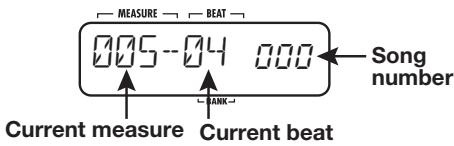
As soon as you hit the pad, real-time recording starts, and the pattern plays. The current measure and beat and the current song number are shown on the display.
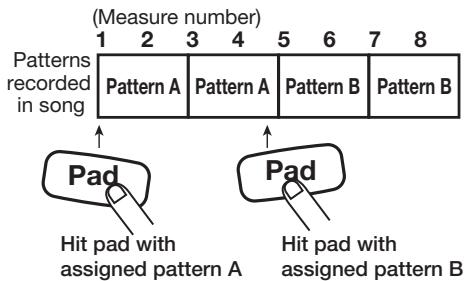
4. To switch the pattern, hit the next pad during the last measure before the intended switch.
The pattern assigned to the pad goes into standby, and the pattern is switched at the start of the next measure. The pad that is in standby mode flashes.
NOTE
If you hit a pad whose NEXT parameter ( p. 38) is set to "F00 - F12", the pattern will be switched not at the measure boundary but at the beat boundary.
5. Enter the remaining patterns in the same way as described for step 4.
6. To terminate song real-time input, press the STOP [■] key.
The REC [ ] key and PLAY [ ] key go out, and song real-time input is completed.
HINT
- To assign an ending pattern to a pad, set the NEXT parameter to "StP", so that real-time input will automatically be stopped.
- A song created with real-time input can later be edited with step input.
Creating a song using FAST input
The FAST (Formula Assisted Song Translator) method developed by ZOOM uses simple formulas to specify patterns for an entire song, which is then written in a single operation.
The formula symbols are entered using the 13 pads. The function of each pad during FAST input is shown in the illustration below.
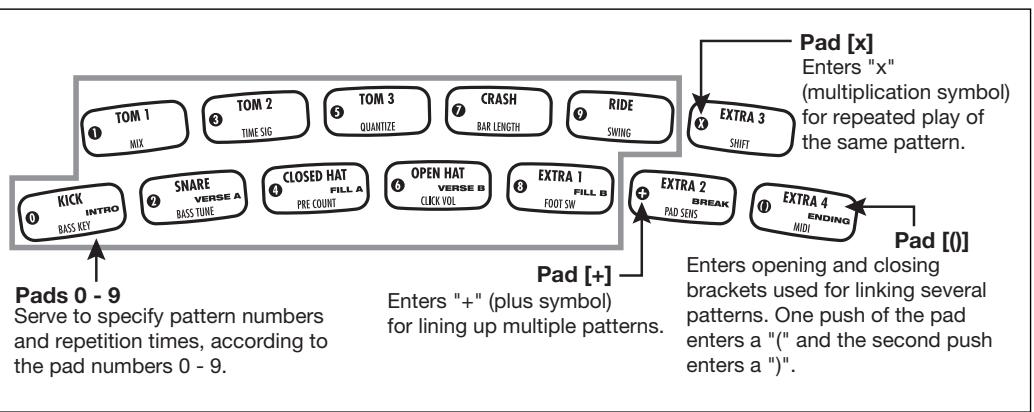
The basic rules for creating a rhythm pattern sequence are as follows.
Line up patterns
Use the "+" symbol to line up rhythm patterns. For example, entering 0 + 1 + 2 will result in the following rhythm pattern play sequence.
| PATTERN 0 | PATTERN 1 | PATTERN 2 |
- Repeat patterns
Use the "x" (multiplication) symbol to specify pattern repetitions. As in normal arithmetic, "x" takes precedence over "+" For example, entering 0 + 1 × 2 + 2 will result in the following rhythm pattern play sequence.
| PATTERN 0 | PATTERN 1 | PATTERN 1 | PATTERN 2 |
- Repeat multiple patterns
Use the “(” and “)” symbols (opening and closing brackets) to link a group of patterns for repetition. Formulas enclosed in brackets take precedence over other formulas. For example, entering 0 + (1 + 2)× 2 + 3 will result in the following rhythm pattern play sequence.
| PATTERN 0 | PATTERN 1 | PATTERN 2 |
| PATTERN 1 | PATTERN 2 | PATTERN 3 |
An example for creating the rhythm pattern sequence 0 + (1 + 2)× 3 is shown below.
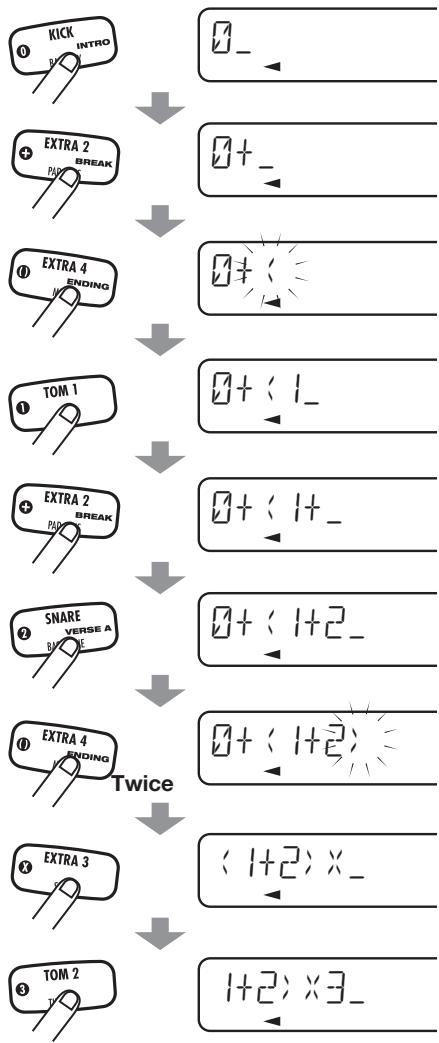
HINT
If the formula exceeds seven digits, earlier character/symbol entries are scrolled off the display. To see the scrolled part, use the cursor left/right keys to move the display position.
NOTE
- The FAST method can only be used to write a song in one go, from beginning to end. Entering patterns partly into the song is not possible.
- To edit a song that was written with this method, edit the formula and then write the entire song again, or use step input.
1. Press the [SONG] key to activate song mode, and use the VALUE [+] /[-] keys to select a song for which "EMPTY" is shown.
NOTE
If you select an existing song and write it out using FAST input, the entire previous content of the song will be overwritten. Use this function with care.
2. Press the [FUNCTION] key and then the REC [●] key.
![ZOOM RT-223 - Press the [FUNCTION] key and then the REC [●] key. - 1](/content/2025/01/152244/images/59a5a144c3a3d1599f308801fd7a175d77b7908fa13f8e6a216a33615056edb8.jpg)
The indication "FAST" appears briefly on the display. Then an underline cursor appears at the first character position. FAST input is now possible.
![ZOOM RT-223 - Press the [FUNCTION] key and then the REC [●] key. - 2](/content/2025/01/152244/images/fbff4685833b7fd0fd3f65e55a2989b450ae80e404d069a3500b92fc6c050b4e.jpg)
3. Use the pads to enter a formula.
The input method is explained on page 40.
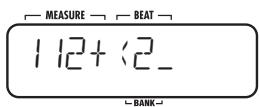
If you make a mistake during input, you can correct it as follows.
- Deleting a number/symbol
Use the cursor left/right keys to move the flashing segment to the number/symbol to delete, and press the [DELETE/ERASE] key.
- Inserting a number/symbol
Use the cursor left/right keys to move the flashing segment to the point where you want to insert a number or symbol, and input the new number/symbol.
4. When formula input is completed, press the [FUNCTION] key.
The song is written and FAST input terminates.
NOTE
If the entered formula contains a syntax error, the indication "SYTXERR" appears on the display when you press the [FUNCTION] key. After a while, the formula input screen appears again. Correct the wrong part, and perform the write operation again.
Entering event information
Besides pattern information, you can enter various other information (called event data) for a song, such as tempo, beat, and volume. You can gradually fade out the volume or switch the sound of the drum kit or bass program at any point in the song. To add event data to a song for which patterns have already been input, use the step input method.
1. In song mode, select the song for which you want to input an event.
2. Press the REC [●] key.
The REC [ ] key lights up, and step input for the song becomes possible.
3. Move to the position where you want to enter event information.
For information on moving the current position, see page 35.
At a point where any kind of event information
including pattern information is input, the "EVENT" indication is shown (see illustration below).
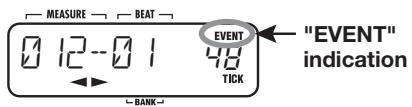
HINT
By using the VALUE [+]/[-] keys during step input of a song, you can move directly to previous or later events.
4. Press the [EDIT] key.
You can now select the event type to enter/edit.
![ZOOM RT-223 - Press the [EDIT] key. - 1](/content/2025/01/152244/images/69992c2aeef5e8f51b1c0f7ee1f55c3bdcd9bdbe04095e1641a2ed96819409ac.jpg)
![ZOOM RT-223 - Press the [EDIT] key. - 2](/content/2025/01/152244/images/bbe7214e935feb4092b50e327e2018b0bf5577941ce3f605ce8f92c4b7510d1d.jpg)
5. Use the cursor left/right keys to select the type of event to enter.
Available event types are shown in the following table.
| Event type | Description | Setting range |
| PTN | Pattern number | 000 – 511 |
| TIMSIG | Beat | 1 – 8 (1/4 – 8/4) |
| ROOT | Bass track root | E – D# |
| TEMPO | Tempo | 40 – 250 |
| DR VOL | Drum track volume | 0 – 15 |
| BS VOL | Bass track volume | 0 – 15 |
| DR KIT | Drum kit | 0 – 126 |
| BS PRG | Bass program | 0 – 11 |
If you select an event for which information has already been input at the current position, the event name and setting value are shown on the display. (By pressing the VALUE [+]/[-] keys in this condition, you can change the setting.)
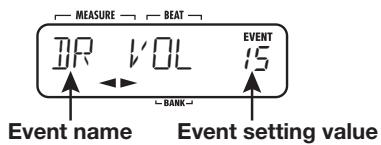
If you select an event for which no information has been input at the current position, the indication xxx (where xxx is the event name) is shown. This means that the preceding information for the same event type remains valid. The following illustration shows an example for the display when the TEMPO event is selected.
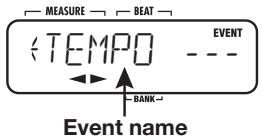
HINT
- If you enter tempo information at the beginning of a song, the song will always play at that tempo, regardless of current tempo settings.
- If the root set for a pattern with BASS KEY ( p. 64) and the root set for the song are different, the bass phrase is transposed to match the root entered for the song. For example, if the pattern root is set to C for the phrase "G - A - B", and the song root is set to D, the resulting phrase will be "A - B- C#".
6. Use the VALUE [+] /[-] keys to enter the setting value.
When you specify the setting value with the VALUE [+]/[-] keys, the indication “ xxx” (where xxx is the event name) changes to the event name only. This indicates that new event information has been input at the current position.
![ZOOM RT-223 - Use the VALUE [+] /[-] keys to enter the setting value. - 1](/content/2025/01/152244/images/ac18e3dbbf76585db2d24a2e6fdb0ca9838946f81404efe2755e1b97a11b7a3a.jpg)
7. When event information for the current position has been input, press the [EXIT] key to return to the song step input screen.
![ZOOM RT-223 - When event information for the current position has been input, press the [EXIT] key to return to the song step input screen. - 1](/content/2025/01/152244/images/a32ae211e67ab041246148fdac73a240173ca879cfcf48cc6e9a7e2be2c47f0e.jpg)
If required, repeat steps 3 - 7 for other events.
To edit event information that has already been input, proceed as follows.
- To delete an event
Call up the event to delete, and press the [DELETE/ERASE] key.
- To change an event setting value
Call up the event to edit, and use the VALUE [+]/[-] keys to change the value.
8. To terminate event input, press the STOP [■] key.
![ZOOM RT-223 - To terminate event input, press the STOP [■] key. - 1](/content/2025/01/152244/images/b862a77bcdabedf04fce0698dcb9aa276784ddd9a33d7fcd8dbe13f403b2e2c0.jpg)
The REC [ ] key goes out, and song step input is completed.
Playing a song
This section shows how you can select and play a song that you have created.
1. Press the [SONG] key.
The [SONG] key lights up and the RT-223 goes into song mode. The display shows the currently selected song name and number.
![ZOOM RT-223 - Press the [SONG] key. - 1](/content/2025/01/152244/images/0fa213dac929b14c2e50c46e704672b50bcb8f195f2c2c901b43d353fe03e6fb.jpg)
2. Use the VALUE [+] /[-] keys to select the song you want to play, and press the PLAY [▶] key.
![ZOOM RT-223 - Use the VALUE [+] /[-] keys to select the song you want to play, and press the PLAY [▶] key. - 1](/content/2025/01/152244/images/ba786b7e520fc9521fc67aaf994d76920bcbf93da668ddb39e95de96e94460a9.jpg)
The selected song is played back.
3. To stop song playback, press the STOP [■] key.
HINT
While the song is stopped, you can use the cursor left/right keys to move the current position in measure units.
Editing a Song
This section describes how you can edit a song that you have created.
Copying a range of measures
Part of a song specified as a range of measures can be copied to another location. This is useful to have a certain passage play repeatedly.
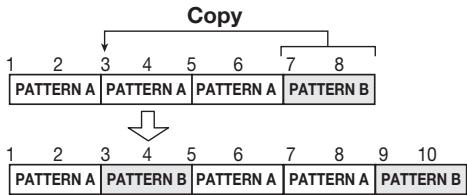
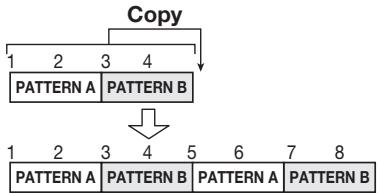
1. Press the [SONG] key.
![ZOOM RT-223 - Press the [SONG] key. - 1](/content/2025/01/152244/images/4fdf825fb2207572e64a4405814988dab8db201e7f9e35882e7a72e0c079e24d.jpg)
The RT-223 goes into song mode, and the song selection screen appears.
2. Use the VALUE [+] /[-] keys to select the song to edit.
![ZOOM RT-223 - Use the VALUE [+] /[-] keys to select the song to edit. - 1](/content/2025/01/152244/images/171b2402a6bc906fb174f4436a601c76ce61cd68fb9998813e43681b03aee657.jpg)
3. Press the REC [●] key.
![ZOOM RT-223 - Press the REC [●] key. - 1](/content/2025/01/152244/images/f0be41e5fca9dc4bb2ef8d9a3a763969703ac4b61c36c1c9f6f494d2286622e2.jpg)
The key lights up and song step input becomes possible.
4. Press the [EDIT] key while holding down the [INSERT/COPY] key.
![ZOOM RT-223 - Press the [EDIT] key while holding down the [INSERT/COPY] key. - 1](/content/2025/01/152244/images/a744ce2a62393f87310372200437c4585286e130b626dd125685a08cf4150ded.jpg)
The display changes as follows. On this screen, you can specify the copy start point measure.
![ZOOM RT-223 - Press the [EDIT] key while holding down the [INSERT/COPY] key. - 2](/content/2025/01/152244/images/87b5ade3a4c0df7bc97da5ed3cc19c96c7c0b29ea1a6938dca70970db376e24b.jpg)
5. Use the VALUE [+] /[-] keys to select the measure to be used as start point of the range to copy. Then press the [INSERT/COPY] key.
The display changes as follows. On this screen, you can specify the copy end point measure.
![ZOOM RT-223 - Use the VALUE [+] /[-] keys to select the measure to be used as start point of the range to copy. Then press the [INSERT/COPY] key. - 1](/content/2025/01/152244/images/703bf6a5a3a471cf1c1ac9e1cf072d2fe7ba05501ee1a16f25ba9e0a64736236.jpg)
6. Use the VALUE [+] /[-] keys to select
the measure to be used as end point of the range to copy. Then press the [INSERT/COPY] key.
The display changes as follows. On this screen, you can specify the insert point for the copied range.
![ZOOM RT-223 - Use the VALUE [+] /[-] keys to select - 1](/content/2025/01/152244/images/66f2feb037b261a1f11a25c5cd22ea6a6ae242da709b3d7449c2d7dd4e4979f6.jpg)
- Use the VALUE [+] /[-] keys to select the point where the copied range is to be inserted.
- To carry out the copy process, press the [INSERT/COPY] key.
The indication "DONE" appears, and the "End point moves back by the number of copied measures. By pressing the [EXIT] key instead of the [INSERT/COPY] key, you can cancel the process and return to the previous step.
- To terminate editing, press the STOP [■] key.
![ZOOM RT-223 - Use the VALUE [+] /[-] keys to select - 2](/content/2025/01/152244/images/ae139d0acc9a262813834a582eea1fc9d0cd79821d65ef2123d312bd0f1b1563.jpg)
Song step input is terminated, and the RT-223 returns to song mode.
Copying a song
The currently selected song can be copied onto another song number. This is useful to create song variations.
NOTE
When you carry out the copy process, any existing song at the copy destination will
be overwritten. Use this function with care.
- In song mode, select the song to use as copy source.
- Press the [INSERT/COPY] key.
The [INSERT/COPY] key flashes, and the current song is selected as copy source.
- Use the VALUE [+] /[-] keys to select the song number of the copy destination.
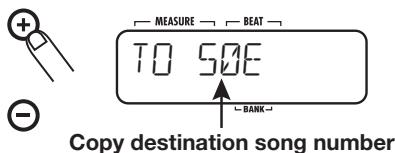
HINT
When you select an empty song, the indication "E" appears to the right of the song number.
NOTE
It is not possible to select the current song as copy destination.
-
To carry out the copy, press the [INSERT/COPY] key.
-
If an empty song has been selected as copy destination
The copy process is carried out when you press the [INSERT/COPY] key.
- If an existing song has been selected as copy destination
The indication "REPLACE" appears when you press the [INSERT/COPY] key. To carry out the copy, press the [INSERT/COPY] key once more.
When the copy process is completed, the indication "DONE" appears, and the RT-223 returns to the song mode. If you press the [EXIT] key instead of the [INSERT/COPY] key, the process is canceled and the RT-223 returns to the song mode.
Erasing a song
You can erase the contents of the currently selected song, returning it to the blank state.
NOTE
An erased song cannot be restored. Use this function with care.
-
In song mode, select the song to erase.
-
Press the [DELETE/ERASE] key.
The [DELETE/ERASE] key flashes, and the song name/number indication and the indication "DELETE" are shown alternately on the display.
- To carry out the erase process, press the [DELETE/ERASE] key once more.
When the erase process is completed, the indication "DONE" appears, and the RT-223 returns to the song mode. If you press the [EXIT] key instead of the [DELETE/ERASE] key, the process is canceled and the RT-223 returns to the song mode.
Assigning a name to a song
When you have selected an empty song and created a new song, the name "SONGxxx" (where xxx is the song number) will automatically be assigned to it. You can change this name later.
- In song mode, select the song whose name you want to change.
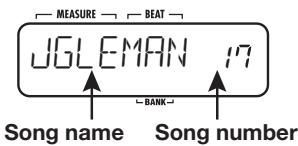
- Press the [EDIT] key.
The currently selected character of the song name flashes.
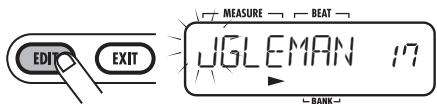
- Use the cursor left/right keys to move the cursor position, and use the VALUE [+] /[-] keys to select the character.
For information on available characters, see page 33.
4. Repeat step 3 until the name is complete.
5. When name input is completed, press the [EXIT] key.
The name is accepted, and the RT-223 returns to the song mode.
Using Pads to Play Patterns (Groove Play Mode)
This section describes the groove play mode. In this mode, the 13 pads are used to play patterns assigned to them. This allows quick switching between patterns during a performance. Up to 4 patterns can be played simultaneously, letting you play two patterns with a different beat, or the same pattern twice, shifted by 1 beat, to create a complex rhythm.
1. Press the [SONG] key and [PATTERN] key simultaneously.
![ZOOM RT-223 - Press the [SONG] key and [PATTERN] key simultaneously. - 1](/content/2025/01/152244/images/40d7b79867db0ae875cf4544b38fd248f8e8ddf0ecbc8ac75676c92dee1a68b3.jpg)
The RT-223 switches to groove play mode. The [SONG] key and [PATTERN] key are both lit. The display shows the name and number of the currently selected song.
NOTE
In groove play mode, all patterns are played with the tempo of the currently selected song. If required, you can enter a desired tempo at the beginning of the song ( ,42)
2. Try out the sound by pressing any pad.
In the factory default condition, the RT-223 has 13 patterns specially designed for groove play assigned to the pads. If a pad is held down, the assigned pattern plays repeatedly. The intensity with which the pad is hit controls the overall pattern volume. While the pad is pressed, the pattern name and number are shown on the display.
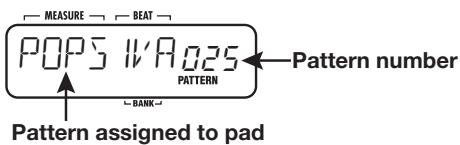
3. To change the pattern assigned to a pad, hold the pad down and use the VALUE [+] /[-] keys to select the new pattern.
![ZOOM RT-223 - To change the pattern assigned to a pad, hold the pad down and use the VALUE [+] /[-] keys to select the new pattern. - 1](/content/2025/01/152244/images/566f050be4e746c43ef6c3add7512bceed2073c313a4a7cc9e01bdee7301c326.jpg)
If the VALUE [-] key is pressed while "0" is displayed, or if the VALUE [+] key is pressed while "510" is displayed, the display indication changes to "PAD". Instead of a pattern, a pad for which "PAD" is selected will play the single sound originally allocated to the pad (such as kick drum or snare).
NOTE
- The pattern assignments made in groove play and those made in song mode ( p, 37) are separate and independent of each other.
- The patterns assigned to the pads are retained also while the unit is turned off.
4. To repeat a pattern even when the pad is released, hit the pad while holding down the [REPEAT/STEP] key.
![ZOOM RT-223 - To repeat a pattern even when the pad is released, hit the pad while holding down the [REPEAT/STEP] key. - 1](/content/2025/01/152244/images/3991f7552237652f144c532cf5179165a48df97cbba2ee2de5c913e7c9c4ad64.jpg)
The pattern will be looped even when you release the pad. To stop the loop, hit the pad once more. The unit returns to normal groove play.
5. To play several patterns simultaneously, push several pads together.
Up to 4 patterns can be played simultaneously, using the same tempo. Slightly shifting the timing when you hit the pads is also possible.
NOTE
If 5 or more pads are pushed, only the patterns of the last 4 pads will be played.
6. To play a song while groove play continues in the background, use the VALUE [+] /[-] keys to select the song number and press the PLAY [▶] key.
![ZOOM RT-223 - To play a song while groove play continues in the background, use the VALUE [+] /[-] keys to select the song number and press the PLAY [▶] key. - 1](/content/2025/01/152244/images/72c7f8a9fd37a688307f5e90137d8be6373f0fdbe295fb4a54284aa8af5a553e.jpg)
In groove play mode, the PLAY [▶] key and STOP [■] key can be used to start or stop the currently selected song. Also while a song is playing, up to four patterns assigned to pads can be played.
HINT
During groove playback, pad operation (press/release) is detected using the quantize value (shortest note) as the detection interval.
This is aimed at matching the timing to other grooves and songs played at the same time. Playing with fast timing is therefore facilitated by choosing a low quantize value. To play with small timing shifts, choose a higher quantize setting.
NOTE
In groove play mode, song editing is not possible.
7. To terminate the groove play mode, press the [SONG] key or [PATTERN] key.
![ZOOM RT-223 - To terminate the groove play mode, press the [SONG] key or [PATTERN] key. - 1](/content/2025/01/152244/images/863d985fa8fe0b09751199abd25048597077bc8e9a56f02da6af6c0447ffa559.jpg)
![ZOOM RT-223 - To terminate the groove play mode, press the [SONG] key or [PATTERN] key. - 2](/content/2025/01/152244/images/41e386b73a4cc3de5562c89238e56ba176f2b7c0bc8197e3f6968a53921b6416.jpg)
Various Drum Kit Functions (Kit Mode)
The RT-223 incorporates 70 types of drum kits. This section describes how you can create your own drum kit or edit an existing kit.
Creating an original drum kit
To create your very own drum kit, you select drum and percussion sounds and assign them to the pads (13 pads x 3 banks), along with other settings such as panning.
1. Press the [PATTERN] key.
![ZOOM RT-223 - Press the [PATTERN] key. - 1](/content/2025/01/152244/images/76fbd5dafcb68ad10ff7350eb8864c07c72ded6e39b56b1cb9d36fccfedf1a09.jpg)
The [PATTERN] key lights up, and the RT-223 goes into pattern mode.
2. Press the [DRUM] key and then the [KIT/PROG] key.
The screen for selecting a drum kit appears.
![ZOOM RT-223 - Press the [DRUM] key and then the [KIT/PROG] key. - 1](/content/2025/01/152244/images/81530046ec835ac22cbf9819445c815cfd2e8dff0c184d92a8a2dab69a0c847f.jpg)
3. Use the VALUE [+] /[-] keys to select a drum kit, and then press the [EDIT] key.
![ZOOM RT-223 - Use the VALUE [+] /[-] keys to select a drum kit, and then press the [EDIT] key. - 1](/content/2025/01/152244/images/a602f9d167c2ba654352fcbc1825e20371d3ad8db5e21546e9c7e4cc2e6b004c.jpg)
A menu for making individual pad settings appears.
![ZOOM RT-223 - Use the VALUE [+] /[-] keys to select a drum kit, and then press the [EDIT] key. - 2](/content/2025/01/152244/images/7afa5879ff6371af5042f6fea9ed3e8a44123f369a3ae876ccb24c13f72afb41.jpg)
4. Use the [BANK] key and the 13 pads to select a pad.
The selected pad lights up, and the setting can be made.
5. Use the cursor left/right keys to select one of the following items.
Sound name
From the single drum and percussion sounds stored in the RT-223, select the sound to assign to the pad. Each sound is identified by a number. For a list of available sounds, see the appendix at the end of this manual.
PITCH
This lets you fine-tune the pitch of the drum sound assigned to each pad. The setting range is -7.9 - 0 (reference pitch) - +7.9. The setting can be made in increments of 0.1 (1/10 semitone).
- INSTLVL (Instrument level)
Sets the volume for each pad in the range from 0 to 15.
PAN (Panning)
Sets the left/right position of each pad when stereo playback is carried out. The setting range is L63 (fully left) - 0 (center) - R63 (fully right).
VGROUP (Voice group)
This setting determines the type of action when the same pad is hit in succession (PL/MN), and the group to which the pad belongs (0 - 7). The setting range is PL0 - PL7 and MN0 - MN7.
If you select PL for a pad, the previous sound of the pad will keep playing in addition to the new sound when you hit the pad in succession. If you select MN for a pad, the previous sound of the pad will stop, and only the new sound is heard when you hit the pad in succession.
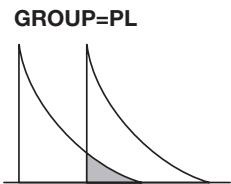
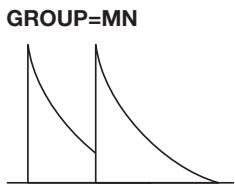
The numeric settings 0 - 7 determine the group of a pad (0: no group, 1 - 7: group 1 - 7). The sounds of pads that are in the same group will not be produced together. By assigning the pads for open hi-hat and closed hi-hat to the same group, the open hi-hat sound will be suppressed when you activate the closed hi-hat sound, resulting in a natural effect.
The group number 0 - 7 applies both to PL and MN. Therefore pads PL1 and MN1 will not produce sound together.
- SENDLVL (Send level)
Sets the signal level to be supplied to the REVERB effect. The setting range is 0 - 100. This setting is made separately for each pad and is independent of the overall drum kit send level setting ( p.56) made in effect mode.
To control effect intensity for each pad individually, it may be best to set the effect mode send level to 0 and adjust the SENDLVL parameter for the pads.
NOTE
If the KICKDRY parameter in the patch currently selected for the REVERB effect is ON, changing the send level of a pad to
which the kick drum sound is assigned pad 0 of pad bank 1/2) has no effect. To turn the KICKDRY parameter on and off, follow the steps described in the section "Editing effect patches".
KITNAME (Drum kit name)
Lets you change the name of the drum kit ( 53).
6. Use the VALUE [+] /[-] keys to adjust the value.
![ZOOM RT-223 - Use the VALUE [+] /[-] keys to adjust the value. - 1](/content/2025/01/152244/images/dc36be3db08ed334766705f2e925cf153acdd904a4d88170f9dc71125490d620.jpg)
-
Repeat steps 4 - 6 for the other pads.
-
When the setting is complete, press the [EXIT] key.
![ZOOM RT-223 - Use the VALUE [+] /[-] keys to adjust the value. - 2](/content/2025/01/152244/images/c364a02be64bb484c2c87dfffa3f1b5153421c8cd8d483241326dfcd871ad4a2.jpg)
The settings are automatically saved, and the drum kit select screen appears again. To return to pattern mode, press the [PATTERN] key.
Copying a drum kit/ Returning a drum kit to the factory default condition
You can copy the currently selected drum kit to another position. This is useful to copy an existing preprogrammed drum kit and then change only a part of it to quickly create your original.
By specifying the same drum kit as copy source and copy target, you can return the drum kit to its factory default condition.
NOTE
When the copy is executed, the existing contents of the drum kit selected as copy target will be erased. Use this function with care.
1. Press the [PATTERN] key.
The [PATTERN] key lights up and the RT-223 goes into pattern mode.
2. Press the [DRUM] key and then the [KIT/PROG] key.
The screen for selecting a drum kit appears.
3. Use the VALUE [+] /[-] keys to select the drum kit to be used as copy source.
4. Press the [INSERT/COPY] key.
![ZOOM RT-223 - Press the [INSERT/COPY] key. - 1](/content/2025/01/152244/images/a12878f55423ccd5d4151e1076b9badb38a5aadfd72b88e94aa4b278301a9541.jpg)
The [INSERT/COPY] key flashes, and the current drum kit is selected as copy source.
5. Use the VALUE [+] /[-] keys to select the number of the copy destination drum kit.
![ZOOM RT-223 - Use the VALUE [+] /[-] keys to select the number of the copy destination drum kit. - 1](/content/2025/01/152244/images/c96edf471b1bfb1278a5e24458bfae47c4dd302c746047c70382e8a36c592ab8.jpg)
To return a drum kit to the factory default condition, select the same number as copy source and copy target (the indication "COPY" appears on the display). Then proceed to step 6.
6. To execute the copy, press the [INSERT/COPY] key.
- If a different drum kit number is selected for the copy source and copy target
The copy will be carried out when you press the [INSERT/COPY] key.
- When you have selected the same drum kit as copy source and copy target
The indications "FACTORY" and "REVERT" appear alternately on the display when you press the [INSERT/COPY] key. To execute the factory restore process, press the [INSERT/ COPY] key once more.
When the copy process is completed, the indication "DONE" appears, and the RT-223 returns to the drum kit select screen. If you press the [EXIT] key instead of the [INSERT/COPY] key, the process is canceled and the RT-223 returns to the drum kit select screen.
Assigning a name to a drum kit
To give a name to a drum kit or change an existing name, proceed as follows.
1. Press the [PATTERN] key.
The [PATTERN] key lights up and the RT-223 goes into pattern mode.
2. Press the [DRUM] key and then the [KIT/PROG] key.
The screen for selecting a drum kit appears.
![ZOOM RT-223 - Press the [DRUM] key and then the [KIT/PROG] key. - 1](/content/2025/01/152244/images/6e3ebec48e73556e8991bad5cecbb22ec5215aba88f9e93c99b9db31afb4d03b.jpg)
3. Use the VALUE [+] /[-] keys to select the drum kit whose name you want to edit.
A menu for making individual pad settings appears.
4. Use the cursor left/right keys to bring up the indication "KITNAME" on the display.
After a while, the current drum kit name appears. The currently selected character of the drum kit name flashes.


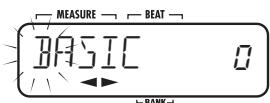
HINT
The "KITNAME" parameter applies to all pads.
5. Use the cursor left/right keys to move the cursor position, and use the VALUE [+] /[-] keys to select the character.
For information on available characters, see page 33.
6. Repeat step 5 until the name is complete.
7. When name input is completed, press the [EXIT] key.
The new name is accepted, and the drum kit select screen appears again.
To return to pattern mode, press the [PATTERN] key.
Using Effects (Effect Mode)
This section explains the effects that can be used with the drum kit/bass program.
About the effects
The RT-223 incorporates two types of effects. The COMP EQ effect allows you to directly shape the overall sound of the drum kit/bass program. The REVERB effect is mixed to the original sound of the drum kit/bass program. These two types of effect can be used simultaneously and can be switched individually on and off. The characteristics of each effect type are described below.
COMP EQ effect
The COMP EQ effect is inserted in the drum kit/ bass program signal output and comprises functions such as compressor and low-fi sound simulation.
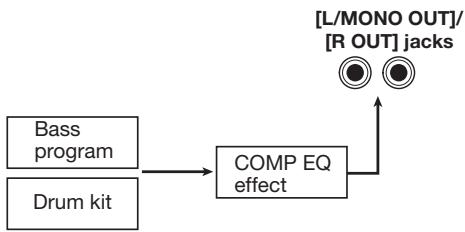
REVERB effect
The REVERB effect of the RT-223 lets you adjust effect intensity by controlling the level of the signal sent from the drum kit and bass program to the effect. The signal processed by the REVERB effect is then added to the final stereo signal. For the drum kit, you can also set the send level individually for each instrument sound.

HINT
In effect mode, you adjust the overall send level of the drum kit/bass program. To adjust the send level for individual instruments of the drum kit, perform pad send level adjustment in kit mode ( p. 51).
About patches
The COMP EQ effect and REVERB effect comprise different effect types that determine the category of the effect and different effect parameters that determine the intensity and other aspects of the effect. By first selecting an effect type and then adjusting its parameters, you can achieve a wide variety of sound characteristics. The sum of these edited effect settings is called a patch. Storing and recalling patches makes it possible to instantly switch among different effect settings. The RT-223 allows you to use 40 patches each for the COMP EQ effect and REVERB effect.
Using the COMP EQ effect
This section describes how to use the COMP EQ effect.
- In pattern, song, or groove play mode, press the [COMP EQ] key several times, so that the key lights up.
The RT-223 switches to effect mode, and the COMP EQ effect becomes ON. The display changes as follows.
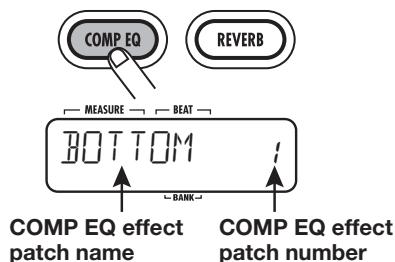
- Use the VALUE [+] /[-] keys to select the patch to use.
The new patch is called up immediately.
HINT
- When you select an empty patch, the indication "EMPTY" appears on the display. In this case, the sound does not change.
-
If a playable pattern or song is selected in pattern or song mode, pressing the PLAY [▶] key will start playback of the pattern or song. This lets you check the sound.
-
To temporarily bypass the COMP EQ effect, press the [COMP EQ] key so that the key goes out.
The COMP EQ effect is turned off, and the indication "BYPASS" is shown on the display. To turn the COMP EQ effect back on, press the [COMP EQ] key once more.
- When the COMP EQ effect patch has been selected, press the [EXIT] key.
The effect mode is terminated, and the RT-223 returns to the previous mode.
Using the REVERB effect
This section describes how to use the REVERB effect. For this effect, you first select the patch and then separately adjust the send level for the drum kit and bass program.
- In pattern, song, or groove play mode, press the [REVERB] key several times, so that the key lights up.
The RT-223 switches to effect mode, and the REVERB effect becomes ON. The display changes as follows.
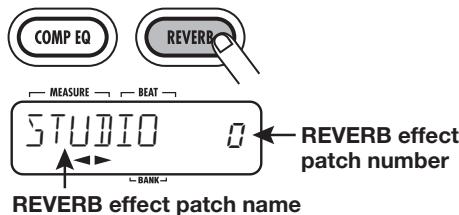
- Use the VALUE [+] /[-] keys to select
the patch to use.
The new patch is called up immediately.
HINT
When you select an empty patch, the indication "EMPTY" appears on the display. In this case, the sound does not change.
3. Press the [EDIT] key.
The [REVERB] key flashes and the patch edit screen appears.
![ZOOM RT-223 - Press the [EDIT] key. - 1](/content/2025/01/152244/images/224583e4baa65e8002f9a67d65a562541c27a13b8325d6fda89c281a70678ff9.jpg)
4. Use the cursor left/right keys to bring up the indication "DR SEND" on the display.
This screen lets you adjust the overall send level of the drum kit.
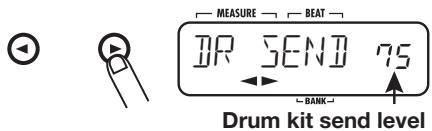
HINT
You can change the send level for each drum/percussion sound separately. To do this, adjust the send level for each pad in kit mode ( p. 51).
5. Use the VALUE [+] /[-] keys to adjust the drum kit send level. The send level can be adjusted in the range from 0 - 100.
HINT
The REVERB effect comprises the KICKDRY parameter that excludes the sound of the kick drum from effect
processing. When this parameter is ON, the sound of pad 0 in pad bank 1/2 will not be changed by the REVERB effect. (The same applies if the pad send level is raised in kit mode.) For information on how to turn the KICKDRY parameter on and off, see the section "Editing effect patches".
6. Use the VALUE [+] /[-] keys to bring up the indication "BS SEND" on the display.
This screen lets you adjust the send level of the bass program.
7. Use the VALUE [+] /[-] keys to adjust the bass program send level.
8. When the send level patch has been adjusted, press the [EXIT] key.
The RT-223 returns to the condition of step 1.
9. Save the current patch.
For information on how to save an effect patch, see page 58.
NOTE
The send level setting for the drum kit/bass program is saved as part of the patch. If you switch to another patch without storing the edited patch first, the edit contents will be lost.
10. To temporarily bypass the REVERB effect, press the [REVERB] key so that the key goes out.
The REVERB effect is turned off, and the indication "BYPASS" is shown on the display. To turn the REVERB effect back on, press the [REVERB] key once more so that the key is lit.
11. To terminate the REVERB effect setting, press the [EXIT] key.
The effect mode is terminated, and the RT-223 returns to the previous mode.
Editing effect patches
To edit an effect patch, you first select an effect type and then adjust its parameters to fine tune the resulting sound. Since the various effect types have their own effect parameters, switching the effect type will also change the parameters. An example for effect parameters for effect types of the COMP EQ effect is shown below.
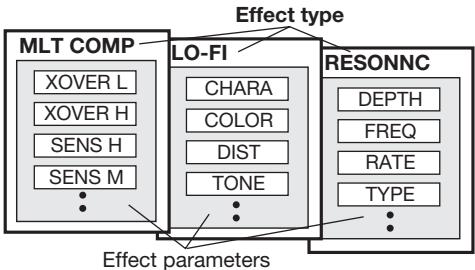
This section explains how to edit the effect patches for the COMP EQ effect and REVERB effect.
- Press the [COMP EQ] key (to edit the COMP EQ effect) or the [REVERB] key (to edit the REVERB effect) several times, so that the key lights up.
The RT-223 switches to effect mode, and the patch select screen appears.
- Use the VALUE [+] /[-] keys to select the patch to edit.
HINT
To change the effect intensity of the REVERB effect, use the cursor left/right keys to bring up the indication "DR SEND" on the display, and adjust the send level.
- Press the [EDIT] key.
The [COMP EQ] key or [REVERB] key flashes,
and the patch edit screen appears.
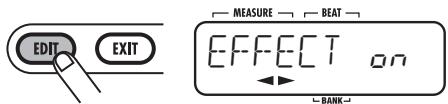
HINT
When "EFFECT" is shown on the display, you can use the VALUE ([+]/[-] keys to switch the effect on and off.
- Press the cursor right key once to bring up the effect type indication on the display.
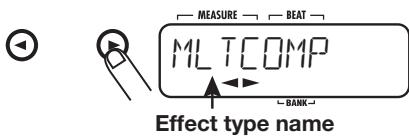
- Use the VALUE [+] /[-] keys to select the effect type to use.
HINT
If a playable pattern or song is selected in pattern or song mode, pressing the PLAY [▶] key will start playback of the pattern or song. This lets you check the sound.
- Use the cursor left/right keys to select the effect parameter to edit.
Which effect parameters are displayed will depend on the effect type.
In the illustration below, MLTCOMP has been selected as effect type of the COMP EQ effect, and the "XOVER H" parameter is displayed.
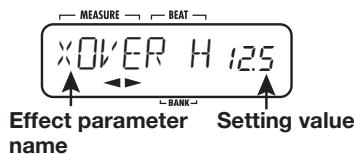
7. Use the VALUE [+] /[-] keys to change the setting value.
For information on effect types and effect parameters, see the appendix at the end of this manual.
8. Repeat steps 6 - 7 as necessary to adjust other effect parameters.
HINT
- When editing the COMP EQ effect, you can bring up "LEVEL" to adjust the overall volume level of the patch.
- When editing the REVERB effect, you can bring up "EFX LVL" to adjust the mixing amount of the effect sound.
- When editing the REVERB effect, you can bring up "KICKDRY" to individually switch the effect off and on for pad 0 of pad bank 1/2 (usually assigned to the kick drum).
9. When you have finished editing the patch, press the [EXIT] key.
The patch select screen appears again. Press the [EXIT] key once more to terminate effect mode.
NOTE
If you switch to another patch without storing the edited patch first, the edit contents will be lost. For information on how to store a patch, see the next section.
Storing, swapping, or initializing effect patches
This section explains how to store a patch of the COMP EQ effect or REVERB effect.
If you store an already stored patch in another location, a copy of the patch is created. You can also swap two patches in their respective locations, or use this procedure to restore a patch to the factory default condition.
1. At the patch select screen for the COMP EQ effect or REVERB effect, select the patch to store or swap.
HINT
- You can also store or swap patches from the patch editing screen. In this case, the patch being edited will be the one that is stored or swapped.
- To initialize a patch, select the patch that you want to return to the factory default condition.
2. Press the [INSERT/COPY] key.
The [INSERT/COPY] key flashes, and the patch name/patch number and the indication "STORE > are shown alternately on the display.
![ZOOM RT-223 - Press the [INSERT/COPY] key. - 1](/content/2025/01/152244/images/30065c76c946f2c74c61eb037cf10bc9dd4891160813e64004f833d9f1f1dc0c.jpg)
![ZOOM RT-223 - Press the [INSERT/COPY] key. - 2](/content/2025/01/152244/images/229794d7fc403699eb34268830e4a76b2f0a6fa631bed6c4a7092b5cfd27be26.jpg)
3. Use the cursor left/right keys to select the "STORE >", "SWAP >", or "FACTORY" (initialize) action.
If you have selected "SWAP >", the patch name/ patch number and the indication "SWAP >" are shown alternately on the display.
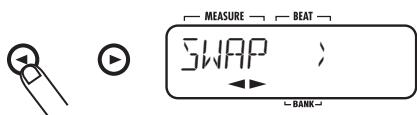
If you have selected "FACTORY", the indications "FACTORY" and "REVERT" are shown alternately on the display. To continue with the initialize procedure, go directly to step 5.
4. If you have selected "STORE >" or "SWAP >", use the VALUE [+]/[-] keys to select the store/swap target patch number.
![ZOOM RT-223 - If you have selected "STORE >" or "SWAP >", use the VALUE [+]/[-] keys to select the store/swap target patch number. - 1](/content/2025/01/152244/images/ad6f7caa453599b32f3f1caa732dbadd798083289cd60d652dd3fbd49d4f176a.jpg)
When store was selected, the current patch will be stored in this patch number.
When swap was selected, the current patch will be swapped with the patch in this patch number.
5. To carry out the process, press the [INSERT/COPY] key.
Store, swap, or factory initialize is carried out, and the patch select screen appears again. If you press the [EXIT] key instead of the [INSERT/ COPY] key, the respective process is canceled.
Assigning a name to an effect patch
To give a name to a patch of the COMP EQ effect or REVERB effect, proceed as follows.
1. From the COMP EQ effect or REVERB effect patch select screen, select the patch whose name you want to change.
The patch name/patch number are shown.
2. Press the [EDIT] key.
![ZOOM RT-223 - Press the [EDIT] key. - 1](/content/2025/01/152244/images/fa67e74deaea03b09d05167178622d0989a031073429a06b61661bf59330abc4.jpg)
The patch edit screen appears. The display shows
the effect type.
3. Use the cursor left/right keys to bring up the indication "PATNAME" on the display.
After a while, the name of the current patch appears. The currently selected character of the patch name flashes.

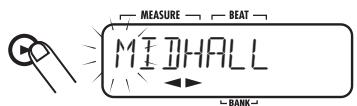
4. Use the cursor left/right keys to move the cursor position, and use the VALUE [+] /[-] keys to select the character.
For information on available characters, see page 33.
5. Repeat step 4 until the name is complete.
6. When name input is completed, press the [EXIT] key.
The patch select screen appears again. Press the [EXIT] key once more to terminate effect mode.
NOTE
If you switch to another patch without storing the edited patch first, the edit contents will be lost. For information on how to store a patch, see the previous section.
Using the Metronome (Metronome Mode)
The RT-223 incorporates a metronome function that is ideal to provide a guide rhythm for practice. The metronome also lets you use mixed beat patterns, such as 2 + 3 or 3 + 4 beat combinations.
Beat types
The metronome of the RT-223 supports beats using quarter notes or eighth notes as denominator (unit note). The following numerators (number of beats) can be selected.
| Denominator (unit note) | Numerator (number of beats) |
| Quarter note | 1, 2, 3, 4, 2+3, 3+2, 3+3, 6, 3+4, 4+3 |
| Eighth note | 6/8, 7/8, 12/8 |
Within the beats using the quarter note denominator, there are five subtypes (C1, C2, C3, C4, C5) that differ in dynamics and count detail. For example, if a 4/4 beat is selected, the C1 - C5 variations are as follows.
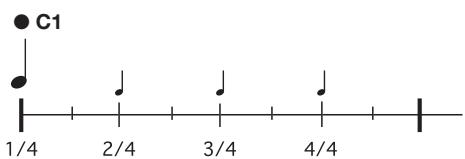
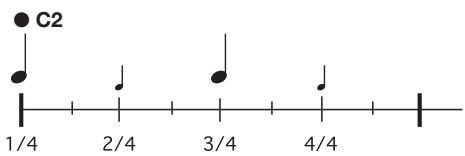
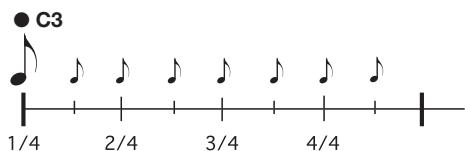
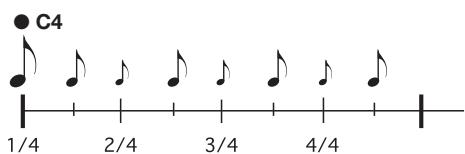
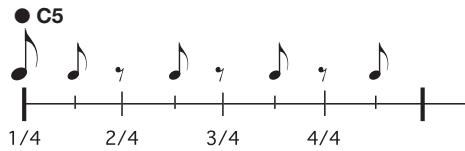
NOTE
- Depending on the beat type, some dynamics combinations are not available.
- For beats using the eighth note denominator (6/8, 7/8, 12/8), the dynamics cannot be changed.
Mixed beat patterns
When using the metronome at a 5/4 beat, you can select 2 + 3 or 3 + 2 as a numerator.
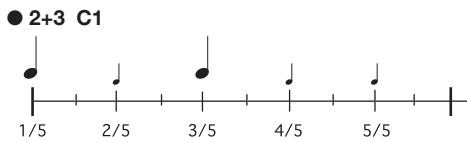
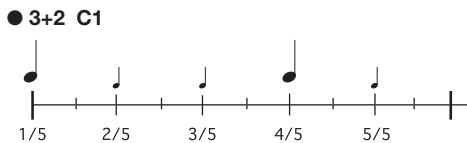
In the same way, when using the metronome at a 7/4 beat, you can select 3 + 4 , or 4 + 3 , resulting in different ways of counting the measure.
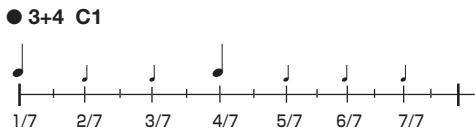
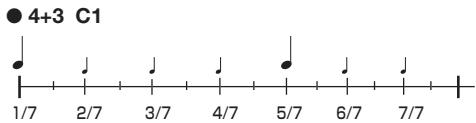
To use the metronome function, proceed as follows.
1. In pattern, song, or groove play mode, press the [METRONOME] key.
The [METRONOME] key lights up, and the RT-223 goes into metronome mode. The display shows the metronome pattern name and pattern number.
The pattern name consists of a numeral/symbol combination that stands for the beat type, and a numeral that stands for the stress dynamics setting. For a list of available beats and dynamics settings, see page 60.
![ZOOM RT-223 - In pattern, song, or groove play mode, press the [METRONOME] key. - 1](/content/2025/01/152244/images/0e46b877876c70e6fb8a25036c4bcd0fc12ecfb7bbce47d63bdc8f5fdf5274ce.jpg)
HINT
- When the RT-223 is in metronome mode, all effects are bypassed and no effect processing is carried out.
2. Use the VALUE [+] /[-] keys to select the metronome pattern.
![ZOOM RT-223 - Use the VALUE [+] /[-] keys to select the metronome pattern. - 1](/content/2025/01/152244/images/38a45bd002b1480578c6b9b7866f3253e8e81b5666f4c5363bf7a6a5a419854d.jpg)
![ZOOM RT-223 - Use the VALUE [+] /[-] keys to select the metronome pattern. - 2](/content/2025/01/152244/images/5b352a298df9564b0f360c9920bda7f1fb6e5440341f76e116ea8a9dcf9197df.jpg)
3. To change the sound of the metronome, press the [KIT/PROG] key and use the cursor left/right keys to select the sound.
Available sound choices for the metronome are as follows.
| Display | indication and corresponding sound |
| M-BELL | Metronome sound |
| M-CLICK | Metronome sound (click only) |
| STICK | Stick beating sound |
| COWBELL | Cowbell sound |
| HIGH-Q | Synthesizer click sound |
![ZOOM RT-223 - To change the sound of the metronome, press the [KIT/PROG] key and use the cursor left/right keys to select the sound. - 1](/content/2025/01/152244/images/8838eb0396aeaff46a136fa7002ec1287acef9be1a21eead6b633b27c76b2fb1.jpg)
![ZOOM RT-223 - To change the sound of the metronome, press the [KIT/PROG] key and use the cursor left/right keys to select the sound. - 2](/content/2025/01/152244/images/2b430bd0c446f699063d1a9705b6de19a3925bfaf512b88377bfab936b435da2.jpg)
4. To quit the sound selection screen, press the [EXIT] key.
The display returns to the condition of step 1.
5. To set the tempo, press the [TEMPO] key and then use the VALUE [+] /[-] keys to adjust the tempo.
![ZOOM RT-223 - To set the tempo, press the [TEMPO] key and then use the VALUE [+] /[-] keys to adjust the tempo. - 1](/content/2025/01/152244/images/d4152cabdb7b1c5e7b8e181545ea78e17d90df254549368d2f1e1c7accbd4e81.jpg)
HINT
If you tap the [TEMPO] key twice, the interval is set as a quarter note (tap tempo input function).
6. To activate the metronome sound, press the PLAY [▶] key.
![ZOOM RT-223 - To activate the metronome sound, press the PLAY [▶] key. - 1](/content/2025/01/152244/images/db115720e33e393e1894031be518fecb54eb9caa92e1f5f0e00c194e6fcec258.jpg)
The metronome begins to operate. The display now shows the current beat in real time.
![ZOOM RT-223 - To activate the metronome sound, press the PLAY [▶] key. - 2](/content/2025/01/152244/images/588255dda1d458040e41694a7121f756f7de105f727f972b6c6723d536195c8e.jpg)
NOTE
When a foot switch is connected to the RT-223 and the foot switch function is not set to "TAP", the foot switch will automatically be set to control start/stop when the metronome is activated.
HINT
You can change the metronome sound and tempo also while the metronome is operating.
7. To stop the metronome, press the STOP [■] key.
![ZOOM RT-223 - To stop the metronome, press the STOP [■] key. - 1](/content/2025/01/152244/images/be911d8e1f32e92aa59f95bfad510f25a4dc1e84091d0fd1e9903f817bdf14c1.jpg)
8. To terminate metronome mode, press the [PATTERN] key or the [SONG] key.
![ZOOM RT-223 - To terminate metronome mode, press the [PATTERN] key or the [SONG] key. - 1](/content/2025/01/152244/images/4e52c5b4104b78ecc92678584d039d586a23f610315eb44e33383b63df864452.jpg)
The RT-223 returns to pattern mode or song mode. When metronome mode finishes, the effect bypass condition is canceled and the foot switch setting returns to the original condition.
If you press the [EXIT] key in this step, the RT-223 returns to the previous mode.
Changing Various Settings of the RT-223
The [FUNCTION] key is used to make various settings for the RT-223. The basic steps for using the [FUNCTION] key and the setting items are described below.
Basic function setting procedure
The [FUNCTION] key is used in the same way for most setting items. The basic steps are as follows.
1. Press the [FUNCTION] key.
![ZOOM RT-223 - Press the [FUNCTION] key. - 1](/content/2025/01/152244/images/704cd083af07f6defe7ace4ff81a06bb71e0f0db21d8f650749d8cd6864b12ec.jpg)
The [FUNCTION] key flashes, indicating that you can select a setting item.
NOTE
For some items, you must first select the pattern before pressing the [FUNCTION] key, or you must first stop playback. For details, see the description of the respective items.
2. Depending on the desired item, press one of pads 1 - 13 or the [PATTERN] key.
The 13 pads on the top panel and the [PATTERN] key are used to select items. The item is identified by the label below the pad or key, as given in brackets in the following list.
- Pad 0 (BASS KEY)
Sets the reference pitch for the bass program as well as the pattern root.
- Pad 1 (MIX)
Sets the drum track/bass track level.
- Pad 2 (BASS TUNE)
Allows tuning a bass program.
- Pad 3 (TIME SIG)
Sets the time signature of the pattern.
- Pad 4 (PRE COUNT)
Switches pre-count on or off and sets the number of beats.
- Pad 5 (QUANTIZE)
Sets the quantize value.
- Pad 6 (CLICK VOL)
Sets the metronome volume.
- Pad 7 (BAR LENGTH)
Sets the number of measures for the pattern.
- Pad 8 (FOOT SW)
Sets the foot switch function.
- Pad 9 (SWING)
Sets the amount of swing for playback.
- Pad [+] (PAD SENS)
Adjusts the pad sensitivity.
- Pad [x] (SHIFT)
Shifts the playback timing backwards or forwards.
- Pad [] (MIDI)
Sets reception of MIDI synchronization messages on and off and assigns the MIDI channel for each track.
- [PATTERN] key
Serves to display remaining memory capacity.
NOTE
For some items, the sound or track that is to be set must be selected after selecting the item.
3. Use the VALUE [+] /[-] keys to change the setting.
HINT
- Keeping a VALUE [+]/[-] key depressed changes numbers continuously.
- To change numbers quickly, hold down one of the VALUE [+]/[-] keys and press the other key. The numbers will change rapidly.
- When you change a function setting, the
new setting becomes effective immediately. To return to the previous setting, perform the setting procedure again.
4. Press the [FUNCTION] key once more, or press the [EXIT] key.
The function setting mode is terminated.
HINT
The [FUNCTION] key is also used for demo song playback ( p. 8), FAST input ( p. 39), and other functions.
Function setting items
This section explains the various items that can be set and gives information on the setting range.
Setting bass program reference pitch (BASS KEY)
Setting range: C - B
This sets the pitch assigned to pad 0 in the range from C to B. The note set here also expresses the root of the pattern.
When you use the VALUE [+]/[-] keys to change the pitch of pad 0, the pitch of pads 1 - 9, [+] , [x] , and [()] also is shifted accordingly.
A sharp pitch (#) is expressed as “ ” (where o stands for # ).
HINT
This setting is stored for each pattern individually.
Setting the drum track/bass track level (MIX)
Setting range: 0 - 15
Sets the volume for each track in a pattern over a range of 0 - 15.
After selecting this item, use the [DRUM] or [BASS] key to select the track and then use the VALUE [+] /[-] keys to make the setting.
HINT
This setting is stored for each pattern individually.
Tuning a bass program (BASS TUNE)
Setting range: 435 - 445 (Default: 440)
Allows tuning the bass program in the range of A = 435Hz to A = 445Hz
Setting the time signature of a pattern (TIME SIG)
Setting range: 1, 2, 3, 4, 5, 6, 7, 8
Set the time signature for the pattern to 1 - 8 (1/4 - 8/4 beat).
The time signature of an already recorded pattern (indicated by " * " on the display) is not possible.
HINT
This setting is stored for each pattern individually.
Setting the pre-count (PRE COUNT) Setting range: oFF, 1 - 8, SP (Default: 4)
The pre-count (number of metronome ticks before the start of pattern real-time recording) can be turned on and off, and the number of measures etc. can be set. This setting applies to all patterns. The settings have the following meaning.
OFF
Pre-count is off.
1-8
Real-time recording starts after the respective number of measures has been counted.
SP
Real-time recording starts after the following special pre-count was heard.

Setting the pattern resolution (QUANTIZE)
Setting range: 4, 8, 12, 16, 24, 32, 48, Hi (Default: 16)
Sets the quantize value (shortest note) for the pattern. The quantize setting affects the following four functions:
- Shortest note for real-time recording
- Shortest note for step recording
Sound interval when [REPEAT/STEP] key is used together with pad for continuous repetition - Pad push/release detection timing during groove play
The following 8 settings are available for the quantize value.
4 ....Quarter note
24....Sixteenth triplet note
8 ....Eighth note
32 .........Thirty-second note
12...Eighth triplet note
48...... Thirty-second triplet note
16....Sixteenth note
Hi ....... 1 tick (1/96 quarter note)
NOTE
- Even if Quantize is set to Hi, the continuous repetition interval for the [REPEAT/STEP] key is a thirty-second triplet note.
- If you press the REC [●] key instead of the [FUNCTION] key in step 4 of "Basic function setting procedure", the note recorded in the currently selected pattern is aligned with the quantize value.
Setting the metronome volume level (CLICK VOL)
Setting range: 0 - 15 (Default: 15)
The volume level of the metronome click sound heard during real-time recording can be adjusted with this setting.
The setting applies to all patterns.
Setting the number of measures for a pattern (BAR LENGTH)
Setting range: 1 - 99
Sets the length of the pattern in the range from 1 - 99 measures. After setting the pattern length, press the [FUNCTION] key to confirm the setting. The initial setting for an empty pattern is then changed.
Changing the length of an already recorded pattern is also possible. To do this, select the pattern for which you want to make the change, and then press the REC [●] key instead of the [FUNCTION] key in step 4 of "Basic function setting procedure". The action will change as follows.
- Making the number of measures larger Blank measures are added to the end of the pattern.
- Making the number of measures smaller
- The excess measures at the end of the pattern are cut off.
HINT
This setting is stored for each pattern individually.
Selecting the foot switch function (FOOT SW)
Setting range: PAD00 - PAD38, TAP, COUNT, START, MUTE, REPEAT, JAM (Default: JAM)
This setting determines the function of a foot switch (FS01) connected to the [FOOT SW] jack on the rear panel.
The setting is made by pressing the [FUNCTION] key followed by pad 8 (FOOT SW). The indication "FOOT SW" appears on the display, and then the currently selected foot switch function is shown. In this condition, you can change the setting.
Available settings and setup procedures are listed below.
- Playing a drum sound of a pad with FS01
You can play one of the drum sounds assigned to the pads of a pattern with the foot switch. This is useful to play the bass drum with your
foot. To make the setting, press the [FUNCTION] key followed by pad 8 (FOOT SW), and then press the desired pad from the 13 pads x 3 banks. (The strength with which you hit the pad is also recorded.) Depending on the selected pad, the indication PAD00 - PAD38 is shown.
- Switching pad drum sounds with FS01
You can switch between two drum sounds assigned to the pads of a pattern with the foot switch. To make the setting, press the [FUNCTION] key followed by pad 8 (FOOT SW). Then push the FS01 down and press the first pad. Release the FS01 and press the second pad. The sound of the first pad can now be switched with the FS01. When the foot switch is pushed down, the sound of the first pad is heard. When it is released, the sound of the second pad is heard. The left three digits of the display show the number of the first pad, and the right three digits the number of the second pad.
To switch between open hi-hat and closed hi-hat with your foot, push the FS01 and press pad 4 (CLOSED HAT). Then release the FS01 and press pad 6 (OPEN HAT).
Using the FS01 to set the tempo
You can adjust the tempo by tapping the foot switch twice in succession (tap tempo function). To make the setting, press the [FUNCTION] key followed by pad 8 (FOOT SW), and then press the [TEMPO] key. (The indication "TAP" appears on the display.)
- Using the FS01 to control start/pause
With this setting, the FS01 will function in the same way as the PLAY [▶] key, switching between "Start play" → "Pause" → "Resume play" with every push. To make the setting, press the [FUNCTION] key followed by pad 8 (FOOT SW), and then press the PLAY [▶] key. (The indication "COUNT" appears on the display.)
- Using the FS01 to control start/stop
With this setting, the FS01 will function in the same way as when the PLAY [▶] key and STOP [■] key are pressed alternately, switching between "Start play" "Stop"
"Start play from beginning" with every push. To make the setting, press the [FUNCTION] key followed by pad 8 (FOOT SW), and then press the STOP [■] key. (The indication "START" appears on the display.)
- Using the FS01 to mute a desired track
With this setting, the currently selected track (drum or bass) is muted when the foot switch is pressed. To make the setting, press the [FUNCTION] key followed by pad 8 (FOOT SW), and then press the VALUE [-] key. (The indication "MUTE" appears on the display.)
- Using the FS01 to control continuous percussion sound
With this setting, you can play the sound of a pad continuously by hitting the pad with the foot switch pushed down. To make the setting, press the [FUNCTION] key followed by pad 8 (FOOT SW), and then press the [REPEAT/STEP] key. (The indication "REPEAT" appears on the display.)
- Using the FS01 to control jam play (song mode only)
When the RT-223 is in song mode, the FS01 can be used for the jam function that allows switching between multiple patterns simply by pressing the foot switch. To make the setting, press the [FUNCTION] key followed by pad 8 (FOOT SW), and then press the [SONG] key. (The indication "JAM" appears on the display.) For details on the jam function, see page 68.
Setting the playback swing amount (SWING)
Setting range: 8th, 16th/50 - 75 (Default: 8th/50)
This setting controls the swing amount (rhythm flourish).
To make the setting, press the [FUNCTION] key followed by pad 9 (SWING). The indication "SWING" is shown on the display for a while. When the display indication changes, use the cursor left/right keys to select "8th" (swing in eighth note units) or "16th" (swing in sixteenth note units), and then use the VALUE [+]/[-] keys change the setting value. With a setting of 50, there is no change. Higher values result in more
swing. (The values stand for percent.) This item influences only the playback timing. It does not affect the recorded data of the pattern.
Setting the pad sensitivity (PAD SENS)
Setting range: SOFT, MEDIUM, LOUD, LIGHT, NORMAL, HARD, EX HARD (Default: NORMAL)
This setting controls the pad sensitivity. The following seven settings are available.
- SOFT
Low volume regardless of pad hitting intensity
MEDIUM
Medium volume regardless of pad hitting intensity
- LOUD
High volume regardless of pad hitting intensity
- LIGHT
Highest sensitivity setting. Results in loud volume even when pad is hit only lightly.
NORMAL
Medium sensitivity setting
HARD
Low sensitivity setting. Pads must be hit hard to produce volume.
EX HARD
Lowest sensitivity setting. Pads must be hit extra hard to produce volume.
Setting the playback timing shift (SHIFT)
Setting range: -192 to +192 (Default: 0)
Shifts the playback timing of a specific track in the currently selected pattern back or forth in 1-tick units (1/96 of a quarter note). The maximum shift is ± 2 beats.
NOTE
- Once the setting is made, it cannot be undone. Use this function with care.
- When you shift the playback timing of a track, the preceding or following notes are deleted.
Setting MIDI synchronization message input on/off (MIDI) Setting range: int,Ext(Default:int)
When this item is set to "Ext", the RT-223 accepts the following MIDI messages:
- MIDI clock
- Start/Stop/Continue
Song Select
NOTE
When this item is set to "Ext", real-time input is not possible.
Setting the MIDI receive channel for each track (MIDI)
Setting range: oFF, 1 - 16, AUt (bass track only) (Default: drum track = 10, bass track = 9)
This item sets the MIDI channel for each track. Available settings for the drum track are oFF (not received) and 1 - 16. Available settings for the bass track are oFF (not received), 1 - 16, and AUt. "AUt" is a special setting for playing GM compatible standard MIDI files. When the RT223 receives a program change message for GM bass sound, it automatically switches the bass track to that MIDI channel.
When the [FUNCTION] key is pressed followed by pad (·) (MIDI), the display for setting the drum track/bass track MIDI receive channel to on or off is shown. Hold down the [DRUM] key or [BASS] key (current setting for the track is shown on the display), and use the VALUE [+] /[-] keys to change the setting.
Displaying the remaining amount of memory (PATTERN)
Pressing the [FUNCTION] key followed by the [PATTERN] key brings up a percentage display of the remaining amount of memory. This display is for information only, it cannot be changed.
Other Functions
This section describes examples for combining the RT-223 with optional equipment and external components.
Using the jam function
The jam function lets you use the foot switch to play multiple patterns assigned to pads in song mode. This is convenient when you want to use your hands for playing an instrument, while still being able to start patterns and switch them at any desired point.
NOTE
The jam function is available only when the RT-223 is in song mode.
The following four pads can be directly controlled with the jam function: pad 0, pad 4, pad 8, and pad [().
When you press the foot switch while the RT-223 is stopped, the pattern of pad 0 begins playing.
With each subsequent push of the foot switch, patterns are switched between pad 4 and pad 8. If you hold down the foot switch during play, the pattern switches to pad [()] (see illustration 1 below).
By specifying the NEXT parameter ( p. 38) for the above pads, you can use other pattern combinations or stop play after a specific pattern.
For example, assume that INTRO is assigned to pad 0 and VERSE A to pad 2. When you set the NEXT parameter for pad 0 to "P02", pressing the foot switch will cause INTRO to play, followed by VERSE A (see illustration 2 below). Similarly, if FILL A is assigned to pad 4 and VERSE B to pad 6, setting the NEXT parameter for pad 4 to "F06" will cause FILL A to play from the next beat after pressing the foot switch, and then play can be switched to VERSE B (see illustration 3 below).
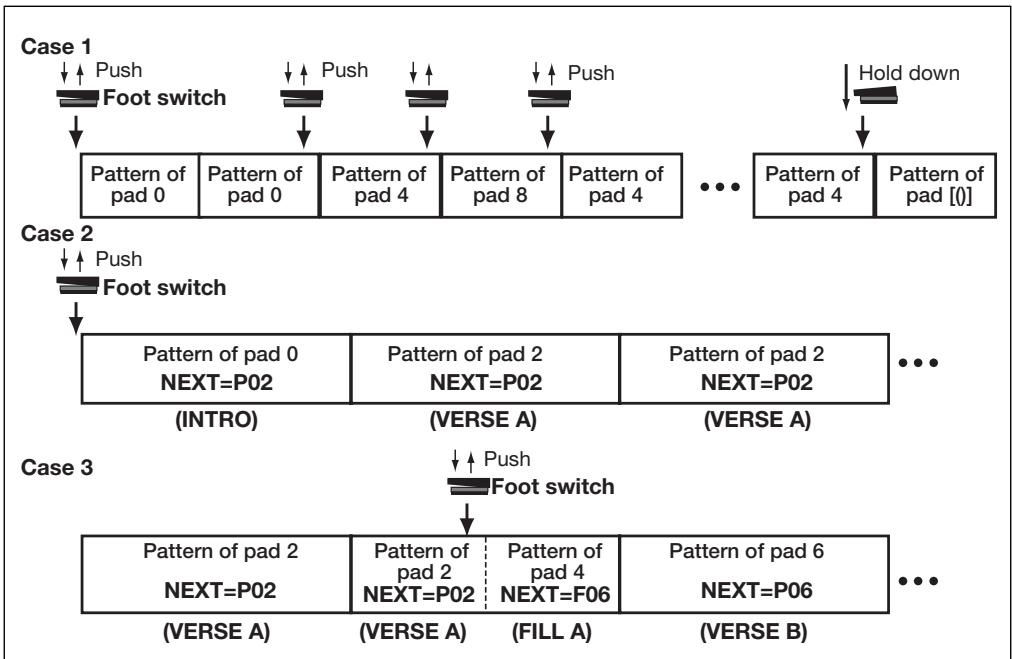
If the ENDING pattern is assigned to pad [()] and the NEXT parameter is set to "StP", pushing and holding the foot switch will cause the ENDING pattern to be played, and then play will stop.
HINT
For songs which have pre-assigned patterns (song numbers 0 - 9), the NEXT parameter is set as follows for the respective pads.
| Pad | NEXT parameter |
| 0 | P02 |
| 2 | P02 |
| 4 | F06 |
| 6 | P06 |
| 8 | F02 |
| [0] | STP |
- Connect the FS01 to the [FOOT SW] jack on the rear panel.
- Press the [SONG] key to switch the RT-223 to song mode.
- Press the [FUNCTION] key and then pad 8 (FOOT SW).
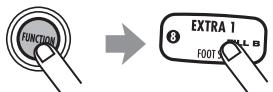
The indication "FOOT SW" appears briefly on the display, followed by the currently selected foot switch function.
In this condition, you can change the foot switch function setting.
- Press the [SONG] key.
The indication "JAM" appears on the display.
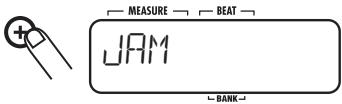
NOTE
When the jam function is assigned to the foot switch, and the RT-223 is in a mode other than song mode, the foot switch will control playback/stop of the pattern/song.
- Press the [FUNCTION] key.
The foot switch setting is completed. In this condition, you can use the jam function. - If required, set the NEXT parameter for each pad ( p. 38).
- Push the foot switch.
Playback of the pattern assigned to pad [()] starts. Each subsequent push of the foot switch then switches patterns according to the NEXT parameter setting. If you hold down the foot switch during play, the pattern of pad [()] plays. (If you have set the NEXT parameter of pad [()] to "Stp", pattern playback will stop after that.)
Synchronizing the RT-223 to external MIDI equipment
The RT-223 can receive MIDI clock signals for synchronized operation with a multi-track recorder, sequencer, rhythm machine, or similar equipment. This allows playback of the patterns or songs of the RT-223 with the tempo determined by the external equipment.
- Connect the MIDI OUT jack of the MTR, rhythm machine, or other MIDI component to the [MIDI IN] connector of the RT-223, using a MIDI cable.
NOTE
Verify that the external MIDI equipment is capable of sending MIDI Clock and Start/Stop/Continue messages.
2. Press the [FUNCTION] key followed by pad [0] (MIDI).
![ZOOM RT-223 - Press the [FUNCTION] key followed by pad [0] (MIDI). - 1](/content/2025/01/152244/images/a591a81d6f2665029a41086d3898ca7f07e718050c44243601004a8c89ee6bba.jpg)
The display for enabling/disabling reception of MIDI sync messages appears.
3. Use the VALUE [+] /[-] keys to bring up the indication "Ext" on the display.
![ZOOM RT-223 - Use the VALUE [+] /[-] keys to bring up the indication "Ext" on the display. - 1](/content/2025/01/152244/images/ccdb42bb61f5c2c6aa63a232324ecfa606cfa3a072299b73fc9c96b2d82aafba.jpg)
4. Press the [FUNCTION] key.
In this condition, play operation of the RT-223 is synchronized to the external MIDI equipment.
5. Select the pattern or song to play in sync.
6. Start playback at the external MIDI equipment.
The pattern or song of the RT-223 plays in synchronization with the tempo of the external MIDI equipment.
Using MIDI equipment to play the RT-223
Using a MIDI keyboard, MIDI sequencer, or similar MIDI device you can play the built-in
sound sources of the RT-223.
- Connect the MIDI keyboard, MIDI sequencer, or other MIDI component to the [MIDI IN] connector of the RT-223, using a MIDI cable.
2. Press the [FUNCTION] key followed by pad [0] (MIDI).
The display for enabling/disabling reception of MIDI sync messages appears.
3. Press the [DRUM] key (or [BASS] key).
![ZOOM RT-223 - Press the [DRUM] key (or [BASS] key). - 1](/content/2025/01/152244/images/81a551271306dc4f05ce495e4c54391d8be6e4fdaa7079ff061c28e2530d0f50.jpg)
DRUM
The current setting value of the selected track appears on the display.
4. While continuing to hold down the key pressed in step 3, use the VALUE [+] /[-] keys to set the MIDI receive channel for the track to the send channel of the external MIDI equipment.
![ZOOM RT-223 - While continuing to hold down the key pressed in step 3, use the VALUE [+] /[-] keys to set the MIDI receive channel for the track to the send channel of the external MIDI equipment. - 1](/content/2025/01/152244/images/9d1a91f9bb2ac69308c60cb92f7203846af544189014e67a1f923f88707a2c47.jpg)
For information on MIDI channel setting, see page 67.
5. Press the [FUNCTION] key.
The MIDI receive channel is set for the track. The RT-223 produces sound according to the note numbers received via the [MIDI IN] connector.
Program change messages can be used to switch drum kits and bass programs of the RT-223. For information on program change numbers and corresponding drum kits and bass programs, refer
to the appendix at the end of this manual.
Checking the remaining memory capacity
To display the remaining amount of free memory, proceed as follows.
1. Press the [FUNCTION] key followed by the [PATTERN] key.
![ZOOM RT-223 - Press the [FUNCTION] key followed by the [PATTERN] key. - 1](/content/2025/01/152244/images/146af265372c8601cf22ccd86479c9232ebc9dc9f6d55ff0f2b725c1416994cd.jpg)
The remaining amount of free memory is displayed (in percent). This display is for information only, it cannot be changed.
HINT
To increase the amount of free memory, delete patterns and songs that are no longer required.
2. To return to the previous mode, press the [FUNCTION] key or the [EXIT] key.
Turning the backlight off
You can use the RT-223 with the display backlight turned off.
Turn power to the RT-223 on while holding down the VALUE [-] key. The backlight will be turned off, and the unit consumes less power. This is convenient when remaining battery capacity is low.
Returning the RT-223 to the factory default condition (initialization)
You can return all data in the RT-223 to the factory default condition.
NOTE
Use this function with care, because it will erase all patterns and songs that have been recorded by the user. These cannot be restored.
1. Turn power to the RT-223 on while holding down the REC [●] key.
The indication "ALLINIT" flashes on the display.
![ZOOM RT-223 - Turn power to the RT-223 on while holding down the REC [●] key. - 1](/content/2025/01/152244/images/b45e1a138b30413d58e6cd9fcbbab80a7ef51131d6d759bbae1c0b416f0c371d.jpg)
2. To go ahead with the initialization, press the REC [●] key once more. To cancel the procedure, press the [EXIT] key.
When initialization is carried out, all settings and data of the RT-223 are reset to the factory default condition, and then the unit starts up.
If the process was canceled, the RT-223 starts up normally.
HINT
If required, you can restore selected patterns ( p. 32), drum kits ( p. 52) or effect patches ( p. 58) to the factory default condition.
Troubleshooting
Check the following items first if there seems to be a problem with the RT-223.
| Symptom | Check | Remedy |
| No sound or very low volume | Is the specified AC adapter connected properly? | Make sure that the correct AC adapter or batteries are used. |
| Are [R OUT] jack and [L/MONO OUT] jack connected correctly to the playback system? | Make connections as described in "Getting Connected" (page 6). | |
| Is there a problem with the cable? | Try using another cable. | |
| Is the connected playback system operating normally? | Check the system and make sure that the volume level is adjusted properly. | |
| Is volume of RT-223 set correctly? | Set [VOLUME] control to a suitable position. | |
| Hitting a pad produces no sound or very low level sound | Are pad settings correct? | Use [FUNCTION] key and pad (+) (PAD SENS) to set pad sensitivity (→ p. 67). |
| Sound is distorted or intermittent | Is output level of RT-223 set too high? | Set [VOLUME] control of RT-223 to a suitable position. |
| Is COMP EQ effect output signal too high? | Set LEVEL parameter of COMP EQ effect to a suitable value. | |
| Cannot record song/pattern | Is memory capacity limit reached? | Delete unneeded patterns and songs. |
| Operating foot switch FS01 has no effect | Is FS01 connected correctly to [FOOT SW] jack? | Make connections as described in "Getting Connected" (page 6). |
| Are foot switch settings adequate? | Use [FUNCTION] key and pad 8 (FOOT SW) to set pad sensitivity (→ p. 65). | |
| Simultaneous playback with MIDI components is not possible | Is MIDI receive function set to ON? | Use [FUNCTION] key and pad () (MIDI) to change setting from "Int" (MIDI clock receive disabled) to "Ext" (MIDI clock receive enabled). |
RT-223 Product Specifications
| Sampling Frequency | 44.1 kHz |
| D/A Conversion | 24-bit 8-times oversampling |
| Maximum Polyphony | 18 voices |
| Resolution | 96 clock pulses per quarter note |
| Tempo Range | 40 - 250 BPM |
| Number of Recordable Note Events | 32,000 |
| Drum Sounds | 213 |
| Bass Sounds | 12 |
| Drum Kits | 127 |
| Rhythm Patterns | 511 |
| Songs | 100 |
| Number of Pads | 13 (with velocity sensor) |
| Display | |
| Display Type | Custom LCD with 128 segments |
| External Connectors | |
| External Control Connector | FS01 input |
| MIDI | IN |
| Inputs/Outputs | |
| LINE IN | Standard stereo phone jack (Input impedance 10 kilohms, rated input level -10 dBm) |
| OUTPUT | |
| Line Out (L/MONO) | Standard phone jack |
| Line Out (R) | Standard phone jack (Output impedance 1 kilohm or less, rated output level -10 dBm) |
| Headphones | Mini phone jack, 50 mW (into 32 ohm load) |
| Dimensions | 217.9 (W) x 182.6 (D) x 35.5 (H) mm |
| Weight | 680 grams |
| Power Requirements | 9 V DC, 300 mA (from AC adapter AD-0006) |
| Batteries IEC R6 (size AA) x 4; continuous operation 8 hours or more | |
| Supplied Accessories | Operation Manual |
Reverb Module
| Parameters | |||||||||||
| EFFECT ON/OFF | HALL | PRE DLY | DECAY | EQ H | EQ L | DAMP | E/R MIX | DR SEND | BS SEND | KICKDRY | EFX LVL |
| Produces concert hall type reverberation. | |||||||||||
| EFFECT ON/OFF | ROOM | PRE DLY | DECAY | EQ H | EQ L | DAMP | E/R MIX | DR SEND | BS SEND | KICKDRY | EFX LVL |
| Produces room type reverberation. | |||||||||||
| EFFECT ON/OFF | SPRING | PRE DLY | DECAY | EQ H | EQ L | DAMP | KICKDRY | BS SEND | KICKDRY | EFX LVL | |
| Simulates a spring reverb. | |||||||||||
| EFFECT ON/OFF | PLATE | PRE DLY | DECAY | EQ H | EQ L | DAMP | KICKDRY | BS SEND | KICKDRY | EFX LVL | |
| Simulates a plate reverb. | |||||||||||
| EFFECT ON/OFF | DELAY | TIME | FB | DAMP | PAN | KICKDRY | BS SEND | KICKDRY | EFX LVL | ||
| Delay with up to 700 ms delay time. | |||||||||||
| EFFECT ON/OFF | CHORUS | LFO TYP | DEPTH | RATE | PRE DLY | KICKDRY | BS SEND | KICKDRY | EFX LVL | ||
| Adds modulation and spread. | |||||||||||
| EFFECT ON/OFF | FLANGER | DEPTH | RATE | FB | LFO SFT | KICKDRY | BS SEND | KICKDRY | EFX LVL | ||
| Adds an undulating sound with strong character. | |||||||||||
Parameter description
| Parameter name | Setting range | Parameter description |
| EFFECT ON/OFF | ON, OFF | Controls effect ON/OFF for each patch. |
| TYPE | HALL, ROOM, SPRING, PLATE, DELAY, CHORUS, FLANGER | Selects from seven available types. |
| LFO TYP | Mn, St | Sets LFO phase to Mn (Mono) or St (Stereo). |
| LFO SFT | 0 - 180 | Sets the left/right phase difference. |
| DEPTH | 0 - 10 | Sets the effect depth. |
| RATE | CHORUS: 1 - 30 | Sets the effect rate. When set to "tx" or "Mx", rate is synchronized to rhythm tempo (see next page Table 1). |
| FLANGER: 1 - 30, t0 - t9, M1 - M4 | ||
| PRE DLY | CHORUS: 1 - 30 | Sets the predelay. |
| HALL, ROOM, SPRING, PLATE: 1 - 100 | ||
| TIME | 1 - 700, t0 - t7 | Sets the delay time in 1-ms steps. When set to "tx", delay time is synchronized to rhythm tempo (see next page Table 1). |
| FB | DELAY: 0 - 10 | Sets the feedback amount. |
| FLANGER: -10 - 10 | ||
| DAMP | 0 - 10 | Sets the high-range attenuation of the reverb sound and delay sound. |
| PAN | L10 - L1, 0, r1 - r10 | Sets the stereo position of the delay sound. |
| DECAY | 1 - 30 | Sets the reverb time. |
| EQ H | -12 - 6 | Controls the high-range level of the effect sound. |
| EQ L | -12 - 6 | Controls the low-range level of the effect sound. |
| E/R MIX | 0 - 30 | Sets the level of the initial reflection. |
| KICKDRY | ON, OFF | Switches KICK (bass drum) effect processing for pad 0 ON/OFF. |
| DR SEND | 0 - 100 | Adjusts the drum effect sound send level. |
| BS SEND | 0 - 100 | Adjusts the bass effect sound send level. |
| EFX LVL | 0 - 30 | Sets the effect sound mix amount. |
COMP EQ Module
| Parameters | ||||||||||||||
| EFFECT ON/OFF | MLT CMP | XOVER L | XOVER H | SENS H | SENS M | SENS L | MIX H | MIX M | MIX L | EQ H | EQ M | EQ L | BASS ON/OFF | LEVEL |
| Divides the signal into three frequency bands and separately sets compressor and mix for each. Also includes 3-band equalizer. | ||||||||||||||
| EFFECT ON/OFF | LO-FI | CHARA | COLOR | DIST | TONE | EFX LVL | DRY LVL | EQ H | EQ M | EQ L | BASS ON/OFF | LEVEL | ||
| Simulates low-fi sound. Also includes 3-band equalizer. | ||||||||||||||
| EFFECT ON/OFF | RESONNC | DEPTH | FREQ | RATE | TYPE | RESO | EFX LVL | DRY LVL | EQ H | EQ M | EQ L | BASS ON/OFF | LEVEL | |
| Resonance filter with LFO. Also includes 3-band equalizer. | ||||||||||||||
Parameter description
| Parameter name | Setting range | Parameter description |
| EFFECT ON/OFF | ON, OFF | Controls effect ON/OFF for each patch. |
| TYPE | MLT CMP, LO-FI, RESONNC | Selects from three available types. |
| XOVER L | 50 - 16000 | Sets the division point for low/mid frequency bands. |
| XOVER H | 50 - 16000 | Sets the division point for mid/high frequency bands. |
| SENS H | 0 - 24 | Sets the compressor sensitivity in the high range. |
| SENS M | 0 - 24 | Sets the compressor sensitivity in the mid range. |
| SENS L | 0 - 24 | Sets the compressor sensitivity in the low range. |
| MIX H | OFF, -24 - 6 | Sets the high range mix amount. |
| MIX M | OFF, -24 - 6 | Sets the mid range mix amount. |
| MIX L | OFF, -24 - 6 | Sets the low range mix amount. |
| CHARA | 0 - 10 | Sets the filter characteristic. |
| COLOR | 1 - 10 | Adjusts the sound color. |
| DIST | 0 - 10 | Adjusts the distortion. |
| TONE | 0 - 10 | Adjusts the tonal quality. |
| DEPTH | 0 - 10 | Sets the effect depth. |
| FREQ | 1 - 30 | Sets the LFO offset. |
| RATE | 1 - 30, t0 - t9, M1 - M4 | Sets the effect rate. When set to "tx" or "Mx", rate is synchronized to rhythm tempo (see Table 2). |
| TYPE | HPF, LPF, bPF | Selects the filter type. |
| RESO | 1 - 30 | Applies resonance to the effect. |
| EFX LVL | 0 - 30 | Sets the effect sound mix amount. |
| DRY LVL | 0 - 30 | Sets the original sound mix amount. |
| EQ H | -12 - 12 | Applies boost/cut to the high range. |
| EQ M | -12 - 12 | Applies boost/cut to the mid range. |
| EQ L | -12 - 12 | Applies boost/cut to the low range. |
| BASS ON/OFF | ON, OFF | Switches bass effect processing ON/OFF. |
| LEVEL | 1 - 30 | Sets the patch output level. |
[Table 1 Synchronization setting for RATE and TIME parameter]
| Setting value | Frequency | Setting value | Frequency | Setting value | Frequency |
| t0 | Thirty-second note | t5 | Half note triplet | M1 | Full note |
| t1 | Sixteenth note | t6 | Dotted eighth note | M2 | Full note x 2 |
| t2 | Quarter note triplet | t7 | Quarter note | M3 | Full note x 3 |
| t3 | Dotted sixteenth note | t8 | Dotted quarter note | M4 | Full note x 4 |
| t4 | Eighth note | t9 | Half note | ||
PATCH LIST
COMP EQ
| NO. | SECTION | NAME | Comment |
| 0 | COMP | STANDRD | Standard compressor sound |
| 1 | BOTTOM | Strong compression of low range | |
| 2 | FULLRG | Strong compression of full frequency range | |
| 3 | CRUSH | Strong compression of mid range | |
| 4 | POWER | Enhance overall punch | |
| 5 | EQBOOST | Compressor sound for enhancing mid range | |
| 6 | EQHIBST | Compressor sound for enhancing high range | |
| 7 | EQHICUT | EQ for cutting high range | |
| 8 | EQLIGHT | EQ for making light sound | |
| 9 | EQTIGHT | EQ for making tight sound | |
| 10 | LO&HI | Compressor sound for enhancing high and low range | |
| 11 | NATURAL | Compressor sound with wide range of use | |
| 12 | LO-FI | FATDRUM | Simulate sound of big drum |
| 13 | LO-FI | Lo-fi sound | |
| 14 | RETRO | Make a 1930's sound | |
| 15 | 8-Bit | Simulate old low bit rhythm machine | |
| 16 | ANGRY | Add a rough feeling over all | |
| 17 | RESONNC | RAVEREZ | Special sweep effect using sharp filter |
| 18 | HiPASS | High-pass filter with resonance | |
| 19 | RAY-GUN | FX sound of the laser gun style |
REVERB
| NO. | SECTION | NAME | Comment |
| 0 | ROOM | STUDIO | Simulate reverberation of a reversal studio |
| 1 | BRIGHT | Room reverb with a hard tonal quality | |
| 2 | DARK | Room reverb with a mild tonal quality | |
| 3 | TUNNEL | Simulate reverberation of a tunnel | |
| 4 | GATE | GATE 1 | Gate reverb sound |
| 5 | GATE 2 | Deep gate reverb sound | |
| 6 | HALL | SM HALL | Simulate reverberation of a small-sized hall |
| 7 | MIDHALL | Simulate reverberation of a middle-sized hall | |
| 8 | BIGHALL | Simulate reverberation of a large-sized hall | |
| 9 | CLEAR | Simulate bright reverb of a concert hall | |
| 10 | SOFT | Hall reverb with a mild tonal quarity | |
| 11 | BUDOKAN | Simulate reverberation at Budokan in Tokyo | |
| 12 | PLATE | PLATE | Plate reverb simulation |
| 13 | SHARPPL | Sharp reverb | |
| 14 | SHORTPL | Short reverb | |
| 15 | DELAY | SLAP | short delay |
| 16 | SHORT | 16th-note delay in sync with rhythm tempo | |
| 17 | REPEAT | 8th-note delay in sync with rhythm tempo | |
| 18 | TRIPLET | Dotted 16th-note delay in sync with rhythm tempo | |
| 19 | JAMMING | Dotted 8th-note delay in sync with rhythm tempo | |
| 20 | SYNCHRO | Dotted 8th-note delay in sync with rhythm tempo | |
| 21 | ACCENT | 4th-triple-note delay in sync with rhythm | |
| 22 | RHYTHM | Half-triple-note delay in sync with rhythm | |
| 23 | CHORUS | AIR-CHO | Wide chorus sound |
| 24 | FLANGER | FLANGER | Standard flanger for drum sound |
| 25 | DEMO | BIGVERB | Deep reverb used for demonstration song |
| 26 | MINVERB | Shallow reverb used for demonstration song |
DRUM KIT LIST
| Category | NAME | No. |
| Rock | BASIC | 0 |
| REZROCK | 1 | |
| LIVE | 2 | |
| MODERN | 3 | |
| ROCKET | 4 | |
| R&B | SNAPPY | 5 |
| ROOM | 6 | |
| ACUSTIK | 7 | |
| STUDIO | 8 | |
| PUNCH | 9 | |
| AMBIENT | 10 | |
| Voice | BEATBX1 | 11 |
| BEATBX2 | 12 | |
| BEATBX3 | 13 | |
| BEATBX4 | 14 | |
| BEATBX5 | 15 | |
| Funk | SUPRFLY | 16 |
| FUNKY | 17 | |
| DRYFUNK | 18 | |
| FUNKSTR | 19 | |
| FUNKIFY | 20 | |
| BIGFUNK | 21 | |
| CRACKER | 22 | |
| ZOOM Classic | LIVE ZM | 23 |
| EPIC ZM | 24 | |
| REAL ZM | 25 | |
| SNAP ZM | 26 | |
| MOD ZM | 27 | |
| FUNK ZM | 28 | |
| HipHop | HIPHOP | 29 |
| STREET | 30 | |
| HOMIE | 31 | |
| RAPPER | 32 | |
| Dance | SYNTECH | 33 |
| POWER | 34 | |
| ELECTRO | 35 | |
| KICKER | 36 | |
| REZNANZ | 37 |
| Category | NAME | No. |
| Jazz | BRUSH1 | 38 |
| BRUSH2 | 39 | |
| BRUSH3 | 40 | |
| BRUSH4 | 41 | |
| BRUSH5 | 42 | |
| Pop | POPROCK | 43 |
| LITEPOP | 44 | |
| DRY POP | 45 | |
| HIT POP | 46 | |
| AMBIPOP | 47 | |
| SUPRPOP | 48 | |
| Hard Rock | HARDROK | 49 |
| RESOROK | 50 | |
| BIGBEAT | 51 | |
| HARD RM | 52 | |
| HEAVY | 53 | |
| Fusion | B-FUSON | 54 |
| L-FUSON | 55 | |
| X-FUSON | 56 | |
| S-FUSON | 57 | |
| T-FUSON | 58 | |
| D-FUSON | 59 | |
| World | LATIN 1 | 60 |
| LATIN 2 | 61 | |
| METAL | 62 | |
| REGGAE | 63 | |
| AFRICAN | 64 | |
| TURKISH | 65 | |
| INIDAN | 66 | |
| ASIAN | 67 | |
| SFX 1 | 68 | |
| SFX 2 | 69 |
The BEATBX sounds have been supplied by Big Fish Audio.
Big Fish Audio is the world's largest producer of loops and samples.
Their library products are used by top music producers across most
musical styles and are an affordable resource for music products
For more information see them on the web at www/bigfishaudio.com.
professional sound libraries
Big Fish Audio
11003 Penrose Street, Ste C
Sun Valley, CA 91352 USA
Phone (818) 768-6115
@Fax (818) 768-4117
www/bigfishaudio.com
info@bigfishaudio.com
BASS PROGRAM LIST
| No. | PC# | DISPLAY |
| 0 | 0,12,24,34,41,53,65,77,89,101,113,125 | FINGER |
| 1 | 1,13,25,35,42,54,66,78,90,102,114,126 | BRIGHT |
| 2 | 2,14,26,37,43,55,67,79,91,103,115,127 | SLAP |
| 3 | 3,15,27,33,44,56,68,80,92,104,116 | ACUSTIK |
| 4 | 4,16,28,38,45,57,69,83,93,105,117 | MUTE |
| 5 | 5,17,29,36,46,58,70,84,94,106,118 | DARK |
| 6 | 6,18,30,39,47,59,71,85,95,107,119 | SYNTH1 |
| 7 | 7,19,31,40,48,60,72,86,96,108,120 | SYNTH2 |
| 8 | 8,20,32,49,61,73,87,97,109,121 | HARMONX |
| 9 | 9,21,50,62,74,88,98,110,122 | LO-SINE |
| 10 | 10,22,51,63,75,81,99,111,123 | SQUARE |
| 11 | 11,23,52,64,76,82,100,112,124 | SAW |
DRUM PAD NOTE# LIST
| PAD No | PAD NAME | BANK1 | BANK2 | BANK3 |
| PAD1 | KICK | 36 | 35 | 61 |
| PAD2 | TOM1 | 50 | 48 | 64 |
| PAD3 | SNARE | 38 | 40 | 60 |
| PAD4 | TOM2 | 47 | 45 | 62 |
| PAD5 | CLOSED HAT | 42 | 44 | 68 |
| PAD6 | TOM3 | 43 | 41 | 63 |
| PAD7 | OPEN HAT | 46 | 54 | 67 |
| PAD8 | CRASH | 49 | 57 | 66 |
| PAD9 | EXTRA 1 | 37 | 70 | 71 |
| PAD10 | RIDE | 51 | 59 | 65 |
| PAD11 | EXTRA 2 | 39 | 52 | 72 |
| PAD12 | EXTRA CYMBOL | 53 | 55 | 69 |
| PAD13 | EXTRA 3 | 56 | 58 | 73 |
MIDI NOTE # LIST
| Note No | DRUM KIT | BASS Programs | |
| INST No | INST NAME | ||
| 24 | From note 0 | ||
| 25 | |||
| 26 | |||
| 27 | 349 | HighQ | |
| 28 | 290 | Slap | |
| 29 | 358 | Scratch1 | |
| 30 | 359 | Scratch2 | |
| 31 | 275 | ShortStk | |
| 32 | 318 | SquamClk | |
| 33 | 321 | MetroClk | |
| 34 | 329 | MtrBell | |
| 35 | |||
| 36 | |||
| 37 | |||
| 38 | |||
| 39 | PAD BANK 1 | ||
| 66 | ? | ||
| PAD BANK 3 | |||
| 67 | |||
| 68 | |||
| 69 | |||
| 70 | |||
| 71 | |||
| 72 | |||
| 73 | |||
| 74 | 74 | GuiroL1 | |
| 75 | 75 | Claves1 | |
| 76 | 76 | WoodBlikH | |
| 77 | 77 | WoodBlikL | |
| 78 | 78 | CuicaHi | |
| 79 | 79 | CuicaLo | |
| 80 | 80 | MtTrangl | |
| 81 | 81 | OpTrangl | |
| 82 | 82 | Shaker1 | |
| 83 | 83 | JBell1 | |
| 84 | 84 | Beltre1 | |
| 85 | 85 | Castnet1 | |
| 86 | 86 | MtSurdo | |
| 87 | 87 | OpSurdo | |
| 88 | |||
The highest note number that can be produced depends on the bass program.
The PAD BANK 1 - 3 INST No, INST NAME depend on the kit.
The range of note numbers that can be produced by the pads of the RT-323 is 12 - 63.
INSTRUMENT LIST
| Category | AbsNo | No. |
| Kick | TIGHT | 0 |
| ACO-BD1 | 1 | |
| ACO-BD2 | 2 | |
| CLASSC1 | 3 | |
| CLASSC2 | 4 | |
| STD-BD1 | 5 | |
| STD-BD2 | 6 | |
| STD-BD3 | 7 | |
| PUNCH | 8 | |
| ATTK-BD | 9 | |
| ANALOG1 | 10 | |
| ANALOG2 | 11 | |
| DIGALG1 | 12 | |
| DIGALG2 | 13 | |
| LIVE-BD | 14 | |
| STDO-BD | 15 | |
| RESO-BD | 16 | |
| HUGE | 17 | |
| STAGE | 18 | |
| DEEP-BD | 19 | |
| HARD-BD | 20 | |
| BEND-BD | 21 | |
| BD-DRY1 | 22 | |
| BD-DRY2 | 23 | |
| VO-BD1 | 24 | |
| VO-BD2 | 25 | |
| VO-BD3 | 26 | |
| Snare | LIVE-SD | 0 |
| HIGHSD1 | 1 | |
| TIGHT | 2 | |
| ANALOGM | 3 | |
| ANALOGS | 4 | |
| DIGALGM | 5 | |
| DIGALGS | 6 | |
| POWER | 7 | |
| ROOM | 8 | |
| SNAP1 | 9 | |
| SNAP2 | 10 | |
| FUNK | 11 | |
| STD-SD | 12 | |
| REGAE | 13 | |
| ATTK-SD | 14 | |
| DRY-SD | 15 | |
| DRY-SDH | 16 | |
| RESO-SD | 17 | |
| DEEP-SD | 18 | |
| BASIC | 19 | |
| BRSTAP | 20 | |
| BRSSWIP | 21 | |
| BRSSWEP | 22 | |
| BRSSMT | 23 | |
| BRSSLP | 24 | |
| SD-DRY1 | 25 | |
| SD-DRY2 | 26 |
| Category | AbsNo | No. |
| Snare | ROLL1 | 27 |
| ROLL2 | 28 | |
| VO-SD1 | 29 | |
| VO-SD2 | 30 | |
| VO-SD3 | 31 | |
| VO-SD4 | 32 | |
| VO-SD5 | 33 | |
| Toms | LIVETM1 | 0 |
| LIVETM2 | 1 | |
| LIVETM3 | 2 | |
| DRY-TM1 | 3 | |
| DRY-TM2 | 4 | |
| DRY-TM3 | 5 | |
| 808_1 | 6 | |
| 808_2 | 7 | |
| 808_3 | 8 | |
| ACO-TM1 | 9 | |
| ACO-TM2 | 10 | |
| ACO-TM3 | 11 | |
| SYNTH | 12 | |
| POPHI1 | 13 | |
| POPHI2 | 14 | |
| POPMID | 15 | |
| POPL0 | 16 | |
| STDOTM1 | 17 | |
| STDOTM2 | 18 | |
| STDOTM3 | 19 | |
| AMBI1 | 20 | |
| AMBI2 | 21 | |
| AMBI3 | 22 | |
| HARDTM1 | 23 | |
| HARDTM2 | 24 | |
| HARDTM3 | 25 | |
| BENDTM1 | 26 | |
| BENDTM2 | 27 | |
| BENDTM3 | 28 | |
| GATE1 | 29 | |
| GATE2 | 30 | |
| GATE3 | 31 | |
| ELECTO1 | 32 | |
| ELECTO2 | 33 | |
| ELECTO3 | 34 | |
| BRSHTMH | 35 | |
| BRSHTMM | 36 | |
| BRSHTML | 37 | |
| HiHat | CLS14' | 0 |
| CLS14'2 | 1 | |
| CLSLIVE | 2 | |
| OPLIVE | 3 | |
| CLCLEAR | 4 | |
| OPCLEAR | 5 | |
| CLSANLG | 6 | |
| CLSDGAN | 7 | |
| OPDGAN | 8 |
| Category | AbsNo | No. |
| HiHat | OPANLG1 | 9 |
| OPANLG2 | 10 | |
| CLSSTDO | 11 | |
| CLSSEND | 12 | |
| OPBEND | 13 | |
| PEDACO | 14 | |
| CLSHMN | 15 | |
| OPHMN | 16 | |
| Cymbal | LIVECYM | 0 |
| CRSH'17 | 1 | |
| CRSH'20 | 2 | |
| CRSH3 | 3 | |
| SPLASH1 | 4 | |
| SPLASH2 | 5 | |
| RIDE1 | 6 | |
| RIDE2 | 7 | |
| CUP1 | 8 | |
| CUP2 | 9 | |
| CRSH-B | 10 | |
| RIDE-B | 11 | |
| CHINA | 12 | |
| VO-CYM | 13 | |
| Extra | EXRIM1 | 0 |
| EXRIM2 | 1 | |
| EXRIM3 | 2 | |
| EXCWBL1 | 3 | |
| EXCWBL2 | 4 | |
| EXCLAP1 | 5 | |
| EXCLAP2 | 6 | |
| EXSN909 | 7 | |
| EXTMBRB | 8 | |
| EXCLAPB | 9 | |
| C'MON | 10 | |
| SCRATCH | 11 | |
| H RIM01 | 12 | |
| DJEMBE1 | 13 | |
| DJEMBE2 | 14 | |
| DJEMBE3 | 15 | |
| DUMBEK1 | 16 | |
| DUMBEK2 | 17 | |
| DUMBEK3 | 18 | |
| TABLA1 | 19 | |
| TABLA2 | 20 | |
| TABLA3 | 21 | |
| TABLA4 | 22 | |
| Global | HIGH Q | 0 |
| SLAP | 1 | |
| SCRCH1 | 2 | |
| SCRCH2 | 3 | |
| STICKS | 4 | |
| SQRCLK | 5 | |
| MTRCLK | 6 | |
| MTRBELL | 7 | |
| TAMBRIN | 8 |
| Category | AbsNo | No. |
| Global | VIBSLAP | 9 |
| HIBONGO | 10 | |
| LOBONGO | 11 | |
| MTHICNG | 12 | |
| HICNG1 | 13 | |
| HICNG2 | 14 | |
| LOCNG | 15 | |
| HITIMBA | 16 | |
| LOTIMBA | 17 | |
| HIAGOGO | 18 | |
| LOAGOGO | 19 | |
| CABASA | 20 | |
| MARACAS | 21 | |
| WHISL1 | 22 | |
| WHISL2 | 23 | |
| GUIROS | 24 | |
| GUIROL | 25 | |
| CLAVES | 26 | |
| WDBLKH | 27 | |
| WDBLKL | 28 | |
| MTCUICA | 29 | |
| OPCUICA | 30 | |
| MTTRAGL | 31 | |
| OPTRAGL | 32 | |
| SHAKER | 33 | |
| JGBELL | 34 | |
| BELLTR | 35 | |
| CSTNET | 36 | |
| MTSRDO | 37 | |
| OPSRDO | 38 | |
| SFX | FLITSWP | 0 |
| GAMELAN | 1 | |
| BASSSLD | 2 | |
| BELL | 3 | |
| OODAIKO | 4 | |
| CUDAiko | 5 | |
| OEDO | 6 | |
| TEMPLPLE | 7 | |
| MOKUGYO | 8 | |
| CLOCK | 9 | |
| UFO | 10 | |
| D-CLOSE | 11 | |
| D-OPEN | 12 | |
| KISHIMI | 13 | |
| SLIDING | 14 | |
| ENGINE | 15 | |
| SONAR | 16 | |
| SPACE | 17 | |
| SQENCE | 18 | |
| MAJOR7 | 19 | |
| MINOR7 | 20 |
PRESET PATTERN LIST
| No. | Name | DrKit | BassPG | BPM | |
| DemoPattern | 0 | ROCK | 0 | 0 | 120 |
| 1 | HARDROK | 23 | 1 | 120 | |
| 2 | RnB | 26 | 5 | 138 | |
| 3 | POP | 44 | 0 | 120 | |
| 4 | FUNK | 19 | 2 | 112 | |
| 5 | HIP | 32 | 7 | 98 | |
| 6 | BEATBOX | 11 | 9 | 84 | |
| 7 | HOUSE | 36 | 7 | 120 | |
| 8 | FUSION | 48 | 4 | 124 | |
| 9 | DnB | 33 | 1 | 150 | |
| 10 | BLUS | 25 | 4 | 120 | |
| 11 | BRUSH | 42 | 3 | 120 | |
| 12 | JAZZ | 41 | 3 | 120 | |
| 13 | AFRO | 64 | 5 | 123 | |
| 14 | MIDEAST | 65 | 5 | 122 | |
| 15 | 8BEAT01 | 0 | 1 | -- | |
| 16 | 8BEAT02 | 0 | 5 | -- | |
| 17 | 8BEAT03 | 0 | 1 | -- | |
| 18 | 8BEAT04 | 1 | 0 | -- | |
| 19 | 8BEAT05 | 1 | 0 | -- | |
| 20 | 8BEAT06 | 1 | 0 | -- | |
| 21 | 8BEAT07 | 1 | 0 | -- | |
| 22 | 8BEAT08 | 2 | 1 | -- | |
| 23 | 8BEAT09 | 2 | 1 | -- | |
| 24 | 8BEAT10 | 2 | 1 | -- | |
| 25 | 8BEAT11 | 2 | 1 | -- | |
| 26 | 8BEAT12 | 57 | 0 | -- | |
| 27 | 16BEAT1 | 54 | 0 | -- | |
| 28 | 16BEAT2 | 54 | 0 | -- | |
| 29 | 16BEAT3 | 54 | 0 | -- | |
| 30 | 16BEAT4 | 54 | 0 | -- | |
| 31 | 16BEAT5 | 55 | 0 | -- | |
| 32 | 16BEAT6 | 55 | 1 | -- | |
| 33 | 16BEAT7 | 55 | 1 | -- | |
| 34 | 16BEAT8 | 57 | 0 | -- | |
| 35 | 16BEAT9 | 57 | 0 | -- | |
| 36 | ROCK01 | 4 | 1 | 120 | |
| 37 | ROCK02 | 4 | 1 | 140 | |
| 38 | ROCK03 | 4 | 1 | 107 | |
| 39 | ROCK04 | 19 | 1 | 136 | |
| 40 | ROCK05 | 19 | 1 | 120 | |
| 41 | ROCK06 | 19 | 1 | 115 |
| No. | Name | DrKit | BassPG | BPM | |
| 42 | ROCK07 | 19 | 1 | 117 | |
| 43 | ROCK08 | 5 | 1 | 117 | |
| 44 | ROCK09 | 50 | 1 | 120 | |
| 45 | ROCK10 | 28 | 1 | 136 | |
| 46 | ROCK11 | 28 | 1 | 112 | |
| 47 | ROCK12 | 28 | 1 | 140 | |
| 48 | ROCK13 | 7 | 1 | 120 | |
| 49 | ROCK14 | 10 | 1 | 120 | |
| 50 | ROCK15 | 1 | 1 | 120 | |
| 51 | ROCK16 | 2 | 1 | 120 | |
| 52 | ROCK17 | 53 | 0 | 116 | |
| 53 | ROCK18 | 4 | 1 | 92 | |
| 54 | ROCK19 | 53 | 0 | 96 | |
| 55 | ROCK20 | 53 | 0 | 96 | |
| 56 | ROCK21 | 27 | 1 | 137 | |
| 57 | ROCK22 | 27 | 1 | 112 | |
| 58 | ROCK23 | 27 | 1 | 103 | |
| 59 | ROCK24 | 27 | 1 | 120 | |
| 60 | ROCK25 | 26 | 1 | 99 | |
| 61 | ROCK26 | 26 | 1 | 96 | |
| 62 | ROCK27 | 26 | 1 | 132 | |
| 63 | ROCK28T | 2 | 1 | 120 | |
| SONG | 64 | ROCK1VA | 0 | 0 | 120 |
| 65 | ROCK1FA | 0 | 0 | 120 | |
| 66 | ROCK1VB | 0 | 0 | 120 | |
| 67 | ROCK1FB | 0 | 0 | 120 | |
| SONG | 68 | ROCK2VA | 49 | 1 | 110 |
| 69 | ROCK2FA | 49 | 1 | 110 | |
| 70 | ROCK2VB | 49 | 1 | 110 | |
| 71 | ROCK2FB | 49 | 1 | 110 | |
| SONG | 72 | ROCK3VA | 25 | 4 | 124 |
| 73 | ROCK3FA | 25 | 4 | 124 | |
| 74 | ROCK3VB | 25 | 4 | 124 | |
| 75 | ROCK3FB | 25 | 4 | 124 | |
| SONG | 76 | ROCK4VA | 0 | 0 | 130 |
| 77 | ROCK4FA | 0 | 0 | 130 | |
| 78 | ROCK4VB | 0 | 0 | 130 | |
| 79 | ROCK4FB | 0 | 0 | 130 | |
| 80 | ROCK4BR | 0 | 0 | 130 | |
| 81 | HRK 01 | 49 | 1 | 130 | |
| 82 | HRK 02 | 49 | 1 | 113 | |
| 83 | HRK 03 | 10 | 1 | 96 | |
| 84 | HRK 04 | 4 | 1 | 120 | |
| 85 | HRK 05 | 52 | 1 | 121 | |
| 86 | HRK 06 | 24 | 1 | 136 | |
| 87 | HRK 07 | 59 | 1 | 120 | |
| SONG | 88 | HRK 1VA | 49 | 1 | 120 |
| 89 | HRK 1FA | 49 | 1 | 120 | |
| 90 | HRK 1VB | 49 | 1 | 120 | |
| 91 | HRK 1FB | 49 | 1 | 120 | |
| SONG | 92 | HRK 2VA | 53 | 1 | 115 |
| 93 | HRK 2FA | 53 | 1 | 115 | |
| 94 | HRK 2VB | 53 | 1 | 115 | |
| 95 | HRK 2FB | 53 | 1 | 115 | |
| 96 | MTL 01 | 24 | 1 | 98 | |
| 97 | MTL 02 | 24 | 1 | 103 | |
| 98 | MTL 03 | 24 | 1 | 112 | |
| 99 | MTL 04 | 59 | 1 | 150 | |
| SONG | 100 | MTL 1VA | 23 | 5 | 128 |
| 101 | MTL 1FA | 23 | 5 | 128 | |
| 102 | MTL 1VB | 23 | 5 | 128 | |
| 103 | MTL 1FB | 23 | 5 | 128 | |
| 104 | THRS01 | 21 | 1 | 135 | |
| 105 | THRS02 | 21 | 1 | 186 | |
| 106 | PUNK01 | 7 | 1 | 160 | |
| 107 | PUNK02 | 7 | 0 | 128 | |
| 108 | TP 1VA | 21 | 1 | 129 | |
| 109 | TP 1FA | 21 | 1 | 129 | |
| 110 | TP 1VB | 21 | 1 | 129 | |
| 111 | TP 1FB | 21 | 1 | 129 | |
| 112 | POP 01 | 48 | 0 | 142 | |
| 113 | POP 02 | 0 | 0 | 108 | |
| 114 | POP 03 | 44 | 0 | 120 | |
| 115 | POP 04 | 48 | 0 | 112 | |
| 116 | POP 05T | 35 | 5 | 80 | |
| 117 | POP 06 | 26 | 0 | 100 | |
| 118 | POP 07 | 43 | 4 | 117 | |
| 119 | POP 08 | 7 | 4 | 120 | |
| 120 | POP 09 | 18 | 0 | 120 | |
| 121 | POP 10 | 18 | 0 | 120 | |
| 122 | POP 11T | 55 | 0 | 140 | |
| SONG | 123 | POP 1VA | 44 | 1 | 126 |
| 124 | POP 1FA | 44 | 1 | 126 | |
| 125 | POP 1VB | 44 | 1 | 126 | |
| 126 | POP 1FB | 44 | 1 | 126 | |
| SONG | 127 | POP 2VA | 48 | 4 | 134 |
| 128 | POP 2FA | 48 | 4 | 134 | |
| 129 | POP 2VB | 48 | 4 | 134 |
| No. | Name | DrKit | BassPG | BPM | |
| SONG | 130 | POP 2FB | 48 | 4 | 134 |
| SONG | 131 | POP 3VA | 44 | 1 | 120 |
| 132 | POP 3FA | 44 | 1 | 120 | |
| 133 | POP 3VB | 44 | 1 | 120 | |
| 134 | POP 3FB | 44 | 1 | 120 | |
| 135 | RnB 01 | 49 | 5 | 138 | |
| 136 | RnB 02 | 9 | 0 | 100 | |
| 137 | RnB 03 | 7 | 1 | 120 | |
| 138 | RnB 04 | 6 | 0 | 168 | |
| 139 | RnB 05 | 9 | 2 | 100 | |
| 140 | RnB 06 | 17 | 0 | 120 | |
| 141 | RnB 07 | 9 | 0 | 92 | |
| 142 | RnB 08 | 9 | 0 | 116 | |
| 143 | RnB 09 | 20 | 2 | 104 | |
| SONG | 144 | RnB 1VA | 9 | 7 | 130 |
| 145 | RnB 1FA | 9 | 7 | 130 | |
| 146 | RnB 1VB | 9 | 7 | 130 | |
| 147 | RnB 1FB | 9 | 7 | 130 | |
| 148 | FUNK01 | 16 | 2 | 112 | |
| 149 | FUNK02 | 19 | 2 | 120 | |
| 150 | FUNK03 | 16 | 2 | 112 | |
| 151 | FUNK04 | 18 | 4 | 98 | |
| 152 | FUNK05 | 20 | 0 | 94 | |
| 153 | FUNK06 | 16 | 0 | 92 | |
| 154 | FUNK07 | 18 | 0 | 99 | |
| 155 | FUNK08 | 19 | 5 | 112 | |
| 156 | FUNK09 | 20 | 5 | 125 | |
| 157 | FUNK10 | 16 | 0 | 92 | |
| 158 | FUNK11 | 16 | 0 | 110 | |
| SONG | 159 | FUNK1VA | 16 | 2 | 120 |
| 160 | FUNK1FA | 16 | 2 | 120 | |
| 161 | FUNK1VB | 16 | 2 | 120 | |
| 162 | FUNK1FB | 16 | 2 | 120 | |
| SONG | 163 | FUNK2VA | 19 | 0 | 118 |
| 164 | FUNK2FA | 19 | 0 | 118 | |
| 165 | FUNK2VB | 19 | 0 | 118 | |
| 166 | FUNK2FB | 19 | 0 | 118 | |
| 167 | HIP 01 | 36 | 7 | 98 | |
| 168 | HIP 02 | 36 | 5 | 91 | |
| 169 | HIP 03 | 35 | 3 | 88 | |
| 170 | HIP 04 | 32 | 5 | 96 | |
| 171 | HIP 05 | 36 | 9 | 112 | |
| 172 | HIP 06 | 36 | 5 | 112 | |
| 173 | HIP 07 | 31 | 7 | 103 | |
| 174 | HIP 08 | 29 | 0 | 92 | |
| 175 | HIP 09 | 34 | 5 | 99 | |
| 176 | HIP 10 | 33 | 9 | 85 | |
| 177 | HIP 11 | 36 | 7 | 96 | |
| 178 | HIP 12 | 36 | 7 | 116 | |
| 179 | HIP 13 | 31 | 5 | 148 | |
| 180 | HIP 14 | 36 | 5 | 107 | |
| 181 | HIP 15 | 32 | 3 | 120 | |
| 182 | HIP 16 | 31 | 7 | 98 | |
| 183 | HIP 17 | 31 | 7 | 102 | |
| 184 | HIP 18 | 20 | 5 | 99 | |
| 185 | HIP 19 | 34 | 7 | 91 | |
| 186 | HIP 20 | 34 | 6 | 88 | |
| 187 | HIP 21 | 30 | 7 | 88 | |
| 188 | HIP 22 | 30 | 4 | 136 | |
| SONG | 189 | HIP 1VA | 33 | 7 | 96 |
| 190 | HIP 1FA | 33 | 7 | 96 | |
| 191 | HIP 1VB | 33 | 7 | 96 | |
| 192 | HIP 1FB | 33 | 7 | 96 | |
| 193 | HIP 1VC | 33 | 7 | 96 | |
| 194 | HIP 1VD | 33 | 7 | 96 | |
| SONG | 195 | HIP 2VA | 29 | 4 | 110 |
| 196 | HIP 2VB | 29 | 4 | 110 | |
| 197 | HIP 2FB | 29 | 4 | 110 | |
| 198 | HIP 2VC | 29 | 4 | 110 | |
| 199 | HIP 2VD | 29 | 4 | 110 | |
| SONG | 200 | HIP 3VA | 29 | 5 | 112 |
| 201 | HIP 3VB | 29 | 5 | 112 | |
| 202 | BEATBX1 | 12 | 9 | 88 | |
| 203 | BEATBX2 | 13 | 9 | 99 | |
| 204 | BEATBX3 | 14 | 9 | 102 | |
| 205 | BEATBX4 | 15 | 9 | 112 | |
| 206 | DANCE1 | 35 | 5 | - | |
| 207 | DANCE2 | 34 | 0 | 111 | |
| 208 | DANCE3 | 29 | 7 | 102 | |
| 209 | DANCE4 | 34 | 5 | 120 | |
| 210 | DANCE5 | 29 | 6 | 180 | |
| 211 | DANCE6 | 35 | 7 | 103 | |
| 212 | DANCE7 | 34 | 7 | 120 | |
| SONG | 213 | DANC1VA | 29 | 7 | 110 |
| 214 | DANC1FA | 29 | 7 | 110 | |
| 215 | DANC1VB | 29 | 7 | 110 | |
| 216 | DANC1FB | 29 | 7 | 120 | |
| SONG | 217 | DANC2VA | 35 | 7 | 120 |
| 218 | DANC2FA | 35 | 7 | 120 | |
| 219 | DANC2VB | 35 | 7 | 120 | |
| 220 | DANC2FB | 35 | 7 | 120 |
| No. | Name | DrKit | BassPG | BPM | |
| 221 | HOUSE1 | 35 | 9 | 126 | |
| 222 | HOUSE2 | 35 | 7 | 120 | |
| 223 | HOUSE3 | 35 | 5 | 120 | |
| SONG | 224 | HOUS1VA | 35 | 7 | 120 |
| 225 | HOUS1FA | 35 | 7 | 120 | |
| 226 | HOUS1VB | 35 | 7 | 120 | |
| 227 | HOUS1FB | 35 | 7 | 120 | |
| 228 | TECH01 | 33 | 9 | 148 | |
| 229 | TECH02 | 33 | 10 | 125 | |
| 230 | TECH03 | 33 | 7 | 125 | |
| 231 | TECH04 | 33 | 4 | 160 | |
| 232 | TECH05 | 33 | 3 | 164 | |
| 233 | TECH06 | 35 | 6 | 118 | |
| 234 | TECH07 | 56 | 7 | 140 | |
| 235 | TECH08 | 31 | 7 | 136 | |
| 236 | TECH09 | 33 | 7 | 119 | |
| 237 | TECH10 | 29 | 6 | 127 | |
| SONG | 238 | TECH1VA | 33 | 7 | 135 |
| 239 | TECH1FA | 33 | 7 | 135 | |
| 240 | TECH1VB | 33 | 7 | 135 | |
| 241 | TECH1FB | 33 | 7 | 135 | |
| 242 | FUS 01 | 58 | 2 | 120 | |
| 243 | FUS 02 | 47 | 0 | 113 | |
| 244 | FUS 03 | 59 | 1 | 105 | |
| 245 | FUS 04 | 55 | 1 | 120 | |
| 246 | FUS 05 | 58 | 5 | 120 | |
| 247 | FUS 06 | 16 | 0 | 120 | |
| 248 | FUS 07 | 58 | 0 | 94 | |
| SONG | 249 | FUS 1VA | 55 | 2 | 110 |
| 250 | FUS 1FA | 55 | 2 | 110 | |
| 251 | FUS 1VB | 55 | 2 | 110 | |
| 252 | FUS 1FB | 55 | 2 | 110 | |
| SONG | 253 | FUS 2VA | 54 | 0 | 124 |
| 254 | FUS 2FA | 54 | 0 | 124 | |
| 255 | FUS 2VB | 54 | 0 | 124 | |
| 256 | FUS 2FB | 54 | 0 | 124 | |
| SONG | 257 | FUS 3VA | 57 | 4 | 118 |
| 258 | FUS 3FA | 57 | 4 | 118 | |
| 259 | FUS 3VB | 57 | 4 | 118 | |
| 260 | FUS 3FB | 57 | 4 | 118 | |
| SONG | 261 | INDT1VA | 24 | 6 | 134 |
| 262 | INDT1FA | 24 | 6 | 134 | |
| 263 | INDT1VB | 24 | 6 | 134 | |
| 264 | INDT1FB | 24 | 6 | 134 | |
| 265 | DnB 01 | 38 | 0 | 150 | |
| 266 | DnB 02 | 56 | 9 | 150 | |
| 267 | DnB 03 | 29 | 9 | 144 | |
| 268 | DnB 04 | 31 | 9 | 154 | |
| 269 | DnB 05 | 36 | 9 | 154 | |
| SONG | 270 | DnB 1VA | 56 | 7 | 150 |
| 271 | DnB 1FA | 56 | 7 | 150 | |
| 272 | DnB 1VB | 56 | 7 | 150 | |
| 273 | DnB 1FB | 56 | 7 | 150 | |
| 274 | TRIP01 | 45 | 9 | 120 | |
| 275 | TRIP02 | 45 | 5 | 75 | |
| 276 | TRIP03 | 45 | 9 | 97 | |
| 277 | TRIP04 | 48 | 7 | 101 | |
| 278 | AMB 01 | 35 | 5 | 106 | |
| 279 | AMB 02 | 33 | 5 | 98 | |
| 280 | AMB 03 | 45 | 5 | 157 | |
| 281 | AMB 04 | 9 | 3 | 89 | |
| SONG | 282 | AMB 1VA | 9 | 5 | 114 |
| 283 | AMB 1FA | 9 | 5 | 114 | |
| 284 | AMB 1VB | 9 | 5 | 114 | |
| 285 | AMB 1FB | 9 | 5 | 114 | |
| 286 | BALD01 | 57 | 5 | 76 | |
| 287 | BALD02 | 58 | 5 | 75 | |
| 288 | BALD03 | 58 | 5 | 65 | |
| 289 | BALD04 | 25 | 5 | 65 | |
| 290 | BALD05 | 25 | 5 | 108 | |
| 291 | BALD06 | 25 | 5 | 99 | |
| 292 | BALD07 | 4 | 5 | 80 | |
| 293 | BALD08 | 25 | 0 | 75 | |
| 294 | BALD09 | 58 | 0 | 110 | |
| 295 | BALD10 | 25 | 5 | 105 | |
| 296 | BALD11T | 26 | 0 | 112 | |
| SONG | 297 | BALD1VA | 25 | 5 | 96 |
| 298 | BALD1FA | 25 | 5 | 96 | |
| 299 | BALD1VB | 25 | 5 | 96 | |
| 300 | BALD1FB | 25 | 5 | 96 | |
| 301 | BLUSE01 | 7 | 0 | 72 | |
| 302 | BLUSE02 | 17 | 0 | 120 | |
| 303 | BLUSE03 | 25 | 0 | 111 | |
| 304 | BLUSE04 | 0 | 0 | 91 | |
| 305 | BLUSE05 | 25 | 4 | 105 | |
| SONG | 306 | BLUS1VA | 7 | 5 | 136 |
| 307 | BLUS1FA | 7 | 5 | 136 | |
| 308 | BLUS1VB | 7 | 5 | 136 | |
| 309 | BLUS1FB | 7 | 5 | 136 | |
| 310 | CNTRY01 | 57 | 0 | - | |
| 311 | CNTRY02 | 48 | 0 | 120 |
| No. | Name | DrKit | BassPG | BPM | |
| 312 | CNTRY03 | 56 | 0 | 120 | |
| 313 | CNTRY04 | 0 | 4 | 95 | |
| 314 | CNTRY05 | 51 | 0 | 115 | |
| SONG | 315 | CNTR1VA | 51 | 0 | 118 |
| 316 | CNTR1FA | 51 | 0 | 118 | |
| 317 | CNTR1VB | 51 | 0 | 118 | |
| 318 | CNTR1FB | 51 | 0 | 118 | |
| 319 | BRUSH1 | 39 | 3 | 120 | |
| 320 | BRUSH2 | 39 | 3 | 120 | |
| 321 | BRUSH3 | 40 | 3 | 120 | |
| 322 | BRUSH4 | 41 | 3 | 120 | |
| 323 | JAZZ01 | 39 | 3 | 102 | |
| 324 | JAZZ02 | 7 | 3 | 72 | |
| 325 | JAZZ03 | 38 | 3 | 111 | |
| 326 | JAZZ04 | 39 | 3 | 92 | |
| 327 | JAZZ05 | 40 | 3 | 105 | |
| 328 | JAZZ06 | 0 | 0 | 136 | |
| SONG | 329 | JAZZ1VA | 41 | 3 | 136 |
| 330 | JAZZ1FA | 41 | 3 | 136 | |
| 331 | JAZZ1VB | 41 | 3 | 136 | |
| 332 | JAZZ1FB | 41 | 3 | 136 | |
| 333 | SHFL01 | 7 | 4 | 125 | |
| 334 | SHFL02 | 51 | 4 | 120 | |
| 335 | SHFL03 | 51 | 1 | 122 | |
| 336 | SHFL04 | 23 | 0 | 120 | |
| 337 | SHFL05 | 54 | 1 | 120 | |
| SONG | 338 | SHFL1VA | 7 | 4 | 115 |
| 339 | SHFL1FA | 7 | 4 | 115 | |
| 340 | SHFL1VB | 7 | 4 | 115 | |
| 341 | SHFL1FB | 7 | 4 | 115 | |
| 342 | SKA 01 | 44 | 4 | 160 | |
| 343 | SKA 02 | 44 | 5 | 1441 | |
| 344 | SKA 03 | 44 | 4 | 160 | |
| 345 | SKA 04 | 44 | 4 | 144 | |
| 346 | REGGAE1 | 63 | 5 | 132 | |
| 347 | REGGAE2 | 63 | 2 | 161 | |
| 348 | REGGAE3 | 63 | 5 | 129 | |
| 349 | REGGAE4 | 63 | 5 | 150 | |
| SONG | 350 | REGG1VA | 63 | 5 | 132 |
| 351 | REGG1VB | 63 | 5 | 132 | |
| 352 | REGG1FA | 63 | 5 | 132 | |
| 353 | REGG1FB | 63 | 5 | 132 | |
| 354 | AFRO01 | 18 | 0 | 123 | |
| 355 | AFRO02 | 60 | 4 | 98 | |
| 356 | AFRO03 | 60 | 1 | 115 | |
| 357 | AFRO04 | 18 | 0 | 11 | |
| 358 | AFRO05 | 64 | 0 | 106 | |
| 359 | AFRO06 | 64 | 0 | 92 | |
| 360 | AFRO07 | 64 | 0 | 116 | |
| SONG | 361 | AFRO1VA | 60 | 0 | 107 |
| 362 | AFRO1FA | 60 | 0 | 107 | |
| 363 | AFRO1VB | 60 | 0 | 107 | |
| 364 | AFRO1FB | 60 | 0 | 107 | |
| 365 | LATIN01 | 60 | 0 | 116 | |
| 366 | LATIN02 | 61 | 0 | 130 | |
| 367 | LATIN03 | 62 | 5 | 118 | |
| 368 | LATIN04 | 61 | 0 | 88 | |
| 369 | LATIN05 | 60 | 4 | 109 | |
| 370 | LATIN06 | 7 | 0 | 150 | |
| 371 | LATIN07 | 61 | 7 | 141 | |
| 372 | LATIN08 | 61 | 3 | 104 | |
| 373 | LATIN09 | 60 | 0 | 100 | |
| 374 | LATIN10 | 60 | 0 | 78 | |
| 375 | LATIN11 | 7 | 5 | 109 | |
| SONG | 376 | LATN1VA | 7 | 5 | 126 |
| 377 | LATN1FA | 7 | 5 | 126 | |
| 378 | LATN1VB | 7 | 5 | 126 | |
| 379 | LATN1FB | 7 | 5 | 126 | |
| SONG | 380 | LATN2VA | 61 | 0 | 112 |
| 381 | LATN2FA | 61 | 0 | 112 | |
| 382 | LATN2VB | 61 | 0 | 112 | |
| 383 | LATN2FB | 61 | 0 | 112 | |
| 384 | MIDEST1 | 65 | 5 | 122 | |
| 385 | MIDEST2 | 65 | 5 | 122 | |
| 386 | MIDEST3 | 65 | 5 | 112 | |
| SONG | 387 | MIDE1VA | 65 | 5 | 118 |
| 388 | MIDE1FA | 65 | 5 | 118 | |
| 389 | MIDE1VB | 65 | 5 | 118 | |
| 390 | MIDE1FB | 65 | 5 | 118 | |
| 391 | TURKSH1 | 65 | 0 | 100 | |
| 392 | TURKSH2 | 65 | 0 | 100 | |
| 393 | AFRICA1 | 64 | 0 | 89 | |
| 394 | AFRICA2 | 64 | 0 | 95 | |
| 395 | AFRICA3 | 64 | 0 | 108 | |
| 396 | AFRICA4 | 64 | 0 | 120 | |
| 397 | INDIAN1 | 66 | 0 | 120 | |
| 398 | INDIAN2 | 66 | 0 | 100 | |
| 399 | COUNT | 46 | 0 | -- | |
| 400 | INTRO01 | 44 | 1 | -- |
| No. | Name | DrKit | BassPG | BPM | |
| 401 | INTRO02 | 1 | 0 | -- | |
| 402 | INTRO03 | 49 | 1 | -- | |
| 403 | INTRO04 | 2 | 0 | -- | |
| 404 | INTRO05 | 3 | 0 | -- | |
| 405 | INTRO06 | 0 | 0 | -- | |
| 406 | INTRO07 | 0 | 0 | -- | |
| 407 | INTRO08 | 7 | 4 | -- | |
| 408 | INTRO09 | 16 | 2 | -- | |
| 409 | INTRO10 | 1 | 0 | -- | |
| 410 | INTRO11 | 9 | 7 | -- | |
| 411 | INTRO12 | 41 | 3 | -- | |
| 412 | INTRO13 | 39 | 0 | -- | |
| 413 | INTRO14 | 7 | 5 | -- | |
| 414 | INTRO15 | 61 | 5 | -- | |
| 415 | INTRO16 | 53 | 7 | -- | |
| 416 | ENDING1 | 0 | 0 | -- | |
| 417 | ENDING2 | 16 | 2 | -- | |
| 418 | ENDING3 | 10 | 2 | -- | |
| 419 | ENDING4 | 7 | 4 | -- | |
| 420 | ENDING5 | 33 | 7 | -- | |
| 421 | ENDING6 | 43 | 1 | -- | |
| 422 | ENDING7 | 61 | 5 | -- | |
| 423 | ENDING8 | 43 | 3 | -- | |
| 424 | ENDING9 | 7 | 5 | -- | |
| 425 | ENDING10 | 9 | 7 | -- | |
| No. | Name | DrKit | BassPG | PAD# | |
| 426 | GRVARP1 | - | 8 | PAD2 | |
| 427 | GRVARP2 | - | 8 | PAD4 | |
| 428 | GRVBAS1 | - | 0 | PAD13 | |
| 429 | GRVBAS2 | - | 1 | PAD9 | |
| 430 | GRVBAS3 | - | 4 | PAD12 | |
| 431 | GRVBAS4 | - | 2 | PAD11 | |
| 432 | GRVPRC1 | 60 | - | PAD6 | |
| 433 | GRVPRC2 | 64 | - | PAD10 | |
| 434 | GRVDRM1 | 22 | - | PAD1 | |
| 435 | GRVDRM2 | 18 | - | PAD5 | |
| 436 | GRVDRM3 | 35 | - | PAD7 | |
| 437 | GRVDRM4 | 0 | - | PAD8 | |
| 438 | GRVSNFL | 0 | - | PAD3 | |
| 439 | ALLMUTE | - | - | -- |
PRESET SONG PAD PARAMETER
| No.0 | RCK TMP | |
| Pattern | ROOT | Next |
| 407 | E | P02 |
| 64 | A | P01 |
| 64 | E | P02 |
| 64 | B | P03 |
| 65 | E | F06 |
| 66 | A | P05 |
| 66 | E | P06 |
| 66 | B | P07 |
| 67 | E | F02 |
| 0 | E | P09 |
| 80 | G | F02 |
| 0 | F | P11 |
| 416 | E | Stp |
| No.3 | HRK TMP | |
| Pattern | ROOT | Next |
| 403 | A | P02 |
| 88 | D | P01 |
| 88 | A | P02 |
| 88 | E | P03 |
| 89 | A | F06 |
| 90 | D | P05 |
| 90 | A | P06 |
| 90 | E | P07 |
| 91 | A | F02 |
| 70 | E | P09 |
| 418 | G | P02 |
| 70 | F | P11 |
| 418 | A | stp |
| No.6 | JZZ TMP | |
| Pattern | ROOT | Next |
| 411 | F# | P02 |
| 329 | D# | P01 |
| 329 | F# | P02 |
| 329 | F | P03 |
| 330 | F# | F06 |
| 331 | D# | P05 |
| 331 | F# | P06 |
| 331 | F | P07 |
| 332 | F# | F02 |
| 322 | D# | P09 |
| 322 | F# | P10 |
| 322 | E | F11 |
| 423 | F# | stp |
| No.9 | ROLL TMP | |
| Pattern | ROOT | Next |
| 400 | A | P02 |
| 131 | D | P01 |
| 131 | A | P02 |
| 131 | E | P03 |
| 132 | A | F06 |
| 133 | D | P05 |
| 133 | A | P06 |
| 133 | E | P07 |
| 134 | A | F02 |
| 123 | D | P09 |
| 124 | A | F02 |
| 123 | E | P11 |
| 421 | A | stp |
| No.1 | FNK | TMP |
| Pattern | ROOT | Next |
| 408 | D | P02 |
| 159 | G | P01 |
| 159 | D | P02 |
| 159 | A | P03 |
| 160 | D | F06 |
| 161 | G | P05 |
| 161 | D | P06 |
| 161 | A | P07 |
| 162 | D | F02 |
| 148 | D | P11 |
| 417 | D | P02 |
| 148 | G | P09 |
| 417 | D | stp |
| No.4 | LTN TMP | |
| Pattern | ROOT | Next |
| 414 | G | P02 |
| 376 | A# | P01 |
| 376 | G | P02 |
| 376 | C | P03 |
| 377 | G | F06 |
| 379 | A# | P05 |
| 378 | G | P06 |
| 379 | C | P07 |
| 379 | G | F02 |
| 375 | F | P09 |
| 377 | G | F12 |
| 375 | G | P11 |
| 422 | G | stp |
| No.7 | RnB | TMP |
| Pattern | ROOT | Next |
| 410 | F# | P02 |
| 144 | A | P01 |
| 144 | F# | P02 |
| 144 | B | P03 |
| 145 | F# | F06 |
| 146 | A | P05 |
| 146 | F# | P06 |
| 146 | B | P07 |
| 147 | F# | F02 |
| 144 | E | P09 |
| 145 | B | F11 |
| 419 | F# | P00 |
| 419 | F# | stp |
| No.2 | HIP TMP | |
| Pattern | ROOT | Next |
| 415 | E | P02 |
| 189 | E | P01 |
| 189 | E | P02 |
| 189 | E | P03 |
| 190 | E | F06 |
| 191 | E | P05 |
| 191 | E | P06 |
| 191 | E | P07 |
| 192 | E | F02 |
| 193 | E | P09 |
| 190 | E | F02 |
| 194 | E | P11 |
| 420 | E | stp |
| No.5 | SHL TMP | |
| Pattern | ROOT | Next |
| 405 | C | P02 |
| 338 | D | P01 |
| 338 | C | P02 |
| 338 | D# | P03 |
| 339 | C | F06 |
| 340 | D# | P05 |
| 340 | C | P06 |
| 340 | F | P07 |
| 341 | D | F02 |
| 333 | C | P09 |
| 333 | F | P10 |
| 333 | D# | P11 |
| 419 | C | stp |
| No.8 | BLS TMP | |
| Pattern | ROOT | Next |
| 413 | E | P02 |
| 306 | A | P01 |
| 306 | E | P02 |
| 306 | B | P03 |
| 307 | E | F06 |
| 308 | A | P05 |
| 308 | E | P06 |
| 308 | B | P07 |
| 309 | E | F02 |
| 306 | D | P11 |
| 307 | D | F02 |
| 306 | G | P09 |
| 424 | E | stp |
MIDI Implementation
1. Recognized Messages
| Status | 1st | 2nd | Description | |
| 8nH | kk | vv | Note Off | kk: note number vv: velocity will be ignored |
| 9nH | kk | 00H | Note Off | kk: note number |
| 9nH | kk | vv | Note On | kk: note number vv: velocity |
| BnH | OBH | vv | Channel Volume | vv: volume value |
| BnH | 11H | vv | Channel Expression | vv: expression value |
| BnH | 78H | xx | All Sounds Off | |
| BnH | 7BH | xx | All Notes Off | |
| CnH | pp | Program Change | pp: program number (See Note 1) | |
| EnH | ll | hh | Pitch Bend Change | hhll: pitch bend value |
| F2H | sl | sh | Song Position Pointer | shsl: song position (See Note 2) |
| F3H | ss | Song Select | ss: song number 0-99 | |
| F8H | Timing Clock | |||
| FAH | Start | |||
| FBH | Continue | |||
| FCH | Stop | |||
NOTE: n = MIDI Channel Number (0000 - 1111)
- Relationship between Program Numbers and Kit Numbers are assigned as " Kits and Program List" attached.
- SongPositionPointer for a pattern, new location is wrapped around the bar length of the pattern.
-
Note On messages can be recorded into a pattern.
-
Transmitted Messages
NONE.
- System Exclusive Messages
No SysEx messages are recognized/transmitted.
MIDI Implementation Chart
[MultiTrackRhythmMachine]
Model RhythmTrak RT-223
MIDI Implementation Chart
Date: 30.Nov.,2004
Version :1.00
| Function ... | Transmitted | Recognized | Remarks | |
| Basic Channel Changed | 1-16 1-16 | Memorized | ||
| Mode Default Messages Altered | ********** | 3 | ||
| Note Number | True voice | ********** | 0-127 | ||
| Velocity Note ON Note OFF | o x | |||
| After Key's Touch Ch's | x x | |||
| Pitch Bend | o | |||
| Control Change | 7 11 | Volume Expression | ||
| 120 | All Sounds Off | |||
| Prog Change | True # | ********** | o 0-127 | ||
| System Exclusive | x | |||
| System | Song Pos Song Sel Common | Tune | o o x | |||
| System | Clock Real Time | Commands | o o | |||
| Aux | Local ON/OFF Mes-sages | Active Sense Reset | x o x x | |||
| Notes No messages will be transmitted. | ||||
Mode 1 : OMNI ON, POLY
Mode 2 : OMNI ON, MONO
o : Yes
Mode 3 : OMNI OFF, POLY
Mode 4 : OMNI OFF, MONO
x : No
The FCC regulation warning (for U.S.A.)
This equipment has been tested and found to comply with the limits for a Class B digital device, pursuant to Part 15 of the FCC Rules. These limits are designed to provide reasonable protection against harmful interference in a residential installation. This equipment generates, uses, and can radiate radio frequency energy and, if not installed and used in accordance with the instructions, may cause harmful interference to radio communications. However, there is no guarantee that interference will not occur in a particular installation. If this equipment does cause harmful interference to radio or television reception, which can be determined by turning the equipment off and on, the user is encouraged to try to correct the interference by one or more of the following measures:
- Reorient or relocate the receiving antenna.
- Increase the separation between the equipment and receiver.
- Connect the equipment into an outlet on a circuit different from that to which the receiver is connected.
- Consult the dealer or an experienced radio/TV technician for help.
ZEEM
CATCH US IF YOU CAN
ZOOM CORPORATION
ITOHPIA Iwamotocho 2chome Bldg. 2F, 2-11-2, Iwamoto-cho,
Chiyoda-ku, Tokyo 101-0032, Japan
Web Site: http://wwwzoomo.co.jp
- ZOOM RhythmTrak RT-223
- Operation Manual
- ZEN
- USAGE AND SAFETY PRECAUTIONS
- SAFETY PRECAUTIONS
- - Power requirements
- [AC adapter operation]
- [Battery operation]
- - Environment
- Handling
- - Connecting cables and input and output jacks
- - Alterations
- Volume
- Usage Precautions
- - Electrical interference
- - Cleaning
- Contents
- USAGE AND SAFETY PRECAUTIONS . . 2
- Introduction 4
- Names of Parts 5
- Getting Connected 6
- Using the Unit on Batteries 7
- Preparations 7
- Quick Guide 8
- Playing the Pads (Manual Play) 18
- Playing the Patterns (Pattern Mode) . . 20
- Entering Patterns in Real Time 22
- Entering Patterns Using Step Input 27
- Editing a Pattern 32
- Creating Songs (Song Mode) 34
- Editing a Song 45
- Using Pads to Play Patterns (Groove Play Mode) 48
- Various Drum Kit Functions (Kit Mode) 50
- Using Effects (Effect Mode) 54
- Using the Metronome (Metronome Mode) 60
- Changing Various Settings of the RT-223 63
- Other Functions 68 Using the jam function 68
- Troubleshooting 72
- RT-223 Appendix 73
- Introduction
- - Highly compact drum/bass machine
- - Perfectly simple operation
- - Great selection of preset patterns
- - Program the accompaniment to an entire song
- Groove play mode lets you play patterns like a DJ
- - Create your original kits
- - Two types of effects
- - Jam function for selecting patterns with a foot switch
- Built-in metronome function
- - Input jack for connecting an external sound source
- - Control various functions with a foot switch
- - Compatible with MIDI synchronization
- Names of Parts
- Top panel
- Rear panel
- Getting Connected
- Using the Unit on Batteries
- NOTE
- Preparations
- Quick Guide
- Quick Guide 1 Listening to the Demo Song
- To stop the demo
- Drum kits and bass programs
- When [PATTERN] key is pressed
- When [SONG] key is pressed
- Quick Guide 2 Playing the Pads
- To play a bass program with the pads
- Press the [BASS] key.
- To change the drum kit/bass program
- Press the [DRUM] or [BASS] key and then the [KIT/PROG] key.
- Press one of the VALUE [+]/[-] keys.
- VALUE [-] key
- Press the [EXIT] key.
- Quick Guide 3 Playing a Pattern
- Turn the power on.
- Press the [PATTERN] key.
- Press the PLAY [▶] key.
- To change the pattern
- To change the tempo
- Hold the [TEMPO] key...
- Press one of the VALUE [+] /[-] keys.
- VALUE \([+\] key
- HINT
- To mute the bass sound
- Press the [BASS MUTE] key once.
- To stop pattern play
- Press the STOP [■] key.
- Quick Guide 4 Assembling a Song by Hitting the Pads
- Turn power on.
- Press the [SONG] key.
- Use the VALUE [+]/[-] keys to select a song.
- Press pad 0
- Press pads 1 - 9, \([+\] , [x].
- Press pad [0].
- Quick Guide 5 Using Groove Play
- To play multiple patterns simultaneously
- Push several pads together.
- To stop groove play
- Press the [SONG] key or [PATTERN] key.
- To keep playing the pattern without pressing the pad
- Hold down the [REPEAT/STEP] key while pushing the pad.
- Playing the Pads (Manual Play)
- Playing by tapping the pads
- Press the [PATTERN] key.
- Press the [DRUM] key.
- Tap one of the pads.
- Press the [BANK] key.
- To play the sound of a pad repeatedly, hold down the [REPEAT/STEP] key while pushing the pad.
- Selecting a kit/program
- Press the [DRUM] key/[BASS] key and then the [KIT/PROG] key.
- Use the VALUE [+] /[-] keys to select the drum kit/bass program.
- Press the [PATTERN] key to return to pattern mode.
- Playing the Patterns (Pattern Mode)
- Playing a pattern
- Use the VALUE [+] /[-] keys to select the pattern to play.
- Press the PLAY [▶] key.
- To mute only the bass track, press the [BASS MUTE] key.
- Press the STOP [■] key to stop the pattern.
- Changing the tempo of pattern playback
- Press the [TEMPO] key.
- Use the VALUE [+] /[-] keys to set the tempo.
- To set the tempo directly by manual input, tap the [TEMPO] key twice while the indication "TEMPO" is shown on the display (tap tempo input function).
- Entering Patterns in Real Time
- Real-time recording of a drum track
- Use the VALUE [+] /[-] keys to select an empty pattern.
- Press the [DRUM] key.
- Press the [KIT/PROG] key.
- Use the VALUE [+] /[-] keys to select a drum kit.
- Press the [EXIT] key to return to pattern mode.
- Press the [FUNCTION] key and then pad 5 (QUANTIZE).
- Use the VALUE [+] /[-] keys to set the quantize value (shortest note to be recorded).
- Press the [FUNCTION] key once more.
- While holding down the REC [●] key, press the PLAY [▶] key.
- Tap the pads in accordance with the metronome sound.
- To erase the sound from a specific pad, push the pad while holding down the [DELETE/ERASE] key.
- Real-time recording of a bass track
- Press the [BASS] key.
- Press the [KIT/PROG] key, and then use the VALUE [+] /[-] keys to select the bass program.
- Press the [EXIT] key to return to pattern mode.
- Press the [FUNCTION] key and then pad 0 (BASS KEY).
- Use the VALUE [+] /[-] keys to select the key to be assigned to pad 0.
- When the setting is complete, press the [FUNCTION] key once more.
- While holding down the REC [●] key, press the PLAY [▶] key.
- Tap the pads along with the metronome sound. Select the pad with the pitch to enter into the phrase.
- To erase the sound from a specific pad, push the pad while holding down the [DELETE/ERASE] key.
- When real-time input of the bass track is completed, press the STOP [■] key.
- Entering Patterns Using Step Input
- What is step recording?
- Step recording of drum track
- In pattern mode, select an empty user pattern, and select a drum kit, as necessary.
- Press the [FUNCTION] key and then pad 5 (QUANTIZE).
- Use the VALUE [+] /[-] keys to select the quantize value (step length) from the following values.
- Press the [FUNCTION] key once more.
- Press the REC [●] key.
- To enter a note, press the pad corresponding to the sound, and then press the [REPEAT/STEP] key.
- To enter a rest, press the [REPEAT/STEP] key only.
- Step recording of bass track
- Use the VALUE [+] /[-] keys to select the quantize value (step length).
- Press the left or right cursor key.
- Use the cursor keys to select the duration value.
- To enter a note, press the pad for the pitch, and then press the [REPEAT/STEP] key.
- To advance to the next step, press the [REPEAT/STEP] key.
- To erase a note, use the [REPEAT/ STEP] key to move to its position. Then press the corresponding pad while holding down the [DELETE/ ERASE] key.
- Repeat steps 8 - 10 while changing the quantize value and duration setting, to proceed until the end of the pattern.
- When step input of the bass track is completed, press the STOP [■] key.
- Editing a Pattern
- Copying a pattern/ Returning a pattern to the factory default condition
- Use the VALUE [+] /[-] keys to select the pattern to use as copy source.
- Press the [INSERT/COPY] key.
- Use the VALUE [+] /[-] keys to select the pattern to be used as copy target.
- To execute the copy, press the [INSERT/COPY] key.
- Erasing a pattern
- Assigning a name to a pattern
- Creating Songs (Song Mode)
- What is a song?
- - Step input
- Real-time input
- - FAST (Formula Assisted Song Translator)
- Creating a song using step input
- Press the [SONG] key.
- Use the VALUE [+] /[-] keys to select a song for which "EMPTY" is shown.
- Press the REC [●] key.
- Press the [INSERT/COPY] key.
- Use the VALUE [+] /[-] keys to select the pattern to input.
- Use the cursor left/right keys to set the number of measures for the pattern.
- When the setting is complete, press the [INSERT/COPY] key.
- - Jumping to event positions
- - Moving in measure units
- - Moving in sixteenth note units
- Repeat steps 4 - 7 to enter all required pattern information.
- - To reselect a pattern
- To insert a new pattern in a song
- To delete a pattern
- To delete a specific measure
- To terminate song step input, press the STOP [■] key.
- Creating a song using real-time input
- ■Assigning patterns to pads
- Press the [SONG] key to activate song mode, and use the VALUE [+] /[-] keys to select a song for which "EMPTY" is shown.
- Press the [BANK] key.
- Press the pad for which pattern should be assigned.
- Use the VALUE [+] /[-] keys to select a pattern to assign to the pad.
- Changing the pattern play method for each pad
- In song mode, select the song for which to change the settings, and press the [BANK] key.
- Press the pad for which to change the settings.
- Use the cursor left/right keys to select a parameter.
- P00-P12
- F00-F12
- StP
- Use the VALUE [+] /[-] keys to change the setting value.
- When the setting is complete, press the [BANK] key or the [EXIT] key.
- Using the pads to enter a song in real mode
- In song mode, select the song for which to perform real-time input.
- Press the PLAY [▶] key while holding down the REC [●] key.
- Hit the pad to which the first pattern is assigned.
- To switch the pattern, hit the next pad during the last measure before the intended switch.
- Enter the remaining patterns in the same way as described for step 4.
- To terminate song real-time input, press the STOP [■] key.
- Creating a song using FAST input
- Line up patterns
- - Repeat patterns
- - Repeat multiple patterns
- Press the [FUNCTION] key and then the REC [●] key.
- Use the pads to enter a formula.
- - Deleting a number/symbol
- - Inserting a number/symbol
- When formula input is completed, press the [FUNCTION] key.
- Entering event information
- In song mode, select the song for which you want to input an event.
- Press the REC [●] key.
- Move to the position where you want to enter event information.
- Press the [EDIT] key.
- Use the cursor left/right keys to select the type of event to enter.
- Use the VALUE [+] /[-] keys to enter the setting value.
- When event information for the current position has been input, press the [EXIT] key to return to the song step input screen.
- - To delete an event
- - To change an event setting value
- To terminate event input, press the STOP [■] key.
- Playing a song
- Use the VALUE [+] /[-] keys to select the song you want to play, and press the PLAY [▶] key.
- To stop song playback, press the STOP [■] key.
- Editing a Song
- Copying a range of measures
- Use the VALUE [+] /[-] keys to select the song to edit.
- Press the [EDIT] key while holding down the [INSERT/COPY] key.
- Use the VALUE [+] /[-] keys to select the measure to be used as start point of the range to copy. Then press the [INSERT/COPY] key.
- Use the VALUE [+] /[-] keys to select
- Copying a song
- Erasing a song
- Assigning a name to a song
- Using Pads to Play Patterns (Groove Play Mode)
- Press the [SONG] key and [PATTERN] key simultaneously.
- Try out the sound by pressing any pad.
- To change the pattern assigned to a pad, hold the pad down and use the VALUE [+] /[-] keys to select the new pattern.
- To repeat a pattern even when the pad is released, hit the pad while holding down the [REPEAT/STEP] key.
- To play several patterns simultaneously, push several pads together.
- To play a song while groove play continues in the background, use the VALUE [+] /[-] keys to select the song number and press the PLAY [▶] key.
- To terminate the groove play mode, press the [SONG] key or [PATTERN] key.
- Various Drum Kit Functions (Kit Mode)
- Creating an original drum kit
- Press the [DRUM] key and then the [KIT/PROG] key.
- Use the VALUE [+] /[-] keys to select a drum kit, and then press the [EDIT] key.
- Use the [BANK] key and the 13 pads to select a pad.
- Use the cursor left/right keys to select one of the following items.
- Sound name
- PITCH
- - INSTLVL (Instrument level)
- PAN (Panning)
- VGROUP (Voice group)
- - SENDLVL (Send level)
- KITNAME (Drum kit name)
- Use the VALUE [+] /[-] keys to adjust the value.
- Copying a drum kit/ Returning a drum kit to the factory default condition
- Use the VALUE [+] /[-] keys to select the drum kit to be used as copy source.
- Use the VALUE [+] /[-] keys to select the number of the copy destination drum kit.
- To execute the copy, press the [INSERT/COPY] key.
- Assigning a name to a drum kit
- Use the VALUE [+] /[-] keys to select the drum kit whose name you want to edit.
- Use the cursor left/right keys to bring up the indication "KITNAME" on the display.
- Use the cursor left/right keys to move the cursor position, and use the VALUE [+] /[-] keys to select the character.
- Repeat step 5 until the name is complete.
- When name input is completed, press the [EXIT] key.
- Using Effects (Effect Mode)
- About the effects
- COMP EQ effect
- REVERB effect
- About patches
- Using the COMP EQ effect
- Using the REVERB effect
- the patch to use.
- Press the [EDIT] key.
- Use the cursor left/right keys to bring up the indication "DR SEND" on the display.
- Use the VALUE [+] /[-] keys to adjust the drum kit send level. The send level can be adjusted in the range from 0 - 100.
- Use the VALUE [+] /[-] keys to bring up the indication "BS SEND" on the display.
- Use the VALUE [+] /[-] keys to adjust the bass program send level.
- When the send level patch has been adjusted, press the [EXIT] key.
- Save the current patch.
- To temporarily bypass the REVERB effect, press the [REVERB] key so that the key goes out.
- To terminate the REVERB effect setting, press the [EXIT] key.
- Editing effect patches
- Use the VALUE [+] /[-] keys to change the setting value.
- Repeat steps 6 - 7 as necessary to adjust other effect parameters.
- When you have finished editing the patch, press the [EXIT] key.
- Storing, swapping, or initializing effect patches
- At the patch select screen for the COMP EQ effect or REVERB effect, select the patch to store or swap.
- Press the [INSERT/COPY] key.
- Use the cursor left/right keys to select the "STORE >", "SWAP >", or "FACTORY" (initialize) action.
- If you have selected "STORE >" or "SWAP >", use the VALUE [+]/[-] keys to select the store/swap target patch number.
- To carry out the process, press the [INSERT/COPY] key.
- Assigning a name to an effect patch
- From the COMP EQ effect or REVERB effect patch select screen, select the patch whose name you want to change.
- Press the [EDIT] key.
- Use the cursor left/right keys to bring up the indication "PATNAME" on the display.
- Use the cursor left/right keys to move the cursor position, and use the VALUE [+] /[-] keys to select the character.
- Repeat step 4 until the name is complete.
- When name input is completed, press the [EXIT] key.
- Using the Metronome (Metronome Mode)
- Beat types
- Mixed beat patterns
- In pattern, song, or groove play mode, press the [METRONOME] key.
- Use the VALUE [+] /[-] keys to select the metronome pattern.
- To change the sound of the metronome, press the [KIT/PROG] key and use the cursor left/right keys to select the sound.
- To quit the sound selection screen, press the [EXIT] key.
- To set the tempo, press the [TEMPO] key and then use the VALUE [+] /[-] keys to adjust the tempo.
- To activate the metronome sound, press the PLAY [▶] key.
- To stop the metronome, press the STOP [■] key.
- To terminate metronome mode, press the [PATTERN] key or the [SONG] key.
- Changing Various Settings of the RT-223
- Basic function setting procedure
- Press the [FUNCTION] key.
- Depending on the desired item, press one of pads 1 - 13 or the [PATTERN] key.
- - Pad 0 (BASS KEY)
- - Pad 1 (MIX)
- - Pad 2 (BASS TUNE)
- - Pad 3 (TIME SIG)
- - Pad 4 (PRE COUNT)
- - Pad 5 (QUANTIZE)
- - Pad 6 (CLICK VOL)
- - Pad 7 (BAR LENGTH)
- - Pad 8 (FOOT SW)
- - Pad 9 (SWING)
- - Pad [+] (PAD SENS)
- - Pad [x] (SHIFT)
- - Pad [] (MIDI)
- - [PATTERN] key
- Use the VALUE [+] /[-] keys to change the setting.
- Press the [FUNCTION] key once more, or press the [EXIT] key.
- Function setting items
- Setting bass program reference pitch (BASS KEY)
- Setting the drum track/bass track level (MIX)
- Tuning a bass program (BASS TUNE)
- Setting the time signature of a pattern (TIME SIG)
- Setting the pre-count (PRE COUNT) Setting range: oFF, 1 - 8, SP (Default: 4)
- OFF
- 1-8
- SP
- Setting the pattern resolution (QUANTIZE)
- Setting the metronome volume level (CLICK VOL)
- Setting the number of measures for a pattern (BAR LENGTH)
- Selecting the foot switch function (FOOT SW)
- - Switching pad drum sounds with FS01
- Using the FS01 to set the tempo
- - Using the FS01 to control start/pause
- - Using the FS01 to control start/stop
- - Using the FS01 to mute a desired track
- - Using the FS01 to control continuous percussion sound
- - Using the FS01 to control jam play (song mode only)
- Setting the playback swing amount (SWING)
- Setting range: 8th, 16th/50 - 75 (Default: 8th/50)
- Setting the pad sensitivity (PAD SENS)
- Setting the playback timing shift (SHIFT)
- Setting MIDI synchronization message input on/off (MIDI) Setting range: int,Ext(Default:int)
- Setting the MIDI receive channel for each track (MIDI)
- Displaying the remaining amount of memory (PATTERN)
- Other Functions
- Using the jam function
- Synchronizing the RT-223 to external MIDI equipment
- Press the [FUNCTION] key followed by pad [0] (MIDI).
- Use the VALUE [+] /[-] keys to bring up the indication "Ext" on the display.
- Press the [FUNCTION] key.
- Select the pattern or song to play in sync.
- Start playback at the external MIDI equipment.
- Using MIDI equipment to play the RT-223
- Press the [DRUM] key (or [BASS] key).
- While continuing to hold down the key pressed in step 3, use the VALUE [+] /[-] keys to set the MIDI receive channel for the track to the send channel of the external MIDI equipment.
- Press the [FUNCTION] key.
- Checking the remaining memory capacity
- Press the [FUNCTION] key followed by the [PATTERN] key.
- To return to the previous mode, press the [FUNCTION] key or the [EXIT] key.
- Turning the backlight off
- Returning the RT-223 to the factory default condition (initialization)
- Turn power to the RT-223 on while holding down the REC [●] key.
- To go ahead with the initialization, press the REC [●] key once more. To cancel the procedure, press the [EXIT] key.
- Troubleshooting
- RT-223 Product Specifications
- Reverb Module
- COMP EQ Module
- Parameter description
- PATCH LIST
- DRUM KIT LIST
- PRESET SONG PAD PARAMETER
- MIDI Implementation
- Recognized Messages
- MIDI Implementation Chart
- The FCC regulation warning (for U.S.A.)
- ZOOM CORPORATION
Brand : ZOOM
Model : RT-223
Category : Electronic musical instrument