
PFX-9003 - Electronic musical instrument ZOOM - Free user manual and instructions
Find the device manual for free PFX-9003 ZOOM in PDF.


| Product type | Portable multi-effects processor |
| Brand | ZOOM |
| Model | PFX-9003 |
| Dimensions | 73 x 105 x 30 mm |
| Weight | 130 g (without batteries) |
| Power supply | 9 V DC 300 mA AC adapter (Zoom AD-0006) or 4 AAA batteries (alkaline recommended) |
| Battery life | Approximately 6 hours continuous use with alkaline batteries |
| Effect types | 60 types, up to 10 simultaneous |
| Patch memory | 120 patches (60 user + 60 preset) |
| Main functions | Multi-effects, chromatic tuner, rhythm machine (60 patterns), sampler (30 seconds), built-in microphone, ARRM (real-time modulation), center cancel, VAMS amp simulation |
| Inputs | Guitar/bass (6.35 mm mono jack), Auxiliary (3.5 mm stereo jack) |
| Outputs | Line (6.35 mm stereo jack), Headphones (3.5 mm stereo jack) |
| Maintenance and cleaning | Use a soft dry cloth. Do not use abrasive cleaners, wax, or solvents. |
| Safety | Do not open the case. Use only the specified adapter. Avoid extreme environments (temperature, humidity, dust, shocks). |
| Spare parts and repairability | Batteries are user-replaceable. For any other repairs, contact an authorized service center. |
| General information | Manufactured by ZOOM Corporation, Tokyo, Japan. Designed for guitarists, bassists, and vocalists. |
Frequently Asked Questions - PFX-9003 ZOOM
User questions about PFX-9003 ZOOM
0 question about this device. Answer the ones you know or ask your own.
Ask a new question about this device
Download the instructions for your Electronic musical instrument in PDF format for free! Find your manual PFX-9003 - ZOOM and take your electronic device back in hand. On this page are published all the documents necessary for the use of your device. PFX-9003 by ZOOM.
USER MANUAL PFX-9003 ZOOM
Palmtop Effects Processor
Operation Manual
Contents
Safety Precautions 2
Introduction 3
Terms Used in This Manual 4
Inserting the Batteries 5
Controls and Functions 6
Getting Connected 8
Quick Guide (1) 10
Quick Guide (2) Using the tuner and rhythm functions 12
Playing Patches (Play Mode) 14
Display in play mode 14
Selecting a patch 14
Changing the sound of a patch 15
Using the built-in mic 17
Using the rhythm function 17
Rhythm pattern list 19
Using the Tuner (Tuner Mode) 20
Using the chromatic tuner 20
Using other tuning types 21
Changing the reference pitch of the tuner 22
Using the Sampler Function 24
Changing the Sound of a Patch (Edit Mode) 28
Patch configuration 28
Basiceditmodesteps 28
Changing a patch name 31
Storing and Swapping Patches (Store Mode) 33
Using the ARRM Function 35
Other Functions 40
Returning the unit to the factory default settings 40
Turning the backlight off 41
Effect Types and Parameters 42
COMP module 42
DRIVE module 42
ZNR module 44
EQ module 44
MOD module 44
REV module 47
TOTAL module 49
ARRM module 49
Patch list 50
Troubleshooting 53
Specifications 54
Usage Precautions 55
© ZOOM Corporation
Reproduction of this manual, in whole or in part, by any means, is prohibited.
Safety Precautions
In this manual, symbols are used to highlight warnings and cautions for you to read so that accidents can be prevented. The meanings of these symbols are as follows:

This symbol indicates explanations about extremely dangerous matters. If users ignore this symbol and handle the device incorrectly, serious injury or death could result.

This symbol indicates explanations about dangerous matters. If users ignore this symbol and handle the device incorrectly, bodily injury and damage to the equipment could result.
Please observe the following safety tips and precautions to ensure hazard-free use of the PFX-9003.
Power requirements

Since power consumption of this unit is fairly high, we recommend the use of an AC adapter whenever possible. When powering the unit from batteries, use only alkaline types.
[AC adapter operation]
- Be sure to use only an AC adapter which supplies 9V DC, 300mA and is equipped with a "center minus" plug (ZoomAD-0006). The use of an adapter other than the specified type may damage the unit and pose a safety hazard.
- Connect the AC adapter only to an AC outlet that supplies the rated voltage required by the adapter.
- When disconnecting the AC adapter from the AC outlet, always grasp the adapter itself and do not pull at the cable.
- When not using the unit for an extended period, disconnect the AC adapter from the AC outlet.
[Battery operation]
- Use four conventional IEC R03 (size AAA) batteries (alkaline).
The PFX-9003 cannot be used for recharging.
Pay close attention to the labelling of the battery to make sure you choose the correct type.
- When not using the unit for an extended period, remove the batteries from the unit.
- If battery leakage has occurred, wipe the battery compartment and the battery terminals carefully to remove all remnants of battery fluid.
- While using the unit, the battery compartment cover should be closed.
Environment

Avoid using your PFX-9003 in environments where it will be exposed to:
- Extreme temperature
High humidity or moisture - Excessive dust or sand
- Excessive vibration or shock
Handling

Since the PFX-9003 is a precision electronic device, avoid applying excessive force to the switches and buttons. Also take care not to drop the unit, and do not subject it to shock or excessive pressure.
Alterations

Never open the case of the PFX-9003 or attempt to modify the product in any way since this can result in damage to the unit.
Connecting cables and input and output jacks

You should always turn off the power to the PFX-9003 and all other equipment before connecting or disconnecting any cables. Also make sure to disconnect all cables and the AC adapter before moving the PFX-9003.
Introduction
Thank you for selecting the ZOOM PFX-9003 Palmtop Effects Processor (simply called the "PFX-9003" in this manual).
This product is a sophisticated device with the following features:
- Multiple effects in a palm-sized unit
Although the PFX-9003 is extremely compact and weighs a mere 130 grams (without batteries), it offers a host of sophisticated functions. It is a multi-effect processor, with 60 types of effects available of which up to 10 can be used simultaneously. It also features a tuner, rhythm machine, sampler and even has a built-in condenser microphone.
VAMS lets you enjoy the sound of vintage amps
The Variable Architecture Modeling System (VAMS) developed by ZOOM provides incredibly accurate vintage amp, cabinet and effect pedal simulations. It also provides mic preamps and a realistic acoustic guitar simulation.
30-second sampling feature
A guitar phrase or the signal from an input source such as a CD player can be sampled for up to 30 seconds and stored in the internal memory. The recorded sample can also be played back at a slower speed without altering the pitch.
- Integrated rhythm source
60 built-in rhythm patterns using natural-sounding PCM sources are available. This is great for practice or a quick jam session.
- Newly developed ARRM feature produces unique effects
ARRM (Auto-Repeat Real-time Modulation) allows you to adjust modulation effect waveforms (Wah, for example) in real-time and link these waveforms to the tempo of your rhythm tracks.
Center canceling capability
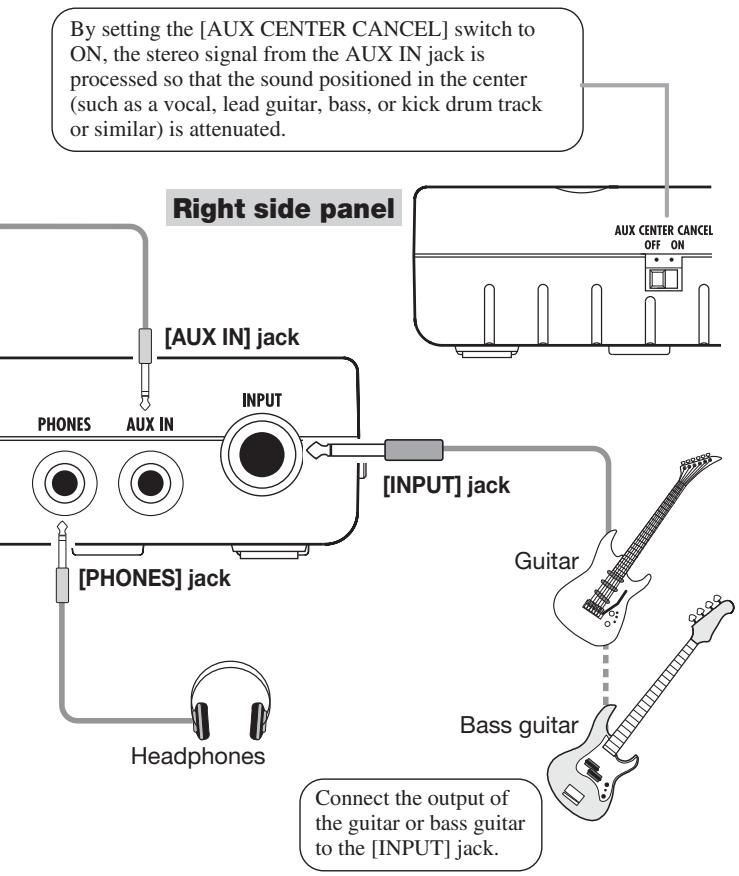
Create a simple karaoke system with the flick of a switch. A stereo signal supplied via the AUX IN jack can be processed so that the signal positioned in the center (like a vocal or lead guitar track) is attenuated.
- Versatile tuner
The built-in tuner can be used not only for standard chromatic tuning but also for 7-string guitar and other unconventional tuning applications.
Terms Used in This Manual
This section explains some important terms that are used in this manual.
■ Effect module
An "effect module" works like a stand-alone compact effect device for tailoring certain aspects of the sound. As shown in the illustration below, the PFX-9003 can be thought of as a series of such effect modules.

■ Effect types and parameters
Different types of sound within a module are called effect types. In most modules, you can select one effect type from several choices. The various settings of the effect module are called parameters.
Patches and banks
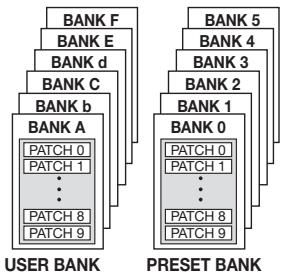
Effect module combinations and effect parameter settings are stored and recalled in units called "patches".
These are divided into user banks (A - F) which can be changed, and preset banks (0 - 5) which are read-only. Because each bank has 10 patches (numbered from 0 - 9 ), there are 120 patches in all.
■ Modes
Operation of the PFX-9003 is divided into various modes, which are used for different purposes. There is a play mode for selecting and playing patches, an edit mode for changing parameters, a tuner mode for using the built-in tuner, a sampler mode for recording, etc.
ARRM (Auto-Repeat Real-time Modulation)
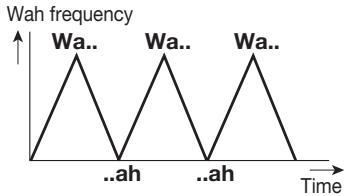
The newly developed ARRM feature lets you vary effect parameters in real time, using internally generated control waveforms whose level changes periodically. For example, if you control the wah effect with ARRM, the wah frequency will go up and down. The ARRM
modulation speed is synchronized to the rhythm pattern tempo.
Inserting the Batteries
To use the PFX-9003 on battery power, insert batteries as shown below.
1. Turn the unit over and open the battery compartment cover.
2. Insert four IEC R03 (size AAA) batteries into the battery compartment. The use of alkaline batteries is recommended.
The correct (+) orientation of the batteries is shown inside the battery compartment.
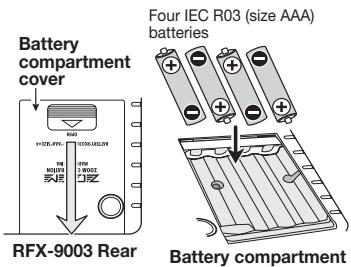
3. Close the battery compartment cover, making sure that the cover audibly snaps into place.
NOTE
- When not using the unit for an extended period, remove the batteries to prevent the possibility of damage by leaking battery fluid.
- When the indication " 101 " appears on the display, the batteries are almost exhausted. Replace the batteries as soon as possible with fresh ones.
Controls and Functions
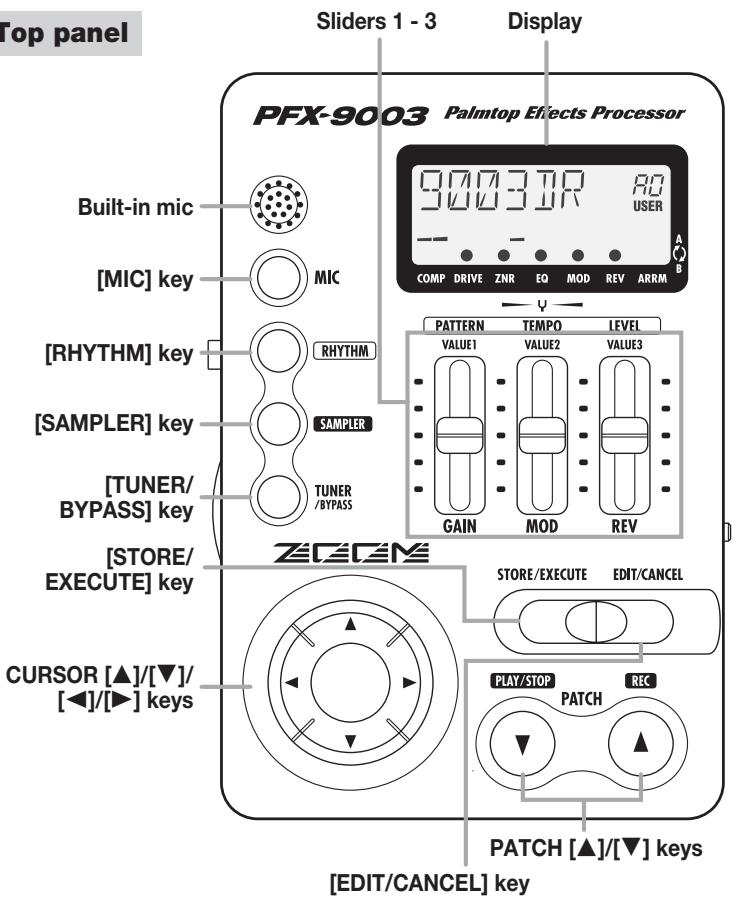
Top panel
Front panel

[PHONES] jack [AUX IN] jack
Left side panel
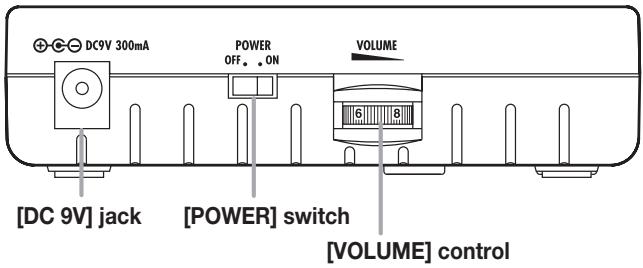
Right side panel
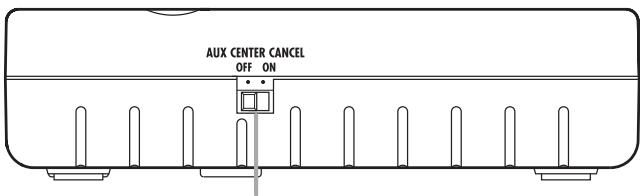
[AUX CENTER CANCEL] switch
Getting Connected
By connecting the output of a CD/MD player or similar to the [AUX IN] jack, the signal from the player can be mixed to the sound of your instrument. The combined signal is supplied at the [OUTPUT] jack, but the signal from the [AUX IN] jack is not subject to effect processing. This signal can be used as sampling source.

Front panel
Connect the [OUTPUT] jack to an audio system or other playback system.
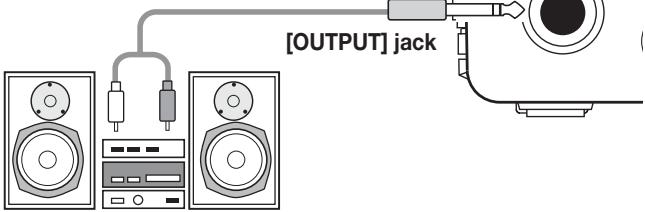
Playback system

Left side panel
[DC 9V] jack
Connect separately available AC adapter (AD-0006).
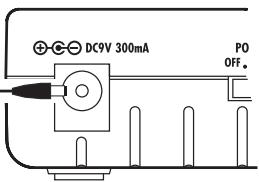
Quick Guide (1)
This section explains some of the basic operation steps of the PFX-9003.
1 Turn power on
Set the [POWER] switch on the left side panel to ON, and then turn power to the playback system on.

When you turn on the PFX-9003, it is in play mode. In this mode, you can select patches for playing.
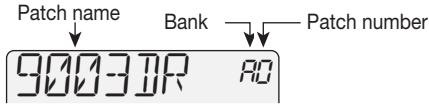
Display in play mode
* To turn power off, reverse the above sequence.
2 Adjust the volume
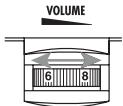
While playing your instrument, adjust the [VOLUME] control to obtain a suitable level.
3 Select a patch
Use the PATCH [ ] / [ ] keys to change patches until the sound is as desired.
Banks and patches are switched in the order A0 - A9, b0 - 9 etc.
- You can also use the CURSOR [▲]/[▼] keys to directly switch banks only.



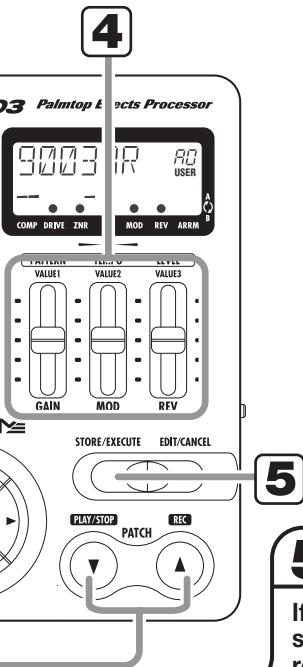
5 Store the patch
If you have made adjustments to the sound of a patch, you can store it to retain the setting. Press the [STORE/EXECUTE] key.
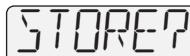
Store target bank/patch number
The unit goes into the store standby mode.
To carry out the store process, select a user patch as necessary, and then press the [STORE/EXECUTE] key once more.
To cancel the operation, press the [EDIT/CANCEL] key.
- Preset banks (0 - 5) are read-only and cannot be selected as store target.
Quick Guide (2) Using the tuner and rhythm functions
This section explains how to use the toner function and rhythm function of the PFX-9003.
Using the tuner
To use the tuner function, press the [TUNER/BYPASS] key in play mode.
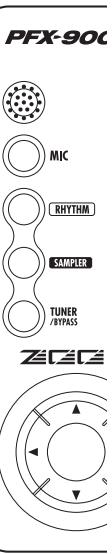
When you press the [TUNER/BYPASS] key briefly, the PFX-9003 goes into the bypass condition (patches are temporarily turned off), and the chromatic tuner function can be used.
When you play an open string in this condition, the name of the nearest note will appear on the display.
![ZOOM PFX-9003 - To use the tuner function, press the [TUNER/BYPASS] key in play mode. - 1](/content/2025/01/152179/images/89b054b839774c2c1d1460335bf813e5f9cb5a25b17c61a2d223e4cba6820a86.jpg)
The dots in the lower section of the display let you check the pitch. Tune the string to achieve the desired note.
![ZOOM PFX-9003 - To use the tuner function, press the [TUNER/BYPASS] key in play mode. - 2](/content/2025/01/152179/images/c8edd7c8b5d0e3cb12bc00198d89ed2999e46f93a0100aa41c9b63e8b55f5131.jpg)
![ZOOM PFX-9003 - To use the tuner function, press the [TUNER/BYPASS] key in play mode. - 3](/content/2025/01/152179/images/30f061f8991bc5754e1eb31c0f1010902b13f44289100b50e9ccdd9829afe59c.jpg)
![ZOOM PFX-9003 - To use the tuner function, press the [TUNER/BYPASS] key in play mode. - 4](/content/2025/01/152179/images/f19523fadc1f88e12c249b47f48b7e85f093212c20372050483564aa1490f4db.jpg)
To return to play mode, press the [EDIT/CANCEL] key.
- For information on advanced tuner functions, see page 20.
![ZOOM PFX-9003 - To use the tuner function, press the [TUNER/BYPASS] key in play mode. - 5](/content/2025/01/152179/images/c66ae259ef6a65929afa37ca05861dc5cbe79c88263777dbd7e1eff203bfcbc8.jpg)
103
Palmtop Effects Processor
![ZOOM PFX-9003 - To use the tuner function, press the [TUNER/BYPASS] key in play mode. - 6](/content/2025/01/152179/images/923357d74ceac347e68ca3922373a62488175dee754e62d568b636ab0ee75cd2.jpg)
![ZOOM PFX-9003 - To use the tuner function, press the [TUNER/BYPASS] key in play mode. - 7](/content/2025/01/152179/images/d2b00af59fae5008054b37e2fba487dd2fb900d78d1d10370a9ae1943b5fcb59.jpg)
![ZOOM PFX-9003 - To use the tuner function, press the [TUNER/BYPASS] key in play mode. - 8](/content/2025/01/152179/images/5df0544e124e6a6dce9dd181c8f754d6e0b4eaada2cb859770885ad1ceb13fcb.jpg)
EMI
![ZOOM PFX-9003 - To use the tuner function, press the [TUNER/BYPASS] key in play mode. - 9](/content/2025/01/152179/images/e619cdf2067c229d95b42fa7dd40f9b7a74defc4e1de7fcdf22fc8d54a650ea7.jpg)
STORE/EXECUTE EDIT/CANCEL
2 Using the rhythm function
To play a rhythm pattern, press the [RHYTHM] key.
Rhythm playback starts. In play mode, the following information appears on the display.
![ZOOM PFX-9003 - To play a rhythm pattern, press the [RHYTHM] key. - 1](/content/2025/01/152179/images/2bc736cbc2cfd9025cef14ef6b581831cebf63609a9f1167cb6fe3a38f9631d2.jpg)
While playing a rhythm pattern in play mode, the following controls can be used to select the rhythm pattern type and to adjust volume and tempo.
![ZOOM PFX-9003 - To play a rhythm pattern, press the [RHYTHM] key. - 2](/content/2025/01/152179/images/3c93a6279f046fbca129033ce506be3b3dcd2e40c2fd9cea2ee082fd514238cc.jpg)
To stop rhythm pattern playback, press the [RHYTHM] key once more.
- For a list of rhythm patterns, see page 19.
- For details on the rhythm function, see page 17.
Playing Patches (Play Mode)
The condition where you call up patches stored in the memory of the PFX-9003 and use them for playing your instrument is called play mode. When you turn the PFX-9003 on, it is initially always in this mode. The various things you can do in play mode are described in this section.
Display in play mode
In play mode, the display shows the following information.
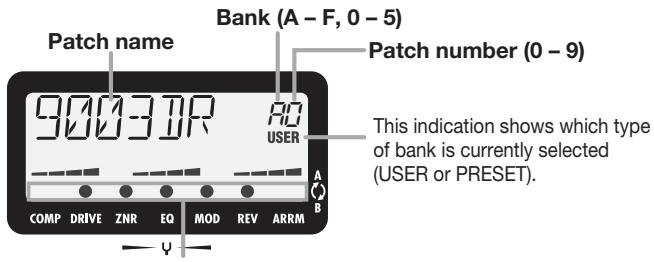
Effect modules that are ON in the currently selected patch are indicated by a dot () symbol.
Selecting a patch
- To select a patch in play mode, use the PATCH [] / [] keys.
For example, pressing the PATCH [▲] key repeatedly will switch banks and patch numbers in the following order.
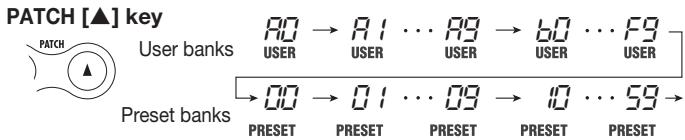
HINT
If you hold down one of the PATCH [] / [] keys and then also press the opposite key, the patches will be switched faster.
2. To directly switch banks, use the CURSOR [] / [] keys.
The CURSOR [] key switches to the next higher bank and the CURSOR [] key to the next lower bank.
NOTE
While a rhythm pattern is playing, banks cannot be switched directly.
Changing the sound of a patch
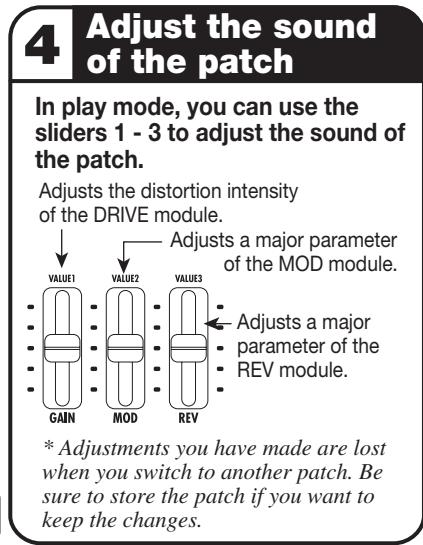
After selecting a patch in play mode, you can use the sliders and the CURSOR [] / [] keys to adjust the sound and level of the patch.
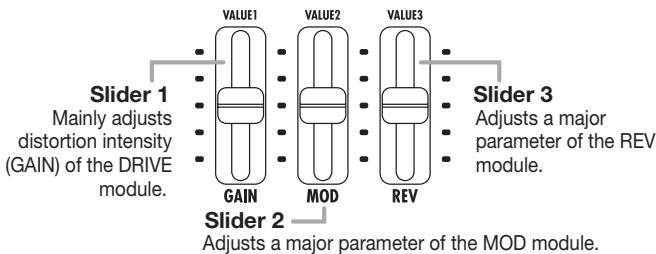
1. To adjust the sound of the patch in play mode, operate sliders 1 - 3 while playing your instrument.
The parameters assigned to the sliders are as follows.
NOTE
- Depending on the effect type selected for the DRIVE module, a parameter other than GAIN may be assigned to slider 1.
- Which parameters are adjusted by sliders 2 and 3 depends on the effect type currently selected for the respective module.
When you operate one of the sliders, the name of the parameter and the current setting are shown briefly on the display. The approximate setting for sliders 1 - 3 can also be seen from the bar graphs in the lower part of the display.
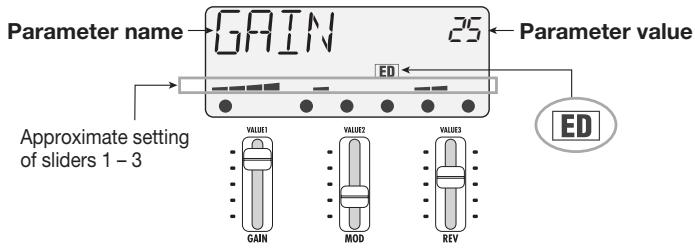
The "ED" indication shows that a parameter has been edited. When the parameter is returned to its original value, the indication disappears.
2. To adjust the patch level, use the CURSOR [] / [] keys.
The patch level is a parameter that controls the individual level of that patch. When you press one of the CURSOR [] / [] keys, the parameter name and value are shown briefly on the display.
![ZOOM PFX-9003 - To adjust the patch level, use the CURSOR [] / [] keys. - 1](/content/2025/01/152179/images/2f5091fb9a19e1f60c286aa9287b760769d5e63965b96d6db194687d622fc870.jpg)
CURSOR [<]/[>] keys
![ZOOM PFX-9003 - To adjust the patch level, use the CURSOR [] / [] keys. - 2](/content/2025/01/152179/images/2bc978cfcc1793c0c188746e13d4eca5668b6fde3e25bef6204a66899f059ada.jpg)
3. If you wish to retain the edited patch settings, perform store as described on page 33.
If you do not store the patch and switch to another patch or turn power to the unit off, the edited settings will be lost. Take care not to accidentally lose settings that you want to keep.
NOTE
While a rhythm pattern is playing, the patch level cannot be adjusted directly.
Using the built-in mic
The PFX-9003 has a built-in high-sensitivity microphone. You can use the mic to pick up the sound of an acoustic guitar or vocal, and use effect processing on that sound in the same way you would use the [INPUT] jack.
When one of the following three conditions is met, the built-in mic can be used and the mic symbol appears on the display.
((q)) Mic symbol
(1) DRIVE module is ON, and the MIC PRE or CABI effect type is selected
(2) DRIVE module is OFF
(3) Tuner mode is active
1. To use the built-in mic, verify that the Mic symbol is shown on the display, and press the [MIC] key.
The [MIC] key flashes and the signal from the [INPUT] jack is cut off. If the Mic symbol is not being shown, pressing the [MIC] key has no effect.
2. If the gain of the built-in mic is low, press the [MIC] key once more.
The [MIC] key is now constantly lit. There are two gain settings (Hi/Lo) for the built-in mic. The first push of the [MIC] key activates the Lo setting (key flashing), and the second push changes to the Hi setting (key lit).
3. To turn the built-in mic off, press the [MIC] key once more when the Hi gain setting is active.
The [MIC] key goes out, and the built-in mic is turned off.
Using the rhythm function
In play mode, you can select from 60 rhythm patterns. This is useful for solo practice or for simple jam sessions.
1. Press the [RHYTHM] key while the PFX-9003 is in play mode.
Rhythm pattern playback starts. The display briefly shows the name of the currently selected patch. The [RHYTHM] key LED flashes in sync with the tempo of the pattern.
![ZOOM PFX-9003 - Press the [RHYTHM] key while the PFX-9003 is in play mode. - 1](/content/2025/01/152179/images/c7d2a1649fbad230aeb9de4d1a10e95320b7ceec4a2789a8ac34a7e5fe756e1f.jpg)
2. To change rhythm related parameters, use the CURSOR [▲]/[▼]/[▲]/[▶] keys and the sliders 1 - 3.
While a rhythm pattern is playing, the following controls are assigned to rhythm parameters.
![ZOOM PFX-9003 - To change rhythm related parameters, use the CURSOR [▲]/[▼]/[▲]/[▶] keys and the sliders 1 - 3. - 1](/content/2025/01/152179/images/49fd249b398e0443b47ce545e78a2252d9d4cf878eb1942ad1c2864d0f988e77.jpg)
HINT
- The approximate setting of the rhythm pattern parameters can be seen from the sliders 1 - 3 bar graphs in the lower part of the display.
- You can select another patch also while a rhythm pattern is playing. However, adjusting parameters and directly selecting the bank is not possible.
3. To stop rhythm pattern playback, press the [RHYTHM] key once more.
Rhythm pattern list
| Rhythm pattern | Display | |
| 8 BEAT 1 | 8BEAT | 1 |
| 8 BEAT 2 | 2 | |
| 8 BEAT 3 | 3 | |
| 8 BEAT 4 | 4 | |
| 8 BEAT 5 | 5 | |
| 8 BEAT SHUFFLE 1 | 8SHUFL | 1 |
| 8 BEAT SHUFFLE 2 | 2 | |
| 16 BEAT 1 | 16 BEAT | 1 |
| 16 BEAT 2 | 2 | |
| 16 BEAT 3 | 3 | |
| 16 BEAT 4 | 4 | |
| 16 BEAT SHUFFLE | 16SHFL | |
| 3/4 | 3,4 | |
| 6/8 ROCK | 6,7 | |
| 5/4 | 5,4 | 1 |
| 5/4 ROCK | 2 | |
| ROCK'n ROLL 1 | R'nR | 1 |
| ROCK'n ROLL 2 | 2 | |
| ROCK 1 | ROCK | 1 |
| ROCK 2 | 2 | |
| 1970s ROCK | 70ROCK | |
| HARD ROCK 1 | HARJ | 1 |
| HARD ROCK 2 | 2 | |
| HARD ROCK 3 | 3 | |
| METAL 1 | METAL | 1 |
| METAL 2 | 2 | |
| THRASH | THRASH | |
| PUNK | PUNK | |
| POP 1 | POP | 1 |
| POP 2 | 2 | |
| Rhythm pattern | Display | |
| DANCE 1 | DANCE | 1 |
| DANCE 2 | 2 | |
| DANCE 3 | 3 | |
| FUNK 1 | FUNK | 1 |
| FUNK 2 | 2 | |
| BALLAD 1 | BALLAD | 1 |
| BALLAD 2 | 2 | |
| BLUES 1 | BLUES | 1 |
| BLUES 2 | 2 | |
| COUNTRY | CONTRY | |
| BOSSA NOVA | BOSSA | |
| JAZZ 1 | JAZZ | 1 |
| JAZZ 2 | 2 | |
| REGGAE | REGGAE | |
| SKA | SKA | |
| LATIN 1 | LATIN | 1 |
| LATIN 2 | 2 | |
| SAMBA 1 | SAMBA | 1 |
| SAMBA 2 | 2 | |
| AFRO | AFRO | |
| MOTOWN | MOTOWN | |
| EUROBEAT | EURO | |
| FUSION | FUSION | |
| OLDIES | OLDIES | |
| METRO (triple time) | METRO | 3 |
| METRO (quadruple time) | 4 | |
| METRO (quintuple time) | 5 | |
| METRO (sixteenth time) | 6 | |
| METRO (septuple time) | 7 | |
| METRO | METRO | |
Using the Tuner (Tuner Mode)
The PFX-9003 incorporates a versatile tuner that can also accommodate 7-string guitar and other unconventional tunings. The tuner function becomes available when the unit is set to the bypass condition (effects temporarily turned off) or mute condition (effects and direct sound turned off).
Using the chromatic tuner
1. To set the PFX-9003 to the tuner mode, press the [TUNER/BYPASS] key in play mode.
When you press the [TUNER/BYPASS] key briefly and then release the key, the PFX-9003 goes into the bypass condition (effects are turned off). The indication "CHRMTC" is shown briefly on the display, and the chromatic tuner can be used.
![ZOOM PFX-9003 - To set the PFX-9003 to the tuner mode, press the [TUNER/BYPASS] key in play mode. - 1](/content/2025/01/152179/images/2459236bd2ee8a611efeac92cda7c4c75990e5d502c6e960d7827801329b5ad5.jpg)
When you hold down the [TUNER/BYPASS] key for one second or more, the PFX-9003 goes into the mute condition (direct sound and effects are turned off). The indication "CHRMTC" is shown briefly on the display, and then an "M" (for Mute) is shown. The chromatic tuner can now be used.
![ZOOM PFX-9003 - To set the PFX-9003 to the tuner mode, press the [TUNER/BYPASS] key in play mode. - 2](/content/2025/01/152179/images/71d6d74e145658fbf7e06178d16fc1f47b806fbb5391e4146ab1f3d7a9a91555.jpg)
2. Play the open string you want to tune.
The pitch is automatically detected, and the display shows the note which is
closest to the current pitch. The dot () symbols in the lower section of the display let you check the pitch.
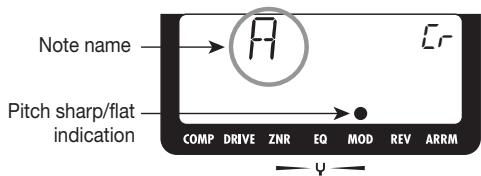
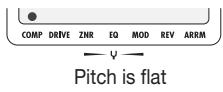
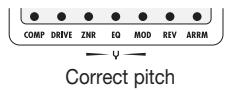
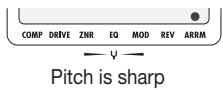
Tune the string to achieve the desired note.
3. Tune the other strings in the same way.
4. To return to play mode, press the [EDIT/CANCEL] key.
Using other tuning types
The PFX-9003 allows various other tuning types besides chromatic tuning. For these types it is necessary to first select a string number and then tune the string corresponding to the displayed note.
1. In tuner mode, press the [TUNER/BYPASS] key several times to select the tuning type.
With each push of the key, the tuning type cycles through the settings shown in the chart on the next page. (The name of the new tuning type is briefly shown on the display.)
| Tuning type | GUITAR | BASS | OPEN-A | OPEN-D | OPEN-E | OPEN-G | DADGA(D modal) |
| String/note name | 6E | 4E | 6E | 6J | 6E | 6J | 6J |
| 5A | 3A | 5A | 5A | 5J | 5G | 5A | |
| 4J | 2J | 4E | 4J | 4E | 4J | 4J | |
| 3G | 1G | 3A | 3F# | 3G# | 3G | 3G | |
| 2J | 5J | 2C# | 2A | 2J | 2J | 2A | |
| 1E | 1E | 1J | 1E | 1J | 1J | ||
| 7J |
For example, when GUITAR has been selected as tuning type, the display shows the string number and the target note.
![ZOOM PFX-9003 - In tuner mode, press the [TUNER/BYPASS] key several times to select the tuning type. - 1](/content/2025/01/152179/images/ff4667d353023cd67fa79294f95646a4e0b859d9587ce4ee48eb6c7247c91671.jpg)
- Play the indicated string as an open string, and perform tuning.
- Use the CURSOR [] / [] keys to select another string number.
For example, when GUITAR has been selected as tuning type, pressing the CURSOR [▼] key cycles through the following string numbers.
$$ 6 \mathrm {E} \rightarrow 5 \mathrm {A} \rightarrow 4 \mathrm {D} \rightarrow 3 \mathrm {G} \rightarrow 2 \mathrm {B} \rightarrow 1 \mathrm {E} \rightarrow 7 \mathrm {B} \rightarrow 6 \mathrm {E} \dots $$
- Tune the other strings in the same way.
Changing the reference pitch of the tuner
After power to the unit was turned on, the reference pitch of the built-in tuner is always center A = 440Hz . If desired, you can change this in 1-Hz steps over the following range: center A = 435 - 445Hz . You can also select "half-step
down" tuning which is a semitone lower, or "full-step down" tuning which is two semitones lower.
1. In tuner mode, press one of the CURSOR [] / [] keys.
The current reference pitch is shown briefly on the display. If the unit is in the default condition after power-on, this is center A = 440Hz .
![ZOOM PFX-9003 - In tuner mode, press one of the CURSOR [] / [] keys. - 1](/content/2025/01/152179/images/316a7238f5631b1c6fc1e03f3d0d3cb07d1aedde3fbccdfd231815975955d251.jpg)
2. While the reference pitch is shown, you can use the CURSOR [] / [] keys to change the pitch.
The available range is center A = 435 - 445Hz , in 1-Hz steps.
![ZOOM PFX-9003 - While the reference pitch is shown, you can use the CURSOR [] / [] keys to change the pitch. - 1](/content/2025/01/152179/images/423fadffb22f4947df6c1d78fc5911e9ca18aeeaf048b514faa29c09464060cb.jpg)
3. To select "half-step down" or "full-step down" tuning, press the CURSOR [<] key once (or twice) while "435 Hz" is being shown.
If you press the CURSOR [▲] key once while "435 Hz" is shown, a single "b" symbol appears. If you press the key twice, two "b" symbols appear. This indicates that the overall pitch has been lowered by a semitone ("b") or two semitones ("b b") from the reference pitch (center A = 440 Hz).
![ZOOM PFX-9003 - To select "half-step down" or "full-step down" tuning, press the CURSOR [<] key once (or twice) while "435 Hz" is being shown. - 1](/content/2025/01/152179/images/d800cd07805899ab9f917d5d674dd2e0753ec529d80cca2d8d67732c6022e723.jpg)
![ZOOM PFX-9003 - To select "half-step down" or "full-step down" tuning, press the CURSOR [<] key once (or twice) while "435 Hz" is being shown. - 2](/content/2025/01/152179/images/251fb71b4c140f5beb2d540c878833618fe564ef50ad15a31f1f2fdff411eb58.jpg)
HINT
- The reference pitch change applies to all tuning types.
- The reference pitch is reset to 440Hz when the unit is turned off and then on again.
Using the Sampler Function
The PFX-9003 has a built-in sampler which allows you to easily record and play up to 30 seconds of the input signal at the [INPUT] jack or [AUX IN] jack. During playback, it is also possible to change the play tempo without altering the pitch. This is convenient for learning a fast guitar phrase.
- Connect the sampling source (instrument or other device) to the [INPUT] jack or the [AUX IN] jack (see page 8 - 9).
- Turn power to the PFX-9003 on and press the [SAMPLER] key in play mode.
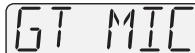
The PFX-9003 switches to the sampler mode, and the display shows the input source (normally "GT MIC").

[SAMPLER] key
In sampler mode, the following functions are assigned to the controls.
PATCH [▼] key
Controls play/stop of the recorded signal.
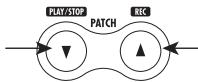
PATCH [▲] key
Starts recording.
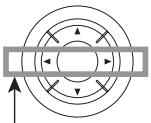
CURSOR
[←]/[→] keys
Control rewind/forward of the recorded signal.
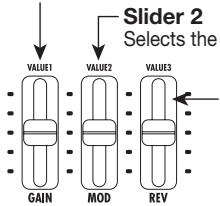
Slider 1 Selects the sampling source to be recorded.
Slider 3
Controls the sampler playback level.
NOTE
In sampler mode, the PATCH [] / [] keys function as Play/Stop and Rec keys. Therefore patches cannot be switched until the unit returns to play mode.
3. Use slider 1 to select one of the following two sources.
- GT MIC
The signal from the [INPUT] jack (if the [MIC] key is out) or the built-in mic (if the [MIC] key is lit or flashing) is used as sampler source.
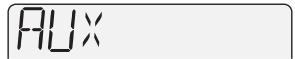
AUX
The signal from the [AUX IN] jack is used as sampler source.
When you move slider 1, the selected input source is briefly shown on the display.
NOTE
Effect processing is not available for the signal from the [AUX IN] jack.
4. To start recording, press the PATCH [▲] key and then play the phrase (or start playback at the source device).
During recording, the indication "REC" appears on the display, and the elapsed recording time (in seconds) is shown at right.
![ZOOM PFX-9003 - To start recording, press the PATCH [▲] key and then play the phrase (or start playback at the source device). - 1](/content/2025/01/152179/images/c37de48642e87bb644b62f85ef38896b73395331d6c8747a1b7475b74fb00172.jpg)
5. To stop sampling, press the PATCH [▼] key once more.
If you do not press a key, sampling will stop automatically when the maximum time of 30 seconds is reached.
6. Use slider 2 to select one of the following playback modes.
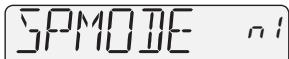
- n1
Normal speed playback
n2 Half tempo, half pitch playback
P2 Half tempo, normal pitch playback
n4 Quarter tempo, quarter pitch playback - P4 Quarter tempo, normal pitch playback
7. Use the PATCH [▼] key and the CURSOR [▲]/[▶] keys to control playback start/stop and rewind/forward.
When the sampler mode has been activated for the first time, pressing the PATCH [▼] key will play the recorded sample once (one-shot playback). During playback, the display shows "PLAY", and the elapsed time (in seconds) is shown at right.
![ZOOM PFX-9003 - Use the PATCH [▼] key and the CURSOR [▲]/[▶] keys to control playback start/stop and rewind/forward. - 1](/content/2025/01/152179/images/5719bb8b81f288e6aab6b9acd551dc8d8138aed71ed0b48d7749837537b2b43d.jpg)
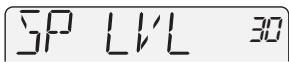
8. To adjust the sample playback volume, use slider 3.
The level setting range is 0 - 30
NOTE
During sample playback, sliders 1 and 2 are inactive.
9. To perform repeat playback of the sample, specify the repeat start and end points with the [SAMPLER] key while the playback sound is heard.
If you press the [SAMPLEER] key once during sample playback, that point is specified as start point. By pressing the key once more, you can specify the end point. Repeat playback is then performed between the start and end points. During repeat playback, the dot () symbol of the ARRM module is shown.
![ZOOM PFX-9003 - To perform repeat playback of the sample, specify the repeat start and end points with the [SAMPLER] key while the playback sound is heard. - 1](/content/2025/01/152179/images/146c0f590a54025576c0003f0e0bf806941d74f713ef3824da4db84ec1bb25ea.jpg)
To return to one-shot playback, press the [SAMPLER] key once more.
10. To return to play mode, press the [EDIT/CANCEL] key while sample playback is stopped.
NOTE
- When you return to play mode, the recorded contents will be lost.
- The sampler function cannot be used together with the rhythm function.
- In sampler mode, the MOD module, REV module, and ARRM module cannot be used. (These modules are automatically set to OFF.)
Changing the Sound of a Patch (Edit Mode)
The edit mode allows you to freely alter the parameters that make up a patch, so that you can create your own patches. This section describes how to do this.
Patch configuration
As shown below, the PFX-9003 consists of a series of single effects (effect modules). A patch is a stored combination of modules, each with their distinct parameter settings.

Basic edit mode steps
This section describes the basic procedure for editing patches in edit mode. For information on effect types and parameters in the various modules, see the section "Effect Types and Parameters" on page 42.
1. In play mode, select the patch you want to edit.
Patches for editing can be selected from either a user bank (A- F) or a preset bank (0 - 5) . However, patches from a preset bank are read-only. When you have altered such a patch and want to store it, you must select a user bank patch as store target. (Patch number 0 in the user bank "A" is automatically preselected.)
2. To activate the edit mode, press the [EDIT/CANCEL] key.
The indication "EDIT" appears on the display.
![ZOOM PFX-9003 - To activate the edit mode, press the [EDIT/CANCEL] key. - 1](/content/2025/01/152179/images/8416ef1418fc22513029d94ac93cf67f5b6501ab14570c351ade9e83aa8e335c.jpg)
![ZOOM PFX-9003 - To activate the edit mode, press the [EDIT/CANCEL] key. - 2](/content/2025/01/152179/images/7eee0f237ddd9e23c269b5ca5122a210193a27b2de69fea55c8217f789da92c1.jpg)
The first time you switch to edit mode after the unit was turned on, the
parameter PATLVL (patch level) of the TOTAL module will be selected.
3. Use the CURSOR [] / [] keys to select the module that you want to edit.
Modules for editing are switched in the order shown below. Modules with many parameters (DRIVE, EQ, ARRM etc.) have multiple pages for making parameter settings. For such modules, the CURSOR [] / [] keys can be used to switch between pages.
![ZOOM PFX-9003 - Use the CURSOR [] / [] keys to select the module that you want to edit. - 1](/content/2025/01/152179/images/58cef5a18279dcb4d08c850ea563d14d5d0431f173ae63551e58a9e6c9d729c0.jpg)
In the lower part of the display, the dot () symbol of the selected module is flashing (except for the TOTAL module). For most modules, the currently selected effect type is shown on the upper part of the display.
![ZOOM PFX-9003 - Use the CURSOR [] / [] keys to select the module that you want to edit. - 2](/content/2025/01/152179/images/f1c701b467066bddfeb232fc742ebc72b1a83f637a2ed2a5382183ee1d6f70b5.jpg)
HINT
- The ARRRM module and the TOTAL module are not standalone modules. The ARRRM module comprises only ARRRM function settings, and the TOTAL module serves for setting the patch level and patch name.
- When the PATCH NAME page of the TOTAL module is selected, the CURSOR [▲]/[▶] keys can be used to select the character of the 6-character name that is to be changed.
4. To switch the selected module on or off, press the [TUNER/ BYPASS] key while the effect type for that module is displayed.
The effect type indication changes to "-OFF-". To turn the effect module on again, press the [TUNER/BYPASS] key once more.
- To change the effect type for the selected effect module, press one of the CURSOR [] / [] keys while the effect type is displayed.
![ZOOM PFX-9003 - To switch the selected module on or off, press the [TUNER/ BYPASS] key while the effect type for that module is displayed. - 1](/content/2025/01/152179/images/4bba452a4620f6b37099c499a8289b5c4f36db823d1fa05726025bf0402349c2.jpg)
- To change the parameter value, operate sliders 1-3.
In edit mode, sliders 1 - 3 are assigned to various parameters. When you operate a slider, the name of the assigned parameter and its current setting appear on the display.
![ZOOM PFX-9003 - To switch the selected module on or off, press the [TUNER/ BYPASS] key while the effect type for that module is displayed. - 2](/content/2025/01/152179/images/69f64e7dc656ced008282db47ab3f303600d7ff63cd9e5aa65f24b2edb77d771.jpg)
NOTE
Which parameters are assigned to sliders 1 - 3 depends on the effect type selected for that module. For details, see the section "Effect Types and Parameters" on page 42.
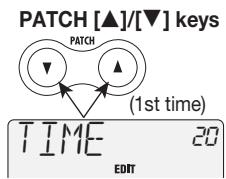
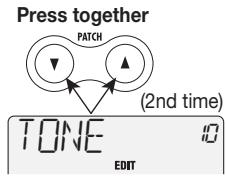
- To check the parameter value without moving a slider, press both PATCH [] / [] keys together.
Each time you do this, the next parameter assigned to sliders 1 - 3 and its value are shown.
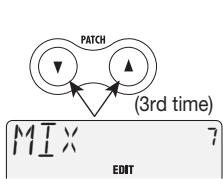
HINT
If you press one of the PATCH [] / [] keys, the value of the currently displayed parameter is increases or decreases. This method is convenient to make small adjustments.
- Repeat steps 3-7 to edit other modules in the same way.
- To terminate the edit mode, press the [EDIT/CANCEL] key.
The unit returns to play mode. If any patch has been changed, the indication "ED" is shown.
NOTE
To retain patch changes, be sure to perform the store operation (see page 33). If you switch the patch without storing, the changes will be lost.
Changing a patch name
If you wish, you can assign a new name to an edited patch. Proceed as follows.
- In edit mode, use the CURSOR [] / [] keys to bring up the patch name on the display.
To call up the patch name, press the CURSOR [<] key while the COMP module is selected, or press the CURSOR [▶] key twice while page 2 of the ARRM module is selected. The character in the patch name that can be changed is flashing.

- Use the CURSOR [] / [] keys to select the character of the 6-character patch name that you want to change. Then use sliders 1 - 3 to change the character.
The following characters are assigned to sliders 1 - 3.
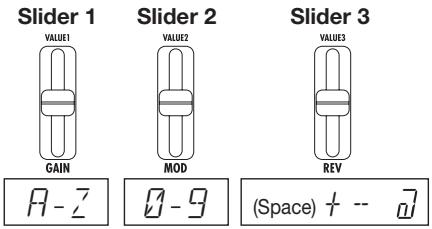
HINT
You can also press one of the PATCH [▲]/[▼] keys to change the characters one by one.
3. Repeat step 2 to complete the patch name. When the name is as desired, press the [EDIT/CANCEL] key to return to the play mode.
NOTE
To enable the new patch name, be sure to perform the store operation (see page 33). If you switch the patch without storing, the changes will be lost.
Storing and Swapping Patches (Store Mode)
This section describes how to store an edited patch in the memory of the PFX-9003, and how to swap patches in the user banks.
1. In play mode or edit mode, press the [STORE/EXECUTE] key.
The PFX-9003 goes into the store standby mode. The patch name and the indications "STORE" or "SWAP" are shown alternately on the display. In the top right of the display, the store target user bank and patch number are shown.
![ZOOM PFX-9003 - In play mode or edit mode, press the [STORE/EXECUTE] key. - 1](/content/2025/01/152179/images/4c3c499e44aae9cdbabcdb39bbc13862807d7f309dcdb082dfb4f6de5fd0eb0d.jpg)
![ZOOM PFX-9003 - In play mode or edit mode, press the [STORE/EXECUTE] key. - 2](/content/2025/01/152179/images/398a2309ba6c63944f778cd206b87bfdfc882ec6e9fa8a93bee85c968c8b7df2.jpg)
![ZOOM PFX-9003 - In play mode or edit mode, press the [STORE/EXECUTE] key. - 3](/content/2025/01/152179/images/f072b610cb67109599eed9a15c14dac95bc52ef9aa34abdb5f29185ce01efb74.jpg)
HINT
If you wish to change the patch name before storing, see page 31.
2. Use the CURSOR [<] /[>] keys to select either "STORE" or "SWAP".
When STORE is selected, you can save the current patch in any user bank patch slot.
When SWAP is selected, you can exchange the current user bank patch with any other user bank patch. This is convenient for example if you want to change the order of patches for use during a performance.
![ZOOM PFX-9003 - Use the CURSOR [<] /[>] keys to select either "STORE" or "SWAP". - 1](/content/2025/01/152179/images/be1b041c3952bd5d65858e3a2e699716d5497d61a622df94ac17fdda71534615.jpg)
NOTE
If the original patch is from a preset bank, the "SWAP" option cannot be selected.
3. Use the CURSOR [] / [] keys and the PATCH [] / [] keys to select the bank and patch number of the store/swap target.
NOTE
A preset bank cannot be selected as store target. If you press the [STORE] key while a patch from a preset bank is selected, the selection automatically changes to "A0" (patch number 0 in user bank A).
4. Press the [STORE] key once more.
The store or swap operation is performed and the unit returns to the original mode. If the patch in step 1 was being edited, the editing changes are stored and the "ED" indication disappears.
If you press the [EDIT/CANCEL] key instead of the [STORE] key, the store/ swap operation is canceled and the unit returns to the original mode.
Using the ARRM Function
The ARRM function utilizes various control waveforms (sawtooth, sine wave, triangle, square) generated internally by the PFX-9003 to cyclically modify effect parameters. The volume, DRIVE module, MOD module, or REV module can be selected as control target.
When the DRIVE module, MOD module, or REV module are selected, the effect parameter that is actually controlled by the ARRM function depends on the currently selected effect type. For example, when triangle wave is selected as control waveform and the control target is the effect type F-WAH in the MOD module, the wah frequency (FREQ parameter) will change, resulting in a cyclic wah sound.
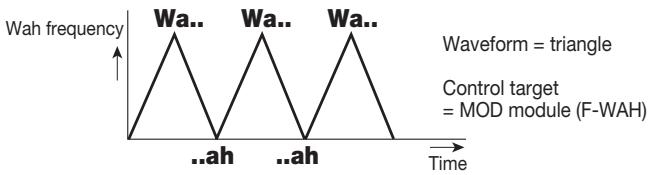
HINT
The control waveform cycle is always linked to the rhythm tempo. If you play a rhythm pattern while the ARRM function is active, the effect will be modulated in sync with the rhythm pattern.
To use the ARRM function for varying an effect parameter in real time, proceed as follows.
- In play mode, select the patch.
- Press the [EDIT/CANCEL] key to activate the edit mode, and then use the CURSOR []/[] keys to call up page 1 of the ARRM module.
If the ARRM module is set to off, press the [TUNER/BYPASS] key to turn the module on.
ASSIGN
When page 1 of the ARRM module is selected, sliders 1 - 3 control the following parameters.
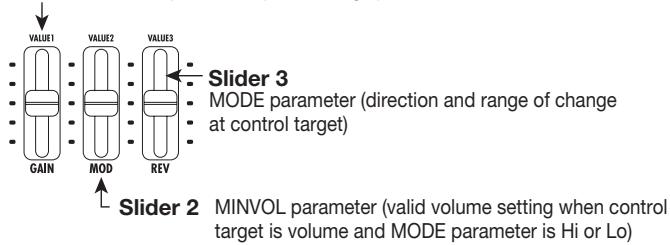
Slider 1 ASSIGN parameter (control target)
3. Use slider 1 to select the control target from the following options.
vL (volume)
The ARRM function controls the volume of the entire patch.
GA (gain)
The ARRM function controls the GAIN parameter (for some effect types the TOP parameter) of the DRIVE module. This means that the distortion intensity changes.
- Md (modulation)
The ARRM function controls the effect type currently selected in the MOD module. The actual parameter that changes depends on the effect type.
- rv (reverb)
The ARRM function controls the effect type currently selected in the REV module. The actual parameter that changes depends on the effect type.
4. If "vL" has been selected as control target, adjust the MINVOL parameter value with slider 2, as required.
5. Use slider 3 to set the direction and range of the change at the control target.
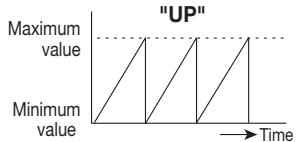
UP
The parameter changes from the minimum value to the maximum value according to the level change of the control waveform.
dn
As for UP, the parameter changes from the minimum value to the maximum value, but in opposite relation to the level change of the control waveform. (When the control waveform is maximum, the parameter is minimum, and vice versa.)
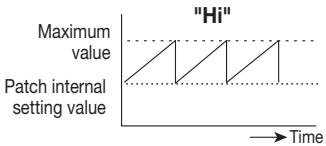
Hi
The parameter changes from the patch setting level (or the MINVOL parameter value) to the maximum value according to the level change of the control waveform.
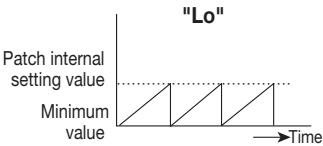
Lo
The parameter changes from the minimum value to the patch setting level (or the MINVOL parameter value) according to the level change of the control waveform.
For example, if rising sawtooth is selected as control waveform, the parameter will change as shown below, depending on the MODE parameter setting.

6. Press the CURSOR [▶] key once to call up page 2 of the ARRM module.
On page 2 of the ARRM module, the following parameters are assigned to sliders 1 and 2.
![ZOOM PFX-9003 - Press the CURSOR [▶] key once to call up page 2 of the ARRM module. - 1](/content/2025/01/152179/images/0b3e16db92c373ece9b5c0b585d6c41276444108d3dec1a528b345c52250a7b9.jpg)
7. Use slider 1 to select the control waveform type. The following choices are available.
| 1 | Rising sawtooth wave | 5 | Triangle wave |
| 2 | Rising fin wave | 6 | Second power triangular wave |
| 3 | Falling sawtooth wave | 7 | Sine wave |
| 4 | Falling fin wave | 8 | Square wave |
8. Use slider 2 to set the control waveform cycle.
Based on the rhythm pattern tempo, the control waveform cycle can be specified in notes and measures. The following choices are available.
05: eighth note
b1: 1 measure
1: quarter note
b2: 2 measures
2: half note
b3: 3 measures
3: dotted half note
b4: 4 measures
9. Call up the control target module and adjust the effect type and parameter as necessary.
For information about the parameter that can be controlled by ARRM when the DRIVE, MOD, or REV module is selected, see page 42.
10. When the setting is complete, press the [EDIT/CANCEL] key to return to the play mode.
The ARRM function settings are stored separately for each patch. Store the patch if you want to retain the settings.
11. Check the effect while playing your instrument.
The effect parameter value varies cyclically according to the selected control waveform.
Returning the unit to the factory default settings
The patches in the user banks can be returned to their original condition at any time, even if you have changed them.
There are two ways of restoring factory defaults. "All Initialize" returns all user bank patches to the original condition. "Factory Recall" restores only a specific patch to the original condition.
1. Turn power to the PFX-9003 on while holding down the [STORE/ EXECUTE] key.
The indication "ALINIT" appears on the display.
![ZOOM PFX-9003 - Turn power to the PFX-9003 on while holding down the [STORE/ EXECUTE] key. - 1](/content/2025/01/152179/images/a8e0986c7ac0671d296bc530560dbec1f0e0678cc3df50aa30f86d9f254d6aed.jpg)
![ZOOM PFX-9003 - Turn power to the PFX-9003 on while holding down the [STORE/ EXECUTE] key. - 2](/content/2025/01/152179/images/1960050b2e49cbbbf80c5ebad425e70ef6b0cc3279251e57c76f93828ff4e05e.jpg)
![ZOOM PFX-9003 - Turn power to the PFX-9003 on while holding down the [STORE/ EXECUTE] key. - 3](/content/2025/01/152179/images/c33d8ada559d94c617b66d9ae8d7d06aa8cee4e8fd63918beeb3dd6510becfaa.jpg)
ALINIT
To perform All Initialize, proceed to step 2.
- To perform Factory Recall, use the CURSOR [] / [] keys and the PATCH [] / [] keys to select the user patch that you want to return to the original condition.
2. Press the [STORE/EXECUTE] key once more.
The All Initialize or Factory Recall operation is carried out. After All Initialize, the unit automatically switches to play mode. All patches that were modified and stored by the user are lost.
To cancel All Initialize or Factory Recall, press the [EDIT/CANCEL] key before step 2.
Turning the backlight off
When using the PFX-9003 on batteries, you can extend battery life by turning the display backlight off. Proceed as follows.
- Turn power to the PFX-9003 on while holding down the CURSOR [▼] key.
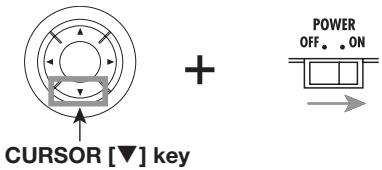
The PFX-9003 will operate without the display backlight.
- To activate the backlight again, turn the unit off and then on again.
Effect Types and Parameters
In this section, all effect types and parameters of the modules in the PFX-9003 are explained. The effect types and parameters that can be used in each module are listed below.
The [A] symbol indicates that this parameter can be assigned to the ARRM function. The parameters shown in black reverse are assigned to sliders in play mode.
COMP module
| COMP | Compressor module that serves to keep signal levels within a certain range. | ||
| Parameter 1: SENS | Parameter 2: ATTACK | Parameter 3: LEVEL | |
| LIMIT | Limiter that attenuates signal peaks. | ||
| Parameter 1: THRESH | Parameter 2: ATTACK | Parameter 3: LEVEL | |
Parameter description
| Parameter name | Setting range | Explanation |
| SENS | 0 - 10 | Adjusts the compression input sensitivity. |
| ATTACK | 0 - 10 | Adjusts the speed with which the effect becomes active. |
| LEVEL | 1 - 8 | Adjusts the module output level. |
| THRESH | 0 - 10 | Adjusts the limiter action threshold. |
DRIVE module
| * Parameters for type J-CLN to type FDR B are the same. | |||
| J-CLN | Clean sound that simulates a transistor combo amp. | ||
| US-CLN | Clean sound that simulates a built-in type vacuum tube combo amp. | ||
| US-DRV | Drive sound that simulates a built-in type vacuum tube combo amp. | ||
| TWEED | Small built-in vacuum tube combo amp sound with dry distortion. | ||
| CLASSA | Unique crunch sound that simulates a British-style combo amp. | ||
| UK-CRU | Crunch sound that simulates a British-style vacuum tube stack amp. | ||
| UK-DRV | Drive sound that simulates a British-style vacuum tube stack amp. | ||
| CMB335 | Simulates a vacuum tube combo amp characterized by long sustain. | ||
| MTLPNL | High-gain drive sound that simulates a vacuum tube stack amp. | ||
| BLKBTM | Simulates a vacuum tube stack amp with fat lows and delicate distortion. | ||
| SLDN | Drive sound that models a high-gain amp suitable for lead. | ||
| FZ-STK | Sixties sound typical of a Fuzz unit played through an amp stack. | ||
| TE B | Simulates a bass amp with a distinctively clean low-mid range. | ||
| FDR B | Simulates a bass amp with vintage-style drive. | ||
| Parameter 1: GAIN [A] | Parameter 2: TONE | Parameter 3: LEVEL | |
| * Parameters for type SANS B to type 9002 are the same. | |||
| SANS B | Trebly drive sound for bass. | ||
| CR | Model simulation of vintage crunch. | ||
| TS | Model simulation of vintage overdrive. | ||
| GV | Model simulation of vintage distortion. | ||
| MTZONE | High-gain distortion with rich sustain. | ||
| 9002 | Simulates the ZOOM 9002 distortion. | ||
| Parameter 1: GAIN [A] | Parameter 2: TONE | Parameter 3: LEVEL | |
| Parameter 4: CABI | Parameter 5: SPEAKR | Parameter 6: DEPTH | |
| AC SIM | Transforms the sound of an electric guitar into an acoustic-guitar-like tone. | ||
| Parameter 1: TOP [A] | Parameter 2: BODY | Parameter 3: LEVEL | |
| Parameter 4: CABI | Parameter 5: SPEAKR | Parameter 6: DEPTH | |
| CABI | Simulates the cabinet of a guitar/bass amp. | ||
| Parameter 1: CABI | Parameter 2: SPEAKR | Parameter 3: DEPTH [A] | |
| MICPRE | Preamplifier for mic use. | ||
| Parameter 1: COLOR | Parameter 2: HPF | Parameter 3: LEVEL [A] | |
| Parameter 4: CABI | Parameter 5: SPEAKR | Parameter 6: DEPTH | |
| Parameter description | |||
| Parameter name | Setting range | Explanation | |
| GAIN | 1 - 30 | Adjusts the distortion gain. | |
| TONE | 0 - 10 | Adjusts the tone. | |
| LEVEL | 1 - 8 | Adjusts the module output level. | |
| CABI | See table 1 | Selects the cabinet type. | |
| SPEAKR | See table 2 | Selects the speaker type. | |
| DEPTH | 0 - 10 | Adjusts the intensity of the cabinet sound. | |
| TOP | 1 - 30 | Adjusts the resonance of the strings. | |
| BODY | 0 - 10 | Adjusts the resonance of the body. | |
| COLOR | See table 3 | Selects the mic preamp characteristics. | |
| HPF | 0 - 10 | Sets the high-pass filter frequency. | |
Table 1: CABI
| CM | Combo: Simulation of a combo-type cabinet. |
| br | Bright Combo: Produces a brighter tone than Combo. |
| Ft | Flat: A cabinet with a flat response. |
| St | Stack: Produces the character of a stack-type cabinet. |
| bC | BassCombo: The sound of a combo-type cabinet for bass. |
| bS | BassStack: The sound of a stack-type cabinet for bass. |
Table 2: SPEAKR
| C1 | Combo 1: The sound of a combo-type guitar amp with one 12 inch speaker. |
| C2 | Combo 2: The sound of a combo-type guitar amp with two 12 inch speakers. |
| C3 | Combo 3: The sound of a combo-type guitar amp with one 10 inch speaker. |
| GS | Gt Stack: The sound of a stack-type guitar amp with four 10 inch speakers. |
| GW | Gt Wall: The sound of multiple stack-type amps placed together. |
| bC | Bs Combo: The sound of a combo-type bass amp with one 15 inch speaker. |
| bS | Bs Combo: The sound of a stack-type bass amp with four 6.5 inch speakers. |
Table 3: COLOR
| Ft | Flat response. |
| vo | Characteristics suitable for vocal. |
| Gt | Characteristics suitable for acoustic guitar. |
| d1 | Light distortion characteristics. |
| d2 | Characteristics with higher gain than d1. |
ZNR module
| Original noise reduction developed by ZOOM for cutting noise during performance pauses. | ||
| Parameter 1: ZNR | ||
| Parameter description | ||
| Parameter name | Setting range | Explanation |
| ZNR | 0 – 15 | Adjusts the sensitivity of ZNR. For best results, set this as high as possible without allowing the attacks or decays to sound unnatural. |
EQ module
| Three-band equalizer. | |||
| Parameter 1: HIGH | Parameter 2: MID | Parameter 3: LOW | Parameter 4: LEVEL |
Parameter description
| Parameter name | Setting range | Explanation |
| HIGH | -12 – 12 | Adjusts boost/cut in the high frequency range. |
| MID | -12 – 12 | Adjusts boost/cut in the mid frequency range. |
| LOW | -12 – 12 | Adjusts boost/cut in the low frequency range. |
| LEVEL | 1 – 8 | Adjusts the module output level. |
MOD module
| CHORUS | Adds vibration and spread to the sound. | ||
| Parameter 1: DEPTH | Parameter 2: RATE | Parameter 3: MIX [A] | |
| V-CHO | Simulates the warm sound of a vintage effect. | ||
| Parameter 1: DEPTH | Parameter 2: RATE [A] | Parameter 3: MIX | |
| FLANGE | Produces a unique, undulating sound. | ||
| Parameter 1: DEPTH | Parameter 2: RATE [A] | Parameter 3: FB | |
| PHASE | Produces a swooshing sound. | ||
| Parameter 1: POSI | Parameter 2: RATE [A] | Parameter 3: COLOR | |
| TREMOL | Periodically varies the level of the sound. | ||
| Parameter 1: DEPTH | Parameter 2: RATE [A] | Parameter 3: CLIP | |
| A-PAN | This stereo panning effect periodically moves the sound back and forth between right and left when two amplifiers are used. When one amplifier is used, the effect causes a tremolo sound. | ||
| Parameter 1: WIDTH | Parameter 2: RATE [A] | Parameter 3: CLIP | |
| A-WAH | This effect gives a varying wah sound that depends on the picking intensity. | ||
| Parameter 1: POSI | Parameter 2: RESO | Parameter 3: SENS [A] | |
| F-WAH | Lets you control the wah effect with ARRM. | ||
| Parameter 1: POSI | Parameter 2: FREQ [A] | Parameter 3: DIRMIX | |
| STEP | Changes the sound with step-like characteristics. | ||
| Parameter 1: DEPTH | Parameter 2: RATE [A] | Parameter 3: RESO | |
| PITCH | This is a pitch shifter with a range of 1 octave down and 2 octaves up. | ||
| Parameter 1: SHIFT | Parameter 2: TONE | Parameter 3: BAL [A] | |
| RING-M | Produces a metallic sound. | ||
| Parameter 1: POSI | Parameter 2: RATE [A] | Parameter 3: BAL | |
| SLOW-A | This effect creates a soft attack. | ||
| Parameter 1: POSI | Parameter 2: TIME [A] | Parameter 3: CURVE | |
| FILTER | This effect tracks the picking action and controls filter opening accordingly. | ||
| Parameter 1: POSI | Parameter 2: TIME [A] | Parameter 3: RANGE | |
| DELAY | Delay effect with a delay time of up to 1000 milliseconds. | ||
| Parameter 1: TIME | Parameter 2: FB | Parameter 3: MIX [A] | |
| ECHO | Delay effect with warm sound and a delay time of up to 1000 milliseconds. | ||
| Parameter 1: TIME [A] | Parameter 2: FB | Parameter 3: MIX | |
| T-TRIP | This delay effect varies the delay time according to the picking intensity. | ||
| Parameter 1: SENS [A] | Parameter 2: FB | Parameter 3: BAL | |
| TRMCHO | This is a combined tremolo and chorus effect. | ||
| Parameter 1: TRMRAT [A] | Parameter 2: CHORAT | Parameter 3: CHOMIX | |
| RINVIB | This is a combined ring modulator and vibrato effect. | ||
| Parameter 1: RINRAT [A] | Parameter 2: VIBRAT | Parameter 3: VIBDEP | |
| VIBE | This is an automatic vibrato effect. | ||
| Parameter 1: DEPTH | Parameter 2: RATE [A] | Parameter 3: BAL | |
| EXCIT | Gives the sound a clear outline and makes it more prominent. | ||
| Parameter 1: FREQ | Parameter 2: DEPTH [A] | Parameter 3: LOWBST | |
| AIR | Simulates the air ambience of a room and gives depth to the sound. | ||
| Parameter 1: SIZE | Parameter 2: TONE | Parameter 3: MIX [A] | |
| WIDE | Simulates a stereo recording with two mics. | ||
| Parameter 1: TIME | Parameter 2: WETLVL [A] | Parameter 3: DRYLVL | |
| ARRM-P | Uses the ARRM function to shift the pitch. | ||
| Parameter 1: TYPE | Parameter 3: TONE | ||
Parameter description
| Parameter name | Setting range | Explanation |
| DEPTH | 0 - 10 (other than EXCIT) | Adjusts the effect depth. |
| 0 - 30 (EXCIT) | ||
| RATE | 1 - 30 | Adjusts the effect speed. |
| MIX | 0 - 30 | Adjusts the balance between direct sound and effect sound. |
| FB | -10 - 10 (FLANGE, T-TRIP) | Adjusts the feedback amount. |
| 0 - 10 (DELAY, ECHO) | ||
| POSI | AF/bF | Selects the connection point of the MOD module. AF: After the EQ module bF: Before the DRIVE module |
| COLOR | 1 - 4 | Selects the sound color. |
| CLIP | 0 - 10 | Emphasizes the modulation. |
| WIDTH | 0 - 10 | Adjusts the modulation width. |
| RESO | 1 - 10 (A-WAH) | Adjusts the effect character intensity. |
| 0 - 10 (STEP) | ||
| SENS | -10 - -1, 1 - 10 (A-WAH) | Adjusts the effect sensitivity. |
| 1 - 50 (T-TRIP) | ||
| FREQ | 1 - 10 (F-WAH) | Adjusts the frequency. |
| 1 - 5 (EXCIT) | ||
| DIRMIX | 0 - 10 | Adjusts the direct sound mixing amount. |
| SHIFT | -12 - -1, dt, 1 - 12, 24 | Adjusts the pitch shift amount. The "dt" setting results in a detune effect. |
| TONE | 0 - 10 | Adjusts the tone. |
| BAL | 0 - 30 | Adjusts the balance between direct sound and effect sound. |
| TIME | 1 - 30 (SLOW-A, FILTER) | Adjusts the attack speed. |
| 1 - 100 (DELAY, ECHO) | Adjusts the delay time in 10-ms steps. | |
| 0 - 63 (WIDE) | Adjusts the mic distance. | |
| CURVE | 1 - 10 | Adjusts the attack curve direction. |
| RANGE | 1 - 10 | Adjusts the filter range. |
| TRMRAT | 1 - 30 | Adjusts the tremolo rate. |
| CHORAT | 1 - 30 | Adjusts the chorus rate. |
| CHOMIX | 0 - 30 | Adjusts the chorus mixing level. |
| RINRAT | 1 - 30 | Adjusts the ring modulator frequency. |
| VIBRAT | 1 - 30 | Adjusts the vibrato effect speed. |
| VIBDEP | 0 - 10 | Adjusts the vibrato effect depth. |
| LOWBST | 0 - 10 | Emphasizes the low frequency range. |
| SIZE | 1 - 10 | Adjusts the size of the simulated space. |
| WETLVL | 0 - 30 | Adjusts the effect sound mixing amount. |
| DRYLVL | 0 - 30 | Adjusts the direct sound mixing amount. |
| TYPE | 1 - 16 | Selects the pitch change type caused by ARRM (see table 4). |
Table 4: TYPE
| Setting | Output pitch |
| 1 | Semitone lower → original pitch |
| 2 | Original pitch → semitone lower |
| 3 | Doubling → detune + original pitch |
| 4 | Detune + original pitch → doubling |
| 5 | Original pitch → 1 octave higher |
| 6 | 1 octave higher → original pitch |
| 7 | Original pitch →2 octaves lower |
| 8 | 2 octaves lower → original pitch |
| 9 | 1 octave lower + original pitch → 1 octave higher + original pitch |
| 10 | 1 octave higher + original pitch → 1 octave lower + original pitch |
| 11 | Perfect fifth lower + original pitch → perfect fourth higher + original pitch |
| 12 | Perfect fourth higher + original pitch → perfect fifth lower + original pitch |
| 13 | 0 Hz + original pitch → 1 octave higher |
| 14 | 1 octave higher → 0 Hz + original pitch |
| 15 | 0 Hz + original sound → 1 octave higher + original pitch |
| 16 | 1 octave higher + original sound → 0 Hz + original pitch |
REV module
| HALL | Reverb effect which simulates the acoustics of a concert hall. | ||
| Parameter 1: TIME | Parameter 2: TONE | Parameter 3: MIX [A] | |
| ROOM | Reverb effect which simulates the acoustics of a room. | ||
| Parameter 1: TIME | Parameter 2: TONE | Parameter 3: MIX [A] | |
| SPRING | Reverb effect which simulates a spring type reverb machine. | ||
| Parameter 1: TIME | Parameter 2: TONE | Parameter 3: MIX [A] | |
| MN-DLY | Mono delay with a duration of up to 1.9 seconds. | ||
| Parameter 1: TIME | Parameter 2: FB | Parameter 3: MIX [A] | |
| PP-DLY | When two amplifiers are used, this serves as a ping-pong delay effect with a duration of up to 1.9 seconds. When one amplifier is used, the effect is a mono delay. | ||
| Parameter 1: TIME | Parameter 2: FB | Parameter 3: MIX [A] | |
| LNGDLY | Mono delay with a maximum delay time of up to 7 seconds. | ||
| Parameter 1: TIME | Parameter 2: FB | Parameter 3: MIX [A] | |
| DLYHAL | Combined delay and hall reverb effect. | ||
| Parameter 1: DLYTIM | Parameter 2: DLYMIX [A] | Parameter 3: REVMIX | |
| DLYROM | Combined delay and room reverb effect. | ||
| Parameter 1: DLYTIM | Parameter 2: DLYMIX [A] | Parameter 3: REVMIX | |
| AIR | Simulates the air ambience of a room and gives depth to the sound. | ||
| Parameter 1: SIZE | Parameter 2: TONE | Parameter 3: MIX [A] | |
| WIDE | Simulates a stereo recording with two mics. | ||
| Parameter 3: TIME | Parameter 1: WETLVL [A] | Parameter 3: DRYLVL | |
Parameter description
| Parameter name | Setting range | Explanation |
| TIME | 1 - 30 (HALL, ROOM, SPRING) | Adjusts the delay time. |
| 1 - 190, M1 - t9 (MN-DLY, PP-DLY) | Adjusts the delay time in 10-ms steps. (For M1 - t9, see table 5.) | |
| 1 - 70 (LNGDLY) | Adjusts the delay time in 100-ms steps. | |
| 0 - 63 (WIDE) | Adjusts the mic distance. | |
| TONE | 0 - 10 | Adjusts the tone. |
| MIX | 0 - 30 | Adjusts the balance between direct sound and effect sound. |
| FB | 0 - 0 | Adjusts the feedback amount. |
| DLYTIM | 1 - 190, M1 - t9 | Adjusts the delay time in 10-ms steps. (For M1 - t9, see table 5.) |
| DLYMIX | 0 - 15 | Adjusts the delay sound mixing amount. |
| REVMIX | 0 - 15 | Adjusts the reverb sound mixing amount. |
| SIZE | 1 - 10 | Adjusts the size of the simulated space. |
| WETLVL | 0 - 30 | Adjusts the effect sound mixing amount. |
| DRYLVL | 0 - 30 | Adjusts the direct sound mixing amount. |
Table 5:TIME
| Setting | Duration | Setting | Duration |
| M1 | Whole note x 4 | t4 | Dotted eighth note |
| M2 | Whole note x 3 | t5 | Half triplet note |
| M3 | Whole note x 2 | t6 | Eighth note |
| M4 | Whole note | t7 | Dotted sixteenth note |
| t1 | Half note | t8 | Quarter triplet note |
| t2 | Dotted quarter note | t9 | Sixteenth note |
| t3 | Quarter note |
ARRM module
| Varies parameters cyclically according to the control waveform from an internal generator. | ||
| Parameter 1: ASSIGN | Parameter 2: MINVOL | Parameter 3: MODE |
| Parameter 4: WAVE | Parameter 5: SYNC | |
Parameter description
| Parameter name | Setting range | Explanation |
| ASSIGN | vL, GA, Md, rv | Selects the control target module. (See table 6.) |
| MINVOL | 0 - 10 | Sets the minimum volume when the ASSIGN parameter is set to VOL. |
| MODE | UP, dn, Hi, Lo | Selects the change type and width. |
| WAVE | 1 - 8 | Selects the control waveform type. |
| SYNC | 0.5 - 3, b1 - b4 | Adjusts the control waveform cycle (See table 7.) |
Table 6: ASSIGN
| Setting | Control target | Setting | Control target |
| vL | Patch volume | Md | MOD module parameter |
| GA | GAIN parameter of DRIVE module | rv | REV module parameter |
Table 7:SYNC
| Setting | Cycle | Setting | Cycle |
| 5 | Eighth note | b1 | 1 measure |
| 1 | Quarter note | b2 | 2 measures |
| 2 | Half note | b3 | 3 measures |
| 3 | Dotted half note | b4 | 4 measures |
TOTAL module
| Comprises overall patch settings. | ||
| Parameter 1: PATLVL | Parameter 4: Patch name (A-Z) | Parameter 5: Patch name (0-9) |
| Parameter 6: Patch name (symbols) | ||
Parameter description
| Parameter name | Setting range | Explanation |
| PATLVL | 1 - 30 | Adjusts the patch volume level. A setting of 25 results in equal input signal and output signal level. |
| Patch name (A-Z) | A - Z | Enters alphabet characters. |
| Patch name (0-9) | 0 - 9 | Enters numerals. |
| Patch name (symbols) | + - @ (space) | Enters symbols. |
Patch list
| Bank A " Modeling 1 " | |||
| No | Name | ||
| 0 | 9003DR | Distortion | Powerful distinct sound |
| 1 | RCT-BG | For picking | High-gain amp sound of the American-made "Rectifier" series |
| 2 | 9002LD | For lead | The original 9002 sound |
| 3 | STNDRD | Clean | Basic clean sound shaped for recording |
| 4 | F-TWED | Crunch | The sound of a small, American-made vintage tube amp |
| 5 | J-CHO | Clean | JC clean sound |
| 6 | ARMWAH | Effect | Create cutting sound (using ARRM) without having to use a pedal |
| 7 | BEATON | Crunch | Class-A type Mersey Beat sound |
| 8 | ARPEG | Clean | Clean sound suitable for arpeggios |
| 9 | JIMVIB | Crunch | Recreate the famous vibe tone |
| Bank B " Modeling 2 " | |||
| No | Name | ||
| 0 | BLACK | For backing | Heavy metal sound of the "5100 series" American-made stack amps |
| 1 | BALLAD | Distortion | Warm lead sound |
| 2 | P-ARRM | Effect | Unique sound with a wave every 2 measures (ARRM) |
| 3 | TWIN | For backing | Drive channel sound of an American-made vintage tube amp |
| 4 | ARMPIT | Effect | Great combination of ARRM and pitch shifter (ARRM) |
| 5 | CLN-CH | Clean | Clean channel sound of an American-made vintage tube amp |
| 6 | MATCRU | Crunch | Crunch sound of a modern class-A amp |
| 7 | SNAKE | Distortion | Heavy metal sound with a solid low end |
| 8 | NYFSN | Clean | Clean sound suitable for line recording |
| 9 | WDFUZZ | Effect | Vintage fuzz box sound |
| Bank C " Acoustic " | |||
| No | Name | ||
| 0 | AG-CHO | Chorus sound for electroacoustic guitar. Use with strumming, arpeggios, or solos. | |
| 1 | AG-REV | Sound suitable for finger-style playing | |
| 2 | AG-LIV | Built-in mic | Live sound for mic recording. Can be used for many other applications besides guitar. |
| 3 | AG-BRT | Built-in mic | Bright and distinct sound for mic recording |
| 4 | AG-SOL | Built-in mic | Gorgeous solo sound |
| 5 | VO-ECH | Built-in mic | Wide vocal effect with long delay + reverb |
| 6 | VO-ROK | Built-in mic | Rock vocal effect with pronounced room reverb |
| 7 | VO-BLD | Built-in mic | Solid ballad vocal effect with detune chorus |
| 8 | VO-JAM | Built-in mic | Effective spacy sound |
| 9 | VO-LOF | Built-in mic | Lo-fi sound simulation |
| Bank D " Bass " | |||
| No | Name | ||
| 0 | B-PICK | Bass | Sound suitable for tight picking |
| 1 | B-OD | Bass | Rock sound with retro distortion |
| 2 | B-DRV | Bass | Hard distortion bass sound |
| 3 | B-FNGR | Bass | All-around sound for finger picking |
| 4 | B-SLAP | Bass | Crisp slap sound |
| 5 | B-FLNG | Bass | Effective sound with flanger |
| 6 | B-ROCK | Bass | Seventies mainstream type warm tone |
| 7 | B-BIG | Bass | Simulation of large amp character |
| 8 | B-WAH | Bass | Auto wah sound characterized by strong doubling |
| 9 | B-COMP | Bass | Pleasant compression sound |
| Bank E "Guitar Variation 1" | |||
| No | Name | ||
| 0 | CMPCLN | Clean | Natural compression sound |
| 1 | FUNKCT | Clean | Funky cutting sound |
| 2 | FD-CLN | Clean | Clean sound of an American-made vintage tube amp |
| 3 | RCKBLY | Clean | Rockabilly sound with short delay |
| 4 | ELEACO | Clean | Acoustic simulation sound |
| 5 | AG-KeyD | Off-color | Electroacoustic patch sound. Use with strumming or sliding (D tuning). |
| 6 | AG-KeyG | Off-color | Electroacoustic patch sound. Use with fingering or sliding (G tuning). |
| 7 | BOTTLE | Off-color | Slide bar sound mainly for electric guitar |
| 8 | MATDRV | Distortion | Modern class A amp drive sound |
| 9 | PS-DRV | Distortion | Smooth and gorgeous drive sound for easy playing |
| Bank F "Guitar Variation 2" | |||
| No | Name | ||
| 0 | CMB-BG | Distortion | Sound characterized by detailed overdrive and long sustain |
| 1 | MIDDRV | Distortion | Sound with distinct peak characteristics |
| 2 | LATNRK | Distortion | Latin rock sound with strong midrange |
| 3 | BR-DRV | Distortion | The great sound of the British "900 series" of stack amps |
| 4 | CRY-LD | Effect | ZOOM's original cry effect sound |
| 5 | PITSFT | Effect | Sound with pitch shifter |
| 6 | 50SRNB | Effect | Tremolo sound suitable for rhythm & blues |
| 7 | SE-SFX | Effect | Ring modulator creates an impressive effect |
| 8 | SL-ATK | Effect | Slow attack sound automatically simulating volume playing style |
| 9 | ZAKWAH | Effect | Lead sound with auto-wah |
Troubleshooting
No sound, or very low volume
Is the power switch set to ON?
Verify that correct batteries are inserted or AC adapter is connected, and then turn power on.
- Are [INPUT] jack and [OUTPUT] jack connected correctly to instrument and amplifier?
Refer to "Getting Connected" on page 8 and establish correct connections.
Check power status and volume settings at instrument and amplifier.
Is the shielded cable defective?
Try replacing the cable.
- Is PFX-9003 set to mute condition?
Cancel the mute condition.
Is [MIC] key set to ON?
When the built-in mic is on, the signal from the [INPUT] jack is muted. Press the [MIC] key to set the built-in mic to OFF.
Cannot record from [AUX IN] jack, or sound from [AUX IN] jack is strange
- Is input source set to "GT MIC"?
Set it to"AUX".
- Is [AUX CENTER CANCEL] switch set to ON?
When the [AUX CENTER CANCEL] switch is set to ON, the instrument or other sound positioned in the center of the signal supplied via the [AUX IN] jack is attenuated. Set the [AUX CENTER CANCEL] switch to OFF.
Sound is unnaturally distorted
Adjust level and GAIN parameters of effect modules.
High noise levels
Adjust ZNR parameter. If problem persists, try reducing GAIN.
Cannot play rhythm pattern or volume is very low
Is rhythm volume set to low value?
Increase LVL parameter to suitable setting.
Cannot record from built-in mic
- Is DRIVE module set to ON, or is a type other than MIC PRE or CABI selected?
Set the DRIVE module to OFF, or select MIC PRE or CABI.
Specifications
| Effect programs | 60 types Max. simultaneous use: 10 types |
| Effect modules | 7 modules Max. simultaneous use: 7 modules |
| Patch memory | User: 6 banks x 10 patches = 60 patches Preset: 6 banks x 10 patches = 60 patches Total 120 patches |
| Sampling frequency | 31.25 kHz |
| A/D converter | 20-bit 64 times oversampling |
| D/A converter | 20-bit 8 times oversampling |
| Display | Original LCD |
| Input | |
| Guitar/Bass input | Standard mono phone jack Rated input level: -20 dBm Input impedance: 470 kilohms |
| AUX input | Miniature stereo phone jack Rated input level -20 dBm Input impedance 20 kilohms |
| Output | |
| Line output | Standard stereo phone jack Max. output level: 3 dBm Output load impedance: 10 kilohms or more |
| Headphone output | Miniature stereo phone jack 50 mW into 32 ohms load |
| Power requirements | Optional AC adapter 9 V DC, 300 mA Zoom AD-0006 Batteries: IEC R03 (size AAA) battery x 4 Battery life: approx. 6 h continuous operation (with alkaline batteries) |
| Dimensions | 73 (W) x 105 (D) x 30 (H) mm |
| Weight | 130 g (without batteries) |
- 0 dBm = 0.775 Vrms
- Design and specifications subject to change without notice.
Usage Precautions
- Electrical interference
For safety considerations, the PFX-9003 has been designed to provide maximum protection against the emission of electromagnetic radiation from inside the device, and protection from external interference. However, equipment that is very susceptible to interference or that emits powerful electromagnetic waves should not be placed near the PFX-9003, as the possibility of interference cannot be ruled out entirely.
With any type of digital control device, the PFX-9003 included, electromagnetic interference can cause malfunctioning and can corrupt or destroy data. Care should be taken to minimize the risk of damage.
- Cleaning
Use a soft, dry cloth to clean the PFX-9003. If necessary, slightly moisten the cloth. Do not use abrasive cleanser, wax, or solvents (such as paint thinner or cleaning alcohol), since these may dull the finish or damage the surface.
Please keep this manual in a convenient place for future reference.
ZEEM
ZOOM CORPORATION
NOAH Bldg., 2-10-2, Miyanishi-cho, Fuchu-shi, Tokyo 183-0022, Japan
PHONE: +81-42-369-7116 FAX: +81-42-369-7115
Web Site: http://wwwzoomo.co.jp
- Palmtop Effects Processor
- Operation Manual
- Contents
- © ZOOM Corporation
- Safety Precautions
- Power requirements
- [AC adapter operation]
- [Battery operation]
- Environment
- Handling
- Alterations
- Connecting cables and input and output jacks
- Introduction
- Terms Used in This Manual
- ■ Effect module
- ■ Effect types and parameters
- Patches and banks
- ■ Modes
- ARRM (Auto-Repeat Real-time Modulation)
- Inserting the Batteries
- Turn the unit over and open the battery compartment cover.
- Insert four IEC R03 (size AAA) batteries into the battery compartment. The use of alkaline batteries is recommended.
- Close the battery compartment cover, making sure that the cover audibly snaps into place.
- NOTE
- Controls and Functions
- Front panel
- Left side panel
- Right side panel
- Getting Connected
- Quick Guide (1)
- Turn power on
- Adjust the volume
- Select a patch
- Store the patch
- Quick Guide (2) Using the tuner and rhythm functions
- Using the tuner
- To use the tuner function, press the [TUNER/BYPASS] key in play mode.
- Using the rhythm function
- To play a rhythm pattern, press the [RHYTHM] key.
- Playing Patches (Play Mode)
- Display in play mode
- Selecting a patch
- HINT
- To directly switch banks, use the CURSOR [] / [] keys.
- Changing the sound of a patch
- To adjust the sound of the patch in play mode, operate sliders 1 - 3 while playing your instrument.
- To adjust the patch level, use the CURSOR [] / [] keys.
- If you wish to retain the edited patch settings, perform store as described on page 33.
- Using the built-in mic
- ((q)) Mic symbol
- To use the built-in mic, verify that the Mic symbol is shown on the display, and press the [MIC] key.
- If the gain of the built-in mic is low, press the [MIC] key once more.
- To turn the built-in mic off, press the [MIC] key once more when the Hi gain setting is active.
- Using the rhythm function
- Press the [RHYTHM] key while the PFX-9003 is in play mode.
- To change rhythm related parameters, use the CURSOR [▲]/[▼]/[▲]/[▶] keys and the sliders 1 - 3.
- To stop rhythm pattern playback, press the [RHYTHM] key once more.
- Rhythm pattern list
- Using the Tuner (Tuner Mode)
- Using the chromatic tuner
- To set the PFX-9003 to the tuner mode, press the [TUNER/BYPASS] key in play mode.
- Play the open string you want to tune.
- Tune the other strings in the same way.
- To return to play mode, press the [EDIT/CANCEL] key.
- Using other tuning types
- In tuner mode, press the [TUNER/BYPASS] key several times to select the tuning type.
- Changing the reference pitch of the tuner
- In tuner mode, press one of the CURSOR [] / [] keys.
- While the reference pitch is shown, you can use the CURSOR [] / [] keys to change the pitch.
- To select "half-step down" or "full-step down" tuning, press the CURSOR [<] key once (or twice) while "435 Hz" is being shown.
- Using the Sampler Function
- Use slider 1 to select one of the following two sources.
- - GT MIC
- AUX
- To start recording, press the PATCH [▲] key and then play the phrase (or start playback at the source device).
- To stop sampling, press the PATCH [▼] key once more.
- Use slider 2 to select one of the following playback modes.
- Use the PATCH [▼] key and the CURSOR [▲]/[▶] keys to control playback start/stop and rewind/forward.
- To adjust the sample playback volume, use slider 3.
- To perform repeat playback of the sample, specify the repeat start and end points with the [SAMPLER] key while the playback sound is heard.
- To return to play mode, press the [EDIT/CANCEL] key while sample playback is stopped.
- Changing the Sound of a Patch (Edit Mode)
- Patch configuration
- Basic edit mode steps
- In play mode, select the patch you want to edit.
- To activate the edit mode, press the [EDIT/CANCEL] key.
- Use the CURSOR [] / [] keys to select the module that you want to edit.
- To switch the selected module on or off, press the [TUNER/ BYPASS] key while the effect type for that module is displayed.
- Changing a patch name
- Repeat step 2 to complete the patch name. When the name is as desired, press the [EDIT/CANCEL] key to return to the play mode.
- Storing and Swapping Patches (Store Mode)
- In play mode or edit mode, press the [STORE/EXECUTE] key.
- Use the CURSOR [<] /[>] keys to select either "STORE" or "SWAP".
- Use the CURSOR [] / [] keys and the PATCH [] / [] keys to select the bank and patch number of the store/swap target.
- Press the [STORE] key once more.
- Using the ARRM Function
- ASSIGN
- Use slider 1 to select the control target from the following options.
- If "vL" has been selected as control target, adjust the MINVOL parameter value with slider 2, as required.
- Use slider 3 to set the direction and range of the change at the control target.
- UP
- dn
- Hi
- Lo
- Press the CURSOR [▶] key once to call up page 2 of the ARRM module.
- Use slider 1 to select the control waveform type. The following choices are available.
- Use slider 2 to set the control waveform cycle.
- Call up the control target module and adjust the effect type and parameter as necessary.
- When the setting is complete, press the [EDIT/CANCEL] key to return to the play mode.
- Check the effect while playing your instrument.
- Returning the unit to the factory default settings
- Turn power to the PFX-9003 on while holding down the [STORE/ EXECUTE] key.
- Press the [STORE/EXECUTE] key once more.
- Turning the backlight off
- Effect Types and Parameters
- COMP module
- DRIVE module
- ZNR module
- EQ module
- MOD module
- ARRM module
- Parameter description
- TOTAL module
- Troubleshooting
- Specifications
- Usage Precautions
- - Electrical interference
- - Cleaning
- ZEEM
- ZOOM CORPORATION
Brand : ZOOM
Model : PFX-9003
Category : Electronic musical instrument