
MUSICKIT 6000 - Bluetooth hands-free kit PARROT - Free user manual and instructions
Find the device manual for free MUSICKIT 6000 PARROT in PDF.



User questions about MUSICKIT 6000 PARROT
0 question about this device. Answer the ones you know or ask your own.
Ask a new question about this device
Download the instructions for your Bluetooth hands-free kit in PDF format for free! Find your manual MUSICKIT 6000 - PARROT and take your electronic device back in hand. On this page are published all the documents necessary for the use of your device. MUSICKIT 6000 by PARROT.
USER MANUAL MUSICKIT 6000 PARROT
Description of the Parrot MK6000 p 8
Connecting your Bluetooth phone / PDA . p 9
FEATURES p 9
Telephony p 9
Voice menu structure . p 9
Description and use of the features . p 10
Voice recognition 11
Recording keywords and magic words 11
Saving contacts in the Parrot MK6000 . p 11
Streaming audio p 11
Pairing your audio player with the Parrot MK6000 . p 12
Description and use of the features . p 12
UPDATING p 13
HOTLINE p 13
SPECIFICATIONS p 13
NOTES 14
GENERAL INFORMATION p 135
INTRODUCTION
The Bluetooth® technology enables voice and data to be sent via a short-distance radio link. It allows several electronic devices to communicate with each other, particularly phones and hands-free kits.
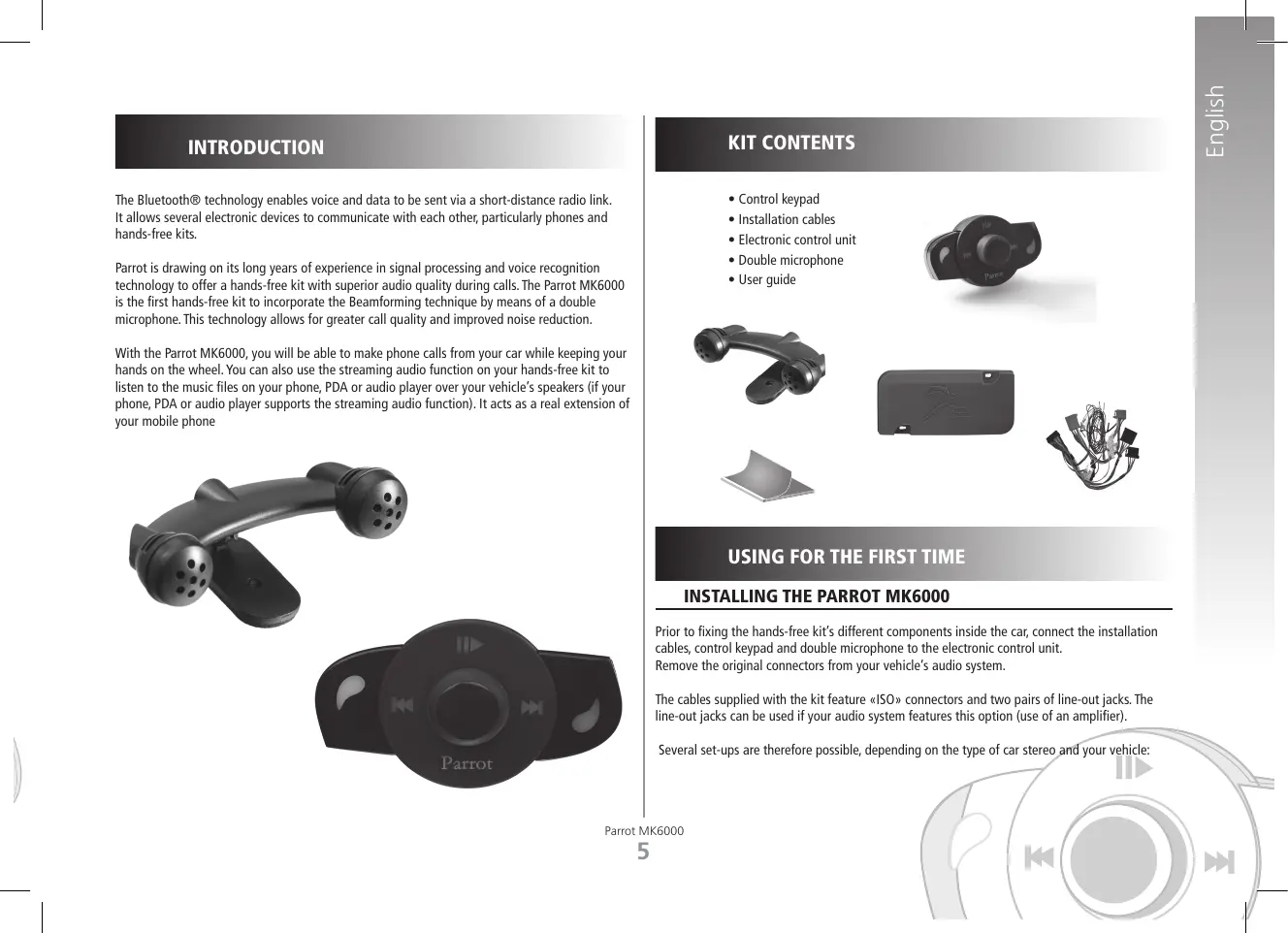
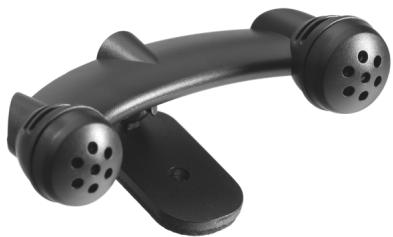
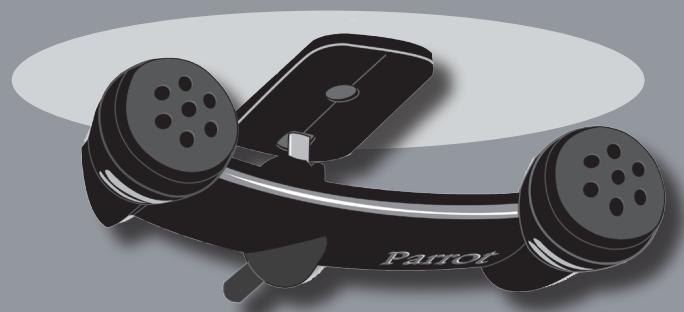
Parrot is drawing on its long years of experience in signal processing and voice recognition technology to offer a hands-free kit with superior audio quality during calls. The Parrot MK6000 is the first hands-free kit to incorporate the Beamforming technique by means of a double microphone. This technology allows for greater call quality and improved noise reduction.
With the Parrot MK6000, you will be able to make phone calls from your car while keeping your hands on the wheel. You can also use the streaming audio function on your hands-free kit to listen to the music files on your phone, PDA or audio player over your vehicle's speakers (if your phone, PDA or audio player supports the streaming audio function). It acts as a real extension of your mobile phone

KIT CONTENTS
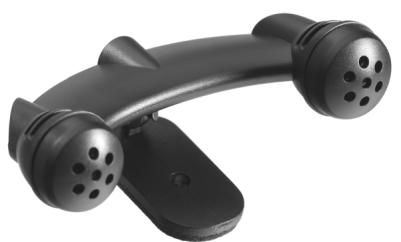
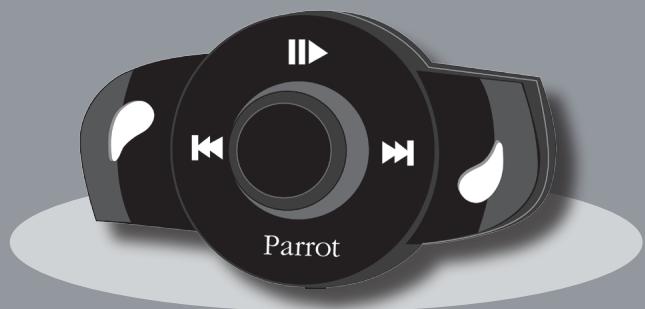
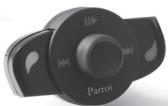
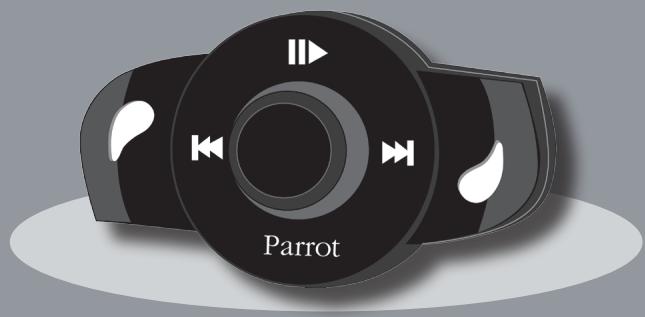
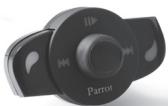
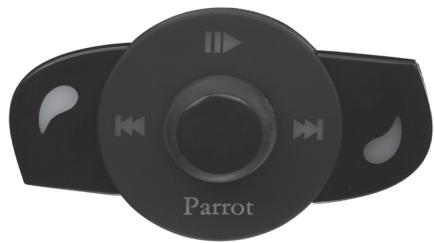
Control keypad
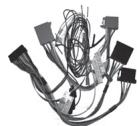
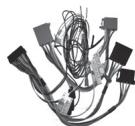
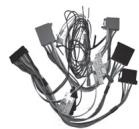
- Installation cables
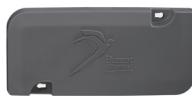
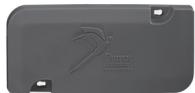
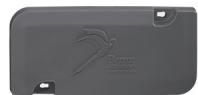
Electronic control unit
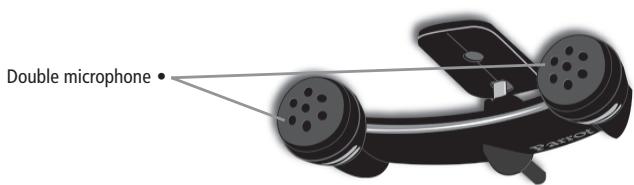
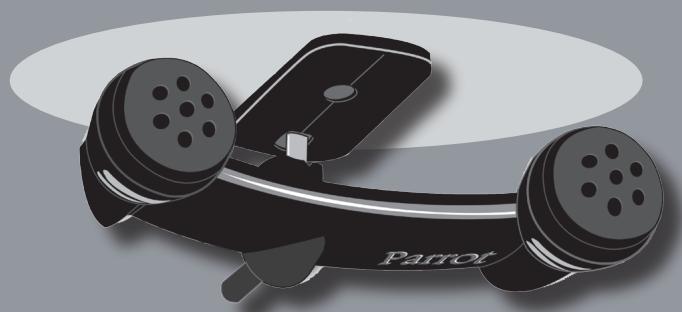
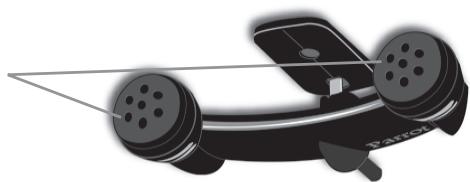
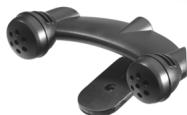
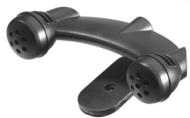
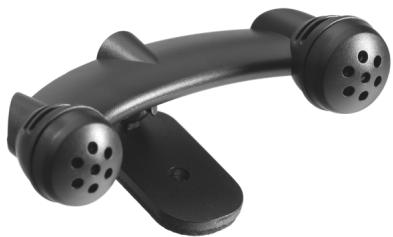
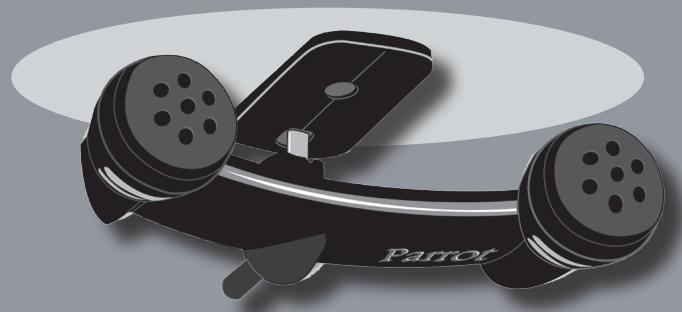
- Double microphone
- User guide

USING FOR THE FIRST TIME
INSTALLING THE PARROT MK6000
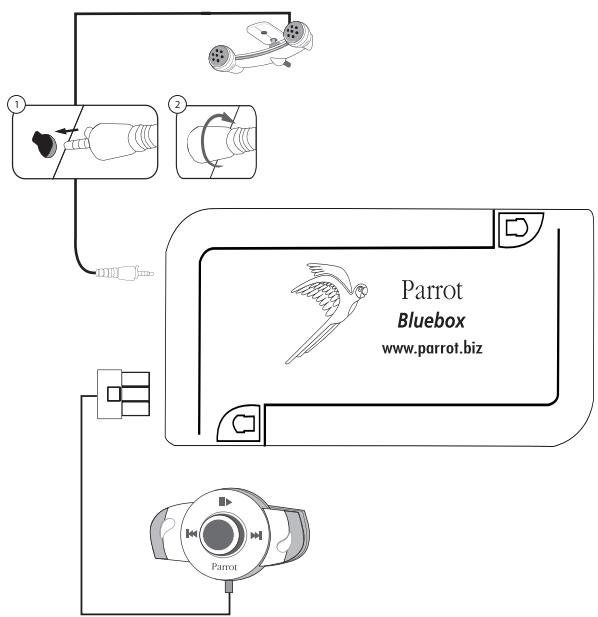
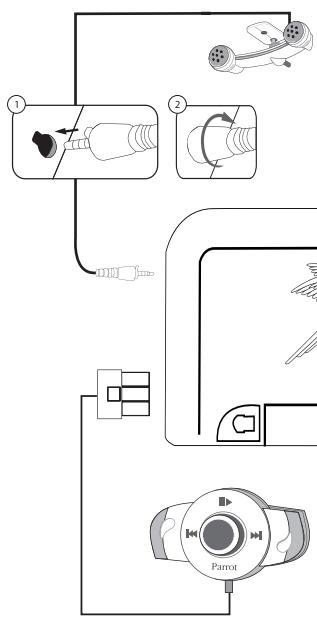
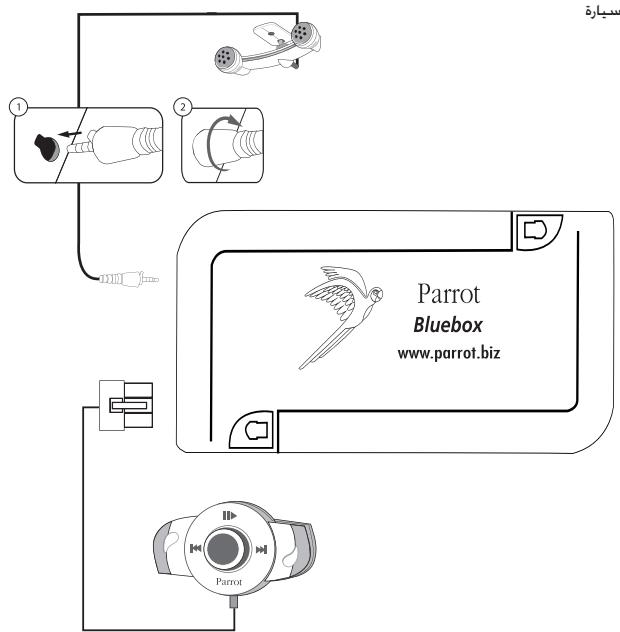
Prior to fixing the hands-free kit's different components inside the car, connect the installation cables, control keypad and double microphone to the electronic control unit. Remove the original connectors from your vehicle's audio system.
The cables supplied with the kit feature «ISO» connectors and two pairs of line-out jacks. The line-out jacks can be used if your audio system features this option (use of an amplifier).
Several set-ups are therefore possible, depending on the type of car stereo and your vehicle:
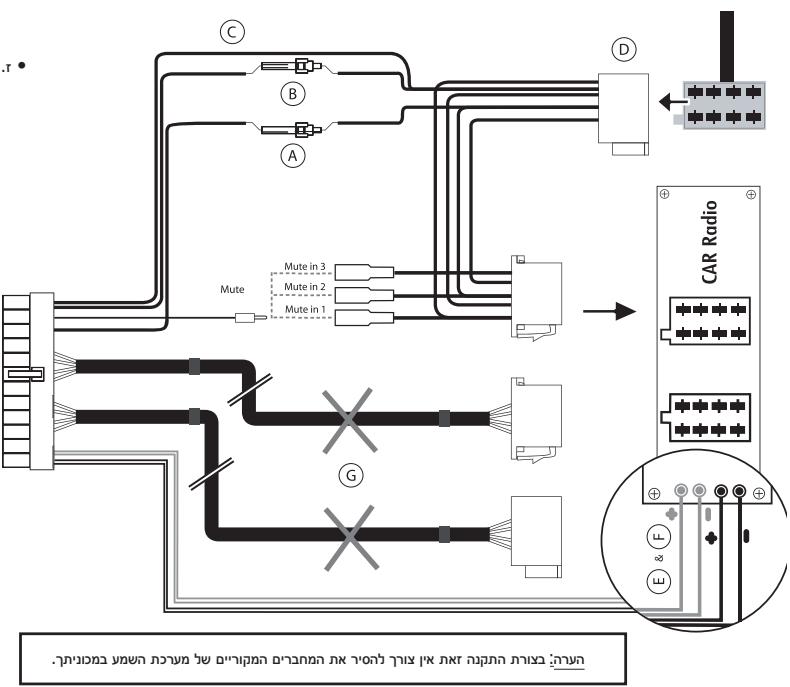
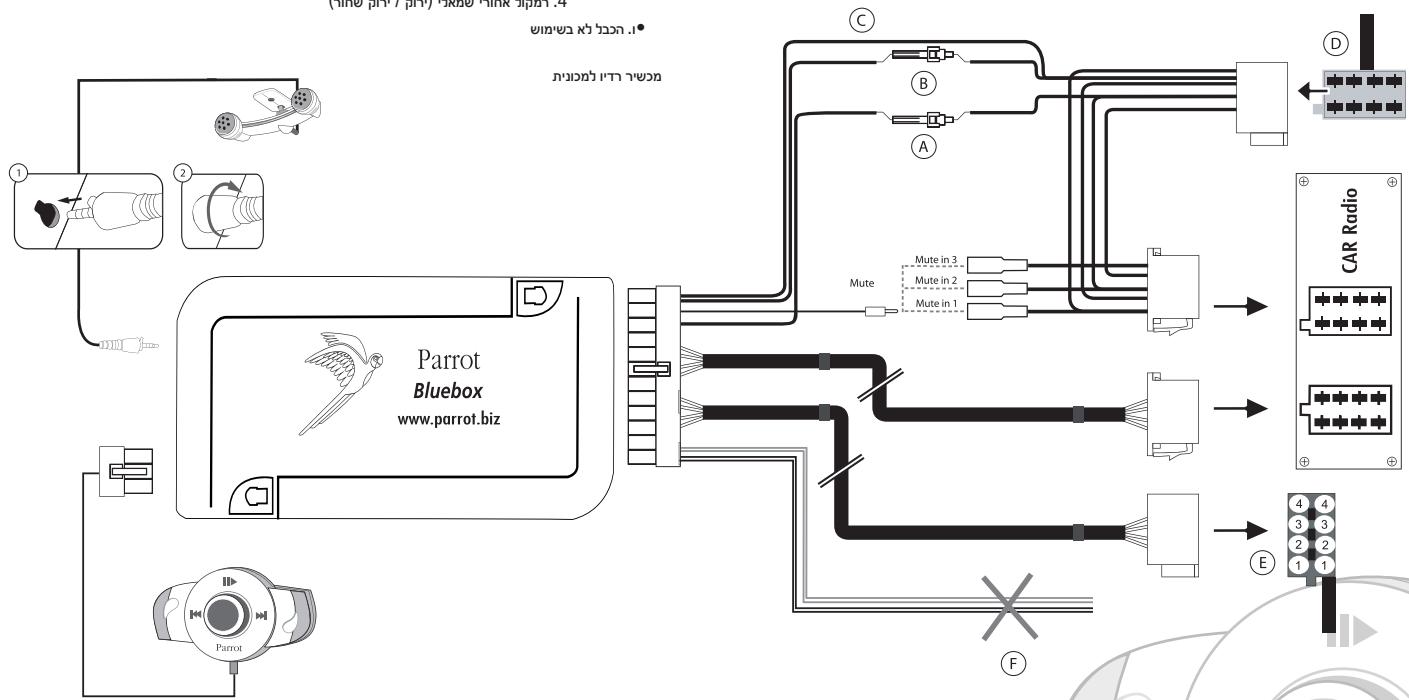
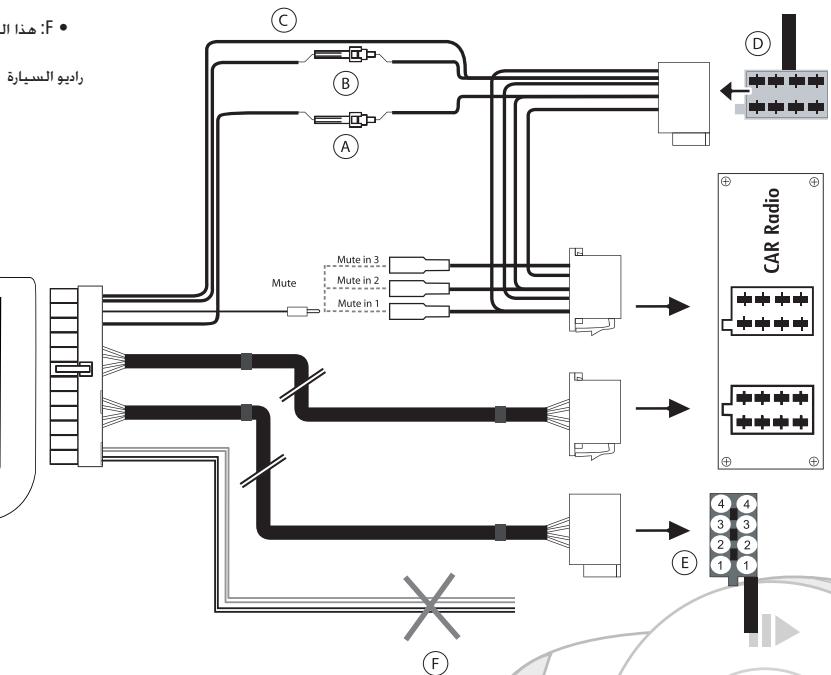
Car stereo with an «ISO» connector (refer to the following diagram):
- Connect the male connectors of the hands-free kit to the car stereo.
- Join the vehicle's audio and power supply cables to the female connectors of the Parrot MK6000.
- On the installation cable, connect the free yellow wire to one of the audio system's corresponding mute-in jacks if available (mute in 1, mute in 2 or mute in 3).
Note: the mute function is used to silence the sound from your car stereo to make way for a call. The choice of the mute-in jack depends on your car stereo's configuration.
A: Ignition 12V
B: Constant 12V supply
C:Ground
D: Connection to the vehicle's power supply
- E: Connection to the vehicle's speakers
1.Rear right speaker (purple / purple-black)
2.Front right speaker (grey / grey-black)
3.Front left speaker (white / white-black)
4.Rear left speaker (green / green-black)
F: This wiring is not used.

Parrot MK6000
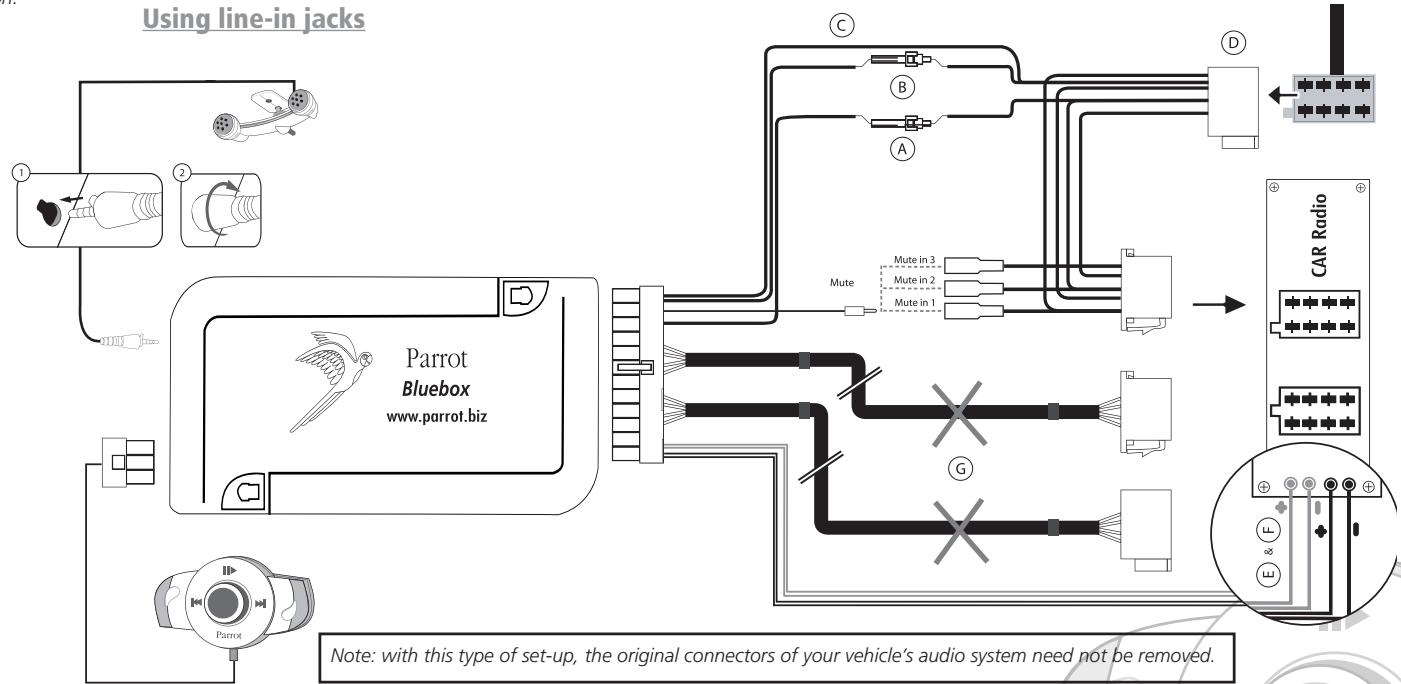
Car stereo with line-in jacks (refer to the following diagram):
- Use this type of connection by wiring a line-out jack (brown & white wire or red & black wire) to your car stereo's line-in jack.
- Using the two pairs of line-out jacks will enable you to take advantage of the streaming audio function in stereo over your vehicle's speakers.
- On the installation cable, connect the free yellow wire to one of the audio system's corresponding mute-in jacks if available (mute in 1, mute in 2 or mute in 3).
Note: the mute function is used to silence the sound from your car stereo to make way for a call. The choice of the mute-in jack depends on your car stereo's configuration.
A: Ignition 12V
B: Constant 12V supply
C:Ground
D: Connection to the vehicle's power supply
E: Line-out 1
1: Line 1+: white
2:Line 1-:brown
F: Line-out 2
1: Line 2+:red
2:Line 2- black
G: This wiring is not used.
Car stereo without «ISO» connectors:
- To simplify the wiring procedure, you will need to purchase an «ISO adapter» cable.
Refer to the range of ISO adapters on our website: www.parrot.biz
Installing the kit's power cable:
Refer to your car stereo's wiring diagram.
- The red wire of the kit's cable must correspond to the constant +12V supply, the orange wire to the ignition +12V and the black wire to earth.
- Check that the orange wire is not connected to the constant +12V supply, as you could run down the vehicle's battery, preventing your hands-free kit from operating correctly.
- On some vehicles, the red and orange power supply wires may need to be reversed. This can easily be done by reversing the two fuse holders on the Parrot MK6000 installation cable.
Note: on some vehicles, there is no ignition +12V on the vehicle's connectors. You must therefore connect the orange power supply wire to the fuse box or another ignition power source.
Checking the wiring:
- When switching off your vehicle's ignition, you should notice the following:
- The red and green LEDs should turn off
- The «Fast forward» and «Fast rewind» LEDs should light up for one second
-
The «Play» LED should light up for one second
-
When switching on the ignition, the opposite should happen.
Otherwise, the ignition +12V and the constant +12V supply have been reversed. In this case, reverse the two fuse holders on the kit's power supply lead.
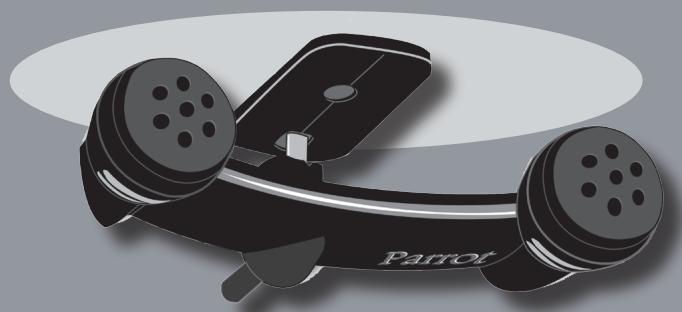
Choose the place for the keypad inside your vehicle. We would advise you to fit it in the centre of the dashboard or near you. The double microphone must be angled towards the driver and preferably fitted between the sun visor and the rear-view mirror.
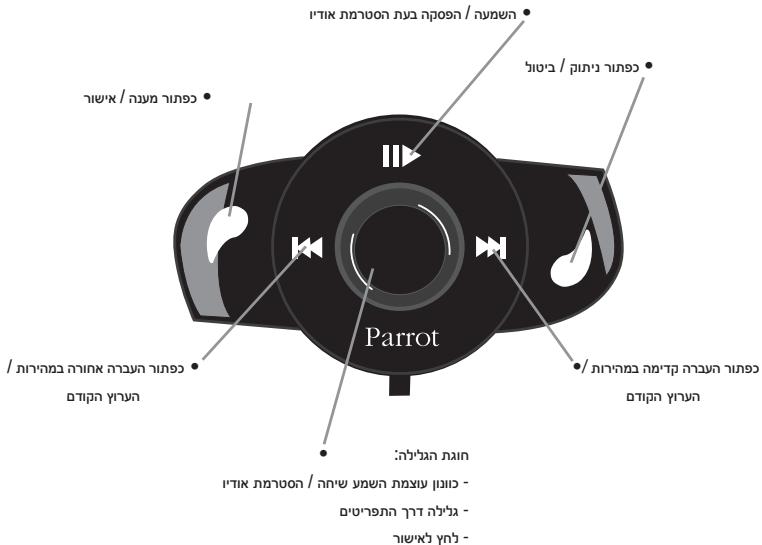
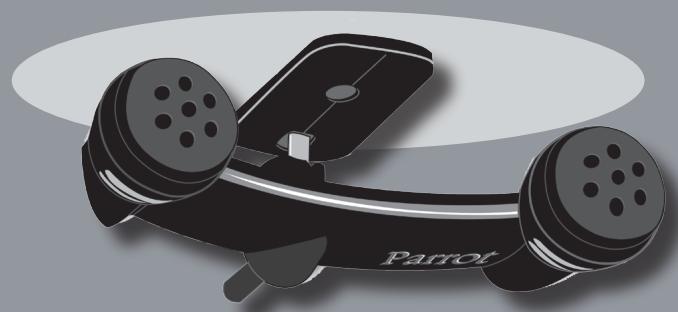
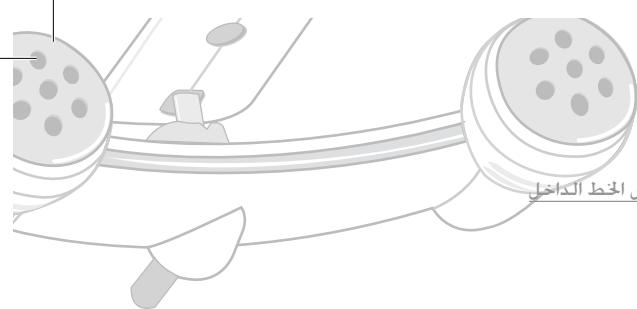
DESCRIPTION OF THE PARROT MK6000
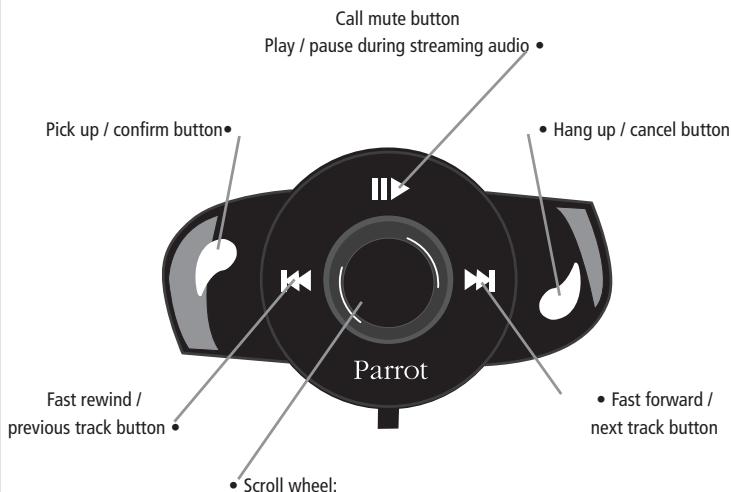
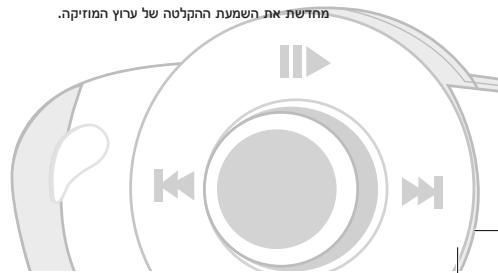
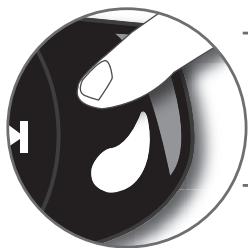
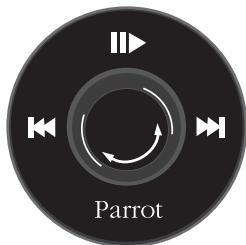
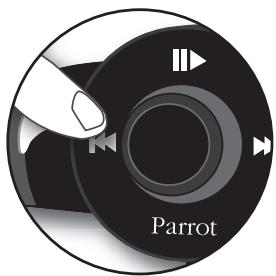
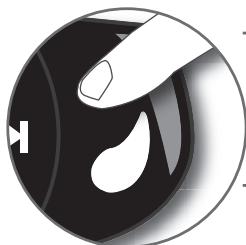
- Call / streaming audio volume adjustment
- Scrolling through the menus
- Press to confirm
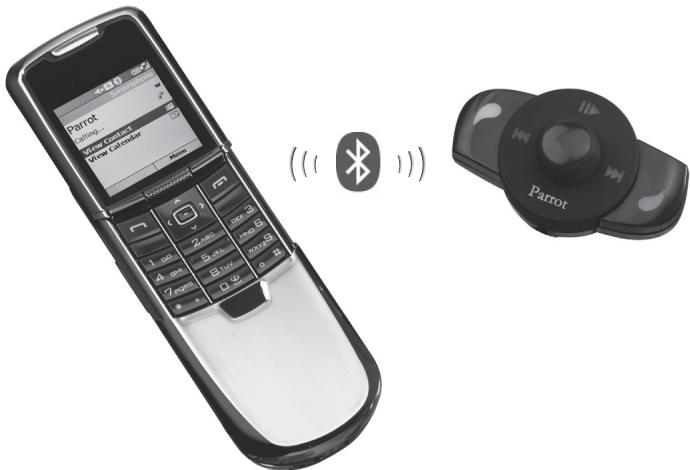
CONNECTING YOUR BLUETOOTH PHONE / PDA
Prior to using your Parrot MK6000 with your phone for the very first time, you must initially pair both devices.
PAIRING YOUR PHONE WITH THE PARROT MK6000
- From your Bluetooth phone, search for Bluetooth peripherals (consult your phone's user guide or refer to the «Support» heading on the www.parrot.biz website).
- Select «MK6000» in the list.
- Enter «0000» on your phone when prompted.
- The Parrot MK6000 says «pairing successful» when both devices are paired. The hands-free kit sounds a beep when connected.
FEATURES
TELEPHONY
VOICE MENU STRUCTURE
Scrolling through the menus:
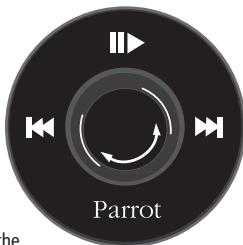
- Press the central scroll wheel to access the menus. The kit says the name of the current menu.
- Browse through the menus by turning the wheel and confirm with the green button or by pressing the scroll wheel.
- To exit the menu, press the red button or wait a few seconds.
Menu structure
- Phonebook: this menu enables you to access your contacts. You must first send your contacts via the «Add voiceprints» menu.
- Language: select the language.
Volume: adjust the volume of the voice menus. - Add voiceprints: once enabled, the Parrot MK6000 is ready to receive contacts (sent one by one - refer to the chapter entitled «Save contacts in the Parrot MK6000»). You must first assign a voiceprint to the contact sent.
- Magic words activated / deactivated: activate / deactivate the magic words for making calls via the voice recognition feature. The magic words («phone» and «hang up») must be recorded, so that they can be enabled. If necessary, recording will start automatically.
- Record keywords: to use the voice recognition feature and all its possibilities, record the keywords «general», «mobile», «work», «home» and «other», as well as the magic words «phone» and «hang up».
- Software update by Bluetooth: enable this option before updating via Bluetooth
(www.parrot.biz, Download section). Doing so will increase the number of devices compatible with your hands-free kit.
DESCRIPTION AND USE OF THE FEATURES
Making a call manually from the phone
- Dial the number using the phone's keypad and start the call.
- The call automatically changes to hands-free mode. Otherwise, press the green button on the Parrot MK6000.
Making a call from the hands-free kit's phonebook
- Click on the central scroll wheel and turn it until the kit says «Phonebook», and then confirm.
- Turn the scroll wheel to change to the next letter. Press the scroll wheel or the green button to consult the contact names beginning with that letter.
- Press the scroll wheel or the green button on the kit to select a contact.
- By turning the scroll wheel, the kit says the different types of phone number available for that contact: «general», «mobile», «work», «home» and «other».
- Press the scroll wheel or the green button on the kit to start the call.
The call is transmitted to the vehicle's speakers. - Important: you must first associate voiceprints with your contacts (refer to the chapter entitled «Voice recognition»).
Making a call via the voice recognition feature
- Press the green button on the Parrot MK6000.
- Say the name of the person that you wish to call after the «beep».
- IMPORTANT: you must have first recorded the voice prints on your phone or the kit (refer to the chapter entitled «Voice recognition»).
- When using the kit's voice recognition feature, say «home», «work», «mobile», «general» or «other» after the second beep.
Receiving a call
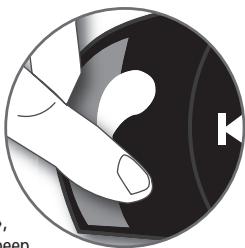
- An incoming call is indicated by a ringtone and the LEDs flashing quickly on the Parrot MK6000. If the caller's name has been recorded, it will be played through the vehicle's speakers.
- Press the green button on the device to answer the call. The car stereo will automatically be muted and the call reproduced through the vehicle's front speakers.
Ending a call
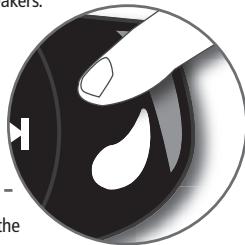
- To end a call, press the red button on the Parrot MK6000. The car stereo will automatically come back on.
Redial function
- Hold down the green key on the kit for two seconds to radial the last number dialled.
Adjusting the volume
- During the call, turn the scroll wheel on the PARROT MK6000. The volume setting is saved for subsequent calls.
Changing to discreet mode
- During a call, if you want to continue the conversation on your phone (private conversation), press the green button on the Parrot MK6000. The call is transferred to the phone.
- If you want to switch back to the kit, press the green button again.
Microphone mute
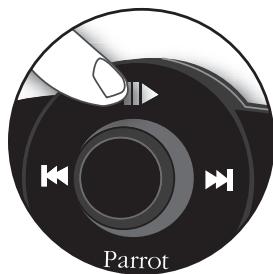
- During a call, if you do not want the person on the other end of the line to hear you, quickly press the «Play» button on the Parrot MK6000. Press the button again to cancel the mute.
Sending DTMFs
- During a call, you can send DTMFs (Dual-Tone Multi-Frequency) for touch-tone dialling. This feature can be used for managing your voicemail, for example.
- Press the scroll wheel - the kit says «0».
- Turn the wheel to scroll through the numbers.
- Press the scroll wheel to send the selected number to the phone.
- Repeat this sequence for sending other DTMFs.
Clearing the memory
- You can pair up to five devices.
- If you attempt to pair a sixth device, the kit says «memory full».
- To pair a new phone, you must clear the memory by holding down both the green and red buttons for three seconds.
CAUTION: doing so also clears all the contacts and the associated voiceprints.
Note: the use of certain features (voice recognition, radial, discreet mode) depends exclusively on your phone. Refer to the Support heading on our website at www.parrot.biz for further information.
VOICE RECOGNITION
Recording keywords and magic words
To offer you as many features as possible, the Parrot MK6000 lets you record keywords: «general», «mobile», «work», «home», «other», as well as magic words: «phone» and «hang up».
The magic word «phone» lets you accept an incoming call, as well as start the voice recognition feature. The magic word «hang up» lets you terminate a call.
In the event of a contact with several phone numbers, the keywords allow you to choose the number to call.
- Click on the central scroll wheel and turn it until the kit says «Record keywords», and then confirm.
- The kit says «Record all keywords».
-
If one or more keywords are already recorded, the kit selects the first keyword that has not yet been recorded.
-
Press the central scroll wheel or the green button to start recording. Follow the prompts given by the kit. You will need to record each keyword twice for greater recognition.
- When a keyword is correctly recorded, the kit automatically goes to the next. Otherwise, it prompts you to record it again.
- As soon as all keywords are correctly recorded, the kit enables them automatically.
- You can exit the menu at any time by pressing the red button and then go back to record or modify the keywords whenever required.
- If you do not wish to record all the keywords, turn the scroll wheel to select the required word.
Saving contacts in the Parrot MK6000
To use the voice recognition feature of the Parrot MK6000, you must send the contacts by Bluetooth from your phone to the kit. Proceed as follows:
- Return to the «Add voiceprints» menu.
- Press the scroll wheel or the green button: the Parrot MK6000 and the phone disconnect the kit is now ready to receive contacts.
- On your phone, select the contacts and send them by Bluetooth (refer to your phone's user guide or our website).
- Select «MK6000» from the list (enter 0000 as the PIN code if prompted by your phone).
- Once received, the kit asks you to record the name corresponding to the contact. The voice print is assigned to the contact.
Note: the use of certain features (voice recognition, send contacts by Bluetooth) depends exclusively on your phone (support of the Hands-free or Headset profile). Refer to the Support heading on our website at www.parrot.biz for further information.
STREAMING AUDIO
The streaming audio feature lets you play the music tracks recorded on your Bluetooth audio player over the vehicle's speakers. This feature depends on your audio player. Some phones also incorporate this feature. For further information, refer to our website: www.parrot.biz
Prior to using the Parrot MK6000 with your audio player, you will need to pair both devices.
Note: if you are using your phone for the hands-free and streaming audio functions at the same time, the following phase is not required. Your phone is already recognised by the kit.
Pairing your Bluetooth audio player
- From your Bluetooth audio player, search for Bluetooth peripherals (consult your audio player's user guide or refer to the «Support» heading on the www.parrot.biz website).
- Select «MK6000».
- Enter «0000» on your audio player when prompted.
- The Parrot MK6000 says «pairing successful» when both devices are paired. The device sounds a beep when connected.
- The LED of the blue «Play / Pause» button lights up when the connection between the hands-free kit and the audio player is active.
Note: since some audio players do not have an interface for entering the pairing code, simply enable the pairing mode on your audio player (refer to your device's user guide) and switch on your Parrot MK6000.
Description and use of the features
Playing music files:
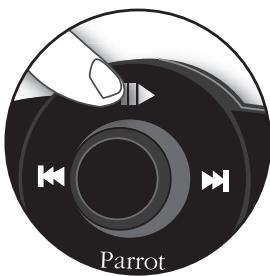
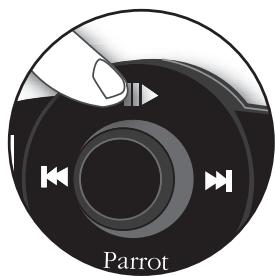
- If a connection for streaming audio is active, press the «Play / Pause» button to start playing the music files stored in your phone's / player's memory.
Pausing during playback:
- When playing music files, quickly press the «Play / Pause» button to momentarily stop playback. While paused, your car stereo is still muted and the «Play» LED flashes.
- Quickly pressing the «Play / Pause» button resumes playback of the music track.
Stopping playback:
- Hold down the «Play / Pause» button to stop playback. The car stereo is once again played through the vehicle's speakers.
Adjusting the volume:
- When playing a music file, the scroll wheel on the hands-free kit can be used to adjust the volume. You can also adjust the volume via the phone (refer to your phone's user guide).
- The volume for calls and the volume for the streaming audio function work separately.
Selecting music files:
- When playing a music file, you can change to the next or previous track by quickly pressing the «Next» and «Previous» buttons respectively.
Note: if your audio player supports this feature, the front/rear LEDs on your hands-free kit light up.
Fast forwarding / fast rewinding the current track:
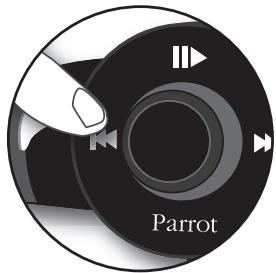
- During playback, you can fast forward or rewind by holding down the «Next» and «Previous» buttons respectively.
Note: if your audio player supports this feature, the front/rear LEDs on your hands-free kit light up.
Note: the use of certain features (selecting music files, fast forward / fast rewind, volume adjustment from the phone) depends exclusively on your phone. Refer to the Support heading on our website at www.parrot.biz for further information.
When using the streaming audio function on your hands-free kit, you can still access the different menus: Phonebook, add voiceprints, and so on. Simply press and then turn the scroll wheel on the Parrot MK6000. The streaming audio feature pauses when browsing through the menus.
The phone functions of your Parrot MK6000 remain active while streaming audio is being used (except for use of the magic word «phone»). When using the Parrot MK6000 in phone mode, the streaming audio feature is suspended.
UPDATING
You can update the software version of your Parrot MK6000 by Bluetooth.
Simply enable this mode before updating.
The update is performed by Bluetooth from a computer equipped with Bluetooth.
Updating provides access to new features and improves compatibility with an even wider range of phones.
For further information, visit our website to download the latest software version: www.parrot.biz
HOTLINE
Our hotline is at your disposal to provide you with any assistance required. You can contact the hotline by email or telephone. Open from Monday to Friday between 9 am and 6 pm (GMT+1).
- Europe: +33 (0) 148036069
Italy: +39 2 86 39 14 63
Spain: +34 902 404 202
UK: +44 (0) 870 112 5872
Germany: +49 900 172 77 68
USA: +1 (877) 9 PARROT (toll-free)
China: +862 164 601 944
Visit our website at www.parrot.biz to download the latest software version.
SPECIFICATIONS
BLUETOOTH
- Bluetooth 1.2 qualified
Hands-free profile 1.0 and 1.5 -
Headset profile 1.1
-
Object Push Profile 1.1
- Advanced Audio Distribution Profile 1.0
Audio/Video Remote Control Profile 1.0 - Bluetooth PIN code «0000»
Maximum range: around 10m - Pairing of up to five phones
- 150 contacts per phone
150 voiceprints per phone
MECHANICS
- Dimensions: 65 × 28 × 138 mm
Weight: 130 g
CONNECTIONS
ISO connector
- ISO adapter available at: www.parrot.biz
SIGNAL PROCESSING
- Beamforming and noise reduction
- Echo cancellation
Built-in voice recognition
COMPLIANCE
FCC
E2
- Bluetooth
CE
- Environment qualified
NOTES
Parrot MK6000
Parrot MK6000
François
SOMMAIRE
INTRODUCTION p 17
CONTENU DE L'EMBALLAGE 17
PREMIÈRE UTILISATION p 17
Installation du Parrot MK6000 p 17
Description du Parrot MK6000 p 20
Connector son telephone / PDA Bluetooth . p 21
FONCTIONNALITÉS p 21
Téléphonie 21
OTKJIIOUeHHe MmKpOcPOHa
- EcnB O Bpem CBAHn Bbl He XOTHe, YTObbl BAu COBeceHnk CJIbIaN Bac, 6bictpo Haxmnte Ha KHONky «BOcnpom3BedeHne» KOMnneKta Parrot MK6000. NObTopnte DeiCTBne Dn' NOBtOpHoro BKIOUHeHn MHkpofoHa.
OTnpaBkA TOHObIX CnHAnOB
- Bo vBpMa p3a0rObopa Bbl MoKETe OTnnpaIbIb ToHObIbe CnHAnIb IHa6opa (DByXTOHaIbNbM HMOrOHaCToTHbI hA6Op). 3To nO3BoIraTe Y npabIaTb, HaprIMep, Bauee rOLOCOOBIO TOToI.
- Haxmnte Ha noBopothoe KonecikO - yctpoiCTBO ppon3heCet «0».
-Поворачьай КОпесико Дя Измени zuфр. - Haxmte Ha KOncIO dIa OTnpaBkN bIbpaHoro Homepa Ha TepeOH.
- Повторе 3у полесоватьность дя OTправки другinx TOHOBbIX CINHAIOB habopa.
YdaJIeHHe n3 namrTn
- BblMOKeTe CBy3bBAbTdo 5 yctpoCTB.
- Ecni Bbl nonbtaeTcB bblonHnTB Cb3aBHHe IeCToro TeIeΦoHa, yCTPOiCTBO npoI3HecET «IamrTa 3aIOnHeHa».
-Дя CBZbIbHnA HOBOTo TEnefoHa Bbl DoJIckHbI OCHNTbN PAmTb yCTpoCTBa, OndOBpeMeHNO DePka HaxaTbIMN 3eNeHyU n KpaCHyO KHONky B TceEHMe 3 CEkyHd. BHNMaHme: 3TO TaKe pnpBOJNT K ydaJIeHNo BCex COOTBETCTByUoXnK KOHTAKTOB I rONOCobix MToK.
П汞мецону: Исторбуне Н ekomonьх уз указаньх Функш (eолесови habop, поемор, досчрим bөхum) зацum уckнюшп ом eалeeо meneфог. Дяг nolyeону дононшьнoi uнфорmaquu obpamumecь на hau web-calm www.parrot.biz e paэден Support (Плodeржka).
TOLOCOBOHABOP
3aperncptpyTe KIOUeBbI e Mmuaeeckne cNoBa
MaruYeCKoe CNoBTO TeneoHn PO3BOJnEaT BAM OTBeaHT Ha BXOJaIIN Bb3OB, a TaKKe BkIOUaTb FyHKUIO rOLOCOBO rHabOpA. MaruYeCKoe CNoBTO Paa3bEduHNbT bNO3BOJET BAM pa3bEduNHITbBb3OB.
B Tom cIyuae, ecn KOHTaKT IMeET HeckoIbKO HomepOB TepehoOB, KIOUeBbIe CNoBa IO3BOJIaHOT BbIbpaTb HOMepa TepeOHa dIra Ha6opa.
- Κεηκηνιθης ἀνταπραλβόνινος Μολεκης Μινοβερητε εγο τακ, ζτόβας κόμιπηκτη προύπες (3aπίκες κλίουενεβχς συβ), 3aτε Ποῦτερπινε Βυδόρ.
- YctpoCTBO npoun3Hecet «3anncatb BCE kIIOueBbIe cnoBa».
B cnyuae ecnno nIO Heckonbko KIOUeBbIX cNOB yKe 6bln 3aIncabbl, yctpoiCTBO ycTaHOBNTcH a nepBoe He3aIncahHOe KIOUeBOe CNOBO.
Длн haHаla 3aIcNHaKMMte Ha CEHTpaJIbHoE KONEcIKO INI aEneHyU KHOIny. CNeIyTe INHCTpyKzIaM, COoJIaembIM yCtpoIcTBOM. Bam nOtpeByetc4 3aIncBaT KaJdoe KIOUeBoe CNoBO DBA paa DnI pyuWero paCOn3HabAHn. - Korda Кюнчебо снов Будет павильно Занисану, усточь ВавOTAMUЧЕСКИпейен К сдушему.В потуНбом слуаe, усточьNONPONPOCSN BAC ZANICATь erO NOBTOPHO.
B Cnyuae npabnIbno 3aIncn BCex KIOUeBbIX cNOB yCTPOIcTBO aBTOMATNueCKn AKTNBIPyET INX.
BbMOKeTe BIO6O MoMeHT BbITn 3MHeH, HxKAB DnT ha KpaCHyO KHOKIy, N BepHYbc Tn 3aIINC INN 3MeHEHn KJIIOueBbX CNoB B IIO6oe yD06Hoe DnA BAC bPem. - ECNI BbI He XOTNTe 3aINcBbIbTb BCE KJIIOUeBbIe CNoBa, NOBepHInTe KOJIecNko, TTObI NOnyUHTb DOCTyn K JKeNaEMOMO CNOBy.
PerncpaKoHTaKToB Parrot MK6000
ДлгИ NGЛьзOBAHЯ rONOCOВО NaHbopa KOMПнeKТа Parrot MK6000 Bbl DoJIxHbI OTnpaBnT bHa Hero KOHTaKtbl C MobINbHOrO TepefoHa uepe3 BluTeoth. BblONHnTe cNeDyUOUIne DeiCTBnI:
-BoiDInTe B MeHIO《IobabNTb rOIOCOBbIe METkN》
- Haxmte Ha konecno nnn Ha 3eneHyo knonky: Parrot MK6000 n Tepeon pa3beDnHraTc, u yctpoiCTBO Parrot MK6000 6ydet rotobok
PnEmy KOHTaKTOB.
- Ha CBOeM TeLEFOHe BbIepeNTe KOHTaKtBn OTnpaBbTe Nx Chepez Bluetooth (OBpaTmTEcB K INCTpykUIM BaWero TeLEFOHa NIm Ha NaHs caIT B INThepHete).
- Вьберпг в синcke «МК6000» (ВвебиTe 0000 дя PIN-кда, ecлteneфон започт erо).
- Посné полунець конту устороств попocитВACЗИСаль ИМА, COOTBETCTBYIOUIDEДHOMY KONTAТУ. 3Та толочоваяmetkaБудет пссвова STOMY KONTAKTY.
Ipumueaue: NcnoB3oaeuHue HeKOMOpbix u3 yka3AHbIX fynkui (eOonocoei Ha6op, ompraaKa KOHNMAKOE ue3 Bluetooth) aucuc umnembo on euaee o meepoha (noedepkna npofunu Handsfreet unu Headset). Ia noryuHene doonHmEnHo uHcpmauou oparmuncb ha hau web-caum www.parrot.biz e pa3en Support (Noedepkxa).
NOTOKOBOE 3BvAHNE
Функцяnotokoboro 3ByuHnI NO3BOLJREt Bam BOCPON3BODITb Uepe3 KOnOHKn BaWero ABTOMO6NlMy3bIKaNbHbe IPOM3BDEHnI, 3aINCAHNbIe Ha BaWEM aydnonnepe BluTooth. 3Ta yunKzI 3abcIT OT BaWero aydnonneepa. HeKOTOpBte TENEFOHJI Taikoe paNOnAROT StOy FUnKUe.IJa DOnoNHTenBHO INΦopMaunn obpaTntecb Na Hau web-caiT no aDyncy: www.parrot.biz
Ipeep nCnoIb3oBaHem Parrot MK6000 c BaIIM ayDnOpIeIepom Heo6xOIMO BbIIOHNITb CBA3blBaHne DByx yCTPOIcTB.
CBy3bBaHne BaWero ayDnOpJneepa c Parrot MK6000
PpimMeaHHe: EcnBbI NCNoIb3yeTe Baa TelefoH dIra FyHKUIN
rpoMKorOBopRJaE CBaN I NOTOKOBOro 3ByaHn OHObPeMeHHO, CneDyUouee
deiCTBnE MoKHO npOnycTntb. Baa TelefoH yKe paCno3HaH KOMPiKeTOM.
CzB3bBaHne BaWero ayDnONNeepa Bluetooth
- BынолнITE поисперашихустовBluetoothс BAшero aydINONJIeepa BluTooth (obpatntecb к ИНСТРУКПИ NO ekCПNYATAUПи BAшero aydINONJIeepa ИИ NBарTNTeB ha web-caIIT www.parrot.bizВ pa3den Support [ПоДержka]).
- BbIepeHTe «MK6000».
- Пизэнросте Кда Вьенит «0000» На вашем пелеге.
-Пи сеонн endy yctpoicTB,ycptpoicTBO Parrot MK6000 objBNT
«yCneuHoe CBra3bIbAHne».При coeINHeHH yCTpoIcTBO nOdaT 3BykoBoi CnIHaI.
KoDA coeDInHeHne MEXdy KOMPNEKTOM rPMKOROBPOAeCE CB3Nn BaUMn ayDNIOHNeepoB6yET AKNBHO, 3aROpNTcN HNDNKATOp CNHeN KONKN BocnpOnBaDEHeHne /Paya3#.
TIpumueHae: Hekomopbye ayduonnepebye He uMeiom umhepecea dne 6oDa KaOda cea3buaHua. B makOM cnyae aem docmamoo hokmuuupoeam pekum cera3buaHa ea uawem nneape (o6pammeBc u hcmpkyuu eaueo ycmpoLcme) u eknuhm bau Parrot MK6000.
Oncahne nIcnoIb3OBaHne cyHKcN
Bocpnon3BeDeHHe My3bIkaJIbHbIx paJIIOB:
- Ecπn coeμnHeHne dπa NOTOKOBOro 3ByuHaHna aKTNBHO, HaxMnte Ha
KhONkY《Bocnpou3BedeHne /Pay3a》Ipyn Hauana BOCpOu3BedeHnMy3bIkaJIbHbIXΦaIIIOB, 3aIINcaHHbIX B NaMPTN BaWero TeleEpoHa / nIeepa.
Pny3a npn Bocnpon3BedeHnn My3bIkaJIbHbIX
- Bo Bpem BoCnpo3BedeHnMy3bIaJIbHbIX
- phaIIOB KpaTkoBpeMeHHo NaXmITE Ha KHONKY
- «BocPOn3BedeHn / Pany3a» ДпВурЕнHO
- octaHOBKn BoCnpo3BedeHn My3bIaJIbHbIX
- phaIIOB. Bo Bpem 3ToI nay3bI baw abTomO6n
- otKlnOHeH nIHdNkATOp «BoCnpo3BedeHn» 6
KpaTkoBpeMeHHe NaJatne Ha KOnIky «Bocpnoun3BeHene / Playa» npuBedeT K npoDoljkeHIO BOCpnoun3BeHEnMy3bkaNbHorO paaiJa.
PpekpaueHne Bocpon3BeDeHnMy3bikalnbHbix paJIIOB:
TEXHNUECKNEXAPAKTEPNUCTNIK
BLUETOOTH
- Bluetooth 1.2
-Прфиь Handsfree1.0и1.5
-Празфигь Headset 1.1
-Празфигь Object Push 1.1 - Порозль Advanced Audio Distribution 1.0
-Прорфиль дисанционногу упраьлениyaудно/видаeo AVRCP
PIN-koD Bluetooth «0000» - MakcmaJIbHOe paCCTOJHHe: OKoJIO 10 M
CBy3bBaHHe Do 5 TeJefoHOB.
150 KOHTAKTOB Ha TeJefoH
150 roIocobbIX MeTOK Ha TeJeFOH
ФИЗЕCKNE XAPAKTEPNUCTIKN
Pa3Mepbl: 65 x 28 x 138 MM
Bec:130r
PA3bEmblIOdkIIOUeHnA
- Pa3bEM ISO
-Перекхони Кабел ISO достунен на саite: www.parrot.biz
OBPABOTKA CINHAGA
ΦopMnObaHne HnnpaBHeHHOro CnHa n UyMoIOnDaBHeHne
- YctpaHHeHne 3oΦpeKTe 3xa
- BCTpoHHbI rOLOcOBH Ha6Op
YTBEPKDEHNA
FCC
E2
- Bluetooth
EC
- CeptnuФkaCua 6e3oNaChOCTn Dn OkpyKaUoIe Cpebl
ПРИМЕЧАЙ
Parrot MK6000

Polski
ESCI
WSTEP p53
ZAWARTOSC OPAKOWANIA p 53
PIERWSZE UZYCIE p 53
yun k an yun nn nnnn nn, npin yip nyun nn
y by nnnn nn nnnn nn nnnn nn nnnn
.
n nn nnnnnnnnnnnnnnnnnnnnnnnnnnnnnnnnnnnnnnnnnnnnnnnnnnnnnnnnnnnnnnnnnnnnnnnnnnnnnnnnnnnnnnnnnnnnnnnnnnnnnnnnnnnnn
[111,111]
. www.parrot.biz
:Parrot MK6000 1
nnnnnnnnnnnnnnnnnnnnnnnnnnnnnnnnnnnnnnnnnnnnnnnnnnnnnnnnnnnnnnnnnnnnnnnnnnnnnnnnnnnnnnnnnnnnnnnnnnnnnnnnnnnnnnnnnnnnnnn
.
Bluetooth
"IN IN IIKN pa WOWENH YIYIYIY) Bluetooth 1000,Bluetooth 1000
www.parrot.biz (Support) «nnn nnn
.《MK6000》n
10nwnnnn nn 0000
Parrot MK6000
y 1
Tyn) TINN NNNN NNNN NNNN NNNN NNNN NNNN
.Parrot MK6000 won nn pnn (wipnn wwnn nn
JINUNI NIDNN
TIN xynn
onnnn nn nnnn nnnn nnnn nnnn nnnn nnnn nnnn nnnn nnnn nnnn
1
nynynnnnna 09a
npon/ynwnn 1nnnnnnnnnnnnnnnnnnnn
nwn, np09nn nn.n0nn nnynn nynn np09n
nannnnn 1
ninn nn nnn nn nn nn
n nn nnnnnnnnnnnnnnnnnnnnnnnnnnnnnnnnnnnnnnnnnnnnnnnnnnnnnnnnnnnnnnnnnnnnnnnnnnnnnnnnnnnnnnnnnnnnn
n n, n nn nn nn nn nn nn nn nn nn nn nn nn
n nn nnnn
.10010111111111111111111111
nnnnn nnnnn nn nnnnnnnnnnnnnnnnnnnnnnnnnnnnnnnnnnnnn
n nn nnnnnnnnnnnnnnnnnnnnnnnnnnnnnnnnnnnnnnnnnnnnnnnnnnnnnnnnnnnnnnnnnnnnnnnnnnnnnnnnnnnnnnnnnnnnnnnnn
Parrot MK6000 -
Parrot MK6000
:Bluetooth
.《n n n 1
Parrot MK6000
DTMF (Dual-Tone Multi Frequency)
.ynnnn nn nnnnnnnnnnn
.(0)ywnn-ynnnynn yyn
0000 1
.195n nn nnnnnnnnnnnnnnnnnnnnnnnnnnnnnnnnnnnnnnnnnnnnnnnnnnnnnnnnnnnnnnnnnnnnnnnnnnnnnnnnnnnnnnnnnnnnnnn
DTMFnBnBnBnBnBnBn
1
.0n nn ty ai [n]
.《NnIINr》ynn,yINnNON
.
n nn nnnn nnnnnnnnnnnnnnnnnnnnnnnnnnnnnnnnnnnnnnnnnnnnnnnnnnnnnnnnnnnnnnnnnnnnnnnnnnnnnnnnnnnnnnnnnnn
nnnnnnn nn nnnnnnnnnnnnnnnnnnnnnnnnnnnnnnnnnnnnnnnnnnnnnnnnnnnnnnnnnnnnnnnnnnnnnnnnnnnnnnnnnnnnnnnnnnnnnnnnnnnnnnnnnnn
. www.parrot.biz 1
中
Dop nnnn nn np
,《》:nnnn nno nny Parrot MK6000 wwn nn nn nn nn nn nn nn nn nn nn nn nn nn nn nn nn nn nn nn nn nn nn nn nn nn nn nn nn nn nn nn nn nn nn nn nn nn nn nn nn nn nn nn nn nn nn nn nn nn nn nn nn nn nn nn nn nn nn nn nn nn nn nn nn nn nn nn nn nn nn nn nn
《P1111111111111111111111111111111111111
nwnn nnnn nn nnnn nn nnnn nn nnnn nn nnnn nn nnnn nn nnnn nn nnnn nn nnnn nn nnnn nn nnnn nn nnnn nn nnnn nn nnnn nn nnnn nn nnnn nn nnnn nn nnnn nn nnnn nn nnnn nn nnnn nn nnnn nn nnnn nn nnnn nn nnnn nn nnnn
.
n nn nnnnnnnnnnnnnnnnnnnnnnnnnnnnnnnnnnnnnnnnnnnnnnnnnnnnnnnnnnnnnnnnnnnnnnnnnnnnnnnnnnnnnnnnnnnnnnnnnnnnnnnnnnnnn
.7nK,《nnn nnnn nnny 1nnnnnnnnnnnnnnnnnnnn
.
.
n nn nnnnnnnnnnnnnnnnnnnnnnnnnnnnnnnnnnnnnnnnnnnnnnnnnnnnnnn
nni
Parrot MK6000
n nn nnnnnnnnnnnnnnnnnnnnnnnnnnnnnnnnnnnnnnnnnnnnnnnnnnnnnnnnnnnnnnnnnnnnnnnnnnnnnnnnnnnnnnnnnnnnnnnnn
n nn nnnnnnnnnnnnnnnnnnnnnnnnnnnnnnnnnnnnnnnnnnnnnnnnnnnnnnnnnnnnnnnnnnnnnnnnnnnnnnnnnnnnnnnnnnnnn
n nn nnnnnnnnnnnnnnnnnnnnnnnnnnnnnnnnnnnnnnnnnnnnnnnnnnnnnnnnnnnnnnnnnnnnnnnnnnnnnnnnnnnnnnnnnnnnn
y
n nn nnnn nn nn nn nn nn nn nn nn
Parrot MK6000- n y, p
nDIO
Parrot MK6000
nynnnynnynn nnyn
TIN LIN
- Jnnn nn n nn nn nn nn nn nn nn nn nn nn nn nn nn
yunnnnni
Parrot MK6000
ninnnnnnnnnnnnnnnn
y
y(n)y
Parrot MK6000
.
1
.190nININ DITN 190n by n,nnnn
0n nn nwn npnn nnn nnn nnn nnn nnn nnn nnn nnn nnn nnn nnn nnn nnn nnn nnn nnn nnn nnn nnn nnn nnn nnn nnn nnn nnn nnn nnn
《nni nnn
.
.
Parrot MK6000,
. nwn w np w np np np np np . (Parrot MK6000- w np w np
nynnnnnnnnnnnnnnnnnnnnnnnnnnnnnnnnnnnnnnnnnnnnnnnnnnnnnnnnn
n nn nnn nnnn, n n n nn n nn n nn (n nn) n nn
n nn nnn nn nn nn nn nn nn nn nn nn nn nn nn nn nn nn nn nn nn nn nn nn nn nn nn nn nn nn nn nn nn nn nn nn nn nn nn nn nn nn nn nn nn nn nn nn nn nn nn nn nn nn nn nn nn nn nn nn nn nn nn nn nn nn nn nn nn nn nn nn nn nn nn nn nn nn nn nn nn nn nn nn nn nn nn nn nn nn nn nn nn nn nn nn nn nn nn nn nn nn nn
. www.parrot.biz (Support)
.
.1p nivwupnnwvW 0000]m
PARROT MK6000
nnnnn nn nn nn


1
nnu npnn nnn
《ISO》
.1SO
www.parrot.biz ISO
nwn nn nnnnnnnnn
.
.1nwn n +12V nnnn anan nn n, np+12V -nnn nn nn nn nn
-12Vnnn nn nnnn nnnn nnnn nnnn nnnn nnnn nnnn
nniin
n nnnnnnnnnnnnnnnnnnnnnnnnnnnnnnnnnnnnnnnnnnnnnnnnnnnnnnnnnnnnnnnnnnnnnnnnnnnnnnnnnnn
Parrot MK6000 w npnnn nn n
n nnnnnnnnnnnnnnnnnnnnnnnnnnnnnnnnnnnnnnnnnnnnnnnnnnnnnnnnnnnnnnnnnnnnnnnnnnnnnnnnnnnnnnnnnnnnnnn
nnn
nppnn np
:OANONNNN,NNNNNNNNNNNN
nnnnnnnnnnnnnnnnnnnnnnnnnnnnnnnnnnn
n" 《n nnnn nnyn》 n111n nnnnnnn
NNN Nnnn nnN 1
. 1nnn nn nnnnnnnnnnnnnnn
n nnnn nnnn nnnn nnnn nnnn nnnn nnnn nnnn nnnn nnnn nnnn nnnn nnnn nnnn nnnn nnnn nnnn nnnn nnnn nnnn nnnn nnnn nnnn nnnn nnnn nnnn nnnn nnnn nnnn nnnn nnnn nnnn nnnn nnn
nyn nn nnn npn y
n nn nnnnnnnnnnnnnnnnnnnnnnnnnnnnnnnnnnnnnnnnnnnnnnnnnnnnnnnnnnnnnnnnnnnnnnnnnnnnnnnnnnnnnnnnnnnnnnnnnnn
ninnnnnnnnnnnnnnn 0 nnnnnnnnnnnnnnnnnnnnnnnnnnnnnnnnnnnnn
12Vnnnnn.
12V.
nynn.
n nn nnn npn n.
Line-out 1
: +Line1.1
in: -Line 1.2
Line-out 2
DTR: + Line 2.1
Line 2-2
.
: (n) line-in
no (nniin nnnn nn nnnn) line-out
line-in
(mute in 3 in, mute in 1, mute in 2) n
Parrot MK6000
12Vnnnnn.
12V.2
n nn nnn npn n.
n nn n nn n n
(1)
(nWw/)
(nwn/)
(1nwn/1)nnn.4
wnn nn 1
nnnn
.
Parrot MK6000 1
mute-in nioo nnn nn nnnn nnnn
.(mut e in 3 mute in 1, mute in 2) nnp
n nnnn nn nnnnnnnnnnnnnnnnnnnnnnnnnnnnnnnnnnnnnnnnnnnnnnnnnnnnnnnnnnnnnnnnnnnnnnnnnnnnnnnnnnnnn
mute-in n no
nonynbn
mnpn
nnpnn
nnpnn n n
111
wnnnn nn

nwnny
PARROT MK6000 mppm
n nn nnnnnnnnnnnnnnnnnnnnnnnnnnnnnnnnnnnnnnnnnnnnnnnnnnnnnnnnnnnnnnnnnnnnnnnnnnnnnnnnnnnnnnnnnnnnnnnnn
nnpnnnnnn
yynnnn nn nn
nynn n line out nnnn nn nnnn nnnn nnnn nnnn nnnn nnnn nnnn nnnn nnnn nnnn nnnn nnnn nnnn nnnn nnnn nnnn nnnn nnnn nnnn nnnn nnnn nnnn nnnn nnnn nnnn nnnn nnnn nnnn nnnn nnnn nnnn nnnn nnnn nnnn nn
.
nattn
nennnnnnnnnnnnnnnnnnnnnnnnnnnnnnnnnnnnnnnnnnnnnnnnnnnnnnnnnnnnnnnnnnnnnnnnnnnnnnnnnnnnnnnnnnnnnnnnnnnnnnnnnnnnnnnnnnnnnnnn
n 1
n nn nnnn nn nnnnnnnnnnnnnnnnnnnnnnnnnnnnnnnnnnnnnnnnnnnnnnnnnnnnnnnnnnnnnnnnnnnnnnnnnnnnnnnnnnnnnnnnnnnnnnnnnnnnn
《NnK》"Parrot MK6000.
.0ynnn nn nnnnnnnnnnnnnnnnnnnnnnnnnnnnnnnnnnnnnnnnnnnnnnnnnnnnnnnnnnnnnnnnnnnnnnnnnnnnnnnnnnnnnnnnnnnnnnnnnnnnnnnnnnnnnnnnnnnnnnnnnnnnnnnnnnnnnnnnnnnnnnnnnnn
Parrot MK6000
y nnnn nn nnnn nn nnnn nn nnnn nn nnnn nn nnnn nn nnnn nn nnnn nn nnnn nn nnnn nn nnnn nn nnnn nn nnnn nn nnnn nn nnnn nn nnnn nn nnnn nn nnnn nn nnnn nn nnnn nn nnnn nn nnnn nn nnnn nn nnnn nn nnnn nn nnnn
IN IN Nn nn, nnnn nn nn nn nn nn nn nn nn nn nn nn nn nn nn nn nn nn nn nn nn nn nn nn nn nn nn nn nn nn nn nn nn nn nn nn nn nn nn nn nn nn nn nn nn nn nn nn nn nn nn nn nn nn nn nn nn nn nn nn nn nn nn nn nn nn nn nn nn nn nn nn
D

96
96
96
96 Parrot MK6000 np
93 Parrot MK6000
92 1
92
92
92
91
90
90 1
90 Parrot MK6000
90
89 Parrot MK6000
89
88 1
88 0nnipn
88
87
35
Parrot MK6000
Parrot MK6000

汉语
内容
介绍 p 101
工具包的内容 p 101
第一次使用 p 101
Environment qualified
如上
#
Bluetooth 1.2 qualified
Hands-free profile 1.0 and 1.5
Headset profile 1.1
Object Push Profile 1.1
Advanced Audio Distribution Profile 1.0
Audio/Video Remote Control Profile 1.0
0000 山 Bluetooth
10 Jol Go jlll 1
a1gao auaos jh
150
150
aaiil lalgl
65x28x138
130:J
#
ISO
www.parrot.biz:ISOJ
a|LdA|
JLLaag aag
swll
joo goo
gall Jgogagll Cklo Jj Lo Ll jn lnnnll paaanl 0g aannll aoa g g aal gaae aegbplnaiic
Parrot MK6000 aLcJg aLbUwUaI Lgag, gauuauauauauauauauau
aIgall yjiei wai Laiy iuyu oLkui uagai
plaswll Lc Lo) ogall saiyjao plsswll laa aab Parrot MK6000 1
Parrot MK6000
中
Bluetooth 3000 Parrot MK6000
J 10
. Bluetooth aasssssssssssssssssssssssssssssssssssssssssssssssssssssssssssssssssssss
aIgJgJgJgJgJgJgJgJgJgJgJgJgJgJgJgJgJgJgJgJgJgJgJgJgJgJgJgJgJgJgJgJgJgJgJgJgJgJgJgJgJgJgJgJgJgJgJgJgJgJg
www.parrot.biz:
JL
aIgI gI gI gI gI gI gI gI gI gI gI gI gI gI gI gI gI gI gI gI gI gI gI gI gI gI gI gI gI gI gI gI gI gI gI gI gI gI gI gI gI gI gI gI gI gI gI gI
. +1 juiuyu yuyi) 6 aclw gao lao 9 acwl uao aei31 pgiy jiyj21 pgiy o ciia
696003481(0)+33 :L29,
631439862+39:U
202 404 902 +34: L
5872 112 870 (0) +44 :a=11 a<101
6877172900+49:L
(jLJ)PARROT9(877)+1:ssu
944601164862+:
.ogell www.parrot.biz jiejlliei
:
Jusu Jiei jiu. Jiei iill 12y (Cagjia jui) jui Lsiogio hiesi jai
Ciygal sinnn
plaiwglgoaillaojgeoaggallalwllpiaiwLgawgwoaloJaeuiic
g2b c gall ggiin bia lclc .gialll ginnnnaa
(1)
gaiy jaiy gaiy gaiy gaiy gaiy gaiy
Jaeoo J5
:agagall cieh jil
j 1 jll jll jll jll jll jll jll jll jll jll jll jll jll
.Parrot MK6000
a11( S0) = S0
.Parrot MK6000 1234567890123456789012345678901234567890123456789012345678901234567890123456789012345678901234567890123456789
LcLogg1 12000000000000000000
b1 = 2 b2 = 3
21 103 103 103 103 103 103 103

CgA1Sgimaoh
Parrot MK 6000 a, j. allSll Jus
.
a#sJp#c J#
(aaswaa)laiaa aiaai alalgo wai jil. allSo JyL
Parrot MK 6000
150 1
gδg≤.11<
jLc acn bclal.10000000000000000000000000000000000000000000000
LsWsl slyj yJyJyJyJyJyJyJyJyJyJyJyJyJyJyJyJyJyJyJy
jgl jg 1000000000000000000000000000000000000000
.51 a. 《aaiJgai jaoi Jgai gai Jaojagai jai jai alnai jlc
jll Jlai 11111111111111111111111
Juaia 1 aagjuaa2 aojglc jaaal g alaoel Iaai
《Pc》《LLJALgA g a aalilgglp jglalisoaojdl Jgaiw alqaijblabwg
.(g).(J).(J)
a1111 1
.ajJlclLo Jll allS11 joo
(《gjll jgl) jll Jaiil gj) clJl Jaiil alg aig aiaa slui yj lcl: plo
Ggall lgl e joeil oohwgl all So
.Parrot MK6000
Jus Jus Jus Jus Jus Jus Jus Jus Jus Jus
yllaiIg yalalIg sLw wsc lcll jnlln.
15c 20g>all g>all lolo> 5c g> b c alg> 11i j
Parrot MK6000
JgjLwJgclcJ.ajlllIygl +12VJleJgJgJgJgJgJgJgJgJgJg
Jl Jllb jg jlljll
:
:LiLo bLi LiS,LiLJie! sleb! Si
j 1g j 21 j 21 j 21 j 21 j 21 j 21
g(pL)g(pL)
aagaii j
seill 1j Jie xJi jic
a 12V aIJI bIg j+12V JIeJ IeJ
a0j1g ailll aegj no aolal agll gagall lolz
a 1
.
1
12 JL:A
12gj:B
81:C
jLJg j:D
-
-
-
-
- E
-
-
-
1+11:1
1341:2
- 1,2,3 ÷ 1.57 .
2a_1 + b = 3
231:2
pssssssssssssssssssssssssssssssssssssssssssssssssssssssssssssssssssssssssssssssssssss
: (jlll jwwj g) Jld Jdo Jao Lao oJoo
llllg jjyjjg lllll) 131 h11 111 111 111 111 111 111 111
Lg
LJwclawgjzjno gai jydi jy no doaiydl Jc yjdtl jn no jyjg piai
L 1.000000000000000000000000000000000000000
a1 = 2,a2 = - 4
ISO
12J:A
12g:B
81:C
jLJWJg aallll jw:D
jLwJlclLaJy:E·
(gjgljj/1gj)
(g-5Lo/5Lo)gai1aLo81acLo01.2
()/
(2gwi-jas1/jas1)
p#i#o#j# j#j#ll i#:F
. .Parrot MK6000 1 1 1 1 1 1 1 1 1 1 1 1 1 1 1 1 1 1 1 1 1 1 1 1 1 1 1 1 1 1 1
(3) | 1| S | = 1| = 2| S | · 11| S_ | ) = 100
aies. all So plo! Jlcl 1 LwL WwL wWw wWw wWw wWw wWw wWw wWw
J 1
aljdl alugiss
SsJILSL
a#g:51 053 a#g
Gg20 g3g5
pssuill J

yjgpln
PARROT MK6000
aill lalao aol 1 1 1 1 1 1 1 1 1 1 1 1 1 1 1 1 1 1 1 1 1 1 1 1
.1gS110sS110sS2gS110gSgS
.1jLJySgOgOgOgOgOgOgOgOgOg
IaI IaI aiai Iaie Iaiaiaiaiaiaiaiaiaiaiaiaiaiaiaiaiaiaiaiaiaiaiaiaiaiaiaiaiaiaiaiaiaiaiaiaiaiaiaiaiaiaiaiaiaiaiaiaiaiaiaiaiaiaiaiaiaiaiaiaiaiaiaiaiaiaiaiaiaiaiaiaiaiaiaiaia
:cljLwogjLwJ
#
aagssllgssssssssssssssssssssssssssssssssssssssssssssssssssssssssssssssssssssssssssssssssssssssssssssssssssssssssssssssss
Jn Jn nn nnnnnnnnnnnnnnnnnnnnnnnnnnnnnnnnnnnnnnnnnnnnnnnnnnnnnnnnnnnnnnnnnnnnnnnnnnnnnnnnnnnnnnnnnnnnnnnnnnnnnnnnnnnnnnnnnnnnnnnnnnnnnnn
plaaaii jaoaagjllg aall gaiuai Lgaiu Parrot Jai
Parrot MK6000.
aannnnnnae nnne nnnnne aen ne eae
Lsc. aJssll saslae alc y laaay aaiy aalil 1sll jI sI J,Parrot MK6000
g yIe IyIeIyU. yIyIyIyIyU yIyIyIyU yIyIyIyU yIyIyIyU yIyIyIyU yIyIyIyU yIyIyIyU yIyIyIyU yIyIyIyU yIyIyIyU yIyIyIyU yIyIyIyU yIyIyIyU yIyI
Jgai jaiol Jaoi Lgi. (gai gai aiaagacai jguall
132
132
132 0
132 Parrot MK6000
129 Parrot MK6000
128 PDA jg/Bluetooth
128
128 2
128 1
127
126
126
126 Parrot MK6000
126
125 :Parrot MK 6000 g
125
124
124
124
123
135 2ole Logle
Parrot MK6000

SAFETY INFORMATION
FCC Compliance Statement
This device complies with part 15 of the FCC rules. Operation is subject to the following two conditions:
(1). this device may not cause harmful interference, and
(2). this device must accept any interference received, including interference that may cause undesired operation.
Note: The manufacturer is not responsible for any radio or tv interference caused by unauthorized modifications to this equipment. Such modifications could void the user's authority to operate the equipment.
Declaration of Conformity
CE
We, Parrot S.A. of 174 quai de Jemmapes, 75010 Paris, France, declare under our sole responsibility that our product, the Parrot MK6000 to which this declaration relates is in conformity with appropriate standards EN300328, EN301489-1, EN60950 following
the provision of Radio Equipment and Telecommunication Equipment directive (1999/5/EC R&TTE), and requirements covering EMC directive 89/336/EEC and Low Voltage directive 73/23/EEC.
Bluetooth
The Bluetooth® word mark and logos are owned by the Bluetooth® SIG, Inc. and any use of such marks by Parrot S.A. is under license. Other trademarks and trade names are those of their respective owners.
Correct Disposal of This Product (Waste Electrical & Electronic Equipment)
(Applicable in the European Union and other European countries with separate collection systems). This marking shown on the product or its literature, indicates that it should not be disposed with other household wastes at the end of its working life. To prevent possible harm to the environment or human health from uncontrolled waste disposal, please separate this from other types of wastes and recycle it responsibly to promote the sustainable reuse of material resources. Household users should contact either the retailer where they purchased this product, or their local government office, for details of where and how they can take this item for environ, mentally safe recycling. Business users should contract their supplier and the terms and conditions of the purchase contract. This product should not be mixed with other commercial wastes for disposal.
GENERAL INFORMATION
Copyrights
Copyright © 2004 Parrot. All rights reserved. The total or even partial reproduction, transmission or storage of this guide in any form or by any process whatsoever (electronic, mechanical, photocopy, recording or otherwise) is strictly prohibited without prior consent from Parrot.
Registered trademarks
All the names and trademarks mentioned in this document are copyright-protected and are the property of their respective owners.
Modifications
The explanations and specifications in this guide are given for information purposes only and may be modified without prior notice. They are deemed to be correct at time of going to press. The utmost care has been taken when writing this guide, as part of the aim to provide you with accurate information. However, Parrot shall not be held responsible for any consequences arising from any errors or omissions in the guide, nor for any damage or accidental loss of data resulting directly or indirectly from the use of the information herein. Parrot reserves the right to amend or improve the product design or user guide without any restrictions and without any obligation to notify users.
As part of our ongoing concern to upgrade and improve our products, the product that you have purchased may differ slightly from the model described in this guide. If so, a later version of this guide might be available in electronic format at Parrot's website at www.parrot.biz.

Parrot
Parrot S.A. - 174, quai de Jemmapes - 75010 Paris - France
Fax +33 1 48 03 06 66 / Phone +33 1 48 03 60 60
http://www.parrot.biz

PI030385AA
CE
Bluetooth


RKXCK3005